EDITS.WS

Author: Anika Huddleston

  • How to Combine Inline & Fullwidth Fields in Divi’s Contact Form Module

    The contact form is an important element to include on your website if you want to capture emails and convert your visitors into customers. The Divi Contact Form Module can be easily customized to create attractive and captivating contact forms for all types of websites. The module comes with two width options that can be applied to each field in the form: inline or full-width. In this tutorial, we will present four unique layout possibilities for your Divi contact form using inline and full-width fields.

    Let’s get started!

    Sneak Peek

    Here is a preview of what we will design.

    First Layout

    Divi Contact Form Layouts With Inline and Fullwidth Fields Layout 1 Final Design

    Divi Contact Form Layouts With Inline and Fullwidth Fields Layout 1 Final Design Mobile

    Second Layout

    Divi Contact Form Layouts With Inline and Fullwidth Fields Layout 2 Final Design

    Divi Contact Form Layouts With Inline and Fullwidth Fields Layout 2 Final Design Mobile

    Third Layout

    Divi Contact Form Layouts With Inline and Fullwidth Fields Layout 3 Final Design

    Divi Contact Form Layouts With Inline and Fullwidth Fields Layout 3 Final Design Mobile

    Fourth Layout

    Divi Contact Form Layouts With Inline and Fullwidth Fields Layout 4 Final Design

    Divi Contact Form Layouts With Inline and Fullwidth Fields Layout 4 Final Design Mobile

    What You Need to Get Started

    Before we begin, install and activate the Divi Theme and make sure you have the latest version of Divi on your website.

    Now, you are ready to start!

    4 Layout Possibilities for Your Divi Contact Form Using Inline & Fullwidth Fields

    Select the Premade Layout

    Each of the 4 designs are modified from the Shoe Repair Contact Page layout from the Shoe Repair Layout Pack, which you can find in the Divi library.

    Add a new page to your website and give it a title, then select the option to Use Divi Builder.

    Divi Contact Form Layouts With Inline and Fullwidth Fields Layout Use Builder

    We will use a premade layout from the Divi library for this example, so select Browse Layouts.

    Divi Contact Form Layouts With Inline and Fullwidth Fields Layout Browse Layout

    Search for and select the Shoe Repair Contact Page layout.

    Divi Contact Form Layouts With Inline and Fullwidth Fields Layout Find Layout

    Select Use This Layout to add the layout to your page.

    Divi Contact Form Layouts With Inline and Fullwidth Fields Layout Use Layout

    Now we are ready to build our designs.

    First Layout

    First, move the row containing the contact form module to the section above, right below the row with the blurb modules. Then you can delete the remaining empty section.

    Divi Contact Form Layouts With Inline and Fullwidth Fields Layout 1 Move Row

    Open the row settings and add padding to the left and right,

    • Padding-left: 15%
    • Padding-right: 15%

    Divi Contact Form Layouts With Inline and Fullwidth Fields Layout 1 Padding

    Select the responsive options and set the mobile padding.

    • Padding-left: 5%
    • Padding-right: 5%

    Divi Contact Form Layouts With Inline and Fullwidth Fields Layout 1 Responsive Spacing

    Modifying the Contact Form Layout with Inline and Fullwidth Fields

    For this layout, we will create two separate fields for first name and last name. Open the contact form module settings and change the field ID and Title for the Name field to First Name.

    Divi Contact Form Layouts With Inline and Fullwidth Fields Layout 1 Rename Field

    Add a new field below the First Name field. Set the field ID and Title to Last Name.

    Divi Contact Form Layouts With Inline and Fullwidth Fields Layout 1 Add Field

    In the last name field settings, open the Layout settings and set Make Fullwidth to No.

    • Fullwidth: No

    Divi Contact Form Layouts With Inline and Fullwidth Fields Layout 1 Make Inline

    Next, under the contact form settings switch the order of Subject and Phone so that Phone is listed before Subject.

    Divi Contact Form Layouts With Inline and Fullwidth Fields Layout 1 Field Order

    Open the subject field layout settings and make the field fullwidth.

    • Make Fullwidth: Yes

    Divi Contact Form Layouts With Inline and Fullwidth Fields Layout 1 Make Fullwidth

    Customizing the Contact Form Design

    Now let’s modify a few settings to complete the design. Navigate to the design tab of the contact form settings.

    First, change the button background color.

    • Button Background: #DBC2B3

    Divi Contact Form Layouts With Inline and Fullwidth Fields Layout 1 Button Background

    Add a top margin to the button.

    • Button margin- top: 10px

    Divi Contact Form Layouts With Inline and Fullwidth Fields Layout 1 Button Margin

    Finally, navigate to the Border settings and add rounded corners to the inputs.

    • Inputs rounded corners: 30px

    Divi Contact Form Layouts With Inline and Fullwidth Fields Layout 1 Rounded Corners

    Final Design

    Here is the final design on desktop and mobile.

    Divi Contact Form Layouts With Inline and Fullwidth Fields Layout 1 Final Design

    Divi Contact Form Layouts With Inline and Fullwidth Fields Layout 1 Final Design Mobile

    Second Layout

    For our second design, we will move the blurb modules to the left side of the page and have the contact form on the right side of the page. Move the blurb modules to one column.

    Divi Contact Form Layouts With Inline and Fullwidth Fields Layout 2

    Change the row layout.

    Divi Contact Form Layouts With Inline and Fullwidth Fields Layout 2 Row Layout

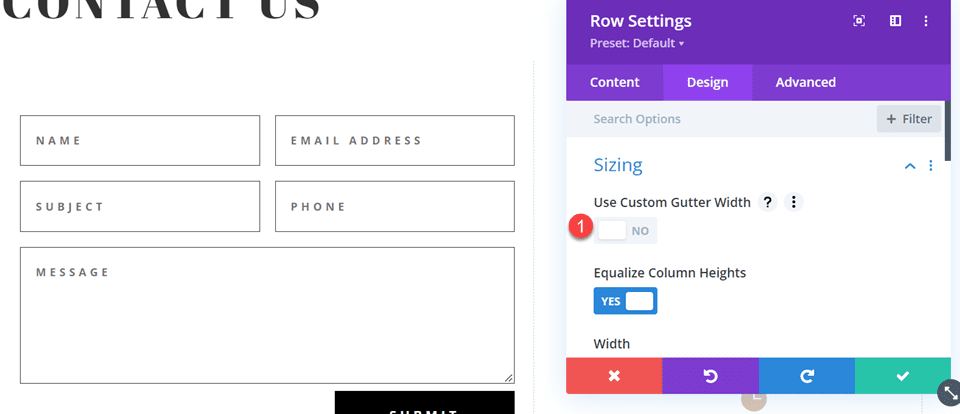
    Open the row design settings and turn off Use Custom Gutter Width.

    • Use Custom Gutter Width: No

    Divi Contact Form Layouts With Inline and Fullwidth Fields Layout 2 Custom Gutter Width

    Add some code to the Main Element Custom CSS in order to vertically align the blurb modules and the contact form.

    align-items:center;

    Divi Contact Form Layouts With Inline and Fullwidth Fields Layout 2 Main Element CSS

    Now we need to remove the thin border between the columns. Open the row settings, then open the settings for column 1. Under the Design tab, navigate to the border settings and remove the border.

    • Right border width: 0px

    Divi Contact Form Layouts With Inline and Fullwidth Fields Layout 2 Right Border

    Next, open the settings for column 2 and repeat the steps to remove the border.

    • Right border width: 0px

    Divi Contact Form Layouts With Inline and Fullwidth Fields Layout 2 Right Border Width

    Set the “Contact Us” text to be centered.

    Divi Contact Form Layouts With Inline and Fullwidth Fields Layout 2 Text Alignment

    Move the contact form to the right column. Delete the empty remaining section.

    Divi Contact Form Layouts With Inline and Fullwidth Fields Layout 2 Move Contact Form

    Modifying the Contact Form Layout with Inline and Fullwidth Fields

    This layout will also have two separate fields for first name and last name. Open the contact form module settings and change the field ID and Title for the Name field to First Name.

    Divi Contact Form Layouts With Inline and Fullwidth Fields Layout 2 Field ID and Title

    Add a new field below the First Name field. Set the field ID and Title to Last Name.

    Divi Contact Form Layouts With Inline and Fullwidth Fields Layout 2 Field ID

    In the last name field settings, open the Layout settings and set Make Fullwidth to No.

    • Fullwidth: No

    Divi Contact Form Layouts With Inline and Fullwidth Fields Layout 2 No Fullwidth

    Change the order of the phone and subject fields so that phone comes before subject.

    Divi Contact Form Layouts With Inline and Fullwidth Fields Layout 2 Reorder Fields

    Open the field settings for Email, Phone, and Subject, and set the layout to fullwidth.

    • Make Fullwidth: Yes

    Divi Contact Form Layouts With Inline and Fullwidth Fields Layout 2 Make Fullwidth

    Customizing the Contact Form Design

    Open the row settings, then open the column 2 settings. Set the background color.

    • Background: #DBC2B3

    Divi Contact Form Layouts With Inline and Fullwidth Fields Layout 2 Add Background

    Within the column 2 settings, navigate to the design tab and add some padding.

    • Padding-top: 50px
    • Padding-bottom: 50px
    • Padding-left: 50px
    • Padding-right: 50px

    Divi Contact Form Layouts With Inline and Fullwidth Fields Layout 2 Add Padding

    Select the mobile icon to modify the responsive settings. Set the padding for mobile.

    • Padding-top: 30px
    • Padding-bottom: 30px
    • Padding-left: 30px
    • Padding-right: 30px

    Divi Contact Form Layouts With Inline and Fullwidth Fields Layout 2 Add Responsive Padding

    Then add a box shadow to the column.

    Divi Contact Form Layouts With Inline and Fullwidth Fields Layout 2 Box Shadow

    Finally, open the contact form settings and change the field text color.

    • Fields text color: #000000

    Divi Contact Form Layouts With Inline and Fullwidth Fields Layout 2 Field Text Color

    Final Design

    Here is the final design for the second layout.

    Divi Contact Form Layouts With Inline and Fullwidth Fields Layout 2 Final Design

    Divi Contact Form Layouts With Inline and Fullwidth Fields Layout 2 Final Design Mobile

    Third Layout

    For the third layout, we will have the contact form on the left and the blurb modules on the right. Let’s get started by changing the column structure of the row containing the blurb modules.

    Divi Contact Form Layouts With Inline and Fullwidth Fields Layout 3 Choose Layout

    Move the address module to the right column.

    Divi Contact Form Layouts With Inline and Fullwidth Fields Layout 3 Move Address

    Next, move the Contact Us text module to the left column, then delete the remaining empty row.

    Divi Contact Form Layouts With Inline and Fullwidth Fields Layout 3 Move Text

    Move the contact form to the left column, below the Contact Us text module. Delete the remaining empty section.

    Divi Contact Form Layouts With Inline and Fullwidth Fields Layout 3 Move Module

    Open the row design settings and turn off Use Custom Gutter Width.

    • Use Custom Gutter Width: No

    Divi Contact Form Layouts With Inline and Fullwidth Fields Layout 3 No Custom Gutter Width

    Add some code to the Main Element Custom CSS in order to vertically align the blurb modules and the contact form.

    align-items:center;

    Divi Contact Form Layouts With Inline and Fullwidth Fields Layout 3 Custom CSS

    Open the row settings, then open the settings for column 1. Under the Design tab, navigate to the border settings and remove the border. Repeat the steps to remove the border from column 2.

    • Right border width: 0px

    Divi Contact Form Layouts With Inline and Fullwidth Fields Layout 3 Border Width

    Modifying the Contact Form Layout

    We will leave the field widths as-is for the third design, however, open the contact form settings and switch the order of the phone number and subject field so that the phone comes first.

    Divi Contact Form Layouts With Inline and Fullwidth Fields Layout 3 Reorder Fields

    Final Design

    Here is the final design for the third layout.

    Divi Contact Form Layouts With Inline and Fullwidth Fields Layout 3 Final Design

    Divi Contact Form Layouts With Inline and Fullwidth Fields Layout 3 Final Design Mobile

    Fourth Layout

    For the fourth and final layout, the contact form will be on the left and the blurb modules on the right. Once again, we will start by changing the column structure of the row containing the blurb modules.

    Divi Contact Form Layouts With Inline and Fullwidth Fields Layout 4 Choose Layout

    Move the address module to the right column.

    Divi Contact Form Layouts With Inline and Fullwidth Fields Layout 4 Move Module

    Move the contact form to the left column. Delete the remaining empty section.

    Divi Contact Form Layouts With Inline and Fullwidth Fields Layout 4 Move Form

    Open the row design settings and turn off Use Custom Gutter Width.

    • Use Custom Gutter Width: No

    Divi Contact Form Layouts With Inline and Fullwidth Fields Layout 4 Custom Gutter

    Add some code to the Main Element Custom CSS in order to vertically align the blurb modules and the contact form.

    align-items:center;

    Open the row settings, then open the settings for column 1. Under the Design tab, navigate to the border settings and remove the border.

    • Right border width: 0px

    Divi Contact Form Layouts With Inline and Fullwidth Fields Layout 4 Border Width

    Next, open the settings for column 2 and repeat the steps to remove the border.

    • Right border width: 0px

    Divi Contact Form Layouts With Inline and Fullwidth Fields Layout 4 Border Width 2

    Open the text module settings for the Contact Us text and center the text.

    • Text Alignment: Center

    Divi Contact Form Layouts With Inline and Fullwidth Fields Layout 4 Text Alignment

    Modifying the Contact Form Layout with Inline and Fullwidth Fields

    For this design, all of our fields will be fullwidth. Open the contact form settings, then open the settings for each field. Under the design tab, select Layout and set Make Fullwidth to Yes.

    Divi Contact Form Layouts With Inline and Fullwidth Fields Layout 4 Make Fullwidth

    Once you make each field fullwidth, the form should look something like this.

    Divi Contact Form Layouts With Inline and Fullwidth Fields Layout 4 Fullwidth

    Now, change the field ID and Title for the Name field to First Name.

    Divi Contact Form Layouts With Inline and Fullwidth Fields Layout 4 Field ID

    Add a new field below the First Name field. Set the field ID and Title to Last Name.

    Divi Contact Form Layouts With Inline and Fullwidth Fields Layout 4 Last Name Field

    Change the order of the phone and subject fields so that phone comes before the subject.

    Divi Contact Form Layouts With Inline and Fullwidth Fields Layout 4 Field Order

    Customizing the Contact Form Design

    In the contact form design settings, set the Fields Text Color to black.

    • Fields Text Color: #000000

    Divi Contact Form Layouts With Inline and Fullwidth Fields Layout 4 Text Color

    Open the section settings and add a background color.

    • Background: #DBC2B3

    Divi Contact Form Layouts With Inline and Fullwidth Fields Layout 4 Add Background

    Finally, add a background mask.

    • Background Mask: Arch
    • Mask Transform: Horizontal

    Divi Contact Form Layouts With Inline and Fullwidth Fields Layout 4 Add Background Mask

    To make the background mask work better on mobile, let’s use the responsive settings.

    Divi Contact Form Layouts With Inline and Fullwidth Fields Layout 4 Responsive Background Mask

    • Mask Transform on Mobile: Horizontal and Rotate
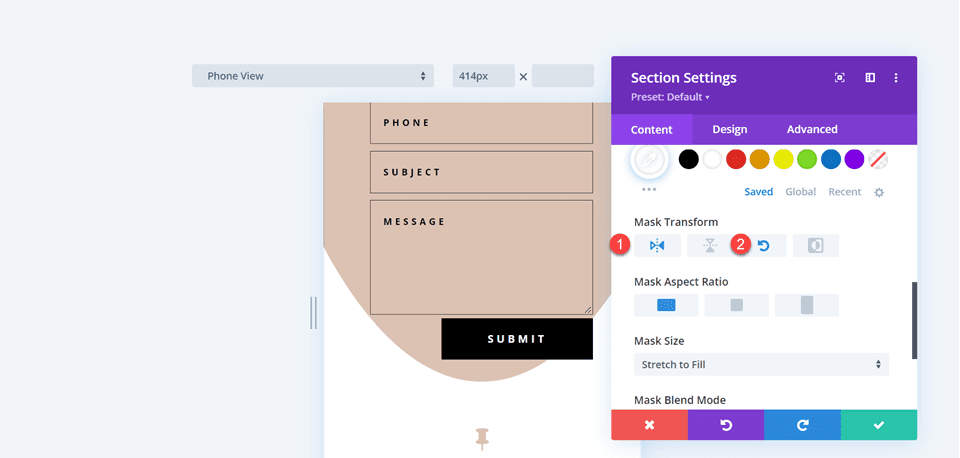
    Divi Contact Form Layouts With Inline and Fullwidth Fields Layout 4 Responsive Mask Transform

    Final Design

    Here is the final design for the fourth layout.

    Divi Contact Form Layouts With Inline and Fullwidth Fields Layout 4 Final Design

    Divi Contact Form Layouts With Inline and Fullwidth Fields Layout 4 Final Design Mobile

    Final Result

    Let’s take a look at all of our final designs once again.

    First Layout

    Divi Contact Form Layouts With Inline and Fullwidth Fields Layout 1 Final Design

    Divi Contact Form Layouts With Inline and Fullwidth Fields Layout 1 Final Design Mobile

    Second Layout

    Divi Contact Form Layouts With Inline and Fullwidth Fields Layout 2 Final Design

    Divi Contact Form Layouts With Inline and Fullwidth Fields Layout 2 Final Design Mobile

    Third Layout

    Divi Contact Form Layouts With Inline and Fullwidth Fields Layout 3 Final Design

    Divi Contact Form Layouts With Inline and Fullwidth Fields Layout 3 Final Design Mobile

    Fourth Layout

    Divi Contact Form Layouts With Inline and Fullwidth Fields Layout 4 Final Design

    Divi Contact Form Layouts With Inline and Fullwidth Fields Layout 4 Final Design Mobile

    Final Thoughts

    Having a great-looking contact form can increase your conversions and allows your visitors to connect directly with you. As we have demonstrated through this article, you can use the inline and fullwidth field options to create different looks and layouts for your form, and Divi’s built-in design options allow you to create unique and attractive designs to help the form stand out. To learn more about the different ways you can style the contact form module, check out this tutorial for creating a full-screen responsive form with zoom-in scroll animation, and this tutorial for 5 more unique styling options. How have you styled your contact form module? We would love to hear from you in the comments!

    The post How to Combine Inline & Fullwidth Fields in Divi’s Contact Form Module appeared first on Elegant Themes Blog.

  • Divi Plugin Highlight: Divi ConKit Pro

    Divi ConKit Pro is a plugin that brings 36 new modules to the Divi Builder and 4 other extensions that add new functionality and customizability to your website. If you’re looking for a feature-packed plugin that completely integrates with Divi and brings you modules such as Instagram feed, timeline, animated text, and flipbox, and gives you design control over popups, your login page, and much more, this might be the plugin for you. In this plugin highlight, we’ll take a look at all of the features that come with Divi ConKit Pro and help you decide if this plugin is right for you.

    Let’s get started!

    Installing Divi ConKit Pro

    Install Divi ConKit Pro just like you would any other plugin. Go to the plugins page and click Add Plugins, then select Upload Plugin and choose the plugin file. Click Install Now to install the plugin, then Activate the plugin once it has loaded.

    Divi Plugin Highlight Divi ConKit Pro Install

    Once the plugin is activated you will see a DiviConKit tab in your WordPress dashboard menu, where you can control what features are enabled for your site.

    Divi Plugin Highlight Divi ConKit Pro Settings

    Divi ConKit Pro

    Divi ConKit Pro Modules

    First, let’s take a look at each of the modules that come with Divi ConKit Pro. These modules all integrate with the Divi Builder and you add them to your website just like you would any other Divi module.

    DP Advanced Heading

    This module allows you to add a heading to your page and offers some advanced options beyond what Divi’s default module has. You can add prefix text, center text, suffix text, and background text, and the design of each text type can be completely customized as well. With this module, you can create more complex headers with different styles of text.

    Divi Plugin Highlight Divi ConKit Pro Header

    DP Animated Text

    This module allows you to add animated text to your page. You can add multiple sections of animated text to each module, and you can also add prefix and suffix text that doesn’t move. There are three animation modes, text typing, text tilt, and animated slide. The animation can be customized with various animation settings such as speed and timing, and the animated text can be customized with the default design options.

    Divi Plugin Highlight Divi ConKit Pro Animated Text

    DP Blog Plus

    The blog plus module displays recent posts from your blog. It has four different skin styles, I am using the Creative style in this example. Like the other modules in this kit, you can use the design options to completely customize the styling of the module to fit your website design.

    Divi Plugin Highlight Divi ConKit Pro Blog Plus

    DP Business Hour

    The business hour module allows you to easily add your business hours to the website. Just input each date and the business hours for that day, and you can customize the design options to change any of the fonts or colors to go with your design.

    Divi Plugin Highlight Divi ConKit Pro Business Hours

    DP Card

    This module is a card module, which creates a simple card containing an image or icon and some text. You can choose to add a badge or a button to the card, and again the design of the card is completely customizable.

    Divi Plugin Highlight Divi ConKit Pro Card

    DP CF7 Styler

    This next module is a styler module for Contact Form 7. You can use this module to edit your contact form styling within the visual builder.

    Divi Plugin Highlight Divi ConKit Pro CF7 Styler

    DP Content Toggle

    The content toggle module adds a toggle icon that allows you to switch between two sets of body content. The body content can be custom content that is set up within the content editor in the module, or you can import a layout from your library.

    Divi Plugin Highlight Divi ConKit Pro Content Toggle

    DP Divider

    The divider module allows you to add an icon, image, or text in between the divider line and also comes with some bottom divider shape layouts (Shape 3 is selected in this example) to divide the text on your page.

    Divi Plugin Highlight Divi ConKit Pro Divider

    DP Dual Button

    The dual button option adds two buttons as a single module. You can even add a connector (text or icon) between the two buttons, as I did in the example above. By using the various design options available in this module, you can create unique two-button layouts for your site.

    Divi Plugin Highlight Divi ConKit Pro Dual Button

    DP Flip Box

    This module creates a box with content on the front and on the back. When you hover over the box, the back content is revealed with flip animation. This could be useful to demonstrate before and after effects or to reveal content in an engaging way.

    Divi Plugin Highlight Divi ConKit Pro Flip Box

    DP Floating Image

    The floating image module allows you to add an image that floats up and down on the page. It adds some subtle movement to the design of the page to elevate the design.

    Divi Plugin Highlight Divi ConKit Pro Floating Image

    DP Horizontal Timeline

    With the horizontal timeline module, you can create a timeline containing text, images, and an icon for each step. It also has looping and automatic scroll options so that you can have the timeline scrolling through the page automatically. Again the design options can be used to totally customize the appearance.

    Divi Plugin Highlight Divi ConKit Pro Horizontal Timeline

    DP Hotspots

    With this module, you can add tooltips to any image that contain text, images, or icons. You can specify exactly where you want the tooltips to appear over the image, and of course, can customize the design of all of the elements with the design settings.

    Divi Plugin Highlight Divi ConKit Pro Hotspots

    DP Hover Box

    The hover box allows you to reveal text and other elements like a border as you hover over the image. As you can see in the example above, the box on the left is being hovered over and you can see that the subtitle and description have been revealed, as well as the border. On the right is the box that is not being hovered on, and it only displays the title. There are many different hover settings for this module as well.

    Divi Plugin Highlight Divi ConKit Pro Hover Box

    DP Icon Box

    This module is a simple module that allows you to display an icon and optional text in a box.

    Divi Plugin Highlight Divi ConKit Pro Icon Box

    DP Image Accordion

    The image accordion module displays multiple images next to each other. When you hover over one of the images it enlarges and minimizes the others so that you can see the whole photo. In the example above, I am hovering over the photo on the right.

    Divi Plugin Highlight Divi ConKit Pro Image Accordion

    DP Image Compare

    With the image compare module, you can compare two images with a slider you can drag to see each side. You can also add a label to each side, such as “before” and “after”.

    Divi Plugin Highlight Divi ConKit Pro Image Compare

    DP Image Magnifier

    The image magnifier module asks you to upload a large and small version of an image. When you hover over the image a magnifier appears and you can see a larger version of the hovered area.

    Divi Plugin Highlight Divi ConKit Pro Image Magnifier

    DP Image Masking

    In this module, you can add an image with a mask shape. There are many different shapes for you to choose from within the module, and you can further customize the design by adding colors to the mask or the image.

    Divi Plugin Highlight Divi ConKit Pro Image Masking

    DP Info Box

    This module simply allows you to add a box with text content and an optional image or icon.

    Divi Plugin Highlight Divi ConKit Pro Info Box

    DP Inline SVG

    This module allows you to directly upload SVG files and view them within the Divi Builder.

    Divi Plugin Highlight Divi ConKit Pro Inline SVG

    DP Instagram Feed

    With the Instagram feed module, you can display your recent Instagram posts elegantly on your website. There are 3 layouts to choose from: grid, highlight (used in the example above), and masonry. You can use the design options to customize the spacing, the overlay, the caption, and much more.

    Divi Plugin Highlight Divi ConKit Pro Instagram

    DP List

    This module can be used to organize information in a list with an icon or image.

    Divi Plugin Highlight Divi ConKit Pro List Group

    DP Logo Grid

    The logo grid module could be useful for displaying client logos or “featured in…” logos. You can also add hover effects to the logo. In this example, I am using a zoom-out hover effect, which you can see applied on the second logo in the screenshot.

    Divi Plugin Highlight Divi ConKit Pro Logo

    DP Lottie

    With this module, you can add a Lottie animation directly to your page in the Divi Builder. You can add the Lottie Animation by uploading the Lottie JSON file or by URL.

    Divi Plugin Highlight Divi ConKit Pro Lottie

    DP Number

    The number module simply displays a number. You can enable the counter option and the number will count up as it is revealed. Again, you can use the design settings to fully customize the appearance.

    Divi Plugin Highlight Divi ConKit Pro Number

    DP Price Menu

    With the price menu module, you can easily create a menu on your website with prices, a title and description, and many options to customize the appearance.

    Divi Plugin Highlight Divi ConKit Pro Price Menu

    DP Review

    This module allows you to add reviews to your site with star ratings, an image, and of course the review text content.

    Divi Plugin Highlight Divi ConKit Pro Review

    DP Scroll Image

    With the scroll image module, your image is only partially displayed at a set height. When you hover over the image (or scroll, depending on the option you pick), the image scrolls so you can see the rest of the image.

    Divi Plugin Highlight Divi ConKit Pro Scroll Image

    DP Skill Bars

    This module can be used to demonstrate skill levels or anything else that can be represented by progress bars. You can choose what labels are displayed, and of course, all of the design elements can be customized.

    Divi Plugin Highlight Divi ConKit Pro Skill Bars

    DP Social Share

    This module has many social media platforms to choose from and you can easily change the button text, styles, layout, placement, and many other settings.

    Divi Plugin Highlight Divi ConKit Pro Social Share

    DP Team

    The team module makes it easy to display your team members on your website. You can add a photo, the name, job title, and bio, and even links to a personal website, email address, and social media sites. There are a couple of different options where the content is displayed over the image on hover as well.

    Divi Plugin Highlight Divi ConKit Pro Team

    DP Testimonial

    The testimonial module allows you to add customer testimonials to your site. It gives you the option to include a star rating, and you can choose to use a quote icon or upload your own. There are several positioning and layout options to choose from as well, allowing you to create a fully custom design.

    Divi Plugin Highlight Divi ConKit Pro Testimonial

    DP Twitter Feed

    This module allows you to display a Twitter feed on your website. This module has many options for you to choose exactly what is displayed, and of course, the design is completely customizable with Divi’s many design options.

    Divi Plugin Highlight Divi ConKit Pro Twitter Feed

    DP Vertical Timeline

    The vertical timeline module allows you to create a timeline with text and image content. There are several layout options available, and you can choose to add a scrolling line that adds some dynamic movement to the timeline. Additionally, you can fully customize the styling of the timeline and even add different colors for the active and inactive states.

    Divi Plugin Highlight Divi ConKit Pro Vertical Timeline

    DP Video Popup

    With this module, you can add a video that pops up in the same page on a dark overlay background. You can upload a cover image and customize the overall design, overlay icon, and other design elements. You can link a video from YouTube or Vimeo, or upload your own.

    Divi Plugin Highlight Divi ConKit Pro Video

    Divi ConKit Pro Extensions

    In addition to the modules that come with DiviConKit, there are a few extensions that come with the plugin that adds additional functionality to your website. Let’s take a look at each one.

    Blog Designer

    The blog designer gives you additional options to customize the way your blog and post pages are designed. You can find the blog designer settings within the Customize menu under Appearance, or by clicking the link in the Divi ConKit settings.

    Divi Plugin Highlight Divi ConKit Pro Blog Designer SEttings

    Within the blog/archive settings you can change the layout, the background, the post items that are displayed, the featured image sizing, and other sizing and spacing options.

    Divi Plugin Highlight Divi ConKit Pro Blog Archive Settings

    Next, in the single post settings, you can customize the sizing and spacing of the content, change the background, choose what elements are displayed, add a post author box, post navigation, related posts, and more.

    Divi Plugin Highlight Divi ConKit Pro Blog Post Settings

    Popup Maker

    The popup maker allows you to design a custom popup using the Divi visual builder. You can find the popups setting under the DiviConKit settings section in the WordPress dashboard. You can designate specific pages where you want each popup to appear.

    Divi Plugin Highlight Divi ConKit Pro Popup Builder

    Within the settings for the popup, you can designate the open event and animation style, change the background and overlay, adjust the positioning and sizing, and more.

    Divi Plugin Highlight Divi ConKit Pro Popup Settings

    And here is the popup in action.

    Divi Plugin Highlight Divi ConKit Pro Popup

    Login Designer

    The login designer allows you to customize the WordPress login page for your website. You can find the login designer settings within the Customize menu under Appearance, or by clicking the link in the Divi ConKit settings. You can customize the background, the logo, the login form and the fields, all of the text and labels, and the button.

    Divi Plugin Highlight Divi ConKit Pro Login Designer Settings

    Unfortunately, you can’t see the login page as you make these changes because you need to be signed out to see the login page. To get around this, I opened the login page using an incognito window in my browser so I could see both at the same time and see the changes I was making.

    Divi Plugin Highlight Divi ConKit Pro Login Designer

    Here is a customized version of the login page, with a new background, logo, field background, and text color.

    Divi Plugin Highlight Divi ConKit Pro Login Page

    Divi Library Shortcodes

    DiviConKit Pro also enables you to use shortcodes to display any Divi library template inside a Divi module or inside a .php file. When you access the Divi Library you will see the shortcode for each library item listed. Simply copy the shortcode and use it in the code module within the Divi builder or add it to a .php file, then the Divi Library item will appear. In this example, I added a pricing table from my Divi Library to my page using the shortcode.

    Divi Plugin Highlight Divi ConKit Pro Shortcode

    Purchase Divi ConKit Pro

    Divi ConKit Pro is available in the Divi Marketplace. It costs $59 for unlimited website usage and 1 year of support and updates. The price also includes a 30-day money-back guarantee.

    Final Thoughts

    Divi ConKit Pro is a feature-packed plugin that adds a lot of great modules to extend the functionality of the Divi Builder. Every module is packed with options and fully customizable, making it easy to create beautiful modules for your website. Finally, we would love to hear from you! Have you tried Divi ConKit Pro? Let us know what you think about it in the comments!

    The post Divi Plugin Highlight: Divi ConKit Pro appeared first on Elegant Themes Blog.