EDITS.WS

Author: Christina Gwira

  • Download a FREE Category Page Template for Divi’s Seafood Restaurant Layout Pack

    Hey Divi Nation! Thanks for joining us for the next installment of our weekly Divi Design Initiative where each week, we give away brand new freebies. This time around we’re building upon the Seafood Restaurant Layout Pack with a brand new Category Page Template that matches the rest of the pack perfectly. Hope you enjoy it!

    divi layout

    Check Out The Seafood Restaurant
    Category Page Template Below

    Get it for free today!

    Desktop View

    Divi Seafood Restaurant Category Page Template for desktop

    Tablet and Mobile View

    Divi Seafood Restaurant Category Page Template for tablet and mobile

    Download The Category Page Template For The Seafood Restaurant Layout Pack

    To lay your hands on the free Seafood Restaurant Category Page Template, you will first need to download it using the button below. To gain access to the download you will need to subscribe to our Divi Daily email list by using the form below. As a new subscriber, you will receive even more Divi goodness and a free Divi Layout pack every Monday! If you’re already on the list, simply enter your email address below and click download. You will not be “resubscribed” or receive extra emails.

    How to Upload The Template

    Go to Divi Theme Builder

    To upload the template, navigate to the Divi Theme Builder in the backend of your WordPress website.

    Open Divi Theme Builder

    Upload Website Template

    Then, in the top right corner, you’ll see an icon with two arrows. Click on the icon.

    Import the template into the Divi Theme Builder

    Navigate to the import tab, upload the JSON file that you could download in this post, and click on ‘Import Divi Theme Builder Templates’.

    Finish importing the template into the Divi Theme Builder

    Save Divi Theme Builder Changes

    Once you’ve uploaded the file, you’ll notice a new template with a new body area that has been assigned to All Category Pages. Save the Divi Theme Builder changes as soon as you want the template to be activated.

    Save the imported category pages layout file

    How to Modify The Template

    Open Category Page Template Body Layout

    To modify the template’s elements, start by opening the template’s body layout.

    Edit the category pages template

    Inside the Body Layout Editor, you can edit the design on the front end using the Divi Builder just like you would with a normal Divi page.

    About the Seafood Page Template for Your Categories and Archives

    This category page template has a few dynamic elements that will work automatically including:

    • Category Page Post/Archive Title: We use a Text Module with Dynamic Content activated to show the current category title.
    • Blog: The standard Blog Module to showcase the current six blog posts within the category. The module also has pagination enabled so that you can see more posts within the category.

    Here is a quick illustration that identifies the dynamic elements of the Seafood Restaurant Category Page Template.

    Divi Seafood Restaurant Category Page Template Overview

    Updating the Template’s Static Elements

    There is a static call-to-action section at the bottom of our Seafood Category Page Template that you’ll have to update to suit your website. You can link the button to your menu, your order form or even your contact page. The choice – as with all things Divi – is yours!

    Updating the static content within the Blog Post Template

    New Freebies Every Week!

    We hope you’ve enjoyed the Seafood Restaurant Layout Pack and the Category Page Template freebie that goes along with it. We look forward to hearing your opinions in the comment section below. Make sure you check back next week for more freebies!

    The post Download a FREE Category Page Template for Divi’s Seafood Restaurant Layout Pack appeared first on Elegant Themes Blog.

  • Download a FREE Header & Footer for Divi’s Web Developer Layout Pack

    Hey Divi Creators! Thanks for joining us for the next installment of our weekly Divi Design Initiative where each week, we give away brand new freebies. We recently shared a brand new Web Developer Layout Pack. To help you get your website up and running as soon as possible, we’re sharing a global header & footer template that matches this layout pack perfectly as well! Hope you enjoy it.

    divi layout

    Check Out The Web Developer
    Global Header & Footer Template Below

    Get it for free today!

    Header Design

    Desktop View

    Divi Web Developer Header Design

    Tablet and Mobile View

    Divi Web Developer Header View Tablet and Mobile

    Footer Design

    Desktop View

    Divi Web Developer Footer Design

    Tablet and Mobile View

    Footer Tablet and Mobile View for Divi Web Developer Layout

    Download The Global Header & Footer Template For The Web Developer Layout Pack

    To lay your hands on the free global header & footer template, you will first need to download it using the button below. To gain access to the download you will need to subscribe to our Divi Daily email list by using the form below. As a new subscriber, you will receive even more Divi goodness and a free Divi Layout pack every Monday! If you’re already on the list, simply enter your email address below and click download. You will not be “resubscribed” or receive extra emails.

    How to Upload The Template

    Go to Divi Theme Builder

    To upload the template, navigate to the Divi Theme Builder in the backend of your WordPress website.

    Open Divi Theme Builder

    Upload Global Default Website Template

    Then, in the top right corner, you’ll see an icon with two arrows. Click on the icon.

    Import the template into the Divi Theme Builder

    Navigate to the import tab, upload the JSON file which you were able to download in this post, and click on ‘Import Divi Theme Builder Templates’.

    Finish importing the template into the Divi Theme Builder

    Save Divi Theme Builder Changes

    Once you’ve uploaded the file, you’ll notice a new global header and footer in your default website template. Save the Divi Theme Builder changes as soon as you want the template to be activated.

    Save Divi Theme Builder Changes

    How to Modify The Template

    Open Header Template

    To modify the global header template’s elements, start by opening the template.

    Open Header Template

    Update Social Media Networks & Links

    First, update the Social Media Follow Module with your own social media networks. Remember to add the correct links to each social media account that you add.

    Update social networks and social media links within the Social Media Follow Module

    Upload Your Logo

    In the Image Module, upload your logo.

    Upload your logo into the Image Module

    Add CTA Link URLs

    This header has a button on the top right. Open the settings of the button and update the link URL and button text to match your website’s needs.

    Add CTA Link URLs

    Select Your Main Menu

    Choose your menu for the Menu Module.

    Select Your Main Menu

    Update Text Modules with Call-to-Actions

    We use the Text Module to have two call-to-actions on the left and right of the Menu Module. Update these to reflect the call-to-actions that you’d like to use on your website.

    Update Text Modules with Call-to-Actions

    You may also want to consider adding links to these call-to-actions to important areas of your website.

    Preparing for Mobile Responsiveness

    This freebie uses a different set of sections, rows, and modules for the tablet and mobile view. As such, we’ll need to switch to the tablet or mobile view in the Divi Builder.

    Preparing for Mobile Responsiveness

    Update Button for Mobile

    As we did for the desktop view, we need to update the text as well as the link destination for the mobile Button Module.

    Update Button for Mobile

    Add Your Logo and Update Menu for Mobile

    Select your menu for the mobile version of your website. For mobile, we are using the logo feature of the Menu Module. Thus, no image module was used to display our logo.

    Add Your Logo and Update Menu for Mobile

    Change Static Text Call-to-Actions

    Lastly, we’ll need to update the static Text Modules that have our call-to-actions for mobile.

    Change Static Text Call-to-Actions

    Open Footer Template

    Continue by opening the global footer inside the default website template.

    Open Footer Template

    Update Footer Logo

    We use an Image Module to display our company logo. Update this module with your own logo. Friendly reminder to use a transparent PNG for this for best results.

    Update Footer Logo

    Select Footer Menu

    We have another Menu Module in the footer of this template. Let’s select our menu for this module.

    Select Footer Menu

    Change and Add Social Media Networks and Links

    We have another Social Media Follow Module in the footer. Update the module to share your social media networks and ensure that you link to your updated social media links.

    Change and Add Social Media Networks and Links

    Connect Your Email Marketing Solution

    There is an Email Optin Module in the footer of our Divi Web Developer template. Ensure that you connect your email marketing service to the module so that you can collect the email addresses of users to your site.

    Connect Your Email Marketing Solution

    Update Static Footer Content

    You will need to go through and update the static content elements in the footer. This includes updating titles, copyright text and more.

    Update Static Footer Content

    New Freebies Every Week!

    We hope you’ve enjoyed the Web Developer Layout Pack and the Header & Footer freebie that goes along with it. We look forward to hearing your opinions in the comment section below. Make sure you check back next week for more freebies!

    The post Download a FREE Header & Footer for Divi’s Web Developer Layout Pack appeared first on Elegant Themes Blog.

  • 9 Best WordPress Page Builders in 2023 (No Coding Required)

    When it comes to building your website in WordPress, page builders can make your life much easier. Although WordPress has countless themes to get a website up and running quickly, your site’s design and functionality are often hard-coded to the theme and difficult to customize, unless you have coding experience. For those looking for a no-code solution for building a WordPress website without the limitations of a traditional theme, you will want to invest in a page builder.

    However, when it comes to page builders, finding the right one can be difficult. The best WordPress page builders will share similarities but their differences can be difficult to see without a little digging. In this post, we’ll explore the differences between each by comparing key features, ease of use, design assets, compatibility, pricing, and more.

    Let’s take a look at some of the best WordPress page builders so you can find the right one for you.

    What is a WordPress Page Builder?

    WordPress page builders are plugins (or themes) that enable you to build your website pages using a visual drag-and-drop interface on the front end without requiring any coding knowledge.

    With page builders, you don’t have to go back and forth from the WordPress editor or refresh your browser constantly while building your site. You can design your website in real-time as it actually appears on the front end. Some page builders also raise the bar with full site editing capabilities, allowing you to design global headers, footers, templates, and more.

    As they are a major component of no-code design, most page builders are user-friendly and offer pre-designed templates, layouts, and design components to speed up the design process.

    Benefits of Using a Page Builder

    Here are some of the main benefits of using a page builder:

    • Saves Time: Users can create custom page designs much faster.
    • Simplifies the Process of Building Websites: Even non-techy users can create professional websites that look great and are fully functional without having to do any coding.
    • Allows More Customization: Page builders give you more control of the design (and functionality) of your website on the front end. Plus, you don’t have to add custom CSS to make unique designs.
    • Provides Pre-made Design Resources: Most page builders include a library of premade page layouts and design elements that can be used without restriction to build stunning pages without having to hire a designer.
    • Includes Marketing Tools: Page builders often have email opt-in forms, popups, social media sharing, conversion-optimized landing page templates, a/b testing, analytics, and other marketing tools available.

    Of course, there are some drawbacks. Because they are packed with features and resources, your site might take a hit on speed and performance which would require extra work to fix. Also, they can be more costly so those with smaller budgets may not be able to benefit from them. And some page builders can be overwhelming to new users because of the number of features and options available. But for most users, these drawbacks are largely outweighed by the powerful design benefits of using a page builder.

    The Best WordPress Page Builders (Compared)

    When choosing the best page builder, you’re going to find that they offer similar features. But what makes them stand out is the quality and quantity of their features in relation to price. In this list of the best WordPress page builders, we’ll go over the features and pricing of each and how they best fit particular users.

    1. Divi

    Divi, Elegant Themes premier page builder project

    First up is Divi, our very own page builder for WordPress which is a powerful all-in-one solution for designing websites visually. Whether using our theme or plugin, Divi adds an intuitive drag-and-drop page builder to WordPress that allows users to create pages fast in real time with a true WYSIWYG design experience on the front end (or back end) without having to code.

    Because we give away new layouts weekly, the builder currently has 2,000+ layouts available directly from the builder and 300+ full website packs allowing users to get a full website design in minutes. There are 200+ design elements (or modules) you can use for any type of content including filterable galleries, blog pages, email opt-ins, menus, and native WooCommerce modules.

    Every element can be customized using powerful design options and functionality including hover states, responsive design, transform effects, blend modes, filters, background masks and gradients, sticky elements, scroll animation, display conditions, dynamic content, and so much more.

    Divi supports dozens of integrations with popular WordPress for membership, forms, events, email marketing, and other online services. Plus you can control SEO optimization on the visual builder in real time with RankMath integration.

    Our Divi Theme Builder gives you full control over the design of your entire website from top to bottom. Create global headers, footers, and templates for blog posts, archive pages, WooCommerce pages, and more.

    For $89/yr (or $249 lifetime), our paid membership includes everything, with no hidden fees or upgrades needed. You get the Divi builder (theme and plugin), plus additional premium plugins including Bloom (for email opt-in popups and lead generation) and Monarch (for social media sharing site-wide), and more.

    Key Features for Divi:

    • Simple and intuitive visual builder with drag-and-drop functionality
    • 200+ Design elements (or Modules) available for adding content
    • 2,000+ Pre-made design layouts
    • 300+ pre-made full website packs
    • 20+ Native WooCommerce modules for creating custom WC pages
    • Unlimited website usage
    • A large number of seamless integrations with third-party plugins and services
    • Divi Theme Builder, a full site editing templating system
    • Manage custom designs via Divi Library or Divi Cloud
    • Import & export Theme Builder Template packs like child themes
    • Access to Extra, Bloom & Monarch (included with membership)
    • Team collaboration and user role management with Divi Teams
    • Growing third-party development community via Elegant Themes Marketplace
    • Reliable, Divi-compatible WordPress hosting partners with Divi Hosting


    Divi's theme builder

    With our Theme Builder, create as many templates as you want and assign them anywhere. You can even import, export, and save entire template sets to your Divi cloud to be used as child themes for other projects. Tons of free templates are available on our blog as well.

    Best for: Agencies, small businesses, freelancers, or online store owners that need tons of design resources at an affordable price. Divi comes with basically everything you need to build stunning websites, sell products, and grow your business. And you won’t be restricted by licensing fees or additional costs that come with add-ons and upgrades. However, there is no free version. So if you are looking for a freemium plugin and don’t want a robust builder with a ton of features you don’t need, Beaver Builder or Elementor may be a better fit.

    Divi Pricing: $89 per year (or $249 lifetime)

    Get Divi

    2. Beaver Builder

    Beaver Builder is a WordPress plugin that is also available in the WP plugin repo

    Beaver Builder is a popular and versatile page builder plugin built for WordPress. It may not be as advanced as other builders when it comes to design features and resources, but it is a great page builder for beginners looking for a lightweight visual builder with all the essentials. With a focus on simplicity, their drag-and-drop editor focuses on the essentials when it comes to no-code design. And it works with just about any WordPress theme.

    Their lite version of the plugin has some basic features to get you familiar with the builder, but you’ll want to get a paid version to experience the true value of the builder.

    With a standard plan, you get 30+ advanced modules that you can use to build your website pages. Elements like icon groups, maps, contact forms, and more. Plus, you’ll get access to prebuilt templates to jumpstart your design, though not as many as other builders on our list.

    A standard plan also gives you access to the Beaver Themer addon.  This gives you full site editing capabilities, allowing you to create layouts for blog archives, custom post types, WooCommerce, and more.

    Beaver Builder integrates with several respected WordPress plugins and themes, including WooCommerce and other popular form plugins and LMS plugins.

    While the base plan offered gives you a good page builder, you may have to upgrade to be able to build a truly powerful, custom website with the Beaver Builder suite of tools.

    Key Features of Beaver Builder:

    • User-friendly drag-and-drop interface for easy website design
    • 30+ modules
    • 25+ Landing page templates
    • 40+ Content page templates
    • Integrated with Gravity Forms and Ninja Forms
    • Integrated with LifterLMS, LearnDash, MemberPress
    • Unlimited site usage
    • Cloud storage with Assistant Pro (add-on)
    • Theme Builder (Add-on)
    • White Labeling available (Agency plan)
    • Revision history feature that allows you to roll back to previous versions of your page or post

    Beaver Builder and LifterLMS

    A key feature of Beaver Builder is its powerful integrations. An example would be the LifterLMS and BeaverBuilder integration. The integration allows users to create customizable course and lesson layouts using Beaver Builder’s drag-and-drop interface.

    Best For: Beaver Builder is best for those looking for a lightweight page builder that is easy to use and works with a wide variety of WordPress themes and plugins. It is great for sites that use membership plugins or LMS plugins that use custom post types. However, if you are looking for more design tools and resources, and want theme builder capabilities for a more affordable price, you might consider Divi or Elementor.

    Pricing: Starts at $99 per year

    Get Beaver Builder

    3. Elementor Page Builder

    Elementor WordPress page builder

    The page builder by Elementor is a popular freemium WordPress plugin enjoyed by millions of WordPress users. It has a drag-and-drop user interface that is easy to navigate, making it simple to build custom page layouts without the need for coding. Users can choose from a multitude of design elements when building. And like Divi and Beaver Builder, Elementor provides a real-time preview of your page as you build it.

    The free version comes with access to basic widgets and pre-made templates. However, paid versions provide you with 300+ templates that are stunning pro widgets like carousels, table of contents, and Lottie. With all these elements you can build some powerful and stunning pages.

    Elementor’s Theme Builder add-on enables full website building, allowing you to create custom headers, footers, archives, and WooCommerce pages. You can also use 100+ full website kits based on its Hello Theme to build your entire website.

    Elementor works well with well-known plugins like Wordfence, Smush, Yoast, and WooCommerce. With 20+ WooCommerce widgets, Elementor gives you the power to build your eCommerce pages as you see fit.

    When it comes to pricing, Elementor does have a free version that is quite limited compared to the Pro version. The Elementor Pro base package includes all features for $59 per year for one website. However, if you’re looking to build multiple sites, the price can add up quickly.

    Elementor has recently extended its products to include an all-in-one, hosted site builder solution (like Squarespace or Webflow) which is great for those looking to manage everything under one roof.

    Key Features for Elementor:

    • Create stunning websites with ease using the visual drag-and-drop builder
    • 100+ design widgets to build your page
    • 300+ pre-made templates
    • Collaborate with others on your website design by adding comments and notes on the front end.
    • Global design settings for site-wide design.
    • Powerful popup builder that lets you create custom popups that can be triggered by user behavior or specific events
    • Integrates seamlessly with WooCommerce for creating custom WC pages
    • Dynamic content options
    • Mobile responsive design options for tweaking designs for different devices.
    • Includes a wide range of pre-designed templates and blocks
    • Access to tons of third-party add-ons

    Elementor Theme Library

    Elementor’s Theme Builder allows you to customize every part of your site including the header, footer, page and post templates, archive templates, and WooCommerce templates without the need for coding. Users can add new site parts, edit existing ones, or delete site parts as needed.

    Best For: Those who want a try-before-you-buy page builder that has all the features you may need in the paid versions. They have plans that scale from a personal site to a large agency. Although not as robust in design resources, the design elements and layouts available make it a good contender to Divi. But with more costly plans and limited site usage, Divi may be a better option if you are a freelancer or agency building multiple sites.

    Pricing: Free, Pro version starts at $59 per year

    Get Elementor

    4. Oxygen Builder

    Oxygen Builder

    Oxygen builder is one of the more advanced drag-and-drop WordPress page builders on the market. What sets Oxygen apart from other website builders is its focus on performance, code optimization, and responsiveness. And it is probably one of the only builders that can create and edit Gutenberg blocks using the builder.

    Like others on this list, Oxygen offers a real-time visual building experience using pre-made design elements at your fingertips. And it has powerful design features and extendability options that make it one of the best page builders for WordPress. It is  The user interface may not be as easy to use for beginners, but it does make it easy for developers to build more unique designs and features.

    When compared to other builders, Oxygen’s design library is not as abundant. However, Oxygen’s design sets are well-organized (almost too organized) for adding elements like headers, footers, and sections to your page or template. Giving you total responsive control over your website, you can create beautiful, custom design elements for your site swiftly. It also has a powerful dedicated header builder for creating responsive headers on your site using pre-built header templates.

    Oxygen comes with more than 20 highly configurable WooCommerce elements to build your online stores on WordPress. It also works well with plugins like EDD and MemberPress. But it doesn’t have built-in marketing features or integrations like other page builders on the list.

    While it is priced on the higher side of other page builders, all plans come with lifetime access to Oxygen with varying offerings for higher-tiered plans.

    Key Features of Oxygen Builder:

    • Generates streamlined code for better performance and speed
    • Uses Flexbox and CSS Grid for more responsive designs
    • Full control over responsive breakpoints and column stacking for mobile devices.
    • Google Font Face Limiter
    • WooCommerces elements with Global styling for building WC pages
    • Comprehensive access control for clients
    • Gutenberg Block Builder is available (Ultimate package)
    • Composite Elements are available for adding flip boxes, mega menus, table of contents and more (Ultimate package)
    • Display any data dynamically from your WordPress database and custom data using ACF or Toolset
    • Global and page-level scroll and entrance animations

    Elementor code vs Oxygen

    Oxygen generates clean and streamlined code, without unnecessary bloat. This results in fast-loading pages and high scores on Google PageSpeed & Lighthouse tests. It only loads scripts and styles that are necessary for your design, which helps to optimize website performance. With Oxygen, users can create websites that are both visually impressive and highly optimized for performance.

    Best For: Designers or developers who value performance and want the most control over their WordPress websites. The ability to use and edit Gutenberg blocks sets it apart from other builders. It has powerful features but requires more of a learning curve. It doesn’t have as many design elements or resources, but it is highly customizable and is built for performance.

    Pricing: From $129 for lifetime

    Get Oxygen Builder

    5. SeedProd

    SeedProd is a freemium page builder plugin for WordPress that has over a million users. Like others on our list, it offers a live editing drag-and-drop design experience for building various types of pages or entire themes. It is also one of the best landing page plugins for WordPress.

    The builder UI is comparable to Elementor, making it easy to build content using available design elements (or blocks). The free version has much fewer blocks than the 80+ blocks included in the pro version. That said, the blocks are great for displaying static or dynamic content for just about anything you need.

    SeedProd comes with plenty of pre-designed templates for landing pages, although not as many as other page builders like Divi. And it provides handy tools for creating coming or maintenance pages as well as marketing tools (like email opt-ins) for creating landing pages optimized for lead generation. You’ll need to upgrade to Plus or Pro plans if you want access to 150+ page templates or the theme builder features.

    Like other page builders, SeedProd integrates with popular email marketing providers to help build your email list. And it integrates with WooCommerce (WC) by providing native WC blocks to help built custom WC pages. But you’ll need to upgrade to their highest-paid tier to get WooCommerce support.

    Although SeedProd is more affordable than others on our list initially, you may end up significantly more if you want access to free templates, the theme builder, or WooCommerce support.


    SeedProd, a WordPress page builder for digital marketers and solopreneurs

    Key Features for SeedProd:

    • simple and intuitive visual drag-and-drop builder.
    • 150+ landing page templates
    • 90+ blocks to display static and dynamic content.
    • 45+ attention-grabbing animations
    • 20+ native WooCommerce blocks
    • Powerful blocks and built-in marketing tools
    • Domain Mapping: Create landing pages and direct them to any domain name without requiring additional WordPress installs
    • Work on your page privately and keep its construction hidden from the public with draft mode
    • Copy sections from one page or website to another with automatic import of all accompanying media files
    • Built-in Coming Soon and Maintenance Modes

    SeedProd's custom domain mapping

    With Domain Mapping, you can effortlessly create landing pages and direct them to any domain name of your choice without requiring additional WordPress installations. It enables users to associate their unique domain name with their SeedProd landing page, which then redirects visitors to the designated custom domain name. This functionality proves to be advantageous for individuals who prefer to use their custom domain name for their landing pages which is beneficial for higher conversation rates and better SEO.

    Best For: SeedProd is best for those who want an affordable page builder for creating landing pages for lead generation. If you want to create entire websites using a page builder, SeedProd can do the job, but you will find better and more affordable options on our list.

    Pricing: From $79 per year

    Get SeedProd

    6. Visual Composer

    visual composer WordPress page builder

    Visual Composer is a freemium page builder plugin for WordPress with some standout features. Like most builders, it has a drag-and-drop interface for easy visual building. The free version has a limited amount of design elements, options, and pre-made templates. But a premium version unlocks more design options and 500+ design elements and templates that can be accessed through their visual composer hub.

    Their hub includes downloadable content elements, templates, blocks, addons, headers, and footers that can be added to your available content when using the builder. You can even grab free stock images and animated GIFs directly from the hub library to use without restrictions.

    With premium, you’ll get a theme builder and dynamic content functionality for global, full-site editing. And it includes a built-in popup builder for designing any popup you need with triggers and animation.  The builder also has a built-in insights feature for helpful on-page SEO tips while building (even with the free version).

    With its addon gallery, integrating with popular WordPress plugins and third-party services is just a few clicks away. Online store owners will benefit from available WooCommerce templates and content elements to build custom pages and templates.

    For pricing, all of their premium packages (starting at $49/year for 1 site) include the same amount of features. You’ll just pay extra depending on the number of websites you need.

    Key Features for Visual Composer:

    • The intuitive visual drag-and-drop editor
    • 200+ professional pre-made templates
    • 300+ content elements with advanced design options
    • Responsive design options on the front end
    • Built-in SEO optimization
    • Theme Builder for building entire websites, not just pages
    • Design WooCommerce websites with customizable WC blocks and templates.
    • Large library of add-ons and design assets accessible from the visual builder hub.
    • Third-party integrations with essential plugins for forms, social networks, and media.
    • Integrates with multiple font and icon libraries that allow you to add vector icons and SVGs to your site.

    visual composer seo insights

    Its Insights feature is a nice bonus you don’t find in most other builders. It offers real-time SEO page optimization tips on the front end to help you create better SEO content. It works similarly to SEO plugins like Yoast or RankMath although not as powerful.

    Best For:  Visual Composer is best for small businesses, bloggers, or beginners looking for a powerful visual builder with all the necessities at a lower price. The features and design resources aren’t as extensive as other more robust page builders. But it can be a great all-in-one solution for those looking to find everything they need all in one place.

    Pricing: Free, Premium plans start at $49 per year for 1 site (or $149 lifetime)

    Get Visual Composer

    7. Thrive Architect

    Thrive Architect is a page builder that is one of many Thrive Suite tools offered by TriveThemes. By itself, the page builder includes all the features we love in a page builder including a drag-and-drop interface, extensive design and content elements, and pre-designed landing page templates.

    What sets Thrive Architect apart from other page builders is its focus on marketing and lead generation. It includes over 400 stunning conversion-focused templates for you to use to build your content and generate leads.

    Their smart landing page templates streamline the design process of high-converting landing pages to be lightning-fast. You can load a template and choose an entire color scheme for your page with a few clicks.

    And the design elements are also more conversion based, including things like countdown timers, testimonials, buttons, and lead generation forms. The forms integrate with popular email marketing providers as well.

    Thrive Architect

    Key Features for Thrive Architect:

    • 400+ conversion-focused templates that are designed to help you create pages that convert visitors into customers or subscribers.
    • Includes marketing-focused elements, such as pricing tables, countdown timers, and testimonials
    • Includes lead generation elements, such as opt-in forms and popups, that can help improve your marketing strategy
    • Smart landing pages for easier design and branding
    • Create targeted landing pages that are customized based on the visitor’s search term, location, or other criteria
    • Available A/B testing feature that helps you optimize your pages for maximum conversions
    • In-depth analytics and tracking options allow you to measure the performance of your pages and make data-driven decisions.

    Thrive Architect Landing Page Gallery

    Thrive Architect offers a comprehensive package of 352 meticulously crafted landing page templates that are 100% geared toward driving conversions. These templates cater to various page types, such as sales pages, opt-in pages, webinar pages, and many more. With Thrive Architect, users can create professional-looking pages in a snap, as the templates are pre-designed and ready to publish.

    Best For: Thrive Architect is best for those companies, entrepreneurs, or bloggers who want a powerful and lightning-fast solution for creating stunning landing pages built for conversion. If you are looking for more design elements or layouts geared toward building entire websites of all kinds, this may not be the builder for you.

    Thrive Architect Pricing: $299 per year

    Get Thrive Architect

    8. Themeify

    Themify Premium WordPress theme and plugins

    Themify is an intuitive drag-and-drop builder for WordPress that comes as a free standalone plugin, allowing users to experience uncomplicated page building in WordPress. It comes with 40+ professional design elements and 100+ page layouts to choose from.

    Themify doesn’t have full site-building capabilities, so you’ll need to rely on their library of themes to support you in that respect.

    Additional add-ons can be purchased in a bundle that includes features like content restriction, A/B images, bar charts, and more.

    The builder interface has unique qualities that make it easier to use than most other page builders. It gives you the ability to add elements using drag-and-drop or by clicking on a section of the page.

    Though it is one of the lesser-known page builders, Themify integrates with well-known plugins in the WordPress ecosystem like WooCommerce, Yoast, Mailchimp, and Contact Form 7, to name a few.

    From a pricing perspective, Themify is the most cost-effective page builder plugin as it is available for free but the Builder Addon still makes it the cheapest in our list at $39.

    Key Features for Themify:

    • With over 60 built-in animation effects
    • 100+ pre-made page layouts and design elements to speed up the design
    • Builder Addon bundle available for 25+ premium content elements
    • a drag-and-drop builder designed for speed and efficiency
    • Import/export design elements to be used elsewhere.
    • Copy and paste design elements from one page to another
    • The Builder’s code is fully localized using WordPress standards, making it easy to translate into any language.
    • Multisite supported
    • A builder cache system for a better user experience and faster builds.
    • Extensive library of pre-built layouts and modules

    Themify Pro addons

    The Builder has a collection of 25+ add-on modules that enhance its functionalities. They can be integrated into any Themify theme, offering a comprehensive and versatile solution for website design and development.

    Best for: Beginners looking for a quality free page builder without all the bells and whistles. If you’re looking to get started with page builders and WordPress as a whole, but are unimpressed with the features of Gutenberg, Themify strikes a good balance between ease of use and features.

    Themify Pricing: Free, Paid add-ons available

    Get Themify

    9. Brizy

    Brizy next gen website builder

    Brizy is a WordPress page builder that prides itself on being a cutting-edge builder for “next-gen” websites. The page builder gives you the power to visually edit your WordPress page layouts with 36+ elements, clean code, and mobile optimation built-in.

    Brizy provides 100+ layouts built with conversions in mind, similar to builders like Thrive Themes and SeedProd. The functionality of Brizy’s Theme Builder allows for the editing and customization of all sections within the WordPress CMS including archives, posts, pagination, and much more on a granular level.

    When it comes to design resources, Brizy provides you with layout packs, landing pages, block kits as well as popup design templates. The icon library is particularly impressive. Brizy is a drag-and-drop builder, but its unique approach to freehand positioning makes it stand out from its competitors. Brizy comes with 14 visual elements that you can utilize in building your WooCommerce store and it works well with popular marketing apps like Converkit, Hubspot, Zapier, and ActiveCampaign.

    If you are a designer looking to build a single site for yourself, you’ll find Brizy’s pricing to be on par with others in the marketplace. However, when you consider building for clients, creating multiple sites, and working on more complex websites like membership sites, the cost of Brizy could become a deterrent.

    Like Elementor, it also offers an all-in-one solution if you want to go with its cloud-hosted platform.

    Key Features for Brizy:

    • Available as a WordPress plugin & Cloud Platform
    • 36+ powerful elements
    • 100+ design templates that are both aesthetically pleasing and optimized for mobile devices.
    • 500+ pre-designed element blocks, crafted with conversions in mind within the Blocks Design Kit
    • 4000+ premium icons, available in both glyph and outline styles
    • Animation features for on-entry effects, scroll reveals, and Lottie animations.
    • Customize images with the Zoom & Focus feature.
    • Web Stories feature for creating swipeable mini-sites & landing pages optimized for mobile

    Brizy's web stories library and feature

    Brizy’s Web Stories feature enables users to produce mobile-optimized and visually captivating content. Include multimedia elements like images, videos, and animations to enhance the storytelling experience.

    Best for: Those who want to build cutting-edge website designs that mimic social media trends and features. Users will love using this no-code visual builder to build a website that looks different from your typical WordPress website.

    Brizy Pricing: $49 per year

    Get Brizy

    What is the Best WordPress Page Builder?

    There is no definitive answer to this question. In truth, the answer is: it depends. Most of the page builders on our list will share the same core features, but what sets them apart is the premium features they offer and their pricing.

    Plugin Price Free Option
    🥇 Divi $89/year ❌ Visit
    🥈 Beaver Builder $99/year ✔️ Visit
    🥉 Elementor $59/year ✔️ Visit
    4 Oxygen Builder $79/year ❌ Visit
    5 SeedProd $299/year ❌ Visit
    6 Visual Composer $59/year ❌ Visit
    7 Thrive Architect $299/year ❌ Visit
    8 Themeify $59/year ✔️ Visit
    9 Brizy $49/year ✔️ Visit

    Feature Comparison of the Top Page Builders

    Features Divi Beaver Builder Elementor Oxygen Builder
    Lifetime Plan Available ✔️ ❌ ❌ ✔️
    Unlimited Sites per License ✔️ ✔️ ❌ ✔️
    Full Website Packs ✔️(200+) ❌ ✔️(100+) ✔️(17+)
    Pre-made Page Layouts ✔️(2000+) ✔️(limited) ✔️(300+) ✔️(limited)
    Scroll and Entrance Animations ✔️ ✔️ ✔️ ✔️
    CSS Transforms ✔️ ✔️ ✔️ ✔️
    Filters & Blend Modes ✔️ ✔️ ✔️ ✔️
    Background Masks & Patterns ✔️ ❌ ❌ ❌
    Unlimited Background Gradient Colors ✔️ ❌ ❌ ✔️
    Global Presets for Design Elements ✔️ ❌ ❌ ✔️
    Global Colors for Design Elements ✔️ ❌ ✔️ ✔️
    Responsive Settings for Design Elements ✔️ ✔️ ✔️ ✔️
    Hide / Show Element Based on Screen Size ✔️ ✔️ ✔️ ✔️
    Draggable Column Width ✔️ ✔️ ✔️ ❌
    Draggable Margin & Padding ✔️ ✔️ ✔️ ✔️
    Theme Template Builder ✔️ ✔️(add-on) ✔️ ✔️
    Build Headers & Footers ✔️ ✔️(add-on) ✔️ ✔️
    Build WooCommerce Pages ✔️ ✔️(add-on) ✔️ ✔️
    WooCommerce Element Design Modules ✔️ ✔️ ✔️ ✔️
    Styling for WooCommerce Products ✔️ ✔️(add-on) ✔️ ✔️
    Add Dynamic Content within Templates ✔️ ✔️ ✔️ ✔️
    Advanced Custom Field Integration ✔️ ✔️(add-on) ✔️ ✔️
    Add Custom CSS to Elements ✔️ ✔️ ✔️ ✔️
    Popup/Modal Builder ❌ ❌ ✔️ ✔️
    Conditional Logic for Displaying Elements ✔️ ✔️ ✔️ ✔️
    Integrates with WPML ✔️ ✔️ ✔️ ❌
    Integrates with Yoast ✔️ ✔️ ✔️ ✔️
    A/B Split Testing and Tracking for Lead Generation ✔️ ❌ ❌ ❌
    Email Opt-in Form Module ✔️ ✔️ ✔️ ❌
    Contact Form Module ✔️ ✔️ ✔️ ❌
    Email Marketing Integrations ✔️(20) ✔️ ✔️(12) ❌
    Price for All Features $89/yr
    (unlimited sites)
    $199/yr
    (unlimited sites)
    $59/yr (1 site) $179 lifetime
    (unlimited sites)
    Get Divi Get Beaver Builder Get Elementor Get Oxygen Builder

    The Verdict

    If you are looking for a powerful page builder with the most design tools and resources for building any kind of website, we think Divi will give you the most bang for your buck. With Divi, you won’t have to upgrade to more costly plans to get the features you want. You get everything Divi offers and more (for unlimited sites) at an affordable price.

    If you’re looking for a more lightweight page builder that works great with WordPress and is easy to use, Beaver Builder is a great option. It is great for beginners who want a free visual builder for their WordPress theme. Plus, you can always upgrade for more powerful features with their paid plans.

    If you are looking for a freemium page builder for your site with tons of great features, Elementor is a great option. The Hello Theme and free version of the page builder is a great combo for beginners and a premium plan includes all of their powerful features. Paid plans are based on the number of sites, so single-site users will score big with Elementor. But really, any of the page builders on our list could be a good fit. It all depends on what you are looking for.

    Want to see more? Check out all our articles featuring the best plugins to use in WordPress.

    The post 9 Best WordPress Page Builders in 2023 (No Coding Required) appeared first on Elegant Themes Blog.

  • Download a FREE Blog Post Template for Divi’s Seafood Restaurant Layout Pack

    Hey Divi Creators! Thanks for joining us for the next installment of our weekly Divi Design Initiative where each week, we give away brand-new freebies. This time around we’re building upon the Seafood Restaurant Layout Pack with a brand new blog post template that matches the rest of the pack perfectly. Hope you enjoy it!

    divi layout

    Check Out The Seafood Restaurant
    Blog Template Below

    Get it for free today!

    Desktop View

    Divi Seafood Restaurant Blog Post Template for Desktop

    Tablet and Mobile View

    Divi Seafood Restaurant Blog Post Template for Tablet and Mobile

    Download The Seafood Restaurant Blog Template

    To lay your hands on the free Seafood Restaurant Blog Post Template, you will first need to download it using the button below. To gain access to the download you will need to subscribe to our Divi Daily email list by using the form below. As a new subscriber, you will receive even more Divi goodness and a free Divi Layout pack every Monday! If you’re already on the list, simply enter your email address below and click download. You will not be “resubscribed” or receive extra emails.

    How to Upload The Template

    Go to Divi Theme Builder

    To upload the template, navigate to the Divi Theme Builder in the backend of your WordPress website.

    Open Divi Theme Builder

    Upload the Seafood Restaurant Blog Template

    Then, in the top right corner, you’ll see an icon with two arrows. Click on the icon.

    Import the template into the Divi Theme Builder

    Navigate to the import tab, upload the JSON file that you could download in this post, and click on ‘Import Divi Theme Builder Templates’.

    Finish importing the template into the Divi Theme Builder

    Save Divi Theme Builder Changes

    Once you’ve uploaded the file, you’ll notice a new template with a new body area that has been assigned to All Posts. Save the Divi Theme Builder changes as soon as you want the template to be activated.

    Save Your Blog Post Template

    How to Modify The Template

    Open Post Template

    To modify the template’s elements, start by opening the template.

    Inside the Body Layout Editor, you can edit the design on the front end using the Divi Builder just like you would with a normal Divi page.

    Since this is a template that has been assigned to all posts for the site, there is a post content module that is necessary for displaying the post content. You will need to keep that module in place, but you can adjust the post content module’s design elements, which will design the post content that is displayed dynamically.

    Customizing the Post Content Module within your Blog Post Template

    About the Layout

    This blog post template has many dynamic elements that will work with your blog posts immediately. For example, we use the Fullwidth Post Title Module for the post header. This module allows us to showcase the metadata (date, categories, author, and comment count) of the post easily. This content won’t need updating, but you can tweak the design of each of those elements if needed.

    Other dynamic elements include the following:

    • Post Navigation: We use this module to navigate between the other posts in the category.
    • Comments: There is a Comments Module in this blog template. Post, reply and read comments made by other website visitors.
    • Post Slider: Other posts within the post category are showcased using the Post Slider Module.

    Here is a quick illustration that identifies the elements of the Seafood Restaurant blog post template.

    The Divi Seafood Restaurant Blog Post Template Post Module Overview

    Update Static Content

    Before you take your blog post template live on your site, ensure that you update the static modules. There is a call-to-action section at the end of the blog post template. Ensure that you update the content with your own information. Also, there is a Button Module that you can use to link to another page within your website.

    Updating the static content within the Blog Post Template

    New Freebies Every Week!

    We hope you’ve enjoyed the Seafood Restaurant Layout Pack and the blog post template freebie that goes along with it. We look forward to hearing your opinions in the comment section below. Make sure you check back next week for more freebies!

    The post Download a FREE Blog Post Template for Divi’s Seafood Restaurant Layout Pack appeared first on Elegant Themes Blog.

  • Download a FREE Header & Footer for Divi’s Toy Store Layout Pack

    Hey Divi Nation! Thanks for joining us for the next installment of our weekly Divi Design Initiative where each week, we give away brand new freebies. We recently shared a brand new Toy Store Layout Pack. To help you get your website up and running as soon as possible, we’re sharing a global header & footer template that matches this layout pack perfectly as well! Hope you enjoy it.

    divi layout

    Check Out The Toy Store
    Global Header & Footer Template Below

    Get it for free today!

    Toy Store Template Header Design

    Desktop Design

    Divi Toy Store desktop header design

    Tablet and Mobile Design

    Divi Toy Store tablet and mobile header design

    Toy Store Template Footer Design

    Desktop Design

    Divi Toy Store desktop footer design

    Tablet and Mobile

    Divi Toy Store tablet and mobile footer design

    Download The Global Header & Footer Template For The Toy Store Layout Pack

    To lay your hands on the free global header & footer template, you will first need to download it using the button below. To gain access to the download you will need to subscribe to our newsletter by using the form below. As a new subscriber, you will receive even more Divi goodness and a free Divi Layout pack every Monday! If you’re already on the list, simply enter your email address below and click download. You will not be “resubscribed” or receive extra emails.

    How to Upload The Toy Store Template

    Go to Divi Theme Builder

    To upload the template, navigate to the Divi Theme Builder in the backend of your WordPress website.

    Open Divi Theme Builder

    Upload Global Default Website Template

    Then, in the top right corner, you’ll see an icon with two arrows. Click on the icon.

    Import the template into the Divi Theme Builder

    Navigate to the import tab, upload the JSON file which you were able to download in this post, and click on ‘Import Divi Theme Builder Templates.

    Finish importing the template into the Divi Theme Builder

    Save Divi Theme Builder Changes

    Once you’ve uploaded the file, you’ll notice a new global header and footer in your default website template. Save the Divi Theme Builder changes as soon as you want the template to be activated.

    Save Divi Theme Builder Changes

    How to Modify The Toy Store Template

    Open Header Template

    To modify the global header template’s elements, start by opening the template.

    Open Header Template

    Upload Your Logo

    Replace the default template logo with your own logo within the Menu Module.

    Update the default logo in the Toy Store Template

    Select Menu of Choice

    Select a menu of your choice in the Menu Module.

    Choose and change your menu in the Menu Module of your Toy Store Template

    Add Links to Social Media Icons

    We use three of Divi’s new Icon Module to create a social media bar at the top of our header. Add your social media links to each module so that your clients are directed to the correct social media account for your business or brand.

    Add link URLs to social media icons

    Add Button URL

    Update the Button Module with a link or change the call-to-action written on the button.

    Add link CTA to header button

    Update Static Text Banners

    We have a banner of Text Modules that we are using to showcase the slogan of Divi Toy Store. You can go in and edit these modules and add in any text that you see fit for your brand.

    Update Text Modules with your own personalized call-to-actions

    Open Footer Template

    Continue by opening the global footer inside the default website template.

    Open Footer Template

    Connect Your Email Marketing Platform

    Our footer has an Email Optin Module. Connect your email marketing solution of choice to this module to be able to collect email addresses from website visitors.

    Connect your email marketing solution of choice

    Update Static Footer Content

    You will need to go through and update the content of the footer, including adding your own text, link URLs, and social media networks. Don’t forget about the copyright text at the bottom of the footer as well.

    Update static modules within the footer

    New Freebies Every Week!

    We hope you’ve enjoyed the Toy Store Layout Pack and the Header & Footer freebie that goes along with it. We look forward to hearing your opinions in the comment section below. Make sure you check back next week for more freebies!

    The post Download a FREE Header & Footer for Divi’s Toy Store Layout Pack appeared first on Elegant Themes Blog.

  • Download a FREE Blog Post Template for Divi’s Home Remodeling Layout Pack

    Hey Divi Creators! Thanks for joining us for the next installment of our weekly Divi Design Initiative where each week, we give away brand new freebies. This time around we’re building upon the Home Remodeling Layout Pack with a brand new blog post template that matches the rest of the pack perfectly. Hope you enjoy it!

    divi layout

    Check Out The Home Remodeling
    Blog Template Below

    Get it for free today!

    Desktop View

    Divi Home Remodeling Blog Template for desktop

    Tablet/Mobile View

    Divi Home Remodeling Blog Template for tablet or mobile

    Download The Blog Post Template For The Home Remodeling Layout Pack

    To lay your hands on the free Home Remodeling Blog Post Template, you will first need to download it using the button below. To gain access to the download you will need to subscribe to our newsletter by using the form below. As a new subscriber, you will receive even more Divi goodness and a free Divi Layout pack every Monday! If you’re already on the list, simply enter your email address below and click download. You will not be “resubscribed” or receive extra emails.

    How to Upload The Home Remodeling Blog Template

    Go to Divi Theme Builder

    To upload the template, navigate to the Divi Theme Builder in the backend of your WordPress website.

    Getting started with the Divi Conference Layout Pack

    Upload Website Template

    Then, in the top right corner, you’ll see an icon with two arrows. Click on the icon.

    Importing the Header and Footer Layout into the Divi Theme Buidler

    Navigate to the import tab, upload the JSON file that you could download in this post, and click on ‘Import Divi Theme Builder Templates’.

    Import settings for the header and footer layout pack

    Save Divi Theme Builder Changes

    Once you’ve uploaded the file, you’ll notice a new template with a new body area that has been assigned to All Posts. Save the Divi Theme Builder changes as soon as you want the template to be activated.

    Save the imported blog post layout within the Divi Theme Builder

    How to Modify The Home Remodeling Blog Template

    Open Post Template

    To modify the template’s elements, start by opening the template.

    Begin editing the blog post body template within the Divi Builder

    Inside the Body Layout Editor, you can edit the design on the front end using the Divi Builder just like you would with a normal Divi page.

    Since this is a template that has been assigned to all posts for the site, there is a post content module that is necessary for displaying the post content. You will need to keep that module in place, but you can adjust the post content module’s design elements, which will design the post content that is displayed dynamically.

    Update the Post Content Module with styling from your brand or business

    About the Home Remodeling Blog Template

    This blog post template possesses many dynamic elements that will work with your blog posts immediately. For example, the entire post header is made up of dynamic elements and modules that will update automatically so you don’t have to do so for every blog post that you write. You can tweak the design of each of those elements if needed.

    The modules that are used to make up your home remodeling blog template include

    • Post Title Module: Used to show the post title and featured image
    • Blurb Module: Used to show multiple post meta elements such as the comment count, post author, post date and post categories
    • Post Content Module: We use this to show the content within the actual blog post itself
    • Post Navigation Module: Move from one blog post to another within the same category
    • Comment Module: Allow your users to interact with your blog posts
    • Blog Module: We use the Blog Module to show other posts within the same blog categories

    Here is a quick illustration that identifies the elements of the Home Remodeling blog post template.

    Divi Home Remodeling Blog Template overview

    New Freebies Every Week!

    We hope you’ve enjoyed the Home Remodeling Layout Pack and the blog post template freebie that goes along with it. We look forward to hearing your opinions in the comment section below. Make sure you check back next week for more freebies!

    The post Download a FREE Blog Post Template for Divi’s Home Remodeling Layout Pack appeared first on Elegant Themes Blog.

  • Download a FREE Blog Post Template for Divi’s Jewelry Designer Layout Pack

    Hey Divi Creators! Thanks for joining us for the next installment of our weekly Divi Design Initiative where each week, we give away brand new freebies. This time around we’re building upon the Jewelry Designer Layout Pack with a brand new blog post template that matches the rest of the pack perfectly. Hope you enjoy it!

    divi layout

    Check Out The Jewelry Designer
    Blog Post Template Below

    Get it for free today!

    Desktop View

    Jewelry Designer Blog Post Template

    Tablet/Mobile View

    Jewelry Designer Blog Post Template

    Download The Blog Post Template For The Jewelry Designer Layout Pack

    To lay your hands on the free Jewelry Designer Blog Post Template, you will first need to download it using the button below. To gain access to the download you will need to subscribe to our newsletter by using the form below. As a new subscriber, you will receive even more Divi goodness and a free Divi Layout pack every Monday! If you’re already on the list, simply enter your email address below and click download. You will not be “resubscribed” or receive extra emails.

    How to Upload The Template

    Go to Divi Theme Builder

    To upload the template, navigate to the Divi Theme Builder in the backend of your WordPress website.

    Getting started with the Divi Conference Layout Pack

    Upload Jewelry Designer Blog Layout Template

    Then, in the top right corner, you’ll see an icon with two arrows. Click on the icon.

    Importing the Header and Footer Layout into the Divi Theme Buidler

    Navigate to the import tab, upload the JSON file that you could download in this post, and click on ‘Import Divi Theme Builder Templates’.

    Import settings for the header and footer layout pack

    Save Divi Theme Builder Changes

    Once you’ve uploaded the file, you’ll notice a new template with a new body area that has been assigned to All Posts. Save the Divi Theme Builder changes as soon as you want the template to be activated.

    Save the imported blog post layout within the Divi Theme Builder

    How to Modify The Jewelry Designer Blog Layout

    Open Post Template

    To modify the template’s elements, start by opening the template.

    Begin editing the blog post body template within the Divi Builder

    Inside the Body Layout Editor, you can edit the design on the front end using the Divi Builder just like you would with a normal Divi page.

    We have assigned this template to all posts for the site, there is a post content module that is necessary for displaying the post content. You will need to keep that module in place, but you can adjust the post content module’s design elements, which will design the post content that is displayed dynamically.

    Edit or update the Post Content to suit your needs and branding

    About the Divi Jewelry Designer Blog Layout

    This blog post template has a number of dynamic elements that will work with your blog posts immediately. For example, the entire post header is made up of dynamic elements including a featured image, the post title, and some of the post metadata (date and author). This content won’t need updating, but you can tweak the design of each of those elements if needed. Here’s a quick illustration of the different modules and dynamic elements used within the Divi Jewelry Designer Blog Layout:

    An overview of the dynamic elements within the Divi Jewelry Design blog post template

    Dynamic Elements in the Divi Jewelry Designer Blog Layout

    1. Featured Image [Image Module]
    2. Post Publish Date [Text Module]
    3. Post Title [Text Module]
    4. Post Author [Text Module]
    5. Post Content [Post Content Module]
    6. Post Navigation [Post Navigation Module]
    7. Post Categories, Post Comment Count, Post Author and Post Publish Date [Multiple Blurb Modules]
    8. Comments [Comments Module]
    9. Related Posts [Blog Module]

    All of the modules listed above have and use Divi’s Dynamic Content feature. This means that they’ll automatically populate with the content referred within it.

    New Freebies Every Week!

    We hope you’ve enjoyed the Jewelry Designer Layout Pack and the blog post template freebie that goes along with it. We look forward to hearing your opinions in the comment section below. Make sure you check back next week for more freebies!

    The post Download a FREE Blog Post Template for Divi’s Jewelry Designer Layout Pack appeared first on Elegant Themes Blog.

  • Download a FREE Header & Footer for Divi’s Streamer Layout Pack

    Hey Divi Nation! Thanks for joining us for the next installment of our weekly Divi Design Initiative where each week, we give away brand new freebies. We recently shared a brand new Streamer Layout Pack. To help you get your website up and running as soon as possible, we’re sharing a global header & footer template that matches this layout pack perfectly as well! Hope you enjoy it.

    divi layout

    Check Out The Streamer
    Global Header & Footer Template Below

    Get it for free today!

    Header Design

    Desktop View

    Header design for the Divi Streamer Layout Pack for desktop

    Tablet & Mobile View

    Header design for the Divi Streamer Layout Pack for tablet and mobile

    Footer Design

    Desktop View

    Footer design for the Divi Streamer Layout Pack for desktop

    Tablet and Mobile View

    Footer design for the Divi Streamer Layout Pack for desktop

    Download The Global Header & Footer Template For The Streamer Layout Pack

    To lay your hands on the free global header & footer template, you will first need to download it using the button below. To gain access to the download you will need to subscribe to our newsletter by using the form below. As a new subscriber, you will receive even more Divi goodness and a free Divi Layout pack every Monday! If you’re already on the list, simply enter your email address below and click download. You will not be “resubscribed” or receive extra emails.

    How to Upload The Divi Streamer Template

    Go to Divi Theme Builder

    To upload the Divi Streamer template, navigate to the Divi Theme Builder in the backend of your WordPress website.

    Getting started with the Divi Conference Layout Pack

    Upload Global Default Website Template

    Then, in the top right corner, you’ll see an icon with two arrows. Click on the icon.

    Importing the Header and Footer Layout into the Divi Theme Buidler

    Navigate to the import tab, upload the JSON file which you were able to download in this post, and click on ‘Import Divi Theme Builder Templates’.

    Import settings for the header and footer layout pack

    Save Divi Theme Builder Changes

    Once you’ve uploaded the file, you’ll notice a new global header and footer in your default website template. Save the Divi Theme Builder changes as soon as you want the template to be activated.

    Save global header theme builder

    How to Modify The Divi Streamer Template

    Open Header Template

    To modify the global header template’s elements, start by opening the template.

    Editing the global header within the Divi Theme Builder

    Select Your Menu of Choice

    Select a menu of your choice in the Menu Module.

    Update menu within the Divi Streamer header

    Upload Your Logo

    Within the same Menu Module, upload your logo.

    Update logo within the Menu Module

    Add CTA Link URLs

    The header of the Divi Streamer template has a button on the top right. Open the settings of each to update the link URL to the destination of your choice.

    Update button URL for the main header section

    Update Announcement Bar

    This header template also comes with a secondary menu. Edit the text and add a URL – if you’d like – for this announcement bar.

    Update Text Module within the secondary menu/announcement bar

    Open Divi Streamer Template Footer

    Continue by opening the global footer inside the default website template.

    Editing the footer template within the Divi Theme Builder

    Update Footer Content

    You will need to go through the footer of the Divi Streamer template and make some updates. If need be, you can modify the content that comes with the template. You may also want to update the Social Media Follow Module with your social networks as well as their corresponding links. Don’t forget about the copyright text at the bottom of the footer as well.

    Update footer static content and social media networks

    Update Footer Menu

    Similarly to the header, we will need to connect our footer menu to the Menu Module.

    Update your footer menu in your Divi Streamer Layout Pack

    Connect Email Marketing Platform

    Our footer design has an Email Optin Module. As such, remember to connect your email marketing service provider to the module to begin to collect email addresses from your users.

    Connect your email marketing platform of choice

    New Freebies Every Week!

    We hope you’ve enjoyed the Streamer Layout Pack and the Header & Footer freebie that goes along with it. We look forward to hearing your opinions in the comment section below. Make sure you check back next week for more freebies!

    The post Download a FREE Header & Footer for Divi’s Streamer Layout Pack appeared first on Elegant Themes Blog.

  • How to Design a WooCommerce Cart Flow Timeline for Your Divi

    WooCommerce is one of WordPress’ most beloved eCommerce plugins. To support this, Divi came out with several new Woo-centric modules that allow you greater control over designing your default WooCommerce pages. In today’s post, we will work through developing a WooCommerce cart timeline for Divi. For this timeline, we’ll be creating a visual representation of the user journey. We want to visually show the user how they move from shop to checkout.

    Cart Page Template

    Desktop View

    Divi Toy Store Cart with Cart Flow Timeline - Cart Template

    Tablet and Mobile View

    WooCommerce Cart Page Timeline Tablet and Mobile View

    Checkout Page Template

    Divi Toy Store Checkout Page with Cart Flow Timeline - Checkout Template

    Tablet and Mobile View

    Divi Toy Store Checkout Page in tablet and mobile

    Download The Cart & Checkout Template for FREE

    To lay your hands on the free cart & checkout template, you will first need to download them using the button below. To gain access to the download you will need to subscribe to our newsletter by using the form below. As a new subscriber, you will receive even more Divi goodness and a free Divi Layout pack every Monday! If you’re already on the list, simply enter your email address below and click download. You will not be “resubscribed” or receive extra emails.

    How to Download & Install the Cart & Checkout Templates

    Go to Divi Theme Builder

    To upload the template, navigate to the Divi Theme Builder in the backend of your WordPress website.

    Open Divi Theme Builder

    Upload Global Default Website Template

    Then, in the top right corner, you’ll see an icon with two arrows. Click on the icon.

    Import the template into the Divi Theme Builder

    Navigate to the import tab, upload the JSON file which you were able to download in this post, and click on ‘Import Divi Theme Builder Templates.

    Finish importing the template into the Divi Theme Builder

    Save Divi Theme Builder Changes

    Once you’ve uploaded the file, you’ll notice a new cart, checkout, and shop template. Save the Divi Theme Builder changes as soon as you want the templates to be activated.

    Save Theme Builder Changes for WooCommerce Templates

    How to Create the WooCommerce Cart Timeline from Scratch

    If you want a bit more of a challenge, the next part of our blog post will show you how to recreate the WooCommerce cart timeline for Divi. You can use the steps in this tutorial to customize your own cart timeline. Use it as inspiration for your next WooCommerce and Divi project! The WooCommerce cart timeline that we’ll be creating looks like this:

    Cart Page

    WooCommerce cart timeline on the cart page

    Checkout Page

    WooCommerce cart timeline on the checkout page

    This Woocommerce cart timeline for Divi is also mobile responsive. It stays as a horizontal timeline on mobile devices:

    WooCommerce timeline on mobile

    Now that we have a visual guide as to what we’ll be building, let’s get started!

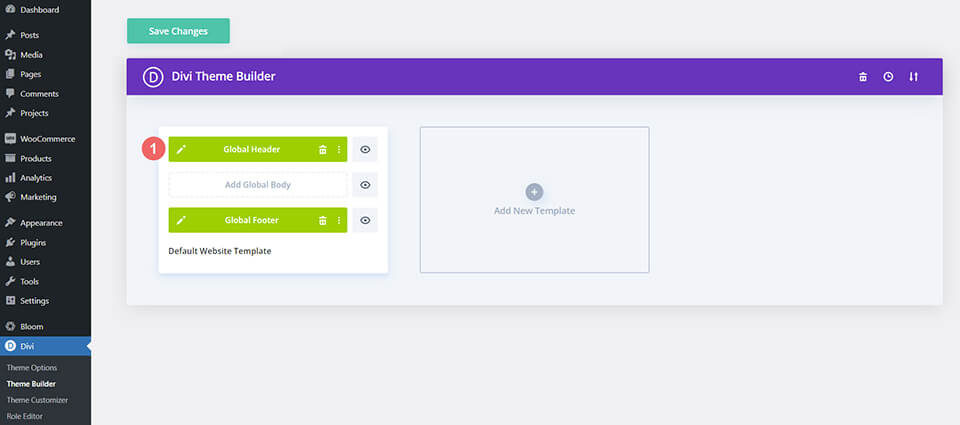
    Setup the Divi Theme Builder

    We will be creating these templates to affect the cart and checkout pages of WooCommerce. As such, we begin our task in the Divi Theme Builder.

    Open Divi Theme Builder

    Create Cart Template

    Click on the plus icon within the Add New Template card.

    Create Cart Template

    Next, select Build New Template.

    Select Build New Template

    After, you’ll be presented with a modal box of all the various assignments that you can attach to the new template that you’re creating. In our case, we’ll be creating a template for the cart page of our WooCommerce store. So, scroll down the modal box, and select Cart under the WooCommerce heading. Once, selected, click Create Template. When we do this, we are assigning the newly created template to the cart page.

    Finish Create Cart Template

    Create Checkout Template

    We will be going through the same steps to create the checkout template. Click on the plus icon within the Add New Template card.

    Create Cart Template

    Again, select Build New Template.

    Select Build New Template

    For the checkout page, we’ll need to scroll down the modal box, and select Checkout under the WooCommerce heading. Once, selected, click Create Template.

    Save Templates and Assignments

    Now that our cart and checkout templates have been created, we can save them. Click on the green Save Changes button at the top of the Divi Theme Builder.

    Save Templates and Assignments

    Let’s Start Building the WooCommerce Cart Flow Timeline

    Setting Up the Cart Page Template

    Now the fun begins! We’re going to start creating our cart flow timeline for the cart page. To do this, we click on the Add Custom Body button within the Cart template that we just created.

    Add Body to Cart Page Template

    Similar to when we create these templates and their assignments, we’re going to click on the Build Custom Body button that appears in the modal box.

    Add Body to Cart Page Template

    Add a New Section and Row

    Now that we’re in the Divi Builder, we’re going to add a new row. This row will have five columns.

    Add a new row with five columns

    Add Blurb Modules

    Add three Blurb Modules to columns 1, 3, and 5 of your new row.

    Add Blurb Modules to columns

    Here is the content for each Blurb Module that we will be using:

    First Blurb (Column 1)

    • Title: Shop
    • Body: Leave empty
    • Use Icon: Yes
    • Icon: See screenshot below
    • Module Link URL: /shop (Or your custom link to your shop page)

    Second Blurb (Column 3)

    • Title: Review
    • Body: Leave empty
    • Use Icon: Yes
    • Icon: See screenshot below
    • Module Link URL: /cart (Or your custom link to your cart page)

    Third Blurb (Column 5)

    • Title: Checkout
    • Body: Leave empty
    • Use Icon: Yes
    • Icon: See screenshot below
    • Module Link URL: /checkout (Or your custom link to your checkout page)

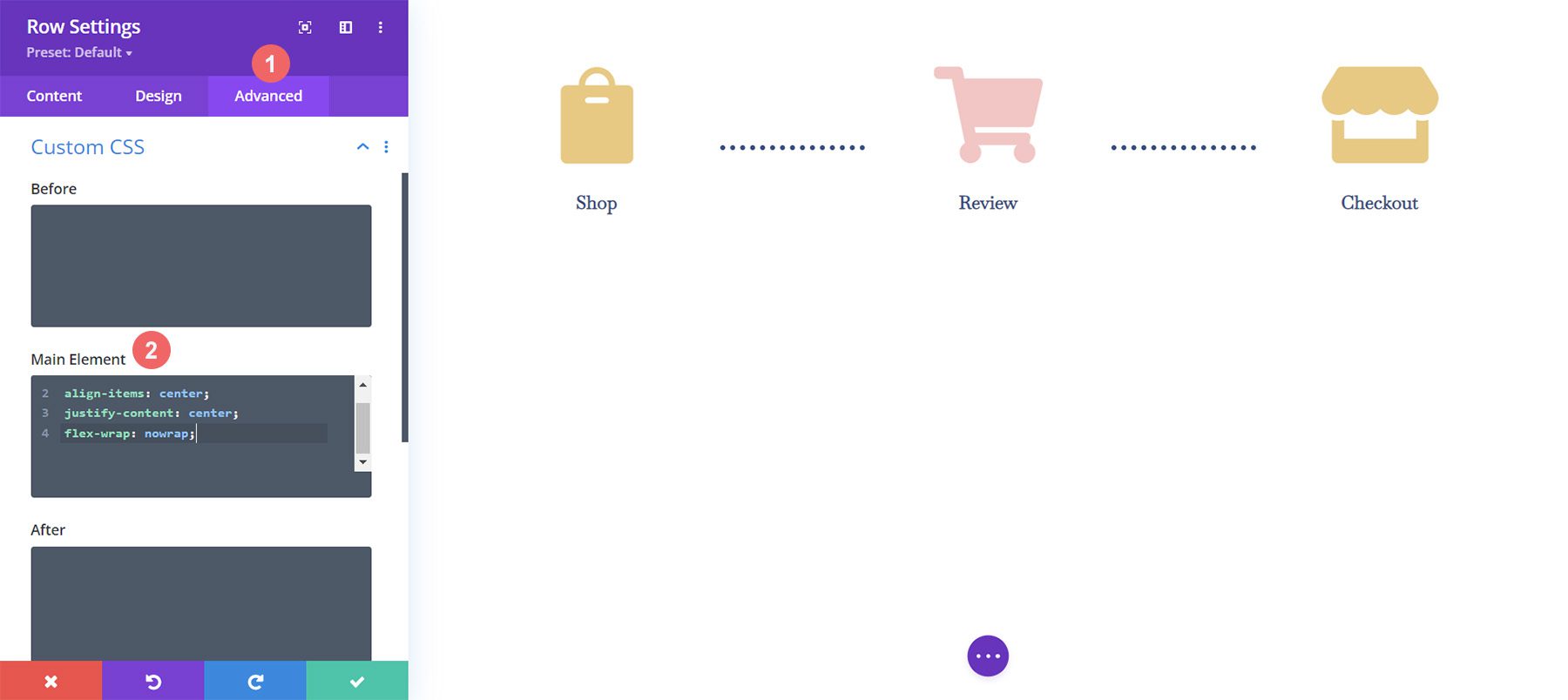
    Now, our WooCommerce timeline will look like this at this point:

    The WooCommerce cart timeline without styling

    Adding Links to Blurbs

    As we are creating templates for the cart and checkout page, we need our Blurb Modules to be easy to access no matter which pages customer land on. A core feature of the WooCommerce timeline is that the end user – your customer – will be able to easily navigate between the various stages of the checkout process. To add the link to the default shop, cart, and checkout pages of our site, we will first enter the module settings of the first blurb, shop.

    Adding Links to Shop Blurb

    Once the module’s settings box appears, we’re going to scroll down to the Link heading. We’ll be adding the link to the Module Link URL box because this will ensure that irrespective of where your custom clicks – whether it’s the Blurb Title or the icon itself – they will be directed to the page that they need to navigate to.

    Add links to the Blurb Modules in the checkout timeline process

    We’ll be adding the links to the standard WooCommerce pages to each Blurb Module. If you have created custom links for these pages on your WooCommerce install, adjust the links accordingly. First, we begin with the Shop Blurb Module. For the Module Link URL, we enter /shop. This is the default URL for the shop page in WooCommerce. Remember, if you have changed this URL, enter your custom URL here instead.

    Add /shop link to link to the default WooCommerce Shop page link

    Click the green checkmark button to save your changes. Next, we move to the Review Blurb Module. This module serves as the link to the cart page. Again, we navigate to the Link tab, and then we add the Module Link URL /cart, to the Module URL.

    Add link to Cart Blurb Module

    For the last Blurb Module, the Checkout Blurb Module, we will be linking to the default WooCommerce checkout page link which is /checkout.

    Add link to the WooCommerce standard Checkout Page link

    Style Blurb Modules

    Next, we will begin to style our added Blurb Modules. We will be using hover styles on the modules. This helps with the user experience (UX) of the WooCommerce cart timeline. We want the Blurb Module that represents the page that we are currently on to be a different color. And, we also want the icon to enlarge when we hover over it and change color.

    Blurb Module Styling

    • Icon Color: #eac989
    • Hover Icon Color: #9fa2ce
    • Text Alignment: Center

    Blurb Icon Color

    • Title Text:
      • Title Heading Text: H4
      • Title Font: Baskerville
      • Title Font Weight: Bold
      • Title Text Color: #354e7c

    Blurb title text styling

    Transform:

    • Transform Scale (Desktop): 100%
    • Transform Scale (Hover): 115%

    Blurb Transform Settings

    After we’ve set the design settings for the first Blurb Module, we’re going to extend them to the other Blurb Modules in our row.

    Extending Blurb Module styling to all the blurbs in our section

    We want to extend our styles only to Blurb Modules within our section. This is important to note especially if you are working on a page that already has content within.

    Extending Blurb Module styling to all the blurbs in our section

    Styling the Cart Blurb Module

    To denote the different stages of the checkout process, we’re going to give a different icon color to the current stage that our user is on. For example, if they are on the cart page, we’ll change the color of the Blurb Module referencing the cart stage of the process.

    Updating current page Blurb Module color

    Cart Page Blurb Module:

    • Icon Color (Desktop): #f6c6c5
    • Icon Color (Hover): #9fa2ce

    Add Timeline Dividers

    Once we have created and styled our Blurb Module, we will begin adding and styling our Divider Modules. We use the Divider Module in columns two and four of our row.

    Add dividers to WooCommerce cart timeline

    Style Timeline Dividers

    Next, we will add our styling to our Divider Modules.

    Divider Settings

    Visibility:

    • Show Divider: Yes

    Line:

    • Line Color: #354e7c
    • Line Style: Dotted
    • Line Position: Vertically Centered

    Sizing

    • Divider Weight: 5px

    Settings for the Divider Modules

    Let’s use another really cool Divi feature to copy and paste the styles of this Divider Module to the other module within our row. First, we’re going to right-click on our completed Divider Module. Secondly, we’re going to click Copy Module Settings. Next, we right-click on the Divider Module that is currently unstyled. Finally, we click Paste Module Settings. Time saved is time earned!

    Copy and paste module styles for the Divider Modules

    Adding Custom CSS

    This is what our WooCommerce cart timeline looks like presently:

    WooCommerce Cart Checkout Timeline

    To ensure that our Divider Modules are aligned correctly and to make our timeline module mobile-responsive, we’re going to add some CSS to our row.

    WooCommerce Cart Timeline row with custom CSS

    To add our Custom CSS, we first need to enter the Row Settings for our WooCommerce Cart Timeline. Next, we select the Advanced Tab. Finally, we will add the following CSS to the Main Element:

    Custom CSS:

    display:flex;
    align-items: center;
    justify-content: center;
    flex-wrap: nowrap;
    

    Once we’ve added this to the Row Settings, we click the green checkmark to save our settings.

    Final Customization for Mobile Responsiveness

    One amazing benefit of Divi is the fact that you can customize various elements quite deeply. We need to make one final edit to the last Blurb Module in the last column in our row. This change will help it look better on mobile and smaller screens. The fact that Divi allows us to get granular with our styling ensures that our work looks good for our clients as well as our own websites.

    Editing padding, margin and CSS for columns

    Notice how the last column, on mobile, is slightly lower than the other Blurb Modules. We’re going to change that! To do this, we’re going to enter the settings for the third and final module. Next, we’re going to go to Spacing > Margin. We’re going to leave the margin for the desktop view. However, we’re going to add a bottom margin of 15px for tablets.

    Add a bottom margin to your Blurb Module

    Finally, we’re going to add a bottom margin of 21px for mobile devices.

    Add a bottom margin to your Blurb Module for mobile devices

    Now, we have a truly mobile responsive Woocommerce cart timeline that we can use to guide users from shop to checkout.

    Setting Up the Checkout Page

    We have set the foundation for our WooCommerce cart flow timeline on our cart page. However, we need to complete our timeline by adding the work that we’ve done to our checkout page template. We’ll be using Divi’s OG feature, the Right-Click Menu to help make our process for the checkout page easier. Let’s get started!

    Copy WooCommerce Cart Flow Timeline from Cart Page

    We’ll be going back to the cart page. However, we won’t be entering into the Divi Builder for the body.

    Prepare the cart body for the checkout page

    Right-click on the Custom Body of the cart template. Next, click on the Copy option from the right-click menu.

    Right click, copy the body template from the cart template, to the checkout template

    Now that we have copied the work that we did within the cart template, we will now paste this into the checkout template. To do this, we right-click on the Add Custom Body button within the checkout page template. Once you have done this, the menu will show the option to Paste. Click on Paste to copy the Custom Body from the cart page template to the checkout page template.

    Right click to paste the body content of the cart template

    Now, you’ll see that both the cart and the checkout page templates have a custom body. This will help us save time on our web design process. Thanks, Divi 🙂 To save our changes within the checkout template, we’ll click the green Save Changes button at the top of the builder.

    Save changes for the body template of the checkout page

    Update Checkout Page Template

    Now that we’ve shaved some time off of our design process, let’s do the final edits to the checkout page to ensure that it works well with the rest of our project. First, click the pencil icon to edit the Custom Body of the checkout page template.

    Edit checkout custom body module

    Style Checkout Icon

    Let’s begin styling our checkout icon. Click on the gear icon which will open the Module Settings of the checkout icon.

    Edit checkout icon

    Move to the Design tab of the Module Settings module. Click on the Image & Icon title. We will be editing the icon color. As such, click on the eyedropper icon and enter the hex code #f6c6c5. This will make the icon the pink color that we are using to denote the current page.

    Update checkout icon color

    Update Cart Icon

    We will need to go back and update the icon color of the cart icon. To do this, we’re going to go back to the module settings of the module. Next, we click the gear icon of the cart icon.

    Update the cart icon color on the checkout page template

    Again, we will move to the Design tab of the module settings. Next, under the Image & Icon title, click on the eyedropper tool. Next, add the hex code #eac989. 

    Updated cart icon color on the checkout page template

    Remember to save your settings and all your hard work once you have exited the Divi Builder.

    Save all changes

    Putting it All Together

    While we have focused this tutorial on building the cart timeline, there are other WooCommerce modules used to complete the template. For this tutorial, we used the FREE Divi Toy Store Layout Pack as the inspiration for the styling. Here are the other WooCommerce modules that you’ll need to add to each template page to complete your store.

    Cart Page Template

    • Woo Cart Products: This will display the WooCommerce cart
    • Woo Cart Totals: Showcase the subtotal, taxes, and more with this module

    Overview of the cart pages with the other Woo modules

    Checkout Page Template

    • Woo Notice Module: We use this module to show any errors, information or notices that relate to checking out
    • Woo Checkout Billing: This module will color the billing details of your customers
    • Woo Checkout Details: Unlike the cart totals, this module will show the actual product names, quantity, and more
    • Woo Checkout Billing: To show available payment methods, we have this module added to the checkout page

    Overview of the checkout pages with the other Woo modules

    In Conclusion

    Having a cart timeline adds a visual representation of the process that your customers take on your store. With Divi, you have the power to customize and create an added piece to your WooCommerce store. Divi gives you the tools to be able to take what you’ve learned here to your own client and personal websites. I’d love to hear from you if you use this tutorial in the wild!

    The post How to Design a WooCommerce Cart Flow Timeline for Your Divi appeared first on Elegant Themes Blog.

  • Download a FREE Header & Footer for Divi’s Leather Goods Layout Pack

    Hey Divi Nation! Thanks for joining us for the next installment of our weekly Divi Design Initiative where each week, we give away brand new freebies. We recently shared a brand new Leather Goods Layout Pack. To help you get your website up and running as soon as possible, we’re sharing a global header & footer template that matches this layout pack perfectly as well! Hope you enjoy it.

    divi layout

    Check Out The Leather Goods
    Global Header & Footer Template Below

    Get it for free today!

    Header Design

    Desktop View

    Header design for Divi Leather Goods Layout Pack, desktop view

    Tablet and Mobile View

    Header design for Divi Leather Goods Layout Pack, tablet and mobile view

    Footer Design

    Desktop View

    Footer design for Divi Leather Goods Layout Pack, desktop view

    Tablet and Mobile View

    Footer design for Divi Leather Goods Layout Pack, tablet and mobile view

    Download The Global Header & Footer Template For The Leather Goods Layout Pack

    To lay your hands on the free global header & footer template, you will first need to download it using the button below. To gain access to the download you will need to subscribe to our newsletter by using the form below. As a new subscriber, you will receive even more Divi goodness and a free Divi Layout pack every Monday! If you’re already on the list, simply enter your email address below and click download. You will not be “resubscribed” or receive extra emails.

    How to Upload The Template

    Go to Divi Theme Builder

    To upload the template, navigate to the Divi Theme Builder in the backend of your WordPress website.

    Getting started with the Divi Conference Layout Pack

    Upload Global Default Website Template

    Then, in the top right corner, you’ll see an icon with two arrows. Click on the icon.

    Importing the Header and Footer Layout into the Divi Theme Buidler

    Navigate to the import tab, upload the JSON file which you were able to download in this post, and click on ‘Import Divi Theme Builder Templates’.

    Import settings for the header and footer layout pack

    Save Divi Theme Builder Changes

    Once you’ve uploaded the file, you’ll notice a new global header and footer in your default website template. Save the Divi Theme Builder changes as soon as you want the template to be activated.

    Save global header theme builder

    How to Modify The Template

    Open Header Template

    To modify the global header template’s elements, start by opening the template.

    Editing the global header within the Divi Theme Builder

    Select Menu of Choice

    Select your menu of choice in the Menu Module.

    Choose your main menu module for your Divi Leather Goods layout

    Update Menu Logo

    We use the Logo option in the Menu Module to show our brand logo. Upload your logo to the module. As the background is the dark, we’d recommend using a light colored logo.

    Upload a light colored logo to the menu module

    Update Primary Text CTA

    The main menu has a call-to-action created with a Text Module and the Icon Module. Update each as needed.

    Update primary column call-to-action

    To link out, we would recommend adding a link to the column itself, as opposed to the two modules separately.

    Link column for primary call-to-action

    Update Secondary Text CTA

    This header has a text call-to-action in the secondary menu. Update the text to match your needs. You can also add a link to the Text Module.

    Update Text module with your call to action text

    Update Social Media Module Networks and Links

    Update the Social Media Follow Module with your selected social media networks. Remember to also add your social media links to each icon as well.

    Update Social Media Module Networks and Links

    Open Footer Template

    Continue by opening the global footer inside the default website template.

    Editing the footer template within the Divi Theme Builder

    Update Footer Menu

    As with the primary menu, you want to update the menu in the footer with your footer menu.

    Update Footer Menu

    Update Footer Logo

    Update the Image Module in the footer with your logo.

    Update Footer Menu

    Add Your Social Media Icons and Links

    As with the Social Media Follow Module in the header, we want to ensure that we have our correct social networks with their appropriate links.

    Update footer social media links and networks

    Connect Your Email Marketing

    Our footer also has an Email Optin Module. Connect your email marketing solution of choice to collect emails from visitors to your site.

    Update your email marketing platform

    Update Static Footer Content

    You will need to go through and update the static content of the footer, including adding your own text, updating titles etc. Don’t forget about the copyright text at the bottom of the footer as well.

    Edit static footer content

    New Freebies Every Week!

    We hope you’ve enjoyed the Leather Goods Layout Pack and the Header & Footer freebie that goes along with it. We look forward to hearing your opinions in the comment section below. Make sure you check back next week for more freebies!

    The post Download a FREE Header & Footer for Divi’s Leather Goods Layout Pack appeared first on Elegant Themes Blog.