EDITS.WS

Author: Clarissa Licuan

  • How to Use Google Bard AI in 2023 (Tutorial)

    Artificial intelligence (AI) is changing how we work now. You have probably tried using ChatGPT already, but there are other similar AI chatbots like Google Bard AI that you can use in your daily life and at work.

    In this post, we’ll explore Google Bard AI’s capabilities and limitations, we’ll also provide a step-by-step guide on using this chatbot. We will also discuss the future of Bard AI and how to use it responsibly.

    What Is Google Bard AI?

    Google Bard AI is a conversational AI chatbot by Google that can help us generate different kinds of text. Bard AI is still experimental but trained on a massive dataset of text and code to generate text, translate languages, write different kinds of creative content, and answer your questions in an informative way.

    Bard AI can help enhance efficiency, speed up creative thinking, and overall help you get things done quicker. You can ask Bard AI for advice on how to achieve your goal of reading more books this year, simplifying the concept of quantum physics, writing or debugging code, or even stimulating your imagination by planning out a blog post.

    Google Bard Ai-Language Model

    Google Bard AI is powered by a large language model (LLM), a version of LaMDA when it was first launched. With its latest update, Google Bard AI now uses the Pathways Language Model (PaLM 2), which allows it to be more efficient and perform better.

    When it started in May, it could answer in English, Korean, and Japanese. However, Google Bard AI can now talk in over 40 additional languages, like Arabic, simple and traditional Chinese, German, Hindi, Spanish, and others.

    Google Bard AI expanded to 27 European Union (EU) countries and Brazil. Right now, Bard is not part of Google Search, but Google plans to put them together soon. This might change the way people use Google to look for things.

    Google Bard AI’s Interface

    Google Bard AI is known to have a user-friendly interface.

    bard overall interface

    Its formatted text makes it easier to read and scan results. You can also see a list of recent chats, making it accessible to go back to old conversations if you need that information. Google Bard AI can also give the latest and most recent news and information.

    Another feature that makes it user-friendly is the “Google It” button, which suggests topics based on your questions, making learning more about your topic easier. You’ll be redirected to a traditional Google search once you click Bard’s suggested topics or questions.

    How To Use Google Bard AI?

    Google Bard AI is a powerful tool that can assist us in various tasks, from generating text to answering our questions. This guide will walk you through the steps to maximize Bard’s features and get the desired results.

    1. Accessing Google Bard AI

    Go to bard.google.com and Sign in using your Google account to start navigating the Google Bard AI interface.

    Step-1-Bard-AI

    2. Starting Your First Chat With Google Bard AI

    At the bottom of the screen, click “Enter a prompt here” and type your questions to start your first conversation with Google Bard AI. Bard will offer suggestions to help you figure out what to ask.

    Bard AI Step 2 Entering Prompt

    If you don’t want to type your question, you can click the microphone button to ask your questions, and Bard will listen and type what you speak.

    bard microphone

    Click the pencil picture in the top-right corner to edit and change your question. Once changed, Bard will give us a new answer based on what you edit.

    Bard AI Edit Questions

    Click the plus button in the left part of the prompt box to upload a photo and ask your queries about the picture you uploaded.

    bard ai photo question

    Google Bard AI also comes with three drafts or formats. You can select which one aligns with your desired results.

    Bard AI Drafts Feature

    3. Using Follow-up Questions

    After Google Bard AI generates results for your first prompt, you can always ask follow-up questions until you get the best answer to your question.

    bard follow-up question

    Click thumbs up if Bard’s response is good and thumbs down if bad. By doing this, we are helping Bard to improve since it is still experimental.

    Bard AI thumbs up and down

    You can click the Google It button for more insight regarding your queries. When you click the related search suggested by Google Bard AI, it will redirect you to the Google web page. This feature is only available with this language model because it is from Google.

    bard google it button

    4. Sharing and Exporting Your Results

    With the latest update of Google Bard, we can now publicly share a link to the prompt and response or even the entire chat to a third-party service.

    Click the Share button and choose whether to share a specific prompt & response or the entire chat.

    Bard AI Share Button

    Next, click Create Public link. 

    Bard Create Public Link

    Then, choose from Linkedin, Facebook, Twitter, and Reddit to share the created public link.

    Bard AI third party system to share link

    Click Export to Sheets if you want Google Bard AI to directly export the table to Google Sheets.

    Bard Export to Sheets

    Aside from exporting the table to Google Sheets, Google Bard AI can also export the results to documents, basically a Google doc.

    Click Export to Docs to directly export information to Docs.

    Bard AI Export Information to Docs

    Aside from exporting to Sheets and Docs, Google Bard AI now lets you export Python code to Replit and Google Colab. Once you click Export to Colab or Export to Replit, it will redirect you to their webpage.

    bard code export to colab and replit

    5. Drafting Email in Gmail

    Google Bard AI also lets you edit emails inside Gmail. Click Draft in Gmail, and Bard AI will ask you to open it in Gmail.

    Bard Draft in Gmail

    Click Open Gmail to redirect to Gmail.

    Bard Open Gmail Command

    Then, you can edit the information inside your Gmail and send it to any recipient.

    Bard AI Gmail Draft

    6. Using Pinned and Recent Threads

    Use Recent Threads to check your old Bard conversations.

    Bard AI Recent Thread

    You can also pin, rename, or delete your previous conversations with Google Bard AI.

    Bard AI pin, rename, and delete recent threads

    What Can Google Bard AI Do?

    Google Bard AI offers assistance across a variety of tasks. Whether you’re an experienced creative writer, a digital marketer, or a web developer, integrating Bard AI into your workflow can simplify tasks.

    Here are 8 ways in which Bard AI can enhance your creativity and optimize the time you spend on your tasks.

    1. Answer Questions

    We often ask questions, and it takes us time to research and find answers because we need to check each piece of information Google presents on the search engine. Google Bard AI differs from the usual Google search because it is more conversational when answering our questions. Instead of presenting us with links, it’ll present us with a direct response.

    Bard Ai answering questions

    2. Follow-up Questions

    When we are having a conversation with someone, we often ask follow-up questions for clarification. Even in Google Bard AI, we usually have that follow-up question in mind after it generates an initial result.

    We can always follow-up questions in Bard AI to make the results more transparent and comprehensive. Bard can remember the previous queries and correlate follow-up questions to them.

    Bard AI following up questions

    3. Summarize Articles

    Reading long articles or content can sometimes be tedious, especially if we only want the summary of the content we are reading.

    Google Bard AI helps us summarize articles by taking the main ideas from any article and showing the results through easy-to-understand concepts.

    You can also use AI Rewriter Tools to rewrite those summaries written by Bard and make them more readable and polished. Some of the tools you can use are Frase.io, AI SEO, and Pre Post SEO.

    Bard AI Summarizing Article

    As you can see above, we inserted the link to the article and asked Bard to summarize it. Then, Bard AI gave us a short article version we can read, copy, or take elsewhere.

    This is something helpful for a researcher, student, or worker who needs to understand an extensive article quickly.

    4. Create Creative Content

    We can use Google Bard AI to help us write essays, poems, songs, movie stories, blogs, video scripts, and more. Bard can generate video scripts, but it can not create a video. You can try to use other AI video generators like Flexclip, Designs.ai, Synthesia, and Pictory, when you want to create one.

    We can also put in something we have already written and ask Bard AI to improve, change the words, or finish it.

    Bard Creative Content Creation

    5. Show Differences Between Research and Data Using a Chart

    Another remarkable feature of Google Bard AI is its ability to compare online content. For instance, we will use it to compare news articles about the same subject.

    Bard AI creates a chart that displays the similarities and differences between the two articles, showing what each piece focuses on and its perspective.

    Bard AI Comparison of Data in Chart

    6. Generate Ads Copy Ideas

    If you’re a copywriter, it is sometimes hard to get an idea for your next ad campaign.

    Google Bard AI, like any other AI writing software, can help generate advertising copy ideas, product descriptions, and sales copy. Then, it will tailor them based on the target audience.

    Bard AI Generating Ad Copy Ideas

    7. Travel and Vacation Recommendations

    Suppose you love going on vacations but dislike all the planning involved. In that case, Google Bard AI helps plan vacations by giving personalized ideas and creating itineraries that match preferences.

    Bard AI suggests hotels and activities for the trip and even gives advice on what to wear on vacation. Bard AI can also show photos of the best spots in the location you are visiting.

    Bard AI Planning Travel Itineraries

    8. Write Code in Programming Languages

    If you’re a beginner in web development, Google Bard AI is an excellent tool to help you write code in different programming languages. Bard can explain each language for you to understand it better.

    Bard AI assists in coding with over 20 programming languages, including Python, Javascript, Java, C++, and others. When Bard generates Python code, we can export and test it directly in Google Colab.

    If you need to generate, export, debug, and explain how code works, Google Bard AI can help. However, just like any other AI tool, it is essential to be cautious and thoroughly test and review all code for errors, bugs, and vulnerabilities before relying on it.

    Bard AI Generating Python Code

    Tips for Using Google Bard AI

    To ensure you achieve optimal outcomes while using Google Bard AI, it’s essential to use a few strategies that enhance its effectiveness.

    Here are five tips to improve your proficiency with Bard AI and obtain more precise results.

    1. Use Simple and Concise Prompts

    Google Bard AI responds based on prompts, so we must shape our requests. Keeping requests clear and short is essential so Bard will understand and meet our needs.

    For example, instead of saying, “Write me a short story,” you can say, “Write me a short family story,” Bard will focus on that theme to create a short story for you.

    Tip no. 1 in Using Bard

    2. Give Enough Details and Facts

    Bard AI gives responses based on specific details you include in your prompts. If we give it more details, Bard AI will give a more suitable and accurate answer.

    For instance, if you need help writing a follow-up email, give clear instructions about how you want Bard to structure the email and its tone.

    Tip no 2 in Using Bard

    3. Include Personality in Your Prompts

    To make Google Bard AI respond better, we can add personality to our requests. For instance, if you have an ecommerce website and want to write a blog post about creating an online store, you can use words like funny, professional, or idiomatic to give it a specific tone.

    Depending on our preferred writing style, Bard AI will create the content accordingly. It makes the responses more interesting to read compared to the usual standard ones it would generate.

    Tip no. 3 in Using Bard

    4. Prompt Bard AI To Present Data in a Table

    Ask Google Bard AI to show information in a tabular form if we need many details. The table format will also help us understand the generated results better.

    Tip no. 4 in Using Bard

    5. Verify Bard’s Generated Results

    We all know that artificial intelligence has its limitations. That’s why it is crucial always to verify, fix, and edit any response from Bard or chatbots that use language models.

    Google Bard AI is still experimental, so it may not always be accurate or up-to-date. That is why it is essential that we carefully review, test, and assess online content for its accuracy.

    What Are The Limitations of Google Bard AI?

    Although Google Bard AI offers various functions, it still faces some challenges and limitations. Here are three areas where Bard AI could improve with Google’s future improvements.

    • Tendency to Hallucinate. Bard AI has the tendency to hallucinate because there are instances that it falsely states that something is factual, even when facts do not ground it. That is why we need to note that information verification is essential when using Bard and other AI language models.
    • Reliance on Initial Input. Bard’s responses mostly rely on our initial input, which means we need to prompt complete and accurate questions to get the response we need.
    • Bard Doesn’t Mention Information Sources. It has the tendency not to mention sources for the information it generates, which is why it is difficult for us to verify if it is credible or factual.

    Google Bard AI Vs. ChatGPT

    Both chatbots utilize natural language processing, allowing users to input prompts or queries, and in turn, the chatbots produce responses that resemble a human-like conversation. However, there are still differences between the two.

    Bard AI uses Google’s latest way of understanding prompts called Pathways Language Model (PaLM 2). ChatGPT uses Generative Pre-training Transformer 3 (GPT-3) or Generative Pre-training Transformer 4 (GPT-4) for the paid version.

    Another significant difference between ChatGPT and Bard is their information recency. Bard can get the latest information from the internet, while ChatGPT’s information stopped in 2021, so it might not know about new and updated information.

    In terms of information, Bard gives information in pieces, while ChatGPT gives all the content in one go. Bard can also summarize web pages, while ChatGPT needs to copy and paste the article for a summary.

    While ChatGPT stands out for producing responses in conversations that closely resemble human language, Google Bard focuses on artistic writing and creating logical content across different styles. Each of these models has distinct advantages and contributes to the advancement of AI capabilities in their respective ways.

    Lastly, regarding their pricing, Google Bard AI and ChatGPT offer free plans to all users. However, ChatGPT provides ChatGPT Plus, a paid version with faster response time, access to new features, and GPT-4, which costs $20 monthly.

    Ultimately, the choice between the two will depend on the user’s specific needs and the content they aim to produce.

    The Future of Google Bard AI

    Google Bard AI can really work wonders in our daily lives and work. Now, we can also expect its potential in many ways in the future. As AI technology continues to evolve, we are also looking forward to results that are more interactive and tailored to each person.

    With the help of AI technologies like Bard, Google will better understand what users want, give more accurate answers, and offer more engaging experiences.

    Final Thoughts on Google Bard

    Google Bard AI shows a remarkable leap in artificial intelligence, considering it is also one of the best ChatGPT alternatives out there. It is versatile, from assisting with coding in various programming languages to providing personalized vacation planning and generating online content.

    It is still important to remember that Bard and other AI chatbots like ChatGPT, Writesonic, and Chat by Copy.ai have their limitations. We have to use them as a guide and try not to depend entirely on them.

    With Bard’s capabilities to continue growing and evolving in the future, it is inspiring to see more of what technological innovations it will bring!

    The post How to Use Google Bard AI in 2023 (Tutorial) appeared first on Elegant Themes Blog.

  • How To Use Bing AI Chat in 2023 (Beginner’s Guide)

    Many chatbots use AI technology available for use, including Microsoft’s Bing AI Chat. Integrated inside the new Bing search engine, Bing Chat offers numerous advantages for everyday tasks, such as creating poems, songs, stories, blog posts, and reports. It also has an image creation feature, allowing users to generate logos, drawings, artwork, or other visuals based on text input.

    In this post, we’ll explore how to use Bing AI Chat, its limitations, a step-by-step guide on accessing and navigating it, and tips to get the most out of it!

    What is Bing AI Chat?

    Bing Chat is a feature of the Bing search engine that allows users to converse with an AI chatbot instead of typing in search queries. Bing Chat provides intelligent search results, interactive searching, visual exploration, and personalized suggestions.

    In February 2023, Microsoft launched Bing Chat to improve search results and make it easier to answer queries using natural language. Bing Chat distinguishes itself from competitors by generating written and visual content within the Chat. Additionally, Bing Chat expanded its Image Creator to all languages.

    Compared to its initial launch, Bing Chat now provides more visually engaging responses by incorporating charts, graphs, and updated answer layouts. This improvement aims to simplify the process of finding desired information. Bing Chat has evolved from a text-based approach to search and chat to a more visually comprehensive experience that includes image and video responses.

    Bing Chat has transitioned from individual text-based search and chat interactions to multi-session productivity scenarios. This shift includes chat history and the ability to maintain ongoing conversations within the Edge browser.

    Subscribe To Our Youtube Channel

    Bing AI Chat Language Model

    Bing AI Chat utilizes an advanced OpenAI language model, superior to ChatGPT and explicitly tailored for search purposes. Microsoft claims that Bing Chat is running on a new, next-generation OpenAI language model that is more powerful than ChatGPT and customized specifically for search. Currently, it is the only cost-free method to access GPT-4. It is a more refined, intelligent, and adept model than its predecessor, GPT-3.5.

    Bing AI Chat Interface

    Bing AI Chat is easily accessible within Microsoft Edge for personalized information research. You will notice a Bing Chat icon at the top right of the browser sidebar.

    Bing Chat integrated to Edge

    When you navigate Bing Chat through the sidebar, you can easily browse the web without losing your Chat. When you click the citations from the sidebar, Bing AI Chat will automatically open in a new tab in Edge while keeping your conversation at the side of the screen.

    bing sidebar and opening citations

    Additionally, Bing Chat recommends what to search next and gives its sources based on your recent prompts so you can easily verify the origins of the results.

    Bing User interface (recommendation and sources)

    Switching between a chat page and a traditional search page is more accessible since you only need to scroll up and down through its interface.

    Bing integrated to Edge

    Together, these features speed up the process of getting information and cater to the preferences of each individual.

    How To Use Bing AI Chat

    Getting started with Bing AI is easy and intuitive, but it helps to understand how it works before you explore everything it can do. In the steps below, we’ll show you how to use Bing AI Chat and explore some of its key features so that you can start using it today.

    1. Accessing Bing AI Chat

    Once you’ve got Microsoft Edge open, go to Bing.com, and you’ll have a couple of options to access Bing Chat. You can click Chat at the top left of the screen, click the Bing logo on the right sidebar, or even click Try It or Learn More below the search bar.

    Bing AI User Interface

    If you’re not logged in, click Sign In and use your Microsoft account. If you do not have a Microsoft account, you can use any email address as the user name, including Outlook.com, Yahoo, or Gmail addresses.

    Bing Chat Sign In

    Bing and Bing AI Chat are also accessible using other browsers like Chrome, but you are only limited to five messages per conversation or 2,000 characters per user.

    bing.com in google chrome

    2. Starting Your First Conversation with Bing AI Chat

    At the top left of the screen, you can choose between traditional search or the Bing AI Chat.

    Bing AI Search or Chat

    You can select your conversation style inside the Bing AI Chat interface. Bing AI Chat has three conversation styles:

    • “more creative” for imaginative and unique responses,
    • “more balanced” for informative and conversational answers, and
    • “more precise” for clear and fact-based answers.

    Bing AI - Choose-Conversation Style

    After choosing your preferred conversational style, you can start prompting your questions.

    Bing AI Chat has three options for asking questions: typing directly from the prompt box, using the microphone, and using an image. The most common method for prompting questions is through the prompt box. Click the prompt box and type your questions so it can generate answers based on your prompt and the details given.

    Bing question thru prompt box

    If you don’t want to type your questions, you can click the microphone button and start speaking with it. Bing AI Chat will generate answers based on what you say.

    Bing AI Microphone Button

    Bing AI Chat will not only respond through generating text-based answers, but it can also speak the responses it generates.

    Bing answer using voice chat

    Another cool thing Bing AI Chat can do is to generate results based on the images you upload as a guide to prompt questions. Click the lens button to decide whether to upload or take a photo.

    Bing AI Search using image

    After that, you still need to correspond the image with text-based questions; either type it or say it through the microphone to send your queries.

    Bing answering question through image

    You can also go back to your previous activity and conversations with Bing AI Chat’s Recent Activity feature on the right side of the page to verify and check old chats.

    Bing AI Recet Activity

    3. Using Follow-up Questions

    Once Bing AI Chat answers your first question, you can use its suggested follow-up questions to ask further about your topic queries. Continue until you get the answer you are looking for.

    Bing Suggested Follow-up Questions

    If you like the answer, you can give feedback to help improve Bing AI Chat. You can click the thumbs-up button if you want its response and the thumbs-down button if you dislike the answer.

    Bing AI Feedback button

    When you use your Microsoft account when accessing Bing chat, you can have 30 chats. You will count at the bottom right corner of the results how many conversations you prompted.

    Bing Prompt Counter

    4. Sharing and Exporting Your Results

    Export Bing AI Chat’s results to Word, Word online, PDF, or Text. You can choose your preferred format, which will automatically download your results.

    Bing Export Result to Word, PDF, or Text

    Click the Share button to share results to Facebook, Twitter, Email, or Pinterest.

    Bing AI Share Link

    5. Creating New Topics

    Click the “New Topic” button, and Bing AI Chat will remove the old Chat and start a new conversation. Bing AI Chat tends to relate its answers to your previous prompts, so if you ask about a different topic, it’s better to use and click New topic for better results.

    Bing Chat New Topic

    What You Can Do With Bing AI Chat (Example Use Cases)

    Bing AI Chat can help you with lots of things. Whether you’re a seasoned or beginner creative professional, writer, or web developer, AI chatbots can make your work easier.

    Let’s look at these nine ways Bing AI Chat can boost your creativity and save time on your projects.

    Generate Creative Contents

    If you’re a writer, you may have experienced writer’s block. If that’s the situation, Bing Chat can help you have an idea for your next creative content to write, like poems, songs, stories, and more.

    Enter the prompt and choose Bing Chat’s “Creative” conversation style. For instance, you could say, “Write a poem about the advancement of artificial intelligence like Shakespeare.”

    Bing Chat will then give you a poem based on your prompt; you can start working on your next creative idea.

    Bing Creating Creative Content

    Create Travel Itineraries For Vacation

    Whether you’re a frequent traveler or a first-timer, you must always have your itineraries in hand. If you’re going to a new place, Bing AI Chat can help you plan your trip. You can tell things like you want the place to be affordable, easy to walk around, and have good public transportation. Then, you can also ask for a day-by-day plan, which will show you all the details with directions and help you make a fast and customized travel plan if you are exploring new places.

    Creating Travel Itinerary

    Chart Format Answers

    Let’s say you want to compare AI writing software like Writesonic, Copy.ai, Sudowrite, Rytr, and WordHero. Bing AI Chat can generate information and present it as a chart.

    Generated Answer using chart

    List sources and links

    Bing AI Chat works like a talking search engine with AI. It doesn’t give answers in a list like a regular search engine but gets its information online. After answering your question, it will show where it got the information with links below the answer.

    Coding

    Bing AI Chat can also make code for different computer languages that many of us use, like Python, Java, C++, C#, and JavaScript.

    Bing Generating Python Code

    Create AI-generated images

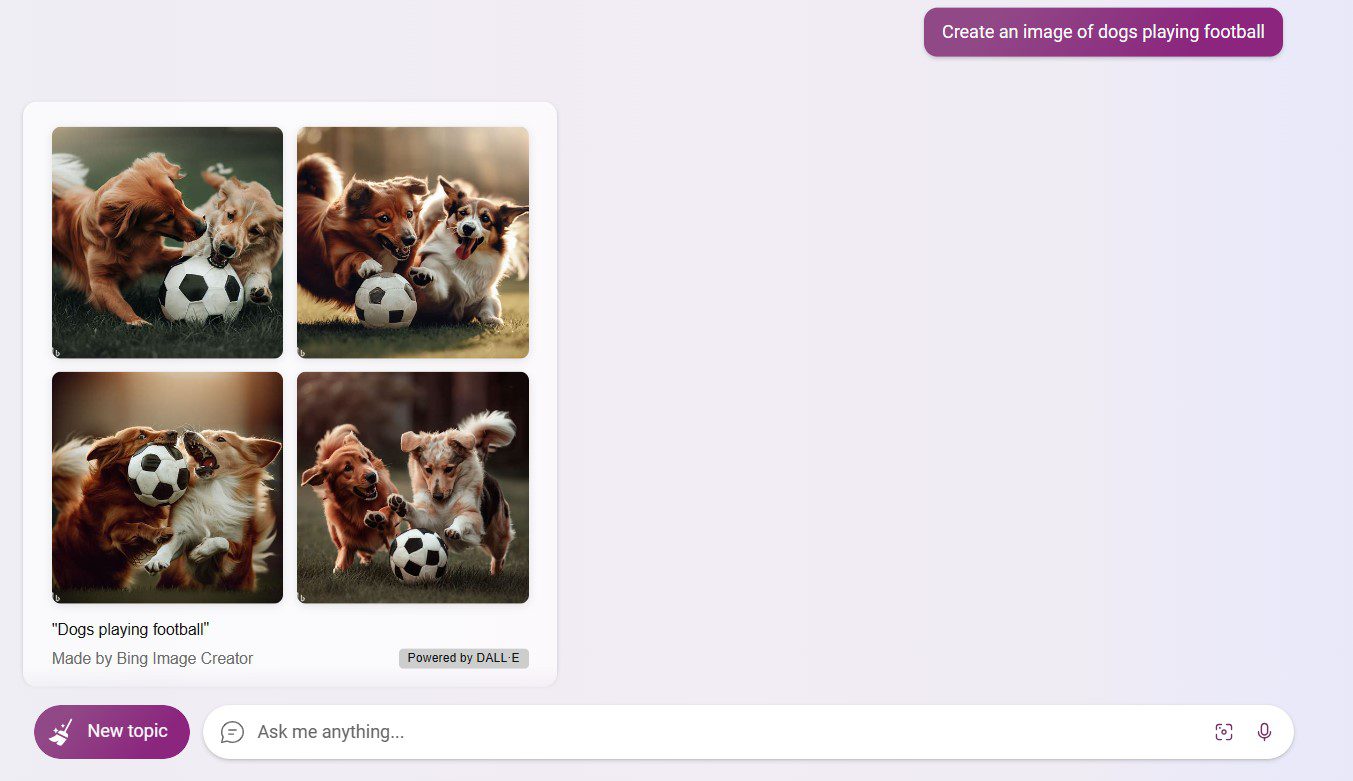
    Microsoft also added a feature to Bing Chat where it can make images using AI through DALL-E 2. Just start a new conversation and select the more creative conversational style. Ask a question where the answer should be an image.

    For example, asking, “What would dogs playing football look like?” will show you an image.

    Bing AI generating image

    However, Bing AI Chat has limitations in generating complex images compared to other AI art generators like Midjourney and Stable Diffusion.

    Solve Math problems

    If you’re a student looking for help with your Math problems, Bing AI Chat can assist you. You need to type your question and press Enter, and then it will provide the answer along with the steps to solve it.

    However, it might give incorrect answers sometimes, so it’s essential not to trust it completely. For math questions, you can choose the “Precise” response style. Also, you need to explain in natural language the special characters because it does not understand them.

    Solving Math Problems

    Helps Improve Grammar

    When writing blog posts, readability also comes with grammatically correct content, and Bing AI Chat can help improve your content’s grammar. Enter “Improve the grammar” and add your text. Now, it will review the text, check for grammar errors, and fix them.

    You can also ask Bing Chat to rephrase the text and make it formal, professional, casual, funny, etc. Overall, Microsoft’s AI chatbot can generate and enhance the text.

    Bing AI improving the text grammar

    If you want a more accurate result for checking the grammar of your text, Grammarly is one of the best tools to check your grammar.

    Create Custom Food Recipe

    If you enjoy cooking and trying out new recipes, using Bing AI Chat can be helpful. You can input random ingredients like mushrooms, cream, chicken, and egg and receive detailed instructions on how to cook a delicious meal. It’s a great way to explore new recipes and expand your cooking skills.

    Generating custom recipe

    Tips for Using Bing AI Chat

    To get the best results from Bing AI Chat, there are a few tips on maximizing its usage. Here are four tips to help you improve at using Bing Chat to find accurate and concise results.

    Assign a Role to Bing Chat

    Another cool thing you can do with Bing Chat is to act like it’s an expert in something and ask questions related to that expertise, which can give you more helpful answers.

    For example, you could pretend Bing Chat is a newbie web developer; you can ask Bing to explain coding boot camps can help you develop skills as a web developer. You can try this for various topics with Bing Chat as well.

    Ask Bing like an Expert

    Explain Concepts Like You’re a Kid

    Bing AI Chat can also make complex things easy to understand. If you’re new to something, you can ask the AI chatbot to explain it, like if you were an 8-year-old.

    For example, you could ask Bing Chat to explain “how to make a WordPress website like I’m 8,” which will give you a simple answer. You can try this for different subjects, and Bing Chat will help you understand better.

    Explaining concept like you're 8

    Provide Specific and Detailed Prompts

    When you talk to Bing AI Chat, you ask questions differently from simple keyword searches. Asking in a natural, conversational way requires a different approach to prompting.

    For example, if you use keywords to find the best AI voice generator, you might type the keyword and look through the results to find the answer. But if you use natural language, like talking to a friend, you’ll get better and faster results if you ask for specific details. For instance, asking, “Which is the best AI voice generator among Lovo, Listnr, and Murf in terms of interface and overall performance?” gives you a quicker and more accurate answer.

    Specific and detailed question

    Verify the Sources of Bing AI Chat Answers

    Whenever you get answers from Bing AI Chat, you should always check where those answers come from. Remember, the internet can have biased or inaccurate information.

    What are the Limitations of Using Bing AI Chat?

    Although Bing AI Chat has many capabilities, there are still some challenges and limitations that Microsoft can improve in the future. Here are three of them:

    • Daily Chat Limits: Due to Bing Chat’s user influx, Microsoft has set a limit of 30 chats per session or 300 conversations daily.
    • Shallow Answers: Bing Chat typically provides short and superficial answers to questions.
    • Ad Supported: You cannot pay Bing Chat for more chat limits or better answers, as ads support it. According to Microsoft, you may encounter advertisements within chat responses. For example, if you ask for clothing recommendations, Bing Chat may display ideas from nearby stores.

    Bing Chat Vs. ChatGPT

    Bing Chat and ChatGPT are both AI chatbots that use OpenAI’s GPT-4 language model. However, there are some key differences between the two chatbots.

    • Access to the Internet: Bing Chat has access to the Internet, while ChatGPT does not. This means that Bing Chat can provide more comprehensive and accurate results to users’ queries by searching the web for additional information.
    • Image generation: Bing Chat has an image generation feature that DALL-E powers, while ChatGPT can only generate text-based responses.
    • Limitations: Bing Chat has limits of 30 chats per session or 300 daily. ChatGPT restricts users in the free plan to 30 messages hourly and 50 messages every three hours for ChatGPT Plus users.
    • Accessibility: Bing Chat is accessible to anyone with a Microsoft Windows 10 and 11 account. ChatGPT also offers a free version, but if you want to access the GPT-4, you must purchase the ChatGPT Plus, which costs $20/monthly.

    The Future of Bing AI Chat

    Using Bing AI Chat in various industries and sectors can lead to significant advancements. Its capabilities have the potential to revolutionize healthcare, education, transportation, and farming industries as it continues to evolve. Microsoft is already exploring this potential through the AI for Earth program, which utilizes AI to address environmental challenges and promote sustainability.

    By leveraging the power of Bing Chat, Microsoft can generate groundbreaking ideas that benefit both society and their company while staying at the forefront of AI technology. Microsoft’s longstanding leadership in AI can be sustained by ensuring that AI is utilized in ethical and equitable ways. Through diligent research, collaboration, and unbiased decision-making, Microsoft can ensure that AI helps everyone and does not exacerbate existing issues.

    Final Thoughts on Bing AI Chat

    Bing AI Chat indeed offers a dynamic and versatile tool. Its user-friendly interface, extensive functionalities, and potential for diverse applications make it a valuable addition to the AI landscape, enhancing various aspects of our lives.

    With advancements in technology, Bard AI has a bright future, and we are looking forward to innovations and what it can contribute more.

    If you like Bing AI Chat, there are more AI chatbots you can try. And if you are looking for more AI tools, check our list of the best AI Tools to boost productivity.

    The post How To Use Bing AI Chat in 2023 (Beginner’s Guide) appeared first on Elegant Themes Blog.