EDITS.WS

Author: Deanna McLean

  • 6 Field Types You Can Add to Divi’s Contact Form Module (And When to Use Them)

    Contact forms are an essential part of any website — whether you want to capture more leads, keep track of inquiries, build your email marketing list, or simply be able to communicate on-demand with your users. Divi’s contact form module makes it easy to communicate with and gather important data from your website’s visitors.

    Let’s explore what fields are available in Divi’s contact form module and when to use them. We’ll be using the contact form from the Wedding Photographer Layout Pack available with your Elegant Themes subscription.

    Divi’s Contact Form Module Options

    Divi’s robust contact form module consists of the following fields: input, email, textarea, checkboxes, radio buttons, and the select dropdown field. These fields can be used in a number of ways to build your business. Before we address each field and its uses, let’s go over how to select the type of field you want to use in the contact form module.

    1. The first step is to give your field a field ID. This helps you understand which field corresponds with the information filled out in the form.
    2. Give your field a title.
    3. Choose the field to be displayed. Your choices are input, email, textarea, checkboxes, radio buttons, or select dropdown.
      Input Field

    Next, let’s go over each field option in the Divi contact form module. Lately, we’ll discuss how each can be configured to suit your specific needs.

    1. The Input Field

    The input field is one of the most powerful fields you can use in your contact form. You can capture just about any type of text information. Acquiring a potential customer’s name, business name, physical address, phone number, or various other informational text are options. The possibilities are endless.

    Divi Input Field

    When crafting your contact form, remember to ask for the most relevant information you are trying to gather. In the past, people thought a shorter form was a better form. In recent years, the thought processes behind form creation have changed. We are now living in the “information age,” so people have become more accustomed to filling out longer forms than ever before and are willing to do so.

    While keeping in mind what goals you’d like to achieve through your form, It’s important to remember to ask the most important questions relevant to your business. The user’s name or business name should be at the top of the list of questions to ask. Names and/or business names are crucial information to acquire, especially in the process of following up with your users. Following the name and business name (if applicable), should be other important contact information such as phone numbers and/or addresses. A few examples of the effective use of the input field are as follows:

    • First Name, Last Name, or Full Name
    • Address
    • City
    • State
    • Zip Code
    • Phone Number
    • Business Name
    • Subject
    • Questions with short answers

    How to Configure the Divi Contact Form Module Input Field

    Let’s take a look at how you can modify the input field.

    1. Select Input as the field type.
    2. Decide whether to choose a minimum and maximum length of characters to be allowed.
    3. Next, decide whether to allow all symbols, letters only, numbers only, or alphanumeric characters. For example, if your text input field is being used as a phone number field, assign this option to “Numbers only.” This will disallow any letters from being entered as a phone number, cutting down on user errors.
    4. Designate whether this field is optional or required.Divi input field options
    5. Enable or disable conditional logic. Conditional logic is useful in a form if you’d like to assign a follow-up question or information to display based on the answer to a certain field. To learn more about conditional logic, read How to Create a Versatile Divi Contact Form with Conditional Logic.
    6. Choose whether to assign a link to your field.
    7. Choose whether to assign a background color, gradient, or image to your field.Divi Contact Form Conditional Logic

    2. The Email Field

    In addition to the text field mentioned above, the email field is a crucial piece of information to assist your communication with users. The email field makes it easier to capture leads for your website, add users to a mailing list, and, most importantly, provide an easy way to communicate with your website’s users.

    Divi Email Field

    In recent years, everyone agrees that social media has become a valuable tool in business communication, but email is still an extremely relevant and essential tool to grow your business. After all, in order to even have a social media account, one must have an established email address. Keeping that in mind, the email field is critical in successfully communicating with your users. Without the email field enabled on your form, you won’t be able to add that user to a mailing list or reply directly to the form confirmation email received on your website.

    Enabling The Email Field

    Let’s see how you can enable the email field in Divi’s Contact Form Module.

    1. Name your field and give it a field ID.
    2. Select “Email Field” as your field type.
    3. Choose whether to enable or disable “Required Field”. Note: it is essential to require this as no email information will be captured in your field if your user forgets to fill in their email address.
    4. Choose whether or not to enable conditional logic.
    5. If desired, choose a link for your field.
    6. If desired, choose a background color, gradient, or image for your email field.Divi Email Field Options

    3. The Textarea Field

    When creating your form with the Divi contact form module, the textarea field is a great tool to use to gather information from your users – whether it be through asking questions, soliciting input or comments, or accepting larger amounts of relevant information.

    Divi Textarea Field

    An example of this is demonstrated in the Wedding Photographer layout pack. Here, the company asks a few specific questions related to their business. “Do you have a photography budget?”, “Describe your vision of your big day”, and “Anything else I should know?” As in this example, the textarea field is a great way to get to know your users and what services they require from you.

    Another example of great use of the textarea field would be utilizing it in an employment application form. You can ask any number of questions with the textarea field such as background information regarding relevant work experience, any personality traits you’d like to be aware of, goals and aspirations of the potential candidate, and much more.

    Textarea fields are also useful tools in e-commerce situations. For example, if you have an online shop, you’re probably interested in knowing how your customers feel about their recent purchases. Perhaps you’d like to be able to accept suggestions for future products. With the use of the textarea field, you can easily retrieve that information and use it to your advantage.

    Enabling The Text Area Field

    Let’s see how you can enable the text area field in Divi’s Contact Form Module.

    1. Name your field and give it a field ID.
    2. Select “Textarea” as your field type.
    3. Choose whether to enable or disable “Required Field.”
    4. Choose whether or not to enable conditional logic.
    5. If desired, choose a link for your field.
    6. If desired, choose a background color, gradient, or image for your email field.
      Divi Textarea Options

    4. The Checkboxes Field

    Checkboxes are a great way to showcase options in your form. For example, let’s say you are building a website for your business where you plan to offer several different services to your customers. You can utilize a checkboxes field to ask your customers which of your service offerings they are interested in. Additionally, the checkboxes field is beneficial when you want to ask a follow-up question that will only be displayed when a user selects a specific option in your checkbox field (conditional logic). If you’d like to learn more about conditional logic and how it works, view our post on How to Create a Versatile Divi Contact Form with Conditional Logic.

    Divi Contact Form Checkbox Field

    Checkboxes can be used in forms on your site when you want to gather input from your customers on a specific product or service that you may have in development. You could also use checkboxes in quality assurance survey forms. For example, you could ask your users to let you know how satisfied they are with a product or service that they purchased from you.

    Finally, another example of good use of checkboxes in your Divi contact form is to use them to gather information in a questionnaire. Let’s say that you have a website that features recipes. If you want to know more about a person’s likes and dislikes in relation to food, checkboxes would be a great way to ask those questions.

    How to Configure the Checkboxes Field

    Let’s configure the checkboxes field in Divi’s Contact Form Module.

    1. In the field options box, choose “checkboxes.”
    2. Under options, type in your first option. To add more options, click the “+” sign underneath your first option.
    3. Choose whether or not to have this field be required.
    4. Add any conditional logic to your field. Click “enable,” then toggle “relation” to assign this checkbox option to a related field. This is useful if you’d like to display a follow-up question or field that is ONLY related to this option in your checkbox field.Conditional Logic Examples
    5. Add a link to your checkbox field (optional).
    6. Add a background color, gradient, or image to your checkbox field (optional).Checkbox Options

    5. The Radio Buttons Field

    The radio buttons field in the Divi contact form module is most widely used to give users a choice between options in your form. Since only one button can be selected, it’s a great option when asking yes or no questions. For example, you can use radio buttons to ask your user if they like a specific thing. In this example, the question “Do you like cheese” is posed. Your user clicks the yes or no radio button to record their answer.

    Radio Buttons Field

    Radio buttons are quite beneficial in form building because the user is able to view all answers to the question without having to click a dropdown menu. Radio buttons require fewer clicks to complete, making the radio button field an excellent choice for quick and simple form submissions. You should also consider using radio buttons if you want your field’s answers to be emphasized.

    Radio options are best used if there are fewer than 5 answers in your field. Using radio buttons for more than five answers should more than likely utilize a select dropdown field, which we will cover in the next section.

    Let’s say you have a membership site with three-tier levels and you want your users to easily distinguish between the three. You’d use radio buttons to differentiate between the plans, showing all options to the user so that they can make a decision based on all options available to them at first glance.

    How to Configure the Radio Button Field

    Let’s configure the radio button field in Divi’s Contact Form Module.

    1. Select the Radio Buttons field.
    2. Under options, add as many radio button field options as desired.
    3. Choose whether or not to require the field.
    4. Add any conditional logic to the field.
    5. Choose an optional link for your field.
    6. Add a background color, gradient, or background image to your field.Radio Button Options


    6. The Select Dropdown Field

    This brings us to our last field to discuss – the select dropdown field. The select dropdown field is a good option when you have an assortment of options (more than 5) to choose from. For example, if you have an online company that operates in all fifty states, but you want to break down users by state, setting options for all 50 states in an effective way to achieve your desired result.

    Divi Contact Form Select Dropdown

    That being said, overuse of dropdown fields can cause validation errors and stress if you give your users TOO many choices. As a rule of thumb, a select dropdown field should be avoided if there are more than 10 options in a dropdown list. For example, if you do business in multiple countries but not ALL of them, a good practice is to only list the countries you do business in.

    Another example of when to use a select dropdown field is where multiple fields will be presented. Let’s say you own a bakery distribution company. You have multiple products and options within a category – cakes, pies, donuts, and tarts. You want the user to tell you which of these products they are interested in carrying in their stores. You’d set up a select dropdown field for each category. Next, you’d add options to each field. Radio buttons or checkboxes would be cumbersome and take up a ton of space. Select dropdowns are a much better choice to present that information to the user in an organized way.

    How to Configure the Select Dropdown Field

    Let’s configure the select dropdown field in Divi’s Contact Form Module.

    1. Select the Select Dropdown field.
    2. Under options, add as many dropdown field options as desired.
    3. Choose whether or not to require the field.
    4. Add any conditional logic to the field.
    5. Choose an optional link for your field.
    6. Add a background color, gradient, or background image to your field.Select Dropdown Options

    Wrapping Things Up

    Divi’s contact form module is chock full of excellent choices when building a form for your online store, blog, or business. It enables you to choose from many different fields (input, email, textarea, checkboxes, radio buttons, or select dropdown fields) that will help you assess who your customer is, what they want, and how you can help them.

    Share your thoughts with us on how you’ve used a contact form on your website by adding your comment below.

    The post 6 Field Types You Can Add to Divi’s Contact Form Module (And When to Use Them) appeared first on Elegant Themes Blog.

  • Get a Free AI Software Layout Pack for Divi

    Hey Divi Nation! Thanks for joining us for the next installment of our weekly Divi Design Initiative; where each week, we give away a brand new Layout Pack for Divi.

    This time around, the design team has created a beautiful AI Software Layout Pack that’ll help you get your next AI Software website up and running in no time!

    This layout pack includes:

    7 Premade page layouts strategically designed for any AI Software website (including a footer design)
    – Original, royalty-free photos and graphics + customizable source file (see below)
    – Plus, a large collection of pre-designed website elements that are customizable and reusable anywhere.

    This layout pack is available right inside Divi for all Divi customers for FREE as the latest addition to our growing Divi library of hundreds of premade layout packs, thousands of page designs, and countless web design elements and resources.

    divi layout

    Check Out The Divi AI Software Layout Pack Below

    Get it for free today!

    AI Software layout pack

    Landing Page Design

    AI Software layout pack

    View The Live Layout Demo

    Home Page Design

    AI Software Layout Pack for Divi

    View The Live Layout Demo

    Features Page Design

    AI Software Layout Pack for Divi

    View The Live Layout Demo

    Pricing Page Design

    AI Software Layout Pack for Divi

    View The Live Layout Demo

    About Page Design

    AI Software Layout Pack for Divi

    View The Live Layout Demo

    Blog Page Design

    AI Software Layout Pack for Divi

    View The Live Layout Demo

    Contact Page Design

    AI Software Layout Pack for Divi

    View The Live Layout Demo

    Key Features

    Are you ready to take your website to the next level and step boldly into the future? Look no further than the AI Software Layout Pack for Divi! With sleek and stunning visuals, captivating colors, and bold text, this layout pack will transform your website into a cutting-edge masterpiece sure to turn heads.

    Live Demos

    Click the links below to see a live demo for each of the layouts included in the pack.

    1. AI Software Landing Page (live demo)
    2. AI Software Homepage (live demo)
    3. AI Software Features Page (live demo)
    4. AI Software Pricing Page (live demo)
    5. AI Software About Page (live demo)
    6. AI Software Blog Page (live demo)
    7. AI Software Contact Page (live demo)

    Access This Layout Right Now

    Directly from Your Divi Builder

    Since Version 3.0.99 of Divi, you can find and import any of the layouts included in this pack (along with ALL of Divi’s Premade Layout packs) directly from the Divi Builder. They are already waiting for you.

    To access your new layout, simply activate the Visual Builder when editing a page and look for the “Load From Library” icon in the page settings bar (it looks like a plus symbol). Click this icon to launch the Load From Library popup. Under the Premade Layouts tab, you can easily find the new layout by scrolling through the list of layout packs. Once you find the AI Software Layout Pack, click on it. You will see all the individual layouts included in the pack. Select the layout you want to use and then click the “Use This Layout” button.

    AI Software Layout Pack for Divi

    For more, check out this video to learn how you can get this layout pack up and running today.

    Subscribe To Our Youtube Channel

    Authentication Required

    Before you can download Premade Layouts from the Divi Library you must authenticate your Elegant Themes Subscription. You can do this by navigating to Divi > Theme Options > Updates. There you can enter your username and API key and save changes.

    AI Software Layout Pack for Divi

    You can find your API Key under your members area on the Elegant Themes site. After you enter the Username and API Key, you will gain immediate access to our library of hundreds of free layouts (including this one). If you haven’t done this, when you click to import a layout to your page, you will be prompted to enter your Elegant Themes Membership Username and API Key.

    Use Layout Images for FREE with No Licensing Restrictions

    Divi AI Software Layout Pack for Divi

    The image assets included with these layouts (icons, illustrations, photos, etc.) have no licensing restrictions. This means you can use them in all of your commercial projects without having to worry about paying licensing fees or attributing the photographer. Use them in your commercial websites, sell them within your Divi child themes, include them in your own Divi layout packs or just use them on your blog. We know how challenging it can be to find good photos and how confusing and scary the licensing that governs those photos can be. We want to fix that problem for our users.

    Download the Full Res Image Assets

    New Layout Pack Every Week!

    We hope you enjoy this layout pack. We look forward to hearing your opinions in the comment section below. Make sure you check out next week’s layout pack as well!

    The post Get a Free AI Software Layout Pack for Divi appeared first on Elegant Themes Blog.

  • 11 Best Blogging Platforms in 2023 (& How to Choose One)

    Are you ready to start your own blog but are having trouble deciding on the best blogging platform for your needs? We are here to help. Right now there are more choices than ever for starting a blog. In this article, we’ll help you choose the right blogging platform by giving you some things to consider beforehand. Plus we’ll give an overview of the most popular blogging sites out there – their pros and cons, features, pricing, and more.

    How to Choose the Best Blogging Platform? (What to Look for)

    Here are a few things to consider before choosing a blogging platform:

    What kind of blog do you want?

    Not all blogging platforms are the same. WordPress is a popular content management system (CMS) that can run an entire website as well as a blog but require a steeper learning curve for optimization. Other publishing platforms like Squarespace can handle all that technical stuff for you (domain, hosting, security, SEO, etc.) so you can concentrate more on creating content. And some blogging sites, like Tumblr, are more for social networking. So depending on your goals, the type of platform you choose will need to be able to handle them.

    It is important to think long-term. You don’t want to join a platform that isn’t scalable to your future needs. You might find you will want to add more features to grow your blog and monetize it later. So it’s important you make sure the platform you choose offers these options.

    Should You Host Your Blog or Have the Platform Host It?

    Perhaps the biggest decision to make for your blog is hosting. Do you want to handle hosting your blog or do you want the platform to take care of that for you? If you want to go the self-hosted route, WordPress is hard to beat. But if you want a hosted platform, your options are more difficult. The most important difference between self-hosted platforms like WordPress and hosted platforms is that hosted platforms can be more limiting when it comes to adding customizations and functionality beyond the scope of the platform you choose. A hosted platform will definitely simplify the blogging experience initially, but choosing the wrong one may limit you in the future.

    How Much Can You Afford?

    Hosted blogging platforms are typically cheaper than hosting a blog yourself depending on which hosting provider you choose. Some hosted publishing platforms cost as little as $5 per month for a fully functional website with a personalized domain. And some self-hosted platforms can offer a free option. That being said, once you add hosting costs, premium plugins, and themes, the cost for a hosted website (even on WordPress) can get pretty pricey.

    Be careful of signing up for a cheaper all-in-one platform that will require paid upgrades later on. And, if you want to host your own site, consider hosting platforms that have plans that scale to your needs as your blog grows.

    Are You a Creative Type?

    Another thing you should determine is how much control you need over your site’s design and layout. With self-hosted sites, you have ultimate control over which theme you use, the way it looks, and how it functions. With the hosted website builders, you’ll have limitations depending on the platform you choose. Some hosted website providers offer hundreds of templates to choose from, while others provide a few.

    The 11 Best Blogging Platforms (Compared)

    While there are other considerations (overall traffic and user scaling, number of contributors, and so on), these should help you narrow down your choices considerably and let you choose the best blogging platform for you. With that in mind, let’s take a look at your options.

    1. WordPress.org

    Best Blogging Platform

    WordPress.org is one of the most robust and flexible blogging platforms out there. WordPress can handle any needs a blogger would need. With built-in full site editing, a drag-and-drop block editor, countless themes and plugins, and page builders like Divi, you can rest assured your blogging site will be easy to design and never lack the functionality you may need in the future. The WordPress CMS software is perhaps the best CMS for websites.  It is free to use but to get your blog up and running, you’ll need to pay for a hosting provider yourself. However, with a good WordPress hosting platform, the sky is the limit for your blog.

    Pros

    • Massive repository of free themes and plugins for all your blogging needs.
    • A dedicated community of developers and users with countless tutorials to help the learning curve.
    • Easy to install and set up for beginners.
    • Can run any kind of website, from a blog to an eCommerce store to a membership site to anything else you can think of
    • A publishing-centric content editor that rivals other all-in-one platforms like Wix and Squarespace.
    • Managed WordPress hosting providers (such as Cloudways, Siteground, and Flywheel) are available if you don’t want to worry about the technical side of hosting your own website.
    • Available plugins give you more control over security, performance, and SEO than with other hosted platforms.

    Cons

    • Basic installation isn’t enough in most cases. You need to customize it to be production-ready
    • Extra work is needed to maximize the security of WordPress websites. Other hosted platforms may be more secure out of the box.
    • There is still a learning curve for beginners.
    • No customer support included
    • You’re responsible for getting your own domain name and hosting platform but other performance and SEO optimizations.

    WordPress.org is for you if…

    …you want to own and control your content without limitations. You can run any kind of website you want, from a simple blog to a complex eCommerce shop. And you can go crazy and customize everything exactly as you want it, rely on pre-made designs and templates, or some mix of them both depending on your budget, time, and skills. For those who aren’t up for the technical side, Squarespace or WordPress.com is a better choice.

    Pricing: FREE

    Get WordPress

    2. WordPress.com

    WordPress.com blogging platform

    Although built by the same people, WordPress.com is quite a bit different from its .org counterpart. WordPress.com was initially created for people who want the features of WordPress.org without the hassle of all the technical issues (like hosting).

    For beginners, there are a few benefits to WordPress.com. You can choose your own theme, add some plugins, customize the appearance, and add users. However, those features are quite a bit more limited than WordPress.org. There is no setup, it’s free for a basic account, and you can get started with your first blog post in a few minutes after signing up.

    The free plans are limited in what you can do and add, but for a monthly fee starting at around $5 USD, you can add your own URL, install (some) premium themes and plugins, and remove the WP.com advertising.

    WordPress.com stats dashboard

    JetPack is built-in, and offers site stats, backups, security features, and expanded search functionality which is perfect for bloggers.

    Pros

    • Easy to set up and use
    • Basic plan is free
    • Behind-the-scenes tech issues are handled for you
    • Similar publishing tools as WordPress.org
    • Built-in features from Jetpack (security, site stats, limited CDN, and more)
    • Built-in features for marketing and integration
    • Huge community and reliable support.

    Cons

    • The free tier is ad-supported, so you have to pay to make them go away.
    • Access to premium plugins and themes is restricted
    • Monetization restrictions on the free plan.

    WordPress.com is for you if…

    …you are a beginner that wants a more streamlined hassle-free blogging experience. WordPress.com handles all the technical stuff for you so you can concentrate on blogging. As long as you can deal with some limitations on design and functionality, WordPress.com is a great middle-ground between the freedom of WP.org and the accessibility of something like Wix or Squarespace.

    Pricing: FREE, Paid plans start a $5 per month

    Get WordPress.com

    3. Squarespace

    Squarespace

    Squarespace is an all-in-one website builder and blogging platform geared toward eCommerce users. Best known for its eye-catching templates, Squarespace makes it easy to establish an online presence with ease, making it a big competitor to WordPress. They offer good value for those without much technical experience that want to be able to integrate social media, sell products, and customize their site effortlessly.

    Squarespace offers a fully functional blog post editing tool with over 45 modules to choose from including image galleries, newsletter opt-ins, custom code, accordion, charts, scheduling, and social media integrations. Users can connect social media accounts and the drag-and-drop editor gives bloggers a great way to personalize their posts and products to stand out from the competition.

    Squarespace publishing tools

    Users can choose from 100 premade sections, a portfolio page option, and pre-built color palettes to get those creative juices flowing.

    Sqaurespace site styles

    Squarespace offers some good marketing tools including email campaigns, promotional pop-ups for customer acquisition, an announcement bar, and social media promotions on Instagram, Facebook, and Pinterest.

    Pros

    • Stunning website designs out of the box
    • No design or development experience required
    • Can run full websites or just blogs
    • You get full control of audience info and retention
    • Dozens of free templates to choose from
    • Hosted by Squarespace, so you don’t need to have a separate host

    Cons

    • Monthly fee
    • Tied to their platform
    • Might be restrictive to people who are used to having full control over design and development
    • No add-ons outside of the official Squarespace themes

    Squarespace is for you if…

    …you prefer the hands-off approach. If you want to keep your focus on blogging or selling and not on the website itself, Squarespace will be a good fit. In a lot of ways, Squarespace is the iPhone of the blogging platform industry. It is slick, pretty, easy to use, does pretty much everything, and has just enough customization to keep most folks happy. Some folks may feel restricted, and if that’s you, WordPress or Ghost are better options. For those who like to be taken care of, Squarespace is the way to go.

    Pricing: FREE, Paid plans start at $23 per month

    Get Squarespace

    See our review on Squarespace vs WordPress

    4. Weebly

    Weebly blogging platform

    Weebly is a hosted website builder that can function as a full website or blog. In fact, Weebly now focuses on a built-in integration with Square (not to be confused with Squarespace) to take payments and work as an eCommerce platform to rival Shopify. If that’s part of your focus as well as blogging and content creation, Weebly might just be a good option. Plus, they have incredibly slick and well-made templates and themes, not to mention a robust plugin library. Weebly is aiming for a more professional user base than platforms like Blogger.

    Weebly’s no-code drag-and-drop editor is considered by some to be even more user-friendly than WordPress, Creating and publishing a post is easy. Simply drag one of many elements into the page, then start typing. The writing process is quite similar to the WordPress editor, so those familiar with how WordPress functions will find it quite simple to master.

    Publishing with Weebly

    Pros

    • User-friendly interface
    • Professional themes and lots of plugins
    • Solid eCommerce platform with a secure payment portal
    • Easy to set up and use
    • Not a lot of technical experience required to get started

    Cons

    • The free plan is fairly limited
    • Outside of the plugin library, not a lot of customization options
    • Potential trouble if you leave the platform
    • SEO limitations

    Weebly is for you if…

    …you want a blog that looks like it was professionally designed out of the box. Weebly is easy to use, and you don’t need a lot of design experience to get it looking good. It is also a great option for adding an eCommerce store.  With the Square payments integrated, you don’t have to worry about nearly as much setup as you would with WooCommerce on WordPress, for instance.

    Pricing: FREE with paid plans starting at $13 per month

    Get Weebly

    See our review on Weebly vs WordPress

    5. Wix.com

    Wix.com

    Wix.com is a popular website builder that also offers blogging capabilities. It is best for those wanting to get any kind of website or blog up and running quickly. When signing up for Wix, the setup process is quick, and the Wix dashboard is intuitive for getting started with adding blog posts right away. Wix has a similar post structure as WordPress where posts are assigned to categories for easy structuring.

    Wix dashboard

    Wix gives you the ability to import WordPress blog posts from another site if you’re contemplating switching platforms. Additionally, you can choose a pre-made blog post template for your posts if you don’t have the time or desire to create a layout yourself. The site builder is an easy-to-use site builder with a drag-and-drop interface. You can have your blog up and running within an hour when choosing a template.

    Wix blog features

    There are some nice marketing tools integrated with Wix. You can create opt-in forms, manage email subscribers, set up email automation, segment your subscribers, and create a workflow to assist you in visually tracking your leads and automation. Additionally, you can set up chat functionality in your dashboard to communicate with your site visitors.

    Pros

    • Well designed templates
    • Easy to use for beginners
    • Built-in tools for social media, SEO, analytics, and marketing
    • You can sell digital products, accept payments, and run affiliate marketing programs

    Cons

    • Templates can be difficult to customize.
    • SEO options are limited.
    • Ads are prevalent if you’re not paying

    Wix.com is for you if…

    … you are a beginner who wants a create a blog website that you want to market and monetize. There are a lot of built-in features that will help you grow your audience, scale your business, and keep track of leads, conversions, and email subscribers. But, if you want more advanced customization and SEO options, consider other options on the list.

    Wix.com Pricing: FREE, Paid plans start at $16 per month

    Get Wix.com

    See our review on Wix vs WordPress

    6. Hubspot CMS (Best Blogging Platform for Marketing Agencies)

    HubSpot blogging platform

    HubSpot CMS is a powerful and robust CMS platform built for marketing professionals as well as developers. HubSpot’s drag-and-drop website builder makes it easy for casual bloggers to benefit from HubSpot’s full-service marketing platform. HubSpot is a secure hosted platform where backups, marketing automation, subscriber management, email segmentation, and intuitive publishing tools are all standard. For customer management, you can gain new subscribers, build customer lists, and segment them. Additionally, you can create stunning email templates and newsletters, right within the platform.

    For those who would rather use WordPress for blogging, HubSpot integrates with WordPress so you can still take advantage of HubSpot’s CRM.

    Creating a blog is easy with HubSpot’s drag-and-drop builder. You can choose from a number of themes in its Marketplace, which can be edited to match your branding. You can easily edit colors and fonts, and add forms or other elements.

    HubSpot drag and drop editor tutorial


    Setting up your blog is a simple process. HubSpot allows you to enter the details of your blog, choose a template, and publish content within a simple setup wizard that takes mere minutes to complete.

    HubSpot blog setup wizard

    The visual editor displays your blog content as your viewers will see it. All the elements of your theme are visible including the hero section, sidebar, navigation, and footer. For a simpler approach, the distraction-free mode promotes ease of writing.

    HubSpot publishing tools

    Pros

    • Custom templates and tools to style your blog
    • Powerful professional marketing tools for lead generation, email marketing, and analytics to help grow your audience.
    • Built-in SEO features
    •  Easy to create and publish content

    Cons

    • The cost is more than other less robust blogging platforms
    • Not for beginners. The advanced features require someone with more technical skills.
    • More difficult to use and learn than other platforms.

    Hubspot CMS is for you if…

    you want a robust platform to grow your blog and business. Anyone who wishes to scale their business can benefit from it. That being said, the casual blogger will likely find HubSpot CMS a bit too much to handle. HubSpot is more suited to those who run medium to large businesses, or full-scale web agencies.

    Pricing: Free, Paid plans start at $25 per month

    Get Hubspot CMS

    See our review on Hubspot CMS vs WordPress.

    7. Medium

    Medium

    Medium is a popular FREE blogging platform that emphasizes the quality of content more than anything else. Literally, anyone can sign up for an account with Medium and start blogging. That being said, Medium does have some caveats. First, you don’t control your content. Once you publish it, it belongs to Medium. Secondly, there is a ton of competition since there are millions of people putting their content out into the world. However, one of the best features of Medium is that it’s totally free. And, you can make money on Medium based on how many claps or likes your content receives.

    Writing a post on Medium is easy. There aren’t a lot of bells and whistles, but there are enough to be effective. Aside from text, you can insert photos, video, and embed content from such media platforms such as Twitter. Plus, there’s a direct integration from Unsplash, which allows you to quickly link photos from their extensive royalty-free library.

    Medium publishing tools

    Pros

    • Absolutely free to use
    • Hosted so you don’t have to
    • Free to focus on writing because you don’t have to worry about design
    • Bloggers have the potential to reach a wider audience and build a following
    • Paid subscription allows bloggers to earn revenue
    • No designing experience is needed (there is nothing to design!)

    Cons

    • There is nothing to design
    • Cannot run your own monetization or ad campaigns
    • It’s a closed platform so you don’t fully own your content.

    Medium is for you if…

    …you don’t need an individual website (yet) but want to start blogging to reach a wider audience. The no-frills approach makes it easy to publish content for a huge potential audience. Plus, those who already have a blog website can still use Medium as a way to attract new subscribers.

    Pricing: Free, Paid membership starts at $5 per month

    Join Medium

    See our review on Medium vs WordPress.

    8. Ghost

    Ghost blogging platform

    Ghost started out primarily as a blogging platform, but has evolved over recent years. No longer just for bloggers, Ghost advertises itself as a service for creators. You can publish content, send newsletters, offer paid subscriptions, create popups and opt-ins, and more – all from the Ghost dashboard. At first glance, Ghost appears to be positioning itself as a competitor against other drag-and-drop website builders on our list. With a price point for any user, Ghost offers premium features for a much lower price point than other platforms.

    When it comes to blogging, Ghost makes it easy. The interface is comparable with WordPress’s Gutenberg, although there aren’t nearly as many options. You do have some choices for content including images, dividers, html, and some other common content types.

    ghost post creation

    Where Ghost shines is in the extras you’ll get for growing your audience. With the ability to add subscribers, create membership tiers, and accept payments, you’ll have everything you need to easily create a premium content delivery system. In addition to that, Ghost allows you to easily manage your memberships – both paid and free – through their handy membership management system.

    Pros

    • Incredibly fast to use as a writer and a reader
    • A blogging-first platform
    • Intuitive interface
    • Can use markdown or HTML to write your posts
    • Continuously updated by the developers and the community
    • Open source
    • Membership and Email marketing tools to grow your audience

    Cons

    • Not every host is ready to support Ghost
    • Installation on a host that does support Ghost can be complicated if you aren’t tech-savvy
    • As a self-hosted option, you are limited to customization options
    • Very few themes are available without hand-coding your own
    • The community is still relatively small, but it is growing

    Ghost is the best blogging platform for you if…

    …you are a blogger who wants to grow your audience and easily monetize. Unlike other drag-and-drop website builders and blogging platforms, you’ll get membership and subscription tools built right in – even at the lowest price tier. Ghost probably isn’t the best blogging platform for beginners, but if you want a totally different experience from Blogger or WordPress, Ghost is it.

    Pricing: FREE, Paid plans start at $9 per month

    Get Ghost

    See our review on Ghost vs WordPress

    9. Web.com

    Web.com best blogging platform

    Web.com is another well-known site builder and blogging platform that enables you to easily build your blog in a few clicks. While not as robust as Wix, it has plenty of attractive features. One of the best things about Web.com is its ease of use, which is why some may prefer web.com over WordPress for simple sites. You can browse from a list of pre-made themes to build your site on, including those who wish to create a blogging site, and have your site up and running in a matter of minutes.

    Web.com blog templates

    Web.com makes it easy to add content using its simple drag-and-drop builder. But, there aren’t a ton of options for content. You’ll get basic things like text, buttons, image galleries, sliders, form, and call-to-action blocks to name a few.

    Adding a blog in Web.com

    The look and feel of Web.com’s blog writing tool are similar to WordPress. This could be due to Web.com’s WordPress hosting offerings. There aren’t a ton of editing tools, but that doesn’t seem to be an issue. The point of Web.com is to make it easy to write and publish posts.

    Pros

    • range of design templates
    • user-friendly drag-and-drop editor to create and manage blog posts
    • includes hosting

    Cons

    • Primarily a website builder so blogging functionality more limited to other platforms
    • You will have to pay for advanced features and customization options
    • Template designs aren’t as good as other platforms
    • Can be difficult to integrate with other services.

    Web.com is the Best Blogging Platform for you if…

    … you are a small business owner or blogger who’s looking for a super affordable option to start your blog. There are quite a few features included with their basic plan. Also, building a blog or website is super easy with Web.com. With a drag-and-drop editor, simple publishing tools, and marketing features, you’ll have your blog up and running in no time.

    Web.com Pricing: $4.95 – $19.95/mo

    Get Web.com

    See our review on Web.com vs WordPress

    10. Blogger (or Blogspot)

    Blogger

    Blogger is Google’s free blogging platform. Although it’s not a full CMS, it can definitely be considered software. If you’re simply looking for a way to share your thoughts with the world, Blogger will do that with very little effort on your part. Similar to Google Docs, writing and posting content will seem intuitive. Even though Blogger is free, it does have quite a few features that are worth taking a look at.

    Blogger makes it easy to add content. The post editor looks and functions much like Word documents or Google docs. There aren’t a lot of options here other than the standard text, image, links, and video options.

    blogging on blogger

    There are no integrations to use, no plugins, or add-ons. Blogger is simple, which makes it an attractive choice for beginners. And you can actually earn money using Blogger.

    A key advantage to using Blogger is its integration with other Google services such as Google Analytics and AdSense. So users can insert ads or affiliate links into their posts for monetization. Plus, you can actually use your own domain free of charge, which is a nice feature. Lastly, if you decide to choose a different platform, such as WordPress, you can export your posts with very little effort.

    Pros

    • Integrated with your Google account
    • Easy to monetize and track analytics
    • Focuses on your writing and personal story
    • Thousands of free layouts are available, with many premium ones out there online
    • Hosted by Google
    • Easy for the non-technical to set up and use
    • Free to add a custom URL

    Cons

    • Limited customization options
    • No plugins
    • Cannot run anything but AdSense ads
    • Not set up for eCommerce or as a full CMS, so you can’t use Blogger as your company’s blog on the same URL
    • Google has a history of abandoning projects they feel underperform — Reader, Wave, Goo.gl, Inbox, and so on. However unlikely, with Google it is always possible

    Blogger is for you if…

    …you are looking for a simple blogging platform with a wide audience. Blogger is the oldest standalone blogging platform on the internet, so they have it down pat. And it is a great option for those who want to integrate other Google services and monetize their blog with ads.

    Pricing: FREE

    Get Blogger

    See our review on Blogger vs WordPress

    11. Tumblr

    Tumblr

    Tumblr is a microblogging platform that is popular for its social media-like features and visual focus. It is a unique platform on the list that offers a mix of blogging and social media capabilities, making it an ideal option for bloggers who want to share their content and connect with their audience in a visually appealing and interactive way.

    Perhaps the best feature of Tumblr is the ability to post several types of content. With Tumblr, users can create text, as well as share photos, quotes, links, chat, audio, or video files.

    Tumblr content types

    Creating new posts is a straightforward and easy process. Simply add a title, write your body content, and click post now. That’s it. While there isn’t thing fancy about Tumblr, its ease of use makes it a popular platform. There’s no software to learn, no themes to choose from, and no integrations to fiddle with. What you see is what you get.

    post easily with Tumblr

    Pros

    • Building a community is a focus of the platform
    • Blogging and creating content at the forefront
    • Built-in tools for users to contact you
    • The hosted platform is stable and secure
    • Image-heavy for people already used to Instagram
    • Reblogging lets you focus on curation, rather than original content
    • You can queue up reblogs to always keep your blog active, even if you are not

    Cons

    • Non-traditional blogging and comment structure can be off-putting
    • No control over your audience information (such as email lists)
    • Very little customization or style choice
    • No ability to monetize with ads or to run an eCommerce store or full website

    Tumblr is the best Blogging Platform for you if…

    … you’re looking for a more social media-like experience for blogging focused on visuals. It isn’t a social network, but it’s more like that than anything else. That being said, you can post a lot of different types of content, and you can easily chat with your readers. Plus, there are no fees, no software to set up, and no worries about SSL’s security or anything related to managing a stand-alone website.

    Tumblr Pricing: Free

    Get Tumblr

    See our review on Tumblr vs WordPress

    What is the Best Blogging Platform? (The Verdict)

    Plugin Price Free Option
    🥇 WordPress.org Free ✔️ Visit
    🥈 WordPress.com $5/month ✔️ Visit
    🥉 Squarespace $23/month ✔️ Visit
    4 Weebly $13/month ✔️ Visit
    5 Wix $16/month ✔️ Visit
    6 HubSpot CMS $25/month ✔️ Visit
    7 Medium Free ✔️ Visit
    8 Ghost $9/month ✔️ Visit
    9 Web.com $4.95/month ❌ Visit
    10 Blogger Free ✔️ Visit
    11 Tumblr Free ✔️ Visit

    The best self-hosted blogging platform is WordPress.org. Nothing compares to the WordPress CMS if you are looking for full control over your blog and website. The countless themes and plugins can extend the functionality of your blog in endless ways. Plus, page builders like Divi can give you all the design tools you need for your blog without having to know how to code. But if it becomes too much of a learning curve for beginning bloggers, WordPress.com is a great hosted option.

    If you are looking for a true blogging platform, Medium has a great established audience that you can use to grow your following as a new blogger. But we wouldn’t recommend using Medium as your main blogging home in the long run.

    Squarespace is probably the best website builder for blogging on the market. If you want an all-in-one hosted platform for your blog, Squarespace has some great core features, especially for eCommerce, and overall better-looking designs. Weebly would be a close second in the website builder space for its amount of built-in features. And if you are a beginner, you might want to give Wix a try. That said, every platform has its benefits, and you should be able to find the platform you need with any of these we’ve listed.

    Article featured image by PureSolution / shutterstock.com

    The post 11 Best Blogging Platforms in 2023 (& How to Choose One) appeared first on Elegant Themes Blog.

  • Get a Free Health Center Layout Pack for Divi

    Hey Divi Nation! Thanks for joining us for the next installment of our weekly Divi Design Initiative; where each week, we give away a brand new Layout Pack for Divi.

    This time around, the design team has created a beautiful Health Center Layout Pack that’ll help you get your next Health Center website up and running in no time!

    This layout pack includes:

    7 Premade page layouts strategically designed for any Health Center website (including a footer design)
    – Original, royalty-free photos and graphics + customizable source file (see below)
    – Plus, a large collection of pre-designed website elements that are customizable and reusable anywhere.

    This layout pack is available right inside Divi for all Divi customers for FREE as the latest addition to our growing Divi library of hundreds of premade layout packs, thousands of page designs, and countless web design elements and resources.

    divi layout

    Check Out The Divi Health Center Layout Pack Below

    Get it for free today!

    Health Center layout pack

    Landing Page Design

    Health Center Pack for Divi

    View The Live Layout Demo

    Home Page Design

    Health Center Layout Pack for Divi

    View The Live Layout Demo

    Service Page Design

    Health Center Layout Pack for Divi

    View The Live Layout Demo

    Services Page Design

    Health Center Layout Pack for Divi

    View The Live Layout Demo

    About Page Design

    Health Center Layout Pack for Divi

    View The Live Layout Demo

    Blog Page Design

    Health Center Layout Pack for Divi

    View The Live Layout Demo

    Contact Page Design

    Health Center Layout Pack for Divi

    View The Live Layout Demo

    Key Features

    If you require a health center website for yourself or a client, then take a look at the Health Center Layout Pack for Divi. Using high contrast, pattern overlays, and a combination of striking imagery, this design offers an attractive design to showcase your health center business. Subtle line art compliments other design elements to bring a unique flare to the design.

    Live Demos

    Click the links below to see a live demo for each of the layouts included in the pack.

    1. Health Center Landing Page (live demo)
    2. Health Center Homepage (live demo)
    3. Health Center Service Page (live demo)
    4. Health Center Services Page (live demo)
    5. Health Center About Page (live demo)
    6. Health Center Blog Page (live demo)
    7. Health Center Contact Page (live demo)

    Access This Layout Right Now
    Directly from Your Divi Builder

    Since Version 3.0.99 of Divi, you can find and import any of the layouts included in this pack (along with ALL of Divi’s Premade Layout packs) directly from the Divi Builder. They are already waiting for you.

    To access your new layout, simply activate the Visual Builder when editing a page and look for the “Load From Library” icon in the page settings bar (it looks like a plus symbol). Click this icon to launch the Load From Library popup. Under the Premade Layouts tab, you can easily find the new layout by scrolling through the list of layout packs. Once you find the Health Center Layout Pack, click on it. You will see all the individual layouts included in the pack. Select the layout you want to use and then click the “Use This Layout” button.

    Health Center Layout Pack for Divi

    For more, check out this video to learn how you can get this layout pack up and running today.

    Subscribe To Our Youtube Channel

    Authentication Required

    Before you can download Premade Layouts from the Divi Library you must authenticate your Elegant Themes Subscription. You can do this by navigating to Divi > Theme Options > Updates. There you can enter your username and API key and save changes.

    Health Center Layout Pack for Divi

    You can find your API Key under your members area on the Elegant Themes site. After you enter the Username and API Key, you will gain immediate access to our library of hundreds of free layouts (including this one). If you haven’t done this, when you click to import a layout to your page, you will be prompted to enter your Elegant Themes Membership Username and API Key.

    Use Layout Images for FREE with No Licensing Restrictions

    Divi Health Center Layout Pack for Divi

    The image assets included with these layouts (icons, illustrations, photos, etc.) have no licensing restrictions. This means you can use them in all of your commercial projects without having to worry about paying licensing fees or attributing the photographer. Use them in your commercial websites, sell them within your Divi child themes, include them in your own Divi layout packs or just use them on your blog. We know how challenging it can be to find good photos and how confusing and scary the licensing that governs those photos can be. We want to fix that problem for our users.

    Download the Full Res Image Assets

    New Layout Pack Every Week!

    We hope you enjoy this layout pack. We look forward to hearing your opinions in the comment section below. Make sure you check out next week’s layout pack as well!

    The post Get a Free Health Center Layout Pack for Divi appeared first on Elegant Themes Blog.

  • Get a Free Financial Technology Layout Pack for Divi

    Hey Divi Nation! Thanks for joining us for the next installment of our weekly Divi Design Initiative; where each week, we give away a brand new Layout Pack for Divi.

    This time around, the design team has created a beautiful Financial Technology Layout Pack that’ll help you get your next Financial Technology website up and running in no time!

    This layout pack includes:

    8 Premade page layouts strategically designed for any Financial Technology website (including a footer design)
    – Original, royalty-free photos and graphics + customizable source file (see below)
    – Plus, a large collection of pre-designed website elements that are customizable and reusable anywhere.

    This layout pack is available right inside Divi for all Divi customers for FREE as the latest addition to our growing Divi library of hundreds of premade layout packs, thousands of page designs, and countless web design elements and resources.

    divi layout

    Check Out The Divi Financial Technology Layout Pack Below

    Get it for free today!

    Financial Technology layout pack

    Landing Page Design

    Financial Technology Pack for Divi

    View The Live Layout Demo

    Home Page Design

    Financial Technology Layout Pack for Divi

    View The Live Layout Demo

    Features Page Design

    Financial Technology Layout Pack for Divi

    View The Live Layout Demo

    Feature Page Design

    Financial Technology Layout Pack for Divi

    View The Live Layout Demo

    Pricing Page Design

    Financial Technology Layout Pack for Divi

    View The Live Layout Demo

    About Page Design

    Financial Technology Layout Pack for Divi

    View The Live Layout Demo

    Blog Page Design

    Financial Technology Layout Pack for Divi

    View The Live Layout Demo

    Contact Page Design

    Financial Technology Layout Pack for Divi

    View The Live Layout Demo

    Key Features

    If you need an eye-catching design for your Financial Technology business, look no further than the Financial Technology Layout Pack for Divi. With bright color gradients, eye-catching shapes, and bold text, you’ll have everything you need to make your Financial Technology business stand out from the crowd.

    Live Demos

    Click the links below to see a live demo for each of the layouts included in the pack.

    1. Financial Technology Landing Page (live demo)
    2. Financial Technology Homepage (live demo)
    3. Financial Technology Features Page (live demo)
    4. Financial Technology Feature Page (live demo)
    5. Financial Technology Pricing Page (live demo)
    6. Financial Technology About Page (live demo)
    7. Financial Technology Blog Page (live demo)
    8. Financial Technology Contact Page (live demo)

    Access This Layout Right Now
    Directly from Your Divi Builder

    Since Version 3.0.99 of Divi, you can find and import any of the layouts included in this pack (along with ALL of Divi’s Premade Layout packs) directly from the Divi Builder. They are already waiting for you.

    To access your new layout, simply activate the Visual Builder when editing a page and look for the “Load From Library” icon in the page settings bar (it looks like a plus symbol). Click this icon to launch the Load From Library popup. Under the Premade Layouts tab, you can easily find the new layout by scrolling through the list of layout packs. Once you find the Financial Technology Layout Pack, click on it. You will see all the individual layouts included in the pack. Select the layout you want to use and then click the “Use This Layout” button.

    Financial Technology Layout Pack for Divi

    For more, check out this video to learn how you can get this layout pack up and running today.

    Subscribe To Our Youtube Channel

    Authentication Required

    Before you can download Premade Layouts from the Divi Library you must authenticate your Elegant Themes Subscription. You can do this by navigating to Divi > Theme Options > Updates. There you can enter your username and API key and save changes.

    Financial Technology Layout Pack for Divi

    You can find your API Key under your members area on the Elegant Themes site. After you enter the Username and API Key, you will gain immediate access to our library of hundreds of free layouts (including this one). If you haven’t done this, when you click to import a layout to your page, you will be prompted to enter your Elegant Themes Membership Username and API Key.

    Use Layout Images for FREE with No Licensing Restrictions

    Divi Financial Technology Layout Pack for Divi

    The image assets included with these layouts (icons, illustrations, photos, etc.) have no licensing restrictions. This means you can use them in all of your commercial projects without having to worry about paying licensing fees or attributing the photographer. Use them in your commercial websites, sell them within your Divi child themes, include them in your own Divi layout packs or just use them on your blog. We know how challenging it can be to find good photos and how confusing and scary the licensing that governs those photos can be. We want to fix that problem for our users.

    Download the Full Res Image Assets

    New Layout Pack Every Week!

    We hope you enjoy this layout pack. We look forward to hearing your opinions in the comment section below. Make sure you check out next week’s layout pack as well!

    The post Get a Free Financial Technology Layout Pack for Divi appeared first on Elegant Themes Blog.

  • How to Use the WordPress Row Block

    The WordPress row block is an important design block that enables you to organize your content into a horizontal row. It’s a versatile block that can be used anywhere in the WordPress editor to organize content in templates, template parts, as well posts and pages. In this post, we’ll explain what it is, how to use it, and answer your burning questions about it. Let’s get to it.

    What is the WordPress Row Block

    WordPress row block

    The row block works much like the stack block. However, instead of displaying items vertically, it displays blocks horizontally across the available space of the parent container. By default, the block will evenly space the blocks contained inside of it – and uses the flex CSS property to display content in a grid format on smaller screens.

    row block flex

    If you are using a page builder, like Divi, the row block isn’t necessary. You can use the Divi Builder to add rows and other elements with more advanced design options.

    How to Add the Row Block to your Post or Page

    For this post, we’ll be adding it using the Twenty Twenty-Three theme, but you can use any block theme or full site editing theme to follow along. Start by logging into your WordPress site. Then, add a new page.

    There are a couple of ways to add the block to your site from the block directory. The first way is to use the block inserter. Click the block inserter icon at the top left of your page.

    click the block inserter

    Next, type row in the search bar. Locate it from the search results and either click to add it, or drag it into the page editor.

    insert the row block

    An alternate way to add the block is to click the + icon on the page editor, or simply start typing /row to reveal the block results. Click the row block to insert it into the page.

    insert row block in page editor

    After adding a row to the page, you can insert as many blocks within your row as you’d like. Blocks display depending on whether you choose to stack them or not. We’ll get more into that in the next section. By default, as you add blocks, they appear from left to right in the row.

    adding blocks to row

    Row Block Settings and Options

    The WordPress row block can be customized using the toolbar settings and additional settings. Here is a breakdown of the settings available.

    Toolbar Settings

    The toolbar settings group consists of several settings that are outlined in the image below:

    row block toolbar settings

    1. Transform to
    2. Drag
    3. Move
    4. Justification
    5. Vertical alignment
    6. Width
    7. More options

    Transform To

    The first on the list is transform to. You have a few options here.

    transform to controls

    You can transform the row into a quote, unwrap it, convert it to columns, or convert it to a cover. When you unwrap a row, each block contained within it will stack on top of each other, rather than being displayed from left to right. Gutenberg will provide you with a preview of how your row will look once unwrapped.

    unwrap option

    When converted to a cover, you can add a background image, background overlay, and set the padding on it. Choosing this option converts your row into a cover block, but retains the blocks within the row itself.

    cover option

    Drag and Move

    The drag option enables you to reposition the block anywhere on the page. This is handy for complex page designs that contain multiple sections of content. Similarly, move will allow you to move the row up or down on the page without the need to drag.

    Justification

    The justification setting allows you to either justify the items in your row to left, center, right or evenly space the items in your row from left to right.

    justification controls

    Alignment

    With the alignment tool, you can either align the blocks contained in the row to the top, middle, or bottom.

    row alignment

    Width Controls

    You can specify the width of the block to be a max of 650px wide, 1200px wide, or full width. Full-width rows span the full width of the page, which is good for rows converted to covers or for a call-to-action sections.

    width controls

    More Options

    Under More Options, you’ll be able to do things like copy, duplicate, insert, move, lock, group, ungroup, remove, or create a reusable block from the row.

    more options

    Additional Block Settings

    You’ll find several options under additional settings. To locate the block’s additional settings, click the block tab located in the sidebar settings for the row block.

    access row additional settings

    First, you can arrange blocks in your row either horizontally or stacked vertically.

    row options

    Next, you can set justification and orientation options, as well as set blocks to wrap to multiple lines. Justification options are the same as in the toolbar settings. You can set your blocks to align to left, middle, right, or space evenly. Orientation functions similarly to the arranged options in that you can choose horizontal or vertical orientation.

    row justification

    Under color options, you can change colors for text, background, and links in the row’s blocks. Depending on the theme you’re using, gradient background colors are an option as well as solid colors.

    color options

    Typography options can be set for any text contained in your row. You can set the font family, font size, font weight (appearance), line height, letter spacing, text decoration, and letter case.

    typography settings

    Dimension settings control the padding, as well as block spacing. Block spacing controls the amount of space between blocks.

    row dimensions

    The last setting controls the border, as well as the border radius for the row. Units include pixels, percent, em, rem, vh, and vw.

    row border

    Tips and Best Practices for Using the Row Block Effectively

    The row block is a versatile block that will allow you to do a lot of cool things, apply nice effects to your blocks, and keep your content organized. There are a few things you should consider doing to use the block effectively. Using it is a great way to add different effects to groups of blocks. For example, when creating call to action sections for your website, you could use a call to action block, but its uses are limited. Instead, consider using a row so that you can add any type of block that you want.

    Additionally, using a row allows you to set the width, vertical alignment, and background options for a group of blocks. This can come in handy when you are trying to draw emphasis to a certain section of your website, such as a group of posts, for example.

    Another tip you should consider when using rows is to utilize the list view. The list view comes in handy, especially when you have quite a few blocks on a single page. You can easily determine where your rows begin and end, drag blocks to other locations within the row to arrange them, and add new blocks exactly where you want them.

    list view

    Frequently Asked Questions about the Row Block

    The row block is a complex block with a ton of uses and features, so you’re bound to have some questions. Hopefully, these will help.

    What’s the Difference Between a Row Block and a Column Block?

    Rows and columns are very similar to each other. A row works the same as a column in that it allows you to add blocks horizontally. However, there is one key difference. A column block requires you to designate a set width for each column, whereas a row does not. You can easily drag blocks within it to resize the column width, whereas columns demand that you enter a value to resize them.

    Can I Use the Row Block in a Template?

    Absolutely! As previously mentioned, the row block is suitable for use in any scenario. Whether it’s in a post, page, template part, or template, the row block is useful for all types of content. Using them is a great way to organize and structure content in your templates, as well as your posts and pages.

    How Many Blocks Can I Use in a Row?

    One of its coolest features is the ability to handle limitless blocks within it. Unlike the column block, there isn’t a predefined number of spaces that can be used. For example, if you were to start adding images blocks to a row, your images will continue to display from left to right, regardless of how many you add. Each image will scale to fit within the space allotted.

    Conclusion

    The row block is a crucial design element for providing structure to your website content. It can be used within templates, posts, and pages, and can contain unlimited blocks within it. It’s useful in creating template parts such as headers where multiple blocks are displayed. For example, a header row might contain the site logo, page list, social icons, as well as a call to action button. If you’re creating a website using blocks, this block will be essential.

    How do you incorporate the row block into your WordPress website? Let us know by sounding off in the comments section below.

    The post How to Use the WordPress Row Block appeared first on Elegant Themes Blog.

  • How to Create a Block Theme for WordPress (The Easy Way)

    Creating a WordPress Block Theme for your website isn’t as hard as you might think. WordPress Block themes have been growing in popularity since their introduction in WordPress 5.9 with a growing number of premade block themes available in the WordPress repository. And, for those who want to create a WordPress block theme on your own, you’re in luck. The Create Block Theme plugin simplifies the process so you create a custom block theme quickly without extensive coding. Plus, you can even use it to create a child theme for your site.

    In this post, we’ll explain the benefits of using the Create Block Theme plugin and how to create your own block theme in a few clicks.

    What is a WordPress Block Theme?

    WordPress block theme

    A WordPress block theme is a full site editing theme for WordPress based on blocks. A block theme allows you to create any page or post using a drag-and-drop interface with blocks and block patterns you can use to build your content. You can even create custom templates and template parts (like headers and footers using the site editor.

    Additionally, it is easier to add custom styles to a block theme. There’s no need to edit the functions.php, style.css, or other theme files to create custom blocks, fonts, or add theme styling. Everything can be accomplished by editing one file – theme.json. WordPress considers block themes to be the future of WordPress. Thankfully, there are quite a few advantages to using them.

    Intro to the Create Block Theme Plugin

    For this post, we’ll be highlighting the Create Block Theme plugin, which is a free plugin available in the WordPress plugin repository. It allows you to create a new theme, blank theme, or child theme quickly. You can also embed Google fonts – either via CDN or locally.

    The Create Block Theme plugin saves you a ton of work creating child themes by allowing you to create and install one in a matter of minutes. Let’s take a look at the steps you’ll need to take to use the plugin.

    Key Features

    The Create Block Theme plugin has some amazing features to make theme creation easy and fast:

    • Create a block child theme with a single click.
    • There’s no extensive coding required.
    • It’s easy to clone a theme.
    • You can export WordPress block themes for use on other projects.
    • You can create a blank block theme.
    • Add a new style variation to the global styles in site editor

    How to Create a WordPress Block Theme?

    Before we use the plugin to create a block theme, you must first install and activate a parent block theme. For this tutorial, we’re going to use the Twenty Twenty-Three theme.

    Install A Parent Block theme

    To get started, log in to your WordPress dashboard. Next, navigate to Appearance > Themes.

    WordPress dashboard

    You can choose any theme you wish – as long as it’s a WordPress block theme. If you’d like to use a block theme other than Twenty Twenty-Three, start by clicking the Add New button in Appearance > Themes.

    Add new theme

    Click the block theme tab to reveal the options for available block themes.

    choose WordPress block theme tab

    Once you find the desired theme, hover over it, then click the Install button.

    Install block theme

    Install Create Block theme Plugin

    The next step is to install the Create Block Theme plugin. There a few ways to install a WordPress plugin, but this one can easily be installed from the dashboard. Start by navigating to Plugins > Add New in the WordPress dashboard.

    Add new plugin

    Type Create Block Theme in the search box. When the page refreshes, select the plugin, then click Install Now.

    Install Create Block Theme plugin

    Once installed, simply activate the plugin.

    activate plugin

    Configure the Create Block Theme Plugin

    Now that the plugin has been installed, navigate to Appearance > Create Block Theme.

    configure Create Block Theme plugin

    In the plugin’s settings, you’ll have a few options:

    create block theme settings

    1. Export (theme name)
    2. Create child of (theme name)
    3. Clone (theme name)
    4. Overwrite (theme name)
    5. Create blank theme
    6. Create a style variation

    Export Theme

    This setting allows you to export the activated theme along with any changes you’ve made. Any templates, global styling, fonts, or other structural changes will be present. Using this setting, you can export the theme, then use it in other WordPress installations. All of your settings will be preserved.

    To export your currently installed theme, select the export option, then click the generate button. The file will be downloaded to your downloads folder as a zip file, like any other WordPress theme.

    Create Child Theme

    create child theme

    This option allows you to create a child theme based off of your current parent theme. Before generating the child theme, be sure to give your theme a name, description, URL, note the author, as well as the author URL if you choose to. Once you click the generate button, the plugin will automatically download your child theme as a zip file.

    Clone Theme

    clone block theme

    When cloning your block theme, the plugin will create a new theme. The clone will retain all assets of the parent theme, as well as any user changes. Similarly to creating a child theme, be sure to name your theme, give it a description, and note a theme URL, author, and author URL.

    Overwrite Theme

    overwrite theme

    When you overwrite your block theme, all user changes will be saved and converted to theme changes. Any templates you create or style changes you make will be saved into theme files, making them a permanent part of the theme.

    Create Blank Theme

    create blank theme

    When you select this option, a blank theme will be created within your website’s theme directory. Before generating your new theme, give it a name, description, and theme URL (if desired), note the author, and author URL. Upon clicking the generate button, you can navigate to Appearance > Themes to view your new blank theme.

    new blank theme

    Create a Style Variation

    Style variations are located in Appearance > Editor. To locate them, navigate to the theme editor, then click the styles button at the top right corner of the editor. There, you can create new styles for text, colors, and buttons. There are additional options for styling individual blocks, too.

    theme styles

    Once you’ve created styles, you can create a style variation in the Create a Block Theme plugin by choosing the last option in the settings. Give your style a name, then click Generate.

    new style variation

    To view your new style, navigate back to Appearance > Editor, click the style icon, and select browse styles. There you can browse through the styles to locate the new one you just created.

    custom style

    Manage Theme Fonts

    To manage the fonts installed in your theme, navigate to Appearance > Manage Theme Fonts. There you’ll be able to view all of the installed fonts in your theme.

    manage theme fonts

    One of the most surprising and amazing features of the Create Block Theme plugin is the ability to manage your theme’s fonts. In this section of the plugin, you can remove entire font families or a single variation. Additionally, you can easily add Google fonts to your theme either by hosting them locally or calling them through the Google Fonts CDN. Here are some of the best Google fonts for the web.

    To remove a font family or font variation, simply click the remove link next to the family or variation you’d like to remove from your site.

    remove font

    Add a Google Font

    To add a Google font, start by clicking the Add Google Font button at the top of the page.

    add Google font button

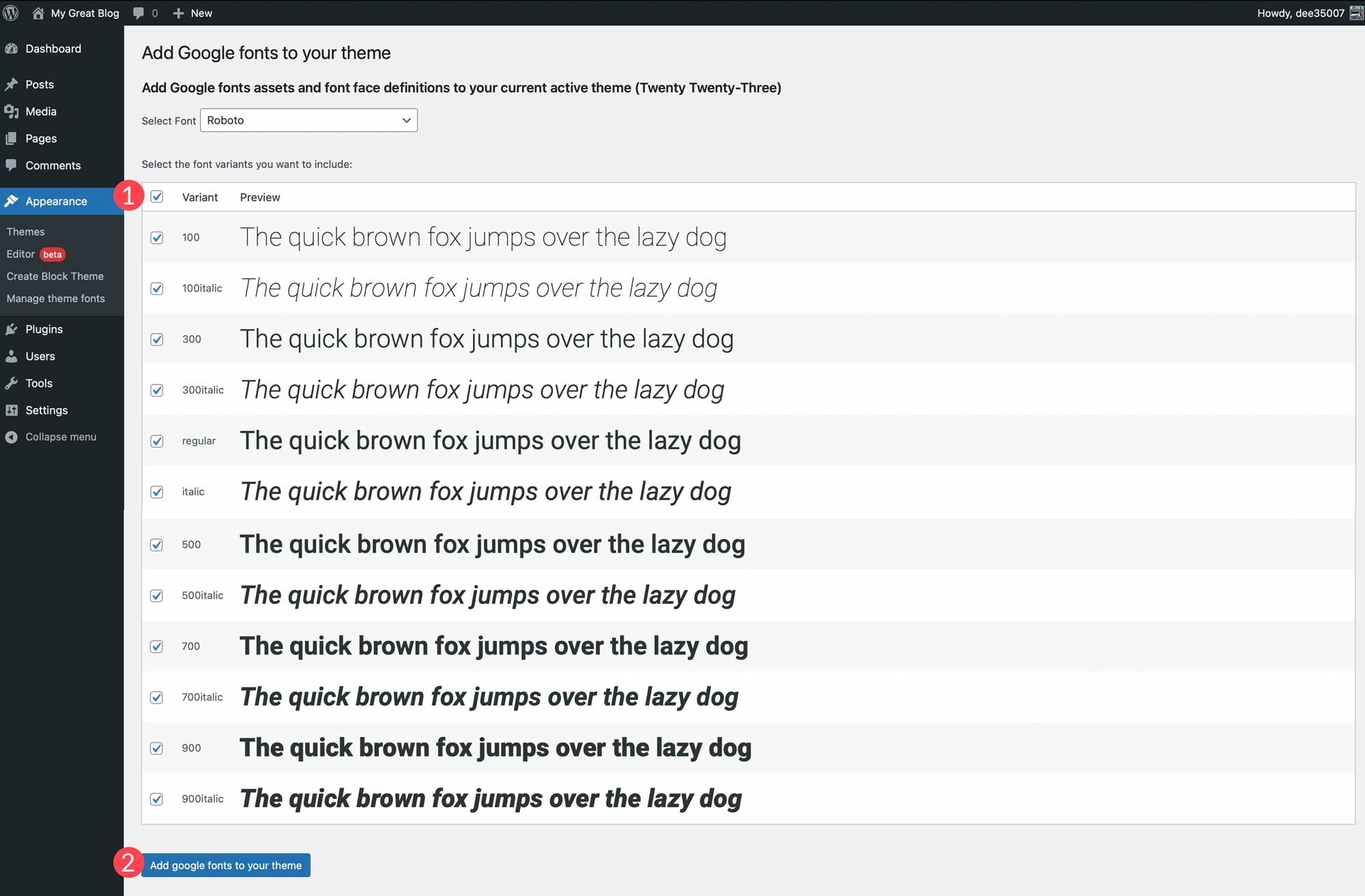
    When the page refreshes, use the dropdown menu to select a font. You’ll be able to choose any font in Google’s font library.

    select a font

    Once you make a font selection, you’ll have the option to choose the variants you wish to include. You can choose all by clicking the checkbox at the top or choose individual ones. After choosing variants, click the Add google fonts to your theme button.

    Add Google font

    You can also add local fonts to your theme. Start by clicking the Add Local Font button. Fonts in the ttf, off, and woff2 file formats are supported.

    add local font button

    Upload a font by choosing a file saved on your local machine. Next, give it a name, and apply a font style, and font weight. Finally, click Upload local fonts to your theme.

    Once fonts are installed, they can be managed within the Create Block Theme plugin and applied to styles in the site editor.

    fonts in style editor

    After fonts are added, you can head back over to the Create Block Theme tab to apply one of the options to create a child theme, export it, clone it, or overwrite your current theme. All fonts will be preserved along with style variations, as well as templates that you create.

    Creating a WordPress Block Theme Doesn’t Have to Be Hard

    Thanks to the Create Block Theme plugin, it’s easier than ever to create a block theme for your website. You can create your own theme templates using the full site editor, add new styles, add and manage fonts, and even export your block themes for use on other projects. There’s no coding, no theme files to alter, and it’s all done within a few clicks. If you’re looking to start using block themes, or are looking for an easy way to manage them, consider using the Create Block Theme plugin.

    For those using page builders, there should be built-in options for creating custom themes. With Divi, you can easily import and export all of your templates and designs using the theme builder. This allows you save entire site styles to be used like a child theme to kickstart new website builds in a few clicks.

    Have you made the switch to WordPress block themes? If so, let us know in the comments below.

    The post How to Create a Block Theme for WordPress (The Easy Way) appeared first on Elegant Themes Blog.

  • Get a Free Alteration Shop Layout Pack for Divi

    Hey Divi Nation! Thanks for joining us for the next installment of our weekly Divi Design Initiative; where each week, we give away a brand new Layout Pack for Divi.

    This time around, the design team has created a beautiful alteration shop Layout Pack that’ll help you get your next Alteration Shop website up and running in no time!

    This layout pack includes:

    8 Premade page layouts strategically designed for any Alteration Shop website (including a footer design)
    – Original, royalty-free photos and graphics + customizable source file (see below)
    – Plus, a large collection of pre-designed website elements that are customizable and reusable anywhere.

    This layout pack is available right inside Divi for all Divi customers for FREE as the latest addition to our growing Divi library of hundreds of premade layout packs, thousands of page designs, and countless web design elements and resources.

    divi layout

    Check Out The Divi Alteration Shop Layout Pack Below

    Get it for free today!

    Alteration Shop layout pack

    Landing Page Design

    Alteration Shop Pack for Divi

    View The Live Layout Demo

    Home Page Design

    Alteration Shop Layout Pack for Divi

    View The Live Layout Demo

    Services Page Design

    Alteration Shop Layout Pack for Divi

    View The Live Layout Demo

    Service Page Design

    Alteration Shop Layout Pack for Divi

    View The Live Layout Demo

    About Page Design

    Alteration Shop Layout Pack for Divi

    View The Live Layout Demo

    Pricing Page Design

    Alteration Shop Layout Pack for Divi

    View The Live Layout Demo

    Blog Page Design

    Alteration Shop Layout Pack for Divi

    View The Live Layout Demo

    Contact Page Design

    Alteration Shop Layout Pack for Divi

    View The Live Layout Demo

    Key Features

    The Alteration Shop Layout Pack for Divi offers a high contrast design complete with dark backgrounds and bold white text to showcase your alteration business. The warm dark gold accents allow for your site’s visitors to easily identify call to actions, as well as other points of interest. This classic design gives you everything you need to show off your alteration business with class.

    Live Demos

    Click the links below to see a live demo for each of the layouts included in the pack.

    1. Alteration Shop Landing Page (live demo)
    2. Alteration Shop Homepage (live demo)
    3. Alteration Shop Services Page (live demo)
    4. Alteration Shop Service Page (live demo)
    5. Alteration Shop About Page (live demo)
    6. Alteration Shop Pricing Page (live demo)
    7. Alteration Shop Blog Page (live demo)
    8. Alteration Shop Contact Page (live demo)

    Access This Layout Right Now
    Directly from Your Divi Builder

    Since Version 3.0.99 of Divi, you can find and import any of the layouts included in this pack (along with ALL of Divi’s Premade Layout packs) directly from the Divi Builder. They are already waiting for you.

    To access your new layout, simply activate the Visual Builder when editing a page and look for the “Load From Library” icon in the page settings bar (it looks like a plus symbol). Click this icon to launch the Load From Library popup. Under the Premade Layouts tab, you can easily find the new layout by scrolling through the list of layout packs. Once you find the Alteration Shop Layout Pack, click on it. You will see all the individual layouts included in the pack. Select the layout you want to use and then click the “Use This Layout” button.

    Alteration Shop Layout Pack for Divi

    For more, check out this video to learn how you can get this layout pack up and running today.

    Subscribe To Our Youtube Channel

    Authentication Required

    Before you can download Premade Layouts from the Divi Library you must authenticate your Elegant Themes Subscription. You can do this by navigating to Divi > Theme Options > Updates. There you can enter your username and API key and save changes.

    Alteration Shop Layout Pack for Divi

    You can find your API Key under your members area on the Elegant Themes site. After you enter the Username and API Key, you will gain immediate access to our library of hundreds of free layouts (including this one). If you haven’t done this, when you click to import a layout to your page, you will be prompted to enter your Elegant Themes Membership Username and API Key.

    Use Layout Images for FREE with No Licensing Restrictions

    Divi Alteration Shop Layout Pack for Divi

    The image assets included with these layouts (icons, illustrations, photos, etc.) have no licensing restrictions. This means you can use them in all of your commercial projects without having to worry about paying licensing fees or attributing the photographer. Use them in your commercial websites, sell them within your Divi child themes, include them in your own Divi layout packs or just use them on your blog. We know how challenging it can be to find good photos and how confusing and scary the licensing that governs those photos can be. We want to fix that problem for our users.

    Download the Full Res Image Assets

    New Layout Pack Every Week!

    We hope you enjoy this layout pack. We look forward to hearing your opinions in the comment section below. Make sure you check out next week’s layout pack as well!

    The post Get a Free Alteration Shop Layout Pack for Divi appeared first on Elegant Themes Blog.

  • Yoast SEO Plugin for WordPress: An Easy Setup Guide

    Search Engine Optimization (SEO) is one of the most important aspects of any website. It works side by side with writing good original content, and keyword research, and is crucial to rank higher in search engine results pages (SERPs). While WordPress does have some search engine friendly aspects to it, you’ll need a little help to truly score a higher ranking. This is where the Yoast SEO Plugin comes in.

    In this post, we’ll give you an overview of what it is, walk you through its first-time configuration of it, and show you how to use it by giving you a step-by-step overview. Let’s get started.

    What is Yoast SEO

    Yoast SEO plugin

    The Yoast SEO Plugin for WordPress is an all-in-one SEO solution for your website. It provides in-depth SEO analysis, snippet previews, robust readability tools, and webmaster tools to make configuring SEO a less daunting task. With so many tools in its arsenal, Yoast is considered one of the top WordPress SEO plugins.

    There are two options for the plugin – a free version that is available on WordPress.org and a premium version, which has advanced features such as multiple keyword phrases, social previews, and link suggestions during writing. Yoast also has other SEO plugins to optimize your SEO strategy even more.

    How to Use Yoast SEO Plugin in WordPress (Step by Step)

    In this section, we’ll give you all of the information you need to configure Yoast SEO. We’ll cover installation, the first-time configuration wizard, how to set up on-page SEO, and give you an in-depth look at the SEO dashboard.

    Install and Activate the Yoast SEO Plugin

    Start by logging in to your WordPress dashboard. Next, navigate to Plugins > Add New.

    Add Yoast SEO plugin

    Type Yoast into the search bar. When the page refreshes, select the plugin then click the Install Now button.

    search for Yoast SEO

    Finally, click the Activate button to activate the plugin.

    activate the plugin

    When the page refreshes, you’ll be directed to the welcome screen, where you can start the first-time configuration.

    Complete First-time Configuration

    The first-time configuration of the Yoast SEO plugin optimizes your data to allow search engines to find your site easier, enter important site information, add social media profile pages, and configure your personal preferences.

    Click the Start first-time configuration button to get started.

    start the configuration

    SEO Data Optimization

    Yoast SEO helps give search engines such as Google a better understanding of your site. First, you’ll want to start SEO data optimization. Yoast will store all metadata for all pages and posts in a database table called the indexibles. It streamlines the indexing process into one database request, reduces page speed loading times, and helps search engines find your site.

    start SEO data optimization

    Site Representation

    The next set of settings will help search engines identify your website by site type, site name, your organization’s name, and logo.

    site representation

    Social Profiles

    Yoast displays Facebook and Twitter by default, but you can add as many additional profiles as needed here.

    Add social profiles

    Yoast SEO Personal Preferences

    Next, select whether you want Yoast to track your data. Yoast tracks plugins, themes, information on your website’s server, and some user data.

    Yoast personal preferences

    At this point, you should have most of what you need already in place. We’ll get to the dashboard options in more detail later. But for now, let’s take a look at how Yoast SEO works for on-page SEO.

    How to Use the Yoast SEO Meta Box (for on-page SEO)

    The Yoast SEO meta box is an on-page SEO tool that allows you to optimize your SEO content for each post/page on your site in real-time. Using the meta box increases the chance of better rankings in SERPs.

    You can find the meta box in at the bottom of the page editor.

    Access the Meta box

    If you are using a block editor, click the Yoast icon at the top right to access the Yoast SEO meta box.

    Yoast SEO block theme

    SEO

    The SEO tab gives you an analysis of your post’s content in real-time. It uses the green light system which rates your post content as good, okay, or needs improvement. Once a keyword is inserted, Yoast gets to work analyzing the content and suggests improvements.

    Focus Keyphrase

    A keyphrase (or keyword) is the main word or phrase you want your content to rank for in search results. You’ll want to do keyword research beforehand to find the right focus keyphrase.

    focus keyphrase

    You can also click the Get related keyphrases button in the meta box to add more related keywords you wish to rack for as well.

    Google Preview

    Google Preview gives you a glimpse of how your post will appear in search results in both desktop and mobile formats.

    google preview

    SEO Title & Slug (URL)

    The SEO Page Title and the URL slug can be optimized in this section for best results. Make sure both are not too long and include your keyphrase for the best results.

    SEO title and slug

    Meta Description

    meta description

    The meta description is one of the most important parts of optimizing on-page SEO. It can give your potential visitors a reason to click. Therefore, it’s important to write a perfect meta description that is concise, includes your keyword(s), and describes the content accurately.

    Yoast allows you to insert variables into the meta description such as site title, post title, primary category, and separator.

    meta description variable

    SEO Analysis

    Under SEO analysis, Yoast provides an on-page SEO score and a checklist that you can use to optimize specific tasks to achieve a green light. It identifies problems, improvements, and good results.

    SEO analysis

    To achieve a green light, the best approach is to write good content from the start. For some great tips, check out how to write quality SEO content.

    For more ways to optimize your post for SEO, check these advanced SEO techniques.

    Cornerstone Content

    cornerstone content

    If the post is considered cornerstone content, you mark it as such here. If you’re not sure what this means, check out How to Optimize Cornerstone Content for SEO.

    Advanced Features

    Yoast SEO plugin advanced options

    Under Advanced, you have additional SEO options for your post. You can choose whether or not to allow search engines to show the post in search results, set follow links, select robot options, assign a breadcrumb title, and insert a canonical URL.

    Insights

    Flesch reading ease

    Here you can view the Flesch reading ease score of the post. This gives you insight as to how difficult it is to read your post, contains the word count, and estimated reading time. Premium options give you a breakdown of the most used words in your content, so you can cross-check your most used words with prominent words in search results focused on the same subject.

    Readability

    Yoast uses a proprietary algorithm to make readability results quite accurate. In most cases, you should try to get a readability score of 8, since the majority of people are comfortable reading at that level, according to the Flesch reading ease scale.

    Like with SEO analysis, the scores are based on factors that are highlighted as problems (red), improvements (orange), and good results (green). In the example below, a section length issue is detected. Plus you can easily locate problem areas by clicking the “eye” icon next to each item in the list.

    readability tab

    To learn more readability tips, check out How to Get the Perfect Yoast SEO Readability Score.

    Schema

    schema

    Under Schema, you can use Schema markup to optimize your site’s SEO so that it is easier to index by search engines. In Yoast SEO, you can change schema settings in the dashboard or on individual posts and pages here.

    Social

    social preview

    The Social tab allows you to control how your post’s preview is displayed on social media platforms. You can assign a custom image, title, and description for each. Because social media platforms have a different display for posts on their platforms, it’s worth considering an upgrade to premium.

    Explore the Yoast SEO Plugin Dashboard

    The dashboard allows you to configure settings by assigning them to four major groups – general settings, content types, categories and tags, and advanced settings.

    In the general settings, you can view potential problems and notifications such as release notes, and upcoming features.

    Yoast SEO dashboard

    Yoast SEO General Settings Tab

    Yoast general tab

    Out of the box, the most important features are enabled. However, others such as inclusivity – which detects content that may be offensive to certain groups – are available.

    • SEO analysis: Measures on-page SEO
    • Readability Analysis: Gain insight on your site’s readability.
    • Inclusive language analysis: Detects derogatory content with options to correct it.
    • Insights: Reveals information about reading ease score, estimated reading time, and word count.
    • Cornerstone content: Enables the ability to assign a particular post as cornerstone content.
    • Text link Counter: Detects the number of internal links in posts.
    • Link suggestions: A premium feature that suggests internal links to posts or pages on your site.
    • Open Graph data: Allows social media to display a preview with images and text.
    • Twitter card data: Allows Twitter to display a preview when your site’s link is shared.
    • Slack sharing: Shares an author byline and reading time estimate in Slack channels.
    • Admin bar menu: Grants access to Yoast tools on the front end of your WordPress site.
    • REST API endpoint: Gives headless WordPress sites the ability to add metadata to individual URLs.
    • XML sitemaps: optimize what to include in your XML sitemap and submit it to Google.
    • IndexNow: A premium feature that enables automatic pings on Bing and Yandex.

    Setup Social Settings

    One major change to Yoast involves the social settings. Formerly located in its own tab in the WordPress toolbar, it’s now located under the site representation > other profiles section in general settings.

    other social settings

    For most users, there won’t be a need to modify settings here. The information you added in the first-time configuration was automatically added to this section once the configuration was completed. That being said, you aren’t limited to just Facebook and Twitter. Unlike other plugins, Yoast allows you to add other social platforms such as Instagram, Pinterest, YouTube, or LinkedIn.

    Content Types

    This tab controls the search appearance options for posts and pages. You can enable all post types, enable only some, and configure the settings for each. Basic settings include options to streamline SEO titles and meta descriptions. If entered in the content types tab, your posts and pages will use the same SEO title structure and meta description.

    content types

    The options include:

    • Title & Meta Description
    • Social image
    • Social title
    • Social description

    Categories and Tags

    In this section, the settings are identical to the content types section, except they apply to taxonomies.

    category settings

    Yoast SEO Advanced Settings

    Under this tab, you can configure crawl optimization settings (with a premium license), breadcrumbs, other pages such as author archives, date archives, format archives and special pages. There are additional settings for media pages and RSS feeds.

    Breadcrumbs

    The breadcrumbs settings in Yoast SEO allow you to customize the appearance of breadcrumbs on your site. There are plenty of options that allow you to customize the display of your breadcrumb navigation, choose which taxonomies to show for content types, and more.

    breadcrumbs yoast SEO

    Archives

    Under the Archives tab, you can disable the author, date, or special page archives in the search results. Plus, you have additional settings to allow you to either show or hide the authors without posting the results. Like other search appearance tabs, you can create a custom SEO title and meta description as well. Those with a premium version of the Yoast SEO plugin can configure how these types of pages will display on social media platforms.

    archive settings

    Media

    By default, Yoast disables media page URLs because they serve no purpose in SEO. If you wish to enable media URLs, you can do so here. Once enabled, you’ll be able to configure search appearance options, schema, and SEO controls and assessments, which determines whether Yoast SEO tools and controls are visible in the attachment editor.

    Media pages

    RSS

    The Yoast SEO plugin has an automatic tool that allows you to add content to your RSS feed. You can assign content to appear before each post in the feed, as well as add content after each post. Additionally, you can input variables that perform various options such as adding a link to the post, where the title is the anchor text and more.

    RSS settings

    Integrations

    Yoast SEO integrations

    Under Yoast SEO > Integrations you’ll find a list of integrations including SEMrush, Wincher, WooCommerce, Jetpack, and more. Some integrations are only available with Premium.

    Yoast SEO Tools

    Yoast tools

    There are a few handy tools available with Yoast that allow you to speed up your site, save time editing, and configure important SEO files on your server.

    1. Import and export: Import settings from another SEO plugin, or export your settings for use in other sites.
    2. File editor: Create a robot.txt file or edit your .htaccess file.
      Yoast SEO file editor
    3. Bulk editor: Bulk edit SEO titles and meta descriptions.
    4. Optimize SEO data:Give your site a speed boost by running the data optimization tool.

    Yoast SEO Plugin FAQs

    Since Yoast SEO is a broad topic, so you’re bound to have questions. Hopefully, these will help.

    Does Yoast SEO Have Tutorials I Can Follow?

    Yes! The Yoast SEO academy is free for you to learn the basics of SEO, as well as the Yoast SEO plugin. If you require more advanced training, they offer a paid version of the courses with your purchase of the premium plugin.

    How Do I Add My Website to the Google Search Console?

    Trying to figure out how to do things in Google can be a bit daunting. Thankfully, we have everything you need to know in our ultimate guide to Google Search Console.

    Is Configuring SEO Different If I Have a WooCommerce Site?

    While the concept of SEO is relatively the same, there are some added components to consider. You’ll still need to configure on-page SEO for your posts and pages, but there are the added elements of products, product categories, and your shop. Yoast has a WooCommerce SEO plugin you can use. But there are other alternatives you can consider as well. Check out WooCommerce SEO: A Complete Guide to Ranking #1 on our blog to learn some tips and best practices to help you dominate the eCommerce market.

    How Important is Google Preview Where SEO is Concerned?

    Taking the time to write a good SEO title, use a captivating feature image, and write an attention-grabbing meta description are crucial for SEO. This is true for desktop users, but for mobile users as well. Since roughly 60% of the internet’s users utilize a mobile device for internet surfing, it is more important than ever. Taking the time to learn the difference between desktop and mobile SEO is a critical aspect of your site’s success. Take a look at our ultimate guide to mobile SEO to learn more.

    Yoast SEO is WordPress’ Best Friend

    SEO is a highly advanced topic that requires quite a bit of understanding to master. You’ve taken the first step in that journey by learning how to use Yoast SEO. Thankfully, we offer countless resources to aid you along the way. By brushing up on your SEO techniques , gaining a better understanding of linking strategies, and recognizing the importance of mobile SEO in today’s digital landscape, you’ll have the tools necessary to up those rankings. With those additional resources, you’ll be ready to reach the top of the proverbial SEO mountain in no time.

    Do you use Yoast SEO on your website? Let us know by dropping a comment below.

    The post Yoast SEO Plugin for WordPress: An Easy Setup Guide appeared first on Elegant Themes Blog.

  • The Complete Guide on How to Update PHP in WordPress

    WordPress runs on PHP, a programming language used to process the data needed to display your website to the world. Although PHP is rarely seen by the everyday user, it remains crucial to the life of your WordPress site. Keeping your PHP version updated ensures your site is running securely and performing optimally. In this post, we’ll explain why it’s important to update PHP in WordPress, and show you different ways to do it.

    What is PHP in WordPress?

    PHP is an open-source, server-side scripting and programming language that is the backbone of WordPress. Unlike static HTML sites, WordPress sites generate their pages dynamically by pulling data from the server using PHP. The PHP code is used by the server to process what is needed to deliver an HTML page to your website’s visitors. The majority of WordPress core, theme, and plugin files are created with PHP.

    How PHP works

    Why Should You Update WordPress PHP?

    PHP Version 8.2

    There are two primary reasons why you should always update PHP in WordPress – speed and security. That being said, there are some other benefits as well like compatibility and new features to enjoy. Here are some key reasons to update PHP in WordPress.

    Performance and Speed

    Each time a web page is loaded in your browser, PHP has to process what the server needs, locate it in the database, and then send it back in HTML format so your browser can display it. Loading just one page can require a lot of PHP requests that slow down your page load speed. Since PHP continues to improve with each update, you will also see faster processing speeds and more efficient memory usage. That’s why running your site on newer versions will give you more speed and better performance.

    Security

    Failure to update PHP in WordPress is a serious security risk. Older versions are no longer supported and have reached End of Life (EOL), which means that the PHP version will never be updated or checked for vulnerabilities. Running your site on these unsupported versions leaves you at risk of potential security breaches. To keep your site safe and secure, you should use a PHP version that is actively supported. At the time of this post, here is where things stand:

    • Any version below 8.0 is unsupported (EOL) and open to security risks.
    • Version 8.0 is not actively supported but is receiving security fixes for now.
    • Versions 8.1 and 8.2 are actively supported and are recommended to use.

    PHP supported versions

    In short, update to the latest version of PHP as soon as possible. To see the current PHP versions available, check out the PHP supported versions page.

    New Features

    new features with PHP update

    Every new version of PHP brings new features that allow you to make more powerful and dynamic websites.

    Compatibility and Support

    Making sure your PHP is updated will also ensure that your site is compatible with the latest version of PHP. This also keeps your site compatible with all themes or plugins that are optimized for the latest version.

    It is also important to note that your site may not be compatible with the latest version of PHP. You could be running an older version of WordPress or have a theme or plugin running on older PHP versions. So you will want to make sure and test your website after updating it to make sure everything is still working properly. If not, you may have some dated plugins or other issues to address.

    How to Check Your PHP Version

    Before we check the PHP version (and update it), it is important to know which PHP version you should be using. Ideally, you will always want to use the latest version of PHP available. However, you must also make sure that your WordPress version is up-to-date and compatible with the latest version of PHP. WordPress has a PHP compatibility chart you can use.

    Now that you know which PHP version you should be using, we can check which PHP version you are currently running on your site. Here are two simple ways to do that.

    Check PHP Version Using WordPress’ Site Health Tool

    One way to determine which version of PHP you are running is to take a look at Site Health in the WordPress dashboard. There are two sections for your site – status and info. On the status page, WordPress runs a series of tests to determine if your site needs updates to its core files, and plugins, and recommends improvements. During those tests, if you need to update PHP in WordPress, it will be displayed there.

    WordPress site health

    Check PHP Version Using the Command Line

    The last way to check which version of PHP is installed is to run a query in the command line. This can be done on Mac, Windows, and Linux. For this example, we’ll use the Terminal application on Max OSX. Before getting started with this method, you’ll need to have SSH access. If you need help on this, read our post explaining How to Connect Your Website Via SSH.

    Once you have successfully established an SSH connection, open your console program and type in the following command:

    php -v
    

    The output will reveal the PHP version number, build date, and copyright information that looks something like this:

    $ php -v
    PHP 7.4.25 (cli) (built: Oct 22 2021 12:33:59) ( NTS )
    Copyright (c) The PHP Group
    Zend Engine v3.4.0, Copyright (c) Zend Technologies
    	with Zend OPcache v7.4.25, Copyright (c), by Zend Technologies
    

    Steps to Take Before You Update Your Website’s PHP

    Before updating PHP, there are steps you should take to ensure that the process is completed successfully. Let’s walk through the steps so you’ll know the best process to follow.

    Step 1: Backup Your Site

    This is probably the most crucial step to take before updating PHP in WordPress. You see, when you update any type of software, there’s always a chance an error can occur. If you don’t have a recent backup, you stand to lose any content you’ve recently added. Take a look at our post on the best WordPress backup plugins if you need a good backup solution.

    Updraft Plus

    Step 2: Check Your Server

    The second step is to make sure your server supports the latest version of PHP. You can usually find this information in your hosting provider’s documentation. If not, speak with a customer service representative at your host. If your host doesn’t offer support for the latest version, you can formally request that they take steps to support it. At the time of this writing, most web hosts support version 8.0, with a growing number of hosts supporting 8.1. It’s worth noting that all of Divi’s hosting partners currently support the latest version.

    Divi hosting partners

    Step 3: Update WordPress, Plugins, and Themes

    The third step is to update all of your third-party plugins, themes, and WordPress core files before proceeding with a PHP update. If you don’t, you could cause conflicts between the latest version of PHP and any outdated software. Most developers release regular updates to their software to include compatibility with major releases of both WordPress and PHP.

    Step 4: Test Thoroughly Before Upgrading PHP in WordPress

    Lastly, use local development software such as MAMP to test your site with newer versions of PHP. This will help identify any plugins that don’t support that version, and any bugs you may run into before updating your live site. For information on how to use Mamp, check out our ultimate guide.

    Update PHP WordPress in Mamp Pro

    How to Update PHP in WordPress

    There are several ways to update PHP in WordPress. It can be done through your hosting provider, using cPanel, SSH with terminal commands, or simply by requesting it through your web host. Let’s explore the different ways to update PHP in WordPress individually.

    Hosting Site Tools

    Updating PHP in WordPress is a fairly easy step within most hosting providers. While all hosting providers are different, most of them offer a way for the customer to update the PHP version. For all other providers not listed in our post, you can visit these tutorials to view your specific hosting provider’s process to update PHP in WordPress. For this post, we’ll concentrate on updating PHP in WordPress with our hosting partners – SiteGround, Flywheel, Pressable, and Cloudways.

    Updating PHP in SiteGround

    SiteGround offers an easy way to update PHP in WordPress. First, log in to your SiteGround dashboard. Next, navigate to Devs > PHP Manager. Click the pencil icon to edit the assigned version of PHP.

    Update WordPress PHP in SiteGround

    When the modal appears, choose Change PHP version manually. Under the dropdown menu, select the version of PHP you wish to update to.

    Change PHP manually SiteGround

    Updating PHP in Flywheel

    For Flywheel, the process is a bit different. To update PHP in WordPress, you’ll need to connect with a customer service representative. This may sound like a daunting process, but rest assured that it’s fast and easy. You can request a PHP upgrade in a few simple steps. First, log in to your Flywheel account. Next, click the Get Help button in the lower right corner of your screen.

    Update PHP WordPress in Flywheel

    The final step is to click the Chat Now button. From there, all you have to do is ask for Flywheel to perform the update.

    Chat with Flywheel

    As a bonus, they’ll ensure that there aren’t any conflicts after the update. If any issues are found, they’ll troubleshoot them and fix any issues that arise.

    Updating PHP in Pressable

    To update PHP in Pressable, start by logging in to your account at my.pressable.com. Click on the site you wish to update PHP on.

    choose Pressable site

    Next, under overview, select your desired PHP version from the dropdown menu. Pressable will automatically save your changes once you make a selection from the menu.

    select PHP version

    Updating PHP in Cloudways

    To update PHP in Cloudways, start by logging into your account. Next, select servers in the navigation menu. Next, click on the server you wish to update.

    Update PHP in Cloudways

    Click on settings & packages on the menu on the left side of the page. Next, click on the packages tab. Finally, click on the pencil icon next to the current PHP version.

    Cloudways PHP settings

    Choose your desired version of PHP from the dropdown menu, then click the save button.

    Choose PHP version

    A warning box will appear asking you to confirm that all installed software is compatible with your selected PHP version. Click ok.

    Confrim PHP changes Cloudways

    Updating PHP Using cPanel

    Another way to update your WordPress site’s PHP is to use cPanel. While every hosting provider is different, the steps are generally the same. First, log into your hosting provider’s website. Next, navigate to cPanel. Scroll down until you see the Software section. Next, click on Select PHP Version. From the dropdown menu, select your desired version of PHP. Click on it to set it as current.

    select PHP version

    Contacting Your Hosting Provider

    If none of the other ways are accessible to you, there is still one more way to update PHP in WordPress. You can reach out to your hosting provider to ask that they update PHP for you. Most hosts can handle this request and can take care of it for you. As previously mentioned, hosts such as Flywheel offer access to chat with a representative who can take care of the update in a matter of minutes.

    What to Do If Something Breaks

    On the off chance that you encounter a problem, there are fixes if your site goes down or breaks during a PHP update. The most important thing you should do before updating is to ensure you are using a staging site, and create a backup right before beginning the process. This ensures that if you do have issues, you can safely roll back to your backup without skipping a beat.

    Steps To Take to Fix Your Website

    When your WordPress site isn’t functioning properly, it can be very frustrating. Thankfully, there are a few steps you can take to correct the issue you’re facing since the update. If you have access to the back end of your site, follow this quick guide to get your site back up and running.

    Step 1: Disable All Plugins

    If your problem stems from a plugin going rogue on you, disabling them can fix it. Start by disabling all of your plugins, then reactivate them one by one. If a plugin is a problem, the perpetrator will identify itself during this process. However, if this step doesn’t fix the problem, move along to step 2.

    Step 2: Change Your Theme

    Activate a WordPress default theme. A lot of times when your site is having issues, your theme can be the culprit. Third-party themes have a lot of extra functionalities in them that default themes don’t have. It’s best to temporarily swap to a more bare-bones theme to see if your site comes back up. If it does, you know the problem lies in the theme.

    Step 3: View Error Logs

    If you are still having trouble with your site, take a look at your site’s error logs to view any potential problems. Using the WordPress default Site Health tool is a great place to start. Navigate to Tools > Site Health. Here you’ll find two tabs – status and info. You can scroll through both tabs to get a better understanding of what’s going on with your website. Critical issues will be listed on the status page, along with suggestions on how to correct the problem.

    Talk To Your Hosting Provider

    If those steps haven’t solved the issue, reach out to your host. Most reputable hosting providers offer support for their customers. They will likely get to work by troubleshooting your site and helping you solve the problem.

    If none of these steps work for you, you should take steps to downgrade your PHP version. You can reverse the update process listed above to safely revert to the PHP version you were using previously. If your hosting provider doesn’t support the latest version, you should seriously consider switching hosting providers. Divi partners with several highly recommended hosting providers that all support the latest version of PHP. We vet each hosting partner thoroughly before considering them, so rest assured that you’re making a wise choice if you choose to use them.

    Updating PHP in WordPress FAQ

    If you still have questions regarding updating PHP in WordPress, these should help.

    What Happens If My Site Disappears or Breaks?

    Although unlikely, it is possible your site can break during a PHP update in WordPress. When this happens, there are steps you can take to fix it. Using Recovery Mode through WordPress is an excellent way to bring your site back after an error.

    What If I Don’t Have the Permission to Update PHP in WordPress?

    If you find yourself in a situation where you are unable to update PHP on your own, your only recourse is to reach out to your hosting provider. You can request that they update PHP to the latest version. If they can’t support the latest version, or deny your request, it’s time to start shopping for a new hosting provider. As previously mentioned, running an outdated version of PHP leaves your site vulnerable to malware and other types of cybercriminal activity.

    Can I Update PHP in WordPress If I Have an Apache/Nginx/Other Kind of Server?

    Absolutely. Almost all servers are compatible with PHP. This includes Apache, Nginx, IIS, and Google Web Server (GWS).

    Can I Use the Command Line to Update PHP in WordPress?

    Yes. But this is definitely not recommended unless you are positive that you know what you are doing. The Command Line is a powerful tool that has the potential to seriously mess things up if you are inexperienced. It would be better to contact your hosting provider to make changes for you.

    Updating PHP is Crucial to WordPress Websites

    When using WordPress to build your website, it’s imperative that you keep all software up to date. This is especially true for PHP since it is the backbone of WordPress. By following the steps outlined in this post, you’ll keep your site safe, secure, and running optimally.

    What method do you use to update PHP on your website? Let us know by sounding off in the comment section below.

    The post The Complete Guide on How to Update PHP in WordPress appeared first on Elegant Themes Blog.