EDITS.WS

Author: Deanna McLean

  • Get a Free Saas Product Layout Pack for Divi

    Hey Divi Nation! Thanks for joining us for the next installment of our weekly Divi Design Initiative; where each week, we give away a brand new Layout Pack for Divi.

    This time around, the design team has created a beautiful Saas Product Layout Pack that’ll help you get your next Saas Product website up and running in no time!

    This layout pack includes:

    8 Premade page layouts strategically designed for any Saas Product website (including a footer design)
    – Original, royalty-free photos and graphics + customizable source file (see below)
    – Plus, a large collection of pre-designed website elements that are customizable and reusable anywhere.

    This layout pack is available right inside Divi for all Divi customers for FREE as the latest addition to our growing Divi library of hundreds of premade layout packs, thousands of page designs, and countless web design elements and resources.

    divi layout

    Check Out The Divi Saas Product Layout Pack Below

    Get it for free today!

    Saas Product layout pack

    Landing Page Design

    Saas Product Pack for Divi

    View The Live Layout Demo

    Home Page Design

    Saas Product Layout Pack for Divi

    View The Live Layout Demo

    About Page Design

    Saas Product Layout Pack for Divi

    View The Live Layout Demo

    Features Page Design

    Saas Product Layout Pack for Divi

    View The Live Layout Demo

    Pricing Page Design

    Saas Product Layout Pack for Divi

    View The Live Layout Demo

    Documentation Page Design

    Saas Product Layout Pack for Divi

    View The Live Layout Demo

    Blog Page Design

    Saas Product Layout Pack for Divi

    View The Live Layout Demo

    Contact Page Design

    Saas Product Layout Pack for Divi

    View The Live Layout Demo

    Key Features

    If you’re looking for a bold look for your Saas product website, then look no further than the Saas Product Layout Pack for Divi. With striking bright colors, eye-catching photos, and an interesting take on perspective, your potential clients will be captivated the second they land on your website.

    Live Demos

    Click the links below to see a live demo for each of the layouts included in the pack.

    1. Saas Product Landing Page (live demo)
    2. Saas Product Homepage (live demo)
    3. Saas Product About Page (live demo)
    4. Saas Product Features Page (live demo)
    5. Saas Product Pricing Page (live demo)
    6. Saas Product Documentation Page (live demo)
    7. Saas Product Blog Page (live demo)
    8. Saas Product Contact Page (live demo)

    Access This Layout Right Now
    Directly from Your Divi Builder

    Since Version 3.0.99 of Divi, you can find and import any of the layouts included in this pack (along with ALL of Divi’s Premade Layout packs) directly from the Divi Builder. They are already waiting for you.

    To access your new layout, simply activate the Visual Builder when editing a page and look for the “Load From Library” icon in the page settings bar (it looks like a plus symbol). Click this icon to launch the Load From Library popup. Under the Premade Layouts tab, you can easily find the new layout by scrolling through the list of layout packs. Once you find the Saas Product Layout Pack, click on it. You will see all the individual layouts included in the pack. Select the layout you want to use and then click the “Use This Layout” button.

    Saas Product Layout Pack for Divi

    For more, check out this video to learn how you can get this layout pack up and running today.

    Subscribe To Our Youtube Channel

    Authentication Required

    Before you can download Premade Layouts from the Divi Library you must authenticate your Elegant Themes Subscription. You can do this by navigating to Divi > Theme Options > Updates. There you can enter your username and API key and save changes.

    Saas Product Layout Pack for Divi

    You can find your API Key under your members area on the Elegant Themes site. After you enter the Username and API Key, you will gain immediate access to our library of hundreds of free layouts (including this one). If you haven’t done this, when you click to import a layout to your page, you will be prompted to enter your Elegant Themes Membership Username and API Key.

    Use Layout Images for FREE with No Licensing Restrictions

    Divi Saas Product Layout Pack for Divi

    The image assets included with these layouts (icons, illustrations, photos, etc.) have no licensing restrictions. This means you can use them in all of your commercial projects without having to worry about paying licensing fees or attributing the photographer. Use them in your commercial websites, sell them within your Divi child themes, include them in your own Divi layout packs or just use them on your blog. We know how challenging it can be to find good photos and how confusing and scary the licensing that governs those photos can be. We want to fix that problem for our users.

    Download the Full Res Image Assets

    New Layout Pack Every Week!

    We hope you enjoy this layout pack. We look forward to hearing your opinions in the comment section below. Make sure you check out next week’s layout pack as well!

    The post Get a Free Saas Product Layout Pack for Divi appeared first on Elegant Themes Blog.

  • How to Use the WordPress Stack Block

    Thanks to the introduction of Gutenberg blocks in version 5.8, WordPress makes it easy to organize your content and create awesome patterns. With the help of the WordPress Stack Block, you can add any type of block you choose, then display it vertically to create beautifully stunning layouts with ease.

    What is the Stack Block in WordPress?

    The WordPress Stack Block is a useful block that allows you to stack multiple blocks in a vertical column. Similar to the row block, it allows you to group multiple blocks together, making it easier to keep your blocks nice and tidy. It’s a versatile block because you can add any block you wish within it such as headings, images, buttons, and more.

    How to Add the Stack Block to your Template

    Adding the Stack Block to your page using the WordPress Editor is a simple process. Start by clicking the block inserter icon near the top left of the site editor screen.

    click block inserter

    Next, you can either search for the Stack Block or type /stack into the page editor directly. Then, simply click the block to add it.

    add Stack Block

    Stack Block Settings and Options

    There are two settings groups within the WordPress Stack Block – toolbar and additional settings. Let’s go over each group to give you a better understanding of how to use it.

    Toolbar Settings

    As with every block in WordPress, there are a few standard toolbar settings for the Stack Block. They can be observed by viewing the screenshot below:

    Stack Block toolbar settings

    1. Transform to
    2. Drag
    3. Move arrows
    4. Justification
    5. Alignment
    6. More options

    The first setting in the Stack Block is Transform To. With this option, you can turn the Stack Block into a quote, unwrap (ungroup) it, convert it to columns, or convert it into a cover block.

    transform settings

    The next two settings – drag and move – allow you to either drag your block into a different position on the page, or use the move arrows to move it up and down.

    The Justification option in the toolbar settings controls the justification of the blocks within the stack. They can either be aligned to the left, center or right.

    justification settings

    Next is the Align option. This option doesn’t necessarily control alignment, but rather the width of the stack. You can set it to None, which will allow the stack and all interior blocks to occupy a maximum of 650px. Wide width will allot 1000px for the stack, and Full width will stretch the Stack Block and all interior blocks across the full width of the page.

    Stack Block alignment settings

    The last toolbar settings group is more options. Within it, you can copy, duplicate, insert, move, lock, group, remove, or create a reusable block.

    Stack Block more settings

    The Stack Block Settings

    There are quite a few additional settings specific to the Stack Block. First, there is the Layout setting. Under the Layout options, you can control the justification and orientation of the stack, as well as control whether the blocks within the stack should be allowed to wrap to multiple lines. Justification options include left center, and right. For orientation, you can choose whether to orient them horizontally or vertically.

    Note that if you choose the horizontal orientation, the Stack Block will automatically be converted to a row block.

    Stack Block layout settings

    Next is the Color settings. When selecting a text color on the stack, it will control the color of the text on every block inserted into it. Alternatively, when choosing a background color, it will only apply a background color to the stack itself, rather than its contents. Finally, link color settings control any links added within the Stack Block.

    color settings

    Within the Typography settings, you can set the font size, appearance, line height, letter spacing, text decoration, and letter case for any block inserted into the Stack, which contains the text.

    typography settings

    Next are the Dimension settings. Here you can control the padding around the Stack. You can either set padding as a whole, or individually for the top, left, bottom, and right. Additionally, you can control the block spacing for all blocks contained within the stack.

    dimension settings

    The Border options allow you to add a border and/or a border radius to the Stack.

    border settings

    Tips and Best Practices for Using the WordPress Stack Block Effectively

    Even though the block is fairly simple to use, there are a few best practices that you should follow.

    When adding blocks to the Stack, a great way to stay organized and view your blocks is to use the WordPress List View. List view enables you to view each block within the stack, and allows you to easily drag them around to move them. To access the list view, simply click the list view icon to reveal all of the blocks in your stack.

    list view

    Also, make sure to keep the orientation option set to vertical. Swapping to a horizontal view in the layout settings will convert your Stack to a row. As previously mentioned, rows display blocks horizontally rather than vertically.

    Lastly, when setting colors for your stack, keep in mind that if you set a text color on the Stack Block itself, it will apply to other child blocks containing text as well. If you don’t want to apply a color to all blocks within the stack, be sure to apply color settings to individual blocks within the stack.

    WordPress Stack Block FAQs

    The WordPress Stack Block is a versatile block that can be utilized in pages, posts, and templates. So you will likely have a few questions. Hopefully, these will help.

    What’s the Difference Between a Row Block and a Stack Block?

    While Row Blocks and Stack Blocks allow you to group a series of blocks together, the difference is in orientation. You should use a row block when you want to display blocks horizontally. A great example of when to use a row block is when building a header. Typically, you want to have your site logo, as well as navigation links displayed horizontally. The Block works in much the same way. It can house a group of blocks. However, a Stack Block displays the block vertically. A great way to use the block is to build a sidebar with your post categories.

    Can I Use the Stack Block in a Template?

    Yes! Stack Blocks are a great way to display a group of blocks vertically, and help to keep blocks organized. This is especially useful when creating a template using full site editing in WordPress. For example, when creating a blog post template, it’s a good idea to use the block to house your post title, post meta, post content, and other post-related blocks.

    Wrapping Things Up

    Building a website in WordPress starts with adding structural elements like rows and columns. The Stack Block is a convenient way to add a row of content that is aligned vertically instead of horizontally. The block can be easily configured to help you design a page in WordPress using the built-in settings in the toolbar and sidebar block settings. Though this block is native to WordPress, page builders like Divi have more robust design options for optimizing the structure of your page using modules.

    For more, check out our other WordPress Block tutorials as well as our complete guide to WooCommerce Blocks.

    Have you experienced using the Stack Block on your website? Let us how in the comments below.

    The post How to Use the WordPress Stack Block appeared first on Elegant Themes Blog.

  • Get a Free Vegan Restaurant Layout Pack for Divi

    Hey Divi Nation! Thanks for joining us for the next installment of our weekly Divi Design Initiative; where each week, we give away a brand new Layout Pack for Divi.

    This time around, the design team has created a beautiful Vegan Restaurant Layout Pack that’ll help you get your next Vegan Restaurant website up and running in no time!

    This layout pack includes:

    6 Premade page layouts strategically designed for any Vegan Restaurant website (including a footer design)
    – Original, royalty-free photos and graphics + customizable source file (see below)
    – Plus, a large collection of pre-designed website elements that are customizable and reusable anywhere.

    This layout pack is available right inside Divi for all Divi customers for FREE as the latest addition to our growing Divi library of hundreds of premade layout packs, thousands of page designs, and countless web design elements and resources.

    divi layout

    Check Out The Divi Vegan Restaurant Layout Pack Below

    Get it for free today!

    Vegan Restaurant layout pack

    Landing Page Design

     Vegan Restaurant Pack for Divi

    View The Live Layout Demo

    Home Page Design

    Vegan Restaurant Layout Pack for Divi

    View The Live Layout Demo

    About Page Design

    Vegan Restaurant Layout Pack for Divi

    View The Live Layout Demo

    Menu Page Design

    Vegan Restaurant Layout Pack for Divi

    View The Live Layout Demo

    Blog Page Design

    Vegan Restaurant Layout Pack for Divi

    View The Live Layout Demo

    Contact Page Design

    Vegan Restaurant Layout Pack for Divi

    View The Live Layout Demo

    Key Features

    If you’re looking to launch a new vegan restaurant website for yourself or a client, take a look at the Vegan Restaurant Layout Pack for Divi. It incorporates large color block sections of images and text to entice your site’s visitors. Background patterns draw your eye to important call to action sections, whereas the muted colors allow the colorful imagery to shine.

    Live Demos

    Click the links below to see a live demo for each of the layouts included in the pack.

    1. Vegan Restaurant Landing Page (live demo)
    2. Vegan Restaurant Homepage (live demo)
    3. Vegan Restaurant About Page (live demo)
    4. Vegan Restaurant Menu Page (live demo)
    5. Vegan Restaurant Blog Page (live demo)
    6. Vegan Restaurant Contact Page (live demo)

    Access This Layout Right Now
    Directly from Your Divi Builder

    Since Version 3.0.99 of Divi, you can find and import any of the layouts included in this pack (along with ALL of Divi’s Premade Layout packs) directly from the Divi Builder. They are already waiting for you.

    To access your new layout, simply activate the Visual Builder when editing a page and look for the “Load From Library” icon in the page settings bar (it looks like a plus symbol). Click this icon to launch the Load From Library popup. Under the Premade Layouts tab, you can easily find the new layout by scrolling through the list of layout packs. Once you find the Vegan Restaurant Layout Pack, click on it. You will see all the individual layouts included in the pack. Select the layout you want to use and then click the “Use This Layout” button.

    Vegan Restaurant Layout Pack for Divi

    For more, check out this video to learn how you can get this layout pack up and running today.

    Subscribe To Our Youtube Channel

    Authentication Required

    Before you can download Premade Layouts from the Divi Library you must authenticate your Elegant Themes Subscription. You can do this by navigating to Divi > Theme Options > Updates. There you can enter your username and API key and save changes.

    Vegan Restaurant Layout Pack for Divi

    You can find your API Key under your members area on the Elegant Themes site. After you enter the Username and API Key, you will gain immediate access to our library of hundreds of free layouts (including this one). If you haven’t done this, when you click to import a layout to your page, you will be prompted to enter your Elegant Themes Membership Username and API Key.

    Use Layout Images for FREE with No Licensing Restrictions

    Divi Vegan Restaurant Layout Pack for Divi

    The image assets included with these layouts (icons, illustrations, photos, etc.) have no licensing restrictions. This means you can use them in all of your commercial projects without having to worry about paying licensing fees or attributing the photographer. Use them in your commercial websites, sell them within your Divi child themes, include them in your own Divi layout packs or just use them on your blog. We know how challenging it can be to find good photos and how confusing and scary the licensing that governs those photos can be. We want to fix that problem for our users.

    Download the Full Res Image Assets

    New Layout Pack Every Week!

    We hope you enjoy this layout pack. We look forward to hearing your opinions in the comment section below. Make sure you check out next week’s layout pack as well!

    The post Get a Free Vegan Restaurant Layout Pack for Divi appeared first on Elegant Themes Blog.

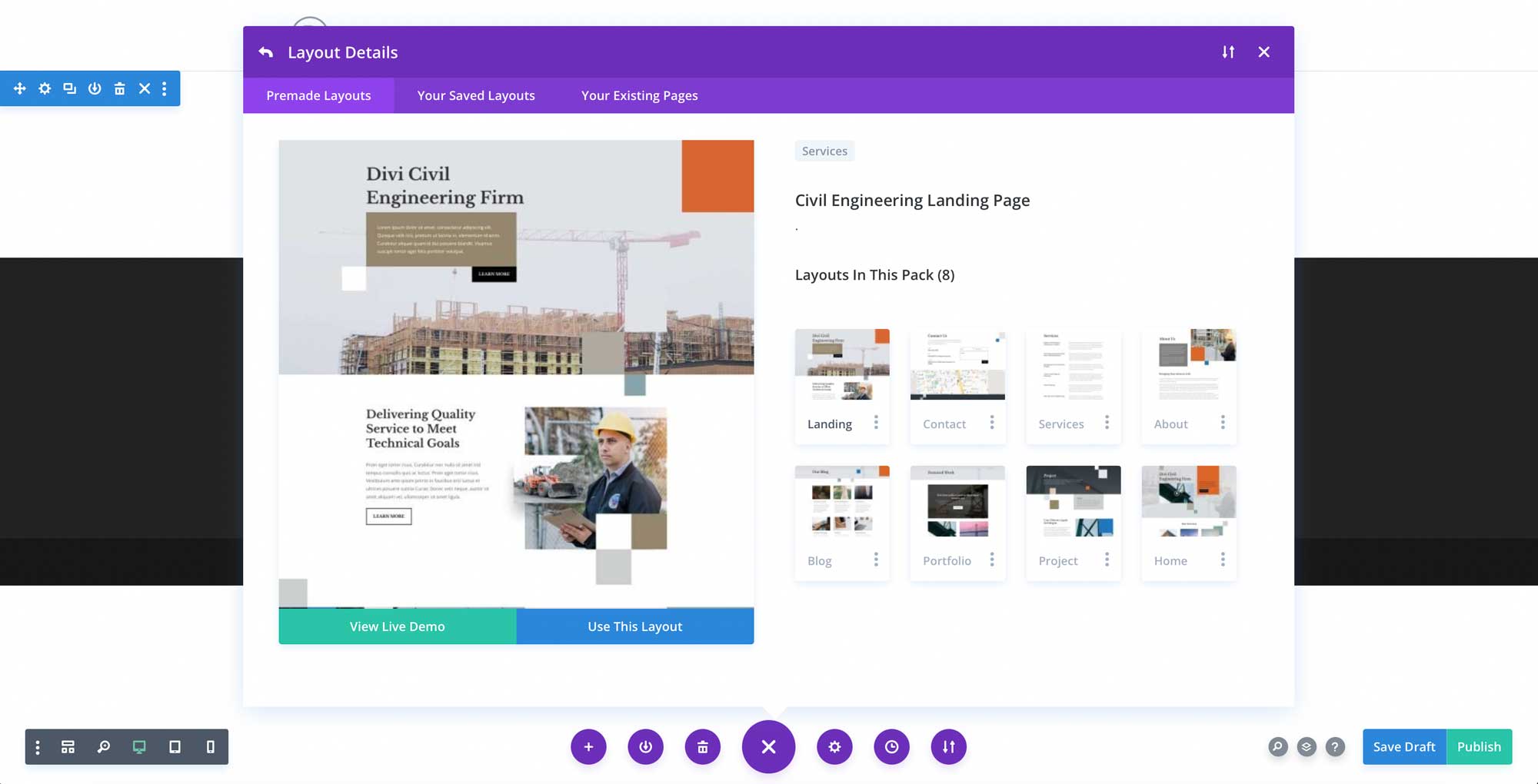
  • Get a Free Civil Engineering Firm Layout Pack for Divi

    Hey Divi Nation! Thanks for joining us for the next installment of our weekly Divi Design Initiative; where each week, we give away a brand new Layout Pack for Divi.

    This time around, the design team has created a beautiful Civil Engineering Firm Layout Pack that’ll help you get your next Civil Engineering Firm website up and running in no time!

    This layout pack includes:

    8 Premade page layouts strategically designed for any Civil Engineering Firm website (including a footer design)
    – Original, royalty-free photos and graphics + customizable source file (see below)
    – Plus, a large collection of pre-designed website elements that are customizable and reusable anywhere.

    This layout pack is available right inside Divi for all Divi customers for FREE as the latest addition to our growing Divi library of hundreds of premade layout packs, thousands of page designs, and countless web design elements and resources.

    divi layout

    Check Out The Divi Civil Engineering Firm Layout Pack Below

    Get it for free today!

    LMS layout pack

    Landing Page Design

     Civil Engineering Firm Pack for Divi

    View The Live Layout Demo

    Home Page Design

    Civil Engineering Firm Layout Pack for Divi

    View The Live Layout Demo

    Services Page Design

    Civil Engineering Firm Layout Pack for Divi

    View The Live Layout Demo

    Portfolio Page Design

    Civil Engineering Firm Layout Pack for Divi

    View The Live Layout Demo

    Project Page Design

    Civil Engineering Firm Layout Pack for Divi

    View The Live Layout Demo

    About Page Design

    Civil Engineering Firm Layout Pack for Divi

    View The Live Layout Demo

    Blog Page Design

    Civil Engineering Firm Layout Pack for Divi

    View The Live Layout Demo

    Contact Page Design

    Civil Engineering Firm Layout Pack for Divi

    View The Live Layout Demo

    Key Features

    If you’re looking to build a new Civil Engineering website for yourself or a client, then look no further than Divi’s Civil Engineering layout pack. It features eight beautiful pages with bold geometric shapes, complimentary colors, and striking imagery to keep your site’s visitors engaged. The Civil Engineering layout pack is designed to impress those looking for a Civi Engineering firm.

    Live Demos

    Click the links below to see a live demo for each of the layouts included in the pack.

    1. Civil Engineering Firm Landing Page (live demo)
    2. Civil Engineering Firm Homepage (live demo)
    3. Civil Engineering Firm Services Page (live demo)
    4. Civil Engineering Firm Portfolio Page (live demo)
    5. Civil Engineering Firm Project Page (live demo)
    6. Civil Engineering Firm About Page (live demo)
    7. Civil Engineering Firm Blog Page (live demo)
    8. Civil Engineering Firm Contact Page (live demo)

    Access This Layout Right Now
    Directly from Your Divi Builder

    Since Version 3.0.99 of Divi, you can find and import any of the layouts included in this pack (along with ALL of Divi’s Premade Layout packs) directly from the Divi Builder. They are already waiting for you.

    To access your new layout, simply activate the Visual Builder when editing a page and look for the “Load From Library” icon in the page settings bar (it looks like a plus symbol). Click this icon to launch the Load From Library popup. Under the Premade Layouts tab, you can easily find the new layout by scrolling through the list of layout packs. Once you find the Civil Engineering Firm Layout Pack, click on it. You will see all the individual layouts included in the pack. Select the layout you want to use and then click the “Use This Layout” button.

    Civil Engineering Firm Layout Pack for Divi

    For more, check out this video to learn how you can get this layout pack up and running today.

    Subscribe To Our Youtube Channel

    Authentication Required

    Before you can download Premade Layouts from the Divi Library you must authenticate your Elegant Themes Subscription. You can do this by navigating to Divi > Theme Options > Updates. There you can enter your username and API key and save changes.

    Civil Engineering Firm Layout Pack for Divi

    You can find your API Key under your members area on the Elegant Themes site. After you enter the Username and API Key, you will gain immediate access to our library of hundreds of free layouts (including this one). If you haven’t done this, when you click to import a layout to your page, you will be prompted to enter your Elegant Themes Membership Username and API Key.

    Use Layout Images for FREE with No Licensing Restrictions

    Divi Civil Engineering Firm Layout Pack for Divi

    The image assets included with these layouts (icons, illustrations, photos, etc.) have no licensing restrictions. This means you can use them in all of your commercial projects without having to worry about paying licensing fees or attributing the photographer. Use them in your commercial websites, sell them within your Divi child themes, include them in your own Divi layout packs or just use them on your blog. We know how challenging it can be to find good photos and how confusing and scary the licensing that governs those photos can be. We want to fix that problem for our users.

    Download the Full Res Image Assets

    New Layout Pack Every Week!

    We hope you enjoy this layout pack. We look forward to hearing your opinions in the comment section below. Make sure you check out next week’s layout pack as well!

    The post Get a Free Civil Engineering Firm Layout Pack for Divi appeared first on Elegant Themes Blog.

  • How to Customize Your WordPress Header (in 2023)

    Customizing your WordPress website’s header has gotten much easier with the introduction of full site editing. Now, it’s possible to create and customize headers natively in WordPress using the block editor without having to resort to custom code or plugins.

    In this post, we’re going to walk through how to create a custom header in WordPress so that you can easily make the changes needed to your own website header. Let’s get started.

    What is a WordPress Header

    WordPress header

    In WordPress, the header is quite possibly the most important element. It houses a navigation menu, a logo, and other important elements such as social media icons, call-to-action buttons, or even business information. Since the WordPress header is the first thing your site visitors see, it’s important to make a good first impression. It should contain everything a visitor needs to see – pages, contact information, branding elements, or other important information.

    Thankfully, you are no longer married to the WordPress customizer. With the development of full site editing, it is now possible to design and implement your site’s header, or any other element, in any way you wish.

    How to Customize WordPress Header Using Full Site Editing in 2023

    Full site editing in WordPress is a bit different than the WordPress themes of old. While you can still use the WordPress Theme Customizer, it’s no longer necessary like it once was. The creativity-limiting customizer has been replaced with a new experience – the site editor. While still in beta, it is the future of WordPress customization. For instance, when creating a new header in the Twenty Twenty-Three Theme, the site editor is quite useful for a number of customization options including your header’s fonts, colors, button styling, and more.

    Accessing the WordPress Header in the Site Editor

    In order to access the WordPress header, you’ll need to first navigate to Appearance > Site Editor.

    WordPress site editor

    When the editor loads, you’ll be automatically taken to your home settings. To get to the header settings, you can either click the WordPress logo in the upper left corner of the editor, or select the dropdown arrow, then choose Browse all templates.

    browse all templates

    Next, click on template parts in the WordPress menu. Finally, click Header to edit the site’s header.

    edit WordPress header

    Styling the Header

    simple WordPress header

    In the Twenty Twenty-Three theme, the header is very basic. That being said, you have the option to add or delete any WordPress blocks you’d like. For the sake of this tutorial, we’re going to show you how to edit the header template part of the Twenty Twenty-Three theme to create a simple, yet effective custom header for your website.

    To get started, let’s take a look at the header’s structure by clicking the list view icon in the template editor. You’ll see that there is a group block that contains a row with two blocks – the page title and navigation block. The row is already structured the way we want with a centered vertical alignment, and the content is set to full width. So basically all we need to do here is make a couple of changes to this row.

    WordPress list view

    First, we’re going to delete the site title block, then replace it with the social icons block. To do this, simply click on the site title block in the list view, then expand the ellipsis menu.

    expand ellipsis menu

    Finally, click Remove Site Title to delete the block from the header.

    Remove site title block

    Adding The Social Icons Block

    The first block we’re going to add is the social icons block. Click the plus icon next to the Page List block, then start typing social icons. Simply click to add it.

    add social icons

    To add an icon, click the plus icon to reveal the modal box. Type Facebook to bring up the Facebook icon. Simply click to add it. Next add the Instagram, YouTube., and TikTok icons repeating the previously mentioned steps.

    choose social platforms

    Styling the Social Icons Block

    Next, we’ll style our icons. There are a number of options with the social media block including which layout style you’d like – either default, which is a logo enclosed in a circle, logos only, or pill shape. Next is layout justification and orientation, which controls whether your blocks will be displayed horizontally or vertically, and how you’d like them to be justified. Then there are link settings. Here you can choose to open the links in a new tab, and choose whether to show the labels.

    social media styles

    Depending on which layout style you choose, you’ll have different color choices. For example, when selecting logo only, you’ll only be able to add color to the logo itself. If you choose default or pill shape, you can choose both icon color and background color. The available colors are pre-selected in the Twenty Twenty-Three theme. Should you choose to add more, you’ll need to add them to your theme’s theme.json file.

    theme colors

    The final settings group is Dimension, which enables you to control how much spacing to set between each social icon.

    social icon padding

    In this tutorial, we’re going to choose the logo-only style, set the justification to space between items, and choose the horizontal orientation. This will evenly space our icons, display them horizontally, and show only the icon itself without a background. Under link settings, set it to open links in a new tab. For color, choose white. Finally, add 15px block spacing under the dimension settings.

    social icon settings

    Setting A Background Color to the Row

    Next, we’re going to add a background color to the row. In the list view, select the row block. In additional settings, locate background under color. Click inside the base box and add #8D4CE6 as the color.

    background color row

    Adding an Additional Row to the Header

    Our header requires a new row to be added. We’re going to be adding a site logo block, as well as a call to action button, so we need a place for these to live. It’s good to remember that when creating custom headers, adding rows is a good way to keep your blocks organized.

    To add a new row, click on the block inserter icon.

    WordPress block inserter

    Next, type row into the search bar or /row directly into the page editor to insert a new row.

    insert row block

    Moving Blocks Between Rows

    For the next step, we are going to move our navigation block to our newly created row. Ultimately, we’ll have social icons and a call to action button in the top row, then a site logo block and navigation block on our second row. To move the navigation block, click on it in the page editor. Click the drag icon in the toolbar settings for the navigation block and drag it to our newly created row.

    drag blocks

    Add the Button Block

    The next step in creating our header is to add the button block to the first row. Click the block inserter, then search for the button block in the search bar. Drag the button block to the first row. We’re going to style our button as follows. Type in BOOK NOW! for the text, then add #8D4CE6 for the text color, assign #ffffff for the button background color, and give the button a border radius of 100px. Leave the button text size set to small. Your button should now look like the screenshot below.

    button settings

    Add the Site Logo Block

    The last block we’re going to add is the site logo block. Using the block inserter, search for and select the site logo block. Drag it to the second row of the header.

    add site logo block

    To add a new logo, click the upload button within the site logo block. You can either choose an image already in your media library or upload a new one.

    add logo to WordPress header

    For the logo settings, ensure that link image to home is enabled, and choose the width for your logo. Optional settings include whether to open the link in a new tab or use the logo as the site icon. Additionally, you can set the margin and padding for the logo under the dimensions settings.

    site logo settings

    You may also want to consider using the best logo size for your site.

    Final Header Settings

    Before our header can be completed, there are a few settings we need to check. First, ensure that the 2nd row is set to full width to match our first row. Secondly, make sure that the justification is set to space between items. Lastly, set the row alignment to align middle.

    row alignment settings

    That’s it! As you can see, accessing and customizing your website’s header can be accomplished in a few short steps using the WordPress site editor. Adding, editing, moving, and resizing blocks is simple, and allows you to be creative to create a custom header for your site.

    Creating Multiple WordPress Header Template Areas

    Another great feature of the WordPress site editor is the ability to create different headers for different templates. Additionally, WordPress offers some pretty unique pre-made headers in the form of block patterns, that make it quick and easy to change the look of your website’s header. Let’s look at how easy it is to create a different header for your site. We’ll use the single template to illustrate how to create a different header that will be applied to posts on the website.

    First, navigate to Templates in the site editor. Next, select the Single template.

    edit the single template

    When you open the single template, you’ll see that the header we created in the last section is currently applied. It’s important to note that you should not edit the header on this template or any other template because changes you make to the header will be applied across the site. Instead, we’ll delete the header we created from this template, then create a new one that will only apply to the template we’re working with.

    To delete the header, click the list view icon. Next, select the header, then click the ellipsis menu to open the settings. Finally, click remove header.

    remove header template part

    Adding A New Header To A Template

    Next, we’re going to add a new header to the single post template. Click the block inserter to add a new block. Next, search for and select the header block to add it to the template.

    add header

    When creating a new header, there are a couple of options. You can choose from a pre-made pattern, choose a header that you have already created, or create a new one.

    header options

    Using a Premade Pattern Header

    To choose a WordPress block pattern, simply navigate to the patterns tab, then search for headers. All of the available header patterns for the Twenty Twenty-Three theme will be listed there. Alternatively, you can click the explore button to search for and add a header from the WordPress pattern library.

    NOTE: Not all header patterns will include navigation/menu elements. You may need to search for navigation patterns to find what you are looking for.

    explore WordPress header patterns

    Creating a New Header From Scratch

    If you want to create another header from scratch, rather than use a pattern, you can choose to start with a blank header. By choosing start blank, you’ll be prompted to name your template part. Name it “single post header”, then click create.

    name your header

    Once your header is in place, simply click on it in the page editor to start adding blocks. Alternatively, you can click the edit button to be taken to the template editor, where you can add any rows or blocks you’d like to create a completely new header.

    edit new header

    Using Divi to Add and Customize WordPress Headers

    Divi by Elegant Themes

    Divi offers a similar way to add custom headers to your WordPress website, but it kicks things up a notch. Divi is the most advanced full site editing theme in the WordPress universe. With over 200 design elements, a fully responsive framework, and the ability to customize literally every aspect of your site without a single line of code, it is the ultimate web designing experience available.

    Divi uses the Theme Builder to give you the ability to create custom headers, then apply them to different templates on your website. Headers can be created and applied to your pages, posts, archive pages, 404 pages, search results pages, projects, category pages, author pages, and much more.

    Divi template builder

    For more info, check out these 11 header types you can create with Divi.

    FAQs About WordPress Headers

    We’ve done our best to be as thorough as possible to give you the knowledge you need to build a custom WordPress header from scratch. That being said, we have put together some common questions regarding WordPress headers to give you a better understanding of how they work.

    Will Customizing One Header Affect All Headers Throughout My Site?

    Well, it depends. If you create a custom header, then try to change any aspect of it in a different template, then yes, it will be affected wherever that header is in place across your site. That being said, you can create multiple headers on your website and edit them without worry. For example, if you create a header under template parts, that is considered your global header. However, you can create a different header and apply it to certain templates.

    As previously mentioned, you can edit the single post template (or any other template), delete the header currently installed, and create a completely new one that is only applied to that template.

    How do Header Template Parts Work?

    Template parts are sections of your website that are repeated throughout the site. Both headers and footers are considered template parts. Template parts can be global, meaning they apply to a certain section on every page and post on your site, or only apply to sections on certain pages. For example, you can have a header template part that is set globally to apply everywhere, yet another template part that you have assigned only to certain pages, such as the 404 page.

    What Kind of Blocks can I use in a WordPress Header?

    You can use any block in the WordPress library within a WordPress header. Although some blocks make more sense than others. You should definitely incorporate a navigation block, and site logo block, and consider using others such as social media icons, business contact information, and buttons. For more, see our tutorials on WordPress Blocks.

    How do Global Site Styles affect my header style?

    Global site styles will automatically be applied to every block within your header. That being said, you have the ability to override global block styles in your header by assigning different colors, text sizes, dimensions, and more to the blocks in your header.

    Customizing Your Website’s Header Is Easier Than Ever

    Thanks to full site editing, it’s possible to make your website’s header look and function any way you’d like. You’re no longer stuck with a boring header where it’s impossible to make even the smallest of changes without a ton of coding. Using a full site editing theme such as Twenty Twenty-Three, or a more robust theme like Divi, gives you more options to style your header to match your branding, add important elements, and make a good first impression.

    What tools do you use to customize your website’s header? Let us know by sounding off in the comments below.

    The post How to Customize Your WordPress Header (in 2023) appeared first on Elegant Themes Blog.

  • Get a Free Learning Management System Layout Pack for Divi

    Hey Divi Nation! Thanks for joining us for the next installment of our weekly Divi Design Initiative; where each week, we give away a brand new Layout Pack for Divi.

    This time around, the design team has created a beautiful Learning Management System Layout Pack that’ll help you get your next Learning Management System website up and running in no time!

    This layout pack includes:

    8 Premade page layouts strategically designed for any Learning Management System website (including a footer design)
    – Original, royalty-free photos and graphics + customizable source file (see below)
    – Plus, a large collection of pre-designed website elements that are customizable and reusable anywhere.

    This layout pack is available right inside Divi for all Divi customers for FREE as the latest addition to our growing Divi library of hundreds of premade layout packs, thousands of page designs, and countless web design elements and resources.

    divi layout

    Check Out The Divi Learning Management
    System Layout Pack Below

    Get it for free today!

    LMS layout pack

    Landing Page Design

    Learning Management System Pack for Divi

    View The Live Layout Demo

    Home Page Design

    Learning Management System Layout Pack for Divi

    View The Live Layout Demo

    Courses Page Design

    Learning Management System Layout Pack for Divi

    View The Live Layout Demo

    Course Page Design

    Learning Management System Layout Pack for Divi

    View The Live Layout Demo

    Pricing Page Design

    Learning Management System Layout Pack for Divi

    View The Live Layout Demo

    About Page Design

    Learning Management System Layout Pack for Divi

    View The Live Layout Demo

    Blog Page Design

    Learning Management System Layout Pack for Divi

    View The Live Layout Demo

    Contact Page Design

    Learning Management System Layout Pack for Divi

    View The Live Layout Demo

    Key Features

    If you’re looking to get a new Learning Management System website, you don’t want to miss out on the Learning Management System Layout Pack for Divi! Each page layout is built to impress your visitors with world-class web design. And it has everything you need to promote Learning Management System services, and much more. Use it to get your next Learning Management System website up and running today!

    Live Demos

    Click the links below to see a live demo for each of the layouts included in the pack.

    1. Learning Management System Landing Page (live demo)
    2. Learning Management System Homepage (live demo)
    3. Learning Management System Courses Page (live demo)
    4. Learning Management System Course Page (live demo)
    5. Learning Management System Pricing Page (live demo)
    6. Learning Management System About Page (live demo)
    7. Learning Management System Blog Page (live demo)
    8. Learning Management System Contact Page (live demo)

    Access This Layout Right Now
    Directly from Your Divi Builder

    Since Version 3.0.99 of Divi, you can find and import any of the layouts included in this pack (along with ALL of Divi’s Premade Layout packs) directly from the Divi Builder. They are already waiting for you.

    To access your new layout, simply activate the Visual Builder when editing a page and look for the “Load From Library” icon in the page settings bar (it looks like a plus symbol). Click this icon to launch the Load From Library popup. Under the Premade Layouts tab, you can easily find the new layout by scrolling through the list of layout packs. Once you find the Learning Management System Layout Pack, click on it. You will see all the individual layouts included in the pack. Select the layout you want to use and then click the “Use This Layout” button.

    Learning Management System Layout Pack for Divi

    For more, check out this video to learn how you can get this layout pack up and running today.

    Subscribe To Our Youtube Channel

    Authentication Required

    Before you can download Premade Layouts from the Divi Library you must authenticate your Elegant Themes Subscription. You can do this by navigating to Divi > Theme Options > Updates. There you can enter your username and API key and save changes.

    Learning Management System Layout Pack for Divi

    You can find your API Key under your members area on the Elegant Themes site. After you enter the Username and API Key, you will gain immediate access to our library of hundreds of free layouts (including this one). If you haven’t done this, when you click to import a layout to your page, you will be prompted to enter your Elegant Themes Membership Username and API Key.

    Use Layout Images for FREE with No Licensing Restrictions

    Divi Learning Management System Layout Pack for Divi

    The image assets included with these layouts (icons, illustrations, photos, etc.) have no licensing restrictions. This means you can use them in all of your commercial projects without having to worry about paying licensing fees or attributing the photographer. Use them in your commercial websites, sell them within your Divi child themes, include them in your own Divi layout packs or just use them on your blog. We know how challenging it can be to find good photos and how confusing and scary the licensing that governs those photos can be. We want to fix that problem for our users.

    Download the Full Res Image Assets

    New Layout Pack Every Week!

    We hope you enjoy this layout pack. We look forward to hearing your opinions in the comment section below. Make sure you check out next week’s layout pack as well!

    The post Get a Free Learning Management System Layout Pack for Divi appeared first on Elegant Themes Blog.

  • How to Add Internal Links in WordPress the Easy Way (Using Link Whisper)

    When it comes to SEO, internal links are critically important to the success of your website. That being said, adding internal links to WordPress can be a daunting task, especially if you have tons of content that needs to be optimized. Thankfully, there is an easy way to set internal links in WordPress automatically with the Link Whisper plugin. In this post, we’ll demonstrate how to use Link Whisper as an essential part of your SEO link strategy. Let’s get started.

    What are Internal Links?

    Internal links are links that guide a user to another post or page on your website. They can be inserted into posts, pages, images, menu items, or projects in WordPress. Without them, your missing opportunities to send your site’s visitors to other areas of your website you wish them to visit.

    Why are Internal Links Important to SEO?

    Internal links help SEO

    Using internal links in WordPress is a huge piece of the SEO puzzle. Internal links help SEO by alerting your site’s visitors to other areas of your site that may be of interest to them. You can use them to highlight products, services, or a post or page that is relevant. You see, when search engines crawl your site, they aren’t only looking for keywords. They also look for both internal and external links. Internal links help Google to understand which posts and pages are most important on your website. Plus, pages with internal links are much more likely to be indexed, increasing the chances of your content ranking higher in SERPs. In short, Google likes them.

    Using internal links is typically a good way to increase traffic to your site, but there are caveats if not done properly. You should ensure that you don’t put too many links in one page. Doing so can frustrate and confuse your site’s visitors. Also, make sure your links are relavant. If not, you could actually hurt your SEO. Knowing the importance of internal linking, you’re probably thinking to yourself, this could take forever with all the content I have on my site. No worries. We’re going to show you how to add internal links to your site automatically, using the Link Whisper plugin.

    What is Link Whisper?

    Link Whisper plugin

    Link Whisper is a WordPress plugin that helps you add internal links to your content. Link Whisper will offer suggestions on where to add links, as well as what anchor text to use. Additionally, it helps to identify orphaned pages in your site, which can limit your chances of ranking high in SERPs. Link Whisper can also suggest links as your write new content, which is a huge time saver. Also, you can run a site scan to help identify which pages actually need them.

    Link Whisper free

    Link Whisper is offered in two variations. First, you can download the free version in the WordPress repository. It comes with some very basic features that provide you with automatic links suggestions as you write, a well as internal link reporting. In the reports, you’ll get insight on pages with orphaned content, as well as outbound internal and external links.

    With the premium version of the plugin, you’ll get a few added bonuses. In addition to the features on the free version, you’ll get more in-depth reporting on links, as well as a robust auto-linking feature that enables you to add links in one click. You just input the keyword of your choice, specific the URL, and Link Whisper does the rest for you.

    For this post, we’re going to show you how to add internal links using both the free and premium versions of the plugin.

    How to Add Internal Links in WordPress Using Link Whisper Free

    In order to use Link Whisper correctly, there are a few steps to take. Let’s walk through them one by one so you can get comfortable using it on your website.

    1. Install the Plugin

    Log in to your WordPress website and navigate to Plugins > Add New. Enter for Link Whisper in the search bar. When the plugin appears, click Install Now to install the plugin.

    Install Link Whisper

    2. Configure Link Whisper Settings

    Next, navigate to Link Whisper > Settings in the WordPress dashboard. There are a number of settings here, some of which you may want to adjust depending on your setup. First, you can choose whether to ignore numbers. By default, this setting is enabled. Next select your language. Then, you can choose from a list of common words you can ignore. Under Post Types to Create Links For, choose any that you wish to omit from Link Whisper. This will vary depending on what taxonomies you have on your site. The next setting lets you choose the term types to create links for.

    The next setting is a pretty important one. Link Whisper allows you to choose how many sentences to skip when it adds links. By default, there is selected. The reason this is important is to not add too many internal links to any one post or page. As previously mentioned, having too many links can confuse your site’s visitors and Google. Too many links can’t keep your site from ranking well. The last option, Delete all Link Whisper data, should only be enabled if you plan to start over on your links, or when planning to delete the plugin.

    When finished with your settings, click the SAVE button.

    Link Whisper internal links WordPress settings

    3.Internal Link Reporting

    Next, navigate to Link Whisper > Report. When the plugin was installed, it automatically ran a report of all posts and pages on your site. On the reporting page, you can see a list of any inbound internal, outbound internal, and outbound external links on your site.

    4.Review Link Suggestions

    In the free version of Link Whisper, you can navigate to any post or page on your site and scroll down to the Link Whisper settings underneath your content. You will find suggestions for internal links to other posts or pages depending on keywords. Link Whisper will highlight the text in your content where it thinks an internal link should be.

    Link Whisper internal link suggestions

    5.Adding an Internal Link

    With the free version of Link Whisper, you take the link suggestions given in the previous step and add the suggested links to your page or post. Although it won’t add it for you, you can easily copy the link in the suggested links area then place the link in the corresponding suggested text on your page.

    Copy link suggestion

    Adding Internal Links with Link Whisper Premium

    The premium version of the plugin makes it simple to add internal links in WordPress, both inbound and outbound. Repeat the steps to run the initial link scan after plugin installation, then navigate to the links report in Link Whisper > Reports.

    internal links

    Next, choose whether you’d like to add inbound internal links or outbound internal links. Then, click Add on the post or page you’d like to add links to. For this example, we will add outbound internal links to a post.

    Add outbound internal links

    Link Whisper will open the post using the page editor. Scroll down to the Link Whisper settings. By default, it will suggest target keywords for your post, and provide link suggestions for it. There are a number of other settings you can configure as well. You can scan your page content for keywords, or add custom ones. Additionally, you can choose to show link suggestions for the same category, or select certain post types. Link Whisper will provide its suggestions for links, and enable you to add them with the click of a button.

    To add all links, simply click Check All. Alternatively, you can select one or more by selecting the checkbox next to the suggested link. Finally, to add the link, click the Insert Links Into Post button.

    Insert links into post

    Adding Internal Links to WordPress Is Easy With Link Whisper

    Internal links are an important component to your site’s success in SERPs. Thankfully, using Link Whisper makes that a much less tedious task. The free version of the plugin has some nice features that will allow you to identify keywords in your posts and pages, then offer link suggestions. The premium version takes those suggestions to a different level with its auto-linking capability. Either way, Link Whisper provides an easy way to add internal links to your website.

    For more, you may like these tips for SEO link building.

    Do you have a tool or method you use to add internal links to your site? Let us know in the comments below.

    The post How to Add Internal Links in WordPress the Easy Way (Using Link Whisper) appeared first on Elegant Themes Blog.

  • 6 Best WooCommerce SEO Plugins for 2023

    SEO (Search Engine Optimization) is one of the most important aspects of building a website. Having the ability to track keywords, set custom titles and meta descriptions, along with optimizing content is critical for SERPs. For those who have eCommerce websites, taking steps to optimize your product pages and add product schema markup is also an important aspect of SEO. In this post, we will discuss our top 6 WooCommerce SEO plugins so you can make an informed decision about which one to use on your website. Let’s get started.

    What is a WooCommerce SEO Plugin?

    A WooCommerce SEO plugin is essential for a high-ranking WooCommerce site. It is a piece of software installed on your WordPress site that will allow you to add SEO page titles, keywords, and meta descriptions to your posts, pages, and products. SEO plugins assist website owners in getting their site more visible to search engines, and can help boost rankings in search results.

    All of the plugins on our list offer WooCommerce support with their free offerings, but there are a few that offer more features for WooCommerce with their paid versions. Let’s take a look at our top 6, list the features that are offered, and discuss pricing for each.

    The 6 Best WooCommerce SEO Plugins

    1. Rank Math

    RankMath SEO plugin for WordPress

    Rank Math is one of the most popular WooCommerce SEO plugins for WordPress on the market today, and with good reason (see our review here). It encompasses all the features you would expect from an SEO plugin, but it goes even further by adding support for WooCommerce. In fact, it offers a WooCommerce SEO module add-on that pays particular attention to Woo products by optimizing your WooCommerce product pages for search engines. Not only does it add the required metadata, but it also adds product schema which helps your site get more attention in the SERPs.

    If you are a Divi user, Rank Math is even better suited for you. With Divi’s integration with Rank Math, you get the added bonus of being able to configure your keywords, meta data, and other SEO goodies in the Visual Builder with the help of Rank Math’s Divi SEO add-on. You no longer have to bounce from the front end to the back end to set up your SEO. Rank Math provides a handy modal pop-up so you can take care of all of the SEO necessities while you design your page. Check out our detailed tutorial on how to use Rank Math in Divi.

    RankMath Divi add-on

    The great thing about Rank Math is their WooCommerce specific settings, which are available in both the free and paid versions. You can do things like remove the category base in your products, which shortens your URL for improved search results. Additionally, you can remove that pesky schema markup on your shop archive pages. Google recommends that you not use any other schema type on your shop pages, so this will also improve your odds of better Google rankings.

    Key Features for Rank Math:

    • Divi integration
    • WooCommerce specific settings
    • Content AI (content suggestions)
    • Google Analytics integration
    • Optimize unlmited keywords
    • Google Search Console integration
    • XML sitemap generation
    • Google keyword ranking
    • Advanced SEO analysis tool
    • Single post/product SEO reports
    • 404 monitor

    With the pro version, you’ll get additional features such as Google Analytics 4 integration, keyword rank tracker, the ability to track up to 500 keywords (with the Pro license), a highly advanced schema generator, white-labeled email reports, Google Trends integration, local SEO, automated image SEO, and much more.

    Rank Math is for you if…

    • You are a Divi user who primarily uses the Visual Builder
    • WooCommerce specific SEO settings are necessary
    • You want to view reporting on individual posts, products, or pages
    • You want a schema markup specifically for store items

    Rank Math pricing: Free for Basic | $59 for Pro License | $199 for Business License | $499 for Agency License | Learn more about Rank Math

    2. Yoast SEO/Yoast WooCommerce SEO

    Yoast SEO plugin WordPress

    Yoast SEO is one of the most recognizable names when it comes to WordPress SEO plugins. There are many tools in Yoast that allow you to configure nearly every aspect of your SEO including adding a focus keyphrase, custom SEO titles for your posts and pages, as well as meta descriptions. Additionally, Yoast has a handy configuration wizard that takes the guesswork out of setting your site up for SEO success.

    Yoast SEO features

    Key Features for Yoast SEO:

    • Front-end SEO inspector
    • WordProof integration
    • REST API
    • Keyword data via SEMRush
    • Schema controls
    • Internal linking blocks
    • FAQ block
    • Function words check
    • Image alt attributes check
    • Readability analysis
    • Mobile previews
    • Keyphase density

    The Yoast WooCommerce SEO plugin adds to the many great features of the standard SEO plugin by ensuring your products stand out in search results. With Yoast WooCommerce SEO, you’ll get product specific SEO content analysis along with handy training videos to help you make the most of your ecommerce website. Additionally, you’ll receive automatic best practice technical SEO for your online shop.

    Yoast SEO is for you if…

    • You want to monitor your readability and SEO scores in real time while writing content
    • Monitoring keyword density matters
    • You want the ability to preview desktop and mobile views of your meta descriptions
    • You need in-depth training materials at your disposal

    Yoast SEO pricing: Free for Yoast SEO | $79/yr Yoast SEO WooCommerce plugin | $145/yr Yoast SEO WooCommerce/Yoast SEO Premium Bundle | Learn more about Yoast SEO.

    3. All in One SEO

    All in One WordPress SEO plugin

    The All in One SEO plugin is the original SEO plugin for WordPress. Like the first two entries on our list, it is offered in both free and pro versions. The free version of the plugin has plenty of features to assist you in setting your site up for success. SEO can be configured for posts, pages, and WooCommerce, which makes it a good all around SEO plugin.

    Key Features for All in One SEO:

    • SEO audit checklst
    • Smart SEO schema markup
    • Advanced SEO modules
    • SEO sitemap suite
    • Google AMP SEO
    • WooCommerce SEO
    • SEO content analysis tool
    • Social media integration
    • Easy Google Search Console integration
    • Google News SEO
    • TruSEO on-page analysis

    After the inital setup, you’ll be able to access the dashboard where you’ll have access to your SEO site score which contains important issues, recommended improvements, and good results for you to browse. You’ll also have access to All in One SEO’s complete site audit checklist, which will assist you in making changes to your site’s SEO settings.

    All in One SEO dashboard

    For more advanced features, you’ll want to sign up for a pro license. Features such as taxonomy optimization, video & news sitemaps, local SEO, image SEO, and advanced WooCommerce SEO are all possible. With All in One SEO pro, you have the ability to write meta titles and descriptions for product categories, pages, tags, and more. Doing this gives you a better shot at ranking higher in Google’s shopping platform.

    All in One SEO is for you if…

    • You want an easy-to-follow checklist to assist in SEO setup
    • Advanced SEO modules are your thing
    • You need smart sitemaps
    • Local SEO is important for your business
    • You want to automatically generate custom product titles and meta

    All in One SEO pricing: Free | $49.60/yr for Basic | $99.60/yr for Plus | $199.60/yr for Pro | $299.60/yr for Elite | Learn more about All in One SEO.

    4. SEO Press

    SEO Press WooCommerce SEO plugin

    One of the more basic options on our list, SEO Press is still packed full of features for your ecommerce website. With it’s easy-to-follow setup wizard, you’ll have your site optimized and indexed in under a few minutes. If you are making a switch from another SEO plugin, this one will take the guesswork out of setup for you by importing settings from your previously installed SEO plugin (if you had one).

    For WooCommerce users, SEO Press generates a XML product sitemap plus images. This helps Google and other search engines to index your product pages, increasing the chances of them being seen. Plus, you get product rich snippets in Google search results that will aid in higher conversions. These can be generated automatically, or manually if you prefer to do the work yourself. SEO Press also offers Google Analytics enhanced ecommerce integration that tracks purchases, cart additions, and cart removals. Having the ability to track product related events enables you to tweak your SEO strategy when needed.

    Key Features for SEO Press:

    • Easy to setup
    • Google Analytics enhanced ecommerce integration
    • Social media optimzations
    • XML and HTML sitemaps
    • Google Analytics/Matomo tracking
    • Intuitve dashboard
    • Content analysis with unlimited keywords

    As with other plugins on our list, you can set metadata for post, pages, and products. Additionally, you can also optimize product images, and set up social sharing options for your products. You can set titles & meta data, general XML sitemaps, integrate social networks, and set up Google Analytics right in the dashboard. Additionally, SEO Press offers integrations with third party developers such as Divi, HubSpot, TranslatePress, BuddyPress, Easy Digital Downloads, and more.

    SEO Press dashboard

    The pro version of SEO Press offers some added benefits such as a redirect manager, broken link detector, breadcrumbs, a white label tool, as well as 4 Gutenberg blocks including FAQ, how-to, local business, and breadcrumbs.

    SEO Press is for you if…

    • Want an affordable solution for premium SEO features
    • You need Gutenberg blocks integration
    • You want analytics reports right in the WordPress dashbaord
    • Integrations with third party software is important

    SEO Press pricing: Free | $49.99/yr for Pro | Learn more about SEO Press.

    5. Squirrly SEO

    Squirrly SEO

    The next plugin on our list is a great option for SEO beginners who need a bit more assistance to get their site ready for search engines. Squirrly SEO has an extensive dashboard that will walk you through the process step by step in an easy-to-follow interface. If you prefer to handle things yourself, there is an SEO expert option too, which will allow you ultimate control over your settings.

    Squirrly SEO dashboard

    The dashboard comes standard with a one page setup, keyword research tool, a live assistant, SEO audit, and more. There are quite a few amazing features that come standard with the free plugin, so if you are an individual or business owner who needs SEO for their ecommerce site, the free version of Squirrly SEO is all you’ll ever need.

    Key Features for Squirrly SEO:

    • WooCommerce specific product schema & settings
    • Keyword research tool
    • SEO live assistant
    • SEO audit
    • Extensive dashboard
    • Focus pages
    • SEO automation

    A great feature specific to WooCommerce users is the ability to assign a custom product schema markup.

    Squirrly SEO WooCommerce settings

    Lastly, Squirrly SEO integrates with Divi’s Visual Builder. This is a great feature if you want to configure your SEO on the front end while you design your site.

    Squirrly SEO Divi integration

    Squirrly SEO is for you if…

    • Want a fast and easy setup
    • You want to be able to configure SEO on the front end
    • You enjoy a easy-to-follow interface
    • Want a beginner-friendly option for SEO
    • You want a keyword generator right in the WordPress dashboard

    Squirrly SEO pricing: Free | $71.99/mo for Business | $75.99/mo for Agency | Learn more about Squirrly SEO.

    6. Schema & Structured Data for WP & AMP

    Schema & Structured Data plugin

    The Schema & Structured Data for WP & AMP plugin is a good option for adding Google rich snippets to your Google search results. There are over 35 schema types to choose from including local business, recipes, blog posts, and products, just to name a few. Rich snippets are a great way to enhance your organic search results by adding a bit more information to your content in Google. They help you to stand out by adding rating stars, product availability, pricing information, and photos amongst other things.

     Schema Structured Data for WP AMP dashboard

    The plugin offers many settings in the WordPress dashboard. You can select which schema you’d like including global, archives, and WooCommerce. If you have Google reviews, you have the ability to add those to your snippets. This is a great way to boost product visibility, and gain new customers. Schema & Structured Data for WP & AMP offers over 80 integrations for reviews including Google Shopping, Airbnb, Amazon, Etsy, and more.

    Key Features for Schema & Structured Data for WP & AMP:

    • 35 schema types
    • Conditional display fields
    • Extensive knowledge base support
    • AMP compatibility
    • SEO migration
    • Google reviews integration
    • Unlimited custom post types

    WooCommerce users can also add schemas for booking and memberships with the WooCommerce Compatibilty for Schema plugin upgrade. Some of the added benefits are WooCommerce membership addon support, Bookings, paywall support, YITH WooCommerce Advanced Reviews plugin support, and much more.

    Schema & Structured Data for WP & AMP is for you if…

    • You want ultimate control over your rich snippets
    • Increased product visibility in search results
    • You want your rich snippets to stand out from the crowd

    Schema & Structured Data for WP & AMP pricing: Free | $29 for WooCommerce Compatibility Upgrade (1 site) | $99 for Personal | Learn more about Schema & Structured Data for WP & AMP.

    Final Thoughts On WooCommerce SEO Plugins

    If you have a WooCommerce store, you need to pay close attention to SEO for your product pages, categories, and tags. Doing so increases the chances you’ll get higher rankings in SERPs. Ensuring that your WooCommerce products are properly optimized for SEO is a crucial step in increased traffic to your site, and can lead to higher conversions. Our list gives you several good options for WooCommerce SEO plugins, all of which are worthly of consideration.

    For more, check out these advanced SEO techniques you can use as well.

    Which plugin is your favorite for optimzing WooCommerce SEO? Let us know in the comments section below.

    The post 6 Best WooCommerce SEO Plugins for 2023 appeared first on Elegant Themes Blog.

  • 12 Best Google Fonts for Websites (and Best Practices)

    When creating a website, font choice is an important aspect of the overall look and feel of your site. Fonts need to be easy to read, but also aesthetically pleasing. If you choose the wrong font, it can disrupt the user’s experience, and actually make your content hard to read. Thanks to Google, there are plenty of font choices available to you. Since its launch in 2010, Google fonts have come a long way from their 19 font offerings. There are now over 1450 choices currently available, so picking the right fonts can be daunting. In this post, we’ll make your life a little easier by providing our list of the best Google fonts to use on your website.

    What Are Google Fonts?

    Google fonts

    Google Fonts are a collection of high quality web fonts for use on web projects. Additionally, all fonts can be downloaded for installation on local systems. Fonts are pulled into your website through Google’s content delivery network (CDN), and will load automatically once installed.

    Why Should You Use Google Fonts?

    All of the fonts are free for commercial use, so they can be used in both web and print projects. Additionally, all of the fonts are updated automatically, so there’s no need to worry about keeping things updated manually. Once installed on your site, there’s nothing more to do. As previously mentioned, there are tons of options with over 1450 font families. Lastly, Google fonts offers multi-language support, so if your site has more than one language installed, you’re good to go.

    12 Best Google Fonts Available (And They’re Free!)

    With so many options available, it can be a bit overwhelming to know which fonts to choose for your website. Thankfully, we’re going to help you determine the most popular and trending font families for you to use on your website. Let’s get started.

    1. Roboto

    Roboto font

    Roboto is considered a dual purpose font, and is the most popular Google font available. Geometric in shape, it also has nice curves and is generally considered very easy to read. It has actually been used as the typeface for Google’s Android operating system since 2014.

    Get the Font

    2. Open Sans

    Open Sans font

    Open Sans boasts a user-friendly, ultra-readable appearance. It’s great for both headline and body texts. Because of its ease of readability, it is used as the default font in the Divi theme.

    Get the Font

    3. Montserrat

    Montserrat Google font

    With over 30 styles, Monsterrat is quite versatile. It was inspired by artwork seen in the historic Montserrat neighborhood of Buenos Aires during the first half of the 20th century.

    Get the Font

    4. Lato

    Lato Google font

    Google describes Lato as a “serious but friendly” font. Polish for summer, Lato is a multi-purpose font that is generally easy to read and invokes feelings of summertime playfulness.

    Oh and by the way, we use it on our blog.

    Get the Font

    5. Poppins

    Poppins Google font

    Poppins is a rounded, widely popular font that is suitable for both heading and body text. Developed in 2014 as an open source font, Poppins is based on the Devanagari and Latin writing systems.

    Get the Font

    6. Source Sans Pro

    Source Sans Pro

    Released as Adobe’s first open source font, Source Sans Pro is suitable for all user interface designs. It is quite versatile and pairs well with other fonts on our list such as Montserrat, Open Sans, and Work Sans.

    Get the Font

    7. Raleway

    Raleway

    Thin and elegant, Raleway is a display font typeface well-suited for headings and subheadings. Initially developed in 2012 as a single thin font, it has expanded to include 9 variances.

    Get the Font

    8. Noto Sans

    Noto Sans

    Noto Sans is quite robust with its 18 font variances. In addition, there are more than 3,700 glyphs available with this incredible typeface. With over 18 variances including multiple weights, widths, and italics, Noto Sans is suitable for just about any design.

    Get the Font

    9. Inter

    Inter Google font

    Designed specifically for computer screens, Inter is the newest font on our list. Initially released under the name Interface, Inter hit the scene in 2017. It is frequently referred to as a cross between Helvetica and San Fransisco Pro.

    Get the Font

    10. Roboto Slab

    Roboto Slab

    Based on the widely popular Roboto, the Slab variation is available in four weights – thin, light, regular, and bold.

    Get the Font

    11. Merriweather

    Merriweather

    As one of the only serif typefaces on our list, Merriweather is playful, yet serious. It features talls letters that are condensed, yet easy to read on all size screens. There is also a Merriweather Sans font available that pairs well with its serif cousin.

    Get the Font

    12. Playfair Display

    Playfair Display

    Playfair Display exudes old-world style, yet exhibits a modern flair. It’s best suited for headings due to its commanding appearance. When using Playfair Display, consider pairing it with an easily readable sans serif font such as Roboto, Open Sans, Work Sans, or Lato.

    Get the Font

    Best Practices For Using Google Fonts in WordPress

    Using Google fonts is fast and easy, but there are some things that should be considered to keep your site running smooth and fast. In order to make the most of using these fonts, site optimization is key.

    Only Use the Fonts You Need

    When considering site speed, you should generally only use two or three font families on your site. Font families consist of all iterations of a font. For example, if you install the Montserrat family on your site, you’re actually installing 8 fonts. Font families contain all instances of a font type, which may include different weights (regular, medium, semi-bold, bold) and transformations including italics.

    Use a Typography Plugin

    It’s a good idea to use a typography plugin to manage the fonts installed on your website. Some themes such as Divi have typography management built into its framework. Typography plugins can help you manage not only your fonts, but typefaces, icons, drop caps, and more.

    Choose Good Font Pairings

    Google font pairings

    When choosing fonts, try to choose fonts that work well together. Additionally, you should pair serif headings with sans serif body text. This is because using two serif fonts together makes your text hard to read. Alternatively, it’s totally acceptable to use two san serif fonts together, or even different weights in the same family. If you’re not sure what font pairings to use, you can use a handy browser extension like Fontpair to make it easier to find what fonts a website is using.

    Use Self-Hosted Google Fonts

    If you choose not to use a typography plugin on your WordPress site, you can host the fonts on your own server. The process is fairly simple to achieve in a few steps.

    The first step is to download the font. Choose the font you’d like to download, then click the Download Family button in the top right hand corner of your screen. Keep in mind that when you download the font from Google, you are automatically agreeing to their terms of service.

    Once the fonts are downloaded, you’ll need to move them to your project. For this example, we’ll use Mamp to upload them to the Twenty Twenty theme.

    When placing the font files into your project, be sure to take note of the file location. You’ll need to add it via CSS in the next few steps. To access the fonts for your theme, navigate to /wp-content/themes/twentytwenty/assets/fonts/. If you are using a different theme, replace twentytwenty with your theme’s name. Drag your downloaded font files (including the folder) into the fonts folder on your WordPress sites.

    twenty twenty font folder

    Next, located the downloaded font and drag it into the assets/font folder of your theme.

    drag font into folder

    Adding the CSS

    Next, we’ll need to add a bit of CSS to the theme’s customizer in order for our font to be recognized. Navigate to Appearance > Customize.

    theme customize

    Click Additional CSS in the customizer to open the css input area.

    additional CSS

    Next, add the following code into the Additional CSS area:

    @font-face {
        font-family: Roboto;
        src: url(/wp-content/themes/twentytwenty/assets/fonts/Roboto-Regular.ttf);
        font-weight: normal;
    }
    

    To use your new font, simply reference the font using CSS. You can use the browser inspector tool to apply the font to whichever css class you like. In this example, we want the site title, as well as the page content to use our new font. For this example, input the following CSS:

    .entry-title a {
    font-family: "Roboto", Arial, sans-serif;
    }
    
    .entry-content {
    font-family: "Roboto", Arial, sans-serif;
    }
    

    Click Publish to save your changes.

    publish css to site

    Limit Font Weights

    Similarly to keeping your font families down to a minimum, you should limit the number of font weights you use on your website. If you only plan on using regular, medium, and bold, there’s no good reason to include 18 variations of a font. Calling on Google to deliver extra font weights that aren’t being utilized will only increase the time it takes to load the fonts from Google’s servers.

    Using Google Fonts in Divi

    Divi by Elegant Themes

    Divi makes Google fonts available by default. Fonts are available in any module that has text. You have the ability to choose from hundreds of web fonts from the Google font library.

    In the Divi theme options, you can choose to enable Google Fonts, along with font subsets.

    Divi theme options

    Thanks to Divi’s font search feature, it’s easy to search for and find any Google font that you wish. Another great feature of Divi is the ability to view recently used fonts at the top for easy access.

    Divi recent fonts

    You can also enter the Google API key so that Divi stays up to date with the latest versions of fonts, as well as any new ones that are added in the Google font repository.

    Final Thoughts

    Picking the right font for your website can be an overwhelming process due to the many hundreds of options available to you. Just remember to pick a font that is easy to read, and looks good with the mood of your design. Pair fonts that compliment each other, and try not to use too many fonts.

    What are some of your favorite Google fonts? Let us know in the comments section below.

    The post 12 Best Google Fonts for Websites (and Best Practices) appeared first on Elegant Themes Blog.

  • How to Use WordPress Block Patterns: A Simple Guide

    Since the release of WordPress 5.8 in 2021, block patterns have become an increasingly popular way to create content in WordPress. They allow for developers and designers to utilize them in every aspect of their websites including headers, footers, posts, pages, and more. As an added bonus, users can save WordPress block patterns to make the design process faster and easier. In this post, we’ll discuss what block patterns are and how to use them. Let’s get started.

    What are WordPress Block Patterns?

    WordPress block patterns

    When building content in WordPress, you can insert a group of blocks into your posts or pages to display your content in a beautiful and functional way. These groups of blocks are called WordPress block patterns. WordPress offers a series of pre-made block patterns within the WordPress repository. Additionally, most WordPress themes will have a collection of them as well. Block patterns can be edited as easily as any block that you create. Patterns can contain several blocks, or even entire pages. And, with full site editing in WordPress, they can be used anywhere, and are even useful for creating headers, footers, page templates, queries, and more.

    WordPress Block Patterns vs Reusable Blocks

    reusable blocks

    As previously stated, a block pattern is a group of blocks that can be inserted into a post, page, template part, or template. Block patterns can be inserted into multiple locations but changed individually. Block patterns can be saved as reusable blocks, but once that happens, it will change everywhere that reusable block is used. So basically, reusable blocks take on a global property, whereas block patterns are a collection of blocks that can be edited to have a different look, regardless of how many times they are used throughout a website.

    How to Find New WordPress Block Patterns

    There are a few places to find WordPress block patterns. The first way is within your WordPress theme itself. As previously mentioned, most themes contain block patterns that you can use for your website. For example, the Twenty Twenty-Two theme has a decent collection of patterns. You can choose from categories including columns, text, galleries, pages, and more.

    WordPress default block patterns

    Another way to find block patterns is within the WordPres block pattern directory. There are currently more than 65 pages of patterns to use including headers, footers, wireframes, columns, buttons, and more.

    How To Add Block Patterns To Your Site

    Adding block patterns to your website is a simple process. If you want to search within your theme to add a pattern, simply click the blue + icon at the top left of your screen.

    Add block to WordPress page

    Next, tab over to Patterns. Select the pattern you wish to use, then click on it to automatically add it to your page.

    Add a block pattern

    Another way to add block patterns to your site is to copy and paste them from the pattern directory. Navigate to the pattern directory, locate the pattern of your choice, then hover over it to reveal the copy button.

    copy block pattern

    Next, return to your page. Click inside the edit board and either right click and select paste, or use CTRL + V (in Windows) or CMD + V (Mac). Your block pattern will appear on the page. You can rearrange its location by clicking the list view, then dragging it to the desired location.

    pasting the block pattern

    How to Use Block Patterns in WordPress

    Using block patterns in WordPress is easy. As previously mentioned, they can be edited just as any other block. Now that you know how to access them and add them to your site, let’s go over editing them.

    Typically, when you import a block pattern into your page, it will be grouped. Grouping blocks makes it easy to drag them around the page, as well as adjust settings such as width, color, typography size, padding, and block spacing – on the group itself.

    group block settings

    To make changes to an individual block within the group, simply click to edit it. Editing individual blocks doesn’t require you to ungroup them, and are edited the same way normal blocks are. For example, let’s look at the image block within our pattern. You can add links, crop, add text, or replace the image, just as you would otherwise.

    edit individual block in pattern

    You can add as many block patterns as you’d like into your layout. Adding patterns is an easy way to create beautiful content in a snap. Additionally, removing blocks is just as simple. If you want to remove a pattern from the page, simply click into the parent element in the list view or by clicking the ellipsis menu in the page editor, then click Remove Group.

    remove group

    How to Create and Save Your Own Block Patterns in WordPress

    There are a few ways to create and save block patterns in WordPress. The way you do it depends on your level of expertise, and whether you want to share it with others. Let’s dive in to learn about creating, saving, and sharing block patterns.

    Create Block Patterns In the WordPress Pattern Directory

    This method requires you to have a WordPress account, but is the most simple way to create patterns to use in your website. Start out by heading to the WordPress pattern directory. Next, click create a new pattern.

    create a new pattern

    Next, you’ll need to either login or create a new WordPress account. Once logged in, you’ll be redirected to the pattern editor. It works the same as the page editor in your own website. As an added bonus, you’ll have access to royalty-free images to use in your patterns. To get started, give your pattern a name, then start adding blocks by clicking the black + button.

    name your pattern

    Once you finish designing your block pattern, it’s time to save it for use on your website. There are two options for saving your pattern. Choosing save draft will allow you to save the pattern for your use only. You’ll be able to keep your pattern in the cloud, and access it any time to copy and paste into your website.

    save your pattern

    To access your patterns, navigate back to the pattern directory page and click the My patterns link. Both your drafts, as well as favorites, can be used in your WordPress sites.

    my patterns

    Submit Your Block Pattern To WordPress

    WordPress allows its users to create and submit block patterns for all of its users to utilize in WordPress block themes. In fact, the pattern gallery is just that – user submitted patterns. To create a block pattern for submission, follow the steps in the previous section. However, this time, you’ll click the submit button. Your pattern will go through a review process before being added to the directory. Once live, your pattern will be visible in the WordPress pattern directory where it is accessible to anyone.

    Use a Plugin to Create Block Patterns

    With the growing popularity of Gutenberg blocks, there are more options for saving block patterns in your websites than ever before. Up until recently, if you wanted to create a block pattern within WordPress, you had to code it yourself, which isn’t beginner-friendly. Thankfully, there are a few options for people who want to create them easily.

    CoBlocks Plugin

    CoBlocks is created by GoDaddy. It gives you a collection of 40+ blocks to use in your website, plus the ability to create block patterns and register them. The process is simple and only takes a few steps. First, build your preferred layout. Next, select the blocks you wish to include in your pattern. Finally, select Add Design Pattern.

    Create pattern with CoBlocks

    Name your pattern, give it an optional description, and assign a category. Finally, click Save Pattern.

    Save design pattern

    To view your newly created pattern, navigate to the Patterns tab, select the assigned category, and scroll down to view it.

    view your saved pattern

    Blockmeister – Block Pattern Builder

    Another option is the Blockmeister – Block Pattern Builder plugin. The process is very similar as with CoBlocks. However, this plugin doesn’t give you any added blocks for your layouts. It merely gives you the capability to create block patterns. To get started, create your layout, then select all blocks to be included in it. Next, click the ellipsis menu in list view, then select Add to Block Patterns.

    create a pattern Blockmeister

    The next step is to name your pattern, then click Create Pattern. Once saved, refresh your page to find the pattern in your theme’s pattern directory.

    Name pattern Blockmeister

    To locate your pattern, use the dropdown category menu in patterns, then choose your site name.

    pattern category

    WordPress Block Patterns vs Divi Layouts

    Both block patterns and Divi layouts offer the same basic features. You can create, edit, customize, and save them. However, Divi has so much more in terms of customization options, that’s where similarities between the two end. You see, block customizations are theme-based, meaning that you only get as much as that theme offers in terms of colors, fonts, and effects. In order to get more options, users need to add plugins or code to obtain them. With Divi, you have a wealth of customization options at your disposal to help you create amazing layouts for your website.

    Divi by Elegant Themes

    Divi isn’t just a WordPress theme, it’s a complete website building platform with a lot of power under the hood. Divi utilizes a proprietary drag and drop Visual Builder that enables you to build beautiful layouts on the front end – in real time. There’s no need to preview your layout in a new tab to see what your page will look like in the browser.

    Divi Has Unlimited Customization Options

    There are unlimited design options with over 200 website elements. Within each element, there are amazing background options by using Divi’s dynamic magic color system. Additionally, you can make your layouts impress with transition, hover, and animation effects. Not only that, you can adjust spacing, sizing, add filters and box shadows, and so much more.

    Divi visual builder

    Save Layouts Using Divi Cloud

    Divi Cloud

    When you want to reuse a layout, Divi makes it easy. You can save modules, rows, sections, or even full pages using Divi. Additionally, layouts can be saved as global so that when you need to make a change on a layout that’s being used throughout your site, it only has to be changed once. As an added bonus, you can save your layouts to Divi Cloud, which enables you to use them on any Divi website, anywhere.

    FAQs About WordPress Block Patterns

    With everything we’ve thrown at you in the post, you might have a few questions about block patterns. The good news is that we have answers. Read on.

    Are Block Patterns Like Reusable Blocks?

    In a way, yes. Both block patterns and reusable blocks can be created, saved, and edited. However, reusable blocks are more like global blocks. For example, if you create a reusable block as a newsletter optin to use throughout your website, making changes to one instance will result in that change being made wherever that block is displayed. If you were to use a block pattern instead, you could change the background color, button color, or make other design edits without it affecting every instance.

    Where Can I Get Block Patterns For My Website?

    As previously mentioned, you can get them in the WordPress pattern directory, within your WordPress theme, or with a plugin such as Gutenberg Template and Pattern Library by Extendify.

    Why Should I Use Block Patterns?

    In short, it’s a great way to save time. The biggest time hog with WordPress development is creating the content. With pattern blocks, you can save time and energy by creating patterns that you can use throughout your site’s pages and posts.

    Can I Create Pattern Blocks Manually?

    You can! However, you will need to be comfortable writing and editing code to create pattern blocks manually. WordPress.org has a good lesson that will help guide you in the process if you want to give it a go.

    Wrapping Things Up

    Block patterns provide an easy, time-saving way to add content to your website. Plus, you can find beautiful, professional designs on the WordPress pattern directory to help get your started. If you aren’t using pattern blocks in your website, we highly recommend doing so.

    Are you using pattern blocks on your website? If so, tell us why you like using them in the comments section below.

    The post How to Use WordPress Block Patterns: A Simple Guide appeared first on Elegant Themes Blog.