Are you looking for ways to backup your WordPress site?
Creating a backup is a great way to safeguard your website data from security threats and human errors. You can easily restore a saved version of your site in case anything goes wrong.
In this article, we’ll show you how to backup your WordPress site.
Why Backup Your WordPress Website?
As a WordPress website owner, you need to protect your data from unexpected events. Creating a website backup is one of the ways to protect your crucial data.
There are many security threats that can compromise your site and lead to data loss. For example, hackers, malware, and phishing attacks can leave your site’s data vulnerable.
Similarly, human errors, conflicts between WordPress plugins, themes, or server failures can break your site. If you’re unable to troubleshoot the issue, then it can be very difficult to recover your website.
A WordPress backup saves a copy of your site’s important files, folders, and databases. This includes your content, plugins, themes, images, videos, settings, and other information. You can easily use the backup to restore your website in case you get locked out of your website due to an error or cyberattack.
Do note that WordPress doesn’t offer a built-in option to automatically back up your WordPress site on a regular basis. You’d have to manually back up your site using the hosting service’s cPanel or an FTP client.
An easier way is to use a plugin, as you’ll have more control over which content to save. Plus, it is a beginner-friendly method, as accessing the cPanel or FTP client can be overwhelming for new users.
That said, let’s see how you can create a WordPress backup using different methods. You can click the links to jump ahead to your preferred method:
Method 1: Backup a WordPress Site Using a Plugin (Recommended)
The easiest way to create backups is by using a plugin like Duplicator. It is the best WordPress backup plugin that’s used by over 1,500,000 professionals. Duplicator is beginner friendly plugin that makes it very easy to back up, migrate, and clone your website.
For this tutorial, we’ll be using the Duplicator Pro plugin because it includes more features like scheduled backups, recovery points, cloud storage integration, migration tool, and more. There is also a free version of Duplicator you can use to get started.
First, you’ll need to install and activate the Duplicator Pro plugin. If you need help, then please see our guide on how to install a WordPress plugin.
Upon activation, you can go to Duplicator Pro » Settings from your WordPress admin panel and switch to the ‘Licensing’ tab. Go ahead and enter the license key, which you can find in the account area.
Next, you’ll need to head to the Duplicator Pro » Packages page from the WordPress dashboard.
From here, simply click the ‘Create New’ button in the top corner.
On the next screen, you will need to enter a name for your backup.
This will help you find the package when you’d need to restore a website.
Under the Storage section, you can add another storage location for your package. The plugin will use the default location to save your backup files.
For this tutorial, we will use the default location. However, you can click the ‘Add Storage’ link and add a new location like Dropbox or Google Drive.
You can now scroll down to the Archive section to customize your backup. For instance, the plugin lets you only backup the database, filter files, folders and extensions, and more.
If you want a complete backup of your site, then we recommend keeping the default settings and don’t select anything under the Archive section.
Next, you can scroll down to the Installer section. These are optional settings that are filled in at the time of installing the backup.
You can simply click the ‘Next’ button and leave this section as it is.
The plugin will now perform a scan and make sure everything is in order to create a backup of your site.
It will show a ‘Good’ evaluation if everything checks out or show a warning so you can quickly fix the issue before backing up the website.
Next, you can click the ‘Build’ button at the bottom.
Duplicator will now start building a package.
Once it’s done, you can go to Duplicator Pro » Packages from your dashboard to view the backup.
Go ahead and click the ‘Download’ option and then select the ‘Both Files’ option.
This will download the zip file and the installer file onto your computer. You can then use these files as backup and easily restore your site in case of a cyberattack or a critical error.
Create a Recovery Point to Restore Your Website
Another advantage of using Duplicator is that it lets you set up a recovery point for your website. Recovery points help restore your backup if there is a massive website failure. This way, you can easily return to the last functioning version of your website.
To start, you can go to Duplicator Pro » Packages from your WordPress admin panel and click the arrow in the corner to expand the package details.
After that, simply click the ‘Recovery Point’ option.
A new window will now open. Go ahead and click the ‘Set Recovery Point’ option.
Next, you will need to click the recovery arrow icon to copy the recovery URL.
You can save this URL in a secure location and use it to easily restore your site in case of a failure or security vulnerability.
All you have to do is enter the recovery URL in the browser. This will automatically launch the recovery wizard. You can then follow the steps to restore your site from the backup.
With Duplicator Pro, you can also automatically schedule backups for your website. This way, you will always have the latest website backup to work with. Plus, it helps save time as you don’t have to manually create a backup.
To start, you’ll need to go to Duplicator Pro » Schedules from the WordPress dashboard and click the ‘Add New’ button.
After that, you can enter a name for your backup schedule.
The plugin will also let you select a package template, where you get to customize your backup and choose which files to back up. If you want a full backup, then we recommend leaving the package template setting to default.
Next, you can scroll down and select the storage location for your scheduled backups. The plugin will use the default location, but you can add another location, like Dropbox, OneDrive, or Google Drive.
There is also an option to select the frequency of backups. For instance, you can set up automatic backups on an hourly, daily, weekly, or monthly basis. We’ve set the backup repeats to weekly for this tutorial.
After that, you can select a start time for your backup.
You’ll also need to ensure that the ‘Enable This Schedule’ checkbox is selected.
Once that’s done, simply click the ‘Save Schedule’ button.
Duplicator will now automatically back up your WordPress site on the set day and time. This way, you’ll have a fresh backup to restore if anything goes wrong.
Method 2: Manually Backup a WordPress Site Using cPanel
You can also manually back up your WordPress website by using the cPanel of your WordPress hosting service.
For this tutorial, we will be using Bluehost. Do note that the settings may vary depending on the hosting service you’re using.
First, you’ll need to log in to the cPanel of your hosting provider. From here, go the the ‘Advanced’ tab from the menu on your left and then click the File Manager option under the Files section.
In a new tab or window, the file manager will now open.
Next, you need to select the public_html folder from the menu on the left and click the ‘+’ button to expand it.
From here, simply select the folder with your website name and click the ‘Compress’ option at the top.
A new window will now pop up. Go ahead and select the ‘ Zip Archive’ option and click the ‘Compress Files’ button.
Your website files now start to compress into a zip file.
The hosting service will also show a compression result. You can simply click the ‘Close’ button.
Next, you’ll need to select the zip file that you just created. It will be located in the public_html folder.
After selecting the file, simply click the ‘Download’ option at the top.
Next, you can save the compression file in a secure location.
Now whenever your site goes down due to an error or security issues, you can use the compressed file as a backup and easily restore your content.
Method 3: Manually Backup WordPress Databases
Using your WordPress hosting services’ cPanel, you can also back up different WordPress databases. However, this is a time-consuming process because you’ll need to import multiple tables manually.
First, you will need to log in to the cPanel of your hosting service. We will be using Bluehost for this tutorial.
Next, head to the ‘Advanced’ tab from the menu on your left and scroll down to the Databases section. From here, simply click the ‘phpMyAdmin’ option.
Once the phpMyAdmin opens, you can select a database from the menu on your left.
After that, simply select the tables you’d like to backup and click the Export button at the top.
On the next screen, you can keep the ‘Export method’ as Quick. For the ‘Format’, you’d want to select SQL.
Once that’s done, go ahead and click the ‘Go’ button.
You can now save the SQL file on your computer in a secure location as a backup.
To restore a database, you’ll just need to import the SQL file into the phpMyAdmin panel.
Method 4: Manually Backup a WordPress Site Using FTP
If you don’t want to use a backup plugin or access the cPanel, then you can back up a WordPress site using an FTP client.
There are many FTP clients you can use for Mac and Windows. For this tutorial, we will use FileZilla.
First, you’ll need to connect to your site using the FTP software. You can see our guide on what is FTP and how to use it for more details.
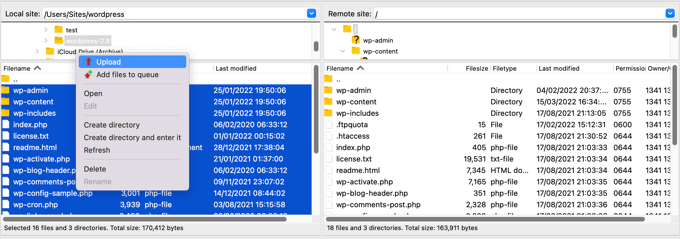
Once you’re connected, simply head to the root directory of your website from the panel on your right. This is where you’ll find folders like wp-content, wp-admin, and other important files like wp-config and .htaccess.
Next, you can right-click any folder or file you want to backup
After that, simply click the ‘Download’ option.
You can save the files and folders from a live website to your local host or computer as backups.
Now that you’ve created a WordPress site backup, the next step is to restore it in case you encounter a critical error, or your site is compromised.
First, you’ll need to clean your site and delete all the WordPress files. You can do that by connecting an FTP client and removing all the folders and files. After that, you will need to install WordPress again and log in to your site.
Next, you’re now ready to restore your WordPress backups.
If you’re using the Duplicator Pro plugin, then it is very easy to upload the backup package. Simply head to Duplicator Pro » Import from your WordPress dashboard and drag and drop the package file.
From here, simply follow the steps in the import wizard to recover your website. You can see our step-by-step guide on how to restore WordPress from a backup to learn more.
If you liked this article, then please subscribe to our YouTube Channel for WordPress video tutorials. You can also find us on Twitter and Facebook.
Are you looking for a way to add YouTube videos as fullscreen backgrounds in WordPress?
When used carefully, background videos can instantly grab a visitor’s attention and keep them on your website. This makes them a great choice for landing pages and sales pages.
In this article, we will show you how to add a YouTube video as a fullscreen background on your WordPress website.
Why Use a YouTube Video as a Fullscreen Background?
When visitors first land on your WordPress website, you only have a few seconds to grab their attention and get them to stay.
An engaging and eye-catching video background is a great way to keep visitors on your site. Plus, there are many different WordPress themes that support video backgrounds.
However, uploading and hosting a video on WordPress can take a lot of bandwidth. Depending on your WordPress hosting plan, you might even have to buy extra storage.
One solution is to add a YouTube video as a fullscreen background. In this way, you can stand out from your competitors without slowing down your website or taking up extra storage.
That said, let’s see how you can add a YouTube video as a fullscreen background on your WordPress website.
How to Add YouTube Video as Fullscreen Background in WordPress
The easiest way to add a YouTube video as a fullscreen background is by using Advanced WordPress Backgrounds. This plugin adds a new Background block that allows you to create a fullscreen background using any color, image, or video, including YouTube videos.
First, you will need to install and activate the plugin. If you need help, then please see our guide on how to install a WordPress plugin.
Upon activation, simply head to the page or post where you want to add a YouTube video as a fullscreen background. You can then go ahead and click on the ‘+’ button.
In the popup that appears, start typing ‘Background AWB’. When the right block appears, give it a click to add it to the page.
In the left-hand menu, you will see three tabs for the different kinds of fullscreen backgrounds you can create: Color, Image, and Video.
Since you want to add a YouTube video, click on the ‘Video’ tab.
This plugin lets you use a self-hosted video as a background. However, videos take up a lot of storage and bandwidth, so you should never upload a video to WordPress.
With that being said, select the ‘YouTube / Video’ tab.
Now, you will need the URL of the YouTube video that you want to use on your WordPress blog.
In a new tab, simply head over to the video and copy the link in the address bar.
With that done, switch back to your WordPress dashboard and paste the URL into the ‘Video URL’ tab.
Now, the WordPress block editor will show a preview of how this background will look. Advanced WordPress Backgrounds changes the size of the video based on the content you add on top of it, so don’t worry if the video currently looks a bit small.
Before you start adding content, it’s a good idea to configure the background’s settings.
By default, the video background is disabled on mobile devices. Smartphones and tablets typically have smaller screens and less processing power compared to desktop computers. With that in mind, it’s a good idea to leave the video background disabled on mobile.
However, if you do want to show the video background on mobile devices, then click to activate the ‘Enable on mobile devices’ toggle.
Out of the box, the block will play the entire YouTube video on a loop.
Another option is to play a specific portion of the video by typing the exact times into the ‘Start Time’ and ‘End Time’ boxes.
You can also stop the video from playing on a loop by disabling the ‘Loop’ toggle.
By default, the video will only play when the visitor can see it in their browser. This helps boost your WordPress speed and performance, so you will typically want to leave the ‘Always play’ toggle disabled.
When you first add the video, it is shown at 100% opacity, so it looks solid.
Depending on your site’s design, you may want to experiment with a semi-transparent video background by dragging the ‘Image Opacity’ slider. This can be a way to create a more subtle YouTube video background.
If you experiment with opacity, then you may also want to try adding a colored overlay.
Simply click to expand the ‘Overlay Color’ section and then use the settings to create different colored overlays.
The Advanced WordPress Backgrounds plugin supports a few different parallax effects. This is a modern web design technique where the background element scrolls slower than the foreground content, which often adds depth to the page design.
To try out the different parallax effects, click to expand the ‘Parallax’ section and then choose an option from the dropdown menu.
After choosing a parallax style, you will get access to some extra settings where you can change the speed. You can also enable and disable the parallax effect on mobile devices.
Similarly, you can experiment with different mouse parallax effects, which cause the background to scroll more slowly when the visitor moves the mouse.
To take a look at these settings, click to expand the ‘Mouse Parallax’ section.
When you are happy with how the YouTube video background is set up, it’s time to start adding content like text, links, and images.
To start, click on the ‘+’ icon in the middle of the Background (AWB) block.
This opens a popup where you can choose the block you want to add. The Advanced WordPress Backgrounds plugin works with all the standard WordPress blocks, so you can add any content you want.
After configuring the first block, simply click on the ‘+’ button again and then add the next block you want to use.
Simply keep repeating this process to create the post or page layout.
When you are happy with how it looks, click the ‘Update’ or ‘Publish’ button to make the page live. Now, if you visit your WordPress website, then you will see the video background in action.
Bonus: How to Add a YouTube Video Feed in WordPress
A video background can grab visitors’ attention while also promoting your YouTube channel. However, if you really want to get more visitors and subscribers on YouTube, then you may want to add more videos to your website.
Simply create a YouTube feed using Smash Balloon’s easy editor, and then add it to any page or post using either shortcode or the plugin’s ready-made block.
You can also use Smash Balloon to embed YouTube playlists, favorites, and live streams on your WordPress website.
The best thing about Smash Balloon is that it doesn’t slow down your site. The plugin’s built-in YouTube caching feature will make sure your site always loads fast, which is great for SEO.
If you liked this article, then please subscribe to our YouTube Channel for WordPress video tutorials. You can also find us on Twitter and Facebook.
Are you looking to add dynamic content to your WordPress website?
Adding dynamic content to your website enables you to provide visitors with personalized experiences, recommendations, and other interactive elements. That way dynamic content can help increase user engagement and conversions.
In this article, we will show you how to easily add dynamic content in WordPress.
Why Add Dynamic Content in WordPress?
Dynamic text refers to content that changes on a website depending on different factors, including user behavior, time, location, name, and more.
Setting up dynamic text enables users on your WordPress website to see different messages according to different factors.
For example, you can use dynamic text to display the name of the user who is currently logged in to your website.
It can even help convert users into customers or subscribers by showing that your website cares about its visitors, which creates a positive impression and builds trust.
Plus, dynamic content can increase sales and signups on your website. For example, you can show the current date dynamically for a countdown sale or discount offer, and it will automatically update each day. This can create a sense of urgency and lead to more conversions.
That being said, let’s take a look at how to add dynamic content in WordPress. You can use the quick links below to jump to the method you wish to use:
Next, you need to visit SeedProd » Landing Pages from the WordPress admin sidebar.
Once you are there, click on the ‘Add New Landing Page’ button.
This will direct you to the ‘Choose a New Page Template’ screen, where you can select any of the pre-made templates for your landing page.
Upon template selection, you will be asked to enter a page name and choose a URL.
After entering this information, just click on the ‘Save and Start Editing the Page’ button to continue.
This will launch SeedProd’s drag-and-drop page builder, where you can now start editing your page. For more detailed instructions, you may want to see our guide on how to create a landing page in WordPress.
Next, simply drag and drop the Heading or Text block from the left sidebar onto the landing page. Then, click on the block to open up its settings in the left sidebar.
Once you have done that, you need to click the ‘Insert Dynamic Text’ button.
This will open up a ‘Dynamic Text Replacement’ prompt on the screen.
From here, you should select the ‘DateTime’ option if you want to set up a time or date dynamically. This can be helpful if you want to display the time limit for a sale or discount offer on your website.
After that, simply select a date format from the dropdown menu and click the ‘Insert’ button.
If you don’t see your preferred format in the dropdown menu, then you can click on the ‘Learn More’ link at the top to see other formats.
If you want to add a location, name, country, multiple language support, page title, email address, postal code, or other dynamic content, then you need to select the ‘Query Parameter’ option.
After that, add the dynamic text factor under the ‘Parameter Name’ option.
For instance, if you add dynamic text for names in the ‘Parameter Name’ option, then everyone who is logged into your site will be shown their name like ‘Hey John’ instead of ‘Hey There’ on the page.
Or if you add dynamic text for an email address, then users will be shown their email address on your landing page every time they log in.
Similarly, if you want to display the location of every user dynamically, then you can enter ‘location’ as the parameter name.
Next, add the default value that the dynamic text will revert to if the location is not available in the URL parameter.
For example, if a visitor opens up your site and their location is not available in the URL, then the dynamic text might say ‘Stores Near You’ instead of ‘Stores Near Florida’.
After that, simply click the ‘Insert’ button to add the dynamic text.
Once you have done that, click the ‘Save’ button at the top to store your settings. Finally, click the ‘Publish’ button to make your landing page live.
Now visit your website to check out the dynamic content in action.
This is what it looked like on our demo website.
Method 2: Add Dynamic Content Using OptinMonster
If you want to add dynamic content to your advertising campaigns, including popups or floating bars, then this method is for you.
OptinMonster is the best lead generation and conversion optimization tool on the market. It allows you to show personalized campaigns to users without using any code.
It also comes with a dynamic text replacement feature that enables you to add dynamic content to your campaigns using smart tags.
First, you will need to sign up for an OptinMonster account because the paid tool allows you to add dynamic content.
Simply visit the OptinMonster website and click the ‘Get OptinMonster Now’ button to set up an account.
Upon activation, you will see the OptinMonster setup wizard in the WordPress admin panel.
From here, click the ‘Connect Your Existing Account’ button to connect your WordPress site to your OptinMonster account.
After that, a new window will open up on the screen.
Simply click the ‘Connect to WordPress’ button to move ahead.
Once you have connected your OptinMonster account with WordPress, head over to the OptinMonster » Campaigns page from the WordPress admin sidebar.
Next, you need to click on the ‘Create Your First Campaign’ button to start a campaign.
This will take you to the ‘Templates’ page, where OptinMonster offers different campaign types that you can use to show various types of content or targeted messages to your users.
For instance, if you want to show dynamic content inside a WordPress post or page, then you can choose the Inline campaign type.
After selecting a campaign type, you can choose any of the pre-made templates for that specific campaign.
You will then be asked to enter a name for it and click the ‘Start Building’ button.
This will take you to OptinMonster’s campaign builder interface. It is a drag-and-drop tool where you can design your campaign with a live preview.
From here, drag and drop the Text or Heading block from the sidebar on the left into the campaign. After that, just select some text in the block to open up the text editor at the top of it.
Next, you must click the ‘Smart Tags’ icon at the right corner of the text editor to open up a dropdown menu with a list of smart tags
From here, you can select any of the smart tags to add dynamic content to your campaign.
For instance, you can use the {{form_first_name}} smart tag to add the name of the user at the top to make the campaign feel more personalized.
Now, all the logged-in users on your site will see their names in the campaign.
There are other smart tags that show the campaign name, email address, postal code, country, province, year, month, date, coupon code, page URL, and more.
For example, using the smart tag for countries will display the country name of each user who has logged in and is currently viewing your campaign.
Similarly, using a date smart tag will help you display the time limit for a sale without manually updating it every time.
Once you have chosen your smart tag(s), just click the ‘Save’ button at the top to store your settings.
Finally, switch to the ‘Publish’ tab from the top and click on the ‘Publish’ button to make your campaign live.
Now, you can visit your website to check out the campaign with dynamic content.
If you liked this article, then please subscribe to our YouTube Channel for WordPress video tutorials. You can also find us on Twitter and Facebook.
Do you want to allow blog users to moderate comments in WordPress?
If your site gets a lot of comments, then it can be difficult to moderate them all. One solution is creating a separate user role so that other people can manage the comments for you.
In this article, we will show you how to allow blog users to easily moderate comments on your WordPress blog.
Why Allow Blog Users to Moderate Comments in WordPress?
Comment moderation can take a lot of time and effort, especially for big blogs that get lots of comments. If you are slow to approve comments or delete spam, then visitors may stop interacting with you.
By giving blog users the power to moderate comments, you can combat spam and deliver a better experience for your visitors.
These users might be members of your customer support team, your community manager, or even an active and trusted commenter on your WordPress blog.
By default, WordPress doesn’t let you create a user who is only responsible for moderating comments. With that being said, let’s see how you can easily allow blog users to moderate comments using a WordPress plugin.
Simply use the quick links below to jump straight to the method you want to use.
Method 1: Add a Comment Moderator Role to Specific Users
The Comment Moderation Role plugin allows you to quickly and easily give a comment moderator role to specific users. This plugin creates a new WPB Comment Moderator role that enables the user to approve, decline, or edit comments on any post without giving them access to other parts of the WordPress dashboard.
The first thing you need to do is install and activate the plugin. For more details, see our step-by-step guide on how to install a WordPress plugin.
Upon activation, you will have access to a new user role called ‘WPB Comment Moderator’.
To assign this role to an existing user, simply go to Users » All Users. Then, check the box next to that person’s username.
After that, simply open the ‘Change role to…’ dropdown menu and select the ‘WPB Comment Moderator’ role.
You can then go ahead and click on ‘Change’.
Now, this person will have access to the WordPress comment moderation panel.
You can also create a new user and assign them the comment moderator role. To do this, simply go to Users » Add New and enter the person’s information, such as their email address.
Next, you need to open the ‘Role’ dropdown and select ‘WPB Comment Moderator’.
When you are happy with the information you have entered, just click on the ‘Add New User’ button.
Now, this person can log in to their account and see a comment moderation dashboard, similar to the image below.
As you can see, this person can only moderate comments and edit their profile. All other WordPress admin dashboard features are hidden.
Method 2: Add Comment Moderation Capabilities to Any User Role
You can also add the comment moderation permission to a user role or even create a completely new user role for managing your site’s comments.
This is a great choice if you want to allow multiple people to moderate comments.
For example, you might create a comment moderation team or give your site’s Contributors permission to moderate comments. This makes it easy for guest bloggers to interact with their readers.
The easiest way to edit user permissions in WordPress is by using the Members plugin. This free plugin allows you to customize the permissions for every user role and even create completely new roles.
The first thing you need to do is install and activate Members. For more details, see our step-by-step guide on how to install a WordPress plugin.
Upon activation, go to the Members » Roles page to see all the different user roles on your WordPress website.
To start, you can add the comment moderation permission to any existing user role.
To do that, simply hover over that role and then click on the ‘Edit’ link when it appears.
The left column shows all the different types of content, such as reusable blocks and WooCommerce products. Simply click on a tab, and you will see all the permissions for that content type.
To allow users to moderate comments, you need to select the ‘General’ tab in the left-hand menu. Then, find ‘Moderate Comments’ and check the ‘Grant’ box.
With that done, simply click on ‘Update’ to save your changes. Now, anyone with this user role can moderate your website’s comments.
Another option is to create a new user role by going to Members » Add New Role. You can now type in a title for the new role, such as Community Manager, Comment Moderator, or something similar.
After that, you can add the comment moderator permission to this role by following the same process described above. To give this role additional permissions, simply check any of the other ‘Grant’ boxes.
If you liked this article, then please subscribe to our YouTube Channel for WordPress video tutorials. You can also find us on Twitter and Facebook.
Do you want to add free trial subscriptions in WordPress?
Subscriptions are a great way to get consistent, recurring revenue for your business. However, it can be difficult to convince people to sign up for long-term subscriptions.
In this guide, we’ll show you how to get more signups by adding free trial subscriptions to your WordPress website.
Why Add Free Trial Subscriptions in WordPress?
By adding subscriptions to your website, you’ll have a more consistent cash flow, fewer payment errors, and fewer payment delays. However, customers often want to try before they buy, especially if you’re selling longer-term or more expensive subscriptions.
With that being said, it’s a good idea to offer free trials for all your subscriptions. For example, you might give customers a free month’s trial of your subscription box service or create a free one-week pass for your online yoga classes.
If customers enjoy the free trial, then they might pay for a premium subscription. Even if shoppers don’t sign up straight away, you can still use their contact information to do lead generation. For example, you might send them exclusive coupon codes or target them with web push notifications.
With that being said, let’s see how you can add free trial subscriptions in WordPress. Simply use the quick link below to jump straight to the method you want to use.
Method 1: Easy Digital Downloads (Free Trial For Software and Digital Products)
Do you want to offer a free trial subscription for digital products? Maybe you’re planning to sell subscriptions for online courses, a stock photography website, a digital music store, or something else.
The easiest way to offer free trial subscriptions for digital products is by using Easy Digital Downloads. This plugin lets you easily sell ebooks, PDF files, audio files, videos, and any other type of digital product.
Even better, if you’re a SiteGround customer then the Easy Digital Downloads plugin comes pre-installed, so you can start selling subscriptions and digital products straight away.
In this guide, we’ll show you how to create a free trial for an all-access pass. This pass will look just like any other digital product on your online store.
After signing up for the free trial, customers will be able to view, access, and download different products on your online store.
Customers can simply click on a link inside their account, to see all the products that are included in their free pass.
To stop customers from abusing their trial, you can set daily download limits, limit the free pass to specific product categories, and more.
With all that in mind, we’ll be using three extensions to create a user-friendly ‘all access’ free trial. You’ll need to buy the Extended or higher license for Easy Digital Downloads in order to download these three extensions.
After setting up Easy Digital Downloads, it’s time to install the extensions by going to Downloads » Extensions.
On this screen, find the All Access, Free Downloads, and Recurring Payments extensions.
For each extension, click on the ‘Install’ button.
Create a Free Trial Subscription in WordPress
With that done, you’re ready to create a free all access trial. To get started, head over to Downloads » Downloads in the WordPress dashboard.
On this screen, click ‘Add New.’
You can now type in a name for the subscription.
This will be visible to customers, so it’s a good idea to use something descriptive.
After that, scroll to the ‘Download Options’ section. Under ‘Pricing Options,’ type in 0.
Next, check the box next to the following option: ‘Enable free trial for subscriptions.’
Now, it’s time to turn this subscription into a free all-access pass that customers can use across your entire online store.
To do this, simply scroll to the ‘All Access’ section and check the following option: Convert this product into an “All Access” pass.
Limit the Trial to Specific Product Categories (Optional)
By default, the free trial gives customers access to all your products. However, you can restrict the free trial to specific product categories. For example, if you create and sell ebooks then you might include some books in the free trial, and keep others for paid subscribers.
To restrict the free trial to specific categories, simply click on the ‘x’ next to ‘All Products.’
After that, you can click on the ‘Type to search categories’ dropdown and start typing in the category you want to include in the free trial.
When the right category appears, click to select it.
Set a Time Limit
With that done, you can choose whether to make the free trial permanent or to set a time limit.
If you’ve restricted the free trial to specific product categories, then it may make sense to choose ‘Never Expires.’ For example, if you sell digital art and graphics then you might allow customers to download as many watermarked images as they want, forever. However, they’ll need to buy a subscription in order to remove the watermark.
Just be aware that Easy Digital Downloads also allows you to set a download limit. This means you can use ‘Never Expires’ while also limiting how many items the customer can download.
To create a never-ending free trial, open the ‘All Access Duration’ dropdown menu and choose ‘Never Expires.’
Another option is to set a time limit. This works particularly well for digital products that take a while to get through or for products the customer will want to access over and over again.
For example, if you create and sell online courses then you could offer a two-day free trial, so customers will need to buy a subscription to finish their training.
To set a time limit, open the ‘All Access Duration’ dropdown and choose from years, months, weeks, or days. You can then type a number into the field that appears.
Add a Daily, Weekly, Monthly, or Yearly Download Limit
You can also type in a Download Limit. This can protect your site from customers who might try to abuse the free trial. For example, if you sell Excel or Google Spreadsheets in WordPress, then you might set a download limit so customers can’t download your entire product catalog while on a free trial.
By default, Easy Digital Downloads has a download limit of 0, which means the customer can download as many products as they want. To change this, type a number into the ‘Download Limit’ field.
You can then make this limit per day, week, month, or per year using the dropdown that appears.
Adding Variable Pricing to Your Free Trial (Optional)
Are you using variable pricing on your online marketplace? Then you may want to include specific price variations in the free trial.
For example, if you’ve created Standard and Deluxe price variations, then you may want to include Standard in the free trial, while keeping the Deluxe version for paying users only.
If you’ve enabled variable pricing, then Easy Digital Downloads includes all variations in its free trial by default.
To change this, find ‘Total Price Variations’ and type in how many variations you want to include in the free trial. Depending on the number you use, you’ll see a list of the different variations on your online store.
Simply check the box next to each variation you want to include in the free trial.
Customizing the Purchase Confirmation Page and Email
When a customer downloads a product using their free trial pass, Easy Digital Downloads will show them a Purchase Confirmation page.
It will also send a confirmation message to their email address.
By default, both the Purchase Confirmation page and email contain the following link: Click here to use your All Access Pass. This takes the customer to a page where they can download their free products.
To change the link text, type into the ‘Receipts: All Access Link Message’ box.
You can also change the page where Easy Digital Downloads will send customers when they want to download their free products.
To do this, simply create a new page in WordPress and then add the following shortcode:
This will show all the products the customer can download while on a free trial. You can then add other content, such as text, images, a contact form, or anything else you want to include.
After publishing the page, simply add its URL to the ‘Receipts: Link URL’ field.
When you’re happy with how the free trial is set up, click on the ‘Publish’ button.
Create a Premium Subscription
With that done, you may want to create a premium ‘all access’ subscription. When their free trial expires, customers can upgrade to this subscription and continue enjoying your content.
To create a premium subscription go to Downloads » Add New.
You can then type in a name for the subscription and set the price, by typing into the ‘Pricing Options’ field.
You can also make this a recurring subscription, add an optional sign-up fee, and more using the settings under ‘Download Prices.’
With that done, scroll to the ‘All Access’ section. At this point, you can turn the subscription into an all-access pass, add a download limit, and more by following the same process described above.
When you’re happy with how the premium all-access subscription is set up, don’t forget to click on ‘Publish’ to make it live.
Remove the Checkout for Free Trial Users
After creating the free trial subscription, you’ll want to get as many signups as possible. With that being said, it’s a good idea to allow customers to start the free trial without going through the checkout screen.
Easy Digital Downloads can hide the checkout screen when a customer is claiming a free product, including your free trial subscription.
To do this, simply go to Downloads » Settings, and then select the ‘Marketing’ tab. Next, click on ‘Free Downloads’ to hide the checkout.
After that, you can use ‘Button Label’ to specify the text you’ll show when products are available for free download.
By default, this is ‘Download Now.’
You can replace this with your own custom messaging.
Simply go ahead and type into the ‘Button Label’ field.
There are more settings that can help you do lead generation like a pro. For example, you can collect the person’s name and email address, even when they’re signing up for a free trial or downloading a free product. However, we recommend keeping things simple, as this will often get you the most signups.
When you’re happy with the changes you’ve made, click on ‘Save Changes.’ Now, if you visit the free trial product page, you’ll see the new button text in action.
Create Expiration Reminder Emails
Free trials can generate leads, but the goal is to convert those people into paying customers.
With that in mind, you may want to email people when their free trial is about to expire. This will encourage them to buy a premium subscription, so they can continue accessing your digital content.
​​Easy Digital Downloads integrates with all the best email marketing services. However, you can also create reminder emails using the Recurring Payments extension you installed earlier.
To use this extension, go to Download » Settings. Then, select the ‘Emails’ tab followed by the ‘Recurring Payments’ link.
On this screen, check the box next to ‘Send Expiration Reminders.’
After that, select ‘Add Expiration Reminder.’
This takes you to a screen where you can type in an email subject and a message.
To make the email more personal, it’s a good idea to use template tags. Easy Digital Downloads will replace these tags with real values such as the customer’s name, the expiration date, and the name of their subscription.
You can see all the available template tags underneath the small text editor.
Just be aware that Easy Digital Downloads will send the message to all customers, and not just the people on your free trial.
When you’re happy with the information you’ve typed in, click on Add Reminder Notice.
Now, Easy Digital Downloads should notify customers when their subscription is about to expire. However, sometimes your WordPress hosting server may not be properly configured or email providers such as Gmail might use filters that wrongly flag your emails as spam.
To get more conversions, your emails need to arrive in the customer’s inbox and not in the spam folder. For that reason, we recommend using a WordPress SMTP plugin and provider to improve your email deliverability
WP Mail SMTP is the best WordPress SMTP plugin on the market. It allows you to connect your WordPress site with a mailer service. This means your expiration reminder and other messages will always arrive safely in the customer’s inbox.
Method 2. MemberPress (Free Trial For Memberships or Courses)
A membership website allows users to pay for premium content, online courses, features, and access to a community. However, these members-only features are usually hidden behind a paywall in WordPress, so visitors can’t see what the membership includes.
With that in mind, you may want to offer visitors a free trial so they can try before they buy. The easiest way to do this is by using MemberPress.
MemberPress is an all-in-one membership plugin that allows you to accept payments, add unlimited membership levels, create gated content, restrict access based on different membership levels, and much more. It also lets you create as many free trials as you want, including different trials for different membership levels.
First, you’ll need to install and activate the plugin. If you need help, then please see our guide on how to install a WordPress plugin.
With that done, you can set the price by typing into the ‘Price’ box.
This is how much members will pay once the free trial expires.
You can only create a free trial for recurring memberships. However, if you want to charge members a one-time fee then there’s a workaround, which we’ll be covering shortly.
With that being said, open the ‘Billing Type’ dropdown and choose ‘Recurring.’
Next, you need to set the billing interval for the recurring payment. This is how often your members will be charged once the free trial expires.
Simply open the ‘Interval’ dropdown and choose an option from the list, such as monthly or yearly billing.
Want to use a different interval? Then select ‘Custom’ instead.
You’ll now see some new controls where you can set a custom interval.
Create a Free Trial Membership Subscription
With that done, check the box next to ‘Free Trial.’
You can now specify how many days the free trial will last, by typing into the ‘Trial Duration’ field. For example, if you want to offer a one-month trial then you would type in ‘30.’
After that, you’ll need to type in the ‘Trial Amount,’ which is the total cost of the subscription trial period before tax. You’ll typically want to type ‘0’ into this box.
Finally, you can choose whether to limit customers to one free trial by checking or unchecking the ‘Allow Only One Free Trial’ box. If you check this box, then customers who cancel their subscription and then re-subscribe won’t get another free trial.
You’ll typically want to leave the box checked, so customers can’t abuse the free trial. However, if you only offer a very short trial then you may want to allow customers to have multiple free trials.
Just be aware that coupons will override this setting, so it’s still possible to offer multiple free trials to the same customer.
Create a Lifetime Membership (Optional)
As already mentioned, you can only offer a free trial for recurring memberships. However, it is possible to create a trial for lifetime memberships, by changing a few MemberPress settings.
To do this, check the ‘Limit Payment Cycles’ box and set the ‘Max # of Payments’ to 1.
After that, open the ‘Access After Last Cycle’ dropdown and select ‘Lifetime Access.’
Now, once the trial expires customers will need to pay a one-time fee for lifetime membership.
Publish the Free Trial Membership Subscription
With that done, you can make any other changes to the membership level.
When you’re happy with how the membership is set up, it’s time to make it live by clicking on the ‘Publish’ button.
To see how the membership looks to potential customers, go to MemberPress » Memberships. On this screen, you’ll see the membership level you just created.
Here, just hover your mouse over the membership level and click on the ‘View’ link.
WordPress will now show the membership signup form in a new tab.
Do you want to add a free trial to more membership levels? Then simply follow the same process described above.
Once you’ve added a free trial to your membership site, you’ll want to encourage visitors to sign up for the free trial. This might mean mentioning the free trial in your email newsletter, creating popups using a WordPress popup plugin, promoting it on social media, and more.
Method 3. WooCommerce Subscriptions (Free Trial For Physical Products)
If you want to sell digital products online, then we recommend using Easy Digital Downloads. However, if you want to sell physical products, then WooCommerce is the world’s most popular eCommerce platform.
By default, WooCommerce doesn’t allow you to offer free trial subscriptions. However, it’s easy to add this missing feature using WooCommerce Subscriptions.
This plugin adds a new ‘simple subscription’ product type to your WooCommerce store. You can add this product type to any existing item, or create new subscription products. For example, you might let shoppers try a product before they buy it, or maybe you will send them a sample subscription box from your online boutique shop.
When a customer visits a subscription product, they’ll see a ‘Sign up now’ button instead of the standard ‘Add to cart’ call to action button.
Customers can manage all their subscriptions by logging into their WooCommerce account, and then visiting the new ‘My Subscriptions’ section.
Here, they can see when the subscription started, how much it costs, the subscription status, and more. The customer can also cancel, reactivate, and renew their subscriptions directly from this page, without having to contact you directly.
In this way, a customer who is enjoying a free trial can quickly and easily upgrade to a premium subscription.
In this guide, we’re going to assume you’ve already set up a WooCommerce store. If you haven’t, then you may want to check out our complete guide to WooCommerce made simple.
As soon as the plugin is active, you’re ready to add free trial subscriptions to WooCommerce. Simply go to Products » Add New.
You can now create this product in exactly the same way you create any WooCommerce product. For example, you can type in the product’s title, add a description, or create a WooCommerce product gallery.
After entering all this information, scroll to the ‘Product Data’ box.
Here, open the dropdown menu and choose ‘Simple subscription.’
This adds some new settings that you can use to create a subscription and add a free trial.
To start, type in the ‘Subscription price.’
Then, use the dropdown menus to choose how long the subscription will last. In the following image, the subscription will cost $20 per month once the free trial expires.
You can now choose whether the subscription will last forever, or expire after a set amount of time. Just be aware that the expiration length doesn’t include the free trial. This means that if the subscription expires in 1 month and you offer a one-month free trial, then the subscription will last for 2 months.
Another option is to give the customer lifetime access. To do this, open the ‘Expire After’ dropdown and choose ‘Never expire.’
Next, you may want to add a sign-up fee.
Just be aware that WooCommerce will charge this fee no matter whether the customer is buying a subscription or signing up for a free trial. With that in mind, we don’t recommend adding a sign-up fee to products that have a free trial subscription.
With that done, you can specify how long the free trial will last by opening the dropdown that shows ‘days’ by default, and then choosing an option from the list.
After that, just type in how many days, weeks, months, or years the free trial should last. Note that the free trial can’t last longer than 90 days, 52 weeks, 24 months, or 5 years.
You can now make any other changes to the product. When you’re happy with how the product and subscription are set up, either click on ‘Update’ or ‘Publish’ to make the trial live.
You can now create free trial subscriptions for other products, by following the same process described above.
Once you’ve added one or more subscriptions to your WooCommerce website, you’ll want to get as many signups as possible. With that in mind, you should allow visitors to use their preferred payment method.
By adding the free Stripe Payment Gateway for WooCommerce plugin to your website, you can collect payments through Visa, MasterCard, Google Pay, Apple Pay, and more.
Simply install the plugin and the onboarding wizard will guide you through the process of adding more payment methods and enabling express checkout.
Method 4. WP Simple Pay (Free Trial For Custom Services)
Many freelancers, consultants, trainers, and other business owners sell their services as a subscription. For example, if you run a yoga studio then you might offer a one month free trial of your personalized training program.
The best way to offer a free trial for custom services is by using WP Simple Pay. It’s the best Stripe payment plugin for WordPress and lets you accept payments, manage invoices, and offer free trials without having to set up a shopping cart, or add products to an online store.
Note: There is a free version of WP Simple Pay that allows you to accept credit cards, Apple Pay, iDEAL, and other payment methods. However, in this guide we’ll be using the premium plugin as it allows you to offer free trials.
Set Up the WP Simple Pay Plugin
First, you’ll need to install and activate the WP Simple Pay plugin. If you need help, then please see our guide on how to install a WordPress plugin.
Upon activation, the plugin will automatically launch the setup wizard. Go ahead and click the ‘Let’s Get Started’ button.
With that done, click the ‘Activate and Continue’ button.
Connect WordPress to Your Stripe Account
In the next step, you’ll need to connect your Stripe account to WP Simple Pay. Stripe is a popular payment gateway, and it’s the easiest way to accept credit card payments in WordPress, so it’s a great way to sell custom services online.
To get started, simply click the ‘Connect with Stripe’ button. You can then either log into your Stripe account, or create a new account if you haven’t already registered with Stripe.
After connecting WP Simple Pay with Stripe, the setup wizard will ask you to configure its emails. You can choose whether to receive emails for payment receipts, upcoming invoices, and payment notifications.
You’ll also need to enter the email address where WP Simple Pay will send the messages.
Simply click the ‘Save and Continue’ button when you’re done.
Create a Subscription Form With a Free Trial
Now, you’re ready to create a subscription form that offers a free trial. Go ahead and click on the ‘Create a Payment Form’ button.
To offer a free trial, hover over the ‘Recurring Services with Trial Period Form’ template. When it appears, click on the ‘Use Template’ button.
This will take you to the payment form editor.
To start, you can rename the form and type in an optional description. By default, the description is ‘Try our service free for 30 days,’ but you can change this to anything you want.
By default, WP Simple Pay will create an on-site payment form. However, you may want to show a payment button instead. When the visitor clicks the button, they’ll see the payment form in a popup.
To create a popup, check the box next to ‘Open in an overlay modal’ box.
Another option is to host the payment form on Stripe’s site, by opening the ‘Type’ dropdown.
Here, select ‘Off-site Stripe Checkout form.’
When a customer buys a subscription, WP Simple Pay will redirect them to its built-in Payment Success Page. If you want to send visitors to a different page, then select either ‘Specific Page’ or ‘Redirect URL.’
You can then either type in the URL or select the page you want to use instead. For example, you might send subscribers to a custom thank you page, or a page where they can manage their free trial.
Add a Price to Your Subscription Form
When you’re ready, select the Payment tab.
Here you can set the payment mode to either live or testing. Testing mode allows you to complete the purchasing process without getting charged, so it’s perfect for testing new subscriptions on your website.
If you do select ‘Test Mode,’ then remember to come back to this page and change the mode to ‘Live’ when you’re finished testing.
Next, you can set the price of your subscription and the currency using the ‘Amount’ settings.
With that done, you can choose how often WP Simple Pay should charge subscribers.
Simply open the ‘Billing Period’ dropdown and choose day, week, month, or year. Then, type a number into the field next to the dropdown menu.
By default, WP Simple Pay offers customers a 30 day free trial.
If you want to make the free trial longer or shorter, then simply type a number into the ‘Free Trial’ field.
Sometimes, you may want to charge subscribers a set up fee. For example, if you’re a life coach then this extra fee may cover the time and effort required to add new clients to your admin system.
To charge an additional fee, simply type an amount into the ‘Setup Fee’ field.
With that done, scroll to the ‘Payment Methods’ section.
Here, you can check the box next to any additional payment methods you want to offer, such as Klarna payments or ACH payments.
By offering visitors a choice of payment methods, you may be able to get more subscribers. However, try not to offer too many options, as this can become confusing.
Depending on the payment methods you select, you may see a ‘Configure’ link. In this case, click on ‘Configure’ and then follow the onscreen instructions to set up the payment gateway or method.
Customize the WP Simple Pay Subscription Form
With that done, you’re ready to build the subscription form.
Simply click on ‘Form Fields’ to open WP Simple Pay’s form builder.
The template already collects some basic information about the customer, such as their email address and credit card information.
The following image shows how the default form will look on WordPress.
To customize any of the default fields, simply click select it.
The section will expand to show all the settings you can customize, such as changing the field’s label or adding some placeholder text.
You can also remove fields from the subscription form.
Simply click to expand the field, and then select ‘Remove.’
Do you need to collect more information from your new subscribers? For example, you might need their tax ID or phone number.
Just click on the ‘Form Fields’ dropdown and then choose a field from the list. After that, click on ‘Add Field.’
Finally, you can change the order the fields appear in your form using drag and drop.
As you’re customizing the form, you can click on ‘Preview’ to see how it will look on your blog or website.
When you’re happy with the form, click ‘Publish’ to store your settings.
Add the Subscription Form to Your WordPress Website
Now, you’re ready to add the form to your WordPress blog using either a block or shortcode.
The easiest method is to use a block, so open the page or post where you want to show the subscription form.
Then, click on the plus (+) sign and type in ‘WP Simple Pay.’
When the right block appears, click to add it to the page or post.
With that done, open the dropdown menu in the WP Simple Pay block, and choose the form you want to display.
When you’re finished, click on either ‘Update’ or ‘Publish.’
Now, if you visit your website you’ll see the subscription form live.
Another option is to add the subscription form using shortcode. To get the shortcode, head over to WP Simple Pay » Payment Forms in the WordPress dashboard.
Here, just find the subscription form and click on its ‘Copy Shortcode’ button.
Now you just need to paste the shortcode into any page, post, or widget-ready area. For step-by-step instructions on how to place the shortcode, please see our guide on how to add a shortcode in WordPress.
If you liked this article, then please subscribe to our YouTube Channel for WordPress video tutorials. You can also find us on Twitter and Facebook.
Do you want to update WordPress but don’t know where to start? Often beginners are afraid that an update may break their website.
This fear is understandable. However, it’s important to use the latest version of WordPress for the best website security and performance.
In this beginner’s guide, we will show you how to safely update WordPress like a pro without breaking your website.
Upgrading your WordPress website is a regular maintenance task. We have created an easy-to-follow infographic that you can use as a reference guide.
Just click on the image below to view the full infographic, or continue reading the text instructions.
Why Should You Always Update WordPress?
Leading WordPress security research shows that the majority of WordPress websites that get hacked have outdated WordPress core, plugins, or themes.
WordPress is actively maintained by developers from all over the world. These developers find and fix bugs, add new features, and hunt down security vulnerabilities on a regular basis. These changes are then released in a new WordPress version.
If it is not a big release, then WordPress can automatically update itself to the newer version. For major releases, unless you are on managed WordPress hosting, you will have to manually initiate the update yourself.
You need to update to make sure that your website has the latest security patches, the newest features, and the best speed and performance.
Even if you have an automated WordPress backup plugin set up like Duplicator, you still need to create a new backup and store it safely in a remote location, such as your computer or cloud storage like Google Drive.
Once you have created a complete backup and stored it remotely, then you can move on to the next step.
Updating WordPress to the Latest Version
There are two easy ways to upgrade your WordPress site to the latest version. One is automatic, and the other one is manual. We will show you both of them.
Method 1: Updating WordPress Using the Built-in System (1-Click)
This method is easier and is recommended for all users.
First, log in to the admin area of your WordPress website and go to the Dashboard » Updates page.
You will see the notice that a new version of WordPress is available. Now you just need to click on the ‘Update to version X.X.X’ button to initiate the upgrade.
WordPress will now fetch the latest version of the software and install it for you.
You will see the update progress on your screen. During the upgrade, WordPress will put your site into maintenance mode.
Your site will still be visible to users, but you can’t install plugins or themes while the update is underway.
Once the update is over, you will be redirected to the WordPress welcome screen. Depending on each release, you may see a page explaining what’s new in WordPress and the features you should try.
That’s all; you have successfully upgraded WordPress to the latest version.
First, you will need to download the latest version of WordPress. Head over to the WordPress download page and click on the ‘Download’ button.
Your browser will now download WordPress in a zip file. Once downloaded, you need to extract the zip file.
Inside you will see a wordpress folder. This folder contains all the WordPress files you need for the update.
Next, you need to open your FTP client and connect to your website. Once connected, go to the wordpress folder you just extracted from the zip file in the local files column.
In the remote files column, go to your website’s root folder. This folder could be public_html or named after your website’s domain name. Inside this folder, you will see your WordPress files and folders.
You should select all files inside the wordpress folder on your computer and then right-click to select ‘Upload’.
Your FTP client will now start uploading WordPress files from your computer to your website.
However, your website already has older versions of the files with the same name. You will be asked what you want to do with those files. You need to select ‘Overwrite’ and check the box next to ‘Always use this action’.
This will ensure that all WordPress files on your website are replaced by the newer versions.
Once the upload is finished, you need to go to the admin area of your WordPress site. This step is necessary because sometimes, a newer version of WordPress may also need to update your WordPress database.
In that case, you may see a page mentioning that a database update is required. Simply click the ‘Update WordPress Database’ button to continue.
That’s all; you have successfully updated your WordPress website.
Things to Do After Updating WordPress
Once you have upgraded WordPress on your website, you need to make sure that everything is working as expected. Simply visit your website in a new browser window and review the settings in the WordPress admin area.
If you come across any issues, then take a look at our list of common WordPress errors and how to fix them. If the issue you are facing is not listed there, then follow the steps in our WordPress troubleshooting guide to figure out the problem and apply a solution.
If you liked this article, then please subscribe to our YouTube Channel for WordPress video tutorials. You can also find us on Twitter and Facebook.
Are you looking to use a geolocation plugin on your WordPress website?
Finding where your visitors are coming from can help you create personalized experiences. You can show marketing campaigns to people from specific countries, boost engagement, and increase conversions.
In this article, we will take a look at the best WordPress geolocation plugins.
Why Use a WordPress Geolocation Plugin?
Geolocation plugins can help you learn about your visitors’ physical locations so that you can create custom user experiences. By using geotargeting in WordPress, you can show relevant and location-specific content and products to people.
As a result, you will see an increase in engagement, build trust with your audience, and get higher conversions on your WordPress website.
There are several ways to use geolocation plugins. For instance, you can create marketing campaigns in your eCommerce store and show discounts and shipping offers to customers from specific countries.
If you have a physical store, then tracking geolocation can help you get more customer reviews for your business. You also display map pins to users that are in your region and direct them to your business.
Similarly, you can showcase your best content to users from different locations. Let’s say you have a food blog with an article on the best places to eat in Indonesia. Using geotargeting, you can display this content as a popup to people from that region.
Another advantage of using a geolocation plugin is content locking and preventing unwanted access to your site. With geolocation, you can restrict access to articles or parts of your website to users from different countries.
If you are running an affiliate website, then geotargeting can also help you show the correct affiliate links or products to visitors based on their location.
That said, let’s see which is the best geolocation plugin for WordPress.
OptinMonster is the best lead generation and conversion optimization software for WordPress websites. It helps you grow your email list, get more leads, and boost conversions.
OptinMonster offers a drag-and-drop campaign builder and dozens of beautiful templates for your marketing campaigns. You can create popups, floating bars, fullscreen messages, slide-in popups, and more.
The best thing about using OptinMonster is that it offers powerful display rules. For example, you can use the Physical Location display rule to geotarget your campaigns to users from different countries.
The Physical Location rule lets you show relevant content, discounts, and other campaigns to the right audience.
You can also translate your targeted message into different languages and then display it to users from a particular country.
Here’s a preview of a campaign by Sportique, where customers in San Fransico get free delivery for orders over $80.
OptinMonster also lets you combine geolocation targeting with other display rules.
For example, you can use its Exit-Intent technology to show a popup to users who are about to leave your site. Or you can schedule location-based campaigns and display offers to visitors in a particular timezone.
Besides that, OptinMonster easily integrates with leading email marketing software. Plus, there are lots of customization options in the campaign builder.
WPForms is the best contact form plugin for WordPress. It is a beginner-friendly plugin that offers a drag-and-drop form builder, tons of form templates, customization options, and more.
WPForms has a Geolocation addon that helps you collect location information with form submissions. You can find out which country, state, and city your users are from.
This helps you better understand your audience by tracking their journeys and providing personalized experiences. You are able to show targeted messages based on the user’s location and turn leads into customers.
Using the WPForms Geolocation feature, you can also embed Google Maps into your forms. The feature can autocomplete form entries, making it easier to enter an address quickly. Users can even adjust the location pin on the map to enter their location.
Besides that, WPForms lets you accept file uploads, create multi-page forms, offer user registrations, set up surveys, capture partial form entries, make conversational forms, and more.
Alternatively, if you need an advanced form plugin that offers the geolocation feature, you might want to consider Formidable Forms.
MonsterInsights shows important data using analytics reports inside your WordPress dashboard. For example, you can use its Top Countries report to see where your website visitors are coming from.
Using this data, you can better understand your audience and create content or offers for users from different locations.
Aside from that, MonsterInsights also helps set up advanced tracking on your website. For example, you can track eCommerce performance and see which products drive the most sales. Similarly, the plugin also helps track form conversions in WordPress.
Other features offered by MonsterInsights include link and button click tracking, custom dimensions, site notes and annotations, top keywords, and more.
GeoDirectory is the next WordPress geolocation plugin on our list. If you have a directory website and want to show global listings, then this is the right plugin for you.
It works with popular WordPress themes and page builders. You can easily create business directories with maps, locations, reviews, and addresses using GeoDirectory.
The plugin also offers different addons. For instance, you can use the location manager to add unlimited locations, easily switch between other locations, add smart search on your website, and more.
GeoDirectory includes other features, including a powerful events manager, automated business owner claims, spam protection, and integrations with WordPress backup plugins.
Push notifications are short messages that appear in your user’s browser. They have a high open rate since people already opt-in to view these notifications.
Using PushEngage, you can create personalized messages based on the user’s geolocation. The plugin lets you segment your subscribers based on their region. This way, you can send targeted notifications to users from specific regions.
With PushEngage, you can also A/B test your messages, create automated drip campaigns, send offline notifications, set up smart triggers to send messages, and more.
GeoTargetingWP is another geolocation WordPress plugin that helps you show content and products to users based on their location.
The plugin is a great solution for affiliate marketers because you can show country-specific offers. For example, the plugin lets you display particular affiliate products and links based on the user’s location.
With GeoTargetingWP, you can also restrict access to different content or parts of your website based on geolocation.
Similarly, you can also use GeoTargetingWP in your WooCommerce and Easy Digital Downloads store. The plugin will let you restrict access to your products based on the customer’s location. This feature is really helpful if your products can’t be shipped to certain areas.
Other than that, the plugin will auto-detect the user’s location and help you set up geotargeting based on country, city, state, zip code, or radius. It can also create geotarget menus and widgets for WordPress blogs.
The plugin uses the fear of missing out (FOMO) effect to display user behaviors on your website as social proof. This helps build trust with your visitors and increase sales.
With TrustPulse, you can use geolocation to show a recent purchase to users from specific locations.
For example, let’s say someone from Boston buys a product on your site. You can then show this notification to other visitors from Boston as social proof.
TrustPulse can also help show live notifications for demo registrations, survey completions, email signups, and more based on the user’s location.
The plugin is super easy to use, and you can set up targeted notifications in no time. It also offers different customization options, conversion rate tracking, analytics reports, and more.
Geolocation is a free WordPress geolocation plugin that allows you to add geotags to content on your website. Using the plugin, you can add a location or address to any blog post or landing page.
Once you have added the geo-information to your content, visitors will see a short description before, after, or at a custom location within the blog post or page.
Geolocation also lets you add a map with a pin to content on your site. You can use a shortcode to display this map. The plugin works seamlessly with Google Maps and Open Streetmaps.
CloudGuard is another free WordPress geolocation plugin that uses the power of the cloud and a content delivery network (CDN) to restrict access to the login page.
The plugin adds an extra layer of security to your WordPress website. It helps protect unwanted login attempts from specific locations. You can select which countries users can log in from and block access from other regions.
CloudGuard is a lightweight plugin because it uses Cloudflare’s free geolocation service. This means that you won’t have to worry about your website being slowed down by the plugin.
The plugin also helps you monitor login attempts in your WordPress dashboard. It even displays a world map showing where the unauthorized logins have occured.
What Is the Best WordPress Geolocation Plugin?
If you want to run targeted campaigns based on the user’s location, then OptinMonster is the best WordPress geolocation plugin in our experience. It offers powerful display rules and multiple campaign types to choose from. Plus, you can combine different targeting rules to show your campaign to the right audience at the right time.
On the other hand, if you are looking to learn more about your visitors and find out where they are coming from, then WPForms and MonsterInsights are the perfect plugins for the job. They will help you see the top countries that drive traffic and track user journeys across your WordPress forms.
Besides that, you can use GeoDirectory to show global listings on your directory website. Or PushEngage can help you send targeted push notifications to users based on their location.
If you liked this article, then please subscribe to our YouTube Channel for WordPress video tutorials. You can also find us on Twitter and Facebook.
Are you trying to decide between Magento vs WooCommerce for your online store?
Magento and WooCommerce are two popular eCommerce platforms on the market. Both offer multiple features for creating an online store and making money online.
In this article, we will compare Magento vs WordPress and explain their pros and cons, so you can choose the best platform for your needs.
Overview: Magento vs WooCommerce
Before we get into details, let’s take a quick look at both popular eCommerce platforms and what makes them stand out.
What is Magento
Magento, now also known as Adobe Commerce, is an eCommerce platform that allows businesses to create online stores, accept payments, and manage products.
It has an open-source community edition available for free download. It also has paid solutions that come with additional features, cloud hosting, and support.
It allows you to easily create an online store, accept payments, manage inventory, and more. It runs on top of WordPress, which gives you access to thousands of WordPress plugins and themes to grow your eCommerce business.
Both platforms are open-source software and can be extended with extensions, and utilize templates for design. However, they both have different pros and cons which make them unique.
What to Look for in Your eCommerce Platform?
If you are just starting out, then you would want to keep a few things in mind when choosing a platform. These basic factors are crucial when deciding which eCommerce solution will be better for your business.
Budget – Cost of starting your store and recurring expenses that would affect your business.
Ease of Use – How easy is it to use for beginners
Payment Methods – It should support multiple payment gateways. If you require certain payment methods, then you need to make sure that it supports them.
Scalability – Your eCommerce platform should be able to scale with your growing business needs
These are just some of the basic things you need to look at. Depending on your business, you may also want to consider how the platform does other things like inventory, taxes, invoices, and more.
That said, let’s compare Magento vs WooCommerce. You can click the links below to jump ahead to any section:
For most startups, the cost is one of the most significant factors in decision-making. When starting your eCommerce website, you need to evaluate the cost while factoring in how those costs will grow as you need more resources, add-ons, and other services.
Cost of Magento Ecommerce Platform
Magento offers 2 different versions. First, you have a Magento open-source version, also known as the community edition.
You can download and install this yourself on any hosting provider. It does not include all features, and it does not come with any support.
Second, you have Adobe Commerce which includes 2 paid plans. The Commerce Pro plan includes Adobe application, support, deployment tools, CDN, 50GB of testing, DDoS protection, WAF, and more.
On the other hand, there is a Manager Services plan which offers additional features like designated cloud infrastructure, custom site monitoring and personalized run book, go-live process coaching, dedicated escalation management, and more.
To find out the prices for each of these plans, you’ll need to get in touch with the sales team and request a quote.
Having that said, even the Magento community version is not cheap. The core software you can download for free, but you will need at least a VPS hosting plan or a cloud host like Amazon Web Services to run it.
This means even though you will be using the free version, your hosting bill will still be quite higher than a shared hosting plan.
If you purchase paid extensions and themes, or hire a developer to work on your Magento store, then all these will significantly increase your costs.
Cost of WooCommerce
WooCommerce is available as a free software that anyone can download and install. It runs on top of WordPress which means you can install it on any WordPress website.
WooCommerce itself is free. However, you will need to register a domain name, ensure you have a SSL certificate, and purchase WordPress hosting to start your WooCommerce store.
Normally, you can buy a domain name for $14.99 / year, an SSL certificate for $69.99 / year, and hosting for $7.99 / month. This is cheaper than the self-hosted Magento community edition, but still, it is a lot of money for a startup.
Bluehost, an officially recommended WooCommerce and WordPress hosting provider, has agreed to offer WPBeginner users free domain names, SSL certificates, and discounts on hosting.
This offer will help you start your online store for as low as $9.95 / month.
The cost of starting a WooCommerce store is a lot lower than the Magento community edition. There are a lot more choices available for WooCommerce hosting plans than Magento, which helps you choose a plan that fits your budget.
Apart from hosting, using paid extensions and themes for WooCommerce will also affect your costs. However, WooCommerce gives you access to more than 60,000+ WordPress extensions and thousands of free WordPress themes.
You can easily find free WooCommerce plugins as alternatives to paid extensions. There are also tons of free WooCommerce themes that you can use to further reduce your costs.
With affordable hosting plans, and an abundance of low-cost free extensions and themes, WooCommerce is clearly less costly than Magento.
Winner: WooCommerce
Ease of Use: Magento vs WooCommerce
Most folks starting an eCommerce business are not programmers or web developers. They need a platform that they can use easily without paying someone a fortune to help them do basic things.
Even experienced users prefer an easy-to-use platform that helps them focus on growing their business instead of struggling with software.
Let’s take a look at Magento and WooCommerce to see which one is more easy to use.
Magento – Ease of Use
Magento is a powerful eCommerce-specific platform, packing tons of built-in features that work out of the box. It comes with an advanced setup process that can be complicated for new users.
It is not easy to install, and most hosting companies do not offer pre-configured installers for Magento. The installer language is very developer-centric which may leave beginners a bit clueless about several important settings.
After the setup, you will have to spend some time learning the basics. Installing extensions or customizing themes is not always easy, and you may need to seek help to set them up.
You can find tutorials and documentation online, but most often they are written for developers and not for DIY users.
Overall, Magento is extremely powerful and comes packed with a ton of features, but it is not the easiest-to-use eCommerce platform.
WooCommerce – Ease of Use
WooCommerce is a little easier to use compared to Magento. The installation is simple as many WooCommerce hosting providers will automatically install it for you along with WordPress.
Since WooCommerce is a WordPress plugin, you will need to install WordPress first. Even if your host doesn’t automatically install WordPress, chances are that there would be an auto-installer that would let you do it with just a few clicks.
WooCommerce comes with a setup wizard that will walk you through the initial setup like creating pages, setting up payments, choosing the currency, set shipping and tax options.
Once you are up and running, you will find plenty of help to do almost anything. WooCommerce themes and plugins are easy to install and come with their own settings.
WooCommerce still has a bit of a learning curve, but overall it is far easier to use than Magento.
Winner WooCommerce
Payment Methods: Magento vs WooCommerce
As an eCommerce store, you will accept online payments on your website. There are many payment gateway companies that allow you to take credit cards and other services, like PayPal or AliPay.
Some payment gateways may not be available in all regions. You need options that are available for both you and your users.
Let’s see what payment options are available to Magento and WooCommerce stores.
Magento – Payment Options
Magento comes with PayPal, Authorize.net, cash on delivery, bank transfer, and purchase order payment methods by default. It also has extensions available for many popular payment gateways including Stripe, 2Checkout, Braintree, WePay, Google Checkout, Skrill, Venmo, and more.
Magento’s APIs allow developers to easily integrate payment gateways. If the payment gateway you are looking for is not yet available, then you can hire someone to create a custom extension for that.
WooCommerce – Payment Options
WooCommerce offers PayPal and Stripe payments by default. It also supports all major payment gateways through extensions and addons.
WooCommerce even supports many regional and lesser-known payment companies. Since it is so easy to extend, any payment company can create an add-on for WooCommerce support.
We feel that both Magento and WooCommerce do an equally great job in terms of payment support. Both platforms have options for multiple payment choices.
Winner: Tie
Extensions and Integrations: Magento vs WooCommerce
There is a limit to the features your eCommerce platform can add to the core software. This leaves room for third-party extensions, tools, and integrations to extend the platform by offering additional features.
Both Magento and WooCommerce have extensions, themes, and support offered by third-party integration providers.
Magento Extensions
Magento has an active community of developers, agencies, and freelancers. There are plenty of free and paid third-party extensions available for Magento that you can use.
These extensions allow you to easily add new features and integrate other tools and services into your online store.
Currently, Magento Marketplace has 3,783 extensions. Out of those 1,071 were available for free. That’s a decent amount of extensions considering that Magento has a lot of functionality in the core software.
WooCommerce Extensions and Addons
Since WooCommerce runs on top of WordPress this gives you access to more than 60,000 free WordPress plugins and thousands of paid plugins.
Whether you want to add contact forms, lead generation forms, Google Analytics, or any other feature imaginable, chances are that there is already a plugin available that you can use.
A large number of extensions means you can connect your WooCommerce store to any third-party service like your email marketing company, payment gateways, CRM software, and more.
Winner: WooCommerce
Scaling Your Business: Magento vs WooCommerce
Growing your eCommerce business comes with its own challenges. As your website traffic and sales grow, you will need more server resources to keep up with your business goals and growth trajectory.
Both Magento and WooCommerce can handle large eCommerce stores with huge spikes in traffic. However, they are two different platforms which affects their scalability and infrastructure requirements.
Let’s take a look at how Magento and WooCommerce handle scalability on large eCommerce websites.
Scaling Magento
Magento is designed from the ground up to be a robust eCommerce platform. However, when it comes to scaling, your costs and technical challenges will skyrocket.
If you are using the community edition of Magento, then you will have to do it on your own. Magento is a resource-intensive software, which means if you are on a VPS hosting, then you will have to upgrade to a dedicated server and then to a cloud hosting service like Amazon Web Services.
You will also need to optimize your store for caching, manage backups, protect against DDOS attacks by using a website firewall, and more. If you don’t have experience in managing large websites, then you will need to hire Magento specialists.
If your business can afford the growing costs, then the easier option would be to switch to Adobe Commerce plans.
Scaling WooCommerce
WooCommerce stores will face the same technical challenges as Magento. However, the good thing is that you have a lot more options to continue growing while keeping your costs low.
First, you have several easy caching options to improve performance which can be implemented even by beginners. This will keep your server resources low and allow you to continue growing for a while.
Next, you can move to managed WordPress hosting providers like WPEngine or Liquid Web. These WordPress hosting companies allow you to easily scale your website to meet your growing business.
Finding WordPress specialists to help scale your online store is not as costly as Magento. Even at the enterprise level, your eCommerce store would be able to perform well at much lower costs.
Winner: WooCommerce
Magento vs WooComemrce: Which One is a Better E-commerce Platform for You?
Magento and WooCommerce are both full-featured eCommerce platforms that you can use to build any kind of online store. However, it comes down to costs, and your personal skills to choose between them.
WooCommerce obviously has the advantage of a large user base and market share. It runs on WordPress which is already the world’s most popular website builder. WordPress users would feel at home when working on WooCommerce.
It also beats Magento in terms of ease of use, and cost of building and running an eCommerce store at scale.
If you want an easy-to-use, cost-effective, and easy-to-scale eCommerce platform, then WooCommerce is the perfect fit for you.
Magento, on the other hand, is more suitable for enterprise-level businesses with their own development teams or businesses who can spend money on hiring someone.
If you liked this article, then please subscribe to our YouTube Channel for WordPress video tutorials. You can also find us on Twitter and Facebook.
Do you want to add HTTP security headers in WordPress?
HTTP security headers allow you to add an extra layer of security to your WordPress website. They can help block common malicious activity from affecting your site’s performance.
In this beginner’s guide, we will show you how to add HTTP security headers in WordPress.
What Are HTTP Security Headers?
HTTP security headers are a security measure that allows your website’s server to prevent some common security threats before they can affect your website.
When a user visits your WordPress website, your web server sends an HTTP header response to their browser. This response tells browsers about error codes, cache control, and other statuses.
The normal header response issues a status called HTTP 200. After this, your website loads in the user’s browser. However, if your website is having difficulty, then your web server may send a different HTTP header.
HTTP security headers are a subset of these headers. They are used to protect websites from common threats like click-jacking, cross-site scripting, brute force attacks, and more.
Let’s have a quick look at some HTTP security headers and how they protect your website:
HTTP Strict Transport Security (HSTS) tells web browsers that your website uses HTTPS and should not be loaded using an insecure protocol like HTTP.
X-XSS Protection allows you to block cross-site scripting from loading.
X-Frame-Options prevents cross-domain iframes or click-jacking.
HTTP security headers work best when they are set at the web server level, which means your WordPress hosting account. This allows them to be triggered early on during a typical HTTP request and provide maximum benefit.
That being said, let’s take a look at how to easily add HTTP security headers in WordPress. Here are quick links to different methods so that you can jump to the one that suits you:
1. Adding HTTP Security Headers in WordPress Using Sucuri
Sucuri is one of the best WordPress security plugins on the market. If you are using their website firewall service, then you can set HTTP security headers without writing any code.
First, you will need to sign up for a Sucuri account. It is a paid service that comes with a server-level website firewall, security plugin, CDN, and malware removal guarantee.
During sign-up, you will need to answer simple questions, and Sucuri documentation will help you set up the website application firewall on your website.
Upon activation, you need to go to Sucuri Security » Firewall (WAF) and enter your Firewall API key. You can find this information under your account on the Sucuri website.
After that, you will need to click the green ‘Save’ button to store your changes.
Next, you must switch to your Sucuri account dashboard. From here, click on the ‘Settings’ menu on top and then switch to the ‘Security’ tab.
From here, you can choose three sets of rules. The default protection will work well for most websites.
If you have a Professional or Business plan, then you also have options for HSTS and HSTS Full. You can see which HTTP security headers will be applied for each set of rules.
You need to click the ‘Save Changes in the Additional Headers’ button to apply your changes.
Sucuri will now add your selected HTTP security headers in WordPress. Since it is a DNS-level WAF, your website traffic is protected from hackers even before they reach your website.
2. Adding HTTP Security Headers in WordPress Using Cloudflare
Cloudflare offers a basic free website firewall and CDN service. It lacks advanced security features in its free plan, so you will need to upgrade to its Pro plan, which is more expensive.
Once Cloudflare is active on your website, you must go to the SSL/TLS page in your Cloudflare account dashboard and then switch to the ‘Edge Certificates’ tab.
Now, scroll down to the ‘HTTP Strict Transport Security (HSTS)’ section.
Once you find it, you need to click on the ‘Enable HSTS’ button.
This will bring up a popup with instructions telling you that you must have HTTPS enabled on your website before using this feature.
If your WordPress blog already has a secure HTTPS connection, then you can click on the ‘Next’ button to continue. You will see the options to add HTTP security headers.
From here, you can enable HSTS, apply HSTS to subdomains (if the subdomains are using HTTPS), preload HSTS, and enable no-sniff header.
This method provides basic protection using HTTP security headers. However, it does not let you add X-Frame-Options, and Cloudflare doesn’t have a user interface to do that.
You can still do that by creating a script using the Cloudflare Workers feature. However, we don’t recommend this because creating an HTTPS security header script may cause unexpected issues for beginners.
3. Adding HTTP Security Headers in WordPress Using .htaccess
This method allows you to set the HTTP security headers in WordPress at the server level.
It requires editing the .htaccess file on your website. This server configuration file is used by the most commonly used Apache webserver software.
Note: Before making any changes to files on your website, we recommend making a backup.
Next, simply connect to your website using an FTP client or the file manager in your hosting control panel. In the root folder of your website, you need to find the .htaccess file and edit it.
This will open the file in a plain text editor. At the bottom of the file, you can add some code to add HTTPS security headers to your WordPress website.
You can use the following sample code as a starting point. It sets the most commonly used HTTP security headers with optimal settings:
<ifModule mod_headers.c>
Header set Strict-Transport-Security "max-age=31536000" env=HTTPS
Header set X-XSS-Protection "1; mode=block"
Header set X-Content-Type-Options nosniff
Header set X-Frame-Options DENY
Header set Referrer-Policy: no-referrer-when-downgrade
</ifModule>
Don’t forget to save your changes and visit your website to make sure that everything is working as expected.
Note: Take care when editing code on your website. Incorrect headers or conflicts in the .htaccess file may trigger the 500 Internal Server Error.
4. Adding HTTP Security Headers in WordPress Using AIOSEO
The first thing you will need to do is install and activate the AIOSEO plugin on your website. You can learn more in our step-by-step guide on how to set up All in One SEO for WordPress.
You then need to head over to the All in One SEO » Redirects page to add the HTTP security headers. First, you will need to click the ‘Activate Redirects’ button to enable the feature.
Once redirects are enabled, you need to click on the ‘Full Site Redirect’ tab and then scroll down to the ‘Canonical Settings’ section.
Simply enable the ‘Canonical Settings’ toggle and then click the ‘Add Security Presets’ button.
You will see a preset list of HTTP security headers appear in the table.
These headers are optimized for security. You can review and change them if needed.
Make sure to click the ‘Save Changes’ button at the top or bottom of the screen to store the security headers.
You can now visit your website to make sure that everything is working fine.
How to Check HTTP Security Headers for a Website
Now that you have added HTTP Security headers to your website, you can test your configuration using the free Security Headers tool.
Simply enter your website URL and click on the ‘Scan’ button.
It will then check HTTP security headers for your website and show you a report. The tool will also generate a so-called grade label, which you can ignore as most websites will get a B or C score without affecting user experience.
It will show you which HTTP security headers are sent by your website and which ones are not included. If the security headers that you wanted to set up are listed there, then you are done.
We hope this article helped you learn how to add HTTP security headers in WordPress. You may also want to see our complete WordPress security guide and our expert picks for the best WordPress plugins for business websites.
If you liked this article, then please subscribe to our YouTube Channel for WordPress video tutorials. You can also find us on Twitter and Facebook.
Do you want to write a great blog post, but aren’t sure how to structure it?
You can write a compelling and helpful blog post, but without the right structure, only a few people may read it. The people who do visit your blog might even get lost and give up without finishing the post.
In this article, we will show you how to write a great blog post, even if you’re a beginner.
Why is Structure So Important in Blog Posts?
According to our blogging statistics research, there are over 600 million blogs. With so much competition, you’ll need to do everything in your power to make your blogs stand out, including using the right structure.
A well-structured blog leads the reader from one point to the next in a logical way that’s easy to follow and understand. Many people simply skim blogs, so the right structure also helps people find the parts they’re interested in reading.
A clear structure doesn’t just help visitors understand your content. Search engine bots will also find it easier to crawl your blogs and then show them to the right people. This will improve your search engine rankings and get more visitors to your WordPress blog.
How to Write a Great Blog Post (Structure + Examples)
You might be a world-class writer, but without a clear structure your blog posts may still be difficult to read.
With that in mind, let’s look at how you can write a well-structured blog post, even if you’re a complete beginner. Simply use the quick links below to jump straight to the topic you want to read about.
Your post’s headline is usually the first thing people see. No matter how good your blog’s content is, you’ll struggle to get readers with a boring title.
A compelling headline will catch a person’s attention no matter whether they spot it on social media, an RSS feed, in their search engine results, or some other location.
That said, the headline should describe what the post is about, while also making people want to read it.
With countless blogs on the internet, it’s hard to cut through the noise. While there’s no magic formula for creating the perfect headline, BuzzSumo analyzed over 100 million articles and concluded that the ideal headline length is between 11 words and 65 characters.
If you include numbers in your headlines, then research suggests people prefer to share headlines that have single-digit numbers.
BuzzSumo also found that more people engage with headlines that include the current year.
People are also more likely to share headlines that suggest newness, so you may want to try including phrases like ‘for the first time.’
Another trick is teasing must-have information by saying things like ‘need to know,’ ‘you need to,’ or ‘the best.’
If you’re writing a ‘how to’ post, then think about the problem your blog solves. What might someone type into a search engine when they’re facing this problem? This is often a great starting point for a compelling ‘how to’ headline.
After drafting a title, you can enter it into a headline analyzer such as AIOSEO. This plugin will use real data to score your headline and suggest ways to improve it. In this way, even beginners can write a compelling blog headline.
Every great blog post needs a clear introduction that tells visitors what the post is about. This helps people decide whether they’re interested in the topic.
Just like the headline, it’s not enough to simply state what the blog is about. You also need to make the visitor want to carry on reading.
People don’t want to waste time on blogs they’re not interested in. Having said that, your introduction should be short and to the point. Ideally, you should aim for 1-3 paragraphs.
When it comes to creating a tight, focused introduction, a good trick is to try and include your blog’s keyword as early as possible. By sticking to this goal, you’ll be less likely to go off-topic.
Depending on the kind of blog you’re writing, you may get good results by sharing interesting or surprising statistics in the introduction. This example from MonsterInsights is guaranteed to catch the attention of any online store owner who wants to get more sales.
Another option is to talk about a problem and promise a solution.
This RafflePress post discusses a problem the user may have: promoting your business on Instagram can be expensive and not everyone has a big budget.
It then promises a solution: get noticed on Instagram for free.
Many introductions also use FOMO, or fear of missing out. By adding time pressure, you can make people want to read the post now, rather than risk missing out on a giveaway, event, trip, or anything else the post is talking about.
This travel blog takes a pretty standard ‘Top Places to Visit’ listicle and turns it into a race against time.
We’ve also seen blogs draw the reader in by sharing a humorous personal story. If this anecdote resonates with the target audience, then it can be a powerful hook.
For example, this introduction makes it very clear that the author knows exactly what the reader is going through.
No matter what approach you take, if you’re going to hook your audience, then you need to know all about them. The best way to learn about your audience is by using Google Analytics.
A 2022 study by the Policy Institute and Centre for Attention Studies found that most people feel their attention span is shorter than it used to be.
No matter how good your writing is, all your hard work will go to waste if readers can’t concentrate on more than a few paragraphs.
That’s why we recommend using headings to break your post into bite-sized chunks.
Headings help readers skim the post and find the content they’re interested in reading. It also makes it easier for them to revisit sections they want to read again.
Before you start writing, it’s a good idea to map out all the headings you’ll use and the content you’ll add to each section. This will keep you focused as you write the post.
Ideally, your headings should summarize each major point you want to make. In fact, readers should be able to understand the flow of your blog simply by scanning the headings.
Let’s look at an example. Here, we have some tips on how to store coffee beans correctly. Although each paragraph provides useful extra information, you can get all the tips just by reading the headings.
After creating your headings, organize them so your content flows logically. For example, if you’re writing a fitness blog then you shouldn’t tell readers how many times to repeat an exercise before showing them how to do it.
When it’s time to add these headings to your WordPress website, there are six built-in heading tags that you can use.
Similar to bullet points and numbered lists, you can use these headings to create a nested structure of headings and subheadings.
However, we recommend keeping the heading hierarchy as simple as possible, to avoid confusing your readers. This means using H2 headings for main sections, and then H3 for subsections, and so on.
Add a Table Of Contents
A table of contents lists the post’s main points and provides links to specific sections. This gives visitors an overview of what the blog covers while allowing them to jump straight to the content they’re interested in.
This can keep visitors on your website for longer, even if they’re only interested in part of a blog post.
A table of contents can even improve your WordPress SEO, as Google often uses the table to automatically add ‘jump to section’ links in search results.
The easiest way to add a table of contents to your WordPress blog is by using AIOSEO.
This block saves you a ton of time by automatically generating a table of contents based on the post’s headings, while also allowing you to customize the table.
Imagine opening a blog post just to find a wall of text. Chances are, you’d leave the page immediately. That said, it’s important to break your blog into short paragraphs and sentences. These are easier to skim and look much less daunting, especially on mobile devices.
A good trick is to avoid long and complicated words, intricate metaphors, and flowery language. All of that to say: keep it simple. You’ll lose people if you try to be too clever.
Ideally, you should aim to make a single point per sentence, using as few words as possible.
Often, you can break grammatical rules if it gets your point across in fewer words. This may mean starting sentences with things like ‘Or,’ ‘And,’ or ‘But,’ or using more casual language and fragments rather than full sentences.
You should also organize your sentences and paragraphs to give the reader the most important information first, and then go into finer detail from there. This makes it easier for the reader to skip sections they’re not interested in.
In this TrustPulse blog, the writer starts by explaining what eCommerce email marketing is. Then, they give Mailchimp and ActiveCampaign as examples of popular email providers.
The next paragraph talks about why email marketing is important, before exploring specific features. As you can see, the section starts with the most important point and then gets more and more detailed.
Add Images, Video, and Other Media
Visitors don’t want to feel like they’re reading a novel when they visit your blog. With that in mind, it’s a good idea to add visual content like photos, infographics, screenshots, graphs, and diagrams.
Immediately, this breaks up your text, but it also helps visitors see what each section is about, at a glance. Each piece of visual content is also another opportunity to grab the reader’s attention as they scroll through your post.
It even seems like blogs with visual content are more popular. According to our blogging statistics research, posts with more than seven images get 116% more organic traffic compared to posts that have no images. Similarly, blogs with videos get 83% more traffic than those without video.
If you’re writing ‘how to’ blogs, then images help visitors understand what they need to do. For example, this PushEngage blog uses screenshots to show readers what to click next in order to create a landing page in WordPress.
If you’re promoting an affiliate product, then visuals like images and videos are a great way to show that product in action. This can often get you more affiliate revenue.
Let’s look at an example. This post about soil-less indoor garden kits shows lots of photos of the different kits available to buy on Amazon, complete with Amazon affiliate links.
Just be aware that lots of high-resolution media can add to your site’s loading time, so it’s important to optimize your images and other media. Readers will also need to scroll past any media they’re not interested in, which can be particularly frustrating for smartphone and tablet users.
With that being said, all visuals should add value for the reader.
Wrap Up Blog Posts With a Conclusion
A good conclusion summarizes all the points you’ve made throughout the blog, without introducing any new information.
Depending on the topic, you may sometimes want to suggest an actionable solution or share your top pick of all the products, WordPress plugins, travel destinations, and anything else you’ve compared or reviewed throughout the blog.
However, as a general rule conclusions tend to be pretty short, so don’t worry if your conclusion is one or two sentences.
End With a Compelling Call To Action (CTA)
When the reader reaches the end of the post, you need to tell them what to do next. This should be an action that keeps them engaged with your blog or gets them to convert, which is known as a call to action.
In the following Easy Digital Downloads post, you can see several calls to action on the page.
A good call to action is clear, asks for the user to take a precise action, and has a sense of urgency. For example, you might ask them to download a PDF or subscribe to your email newsletter.
Even if you use the same call to action, it’s a good idea to customize it for the individual post. In the following image, interior design blog Decorilla is using its standard call to action, which encourages readers to schedule a free consultation using a booking form.
However, they’ve tweaked the messaging to suit the blog’s topic, which is how to decorate a child’s bedroom.
If you’re not sure what call to action to use, then ask yourself why you’re writing this blog. If you want to get more comments, then you might ask readers to share their opinion or answer a question by posting it in the comment section.
You might even offer a reward for commenting, such as entering the reader into a giveaway or contest. For example, the example below gives readers a list of books and asks them to comment on which one they want to win.
Another option is to suggest some posts the visitor might want to read next.
For the best results, include links that relate to the current blog in some way, which is exactly what AffiliateWP does on their affiliate marketing blog.
If you liked this article, then please subscribe to our YouTube Channel for WordPress video tutorials. You can also find us on Twitter and Facebook.