Do you want to export email address from your WordPress comments?
The people who comment on your site are already engaged with your content, and that makes them the perfect audience for email marketing or retargeting ads. As long as you get the right permissions, you can target these users by exporting their contact information.
In this article, we will show you how you can export email addresses from the WordPress comment section.
Why Export Email Addresses From WordPress Comments?
There are a few different reasons why you may want to export email addresses from WordPress comments but the most common is to build an email list.
However, according to digital privacy guidelines, you must have permission to contact the people who comment on your website. The default WordPress comment form doesn’t give users a way to opt into your email updates, which means you can’t simply add these people to your mailing list. One easy fix is to add custom fields to the comment form in WordPress so that anyone who leaves a comment can opt into getting emails from you.
The following screenshot shows an example of how this might look on your website.
When the person posts their comment, their response is added as comment meta data. You can then export the meta data along with the email address, and see whether you have permission to email that person.
In the following image, you can see an example of a spreadsheet containing one comment author who has opted into getting email updates and one author who doesn’t want to receive any messages from you.
This allows you to build a mailing list without breaking important privacy rules such as GDPR.
There may also be some sites where you already have permission to email anyone who comments on your content. This often includes private WordPress blogs such as a classroom website or a family blog. In this case, simply exporting the list of email addresses may be easier than asking every single person for their contact information.
With that in mind, let’s see how you can export email addresses from WordPress comments.
How to Export Email Addresses from WordPress Comments
This plugin lets you export different information from the WordPress comment section including email addresses and any meta data that was added via a custom field.
To begin, you’ll need to install and activate the plugin. If you need help, then please see our guide on how to install a WordPress plugin.
Upon activation, go to Comments » Comments Im-Ex.
By default, the plugin will export data from all the comments that people have posted across your website.
Depending on your site, this might be a lot of information for you to read through.
With that being said, you may want to filter the comments that the plugin exports. One option is to only export comments that were posted within a particular timeframe.
To set a time limit, scroll to the ‘Date’ section. You can then click on each date field and then choose a start and end date from the calendar popup.
You can also export comments from a specific post only. For example, you might be running a giveaway or contest where everyone who comments on a particular post gets entered into a prize draw.
You can then export the email addresses from this post and pick your winner.
To limit the export to a specific page, click on the box next to ‘Articles’ and then select any post from the list.
Once you’ve done that, scroll to the ‘Columns’ section which lists all the information you can include in the export.
By default, the plugin exports all the data from each comment, so you’ll typically want to uncheck the information you don’t need. For example, if you’re not interested in the author’s IP address then you can click to uncheck the comment_author_ip box.
You can check or uncheck any boxes you want. However, since we want to export a list of email addresses it’s important to check the comment_author_email box.
Did you add a custom opt in field to the comment form? Then make sure you check the comment_meta box so you can see whether the author opted into receiving email updates.
When you’re happy with how the export is set up, go ahead and click on the Export Comments button.
The plugin will now export all the email addresses and you can download that CSV file.
Next, open the file using any app or program that supports the CSV format, such as Microsoft Excel or Google Sheets, as you can see below.
You can now filter the comments based on whether these people opted into receiving emails.
How to Get the Most Out of Your Exported Email Addresses
After exporting the email addresses from your WordPress comments, there are a few different ways that you can use them.
If the comment author opted into getting email updates from you, then you might add them to your email newsletter. You can then send these people news, tips, and updates about your business or website.
You can also add the users in your CRM to do regular personal reach outs to build your network.
Another use for your exported email addresses is for Facebook retargeting ads. Facebook lets you upload a list of email address so you can target only those users with your ad campaign.
If you liked this article, then please subscribe to our YouTube Channel for WordPress video tutorials. You can also find us on Twitter and Facebook.
Gumroad is an online marketplace where users can sell digital goods. From games to music to courses and videos, Gumroad used to be a good eCommerce platform for creators. However, many users are looking to switch from Gumroad to WordPress because they have raised their fees to 10% for each transaction.
In this article, we’ll show you how to easily switch from Gumroad to WordPress, so you can grow your online business without the Gumroad tax.
Why Do You Need to Switch From Gumroad to WordPress?
However, they now charge a 10% flat fee on each sale. This 10% does not include credit card processing or PayPal fees.
Plus, an additional 10% fee is charged if a product is sold through the ‘Gumroad Discover’ feature, or their ‘Global Affiliates’ program. That’s a lot of fees.
On the other hand, WordPress is free and doesn’t charge you any fee for the items you sell.
Unlike Gumroad, WordPress gives you the freedom to sell anything online, including physical versions of your digital goods. Plus, you can use any payment gateway you want and promote your website freely.
Important: When we say WordPress, we are talking about WordPress.org aka self-hosted WordPress, and not WordPress.com which is a hosting platform. For more details, please see our article on the difference between WordPress.com vs. WordPress.org.
That being said, here is a quick overview of the things we’ll cover to switch from Gumroad to WordPress.
If for some reason, you don’t want to use SiteGround, then you can also install WordPress on other hosting companies like Bluehost, Hostinger, and WP Engine following a fairly similar process.
Let’s go ahead and walk through how to purchase your domain, web hosting, and SSL certificate.
First, you need to visit the SiteGround website and choose a plan by clicking on the Get Plan button.
After that, SiteGround will ask you to enter a domain name for your website.
You can look up a domain name or if you already have one then you can add that as well.
Lastly, you will need to add your account information. You will also be able to purchase some optional extras.
You can always add these extras at a later date if you decide that you need them. If you’re unsure then we recommend skipping this step.
You can now finish the setup by making the payment.
After that, you will get an email from SiteGround with a link to log in to your hosting account control panel.
From here, switch to the websites tab and click on the WordPress Admin button next to your website.
This will take you to the WordPress admin area of your website where you’ll notice Easy Digital Downloads pre-installed on your website.
Step 2. Setting up Your WordPress Website
By default, WordPress does not come with eCommerce shopping cart functionality.
If you followed our advice and signed up with SiteGround, then your WordPress site will now have Easy Digital Downloads installed which provides all the Gumroad features you’ll need to sell digital goods.
On the other hand, if you are using some other WordPress hosting provider, then you’ll need to install Easy Digital Downloads first.
Note: For the sake of this tutorial, we are using the free version of Easy Digital Downloads. There is also a premium version that comes with additional features and priority support.
Upon activation, you need to visit Downloads » Settings page in your WordPress admin area to set up your store.
First, you need to provide a business name and type.
After that, enter your business address and country. This information is used for calculating taxes.
Finally, click on the ‘Save changes’ button to store your settings.
Next, you need to switch to the ‘Currency’ tab and select the default currency you want to use on your store.
Don’t forget to Save your changes to store your settings.
Step 3. Setting up Payment Gateway
In order to accept payments online, you’ll need to set up a payment gateway provider.
Easy Digital Downloads supports PayPal, Stripe, and Amazon payment gateways by default. You can also add support for additional payment gateways using add-ons.
To set up payments, simply switch to the Payments tab under the plugin settings.
From here, you need to select the payment services you want to use. You can choose more than one payment service if you want.
We recommend using Stripe since it lets you accept credit cards from anywhere in the world.
After that, select a default payment gateway and check the payment method icons you want to display on checkout.
Finally, click on the Save changes button to store your changes.
After that, you need to click on the individual payment gateway tabs to configure them.
For instance, clicking on Paypal will show you a button to connect your PayPal account.
Similarly, you can switch to the Stripe tab and click on the ‘Connect with Stripe’ button to set it up.
Step 4. Importing Gumroad Products in WordPress
The next step is to import the products from Gumroad to Easy Digital Downloads in WordPress.
Unfortunately, Gumroad does not provide an easy way to export your product data in a WordPress-compatible format.
You’ll need to manually move your products from your Gumroad account to Easy Digital Downloads.
To create your first digital product, go to the Downloads page and click on the ‘Add New’ button at the top.
You can now type a name for your product into the ‘Enter download name here’ field. Below that you can provide details of your item.
Feel free to use images, videos, emojis, and text to write a compelling description. You can also just copy and paste the description from your Gumroad product.
You can also organize your downloads into categories and tags. This helps users browse and discover product downloads that interest them.
You also need to provide a download image, this will be the main featured image for your download and will be displayed in different locations on your website.
Feel free to use the image you used for your Gumroad product.
Below the editor, you will find the Download options. First, you can set the download price.
After that, you can choose the download type. EDD supports both single downloads and bundles as download types.
Below that, you can provide the download file name and then click on the Link button in the File URL field to upload your download file.
If you need to add more files to a bundled product then click on the ‘Add New File’ button to add them.
Finally, you can provide any optional download instructions or notes. These will be displayed on the purchase receipt and some plugins and themes may also use these instructions.
Once you are finished, simply click on the ‘Publish’ button at the top right corner of the screen to publish your download.
This will make your download publicly available for purchase.
Once published, you can click on the ‘View Download’ button to see your download product in action.
Here is how it looks on our test site.
Repeat the process to move all your products from Gumroad to your WordPress website.
Step 5. Moving Subscription Products From Gumroad to WordPress
Some users sold subscription-based downloads on Gumroad. Basically, customers purchased a membership plan to access downloads.
EDD offers recurring digital subscriptions as part of their Pro plugin which you can purchase from their website.
Alternatively, if you’re selling memberships or online courses, then the easiest way to sell these products is by using MemberPress. It is the best WordPress membership plugin on the market.
For more details, follow our guide on how to make a membership website with step-by-step instructions.
Step 6. Choose and Customize Your WordPress Theme
Themes are the design templates for your WordPress website. They control how your website looks to the users.
There are thousands of free and paid WordPress themes that you can use on your website. However, this abundance can be a bit overwhelming for beginners.
Once you’ve chosen a theme, you can see our beginner’s guide on how to install a WordPress theme to get it live on your website.
Each WordPress theme comes with a bunch of options that allow you to customize it to your own needs. You can change colors and layout, as well as add your own images and logo.
SeedProd is the best WordPress page builder on the market.
It also allows you to easily create any type of landing page, product page, and custom login page using a drag-and-drop interface.
Step 7. Customize Easy Digital Download Emails
Just like Gumroad, Easy Digital Downloads also relies on emails to send users to purchase receipts, account information, and download instructions.
However, since you are now selling on your own platform, you may want to use your own branding with those emails.
Simply go to the Downloads » Settings page and switch to the ‘Emails’ tab.
From here, you can provide a logo to be used in your emails.
Below that, you can add a name that will be used as the sender’s name. You can also provide an email address to send the email from.
We recommend using a business email address because it looks more professional. Your hosting provider can also offer a free business email address that you can use.
Lastly, you will need WP Mail SMTP plugin to configure your emails. It ensures that all your emails reach users’ inboxes and not end up in spam.
PushEngage – is the best push notification software, which allows you to send personalized notifications to users. You can announce new downloads, sale events, or special offers.
AffiliateWP – Run your own affiliate program and partner with marketers to help you sell more downloads with affiliate marketing.
We hope this article helped you learn how to easily switch from Gumroad to WordPress. You may also want to see our article on growing your business on a shoestring budget or take a look at our ultimate WordPress SEO guide.
If you liked this article, then please subscribe to our YouTube Channel for WordPress video tutorials. You can also find us on Twitter and Facebook.
Do you want to highlight a menu item on your WordPress site?
Highlighting a menu item can really help you point user’s attention to a specific area on your menu. This can be great if you want to highlight the Pricing or Contact Us page on your website.
In this article, we will show you how to easily highlight a menu item in WordPress using CSS code.
Why Should You Highlight a Menu Item?
A navigation menu is a list of links pointing to important areas of your website. They are usually presented as a horizontal bar at the top of every page on a WordPress website.
A highlighted menu item can be a great way to capture the user’s attention to your most prominent call to action. The eyes of the visitors will be automatically drawn to the menu item when they visit your website.
By adding this feature, you can create a user-friendly website and highlight important menu items that you want your users to check out.
That being said, let’s see how you can highlight a menu item in WordPress using CSS.
Method 1. Highlighting a Menu Item Using Full Site Editor
If you’re using a block-enabled theme then you’ll have the Full Site Editor instead of the older Theme Customizer. You can easily highlight a menu item in it as well.
First, head over to Appearance » Editor from the WordPress admin dashboard. This will direct you to the full site editor.
Here simply double-click the menu item you want to highlight, and then click the gear icon at the top. This will immediately open up that specific menu item’s ‘Settings’ block.
Simply scroll down in the ‘Settings’ block to the ‘Advanced’ tab and click the arrow icon beside it to expand the tab.
This will open up an ‘Additional CSS Class’ field where you simply have to write highlighted-menu in the field.
Next, click the ‘Save’ button at the top of the page to store your changes.
After that, you will need to add a small bit of CSS to your theme for the highlight effect. You can either fix the missing Theme Customizer, or you can use a code snippet plugin to add CSS code.
How to Add CSS Snippets Using WPCode
For adding CSS in WordPress, we recommend using WPCode because it’s the easiest way to add any custom code to WordPress.
Be sure to include the style tags, as you see on Lines 1 and 10 below.
After pasting the code, go to the ‘Insertion’ section by scrolling down.
Here simply choose the ‘Auto Insert’ mode so that the code can be automatically executed on your entire website.
Now, go to the top of the page and toggle the switch from ‘Inactive’ to ‘Active’.
Then simply click the ‘Save Snippet’ button.
You have now successfully highlighted a menu item in WordPress using a full site editor.
This is how your menu item will look after you add the CSS code.
How to Access the Theme Customizer Using a Block Theme
If you want to use the Theme Customizer and use an FSE theme, then simply copy and paste the URL below into your browser. Make sure to replace ‘example.com’ with your own site’s domain name.
https://example.com/wp-admin/customize.php
Here you simply have to click the ‘Additional CSS’ tab.
Now, expand the ‘Additional CSS’ field, and then just copy/paste the following code snippet.
After that, simply click the ‘Publish’ button at the top.
That’s all it takes to highlight a menu item.
It should look something like this on your website when finished:
Method 2. Highlighting a Menu Item Using Theme Customizer
If you’re using a non-block-enabled theme, then you’ll probably have a theme customizer enabled by default. Highlighting a menu item in a theme customizer is a fairly simple process.
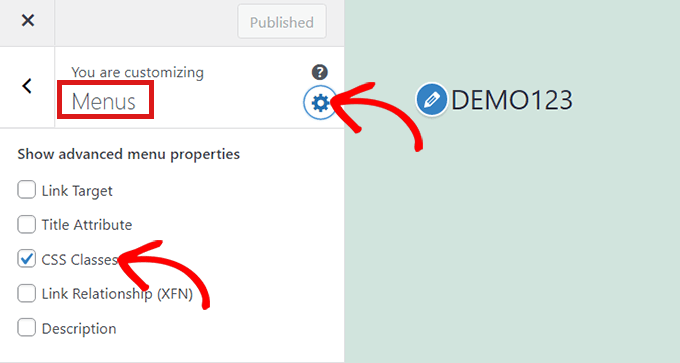
First, simply go to Appearance » Customize in your WordPress dashboard to launch the theme customizer. Once the theme customizer opens up, simply click on the ‘ Menus’ tab.
Once you’re in the ‘Menus’ section, simply click on the gear icon at the top right to display advanced properties.
Now, simply check the ‘CSS Classes’ box.
After that, scroll down to the ‘Menus’ section.
If you have multiple menus on your website, simply click on the menu whose menu items you want to highlight.
This will open up a new tab where you can select the menu item that you want to highlight. It could be ‘Get Started’ like in our example, or it might be your contact form page or the link to your online store.
Simply click on the menu item of your choice which will expand it to display some options. Click into the ‘CSS Classes’ field.
All you have to do is write 'highlighted-menu' in the field. You can add this CSS Class to multiple menu items, and they will all be highlighted.
Next, simply go to the ‘Additional CSS’ tab in the theme customizer.
Now, simply copy and paste the following CSS code.
Congratulations! You’ve successfully highlighted a menu item.
Note: Your theme might not have an ‘Additional CSS’ field in the theme customizer. If not, check theme settings to find out how to add custom CSS. If you can’t find it, you might want to contact the developer or add it using WPCode.
Customizing Your Menu Item Highlight
Now that you have highlighted the menu item, you can adjust the CSS code to customize your menu item the way you like it.
For example, you can change the background color of your menu item.
Simply look for the following code in the CSS snippet, you just pasted.
background: #FFB6C1
After locating it, you can simply replace the pink color code number with the hex code of any color of your choice:
background: #7FFFD4;
Above is the hex code for aquamarine.
You can check out our guide to easily add custom CSS for other ideas on how to customize the highlighted menu item.
After you’re satisfied with your choices, simply click on the ‘Publish’ button in the theme customizer or ‘Save Snippet’ in WPCode to save your changes.
If you liked this article, then please subscribe to our YouTube Channel for WordPress video tutorials. You can also find us on Twitter and Facebook.
Do you want to show different content to different users in WordPress?
Sometimes you may want to show custom content to users from specific locations, on specific dates, or under other conditions. Website personalization is not available in WordPress out of the box. However, there are simple and easy tools you can use to handle this.
In this article, we’ll show you how to easily show personalized content to different users in WordPress.
Why Show Different Content to Users in WordPress?
Normally, when you publish content on your WordPress website, it just becomes available to everyone. What if you wanted to show a different version of the content to specific users?
For instance, you may want to offer free shipping to customers in a specific geographic location or show different content to users coming from a particular landing page.
One way to deal with this is by making a membership site and restricting access to content based on a user’s profile. However, not everyone wants to require user login to offer personalization.
That’s where WordPress website personalization solutions can help.
You can use smart conditions to add content personalization on your blogs, product personalization on your online store, and dynamic text replacement on your landing pages.
These conditions can include specific user interactions, their geographic location, time of day, specific pages they’re visiting, specific traffic referrer source, past behavior, and more.
That being said, let’s take a look at how to show different content to different users in WordPress. You can use the links below to go directly to the method you want to use.
Method 1. Showing Different Content to Users Using OptinMonster (Website Personalization Made Easy)
OptinMonster is the best lead generation and conversion optimization tool on the market. It comes with powerful targeting rules which allow you to show personalized campaigns to users based on a large set of display rules.
This method is recommended for all users because it gives you the ability to design your content and comes with more powerful targeting rules. It also works with email marketing tools and third-party apps.
First, you’ll need to sign up for an OptinMonster account. It is a paid tool, and you’ll need at least a Pro or Growth plan to access all targeting features.
Simply visit the OptinMonster website and click the ‘Get OptinMonster Now’ button to set up an account.
Upon activation, you will see the OptinMonster setup wizard in the WordPress admin panel. Next, you need to click the ‘Connect Your Existing Account’ button to connect your WordPress site to your OptinMonster account.
After that, a new window will open.
Simply click the ‘Connect to WordPress’ button to move ahead.
Design The Content You Want to Show to the Users
Once connected, you can head to OptinMonster » Campaign from your WordPress dashboard and click the ‘Create Your First Campaign’ button.
This will take you to the OptinMonster website, where you will be asked to choose a campaign type and template.
OptinMonster offers different campaign types that you can use to show various types of content or targeted messages to your users. This includes lightbox popups, floating bars, fullscreen, inline widgets, slide-in popups, and gamified campaigns.
For instance, if you want to show dynamic content inside a WordPress post or page, then you can choose the Inline campaign type.
Each campaign type has dozens of templates to choose from. Simply click to select and use a template.
After that, you will be asked to enter a name for this campaign and click the ‘Start Building’ button.
Next, you’ll enter OptinMonster’s campaign builder interface. It is a drag-and-drop tool where you can design your campaign with a live preview.
Simply drag new elements from the menu on your left and drop them onto the template. Plus, you can click on an element in the preview to edit it.
OptinMonster also connects with all top email marketing services so you can show an email sign-up form.
You can use the campaign builder to create campaigns to add any type of content, such as a coupon code, free shipping offer, smart product recommendations, or anything you want.
Once you are done with the design of your campaign, you can click on the ‘Save’ button at the top to store your changes.
You can always edit your design to match your display rules. We will show you a few design examples tailored for different display scenarios in the next step.
Setting up Display Rules for Campaign
This is the part where you set up the display rules to decide when to show your campaign.
Inside the OptinMonster builder interface, switch to the ‘Display Rules’ tab.
It allows you to create smart rule sets, and choose from a ton of targeting options.
First, you need to choose the conditions to match. There are plenty of options here. Let’s take a brief look a each one of them.
1. Time-based Triggers
These triggers allow you to set display rules based on time or date. You can show your campaign content at a specific date, time, or day of the week.
These triggers allow you to show custom messages designed for specific dates and times.
For instance, you can set OptinMonster to show a flash sale coupon on holidays or display a message on special events.
2. Targetting Users Matching Specific Criteria
The targeting section lets you set display rules based on smart recognition technology.
For instance, you can show a campaign to users coming from a specific website, referral, landing page, or geographic location. You can also target based on cookies, ad blockers, and JavaScript variables.
As an independent publisher, you may want to ask visitors to support you by disabling the AdBlock software. You can show a message only to the users with AdBlock software installed.
Another great usage is giving special offers to visitors from a specific URL. For instance, you may want to offer an exclusive discount to users coming from an affiliate partner website.
3. Personalization Targeting
OptinMonster allows you to set personalized display rules based on user behavior, too.
You can show custom campaigns to new users, returning visitors, those on specific devices, users who have already converted, not converted, have seen another campaign, visited a page, and more.
You can also use OptinMonster’s smart tags feature to display a user’s name, location, and more to show them even more personalized content.
This allows you to tailor the content to specific users.
4. Ecommerce Display Rules
These triggers are explicitly made to boost conversions on eCommerce websites.
You can show content to users based on their shopping behavior. OptinMonster supports WooCommerce, BigCommerce, and Shopify eCommerce platforms.
Ecommerce targeting allows you to show content based on what products users are viewing, the number of products in their cart, the total cart cost, and more.
Once you select a condition, you will then be asked to select what to look for. For instance, if you choose a geographic location, then you will be asked to select locations that need to be matched.
After setting up your condition, you can validate it to ensure it is set up correctly and then click on the ‘Next Step’ button.
Next, you will be asked to select the campaign view. Depending on your campaign, you can choose from the optin view (the main campaign), success view, or Yes/No view.
There are also options to add a MonsterEffect and sound effects for your campaign. Once that’s done, click on the ‘Next Step’ button to continue.
You’ll now see a summary of your display rule set. If you want, you can add more rules or simply click on the ‘Save’ button at the top to store your changes.
Publish Your Content and Add it to Your Website
OptinMonster also makes it super easy to display campaigns on your website.
Simply switch to the Publish tab inside the builder and change the ‘Publish Status’ to Publish.
Don’t forget to click the ‘Save’ button to store your changes.
You can now go back to your WordPress site and visit OptinMonster » Campaigns page and you’ll see your new campaign listed there.
If the ‘Status’ of the campaign is shown as ‘Pending,’ then click the ‘Change Status’ option under the campaign name. From here, simply select the ‘Publish’ status from the dropdown menu.
You can now test it by visiting your website while matching the conditions you set in the display rules.
Note:Clear your WordPress cache and browser cache to make sure you don’t load a cached page. You may also want to use the Incognito mode in your browser to mimic the behavior of a new user.
OptinMonster’s display rules give you many powerful options to show different content to users in WordPress without modifying your templates and code.
Essentially, it lets you leverage additional digital real estate on your site to increase your sales and conversions. With their A/B testing technology, you can easily test and improve your campaigns to drive better results.
Method 2. Showing Different Content to Users using a Plugin
This method is recommended if you want to change the entire content of a post or page in WordPress or show different variations of the same content to your users.
Upon activation, you need to visit If-So » All Triggers page and click on the ‘Add New’ button.
This will bring you to the page where you can create a trigger and add the content.
First, you can enter a name for the trigger at the top. Next, you’ll see a ‘Select a Condition’ dropdown menu to the left.
The plugin offers a number of conditions based on time, date, URL, geographic location, IP address, and more.
After choosing the trigger, you can add the content you want to show users when that condition is matched.
Below that, you can add another version and use another set of rules to display different content.
Lastly, you’ll see the default content area. This is the content you want to show the users who don’t qualify for the conditions you set above.
Once you are finished, don’t forget to click the ‘Publish’ button for your trigger.
After publishing the trigger, you’ll see the shortcode meta box appear. Simply copy the shortcode shown on the screen.
You can now edit any post or page and add the shortcode in your content where you want to display the trigger.
You can now save and publish your post or page.
After that, visit your website to see the trigger in action. If you match the required conditions, then you’ll see the message you set for those conditions.
Otherwise, you’ll see the default message you added for the trigger.
Method 3. Showing Personalized Content in WooCommerce using FunnelKit
While the above solutions help you display personalized content to different users, they will not be able to do deep personalization when it comes to adjusting WooCommerce offers.
If you run an online store using WooCommerce, then you may want to show dynamic offers such as relevant upsells based on various cart conditions.
This is where you need FunnelKit, it is one of the most powerful WooCommerce plugins to grow your sales.
It lets you add custom one-click upsells or order bumps in your store, so you can increase profits without increasing traffic or ad spend.
You can use their Dynamic offers to show custom upsells and make any personalization rules that you want.
FunnelKit also comes with built-in A/B testing, so you can show different headlines, checkout designs, buttons, and more in less than 5 minutes.
Basically if you’re running a WooCommerce store and want to do content personalization than you need FunnelKit. A lot of users use FunnelKit for cart personalization alongside with OptinMonster for overall website personalization.
If you liked this article, then please subscribe to our YouTube Channel for WordPress video tutorials. You can also find us on Twitter and Facebook.
Are you looking for a Gumroad alternative to create an online store?
Gumroad is a popular eCommerce platform that lets you sell digital products, online courses, and membership-only content. However, their service isn’t flexible, and they recently increased their fees by quite a lot.
In this article, we’ll share the best Gumroad alternatives and competitors that you can use to sell digital products and make money online without the high costs.
Why Do You Need an Alternative to Gumroad?
Gumroad is a self-hosted eCommerce platform where you can upload your products and start selling. You don’t need a hosting service, a payment service, or an online store to sell digital goods.
While it is beginner-friendly, there are several drawbacks to using Gumroad.
For starters, the platform now charges a flat 10% fee for every sale. These charges are in addition to the transaction fee.
Previously, the percentage would decrease as your revenue grew. However, the new pricing change takes a significant amount of your income.
For creators, this means aside from your local government taxes, now you’re going to be paying a Gumroad tax which simply isn’t acceptable.
Besides that, Gumroad doesn’t offer much flexibility compared to other eCommerce solutions.
For instance, you don’t get features for cross-sell or upsell products to boost sales. If you’re selling online courses, then Gumroad is at a disadvantage as it doesn’t include a learning management system (LMS).
Other alternatives to Gumroad provide more features for personalizing your online store and providing a better customer experience.
That said, let’s look at some of the best Gumroad alternatives.
It’s a great alternative to Gumroad, as the plugin is user-friendly. You can easily create a membership site, set up multiple subscription levels, and control who can access content and products.
MemberPress also offers a built-in drag-and-drop course builder functionality to create and sell online courses. Besides that, it includes a virtual classroom feature, which produces an immersive learning experience.
Another feature offered by MemberPress that you won’t find in Gumroad is automatic drip content. The plugin allows you to release paid content to subscribers over time or once they’ve cleared a particular module.
MemberPress also integrates with other popular WordPress plugins. For instance, you can track your site’s performance by combining it with MonsterInsights or create your affiliate marketing program by connecting it with AffiliateWP.
Pricing: MemberPress pricing starts from $179.50 per year with their Basic plan. If you want more features like quizzes and premium integrations, then you can go for the Pro plan.
The plugin is best for bloggers, developers, marketers, artists, designers, and other creators to sell products online. It offers powerful features and allows you to create beautiful digital goods stores.
You can start with EDD for free with SiteGround EDD hosting or just try the free version from their website.
We use Easy Digital Downloads ourselves to sell our MonsterInsights and WPForms software, which shows just how powerful the plugin is. Plus, there are managed hosting services that come with EDD pre-installed.
Other than that, Easy Digital Downloads offers multiple extensions. You can easily integrate different payment services, email marketing tools, messaging services, and more.
The best part about using EDD is that it has a software licensing feature. It allows you to sell SaaS products, apps, and other tools with proper digital rights.
Pricing: Easy Digital Downloads premium pricing plans start from $99.50 per year. However, you can also use a free version of EDD to get started and start selling online.
It’s a great alternative to Gumroad, as you can sell digital products by simply adding a payment form using the plugin. The best part, WP Simple Pay offers a free version. You can accept one-time or recurring payments directly from your WordPress site.
With WP Simple Pay, you get 13 payment methods in 135+ currencies spread across 45+ countries. Some popular methods include credit card payments, ACH debit payments, Google Pay and Apple Pay services, and more.
You can also offer to buy now, pay later payment plans using WP Simple Pay. The plugin supports Klarna and Afterpay/Clearpay, which allow customers to pay in installments. This is great if you’re selling high-value or luxury products.
Pricing: WP Simple Pay premium plan starts from $49.50 per year with the Personal plan. If you want to add recurring payments or buy now, pay later options, then you’ll need the Pro license. To get started, you can also use a WP Simple Pay Lite version for free.
For instance, it lets you sell physical products online, set up membership plans, offer digital downloads and affiliate products, create dropshipping stores, and more.
The best part is that there are many themes designed for WooCommerce. This allows you to fully customize and control the design of your eCommerce store.
Another advantage of using WooCommerce over Gumroad is that you can use built-in options or third-party plugins to upsell and cross-sell products, recover cart abandonments, offer discount codes, free shipping, and more by using powerful tools like FunnelKit.
Plus, it easily integrates with different payment services and third-party plugins. WooCommerce also offers premium extensions. You can easily optimize your store for SEO and boost search engine rankings to attract more visitors.
To create a WooCommerce store, you’ll need WordPress hosting and a domain name. However, many hosting companies like Bluehost come with WooCommerce pre-installed.
Pricing: WooCommerce is a free eCommerce platform you can use as a Gumroad alternative. While the plugin is free, you’ll still need to pay for website hosting. Please see our guide on how much does an eCommerce store cost for more details.
WPForms is the best drag & drop online form builder, and it can be an excellent alternative to Gumroad if you want a simple way to accept credit card payments.
It lets you easily build payment forms, so you can accept credit card payments using Stripe, PayPal, Authorize.net, and Square payment gateway.
Aside from that, WPForms also integrates with hundreds of email marketing services, so you can automatically add your customers to your marketing automation drip campaigns.
You can use WPForms to accept both one-time as well as recurring payments, and the best part is that it doesn’t charge any additional transactional fees.
Pricing: While WPForms has a free version, you will need the WPForms Pro plan which costs $199.50 to accept payments.
LearnDash is one of the best LMS plugin for WordPress and allows you to run online courses. The plugin offers powerful features to manage your courses, add quizzes, run surveys, and easily accept online payments.
Since Gumroad doesn’t offer a learning management system, LearnDash is an excellent alternative for anyone looking to sell online courses.
With LearnDash, you get a drag-and-drop course builder and multimedia support to run webinars, videos, and tutorials. The plugin also lets you add badges and rewards using different gamification tools. This helps make your lessons engaging.
Pricing: LearnDash premium plans start from $199 per year for 1 website.
ConvertKit is a popular email marketing and eCommerce platform built specifically for creators. They allow you to easily sell digital products, run paid newsletters, sell recurring subscriptions, and even set up tip jars.
The best part is that you get an integrated eCommerce and marketing platform, so when someone becomes a customer, you can send them automated email sequences, targeted marketing, and other subscriber engaging content.
ConvertKit is a hosted platform so it comes with a landing page builder, custom form templates, and it allows you to get unlimited traffic.
Pricing:ConvertKit is free to use for up to 300 subscribers, but your pricing will increase based on the number of subscribers you have. To access the CreatorPro tools, you will need to upgrade to the $25 per month plan.
Teachable is another popular course-building platform that lets you create and sell online courses. You can use it as an alternative to Gumroad to market and promote your online courses.
It is similar to LearnDash and provides a complete solution for creating courses. What makes Teachable different is that it is a hosted platform, so you don’t have to worry about managing any additional software or installing updates.
Teachable is beginner friendly to use and offers a drag-and-drop course builder. It also takes care of online payments and offers multiple payment options. Other features provided by the service include integration with third-party marketing and analytics tools.
Pricing: You can get started on Teachable for free, but it will charge a $1 to 10% transaction fee. There are also premium pricing plans starting from $29 per month.
Thinkific is similar to Teachable and also a self-hosted platform to sell online courses. It is easy to use and is a fitting Gumroad alternative to creating courses.
It offers a drag-and-drop course builder that is very easy to use. Plus, you get different themes and templates to get started quickly. Thinkific also allows you to create subscription-based programs, landing pages, and a membership community.
Besides that, it also easily integrates with 40+ different tools and platforms like MailChimp, Shopify, Google Analytics, and Salesforce.
Pricing: Thinkific offers a 6-month premium plan for $196.
Payhip is another Gumroad alternative that you can use as an eCommerce platform. It lets you sell digital downloads, online courses, memberships, coaching, and physical products.
Besides that, it offers a lot of customization, which isn’t available in Gumroad. For instance, you can use the store builder to create a beautiful and professional online business site within minutes.
If your customers are from Europe or the United Kingdom, then the platform will take full responsibility for complying with the value-added tax (VAT) laws. It will automatically detect their location and apply the correct sales tax or VAT amount to their transaction.
Other features offered by Payhip include different marketing tools to boost conversion rates. For example, it lets you add coupons, cross-sell or upsell products, order bumps, add referrals and affiliates, and show customer reviews to add social proof.
Pricing: Payhip offers a free plan that you can use to get started. However, Stripe and PayPal will charge a 5% transaction fee in the free plan. There are also premium plans starting from $29 per month.
Sellfy is the next Gumroad alternative on our list, and it helps you create a storefront for selling digital and physical products. It lets you promote your products anywhere online. Simply embed the Sellfy checkout process on your own website and market your digital goods.
You can also launch a print-on-demand merchandise store using Sellfy. Simply design, create, and sell using different storefront themes. Other than that, you can use it to sell digital downloads and subscriptions.
What makes Sellfy different from Gumroad is that it includes built-in marketing features like upselling, email marketing, and discount codes. Plus, it offers more customization features compared to Gumroad.
Pricing: Sellfy offers premium pricing plans starting from $22 per month (billed annually), and you get a 14-day free trial.
BigCommerce is a popular eCommerce platform, and you can use it as a Gumroad alternative.
It is a fully hosted eCommerce service that easily integrates with WordPress. You can use it to sell all kinds of digital and physical products.
The service automatically creates different pages for your store, including a shopping cart, sign-in page, account area, sales page, and more.
What makes BigCommerce different is that it lets you sell products across various channels like Amazon and social media platforms like Instagram. Plus, the eCommerce solution doesn’t charge any transaction fees and lets you choose from multiple payment gateways.
Pricing: BigCommerce pricing plans start from $29.99 per month, and you get a 15-day free trial.
Shopify is the last Gumroad alternative on our list. It is an all-in-one eCommerce solution that you can use to create an online store. It offers more customization options and third-party integrations compared to Gumroad.
With Shopify, you don’t have to worry about web hosting, security, backups, updates, and caching. It does this for you, so you can focus on uploading products to the site and promoting them.
Shopify offers pre-built themes that you can use to set up a store. Plus, it makes it easy to manage inventory and accept online payments from a single platform. You can even use Shopify with WordPress to sell products online.
Pricing: Shopify pricing starts from $1 per month with the Basic plan. However, if you want low transaction costs and advanced features, then there is an Advanced plan costing you $299 per month.
Which Gumroad Alternative Should You Use?
After comparing different eCommerce solutions, we believe MemberPress is the best Gumroad alternative. It is a paid WordPress plugin that helps create subscriptions, sell digital products to premium members, and set up online courses without any extra fees.
If you’re looking for a free alternative to Gumroad, then we highly recommend Easy Digital Downloads. You can use its free version to get started and start selling digital products like ebooks, PDFs, spreadsheets, videos, digital art, apps, plugins, and more.
If you’re looking for a simple solution that lets you accept online payments without the complexity of creating a shopping cart, then WP Simple Pay is your best option.
On the other hand, if you’re looking to create an online store from scratch and have full control over it, then WooCommerce is the best option. You get more customization options, online store management features, and integrations compared to Gumroad.
If you liked this article, then please subscribe to our YouTube Channel for WordPress video tutorials. You can also find us on Twitter and Facebook.
Recently one of our readers asked if it was possible to add Venmo to collect payments in WordPress?
Venmo makes it super easy to accept payments on your website. It is convenient, user-friendly, and is already used by about 70 million people. Letting people use a familiar payment method can increase conversions in your online store.
In this article, we will show you how to easily add Venmo in WordPress.
Why Use Venmo as a Payment Gateway
Venmo is a popular mobile payment service owned by PayPal which is the most popular and trusted online payment gateway in the world. Currently, Venmo is only available in the U.S.
If you have a WooCommerce store based in the United States, then adding Venmo as one of the payment gateways is the right option for you because it allows your customers to make a purchase from their mobile phones without any hassle.
Not only does Venmo easily connect with users’ bank accounts, but the service also does not charge any fees for sending money from your Venmo balance or linked balance. These are big reasons why many U.S. residents opt for this mobile payment app.
Popular brands like Amazon, Macy’s, Walmart, and Samsung also offer Venmo as a payment gateway to their customers. With that being said, let’s see how you can easily add Venmo to WordPress.
This WooCommerce plugin allows you to easily add Venmo as a payment gateway to your online store.
First, you need to install and activate the Payment Plugins Braintree plugin. For further instructions, check out our guide on how to install a WordPress plugin.
Upon activation, head over to Braintree Gateway » Settings from your WordPress admin dashboard.
This will actually direct you to WooCommerce ‘Payments’ page. You can also reach this page by heading to WooCommerce » Settings. The only difference will be that if you go through the WooCommerce menu item, the page will not have the Braintree logo.
Here you will see all the Braintree gateways that you can integrate into your site. Simply click the ‘Venmo’ tab.
Now that you’re on the ‘Braintree Venmo Gateway’ tab, you will see an ‘Enabled’ checkbox at the top.
You need to make sure that it is checked. This will allow your site to accept Venmo payments through this plugin.
Next, go to ‘General Settings’ and fill in the details to set up your Venmo Gateway. For example, you can change the title that appears to users, the icon, or add a short description of the payment method.
After that, simply click the ‘Save Changes’ button at the bottom of the page to save your changes.
Now, Venmo has been added to your WordPress site, and you’re ready to accept payments in WooCommerce.
Method 2. Add Venmo in WordPress Using the Checkout With Venmo Plugin
Once the plugin is activated, go to WooCommerce » Venmo from the WordPress admin dashboard.
This will open up the ‘Venmo’ tab on the WooCommerce ‘Payments’ page.
Here, you will find the ‘Enable VENMO’ option at the top of the page. Make sure that you check the box.
If you click the ‘test’ link next to the title, you will be directed to the Venmo account page where you can sign in and create your account. You will be able to ensure all your settings are correct before attempting to take real payments.
Next, simply fill out the details in the form below and then click on the ‘Save Changes’ button at the bottom of the page.
Congratulations! You’ve successfully integrated Venmo into WordPress.
That’s it! We hope you learned how to add Venmo to WordPress. You may also want to check out our article on the ultimate WooCommerce SEO guide and our expert picks for the best WooCommerce plugins to help grow your store.
If you liked this article, then please subscribe to our YouTube Channel for WordPress video tutorials. You can also find us on Twitter and Facebook.
Do you want to create a custom Facebook feed in WordPress?
A custom feed allows you to show posts from your Facebook page or group on your WordPress website. This can make your site more engaging and encourage visitors to follow you on Facebook.
In this article, we’ll show you how to easily create a custom Facebook feed in WordPress.
Why Create a Custom Facebook Feed in WordPress?
With almost 3 billion monthly active users, Facebook is the biggest social media site in the world. As a website owner, you may have already created a Facebook page or group where you engage with your audience.
However, people who only visit your website won’t see your Facebook posts. By adding a custom Facebook feed you can show visitors what’s happening on your group or page.
This can make your website more engaging and interesting, especially if you post multimedia content to Facebook such as videos and images.
It’s also a great way to promote your Facebook page or group, which will help you get more Facebook likes and grow your following.
This plugin lets you show Facebook content and comments directly on your site, and even combine posts from multiple Facebook feeds. It also makes it easy to display powerful social proof, by embedding Facebook reviews and community posts on your website.
In this post, we’ll be using the pro version of Smash Balloon as it allows you to show videos and photos in your Facebook feed, choose different layouts, filter your feed based on post type, and more.
However, there’s also a free version that allows you to create a custom Facebook feed for WordPress, no matter what your budget.
Upon activation, you’ll need to go to Facebook Feed » Settings and enter your license key into the ‘License Key’ field.
You’ll find this information under your account on the Smash Balloon website.
After entering the key, click on the ‘Activate’ button.
Connect Your Facebook Page or Group to WordPress
Smash Balloon Custom Facebook Feed allows you to create multiple feeds from your different Facebook pages and groups. You can even merge feeds to create a custom feed.
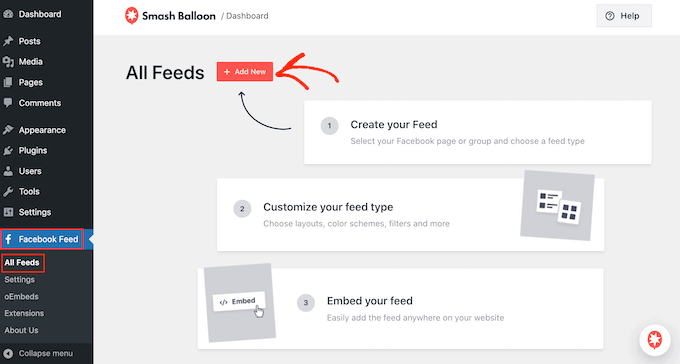
To create your first feed, go to Facebook Feed » All Feeds and then click on ‘Add New.’
Smash Balloon lets you display posts from your timeline, photos, videos, albums, events, and more. For this guide, we’ll create a ‘Timeline’ Facebook feed but you can select any feed type you want.
After choosing a feed type, click on the ‘Next’ button.
Now, you need to select the Facebook page or group where you’ll get the content from.
To get started, click on ‘Add New.’
On the next screen, choose whether you’re creating a feed from a Facebook page or group.
Then, simply click on ‘Connect to Facebook.’
This opens a popup where you can log into your Facebook account and choose the pages or groups that you want to use in your feed.
After making your selection, click on the ‘Next’ button.
Once you’ve done that, Facebook will show all the information that Smash Balloon will have access to, and the actions it can perform.
To restrict Smash Balloon’s access to your Facebook account, simply click any of the switches to turn them from ‘Yes’ to ‘No.’ Just be aware that this may affect the content that you can show in the custom Facebook feed.
With that in mind, we recommend leaving all these switches enabled.
When you’re ready, click on ‘Done.’
After a few moments, you should see a message that you’ve successfully linked your WordPress website to Facebook. You can now click on ‘OK.’
With that done, Smash Balloon will return you to the WordPress dashboard automatically.
How to Create a Custom Facebook Feed in WordPress
You will now see a popup with the group or page you just linked to your WordPress website. Simply select the radio button next to your source and then click on the ‘Add’ button.
If you accidentally closed the popup, then don’t panic. You can simply refresh the tab to reopen the popup.
Once you’ve done that, you’ll be returned to the Facebook Feed » All Feeds page.
Just like before, click on the ‘Add New’ button and then choose the type of custom Facebook feed you want to create, such as Timeline, Photos, or Videos.
Then, click on ‘Next.’ Now, under ‘Select a Source’ you’ll see your Facebook group or page as an option.
Go ahead and select the page or group, and then click on ‘Next.’
You can now choose the template that you want to use as the starting point for your feed. All of these templates are fully customizable so you can fine-tune them to perfectly fit your WordPress blog or website.
We’ll be using the ‘Default’ template, but you can use any template you want.
After choosing a design, click on the ‘Next’ button.
Smash Balloon will now go ahead and create a Facebook feed based on your source and chosen template. This is a great start, but you may want to fine-tune how this feed appears on your website.
How to Customize Your Facebook Feed
The Smash Balloon Custom Facebook Feed plugin gives you lots of ways to customize your feed. With that in mind, it’s worth seeing what changes you can make.
On the Facebook Feed » All Feeds screen, find the feed you just created and click on its ‘Edit’ button, which looks like a small pencil.
This opens the feed editor, which shows a preview of how the custom Facebook feed will look on your website.
On the left-hand side, you’ll see all the different settings you can use to customize the feed. Most of these settings are self-explanatory, but we’ll quickly cover some key areas.
To start, you can change how your posts are displayed by clicking on ‘Feed Layout.’
On this screen, you can switch between different layouts, such as masonry and list, and change the feed height. As you make changes, the preview will update automatically so you can try different settings to see what works best for your website.
By default, the feed will show the same number of posts on desktop computers and mobile devices such as smartphones.
However, mobile devices usually have smaller screens and less processing power, so you may want to show fewer posts on tablets and smartphones. To do this, just type a different number into the ‘Mobile’ field under ‘Number of Posts.’
You can preview how your changes will look on desktop computers, tablets, and smartphones using the row of buttons in the upper-right corner.
By trying out different layouts you can create a custom feed that looks great, no matter what device the visitor is using.
By default, the Facebook feed shows fewer columns on smartphones and tablets, compared to desktop computers. This helps all your content fit comfortably on smaller screens.
However, after testing the mobile version of your WordPress website, you may be unhappy with how the columns look on smartphones and tablets. If this is the case, then you can adjust the columns by changing the numbers in the ‘Columns’ section.
When you’re happy with the changes you’ve made, click on the ‘Customize’ link at the top of the menu.
This will take you back to the main Smash Balloon editor.
Next, you can click on ‘Color Scheme‘ in the left-hand menu and take a look at the different colors you can add to the Facebook feed.
By default, Smash Balloon uses a color scheme inherited from your WordPress theme, but you can also choose ‘Light’ or ‘Dark,’ or even create your own custom color scheme.
By default, Smash Balloon adds a header to your feed, which is your Facebook profile picture and the name of your page or group.
To change how this looks, click on ‘Header’ in the left-hand menu.
On this screen, you can change the size and color of the header, hide or show your Facebook profile picture, and more.
If you want to remove the header completely, then click the toggle to turn it from blue (enabled) to grey (disabled).
Next up is the ‘Posts’ screen. Here, you can change how the individual posts are displayed inside the custom Facebook feed.
For example, you can switch between regular and boxed styles, change the background color, add a boxed shadow, and more.
By default, Smash Balloon doesn’t include the Facebook ‘like’ button in your feed.
To encourage more visitors to follow your Facebook page, you may want to add this button by selecting ‘Like Box’ from the editor’s left-hand menu.
After that, simply click on the ‘Enable’ button so that it turns blue. Now, if you scroll to the bottom of the preview you’ll see a ‘like’ button.
You can style this area using different settings. For example, you can choose whether the button appears at the top or bottom of the feed, and whether to include the cover photo from your Facebook page.
When you’re happy with how the ‘like’ button looks, you can move on to the ‘Load More Button’ screen.
The ‘Load More’ button encourages visitors to scroll through more of your Facebook feed.
For this reason, you may want to make the button more eye-catching by changing its background color, text color, and label.
Another option is to remove the ‘Load More’ button completely by clicking on the ‘Enable’ toggle so that it greys out.
Disabling the ‘Load More’ button is useful if your Facebook feed is time-sensitive. That wat, visitors don’t need to scroll through your previous posts that don’t apply to them.
When you’re happy with how the custom Facebook feed is set up, don’t forget to click on ‘Save’ to store your changes.
You’re now ready to add the Facebook feed to your WordPress website.
How to Add Your Custom Facebook Feed to WordPress
You can add your custom Facebook feed using a block, widget, or shortcode.
If you’ve created more than one custom feed, then you’ll need to know the feed’s code if you’re going to use a block or widget.
Simply go to Facebook Feed »All Feeds and then look at the feed="" part of the shortcode. This is the value you’ll need to add to the block or widget, so make a note of it.
In the following image, we’ll need to use feed="1".
To use this shortcode in a page or post, you can use the ‘Custom Facebook Feed’ block in the content editor.
Simply open the page or post where you want to show the feed. Then, click on the ‘+’ icon to add a new block and start typing ‘Custom Facebook Feed.’
When the correct block appears, click to add it to your page or post.
The block will show one of your feeds by default. If you want to use a different feed instead, then simply find ‘Shortcode Settings’ in the right-hand menu.
You can now add the feed="" code to this box. After that, click on ‘Apply Changes.’
The block will now show your custom Facebook feed, and you can publish or update the page to make it live on your website.
Another option is to add the feed to any widget-ready area, such as the sidebar or similar section. This is an easy way to show the custom Facebook feed across your whole site.
To get started, go to Appearance » Widgets in the WordPress dashboard. Then, click on the blue ‘+’ button.
You can now find the ‘Custom Facebook Feed’ widget.
Then, just drag it onto the area where you want to show the feed.
Again, Smash Balloon will show one of your custom Facebook feeds by default.
To show a different feed, type the feed’s code into the ‘Shortcode Settings’ box and then click on ‘Apply Changes.’
If you liked this article, then please subscribe to our YouTube Channel for WordPress video tutorials. You can also find us on Twitter and Facebook.
Are you looking to enable the debug mode in your WordPress site?
You might encounter different errors when working with WordPress themes, plugins, or custom codes. Using WordPress debug mode, you can easily fix these issues.
In this article, we’ll show you how to easily enable WordPress debug mode to fix site errors.
Why Enable WordPress Debug Mode?
Sometimes a WordPress plugin, theme, or custom code like PHP or JavaScript can cause conflicts on your website. This can lead to different errors, and you may notice that your site isn’t functioning properly.
Now, you can always deactivate and uninstall multiple plugins to see which one is causing the error. Similarly, you can also switch to a different WordPress theme or remove the custom codes to find the root cause of the error.
However, all of this takes a lot of time. You’ll have to rule out each plugin individually, change multiple themes, and edit custom codes.
An easier way of fixing website errors is by enabling WordPress debug mode. It shows a log of all the errors and warnings on your website. This way, you can pinpoint issues on your WordPress site and fix them quickly. It even uncovers errors that might not be visible otherwise.
That said, let’s look at how to enable the WordPress debug mode. We’ll show you 2 methods. You can use a WordPress plugin or manually view the debug mode.
Method 1: Enable WordPress Debug Mode Using a Plugin
An easy way of enabling debug mode is by using the WP Debugging plugin. This method is recommended for beginners and those who aren’t comfortable working with website files.
WP Debugging is a free WordPress plugin that works out of the box. By using this plugin, you won’t have to edit your website files manually.
First, you’ll need to install and activate the WP Debugging plugin. For more details, please see our guide on how to install a WordPress plugin.
Upon activation, you can go to Tools » WP Debugging from your WordPress dashboard. Next, ensure that the ‘Set WP_DEBUG to true’ option is enabled.
After that, you’ll see a ‘Debug Quick Look’ option added to your admin bar at the top.
Go ahead, hover over it, and then click the ‘View File’ option.
This will open the log file with all the errors on your website. You can then find out what’s causing issues on your site and quickly fix them.
When you’re done debugging your website, don’t forget to disable the plugin.
Method 2: Manually Enable WordPress Debug Mode
The second method you can use to enable WordPress debug mode is editing the wp-config.php files. This method is more advanced and suitable for users who are comfortable editing website files.
We recommend creating a backup of your website before editing files. This way, you can easily restore your website in case anything goes wrong.
For instance, in Bluehost, you can visit the ‘Advanced’ tab and then go to File Manager.
From here, simply access the public_html folder from the panel on your left.
After that, scroll down to the ‘wp-config.php’ file.
Next, you can right-click the file and download it on your computer. It’s smart to make a copy of the file as a backup, just in case anything goes wrong.
After that, open the file using any software or tool like Notepad or Sublime Text.
Once the file is open, scroll down to the ‘That's all, stop editing! Happy publishing‘ line and add the following code before that:
To view the error logs for your website, you’ll need to view your website files and navigate to the public_html/wp-content/debug.log path. Simply download the file and view it in a notepad software to see issues on your site.
Once you’re done debugging your site, you can disable the debug mode.
To do that, repeat these steps and then remove the code you added to the wp-config.php file or edit the following code to have a false value:
If you liked this article, then please subscribe to our YouTube Channel for WordPress video tutorials. You can also find us on Twitter and Facebook.
Do you want to improve your 404 page template in WordPress?
By replacing the default WordPress 404 page with your own design, you can improve the visitor experience and keep people on your site for longer.
In this article, we’ll show you how to customize your 404 page template in WordPress.
Why Improve Your 404 Page Template in WordPress?
Most WordPress themes come with a basic 404 template, including the default WordPress ones. For example, in the following image, you can see Twenty Twenty-Two’s 404 page.
However, most of these default templates are simple and don’t show any content from your site. This means that anyone who lands on your 404 page is more likely to leave your WordPress website, which will increase your bounce rate.
This is bad news for your WordPress SEO, and may affect where your site appears in the search engine rankings.
That being said, it’s a good idea to create a 404 page with your own content and branding.
For example, at WPBeginner we show a custom image and encourage visitors to contact us, so we can fix the 404 error. The sidebar also has links to our social media profiles and even some information about an ebook download.
Note: Even if you design an engaging and helpful page, you’ll still want to fix any 404 errors. Here, it helps to track your 404 pages and redirect them.
With that said, let’s take a look at how you can improve your 404 page template in WordPress.
Video Tutorial
If you’d prefer written instructions, just keep reading. You can also use the quick links below to jump straight to the method you want to use.
With this plugin, you can easily create a custom 404 page using a wide range of professionally-designed templates.
The first thing you need to do is install the SeedProd plugin. For more details, see our step-by-step guide on how to install a WordPress plugin.
Note: There is a free version of SeedProd available, but we’ll be using the Pro version since it lets you replace your theme’s built-in 404 template.
After activating the plugin, SeedProd will ask for your license key.
Once you’ve done that, go to SeedProd » Landing Pages. In the ‘404 Page’ section, click on ‘Set up a 404 Page.’
You can now choose a template for your 404 page.
To preview a design, simply hover your mouse over it and then click on the magnifying glass.
When you find a design that you like, just click on ‘Choose This Template.’
We’re using the ‘Oh No 404 Page’ template, but you can use any design you like.
After selecting a template, you’ll be taken to the drag-and-drop builder, where you can start customizing the 404 page.
On the left side of the screen, you’ll find blocks and sections that you can add to your design. The right side of the page is the live preview.
Most 404 templates already have some blocks, which are a core part of all SeedProd designs.
To customize any of these ready-made blocks, simply click to select the block in your layout. You can then customize the block using the settings in the left-hand menu.
To add a new block to your design, simply find the block in the left-hand menu. Then, drag it onto your layout. You can now customize the block following the process described above.
To start, you’ll typically want to add your own website logo to the 404 page.
To replace the SeedProd logo with your own branding, simply click to select the placeholder logo in your layout. Then, hover over the image in the left-hand menu and click on the ‘Select Image’ button.
This launches the WordPress media library, where you can select any image or upload a new file from your computer.
Many 404 templates also display your site’s main navigation menu by default. If you have multiple menus, then you may prefer to show a different menu instead.
To make this change, simply click on the ‘Nav Menu’ block in your template. You can then open the ‘Menu’ dropdown and choose any menu from the list.
You can create any design simply by adding and customizing blocks. However, when someone arrives at your 404 page, they may be confused about what to do next.
With this in mind, we’ll show you how to promote your most popular posts and create a contact form, so visitors can report any broken links or missing content.
To start, add a ‘Headline’ and a ‘Text’ block to your design. You can then type your message into the text editor in the left-hand menu.
For example, in the following image, we’ve created a headline that explains the page can’t be found and a ‘Text’ block that suggests reading some posts or using the contact form.
Next, we’re going to change the ‘Back To Home’ button so it encourages people to check out a particular post instead of going to the general homepage.
To customize the button, simply click to select it in the page layout. Then, type the post’s URL into the ‘Link’ field.
To change the text that appears on this button, simply type into the ‘Button Text’ box.
Once you’ve done that, click on the ‘Advanced’ tab. Here, you can change the button’s color, size, and more.
Add Your Most Popular Posts to Your WordPress 404 Page
Next, you can add a list of your most popular posts to the 404 page. Since these articles are popular, there’s a good chance visitors will find something they like.
After activating MonsterInsights, you can display your most popular posts by adding shortcode in WordPress. In SeedProd’s left-hand menu, simply find the ‘Shortcode’ block and drop it onto your layout.
Then, click to select the ‘Shortcode’ block. This will open the settings window to the left. Next, copy the following shortcode:
Then, in the box labeled ‘Content,’ paste it into the text area labeled ‘Shortcode.’
By default, SeedProd doesn’t show a preview of your most popular posts inside the page editor, so you’ll need to click on the ‘Preview’ button in the upper-right corner. This opens your design in a new tab.
If you prefer to preview the popular posts list inside the page editor, then simply click on the ‘Show Shortcode Preview’ switch.
In the above shortcode, we’re using theme=“beta†for our list, but MonsterInsights has a few different themes that you can use.
To see the different themes, go to Insights » Popular Posts in the WordPress dashboard and then click on ‘Popular Posts Widget’.
You can now click on the different themes to see a preview.
When you find a design that you want to use, simply update the shortcode in SeedProd. For example, if you want to use the ‘Alpha’ theme then you would need to type in:
You may also want to add a contact form so visitors can reach out if they can’t find what they’re looking for. This form also gives people an easy way to report broken links, so you can fix them and improve the experience for future visitors.
The best way to add a contact form to your site is by using the WPForms plugin. It’s the best contact form plugin for WordPress and comes with a user-friendly drag-and-drop form builder.
Once you’ve created a contact form, it’s easy to add that form to your 404 page. Simply find the ‘Contact Form’ block and drag it onto your design.
Then, open the ‘Select a Form’ dropdown and choose your contact form from the list.
The page editor will now show a preview of the contact form.
You might want to add some text introducing your contact form or encouraging visitors to get in touch.
To do this, simply add a ‘Headline’ or ‘Text’ block above your contact form and then type in the text that you want to use.
When you’re happy with how the 404 page looks, it’s time to publish it.
Simply click the dropdown arrow next to ‘Save’ and then select ‘Save as Template.’
When asked, go ahead and type in a name for the template. This is just for your reference so you can use anything you want.
After that, click on ‘Save Template.’
In the next popup, click on ‘Return to Page Editor.’ You can then click on the ‘X’ button in the upper-right corner to close the SeedProd page editor.
At this point, you may see a popup asking whether you want to publish your new 404 design. If you’re happy to go ahead, then click on ‘Yes, Activate.’
If you don’t want to publish the template right now, then click on ‘No, Close’ instead.
After that, you can publish the design at any point by going to SeedProd » Pages. Here, click on the switch in the ‘404 Page’ section so it shows ‘Active.’
To see your 404 page in action, just add /404 to the end of your domain name.
After publishing your custom 404 page, it’s a good idea to track how people are engaging with that page. This allows you to see what’s working and what isn’t working, so you can fine-tune your 404 design to get more conversions and engagement.
Method 2. Create a Custom 404 Page in WordPress By Adding Code
If you don’t want to use a page builder plugin, then you can create a custom 404 page using code. However, just be aware that any mistakes in your code can cause common WordPress errors, or even break your site.
With that in mind, this method isn’t recommended for beginners. It’s also a good idea to back up your site before using this method, just in case you encounter any problems.
After connecting to the server, go to /wp-content/themes/ and then open the folder for your current WordPress theme.
If this folder already has a 404.php file, then you can go ahead and open that file in any text editor, such as Notepad.
If your theme doesn’t have a 404.php file, then you’ll need to create one. After that, go ahead and open the file in a text editor app.
You’re now ready to create a custom 404 design using code. You can create all sorts of designs, but here’s some simple examples to help you get started.
Display Most Popular Posts on 404 Page
A list of your most popular posts can encourage visitors to check out your site’s best content.
First thing you need to do is install and activate the WordPress Popular Posts plugins. For more details, see our step by step guide on how to install a WordPress plugin.
Upon activation, you can add a list of popular posts to your 404 page using the following template tag:
<?php wpp_get_mostpopular(); ?>
Display Most Commented Posts on 404 Page
This plugin can also display the posts that have the most comments.
In your 404.php file, simply find the area where you want to show your most commented posts, and then add the following template tag:
Another option is to show your site’s most recent posts. This can be particularly effective if you post time-sensitive blogs, for example if you run a news aggregator website.
There are several different ways to display recent posts in WordPress, but the easiest way is adding a template tag to your 404.php file:
If you have lots of content, then it may be impossible to show all those posts on your custom 404 page.
One option is to organize your content into monthly archives. Visitors can then click to explore content from different months and years.
Here at WPBeginner, we display our monthly archives on our 404 page using the Compact Archives plugin. This helps visitors browse all of our content, without overwhelming them with a long list of posts.
If you liked this article, then please subscribe to our YouTube Channel for WordPress video tutorials. You can also find us on Twitter and Facebook.
Are you looking to embed a Discord widget in WordPress?
Discord is a well-known VOIP chat application that allows you to build your own communities and enables your users to communicate with each other through text, voice, and video. As of 2022, Discord has about 150 million active users.
In this article, we will show you how to embed a Discord widget into WordPress.
Why Should You Add a Discord Widget to Your Website
Discord chat allows users to communicate with each other over messages, voice calls, and video calls.
By embedding a Discord widget in your WordPress site, you can provide a way for your users to connect with each other. This widget will display the total members of your Discord server, and it will also provide an invite link for new members to join.
Your WordPress users will be able to join your Discord chat rooms through the link provided by the widget, so you can build a huge community for your website.
That being said, let’s see how you can add a Discord widget in WordPress.
How to Embed a Discord Widget in WordPress
To embed a Discord widget in WordPress, you must visit the official Discord website. You will need to create a Discord user account and create a Discord server for your community.
Step 1. Creating a Discord Username and Server
Once there, simply click the ‘Login’ button present at the top right corner if you already have a Discord account.
If you don’t have an account, click the ‘Open Discord in your browser’ button.
You will be then asked to choose a username for your Discord account.
This will be your handle for others to find you, but you can change your display name on a server-by-server basis.
Next, Discord will take you to the ‘Channels’ page and then ask for your date of birth.
Simply enter your details and click the ‘Next’ button.
Then, you’ll be asked to create your first Discord server. Now, you can either create your own template or choose any of the premade ones.
For this tutorial, we will be using the ‘Gaming’ server template.
After that, you’ll be asked to choose a ‘Server Name’ for your Discord chatroom. You can also upload an image for the server.
After choosing a name of your liking and uploading an image, simply click the ‘Create’ button to create your Discord server.
Lastly, you’ll be asked to provide your email account and choose a password for your Discord account.
Once you provide these details, click the ‘Claim Account’ button.
Now, an email will be sent by Discord to the email account you provided to verify your details.
Once you verify your account, your Discord server will be set up.
Now all you have to do is embed the Discord widget in WordPress.
For that, first, you need to click the arrow icon present beside your server name at the top of the Discord ‘Channels’ page.
This will open up a dropdown menu.
Here, you simply have to click the ‘Server Settings’ option to open up your Discord server settings.
Once you’re on the ‘Server Settings’ page, click the ‘Widget’ option from the sidebar.
This will open up the ‘Server Widget’ section where you simply have to toggle the switch present beside ‘Enable Server Widget’.
After that, simply scroll down to the ‘Premade Widget’ section and click the ‘Copy’ button present below the ‘Premade Widget’ option.
You can now embed the Discord widget anywhere on your website by pasting this code.
Step 2. Embedding the Discord Widget in WordPress
First, go to the WordPress page or post where you want to embed the Discord widget.
Then, simply choose the ‘Custom HTML’ block from the block editor and paste the code.
After that click the ‘Publish’ button at the top to embed the Discord widget.
This is how your Discord widget will look on your WordPress website.
Note that you can embed the Discord widget in any block-enabled area of your themes, such as a sidebar, header, or footer.
If you liked this article, then please subscribe to our YouTube Channel for WordPress video tutorials. You can also find us on Twitter and Facebook.