EDITS.WS

Author: Eytan Raphaely

  • 10 Best Podcast Hosting Platforms in 2023 (For More Effective Podcasts)

    With more people tuning in to listen to their favorite shows, it’s no surprise that more people are seeking to create content in the form of podcasts. As such, podcast hosting platforms have become more important than ever. However, using a regular web hosting server to upload your podcast files can negatively impact your website’s performance, consume your bandwidth and potentially provide a poor user experience for your listeners. The strain that the additional downloads and streaming can put on your server could impact the quality of your podcast. This is where the best podcast hosting platforms come in to save the day.

    Podcast hosting platforms are the backbone of any podcast, adding the necessary infrastructure to upload, store, and distribute your audio files efficiently. This article will look at the best podcast hosting platforms in 2023.

    What is a Podcast Hosting Platform?

    A podcast hosting platform is a service that allows you to upload and store your audio files and then distribute them to various podcast directories and apps, such as Apple Podcasts, Spotify, and Google Podcasts.

    These platforms typically offer a variety of features, such as analytics, hosting, and distribution tools, as well as the ability to monetize your podcast. These tools provide valuable insights into your listeners’ behavior and preferences and can help you widen your audience and earn additional income from your podcast.

    10 Best Podcast Hosting Platforms

    Our list of the best podcast hosting platforms takes into consideration their various feature sets, integrations, and of course, price. Now, let’s check out the list!

    1. Buzzsprout (Best for Ease of Use)

    Buzzsprout, a podcast hosting platform

    Buzzsprout is a user-friendly podcast hosting platform that makes it easy to upload, publish, and promote your podcast. The platform offers a simple and intuitive interface allowing users to edit audio files directly within the app without additional software. This feature is helpful for podcasters who may not have access to expensive editing software or lack the technical skills to use it.

    It also offers detailed statistics on your podcast’s performance, such as the number of downloads, the demographics of your audience, and the most popular episodes. This information can be used to improve your podcast and reach a wider audience. Additionally, Buzzsprout integrates with popular podcast directories and apps, such as Apple Podcasts and Spotify, making it easy for your podcast to be found by listeners.

    Key Features for Buzzsprout:

    • Add show notes
    • Audio editing
    • Customization options for branding
    • Schedule episodes in advance
    • Powerful analytics and distribution tools
    • Integrations with popular podcast directories and apps

    Buzzsprout home page

    Buzzsprout is designed to be intuitive, so you can quickly get your podcast up and running even if you’re new to podcasting. You can easily upload your audio files, add show notes and episode descriptions, and even schedule episodes in advance. Additionally, the platform offers customization options for your podcast’s branding and design.

    Buzzsprout design options

    It’s perfect for new podcasters looking for a user-friendly platform to track the performance of their podcast and reach a wider audience.

    Buzzsprout is for you if…

    • You’re new to podcasting and looking for a user-friendly platform
    • You want to track the performance of your podcast
    • You want to reach a wider audience

    Pricing: Free, Paid plans start at $12 per month

    Try Buzzsprout

    2. Blubrry (Best for WordPress Users)

    Blubrry

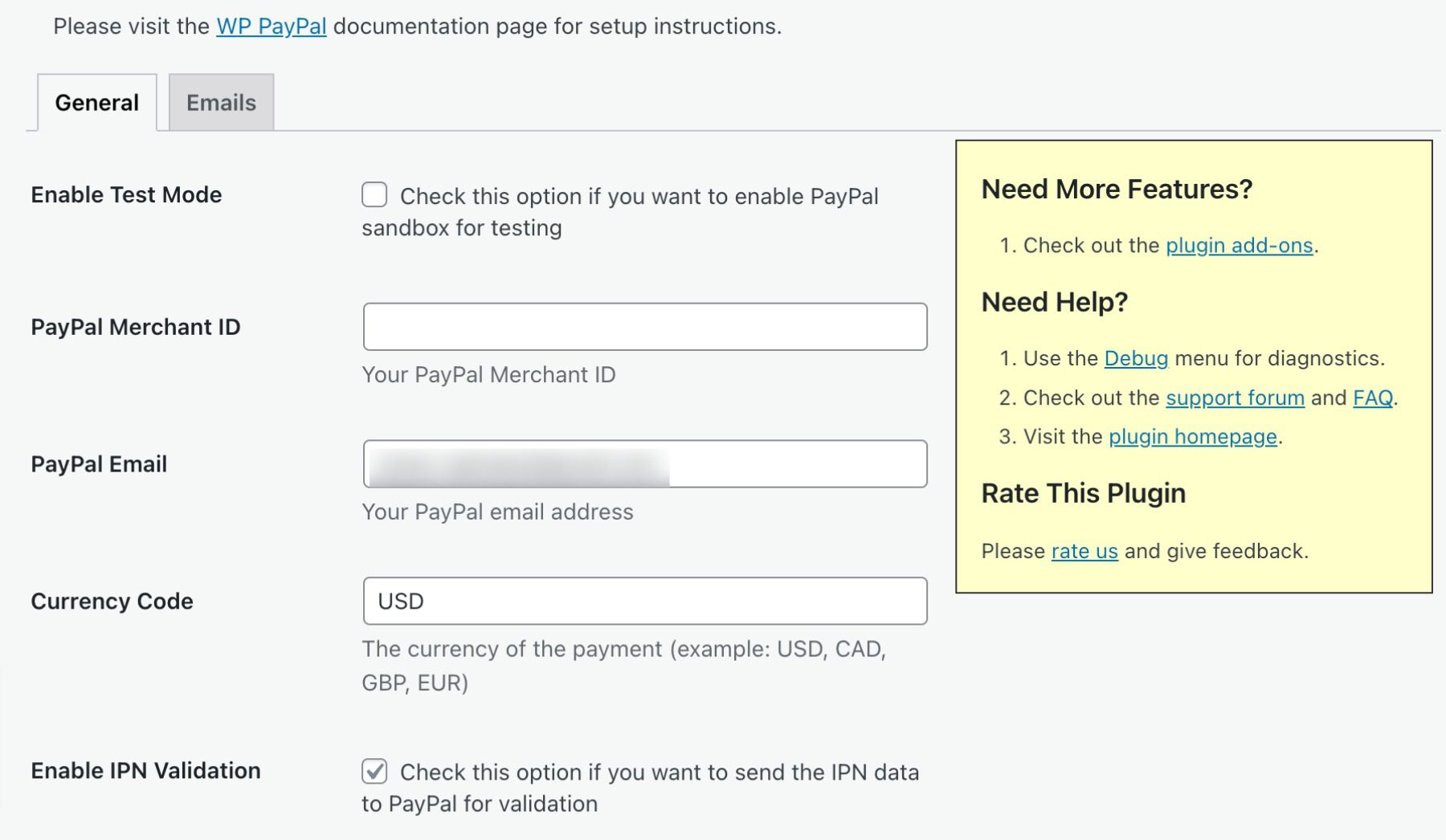
    Blubrry is a podcast-hosting platform that offers a variety of unique solutions for podcasters. It’s the best option for WordPress users. Its standout feature is the PowerPress, a popular podcast plugin that allows users to easily publish and manage their podcasts directly from their own WordPress website. You will receive a complimentary WordPress website with any Blubrry plan if you don’t have a WordPress site.

    Additionally, Blubrry offers a Podcast Media Hosting plan. This allows users to host their media files on their server while utilizing Blubrry’s advanced and IAB-certified stats.

    Key Features of Blubrry:

    • PowerPress plugin for easy publishing and management from own WordPress site
    • Podcast Media Hosting plan for hosting media files on own server
    • Advanced and IAB-certified statistics
    • Buying any Blubrry plan will get you a free WordPress website

    Blubrry website settings page

    Blubrry sets itself apart from other services by offering great features such as the PowerPress plugin, a Podcast Media Hosting plan, a WordPress website, advanced statistics, and a Podcast migration service, giving podcasters more control, flexibility, and ease of use. It should be noted that the PowerPress plugin and Podcast Media Hosting plan are separate add-ons and not included in the basic subscription plan.

    Blubrry is for you if…

    • You want to publish and manage your podcast directly from your website easily.
    • You want to host your media files on your server while using advanced statistics.
    • You want to use the PowerPress Plugin for your WordPress site.
    • You want to use Blubrry to create a website for your podcast.

    Pricing: $10 per month

    Try Blubrry

    3. Podbean (Best for Monetization)

    Podbean, a podcast hosting platform

    Podbean makes creating and editing your podcast incredibly simple. This is especially true due to its mobile integration app, which allows you to use this platform from anywhere. The platform has a drag-and-drop feature that allows users to upload and organize their episodes, add episode details and cover art, and even schedule the release of episodes.

    Key Features of Podbean:

    • Analytics and distribution tools
    • Built-in music and sound effect library
    • Mobile app
    • Monetization options, such as advertising and sponsorships

    Podbean example page

    Podbean offers several ways to monetize content; podcasters can sell ad spots, sell merchandise and even use the platform’s built-in donation feature. This platform also offers a feature called “Premium Podcasts,” which allows you to create exclusive content and charge a subscription fee for your users to gain access to it.

    Live shows feature with Podbean

    Plus, you can create live streams directly from the dashboard to engage with your audience.

    Podbean is for you if…

    • You’re looking for a comprehensive podcast-hosting platform
    • You if you want to gain insights into your audience through advanced analytics and statistics.
    • If you want to monetize your podcast through running ads, selling merchandise, and offering premium content to your audience.

    Pricing: $9 per month

    Try Podbean

    4. Libsyn (Best for Reliability)

    Libsyn for podcasting

    Libsyn is a podcast-hosting platform that has been around since 2004, making it one of the industry’s oldest and most established platforms. Over the years, it has built a strong community of podcasters, making it an excellent option for those starting in the podcasting world.

    One of the standout features of Libsyn is its unlimited bandwidth, which ensures that your podcast will not be affected even if it becomes popular and experiences a high volume of traffic. Recently, Libsyn has introduced Libsyn Studio, an addition to its platform allowing users to create and record a podcast using a computer without additional equipment.

    Key Features for Libsyn:

    • Advanced analytics and distribution tools
    • Integrations with popular podcast directories and apps
    • Customizable media player
    • Multiple hosting options and monetization options

    Libsyn podcast page

    Libsyn is an excellent choice for professional podcasters looking for advanced features and options. However, it should be noted that Libsyn only includes essential features in its plans, and everything else must be purchased as separate add-ons. For example, if you want to use the platform’s monetization features, you must pay extra on top of your subscription. Even basic statistics are not included in the lowest subscription plan.

    Libsyn is for you if…

    • You are looking for a long-standing and established podcast hosting platform with a strong community of podcasters.
    • You want the peace of mind that comes with unlimited bandwidth.
    • You want a user-friendly interface for creating and managing your podcast without extra equipment.

    Pricing: $5 per month

    Try Libsyn

    5. Simplecast (Best for Professional Podcasting)

    Simplecast, a podcasting platform

    Simplecast is a podcast hosting platform designed to help newcomers and advanced users create professional podcasts. This platform has payment plans for independent users and larger enterprises and is trusted by noteworthy companies like Kickstarter and Nike. It provides its users with responsive and optimized hosting plus unlimited storage.

    With its advanced analytics, you can track your podcast’s performance and reach a wider audience with its integrations with popular podcast directories and apps. The Recastâ„¢ tool from Simplecast is a powerful feature that allows users to easily schedule and share clips from their podcast episodes on social media. This is a great way to promote your podcast and reach a wider audience. The tool also allows you to customize your clips’ start and end times and add captions and hashtags.

    Key Features for Simplecast:

    • Advanced analytics and distribution tools
    • Integrations with popular podcast directories and apps
    • A customizable and embeddable player
    • Multiple hosting options
    • High-quality audio hosting

    Create podcast page

    Simplecast is an excellent choice for anyone looking for a professional podcast hosting platform. You can start creating your podcast branding and marketing within seconds of starting with the platform, plus it’s a relatively cheap solution for both individuals and larger companies.

    Simplecast dashboard

    Simplecast is for you if…

    • You want to collaborate with a large team on a single account
    • You want to track the performance of your podcast
    • You want enterprise pricing for your podcast

    Pricing: $15 per month

    Try Simplecast

    6. Transistor (Best for Teams)

    Transistor, a podcast hosting platform

    Transistor is a podcast hosting platform that is designed for teams and businesses. It allows you to manage multiple shows from a single account and gather data on them to grow your listener base, making it an excellent tool for creating larger-scale podcasting networks. Additionally, it provides team management and collaboration features, making it easy for multiple team members to work on a podcast. It allows users to add multiple hosts and guests to their accounts and assign different roles and permissions for each person. It’s all about collaboration with Transistor.

    It also connects with various third-party tools, including social media platforms, email marketing services, and website builders. This makes it easy for users to promote their podcasts and reach a wider audience.

    Key Features of Transistor:

    • Advanced analytics and distribution tools
    • Integrations with popular podcast directories and apps
    • Team management and collaboration features

    Transistor dashboard

    Transistor is an excellent choice for businesses and teams looking for a professional podcast hosting platform. Its advanced analytics and distribution tools, as well as team management and collaboration features, allow you to run and manage your podcast as a team effectively.

    Transistor embed example

    The platform also provides a customizable and embeddable player that can be added to any website, including those built on WordPress.

    Transistor is for you if…

    • You’re a business or team looking to run a podcast
    • You want to assign user roles to your podcast
    • Do you want to integrate your marketing efforts with social media

    Pricing: $19 per month

    Try Transistor

    7. Soundcloud (Best for Music Lovers)

    Soundcloud, a podcasting and audio platform

    Soundcloud is a popular platform for hosting and sharing music and podcasts. Its simple interface and the large community of users make it easy to upload and share your podcast with a broad audience. Users on the free plan are limited to uploading a maximum of three hours of audio per month, while the least expensive paid plan allows for twice that amount, with a cap of six hours.

    Using SoundCloud is an excellent idea because it’s one of the largest social audio platforms available, but its free plan does limit you.

    Key Features for Soundcloud:

    • A large community of users
    • Analytics and distribution tools
    • Embed player

    Soundcloud podcast player

    Soundcloud is an excellent choice for anyone looking for a popular platform to host and distribute their podcast. With over 76 million registered users and 175 million monthly active users, it offers a large audience for creators to share their work. They also have a built-in promotion feature that allows users to share their podcast easily with other Soundcloud users, which is a great way to increase the visibility of your podcast.

    Soundcloud is for you if…

    • You’re looking for a popular platform to host and distribute your podcast
    • You want to reach a broad audience
    • You want a free plan with a cap of 3 hours of audio

    Pricing: Free, Paid plans start at $16 per month

    Try Soundcloud

    8. Spreaker (Best for Audience Engagement)

    Spreaker, a podcasting platform

    Spreaker is a podcast hosting platform that offers a range of features to help you create, distribute, and monetize your podcast. It allows podcasters to interact with their audience in real-time through live streaming. This can help increase engagement and build a stronger connection with listeners.

    Spreaker also provides a wide variety of music and sound effects that can be used to enhance the production value of a podcast. Like the other solutions on the list, it has a customizable and embeddable player that can integrate with any website, including WordPress ones.

    Key Features for Speaker:

    • Built-in music and sound effect library
    • Live streaming
    • Integration. with popular apps and directories (Apple, Spotify, etc.)
    • Monetization options, such as merchandise sales and donations

    Spreaker page

    This platform is an excellent choice for anyone looking for a comprehensive podcast hosting platform. It integrates with popular podcasting apps and directories, such as Apple Podcasts, Spotify, and Google Podcasts, to help increase the visibility and reach of a podcast.

    Spreaker is for you if…

    • You’re looking for a comprehensive podcast-hosting platform
    • You want to use the app to record and mix your podcast
    • You want to monetize your podcast

    Pricing: $12 per month

    Get Spreaker

    9. Acast

    ACast, the Creator's podcast hosting platform

    Acast is a relatively new podcast hosting company making waves, especially in digital content creation. With a focus on monetization, Acast provides both the tools to create, edit and distribute your podcast and the ability to monetize it. With Acast, you get free access to Podcastle, a browser-based podcast editor. Acast also provides tools to promote your podcast across social media, making it easy to transform your episodes into video content. Acast’s insights are also an area where this podcast hosting company excels. Not only can you see stats for your podcast across platforms, but you can also track your monetization and advertising efforts. To monetize your podcast to the next level, consider using Acast as your podcast hosting company.

    Key Features:

    • Distribution to 100s of podcast listening apps, including Apple Podcasts, Spotify, Amazon Music, and more
    • Multiple monetization options, including advertising, sponsorships, and member subscriptions
    • Native audio-to-video converter to share your podcast on social media and beyond
    • Deep analytics and insights for growing your audience, podcast revenue, and more
    • Customizable web player

    Acast website builder platform

    An exciting feature of Acast is its native website builder. You can change the color, add your Facebook Pixel, connect your social media accounts, and more. Add comments from Disqus or Facebook and include links to your other podcast platforms from one simple interface.

    Acast website builder frontend

    Have all your latest episodes listed in a simple format that gets updated every time you upload a new podcast episode. You can also add an About page to share more about your podcast with your listeners.

    Acast is for you if…

    • You are a creator who wants to have a platform that supports
    • Want deep monetization options and analytics
    • You already have a podcast following and want to move to another platform easily

    Pricing: Free, Paid plans start at $14.99 per month

    Try Acast

    10. Streamyard

    Streamyard, live streaming, podcast, and more

    Streamyard is more than just a podcast hosting platform. With Streamyard, you can live stream, create video podcasts and record your podcasts remotely. Unlike other platforms that focus on only audio podcasting, Streamyard wants to give you the ability to add video to your listeners’ podcasting experience. It prides itself in being able to add up to 10 guests from anywhere in the world, to join each recording session. Streamyard also allows you to edit your audio files for each guest if you upload your audio podcast to other platforms. If you’re looking to host live-streamed podcasting recordings, you have a variety of places to stream your podcasts, like Twitch, Twitter, and Facebook, to name a few. If you’d only like to have Streamyard handle the audio aspect of your podcast, it comes with adequate tools to enable you to be still able to edit

    Key Features:

    • Live streaming functionality with branding and engagement capabilities
    •  Create video and audio podcasts from one convenient location
    • Add logos, lower thirds, and green screens to your visual podcasts
    • Stream pre-recorded clips and download recordings for external editing
    • Interact with listeners and viewers, showcase comments on screen

    Streamyard destinations

    Streamyard sticks out from other platforms on our list because the platform takes video very seriously. While it is a decent audio recorder and editor, you can also live stream your podcast recording to multiple destinations across the web.

    The Streamyard recording studio

    The Streamyard studio allows you to add guests, banners, and logos and allow for listener interaction. For a fully immersive podcast experience, Streamyard beautifully combines video, audio, and live streaming capabilities to your podcast.

    Streamyard is for you if…

    • You want to build a video podcast, use Streamyard.
    • You want to quickly interview guests worldwide, no matter their internet connection, consider Streamyard.
    • You want to add live streaming to your viewers and listeners’ podcast experience.

    Pricing: Free, Paid plans start at $25 per month

    Try Streamyard

    Podcast Hosting Platforms Price Comparison

    With our top picks listed, let’s look at how each stacks up to each other in terms of price. You may be surprised to know that some of them come with free versions or trials, helping you to start your podcast today for little investment:

    Plugin Price Free Option
    🥇 Buzzsprout $12/mth ✔️ Visit
    🥈 Blubrry $10/mth ❌ Visit
    🥉 Podbean $9/mth ❌ Visit
    4 Libsyn $5/mth ✔️ Visit
    5 Simplecast $15/mth ❌ Visit
    6 Transistor $19/mth ❌ Visit
    7 Soundcloud $16/mth ✔️ Visit
    8 Spreaker $12/mth ❌ Visit
    9 Acast $14.99/mth ✔️ Visit
    10 Streamyard $25/mth ✔️ Visit

    What are the Best Podcast Hosting Platforms?

    Regarding the best podcast hosting platforms, we believe all the ones we’ve put on our list will help you with your podcast. For our overall best pick, choose Buzzsprout. WordPress users or bloggers with podcasts can get good use out of Blubrry’s WordPress plugin, making adding your podcast episodes to your blog easy. Lastly, for the user focused on making money with their podcast, choose Podbean as your podcast hosting platform.

    If you’re using WordPress, we’ve made an article about podcast plugins to help you find the right plugin to work with your podcast platform. Check it out today!

    Do you have any podcast hosting tips? Let us know in the comments section below!

    Featured Image via Evgeniia Sergeeva / shutterstock.com

    The post 10 Best Podcast Hosting Platforms in 2023 (For More Effective Podcasts) appeared first on Elegant Themes Blog.

  • 7 Best Cookie Plugins for WordPress in 2023 (Compared)

    When building your website, you’ll want to think about how you store your visitors’ browsing data. Because data is such a sensitive matter, some rules go along with it. Using a cookie plugin on your WordPress website can help you meet and manage the requirements effortlessly. In this post, we’ll share the 7 best cookie plugins out there, so you can easily find the plugin that best matches your needs!

    What are Cookie Plugins for WordPress?

    Cookie plugins help website owners comply with cookie laws and regulations. When a cookie plugin is enabled, it will notify visitors about the use of cookies on a website. This usually happens in the form of a banner or corner popup. This banner or popup will allow your visitor to accept or reject cookies. Cookie plugins can also track user behavior, personalize content, and perform other actions.

    Here are some benefits of using a cookie plugin on your website:

    1. Legal Compliance: Cookie plugins can ensure websites comply with these regulations (Ex: GDPR.)
    2. Improved User Experience: Cookies can provide personalized content and recommendations based on browsing history.
    3. Analytics and Insights: Cookie plugins can provide website owners insight into user behavior. This can include pages they visit, the time they spend on the site, and their actions.
    4. Customization: Many cookie plugins for WordPress offer customization options, allowing website owners to tailor the plugin’s functionality to their specific needs.

    The Best Cookie Plugins for WordPress

    Ensuring your website uses cookies properly is super important, especially considering the rules and regulations behind them. So let’s look at the best cookie plugins available in 2023.

    1. CookieYes

    CookieYes Logo Banner

    CookieYes is a WordPress plugin with over a million active users and a 5-star rating. Its primary purpose is to enable website owners to comply with GDPR, CCPA, and other privacy regulations. In addition, the plugin provides a range of customizable cookie consent banner templates, automatic cookie scanning, and support for popular cookie consent solutions.

    Key Features for CookieYes:

    • Customizable cookie consent banner templates
    • Automatic cookie scanning and categorization
    • Cookie blocker for third-party cookies
    • Cookie expiration settings
    • Support for popular cookie consent solutions

    CookieYes Cookie Banner

    Additionally, CookieYes provides website owners with a comprehensive cookie consent solution, a range of customizable consent banner templates, and support for multiple languages. In addition, you can customize the font, color, and position of the banner on your page.

    The plugin also automatically scans and categorizes cookies, making managing and controlling them easy. Additionally, website owners can set granular cookie settings and permissions to ensure compliance with all applicable regulations.

    Best For:

    CookieYes is an excellent option for customizing your cookie banner. It also allows you to choose from more than 30+ languages. With CookieYes, you get pretty good control over the cookies you collect through your website. You can also easily access a detailed cookie report and schedule monthly cookie scanning.

    Pricing: Free. Pro version starts at $100/yr.

    Get CookieYes

    2. Complianz

    Compllianz Banner ad

    Complianz is a WordPress plugin for cookie consent developed by the same company behind the popular Really Simple SSL plugin (which helps migrate WordPress sites from HTTP to HTTPS.)

    This plugin supports GDPR, CCPA, and other cookie consent regulations. Moreover, it allows visitors to apply different consent behaviors based on location, ensuring compliance and optimal user experience for each location.

    Key Features for Complianz:

    • Automatic cookie scanning and categorization
    • Customizable cookie consent banner templates
    • Granular control over cookie settings and permissions
    • Support for a wide range of privacy regulations
    • Integration with popular third-party services

    Completion bar in complainz

    My favorite feature of this plugin is its comprehensive and easy-to-use setup wizard, which guides users through ensuring privacy compliance, making it an excellent choice for those new to privacy compliance.

    Best For:

    Complianz is an excellent choice for website owners who want to provide visitors with a transparent and secure browsing experience while ensuring compliance with privacy regulations.

    Pricing: Free. Pro version starts at $49.00/yr

    Get Complainz

    3. GDPR Cookie Compliance

    GDPR Cookie Compliance

    GDPR Cookie Compliance is a widely used cookie plugin available for free with the option to upgrade to a premium version offering additional features (Like most other plugins on the list.) Although named after the GDPR, the plugin is compatible with other cookie regulations, including CCPA, PIPEDA, and LGPD.

    The free version of the plugin focuses primarily on creating a cookie consent banner that can be triggered based on user actions, such as scrolling or clicking on a link. However, the premium version provides more advanced compliance management features, such as consent logs and cookie blocking until acceptance.

    Key Features for GDPR Cookie Compliance:

    • Customizable cookie consent banner
    • Blocking scripts and cookies until consent is obtained
    • Automatic cookie scanner

    GDPR Cookie Compliance

    The key feature of this plugin is its customizable cookie consent banner, which can be styled to match your website’s design and branding. The banner can be triggered based on user actions, such as scrolling or clicking on a link, and can include options for accepting or rejecting cookies.

    The plugin also provides the option to block scripts and cookies until consent is obtained, which can help ensure compliance with cookie regulations. GDPR Cookie Compliance includes an automatic cookie scanner that detects cookies on your website and generates a cookie declaration, making it easy to provide transparent information about the cookies used on your site.

    Best For:

    GDPR Cookie Compliance is best for website owners who want a simple and effective way to comply with cookie regulations. It’s particularly well-suited for small businesses and bloggers who want a lightweight solution that won’t slow down their website. For those who wish for additional features, such as lead generation tools, OptinMonster is a great choice.

    Pricing: Free. The premium version starts at $59/yr

    Get GDPR Cookie Compliance

    4. Cookie Notice & Compliance for GDPR / CCPA

    Cookie Notice & Cookie Compliance

    Cookie Notice & Compliance for GDPR / CCPA is a well-known WordPress cookie plugin with a nearly perfect 4.9-star rating from almost 2,900 reviews. The plugin is divided into two main parts, Cookie Notice and Cookie Compliance.

    First, Cookie Notice is a straightforward banner that informs website visitors about the usage of cookies on your site and allows them to provide consent in various ways. On the other hand, Cookie Compliance is a full-featured Consent Management Platform (CMP) that adheres to guidelines from more than 100 countries and offers users detailed options for managing their privacy. For instance, users can permit some cookies but block others.

    Still, Cookie Notice features are fully self-contained within the plugin, while the Cookie Compliance features require a connection to the developer’s web application. However, the plugin provides the flexibility to use only the Cookie Notice features if you prefer,

    Key Features for Cookie Notice & Compliance for GDPR / CCPA:

    • Easy to set up cookie consent banner
    • Customizable banner designs
    • Advanced consent management features
    • Supports CCPA, LGPD, PECR, and other regulations

    Cookie Notice & Cookie Compliance

    One of the standout features of Cookie Notice & Compliance for GDPR / CCPA is its advanced consent management functionality. The plugin allows website owners to block cookies until users provide consent, and it also offers options for revoking consent and managing user preferences.

    Best For:

    First, Cookie Notice & Compliance for GDPR / CCPA is best for website owners who need a comprehensive cookie compliance solution that supports multiple regulations. However, the plugin’s basic features are suitable for those looking for a free solution.

    Pricing:  Free, with premium licenses starting at $13.00/yr.

    Get Cookie Notice and Compliance For GDPR / CCPA

    5. Iubenda

    Iubenda

    Iubenda is an all-in-one solution that streamlines compliance for your website by providing cookie consent banners and notices, as well as privacy and cookie policy pages. In addition, it allows you to create terms and conditions pages.

    The main aim of this plugin is to simplify the process of ensuring your website complies with different regulations, including the GDPR, the ePrivacy directive, the LGPD, the CCPA, and more.

    Key Features for Iubenda:

    • Privacy and cookie policy generator
    • Legal guidance and support for compliance with data protection laws
    • Customizable cookie consent banner
    • Policy update management and tracking

    Iubenda Cookie settings

    To begin, regarding cookie consent, Iubenda enables you to customize your cookie banner fully. For example, you can adjust its location, design and include your logo. Additionally, Iubenda empowers users to choose what data they want to share, providing you with more opportunities for obtaining user consent.

    The plugin also allows you to determine the duration of cookies and block third-party scripts for services such as Facebook and Google Analytics.

    Best For:

    Iubenda is best for website owners who want an all-in-one compliance solution that covers not only cookie consent but also privacy policy, terms and conditions, and more.

    Pricing: Free. The pro version starts at $29/year

    Get Iubenda

    6. WP AutoTerms

    WP Auto Terms plugin

    As a free plugin for WordPress, WP AutoTerms offers a straightforward method to generate essential legal pages, including privacy policies, terms of service, and cookie consent pages. Boasting over 100,000 active installations and a solid 5-star rating on WordPress.org, this plugin has gained popularity among website owners.

    Moreover, WP AutoTerms is regularly updated, ensuring website owners can stay up-to-date with the latest legal requirements. The plugin offers a range of templates and layouts, and customization options to tailor the legal pages to your website’s specific needs. Additionally, WP AutoTerms supports multiple languages, making it an excellent choice for website owners with a global audience.

    Key Features for WP AutoTerms:

    • Generates privacy policy, terms and conditions, and cookie policy pages with just a few clicks.
    • Automatically updates policies when laws and regulations change, ensuring your website stays compliant.
    • Customizable policy templates to match the look and feel of your website.

    WP Auto Terms plugin

    First and foremost, WP AutoTerms allows users to generate legal policies specific to their website needs. In addition, the plugin keeps up-to-date with legal changes and updates policies accordingly, ensuring that websites remain compliant with relevant laws and regulations.

    Best For:

    WP AutoTerms is best for website owners who need legally compliant policies without navigating the complexities of legal language and regulation. In addition, it is an excellent fit for those who want to automate the process of generating privacy policies and other legal documents for their websites.

    Pricing: Free. The premium version is $39/lifetime

    Get WP AutoTerms

    7. MonsterInsights

    MonsterInsights banner ad

    MonsterInsights is a popular WordPress plugin providing comprehensive tracking and analytics capabilities for website owners. But besides that, it also offers an add-on focused on EU compliance. Enabling this add-on will help you make your Google Analytics compliant with GDPR.

    The add-on will, for instance, allow you to anonymize IP addresses and limit demographic collection. It’s important to mention that to use this add-on, you must connect it to a Cookie plugin. Amongst other cookie plugins, MonsterInsight integrates with the following plugins that are mentioned in this post:

    Key Features for the EU Compliance Add-on MonsterInsights:

    • Quick and easy setup.
    • Fully compliant with EU regulations and guidelines for cookies.
    • Integrates with popular cookie consent plugins.
    • Easy option to integrate Google Analytics in a GDPR-compliant way.

    MonsterInights EU Compliance addon

    MonsterInsights Google Analytics plugin that gives website owners easy access to their traffic stats. You’ll be able to view all the data you need in your WordPress dashboard without worrying about EU regulations.

    Best For:

    MonsterInsights is perfect for website owners who want to use Google Analytics in a GDPR-compliant manner and get access to Google Analytics stats in their WordPress dashboard. To use this plugin on your website, you will need an additional Cookie plugin, such as CookieYes.

    Pricing: Free, Pro version starts at $99.50/yr

    Get MonsterInsights

    Which One is The Best Cookie Plugin?

    Plugin Price Free Option
    🥇 CookieYes $100.00 per year ✔️ Visit
    🥈 Complianz $49.00 per year ✔️ Visit
    🥉 GDPR Cookie Compliance $59.00 per year ✔️ Visit
    4 Cookie Notice and Compliance For GDPR / CCPA $13.00 per year ✔️ Visit
    5 Iubenda $29.00 per year ✔️ Visit
    6 WP AutoTerms $39.00 for lifetime license ✔️ Visit
    7 MonsterInsights $99.50/yr ✔️ Visit

    What is the Best Cookie Plugin For WordPress?

    Adding a cookie plugin to your WordPress website is essential for complying with privacy regulations and providing a transparent user experience. After evaluating the plugins available, we recommend CookieYes and Complianz as our top choices.

    Regardless of which plugin you choose, it’s essential to prioritize transparency and user privacy when implementing cookies on your website. While CookieYes offers a comprehensive solution for cookie compliance with customizable cookie banners and consent management, MonsterInsights provides an add-on focusing on GDPR compliance.

    When choosing a cookie plugin, it’s crucial to prioritize transparency and user privacy above all else. Always ensure your website visitors know the cookies used and provide them with options to manage their preferences. And as a final note: remember to regularly review your website’s cookie usage and update your cookie policy accordingly to comply with any changes in privacy regulations.

    Frequently Asked Questions (FAQs)

    Before we wrap up this post, let’s answer some of your most common questions about WordPress cookie plugins. Do you have a question that we missed? Leave a comment below, and we’ll reply.

    What is cookie compliance?

    Cookie compliance refers to ensuring that websites use cookies in a way that aligns with applicable privacy laws and regulations, such as the EU General Data Protection Regulation (GDPR) and the California Consumer Privacy Act (CCPA).

    Does WordPress use cookies?

    WordPress uses cookies to facilitate basic functionality such as logging in, commenting, and remembering your interface preferences. WordPress plugins and Themes may also use cookies for a variety of purposes.

    Which WordPress plugins use cookies?

    Many WordPress plugins use cookies to track user behavior and store their preferences. WooCommerce, for example, uses cookies to remember which items a user has stored in their cart (among other things). Third party scripts added to WordPress, such as Google Analytics and ad retargeting scripts will also use cookies.

    Is WordPress GDPR compliant?

    Yes, the foundation of WordPress is GDPR compliant. However, that changes as soon as you start installing themes and plugins, which may use cookies or track users in a variety of ways. A cookie consent plugin is required to ensure compliance on most WordPress websites.

    What is the best WordPress cookie plugin?

    CookieYes and Complianz are the two best options when picking a WordPress cookie plugin. They give website owners everything they need to comply with cookie regulations.

    What is the best free WordPress cookie plugin?

    CookieYes and Complianz are two of the best WordPress cookie plugins, and they both have free versions that you can try without spending a penny. The free version of CookieYes has over 1 million active installs and a rating of 5 stars on WordPress.org.

    How do you create a cookie notice without a WordPress plugin?

    It’s not practical (or even possible, in most cases) to create a valid cookie notice on a WordPress website without using a cookie plugin. That’s because a valid cookie notice needs to not only inform your visitors about cookies, but alow allow them to control which cookies they consent to.

    Does my WordPress site need a cookie policy?

    If your website uses cookies, it should have a cookie policy. A cookie policy outlines how your website uses cookies, what information is collected, and how it is used. Complying with certain privacy laws and regulations requires a cookie policy.

    Need more plugins? Check out our article featuring the best WordPress plugins.

    Featured Image via Aygun Ali / shutterstock.com

    The post 7 Best Cookie Plugins for WordPress in 2023 (Compared) appeared first on Elegant Themes Blog.

  • 8 Best WordPress Community Plugins in 2023 (Compared)

    Community plugins are great tools for fostering online communities on your WordPress website. They are great for those that want to include membership management, social networking, forums, and other features to enhance user interaction on their website.

    In this post, we’ll look at the best community plugins for WordPress, so you can quickly build a community on your next website!

    What are Community Plugins for WordPress?

    Community plugins are WordPress plugins that add functionality to your site, allowing users to communicate and interact with you or each other in various ways. For example, you could use a community plugin to add a forum to you where users can upvote comments and earn points. Or you can have a localized social networking experience for users with their own profile pages and more.

    There are many types of plugins that one could use to build communities, including:

    With the right plugin(s), you can build an online community on your website in pretty much any way you want. You can even make your community more exclusive by offering paid memberships to access premium content.

    WordPress can already post comments on pages or posts, which is a good start. But if you want a community website, you’ll need additional features from community plugins.

    The Best Community Plugins for WordPress

    Let’s explore the best community plugins for WordPress that can help you build and manage online communities.

    1. MemberPress

    MemberPress

    MemberPress is a powerful membership plugin with built-in features for building an online community for your site. It integrates seamlessly with bbPress and allows you to add premium community forums to your site. You can even offer VIP community access for an extra cost.

    With access to analytics and reports, you can use the data you receive from user engagement as a great marketing tool to grow your business.

    Key Features for MemberPress:

    • Simple membership setup wizard
    • Content dripping and access control
    • Affiliate program integration
    • Content Restriction for members only access
    • Built-in reporting and analytics
    • Course Creator
    • Seamless integration with Divi

    MemberPress add new group page

    You can add a members-only area to your site that allows you to share restricted content with community members. This is a great place to add any exclusive (or paid) content you only want the community to have access to. You could even make your community forum exclusive as well.

    The MemberPress Divi Add-On integration benefits Divi users by allowing them to restrict modules, rows, sections, or pages within Divi using the MemberPress tab in the Visual Builder.

    Best For:

    MemberPress is best for businesses and websites that want to create and manage memberships and subscriptions for monetization.

    Pricing: MemberPress pricing starts at $179.50 per year for the Basic plan

    Get MemberPress

    2. Paid Memberships Pro

    Paid Membership Pro Logo Banner

    Paid Membership Pro is a flexible membership plugin for WordPress with community-building features. Users can create their own profiles and profile pages. And you can create members-only directories so users can find and interact with other members. It integrates with plugins like bbPress and BuddyPress to create a social community within your membership site.

    Key Features for Paid Memberships Pro:

    • Unlimited membership levels and pricing options
    • Front-end user profile creation
    • User profile pages and member directory
    • Content dripping and restricted content options
    • Integrations with BuddyPress, BuddyBoss, and bbPress
    • Built-in payment gateways
    • Recurring payments and subscriptions
    • Admin reports and analytics for sales, visits, signups, and more

    Best For:

    Paid Memberships Pro is best for those wanting a freemium membership plugin that can scale with your needs, especially if you’re interested in creating multiple membership tiers. Its customization options make it an excellent fit for those who want more hands-on customization options.

    Pricing: Free. The pro version starts at $247/yr.

    Get Paid Membership Pro

    3. ProfileGrid

    ProfileGrid banner

    ProfileGrid is a powerful all-in-one community plugin for WordPress packed with features. Users can create fantastic profile pages using templates, customize each section, and include custom profile tabs. The profile pages resemble the layout and functionality of Facebook so that visitors can view a user’s about area, friends, photos, and more. Premium add-ons introduce group functionality WooCommerce integration, menu restrictions, and more.

    Key Features for ProfileGrid:

    • Create custom user profiles
    • Build online communities
    • Customize profile fields and data
    • Follow users and create new friends
    • Users can add recent blog posts and Wall Posts
    • Users receive notifications of friend and group activity
    • Built-in user control for privacy and content restriction
    • Use block editor for content restriction elements

    Profile Grid group

    One of the unique features of the plugin is user groups. You can create groups for users to join, and users can chat with each other using a private messaging system.

    Best For:

    Profile Grid is best for those who want to build a robust member director or community website with social network-type features, including the unique ability to create and join groups. It is excellent for beginners because it has many features in a free version.

    Pricing:  Free, with premium licenses starting at $79.00/yr.

    Get ProfileGrid

    4. bbPress

    bbpress forum and community plugin

    bbPress is one of the most popular forum plugins for WordPress. Adding a powerful discussion board to your site makes it easy to grow your community. Built by the creators of WordPress, this plugin is well-supported and often integrated with other themes and plugins for more advanced forum functionality.

    It integrates with membership plugins like MemberPress and Paid Memberships Pro to easily add a forum to your membership site. It also integrates with Lifter LMS to create a community forum for your online course.

    Key Features for bbPress:

    • The option to create forums for multiple sites
    • The ability to customize forum templates
    • Built-in spam protection for forums using Akismet
    • Fast and lightweight, following WordPress standards
    • Compatibility with various free third-party plugins to extend the functionality
    • Users can subscribe to topics and specific forums for notifications

    bbPress forum page

    With bbPress, you can create public or private forums and place them anywhere on your site. And you can easily create unlimited forums and topics and manage replies on the backend.

    Best For:

    bbPress is best for beginners looking to add high-quality forum functionality to their site for free. It won’t have more advanced features or styling options, but it will do the job.

    Pricing: Free

    Get bbPress

    5. BuddyPress

    BuddyPress WordPress Community Plugin

    BuddyPress is a popular community plugin for WordPress that allows you to create a social network on your website. Like bbPress, it is created by the WordPress team and can be extended with many third-party themes and plugins.

    The design is basic, but the functionality and features are hard to beat for a free plugin. You can create user profiles with built-in functionality for friends, groups, messaging, and more.

    Key Features for BuddyPress:

    • Customizable user profiles with profile fields
    • Activity streams for tracking user interactions
    • Personal and group messaging
    • Admins can create custom profile fields
    • Users can control profile visibility

    BuddyPress Personal Profile and Friend Requests

    One of the most significant benefits of BuddyPress is its flexibility. It can work with any WordPress theme to transform your website into a social network.

    Best For:

    BuddyPress is an excellent choice for sites that want to provide a platform for their users to interact and engage with each other.

    Pricing: Free.

    Get BuddyPress

    6. Ultimate Member

    Ultimate Member WordPress membership plugin

    Ultimate Member is a freemium community plugin for WordPress that offers all the features you would need to add membership directories, user profiles, and more on your site. The free version comes with limited core features that would work for beginners. However, you’ll need to upgrade to premium to access 30+ add-ons to get functionality for followers, friends, private messages, and more.

    Plus, it integrates with other plugins, such as WooCommerce, to create a WooCommerce membership site.

    Key Features for Ultimate Member:

    • Drag-and-drop form builder with conditional logic
    • Private messaging system
    • Woocommerce integration
    • Customizable user registration and login forms
    • Front-end user profiles and account management
    • Membership and subscription management

    Ultimate Member settings

    The drag-and-drop form builder is a standout feature. This makes creating unique login and registration forms for your website easy.

    Best For:

    Ultimate Member is great for those who want to create a membership directory site or add user profiles to their existing website for community building. It’s also great for those seeking more control over user registration forms.

    Pricing: Free. The pro version starts at $249 per year.

    Get Ultimate Member

    7. wpForo

    wpForo free WP Forum Plugin

    wpForo is a WordPress forum plugin that allows you to add custom discussion (or bulletin) boards to your website. The core plugin is free, but you must purchase add-ons for unique features, including private messaging, GIPHY images, and many more.

    Key Features for wpForo:

    • Responsive design that works on all devices
    • SEO-friendly URLs for better search engine rankings
    • Advanced user profile system
    • Customizable forum layouts and designs
    • Private messaging system
    • Integration with popular WordPress plugins like BuddyPress, Yoast SEO, and Akismet

    wpForo Forum Quality Sytyles and Design

    wpForo stands out among other forum plugins due to its contemporary appearance, which is why numerous users favor it. Site admins can choose from four main layout styles, and individual users can select from six styles or skins to personalize their experience, including a dark mode.

    More so, by integrating with MyCred (a top gamification plugin), you can boost your community user experience by rewarding points to users for getting likes and upvotes.

    Best For:

    wpForo is excellent for those wanting a modern-looking forum to build their community engagement and don’t mind paying for add-ons for more functionality.

    Pricing: Free.

    Get wpForo

    8. UserPro

    UserPro banner ad

    UserPro is a community plugin on the Envato Market with some impressive features for building a social network community. You can create member directories and display online members. Users can create and customize their user profile pages that other members can view and follow, similar to popular social network profile pages. You can also allow users to create blog posts that can be shared and viewed publicly and within their profile. Community members can also earn badges that will be displayed on their profile cards.

    Key Features for UserPro:

    • Customizable registration and login forms
    • User profiles with custom fields and profile photos
    • Front-end user directory with search filters and sorting options
    • Integration with popular social networks
    • Built-in user roles and permissions management
    • Content restriction for members only
    • Private messaging system

    userPro Members

    The plugin’s built-in follow system allows users to follow each other and receive notifications when someone they follow posts an update. This is great for boosting engagement within the online community.

    Best For:

    UserPro is ideal for building a fun and engaging community website with custom member directories and profiles that feel like a social network.

    Pricing: $39/lifetime

    Get UserPro

    Final Comparison

    Plugin Price Free Option
    🥇 MemberPress $179.50 per year ❌ Visit
    🥈 Paid Membership Pro $247.00 per year ✔️ Visit
    🥉 ProfileGrid $79.00 per year ✔️ Visit
    4 bbPress / ✔️ Visit
    5 BuddyPress / ✔️ Visit
    6 Ultimate Member $249.00 per year ✔️ Visit
    7 wpForo / ✔️ Visit
    8 UserPro $39.00 for lifetime ❌ Visit

    What is the Best Community Plugin For WordPress?

    Choosing the best community plugin depends on your specific needs. For those looking for the most powerful community solutions, MemberPress and Paid Membership Pro are great options. Their integration with bbPress (or BuddyPress) gives you all the powerful features of a membership site and a community site in one. To top it off, they integrate with Divi so you can design your community site with powerful no-code design options.

    Regardless of your chosen solution, engaging with your audience is always a step in the right direction.

    Need more plugins? Check out our different articles featuring the best WordPress plugins.

    Featured Image via Aygun Ali / shutterstock.com

    The post 8 Best WordPress Community Plugins in 2023 (Compared) appeared first on Elegant Themes Blog.

  • 9 Best FAQ Plugins for WordPress in 2023

    Frequently asked questions (FAQs) are a common feature used on most websites today. They provide a better user experience for visitors by allowing them to find answers about your products, services, and blog post topics without having to leave your site. FAQs can help reduce customer support inquiries for businesses, increase conversions, boost SEO, and more.

    In this article, we will share the 9 best FAQ plugins for WordPress that can help add an effective FAQ section or page to your website.

    What is a FAQ Plugin for WordPress?

    Although it is possible to add FAQ content to your site manually, it takes a lot of work, especially if you are planning on creating multiple FAQs throughout your site. Plus, they can be difficult to design, manage, and update if you are creating them from scratch. FAQ plugins allow website owners to easily create, organize, and manage FAQs without all the headaches. Some FAQ plugins will have built-in design options to help match your FAQ styles with your theme.

    FAQs Are Good for SEO

    And if you are planning on having FAQs on your site, you don’t want to miss out on the SEO benefits they can bring. Most SEO plugins make it easy to add schema markup to your FAQs. But some of the FAQ plugins below can do this automatically, which will save time and lead to better rankings and rich snippets in the SERPs.

    9 Best FAQ Plugins for WordPress in 2023

    Here are our picks for the top FAQ plugins for WordPress:

    1. Echo Knowledge Base

    Echo Knowledge Base

    Echo Knowledge Base is a popular knowledge base and FAQ plugin for WordPress. It comes with a clean and modern design that is easy to customize to fit your website’s style.

    With Echo Knowledge Base, you can create and manage FAQs with unlimited categories and articles, add images and videos, and enable comments and ratings. Instead of simply incorporating an accordion FAQ with collapsible answers onto a page, this plugin allows you to establish a complete knowledge base. Moreso, it comes with a powerful search feature that makes it easy for users to find what they are looking for.

    Key Features for Echo Knowledge Base:

    • Unlimited categories and articles
    • Customizable design
    • Searchable knowledge base
    • Comments and ratings
    • Analytics dashboard

    Echo Knowledge Base settings


    Echo Knowledge Base’s advanced search functionality makes it easy for your users to find the information they need quickly. Plus, the customizable design and layout options allow you to create a unique and branded FAQ page that fits seamlessly with your website’s design.


    Best For:

    Echo Knowledge Base is best for businesses and websites that require a comprehensive and flexible FAQ plugin. If you are looking for a simpler and more lightweight option, you may want to consider Quick and Easy FAQs.

    Pricing: Free, pro version starts at $46.00/yr

    Get Echo Knowledge Base

    2. All in One SEO (AIOSEO)

    AIOSEO plugin

    AIOSEO is a powerful all-in-one SEO plugin for WordPress that also includes an FAQ schema markup feature. This feature allows you to add frequently asked questions to your website’s pages and posts, which can improve your search engine rankings and click-through rates.

    It’s simple to use directly from the Gutenberg editor and has some customization options to help mesh with your site’s design.

    Key Features for AIOSEO:

    • FAQ schema markup for SEO
    • Customizable FAQ layout and design
    • Accordion-style display for FAQs

    AIOSEO plugin

    Naturally, the FAQ schema markup feature in AIOSEO can help improve your search engine rankings by providing Google with structured data about your content.

    Plus, the customizable layout and design options allow you to create a visually appealing and user-friendly FAQ page.

    Best For:

    AIOSEO is best for businesses and websites that prioritize search engine optimization and want a comprehensive SEO plugin that includes an FAQ feature. If you are looking for a standalone FAQ plugin, you may want to consider Ultimate FAQ.

    Pricing: Free, Pro version starts at $49.60/yr

    Get AIOSEO

    3. FAQ by 10Web

    FAQ by 10Web

    FAQ by 10Web is a user-friendly and customizable FAQ plugin that’s part of the wide array of the 10Web suit. With this plugin, you can create an unlimited number of FAQ sections and customize the layout and design to fit your website’s branding.

    Key Features for FAQ by 10Web:

    • Customizable design and layout
    • Accordion and toggle style display options
    • Responsive design for mobile devices

    FAQ by 10web

    The responsive design of FAQ by 10Web ensures that your FAQ page looks great on any device, which is important since many users access websites on their smartphones. Plus, the accordion and toggle style display options allow users to easily find and navigate through the information they need.

    Best For:

    FAQ by 10Web is best for businesses and websites that require a customizable and mobile-friendly FAQ plugin.

    Pricing: The basic bundle starts at $85.00/6 months

    Get FAQ by 10Web

    4. WordPress FAQs Plugin by HeroThemes

    Hero Themes website

    If you’re looking for a clean, modern, and responsive FAQ plugin for your WordPress site, then the WordPress FAQs Plugin by HeroThemes is worth considering. This plugin allows you to create a fully customizable and easy-to-navigate FAQ section that can be displayed on any page of your site.

    It offers accordion and toggle style display options, search and filter functionality, and image embeds.

    Key Features for WordPress FAQs Plugin by HeroThemes:

    • Customizable design and layout
    • Accordion and toggle style display options
    • Search and filter functionality
    • Image embed

    Heroic FAQ

    The WordPress FAQs Plugin by HeroThemes comes with a variety of customizable styles and layouts to help you create an FAQ section that fits perfectly with the design of your website. The live search and instant answer feature also make it easy for visitors to find the information they need quickly and efficiently.

    In addition, the plugin offers accordion and list view options, as well as the ability to create multiple categories and tags for your FAQs. This means that you can organize your content in a way that makes sense to your visitors and makes it easy to find the answers they need.

    Best For:

    This plugin is best for businesses or individuals looking for a customizable, modern, and responsive FAQ plugin that is easy to use and comes with multiple display options.

    Pricing:  $149/yr

    Get Hero Themes

    5. FAQ Divi Module by Divi Pixel

    FAQ Divi Module

    If you’re using the popular Divi theme on your WordPress website, you can use the FAQ Divi Module that’s part of Divi Pixel to create and manage FAQs. This plugin comes with several customization options, allowing you to create custom FAQ pages that match your website’s branding.

    Key Features for FAQ Divi Module:

    • Create and manage FAQs using the Divi Builder
    • Customize the look and feel of your FAQs
    • Add images and videos to your FAQs
    • Optimize your FAQs for search engines

    FAQ Module

    The FAQ Divi Module is an excellent choice for those who use the Divi theme on their website. Its customizability allows you to match the design of your FAQ section with your website’s overall look and feel, making it more visually appealing to your visitors.

    Additionally, the plugin’s ease of use and responsive design ensures that your FAQs will be easy to navigate on any device.

    Best For:

    The FAQ Divi Module is best for those who use the Divi theme on their website and want to create a beautiful and functional FAQ section quickly and easily.

    Pricing: $169.00/year

    Get Divi Pixel

    6. Ultimate FAQ

    Ultimate-FAQ

    Ultimate FAQ is a highly touted WordPress plugin that allows you to create and manage a responsive and stylish FAQ section for your website. It comes with a drag-and-drop interface that lets you easily create, organize, and reorder your FAQs.

    Key Features for Ultimate FAQ:

    • Responsive Design
    • Drag-and-Drop Interface
    • Customizable FAQ Layouts
    • FAQ Categories and Tags
    • Accordion and Toggle Styles
    • Shortcodes and Widgets
    • SEO-Friendly FAQs

    FAQ catergories page

    One of the standout features of Ultimate FAQ is its ability to create categories and tags for your FAQs. This makes it easy for users to browse through your FAQs and find the answers they need quickly.

    The plugin also offers accordion and toggle styles, which allow you to show or hide the answer to a question with a simple click. Plus, with its shortcodes and widgets, you can easily add your FAQs to any page or post on your website.

    Best For:

    Ultimate FAQ is best for businesses and websites that want a customizable, responsive, and SEO-friendly FAQ section for their website. If you’re looking for a plugin that offers a variety of styles and layouts to choose from, then Ultimate FAQ is a great option.

    Pricing: Free. Pro version costs $67/lifetime

    Get Ultimate FAQ

    7. Ultimate Blocks

    Ultimate faq banner

    Ultimate Blocks is a free blocks plugin for WordPress that comes with a ton of useful blocks, including an FAQ block. The plugin is designed to work directly with the Gutenberg editor and allows you to easily create and customize content blocks for your website.

    Key Features for Ultimate Blocks:

    • Free Plugin
    • 15+ blocks, including the FAQ block
    • Customizable FAQ Styles
    • Simple solution

    Ultimate Blocks example

    Ultimate Blocks provides a collection of useful blocks, including the FAQ block, which allows you to create a stylish and functional FAQ section.

    Moreso, the customizable design and templates make it easy to match your website’s look and feel. The plugin is responsive and mobile-friendly, ensuring that your FAQs look great on any device. The compatibility with most WordPress themes is also a plus.

    Best For:

    Ultimate Blocks is a great choice for those who want a lot of block options and flexibility in their design. It’s ideal for bloggers, content creators, and website owners who use Gutenberg as their default editor.

    Pricing: Free

    Get Ultimate Blocks

    8. Easy Accordion

    Easy Accordion

    Easy Accordion is another great WordPress plugin for creating FAQs on your website. It allows you to create a simple, elegant accordion-style FAQ section that users can expand or collapse to find the information they need.

    The plugin also includes options for customization, so you can tailor the look and feel of your FAQs to fit your website’s design.

    Key Features for Easy Accordion:

    • Easy to use and setup
    • Drag and drop builder to create FAQ accordions
    • Customizable color schemes and designs

    Easy accordion settings page

    The drag-and-drop builder in Easy Accordion makes it simple to create and customize your FAQ accordions. Also, with the ability to customize the color schemes and designs, you can ensure that your FAQ section fits seamlessly with the rest of your website’s design.

    Best For:

    Easy Accordion is a great option for those who want a simple and easy-to-use plugin for creating accordion-style FAQs.

    Pricing:  Free, pro version starts at $29/yr

    Get Easy Accordion

    9. Quick and Easy FAQs

    Quick and Easy FAQ logo

    Quick and Easy FAQs is a simple plugin for adding FAQs to your website. It includes a shortcode that you can use to easily display your FAQs on any page or post. The plugin also includes options for customization, although they aren’t as comprehensive as some of the other options available.

    Key Features for Quick and Easy FAQs:

    • Easy to use and setup
    • Shortcode for displaying FAQs on any page or post
    • Customizable colors and fonts

    Quick and Easy FAQ settings

    The shortcode in Quick and Easy FAQs makes it simple to add your FAQs to any page or post on your website. With customizable colors and fonts, you can ensure that your FAQs section fits seamlessly with the rest of your website’s design.

    Best For:

    Quick and Easy FAQs is a great option for those who want a simple and easy-to-use plugin for adding FAQs to their website. If you’re looking for a more advanced plugin with more features, Echo Knowledge Base might be a better option.

    Pricing: Free

    Get Quick and Easy FAQs

    What is the Best FAQ Plugin For WordPress?

    Plugin Price Free Option
    🥇 Echo Knowledge Base $46.00 per year ✔️ Visit
    🥈 AIOSEO $49.60 per year ✔️ Visit
    🥉 10Web $85.50 per six months ❌ Visit
    4 FAQ by Hero Themes $149.00 per year ❌ Visit
    5 Divi Pixel $169.00 per year ❌ Visit
    6 Ultimate FAQs $67.00 for lifetime license ✔️ Visit
    7 Ultimate Blocks Free ✔️ Visit
    8 Easy Accordion $29.00 per year ✔️ Visit
    9 Quick and Easy FAQ Free ✔️ Visit

    There are many FAQ plugins out there that will help you create a user-friendly FAQ page or area on your website. From the list we’ve gone through in this post, we can conclude that Echo Knowledge Base is the best and most-customizable option out there. Alternatively, FAQ by 10Web is also a great option if you’re looking for a toggle-style layout.

    Need more plugins? Check out our article featuring the best WordPress podcast plugins.

    Featured Image via Andrew Krasovitckii/ shutterstock.com

    The post 9 Best FAQ Plugins for WordPress in 2023 appeared first on Elegant Themes Blog.

  • 10 Best WordPress Lead Generation Plugins in 2023

    As companies shift toward the online space, the importance of lead generation cannot be overstated. And given that WordPress is among the most commonly used CMS for businesses, it follows that there are a ton of choices for lead generation plugins.

    In this post, we’ll provide an in-depth review of some of the best WordPress lead generation plugins that can help take your website to the next level.

    What is a Lead Generation Plugin for WordPress?

    A lead generation plugin for WordPress is a tool that helps users capture leads by gaining user information, such as name and email address, and turning them into potential customers.

    So, with the help of a lead generation plugin, users can create highly targeted lead capture forms that can help them convert website visitors into leads. The plugin usually offers a range of forms, including pop-ups, slide-ins, or quizzes. Businesses can also use advanced targeting and segmentation features to reach a more specific audience.

    In summary, a lead generation plugin for WordPress is a valuable tool for users that want to create leads and grow their business. It can help businesses create highly targeted lead capture forms that can help them convert website visitors into leads and increase their revenue.

    8 Best Lead Generation Plugins for WordPress in 2023

    With a vast array of lead generation plugins available for WordPress, it can be difficult to decide which is right for you. Here are some popular choices you’ll want to consider:

    1. FunnelKit

    FunnelKit logo

    FunnelKit is a tool designed for online marketers to create effective and high-converting sales funnels for their products or services. The tool offers a range of features, such as drag-and-drop page builders, customizable templates, split testing, and analytics to help users optimize their sales funnels for maximum leads.

    With FunnelKit’s integration with Divi, users can create customized sales funnels using the Divi page builder and then optimize them for lead generation using FunnelKit’s features. Users can create landing pages and squeeze pages, for lead generation and then use FunnelKit’s split testing to improve their performance.

    Key Features for FunnelKit:

    • Drag-and-drop page builder
    • Customizable templates
    • Split testing
    • Analytics and tracking

    FunnelKit Dashboard

    Moreover, FunnelKit’s analytics and tracking provide users with a valuable look into the effectiveness of their efforts. By tracking their progress and monitoring page performance over time, users can identify areas for improvement and make data-driven decisions to optimize their strategies.

    Additionally, FunnelKit enables users to see how their pages are performing in real-time, giving them the ability to make quick changes to improve their conversion rates.

    Best For:

    FunnelKit is best for those looking to create effective sales funnels for their products or services. It’s also great for those who want to track their progress with their funnels and adjust for maximum conversions.

    Pricing: Free, Pro version starts at $99.50/yr

    Get FunnelKit

    2. RafflePress

    RafflePress WordPress Giveaway Marketing Plugin

    RafflePress is a powerful WordPress plugin designed to help website owners run successful giveaways and contests. It is an ideal tool for building excitement around your brand, connecting with your audience, and generating leads.

    Moreover, RafflePress’s drag-and-drop giveaway builder makes it easy to create stunning giveaways and contests without any coding knowledge. Plus, users can choose from a variety of templates, customize their designs, and add entry options that align with their goals.

    Key Features for RafflePress:

    • Mobile friendly
    • Contest fraud protection
    • Drag-and-drop contest builder
    • Social media integrations
    • Email marketing integrations
    • Advanced tracking

    RafflePress dashboard

    Also, RafflePress integrates with email platforms like Mailchimp, making it easy to grow your email list and convert your contest participants into subscribers. Plus, with advanced tracking, users can monitor their contest’s performance in real-time and optimize their strategies for maximum results.

    Best For:

    RafflePress is ideal for website owners looking to build their email lists, engage with their audience, and drive traffic to their sites. Its simple UI, social media integrations, and email marketing make it a top choice for anyone looking to run successful online contests.

    However, if you are looking for a lead generation plugin with a focus on building sales funnels, FunnelKit may be a better fit.

    Pricing: Free. The pro version starts at $79.00/yr

    Get RafflePress

    3. AffiliateWP

    AffiliateWP Homepage Jan. 2023

    AffliateWP is a fantastic lead generation plugin that is perfect for websites that want to leverage the power of affiliate marketing to increase sales and garner more leads.

    This plugin allows users to easily create and manage affiliate programs on their WordPress website, making it easy for affiliates to promote and sell their products.

    Key Features for AffiliateWP:

    • Robust tracking
    • Customization options
    • Automated affiliate registration
    • Email notifications
    • Payout logs

    AffiliateWP UI Screen Shot

    One of the best features of AffiliateWP is its tracking capabilities, which enable users to monitor and manage affiliate marketing campaigns. This feature ensures that users can easily track referrals and commission payments to their affiliates, helping their marketing efforts and generating more revenue.

    In addition, AffiliateWP offers a nice range of customization options, allowing businesses to tailor their affiliate program to their specific needs. This feature makes it easy to create a personalized affiliate program that aligns with a business’s unique branding and messaging.

    But wait, there’s more! AffiliateWP also provides users with a range of tools to help manage their affiliates, including automated affiliate registration, email notifications, and payout logs.

    Best For:

    AffiliateWP is best for businesses that want to harness the power of affiliate marketing to generate more leads and increase sales.

    Pricing: $149.50/year

    Get AffiliateWP

    4. Thrive Leads

    Thrive Leads

    Thrive Leads is another great option for a lead generation plugin for WordPress. It allows you to create and customize various types of opt-in forms to help grow your email list and increase conversions.

    First, you have access to a wide range of form types, including pop-ups, sticky ribbons, in-content forms, slide-ins, and more. You can customize each form with a simple drag-and-drop editor, choosing from a range of templates and designs to create a form that matches your website’s branding.

    Key Features for Thrive Leads:

    • Multiple form types
    • A/B testing
    • Advanced targeting options
    • Email marketing integration
    • Analytics reports

    Thrive Leads builder

    Thrive Leads’ conversion-focused form templates make it easy for users to create professional-looking forms that encourage visitors to subscribe to their email lists. The A/B testing feature allows users to test different form designs, and offers to determine which ones perform best.

    Another cool feature is the advanced targeting options available, allowing users to show their forms to specific visitors based on factors like their location, behavior on the website, and more.

    Best For:

    Thrive Leads is best suited for website owners who are serious about growing their email list and improving their website’s conversion rates.

    Pricing: $299/yr

    Get Thrive Leads

    5. Quiz and Survey Master

    Quiz and Survey Master Banner

    Quiz And Survey Master is a highly-rated WordPress plugin designed to help users create engaging quizzes and surveys that can help create leads and engage their audience. Moreover, it’s incredibly easy to use and comes with a ton of question types that can easily be incorporated into any website.

    Key Features for Quiz and Survey Master:

    • Customizable quiz and survey options
    • Conditional logic for quizzes and surveys
    • Integration with popular email marketing tools

    To begin, Quiz and Survey Master enables users to create quizzes to gather valuable insights into their audience’s preferences. Furthermore, this plugin offers a wide range of question types, such as multiple-choice, open-ended, and true or false, making it easier for businesses to obtain relevant information.

    In addition to its survey and quiz creation features, Quiz and Survey Master offers businesses the ability to customize the design of their quizzes and surveys to match their brand’s aesthetics. This is made possible through the use of pre-built themes or the drag-and-drop builder that comes with the plugin.

    Best For:

    Quiz and Survey Master is best suited for users that want to engage their audience and generate leads through quizzes and surveys. However, for users that want to focus more on pop-ups and opt-in forms, OptinMonster and Thrive Leads are great alternatives.

    Pricing:  Free, with premium licenses starting at $129.00/yr.

    Get Quiz and Survey Master

    6. Tidio

    Tidio logo

    Tidio is a great live chat plugin that can be an effective tool for generating leads and growing your WordPress business. In addition to a chatbot, Tidio also offers email marketing services to help users convert help chats into potential sales opportunities.

    Key Features of Tidio:

    • Chatbox widget
    • Tools for email marketing
    • View a list of the pages that users have viewed

    Tidio's customizable chat widget

    To further support branding efforts, the plugin offers a range of customization options for the chat windows. Additionally, it supports over 200 languages, allowing users to communicate with a global audience.

    Plus, integrated email marketing allows users to follow up with users who have left the website, giving you an opportunity to further nurture leads and guide them toward conversion.

    Best For:

    Tidio is an excellent choice for users seeking leads through live chat and email marketing. Notably, it offers several customization options to match chat windows to your brand, and it supports over 200 languages out of the box, making it an ideal solution for reaching a global audience.

    Pricing: Free. The pro version starts at $15.83/per year

    Get Tidio

    7. Bloom

    Bloom banner

    Bloom is an intuitive WordPress email list-building plugin that enables users to create opt-in forms and pop-ups effortlessly to collect email addresses and expand their email lists for lead generation. The plugin provides numerous options for customization and is compatible with the most popular email marketing platforms.

    Developed by Divi, it is a robust plugin that comes with a variety of features to help users create eye-catching email opt-in forms.

    Key Features for Bloom by Elegant Themes:

    • A wide range of opt-in forms and pop-ups to choose from
    • The ability to customize the design and layout of opt-in forms and pop-ups
    • Integration with popular email marketing platforms

    The template library of the Bloom plugin.

    With Bloom, users can easily create opt-in forms, including pop-ups, fly-ins, and widgets, and customize them to match their brand. The plugin also allows for targeted display settings, enabling users to show opt-in forms to specific users based on their behavior on the website.

    Also, it offers integrations with over 20 email marketing platforms, including Mailchimp, Aweber, and Constant Contact, making it easy to manage email lists and automate campaigns.

    Best For:

    Bloom is best for users looking to grow their email list and increase conversions with stunning visuals. Plus, It’s particularly useful for those who want to create highly customizable and targeted email opt-in forms.

    Pricing:  Free with Elegant Themes, starting at $89.00 per year

    Get Bloom

    8. OptinMonster

    OptinMonster banner

    OptinMonster is a robust WordPress plugin that provides the ability to create and manage email opt-in forms, pop-ups, and other campaigns to nurture lead generation.

    The form builder makes it easy to create and customize your forms, and the targeting and the A/B testing and analytics tools help you to optimize your campaigns and improve your results.

    Key Features for OptinMonster:

    • Drag-and-drop form builder
    • Powerful targeting and personalization options
    • Analytic tools to track performance

    OptinMonster settings

    Firstly, the plugin’s drag-and-drop form builder, along with its analytical tools, makes it easy to use. Additionally, OptinMonster has robust targeting and personalization options that allow you to show different messages to users based on their behavior, location, and other factors.

    Furthermore, this feature is particularly noteworthy, as it helps you to connect with your audience and make your marketing efforts more effective.

    Best For:

    OptinMonster is ideal for users that want to grow their email list and improve their conversion rates. Its powerful features and customization options make it a popular choice among marketers and website owners.

    Pricing: $9/month

    Get OptinMonster

    9. WPForms

    WPForms banner

    WPForms is an incredibly popular form-building plugin for WordPress that offers a wide range of features to its users. By using WPForms, you can create custom surveys without any difficulty and analyze them by utilizing automatically generated reports and graphs. Not only that, but you can also share these graphs on various social media platforms to gain traction.

    Moreover, despite having a ton of features, the pricing of the plugin is quite reasonable.

    Key Features for WPForms:

    • Customizable forms and surveys
    • Recover lost leads
    • Conditional logic
    • Users can upload files to forms

    Conditional Logic Forms

    Another key feature of WPForms is its integration with various third-party tools such as PayPal, Stripe, and Mailchimp, allowing users to easily accept payments, collect donations, and manage their email lists.

    Best For:

    WPForms is best for users that want to create custom forms, surveys, and questionnaires on their WordPress websites.

    Pricing: $49.50/yr

    Get WPForms

    10. Kliken WooCommerce

    WooCommerce Google Ads Marketing by Kliken

    Kliken WooCommerce is a marketing plugin specifically designed to help eCommerce businesses increase their online visibility, attract more customers, and drive sales.

    With its one-click installation and setup process, you can easily get started with Kliken’s lead-generation efforts. Additionally, the plugin integrates with popular advertising platforms such as Google, Facebook, and Instagram, enabling businesses to create and manage ads that effectively target potential customers.

    Key Features for Kliken WooCommerce:

    • One-click setup
    • Integrations with Google, Facebook, and Instagram ads
    • Dynamic retargeting
    • Automated product feed optimization
    • Real-time performance reporting

    Kliken setup page

    Moreover, Kliken WooCommerce offers dynamic retargeting, which enables businesses to target visitors who have previously shown interest in their products. By doing so, businesses can convert website visitors into customers, which results in higher sales and revenue.

    In addition, the automated product feed ensures that a business’s products are accurately represented in its advertising campaigns, saving time and eliminating errors. This feature is especially useful for businesses with large product catalogs.

    Best For:

    Kliken WooCommerce is ideal for eCommerce businesses looking to optimize their online marketing campaigns and generate more leads.

    Pricing: Free. The pro version starts at $20.00/mo

    Get Kliken WooCommerce

    Final Comparison

    Plugin Price Free Option
    🥇 FunnelKit $99.50 per year ✔️ Visit
    🥈 RafflePress $79.00 per year ✔️ Visit
    🥉 AffiliateWP $149.50 per year ❌ Visit
    4 Thrive Leads $299.00 per year ❌ Visit
    5 Quiz and Survey Master $129.00 per year ✔️ Visit
    6 Tidio $15.83 per year ✔️ Visit
    7 Bloom $89.00 per year ❌ Visit
    8 OptinMonster $9.00 per month ❌ Visit
    9 WPForms $49.50 per year ❌ Visit
    10 Kliken WooCommerce $20.00 per month ✔️ Visit

    What is the Best Lead Generation Plugin For WordPress?

    In conclusion, choosing the best lead generation plugin for WordPress is critical for any business looking to grow its customer base. With so many options available, it can be hard to choose the right plugin that suits your needs. However, by carefully considering your goals and requirements, you can find a plugin that fits your budget and maximizes your potential leads.

    One of the most popular options is OptinMonster, which offers a wide range of features and customizations to increase your lead generation efforts.

    Alternatively, Thrive Leads is another powerful option that offers A/B testing and extensive targeting options to optimize your lead generation campaigns. It also boasts an impressive array of designs to enhance your lead generation efforts.

    Ultimately, the best lead generation plugin for WordPress depends on your specific needs and budget. By researching your options and testing different plugins, you can identify the right solution to drive your business growth and success.

    Need more plugins? Check out our article featuring the best WordPress podcast plugins.

    Featured Image via astel design/ shutterstock.com

    The post 10 Best WordPress Lead Generation Plugins in 2023 appeared first on Elegant Themes Blog.

  • 9 Best Payment Plugins for WordPress in 2023

    In today’s digital age, having a website is crucial for any business or individual looking to establish a strong online presence. However, having a website alone is not enough. If you want to monetize your website, you need to have a payment system in place. Fortunately, WordPress offers a variety of payment plugins that can help you easily process transactions and make the checkout process a breeze for your customers.

    In this article, we’ll take a look at the top payment plugins for WordPress in 2023, so you can choose the one that’s best suited for your website and business needs.

    What are Payment Plugins for WordPress?

    A payment plugin for WordPress is a software add-on that enables website owners to accept payments from customers directly on their WordPress website. It integrates with payment processors and gateways like PayPal, Authorize.net, or Stripe to securely process payments and provides a seamless and easy payment experience for customers.

    WordPress payment plugins can come with a variety of features and functionalities that allow site owners to accept payments for different types of products and services, such as physical goods, digital downloads, subscriptions, bookings, or donations.

    Using a payment plugin on a WordPress site can benefit both site owners and customers. Site owners can accept payments directly on their site without requiring customers to leave the site to complete their transactions, improving the overall user experience. It also makes payment processing more efficient and provides better tracking and reporting capabilities.

    Customers, on the other hand, want a seamless payment experience with a variety of payment options to choose from. Payment plugins also offer greater confidence in the security of their payment information, as a good plugin will ensure that sensitive data is encrypted and protected during the payment process.

    9 Best Payment Plugins for WordPress in 2023

    If you’re running an e-commerce site on WordPress, you’ll need a reliable payment plugin to process transactions. The good news is that there are many great options out there. In this article, we’ll highlight the 9 best payment plugins for WordPress in 2023, each with its unique features and benefits.

    1. WPForms

    WP Form donation plugin

    WPForms isn’t just a powerful drag-and-drop form builder. It can also make it easy for website owners to create payment forms that integrate with payment gateways like PayPal and Stripe.

    WPForms integrates seamlessly with Divi, one of the most advanced WordPress page builders. The integration enables users to add WPForms to their Divi layouts quickly and easily using a dedicated WPForms module.

    Key Features for WPForms:

    • Drag and drop form builder
    • Pre-built form templates
    • Payment gateway integrations (PayPal, Stripe, Square)
    • Conditional logic
    • Smart CAPTCHA and spam protection

    Connect Square to WPForms

    One of the coolest features of WPForms is the ability to add conditional logic, which allows users to create dynamic payment forms that change based on customers’ previous selections, providing a more personalized payment experience.

    Best For:

    WPForms is best for WordPress users who want to create customized forms, including payment forms, with ease. It is also an excellent choice for businesses that offer subscription-based products or services, as it supports recurring payments. However, you’ll need to upgrade to the premium version to access the payment forms ability.

    Pricing: Free, with premium licenses starting at $39.50/yr ($199.50/yr for the tier that offers Stripe integration)

    Get WPForms

    2. MemberPress

    MemberPress

    MemberPress is a popular membership plugin for WordPress that enables users to create sites that require memberships, restrict access to content, and accept payments. It offers a variety of membership features, including drip content, content access rules, membership levels, and more.

    Users can create and sell digital products, physical products, and subscription-based services with ease. It offers a range of payment options, including one-time payments, recurring payments, and free trials. Users can also customize their checkout pages with their branding and logos, making it easy to provide a seamless user experience for their customers.

    Key Features for MemberPress:

    • Easy membership setup and management
    • Content access rules and drip content
    • Payment gateway integrations (PayPal, Stripe, and Authorize.net)
    • Automated email notifications and reminders

    MemberPress

    One of MemberPress’ key features is its easy membership setup and management. Users can quickly create and customize membership levels and restrict access to content based on a paywall system.

    MemberPress integrates with popular payment gateways such as PayPal, Stripe, and Authorize.net, enabling users to accept payments online securely. It also provides automated email notifications and reminders, making it easy for users to communicate with their members and keep them engaged.

    Best For:

    MemberPress is best for WordPress users who want to create a membership site and restrict access to content and accept payments for paywalled pages.

    Other payment plugins for WordPress include:

    • Restrict Content Pro: A plugin that offers similar features to MemberPress, including content restriction and payment processing.
    • Paid Memberships Pro: A plugin that enables users to create membership sites and restrict access to content, with a focus on integration with other plugins and services.

    Pricing: MemberPress pricing starts at $179.50 per year for the Basic plan

    Get MemberPress

    3. Stripe Pro Payment Gateway- Easy Digital Downloads

    Stripe Pro Payment Gatewat

    Looking to maximize your Stripe integration while selling digital downloads? Look no further than the Stripe Pro Payment Gateway for Easy Digital Downloads. It allows users to accept payments with a Credit Card, Bank Card, Google Pay, Apple Pay, or Stripe and supports over 100 currencies, making it a great option for businesses operating internationally.

    Key Features for Stripe Pro Payment Gateway- Easy Digital Downloads:

    • Support for multiple payment methods, including credit cards and Apple Pay
    • Easy setup and integration with Easy Digital Downloads
    • Customizable checkout page to match your brand and website design
    • Supports subscriptions
    • Supports pre-orders

    Easy Digital Downloads Settings

    A great feature of this plugin is the way they handle refunds. Although refunds are generally unpleasant, Stripe makes the process easier. You no longer need to spend time logging into your Stripe account to initiate refunds for your customers. Instead, you can simply access your site’s dashboard, edit the relevant payment record, and change its status to “refunded”. Easy Digital Downloads will take care of the rest with just one click.

    Best For:

    Stripe Pro Payment Gateway- Easy Digital Downloads is best for businesses that are looking for an easy and secure way to accept payments through their Easy Digital Downloads platform. It is ideal for businesses selling digital products or services such as software, e-books, and online courses. For businesses selling physical products or services, WPForms may be a better fit.

    Pricing: $99.50/yr

    Get Easy Digital Downloads

    4. GiveWP

    GiveWP donation plugin

    GiveWP is a widely-used WordPress plugin with over 100,000 active users. The plugin enables you to collect one-time and recurring donations using PayPal and Stripe payment gateways.

    With GiveWP, you can also monitor donor information and track analytics from the donor database. This helps you to stay informed about your revenue and identify your most valuable donors. In addition to donor management and payment history tools, GiveWP provides custom templates and supports plugins like Mailchimp for email marketing.

    Key Features for GiveWP:

    • Custom goals and templates.
    • Donation subscription services.
    • Full analytics reporting system.
    • Recurring Donations

    A example of a form from GiveWP

    GiveWP allows you to set up recurring donations, which can help increase your donor retention rates and predict your revenue better. Plus, it has seamless integration with Divi; you can use Divi’s drag-and-drop builder to create beautiful donation forms and embed them on your website effortlessly.

    Best For:

    GiveWP is perfect for non-profits, charities, and organizations looking to raise funds and donations on their WordPress websites. If you’re looking for a payment plugin for eCommerce, you may want to consider other plugins like Easy Digital Downloads.

    Pricing:  Free. The Basic Package starts at $149/yr

    Get GiveWP

    5. WP Simple Pay

    WP Simple Pay

    WP Simple Pay is a great payment plugin for WordPress due to its ease of use, security, and support for various payment methods. It comes with payment form templates that can be set up without any technical skills.

    With WP Simple Pay, website owners can easily accept payments on their website without the need for a third-party payment gateway, reducing cart abandonment and increasing conversion rates.

    Key Features for WP Simple Pay:

    • Online payments and donations
    • One-time or recurring payments
    • Option to add coupon codes
    • Multi-language compatible
    • Extensive support documentation

    WP Easy Pay settings

    WP Simple Pay supports payments through credit and debit cards, Apple Pay, Google Pay, Stripe, and more. With this plugin, you can create payment forms with whatever custom fields you need without needing a shopping cart plugin for your website.

    Best For:

    WP Simple Pay is best for small to medium-sized businesses and website owners who want to accept payments directly on their website without the need for a third-party payment gateway. For those looking for more advanced features, consider Easy Digital Downloads.

    Pricing: $99 per year

    Get WP Simple Pay

    6. Quick Paypal Payments

    Quick Paypal Payments

    Quick Paypal Payments is a simple and lightweight plugin that allows you to accept payments through PayPal. With this plugin, you can create a single PayPal payment form and showcase it on any part of your website by utilizing the [qpp] shortcode. It’s a much more barebones solution than other plugins, but it can suffice for smaller businesses.

    Key Features for Quick Paypal Payments:

    • Create custom payment buttons
    • Add payment buttons to posts, pages, or widgets
    • Choose from multiple button styles and sizes

    Quick Paypal Statments

    Quick Paypal Payments allows you to easily add PayPal payment buttons to your WordPress website. With its user-friendly interface, you can create and customize payment buttons and embed them in posts, pages, or widgets. You can also choose from multiple button styles and sizes to match your website’s design.

    Best For:

    Quick Paypal Payments is best for individuals or small businesses who want to accept payments quickly and easily through PayPal without having to go through a complicated setup process. However, if you need more advanced payment options such as recurring payments or the ability to accept credit cards, you may want to consider other plugins like WPForms.

    Pricing:  Free, with premium licenses starting at $14.99 per year.

    Get Quick Paypal Payments

    7. WordPress Simple Shopping Cart

    Simple Shopping Cart

    There are situations where an e-commerce plugin with extensive capabilities for managing numerous products may not be necessary. In such cases, a more suitable alternative would be a solution that allows customers to add specific products or services to their carts and make payments via PayPal. This is exactly what the WordPress Simple Shopping Cart brings to the table.

    Using shortcodes, you can create personalized “add to cart” buttons that can be added to any page on your site. You can generate multiple buttons, each with a unique price, and set up a cart and checkout section to complete the purchase process.

    Key Features for Simple Shopping Cart:

    • Create custom “add to cart” buttons
    • Add cart and checkout sections to any part of your site
    • Configure shipping and payment settings for your cart
    • Offer coupons to your customers
    • Sell media files like ebooks and mp3s

    WordPress Simple Shopping Cart settings

    WordPress Simple Shopping Cart offers a simple and effective way to sell products or services on your website. With this plugin, you can easily accept payments through PayPal, customize your Add to Cart button, and sell media files. It’s a simple, lightweight solution for e-commerce.

    Best For:

    WordPress Simple Shopping Cart is ideal for small businesses or individuals who want to sell products or services online but don’t need a complex e-commerce solution. If you’re looking for more advanced features or need to sell digital products, you may want to consider Easy Digital Downloads.

    Pricing: Free

    Get WordPress Simple Shopping Cart

    8. Payment Plugins for Stripe WooCommerce

    Payment PLugins for Strupe WooCommerce

    The Stripe Payments Plugin for WooCommerce allows you to accept payments from customers using credit cards, debit cards, and other payment methods. It’s created by and maintained by Payment Plugins, who are a verified partner of Stripe. This plugin is designed to integrate seamlessly with WooCommerce and Stripe, so you can be sure that it’s secure

    Stripe WooCommerce payment plugins offer advanced fraud protection and compliance with industry standards such as PCI DSS.

    Key Features for Payment Plugins for Stripe WooCommerce:

    • Accept payments via Stripe
    • Seamless integration with WooCommerce
    • Secure and reliable payment processing
    • Supports WooCommerce Subscriptions

    The Stripe Payments Plugin for WooCommerce offers a secure and reliable way to accept payments on your website. It’s relatively lightweight and only takes minutes to set up; however, it only supports payments made through Stripe, so if you want to offer other payment methods, such as PayPal or Amazon Pay, you will need to use additional plugins or extensions.

    Best For:

    The Stripe Payments Plugin for WooCommerce is ideal for businesses that are familiar with Stripe. If you need additional features, such as recurring billing, you may want to consider WP Simple Pay.

    Pricing: Free

    Get Stripe Payments Plugin for WooCommerce

    9. Payment Button for PayPal

    Buy Now

    Payment Button for PayPal is a WordPress plugin that connects your website to PayPal and allows you to create various types of buttons to accept payments from your users. With simple shortcodes, you can create buttons for Add to Cart, Buy Now, Donation, or Subscriptions. This plugin allows for both one-time and recurring subscription payments, making it easy to run your online store.

    Key Features for Payment Button for PayPal:

    • Easy integration with PayPal Payments Standard API
    • Various types of buttons, including Add to Cart, Buy Now, Donation, or Subscription
    • Supports one-time and recurring subscription payments

    PayPal Button Settings

    With the Payment Button for PayPal, you can add a secure payment button to your website with one simple shortcode. This button lets you accept credit card, debit card, and PayPal payments from any mobile device, tablet, or PC. The plugin also includes a built-in IPN (Instant Payment Notification) system that notifies you when payments are made and allow you to track your sales.

    Best For:

    Payment Button for PayPal is an ideal solution for individuals looking for a hassle-free way to accept payments on their website without the need to set up a complicated e-commerce platform. However, if you require more advanced e-commerce features, we suggest WPForms.

    Pricing: Free, with premium add-ons.

    Get Payment Button for PayPal

    What is the Best Payment Plugin For WordPress?

    Plugin Price Free Option
    🥇 WPForms $199.50 per year ✔️ Visit
    🥈 MemberPress $179.00 per year ❌ Visit
    🥉 Easy Digital Forms $99.50 per year ❌ Visit
    4 GiveWP $149.00 per year ✔️ Visit
    5 WP Simple Pay $99.00 per year ❌ Visit
    6 Quick Paypal Payments $14.99 per year ✔️ Visit
    7 WordPress Simple Shopping Cart Free ✔️ Visit
    8 Stripe Payments Plugin for WooCommerce Free ✔️ Visit
    9 Payment Button for PayPal Free ✔️ Visit

    When it comes to choosing the best payment plugin for your WordPress site, there are a lot of options available. However, two plugins that stand out from the rest are WPForms and MemberPress.

    WPForms offers a user-friendly interface, customizable payment forms, and integration with popular payment gateways such as PayPal and Stripe. On the other hand,

    MemberPress offers robust membership features, content access control, and seamless integration with payment gateways.

    Both plugins provide excellent support and have a strong track record of positive user reviews. Ultimately, the best payment plugin for your needs will depend on your specific requirements and budget, so be sure to think about what your needs are before making a choice.

    Need more plugins? Check out our article featuring the best WordPress schema plugins.

    Featured Image via tanahairstudio / shutterstock.com

    The post 9 Best Payment Plugins for WordPress in 2023 appeared first on Elegant Themes Blog.

  • How to Use the WordPress Site Tagline Block

    The Site Tagline Block is one of many useful blocks that make WordPress so easy to use. With it, you can add your site’s tagline anywhere on your site and customize it using built-in style options. In this article, we’ll discuss everything you need to know about the site tagline block so you can use it effectively on your website.

    What is the Site Tagline Block?

    Your site tagline (along with the site title) is usually added when you first install WordPress and can be found in the dashboard’s general settings. The tagline should be updated from the default “Just another WordPress Site” with a more appropriate summary of what your site is all about. To change your website’s tagline in the back end, you can navigate to Settings > General.

    The Site Tagline Block is a theme block in WordPress that allows to you easily add your site tagline anywhere on your site as dynamic content. You can drag the block into a page, template, or header and customize it however you like. This is one of many blocks introduced with full site editing in WordPress.

    How to Add the Site Tagline Block to your Post or Page

    For this example, we are going to use the Twenty Twenty-Two theme to add the site tagline to the header area of the template.  From the WordPress dashboard, go to Appearance  > Editor.

    To add a Site Tagline block, start by clicking the Block Inserter icon when editing the page template.

    From here you can search Site Tagline from the search bar.

    Either click on it or drag it to your desired location to add the block to your page.

    You can also type /tagline to quickly add your site’s tagline to your page.

    Site Tagline Block Settings and Options

    Toolbar Settings

    If you hover over the block, you’ll see a formatting menu that includes the following options:

    1. Transforming the block into another type of element
    2. Changing the alignment of the text
    3. Additional settings.

    Here’s a quick cheat sheet that shows where each of those options is within the formatting toolbar:

    Additional Settings

    If you click on the three vertical dots on the right side of the toolbar and select show more settings or the cog in the upper right corner you can access the sidebar to view the additional block settings available.

    From this side panel you can view the additional settings, first we’ll look at the Color settings available:

    1. Change the text color.
    2. Change the background color of the text.

    You can also change the font, appearance (Bold, Italic, etc.), line height, letter spacing, decoration (underline, strikethrough), and letter casing by clicking the three vertical dots next to Typography under the Color section.


    You can change the font from the font setting section.


    Adjust the font size under the size setting.

    The font-weight (bold, thin, etc.) can be changed in the appearance section.

    You can also adjust the letter spacing and line height in their respective sections.


    In the letter case setting, we can adjust the capitalization of the site tagline block.

    And we can underline or strikethrough our site tagline by selecting those options in the decoration section.

    Below the settings section, you can find the dimensions tab where you can adjust the padding and margin of your site tagline block.

    Changing the Global Style of Site Tagline Block in WordPress

    As mentioned earlier, your actual WordPress Site Tagline (the text content) can be updated using the Site Tagline Block for all interactions of the block dynamically. However, the style (background color, text color, etc.) of the block won’t apply to all interactions unless you change the default global style of the block.

    For example, below we have adjusted the background color of our site tagline block in the header to blue.

    If we open a blog post, we can see that the header changes with the new style (1), but the style is off if we place the site tagline block somewhere else on the page (2).

    To change the styles of all the site tagline blocks on your WordPress website site-wide, we can navigate to the styles tab by clicking the half-white, half-black circle in the top right of our template editor and selecting blocks.

    From here, search “site tagline” from the search bar and select it.

    Here you can make changes that will change the default style for all current and future iterations of the site tagline block on your website.

    Of course, you can always override these global styles for any individual block as needed.

    Frequently Asked Questions About the Site Tagline Block

    Here are a few FAQs that may help you better understand the Site Tagline Block.

    Do I need a Site Tagline for my website?

    Absolutely! Like your Site Title, the Site Tagline helps define your website’s identity and purpose. Most importantly, a tagline helps SEO. It is used by search engines to help rank your site especially if it is displayed on the SERPs. Even if you choose not to display your tagline on your header, creating one in Settings > General, is still good practice for SEO.

    Where Should I Use the Site Tagline Block?

    Generally, the Site Tagline is used primarily behind the scenes. But it is common practice to add to your header or footer. You can place it next to the site logo block or site tile block to help visitors know what your site is about.

    Can I Add Custom CSS to My Site Tagline Block?

    Under the dimensions section in the additional settings sidebar, you can see the advanced section. Here you can add CSS classes to your block to target the block in your CSS stylesheet or use your theme’s Additional CSS area as needed.

    To access the CSS editor, go to Appearance > Additional CSS:

    Adding a Dynamic Site Tagline in Divi

    You can use the Divi Theme Builder to add a site tagline to your global header in just a few easy steps. You can start by clicking the edit button next to Global Header in your Divi Theme Builder. We’re using a premade template for this tutorial, but these steps will work with any theme.

    Next, add a new Call to Action module in your header.

    Next, hover over the body area and select the “Use Dynamic Content” icon. Then select “Site Tagline” from the list.

    For more, check out our tutorial on how to add a dynamic title and tagline in Divi.

    Conclusion

    The site tagline block gives you full control over where you want to display it throughout your site. Using the built-in block settings available in the WordPress editor, you can easily add, edit, or style the block to fit your design. Use it to add a beautiful tagline to your site’s header, footer, or anywhere you want.

    You may also be interested in our tutorials on WooCommerce Blocks and Block Patterns.

    Let us know in the comments if you have any questions regarding the WordPress site tagline block!

    The post How to Use the WordPress Site Tagline Block appeared first on Elegant Themes Blog.

  • 7 Best Gallery Plugins for WordPress (in 2023)

    Image galleries have solidified their place on the web as a popular way to showcase images, videos, products, portfolios, and more. Whether you are a photographer, blogger, or small business, making your image galleries stand out from the crowd is essential to marketing and user experience. WordPress gallery plugins are a great tool to give your images extra flair and add some variety to your webpage or blog. In this post, we’ve featured some of the best gallery plugins for WordPress today.

    What is a Gallery Plugin for WordPress?

    An image gallery is a series of images that are displayed in different layouts with various styles and functionality to make them more engaging for users. A WordPress gallery plugin makes the process of creating advanced image galleries much easy than other basic or alternative methods. They make it easier to add custom hover effects, responsive layouts, and/or share additional information with images in an interactive way.

    While the WordPress Editor does come with a default gallery block, developers have been hard at work offering hundreds of unique and customizable gallery plugins to take your image galleries to a whole new level. These gallery WordPress plugins give you all the tools you’ll need to create your ideal gallery, but with so many choices for gallery plugins, it can seem difficult to make a perfect choice.

    7 Best Gallery Plugins for WordPress

    To find the best gallery plugins for your WordPress site, you’ll need to consider cost, speed, built-in effects, overall quality, and versatility. Here is a breakdown of our top choices to help decide which gallery plugin is the right one for you.

    1. Modula Gallery

    Modula Logo

    Modula is a gallery plugin for WordPress that prides itself on being incredibly user-friendly, with little to no technical skills required to create stunning and customizable galleries. The free version holds 4.9/5 stars on the WP repository and offers features like hover effects, lightbox popups, custom layouts, social media sharing, and more.

    module WordPress gallery plugin with social links

    Modula also offers a cool drag-and-drop grid builder for customizing each image as a part of a full image grid. This is a unique and easy way to help you make your images stand out.

    However, there are a few features that are accessible only with paid access, like video galleries and the ability to add more than 25 images to a gallery.

    Key Features of Modula:

    • Responsive design
    • Unique image grid builder (See example below).
    • Drag and drop gallery building
    • Easily add links to images.
    • Advanced Divi integration built-in

    Modula + Divi integration

    Above is an example of a grid gallery from Modula. You can change the appearance of your galleries by experimenting with options such as margins, shadows, border radius, and more. Plus, the plugin includes Divi integration for both the free and pro versions and it’s super easy to use, making it easy to create stunning galleries within the Divi builder.

    Modula is for you if…

    • You’re looking for an easy way to make a stunning image gallery.
    • You want a simple plug-in-play solution.
    • You aren’t interested in video galleries or galleries with over 25 images.

    Modula Pricing: Free | Pro version starts at $25. | More Information

    2. FooGallery

    FooGallery logo.

    Another well-liked free gallery plugin is FooGallery, which is rather generous with its free features. You’ll receive seven different gallery layouts, album support, hover effects, and more without having to pay a dime.

    FooGallery excels at assisting users in quickly and beautifully producing image galleries. You can utilize the included template library to lay the groundwork for your galleries, however, some nice features are limited only to premium members. These include support for video galleries, three additional templates, image filters, and more.

    Key Features of FooGallery:

    • Seven free templates.
    • Basic image editing tools
    • Image tagging and filtering
    • Fast load times.

    FooGallery example

    As you can see, the free version of FooGallery can still give you access to stunning-looking galleries. You can experiment with 11 different hover effects and a handful of other free templates.

    foogallery plugin hover effect

    FooGallery is for you if…

    • You want a light and fast solution.
    • You want seven customizable templates to choose from.
    • You want a wide range of hover effects.

    FooGallery Pricing: Free | Pro version from $59. | More Information

    3. Envira Gallery

    Envira Logo.

    Another one of our top choices for gallery plugins on WordPress for both videos and images is Envira Gallery. This freemium solution distinguishes itself from other competitors due to its versatility, customizable features, templates, and user-friendliness.

    Example of grid builder

    Envira Gallery is ideal for both casual users and advanced users that want to explore a little deeper gallery functionality. It does a wonderful job maintaining a user interface that is simple to comprehend for new users while also allowing access to more sophisticated features, such as the ability to sell photographs or Dropbox importer connectivity.

    Key Features of Envira Gallery:

    • Drag & Drop Builder.
    • Mobile Friendly.
    • Social Media Sharing.
    • Ecommerce integration.
    • Add custom CSS or JavaScript

    Uploading images via the dashboard is incredibly simple; creating a new gallery takes just a few clicks.

    Upload gallery

    The adaptive drag-and-drop gallery builder is simple to use and will make your grid or masonry galleries look great on all devices.

    However, the free version only offers a handful of features so you’ll have to go premium to get the most out of the product’s features.

    Envira Gallery is for you if…

    • You want a boatload of features.
    • You are a photographer or artist who wants to show off your work.
    • You want an easy-to-use interface.

    Envira Pricing: Free | Basic starts from $26 per year | More Information

    4. NextGEN Gallery

    NextGen Logo

    NextGEN Gallery has more than a million active users, and that’s for a reason, it’s one of the best gallery plugins on WordPress. Although the free version’s preset galleries, two main gallery styles (slideshows and thumbnail galleries), and two album styles (compact and extended), don’t appear particularly stylish, it offers extensive features and is highly customizable.

    nextgen image gallery plugin example

    Most of the special features are only available in the premium versions; because of this, it is particularly well-liked by photographers and other individuals who make their income via photos.

    Key Features of NextGEN Gallery:

    • Unique alternatives to your regular grid galleries.
    • Built-in eCommerce feature to sell prints.
    • Adobe Lightroom integration.
    • Customizable lightboxes.

    nextgen WordPress gallery plugin dashboard

    You can change and configure the NextGen gallery settings directly from the tab in your WordPress dashboard. The two free gallery types also come with a variety of different options for adjusting the lightbox effects, size, style, timing, transitions, and more.

    NextGEN Gallery is for you if…

    • You are an advanced user.
    • You are a photographer or artist who wants to sell your work.
    • You are interested in highly customizable features.

    NextGEN Pricing: Free | Basic starts at $23/yr | More Information

    5. Responsive Lightbox & Gallery

    Responsive Logo.

    Responsive Lightbox and Gallery has all the answers in their name; it’s a simple and effective lightbox-centric gallery tool. Eight distinct lightbox scripts are provided, along with three different gallery templates (grid, slider, and masonry).

    With its included templates and settings, the free core plugin gives you a lot of flexibility. But once again, you may find that adding paid extensions to your installation is necessary for more advanced features like external image use and more gallery views.

    Key Features of Responsive Lightbox & Gallery:

    • Supports video galleries.
    • Social media integration.
    • Easy lightbox functionality.
    • Image editing and organization tools.

    Responsive Lightbox and Gallery Example

    If you want a fast and easy solution, Responsive Lightbox & Gallery has everything you need; plus, there are a handful of customization choices in the settings section to enhance the overall appearance of your gallery.

    Responsive Lightbox & Gallery is for you if…

    • You are looking for a simple solution.
    • You aren’t looking to shell out too much money.
    • You are looking for a drag-and-drop gallery solution.

    Responsive Lightbox & Gallery Pricing: Free, or $19 per extension and $49 for all extensions | More Information

    6. Photo Gallery by 10Web

    Photo Gallery by 10Web logo

    The Photo Gallery by 10Web plugin allows you to easily create and manage photo galleries on your WordPress website. Even the free version offers a wide range of features and customization options, making it easy to create professional-looking galleries that are tailored to your specific needs.

    Photo Gallery settings page

    The plugin offers integration with popular social media platforms, making it easy to share your galleries with a wider audience. Plus, its user-friendly dashboard allows you to easily create and manage your photo galleries without needing any technical expertise. It also features a speed and image optimization section to help reduce image size by up to 40% without compromising quality. This is a key practice for image SEO. 10Web also has a solid image optimization plugin as well.

    Key Features for Photo Gallery by 10Web:

    • Easily create and manage photo galleries
    • Wide range of customization options
    • Integration with popular social media platforms
    • Multiple gallery and album layouts

     10web WordPress gallery plugin layouts

    The plugin also offers a wide range of premade gallery layouts, including masonry, mosaic, slideshow, carousel, and more. If you are looking for a way to showcase your photos and engage your visitors, The Photo Gallery by 10Web is an excellent choice.

    Photo Gallery by 10Web is for you if…

    • You want to easily create and manage photo galleries on your WordPress website.
    • You want images to load faster for SEO.
    • You want to share your galleries on social media platforms.

    Photo Gallery by 10Web Pricing: Free| Basic starts at $30/yr | Learn More About Photo Gallery by 10Web

    7. Divi Masonry Gallery (Premium Gallery Plugin for Divi)

    Masonry Gallery for Divi logo

    Divi ships with a native Gallery module that is a great way to display image galleries on your site. A Portfolio Filter module is also built-in to display filterable galleries. The Divi Masonry Gallery is a WordPress plugin that takes Divi galleries to a new level. It allows you to easily create masonry-style galleries with unique layouts and styles. Because it integrates seamlessly with Divi, it is easy to create beautiful galleries visually on the front end. It comes with advanced hover effects and category filtering built-in, so it is a solid all-in-one solution.

    Key Features for Divi Masonry Gallery:

    • Easily create masonry-style galleries with 1-10 columns
    • Gallery Category Filter
    • Pagination
    • Wide range of customization options
    • Customizable hover effects
    • Lightbox and fullscreen viewing
    • Integration with the Divi theme builder

    Divi gallery builder

    The integration between the Divi Masonry Gallery plugin and the Divi theme builder offers a seamless and powerful solution for creating beautiful and engaging masonry-style galleries on your WordPress website.

    Divi Masonry Gallery is for you if…

    • You want to create masonry-style galleries on your WordPress website.
    • You want full control over the design of your galleries on the front end.
    • You use the Divi theme builder on your website.

    Divi Masonry Gallery Pricing: $25 | Learn More About Divi Masonry Gallery

    Final Thoughts on Gallery Plugins

    Engagement happens on websites because of good content, and WordPress gallery plugins are a way to make your content stand out. All of these plugins have the same objective in mind, which is to keep visitors on your pages for longer, despite their differences in pricing, features, and user focus.

    Modula has some great core features you can use without having to pay for premium upgrades. And the Photo Gallery by 10Web plugin has some nice SEO support to keep images loading fast. But, if you are looking for more premium features, Envira Gallery seems to be a great choice as well.

    The Divi Builder also comes with an awesome gallery module in both grid and slider format and supports large galleries with pagination. Plus, there is a boatload of customizable features that can help you with your image gallery design needs. For a more robust Divi gallery solution, the Divi Masonry Gallery is hard to beat.

    Are there any gallery plugins that you would recommend? Share your thoughts with us in the comments section below!

    The post 7 Best Gallery Plugins for WordPress (in 2023) appeared first on Elegant Themes Blog.

  • How to Use the WordPress Site Title Block

    Your WordPress website’s title is an incredibly important part of your brand, and knowing how to utilize it properly is important for any WordPress user. In this article, we’ll be delving into the Site Title Block, giving you some tips on how to use it properly to maximize its effectiveness on your WordPress website.

    What is the WordPress Site Title Block?

    The site title block in WordPress is one of many theme blocks available in the WordPress editor. This block gives you the ability to change or add your site’s title to a WordPress page template or main header.

    The Site Title block is also dynamic because it pulls your site title from your website’s data (on the backend) as dynamic content. So changing your site title via the site title block or on the backend will automatically update all iterations of the Site Title Block throughout your site. Furthermore, when using the Site Title Block on a template, you have easier control over the design of the site title globally. This type of functionality is one of many new WordPress features that has come with full site editing.

    Important Note: Updating the Site Title Block name WILL update the official name of your website that appears in Settings > General. Changing this will also change it on your browser title bar and in search engine results.

    How to Add the Site Title Block to your WordPress Header

    For this example, we are going to use the Twenty Twenty-Two theme to add the site title to WordPress header area of the template.  From the WordPress dashboard, go to Appearance  > Editor.

    There should already be a Site Title inside the header area of the page template on the right of the Site Logo Block. You can also open the list view to find it as well.

    To add a Site Title block, start by clicking the Block Inserter (+).

    Then search for “Site Title” in the search bar.

    Either click on it or drag it to your desired location to add the block to your header.

    You can also type /site-title to quickly add your site’s title to any part of your page.

    From here, you can click on the block and update your Site Title for your entire site and subsequently on all Site Title Blocks throughout your site. So don’t change it unless you know the consequences of doing so.

    To change your website’s title away from the WordPress editor, you can navigate to Settings > General

    If you change your title here, your site title blocks will update on all the pages they are on.

    Site Title Block Settings and Options

    The Site Title Block comes with additional settings and options that make it easy to edit or customize the display of your title on your website. Here is a brief overview of the settings available.

    Toolbar Settings

    If you hover over the block, you’ll see a formatting menu that includes the following options:

    1. Transforming the block into another type of element
    2. Changing the heading level
    3. Changing the alignment of the text (left, center, right(
    4. More settings

    Here’s a quick cheat sheet that shows where each of those options is within the formatting toolbar:

    Additional Settings

    If you click on the three vertical dots on the right side of the toolbar and select show more settings or the cog in the upper right corner you can access the sidebar to view the additional block settings available.

    From here you can access additional settings, first you can see Link Settings:

    1. Make the title link to your home page.
    2. Open the home page in a new tab

    Below Link Settings, you can view the Color tab, here you can:

    1. Change the text color.
    2. Change the background color of the text.
    3. Change the link color of the text.


    Under the color section, you can view more settings by clicking the three vertical dots next to Typography.

    You can change the font from the font setting section.

    Adjust the font size under the size setting.

    The font-weight (bold, thin, etc.) can be changed in the appearance section.


    You can also adjust the letter spacing and line height in their respective sections.


    In the letter case setting, you can adjust the capitalization of the site title block.

    And you can underline or strikethrough your site title by selecting those options in the decoration section.

    Below the settings section, you can find the dimensions tab where you can adjust the padding and margin of your site title block.

    Tips and Best Practices for Using the Site Title Block Effectively

    Setting Global Styles for the Site Title Block

    An important distinction to note is that while the text of your site title block will update on all iterations of the block, the style (Background color, text color, etc) will not update unless specified in the site styles sidebar. For example, here we have set our Site Title block in our WordPress Template header to have a blue background color.

    If we open a blog post, we can see that the header changes with the updated style (1), but if we put the site title block elsewhere on the page, the style doesn’t match (2).

    To change the styles of all the site title blocks we can navigate to the styles tab by clicking the half-white, half-black circle in the top right of our template editor and selecting blocks.

    Here we can search and select site title from the search bar.

    From here we can make changes that will change the style for all iterations of the site title block.

    Optimize Your Site Title for SEO

    For algorithms and search engine bots, keywords are crucial. In terms of maximizing your WordPress website’s SEO, it’s excellent practice craft the perfect SEO title for your site and pages. Before choosing your title, do some simple keyword research to find what best describes the information on your website.

    Your Site Title Should be Consistent with Your Branding

    Every component related to the branding of your website should be consistent, you should choose the right webfont and utilize the same style for your title as you do the other elements on each page of your site.

    This consistency will help keep your audience engaged with your site and not confused or disoriented. Another good practice is making sure you are linking your title to your homepage, as this will help your users navigate your website more effectively.

    Frequently Asked Questions About the Site Title Block

    Even if using the site title block is pretty straightforward, you may still have some concerns regarding this specific component. Let’s break down some of the most often-asked questions about the functionality of the title block.

    When Should I Change My Title?

    You shouldn’t change your title too often because you risk losing users that already know your branding as well as confusing search engine bots that know your original title. You should only change your site when your first create your site, are focused on rebranding, have shifted into another field of expertise, or have a better SEO title.

    Where Should I Use the Title Block?

    Displaying your site title isn’t necessary. But there are instances where adding this dynamic content to your site makes sense. For example, putting a title next to your site logo, or header would be the best placement for a site title block.

    Can I Change the Font Settings for the Title Block?

    You can change the font of your site title block through the advanced settings, by clicking the three vertical dots next to Typography (Pictured Above.)  You can also change a variety of style options from here as well.

    Using the Dynamic Site Title in the Divi Page Builder

    If you are using Divi, you can use the Divi theme builder to add a site title to your global header (or anywhere on your site) in just a few easy steps. You can start by clicking the edit button next to Global Header in your Divi Theme Builder.

    Next, add a new module (in this case, a Call to Action Module) in your header.

    Under the content settings, hover over the title input box and click the “Use Dynamic Content” icon. Then select “Site Title” from the list.

    It’s just that easy! Dynamic content is now supported by all of Divi’s main content inputs. To view a complete list of all content that is accessible, simply click the dynamic content symbol. Next, choose the item you want, alter its output, and connect it to the module. The module, the page, and the rest of your website will all immediately update if that piece of content is modified.

    Learn more about how to add a dynamic site title in Divi.

    Conclusion

    Simple yet essential, your website’s WordPress site title is an integral aspect of your site. It’s one of the first forms a WordPress site owner fills out, and it’s easy to overlook.

    Using the site title block you can easily incorporate your title into your posts and edit them based on your preferences and style. We hope this article gave you some useful tips on optimizing your title!

    Let us know in the comments if you have any questions regarding the WordPress site title block!

    The post How to Use the WordPress Site Title Block appeared first on Elegant Themes Blog.

  • 6 Best WordPress Backup Plugins (in 2023)

    Backing up your website regularly is one of the best ways to protect it. That’s why a good WordPress Backup plugin is an essential plugin for any website owner. You need to protect your website files and database in case something breaks or you run into an error you can’t fix. A backup plugin can give you peace of mind in case something unexpected does happen.

    In this article, we’ll look at the best Backup Plugins available on WordPress to help you pick the one that’s right for you.

    What is a WordPress Backup Plugin?

    Backing up your website is the process of downloading a copy of all of your site files and/or database for safekeeping. Although it is possible to back up your WordPress site manually, it is a task that is easily forgotten and often time-consuming. A WordPress backup plugin streamlines the process of backing up your site automatically so that you don’t have to. Most backup plugins will give you the option of storing backups in the cloud by integrating with third-party storage platforms like Google Drive or Dropbox. This ensures that your backups are safe in the event your entire website goes down. Without a backup, you might be able to recover your site and fix your issues. But nothing can replace a backup.

    Other WordPress Backup Alternatives

    Of course, there are other ways to back up your WordPress site. Many WordPress users may use their hosting provider’s backup services (like Cloudways) to manage daily backups and restore them in a few clicks. Most managed WordPress hosting providers will also allow you to create a staging site that can be backed up as well. There are even entire WordPress maintenance support services that provide a suite of services to optimize your site, including backups. But if you are on

    No matter how you choose to back up your site, it’s always best practice to maintain a separate backup if there is a problem with your hosting server or you encounter the white screen of death. You’ll want a solution that helps mitigate the damage from attacks or malware, stores your data securely, and has regular updates.

    We took these factors and more into account when making our choices for the best WordPress backup plugins below.

    The 6 Best WordPress Backup Plugins

    1. UpdraftPlus

    UpdraftPlus logo

    UpdraftPlus is one of, if not the most trusted WordPress backup plugins available, garnering over 3 million active installations and a near 5-star review. With this plugin, you can create a full backup of your WordPress site and store it in the cloud or download it so you can have a copy locally. Both scheduled backups and backups on-demand are supported by the plugin. Additionally, you can decide what parts you want to back up, such as your plugins, themes, or data.

    Your backups can be automatically uploaded to a variety of cloud storage services, including Dropbox, Google Drive, S3, Rackspace, FTP, SFTP, email, and more.  These features are all available for free, but the premium version allows for more capabilities like incremental backups stored in multiple locations, creating copies of your site to migrate to a new domain, and advanced security reporting.

    Key Features of UpdraftPlus:

    • Manual and scheduled backups on WordPress or a Cloud Storage provider
    • Easily restore backups within WordPress in one click.
    • More Advanced tools than most backup plugins
    • Backup sites of 100GB; file size only limited by Web host.
    • Incremental backups for backing up on necessary changes (premium)
    • Cloning and Migration capabilities (premium)
    • Backup site files automatically before updates (premium)
    • Database encryption and advanced reporting (premium)

    Configuring a backup with updraftplus

    Configuring your backup is super straightforward, allowing beginners to set settings and choose from a wide range of remote storage options, along with being able to store a backup locally on your computer.


    UpdraftPlus is for you if…

    • You want a free-to-use backup solution that comes with a lot of essential features with the peace of mind of having premium options available if needed.
    • You want a trusted solution that is used and recommended by millions of other users.
    • You only want to connect to a single cloud storage device, which should be suitable for most users.

    UpdraftPlus Pricing: Free, with premium licenses starting at $70 (and then $42 per year) | More Information

    2. Jetpack VaultPress Backups

    Jetpack logo

    Jetpack VaultPress Backups is one of the premium add-ons included in the Jetpack plugin by Automattic. This WordPress backup plugin automates the backup process so you can restore your website seamlessly. The plugin allows you to setup backups to happen in real-time with every change you make to your site. This allows you to have the most recent backup ready to restore if something breaks with editing or updating your site. You can also schedule backups to happen daily with a 30-day backup archive available. This ensures you have the backup you need when you need it.

    Key Features of Jetpack:

    • Automated daily backups
    • Real-time backups for every change you make to your site.
    • Restore site with one-click even on mobile or if your site is offline. restores make it easy to get your site restored, even if site is offline
    • Backup WooCommerce Sites

    Jetpack Backup Plugin Download and Restore

    Jetpack can update your backups daily in real-time and get your website back up in running with just one click with their terrific restore system. Plus, the activity log lets you see all the changes made on your site so you can monitor for suspicious activity.

    Also, it’s worth noting that with Jetpack Backups, you may not be getting a complete backup of all of your site files. To save space, Jetpack Backups will exclude WordPress core files or any subdirectories outside of your main WordPress installation. It may also limit your database backups to WP tables. This is not an issue for most simple sites, but we suggest making sure the plugin will handle all your backup needs before using it.

    You will also need to install Jetpack and have a WordPress.com account/login so you can access the WordPress.com cloud features. So if you don’t have a need for other features in the Jetpack core plugin, you might consider another option.

    Jetpack Backups is for you if…

    • You already use Jetpack on your site and are looking for a premium backup solution.
    • You want real-time backups for every change made on your site for better peace of mind
    • You are using a WooCommerce site, as it lets you restore your site with past orders and products up to date.

    Jetpack Pricing: $4.77 per month if you bill annually  | More Information

    3. BackWPup

    BackWPup logo

    BackWPup is a WordPress backup plugin that is a great free option for creating complete site backups. Plus, you can send your backups by email, upload them to a cloud storage service, or save them on the server hosting your website using BackWPup. To really take advance of the plugin, you will want to upgrade to the pro version which includes a ton of automated backup features including complete automatic site restore, backup encryption, and a standalone app that allows you to backup and restore your site even if you can’t access it on the backend.

    Key Features of BackWPup:

    • Free backup system for site files and database
    • Database optimization tools
    • Store backups locally or on cloud service platforms like Dropbox or S3 (and others with pro version)
    • Multi-site support (pro version)
    • Automated complete backups and scheduling (pro version)
    • Backup Encryption (pro version)

    BackWPup offers an easy-to-use dashboard with simple steps to successfully back up and restore your files. The lack of frills and design may turn some users off, but this solution does give you the basic system you need to back up your WordPress site securely.


    BackWPup is for you if…

    • You want a more basic backup plugin.
    • You know how to manually restore a website from a backup.
    • You don’t mind paying for the pro version to get a complete backup solution with robust features

    BackWPup: Free, with premium licenses starting at $69 per year | More Information

    4. BlogVault

    Blogvault logo

    BlogVault is more than a WordPress backup plugin; it’s an all-inclusive SaaS (software as a service) solution that aids in website security and backups. With Blogvault, you can plan backups to occur daily, weekly, or monthly. Additionally, it provides incremental backups, preventing server overload, and you can identify faults on your site by using the activity logs. They offer a free 7-day trial to test out the plugin/service before upgrading.

    Key Features of BlogVault:

    • Unlimited storage for backups with free offsite storage
    • Built-in Staging Environment that is FREE to use
    • Real-time backups with WooCommerce support
    • Easy-to-use dashboard to view multiple sites and advanced reporting
    • Automated backups and schedules
    • Activity log functionality

    BlogVault dashboard

    A standout feature is the BlogVault dashboard, where you can manage backups for multiple websites, all on a single dashboard. The dashboard makes it easy to set up real-time backups with just a click of a button. It’s got a well-designed UI and takes away any of the technical know-how necessary to restore and manage backups.

    BlogVault is for you if…

    • You want a complete solution that offers a ton of extra security features.
    • You want to be able to restore your website with just one click.
    • You have a large website that you want to back up.

    BlogVault Pricing: $7.40/month | More Information

    5. BackupBuddy

    BackupBuddy logo

    BackupBuddy is premium WordPress backup plugin can handle all of your backup needs and more all in one convenient place. It will backup ALL of your site files and database in one downloadable zip file. The plugin allows the scheduling of daily, weekly, and monthly backups. And, you can choose to email yourself a backup and/or store it in cloud storage providers like Dropbox, Amazon S3, Rackspace Cloud, FTP, and Stash (their cloud service). If you opt to use their service, they support real-time backups.

    One of the distinctive advantages offered by BackupBuddy is the capacity to restore and optimize your database. You will get 1 GB of free Stash Live storage for each plugin you buy (5GB on the Gold plan).  And BackupBuddy can make it simple for you to switch hosts or domains for your WordPress site. The WordPress migration tool makes this plugin a popular alternative for web designers who build client-specific websites on temporary domains before transferring them to live domains.

    Key Features of BackupBuddy:

    • Backup and Restore All site files and Database with ease from the backend
    • Complete control over what you want to backup
    • Backup files to a remote location or locally
    • Supports automatic and scheduled backups
    • Easy to install and setup. No coding or technical knowledge is needed.

    BackupBuddy quick setup

    The quick setup for you’re backup makes this an excellent option, as you can have automatic backups configured with just a few clicks. Plus, the 1GB of free storage should be more than sufficient for small website owners.

    BackupBuddy is for you if…

    • You already use a security plugin (especially iThemes) and want to add backup functionality to your site.
    • You value privacy and want to be in control of your data.
    • You want a reliable backup solution that provides everything you need and more.
    • You want to customize what gets backed up from your website.

    BackupBuddy Pricing: Starts at $80 per year  | More Information

    6. All-In-One WP Migration

    all in one wp migration plugin

    All-In-One WP Migration is without a doubt one of the most popular WordPress migration plugins. What makes this plugin such a great backup option is that it ensures your backups are properly configured for migrating to other sites on different hosting providers. Plus, the plugin has been heavily tested to work with other WordPress plugins and themes. The free version is fairly limited when it comes to backup features. But, it offers premium add-ons to back up your site with all the popular third-party storage platforms like Google Drive, AWS, and more. This allows you to export/import your site to and from the platform of your choice on any number of websites that you own as well as create scheduled backups.

    Key Features of All-In-One WP Migration:

    • Compatibility with WordPress and Multiple Hosting Providers
    • Password-protected backups with encryption
    • Supports all host environments and operating systems
    • Free to use for high-quality site exports, imports, and backups. Premium features offer more robust backup solutions.
    • Can remove WP upload limits for restoring large backups
    • Built-in integration with 14+ storage platforms

    all in one wp migrate WordPress backup option

    One of the most recent features added to the plugin is password-protected backups. The feature comes with the free version of the plugin and ensures your backups are encrypted and well-protected from others.

    password protected backups

    All-In-One WP Migrate is for you if…

    • You are a developer that needs a rock-solid solution for backing up and migrating sites to other hosts.
    • You don’t mind paying for premium backup solutions
    • You want to ensure your backups are going to work when migrating to other hosting environments

    All-In-One WP Migrate Pricing: FREE | Premium Add-ons Available starting at $69 per year  | More Information

    Final Thoughts on WordPress Backup Plugins

    It’s important to always have a backup plan ready in case of a disaster. One of the most crucial steps you can take to secure your website and safeguard its data is to use a high-quality WordPress backup plugin. Make sure the backup plugin offers automatic backups (daily or weekly) so you don’t have to worry about losing the most current version of your site. It’s also convenient to have a plugin that enables migrations, cloning, and the transfer of data between servers. UpdraftPlus seems to have everything you would need to backup your site. However, the All-In-One WP Migration plugin is also a great option for creating high-quality backups you can use to execute clean migrations to other hosts.

    Backups usually come in handy once something goes wrong with your site. So it’s always recommended that you enhance the security of your site now rather than later. To start, you can conduct a security audit of your site and make sure all your plugins are updated.

    Do you have a favorite WordPress backup plugin? Let us know in the comments below!

    Featured Image via Graphic farm / shutterstock.com

    The post 6 Best WordPress Backup Plugins (in 2023) appeared first on Elegant Themes Blog.