EDITS.WS

Author: Eytan Raphaely

  • How to Use the WordPress Site Logo Block

    One of the most essential parts of running a WordPress site is branding, and nothing stands out more than a logo. Your logo defines your brand, so you need to use it properly. In this post, we’ll tell you how you can implement a logo into your website using the WordPress site logo block. We’ll also cover the block settings available and give you some helpful tips for using a logo effectively.

    What is the WordPress Site Logo Block?

    The site logo block in WordPress is one of many site blocks available in the WordPress editor with the rise of full site editing. The block gives you the ability to add your site’s logo to a page template or main header in WordPress.

    Wordpress site logo block preview

    The site logo block is also dynamic because it can pull your site logo from your website’s data as dynamic content. So changing your site logo via the site logo block or on the backend will automatically update all iterations of the site logo block throughout your site. Furthermore, when using the site logo block on a template, you have easier control over your global logo design.

    It’s important to note that the Site Icon, the smaller image seen in your dashboard and browser tabs, etc., is distinct from the Site Logo. However, the site logo can also serve as the site icon if you choose by updating the block settings tab which we’ll get into further below.

    How to Add the Site Logo Block to your WordPress Header

    For this example, we will show you how to add or customize the site logo on your WordPress header in a template using the Twenty Twenty-Two theme. Here’s how to do it.

    From the WordPress Dashboard, navigate to Appearance  >  Editor.

    go to WordPress editor

    There should already be a site logo inside the header area of the page template on the left of the Site Title. You can also open the list view to find it as well.

    site logo in list view

    If you want to add the Site Logo block to the template, you can click on the +  block inserter icon.

    click block inserter

    Then search for “Site Logo” and click on it and/or drag it to your desired location to add the block to your page.

    If you haven’t set your logo, you can upload it after clicking the upload sign on the Site Logo Block.

    upload logo

    Once you change your site logo via the site logo block, all other copies of the site logo will display the same image. This is the dynamic functionality of the block in action.

    Site Logo Block Settings and Options

    The Site Logo Block comes with additional settings and options that make it easy to customize for your website. Here is a brief overview of the settings available.

    Toolbar Settings

    If you hover over the block, you’ll see a formatting menu that includes the following options:

    1. Transforming the block into another type of element
    2. Adjusting the shadow, highlights, or tone of your logo
    3. Changing the zoom, aspect ratio, and rotation of your logo
    4. Replacing your logo and image
    5. Shows more advanced options such as copy, duplicate, move, lock, group, add to reusable blocks, or remove the block.

    Logo setting options

    As you may have noticed these tools can help you adjust the look of your logo so that you can get the placement and design to match your website’s style.

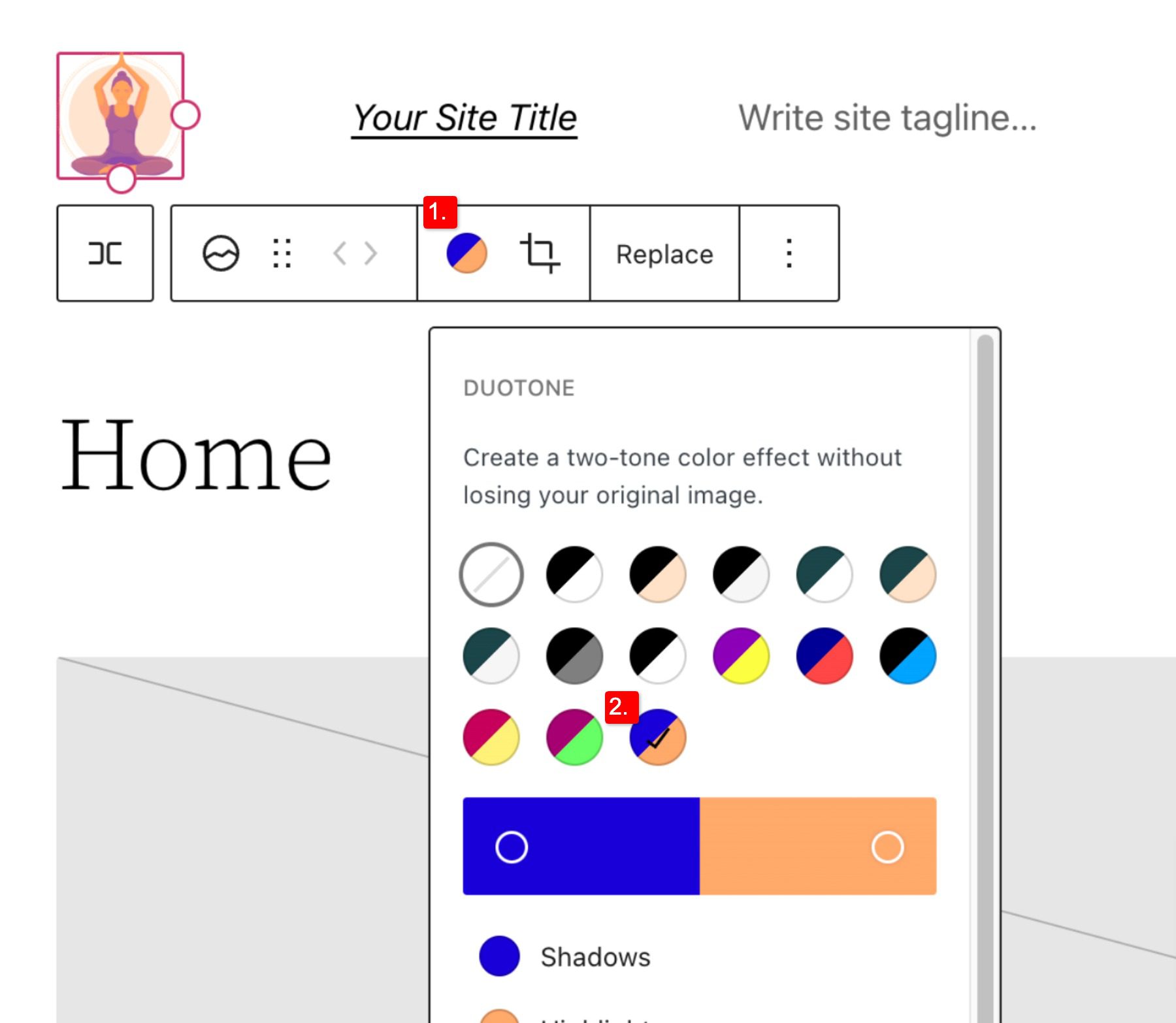
    To change the color of the logo image click the duotone tool and select your desired color scheme.

    To set your colors, select the dots within the color bars:

    Duotone continued

    Site Logo Block Settings

    If you open the additional options or block settings toggle in the sidebar, you can find more block settings you can customize.

    Advanced settings

    From here you can change your logo to:

    1. Appear rounded instead of the default square or rectangle setting
    2. Adjust the image width to create a larger logo (it’s important to choose the best size for your logo)
    3. Link image to home,  if enabled will navigate users back to your home page when your logo is clicked
    4. Open in a new tab, if enabled will open your home page in a new tab
    5. Use as site icon, if enabled will use your logo as the site icon or favicon

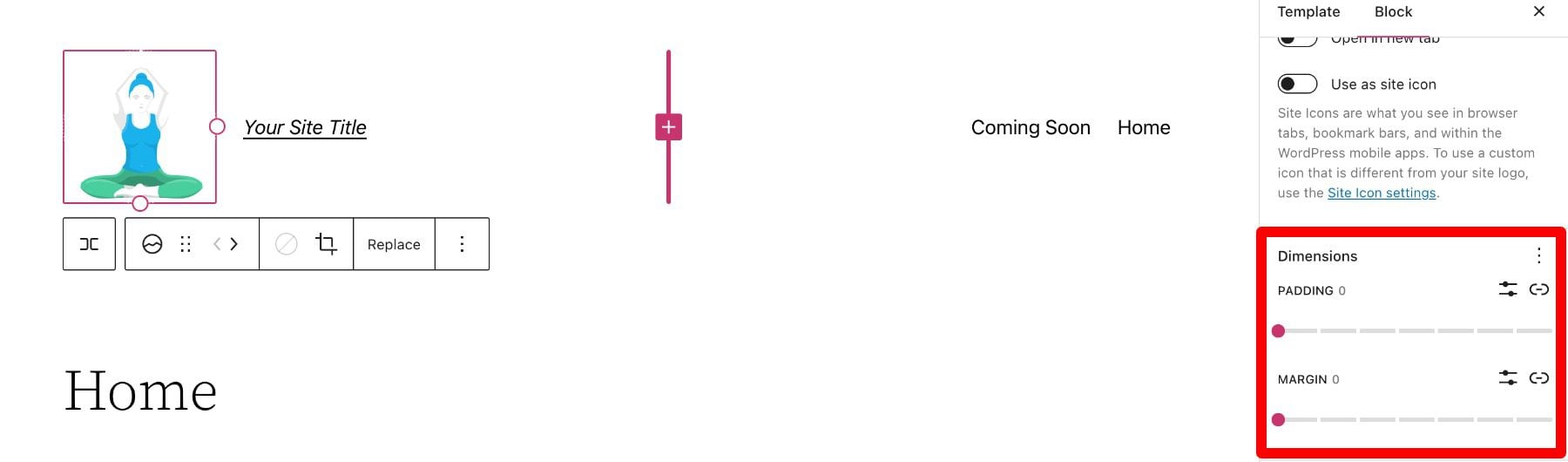
    Below the settings section, you can find the dimensions tab where you can adjust the padding and margin of your logo.

    Dimensions

    That covers everything you need to know about the settings available for your logo block, so you can customize your logo’s style to match perfectly to the rest of your site’s aesthetic. Now, let’s delve into some tips for how to use this block effectively.

    Tips and Best Practices for Using the Site Logo Block Effectively

    Using the site logo block is pretty straightforward to use, but it’s still important to keep some things in mind.

    Optimize the Logo Image Before Uploading

    Just like with any image uploaded via WordPress, it’s important to optimize your logo before you upload it to your site logo block. This will improve your load speeds and be beneficial for image SEO as well. Your logo should be a PNG, and the file shouldn’t be too big, we recommend using a web tool like TinyPNG, to help compress your image without losing quality in the process.

    Match Your Website’s Style

    Assuming your website already has a design and scheme, your logo mustn’t contrast too much with the style already in place on the rest of your site. So take a look at the colors and layout of your website and see if you can work your logo in as seamlessly as possible.

    Prominently Display Your Logo

    Making sure you use your logo properly after creating it is an essential step in effectively branding your website. In most cases, your logo should be displayed on your WordPress header area/template so that it can be seen on all the pages of your site. Also, it’s best practice to make your logo link back to your homepage to help with user flow and to constantly draw the user’s eye to your logo.

    Frequently Asked Questions About the Site Logo Block

    After you complete the difficult task of creating your logo, using the logo block in WordPress is relatively hassle-free. Still, as with anything, some questions need answering. Here are some answers to frequently asked questions about the logo block.

    How Do I Change The Site Logo?

    To replace the site logo, click on the site logo block and then click on Replace in the toolbar settings. There you can add one from your media library, upload a new one, or reset the site logo to the default.

    When Should I Use the Site Logo Block?

    Your logo is the symbol that represents your website and, therefore, should be prominent on nearly every page of your site. This is why we recommend putting your logo in the header area, where it can be used for both navigation (Home button) and branding purposes.

    What’s the Difference Between a Logo and a Site Icon?

    A site icon is used as a browser and app icon for your site; you may see it next to the tab in your browser. The logo for your site isn’t necessarily used as the site icon but can be activated in the logo block’s advanced settings.

    Using Divi to Add a Site Logo to Your Global Header in WordPress

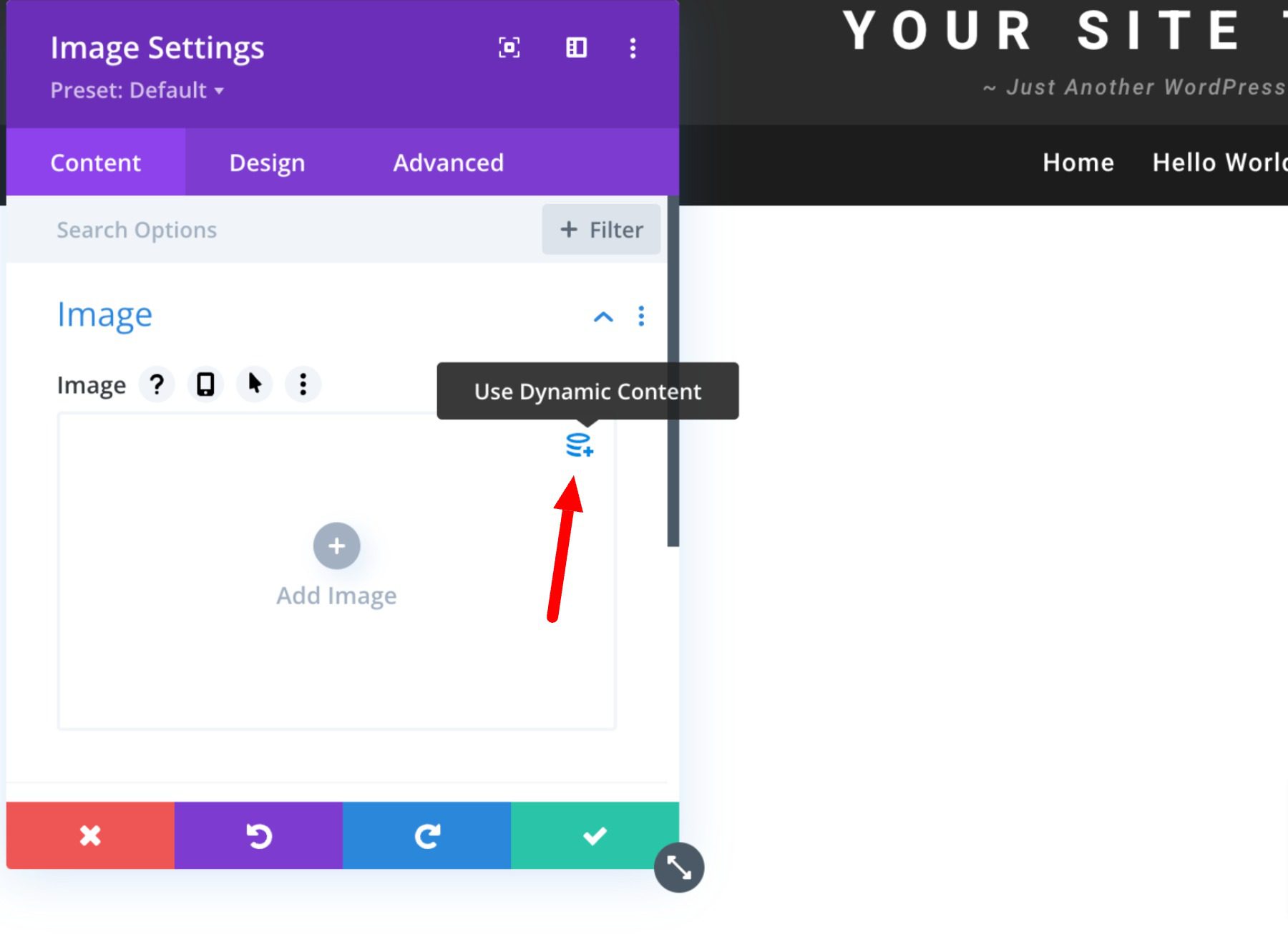
    When using Divi, you can use the Divi theme builder to add a site logo to your global header in just a few easy steps. You can start by clicking the edit button next to Global Header in your default website template.

    Now, you simply add an image module to the header and select the Use Dynamic Content option in the top right corner.

    You will then be prompted to select from a list of all dynamic content that is accessible. Select Site Logo to add the dynamic logo to your header.

    Learn more about using dynamic content with Divi here.

    Conclusion

    It is impossible to overstate the significance of your brand’s logo. However, you need a systematic approach to branding your site effectively. This is especially true if you want it to leave a lasting impression on audiences. Hopefully, some of the tips mentioned above can help you create your ideal logo and use the logo block correctly and effectively.

    If you have any other tips on making memorable logos, leave them in the comment section below!

    Featured Image via VectorMine / shutterstock.com

    The post How to Use the WordPress Site Logo Block appeared first on Elegant Themes Blog.

  • 8 Best WordPress Cache Plugins (in 2023)

    A user expects a certain level of performance when visiting your website. That is to say, if your website is lagging and slow, it greatly increases the odds that a user will take their online business elsewhere. A great way to increase your website’s speed is by using a WordPress cache plugin. In this article, we’ll give a brief introduction to caching and take you through the best WordPress caching plugins.

    Let’s get into it!

    Intro to WordPress Cache Plugins

    Each time a user accesses a webpage on your site, a request is made to the server, which then processes it and sends out the finished product to your user’s web browser. It takes some time for the user to receive the entire webpage because the server must process all of the requests for images, blogs, menus, etc., especially for larger websites.

    Caching is a process that helps your website increase its performance by temporarily storing frequently requested data from your website’s files. This allows these data files to be more easily accessible and, therefore, will load faster for your users. A cache is a group of stored data that has been temporarily stored for speedy access when needed.

    A WordPress Cache Plugin is a simple way to implement caching on your WordPress website without having to do it manually. These plugins will generally have the ability to deploy site-wide caching in a few clicks. Overall, a good cache plugin can reduce the load on your hosting server and boost your site speed, which is great for Search Engine Optimization (SEO).

    WordPress Cache Plugins Can Boost Performance and SEO

    Performance and Speed optimization are always important for the success of your site. WordPress has object caching built-in for this reason. It really does make your pages load faster.

    Plus, page speed affects SEO considerably, even if you have high-quality SEO content (in some cases). When a search engine sends a bot to crawl the web, faster websites will have reduced bounce rates and higher conversions and will thus be ranked higher on google. More so, higher speed will increase a user experience, and they’ll be much more likely to return to your website with faster load times.

    8 Best WordPress Cache Plugins

    Now that you understand the importance and benefits of caching, here are some of the best WordPress Cache plugins and solutions out there to get your site loading faster than ever.

    1. W3 Total Cache

    W3 total cache logo

    Over one million WordPress sites use W3 Total Cache, and with good reason. It has a ton of features, which can be overwhelming for beginners. It might be a bit complicated to configure, but it’s free, open-source, and mobile-friendly and will certainly meet your caching needs if you’re willing to do a bit of legwork.

    They even go o far as to guarantee a 10 times improvement in overall site performance  (You can use Google Page Speed to test the hypothesis.)

    Key Features of W3 Total Cache:

    • Object caching support.
    • Free and open source.
    • Compatible with a variety of hosting options.
    • SSL support.
    • Minification and compression capabilities.

    The W3 Total Cache plugin settings.

    While this is a great solution if you are familiar with the concepts behind caching, you may find all the options overwhelming if your new to the subject. However, it’s worth exploring as a free solution.

    W3 Total Cache is for you if…

    • You are familiar with caching.
    • You are looking for a free option.
    • You are using SSL certificates.

    Price: Free, with premium licenses starting at $99 per year | More Information

    2. WP Super Cache

    WP Super Cache logo

    WP Super Cache is another example of a free, highly touted cache plugin. Sporting over 2 million active users, it’s the most used cache plugin available and has a 4.5/5 rating, so you can trust its reliability. In place of the cumbersome WordPress PHP code, it effectively operates by producing static HTML files and providing those files for faster load times.

    Key Features of WP Super Cache:

    • Simple setup.
    • Minification and concatenation tools
    • Object caching
    • Garbage collection to clear out old files
    • Integrates with CDNs
    • Three caching methods

    WP Super Cache setting

    The simplicity of WP Super Cache is a major advantage compared to other solutions. You can simply enable the caching functionality and let the plugin do the rest or you can utilize more advanced features .

    WP Super Cache is for you if…

    • You want access to three caching methods depending on skill level.
    • You want a free solution that’s also open source.
    • You want a product from Automattic (Extremely trusted)

    Price: Free | More Information

    3. WP Rocket

    WP Rocket logo

    WP Rocket is highly regarded as the best caching plugin available, and with cause. It has a user-friendly interface that allows any user, regardless of technical proficiency, the ability to control caching functionality.

    This is where WP Rocket has the advantage over the free plugins.  In fact, as soon as the download is complete, WP Rocket will have your website loading faster.

    Key Features of WP Rocket:

    WP Rocket dashboard

    The ease of use makes this plugin a top choice if you are willing to spend the money, plus it has advanced features such as CDN integration and lazyloads if you want to take a more complex route.

    WP Rocket is for you if…

    • You want the most robust caching plugin available but are willing to spend the money,
    • You want access to high-quality support and an extensive user base.
    • You have a larger website and want a simple solution to speed it up.

    Price:  Premium licenses starting at $49 per year | More Information

    4. WP Fastest Cache

    WP Fastest Cache logo

    WP Fastest Cache is another example of a free plugin that comes with a lot of features that can be enabled simply via the dashboard. It also has over a million active users and has an unwavering 5/5 stars, so you can trust its reliability.

    Site administrators can schedule the deletion of all cached files, as well as minified CSS and JS files, with this plugin. By clicking a box on the settings page, they can additionally enable or disable the caching option for logged-in users and mobile devices, enable GZIP tools, and utilize minification.

    Key Features of WP Fastest Cache:

    • GZIP tools.
    • Minification.
    • Preload caching.
    • Cloudflare, SSL, and CDN support.
    • Image optimization.
    • Free.

    The WP Fastest Cache plugin settings.

    The incredibly simple settings page is available through your WordPress dashboard; you can simply check the setting you are interested in to enable them; however, it’s best to understand what exactly the settings mean before toggling them.

    WP Fastest Cache is for you if…

    • You want a free solution that’s easy to manage.
    • You want a settings page that’s understandable even for beginners.
    • You want to toggle your functions with a simple check box.

    Price: Free, with premium licenses starting at $49.99 | More Information

    5. WP-Optimize

    WPOptimize logo

    WP-Optimize is an all-in-one tool that enables you to cache web pages, minify CSS and Javascript files,  compress photos, and clean up databases. It’s got 5/5 stars in the WordPress directory with over a million active users. This plugin separates itself from the pack by additionally cleaning your database as well as caching your web pages.

    WP-Optimizer also has a premium version that can allow you to use it on multiple websites, implement lazy loading techniques, and other premium features.

    Key Features of WP-Optimize:

    WP-Optimize settings page

    This plugin allows you to easily enable page caching with just a click of a button; you can also generate separate files for mobile devices by clicking a box in the dashboard.

    WP-Optimize is for you if…

    • You’re looking for a free solution.
    • You want to clean your database.
    • You want an all-in-one web optimization solution.

    Price: Free | Premium version starting at $49 More Information

    6. LiteSpeed Cache

    LiteSpeed Cache banner

    LiteSpeed Cache has a ton of optimization features and offers a top-performing caching system that is certainly worth the 3 million+ users and 5-star reviews it has received. Touted as an all-in-one optimization platform, LiteSpeed Cache, takes a lot of premium features and gives them out for free. This includes server-level caching, which is the most optimized method of caching because it requires the least amount of processing power.

    Some other cool features to note are image optimization, lazy loading, and the ability to localize Javascript files. This is one of the best options available and works seamlessly with other commonly used plugins like WooCommerce and Yoast SEO.

    Key Features of LiteSpeed Cache:

    • Server-level caching
    • Image optimization
    • Lazy loading
    • Database optimization
    • DNS prefetch

    LiteSpeed Cache settings in dashboard

    It’s incredibly easy to toggle options for cache settings via the dashboard with LiteSpeed Cache. If you’re looking for a free solution, this might be your best bet.

    LiteSpeed Cache is for you if…

    • You’re looking for a free solution with a lot of features.
    • You want server-side caching capabilities.
    • You want to support a plugin that prides itself on being free and accessible.

    Price: Free | Premium version starting at $39 More Information

    7. Hummingbird

    Hummingbird banner

    Hummingbird is another all-in-one optimization platform that is certain to speed up your site in no time. It has both a free and pro version and a coveted 5-star review on WordPress.org. And it integrates with Divi for significant drops in page load times.

    The UI makes using this plugin super simple and comes with in-app tips that can help get you acclimated to the cache system. The framework will instantly help speed up your site and give you control over feautures like file compression, modification of CSS and JS, lazy loading, and of course, caching.

    Key Features of Hummingbird:

    • Lazy loading of offscreen images
    • Efficient caching
    • GZIP compression
    • Minification
    • Asset optimization

    Hummingbird dashboard

    Hummingbird can be set up in just a few clicks and is super simple to navigate. You can scan your site, and the app will make recommendations for optimization based on the scan results, which you can then implement in a matter of seconds.

    Hummingbird is for you if…

    • You are interested in in-plugin tips to help navigate
    • You want to speed up your site in just one-click
    • You want a performance scan to know exactly how to speed up your website
    • You are looking for a free solution to optimize Divi

    Price: Free | Pro version starting at $7.50/month after free trial More Information

    8. Comet Cache

    The Comet Cache WordPress plugin.

    Comet Cache is a freemium plugin that’s not as well-known as some others on the list but is still a great solution.  It has a welcoming UI and description that clearly explains what settings do what, so you can always be sure you know what you’re doing.

    The dashboard is easy to maneuver and simple to control, plus it has a ton of advanced features like cache directories, automatic cache clearing, and cache expiration time. You’ll need to purchase the pro version for HTML compression and other more advanced features.

    Key Features of Comet Cache:

    • Automatic cache clearing
    • Simple UI.
    • Cache directory
    • User-Agent exclusions
    • 404 requests

    The Comet Cache plugin settings.

    The user-friendly interface and menu system allow you to navigate Comet Cache’s features with ease. Plus, the fast installation and setup combined with advanced features let you go as far into the weeds as you want with this plugin.

    Comet Cache is for you if…

    • You’re looking for a free solution.
    • You want clear settings that are explained.
    • You want to support a less-known cache plugin.

    Price: Free | Premium version starting at $39 More Information

    Built-in Caching From WordPress Optimized Hosting

    In case you didn’t know, some WordPress hosting services are optimized to reduce the workload on their servers by offering their own caching options. So if you host a website with the following organizations, you’re in luck; you may not need an additional WordPress Cache Plugin.

    Cloudways Built-in Cache Plugins

    If you’re hosting with Cloudways, they have built-in caching plugins (Breeze and Object Cache Pro) that they integrate into your platform out of the box. This provides layers of caching for all your website site files and database for a huge boost in performance.

    For more, check out our Cloudways Review.

    Flywheel Built-in FlyCache

    Flywheel provides a great hosting service for WordPress users and are constantly striving to provide the highest quality of performance for your website. Their custom caching technology, “FlyCache,” ensures that your site is always optimized for speed and performance.

    Flywheel cache options

    For more, check out our Flywheel Managed Hosting Review.

    SiteGround Built-in SuperCacher

    SiteGround is another fantastic hosting service that puts website performance at its forefront. Their SuperCacher provides a great caching solution that accelerates website performance multiple times over.

    It’s available to all of their clients and even gives you three different caching options.

    For more, check out our SiteGround WordPress Hosting Review.

    Pressable Built-in Caching

    Pressable wants to make your WordPress website perform as fast and best as possible. As such, all pressable hosted websites hold several different layers of caching capabilities. These include object caching, page caching, and CDN caching.

    All caching options can be accessed from the WordPress dashboard in your Pressable CM section.

    For more, check out our Pressable Managed WordPress Hosting Review.

    Final Thoughts On WordPress Cache Plugins

    Speeding up and improving the performance of your website paramount for optimizing user experience. Caching is an excellent and easy way to do just that; however, selecting the right plugin can be difficult. Fortunately, you now have a wide range of possibilities. And if you are using a WordPress managed hosting provider, chances are you will have some powerful built-in caching solutions already optimized for your site for better performance.

    We sincerely hope that this article was helpful in locating the WordPress caching plugin for your website.

    Are there any WordPress Cache plugins we missed? Let us know in the comments!

    Article thumbnail image by paper cut design / shutterstock.com

    The post 8 Best WordPress Cache Plugins (in 2023) appeared first on Elegant Themes Blog.

  • How to Password Protect a Page in WordPress

    Creating a WordPress website for your business or portfolio is an excellent way to start growing an audience for yourself. However, you may run into scenarios where you want to limit access to specific posts or pages. For example, you may be a filmmaker that wants to limit the viewership of a film on his website to prevent piracy or a photographer trying to safeguard assets. Regardless of your reason, configuring a password on a page allows you to restrict visitor access and permit only particular clients, colleagues, or partners. In this article, we’ll show you how easy it is to password-protect a page in WordPress and why you might need to.

    Why Password Protect a Page in WordPress?

    As previously stated, password-protecting a page is a useful feature when you want to limit access to something on your WordPress site. In this way, only users that have been given access to the password can access the pages you lock.

    There are a number of reasons why you would want to do this, which can span a page being under construction, gatekeeping users to get their email for marketing purposes or limiting access to photos, art, or other intellectual property for internal usage.

    There are a number of security plugins that may have password protection built-in. And there are plugins designed specifically for enhancing password protection in WordPress. But if you’re looking for basic functionality, WordPress has a default feature for password protection. In the following section, we’ll delve into how to password-protect pages natively.

    How To Password Protect a Page or Post Using The WordPress Editor

    If you aren’t already aware, you can easily password protect a page or post using the built-in feature of the WordPress editor. To do this, start from your admin dashboard and create a new page or post by navigating to Page or Post -> Add New.

    Start by clicking add post

    Once you are done editing your page, select the publish button and select Visibility.

    Select visibiltiy.

    From the Visibility panel, select Password protected, and create your password in the textbox below.

    Select password protected

    If you’re wondering if this still works within the Divi builder, good news! It does; the native password-protect functionality works the same in the WordPress editor and the Divi Builder.

    If a user visits your password-protected page, they will be met with something that looks like the page below.

    password protected page example

    Here’s what it looks like using Divi:

    Divi password protected

    It’s just that simple! But while this is the easiest method for password protection, it’s lacking when it comes to more advanced options. Features such as partial content restriction, password-protecting an entire website or unlocking different areas of a site with a single password aren’t possible natively, so this is where a password protect plugin can be helpful.

    How to Password Protect a Page in WordPress Using a Plugin

    If you are looking for more password protection features, there are some plugins that should give you what you need. For this example, we’ll be using Password Protect WordPress (PPWP). It’s almost as easy to set up as native WordPress password protection but comes with more features as well.

    To get started, let’s navigate to Plugins > Add New from your WordPress dashboard.

    Plugin page

    In the search box, type “PPWP” and install and activate the free plugin.

    PPWP install and activate

    Now, when you navigate to your post or page editor, there will be a new section in your sidebar where you can set user roles and corresponding passwords via PPWP.

    PPWP in the sidebar of WordPress editor

    Other Features of WordPress Password Protect Plugins

    You can also use shortcodes to lock parts of your content on a page. To do this, navigate to Partial Protection under the Password Protect WordPress section.

    Partial Protection section.

    From here, you can customize your shortcode and then simply embed your section into any page on your website.

    PPWP shortcode

    With PPWP, you can even password-protect your entire website from public view. To do this, navigate to the Sitewide Protection option under the Password Protect WordPress section from your dashboard.

    Sitewide Protection section

    From here, simply toggle the Password Protect Entire site option, set your password, and save the changes.

    Password Protect Entire site option

    And don’t worry, PPWP works with Divi, so you can password-protect your content regardless of what editor you’re using. If you’re interested in even more password protection features, you can get the pro version of PPWP.

    Password Protecting a Page in WordPress: FAQs

    What’s the difference between the default WordPress “Password Protected” feature and the plugin?

    The main difference between the two options is that the plugin has been designed specifically for password protection. Thus, it comes with more features available. Whether you want to password-protect a section of a page, your whole website, or a category of posts, the easiest way to do it is with a plugin.

    Will password-protecting a page effect SEO?

    Search engines aren’t able to index pages that are protected via passwords; this is where a partial section can be useful for SEO, as search engine bots can still crawl to your page, but the content that you want to protect remains hidden.

    Can I use multiple passwords to protect a page or post?

    Natively, this isn’t possible without some coding know-how, but different users can access pages with multiple passwords using features like the PPWP plugin’s password-protection feature that utilizes user roles.

    Final Thoughts On Password Protection With WordPress

    A good starting point with password protection is getting familiar with the default settings WordPress has to offer, but you can get as sophisticated as you want. If you want a simple on-off solution, you can use the built-in password protection functionality in the WordPress editor. But if you are looking for a simple solution with more features, a plugin like PPWP is the way to go. You can learn more about how to partially restrict content with a password. Or, if you are a Divi user, check out DiviPasswords to take your password protection to the next level.

    If you are looking for better password security for WordPress in general, consider using a Password Policy plugin.

    What do you password-protect on your website? Let us know in the comments!

    Article thumbnail image by Natty_Blissful / shutterstock.com

    The post How to Password Protect a Page in WordPress appeared first on Elegant Themes Blog.

  • 7 Best Google Analytics Plugins for WordPress (in 2023)

    One of the best advantages for your business to leverage is Google Analytics because it can help improve your marketing strategy and address key issues with your audience. But finding the best Google Analytics Plugin for WordPress can be a real hassle, there are just so many options to choose from, and you’re going to want the best solution for your company’s needs.

    In this article, we’ll look at the pros and cons of the best plugins available to help you choose the right plugin for your needs.

    What is a Google Analytics Plugin for WordPress?

    Google Analytics is a platform that collects data from your websites and apps to create reports that provide insights into your business. These include:

    • The number of visitors to your website
    • Information about the visitors’ interests and demographics
    • Find your blog posts and landing pages with the most traffic.
    • Determine the source that generates the most traffic (social, organic, etc.)
    • How visitors use your website and which links they choose to click

    It’s a fantastic resource that lets you take a deep dive into your website, but it isn’t exactly user-friendly. It’s easy to get lost in a sea of data trying to sift out useful information from the superfluous tidbits. That’s where a good Google analytics plugin comes into play.

    A good plugin will easily let you segment data so you can analyze and improve your content and user flow without any of the usual headaches.

    7 Best Google Analytics Plugins

    We’re eager to share these plugins with you so you can get a leg-up on Google Analytics needs, so let’s get started with our choices!

    1. MonsterInsights

    Monster insight logo

    MonsterInsightsdoes a wonderful job of combining the tools of both WordPress and Google Analytics. It operates in the background and won’t have an impact on any front-end WordPress themes you use.

    You don’t even need to leave WordPress to gain important visitor data using the built-in Google Analytics dashboard, which provides statistics on your best traffic sources, top-ranking articles, site visits, outbound links, and much more. With these helpful stats, MonsterInsights is also a great tool for SEO.

    It’s clear that MonsterInsights is the quintessential Google Analytics plugin for WordPress; garnering over 3 million active installations and a 4.5-star rating. In the WordPress community, it’s the most well-known and well-liked analytics tool. It’s free to use but comes with some pretty cool add-ons with the premium version, including eCommerce and outbound link tracking.


    Key Features of Google Analytics for WordPress by MonsterInsights:

    • Simple to comprehend reports from a Google Analytics dashboard
    • Conversion tracking for forms
    • Improved tracking for eCommerce
    • Track affiliate links
    • Detailed demographic reports of your audience (gender, age, device, location, etc.)
    • Ability to see which sites are referring the most viewers to you and what visitors are searching for within your site
    • Enables you to track 404 errors
    • Updated embedded tracking code
    • Monitor performance for specific pages


    Search console report from MonsterInsights

    Viewing real-time statistics from your dashboard to improve your strategies and generate clicks is just one of the many features of MonsterInsights. Affiliate links, ad tracking, and enhanced e-commerce tracking are all incredibly useful tools that come with MonsterInsight.

    The MonsterInsights Google Analytics plugin dashboard.

    You can monitor the top traffic sources for your website as well as your best-performing articles, pages, etc. Making business decisions based on data is made simple thanks to this insight into the behavior of your customers.


    Google Analytics for WordPress by MonsterInsights is for you if…

    • You are looking for a simple-to-use plugin with a ton of advanced features.
    • You want a solution that’s super easy to configure and integrates easily with WordPress.
    • You want to understand your audience in a deeper way.

    Google Analytics for WordPress by MonsterInsights Pricing: Free with premium plans starting at $99.50 per year | More Information

    2. Analytify

    Analytify logo

    Another major player in the WordPress analytics space is Analytify. This plugin can install your Google Analytics tracking code for you without requiring any coding on your part. The user interface makes it possible for you to retrieve your data directly from your WordPress dashboard and presents it in an understandable manner.

    Since it provides improved eCommerce tracking features, Analytify is especially beneficial for organizations that engage in online sales. Although the commercial versions of the plugin are far less expensive than MonsterInsights while providing identical capabilities, they also have the advantage of allowing you to look deeper into specific posts and pages.

    However, the free version of the plugin is very constrained, allowing you to have limited access to some more general features with premium features being necessary for your complete Google Analytics needs.

    Key Features of Analytify:

    • Automated email reports
    • Real-time visitor tracking capability
    • Shortcodes for data integration into custom templates
    • Clear, intuitive UI

    Analytify dashboard

    This plugin provides you with some great data, made even more useful through digestible graphs and charts. You can view stats like views, users, bounce rates, time spent on your pages and more from the admin panel on WordPress.

    Analytify is for you if…

    • You use a web store and want enhanced eCommerce tracking.
    • You want automatic reports emailed to you.
    • You want to track individual campaign progress.

    Analytify Pricing: Free with premium plans starting at $39 | More Information

    3. ExactMetrics

    ExactMetrics comes in third on our list of the top Google Analytics plugins for WordPress. With over 1 million downloads this plugin obviously was one of the most trusted in the industry. It has a ton of features and makes it easy to set up Google Analytics without requiring you to work with any code or pay a specialist.

    Its user-friendly statistics for beginners put stats into your WordPress dashboard so you can quickly assess how your website is doing and which tactics you’re implementing are effective.

    Additionally, it is quite simple to collect data in Google Analytics without manually setting up event monitoring thanks to tracking features like file download tracking, scroll tracking,  eCommerce tracking, and custom dimensions.

    However, it’s important to note that this plugin has a drawback in that it prevents you from integrating with other tools and services like WooCommerce or Google Ads. Also, the complaints about incessant advertisements have dropped their score to 2.5/5 stars.

    Key Features of ExactMetrics:

    • No coding is necessary to configure Google Analytics
    • Comprehensive dashboard reports
    • Track form conversions

    eCommerce report for ExactMetrics

    This simple-to-install solution allows you to track advanced data and view metrics to better understand your website user experience. While the recent addition of advertisements for the free version seems to have tanked their reputation, the paid version is still a viable solution.


    ExactMetrics is for you if…

    • You want a more basic analytics plugin.
    • You don’t mind being bombarded with advertisements.
    • You are willing to pay for the premium version.

    ExactMetrics:  Free with premium plans starting at $99.50 | More Information

    4. GA Google Analytics

    Google Analytics logo

    GA Google Analytics is a lightweight plugin that simply connects every page of your WordPress site to Google Analytics. Unlike other WordPress analytics tools, it won’t show any data or insights, but it still does its job well.

    The Google Analytics interface might be more appealing to many WordPress users that don’t want a dashboard application and would prefer to use the native Google Analytics dashboard. This plugin is for you if you’re content to leave Google Analytics separate from the WordPress dashboard but still want to keep things light and make sure the tracking code is on every page.

    Because it eliminates the need for you to manually add tracking code to each page, Google Analytics is perfect for large, complicated websites with a lot of pages.

    Key Features of GA Google Analytics:

    • General Data Protection Regulation (GDPR) compliant
    • Does one thing and does it well
    • Support for Global Site Tag (gtag.js), Google Analytics 4, and Universal Analytics (analytics.js)

    GA Google Analytics setup screen

    This relatively light solution is a great way to get your feet wet in terms of tracking analytics. It’s designed to be simple and straightforward, to easily get you started in the world of analytics.

    GA Google Analytics is for you if…

    • You want a lightweight solution.
    • You don’t want an extra dashboard UI specifically for tracking Google Analytics.
    • You are new to analytics tracking and want to learn the basics before taking a deep dive.

    GA Google Analytics Pricing: Free with premium versions starting at $15 | More Information

    5. WP Statistics

    WP Statistics logo

    WP Statistics is a robust yet simple WordPress analytics plugin that enables you to monitor all user activity from your WordPress dashboard. The content and geographical based reports that this plugin produces are solid and, it displays real-time website analytics all for free.

    This might not be the greatest option if you’re looking for a simple and uncomplicated plugin. However, it is a good choice if you want to dig deep into the statistics of your WordPress site and want to get data from several platforms and search engines in addition to Google.

    You won’t need to set up the plugin with Google Analytics, which is another benefit. The tool only collects information that takes place on your website; no outside data is provided. The only drawback to this is that it can eat up storage space and grow the size of your backup.

    Key Features of WP Statistics:

    • Data export in XFL or CSV files.
    • Filter data by location, keywords, IP address, etc.
    • Track from multiple search engines (Google, Bing, Yahoo.)

    WP Statistics graph example

    In your WordPress dashboards, WP Statistics can find important incites like the number of visitors, referrals, browser usage, country origins, and more. This plugin shines in particular at providing information in a way that is palatable, such as graphs and maps.

    WP Statistics is for you if…

    • You want to keep track of analytics from search engines other than just Google.
    • You want to focus on geographical data and content reports.
    • You want a free solution

    WP Statistics Pricing: Free| More Information

    6. Jetpack

    Jetpack logo

    One of the many features of Jetpack, a multi-purpose WordPress plugin, is its integration with Google Analytics. Jetpack provides a quick overview of your site’s performance by displaying your site stats through a straightforward interface. You shouldn’t count on being able to delve deep into the data on certain posts and pages, though.

    The free edition only offers you its own analytics capabilities and reports, which is something to keep in mind. Therefore, you must upgrade to a Pro license if you expressly want Google Analytics integration.

    Key Features of Jetpack:

    • Simple site traffic reports
    • Funnel reports help you track user flow through your site
    • Track visitor’s goal conversion

    Jetpack settings

    Google Analytics integration with Jetpack’s growth tools enables you to examine traffic statistics for your website in the WordPress dashboard.


    Jetpack is for you if…

    • You want to keep using Jetpack as a multifunctional tool.
    • You have experience with using Jetpack for other purposes.
    • You are looking for an all-in-one toolkit for WordPress

    There is also has a JetPack CRM plugin that may be a great addition for your business.

    Jetpack Pricing: Free with premium plans starting at $4.99  | More Information

    7. Matomo (A Google Analytics Alternative)

    Matomo logo

    A highly regarded substitute for Google Analytics is Matomo, garnering over 60,000 downloads and a 5-star review. Matomo and Google Analytics differ significantly in that Matomo does not disclose data if you choose not to. This plugin can be a suitable choice if you run a website that promotes privacy.

    They pride themselves on security above all else and put you in full control of your data, which is a nice feature in the current climate.

    Key Features of Matomo:

    • No one else can see your data
    • Easy to install. No coding or technical knowledge is needed.
    • Free to use, premium features are relatively cheap.

    Matomo analytics example

    You can view a bevy of advanced analytics from the Matomo dashboard and be ensured of the safety of your data. All of the fundamental features of an analytical plugin are present in Matomo. You can monitor the number of people who visit your website and it displays thorough information on traffic sources, keywords, geo-locations, and other analytics, just like Google Analytics.

    Matomo is for you if…

    • You value privacy and want to be in control of your data.
    • You want a cheap solution that provides everything you need for advanced analytics.
    • You want an easy to the user interface that doesn’t need too much configuration.

    Matomo Pricing: Free with premium plans starting at $29.00 | More Information

    Final Thought on Amazon Affiliate WordPress Plugins

    As many analytics plugins are tailored for specific purposes, you might want to select more than one. Choose a plugin like MonsterInsights or Analytify if you want to integrate the power of Google Analytics into your WordPress dashboard. Both of these have fantastic free versions as well as feature-rich premium editions.

    If you want to focus on security and speed, lightweight tools like Matomo or GA Google Analytics might suit your needs better. Regardless, we’re sure one of these plugins has the features you’re looking for.

    Did we miss any great Google Analytics plug-ins? Leave a comment telling us below!

    Article featured image by Blan-k / shutterstock.com

    The post 7 Best Google Analytics Plugins for WordPress (in 2023) appeared first on Elegant Themes Blog.

  • 5 Best WordPress Job Board Plugins (for 2023)

    Turning your website into a job board platform can be complicated without the right tools; you’ll need a way to track responses, easily remove and add listings, and reviews applicant profiles. Luckily, there are a ton of great WordPress Job Board Plugins that are available so that you can make a beautiful and functional job board in no time.

    What is a WordPress Job Board Plugin?

    A WordPress job board plugin is a way for employers to advertise their vacant positions to job seekers via their WordPress website. It’s an awesome tool to implement because with the right plugin you don’t need to be reliant on external platforms for job listings.

    Plus, adding a functional job board to your website can help gain more traffic and even get additional revenue, if you list positions from other employers on your site. Let’s take a look at some of the best job board plugins available!

    5 Best WordPress Job Board Plugins

    1. WP Job Manager

    WP job manager logo

    WP Job Manager is an incredibly user-friendly WordPress plugin brought to you by people from Automattic. With just a few clicks, you can have a live job portal up and running by adding new pages and shortcodes. It enables recruiters to post their job postings by registering on your website. Job seekers can also manage the jobs they are interested in from a straightforward dashboard.

    Through premium add-ons, you can also use the plugin to publish paid jobs online and earn money from them. Additionally, it features add-ons for managing a resume, monetizing your job board with WooCommerce, sending email alerts, and more.

    Key Features of WP Job Manager:

    • Job listing filters.
    • A user-friendly admin UI.
    • Frontend form submissions.
    • Searchable and filterable job listings via shortcode.
    • Shortcodes work with most themes, including Divi

    You can manage all of your job listings from the WordPress dashboard, and your users can also control their applications from their dashboard.

    WP Job Manager is for you if…

    • You want to create filterable jobs for different categories.
    • You want to monetize your job board.
    • You want to use shortcodes to output jobs in different formats.

    See our complete guide on how to create a job board in WordPress using this plugin.

    WP Job Manager Pricing: Free. Premium features start at $19 / year. | More Information

    2. WP Job Openings

    WP Job Openings logi

    WP Job Openings is another stellar freemium job board plugin. It provides various features for developers to alter the appearance and feel of your customized job board, such as versatile filter choices, two layouts for showing job listings, and two filtering options.

    It’s best used to build and add to your business’s career page. Applications are automatically formatted for readability, and you can see PDF copies of resumes and CVs without downloading each separately. It does, however, compile all applications into a single tab, which can be challenging if you’re posting positions from multiple businesses.

    Key Features of WP Job Openings:

    • Easy setup.
    • Clean grid layout.
    • Unlimited Job Specifications.

    Job board made with WP Job Openings

    The clean grid design makes looking for a specific job super easy for your users.

    Settings menu

    In addition, since WP Job Openings already includes a default form for applicants to submit their applications, building a form requires little to no busy work.

    WP Job Openings is for you if…

    • You want to display open positions using grid or list layouts.
    • You are focused on getting applicants for your site rather than multiple companies.
    • You want unlimited job specifications and filtering options.

    WP Job Openings Pricing: Free. Premium add-ons for $34/yr. | More Information

    3. WPJobBoard

    WPJobBoard is another premium WordPress job board plugin with everything you need to add a powerful career search engine to your webpage. In addition, it has a ton of tools that make it simple to make, manage, and display job listings, resumes, forms, and other materials.

    The ability to customize WPJobBoard is what really makes it stand out. With this plugin, you can modify the plugin’s functionality and customize templates for email notifications and job application forms. The plugin’s PHP Templating Engine allows you to overhaul your job board completely, so it’s tailor-made for your site. Additionally, it has a resume database and an employer interface where users can look for the ideal individual.

    Key Features of WPJobBoard:

    • SEO and social media feautures.
    • Works with any WordPress theme.
    • Drag and drop editor.
    • Great support team

    JBBoard Admin creation page

    The plugin comes with its own free theme and is compatible with all WordPress themes. Additionally, it enables you to receive payments and gives employers membership packages, coupons, and discounts.

    WPJobBoard is for you if…

    • You want a solution with multiple monetization options. (Works with PayPal, Stripe, etc.)
    • You want a solution compatible with any theme.
    • You want access to a simple drag-and-drop editor.

    WPJobBoard: $97/yr | More Information

    4. Simple Job Board

    Simple Job Board banner logo

    Simple Job Board is a short-code-based job board plugin. It allows you to create a system for a highly extensible online job board. Add the [jobpost] shortcode wherever you like on your website to start using the plugin.

    The ability to customize is where this plugin excels. You can design unique application forms for each job opening, and you can create multiple-choice options, designate mandatory fields, and much more. Available in 14 languages, Simple Job Board is ideal if you’re running a multilingual site.

    Key Features of Simple Job Board:

    • Uses a shortcode for complete control.
    • Include unique specifications and requirements for each job post.
    • Categorize reviewed applications for easy management.
    • Review applications and categorize them using multiple statuses.

    Simple Job Board UI

    Simple Job Board provides customers forms, although these options are limited. However, the pro version offers more possibilities.

    Simple Job Board is for you if…

    • You have a website using multiple languages.
    • You want a shortcode solution.
    • You want to be able to short out unsuitable applicants quickly.

    Simple Job Board Pricing: Free. Premium add-ons are available. | More Information

    5. WP Job Portal

    WP Job Portal logo

    WP Job Portal is another great option for a job board plugin. It’s intended to make it simpler and quicker for job seekers to identify the positions that best fit them and for companies to find the most qualified applicants.

    You can quickly narrow down your job postings by filtering results by application title, country, category, and more using a simple auto-fill option. Users can also save jobs they are interested in and go back to apply, and you can check how your listing is doing with a sleek-looking dashboard.

    Key Features of WP Job Portal:

    • Filter system.
    • Custom fields on registration forms.
    • Resume Parsing.
    • Save jobs to refer to them later.

    WP Job Portal dashboard

    WP Job Portal is essentially plug-and-play. It’s compatible with any theme for WordPress, so you know it’ll look great on your site, you can customize various options for both employers and job seekers from the dashboard.

    WP Job Portal is for you if…

    • You want to be able to parse through candidate resumés.
    • You want a high-quality UI.
    • You want a solution that’s setup without needing to make an account on an external platform.

    WP Job Portal Pricing: Free. Basic Add-on is $49/yr. | More Information

    Final Thoughts on WordPress Job Board Plugins

    You can quickly and easily post open opportunities using a WordPress job posting plugin. You can do so with the intention of internal hiring or use your website as a hub for job seekers and finders. This is a fantastic method to increase the number of people that visit your WordPress website, broaden your applicant pool, and perhaps even generate some extra revenue.

    Hopefully, one of the plugins listed above has features you’re looking to use on your site.

    Did we miss anything? Leave a comment telling us below!

    Article featured image by Viktoria Kurpas / shutterstock.com

    The post 5 Best WordPress Job Board Plugins (for 2023) appeared first on Elegant Themes Blog.

  • Rank Math SEO Plugin for WordPress: An Introduction

    Choosing the right SEO plugin for your WordPress site is one of the most important choices you will make. And with so many solutions out there, the best ones can often be overlooked. The Rank Math SEO plugin for WordPress is definitely in the ranking as one of the top SEO plugins for a lot of reasons. In this post, we’ll give a helpful overview of Rank Math SEO and cover the key features, ease of use, pricing, and more, so you can see if it is a right fit for your site.

    What is Rank Math SEO?

    Search engine optimization (SEO) is a way to ensure that your website appears to as many people as possible via search engines like Google. Rank Math SEO is a powerful SEO plugin for WordPress that makes it simple for anyone to improve the SEO of their content, regardless of their level of expertise. Founded in 2018 and headquartered in India, Rank Math has quickly taken the WordPress plugin world by storm, now boasting over 1 million active users.

    Rank Math (self-proclaimed as the “swiss army knife of WordPress SEO”) comes with ostensibly everything you need to make sure your content is optimized to hit the keywords you’re targeting and has a ton of other features that can take your SEO to the next level. It’s easy to use and has a lot of powerful features in the free version (especially for on-page SEO) that make it a plugin worth looking into.

    How to Install the Rank Math SEO Plugin

    Installing Rank Math from your website’s WordPress account is the simplest method. To begin, choose the Add New option after hovering over the Plugins option in the WordPress menu.

    Screenshot of WordPress.

    Search for Rank Math in the search bar and select Install.

    Search for Rank Math

    After a few seconds, Rank Math Plugin will be installed and activated. You can confirm this by checking if it’s listed on your plugin page.

    List of WordPress Plugins

    Key Features of Rank Math SEO

    Rank Math SEO comes with a free and premium version for those willing to pay $59 per year. Let’s take a closer look at some of the best features of Rank Math SEO.

    Easy-to-Use Dashboard

    The first feature that stands out for Rank Math is its clean and simple user interface. The dashboard provides you with a ton of great analytics that you can use to improve the content on your site, along with awesome visualization features, the dashboard is a breeze to navigate through and settings are easy to change.

    Rank Math Dashboard

    Visual Interface for On-Page SEO Optimization

    The UI is straightforward but effective. The plugin showcases critical details about your SEO content alongside the post itself in real time, This allows you to boost the on-page SEO of your content by using readily available information, all while still in the text editor. It offers a ranking from 0 to 100, with a green number indicating that you have surpassed the 80-point threshold.

    Blog example

    Advanced Keyword Optimization

    Along side the awesome in-editor SEO optimization, you can take a deeper look into keyword research from the Rank Math dashboard. You can see how many times your site has been shown in search results, see the total number of keywords your ranking for, see how many clicks your site is getting, and more.

    Keyword research dashboard

    The ability to visualise this information is always welcome, and it let’s you wrap your mind around your website’s trends and how your strategies are performing in practice. Keyword analysis and strategy is paramount to good SEO, so these features are incredibly welcome from Rank Math.

    Link Building Recommendations

    If you enable the Link Suggestions option, which is a really awesome feature, Rank Math will offer you link suggestions as you write your posts to help your link building strategy.

    You must navigate to Titles & Meta > Posts in the Advanced Mode to enable the Link recommendations meta box. You can find the Link Suggestions option near the bottom. Activate the switch by turning it on.

    Link suggestions toggle

    Link suggestions give you the option to link to other relevant posts that you or your team have previously authored. This can be incredibly useful, especially if you’ve written a lot of content in the past, as you can link to relevant content automatically without having to search for specific posts.

    Advanced Divi Integration

    We are proud to say that the powerful SEO elements of Rank Math are fully integrated with our own Divi WordPress theme’s visual builder! You can check out our in depth guide on to how to optimize your Divi site with Rank Math here. 

    Rank Math general settings in Divi

    Rank Math’s integration with Divi makes improving the SEO on your website even easier because it’s built right into the Divi visual editor. The controls are easy to use for any skill level and there is plenty of built-in support available if any questions arise. You can review your content’s SEO with ease right as you build your content.

    Title SEO for Rank Math


    Other Features of Free Version for Rank Math SEO

    Some other key features of the accessible version of Rank Math are:

    • XML sitemap – Using a separate plugin for your Sitemap is no longer necessary. The XML Sitemap component of Rank Math is ideal for letting search engines know which page you want them to index.
    • Analytic integration – You can connect to Google search console and other SEO tools and see all the stats directly on your WordPress dashboard.
    • Knowledge graph and local SEO – You can enhance your site to appear more prominently in local businesses’ search results.
    • Image SEO – Automatically add alt text and titles to images to rank higher.
    • Internal link suggestions – Automatically add SEO links to relevant internal pages.
    • AMP (Accelerated Mobile Pages) – Automatically adds required meta tags to AMP pages.
    • Content AI – First-of-its-kind AI automatically suggests related keywords, links, heading tags to help you write SEO content.
    • Social media descriptions – Control how your content is presented on social media.
    • Redirects – Manage and establish 301 and 302 redirects.
    • 404 monitor – This function will keep track of the URLs where users and search engines encounter 404 errors.
    • Focus keyword analysis – Content optimization for focus keywords.
    • Google Analytics – You can see traffic information from your WordPress dashboard after adding the Google Analytics tracking code.
    • Meta descriptions and titles –For each post or page, you can either manually edit the SEO titles and descriptions or use templates.
    • WooCommerce – If you have an online store, then you can optimize your WooCommerce pages with Rank Math, although there are additional features with the pro version.
    • Divi SEO Integration– Integration with the Divi page builder and theme from the page editor.

    Premium Features for Rank Math SEO

    • Keyword rank tracking – You can view your keywords’ search engine ranks for the previous twelve months using the keyword rank tracking feature. You’ll know more about the effectiveness of your keywords. A convenient on-page solution to similar to more robust keyword tracking tools.
    • Google Trend Integration – Rank Math offers Google analytics 4 integration along with a keyword rank tracker.
    • Multiple Platform Linking – You can use Rank Math for numerous different websites.
    • Schema Generator – Access to an advanced schema maker with over twenty different kinds of presets. This might be more convenient than other schema tools.
    • Content AI – More advanced features for the AI and gives you extra credits to use the AI.
    • More WooCommerce SEO features – Dedicated content analysis for pages, custom branding options, etc. It’s always a good idea optimize WooCommerce for SEO.
    • Podcast Module – Everything you need to start your podcast.

    Rank Math Setup Process

    Once the plugin has been installed and activated, you will be automatically redirected to the Rank Math registration window; if you haven’t been redirected,  you can select Rank Math from the WordPress sidebar. Next, you will be directed to the setup wizard and prompted to create a free account. This is recommended because it comes with some added features.

    Screenshot of Rank Math

    Rank Math installation and configuration is a breeze because the step-by-step installation and configuration wizard is automatic for most steps. In addition, the settings on your site are verified by Rank Math after installation, and it makes recommendations for the best configurations.

    The steps and SEO settings for your site, social networks, and webmaster profiles are configured via the wizard.

    Rank math installer

    You can link Rank Math with Google Analytics in order to get up-to-date site maps.

    Install Wizard

    Configure your required sitemap settings here.

    Sitemap

    Once you finish your setup you can delve deeper into advanced settings or just leave them in their the default position.

    Wizard ending

    Rank Math User Interface

    The Rank Math UI undoubtedly sets it apart from other SEO tools; it’s simple and sleek while still having advanced tools at your fingertips. From the dashboard, you can toggle the features you want to use.

    Screenshot of Rank Math UI

    The analytics tab offers a handful of helpful graphs and charts to easily track your website’s SEO growth and pinpoint what areas you need to work on.

    Screenshot of Rank Math Analytics UI

    An excellent user experience was the focus of this plugin’s design. The pages and tools you require are simple to traverse, and getting familiar with them is easier than you think. But, if you need assistance, you can select the “Help and Support” option from the sidebar.

    Screenshot of Rank Math UI

    Using Rank Math to Optimize a Page or Post

    This guide will show you how to use Rank Math to ensure your post is optimized and hits all the keywords your looking for. As soon as you begin writing the content, the optimization process starts. For this example, we’ll use the WordPress Menu > Posts > Add New option to create a new article.

    Screenshot of adding new post on WordPress

    Rank Math is fully integrated into the block editor; you can see it by selecting the red SEO score button on the top-right corner of the editor.

    Screenshot of "How to Throw an Awesome Dinner Party" Blog

    You can see all the suggestions and tools to make adjustments as you write. For example, we’re writing about how to throw an awesome dinner party, so we set our keyword to “dinner party,” and RankMath gives us suggestions on improving our SEO.

    Screenshot of Rank Math Word Editor UI

    Now, we simply follow the guidelines and suggestions from Rank Math until we have as close to a 100/100 SEO score as possible.

    Screenshot of Rank Math Word Editor UI

    Be sure to look at each tab in the Rank Math editor, so you don’t miss any tips for SEO optimization.

    Screenshot of Rank Math Word Editor UI

    Using Rank Math with Divi

    We are proud to offer an in-depth and intuitive integration with Rank Math SEO. You can seamlessly use Divi Builder alongside Rank Math; read the guide here.

    Pricing for Rank Math SEO Plugin

    Currently, Rank Math offers four different tiers for their pricing. The free Version of Rank Math Pro is $59, Rank Math Business $199, and Rank Math Agency $499.

    Screenshot of Rank Math Pricing

    The critical difference between the different price points is primarily an issue of volume. If you’re looking to manage SEO on a single site, the pro version will most likely meet all your needs.

    Rank Math SEO vs. Yoast SEO

    Yoast SEO has been at the top of the SEO mountain for WordPress plugins, but Rank Math is a worthy new challenger. Both plugins have a lot to offer when it comes to boosting SEO. Yoast SEO and Rank Math share many of the same free features, such as sitemaps, internal link counters, and SEO templates for content and titles.

    However, Rank Math also comes with Google Analytics integration and keyword analysis for five free keywords. While similar here, we can compare the two on five critical factors in deciding which tool to use.

    • Setup – Both offer a simple design that’s essentially plug-in-play. Rank Math can distinguish users with toggleable “Easy” and “Advanced” settings, whereas Yoast includes tutorial videos and demos.
    • Keywords – Rank Math comes with more keyword tools and a more comprehensive ranking system.
    • Features – Rank Math offers more free capabilities than Yoast SEO.
    • User-Friendliness – This depends on personal preference. Yoast SEO does provide extra editing options with the meta box and sidebar options.
    • Pricing: Rank Math Pro costs $59, which is cheaper than Yoast SEO’s $89.

    Rank Math FAQs

    Here we’ll answer some frequently asked questions regarding Rank Math SEO.

    Is Rank Math Secure?

    Yes, the WordPress team carefully examines plugins before adding them to the repository on WordPress.org, where Rank Math is included.

    Will Rank Math work with my WordPress Theme?

    While any theme using WordPress’s Codex should be compatible, here is a list of themes and plugins that Rank Math has currently validated as being fully compatible with the plugin.

    • Betheme
    • Deep Theme
    • Polite
    • Attesa Multi-Purpose Theme
    • Blocksy
    • Divi
    • Flothemes
    • Astra
    • MyThemeShop

    Does Rank Math Integrate with Divi?

    Yes! You can read about our integration with RankMath here.

    Is Rank Math Better than Yoast?

    Yoast has been the best in the business in terms of SEO for a long time. However, Rank Math may be a better fit for some users, it has a ton of great features and an easy-to-use UI. However, it comes down to taste. If you’re happy using Yoast and already accustomed to its UI, it may be a better option for you to stick with it.

    Does Rank Math have Good Reviews?

    Rank Math has fantastic reviews, with well over 4,000 5-star ratings.

    Should I buy the Premium Version of Rank Math?

    We recommend starting with the free version of Rank Math and seeing if that version fulfills your SEO needs before upgrading to the Pro version.

    Can I use Rank Math with other SEO plugins?

    You can import data from your previous SEO plugins using the Rank Math wizard. After you import, we recommend only using one SEO plugin at a time. This is to avoid duplicate meta tags and negative SEO consequences.

    Closing Thoughts on Rank Math SEO

    It’s safe to say that Rank Math SEO deserves to be considered as a viable WordPress SEO plugin. The free version of Rank Math provides lots of tools that other SEO plugins simply don’t have, and their pro version provides even more. When it comes to on-page technical SEO, this plugin is uniquely intuitive and effective. So, if you’re looking to improve your website’s SEO, Rank Math can certainly help you do it.

    We want to hear from you. Do you use Rank Math? Let us know what you think of it in the comments.

    Featured Image via Rank Math / RankMath.com

    The post Rank Math SEO Plugin for WordPress: An Introduction appeared first on Elegant Themes Blog.

  • 6 Best Amazon Affiliate WordPress Plugins in 2023

    As an Amazon Affiliate (or Amazon Associate), you can monetize your traffic and promote recommended Amazon products directly from your WordPress website. So, when visitors click on your affiliate links (or ads) and buy those products, you earn a commission from each sale. However, to maintain a successful Amazon affiliate site, it helps to have the best Amazon affiliate WordPress plugin to do the heavy lifting.

    Not only can Amazon affiliate plugins simplify your workflow, but some can also provide valuable analytics to help grow your business. In this article, we’ll share the top WordPress plugins for Amazon affiliates.

    What is an Amazon Affiliate Plugin?

    An Amazon affiliate plugin is essentially a WordPress affiliate marketing plugin that makes it easy to manage, promote and sell your Amazon affiliate products on your WordPress blog or website, so you don’t have to worry about any technical issues getting in the way of your income.

    If you don’t already know, Amazon is stringent with its guidelines for its associates. For instance, you must use the Amazon Associates API to continue being a part of their program. You’ll also need to make sure you’re linking to the correct product, regardless of the country your user is visiting. For example, you’ll have to make sure that a UK user gets a link to their corresponding store, not to an Amazon in the United States. These issues, among others, are greatly simplified using an Amazon Affiliate WordPress plugin.

    5 Best Amazon Affiliate WordPress Plugins

    To help you avoid some common issues of being an Amazon affiliate. We have compiled a comprehensive list of the best Amazon affiliate WordPress plugins that will give you everything you need to start making more passive income.

    1. AAWP

    AAWP logo

    One of the most used plugins for Amazon Associates is the Amazon Affiliate WordPress Plugin (AAWP). This plugin lets you connect the Amazon Associates API to your page and add affiliate links to your WordPress articles simply and effectively.

    You don’t have to worry about violating Amazon’s affiliate policies by including prices or inserting images because all the data displayed comes via the API. The plugin also has various alternatives available to display Amazon products or affiliate links, all of which look fantastic on the front end of your website.

    Key Features of AAWP:

    • Product comparison tables (pictured below)
    • Automatic pricing updates
    • Easily implementable bestseller lists

    AAWP demo

    The appearance of any display element can be changed and is fully mobile-responsive; they look great and are sure to attract your users.

    AAWP is for you if…

    • You are an advanced user looking to maximize revenue on multiple websites.
    • Free plugins aren’t cutting it.
    • You want to display products in unique ways.

    AAWP Pricing: Starts at $49 for single-site usage

    Get AAWP

    2. AzonPress

    Azon Press logo

    AzonPress is a similar plugin to AAWP in that it easily allows you to insert affiliate links to texts and a variety of unique tables and displays as well.

    The plugin allows you to receive automatic product updates, customizable tables, and automatic geolocation, so you won’t have to worry about missing out on sales because of technical issues with the API. You’ll also be able to track your link performances via their dashboard.

    While it comes with many of the same features as AAWP, it’s a bit cheaper, so it may be the solution you’re looking for if you want to save a couple of bucks.

    Key Features of AzonPress:

    • Comparison tables
    • Automatic geotargeting
    • Customizable product display (example below)

    AzonPress Demo

    One of the plugin’s standout features includes the ability to display affiliate links, product details, photos, ratings, and reviews in a beautiful product showcase box.

    AzonPress is for you if…

    • You want a light and fast solution.
    • You want a way to track the conversions of your links.

    AzonPress Pricing: $31 for single-site usage

    Get AzonPress

    3. Pretty Links

    Pretty links logo

    All links on your website, including affiliate links, can be hidden and tracked using the freemium plugin Pretty Links. The plugin switches out affiliate links with ones that feature your domain name to make your link look cleaner and more trustworthy. In addition, it may generate random shortened slugs for any connection, or you can select your custom slug.

    Similarly to the other alternatives, Pretty Links tracks the clicks on your links and reports them to you through your WordPress admin panel. Link monitoring can be filtered based on the average number of clicks per link or the average number of unique clicks per link.

    Pretty Links provides all the above features without cost, but you can get some pretty neat features with the pro version, albeit for a hefty price. These include auto-linking keywords, multiple WordPress Site licenses, and priority tech support.

    Key Features of Pretty Links:

    • Link analytic tracking
    • Free version
    • Cloaks affiliate links

    Pretty Links dashboard

    This plugin is the best for cloaking and redirecting affiliate links into short and presentable links.

    Pretty Links is for you if…

    • You want a free solution.
    • You want to create SEO-friendly short links.

    Pretty Links Pricing: Free. Beginner $99.50/yr

    Get Pretty Links

    4. ThirstyAffiliates

    ThirstyAffiliates logo

    ThirstyAffiliates is a popular affiliate link management plugin for WordPress that helps you manage and cloak your affiliate links. It makes your links look clean and professional and provides a range of features for tracking clicks and conversions, organizing links into categories, and more.

    The free version of ThirstyAffiliates has many features that allow you to configure your basic links and customize them with additional details like product categories. The plugin also provides monitoring features to ensure your links are functioning properly and generates valuable user data to improve conversion strategies.

    Key Features for ThirstyAffiliates:

    • Link cloaking and management
    • Click and conversion tracking
    • Link categorization and organization
    • Link scheduling and expiration
    • Link redirection options

    ThirstyAffiliates offers a comprehensive solution for affiliate marketers using WordPress, providing a range of features for managing and optimizing affiliate links. This plugin is ideal for those looking for a complete solution to insert affiliate links on their website, keep track of links, cloak and localize links, and improve conversion strategies.

    ThirstyAffiliates is for you if…

    • You are looking for a good all-around solution to inserting affiliate links
    • You want to manage and optimize your affiliate links
    • You need to track clicks and conversions on your affiliate links

    ThirstyAffiliates Pricing: Free| Pro Version starts at $79.50

    Get ThirstyAffiliates

    5. Auto Amazon Links

    Auto Amazon Links logo

    Amazon Auto Links is a great free Amazon affiliate solution for website owners on a limited budget. Like the other solutions listed, this program automatically adds Amazon’s Amazon’sfeeds and affiliate links to your website.

    The displays frequently update product listings and update them as product details and pricing change. Additionally, you can filter out undesirable items from your links based on their description, title, and ID number. Products that are no longer available will be automatically removed, and tables with the products will be updated accordingly.

    In general, this product provides you with everything you need to quickly implement affiliate links without spending time managing them manually.

    Key Features of Amazon Auto Links:

    • Free.
    • Geotargeting support
    • Four ways to display products (category, product search, item look-up, URL)

    Amazon auto links example

    This plugin also gives you the tools to change the image size, description length, and product titles for your Amazon products.

    Amazon Auto Links is for you if…

    • You want a cheap and easy solution.
    • You are just starting and don’t need super advanced features.
    • You don’t mind coding custom templates for new layout designs.

    Amazon Auto Links Pricing: Free

    Get Auto Amazon Links

    6. WooZone (WZone)

    Woozone logo

    Also known as WooCommerce Amazon Affiliates, WooZone (WZone), assists you in linking your WooCommerce-based store with Amazon.

    In essence, WooZone enables you to choose items from Amazon.com and display them as if they were WooCommerce items. Then, when ready to buy, customers who visit your website can examine these items as they would on a conventional WooCommerce site before being redirected to Amazon (via your affiliate link.)

    Key Features of WooZone:

    • Automatically updates WooCommerce listings
    • Designed specifically for WooCommerce

    WooZone Dashboard

    In short, WooZone is an ideal solution if you’re familiar with working with WooCommerce products.

    WooZone is for you if…

    • You are using WooCommerce.
    • You want to sync and import products without needing an API key

    WooZone Pricing: $49 for single-site usage

    Get WooZone

    NOTE: We have a tutorial on their lite version of the plugin, which doesn’t seem to be supported currently.

    Which Amazon Affiliate WordPress Plugin Should You Pick?

    First, let’s recap all of the plugins we covered in this post. We ranked them in order of our favorites, with the top three amazon affiliate plugins at the top of the list. Of course, you might also want to consider the price associated with each. The price has been added to the following table for easy comparison. 👇

    Plugin Price Free Option
    🥇 AAWP $49 ❌ Learn More
    🥈 AzonPress $31 ❌ Learn More
    🥉 Pretty Links $99.50 ✔️ Learn More
    4 ThirstyAffiliates $79.50 ✔️ Learn More
    5 Auto Amazon Links / ✔️ Learn More
    6 WooZone $49 ❌ Learn More

    WordPress offers a lot of excellent plugins to help foster a profitable Amazon affiliate marketing program for your website. However, if you’re looking for a solution that will give you everything you need for an advanced campaign and you’re willing to spend some money, we recommend AAWP, which has everything you need and is known as the industry standard.

    As an affordable solution that gives you the basics, Pretty Links is a fantastic option without some of the frills. Regardless of your choice, a WordPress plugin will significantly enhance your site’s ability to monetize and present relevant products to your visitors.

    If you are interested in adding an affiliate program to WordPress, check out the Easy Affiliate plugin. Or, if you are looking to branch out into other affiliate programs, here’s a list of some great affiliate programs.

    Know any other plugins that can help Amazon affiliates? Leave a comment telling us below!

    Article featured image by ya_blue_ko/ shutterstock.com

    The post 6 Best Amazon Affiliate WordPress Plugins in 2023 appeared first on Elegant Themes Blog.

  • 11 Best WordPress Donation Plugins in 2023

    Online giving is growing more popular. So, Whether you’re a charity, a non-profit, or a creator looking for support, a good WordPress donation plugin might be a necessary part of your website. When dealing with money, it’s essential to be certain you have the best tools available; this article will take you through our best WordPress donation plugin choices.

    What is a WordPress Donation Plugin?

    A WordPress donation plugin is a plugin for your WordPress site that lets you take in donations from your users. Instead of using a third-party site, a donation plugin allows you to accept donations right on your WordPress site. This allows you more freedom to design your own non-profit or charity site using any WordPress theme or Divi Layout Pack.

    While it may seem simple, there are key features that every dependable donation plugin should have. For example, you will want a donation plugin that works on desktop and mobile devices and adapts to your website design. When it comes to functionality, it’s important that your donation plugin supports popular payment methods, delivers receipts to donors, and enables recurring payments from donors.

    So, in this list, we’ll let you know our top choices for the best WordPress donation plugins.

    The Best WordPress Donation Plugins

    Locating your ideal solution can be hard, but luckily there are a ton of great options when it comes to donations. So, without further adieu, let’s get into it.

    1. WPForms

    WP Form donation plugin

    Not only does WPForms come with an adorable bear mascot, but it’s actually one of the best drag-and-drop WordPress form plugins for WordPress, especially for those just starting out. This is mainly because it has an integrated form template that you can use to build an online donation form for your website.

    Using its pre-built templates, WPForms enables you to quickly and easily develop customized fundraising forms. Donations are sent directly to your account thanks to the integrations of the payment gateways provided by PayPal, Stripe, and Authorize.net.

    With support for email marketing services such as Mailchimp and AWeber, you can build your email list and extend your campaign’s reach. Also, the form abandonment add-on enables you to convert incomplete entries into possible leads.

    WPForms is free, but you need to pay for the add-on to collect donations. They also offer a discounted pro license for non-profits at only $99 per year, which is 75% off their regular price.

    Key Features of WPForms:

    • Easy-to-use forms.
    • You can use the same plugin for all your forms for donations.
    • Email marketing add-ons with Mailchimp
    • Advanced Divi integration built-in

    donation form example

    With the help of this WordPress plugin, you can build contact, survey, and registration forms to help gain contribution websites. You can also create contact, survey, and registration forms with the help of WPForms to assist your donation pages. Every form has spam protection, which guarantees that only legitimate submissions are accepted.

    WPForms is for you if…

    • You want an easy-to-use drag-and-drop form builder.
    • You want add-ons for email marketing.
    • You’re a non-profit that would benefit from the discount.

    WPForms Pricing: Pro starts at $49.50.

    Get WPForms

    2. GiveWP

    GiveWP donation plugin

    GiveWP is one of the most popular plugins available on WordPress, currently garnering over 100,000 active users, and for a good reason. It allows you to take one-time and repeat donations with various PayPal and Stripe.

    Additionally, you can view insights and track analytics from the donor database. This allows you to know how much you’re making and who your top donors are.

    Donor management and payment history tools are available through GiveWP, along with customizable templates and plugin support with Mailchimp and other email marketing tools. The plugin also makes it easier for donors to register and allows them to keep track of their contributions.

    Key Features of GiveWP:

    • Custom goals and templates.
    • Donation subscription services.
    • Full analytics reporting system.
    • Integrates with Divi

    A example of a form from GiveWP

    GiveWP’s key features are available for free and without any transaction costs. In addition, the forms themselves are nicely made and include lots of customization options. The free donation plugin comes with PayPal and Stripe integration, a donor database, access to reports, form grids, and more. But there are premium features that you’ll need to buy, such as reoccurring donations and PDF receipts.

    GiveWP is for you if…

    • You are looking for a complete donation package.
    • You want to use email marketing or a multi-level donation campaign.
    • You’re interested in Stripe and PayPal integration.
    • You use Divi

    GiveWP Pricing: Free. The Basic Package starts at $149 per year.

    Get GiveWP

    3. Formidable Forms

    Formidable forms logo

    Formidable Forms advertises itself as the best WordPress forms plugin, and for a good reason. With Formidable Forms’ drag-and-drop form builder and visual styler, you can easily make a donation form that matches the design of your website. They provide you with several form templates that can be used to simplify the overall design process, including WooCommerce forms and donations, and transaction forms. Additionally, these forms can also be changed using Bootstrap and custom HTML codes.

    The SMS notification option will let you know when a donation has been made, and it supports a variety of email marketing systems, including Mailchimp and AWeber. In addition, it supports Stripe, PayPal, and Authorize.net payments.

    Key Features of Formidable Forms:

    • Easy-to-use form builder and styler
    • Lots of different form types and templates.
    • Custom fields to WooCommerce product forms to gather data.
    • Stripe, PayPal, and Authorize.net integration.

    Formidable forms creation page

    The wide variety of form templates and settings lets you create the perfect form that looks great on your website. Also, Formidable Forms, like WPForms, can assist in building your email list so you can gain more customers.

    Formidable Forms is for you if…

    • You want to be able to collect from a lot of different currencies.
    • You want Stripe support.
    • You want email marketing integration.

    Formidable Forms Pricing: Starts at $39.50 per year.

    Get Formidable Forms

    4. WP Crowdfunding

    Logo for WP Crowdfunding

    WP Crowdfunding is a WordPress fundraising plugin that enables you to build a crowdfunding supporter website similar to Kickstarter or GoFundMe. You can use your site to back your favorite charities or different kinds of projects.

    Using WP Crowdfunding, you can accept and manage the contributions from various donors using the native wallet system in WP Crowdfunding, which is powered by WooCommerce. In addition, the Stripe Connect payment gateway makes it simple to transfer money to project owners. Along with credit cards, users can donate with payments like PayPal, Skrill, and Stripe.

    Key Features of WP Crowdfunding:

    • Woo-Commerce-backed wallet system.
    • Crowdfunding campaign style and functionality.
    • Advanced project settings for managing campaigns (i.e. setting min/max price, funding goals, reward system, etc.)

    Creating a new campaign with WP Crowdfunding

    This tool lets you track the success of crowdfunding projects and gives you all the tools to compete with big boys like Kickstarter. The free edition of WP Crowdfunding offers the majority of its fundamental features. Paid versions include more advanced features like a central Native Wallet System, Stripe Connect, analytical reports, email alerts, incentives, and more.

    WP Crowdfunding is for you if…

    • You are looking to create an aggregate-style funding site.
    • You want your website to be a hub for donations.
    • You have a project you want to crowd-fund but don’t want to use other websites.

    WP Crowdfunding: Free. Pro starts at $149.00 per year.

    Get WP Crowdfunding

    5. YITH Donations for WooCommerce

    Yith Donations for WooCommerce

    Next on our list, Yith Donations for WooCommerce allows you to create one or more donation campaigns to encourage your customers to contribute to the causes you support. You can set up minimum and maximum donation amounts, then display them on your WooCommerce product pages, or in widgets with a shortcode. Customers select their desired amount or input it manually, then go through the standard checkout process.

    Yith Donations for WooCommerce also allows for donation form field customization and supports several payment gateways including PayPal, Stripe, and offline payments. Plus, you can specify different forms of payment when one or more donations are added to the cart.

    Key Features of YITH Donations for WooCommerce:

    Yith cart donation form

    Lastly, you can incorporate the donation form into the shopping cart, making it easier for customers to add donations before they check out during their current shopping session.

    YITH Donations for WooCommerce is for you if…

    • You want to design your own form fields.
    • Multiple ways to place forms are a must.
    • You have other Yith plugins installed on your website.

    YITH Donations for WooCommerce Pricing: $79.99 per year.

    Get YITH Donations for WooCommerce

    6. Charitable

    Charitable WordPress donation plugin

    Charitable offers many of the same things as GiveWP, including support for geolocation, quick updates, videos, user avatars, anonymous donations, and more. This donation plugin’s free edition includes helpful tools for building effective donation campaigns. You can create countless time-limited campaigns that automatically mesh with the theme of your website. You can link your PayPal account to your website using Charitable. The contribution process is made even easier by the availability of clear instructions for offline payment methods, including bank transfers and checks.

    Charitable’s flexible donation management system is user-friendly and enables you to sort and search for specific donations and export the information into a CSV file. Additionally, Charitable offers unique email tags for individualized emails and an automated donation receipt production service.

    Key Features of Charitable:

    • Process payments using offline and PayPal methods.
    • Customize the behavior and appearance of your donation forms.
    • Create donation forms for various charities.

    Example of a Charitable donation page

    This WordPress plugin gives you all the tools you need to create aesthetically pleasing and functional donation forms, all matching the design of your site. To top it off, there are no platform costs for Charitable.

    Charitable is for you if…

    • You want a quick and free solution.
    • You want a form that easily integrates with your website’s style.
    • You want to create multiple forms for a variety of different causes.

    Charitable: Free. Premium starts at $99 per year.

    Get Charitable

    7. WP Simple Pay (Stripe Payment Forms)

    WP Simple Pay donation plugin logo

    WP Simple Pay is a WordPress plugin made to assist you in obtaining one-time or regular donations through Stripe. The plugin’s payment forms are mobile-optimized and include built-in support for credit card payments, Apple Pay, Google Pay, and ACH debit.

    Advertised primarily for its partnership with Stripe, the WP Simple Pay plugin is a standalone solution that directly connects Stripe with your WordPress site. This means that you can benefit from Stripe’s robust security protocols while collecting donations from your website. While this is a freemium plugin that requires payment for all features, the free version still comes with a handful of useful features. These include the ability to create custom fields, enable user-entered amounts, offer coupon codes, apply tax rates, provide subscription services, accept alternate payment methods, and more. Additionally, the plugin supports ACH and direct debit payments, as well as Buy Now, Pay Later methods.

    Key Features of WP Simple Pay:

    • Developer-friendly for building custom integrations
    • Embeddable payment buttons
    • You can collect from over 100 currencies with Stripe

    Template select donation form from WP Simple Pay

    The GiveWP plugin’s simple form creation and design make it an ideal choice for beginners looking to set up a donation page quickly and efficiently. Moreover, the plugin’s ability to collect donations in multiple currencies makes it an excellent option for those operating in a global marketplace. With this plugin, website owners can customize their donation pages with ease and collect contributions from donors all over the world, regardless of their currency. In essence, this plugin offers a user-friendly solution that caters to the needs of businesses of all sizes and types.

    WP Simple Pay is for you if…

    • You want to be able to collect from a lot of different currencies.
    • You want to sell memberships with recurring payment options
    • You want Stripe support backing your website.
    • You are a non-profit wanting to accept credit card donations
    • You want to build your custom forms using dev tools.

    WP Simple Pay Pricing: Free. Pro starts at $49.50 per year.

    Get WP Simple Pay

    8. Donation for WooCommerce

    Donation Plugin for Woocommerce logo

    Donation for WooCommerce is an extension that allows you to turn your WooCommerce product pages into usable fundraising platforms that will enable donations from your users. So, this solution works effectively for current WooCommerce stores that want to include a charity component and encourage customers to donate to various organizations.

    Key Features of Donation for WooCommerce:

    • Create multiple donation campaigns.
    • Subscription donation functionality.
    • Awesome roundup pricing feature.

    WooCommerce Donation plugin dashboard

    For those who are familiar with WooCommerce, integrating the GiveWP plugin should be a straightforward process. This extension supports recurring donations, allows you to display donation forms anywhere on your site, and even features a roundup function that enables customers to donate their spare change to a designated charity. In other words, this plugin offers a variety of useful features that can help businesses streamline their donation processes and encourage more contributions from their customers.

    Donation for WooCommerce is for you if…

    • You are using WooCommerce already.
    • You want to integrate donations with your store.
    • You want to take advantage of a round-up method for collecting donations.

    Donation for WooCommerce Pricing: $99 per year.

    Get Donation for WooCommerce

    9. Seamless Donations

    Seamless Donations plugin logo

    The Seamless Donations plugin enables you to create a single donation form that visitors can utilize to donate to one of the charities you’re promoting. So, users can choose how much to contribute and where the funds should go at the donation stage.

    The free version of the plugin gives you everything you need to make a basic donation platform out of your website. If you’re looking for a simple solution without anything too advanced, this could be what you’re looking for. But if you’re looking for some extra features, you can buy premium add-ons for $19.95 each per year. These features include custom donation levels, different form styles, and enhanced thank-you auto-responses.

    Key Features of Seamless Donations:

    • Accepts multiple currencies.
    • Doesn’t charge a commission or percentage fee on transactions.
    • Free and easy to use.
    • Accept donations via PayPal and Stripe.
    • Supports donor tracking
    • Connect the donation plugin to third-party tools like GoodBye Captcha and SendGrid.

    Seamless Donations settings page

    The ability to adjust your donation settings from the WordPress dashboard quickly and easily, combined with the added bonus of zero platform fees, makes this plugin an enticing solution for those who want to save on costs. Notably, the Seamless Donation plugin simplifies the process of collecting donations from around the world by integrating with popular payment gateways like Stripe and PayPal. With an easy setup process, this plugin provides a hassle-free solution for website owners looking to accept donations without any unnecessary problems.

    Seamless Donations is for you if…

    • You want a cheap and effective solution to collect and manage donations
    • You use Stripe or Paypal.
    • Like the idea of being able to buy add-ons if needed
    • You want access to integration with Goodbye Captcha and SendGrid.

    Seamless Donations Pricing: Free. Premium features are $19.95 each per year.

    Get Seamless Donations

    10. Donorbox

    Donorbox banner logo

    Donorbox is a free plugin with everything you need to start a cost-effective fundraising campaign. You can completely alter the color scheme, style, and language settings of the Donorbox donation form to match the layout of your website.

    Donorbox offers an easy way to increase visibility by automatically identifying the preferred language of donations. It also allows you to provide donors with the option to choose from several donation amounts, streamlining the payment process. Additionally, regular donors can keep track of their donations through the login credentials that Donorbox provides.

    This free WordPress plugin makes it easy to accept payments in various currencies through popular payment processors like PayPal, Stripe, and Google Pay, as well as bank transfers. It also allows you to accept physical donations in the form of cash and checks, providing a comprehensive solution that accommodates a wide range of payment methods. This makes it easier for donors to give to your cause in the way they prefer.

    Key Features of Donorbox:

    • Auto-detect preferred language.
    • Monthly recurring donations are easy to set up.
    • Stripe & PayPal integration.

    Donorbox banner logo

    This plugin is great for supporting different donation types, including one-time and subscription-based donations. It also allows you to set preset amounts or let users choose their donation amount, giving your donors a personalized experience. You can receive up to $1,000 in donations without any charges, but for amounts beyond that, a 1.5% charge and payment gateway fees like PayPal will apply. Upgrading to the pro license is suggested for those who receive many donations, as it can help avoid more charges and provide a less expensive solution.

    Donorbox is for you if…

      • You are looking for a quick way to embed a form on your website
      • You Earn less than $1000 a month.

    Donorbox Pricing: Free. Pro starts at $139 per month.

    Get Donorbox

    11. Name Your Price

    Name Your Price

    Name Your Price enables personalized recurring donations when used with the WooCommerce Subscriptions plugin, allowing donors to control the amount and even the frequency of their gift. You can give users suggestions for their donation amount or have them gift at the level they want.

    Moreover, the Name Your Price plugin is remarkably versatile and easily integrates with your WooCommerce store. With this plugin, you can recommend a price to your customers or set a minimum price, giving them complete control over their purchase while increasing your sales. In other words, Name Your Price allows your customers to decide what they want to pay, making it an excellent tool for businesses looking to maximize profits while still providing value to their customers.

    Key Features of Name Your Price:

    • Take donations, recurring or single usage.
    • Sell gift vouchers.
    • Gather user data for what they want to pay for your goods.

    Name Your Price example

    Furthermore, this exceptional plugin supports both one-time and recurring donations, making it incredibly versatile for any fundraising campaign. Notably, its functionality extends beyond just standalone donation pages, as it can also integrate seamlessly with your WooCommerce store. With its simple setup process, this plugin can provide valuable insights into your customer base while increasing sales. To help you get started, we have put together a post on how to accept Paypal donations on your WooCommerce site using this plugin.

    Name Your Price is for you if…

    • You have a WooCommerce store active.
    • You want a “name your price” option for your store.

    Name Your Price Pricing: $49 per year.

    Get Name Your Price

    What is The Best Donation WordPress Plugin?

    Notably, there are plenty of reasons to appeal for donations from website visitors. For instance, you can utilize your website as a powerful fundraising tool for worthy causes, organize fundraisers for specific projects, or even seek donations to cover your operating costs. To achieve success in these areas, it is crucial to have a good WordPress plugin that can easily handle donation processing.

    Plugin Price Free Option
    🥇 WPForms Free, $49.50 per year ✔️ Visit
    🥈 GiveWP Free, $149 per year ✔️ Visit
    🥉 Formidable Forms Free, $39.50 per year ✔️ Visit
    4 WP Crowdfunding Free, $149.00 per year ✔️ Visit
    5 YITH Donations for WooCommerce $79.99 per year ❌ Visit
    6 Charitable Free, $99 per year ✔️ Visit
    7 WP Simple Pay (Stripe Payment Forms) Free, $49.50 per year ✔️ Visit
    8 Donation for WooCommerce $99 per year ❌ Visit
    9 Seamless Donations Free, $19.95 per year ✔️ Visit
    10 Donorbox Free, $139 per month ✔️ Visit
    11 Name Your Price $49 per year ❌ Visit

    When it comes to our top pick for a donation processing plugin, WPForms is a stand-out tool that can help you easily manage and process donations. Not only does it enable you to achieve your fundraising goals with ease, but it also boasts a wide range of features that make it an ideal form plugin, perfectly able to enhance customer engagement.

    Did we miss any great donation plugins? Leave a comment telling us below!

    Article featured image illustration by Oleksandra Bezverkha / shutterstock.com

    The post 11 Best WordPress Donation Plugins in 2023 appeared first on Elegant Themes Blog.