EDITS.WS

Author: Nick Schäferhoff

  • 40+ Best SEO Tools of 2023 (For WordPress and Beyond)

    What are the best SEO tools to use with your WordPress website in 2023? Which utilities can help you achieve high rankings and attract quality search traffic? That’s exactly what we will try to answer in this post.

    SEO has become a lot more complex over time. By now, it consists of many different aspects and it can be difficult to cover them all by manually doing the work yourself. Thankfully, there are also loads of software solutions that can assist you. They can help you optimize your site more quickly and automate parts of your SEO efforts.

    best seo tools

    To show you how, in the following, we have compiled a list of tools for all areas of search engine optimization. From the best general SEO tools over analytics, keyword research, content creation and on-page optimization, to link building, local SEO, and beyond.

    It’s going to be a long one, so let’s dive right in.

    1. Best All-in-One SEO Tools

    We are starting off with all-round SEO solutions. These are instruments that offer a wide range of functionality covering different areas of search engine optimization.

    SEMrush

    semrush is one of the best seo tools

    SEMrush is one of the most popular SEO tools out there, even among professionals, and for good reason. It offers a lot of functionality to help your site rank better, such as:

    • Keyword research
    • Backlink analytics
    • Rank tracking
    • Competitor research
    • Site audit and on-page SEO check

    For WordPress users there is also the SEO Writing Assistant, which gives you input on the readability, tone, optimization, originality, and more of your online content.

    SEMrush offers a free plan with limited functionality. After that, prices for their paid offers begin at $108.33/month for annual plans.

    Ahrefs

    ahrefs best seo tools

    Ahrefs is very similar to SEMrush and offers mostly the same functionality such as keyword suggestions and analysis, site audits, etc.

    However, where it stands out is backlink analysis. Ahrefs allows you to see which sites are linking to your competitors and the content that they rank for and you don’t. That way, it makes the tool easier to emulate and beat your competitors’ linking strategy. The tool also warns you of duplicate content and keyword cannibalization.

    You can get free access to a limited version of their webmaster tools. The cheapest paid plan is $99/month and you get two free months if you pay for a year ahead.

    Ubersuggest

    ubersuggest

    Ubersuggest allows you to analyze websites (both your own and your competitors’), track where you rank for keywords, do keyword research, and analyze backlinks. It also gives you keyword suggestions. In addition, Ubersuggest has an AI writing tool that can help you create content for the keywords you found.

    There is a free limited version and a 7-day free trial for the paid plans, which start at $29/month. However, it also has a lifetime deal where you can buy the forever version starting at $290. In addition, there is a 30-day money-back guarantee. Overall much more affordable than the other big names.

    2. Site Analysis and Analytics

    An important part of SEO is to make sure your site’s technical optimization is on point and that you track what your visitors are doing on your site. Here are some of the best SEO tools to do that.

    Google Search Console

    google search console guide performance report

    This is a free webmaster suite that Google provides. It helps you monitor your website, check if the search engine is indexing your pages correctly, lets you spot issues, learn about Core Web Vitals, and make improvements if something is wrong.

    In addition, it shows the keywords that others find you in Google for, where you rank, your click-through rate, and more. This is invaluable information to help your site rank and perform better. To get the most out of it, don’t miss our detailed Google Search Console tutorial.

    Alternative: Bing Webmaster Tools

    Google Analytics
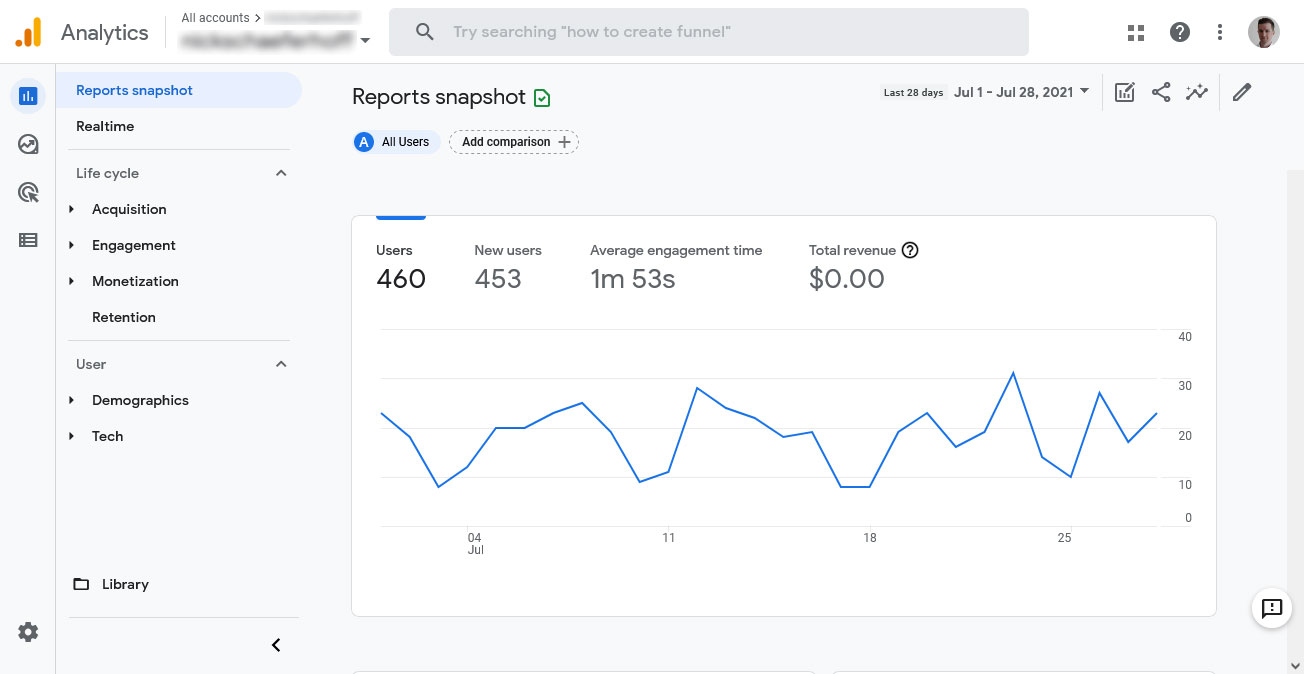
    google analytics 4 main page

    Google Analytics allows you to monitor what visitors are doing on your website. It shows you the pages they visit, how long they stay, how they found you, the countries they are from, and much more.

    Basically, it allows you to understand which of your online content is doing it’s job well and which isn’t. You can use this information to make better decisions about your content strategy.

    We have a Google Analytics 4 tutorial for you and also Google Analytics alternatives if you want to check some other SEO tools.

    3. Best SEO Tools for Keyword Research

    One of the most crucial parts of search engine optimization is keyword research. It helps you find topics that your audience is interested in and that you have a chance to rank for. There are also some excellent solutions to assist you in doing so.

    Google Keyword Planner

    google keyword planner

    Google has its own tool for this purpose. Though originally meant for picking keywords for paid ads, you can use the data it provides for organic keywords as well. This is especially good for local businesses because you can limit search to very specific localities.

    While Google Keyword Planner provides relatively basic data, you can cross reference it with other tools to get a more comprehensive idea. It’s also free, you only need to create an account and a property but you don’t have to pay anything.

    Google Trends

    google trends results

    Another tool Google provides for keyword research is Google Trends. However, instead of focusing on a snapshot of how popular topics and keywords are at the moment, it shows you how they develop over time broken down by geography.

    Simply enter a topic or keyword you are interested in and Google Trends will tell you how the rest of the world feels about it. It’s also possible to compare different topics and keywords to each other to see what trend to jump on and which to ignore. In addition, it gives you related keywords and phrases to your topic that are also en vogue.

    Finally, it’s free as well and we have a detailed article how to use Google Trends for SEO.

    KeywordTool.io

    keywordtool.io is one of the best free seo tools

    This is a great free keyword research tool. It mines the autosuggest function from sites like Google, Bing, YouTube, and Amazon to collect keywords related to your search. Simply enter a seed keyword, choose your language and search engine, then hit start.

    You will receive a list of long-tail keywords, phrases, and questions that you can use to better plan your content, come up with additional article topics, or simply find keyword ideas. On paid plans you also get information about search volume, CPC, and other data. Highly recommended!

    Alternative: Answer the Public, Mangools KWFinder

    Keywords Everywhere

    keywords everywhere

    The last of our best SEO tools for keyword research is Keywords Everywhere. It is an add-on you can install in Chrome or Firefox. When you do, it provides you with keyword data on the fly.

    For example, Keywords Everywhere shows key phrases related to what you type into Google, historical search data (from Google Trends), and keywords any website or web page ranks for as well as estimated traffic.

    It’s also super affordable. The paid edition starts at just $1/month.

    4. Solutions for Content Creation

    Content is one of main signals that Google judges websites by. In order to use it to your advantage, you need to make sure that yours is of high quality and well-optimized. Here is some helpful software to assist you in that.

    Surfer

    surfer seo best seo tools

    AI is all the rage now (so much so that people are wondering if AI will replace us all) and it’s finding more and more application in all walks of life.

    Surfer uses artificial intelligence for creating SEO-friendly content. It helps with keyword research, analyzes your existing content, and then helps you create relevant articles for your topics. The tool breaks down the content creation workflow into manageable pieces and helps you write articles quicker and easier.

    It also has a WordPress integration and plans start at $69/month.

    GrowthBar

    growthbar best seo tools

    This is a similar tool as the previous one. It, too, uses AI for scanning your existing content for keyword ideas and providing you with article outlines, including headings, internal links, and more. It can also optimize your articles already on your site and comes with other AI tools such as for writing product descriptions.

    You can have all of the above starting at $29/month. There is a free trial.

    Clearscope

    clearscope best seo tools

    While Clearscope is also AI-powered and helps you with content creation, it doesn’t do the writing for you. Instead, it creates reports for your target keyword by analyzing the existing SERPs. The tool then lists must-have and related keywords in its editor so that you know what topics and key phrases to include to beat the competition.

    It also analyzes readability, can create content briefs, and do keyword research. Plus, Clearscope integrates into your workflow with a WordPress plugin.

    However, it has its price. The lowest tier plan is $170/month.

    Grammarly

    grammarly best seo tools

    If you are one of those people who doesn’t want to outsource all of content creation to AI, there is Grammarly. Yes, it too uses artificial intelligence. Yes, it also offers generative AI for writing texts. However, Grammarly’s main function is to help you polish your content and check it for errors.

    The tool can check spelling and grammar, make suggestions for style, clarity, and tone, and even do complete sentence rewrites. It also integrates with a lot of common tools such as WordPress and Google Docs. Plus, there is a free version for basic error checking and premium plans can be as cheap as $12/month.

    5. Best WordPress SEO Plugins for On-Page Optimization

    Part of content creation is optimizing what you have written for search engine performance. That means, making sure you have the right keyword density, keywords are in the right places, and everything else that is part of on-page optimization. Luckily, the WordPress sphere offers a number of excellent tools for that purpose.

    Yoast SEO

    yoast seo wordpress plugin

    You say WordPress SEO, you think Yoast. It is the gold standard of WordPress SEO plugins.

    If you just install and activate Yoast SEO, it already improves your website. In addition, it allows you to configure everything about how your site appears in search results. You can also use it to set SEO titles and descriptions for your content as well as metadata for social media.

    The highlight is the on-page optimization guide. Just enter your main keyword and the plugin tells you how well optimized each piece of content is. It also comes with a readability analysis, XML sitemaps, and a lot more.

    The free version is enough for most sites, however, there is also a paid version with additional features.

    Rank Math

    rank math seo plugin

    Rank Math is a plugin similar to Yoast SEO and has a lot of overlap in functionality. That includes the ability to set SEO titles and meta descriptions, create an XML sitemap, etc.

    However, Rank Math also comes with an AI assistant for creating optimized content. Plus, you get full control over what user roles on your site can do what in terms of SEO and it integrates with Google Search Console so that you can see your keyword rankings in the WordPress back end. Finally you get a 404 monitor, redirection, and a lot more.

    SEOPress

    seopress wordpress seo plugin

    Another great WordPress SEO plugin. Of course, it does similar things as Yoast and Rank Math. Yet, its standout features is the clean and easy-to-use interface, which is completely free of ads. It also has heatmaps and session recordings and can automatically set image ALT tags and other data for image optimization.

    The premium version is also cheaper than many of the other SEO plugins out there, so if you want to splurge for extra functionality, it’s the most affordable option.

    6. Great Options for Image Optimization

    Speaking of optimizing images for SEO, that’s also an important area where tools can help your site perform at its best. The most important consideration here is performance since images can slow down page loading time due to their size. It’s something that Google deeply cares about for user experience reasons and take into account when ranking websites.

    Smush

    This is probably the most popular WordPress image optimization plugin. Smush can do the following things:

    • Compress images so they take up less space without altering their quality, both automatically during image upload and in bulk for existing visuals
    • Set images to lazy load so only those visible in the browser window actually load
    • Resize images and convert them to the WebP format.

    All of this aims at making images, and your site, load as quickly as possible and keep users and search engines happy.

    Alternative: EWWW Image Optimizer

    ShortPixel Image Optimizer

    shortpixel image optimizer

    Shortpixel is an an alternative to the above with similar functionality. However, it can also handle PDFs, convert images into WebP and AVIF format, has WP-CLI support, AI-powered smart cropping, and a whole lot of other features. Worth checking out.

    TinyPNG

    tinypng best seo tools

    This is an external tool for optimizing images before uploading them to your site. Simply drag and drop files into the upload field and download your optimized images in bulk.

    TinyPNG is free to use up to 20 images of 5MB or less (however, you can also use it several times in a row). If you end up taking advantage of it a lot, there is paid plan for $39/year. Plus, they even have a WordPress plugin if you want to integrate it directly on your website.

    7. Schema Structured Data

    Structured data allows you to add extra information to your web content such as images, price, rating. This can result in rich snippets being displayed in search results that include this information, which can lead to better click-through rates.

    rich snippets in serps example

    Many of the all-in-one WordPress SEO plugins above offer this functionality out of the box. However, you can also implement it manually using one of the plugins below. For more information, read our article on Schema.org structured data.

    Schema & Structured Data for WP & AMP

    schema structured data for wp amp

    This is one of the most popular WordPress plugins for implementing structured data. It supports more than 35 schema types from Blog Post over News Article to Recipe, Product, and more. The tool is also compatible with Google AMP plugins as well as easy to use.

    Structured Content (JSON-LD)

    structured content plugin

    This is an alternative for the above. While it doesn’t support as many schema types currently (FAQPage, JobPosting, LocalBusiness, Person, Event, and Course), Structured Content is Gutenberg optimized and allows you to configure Schema markup right in the block editor.

    8. Link Building and Link Analysis Tools

    If the Internet had an official currency, it would be links. They are a coveted resource since they represent a very strong ranking signal for search engines. Therefore, most successful SEO campaigns also involve a link building strategy. You can make this easier on yourself by using tools for this purpose.

    Moz Link Explorer

    moz link explorer

    First up is this semi-free tool to analyze any site’s link profile – yours or your competitors’. It allows you to see the number of links to a site, find broken links, check the link spam score, find new opportunities to earn links, see won and lost links, and a lot more. Plus, Moz can do keyword research.

    There is a free plan with limited queries per month. Paid accounts with additional features start at $79/month for yearly and $99/month for monthly plans.

    Majestic

    majestic seo

    Majestic is a link analysis tool. It shows you the number of inbound links and domains, gained and lost backlinks, and other data similar to Moz.

    Unfortunately, the free plan is even more limited than its competitor. On the other hand, premium plans are more affordable, starting at $49.99 per month.

    Internal Link Juicer

    internal link juicer large

    Links are not just important in terms of incoming links, also when it comes to links between pages on your website. Internal linking not only helps search engines and visitors navigate your site and find relevant content (notice all the internal links in this post), it also clarifies the relative importance of different pages on your site and their topics. For that reason, it should definitely be a habit of yours.

    Internal Link Juicer helps you with that by automatically inserting internal links and using anchor text according to keywords. If you struggle with adding internal links to your content, give this plugin a try.

    9. Solutions for Local SEO

    Local search optimization is especially important for businesses with brick-and-mortar locations who want to show up for local searches in Google.

    BrightLocal

    brightlocal best seo tools

    BrightLocal is a complete SEO suite for local visibility. It reports search ranking in search results and Google Maps and helps you rank for the right local keywords.

    In addition, it provides audits for your website and Google My Business listing and tools for taking care of your local business profiles. For example, it can help you generate reviews and answer them faster.

    There is a 14-day free trial, after that you need to pay $35/month for the entire suite.

    10. Best SEO Tools for Competitor Research

    Ranking number one in search results could be so easy, if it weren’t for all the other websites trying to do the same. Sometimes SEO doesn’t just come down to doing your best but also to beating the competition. In those cases, it’s good to know what you are up against.

    Besides the general SEO tools at the beginning of the page, here are some specialized solutions to spy on your contenders.

    SpyFu

    spyfu best seo tools

    SpyFu offers a lot of the same functionality as your SEMrushs and Ahrefs. That includes things like rank tracking, keyword research, etc.

    However, what it does best is help you with competitor analysis. Spyfu helps you figure out what your competition is doing better than you, understand, emulate, and beat their backlink strategies, learn their PPC keywords, do backlink outreach, see historical SEO data, and much more. This is invaluable knowledge to leave competitors in the dust.

    SpyFu plans start at $16/month and there is a 7-day free trial and 30-day money-back guarantee.

    SEOQuake

    seoquake

    SEOQuake is a browser extension that provides an entire SEO toolbox. It’s free to use and available for Firefox and Chrome. Simply install and activate, then go to any web page that you are interested in, and it will provide your with SEO data about any website.

    What kind of data? Anything from links and backlinks over estimated traffic and social shares to indexed pages and a lot more. The extension also displays this kind of information in Google search results. Great for quick overview of your own site or that of competitors.

    Similarweb Browser Extension

    similarweb browser extension

    Another browser extension that provides a lot of information about any website. Rank, visits, traffic sources, visitor locations – you name it. Another great option to spy on your competitors.

    11. Performance Plugins and Tools

    As mentioned, website speed is one of the factors that search engines like Google look at to determine website rank. For that reason, using tools that help you improve website performance is also best for SEO.

    PageSpeed Insights

    google pagespeed free seo tool

    PageSpeed Insights is a free software made by Google to speed test your website. It shows different Core Web Vitals markers for the mobile and desktop version of your website. In addition, it gives detailed input on how to best fix any issues it finds and also checks for accessibility and SEO problems in the same way.

    Alternatives: GTmetrix

    WP Rocket

    wp rocket wordpress caching plugin

    There are many free performance plugins for WordPress out there (see below), however, WP Rocket is often considered the best one, even though it is a paid extension. Simply install, activate, and you have a faster website right away. The plugin offers multiple caching layers, Gzip compression, deferring JavaScript, removing unused CSS, lazy loading and many more features.

    A single-site license is $59/year. If that is too steep for you, can also achieve great results with the alternatives below.

    Alternatives: W3 Total Cache, Autoptimize, LiteSpeed Cache, Jetpack Boost

    12. SEO Utilities

    Finally, here are some of the best random SEO tools that didn’t quite fit any of the categories above.

    Redirection

    add page redirect via wordpress plugin

    Redirecting your pages is an important tool to help your website run properly. It allows you to eliminate 404 errors for pages that no longer exist by sending people trying to visit them to other relevant parts of your site.

    This plugin not only monitors whenever someone tries to access a non-existent page on your site, it also provides you with a simple interface to create relevant redirect rules.

    Broken Link Checker

    broken link checker

    In order to fix your broken links, you first need to find them. Doing so manually can be very tedious, especially if you have a very big website. That’s where this plugin comes in.

    Broken Link Checker automatically scans your site for links that are going nowhere and reports them to you so you can solve the issues.

    Alternatives: Screaming Frog SEO Spider (free up to 500 scanned URLs)

    Really Simple SSL

    Running your site on HTTPS is something that visitors increasingly expect for security reasons and it’s also something that search engines take into account when ranking your pages. If your hosting provider does not offer it out of the box or you are having trouble implementing it, this plugin can help you switch your WordPress site to SSL encryption.

    XML Sitemap Generator for Google

    xml sitemap generator

    If you don’t use any of the SEO plugins mentioned above, which automatically create XML sitemaps for your website, you can also use a dedicated solution just for that. Doing so allows you to submit your sitemap to Google Search Console and other webmaster tools in order to give search engines a better idea about what pages exist on your site so they can index them.

    What Are Your Best SEO Tools?

    With organic search continuing to be one of the main sources of website traffic, search engine optimization remains a central tool for any website that wants to be successful. Luckily, by now there are many tools to help you ace this part of running a website.

    Above, we have discussed some of the best tools for different areas of SEO. As you could probably see, there are free tools, free limited plans, and free trials for most parts. Consequently, you don’t necessarily have to spend money to bring in traffic. We hope you find some good solutions for yourself!

    What do you consider the best SEO tools for WordPress websites and beyond? Tell us about your favorites in the comments!

    The post 40+ Best SEO Tools of 2023 (For WordPress and Beyond) appeared first on Torque.

  • 12 Tactics for WordPress Speed Optimization Without Plugins

    Why attempt speed optimization of your WordPress website without plugins? A sluggish website is more than just a minor inconvenience—it’s a significant roadblock when you’re trying to build online success. In fact, according to a 2022 study by Portent, in the first five seconds of loading a page, every additional second reduces website conversion rates by an average of 4.5%.

    While WordPress performance plugins might seem like the go-to solution to address this problem, they’re not always your best bet. Sure, they offer quick fixes, but they can also introduce a host of additional issues, from security vulnerabilities to code bloat. 

    If that sounds unpleasant, no need to fret, you can absolutely rev up your WordPress site’s speed without installing a single plugin. That’s exactly what we’ll discuss here today by showing you a multitude of ways to boost WordPress site speed without plugins.

    Why Consider Plugin-Free Optimization?

    optimize wordpress speed without plugins

    Let’s get one thing straight: plugins, including performance plugins, aren’t inherently bad. They can add valuable functionality to your website and make your life as a site owner a whole lot easier. However, the more you lean on them for every little thing, the more you expose yourself to a range of potential problems, like: 

    1. Excessive code — Each plugin you add to your website introduces additional code to it. Over time, this can accumulate and make your site sluggish. Plus, oftentimes plugins include functionality you don’t really need, adding features and code to your site you are not even using.
    2. Security Risks — Not all plugins are of the same quality. Some come with poorly written markup or outdated security measures, making them a ripe target for hackers. The more plugins you have, the more potential entry points for cybercriminals.
    3. Incompatibility Issues — Plugins can clash with each other or with your WordPress theme, causing functionality to break. This can lead to a troubleshooting nightmare, as you try to figure out which plugin is the culprit.
    4. Maintenance Overhead — Each plugin requires regular updates to stay secure and functional. The more plugins you have, the more time you’ll spend on maintenance, taking you away from other important tasks.

    So, that’s a fair amount of pitfalls to using plugins, and they hopefully make it clear why opting for a plugin-free approach to improving site speed can be a a smart move.

    Making a Diagnosis: What’s Slowing Down Your Site?

    Jumping straight into solutions without analyzing the problem first isn’t the best approach. You might get lucky and figure it out right away, but in most cases, it’ll be a lot of trial and error. 

    That’s why it’s crucial to first identify what’s causing your WordPress site to slow down. By pinpointing the issues, you can apply targeted solutions that will have the most impact on your site’s performance.

    How to Run a Speed Audit

    pagespeed insights free website speed testing tool

    Running a speed audit is your first step in the diagnostic process. This will give you a snapshot of your site’s current efficiency and highlight areas that need improvement. Here’s how to go about it:

    1. Choose a Speed Testing Tool — There are several reliable tools available for this purpose. GTmetrix, Pingdom, and Google PageSpeed Insights are among the most popular ones.
    2. Run the Test — Input your website URL and start the test. Wait for the results to populate.
    3. Analyze the Results — Look for key metrics like load time, the number of requests, and page size. Pay attention to any warnings or suggestions the tool provides.
    4. Identify Bottlenecks — Common issues could range from server response time, non-optimized images, too many external HTTP requests, or even a lack of caching facilities.
    5. Document Findings — Keep a record of your initial test results. This will serve as a benchmark to measure the effectiveness of the optimizations you’ll later apply.

    Conducting a thorough speed audit helps you set the stage for effective optimization. You’ll know exactly what issues to tackle, saving you time and effort in the long run.

    How to Optimize Your WordPress Site’s Performance Without Plugins

    Once you have analyzed the problem, it’s time to tackle it. Let’s look at some of the steps you can take to speed up your WordPress site without resorting to performance plugins.

    1. Choose Hosting Wisely

    Web hosting plays a pivotal role in your website’s speed and overall performance. Think of it as the foundation of your digital house. If the basis is shaky, the entire structure is at risk. Your hosting provider’s server speed, the type of storage they offer, and their data center locations can all impact how quickly your website loads.

    row of servers in a data center

    When it comes to storage types, you’ll often encounter two options: Solid State Drives (SSD) and Hard Disk Drives (HDD). Here’s a quick comparison:

    • SSD — Faster read/write speeds, less prone to mechanical failure, and generally more reliable. Ideal for websites that require quick data access.
    • HDD — Slower compared to SSD, more prone to mechanical failure, but usually cheaper. Not recommended for performance-critical websites.

    Choosing SSD over HDD can significantly improve your website’s speed, as SSDs can handle more data requests per second and offer faster data transfer rates. So, when you’re shopping for web hosting services, look for information on the type of storage they offer. Many modern hosting services have moved to SSDs, but it’s always good to double-check.

    2. Opt for HTTPS vs HTTP

    HTTPS (HyperText Transfer Protocol Secure) is essentially HTTP with an added layer of security, thanks to SSL/TLS encryption. Not only does this make your website more secure, but it also instills trust among visitors. Google even considers HTTPS as a ranking factor, so it’s a win-win situation.

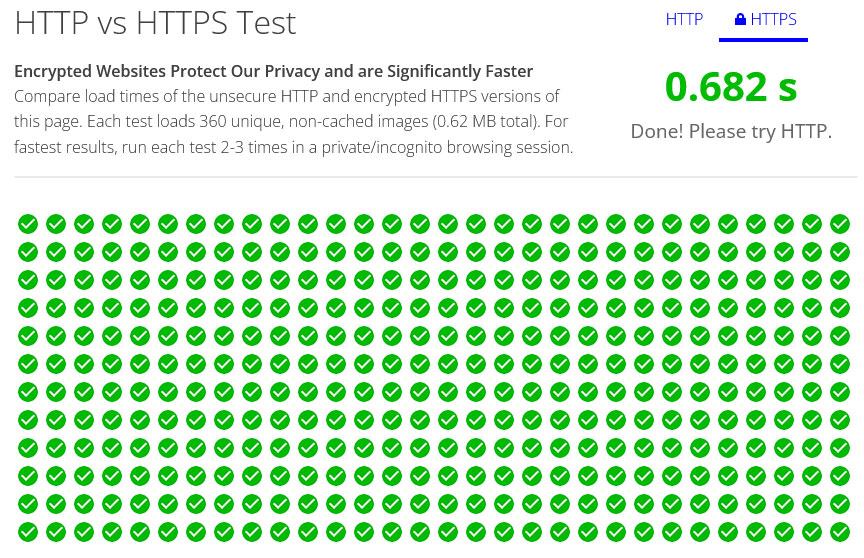
    However, in addition to security improvements, using HTTPS is also good for site performance. That’s because it uses HTTP/2, which includes several speed improvements compared to its predecessor. You can even try it out for yourself here.

    http vs https test results

    For that reason, switching to HTTP2 can significantly speed up your website loading times, making for a smoother user experience.

    3. Consider Core Web Vitals

    Core Web Vitals serve as a collection of metrics designed to gauge the user experience on your website. These metrics have risen to prominence due to Google’s emphasis on this area, and they’re now central factors in search engine rankings.

    A satisfying user experience on your website isn’t a one-off event, it’s an ongoing process. Core Web Vitals act as your guide through this process, spotlighting key moments in a user’s engagement with your site. They also point out real-world performance bottlenecks, which you can use to fine-tune your website accordingly.

    To gauge these performance indicators, you generally have two methods to pursue:

    • Lab Data — This is data gathered in a controlled setting, which is great for troubleshooting and yields consistent results.
    • Field Data — Information collected from actual user interactions, offering a genuine snapshot of your user experience, albeit with less capacity for debugging.

    For measuring these vitals, tools like PageSpeed Insights and Chrome Dev Tools are indispensable resources. They can provide insights on all Core Web Vitals metrics, namely Largest Contentful Paint, First Input Delay, and Cumulative Layout Shift.

    4. Update to the Latest PHP Version

    PHP is the scripting language that powers WordPress, but different versions of PHP can have a significant impact on your WordPress site’s performance. 

    For instance, a report put together by Cloudways showed that PHP 8 loaded three times faster than PHP 5.6.

    php versions speed comparison
    Image source:
    Cloudways

    The latest PHP versions also come with improved security features and are more likely to be supported by plugin and theme developers. So, if your site is running on an outdated PHP version, upgrading to the latest version can bring about a noticeable improvement. 

    5. Use a CDN

    A Content Delivery Network (CDN) is a global network of servers designed to distribute your WordPress site’s static content—like images, CSS, and JavaScript—and sometimes even dynamic content. The goal is to minimize latency by delivering this content from servers geographically closer to the person visiting your website. 

    content delivery network cdn diagram
    Image source: Kanoha, CC BY-SA 3.0, via Wikimedia Commons

    For instance, a user in Europe will access your content from a European server, while a US visitor will be served from a server within the United States.

    But CDNs bring more to the table than just speed enhancements. They also come equipped with a suite of security features. Many CDN services include advanced firewall configurations, protection against DDoS attacks, and even complimentary SSL certificates. 

    These added layers of security are especially valuable for WordPress sites, which are frequent targets for a variety of cyber threats.

    6. Carefully Consider WordPress Themes

    neve theme demo

    Though there are thousands of WordPress themes available, they’re not all the same in terms of quality. Some themes come with built-in speed optimization features that can significantly improve your site’s performance or simply use speed-optimized code. Some well-known examples are:

    1. Astra — Known for its lightweight design and SEO-friendly structure. 
    2. GeneratePress — Intuitive design and performance-oriented features make it a perfect choice for users with minimal coding experience. 
    3. Neve — Its fast loading times and SEO optimization work well for those looking to increase their visibility. 

    No matter what theme you choose, be sure to check its ratings and read user reviews before committing. This is a good way to make sure you’re picking up the best option for your website’s needs.

    7. Optimize Images

    tinypng best seo tools

    Images can really make or break a website by adding visual appeal and context to your content. However, they can also drag down your site’s performance if not optimized properly. Large, unoptimized images can slow down your site, eat up bandwidth, and even affect your SEO rankings.

    Image compression is a way to reduce the size of your images and make them load faster. Here, you generally have two options:

    • Lossless — This method compresses the image without losing any quality. It’s ideal for images that require high detail.
    • Lossy — This method reduces the file size by removing some data from the image. It’s more effective in reducing file size but can result in a slight loss of image quality.

    There are several external tools available for image optimization and while some have plugin versions available, too, you can just as easily use them on their own. A few popular options include:

    • TinyPNG — This tool uses smart lossy compression techniques to reduce the file size of your PNG and JPEG images.
    • Squoosh — An open-source tool that allows you to compress and resize images using various formats and settings.

    8. Enable Gzip Compression

    You can not only use compression for your images but also for your site as a whole. That way, the files that make up your website are shrunk, which makes them faster to download and display.

    Pretty much every WordPress performance plugin includes the option to switch on compression. However, if you want to avoid using plugins (as we are doing here), you can also switch it on manually by adding the following markup to your website’s .htaccess file.

    <IfModule mod_deflate.c>
      # Compress HTML, CSS, JavaScript, Text, XML and fonts
      AddOutputFilterByType DEFLATE application/javascript
      AddOutputFilterByType DEFLATE application/rss+xml
      AddOutputFilterByType DEFLATE application/vnd.ms-fontobject
      AddOutputFilterByType DEFLATE application/x-font
      AddOutputFilterByType DEFLATE application/x-font-opentype
      AddOutputFilterByType DEFLATE application/x-font-otf
      AddOutputFilterByType DEFLATE application/x-font-truetype
      AddOutputFilterByType DEFLATE application/x-font-ttf
      AddOutputFilterByType DEFLATE application/x-javascript
      AddOutputFilterByType DEFLATE application/xhtml+xml
      AddOutputFilterByType DEFLATE application/xml
      AddOutputFilterByType DEFLATE font/opentype
      AddOutputFilterByType DEFLATE font/otf
      AddOutputFilterByType DEFLATE font/ttf
      AddOutputFilterByType DEFLATE image/svg+xml
      AddOutputFilterByType DEFLATE image/x-icon
      AddOutputFilterByType DEFLATE text/css
      AddOutputFilterByType DEFLATE text/html
      AddOutputFilterByType DEFLATE text/javascript
      AddOutputFilterByType DEFLATE text/plain
      AddOutputFilterByType DEFLATE text/xml
    
      # Remove browser bugs (only needed for really old browsers)
      BrowserMatch ^Mozilla/4 gzip-only-text/html
      BrowserMatch ^Mozilla/4\.0[678] no-gzip
      BrowserMatch \bMSIE !no-gzip !gzip-only-text/html
      Header append Vary User-Agent
    </IfModule>

    For detailed instructions on how to do this this, check our Gzip compression tutorial.

    9. Activate Browser Caching

    While you are inside .htaccess, you might as well switch on browser caching. Browser caching is like a memory bank for your website. It stores static files like images, CSS, and JavaScript on the visitor’s device. That way, the next time they come to your site, these files load from their hard drive instead of being downloaded again from the server. As you can imagine, that is a much faster.

    Below is the code you can use to make that happen. Place it inside .htaccess before the # END WordPress line (code source: GTMetrix).

    <IfModule mod_expires.c>
      ExpiresActive On
    
     # Images
      ExpiresByType image/jpeg "access plus 1 year"
      ExpiresByType image/gif "access plus 1 year"
      ExpiresByType image/png "access plus 1 year"
      ExpiresByType image/webp "access plus 1 year"
      ExpiresByType image/svg+xml "access plus 1 year"
      ExpiresByType image/x-icon "access plus 1 year"
    
      # Video
      ExpiresByType video/webm "access plus 1 year"
      ExpiresByType video/mp4 "access plus 1 year"
      ExpiresByType video/mpeg "access plus 1 year"
    
      # Fonts
      ExpiresByType font/ttf "access plus 1 year"
      ExpiresByType font/otf "access plus 1 year"
      ExpiresByType font/woff "access plus 1 year"
      ExpiresByType font/woff2 "access plus 1 year"
      ExpiresByType application/font-woff "access plus 1 year"
    
      # CSS, JavaScript
      ExpiresByType text/css "access plus 1 year"
      ExpiresByType text/javascript "access plus 1 year"
      ExpiresByType application/javascript "access plus 1 year"
    
      # Others
      ExpiresByType application/pdf "access plus 1 year"
      ExpiresByType image/vnd.microsoft.icon "access plus 1 year"
    </IfModule>

    10. Remove Unused Plugins

    Unused plugins aren’t just taking up space on your web host’s server—they’re also potential liabilities. The truth is, every plugin you install adds code to your WordPress installation. Even if you’re not actively using a plugin, its code can still load and affect your site’s performance.

    wordpress plugin menu

    Unused plugins also create security vulnerabilities. Hackers often exploit vulnerabilities in poorly maintained plugins to gain unauthorized access to websites.

    And they can even cause conflicts with other plugins or themes you’re actively using. The more plugins you have, the higher the likelihood of them conflicting with each other or with your active theme. This can lead to all sorts of issues, from broken features to complete site crashes.

    That’s why removing unused plugins is a smart idea. Regularly audit your plugin collection to see if you actually need everything active on your site or if you can remove or replace plugins with leaner solutions.

    11. Move JavaScript to the Footer

    JavaScript files can be resource-heavy and slow down your website if they’re not managed properly. By moving JavaScript files to the footer, you allow the browser to render the page without waiting for these scripts to load.

    render blocking resources in pagespeed insights

    This also improves the user experience, as site visitors can start interacting with the page sooner, which can lead to better engagement and lower bounce rates. Learn more about this in our article about render-blocking resources.

    12. Use Google Tag Manager

    Google Tag Manager is a game-changer when it comes to managing multiple tracking codes on your website. Instead of manually adding tracking codes for Google Analytics, Google Ads, and other third-party services separately, you can manage them all in one place.

    The tag manager is also asynchronous, meaning it doesn’t block the rendering of other elements on your page. This ensures that your site loads quickly, even when you’re using multiple tracking tags. Plus, Google Tag Manager allows you to deploy tags based on triggers, giving you more control over when and how they fire.

    Final Thoughts: Optimizing WordPress Speed Without Plugins

    As we’ve established here, a slow website is more than just a nuisance—it’s a business liability that can cost you visitors, conversions, and revenue. While plugins may seem like a quick fix, they often bring their own set of problems. That’s why it’s crucial to take a more holistic approach to WordPress optimization. 

    From conducting an initial speed audit and making informed choices on hosting and themes, to fine-tuning images and taking advantage of compression and caching, every detail matters. So don’t wait—take control of your WordPress site’s performance now.

    And remember, optimization is not a one-time setup but an ongoing process. Keep monitoring, keep tweaking, and most importantly, keep optimizing for a faster, more efficient website.

    How do you optimize your WordPress site’s performance without plugins? Any additional tips and measures? Feel free to share your thoughts in the comments below!

    The post 12 Tactics for WordPress Speed Optimization Without Plugins appeared first on Torque.

  • The WordPress Core Performance Team: What Do They Do?

    The WordPress Core Performance Team is a relatively new addition to the roster of WordPress teams. Just like the Sustainability Team, it hasn’t been around for that long.

    Partially, that’s because performance used to be a high priority for the WordPress community to address. Performance was mostly outsourced to hosting providers and plugins. Plus, there are so many things that users can do themselves to speed up WordPress websites.

    However, reports started piling up that WordPress was being left in the dust by competitors. As a consequence, the community decided that it was time to make WordPress core performance a stronger priority. Josepha Haden-Chomphosy also mentioned this at WordCamp Europe 2023

    So, in order to better understand who the Core Performance Team are and what they do, in this article we want to shine a line on them and their work. We will talk about why the team was created, what their goal is, and pinpoint some of their work product and results. Finally, we’ll tell you how you can get involved in the team and help improve WordPress performance as well.

    The WordPress Performance Team: A Detailed Overview

    wordpress core performance team

    If you are relatively new to WordPress, you might not know that the project splits different responsibilities up into teams, all with their own channels in Make WordPress.

    teams on make wordpress

    There is a Design Team, Accessibility Team, Themes and Plugins Teams, Training Team, Marketing Team, and so on. Since upon its inception in 2021, the Core Performance Team has taken its place among them including their own channel and blog.

    wordpress core performance team blog on make wordpress

    The team was initially proposed and spearheaded by community members of several organizations in the WordPress space, including Google, 10up, XWP, and Yoast. These organizations are also among those who contribute personnel and time to it.

    Why did they think it was necessary to form such a team? Let’s talk about that next.

    Why Does WordPress Need a Core Performance Team?

    The main reason for having a WordPress Core Performance Team is simple: users prefer fast websites. It is a well-established fact that website performance influences everything from user experience to conversions, engagement, and SEO, as well as makes for more eco-friendly websites.

    mobile site speed and conversion rate increases google
    Source: Google

    However, there were also more specific reasons for why it was necessary to make performance a priority for WordPress Core.

    WordPress Has Been Falling Behind

    As already alluded to in the introduction, the ultimate decision to start the Core Performance Team was because WordPress was starting to be outclassed in this area by other website platforms. Felix Arntz gave a talk on this topic at WCEU 2022 that goes into a lot of detail about this.

    If you are not planning to watch the entire thing, here are some of the main findings.

    The Core Web Vitals technology report showed WordPress and WooCommerce websites coming in dead last for sites with good Core Web Vitals scores in comparison to proprietary platforms like Wix, Squarespace, or Shopify. This is especially visible on desktop.

    core web vitals report comparison

    In addition, WordPress sites improved more slowly than those other platforms, even though the share of sites with good scores almost doubled. What’s more, websites built with open-source CMSs as a whole were also faster than for WordPress alone. That means, other content management systems like Drupal or Joomla were performing better than WordPress as well, not just the paid websites builders and CMSs.

    wordpress performance vs drupal joomla wix etc

    Why does this matter? Because, to reiterate an earlier point, users care about this. As WordPress’ competitors invested in performance improvements, their user numbers started growing faster than their open-source alternatives.

    fastest growing cms comparison

    Performance Is an Important Feature

    What’s important to keep in mind here is that performance improvement is not a level playing field. Proprietary CMSs have a much easier time optimizing their products because they own the entire ecosystem and technology stack.

    However, the above still doesn’t paint a pretty picture. It’s obvious that performance is an important factor for the success and longevity of the WordPress platform. That’s what the community members who proposed the formation of a performance dedicated team realized and also laid out in their initial proposal.

    wordpress core performance team original proposal

    In order to stay competitive, continue to build market share, and also simply allow users to build websites for the modern web environment, performance has to be a cornerstone of what WordPress offers out of the box. How to achieve that? Well, that’s a whole other question.

    What Does the Core Performance Team Do?

    So, the goal is clear. Now, how does the WordPress Core Performance Team hope to get there? To quote the team page:

    The core performance team is dedicated to monitoring, enhancing, and promoting performance in WordPress core and its surrounding ecosystem.

    To understand better what that entails, it helps to take a look at their roadmap for 2023:

    • Improve WordPress load time — The team aims to improve both and client-side (meaning browser) as well as server-side performance. Specifically, they are targeting improvements in Largest Contentful Paint (LCP), which is a metric that WordPress sites appear to struggle with the most.
    • Measure performance — Create and improve ways for developers to measure and benchmark performance. Doing so will allow the community to create strategies to improve performance based on reliable data.
    • Support plugin and theme developers — Provide better documentation and tools for WordPress developers to improve the performance of their work and products. Helping developers improve load time of their themes and plugins will have a positive impract on the WordPress ecosystem as a whole.

    Those are the broad strokes. To give you a better impression, here are some of the concrete measures the team is trying to implement:

    How did they land on these? They were proposed by the community after issuing a call for input.

    wordpress core performance team call for priorities on github

    As you can see, the team approaches the topic of improving WordPress Core performance from several different angles. This is necessary because it depends on a number of different factors. It’s also why the team doesn’t post too much on the Core Performance blog itself. Instead, you can find their posts tagged under “performance” in the Core, Themes, and Plugins channels.

    The Performance Lab Plugin

    One of the main work products of the the Core Performance Team is the Performance Lab plugin. It’s a feature plugin, or rather, a collection of feature plugins aimed to eventually find their way into Core. It’s also a way to test out different performance improvements in the wild. The plugin consists of different modules that can be used separately or in combination.

    performance lab plugin menu and modules

    At the time of this writing, that includes:

    • Dominant Color Images — Adds support to store the dominant color of newly uploaded images and create a placeholder background of that color until the image loads. This mainly aims to improve the user experience while waiting for images to appear.
    • Fetchpriority — Adds fetchpriority markup for the primary content image on the page. This tells browsers to load it first in order for it to show up quickly.
    • WebP Support Health Check — Checks whether your server supports creating WebP images and displays this information in the Site Health menu.
    • WebP Uploads — Automatically creates WebP versions for new JPEG image uploads to the WordPress media library if supported by your server. WebP is a next-generation image format with a smaller footprint, which results in faster-loading images. The plugin only does this if the WebP image would be smaller than the existing JPEG.
    • Enqueued Assets Health Check — Adds a check to Site Health about the amount of CSS and JavaScript files loaded on your site so you can reduce them.
    • Autoloaded Options Health Check — Examines the number of options autoloaded from the website database and displays feedback in Site Health as well.

    As you can see, the improvements in the plugin focus mainly on JavaScript and image issues. That’s because those are the main problems that keep WordPress sites from performing well, as Felix pointed out in his presentation.

    wordpress main performance issues

    However, it’s important to note that the modules in the plugin will change over time as features will become part of Core and new projects will take their place. In the meantime, feel free to install and try it out.

    Other Visible Performance Achievements

    Besides the Performance Lab Plugin, we can already see the fruit of the Core Performance Team’s labor paying off in other forms. With every new release, WordPress now gets a little bit faster. WordPress 6.2 increased loading time by 14-18% for block themes and 2-5% for classic themes. It also improved server-side performance by 17-23% and 3-5% for those theme types respectively.

    performance improvements in wordpress 6.2

    This mainly happened through improvements in theme.json APIs, improving lazy loading for block themes, as well as better performance tracking tools.

    WordPress 6.3 did even better. It further improved loading speed by 27% for block themes and 18% for classic themes. Server response time for block themes decreased an additional 19%.

    This update mostly focused on client-side (meaning browser) performance. WordPress 6.3 streamlined the performance of the emoji-loader.js script, added fetchpriority for above-the-fold images, and also made low-level changes to server and database performance.

    The team also introduced automated performance monitoring as a means to better measure loading speed and identify issues. This helps create a continuous track record of how WordPress Core performs and creates a benchmark to compare new improvements against.

    Finally, they are also working on making WordPress translations faster. Apparently localized versions of WordPress perform much worse than WordPress versions in just one language. They are testing a solution to this in the Performant Translations plugin.

    How to Contribute to the Core Performance Team

    The beauty of WordPress as an open source project is that anyone can contribute to it. That includes the Core Performance Team. If you want to lend a hand in making WordPress as a whole faster, you can get involved in the following ways:

    • Join the #core-performance channel on Slack and join the weekly meetings (you need a WordPress.org account). They happen on Tuesdays and you can find them in the meetings calendar. For summaries of past meetings, check the Core Performance Team blog. Here, you can join the discussion and even make your own proposals for features and feature plugins.
    • Test and report bugs for the Performance Lab plugin in Github or on the official support forum. If you are a developer, you can also contribute to the plugin. As a non-techie, you can still help translate it or lend a hand in the support forum. Find details for both in the plugin handbook.

    You can find more ways to contribute in the team handbook. If you do get involved, don’t forget to get your contributor badge!

    wordpress core performance team contributor badges

    Final Thoughts: WordPress Core Performance Team

    The Core Performance Team is relatively new to the WordPress ecosystem. However, they have taken on a very important responsibility. Performance is an area in which WordPress has fallen behind, which also shows in user numbers trend.

    By having a central team for it and making it priority, the goal is to not only play catch-up but eventually surpass other platforms. It also aims to make performance and the resulting increase in user experience and website speed a central feature of the WordPress platform.

    In this post, you have found an overview of how the Core Performance Team is planning to achieve this and their main points of focus. Use the Performance Lab plugin to test drive their work. If you want to support them in what they do (and the WordPress platform as a whole), there are plenty of ways you can do so.

    What do you hope to see come out of the work of the Core Performance Team? Share your insights in the comments section!

    The post The WordPress Core Performance Team: What Do They Do? appeared first on Torque.

  • WordPress Back End Slow? 15 Ways to Speed Up the Dashboard

    Ever felt like you’re stuck in a time loop while waiting for your WordPress dashboard to load? If you’re dealing with a WordPress back end slow down, you’re not alone. A sluggish admin panel isn’t just a minor inconvenience — it’s a significant roadblock to effective website management. 

    But here’s the good news: a laggy dashboard isn’t a life sentence. This article will guide you through a comprehensive set of strategies to optimize your WordPress dashboard’s performance.  Say goodbye to slow load times and hello to a more efficient WordPress experience.

    wordpress back end slow

    1. Check Your Connections

    Your Internet connection can be a silent killer when it comes to dashboard speed. If you’re working from a place with spotty wifi, you’re already at a disadvantage. Use speed test tools like Speedtest.net to check your Internet speed. If it’s below par, you might want to consider upgrading your Internet plan or using a wired connection for a more stable experience.

    ookla speed test results

    On the server side, if you’re on a shared hosting plan, you’re sharing resources with other websites. When those sites experience high traffic, it can slow down your dashboard.

    Most hosting providers offer a status page where you can check for any ongoing issues or maintenance. If server issues are a recurring problem, it may be time to consider a more robust hosting solution, like VPS or dedicated hosting.

    2. Speed Test the WordPress Back End

    Conducting a speed test on your site’s back end is a smart way to approach this situation. Lighthouse is a great tool for doing this, as it’s a comprehensive performance auditor. When you run a Lighthouse test, you’re not just getting a “fast” or “slow” label for your WordPress back end; rather, you’re getting a detailed analysis of various performance metrics, such as:

    • File Sizes — Large files, especially images and videos, can slow down your dashboard. Lighthouse will point these out so you can optimize them.
    • Render-Blocking Resources — These are scripts and style sheets that prevent your page from displaying until they’ve loaded. Lighthouse identifies these culprits, allowing you to defer or asynchronously load them.
    • Server Response Times — If your server takes too long to respond, it can delay everything else. Lighthouse measures this as Time to First Byte (TTFB), helping you identify if server speed is a bottleneck.

    Running a Lighthouse test is pretty straightforward. Using the Chrome browser, open your browser development tools, e.g. by right-clicking anywhere on your WordPress dashboard and selecting Inspect. Navigate to the Lighthouse tab and click Generate report. The tool will then run its magic and give you a detailed breakdown of what’s slowing down your dashboard.

    speed test slow wordpress back end with lighthouse

    3. Update WordPress Regularly

    Each WordPress update not only brings new features but also often includes performance improvements. Running an outdated version means you’re missing out on these enhancements. They can range from code refinements to caching enhancements, all aimed at making your website run smoother and faster.

    wordpress updates page

    Another consideration is that, due to its popularity, WordPress is a prime target for hackers and data thieves. By running an outdated version, you’re essentially leaving your back door unlocked for things like malware or other code injections. This malware can slow down your site significantly. 

    4. Adjust PHP Settings

    WordPress is built on PHP, so the version you’re using can significantly impact your website’s speed. Newer versions of the programming language are not only more secure but also faster. According to a benchmarking test conducted by Cloudways, PHP 8.0 is almost three times faster than PHP 5.6. 

    php versions speed comparison
    Image source:
    Cloudways

    Not sure which PHP version your server is running? You can easily check it via Site Health under the Tools menu in the WordPress back end or in its widget on the dashboard.

    wordpress site health php test

    How to Increase PHP Memory Limit

    Another lever you can pull in the PHP settings is the memory limit. Think of this as the amount of “brainpower” your website has to perform tasks. The more memory, the faster your dashboard can load and perform operations. 

    You can usually increase the PHP memory limit through your hosting control panel. But if you’re comfortable tinkering with code, you can also do it by editing the wp-config.php file. 

    Just add the line define('WP_MEMORY_LIMIT', '256M'); to increase the limit to 256 MB. If your WordPress back end is slow, this could help solve the problem.

    5. Check Your Plugins

    Most WordPress websites make use of at least a few plugins, but some can consume a lot of resources, slowing down your dashboard. So, how do you identify these culprits and what can you do about them? 

    Besides speed testing the WordPress back end, a very good tool for that is WP Hive. It’s a Chrome (and Firefox) extension that provides performance metrics for each plugin you have installed, right in the WordPress plugin directory.

    WP Hive can show you how much memory a plugin uses, how it impacts your page speed, and even if it throws any errors. It also allows you to compare one plugin with another, offering a detailed insight into each plugin’s performance metrics. This kind of intel is invaluable when you’re trying to speed up your WordPress dashboard.

    Once you’ve identified the plugins that are slowing you down, the next step is to consider deactivating them to see if doing so improves your dashboard speed. 

    But what if the plugin is essential to your site? 

    In that case, look for lighter alternatives that offer similar functionality. It’s also worth mentioning that every plugin you add contributes some overhead to your site’s loading times. So, the goal is to use as few plugins as possible while still maintaining the functionality you need.

    6. Run Query Monitor to Keep Tabs on Plugins

    Query Monitor is a more advanced tool that can give you deeper insights into what’s happening at the database-level of your WordPress site. It helps you identify resource-heavy plugins by showing you all the database queries that are being run on your site. This can be particularly useful if you’re trying to dig deeper into why a specific plugin is slowing down your dashboard.

    query monitor console in wordpress back end

    After installing the plugin, you’ll see a new menu item in the admin toolbar. Clicking on it will give you a detailed breakdown of database queries, PHP errors, and much more. It’s a powerful tool and well worth using to diagnose a slow WordPress back end.

    7. Cache Your Website Smartly

    Caching works by storing static versions of your web pages, which lightens the load on your server and speeds up your site. So, it’s an important feature to have active on your site.

    But here’s the kicker: your WordPress admin area is one of the places where you might not want to use caching. That’s because it’s often a bustling hub of real-time changes, from new posts to updated plugins. Caching this dynamic content could mean you are presented with outdated information, causing more headaches than it solves.

    Thankfully, there are a few caching plugins that have got your back. Take W3 Total Cache and WP Super Cache, for example. These plugins come with settings that let you turn off caching for logged-in users or even specific pages like your admin dashboard. That way, you can enjoy the speed perks on your site’s front end while ensuring your admin area stays up to date.

    switch off caching for logged in users in wp super cache

    8. Use a CDN for Speed

    A CDN works by distributing your website’s static resources across a network of servers located around the globe. This setup minimizes the distance between the server and the user, reducing latency and speeding up access to your website. 

    content delivery network cdn diagram
    Image source: Kanoha, CC BY-SA 3.0, via Wikimedia Commons

    But it’s not just about your site’s front end. A CDN can also improve the speed of your WordPress admin area. This is particularly beneficial if you or your team access the admin dashboard from various locations.

    9. Reduce WordPress Autosave Intervals

    The autosave interval is the time gap between each automatic save WordPress makes of your posts and pages. By default, this is set to 60 seconds. While that’s a godsend for preventing data loss, it’s not without its drawbacks. 

    Each autosave triggers a process that consumes server resources. So, if you’re working on a long, media-rich post in Gutenberg, these autosaves can add up and slow down your dashboard. 

    Some hosting providers with limited resources may increase this interval to avoid performance issues.

    You can change the autosave interval by adding define('AUTOSAVE_INTERVAL', 300); to your wp-config.php file. Adjust the number to your desired autosave frequency in seconds. Alternatively, plugins like Unbloater can help you manage autosave settings through a user-friendly interface.

    unbloater limit post revisions

    10. Limit Post Revisions

    Something that goes along with the autosave settings are post revisions. WordPress creates those every time you save or update a post or page so you can go back to an earlier version if need be. The problem: Each of these snapshots is stored in your MySQL database. 

    Now, this might not be a big deal if you’re a solo blogger. However, if you’re running a multi-author blog, the problem multiplies by the number of posts and authors on your site. Soon, you’ve got yourself a hefty database that could slow down your dashboard.

    So, what’s the solution? Limit the number of post revisions WordPress keeps. You can do this by adding a single line of code to your wp-config.php file: define('WP_POST_REVISIONS', 3);

    By adding this line, you’re instructing WordPress to keep only the last three revisions of each post. Any older revisions get the boot the next time a new one is created. This is a straightforward way to keep your database lean, improving not just your website’s speed but also the performance of a slow WordPress back end.

    11. Do a Database Cleanup

    Since we’ve just learned about the importance of the database for WordPress performance (including the back end), let’s continue on that theme.

    A streamlined database isn’t just something nice to have — it’s a necessity. The more information your database has to process, the longer it takes for your site to load. This is especially true if you’re running an e-commerce site with WooCommerce, as it stores a lot of temporary data, known as transients.

    You don’t have to be an expert to clean up your database, however. Plugins like WP-Optimize can be your cleanup crew. This plugin can sweep away old revisions, spam comments, and other data. 

    But before you go on a cleaning spree, always make sure to back up your database. You don’t want to accidentally delete something important and then wish you had a time machine to retrieve it.

    12. Assess Your Theme’s Performance

    Let’s talk about your WordPress theme. It’s not just about aesthetics. You might be surprised to learn that some themes come with bloated code or unnecessary features that can slow down your website and your WordPress back end.

    So, how do you figure out if your theme is the culprit?

    First things first, you’ll want to get a baseline for comparison. Switch to a default WordPress theme like Twenty Twenty-Three. This will give you an idea of how a clean, optimized theme performs on your site. 

    electric twenty twenty three theme style variation

    Once you’ve done that, measure your dashboard’s speed using browser developer tools like Lighthouse. They can provide insights into load time, page size, and all the resources loaded by your theme while accessing your WordPress back end. Because you need to log in to speed test the WordPress back end, external tools are not suitable for this purpose.

    After you’ve got your baseline, it’s time to switch back to your original theme. Run the same tests again and compare the results. Keep an eye out for large files or an excessive number of HTTP requests, as these can be red flags.

    13. Use the Heartbeat Control Plugin

    The WordPress Heartbeat API allows for real-time communication between your browser and your server. While this is useful for things like auto-saving posts and showing plugin notifications, it can also put a strain on server resources.

    You see, this API sends AJAX requests to your server every 15 seconds when you’re editing posts and every 60 seconds on the dashboard. Over time, especially if you’re the type to keep your WordPress admin open for extended periods, these AJAX requests can accumulate and put a strain on your server.

    Thankfully, there’s the Heartbeat Control plugin, which allows you to manage the frequency of these communications. By reducing the frequency, you can reduce server load, speeding up your dashboard.

    heartbeat control settings

    14. Adjust Screen Options

    Ever feel like your WordPress dashboard is cluttered with too many widgets and modules – to the point it’s making your dashboard load more slowly? If so, you’re not alone. 

    The good news is that WordPress has a built-in feature that lets you customize your admin screens and reduce the visible elements to make the back end less slow. It’s called Screen Options and you find it at the top of most pages in your WordPress dashboard.

    wordpress screen options menu item

    When you click it, a drop-down menu will appear, allowing you to customize what modules or widgets are displayed on that particular admin page. For example, if you’re on the Posts page, you would see options for displaying the author, date, categories, tags, and custom fields columns, among others.

    wordpress screen options

    Use the screen options to slim down the number of elements visible on your admin pages and you might just speed up your WordPress back end as a whole.

    15. Upgrade Your Hosting

    Your hosting environment plays a crucial role in your dashboard’s performance. Shared hosting, while cheap, often comes with limited resources, affecting your dashboard’s speed.

    However, before you even think about switching hosts, make sure you’ve run through all of the previous steps. If the dashboard is still underperforming, it’s crucial to know where the bottleneck is. Tools like WP Benchmark can help you gauge your server’s performance.

    wp benchmark results

    Pay special attention to the Time to First Byte (TTFB), which measures how quickly your server responds to a request. If the TTFB is high, your server might be the culprit.

    If you do decide to make a switch, look for a hosting company that can scale with your needs, offers robust security measures, and has a track record of reliability.

    Final Thoughts: Speed Up a Slow WordPress Back End

    As the central management tool for your website, a slow WordPress back end can really put a number on your productivity. Thankfully, there are plenty of things you can do to speed up the dashboard if need be — from checking your Internet connection over updating your PHP version to cleaning up your database and admin screen.s

    We hope you’ve found this step-by-step guide useful. Implement these strategies one after the other and you’ll be well on your way to a more efficient and enjoyable WordPress experience. 

    How have you optimized your WordPress dashboard for speed? Please share your tips and tricks in the comments below.

    The post WordPress Back End Slow? 15 Ways to Speed Up the Dashboard appeared first on Torque.

  • 7 Must-Have Pages Every Website Needs (+ 11 Optional Ones)

    What are must-have, essential pages for every website?

    Every website consists of different web pages (or at least one, the homepage). However, they are not always the same for every type of site. For example, a website without eCommerce capabilities does not need a shop page. Having one would only confuse and frustrate your audience.

    At the same time, there are a number of pages that almost every kind of website needs to function properly, fulfill visitor expectations, or even legal reasons. And in this post, we will go over them, define why each page matters, what to put on there, and some examples for inspiration.

    must have pages for a website

    Let’s get on the same page, shall we? (Yes, yes, I’ll put a dollar in the bad-pun jar.)

    1. The Homepage: Make the First Impression Count

    The homepage is the quintessential must-have page for any website. It is where your visitors land when they enter your domain into their browser bar. Consequently, it’s also what a lot of people will base their first impression of your website on. It’s also almost always the most linked-to page of a website. Therefore, you should pay special attention to it.

    Typically, you homepage answers one question: What is this website about? A visitor who lands on it should very quickly understand what they can expect from your site and how it will benefit them (because, in the end, that’s all they care about). So, you should do your best to answer that question.

    homepage must have website page with call to action example

    What Belongs on the Homepage?

    Typically, in order to make the above clear to visitors, the most prominent element of the homepage is an attention-grabbing headline. After that, you most often find some more clarifying text and the main call to action such as a newsletter signup, booking a consultation, or similar.

    The rest of the page is simply additional information. Examples can be the services you offer, how you can help your visitors, links to further resources and other pages on your site that cover important topics, and more. Also, to make a bigger splash, some social proof and customer reviews don’t hurt.

    testimonials on homepage example

    Overall, the exact homepage content really depends on the kind of website you run and what you want your visitors to do. For example, it can also be a blog page, if that’s the kind of content you offer.

    However, keep in mind that goal is to inform your audience and provide guidance towards their and your goals. Even if your homepage is blog, you should still give an introduction of some kind about what it is about.

    2. About Page: Allow Your Visitors to Get to Know You

    You might be surprised to hear that the about page is frequently the second most visited page of any websites. As it turns out, people who surf the Internet are interested in whose content they are reading or products they are buying. They don’t simply want to interact with a faceless entity, they want to know who you are and what you stand for.

    the about page is one of the must-have pages for a website

    The about page is exactly for that. It should make it very clear who is behind the website and what visitors can expect from them. Doing so helps to build trust and personalize your brand, company, or yourself.

    What to Display on Your About Page

    If there was ever a place on a website to show some personality, it is the about page. You can and should talk about why you do what you do, what your mission is, your values, and what you hope to achieve. You can also share the company history or your individual story, how you started, fun facts, and milestones. In addition, what makes you different from your competitors.

    In fact, the about page is one of the pages that can most benefit from storytelling. You can also add personal touches like profiles of the people behind the site and lots of images. If you run a company website, it’s also a good opportunity to show awards and other accolades. Finally, because it’s so popular, this page is a great opportunity to collect email addresses.

    3. Contact Page: Make It Easy to Get in Touch

    The contact page is another one of those absolutely essential pages. There are so many reason for why someone on your website would want to talk to you:

    • Questions about something you said in your content
    • Seeking clarifications for products or services you are offering
    • Wanting to hire you
    • Trying to find out where you are located to visit your physical shop or office

    A good contact page contains all the information necessary to enable clients and visitors to do so.

    Contact Page — Essential Content

    Naturally, a contact page should contain all the information needed to get in touch with you.

    contact page must have website pages example

    What that is and which information makes the most sense depends on your site and business. Here are common possibilities:

    • Email address
    • Mailing address
    • Phone and fax number
    • Contact form
    • Addresses of your locations
    • Social accounts
    • Business hours
    • A map showing your shop locations
    • Live chat and availability times

    A bunch of that can also go in other places, such as the footer.

    contact information in footer example

    Just make sure that anyone who wants to talk to you has all the information they need to do so.

    4. Products and Services Page: Show Them What You’ve Got

    These two pages are only must-have if you actually offer services and products via your website. Otherwise, naturally, they don’t make that much sense.

    products pages example - must-have pages for a website

    It’s essential that you use your product and service pages to provide all the necessary details and structure them so that they are easy to understand. If you only have a few, possibly even digital-only offers, a single page for all of them can be enough. However, if what you offer is quite extensive, consider creating one page that summarizes your services and products with links to secondary pages for each individual offer with more details.

    In those cases, your shop or service page might also need a way to filter its content and follow other best practices of eCommerce UI design.

    How to Offer Your Products and Services

    If your are providing services, provide a summary of what they are followed by further details. A common format for that are bulleted lists.

    services page example

    After that, provide next steps, such as how to get in touch, ask questions, or hire you if they so desire. In your copy, be sure to try and anticipate what questions or doubts someone on this page would have and proactively address them.

    For products, provide an outline with a short description and details. Possibly include information about variations, product images and details like price, dimensions, material, and everything else applicable. However, this is also information that can go on the individual product pages if that’s how you decide to build it.

    Other useful features are categories and filters, a search function, and important assurances like trust seals, return policy, etc.

    5. Blog Page: Build an Information Hub for Your Site

    As mentioned early, if your website is mainly a blog, the blog page can also can be the homepage. If not, it make sense to put it in a separate place.

    A blog page collects all your articles in one location for easy access and usually shows them in reverse chronological order.

    Do you have to have one?

    No, there are plenty of websites that don’t have a blog. However, it is a great tool to provide additional content, explain your services or products with case studies, and give behind-the-scenes information. Blogging also helps you be useful to your visitors and target audience, rank for additional keywords, give your business a voice, show off your expertise, position yourself as a thought leader, and a lot more.

    That’s a lot of benefits and they make adding a blog page definitely worth it. Just be sure to create a blogging strategy beforehand.

    Here’s What Goes on the Blog Page

    If you are using WordPress, the CMS will automatically fill your blog page once you have set it up. You can do so under Settings > Reading.

    set up business blogging page in wordpress reading settings

    Then, add the page to your navigation menu in the usual way.

    For the blog page itself, it makes sense to have a title and possibly a short description at the top to make it clear what the blog is about.

    blog introduction example

    You also often have a sidebar with links to the most popular posts, categories, and other relevant information. You can easily add this to your page template in the Site Editor.

    6. Privacy Policy Page: Protect Your Visitors and Yourself

    Over time, the online space has become a lot more regulated in order to protect consumers. These days, especially if your website is registered and active in the European Union, you need a privacy policy.

    website privacy policy is one of the must-have pages for a website

    It’s truly one of those must-have pages for a website, like literally. Not having one can land you in legal hot waters and get you fined.

    What does a privacy policy do?

    It defines what data you collect from those surfing your website and what you do with that data. It also explains how they can opt out of data collection and learn what information you have collected about them. For that reason, the privacy policy usually deals with cookies, email opt-ins, ads, affiliate programs, and similar things that involve collecting consumer data.

    Here’s the important part: The privacy policy doesn’t just have to exist, you also need to follow it.

    Essential Privacy Policy Content

    What needs to be part of your policy really depends on your site, what data you collect, which country you are registered in, who you share what data with, and a lot more. This is a bit of a sticky wicket because it needs a lot more consideration than we can provide here in short form.

    Luckily, there are online tools and resources that can help you set up your privacy policy. You can get started on this topic here.

    7. Terms and Conditions Page: Another Legal Necessity

    Another legal page that oftentimes needs to be on your website is the terms and conditions page. It provides a behavior framework for visitors on your site such as defining age restrictions, compliance with applicable laws, or which country’s laws govern the transactions.

    terms and conditions page example

    Your T&Cs also contains things like intellectual property and copyright matters, responsibility for links to third-party websites, rules for user accounts that may exist, and a lot more. They are especially important if you have a shop or sell something on your site because terms and conditions also define stuff like returns, etc. (though you can also put that on a separate page).

    What Needs to Be in Your T&Cs?

    Again, this is a bit of a complex topic where you are best advised to be working with a professional. We can’t really give any blanket statements for what needs to be on your terms and conditions page. It’s different for every individual website.

    Other Pages to Consider

    The pages below are not necessarily must-have pages but it still makes a lot of sense to consider adding them to your website depending on what you do.

    404 error page

    pixar 404 error page example

    This is the page that visitors land on when the URL they originally requested is not available. It automatically exists in WordPress, however, by customizing your 404 error page you can make it more effective. For example, you can provide assistance to help visitors find what they were originally looking for or other relevant content. Both can possibly keep them on your site longer.

    Search Results Page

    torquemag search results page

    The search results page is another page that already exists on every WordPress installation. However, you can customize it to your needs to make it a more effective part of your site.

    HTML Sitemap

    html sitemap example one of the optional website pages

    An HTML sitemap shows your visitors what pages are available on your site, making it easier for them to discover more content. While they are optional, they can also be worth adding.

    Don’t get it confused with an XML sitemap, which you should have either way. This one you can and should submit to Google Search Console and other webmaster tools to help search engines find and index all the page on your website.

    Testimonials

    testimonials page example

    If you sell services or products, creating a separate page for all the good things customers say about you or your wares can be a powerful sales tool. However, it’s also possible to fold those into other parts of your site.

    Press or Media Page

    media page example

    If you rely a lot on press for your visitor traffic and publicity, it can make sense to create a press kit and publish it on a separate page on your website. That way, it’s easier for people writing about you to do so.

    FAQs

    faqs page example

    This acronym stands for Frequently Asked Questions. Those are all the things you keep hearing over and over again from readers, visitors, a customers.

    Answering them on a separate page is a great way to proactively address concerns and doubts, provide peace of mind, and save time. You can also couple them with calls to action to move people along in their buyer’s journey.

    Return and Refunds

    free exchange returns policy example

    If you have an online shop, the return and refunds policy is probably one of the topics your customers are most interested in. Sure, you can have it in your T&Cs, however, you are doing your clients a great service if you provide it separately and clearly link to it.

    Shipping Information

    shipping information page example

    The same as return and refunds. It’s an important topic for any online shopper so make sure it’s easy to find. A separate page can be a good option for that.

    Career/Jobs

    career page example

    Are you trying to attract new talent? Make it easier for yourself and potential hires by posting available jobs on your site and providing a easy way to apply for them.

    Pricing

    pricing page example

    Instead of a product or services page you can also offer a pricing page. This is especially suitable for SaaS companies who have only a single product but with different pricing tiers.

    Case Studies

    case studies page example

    Case studies can be great tool to convince people to try out your services or products. They are especially popular in B2B, where they often appear on a separate page and under their own menu item.

    Final Thoughts: Website Must-Have Pages

    Websites can have hundreds, even thousands of pages, however, not all of them are of the same importance. While many are optional depending on what kind of website or business you are running, there are some pages that are absolutely essential. Among those must-have pages are:

    • Homepage
    • About page
    • Contact page
    • Products and/or services
    • Blog
    • Privacy policy
    • Terms and conditions

    Almost every website should have most or all of the pages above. There are many others that can make sense to add but the above form the core of must-have website pages. By now you don’t only know what they are but also what content to place on there. Start with these and branch out as needed.

    Are there any other pages you consider must-haves for most websites? Share your thoughts in the comments section below!

    The post 7 Must-Have Pages Every Website Needs (+ 11 Optional Ones) appeared first on Torque.

  • Mastodon and WordPress: 8 Ways to Make Them Work Together

    Mastodon and WordPress seem like a pretty good match for each other. Both are open source platforms based on similar philosophies: To give users a way to build their own piece of online real estate and help democratizing publishing.

    Considering their commonalities, wouldn’t it make sense to find ways for the two platforms to work more closely together and integrate with each other? That’s exactly what we want to explore in this post.

    The following article talks about how you can use your WordPress site to verify your account on Mastodon, how to display Mastodon content in WordPress, automatically post your WordPress content to the social platform, and more.

    Use Your WordPress Site for Verification on Mastodon

    As mentioned in our Mastodon tutorial, it’s possible to verify your Mastodon profile. This is similar to the blue checkmarks on another social network, only that you don’t have to pay for it and there are no blue checkmarks but a green one.

    mastodon verified profile example

    The process is also pretty simple. You can verify yourself through your own website. For that, all you need to do is add your website address to your profile and then put a special link to Mastodon on your WordPress site.

    Add Your Website and Copy the Verification Link

    The first step happens in your Mastodon settings under Public profile. Here, you can add your website to your profile via the extra fields on the right side.

    mastodon profile extra fields

    Just put a description in the left column and the URL in the right. When you do and save, it will immediately appear on your Mastodon profile.

    website address on mastodon profile

    You also find the verification link in the Public profile settings under the Verification tab.

    mastodon verification link

    Simply copy it with the button. However, you can also create your own custom link. It will work as long as it has the rel="me" attribute in it and appears on your website.

    Include the Verification Link to WordPress

    There are different ways to add the link to your site. One of the easiest is to use a social icon linking to your Mastodon profile from your website. We have detailed instructions for that further below.

    mastodon social icon in wordpress footer

    Another option is to add it as a link to your website’s <head> section like so:

    <link rel="me" href="https://mastodon.world/@nschaeferhoff">

    That way, it’s invisible to the user. Place the code above inside your header.php file or add it with a plugin like Insert Headers and Footers. Naturally, user your own profile link, not mine.

    You can also enqueue it in your head section via functions.php with this code snippet (credits goes to David Artiss):

    function add_mastodon_verification() {
    	?>
    	<link rel="me" href="[your Mastodon profile link]">
    	<?php
    }
    add_action( 'wp_head', 'add_mastodon_verification' );

    Other options are to include it in a blog post, put it in your footer, or create a separate verification page. Just know that, if you use any other web page than your homepage (or whichever URL you posted to your Mastodon profile as your website), you also need to include the separate verification page in your extra fields.

    mastodon verification page link

    Once you have both pieces in place, you just need to wait for the Mastodon servers to pick up on the change. Once they do, you will see the green verification checkmark on your profile.

    By the way, if the above is too complicated for you, there is also the Simple Mastodon Verification plugin.

    Add a Mastodon Social Icon to WordPress

    A good way to integrate your Mastodon account with your main web presence is to include a social icon that links back to Mastodon. As we have learned earlier, this is also a possibility to set up your Mastodon verification.

    The best part: That’s a native functionality of the WordPress Gutenberg editor. You can do it very easily using the Social Icons block.

    Simply go to Appearance > Editor and open up the page template or template part that you want to add the icon to. The footer is usually a good idea.

    edit footer in wordpress to include mastodon link

    Here, use the Block Inserter (the big plus button in the upper left corner), the Add block button, or slash commands to add the Social Icons block.

    add social links block in wordpress editor

    Once on the page, click the plus sign to add an icon and then choose Mastodon.

    add mastodon social icon in wordpress editor

    Click the icon to add a link to it. Use the link rel option under Advanced in the sidebar to include the rel="me" attribute for verification if you wish so (just enter me, no quotes or anything).

    add link and rel attribute to social icon

    Once you save your changes, the Mastodon icon will appear on your WordPress website and also work as a verification method.

    mastodon social link in wordpress footer

    Display Your Mastodon Feed on Your WordPress Website

    Some people like to display their social feeds on their websites. Doing so gives visitors a better impression about your company and brand communication as well as additional information. If you want to do that with your Mastodon content, you have several ways to achieve it.

    Use Auto Embeds

    Mastodon is among the many platforms for which WordPress offers auto-embeds. So, if you just want to show a single Mastodon post on your website, it’s enough to copy and paste its link.

    How do you get that?

    On Mastodon, simply find the post (aka toot) that you want to embed. Click on the three-dot icon at the bottom and choose Copy link to this post.

    copy link to mastodon post

    After that, you can go to the page on your website where you want it to appear and simply paste the link in the editor. WordPress will automatically turn it into an embed.

    embedded mastodon post

    Embed Posts Via HTML

    As you can see from the screenshot above, the automatic embed didn’t work too well for me. Therefore, I found it a better option to use the Mastodon-native embed function. You can find it in the same place as the option to copy the link to your toots.

    access mastodon post embed code

    Click it to receive a code snippet to copy.

    copy mastodon embed code

    The important thing is that you don’t paste it in the WordPress editor by itself. Instead, use a Custom HTML block to embed it on the page.

    post mastodon embed post to wordpress editor

    This leads to a much better outcome and you can even preview it in the editor itself.

    preview mastodon embed in wordpress editor

    Display Your Entire Mastodon Feed

    If you don’t only want to put singular toots on your WordPress site but your entire feed, there is also the Include Mastodon Feed plugin. After installation, it adds the [include-mastodon-feed] shortcode to your website that you can use to display your feed wherever you want.

    However, you first have to find out your Mastodon user id for that, which, unfortunately, is a bit of a hassle if you are not an admin of your Mastodon instance. In that case, you have to make an API request using the link below.

    https://yourinstance.com/api/v2/search?q=yourusername@yourinstance.com&resolve=true&limit=5

    Replace both occurrences of yourinstance.com with the URL of the Mastodon server where your username is registered and yourusername with your actual username. Then, paste it in your browser bar while being logged into your account. If all goes well, this should result in a screen with your user id at the top.

    find mastodon user id

    You can then use this to populate the plugin shortcode, which looks like this:

    [include-mastodon-feed instance="YOUR-INSTANCE" account="YOUR-ACCOUNT-ID"]

    Again, replace YOUR-INSTANCE and YOUR-ACCOUNT-ID with the requisite information (don’t inclde http/https for your instance URL) and post the shortcode in the post or page where you want your Mastodon feed to appear on your WordPress site.

    When you now preview or publish the page, the feed will appear on the front end of your site.

    mastodon feed on wordpress

    The plugin shortcode takes a whole bunch more parameters to customize it. You can exclude replies from the feed, limit the number of visible statuses, enable dark mode, and a lot more. You can find all of them on the plugin page in the installation instructions. An alternative plugin solution is Shortcode Mastodon Feeds.

    There is also a tool called Mastofeed.com (not to be confused with the .org version, which we will talk about further below). It helps you create HTML markup to post your Mastodon feed on your website and is also worth checking out.

    mastofeed.com user interface

    Automatically Post Your Latest WordPress Posts to Mastodon

    So, you now know how to include Mastodon content in WordPress. How about the other way around? Another crucial way the two platforms can work with each other is enabling WordPress to automatically post updates to your Mastodon account. There are several solutions for this as well.

    Auto-Post to Mastodon With a Plugin

    There are several plugin solutions you can use to achieve this. For this example we will use Mastodon Autopost. You can install it in the usual way via the Plugin menu.

    After installation, the plugin first asks you to log in to your Mastodon account in the settings.

    mastodon autopost settings page

    Enter your instance (the plugin has autosuggestion) and proceed. This will take you to Mastodon where you need to log in to your account and authorize the plugin.

    authorize plugin on mastodon

    After that, it takes you back to the settings where you mostly configure how you want your posts to appear.

    mastodon autopost configuration

    Choose whether to include the title, excerpt, link, and/or tags, if they should appear as private toots, which content types to post, and whether to automatically post everything.

    In the Advanced configuration, you can further refine this by creating your own toot template, choosing a character limit, and adding a default content warning if necessary.

    mastodon autopost avanced configuration

    Once saved, the plugin will get to work and automatically publish your content to Mastodon. In addition, it adds an option to the WordPress editor where you can decide on an individual post-by-post basis which of them you want to publish automatically.

    mastodon autopost option in wordpress editor

    A very similar plugin with some additional options is Share on Mastodon.

    Mastofeed.org

    A second, slightly different option to automatically post your WordPress content to Mastodon is to use Mastofeed.org. Here, you can use your site’s RSS feed to post website content to your Mastodon account.

    The setup is extremely easy. Go to the site’s homepage and enter your Mastodon instance (again, without http:// in front).

    mastofeed.org

    In the next screen, log in to Mastodon and then authorize Mastofeed to post on your behalf. Once back on the original site, click Add a new feed.

    add a new feed in mastofeed

    After that, post the link to your site’s RSS feed (usually simply yourdomain.com/rss) and choose the visibility level.

    add rss feed to mastofeed

    Click Add. In the next screen, you can activate the feed by checking the box at the top and clicking Update. After you do, you get access to the options to format how your content is going to appear.

    configure mastofeed feed

    Make sure to click Update if you make any changes. You can also run a diagnostic if there are problems and delete the feed. Once done, Mastofeed will automatically check back for new content and post it to your account.

    Connect WordPress to ActivityPub

    The last method of how to integrate Mastodon with WordPress that we want to explore is ActivityPub. If you are not familiar with it, ActivityPub is a protocol supported by many platforms of the Fediverse, to which Mastodon also belongs.

    There is a plugin in beta status, simply called ActivityPub, which allows you to integrate your WordPress website with it as well. The cool thing is, doing so allows Mastodon users to follow your blog posts on the social network and any replies they send will automatically appear as comments on your website.

    activitypub plugin

    Your author pages also become profiles on platforms using ActivityPub that others can follow and automatically receive updates from them. Setup is also pretty easy, you basically just install and activate the plugin, the settings only contain options to configure how your blog content is going to appear.

    activitypub plugin settings

    Customize however you want, save, and start interacting on Mastodon.

    Mastodon + WordPress = ❤

    Mastodon and WordPress seem like they should be good pals and they are! There are many different ways to integrate the two platforms with each other.

    From using WordPress to verify your web presence, posting Mastodon content to WordPress and vice versa, to fully integrating your site with the Fediverse — there are so man ways to get started. As both of the platforms continue to grow, it will be fun to see what other ways they will find to play together.

    How do you integrate your WordPress website with your Mastodon presence or vice versa? Any other plugins or tools to recommend? Then please do so in the comments section!

    The post Mastodon and WordPress: 8 Ways to Make Them Work Together appeared first on Torque.

  • Google Link Best Practices Guide: What It Means for Your SEO

    If you want to rank well in search engines, links, specifically backlinks, are essential. They signal to Google and other search engines that others like your content and endorse it.

    Besides content, they are the most important ranking factor that Google considers. The search engine uses links to gauge the relevancy of you pages for different topics and also to discover new pages to index.

    Usually, Google is not super forthcoming about their algorithm and how exactly they judge websites, however, they recently published a guide for link building best practices. The earlier version only contained information about how to make sure your links are crawlable. However, the new edition also talks about making sure your links are understandable and relevant.

    google link best practices guide

    To make it easier for you to know what that means for your website, we have gone through the guide and summarized the most important points for you below. That way, you can get all the crucial information with examples and some extra explanations without having to do the work yourself.

    1. Ensure Crawlability By Using the Right Format

    This is what the original document was mainly about. For this topic, the guide says to only provide links in the form of HTML anchor tags with an href attribute. In case you don’t know that looks like, here’s an example:

    <a href="https://yoursite.com">anchor text</a>

    In HTML an <a> element creates a link and is called anchor tag. The href attribute defines where the link points to and the part between <a> and </a> (the opening and closing anchor tag) is called anchor text. This will become relevant soon.

    For now, the important part to understand is that this is the format the Google prefers. It does not crawl links in most other styles, e.g. links created with JavaScript.

    2. Anchor Text: Make It Clear and Relevant

    If you are still not sure about what exactly anchor text is (because you don’t know HTML), think of it as the part of text in your content that gets highlighted when you add a link to it.

    wpkube hyperlink design example

    This, too, has relevance for helping Google understand what your content and the pages you link to are about.

    One of the best practices Google talks about in their link guide is to use rich anchor text. That means, people and search engine should be able to guess what you are linking to from looking at the link itself.

    For example, here is a bad link:

    <a href="https://yoursite.com></a>

    This link does not provide any information about what you might find at yoursite.com. On the other hand, here is a link with good anchor text:

    <a href="https://yoursite.com/seo-services>Our SEO services</a>

    Immediately, you have an idea where a click on this link would lead you, don’t you? This is both good for your visitors’ user experience and so the Google crawler can figure out the topic of the link target.

    If, for some reason, you can’t add anchor text, at least provide a title attribute:

    <a href="https://yoursite.com/seo-services" title="seo services page"></a> 

    According to Google’s document, the search engine is also able to understand that.

    For images that link elsewhere, and also generally for image SEO, be sure to include descriptive ALT tags with information what the visual contains, like so:

    <a href="/seo-services.html"><img src="service-page-call-to-action-banner.jpg" alt="a banner image leading to the seo services page"/></a> 

    How to Write Good Anchor Text

    Ok, so your links should contain anchor text. So far so good. But what exactly does Google consider good anchor text?

    Well, besides being descriptive, the search engine asks it to be concise and relevant to both the page the link is on and the one it links to. That means, avoid generic text like “read more” or “click here”. Instead, make sure the link itself provides enough context for anyone coming across it:

    One of the best practices the Google guide gives is to try and read the link out of context and think whether you would still be able to understand what it links to without the surrounding text.

    In addition, use natural, precise language. That means, don’t keyword stuff your anchor text or you’ll get penalized. Google has enough technology (see BERT, RankBrain) to understand proper language these days. Simply keep the reader in mind and what kind of information they would need to decide if a link is interesting to them or not.

    At the same time, don’t make your links too long, focus on what is most relevant.

    Remember the part about being concise? The link above is too descriptive, a better solution would be this:

    • So, if you want to learn more about our SEO services including site audits, on-page optimization, link building, and performance improvements, get in touch!

    So, what’s the right number of words to use in your anchor text? A good goal is to shoot for between two and five words. This allows you to find a good balance between brevity and sufficient detail.

    3. Space Out Your Links

    Another guideline that Google’s document on linking best practices contains is to provide enough space between individual links on your pages. Avoid having many of them in a row in the same sentence.

    Instead, be sure to place at least a few words or sentences in between. Here is a better example:

    4. Use Both Internal and External Links

    Google uses both internal links (to pages on your own site) and external ones (links to other websites) to understand what your page is about and should rank for. Therefore, they want you to use both kinds.

    External links are also not something that takes away value from your own website. In fact, they can make it more valuable by establishing trustworthiness, such as when you use them to cite your sources.

    Exceptions are links that you have been paid for. You should mark those with the sponsored or nofollow attribute. Also use nofollow when linking to pages you don’t trust or don’t want to endorse. However, avoid using them for all external links on your site, that’s not in accordance to Google link best practices.

    As for internal links, all your important pages should have at least one link pointing to them. This is necessary for Google to even be able to discover them naturally. In addition, use internal links to provide additional relevant resources for the page that your visitors are on.

    internal linking site structure

    What’s more, be sure to follow the same practices as discussed above and include descriptive and relevant anchor text and don’t overdo it with linking. While there is no right or wrong number of internal links on a page, keep it so they don’t detract from the content and make it hard to read.

    If you are not sure how to best do this, check our article on internal linking strategy (notice the anchor text?). That way, both Google and your visitors can understand better what the rest of your website is about.

    In a Nutshell: Google Link Best Practices

    Google is not always forthcoming when it comes to information how to better optimize your web pages. However, in their new guide on best practices for links, they provide some concrete information how they would like you to use links. Let’s summarize the main points once more:

    1. Use HTML anchor tags to ensure crawlability
    2. Make your anchor texts rich, meaning informative and relevant
    3. Be precise and don’t keyword stuff anchor text
    4. Space out links to ensure readability
    5. Include both internal and external links, the same rules apply to each of them

    Follow the above to provide Google with all the information it needs to better understand what your pages and links are about. Besides that, follow general best practices for linking, especially making sure that what you link to is high-quality content and relevant to what you are talking about.

    What’s the most surprising lesson you have learned from Google’s new link guidelines? Let us know in the comments below!

    The post Google Link Best Practices Guide: What It Means for Your SEO appeared first on Torque.

  • 8 Ways Generative AI Will Have an Impact on Search and SEO

    AI continues to dominate the headlines. Everyone is wondering how it will change the way we live and do things, including if it will replace us all. One area where it is relevant especially for website owners and online marketers to examine the impact that generative AI will have is search and SEO.

    Since search engines and websites are both in the business of answering users’ search for information, it makes sense to ask if artificial intelligence will take over their job as well. In the future, if someone wants to know the birthplace of Leonardo da Vinci or how to cook a three-course gluten-free menu, won’t they just type it into ChatGPT?

    To answer this and many other questions, in this post we will take a deep dive into the topic of AI in search and SEO. We will look at why artificial intelligence will likely have an impact in those areas and predict concrete ways the technology will change how we do online search and optimize our websites.

    Why Would AI Impact Search and SEO?

    generative ai impact on search and seo

    If you haven’t been paying attention too much to this topic, you might be asking yourself how artificial intelligence and search engines are even related. Why would one affect the other?

    Considerable Service Overlap

    As already alluded to in the introduction, artificial intelligence and search engines intersect in major ways in what they do. Two of their main functions are answering questions and delivering information. Only that generative AI is arguably way better at it.

    Think about it. When you enter a query into a search engine such as Google, it shows you the usual blue links and other SERP elements with content that relates to your query.

    how to cook asparagus google answers

    Depending on your question or the information you are looking for, you might even find it already answered in the results themselves.

    However, especially when trying to learn more complex things, you often have to go through one or several web pages before you find all the information you’ve been looking for.

    Generative AI like ChatGPT, on the other hand, directly delivers exactly the information you requested and only that.

    chatgpt answer comparison to google

    (It also doesn’t tell you long-winded stories before giving you a recipe in order to please the Google algorithm.)

    In addition, if you have follow up questions or need clarifications, you can pose those right away and have them delivered to you as well — all in the form of a conversation. It’s basically a shortcut to finding out what you want.

    On Opposite Ends of the Content Equation

    In addition, generative AI also dabbles in one of the other main areas that Google is interested in: content. We all know that content is one of the main ways Google ranks web pages, which is why content marketing has been one of the go-to techniques for building traffic for websites for a long time.

    Content creation is also one of the main ways that humans are currently using AI. ChatGPT and other large language models (LLMs) are able to string words together and create written content faster than humans.

    chatgpt content topic proposals

    Therefore, it’s not unreasonable to expect a flood of new AI-written content to hit the web, creating more work for search engines to index and additional competition for those who wish to rank in them. In some corners of the Internet, the fear is that this could greatly dilute the quality of search results.

    Is AI the End of Search Engines and Organic Traffic?

    Understandably, many of those who depend on Google and other search engines for their website traffic look at this development with skepticism. It seems that both of of generative AI’s main functions have potentially the same outcome: less traffic from organic search for websites. That’s both because fewer people will use search engines and because they will have a harder time not drowning in the amount of content out there.

    And there are good reasons to think that:

    • Paul Buchheit, the creator of Gmail, predicted on Twitter that ChatGPT will completely disrupt Google’s main business within two years.
    • When Google introduced its own AI assistant, Bard, its stock fell by seven percent (a cool $100 billion). Granted, this was mostly because the AI gave a wrong answer but it did not seem like a good sign at the time.

    And it is a valid question how Google will adapt to the change. 80 percent of its revenue comes from its ad business and a large part of that from search results. It’s also not that they don’t know how to build AI, they have been working on it for years.

    Their problem seems to be more about how to monetize AI and integrate it into their existing business model. If there is no more need to visit search results, how will they continue to make money? That currently seems to be the biggest impact AI has on the search engine.

    These Kinds of Predictions Aren’t New

    On the other hand, predictions for the end of Google and other search engines aren’t something we haven’t heard before.

    • When Alexa, Siri, and other voice activated assistance came out, some people predicted their ability to directly answer user questions would greatly impact the traffic that Google and other websites receive. As we know now, that didn’t happen.
    • When Google started answering questions directly in the search results, resulting in more zero-click searches, there were fears that it would stop sending actual traffic to websites, making them obsolete. That didn’t happen either.

    Sure, both of these technologies have had an impact on how much traffic goes to websites from search. That’s especially true for those specialized in answering simple questions. However, the reality is also that Google keeps sending billions of visitors to websites every day.

    In addition, in the past, the rise of new technologies simply changed the way we search instead of doing away with it. See voice search from virtual assistants, people adapted to that by doing voice SEO.

    Finally, one of the the strongest arguments that the Googlepocalypse isn’t upon us right this moment is that Google’s market share remains flat. And that’s even though ChatGPT has been around for a while now.

    search engines market share graph

    The Future of Search and SEO With AI

    However, even though the changes we are seeing might not be as drastic as some predict, it is unlikely that the emergence of generative AI will have no impact on search engines at all. So, to get a better understanding of what to expect, here are some predictions for what will change with the rise of AI.

    1. Search Engines Will Offer Their Own Generative AI

    One way that AI will have an impact on online search is that it will increasingly integrate with it. Microsoft, the owner of the Bing search engine, is not only one of the biggest investors into OpenAI, the company behind ChatGPT, but is already offering generative AI in their search (the downside is, you have to use the Edge browser to use it).

    bing ai assistant example

    Plus, as mentioned above, Google recently announced their own thing, called Search Generative Experience.

    In addition, the Chinese search engine is Baidu apparently working on a ChatGPT competitor of their own. So, one change we can expect to search from AI is that we will interact with it on search pages.

    It’s also important to note, however, that AI in search is not a new thing. Google has been using RankBrain for years in delivering search results. What’s going to be new is that AI is going to be front and center and you will directly interact with it instead of it just running in the background.

    2. Easily-Answered Content Will Perform Worse

    The writing’s been on the wall for quite a while but if your website only contains content about questions that are easily and quickly answered, it probably won’t survive the age of AI. There are fewer and fewer reasons for people to visit these types of websites. We can already see that with zero-click searches and Google answering questions directly in the SERPs.

    google answer box example

    This isn’t going to get any better with generative AI. Both standalone AI products and AI in search engines will answer these kinds of questions with ease. Therefore, purely informational content geared at answering singular questions is probably not a good long-term strategy for building website traffic.

    Of course, you can include this type of information in your content for context and additional value. However, as standalone content it’s not really a good option and will become less so over time.

    3. Quality, Above All, Remains King

    Yes, generative AI makes it easier to generate content. Yes, that means we will likely see an influx of new content on the web, meaning more competition for keywords. However, for a while now, ranking hasn’t been about content quantity but quality.

    Google is already pretty good at filtering out the noise and delivering quality content to its users. That means, if you want to rank well, you have to continue to create high-quality and relevant content. That also includes the usual suspects like E-A-T, structured data, and other quality markers.

    rich snippets in serps example

    Whether you use ChatGPT to do so or not doesn’t matter. What matters is the end result, if it delivers what users want and are happy to link to.

    This isn’t very different from the way it has been for a while. Only the bottom has been raised now that ChatGPT allows people to write “original” articles who would otherwise simply have scraped and plagiarized existing content. To paraphrase an expert panel of copywriters I recently watched, “you are only in trouble if you were already creating content that is worse than what ChatGPT can do.”

    4. Generative AI Results Will Continue to Struggle With Credibility

    The problem with AI content is the extra work you need to spend on fact checking. Currently, ChatGPT does not have access to the Internet. It is relying on its training data for answers, which only goes until October 2021 at this point. After that, it doesn’t have any knowledge of current affairs.

    chatgpt answers not up to date example

    Why don’t its makers keep it up to date? Because training it is a cost and labor-intensive endeavor and can’t be done all the time. Therefore, ChatGPT is an unreliable source of knowledge for certain information.

    Apart from that, generative AI generally has a bit of a problem with delivering false information. For example, OpenAI’s flagship has been found to simply make up citations.

    You also need to keep in mind that AI’s answers are highly dependent on the data it has been fed. That’s its entire horizon, it can not do additional research in order to check its statements for truth. Therefore, any biases or factual errors in the training data will be part of the output.

    Finally, there is the problem of plagiarism. We don’t know where AI is getting its information from and if it’s inadvertently stealing the content elsewhere. So, until that is fixed, you still need to rely on other sources of information and fact checking before AI assistants can fully replace search engines or create flawless content. Seeing as search engines still struggle with showing irrelevant or false information, it’s probably something that won’t fully go away.

    5. Originality Becomes a Big Plus

    Something that’s important to keep in mind is that AI tools don’t have their own knowledge base. Instead, they get trained on content that already exists and can base their responses only on that.

    As consequence, by definition, these tools can only rewrite what is already out there. They are incapable of original thought, doing their own research, or other creative tasks. Therefore, originality is always something you can use to your advantage.

    blogging original research statistics
    Image source:
    Orbit Media

    That’s doubly so because of what we talked about earlier about AI training data. Because of the costs and effort involved, it’s likely going to be real-time data, at least not for a while. Therefore, if you can conduct and publish original research, it will remain exclusive to your site for quite a bit.

    Again, this is not anything new. It has been relevant since E-A-T and will likely continue to be with AI in the mix.

    6. Content Promotion Remains Key

    Another thing to keep in mind is that content creation is just one part of the equation. Promoting your content and getting it in front of people. While organic search is the main traffic source for many websites, it’s not the only basket you should put your eggs into.

    Already pre-AI, you needed a content promotion strategy to earn links and get the word out. This is not going to change with artificial intelligence in the mix.

    However, what might grow in importance is platform diversity. As can you see in the Google video above, search engines of the future pull content from a lot of different sources including TikTok and YouTube. Therefore, it’s a good idea to branch out to different formats for better visibility and engagement.

    What will also become an interesting question is how to get AI to use your content for their answers and possible citations. That’s very hard to answer at this point and really depends on how LLMs will evolve. In the future, they will likely become just another source of traffic that you need to try and optimize for.

    7. AI Will Help With SEO

    On the content end, we likely to not only see artificial intelligence on the side of search engines but also those who wish to rank in them. AI has the potential to take over many tasks related to search engine optimization. There was actually an interesting discussions at WordCamp Europe 2023 on that topic (the video below starts at the right time for it).

    Tools like SEMrush already use artificial intelligence for keyword research, competitor analysis, and other SEO measures. However, it can also help with content optimization, do grunt work like filling in image ALT tags, and provide proofreading.

    In addition, AI can help create visuals, including charts and graphs, to further improve the content. What’s more, in the future we will likely use AI to better understand our analytics, spot trends, and analyze user behavior and search intent. Google Analytics 4 already has some machine learning capabilities built in for that.

    google analytics 4 machine learning insights example

    Finally, AI could help improve overall user experience by analyzing your site and making recommendations for how to improve it.

    8. Vertical Search Will Become a Thing

    One way to address the shortcomings that generative AI still demonstrates as a search tool is to use it in a more targeted fashion. That means training models in datasets for specific topics and topical areas.

    This is called vertical search because it is deep rather than broad. It makes it easier to select the right sources and keep bias out of the knowledge base because of the more limited set of information. You can also more easily adhere to things like copyright, privacy laws, and other regulations.

    Areas that are highly suitable for these kinds of AI assistants is medical research, finance, or even coding and development. So, while generative AI might not replace Google anytime soon, you can expect specific AI-powered search tools that are limited but highly knowledgeable in certain areas.

    How Do You Think Generaitve AI Will Impact Search and SEO?

    The effect of generative AI on search and SEO is hard to predict with absolute certainty. We are only at the beginning of the development. AI has only recently hit the world stage, so we don’t know where we are going from here.

    Like other technologies before, it’s unlikely to eliminate search engines and leave websites without traffic. More likely, it will change the way we search online and website owners will need to find new ways to optimize their sites for that.

    With search engines integrating with AI, certain types of content will likely die out. Back in the day, it was keyword-stuffed articles, now it will be content whose information can simply be answered directly. What stays the same is need for quality and fulfilling the needs of your audience in order to stand out.

    Then, you have to have a solid promotion and marketing plan in place. The good news is that you will also have more and more AI tools at your disposal to help you create and execute it. And this is only the beginning. There are probably a number of other ways AI will impact search and SEO that we don’t even know yet.

    What’s your prediction for the changes that artificial intelligence will bring to the areas of search and SEO? Please share your insights below!

    The post 8 Ways Generative AI Will Have an Impact on Search and SEO appeared first on Torque.

  • WordPress Sustainability Team: Here’s What It’s All About

    If you are familiar with WordPress as a project, you probably know that it is divided into teams for different areas. There is the Core team, the Design team, and the Polyglots team, which we have talked about before. In this post, we want take a look at the newest addition to the roster: the WordPress Sustainability team.

    The topic of sustainability first came up during a Q&A session with Matt and Josepha at WordCamp Europe 2022. This also resulted in the establishment of a #sustainability channel in the official WordPress Slack chat to give members of the community a place to discuss this topic.

    What quickly followed was a proposal to establish a formal sustainability team on WordPress.org, which promptly happened. They got together for the first time at the Contributor Day of WordCamp Europe 2023. Reason enough to devote an article to learning more about this team and their goals.

    What is the WordPress Sustainability Team?

    wordpress sustainability team

    To learn more about the new team, let’s first examine why it was established and the goals behind it.

    The Need to Respond to Global Challenges

    Climate change is one of the main struggles of our time. The science is pretty clear that human activity is causing it and the impact of increased atmospheric carbon dioxide is becoming more visible every year. New weather extremes and “once in a lifetime” temperatures occur all around the globe. From wildfires over devastating floods to catastrophic storms, we can see the results all around us.

    To address the underlying cause and mitigate the outcome, every industry and sector of society has a role to play. That includes the Internet. It has become an integral part of our everyday lives in the last 20+ years. However, it’s easy to forget that it uses up energy and thus produces greenhouse gases as well.

    After all, the infrastructure behind the web needs inordinate amounts of electricity for running the required server farms. Plus, there are the devices we use to go online, which use up resources and energy in the same way. Both their number and the amount of Internet traffic are steadily increasing.

    As such, some experts estimate that the Internet could be responsible for between 2.1% and 3.9% of global carbon emissions. If it were a country, that would make it the seventh to fifth largest polluter in the world.

    co2 emission by country statistics

    Therefore, in order to decarbonize the world economy as a whole, the Internet is definitely a sector that needs to be addressed.

    What Can WordPress Do?

    Now, you might think that this topic is just something for politicians and people in power. That only they have the responsibility and means to make meaningful changes. However, with WordPress’ position in the online world, it has both an opportunity and maybe a special responsibility to play an integral part in the solution.

    First of all, WordPress as a CMS runs 40+% of the web. As a consequence, it can have a big impact on online energy consumption. By setting standards and integrating more sustainable practices, it can reduce the footprint of potentially millions of websites.

    cms market share july 2023

    Want an example? Danny van Kooten, the developer of the MailChimp for WordPress plugin, managed to reduce the carbon emission of his plugin by 59 tons per month (!) by removing a 20 KB JavaScript dependency. His plugins are running on more than two million websites, so any small change he makes has impacts a much larger scale.

    If one plugin can make that much of a difference, just imagine what WordPress Core could do?

    Community and Events

    Then we have WordCamps, which are attended by thousands of people. People who all need to travel there, find accommodation, eat and drink, etc. while there, which also uses up resources. Introducing more sustainable practices for can also help reduce trash, emissions, and more.

    This is especially important for the larger WordCamps (US, Europe, and Asia) as they function as role models for smaller events. If they can adopt more eco-friendly practices, it can set an example for the rest. Especially since they all use the same handbooks.

    wordcamp europe 2023 unicorn on stage

    Finally, the WordPress community is made up of hundreds of thousands of people. Promoting more sustainability can affect a lot of individual behavior as well.

    In short, WordPress can not only have an actual, measurable impact but also provide leadership for the WordPress ecosystem and beyond. It also goes well with WordPress’ mission of building a better web. In this day and age, sustainability is one of the ways the Internet needs to be better.

    What’s the Goal of the Sustainability Team?

    So, how does the Sustainability team plan to help WordPress meet these challenges and take on a leadership role? In their own words:

    The main objective is to embed sustainable practices into WordPress processes and its community, […] to promote awareness and actions that lead to carbon footprint reduction throughout the WordPress ecosystem.

    As to how to achieve this, the approach is threefold:

    • Spread awareness about the impact of carbon emissions generated by the web and ways to work with and build websites in more eco-friendly ways. To help users understand how websites impact the climate and ways to mitigate their effect.
    • Provide guidance for WordPress event organizers on how to run events in more sustainable ways.
    • Creating and promoting eco-friendly themes and plugins.

    It’s important to note that while environmental sustainability is the main focus of the team, there are other areas that it aims to address. Among them is finding ways to bring new and more diverse members to the WordPress community, support contributors, ensure the economic sustainability of the WordPress project, and more.

    The establishment of a formal team for sustainability is also a sign in itself. It means that WordPress acquires ways to provide a clearer direction in this area and formalize guidelines for its implementation. It also simply increases visibility for this topic in the WordPress project. In addition, there are ample ways to collaborate with and have a positive impact on other WordPress teams such as Accessibility, Performance, and Community.

    Tapping Into an Ongoing Conversation

    What’s important to stress is that this discussion isn’t entirely new, it is only that it’s starting to receive the attention it deserves. For example, there was another sustainability initiative around Abha Thakor a few years ago and she spoke on the subject at WordCamp Stuttgart in 2019.

    In addition, at this year’s WordCamp Europe, in the panel about the future of WordCamps, sustainability was one of the main topics. Former WCEU organizers talked about how they tried to integrate more sustainable practices into the event and how they have tried to pass on the idea to organizers of subsequent WordCamps since. You can find the discussion in the video below.

    Plus, other open source projects, such as Drupal and Wagtail, have similar initiatives. Overall sustainability is something that’s generally becoming more prominent. By forming a dedicated team, WordPress now has the possibility to put in the energy and effort this topic deserves.

    What Has the Sustainability Team Done So Far?

    Since the start of the effort to create a WordPress team on sustainability, we have already seen some promising initiatives.

    Collect Community Feedback

    One of the first things that those community members who would later form the Sustainability team did was to consult the WordPress community what their vision for a sustainable WordPress looks like. In a post, the team asked to what the community’s understanding of sustainability is and how they see WordPress implementing it.

    This sparked a lively discussion with lots of input and a number of interesting ideas, such as:

    • Implementing the ability to mark and sort themes in the WordPress directory with a “sustainable” tag.
    • Including tips in WordPress themes that guide users to more sustainable design choices. Maybe even use the upcoming Twenty Twenty-Four theme to show off best practices in eco-friendly design.
    • Educating community members how to introduce more sustainability into their individual lives.
    • Working with hosting providers to encourage more sustainable practices on their servers and the way they run websites. Educating users on what kind of hardware they actually need to avoid idling unnecessarily powerful hardware.

    I highly encourage you to check out the post and read up on the many ideas our community members came up with. The Sustainability team also put their own thoughts into writing that you can read on a dedicated website.

    wordpress sustainability team manifesto page

    #sustainability Slack Channel

    The sustainability channel remains active. In about a year it has grown to more than 200 members (237 at the time of this writing). They are holding regular meetings, which are announced and summarized on the Make channel.

    sustainability channel on make wordpress

    Draft a WordCamp Sustainability Document

    Several contributors are working on a Google document with guidelines how to make WordCamps more sustainable. It documents efforts from previous organizers and provides suggestions for future events. Tips include:

    • Picking a venue that is easy to reach via public transportation and certified in sustainability practices.
    • Avoiding plastic tableware other single-use items.
    • Sending out a headcount email shortly before the event to get a more accurate number of attendees to order the right amount of food. Working with local food banks to donate excess foodstuffs.
    • Reduce the amount of swag given out. Alternatively, provide the option for attendees to opt in to swag instead of making it the default
    • Gear event marketing more strongly towards encouraging attendees to use sustainable modes of transportation and other eco-friendly practices

    Once finished, the document will be shared with the Community team to make it part of the handbooks for Meetup and WordCamp organizers. Plus, it will likely be amended and built upon over time by collecting practices from future events.

    WordPress Sustainability Plugin

    There is a plugin called WPSustainable created by members of the WordPress Hosting team. Similar to Site Health, when you install it on your site, it displays the eco-friendliness of the hosting provider used for and carbon emissions caused by the website in question.

    wpsustainable plugin

    What’s Next?

    Besides what they have already done, the Sustainability also has plans for the future. They have been brainstorming a roadmap that is publicly available. It contains ideas such as:

    • Designing guidelines for low-bandwidth connections.
    • Exploring possibilities for collaborating with other teams and existing programs such as Five for the Future.
    • Thinking about how to attract more diverse voices to the team and WordPress community.
    • Brainstorming ways to measure the impact WordPress has on energy consumption and greenhouse gases.
    • Looking to other open source initiatives focused on sustainability and integrating their learnings into WordPress.

    You can read up on the document under the link above and also add your own suggestions.

    Want to Get Involved With the WordPress Sustainability Team?

    Sustainability, especially environmental sustainability, is a topic of global importance to meet current world challenges. As one of the biggest energy consumers, the Internet is one of the sectors where implementing sustainability practices is sorely needed.

    Being the leading content management system puts WordPress in a position to take point in this matter and affect change in various ways. The Sustainability team formed to develop visions and practices for doing so.

    Though it has only been around for a short while, already some great initiatives have come out of it and there is more on the horizon. If you want to get involved, join the Slack channel and regular meetings. Here you can give your input on existing initiatives as well as provide your ideas for how the WordPress community can approach the topic of sustainability and make changes for the future.

    What sustainability initiatives would you like to see in the WordPress ecosystem? Share your thoughts in the comments section!

    The post WordPress Sustainability Team: Here’s What It’s All About appeared first on Torque.

  • Cumulative Layout Shift (CLS) in WordPress: How to Eliminate It

    With this chapter on Cumulative Layout Shift, we are nearing the end of our miniseries on Core Web Vitals for WordPress users. In the earlier chapters on Largest Contentful Paint and First Input Delay, we already talked about what exactly those terms mean and how to optimize your website for each of them. Now, we want to do the same for CLS.

    In the following, we cover what exactly Cumulative Layout Shift is, how it’s calculated, how to test your website for its performance in this area, and what’s a good value to aim for. After that, we give you step-by-step instructions for tackling any CLS problems that might exist on your WordPress site to improve upon them.

    When finished, together with the other two posts in this series, we hope that you feel ready to make your website fit for Google’s stamp of approval.

    What is the Meaning of Cumulative Layout Shift?

    As usual, let’s start off with a definition. In one sentence, CLS measures when something changes on a web page that causes the elements on it to move (or shift if you will) without a user interaction.

    cumulative layout shift example
    Image source:
    web.dev

    It can be that a form or an ad in the article you are reading loads late and moves down the paragraph you are reading so you have to scroll to find your place again. Or worse, it changes the position of a button or link at an inopportune moment so you end up clicking something you didn’t want to.

    Consequently, it can be anything from mildly annoying to outright infuriating. Cumulative Layout Shift is the metric that captures this behavior in order to understand the problem so you can correct it.

    Why Is It Important?

    A jumpy website completely disrupts what you are currently doing and might even have annoying real-life consequences. As you can imagine, that’s really bad for user experience and can cause visitors to leave. This is especially true on smartphones where, due to the screen size, small shifts have a bigger impact than on desktop machines.

    android sdk virtual mobile device

    Because it’s so disruptive, Google puts a lot of focus on this metric, making it one of the core values that it judges websites by. So, if you want to please both your visitors and the people (I mean, robots) that decide where you appear in search results, do your best to eliminate Cumulative Layout Shift on your website.

    What Causes CLS?

    The cause of shifting website elements is usually because a web page’s files load at different speeds. Another factor are page elements that are added dynamically during or after page load. Typical examples include:

    • Visuals like images or videos without correctly defined dimensions
    • Third-party content like ads, banners, embeds, or iframes
    • Web fonts that are smaller or bigger than the initially shown fallback fonts

    Another source of CLS can be conflicting CSS and JavaScript markup. When they block each other, it stalls the loading process of web pages.

    How Is Cumulative Layout Shift Calculated?

    In contrast to its predecessors, the calculation of Cumulative Layout Shift is a bit more complicated. To understand it, we need to settle on some terms first:

    • Layout shift — That’s when an element already visible on the page moves from its starting position after already being rendered. These kinds of elements are called unstable elements (creative, I know).
    • Expected vs unexpected layout shifts — Layout shifts are only negative if the user isn’t expecting them. There are also layout shifts that are expected and welcomed, such as after an interaction with a web page (e.g. submitting a form). CSS animations and transitions are other examples for expected layout shifts. To account for that, CLS considers all layout shifts that happen within 500ms of a user interaction to be expected.
    • Impact fraction — The percentage of the viewport (the visible part of the website on screen) that a moving element impacts as decimal number (e.g. 0.5 if it impacts 50% of the screen).
    • Distance fraction — Distance as the percentage of the screen that an unstable element moves during a shift. Also given as a decimal number.
    • Layout shift score — This is calculated by multiplying the impact fraction with the distance fraction (e.g. 0.4 x 0.15 = 0.06). As a consequence, large elements that move a large distance result in a higher score than small elements moving a short distance.

    CLS captures the largest occurrence of unexpected layout shift scores during a five-second interval. Obviously, lower is better.

    In the end, you don’t really need to know the specifics. All you need to know is how to measure CLS and what value your site should strive for.

    What is a Good Layout Shift Score?

    A good score is to have a CLS value of 0.1 or less. Up to 0.25 needs improvement, anything above that is bad and will likely result in reduced search performance.

    cumulative layout shift scale

    How to Test Cumulative Layout Shift

    In order to be able to improve the CLS score on your website, you first need to know where you stand. It’s difficult to know if it even happens, because web pages don’t always behave the same way on different devices. Therefore, you may not see it on a development site but visitors can still encounter it. For that reason, it’s best to test it.

    There are several ways to check if Cumulative Layout Shift is a problem on your WordPress site. They are pretty much the same as for the other Core Web Vitals metrics. Your first port of call should always be PageSpeed Insights, which shows the metric on its results page.

    cls metric in pagespeed insights

    Note that it uses both lab results as well as real-life data from the Chrome User Experience Report. It even shows images of the layout shifts and the source element. That way, you have a better idea what the problem is and where it occurs.

    cumulative layout shift elements in pagespeed insights

    Additionally, PageSpeed Insights gives you the ratio of how much each element contributes to the CLS score. This allows you to prioritize what has the biggest negative impact.

    Aside from that, you can also use the following:

    There is also a Chrome extension called CLS Visualizer. It highlights shifting elements on your web pages. For Firefox, try SpeedVitals.

    How to Reduce Cumulative Layout Shift on Your WordPress Site

    If you notice that CLS is a problem on your WordPress site, you probably want to fix it. This is what the rest of this article is all about.

    Provide Media Dimensions

    A lot of solutions already become clear when you have a look at the causes Cumulative Layout Shift above. As mentioned, one common culprit of CLS are images and other media without defined width and height values. Without fixed dimensions, the browser doesn’t know how much space to reserve for them. That’s especially true for media appear on the page later, such as in lazy loading.

    Unfortunately, it’s common practice of responsive design to not give specific image dimensions. Most often, images are set to width or max-width: 100%; and height: auto;. Then it’s up to the browser to figure out what the actual dimensions are when it downloads the image.

    In the past, that often led to exactly the type of behavior we are trying to avoid. Images suddenly popped into existence, moving everything else around. Therefore, you should always provide dimensions for your visuals or at least a CSS aspect ratio.

    Fortunately, if you are using WordPress, your website automatically sets image dimensions. Therefore, the problem usually does not come into play.

    automatic image dimensions in wordpress

    If that is not the case for a specific image, you can correct this in the Gutenberg editor.

    assign height and width to images in wordpress editor

    Dealing With Ads, Embeds, and Similar Content

    Third-party content loaded into pages is often one of the biggest sources of CLS. These are cases where you are not necessarily in control of the size of the end product. Nor do its publishers know in advance how much space is available on the site it appears on. Therefore, you need to declare its size the same way as for images.

    Fortunately again for WordPress users, when using the Gutenberg editor to auto-embed content from social networks, video portals, or similar vendors into your content, the editor automatically adds appropriate width and height declarations.

    wordpress auto embed automatic width and height to avoid cumulative layout shift

    That way, even if the content takes longer to load than rest of the page, it already has its correct size reserved. As a consequence, the layout doesn’t shift around when it appears.

    For other types of content that you add manually, be sure to add width and height by hand. If you don’t know the exact height that an ad or other element will take, at least add a min-height property to it. That still allows for larger elements but reserves some space and can eliminate or at least reduce CLS on the page.

    Another technique to minimize Cumulative Layout Shift in WordPress for third-party content is to avoid placing it high on the page. The higher up it is, the more content below it can push down, and the higher your CLS score. Therefore, if you can, place it in the middle or bottom.

    Optimize Dynamic Content

    Dynamic content are page elements that gets added to a page after it has already been loaded. The example before were lazy loaded images but it typically also includes stuff like banners, forms, or even related products that show up on scroll.

    reasons for cart abandonment

    Naturally, if you don’t properly plan for those, it can also leads to layout shifts. Here are some ways to avoid that:

    • Reserve space beforehand — Similar to the above, if you have a container with a fixed size that you can load the content into, it keeps the layout steady even if it comes in later. A fixed container can also be a carousel or something similar.
    • Connect it with a user interaction — If content loads dynamically after a user action, it carries no penalty for CLS, even if the layout shifts. Keep in mind the 500ms cutoff though.
    • Load content off screen — If you load content outside of the viewport and then provide the user with a notice that it’s available and an option to scroll to it, there is also no CLS. Social media platforms like to do that for new updates.

    Improve Web Font Handling

    Web fonts can also cause layout shift. The two common forms are that you either see unstyled text first before the web font comes in (Flash of Unstyled Text or FOUT) or see no text at all at first and then it comes in together with the web font (Flash of Invisible Text or FOIT).

    Both can lead to layout shifts and here is what you can do about it:

    • Use the right font format — If you load custom fonts into your WordPress website, be sure to use the WOFF2 or WOFF format. Those have the smallest footprint, load the fastest, and help avoid the problems above.
    • Use the right fallback font — If you are using a fallback font that is very dissimilar to your actual font, the moment the switch happens will likely to lead to layout movement. You can avoid that by using a fallout font that is close to the end product. The Font Style Matcher can help you find one.
    • Preload fonts — Place web font resources early in the document and add rel=preload to them. That way, browsers will prioritize them.

    It also helps to host fonts locally or at least use a CDN to make them available to users as fast as possible. That way, you reduce the likelihood of switching fonts late during load and causing layout shifts.

    Don’t Let Cumulative Layout Shift Throw Off Your WordPress Site

    Cumulative Layout Shift is one of three metrics that Google regards as vital and the last one in this in-depth series. It’s an important indicator for user experience as it measures the stability of page layout during and even after loading.

    Like the other metrics in Core Web Vitals, it not only matters to users but also counts toward search ranking and is therefore important for the success of your website.

    By now, you know what it is, how it is calculated, what’s causing it, and how to test and deal with it. May your layout forever be solid, my friend.

    Do you have additional tips for how to prevent Cumulative Layout Shift in WordPress? Let us know in the comments below!

    The post Cumulative Layout Shift (CLS) in WordPress: How to Eliminate It appeared first on Torque.