EDITS.WS

Author: Rob Pugh

  • The 10 Best AI Writing Tools for Content Creation

    When generative artificial intelligence (AI) technology was announced at the end of 2022, the world reacted with excitement, fear, concern, and many innovative ideas. While a lot of people have tinkered with this new technology, few have incorporated AI content writing tools into their daily work effectively and efficiently.

    In many ways, the technology is still in its infancy. Those professionals who are using AI tools for content writing are often relying on them only as a starting point, refining the output to sound more human and ensuring that all facts are correctly portrayed. That said, AI writing tools can certainly reduce the time it takes to conduct initial research and create a first draft.

    According to Forbes Advisor, 97 percent of business owners believe AI content writing tools will help their company, with one in three organizations planning to use such tools to create website content in the near future. 

    Many new AI writing tools have emerged in the market in recent months, and this guide reviews some of the best ones, along with their features, pros and cons, ease of use, and pricing details. 

    Essential features of AI writing tools

    AI writing tools for content creation are evolving at a rapid rate, so before you make a selection, take some time to consider the essential features you want. Here are a few things to look for:

    • A solid learning model. The best AI tools for content writing are trained on a specific set of data and language models. Be sure you select a tool that uses comprehensive training data to generate quality outputs.
    • Control over outputs. You’ll want to be able to specify the style, tone, voice, and language of the final output. For example, you may want to generate content with a very professional tone in English for one audience and deliver the same message in a casual style in Spanish.
    • Ease of access. To streamline your workflow, your AI content writing tool should ideally be integrated into the programs you’re already using. The last thing you want to do while you’re building a blog or website is to toggle between screens and applications, cutting and pasting AI-generated content.
    • A conversational interface. Be sure your AI content creation tool uses natural language processing so that your query stream becomes similar to a conversation with a colleague. This allows you to refine your prompts as the tool provides responses, helping you to get the best output for your needs.
    • Affordability. As this market develops, keep an eye out for pricing and feature changes. Most tools should be both powerful and affordable. 

    Top AI writing tools for content creation

    We’ve dug deep into the latest AI programs to find the best options for creators, entrepreneurs, content marketers, and anyone using WordPress to pursue their passion. Here are the top 10 AI writing tools for content creation on the market today:

    Jetpack AI Assistant homepage

    1. Jetpack AI Assistant

    If you’re a WordPress user, Jetpack AI Assistant fits perfectly into your workflow. Embedded directly into the WordPress editor, the intuitive interface invites you to engage with AI as if you were chatting with a colleague. The Jetpack AI Assistant lets you generate diverse content on command, reducing the time and effort you spend on content creation.

    Key features of AI Assistant:

    • Integrates seamlessly into the WordPress dashboard
    • Crafts high-quality, uniquely-tailored content
    • Creates text, lists, and tables
    • Adapts unique tone and brand voice
    • Integrates easily with other WordPress tools

    Pros of AI Assistant:

    • The Jetpack AI Assistant is integrated directly into WordPress, which means you don’t have to disrupt your workflow to use this tool.
    • The tool responds to your prompts with professional, customized content.
    • It’s easy to change the feeling of your writing by asking Jetpack AI Assistant to rewrite content in a casual, professional, or academic tone.
    • It’s built and maintained by Automattic, the team behind WordPress.com, for seamless and complete integration.
    • The tool not only generates text but can pull information to help you easily build lists and tables. 

    Cons of Jetpack AI Assistant:

    • While the AI writing tool offers excellent value and a 14-day money-back guarantee, the free plan is very limited and primarily acts as a test drive.
    • The Jetpack AI Assistant processes information based on only the context provided, so it may occasionally misinterpret requests.
    • If outdated training data is used, the tool may generate inaccurate responses.

    Ease of use:

    Since the Jetpack AI Assistant was built specifically to work with WordPress sites, it’s easy to use the tool while you’re writing or editing content. Simply create a prompt as needed, without needing to toggle back and forth between your site and outside tools. It’s best for anyone running a site on WordPress.

    Pricing:

    The Jetpack AI Assistant is available for $8.33 per month, billed annually, and offers a money-back guarantee. There’s a limited free plan that allows you to try the AI Assistant. 

    Rytr homepage

    2. Rytr

    Built on OpenAI’s GPT-3 API, Rytr is an AI content creation tool that was created specifically for content writers, SEO specialists, and others responsible for generating text-based materials for their organizations and clients.

    Key features of Rytr:

    • Built on an open-source platform
    • Offers multiple use cases as starting points
    • Creates unique, high-quality content
    • Allows storage of content in one location
    • Suggests optimal keywords for SEO

    Pros of Rytr:

    • Rytr offers content-generation in more than 30 languages, can generate text using more than 20 different styles and tones, and has more than 40 use cases for a quick start.
    • The tool can run plagiarism checks while the user is generating text.
    • Rytr not only delivers AI-generated written content, but can also create images from prompts.
    • The premium subscription level allows users to create custom use cases for content generation.
    • Since it’s designed specifically for content writers, it offers unique features like building a writing portfolio page.

    Cons of Rytr:

    • While Rytr works well for short-form content, it’s not as robust for longer-form pieces. It can generate outlines and ideas, but expanding on them usually results in repetitive, nonsensical content.
    • Although Rytr integrates with SERP tools for keyword optimization, this feature is weak compared with products that are geared specifically towards SEO.
    • The user interface is not as streamlined or intuitive as the best products on the market.

    Ease of use:

    Because Rytr offers dozens of pre-defined use cases, it can be very easy to work with for the most basic content-writing needs. It quickly and easily generates short-form content that can be expanded upon by writers to add a human element.

    Pricing:

    Rytr offers three pricing levels, which come with an increasing number of features: free, Saver at $9 per month, and Unlimited for $29 per month.

    Jasper homepage

    3. Jasper

    Jasper is an AI content writing tool designed specifically for marketers who want to create content for a wide variety of channels, including blog posts, advertisements, social media, product descriptions, and more.

    Key features of Jasper:

    • Generates both text and images
    • Integrates with Grammarly and Chrome
    • Provides a revision history feature
    • Allows sharing of documents with colleagues
    • Has a built-in plagiarism checker

    Pros of Jasper:

    • Jasper has a unique option entitled “explain it to me like a fifth grader” that can help simplify complex content.
    • The tool not only delivers AI-generated text but can also build images from prompts.
    • Jasper does an excellent job of generating natural-sounding content.
    • This AI writing tool can help create additional ideas for marketing promotions.

    Cons of Jasper:

    • Although Jasper does well when it’s asked to generate content on common topics, it may create incomplete, incorrect, or nonsensical content if the prompt is too niche.
    • While it can generate natural-sounding content, it has more difficulty creating a unique brand voice.
    • Like all AI content generation tools, Jasper can only generate output based on input and cannot reliably check facts.

    Ease of use:

    Jasper is easy to use, allowing businesses to mimic their own brand voice and style by training the tool on existing content, their own style guides, or other current marketing and product materials. It pulls from a cross-section of other AI tools, incorporates search results, and individual business information for a robust solution.

    Pricing:

    Jasper offers three pricing levels designed for the individual creator at $39 per month, the team at $99 per month, and the business, which requires a conversation and negotiation with the company. It does offer a free trial period.

    Frase homepage

    4. Frase

    Frase is marketed as an all-in-one AI content generator and SEO tool for both content writers and marketers. It can support individuals from research through writing and into the SEO analytics stage of their workflows.

    Key features of Frase:

    • Supports content generation at the research stage
    • Helps generate quality outlines and content briefs
    • Fleshes out longer-form content
    • Analyzes and optimizes for SEO

    Pros of Frase:

    • Frase has a very intuitive user interface, making it easy to get started without training.
    • The tool examines the top-ranking Google search results and automatically generates content briefs for users.
    • Frase can break down a website, delivering analytics that pinpoint which pages are ranking best and which need improvement.
    • The organization releases updates nearly every day for continuous improvement.

    Cons of Frase:

    • Frase is on the expensive side and offers no free trial or free version.
    • Since this tool really started in the SEO space, its AI writer is relatively new and requires a fair amount of improvement compared to others on the market.
    • The AI writing tool cannot be used on an ongoing, unlimited basis without purchasing the SEO component.

    Ease of use:

    While Frase has an intuitive, easy-to-use interface, it was originally designed for SEO-focused tasks. The company has recently added an AI content generation component but is still working on improving the entire package to meet market needs.

    Pricing:

    Frase offers three pricing levels designed for the solo creator at $14.99 per month, the basic level at $49.99 per month, and the team level at $114.99 per month. It offers a five-day trial for $1.

    Sudowrite homepage

    5. Sudowrite

    Although Sudowrite seems to be targeted toward fiction authors looking for creativity, plot twists, and fresh ideas, what company couldn’t benefit from a little better storytelling? By taking advantage of the features of this AI content tool, writers and marketers may be able to create more engaging blog posts, web content, and social media updates.

    Key features of Sudowrite:

    • Offers in-depth, creative descriptions based on a built-in thesaurus
    • Creates everything from initial outlines to long-form content
    • Delivers multiple options based on previously-set tone to help complete thoughts
    • Reads existing content and offers improvement ideas

    Pros of Sudowrite:

    • Sudowrite can generate content in several languages.
    • The tool “learns” as it interacts with the user, generating better content as the conversation continues.
    • Sudowrite can incorporate the creative, descriptive style found in fiction to liven up business copy and content.
    • The AI content generator can also review existing content and make suggestions for improvement to make copy more engaging.

    Cons of Sudowrite:

    • Since it’s designed for fiction authors and not specifically for business use, it’s not as familiar with formats such as blog posts, web content, and social media posts.
    • It has no plagiarism checker or any SEO capabilities that are more popular with business-focused tools.

    Ease of use:

    Sudowrite may be a great tool to help writers overcome writer’s block or generate creative, fresh ideas for boring corporate content. Its strength is in its creativity and storytelling ability; finding ways to use this to benefit the content writer or marketer may be a little challenging but worth the effort.

    Pricing:

    Sudowrite offers three pricing levels designed for the hobbyist or student at $10 per month, the professional at $25 per month, and the enterprise level at $100 per month. It also offers a free trial.

    Growthbar homepage

    6. GrowthBar

    Those content writers looking for an affordable tool that can help write blog posts and optimize them for SEO may want to consider GrowthBar. It quickly scans Google results to generate briefs that provide all the information needed to create high-ranking blog posts, including keywords, optimal length, both internal and external link suggestions, and more.

    Key features of GrowthBar:

    • Collaboration abilities so teams can work together to generate content
    • Builds complete blog posts quickly
    • Analyzes keyword options and delivers difficulty and revenue metrics
    • Creates content for a wide variety of channels

    Pros of GrowthBar:

    • GrowthBar is an affordable way to quickly generate SEO briefs and outlines.
    • The tool provides everything needed for a basic SEO campaign.
    • It offers unlimited domain queries and keyword research.
    • GrowthBar has a Chrome extension that allows easy SEO data access anywhere, anytime.

    Cons of GrowthBar:

    • The SEO features are basic and may not be sophisticated enough for some businesses.
    • Since GrowthBar’s strength is in generating briefs, actual AI-generated content must be closely fact checked.
    • Customer support information is difficult to access.
    • It can’t help identify or fix broken links.

    Ease of use:

    As long as individuals understand the basics of SEO, GrowthBar is a very intuitive and easy tool to use. Although SEO tools are not as robust as some, they are presented in a very easy-to-use and easy-to-access manner.

    Pricing:

    GrowthBar offers three pricing levels: standard at $29 per month, the pro at $79 per month, and the agency at $129 per month. It offers a free 14-day trial.

    Closerccopy homepage

    7. Closerscopy

    If you’re looking for a tool that can work with a lot of languages, Closerscopy supports more than 100. In addition, this AI content creation tool has a proprietary AI model that’s trained on real-world examples. It’s designed to help generate content for a wide variety of channels, including blog posts, social media updates, advertisements, customer correspondence, and more.

    Key features of Closerscopy:

    • Supports more than 100 different languages
    • Offers the ability to generate both freestyle and directed long-form content
    • Checks content for facts, emotions, and tone 
    • Downloads content in multiple formats

    Pros of Closerscopy:

    • Closerscopy offers unlimited content generation.
    • It’s good at long-form material creation, which is also unlimited.
    • The tool offers strong social media post creation tools.
    • Not only does it support the most popular languages, but it also offers translation into more than 100 different languages.
    • It has more than 800 marketing frameworks and workflows.
    • Closerscopy provides quality SEO auditing capabilities.

    Cons of Closerscopy:

    • Because it’s a more comprehensive tool, it’s harder to grasp, more complex, and somewhat slower than most AI tools.
    • Closerscopy does not offer the level of creativity, tones, and styles found in other tools.
    • Even with access to three AI platforms, the content quality is average.
    • The interface is difficult to use and still has glitches.

    Ease of use:

    Although Closerscopy’s interface is attractive to the eye, it’s more complex than other AI content generators and may be more difficult for a beginner to learn. A dashboard may help keep tasks organized for the user.

    Pricing:

    Although Closerscopy does not have a free version or trial, it does offer a 14-day money-back guarantee. Packages are the Power version at $49.99 per month, the Superpower at $79.99 per month, and the Superpower Squad at $99.99 per month. A 30 percent discount is offered if paid annually, and Closerscopy offers a lifetime package as well.

    Writesonic homepage

    8. Writesonic

    Writesonic is a powerful tool that’s particularly good for ad copy and short-form social media blog posts, although it offers long-form, blogging, and other content-generating capabilities as well. Like all AI content generation tools, it’s trained on both rules and existing content, learning to “write” human-like content in a fraction of the time.

    Key features of Writesonic:

    • Writes structured content with headlines and subheadlines
    • Paraphrases and rewrites content in seconds
    • Expands or summarizes content on demand
    • Creates SEO product descriptions

    Pros of Writesonic:

    • Writesonic has a clear, easy-to-use interface for a fast start.
    • It offers more than 50 advanced writing tools.
    • The tool generates plagiarism-free, search-optimized, grammatically-correct content in seconds.
    • Writesonic has a free trial period.
    • It offers many content types.

    Cons of Writesonic:

    • The content generated should be fact checked for accuracy and edited to ensure it meets the user’s intent.
    • The free trial only allows users to test a few features.
    • The ability to expand content to long-form articles has a maximum character limit.
    • The credit system used by Writesonic can be difficult if you require multiple versions of the same content.

    Ease of use:

    Writesonic has a straightforward interface that allows users to generate content quickly and easily.

    Pricing:

    Writesonic offers four levels of pricing and features: a free month-long trial, a business level at $12.67 per month per user, an unlimited level at $16 per month per user, and an enterprise package at a customized price starting at $1,000 per month.

    Article Forge homepage

    9. Article Forge

    Based on advanced AI and deep learning models, Article Forge was designed to generate more accurate, factually correct, SEO long-form content quickly. Its easy-to-use interface strives to let writers and marketers get started quickly and efficiently.

    Key features of Article Forge:

    • Generates long-form content of more than 1,500 words with minimal time and input
    • Uses research-augmented AI to assist with fact checking
    • It can be programmed to send new content to WordPress on a schedule
    • Adds images, videos, and custom links automatically

    Pros of Article Forge:

    • Article Forge will automatically add images and videos to text content.
    • Users can determine how frequently they want new content added to a WordPress site, which can be created and scheduled automatically.
    • The tool allows both a free trial and an unlimited number of articles.

    Cons of Article Forge:

    • Even though Article Forge uses research-augmented AI, final content should still be fact checked.
    • Generated content can vary in quality from strong to nonsensical, repetitive, and weak.
    • Sometimes, results are not related to the correct topic.
    • It’s not as good with shorter-form content, social media posts, ad copy, or other content generation.

    Ease of use:

    Article Forge is very easy to use and can spin long-form content in about one minute. It takes very little training to get started with this tool, and it has a simple interface.

    Pricing:

    Article Forge offers a free five-day trial. One user can pay $57 per month or save 51 percent by paying annually, dropping the price to $27 per month. Businesses need to contact the company for custom pricing depending on the number of users.

    WriterZen homepage

    10. Writer Zen

    Using a data-based approach and offering its “keyword golden score” metric, Writer Zen focuses on generating AI content that improves ranking on key search engines. Unlike other AI content tools, Writer Zen balances factors such as keyword competition, ranking difficulty, cost per click, and estimated traffic when generating content.

    Key features of Writer Zen:

    • Suggests keywords that have a high-traffic, low-competition ratio to improve results
    • Creates AI-generated briefs that are based on current top-ranking pages
    • Identifies keyword clusters through Google tools
    • Protects against plagiarism 

    Pros of Writer Zen:

    • Writer Zen was designed first with SEO in mind, so its keyword optimization tools are superior to others.
    • It provides above-average content that is relatively free from grammatical errors and sounds more human than some other tools.
    • The company behind Writer Zen has provided quality support and documentation to help customers maximize their use of this tool.
    • It has collaborative features that allow teams to work effectively together.

    Cons of Writer Zen:

    • The interface is a little confusing for new users, requiring some time to get up to speed.
    • With its emphasis on SEO, Writer Zen doesn’t offer an auditing feature to check existing web pages and suggest keyword improvements.
    • The plagiarism checker delivers only average results.

    Ease of use:

    The interface is not as clear-cut as some other AI-tools and may take some time to learn to use it effectively. It’s best for individuals seeking to improve SEO rankings of their content.

    Pricing:

    Writer Zen offers a free trial and four levels of features and pricing. The lite version for one user costs $19 per month, the plus version is for more dedicated solo users at $79 per month, the pro package is designed for small teams at $199 per month, and a scalable ultra package is $359 per month.

    Strong Short-form Strong Long-form Integrated with WordPress SEO Features Free version Free trial Money-Back Guarantee
    Jetpack AI Assistant Yes Yes Yes No No Yes Yes
    Rytr Yes No No Yes Yes No No
    Jasper Yes Yes No No No Yes No
    Frase No No No Yes No No No
    Sudowrite Yes Yes No No No Yes No
    GrowthBar Yes Yes No Yes No Yes No
    Closerscopy Yes Yes No No No No Yes
    Writesonic Yes No No Yes No Yes No
    Article Forge No Yes Yes Yes No Yes No
    Writer Zen No No No Yes No Yes No

    So, what is the best AI content writing tool?

    The answer to that question really depends on your individual business’ priorities and current needs. For example, companies that have an in-house writing or marketing staff may be looking for a tool that can assist their team with only idea generation and research support, but a start-up with a skeleton crew may lean on its AI content writing tool to help build out full website content and create a plethora of marketing materials.

    If you’re using WordPress to build or run your website, Jetpack AI Assistant is undeniably the clear choice, as it provides quality content, uses natural language processing, offers different styles and tones, and is completely integrated into the WordPress editor. 

    In addition, Jetpack AI Assistant joins a host of other powerful features offered by the plugin, giving you the opportunity to boost your all-around marketing, security, and performance efforts with a single tool. 

    Frequently asked questions about AI writing tools

    Still have questions? Let’s take a look at some common ones.

    What is an AI content writing tool, and how does it work?

    AI content writing tools use language rules, machine learning, and artificial intelligence to generate content. By asking a question or typing a prompt, an individual can quickly generate text, tables, or lists on a vast number of subjects.

    What makes a good AI content writing tool?

    The most important factors in a quality AI content writing tool are the datasets and models it’s trained on. This is the information it uses to generate content, so the broader and more current this information, the better.

    How much does a good AI writing tool typically cost? Are there any free options?

    Many AI writing tools are available on the market today. Some are available for free, while others range in price depending on features and access. The top tool in our review, Jetpack AI Assistant, is a cost-effective solution, especially for WordPress users, and comes with a free version.

    Can I use an AI writing tool directly in my WordPress editor?

    Jetpack AI Assistant is the only AI writing tool that can be used directly in the WordPress editor, making it the most efficient option if you regularly create content directly in WordPress.

    What are the main benefits of using AI content writing tools?

    The main benefits of using AI content writing tools are greater efficiency, broader idea generation, and easier research. Because these tools are automated, they can generate content based on much more information than a human can process in the same amount of time.

    Are there any limitations or drawbacks to using AI content writing tools?

    Yes, AI content writing tools can only respond to human-created prompts, which may vary in specificity or contextual direction. In addition, outputs are only based on the inputs provided to the tool, which may leave gaps or even generate misinformation in the outputs themselves.

    AI tools, because they can spin-up original outputs based on interpretations of the information they’ve digested, can experience hallucinations. This means that they quote factually inaccurate information in a very convincing way. It’s critical that humans fact check any articles created by AI.

    Which industries or types of content are best suited for AI-powered writing?

    If a great deal has already been written about a particular topic or industry, AI writing tools have more data to access and use to generate content. AI-powered tools would have more difficulty generating content about a brand new development, product, or idea.

    Can AI writing tools proofread content?

    AI writing tools can use spelling and grammar rules to proofread content. 

    Can AI writing tools generate content in multiple languages?

    Yes, some AI writing tools can generate content in different languages. It’s important to check and make sure the language you need is supported by the tool you select.

    Can AI writing tools translate content from one language to another?

    In some cases, AI writing tools can provide translation services. Be sure to explore the features of your chosen tool to see if they provide this capability.

    How do AI writing tools handle tone, style, and brand voice?

    Since AI tools can imitate existing content, they can “learn” common tones, styles, and voices. For example, if a user prompts an AI writing tool to generate content using a professional tone, it will use typical words, sentence structures, and phrases found in professional content in its output.

    Can I use an AI writing tool directly in my WordPress editor?

    Yes, Jetpack AI Assistant can be used directly in the WordPress editor, helping to streamline your workflow and improve efficiency.

    How fast can I start using an AI writing tool? What does the learning curve look like?

    Usually, most AI writing tools are easy to set up and learn to use. The most difficult part is to understand how to create the best prompts to generate the content you desire.

    If you’re a WordPress user and interested in setting up Jetpack AI Assistant, it’s easy to do so from your WP Admin page. Simply go to Plugins → Add New and search for Jetpack. The latest version will be in the search results, and you can click Install Now next to the AI Assistant offering.

  • ERP vs CRM Systems: Understanding the Key Differences

    Life is an assortment of choices, and the same thing goes for the business world. Every day, we’re faced with decisions that shape the trajectory of our businesses. And one of the biggest ones for a company — whether it’s a start-up or a multinational corporation — is the selection of software systems to manage operations.

    In the realm of business management software, two terms often float around: CRM (customer relationship management) and ERP (enterprise resource planning). Each of these has a role to play, and they can be as different as apples and oranges. So, let’s delve deep into these systems, understand their unique features and benefits, and most importantly, learn how to choose the right one for your business.

    Understanding CRM systems

    What is a CRM?

    A CRM, or customer relationship management system, is essentially a tool for managing all of your company’s relationships and interactions with customers and prospects. It pumps vital sales information where it needs to go, ensuring that every part of the company is on the same beat.

    Common features of CRM systems

    CRM systems are robust, with features that are as varied as the businesses they serve. However, most have a number of things in common.

    1. Customer data management

    CRM systems excel in their ability to manage customer data. They collate every piece of information about a customer, whether it’s their basic contact information, buying preferences, interaction history, or social media activity.

    2. Lead and opportunity management

    A lead is potential gold waiting to be mined. CRM systems help businesses manage these golden opportunities by tracking, scoring, and nurturing leads.

    3. Sales and pipeline tracking

    Sales can be seen as a journey. It’s the process of moving a potential customer from interest to purchase. CRM systems help map and monitor this journey, providing real-time visibility of the sales pipeline.

    4. Customer service and support

    CRM systems enable businesses to provide top-notch customer service. By maintaining a history of customer interactions, these systems allow representatives to personalize their approach and solve issues faster.

    5. Marketing automation

    Marketing automation streamlines repetitive marketing tasks, which not only frees up your time, but also ensures consistent and timely engagement with your audience.

    Key benefits of using CRM systems

    CRM systems aren’t just fancy pieces of technology. They bring tangible benefits to the table, including:

    1. Enhanced customer engagement and satisfaction

    A CRM system allows you to know your customers inside out, which in turn enables you to engage them effectively and boost satisfaction levels.

    2. More effective sales and marketing

    By providing visibility into sales processes and automating marketing tasks, CRM systems enhance the effectiveness of your sales and marketing teams.

    3. More personalized and targeted communication

    In today’s business world, personalization isn’t a luxury; it’s a necessity. CRM systems help businesses personalize their communication and target their audience more precisely.

    4. Increased customer retention and loyalty

    By helping you engage customers in meaningful ways, CRM systems play a pivotal role in increasing customer retention and loyalty.

    5. Improved cross-selling and upselling

    Since CRM systems provide insights into customer preferences and buying behavior, they enable businesses to cross-sell and upsell effectively.

    Key factors to consider when selecting a CRM

    Choosing a CRM isn’t a task that should be taken lightly. It’s an investment, both in terms of money and time. Below are some of the factors you should consider before taking the plunge.

    1. Sales and marketing features

    Since a CRM is instrumental in sales and marketing, you must ensure that the system you choose is equipped with all the necessary features for your business, like lead management, pipeline tracking, and marketing automation.

    2. Ease of use and user interface

    A tool is only as good as its usability. If your team finds it hard to navigate, your shiny new CRM will just end up gathering digital dust. So, pay attention to the ease of use and the quality of the user interface.

    3. Integration with existing tools

    Your CRM doesn’t exist in isolation. It needs to play well with other tools you use, whether it’s your email marketing software or customer service tools.

    4. Mobile accessibility and compatibility

    In the era of remote working, mobile accessibility is a must-have feature. Ensure that the CRM you choose offers mobile compatibility, so your team can access customer data on the go.

    Popular examples of CRM systems

    The CRM market is crowded, but a few names stand out, such as:

    Jetpack CRM homepage

    1. Jetpack CRM

    For businesses running their websites on WordPress, Jetpack CRM offers a seamless and robust CRM solution. More on this later.

    2. Salesforce

    Salesforce is a giant in the CRM landscape. It’s well-known for its wide array of features and cloud-based operations.

    3. HubSpot CRM

    HubSpot CRM is known for its user-friendly interface and integration capabilities. It’s especially popular among small to midsize businesses.

    4. Zoho CRM

    Zoho CRM is lauded for its affordability and the range of features it offers, making it a common choice for many small businesses.

    Understanding ERP systems

    What is an ERP?

    ERP (enterprise resource planning) is a type of software that integrates all aspects of a business into one comprehensive information system. Think of it as the brain of your business, analyzing data, making plans, and ensuring all parts of the business are working in harmony.

    Common features of ERP systems

    ERP systems are complex, and their features often span across all business operations. Below are some of the most common features you’ll find in an ERP system:

    1. Resource management

    ERP systems help businesses manage their resources more effectively. Whether it’s your employees’ time or office supplies, ERPs ensure optimal utilization.

    2. Supply chain management

    Managing your supply chain can be a tough nut to crack. ERP systems streamline this process by providing real-time visibility into inventory levels, order statuses, and demand forecasts.

    3. Inventory management

    Inventory management is a balancing act, and ERP systems help maintain this balance by tracking inventory levels and providing alerts when it’s time to restock.

    4. Financial management

    From maintaining a general ledger to managing payroll and taxes, ERP systems handle all financial aspects of a business.

    5. Human resources management

    Whether it’s recruiting new employees, managing payroll, or tracking employee performance, ERP systems help businesses manage their human resources.

    Key benefits of using ERP systems

    Just like a CRM, an ERP system brings a plethora of benefits to a business, including:

    1. Streamlined business processes

    An ERP system integrates all business operations into one single system, thereby eliminating data silos and streamlining processes.

    2. Improved operational efficiency

    By automating routine tasks and providing insights into business operations, ERP systems improve operational efficiency.

    3. Increased data visibility and accuracy

    ERP systems provide real-time visibility into business operations and ensure data accuracy, which is crucial for making informed decisions.

    4. Better decision-making capabilities

    By providing timely and accurate data, ERP systems enable businesses to make informed decisions.

    5. Enhanced scalability and growth

    ERP systems are scalable. They can handle increased workload without a significant decline in performance, making them ideal for growing businesses.

    Key factors to consider when selecting an ERP

    Choosing an ERP system is a monumental decision. Here are the factors you need to consider before making a choice:

    1. Functionality and modules

    Consider the functionalities and modules offered by the ERP system. Ensure that it meets your business needs. If your business deals with complex supply chain processes, ensure the ERP you choose excels in supply chain management.

    2. Scalability and customization options

    As your business grows, your needs increase. The ERP system you choose should be able to scale with you and offer customization options to adapt to your changing requirements.

    3. Integration capabilities

    Just like a CRM, your ERP system should seamlessly integrate with your existing tools and software to create a cohesive digital ecosystem.

    4. Vendor reputation and support

    Don’t forget to consider the reputation of the ERP vendor. Look at their track record, their customer support capabilities, and the regularity of their software updates.

    Popular examples of ERP systems

    1. SAP

    SAP is a big player in the ERP space, providing robust solutions for large enterprises.

    2. Oracle

    Oracle ERP is known for its strong financial management capabilities, making it a preferred choice for many businesses.

    3. Microsoft Dynamics

    Microsoft Dynamics provides comprehensive ERP functionalities and integrates well with other Microsoft products.

    4. NetSuite

    NetSuite, a cloud-based ERP solution, is popular among small to midsize businesses for its scalability and customization options.

    Comparing ERP and CRM systems

    What are the key differences between ERP and CRM systems?

    While CRM and ERP systems may seem similar on the surface, there are distinct differences.

    CRM systems focus on the customer. They are designed to manage customer relationships, boost customer satisfaction, and improve sales and marketing processes.

    ERP systems, on the other hand, are designed to manage business operations. They focus on streamlining processes, improving operational efficiency, and enhancing data visibility.

    In other words, while CRM systems aim to increase profitability by nurturing customer relationships, ERP systems aim to increase profitability by reducing operational costs and improving efficiency.

    Making the right choice: ERP, CRM, or both?

    Choosing between a CRM and an ERP system isn’t about picking the better one. It’s about understanding your business needs and choosing the system that best addresses those needs.

    If your business has a strong customer focus, a CRM system might be the best choice. If you’re struggling with managing business operations, an ERP system might be more suitable.

    However, many businesses can benefit from implementing both systems. CRM and ERP systems complement each other. While a CRM focuses on front-end operations (sales, customer service, marketing), an ERP takes care of back-end operations (inventory, finance, HR). When used together, they can create a powerful synergy that drives business growth.

    The role of business size and type in choosing between ERP and CRM

    The size and type of your business play a significant role in choosing between an ERP and a CRM system.

    Smaller businesses, especially those with a strong customer focus, might find more value in a CRM system. It can help them build strong customer relationships and improve sales and marketing efficiency.

    Large businesses that manage complex operations and supply chains might benefit more from an ERP system. It can help them streamline processes and improve operational efficiency.

    However, this doesn’t mean that small businesses can’t benefit from an ERP or large businesses from a CRM. It ultimately depends on your specific business needs.

    Spotlight: Jetpack CRM for WordPress

    An in-depth look at Jetpack CRM

    Jetpack CRM is a powerful CRM system specifically designed for WordPress. It offers a plethora of features, from customer data management to sales and pipeline tracking, and marketing automation.

    Jetpaack CRM list of customers

    One of the key benefits of Jetpack CRM is its seamless integration with WordPress. It allows you to manage your customer relationships right from your WordPress dashboard.

    How Jetpack CRM stands out from other CRM systems

    Jetpack CRM stands out from the crowd with its user-friendly interface and robust features. It’s designed with small to midsize businesses in mind, providing all the necessary CRM functionalities without overwhelming you with complex features that you may not need.

    Moreover, Jetpack CRM is incredibly affordable, making it an ideal choice for businesses on a tight budget.

    Steps to integrate Jetpack CRM into a WordPress site

    Integrating Jetpack CRM with your WordPress site is a piece of cake.

    1. Log into your WordPress dashboard and go to Plugins → Add New. Search for “Jetpack CRM” and click Install now → Activate.

    installing Jetpack CRM from the dashboard

    2. This will open a setup wizard that will help you get started. You’ll first answer a few questions about your site and business, such as your company name and industry. Answer these and click Next.

    details form for Jetpack CRM

    3. Now, you can import contacts from other tools, if appropriate. These include Stripe and WooCommerce. If you’d like to do so, toggle the ones you want to use, then click Connect your CRM to other services.

    importing contacts into Jetpack CRM

    4. You’ll now see a screen for turning on additional features and enabling extensions. This includes functionality like WooSync. Enable these as needed.

    optional features in Jetpack CRM

    5. Lastly, you’ll be able to subscribe to the Jetpack CRM newsletter if you’d like. Click Finish and go to your CRM.

    With the initial setup complete, you can get to know your dashboard and configure your settings. For more information and detailed walkthroughs, check out the Jetpack CRM documentation.

    How a CRM can work with an ERP system

    While a CRM system like Jetpack CRM excels in managing customer relationships, an ERP system shines in managing business operations. They complement each other and can be used together to drive business growth.

    For instance, data from certain CRMs can be fed into the right ERP systems to provide insights into customer behavior, which can help in demand forecasting and inventory management. Conversely, data from the ERP system can inform your customer service reps about product availability or delivery statuses.

    Frequently asked questions about ERPs and CRMs

    What is the main difference between an ERP and CRM?

    At the most fundamental level, the difference between ERP (enterprise resource planning) and CRM (customer relationship management) systems lie in their primary focus. ERP systems are designed to optimize and streamline internal business processes across an organization, providing a holistic view of operations from finance to human resources to supply chain management. They’re the engines that keep the business running smoothly, efficiently, and profitably.

    On the other hand, CRM systems put customers at the center. They help businesses understand and manage their relationships with customers, both potential and existing. CRM systems consolidate customer data, track interactions, and foster sales and marketing efforts, contributing to enhanced customer satisfaction and loyalty, and thus driving business growth.

    Can an organization benefit from implementing both ERP and CRM systems?

    Absolutely. While ERP and CRM systems have different focuses, together they provide a comprehensive solution for managing both internal processes and external relationships. 

    For instance, the sales department can use a CRM to track a potential deal, while the production department can use the ERP system to ensure that there’s sufficient inventory to fulfill the order. 

    So, both systems work in harmony, enabling different departments to work together seamlessly. Therefore, organizations can definitely reap substantial benefits by implementing both systems, given they have the resources and needs for both.

    How do ERP and CRM systems integrate with each other?

    The integration of ERP and CRM systems depends on the specific solutions in use. Most modern systems are designed to facilitate such integration, either natively, through third-party interfaces, or with custom-developed solutions.

    With integration, data can flow freely between the two systems, eliminating data silos and reducing the need for manual data entry. For example, customer orders captured in the CRM system can be automatically sent to the ERP system for fulfillment.

    Can ERP systems handle customer-related data and activities?

    ERP systems do have the capacity to handle some customer-related data and activities, but it’s not their primary function. Their key focus lies in the integration of all internal business operations. 

    While they can include a customer module that stores basic customer details and tracks sales orders, they lack the specialized features of a CRM system. Those features include the ability to manage customer relationships, like tracking interactions, managing leads and opportunities, and supporting targeted marketing campaigns. Therefore, for in-depth and comprehensive handling of customer data and customer-facing activities, a dedicated CRM system would be a better choice.

    Can CRM systems handle financial management and resource planning?

    While CRM systems excel at managing customer relationships, they aren’t typically designed for comprehensive financial management or resource planning. Some CRM systems might offer rudimentary features, like tracking sales revenue or basic project management, but for extensive capabilities like managing financial accounts, cash flow, supply chain, and human resources, ERP systems are the go-to choice.

    Are there industries or business sizes where one system is more suitable than the other?

    The choice of system depends more on the nature of operations rather than the size or industry of the business. A business with complex operational processes like manufacturing or distribution would likely benefit more from an ERP system.

    In contrast, a business where customer interactions are central, such as in the retail or service industry, might find a CRM system more valuable. That said, both ERP and CRM systems can be beneficial to businesses of all sizes.

    How long does it typically take to implement an ERP system? What about a CRM system?

    The implementation timeframe for both ERP and CRM systems can vary widely based on the specific system, the size and complexity of the business, and the level of customization required.

    Typically, ERP implementations are more time-intensive, often taking several months to over a year, given their extensive scope and the necessity for precise data migration. CRM implementations, being more focused, can often be completed in a few weeks to a few months. However, these timelines are general estimates and can differ from case to case.

    What are some common challenges faced during ERP or CRM system implementations?

    Implementing either of these systems can be a complex task. Common challenges include:

    • Resistance to change. Employees might resist the new system, making it crucial to manage change effectively and maintain clear, open communication about the benefits of the new system.
    • Inadequate training. Without proper training, users may not fully understand or utilize the system’s capabilities, diminishing its value.
    • Data migration issues. Moving data from old systems to the new one can be a complex and error-prone process, needing careful planning and execution.
    • Inaccurate resource allocation. Companies often underestimate the time, money, and personnel needed to implement the system, leading to overruns and frustration.

    Can ERP and CRM systems be customized to meet specific business needs?

    Yes, most modern ERP and CRM systems offer considerable flexibility and can be customized to align with the specific processes and needs of a business. However, customization should be approached judiciously. Over-customization can lead to increased complexity, longer implementation times, higher costs, and potential issues with system upgrades.

    Are there any notable differences in pricing structures between ERP and CRM systems?

    Pricing structures for both ERP and CRM systems can vary significantly based on factors such as the number of users, degree of customization, deployment model (on-premise vs. cloud), and vendor’s pricing model. However, given the more extensive scope of ERP systems, they often tend to be more costly than CRM systems.

    How do ERP and CRM systems contribute to business intelligence and analytics?

    Both ERP and CRM systems are rich sources of data that feed into business intelligence and analytics. ERP systems offer in-depth insights into operational efficiency, cost management, and resource utilization, while CRM systems reveal patterns in customer behavior, sales trends, and marketing campaign effectiveness. By analyzing this data, businesses can make informed strategic decisions to drive growth and profitability.

    Are there any best practices for successfully using ERP and CRM systems together?

    There are several best practices that can help businesses reap maximum benefits from their ERP and CRM systems:

    • Integration. Ensure that your ERP and CRM systems can communicate effectively with each other, allowing for a free flow of data and eliminating information silos.
    • Training. Invest in comprehensive user training to ensure your team can effectively utilize the systems.
    • Clean data practices. Maintain high data quality in both systems to ensure reliable insights and smooth operation.
    • Regular updates. Keep your systems up to date to benefit from the latest features and security enhancements.

    By following these best practices, businesses can ensure that their ERP and CRM systems provide the greatest possible value.

    Jetpack CRM: The #1 CRM for businesses using WordPress

    Jetpack CRM is a robust CRM system designed with WordPress users in mind. It provides all the necessary CRM functionalities right from the WordPress dashboard, allowing you to manage your customer relationships without leaving your website.

    Jetpack CRM offers powerful features such as customer data management, lead and opportunity management, sales and pipeline tracking, and marketing automation. Moreover, it’s incredibly user-friendly and affordable, making it an ideal choice for small to midsize businesses.

    With Jetpack CRM, you can enhance your customer engagement and satisfaction, improve your sales and marketing effectiveness, and increase your customer retention and loyalty. All of this, while also benefiting from the powerful capabilities of WordPress.

    In conclusion, the choice between an ERP and a CRM system depends on your specific business needs. Both systems offer valuable benefits and can drive your business growth when used properly. And if you’re a WordPress user looking for a CRM solution, look no further than Jetpack CRM.

    Learn more about Jetpack CRM and get started today: https://jetpackcrm.com/

  • How to Build a Website from Scratch (With Zero Coding Skills)

    If you take a moment to think about the websites you visit these days, you might be amazed at how many features even the ‘simplest’ have. In the past, if you wanted to create a professional-looking website, you needed at least some basic coding skills. Now, anyone can build a site that looks great and functions well, with zero coding required.

    That is possible thanks to content management systems (CMS) and website builders. These types of tools democratize web development and enable you to create the exact type of website you want. All you need is to be willing to learn how they work, and put in a little time and effort.

    In this article, we’ll discuss exactly what it takes to build a website from scratch. We’ll guide you through the process step by step, so you know everything you’ll need to get started. 

    What is needed to create a website from scratch?

    If you want to create a website without coding, you’ll need the right tools for the job. At a minimum, you’ll want:

    1. A website building platform. The website builder or CMS you use should offer all the features you need to design and publish as many pages as you want. That includes tools to create and design pages and content, sell products online (if relevant), manage users, and anything else you require.
    2. Access to hosting. Every website needs hosting. This involves paying for a server that’s configured to store your files and make your website available to the public.
    3. A domain name. This is how people can access your website (outside of finding it in search engines). A great domain name can make or break a site.

    If you’re thinking about creating your first website, these elements might sound intimidating. You have a nearly infinite number of choices and combinations for which website builder and web host to use (not to mention domain names!). 

    In particular, your choice of a website building platform will determine how complicated it will be to get your site ready. That’s where WordPress.com comes in.

    WordPress.com: The best way to build your website

    Since you need a website builder, hosting, and a domain to create a site, it makes sense to opt for a solution that offers all three components. That’s precisely what WordPress.com does.

    WordPress.com homepage demonstrating the blog builder

    You’re probably familiar with WordPress. It’s the web’s most popular CMS and blogging platform. But what you may not know is that you can use it to create almost any type of website you can imagine. A lot of its features are designed with blogging in mind, but the CMS is incredibly customizable.

    There’s a reason WordPress powers around 43% of all websites. That’s billions of sites, and includes major brands like Slack, TIME Magazine, CNN, and many more.

    With WordPress, you get access to an intuitive system that includes tools for content creation and management, style customization, user management, ecommerce, and more. Add plugins into the mix, and you can transform WordPress into the perfect platform for almost any type of project.

    Unlike ‘self-hosted’ WordPress, WordPress.com includes hosting and a free domain (depending on which plan you choose). The CMS comes pre-installed with every plan, so you can get right to work after signing up for an account. Plus, WordPress.com offers a lot more protection and optimization than most other web hosts.

    How to build a website from scratch (in 7 steps)

    If you’re excited to get started, you’ve come to the right place. In the following sections, we’ll take you through the entire process of creating your new website with WordPress.com!

    Step 1: Create a WordPress.com account

    The first step is the easiest. WordPress.com offers a variety of plans, so you should be able to find something that fits your budget. Every plan gives you access to the full version of WordPress (aside from plugin support, which we’ll discuss shortly).

    WordPress.com plans

    The free WordPress.com plan doesn’t place any limits on the amount of traffic your site can get, and you receive 1 GB of storage. That’s enough for a small blog, if you don’t mind having your website display ads.

    Premium plans progressively add more functionality and an ad-free experience. From the Personal plan onward, you also get a free domain for one year and a secure sockets layer (SSL) certificate, as well as automatic HTTPS (which helps protect your site and visitors).

    The real magic of WordPress unlocks with the Business plan. This is the option that includes support for installing plugins. You can use plugins to add all kinds of new features to your website — everything from contact forms to online courses.

    ecommerce WordPress.com plans

    Finally, if you want to use WordPress to launch an ecommerce store, you’ll need the Commerce plan. This is the most exhaustive plan that WordPress.com offers, but it translates to top-of-the-line security and performance for an online store.

    Take some time to consider what plan you want to use. If this is your first time with WordPress, it might be best to take the free plan for a spin first. That way, you can get familiar with the platform and figure out what more advanced features you want.

    Step 2: Pick and register a domain name

    Next, you’ll need a domain name. This forms the basis of your website’s URL (e.g. jetpack.com).

    If you choose one of the WordPress.com plans that come with a free domain name registration, this process is quick. You can use a third-party domain registrar instead, but that comes with its own additional costs. 

    On average, .com domains cost around $10 per year. That cost can vary depending on the domain, though, and prices are not the same for every top-level (.com vs .net vs .org) domain. 

    For your first website, it’s typically best to stick with .com, since it’s a safe and well-known option. All you need to do is figure out the perfect name for your website.

    This step is very personal, and it will vary depending on what goals you have for your website. With that in mind, here are some quick tips to remember when choosing your domain:

    1. Keep it simple. You’ll want your domain name to be easy to remember and type.
    2. Either make it unique, or clearly connected to your business/brand. If you’re struggling to find a unique name, stick with terms and keywords that relate to your business or brand. For portfolios and personal websites, you can use variations of your own name instead.
    3. Avoid generic domains. Although it’s best for your domain to be simple and clear, you don’t want it to be easily confused with other brands. A domain like cheaptents.com may get the point across, but it doesn’t contribute to unique brand recognition. 

    If you’re struggling to come up with a name, there are a lot of domain name generator tools you can use. These tools will take in keywords and generate hundreds of potential domains (and even show you which ones are available). Even if they don’t suggest any options you like, they can be great for brainstorming.

    Step 3: Choose a theme to customize your site’s look

    Once you sign up for WordPress.com, you’ll get access to your new dashboard right away. There, you’ll be able to see your website and start making changes to it. Right now, your website should be pretty empty, with only the default pages your theme sets up for you.

    example of a WordPress theme in action

    A WordPress theme is a collection of templates with unique styles. Themes enable you to change your website’s design easily. There are even themes designed for specific types of websites, like blogs or online stores.

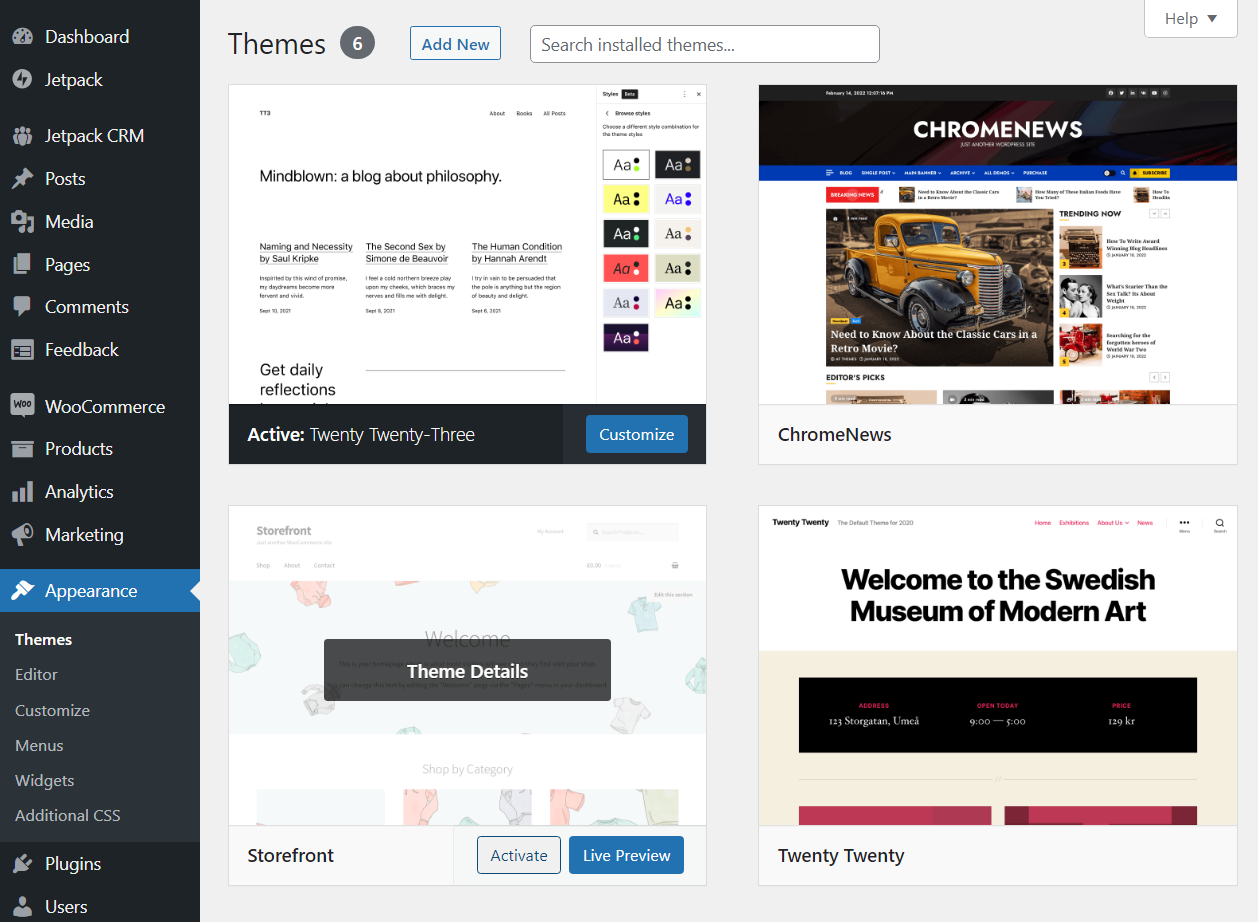
    The design you see right away will be determined by WordPress’ latest default theme. To change it, go to the Appearance → Themes page. There, you’ll see an overview of all the themes installed on your website.

    switching WordPress themes

    You can change themes by selecting one and clicking the Activate button. To find new options, select Add New. This will open the WordPress theme repository without leaving the dashboard.

    activating a new theme

    From here, you have access to all the free themes available for WordPress. If you see one you like, mouse over it to get a preview, or go right ahead and click on Install.

    WordPress will download the theme in the background, and when it’s ready, you’ll be able to activate it. Once you do, check out how your website looks using the new theme.

    It might take a few tries to find the perfect theme. There are thousands of free options available, so be patient until you find a design that fits your vision for your site.

    Note that some WordPress.com plans also give you the option to upload themes. That’s so you can use themes that you download or buy from third-party websites and marketplaces.

    Premium themes can be very useful, but it may be best to not spend money on them until you’re more familiar with how WordPress works. That way, you’ll know exactly what you want when you do start browsing third-party marketplaces.

    Step 4: Design your site with the drag-and-drop editor

    Once you’re happy with your theme, it’s time for the real work to begin. That means creating a homepage for your website. For that, you’ll use the WordPress drag-and-drop editor, also known as the Block Editor.

    To get started, go to the Pages section of your dashboard and select Add New. This will launch the Block Editor. When you’re starting with a blank page, the editor will look something like this:

    creating a post with the Block Editor

    The plus sign button that you see in the middle of the screen enables you to add blocks to the page. Blocks are pre-built elements that can be almost anything, from paragraphs to lists, images, forms, and more. WordPress comes with dozens of blocks, including every element you need to design a website.

    list of blocks in the Editor

    After adding a block, you can click on it, and the menu to the right of the screen will show you its customization options. You can also add basic text blocks, like the Paragraph and List options.

    adding a block to a page

    At this stage, we recommend that you play around a bit and familiarize yourself with the blocks that the editor offers. Don’t worry if you’re not sure where to start. Simply learn how the editor works, try using different blocks, re-arrange them by dragging and dropping, and see what customization options are available.

    You can click on the Preview button at the top of the screen at any time to see what your design will look like once you publish it. If you’re not happy, you can always continue to tinker with it, as every page in WordPress is fully customizable.

    If you’re not sure what kind of design you want to use, you can go into the Patterns menu by clicking on the blue plus sign at the top of the screen. This menu will show all blocks in a sidebar, as well as a category labeled Patterns.

    block pattern list in the Editor

    Patterns are pre-designed page sections that you can use as starting points. Selecting a pattern will add it to the page, and you’ll be able to edit its components (they’re all blocks) to customize them to your liking.

    Using patterns is a great shortcut, giving you excellent designs as starting points. Every pattern is free to use, so go ahead and experiment with them.

    When you’re happy with the page’s design, click on the Publish button. WordPress will save your progress as a “draft” while you edit a page or a post. It doesn’t actually publish the page (make it visible to visitors) until you click on the Publish button.

    Before you start working on other pages, you’ll also want to learn how to edit WordPress menus and how to set a homepage. This will enable you to customize your site’s navigation in any way you want.

    Learn more in our guide to the WordPress Block Editor.

    Step 5: Add pages, content, images, and videos

    Creating one page is a great start, but it doesn’t make a full website. Depending on what idea you have in mind, you’ll probably need to design multiple pages.

    You may also want to create posts, if you plan to set up a blog, news feed, or similar feature. WordPress will display your latest posts on the Blog page by default.

    The process of creating and publishing posts works just the same as with pages. Go to the Posts screen and click on Add New. This will launch the editor with a blank slate.

    How you structure your site’s content is up to you. Still, every post will likely need text, images, and sometimes video. You can add any of those elements by selecting the option to place a block on the page.

    blog post in WordPress

    To add images or videos, you’ll first need to upload them to WordPress. To do this, select either the Image or Video option from the block menu and click on Upload.

    option to upload media in WordPress

    You’ll get the option to select a file from your local device and upload it to the website. Once the upload is done, you’ll be able to select the image and place it on the page or post.

    list of media in the media library

    Keep in mind that you might have storage limits, depending on which WordPress.com plan you use. The platform also doesn’t support every image or video format, but it works with all the major options. If you plan to feature a lot of media, you can get video hosting with Jetpack.

    As with pages, when you’re done working on your latest piece of content, you can choose to publish it or save it as a draft. After you hit the Publish button, visitors will be able to see the content on your website.

    Step 6: Add products, payment, and shipping (if applicable)

    This step only applies if you’re building an online store, and if you opt for a WordPress.com plan that enables you to publish and sell products using WooCommerce. If you’re not already familiar with it, WooCommerce is an ecommerce plugin for WordPress. It adds all the features you need for a storefront.

    WooCommerce logo

    Once you have WooCommerce installed, you can start adding products to your website using the Products → Add New option. This will launch a simple editor where you can set the product’s title and price, add a description, and specify what kind of item it is (physical or virtual).

    creating a new product in WooCommerce

    The WooCommerce editor doesn’t use blocks. It’s more like a series of forms that you fill out to add product information. 

    If you want to learn more, check out this tutorial on how to add and edit WooCommerce products. While you’re at it, you might also visit these tutorials that explain WooCommerce payment methods and how to configure shipping.

    Step 7: Launch your website

    With WordPress.com, there’s no “launch” button or anything you have to click on for your website to go live. As soon as you hit the Publish button for a page or a post, visitors will be able to see it. All you have to do is actually attract those visitors.

    If you want to rely on search engines, you’ll need to learn about search engine optimization (SEO). You can also use social media or paid ads to drive traffic to your website, depending on your audience and budget.

    Whatever route you choose, keep in mind that building an audience can take a while. No website launches and gets thousands of visitors overnight (unless you’re famous), so be patient and keep publishing new content.

    Examples of websites built with WordPress.com

    Even with a beginner-friendly platform like WordPress.com, building an entire website can seem intimidating. You might not be sure what you want it to look like, or what it should include. If that sounds familiar, this section is for you.

    The best way to start is by exploring existing websites built using WordPress.com. This will give you an idea of what’s possible, and help you figure out what you do and don’t like.

    For example, Kiss My Spatula is a food blog, featuring stories of people eating around the world. Posts are categorized by continent, along with showcasing a list of travel tips.

    Kissmyspatula.com homepage

    WordPress isn’t just the home of blogs. Major corporations and news outfits also rely on WordPress.com. For instance, FiveThirtyEight is one of the most popular opinion poll analysis and politics sites in the US.

    FiveThirtyEight news site

    For a lot of big companies, using WordPress makes sense because it’s a tested, business-ready website builder that offers everything you’ll need to grow your brand. The Meta Newsroom focuses on publishing news about all the companies under its umbrella.

    Meta news website

    This website is powered by WordPress VIP (owned by Automattic, just like WordPress.com), which caters to enterprise-level websites. If your website grows enough, you might end up using those services at some point!

    Frequently asked questions

    By now, you’re ready to begin building your own website with WordPress.com. Before you go, let’s clear up any lingering questions.

    How much does it cost to create and host a website?

    The cost of creating and hosting a website will depend on what type of site you want to create and the hosting platform you choose. If you want to hire a developer, for example, your website can end up costing thousands of dollars.

    WordPress.com gives you a lot of options that adapt to different budgets. There’s even a free plan that includes both the website builder and hosting. It does include ads, but it doesn’t limit traffic in any way.

    You can also opt to start with an ad-free plan from the beginning. WordPress.com offers a great starting plan called Personal, which costs $4 per month and includes a free domain.

    Do I need coding skills to create a website?

    If you want to create a completely custom website from scratch, you’ll need to know how to code. The alternative is to hire a web developer or an agency to do it for you (which can be expensive). 

    Want to take this route? Built by WordPress.com can take care of everything for you. Created by WordPress.com Happiness Engineers, you’ll be sure to get a quality site in as little as four days.

    For everyone else, WordPress.com offers a visual website builder experience that lets you create a unique website without knowing anything about code. Even if you do have web development experience, WordPress.com enables you to launch websites faster and easier than ever.

    How long will it take to create a website from scratch?

    How long it takes to create a website depends on how familiar you are with the process, the tools you’re using, and the scope of your project. WordPress.com is remarkably user-friendly. Still, you do need to familiarize yourself with how the platform and the Block Editor work.

    Once you understand how to use the Block Editor, you can design multiple pages in just a few hours. If you’re building a relatively small website, you should be able to put everything together in a couple of days.

    Will the website be secure and safe for visitors?

    One of the disadvantages of having to shop around for a web host is that security falls largely in your hands. Some hosts offer decent security features, but the responsibility for protecting your website is ultimately yours.

    WordPress.com does things differently. The platform is designed to offer a secure hosting experience out of the box. Every plan comes with a free secure sockets layer (SSL) certificate included, as well as the Jetpack plugin. That means you get access to built-in security, real-time backups, speed optimizations, and more.

    Will the website be mobile-friendly?

    The WordPress Block Editor is very mobile-friendly. You can use the editor to preview how your site will look at different resolutions, including on mobile devices.

    It’s also worth noting that some themes are more mobile-friendly than others. It’s best to test multiple options before making a decision, so your site looks and functions well for all visitors.

    Build a website without coding thanks to WordPress.com

    Whether you know how to code or not, using WordPress.com to build your website is a smart choice. This website builder offers all the tools you need to create professional-looking pages, and you don’t need any special technical expertise.

    On top of that, WordPress.com plans bundle everything you’ll need, including hosting and a domain name. You also get access to Jetpack, which means free automated backups, speed optimizations, malware scanning, and much more!

  • Celebrating 20 Years of WordPress at WordCamp US 2023

    Last week, the Jetpack team joined the WordPress community for WordCamp US 2023. It was exciting to be so close to our nation’s capital in a picturesque setting like National Harbor. As Super Admin sponsors, we were honored to contribute to this unforgettable celebration of the open source project. It’s one of our favorite events of the year — an opportunity for us to connect with friends and colleagues in the community and share the latest exciting developments in Jetpack.

    The Jetpack booth. Photo: Kelly Hoffman

    Empowering WordPress Agencies

    We were thrilled to show off our new Pro Dashboard and Agency program at WordPress US. Our mission is to democratize multi-site management, enabling WordPress agencies to remove the tedium and focus on what they do best — providing excellent service to their clients.

    We spoke to agencies that manage hundreds of WordPress sites, as well as freelancers who maintain just a handful. The response was rewarding to experience in person. We gave demos of the dashboard and showed off the power of bulk managing plugin updates, uptime monitoring, malware threats, backups, and stats. You can see what they saw and try it for free right now.

    Showing off our Agency and AI tools. Photo: Kelly Hoffman.

    Using AI to Enhance Your Productivity

    AI has been the buzz for the last year and it wasn’t any different at WordCamp US. To complement an excellent workshop on using AI to enhance the creative process, Jetpack presented its AI tools that help people improve their productivity.

    We’ve previously announced that the Jetpack AI Assistant can help you improve your writing directly in the WordPress editor. Change your tone, get suggestions to improve your writing, translate to other languages, and more.

    And as a first step in automating site building, now the AI Assistant can help you build custom forms quickly for even the most specific use case.

    Personalized Swag

    The only thing better than WordCamp swag is personalized WordCamp swag. We had people on site to engrave power packs. Wherever you go, this little Jetpack will make sure you don’t run out of juice.

    A Night to Remember

    The WordCamp concluded with a social event at the magical Smithsonian Museum of Natural History. It was amazing to be surrounded by such natural beauty along with so many of our friends and colleagues.

    Social Event at the The Smithsonian Museum of Natural History. Photo: Mindy Postoff

    Our Jetpack is Fueled by the People

    Beyond showcasing what’s new in Jetpack, WordCamp US 2023 was an opportunity for us to listen, learn, and engage with the WordPress community. The conversations were truly inspiring, and we are grateful to everyone who took the time to connect with us.

    We left National Harbor with a sense of excitement and gratitude. Being part of WordCamp US 2023 reminded us once again of the incredible power of WordPress and the remarkable community that supports it. As we return to our homes across the globe, fueled by the energy you can only find at WordCamps, we’re more committed than ever to create innovative solutions that empower website owners, agencies, and developers worldwide.

    What was your favorite part of WordCamp US? Let us know in the comments!

    National Harbor, Maryland. Photo: Jeff Golenski
  • What is a Social Media Kit? Definition and How to Build Yours

    On the internet, it’s increasingly difficult to make a lasting impression. But for business owners, it’s absolutely critical to turn passersby into regular followers and, eventually, loyal customers.

    You can’t just create a bunch of stale social media profiles and expect success. You have to cook up an entire experience to be remembered. One of the key elements to create this experience is a social media kit. 

    So let’s roll up our sleeves and delve into the world of social media kits together.

    Crowd of people using mobile devices.

    What is a social media kit?

    A social media kit is your brand’s superhero costume. It’s what makes you recognizable in the sea of digital noise. More specifically, it’s a collection of brand assets, guidelines, and tools that define how your brand should appear and communicate on social media.

    It’s the blueprint for your online identity. It contributes to consistency, clarity, and cohesion across all social media platforms — and in the digital world — that’s no small feat. 

    What does a social media kit include?

    Think of your social media kit as a well-stocked toolbox. It holds everything necessary to build and maintain your online brand image. It includes items like your brand story, visual identity (logos, colors, fonts), social media bio templates, content guidelines, and so much more.

    But it’s not just a static collection of brand elements. It also includes guidelines for engagement, content planning tools, and key performance indicators. It’s a dynamic system that evolves with your brand and keeps your online presence sharp and engaging.

    Google Drive is a great solution for compiling assets and sharing them with the right people. You can determine permissions ideal for your organization — such as granting “read only” access to contractors, but allowing edit permissions for your main team.

    A social media kit can include, but isn’t limited to: 

    • Stats about your company, stakeholders, and leadership team
    • Quotes from leadership or endorsements 
    • Approved logo and graphic files in every possible format
    • Approved photos and videos (raw and edited) that can be shared at will by the social team
    • Pre-made graphic templates for each social platform 
    • Instructions for engagement with comments 
    • Brand voice and editorial guidelines  
    • Examples of successful posts and ideal language
    • Your social media and marketing editorial calendar
    • KPIs (key performance indicators) by which success can be measured

    What are the benefits of having a social media kit?

    1. Brand uniformity and consistency

    Your social media kit is the thread that ties your online presence together. With it, your brand can project a united front, a consistent image across various platforms. 

    Imagine your brand as a choir. Without direction, each singer might still sound good, but they’re all singing different tunes. With your social media kit as the conductor, each platform is singing in harmony, creating a melodious brand symphony.

    2. Efficiency in content creation

    With a social media kit on hand, your content creation process becomes streamlined and efficient. You’re no longer starting from scratch each time, but building upon a well-structured foundation. This also saves you valuable time when training or working with new team members.

    Spontaneous photograph of food for Social Media.

    3. An enhanced business image

    A well-crafted social media kit helps you build a strong, professional business image. It shows that your brand is organized, forward-thinking, and attentive to detail. It sends the signal that you’re serious about your digital presence, and that you value the experience of your online community.

    4. Clear communication of brand values

    Your social media kit helps articulate your brand values, mission, and unique selling proposition. It tells your audience not just who you are, but also why you exist and why they should care. It gives your brand a voice and an identity that goes beyond logos and color schemes.

    5. Improved crisis management

    No brand is immune from a social media crisis. But with a social media kit, you’re better prepared to handle it. You have guidelines on how to respond, how to communicate with your audience, and how to maintain your brand integrity, even in the face of controversy.

    6. Enhanced content strategy

    Your social media kit is the compass that guides your content strategy. It helps you plan and develop content that aligns with your brand identity and resonates with your audience. It’s the roadmap that directs you towards content that not only drives engagement but also builds brand trust and loyalty.

    Your social media efforts should aid the ROI of your content marketing program by promoting new posts and reviving old, still-relevant content. The social media team should also be in tune with the broader marketing and editorial schedule so that posts can go out in a way that supports and adds value to the overall marketing team.

    7. Better team collaboration

    A social media kit isn’t just for your audience; it’s also a guide for your team. It ensures everyone is on the same page, working towards the same goals. It fosters effective communication and collaboration within your team, leading to a stronger, more unified brand presence.

    8. Effective measurement of success

    Your social media kit also helps you define key performance indicators (KPIs), setting benchmarks for success. Understanding this information helps you make strategy decisions moving forward, and ultimately helps you find more success.

    How to create a powerful social media kit in 15 steps

    1. Define your target audience

    Creating a social media kit starts with understanding your audience. Who are they? What are their interests, needs, and challenges? Where do they spend time online?

    Once you find your target audience, you can direct all of your social media content to meet their specific needs. You can use language and imagery that appeals to them. And you can focus your efforts on the platforms they actively use.

    Here’s a guide on how to find your audience

    2. Create memorable personas of your ideal customers

    Beyond demographics, it’s important to delve into the psychographics of your target audience. Create customer personas, detailed profiles of your ideal customers that help you visualize and empathize with them.

    This also helps keep your entire team informed about who they’re communicating with and directing their posts to. And use images in your personas, even if they’re just stock images — faces go a long way!

    3. List your company’s values, mission, and USP

    Your social media kit needs to reflect who you are as a brand. Your values, mission, and unique selling proposition (USP) should be clearly articulated. It’s the heart and soul of your brand, the core of your brand narrative. And, ultimately, it should be considered with each social media post.

    Spontaneous photograph of city mural.

    4. Ensure your brand positioning and audience are in sync

    The magic happens when your brand positioning aligns with your audience’s needs and wants. Your social media kit should reflect this alignment, creating a bridge between your brand and your audience.

    5. Build a captivating brand narrative for your bios

    Your bio is more than just a few lines about your brand. It’s a micro brand story that should captivate and connect with readers. It should be consistent across platforms, yet tailored to each one’s character limits and tone.

    6. Develop a recognizable visual identity

    Visual identity goes beyond logos. It involves colors, typography, graphic styles, profile pictures, cover images, post templates, and more. Visuals are a language that speaks volumes about your brand, even before a single word is read.

    In your social media kit, define these elements. Include specific HEX codes for your brand colors. Add examples of stock images and graphics that fit with your story. If you have existing social media posts, you can even include some of them as a guide for team members to go by.

    7. Establish a unique brand tone and voice

    Your brand tone and voice set the mood for your social media presence. They should reflect your brand personality, resonating with your audience and differentiating you from competitors.

    Include examples of phrases and words you do and do not use, to avoid any confusion.

    8. Build your social media copy templates

    Having ready-made copy templates saves you time and ensures consistency. They’re like the quick-start guides for your social media posts, giving you a base to build upon.

    For example, if you run an ecommerce store, you might have a template for new product announcements, one for customer testimonials, and one for flatlays of existing items. When you’re ready to post something from one of these categories, you can just pull the template, switch out the text and imagery, and you’re good to go! 

    9. Decide on social media management tools

    Navigating the social media landscape without the right tools can be daunting. Social media management tools help you schedule posts, engage with your audience, track analytics, and more.

    Jetpack Social provides you with a suite of tools that help you manage your social media presence.

    This is where Jetpack Social comes into play. Designed specifically for WordPress, Jetpack Social provides you with a suite of tools that help you manage your social media presence efficiently and effectively.

    Automatically share new content, send posts to multiple platforms at the same time, schedule posts in advance and more. 

    10. Assemble a list of relevant and important hashtags

    Hashtags are signposts that guide people to your content. A list of relevant hashtags is a must-have in your social media kit, helping you maximize your content’s reach. 

    However, you won’t use every hashtag every single time because each one’s relevancy will vary by post. Likely, though, there will be at least a few that work for almost every post. 

    You can research the best hashtags in a number of ways. Look at what competitors are using. Which hashtags are trending? What do your ideal influencer partners use? 

    You can start typing hashtags into platforms like Instagram and get some instant data on the number of times it’s been used. You want a variety of highly-used and moderately-used hashtags. The popularity is an indication of how often people use that term to find posts. 

    You want enough popularity that it stands the possibility of driving traffic, but not so much that your post is just a tiny blip on your audience’s radar. 

    11. Establish guidelines for user-generated content

    User-generated content (UGC) is a powerful tool for brand engagement and trust-building. Your social media kit should include guidelines on how to encourage, manage, and use UGC effectively.

    This might include photos of people using your products, testimonials from clients, or links to followers’ blog posts that were inspired by you.

    12. Decide on key performance indicators (KPIs)

    To know if your social media efforts are paying off, you need a yardstick. That’s where KPIs come in. They could range from engagement metrics — including likes and comments — to more complex ones, like conversion rates and customer lifetime value. Decide on the KPIs that matter to your brand and include them in your kit.

    13. Create a social media policy

    This is a blueprint for your team, partners, and contractors. It’s a clear policy on what to post, how to engage, and how to handle sensitive situations. This isn’t just a guideline; it’s your brand’s rule book for social media conduct.

    14. Explain how to handle negative comments and reviews

    Not every interaction on social media will be roses and rainbows. You need a plan on how to handle negative comments and reviews. How do you respond? When do you intervene? When do you step back? This is crisis management in action, and it needs a dedicated section in your social media kit.

    15. Append your content calendar to your media kit

    A content calendar is your social media strategy at a glance. It shows what, when, and where you’ll post, helping you maintain a consistent presence. Your content calendar should be a living document, continually evolving with your brand.

    Make your mark

    A social media kit isn’t just a document. It’s a statement that says you’re here to make a mark, to engage, to resonate, and to build a brand that’s loved and remembered. It’s a toolkit for training, consistency, and success. 

    So, get out there and start crafting your social media kit. And remember, Jetpack Social is here to make your journey smoother, easier, and more successful.

    Social Media image gallery on a mobile device.

    Frequently asked questions about social media kits

    1. Why is a social media kit important for my business?

    To win customers online, you must first gain attention. A social media kit helps you stand out. It ensures consistency, boosts efficiency, enhances your brand image, and allows for effective crisis management, to name a few benefits. 

    2. How often should I update my social media kit?

    Your social media kit isn’t a set-and-forget it tool. As your brand evolves, so should your social media kit. As a rule of thumb, revisit your kit every six months, or whenever there’s a significant change in your brand or market. 

    3. What is a social media content calendar, and how do I create one?

    A content calendar is your posting plan. It shows what content you’ll share, when, and on what platform. Creating one involves understanding your audience’s content preferences and behavior, defining content categories, choosing a posting frequency, and scheduling posts ahead of time. For a more in-depth understanding, see our detailed guide on how to create a winning social media content calendar.

    Create a social media content calendar.

    4. What types of content should I post on my social media accounts?

    Regardless of the type of social media content you create, the golden rule of content creation is this: offer value. 

    This could be in the form of information, entertainment, inspiration, or a combination of these. Your content should align with your brand identity, resonate with your audience, and spur engagement. If you’re looking for inspiration, here’s a collection of social media post ideas every business can use as a baseline.

    5. Can I use tools to streamline content scheduling and posting?

    Absolutely! Social media management tools like Jetpack Social can do the heavy lifting for you. They allow you to schedule posts, engage with your audience, and more. It’s your faithful companion in the bustling social media landscape.

    6. What is Jetpack Social, and how can it help my business?

    Jetpack Social is a WordPress plugin that offers a suite of social media management tools. It’s designed to streamline your social media efforts, saving you time and boosting your efficiency. Jetpack Social is your one-stop solution for effective social media management.

    Jetpack Social: Elevate your brand with automated social media posting

    Jetpack Social takes the guesswork out of social media management. With its scheduling feature, you can plan your posts ahead of time and publish them when your audience is most active. You can share your content across multiple platforms, broadening your reach without additional effort.

    More importantly, Jetpack Social integrates seamlessly with WordPress, making it an excellent choice for businesses running their websites on this platform. With Jetpack Social, you don’t need to jump between your website and multiple social media platforms; you can manage everything right from your WordPress dashboard.

    Jetpack Social integrates seamlessly with WordPress.

    Imagine you’ve just published a blog post. You’re thrilled about it and can’t wait to share it with your audience. Without a tool like Jetpack Social, you’d have to manually log in to each of your social media platforms, create a post, and hit publish — and do it all over again for every new piece of content.

    But with Jetpack Social, you can automate this process. It lets you share your new posts to your social media accounts simultaneously, right from your WordPress site. This means less time spent on repetitive tasks and more time creating amazing content and engaging with your audience.

    And that’s not all. Jetpack Social also comes with an auto-post feature that lets you automatically share your posts on social media whenever you publish new content. There’s no need to set reminders or worry about missing out on peak engagement times. Jetpack Social handles it all for you.

    In a nutshell, Jetpack Social is an all-in-one solution for your social media needs, designed to make your life easier and your social media efforts more effective. Learn more about Jetpack Social here: https://jetpack.com/social/

  • How to Make Automatic WordPress Backups on the Cloud

    Backing up your site can be an effective way to keep your content safe. But unless you remember to take a manual backup consistently, and storing copies in a secure environment, you may be lulled into a false sense of security. 

    The good news is that you can use a powerful tool, Jetpack VaultPress Backup, to easily set up automated backups and store a copy of your WordPress site on a secure cloud platform. 

    In this post, we’ll discuss the importance of making off-site WordPress backups. We’ll also look at some cloud-based backup solutions for WordPress. Finally, we’ll show you how to automate things with one of the best WordPress backup plugins.

    The importance of off-site WordPress backups

    You’re probably already familiar with backups. These are copies of your site that are stored online or on a local device.

    For example, you might use a WordPress backup plugin to download your content to your computer. Some hosting providers may also perform backups of your WordPress site and store them on their servers. 

    There’s just one big problem with these solutions: if the server or computer gets hacked, you could lose your backups. 

    Additionally, if your server malfunctions due to a host-based or user error, you may be unable to access your content. For instance, your host’s site might be down due to a problem with its server, and you won’t be able to log into your hosting account to restore a backup until the issue is resolved.

    A cloud WordPress backup can offer more reassurance. That’s because you’ll be storing your content off-site, typically on a secure platform that’s independent of your host’s servers. 

    This means you’ll be able to access your backups even if your site or server is down. Plus, if the server gets hacked or a user makes an unauthorized change, your content won’t be impacted. 

    A closer look at cloud-based backup solutions for WordPress

    Looking for the best WordPress backup plugin? There are several tools that you can use to create WordPress backups on the cloud. For example, UpdraftPlus enables you to store copies of your site on Dropbox, Google Drive, Amazon S3, and other platforms.

    Another option is Duplicator, which lets you migrate, copy, or move a site from one location to another. Like UpdraftPlus, it offers cloud storage on Dropbox, Google Drive, and Amazon S3. But you’d need to purchase the premium version to access this feature.

    However, site owners looking for the easiest, most reliable solution for WordPress can’t help but consider Jetpack VaultPress Backup. In fact, made by the expert team behind WordPress.com, millions of sites already have Jetpack tools installed. 

    Jetpack.com - the best real-time WordPress backup plugin.

    With this plugin, you’ll be able to save every change you make in real-time and store copies on your site on a highly secure cloud. This also means that you’ll be able to restore your WordPress site without any issues, even if your host server is down. 

    Plus, copies of your site are saved on multiple servers across the world for added reliability. The backups are also encrypted to keep your content secure. 

    And the best part is, the process is completely automated. Once installed, the plugin will create an automatic backup every time you make a new change on your site.

    As you can see, VaultPress Backup is one of the most secure and reliable backup plugins on the market. You can get it as a standalone plugin, or part of the Jetpack Security bundle. Either way, it’s very easy to set it up. 

    How to automate your cloud-based WordPress backups

    Now, let’s look at how to automate your cloud-based WordPress backups with VaultPress Backup. To get started, you’ll need to purchase a Jetpack plan that includes the backup tool.

    The standalone Jetpack VaultPress Backup plugin plan comes with 10GB of storage.

    Or if you have the free Jetpack plugin installed on your site for its many other security and performance tools, you can upgrade to a premium plan, which starts with 1GB of storage.

    Pricing tiers for off-site backups using Jetpack Vaultpress.

    If you have a large site, you may want to subscribe to Jetpack Security, which gives you 10GB of storage space in addition to other premium security features.

    How to install and activate the Jetpack VaultPress Backup plugin

    Once you’ve purchased a plan, you can install and activate VaultPress Backup through your WordPress dashboard.

    Install and activate Jetpack Vaultpress from the WordPress plugin repository.

    Click on Install Now followed by Activate. You’ll then be prompted to purchase the plugin or sign in with an existing plan.

    After activation, purchase the plugin or sign in with an existing plan.

    Next, you’ll need to enter your license key to activate the plugin. If you’ve purchased a subscription, this will be sent to your inbox.

    You’ll need to enter your license key to activate the plugin.

    You may also need to connect VaultPress Backup to your WordPress.com account. Simply follow the prompts to complete the process.

    Connect VaultPress Backup to your WordPress.com account.

    If you don’t already have a WordPress.com account, you can create one for free. 

    Once you’ve set up the plugin, you can access it by navigating to Jetpack → VaultPress Backup in your dashboard. As you can see, the plugin will automatically perform the first backup of your site.

    Access Vaultpress by navigating to Jetpack, then Vaultpress Backup from the WordPress dashboard.

    You won’t need to configure any settings or enable automated backups. Jetpack will automatically create a restore point with every edit you make. 

    You can view the latest backup within your WordPress dashboard.

    You can view the latest backup within your WordPress dashboard.

    To access your site copies, simply click on See backups in the cloud. You’ll get an activity log that lets you see every change made to your site. This can be particularly useful if you have multiple users contributing to your blog. 

    Frequently asked questions

    As we have seen, VaultPress Backup makes it super easy to make complete WordPress backups on the cloud, but you may still be wondering how it works. In this section, we’ll try to answer some of the most common questions about the best WordPress backup plugin. 

    Is Jetpack VaultPress Backup easy to install and configure?

    Yes, VaultPress Backup is very easy to set up. The only thing you’ll need to do is purchase a Jetpack plan that includes the tool.

    Once that’s sorted, you can simply install and activate the plugin on your site, and it will generate the first backup for you. From then onwards, VaultPress Backup will automatically create a backup every time you update your site. This includes backups of your files as well as your databases. 

    At what intervals are backups performed?

    With VaultPress Backup, copies of your site are made in real-time every time you work on it — a much better solution than scheduled backups. For instance, if you create a new post today or customize your theme, the plugin will instantly make a backup to save those changes. 

    This system is a lot more effective than weekly or monthly backups, as you don’t need to worry about potentially losing a day’s worth of work if something goes wrong within that time frame. 

    Thanks to the real-time backup method, you can rest assured that every change you make on your site is stored in a secure location. 

    Does VaultPress Backup offer secure backup storage?

    VaultPress Backup makes redundant copies of your WordPress site on multiple servers across the globe. This way, should one server fail, you’ll still have access to your backups. 

    Plus, it creates off-site backups, independent of your hosting server. That means there’s no load on your server, and you can still access your content if your site is down. 

    It’s also worth noting that your backups are encrypted. This makes it even more difficult for malicious third parties to intercept your site and manipulate your content. 

    How can I restore a backup? Is it easy to do so?

    Yes, when you use VaultPress Backup, you can restore a copy of your site in just a few clicks. 

    First, you’ll want to log into your Jetpack account and click on Activity Log. Here, you can use the filters to search for the backup by Date range or Activity type

    Restore a backup from your Activity Log in your Jetpack account.

    Then, select the Actions button and click on Restore to this point to open the Restore Site dialog box.

    Select the Actions button and click on Restore to this point to open the Restore Site dialog box.

    Next, you can use the provided list to deselect any items that you don’t want to restore, like plugins and themes. If you want to restore everything, leave all boxes checked and click on Confirm Restore.

    Jetpack will then restore your site according to your selections. Once the process is complete, you’ll see a success message. That’s it! 

    If you have a WooCommerce site, VaultPress Backup enables you to restore your WordPress site to any previous state without losing your most recent orders and products. You’ll also be able to create custom WooCommerce table backups. 

    Note that you also have the option to download backups to your computer. You can then upload them to another storage device of your choice, like Google Drive. 

    Make WordPress backups a breeze with VaultPress Backup

    Performing backups can help ensure that you always have a copy of your site to restore should anything go wrong. But, if you’re storing these copies on your server or local device, you risk losing your content in the event of a cyberattack or hardware malfunction.

    For extra peace of mind, you’ll want to save your backups off-site. With VaultPress Backup, you can make cloud backups in real time. The plugin will automatically generate a copy of your site every time you modify your content, and store it in a highly secure location. 

    Are you ready to automate the backup process? Get started with VaultPress Backup today!

  • Changes to Jetpack Stats for Commercial Sites

    Following the release of the all-new Jetpack Stats, we’re continuing to build new paths to get you all the data you need to strengthen your business and site. To support the sustainability of our new product team, we’re introducing some changes to how commercial sites are charged.

    Going forward, commercial sites will pay for Jetpack Stats based on the amount of traffic they receive. This has been established as the standard for Stats products, and we think it is the most equitable, ensuring that you only pay more if your site grows. Personal sites will remain free.

    Introductory rate for 2023

    To smooth the transition, we are offering the lowest tier of $10 per month for all commercial sites throughout 2023. We hope this will allow ample time to adjust to the changes.

    What is a commercial site?

    In its simplest terms, a commercial site is one that you try to make money from. This most commonly includes selling a product or service or showing ads or affiliate links. For more detail, check out our support page.

    Personal sites are still free

    We’re excited to share that personal sites are staying free. If you don’t attempt to make money from your site, continue using Jetpack Stats for free as you do today.

    Collection of UI images from Jetpack Stats

    If you get value from Jetpack Stats, feel free to pay any amount to unlock upcoming advanced features and priority support. We’ve used this pricing structure with Akismet, and based on our experience, we believe this is the fairest way to provide our products to the world while limiting paid plans to those with more ability to pay.

    Thank you for your continued support and trust in Jetpack Stats. We believe that these changes will enable us to provide a better Stats experience while preserving the values that make the open web so exceptional.

  • 7 Best WordPress CAPTCHA Plugins + a Much Better Alternative

    CAPTCHAs, those annoying little tests that ask you to prove you’re not a robot, have become a ubiquitous part of the internet landscape. After all, no website owner wants to have to wade through hundreds of spam comments or try to spot genuine form submissions among a sea of spam, so they turn to a CAPTCHA (Completely Automated Public Turing test to tell Computers and Humans Apart) to try and stop the robots.

    But is asking your visitors to prove they’re not a robot really the best way to prevent spam on your WordPress website? Read on to find all you need about adding CAPTCHAs to your WordPress site and discover a better way to protect your site from spam. 

    What to know before using CAPTCHA

    While CAPTCHAs can help protect your site from spam comments and form submissions, they do come with many downsides which are impossible to ignore, including:

    1. CAPTCHAs lead to form abandonment

    Researchers from Stanford University found that CAPTCHAs can actually drive users away from your site. They found that, rather than trying to solve the challenge, 29% of users choose to leave a page when confronted with a CAPTCHA. Such a significant drop-off in user engagement could have serious implications for many WordPress websites, particularly if yours relies upon user engagement, for example, in your comment section.

    2. CAPTCHAs lower your conversion rate and cost you revenue 

    If your site relies on visitors converting in any way — for example, by signing up for a newsletter, registering for an account, or making a purchase — it’s also important to know that CAPTCHAs negatively impact your conversion rate. 

    Research has found that sites using CAPTCHAs experience an average of a 3.2% reduction in their conversion rates compared to those that do not, which could significantly impact the revenue you generate from your site.

    3. CAPTCHAs aren’t very accessible 

    CAPTCHAs can also have a significant impact on the accessibility of your site. Individuals with vision or hearing impairments often find CAPTCHAs nearly impossible to navigate, and they present a substantial barrier for visitors who use assistive technology to navigate your site. For example, visitors using screen readers are often presented with an audio CAPTCHA, which researchers have found are only solved on the first attempt half the time

    Google’s reCAPTCHA is the most commonly-used CAPTCHA solution, but even Google acknowledges that CAPTCHAs can lead to poor user experiences, increase friction, and impact conversion rates. Bots can also circumvent CAPTCHAs, including Google’s reCAPTCHA v3, meaning they may not be able to completely protect your WordPress website against spam. 

    Is there a better alternative to CAPTCHA? 

    With all the downsides of using CAPTCHAs, you may be left wondering what you can do to protect your site from spam without impacting your user experience, conversions, and revenue. 

    The great news is that frictionless spam protection is available through Akismet, which guards over 100 million websites and is used by many large brands such as Microsoft and ConvertKit.

    Meet Akismet: the non-intrusive WordPress spam blocker

    Akismet is a non-intrusive, intelligent spam blocker that integrates seamlessly with WordPress. Unlike CAPTCHAs, Akismet works silently in the background, allowing you to offer world-class spam protection without adding friction to your visitor experience.  

    Akismet is called a ‘non-intrusive’ spam blocker as it protects your website from spam without requiring any sort of manual user input. Instead, it leverages one of the world’s largest anti-spam databases to protect your site. The service is trusted by over 100 million sites, and has blocked more than a staggering 500 billion pieces of spam to date.

    Boasting an impressive 99.9% accuracy rate, Akismet is the most accurate anti-spam solution available. The service uses state-of-the-art machine learning and artificial intelligence technology to analyze all user-submitted text in real-time to see if it’s spam. 

    For example, Akismet will check if comments match known spam, have been submitted from known malicious IP addresses, or if they follow common spam patterns, like containing links to unrelated third-party sites.

    Akismet is easy to use and provides a simple dashboard that allows you to monitor what the tool is blocking as spam and what it’s allowing through. You can then intervene if any submission or comment is incorrectly classified as spam, and Akismet will learn from your feedback, further improving its accuracy.

    Most importantly, your visitors never see a CAPTCHA when you’re using Akismet. Your site remains protected and the user experience uncluttered.

    Automattic, the team behind WordPress.com and WooCommerce, is also behind Akismet, meaning it integrates seamlessly into your WordPress site. In addition to protecting your WordPress comment section from spam, Akismet offers seamless integrations with popular tools like Jetpack Comments, as well as many form builders, including Contact Form 7, Gravity Forms, and Formidable Forms. 

    So, wherever your WordPress website captures user-submitted text, there’s a high chance that Akismet will be able to protect it.

    Akismet offers an affordable spam protection solution for websites of all sizes through Jetpack for just $4.95 a month for the first year. You can also get Akismet Anti-spam as part of both the Jetpack Security or Complete plans, which offer additional Jetpack features, including backups and malware protection.

    Still want to use a CAPTCHA? Here are the best plugins for WordPress

    Whatever the reason, some sites still choose to use CAPTCHA and reCAPTCHA for spam protection. If that’s what you prefer, check out the top solutions for adding them to your site below.

    Advanced Google reCAPTCHA plugin page

    1. Advanced Google reCAPTCHA 

    Advanced Google reCAPTCHA is a WordPress plugin that enables you to integrate Google reCAPTCHA into your WordPress site. This free plugin was created by WPConcern, a team that produces a number of WordPress and WooCommerce plugins. You can use it to easily add reCAPTCHA v2 or v3 to WordPress comment forms, login, and registration forms. The plugin is compatible with various additional tools, including WooCommerce, Easy Digital Downloads, and BuddyPress.

    Key features of Advanced Google reCAPTCHA:

    • Support for Google reCAPTCHA v2 or v3
    • The ability to add CAPTCHAs to WordPress login, registration, and comment forms.
    • Integrations with a limited number of additional plugins, including WooCommerce, BuddyPress, and Easy Digital Downloads. 

    Pros of Advanced Google reCAPTCHA:

    • The plugin offers a simple way to add Google reCAPTCHA V2 or V3 to your WordPress comment, login, and registration forms. 

    Cons of Advanced Google reCAPTCHA:

    • The plugin relies on Google reCAPTCHA to protect your site from spam. As we’ve discussed above, this can add additional friction to your user journey.
    • A Google reCAPTCHA API key is required. 
    • The plugin only supports a small number of additional tools, meaning it may not be able to protect all of your site from spam.

    Ease of use:

    The plugin is easy to install and has a simple interface. Some users may find registering for their site for a Google reCAPTCHA API key confusing, and only limited guidance is provided by the plugin authors for how to do this.

    Pricing:

    Advanced Google reCAPTCHA is available free of charge from the WordPress plugin directory. 

    2. ReCaptcha Integration for WordPress

    ReCaptcha Integration for WordPress allows you to protect your comment, log in, and registration forms from spam and bots using Google reCAPTCHA. The plugin is free to use and was created by weDevs, a company that also produces a number of WordPress plugins.

    Key features of ReCaptcha Integration for WordPress:

    • The ability to secure your WordPress signup, registration, and comment forms with reCAPTCHA
    • Support for reCAPTCHA V2 and V3
    • Support for third-party plugins, including bbPress, Contact Form 7, and Ninja Forms
    • Limited WooCommerce support

    Pros of ReCaptcha Integration for WordPress:

    • The plugin supports WordPress multisite, which allows you to activate the plugin on all sites in your network with just one Google reCAPTCHA API key.
    • The plugin provides guidance for developers to integrate the tool into custom forms or third-party plugins. 

    Cons of ReCaptcha Integration for WordPress:

    • The plugin relies on Google reCAPTCHA to protect your site from spam, which can negatively impact your visitor experience. 
    • There is only limited support for WooCommerce, as the plugin is not able to protect your password reset form.

    Ease of use:

    The plugin is simple to install and has a single settings page where you can control which elements of your site are protected by reCAPTCHA and add your Google reCAPTCHA API keys. Support is offered via the plugin’s support forum.

    Pricing:

    ReCaptcha Integration for WordPress is available for free from the WordPress plugin directory. 

    reCaptcha by BestWebSoft plugin page

    3. reCaptcha by BestWebSoft

    reCaptcha by BestWebSoft is a WordPress CAPTCHA plugin that can help protect your WordPress site from spam. The plugin offers support for all current versions of Google reCAPTCHA. It was created by BestWebSoft, a company that also produces several popular WordPress plugins that integrate natively with this tool.  

    Key features of reCaptcha by BestWebSoft:

    • The ability to add Google reCAPTCHA V2 and V3 to your WordPress comment forms, as well as login, registration, and password reset forms
    • Support for invisible reCAPTCHA
    • Integration with a number of other BestWebSoft plugins
    • Has light and dark reCAPTCHA themes
    • Includes RTL language support
    • Integration with a wide range of plugins, including WooCommerce and popular contact form plugins (pro version only)
    • WordPress multisite support (pro version only)

    Pros of reCaptcha by BestWebSoft:

    • The plugin is easy to use and set up, and can protect the standard WordPress comment form with little additional configuration. 
    • It allows you to choose between dark and light reCAPTCHA themes.

    Cons of reCaptcha by BestWebSoft:

    • The plugin uses Google reCAPTCHA, which, as we have discussed in the ‘What to know before using CAPTCHA’ section, can add friction to your visitor experience.
    • Integrations with a range of popular plugins, including WooCommerce, are only available with the pro plan. 

    Ease of use:

    Once you have a Google reCAPTCHA API key, reCaptcha by BestWebSoft is simple to set up. The plugin will automatically validate your API key to help prevent any issues. Detailed documentation is available, along with email support for pro users.

    Pricing

    There’s a limited free version available in the WordPress plugin directory. The Pro version costs $24 a year per domain and offers additional features, including support for a wide range of third-party plugins.

    ReCaptcha v2 for Contact Form 7 graphic

    4. ReCaptcha v2 for Contact Form 7

    ReCaptcha v2 for Contact Form 7 is a WordPress CAPTCHA plugin that’s specifically designed to protect your Contact Form 7 forms from spam submissions using Google reCAPTCHA. 

    Key features of ReCaptcha v2 for Contact Form 7:

    • Adds support for Google reCAPTCHA v2 to Contact Form 7

    Pros of ReCaptcha v2 for Contact Form 7:

    • The plugin is a simple way to add reCAPTCHA v2 support if you use this specific type of contact form.

    Cons of ReCaptcha v2 for Contact Form 7:

    • The plugin only supports Contact Form 7 and will not protect the rest of your WordPress website from spam. 
    • The plugin relies on reCAPTCHA v2, which means your visitors will see a ‘I’m not a robot’ checkbox on all of your forms. This can negatively impact completion rates. 

    Ease of use:

    The plugin has a simple settings screen and is easy to integrate into your Contact Form 7 forms using the [reCAPTCHA] tag.

    Pricing

    The plugin is available for free from the WordPress plugin directory.

    Login No Captcha reCAPTCHA plugin pageg

    5. Login No Captcha reCAPTCHA

    Login No Captcha reCAPTCHA is a simple WordPress CAPTCHA plugin that adds the feature to your login, registration, and password reset forms.

    Key features of Login No Captcha reCAPTCHA:

    • Support for adding Google reCAPTCHA v2 to your WordPress login, registration, and “forgot password” forms
    • WooCommerce support

    Pros of Login No Captcha reCAPTCHA:

    • The plugin is a simple way to help protect your sites from bots and brute force login attempts by adding CAPTCHA to your login, registration, and password reset forms. 

    Cons of Login No Captcha reCAPTCHA:

    • The plugin only uses reCAPTCHA to protect your login and registration forms from brute force attacks. It doesn’t offer protection for WordPress comment or other forms on your site.
    • It only supports Google reCAPTCHA ‘No Captcha’ (v2), which still adds friction to your visitor experience by presenting them with a ‘I’m not a robot’ checkbox.

    Ease of use:

    No user documentation is provided. However, once you have a Google reCAPTCHA v2 API key, the plugin is simple to set up and will automatically add CAPTCHA forms to your login, registration, and password reset forms.  

    Pricing

    The plugin is available free of charge from the WordPress plugin directory. 


    Really Simple CAPTCHA plugin page

    6. Really Simple Captcha

    Really Simple Captcha is a WordPress CAPTCHA plugin that allows you to add simple text-based CAPTCHAs to forms, including those created using Contact Form 7. Unlike the other plugins in this list, which rely on a third-party provider such as Google reCAPTCHA, Really Simple Captcha generates its own CAPTCHAs for your visitors to solve.

    Key features of Really Simple Captcha:

    • Adds simple text-based CAPTCHA to Contact Form 7 forms
    • Classes and hooks that enable developers to add CAPTCHAs to custom forms and third-party plugins

    Pros of Really Simple Captcha:

    • The plugin provides a simple way to add basic CAPTCHAs to Contact Form 7 forms.

    Cons of Really Simple Captcha:

    • The plugin offers a simple text-based CAPTCHA, which does not offer the same level of protection as more advanced CAPTCHAs or Akismet
    • Text-based CAPTCHAs, such as those used by this plugin, can significantly impact conversion and form completion rates.
    • The plugin only has support for Contact Form 7. Adding CAPTCHA protection to other forms requires custom development. 

    Ease of use:

    It’s simple to add to Contact Form 7 forms, but the coding required to add support for other forms means using this plugin for anything other than Contact Form 7 is more challenging.

    Pricing:

    The plugin is available for free from the WordPress plugin directory.

    7. hCaptcha for WordPress

    hCaptcha for WordPress is a CAPTCHA plugin that helps protect your site against spam. The plugin integrates the hCaptcha service into your WordPress site, which is an alternative service to Google reCAPTCHA. It protects many different elements of your site, including your comment and login forms, as well as forms generated by other third-party plugins. 

    Key features of hCaptcha for WordPress:

    • Integrated CAPTCHA for your WordPress site
    • Support for a large number of third-party plugins, including WooCommerce
    • The ability to add CAPTCHAs via shortcode

    Pros of hCaptcha for WordPress:

    • It helps to protect both your comment forms from spam and your login forms from automated bots.
    • It supports many popular plugins, including WooCommerce, BuddyPress, and popular form plugins. 

    Cons of hCaptcha for WordPress:

    • Passive CAPTCHAs are only available with hCaptcha paid plans, meaning that the free hCaptcha service will present a challenge on every form submission, which can negatively impact your site’s usability and visitor experience. 

    Ease of use:

    Once an account has been created with hCaptcha, the plugin is easy to use and integrates automatically into your comment and login forms. 

    Pricing

    The plugin is free to download from the WordPress plugin directory. An account is required to use the plugin. Free accounts have limited features and don’t support passive CAPTCHAS. Pro accounts start at $99 per month.

    Comparison of the top anti-spam plugins

    Akismet Advanced Google reCAPTCHA ReCaptcha Integration for WordPress reCaptcha by BestWebSoft ReCaptcha v2 for Contact Form 7 Login No Captcha reCAPTCHA Really Simple Captcha hCaptcha for WordPress
    Non-intrusive  Yes No No No No No No No
    99.9% spam detection accuracy? Yes No No No No No No No
    Has the potential to negatively impact your visitors’  experience No Yes Yes Yes Yes Yes Yes Yes
    Protects your WordPress comment form from Spam Yes Yes Yes Yes No No No Yes
    Works with a wide range of form plugins Yes Limited Limited Pro only No No No Yes
    Cost $4.99 per month Free Free Limited free version. Pro version is $24 a year. Free Free Free Basic plan is free. “Passive” CAPTCHA available in the Pro plan, which starts at $99 / month.

    Factors to consider when choosing an anti-spam plugin

    What types of forms does it work on?

    It’s important to make sure the WordPress anti-spam plugin you choose can protect all the forms on your site. Some plugins offer support for only a single type of form — for example, contact forms created using a specific plugin.

    Other plugins, such as Akismet, offer support for a wide range of forms, including your WordPress comment forms, contact forms created with many popular form plugins, and WooCommerce checkout. Akismet also works perfectly alongside Jetpack’s free brute force attack protection to help protect your login and registration forms from automated bots.

    What type of CAPTCHA does it use? 

    There is a range of different CAPTCHA types, including basic text CAPTCHAs. Most WordPress CAPTCHA plugins offer a way for you to integrate Google reCAPTCHA into your WordPress website. Depending on the version of reCAPTCHA you use, this can mean that your visitors are presented with ‘I’m not a robot’ boxes to tick or may even be completely blocked from your site.

    Other WordPress anti-spam plugins protect your site without using CAPTCHAs. For example, Akismet blocks an impressive 99.9% of spam and works behind the scenes of your site, so it’ll never get in the way of your visitor’s experience.

    Price

    It’s also important to consider the price of your WordPress anti-spam solution and balance this with the features offered. Some anti-spam plugins are free but require a third-party API key, for example, from Google reCAPTCHA. Akismet offers industry-leading spam protection without adding any friction to your visitors’ experience and is available through paid Jetpack plans or from a dedicated plan

    Accessibility 

    Traditional text-based CAPTCHAs can impact the accessibility of your site and make it impossible for users who rely on screen readers. While Google reCAPTCHA works with screen readers, it can require users to complete an audio challenge which research has found has a first-time success rate of just 50%. As Akismet will never present a CAPTCHA to your visitors, it offers a completely accessible way to protect your site from spam.

    Ease of use/setup

    As well as making sure your anti-spam solution doesn’t impact your visitor’s experience, it’s also important to make sure it is simple to set up and use for your site administrators. For example, Akismet can be set up in just a few clicks and automatically protects many of your site’s forms from spam. In addition, your site administrators can monitor its performance through a handy dashboard, and you can easily provide feedback to the plugin if it has incorrectly identified any entry as spam.

    What’s the best plugin for blocking spam on WordPress?

    Akismet is undeniably the best solution for protecting your WordPress site from spam. It uses advanced algorithms and AI technology to protect your site from spam with an unbeatable 99.9% accuracy rate. 

    Akismet protects your site from spam without ever impacting your visitor’s experience or presenting them with annoying CAPTCHAs to solve. Akismet is made by Automattic, the team behind WordPress.com and WooCommerce, so it integrates seamlessly into your WordPress site with minimal setup. Akismet is also supported by many popular form plugins, so you can protect your entire site, including contact forms, from spam submissions. 

    Frequently asked questions about WordPress CAPTCHA plugins

    Can CAPTCHA affect user experience and conversion rates?

    Yes, CAPTCHAs can have a significant impact on your website’s visitor experience and conversion rates. Most types of CAPTCHAs introduce an additional step in a user’s journey on a website, which adds friction to your visitor experience and can lead to frustration or confusion. 

    They can also have a disproportionate impact on the experience of visitors who use assistive technology, as some CAPTCHA types are not solvable by screen readers. Others force visitors who use a screen reader to solve a tricky audio CAPTCHA.

    Stanford University found that 29% of users choose to leave a page when confronted with a CAPTCHA rather than solve the challenge, meaning they could have a major impact on how many visitors interact with your site. 

    Research has also shown that sites using CAPTCHA experience an average of a 3.2% reduction in their conversion rates. This shows that CAPTCHAs could reduce the revenue you’re able to earn from your site.

    Akismet vs CAPTCHA: which should I install?

    If you want to protect your WordPress site with cutting-edge spam protection that offers an astonishing 99.9% accuracy without impacting your visitor experience, then Akismet is the clear choice. Akismet is completely invisible to your website visitors and offers a simple way to protect your WordPress or WooCommerce website from spam.

    Is Akismet a reliable alternative to CAPTCHA?

    Yes, Akismet is a reliable alternative to CAPTCHA that will never get in the way of your visitors’ experience or impact your conversion rate. Akismet has caught an impressive 500 billion pieces of spam and integrates seamlessly into your WordPress site.

    Over 100 million websites around the world use Akismet’s 99.9% detection rate to protect their site from spam. So if you want to guard your site while keeping visitors happy, add Akismet’s state-of-the-art spam protection to your site today.

  • Meet the Jetpack VideoPress Block, Dashboard, and Plugin

    Imagine: You built a beautiful website, painstakingly crafted your brand look, then created an engaging ad and a stylish video to show off your product. You did all the hard work to get someone to visit your site and click on your video, and then the first thing they see is a YouTube ad for a bathroom cleaner. This isn’t the experience that any professional brand should offer in 2023. This is why there’s Jetpack VideoPress.

    We think VideoPress is the best video solution for WordPress. Why? It offers both a seamless experience for you and a beautiful, ad-free video player for your visitors. We’re excited to share some new features that will help convince you. Read on to learn more about the new Dashboard, Block, and Plugin for VideoPress.

    A complete video experience from the WordPress Editor

    With the Jetpack VideoPress Block, adding videos to your content has never been easier. This powerful tool lets you effortlessly insert videos straight from the WordPress editor and comes packed with advanced features like subtitles, captions, chapters, private videos, and poster images.

    • High-Resolution Videos Up to 4K – Watch crisp images on any display and screen size. We’ve added video display for 1440p, 60 FPS, and full 4K resolution. 
    • Ad-free video – Keep the spotlight on your content, not on ads you can’t control.
    • Adaptive Streaming – Videos play back faster by automatically adjusting video quality based on bandwidth and display size. The viewer can still choose the quality they’d like in the menu.
    • Reliable Global Hosting and Video CDN – Built on WordPress.com’s world-class cloud infrastructure, your videos are stored in multiple servers across the globe to ensure quick delivery no matter where your audience is.
    • Subtitles, Captions, and Chapters – Simply upload your text tracks via the VideoPress block and they will be available on the video as soon as you publish.
    • Progress Bar Color Match – The VideoPress seekbar now adapts its color to match the scenes in your videos. This makes your content really pop.
    • Optimized for mobile – Switch between mobile and desktop without missing a beat.
    • Picture-in-picture – Pop out the video from the web browser for easier viewing.
    • Unlimited Logins – Work with a team? We don’t charge per seat, so everyone that works on your site can have their own login.

    Your one-stop solution for video management

    The VideoPress Dashboard is a centralized space to upload and manage your video library. Filter your library by rating or privacy setting, view your library in multiple ways, and upload local videos to your Jetpack cloud library.

    A streamlined video hosting plugin

    If you haven’t heard, we have been breaking apart Jetpack into individual plugins. That means if you want VideoPress, but no other parts of Jetpack, we have the plugin for you. Install Jetpack VideoPress and get streamlined access to the VideoPress Block and Dashboard.

    The price is right

    Try VideoPress out for free today. Everyone can host one video, up to one GB, for free.

    For those ready to buy, Jetpack VideoPress includes 1 TB of storage with no limit to the number of videos or bandwidth. We are planning to make additional storage available for purchase in the future.

    We’re currently running a 50% off sale, so you can get the first year for less than $5 per month.

  • WordPress Hosting vs Web Hosting: Key Differences Explained

    Navigating the world of web hosting can feel a bit like trying to choose the perfect pair of running shoes. At first glance, they all seem to serve the same purpose, but delve a little deeper, and you discover a multitude of features, fits, and specializations that can dramatically impact your running performance. 

    In the same way, not all web hosting is created equal. Particularly when we talk about hosting a WordPress website, there are significant differences between WordPress hosting and standard web hosting. 

    Both come with their own unique benefits and drawbacks, and the best choice really comes down to your individual needs, your goals, and the level of control and maintenance you’re comfortable with.

    Server Room

    What is WordPress hosting?

    Just like a bespoke pair of running shoes that are designed to fit your feet perfectly, WordPress hosting is a type of web hosting that’s specifically designed and optimized to meet the performance and security needs of WordPress websites.

    You may have heard of “managed WordPress hosting”, which typically includes tools like automatic updates and advanced security and performance measures. WordPress hosting can be managed, but it doesn’t have to be. Managed WordPress hosting is typically more comprehensive and takes care of website management tasks for you.

    Why would someone choose WordPress hosting over traditional hosting? Well, imagine those running shoes again. Sure, you could run in your regular sneakers, but you’ll likely perform better with the ones specifically designed for the task. WordPress hosting brings a similar level of optimization to your website, with features and tools built specifically for WordPress.

    pink sparkly running shoes

    What is standard web hosting?

    Standard web hosting is like a good pair of everyday sneakers. It’s versatile, capable of hosting a variety of websites — whether they’re built on WordPress, use another platform like Joomla or Drupal, or are a custom-built HTML site. Standard hosting offers a more general environment, suitable for different web development technologies and database types. 

    If WordPress hosting is a specialist, standard web hosting is a jack-of-all-trades. It’s a suitable option if you’re looking for more flexibility, cost-effectiveness, and control over your server configurations.

    Pros of WordPress hosting

    1. Easy WordPress setup or migration

    WordPress hosting often comes with WordPress pre-installed or available as a one-click installation, making setup a breeze. For those migrating an existing WordPress website, many recommended WordPress hosts offer easy-to-use migration tools that don’t require you to manually migrate your files and database.

    2. A WordPress-friendly interface

    WordPress hosting provides an interface that’s tailor-made for WordPress, simplifying site management. For example, it might automatically log you into your WordPress site, or allow you to update plugins and themes directly from your hosting dashboard.

    3. Specialized customer support

    WordPress hosting generally comes with customer support that’s well-versed in WordPress-specific issues. While standard web hosting plans often include support, customer service reps usually know a little bit about a wide variety of topics. WordPress hosting support teams, however, typically know all the details and specifics about working with WordPress.

    Customer Support team working in an office

    4. Security measures tailored to WordPress

    WordPress hosting provides security measures specifically designed to protect WordPress sites. For example, it might include tools like malware scanning or a firewall that focuses on WordPress requirements.

    5. Automatic backups 

    WordPress hosting often includes regular, automatic backups of your site data, with easy-to-use restore options in case of data loss.

    6. Optimized for WordPress speed and performance

    With server-level adjustments and optimizations specifically for WordPress, these hosts ensure top-tier performance for your site. Some also include premium WordPress plugins for speed optimization tasks like caching.

    7. Built-in staging environments

    These allow you to test changes and updates in a risk-free way before pushing them live on your site. Many, though not all, WordPress hosts include staging environments in their packages.

    8. Automatic software updates

    Keeping your WordPress core, themes, and plugins updated is crucial for security and performance. WordPress hosting often includes automatic updates, so you don’t have to give this process a second thought.

    9. Hands-off server management

    WordPress hosting usually takes care of all server management tasks, leaving you free to focus on your website content and design.

    Cons of WordPress hosting

    While there are many benefits to WordPress hosting, it’s not without its downsides.

    1. Higher costs compared to traditional hosting

    Because of its specialized nature, WordPress hosting can be more expensive than standard web hosting. However, in many cases, the included benefits are well worth the extra expense.

    2. Limited flexibility 

    WordPress hosting is specifically designed for WordPress, so it’s not the best choice if you’re planning to use a different CMS or build a custom site. In some cases, since server setup and other elements are optimized for WordPress, you may have less control. Some managed WordPress hosts even prevent sites from installing certain plugins for performance or security.

    Pros of standard web hosting

    1. Lower cost compared to specialized WordPress hosting

    Because it isn’t specialized, standard hosting is generally cheaper than WordPress hosting. But again, remember that you’re paying for the tools and benefits that are (or are not) included.

    two people comparing pricing on a piece of paper

    2. Flexibility to host different platforms or custom sites

    If you have multiple websites on different platforms, it’s probably easiest to use the same hosting provider for all of them. Standard web hosting will give you the flexibility and support to do so.

    3. More control over server configurations and settings

    Standard hosting usually gives you more leeway to tweak server configurations to your liking, especially if you opt for a VPS or dedicated hosting plan. While they won’t be automatically configured to the needs of a WordPress site, if you have experience with development or have specific requirements, this may be a better option.

    4. The ability to choose preferred caching and optimization mechanisms

    While WordPress hosting often includes built-in caching and speed optimization, standard hosting lets you choose and configure your solutions for a custom performance setup.

    Cons of standard web hosting

    However, standard web hosting has its own set of drawbacks:

    1. Manual WordPress installation

    Some, though not all, standard web hosts require you to install WordPress manually. WordPress hosting providers, however, typically have the software pre-installed or available as a one-click installation.

    2. Lack of specialized support

    Standard hosting support may not be as well-versed in WordPress-specific issues compared to WordPress hosting.

    3. Manual management of backups and security

    With standard hosting, you’re typically responsible for managing backups and implementing security measures, while some WordPress hosts take care of these tasks for you. However, a plugin like Jetpack Security can simplify this process considerably, offering top-tier, WordPress-specific security and backup measures.

    4. Performance variations depending on server architecture

    Standard hosting performance can vary greatly depending on your server configurations and the resources allocated to your site. And those resources and performance tools are typically not optimized to meet the needs of WordPress websites specifically.

    Key differences between standard and WordPress hosting

    Now, let’s circle back to our initial question: What’s the difference between WordPress and standard web hosting? To summarize:

    WordPress hosting is specialized hosting tailored to WordPress websites, providing an environment that’s optimized for performance, with WordPress-specific features and tools. It’s ideal if you’re running a WordPress website and want to maximize its performance and security without getting into the weeds of server setup and management.

    Standard web hosting, on the other hand, offers a general hosting environment suitable for different CMS platforms or custom-built sites. It provides more control and flexibility, and is typically cheaper than WordPress hosting. It’s a good choice if you’re on a tight budget, want to host non-WordPress sites, or prefer to have more control over your server configurations.

    1. Infrastructure and server environment

    Diving a bit deeper into the technical side, let’s examine how the server environments differ between the two hosting types.

    WordPress hosting

    • Has server architecture that’s optimized for WordPress: WordPress hosting servers are configured to offer the best performance for WordPress sites, taking into account-specific needs.
    • Includes pre-configured settings for better performance and compatibility: WordPress hosting comes with pre-configured PHP versions, database software, and caching settings that are optimized for WordPress, reducing the need for manual tuning.

    Standard hosting

    • Uses a general-purpose server environment: Standard hosting provides a more general server environment suitable for various applications and databases.
    • Flexible server configurations: With standard hosting, you generally have more freedom to modify server configurations, allowing for a more customized setup.

    2. Performance and optimization

    The way each hosting type handles performance and optimization also varies:

    WordPress hosting

    • Has built-in caching for improved performance: WordPress hosting often includes built-in caching solutions that improve site speed and responsiveness.
    • Includes server-side optimizations specifically tailored for WordPress: The server settings on WordPress hosting are adjusted to offer the best performance for WordPress sites.
    • Has enhanced speed for WordPress websites: Thanks to the optimizations and specialized server configurations, WordPress sites typically load faster and run more reliably on WordPress hosting.
    Development Team

    Standard hosting

    • Performance is dependent on server setup and configurations: The performance of your site on standard hosting depends heavily on how your server is set up and configured.
    • Users are responsible for caching and optimization: On standard hosting, you’re responsible for setting up your own caching and optimization strategies. This can offer greater control, but requires more technical know-how.

    3. Managed services and support

    When it comes to the management of your site and the support you can expect, there are also differences. As we mentioned earlier, this will vary based on the type of WordPress hosting plan you choose.

    WordPress hosting

    • Managed WordPress hosts offer a fully managed environment: Managed hosts typically take care of many aspects of running your site, including backups, caching and other performance optimizations, software updates, and more.
    • Get automatic updates for WordPress core, themes, and plugins: With WordPress hosting, you often get automatic updates for WordPress core, as well as your themes and plugins. This is a critical part of managing your site for both security and functionality purposes.
    • Gain specialized support from experts familiar with WordPress: When you need help, you can expect to get it from customer support teams that specialize in WordPress and are familiar with common WordPress issues.
    A support team working on laptops

    Standard hosting

    • It includes limited managed services: Standard hosting typically comes with fewer managed services. You’re often responsible for updates, backups, and security. However, using a plugin like Jetpack Security can make these tasks a lot easier.
    • They utilize general customer support for technical issues: Support from standard hosting providers typically covers a wider range of general hosting issues and may not be as specialized in WordPress problems.

    4. Security and backup management

    When it comes to keeping your site secure and your data safe, there are again differences to note:

    WordPress hosting

    • Gain enhanced security measures designed for WordPress: WordPress hosting typically includes security measures designed to protect against vulnerabilities that may be specific to WordPress.
    • Get automatic WordPress backups: WordPress hosting can include automatic backups of your WordPress site that you can restore from your host’s control panel if something goes wrong.

    Standard hosting

    • Users are responsible for implementing security measures: On standard hosting, you’re typically responsible for your site’s security, though some hosts may offer basic, generalized measures.
    • Users are responsible for managing backups: Unless your hosting package includes backups, you’ll also need to manage these yourself on standard hosting. However, a backup plugin like Jetpack VaultPress Backup can take care of this task for you.

    5. Ease of use and interface

    When it comes to accessing and managing your hosting plan, ease of use and the dashboard included are very important. Here’s how they differ between hosting types:

    WordPress hosting

    • It includes a user-friendly interface designed for managing WordPress: WordPress hosting often comes with interfaces and dashboards designed specifically for managing a WordPress site. For example, you may be able to update software or automatically log in to your site from your host’s dashboard.
    • Install WordPress quickly and easily: Most WordPress hosts pre-install WordPress, so you don’t even have to worry about that part of the process. At the very least, they include one-click WordPress setup and installation. 

    Standard hosting

    • Interfaces vary depending on the hosting provider: The quality and user-friendliness of the hosting dashboard can vary a lot with standard hosting plans.
    • You may need to manually install WordPress: Unless your standard hosting provider offers a one-click installer, setting up WordPress might require a bit more work.

    Which hosting type is best for your WordPress site?

    Ultimately, the decision is completely up to you, your needs, and your budget. However, here are some scenarios when each type may be the right fit.

    When to choose WordPress hosting

    Choose WordPress hosting if you’re sure you’ll be using WordPress, want a hands-off hosting experience, and can afford to pay a little extra for better performance, security, and support. 

    When to choose standard hosting

    Choose standard hosting if you need to host non-WordPress sites, want more control over your server configurations, or are on a budget.

    Essential plugins to install regardless of your hosting

    No matter which hosting option you choose, there are several essential plugins we recommend for every WordPress site:

    1. A WordPress security plugin like Jetpack Security: This tool offers comprehensive security for your WordPress site, including malware scanning, spam protection, and downtime monitoring.
    2. A real-time backup plugin like Jetpack VaultPress Backup: This plugin provides real-time backups and one-click restores for your WordPress site, ensuring your data is always safe. This is also included in the Jetpack Security plan.
    3. An anti-spam plugin like Akismet: This plugin helps protect your WordPress site from spam in your comment and contact forms.
    4. A WordPress speed optimization plugin like Jetpack Boost: This tool offers instant performance optimization features to make your WordPress site load faster.
    Jetpack Speed Optimization

    Frequently asked questions about WordPress hosting and web hosting

    In this section, we’ll answer some common questions about WordPress and standard hosting:

    What is WordPress hosting?

    WordPress hosting is a type of web hosting specifically optimized for WordPress websites. It usually includes features like one-click WordPress installations, automatic updates, and specialized support.

    What is managed WordPress hosting?

    Managed WordPress hosting is a subcategory of WordPress hosting where the hosting provider handles all the technical aspects of running your site, allowing you to focus solely on creating content.

    Can WordPress host my site?

    WordPress.com, a blogging platform powered by WordPress, can host your site. However, if you’re using the open-source WordPress.org software, you’ll need a separate web host.

    What is the main difference between standard and WordPress hosting?

    The main difference lies in the level of optimization for WordPress websites. WordPress hosting is specifically optimized for WordPress, offering better performance, security, and ease of use for WordPress sites, while standard hosting provides a more general environment suitable for various types of websites.

    Can I host a non-WordPress website on WordPress hosting?

    Generally, WordPress hosting is optimized for WordPress, and while it might technically be possible to host a non-WordPress site, it’s not recommended due to compatibility and performance issues.

    Is WordPress hosting more expensive than standard hosting?

    Typically, because of the specialized nature of the service, WordPress hosting is more expensive than standard hosting. However, the exact cost depends on the hosting provider and the specific package you choose.

    Final thoughts on choosing between WordPress hosting and standard hosting

    In conclusion, both WordPress and standard hosting have their place. If you’re a WordPress user and want the best performance and security for your site with little need for technical intervention, WordPress hosting is a great option.

    But if you need the flexibility to host other types of websites, want more control over your server environment, or are budget-conscious, standard hosting might be the better choice. Ultimately, the right hosting for you depends on your specific needs and priorities.