EDITS.WS

Author: Simon Keating

  • How to Edit & Customize Your WooCommerce Checkout Page

    The default WooCommerce checkout page is streamlined for the average store and audience. However, there’s a good chance your store is anything but average and your audience has unique needs and preferences that challenge a basic checkout flow.

    If this sounds like your store, you probably want to customize the default WooCommerce Checkout page to make it more user-friendly for your specific customers and encourage them to complete purchases. 

    Fortunately, there are many ways to edit the WooCommerce Checkout page. You can use WooCommerce extensions or blocks, or edit the page manually using code. By optimizing this page, you can create a more seamless checkout experience. 

    Before you make changes, however, make sure you have a WordPress backup plugin installed and active, so you can quickly restore your site in case something goes wrong, or you simply want to undo your work. 

    In this post, we’ll take a closer look at why you might want to edit the Checkout page in WooCommerce. Then, we’ll guide you through three simple methods.

    Why build a custom WooCommerce Checkout page?

    Last year, almost half of U.S. consumers abandoned their online purchases during checkout. Some of the reasons for this include a long or complicated checkout procedure, and the customer not being able to calculate the total order cost upfront.

    Therefore, it’s important to remove all the barriers at checkout and provide an easy process. One way you can do this is by simplifying the checkout flow so that shoppers can complete their orders much faster.

    Additionally, WooCommerce Checkout page customization can be used as a marketing strategy. For instance, you could gather details from your customers so that you can improve your products.

    Alternatively, you can upsell and cross-sell items to increase the average order size. You might suggest related products, or offer add-ons like insurance and gift wrap. 

    Another reason to build a custom WooCommerce checkout page is to ensure that it fits in with the rest of your website. You might apply custom colors and fonts, or upload your logo. This can help you reinforce your branding and deliver a memorable checkout experience. 

    How to edit your WooCommerce checkout fields

    An effective way to customize your Checkout page is to edit the WooCommerce checkout fields. This way, you can provide a streamlined process for shoppers, making it easier for them to complete an order.

    By default, WooCommerce offers a set of useful fields for your Checkout page. These include First name, Last name, Email address, Phone, Company name, Town/City, and more.

    If you mainly sell to individuals, you’re unlikely to need the Company name field. Meanwhile, if you offer gifts or discounts to customers on their birthdays, it makes sense to add a Date of Birth field.

    There are other ways to customize the WooCommerce fields. You can apply new colors, adjust the size of fields, or change the placeholder text.

    It’s also a good idea to remove unnecessary fields and configure required fields that need to be completed before the customer can proceed with the order. You can go one step further and allow customers to verify a delivery preference, request a specific delivery date, or set up a preferred contact method. 

    Extensions for editing your WooCommerce checkout fields

    The simplest way to edit your WooCommerce checkout fields is to use an extension. Fortunately, there are many tools to choose from. 

    Checkout Field Editor is a premium WooCommerce extension that lets you optimize your checkout page by adding, removing, or editing fields.
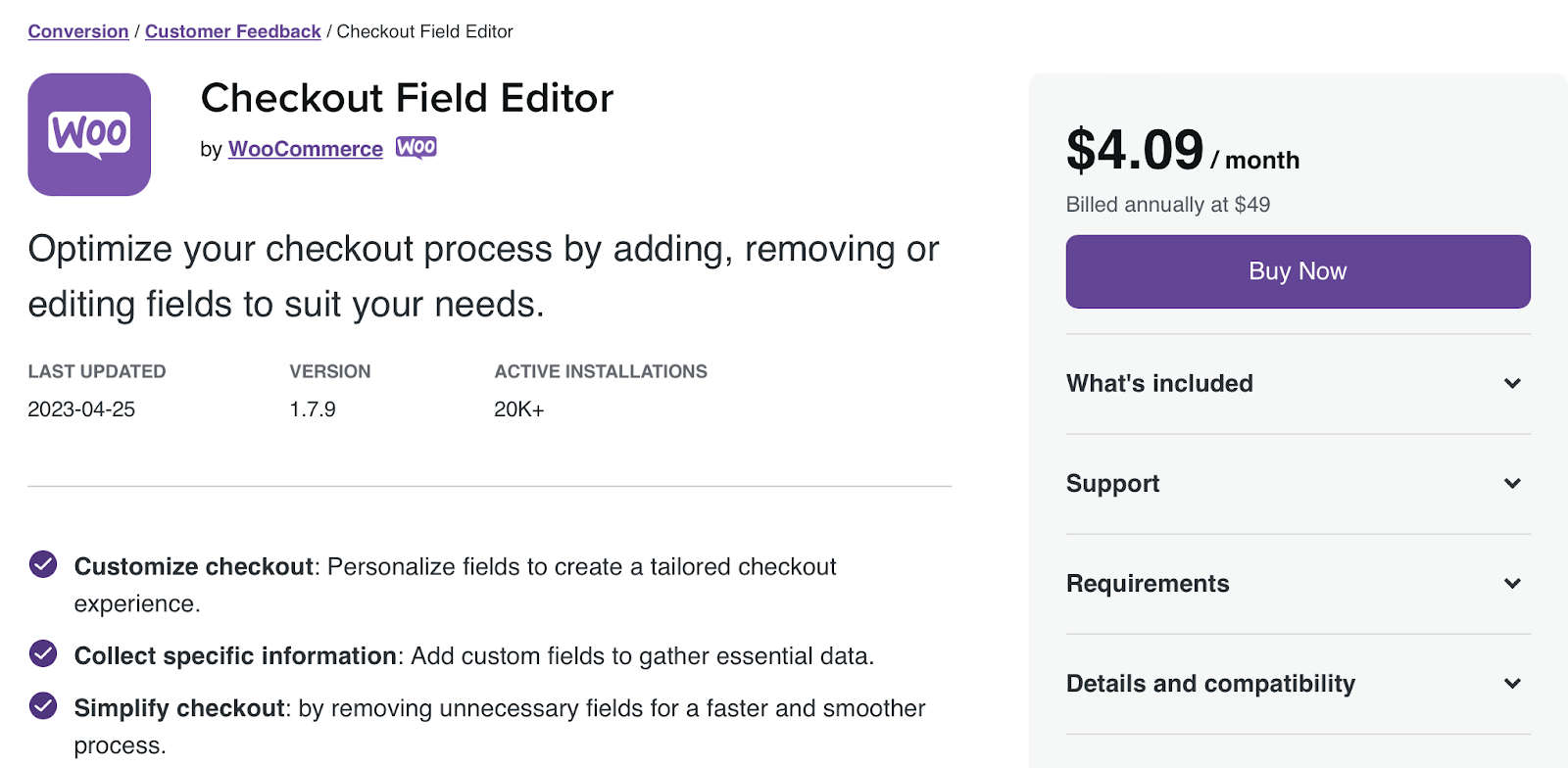
    Checkout Field Editor is a premium WooCommerce extension that lets you optimize your checkout page by adding, removing, or editing fields.

    Although you can’t take away the core fields, you can move them around. This gives you greater control over the flow of the checkout process. 

    If you run a large store, you might require a more sophisticated tool, like WooCommerce Checkout Add-Ons.
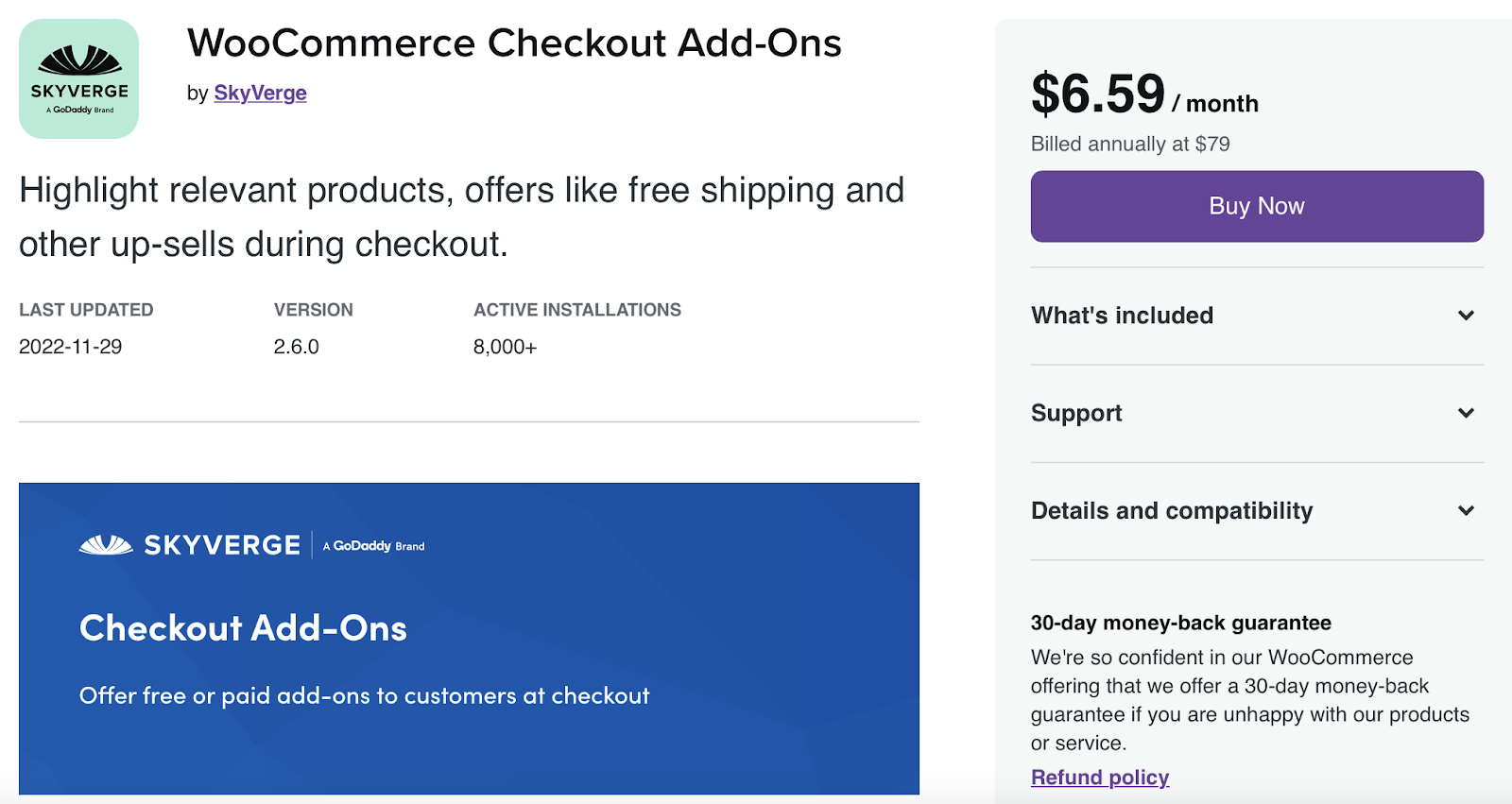
    If you run a large store, you might require a more sophisticated tool, like WooCommerce Checkout Add-Ons.

    With this tool, you can insert free (and paid) add-ons at the checkout stage. For instance, if you sell personalized products or gifts, you can allow customers to add a message to the order.

    It also enables you to offer gift wrapping services and insurance. You can even give customers the option to leave a tip. 

    The plugin gives you full flexibility over your WooCommerce fields. You can create conditional add-ons, add fixed or percentage-based costs, and dynamically update order totals. Plus, the tool supports WooCommerce Subscriptions and renewal orders. 

    How to customize your WooCommerce Checkout page

    Now that you know a bit more about WooCommerce checkout fields, let’s take a look at three ways to customize your Checkout page. 

    1. Use the WooCommerce Cart and Checkout blocks

    The first way to customize your WooCommerce Checkout page is to use the Woo Cart and Checkout Blocks extension. This tool is completely free.

    Find the WooCommerce Blocks page and click on Free Download.

    The first way to customize your WooCommerce Checkout page is to use the Woo Cart and Checkout Blocks free extension.

    You’ll then be guided through the checkout process (although you won’t be expected to pay anything). 

    There are different ways to customize your checkout experience with these blocks. You can configure product add-ons, accept multiple payment methods, offer express payment options, and more.

    Note that the Cart and Checkout blocks are only available on sites with WordPress 6.9 or higher. Additionally, you’ll need to replace the existing shortcodes on your Cart and Checkout pages. 

    First, navigate to Pages in your dashboard and open your Checkout page. Here, you can delete the checkout shortcode [woocommerce_checkout].

    Delete the checkout shortcode [woocommerce_checkout] in the page editor.

    Then, search for the Checkout Block and add it to your page. Now, you should see a preview of your block-based cart which you can customize using the settings in the sidebar.
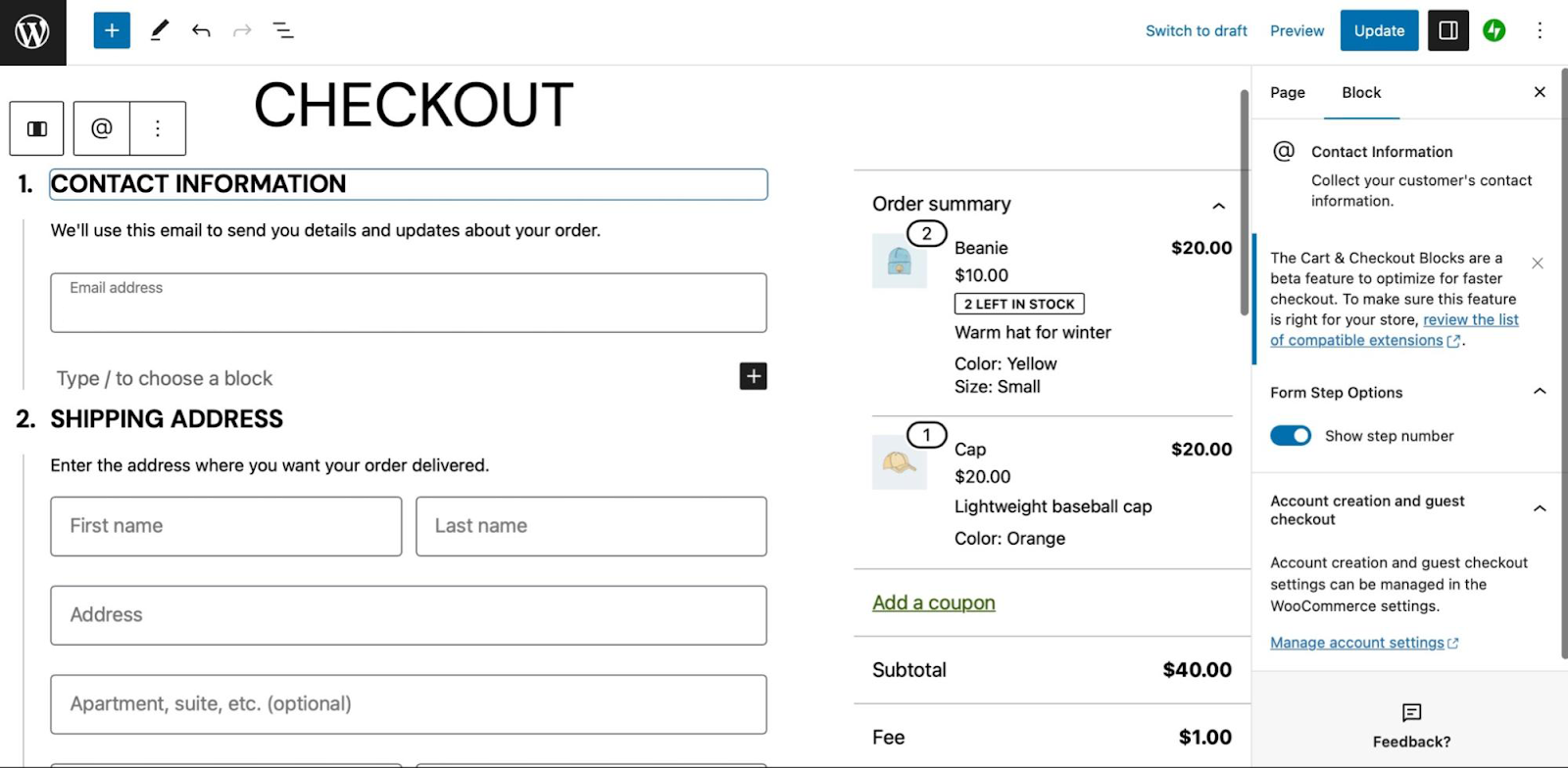
    Search for the Checkout Block and add it to your page.

    Now you’re all set to customize your Checkout page. You can show/hide the checkout step numbers, show/hide certain fields, and make the Phone field a required field using the block settings.

    You can show/hide the checkout step numbers, show/hide certain fields, and make the Phone field a required field using the block settings.

    Additionally, you can configure paid add-ons, allow shoppers to apply coupons or notes to their orders, enable multiple shipping options, and more. 

    2. Customize your Checkout page using WooCommerce extensions

    While WooCommerce Blocks offers an easy way to customize your checkout page, you can also get started with various WooCommerce extensions. Let’s look at a few options. 

    Make product recommendations

    One of the best ways to increase your average order size is to make product recommendations on the checkout page. Fortunately, the Product Recommendations extension makes this super simple.

    Increase your average order size with product recommendations on the checkout page with Recommendations extension.

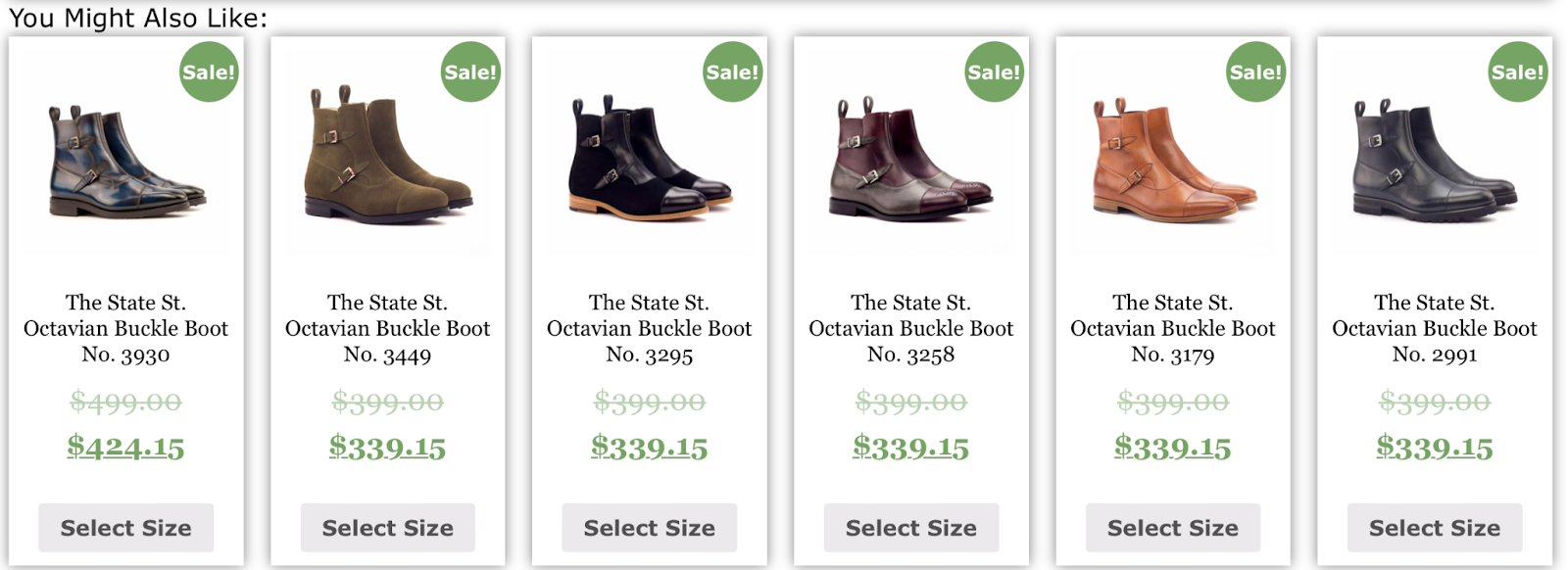
    You can present cross-sells under eye-catching titles like “Frequently bought together” or “You might also like”.

    Present cross-sells under eye-catching titles like “Frequently bought together” or “You might also like”.

    Alternatively, you can upsell products to increase order value. Plus, you can present your product recommendations across your entire store, including individual product pages and your order confirmation page. 

    Enable multiple shipping addresses

    Another way to customize your WooCommerce Checkout page is to enable multiple shipping addresses. Sometimes, customers make orders that consist of multiple products that need to be sent to different addresses (like home and work addresses).

    Additionally, some customers like to buy gifts and ship them straight to their friends and family. Without this option, customers are forced to make separate orders for each shipping address, which can be quite time-consuming.

    You can use the Shipping Multiple Addresses extension to offer this feature.

    Allow customers to buy gifts and ship them straight to their friends and family with the Shipping Multiple Addresses extension.

    Customers can request any quantity of products to be sent to any number of addresses. Plus, they can save all of these shipping addresses within their accounts. 

    Once you purchase this extension, all you need to do is install it on your WordPress site and enable multiple shipping methods. 

    Let customers choose a delivery date

    A great way to give your store a competitive edge is to allow customers to choose a delivery date to receive their orders. This can improve your overall customer satisfaction since it shows that you’re willing to go the extra mile.

    With the Order Delivery for WooCommerce extension, you can limit the number of orders per day to make sure you can process all orders within the specified timeframe.

    With the Order Delivery for WooCommerce extension, you can limit the number of orders per day.

    Plus, you can provide customers with a list of options for delivery dates based on bank holidays, shipping methods, and other factors. 

    Once you purchase and install the extension in WooCommerce, you can display a delivery date picker in your checkout form. Here, you can determine time slots, define a delivery range, and charge additional costs when customers choose a specific date/time. 

    Offer add-ons at checkout

    Another way to optimize the WooCommerce Checkout page is to add upsell options. For instance, you might offer shipping insurance, rush handling, company swag, or gift wrapping.

    You could also let customers choose from a range of paid add-ons at checkout, like gift messages or gift receipts. WooCommerce Checkout Add-Ons offers an easy way to do this.

    Let customers choose from a range of paid add-ons at checkout with WooCommerce Checkout Add-Ons.

    With this extension, you can add several types of fields to your checkout form, based on your add-on type. So, you might include additional text fields, radio buttons, checkboxes, or file uploads.

    You can configure fixed-amount or percentage-based costs. Meanwhile, you’re able to include conditional add-ons that change based on factors like the number of products in the cart and the cart subtotal. 

    Display messages to customers at checkout

    Your WooCommerce Checkout page customization can simply involve displaying a message. You can do this to engage customers, promote offers in your store, or point them toward related items.

    You can use the Cart Notices WooCommerce extension to do this.
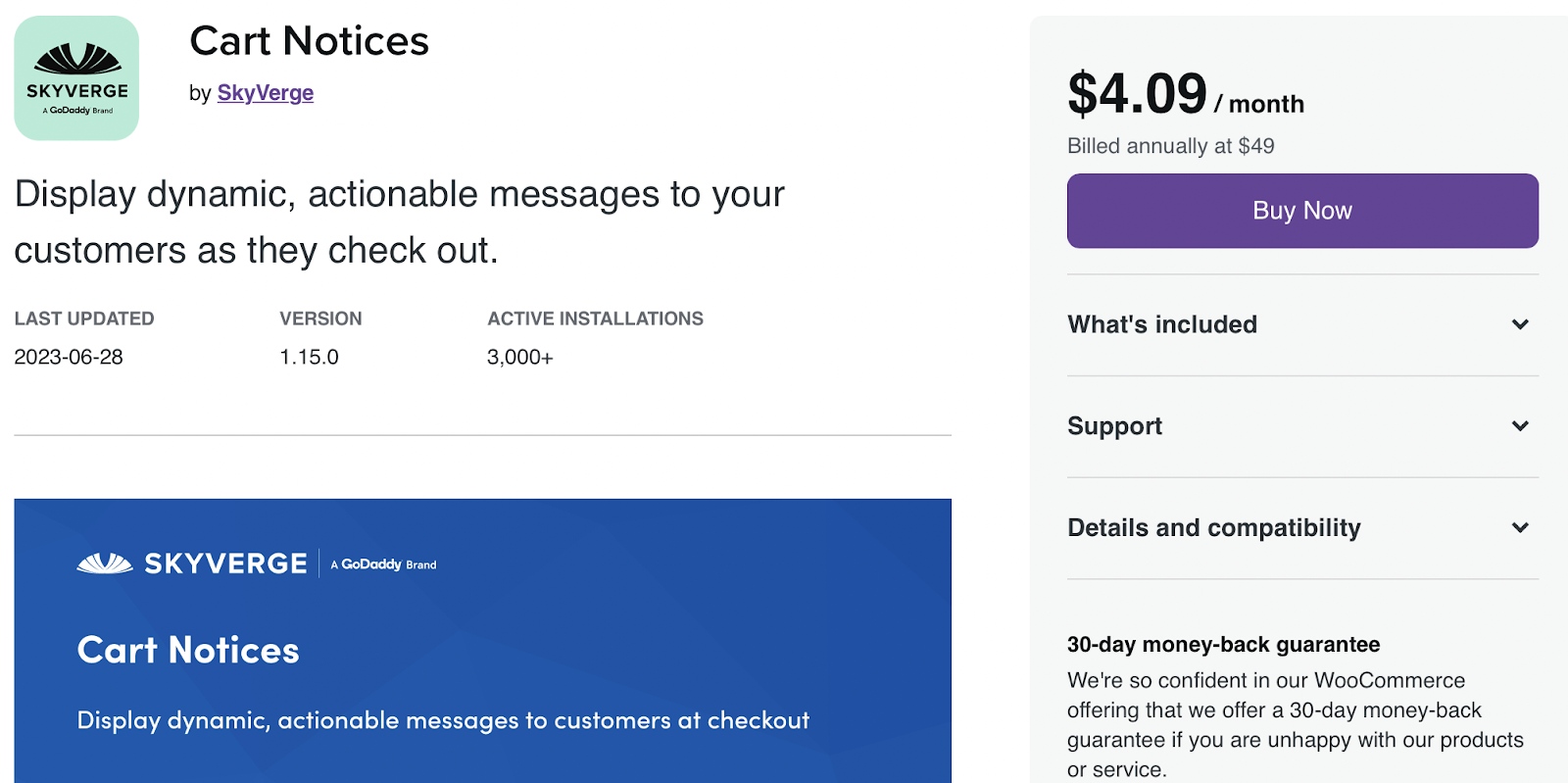
    Engage customers, promote offers in your store, or point them toward related items with Cart Notices WooCommerce extension.

    Once you’ve purchased and installed the extension, you’re able to display dynamic messages at checkout to encourage customers to buy more products. For example, you might want to present a notice that says, “Add one more item to qualify for free shipping.” 

    If you offer express shipping, you might motivate customers to place an order by displaying a message that says, “Order in the next ten minutes for next-day delivery.” 

    Provide a gift wrap option

    Although many of your customers are shopping for themselves, some are buying gifts for their loved ones. Therefore, it’s a great idea to offer a gift wrapping option on your WooCommerce Checkout page.

    The Gift Wrapper for WooCommerce extension lets you add this option to your store.

    Offer a gift wrapping option on your WooCommerce Checkout page with The Gift Wrapper for WooCommerce extension.

    This way, you can customize your Shop page by allowing customers to add gift wrapping to individual items. Shoppers can also apply gift wrapping to their entire order at checkout. Plus, you’re able to configure different pricing options for this service.

    This plugin supports both simple and variable WooCommerce products, and you can offer an unlimited number of gift wrap designs. Shoppers can even add a personalized message to their orders. 

    3. Customize your Checkout page manually

    You can also make changes to the Checkout page manually. This option is best if you’re comfortable working with code. 

    If you’re editing your site files directly, it’s best to create a child theme. Otherwise, when you switch themes or even update your current parent theme, you’ll lose any of the changes you’ve made. 

    Plus, it’s a good idea to make a fresh backup of your WooCommerce store since a single error can break your site. There are many high-quality backup plugins to choose from, but Jetpack VaultPress Backup is a powerful and reliable tool.

    There are many high-quality backup plugins to choose from, but Jetpack VaultPress Backup is a powerful and reliable option.

    The plugin works automatically, creating real-time backups that are stored securely in the Jetpack Cloud. Better yet, VaultPress Backup is designed specifically for WordPress and WooCommerce sites, which means it backs up your files, database, and customer data. 

    Edit the visual design of your WooCommerce Checkout page using CSS

    To edit your WooCommerce fields manually, you’ll first want to use the inspector tool in your browser to identify the exact area that you want to customize. Then, you’re ready to apply the changes to your theme.

    Here’s a list of primary tags (including classes and IDs) that enable you to edit the design of your Checkout page:

    <body class="woocommerce-checkout">
    <div class="woocommerce">
    <form class="woocommerce-checkout">
    <div id="customer_details" class="col2-set">
    <div class="woocommerce-billing-fields">
    <p class="form-row">
    <div class="woocommerce-shipping-fields">
    <p class="form-row">
    <div class="woocommerce-additional-fields">
    <div id="order_review" class="woocommerce-checkout-review-order">
    <table class="woocommerce-checkout-review-order-table">
    <div id="payment">
    <ul class="wc_payment_methods payment_methods methods">
    <div class="form-row place-order">

    To give you an example, you might want to change the background color of an input box. In this case, you can use the following code snippet:

    .woocommerce-checkout input[type="text"] {
         background-color: #222;
    }

    Alternatively, you might wish to remove a field from your Checkout page, like the Company name field in the Billing section. In this scenario, you’ll need to add the following code snippet to your functions.php file.

    function wc_remove_checkout_fields( $fields ) {
        unset( $fields['billing']['billing_company'] );
        return $fields;
    }
    
    add_filter( 'woocommerce_checkout_fields', 'wc_remove_checkout_fields' );

    Make sure to save your changes when you’re ready.

    How to create a one-page WooCommerce checkout 

    If you want to simplify the shopping experience, you might want to create a one-page checkout experience, using a plugin like WooCommerce One-Page Checkout. With this tool, you can add checkout fields to any of your landing pages.

    Simplify the shopping experience with a one-page checkout experience, using a plugin like WooCommerce One-Page Checkout.

    This extension offers three ways to create a one-page checkout. First, you can enable it on a product-by-product basis.

    Alternatively, you can configure a one-page checkout with a shortcode. All you need to do is add the following shortcode to any page or post on your site:

    [woocommerce_one_page_checkout]

    How to boost the speed of your Checkout page

    While it’s a good idea to customize your WooCommerce Checkout page, you’ll also want to make sure that it’s optimized for performance. Bounce rates increase by an average of 32 percent as page load time goes from one to three seconds. 

    To maximize conversions and sales, it’s important to improve your website speed. There are different ways to optimize your WooCommerce Checkout page, but Jetpack Boost offers an easy and convenient solution.

    There are different ways to optimize your WooCommerce Checkout page, but Jetpack Boost offers an easy and convenient solution.

    There’s a free version of the plugin, which is simple to set up. Go to Plugins → Add New and search for “Jetpack Boost”. Then, click on Install Now → Activate. 

    Now, you can head to Jetpack → Boost in your dashboard.

    There’s a free version of the plugin, which is simple to set up in the Plugin Repository.

    Here, you can enable any of the optimization settings that you want to apply to your website. For example, you might want to lazy load images to improve your loading times.

    It’s also a good idea to optimize critical CSS loading. This feature moves your styling information to the start of the page so that your content loads much faster. As such, it’s a great way to improve your overall user experience. 

    You can also upgrade to a premium Jetpack plan to access additional features. For instance, the plugin will automatically regenerate your site’s critical CSS (and performance scores) every time you make a change on your site.

    Frequently asked questions about customizing the Checkout page 

    This post has covered the basics of WooCommerce Checkout page customization, but you might still have some questions. Let’s answer some of them. 

    What is the WooCommerce Checkout page?

    When you install WooCommerce in WordPress, you’ll get a default Checkout page. This contains fields for customers to enter their name, address, email address, payment information, and more. Once they’ve entered these details, they can complete their order. 

    What is the best way to customize a WooCommerce Checkout page?

    There’s no best way to customize the WooCommerce Checkout page since it depends on your preferences, skill level, and experience. For beginners, it can be easiest to use WooCommerce Blocks or a WooCommerce extension since you won’t need to use code.

    More experienced users may like to edit the WooCommerce Checkout fields using code snippets. This involves adding CSS snippets in the WordPress Customizer or your child theme. 

    Should I back up my site before editing the checkout page template?

    The WooCommerce checkout page is one of the most important pages on your website. Therefore, it’s important to back up your WordPress site before you make any edits.

    This way, if you make a mistake or a change that you don’t like, it’s easy to restore your website to an earlier version. You won’t need to troubleshoot your site for errors or go through the hassle of undoing the change.

    The easiest way to back up your site is to use a plugin like Jetpack VaultPress Backup. Once installed, this handy tool makes real-time backups that are stored securely in the Jetpack Cloud. 

    Plus, you’ll get access to an activity log to tighten up security on your site. Meanwhile, the restoration process is super simple, enabling you to get your site up and running again in just a few clicks. 

    What else can I do to enhance my WooCommerce Checkout page?

    It’s a great idea to customize your WooCommerce Checkout page to increase sales and improve the customer experience, but there are other ways that you can enhance your Checkout page.

    It’s important to prioritize your site’s speed as this can reduce bounce rate and improve the shopping experience. You can install a plugin like Jetpack Boost to speed up your loading times. 

    Once activated, Jetpack Boost provides you with access to a clean interface where you can keep an eye on your performance score. Plus, the tool makes it easy to enable optimization features like lazy loading, critical CSS, and non-essential JavaScript deferral. 

    Optimize your WooCommerce checkout experience

    While WooCommerce provides a built-in Checkout page, there are tons of ways to enhance the page to boost sales and configure useful checkout options. For instance, you might enable multiple shipping addresses, make certain fields required, or offer gift wrapping.

    To recap, here are three ways to edit and customize your WooCommerce Checkout page:

    1. Use the WooCommerce Cart and Checkout blocks.
    2. Use WooCommerce extensions like Cart Notices and Product Recommendations.
    3. Use code to manually customize the Checkout page.

    You’ll also want to optimize your Checkout page for performance, using a beginner-friendly tool like Jetpack Boost. This way, you can speed up your site and improve the user experience, which can lead to more conversions.

  • CRM vs CMS: Exploring the Differences & How They Work Together

    Businesses — big and small — are constantly working to connect, engage, and build relationships with their audiences. To be effective, efforts have to span across various channels, mediums, and technologies. It’s a lot to manage!

    Amidst this flurry of activity, two tools have become indispensable: customer relationship management (CRM) software and a content management system (CMS).

    These might sound complex, but their essence is simple — they’re platforms designed to streamline specific aspects of your business operations. 

    The differences between the two, and how they can complement one another, often cause confusion. So we’re here to walk you through the world of CRMs and CMSs, exploring their definitions, benefits, and potential to drive your business forward. 

    What is a CRM? (customer relationship management system)

    A CRM is your key to customer-centric business operations. It’s a powerful tool designed to manage and analyze interactions and data throughout the customer lifecycle. The ultimate goal is to improve customer service relationships, aid in retention, and drive sales growth. With a CRM, you’re not just managing customers, you’re understanding them. 

    What are the benefits of a CRM?

    1. Centralized data. With a CRM, all your customer data — interactions, transactions, and preferences — are housed under one roof. No more rifling through spreadsheets or databases. Your customer data is organized, accessible, and ready to deliver insights. 

    2. Better customer service. CRM provides in-depth customer data, allowing you to personalize interactions and solve problems efficiently. All of your sales representatives can have access to information about each customer, allowing them to understand previous conversations instead of asking the same questions over and over.

    3. A streamlined sales process. With a clear view of the customer journey, you can identify opportunities and bottlenecks, thus refining your sales strategy and boosting conversions.

    4. Enhanced marketing efforts. CRM data can guide your marketing strategy, ensuring that your campaigns are tailored to customer behaviors, needs, and preferences. 

    Typical features of a CRM

    A CRM can pack a punch with a host of features designed to enhance your customer relationships, and Jetpack CRM is an excellent example. Features include:

    1. Contact management. A tool like Jetpack CRM allows you to capture, track, and manage customer data effectively. Everything from contact details to interaction history is neatly organized.

    2. Sales funnel visualization. A CRM provides a clear view of your sales funnel, highlighting opportunities and revealing choke points. 

    3. Task management. Assign tasks, set reminders, and follow up on pending work with a CRM. It’s about taking the right action, at the right time.

    4. Analytics and reporting. A CRM turns raw data into actionable insights with detailed analytics and reporting. 

    What is a CMS? (content management system)

    A CMS, on the other hand, is your digital publishing powerhouse. It’s a software application or set of related programs that allows you to create and manage online content. With a CMS, you can control and structure the content on your website without diving into the technical depths of web development.

    What are the benefits of a CMS?

    1. Easy content management. A CMS gives you the freedom to create, manage, and modify content on your website without any technical knowledge.

    2. A collaborative work environment. Multiple users can contribute and collaborate on the same content, ensuring smooth workflows and efficient content production.

    3. Improved search engine optimization. With built-in SEO tools, a CMS can help optimize your content for search engines, thus improving your visibility.

    4. Unlimited customization options. A CMS like WordPress provides you with numerous themes and plugins to customize your website’s look and feel, ensuring that it resonates with your brand.

    Typical features of a CMS

    A CMS comes equipped with a variety of features to streamline your content management efforts. WordPress, as the leading CMS, showcases these capabilities brilliantly, including:

    1. Content creation and management. WordPress allows you to easily create, edit, and organize your content with its powerful block editor.

    2. User management. With WordPress, you can manage user access, roles, and permissions, ensuring a safe and efficient work environment.

    3. Compatibility with additional tools. WordPress has an extensive range of plugins that enable you to add features and functionality to your website, customizing it according to your needs.

    4. A template system. A CMS like WordPress typically offers themes that can change the way your site looks without altering its underlying software. 

    The differences between a CRM and CMS

    In the simplest terms, a CRM manages your customers, while a CMS manages your content. 

    A CRM focuses on managing customer data, interactions, and relationships, driving customer satisfaction and sales growth. On the other hand, a CMS is all about creating, managing, and modifying digital content. It’s your tool for publishing and structuring the content on your website.

    In essence, a CRM works behind the scenes, shaping the way you interact with your customers, while a CMS is on the front lines, shaping the way your customers interact with you.

    Use cases of a CRM vs CMS

    Understanding the different use cases for a CRM and CMS can help you appreciate their individual strengths and collective potential.

    1. A CRM for sales and marketing

    A CRM can be your sales and marketing team’s best friend. It provides a wealth of customer data that can be used to personalize sales interactions, tailor marketing campaigns, identify sales opportunities, and evaluate marketing performance. 

    Jetpack CRM interface

    For instance, with Jetpack CRM, you can manage and track leads, nurture customer relationships, and glean insights from customer data to shape your marketing strategies.

    2. CMS for content and website management

    A CMS, like WordPress, on the other hand, is a boon for content creators and website managers. It empowers you to create and publish content, manage the look and feel of your website, and collaborate efficiently with your team. 

    the WordPress block editor in action

    CRM and CMS as standalone software

    Operating a CRM or CMS as a standalone system does come with benefits and drawbacks. 

    On the one hand, a standalone CRM, like Jetpack CRM, can provide a focused environment for managing and analyzing customer data, thereby improving customer relationships and driving sales. However, the lack of integration with your CMS could result in a disconnect between your customer data and your content strategy, potentially hampering its effectiveness.

    Similarly, a standalone CMS, like WordPress, gives you complete control over your digital content and website. Yet, without CRM integration, you’re missing out on valuable customer insights that could enhance your content’s relevance and impact.

    The need for integration: CMS and CRM together

    The real magic happens when you bring a CMS and CRM together, each amplifying the other’s strengths. 

    The right integration allows your CRM to access data from your CMS, providing a more comprehensive view of your customers. For example, it automatically pulls in information about the orders that an individual has placed, so that your customer service team can best answer their questions and so that you can segment shoppers to enhance your marketing strategy.

    contact page in Jetpack CRM

    But integration doesn’t mean just slapping the two systems together. It’s about creating a sum greater than its parts. That’s where Jetpack CRM comes into play, seamlessly integrating its powerful tools with your WordPress site.

    Jetpack CRM and WordPress: the perfect combination

    Jetpack CRM and WordPress aren’t just compatible — they’re symbiotic. Together, they marry the content and customer management, streamlining and enhancing business operations.

    Jetpack CRM was crafted specifically for WordPress. Its creators envisioned a CRM that would leverage the flexibility and power of WordPress and serve as a tool that’s easy to use, feature-packed, and capable of turning customer management into a breeze. 

    How Jetpack CRM leverages power of WordPress

    Jetpack CRM taps into the user management, content hierarchy, and plugin architecture of WordPress to streamline the customer journey. It packs a host of features that seamlessly blend with WordPress, including:

    1. WordPress user sync. Jetpack CRM allows you to automatically sync WordPress users and CRM contacts, ensuring that your data is always up-to-date.

    2. Invoices & transactions. With Jetpack CRM, you can manage invoices, quotes, and transactions right from your WordPress dashboard, providing a unified business management experience.

    3. Email and SMS marketing. Connect your CMS to your existing email service provider like MailPoet or use the Mail Campaigns extension to send unique marketing messages to specific customer segments. And add the Twilio extension to send text message marketing to your contacts. 

    4. Automated customer data sync. Sync all the data from your WooCommerce store. Gain more in-depth insights into customer information, preferences, and buying habits and market specifically to them.

    5. Online commerce without the ecommerce site. Creating your own ecommerce site is a great way for B2B and service-based businesses to streamline operations. But if all you want to do is send an invoice and collect payment, Jetpack CRM lets you do that easily and quickly.

    Pairing Jetpack CRM with WordPress isn’t just about integrating systems; it’s about creating a cohesive and effective customer-centric strategy. It’s about knowing your audience, delivering content they love, and forging relationships that endure.

    How to integrate Jetpack CRM with your WordPress site: a step-by-step guide

    Installing and setting up Jetpack CRM is simple. Just follow these steps:

    1. In your WordPress dashboard, go to Plugins → Add New. Search for “Jetpack CRM” and click Install Now → Activate.

    essential details field in Jetpack CRM

    2. You’ll now see a setup wizard that will walk you through the process of getting started. It will ask you details about your site, like the type of business you run and the currency you accept. Answer all of these questions, then click Next.

    importing contacts into Jetpack CRM

    3. On the next page, you’ll see options for importing contacts from other tools you may be using, such as Stripe, WooCommerce, and Twilio. If you want to do so, click the Connect your CRM to other services button. Otherwise, proceed on.

    optional features in Jetpack CRM

    4. Now, you’ll see options for enabling extensions and additional functionality, such as quotes, invoices, and WooSync. Turn on these as needed.

    5. Finally, you’ll have the option to subscribe to the Jetpack CRM newsletter. Click Finish and go to your CRM.

    Now, take the time to get to know your dashboard and configure your settings. For more information and detailed walkthroughs about everything Jetpack CRM, check out the documentation.

    Maximizing Jetpack CRM’s features

    Just integrating the two systems isn’t enough — you need to make them work for you.

    1. Managing contacts

    With Jetpack CRM, managing contacts is easy. You can add, edit, and categorize contacts, track customer interactions, and view all this information in a neat, user-friendly dashboard. The trick is to keep your contact data organized and updated, ensuring that you have accurate and actionable customer insights at your fingertips.

    2. Tracking customer interactions

    Jetpack CRM’s customer interaction tracking allows you to monitor activity on your WordPress site — pages visited, forms filled, downloads made, and more. You can then use this information to understand your customers better and tailor your sales and content strategy to match their needs and preferences.

    3. Optimizing marketing efforts

    Using the customer data gleaned from Jetpack CRM, you can refine your marketing campaigns, making them more personalized, targeted, and effective. Monitor campaign performance, identify what works, and tweak what doesn’t.

    4. Customizing the CRM to fit your business needs

    Every business is unique, and your CRM should adapt to meet your specific needs. Jetpack CRM allows you to customize your CRM experience with a range of extensions for email marketing, invoicing, webinars, and more. Choose the ones that suit your business needs and create a CRM that’s tailor-made for your business.

    Tips for getting the most out of your CRM-CMS integration

    1. Map your customer’s journey

    A fundamental part of successfully integrating your CRM and CMS lies in understanding the path your customers take from discovery to conversion. Map out this journey, using your CRM to capture key touchpoints and interactions. 

    This will help guide the content and messaging you develop through your CMS. Jetpack CRM, for instance, is excellent at recording customer data, while WordPress makes content publishing a breeze.

    2. Harness the power of data

    Every interaction a customer has with your website is a nugget of data that can be utilized. Your CRM system collects and organizes this data, allowing you to leverage it to tailor your content, marketing, and sales strategies. Make sure your CMS is designed to make full use of this information. For example, WordPress’s compatibility with Jetpack CRM ensures a seamless data flow, enhancing your data-driven marketing efforts.

    3. Personalize the experience

    Using the data you gather, deliver a personalized experience to each contact. While your CRM manages customer data, your CMS must be flexible and robust enough to deliver varied content. WordPress shines in this respect, with customization at its core, while a CRM like Jetpack CRM makes tailoring customer interactions effortless.

    4. Maintain CRM data quality

    Ensure the customer data stored in your CRM is regularly updated. This not only helps maintain the quality of your customer relationships, but it also guarantees that your CMS delivers relevant and engaging content.

    5. Use your CRM for content strategy

    Your CRM can provide invaluable insights for your content strategy. Use the data it provides to create content that resonates with your audience. As you feed these insights into your CMS, you’ll create more meaningful and impactful connections.

    6. Implement automation where possible

    Use automation features in your CRM to streamline tasks such as sending emails or updating customer data. This frees up your team’s time, allowing them to focus on other vital areas. Jetpack CRM, as an example, has a wealth of automation features that can save valuable time.

    7. Utilize integrations

    Make use of the integration features of your CRM and CMS to connect various aspects of your business. This helps streamline your processes and make your systems work in sync. With both WordPress and Jetpack CRM supporting a multitude of third-party integrations, the possibilities are endless.

    8. Customize your CRM to suit your needs

    Make the CRM truly yours by customizing it to align with your unique needs. Whether it’s adjusting terminologies or capturing additional information, a flexible CRM is an asset. Jetpack CRM, for instance, offers multiple customization options to fit your business model.

    9. Train your team

    Make sure your team is well-versed in how to use both the CRM and CMS. Understanding these systems and their integration can improve efficiency and make your strategies more effective.

    10. Review and optimize regularly

    Finally, keep a close eye on the performance of your CRM and CMS. Use the analytics and reporting capabilities of your CRM and the analytics of your CMS to continually review and optimize your strategies.

    By applying these strategies, you can truly harness the synergistic potential these technologies have to offer. As we’ve seen, systems like Jetpack CRM and WordPress exemplify the potential of such an integration, each bringing their unique features to the table. Remember, CRM-CMS integration isn’t about using two systems in tandem — it’s about creating a seamless system that drives business growth.

    Frequently asked questions

    Want to know more about content management systems and customer relationship management software? Let’s dive into some frequently asked questions.

    What is the primary difference between a CRM and a CMS?

    While both a CRM and CMS are pivotal tools for any business, they serve different primary functions. A CRM, or customer relationship management system, is a tool designed to manage a company’s interactions with current and potential customers. It keeps track of customer information, purchase history, interactions, and more, all in one centralized location. 

    A CMS, or content management system, is a tool that allows you to create, manage, and modify content on a website without needing any specialized technical knowledge. It handles all the basic infrastructure, allowing you to focus on the front-end parts of the website — content, design, etc.

    Can a business run efficiently using only a CRM or a CMS?

    While a business can indeed function with only a CRM or a CMS, integrating both can exponentially increase efficiency and productivity. Having both a CRM and a CMS ensures that not only is your website content managed effectively, but your customer relationships are also nurtured and improved over time. 

    For instance, you could run a blog on WordPress (CMS) to attract visitors and generate leads. Once these leads are captured into Jetpack CRM, you can then nurture these relationships, turning prospects into loyal customers.

    How does a CRM-CMS integrated system improve operational efficiency?

    When you integrate your CRM and CMS, the synergy between the two creates a unified system that boosts operational efficiency. With a CRM like Jetpack CRM integrated with a CMS like WordPress, you can ensure that your content strategies are informed by your customer insights and vice versa. 

    For instance, you can use the CRM data about your customers to personalize your CMS-driven content. Similarly, the behavior data of users interacting with your content can be captured by the CRM for further analysis and action. This circular data flow between CRM and CMS, when used correctly, can improve both the customer experience and business results.

    How does Jetpack CRM differ from other CRM systems?

    Jetpack CRM stands out from other CRM systems because of its deep integration with WordPress, ease of use, and incredible flexibility. It takes the power and scalability of WordPress and brings it to the CRM space. Furthermore, Jetpack CRM is also modular and customizable to fit your specific business needs. 

    Plus, the ability to manage everything from the same dashboard where you manage your content on WordPress provides unparalleled convenience and efficiency.

    What are some key features of Jetpack CRM that leverage the CMS capabilities of WordPress?

    Jetpack CRM comes with several features that leverage the CMS capabilities of WordPress. For instance, it allows you to manage your contacts right from your WordPress dashboard, eliminating the need to switch between platforms. It also provides features for tracking customer interactions on your WordPress site, allowing you to capture valuable behavioral data.

    Other key features include seamless integration with popular WordPress plugins, customization options to fit your business needs, and in-depth analytics and reporting capabilities to measure and improve your CRM strategies.

    How can I integrate Jetpack CRM with my existing WordPress site?

    Integrating Jetpack CRM with your existing WordPress site is a straightforward process. First, you need to install and activate the Jetpack CRM plugin from your WordPress dashboard. Once the plugin is activated, it automatically integrates with your WordPress site, adding a Jetpack CRM section to your dashboard. 

    From this section, you can manage all your CRM-related tasks — managing contacts, tracking customer interactions, optimizing marketing efforts, customizing the CRM to your needs, and much more — right from your WordPress dashboard.

    Can I customize Jetpack CRM to fit the specific needs of my business?

    Absolutely! One of the significant advantages of Jetpack CRM is its flexibility and customization options. You can customize the CRM to fit your specific business needs, whether it’s renaming fields to match your business terminology, adding custom fields to capture additional information, or customizing the layout and display of information.

    Jetpack CRM: the #1 CRM for sites using WordPress

    In the world of business, the right partnership can propel both organizations to the moon. When Jetpack CRM meets WordPress, it’s like witnessing a celestial alignment. The two don’t just coexist; they amplify each other. Together, they create a platform that’s more than just a CRM or a CMS — it’s a complete business solution. 

    Jetpack CRM was born in the WordPress universe and embodies some of the key traits of WordPress: simplicity, power, and flexibility. It takes the robustness of WordPress, infuses it with CRM functionalities, and delivers a tool that businesses of all sizes can use to drive customer relationships and business growth.

    No matter the size of your company, whether you’re a one-person show or a growing enterprise, Jetpack CRM has you covered. It’s scalable, customizable, and packed with features that make customer management seamless. From capturing leads to closing deals, Jetpack CRM turns every step into a streamlined process, right inside your WordPress dashboard.

    If your business relies on WordPress as its CMS, Jetpack CRM is the ideal choice. The two form a combination that can power your journey to the top. But don’t just take our word for it. Take it for a spin. See how the magic of CRM-CMS synergy can transform your business operations, customer experience, and bottom line.

    Get started with Jetpack CRM today: https://jetpackcrm.com/

  • The 10 Best Social Media Management Tools for Businesses

    93% of internet users have at least one social media account, which makes social media an excellent opportunity to connect with your audience, no matter what type of business you run.

    But when you need to manage social media accounts while also writing content, marketing across other platforms, and running every other aspect of your company, it can be a bit like trying to juggle a dozen balls in the air. 

    Thankfully, there’s a wide range of social media management tools for business that can help you run your social media, so you can focus on what’s most important.

    In this helpful guide, we’ll help you decide on the best social media management tool for your business. We’ll explore ten of the best options, look at the key features you should keep in mind, and answer your burning questions about social media management software. 

    Jetpack Social homepage

    1. Jetpack Social

    Jetpack Social is one of the best social media management tools for WordPress website owners, allowing you to easily share your content on various channels. This social media management plugin is trusted by tens of thousands of WordPress site owners, who collectively share over one million posts a day.

    Jetpack Social has easy-to-use tools that allow you to schedule posts to publish at the date and time your audience is most engaged on a particular platform. Plus, it enhances your content strategy by making it easy to reshare posts for the perfect stream of evergreen media on your feed.

    Social media posts with images create up to 2.3x higher engagement than those without. Jetpack Social’s image generator enables you to always include the perfect graphics with your posts. It will automatically look at the images in the post and select the ones in the best dimensions for each social media platform. If your post includes a video, Jetpack Social will also allow you to share this directly on your social media post.

    Simply sharing links to a post on your site likely won’t get much attention. But when you upload a curated image and take the time to add a bit of written context, suddenly that post is much more alluring to followers. 

    Jetpack’s tools mimic this curated approach to social media while streamlining processes so social media managers (or small business owners) can work much more efficiently. 

    Jetpack Social also works perfectly alongside the social sharing tools in the Jetpack plugin, which automatically add buttons for visitors to share their favorite content on their own profiles with just a few clicks.

    settings for Jetpack Social

    Created by the team behind WordPress.com, Jetpack Social is a safe, robust, solution for WordPress sites. It integrates seamlessly with the latest version of WordPress and is supported by true WordPress experts.

    Key features of Jetpack Social:

    • The ability to post and share your WordPress site’s content to Facebook, Tumblr, LinkedIn, Instagram, and Mastodon
    • Tools to customize the content of your posts
    • Options to reshare existing content
    • A scheduler for auto-posting 24/7
    • Unlimited shares (paid plans)
    • An image generator (advanced plan)
    • Multi-image sharing (advanced plan)
    • Video sharing (advanced plan)
    example of images shared with Jetpack Social

    Pros of Jetpack Social:

    • Jetpack Social makes it easy to share your WordPress website’s content on social media, enabling you to expand the audience for your content beyond your site visitors.
    • You can manage your social media sharing from within your WordPress dashboard.
    • The plugin’s scheduling feature enables you to post your content at the time that’s best for your audience, without having to be online.
    • Jetpack Social allows you to share the best images or videos from your post along with custom text, which creates the illusion of manually-created social media posts. 

    Cons of Jetpack Social:

    • Jetpack Social is designed to make sharing your website’s content with followers simple, but it won’t share posts with content that’s not already on your site.  

    Ease of use

    Jetpack Social is user-friendly. It guides you through the process of connecting your social accounts, so you can begin using the plugin and sharing your posts within minutes of installation. You can also take advantage of documentation, along with email and live chat support from Jetpack’s Happiness Engineers.

    Pricing

    Jetpack Social’s free plan allows you to share up to 30 posts per month. The Basic plan allows unlimited sharing for just $3.99 a month, and the Advanced plan unlocks all features, including image sharing, for only $12.99 a month. 

    Hootsuite homepage

    2. Hootsuite

    Hootsuite is a popular social media management tool that helps you coordinate your social media profiles from one centralized dashboard. 

    It offers a wide range of features, including post scheduling, which helps ensure your content lands in your audience’s social media feeds at the most effective times. Hootsuite also provides tools to curate content from across the web, which you can then share on your social media profiles. 

    From your Hootsuite dashboard, you can edit and create images for your posts that follow the best practices and required sizes for each platform, and then preview how each one will appear. You can also use Hootsuite for social media monitoring through a centralized feed, and it enhances social media ‘listening’ by alerting you to mentions of your brand or chosen keywords.

    Key features of Hootsuite:

    • A tool to post and schedule content across multiple social media platforms
    • Previews of how your posts will look on each social media platform
    • Support for a range of platforms, including Facebook and LinkedIn
    • The ability to curate content from across the web to use in your posts
    • Built-in image editing
    • Video upload and sharing tools
    • Social media tracking and analysis

    Pros of Hootsuite:

    • Hootsuite provides detailed analytics on your social media activity, so you can see how your content is performing across different platforms, helping you make data-driven decisions and refine your social media strategy.
    • Hootsuite allows you to monitor and post to all of your social media accounts from one platform.

    Cons of Hootsuite:

    • While Hootsuite has a plugin that allows you to post to WordPress from your Hootsuite dashboard, you can’t auto-share your WordPress posts to your social media profiles, meaning you have to create a manual post in Hootsuite for each new piece of content you add to your site or use a limited third-party plugin.
    • You can’t manage your social media posts from within your WordPress website.

    Ease of use:

    Hootsuite has a large number of features that can be daunting at first. However, a comprehensive help center is provided, as well as email and live chat support so you, or your social media manager, can get up to speed quickly. 

    Pricing:

    The Hootsuite Professional plan allows you to manage up to ten social media accounts and costs $99 a month.

    Buffer homepage

    3. Buffer

    Buffer is a well-known social media management software tool that offers a range of features to help individuals and businesses manage their social media accounts.

    Buffer was initially created to allow users to write and schedule posts across various social media platforms, and this functionality remains at the platform’s core. Buffer’s paid accounts now also allow users to interact with their audiences from directly within the platform and analyze their posts and their followers’ engagement with them on social media. 

    Buffer has also recently launched a set of AI features that help you grow your social media audience across a range of platforms by repurposing your existing content. 

    Key features of Buffer:

    • Social media post scheduling
    • The ability to share the same posts across multiple platforms
    • Social media analytics (paid accounts)
    • Hashtag management (paid accounts)
    • Tool to view social media comments, engagements, and mentions (paid accounts)
    • AI features for post creation and repurposing 

    Pros of Buffer:

    • Buffer has a streamlined interface that makes creating and scheduling posts simple. 
    • Buffer’s AI features allow you to automatically repurpose high-performing posts to create new content.

    Cons of Buffer:

    • You aren’t able to automatically share your website’s posts from within Buffer, meaning you have to either use a third-party workaround or create separate posts to share your content. 

    Ease of use

    Buffer has a simple interface that’s easy to use. A detailed knowledge base is available, as well as email support for all users.

    Pricing

    Buffer has a limited free plan that allows you to plan and publish posts to 3 social media platforms. Its essential plan unlocks more features, including engagement tools and analytics, for $6 per month per social media account. 

    Tailwind homepage

    4. Tailwind 

    Tailwind is a unique social media management platform specializing in sharing visual content on Pinterest, Instagram, and Facebook. As well as support for manual scheduling, Tailwind can help take the guesswork out of posting by automatically scheduling your posts when your audience is most likely to be engaged.

    The platform also helps you create on-brand social media posts using its built-in editor — you can add text, images, and videos, and Tailwind will then automatically resize your content to fit the dimensions of each social media platform. 

    Tailwind also provides detailed analytics, allowing you to track impressions, clicks, saves, and other metrics to see how your visual content performs. 

    Key features of Tailwind:

    • Post planning and idea generation
    • Instagram, Pinterest, and Facebook post scheduling 
    • Auto-scheduling to engage your audience at peak times
    • Image and post-creation tools
    • Hashtag suggestions
    • Post analytics
    • AI tools to write copy that accompanies your images
    • Email marketing features 

    Pros of Tailwind:

    • Tailwind includes advanced post-creation tools that allow you to build optimized image-based posts for each platform by uploading images, videos, and text.
    • Tailwind features advanced analytics, which allows you to track your Pinterest, Facebook, and Instagram posts and discover which types of posts gain the highest level of engagement. 

    Cons of Tailwind:

    • As Tailwind focuses only on image-based posts on Pinterest, Instagram, and Facebook, it may not be suitable for those looking to share text-based posts and content from their website on their social media channels. 
    • Tailwind does not support automatic posting from WordPress websites, meaning you need to create a social media post in Tailwind for everything you want to share.    

    Ease of use

    Tailwind’s social media management platform is user-centric and intuitive, making creating and scheduling image-based posts simple. There’s also a comprehensive help center, and email support is offered to all users.

    Pricing

    Tailwind’s Pro plan, which allows you to connect one Pinterest, Instagram, and Facebook account, costs $12.99 per month. The Advanced Plan includes more resources and additional accounts for $19.99 a month.

    Revive Old Posts plugin

    5. Revive Old Posts

    Revive Old Posts is designed to help you automatically share your website content with social media followers.

    Revive Old Posts helps you share and bring visitors to your old content by automatically resharing posts at your chosen interval. The premium versions of the plugin can also help you automate the scheduling and sharing of posts from the WordPress dashboard. 

    Key features of Revive Old Posts:

    • Support for a range of social media accounts, like Facebook, LinkedIn, and more
    • Automatic sharing of posts, pages, and custom post types at set intervals
    • The ability to add categories or tags as hashtags
    • Custom post scheduling (premium)
    • A URL shortener with click tracking (premium)
    • Custom post variations (premium)

    Pros of Revive Old Posts:

    • Revive Old Posts allows you to drive traffic to your older blog content by automatically resharing links, which can help keep a consistent social media presence.

    Cons of Revive Old Posts:

    • Scheduling of social media posts is not available with the free or basic premium subscription, meaning you’re restricted to sharing posts when they’re published and then at a set interval.
    • Revive Old Posts does not allow you to customize your social media posts completely. While the premium plans allow you to create custom messages for your posts, these are always used in rotation with your default post structure.
    • Revive Old Posts does not automatically select the best image from your posts to share.

    Ease of use

    Revive Old Posts is simple to use. Once you have connected your social media accounts, the plugin will automatically start sharing your old posts. Some of the advanced features of the plugin require additional configuration, but a knowledge base is available. The plugin authors also offer email support to premium users.

    Pricing

    Revive Old Posts is a freemium plugin. The basic free version is available from the WordPress plugin directory. Premium plans start at $75 a year, and plans that incorporate custom scheduling start at $149 a year.

    Later homepage

    6. Later

    Later began life as an Instagram-only social media management tool for small businesses, but has evolved over time and now supports a wider range of social media platforms, including Facebook and TikTok. Later allows you to create, schedule, and publish social media posts through its mobile app and web platform using an intuitive visual content calendar to drag and drop images and posts to schedule them.

    Later also features a range of built-in content creation tools, which help you create compelling posts for each platform, as well as tools that allow you to source, repurpose and share relevant user-generated content for your brand.

    Key features of Later:

    • The ability to plan, schedule, and publish posts across a range of platforms, including Instagram, Facebook, and Pinterest
    • A visual social media content calendar
    • Content creation tools
    • User generated content (UGC) curation tools
    • Social media analytics
    • A ‘link in bio’ tool, which allows you to provide a collection of links or a shoppable Instagram feed in your social media account bios

     Pros of Later:

    • Later’s visual content calendar offers a clear view of your scheduled content and allows you to drag and drop posts to reschedule or re-use them.
    • Later’s content creation tools allow you to take an image and turn it into an effective Instagram, Facebook, or Pinterest post in a couple of clicks. 

    Cons of Later:

    • While Later now offers support for a wider range of platforms, its tools are still geared towards businesses who primarily want to share image-focused content with their followers.
    • Later limits the number of posts that you can publish per month to each platform.
    • Later doesn’t support auto-publishing of your WordPress website’s posts and pages, meaning you’ll need to manually create a post and upload your images in Later to share your website’s content.

    Ease of use

    Later offers an easy-to-navigate interface centered around a visual calendar, which makes fairly intuitive. Email support is offered to all users.

    Pricing

    Later’s Starter plan costs $18 a month and allows you to connect a single account per platform and allows for 30 posts a month for each one. Their advanced plan costs $40 a month for up to three accounts per platform and 150 posts a month.

    Social Engine branding illustration

    7. Social Engine

    Social Engine is a WordPress social media management tool that allows you to create, schedule, and manage your social media posts from within your WordPress website. 

    Social Engine allows you to automatically schedule and publish new posts and pages that you’ve created on your site, as well as re-post older content to help fill the gaps in your social media schedule. 

    The plugin also has a fully-featured social media calendar which allows you to create and schedule all of your social media posts — even those with content other than existing posts or pages on your site — in a single location.

    Key features of Social Engine:

    • Social media post creation and scheduling
    • Support for a range of social media networks, including Facebook and Instagram
    • The ability to automatically post your website content
    • Tools to customize your social media post content
    • The ability to automatically reshare old posts and pages (premium)
    • LinkedIn and Pinterest support (premium)
    • Social media statistics (premium)

    Pros of Social Engine:

    • Beyond support for promoting what’s already on your WordPress site, Social Engine also allows you to create, schedule, and publish separate content. So it can function as a complete social media management tool.
    • Social Engine enables the automatic resharing of old posts and pages to help you drive traffic to your site.

    Cons of Social Engine:

    • Social Engine requires you to create your own free developer accounts with each social media network, which it then uses to post on your behalf.
    • While Social Engine offers support for images, it won’t automatically select the best image from your WordPress posts or pages when sharing them.

    Ease of use

    Once configured, Social Engine is easy to use. However, some users may find the process of creating social network developer accounts and entering API keys into the plugin confusing. Email support is offered for paid plans, and the plugin developer is active on the WordPress support forum.

    Pricing

    There’s a free version of Social Engine available from the WordPress plugin directory. The premium plan costs $29 a year for a single site and offers support for additional social networks, as well as analytics and automatic post re-sharing.

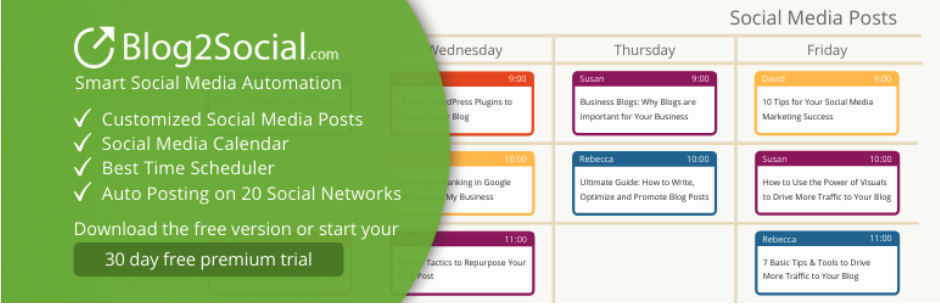
    Blog2Social homepage

    8. Blog2Social

    Blog2Social is a popular WordPress social media management software tool that allows you to turn your website’s posts and pages into social media posts. Blog2Social lets you select individual posts or enable auto-posting, which will automatically share your posts once they’ve been published.

    Blog2Social also includes a scheduling tool that allows you to schedule posts in advance, and its ‘Best Time Manager’ will automatically analyze your social media accounts and select the optimum time for each one. 

    Social media managers can also easily cross-post content between different social media networks by creating customized templates that follow the best practices for each network.  

    Key features of Blog2Social:

    • The ability to share your WordPress posts and pages on social media
    • Automatic sharing of posts and pages when they’re published (premium)
    • Support for a range of networks, including Facebook and LinkedIn
    • The ability to automatically reshare posts (premium)
    • The option to create posts from any text, image, or link 
    • Auto-resharing of old posts (premium)
    • Post scheduling (premium)
    • Customizable post formats for each social media account (premium)

    Pros of Blog2Social:

    • Blog2Social allows you to schedule and share any text, link, or image, which means it can be used to manage all your posts from within your WordPress site.

    Cons of Blog2Social:

    • While Blog2Social supports the inclusion of images in your social media posts, it won’t automatically select the best image for each network. 
    • Sharing videos with Blog2Social requires an additional paid add-on, even for premium users.

    Ease of use

    Blog2Social guides you through the process of connecting your social media profiles, which makes getting started with the plugin easy. Some features, including setting customized post templates for different networks and automatically sharing old posts, require additional configuration that some users may find confusing. A knowledge base is provided for all users, along with email support for all premium plans.

    Pricing

    Blog2Social has a limited free version available from the WordPress plugin directory. Premium plans start at $11 a month for the ‘smart’ plan, which includes post-scheduling. The ‘Pro’ plan costs $16 a month and adds additional features, including sharing images and support for additional social media networks.

    Sprout Social homepage

    9. Sprout Social

    Sprout Social is a popular social media management platform that combines a range of post creation tools with powerful analytics.

    Sprout Social allows you to create a unified inbox that combines posts, comments, and interactions from all of your social media accounts. You can also schedule posts and re-use them across different accounts and Sprout Social will suggest the best time to post them on each one.

    Sprout Social’s analytics tools allow you to track engagement, conduct social media monitoring for brand mentions, analyze social media performance, and generate detailed reports about your social media strategy and engagement.

    Key features of Sprout Social:

    • Support for Facebook, Pinterest, LinkedIn, and other popular networks
    • A unified social media inbox
    • Social media post scheduling
    • WooCommerce integration
    • Post creation and optimization tools
    • AI-powered engagement tools
    • Advanced social media analytics

    Pros of Sprout Social:

    • Sprout Social offers a set of AI-powered engagement tools that help you automate tasks such as replying to followers and sharing user-generated content.
    • Sprout Social’s WooCommerce integration allows you to add product links, images, and information to your social media posts.
    • The analytics and reporting features within Sprout Social allow you to monitor the impact of your social media strategy. 

    Cons of Sprout Social:

    • Sprout Social is considerably more expensive than the other tools in this guide, making it only suitable for companies with large social media marketing budgets.
    • While Sprout Social allows you to share WooCommerce product information, it cannot automatically share your WordPress website’s posts and pages.

    Ease of use

    Sprout Social offers a range of advanced features that can make it overwhelming to simply share your website’s content and posts with your followers. To help users adjust to the platform, Sprout Social offers a comprehensive resource center, knowledge base guides, and email support to all users.

    Pricing

    Sprout Social’s standard plan, which allows you to connect to five social media accounts, starts at $249 a month. The professional plan starts at $349 a month and adds advanced analytics and an unlimited number of social accounts.

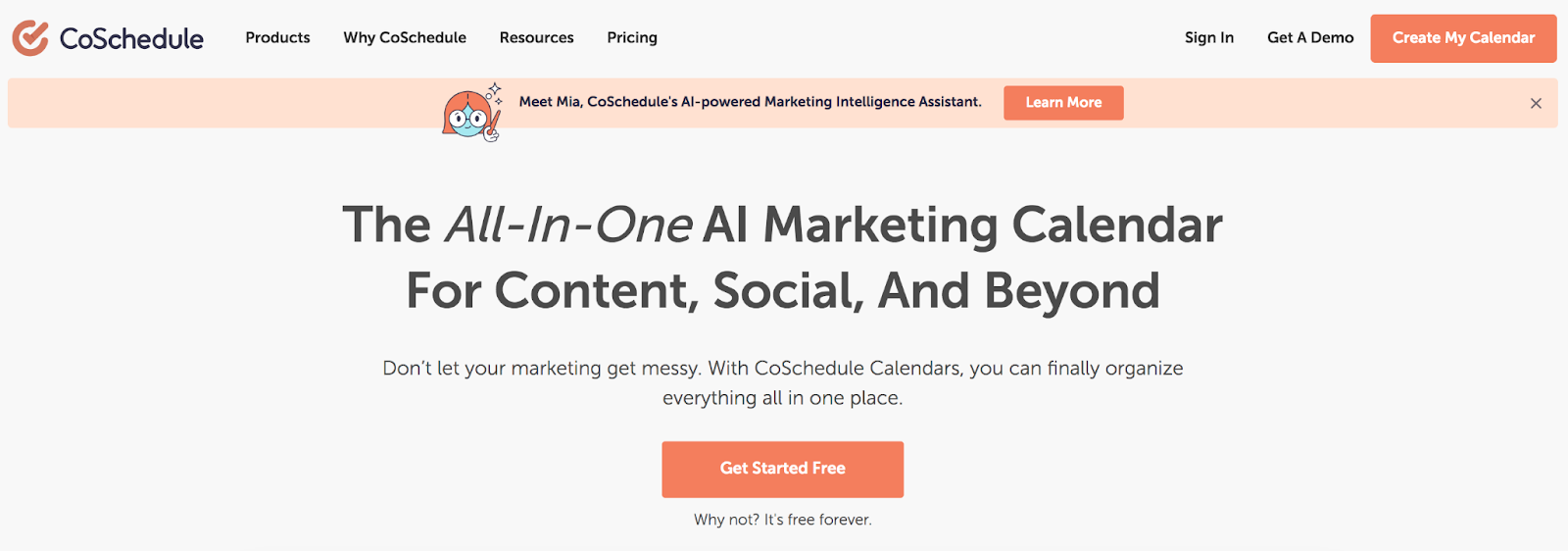
    CoSchedule homepage

    10. CoSchedule

    CoSchedule is a popular social media management platform that’s based around a marketing calendar that allows you to see all of your social media and website posts in one place. 

    Using the calendar, you can schedule content across multiple social media channels, as well as see when you have new posts scheduled to go live on your WordPress website.

    CoSchedule allows you to create social media content from within the WordPress editor, so you can schedule posts to share your website content on Facebook, LinkedIn, and other popular social media channels. CoSchedule also offers a ‘ReQueue’ feature which automatically fills any gaps in your social media schedule by republishing previous posts.

    Key features of CoSchedule:

    • A calendar overview of scheduled social media posts and website content
    • Unlimited posting to Facebook, LinkedIn, Pinterest, and other major social media platforms
    • Team collaboration tools (paid accounts only)
    • An AI writing assistant
    • Basic social analytics (paid accounts only)

    Pros of CoSchedule:

    • CoSchedule integrates with a range of content management systems, including WordPress, which allows you to see your scheduled website posts and create social media posts to share them with your followers.
    • CoSchedule will analyze your social media accounts to help you determine the best times to post your content.

    Cons of CoSchedule:

    • CoSchedule’s social media analytics features are limited compared to other similarly-priced options.
    • While CoSchedule’s ReQueue feature can help fill gaps in your social media schedule, it does this by re-posting previous posts without changing them, which could result in your social media accounts becoming stale and repetitive.

    Ease of use

    CoSchedule’s calendar-based approach makes it simple to schedule content, but some of the advanced features require a significant amount of configuration. CoSchedule offers a knowledge base and email support to all users.

    Pricing

    CoSchedule offers a limited free plan, which allows for the scheduling of five posts at a time. Unlimited posts and additional features are available in the ‘Pro’ plan, which starts at $29 per user per month.

    A comparison of the best social media management tools

      Jetpack Social Hootsuite Buffer Tailwind Revive Old Posts Later Social Engine Blog 2 Social Sprout Social CoSchedule
    Built for WordPress? Yes No No No Yes No Yes Yes No No
    Automatically share your website’s posts and pages? Yes No No No Yes No Yes Yes No Yes
    Schedule social media posts? Yes Yes Yes Yes Yes Yes Yes On some pro plans Yes Yes
    Re-share old posts with one click? Yes No No No Yes No Yes Yes No Yes
    Customize social media post content? Yes Yes Yes Yes Yes Yes Yes Limited Yes Yes
    Share your post’s images on social media? Yes – automatically when sharing Manually Manually Manually Yes Manually Manually Yes Manually Yes
    Cost Limited free version. Premium plans start at $3.99 a month. From $99 a month. Limited free version. Premium plans start at $6 a month per social media account From $12.99 a month Limited free version. Premium version starts from $75 a year. Premium plans start at $18 per month. Limited free version. Premium plan is $29 a year. Limited free version. Premium plans start from $11 a month From $249 a month. Limited free version. Premium plans start from $29 a month

    Frequently asked questions about social media management tools

    What features should I look for in a social media tool for my business? 

    When looking for a social media sharing tool for your WordPress website, it’s important to make sure that it’s affordable and easy to use. You should also consider if it was built specifically for WordPress and check out the options for support. Finally, and perhaps most importantly, compare it against a list of your most critical features and make sure it checks all the boxes.

    Affordability 

    Social media management tools have a wide range of price points, with some costing as much as $249 a month per user. Jetpack Social, on the other hand, offers a range of affordable plans starting at just $3.99 a month.

    Ease of use

    It’s important that your social media management tool is easy to use. Some services offer many different features that are only used by a small section of users but which can make the platforms more challenging to navigate and use. 

    However, other social media management services, such as Jetpack Social, offer all the features most businesses need to share their website content on social media with a user-friendly interface that takes the hassle out of the process.

    Built for WordPress

    If your website is built on WordPress, then you’ll want to ensure that your social media management tool is built specifically with the needs of WordPress site owners in mind. For example, Jetpack Social was created specifically for WordPress by Automattic, the team behind WordPress.com.

    Great support

    When choosing which social media management tool to use, it’s important to consider the level of support offered. For example, Jetpack Social users can connect to Jetpack’s team of expert Happiness Engineers by email or live chat for help with the plugin.

    Delivers the features you need

    With so many different features offered by social media management services, you must ensure the tool you choose delivers all the features you need to manage your social media without complicating your life with things you’ll never use. 

    For example, most WordPress website owners will find that Jetpack Social offers the perfect set of features to help them boost the reach of their posts on social media. 

    How do I choose the right social media management tool for my business?

    After reading through the popular options in this article, it’s probably clear that companies using WordPress for their website will want to choose Jetpack Social. It offers everything a business needs to share their website’s content on social media.

    If your business doesn’t use WordPress, the best social media management tool will depend on the features your business is looking for and what platform or content-management system your website is built on. 

    How do I integrate a social media management tool with my website or blog?

    Some social media management tools, such as Jetpack Social, are made specifically for WordPress and will integrate smoothly with your WordPress site. When you install Jetpack Social, you’re guided through connecting your social media profiles, and then the plugin will get to work automatically. 

    Can social media management tools help me manage multiple social media accounts?

    Yes, social media management services can help you manage multiple accounts. For example, the leading service in our review, Jetpack Social, will automatically share your website’s posts in the best formats for Facebook, LinkedIn, Tumbler, and Mastodon.

    Which social media platforms do social media management tools generally support?

    Each social media management tool supports its own set of social media software, but most integrate with Facebook. Some tools, such as Jetpack Social, also support other platforms, including LinkedIn, Tumblr, and Mastodon, whereas other tools focus primarily on visual platforms, such as Pinterest and Instagram. 

    Can a social media management tool help me automate my social media posting process?

    Yes, some social media management tools allow you to automate your social media posting process. For example, Jetpack Social can post new site content when it’s published or automatically post pre-scheduled posts at the time of your choosing. 

    Can I customize my messaging when using an automated social media management tool?

    Some social media sharing tools only allow you to share links to your content. However, other tools such as Jetpack Social allow you to customize content included within posts, so you can speak more directly to followers and boost engagement.  

    Jetpack Social: The leading social media management tool for WordPress

    With its perfect combination of affordability, ease of use, and seamless WordPress integration, Jetpack Social is the leading social media management tool for WordPress. It’s poised to become a powerful partner for your business.

    Jetpack Social provides all the important features your WordPress website needs to reach the world. Sign up for your Jetpack Social account today!

  • The 10 Best Managed WordPress Hosting Providers in 2023

    Choosing the right web host is one of the most important steps when launching a site. If you plan on using WordPress, you’ll want to opt for a service that’s tailored to this platform.

    Fortunately, there are many companies that offer top-notch managed WordPress hosting. When you sign up for this service, the web host will handle all essential tasks for you, including updates and software configuration. This leaves you with more time to work on your passion. 

    In this article, we’ll go through a managed WordPress hosting comparison and the service works. We’ll also show you how to pick the right web host and review some of the best providers on the market. Let’s get started!

    Servers for managed WordPress Hosting

    What is managed WordPress hosting?

    Managed WordPress hosting is a service that’s designed to offer a VIP experience. With this plan, the provider takes care of tasks that are typically handled by the website owner. 

    Some hosting providers focus specifically on WordPress websites. This means they provide features that are unique to the content management system (CMS).

    Typically, they offer some or all of the following services:

    • Increased security. Your hosting provider will handle some aspects of WordPress security to ensure that your site is protected from hackers and malware. This can include scanning for vulnerabilities and providing regular updates and patches.
    • Performance optimization. Managed hosting providers tend to use server-level caching and content delivery networks (CDNs) to enhance website performance.
    • Managed updates. Some providers take care of WordPress updates for you. This ensures that the site is always running the latest and most secure versions of software.
    • Automatic and on-demand backups. Most managed hosts will create backups of your site on a regular basis.
    • Expert WordPress technical support. This type of hosting usually comes with access to premium support from WordPress experts. They can assist with technical issues and provide guidance on best practices for WordPress sites.
    • Access to staging environments. Many managed hosting providers offer staging environments where you can test changes or updates to your site before they go live.
    • Increased scalability. Managed hosts typically handle traffic spikes better than unmanaged hosts. Depending on the plan you choose, you might get access to a virtual private server (VPS) or a dedicated server. That means that you’ll either share resources with fewer websites, or even have them all to yourself.

    The primary goal of the best managed WordPress hosting companies is to offer a hassle-free server environment. This enables you to focus on growing your business. It’s an ideal choice if you want to offload technical site tasks.

    Work from anywhere - hassle-free server environment

    The importance of choosing the best WordPress managed hosting provider

    If you don’t research web hosting providers, you might end up stuck with a poor hosting service. Of course, you could always migrate to a new web host, but this can be a time-consuming process.

    When it comes to choosing a WordPress hosting provider, you’ll want to look at as many reviews as possible. While doing so, try to pay special attention to the following:

    • Server performance. Site speed is critical to your website’s success. Your web host should offer top-of-the-line performance.
    • Uptime guarantee. These days, any decent web host offers near-perfect uptime. That means that uptime averages above 99% and, typically, close to 100%.
    • Security practices and tools. You’ll want to choose a provider that offers a variety of security measures to help protect your site against common threats. 
    • Backups and recovery solutions. Your managed hosting provider should offer automated and on-demand backups. Moreover, you should be able to restore your website from a backup directly from your hosting account.
    • Expert WordPress support. If you use a managed web host that specializes in WordPress, their support system should reflect that. Agents need to be trained in the CMS, so they can help you troubleshoot any technical issues that may arise.
    • Scalability. The web host should have several plans you can upgrade to as your site grows. Managed web hosts tend to cater to sites with higher performance needs.

    Price is also an important factor when choosing a hosting provider. With that in mind, we decided to review managed WordPress hosting options that offer great plans at decent starting prices. 

    The best managed WordPress hosting providers (10 options)

    Now, let’s look at some of the best managed WordPress hosting companies on the market. We’ll discuss the key features, pros and cons, and pricing of each one. 

    1. Bluehost

    Bluehost is one of the most popular hosting providers.

    Bluehost is one of the most popular hosting providers. The company offers a large selection of hosting plans, ranging from shared to dedicated options. You can also use Bluehost to register domains, host your email account, and find web design and development professionals to help you with your projects.

    On top of its regular plans, Bluehost offers a variety of WordPress-specific options. You have basic WordPress shared hosting, hosting for WooCommerce sites, and managed plans. 

    If you sign up for a long-term contract, you’ll benefit from very good prices. This is a common practice among hosting providers, but Bluehost offers some of the best deals on the market.

    Bluehost’s managed WordPress plans come with a free content delivery network, a collection of professionally-built WordPress themes, automatic updates, round-the-clock phone support, and free Secure Sockets Layer (SSL) certificates. Some of these plans also include automatic daily backups and malware-scanning tools.

    Key Features

    • Support for multiple websites (on some plans)
    • Free CDN integration
    • Free SSL certificate (limited to one year free for the Basic managed plan)
    • Around-the-clock phone support
    • Automatic daily backups (not available on all plans)
    • Malware scanning tools (not available on all plans)
    • Bundled premium WordPress themes
    • Bundled ecommerce plugins (with the Online Store plan)
    • Free WordPress migration

    Pros and cons

    Bluehost’s main selling point as a managed WordPress hosting company is its prices. Depending on the length of your contract, you can end up paying as little as a couple of dollars per month for hosting (due annually). Plus, you’ll get freebies like bundled premium WordPress themes and ecommerce plugins.

    On the other hand, its managed hosting features can feel pretty basic. If you’ve just launched a website, this may not be an issue for now. But if you want top-of-the-line performance or advanced security, you may need to look at other options. 

    Bluehost is one of the few web hosts on the market that offers real, around-the-clock phone support. If you want to be able to get someone on the phone at any time, this can be a good option for you.

    Pricing

    With Bluehost, you can get some of the best managed WordPress hosting deals, with plans starting at just $2.95 per month. The downside is that you only get these low prices if you lock yourself into a multi-year hosting contract. 

    2. DreamHost

    DreamHost’s line of managed WordPress hosting plans is called DreamPress.

    DreamHost’s line of managed WordPress hosting plans is called DreamPress, and it offers three options. In terms of pricing, DreamHost is in the middle of the pack, neither a budget option nor a super-expensive one.

    Every DreamPress plan comes with a trove of WordPress features. You’ll get a free domain, a pre-installed SSL certificate, unlimited email hosting, on-demand backups, and staging functionality. DreamPress will also set up Jetpack on your WordPress website.

    If you plan on using a website builder, DreamHost offers its own custom solution. It also comes with a massive library of ready-to-go themes that you can use for your website.

    In terms of support, DreamPress enables you to talk to agents through chat or email. The highest tier of DreamPress plans also offers priority support, which means faster responses.

    Key Features

    • Support for one website (on all plans)
    • One-click staging sites
    • Built-in caching
    • CDN integration
    • Free WordPress migrations
    • Custom drag-and-drop builder
    • Free SSL certificate
    • Free domain registration
    • Automatic WordPress updates
    • Free Jetpack integration
    • Automated and on-demand backups
    • SFTP, SSH, and WP-CLI support

    Pros and cons

    DreamPress offers a comprehensive set of features with its managed WordPress plans. If you want a host that comes with plenty of site templates and integrations, DreamPress is one of the few providers that offer these tools. 

    There are a few downsides to using DreamPress. First, you don’t get access to phone support (although callbacks are available). 

    Additionally, the basic tier doesn’t offer CDN integration, and some Jetpack Security features, like malware scanning, are only available with the more expensive plans. 

    Finally, each plan is limited to a single website. This means DreamPress can be an expensive option if you’re looking to host multiple sites. 

    Pricing

    DreamPress plans start at $19.95 per month and go down a bit if you pay yearly. There’s also a big difference in price between the Plus and Pro plans.

    The DreamPress Plus plan offers the best value for money. It gives you access to all managed hosting features. This starts at $24.95 per month when paid yearly. 

    3. A2 Hosting

    A2 Hosting offers almost every type of hosting plan imaginable

    A2 Hosting offers almost every type of hosting plan imaginable. The company’s managed hosting service is among the best in the industry in terms of features and price-to-performance ratio.

    Although A2 Hosting’s plans aren’t exactly budget-oriented, they’re still among the best you can find. Moreover, some of these plans support unlimited websites.

    With A2 Hosting’s managed WordPress plans, you get automated daily backups, Jetpack integration, around-the-clock support, automatic updates, site staging, and more. When it comes to support, A2 Hosting offers phone, chat, and email access to specialized agents.

    Key Features

    • Support for one or more websites
    • Jetpack integration (with more advanced tools available on the higher plans)
    • Support via phone, chat, and email
    • Daily website backups
    • Daily malware scans (available through the Jetpack integration)
    • Staging sites
    • Automatic WordPress updates

    Pros and cons

    One of the main advantages of using A2 Hosting is that you’ll find managed plans for nearly every price point. Moreover, the web host is very generous about the number of websites you can host on a single plan.

    The company’s marketing can be a little confusing, though. All the managed plans offer what’s called “Turbo Servers”, but also “A2 Optimized WordPress”. Unless you dig into the documentation, it can be hard to understand exactly what these optimizations are and how they benefit you.

    Pricing

    A2 Hosting’s prices for managed WordPress hosting vary depending on the number of websites you want to set up. More expensive plans offer support for unlimited websites as well as better Jetpack integrations and site optimizations.

    Plans start at $11.99 per month. You get the best value for money with the Jump plan, which supports up to five websites and costs $18.99 per month.

    4. Liquid Web

    Liquid Web is one of the most developer-friendly hosting providers you can find

    Liquid Web is one of the most developer-friendly hosting providers you can find. Unlike most other web hosts that offer managed plans, Liquid Web gives you full access to the server. This means you can make any changes you want to its configuration.

    This web host focuses on providing excellent performance. On top of configuring your server for optimal speed, the company also installs several plugins that can help improve your site’s performance. Among them, you have options for plugin monitoring and image optimization.

    If you use WooCommerce, Liquid Web can also set up automatic daily testing for you. This feature will help you identify any issues with your store, and you can have the support team fix any problems that come up. 

    Aside from those features, you also get some of the basic perks you can expect from most managed web hosts, including free SSL setup, staging sites, automatic daily backups, and developer tools like WP-CLI support.

    Key Features

    • Support for large numbers of websites (basically unlimited)
    • Full access to the server
    • Performance optimization plugins
    • Automatic daily testing for WooCommerce stores
    • Free SSL setup
    • Staging sites
    • Automatic daily backups
    • WP-CLI support

    Pros and cons

    Liquid Web is a fantastic option if you want a managed WordPress hosting service that gives you full control over the server. This can be a double-edged sword unless you have experience with server management, as you might undo some of the optimizations by mistake.

    You can get the most out of Liquid Web’s managed WordPress hosting if you run a WooCommerce store. The company’s automated daily testing is a fantastic tool that helps ensure your store is running perfectly at all times. 

    Automated daily testing is a fantastic tool that helps ensure your store is running perfectly at all times

    Another perk is that all the plans offer the same features, aside from the amount of storage and bandwidth you get. This makes it easy to select a plan as you’re not compromising on features if you opt for a cheaper option.

    Pricing

    Liquid Web’s pricing is very straightforward. Plans start at $19 per month with support for one website. More expensive plans offer additional resources and provide support for more sites, but the managed features you get are the same on every plan.

    5. MilesWeb

    MilesWeb offers managed WordPress hosting on top of your favorite cloud service provider.

    MilesWeb offers managed WordPress hosting on top of your favorite cloud service provider. The platform integrates with DigitalOcean, Vultr, Amazon Web Services (AWS), and Linode. You can choose which cloud service you want to use, and MilesWeb will set it up for you, including access to a custom hosting dashboard.

    Prices can vary depending on the cloud provider you want to pair with MilesWeb (although not by a lot), but you get the same features with any of them. These include staging sites, automatic backups, free SSL setup, a dedicated firewall, and support for unlimited websites.

    In terms of security, MilesWeb offers a tool that enables you to check the integrity of your site’s files. This can help you detect malicious changes to core files, and if you spot any, the support team will clean up your WordPress site for you. You can reach out to them at any time via chat, email, or phone.

    Key Features

    • Managed hosting service compatible with DigitalOcean, Vultr, AWS, and Linode
    • Support for unlimited websites
    • Staging sites
    • Automatic backups
    • Free SSL setup
    • A dedicated firewall
    • File integrity checks
    • Website cleanup services for hacking or malware removal
    • Support via chat, email, and phone

    Pros and cons

    If you want to use a cloud hosting service while also enjoying the benefits of a managed WordPress hosting provider, MilesWeb could be the right choice. The company offers support for most of the popular cloud hosting services on the web. Plus, it offers similar pricing for all of them.

    On the other hand, if you’re not interested in the cloud stack your WordPress web host uses, you’re probably better off with another provider. This is because selecting a MilesWeb plan requires you to have an idea of the kind of resources your website will need, including the number of virtual CPUs, RAM, storage, and bandwidth.

    Pricing

    MilesWeb prices vary depending on which cloud provider you want to use and the resources you need. Prices start at around $52-56 per month for every provider, which puts MilesWeb among the most expensive managed WordPress hosting providers on the market.

    6. EuroDNS

    EuroDNS offers an eclectic combination of services.

    EuroDNS offers an eclectic combination of services, ranging from domain name system (DNS) management to domain registration and managed WordPress hosting. The company’s managed hosting services are designed to be accessible for any kind of use. It offers two main plans to make your choice simpler: Basic and Advanced.

    The bulk of EuroDNS’s managed WordPress hosting perks relies on Jetpack. Thanks to its Jetpack integration, you get access to automatic backups, malware scanning, automatic WordPress updates, and CDN integration.

    EuroDNS offers support through phone and email. Your account also entitles you to priority support from Jetpack if you experience any issues.

    Key Features

    • Support for one website
    • Jetpack integration
    • Automatic backups
    • Malware scanning
    • Automatic WordPress updates
    • CDN integration
    • Support via phone or email

    Pros and cons

    EuroDNS makes your life easy by only offering two managed WordPress hosting plans. The downside is that the WordPress Basic plan offers a meager 1GB of storage, which is not enough for many sites.

    The main draw of using EuroDNS is its integration with Jetpack. If you’re a fan of Jetpack and its many features, EuroDNS enables you to get hosting for a cost that’s similar to a premium Jetpack license.

    Pricing

    As you might guess from the name, EuroDNS prices are in Euros. Prices start at €5.99 per month for the WordPress Basic plan, but you’re better off paying for the Advanced plan if you want more features and storage. This will cost €11.99 per month.

    7. IONOS

    IONOS is one of the cheapest managed WordPress web hosts on the market.

    IONOS is one of the cheapest managed WordPress web hosts on the market, with prices starting at $1-2 per month. On top of that, IONOS offers a unique onboarding experience. 

    When you sign up for an IONOS account, the company’s WP Assistant will guide you through a series of questions to help you find the right theme and connect your domain and email with the service. This works because IONOS provides free domain registration and email hosting with all its accounts.

    With IONOS, you get to enjoy backups through Jetpack. Plans come with 12 free months of Jetpack Complete, which includes backups, daily malware scanning, CDN integration, and many other features.

    Depending on the plan you choose, you’ll also get access to a caching plugin and repairs in case of malware infections. If you find yourself in a technical bind, you can contact IONOS support through phone, chat, or email.

    Key Features

    • Support for one website
    • Jetpack integration with access to the entire suite of tools and a one-year free subscription
    • Automatic backups
    • Malware scanning and cleanup (the latter is only available with the Boost plan)
    • Free domain registration
    • Website configuration wizard
    • A caching plugin
    • Support through chat, email, and phone

    Pros and cons

    Low prices are the company’s main selling point. Few web hosts can compete with the kind of pricing IONOS offers. 

    Like many providers, IONOS offers promotional pricing during the initial contract, then raises the fees upon renewal. But even the renewal prices are competitive. When you add the complimentary domain to the mix, you get a real bargain.

    The IONOS WP Assistant tool is also a big plus if you’re working on your first WordPress project. The assistant will walk you through some of the most difficult parts of setting up a website.

    IONOS doesn’t offer many perks outside of the many features available through the integration with Jetpack.

    Pricing

    As we mentioned earlier, IONOS prices are incredibly reasonable. The basic plan starts at $2 per month and goes up to $4 after the initial contract. Meanwhile, the Grow option costs $1 per month and goes up to $8 after that contract expires.

    8. Pressable

    In terms of performance, few hosting providers can match Pressable.

    In terms of performance, few hosting providers can match Pressable. This managed WordPress host focuses on providing the best possible service and combines top-of-the-line security and advanced WordPress features.

    This hosting platform is owned by Automattic (the people behind WordPress.com). When it comes to features, Pressable offers just about anything you expect from a managed service, including free SSL certificates, automatic backups and updates, a web application firewall (WAF), malware scanning, hack recovery assistance, and more. 

    Pressable also integrates with Jetpack Security. This gives your site protection against brute force attacks and spam.

    Pressable also integrates with Jetpack Security.

    Additionally, Pressable is very flexible in terms of pricing. You can choose your plan based on the number of sites you need to host, or how many visitors you expect to receive. 

    Key Features

    • Support for as many websites as you need
    • A free SSL certificate
    • Automatic backups
    • A web application firewall
    • Malware scanning
    • Hack recovery assistance
    • Integration with Jetpack Security

    Pros and cons

    Pressable is possibly the best managed WordPress hosting company if you want to get the best possible performance for your website. The web host offers a fantastic collection of managed features and some of the best support in the business.

    The only downside of using Pressable is that it’s not the best option for small projects. The pricing is flexible, but it’s geared toward websites with high traffic and is priced accordingly.

    Pricing

    Pressable offers a broad range of plans. Prices start at $19 per month for one website with support for up to 5,000 visitors per month. The company also offers custom options for those who have very specific needs.

    9. InMotion Hosting

    InMotion Hosting offers all kinds of plans, including managed WordPress hosting options.

    InMotion Hosting offers all kinds of plans, including managed WordPress hosting options. These are designed to provide the best possible performance and offer many developer-friendly features.

    One of the company’s standout features is the option to create WordPress “snaps”. These are blueprints of plugin and theme combinations that you can reuse across different websites. This is particularly useful if you want to deploy multiple WordPress projects with similar functionality.

    InMotion Hosting comes with automatic daily backups, staging functionality, and a custom WordPress hosting dashboard that makes it easy to manage multiple websites. Additionally, the managed plans offer direct billing to customers. If you run an agency and use InMotion Hosting to create and host WordPress websites, you can have clients pay for their hosting directly.

    Key Features

    • Unlimited WordPress websites
    • Free SSL setup
    • Automatic backups
    • Staging environment
    • DDoS protection
    • A web application firewall
    • Customizable WordPress updates
    • “Snaps” of themes and plugins for re-use on other sites
    • Caching plugin integration
    • Direct client billing

    Pros and cons

    InMotion Hosting offers one of the only managed WordPress hosting services geared towards agencies. If you run an agency or work with clients on WordPress websites, this can be a fantastic option for you.

    Meanwhile, the service can be a bit much for small or hobbyist websites. Most of its features are geared towards agencies and developers. If you run a personal website, you might be better off looking elsewhere.

    Pricing

    InMotion Hosting offers yearly and monthly pricing plans. Prices don’t vary whether you pay by month or by year, which is a welcome bonus. 

    Plans start at $15 per month, and they vary in terms of the resources you get. But they all provide access to the same set of managed WordPress features.

    10. WPWebHost

    WPWebHost bills itself as a beginner-friendly managed WordPress web host.

    WPWebHost bills itself as a beginner-friendly managed WordPress web host, and that label holds true. The company offers a simple selection of managed plans, all at reasonable prices and with most of the features you expect from this kind of service.

    With WPWebHost, you get automatic daily and on-demand backups, support for multiple websites (on some plans), staging sites, automatic update management tools, DDoS protection, malware scanning, and more.

    A lot of these features are powered by Jetpack Personal and Professional, which come for free with most of the WPWebHost plans. You also get a free domain with no upkeep costs for as long as you maintain your WPWebHost subscription.

    Key Features

    • Support for multiple WordPress websites (on some plans)
    • Jetpack integration (Personal or Professional plans)
    • Automatic backups
    • Staging functionality
    • WordPress update management
    • Malware scanning
    • DDoS protection
    • A free lifetime domain (as long as your WPWebHost subscription is active)

    Pros and cons

    WPWebHost is a relatively budget-friendly managed WordPress option. The company caters to beginners with simple WordPress projects, but it still offers a solid selection of managed hosting plans.

    Just like with IONOS, most of WPWebHost’s perks come from its Jetpack integration. This means you get a good bargain if you sign up for one of its cheapest plans.

    Pricing

    WPWebHost plans start at $3 per month and those numbers don’t go up upon renewal, which is great news. If you want the Jetpack integration, you’ll need to sign up for the WP Lite plan or above, which costs $7 per month. This plan comes with a Jetpack Personal license.

    Comparison of the top managed WordPress hosting providers

    Bluehost DreamHost A2 Hosting Liquid Web MilesWeb EuroDNS IONOS Pressable InMotion WPWebHost
    Number of websites Multiple (on some plans) One website Multiple (on some plans) Multiple websites Unlimited websites One website One website Multiple (on some plans) Unlimited Multiple (on some plans)
    Starting prices per month $2.95 $19.96 $11.99 $19 $52-56 €5.99 $1 $19 $15 $3
    Automatic backups On some plans Yes Yes Yes Yes Yes Yes Yes Yes Yes
    Free SSL certificate Yes Yes Yes Yes Yes Yes Yes Yes Yes Yes
    Jetpack integration No Yes No No No Yes Yes Yes No Yes
    Automatic WordPress updates Yes Yes Yes Yes (for plugins) Yes Yes Yes Yes Yes Yes
    CDN integration Yes Yes No No No Yes Yes Yes No Yes
    Staging functionality Yes Yes Yes Yes Yes No No Yes Yes Yes
    Firewall and DDoS protection No Yes Yes (on some plans) No Yes No Yes Yes Yes Yes
    Malware scanning On some plans Yes Yes Yes Yes Yes Yes Yes No Yes
    Support options Phone Email and chat Phone, chat, and email Phone, chat, and email Phone, chat, and email Phone or email Phone, chat, and email Chat Phone, chat, and email Email

    Frequently asked questions

    Do you still have questions after reading this managed WordPress hosting comparison? Let’s answer some of them.

    Is managed WordPress hosting worth it?

    Whether managed WordPress hosting is worth it or not depends on your budget and technical expertise. If you don’t mind troubleshooting technical issues, optimizing website performance, and tinkering with security settings, you don’t need managed hosting.

    If you don’t want to deal with WordPress site maintenance tasks on your own, managed WordPress hosting can be worth it. With this type of hosting, you’re paying a premium for a more VIP level of service. 

    Managed hosting is also a smart investment if you can do these tasks on your own but want to spend your time focusing on other aspects of your website. WordPress maintenance and security can eat up a decent amount of time, so there’s no shame in delegating that work if you have the budget for it.

    Jetpack's partnerships with managed WordPress hosting providers.

    How does managed WordPress hosting differ from regular shared or VPS hosting?

    Managed WordPress hosting plans don’t have anything to do with the kind of server setup that you get. Some managed providers might offer plans on shared servers (although this is very uncommon), a virtual private server (VPS), or even dedicated hardware.

    What sets managed hosting apart is the level of service and additional features that you get. Typically, when you pay for a hosting plan, you’re just about on your own. With managed hosting, you can get access to a better support system and have several maintenance and security tasks taken care of for you.

    If a hosting provider offers both managed and unmanaged plans, we recommend comparing the features they offer. You’re likely to find that the managed option includes a lot more perks.

    Do managed WordPress hosting providers keep backups of my site?

    Most managed WordPress hosting providers offer automatic backups. Plus, a lot of them handle backups through their hosting control panels. This means you have access to these copies even if you get locked out of WordPress.

    The frequency of backups will vary depending on which hosting provider you choose. Some might also offer on-demand backups, which you can use to create copies of your WordPress site before making significant changes to it.

    Top WordPress experts agree, however, that you should keep off-site backups in addition to those stored by your host. This protects your site in case an issue spurs from the host itself.

    Use Jetpack Vaultpress Backup to keep off-site backups.

    What should I look for when choosing a managed WordPress hosting provider?

    The perks you get will depend on the web host you choose. Not all of them offer the same level of features. Moreover, prices can vary a lot from one web host to another.

    Your choice should be based on your budget and the features you want. Before settling on a provider, you should compare multiple hosting companies and look for an option that fits your specific needs.

    It’s important to make sure that your chosen provider can perform regular backups for you (preferably in real-time). You’ll also want to choose a company that takes security seriously. For example, it should provide features like malware scanning and protection against brute-force attacks.

    Reduce stress - consider opting for managed hosting.

    Switch to managed WordPress hosting

    If you use WordPress, you might want to consider opting for managed hosting. There are a lot of managed WordPress hosting providers that offer competitive prices and give you access to a much better quality of service than with most non-managed options. 

    With managed hosting, your web host will take care of a variety of security and performance tasks, so you can focus on growing your website.

    Many reputable WordPress providers will automatically install Jetpack to help boost security on your website. Learn more about Jetpack Security!

    Find the best managed WordPress hosting plan for you: See Jetpack’s recommended WordPress hosting providers. 

  • The 6 Best Social Media Platforms for Business Growth in 2023

    The world of business is continuously in motion, ever evolving, always changing, and it’s essential for us to adapt and grow with it. The way we perceive social media today, as a quintessential tool for business growth, was not even a blip on the radar two decades ago. Now, it’s almost unimaginable to run a business without some kind of social media presence.

    Today, we’re going to explore the six best social media platforms that can effectively contribute to business growth in 2023. We’ll explain each of these platforms and their potential, and provide you with strategies and best practices to guide your success. Finally, we’ll show you how the Jetpack Social WordPress plugin can streamline your efforts.

    Jetpack for WordPress on Facebook - use Jetpack Social for WordPress Plugin

    1. Facebook

    Facebook: As relevant as ever in 2023

    Despite new platforms taking their share of the spotlight, Facebook remains the most popular global social network with nearly three million active users each month. It has continued to evolve over time to hold relevance and — despite many flashy, new platforms — remains the standard go-to for many people’s social media identity. 

    The benefits of using Facebook for business growth

    1. A large user base and diverse demographic reach

    Facebook’s vast user base is like a treasure trove for businesses. It’s a melting pot of diverse demographics, giving companies the opportunity to reach a broad spectrum of potential customers.

    2. Advanced targeting options for advertising

    Facebook’s ad targeting options are a marketer’s dream. Target customers based on demographics, interests, behavior, and more, taking the guessing game out of advertising.

    3. Facebook Pages and Groups for brand visibility and engagement

    Creating a Facebook Page or Group for your business provides a place where customers can engage, ask questions, and form a community.

    4. Messenger for customer service and communication

    Messenger isn’t just for chatting with friends. It’s become a valuable customer service tool where businesses can provide immediate assistance and communicate directly with shoppers.

    Best practices and strategies for leveraging Facebook’s potential

    1. Create engaging content that resonates with your audience

    Content is the key to Facebook engagement. When crafting posts, ensure that they spark conversations and connect with your followers.

    2. Use Facebook Ads Manager for effective advertising campaigns

    The Ads Manager is a sophisticated tool that can help you create targeted ad campaigns. Learn to navigate its complexities, and it can provide an incredible ROI and opportunities for smaller brands to test campaigns with small budgets.

    3. Leverage Facebook Insights for data-driven decision-making

    Facebook Insights provides a wealth of data about your page’s performance. Use it to analyze trends and behaviors and to make winning business decisions.

    WooCommerce Instagram - A popular choice for business growth

    2. Instagram

    Instagram: A popular choice for business growth

    In the world of social media, Instagram is like the chic, trendy celebrity that everyone wants to befriend. With its visual-centric approach and growing user base, it continues to be a lucrative platform for business growth.

    The benefits of using Instagram for business growth

    1. Visual storytelling and brand identity building

    Instagram’s visually-rich platform allows businesses to tell their stories, evoke emotions, and build a distinct brand identity using a variety of tools.

    2. The ability to engage with your audience through images, videos, and Stories

    The platform’s various formats like posts, Stories, and IGTV provide multiple avenues to engage with your audience and build a loyal following.

    3. Instagram Shopping and product tagging for ecommerce businesses

    The Instagram Shopping feature has transformed the platform into a digital storefront, making it a great opportunity for ecommerce businesses.

    4. Influencer marketing opportunities

    Instagram has birthed a new league of celebrities: influencers. They carry clout, and partnering with the right ones can give businesses the boost they need in visibility and credibility.

    Best practices and strategies for maximizing Instagram’s impact

    1. Craft an attractive and cohesive Instagram aesthetic

    Remember, on Instagram, visuals speak volumes. Take time to create an aesthetic that’s distinct and represents your brand effectively.

    2. Optimize hashtags and strategically use Instagram’s algorithm

    Instagram isn’t a dump-and-run platform. Master the art of using hashtags and understand the platform’s algorithm to ensure that your content is seen and engaged with.

    3. Collaborate with influencers and leverage user-generated content

    Engaging influencers for collaborations and encouraging user-generated content can have a ripple effect on your reach and engagement.

    4. Use Instagram analytics tools for measuring performance

    Utilize Instagram’s built-in analytics or third-party tools to gauge your performance and adjust your strategy accordingly.

    WordPress VIP on LinkedIn - the leading professional networking platform

    3. LinkedIn

    LinkedIn: The leading professional networking platform

    We all know LinkedIn as the go-to platform for professional networking, but it’s more than a digital resume or job-hunting site. It’s a vibrant community where professionals connect, learn, and grow.

    The benefits of using LinkedIn for business growth

    1. Professional connections and networking opportunities

    LinkedIn is a gold mine for forging professional connections that can lead to mutually beneficial collaborations and opportunities.

    2. Opportunities to demonstrate thought leadership and industry expertise

    By sharing insightful content, businesses can assert their industry expertise, build credibility, and establish themselves as thought leaders.

    3. Targeted advertising options for B2B businesses

    LinkedIn’s advertising options are especially potent for B2B businesses, allowing them to directly reach decision makers.

    4. Recruitment and talent acquisition capabilities

    In need of talent? LinkedIn’s recruitment features make it a leading choice for businesses looking to onboard skilled professionals.

    Best practices and strategies for effective LinkedIn utilization

    1. Optimize personal and company profiles for maximum impact

    An incomplete profile on LinkedIn is a missed opportunity. Ensure that your personal and company profiles are fully optimized and professional.

    2. Share valuable content and engage in relevant discussions

    LinkedIn’s community thrives on insightful discussions and valuable content. Make it a point to share content that sparks conversations and showcases your industry knowledge.

    3. Use LinkedIn Groups and Pulse articles for exposure

    LinkedIn Groups and publishing on LinkedIn Pulse can amplify your visibility and establish your brand as an industry authority.

    4. Leverage LinkedIn Ads for targeted marketing campaigns

    LinkedIn Ads can be a strong tool for targeted marketing campaigns. With detailed targeting options, you can reach the right people at the right time.

    Jetpack on Tumblr - a unique, fan-first platform and user base

    4. Tumblr

    Tumblr: a unique, fan-first platform and user base

    Tumblr is the unsung hero of social media platforms. It might not have the same name recognition as others, but it shines bright with its fan-first culture and active user base.

    The benefits of using Tumblr for business growth

    1. The ability to engage with a creative and niche community

    Tumblr houses a hotbed of creativity and niche communities. Businesses can engage these passionate groups with thoughtful content and genuine interactions.

    2. The opportunity to build brand personality and authenticity

    Tumblr’s laid-back vibe provides businesses with an opportunity to let their hair down, showcase personality, and build authenticity.

    3. The chance to take advantage of visual storytelling through multimedia posts

    Whether it’s GIFs, images, or short video clips, Tumblr’s multimedia options offer opportunities for dynamic storytelling.

    4. A fair shot at viral content and community interactions

    The right content on Tumblr can spread quickly across the platform, offering vast exposure.

    Best practices and strategies for leveraging Tumblr’s potential

    1. Understand Tumblr’s user culture and etiquette

    Each social media platform has its culture, and Tumblr is no different. To thrive, brands need to understand and respect the platform’s unique culture and etiquette.

    2. Create visually appealing and shareable content

    Tumblr is all about the visuals. Stand out by creating content that’s not just attractive, but also shareable.

    3. Utilize tags and explore relevant communities

    Tags are the lifelines of Tumblr. Use them wisely to get discovered, and don’t forget to interact with relevant communities to boost your presence.

    4. Engage with Tumblr users through reblogs, likes, and comments

    Interaction is key on Tumblr. Engage with your audience by reblogging their content, liking their posts, and replying to their comments.

    TikTok: rapid growth and popularity

    5. TikTok

    TikTok: rapid growth and popularity

    There’s a new kid on the block, and they’re disrupting the social media scene. TikTok offers businesses a unique and exciting platform for their social media strategy.

    The benefits of using TikTok for business growth

    1. The opportunity to reach younger demographics and capture Gen Z’s attention

    If your business wants to connect with younger audiences, particularly Gen Z, there’s no better platform than TikTok.

    2. The potential for rapid content discovery

    With the right content, you can go viral on TikTok overnight. Its unique algorithm allows for rapid content discovery.

    3. The ability to utilize influencer marketing and brand collaborations

    TikTok houses its own set of influencers. Collaborating with these powerful individuals can skyrocket your reach and visibility.

    4. Creative opportunities for showcasing products and services

    TikTok’s short-form video format and creative tools provide businesses with unique ways to showcase their products and services.

    Best practices and strategies for leveraging TikTok’s power

    1. Understand TikTok’s algorithm and trends

    To get ahead on TikTok, you need to understand its algorithm and stay on top of the trends. 

    2. Create entertaining and authentic content that aligns with the platform’s culture

    TikTok’s culture thrives on authenticity and entertainment. Make sure your content mirrors this culture.

    3. Engage with the TikTok community through challenges and duets

    Engage with the TikTok community by participating in trends, challenges, and duets.

    4. Collaborate with TikTok influencers to expand reach and credibility

    Collaborating with TikTok influencers can give your brand a significant boost in credibility and reach.

    WordPress.com on YouTube - dominance in video content consumption

    6. YouTube

    YouTube: dominance in video content consumption

    YouTube is the leader of video content consumption. With billions of logged-in users per month, it’s a platform that businesses can’t afford to ignore.

    The benefits of using YouTube for business growth

    1. High engagement and reach through video content

    Video is one of the most engaging forms of content, and YouTube is the leading platform for video consumption. The engagement and reach potential is massive.

    2. Monetization opportunities through the YouTube Partner Program

    With the YouTube Partner Program, businesses can monetize their content and earn revenue directly from the platform.

    3. The ability to establish brand authority through tutorials, demos, and vlogs

    YouTube is a fantastic platform for businesses to establish their brand authority through tutorials, demos, and vlogs.

    4. The opportunity to leverage YouTube SEO and discoverability

    YouTube is the second largest search engine, making YouTube SEO an important consideration for businesses.

    Best practices and strategies for YouTube success

    1. Create high-quality and valuable video content

    The key to success on YouTube is creating high-quality, valuable video content that resonates with your audience.

    2. Optimize video titles, descriptions, and tags for search rankings

    Just like Google SEO, YouTube SEO involves optimizing your video titles, descriptions, and tags to improve your search rankings.

    3. Encourage user interaction and engagement through comments and subscriptions

    Encourage your viewers to interact with your videos by liking, commenting, and subscribing to your channel. These actions not only increase engagement but also signal to YouTube that your content is valuable.

    4. Review YouTube analytics to optimize your content strategy

    YouTube analytics provides invaluable insights into your content’s performance. Use this data to optimize your content strategy.

    How to choose the right social media platforms for your business

    1. Assess your target audience. Which platforms do they prefer?

    Not all social media platforms are created equal. Each one serves a different purpose and attracts a unique audience demographic. To choose the right social media platforms for your business, start by assessing your target audience.

    Who are they? How old are they? Where are they located? What are their interests? And crucially, which social media platforms do they prefer? By understanding your target audience, you can make an informed decision about the platforms to pursue.

    2. Understand your objectives. Do they align with the platform features?

    Next, clarify your social media objectives. What do you want to achieve? Are you looking to increase brand awareness? Generate leads? Drive website traffic? Your objectives will influence your choice of social media platforms.

    If you want to drive website traffic, a platform like Facebook, which allows clickable links in posts, might be a good choice. On the other hand, if you’re aiming to build brand awareness through visual storytelling, Instagram and Pinterest could be your best bet.

    3. Analyze your competitors. Which platforms are working for them?

    A competitive analysis can provide valuable insights into which platforms could work best for your business. Look at what platforms your competitors are using and how they’re engaging with their audience. 

    How to make the most of your social media growth strategy

    1. Focus on consistency 

    Consistency breeds familiarity, familiarity breeds trust, and trust breeds loyalty. Being consistent in your social media presence not only increases your brand’s visibility but also strengthens your relationship with your audience.

    2. Create a content calendar and schedule posts in advance

    Planning and organizing your content in advance can significantly improve your social media management. A social media content calendar helps you maintain consistency, ensure a diverse mix of content, and stay on top of important dates and events.

    3. Tailor content to specific platforms and audience preferences

    Each social media platform is unique in its user behavior, culture, and content formats. Therefore, it’s crucial to tailor your content to suit each specific platform and audience preferences. 

    4. Recycle and repurpose content from one platform to another

    While you should create unique content for each platform, you may not have the bandwidth to do this every single time. One way to maximize your content’s reach and lifespan is by recycling and repurposing it across different platforms between publishing uniquely-created posts.

    How Jetpack Social helps you manage your social media accounts

    With multiple social media platforms to manage, it’s easy to feel overwhelmed. That’s where Jetpack Social comes in. It’s a social media sharing plugin for WordPress that helps you manage your accounts effectively and efficiently.

    1. Save time by scheduling your posts in advance

    With Jetpack Social, you can schedule your social media posts in advance. This not only saves you time, but also helps with consistency in your social media presence.

    2. Automatically post your content on social media

    Jetpack Social allows you to automatically post your content on social media. Whether it’s a new blog post or a product update, you can share it with your audience instantly.

    3. Manage multiple platforms from one place

    Managing multiple social media platforms can be a daunting task. But with Jetpack Social, you can manage all your platforms from one place, simplifying your social media management process.

    In conclusion, social media is an indispensable tool for businesses of all sizes. It can help increase brand awareness, drive website traffic, generate leads, and much more. But managing social media effectively can be challenging, especially for small and medium-sized businesses with limited resources.

    Tools like Jetpack Social can make the process much easier. By providing simplified scheduling, automatic sharing, and convenient management, Jetpack Social can help you get the most out of your social media strategy.

    In just a few minutes, you can make a massive leap forward in your marketing program. Get started with Jetpack Social today.

  • Social Media for Photographers: 8 Best Platforms and Content Ideas

    In an increasingly disjointed world, photographs are the currency of human connection. They invite us to see the world from a unique perspective. They share moments, create emotions, and let us tell our stories without a single uttered word. For photographers, each image is a work of art, an expression of creativity, a narrative waiting to be shared. 

    But what is art without an audience? 

    Social media platforms have opened a world of opportunities for photographers, democratizing the art and business of photography. They offer a stage to present to a global audience, garner instant feedback, and build a community.

    camera taking a photo of a busy, lit-up street

    At the same time, the vast landscape of social media can be overwhelming. From Instagram to Flickr, each platform has its own best practices and unspoken rules. Choosing the right platform and curating the right content can be daunting. 

    But this is where we step in to provide you with a detailed roadmap to navigate the journey — a roadmap tailored for photographers.

    The eight best social media sites for photographers

    Before diving into the platforms, let’s consider the key factors that should guide your choice of social media platforms. It’s not about being in every place; it’s about being in the right place. 

    You want to choose platforms where your target audience is most active, that align with your style of photography, and that cater to your business goals. Also consider the ease of use, the tools and features available, and how well you can integrate the platform into your existing workflows.

    1. Instagram

    Instagram and photography go together like the lens and the shutter. Born as a photo-sharing app, Instagram has become a go-to platform for photographers.

    Advantages for photographers

    Instagram’s visually-driven nature is ideal for photographers. It offers various features such as filters, stories, reels, and IGTV that are perfect for showcasing and experimenting with your work. Its user-friendly interface and vast user base provide an opportunity to reach a global audience.

    woman scrolling through her Instagram feed

    Best practices and strategies

    Use hashtags intentionally to increase your content’s discoverability. Engage with your followers by responding to comments and messages. Make the most of Instagram’s multiple post formats — photos, carousels, stories, reels, and IGTV. 

    Content ideas

    Post a mix of your best shots, behind-the-scenes glimpses, and your creative process. Use stories for interactive content such as polls and Q&As. Share a photo series on IGTV or reels to showcase your editing process.

    2. Tumblr

    Tumblr’s blogging format is a unique choice, and an effective one for photographers.

    Advantages for photographers

    Tumblr’s emphasis on community and sharing makes it a great platform to build a dedicated fan base. Its blog-like nature allows for more in-depth captions, offering you a chance to delve deeper into your creative process.

    Best practices and strategies

    Regularly interact with the community by reblogging other people’s posts, responding to messages, and participating in discussions. Customize your Tumblr page to reflect your photography style.

    Content ideas

    Share photo essays, series, or narratives. Use the platform to provide insight into your artistic process or to discuss photography techniques.

    3. Behance

    Behance is like a virtual exhibition for photographers, where you can showcase your work in a professional format.

    Advantages for photographers

    Behance’s focus on creative portfolios makes it a perfect platform for showcasing your best work. The network of professionals on Behance can provide valuable connections and feedback.

    Best practices and strategies

    Keep your portfolio updated with your latest and best work. Engage with the Behance community through comments and appreciations. Make sure your profile is complete and represents your personal brand.

    photographer setting up a shot on a mountain

    Content ideas

    Showcase your best work, highlight your creative processes, and share your experiences in your industry. 

    4. Pinterest

    Pinterest, the digital vision board, is an underexplored gem for photographers.

    Advantages for photographers

    The platform’s emphasis on visuals and discovery makes it a treasure trove for photographers. It’s a perfect place to not just showcase your work but also to discover new inspiration and trends.

    Best practices and strategies

    Use SEO-friendly descriptions and hashtags to enhance discoverability. Create various boards for different types of work or inspirations. 

    Content ideas

    Share your photography, behind-the-scenes, photography tips, mood boards, and inspirations. 

    5. Facebook

    Despite the rise of new platforms, Facebook remains a behemoth and a necessary platform for photographers.

    Jetpack's Facebook page

    Advantages for photographers

    Facebook’s vast user base and versatile post formats make it a must-have platform for photographers. It’s excellent for community building, client engagement, and event promotion.

    Best practices and strategies

    Make use of Facebook groups to connect with other photographers and potential clients. Regularly engage with your followers through likes, comments, and shares.

    Content ideas

    Share your latest work, behind-the-scenes, photography events, client testimonials, and promotions.

    6. YouTube

    In the era of visuals, YouTube’s focus on video content presents a unique opportunity for photographers.

    Advantages for photographers

    YouTube can enhance your brand through the power of video, enabling you to present your work, personality, and knowledge in a dynamic format. It’s also a great platform for monetization.

    Best practices and strategies

    Consistency is key on YouTube. Regularly upload videos, engage with comments, and promote your channel on other platforms. 

    Content ideas

    Share photography tutorials, gear reviews, vlogs, project walkthroughs, and time-lapse videos of your editing process.

    photographer taking nature pictures in a field

    7. TikTok

    The rising star, TikTok, is not just for dance routines and lip-syncing.

    Advantages for photographers

    TikTok’s emphasis on short, creative videos makes it a fun and refreshing platform for photographers. Its algorithm also provides a fair chance for your content to go viral.

    Best practices and strategies

    Keep videos short and entertaining. Make use of trending songs and hashtags. Engage with the community through challenges and duets.

    Content ideas

    Share quick photography tips, behind-the-scenes videos, the editing process, photo challenges, and humorous content related to photography.

    8. Flickr

    Flickr, the old faithful, continues to be a beloved platform among photographers.

    Advantages for photographers

    Flickr’s emphasis on high-quality images and its supportive community make it an excellent platform for serious photographers. 

    Best practices and strategies

    Regularly participate in groups and discussions. Make use of tags and descriptions for better discoverability.

    Content ideas

    Share your best work, participate in photo challenges, and engage in critique groups.

    Compelling content ideas for photographers on social media

    Having touched on some content ideas while discussing individual platforms, let’s delve deeper into what kind of content photographers can share on social media. Remember, content’s most important, but it can’t go very far without engagement. Your posts should not just showcase your work but also engage your audience, inspire conversation, and build community. 

    1. Showcase your portfolio and latest work

    Your social media platforms serve as a dynamic portfolio of your work. This is where you can show the world what you’re capable of and how your work evolves. 

    Behind-the-scenes content

    People love to see a peek into what goes on behind the camera. It adds a layer of authenticity and relatability to your work. From setting up the shot to post-processing, your audience will appreciate seeing what goes into making that perfect image.

    Before and after shots

    Before and after shots, especially of your editing process, can be quite engaging. It helps your audience appreciate the amount of work and skill that goes into each shot.

    several camera lenses on a table

    Photo series and projects

    Sharing a series of photos around a particular theme or a long-term project can make for compelling storytelling. It keeps your audience engaged and coming back for more.

    2. Share photography tips and tutorials

    Sharing knowledge not only positions you as an expert in your field, but also builds trust and engagement with your audience.

    Editing techniques and software recommendations

    Many aspiring photographers and hobbyists follow professionals for tips and learning resources. Sharing your favorite editing techniques and software can be immensely helpful for your followers.

    close-up of a camera lens

    Lighting and composition tips

    Lighting and composition are the backbone of a good photograph. Sharing your expertise in these areas can help others improve their photography and appreciate your work better.

    Gear reviews and recommendations

    Share your insights and experiences with various photography gear. This could range from detailed reviews of the latest camera models to tips on choosing the right lens for a particular type of photography.

    3. Feature client stories and testimonials

    Nothing speaks louder than the words of a happy client. Client stories and testimonials provide social proof, build trust, and can often lead to new client referrals.

    4. Highlight industry events and exhibitions

    Are you attending a photography workshop? Participating in an exhibition? Or just visiting a photography fair? Sharing these experiences keeps your content fresh and interesting while also showing your active participation and engagement in the industry.

    5. Explore photography-related topics and trends

    Stay relevant and engaging by discussing current topics and trends in photography. This could range from the ethical aspects of certain genres to the impact of smartphone cameras on professional photography.

    6. Incorporate visual storytelling through captions

    While a picture may be worth a thousand words, a well-crafted caption can add depth and context to your image. Use your captions to share the story behind the photo, the thoughts it evokes, or simply the technical details of the shot.

    photographer taking a photo in a street

    7. Engage with followers through interactive posts

    Engagement is key to building a loyal, active, and growing social media following. Content like polls, Q&As, and contests can boost engagement and make your followers feel part of your photography journey.

    Polls and surveys

    Use these tools to gather feedback, understand your audience’s preferences, or simply have fun and create engagement.

    Q&A sessions and live videos

    Regularly engage with your audience through Q&A sessions or live videos. This makes your followers feel valued and heard, and strengthens your connection with them.

    8. Collaborate with other creators for cross-promotion

    Collaboration is a powerful tool in the social media world. By collaborating with other creators, you can tap into their audience, bring fresh perspectives to your work, and add variety to your content.

    9. Collaborate with brands and clients for sponsored posts

    As your following grows, you may find opportunities to collaborate with brands and clients for sponsored posts. While this can be a great source of income, always ensure that the collaborations align with your brand and resonate with your audience.

    Frequently asked questions about social media for photographers

    As you start working with social media, you may have several questions and concerns. Let’s address some of the most common ones we’ve heard from photographers about social media.

    Does it help to have an official website for my photography business?

    Absolutely. While social media is great for visibility and engagement, an official website acts as a central hub for your online presence. It’s where potential clients can find detailed information about your services, browse your full portfolio, read client testimonials, and reach out to you for bookings. Having a website also adds credibility to your business. With the right tools, you can even sell your photographs or photography services online directly through your site.

    Which platform is easiest to set up and manage a photography website?

    This is subjective and depends on your specific needs and technical skills. However, WordPress has proven to be an excellent platform for photographers. It’s easy to use, highly customizable, and comes with a range of plugins, like WooCommerce for selling functionality and Jetpack to enhance security and performance.

    Can I schedule social media posts directly from my WordPress site?

    Yes, you certainly can, and it’s a real game changer! With Jetpack’s social media sharing plugin, Jetpack Social, you can schedule and share posts on your social media channels directly from your WordPress site. It saves you time and helps you maintain consistency in your social media posting.

    How often should I post on social media to maintain engagement with my audience?

    man taking a photo of a city at night

    Quality always trumps quantity. It’s better to post fewer high-quality posts than bombard your audience with sub-par content. That being said, consistency is still key.

    As a general guideline, aim for at least one to two posts per week on platforms like Facebook, Instagram, and LinkedIn, and regular pinning on Pinterest. However, these are just guidelines. Experiment, track your engagement, and find what works best for you.

    What are effective ways to incorporate video content into my social media strategy?

    Video content is highly engaging and versatile. You can use it to share photography tutorials, gear reviews, behind-the-scenes snippets, or time-lapse videos of your editing process. Live videos and Q&A sessions can be great for engagement. Platforms like YouTube, Instagram (IGTV and Stories), and TikTok are excellent for sharing video content.

    Jetpack Social: Automated social media posting for WordPress sites

    All the social media platforms and content ideas we’ve discussed might seem overwhelming. Managing multiple social media accounts while running a photography business is no walk in the park. But there are powerful tools, like Jetpack Social, that can help.

    Jetpack Social homepage

    Jetpack Social, part of the Jetpack suite of plugins for WordPress, lets you automate your social media posting. Imagine creating a new post on your WordPress site and having it shared across all your social media platforms, instantly or scheduled, without lifting another finger. Sounds like a dream, doesn’t it? 

    Jetpack Social supports many major social media platforms, including some of the ones we’ve discussed in this article. This ensures that your amazing photographs and the captivating stories behind them get the online exposure they deserve. 

    Not only does this feature save you time, but it also ensures consistency in your social media presence, which, as we’ve emphasized, is crucial for growing and maintaining your online following.

    What’s more, with Jetpack’s optional built-in performance and security tools, you can have peace of mind knowing your website is safe, secure, and performing at its best. So, while Jetpack takes care of your website and social media management, you can focus on what you do best — creating stunning photographs.

    A world of opportunities

    Social media has helped even the playing field for photographers across the globe. You can showcase your work, connect with an interested audience, and grow your photography business. With the right platforms, engaging content, and handy tools like Jetpack Social, your social media journey can be a truly rewarding one.

    Learn more about Jetpack Social today

  • WordPress Maintenance: Essential Routine Tasks & Checklist

    Everything in life requires maintenance. From the structures we use for work or housing to the toys and electronics we use for entertainment. For things to last and continue to provide value, they need to be cared for on a regular basis. 

    Your WordPress site is no different. Technology continues to evolve (at a faster clip all the time) and competitors advance, too. 

    While it may not require your full-time attention, you need to be sure to periodically dedicate time to review your site for performance and security issues. You also need to update it to remain effective as a tool for whatever purpose it may serve. 

    In this post, we’ll discuss WordPress maintenance — what it is, when to do it, and tools that can make it more efficient. 

    What is WordPress maintenance?

    Car owners know the value of preventative maintenance, taking care of their vehicles through regular check-ups and adjustments to avoid performance issues and breakdowns. 

    For a WordPress site, this maintenance will look a little different, though it’s equally important when it comes to long-term success and effectiveness. WordPress maintenance includes things like monitoring your site for security vulnerabilities, checking its performance, and updating its software.

    Why is it important to maintain your WordPress site?

    Website issues — like car problems — are easier, quicker, and more cost-effective to prevent than they are to resolve. Failure to maintain your site can lead to problems. And even a few hours of downtime can lead to significant financial losses.

    The saying, “an ounce of prevention is worth a pound of cure”, is especially true for security issues. Vulnerabilities created by unmaintained sites are the main opening point for hackers. And while it is possible to recover from a hack, nobody wants to go through that pain. 

    Regular WordPress website maintenance is essential and doesn’t require much extra time if you automate tasks and leverage available tools. Below, we’ll cover the maintenance tasks you should perform regularly, plus discuss best practices and tools that can simplify the process.

    How often should you perform WordPress maintenance tasks?

    The WordPress maintenance items below aren’t a once per year, spring cleaning kind of thing. Nor are they all intended to be done at the same intervals. 

    For example, one major goal is to keep all of your site’s components up to date — WordPress core, your site’s theme, and plugins. Most sites will leverage multiple plugins, which means that on any given day, there may be an update for one or more elements. 

    Other goals include maintaining a strong user experience. And a monthly review and optimization of site performance — like load times and Core Web Vitals scores — can take care of this.

    WordPress maintenance routine tasks

    Here are the tasks you should do regularly along with some tips to make the process easier.

    1. Fully back up your WordPress site 

    There are a number of events that can cause you to lose WordPress files and data, from a coding error to a hack. But no matter the cause, when this happens, you can lose countless hours of hard work. Ecommerce sites can lose customer and transaction records, messing with their accounting and ability to fulfill orders.

    Periodic backups can be sufficient for sites that rarely update content. But for most sites — and especially for ecommerce sites storing customer and order data — even daily backups are not enough protection. You need real-time backups that are made every time a new comment is posted, a blog post is updated, a product is changed, or a new order is placed. 

    Jetpack VaultPress Backup is a WordPress plugin that saves every change you make and helps get you back online quickly and easily. With a click, you can restore your site to any past state while keeping product and customer order information current. 

    It also comes with an activity log that lets you see what changes preceded a problem. And off-site cloud backups keep everything safe if the issue stems from your hosting provider. If you’re on the go, the mobile app lets you restore from almost anywhere.

    Learn more about how to back up a WordPress site.

    2. Check your site dashboard  

    Like a car’s dashboard, the WordPress dashboard serves as a central place to get a snapshot of your site’s health and navigate to important areas for more detailed work. 

    The WordPress dashboard notifies you when one or more of its parts needs attention, displaying a red circle. For example, the Updates area in the navigation bar shows the total number of updates available between WordPress, your site themes, and installed plugins.

    updates available in the WordPress dashboard

    If you’re running an online store or active site, you’ll log in every day. But even if you don’t regularly modify your site, it’s a good idea to at least occasionally log in and browse the dashboard. You may have new comments awaiting approval, notices from specific plugins, or other things you should take care of. 

    Learn more about the WordPress dashboard.

    3. Check the Site Health screen

    WordPress versions 5.2 and later include the Site Health diagnostic tool, which gives you performance and security-related information. Check your site status via Tools → Site Health. 

    Site Health option in the WordPress dashboard

    The Site Health screen has an overall health indicator — a green, yellow, or red circle —  followed by links to switch between the Status and Info tabs.

    Site Health status, with recommendations for improvement

    The Site Health Status tab displays one or more sections based on your site’s current status: 

    1. Critical issues. Parts of your WordPress website that are potential security vulnerabilities or significant performance issues.
    2. Recommended improvements. Non-critical items that can be modified to improve performance, the user experience, and more.
    3. Passed tests. All other items tested by the Site Health tool with no issues detected.

    Every item displays a category label, like Performance or Security, and an arrow that lets you expand the row for more information.

    The Site Health Info screen contains multiple expandable rows, giving you information that you can use to troubleshoot issues. The Copy site info to clipboard button makes it easy for you to collect system info for emailing to a developer or posting to a ticket or support thread.

    info in the site health tab

    One helpful piece of information — your site’s PHP version — is listed under the Server tab. Keeping it up to date is critical for both site functionality and security. Learn more about how to check and update your PHP Version in WordPress.

    server information shown in WordPress

    Learn more about the Site Health Screen.

    4. Install the latest version of WordPress

    Keeping your WordPress version up to date is a crucial part of WordPress maintenance. Here’s how you can perform manual updates to WordPress core, along with how to automate the process:

    Update your WordPress version automatically

    Automatic updates for major and minor releases have been enabled by default since version 5.6. WordPress updates itself when a new version becomes available and then notifies the site owner via email. 

    To confirm that your site is set for automatic updates, go to Dashboard → Updates and look for the message, “This site is automatically kept up to date with each new version of WordPress.” 

    notification that automatic updates are enabled

    If your WordPress installation is set to only perform minor version updates automatically, you can click a link to Enable automatic updates for all new versions of WordPress. 

    option to enable automatic updates

    If you don’t see the link, a host or plugin setting may be hiding the option. You can update your WordPress version manually if you’re unable to turn on automatic updates.

    Update your WordPress version manually

    You can update WordPress manually via Dashboard → Updates. You’ll see a blue update button with the new version number if an update is available. Make sure to back up your full site, then click the button to update to the latest version of WordPress. You’ll see a confirmation message once the update is complete. 

    option to manually update WordPress

    5. Update your WordPress themes and plugins

    Outdated themes and plugins are common targets for hackers. Like WordPress core, you can automate the update process.

    You can look at Plugins or Appearance → Themes to see the number of items that need updates.

    plugin and theme updates available

    Update WordPress themes automatically

    Go to Appearance → Themes. Mouse over your theme and click Theme Details.

    location a theme in WordPress

    Click the link to Enable auto-updates. Do this for every theme installed on your site.

    option to enable theme automatic updates

    If the link to enable auto-updates is not available for a theme, you can update it manually.

    Update your WordPress themes manually

    Go to Appearance → Themes. Click Select All and then Update Themes. You’ll see a confirmation message when the updates are complete.

    manually updating a theme in WordPress

    Update your WordPress plugins automatically

    Go to Plugins → Installed Plugins. The Automatic Updates column lets you click a link to Enable auto-updates for each plugin. 

    turning on automatic updates for plugins

    Once you’ve enabled auto-updates for a plugin, its link changes to Disable auto-updates.

    Update your WordPress plugins manually

    Go to Dashboard → Updates. Click Select All and then Update Plugins. You will see a confirmation message when the updates are complete.

    manually updating WordPress plugins

    6. Delete unused WordPress themes and plugins

    It’s common for site owners to install a theme or plugin to “test it out” and then forget to remove it. Or sometimes you need a plugin for a while, but your needs change. 

    Whatever the reason, it’s best to regularly audit the tools you have installed and remove any that are unnecessary. 

    How to delete unused WordPress themes

    Go to Appearance → Themes. Then, hover over it and click Theme Details.

    theme details in WordPress

    Click the Delete link in the bottom right of the modal window.

    How to delete unused WordPress plugins

    Extra plugins can slow down your site, increase the chance of code conflicts between plugins, and create a security vulnerability. To delete WordPress plugins that you’re not using, go to Plugins → Installed Plugins.

    Click the Delete link in the bottom right of the modal window. 

    options to deactivate a plugin

    Click the Delete link for the deactivated plugin to remove it.

    7. Run a security check for vulnerability issues and malware

    Hackers never rest, and neither should you. Stay ahead of security threats by adding a solution like Jetpack Scan to your WordPress maintenance lineup. 

    This tool runs automated daily audits of your site and notifies you immediately when an issue or suspicious behavior is detected. It also includes a website firewall to keep intruders out, with priority support from the Jetpack team. 

    An easy-to-read interface shows you any potential issues and can help you resolve many threats with just one click. 

    Jetpack Scan report

    Learn more about Jetpack Scan.

    8. Clean up and optimize your WordPress database

    The WordPress database stores all your site’s data, including posts, comments, revisions, user info, passwords, plugin-related information, and more. 

    Over time, the database can become bloated with records you don’t need, including spam comments, years of page revisions, and data added by old plugins that weren’t cleaned up properly when the tool was removed. Without periodic maintenance and cleanup, the database can become sluggish and slow down the site.

    Plugins like Advanced Database Cleaner give you tools to review and optimize the contents of your WordPress database. You can even automate your optimization and cleanup with scheduled tasks. 

    9. Delete spam comments 

    Spam comments are more than just a nuisance — they can make your WordPress website look unprofessional, negatively affect your search engine rankings, and even harm your visitors, since they often include links to malware-infected sites. So, it’s important that you make managing and handling spam comments a regular part of your site maintenance.

    Thankfully, there are some ways to simplify managing spam comments in WordPress. First, go to Settings → Discussion in your dashboard. Here, you’ll find a variety of settings that apply to comments in WordPress.

    A great first measure is to check the box next to “Comment author must have a previously approved comment”. This ensures the comments aren’t published unless you’ve already approved a message from that author.

    option to require comment approval

    Then, you can use the Comment Moderation and Disallowed Comment Keys sections to automatically hold comments or send them to the trash when they meet certain characteristics. For example, you might flag messages that include certain phrases, or ones from a specific email or IP address.

    comment moderation options in WordPress

    But even with these measures in place, you’ll want to manually review comments to approve them for publishing. Or, you can use a WordPress spam plugin like Akismet.

    Akismet homepage with the text "spam shall not pass"

    Built by the team behind WordPress.com, Akismet uses powerful spam-fighting algorithms to automatically take care of suspicious comments and contact form submissions. You can simply set it and forget it, saving time while maintaining your reputation and security. 

    10. Find and fix broken links 

    Broken links can occur when you delete a page or update its URL without redirecting it to the new version. Or, if you’re linking out to a third-party site, they may have made a change without your knowledge.

    Either way, broken links are never good. They can be confusing for site visitors, who will just see a 404 error when they try to navigate to your page. And they can hurt your search engine rankings by providing a bad user experience or even confusing the search engine bots.

    While you can manually go through your site and click every single link, that’s both time-consuming and error-prone. Instead, it’s best to automate this process by using a plugin like Broken Link Checker

    broken link checker plugin page

    This will search all of your content, notify you if it finds any broken links, then make it easy for you to update the URLs.

    11. Test your WordPress forms

    It’s a good idea to occasionally test your contact forms, newsletter sign-ups, and any other forms you have on your site. You want to ensure that any site visitors won’t have problems submitting them, and that the right person on your team receives all the submissions.

    12. Test any ecommerce functionality  

    If you run an ecommerce store, you’ll want to regularly check all store functionality from time to time. Run through your archive pages, test that variations and customization options work, check on search tools and filters, etc. 

    Most importantly, proceed through the checkout process yourself. Make sure that shipping calculations, coupon codes, and payment gateways are all working properly. Actually place an order, even if it’s with a coupon code that reduces the price to $1.00, to ensure that confirmation emails are working, and the payment actually goes through. The last thing you want is to miss out on sales because of a problem you didn’t even know about.

    13. Keep an eye on your site load times 

    A slow-loading site negatively affects your site visitors and your search engine rankings. It’s important to keep an eye on things and identify any areas that need improvement.

    Jetpack Boost is an excellent tool that speeds up your site and shows you exactly how it’s performing on desktop and mobile devices. After the plugin is installed and set up, all you have to do is navigate to Jetpack → Boost to get your current score.

    Jetpack Boost website score

    You can also test your site’s performance and get improvement recommendations using Google’s PageSpeed Insights tool.

    Tips to make WordPress maintenance as easy as possible

    WordPress maintenance doesn’t need to take up a ton of time or become a stressful part of your website. Here are some tips to simplify the process:

    1. Automate as much as possible  

    We’ve covered several different ways you can automate parts of the WordPress maintenance process. Here are some key tools you can use to do so:

    Jetpack Security combines automated backups, daily security scans, spam protection, and more, addressing multiple items from your task list in one solution.

    2. Create a WordPress maintenance checklist  

    A written WordPress maintenance checklist is a great way to stay on top of important tasks. All you need to do is follow the list here, and you’re good to go! Or, use this as a starting point and edit/add steps as needed for your own WordPress site.

    3. Set a regular time to go through your checklist

    Once you’ve established your website maintenance tasks, set calendar reminders to make updates and test elements of your site.

    If you establish a consistent routine for checking your list — like the beginning of each week or the first day of every month — you’re more likely to stick with it and not neglect important site maintenance tasks.

    4. Set up a downtime monitor

    If your site goes down, you want to be notified right away, as downtime can lead to unhappy visitors and lost revenue. And it can impact your search rankings if crawlers try to visit while it’s not working.

    While it’s not really part of WordPress maintenance, keeping an eye on your website downtime is certainly an important task for any site owner. 

    Jetpack has a free downtime monitor that checks your site’s availability every five minutes and notifies you by email or SMS alert if your site ever goes down. Plus, it works seamlessly with other Jetpack tools, so you can restore your site from a backup, and use the Activity Log to investigate the root cause of the problem.

    Learn more about WordPress downtime monitoring.

    Frequently asked questions about WordPress maintenance

    Let’s answer some of the most common questions about WordPress site maintenance.

    Do all WordPress websites require regular maintenance?

    Yes, like all websites, WordPress sites require regular maintenance. For example, it’s important to stay on top of software updates, security vulnerabilities, and speed bottlenecks to ensure a highly-functioning, effective WordPress website.

    How long should a round of WordPress maintenance take?

    Typically, WordPress maintenance tasks don’t take much time to complete. To save time, try to automate as much as possible, from backups and updates to malware scanning and spam prevention.

    How do I activate WordPress maintenance mode?

    When WordPress updates are running, visitors to your site see a WordPress maintenance mode page with the message: “Briefly unavailable for scheduled maintenance. Check back in a minute.”

    notification of site maintenance

    Sometimes you want to manually put the site into maintenance mode, like when you have a temporary site issue that you don’t want visitors to see, or are about to make major updates and wish to go into maintenance mode until you’re finished.

    You may also want to create a custom maintenance mode page and message, which is good for the brand and user experience. It gives you greater creative control over the page style and text, so you can make it more informative and visually appealing. 

    For example, if you’re adding new site features, your message might say: “We’re upgrading our site, come back soon to check out the new features!” 

    For more instances where you might want to turn on maintenance mode, and multiple means of activating it: How to put Your WordPress Site into Maintenance Mode.

  • How to Add Social Media Icons to Your WordPress Site

    Imagine you’ve brought your young, new company to its first conference and it’s a smashing success. People are lined up at your booth, asking for your social media username, so they can connect with you when they get back home. 

    Adding social media icons to your site gives people this same opportunity to follow you on the social platforms they use the most. If you don’t include these icons on your site where visitors tend to find them — like your footer or header — it would be like refusing to give people at the conference a way to find you on social media. Unimaginable! 

    In this article, we’ll dive into the world of social media icons, explore their benefits, and walk you through how to add them to the sidebars, header, or footer of your site. 

    Plus, you’ll find out about Jetpack Social, a social media automation suite for WordPress. 

    What are the benefits of having social media icons on your WordPress site?

    Adding social media icons to your WordPress site opens the door to a whole new world of promotional possibilities. Let’s explore some of the benefits.

    1. Increased engagement. You have the opportunity to reach your site visitors in other places that they spend time, increasing their opportunity to connect with you. 
    2. Broader audience reach. When you gain social media followers, you have the opportunity to reach more people as they share and engage with your content.
    3. Social proof. When people see others sharing and engaging with your content, they’re more likely to trust your brand and join the party. People have lots of options for spending their time, energy, and money than ever, and they’re more skeptical than ever before. A social media recommendation from their friends instantly transfers credibility to your organization. 
    4. A streamlined user experience. Many website visitors simply expect to find social media icons on your site, hoping to connect with you on more than one platform. By providing them with an easy way to do so — rather than forcing them to click through page after page to find your social accounts — you provide a much better user experience.

    What is the Social Icons block on WordPress?

    If you want to add social icons to your WordPress site, you can quickly do so using the Social Icons block. This simple-but-powerful tool allows your visitors to quickly recognize your presence on certain social media platforms and visit your corresponding profiles. There, they can engage with your brand, ask questions, follow you, and keep up-to-date with your latest posts.

    Which icons are available on the Social Icons block for WordPress? 

    There are seemingly endless choices for where to spend your social media efforts. Choosing the right platforms is important because you want to go where an interested audience is most likely to engage. Spread yourself too thin, and you’re less likely to find success on any one platform. A tool like Jetpack Social can help, though. It allows you to spend more time creating great content and less time on the logistics. 

    Once you’ve decided where to focus your time, there are more than 40 icons available to represent any custom link you want to insert. They are: 

    • Amazon
    • BandCamp
    • Behance
    • CodePen 
    • DeviantArt
    • Dribble
    • Dropbox
    • Etsy
    • Facebook 
    • RSS Feed 
    • Flickr
    • Foursquare
    • Goodreads
    • Google 
    • GitHub 
    • Instagram
    • Last.FM
    • LinkedIn
    • Mail 
    • Mastodon
    • Meetup
    • Medium
    • Patreon
    • Pinterest
    • Pocket
    • Reddit
    • Skype
    • Snapchat
    • SoundCloud
    • Spotify
    • Telegram
    • TikTok
    • Tumblr
    • Twitch
    • Twitter
    • Vimeo
    • VK
    • WhatsApp?
    • WordPress
    • Yelp
    • YouTube

    How to add the Social Icons block to your WordPress site

    Here are several areas you can add the Social Icons block:

    1. Content like pages and posts, using the Block Editor
    2. Global site elements, like your header and footer, using the Site Editor (for block themes)
    3. Widgetized areas, like your sidebar (for classic themes)

    Let’s take a closer look at all three of these.

    Adding the Social Icons block to pages and posts

    There are a lot of reasons you might want to add social media icons to a page or blog post. Perhaps you want to add a call to action to a blog post, encouraging readers to follow you on social media. Or maybe you want to include social icons on your Contact page, so visitors have another way to connect with you.

    Your first step is to open up the page or post you’re working on and decide where you want to add your social media icons. Then, click the blue + icon at the top right to open the Block Inserter. Search for “Social Icons,” then drag and drop the block into your page.

    searching for the Social Icons block

    The block will be blank initially, and simply say, “Click plus to add.” Click the + icon at the right of the Social Icons block.

    plus icon to add social media platforms

    This will open up a new window that has several social media platforms listed, along with a search bar. You can add your social platforms here, or click the button that says Browse All to see a full list of options.

    browsing a list of social media icons

    Add any platforms that you’d like, simply by clicking on their name. They’ll appear horizontally across the Social Icons block. 

    three social media icons inside of the block editor

    Select one of the individual icons to add a link to your social media account. You can also use the toolbar above the block to move icons left or right, change their alignment, and more.

    adding a link to an Instagram profile

    For even more options, click the Social Icons block and open the Settings panel on the right. Here, you can adjust the icon colors, display their labels, change their shape, and more.

    settings for the Social Icons block

    Once you’re happy with the way your social icons look, simply save your page or post. And that’s it!

    Adding the Social Icons block to global site elements

    Including your social media icons in global site areas like your header, footer, and sidebar can be extremely beneficial. It means that visitors can easily find your accounts, and they’ll show up on the majority (or all) of your website pages.

    If you’re using a block theme, you can easily add the Social Icons block to global site areas (called “template parts”) using the Site Editor. In your WordPress dashboard, go to Appearance → Editor. Open Template Parts, and you’ll see a list of elements that you can edit. Choose the one you want to work with (in this example, the header). 

    template parts in WordPress

    Here, you can make any changes you’d like to your header using blocks, and those changes will be reflected across your entire site. When you click on the header, you’ll see a black + icon at the bottom right, which will open a list of blocks, along with a search bar. Here, choose the Social Icons block.

    adding the social icons block to a header template part

    This will add the Social Icons block to the right of your header. Now, you can click the + icon to add your social media accounts to the list. Click on each individual icon to add the link to your profile, then use the block settings to customize the look and functionality of your icons, just as you did in the section above. 

    three social media icons in a WordPress header

    If you want to move the icons somewhere else in your header, simply click on the Social Icons block and use the left and right arrows that appear in the toolbar to change their position.

    moving the social icons block

    Once you’re happy with how things look, click the blue Save button at the top right of the Site Editor. And you’re done!

    Adding the Social Icons block to widgetized areas

    If you’re using a classic theme rather than a block theme, you can add the Social Icons block to any widgetized area on your website. These will vary based on the theme you’re using, but typically include global site areas like the sidebar. 

    In your WordPress dashboard, go to Appearance → Widgets. Here, you’ll see a list of widgetized areas on your website, and you can expand the one you want to edit. In this example, we’ll be editing the Main Sidebar.

    widgets inside of WordPress

    Click the + icon at the bottom of the widgetized area to see a list of blocks, along with a search bar that will allow you to search for more. Click the Social Icons block. Now, you can add your social media icons, include your profile links, and style the Social Icons block just as you would in the previous two sections of this post. If you want to move the icons to another part of the sidebar, simply drag and drop the block.

    the social icons block underneath a recent posts widget

    When you’re done, click the blue Update button at the top right to save your changes.

    Need more social media features? Try Jetpack Social

    If you’re ready to level up your social media game and gain access to even more fantastic features, Jetpack Social is the answer. 

    It’s like upgrading from economy to first class on your favorite airline. Jetpack Social is a powerful plugin that offers a comprehensive social media sharing solution for WordPress. It’s developed by the same team behind WordPress.com and the multi-faceted, popular WordPress plugin — Jetpack. They’ve designed a suite of tools for WordPress security, performance, and growth

    Here’s what you can expect from Jetpack Social:

    1. Automatic sharing. Save time and effort by automatically sharing new posts to your social media profiles.
    2. Social media scheduling. Plan and schedule your social media posts in advance for better organization and consistency.
    3. Video sharing, engagement optimization, and more. Get more from each post by maximizing engagement and sharing craveable video content with your followers. 

    Jetpack Social offers a variety of plans, including a free option to help you get started.

    Spread the word while you sleep

    Adding social media icons to your WordPress site is a must for anyone who wants to grow their online presence. 

    Sometimes, finding success involves working longer hours or making temporary sacrifices for long-term gain. But other times? It’s just a matter of finding the right tools. With the Social Icons block and Jetpack Social, you have everything you need to supercharge your social media strategy and take your website to new heights. 

    Learn more about Jetpack Social here: https://jetpack.com/social/

  • How to Edit and Resize Images in WordPress

    Adding visuals to your WordPress website is a great way to make your pages more engaging. But finding the perfect image is only half the battle. Sometimes, you’ll need to adjust how the graphic displays to make it more attractive or optimize it for web performance. 

    Fortunately, it’s easy to edit your images in WordPress. You can resize a photo completely, crop out irrelevant sections, and even optimize it for a WooCommerce product page.

    In this post, we’ll show you how to edit images in WordPress. Then, we’ll discuss image optimization and how it can improve your loading times. Let’s get started!

    How to easily edit images in WordPress (8 ways)

    There are a few different ways to edit images in WordPress. Let’s start by talking about resizing. 

    1. How to resize an image in WordPress

    You may want to resize your images in WordPress because smaller images load faster. If you only have one or two photos on your site, this might not make a noticeable difference. But image-heavy sites require lots of processing to load content. 

    Additionally, you may want to resize your images to specific dimensions for design purposes. 

    To resize your images in WordPress, navigate to Media → Library. Then, upload a new file or select an existing one. Next, click on Edit Image.

    editing an image in the WordPress dashboard

    Under Scale Image, enter your new dimensions, specifying an exact width and height. Then, hit Scale.

    setting the dimensions for an image

    To use your resized version of the photo, head back to your Media Library and select it. Then, copy the file URL.

    copying the file URL of an image in WordPress

    Finally, paste the URL wherever you want to use it on your site.

    Or, you can simply reinsert the image into the Image block on your page.

    2. How to crop images in WordPress

    Cropping an image trims your photo rather than resizing it entirely. Therefore, it allows you to cut out less important parts of the image and draw focus to a specific object within the frame.

    To crop an image in WordPress, navigate to Media → Library. Then, upload your photo. Next, click on Edit Image and select Crop.

    cropping an image in the media library

    At this point, you’ll be able to physically drag the editor around to crop out parts of your image that you don’t need.

    selecting part of an image to crop

    When you’re happy with your new photo, click on Crop again to execute the changes. Then, hit Save.

    3. How to flip an image

    You may also wish to flip an image in WordPress. While not as common as other image edits, flipping can have great artistic effects. 

    For instance, flipping can adjust the photograph’s focus, leading your visitor’s eye toward important elements. Plus, it can reinforce themes in an image or evoke certain emotions. 

    To flip an image in WordPress, head to Media → Library → Edit Image. The next action depends on how you want to flip your image. You can either choose Flip vertical or Flip horizontal.

    options to flip an image in WordPress

    Flipping vertically will show your image upside down, whereas the horizontal option will create a mirror-image effect. When you’re happy with your changes, click on Save.

    4. How to rotate an image

    You can also rotate an image in WordPress, either by turning your image counterclockwise or clockwise. This is an easy way to fix matching or alignment issues on your page. 

    To get started, you’ll need to go to Media → Library → Edit Image. There, click on Rotate left or Rotate right.

    rotating an image in WordPress

    This action will rotate your image by 90 degrees each time. So, if you want to turn your image 180 degrees, click twice on the appropriate button.

    It’s important to note that if you make a mistake while editing your images, you can simply select Undo to erase the last action. Then, hit Save when your photo editing is complete!

    5. How to align an image

    Aligning an image is one of the easiest ways to edit a photo in WordPress. It determines where your graphic will sit on the page relative to other content. You can only apply alignment settings once you’ve added a picture to a post or page. 

    First, insert the photo into your page using the Image block. Then, navigate to the toolbar above the block.

    Click on the Align icon.

    align dropdown for images in WordPress

    As you can see, you can align an image to the left or right or make it centered. Plus, you’re able to change the width variations at this stage, making your image Full width or Wide width

    6. How to restore an image to its original version

    While editing a photo in WordPress, you may accidentally make a mistake or apply unwanted changes. Fortunately, it’s easy to revert any edits and restore an image to its original version. 

    As we discussed earlier, if it’s only a single action that you want to reverse, click on Undo within the image editor:

    undo button in the WordPress media library

    Alternatively, if you resized your photo and entered the wrong dimensions, select Restore image.

    option to restore an image in WordPress

    Sometimes, this setting is hidden by default. In this case, you’ll need to expand the Restore Original Image tab to find this feature. It will reset your photo and remove the changes you applied to it.

    7. How to bulk resize images in WordPress

    Currently, there’s no default way to bulk resize images in WordPress. But you can use a plugin like Imsanity to add that functionality. This is a free tool, so you can go ahead and install it directly within WordPress.

    finding the Imsanity plugin in WordPress

    Then, go to Settings → Imsanity.

    Imsanity plugin settings

    When resizing all the images on your site, it’s important to be aware that this action can drastically alter the layout of your posts and pages. Therefore, it’s a good idea to make a fresh backup of your site before you begin. 

    Jetpack VaultPress Backup is an excellent automated backup plugin. You can restore your site in just one click using the mobile app, even when your site is offline. Better yet, the tool can back up all files, WooCommerce data, and your database.   

    If you decide to resize all your WordPress images with Imsanity, select the maximum height and width for your photos. Then, save your changes.

    Alternatively, click on the List View icon in the Media Library to selectively resize your images.

    bulk resizing images in WordPress

    Here, you can pick specific photos and then select Resize Image

    8. How to edit and resize images for WooCommerce

    If you run an ecommerce store, you may also want to edit product images in WooCommerce. After all, you’ll need high-quality photos to convince customers to purchase your items. 

    Fortunately, you’re able to make most changes using the WooCommerce Customizer. To get started, head to Appearance → Customize → WooCommerce → Product Images.

    WooCommerce product image settings

    Here, you can adjust the main image and thumbnail widths, choosing between square, custom, or uncropped.

    WooCommerce image cropping options

    Additionally, for users with coding knowledge, you can control WooCommerce image sizes using hooks. For example, the wc_get_image_size function modifies the image size definitions. 

    Additionally, WooCommerce version 3.3 and above provides access to automatic thumbnail resizing. Alternatively, you can install a plugin, like Force Regenerate Thumbnails, to handle this process for you.

    How to optimize your images for better loading speeds

    So far, we’ve mostly discussed editing photos for visual design reasons. Still, there’s an equally important consideration: image optimization.

    As we mentioned earlier, heavy image files can harm page loading speeds and frustrate visitors. That’s why it’s a best practice to optimize your photos for your WordPress website.

    Below are a few steps to help you get started. 

    Step 1: Install Jetpack and Jetpack Boost 

    One of the easiest ways to optimize content delivery on your site is to install plugins like Jetpack and Jetpack Boost

    Jetpack has a free image CDN that serves your images from locations closest to your visitors. This can improve your loading times for users all across the globe. CDNs are especially useful for image-heavy websites that are prone to slow performance. 

    But Jetpack CDN’s Photon technology does way more than a normal CDN. It automatically re-encodes images to lighter, more modern formats. It auto-resizes them based on the needs of each individual visitor — providing the best possible experience in terms of both speed and visual quality. 

    Jetpack Boost lets you easily implement lazy loading of images and also comes with additional options to enhance speed like deferring JavaScript and generating critical CSS. 

    Jetpack Boost homepage

    Better yet, both tools work in the background of your site, requiring little to no ongoing maintenance. Plus, with Jetpack Boost, you can access quick reports with clear site performance scores across desktop and mobile. 

    You can install Jetpack Boost as a free WordPress plugin or upgrade to one of the paid plans, which offers additional optimization features. Then, go to Plugins → Add New to install and activate the tool. 

    Follow the same process to download the Jetpack plugin

    Step 2: Enable lazy loading and the CDN

    Lazy loading is one of the best ways to speed up content delivery. This setting prevents images from loading until visitors scroll down to where they are on the page. Therefore, your website won’t have to load all your visual content simultaneously.

    Luckily, this is one of the free features available with Jetpack Boost. To get started with the plugin, you’ll need to connect it to a WordPress.com account. If you don’t have an account, it’s completely free to create one

    Then, go to Jetpack → Boost to configure your settings.

    image options in Jetpack Boost

    Here, use the toggle to enable Lazy Image Loading.

    To enable the CDN, head to Jetpack → Settings and open the Performance tab.

    Look for the section that says Performance & speed. Then, turn on Enable site accelerator:

    Jetpack Site Accelerator setting

    Step 3: Activate additional settings for faster speeds

    The first setting you’ll see within your Jetpack Boost dashboard is Optimize CSS Loading. When you turn on this setting, Jetpack will generate Critical CSS for your web pages. 

    This means that only the CSS ‘above the fold’ (the part of the page immediately visible to users) will load until visitors scroll down the page. As such, your content loads much faster, especially for those on mobile devices.

    With a paid Jetpack Boost plan, you can save time with automated Critical CSS.

    details about the automated critical CSS setting

    This way, you can continue making site changes as needed. Jetpack automatically regenerates your website’s Critical CSS and performance scores each time you update your content. 

    Jetpack Boost also lets you defer the loading of non-essential JavaScript. This means your site will first load the most visible elements, like styles and images, and delay other tasks until later. This process reduces the burden on your server. 

    Frequently asked questions about editing images in WordPress

    Now, let’s answer some of the most common questions about editing and optimizing images in WordPress!

    What are the best image formats for WordPress?

    The WordPress Media Library currently supports JPEG/JPG, PNG, and WebP images. JPEG and PNG are typically the most popular formats, and they use different compression processes.

    JPEGs are a great option for photography portfolios and other highly-visual content, since the compression type maintains high image quality. 

    On the other hand, PNGs support transparent backgrounds, so they’re often preferred for graphic design purposes. Plus, they work well for screenshots and icons.

    WebP is growing in popularity. As an image format designed specifically for web usage, it offers better compression than the alternatives and results in a smaller file size. 

    Is it better to resize an image before uploading it to WordPress?

    To maintain fast loading times, it’s best to resize images before uploading them to WordPress. This way, you’ll be able to keep the file sizes as small as possible. 

    Of course, you can then resize images even further within WordPress. Once you add a photo to your site, you’ll be able to apply additional edits within your Media Library, like resizing or cropping. 

    Is image compression and optimization important?

    Image compression creates a smaller file. You can also optimize your images using extra features like lazy loading. 

    Both image compression and optimization are important because they improve your overall loading speeds. This is essential, since Google uses speed as a ranking factor

    Additionally, a fast website is more user-friendly. It can reduce bounce rates by encouraging visitors to spend more time on your site. 

    Speed is also important for Core Web Vitals. This is a set of standardized metrics that reveal how a user experiences a web page. Image compression and optimization enable you to improve two key metrics: First Contentful Paint (FCP) and Largest Contentful Paint (LCP). 

    Edit and optimize images in WordPress

    Taking beautiful photographs or creating unique illustrations is a great way to spruce up your web design. But sometimes your images will require some editing or adjustments.

    Fortunately, you can resize, crop, align, flip, and rotate images easily in WordPress. Better yet, you’re able to resize photos in bulk with the help of a plugin. It’s also straightforward to resize product images and thumbnails for WooCommerce.

    Image optimization is vital to maintaining fast loading times and creating a better user experience. The easiest way to optimize your images is with Jetpack Boost. With this plugin, you’ll have access to lazy loading, Critical CSS, and Jetpack’s CDN. Check out Jetpack’s plans today to get started!

  • How to Create a Winning Social Media Content Calendar for 2023

    Are you tired of constantly feeling overwhelmed by your social media content creation process? Sick of scrambling at the last minute to come up with ideas that aren’t even engaging your audience? Well, fear not because today we’re going to talk about how to create a social media content calendar that will transform your approach in 2023.

    What is a social media content calendar?

    Before we dive into the nitty-gritty, let’s get back to the basics. A social media content calendar is a strategic document that outlines your planned social media content for a specific period. It includes the topics, formats, dates, times, and platforms where you will post your content. In other words, it’s a blueprint for your social media marketing efforts. Let’s take a look at the benefits of having a social media content calendar.

    The importance and benefits of a social media content calendar

    A content calendar is an important part of fulfilling any social media content strategy. It will help you: 

    • Improve your time management. Time is money, and brainstorming ideas on the fly is a great way to waste both. A content calendar helps you plan your content in advance, which saves you time, and ensures that you post regularly.
    • Achieve more consistency. Your audience craves consistency; it’s a key factor in building trust and loyalty. By planning your content ahead of time, you can ensure that your posts flow regularly, and keep your audience engaged.
    • Increase engagement. You want your content to stand out, and planning ahead helps you create posts that are more engaging instead of scrambling at the last minute to just put out the bare minimum. This, in turn, leads to better results.
    • Align with your business goals. Without a clear vision of your business goals, your social media efforts could be in vain. A social media content calendar helps you align your posts with other important dates for marketing campaigns and business objectives, ensuring that your content is contributing to a cohesive message and unified goal.

    What to do before creating your social media content calendar

    Before you start creating your social media content calendar, let’s take a step back and look at what you need to do first.

    1. Identify your best and worst performing social media content

    Start by analyzing your past social media posts to determine what content performed well and what didn’t. This will help you create more effective posts and avoid repeating past mistakes. Look at which posts received the most likes, shares, comments, and conversions, and take notes of what made them successful. Conversely, pay attention to which posts didn’t perform well, so you can steer clear of similar content in the future.

    2. Analyze your competition’s social media content strategy

    Research your competitors’ social media presence to get inspiration and identify gaps in their strategy. This will help you create unique and engaging content that stands out. Look at the types of content they post, the frequency, and the tone of voice they use. This will help you come up with fresh ideas and create content that resonates with your audience.

    3. Develop a general content theme or message

    Create a general theme or message that will guide your content creation process. This will help you create a consistent brand image and ensure that your content is aligned with your business goals.

    4. Map out your customer journey

    Create an outline of the customer journey to identify the touchpoints where you can engage with your audience on social media. This will help you create posts that are aimed at people throughout a variety of stages in the customer lifecycle instead of only focusing on acquisition or retention.

    5. Integrate automation tools into your publishing process

    Consider using automation tools like Jetpack Social to automate your social media publishing process. This will save you time and ensure that your posts are consistent. Jetpack Social helps you implement your calendar by scheduling posts in advance. You can also have it automatically post to your profiles when you publish new content, so it works in tandem with the rest of your content plan.

    Instagram feed with jewelry and design

    How to create a social media content calendar for your business

    1. Determine the best post types and formats

    To create a winning social media content calendar, it’s essential to identify the best post types and formats that work for your audience. This can include blog posts, videos, infographics, GIFs, memes, and more. 

    To help determine this, look at your competitors and what types of posts are most successful for them. Review your previous posts and draw comparisons to over and underperforming posts. 

    Learn more about which social platforms and post types are best for your business. 

    2. Identify the best times and days to post

    Posting your content at the right time helps you maximize engagement. Identify the times and days when your audience is most active on social media, and schedule your posts accordingly. Keep in mind that this can vary depending on the platform, so it’s important to research each one separately. 

    One way to determine the best times to post is by testing different times and days and analyzing the engagement metrics. This will help you to determine the best posting schedule for your specific audience. 

    Additionally, some platforms may give you insights for your individual page. Facebook, for example, provides a chart to let you know the days and times when the largest number of your followers can be reached. 

    3. Plan your posting frequency

    Posting too frequently or too infrequently can both harm your social media strategy. Too few posts can lead to a lack of engagement, while too many can lead to followers feeling overwhelmed or a diminishing reach per post. This can lower the return on investment you receive on a per-post basis. 

    Experiment to find the right balance for your audience and platform. As a general guideline, for example, Twitter has a shorter lifespan for Tweets, while Facebook and LinkedIn have longer-lasting posts. So, you may want to post throughout the day on Twitter and only once per day (or even every couple of days) on Facebook. 

    4. Create a quarterly calendar template

    Creating a quarterly calendar template is a crucial step in managing your social media content effectively. This template acts as a blueprint for your social media strategy for the upcoming months, helping you stay organized and plan ahead.

    To create a quarterly calendar, start by assessing your content strategy and determining the key themes and topics you want to cover. These themes should be aligned with your business objectives and target audience.

    Next, divide your quarterly calendar into weeks and assign specific themes and topics to each week. This will help you create a consistent flow of content and ensure that you don’t run out of ideas.

    It’s also important to keep in mind any upcoming events or holidays that may be relevant to your brand. Additionally, consider including a mix of content formats, including images, videos, and blog posts, to keep your content fresh and engaging.

    Finally, be sure to regularly review and adjust your quarterly calendar as needed based on performance metrics, feedback from your team and audience, and changes to industry trends. This will help you stay flexible and adaptable, allowing you to continuously improve your social media content strategy over time.

    5. Fill your calendar with content ideas

    Once you have your template in place, it’s time to start filling it in with content ideas. This is where your customer journey map and general content theme will come in handy.

    Start by brainstorming ideas for each platform based on your audience’s preferences and the types of content that have performed well in the past. Don’t be afraid to get creative and experiment with new formats and ideas.

    It’s also a good idea to include a mix of promotional and non-promotional content. While it’s important to promote your products or services, your audience also wants to see content that provides value and entertainment.

    6. Create compelling visual content for each post

    Visual content leads to more engagement than text alone. Therefore, it’s important to create compelling visual content for each of your social media posts. This could include images, videos, infographics, or anything else that’s relevant. Make sure your visuals are high quality, on-brand, and attention-grabbing to increase engagement.

    7. Schedule your social media posts in advance

    Scheduling your social media posts in advance can help you stay organized and save time. By using a social media scheduling tool, you can plan out your content calendar in advance and schedule your posts to go live at the optimal times. This can also help ensure that you maintain a consistent posting schedule, which is important for keeping your followers engaged and growing your audience. Additionally, scheduling in advance ensures that your content is well-planned and well-executed.

    How to measure the ROI of your social media content calendar

    After using a social media content calendar for a while, it’s important to assess its effectiveness. By measuring the return on investment (ROI) of your social media content calendar, you can determine whether your strategy is working, identify areas for improvement, and make data-driven decisions. Here are a few metrics to track when measuring the ROI of your social media content calendar:

    • Engagement: Look at metrics such as likes, comments, shares, and click-through rates to see how your audience is engaging with your content. Are they interacting with it in the ways you intended? Are you seeing an increase in engagement over time?
    • Reach: Measure the size of your audience and how far your content is spreading. Is your reach expanding or contracting? 
    • Conversions: Are your social media efforts leading to conversions, such as website traffic, email signups, or sales? Track these metrics to see if your social media content is driving action from your audience.
    • Cost: Look at the cost of creating and executing your social media content calendar. How much time and money are you investing? Do the results justify your efforts? 

    Best practices for social media content calendar management

    Managing a social media content calendar can be a complex process, but by following these best practices, you can streamline your workflow and maximize the impact of your content.

    1. Collaboration and communication

    Establish clear roles and responsibilities for each team member involved in the content calendar. Create a streamlined communication process to ensure everyone is on the same page. Set goals and objectives for your social media content, and ensure everyone is aware of them. Schedule regular meetings with your team to discuss progress and results.

    2. Consistency and flexibility

    Consistency is key to maintaining engagement with your audience. Set a consistent posting schedule that works for your audience and keep it updated. However, be flexible and adaptable to changes in your strategy, audience behavior, and industry trends. Be open to experimenting with different formats, topics, and posting times to see what works best for your audience.

    3. Performance tracking and analysis

    Continuously track and analyze your social media metrics to assess the effectiveness of your content. Identify areas for improvement, and make data-driven decisions. Use analytics tools to track engagement rates, reach, and conversions. Analyze the data to identify trends, measure progress, and adjust your content strategy accordingly.

    analytics on the screen of tablet

    4. Continuous learning and improvement

    Stay up to date with the latest social media trends and best practices. Attend conferences and webinars to learn from experts in the industry. Experiment with new strategies and formats, and always look for ways to improve your content and workflow. Encourage your team to share ideas, learn from each other, and strive for continuous improvement.

    By following these best practices, you can streamline your workflow and maximize the impact of your content. Remember, managing a social media content calendar is an ongoing process that requires continuous improvement and experimentation. Keep a close eye on your metrics, adjust your strategy when necessary, and always be willing to learn and adapt.

    Frequently asked questions

    How can I come up with social media content ideas?

    Coming up with social media content ideas can be a challenge, but there are several strategies you can use to generate new ideas. Start by researching your audience and competitors to see what types of content they’re engaging with. You can also brainstorm content ideas based on trending topics, industry news, and popular hashtags.

    Another effective strategy is to repurpose existing content. For example, you can turn a blog post into a social media graphic or create a video based on a podcast episode. Don’t be afraid to get creative and experiment with new content formats and ideas.

    How can I ensure my social media content is engaging and effective?

    There are several factors that contribute to engaging and effective social media content. First, make sure your content is visually appealing and on-brand. Use high-quality images, videos, and graphics to capture your audience’s attention and convey your message.

    Second, focus on creating value for your audience. Provide educational or entertaining content that your followers will find useful or enjoyable. You can also use social media to directly ask your audience for their feedback, opinions, and ideas.

    Finally, make sure your content is consistent and aligned with your brand messaging and values. Use your content calendar to plan a cohesive and strategic content strategy that aligns with your overall marketing calendar.

    How can I determine the best times and days to post on social media?

    The best times and days to post on social media can vary depending on your audience and industry. However, there are some general best practices to follow. For example, posting during peak times, such as weekdays during lunchtime and early evening, can help increase your reach and engagement.

    You can also use your social media analytics to see when your audience is most active and engaged. Experiment with different posting times and days to see what works best for your specific audience and content strategy.

    How frequently should I post on social media?

    The ideal posting frequency for social media can vary depending on your business and audience. However, it’s generally recommended to post at least once per day on each platform to maintain a consistent presence and keep your audience engaged.

    You can also experiment with different posting frequencies to see what works best for your audience and content strategy.

    What is a good WordPress plugin for automating social media sharing?

    When it comes to automating social media sharing on WordPress, there are several great plugins available. One of the best options is Jetpack Social, which is a plugin that enables you to automatically publish your content to various social media platforms like Facebook, LinkedIn, and more.

    Jetpack Social homepage

    With Jetpack Social, you can also schedule your posts to be published at the best times for your audience, and you can even customize your social media messages for each platform. This means you can craft unique messages for Facebook, LinkedIn, and other platforms, which can help increase engagement and make your content stand out.

    In addition to social media sharing, the Jetpack plugin (which comes with the Jetpack Social feature as something you can turn on) also offers other features that can help improve your social media strategy. For example, it includes a variety of social media blocks that enable you to display feeds directly on your site, making it easier for visitors to follow and engage with you on social media.

    Jetpack Social: Automated social media posting from the WordPress dashboard

    If you’re looking for an efficient way to manage your social media content calendar, Jetpack Social is just the solution you’ve been searching for. This powerful plugin, designed by the experts at Automattic, allows you to automate your social media posting, saving you time and effort.

    Jetpack Social offers a streamlined process for scheduling and sharing your social media content from your WordPress dashboard. You can create and schedule your posts in advance, so you never have to worry about missing a deadline or publishing at an inconvenient time. And, because Jetpack Social is integrated with your WordPress site, you can automatically share your latest website content on social media with just a few clicks.

    Visit https://jetpack.com/social/ to learn more about Jetpack Social and start automating your social media posting today.