EDITS.WS

Author: Will Morris

  • 7 Best WordPress Multisite Plugins in 2023

    Thanks to WordPress’ multisite option, you can create a network of sites using a single WordPress installation. It’s a fantastic feature that powers some of the biggest sites in the world, including WordPress.com, Reuters blogs, and BBC America.

    In this article, we’ll introduce you to some of the best WordPress multisite plugins that you can use to take your network to the next level. Let’s get to it!

    What are the Benefits of a WordPress Multisite Plugin?

    Multisite plugins offer numerous benefits, with centralized management being one of the most significant advantages. By installing plugins that simplify your workflow, you can manage all your sites effortlessly. For instance, using a cache plugin can be a game-changer since it enables you to flush the cache across all sites at once, eliminating the need to repeat the process per site.

    Another example is a Google Analytics plugin that works seamlessly with multisite environments, allowing you to monitor all your site’s pages in one place. Lastly, user role plugins make it possible to establish specific roles across the network, which saves you time and effort. Overall, multisite plugins can help you streamline your workflow and achieve better management of your WordPress sites.

    7 Best WordPress Multisite Plugins

    As we curated this list of top multisite plugins, we had a few key considerations in mind. Foremost, we prioritized compatibility, only featuring plugins that not only work with WordPress multisite but excel at it. Moreover, we weighed up reviews, number of installs, support, and ease of use, recognizing that you need plugins that simplify your workflow, not complicate it. So, without further ado, let’s dive into our top picks.

    1. Monster Insights

    Monster Insights is one of the best analytics plugins for WordPress. It’s especially effective in a multisite environment. You’ll have easy access to reporting for all subsites in one convenient location, allowing you to monitor each site’s performance collectively.

    Monster Insights dashboard

    Another key feature is the ease of use. With the easy setup wizard, you’ll have your Google Analytics properties set up within a matter of minutes. Once the setup is complete, you can create customized dashboards for each of your sites, so you can choose the most important metrics to track.

    Additionally, Monster Insights allows you to set up role-based access, so you can control who can access your analytics data on a site-by-site basis. Lastly, it offers the best tracking capabilities of any GA plugin including enhanced e-commerce tracking, form conversion tracking, landing page redirect tracking, and file download tracking. This allows you to gain deeper insights into user behavior on your sites, so you can optimize your content accordingly.

    Key Features for MonsterInsights:

    • Easy setup wizard
    • Centralized analytics
    • Customizable dashboards on a site-by-site basis
    • Role-based access
    • Advanced tracking metrics

    Monster Insights is for you if…

    …you want both simplicity and advanced features for tracking Google Analytics on your multisite environment. With Monster Insights’s ease of use and incredible tracking features, it’s a great addition to your WordPress multisite network.

    Price: Free, with premium licenses starting at $99.50 per year.

    Get Monster Insights

    2. WP Activity Log

    WP Activity Log, a WordPress multisite plugin

    This WordPress multisite plugin helps you keep track of everything that happens on your network. WP Activity Log sets up a log that keeps records of events such as new sites on your network when users register, when you change their user roles, when plugins are updated, and much more:

    WP Activity Log example

    It wouldn’t be an exaggeration to say that few things get past WP Activity Log. You can even use it to monitor attempts to log into your website, which can help you figure out if someone is trying to force their way through the WordPress login page.

    Key Features for WP Activity Log:

    • Monitor activity within your multisite network (as well as individual sites)
    • Track almost any event that happens on each website, from plugin activations to new user registrations and logins

    WP Activity Log is for you if…

    …you want to know everything that happens on your network and you don’t mind navigating logs. If you run a multisite network without user registrations or too many sites, you might not need an activity log, but it’s still not a bad idea to have one in place.

    Price: Free, with premium licenses starting at $99 per year.

    Get WP Activity Log

    3. LiteSpeed Cache

    LiteSpeed cache plugin

    Leveraging browser caching is a key step to optimizing WordPress sites. However, not all WordPress caching solutions offer multisite support. LiteSpeed Cache is one of the few plugins that do, and it provides you with a broad range of network-wide options for WordPress optimization.

    With this plugin, you can enable browser caching across your entire network with a click. LiteSpeed Cache also lets you configure the cache to purge when you update plugins, themes, or WordPress itself across the network.

    You’ll also get access to a variety of other useful features. That includes tools to “clean” each site’s database within your network:

    LiteSpeed database optimizer

    You can also use the plugin to automatically convert images to the .webp format as you upload them, which can help lower loading times even further. However, not all browsers are compatible with .webp, so we recommend using that setting on a site-by-site basis.

    Key Features for LiteSpeed Cache:

    • Enable caching for all the sites in your network
    • Configure cache purging options for your multisite network
    • Convert new images to the .webp format after uploading them
    • Clean the databases for each site in your network

    LiteSpeed Cache is for you if…

    …you want to enable browser caching across your multisite network using a plugin. You can also do so manually, but that means configuring settings for each site individually.

    Price: Free

    Get LiteSpeed Cache

    4. User Role Editor

    The User Role Editor plugin

    Custom user roles play a significant role in many WordPress websites. If you have one site on your network that serves as a store and another designed for blogging, you’re going to want different user roles for each project. Entering each site to manage individual roles can take up a lot of time, however, particularly as your user base grows.

    With User Role Editor, you can create custom roles and tweak permissions and capabilities for existing ones. This plugin also enables you to configure the default roles for new users across the entire network:

    Setting a default user role for a multisite network

    If you use the premium version of User Role Editor, you’ll be able to edit user roles for the network from your multisite admin dashboard. You can also export and import user roles from one website to another within the network.

    Key Features for User Role Editor:

    • Add custom user roles to your WordPress installations
    • Tweak the permissions and capabilities for existing user roles
    • Set a default user role for sites within the multisite network
    • Edit user roles across the entire network
    • Import and export user data across websites

    User Role Editor is for you if…

    …your multisite network includes a broad variety of website types, and you’re looking to use a wide range of user roles.

    Price: Free, with premium licenses starting at $29 per year.

    Get User Role Editor

    5. User Switching

    The User Switching plugin

    User Switching can be a lifesaver if you have a lot of registered users across multiple websites. With this plugin, you’ll be able to switch to other user accounts with a single click of a button from the Users tab in your dashboard. The plugin works with multisite, which means you can use it to switch to user accounts throughout your entire network from the admin area.

    This plugin can help immensely when it comes to troubleshooting errors for specific users. You can also switch to other accounts to test new features on your website, and make sure everything is working correctly.

    It’s worth noting that only administrators or super administrators have the option to switch to other user accounts. This plugin lets you change back to your original account at any time, and it doesn’t reveal passwords (so it doesn’t interfere with users’ privacy).

    Key Features for User Switching:

    • Switch to other user accounts within your multisite network
    • Only enable administrators or super administrators to access other user accounts

    User Switching is for you if…

    …you want to troubleshoot errors or bugs across your entire multisite network. In many cases, errors will only appear for specific user roles, which makes User Switching an invaluable tool. You can also use this WordPress multisite plugin to determine whether specific features are working correctly on one of your sites.

    Price: Free

    Get User Switching

    6. Multisite Language Switcher

    Multisite Language Switcher, a WordPress multisite plugin

    If you want to run a multisite network that includes multilingual websites, Multisite Language Switcher will come in handy. This WordPress multisite plugin enables you to set default front-end and admin languages for each site. You can also display a language switcher widget or block that visitors can use if the content they’re seeing is available in more than one language.

    Keep in mind that you’ll need to translate content on your own for the language switcher to work. Moreover, the plugin doesn’t offer configuration options within the multisite admin area. Instead, you can decide which languages to use and how to display the switcher on a site-by-site basis.

    Key Features for Multisite Language Switcher:

    • Enable multilingual support for all the sites within your network
    • Add a language switcher to each website using blocks or widgets
    • Set default font and admin languages for each website
    • Create different versions of each page or post in multiple languages

    Multisite Language Switcher is for you if…

    …you want to add multilingual support for all of the sites in your network. The plugin is also perfect if you want to use different languages for each site, as it gives you full control over each project’s settings.

    Price: Free

    Get Multisite Language Switcher

    7. All-in-One WP Migration

    All-in-One WP Migration, a WordPress multisite plugin

    Let’s start by saying that there are no free options when it comes to migrating multisite networks with plugins. You can always migrate a network or export individual sites manually. However, WordPress migration plugins such as All-in-One WP Migration only offer multisite support as a paid add-on.

    With All-in-One WP Migration’s multisite extension, you’ll be able to move your network from one web host to another. The plugin also lets you export individual or multiple sites in one go. The same system can be used to import sites from one network to another.

    All-in-One WP Migration also includes a cloning feature that lets you duplicate sites within a network, which can come in handy for staging purposes. If you use that extension as part of a network, it offers support for unlimited sites.

    Key Features for All-in-One WP Migration:

    • Migrate multisite networks from one web host to another
    • Import and export individual or multiple sites from a network
    • Clone websites within a network

    All-in-One WP Migration is for you if…

    …you don’t want to migrate your network manually, and your new web hosting provider doesn’t offer that service. If you need to use a migration plugin for multisite networks, this is the best option available.

    Price: Free, with premium licenses starting at $319 per year.

    Get All-in-One WP Migration

    Which WordPress Multisite Plugin is The Best?

    WordPress multisite already offers a powerful toolset on its own. Using it, you’ll be able to set up an entire network of websites with just a single WordPress installation. However, running a lot of sites at once brings its own set of challenges, which is where WordPress multisite plugins come in.

    Plugin Price Free Option
    🥇 Monster Insights Free, 99.50 per year ✔️ Visit
    🥈 WP Activity Log Free, $99 per year ✔️ Visit
    🥉 LiteSpeed Cache Free ✔️ Visit
    4 User Role Editor Free, $29 per year ✔️ Visit
    5 User Switching Free ✔️ Visit
    6 Multisite Language Switcher Free ✔️ Visit
    7 All-in-One WP Migration Free, $319 per year ✔️ Visit

    Monster Insights and WP Activity Log are two of the best WordPress multisite plugins due to their exceptional features and functionality. Monster Insights offers a robust analytics platform that delivers deep insights into your audience’s behavior, allowing you to optimize your sites accordingly. It’s easy to set up and use, making it an ideal solution for beginners and experts alike.

    On the other hand, WP Activity Log offers a comprehensive suite of site activity monitoring tools, including user role management, file changes, and site-wide activity tracking. This plugin provides an unparalleled level of control over your multisite network, ensuring that all changes are tracked and logged in real-time. Overall, both plugins are highly effective, and user-friendly, and offer a range of features that can help streamline your management process and improve your site’s performance.

    Do you have any questions about how to manage a WordPress multisite network? Let’s talk about them in the comments section below!

    Featured image illustration via filborg / shutterstock.com

    The post 7 Best WordPress Multisite Plugins in 2023 appeared first on Elegant Themes Blog.

  • How to Add Buy Now Buttons to Your Products

    To decrease abandoned cart rates, you’ll need new ways to optimize your eCommerce store. If there are too many steps required to purchase your products, visitors may just simply leave without buying.

    That’s where Buy Now buttons can simplify the checkout process. By adding a Buy Now button to your products, customers can skip straight to the payment stage. This setup can provide a simpler buyer’s journey, leading to higher conversions.

    In this post, we’ll explain why you might want to add Buy Now buttons to your eCommerce store. Then, we’ll show you how to do this in five simple steps. Let’s get started!

    Why You Should Consider Adding Buy Now Buttons to Your Products

    A Buy Now button is a clickable Call to Action (CTA) on your website that enables customers to purchase a product or service. It immediately initializes the checkout process:

    Buy Now buttons

    If customers have to go through too many steps to purchase your eCommerce products, they may abandon their carts. You can speed up the buyer’s journey with a Buy Now button. After a user clicks on this CTA, they can check out without placing the item in their cart.

    As an eCommerce store owner, you’ll want to place Buy Now buttons on product pages. However, this feature can also be beneficial on landing pages. When customers can go directly from your advertisement to the checkout page, you can increase your conversion rate.

    How to Add Buy Now Buttons to Your Products (In 5 Easy Steps)

    Buy Now buttons can be useful if you’re struggling to improve conversions in your eCommerce store. To help you get started, we’ll show you how to create and customize Buy Now buttons with Easy Digital Downloads!

    Step 1: Install Easy Digital Downloads

    Although there are many different ways to create a Buy Now button in WordPress, the simplest option is to install a plugin. If you sell digital products, we recommend Easy Digital Downloads:

    Easy Digital Downloads plugin

    Easy Digital Downloads is a popular WordPress plugin that makes it easy to sell eCommerce products such as software, music, and videos. With even the free version, you’ll be able to add Buy Now buttons to any of these digital items.

    To get started, install Easy Digital Downloads in your WordPress dashboard. Once you’ve activated it, continue to the next step!

    Step 2: Configure the Plugin’s Payment Settings

    Before creating your first Buy Now button, you’ll need to configure a few settings for Easy Digital Downloads. Firstly, you’ll have to select a supported payment gateway.

    In WordPress, navigate to Downloads > Settings > Payments > Active Gateways. To ensure that the Buy Now button works, select either Stripe or PayPal. These are the only two payment gateways that support the feature:

    EDD payment gateways

    After saving this change, click on the PayPal or Stripe tab. You’ll see different setup instructions based on the payment method you chose:

    PayPal payment gateway

    Connect either your Stripe or PayPal account. Then, click on Save Changes.

    Step 3: Create a Digital Product

    Now it’s time to set up a digital product for your eCommerce store. Click on Downloads > Downloads > Add New:

    New digital product

    This will open an editing page for the new product. You can start by giving the item a title and description:

    Customize digital product

    By default, your product will be available for free. Under Pricing Options, set a custom price:

    Digital product pricing

    Then, you’ll need to upload the product. By opening the Download Files section, you’ll be able to add an uploaded file, URL, or item from the Media Library:

    Digital download file

    Once you’ve customized these settings, customers can view your product. After purchasing it, they will be able to download your eBook, art, or custom software.

    Step 4: Add a Buy Now Button to Your Product

    If you publish your product now, your eCommerce site will display an Add to Cart button. We recommend swapping it for a Buy Now button to improve the customer experience and encourage more purchases.

    In the same editor, open the Download settings on the right-hand side. Then, scroll down to the Button Options:

    Add buy now button

    Under the Purchase button behavior, select Buy Now. This will replace the Add to Cart button with a Buy Now button:

    eCommerce buy now button

    As we mentioned earlier, Buy Now buttons can also be useful on sales or landing pages. Fortunately, Easy Digital Downloads adds a Buy Button block to the WordPress Block Editor. This element lets you insert Buy Now buttons into any page or post.

    After opening one of your site’s pages or posts, insert a new block. Then, search for the EDD Buy Button block:

    EDD buy button block

    In the new block, use the dropdown menu to select your digital product. Once you do this, the block will automatically turn into a Buy Now button:

    Select product download ID

    By navigating to the block settings, you can choose to hide the product’s price. If you select this option, customers will just see the purchase CTA:

    Hide product price

    Once you’re happy with these settings, publish the page!

    Step 5: Customize Your Buy Now Button

    By now, you should have fully functional Buy Now buttons for your eCommerce store. However, you may want to customize them to align with your branding.

    To do this, head to Downloads > Settings > Misc > Purchase Buttons. Here, you can set a custom style and color for the Buy Now button:

    Buy Now button color

    At the bottom of the page, find Buy Now Text. In this field, feel free to change the default text on your Buy Now buttons.

    For example, you might add an exclamation mark to further excite your customers:

    Buy Now text

    Finally, save your settings to update the Buy Now buttons. With this minor feature, you can give your customers a smooth checkout experience!

    Conclusion

    If customers need to follow multiple steps to buy your products, they might leave without completing their orders. However, a Buy Now button can make the checkout process significantly easier and faster. Adding this simple feature can effectively improve User Experience (UX) on your eCommerce website.

    To review, here’s how to add Buy Now buttons to your WordPress products:

    1. Install Easy Digital Downloads.
    2. Configure the payment settings.
    3. Create a digital product.
    4. Add a Buy Now button to your product.
    5. Customize your Buy Now button.

    Do you have any questions about adding Buy Now buttons to your eCommerce store? Ask us in the comments section below!

    The post How to Add Buy Now Buttons to Your Products appeared first on Torque.

  • 11 Best WordPress Review Plugins in 2023

    Having customer reviews on your WordPress site is essential if you’re selling products or services. In fact, most customers look at multiple reviews before making a purchase. If you’re looking for the best WordPress review plugins, you’ll be pleased to learn that there are many options to choose from. In this article, we’ll take a closer look at the best WordPress review plugins and their main features. Let’s get started!

    What Are WordPress Review Plugins?

    Anyone with a WordPress website can collect user reviews using forms or email and publish them as they see fit. However, this can be time-consuming if you run an online business with a sizable customer base. Therefore, you might want to consider automating the process.

    WordPress review plugins enable you to set up that automation. Most of them include features such as:

    • Front-end submission forms for customer reviews
    • A rating system for product reviews
    • The ability to filter spam reviews
    • The option to aggregate reviews from third-party platforms, such as Yelp
    • Built-in Schema markup support to display your reviews on Google SERPs in Rich Snippets.
    • Custom post types for creating and managing reviews.
    • Potential to boost local SEO

    The more (positive) reviews you have on your website, the better. Users are more likely to trust online stores that showcase ratings for their products. Moreover, the feedback that you get from customers can be invaluable in helping you identify areas where you can improve.

    In a nutshell, the best review plugin for WordPress should make it easy for customers to submit reviews and ratings. It should also help you filter spam or fake entries. Anything on top of that is a bonus.

    11 Best WordPress Review Plugins

    In this section, we’ll help you choose the best review plugin for WordPress. We’ve included both free and premium options.

    1. Starfish Reviews

    Starfist Reviews best WordPress review plugin

    Starfish Reviews sits at the top of our list of the best WordPress review plugins because of its ability to create review prompts from your customers for multiple destinations including Facebook, Google, Twitter, and more. You can easily create a funnel page with custom text and links, then share it with your customers via several social media platforms and websites.

    When a customer completes the field, it will give them the option to share their review on the websites you specified. This is an enormously useful feature to leverage customer reviews across the web. Once reviews are submitted, you’ll have a handy review dashboard at your disposal to help you manage your online reputation.

    Key Features for Starfish Reviews:

    • Customized funnel pages to solicit feedback from customers
    • Multiple options to post user reviews
    • Comprehensive review dashboard to measure customer satisfaction

    Starfish Reviews is for you if…

    • You want customers to have multiple choices to leave a review.
    • Customized funnel pages are a must.

    Pricing: Free, with a premium license starting at $37 per month.

    Get Starfish Reviews

    2. Stars Testimonials

    Stars Testimonials

    Stars Testimonials is one of the few review plugins that work well with page builders such as Divi. The plugin enables you to create testimonials and reviews that include star ratings and user pictures (if they want to upload them).

    You can place individual reviews anywhere on your site using shortcodes or your favorite page builder. The plugin also enables you to create custom widgets to display multiple testimonials in slider or grid format. Moreover, you can customize every aspect of the style for those widgets.

    Key Features for Stars Testimonials:

    • Create reviews that include star ratings and user pictures.
    • Place testimonials using shortcodes or page builders.
    • Build custom widgets that include multiple testimonials and choose between slider or grid format.
    • Customize the style of your testimonial widgets.

    Stars Testimonials is for you if…

    • You want to use a review plugin that is compatible with page builders such as Divi

    Stars Testimonials Pricing: Free, with premium licenses starting at $25 per month.

    Get Stars Testimonials

    3. Strong Testimonials

    Strong Testimonials

    Strong Testimonials enables you to set up customizable review submission forms. You can add custom fields and re-arrange existing ones as you want. Additionally, the plugin comes with an editor that lets you configure precisely what testimonials you want to include and in which order.

    Strong Testimonials offers both shortcode and widget placements. You also get to choose between multiple pre-built designs for reviews.

    Key Features for Strong Testimonials:

    • Customize your review submission forms.
    • Select the testimonials you want to display on your site.
    • Choose between multiple styles for your customer reviews.
    • Use shortcodes or widgets to display reviews.

    Strong Testimonials is for you if…

    • You want to use a plugin that offers modern styles for displaying user reviews.

    Strong Testimonials Pricing: Free, with premium licenses starting at $69 per year.

    Get Strong Testimonials

    4. Real Testimonials

    Real Testimonials

    Real Testimonials enables you to collect reviews that include images, overall rating, names, and even the user’s job or position. The plugin uses a shortcode generator to give you control over which reviews to display and where to place them on your site.

    With this plugin, you get to choose from multiple pre-built layouts and styles, and you have the option to display testimonials as sliders. The slider functionality is fully customizable, with options to configure autoplay, infinite loops, and more.

    Key Features for Real Testimonials:

    • Process reviews that include images, ratings, and job titles.
    • Use a shortcode generator to create custom review sections.
    • Choose between multiple layout styles for reviews.
    • Enable slider functionality for reviews.

    Real Testimonials is for you if…

    • You want a review plugin that includes a customizable slider option.

    Real Testimonials Pricing: Free, with premium licenses starting at $49 per year.

    Get Real Testimonials

    5. Customer Reviews for WooCommerce

    Customer Reviews for WooCommerce

    Customer Reviews for WooCommerce is a WordPress customer review plugin that enables you to collect reviews for the products in your WooCommerce store. You can enable automatic approval for submissions or check them manually before they go up on your site.

    With this product review plugin, customers can upload images alongside reviews and include ratings. Meanwhile, potential buyers can filter comments to find the exact information they’re looking for. You can even offer discounts in exchange for reviews thanks to the WooCommerce coupon system.

    Additionally, the plugin lets you set up question-and-answer sections. Users can post specific questions on product pages and customers can reply to them.

    Key Features for Customer Reviews for WooCommerce:

    • Approve reviews manually or automatically.
    • Enable customers to filter and search reviews.
    • Offer discounts in exchange for reviews.
    • Set up question-and-answer sections for product pages.

    Customer Reviews for WooCommerce is for you if…

    • You want users to be able to upload images with their reviews and ask questions about your products.
    • You want to incentivize customers to leave reviews.

    Customer Reviews for WooCommerce Pricing: Free, with a premium license starting at $49.99 per year, plus a $4.17 per month VAT fee.

    Get Customer Reviews for WooCommerce

    6. Site Reviews

    Site Reviews plugin

    The Site Reviews WordPress plugin is a versatile plugin that works for products, services, and any other scenario where you want customers to submit reviews. The plugin enables users to submit a rating and write a review.

    You can request users to log in before they leave a review. You can also assign specific submissions to pages or posts. Likewise, you can prioritize reviews with high ratings to give a better first impression. The plugin enables you to use widgets, shortcodes, and blocks for adding reviews.

    Additionally, Site Reviews comes with a comprehensive “blacklisting” system that enables you to block specific words, IP addresses, names, and email addresses. Plus, you receive notifications when new reviews come up.

    Key Features for Site Reviews:

    • Request users to log in to leave reviews.
    • Prioritize displaying reviews with high ratings.
    • Use widgets, blocks, and shortcodes to place reviews.
    • Blacklist words, IP addresses, names, and email addresses from submitting reviews.

    Site Reviews is for you if…

    • You want to use a plugin that gives you several blacklisting settings for reviews.
    • You want flexibility in terms of where and when to display reviews.

    Site Reviews Pricing: Free with premium add-ons for €89 per year.

    Get Site Reviews

    7. Widgets for Google Reviews

    Widgets for Google Reviews

    The name of this plugin tells you pretty much everything you need to know about it. Widgets for Google Reviews lets you embed Google reviews in WordPress using widgets.

    You can use the plugin to display up to ten reviews and select which ones to show. WordPress imports the review data into your database for faster loading, and the plugin also offers shortcodes. Due to its versatility with shortcodes, it is one of the best google review plugins for WordPress.

    Key Features for Widgets for Google Reviews:

    • Display Google reviews in WordPress.
    • Use widgets or shortcodes to display reviews.
    • Show up to ten reviews and choose which ones to display.

    Widgets for Google Reviews is for you if…

    Widgets for Google Reviews Pricing: Free, with premium licenses starting at $65 per year.

    Get Widgets for Google Reviews

    8. WP Review Slider

    WP Review Slider WordPress review plugin

    If your website has a Facebook page and you use it to collect reviews, then WP Review Slider might be the best review plugin for you. This tool enables you to display Facebook reviews in slider format, using shortcodes.

    The plugin can also help you search Twitter for positive comments about your business and display them in review format on your site. You can also choose the number of reviews to display.

    Key Features for WP Review Slider:

    • Display Facebook reviews in WordPress in slider format.
    • Use shortcodes to display reviews.
    • Customize the style of your review sliders.

    WP Review Slider is for you if…

    • Your business has a Facebook page that you use to collect reviews.

    WP Review Slider Pricing: Free, with premium license starting at $29 per year.

    Get WP Review Slider

    9. WP TripAdvisor Review Slider

    WP TripAdvisor Review Slider plugin

    Unless you run a website for a restaurant or a travel destination, you can skip this plugin review. WP TripAdvisor Review Slider enables you to import reviews from your TripAdvisor account and display them in WordPress using sliders, grids, or simple rows.

    The plugin uses shortcodes and widgets to display reviews, and you can filter out negative submissions. Users can sort reviews by date. Additionally, the plugin will automatically check for new submissions every day.

    Key Features for WP TripAdvisor Review Slider:

    • Display TripAdvisor reviews in WordPress using sliders, grids, and rows.
    • Use shortcodes and widgets to display reviews.
    • Filter out negative reviews.

    WP TripAdvisor Review Slider is for you if…

    • You collect reviews using TripAdvisor.

    WP TripAdvisor Review Slider Pricing: Free, with a premium license starting at $29 per year.

    Get WP TripAdvisor Review Slider

    10. WP Customer Reviews

    WP Customer Reviews

    WP Customer Reviews is a highly-customizable and lightweight plugin that gives you control over what fields to include in your review forms. However, it’s worth noting that the plugin requires you to approve reviews manually.

    The plugin automatically sets up a page in which you can display customer reviews and enables you to embed specific submissions in pages. You can use shortcodes and widgets to display reviews and to post direct responses to any of the submissions that users make.

    Key Features for WP Customer Reviews:

    • Set up custom review forms anywhere on your website.
    • Place reviews using widgets and shortcodes.
    • Add public responses to reviews.
    • Approve reviews manually before publication.

    WP Customer Reviews is for you if…

    • You want to add custom fields to review forms.

    WP Customer Reviews Pricing: Free

    Get WP Customer Reviews

    11. Rating-Widget

    Rating Widget is one of the best review plugins for WordPress

    Rating-Widget enables users to rate basically anything on your website. You can configure the plugin so that visitors can leave ratings on posts, pages, individual comments, WooCommerce products, custom posts, and even authors. The plugin also works with BuddyPress and bbPress, so users can leave ratings for each other.

    The plugin supports both star and thumbs-up/down rating systems. You can choose between multiple styles for each option, and the free version supports up to one million page views per month. If you get more traffic than that, you’ll need to pay for a premium license.

    Key Features for Rating-Widget:

    • Use widgets to add review forms.
    • Enable users to submit reviews for posts, pages, individual comments, WooCommerce products, custom posts, and more.
    • Submit reviews for BuddyPress and bbPress users and posts.

    Rating-Widget is for you if…

    • You use either BuddyPress or bbPress and want to add a ratings/review system to your forum.

    Rating-Widget Pricing: Free, with a premium license starting at $3.99 per month (billed annually).

    Get Rating-Widget

    Final Thoughts on the Best Review Plugin for WordPress

    If you use WordPress to sell products or services, you need to collect reviews. Displaying customer testimonials on your site can help you drive more sales. Fortunately, you can use a WordPress review plugin to simplify the process.

    Plugin Price Free Option
    🥇 Starfish Reviews Free, $37 per month ✔️ Visit
    🥈 Stars Testimonials Free, $25 per month ✔️ Visit
    🥉 Strong Testimonials Free, $69 per year ✔️ Visit
    4 Real Testimonials Free, $49 per year ✔️ Visit
    5 Customer Reviews for WooCommerce Free, $49 per year ✔️ Visit
    6 Site Reviews Free, €89 per year ✔️ Visit
    7 Widgets for Google Reviews Free, $65 per year ✔️ Visit
    8 WP Review Slider Free, $29 per year ✔️ Visit
    9 WP TripAdvisor Review Slider Free, $29 per year ✔️ Visit
    10 WP Customer Reviews Free ✔️ Visit
    11 Rating-Widget Free, $3.99 per month (billed annually) ✔️ Visit

    Hands down, our top pick is Starfish Reviews. It’s a versatile plugin that will allow you to prompt your customers to leave reviews, with the ability to post them to multiple outlets such as Facebook, Twitter, Google, and more. Plus, you can embed top reviews anywhere on your website with a shortcode. Having reviews on your site helps build consumer confidence, as well as gives you an edge with SEO.

    Do you have any questions about the best review plugin for WordPress? Let us know in the comments section below!

    Featured image illustration via Azat Valeev / shutterstock.com

    The post 11 Best WordPress Review Plugins in 2023 appeared first on Elegant Themes Blog.

  • 10 Best WordPress Testimonial Plugins in 2023

    In today’s digital age, the internet has become the go-to resource for consumers seeking businesses, products, and services. However, with so many options available online, shoppers often feel overwhelmed and uncertain about where to turn. As a result, they rely heavily on the opinions and feedback of others to help guide their purchasing decisions. That’s where customer testimonials come in. By showcasing the experiences and satisfaction of previous customers, businesses can build trust and credibility with potential buyers. But how can you effectively display these testimonials on your WordPress site? Fortunately, there are a variety of best WordPress testimonial plugins available to help you do just that.

    From simple display options to more advanced features like review management and social proof integration, these plugins offer a range of solutions for businesses of all sizes and industries. In this post, we’ll introduce ten of the best WordPress testimonial plugins currently available. Whether you’re looking for a basic, no-frills option or a more robust tool with advanced functionality, there’s sure to be a plugin on this list that meets your needs. So without further ado, let’s dive in and explore the top WordPress testimonial plugins.

    What is a WordPress Testimonial Plugin?

    A WordPress testimonial plugin is a tool that allows website owners to display testimonials or reviews from their clients or customers on their WordPress website. Moreover, it provides an easy way to collect and showcase social proof to potential clients or customers. Essentially, this plugin serves as a powerful marketing tool for businesses looking to build trust and credibility with their audience.

    A WordPress testimonial plugin usually comes with features that enable users to customize the look and feel of the testimonials, such as adding photos, filtering by category or tag, and displaying them in different formats, such as sliders, grids, or carousels. Some plugins also allow users to collect testimonials directly on their website, either through a form or via social media integration.

    It’s a great way to show potential clients your success stories and get them interested in your brand.

    Furthermore, it’s important to keep in mind that testimonials should be authentic and genuine. Don’t be tempted to fabricate or manipulate reviews, as this can backfire and damage your reputation in the long run. Instead, encourage satisfied customers to share their feedback and use their words to showcase the value of your products or services.

    Ultimately, the right WordPress testimonial plugin can help you effectively showcase customer reviews and build trust with potential buyers. So, by carefully considering your options and selecting a plugin that meets your specific needs, you can create a powerful tool for boosting sales and growing your business.

    Top 10 WordPress Testimonial Plugins

    To compile this list, we took into account customer ratings and reviews, sales and activation installations, features, and price. We’ve also included a few top Divi Extensions for Elegant Themes members to try out.

    Let’s get started!

    1. Strong Testimonials

    The Strong Testimonials WordPress plugin.

    First up, Strong Testimonials is a popular, feature-rich freemium WordPress testimonial plugin. It lets you quickly and easily display client feedback. This plugin also offers a handful of layouts and lets you customize the background and font colors. That includes a choice between light and dark themes.

    In addition, this tool features a simple, easy-to-use interface that helps you quickly fill out customer testimonial information:

    The screen to add a new testimonial with Strong Testimonials.

    Also, the free version comes with standard features, including a form builder and editor:

    The Strong Testimonials Form page.

    The above screen lets you quickly rearrange and modify the form fields on your customer testimonials. Furthermore, the Pro version also comes with various additional settings and options. For example, you have the ability to create multiple forms.

    Key Features:

    • Review imports from a variety of platforms, including Facebook, Yelp, and Google My Business
    • Testimonial collection forms
    • Grid, masonry, carousel, and slider layouts
    • Color customization options with light and dark themes
    • Ability to add translations with WPML, Polylang, and WPGlobus
    • Custom notification emails
    • Anti-spam form protection

    Strong Testimonials is for you if…

    … you’re looking for an easy-to-use tool that is beginner-friendly. It’s also a strong option if you want a few customization options without having to sort through a lot of features.

    Price: Free, with a premium version starting at $29.00/yr

    Get Strong Testimonials

    2. Real Testimonials

    The WordPress Testimonial Slider Plugin.

    Next up is Real Testimonials, a handy tool for displaying feedback on your site. You can also use it to add reviews or quotes from your customers. Then you can display them with an easy-to-use shortcode generator:

    The Testimonial Slider 'Add New" page.

    This solution includes all the basics you should expect from the best WordPress testimonial plugins, such as areas for each customer’s name, a title, an image, and a star rating. However, it also offers a lot of customization options for its slider transitions and “play mode.”

    For instance, you can set your testimonials slider to auto-play and have it stop when a user hovers over it. This feature provides a seamless user experience, as visitors can interact with the slider without feeling rushed or overwhelmed.

    Key Features:

    • Beginner-friendly and intuitive interface
    • Shortcode generator
    • Option to add unlimited testimonials
    • AutoPlay feature
    • Control over the number of testimonials to display
    • Star rating system
    • Color customization options
    • Translation with WPML, Polylang, WPGlobus, Google Language Translator, and more
    • Schema.org compliant JSON-LD markup

    Real Testimonial is for you if…

    … you’re looking for a lightweight plugin that provides the standard features for displaying testimonials on your site. It’s also worth considering if you want to showcase the testimonials as a slider rather than as a grid or carousel.

    Price: Free, with a premium version starting at $49/yr

    Get Real Testimonials

    3. Thrive Ovation

    Thrive Ovation logo
    Thrive Ovation is a powerful plugin part of the Thrive Themes suite. It makes it easy for website owners to collect and manage customer testimonials on their WordPress websites. With Thrive Ovation, website owners can gather testimonials from multiple sources, including social media, email, and other sources, and then display them on their websites in various ways.

    Key Features of Thrive Ovation:

    • Automated testimonial requests
    • Customizable forms for gathering customer feedback
    • A range of templates for displaying testimonials in different ways
    • Tools for managing and organizing customer feedback

    Testimonal Page

    One of the key benefits of the plugin is its automated testimonial request feature. This feature allows website owners to automatically request testimonials from customers after they’ve made a purchase or completed some other action on the website. Consequently, this saves time and effort for website owners. Additionally, it increases the likelihood of receiving valuable testimonials.

    Moreover, the plugin also offers customizable email templates, which allow website owners to personalize the message sent to customers requesting a testimonial. This can help increase the chances of receiving a response and a high-quality testimonial.

    Thrive Ovation is for you if…

    You are using Thrive Themes and want to boost your credibility and improve conversion rates. This plugin is ideal for businesses of all sizes, from small startups to large corporations.

    Pricing: $49 per year for a single-site license

    Get Thrive Ovation

    4. WP Testimonials with Widget

    best wordpress testimonial plugins

    WP Testimonials with Widget is a flexible, freemium tool that offers many customization options. In addition to making it easy to gather and showcase client reviews, you can also easily organize them using tags and categories.  Additionally, it provides a simple form that asks for basic information:

    The WP Customer Reviews with Rotator Widget form.

    You can add all the testimonials you need via shortcodes or blocks. Then you can use the included parameters to further tailor their appearance. Alternatively, you can use the plugin’s dedicated widget, which also provides the same customization options as the shortcode.

    Key Features:

    • Input fields for title, testimonial content, company, site URL, and photo
    • Testimonial categories and tags
    • Gutenberg block
    • More than 15 designs (premium only)
    • Star rating system (premium only)

    WP Testimonials with Rotator Widget is for you if…

    … you need some of the other tools included in the WP OnlineSupport Essential Plugin bundle. Otherwise, the premium version can be pretty pricey. While the free version offers some basic functionality, you’ll likely want to upgrade to pro to get the most out of this tool.

    Price: Free, with the premium version included in a bundle for $169/yr

    Get WP Testimonials with Widget

    5. Site Reviews

    The Site Reviews plugin.

    With the Site Reviews plugin, you can enable customers, clients, and users to submit star ratings from one to five on your site. It’s also a streamlined solution. That makes it ideal if you want a no-frills, zero-hassle way to accept ratings.

    The features and functionality on offer are also straightforward. For example, you can “pin” the best client reviews, so they are listed first on the front end. You can also configure the settings so that checks must be moderated before they’re published:

    The Site Reviews settings page.

    This feature is helpful in controlling and minimizing any unfair, spam, or negative reviews. Site Reviews also lets you only allow ratings from logged-in users, which is very useful if you have a membership site.

    Key Features:

    • One-to-five star rating system
    • Option to use shortcodes and blocks
    • Ability to pin the best reviews, so they appear first
    • New submission approval
    • Rating comment functionality
    • Custom notifications for new submissions
    • Integration with WooCommerce Reviews
    • Developer-friendly

    Site Reviews is for you if…

    … you want to give your users a quick and easy way to submit star ratings. It’s also a handy tool if you’re looking for a solution that gives you a lot of control and moderation options.

    Price: Free

    Get Site Reviews

    6. WP Customer Reviews

    The WP Customer Reviews plugin.

    Next on our list, WP Customer Reviews is another completely free WordPress testimonial plugin. This tool makes displaying customer feedback on your site as easy as possible.

    With it, you can create a page on your site that’s dedicated to client testimonials. That feedback can be about your business in general or a specific product. Then you can add a form to collect reviews from your users:

    The form settings page of the WP Customer Reviews plugin.

    This is a simple solution when compared to many other options, but it’s reliable, and it gets the job done. With over 40,000 active WordPress installations and a 4.5 out of 5-star rating, it’s also quite a popular solution. Best of all, it offers a robust feature set for a free plugin.

    Key Features:

    • WordPress multisite compatible
    • Ability to moderate submissions
    • Anti-spam features to minimize and block spam reviews
    • Customizable fields and the option to add your own
    • Shortcode generator
    • Ability to respond to reviews

    WP Customer Reviews is for you if…

    … you’re looking for a free plugin for displaying testimonials. It’s also a strong option if you want to be able to customize your form fields.

    Price: Free

    Get WP Customer Reviews

    7. Testimonial Builder

    The Testimonial Builder WordPress plugin.

    With Testimonial Builder, you get a simple yet intuitive WordPress testimonial plugin with plenty of customization options. In addition to choosing your own colors for the display, you can also select the fonts and font sizes you want. This helps ensure that your testimonials look stunning on your existing site:

    Adding a new testimonial via Testimonial Builder plugin.

    Moreover, this plugin enables you to display customer feedback in either a grid or list style, and you can customize its appearance using an intuitive drag-and-drop interface. This feature ensures that you can create visually appealing testimonials that capture visitors’ attention and promote trust in your brand.

    Key Features:

    • Two design themes
    • Color customizations
    • Option to add custom CSS code
    • Customizable font and font styles

    Testimonial Builder is for you if…

    … you want an inexpensive but highly-flexible testimonial plugin.

    Price: Free, with a premium version starting at $14

    Get Testimonial Builder

    For Elegant Themes Members

    8. Divi Carousel Module

    The Divi Testimonial Carousel extension.

    If you’re a Divi user, you can use our Divi Carousel Module to display testimonials on your site. This powerful, feature-rich extension offers many content carousels to choose from. This includes options that are specifically designed for displaying testimonials. It’s also our most powerful and beginner-friendly plugin!

    Key Features:

    • Unlimited site usage
    • 30-day money-back guarantee
    • Ability to design an unlimited number of carousels
    • Intuitive interface
    • Slider options, including loop, autoplay, and pause
    • Lightbox functionality
    • Image overlay with or without an icon
    • Multiple content areas with a rating system

    Divi Carousel Module is for you if…

    … you’re an Elegant Themes member and want more than a basic way to display testimonials. Also, this plugin is highly recommended if you need multiple types of content carousels on your site.

    Price: $29

    Get Divi Carousel

    9. Divi Testimonial Extended

    The Divi Testimonial Extended extension.

    Next up, Divi Testimonial Extended provides you with a variety of options for creating stunning testimonials. You get access to multiple layout options, sliders, grids, custom post types, and more. There’s also an easy-to-use form builder:

    A "submit testimonial" form.

    As far as the best WordPress testimonial plugins go, you can’t go wrong with this extension. That’s especially true if you’re already using Divi. It offers you a high amount of control. Therefore, you can make sure customer feedback integrates seamlessly with your site’s design and branding.

    Key Features:

    • More than 20 layout options
    • Slider and grid views
    • Testimonial Categories
    • Four testimonial slider animations
    • Custom post type
    • Multiple column control for each layout
    • Multiple pagination styles

    Divi Testimonial Extended is for you if…

    … you want a premium tool for your Divi site that comes with as many testimonial-related features and layouts as possible.

    Price: $49

    Get Divi Testimonial

    10. Testify Testimonial Carousel

    The Testify Testimonial Carousel extension.

    Last but not least, Testify Testimonial Carousel is another powerful, premium tool. It provides you with a lot of features and customization options for showcasing stunning testimonials:

    A demo of the Testify Testimonial Carousel Divi extension.

    It’s also fully compatible with Divi and is easy to use. This tool offers a handful of widget design options for displaying testimonials. In addition to being beginner-friendly, Testify Testimonial Carousel is fully responsive and highly customizable in addition to being beginner-friendly.

    Key Features:

    • Unlimited site usage
    • 30-day money-back guarantee
    • Full integration with the Divi Builder
    • Option to add custom CSS
    • Multiple layout choices
    • Ability to integrate with popular form builder plugins

    Testify Testimonial Carousel is for you if…

    … you’re a Divi user and want a simple, clean, and highly-flexible extension for designing and customizing testimonial sections on your site.

    Price: $49

    Get Divi Testimonial

    Wrapping Up WordPress Testimonial Plug

    Plugin Price Free Option
    🥇 Strong Testimonials $29.00/yr ✔️ Visit
    🥈 Nextend Social Login and Register $49.00/yr ✔️ Visit
    🥉 Thrive Ovation $49.00/yr ❌ Visit
    4 WP Testimonials with Widget $169.00/yr ✔️ Visit
    5 Site Reviews Free ✔️ Visit
    6 WP Customer Reviews Free ✔️ Visit
    7 Testimonial Builder $14/lifetime ✔️ Visit

    Displaying customer reviews on your site is a great way to add social proof. It also shows visitors that your business is trustworthy. However, with so many options to choose from, figuring out which WordPress testimonial plugin to use can be tricky. Based on our research, we highly recommend the Strong Testimonials plugin. Not only does it offer extensive features, including customizable templates, multiple display options, and rich snippet support, but it is also user-friendly and easy to set up.

    In addition to considering your budget and the specific features you’re looking for, we also suggest thinking about compatibility. For example, if you’re a Divi user, we highly recommend checking out our dedicated extensions, such as the Divi Carousel Module.

    Do you have any questions about using a testimonial plugin on your WordPress site? Let us know in the comments section below!

    Featured image illustration via Saxarinka / shutterstock.com

    The post 10 Best WordPress Testimonial Plugins in 2023 appeared first on Elegant Themes Blog.

  • 10 Best WordPress Project Management Plugins in 2023

    Staying organized is one of the most important things you can do when running a business. It doesn’t matter what industry you’re in. If you skip organization, your revenue will likely suffer. Fortunately, there are plenty of tools out there for addressing this problem, including WordPress project management plugins. With the right solution, you can keep your team on track without leaving WordPress.

    What is a WordPress Project Management Plugin?

    A WordPress project management plugin is a software extension that adds project management functionality to a WordPress website. It’s incredibly useful for those who work within a larger team or organization. With a project management plugin installed, WordPress users can manage projects, tasks, team members, and project-related files, all from within the WordPress dashboard.

    WordPress project management plugins typically include features such as task management, milestone tracking, time tracking, data visualization, and file sharing. They can be used by individuals, teams, freelancers, agencies, and businesses to streamline project management tasks, increase productivity, and improve project efficiency.

    Top 10 Best WordPress Project Management Plugins

    In this post, we’ll introduce you to ten of the best WordPress project management plugins on the market. Each one has useful features, lots of positive user ratings, as well as updates, and support from its developer.

    Let’s get to it!

    1. WP Project Manager

    WP Project Manager

    You can’t talk about WordPress project management plugins without mentioning WP Project Manager. This tool adds a full-featured project management system to your site’s dashboard. You can set up new projects, assign tasks to specific users, track how long it takes them to complete the work, and more:

    Adding new tasks to the project manager

    Tasks can have set deadlines, and members can launch project-specific discussions to keep each other in the loop. This plugin also lets you upload files for each task, set milestones, and much more.

    WP Project Manager uses a module system that gives you control over what features you want to enable. For example, if you’d rather use Slack for communication instead of the built-in messaging boards, you can disable that module.

    Key Features:

    • Launch new projects
    • Assign specific tasks and to-do lists to projects
    • Assign projects and tasks to specific members
    • Enable members to communicate using project-specific discussions
    • Upload files related to each project
    • Disable the plugin modules you don’t need

    WP Project Manager is for you if…

    …you want access to a full-featured project management system within WordPress. WP Project Manager offers enough features to compete against professional project management platforms, and it’s much cheaper. Therefore, if you’re part of a big team and you’re already using WordPress, this plugin can save you a lot of money.

    Price: Free, with premium plans starting at $79 per year

    Get WP Project Manager

    2. Project Panorama

    Project Panorama

    Next up, Project Panorama stands out because of the sleek interface and the client/admin dashboard available on the front end. This plugin automatically keeps track of progress for each project as members update tasks, and it also enables clients to stay informed:

    Project Panorama

    Along with assigning tasks to specific team members, you can also set due dates and add documentation to each project. You can create multiple teams, with each one tackling specific tasks. Project Panorama also gives you access to a project calendar. Therefore, you can get a quick overview of all the tasks in your docket.

    Key Features:

    • Get access to a project calendar
    • Add projects to your docket
    • Set up tasks and milestones for each project
    • Automatically update project progress as you complete tasks
    • Create multiple teams with different members
    • Communicate using discussion threads for each project

    Project Panorama is for you if…

    …you want to use a WordPress project management plugin that enables you to keep clients informed about their projects. Project Panorama lets clients check in on a specific project’s progress any time they want, so you don’t have to send update emails every day.

    Price: Plans start at $69 per year

    Get Project Panorama

    3. PublishPress Editorial Calendar

    PublishPress Editorial Calendar

    There’s a whole suite of PublishPress plugins, and all of them are focused on helping you manage complex editorial calendars. For example, PublishPress Editorial Calendar is a fantastic project management plugin for WordPress content. If you run a multi-author website or publish content regularly, you can use a customizable calendar to help you manage those tasks:

    Using a content calendar to schedule a post

    Ideally, you should be planning content for your blog in advance. With a content calendar, you can ensure that all of your writers know what’s on their schedules well ahead of time.

    Key Features:

    • Use a content calendar to schedule posts in advance
    • Assign upcoming posts to specific authors
    • Let authors know what content is on their schedule

    PublishPress Editorial Calendar is for you if…

    …you run a WordPress blog and want to schedule content in advance. Having an editorial calendar is a lifesaver, so you should definitely try it out.

    Price: Free, with premium licenses starting at $129 per year

    Get PublishPress Editorial Calendar

    4. Upstream

    Upstream

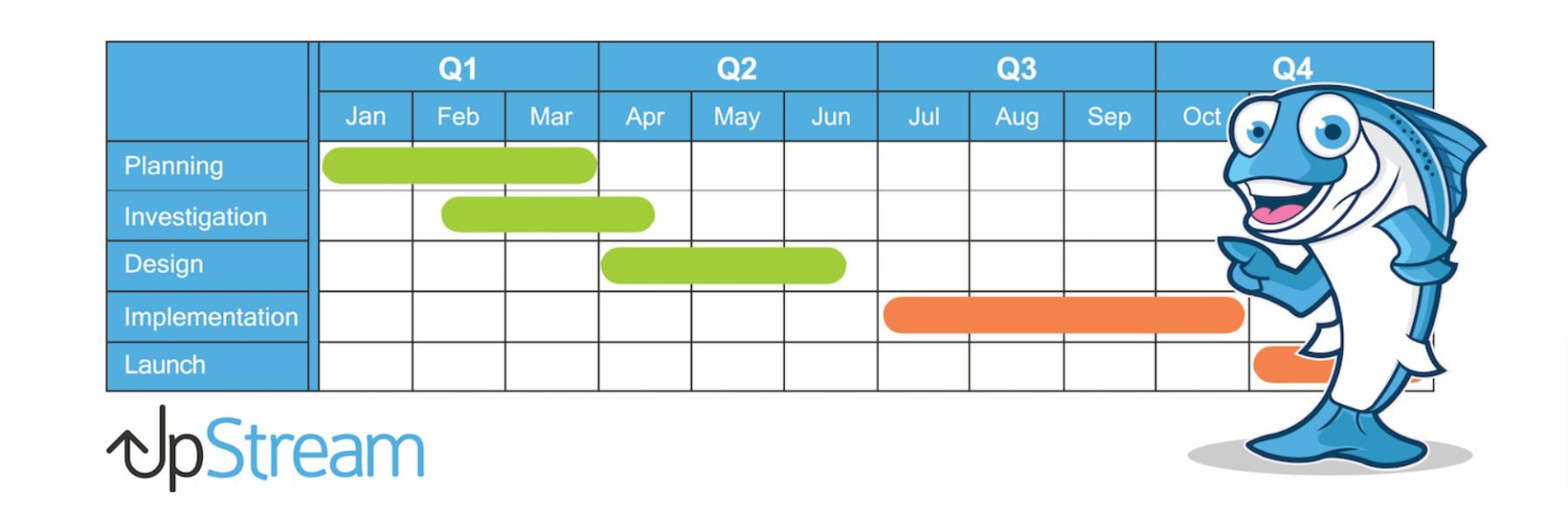
    UpStream is a project management plugin for WordPress that focuses on ease of use. It provides a project management back end that requires no coding knowledge to use effectively.

    With UpStream, you can add new projects to your dashboard, including milestones, target dates, and specific tasks. Projects also have specific sections for adding bugs as custom tasks. That makes this plugin perfect for tech-related projects:

    Adding a bug to your task list

    You can assign projects and tasks to specific team members. Moreover, the plugin also lets you categorize tasks by their urgency. Team members can also update their statuses when they’re done.

    Key Features:

    • Add projects to your dashboard
    • Add tasks to each project
    • Set milestones and end dates for your projects
    • Assign team members to projects and tasks
    • Categorize tasks by urgency and update their statuses

    UpStream is for you if…

    …you’re looking for a no-frills WordPress project management plugin. UpStream is free to use, and it lets you manage both simple and complex projects. The plugin also offers a lot of premium add-ons. However, its free core functionality stands well on its own.

    Price: Free, with premium extensions available

    Get UpStream

    5. SP Project & Document Manager

    Smarty Pants

    SP Project & Document Manager is all about file and document management. You can use this plugin to transform your WordPress website into a remote file storage solution for your business, with folders for each individual project.

    Its standout feature is a front-end file uploader that team members can use without logging into the dashboard. This means you can use SP Project & Document Manager to easily share files with coworkers and clients. The plugin also lets you assign specific folders and documents to users, limiting access as needed.

    Key Features:

    • Create dedicated project folders for file storage
    • Enable users to upload files to dedicated folders through the dashboard or the front end
    • Share access to files or folders with specific users

    SP Project & Document Manager is for you if…

    …you’re already using a project management solution that lets you keep track of projects and tasks. However, you need a more organized platform for file storage. SP Project & Document Manager lets you transform your website into a cloud storage solution that’s perfect for collaborating on large projects.

    Price: Free, with premium licenses starting at $75

    Get SP Project & Document Manager

    6. Projectopia

    Projectopia

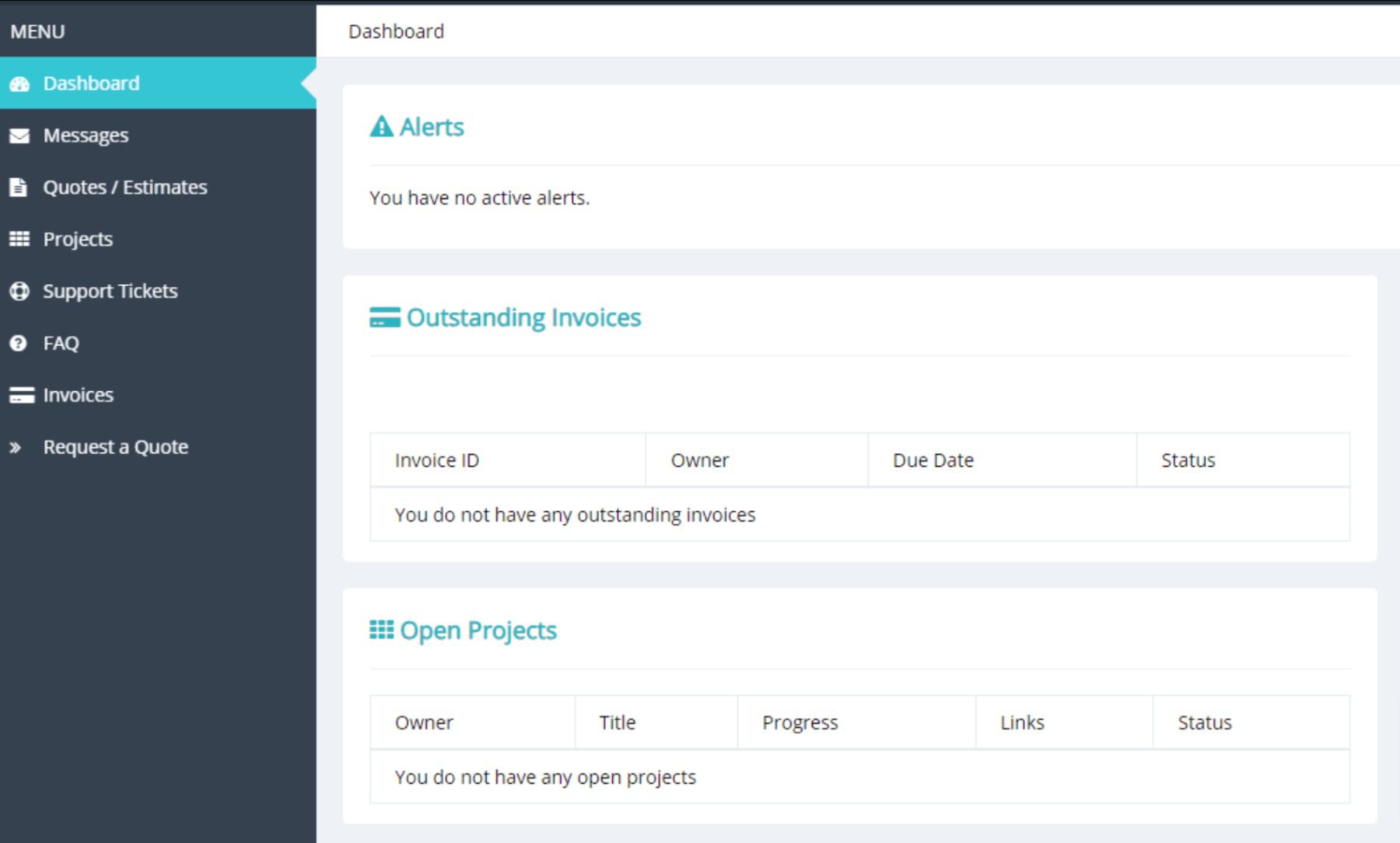
    Projectopia is the top-selling project management plugin on CodeCanyon. You can use this tool to manage projects through the dashboard. You can also give clients access to their own areas where they can monitor progress on their commissions:

    The Projectopia client dashboard

    This plugin also enables you to offer clients quotes and estimates within the system. Customers can even use their dashboards to submit support tickets, and you can assign team members to take care of them.

    You can use Projectopia to set up as many projects as you want, assign specific roles to team members, and set milestones. Finally, the plugin also comes with built-in payment processing functionality. This makes it a great all-around option.

    Key Features:

    • Create projects
    • Set milestones and timed tasks
    • Assign specific roles and tasks to team members
    • Give clients access to their own dashboards
    • Provide clients with quotes and invoices, and process payments
    • Enable clients to submit support tickets

    Projectopia is for you if…

    …you want a WordPress project management plugin that offers a powerful client dashboard and built-in payment processing functionality.

    Price: $79/lifetime

    Get Projectopia

    7. Task Manager Pro – Task Management Plugin For WordPress

    Task Manager Pro
    Task Manager Pro is a task management plugin designed specifically for WordPress users. It allows individuals, teams, freelancers, agencies, and businesses to manage tasks and projects within the WordPress dashboard, streamlining the process of task management and increasing productivity.

    Task Manager Pro dashboard

    Task Manager Pro offers powerful task management functionality within the WordPress environment, including task categorization, task assignment, deadline tracking, time tracking, and reporting. By using Task Manager Pro, users can streamline task management, collaborate more effectively with team members, and improve productivity.

    Key Features:

    • Create and manage tasks
    • Customizable task fields
    • Simple and intuitive interface
    • Assign tasks to team members
    • Track task progress
    • Advanced Reporting
    • WordPress-specific integration
    • Email notifications for task updates

    Task Manager Pro is for you if…

    You want robust reporting functionality that allows users to generate detailed reports on task and project progress, including data on task completion, time spent, and other metrics.

    Price: $22/ lifetime

    Get Task Manager Pro

    8. Kanban Boards for WordPress

    Kanban Boards for WordPress

    Kanban Boards for WordPress is one of the simplest and most powerful WordPress project management plugins available. Using Kanban boards is a great way to manage nearly anything you have to keep track of. You can set up boards for project management, editorial calendars, sales pipelines, and even custom use cases:

    Setting up a Kanban board

    With a Kanban board, you can also track how long it takes you to complete projects and specific tasks. The plugin lets you see updates in real-time as other team members finish their own tasks. Therefore, you’ll know where each project stands at any time.

    Key Features:

    • Set up a Kanban board for project management
    • Add projects and tasks to the board
    • Set time estimates for each task
    • Track how long it takes you to complete work

    Kanban Board is for you if…

    …you’re already a fan of Kanban. If you’ve used this platform in the past, you’ll have no problem jumping in with Kanban Boards for WordPress. Otherwise, keep in mind that there’s a learning process involved as you adopt the Kanban system.

    Price: Free, with premium licenses starting at $149 per year

    Get Kanban Board

    9. Zephyr Project Manager

    Zephyr Project Manager

    If you have a lot going on, Zephyr Project Manager lets you set up projects and add as many tasks as you need to each of them. You can also assign team members to specific projects or tasks, and anyone can comment on ongoing projects:

    Creating a project in Zephyr

    This WordPress project management plugin lets you upload files to projects, monitor progress, and more. You’ll also get to use a project calendar, and you can decide which WordPress users get access to management functionality.

    Key Features:

    • Add projects to WordPress
    • Set up tasks for specific projects
    • Enable team members to leave comments on projects
    • Get access to a project calendar
    • Decide which users get access to project management features

    Zephyr Project Manager is for you if…

    …you want to use a project management tool with a sleek, user-friendly interface. Zephyr Project Manager also offers all the features that medium or large teams need within its free version, which makes it one of our top picks.

    Price: Free, with premium licenses starting at $69 for a lifetime license

    Get Zephyr Project Manager

    10. Business Manager

    The Business Manager plugin

    Business Manager doubles as a WordPress project management plugin and a Human Resources (HR) solution. You can use this plugin to keep track of projects, employees, and clients. It lets you store key information such as client addresses, available hours, tax ID numbers, and much more:

    Adding client details to Business Manager

    By using this tool, you can keep track of project deadlines, add tasks to each entry, and assign work to specific team members. The plugin also lets you add project notes and files to keep everything organized.

    Key Features:

    • Manage projects, employees, and clients
    • Store critical client and employee information in WordPress
    • Keep track of project deadlines
    • Add tasks to each project and assign them priority levels
    • Add project notes

    Business Manager is for you if…

    …you want a WordPress project management plugin that also lets you keep track of critical client and employee information.

    Price: Free, with premium add-ons starting at $29

    Get Business Manager

    Conclusion

    If you’ve used project management software in the past, you’ll likely be surprised at how well some of these plugins compare against professional platforms. When you’re already using WordPress, a project management plugin can help you work on many tasks without leaving your dashboard.

    Plugin Price Free Option
    🥇 WP Project Manager $79.00 per year ✔️ Visit
    🥈 Project Panorama $69.00 per year ❌ Visit
    🥉 PublishPress Editorial Calendar $129.00 per year ✔️ Visit
    4 Upstream Free ✔️ Visit
    5 SP Project & Document Manager $75.00 lifetime ✔️ Visit
    6 Projectopia $79.00 lifetime ❌ Visit
    7 Task Manager Pro $22.00 lifetime ❌ Visit
    8 Kanban Board $149 per year ✔️ Visit
    9 Zephyr Project Manager $69 lifetime ✔️ Visit
    10 Business Manager Free ✔️ Visit

    If you’re still not sure what project management plugin to use, you can’t go wrong with WP Project Manager or PublishPress Editorial Calendar.

    Do you have any questions about how to get started with project management? Let’s talk about them in the comments section below!

    Featured image illustration via venimo / shutterstock.com

    The post 10 Best WordPress Project Management Plugins in 2023 appeared first on Elegant Themes Blog.

  • 8 Best WordPress Portfolio Plugins in 2023

    If you’re a photographer, a writer, or a creative of any kind, then you need a portfolio. Moreover, that collection of work needs to reflect the fact that you’re a professional who can get the job done. Without an up-to-date portfolio, finding work that befits your talents can be difficult.

    The right WordPress portfolio plugin can help you showcase your work in all its glory. The following six tools go above and beyond to offer you key functionality and also boast strong ratings and regular updates.

    What is a Portfolio Plugin For WordPress

    A portfolio plugin for WordPress is a tool that enables you to create and display your portfolio on your WordPress website. These plugins provide various options to display your work, such as custom layouts, filters, and categories. Ideally, they will help you add and manage your portfolio items, including images, videos, and other media files, through an intuitive interface.

    With a portfolio plugin, you can customize the design and functionality of your portfolio to match your branding and style. You can also add interactive features to make your portfolio more engaging for your visitors, such as animations, hover effects, and social media integration.

    8 Best Portfolio Plugins for WordPress

    With a wide range of plugins available, it can be challenging to find the right one for your needs. To make it easier, we’ve compiled a list of the eight best portfolio plugins for WordPress. From cost to features and performance, we’ve taken all of these factors into account to help you find the best option to display your work. Let’s get to it!

    1. Spotlight

    Spotlight, a WordPress portfolio plugin.

    A lot of artists choose to use their social media profiles as a kind of portfolio. If you use Instagram to show off your best work, you can find a way to integrate your feed into WordPress. That way, you won’t need to create a new gallery to display your work on your website. Plus, you’ll be able to direct visitors to your social media profiles.

    Spotlight is a simple plugin that enables you to embed your Instagram feed anywhere on your website. You can display your Instagram posts as a grid, and choose how many images to showcase on your site:

    Spotlight in action

    This plugin lets you set a custom bio description and change your account’s logo. Plus, you can include a Follow button so visitors can follow your account without leaving your website.

    Using Spotlight, you can embed personal or business Instagram accounts. Moreover, the plugin lets you embed feeds from multiple accounts on the same page or on different pages.

    Key Features:

    • Embed Instagram feeds in WordPress
    • Customize your feeds’ styles
    • Add a follow button to your embedded feeds

    Spotlight is for you if…

    …you use your Instagram profile as a portfolio. With this plugin, you can display that portfolio on your WordPress site and gain more followers for your social media account.

    Price: Free, with premium licenses starting at $39/yr

    Get Spotlight

    2. Envira Gallery

    Envira gallery WordPress plugin Logo.

    Envira Gallery, one of the best WordPress gallery plugins, can also be used as a great portfolio plugin to showcase your work or projects. With its customizable features, templates, and user-friendly interface, Envira Gallery is an ideal solution for creating a stunning portfolio that represents your brand or style.

    Example of grid builder

    You can use Envira Gallery’s drag-and-drop builder to create a portfolio that looks great on all devices, including desktops, laptops, tablets, and smartphones. The mobile-friendly design ensures that your portfolio is easily accessible to your visitors, regardless of their device.

    The eCommerce integration feature enables you to sell your work or services directly from your portfolio. You can add custom CSS or JavaScript to further customize your portfolio and make it stand out from the rest. Additionally, social media sharing options enable you to share your portfolio with your social media followers and increase your reach.

    Key Features of Envira Gallery:

    • Drag & Drop Builder.
    • Mobile Friendly.
    • Social Media Sharing.
    • Ecommerce integration.
    • Add custom CSS or JavaScript

    Uploading images via the dashboard is incredibly simple; creating a new gallery takes just a few clicks.

    Upload gallery

    The adaptive drag-and-drop gallery builder is simple to use and will make your grid or masonry galleries look great on all devices.

    However, the free version only offers a handful of features, so you’ll have to go premium to get the most out of the product’s features.

    Envira Gallery is for you if…

    …if you’re looking for a powerful and user-friendly portfolio plugin for your WordPress website. With its drag-and-drop builder and customizable templates, Envira Gallery makes it easy to create a stunning portfolio that showcases your work in the best possible light.

    Envira Pricing: Free, with plans starting at $26 per year

    Get Envira Gallery

    3. GS Logo Slider

    GS Logo Slider, a WordPress portfolio plugin.

    A lot of portfolios include logos for the clients that professionals work with. Displaying logos for past and current clients is a simple way to showcase that you’re in demand and you’ve worked with companies visitors might know.

    With that in mind, GS Logo Slider enables you to add each of your client’s logos to your site and display them using sliding galleries:

    A sliding logo gallery

    This plugin offers a broad range of gallery styles, and you can configure each logo to lead users to another page or website. For example, you can add URLs to project pages for each specific client, talking about the work you’ve done together.

    Using GS Logo Slider, you can add sliding logo galleries to your pages using shortcodes or blocks. Moreover, the plugin lets you create categories and tags for your clients’ logos.

    Key Features:

    • Create sliding logo galleries
    • Add your client’s logos to a library and categorize them
    • Create categories and tags for client logos
    • Place logo sliders on your pages using shortcodes or blocks

    GS Logo Slider is for you if…

    …you want a quick way to show off what clients you’ve worked with. You can also include that information within specific entries in your portfolio gallery. However, a logo slider offers a much easier (and more visually appealing) way to impress visitors when they visit your home page.

    Price: Free, with premium licenses starting at $30

    Get GS Logo Slider

    4. Real Testimonial

    Testimonial, a WordPress portfolio plugin.

    Testimonials are a key tool for encouraging potential customers to trust you. If someone is getting to know your work through your portfolio, a few positive messages from previous clients can help convince them that you’re the right person for their project.

    Using the Real Testimonial plugin, you’ll be able to display customer testimonials using sliders. You can add testimonials manually and include everything from custom titles and descriptions to ratings. Customers can also add links to their sites and social media profiles and even include video testimonial recordings.

    Here’s what the basic testimonial slider looks like:

    A testimonial slider

    You can create multiple sliders using different templates and assign custom settings to them. For example, you can choose what order to display your testimonials in, how many to include in your slider, and whether to add schema markup.

    Customers can include photographs alongside their testimonials, and you can choose where and how they’ll appear. However, one feature that is missing from the plugin’s free version is the option for customers to submit testimonials through a form. Instead, you’ll have to contact them and collect feedback personally.

    Key Features:

    • Display testimonial sliders
    • Add titles, descriptions, ratings, and contact information to your testimonials
    • Create multiple sliders and customize their settings
    • Add sliders to pages using shortcodes

    Real Testimonial is for you if…

    …you have a few previous clients you can solicit positive feedback from, and you want to add compelling social proof to your portfolio site.

    Price: Free, with premium licenses starting at $49/yr

    Get Real Testimonial

    5. Divi Builder

    Divi Builder, a WordPress portfolio plugin.

    Divi Builder is a page builder plugin that you can use alongside most modern themes, including our own Divi Theme. Particularly if you use the plugin and theme together, you’ll get access to a broad range of features that can help you build the perfect WordPress portfolio.

    Using the Divi Builder, you can add a Portfolio or a Filterable Portfolio module to any of your pages. Those modules work with the custom Project post type, which the Divi Builder sets up for you. You can add project pages and divide them into categories using Divi:

    You’ll also get a broad range of customization options for every module. You can modify each element’s design, layout, effects, and even custom CSS.

    Moreover, the Divi Builder gives you access to a large library of pre-built page templates you can use. Among those, you have several options for full portfolio websites focusing on different types of creative work:

    Several examples of Divi portfolio templates

    The Divi Builder also includes a powerful Theme Builder tool. You can use this to create theme templates that you can assign to the custom page and post types. In addition, Divi Builder can help you add links to social media, so potential customers can follow you online.

    Key Features:

    • Use Divi’s portfolio modules to build project galleries
    • Get access to a new custom post type for portfolio projects
    • Use pre-built templates to set up portfolio pages
    • Customize portfolio modules
    • Use Divi’s Theme Builder to create templates for custom posts and page types

    Divi Builder is for you if…

    …you’re already using the Divi theme. Even if you’re using a different theme, however, you can still use the Divi Builder page builder plugin to set up portfolios that look precisely the way you want.

    Price: Licenses start at $89

    Get Divi Builder

    6. Visual Portfolio

    Visual Portfolio, a WordPress portfolio plugin.

    Next on our list, Visual Portfolio is a gallery plugin that enables you to use multiple types of portfolio layouts within the Block Editor. With this plugin, you can add masonry, grid, tile, justified, and carousel galleries to any of your pages:

    Adding Visual Portfolio blocks

    It also enables you to set up new categories for your work and build a library of portfolio items. You get access to a custom post type for portfolio pages, and each module supports multiple types of files, including images as well as hosted video and audio.

    Visual Portfolio offers plenty of customization settings for each of its portfolio blocks. You can modify layouts, add visual effects to individual galleries, and choose what information to display at a glance:

    Customizing a portfolio block

    If you’re not using the Block Editor, Visual Portfolio also integrates with Elementor and WPBakery. In those cases, the plugin lets you create reusable portfolio layouts that you can add to any page using shortcodes.

    Key Features:

    • Get access to multiple types of gallery blocks
    • Add images and posts to your portfolio galleries
    • Embed-hosted video and audio files within your galleries
    • Customize each gallery block
    • Integrate your portfolio layouts with Elementor and WPBakery

    Visual Portfolio is for you if…

    …you want to access easily-customizable portfolio blocks. This plugin lets you set up as many custom portfolio galleries as you need. Plus, you can divide your portfolio into categories, which is perfect if you want to showcase a large library of work.

    Price: Free, with premium licenses starting at $39/yr

    Get Visual Portfolio

    7. Portfolio Gallery

    Portfolio Gallery, a WordPress portfolio plugin.

    Portfolio Gallery enables you to set up as many individual galleries as you need to showcase portfolio items. It also lets you choose between multiple styles.

    Moreover, you can create sub-galleries for each entry in your portfolio. Here’s how that looks when using the Portfolio Gallery builder:

    Using the Portfolio Gallery builder

    On top of adding sub-galleries for each entry, you can also include titles and descriptions, and set images to lead to external URLs. This plugin also lets you add each portfolio item under multiple categories for easier sorting. Here’s what that looks like from the front end using the Content Popup style:

    An example of a portfolio gallery popup

    Portfolio Gallery’s styles are perfect if you want to include multiple pictures for each entry in your portfolio. You can also take advantage of descriptions to talk about each project and how you approached it.

    One downside of using this plugin is that it doesn’t offer many options when it comes to visual customization. Although you can choose from multiple gallery styles, you can’t modify colors, add effects to galleries, or even use custom CSS without some tinkering (at least, not without the premium version).

    Key Features:

    • Create as many portfolio galleries as you need using multiple styles
    • Add sub-galleries to individual portfolio items
    • Add images and/or videos to your galleries
    • Embed galleries anywhere on your site using shortcodes
    • Disable right-clicking on galleries

    Portfolio Gallery is for you if…

    …you want a WordPress portfolio plugin that doesn’t require much customization. The plugin’s default style works well for minimalist portfolio websites. Moreover, you can include a lot of information and display additional images for each project.

    Price: Free, with premium licenses starting at $19/yr

    Get Portfolio Gallery

    8. Grid Kit Portfolio Gallery

    Grid Kit Portfolio Gallery, a WordPress portfolio plugin.

    Next up, Grid Kit Portfolio Gallery is what we’d call an all-in-one WordPress portfolio plugin. This tool enables you to set up portfolio galleries, normal photo albums, client logos, and team showcases. When you combine all of those features, you get a solution that’s perfect for large agencies:

    An example of a GridKit gallery

    You can add titles, descriptions, and URLs for each project in your portfolio galleries. If you set up client-based galleries, you’ll be able to add multiple projects to each of them. Each gallery that you create gets its own shortcode, which you can place anywhere you want on your website.

    Although Grid Kit Portfolio is a fantastic option for agencies, the free version is missing gallery customization functionality. You don’t get to choose specific layouts or customize the style of your galleries.

    Key Features:

    • Create portfolio galleries
    • Add regular galleries and photo albums to your site
    • Create client logo galleries
    • Set up galleries to introduce team members

    Grid Kit Portfolio Gallery is for you if…

    …you’re happy using basic grid galleries for your portfolio. Alternatively, the premium plugin offers a broad range of portfolio gallery types that you can use, and it’s perfect for agencies.

    Price: Free, with premium licenses starting at $49.99

    Get Grid Kit Portfolio Gallery

    Which Portfolio Plugin is The Best?

    Plugin Price Free Option
    🥇 Spotlight $39/yr ✔️ Visit
    🥈 Envira Gallery $26/yr ✔️ Visit
    🥉 GS Logo Slider $30/yr ✔️ Visit
    4 Real Testimonial $49/yr ✔️ Visit
    5 Divi $89/yr ❌ Visit
    6 Visual Portfolio $39/yr ✔️ Visit
    7 Portfolio Gallery $19/yr ✔️ Visit
    8 Grid Kit Portfolio Gallery $49.99/lifetime ✔️ Visit

    Using WordPress to create a portfolio is relatively simple. With the right WordPress portfolio plugins, you’ll be able to display your work, show who you’ve worked with, and even share client testimonials. All of these elements are key components of a strong portfolio, whether you’re a graphic designer, a developer, or anything in between.

    If you’re still not sure which WordPress portfolio plugin to use, we’re big fans of Envira Gallery due to its ease of use and monetization features. However, if you want to use a page builder instead, Divi Builder offers plenty of modules and templates that will help you design a gorgeous portfolio website.

    Do you have any questions about how to create an effective WordPress portfolio? Let’s talk about them in the comments section below!

    Featured image illustration via klyaksun / shutterstock.com

    The post 8 Best WordPress Portfolio Plugins in 2023 appeared first on Elegant Themes Blog.

  • 9 Best WordPress PayPal Plugins in 2023

    If you make purchases online, then you’re probably familiar with PayPal. This platform accounts for close to 22% of online transactions in the US. What’s more, the service boasts over 390 million accounts throughout the world. In other words, PayPal is everywhere, and if you sell products or services through WordPress, you’d do well to consider adding it as a payment processor.

    In this article, we’ll introduce you to eight of the best WordPress PayPal plugins you can use to add support for this platform. They’ve been chosen based on their feature sets, ratings and reviews, support, and pricing.

    Let’s get to it!

    What is a PayPal Plugin for WordPress?

    A PayPal plugin for WordPress is a powerful tool that can help website owners easily integrate PayPal payment functionality into their WordPress sites. PayPal is one of the most popular and trusted payment platforms globally, and integrating it with a WordPress site can be an excellent way to provide customers with a secure and convenient way to make payments.

    Typically, a PayPal plugin for WordPress will offer a range of features that make it easy to set up and manage payment processing. This includes payment buttons, shopping carts, order management tools, and more. These features can help to simplify the payment process for customers, which can help to increase sales and revenue for businesses.

    Additionally, some PayPal plugins may offer advanced features such as tax and shipping calculations, custom payment forms, and integration with other payment gateways. This can provide businesses with greater flexibility and customization options when it comes to setting up their payment systems.

    9 Best WordPress PayPal Plugins

    We’ve taken into account user reviews, regular updates, and a satisfied user base to ensure that the plugins on our list are reliable and easy to use. Whether you’re looking to sell digital products, physical goods, or services, these PayPal plugins can help you set up a payment system that works seamlessly with your WordPress site.

    1. GiveWP

    GiveWP donation plugin

    GiveWP is one of the most popular plugins available on WordPress, currently garnering over 100,000 active users, and for a good reason. It allows you to take one-time and recurring donations with PayPal (and other payment platforms.)

    One of the key benefits of GiveWP is its analytics reporting system, which allows you to track your donations and monitor the performance of your campaigns. This makes it easy to identify your top donors and optimize your fundraising efforts.

    Another advantage of GiveWP is its seamless integration with Divi, a popular WordPress theme. This allows you to create custom donation forms that match your site’s design, giving your donors a seamless and branded experience.

    Key Features of GiveWP:

    • Custom goals and templates.
    • Donation subscription services.
    • Full analytics reporting system.
    • Integrates with Divi

    A example of a form from GiveWP

    GiveWP offers a free version of the plugin that includes essential features like PayPal and Stripe integration, a donor database, and access to reports. For more advanced features like recurring donations and PDF receipts, you can purchase a premium package starting at $149.

    GiveWP is for you if…

    You’re seeking a comprehensive donation package, email marketing or multi-level donation campaigns, Stripe and PayPal integration, or use Divi.

    GiveWP Pricing: Free. The Basic Package starts at $149/yr

    Get GiveWP

    2. Easy Digital Downloads

    Easy Digital Downloads

    If you need a plugin that enables you to sell digital files via WordPress using PayPal (among other gateways), Easy Digital Downloads should be your top choice. This solution enables you to create a catalog of digital products, each with its own page. You can use Easy Digital Downloads to sell e-books, digital copies of photos, software, and any other file you want:

    Creating a new product using Easy Digital Downloads

    Easy Digital Downloads enables you to process payments and track orders, and it can automatically submit the files that users purchase. You can use this plugin to generate sales reports and keep track of customer histories.

    It also enables you to manage taxes with different rules for specific regions. Easy Digital Downloads can integrate with SendWP to send transactional emails, and it also supports the Recapture service, which can help you with re-targeting users who abandon their carts.

    Key Features:

    • Sell digital files using PayPal
    • Process orders and send transactional emails
    • Generate sales reports
    • Keep track of customer purchase histories
    • Set taxes for multiple regions

    Easy Digital Downloads is for you if…

    …you want to focus on digital files only. Easy Digital Downloads is very straightforward, and it supports PayPal payments out of the box.

    Price: Free, premium plans starting at $99.50/yr

    Get Easy Digital Downloads

    3. Paid Memberships Pro

    Paid Memberships Pro

    Paid Memberships Pro is a full membership solution for WordPress. Using this plugin, you can create multiple membership or subscription levels and tiers. You can decide what content each membership gets access to and process payments, all using one plugin.

    Out of the box, Paid Memberships Pro supports multiple gateways, including PayPal. You can set a default currency for PayPal payments and choose whether to include sales tax or not:

    On top of enabling you to restrict content to members, Paid Membership Pro also lets you set up a member directory and profiles. The plugin lets you restrict almost any type of content, including custom post types and WooCommerce products, on top of regular posts and pages.

    Key Features:

    • Create multiple memberships or subscription tiers
    • Decide what membership tiers get access to what content
    • Use PayPal and other gateways to process payments

    Paid Memberships Pro is for you if…

    …you want to run a subscription-based website. This plugin gives you full control over who can see what content, and you can set up as many membership tiers as you need.

    Price: Free, with premium licenses starting at $247/yr

    Get Paid Memberships Pro

    4. WooCommerce

    WooCommerce

    First and foremost, WooCommerce is by far the most popular WordPress e-commerce plugin on the market. This solution supports PayPal payments out of the box, and it enables customers to make purchases using their credit cards or account balances.

    You’ll need a PayPal Business account if you want to enable integration via WooCommerce. Once you connect your account, you’ll be able to start processing payments via PayPal:

    Enabling PayPal payments in WooCommerce

    With WooCommerce, you can use your WordPress website to sell both physical and digital products. This plugin enables you to manage inventory, coordinate shipping, send email notifications, and of course, process payments.

    Key Features:

    • Sell physical and digital products
    • Process product orders
    • Manage shipment options
    • Send email notifications concerning orders
    • Enable customers to pay using PayPal and other payment processors

    WooCommerce is for you if…

    …you want to launch an e-commerce website using WordPress. There are some e-commerce plugins that are more specialized than WooCommerce. However, none of them offer as many extensions or are as popular. Moreover, WooCommerce lets you enable PayPal payments in a matter of minutes.

    Price: Free, with premium extensions available

    Get WooCommerce

    5. WordPress Simple PayPal Shopping Cart

    WordPress Simple PayPal Shopping Cart

    In some cases, you might not need an e-commerce plugin that can handle hundreds of products. Instead, you may prefer a solution that enables your customers to add specific products or services to their carts and pay using PayPal. That’s precisely what WordPress Simple PayPal Shopping Cart does.

    With this plugin, you can use shortcodes to create custom “add to cart” buttons that you can set up on any of your pages. You can configure as many buttons as you need, each one with a different price. Then you can add a cart and checkout section:

    A PayPal shopping cart

    This plugin enables you to configure your shopping cart and add shipping costs to customer orders. WordPress Simple PayPal Shopping Cart also lets you send purchase confirmation emails, and you can use it to sell any kind of product you want through your website.

    Key Features:

    • Create custom “add to cart” buttons using shortcodes
    • Add cart and checkout sections to any part of your site
    • Configure shipping and payment settings for your cart
    • Offer coupons to your customers

    WordPress Simple PayPal Shopping Cart is for you if…

    …you don’t want to use a full-fledged e-commerce solution for WordPress. This plugin is perfect if you just want to sell one type of product or service, or even a handful of them. If you’re planning on having a broader inventory of products, you’re likely better off using WooCommerce.

    Price: Free

    Get WordPress Simple PayPal Shopping Cart

    6. Quick PayPal Payments

    Quick PayPal Payments

    So far, we’ve looked at multiple WordPress PayPal plugins for e-commerce websites. However, none are as easy to use as Quick PayPal Payments. This tool lets you set up one PayPal payment form that you can display anywhere on your site using the [qpp] shortcode:

    An example of a PayPal payment form

    Quick PayPal Payments gives you plenty of customization options for your payment form. You can add images, modify the text within each section, and even add custom fields to your form. You can also use this plugin to set up recurring payments for customers.

    Keep in mind that you can only set up one payment form using Quick PayPal Payments, however. That makes the plugin a great option if you sell only one type of product or service, but it’s less useful if you have a large inventory.

    Key Features:

    • Create a PayPal payment form for your website
    • Customize your payment form’s style and the fields it includes
    • Enable recurring payments

    Quick PayPal Payments is for you if…

    …you want to accept donations through your website, or you sell only one type of product or service. If all you need is one PayPal payment form, this plugin is probably perfect for you.

    Price: Free, with premium licenses starting at $14.99/yr

    Get Quick PayPal Payments

    7. PayPal Donation

    PayPal Donation

    You’ve probably seen a lot of websites that include PayPal donation buttons. PayPal Donation, one of the many great WordPress donation plugins available today, connects to your account and helps you create that button:

    Creating a PayPal donation button

    PayPal Donation enables you to set a default currency for donations and a language for your button. You can also add pre-set donation options to your button. That way, you can suggest what amounts of money users might contribute to your cause.

    This plugin lets you set up as many donation buttons as you need and generates unique shortcodes for each of them. Finally, PayPal Donation keeps track of every donation that users make through your website. You can check donation history through your dashboard and see how much each user paid (and when).

    Key Features:

    • Set up as many PayPal donation buttons as you need
    • Configure a default language and currency for each button
    • Add buttons to pages using shortcodes
    • Keep track of donations through your dashboard

    PayPal Donation is for you if…

    …you want the option to set up more than one type of donation button for your website. If you’re collecting money for multiple causes via PayPal, this plugin should be a great fit for your site.

    Price: Free, with premium licenses starting at $29.99/yr

    Get PayPal Donations

    8. Payment Button For PayPal

    WordPress PayPal

    Payment Button for PayPal works similarly to the last plugin that we talked about. This WordPress PayPal plugin enables you to create multiple types of buttons, including options for payments, donations, and subscriptions.

    When users are ready to check out, they can do so by clicking on a “View Cart” button. You can place that element anywhere on your site, and it will send users to PayPal to complete their purchases.

    Although WordPress PayPal supports a broad range of PayPal operations, we can only recommend that you use this plugin if you’re comfortable with shortcodes. WordPress PayPal doesn’t offer any configuration options, and you have to read its documentation to check out all of the shortcode parameters it offers.

    If you can look past that, WordPress PayPal enables you to create highly-customizable PayPal buttons. You can set up buttons that add multiples of any item and include shipping costs, taxes, and much more.

    Key Features: 

    • Set up PayPal payment, donation, and subscription buttons
    • Enable users to check out through PayPal
    • Customize your PayPal buttons using shortcode parameters

    Payment Button for PayPal is for you if…

    …you want a plugin that supports payments, donations, and subscriptions via PayPal. However, we only recommend using this tool if you don’t mind configuring shortcode parameters manually.

    Price: Free

    Get Payment Button for PayPal

    9. Seamless Donations

    Seamless Donations plugin logo

    If you need a solution that can help you collect donations for multiple causes using PayPal, you’re going to like Seamless Donations. This plugin enables you to set up a donation form that lets users choose how much they want to donate and to what causes. More importantly, it lets them pay using PayPal:

    Seamless Donations settings page

    You can configure pre-set donation levels and decide what information you want to collect from donors. This plugin lets you set up multiple causes or “funds” that users can select when they make donations, and you get to choose from two form-style templates.

    One feature that is lacking in the free version of the plugin is the ability to fully customize your form’s style. If you pay for the premium version, you can use a broad collection of pre-built style templates, but a lot of them look somewhat outdated.

    Key Features:

    • Set up a PayPal donation form for your website
    • Create multiple funds or causes, and let users decide which one(s) to donate to
    • Configure pre-set donation levels
    • Choose what information users need to fill out to make a donation

    Seamless Donations is for you if…

    …you want to collect donations for multiple causes. This plugin lets you do that using a single form, which is perfect if you’re planning on creating a dedicated donations page.

    Price: Free, with premium add-ons

    Get Seamless Donations

    Wrapping Up PayPal Plugins for WordPress

    Plugin Price Free Option
    🥇 GiveWP $149/yr ✔️ Visit
    🥈 Easy Digital Downloads $99.50/yr ✔️ Visit
    🥉 Paid Memberships Pro $247/yr ✔️ Visit
    4 WooCommerce Free ✔️ Visit
    5 WordPress Simple PayPal Shopping Cart Free ✔️ Visit
    6 Quick PayPal Payments $14.99/yr ✔️ Visit
    7 PayPal Donations $29.99/yr ✔️ Visit
    8 Payment Button For PayPal Free ✔️ Visit
    9 Seamless Donations Free ✔️ Visit

    There are a lot of ways you can integrate PayPal with WordPress. If you plan on selling products or services through WordPress, most of the e-commerce plugins you can use support payments via PayPal. The same applies to tools that help you sell subscriptions and collect donations. Providing access to this key payment gateway is an excellent method for improving the customer experience.

    If you’re planning to start an online store that accepts PayPal, WooCommerce is a top option. However, if you only plan on selling digital files, Easy Digital Downloads might be a better choice. For collecting donations, we recommend using the PayPal Donation plugin.

    Do you have any questions about how to integrate PayPal with WordPress? Let’s talk about them in the comments section below!

    Article thumbnail image by Inspiring / shutterstock.com

    The post 9 Best WordPress PayPal Plugins in 2023 appeared first on Elegant Themes Blog.

  • 7 Best Timeline Plugins for WordPress in 2023

    Effective storytelling is a key part of building a successful brand identity. However, to make the historical roadmap of your business compelling, it helps to present it in a visually engaging manner. This is why we recommend using a timeline to showcase milestones, achievements, and other important dates for your organization.

    WordPress timeline plugins make adding a timeline of events or milestones to your site effortless. In this post, we’ll discuss what these tools are and explore their benefits. Then we’ll introduce you to seven of the best timeline plugins for WordPress.

    Let’s get started!

    An Introduction to Timelines for WordPress Websites

    As a business, you must be able to build trust and credibility with your audience. One of the most powerful ways to do that is through engaging storytelling. Letting customers know about where you started and how your brand came to be is an effective way to personalize your company and demonstrate your values.

    Incorporating timelines on your website can help with this. In a nutshell, these are visual graphics that display a map of business-related milestones or content, typically in chronological order.

    There are various types of timelines that you can add to your website. For example, one of the most popular options is a “dynamic content timeline”. Typically, this is used to arrange your blog posts in chronological order (either ascending or descending). However, you can also organize them by category.

    A content timeline example

    The purpose of this is to provide your users with a better way of browsing your content and locating content that was published at a certain time. Another benefit is that you can add an interactive element to the otherwise basic and bland list of posts.

    A second popular type is “static announcement timelines”, which are used to display company history and important events. For instance, you might use one on your About Us page to showcase the milestones your business has reached over the years.

    A static timeline example

    Adding either type of timeline to your site becomes significantly easier when you’re armed with one of the best timeline plugins for WordPress. There are both free and premium options available, with features and functionalities ranging from basic to advanced.

    7 Best Timeline Plugins for WordPress

    The type of timeline plugin you pick for your WordPress site will depend on a variety of factors. For example, you’ll need to consider what kinds of timelines you’d like to create, as well as how much you’re willing to pay.

    In the list that follows, we’ve considered features, ratings and reviews, support, ease of use, and more. The result is seven of the best timeline plugins you can find for your WordPress website. At least one of these plugins should be a suitable option for your site, regardless of the type of timeline you want to create or your experience level.

    1. Timeline and History Slider

    The Timeline and History Slider plugin for WordPress

    True to its name, the Timeline and History Slider plugin for WordPress lets you create a timeline slider to organize your blog posts by date. This freemium tool makes building and showcasing vertical timelines on your site quick and easy.

    With this plugin, you can add a title, featured image, and custom content to each item:

    The Timeline and History Slider plugin in action

    Also, the easy-to-use interface lets you navigate the timeline with your keyboard’s arrow keys.

    As with several other options we’ve looked at, there is both a free and paid version available. The free plugin ships with all the standard features you need to create a unique timeline. You can add it anywhere on your site via a shortcode.

    Alternatively, if you don’t mind paying a bit of money, you can invest in the premium version. However, it’s important to note that this tool is included as part of an “Essential Plugins” bundle, so it will be notably more expensive than other premium plugins on this list.

    Our favorite aspect of this handy plugin is that it comes with Divi Page Builder support. This means you can seamlessly integrate it with your posts and pages, and ensure an aesthetically-pleasing design without any coding.

    Key Features for Timeline and History Slider:

    • Over a dozen beautiful designs
    • Shortcode options
    • Support for timeline touch-scrolling navigation
    • Vertical and horizontal timeline options
    • Fully responsive
    • Category management
    • Divi Page Builder native support

    Timeline and History Slider is for you if…

    …You want access to a lot of customization options, or you’re a Divi user.

    Pricing: Free, with a premium version starting at $169 per year.

    Get Timeline and History Slider

    2. Essential Add-Ons for Elementor

    Essential Addons for Elementor

    Essential Addons for Elementor gives you a variety of styling options for the more than 90 elements available. One of which is the Post Timeline widget, which allows you to showcase your site’s posts beautifully.

    With the “Post Timeline” element, you can customize the timeline to your liking by choosing the layout, number of posts, pages, or custom links to display, sorting options, timeline position, and more. You can also customize the style of the timeline by changing the colors, typography, and spacing.

    essential addons layout

    Key Features for Essential Add-Ons for Elementor:

    • 50+ design elements with the free version
    • Unlimited styling options
    • Two vertical timeline layouts
    • Excellent Support through WP Developer

    Essential Add-Ons for Elementor is for you if…

    …You use Elementor and you’re looking for elements to display timelines on your website. Essential Addons has nearly endless styling options, as well as other blocks to create an eye-catching layout.

    Pricing: Free, with premium licenses starting at $49.97 per year.

    Get Essential Add-Ons for Elementor

    3. Qi Blocks for Gutenberg

    Qi Blocks for Gutenberg

    Qi Blocks for Gutenberg is a collection of 48 free blocks created specifically for use with Gutenberg. One of the blocks – The Timeline Showcase block – is functional on any page or post, as well as templates and template parts through full site editing.

    timeline block settings

    Styling is impressive with Qi Blocks. The Timeline Showcase block offers four layout options for both horizontal and vertical orientations. Furthermore, you can control the animation effects, number of columns, and adjust how the block appears on various mobile devices. However, the best feature of this block is the abundance of style settings. With this block, you can customize the appearance of both the images and text by changing the font color, family, and weight. Additionally, you can also vary the padding and margins to further enhance the design.

    219430

    Key Features for Qi Blocks for Gutenberg:

    • Plenty of styling options
    • Extension of Gutenberg blocks
    • 48 free blocks
    • Pro version offers 33 additional blocks

    Qi Blocks for Gutenberg is for you if…

    …You use Gutenberg Blocks and want more control over the elements you can use. The base plugin offers a variety of options and even more for the premium license.

    Pricing: Free, with a premium version starting at $49 per year.

    Get Qi Blocks for Gutenberg

    4. Timeline Express

    The Timeline Express WordPress plugin

    Timeline Express is a freemium WordPress plugin that offers an expansive set of features for creating animated vertical timelines. This includes timelines for events, dates, announcements, and more.

    You can easily add these features to your site via shortcodes. This tool is also packed with customization and design options, letting you choose from a collection of fonts, icons, and images:

    The Timeline Express plugin in action

    One of our favorite aspects of Timeline Express is its flexibility. You can use it for websites of all sizes and scales. For example, the free version ships with everything you need to build and display aesthetically-pleasing, vertical timelines. However, if you’re looking for something a bit more intricate, you can access various advanced features by upgrading to a premium license.

    Key Features for Timeline Express:

    • Flexible, responsive, and cross-browser compatible
    • Easy-to-use shortcodes for seamless integration
    • Custom images and Font Awesome icons
    • CSS3 animations
    • Ascending and descending order options
    • Localized date formatting
    • Translation-ready for international users
    • Multiple timelines (Pro)
    • Announcement categories (Pro)
    • Timeline sorting features (Pro)
    • Priority support (Pro)

    Timeline Express is for you if…

    …You want a single tool that can easily be used for various purposes and on multiple types of websites.

    Pricing: Free, with a premium version starting at $29 per year.

    Get Timeline Express

    5. Cool Timeline

    The Cool Timeline WordPress plugin

    If you’re looking for the best timeline plugins for WordPress that offer both free and premium versions, Cool Timeline is another option to consider. It provides a quick and easy way to spice up the way you display your blog posts instantly.

    This tool is loaded with various style options, making it easy to customize the timeline to your branding:

    The Cool Timeline plugin in action

    It also supports multimedia elements such as sliders, images, and videos.

    Cool Timeline is an excellent option if you’re interested in creating both vertical and horizontal timelines. You can use it to showcase important dates and milestones in your company’s history and display blog content engagingly and practically.

    Key Features:

    • Free and premium versions available
    • Both-sided and one-sided timeline options
    • Compact timeline option for saving space
    • User-friendly with extensive documentation
    • Over 20 horizontal and vertical timeline styles
    • Responsive, retina-ready, and modern design
    • Pop-up timeline images and the option to link to stories
    • Translation-ready with support in three languages
    • Animation effects (Pro)
    • Multiple timelines (Pro)

    Timeline Express is for you if…

    …You need your timelines to mesh well with your branding, or you’d like to experiment with their formatting.

    Pricing: Free

    Get Cool Timeline

    6. Event Timeline

    The event timeline plugin for WordPress

    If you’re looking for a very straightforward solution, Event Timeline is worth exploring. This freemium timeline plugin for WordPress lets you create and display vertical and horizontal timelines in either a classic or modern style.

    Additionally, you can streamline the process by choosing from one of 18 pre-built themes:

    The Event Timeline plugin in action

    It’s an ideal solution if you want a simple way to display your company’s history as a timeline.

    Plus, thanks to its clean code, Event Timeline is also incredibly lightweight. Depending on the level of support and the extent of features you need, you also have the option of upgrading to the premium version.

    Key Features for Event Timeline:

    • Classic and modern styles
    • Vertical or horizontal timeline displays
    • 18 stunning themes
    • Responsive and mobile-ready
    • Support for multimedia files including images, audio files, and videos
    • Color picker and customization options
    • Multiple timeline stories
    • Clean, sleek design

    Event Timeline is for you if…

    …You want to keep it simple and create appealing timelines very quickly.

    Pricing: Free, with a premium version starting at $10 per year.

    Get Event Timeline

    7. Divi Plus

    Divi Plus

    Divi Plus is a powerful plugin that enhances the already impressive design capabilities of Divi. With over 50 modules, 50 starter templates, and more than 250 sections, it provides a wide range of options to create stunning designs. One standout feature is the timeline module, which gives you the ability to display beautiful timelines on your website.

    Divi Plus timeline plugin

    Furthermore, Divi Plus seamlessly integrates with the Visual Builder, the best no-code page builder available. By using this plugin, you gain access to all the design elements you need to create your timelines. You can display any type of content in a timeline format, making it a great tool for showcasing company history, product features, and more.

    Key Features for Divi Plus:

    • 50 starter templates
    • 50 modules
    • 250 sections
    • Highly customizable timeline module
    • Extends the functionality of Divi

    Divi Plus is for you if…

    …You’re a Divi user looking to build timelines on your website. As an added bonus, you’ll get additional elements to extend the number of design elements to choose from.

    Pricing: Premium licenses starting at $79 per year.

    Get Divi Plus

    Which Timeline Plugin is Right For You?

    Your website likely serves many purposes. However, one of the most important is to let your audience know about your business, including its history. Whether you’re dealing with an extensive amount of blog posts or need to organize a specific set of dates and milestones, adding a timeline can help.

    Fortunately, there are plenty of timeline plugins for WordPress that you can use to simplify this process. To find the best one for your specific needs, we recommend taking a look at the list above and giving some of the demo versions a try.

    Plugin Price Free Option
    🥇 Timeline and History Slider Free, $169 per year ✔️ Visit
    🥈 Essential Add-Ons for Elementor Free, $49.97 per year ✔️ Visit
    🥉 Qi Blocks for Gutenberg Free, $49 per year ✔️ Visit
    4 Timeline Express Free, $29 per year ✔️ Visit
    5 Cool Timeline Free ✔️ Visit
    6 Event Timeline Free, $10 per year ✔️ Visit
    7 Divi Plus $79 per year ❌ Visit

    The Best of the Best

    That being said, there are two that stand out the most. If you are a Divi user, Divi Plus is an excellent choice to create gorgeous timelines on your website. On the other hand, if you’re looking for something that will work with any WordPress website, your best bet is Timeline and History Slider,

    What features are most important for you to have in a WordPress timeline plugin? Let us know in the comments section below!

    Featured image illustration  via VectorMine/shutterstock

    The post 7 Best Timeline Plugins for WordPress in 2023 appeared first on Elegant Themes Blog.

  • 7 Best WordPress Database Optimization Plugins in 2023

    Every WordPress website has a unique database. It contains all of the information on your website, from user data to comments, posts, and more. As your site grows, so does its database, and in many cases, you’ll end up storing a lot of information well beyond the point that it’s useful. This can slow down your site unnecessarily.

    In this article, we’ll introduce you to seven of the best WordPress database optimization plugins you can use to keep your site lean and fast. We’ve chosen them based on their performance, configuration options, ratings and reviews, and support from their developers.

    Let’s get to it!

    Subscribe To Our Youtube Channel

    Why Do I Need a Database Optimization Plugin?

    Every time you revise a post, delete a post or plugin, useless data takes up valuable space in your site’s database. Without regular maintenance, you database can get clogged, causing your site to down down dramatically. You see, the larger your database is, the longer it takes your web server to search and load information from the database tables.

    This is where a database optimization can help. Once installed, you can clean out unnecessary pieces of data to make your WordPress site run faster and smoother.

    The Best WordPress Database Optimization Plugins

    While there are many database optimization tools available for WordPress, there are some that stand out from the crowd. Our carefully curated list features only the best of the best, including tools that can perform multiple functions to keep your site’s speed running smoothly and your database clutter-free.

    Let’s go!

    1. WP-Optimize

    The WP-Optimize plugin

    First on our list, WP-Optimize is an all-in-one WordPress optimization plugin. It includes tools to help you clean up your database, minify scripts, enable lazy loading, perform image optimization, and more.

    If you’re using WP-Optimize for database optimization, you can choose what information the plugin will try to clean up. For example, you can configure it to clear out old post revisions, erase trashed posts, remove spam comments, and more:

    Cleaning up your database using WP-Optimize

    This plugin also lets you identify orphaned tables within your database and delete them manually.

    However, one feature that is missing is the ability to create database backups before you run optimizations. WP-Optimize addresses that problem by integrating with the UpdraftPlus plugin. If you use UpdraftPlus as well, WP-Optimize includes settings that will automate database backups before you run a cleanup.

    Key Features for WP-Optimize:

    • Choose what parts of your WordPress database to optimize
    • Identify and remove orphaned tables within the database
    • Configure your site’s caching settings
    • Enable lazy loading
    • Automate image optimization
    • Minify scripts on your website
    • Integrate the plugin with UpdraftPlus to take care of database backups

    WP-Optimize is for you if…

    …you want a plugin that doesn’t just help you optimize your database, but multiple aspects of your WordPress website. It’s also a solid pick if you’re already using UpdraftPlus.

    Price: Free, with premium licenses starting at $49 per year.

    Get WP-Optimize

    2. Litespeed Cache

    Litespeed cache plugin

    Litespeed Cache is not just one of the best caching plugins for WordPress, it is also a fully functional database cleaner and optimizer. In addition to its ability to optimize tables in your database, Litespeed Cache can clean post revisions, auto drafts, trashed posts, spam comments, and more.

    LiteSpeed database optimizer

    Litespeed offers a range of benefits for optimizing your data, but perhaps its biggest advantage is it’s powerful site caching capabilities. With Litespeed, you’ll have access to a host of features designed to optimize the performance of your website, including support for content delivery networks (CDNs), multi-level page caching, minification of CSS, JavaScript, and HTML, browser cache support, and even the ability to lazy load images. These features enable Litespeed to handle site caching like a boss.

    Key Features for Lightspeed Cache:

    • Stellar database table optimization
    • Ability to clean post revisions, trashed posts, spam comments, and more
    • Speeds up database queries
    • Combines caching, CDN, and database optimization into one plugin

    Litespeed Cache is for you if…
    …you’re looking for an all-in-one solution for database and image optimization, CDN support, and site caching. With its comprehensive suite of both database and caching features, Litespeed Cache is an indispensable tool for keeping your WordPress site running smoothly and efficiently.

    Price: Free

    Get Litespeed Cache

    3. Advanced Database Cleaner

    The Advanced Database Cleaner plugin

    Advanced Database Cleaner gives you an overview of what elements you can safely remove from your database to keep it lean. You can also use it to delete tables and cron jobs from your website.

    One standout feature this plugin offers is the option to ignore some of the most recent changes to your database when cleaning it up. You can tell the plugin to keep data from the last “X” days for each type of element it optimizes:

    Configuring Advanced Database Cleaner to keep recent data

    Advanced Database Cleaner also lets you schedule database optimization processes, and configure multiple tasks to run later on. For example, you can schedule the plugin to clean posts within your trash weekly, and have it delete post revisions monthly.

    Key Features for Advanced Database Cleaner:

    • Remove unnecessary information from your database
    • Clean up tables and cron jobs
    • Exclude recent data from cleanups
    • Schedule multiple database cleanups in advance

    Advanced Database Cleaner is for you if…

    …you want a plugin that enables you to set up recurring database optimization processes. Plus, you get full control over what data you want to optimize and when which makes this one of the best WordPress database optimization plugins for advanced users.

    Price: Free, with premium licenses starting at $39 one-time payment.

    Get Advanced Database Cleaner

    4. Optimize Database After Deleting Revisions

    Optimize Database after Deleting Revisions plugin

    Optimize Database After Deleting Revisions does much more than its name implies. By default, this plugin will help you delete revisions for all of the post types on your website. However, you can also configure it to help you optimize your database by deleting items in the trash, unused tags, spam content, and more:

    one-click database optimization

    You can use this tool to configure scheduled optimizations, and it can also help you delete specific tables from your database. However, it doesn’t tell you which custom tables correspond to which plugins, which makes using that feature a bit risky unless you know what you’re doing.

    Key Features for Optimize Database After Deleting Revisions:

    • Delete post revisions for all of your WordPress post types (or specific ones)
    • Preserve recent revisions
    • Configure how many revisions you want to keep for your posts
    • Schedule database optimizations
    • Delete specific tables from your database

    Optimize Database After Deleting Revisions is for you if…
    …you run a website with a hectic posting schedule. Post revisions can quickly add up if you publish a lot of content, and this plugin can help you optimize your database by keeping unnecessary revisions down to a minimum.

    Price:Free

    Get Optimize Database After Deleting Revisions

    5. WP-Sweep

    WP-Sweep database plugin

    WP-Sweep enables you to optimize your WordPress database by “sweeping” everything from revisions to automatic drafts, deleted posts, spam comments, orphaned users, and more. As with many of the other best WordPress database optimization plugins, you can choose what data to clean up or to do a full sweep:

    database sweep

    One downside of using WP-Sweep is that it doesn’t enable you to select specific tables or elements to optimize automatically. Instead, you can either perform a complete sweep or clean up individual elements manually.

    Key Features for WP-Sweep:

    • Clean specific types of elements from your database
    • Do a full “sweep” of your database and optimize all of its tables

    WP-Sweep is for you if…

    …you want a tool that enables you to perform one-click database optimization and offers the option to clean up individual tables manually.

    Price: Free

    Get WP-Sweep

    6. WP Reset

    The WP Reset plugin

    Sometimes, the best way to optimize your WordPress database is to start from scratch. If you want to re-launch your website and start over, you’ll need to clean up its database, which is precisely what WP Reset does:

    site reset

    With this plugin, you can wipe most of the information from your database, while preserving key elements such as your admin user account, basic site configuration (such as your WordPress address and indexing settings), plugins, and themes. In short, the plugin lets you delete all of the content from your site without overwriting your WordPress installation.

    Key Features for WP Reset:

    • Reset your WordPress database
    • Preserve key data such as your admin user account

    WP Reset is for you if…

    …you want to start over with your website without re-installing WordPress, your plugins, and your themes.

    Price: Free, with premium licenses starting at $79 per year.

    Get WP Reset

    7. Database Backup for WordPress

    The Database Backup for WordPress plugin

    This last plugin is a little different. When you back up your WordPress website, you not only make a copy of its files but also of its database. Without a database backup, you’re liable to lose most of your website’s content if you have to restore it.

    Moreover, if you’re planning to optimize your database by deleting some tables, it’s always a smart move to create a backup beforehand. That’s precisely what Database Backup for WordPress enables you to do:

    Creating a database backup

    It helps you back up your core WordPress tables (while excluding revisions and spam comments). However, you can also add custom tables to your backups, and set up a schedule that creates new copies periodically.

    When it comes to storage, the plugin gives you the option of downloading your backup files directly or having them emailed to you. If you use its backup scheduling feature, you’ll receive those files via email.

    Key Features for Database Backup for WordPress:

    • Back up your WordPress database
    • Exclude post revisions and spam comments
    • Select which custom tables you want to include
    • Schedule backups
    • Download backup files to your computer, or configure the plugin to send them to an email address

    Database Backup for WordPress is for you if…

    …you plan on working directly with your database in any capacity. Altering your database manually or using a plugin to delete tables can wreak havoc on your website if you’re not sure what you’re doing. If you’re not already using a tool such as a backup plugin that also saves your database, Database Backup for WordPress is a key tool to have on hand.

    Price: Free

    Get Database Backup for WordPress

    Which Database Optimization Plugin Is The Best?

    Using one of the best WordPress database optimization plugins can help you clean up a lot of the unused entries and data that accumulate as your website grows. If you’ve been working on your website for a while now, these tools should help you recover some storage space and perhaps even increase your site’s performance.

    Plugin Price Free Option
    🥇 WP-Optimize Free, $49 per year ✔️ Visit
    🥈 Litespeed Cache Free ✔️ Visit
    🥉 Advanced Database Cleaner Free, $39 one-time ✔️ Visit
    4 Optimize Database After Deleting Revisions Free ✔️ Visit
    5 WP-Sweep Free ✔️ Visit
    6 WP Reset Free, $79 per year ✔️ Visit
    7 Database Backup for WordPress Free ✔️ Visit

    If you’re still not sure which plugin to use, WP-Optimize is a great all-around choice for most websites. Regardless of which solution you choose, we recommend that you also set up a backup plugin such as Updraftplus to ensure that your site’s database is fully protected.

    Do you have any questions about how to optimize your WordPress database? Let’s talk about them in the comments section below!

    Featured image illustration via FGC / shutterstock.com

    The post 7 Best WordPress Database Optimization Plugins in 2023 appeared first on Elegant Themes Blog.

  • 9 Best Redirect Plugins for WordPress in 2023

    Setting up redirects can become a regular task if you run a WordPress website. For example, you may take some of your pages down over time, or you might want to move them from one URL to another. Whenever that happens, configuring a redirect properly ensures that users still arrive where they want to go.

    In this article, we’ll talk about what types of redirects you can set up. We’ll also introduce you to the best redirect plugins for WordPress and help you choose the right one for your site.

    Let’s get to it!

    What Type of Redirect to Use on Your Website

    There are several types of redirects that you can use on your WordPress website. Most of the plugins we’ll introduce you to in the following sections enable you to set up any type of redirect you want. With that in mind, it’s essential to understand the difference between each of them.

    Redirect Breakdown

    Let’s break down the most common types of redirects and when to use them:

    • 301 (permanent redirection). This type of redirect tells the visitor that the page they tried to access has moved elsewhere permanently. Then it helpfully sends them to that new address.
    • 302, 303, 307 (temporary redirection). These types of redirects tell visitors that the page they’re trying to access is temporarily unavailable.
    • 304 (not modified redirection). This type of redirect sends visitors to a cached version of the page since there haven’t been any new changes to it. We have an excellent overview that explains what the 304 status code means and how to fix it if you are seeing unwanted 304 redirects on your website.
    • 308 (permanent redirection). This is an alternative to 301 redirections and accomplishes essentially the same outcome, although the original is still the most popular option.

    In theory, there are particular situations when you’ll want to use 302, 303, and 307 redirects, respectively. For example, you can use 303 and 307 redirects to tell browsers not to refresh a confirmation page after users submit a form.

    For practical purposes, however, you probably won’t use a lot of 303 or 307 redirects. Form and e-commerce plugins usually handle those situations via built-in functionality. As for 302 redirects, there aren’t a lot of scenarios when it makes sense to move visitors to another page temporarily.

    In practice, you’ll most often use 301 redirects. In case you have particular needs, though, we’ll let you know what types of redirects each of the plugins we recommend enable you to use.

    Finally, it’s also worth noting that you can implement redirects in WordPress manually by modifying your site’s .htaccess file. However, that’s not an approach that we recommend unless you’re very comfortable editing WordPress core files.

    The Best Redirect Plugins for WordPress

    We selected the seven plugins below based on their feature sets, ease of use, and positive reviews. However, it’s important to note that implementing redirects on your website can lead to errors and SEO penalties if you don’t do it properly (or if your plugin is poorly coded or out of date). With that in mind, we’re also recommending plugins that are well-established and frequently updated.

    1. Rank Math

    Rank Math SEO plugin

    Rank Math is a popular all-in-one WordPress SEO plugin that includes redirection functionality. It’s similar to Yoast in terms of features, and there’s plenty of debate about which is the superior WordPress SEO plugin.

    If you use Rank Math on your own site (or are interested in adding it), you’ll be glad to know that it makes configuring redirects easy. This SEO plugin uses a module system that enables you to turn on or off the specific functionalities you want to use. Among those modules, you’ll find options for a 404 error monitor and redirects:

    Rank Math example

    The 404 error monitor is enabled by default. However, once you turn on the redirection feature, you’ll be able to set up individual redirects:

    Add redirections

    Rank Math supports multiple types of redirects, and it also enables you to automatically reroute 404 errors to any page of your choosing. Of course, you get access to a lot of useful SEO functionality as well.

    Key Features:

    • Improve your website’s SEO
    • Monitor your site for 404 errors, and implement automatic redirects for them.
    • Set up custom redirects for any page you need

    Rank Math is for you if…

    …you already use this plugin on your site, or you’re in search of an SEO plugin that also includes redirect functionality. In comparison with other SEO plugins, Rank Math offers a more modular approach. That means that you can turn off any features that you don’t need for easier configuration.

    Price: Free, with a premium version available starting at $59 per year

    Get Rank Math

    2. LoginWP

    The Peter's Login Redirect plugin

    LoginWP (Formerly Peter’s Login Redirect) is unlike any of the other redirect plugins for WordPress we’ve talked about so far. With this plugin, you can set up automatic redirects that trigger when users log in or out of your website.

    We’ve talked about how to set up and configure LoginWP in the past. So let’s instead focus on why this type of redirect can be useful. For example, it can enable you to divert users from seeing the WordPress dashboard after they log in.

    You can add redirect rules for specific users or roles. The plugin also enables you to set up post-registration redirects, which you can use to send users to a ‘thank you’ page:

    Setting up login redirection rules

    If you’re running a membership-based website, this type of redirect can be incredibly useful. With this plugin, you can set up as many login and logout redirection rules as you need.

    Key Features:

    • Redirect users after they log in or out of your website
    • Set up rules for specific users or roles
    • Create custom post-registration redirects

    LoginWP is for you if…

    …you run a membership website or any other type of operation that requires users to log in to access key features.

    Price: Free, premium version starts at $49

    Get LoginWP

    3. Redirection

    Redirection

    Redirection is by far the most popular redirect plugin for WordPress, and it’s easy to see why. This tool enables you to set up many types of redirects, including:

    • 301
    • 302
    • 303
    • 304
    • 308

    Redirection can do other things as well, such as automatically monitoring your website for permalink changes and setting up redirections for you when it detects updates. It can also keep a log of 404 errors that visitors encounter and share that information with you.

    By monitoring 404 errors, you’ll have a full list of potential URLs for which you need to set up redirects. Here’s how the redirection setup process looks when using this plugin:

    Set up new redirection

    Another benefit of Redirection is that it enables you to determine conditions for each redirect that you set up. For example, you can create redirects that only trigger based on a visitor’s login status, language, or the referrer, among other parameters.

    Key Features:

    • Set up multiple types of redirects in WordPress
    • Automatically generate redirects when a permalink changes
    • Keep logs of 404 errors on your website
    • Set up parameters for your redirect rules

    Redirection is for you if…

    …you want to be able to set up multiple types of redirects and monitor your website for 404 errors. This plugin is also a fantastic choice if you want to configure redirects with advanced rules and parameters.

    Price: Free

    Get Redirection

    4. Quick Page/Post Redirect

    The Quick Page/Post Redirect plugin

    This next plugin is all about 301 redirects. Quick Page/Post Redirect enables you to add multiple 301 redirects for your website at once using a simple menu and without tinkering with too many settings:

    Adding multiple 301 redirects to WordPress

    You can configure redirects to open in a new window or add the nofollow attribute to them. Quick Page/Post Redirect also enables you to add redirect rules directly from the Block Editor when editing individual pages or posts:

    Configuring a redirect within the Block Editor

    If you opt for this approach, the plugin enables you to choose from a broader range of redirect types, including 301, 302, 307, and “meta redirects.” That last type occurs on the client side. Meta redirects aren’t beneficial from an SEO perspective, however, so we recommend against using them.

    Key Features:

    • Set up multiple 301 redirects at once
    • Create individual redirect rules from within the Block Editor
    • Set up global redirects or turn off all existing ones with a click

    Quick Page/Post Redirect is for you if…

    …you want to set up multiple 301 redirects at once using a simple menu that doesn’t require you to tweak additional settings for any rule.

    Price: Free

    Get Quick Page/Post Redirect

    5. Safe Redirect Manager

    The Safe Redirect Manager plugin

    Safe Redirect Manager offers a much more streamlined approach than other redirect plugins for WordPress. It saves redirect rules as custom post types and shies away from features such as 404 error logging since it claims this can cause performance issues (which shouldn’t be a problem with proper optimization).

    Regardless of the plugin’s philosophy, it does make it easy to set up new redirect rules. It also supports multiple types, including the following options:

    • 301
    • 302
    • 303
    • 307

    Here’s what it looks like when you’re setting up a new 301 redirect using Safe Redirect Manager:

    Using the Safe Redirect Manager plugin

    Another feature worth mentioning is that Safe Redirect Manager supports “wildcard redirects.” A wildcard redirect will divert any visitors trying to access a subdomain to your website instead. That can be useful if you have subdomains that you’re not currently using.

    Key Features:

    • Set up multiple types of redirects
    • Create wildcard redirects
    • Add notes to each redirect rule that you set up
    • Save redirect rules as custom post types in your database

    Safe Redirect Manager is for you if…

    …you want to use a plugin that enables you to set up multiple types of redirects without having to tinker with advanced configuration options. It’s also one of the only options that support wildcard redirects.

    Price: Free

    Get Safe Redirect Manager

    6. All 404 Redirect to Homepage

    All 404 Redirect to Homepage

    In some cases, you might not need to set up advanced redirect rules, and all you want is a way to take care of 404 errors. What All 404 Redirect to Homepage does is set up automatic redirects for any 404 error on your website, so visitors are automatically sent to your homepage. In addition, you can customize what URL the plugin redirects users towards:

    Setting up a redirect rule for 404 errors

    This plugin also includes a 404 error log, but it doesn’t enable you to set up any other type of redirect rule.

    Key Features:

    • Redirect all 404 errors to your homepage (or any other page that you choose)
    • Log 404 errors on your website

    All 404 Redirect to Homepage is for you if…

    …you want a simple way to take care of 404 errors on your website, and you don’t have a need for any other type of redirect.

    Price: Free, with a premium version available starting at $29 per year

    Get 404 Redirect to Homepage

    7. 301 Redirects

    The 301 Redirects plugin

    The 301 Redirects plugin enables you to log 404 errors and set up multiple types of redirects, including:

    • 301
    • 302
    • 307

    The plugin offers a simple menu that makes it easy to create new redirect rules. For example, if you don’t want to enter URLs manually, you can choose whether to redirect an address to a post, page, media file, or product:

    Creating a product redirect rule

    By using this plugin, you can set up as many redirect rules as you need. Plus, if you’re just starting a new WordPress site, the plugin will let you know if your permalink structure isn’t compatible with redirects.

    Key Features:

    • Set up multiple types of redirects
    • Redirect visitors to specific pages, posts, media files, or products
    • Log 404 errors on your website

    301 Redirects is for you if…

    …you want to use a plugin that includes dropdown menus for choosing which pages, posts, media files, or products to redirect visitors to.

    Price: Free, with a premium version available starting at $49

    Get 301 Redirects

    8. Yoast SEO

    The Yoast SEO plugin.

    Yoast SEO hardly needs an introduction. It’s the most popular SEO plugin among WordPress users, and with good reason. We’ve talked about how to set up Yoast SEO in the past, and it’s still the tool we use for optimizing the content on our own blog.

    If you use the premium version of Yoast SEO, you get access to a lot of extra features that we didn’t have time to cover in the post linked above, including a redirect manager. This tool enables you to set up new redirects or let Yoast SEO do it for you when you delete or move a page:

    Using the Yoast SEO redirect manager

    Yoast SEO’s redirect manager supports multiple types of redirection, including:

    • 301
    • 302
    • 307

    You can also set two HTTP statuses that aren’t commonly used, which are 410 and 451. The 410 code tells search engines that a page is gone for good, and they should de-index it. With the 451 code, you signal that a page is unavailable for legal reasons.

    Key Features:

    • Improve your website’s SEO and readability
    • Set up multiple types of redirects
    • Detect when a page is gone or moves to a new URL and set up an automatic redirect to it.

    Yoast SEO is for you if…

    …you’re already using the free version of Yoast SEO, and it’s baked into your day-to-day WordPress operations. In that scenario, purchasing a premium license can be worth it. Yoast SEO premium includes a broad range of other features beyond redirects, including keyword and internal link suggestions, on-demand support, and more.

    Price: Yoast SEO Premium licenses start at $89 per year

    Get Yoast SEO

    9. 404 to 301

    404 to 301 logo

    404 to 301 – Redirect, Log, and Notify is a WordPress plugin that helps website owners manage 404 errors on their websites. The plugin automatically redirects the user to a relevant page on the website using a 301 redirect. This ensures that the user is directed to a useful page and that the website’s SEO is not negatively impacted by broken links. The plugin also logs all 404 errors and provides notifications to the website owner so that they can take action to fix broken links.

    404 to 301 settings page

    In addition to redirecting users and logging errors, 404 to 301 allows users to set up custom redirects for specific URLs. This is useful for website owners who have changed the structure of their website and need to redirect old URLs to new ones.

    Key Features:

    • Automatically redirects users to a relevant page on the website using a 301 redirect
    • Logs all 404 errors and provides notifications to the website owner
    • Allows users to set up custom redirects for specific URLs

    404 to 301 Errors is for you if…

    …you want to improve your website’s user experience and SEO by effectively managing 404 errors and setting up custom redirects for specific URLs.

    Price: Free

    Get 404 to 301

    Which WordPress Redirect Plugin Is The Best?

    Plugin Price Free Option
    🥇 Rank Math $59/yr ✔️ Learn More
    🥈 LoginWP $49/yr ✔️ Learn More
    🥉 Redirection Free ✔️ Learn More
    4 Quick Page/Post Redirect Free ✔️ Learn More
    5 Safe Redirect Manager Free ✔️ Learn More
    6 All 404 Redirect to Homepage $29/yr ✔️ Learn More
    7 301 Redirects $49/site ✔️ Learn More
    8 Yoast SEO $99/yr ✔️ Learn More
    9 404 to 301 Free ✔️ Learn More

    As your website grows, you’ll probably need to implement a few redirects to ensure visitors reach the pages they’re looking for. Thanks to redirects, you can even minimize the impact of 404 errors on your website. However, that is only possible with the right redirect plugin for WordPress.

    If you’re looking for an all-in-one tool for managing redirects, Rank Math is your best bet. Rank Math’s redirect management tool allows you to set up and manage 301 and 302 redirects directly from your WordPress dashboard. It also includes a powerful redirection engine that automatically detects and fixes 404 errors on your website.

    Do you have any questions about how to implement redirects in WordPress? Then, let’s talk about them in the comments section below!

    Featured image illustration via Thomas Knopp / shutterstock.com

    The post 9 Best Redirect Plugins for WordPress in 2023 appeared first on Elegant Themes Blog.