EDITS.WS

Category: elegantthemes.com

  • 12 Best AI Text-to-Image Tools in 2023 (Compared)

    You don’t need to scour Google Images for the ideal photo anymore. AI text-to-image tools transform your text into the images, graphics, and digital art required for your endeavors. Leveraging the prowess of artificial intelligence, you can now generate all sorts of AI artwork and incorporate it into your blog articles, videos, or even printed materials. In this post, we’re comparing the best AI text-to-image tools available to you. We’ve highlighted their key features, pricing, and more so can make an informed choice and select the right AI tool for your upcoming project.

    What is an AI Text-to-Image Tool?

    As the name suggests, an AI text-to-image tool uses artificial intelligence, machine learning, and neural networks to convert language into digital images. Paintings, drawings, illustrations, and more can be generated quickly and efficiently by issuing a few lines of text to an AI text-to-image generator. A typical AI text-to-image tool starts by accepting a text input (or prompt). It then allows you to use filters or templates to implement additional styles to your prompt before generating a selection of digital images based on your text.

    Similar to AI art generators, AI text-to-image generators come in a variety of forms. Some are mobile apps, others are desktop programs, and some are integrated into larger image editing platforms. There are even WordPress AI image generators to help build websites. All in all, an AI text-to-image tool will transform simple words into AI-generated works of art.

    12 Best AI Text-to-Image Tools in 2023

    Our list of the best AI text-to-image tools showcases the best in what AI has to offer. Platforms, mobile apps, and AI bots can be found on our list. No matter the type of tool you’re looking for, we’ve got a perfect match for you to begin creating cyber art today.

    1. Photosonic

    Photosonic by Writesonci

    Photosonic is a text-to-image art generator part of the Writesonic suite of AI tools. This AI text-to-image tool converts your text prompt into images with style. Still-life photography, 3D images, animal portraits, cityscapes, abstract art, and more can be created from a few lines of text.

    In addition to creating your prompts and digital art, Photosonic allows you to build off the prompts and art generated by other Photosonic users. Photosonic’s Recent and Best Generations tab gives you design inspiration that you can then use to build your creative art pieces. Use Photosonic’s simple interface to turn your words into beautiful digital artworks today.

    Key Features of Photosonic:

    • Three image dimensions are available: horizontal, vertical, and square
    • Generates up to five images at a time
    • Directly download images to your hard drive
    • Share your digital art on Facebook, Twitter, Pinterest, LinkedIn, Reddit, and Whatsapp

    Photosonic enhance prompt feature

    The Enhance Prompt feature of Photosonic is truly a highlight. It takes your basic prompt and adds extra detail, creating fantastic digital art. This guarantees that Photosonic’s AI can produce the perfect image for you.

    Best For:

    If you’re searching for a user-friendly text-to-image art generator that enables swift sharing of your digital art to social media, try Photosonic. This tool will serve as your go-to for converting text to images simply.

    Pricing: Free, Paid plans start at $16 per month

    Get Photosonic

    2. Jasper Art

    Jasper Art, a text to image art generator

    Jasper Art is an art generator part of the Jasper AI suite of tools. In seconds, it transforms your text into unique images, photos, and illustrations. Jasper Art can create high-resolution graphics from simple text prompts, reducing your need to invest in stock photography subscriptions. It allows you to generate unlimited images without watermarks and edit them with text prompts as you see fit.

    Jasper Art also gives you an array of settings to use and adjust to craft any art you can imagine. In addition to creating your images, you can bookmark and save your favorite ones in your searchable image library, which is great for those writing content with Jasper. Having your copy and pixel-perfect images in the same place makes Jasper Art one of the best text-to-image tools for today’s digital content creators.

    Key Features of Jasper Art:

    • Adjust settings like mood, medium, inspiration, and style for your images
    • Accepts prompts in 30+ languages
    • Upload a reference photo and adjust it with text prompts and AI
    • Download graphics in three different sizes at 1:1 resolution
    • Copy, share, screenshot, and bookmark images with native tools

    Jasper AI Art templates

    Jasper Art is more than a simple text-to-image generator. It allows you to elevate your computer-generated art pieces with more than just text. You can start with one of Jasper Art’s templates, which serve as a springboard for the text prompts you provide. Options like food photography, wallpaper, realistic person, and others are included. These templates offer you a curated set of options ready to be transformed by your prompts into unique, digitally-generated artwork.

    For more, check out our honest review and beginner’s guide to Jasper AI.

    Best For:

    Jasper Art is best for users who create written content and want to create and keep their written and graphic content organized and sorted in one location. With Jasper Art, you can quickly generate graphics for your blog post while optimizing it from the same online platform, saving time, energy, and resources.

    Pricing: Paid plans start at $49 per month

    Get Jasper Art

    3. Midjourney

    Midjourney

    Midjourney is a different kind of text-to-image generator. Unlike its competitors, it isn’t a standalone platform but a Discord bot. You need a Discord account and access to the Midjourney Discord server to use the bot to create images. While this may seem tedious, once you have created your Discord account and joined the Midjourney server, your options for image creation are expansive.

    Midjourney has a strong community of users who can help you create inspiring prompts for your art. Midjourney can create portraits, cityscapes, abstract art, and more! We’ve even used it to inspire web design layouts for Divi. Though Midjourney is different from the other text-to-image creators on our list, it is one of the most powerful tools that you can use to turn your words into art.

    Key Features of Midjourney:

    • Works within the Discord environment
    • Generates four images at a time
    • Has the ability to merge multiple images with text prompts at a time
    • Has a strong community of like-minded digital artists who can help with prompts and sharing knowledge

    MidJourney command list

    Midjourney offers a variety of commands for enhancing text-to-image prompts. Initiating with the “/describe” command optimally prepares you for a unique user experience. Furthermore, the “/fast” command ensures swift image execution time. The comprehensive Midjourney command library is designed to boost your text prompts without compromising the art’s quality.

    For more, check out our complete guide on how to use Midjourney to create AI art.

    Best For:

    Midjourney is best for users who are comfortable using Discord and want to create mind-blowing digital art. Furthermore, if you want to join a community of digital artists and push the limits of your knowledge regarding digital art creation, using Midjourney would be a good choice for you.

    Pricing:  Free, Paid plans start at $10 per month

    Get Midjourney

    4. DALL-E

    DALL-E-2 AI Art Generator

    DALL-E is celebrated as a pioneer in the field of text-to-image generators. Originating from the same family as ChatGPT, this AI art tool powers several generators we’ve discussed on our list. Thus, it is among the most popular text-to-image tools available due to being an early contender in this field. DALL-E can craft various art styles and types with just a few lines of text as input. It can conjure photorealistic pieces, landscapes, abstract art, and more.

    An added benefit is DALL-E’s ability to remember the history of your artwork. This history feature allows you to further experiment with your previous pieces, saving you valuable time and helping ensure you produce the perfect image to match your vision.

    Although DALL-E’s user interface doesn’t have the additional features like templates or filters that some may expect, it remains among the top-tier text-to-image tools available.

    Key Features of DALL-E:

    • Clean and simple to use online interface
    • Create digital art from your prompts, an uploaded image, or random text prompts
    • Favorite and save your best images into collections
    • Unlimited image generations without watermark

    DALL-E editing features

    A key feature of DALL-E is its editor interface. Using inpainting and outpainting, DALL-E allows you to edit your AI-generated images further. You can select, pan, and, most importantly, the generation frame, which allows you to use text prompts to fill in gaps in your images or create new sections of your digital art with AI.

    Best For:

    DALL-E is the art generator for those looking for a clean, easy-to-use text-to-image tool with no fluff.

    Pricing: $15 for 115 credits

    Get DALL-E

    5. NightCafe

    Nightcafe

    NightCafe is a tool aimed at community-oriented text-to-image conversions. With regular art contests, community exhibitions, and public albums, this AI tool has become a top pick among digital art enthusiasts. If you aspire to push the boundaries of digital art within a community of similar-minded individuals, NightCafe will be your go-to solution. It lets you conjure mythical landscapes, stunning cityscapes, or anime-inspired cartoons within seconds.

    The tool comes with additional editing options to further enhance your artwork. Its Evolve feature allows you to tweak an existing artwork without starting from scratch. Simply adjust the seed, prompt, model, or algorithm, and observe the changes reflected in your creation. For serious digital artists aiming to establish a community of creative enthusiasts, all having a shared passion for AI art, NightCafe is the perfect text-to-image tool.

    Key Features of NightCafe:

    • Nine stable diffusion methods to choose from
    • Eleven preset styles
    • Five different aspect rations: 1:1, 3:4, 4:3, 9:16, and 16:9
    • Find, start, or join chatrooms to create digital art collectively

    Nightcafe's advanced prompt editor

    NightCafe’s prompt generator is one of its best features. If you struggle with verbalizing the perfect prompt for your art piece, NightCafe’s advanced prompt editor is just the tool. Click or randomize over ten options to craft perfect text directions for NightCafe’s AI. You can even layer text prompts on each other, generating genuinely unique works of art.

    Best For:

    For those who want to contribute or be a part of a community of digital art enthusiasts, using NightCafe as your text-to-image tool is a good choice.

    Pricing: Free, Paid plans start at $5.99 per month

    Get NightCafe

    6. Image Creator from Microsoft Bing

    Bing Image Creator

    Image Creator from Microsoft Bing offers a quick way to generate cyber art. It encompasses various forms and styles, including illustrations, cartoons, and photos. Whether you provide detailed or minimal text prompts, Image Creator produces exceptional multimedia. Four pieces of art are developed concurrently from your text input.

    Additionally, there’s a randomization feature available. It can spark your creativity, introducing unexpected yet impressive ideas that this tool can muster. All images come in a 1024px, 1:1 square, perfect for sharing online or on social networks. For quick and convenient online image creation, consider Image Creator from Bing. It’s an all-in-one solution for your digital artistry needs.

    Key Features of Image Creator from Microsoft Bing:

    • Easy-to-use interface
    • Share, save, and download AI-generated artwork
    • Create collections of your favorite art or stay organized
    • Generates four images at a time
    • Saves a history of generated images that you can re-edit and rescue over and over again

    AI generated social media posts with Microsoft Designer

    The collaboration between Image Creator and Microsoft Designer is impressive, introducing artificial intelligence into content creation. With Image Creator, you can craft social media posts aided by AI through Microsoft Designer. Text prompts will enhance and implement your digital artwork in social media posts. These posts can then be downloaded and shared across various platforms such as Instagram, Facebook, and LinkedIn.

    Best For:

    If you’re an aspiring digital marketer seeking a quick and effective method to transform digital art into social media content, consider using Image Creator by Bing. It’s a handy text-to-image tool. Generate your images, and then use the same tool to craft social media posts with the help of AI. This way, you can create all your content from a single toolkit.

    Pricing: Free

    Get Image Creator from Microsoft Bing

    7. Dream by WOMBO

    Dream by WOMBO

    Dream by WOMBO provides an incredible opportunity for you to make compelling digital art. It’s a mobile and online platform that crafts any art your imagination can dream up with text prompts. Be it abstract art, watercolors, retro style, or sci-fi, you will have a variety of diverse templates to choose from. You can apply these to your text inputs to create unique virtual creations. Although the free version allows the generation of a single image at a time, you can create unlimited generations.

    Moreover, your downloaded images come without any watermarks. The premium version further broadens your horizons. Not only can you generate up to four images simultaneously, but it also gives you the capability to transform your AI art into a video. Thus, Dream by WOMBO is more than just an art creation tool—it’s a gateway to exploring your creativity in profound new ways.

    Key Features of Dream by WOMBO:

    • 30+ styles and presets
    • Available as an Android, Apple, Discord, and desktop
    • Works as a text-to-image and image-to-image tool
    • Remix your NFTs with AI

    Dream by WOMBO

    Add, remove, or edit specific elements from your AI-generated artwork with the Edit with Text feature on the Dream by WOMBO app. Use text prompts to refine sections of your artwork further while maintaining the overall spirit of your creation.

    Best For:

    If you want to create AI-generated art with text and style templates, Dream by WOMBO is your tool. Furthermore, if you prefer to work and create from your cellphone instead of your computer, use Dream as your text-to-image tool.

    Pricing: Free, Paid plans start at $9.99 per month

    Get Dream by WOMBO

    8. Divi AI

    Divi AI

    Divi AI serves as a powerful AI assistant for website development in WordPress. This is achieved through the use of the Divi Theme or page builder plugin. Apart from its AI writer, which generates text content, it features an AI image generator distinctly created for WordPress websites. As you construct your website, Divi AI diligently creates images, photographs, pop art, and more straight from the Divi Builder. This tool presents numerous image styles to harmonize with your brand’s aesthetic. Whether your preference is realistic paintings, minimalist vector graphics, playful watercolors, or others, Divi AI has got you covered. You can easily generate photography that aligns with your brand or striking graphics to enhance your website.

    Divi AI styles

    This powerful tool allows you to upload and refine your images using text prompts and effortlessly removes unwanted details. Merely upload your photo, issue a command, and Divi AI will act accordingly. Divi AI’s unique ability lies in crafting and editing images directly on your WordPress website. So, there’s no need to navigate away from your site to craft engaging artwork. It saves time and energy and streamlines your web creation workflow. With this handy tool, you’ll always have fresh and exciting visual content for your site right at your fingertips.

    Key Features of Divi AI:

    • Unlimited artwork generation and revisions
    • Twelve image styles
    • Generates four photos at a time
    • Quickly generate images with AI directly in your WordPress page builder
    • Three aspect ratios:
    • Set a custom size for your AI-generated artwork
    • Upload a reference photo to adjust with text prompts
    • Generate unlimited variations of artwork

    Upscale image with Divi AI

    Not only does Divi AI generate your image for you with prompts, but you can upscale your image, increasing both quality and size. With two sizes available, sharpen images, make colors more vibrant, and enlarge your image with this text-to-image tool for WordPress.

    Best For:

    WordPress users looking to add text-to-image features to their website should use Divi AI today.

    Pricing: Limited Free Trial; $24 per month for unlimited usage; a paid Divi plan is required and starts at $89 per year

    Get Divi AI

    9. Shutterstock AI

    Shutterstock AI

    Shutterstock ranks among the top providers of stock photos, footage, and illustrations. It’s a provider of stock content and an efficient tool for generating text-to-image art. The interface of Shutterstock AI is straightforward, enabling you to create diverse digital art forms.

    After creating your art pieces, a key feature of Shutterstock AI is its capability to generate four versions of your images concurrently. Not stopping there, you can use your initial concepts to spawn variations of images, granting you a chance for deeper refinement with additional text prompts. Moreover, after generating your images, downloading or importing them into Shutterstock’s Creative Flow, their photo and graphic editor, is a breeze.

    As a bonus, if monetizing your digital art interests you, Shutterstock offers a platform to license and sell your digital artwork.

    Key Features of Shutterstock AI:

    • Five image styles to choose from
    • Generates AI art in 300DPI
    • Download images in 512px or 1024px, 1:1 ratio
    • Save images to your Shutterstock library

    Shutterstock's design assistant

    Shutterstock’s Design Assistant is an excellent addition to Shutterstock AI. With this chatbot, you input your project requirements, and the design assistant will collaborate with you to refine your concept until you attain the ideal AI-generated image for your project.

    Best For:

    If you’re interested in selling your digital artwork online, creating with Shutterstock’s AI text-to-image tool will ensure a smooth ride regarding licensing and getting paid for your creative work.

    Pricing: Paid plans start at $49 per month

    Get Shutterstock AI

    10. Picsart

    Picsart AI

    Picsart offers a photo and video editor complete with AI tools. Acting as a free tool that generates text-to-image, it allows limitless creation of images. Using their design tools library, put together your blog post images, social media posts, and AI avatars from a single screen. Add effects like lens flares, shadows, and filters to your AI-generated art immediately after making them.

    Picsart doesn’t stop there. It lets you embrace your creativity by adding animations, turning your static AI art into dynamic videos. Exportation is also a breeze, with diverse options such as JPG, GIF, and MP4 available. For those who wish to bring out more than just digital art with AI, Picsart aids in enhancing the creativity present within your pieces.

    Key Features of Picsart:

    • 35+ image styles and presets
    • Adjust the settings of your AI art using quality, colors, artist inspiration, and mood.
    • Generates four images at a time
    • AI enhance feature, reduces blur, fixes details, adds pixels, and more to created art.

    Create GIFs, stickers, images, and more with Picsart

    PicsArt’s text-to-image generation doesn’t just stop at images, photos, and computer-generated art. Make GIFs, stickers, and backgrounds with text prompts from the same interface you use to create your digital art.

    Best For:

    Should you like to create more than just static images for your online presence and are interested in making content like GIFs and stickers for use on social media, utilizing the Picsart suite of tools is a solid choice to ensure that each aspect of your digital design process and it’s deliverables are carefully crafted with powerful text-to-image tools.

    Pricing: Free, Paid plans start at $15 per month

    Get Picsart

    11. Canva

    Canva AI

    Canva is a household name when it comes to online image editors. So, it’s no surprise that it jumped onto the bandwagon when it came to creating an AI tool to be used by the masses. Canva’s text-to-image tool fits within its famed editor, bringing AI images to your posts, letterheads, documents, and more.

    Unlike other image generators on our list, even with a pro account, Canva only provides a set amount of credits you can use to create images. However, Canva’s text-to-image tool is still a powerful player in digital design. Once your image is created, drag and drop it to Canva’s editor screen and scale, edit, cut, and more to your newly created image.

    Key Features of Canva:

    • 15+ image styles
    • Edit AI-generated images with photo editing settings
    • Layer your AI art with effects and filters
    • Generates four images and four variations at a time

    Canva's editing tools

    Canva’s editing tools, like filters, effects, and more, are all available for you to use on your digital art generated from the Canva text-to-art tool. Add shadows, remove the background, blur, and many more options are available to you, enabling you to integrate your newly minted digital creations into your work made with Canva.

    Best For:

    Users of Canva would benefit most from using this. However, if you’re looking for a text-to-image editor that also allows for extensive editing of your new artwork, Canva is a super choice for a text-to-image tool to use.

    Pricing: Free, Paid plans start at $18.99 per month

    Get Canva

    12. CF Spark

    CF Spark AI Art Generator

    CF Spark boasts a broad spectrum of AI art tools, categorizing it as one of the leading text-to-image generators currently available. The diversity of AI products under the CF Spark umbrella makes it an outstanding addition to any marketing and design stack. CF Spark Art concentrates on transforming text into digital masterpieces. Similarly, their CF Spark Pattern feature turns your text into repetitive patterns suitable for various uses, such as website backgrounds or desktop publishing documents.

    Apart from these, CF Spark’s Imagemix is another worthy mention. This feature artistically combines multiple images based on text prompts and AI. This feature results in a beautiful amalgamation of images. Completing a comprehensive suite of AI text-to-image tools, CF Spark caters to various digital design needs. So, if you want to create compelling AI imagery, make CF Spark your platform of choice.

    Key Features of CF Spark:

    • Eight image styles
    • Six aspect ratios to choose from
    • Save images to public or private collections and feeds
    • Save your favorite prompts in a prompt library
    • Advanced prompt builder to help you build custom prompts and templates

    CF Spark Prompt builder

    The Prompt Builder allows you to create text prompts that convert into pre-defined styles for your art in CF Spark. Choose from a vast and expansive number of options spanning light effects, art mediums, and more to create the perfect prompt to use across all your work in CF Spark. You can save your prompt in the Prompt Library to use repeatedly when making art for a particular brand or project.

    Best For:

    CF Spark is best suited for the digital designer who wants to create more than just images with text and AI. With its wide array of creative AI tools for every need or project, using CF Spark’s text-to-image generator is a great way to ensure that your creations are in one place and that you can create any digital art type you need.

    Pricing: Free, Paid plans start at $29 per month

    Get CF Spark

    Comparing the Best AI Text to Image Tools

    Our comprehensive list of text-to-image tools showcases the best in mobile apps, desktop programs, and online platforms that allow you to create out-of-this-world imagery with AI. Let’s see how they compare to each other on various factors.

    Best AI Text to Image Tools Price Comparison

    Find out how each one of our text-to-image generators stacks up to each other in terms of price:

    Text-to-Image Tool Price Free Option
    🥇 Photosonic $16 per month ✔️ Visit
    🥈 Jasper Art $49 per month ❌ Visit
    🥉 Midjourney $0 ✔️ Visit
    4 DALL-E $15 per 115 credits ❌ Visit
    5 NightCafe $5.99 per month ✔️ Visit
    6 Image Creator from Bing $0 ✔️ Visit
    7 Dream by WOMBO $9.99 per month ✔️ Visit
    8 Divi AI $24 per month ❌ Visit
    9 Shutterstock AI $49 per month ❌ Visit
    10 Picsart $15 per month ✔️ Visit
    11 Canva $18.99 per month ✔️ Visit
    12 CF Spark $29 per month ✔️ Visit

    What is the Best AI Text to Image Tool?

    Our list of the best AI text-to-image tools has mobile apps and online platforms, AI-powered tool suites, and standalone products that get the job done. For the digital marketer who wants to create AI imagery to go with AI-optimized content, Photosonic is the platform for you. Jasper Art makes organizing your AI copy and AI-created images a breeze, ensuring that your workflows are tight and optimized with AI-influenced tools. Finally, for digital artists who enjoy the company of a community of other creatives in the AI art space, Midjourney makes a solid text-to-image tool.

    If you’re looking for more AI-powered tools, from video generators to AI website builders, check out all our articles featuring the best tools to use as you build and promote your next project.

    Featured Image via Author / shutterstock.com

    The post 12 Best AI Text-to-Image Tools in 2023 (Compared) appeared first on Elegant Themes Blog.

  • Picsart (AI): Review (Details, Pricing & Features)

    In the past, if creatives wanted to edit photos or videos, they would need to purchase a high-end program like Adobe Photoshop or Premiere Pro to do it. With the introduction of artificial intelligence (AI), people don’t have to spend time learning complicated software or pay hundreds of dollars a year to use one. In this post, we’ll dive into the world of Picsart AI, where even beginners can create stunning photos, videos, and other creative assets for their projects.

    Let’s get started.

    What is Picsart AI?

    Picsart AI

    Picsart is a creative platform that allows you to edit photos and videos and make various enhancements. Touted as a tech unicorn by Forbes, Picsart is one of the most popular photo editing programs on the market. In 2022, Picsart joined the AI revolution by offering nearly a dozen generative AI tools that allow you to create and edit images and videos, write copy, make logos, and more. Picsart has its own research and development team whose sole purpose is to develop highly effective AI-powered programs to turn even the most novice user into a creative professional.

    Features of Picsart AI

    Picsart offers one of the most impressive AI suites on the market today. With tools to edit photos, create GIFs, create and edit videos, and more, its market share is one of the largest in the world. In addition to web-based AI tools, they also offer apps for both iPhone and Android devices, so you can take your creative programs with you on the go. Let’s take a look at the various features you’ll gain by adding Picsart to your creative portfolio.

    AI Photo Editing

    Picsart AI’s bread and butter is its image editing features. With options like AI enhance, replace, and the background generator, busy creatives can edit photos in a flash with AI.

    AI Enhance

    enhanced image

    The AI Enhance features allow users to sharpen photos, reduce noise, and increase image pixels by up to two times their original size. If you’ve ever spent hours enhancing images in other programs, you know how tedious this task can be. With Picsart AI, you can turn those grainy, low-quality images into upscaled masterpieces in seconds.

    AI Replace

    Picsart AI Replace tool

    Picsart’s AI Replace tool allows you to select a section of an uploaded photo and replace it with something else entirely. For example, in the image above, we removed the pajamas in the photo with a fluffy place for the kitty to rest her head. While this is just a basic example, you can generate and replace any aspect of your photos with a simple text prompt.

    AI Background Generator

    Picsart AI background generator

    A cool feature of Picsart AI is the AI background generator tool. With it, you can create unique photo backgrounds with a text prompt. This is a great feature for making custom backdrops for product images, eye-catching scenes for social media campaigns, and more.

    AI Style Transfer

    AI Style Transfer

    Image style transfer uses artificial intelligence to copy a photo’s style. It analyzes an uploaded image and then transfers styling to another image. This is very useful for creators who are batch-editing pictures for a project. For example, you could bulk-edit product images and apply the same style. With Picsart, that can be achieved in a few minutes.

    AI Avatar Generator

    AI Avatar Generator

    Picsart offers an app for those looking to create custom AI avatars. Available for iPhone and Android, creatives can easily create a new avatar for online forums or social media in minutes. It works by uploading 10-30 quality images of yourself (or a pet) and then choosing up to 10 styles for your avatar.

    AI Image Generator

    Picsart AI image generation

    Another helpful feature of Picsart AI is the image generation feature. Like other AI art generators, you have to describe the image you want, then sit back and watch as the AI does its magic. While you can generate decent imagery with Picsart, it could be better at hyperrealistic renders. However, it does a good job of generating animals and landscapes in various styles.

    AI Writing Assistant

    writing assistant

    If you need help crafting headlines for your social media posts, Picsart has you covered. Using their AI content generator, you can describe what you want your post to say in a few words, then watch as AI works its magic.

    AI Video Generator

    AI Video Generator

    If you want to create a quick video for use on social media, Picsart’s video creation feature comes in handy. Now, it’s not on the same level as AI video generators like Pictory, but it will work well for certain applications. For example, if you want to create quick clips for Instagram or Facebook, Picsart’s AI video generator is a good choice.

    AI video filters

    AI video filters

    After generating videos, you can use the AI video filters to add a bit of flair. They provide filter presets like Van Gogh or allow you to describe the effect you’d like to use.

    AI Gif Generator

    AI GIF Generator

    Are you looking to create the perfect meme? Picsart AI has an amazing GIF generator that allows you to develop cool animated visuals for your projects. Just describe the GIF you want with a brief text description, then incorporate other tools to add text, stickers, or other design elements to make your meme stand out.

    Sketch AI

    SketchAI

    Sketch AI is another app available through Picsart. It’s great for sketching ideas and turning them into digital art. It comes with a wide range of drawing tools to allow you to start a drawing from scratch. Alternatively, you can upload an image and have AI improve it based on your text prompt. Sketch AI is available on iPhone or Android devices.

    AI Logo Generator

    AI Logo Generator

    If you’re starting a new company or freelance venture, Picsart can help you create the logo you need to properly represent your brand. Like the other AI tools they offer, a text prompt starts the entire process. From there, you can use different effects and filters to refine your logo to suit your needs.

    Picsart Pricing Plans

    Picsart pricing

    Picsart offers standard photo and video editing tools and nearly a dozen AI tools to aid your creativity. There are three plans available: Free, Plus, and Pro. The free plan allows unlimited use of standard photo and video editing tools, free images, videos, and templates. You can even try some of the AI tools in a limited capacity.

    However, if you want to get more out of Picsart, you can sign up for Plus. It offers more image and video assets, mobile and web-based tools, and full access to hundreds of premium templates for $5 per month. Unfortunately, you won’t have access to AI tools with Plus. For that, you’ll need to sign up for Picsart Pro, which grants you access to everything on the other plans and unlimited access to their full suite of AI tools for $7 per month.

    How to Use Picsart AI

    We won’t go over every aspect of what Picsart AI can do, but we will give you a glimpse into the interface. That way, you can decide if Picsart is something you’d like to incorporate into your creative workflow. The first step is to get a feel for Picsart and the tools they offer. As previously mentioned, Picsart’s standard editing tools are free to use.

    free editing tools

    You can also try out their AI tools, such as the AI GIF, background, and image generators.

    Picsart AI tools

    However, if you want to save and export your work you must sign up for their 7-day free trial.

    Picsart free trial

    The Picsart AI Web Interface

    After choosing a tool or subscribing to a plan, you’ll get your first look at the Picsart dashboard. There are tools (1) to select your layout, edit photos, and add stickers, amongst others. Upon clicking More Tools (2), you can access the AI programs (3) mentioned in the section above. You can use any combination you wish, then add them to the pasteboard (4).

    Picsart AI dashboard

    To use a tool, click on it to reveal its interface. For example, let’s click on AI logo creator.

    select a tool

    When the screen refreshes, you’ll see a set of tools to aid you in creating your logo. You’ll enter your brand name, color scheme, and business industry to give the AI enough information to generate a logo.

    logo generator

    You can edit your chosen logo’s colors, add animations, or apply various effects to make it more impactful.

    edit logo

    Getting inspiration for branding is a good use of Picsart AI. You likely won’t get the perfect result the first time. You may not ever get the ideal result. However, it does inspire creativity and a different way of thinking. With each button click, you’ll be provided with four logo options. If you want to see more, click the generate button again. With unlimited generations with paid plans, you can tinker with it as much as you like without worrying about replenishing credits.

    Picsart App Interface

    Where Picsart shines is its mobile app. It’s a great tool for creatives who want to sketch a quick idea, generate a GIF on the fly, or create AI avatars. When you first log in to the app, you’re met with plenty of inspiration. You can check out other user’s work, follow artists, and try some example prompts to get a feel for the app.

    One of the best features of the mobile app is the AI Avatar Generator. All you have to do is upload some images of yourself, your pet, or a couple, and Picsart will generate up to 100 avatars based on the styles you choose. To create your own avatars, start by clicking the + icon (1) at the bottom center of your screen. Next, choose the avatar type (2). On the next screen, you’ll upload between 10-30 quality photos of yourself (3) in varying angles to help the AI learn your face. Next, choose up to 10 styles (4) for your avatar. Finally, generate your avatars by clicking the continue button (5).

    generate avatars

    The downside to creating your avatars is that it costs an additional $5.99 on top of the monthly Picsart subscription price. That’s per avatar set. On top of that, you’ll need to be okay with taking a break from your work while they are created. In our experience, creating an avatar set took close to 45 minutes. The upside is that it produces amazing results.

    Picsart AI avatars

    Pros and Cons of Picsart

    There is a lot to unpack with Picsart. Aside from the awesome standard photo and video editing tools, there are many AI tools to experiment with and learn. So, to help you decide whether Picsart is right for you, we added a short pros and cons list to help guide you.

    Pros of Picsart

    • It is an all-in-one creative image and video editing platform.
    • The mobile apps are amazing.
    • Free tools for the casual creator.
    • Excellent for generating GIFS, quick videos, and AI avatars.

    Cons of Picsart

    • Their writing and image tools aren’t on the same level as Jasper or Midjourney .
    • The apps (SketchAI and AI Avatar) must be purchased separately from a Picsart subscription.
    • AI Avatars can take up to 30 minutes (or more) to generate.
    • It’s not the easiest interface to master (web app).

    Final Thoughts on Picsart

    Artificial intelligence is transforming the way creatives work. With platforms like Picsart AI, creating captivating visuals no longer requires extensive knowledge of difficult programs or even a keen eye for design. Picsart AI is a great choice for aspiring creatives to learn the concepts of design while creating assets for social media and the web.

    One of the most compelling arguments for purchasing a subscription is the mobile apps and the sheer volume of tools it comes with. Some standouts include the AI Enhance, GIF generator, background generator, AI Replace, and AI Avatar generator. However, some features require additional purchases besides the monthly subscription, and some AI tools have room for improvement. Despite those minor setbacks, Picsart AI is a versatile platform that caters to casual and professional creators alike.

    The post Picsart (AI): Review (Details, Pricing & Features) appeared first on Elegant Themes Blog.

  • Using the Divi Call to Action Module vs Separate Modules

    In Divi, we provide an array of native modules for you to craft stunning and potent web pages. Combining sections, rows, and columns allows you to combine these modules to produce distinct and fashionable designs. A prime illustration of this can be seen when crafting call-to-action (CTA) prompts. In marketing, a CTA draws attention and prompts viewers to make a specific decision. Some commonplace CTA phrases that you may recognize include ‘buy now’, ‘click here’, and ‘read more’.

    A CTA typically links to another webpage where the encouraged activity occurs. When you come across a CTA online, it generally features a title, supportive text, and a button. Such attributes can be found in our Call to Action Module. That said, there might be instances when you need to create a CTA but don’t want to use the native module. In this post, we’ll compare using the Divi Call to Action Module vs independent Modules in the Divi Builder!

    Pros of Using the Divi Call to Action Module vs. Separate Modules

    Divi’s Call to Action Module comes with a title, body text, and button. Each of these elements can be customized to your heart’s desire. As a standalone module, the Call to Action Module provides you with many options that you can use to add an effective call-to-action to your page quickly. Let’s look at some positives of using this module in your next project.

    1. Beautifully Mobile Responsive

    By using the Call to Action Module, you can trust that your call to action will be perfectly mobile responsive. Out of the box, Divi modules provide you with controls that you can use to customize the mobile breakpoints of any module.

    Mobile responsiveness in the Call to Action Module

    You can set responsive designs for desktop, tablet, and mobile for each element, all within one module. When thinking about the number of people who use mobile devices to access the web, this is great. By making sure that your most important page elements are mobile-friendly, you are doing more for your page.

    2. Keep Your Page Organized

    Adding too many modules to your page can get confusing. Using one module keeps your page clean, organized, and easy to maneuver. As the Call to Action Module comes with a title, body text, and button, that’s three modules in one. There is no reason to use two separate text modules (or one, if you’d like) plus an additional button module. One module will suffice. In the Call to Action Module, you have the full range of Divi’s customization settings to style your text and button.

    Wireframe view with Call to Action Module

    You can even go a step further and style the module background using Divi’s rich background styling options. Use gradients, patterns, colors, and masks to create attractive backgrounds for your Call to Action Module.

    Cons of Using the Divi Call to Action Module vs. Separate Modules

    There are some areas where the Call to Action Module shines. We can also look at some areas where it may be better to use several modules instead. Let’s look at some of the limits of using a lone Call to Action Module.

    1. No Iconography

    Unlike the Blurb Module, the Call to Action Module does not have the option to use icons. The only place where images can be in use is in the module’s background. It may be better to combine the Blurb Module or Icon Module with several Text Modules to create an illustrated or more visually appealing call to action.

    Icon, Text and Button Modules, separately, creating a call to action

    Using these modules together lets you benefit from the icon libraries within your call-to-action designs.

    2. Restricted to Standard Typography

    There is a bit of a restriction when it comes to adding more flair to the text within your Call to Action Module. While with the power of Divi, you can deeply change the aesthetics of your text, adding individual design elements to type is not possible. You may want to add a highlight to the title text or circle a word within your body text. The standard Call to Action Module will not allow you to do this. To further extend the design of your text, you may want to consider using custom CSS within the module.

    3. Can’t Animate Individual Items

    Divi provides several ways to add movement and animation within its modules. In the Transform tab, a module can scale, translate, rotate, skew, and transform from the origin. Add animations like fade, slide, bounce, zoom, flip, fold, and roll from within the Animation tab. However, with the Call to Action Module, there is a limit on your options. While you can animate the module as a whole, you cannot animate individual elements. So, you can’t scale your title or fade in your body text. If you seek to change the button on hover or have the title fly in, these additions would require custom CSS. While using CSS is not bad, adding these animations and transformations to individual modules is easy.

    To Sum it Up

    With a full library of modules, Divi provides the tools needed to create a stunning website. Its extensive resources allow for a blend of different modules, resulting in diverse page designs. The traditional method is the Call to Action Module. It’s reliable, customizable, and can be extended with the right CSS. You can push your creativity further using various individual modules and create a unique call to action. This is where the power of Divi’s native modules shines, particularly when enhanced with animations. Custom modules from the Divi Marketplace offer further options for creating unique and engaging calls to action. We want to know how you use the platform – do you stick with the Call to Action Module or blend different modules for your calls to action? Let us know in the comments section. We love hearing from you!

    The post Using the Divi Call to Action Module vs Separate Modules appeared first on Elegant Themes Blog.

  • How to Upscale Images in WordPress

    When building websites in WordPress, high-quality images are crucial to the design. With high-resolution displays being the new norm, your images must have the right size and resolution for all devices. But what happens when you are stuck using an image that’s not big enough or looks blurry? You can try to find a new image or simply use an image upscaler. With the power of AI, a good image upscaler can magically transform your small, pixelated images into high-resolution masterpieces in a few clicks. In this guide, we’ll learn more about image upscaling, upscale some images on WordPress, and explore a variety of image upscalers you can use in future projects.

    What is Image Upscaling?

    Image upscaling is the process of increasing a digital image’s size, resolution, or dimensions without losing image quality. This can be done using AI technology that uses deep learning, neural networks, and AI algorithms to enhance the image with the additional pixels it needs. It is a powerful solution for web designers looking to enlarge and enhance images while maintaining a quality that will not degrade the initial provided image.

    An example of the upscaling

    Popular image upscalers like Topaz Photo AI can do this outside of WordPress. In the above image, we can see that the quality of the initial image is subpar. There’s some pixelation; the image appears blurry and can’t be used at a higher resolution. However, the second image is much clearer: we can see the details within the features, the image colors are brighter, and the final product can be used in a larger and smaller form. This is an excellent example of the benefits of upscaling images.

    Why You Need to Upscale Images in WordPress

    In WordPress, once your image is uploaded, the original (or intrinsic) size and dimensions of the image are set. Sure, you can make the image smaller if you want. In fact, WordPress will create smaller versions for you to help render the right size on your website. But making them larger is a different story. If you want to make it larger, you can’t just increase an image’s dimensions in the Media Library or manually give it a larger width and height on your page. This will stretch the images and their pixels beyond their intrinsic value and render them with less quality and blur.

    To make an image larger in WordPress, you need an image upscaler. Upscaling uses AI to ensure that the enlarged image maintains quality while increasing its size and dimensions. While the image’s dimensions are increased, the quality of the image is maintained and often enhanced with a result that often looks even better than the original. When working in WordPress, having this handy tool available saves you from having to search for better high-quality images or use other third-party tools for upscaling.

    Benefits of Upscaling Images for WordPress

    Many benefits come with upscaling images for your WordPress website:

    1. Improve Your Website’s Visuals: Upscaling your images in or for WordPress provides a better web experience for your viewers. Good visuals make a great website. Using crystal clear images on your website is an easy process when using an image upscaler to adjust photos on your website.
    2. Zooming and Panning in eCommerce: eCommerce plugins like WooCommerce have many features, including zooming and panning product photos. However, if you have poor-quality photos, this doesn’t look good for your brand. Being able to upscale images in WordPress affords you the ability to bring this feature to your WordPress site with high-quality images.
    3. Convenience When Searching and Using Images: With upscaling, you can save time when trying to find high-resolution versions of images in your arsenal. Using image upscalers, you can upscale the image you have on hand instead of searching far and wide for the high DPI version of an image.
    4. SEO and User Engagement: Most of the time, large images are a big problem for website performance and page load speed, which isn’t good for SEO. But, as long as your images are optimized, high-quality photos can lead to higher rankings on search engines. Therefore, consider using an AI image upscaler to process images for your WordPress website. Plus, there are more ways AI can help WordPress SEO.
    5. Future-Proofing Your Website: Screen sizes and resolutions have increased over the years. From retina to high DPI screens, ensuring your website will look as good today and in future years is imperative. You can remedy this by using image upscaler tools to keep your images looking fresh, regardless of the year people access your website.

    Now that we understand how upscaling our images can benefit our WordPress website, let’s explore how we can implement this practically with Divi and Divi AI.

    How to Upscale Images in WordPress with Divi AI

    Divi, our powerful AI WordPress theme and page builder, ships with a powerful AI assistant for your website called Divi AI. It incorporates various AI features into your WordPress website, including image upscaling. Let’s explore how we can utilize these WordPress tools to enhance the dimensions of our images without compromising their quality.

    1. Download and Install Divi and Divi AI

    If you’re new to Divi, your journey starts by getting a membership and downloading Divi from your member profile. Then, you can follow this excellent guide showing you how to install Divi. It covers many topics that will help you install Divi on your WordPress website, including downloading the theme’s ZIP file, installing it in WordPress, and authenticating your website with Elegant Themes.

    Divi AI is a powerful AI tool that works hand in hand with Divi and the Divi Builder plugin. You’ll have access to Divi AI out of the box with a free trial, and you can upgrade to an unlimited version at any time. This will give you full access to Divi’s AI image generator (and upscaler) as well as Divi AI’s writing assistant for generating content with AI.

    Divi AI

    Once Divi is installed and activated, and you have procured your Divi AI license, we can start upscaling some images! If you’re already a member of the Divi family, great! We’re happy to have you!

    2. Open the Divi Builder and Select Your Image

    Whether working on an existing page or creating a page from scratch, the upscaling process with Divi AI is the same. You will edit your image, use the Divi AI upscale command, and then Divi AI will automatically re-insert your image in the same place. Let’s go over how to do that now with a brand-new page in WordPress. From the WordPress dashboard, hover over the Pages menu link. Then, click Add New. This will create a new page for us.

    Add new page to AI powered WordPress website

    Name your page, then click the purple Use Divi Builder button.

    Setting up a new page to upscale images with Divi AI

    From the three options presented, choose the first choice. Click the blue button that says Start Building, and now, you have a blank slate for upscaling your images.

    Start building a brand new page in Divi

    Divi will automatically create a new section for you in the builder. However, you’ll need to add a new row. Click the two-column row layout from the row modal box to do this.

    Add new row with two columns

    Next, enter the word “image” into the search box for the Module modal box. Click on the Image Module to add it to the first column in your newly added row.

    Add new Image Module

    With our Image Module in place, let’s upload an image from our hard drive to WordPress and upscale it. Inside the Image Module, click the gear icon. This is where the Media Library will open up. You can select an existing photo from your library or upload a new one. We’re going to select an image that’s already in our Media Library.

    Select image from Media Library

    Once you’ve selected your image, please take note of its dimensions and file size. We’ll use this information later to compare the effects of upscaling images in WordPress with Divi AI. Finally, click the Upload an Image button to add your image to your page. Now, we can run the image upscaler present in Divi AI.

    3. Upscale Your Images in WordPress with Divi AI

    Once our image has been selected in the Divi Image Module, we can activate Divi AI. Click on the Divi AI icon next to the image’s settings icon.

    Activate Divi AI

    Then select the Upscale feature. Finally, choose between the 2x and 4x options for your upscaling.

    Upscale image with Divi AI

    The beauty of using Divi AI for your WordPress upscaling needs is that you never have to leave the WordPress dashboard. There’s no need to open a program on your desktop or visit an external website to upscale your image. You can upscale your image within the Divi Builder without requiring additional tools or downloads.

    Inserted Divi AI upscaled image

    After a short wait, you’ll notice that your page looks the same. But is it? Let’s take a deeper look.

    4. Comparing Our Original and Upscaled Images

    Click the gear icon to access the Media Library and see what Divi AI has done under the hood.

    Edit image after upscaling

    The first thing we notice is that our original image has been duplicated. Divi AI is smart enough to back up our image before performing upscaling tasks. Next, when we click on our new upscaled image, we notice that its dimensions have changed. It’s now almost double in size, which aligns with the 2x upscaling option we selected in Divi AI. However, its file size is still manageable and light.

    Comparing our upscaled and original image

    Furthermore, if you compare both images, you can see a noticeable difference in the quality of our upscaled image.

    Comparing upscaled and original image

    Our upscaled image is sharper, and the colors in our new photo are more vibrant. Not only does the Divi AI increase the dimensions while maintaining the quality of our upscaled images, but it also refines them. Let’s look at the new statistics of our images from the Media Gallery.

    Our original image was 510px by 335px. It was also 178kb. While still a light image, our upscaling can help us be more optimized. Divi AI was able to not only almost double the size of our image but it was also able to compress the image without decreasing the quality of the image.

    Comparing Image statistics of upscaled and originally upscaled images

    Additionally, when you look at the image in the Divi Builder, even though the size of the image has changed, its quality has increased alongside the change in dimensions:

    Comparing upscaled and original images in Divi with Divi AI

    Image 1 is our new and improved image, and image 2 is our original image. Both of these images are within a one-column row layout in Divi. We can see that image 1 is larger. However, when you look closer, you can see that the image is sharper, the colors are more precise (notice the hair and nails), and the skin on the model has improved. Even though the original image is smaller, it is still not as straightforward as our upscaled image.

    This gives us better images overall for our web pages without leaving the WordPress backend or using external tools. It’s clear that when you choose to use Divi AI as your WordPress image upscaler, you will get fast, easy, and excellent results for the photos and images on your website.

    Other Image Upscaling Tools for Your WordPress Website

    While Divi AI is an excellent tool for upscaling images in WordPress, you may want additional upscaling capabilities that Divi AI may not have… for now. With this in mind, here are other image upscaling tools that you can use outside of WordPress for your website:

    1. Gigapixel AI by Topaz Labs: A light and easy-to-use online platform, this image upscaler supports multiple image formats, enhances image quality, and can process your images in seconds.
    2. Upscale.media: A light and easy-to-use online platform, this image upscaler supports multiple image formats, enhances image quality, and can process your images in seconds.
    3. Icons8 Smart Upscaler: Another online platform, this upscaler has a simple interface that can upscale images up to 7680px. It also comes with an API, and its desktop application for Mac can also remove backgrounds.
    4. Zyro AI Image Upscaler: If you’re a fan of the Adobe Creative Suite, Adobe Firefly is right up your alley. Seen powering industry-standard tools like Lightroom and Photoshop, refine color, show off deep details, and more with this creative, generative AI engine.
    5. Adobe Firefly: If you’re a fan of the Adobe Creative Suite, Adobe Firefly is right up your alley. Seen powering industry-standard tools like Lightroom and Photoshop, refine color, show off deep details, and more with this creative, generative AI engine.

    These external image upscalers require you to perform upscaling tasks outside of WordPress and then import your images into the Media Library. However, using a tool like Divi AI is more convenient and saves you valuable time. As such, its a great toool for an efficient web designer.

    Conclusion

    Image upscaling is a necessary part of preparing your images for the web. Instead of using tools outside your WordPress installation, you can now find image upscaling capabilities through Divi and Divi AI. Performing image upscaling directly within the Divi Builder helps you refine your process and stay on track when building your websites.

    However, suppose you’re looking for a desktop application or an API to give you more image upscaling power. In that case, other AI upscale tools are available that you can use in conjunction with WordPress. Have you tried to upscale your images in WordPress? What tool did you use? Have you tested Divi AI’s upscaling feature yet? Let us know in the comments; we’d love to hear from you!

    Finally, check out our top tools collection for a full deep dive into the various AI tools you can use with your WordPress site. There, you’ll find an arsenal of platforms and programs that you can use on your WordPress website. From photo enhancers to AI design tools, we’ve gathered the best in the business regarding AI and WordPress!

    The post How to Upscale Images in WordPress appeared first on Elegant Themes Blog.

  • Get a Free Sunglass Shop Layout Pack for Divi

    Hey Divi Nation! Thanks for joining us for the next installment of our weekly Divi Design Initiative; where each week, we give away a brand new Layout Pack for Divi.

    This time around, the design team has created a beautiful Sunglass Shop Layout Pack that’ll help you get your next Sunglass Shop website up and running in no time!

    This layout pack includes:

    7 Premade page layouts strategically designed for any Sunglass Shop website (including a footer design)
    – Original, royalty-free photos and graphics + customizable source file (see below)
    – Plus, a large collection of pre-designed website elements that are customizable and reusable anywhere.

    This layout pack is available right inside Divi for all Divi customers for FREE as the latest addition to our growing Divi library of hundreds of premade layout packs, thousands of page designs, and countless web design elements and resources.

    divi layout

    Check Out The Divi Sunglass Shop
    Layout Pack Below

    Get it for free today!

    Sunglass Shop layout pack

    Landing Page Design

    Sunglass Shop layout pack

    View The Live Layout Demo

    Home Page Design

    Sunglass Shop Layout Pack for Divi

    View The Live Layout Demo

    Shop Page Design

    Sunglass Shop Layout Pack for Divi

    View The Live Layout Demo

    Product Page Design

    Sunglass Shop Layout Pack for Divi

    View The Live Layout Demo

    About Page Design

    Sunglass Shop Layout Pack for Divi

    View The Live Layout Demo

    Blog Page Design

    Sunglass Shop Layout Pack for Divi

    View The Live Layout Demo

    Contact Page Design

    Sunglass Shop Layout Pack for Divi

    View The Live Layout Demo

    Key Features

    If you’re looking for a sleek new design for your eyewear business, check out the Sunglass Shop Layout Pack for Divi. It’s packed with a modern monochrome color scheme with pops of tangerine to showcase your shades with style. Images with rounded corners and oversized text accentuate the design, allowing your customers to look in all the right places. Kickstart your new website with this modern and sophisticated design.

    Live Demos

    Click the links below to see a live demo for each of the layouts included in the pack.

    1. Sunglass Shop Landing Page (live demo)
    2. Sunglass Shop Home Page (live demo)
    3. Sunglass Shop Shop Page (live demo)
    4. Sunglass Shop Product Page (live demo)
    5. Sunglass Shop About Page (live demo)
    6. Sunglass Shop Blog Page (live demo)
    7. Sunglass Shop Contact Page (live demo)

    Access This Layout Right Now
    Directly from Your Divi Builder

    Since Version 3.0.99 of Divi, you can find and import any of the layouts included in this pack (along with ALL of Divi’s Premade Layout packs) directly from the Divi Builder. They are already waiting for you.

    To access your new layout, simply activate the Visual Builder when editing a page and look for the “Load From Library” icon in the page settings bar (it looks like a plus symbol). Click this icon to launch the Load From Library popup. Under the Premade Layouts tab, you can easily find the new layout by scrolling through the list of layout packs. Once you find the Sunglass Shop Layout Pack, click on it. You will see all the individual layouts included in the pack. Select the layout you want to use and then click the “Use This Layout” button.

    Sunglass Shop Layout Pack for Divi

    For more, check out this video to learn how you can get this layout pack up and running today.

    Subscribe To Our Youtube Channel

    Authentication Required

    Before you can download Premade Layouts from the Divi Library you must authenticate your Elegant Themes Subscription. You can do this by navigating to Divi > Theme Options > Updates. There you can enter your username and API key and save changes.

    Sunglass Shop Layout Pack for Divi

    You can find your API Key under your members area on the Elegant Themes site. After you enter the Username and API Key, you will gain immediate access to our library of hundreds of free layouts (including this one). If you haven’t done this, when you click to import a layout to your page, you will be prompted to enter your Elegant Themes Membership Username and API Key.

    Use Layout Images for FREE with No Licensing Restrictions

    Sunglass Shop Layout Pack for Divi

    The image assets included with these layouts (icons, illustrations, photos, etc.) have no licensing restrictions. This means you can use them in all of your commercial projects without having to worry about paying licensing fees or attributing the photographer. Use them in your commercial websites, sell them within your Divi child themes, include them in your own Divi layout packs or just use them on your blog. We know how challenging it can be to find good photos and how confusing and scary the licensing that governs those photos can be. We want to fix that problem for our users.

    Download the Full Res Image Assets

    New Layout Pack Every Week!

    We hope you enjoy this layout pack. We look forward to hearing your opinions in the comment section below. Make sure you check out next week’s layout pack as well!

    The post Get a Free Sunglass Shop Layout Pack for Divi appeared first on Elegant Themes Blog.

  • Murf AI: Review, Details & Pricing (2023)

    Digital creators often know the struggle of creating voiceovers for videos and other projects. The process can be time-consuming and expensive. Thanks to the latest advancements in artificial intelligence (AI), it’s now possible to create lifelike voiceovers in a fraction of the time. In this post, we’ll introduce you to Murf AI, one of the popular AI voice generators on the market.

    Let’s get started.

    What is Murf AI?

    Murf AI

    Murf AI is a powerful AI voice generator that enables you to create realistic-sounding voiceovers for your projects. It uses machine learning through generative AI to work its magic. Unlike most AI voice software, Murf’s voices sound human. They offer more than 120 of them, each with different characteristics and styles, so finding one that meets your needs is a breeze.

    That said, it’s more than just a voice generator. It can help you create videos, too. It’s not a traditional AI video generator where you generate a video from a text prompt. Instead, it provides millions of stock music, image, and video assets that you can use to create videos for the web, social media, marketing or training videos, and more.

    Benefits of Using Murf AI

    Murf AI is a powerful software that has many benefits. Whether you’re a business professional looking to save time and money or a novice marketer looking for tools to help you expand your reach, Murf AI is a solid tool for generating voiceovers for your projects.

    Some benefits include:

    • Saving time and money: You can create natural-sounding voiceovers in a few clicks, negating the need to hire professionals or spend hours editing them.
    • Choices: Murf AI provides over 120 voices available in 20 languages, so you’ll never run out of options.
    • Media assets: Murf AI offers millions of media assets you can use to create quick videos inside the editor. You can also upload your videos and other media assets for on-brand results.
    • Customization: The voice editor allows you to change the pitch, tone, and speaking style to create the perfect voice for your projects.
    • Ease of use: One of the strongest arguments for using Murf is its intuitive dashboard. There are only a few tools to learn, and the interface is simple.

    Murf AI Features

    The folks at Murf offer many features to create voiceovers for your projects. Let’s review them to better understand what you have at your disposal should you sign up for it.

    Text-To-Speech

    text-to-speech

    Murf AI’s text-to-speech feature is, in our opinion, its best feature. As previously mentioned, they offer 120 AI voices and 20 languages, so you can be certain you’ll find the perfect fit for your projects. With simple tools, you can edit your voice’s style, tone, speed, and other characteristics. It also allows you to add pauses in the right places, making voices sound incredibly human.

    Canva Add-On

    Murf AI Canva add on

    If you’re a Canva user looking to incorporate voiceovers into your projects, you’re in luck. Murf has full integration with Canva, allowing you to easily import voiceovers. They can be used in Facebook or Instagram videos, AI presentations, and more.

    AI Voice Cloning

    Voice cloning

    Another great feature of Murf AI is its voice cloning feature. However, it’s only available as a separate purchase. It works by recording your voice and then uploading the voice samples to Murf’s team so they can build a custom AI voice for you. You’ll need professional equipment for the best results, but in the end, you’ll have an exact clone of your voice to use in all your projects. This tool is great for medium to large businesses who want to streamline the process of voiceovers while saving time and money.

    Voice Over Video

    voice over video

    Suppose you have a video but need a quick and easy way to add narration. In that case, Murf AI’s voiceover video feature is the perfect solution. Whether you’re creating a catchy commercial, an engaging video tutorial, or even a comprehensive learning management system (LMS), this tool has you covered. The best part? You can unleash your creativity by accessing millions of images, music, and video assets to create video from scratch. Their AI voices range from young and old to different ethnicities, genders, and characteristics, giving you plenty of choices for your project. With that said, we found the video preview feature a bit buggy in our testing, so keep that in mind.

    Google Slides Add-On

    Google Slides add-on

    You’re in luck if you want to add voiceovers to your presentations and use Google Slides. Murf AI offers a handy add-on, allowing you to easily add spoken words to your slides. It integrates directly with GS, so you can write and edit your voiceover script as your work. The best part? You’ll have access to all of the voices in your plan – directly within the GS interface. Additionally, the AI will choose the best voice for your project based on the content within your presentation.

    Murf API

    Murf API

    Do you need AI voice integration on your application or website? With Murf API, you can do it. As with the voice cloning feature, you’ll need to request Murf to develop a custom solution. The API comes with more than 40 available voices you can use. However, you must purchase this feature separately, as it’s not part of their subscription plans. The cost of API integration is steep for smaller businesses, costing roughly $ 3,000 per year. That said, if you are part of a large business or corporation, this is a steal compared to the cost of hiring voice actors.

    Murf AI Pricing

    Murf AI pricing

    If you’re considering signing up for Murf AI, you’ll be pleased to know that the pricing is very affordable. They offer a free tier and three paid plans, so there’s something for everyone. The free plan comes with 32 AI voices, 10 minutes of voice generation, 10 minutes of transcription, and up to three users. The downside to the free plan is that you can’t download anything you generate. However, it is a great way for users to test Murf and decide if it’s the right choice.

    The Basic Plan includes unlimited downloads, 60 basic voices, access to 10 languages, 24 hours of voice generation per user per year, and over 8000 licensed soundtracks. Basic starts at $19 per user per month, billed annually. The Pro plan offers the benefits of Basic but adds access to all 120+ AI voices, 20+ languages, the AI voice changer, commercial usage rights, and high-priority support for $26 per month.

    Finally, the Enterprise plan will cost you $75 per month for 5 users. It offers all of the benefits of Pro but sweetens the deal with unlimited voice generation, transcription, and storage. You’ll also receive a dedicated account manager, advanced collaboration tools, and a security assessment. This is especially important because of the voice cloning feature. With deep fakes becoming a real concern, there is the potential for nefarious actors to gain access to your content to impersonate others.

    How to Use Murf AI

    Murf AI offers many compelling features but shines with text-to-speech. To put it plainly, they absolutely nail it. Most of its voices are really good. In most instances, it’s hard to tell the difference between human vs AI. It offers a simple interface, so you won’t get bogged down trying to learn complicated software. You can write directly in the editor or paste it from various sources, including AI writing software.

    To demonstrate how simple it is to create a voiceover, we’ll walk you through the interface and the steps needed to make your first voiceover.

    Start by navigating to the Studio Home Screen, then click the Create Project button.

    create project

    Next, give your project a name (1), select the video tab (2), choose social media as the format (3), and click the Create Project button (4).

    create new video

    Choosing a Murf AI Voice for Your Project

    On the next screen, you’ll complete a series of steps to create your video. First, you’ll need to select an AI voice for your video. For this tutorial, we’re using the free version of Murf AI, which gives us over 30 voices to choose from. Go ahead and click on Explore AI Voices (1), or click the dropdown (2) at the top of the text field.

    choose AI voice

    If you’re following along with the free version, toggle Hide Pro Voices to view the available voices.

    Hide pro voices

    When browsing, you can drill down more using the provided filters. They include US, UK, and Australian voices, sorted by gender, age group, or use case.

    Murf AI voice filters

    We’ll use Ava for our video because she has the most natural-sounding voice for our project. However, feel free to preview each one to determine which one works best for your situation. Once decided, click the select button.

    select AI voice

    Adding a Video Script

    The next step requires you to write a script for your video or use another program such as Jasper, ChatGPT, or an alternative to write it for you. We’ll ask Jasper to write a short script about 5 web design trends in 2024. Next, we’ll select the YouTube script outline tool, add our title, and set a witty tone of voice for our video.

    Jasper video script

    We’ll copy the first section of the script and paste it into Murf AI. Click the play icon on the right to generate the audio clip. Once complete, you can preview your clip using the same button.

    Generate voice-over

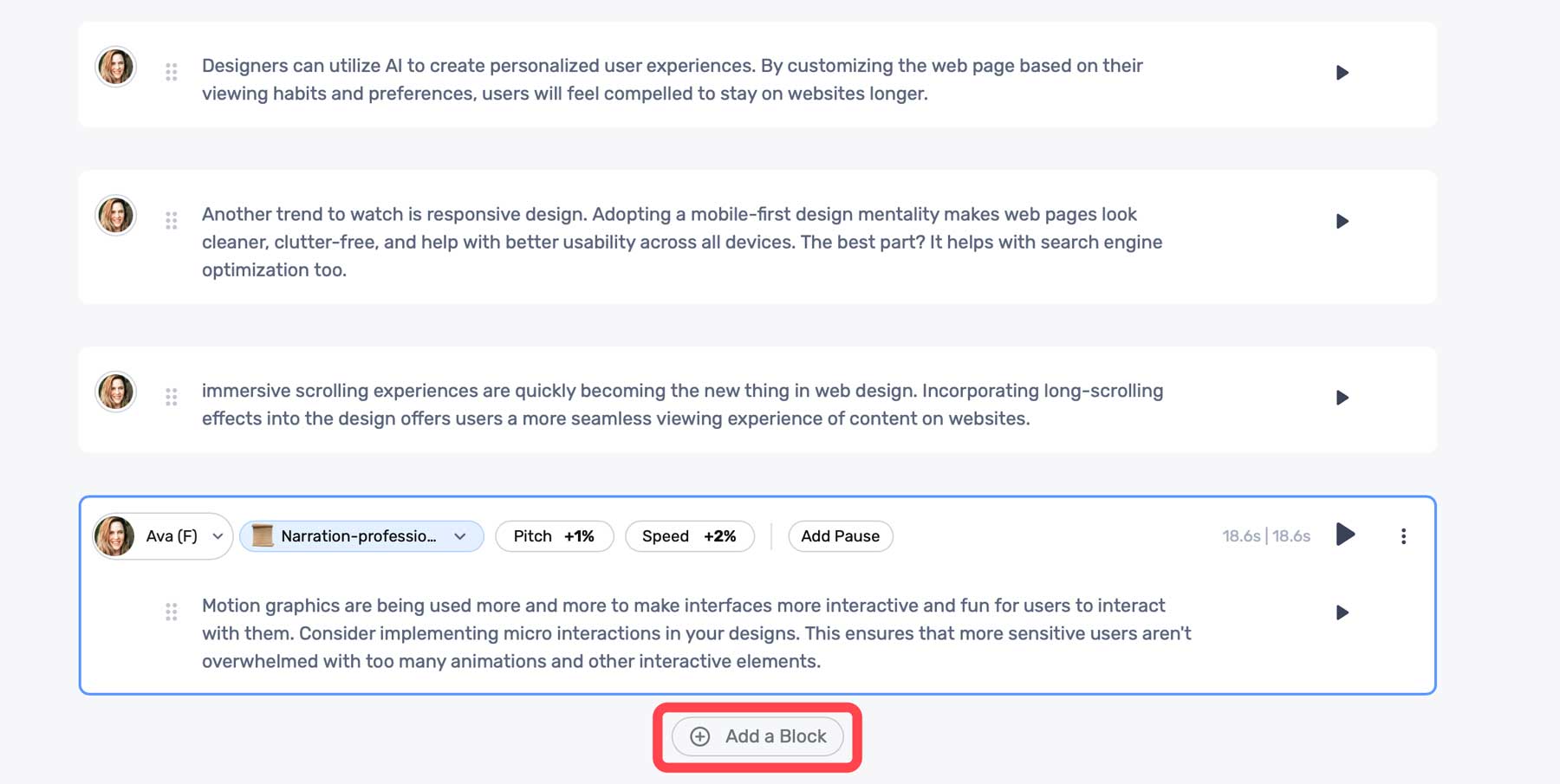
    Once your audio is generated, you can preview the audio using the same play button. Murf AI comes with a few settings to help you adjust the output. These include tone (1), pitch (2), speed (3), and the ability to add a pause (4). These come in handy if the generated voice is too computer-like, has awkward run-on sentences, or needs to be adjusted to a lower or higher sound (pitch).

    audio settings

    Click the + Add a Block button to add more text.

    Murf AI content blocks

    Adding Media To Murf AI Project

    In addition to text-to-speech, Murf AI offers its users stock media assets you can use in your projects. These include stock music, images, and videos. To add media, click the Add Media tab in the dashboard.

    Add media

    You can search the media library for assets to build your video from there.

    Murf AI stock media

    Click on any media to preview it. You can easily add it to your project by clicking the Add to Timeline button.

    Add to timeline

    Using the Voice Changer Feature

    If you prefer, you can add an audio sample and allow Murf AI to transcribe it. It’ll use its proprietary algorithms to analyze your sample and convert it to written text. Once completed, it will automatically be added to the timeline, where you can edit it. At that point, you can make audio edits as necessary for tone or pitch, choose an AI voice, and generate a voiceover in seconds.

    Murf AI voice changer

    Creating an AI voiceover with Murf AI is easy, and the voices are quite good. As an added bonus, Murf AI does an excellent job of allowing its users to customize AI models to get the most realistic sound possible. However, it’s important to mention that when using the free version, you won’t be able to export your projects. However, they are saved in your user account, should you decide to upgrade.

    Here’s a short audio clip of the AI voice model, Ava, reading a portion of our script:


    Pros and Cons of Murf AI

    To be transparent for our readers, weighing the pros and cons of subscribing to Murf AI is important. While there are a lot of pros, including the wide range of AI voices available, there are some cons that you should be aware of.

    Pros of Using Murf AI

    • Over 120+ realistic AI voices with support for 20+ languages
    • Saves time and money over hiring professional voice actors
    • Simple interface
    • Many ethnicities, tones, and styles to choose from

    Cons of Using Murf AI

    • The free plan doesn’t allow downloads
    • Customization of pitch and tone could be better
    • Potential security concerns with voice cloning
    • In our experience, the voice-over-video tool is a bit buggy at times

    Final Thoughts on Murf AI

    Murf AI is a versatile and valuable tool for creating voiceovers for presentations, videos, and more. With more than 120 natural-sounding voices and support for more than 20 languages, it saves time and resources and simplifies creating compelling voiceovers.

    However, it’s important to note that Murf AI isn’t without its flaws. There are occasional bugs with the voice-over-video tool and a need for better customization options for pitch and tone. Despite that, Murf AI stands out above its competition due to how realistic its voices are. If you need a quick way to generate natural-sounding voiceovers, you’ll be hard-pressed to find a better solution than Murf AI.

    The post Murf AI: Review, Details & Pricing (2023) appeared first on Elegant Themes Blog.

  • Divi Product Highlight: Gravity Forms Styler Module for Divi

    Gravity Forms Styler Module for Divi is a plugin available in the Divi Marketplace that makes it easy to completely customize the styling of your Gravity Forms right within the familiar Divi Builder interface. With this plugin, you can add Gravity Forms to your Divi layouts just like you would any other module. Using the options in the design tab, you have full control over each form aspect.

    One unique feature of this plugin is that you can preview the entire form, the form with validation errors, and the confirmation message page right within the Divi Builder. In this product highlight, we’ll take a closer look at the Gravity Forms Styler Module for Divi and help you decide if it’s the right product for you.

    Let’s get started!

    Installing the Gravity Forms Styler Module for Divi

    First, ensure the Gravity Forms plugin is installed and activated on your site. Additionally, purchase the Gravity Forms Styler Module for Divi plugin from the Divi Marketplace and download the plugin file.

    Install Gravity Forms Gravity Forms Styler Module for Divi

    To install the plugin, open the Add New page under the Plugins heading in the WordPress dashboard. Click the Upload Plugins button, then click Choose File to select the plugin file from your computer. Finally, click Install Now, and the plugin will be added to your website.

    Install Gravity Forms Styler Module for Divi

    Once the plugin is installed, click Activate Plugin.

    Activate Gravity Forms Styler Module for Divi

    Gravity Forms Styler Module for Divi

    The Gravity Forms Styler Module for Divi is a module that is added to the Divi Builder, which means that you can add Gravity Forms anywhere you could add any other Divi module, giving you the ultimate flexibility in your layouts and designs. Start by adding a new page to your site and select the Divi Builder option.

    Add new page with Divi

    On the new page, click the grey plus icon to insert a module. Select the Gravity Form module from the list.

    Insert Gravity Forms Styler Module for Divi

    Content Settings

    Open the options for the Gravity Form module. The first option, titled “Form” allows you to select the Gravity Form you want to display.

    Gravity Forms Styler Module for Divi Choose Form

    You can also customize the title and description shown on the form. You can hide each of these elements, set a custom title or description, or display the title or description set in the Gravity Forms settings.

    Gravity Forms Styler Module for Divi Title Description

    Next, you can enable Ajax for form submissions. If enabled, the page will not reload after form submission. You can specify the starting tab index for the form fields and default field values in the content settings.

    Gravity Forms Styler Module for Divi Ajax Index Field Values

    Background

    In the content tab, you can also add a background to the Gravity Forms module. Using Divi’s extensive background options, you can add a background color, gradient, image, video, pattern, or mask to create unique layouts for your form.

    Gravity Forms Styler Module for Divi Background

    Design Settings

    Now, let’s move over to the design tab. Here is where you can fully customize the design of every element in the form.

    Font

    Under the font tab, you can set the styles for the text in the form. In this section, you can set the font, font weight, style, alignment, color, text size, letter spacing, line height, and text shadow. Here, I set the font and font color.

    Gravity Forms Styler Module for Divi Font

    Form Heading

    In the form heading settings, you can customize the styling of the form heading font, title font, padding and margin, border, and background. With these options, you can fully customize the heading section separate from the rest of the form. For this example, I increased the size of the form title text.

    Gravity Forms Styler Module for Divi Form Title

    Fields

    The fields setting section is where you can set the styling of the form fields, including the background color, text color, focus styling, margin and padding, font styling, and border styling. In this section, I set the field color to white.

    Gravity Forms Styler Module for Divi Fields

    I also enabled focus borders. This applies unique styling to the border of the active field, as you can see in the screenshot.

    Gravity Forms Styler Module for Divi Fields Focus

    Fields Error

    Next, the fields error section is where you can style the text, background, and border colors for the form fields error.

    Gravity Forms Styler Module for Divi Fields Error

    Labels

    In the labels section, you can style the label text, set the padding and margin, style the border, and add a background or box shadow. For this example, I increased the label text size and changed the color. I also removed the bottom padding.

    Gravity Forms Styler Module for Divi Labels

    Required Text

    The next section is where you can style the required text. The options allow you to style the asterisk that appears next to the required fields.

    Gravity Forms Styler Module for Divi Required Text

    Sub Labels

    Next is the sub labels settings. Here, you can customize the styling of the sub label text, padding and margin, border styles, background, and box shadow. I set the sub label text color to grey and adjusted the top margin.

    Gravity Forms Styler Module for Divi Sub Labels

    Fields Description

    The fields description settings are similar to the last, where you can customize the text styling, padding and margin, border styles, background, and box shadow. I adjusted the margins in this example to bring the description and title closer together.

    Gravity Forms Styler Module for Divi Fields Description

    Next, you can set the field validation font styling in the fields validation setting. Additionally, you can customize the padding and margin, border styles, background, and box shadow.

    Gravity Forms Styler Module for Divi Fields Validation

    Error Notification

    The error notification settings are very similar, with options to customize the font, spacing, border, background, and box shadow.

    Gravity Forms Styler Module for Divi Error Notification

    Confirmation Message

    The next section is for customizing the confirmation message. You can use the preview option at the top to view the confirmation message layout.

    Gravity Forms Styler Module for Divi Confirmation Message

    Radio Buttons

    In the radio buttons settings, you can set the radio colors, text styling, and list spacing. Here, I modified the checked background color.

    Gravity Forms Styler Module for Divi Radio Buttons

    Checkboxes

    Similarly, you can change the checkbox colors, text styling, and list spacing in this section.

    Gravity Forms Styler Module for Divi Checkboxes

    File Uploads

    The file uploads section can be customized here. You can customize the font styling, spacing, border, background, and box shadow.

    Gravity Forms Styler Module for Divi File Uploads

    Section Break

    Here you can customize the font styling for the section break description and heading and customize the spacing, border, background, and box shadow.

    Gravity Forms Styler Module for Divi Section

    Pricing Fields

    You can also customize the Gravity Forms pricing fields using this module. You can style the product price, shipping price, and total price fields.

    Gravity Forms Styler Module for Divi Pricing Fields

    Progress Bar

    Next is the progress bar option. The progress bar appears in the form if there are multiple pages and provides a visual indicator for how far along in the form you are. In the design settings, you can customize the styling of the progress bar. You can set the colors, the bar height, customize the font options, add a border, and adjust the spacing.

    Gravity Forms Styler Module for Divi Progress Bar

    Form Footer

    In the form footer options, you can set the button alignment, spacing, border styles, background, and box shadow styles.

    Gravity Forms Styler Module for Divi Form Footer

    Button Styling

    Next are four sections where you can customize the buttons in the form: Submit Button, Page Navigation Buttons, Save and Continue Button, and Select All Button. In each of these sections, you can enable custom button styles to modify the styling to match the design of your form.

    Gravity Forms Styler Module for Divi Buttons

    Sizing

    In the sizing settings, you can adjust the form width, height, and alignment. Here, I set the width to 75% and the alignment to center.

    Gravity Forms Styler Module for Divi Sizing

    Spacing

    Next, you can modify the margin and padding for the form. I added some padding to each side for this example.

    Gravity Forms Styler Module for Divi Spacing

    Border

    In the border settings, you can add a border around the form. Here, I added a blue border.

    Gravity Forms Styler Module for Divi Border

    Box Shadow

    Next, you can add a box shadow to the form.

    Gravity Forms Styler Module for Divi Box Shadow

    Filters

    Here, you can use different filters to modify how the form is displayed.

    Gravity Forms Styler Module for Divi Filters

    Transform

    In the transform settings, you can adjust how the form appears using scale, translation, rotation, skew, and transform-origin settings.

    Gravity Forms Styler Module for Divi Transform

    Animation

    Finally, you can apply an animation effect to the form in this section. You can select from seven different animation styles and customize the animation duration, delay, intensity, and more.

    Gravity Forms Styler Module for Divi Animation

    Predesigned Layouts

    Gravity Forms Styler Module for Divi also comes with access to some predesigned layouts for fully-styled forms. You can download the layouts from the plugin author’s website. These layouts are a great way to get a head start on the styling process.

    Gravity Forms Styler Module for Divi Premade Templates

    Gravity Forms Styler Module for Divi Layout Example

    Here is one example of how to style your Gravity Form using the Gravity Forms Styler Module for Divi.

    First Page

    Gravity Forms Styler Module for Divi Example 1

    Second Page

    Gravity Forms Styler Module for Divi Example 2

    Validation Error

    Gravity Forms Styler Module for Divi Example Validation Errors

    Confirmation Page

    Gravity Forms Styler Module for Divi Example Confirmation Page

    Purchase Gravity Forms Styler Module for Divi

    Gravity Forms Styler Module for Divi is available in the Divi Marketplace. It costs $39 for unlimited website usage and 1 year of support and updates. The price also includes a 30-day money-back guarantee.

    Purchase Gravity Forms Styler Module for Divi

    Final Thoughts

    Gravity Forms Styler Module for Divi brings all of the function and design flexibility of Divi to your forms built with Gravity Forms. With so many ways to customize the styling of each element, the design options are practically endless. If you’re tired of using Custom CSS to achieve your form styling and want an easy way to customize Gravity Forms using the Divi Builder, this may be a great product for you. We would love to hear from you! Have you tried the Gravity Forms Styler Module for Divi? Let us know what you think about it in the comments!

    The post Divi Product Highlight: Gravity Forms Styler Module for Divi appeared first on Elegant Themes Blog.

  • How to Make a WordPress Ecommerce Website (2023 Easy Guide)

    You already know that WordPress is a powerful platform for content, but were you aware that it’s also one of the best eCommerce solutions? This guide will walk you through each step to create a successful eCommerce website with WordPress. From domain selection to hosting, installation, and essential plugins, we’ve got you covered.

    Why Use WordPress to Make an eCommerce Website?

    WordPress shines as the premier content management system (CMS) used to build websites of all kinds.

    The software is open-source and free to use, developed by and supported by a large community of volunteers. This makes the platform extremely flexible, giving you more control over your website functionality and allowing you to build an online store using countless eCommerce plugins and themes available. Although WordPress is free, there are common website expenses outside WordPress, including hosting, domain registration, premium plugins, and themes. But these prices are the same or better than other major eCommerce platforms, all things considered.

    WooCommerce: A Powerful eCommerce Solution for WordPress

    What makes WordPress equipped to handle your next eCommerce website? WooCommerce.

    WooCommerce Logo Mark
    WooCommerce is the go-to WordPress solution for eCommerce. The WordPress editor is seamlessly integrated with WooCommerce and includes all the WooCommerce Blocks needed to build your store with a drag-and-drop interface. And it is simple enough for novice web admins to learn how to use it. It also has a plethora of add-ons available to help you achieve anything you need from it. It also gives users detailed dashboards and a convenient mobile app that allows you to keep tabs on your store’s performance from anywhere at any time.

    Other benefits of using WooCommerce include:

    • WordPress Hosting providers like Siteground are tailored to WooCommerce sites for easy setup and optimal performance.
    • More customization and control with a variety of plugins to add the functionality you need.
    • More cost-effective than other solutions that require recurring monthly payments and additional fees.
    • More control over security than other solutions that have built-in security that cannot be optimized.

    WooCommerce Alternatives to Compare

    Selecting the ideal eCommerce platform is a pivotal decision. In fact, there are some that may benefit from using other website builder platforms (outside of WordPress) like Shopify, Squarespace, or Wix. And there are WordPress membership plugins like MemberPress that offer standalone options for eCommerce. To help you decide, we’ve created comparison guides between WooCommerce and other leading website builders for eCommerce for you to dig deeper into.

    But, we’ll assume that you’ll see the exceptional value in WordPress + WooCommerce and continue to the next step of how to build an eCommerce site with WordPress.

    How to Setup Shop with WordPress (5 Steps)

    1. Choose a WordPress eCommerce Hosting Provider + Registrar

    Selecting a hosting provider specializing in WordPress is pivotal for your eCommerce website’s performance and security. SiteGround is a top choice, finely tuned for WordPress and WooCommerce platforms.

    Dive into our in-depth SiteGround analysis to explore its myriad features. SiteGround offers complimentary CDN, no-cost SSL, and email account governance in its hosting packages.

    Siteground Logo Mark - White on Dark BG

    For alternative hosting solutions, consider our roundup of the fastest WordPress hosts or the best all-around hosting services. Quality hosting becomes doubly important when running a WordPress eCommerce site since it needs to be fast with around-the-clock uptime.

    Install WordPress

    Navigate to SiteGround’s Site Tools dashboard. For other ways to install WordPress, read our definitive WordPress installation guide.

    After signing into your SiteGround account, start the installation by clicking the “Set Up Site” button on your dashboard.

    install WordPress

    Choose the domain type for your WordPress eCommerce site. Opt for “Temporary Domain” if you wish to build before buying your domain.

    For those eager to secure a domain upfront, follow this guide to register a domain. Click “New Domain,” find your ideal domain name, and proceed with the WordPress setup.

    choose temporary domain

    Click “Continue” to advance with the domain option that you’ve chosen.

    temporary domain

    Then, select “Start New Website” to continue.

    start new website

    Choose “WooCommerce” to ensure WordPress comes pre-installed with WooCommerce to make setup a bit quicker.

    Choose-WooCommerce

    Configure your admin login credentials. Keep this information secure by following our password management tips. Click “Continue” to move forward.

    WordPress for beginners

    Finally, hit the “Finish” button to set up WordPress + WooCommerce for your new WordPress eCommerce website.

    finish setup

    Access your new WordPress dashboard by clicking “Log in Admin.”

    2. Configure WordPress

    You’ve got your hosting and maybe even a domain. Now, let’s set up your WordPress site for eCommerce.

    Adjust WordPress Settings

    You’ll find the settings you need under Settings in the sidebar of your admin dashboard.

    WordPress settings

    Need more help? Check out these guides for each settings page to configure your eCommerce website the way you need it:

    3. Pick a WordPress eCommerce Theme

    Now, let’s choose a WordPress theme that’s great for eCommerce. We recommend using our Divi Theme. Divi is a top pick because it is a powerful page builder that works seamlessly with WooCommerce. It’s easy to use and makes your store look good.

    Why Divi is a good choice:

    For other options, you can check out these top WooCommerce WordPress Themes.

    How to Add Divi to Your WordPress Store

    First, get Divi from your Elegant Themes membership account after buying a membership. Log in and go to “Themes & Plugins” to download Divi.

    How to Install Divi - Steps 1

    In your WordPress dashboard, go to Appearance > Themes. Click “Upload Theme” and pick the Divi file you downloaded. Then c”Install Now.”

    How to Install Divi - Steps 2-5

    Click “Activate” to make Divi your theme.

    How to Install Divi - Steps 6

    Last step: add your Elegant Themes API Key. This keeps Divi updated with new features and security fixes. Grab the Username from your account in the “API Key” section.

    How to Install Divi - Steps 7-10

    Generate New API Key” for your site. Give it a label so you know which site it belongs to. Copy the Key.

    How to Install Divi - Steps 11-13

    To add the API Key, go to Divi > Theme Options > Updates. Put in your Elegant Themes API Key (generate a new key for each site you create) and Username, then click “Save Changes.”

    How to Install Divi - Steps 14-18

    If you want to learn more about adding themes, check out this theme installation guide. But we think you’ll like using Divi for your WordPress eCommerce website.

    4. Make Your WordPress eCommerce Store

    You’ve done the basic setup. Now, let’s dig into creating your WordPress eCommerce website. This means setting up WooCommerce, adding products, and choosing how people will pay you.

    This is where the fun starts!

    WooCommerce Setup Wizard

    The WooCommerce setup wizard makes getting your WordPress eCommerce site ready easy. If your host didn’t install WooCommerce for you (Step 1), check out our WooCommerce setup guide to get it added to your website.

    Click “Home” under WooCommerce to start the wizard.

    Woo Onboarding Flow - Steps 1-2

    The wizard will ask for your store info, like your address and email.

    Woo Onboarding Flow - Steps 3-4

    Select the industry and product types that best describe your store.

    Woo Onboarding Flow - Steps 5-6

    Choose what your store needs. Checking certain boxes might add extra plugins to your site.

    Note: Some plugins cost money. There are also free ones available. Check out our list of the best membership, booking, and free WooCommerce plugins to see how plugins can extend your eCommerce site.

    Woo Onboarding Flow - Steps 7-9

    The wizard will ask a few more questions about your store.

    Woo Onboarding Flow - Steps 10-11

    Last step: pick any extra plugins you may want. See our Jetpack and MailPoet reviews to see if those tools are worth it for you at this point. But if you anticipate needing to collect taxes, take credit card info, and handle shipping, those free plugins are worth it.

    Woo Onboarding Flow - Steps 12-13

    Now, you can tweak more settings in WooCommerce.

    WooCommerce Settings

    Ecommerce settings can be tricky. But WooCommerce makes it easier. You can control:

    • General Settings for money, products, and checkout
    • Product Settings for how items look and stock levels
    • Shipping Settings for delivery choices and costs
    • Payment Settings for how customers pay
    • Account Settings for signups and privacy
    • Email Settings for messages from your store
    • Advanced Settings for special tweaks

    For more help, see our WooCommerce settings guide, which will walk you through each of these important pages.

    Add Product Categories

    Categories help people find what they want in your store. For example, if you sell clothes, you could have categories like “Men,” “Women,” and “Kids.” We suggest you make these before adding products.

    To add categories, go to WooCommerce > Products in your dashboard. Then click “Categories.” These work just like categories and tags for WordPress posts.

    How to Make WordPress eCommerce Categories - Steps 1

    If placeholder categories exist, you can edit or delete them. When choosing categories and tags, keep your customers in mind. Use intuitive and easy-to-understand terms.

    Add Products to Your WordPress eCommerce Store

    You can add products individually or all at once with a CSV file.

    To add them individually, go to Products > “Add New.”

    Add Products - Steps 1

    Enter the product name.

    Add Products - Steps 2

    Add a product description and upload your product image.

    Add Products - Steps 3-4

    Next, select a product type. Then, set your item’s price and set your inventory levels. You can also set individual product shipping options. On the right-hand sidebar, set product categories and tags.

    Add Products - Steps 5-6

    When you’re happy, click “Publish.” Add as many products as you want to your store.

    Track your product stock with WooCommerce inventory management, and visit our detailed guide about setting up shipping in WooCommerce.

    4. Design Your WordPress eCommerce Website

    Since you’ve got Divi installed, let’s dive into designing your WordPress eCommerce site. With Divi, one of the best page builders for WordPress, you can design your site without touching code. This includes your product pages, cart, checkout, homepage, and blog. Divi’s WooCommerce modules are your go-to tools for building your WordPress store pages.

    Add Product Modules to a Page with Divi

    Divi has 2000+ pre-made layouts and 300+ website layout packs you can use, making setting up your WordPress eCommerce site quicker.

    Open your homepage in Divi and click “Browse Layouts” to see your options.

    Product to Page with Divi - Steps 1

    You’ve got thousands of layouts to pick from. To make it easy, look for ones that say “Shop Page.” Click “Use this Layout” to add it to your page.

    Product to Page with Divi - Steps 2-4

    The layout will show your products immediately (inside the Woo Products module). You can change how many show up, how they’re sorted, and much more.

    Product to Page with Divi - Steps 5

    What if you want to show only one product? Add a new row and pick “Woo Products” from the WooCommerce modules list.

    Product to Page with Divi - Steps 6-7

    Design WooCommerce Pages

    WooCommerce sets up some basic pages for you that Divi can help you customize:

    1. Shop page (where all your products show up)
    2. Cart page (shows what’s in your cart)
    3. Checkout page (where you pay)
    4. My Account page (to manage your account)
    5. And more, like pages for product categories and tags

    Divi lets you edit each of these page templates on each page using the Divi Builder, or you can create a custom template for these pages using the Theme Builder.

    Woo Shop Pages in Theme Builder - Steps 1-2

    Using the Divi Theme Builder is particularly useful for designing templates for your product pages, product category pages, and other site-wide design elements.

    For example, you could download one of our free product page templates from our blog (like this Clothing Store Product Page Template) and add it to the theme builder to have a stunning global template for all your products. Or you can easily create your own product page template from scratch

    For more help, check out our guides on making a cart page, setting up a checkout page, and using Divi for WooCommerce pages.

    5. Boost Your WordPress eCommerce Site with Plugins and Integrations

    Want to know the beauty of WordPress and WooCommerce? You can add hundreds of features with thousands of possible plugins. Free and paid plugins can make your WordPress eCommerce site even better. Let’s look at some must-know categories of WooCommerce plugins.

    SEO Plugins

    Getting people to your WordPress eCommerce site is obviously important. That’s where SEO plugins like Rank Math SEO come in. They help you make your site more search-engine friendly by adding schema markup, XML sitemaps, and other SEO best practices. There are even WooCommerce SEO plugins that ensure ideal compatibility and functionality.

    Analytics Rank Math Demo WordPress

    For a deep dive, check out our WooCommerce SEO guide. If you’re feeling adventurous, explore these AI-driven SEO tools.

    Email Marketing Plugins

    Email marketing remains an essential tool for growing an eCommerce store. External services like Mailchimp for WordPress and plugins like MailPoet help you build and manage your email lists.

    Mailchimp Email Reporting

    Use Mailchimp’s WooCommerce Integration to Increase Sales

    You can then send general emails as well as eCommerce-specific emails with coupons or abandoned cart emails.

    CRO Tools

    Conversion is king in eCommerce. Tools like OptinMonster and Bloom can help you get the most from your site by allowing alternate conversion for email signups.

    Split testing and Divi Leads

    You can also use Divi’s marketing tools to create A/B campaigns on your website and strengthen each landing page over time.

    Advertising Plugins

    Advertising plugins can integrate seamlessly with platforms like Google Ads and Facebook to drive more traffic. Check out Advanced Ads for more control over your advertising campaigns.

    For more WooCommerce plugins, Barn2 and Yith make lots of good options. And don’t forget to check the Divi Marketplace for solutions that work well with Divi.

    Conclusion

    You’ve gone through the ins and outs of setting up a WordPress eCommerce website. From selecting a hosting provider to configuring WooCommerce and optimizing your site for search engines, you’ve laid the groundwork for a successful online store.

    WordPress and WooCommerce together offer a powerful, flexible platform for eCommerce. They allow you to customize every aspect of your store, from product listings to payment options. And with a wide array of plugins, your store’s functionality can expand as your business grows.

    As your business scales, our extensive library of guides and reviews is here to support you every step of the way. Dive into our essential guides on how to sell online and master the best website marketing strategies. For tech-savvy insights, explore our reviews of top hosting companies, prime business tools, and standout WordPress plugins.

    Featured Image by Julia Tim / shutterstock.com

    The post How to Make a WordPress Ecommerce Website (2023 Easy Guide) appeared first on Elegant Themes Blog.

  • How to Code in WordPress with AI

    In the past, WordPress users without coding knowledge would either spend hours on Google searching for an answer or solicit the help of a professional web developer. With the emergence of artificial intelligence (AI), that is beginning to change. There are quite a few AI code assistant tools out there, but not all of them are geared specifically for WordPress. In this post, we’ll show you how to code in WordPress with AI so you can save your time and hard-earned money for other tasks.

    Let’s dive in.

    What is AI-Assisted Coding for WordPress?

    AI-assisted coding is the use of machine learning generative AI models that aid in creating code for WordPress. Most AI coding assistants let WordPress users describe what they want the code to do by entering a simple text prompt. From there, AI automatically generates the code for you, complete with custom variable names or CSS classes.

    Why You Should Code in WordPress with AI

    code in WordPress with AI

    image created with Divi AI

    There are several reasons to code in WordPress with AI. First and foremost, it allows novice coders or those with no coding knowledge to add PHP or JavaScript code snippets that change your site’s functionality. Similarly, AI can also generate CSS for you, allowing you to make advanced styling changes to your site’s design elements. Another reason you should consider using AI for coding in WordPress is to troubleshoot errors. If you’ve ever been in a situation where you are seeing the white screen of death or other common errors, AI can help you figure out where the problem is, and help fix it.

    What are the Benefits of Coding in WordPress with AI?

    happy web developer

    image created with Divi AI

    There are countless benefits of coding in WordPress with AI. Let’s highlight a few so you will have a better understanding of how AI can help make your life easier:

    • Minimal learning curve: When using AI, spending countless hours on PHP tutorials is unnecessary. In fact, it can leave you confused and frustrated. Instead, opt for a bit of AI assistance to help. You’ll likely learn a few things, too.
    • Editing theme files: When you’re mainly a web designer, you may not be comfortable editing theme files. With AI, you can put your troubles at ease because a text prompt can help you create those functions.php file hacks you were too afraid to try before.
    • Save money: In the past, if you needed to do something that required coding knowledge, you’d either need to learn how to code, which is time-consuming and sometimes expensive, or pay a developer to help. Using AI, you can avoid the middleman and save money for something else, like purchasing essential plugins or a premium WordPress theme.
    • Make your site stand out: WordPress users should never be complacent with a cookie-cutter website. The beauty of WordPress is that you can make your site look any way you want. That said, sometimes your site may need a little extra “oomph.” Adding code in WordPress with AI is an excellent way to add animations or other functionalities to make your website unique.

    How to Code in WordPress with AI

    code WordPress with AI

    image created with Midjourney

    There are a couple of ways you can code in WordPress with AI. You can use an AI page builder like Elementor to create custom CSS or an AI tool like CodeWP for PHP. As of this writing, no plugin will allow you to code PHP inside WordPress. However, CodeWP was specifically trained using WordPress files and structure, so it knows its stuff. An added bonus is the ability to store snippets in the cloud so you can save them for reuse.

    Before you start plugging custom code snippets into your site, you should do one of two things. We recommend either creating a child theme or a staging site. Doing both is a good idea, too. Regardless, your parent theme or live site will be protected from code snippets that could break your website.

    Let’s go through the steps you’ll need to set things up and generate code in WordPress.

    How to Code CSS in WordPress with AI

    Elementor AI page builder

    Elementor is one of the most popular page builders in the world. In recent months, they joined the AI revolution by offering text, image, and custom CSS generation. It works by activating the edit with AI button in Elementor’s front-end page builder in any module containing text or images.

    activate Elementor AI

    Generate CSS in Elementor AI

    For CSS generation, you’ll have to shell out for a pro license, but you can try Elementor AI text and image generation in the free version. With the pro version activated, hover over a section to reveal the edit section button.

    edit Elementor section

    Next, click the advanced icon in the sections’ settings.

    Elementor advanced settings

    Scroll to reveal the Custom CSS tab. Expand the dropdown menu to show the custom CSS box.

    Elementor custom CSS

    Click the edit with AI button above the custom CSS box.

    edit with AI

    When the dialog box appears, type in a text prompt, such as background color animation 2 colors (1). Then click the generate code button (2).

    Elementor AI text prompt

    Elementor AI will get to work generating your code snippet. It could take up to a minute to render. Once complete, you’ll get a preview of your code. If satisfied with the results, click the insert button to add the code into the Custom CSS box.

    insert code

    Once your code is inserted, you can watch the animation live in the Elementor builder.

    After your CSS code is live, you can change the colors, animation speed, and make other tweaks to suit your preferences.

    If you’d like to easily generate CSS for your web projects with Elementor, you can sign up for a yearly Pro license for $59. Remember, to use Elementor AI’s CSS generator, you’ll need to sign up for a paid plan. Prices start at $2.99 per month for 18,000 credits.

    How to Code PHP for WordPress with AI

    CodeWP

    CodeWP is an AI tool trained specifically using WordPress. It helps you create custom code snippets to extend its functionality or avoid using heavy plugins. When you are ready to implement generated code snippets, you’ll need to install a code snippet plugin, such as WPCode, or create a child theme and copy specific files from the includes folder to place your snippets.

    If you’re a Divi user and want to create a child theme, we have a detailed tutorial on the steps you’ll need to take. That said, if you’re a novice user, we highly recommend the snippet plugin route.

    Sign Up for a CodeWP Account

    If you haven’t signed up for CodeWP, click the Start for Free button.

    create CodeWP account

    When the screen refreshes, you can create an account by linking your Facebook profile, GitHub account, or by creating a username and adding your email address.

    create CodeWP account

    Browsing the CodeWP Interface

    The CodeWP is rather intuitive. You’ll be able to view your snippets, browse public (verified) snippets submitted by other users, get the latest news, and launch several code generators.

    CodeWP welcome screen

    For this tutorial, we’ll be working with the free version of CodeWP, which comes with one interface: WordPress PHP. To unlock the others, you must sign up for a pro license.

    Generate PHP in CodeWP

    To generate your first snippet, click the Generate Code button at the top left of the CodeWP interface.

    generate new snippet

    Next, click the new prompt button to open the text prompt dialog box.

    new CodeWP text prompt

    To demonstrate how easy it is to work within CodeWP, we’ll ask it to create a new custom post type for cars and some custom fields we can fill out in the cars post type.

    Start by entering the following prompt into the text field:
    Create a custom post type called cars and include a taxonomy for vehicle type. Add the following meta fields to the cars custom post type.

    integer number meta field called make
    integer number meta field called model
    integer number meta field called price
    integer number meta field called exterior color
    integer number meta field called interior color
    integer number meta field called seating capacity
    integer number meta field called drivetrain
    integer number meta field called transmission
    integer number meta field called cylinders
    integer number meta field called MPG

    Finally, click the Generate WP Code button.

    add text prompt CodeWP

    After a minute or two, CodeWP will generate your custom PHP code. To use it in WordPress, we’ll need to use the WPCode (or similar) snippet plugin.

    copy CodeWP output

    Copy the output after the opening PHP tag so we can paste it into WPCode.

    Adding PHP Code to WordPress

    Bounce back over to your WordPress admin dashboard. If you still need to install WPCode, do that now. If you need guidance on installing plugins, we have a handy plugin installation guide for you to follow.

    Navigate to Code Snippets > + Add Snippet (1). From there, click Add Your Custom Code (New Snippet) (2).

    add new snippet WPCode

    By default, WPCode selects auto-insert and sets the location to everywhere, which is what we want it to do. To make your snippet live, select PHP from the dropdown (1) and paste the PHP snippet into the code preview (2). Next, activate the snippet (3), and save it (4).

    save PHP snippet

    Once saved, a new post type appears inside the WordPress admin dashboard.

    code in WordPress with AI

    To ensure things are working correctly, hover over the car in the admin panel and click Add New.

    add new car

    Scroll down until you locate the car meta fields. If they are there, congratulations! If not, you can use CodeWP to help adjust the code accordingly.

    CPT meta fields

    Final Thoughts on Coding in WordPress with AI

    WordPress development is rapidly evolving with the integration of AI. Using tools like Elementor AI or CodeWP, you can forego hours of research or expensive web development services. AI tools designed specifically for WordPress can save money and time and teach even the most novice user how to code. Whether you need to add a custom PHP script or take your site’s design to the next level with CSS, AI coding assistants offer invaluable support.

    If you’d like to learn more about what you can do with AI for WordPress, check out some of our other AI-related posts:

    Featured Image via Leonid studio / shutterstock.com

    The post How to Code in WordPress with AI appeared first on Elegant Themes Blog.

  • 15 Best Video Editing Software in 2023 (Compared)

    If you’re a vlogger, TikTok creator, or marketer, choosing the right video editing software is crucial for boosting your brand’s success. As more consumers crave online video content from brands, it becomes vital to your marketing strategy. However, with so many options available, finding the right video editing software can be challenging, especially for beginners. Don’t worry, though. We’ve compiled a list of the best video editing software to help you find the perfect fit for your needs.

    What is Video Editing Software?

    Video editing software is a computer program that empowers you to edit videos effortlessly. It provides tools and features necessary for trimming, cutting, adding transitions and effects, inserting text and graphics, color grading (adjusting the video’s look, lighting, and feel), correcting footage, and exporting videos in various formats.

    To start video editing, you’ll need to gather your footage. This can include videos captured on your phone or camera and downloaded footage from the internet. Once you’ve collected all your footage, it’s time to import it into the video editing software and let your creativity flow!

    The Significance of Video Editing Software

    Video editing software holds immense importance for content creators. It grants users full control over their videos and enables the creation of professional-grade content. With this software, you can incorporate graphics, text, audio, animations, and seamless transitions while effortlessly trimming and cutting footage.

    Beyond its technical capabilities, video editing software plays a pivotal role in weaving compelling narratives through visual storytelling techniques. These techniques encompass skillful shot sequencing, harmonizing music and voiceovers, and leveraging creative elements. By doing so, you can emotionally captivate your audience, effectively conveying your message.

    The Best Video Editing Software

    Now that we know a bit more about video editing software, let’s take a look at the best video editing software on the market!

    1. Adobe Premiere Pro

    Screenshot of Adobe Premiere Pro's Homepage

    Adobe Premiere Pro stands as the top editing software for creating everything from YouTube vlogs to blockbuster movies. The software is packed with features, enabling users to cut, trim, and combine clips seamlessly in any sequence. With its non-linear editing approach, you can easily arrange and manipulate your clips.

    A Screenshot of Adobe Premiere Pro's User Interface

    Image by Adobe.com

    Adobe Premiere Pro provides an array of tools and features for seamless editing, including multi-camera editing, intricate effects, and robust color grading with Lookup Tables (LUTs). LUTs enhance cinematic quality and can be purchased or obtained online for free. Additionally, the software offers audio enhancement options, and automatic speech recognition generates captions from dialogues.

    Moreover, Adobe Premiere Pro stands out for its seamless integration with other Adobe software like Adobe Photoshop, Illustrator, and After Effects. This creates an impeccable workflow, especially for teams. With this industry-leading software, you can craft visually stunning masterpieces that captivate audiences at film festivals and online streaming platforms.

    Key Features:

    • Enhanced Non-Linear and Timeline editing capabilities
    • Advanced color grading options with Look Up Tables (LUTs)
    • Seamless integration with other industry-standard Adobe software
    • Robust audio editing capabilities
    • Excellent organizational workflow and scalability
    • Advanced VR video support
    • Native multi-format support

    Best For: Adobe Premiere Pro is ideal for professionals and teams with a substantial budget. It provides advanced tools and high-quality output. However, beginners might encounter a steep learning curve. Fortunately, numerous tutorials are available to help enhance your skills.

    Pricing: For individuals, standalone software starts at $20.99 per month. A Creative Cloud subscription that includes bundled programs like Adobe Photoshop and Adobe After Effects starts at $54.99 per month.

    Get Adobe Premiere Pro

    2. Wondershare Filmora

    Wondershare Filmora\'s Homepage

    Wondershare Filmora is a user-friendly video editing software with powerful features for creating impressive videos. It offers various tools and effects to improve visuals effortlessly. Additionally, it excels in audio editing, allowing for the removal of background noise and the enhancement of voice clarity. It truly lives up to its name! Text animations and overlays can be added for quick visual appeal. Moreover, Filmora simplifies complex timelines for novice editors, allowing them to jump straight into edit mode without feeling overwhelmed.

    A Screenshot of Wondershare Filmora's User Interface

    Image by Wondershare.com

    Wondershare Filmora excels in both audio and visual editing. With this software, you can remove background noise and enhance voice clarity. It also offers text animations, overlays for added flair, and pre-made split-screen templates for seamless multi-angle views. Additionally, Filmora simplifies complex timelines to make editing easier for novice editors.

    Filmora offers game-changing features like AI Smart Cutout, which automatically removes the background and allows you to replace it. Auto Reframe resizes footage based on the scene, making it perfect for converting YouTube videos to vertical formats. Additionally, Filmora uses AI to generate text, images, and portraits in your videos – saving time and hassle. It’s an affordable video editor packed with essential tools.

    Key Features:

    • Intuitive and easy-to-use interface
    • Wide range of video effects and transitions
    • Handy Mobile App for editing on-the-go
    • Advanced audio editing tools
    • Several AI tools
    • Screen recording capabilities
    • Export to various file formats and social media platforms

    Best For: Wondershare Filmora is perfect for video editing enthusiasts who want professional-looking videos on a budget. Its intuitive interface and AI-powered tools make it an excellent choice for all users.

    Pricing: Wondershare Filmora offers a free version with all features but includes a noticeable watermark when exporting files. To remove the watermark, upgrade your software for as low as $4/month (annually $49.99).

    Get Wondershare Filmora

    3. TechSmith Camtasia

    TechSmith Camtasia\'s Homepage

    TechSmith Camtasia is a powerful software for screen recording and video editing. Whether you’re creating tutorials, presentations, or gaming content, this software has you covered with its intuitive interface and fantastic tools that capture your computer screen with clarity and precision. It simplifies video editing by enabling professional-like trimming of clips and adds engaging transitions and animations to text/images effortlessly.

    A screenshot of Camtasia's User Interface

    Image by TechSmith.com

    Additionally, it provides an extensive library of pre-built media assets, such as audio tracks and effects, for easy integration into projects. Users can also add voice narration using their computer’s built-in microphone without needing separate recording equipment.

    TechSmith offers Audiate along with Camtasia in a bundle to streamline audio editing, similar to the simplicity of Google Docs. So, don’t miss out on TechSmith Camtasia if you’d like to enhance your screen recording with professional-quality effects.

    Key Features:

    • Screen recording and video editing capabilities
    • Ability to add captions, annotations, quizzes, and effects to videos
    • Integration with PowerPoint for quickly creating video lectures
    • Animation and cursor effects to draw attention to specific areas of the screen
    • Audio recording and editing capabilities
    • Multitrack editing for combining multiple video and audio sources
    • Easy sharing options for uploading videos to YouTube, Vimeo, and other platforms

    Best For: TechSmith Camtasia is ideal for creating high-quality screen recordings, tutorials, and presentations. It caters to educators, trainers, marketers, and content creators aiming to create captivating, interactive content.

    Pricing: Camtasia offers a free version with watermarked videos and a maximum quality of 720p. The Individual subscription plan costs $14.99/Month (annually $179.88), while the Camtasia + Audiate bundle is available for $33/month (yearly $379.87). You can also purchase a lifetime license for $299.99.

    Get TechSmith Camtasia

    4. Cyberlink PowerDirector

    PowerDirector's Homepage

    Cyberlink PowerDirector is an intuitive video editing software that allows you to easily import, edit, and combine various media files. It offers a range of effects options, including transitions, title templates, color correction filters, image stabilization capabilities, chroma keying (green screen), slow-motion effects, and more.

    A screenshot of Cyberlink PowerDirector's User Interface

    Image by Cyberlink.com

    With multitrack editing capability and the power of AI features like Body Effects, Object Detection, Sky Replacement, and Motion Tracking, it enables users to achieve professional-grade results effortlessly.

    Overall, Cyberlink PowerDirector has become popular among both beginners & professionals alike due to its user-friendly nature yet providing advanced pro tools, resulting in polished videos offering many possibilities when bringing ideas into reality.

    Key Features:

    • Intuitive interface with a timeline-based editor
    • Support for importing, editing, and combining various media files (video clips, photos, audio tracks)
    • Numerous effects options, such as transitions, title templates, and animated objects.
    • Color correction filters and image stabilization capabilities
    • Multitrack editing capability to work on multiple layers of content simultaneously
    • Overlay text onto video clips or add background music while controlling timing and placement.
    • Editing on the go with Mobile Apps

    Best For: Cyberlink PowerDirector is ideal for individuals seeking video editing software with advanced features and capabilities. It has significant popularity among YouTubers and mobile content creators.

    Pricing: PowerDirector’s free version has limited features, while the ‘PowerDirector 365’ plan starts at $4.33/month for access to most functionalities. A lifetime option is also available for $139.99 but doesn’t include monthly updates.

    Get Cyberlink PowerDirector

    5. Pinnacle Studio

    Pinnacle Studio's Homepage

    Pinnacle Studio is a popular video editing software program exclusively for Windows. Developed by Pinnacle Systems and now part of Corel Corporation, it offers powerful tools and features to create professional-quality videos within a user-friendly environment. It caters to a wide range of needs and skill levels, with versions tailored for beginners to experienced editors.

    Furthermore, this software provides advanced color correction capabilities for adjusting colors and enhancing video quality with visual effects like animation overlays. It also offers audio manipulation options, allowing users to work on soundtracks alongside video editing.

    Moreover, Pinnacle Studio offers many built-in effects such as transitions, color correction filters, film look presets, and picture-in-picture capability. It is perfect for beginners looking for basic enhancements and professionals needing top-tier features.

    A screenshot of Pinnacle Studio's User Interface

    Key Features:

    • Advanced video editing capabilities
    • User-friendly interface
    • Diverse video and audio effects
    • Support for multiple file formats
    • Multi-camera editing ability
    • Titling and captioning options
    • Export to popular file formats and social media platforms

    Best For: Pinnacle Studio is most suitable for amateur video editors using Windows who want to produce high-quality videos without learning complex editing tools.

    Pricing: You can enjoy a free 15-day trial of Pinnacle Studio. After that, you can purchase the full version for a one-time fee of $59.99, which grants you a lifetime license.

    Get Pinnacle Studio

    6. Movavi Video Suite

    Movavi Video Suite's Homepage

    Movavi Video Suite is a comprehensive software package that provides powerful video editing tools, conversion capabilities, and content creation features. It allows you to effortlessly enhance and edit your videos by trimming and merging clips, adding special effects or transitions, adjusting colors and audio settings, and applying filters for professional-looking results.

    Movavi Video Suite stands out with its intuitive interface, making it accessible even for beginners in video editing. With simple drag-and-drop functionality, you can effortlessly import media files from various formats.

    Movavi Video Suite goes beyond editing existing footage; content creators can create captivating videos from scratch using its built-in screen recording feature. Users can capture gameplay sessions, provide vocal explanations in tutorials, and record online meetings alongside webcam feeds with just a click, providing you with everything you need to unleash your creative potential!

    A screenshot of Movavi Video Suit's User Interface

    Image by Movavi.com

    Key Features:

    • Screen recording and editing
    • Audio editing
    • Effects and filters
    • Video conversion
    • DVD burning

    Best For: Movavi Video Suite is ideal for creative video creators and DIY enthusiasts.

    Pricing: Movavi Video Suite has a free 7-day trial that gives you access to all features. After the trial, upgrading starts from $7.91 per Month ($94.95 annually).

    Get Movavi Video Suite

    7. VideoStudio Pro by Corel

    VideoStudio Pro's Homepage

    VideoStudio Pro, developed by Corel, is video editing software that caters to beginners and professionals. Its primary goal is to enable users to create high-quality videos effortlessly. Packed with an extensive array of features, including multi-camera editing, 360-degree video editing, 4K support, and various special effects and filters, VideoStudio Pro offers immense flexibility for creativity.

    One noteworthy aspect of VideoStudio Pro is its user-friendly and intuitive interface, allowing efficient videomaking without hassle. Additionally, the software boasts diverse export options such as DVD production capability and Blu-ray compatibility – ensuring one’s videos can be viewed via multiple platforms like YouTube or Vimeo.

    A screenshot of VideoStudio Pro's User Interface

    Image by VideoStudioPro.com

    This potent video editor aligns seamlessly with Windows operating systems, making it easily accessible to many users seeking professional-grade results from their projects.

    Key Features:

    • Intuitive interface designed especially for beginners
    • Wide range of tools and effects
    • Multi-camera video editing
    • Audio tools to enhance sound quality
    • 360-degree video editing

    Best For: VideoStudio Pro by Corel is best for beginners, content creators, and gamers looking for versatile, user-friendly video editing software.

    Pricing: The full version costs $79.99 for a lifetime after a free 30-day trial.

    Get VideoStudio Pro

    8. CapCut

    CapCut's Homepage

    CapCut, a popular and free video editing app from the makers of TikTok, offers powerful tools for creating professional-looking videos. Its user-friendly interface allows creators to precisely edit footage using essential trimming functions and advanced effects like transitions and filters. CapCut makes it easy to unleash your inner creativity with just a swipe and tap on your smartphone screen.

    CapCut’s remarkable features include synchronized video edits with background music, innovative AI-driven algorithms for automated background removal, video upscaling, text-to-speech, and speech-to-text capabilities.

    A screenshot of CapCut's User Interface

    Image by CapCut.com

    Whether creating content for personal purposes or crafting engaging clips for social media platforms like Instagram or TikTok, the possibilities are endless when utilizing this state-of-the-art app, specifically designed for modern needs. So, if you’re looking to up your short-form content game, choose none other than CapCut—an undeniable game-changer!

    Key Features:

    • Wide range of powerful tools and features for video editing
    • User-friendly interface with seamless navigation
    • Essential trimming functions to advanced effects like transitions and filters
    • Ability to synchronize video edits with background music flawlessly
    • Incorporates innovative AI-driven algorithms for automated object tracking and motion graphics generation
    • An intuitive platform that can be easily used on a smartphone screen, on Windows as well as on a browser
    • Capability to create content for personal purposes or engaging clips for social media platforms

    Best For: CapCut is perfect for short-content creators who need fast and efficient video editing, whether for TikTok, Instagram Reels, or YouTube shorts. While it can be used for longer-form content, it doesn’t have specific features tailored to long-form videos.

    Pricing: CapCut is free but includes a watermark on exported files. Upgrading to CapCut Pro is necessary for just $7.99 monthly and has 100 GB of online storage for your projects to remove the watermark.

    Get CapCut

    9. Magix Movie Studio

    Magix Movie Studio's Homepage

    Magix Movie Studio is a comprehensive video-editing software with powerful tools and features for creating professional-grade movies. It caters to beginners and advanced users interested in creating professional-looking videos for any multimedia project.

    Import video clips from various sources, trim them down, or split them into smaller segments for precise editing control using drag-and-drop functionality.

    With its user-friendly interface, you can navigate different editing options easily without feeling overwhelmed by complexities, making it ideal for individuals who want to create professional-looking videos without acquiring extensive knowledge of complex advanced software. Other impressive features include deep color correction, LUT support, chroma key, music editor, picture-in-picture, and keyframe animations.

    A screenshot of Magix Movie Studio's User Interface

    Image by Magix.com

    Key Features:

    • Easy-to-use video editing tools for creating professional-looking videos.
    • Advanced audio editing and mixing options to enhance the overall sound quality.
    • Wide range of video effects and filters to add creativity to your videos.
    • Support for 4K, HD, and 3D video formats.
    • Built-in templates to help you create videos quickly and easily.
    • Easy sharing options to publish your videos on popular video-sharing platforms.
    • Support for plug-ins and third-party tools to extend its functionality.

    Best For: Magix Movie Studio would be most suitable for anyone who enjoys video editing as a hobby or profession, particularly those looking for user-friendly software that offers a wide range of editing tools and features.

    Pricing: Free for 30 days, then subscriptions start from $7.99/Month.

    Get Magix Movie Studio

    10. VEGAS Pro

    VEGAS Pro's Homepage

    VEGAS Pro, formerly known as Sony Vegas Pro, is a professional video editing software developed by Magix. It offers advanced features tailored for experienced film and television industry users who need precise control over their editing process. With extensive capabilities, VEGAS Pro allows you to create high-quality videos with impressive visual effects and audio enhancements in various media formats, including HD and 4K resolutions.

    A screenshot of VEGAS Pro's user interface

    Image by VegasCreativeSoftware.com

    Its intuitive user interface promotes efficient workflow management, while the timeline-based editor enables seamless integration between sequences or clips on multiple tracks. This makes organizing complex projects with visuals, sound effects, music tracks, and more easier, giving them complete creative freedom.

    VEGAS Pro also includes powerful video compositing options like green screen/chroma key compositing and picture-in-picture effects for integrating multiple elements seamlessly into edits, along with tools for color grading, customizable titles/subtitles, transitions, and 3D support. This flexibility and power make it ideal for skilled professionals seeking exceptional cinematic experiences.

    Key Features:

    • Non-Linear Editing
    • Advanced video and audio editing tools
    • Supports a wide range of file formats
    • Includes special effects, compositing, and color correction tools
    • Multi-camera editing capability
    • 4K and HDR support
    • Collaboration and workflow management tools

    Best For: VEGAS Pro is best for skilled professionals in the film and television industry who require precise control over their editing process and want to create exceptional cinematic experiences.

    Pricing: VEGAS Pro comes with a free trial, and upgrading starts from $11.99/Month.

    Get VEGAS Pro

    11. Final Cut Pro

    Final Cut Pro's Homepage

    Final Cut Pro is a professional video editing software developed by Apple Inc. It offers advanced features for importing, organizing, editing, and enhancing footage from various sources. With an intuitive interface and multi-camera editing support, users can easily arrange clips on a timeline for precise trimming and syncing of multiple camera angles.

    Furthermore, Final Cut Pro features built-in color grading tools for precisely controlling saturation levels and contrast ratios. It also offers powerful effects like keying and motion graphics template customization options through integration with the Motion app.

    Professionals choose Final Cut Pro for its robust features, user-friendly layout, and seamless integration within the Apple ecosystem.

    A screenshot of Final Cut Pro's User Interface

    Image by Apple.com

    Key Features:

    • Advanced video editing tools
    • Professional-grade video and audio effects
    • Multi-camera editing capabilities
    • Support for multiple video formats and resolutions
    • Intuitive user interface
    • Well-optimized for Apple devices
    • High-quality rendering and exporting options

    Best For: Final Cut Pro is professional video editing software designed for professionals in the film and TV industry or those seeking to create high-quality video content. It may be unsuitable for casual users due to its complexity and technical requirements.

    Pricing: A 90-day free trial is available, and then the premium version costs $299.99 for a lifetime.

    Get Final Cut Pro

    12. Shotcut

    Shotcut's Homepage

    Shotcut is user-friendly, cross-platform video editing software that is free and open-source. It allows users to easily edit their videos, even without previous experience with video editing software. It also supports a broad selection of video and audio formats, along with an extensive range of filters and effects that can be applied to enhance your footage. Additionally, it allows users to export videos in various formats, including popular ones like MP4 and MOV.

    A screenshot of Shotcut's User Interface

    Image by Shotcut.org

    Shotcut stands out with its exceptional capability to handle multiple audio and video tracks, allowing users to create intricate video projects effortlessly. Furthermore, it offers advanced functionalities such as color grading and keyframe animations that enable the creation of cinematic effects in videos, making it a video editing software that offers immense power and versatility. It caters to beginners and professionals with its ever-improving features and open-source nature.

    Key Features:

    • Cross-platform editing
    • Support for multiple formats
    • Customizable interface
    • Audio and video effects
    • Open-source and free

    Best For: Shotcut is best suited for content creators, YouTubers, and filmmakers who need a free video editing tool with the flexibility of cross-platform support.

    Pricing: 100% free

    Get Shotcut

    13. iMovie

    iMovie's Homepage

    iMovie is a widely used video editing software developed by Apple Inc. It offers advanced features for creating, editing, and enhancing videos. With its user-friendly interface and comprehensive tools for basic tasks like seamlessly trimming clips and merging videos, beginners can quickly learn to use it.

    Another notable feature of iMovie is the ability to adjust color balance or saturation levels in your footage, giving you complete control over the visual aesthetics of your videos.

    iMovie offers various effects, including titles and transitions, that can enhance the content. Soundtracks and audio enhancement options are crucial in creating captivating cinematic experiences. Pre-installed stock music tracks are available for use. iMovie also conveniently exports finished film project files in high-definition formats suitable for sharing on social media platforms and websites, making it perfect for your first video editing project.

    A screenshot of iMovie's pre-made themes

    Image by Apple.com

    Key Features:

    • Native app for iOS devices.
    • Offers a simple and intuitive interface.
    • Users can add audio tracks, sound effects, and voiceovers to their videos.
    • It supports 4K resolution video editing and includes a range of video filters and effects and pre-made templates.
    • Easy share options for finished videos on social media platforms

    Best For: It’s perfect for anyone who wants to make home movies, travel videos, or even short films and owns an Apple device.

    Pricing: 100% Free

    Get iMovie

    14. Lightworks

    LightWorks' Homepage

    Lightworks, a renowned professional video editing software, has garnered recognition for its extensive use in popular films like The King’s Speech, Pulp Fiction, and The Wolf of Wall Street. Boasting an intuitive interface that accommodates users at every level of expertise – Lightworks offers a vast repertoire of cutting-edge editing tools, particularly impeccable color correction capabilities, including real-time effects implementation options and audio mixing functionalities.

    A screenshot of Lightworks' User Interface

    Image by LWKS.com

    As an exceptional feature of this software, Lightwork’s seamless handling enables effortless manipulation even when confronted with high-resolution footage. To ensure streamlined workflow throughout the entire process – Lightworks provides editors the convenience of working on a flexible timeline, making it more efficient.

    Available across Windows, Linux, and Mac operating systems- consumers can avail of either primary tool offerings through their free version or opt for advanced features such as support for numerous video formats by opting for version. Moreover, their strong community pillars encompassing large-scale forum engagement make it seemingly favored by professionals and beginners venturing into film-making.

    Key Features:

    • Intuitive interface
    • Wide format support
    • Advanced timeline editing (NLE)
    • Video effects and transitions
    • Real-time audio and video effects
    • Advanced Color Grading options
    • Multi-Platform

    Best For: Lightworks is best for professional video editors and filmmakers who require advanced editing features.

    Pricing: Lightworks has a free version that offers the basic features of the software. However, you must upgrade to one of its premium plans to access more advanced features such as 4K video export, Social Media Templates, and more, which start from $9.99/Month.

    Get Lightworks

    15. DaVinci Resolve

    DaVinci Resolve's Homepage

    DaVinci Resolve, developed by Blackmagic Design, is professional-grade software for video editing and color correction and the most advanced software in this list. It offers extensive features, including advanced trimming, color grading capabilities, audio post-production tools, and visual effects options.

    A screenshot of DaVinci Resolve's User Interface

    Image by Blackmagicdesign.com

    Widely recognized in the film and television industry for its cutting-edge functionalities alongside its user-friendly interface, DaVinci Resolve proves to be ideal even for novices. Furthermore, Multiple versions are available – The free edition meets most basic video editing requirements.

    In contrast, DaVinci Resolve Studio (paid version) further expands possibilities with exclusive motion graphics abilities, 3D compositing support, and multi-user collaboration. Given its impressive offerings – this robust software effortlessly handles intricate projects without compromising quality or efficiency.

    Key Features:

    • Advanced color grading capabilities
    • Professional audio editing tools
    • Powerful video editing features
    • Support for a wide range of file formats and resolutions
    • Collaboration tools for team projects

    Best For: DaVinci Resolve is best for professional video editors and colorists who need advanced color grading and editing features.

    Pricing: DaVinci Resolve has a generous free version offering all primary features, such as exporting basic video editing tools, 4K@60 Frames Per Second (FPS), and color grading capabilities. The premium version, DaVinci Studio, costs $295 for a lifetime for all advanced, cinema-level features.

    Get DaVinci Resolve

    Best Video Editing Tools Price Comparison

    Each video editing software on our list brings unique strengths to the table, but it’s essential for you to understand their pricing structures as well. For your convenience, we’ve compiled a comparison table below.

    Plugin Price Free Option
    🥇 Adobe Premiere Pro $20.99/month ❌ Visit
    🥈 Wondershare Filmora $4/month ✔️ Visit
    🥉 TechSmith Camtasia $14.99/month ✔️ Visit
    4 Cyberlink PowerDirector $4.33/month ✔️ Visit
    5 Pinnacle Studio $59.99/lifetime ✔️(Free Trial) Visit
    6 Movavi Video Suite $7.91/month ✔️(Free Trial) Visit
    7 VideoStudio Pro $79.99/lifetime ✔️(Free Trial) Visit
    8 CapCut $7.99/month ✔️ Visit
    9 Magix Movie Studio $7.99/month ✔️(Free Trial) Visit
    10 VEGAS Pro $11.99/month ✔️(Free Trial) Visit
    11 Final Cut Pro $299.99/lifetime ✔️(Free Trial) Visit
    12 Shotcut Free ✔️ Visit
    13 iMovie Free ✔️ Visit
    14 Lightworks $9.99/month ✔️ Visit
    15 DaVinci Resolve $295/lifetime ✔️ Visit

    What Is the Best Video Editing Software?

    If you’re looking for an exceptional video editing experience backed by industry-leading technology and continuous innovation in this field, Adobe Premiere Pro is our top choice for outstanding video editing. With comprehensive tools and advanced capabilities, it effortlessly creates professional-grade content. Its seamless integration with other Adobe software has made it popular among filmmakers and content creators.

    Meanwhile, Wondershare Filmora is the perfect choice for beginners or those not interested in advanced video editing techniques. Its user-friendly interface makes creating stunning videos easy, offering a wide range of effects, filters, and transitions, along with impressive AI features.

    TechSmith Camtasia is an excellent choice for educators and product gurus looking to create top-notch tutorials and demonstrations. With features like magnification, annotation, audio mixing, and other editing tools at your fingertips, it’s no wonder Camtasia boasts itself as the world’s best screen recorder.

    Featured image illustration by Lina Chekhovich / shutterstock.com

    The post 15 Best Video Editing Software in 2023 (Compared) appeared first on Elegant Themes Blog.