EDITS.WS

Category: elegantthemes.com

  • Divi Plugin Highlight: Table Maker

    Table Maker is a third-party module for the Divi Builder that does exactly what the title describes- it makes tables. This is a powerful module that simplifies making tables of any size. Add any type of content and style the table with the standard Divi settings as well as settings for each element. The latest version adds even more options. In this post, we’ll take a close look at Table Maker – alongside our Divi Home Remodeling Layout Pack – to help you decide if it’s the right product for your needs.

    Table Maker Module Settings

    A new Module is added to the Divi Builder called Table Maker. Add this module to your Divi layouts as you would any Divi Module. We are using the module to add a pricing table to the Service Page Layout of the Divi Home Renovation Layout Pack.

    Table Maker Module Settings

    The General tab includes submodules for each column. Add as many as you want by clicking Add New Column. It also includes settings for the title, description, columns, rows, making it responsive, adjusting how it scrolls, and adjusting the icons, buttons, and images. The submodules also include settings that override the module settings.

    Table Maker Column Submodule

    Clicking Add New Column creates a column submodule and opens its settings. Add as many columns as you want.

    Adding Content to Table Maker Cells

    Before we see the Table Maker’s settings, let’s see how to add cells and content. We can add lots of different types of content to the cells.

    Adding Content to Table Maker Cells

    Table Maker Column Content

    Within the column submodule, you’ll find the Rows field. This is an HTML editor. You can create the Rows just by entering the content for each row. Each row is numbered. The numbers correspond to a cell, so every numbered line is a new cell. To add content to a certain cell, just add that content to the line that’s numbered for that cell. This includes text, code, links, videos, or anything you want.

    Table Maker Column Content

    Style the Content with Markup

    If you’ve added text to the cells, you can markup the text with HTML. This means you can easily add bold, italics, paragraphs, breaks, headings, links, images, or even an entire layout. Just make sure all the HTML is on a single line.

    For example, I’ve added tags for H2 and bold to a few of the cells in this image.

    Adding HTML Markup

    Adding Escape Characters

    Since the Row editor is an HTML field, there are certain characters that we can’t usually use, such as the ampersand, quote, apostrophe, and great than and less than symbols. Fortunately, these characters can still be used within Table Maker’s fields. Table Maker uses special characters, called escape characters, to tell the cells to display those characters. To use them, add double curly brackets and the abbreviation for the character.

    For example, to show an ampersand, you’d enter {{amp}}, as I’ve done in row 4 in the example below.

    Adding Buttons

    Add a button by entering the button tag to the cell you want to display a button. Once you enter the tag for the button, you’ll see the default button. Add the text you want to display within the tags.

    Add Button to Divi Table Maker

    Customize the Button

    The button can be customized in the Content tab of the Table Maker module’s settings and the individual submodule’s settings. Add the button text, URL, link target, set the button width based on the text or the cell, and use custom styles.

    Customize table button

    Add an Icon to the Table

    Include an icon by entering the icon tag. You can include the icon’s name to display it or select an icon in the Content tab. You can also add as many icons as you want by adding more tags and the icon name within the tag. For example, to add a cross icon, add this code: <icon>cross_alt</icon>. I’ve also added this code to add a different icon: <icon>check_alt</icon>. You can find a full list of available icons on the Divi Table Maker website.

    Add icons to the column

    You can also choose to select a uniform icon choice. To do this, scroll down to Table Icons in the Content tab. Use the Content tab of the module to choose an icon that can be placed in all the cells. There is also the option to choose an icon specifically for that cell. You can also adjust the icon’s size and color, as I’ve done in the example below.

    Customize icons in Divi Table Maker

    Add an Image to the Table

    To add the images to the table, scroll down to Table Images in the Content tab. Add the images as a gallery from the media library. You can also select the image quality, proportion, scale, vertical alignment, and horizontal alignment. You can also access these settings for each cell in the submodules, so you can override the standard module settings.

    Adding table images with Divi Table Maker

    Display the Images

    Display the images by adding the image tag and the image number in the cell. For example, if you want the second cell of your column to display an image, enter the HTML image tag into that cell. Change the number to show a specific image based on the order that it appears in the gallery.

    Ordering table images in Divi Table Maker

    Shortcodes and iFrames

    You can also add shortcodes and iFrames to the cells. Simply paste them on the line for the cell you want. You won’t see a preview of the shortcode in the Divi Builder, but they do run on the website. Paste iFrames the same way as shortcodes. They do show a preview in the Divi Builder, but it might not show the same way that it will on the front end. They do show correctly on the front end.

    Using shortcodes and embed codes within the Divi Table Maker module

    Style the Content with CSS

    You can also style the content with inline CSS. This can be used to control the colors of the text, the size of the text, underline, etc. Simply add the inline CSS as you would in any WordPress content editor. For example, to make the first column heading text white, you can add this CSS:

    &lt;h2 style=&quot;color: white;&quot;&gt;&lt;/h2&gt;

    Adding inline CSS

    Customizing the Table Maker Cell Itself

    You can customize the cell itself using the cell tag and inline CSS. For example, this inline CSS would change the cell’s background:

    &lt;cell style=&quot;background: #0d232d;&quot;&gt;&lt;/cell&gt;

    For our example, we place the heading of the cell – which we had previously styled with inline CSS – within the cell tag.

    Inline CSS for the table cell

    Column Width

    Adjust the Max Width and Min Width of each column independently.

    Adjusting column minimum and maximum widths

    Table Title

    Table Title is a new feature. It’s disabled by default. Enable it and add a title in the field. You can also choose its position. Options include above the table, below the table, and hidden.

    Table Title Feature

    Table Description

    Table Description is another new feature. It’s also disabled by default. Enable it and add the description into the field. You can also choose its position from above, below, or hidden.

    Table description for Divi Table Maker

    Table Columns

    Adjust the Header Count, Footer Count, Max Width, and Min Width. The Header Count and Footer Count lets you choose the number of cells to use for each.

    Table Columsn within Divi Table Maker

    Table Rows

    Table Rows also has adjustments for the Header Count, Footer Count, Max Width, and Min Width. The Header Count and Footer Count lets you choose the number of cells to use for each.

    Table rows in Divi Table Maker

    Table Corners

    Table Corners is another new feature. It’s disabled by default. This lets you style the corner as part of the Row Header or Column Header. Table Corners works with Column Footer and Row Footer. If it’s enabled, you’ll have new settings in Table Corners to style them.

    Adding Content to Table Maker Cells

    Table Responsive

    The responsive features are interesting. You can set the breakpoint based on the device type and have it break by columns or rows. You can also display the cells as blocks or as an accordion. The latest update adds the breakpoints to desktops so you can create accordions on desktops if you want. Your visitors won’t see the full table layout if you use either blocks or accordion for the desktop. This example shows blocks.

    Divi Table Maker Responsive Settings

    This example shows the Accordion. I’ve opened the second accordion to show how the table looks.

    Mobile responsiveness and Divi Table Maker

    Table Scrolling

    Scrolling lets you display a larger table in the same space. You can also make the column and row headers sticky.

    Table Scrolling in Divi Table Maker

    Styling the Tabel Maker Table

    Table Maker has extensive styling options in the Design tab of the submodules and the main module. Adjust the colors, stripes, cells, text, header text, column headers, row headers, column footers, row footers, footer text, and all the standard Divi options. Style all the cells together or each cell independently. Let’s look at a few examples. I’ll describe the settings as we go.

    Table Maker Table Title

    If you have Table Title enabled, you’ll see design settings for the title. The settings include most of the standard text options for fonts, colors, alignment, etc. It adds spacing between the table and the title text. In the example below, I’ve changed the font to match the body font used within our layout pack, Raleway.

    Styling the Table Title

    Table Description

    If you have Table description enabled, you’ll see the design settings for the description text. Settings include most of the text options including size, fonts, wights, etc. It also adds spacing between the table and the description text. In this example, I’ve adjusted font and color to better match our layout pack.

    Table description styling

    Table Accordion

    If you have the Accordion option selected under Table Responsive, you’ll have design settings for the accordion. All accordions are closed by default. You can set a specific toggle to be open if you want. The Toggle Opened option lets you select which toggle to open by default. Set the icon alignment, change the size, choose an open icon, and choose a close icon.

    Styling the mobile responsive accordion

    Table Frame

    The Table Frame options let you add gaps or lines to the cells, choose a border type, change the border color, and change the line width. In this example, I’ve selected the lines style, and changed the color.

    Table frame styling

    Table Stripes

    Table Stripes places stripes behind the odd or even fields and can be horizontal or vertical. You can choose the field types that include the stripes and choose between odd and even rows. Stripes can now be a tint, a blended color (which includes the tint), or regular color options. The responsive size can go in a different direction, or you can disable them. Apply the stripes to the table body, column header, column footer, row header, and row footer individually.

    Table stripes styling

    Table Hover

    Table Hover is a new setting that highlights a row or column as you hover, so they can be horizontal or vertical. The responsive size can have a different direction or none. You can also adjust the color. Choose from tint, blended color, or solid color. In the example below, I’ve selected horizontal and color. I’m hovering over the second row.

    Table Hover styling settings

    Table Text

    Table Text includes all the standard text options and adds a wrap feature, giving you control over how the text behaves. In this example, I’ve set it to wrap, and changed the font family, text color, and font size.

    Styling the table text

    Table Cells

    The settings for Table Cells let you change the background color of the cells, set the text alignment for vertical and horizontal alignment, add padding, customize the border, and add a box shadow.

    Table cells styling

    Table Maker Column Header Text

    Originally, the row and column header text were wrapped in header and bold tags. This did cause problems with accessibility readers. Now, the setting is off by default. You can turn it back on if you have issues with older tables, but it’s better to leave it off and style the text with the settings provided by Divi Table Maker. For this example, I’ve made capitalized the titles, increased the line height, increased the font size and ensured that the inline styling has been removed.

    Column Header Cells

    Column Header Cells adjusts the background color of the heading cells. It includes the standard cell settings. I’ve adjusted the background color in this example.

    Column header cells styling

    Column Footer Text

    The Column Footer Text adjusts the text in the footer. It includes all the standard settings.

    Column footer text styling

    Column Footer Cells

    Column Footer Cells adjusts the cells for the footer. It includes all the standard settings. I’ve adjusted the background color, border color and border style, and border width in this example.

    Column footer cells styling

    Row Header Text

    Like the Column Header Text, Row Header Text also has the heading level disabled by default to improve accessibility. The row header is on the left. It also includes the standard font settings. In this example, I’ve added text wrap, changed the font family, updated the font style, and adjusted the text color and line height.

    Row header text styling

    Row Header Cells

    Row Header Cells controls the background of the cells used for the row’s header. In this example, I’ve adjusted the background color, plus both horizontal and vertical alignment.

    Row header cells

    Row Footer Text

    The Row Footer Text settings adjust the text for the row footer, which is on the right. In our example, the row footer holds the Book Now buttons. So the example of the row footer text would be in the very last cell of this table.

    Row footer text styling

    Row Footer Cells

    The Row Footer Cells settings control the cell used for the footer row. I’ve adjusted the background color, horizontal and vertical alignment.

    Row footer cells styling

    The Updated Layou with Finished Table

    This is the updated Service Page Layout with the fully styled Table Maker module, coupled with the FREE Header and Footer Template for the Home Remodeling Layout Pack.

    Purchase Table Maker

    Table Maker is available in the Divi Marketplace for $39. It includes a 30-day money-back guarantee and one year of support and updates.

    Purchase Table Maker

    Ending Thoughts

    That’s our look at Table Maker for Divi. This is a powerful table-making module. The latest update adds lots of new features. The new accessibility updates allow tables made with Table Maker to pass Google’s Lighthouse accessibility audit. You can make any size table and add just about anything to a cell with tags. Add HTML, CSS, shortcodes, iFrames, and more. Style the cells for the entire table at once or style them individually. The responsive tools make the tables look great on any device. If you’re interested in a powerful tool to create tables in Divi, Table Maker is a great choice.

    We want to hear from you. Have you tried Table Maker for your Divi website? Let us know what you think about it in the comments.

    The post Divi Plugin Highlight: Table Maker appeared first on Elegant Themes Blog.

  • WordPress vs Joomla (2023) — Which is Better?

    WordPress isn’t the only modular content management system (CMS) that has an established base and active community. Joomla is also a free-to-install, open-source platform that thrives on its third-party support. Many developers work to extend their capabilities beyond what comes built into the base software. When taking a look at WordPress vs. Joomla, you will see several functionality differences, as well as user experience and technical requirement differences.

    In this post, we’ll compare WordPress to Joomla, so you can decide which one will work best for you!

    WordPress vs. Joomla: Who Are They For?

    WordPress does its very best to be the jack-of-all-trades CMS. What we mean is that anyone who needs a website can build it with WordPress. And generally, with minimal experience. It might not be the most advanced website out there, but the tools are easily accessible and understandable by anyone through various third-party plugins and themes.

    Users will find a mild learning curve with WordPress, but it doesn’t take long to get beyond that. You will quickly find yourself using posts, pages, themes, plugins, and widgets like a pro. Users who have never had a website before can feel relatively confident in having a nice-enough WordPress site built without too much trouble.

    Joomla, too, is a be-everything-to-everyone CMS. Its development history is much different than that of WordPress, especially in that it was created to be a full-site CMS from the beginning. WordPress began as blogging software, so features and updates are still built on that foundation. Both are built on PHP, but Joomla users (especially developers) have a much more traditional foundation in that Joomla can be used out of the box with straight HTML, CSS, JavaScript, and PHP without having to learn the “WordPress way” of doing things.

    That said, Joomla does feel like a CMS that beginners would have a good time using. The backend interface is clunky, and the terminology and messaging for new users (inside Joomla itself) are barebones. Installing modules and getting things in working order is far more technical than WordPress. For those with tech and website experience, though, there’s a lot of freedom to be had in Joomla.

    WordPress vs. Joomla: Ease-of-Use

    While WordPress has a moderate learning curve for new users, the core of the experience is based on blogging. This means that nearly every feature can be boiled down to creating a post or page in some manner. Themes and plugins simply expand on that functionality. Joomla has always been a CMS meant for site developers, meaning that new (non-technical) users would have a greater learning curve. For those with a background in traditional computer science and web development, Joomla may even have a smoother learning curve than WordPress.

    WordPress

    WordPress is easy to use. The admin dashboard is straightforward in most ways, highlighting the main areas of focus (Pages, Posts, Media, and so on) in the left-hand sidebar.

    wordpress vs joomla

    You do have to learn where certain elements are, such as various settings, tools, and menu editing. But in general, once you learn where those are and how to access them, the interface is relatively intuitive.

    One of the more difficult aspects of using WordPress is making sure that you have the right suite of plugins to complement your theme. There are thousands of free themes and plugins in the WordPress.org repositories and even more premium options, such as Divi, available from third-party developers.

    Making the right choices—and even knowing which choices are necessary—can take a little figuring out. If you’re just getting a feel for WordPress, you might not know what features your site needs and which plugins and themes can provide those. All of that becomes much clearer and simpler once you’ve spent just a little time using the platform and doing some outside research.

    For typical users, most WordPress features can be carried out with just a few clicks. Since the base of the platform is based around posts and pages, the basic workflow becomes familiar very quickly, with only a few variations depending on the task.

    Joomla

    We’d like to say that Joomla has the kind of quick-to-learn workflow that WordPress offers. But that’s just not the case. At least for many users. If you’re an average web user who is looking to set up a new website, Joomla might not make a whole lot of sense at first. (And for a good while after that.) If you’ve built and/or coded websites before, Joomla shouldn’t be that hard to pick up.

    The backend, though, is not intuitively put together. Joomla’s admin panel does have a quick-menu sidebar to the left, like WordPress. But most of the features and utilities live on the top menu, and you access those via dropdown.

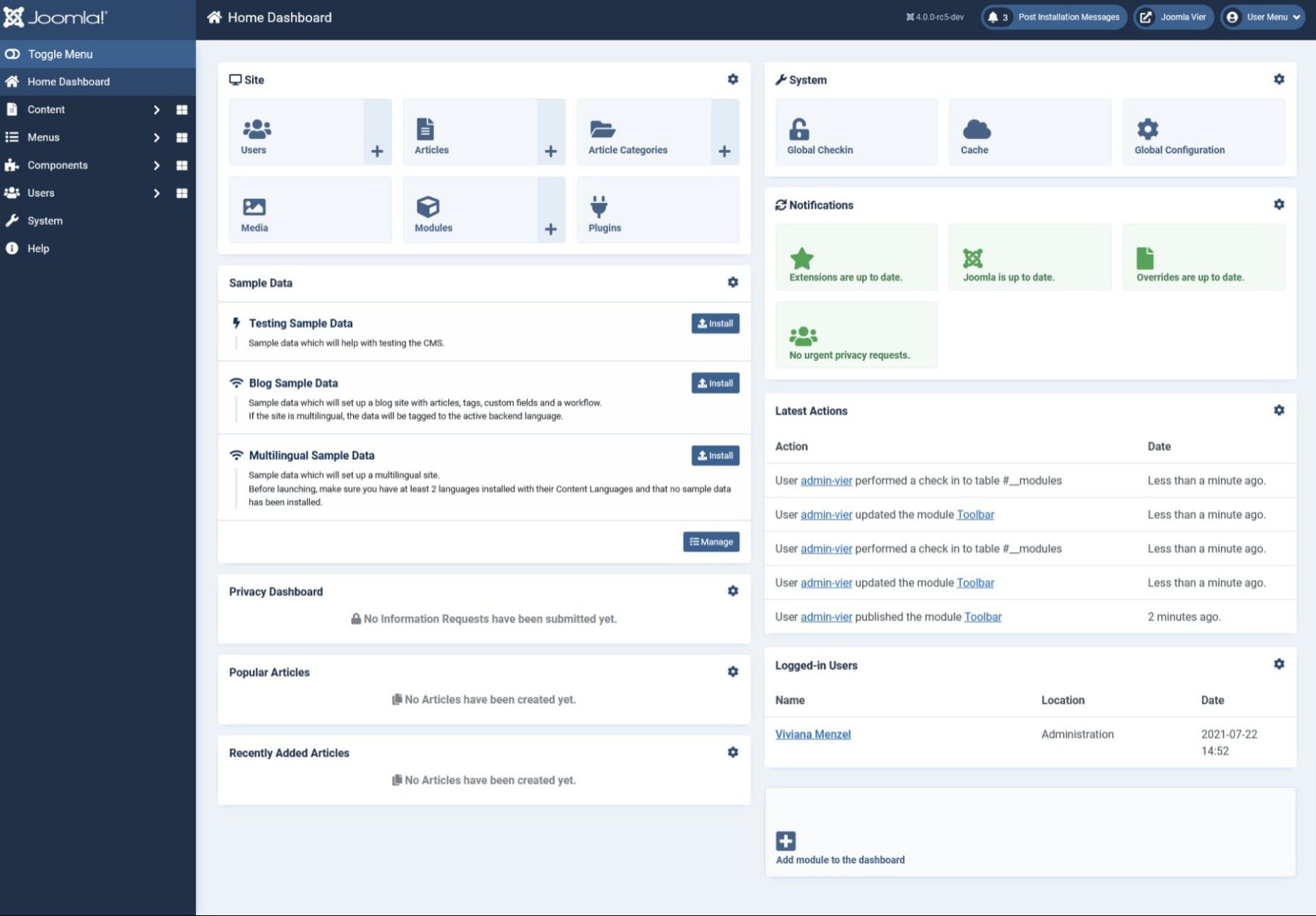
    joomla admin

    Additionally, on installation, you will be asked if you would like to import blog sample data. We recommend that you do. That’s where you will find most of the new-user orientation material set up as content on your new site.

    joomla content

    Having any new-user content being an optional import as sample data is just weird. It is not an intuitive way to introduce someone to the Joomla platform. At all. However, the Joomla community has some fantastic training content with which you can learn Joomla.

    With the time we’ve spent learning and exploring Joomla, it never really became smooth and second nature to perform any tasks. The menus in Joomla do make sense (unlike WordPress), but navigating through them is frustrating. You can’t click a new menu item until you’ve closed the current one.

    All-in-all, Joomla’s not that easy to use. It is developer-friendly, for sure, but not end-user friendly at all.

    Ease-of-Use Comparison

    WordPress
    Ease-of-Use 🏳 Draw

    WordPress is relatively easy to use and most users will be acclimated within just a few minutes. However, the advanced features will take much longer to master.

    🏳 Draw

    Joomla’s primary focus is on more advanced technical user, so it has a larger learning curve.

    Choose WordPress Choose Joomla

    WordPress vs. Joomla: Customization

    WordPress thrives on customization. Extensibility via plugins and themes allows for unlimited choices in terms of design and feature sets. Even a user with no technical experience can start a WordPress website and have it look more or less professional without a lot of hassle. Joomla, too, is built around customization. But not for the end-user. If you’re a content creator or site owner without a great deal of technical expertise or design experience, Joomla’s customization options may be both confusing and near-impossible to decode.

    WordPress

    Through plugins and themes, WordPress can be whatever you need it to be. You can add e-commerce features with a few clicks. You can install a new page-builder tool for more advanced options over the Gutenberg editor. And each theme you install comes with its own unique set of customization options. Most of the time, these are consolidated into the built-in Theme Customizer.

    wordpress customize

    Users with more advanced skills can add CSS through this page, or they can delve into the core WordPress files and edit the PHP directly. The file structure is designed so that any customizations are held separately in a child theme so that the base you’re customizing is always there to go back to.

    In that way (and many others), WordPress encourages poking and prodding and seeing what is the best fit for your site. Try on different themes, widgets, and plugins to add features and design to see what works and what doesn’t. Resetting things back to as they were only taking a few clicks, regardless.

    Joomla

    Joomla is also an incredibly customizable platform. It, too, has hundreds of templates and themes, and extensions to install to customize your site. You can download them from the official Joomla repo that is directly accessible from the dashboard. Both design and functionality add-ons can be found in the same place, separated by category.

    joomla customization

    Installing them doesn’t take more than a few clicks. You can then navigate back to the admin dashboard to enable and adjust their settings.

    And while you do have every bit as much freedom as you do in WordPress, the Joomla options and customizations are generally less user-friendly and more complicated to get right. Placing them on the site often has you choosing a “position” number that has no human-readable name. With that and because of how the content on the site is displayed, it takes some real time to get things displayed where you want. Not to mention actually testing and implementing features and utilities.

    Joomla has a ton of power under the hood, and you can customize it however you want. But you will definitely work for it using Joomla vs. WordPress.

    Customization Comparison

    WordPress
    Customization 🥇 Winner
    You can’t really compare to WordPress when it comes to customization. It’s what they’ve built their platform on and it requires little technical knowledge to integrate.
    Joomla has a lot going for it in terms of customizability. But, it takes more technical experience to fully take advantage of the options available.
    Choose WordPress Choose Joomla

    WordPress vs. Joomla: Publishing

    The internet is about content. And your website is about displaying your content. So we have to touch on what your experience will be in terms of content creation and publishing using WordPress vs. Joomla.

    WordPress is a blogging platform at heart. It’s built to win this head-to-head from the beginning. It’s simple and intuitive. Anyone can publish to their site’s feed without hassle or add a static page just as easily. Joomla, on the other hand, isn’t made solely for publishing regular content. And it shows. Every page, post, and note on your Joomla site is contained under the header of Articles. This kind of obfuscates the publishing process enough that it’s just not a pleasant experience.

    WordPress

    WordPress 5.0 introduced the block editor. Replacing the classic WYSIWYG editor, content creators can now control options and settings for every paragraph (even sentence if they so choose), image, gallery, or embed on the site. While the block editor is not everyone in the WordPress community’s favorite new feature, the interface is slick, simple, and new and old users tend to like using it to create content. Both in terms of blog posts and static pages.

    wordpress editor

    With various post types delineated in function and separated within the interface, it’s easy to understand what you’re creating and how to use it. Posts are for regular content. Pages are for static content that won’t enter the feed. You can use Custom Post Types to add features like Products to plugins like WooCommerce.

    The entire process is simple and understandable within WordPress itself. The Add New button under Posts brings you to the editor, in which the placeholder text explains what to do, and a big, blue Publish button sits up top. In that same window, you have the option to adjust that content’s permalink and meta information.

    Joomla

    In Joomla, creating content is technically as easy as it is in WordPress. The publishing editor Joomla uses is TinyMCE, which is the same editor that WordPress used until version 5.0. So anyone with familiarity there (or with other WYSIWYG editors) will feel right at home.

    Joomla editor

    Like WordPress, you can edit your permalink here (called an Alias in Joomla), tags for your article, whether the article shows up as featured on your site, and various other permissions and options such as access levels and meta-data display.

    One of the more confusing and confounding parts of the Joomla publishing process is that you press the same button (Add New Article) in the header menu to be taken to this same editor to create both regularly updated blog content (such as Posts in WordPress) and static pages (Pages in WP). The Category feature in Joomla is what keeps these separate.

    Depending on the modules and extensions your site has installed (which we mentioned in the Customization section above), the category you choose dictates where this content appears.  And they’re all created and managed from this single tool. This is incredibly powerful. And it’s actually pretty simple. But it’s a headache to use in practice, as setting up a site with the right categories to match all the content to match all the modules is not as simple as, for instance, WordPress taxonomies.

    For sites that aren’t publishing regular content (or using a different platform for that), Joomla’s publishing tools may be just what you need to keep things organized.

    Publishing Comparison

    WordPress
    Publishing 🥇 Winner
    WordPress is built for bloggers and content creators to publish their work quickly. Their interface is tried and true.
    Joomla’s main goal isn’t centered around writing, so it’s no wonder that their publishing work flow isn’t as well-rounded as WordPress. Still, once you get used to it, it’s not a bad solution.
    Choose WordPress Choose Joomla

    The Verdict

    In the end, we feel that WordPress vs. Joomla comes down to the tech experience of the end user and what kind of site they need. For new site owners with no website experience, WordPress is by far the winner of this head-to-head. It does everything, and the learning curve is much lower. Plus, the ecosystem and third-party support are phenomenal. Everyone, from new users to veteran developers, can dig into WordPress and find their niche.

    Final Comparison

    WordPress
    Ease-of-Use 🏳 Draw

    WordPress is relatively easy to use and most users will be acclimated within just a few minutes. However, the advanced features will take much longer to master.

    🏳 Draw

    Joomla’s primary focus is on more advanced technical user, so it has a larger learning curve.

    Customization 🥇 Winner
    You can’t really compare to WordPress when it comes to customization. It’s what they’ve built their platform on and it requires little technical knowledge to integrate.
    Joomla has a lot going for it in terms of customizability. But, it takes more technical experience to fully take advantage of the options available.
    Publishing 🥇 Winner
    WordPress is built for bloggers and content creators to publish their work quickly. Their interface is tried and true.
    Joomla’s main goal isn’t centered around writing, so it’s no wonder that their publishing work flow isn’t as well-rounded as WordPress. Still, once you get used to it, it’s not a bad solution.
    Choose WordPress Choose Joomla

    Joomla, on the other hand, caters very heavily to the experienced developer. Nowhere near as user-friendly as WordPress, Joomla gives you complete control over the entirety of your site. And it does so in the standard way, not the “WordPress Way.” For someone coming out of a boot camp or computer science program, Joomla may be where you feel more comfortable because it is definitely a more utilitarian platform. For content creators who will be using it daily to push out news or blogs, Joomla isn’t the best. But for sites not using it to create new content and run by developers, Joomla has a lot to offer. If you can find out how to do it.

    WordPress Deep Dive

    One more thing. Before you make your final decision on your website platform…are you curious to see how WordPress stacks up against its other biggest competitors? We did the hard work and compared WordPress vs. everything else so that you don’t have to! One of the comparisons we’ve done is WordPress vs. Drupal, and I think you will be interested to see the results.

    If you’re looking for specific plugins to help WordPress become even more powerful, we recommend the following:

    What have been your experiences with WordPress vs. Joomla?

    The post WordPress vs Joomla (2023) — Which is Better? appeared first on Elegant Themes Blog.

  • WooCommerce vs Adobe Commerce (2023) — Let’s Compare

    WooCommerce and Adobe Commerce are two popular e-commerce platforms available today. They both have their unique strengths and are suitable for different needs. While WooCommerce is a plugin for WordPress, Adobe Commerce is a standalone product, formerly known as Magento. They are supported by their strong communities, with WordPress users favoring WooCommerce and Adobe advocates supporting Magento. In this post, we’ll compare WooCommerce vs Adobe Commerce to help you decide which platform is best for your business.

    Similarities of WooCommerce vs Adobe Commerce

    WooCommerce and Adobe Commerce are both open-source products, meaning that the original code is freely available for anyone to modify or build on to create a customized product. The vast communities that support these products are due in part to the culture of sharing that open-source software fosters.

    One of the reasons WooCommerce and Adobe Commerce have such large communities is that open-source software creates an appreciation of sharing. Developers go on to share their versions of the open-source software to carry on this aspect of giving.

    WooCommerce community

    As a new business owner, using open-source products like WooCommerce or Adobe Commerce means that you can take advantage of a free initial product and the support of a large community. However, it’s worth noting that with Adobe Commerce, unless you’re willing to pay a high price or use a hosting provider with one-click installs, you’ll need a good understanding of command-line installation and coding to get the platform up and running. This is not the case with WooCommerce, which is a plugin for WordPress and can be easily installed with a few clicks.

    How Easy is Set Up and Use?

    Starting an e-commerce business can come with its own set of challenges, but you don’t want the platform you choose to be one of them. If you’re already using WordPress and want to add e-commerce functionality to your site, it makes sense to choose the WooCommerce plugin. This way, you won’t have to get used to a new interface or migrate your site to another platform.

    However, when comparing WooCommerce vs Adobe Commerce, one important factor to consider is the ease of use. While WooCommerce is easy to install and set up, Adobe Commerce may require more technical knowledge and experience, particularly when it comes to customization and advanced functionality. It’s important to evaluate your skill level and the needs of your business to determine which platform is the right fit for you.

    WooCommerce Set Up

    WooCommerce documentation

    WooCommerce is a great option for beginners, even if you don’t have a WordPress site yet. This is because WordPress is very user-friendly and WooCommerce is an extension of it. There are numerous plugins available for customization through WordPress, including options from Yith and other providers. In addition, WooCommerce provides extensive documentation to help with the setup process.

    Adobe Commerce Set Up

    Adobe Commerce e-commerce platform

    Adobe Commerce, being built on Magento, requires web development knowledge to get started. Like WordPress, it requires a hosting environment built on Apache or Nginx, as well as PHP and MySql. However, to install Magento, you’ll need to either use the command line interface, which may be overwhelming and frustrating for beginners, or research hosting providers that simplify the process.

    Once set up, Magento’s interface is user-friendly and supported by tutorial videos and documentation. It also includes a full installation wizard. However, adding extensions to your site can be challenging, and may require the expertise of a Magento-specialist developer or personal effort.

    Therefore, when it comes to ease of use, WooCommerce vs Adobe Commerce is the clear winner.

    WordPress Adobe Commerce
    Ease of Use 🥇 Winner

    WooCommerce is as simple to set up as WordPress, with a simple walk though set up wizard.

    Unless you have strong dev skills or a host that offers set up, Adobe Commerce is difficult to install, requiring command line interface.
    Choose WordPress Choose Adobe Commerce

    What are the Associated Costs of WooCommerce vs Adobe Commerce?

    Both e-commerce platforms are free to download and start building your shop but to grow your business, you may need more payment options beyond PayPal and bank transfers, which can cost additional fees.

    WooCommerce

    WooCommerce extensions

    WooCommerce has limited basic options, so you need to buy plugins and extensions, which can add up. There are many options available, including some free ones, but if you want a unique shop, you’ll need to spend money or do some coding.

    Divi by Elegant Themes

    Thanks to themes like Divi, creating a beautiful online store is easy using the Visual Builder to customize colors, fonts, and more. You can find some great child themes through the Divi Marketplace, such as Divi Ecommerce, which provides everything you need for a stunning online shop that can be set up in a matter of minutes.

    Adobe Commerce

    With Adobe Commerce, you’ll find it necessary to add extensions to both e-commerce platforms, which will require additional costs as your business grows. While WooCommerce offers a wide selection of free and paid plugins, Adobe Commerce’s extensions are pricier, and you’ll need a Magento specialist to install them correctly. Additionally, finding a Magento developer is harder than finding WordPress developers.

    Overall, WordPress is more user-friendly and easier for individuals with varying levels of experience, while Magento would require more time and expertise to set up and manage.

    Hosting Considerations

    When it comes to hosting, it’s important to consider that while WooCommerce can run on WordPress hosting, Adobe Commerce requires more advanced hosting options like dedicated servers or cloud plans. Cloudways is a recommended provider for Magento users, and their one-click install makes it easy to set up your website. If your product portfolio grows, you may need to upgrade your hosting to ensure your website runs smoothly.

    When deciding between WooCommerce vs Adobe Commerce, it’s important to consider your long-term goals and budget. While the initial costs of setting up both platforms are low, it’s important to think about your future needs. Do you require the advanced features of Adobe Commerce, or will WooCommerce suffice? If you anticipate needing those features, it may be worth investing more money upfront rather than having to migrate your site to Adobe Commerce later on. Keep in mind that Adobe Commerce hosting plans are expensive, costing over $1000 per month. However, if you’re a large company with the budget to invest in it, it could be a wise choice.

    WordPress Adobe Commerce
    Associated Costs 🏳 Draw

    WooCommerce can get pricey depending on how customized you want your online shop to be.

    🏳 Draw

    Adobe Commerce (Magento) is free, but installing extensions is expensive and may required developer assistance.

    Choose WordPress Choose Adobe Commerce

    Which is Better for Customization?

    Both WooCommerce and Adobe Commerce offer various customization options, but the level of customization needed will depend on your specific needs and preferences. For instance, to customize your website’s branding, you’ll need to unlock this ability through plugins or a developer’s time. It’s worth noting that being able to customize your site is only possible because both WooCommerce and Adobe Commerce are self-hosted.

    On the other hand, hosted solutions like Shopify allow you to quickly build an online store, but customization options are limited. Therefore, WooCommerce and Adobe Commerce are excellent options if you want to make your e-commerce shop truly unique.

    Additionally, when comparing WooCommerce vs Adobe Commerce, both platforms offer extensive customization options that allow you to tailor your online store to your specific needs. The level of customization required, however, may differ depending on which platform you choose.

    WooCommerce

    WooCommerce vs Adobe Commerce themes

    WooCommerce has many themes, both free and paid, that let you customize your site’s appearance. You can also find themes made by third-party developers, like Elegant Themes and Elementor, that are compatible with WooCommerce.

    WooCommerce supports various custom plugins, including payment and shipping provider plugins like Printify, to enhance its functionality. Developers can also use custom code and APIs to build custom integrations with third-party applications.

    Adobe Commerce

    Magento Marketplace

    Like WooCommerce, Adobe Commerce offers a variety of free and premium themes to customize your online store’s appearance. However, unlike WordPress, most of these themes are created by third-party vendors rather than Adobe itself. Additionally, the Magento Marketplace provides access to over 5,000 extensions that can enhance the functionality and appearance of your store. It’s worth noting that customization on Adobe Commerce may require more technical skill than it does on WooCommerce.

    Furthermore, with code customization, you can achieve incredible things on Adobe Commerce. Creating custom modules, extensions, and themes can add a unique flair to your online store.

    WordPress Adobe Commerce
    Customization 🥇 Winner

    With so many third-party plugins and child themes available, there are no limits to customization with WooCommerce.

    While there are extensions and themes available, they are expensive and time-consuming. Therefore, most will opt for the simple look and feel of a basic Adobe Commerce site.
    Choose WordPress Choose Adobe Commerce

    Comparing Features

    With any e-commerce platform, you’ll need a shopping cart and the ability to upload and categorize products. You get these basic features with WooCommerce and Adobe Commerce. When comparing WooCommerce vs Adobe Commerce, which has more features to offer?

    WooCommerce

    WooCommerce is user-friendly and has basic built-in features like ratings and widgets, but advanced features need add-ons. It can also work with other WordPress plugins. The navigation is not as advanced as Adobe Commerce’s as it only allows filtering by one attribute.

    WooCommerce features

    WooCommerce offers easy-to-manage extensions through WordPress plugins, some of which are free. Popular examples include Rank Math for search engine optimization, Askimet for spam filtering, and Gravity forms for creating forms.

    Adobe Commerce

    Adobe Commerce offers cross-selling, up-selling, product comparison, discount codes, and advanced filters, making it a winner in this area. It also allows you to view multiple stores on the same account, which is useful for creating localized versions of your store.

    Google Analytics Integration

    Adobe Commerce and WooCommerce provide Google Analytics for business success assessment and product portfolio strategy. However, when it comes to features, Adobe Commerce has the better basic features, but you’ll need to invest more to improve your site.

    WordPress Adobe Commerce
    Features 🏳 Draw

    WooCommerce offers plugins, custom code capabilities, and Google Analytics integration.

    🏳 Draw

    Adobe Commerce has advanced features for cross-selling, product comparisons, and discount codes right out of the box.

    Choose WordPress Choose Adobe Commerce

    WooCommerce and Adobe Commerce Alternatives

    Consider Shopify if you want an easy-to-use online store without many customization options. However, if you want more control over the looks of your store, you should check out our WordPress vs Squarespace comparison.

    WooCommerce vs Adobe Commerce: The Verdict

    Adobe Commerce is a preferred choice for larger businesses or agencies that manage e-commerce sites for their clients. It’s scalable, making it perfect for those with grand plans or an already successful online store. Adobe Commerce offers a few more basic features, and the extensions are excellent once they are installed by a developer. However, it’s worth noting that setting up this kind of store requires a significant budget.

    Final Comparison

    WooCommerce is a great choice for small businesses and those with limited development experience. As your business grows, add plugins like Rank Math and Yith to enhance customer experience on this platform with basic e-commerce functionality. WooCommerce is a simple way to sell products on your website if you’re familiar with WordPress or have an existing domain.

    WordPress Adobe Commerce
    Ease of Use 🥇 Winner

    WooCommerce is as simple to set up as WordPress, with a simple walk though set up wizard.

    Unless you have strong dev skills or a host that offers set up, Adobe Commerce is difficult to install, requiring command line interface.
    Associated Costs 🏳 Draw

    WooCommerce can get pricey depending on how customized you want your online shop to be.

    🏳 Draw

    Adobe Commerce (Magento) is free, but installing extension is expensive and may required developer assistance.

    Customization 🥇 Winner

    With so many third-party plugins and child themes available, there are no limits to customization with WooCommerce.

    While there are extensions and themes available, they are expensive and time-consuming. Therefore, most will opt for the simple look and feel of a basic Adobe Commerce site.
    Features 🏳 Draw

    WooCommerce offers plugins, custom code capabilities, and Google Analytics integration.

    🏳 Draw

    Adobe Commerce has advanced features for cross-selling, product comparisons, and discount codes right out of the box.

    Choose WordPress Choose Adobe Commerce

    WooCommerce’s integration with WordPress can benefit those familiar with the platform. Ultimately, the choice between WooCommerce vs Adobe Commerce comes down to the specific needs of your business and your budget.

    Article thumbnail image by IdeaGU / shutterstock.com 

    The post WooCommerce vs Adobe Commerce (2023) — Let’s Compare appeared first on Elegant Themes Blog.

  • WordPress vs Blogger (2023) — What Are The Key Differences?

    Blogging isn’t what it used to be. When WordPress and Blogger both started out, most people saw blogging as an online journal of personal thoughts. MySpace blogs were the rage, and Google apps weren’t nearly as ubiquitous as they are now (or advanced). Fast forward a couple of decades, and blogs have gained legitimacy and become a major part of marketing for brands and individuals. With that in mind, we want to take a look at the current state of two leading blog platforms–WordPress vs. Blogger–to see which is the better option for you.

    WordPress vs. Blogger: Who Are They For?

    WordPress comes in two varieties: .com and .org. The .com version is a hosted SaaS (software as a service) platform with a popular free option, while .org is the open-source, self-hosted version where you handle and control things yourself. That choice is indicative of the freedom that WordPress offers; whatever kind of website you need or want, you can build it with WordPress. If you need a full e-commerce website to sell your products? Done. WooCommerce has you covered. Membership site? Yep. Personal blog? Of course. Want to monetize? No limits.

    On basically anything. WordPress has evolved into a fully developed CMS (content management system) that has options for any and all kinds of websites. WordPress does its best to be everything for everyone, even if that takes a bit of tweaking and customization.

    Blogger has far more akin to WordPress.com than .org, being a free service from Google that, like everything else from Google, Blogger is hosted and managed within your Google account. The first major difference that you will note with Blogger is that it’s not a full CMS. It is definitely blogging software (as per the name). You won’t be running a shop from Blogger or managing an online course or school. But for those looking to create content and get it out to their audience relatively seamlessly, Blogger works great.

    Writing Comparison

    Given that Blogger is primarily a blogging platform, we are going to focus on the features that most closely go head-to-head. WordPress vs. Blogger would be an unfair competition if we were comparing e-commerce and CMS features, but as blogging platforms for content creators, it’s a much more even playing field.

    Writing in WordPress

    WP got a new page and post editor in version 5.0. Called Gutenberg, the new block editor is a pseudo-page builder where each paragraph and element are individual blocks that can be placed, rearranged, and styled individually. This is a big departure from the previous editor, which was a traditional WYSIWYG (like Blogger is).

    wordpress block editor

    In terms of user experience, writing in the Gutenberg block editor is fast and smooth. You get options for each block as well as the overall post itself. Plus, you get access to individual blocks for different elements, such as videos, Spotify playlists, rows, and Twitter threads.

    If you’re not a designer, you can totally use Gutenberg to lay out your site and customize your theme. Though, if you want full site editing capabilities, you’re going to want to grab a page-builder theme or plugin like Divi.

    Overall, if you’re going to use WordPress as a blogging platform, the content creation experience has never been better.

    Writing in Blogger

    While Blogger’s user interface has evolved over the years, if you’ve ever used the platform before, it will still be familiar to you. Or if you’ve ever used Microsoft Word. Or Google Docs. The post editor for Blogger is a traditional WYSIWYG document.

    wordpress vs blogger editor

    You can create engaging content with no hassle using Blogger. If that’s what you’re looking for, this platform has you covered. In the right sidebar, you can adjust various options for the post. You can change the permalink and date, apply labels (Blogger’s form of Tags on WordPress), and allow/disallow comments.

    But other than that, you’re locked into what you see. There aren’t options for “featured images” or “excerpts/meta descriptions” because Blogger tends to pull the first image in the post to feature and the first part of the post as the excerpt (like the WordPress default, so that part is the same).

    wordpress vs blogger post appearance

    In general, writing posts in Blogger is painless and easy, and straightforward. You don’t get nearly the customization options that you do in WordPress these days. For pure blogging and content creation, though, it’s fast, intuitive,  and stable. You can’t ask for a lot more than that when writing.

    WordPress Blogger
    Writing 🏳️ Draw
    The WordPress block editor is intuitive and will let you get writing immediatly.
    🏳️ Draw
    Blogger comes with a standard word editor that will be familiar to most users.
    Choose WordPress Choose Blogger

    Who’s the King of Customization?

    Anyone who has ever started a blog has probably switched themes and layouts half a dozen times. Finding just the right look for your site is important, and both of these platforms give you some level of customization options (unlike something like Medium).

    Customizing WordPress

    At the heart of WordPress is the idea that you have complete control over every aspect of your site. From features to design, if you want to customize it, you can. This is done with a robust theme and plugin system based on PHP, HTML, and CSS, where you can simply create anything you want to extend and customize WordPress.

    You don’t have to be a coder to take advantage of this, though. The WordPress.org theme and plugin repositories contain a plethora of free options for WordPress users.

    wordpress theme repository

    There is also a huge industry based entirely around premium WordPress themes like Divi, and plugins, so if you can’t find just the right thing on the repos, and you can’t code it yourself, there’s most likely a developer who has already created the theme or plugin themselves.

    The specific customizations depend entirely on your theme and plugin combination, but WordPress has a built-in Theme Customizer that developers can tie into so that you can poke and prod at not only the WordPress defaults but the theme features and designs as well. In addition, WordPress lets you use custom CSS (handily through the Theme Customizer itself) so that you won’t have to deal with custom.css files.

    theme customizer

    And none of that even touches on the site settings you can customize, from user roles, permalinks, comment structure, menus and navigation, taxonomies, and even custom post types to make organizing your content easier.

    Customizing Blogger

    Here’s the biggest hit to Blogger of them all. It’s barely customizable. Sure, it’s a lot more customizable than a site like Substack or Medium, but that’s not saying a lot. Blogger is a no-frills blogging platform, but you can still do a little to make your corner of the internet a little cozier.

    wordpress vs blogger themes

    Blogger also has a theme repository, but it isn’t nearly as robust as WP’s. In general, you will find a few designs (such as the one called Contempo in the image above) and then palette variations of it. While there are choices, those choices are limited to only 12 different themes at the time of this writing (though the color variants increase that number significantly).

    When the theme is installed, you can also customize how it will look by adding menus, gadgets (Blogger’s version of what WordPress calls widgets), and adjusting colors, fonts, and content spacing. But that’s really it.

    You do have the option of adding custom CSS in the Blogger theme customizer. And, if you choose, you can always write up a theme in HTML or adjust the HTML of the one you install from the provided list.

    You can make some very aesthetically pleasing blogs using this platform, for sure. But there’s not nearly the support for customization as in WordPress, and writing a theme in HTML isn’t something most people can or will do (but that’s still easier than writing a WordPress theme in PHP, so there’s that).

    Blogger also has a layout editor, which works similarly to a WP page-builder plugin, but it is pretty limited.

    wordpress vs blogger

    You can drag elements from your theme around to new places, choose ad locations, and adjust other basic options. But you can’t actually design the page.

    WordPress Blogger
    Customization 🥇 Winner
    WordPress gives you complete control of all aspects of your site.
    Blogger is barely customizable, you can adjust the layout of your blog, but not much else.
    Choose WordPress Choose Blogger

    Which Platform Has Superior Integrations?

    A blog isn’t an island. The internet is a connected ecosystem of APIs and services talking back and forth, and your blog is going to be part of that. Considering that, we’re going to take a look at how WordPress vs. Blogger handles connecting to external services such as CRMs, advertising networks, and analytics tools.

    WordPress Integrations

    Because of the customization possible in WordPress, connecting to external services is a breeze. The platform is designed from the ground up to be used this way. You can search the repository and find hundreds of plugins that help you connect things like HubSpot to your site, MailChimp to WooCommerce, WordPress posts to Zapier, podcast players to your RSS feed, ad networks to the right places in your pages, and so on.

    Additionally, themes often have their own places to insert code so that you don’t have to dig into PHP files. Divi, for instance, has an Integration tab in its theme options where you can add any header, footer, or body code that you may have. Such as Facebook pixels, AdSense code, Pinterest buttons, site verification scripts, and whatever else.

    wordpress vs blogger integrations

    Because WordPress is an open-source project that is designed for freedom, you won’t be limited in what apps and integrations you can use. The integrations themselves might charge a fee or not support WordPress, but as a platform, WP is neutral. You can choose to use a plugin for Amazon affiliate links, set up a WooCommerce membership site, use Taboola ads, and plaster your site with Patreon and use plugins for donations and pledges. Whatever you want to associate with your site is your choice. And there’s probably already a way to make it happen.

    Blogger Integrations

    Blogger is the exact opposite of WordPress in this regard. But don’t let us scare you away by saying that. Blogger is a Google product, so by policy and tradition, you’re going to be locked into the Google ecosystem. That’s just the way it is. As we said above, Blogger sites are tied to a Google account.

    google analytics on blogger

    Similarly, analytics and site stats are integrated with (and limited to) Google Analytics. More than likely, you’ll be using GA anyway, so this isn’t a huge deal. Same for Google AdSense. If you want to run ads on your site, Blogger requires that you use AdSense because it’s a Google product. Same for comments. No Disqus for you. You’re using Blogger comments that can be tied to Google accounts.

    Again, none of this is a bad thing. These pieces of software are excellent and the leaders in what they do for a reason. Well, reasons. One is that they work well, and the other is that they’re owned by Google, and we can’t escape them. The lack of external integrations is only a bad thing if you need those to set up something outside of the straight “blogging” parameters set by Blogger.

    If you want full choice for your site, Blogger is definitely not the way to go. However, if you want easy integrations with apps you’re probably going to be using anyway, it’s great.

    WordPress Blogger
    External Integrations 🥇 Winner
    WordPress lets you connect to external services with ease.
    Blogger has you locked into the Google suite of products.
    Choose WordPress Choose Blogger

    WordPress and Blogger Alternatives

    Still not convinced that one of these platforms is right for you? No worries. We have other comparison posts for you to peruse. Check out WordPress vs Medium or WordPress vs Ghost. If you’re looking for a wider comparison, check out WordPress vs Everything Else to really take a look at all of your options.

    WordPress vs Blogger: The Final Verdict

    It’s hard to compare WordPress vs. Blogger these days because the platforms have evolved to be two very different pieces of software for different people. WordPress is a general CMS now, while Blogger has stayed the course and remains a content creation platform.

    WordPress Blogger
    Writing 🏳️ Draw
    The WordPress block editor is intuitive and will let you get writing immediatly.
    🏳️ Draw
    Blogger comes with a standard word editor that will be familiar to most users.
    Customization 🥇 Winner
    WordPress gives you complete control of all aspects of your site.
    Blogger is barely customizable, you can adjust the layout of your blog, but not much else.
    External Integrations 🥇 Winner
    WordPress lets you connect to external services with ease.
    Blogger has you locked into the Google suite of products.
    Choose WordPress Choose Blogger

    Blogger is an excellent option for those who want a quick-and-easy blog where they can write and post easily within an ecosystem they already know. Site setup is minimal, and there are almost zero barriers to entry. With services such as AdSense and Analytics built-in, you can have a fully operational blog in under 10 minutes. And from there, it just works. It doesn’t feel quite as polished as a publishing platform such as Ghost, but again, that’s offset by it just working.

    WordPress, on the other hand, is an excellent option for people who want more options. Customization is the WP’s claim to fame, and they have certainly earned it. Themes and plugins allow you to do anything you want with your site. From digging into the code itself or just within the dashboard options provided, you can tweak anything at all in WordPress. Under that same umbrella, there is nearly unlimited support in WordPress for external service integration.

    For blogging and writing, WordPress has the more modern experience with the Gutenberg editor, but Blogger’s WYSIWYG is fast and light, and easy to use. It’s a matter of preference, really, as to how you prefer writing your content.

    WordPress Deep Dive

    One more thing. Before you make your final decision on your website platform…are you curious to see how WordPress stacks up against its other biggest competitors? We did the hard work and compared WordPress vs. everything else so that you don’t have to! Most recently, we reviewed WordPress vs. Ghost, and I think you will be interested to see the results.

    If you’re looking for specific plugins to help WordPress become even more powerful, we recommend the following:

    What have been your experiences with WordPress vs. Blogger?

    The post WordPress vs Blogger (2023) — What Are The Key Differences? appeared first on Elegant Themes Blog.

  • WordPress vs Showit (2023) — Which One is Right For You?

    Confused about which website platform to learn and use for your personal and business projects? Both WordPress and Showit offer competitive features, but they are quite different from each other.

    WordPress is a popular CMS that holds up an impressive one-third of the internet. Showit, a drag-and-drop website builder, is a smaller player that has currently garnered over 40,000 customer websites in the last 13 years. Both are unique platforms that provide valuable solutions for website creators.

    Let’s compare how these platforms get a website up and running so you can see which one is right for you.

    WordPress vs. Showit Website Builder: Who are They For?

    WordPress has been and will be a website platform for all types of website owners. Showit is built to be easy to use for those new to website building or who prefer a purely visual, drag-and-drop editing environment from the moment they open an account.

    While the technology people prefer to use (think Mac vs. PC) is largely up to what works for each individual, it does seem like Showit is built for a particular type of customer. These customers tend to need less true customization built into their websites but want an unbridled page design process. And the fact that Showit has a large customer base that appreciates the product is proof enough that they deliver.

    It is worth acknowledging that Showit utilizes WordPress as its blogging platform. So even with Showit websites, if they have a blog, it is built on WordPress.

    With that said, Showit promotes itself to photographers and small businesses. WordPress users create sites ranging from personal blogs to e-commerce powerhouses.

    WordPress vs. Showit: Ease of Use

    Both website-building platforms try to make aspects of building a website dead simple. WordPress makes complex customization as simple as possible. Showit created a platform for users to build websites the way they would a scrapbook or collage. Both approaches solve interesting problems for website creators of all skill levels and experiences.

    WordPress’ Ease of Use

    WordPress requires a hosting environment of some kind to get started. This can be accomplished with a solution as easy as using WordPress.com or as custom and reliable as using WordPress’s first hosting companies. Once a host is picked, and WordPress installed, you may start creating your website.

    WordPress comes with default themes pre-installed and all the basic functions of a true website baked in. You can use the default theme and start off running, or you can search for a theme that gets you closer to an idea you have for your website.

    From there, you can easily change WordPress settings to make sure the website functions as you want it to. After going through basic settings like Permalink Structure, Static vs. Blog Homepage, and Blog Commenting, you can get started on creating your first pages.

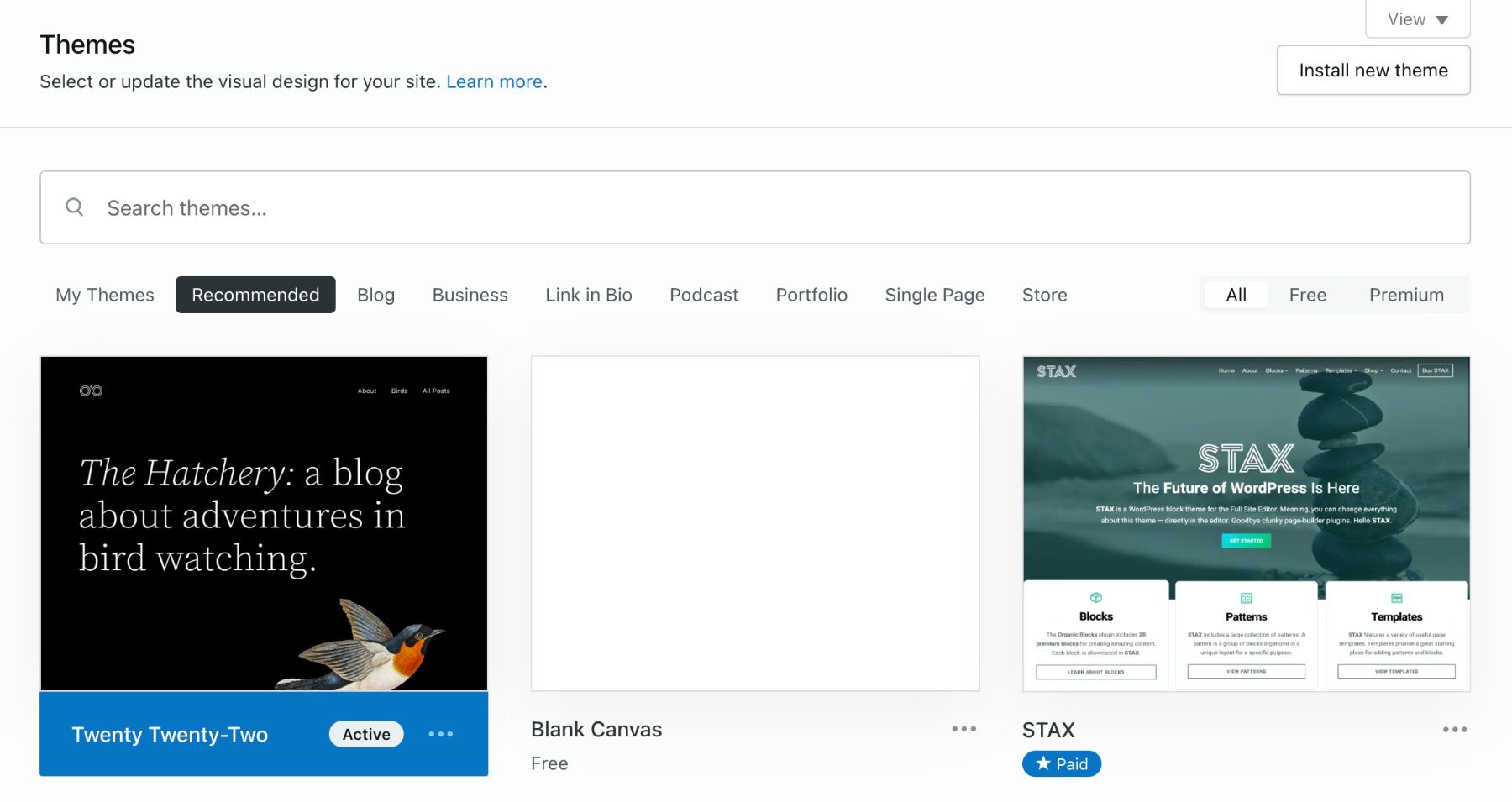
    WordPress Block Theme Repository

    WordPress Editing Tools

    WordPress offers several options to users for creating amazing pages. Built-in is what is known as the Gutenberg Editor. This editor lets you build pages with WordPress Blocks. These work particularly well if you are using a block-based theme for your website.

    There is also the Classic WordPress editing experience that uses the WYSIWYG editor or something like the Divi theme, which is a visual page-building theme built for designers.

    Creating a blog on WordPress is easy since the tools to do so come standard. Simply add a new Post to create your first blog. Your settings will determine what page the blog feed shows up on. Taxonomy is easily customizable by creating categories and assigning posts to them (and tags).

    Showit’s Ease of Use

    Showit employs a visual builder that is about as simple as they come. The page builder reminds us of the Wix editor but is more simple and pared down. This is a welcome change, as even Wix sites are getting confusing to build for the “average website DIYer.”

    Learning the platform is meant to be as easy as possible since it was built for creatives who don’t have coding skills. After creating a Showit account (they offer a 14-day trial), selecting a template, and inputting basic website information, you can start editing your site. On paid plans, they let you publish your website on a custom domain. The hosting, SSL, and site publishing are all done through Showit’s platform with minimal work from you. Showit employs a great onboarding flow for new customers. Prompts to how-to articles guide new users every step of the way.

    Showit Live Chat Support

    Showit’s Built-In Tools

    They offer this support over social channels and Live Chat in the editor itself. Their support team is on the smaller side, and sometimes that means that your chat question can go unanswered for up to one business day.

    Showit has built-in tools for SEO, including:

    • SEO Page Title
    • SEO Meta Description
    • Share Image

    Showit does not have advanced tools for SEO like readability scores, keyword density, or native support for Schema markup. But, it does allow adding custom Javascript, CSS, and HTML to individual pages and site-wide. This lets you use tools like Google Analytics, Search Console, and Optimize if you wish.

    One downside to Showit’s ease of use is that they recommend only using Google’s Chrome browser for full compatibility. While this is a popular browser, it is limiting for those using Firefox, Safari, and others. You will have to use Chrome to use Showit.

    Showit Section Layers

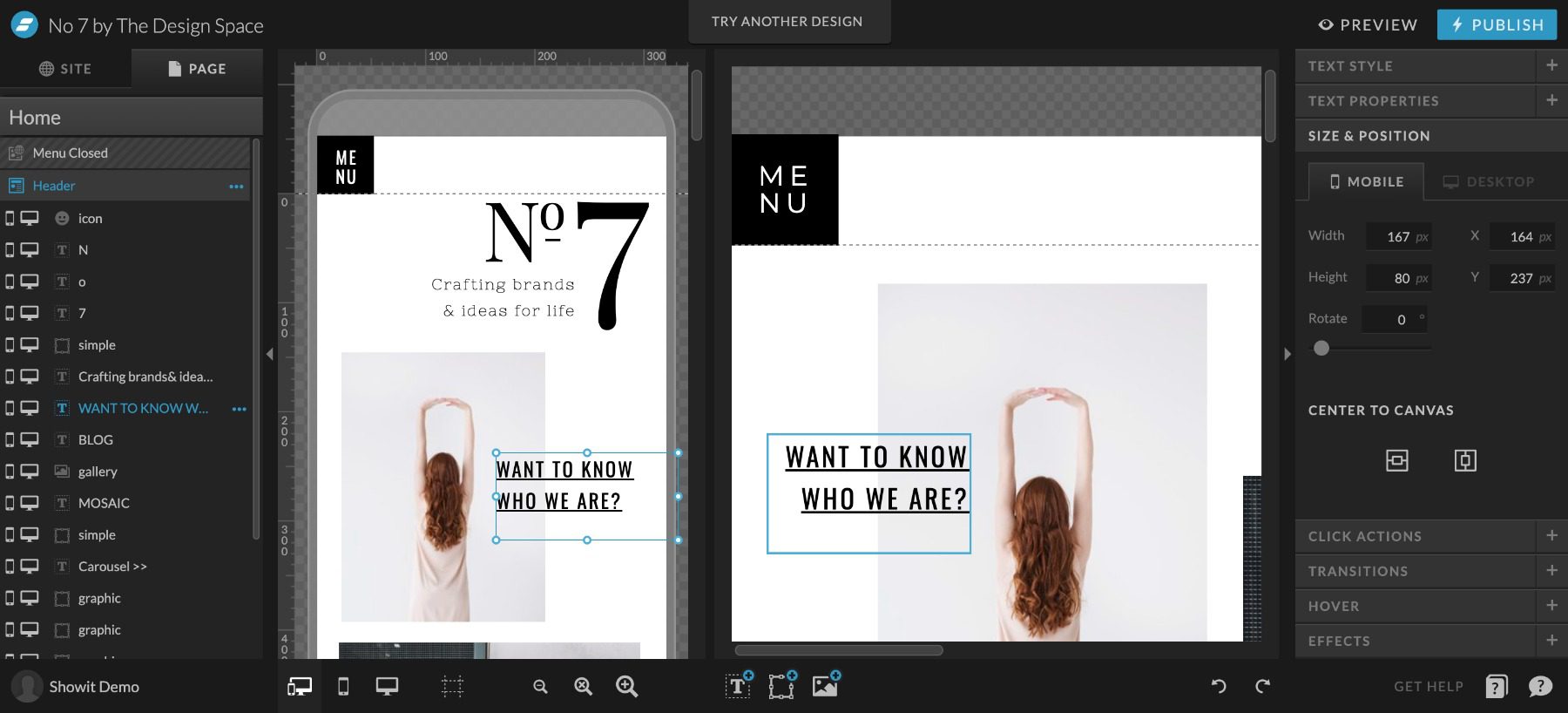
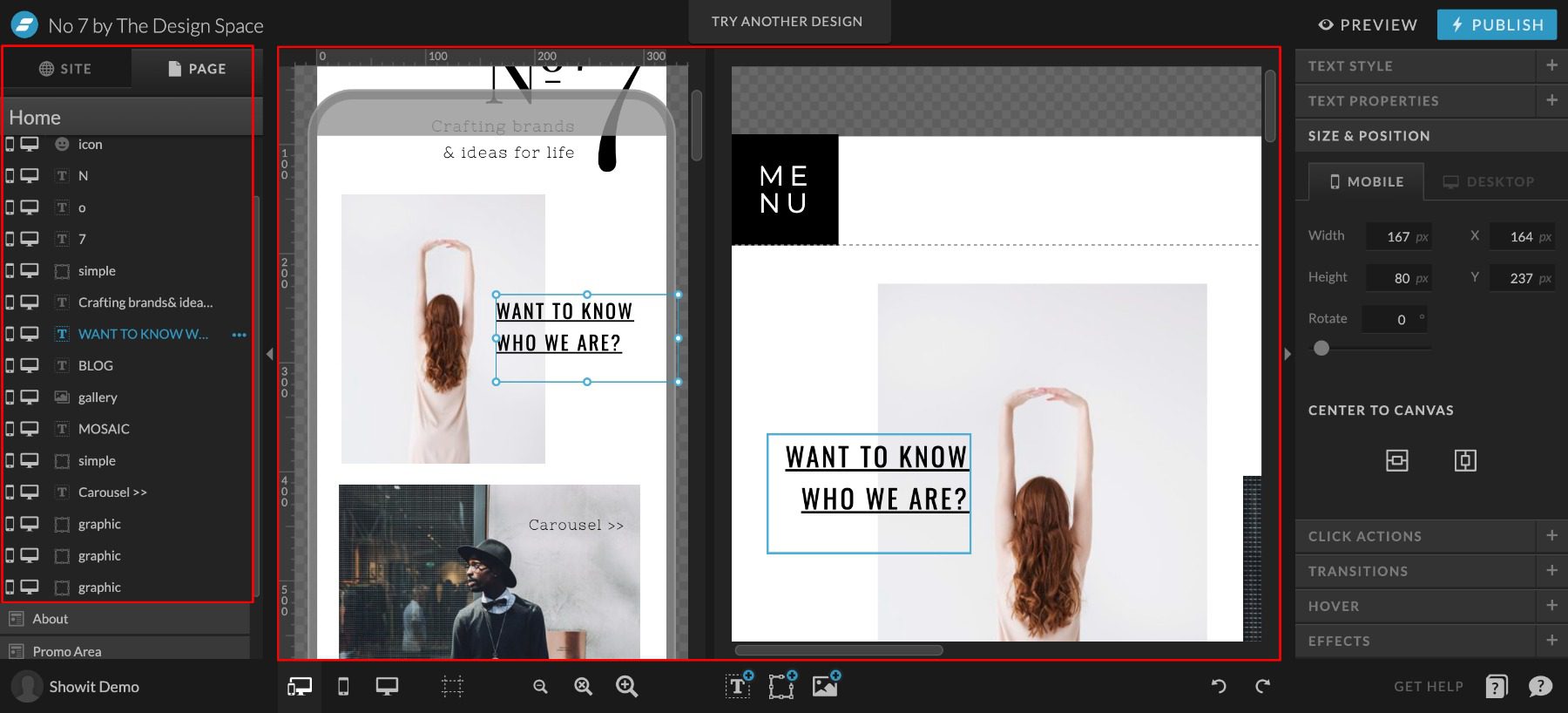
    Assuming you are on Google Chrome, editing the entire website is simple. Pages are easy to jump-to to edit page-wide settings. Once on a particular page, you can edit section settings or click on individual elements to edit or move them on the page. Elements within a section present themselves like layers in photoshop for an easy view of the content within each section. Showit lets you see both desktop and mobile versions of your page at once. It also sports a dark mode that many people will appreciate.

    WordPress Weebly
    Ease of Use Figuring out the interface can be a challenge and will definitely take some getting used to. 🥇 Winner
    It’s incredibly simple, but requires you to use Google Chrome.
    Choose WordPress Choose Showit

    WordPress vs. Showit: Customization

    Customization is an important aspect of any website platform. Usually, the deciding factor is going to be the extent of the web builder’s functionality. WordPress offers a wide variety of complex customization, while Showit offers less complexity to free up the design process.

    WordPress Website Customization

    Customization is a huge upside for WordPress. Many people think that WordPress is only customizable via custom code. While WordPress does offer a lot if you know CSS, PHP, or Javascript—you don’t need to plumb the depths of front-end web coding to get the benefits of WordPress’ customization.

    WordPress' Plugin Repository

    With WordPress, the primary mode of customization is through finding the right combination of themes and plugins. This requires research and testing, but you usually come out with a unique and custom solution. WordPress has a repository of an unthinkable 59K+ free plugins. Even more premium themes/plugins offer advanced features and helpful customer support.

    Popular WordPress Plugins and their Uses:

    The wonderful thing about WordPress is that every aspect is customizable. Your desire, skill, and imagination are the only limits.

    Showit Website Customization

    Showit is a website builder that offers an easy drag-and-drop interface. Its visual builder helps beginners create their own websites without any coding knowledge. In the eyes of many Showit users, this visual builder equals customization.

    Showit customization

    Customization with Showit is different than with WordPress. It is a closed system which means only official feature releases extend Showit’s website capabilities. The only caveat to that is with the highest-tiered pricing plan. This allows for an attached WordPress installation to the Showit website. On this pricing tier only, Showit will allow WordPress to extend the functionality of the WordPress side of the website. These plugins do not affect the main pages of the Showit website.

    WordPress Weebly
    Customization 🥇 Winner
    Customization is where WordPress has no equals. It has tons of options regardless of technical experience.
    Showit seeks to be a simple solution—and because of that, they don’t offer a ton of customization
    Choose WordPress Choose Showit

    WordPress vs. Showit: Themes and Templates

    WordPress and Showit both have a deep cache of theme and template options. How they handle those are different, but both platforms help website creators start strong.

    WordPress Themes and Templates

    WordPress has traditionally relied on themes to mandate the look of a website but also the functionality. Currently, WordPress offers thousands of free themes that should get any WordPress user started on the right foot.

    WordPress Theme Repository - Free Themes

    For those wanting a more custom approach and a visual building UI, Page Building themes/plugins like Divi bring hundreds of templates into an endlessly customizable drag-and-drop interface. This brings the customization of WordPress to any easy-to-use design workflow.

    Showit Templates

    Showit Templates are purely used for page design. They do not bring any other functionality to Showit’s feature set. Showit templates give website creators a head start in the design process.

    Free Themes for Showit Websites

    This is helpful for people as they already know they don’t need a ton of features (Showit’s primary users are photographers). Since templates don’t add more features that require more training, they can simply pick a theme and start editing it to suit their needs.

    Showit Premium Themes - Expensive

    There are several free templates to choose from. There is also a robust ecosystem of paid templates for sale. Something that would shock an average WordPress user is the price tag on many of these premium templates. The average template in their store is well over $500. WordPress commonly has themes from $49 to $200, with most on the lower end.

    WordPress Weebly
    Themes and Templates 🥇 Winner
    WordPress has thousands of themes and a ton of great free options.
    Showit has themes that provide aesthetics but no new functionality, plus they don’t have nearly as many free themes.
    Choose WordPress Choose Showit

    WordPress vs. Showit: Publishing Tools

    The publishing tools comparison gets murky here. Showit uses WordPress for the blogging infrastructure, which means that everything is the same when it comes to blogging features.

    There are unique traits to each outside these couple of similarities.

    WordPress Publishing Tools

    WordPress allows you to build and publish web pages and blog posts and has the ability to create custom post types.

    WordPress' Block Editor

    The default interface for creating content is the Block Editor. You build pages through intuitive blocks (think text block, image block, etc.) that stack to make your page’s content.

    WordPress' Classic Editor

    The Classic Editor is an option for those who prefer the tried and true content input interface. It features a strong WYSIWYG editor that used to be the staple of WordPress sites in the past.

    Divi Frontend Visual Editor for WordPress

    Page builders (like Divi) allow you to visually build your pages using a robust, design-first interface. Page Builders let you design with front-end visuals, so you know what you are designing as you go.

    Publishing is simple with any of these options. Once your content is ready for the world, you can change the post status from Draft to Publish. This publishes the page to your site for your visitors to see. User rules can be created to restrict some users from publishing content without being reviewed first—giving powerful editing features to teams of writers and designers.

    Showit Publishing Tools

    Showit famously has its visual builder that lets you see what you are designing as you design. It still offers a preview button that removes all the editing options to give you a clear view of the page you’ve created thus far. Publishing all site changes is easy with the Publish button in the top right-hand corner. With any mistakes, there are undo/redo buttons on the bottom right to quickly revert changes.

    Showit Vidual Editor in 3 Parts

    Showit has two separate editing interfaces. One for pages in the Showit editor and one for blog elements using WordPress.

    Showit Blog and Single Post Template Editor

    All designing for either blogs or pages happens with the Showit visual editor. For designing blogs, Showit ties design elements (featured image, author, post content, categories, etc.) to dynamic content from the blog (for blog and single post pages). This lets you design the post template in Showit (using placeholder content) and pull in blog post content from WordPress. Creating individual posts on Showit + WordPress is exactly like creating them in WordPress proper. When the post is published on WordPress, Showit simply grabs the post content and publishes it according to the design template.

    Including blogs, pages in Showit have to be designed twice. Once for desktop and once for mobile devices. This may add a little extra design time to your plate. But Showit has a side-by-side editing interface that allows you to see both designs at once, which does speed it up.

    WordPress Weebly
    Publishing Tools 🥇 Winner
    WordPress was designed for blogging, and has all the tools needed for it.
    Showit has two separate editing interfaces. The side-by-side interface can be helpful, but overall leads to a slower design period.
    Choose WordPress Choose Showit

    WordPress vs. Showit: Security

    Security is a very relevant topic when considering a website platform. Website security needs have increased dramatically every year, with no indication that it will slow down. Understanding your platform will help to cover the bases as far as security goes.

    WordPress Security

    Security with WordPress can be tricky. Many opportunities exist to create custom security solutions within WordPress. That is because multiple layers need protection.

    For form and comment submissions, you can set up honey-pot and CAPTCHA plugins that limit the number of bot and spam submissions. This protects site viewers and administrators alike, who might have to wade through fake submissions to find the real ones. This is a problem no matter your website platform.

    WordPress Website Security

    Image by eamesBot / shutterstock.com

    On the more technical side, there are simple security solutions that cover most insecurities. These come in the form of WordPress security plugins. These free versions are usually good enough to cover most bases. These same plugins also come with Premium features that offer more hardened protection.

    Hosting level security is also worth looking into—including free CDN to protect against DDoS attacks. Free CDN options are a must if your host offers one. CDNs also offer premium packages that protect more and increase the efficiency of your website.

    As always, proper passwords and zero-trust solutions will help keep a website secure. There is no substitute for a strong password and two-factor confirmation.

    Showit Security

    Showit manages site security for hosted websites. This takes out the stress of finding and implementing custom solutions. This also means that you rely on Showit for complete protection.

    Showit provides and automatically sets up an SSL certificate with your published website. Also, none of the source codes is editable. They also maintain backups of websites for easy retrieval if something does go wrong.

    They offer additional managed security with Showit websites that have an attached WordPress blog.

    Showit remains pretty secure because it is a simple website builder. Outside of web forms, there is not a whole lot of customization. The main appeal is the simple page builder interface which creates a fairly static website in terms of user interaction. This keeps risk factors down, which is a net positive for simple websites.

    Password hygiene is very important with Showit as well. If you use leaked passwords, no matter the security level of Showit, bad actors can get in and do a world of damage in very little time.

    WordPress Weebly
    Security WordPress has a ton of security plugins available, practicing proper security is a must. 🥇 Winner
    Showit manages site security so you don’t have to find your own solutions.
    Choose WordPress Choose Showit

    WordPress vs. Showit: E-commerce

    This section is a short comparison as Showit has no true, built-in eCommerce capabilities. Though, with their Showit + Advanced Blog package, they allow the use of WP plugins—including WooCommerce.

    E-commerce on WordPress

    WordPress Website Security

    WordPress’ eCommerce options are some of the most enticing features of the whole platform for many. WordPress boasts a diverse array of tools to enable creators, store owners, and service-based businesses to create ways to get paid online.

    WooCommerce is the total and expandable package for WordPress store owners. It boasts powerful plugins for marketing, merchandising, shipping, dropshipping, and custom checkout experiences.

    Other honorable mentions for WordPress e-commerce are Easy Digital Downloads, MemberPress, and LearnDash—depending on the business model at hand.

    Showit E-commerce

    E-commerce on Showit requires a third-party solution. This means that store functionality takes place on a different domain/website or through an embeddable code snippet that adds external functionality directly on the Showit website.

    Showit allows for inline custom code. This means that you have the pick-of-the-crop for an external payment solution.

    Shoprocket Embeddable Store

    Potential embeddable third-party eCommerce solutions to explore:

    With their highest paid tier, WordPress can be expanded to include WooCommerce. We’re going to still consider that 3rd party and not a native function of Showit, but the lines are admittingly blurred with their unique approach. We’d recommend that you go for a full WordPress website if you were wanting to use WooCommerce for your website, as Showit would complicate the proper setup and configuration of your store.

    WordPress Weebly
    E-Commerce 🥇 Winner
    WooCommerce is a simple and cheap way to convert your WordPress site to an online store.
    Showit relies on expensive third-party solutions for e-commerce.
    Choose WordPress Choose Showit

    The Verdict

    Showit and WordPress are both powerful platforms that give their users the tools that they want. The tool sets are different but effective at what they were built to do.

    WordPress Weebly
    Ease of Use Figuring out the interface can be a challenge and will definitely take some getting used to. 🥇 Winner
    It’s incredibly simple, but requires you to use Google Chrome.
    Customization 🥇 Winner
    Customization is where WordPress has no equals. It has tons of options regardless of technical experience.
    Showit seeks to be a simple solution—and because of that, they don’t offer a ton of customization
    Themes and Templates 🥇 Winner
    WordPress has thousands of themes and a ton of great free options.
    Showit has themes that provide aesthetics but no new functionality, plus they don’t have nearly as many free themes.
    Publishing Tools 🥇 Winner
    WordPress was designed for blogging, and has all the tools needed for it.
    Showit has two separate editing interfaces. The side-by-side interface can be helpful, but overall leads to a slower design period.
    Security WordPress has a ton of security plugins available, practicing proper security is a must. 🥇 Winner
    Showit manages site security so you don’t have to find your own solutions.
    E-Commerce 🥇 Winner
    WooCommerce is a simple and cheap way to convert your WordPress site to an online store.
    Showit relies on expensive third-party solutions for e-commerce.
    Choose WordPress Choose Showit

    It is nice seeing a non-WordPress solution still using part of WordPress in their technology. That gives credence to the capabilities of the platform and how it empowers website owners to express themselves and do business online.

    WordPress Deep Dive

    Are you curious to see how WordPress stacks up against its other biggest competitors? We did the hard work and compared WordPress vs. everything else so that you don’t have to! We compared WordPress vs. Web.com, and I think you’ll be interested in the results.

    If you’re looking for specific plugins to help WordPress become even more powerful, we recommend the following:

    Have you discovered any benefits of using Showit vs. WordPress? Let us know in the comments!

    The post WordPress vs Showit (2023) — Which One is Right For You? appeared first on Elegant Themes Blog.

  • WordPress vs GoDaddy Website Builder (2023) — Let’s Compare!

    If there is a more ubiquitous and well-known name on websites than GoDaddy, then it’s at the top of a very, very short list. GoDaddy has made a name for itself by being the Everything For Everybody web service, from web hosting to domain registration to website selling and now template-based, WYSIWYG website building. In comparison to that, WordPress is also filling that Everything for Everybody niche, but only in terms of website building. To help you decide which builder-centric web software you should use, we’re taking a look at WordPress vs the GoDaddy Website Builder, showing you the head-to-head comparisons of their most important features.

    WordPress vs GoDaddy Website Builder: Who Are They For?

    As we said above, both of these platforms do their very best to be everything for everyone. Not by being a one-size-fits-all solution but by having options available for whatever kind of site or service you might need. They handle this in very different ways, however.

    WordPress is free, open-source software that you can install on virtually any web host out there. Having evolved from its roots as blogging software, WP is now a full-fledged content management system (CMS). That means that any kind of website that you need to run with WordPress can be run with WordPress. From blogs, news sites, magazines, stores, portfolios, ticket vendors, event booking, and so much more. If you can conceive the site, WordPress has a way to do it.

    GoDaddy, on the other hand, isn’t solely based on the website itself but rather the entire suite of services anyone might need. Including the website software itself. Within the GoDaddy platform, you can buy a domain name, purchase hosting, and build your website with their site builder (which also then offers add-ons for functionality and utilities). Whatever particular service a user needs, they can find it at GoDaddy.

    But in terms of the site builders themselves, how does WordPress vs GoDaddy go?

    Ease of Use

    The first thing most people consider when looking at WordPress vs GoDaddy is how easy they are to use. The steeper the learning curve, the longer it takes to build a site, and the more frustrating it can be to use daily. While WordPress does have a slightly higher learning curve, it’s not enough to penalize it, and the entire head-to-head here seems comparable.

    WordPress

    Your first login to your WordPress website can be startling. The left side of your screen has a large menu of options, and the primary dashboard space is full of widgets with information and tools that you may not need now (or ever).

    wordpress vs godaddy website builder

    You may take a while It doesn’t take long to learn the software, as most things are laid out relatively intuitively. Posts, Pages, Plugins, etc., are easy to find and understand, but some features, such as Menus and Themes, are hidden away in submenus, and the difference between Settings, Tools, and the Theme Customizer isn’t documented anywhere, which causes headaches for many new users.

    The Page and Post editor itself is called Gutenberg. And it utilizes blocks of content (such as an image, gallery, or single paragraph) that you can manipulate individually. These blocks are the basis of site customization in WordPress now, and the themes that you purchase or grab from the WordPress.org theme repository are likely to support them for customization.

    wordpress vs godaddy website builder

    Using the editor is very simple once you get used to it. It may take a few Posts or Pages to feel it out. But the gist is that you click a + button that brings up a menu of available blocks. Then you simply add the content and place it in the document where you need it. Each block has a separate options panel you can edit. And you can even set some as global/reusable blocks that can be used to template posts and pages later on.

    You can learn more advanced site creation techniques such as taxonomies and custom post types, which do have a very steep learning curve initially. However, they are huge (yet advanced) factors in tweaking your WordPress site to be perfect. They are, though, in no way necessary to use or manage a WordPress site for years.

    GoDaddy Website Builder

    When looking at GoDaddy Website Builder vs WordPress, it has a very low learning curve. Which is great. But the reason the learning curve is so low is that the amount of customization you get is significantly lower than with WordPress. It lines up even with Wix or Squarespace in that regard.

    wordpress vs godaddy website builder first login

    The GoDaddy Website Builder starts you off with a 3-step introduction to how to use it.

    1. Choose a theme
    2. Click on any image or text to edit
    3. Publish your site

    And…it is about that easy. GoDaddy made their website builder for people who want a professional-looking site without needing a professional designer. You can choose from several different themes (really, templates) and then manipulate the elements involved exactly like you can in the WordPress block editor.

    godaddy theme gallery

    When the intro says to click an image or text to edit, it means it. You can either edit the page itself, typing in the front end of the site itself or the sidebar textbox. Whatever is more comfortable for you.

    wordpress vs godaddy website builder text edit

    Additionally, you can use the service formerly known as Over (now GoDaddy Studio) to edit photos and add text and other effects directly in the browser.

    wordpress vs godaddy website builder image editing

    This integration is fantastic, and if you haven’t tried the mobile app, we highly suggest it for quick image editing.

    You also get easy access to site analytics and tracking features under the settings gear, including the cookie warning for GDPR consent, Google Analytics, Facebook Pixel, and more.

    wordpress vs godaddy website builder basic options

    However, some of them, like Search Engine Optimization (SEO), only offer basic tools (naming the site and including a meta description. To take advantage of the more advanced features, you will pay for them individually as premium access.

    WordPress Weebly
    Ease of Use The interface take a bit to get used to, but most will be acclimated in a matter of minutes. 🥇 Winner
    It’s bare bones, and simple, made for people who don’t want to put a lot of time hand crafting their website.
    Choose WordPress Choose GoDaddy

    Which Platform is the Better E-commerce Solution?

    Setting up an e-commerce shop is a top priority for many website owners. Physical merch and digital goods are one of the major selling points (pun intended) for setting up a website in the first place. But how does WordPress vs GoDaddy’s website builder compare in this commonplace battleground? We think WordPress has a solid advantage here, and GoDaddy can’t quite compete.

    WordPress

    WooCommerce is WordPress’s premier e-commerce plugin. Free to download and start selling immediately, WooCommerce is amazingly extensible.

    wocommerce dashboard

    Being based on custom post types, adding products and variations in WooCommerce is as simple as creating a new post or page. The same process applies to everything in WordPress (pretty much).

    making a product page

    There is a huge ecosystem of plugins, add-ons, and extensions for WooCommerce to wade through, both free and premium. And while there is a learning curve to perfecting your WooCommerce shop, you can get it off the ground and sell items within just a few hours.

    The cost of running a WooCommerce store differs based on what you want, but we have a full rundown of what you can expect. For a fully featured store, stacked to the roof with all the features you could need, you’re running around $1,200 to $1,500 for the first year, with it recurring approximately $500 depending on your suite of extensions and hosting and other miscellaneous costs.

    GoDaddy

    E-commerce using the GoDaddy site builder is a bit different. From the outset, everything about the e-commerce options is premium. You don’t get the free options to launch a store and accept payments from the beginning as with WooCommerce.

    godaddy ecommerce

    For the first year, you can expect to pay $16.99 per month, and after that, it’s $24.99 per mo. That doesn’t quite even out to the base $500 we estimated you’d need for WooCommerce at its most expensive, but that is also only a single extra feature in GoDaddy, each of which you must purchase separately.

    E-Commerce

    WordPress Weebly
    E-Commerce 🥇 Winner
    WooCommerce makes it simple, cheap, and efficient to create an online store.
    It has less customization features available and is much more expensive.
    Choose WordPress Choose GoDaddy

    Publishing Tools Breakdown

    WordPress has grown into a full CMS over the years, but at its heart, it is still a blogging program. Most features are tied into Posts and Pages. Though you can have an entirely custom, static site that never publishes any content to its feed. The sites you make using the GoDaddy site builder are generally not great at publishing regular content like a blog but rather information for products, brands, individuals, or companies. Both platforms can excel at creating easy, beautiful static pages, but if you want to write articles and post regular updates, WordPress is the clear victor.

    WordPress

    It should come as no surprise that WordPress is the clear victor here, either. The software is decades old and designed from the ground up with publishing of all kinds at its heart. The redesign of the post editor (the Gutenberg block editor that we showcased earlier) is a further indication that WP is staying true to its roots, giving you a universal tool to create and publish any kind of content you want, dynamic and updating or static.

    The WordPress editor has multiple templates to highlight audio, photos, links, videos, and more. You can use these templates on static Pages as well as Posts. And you can use that same editor to design your site as well as publish new content.

    Additionally, themes such as Divi exist to increase the options and functionality of WordPress publishing, giving you the ability to create entire templates for various types of posts or pages, depending on what categories, tags, and other criteria you may set.

    divi theme builder

    WordPress is built around this kind of extensibility and highlights what you can do with publishing on the platform. Whatever kind of publishing features you need, there are plugins for them. You can get editorial calendars, comments on posts, templates, themes, notifications, and more from a wide array of third-party developers.

    Regardless of what and how you want to publish, you’re going to be able to do it with WordPress. Because, at the end of the day, that’s what WordPress was built for.

    GoDaddy

    The GoDaddy website builder, on the other hand, was built for creating business sites. Or informational pages. Any site that is going to exist without needing a lot of maintenance after launch. Sites where the owner may come in occasionally to adjust information or add new sections (or delete them later). But not sites where new content is published daily.

    godaddy site builder

    You can create a blank page and add any elements you need, such as timers, text blocks, images, and so on. Or you can choose from their pre-designed templates for About pages, Galleries, Contact, Lists, and the storefront itself.

    Adding and publishing content is simple and easy. As we showed above, learning and using the software is quite straightforward. The main concern regarding the builder is that it’s not set up to easily create a blog. You can access the blogging dashboard from the menu in the top left, selecting My Blog.

    godaddy blog

    On the next page, you will see that your site isn’t set up for a blog. You have to create a new blog page before any of your content will be visible to the public.

    godaddy

    To do so, you must add a new blank page, then add a new blog section from the menu. Then navigate back to the dashboard and click Create Post to start. The editor itself is basic but functional. The elements you can work with are images, dividers, and text. You can categorize and add a featured image, too.

    godaddy builder blogs

    Using the GoDaddy blogging tool to create content isn’t particularly nice. It’s serviceable, and it does what it does without issue. It’s just nothing special. And that’s why it loses in this particular category. It doesn’t do anything noteworthy, but that may be fine for some people. If you need a simple website that displays information and/or sells products, the GoDaddy site builder works pretty well. But if you’re creating regular content for user consumption, it’s just not set up for that.

    WordPress Weebly
    Publishing 🥇 Winner
    WordPress is the go to platform for bloggers and content creators.
    GoDaddy functions primarily as a place to display products or show off your brand rather than for bloggers.
    Choose WordPress Choose GoDaddy

    Final Verdict on WordPress vs GoDaddy

    WordPress Weebly
    Ease of Use The interface take a bit to get used to, but most will be acclimated in a matter of minutes. 🥇 Winner
    It’s bare bones, and simple, made for people who don’t want to put a lot of time hand crafting their website.
    E-Commerce 🥇 Winner
    WooCommerce makes it simple, cheap, and efficient to create an online store.
    It has less customization features available and is much more expensive.
    Publishing 🥇 Winner
    WordPress is the go to platform for bloggers and content creators.
    GoDaddy functions primarily as a place to display products or show off your brand rather than for bloggers.
    Choose WordPress Choose GoDaddy

    The GoDaddy site builder is a pretty nice piece of software, and it works quickly and smoothly. We didn’t run into any issues during the creative process that limited us in any way. But it’s very much not a publishing platform for regularly updated content. You can write updates and blogs and articles, but the feature seems like it was implemented as an afterthought. Creating a static site, however, is painless, and the templates look good enough to use on a public-facing site. Especially after you tweak the options and fine-tune the templates to your liking.

    WordPress, though, is the better platform for publishing content. After all, it’s a content publishing platform. It is a lot more than that, too. Using built-in and third-party tools, you can create any kind of static site you want, complete with landing pages, squeeze pages, special event registration, and more. It takes a little more time to learn WordPress than using the GoDaddy builder, but if you are creating a site that you intend to stick with for the long term, WP is just a stronger platform in nearly every way.

    WordPress Deep Dive

    Especially when you consider the quality of page builder plugins and themes that exist. The GoDaddy builder is fine, but some of the builders you can get with WP are phenomenal. If you are already using Godaddy and want to make the switch to WordPress, you’re in luck. It’s easy to move your website from the Godaddy Website Builder to WordPress in 6 simple steps.

    One more thing. Are you curious to see how WordPress stacks up against its other biggest competitors? We did the hard work and compared WordPress vs everything else so that you don’t have to! Most recently, we reviewed WordPress vs Duda, and I think you will be interested to see the results.

    If you’re looking for specific plugins to help WordPress become even more powerful, we recommend the following:

    What have been your experiences with WordPress vs the GoDaddy website builder?

    The post WordPress vs GoDaddy Website Builder (2023) — Let’s Compare! appeared first on Elegant Themes Blog.

  • 11 Best Blogging Platforms in 2023 (& How to Choose One)

    Are you ready to start your own blog but are having trouble deciding on the best blogging platform for your needs? We are here to help. Right now there are more choices than ever for starting a blog. In this article, we’ll help you choose the right blogging platform by giving you some things to consider beforehand. Plus we’ll give an overview of the most popular blogging sites out there – their pros and cons, features, pricing, and more.

    How to Choose the Best Blogging Platform? (What to Look for)

    Here are a few things to consider before choosing a blogging platform:

    What kind of blog do you want?

    Not all blogging platforms are the same. WordPress is a popular content management system (CMS) that can run an entire website as well as a blog but require a steeper learning curve for optimization. Other publishing platforms like Squarespace can handle all that technical stuff for you (domain, hosting, security, SEO, etc.) so you can concentrate more on creating content. And some blogging sites, like Tumblr, are more for social networking. So depending on your goals, the type of platform you choose will need to be able to handle them.

    It is important to think long-term. You don’t want to join a platform that isn’t scalable to your future needs. You might find you will want to add more features to grow your blog and monetize it later. So it’s important you make sure the platform you choose offers these options.

    Should You Host Your Blog or Have the Platform Host It?

    Perhaps the biggest decision to make for your blog is hosting. Do you want to handle hosting your blog or do you want the platform to take care of that for you? If you want to go the self-hosted route, WordPress is hard to beat. But if you want a hosted platform, your options are more difficult. The most important difference between self-hosted platforms like WordPress and hosted platforms is that hosted platforms can be more limiting when it comes to adding customizations and functionality beyond the scope of the platform you choose. A hosted platform will definitely simplify the blogging experience initially, but choosing the wrong one may limit you in the future.

    How Much Can You Afford?

    Hosted blogging platforms are typically cheaper than hosting a blog yourself depending on which hosting provider you choose. Some hosted publishing platforms cost as little as $5 per month for a fully functional website with a personalized domain. And some self-hosted platforms can offer a free option. That being said, once you add hosting costs, premium plugins, and themes, the cost for a hosted website (even on WordPress) can get pretty pricey.

    Be careful of signing up for a cheaper all-in-one platform that will require paid upgrades later on. And, if you want to host your own site, consider hosting platforms that have plans that scale to your needs as your blog grows.

    Are You a Creative Type?

    Another thing you should determine is how much control you need over your site’s design and layout. With self-hosted sites, you have ultimate control over which theme you use, the way it looks, and how it functions. With the hosted website builders, you’ll have limitations depending on the platform you choose. Some hosted website providers offer hundreds of templates to choose from, while others provide a few.

    The 11 Best Blogging Platforms (Compared)

    While there are other considerations (overall traffic and user scaling, number of contributors, and so on), these should help you narrow down your choices considerably and let you choose the best blogging platform for you. With that in mind, let’s take a look at your options.

    1. WordPress.org

    Best Blogging Platform

    WordPress.org is one of the most robust and flexible blogging platforms out there. WordPress can handle any needs a blogger would need. With built-in full site editing, a drag-and-drop block editor, countless themes and plugins, and page builders like Divi, you can rest assured your blogging site will be easy to design and never lack the functionality you may need in the future. The WordPress CMS software is perhaps the best CMS for websites.  It is free to use but to get your blog up and running, you’ll need to pay for a hosting provider yourself. However, with a good WordPress hosting platform, the sky is the limit for your blog.

    Pros

    • Massive repository of free themes and plugins for all your blogging needs.
    • A dedicated community of developers and users with countless tutorials to help the learning curve.
    • Easy to install and set up for beginners.
    • Can run any kind of website, from a blog to an eCommerce store to a membership site to anything else you can think of
    • A publishing-centric content editor that rivals other all-in-one platforms like Wix and Squarespace.
    • Managed WordPress hosting providers (such as Cloudways, Siteground, and Flywheel) are available if you don’t want to worry about the technical side of hosting your own website.
    • Available plugins give you more control over security, performance, and SEO than with other hosted platforms.

    Cons

    • Basic installation isn’t enough in most cases. You need to customize it to be production-ready
    • Extra work is needed to maximize the security of WordPress websites. Other hosted platforms may be more secure out of the box.
    • There is still a learning curve for beginners.
    • No customer support included
    • You’re responsible for getting your own domain name and hosting platform but other performance and SEO optimizations.

    WordPress.org is for you if…

    …you want to own and control your content without limitations. You can run any kind of website you want, from a simple blog to a complex eCommerce shop. And you can go crazy and customize everything exactly as you want it, rely on pre-made designs and templates, or some mix of them both depending on your budget, time, and skills. For those who aren’t up for the technical side, Squarespace or WordPress.com is a better choice.

    Pricing: FREE

    Get WordPress

    2. WordPress.com

    WordPress.com blogging platform

    Although built by the same people, WordPress.com is quite a bit different from its .org counterpart. WordPress.com was initially created for people who want the features of WordPress.org without the hassle of all the technical issues (like hosting).

    For beginners, there are a few benefits to WordPress.com. You can choose your own theme, add some plugins, customize the appearance, and add users. However, those features are quite a bit more limited than WordPress.org. There is no setup, it’s free for a basic account, and you can get started with your first blog post in a few minutes after signing up.

    The free plans are limited in what you can do and add, but for a monthly fee starting at around $5 USD, you can add your own URL, install (some) premium themes and plugins, and remove the WP.com advertising.

    WordPress.com stats dashboard

    JetPack is built-in, and offers site stats, backups, security features, and expanded search functionality which is perfect for bloggers.

    Pros

    • Easy to set up and use
    • Basic plan is free
    • Behind-the-scenes tech issues are handled for you
    • Similar publishing tools as WordPress.org
    • Built-in features from Jetpack (security, site stats, limited CDN, and more)
    • Built-in features for marketing and integration
    • Huge community and reliable support.

    Cons

    • The free tier is ad-supported, so you have to pay to make them go away.
    • Access to premium plugins and themes is restricted
    • Monetization restrictions on the free plan.

    WordPress.com is for you if…

    …you are a beginner that wants a more streamlined hassle-free blogging experience. WordPress.com handles all the technical stuff for you so you can concentrate on blogging. As long as you can deal with some limitations on design and functionality, WordPress.com is a great middle-ground between the freedom of WP.org and the accessibility of something like Wix or Squarespace.

    Pricing: FREE, Paid plans start a $5 per month

    Get WordPress.com

    3. Squarespace

    Squarespace

    Squarespace is an all-in-one website builder and blogging platform geared toward eCommerce users. Best known for its eye-catching templates, Squarespace makes it easy to establish an online presence with ease, making it a big competitor to WordPress. They offer good value for those without much technical experience that want to be able to integrate social media, sell products, and customize their site effortlessly.

    Squarespace offers a fully functional blog post editing tool with over 45 modules to choose from including image galleries, newsletter opt-ins, custom code, accordion, charts, scheduling, and social media integrations. Users can connect social media accounts and the drag-and-drop editor gives bloggers a great way to personalize their posts and products to stand out from the competition.

    Squarespace publishing tools

    Users can choose from 100 premade sections, a portfolio page option, and pre-built color palettes to get those creative juices flowing.

    Sqaurespace site styles

    Squarespace offers some good marketing tools including email campaigns, promotional pop-ups for customer acquisition, an announcement bar, and social media promotions on Instagram, Facebook, and Pinterest.

    Pros

    • Stunning website designs out of the box
    • No design or development experience required
    • Can run full websites or just blogs
    • You get full control of audience info and retention
    • Dozens of free templates to choose from
    • Hosted by Squarespace, so you don’t need to have a separate host

    Cons

    • Monthly fee
    • Tied to their platform
    • Might be restrictive to people who are used to having full control over design and development
    • No add-ons outside of the official Squarespace themes

    Squarespace is for you if…

    …you prefer the hands-off approach. If you want to keep your focus on blogging or selling and not on the website itself, Squarespace will be a good fit. In a lot of ways, Squarespace is the iPhone of the blogging platform industry. It is slick, pretty, easy to use, does pretty much everything, and has just enough customization to keep most folks happy. Some folks may feel restricted, and if that’s you, WordPress or Ghost are better options. For those who like to be taken care of, Squarespace is the way to go.

    Pricing: FREE, Paid plans start at $23 per month

    Get Squarespace

    See our review on Squarespace vs WordPress

    4. Weebly

    Weebly blogging platform

    Weebly is a hosted website builder that can function as a full website or blog. In fact, Weebly now focuses on a built-in integration with Square (not to be confused with Squarespace) to take payments and work as an eCommerce platform to rival Shopify. If that’s part of your focus as well as blogging and content creation, Weebly might just be a good option. Plus, they have incredibly slick and well-made templates and themes, not to mention a robust plugin library. Weebly is aiming for a more professional user base than platforms like Blogger.

    Weebly’s no-code drag-and-drop editor is considered by some to be even more user-friendly than WordPress, Creating and publishing a post is easy. Simply drag one of many elements into the page, then start typing. The writing process is quite similar to the WordPress editor, so those familiar with how WordPress functions will find it quite simple to master.

    Publishing with Weebly

    Pros

    • User-friendly interface
    • Professional themes and lots of plugins
    • Solid eCommerce platform with a secure payment portal
    • Easy to set up and use
    • Not a lot of technical experience required to get started

    Cons

    • The free plan is fairly limited
    • Outside of the plugin library, not a lot of customization options
    • Potential trouble if you leave the platform
    • SEO limitations

    Weebly is for you if…

    …you want a blog that looks like it was professionally designed out of the box. Weebly is easy to use, and you don’t need a lot of design experience to get it looking good. It is also a great option for adding an eCommerce store.  With the Square payments integrated, you don’t have to worry about nearly as much setup as you would with WooCommerce on WordPress, for instance.

    Pricing: FREE with paid plans starting at $13 per month

    Get Weebly

    See our review on Weebly vs WordPress

    5. Wix.com

    Wix.com

    Wix.com is a popular website builder that also offers blogging capabilities. It is best for those wanting to get any kind of website or blog up and running quickly. When signing up for Wix, the setup process is quick, and the Wix dashboard is intuitive for getting started with adding blog posts right away. Wix has a similar post structure as WordPress where posts are assigned to categories for easy structuring.

    Wix dashboard

    Wix gives you the ability to import WordPress blog posts from another site if you’re contemplating switching platforms. Additionally, you can choose a pre-made blog post template for your posts if you don’t have the time or desire to create a layout yourself. The site builder is an easy-to-use site builder with a drag-and-drop interface. You can have your blog up and running within an hour when choosing a template.

    Wix blog features

    There are some nice marketing tools integrated with Wix. You can create opt-in forms, manage email subscribers, set up email automation, segment your subscribers, and create a workflow to assist you in visually tracking your leads and automation. Additionally, you can set up chat functionality in your dashboard to communicate with your site visitors.

    Pros

    • Well designed templates
    • Easy to use for beginners
    • Built-in tools for social media, SEO, analytics, and marketing
    • You can sell digital products, accept payments, and run affiliate marketing programs

    Cons

    • Templates can be difficult to customize.
    • SEO options are limited.
    • Ads are prevalent if you’re not paying

    Wix.com is for you if…

    … you are a beginner who wants a create a blog website that you want to market and monetize. There are a lot of built-in features that will help you grow your audience, scale your business, and keep track of leads, conversions, and email subscribers. But, if you want more advanced customization and SEO options, consider other options on the list.

    Wix.com Pricing: FREE, Paid plans start at $16 per month

    Get Wix.com

    See our review on Wix vs WordPress

    6. Hubspot CMS (Best Blogging Platform for Marketing Agencies)

    HubSpot blogging platform

    HubSpot CMS is a powerful and robust CMS platform built for marketing professionals as well as developers. HubSpot’s drag-and-drop website builder makes it easy for casual bloggers to benefit from HubSpot’s full-service marketing platform. HubSpot is a secure hosted platform where backups, marketing automation, subscriber management, email segmentation, and intuitive publishing tools are all standard. For customer management, you can gain new subscribers, build customer lists, and segment them. Additionally, you can create stunning email templates and newsletters, right within the platform.

    For those who would rather use WordPress for blogging, HubSpot integrates with WordPress so you can still take advantage of HubSpot’s CRM.

    Creating a blog is easy with HubSpot’s drag-and-drop builder. You can choose from a number of themes in its Marketplace, which can be edited to match your branding. You can easily edit colors and fonts, and add forms or other elements.

    HubSpot drag and drop editor tutorial


    Setting up your blog is a simple process. HubSpot allows you to enter the details of your blog, choose a template, and publish content within a simple setup wizard that takes mere minutes to complete.

    HubSpot blog setup wizard

    The visual editor displays your blog content as your viewers will see it. All the elements of your theme are visible including the hero section, sidebar, navigation, and footer. For a simpler approach, the distraction-free mode promotes ease of writing.

    HubSpot publishing tools

    Pros

    • Custom templates and tools to style your blog
    • Powerful professional marketing tools for lead generation, email marketing, and analytics to help grow your audience.
    • Built-in SEO features
    •  Easy to create and publish content

    Cons

    • The cost is more than other less robust blogging platforms
    • Not for beginners. The advanced features require someone with more technical skills.
    • More difficult to use and learn than other platforms.

    Hubspot CMS is for you if…

    you want a robust platform to grow your blog and business. Anyone who wishes to scale their business can benefit from it. That being said, the casual blogger will likely find HubSpot CMS a bit too much to handle. HubSpot is more suited to those who run medium to large businesses, or full-scale web agencies.

    Pricing: Free, Paid plans start at $25 per month

    Get Hubspot CMS

    See our review on Hubspot CMS vs WordPress.

    7. Medium

    Medium

    Medium is a popular FREE blogging platform that emphasizes the quality of content more than anything else. Literally, anyone can sign up for an account with Medium and start blogging. That being said, Medium does have some caveats. First, you don’t control your content. Once you publish it, it belongs to Medium. Secondly, there is a ton of competition since there are millions of people putting their content out into the world. However, one of the best features of Medium is that it’s totally free. And, you can make money on Medium based on how many claps or likes your content receives.

    Writing a post on Medium is easy. There aren’t a lot of bells and whistles, but there are enough to be effective. Aside from text, you can insert photos, video, and embed content from such media platforms such as Twitter. Plus, there’s a direct integration from Unsplash, which allows you to quickly link photos from their extensive royalty-free library.

    Medium publishing tools

    Pros

    • Absolutely free to use
    • Hosted so you don’t have to
    • Free to focus on writing because you don’t have to worry about design
    • Bloggers have the potential to reach a wider audience and build a following
    • Paid subscription allows bloggers to earn revenue
    • No designing experience is needed (there is nothing to design!)

    Cons

    • There is nothing to design
    • Cannot run your own monetization or ad campaigns
    • It’s a closed platform so you don’t fully own your content.

    Medium is for you if…

    …you don’t need an individual website (yet) but want to start blogging to reach a wider audience. The no-frills approach makes it easy to publish content for a huge potential audience. Plus, those who already have a blog website can still use Medium as a way to attract new subscribers.

    Pricing: Free, Paid membership starts at $5 per month

    Join Medium

    See our review on Medium vs WordPress.

    8. Ghost

    Ghost blogging platform

    Ghost started out primarily as a blogging platform, but has evolved over recent years. No longer just for bloggers, Ghost advertises itself as a service for creators. You can publish content, send newsletters, offer paid subscriptions, create popups and opt-ins, and more – all from the Ghost dashboard. At first glance, Ghost appears to be positioning itself as a competitor against other drag-and-drop website builders on our list. With a price point for any user, Ghost offers premium features for a much lower price point than other platforms.

    When it comes to blogging, Ghost makes it easy. The interface is comparable with WordPress’s Gutenberg, although there aren’t nearly as many options. You do have some choices for content including images, dividers, html, and some other common content types.

    ghost post creation

    Where Ghost shines is in the extras you’ll get for growing your audience. With the ability to add subscribers, create membership tiers, and accept payments, you’ll have everything you need to easily create a premium content delivery system. In addition to that, Ghost allows you to easily manage your memberships – both paid and free – through their handy membership management system.

    Pros

    • Incredibly fast to use as a writer and a reader
    • A blogging-first platform
    • Intuitive interface
    • Can use markdown or HTML to write your posts
    • Continuously updated by the developers and the community
    • Open source
    • Membership and Email marketing tools to grow your audience

    Cons

    • Not every host is ready to support Ghost
    • Installation on a host that does support Ghost can be complicated if you aren’t tech-savvy
    • As a self-hosted option, you are limited to customization options
    • Very few themes are available without hand-coding your own
    • The community is still relatively small, but it is growing

    Ghost is the best blogging platform for you if…

    …you are a blogger who wants to grow your audience and easily monetize. Unlike other drag-and-drop website builders and blogging platforms, you’ll get membership and subscription tools built right in – even at the lowest price tier. Ghost probably isn’t the best blogging platform for beginners, but if you want a totally different experience from Blogger or WordPress, Ghost is it.

    Pricing: FREE, Paid plans start at $9 per month

    Get Ghost

    See our review on Ghost vs WordPress

    9. Web.com

    Web.com best blogging platform

    Web.com is another well-known site builder and blogging platform that enables you to easily build your blog in a few clicks. While not as robust as Wix, it has plenty of attractive features. One of the best things about Web.com is its ease of use, which is why some may prefer web.com over WordPress for simple sites. You can browse from a list of pre-made themes to build your site on, including those who wish to create a blogging site, and have your site up and running in a matter of minutes.

    Web.com blog templates

    Web.com makes it easy to add content using its simple drag-and-drop builder. But, there aren’t a ton of options for content. You’ll get basic things like text, buttons, image galleries, sliders, form, and call-to-action blocks to name a few.

    Adding a blog in Web.com

    The look and feel of Web.com’s blog writing tool are similar to WordPress. This could be due to Web.com’s WordPress hosting offerings. There aren’t a ton of editing tools, but that doesn’t seem to be an issue. The point of Web.com is to make it easy to write and publish posts.

    Pros

    • range of design templates
    • user-friendly drag-and-drop editor to create and manage blog posts
    • includes hosting

    Cons

    • Primarily a website builder so blogging functionality more limited to other platforms
    • You will have to pay for advanced features and customization options
    • Template designs aren’t as good as other platforms
    • Can be difficult to integrate with other services.

    Web.com is the Best Blogging Platform for you if…

    … you are a small business owner or blogger who’s looking for a super affordable option to start your blog. There are quite a few features included with their basic plan. Also, building a blog or website is super easy with Web.com. With a drag-and-drop editor, simple publishing tools, and marketing features, you’ll have your blog up and running in no time.

    Web.com Pricing: $4.95 – $19.95/mo

    Get Web.com

    See our review on Web.com vs WordPress

    10. Blogger (or Blogspot)

    Blogger

    Blogger is Google’s free blogging platform. Although it’s not a full CMS, it can definitely be considered software. If you’re simply looking for a way to share your thoughts with the world, Blogger will do that with very little effort on your part. Similar to Google Docs, writing and posting content will seem intuitive. Even though Blogger is free, it does have quite a few features that are worth taking a look at.

    Blogger makes it easy to add content. The post editor looks and functions much like Word documents or Google docs. There aren’t a lot of options here other than the standard text, image, links, and video options.

    blogging on blogger

    There are no integrations to use, no plugins, or add-ons. Blogger is simple, which makes it an attractive choice for beginners. And you can actually earn money using Blogger.

    A key advantage to using Blogger is its integration with other Google services such as Google Analytics and AdSense. So users can insert ads or affiliate links into their posts for monetization. Plus, you can actually use your own domain free of charge, which is a nice feature. Lastly, if you decide to choose a different platform, such as WordPress, you can export your posts with very little effort.

    Pros

    • Integrated with your Google account
    • Easy to monetize and track analytics
    • Focuses on your writing and personal story
    • Thousands of free layouts are available, with many premium ones out there online
    • Hosted by Google
    • Easy for the non-technical to set up and use
    • Free to add a custom URL

    Cons

    • Limited customization options
    • No plugins
    • Cannot run anything but AdSense ads
    • Not set up for eCommerce or as a full CMS, so you can’t use Blogger as your company’s blog on the same URL
    • Google has a history of abandoning projects they feel underperform — Reader, Wave, Goo.gl, Inbox, and so on. However unlikely, with Google it is always possible

    Blogger is for you if…

    …you are looking for a simple blogging platform with a wide audience. Blogger is the oldest standalone blogging platform on the internet, so they have it down pat. And it is a great option for those who want to integrate other Google services and monetize their blog with ads.

    Pricing: FREE

    Get Blogger

    See our review on Blogger vs WordPress

    11. Tumblr

    Tumblr

    Tumblr is a microblogging platform that is popular for its social media-like features and visual focus. It is a unique platform on the list that offers a mix of blogging and social media capabilities, making it an ideal option for bloggers who want to share their content and connect with their audience in a visually appealing and interactive way.

    Perhaps the best feature of Tumblr is the ability to post several types of content. With Tumblr, users can create text, as well as share photos, quotes, links, chat, audio, or video files.

    Tumblr content types

    Creating new posts is a straightforward and easy process. Simply add a title, write your body content, and click post now. That’s it. While there isn’t thing fancy about Tumblr, its ease of use makes it a popular platform. There’s no software to learn, no themes to choose from, and no integrations to fiddle with. What you see is what you get.

    post easily with Tumblr

    Pros

    • Building a community is a focus of the platform
    • Blogging and creating content at the forefront
    • Built-in tools for users to contact you
    • The hosted platform is stable and secure
    • Image-heavy for people already used to Instagram
    • Reblogging lets you focus on curation, rather than original content
    • You can queue up reblogs to always keep your blog active, even if you are not

    Cons

    • Non-traditional blogging and comment structure can be off-putting
    • No control over your audience information (such as email lists)
    • Very little customization or style choice
    • No ability to monetize with ads or to run an eCommerce store or full website

    Tumblr is the best Blogging Platform for you if…

    … you’re looking for a more social media-like experience for blogging focused on visuals. It isn’t a social network, but it’s more like that than anything else. That being said, you can post a lot of different types of content, and you can easily chat with your readers. Plus, there are no fees, no software to set up, and no worries about SSL’s security or anything related to managing a stand-alone website.

    Tumblr Pricing: Free

    Get Tumblr

    See our review on Tumblr vs WordPress

    What is the Best Blogging Platform? (The Verdict)

    Plugin Price Free Option
    🥇 WordPress.org Free ✔️ Visit
    🥈 WordPress.com $5/month ✔️ Visit
    🥉 Squarespace $23/month ✔️ Visit
    4 Weebly $13/month ✔️ Visit
    5 Wix $16/month ✔️ Visit
    6 HubSpot CMS $25/month ✔️ Visit
    7 Medium Free ✔️ Visit
    8 Ghost $9/month ✔️ Visit
    9 Web.com $4.95/month ❌ Visit
    10 Blogger Free ✔️ Visit
    11 Tumblr Free ✔️ Visit

    The best self-hosted blogging platform is WordPress.org. Nothing compares to the WordPress CMS if you are looking for full control over your blog and website. The countless themes and plugins can extend the functionality of your blog in endless ways. Plus, page builders like Divi can give you all the design tools you need for your blog without having to know how to code. But if it becomes too much of a learning curve for beginning bloggers, WordPress.com is a great hosted option.

    If you are looking for a true blogging platform, Medium has a great established audience that you can use to grow your following as a new blogger. But we wouldn’t recommend using Medium as your main blogging home in the long run.

    Squarespace is probably the best website builder for blogging on the market. If you want an all-in-one hosted platform for your blog, Squarespace has some great core features, especially for eCommerce, and overall better-looking designs. Weebly would be a close second in the website builder space for its amount of built-in features. And if you are a beginner, you might want to give Wix a try. That said, every platform has its benefits, and you should be able to find the platform you need with any of these we’ve listed.

    Article featured image by PureSolution / shutterstock.com

    The post 11 Best Blogging Platforms in 2023 (& How to Choose One) appeared first on Elegant Themes Blog.

  • WordPress vs. Duda (2023) — Which One Should You Choose?

    WordPress began as a popular blogging platform and has since grown into a full-scale, open-source content management system (CMS). It’s among the top web platforms available online today and the primary choice of millions of website owners. The Duda website builder is a user-friendly, drag-and-drop website builder that tackles the heavy lifting for you. In this post, we’ll be comparing WordPress vs. Duda website builder to see which platform is right for you.

    WordPress vs. Duda Website Builder: Who are They For?

    WordPress and Duda have similar end products: powerful, functional websites that business owners and individuals can use to establish their online presence. Let’s break down who each platform works best for.

    Before we jump into the comparison, keep in mind that we’re going to focus on WordPress.org rather than .com. This article explains the difference between the two platforms in detail. At Elegant Themes, we believe that the .org version of WordPress is the stronger product. When considering a self-hosted website that’s versatile and highly customizable, we believe most site owners choose .org.

    WordPress

    Wordpress website

    WordPress is a web design platform that supports a wide range of website types and purposes. From basic, pre-designed themes to completely custom websites, the possibilities are nearly endless. Non-coders can jump right in by using the Gutenberg block editor, WordPress’ passable page builder. On the other hand, web developers have the WP codebase at their disposal.

    WordPress supports the development and use of third-party plugins and themes, which means additional functionality for your site. Users with any level of experience can find and activate plugins to power up their sites. Domain registration and hosting are separate from the WordPress platform, so users are responsible for finding their own hosting and domain name services. If you choose to build on WordPress, you’ll also be responsible for the site configuration.

    Duda Website Builder

    Duda website builder is a software-as-a-service (SaaS) platform that allows users to build their websites right inside their browsers. Like platforms such as Ghost and Squarespace, it’s a solid choice for users who have little to no website design or coding experience, yet it yields professional results.

    It features a working preview as well as a drag-and-drop interface that makes it easy to edit your site. For non-developers or people who are new to building a site, Duda is a great option.

    Duda website

    Duda users who do have coding experience can access the source code of their sites to make tweaks. As a result, this could be particularly appealing to a site owner who wants the ability to tweak code if they want to. Even if a user doesn’t want to handle the bulk of the coding work, they might just want the option.

    SaaS platforms and agencies use the Duda website builder, in part, due to its versatility and ease of use. The platform also offers Agency, and Custom plans so that businesses can host multiple client sites in one place. Agile, fast-paced businesses and freelancers may find that the platform’s ease of use lends itself to quick turnarounds for clients who need a website built yesterday.

    Pricing Comparison

    Like most site-building platforms, WordPress and Duda have their respective costs. Let’s dig into those.

    WordPress

    Theoretically, WordPress is free — except it’s not. While the software is open-source and downloadable, and while you can install, host, and manage it yourself, there are other costs involved in building a powerful, custom WordPress website. Hosting your WordPress site, purchasing and renewing your domain name annually, paying for a custom theme, and investing in the proper licensing and memberships all add up.

    In short, there are many underlying costs associated with WordPress that aren’t addressed in its marketing. These costs will vary depending on your website–think of them as building blocks. You’ll need to spend some time researching your options and your potential costs.

    For example, you might have to pay per site per year for some plugins and themes. Alternatively, at Elegant Themes, we offer a one-time lifetime fee option for Divi. You could find yourself paying $10 per year for a domain, $5 per year for hosting fees, or piecemeal fees for themes and plugins. Managed hosting, security platforms, and even eCommerce integrations like WooCommerce or Shopify can quickly add up.

    Duda Website Builder

    Duda website builder Basic plans start at $14 per month. There are also higher-tier plans, including Team, Agency, and Custom. This pricing includes site hosting on AWS but doesn’t include a domain name. However, through Duda’s integrations with Google and Hover, you can purchase a custom domain name easily for an additional fee.

    Duda pricing

    WordPress Weebly
    Pricing 🥇 Winner
    WordPress is as expensive and expansive as you want it to be.
    Duda is a relatively cheap option, but can’t compete with free.
    Choose WordPress Choose Duda

    Which Platform is Easier to Use?

    If you’re less concerned about pricing and more interested in how your day-to-day life will be with WordPress vs. Duda, we’ve got you.

    WordPress

    WordPress has a bit of a learning curve when it comes to the website’s backend. It can take a little time to learn your way around. Building the actual site, and tweaking a theme, are where you’ll likely run into the largest time (and possibly financial) investment.

    wordpress dashboard

    The vast range of options available to WordPress users is nothing short of overwhelming for many of us. Each website tool you install and set up will have its learning curve. However, we tend to feel that the biggest draw for WordPress vs. Duda website builder is the ability to customize every single line of code. Designers and developers can make a WordPress site anything they want it to be just by digging into the codebase.

    But that’s a massive barrier to entry for most website owners — especially if you’re new. Not everyone has the time or desire to learn how to tweak PHP or JavaScript. While the available plugins and widgets can help ease some of those complications, it still takes time to figure out which tools you need for your particular skill set and budget.

    Duda Website Builder

    The Duda website builder is built to showcase its range of tools and options at a glance. In addition to a full-screen preview, which users can toggle between desktop, tablet, and mobile phone, it features a static navigation menu that allows you to move from one feature to another easily. Users can integrate widgets, a blog, an eCommerce store, and even collect content and information from site visitors.

    Duda dashboard

    Adding pages, images, and sections to your site design is straightforward. Organizing pages and popups are easy and are reflected in the navigation menu. There is also a wide range of apps you can integrate into your site to further customize it.

    duda mobile editor

    Essentially, Duda appears to be a platform that makes building a powerful website easy for the non-developer. At the same time, it allows users with coding experience to access and tweak the source code. This option offers further customizability. The learning curve for Duda is pretty low, so you can dive in and get to work quickly.

    WordPress Weebly
    Ease of Use WordPress can take some time to learn, plus the seemingly endless features can overwhelm. 🥇 Winner
    Duda makes it easy to create a website, regardless of skill level.
    Choose WordPress Choose Duda

    Customization Comparison

    Both WordPress and Duda allow for varying levels of customization, depending on the type of site you build.

    WordPress

    With a little (or a lot) of code — and maybe an assist from a web developer — WordPress users can get a fully customizable site that does exactly what they both want and need it to do. With the ability to integrate a variety of plugins, widgets, and themes, you can tweak and experiment until your site supports all the functions you need.

    On the other hand, you’ll need to keep an eye on your site features and make sure they’re up to date — both for security and aesthetic purposes. Updating a WordPress theme has been known to break websites in the past, so you have to be vigilant about making regular site backups. The same can be said for plugins and even WordPress Core itself. Unless you’re on great managed WordPress hosting such as Flywheel or Cloudways, updating is something not to be taken lightly.

    Duda Website Builder

    Duda website builder is a bit more limited in terms of customizing the look and feel of your site. Users choose from a range of pre-made templates, which can then be customized within the browser-based site builder. To a certain degree, you can tweak the source code, too, but that’s not Duda’s strong suit.

    However, as far as functionality is concerned, Duda features tools and app integrations to help businesses of all sizes reach their intended audiences. With speedy, reliable server hosting on AWS and the ability to build and run an eCommerce store on the platform, Duda goes beyond functioning as a simple drag-and-drop builder.

    WordPress Weebly
    Customization 🥇 Winner
    WordPress is fully customizable and is easily malleable to the the needs of a developer.
    Duda is a bit more limited, with its primary focus being on simplicity.
    Choose WordPress Choose Duda

    Themes and Templates

    Many website owners are drawn to WordPress and Duda because both platforms offer tools that make it easy to build beautiful, functional websites with no knowledge of code or design.

    WordPress

    WordPress page-builders and themes, including Divi, are equipped with a range of professionally-designed layouts that users can import. Themes make up the foundation of WordPress websites and can be blank slates or fully pre-designed layouts for specific types of users.

    Themes page

    In theory, themes should be straightforward to install and set up. However, it’s not unusual for WordPress site owners to need help from a website developer to tweak the finer points of the code. Especially if they’re not developers themselves.

    Duda Website Builder

    Duda website builder includes built-in, pre-made templates. When you set up your initial site, you can tell the builder what type of site you’re creating. Users can choose between a portfolio, landing page, business site, lifestyle site, or online store or say they’re just browsing. Duda will then populate a selection of templates based on your site type.

    Duda templates

    From there, the selection process is super straightforward. Simply select the template you want to start from, and Duda will load it in the browser-based site builder. Then, you can start making tweaks.

    The installation and use of themes seem pretty comparable, but you can dig into the theming more in WordPress. With that said, however, if you don’t want to dig into the theme’s code and expand the feature set, Duda’s options are just as beautiful (if not more so) as many out-of-the-box WordPress options.

    WordPress Weebly
    Themes and Templates 🏳️Draw
    WordPress has thousands of templates and themes to dig into.
    🏳️Draw
    Duda also comes with a lot of themes straight out of the box.
    Choose WordPress Choose Duda

    Publishing Tool Comparison

    Both platforms feature publishing tools that allow users to create blog posts. Let’s compare WordPress vs Duda to determine which comes out on top.

    WordPress

    WordPress makes it super easy for site owners to create and publish SEO-optimized blog posts. Its publishing tools are straightforward, whether you’re using the Classic Editor or the new Block Editor. Essentially, both editors function almost like word processors with a few extra bells and whistles. If you can use Microsoft Word, for instance, you should be able to dive in and learn the basics of publishing on WordPress without a lot of fuss.

    Here’s a look at the Classic Editor:

    classic editor

    And here’s what the Block Editor looks like:

    Block editor

    You can install and activate plugins that make the publishing process easier and more effective. For example, plugins such as Rank Math help users optimize both readability, on-page SEO, as well as keyword optimization.

    WordPress was built as a blogging platform initially, so it makes sense for its publishing environment to be robust and easy to use.

    Duda Website Builder

    From Duda’s left-hand navigation menu, you can click the Blog button to access posts and drafts. There will be several pre-loaded example posts in the blog manager that you can click into and poke around just to get a feel for the platform.

    Editing page

    When you open an existing blog post, you’ll edit it right there on the page. Here’s what it looks like:

    Duda editing page

    It is a pretty basic system, but it’s hard to compete with WordPress’ writing experience and tools. If blogging is just something you want to do occasionally, Duda will be fine. But if your primary content is delivered via publishing, it may not be as powerful as you need.

    WordPress Weebly
    Publishing Tools 🥇 Winner
    It’s hard to compete with WordPress when it comes to blogging, it’s been the top dog for years now.
    Duda’s publishing tools are passable, but not as intuitive as WordPress’.
    Choose WordPress Choose Duda

    What About Security Features?

    Wondering about site security on WordPress vs. Duda website builder? Wonder no more.

    WordPress

    WordPress website security is largely based on the website host you select and the security measures you choose to implement. For example, you might choose to use a free SSL certificate and stop there. On the other hand, you might want to consider a more robust security plugin such as Sucuri, or even a suite of security tools if you handle sensitive user information or need to comply with HIPAA.

    In terms of WordPress itself, developers regularly release security updates and updated versions of the software. Themes are designed for backward compatibility so users can keep their sites up-to-date in terms of security. Theoretically, this is meant to prevent site loss and broken themes when updating. However, we highly recommend backing up your website before you run any security updates.

    Duda Website Builder

    Duda websites come with a free SSL certificate and are hosted on Amazon’s AWS servers for an added layer of security. Users can easily back up their sites whenever needed. Additionally, Duda offers a free global CDN so that your site is a bit more secure than having users connect directly to your server.

    While you can’t control the security like you can on WordPress, the Duda platform handles that for you so that you can focus on what you’re best at. It’s secure, and you don’t have to make it that way yourself.

    WordPress Weebly
    Security WordPress has a ton of security extensions and plugins available, but you have to take time to set them up. 🥇 Winner
    Duda comes built with SSL certificate hosting and handles the security for you.
    Choose WordPress Choose Duda

    Which Platform Stands Out For E-commerce?

    Both WordPress and Duda website builders offer eCommerce store integrations for site owners.

    WordPress

    WordPress supports several different eCommerce plugins and integrations, including WooCommerce and Shopify. Like so many other WordPress features, setting up an online store is a plug-and-play scenario. You’ll have to shop around for the right platform whose features fit your needs, then do the work to integrate it and get it working properly.
    Keep in mind that costs for running an eCommerce store via WordPress will vary, just like building and running the site itself.

    Duda Website Builder

    Duda website builder includes an eCommerce platform. Site owners who want to start an online store via Duda have access to omnichannel eCommerce, so all their platforms are synced in one spot. Duda’s eCommerce platform is also SEO-optimized and built for maximum conversion rates. Additionally, site owners can white-label their eCommerce branding.

    A standard Duda eCommerce store starts at $7.25 per month, with higher tiers based on your needs.

    WordPress Weebly
    eCommerce WooCommerce is a great free plugin for WordPress, but actual pricing may vary depending on what functions you wish to implement. 🥇 Winner
    Duda comes with an eCommerce platform that is more than suitable for most patrons
    Choose WordPress Choose Duda

    WordPress vs Duda: Making A Choice

    Now that you understand some of the key differences between WordPress vs. Duda website builders, which one would you choose? Why or why not? Do you prefer a different web design platform altogether? Drop us a comment, and let us know what you think.

    WordPress Weebly
    Pricing 🥇 Winner
    WordPress is as expensive and expansive as you want it to be.
    Duda is a relatively cheap option, but can’t compete with free.
    Ease of Use WordPress can take some time to learn, plus the seemingly endless features can overwhelm. 🥇 Winner
    Duda makes it easy to create a website, regardless of skill level.
    Customization 🥇 Winner
    WordPress is fully customizable and is easily malleable to the the needs of a developer.
    Duda is a bit more limited, with its primary focus being on simplicity.
    Themes and Templates 🏳️Draw
    WordPress has thousands of templates and themes to dig into.
    🏳️Draw
    Duda also comes with a lot of themes straight out of the box.
    Publishing Tools 🥇 Winner
    It’s hard to compete with WordPress when it comes to blogging, it’s been the top dog for years now.
    Duda’s publishing tools are passable, but not as intuitive as WordPress’.
    Security WordPress has a ton of security extensions and plugins available, but you have to take time to set them up. 🥇 Winner
    Duda comes built with SSL certificate hosting and handles the security for you.
    eCommerce WooCommerce is a great free plugin for WordPress, but actual pricing may vary depending on what functions you wish to implement. 🥇 Winner
    Duda comes with an eCommerce platform that is more than suitable for most patrons
    Choose WordPress Choose Duda

    WordPress Deep Dive

    Before you make your final decision on your website platform…are you curious to see how WordPress stacks up against its other biggest competitors? We did the hard work and compared WordPress vs. everything else so that you don’t have to! We reviewed WordPress vs. HubSpot CMS, and I think you will be interested to see the results.

    If you’re looking for specific plugins to help WordPress become even more powerful, we recommend the following:

    The post WordPress vs. Duda (2023) — Which One Should You Choose? appeared first on Elegant Themes Blog.

  • WordPress vs Google Sites (2023) — Comparing The Differences

    Interestingly enough, Google has two different website hosting options. Blogger, which is a direct competitor to WordPress.com more than WordPress.org, is focused on publishing content, and Google Sites, which is a more direct alternative to sites such as Wix and WordPress.org, where you build a website based on a project or a portfolio or even an event. When looking at WordPress vs Google Sites, we have to take into account that Sites is definitely an alternative to the CMS (content management system) elements you get in WordPress.

    WordPress hosts are plentiful, but there are a few, such as Cloudways and SiteGround, that offer awesome features at a very reasonable price. In this article, we’ll take a head-to-head look at WordPress and Google Sites, breaking down their intended users, customization features, ease of use, SEO, flexibility, and extensibility.

    WordPress vs Google Sites: Who Are They For?

    WordPress is for everyone. Really. It has elements that work for just about everybody with every kind of site. If you need an event site, there are events calendar plugins that help you run it. If you want a blog site, that’s what the platform is based on. E-commerce? WooCommerce has you covered. As the platform has evolved into a full content management system, so too has the demographic the software can appeal to. You can run simple, single-page websites as well as major sites with hundreds/thousands of pages that get millions of hits. It scales well, too.

    However, the downside to this is that it requires a bit of initial learning from users and then tweaking to make sure that the site looks and performs the way you want it to.

    Google Sites, too, is aimed at everyone simply by the fact that it’s an included part of the Google family of apps. However, rather than being aimed at everyone for everything, it’s aimed at everyone who needs a simple website for anything at all. When you set things up initially, you will choose a template and type of site (or a blank one), which then turns into a simple front-end page builder where you enter your own information.

    The customization and flexibility in Google Sites vs. that from WordPress aren’t great. However, the simplicity and lightweight efficiency that comes from the service make it a great option for anyone who needs a one-off website or a simple, static web presence.

    Which Is Best For Customization?

    One of the elements that nearly every website owner gets caught up with is site customization. Finding just the right layout, the right design, and the right color palette is imperative to website success. However, depth and ease of customization vary by platform, and the need for those varies from site to site. Both WordPress and Google Sites offer customization only in different ways. Depending on the kind of site you’re building, either one could fit the bill.

    WordPress

    WordPress is all about customization. With its entire structure being based on extensibility through plugins and themes, you really have endless choices for your sites. That can be a little overwhelming, too. Is Divi the best theme? What are the best page builder and SEO plugins? Which security plugin works the best? Do I even need one?

    plugins

    There are so many options for every single kind of feature that you may have a hard time choosing. That’s okay. While there is definitely a learning curve here, it’s hard to make a bad decision. The cream definitely rises to the top on the WordPress.org plugin and theme repositories, and anything you need to add to your site should be able to be found at the top of most simple searches.

    If you’re a coder, you can dig in even further by altering and adding to the PHP, HTML, and JavaScript in the WP core files. If not, again…don’t worry. That’s what plugin and theme developers do. No matter what you want your site to look like, there’s a tool for that. And no matter what you want your site to do, there’s a tool for that, too.

    It just might take a little research and trial and error to get the exact right fit for what you’re trying to make.

    Google Sites

    Sites, on the other hand, is a straightforward tool that doesn’t have nearly the depth of customization that WordPress does. What it does offer in customization, though, is simplicity and ease of use. If you know what kind of site you’re going to build, you have a choice of templates for your site. They are basic foundations but professionally designed.

    sites templates

    Whichever one you choose, the customization options are directly in front of you. A page builder loads and all of the options that you get are visible from the start. In general, these are aesthetic and design choices, meaning that you won’t be able to add features and utilities as you do with WordPress.

    google sites event page

    As you can see in the image above, the interface is clean and easy to use. You can add text boxes, dividers, buttons, images, and so on. Each of these has its own customization options. Some, such as text boxes, only have basic formatting (bold, italics, alignment, etc.), while others, like the header and navigation, get a more diverse range.

    google sites vs wordpress

    You can add Google Analytics for tracking, a custom domain (from anywhere and not just from Google Domains), and various brand logos, etc. Additionally, you simply drag and drop different elements along the page to design them. Google Sites provides a grid for you to follow. So while you can’t place them anywhere on the page, Sites makes sure you can place them where it works.

    WordPress Google
    Customization 🥇 Winner
    WordPress is designed to be customizable. It’s expansive plugin library has something for almost everyone.
    Google sites is a bare bones platform, making it simple to use but difficult to customize.
    Choose WordPress Choose Google

    Which Platform Is Easier To Use?

    When picking a website platform, your level of expertise matters. If you’re a new site owner, Google Sites’ simplicity is probably going to be a big draw over having to learn WordPress. WordPress has made large strides in making itself more new-user-friendly than ever. But it has plenty of holdovers from the old days that let the platform’s age shine through.

    WordPress

    Simply logging in and looking at the WordPress dashboard is a lot for a new user. Seeing all the menu items in the sidebar and the widgets on the main page is a ton of information to absorb. Often, this alone can paralyze a user because they may not know where to even begin.

    wordpress dashboard vs google sites

    Using WordPress itself isn’t that hard. In fact, it’s pretty intuitive. Once you learn how. Learning where the options and settings are located can take some time. The learning curve is moderately steep, especially when you consider the number of customization options, as we mentioned above. Adding in and customizing each theme is different, as are plugins.

    However, outside of those, the actual site editing and post creation are pretty easy. Especially with the new Gutenberg editor introduced in WordPress 5.0.

    wordpress block editor

    Users can add any blocks or elements they want, such as row blocks, stack blocks, and even block patterns. Plus, you can adjust the options for each one individually and publish with all the information right at their fingertips. Context menus are easy to navigate. And a simple search of the blocks when you add them gets you right to where you need to be quickly.

    As we said, WordPress itself is fairly easy to use. Once you learn it. Before that, you may feel overwhelmed. But the learning curve is definitely worth the power that you get from the platform.

    Google Sites

    On the other hand, Google Sites has almost no learning curve. It’s almost a flat line. No curve at all, really. Google Sites is simple and easy to use from out of the gate. The downside to having such a flat learning curve is that the power and overall options that you get are significantly limited. Especially when looking at Google Sites vs. WordPress.

    google sites vs wordpress ease of use

    Using Google Sites is a cinch. To the right, you have a sidebar with simple options such as New Page or New Link, or Make Homepage. You can make any page a subpage of any other, remove it from the header navigation, or make a copy of it.

    In addition, the elements have a simple, radial context menu with all the options available if you double-click on them. It pops up, letting you upload media, add Google Drive media, embed, adjust text, and add images.

    All of this is incredibly easy to use. And it works intuitively that you probably won’t need documentation to figure it out. Building and editing on Google Sites with no previous knowledge of the platform might have been the most intuitive experience of any interface we’ve used.

    If you’re looking for a website that you can create, edit, and launch, kind of like making and publishing a slideshow deck, Google Sites is fantastic.

    WordPress Google
    Ease of Use WordPress takes a bit of time to get used to, do to the wide range of functions available. 🥇 Winner
    Google sites is incredibly straightforward and easy to use. It is limited in terms of options though.
    Choose WordPress Choose Google

    SEO, Flexibility, and Extensibility

    Digging in under the hood of these platforms, we want to take a look at what they offer in terms of everyday use and utility for site owners. Can your site be expanded, and how can you optimize it for search rankings? Let’s take a look at how WordPress and Google Sites stack up to one another.

    WordPress

    As we mentioned above, WordPress is customizable and flexible enough to run any kind of website you need. From e-commerce to a blog to a learning management system (LMS) or membership site. The tools available within the CMS are powerful, and with the plugin ecosystem, the options are limitless.

    For SEO, WordPress can’t be beaten. Yoast SEO, Rank Math, Squirrly, and others provide absolutely amazing options so that you can edit your metadata, schema, and HTML site maps to get the best results from the web crawlers. If you’re making regular content that needs updating and adjustment to place high in the search rankings for organic discovery, WordPress is the clear winner.

    Google Sites

    On Google Sites, you’re limited to a powerful, static site builder without a plugin ecosystem. You do, however, but you do have access to the entire Google Suite of products that tie directly into it. Google Sites itself can’t be used as a publishing platform for a blog, but it can be linked to your Blogger account. You can’t run an e-commerce shop from Google Sites, but you can embed the code for a Shopify page in there. For straightforward websites, Google Sites is great. If you need something more complicated and feature-rich, look elsewhere.

    In terms of SEO, Google Sites is a letdown. Despite being a Google product, the metadata and SEO options are simply not there. If you are going to rely on organic search as the lifeblood of your site, Google Sites isn’t the platform for you. However, the sites you make are amazing for pages that will be distributed to a limited audience and/or direct traffic. Internal company websites, community updates, information, and even product or brand information pages are a perfect fit for Google Sites.

    WordPress Google
    SEO, Flexibility, Extensibility 🥇 Winner
    WordPress has solutions for all sorts of plugins to maximize SEO, and provide your website with any tools it needs.
    Google is limited to a static site builder and G-Suite products.
    Choose WordPress Choose Google

    WordPress vs Google Sites: Which One Is Better?

    Both WordPress and Google Sites are targeting two entirely different audiences. Here’s a rundown of how the features we have compared so far stack up.

    WordPress Google
    Customization 🥇 Winner
    WordPress is designed to be customizable. It’s expansive plugin library has something for almost everyone.
    Google sites is a bare bones platform, making it simple to use but difficult to customize.
    Ease of Use WordPress takes a bit of time to get used to, do to the wide range of functions available. 🥇 Winner
    Google sites is incredibly straightforward and easy to use. It is limited in terms of options though.
    SEO, Flexibility, Extensibility 🥇 Winner
    WordPress has solutions for all sorts of plugins to maximize SEO, and provide your website with any tools it needs.
    Google is limited to a static site builder and G-Suite products.
    Choose WordPress Choose Google

    WordPress is Best For Most People

    WordPress is the tool for most people simply because it’s a more robust platform that has more extensibility through plugins and themes. You can do anything you want with WordPress, but you have to give yourself the time to learn it. Then tweak it. Then set it up. Whether you’re a coder or a new website owner, you can absolutely get WordPress to do what you need. The tools are out there, and the support and documentation are, too. You have to put in the work to learn it and make the jack-of-all-trades do the work you need it to do.

    Google Sites is Good for Quick Sites

    Google Sites is an amazing platform for simple sites that need to be up quickly without any hassle. If you have no website experience whatsoever, Google Sites is perfect because it is intuitive and easy to use. You can have a website set up in well under an hour, even if you have never done anything like that before. The downside is that it’s not a very extensible or powerful platform, and you can hit its limitations quickly if you want to grow the site into something more grandiose. However, for what it is and who it targets, Google Sites is a strong tool that does exactly what it means to.

    Are There Other Choices To Consider?

    When it comes to building a website, there is no shortage of choices. We have reviewed and compared just about every website building solution under the sun and summarized our findings here. Recently we reviewed WordPress vs Blogger, which is worth a look.

    The Best Way To Get Started With WordPress

    Are you thinking about using WordPress? We think that’s a great choice! WordPress gives you the freedom to create just about anything. But where do you even start? Here’s a quick guide:

    1. Hosting: You’ll want a great host, that’s key. We recommend SiteGround and Pressable.
    2. Theme: We recommend our very own Divi Theme. It’s the most popular theme in the world for a reason!
    3. Security: Keep your website secure with iThemes Security.
    4. SEO: Make sure your website is optimized for search engines using Rank Math.
    5. Backups: In case disaster strikes, you’ll want to use BackupBuddy to keep regular backups of your data.
    6. Performance: Nothing is worse than a slow website. Keep your website running fast with WP Rocket.

    That’s it! You have assembled the ultimate WordPress toolkit and you are ready to build a successful website.

    The post WordPress vs Google Sites (2023) — Comparing The Differences appeared first on Elegant Themes Blog.

  • WordPress vs Django CMS (2023) — Which One’s The Best?

    There are many Content Management Systems (CMSs) that you can use to create your website. However, when it comes to choosing the right platform, it can be difficult to determine which one will work best for you. In this post, we’ll discuss the two popular options – WordPress vs Django CMS – and walk through who should consider using each option. Additionally, we’ll compare the two platforms in terms of their ease of use, security, publishing tools, and more. So, let’s get started!

    Who Are They For?

    When choosing a CMS, it’s important to think about the type of content you plan to create. WordPress and Django are two very different platforms, designed for specific types of users and purposes.

    WordPress

    As a free and open-source software, WordPress was originally developed as a blogging platform:

    Today, WordPress is the most popular CMS in the world, powering over 40 percent of websites due to its easy-to-use interface and a large number of themes and plugins. Additionally, you can use WordPress for any type of project, including portfolios, online shops, business sites, membership sites, and more.

    Furthermore, WordPress is built on PHP. However, you can build a fully-functional website without touching a line of code. This makes this CMS a more suitable choice for those without coding knowledge.

    Django CMS

    Django CMS is a free and open-source framework that gives users the flexibility to build professional and customized websites from the ground up:

    wordpress vs Django

    It’s important to note that Django CMS and Django are two different things. Specifically, Django is a Python web framework that helps developers create apps with minimal coding. In contrast, Django CMS is the content management system built on the Python framework. This makes it an ideal choice for users who are familiar with Python. Moreover, it allows you to make quick customizations to your content from the front end of your site.

    Which Platform Is Easier to Use?

    If you’re building your first site or project, you want a user-friendly and intuitive platform. Otherwise, you might find the process a little overwhelming. Let’s look at how WordPress vs Django CMS compare when it comes to ease of use.

    WordPress

    WordPress is a very beginner-friendly platform. Once you install the software, you can log into your admin dashboard and start building your website:

    WordPress vs Django

    The WordPress dashboard contains all of the platform’s built-in tools. With that being said, you can click on a tab to navigate to a particular area on your site, such as your posts and pages. For instance, if you go to Media, you can upload photos and videos:

    wordpress vs django

    Additionally, it might take a few hours to familiarize yourself with the dashboard and its tools. However, fortunately, you’ll find plenty of WordPress tutorials and how-to guides online.

    Django CMS

    In contrast to WordPress, Django CMS is powered by Django, the most popular Python framework. Although you don’t need to be an expert developer to get a demo Django CMS up and running, keep in mind that you’ll need to design your site from scratch.

    After being installed, Django CMS has a simple interface that enables you to edit your content on the front end. Consequently, you can see your changes in real time.

    wordpress vs django

    If you want to edit a particular page, such as your blog, all you have to do is select it from the menu.

    Django Blog

    In addition, you can configure its options by selecting Page from the top menu and navigating to Page settings or Advanced settings. This will launch a popup window, where you can edit the page’s title and URL, set up a redirect, and more.

    wordpress vs django page settings

    Furthermore, you can design and edit your content without navigating away from the page. This means you can access every area of your site, including pages, from the same interface. For instance, the media library appears as a sliding window over the page you’re working on.

    wordpress vs django media library

    As a result, Django CMS provides a very efficient way to build your site. Specifically, you don’t have to click through multiple tabs to access your settings or navigate away from the page to make customizations.

    WordPress Django
    Ease of Use By accessing tutorials and documentation, the WordPress learning curve can be surmounted. 🥇 Winner

    Right from the beginning, Django simplifies the process of adding and editing content in its CMS.

    Choose WordPress Choose Django CMS

    Customization Options

    When it comes to building a website, it’s important to consider the customization options available with each CMS. This is particularly important if you want to create a site that stands out from the crowd. Therefore, let’s compare WordPress vs Django CMS to see which has the best customization options.

    WordPress

    To begin with, WordPress is a highly flexible platform with various customization options. Firstly, it offers a vast library of customizable themes that can be used to design your site. In addition to that, it provides a plethora of options for customizing your site’s functionality. For instance, if you want to add a specific feature, such as a social media plugin, you can easily search for it in the WordPress Plugin Directory, or on sites like 10Web or Smash Balloon.

    Social media buttons plugins in WordPress

    Plus, there are thousands of free WordPress plugins you can use. You can access them right from your dashboard by navigating to Plugins > Add New:

    Adding new plugins in WordPress vs Django

    Additionally, WordPress provides a wide range of customization options for its themes and templates. This can help you achieve a unique design for your site that matches your brand. You can customize everything from the color scheme and fonts to the layout and design of your pages. With the help of a page builder plugin like Divi, you can create custom page layouts without needing to know how to code. These tools often come with a user-friendly drag-and-drop interface that allows you to easily rearrange and customize the elements on your pages.

    Django CMS

    In contrast to WordPress, Django CMS offers a different approach to customizing your site with plugins. Django CMS plugins can be added to your site to create various elements such as lines, buttons, text, headings, and more.

    wordpress vs django plugins

    To customize each plugin in Django CMS, you can make various changes based on the element added. For example, if you’re adding an image gallery, you can change the height and width of the thumbnail, enable fullscreen, zoom, and more.

    Customizing image gallery in Django

    Furthermore, Django CMS has some limitations when it comes to customization options unless you have experience with Python. Nonetheless, if you’re a web developer, you can effortlessly construct your applications in Django.

    WordPress Django
    Customization 🥇 Winner

    When it comes to customization, WP wins due to the number of design options, as well as plugins and themes available.

    Unless you have knowledge of Python, customization options in Django CMS can be somewhat restrictive.
    Choose WordPress Choose Django CMS

    Theme and Template Options

    Designing a website can be time-consuming. Fortunately, you can use themes and templates to simplify the process. This is where both WordPress and Django CMS shine.

    WordPress

    WordPress offers a user-friendly way to find and use templates to quickly get started with building your website. As we mentioned earlier, it offers a broad range of free themes for different types of websites. To search for specific designs, you can use the “Feature Filter” in the WordPress Themes Repository.

    wordpress vs django Themes

    In addition to the various free themes, each WordPress theme comes with its own set of templates and customization options. These options allow you to modify the color scheme, typography, and layout to match your preferences.

    As a result, you can now have greater flexibility and more options when using the new Full Site Editing feature. By utilizing blocks, you can fully customize your theme:

    Full Site Editing

    After creating or using a block-based theme, you can start editing your theme using the new Full Site Editing feature. To access this feature, navigate to the Editor section under Appearance. Here, you can edit your theme and its templates to customize your site.

    WordPress Full Site Editing Template

    Furthermore, if you don’t find a theme that meets your requirements, you can create your own. As mentioned previously, WordPress provides a user-friendly block editor that enables you to build your site with blocks. You can create custom templates by using different types of blocks, such as the row block, images, buttons, and more, and arranging them in the desired order. This way, you can have a unique design that stands out from the crowd.

    Django CMS

    While there is no themes library for Django CMS, you do have the option to select a template for your page. For instance, you might opt for a full-width layout.

    wordpress vs django templates

    Accordingly, if you want to have more design options and save time, WordPress would be a better choice than Django CMS. It provides a range of customizable themes and templates that can be easily applied to your site.

    WordPress Django
    Themes and Templates 🥇 Winner

    In addition to third-party themes and plugins, WordPress also features a user-friendly block editor that can be used to create templates.

    However, if you don’t intend to design your own, the options for themes and templates are limited.

    Choose WordPress Choose Django CMS

    WordPress vs Django for Publishing

    If you’re intending to create a website with frequent blog posts or a complex site structure, it’s crucial to have a wide range of publishing tools available in your content management system.

    WordPress

    Since it was originally developed as a blogging CMS, WordPress offers a lot of useful features for publishing posts. The main publishing tool is the Block Editor, which is a user-friendly builder that enables you to put together posts and pages with pre-built blocks. With a wide variety of elements, including headings, paragraphs, images, buttons, lists, block patterns, and more, this tool is ideal for building complex pages and posts quickly and easily.

    The WordPress Block Editor

    Plus, you can click on a block to customize it. For example, if you select an image, you can change its dimensions or add a border:

    Editing an image in WordPress

    WordPress lets you save your posts and pages as drafts so you can continue working on them later. In addition, you have the option to schedule your posts or publish them straight away. Furthermore, you can restrict a post’s visibility to site admins and editors, and protect it with passwords.

    All of these publishing tools make WordPress an ideal platform for blogs and news sites. They facilitate team collaboration on articles and help you manage your content schedule more effectively.

    Django CMS

    On the other hand, Django CMS has a basic blog feature. When you choose to create a new post, you get a window where you can write your content.

    Creating a new article in Django

    While Django CMS has a basic blog feature with fields for meta descriptions, keywords, and categories, it lacks functionality when it comes to publishing options such as scheduling a post or restricting its visibility. As a result, it may be limiting if you want to create a professional blog. In contrast, WordPress is a better option as it offers a wealth of blogging features and tools, such as saving drafts, scheduling posts, publishing options, and content collaboration.

    WordPress Django
    Publishing To enhance the ease of use, it’s worth noting that the WordPress interface is designed to make content publishing simple and efficient, thanks to the intuitive block editor.

    🥇 Winner

    Similarly, with the Django page editor, you can conveniently create and edit content.

    Choose WordPress Choose Django CMS

    Which Platform is More Secure?

    When it comes to content management systems, your site’s security is of the utmost importance. Both WordPress and Django CMS offer different security measures to help keep your content safe. However, let’s dive more into the differences between these platforms to see which one comes out on top in terms of security.

    WordPress

    WordPress is popular and has many plugins and themes, which makes it more vulnerable to attack. Hackers can exploit vulnerabilities in plugins, themes, and WordPress core. To keep your site safe, you should update all software on your site, including WordPress core and themes, as soon as new versions are released. Plus, you can enable auto-updates.

    wordpress vs django

    Furthermore, to enhance your site’s security, you can install one of the best WordPress security plugins such as Sucuri.

    Sucuri

    In addition, many web hosts such as SiteGround and Cloudways provide security tools and features such as SSL certificates, and you can use top WordPress backup plugins to back up your site files and databases.

    Django CMS

    Compared to WordPress, Django CMS provides more built-in protection due to its built-in authentication and security solutions for common threats like SQL injection and cross-site forgery. This means you won’t need to worry about carrying out updates or installing additional security tools. In contrast, with WordPress, you are responsible for ensuring that plugins and themes are secure and up to date.

    WordPress Django
    Security Although WP is not inherently the most secure platform, there are great options like Sucuri to get the job done.

    🥇 Winner

    Django is equipped with built-in authentication and security solutions, making it one of the most secure frameworks.

    Choose WordPress Choose Django CMS

    Who Has the Better E-Commerce Platform?

    To evaluate eCommerce functionality, let’s compare WordPress vs Django CMS.

    WordPress

    Though WordPress doesn’t provide built-in eCommerce features, it’s possible to set up an online shop using third-party tools. The most commonly used tool for eCommerce on WordPress is WooCommerce.

    wordpress vs django

    WooCommerce enables you to manage your online store right from your WordPress dashboard and provides various Yith extensions for additional functionality. Plus, these extensions can help you to filter products, add payment gateway support, and display customer reviews.

    Furthermore, if you’re looking to sell digital products, you can utilize a plugin such as Easy Digital Downloads. Moreover, you can customize your e-commerce website with a page builder like Divi.

    Django CMS

    Django CMS is versatile and suitable for eCommerce sites as well as for developing custom apps for businesses. You can utilize the Django-SHOP documentation to begin your development.

    wordpress vs django SHOP

    In conclusion, it’s worth noting that Django can offer more flexibility for e-commerce sites. With this platform, you have the freedom to extend your online store’s functionality and create custom features that are tailored to your specific business needs.

    WordPress Django
    E-Commerce 🥇 Winner

    To be e-commerce friendly, WP needs a solution such as WooCommerce.

    While there are good e-commerce choices, the learning curve is steeper.
    Choose WordPress Choose Django CMS

    WordPress And Django CMS Alternatives

    Before you make your final decision on your website platform, it may be helpful to compare WordPress against its other biggest competitors. We’ve done the hard work for you and compared WordPress vs everything else. Most recently, we reviewed WordPress vs Squarespace, and I think you’ll be interested to see the results.

    WordPress vs Django CMS: What’s the Final Verdict?

    As we have seen, there are some key differences between WordPress and Django CMS. Specifically, WordPress is generally considered more beginner-friendly, while Django CMS is more focused on the needs of developers.

    WordPress Django
    Ease of Use By accessing tutorials and documentation, the WordPress learning curve can be surmounted.

    🥇 Winner

    Right from the beginning, Django simplifies the process of adding and editing content in its CMS.

    Customization 🥇 Winner

    When it comes to customization, WP wins due to the number of design options, as well as plugins and themes available.

    Unless you have knowledge of Python, customization options in Django CMS can be somewhat restrictive.
    Themes and Templates 🥇 Winner

    In addition to third-party themes and plugins, WordPress also features a user-friendly block editor that can be used to create templates.

    However, if you don’t intend to design your own, the options for themes and templates are limited.

    Publishing To enhance the ease of use, it’s worth noting that the WordPress interface is designed to make content publishing simple and efficient, thanks to the intuitive block editor.

    🥇 Winner

    Similarly, with the Django page editor, you can conveniently create and edit content.

    Security Although WP is not inherently the most secure platform, there are great options like Sucuri to get the job done.

    🥇 Winner

    Django is equipped with built-in authentication and security solutions, making it one of the most secure frameworks.

    E-Commerce 🥇 Winner

    To be e-commerce friendly, WP needs a solution such as WooCommerce.

    While there are good e-commerce choices, the learning curve is steeper.

    Choose WordPress Choose Django CMS

    Final Comparison

    When it comes to WordPress, you get access to a vast array of tools, including plugins by 10Web and Smash Balloon and premium themes such as Divi, which allow you to create a complete website without any coding. This makes WordPress an ideal platform for showcasing content and building highly-customized sites.

    Django CMS, on the other hand, is more suitable for individuals who have experience with Python and prefer to develop custom apps for their websites. Additionally, Django CMS offers built-in security features, making it an excellent choice for those who value enhanced security measures.

    The post WordPress vs Django CMS (2023) — Which One’s The Best? appeared first on Elegant Themes Blog.