EDITS.WS

Category: elegantthemes.com

  • 12 Best WordPress Survey Plugins in 2023

    Are you looking to add a survey or poll feature to your WordPress website? Conducting surveys can be a useful way to gather feedback and insights from your audience, and there are plenty of WordPress plugins available that make it easy to add them to your site.

    Let’s get to it!

    What Are WordPress Survey Plugins?

    WordPress survey plugins are tools that allow you to create and publish surveys on your WordPress website. These surveys can be used to gather feedback from your audience, conduct market research, and can be a good marketing strategy. Survey plugins typically provide features like the ability to create custom surveys, collect responses, and view results.

    Overall, they are a handy tool for anyone who wants to take their marketing to the next level.

    The Best WordPress Survey Plugins

    We considered price, features, and design to give you the best options available. Here are our top picks for the best WordPress survey plugins.

    1. WPForms

    WPForms banner

    WPForms is one of the most popular form-building plugins for WordPress on the market and for good reason. With WPForms, you can easily create custom surveys and analyze them with automatically generated reports and graphs. You can export these graphs as images and share them on social media.

    Best of all, it’s relatively cheap, considering how feature-heavy the plugin is.

    Key Features for WPForms:

    • Customizable forms and surveys
    • Recover lost leads
    • Conditional logic
    • Users can upload files to forms
    • Integration with Divi

    Conditional Logic Forms

    This plugin includes advanced features such as conditional logic, multi-page forms, custom notifications, and email provider integration, which are incredibly useful for creating engaging and customizable forms for your users.

    WPForms is for you if:

    • You want a customizable and user-friendly survey plugin for your WordPress website
    • You need advanced features such as conditional logic, multi-page forms, and email integration for your surveys
    • Divi integration is a must.
    • You want to generate beautiful reports with graphs and charts based on survey responses

    WPForms Pricing: starting at $49.50/yr

    Get WP Forms

    2. Gravity Forms

    Gravity Forms survey plugin

    Gravity Forms is a powerful plugin that allows you to make surveys with a wide range of question types, including multiple-choice, dropdown, and open-ended responses.

    The plugin also includes a variety of features for collecting and analyzing survey responses, including the ability to export results to a spreadsheet and integration with popular email marketing tools.

    Key Features for Gravity Forms:

    • Customizable forms and surveys
    • Multiple question types
    • Export results to a spreadsheet
    • Integration with email marketing tools such as MailChimp

    Gravity Froms settings

    The plugin’s wide range of question types and advanced features for collecting and analyzing responses make it a versatile tool for gathering feedback and insights from your audience.

    Gravity Forms is for you if:

    • You need a comprehensive survey solution
    • You want to collect a wide range of data types
    • You want to integrate with email marketing tools

    Divi users can easily integrate forms into their posts and pages with the Divi Gravity Forms plugin. This plugin adds a convenient module to the Visual Builder, allowing you to place your forms with ease.

    Gravity Forms Pricing: Starting at $59

    Get Gravity Forms

    3. Formidable Forms

    Formidable Forms banner

    Formidable Forms is a powerful plugin used to create high-end interactive content like quizzes and surveys. It comes with a wide variety of pre-built elements that you can use within your forms using a drag-and-drop builder.

    While the free version of the plugin allows you to create surveys from scratch, the premium version includes access to survey templates and adds advanced features like user file uploads.

    Key Features for Formidable Forms:

    • The ability to create a variety of forms, including quizzes, surveys, email signups, and registration forms
    • A user-friendly drag-and-drop builder and pre-designed form elements to easily create your forms
    • The option to expand the plugin’s functionality with additional add-ons

    Formidable Forms creation page

    Formidable Forms is a comprehensive solution for creating custom forms on your WordPress website, including surveys. Its drag-and-drop builder and wide range of form elements make it easy to design and customize your forms, and the ability to extend the plugin’s functionality with add-ons gives you even more flexibility.

    Formidable Forms is for you if:

    • You need a plugin that can help you create a variety of interactive content
    • You want access to a drag-and-drop form builder and a wide range of form elements
    • You want the ability to extend the plugin’s functionality with add-ons

    Formidable Forms Pricing: Free | Premium licenses starting at $39.50 per year

    Get Formidable Forms

    4. Quiz and Survey Master

    Quiz and Survey Master banner

    Quiz and Survey Master is a plugin designed specifically for creating and adding quizzes and surveys to your WordPress website. It comes with many useful features, including the ability to create multi-page surveys and send emails after survey completion.

    The base plugin allows you to create surveys with all common form fields, and you can use it to create quizzes with interactive answers, leaderboards, and scoring. However, premium add-ons are required for reporting and analysis. The plugin has a well-documented but not particularly user-friendly interface.

    Key Features for Quiz and Survey Master:

    • Timer functionality
    • Results pages that use scores
    • Variety of scoring systems
    • Results sent to emails
    • Adaptation to well-known Customer Relationship Management (CRM) systems like Mailchimp

    Quiz and Survey Master’s minimalistic design and visual block builder make it easy to customize the text, questions, and messages during and after user submissions.

    The plugin includes both surveys and quizzes, allowing you to collect information from users through both correct answers and open-ended subjective answers.

    Quiz and Survey Master is for you if:

    • You want a plugin specifically for creating and adding quizzes and surveys to your WordPress website
    • You need the ability to create multi-page surveys and send emails after survey completion
    • You are willing to purchase premium add-ons for reporting and analysis

    Quiz and Survey Master Pricing: Free with premium licenses starting at $129/yr

    Get Quiz and Survey Master

    5. Poll, Survey & Quiz by OpinionStage

    Opinion Stage for WordPress

    OpinionStage is a survey, poll, and quiz building platform. Using its free plugin, you can connect an OpinionStage account to your WordPress site and display any surveys that you create using the platform.

    With OpinionStage, you get access to dozens of templates for polls, quizzes, and surveys. However, it’s important to note that all editing occurs off WordPress. Here’s a quick look at the OpinionStage survey builder in action:

    opinion stage survey

    The OpinionStage survey builder is easy to use and it provides you with multiple question types that you can use. However, style customization is a bit lacking and some advanced features, such as adding CSS to your surveys, are limited to premium plans.

    Key Features for Poll, Survey & Quiz by OpinionStage:

    • Build surveys, polls, and quizzes on the OpinionStage platform
    • Take advantage of dozens of pre-built survey templates
    • Customize each survey’s style
    • Use blocks and/or pop-ups to display surveys wherever you want

    Once you create a survey, you can save it as a draft and it will appear within the plugin’s tab on your dashboard. From there, you can choose whether to display your surveys using pop-ups or as part of your pages using blocks. If you don’t mind using a third-party platform to design your surveys, OpinionStage can be a good option.

    Quiz and Survey Master is for you if:

    • You need a full-featured survey solution
    • Multiple templates for surveys are needed

    Price: The Poll, Survey & Quiz plugin is free and you can create a free account on the OpinionStage platform | Premium licenses starting at $25/month

    Get Poll, Survey & Quiz by OpinionStage

    6. Form Maker

    Form Maker plugin

    Form Maker by 10Web is a drag-and-drop form builder you can use to create simple surveys, quizzes, feedback forms, and more. We say “simple” not because the plugin lacks functionality, but rather because its default styles are very minimalistic (which is not a bad thing).

    With this plugin, you gain access to over 43 types of fields that you can use within your surveys. Moreover, you can display surveys by embedding them in your website’s pages or as popups. For simpler forms, you can also use fixed top or bottom bars.

    Unlike other survey plugins, Form Maker doesn’t include a broad library of templates. That means you have to create surveys from scratch, which isn’t all that difficult thanks to the plugin’s intuitive editor. Plus, you’ll have 43 field types to choose from, making complex form building a breeze:

    Form Maker field types

    The surveys you can create with this plugin are mobile-friendly and they can span multiple pages. Users can save unfinished surveys and come back to them later, too, and you can configure automated emails based on their responses.

    Key Features for Form Maker:

    • Create surveys, quizzes, and any other type of form you need
    • Use drag-and-drop functionality to design responsive forms with over 43 types of fields
    • Design multi-page surveys
    • Let users save their progress on a survey and return to it later
    • Send automated emails to survey takers
    • Integrate with MailChimp and multiple cloud storage solutions

    Form Maker integrates with multiple third-party services, including MailChimp, and several cloud storage solutions such as Dropbox and Google Drive. Most of the plugin’s features are available in its free version. However, e-commerce functionality and front end file-uploads are limited to premium users.

    Form Maker is for you if…

    • You need cloud storage integrations for Dropbox
    • You want a simple solution for building forms

    Price: Free with premium licenses starting at $30 for six months

    Get Form Maker

    7. Typeform

    Typeform

    As you may know, Typeform is an online service for creating stylish, interactive content. However, its real strength doesn’t lie in simple forms – it’s better geared towards multi-question elements such as surveys. With Typeform, you can use a drag-and-drop builder and ready-to-go elements to design your surveys. However, it goes above and beyond what many of its competitors provide:

    Typeform editor

    The Typeform plugin doesn’t enable you to build forms from within WordPress. For that, you’ll still need to sign up for a Typeform account and create your surveys from your user dashboard. What the plugin does is connect your account to your website so you can embed your interactive content on your pages.

    Arguably, you don’t need the plugin to accomplish this as Typeform provides you with several ways of embedding surveys into your site. If you don’t mind that caveat, this tool can help you create forms that are miles ahead of what most dedicated WordPress survey plugins offer in terms of usability.

    Key Features for Typeform:

    • Design interactive surveys, quizzes, and other types of forms
    • Use a third-party service to create and host surveys
    • Embed surveys into WordPress manually or via the plugin
    • Use templates to quickly create new surveys
    • Export your data by connecting Typeform with third-party services

    When you’re creating a new survey, you can choose from multiple templates and decide what you want to do with the data you collect. You can export it manually or connect Typeform with other services such as MailChimp or Dropbox. Alternatively, you can submit survey responses directly to Slack.

    Typeform is for you if…

    • You want an easy-to-use interface
    • You need multiple options for templates

    Price: Free with premium plans available starting at $25 per month

    Get Typeform

    8. Forminator Pro

    Forminator Pro banner

    The Forminator Pro plugin is a premium tool that allows you to create responsive surveys, polls, and quizzes on your WordPress website. With a drag-and-drop form builder and more than 25 types of elements to choose from, you have the flexibility to design any form-based element you need. Forminator Pro also integrates with several third-party services, such as PayPal and Stripe.

    While it doesn’t have dedicated survey templates, it does enable you to build quizzes that don’t require specific answers, which can be useful for creating surveys.

    Key Features of Forminator Pro:

    • Capability to build various types of form-based elements, including surveys, polls, and quizzes
    • Easy-to-use drag-and-drop form builder
    • Responsive forms out of the box
    • Over 25 types of elements to choose from for your forms
    • Integration with multiple third-party services, including PayPal and Stripe

    Formidable Pro Demo

    Forminator Pro is a versatile plugin that offers advanced functionality such as support for eSignatures, conditional form logic, and spam protection. It’s certainly a viable option, especially if you’re familiar with the Forminator plugin.

    Forminator Pro is for you if:

    • You want a plugin that allows you to create custom surveys, polls, and quizzes on your WordPress website
    • You need a drag-and-drop form builder and a wide range of form elements to customize your forms
    • You’re familiar with the Forminator plugin

    Forminator Pro Pricing: Starts at $7.50 per month

    Get Forminator Pro

    9. YOP Poll

    YOP poll banner logo

    YOP Poll is a free WordPress plugin that comes with basic templates and a user-friendly interface, making it easy to design and publish your surveys. With YOP Poll, you can create single and multiple-answer questions and schedule multiple surveys to run at the same time.

    Key Features for YOP Poll:

    • Easy-to-use interface
    • Basic templates
    • Single and multiple-answer questions
    • Option to schedule multiple surveys

    YOP Poll results

    YOP Poll allows you to view and analyze results in the WordPress dashboard. You can customize your dashboard settings to view results as percentages or raw numbers and sort results automatically.

    YOP Poll is for you if:

    • You need a simple and free solution for creating surveys on your website
    • You don’t need advanced features or design options
    • You want to view and analyze results in the WordPress dashboard

    YOP Poll Pricing: Free | Premium packages starting at $17/month

    Get YOP Poll

    10. Modal Survey

    Model Survey banner ad

    Modal Survey is a premium WordPress plugin that is focused on creating surveys, polls, and quizzes. It is available for sale on CodeCanyon and is marketed as the best-rated survey plugin on the platform.

    Key Features for Modal Survey:

    • Create an unlimited number of surveys and display results with pie charts and bar graphs
    • Built-in themes for simplicity in design
    • Social sharing buttons for easy sharing of surveys
    • Conditional rules to show special messages or redirect users based on answers

    Modal Survey settings page

    Modal Survey offers a wide range of visual elements and additional quizzes and polls, allowing for increased interaction with customers. Its builder is a bit more complicated than some other options on the list.

    Modal Survey is for you if:

    • You want a premium survey plugin that is specifically focused on creating surveys, polls, and quizzes
    • You want a plugin with a wide range of visual elements and additional quizzes and polls for increased interaction with customers
    • You want a plugin with a more in-depth builder

    Modal Survey Pricing: $44

    Get Modal Survey

    11. eForm

    eForm plugin

    As the name implies, eForm is all about forms. We’ve seen a lot of WordPress form plugins so far, but eForm stands out because it offers one of the most feature-filled form and survey builders that we’ve had the pleasure to use. For each survey question that you add, you get to select from dozens of user input options and the plugin shows you a live preview of how the result will look like:

    eForm builder

    Using eForm, you can switch previews for different types of screens without leaving the builder. Considering how important mobile-first design is these days, that’s a feature that should come in very handy.

    The premium eForm plugin includes a decent selection of templates for complex forms, polls, and surveys. However, you’ll most likely want to build your surveys from scratch so you can learn how to use the plugin’s powerful editor.

    Key Features for eForm:

    • Design forms, polls, surveys, checkout forms, and more
    • Choose from dozens of elements to add to your surveys
    • Customize each survey question
    • Preview how your surveys will look in real-time

    Price: An eForm license will cost you $39

    Get eForm

    12. Watu Quiz

    Watu Quiz survey plugin

    Watu Quiz enables you to build an unlimited number of quizzes and surveys for your WordPress website. Unlike other WordPress survey plugins, it doesn’t feature a visual drag-and-drop builder, though. Instead, you get to add questions to your surveys using a classic WordPress editor interface:

    Watu quiz builder

    Surveys can include as many questions as you need and you can embed them into any page on your website using a unique shortcode for each element. Moreover, the plugin includes a broad range of advanced features, such as requiring users to log in to answer surveys, automatic post-survey emails, and more.

    Although Watu Quiz’s user interface is a bit rough around the edges, it’s a great WordPress survey plugin option if you want to create comprehensive surveys without paying too much attention to their style. Plus, all of the features that you need to create surveys are included in the plugin’s free version.

    Key Features for Watu Quiz:

    • Create unlimited surveys and polls
    • Add and edit survey questions using the classic WordPress editor
    • Customize your survey’s behavior

    Price: The Watu Quiz plugin is free and there’s a premium option available starting at $47

    Get Watu Quiz

    Which WordPress Survey Plugin Matches Your Needs?

    First, let’s recap all of the plugins we covered in this post. We ranked them in order of our favorites, with the top three survey plugins at the top of the list. Of course, you might also want to consider the price associated with each. The price has been added to the following table for easy comparison. 👇

    Plugin Price Free Option
    🥇 WPForms $49.50 ❌ Visit
    🥈 Gravity Forms $59 ❌ Visit
    🥉 Formidable Forms $39.50 ✔️ Visit
    4 Quiz and Survey Master $129 ✔️ Visit
    5 Poll, Survey & Quiz by OpinionStage $25 ✔️ Visit
    6 Form Maker $30 ✔️ Visit
    7 Typeform $25 ✔️ Visit
    8 Forminator Pro $7.50 ❌ Visit
    9 YOP Poll $17 ✔️ Visit
    10 Modal Survey $44 ❌ Visit
    11 eForm $39 ❌ Visit
    12 Watu Quiz $47 ✔️ Visit

    It’s important to consider your specific needs and budget when choosing the right survey plugin for your website. Some options, like WPForms and Formidable Forms, offer a wide range of features and integrations, making both an excellent choice for any WordPress user looking to boost customer engagement on their website.

    No matter which plugin you choose, it’s important to ensure that it is user-friendly, easy to use, and able to provide you with the data and insights you need to better understand your audience. The plugins listed above will certainly provide you with that.

    Article featured image by KatyGr5 / shutterstock.com

    The post 12 Best WordPress Survey Plugins in 2023 appeared first on Elegant Themes Blog.

  • Get a Free Financial Technology Layout Pack for Divi

    Hey Divi Nation! Thanks for joining us for the next installment of our weekly Divi Design Initiative; where each week, we give away a brand new Layout Pack for Divi.

    This time around, the design team has created a beautiful Financial Technology Layout Pack that’ll help you get your next Financial Technology website up and running in no time!

    This layout pack includes:

    8 Premade page layouts strategically designed for any Financial Technology website (including a footer design)
    – Original, royalty-free photos and graphics + customizable source file (see below)
    – Plus, a large collection of pre-designed website elements that are customizable and reusable anywhere.

    This layout pack is available right inside Divi for all Divi customers for FREE as the latest addition to our growing Divi library of hundreds of premade layout packs, thousands of page designs, and countless web design elements and resources.

    divi layout

    Check Out The Divi Financial Technology Layout Pack Below

    Get it for free today!

    Financial Technology layout pack

    Landing Page Design

    Financial Technology Pack for Divi

    View The Live Layout Demo

    Home Page Design

    Financial Technology Layout Pack for Divi

    View The Live Layout Demo

    Features Page Design

    Financial Technology Layout Pack for Divi

    View The Live Layout Demo

    Feature Page Design

    Financial Technology Layout Pack for Divi

    View The Live Layout Demo

    Pricing Page Design

    Financial Technology Layout Pack for Divi

    View The Live Layout Demo

    About Page Design

    Financial Technology Layout Pack for Divi

    View The Live Layout Demo

    Blog Page Design

    Financial Technology Layout Pack for Divi

    View The Live Layout Demo

    Contact Page Design

    Financial Technology Layout Pack for Divi

    View The Live Layout Demo

    Key Features

    If you need an eye-catching design for your Financial Technology business, look no further than the Financial Technology Layout Pack for Divi. With bright color gradients, eye-catching shapes, and bold text, you’ll have everything you need to make your Financial Technology business stand out from the crowd.

    Live Demos

    Click the links below to see a live demo for each of the layouts included in the pack.

    1. Financial Technology Landing Page (live demo)
    2. Financial Technology Homepage (live demo)
    3. Financial Technology Features Page (live demo)
    4. Financial Technology Feature Page (live demo)
    5. Financial Technology Pricing Page (live demo)
    6. Financial Technology About Page (live demo)
    7. Financial Technology Blog Page (live demo)
    8. Financial Technology Contact Page (live demo)

    Access This Layout Right Now
    Directly from Your Divi Builder

    Since Version 3.0.99 of Divi, you can find and import any of the layouts included in this pack (along with ALL of Divi’s Premade Layout packs) directly from the Divi Builder. They are already waiting for you.

    To access your new layout, simply activate the Visual Builder when editing a page and look for the “Load From Library” icon in the page settings bar (it looks like a plus symbol). Click this icon to launch the Load From Library popup. Under the Premade Layouts tab, you can easily find the new layout by scrolling through the list of layout packs. Once you find the Financial Technology Layout Pack, click on it. You will see all the individual layouts included in the pack. Select the layout you want to use and then click the “Use This Layout” button.

    Financial Technology Layout Pack for Divi

    For more, check out this video to learn how you can get this layout pack up and running today.

    Subscribe To Our Youtube Channel

    Authentication Required

    Before you can download Premade Layouts from the Divi Library you must authenticate your Elegant Themes Subscription. You can do this by navigating to Divi > Theme Options > Updates. There you can enter your username and API key and save changes.

    Financial Technology Layout Pack for Divi

    You can find your API Key under your members area on the Elegant Themes site. After you enter the Username and API Key, you will gain immediate access to our library of hundreds of free layouts (including this one). If you haven’t done this, when you click to import a layout to your page, you will be prompted to enter your Elegant Themes Membership Username and API Key.

    Use Layout Images for FREE with No Licensing Restrictions

    Divi Financial Technology Layout Pack for Divi

    The image assets included with these layouts (icons, illustrations, photos, etc.) have no licensing restrictions. This means you can use them in all of your commercial projects without having to worry about paying licensing fees or attributing the photographer. Use them in your commercial websites, sell them within your Divi child themes, include them in your own Divi layout packs or just use them on your blog. We know how challenging it can be to find good photos and how confusing and scary the licensing that governs those photos can be. We want to fix that problem for our users.

    Download the Full Res Image Assets

    New Layout Pack Every Week!

    We hope you enjoy this layout pack. We look forward to hearing your opinions in the comment section below. Make sure you check out next week’s layout pack as well!

    The post Get a Free Financial Technology Layout Pack for Divi appeared first on Elegant Themes Blog.

  • Molti – Divi Child Theme Overview

    Molti is a multi-purpose Divi child theme with over 15 pages, 6 headers, 6 footers, and over 50 element designs to create any type of website you need. It’s designed with service-based businesses in mind and includes multiple versions of the design elements to help you create your Divi website. In this post, we’ll take a look at Molti to help you decide if it’s the right Divi child theme for your needs.

    Installing Molti Divi Child Theme

    Molti installs differently than most Divi child themes I’ve used. It’s installed as a plugin. It installs fast and easily. First, upload and activate the plugin.

    Installing Molti Divi Child Theme

    Next, go to Molti Demo Importer in the WordPress dashboard. Select everything you want to import. I recommend leaving everything at their default. Lastly, click Begin site import.

    Installing Molti Divi Child Theme

    Wait for the import to complete. Once it’s finished, you can uninstall the plugin. That’s it.

    Installing Molti Divi Child Theme

    Molti child theme is now the active theme in your WordPress Themes directory. All the pages, templates, menus, and styling are now in place and ready for your content.

    Installing Molti Divi Child Theme

    Here’s the default homepage with menus and a mega menu. This is a demo page with screenshots of the other pages and information about the features. You’ll need to set the actual home page by going to Settings > Reading in the WordPress dashboard.

    Installing Molti Divi Child Theme

    Molti Divi Child Theme Pages

    The 15 pages include a home page, pricing, portfolio, services, about, blog, careers, contact, and more. Some of the pages are built with Divi Theme Builder templates, while most are available as a page. Let’s look closer at a few of the pages and elements.

    Molti Home Page

    The homepage includes 10 sections. They include the hero section, services, about, features, number counters, pricing, testimonials, and a blog. It has a light orange color scheme and dummy images. Each of the elements includes custom styling and animations. They look great. I especially like the blurbs and the blog section. This page is ideal for any type of business and is especially well-suited for a service business.

    Molti Divi Child Theme Pages

    Molti Contact Us Page

    The Contact Us page includes 4 sections with a hero section, contact information, a contact form, and an FAQ. It has lots of whitespace and many of the elements take the full width of the screen.

    Molti Divi Child Theme Pages

    Molti About Us Page

    The About Us page includes 8 sections. It includes a hero section with a CTA, a company history with a CTA, clients with logos, a team section that reveals information on hover, features with blurbs, testimonials, and a hiring section with a CTA.

    Molti Divi Child Theme Pages

    Molti Careers Page

    The careers page includes 4 sections. It includes the standard hero section with a CTA, a benefits section with blurbs, a location section with images, and job openings with blurbs that include a hover animation that covers the blurb with the button’s color.

    Molti Divi Child Theme Pages

    Molti Single Job Page

    The single job page includes 4 sections with the last section only revealed with the application button selected. The hero section shows the job title. The second section uses Text Modules to create buttons to switch between the job information and form. The largest section displays the job overview with Text Modules.

    Molti Divi Child Theme Pages

    Molti Services Page

    The services page contains 8 sections. They include the standard hero section, information with an alternating layout, popular features with blurbs, services with animated blurbs, company logos, testimonials with an interesting image mosaic layout, and benefits of choosing the company with tilted images.

    Molti Divi Child Theme Pages

    Molti Blog Page

    The blog page includes two sections. The first is a unique hero section with a blog search. Second is a blog section with a styled Blog Module that matches the blog on the home page. Blog posts are displayed as cards in three columns.

    Molti Divi Child Theme Pages

    Molti Portfolio Page

    The portfolio page includes 3 sections. The first is the hero section with a CTA to view all the projects. Next is the portfolio with a styled filter. Following this is a CTA.

    Molti Divi Child Theme Pages

    Molti Pricing Page

    The pricing page includes three sections. First is the pricing tables. This section uses CTA Modules, Text Modules, and Blurb Modules to create a unique price table design. A button changes the prices and blurbs to create a table with check marks. Next is the FAQ section. Lastly is a CTA banner.

    Molti Divi Child Theme Pages

    Molti Divi Child Theme Divi Theme Builder Templates

    Molti uses the Divi Theme Builder to create and assign 7 templates. Here’s a quick look at a few of them.

    Molti Divi Child Theme Divi Theme Builder Templates

    Molti Header

    The header includes a standard design for the menu, but then adds a hamburger menu to open a section of Blurb Modules.

    Molti Divi Child Theme Divi Theme Builder Templates

    In the Divi Theme Builder, the header displays two rows with the contact information in the top bar and the logo, menu, CTA, and custom hamburger icon in the second row. It includes a shadow effect to stand apart from the page.

    Molti Divi Child Theme Divi Theme Builder Templates

    The CTA opens to show the blurbs. They include hover effects and a button to see all the services. This is the desktop version.

    Molti Divi Child Theme Divi Theme Builder Templates

    Here’s the phone version. It only displays the regular menu with a hamburger menu icon. The menu shows a custom icon with collapsed submenus.

    Molti Divi Child Theme Divi Theme Builder Templates

    Molti Footer

    The footer includes two sections and four rows. The first section doesn’t contain rows. It’s used to create the divider. The second section contains four rows with lots of Text and Blurb Modules, an Image Module, and a Social Media Follow Module to create all the footer elements.

    Molti Divi Child Theme Divi Theme Builder Templates

    Here’s the desktop version of the footer. The modules create five columns with the email form taking a larger portion of the screen’s width.

    Molti Divi Child Theme Divi Theme Builder Templates

    The phone version places the email form in a single column and sets the links in two columns. All the elements in the bottom row stack in a single column.

    Molti Divi Child Theme Divi Theme Builder Templates

    Molti 404 Page

    The Molti 404 page is simple. It includes a single section with two columns. The first column displays an image, while the second column displays text and a button.

    Molti Divi Child Theme Divi Theme Builder Templates

    It still shows the header and footer on the front end, but you can disable them in the Divi Theme Builder if you want. Here’s the desktop version.

    Molti Divi Child Theme Divi Theme Builder Templates

    Here’s the phone version of the Molti 404 page.

    Molti Divi Child Theme Divi Theme Builder Templates

    Molti Posts

    The blog post layout is extensive. It includes four sections and includes an interesting title, content layout, tags, navigation, comments, newsletter form, and similar blog posts. Here’s the wireframe view.

    Molti Divi Child Theme Divi Theme Builder Templates

    Here’s how the post layout looks on a desktop. This is a clean design.

    Molti Divi Child Theme Divi Theme Builder Templates

    Here’s a portion of the layout for the phone view.

    Molti Divi Child Theme Divi Theme Builder Templates

    Molti Divi Child Theme Elements

    The Molti Divi child theme also includes lots of custom elements. They include a Blog Module, card designs, a content switch, team cards, and more. These elements are used within the pages and they’re available separately as Divi pages so you can easily use them in other pages, posts, and templates. Here’s a look at a few of them.

    Card Designs

    The page for card designs includes six types of cards. They include images, buttons, hover animations, and more. They’re designed to show team members, services, contact information, and CTA’s.

    Molti Divi Child Theme Divi Theme Builder Templates

    Content Switch

    Content switch elements change the content that’s displayed when they’re selected. They include two designs. The first changes the prices in the pricing table from monthly to yearly. The second switches blog posts from featured posts to recent posts.

    Molti Divi Child Theme Divi Theme Builder Templates

    Blog Module Designs

    Blog elements include three Blog Module designs. The first design places the posts in three columns and includes a styled meta and places the date over the image. The second design displays two posts with large images and the title and meta over the image. This one also includes overlays. The third design is similar to a magazine layout with multiple posts on a card and images on the left and the title on the right.

    Molti Divi Child Theme Divi Theme Builder Templates

    Where to Purchase Molti Divi Child Theme

    Molti Divi child theme is available in the Divi Marketplace for $25. It includes unlimited website usage, a 30-day money-back guarantee, and one year of support and updates.

    Where to Purchase Molti Divi Child Theme

    Ending Thoughts

    That’s our overview of the Molti Divi child theme. Molti is easy to use. Installation is the simplest I’ve seen. I was surprised at the design quality. It includes a lot more pages and elements than I expected for its price. The page designs are especially good for businesses with services. If you’re looking for high quality and low-cost business child theme for Divi with a clean and modern design, Molti is a great choice.

    We want to hear from you. Have you tried the Molti Divi child theme? Let us know what you think about it in the comments.

    The post Molti – Divi Child Theme Overview appeared first on Elegant Themes Blog.

  • How to Use the WordPress Row Block

    The WordPress row block is an important design block that enables you to organize your content into a horizontal row. It’s a versatile block that can be used anywhere in the WordPress editor to organize content in templates, template parts, as well posts and pages. In this post, we’ll explain what it is, how to use it, and answer your burning questions about it. Let’s get to it.

    What is the WordPress Row Block

    WordPress row block

    The row block works much like the stack block. However, instead of displaying items vertically, it displays blocks horizontally across the available space of the parent container. By default, the block will evenly space the blocks contained inside of it – and uses the flex CSS property to display content in a grid format on smaller screens.

    row block flex

    If you are using a page builder, like Divi, the row block isn’t necessary. You can use the Divi Builder to add rows and other elements with more advanced design options.

    How to Add the Row Block to your Post or Page

    For this post, we’ll be adding it using the Twenty Twenty-Three theme, but you can use any block theme or full site editing theme to follow along. Start by logging into your WordPress site. Then, add a new page.

    There are a couple of ways to add the block to your site from the block directory. The first way is to use the block inserter. Click the block inserter icon at the top left of your page.

    click the block inserter

    Next, type row in the search bar. Locate it from the search results and either click to add it, or drag it into the page editor.

    insert the row block

    An alternate way to add the block is to click the + icon on the page editor, or simply start typing /row to reveal the block results. Click the row block to insert it into the page.

    insert row block in page editor

    After adding a row to the page, you can insert as many blocks within your row as you’d like. Blocks display depending on whether you choose to stack them or not. We’ll get more into that in the next section. By default, as you add blocks, they appear from left to right in the row.

    adding blocks to row

    Row Block Settings and Options

    The WordPress row block can be customized using the toolbar settings and additional settings. Here is a breakdown of the settings available.

    Toolbar Settings

    The toolbar settings group consists of several settings that are outlined in the image below:

    row block toolbar settings

    1. Transform to
    2. Drag
    3. Move
    4. Justification
    5. Vertical alignment
    6. Width
    7. More options

    Transform To

    The first on the list is transform to. You have a few options here.

    transform to controls

    You can transform the row into a quote, unwrap it, convert it to columns, or convert it to a cover. When you unwrap a row, each block contained within it will stack on top of each other, rather than being displayed from left to right. Gutenberg will provide you with a preview of how your row will look once unwrapped.

    unwrap option

    When converted to a cover, you can add a background image, background overlay, and set the padding on it. Choosing this option converts your row into a cover block, but retains the blocks within the row itself.

    cover option

    Drag and Move

    The drag option enables you to reposition the block anywhere on the page. This is handy for complex page designs that contain multiple sections of content. Similarly, move will allow you to move the row up or down on the page without the need to drag.

    Justification

    The justification setting allows you to either justify the items in your row to left, center, right or evenly space the items in your row from left to right.

    justification controls

    Alignment

    With the alignment tool, you can either align the blocks contained in the row to the top, middle, or bottom.

    row alignment

    Width Controls

    You can specify the width of the block to be a max of 650px wide, 1200px wide, or full width. Full-width rows span the full width of the page, which is good for rows converted to covers or for a call-to-action sections.

    width controls

    More Options

    Under More Options, you’ll be able to do things like copy, duplicate, insert, move, lock, group, ungroup, remove, or create a reusable block from the row.

    more options

    Additional Block Settings

    You’ll find several options under additional settings. To locate the block’s additional settings, click the block tab located in the sidebar settings for the row block.

    access row additional settings

    First, you can arrange blocks in your row either horizontally or stacked vertically.

    row options

    Next, you can set justification and orientation options, as well as set blocks to wrap to multiple lines. Justification options are the same as in the toolbar settings. You can set your blocks to align to left, middle, right, or space evenly. Orientation functions similarly to the arranged options in that you can choose horizontal or vertical orientation.

    row justification

    Under color options, you can change colors for text, background, and links in the row’s blocks. Depending on the theme you’re using, gradient background colors are an option as well as solid colors.

    color options

    Typography options can be set for any text contained in your row. You can set the font family, font size, font weight (appearance), line height, letter spacing, text decoration, and letter case.

    typography settings

    Dimension settings control the padding, as well as block spacing. Block spacing controls the amount of space between blocks.

    row dimensions

    The last setting controls the border, as well as the border radius for the row. Units include pixels, percent, em, rem, vh, and vw.

    row border

    Tips and Best Practices for Using the Row Block Effectively

    The row block is a versatile block that will allow you to do a lot of cool things, apply nice effects to your blocks, and keep your content organized. There are a few things you should consider doing to use the block effectively. Using it is a great way to add different effects to groups of blocks. For example, when creating call to action sections for your website, you could use a call to action block, but its uses are limited. Instead, consider using a row so that you can add any type of block that you want.

    Additionally, using a row allows you to set the width, vertical alignment, and background options for a group of blocks. This can come in handy when you are trying to draw emphasis to a certain section of your website, such as a group of posts, for example.

    Another tip you should consider when using rows is to utilize the list view. The list view comes in handy, especially when you have quite a few blocks on a single page. You can easily determine where your rows begin and end, drag blocks to other locations within the row to arrange them, and add new blocks exactly where you want them.

    list view

    Frequently Asked Questions about the Row Block

    The row block is a complex block with a ton of uses and features, so you’re bound to have some questions. Hopefully, these will help.

    What’s the Difference Between a Row Block and a Column Block?

    Rows and columns are very similar to each other. A row works the same as a column in that it allows you to add blocks horizontally. However, there is one key difference. A column block requires you to designate a set width for each column, whereas a row does not. You can easily drag blocks within it to resize the column width, whereas columns demand that you enter a value to resize them.

    Can I Use the Row Block in a Template?

    Absolutely! As previously mentioned, the row block is suitable for use in any scenario. Whether it’s in a post, page, template part, or template, the row block is useful for all types of content. Using them is a great way to organize and structure content in your templates, as well as your posts and pages.

    How Many Blocks Can I Use in a Row?

    One of its coolest features is the ability to handle limitless blocks within it. Unlike the column block, there isn’t a predefined number of spaces that can be used. For example, if you were to start adding images blocks to a row, your images will continue to display from left to right, regardless of how many you add. Each image will scale to fit within the space allotted.

    Conclusion

    The row block is a crucial design element for providing structure to your website content. It can be used within templates, posts, and pages, and can contain unlimited blocks within it. It’s useful in creating template parts such as headers where multiple blocks are displayed. For example, a header row might contain the site logo, page list, social icons, as well as a call to action button. If you’re creating a website using blocks, this block will be essential.

    How do you incorporate the row block into your WordPress website? Let us know by sounding off in the comments section below.

    The post How to Use the WordPress Row Block appeared first on Elegant Themes Blog.

  • 8 Best WordPress LMS Plugins in 2023

    Creating and selling online courses can be a valuable business model. An LMS (Learning Management System) plugin can turn your WordPress website into a learning platform. All you must do is create the courses. Fortunately, there are several good LMS plugins to choose from. In this article, we’ll look at the best WordPress LMS plugins to help you decide which is best for your needs.

    What is an LMS Plugin?

    An LMS plugin provides the tools to create, manage, and deliver course content to students. They create post types for courses, lessons, quizzes, students, instructors, and more. You create the course content and set up the LMS. The plugin handles the rest.

    The LMS plugin restricts access to the content based on the rules you set up. You can sell the courses, require prerequisites, monitor progress, create certificates, receive payments, view statistics, and more. You have complete control over your learning platform.

    There are lots of LMS plugins available. Here’s a look at what I consider to be the eight best WordPress LMS plugins available. They’re in no particular order.

    1. MemberPress

    MemberPress

    MemberPress is a powerful learning platform designed to be the easiest to set up and start. It can create courses and membership sites and includes powerful access rules, coupons, forums, drip content, pricing pages, reports, and more. It also integrates with Divi, payment gateways, Zapier, and many other platforms.

    MemberPress

    Divi integration allows you to build the pages with the Divi Builder and then select to control their access under Access Conditions. This example from their website shows it restricting access to a page called Divi Membership, which was created with the Divi Builder.

    MemberPress

    A new tab is added to the builder called MemberPress. It has a set of tools to choose the membership rule and authorization.

    Features

    • Unlimited courses
    • Unlimited memberships
    • Divi addon
    • Integrates with payment gateways
    • Drip content
    • Coupon codes
    • Forums
    • Email automation
    • Content protection
    • Gutenberg blocks

    Price: $279 and up | More Information

    2. LifterLMS

    LifterLMS

    LifterLMS is one of the best WordPress LMS plugins available. It makes it easy to create and sell courses and memberships through your WordPress website. It’s integrated with lots of popular plugins, and it can connect your website to other apps. eCommerce is built-in, so you don’t have to rely on other plugins. Even though it has a lot of features, it’s easy to set up and use.

    LifterLMS

    LifterLMS includes a detailed settings dashboard with settings for courses, memberships, accounts, checkout, engagements, notifications, and lots more.

    LifterLMS

    You can add any Divi modules to the page in the classic editor; alternatively, The Gutenberg editor includes several blocks to build the pages for your courses, lessons, and memberships.

    The course builder includes tools and an outline to get you started.

    LifterLMS

    It adds two widget areas, one for courses and one for lessons. It also adds two widgets, one for the course syllabus and one for the course progress.

    Features

    • Create courses
    • Create membership sites
    • eCommerce built-in
    • integrates with Divi
    • Create badges and achievements
    • Integrates with popular plugins
    • Integrates with other apps
    • Easy to set up and use
    • Gutenberg blocks
    • The pro versions add extensions, marketing, forms, advanced quizzes, groups, eCommerce, and lots more.

    Price: Free, pro version starts at $120 | More Information

    3. LearnDash

    LearnDash

    LearnDash is a comprehensive online learning platform considered one of the most popular and best WordPress LMS plugins available. Create unlimited courses with the drag-and-drop builder, advanced quizzing, flexible prerequisites, and drip content.

    LearnDash

    It comes with five templates to help you get started on your website design.

    The course pages follow a simple structure that looks clean.

    LearnDash

    Learndash’s documentation includes information about using Learndash with page builders such as Divi. The example above is from the Learndash website, showing the Divi Builder as an option on the course pages.

    Features

    • Unlimited courses
    • Unlimited users
    • Content protection
    • Course forums
    • Drip lessons
    • Advanced quizzing
    • Certifications and badges
    • Five templates
    • Integrates with Divi
    • Gutenberg blocks
    • Free and premium add-ons

    Price: $199 and up | More Information

    4. Tutor LMS

    TUTORLMS

    Tutor LMS is a complete LMS with quizzes, lessons, reports, and more. It has some of the most features for a free LMS. It can be expanded with premium add-ons.

    Tutor LMS

    A vast number of settings give you full control over the courses, lessons, students, quizzes, instructors, earnings, and lots more. Several of these elements have management areas on the dashboard.

    The course editor works like the classic editor. It’s intuitive and adds settings for the course, course builder, additional data, and video source options.

    Features

    • Unlimited courses
    • Frontend student dashboard
    • Lesson management
    • Commission allocation
    • Course marketplace
    • Content security
    • Quizzes with timers and attempts
    • Monetization settings
    • Widget
    • Divi Integration
    • Gutenberg blocks for student and instruction registration
    • Integrates with WooCommerce and Easy Digital Downloads
    • Pro version adds all addons including certificates, email notifications, shopping carts, and more.

    Price: Free, pro version starts at $149 | More Information

    5. Sensei LMS

    Sensei LMS

    Sensei LMS is from the makers of WordPress. This is another of the best WordPress LMS plugins available. It includes integration with WooCommerce to sell your courses. It also has editors for courses, lessons, and questions. Learning management tools include analysis, grading, learner management, messages, and tools. You can expand it through free and premium extensions.

    Sensei LMS

    It includes editors for courses, lessons, and questions. The classic version of the courses editor includes access to the Divi Builder, allowing you to add any Divi layout to the course pages.

    Sensei LMS

    Sensei LMS has everything you need to create an engaging curriculum for your users. When combined with Divi, it’s a powerful tool for anyone who is interested in getting started with creating courses.

    Features

    • Courses
    • Lessons
    • Questions
    • Learner management
    • WooCommerce integration
    • Divi integration in the classic editor
    • 4 widgets
    • Gutenberg blocks
    • Free and premium extensions.

    Price: Free, premium extensions start at $29 | More Information

    6. LearnPress

    Learnpress

    LearnPress was designed to work like a learning platform called Moodle. Create unlimited courses with lessons and quizzes. It allows for unlimited students and instructors. Manage everything from the backend. You can expand the free plugin with free and premium add-ons.

    The settings dashboard makes it easy to set up your pages, currency, adjust the courses, profiles, payments, emails, and more.

    LearnPress

    Build the courses with a classic editor. Each includes settings and an area to create lessons. The editor includes tabs for the courses, categories, and tags. The editors for lessons, quizzes, and questions work the same way but include specialized settings.

    LearnPress

    Statistics show an interactive graph with general stats, users, courses, and orders. You can filter it by a date range that you set.

    Features

    • Unlimited courses
    • Unlimited lessons
    • Backend course builder
    • PayPal and offline payments
    • Unlimited instructors
    • Three quiz types
    • Automatic email
    • Multisite
    • Statistics
    • Coupons
    • Lots of free and premium add-ons

    Price: Free, premium version starts at $49 | More Informationmas

    7. Namaste! LMS

    Namaste! LMS

    Namaste! LMS lets you create unlimited courses, lessons, assignments, etc., and you can have unlimited students. You can create extensive rules for the course and lesson access. Base the rules on assignment completion, test results, or the administrator’s approval. It also includes extensive settings for role management. Mark the students’ performance with a grade and point system. Students can earn certificates. It integrates with several other plugins.

    Namaste! LMS

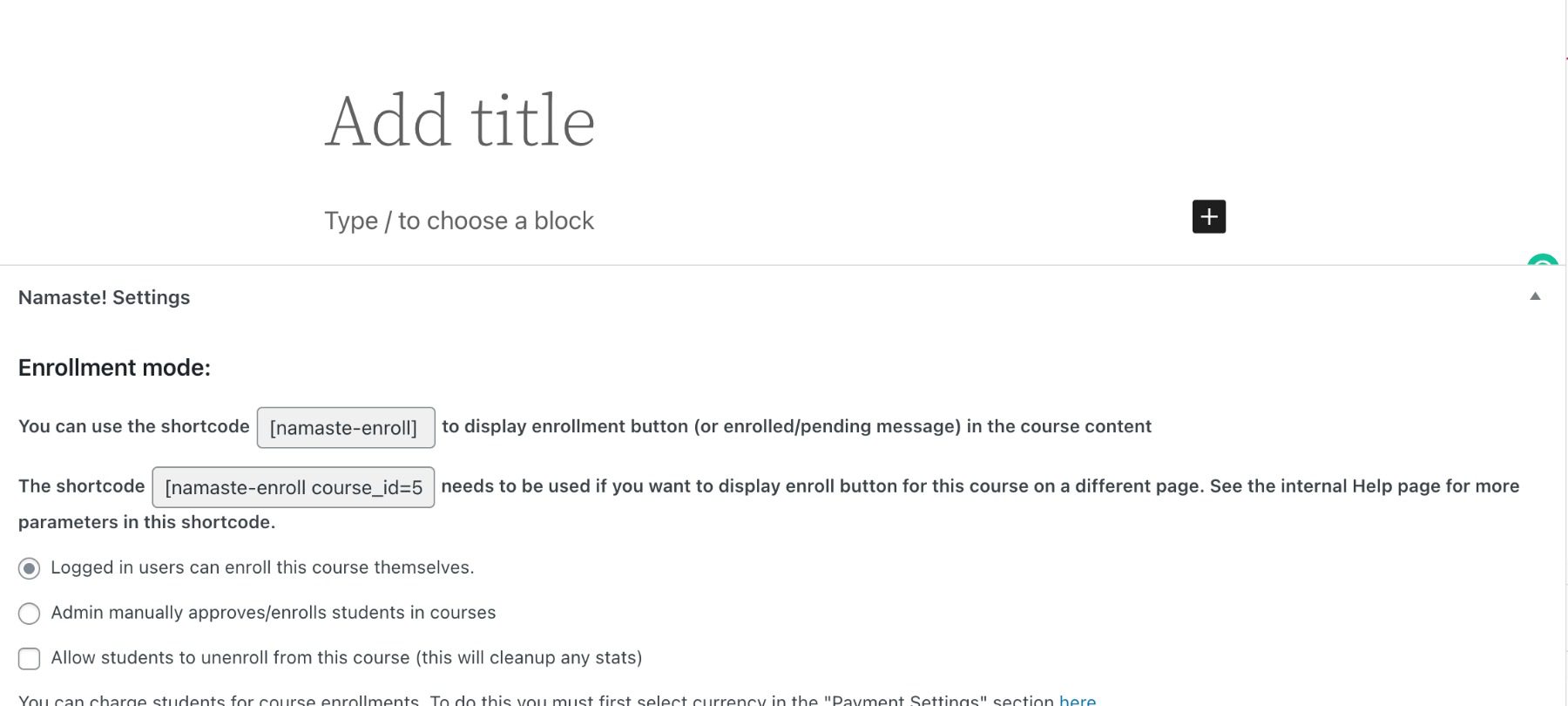
    The settings screen provides lots of options to set up roles, administration, modules, URLs, archive pages, grades, assignments, payment methods (shopping cart requires pro version), and exams.

    Namaste! LMS

    The course editor provides settings for enrollment, access and prerequisites, role restrictions, and course completeness. It also provides shortcodes that you can display prerequisites, status, and more. Lessons work the same but have different settings.

    Namaste! LMS

    Certificates are created with a classic editor.

    Features

    • Unlimited courses and lessons
    • Rules management
    • Roles management
    • Grade points system
    • To-Do items list
    • Certificates
    • Premium extensions available
    • The pro version adds a shopping cart, class assignments, teacher assignments, delayed access, shortcodes, badges, coupons, WooCommerce, a progress bar, and more.

    Price: Free, pro version starts at $67 | More Information

    8. MasterStudy LMS

    MasterStudy logo

    MasterStudy LMS is a powerful and user-friendly learning management system for WordPress. It enables you to create and sell online courses, quizzes, and lessons with ease. With a range of features and customization options, you can design your learning platform to match the look and feel of your website.

    MasterStudy LMS comes with a range of features to make it easy to create and sell online courses. It’s a complete e-learning solution that allows you to create, sell, and manage online courses with ease.

    MasterStudy settings page

    With its course builder, you can quickly add lessons, quizzes, and more. The in-built order system makes it easy to sell courses and accept payments, while customization options ensure that your platform matches the look and feel of your website.

    Features:

    • Drag-and-drop course builder
    • Quiz builder with support for true/false, single-choice, and multiple-choice questions
    • Progress bar to show students their progress
    • Question and Answer system for interaction between students and instructors
    • In-built order system to sell courses and accept payments
    • Customization options to match the vibe of your site
    • Responsive design to look great on all devices
    • Dedicated support team

    Pricing: Free, pro version starts at $59 | More Information

    Ending Thoughts

    That’s our look at the eight best WordPress LMS plugins to turn your website into a learning platform. The LMSs we’ve listed here range in features and price points, so there’s something here for every need. Our top choices are MemberPress or LifterLMS; with these, you simply can’t go wrong!

    We want to hear from you. Have you tried any of the eight best WordPress LMS plugins? Let us know what you think about them in the comments.

    Featured Image Illustration via ivector / shutterstock.com

    The post 8 Best WordPress LMS Plugins in 2023 appeared first on Elegant Themes Blog.

  • 16 Best Booking Plugins for WordPress in 2023

    As a business owner, it’s important to leverage tools that help streamline key tasks. One way to do that is to eliminate the amount of time you have to spend manually scheduling appointments with your customers. Fortunately, WordPress booking plugins can make your job easier. Plus, they can improve the experience for your visitors.

    In this post, we’ll introduce you to 15 of the best WordPress booking plugins, discussing their key features and pricing.

    What is a WordPress Booking Plugin?

    A WordPress booking plugin integrates with WordPress and enables users to create and manage bookings for services or products. It allows you to set up a booking system on your WordPress website, allowing visitors to select a date and time, input their information, and make a reservation directly from your site.

    Some of the features that you’ll typically find in a booking plugin are:

    • Customizable booking forms
    • Availability calendars
    • Payment integration
    • Automated confirmation and reminder emails
    • Customer management tools
    • Integration with Google Calendar, iCal, and other calendar systems

    To compile this list, we took into account functionality, updates, support, and ratings and reviews.

    Let’s dive in!

    1. WPForms

    The WPForms WordPress plugin

    If you’ve been using WordPress for a while, you’ve probably heard of WPForms. Along with being a very popular form builder, this freemium plugin can help you schedule bookings through your website. This tutorial goes more in depth on how the plugin works.

    It lets you quickly and easily create booking forms using a user-friendly drag-and-drop builder:

    The WPForms form builder interface

    You can set certain fields to be “required”, such as the day and time for the appointment. You can also add completed forms anywhere on your site. That includes pages, posts, sidebars, and widget areas.

    WPForms Lite is a powerful free version of the plugin that you can use for various forms. However, you’ll need to upgrade to a Pro plan if you want to use the date/time form field features.

    Key Features for WPForms:

    • Pre-built form templates
    • Drag-and-drop form builder
    • Required fields
    • Spam protection
    • PayPal and Stripe integrations
    • Integration with Divi

    Divi users benefit from seamless integration with WPForms by way of a custom module inside the Divi Builder. This makes it easy to add forms to your posts and pages, then customize them with tons of design settings.

    WPForms is for you if…

    … you’re looking for a quick and easy way to build your forms. This plugin can help you create many different types, from signup and booking to survey and contact forms.

    Price: Free, with premium plans starting at $49.50 per year | Learn More About WPForms

    2. Simply Schedule Appointments

    The Simply Schedule Appointments plugin

    Another simple yet powerful WordPress booking plugin you might consider using is Simply Schedule Appointments. This freemium tool makes accepting appointments through your WordPress site seamless. It’s quick and easy to set up and promises to have you ready to display your availability within minutes.

    Simply Schedule Appointments comes in both free and premium versions. While the plugin is feature-rich, it doesn’t come with any unnecessary bloat or confusing settings. The interface is one of the most modern and clean ones included on this list:

    The interface of the Simply Schedule Appointments plugin

    You can create appointment types and manage all of your bookings from the back end. This plugin is also ideal for arranging phone calls and meetings. For example, it’s a solid option if you’re a trainer, counselor, or consultant.

    Thanks to the interactive setup wizard, you can create a booking form and add it to your site quickly. It also fully integrates with our own Divi Builder, making it all the easier to use.

    Key Features:

    • Easy setup and installation
    • Intuitive and easy-to-use User Interface (UI)
    • Interactive setup wizard
    • Unlimited appointment types
    • Customizable notification emails and styles
    • Advanced scheduling options and blackout dates
    • One-click support
    • Gutenberg Blocks
    • Google Calendar and Mailchimp integration (premium only)
    • Integration with popular page builders, including Divi Builder

    Simply Schedule Appointments is for you if…

    … you want a plugin that lets your customers quickly and easily schedule phone calls, meetings, or sessions. It’s perfect if you want a freemium tool that isn’t overly simple or too complex.

    Price: Free, with premium plans starting at $99 | Learn More About Simply Schedule Appointments

    3. Hotel Booking Plugin by MotoPress

    Hotel Booking Plugin by MotoPress

    The Hotel Booking Plugin by MotoPress is a great choice for those wanting to build a hotel booking or rental property website. You can book, list, and manage properties or rooms with ease using any WordPress theme.

    The plugin works with any WordPress theme and allows you to create a booking site with ease. Some key features include:

    Key Features for WordPress Hotel Booking Plugin:

    • Accept reservations
    • Integrates with Divi and other page builders
    • Mobile-friendly custom forms
    • Custom search fields
    • Real-time availability calendars
    • Collect taxes, offer coupons, and the ability to make multiple reservations
    • Integration with multiple payment gateways

    Divi users will be happy to know that Hotel Booking integrates with Divi by adding a booking module directly into the Visual Builder. With so many design options at your disposal, you’re able to create beautiful booking pages for real estate, campsites, rentals, and more.

    Bookings with Divi Builder

    Hotel Booking Plugin is for you if…

    …you want a full solution booking platform for real estate, camping, hotels, or any other type of reservation-based website. With Hotel Booking by MotoPress, you’ll be able to create stunning booking pages that match the look and feel of the rest of your website.

    Price: $99/yr | Learn More About Hotel Booking by MotoPress

    4. Amelia

    The Amelia WordPress booking plugin

    Amelia is an events and appointments booking calendar plugin geared towards enterprise-level businesses. The feature-rich booking system lets you automate the appointment scheduling process on your site’s back and front ends:

    The back-end calendar view of the Amelia WordPress booking plugin

    One of this tool’s unique advantages is its performance optimization. For example, Amelia incorporates page preloading and other advanced technologies. This helps it deliver the best experience possible to both you and your customers.

    Key Features for Amelia:

    • Seamless appointment scheduling
    • Front-end booking wizard
    • User-friendly UI
    • Intuitive calendar view in the admin area
    • Flexible appointment management
    • Email notifications
    • Booking for recurring appointments (premium only)
    • Group services and coupons (premium only)
    • WooCommerce, PayPal, and Stripe integration (premium only)

    Amelia is for you if…

    … you want a plugin with a quick installation and setup process. It’s also a handy tool if you want to primarily book in-person appointments and meetings (gyms, salons, etc.). Your customers will be able to pay online (premium only) or offline.

    Price: Free, with premium plans starting at $79 per year | Learn More About Amelia

    5. Appointment Hour Booking

    The Appointment Hour Booking WordPress plugin

    Appointment Hour Booking is a freemium WordPress booking plugin that lets you build appointment forms and apply specific times for availability. On the front end of your site, your customers can select from the displayed start times for the chosen service. Then they can submit payments.

    Also, the UI is more beginner-friendly when compared to many other WordPress booking plugins on this list:

    The interface of the Appointment Hour Booking plugin

    The Appointment Hour Booking plugin’s visual configuration makes building your calendar and forms straightforward. It also offers a wide range of customization and configuration options that make it flexible enough for small and large businesses alike.

    Key Features for Appointment Hour Booking:

    • Appointments with start and end times
    • Multiple services with different prices and durations
    • Definable open hours
    • Double-booking prevention
    • Automatic price calculator
    • Customizable email notifications

    Appointment Hour Booking is for you if…

    … you’re looking to create booking forms for appointments that have specified start and end times. Therefore, it’s a useful plugin if you offer classes and workshops, events, or meetings.

    Price: Free, with premium plans starting at $7.28 per month | Learn More About Appointment Hour Booking

    6. Events Calendar

    The Event Calendar plugin

    Events Calendar is one of the best WordPress events calendar plugins, and it can be an all-in-one solution for event ticketing. It lets you easily create and add an events calendar to your website. Your users can then book tickets for those events (whether online or in person):

    The Events Calendar plugin interface

    This feature-rich plugin is highly customizable and extensible. In addition, it is easy to use and comes with a lot of support. That’s especially true if you upgrade to Events Calendar Pro.

    Key Features for The Events Calendar:

    • Event ticketing and scheduling
    • Month/list/day views
    • Categories and tags
    • Google Calendar and Google Maps integration

    The Events Calendar is for you if…

    … you run an events website. This powerful tool is an excellent way to sell tickets and book guests.

    Price: Free, with premium plans starting at $99 | Learn More About The Events Calendar

    7. WP Simple Booking Calendar

    The WP Simple Booking Calendar plugin

    Next on our list, WP Simple Booking Calendar is a popular WordPress booking plugin that lets you streamline renting out your property to customers via your website. Visitors can check your home or room’s availability, and then book it with ease.

    You’ll be able to manage calendars and appointments from the back end easily:

    The WP Simple Booking Calendar plugin settings

    The free version comes with standard features for creating a booking calendar and displaying it on your site. However, premium plans are available that unlock more features, including advanced editing, customizing, and publishing options.

    Key Features for WP Simple Booking Calendar:

    • Booking calendar and calendar legend
    • Holiday home bookings
    • Simple UI
    • Language translation
    • Calendar data backup and restoration
    • Gutenberg Block
    • Syncing with third-party sites such as Airbnb and Booking.com (premium only)
    • Unlimited booking calendars (premium only)

    WP Simple Booking Calendar is for you if…

    … you want a freemium WordPress booking plugin for a property rental website. Whether you’re renting your vacation home, office space, or personal items and equipment, it’s worth checking out. However, keep in mind that it doesn’t let you accept online payments. For that, you would need to switch to WP Booking System.

    Price: Free, with premium plans starting at $39 | Learn More About WP Simple Booking Calendar

    8. StartBooking

    The Start Booking website

    Next on our list of WordPress booking plugins is StartBooking. This plugin is a bit different than many of the other options we’ll see. First, it’s essentially an all-in-one solution. StartBooking is premium online scheduling software that lets you add a calendar to your WordPress site.

    From your site’s front end, your visitors can schedule appointments, view appointment details, and cancel appointments:

    SmartBooking demo

    StartBooking uses innovative cloud technology to power its managed scheduling system. Plus, it provides you with a collection of handy features and functionality for streamlining your booking process. With this robust tool, you can schedule unlimited appointments and assign specific staff members to individual services.

    Key Features for StartBooking:

    • Fully managed scheduling system software
    • Custom integrations
    • Classes and group bookings
    • Reminder notifications and customizable emails
    • Online payments
    • Google Calendar integration
    • Booking locations and analytics
    • Services and staff management

    StartBooking is for you if…

    … you’re looking for a scalable scheduling solution for service appointments. Therefore, it’s especially useful if your business offers classes or other services that require group booking.

    Price: Plans start at $25 per month | Learn More About StartBooking

    9. Bookly

    Bookly plugin

    Next, Bookly is a freemium scheduling plugin that automates the online booking process. You can use it to effortlessly accept reservations on your website and manage your services calendar.

    The robust, feature-rich, and modern admin panel is easy to navigate. It also offers a plethora of settings and tools for viewing and managing your appointments. This includes a well-organized dashboard that gives you a snapshot of important appointment-related data:

    Bookly dashboard

    Bookly is a powerful option for many types of businesses, from salons to transportation companies. If you want advanced features such as online payments, you can upgrade to Bookly Pro. However, unlike other premium WordPress booking plugins, this is a one-time fee rather than a monthly or annual subscription.

    Key Features for Bookly:

    • Intuitive booking management system
    • Filter, search, and sort options for the booking list
    • Fully customizable booking forms
    • Unlimited forms
    • Services grouped by category
    • Calendar viewable in daily/weekly/monthly formats
    • User-friendly interface
    • SMS and email notifications
    • Staff scheduling and task assignment
    • Payment gateway integrations with detailed reports (premium only)

    Bookly is for you if…

    … you want a reliable and flexible freemium WordPress booking plugin. It’s an excellent choice for salons, health and wellness spas, gyms, and professional services with multiple staff members.

    Price: Free, with a premium version available for $62 | Learn More About Bookly

    10. BirchPress Scheduler

    The BirchPress Scheduler plugin.

    BirchPress Scheduler is another modern WordPress booking plugin that lets you create and embed a scheduling calendar just about anywhere on your site. It’s aimed largely toward small businesses, making it a quality option for spas, salons, studios, etc.

    This premium plugin doesn’t offer a free version. However, the features you get make it a worthwhile investment. This is especially true if you’re looking for a tool to help with staff assignments and accept online payments.

    In addition, the interface is clean and easy to use:

    BirchPress dashboard

    You can make bookings for specific times and service durations, as well as assign pricing information. In addition, the plugin offers multiple pricing tiers for you to choose from.

    Key Features for BirchPress Scheduler:

    • Booking management system
    • Built-in form editor
    • WooCommerce and PayPal integrations
    • Booking availability limitations and restrictions
    • Staff assignments
    • Google Calendar, iPhone, Android, and Outlook integrations
    • Automated email notifications
    • Group booking
    • Developer-friendly customization features (including thousands of functions and hooks)

    BirchPress Scheduler is for you if…

    … you run a service-based business, such as a salon or yoga studio, and want a powerful premium booking manager. It’s also a smart choice if you have multiple staff members who handle your services. That’s because this tool lets you leverage helpful staff appointment features. Plus, BirchPress is developer-friendly, coming with a wide range of customization features for advanced users.

    Price: Plans start at $99 | Learn More About BirchPress Scheduler

    11. Booking Calendar

    Booking Calendar plugin

    Booking Calendar is one of the most popular WordPress booking plugins available. It has over 60,000 active installations, and a 4.5 out of 5-star rating. In addition, it’s one of the oldest scheduling tools for the Content Management System (CMS).

    This freemium plugin lets you customize calendars and use them to display booking availability for properties and services. It’s also effortless to use, and comes with a clean, user-friendly admin panel:

    The Booking Calendar plugin dashboard.

    Your users will be able to select specific days and time slots from the calendar view. Then, both they and you will receive email notifications about the bookings, which you can either approve or deny.

    Key Features for Booking Calendar:

    • User-friendly interface
    • Customizable calendar designs
    • Calendars in daily/weekly/monthly formats
    • Time-slot bookings with time picker tool
    • Booking Calendar Blocks for Gutenberg
    • Prevention of double-booking
    • Email notifications
    • Option to import .ics feeds from third-party sites (Airbnb, Tripadvisor, etc.) via shortcodes

    Booking Calendar is for you if…

    … you’re looking for a quick and easy way to manage multiple appointments per day. It’s also an excellent option if you want to integrate data from other travel-and-stay websites. That includes Airbnb, TripAdvisor, and Booking.com.

    Price: Free, with premium plans starting at $47.40 | Learn More About Booking Calendar

    12. WooCommerce Appointments

    The WooCommerce Appointments plugin by BookingWP

    Most of the WordPress booking plugins we’ve discussed so far are for WordPress in general. However, WooCommerce Appointments by BookingWP is ideal if you’re looking for a premium scheduling tool for your e-commerce store. It offers full integration with WooCommerce, as well as with Google Calendar.

    From the front end of your shop, users will be able to view your services. They can also filter appointments by availability, and schedule their preferred times:

    The WooCommerce Appointments plugin demo

    You can also let users filter by price or by category. In addition, WooCommerce Appointments enables you to add extra form fields. You can also apply flexible availability and pricing rules, and assign multiple staff members to appointments.

    Key Features for WooCommerce Appointments:

    • Appointment scheduling software
    • WooCommerce and Google Calendar integration
    • Options to accept and request payments
    • Staff management/login
    • Notifications and reminders
    • Flexibility pricing and availability rules
    • Time zone conversion

    WooCommerce Appointments is for you if…

    … you’re already a WooCommerce site owner and want a straightforward way of booking appointments. You’ll also be able to request and accept payments. In addition, it’s a more affordable alternative to the other WooCommerce-specific plugin on this list.

    Price: Plans start at $89 | Learn More About WooCommerce Appointments

    13. Easy Appointments

    The Easy Appointments WordPress booking plugin

    Easy Appointments is a widely-used and highly-rated WordPress booking plugin. It simplifies the process of scheduling and managing multiple appointments for different locations and services via your website. While the interface can be a little overwhelming, it is packed with helpful features:

    The Easy Appointments plugin interface

    All of the settings and configurations are neatly organized. This makes finding what you’re looking for relatively easy.

    The free version is sufficient for basic booking forms and calendars. However, there is also a paid extension available if you want access to features such as online payment gateway integrations.

    Key Features for Easy Appointments:

    • Flexible time management
    • Multiple locations, services, and workers
    • Email notifications
    • Custom form fields
    • Date picker localization (77 languages available)
    • Google Calendar, PayPal, and WooCommerce integration (premium extension)

    Easy Appointments is for you if…

    … you have a business that offers multiple services requiring appointments. This includes law offices, cleaning companies, and doctors.

    Price: Free, with extension packages available starting at $39 | Learn More About Easy Appointments

    14. Booked

    The Booked plugin

    Booked is a premium appointment booking plugin for WordPress that is quick to set up and easy to use. Sold exclusively on CodeCanyon, this powerful tool is excellent for letting registered users and guests schedule appointments on your site.

    You can use the plugin’s front-end calendar shortcode and widgets to display multiple appointment times per date. In addition, it can be fully integrated with WooCommerce. This makes it easy for your visitors to check out online when booking.

    Key Features:

    • Appointment management calendar
    • Unlimited calendars and booking agents
    • Registered and guest booking
    • Custom time slots and fields
    • Built-in calendar color pickers
    • Customer profiles
    • Custom login/registration form
    • WooCommerce payments

    Booked is for you if…

    …you have a membership website. Booked also offers a guest booking feature. This means that users only have to provide their names and emails to book appointments.

    Price: $49 | Learn More About Easy Appointments

    15. WooCommerce Bookings

    WooCommerce Bookings Plugin

    WooCommerce Bookings is an official WooCommerce extension that lets you add booking and scheduling functionality to your e-commerce shop. With this premium tool, you can easily integrate your booking system into your existing storefront:

    WooCommerce Bookings demo

    WooCommerce Bookings lets you create schedules the same way you would products. Also, you can integrate with various payment gateways for automatic invoicing.

    Key Features for WooCommerce Bookings:

    • Fixed and “blockable” time slots
    • One-on-one appointments or multi-person events
    • Flexible and special pricing (groups, events, etc.)
    • Localization
    • Email notifications
    • List and calendar formats

    WooCommerce Bookings is for you if…

    … you’re looking for a reliable, premium WooCommerce extension for booking appointments through your e-commerce site. It’s especially valuable if your business model involves selling your time. For example, it’s handy if you sell professional services, classes, training sessions, or property, such as a rental home.

    Price: $249 per year | Learn More About WooCommerce Bookings

    16. Team Booking

    The Team Booking plugin

    Rounding off our list of the best WordPress booking plugins is Team Booking. This premium tool has thousands of sales on CodeCanyon and a nearly 5.0-star rating. In addition, the innovative booking system comes with an impressive range of features for creating appointment and booking calendars.

    The Team Booking interface

    With Team Booking, all availability plans are made using Google Calendar. First, you can simply create events. Then, those availability slots become visible to your customers on the front end.

    Key Features for Team Booking:

    • Flexible form builder
    • Google Calendar, PayPal, and Stripe integrations
    • Dynamic pricing with discounts and promotions
    • Customizable email notifications

    Team Booking is for you if…

    … you want an affordable yet premium booking plugin. In addition to regular appointments and events, you can also use Team Booking for unscheduled meetings. In other words, it’s useful for bookings that don’t require specific time slots (such as support tickets).

    Price: $39 | Learn More About Team Booking

    Conclusion

    As a business owner, you’re tasked with many responsibilities. Fortunately, tools such as WordPress booking plugins can help lighten your workload. By using appointment scheduling software, you can save time for both you and your customers.

    As we’ve seen, there are various quality WordPress booking plugins to choose from. Therefore, the best option for you depends on your budget and needs. For an all-around flexible and freemium option, we recommend WPForms. It functions both as a great form plugin as well as a full-featured booking plugin. Not only will it help you schedule bookings, but it gives you the ability to utilize a drag-and-drop builder, as well as integrate with the Divi Theme.

    Featured Image Illustration via ivector/shutterstock

    The post 16 Best Booking Plugins for WordPress in 2023 appeared first on Elegant Themes Blog.

  • 9 Best WordPress Translation Plugins in 2023

    WordPress is the most popular CMS in the world, but its reach is limited if your content is only in one language. Thankfully, WordPress translation plugins are a simple and elegant solution to that problem. With tools like these plugins and themes with built-in translation and multi-language support, making your site accessible to a much larger audience can take minimal effort on your part.

    In this article, we’ll introduce you to the best WordPress translation plugins currently available, as well as highlight some of their best features.

    Let’s get into it!

    Why Use a WordPress Translation Plugin?

    When you create your WordPress site, you can set your preferred language in the native dashboard. Go to Settings and then General, then scroll down to Site Language. Choose your preferred dashboard language from the drop-down menu.

    WordPress settings

    While this will change the language of your dashboard, you’ll need a plugin if you want to create multilingual websites. These plugins eliminate the need to set up multiple WordPress subdomains and instead turn your website into a multilingual platform.

    There are two types of translation plugins:

    1. Auto Translations
    2. Manual Translations

    Auto-translations will automatically translate preexisting content from your website to your users’ preferred language but will sacrifice some accuracy (Google translate levels of accuracy.)  On the other hand, Manual translations let your users view the languages you have transcribed manually, which sacrifices speed and convenience for accuracy and customizability.

    1. WPML

    WPML website logo

    While there are many free options for WordPress translation plugins, WPML or WordPress Multilingual is a premium plugin and service that covers essentially everything you need for translation. One of the driving forces behind WPML is that it is an all-in-one solution to translation that you get control of, not your readers’ machines. Not every site out there will need the entire WPML platform (for instance, a small personal blog may be fine to rely on Google Translate). Still, sites with a significant international presence often need more than what a simple auto-generated, machine-created translation can offer.

    multiple plugins

    With that control comes compatibility with many major plugins and services that you may already be using. From WooCommerce to Gravity Forms, Contact Form 7, and Advanced Custom Fields (and more!), you can use WPML to translate them and their output for your customers. With fine control over which languages and what translations are used, you won’t need to worry about your products being presented incorrectly or your forms being labeled incoherently.

    WPML is a premium-only plugin. Tiers start at $29 for a single blog site with basic functions. They can go all the way up to $159 per site for access to the entire platform. WPML is worth the price, regardless of the tier you choose.

    Other Key Features:

    • Choice of individual languages for specific posts and pages
    • Professional translation is done by humans (as an add-on fee)
    • If the language you need isn’t there, you can manually add it or choose from variants (such as Mexican Spanish)

    Price: $29-159 per year| More information

    2. TranslatePress

    TranslatePress logo

    TranslatePress works a little differently than other WordPress translation plugins. It doesn’t require you to use just the backend of the website to work with the translations. This plugin gives a real-time look at the translations that you provide, working almost like a page-builder to make sure that your site looks and feels the same to everyone, regardless of the language they see on your site.

    TranslatePress settins

    By giving this level of control, TranslatePress allows users to be specific about which elements of their websites get translated manually or automatically. One of the other highlights of TranslatePress is that this feature, among many others, comes in the free version. Paid upgrades unlock access to add-ons, extensions, and more advanced features.

    Other Key Features:

    • Automatic translation through Google Translate or DeepL
    • WooCommerce support from the beginning
    • Administrators can “view as” any user or log out to test translation appearance
    • Translate some or all of the page, custom to your needs
    • Image translation

    Price: FREE with premium upgrades | More information

    3. Weglot

    Weglot logo

    A major issue that comes up relatively often with multilingual websites is that each of the translations takes up space on the server, in your post and page list, and requires manual management. With Weglot, that’s not an issue. The plugin takes your media and your content, even the content that’s pulled from third-party sources, and translates it automatically. Meaning there is no need to maintain multiple identical and duplicate websites.

    Weglot SEO

    An interesting feature of Weglot is the ability to set guidelines for what you want the translation on your site to look like. You can set it to a fast translation, which will rely on Google, Yandex, and DeepL (among others) to translate your site automatically. You can take full control over it and enter your own translations for specific languages manually. And if you have the budget and need, a human translator can work on the most accurate content possible. Weglot also provides a glossary of phrases and terms (your brand name, for instance) to never translate so it stays consistent across the site.

    Other Key Features:

    • Visual, real-time translations
    • Compatible with Shopify and other platforms you integrate with
    • Automatic redirection for recognized languages

    Price: Starting at €15 per month | More information 

    4. Multilanguage

    multilanguage wordpress translation plugin by bestwebsoft

    Multilanguage is a very powerful WordPress translation plugin, but it is mostly designed for those users who already have a translation of their site and need a way to implement it. While this plugin does support automatic Google translation, the big draw is the ease with which you can provide your own translations to posts and pages, categories, menus, and tags.

    Multilanguage settings

    The free version of the plugin can handle what most blogs and sites need for translation, but if you need more than what comes for free, the Pro upgrade includes translations for WordPress taxonomies, page builder compatibility, custom fields, and language slug position changes (such as en.example.com versus example.com/en).

    Other Key Features:

    • Gutenberg and Classic Editor-compatible
    • Customizable language switcher
    • Choose the default language
    • Website search in the translated language
    • Translates the WordPress admin dashboard

    Price: FREE with Pro upgrade | More information

    5. GTranslate

    Gtranslate logo

    Most internet users are familiar with Google Translate. If you’re a Chrome user, there’s a good chance you’ve had a modal pop-up asking if you want a page translated from X language to your native tongue. Or perhaps you’ve copied/pasted some text into the Google search bar, and Google spat out an automatic translation. That’s the same technology that Gtranslate uses at its base.

    Gtranslate settings page

    The most useful part of GTranslate is the ability for visitors to choose which translation they want. Because the free version uses Google’s machine translation, not every single page may convey the exact information in the exact that you want. Or that is technically understandable by the reader. This isn’t a fault of WordPress translation plugins, just the nature of translation itself. However, by providing the user a choice between translations, those polyglots who find your site will surely be able to find a translation that works for them.

    Other Key Features:

    • Subdomain and subdirectory structures for translations
    • Automatic switch to browser’s set language
    • Schema.org translations
    • Translates AMP pages as well as non-AMP

    Price: FREE with premium upgrade | More information

    6. Loco Translate

    Loco Translate logo

    Loco Translate is fast and lightweight but also feature-rich. Developers can also love what Loco Translate offers. They can tie into multiple language APIs like DeepL, Google, Microsoft, and Yandex. Additionally, the plugin gives website owners the ability to update their language files directly from the theme itself (or the plugin) without having to go through a cloud host. And because of this, you can extract translatable strings from your source code to bring specific parts of your site to life for everyone.

    Loco Translate settings

    With over a million active users and a 5-star review, this is one of the more trusted plugins on the list and should certainly be considered if you are trying to translate your WordPress themes/plugins.

    Other Key Features:

    • Configurable PO file backups and restoration
    • Uses WordPress native locale codes
    • Keyboard shortcuts built-in make using the plugin a cinch

    Price: FREE | More information

    7. Polylang and Lingotek

    Polylang banner logo

    Polylang is a great alternative to the more expensive plugins above. It lets you translate your pages, posts, media, and more to your chosen languages via language packs that you can purchase. It also adds an option in your navigation menu so your users can switch between languages with ease.

    Polylang also provides integration with Lingotek to provide alternative translation options. You can select between machine translations, community/crowdsourced translations, and professional translations using the Lingotek cloud platform. This makes sure you’ll always have the right translation option available. They also have a separate plugin for WooCommerce integration.

    Polylang settings

    With over 500,000 active users and a 5-star review, Polylang is one of the best options available for translator plugins right now.

    Other Key Features:

    • Can translate individual elements on your website such as widgets or custom post types
    • Multiple ways to select which language is default and which languages get swapped.
    • Automatically copies tags, categories, and metadata when creating new, multilingual content

    Price: FREE with premium add-ons and extensions | More information

    8. Google Website Translator

    Google Website Translator logo

    Google Website Translator is fast, effective, simple, and easy. When you want a lightweight and efficient plugin, this one will do it. It translates your content and other plugins, and theme defaults, and you can set it all up with either a widget or a shortcode.

    Google Translator settings

    Any part of your site that you need to be translated can be done just by using a shortcode. Without the need to bring in any files from other platforms, this plugin simply does the job automatically and leaves you to handle the other parts of the website administration.

    Other Key Features:

    • Lightweight and doesn’t slow down page speed
    • Import and export your settings and configurations for multiple sites
    • Inline help for setting it up, so you don’t have to be a dev or a translator to understand what the plugin is doing

    Price: FREE | More information

    9. Multisite Language Switcher

    Multisite language switcher logo

    The Multisite Language Switcher is a plugin for WordPress that adds multilingual support to a WordPress multisite installation. It allows users to manage translations of posts, pages, custom post types, categories, tags, and custom taxonomies. The plugin uses flag icons from FamFamFam.

    multisite language switcher options

    This plugin offers the option to incorporate one or multiple languages and is compatible with both Yoast SEO and All-in-One SEO Pack. Free extensions are available that allow you to set unique featured images for each language.

    Key Features for Multisite Language Switcher:

    • Easy language switching for a multisite network
    • Management of translations for posts, pages, custom post types, categories, tags, and custom taxonomies
    • Support for Yoast SEO and All-in-One SEO Pack

    Multisite Language Switcher Pricing: FREE| More Information

    Wrapping Up with WordPress Translation Plugins

    There is no lack of WordPress translation plugins that you can choose from. However, choosing the right plugin is a bit more difficult. Site owners should weigh their audience’s needs and demographics versus what kind of content their site provides. Some plugins work best with stores. Others work best with huge enterprise blogs with dozens of custom taxonomies and post types. Our top recommendation choices are WPML and TranslatePress, as you can’t go wrong with either!

    What do you think is most important when choosing WordPress translation plugins?

    Article featured image illustration by igor kisselev / shutterstock.com

    The post 9 Best WordPress Translation Plugins in 2023 appeared first on Elegant Themes Blog.

  • 10 Best WordPress Search Plugins in 2023

    One of the most important aspects of a website is its search functionality. A good search function can help visitors find what they’re looking for quickly and easily, while a poor search function can lead to frustration and a high bounce rate.

    In this article, we’ll take a look at some of the best WordPress search plugins to improve your website’s search functionality in 2023.

    Subscribe To Our Youtube Channel

    What is a WordPress Search Plugin?

    A WordPress search plugin is a tool that enhances the built-in search function of a WordPress website. It’s common knowledge that the default WordPress search function leaves much to be desired. That’s why a good search plugin is essential!

    The plugins below can improve the accuracy and relevance of search results, add additional search options, and provide advanced features such as search analytics and customization options.

    1. FiboSearch

    FiboSearch logo

    FiboSearch is an AJAX search for WooCommerce. It provides live suggestions as you type. Search by product title, long or short description, or SKU. Search results can show the product image, price, description, and SKU.

    FiboSearch

    It includes Divi integration. You have the option to replace the Divi search bars. Options also include a search bar, autocomplete, and lots of configurations.

    FiboSearch settings

    FiboSearch makes it simple to include advanced product search functionality on your website, with the ability to search by SKU, filter by category and tags, and integrate it seamlessly into your navigation menu. It even works seamlessly on multilingual stores without any additional setup.

    Features

    • AJAX search for WooCommerce
    • Customize search parameters
    • Integrates with Divi
    • The widget has customizations for both mobile and desktop
    • The pro version adds fuzzy search, more search parameters, synonyms, conditions, etc.

    Price: Free, pro version starts at $49 per year | More Information

    2. Relevanssi

    Relevenssi banner

    Relevanssi replaces the standard search with a new search engine. It includes lots of settings, allowing you to configure it any way you want. The results are automatically sorted by relevance. It will search phrases and quotes, and users can add Boolean search terms. The search results will highlight the search terms in the content. It also includes user and admin search tools in the dashboard.

    Relevanssi settings page

    The settings are detailed and give you a lot of control. It includes search operator settings, synonyms, stopwords, redirects, logging, and more.

    Features

    • New search engine
    • Results sorted by relevance
    • Fuzzy matching
    • Boolean queries
    • Search phrases
    • Highlights search terms in the content
    • Supports bbPress and multisite
    • The pro version adds weight adjustments, restrictions, suggestions, custom post types, etc.

    Price: Free, pro version is $99 per year | More Information

    3. Ivory Search

    Ivory Search Banner

    Ivory Search is a WordPress search plugin that enhances the WordPress search features and allows you to create custom search forms. You can create unlimited search forms and configure each one individually. This allows users to perform different types of searches within your content. Forms can be placed anywhere on the website, including headers, footers, menus, widgets, etc. Search with AJAX or live.

    Ivory Search settings page

    The search editor allows you to exclude, design, use AJAX, and set up options for each form. They also work with custom post types, including WooCommerce.

    Features

    • Unlimited search forms
    • Forms are individually configurable
    • Place forms anywhere
    • AJAX or live search
    • Custom Widget
    • WooCommerce product search
    • The pro version lets you order results, search by author and status, exclude posts, etc.

    Price: Free, pro version starts at $19.99 per year | More Information

    4. Ajax Search Lite

    AJAX lite

    Ajax Search Lite replaces the default search and includes an AJAX search engine with a live search bar. Results can be filtered with category and post types. Search results include WooCommerce. Search results include images. It integrates with Google Analytics and includes caching and multiple performance options.

    Ajax lite settings page

    Setting up the plugin is easy; you can add the search feature to your pages using a shortcode or widget, and it allows you to customize your search results for your users directly from the dashboard.

    Features

    • AJAX search
    • Live search bar
    • Search custom post types, including WooCommerce
    • Drag-and-drop builder
    • 8 templates
    • Integrates with Google Analytics
    • Simple widget
    • Pro version adds more integrations, advanced caching, filters, layouts, 400 admin options

    Price: Free, pro version is $36 | More Information

    5. WP Google Search

    Google logo

    WP Google Search is a simple plugin that allows you to add a customizable search bar to your website, powered by Google’s search engine. This plugin is perfect for sites with a lot of content, as it provides your users with fast and accurate results.

    The plugin also includes a WordPress search widget, which can be used to display the Google Custom Search box in your sidebar or other widget-enabled areas of your site. Additionally, you can also embed the search form using a shortcode.


    WP Google seach settings

    No technical expertise is needed as all you have to do is create a Google Custom Search for your site, copy the search engine ID, and paste it into the plugin’s settings.

    Features

    • Customizable search bar design
    • Powered by Google’s search engine
    • Search results displayed in a grid or list view
    • Option to search specific pages or categories
    • Search results can be displayed with featured images, excerpts, and more

    WP Google Search Pricing: Free| More Information

    6. Search & Filter

    Search & Filter logo

    Search & Filter WordPress search plugin adds features to the WordPress search that lets you search by category, tag, taxonomy, post type, date, and any combination of them. The results are displayed with AJAX. The fields can be displayed as dropdown boxes, checkboxes, radio buttons, or multi-select options.

    Search & Filter settings

    The backend provides examples of Arguments, Public Taxonomies, your Public Post Types, Stylings, etc. It also includes links to see examples and documentation.

    Features

    • Adds search features to WordPress search
    • AJAX
    • Search by category, tag, post types, etc.
    • Display as dropdown, check box, etc.
    • Pro version adds more filters, order results, a drag-and-drop editor, custom templates, integrations, and more

    Price: Free, pro version starts at $20 | More Information

    7. WP Extended Search

    WP Exteneded Search logo

    WP Extended Search is a lightweight WordPress search plugin that gives you lots of search customizations. Choose categories, taxonomies, post types, and more. You can also control the default behavior of the search results. Have it to search in the post title, content, or excerpt. You can also assign different settings to specific search forms.

    WP extended search settings page

    The plugin offers a variety of search combinations and allows full control over the types of content to be searched. It also allows for the exclusion of specific post types from the results page. This allows users to fine-tune their search results and improve the accuracy of their search function.

    Features

    • Lots of search customizations
    • Create custom search forms
    • Choose how the search works
    • Compatible with WooCommerce
    • Select what to include in the search
    • Custom widget

    Price: Free | More Information

    8. Better Search

    Better Search logo

    Better Search replaces the default search with a new search engine. The search results are relevant to the title or content of the posts. You can fine-tune the results to add more weight to the title or content. It can search posts, pages, and custom post types, and you can customize the output. Searches are tracked with a heatmap so you can see the most popular searches. Use filters and actions to extend the WordPress search plugin.

    Better Search Settings page

    The plugin integrates seamlessly with your WordPress theme, and it can also be customized with custom CSS to match the look and feel of your website. Plus, the fact that it’s a free solution doesn’t hurt at all.

    Features

    • Replaces the default search
    • Fine-tune the search results
    • Search custom post types
    • See the most popular searches with a heatmap
    • See popular and daily searches
    • Add styling with CSS
    • Search widget

    Price: Free | More Information

    9. SearchIQ

    Search IQ logo

    SearchIQ is a WordPress search plugin that provides fast search results as you type. It includes real-time analytics so you can optimize your content strategy. The UI is customizable, and you can customize the content that will be included in the search results. You can include custom fields and taxonomies. The AI can handle typos, fuzzy matches, synonyms, and more.

    SearchIQ demo

    SearchIQ offers a range of advanced search features and customization options that make it a powerful tool for improving the search experience on your website.

    SearchIQ settings page

    The plugin’s integration with popular plugins and advanced analytics features make it a great choice for e-commerce, blog, and news websites.

    Features

    • Customizable UI
    • AI can handle typos
    • Real-time analytics
    • Search widget
    • Pro version adds more analytics, white labeling, cross-domain search, CDN for images, more filtering, etc.

    Price: Free, pro version starts at $19 per month | More Information

    10. SearchWP

    SearchWP website

    SearchWP is a professional-level WordPress search plugin that adds high-level search features to your website. It includes multiple engines and customizations for each one. It also has real-time monitoring, multiple content sources, multiple types of content, custom fields, and lots more.

    SearchWP settings

    SearchWP offers advanced search options such as search by custom fields, taxonomies, and post types, as well as the ability to exclude certain posts or pages from search results.

    It also includes customizable search forms, allowing users to adjust the look and feel of their search function. Additionally, it provides search analytics to help website owners understand how their search function is being used.

    Features

    • Multiple engines
    • Search any type of media
    • Integrates with WooCommerce
    • Metrics
    • Related content
    • Redirects
    • Custom results order
    • Extensions available

    Price: $99 | More Information

    Final Thoughts on WordPress Search Plugins

    Choosing the right WordPress search plugin is important to ensure that your website’s search function is accurate, efficient, and user-friendly. The plugins mentioned in this article are all great options for improving site search in 2023. FiboSearch is a must for WooCommerce stores, we also recommend trying free options like Ivory Search before committing to a subscription service.

    We want to hear from you. Have you tried any of these WordPress search plugins? Let us know what you think about them in the comments.

    Featured Image via PureSolution / shutterstock.com

    The post 10 Best WordPress Search Plugins in 2023 appeared first on Elegant Themes Blog.

  • 8 Best WordPress Image Optimization Plugins in 2023

    Most websites don’t skimp when it comes to images. A single blog post can have dozens of photographs and screenshots since media makes content more engaging and scannable. However, the more images you add to each page, the longer it may take to load. That’s where a quality WordPress image optimization plugin can come to the rescue.

    This kind of tool takes your images and “optimizes” them so they take up less space. In this article, we’ll highlight the best WordPress image optimization plugins available. We’ve chosen them based on their feature sets, ratings and reviews, update histories, and pricing.

    Let’s get to it!

    1. EWWW Image Optimizer

    EWWW Image Optimizer plugin

    EWWW Image Optimizer is one of the most powerful WordPress image optimization plugins you can use. Once you enable this tool, it automatically compresses any new images you upload to your website.

    You can also use its Bulk Optimizer to compress existing images in your Media Library:

    Using the Bulk Optimizer feature in EWWW

    Using EWWW Image Optimizer, you can automatically resize images as you upload them, and remove metadata from your media files to save space. The plugin also includes lazy-loading functionality and enables you to convert image files to the WebP format for increased compression ratios.

    The free version of EWWW Image Optimizer compresses images on your server and doesn’t have a file size limit. You can also opt for the plugin’s premium version, which uses a cloud service for image optimization and boasts higher compression ratios.

    Key Features for EWWW Image Optimizer:

    • Compress image files as you upload them to your website
    • Optimize existing files in your Media Library
    • Automatically resize new images
    • Enable lazy loading
    • Convert images to WebP

    EWWW Image Optimize is for you if…

    …your server can handle the additional load from image compression tasks. That shouldn’t be a problem unless you’re using a very basic shared hosting plan or you routinely upload hundreds of images to your website.

    Price: Free, with a premium version available starting at $7 per month | Learn More About EWWW Image Optimize

    2. ShortPixel Image Optimizer

    The ShortPixel Image Optimizer plugin

    ShortPixel Image Optimizer enables you to automatically optimize images and PDF files, as well as resize images. While this is a standard offering, one new feature this plugin offers is the choice between lossy, lossless, and glossy compression.

    Few WordPress image optimization plugins offer glossy compression. From a technical standpoint, it provides a middle ground between lossless and lossy compression types:

    Enable glossy compression in ShortPixel

    ShortPixel Image Optimizer also lets you back up your original image files after they’re optimized. It can help you remove metadata from images, and automatically resize them after the upload process. In addition, this plugin can automatically convert PNG files to JPEGs, as well as optimize Retina images and thumbnails.

    Despite all of its advanced functionality, there are a few downsides to using ShortPixel. First, the plugin requires you to share your email address to get an API key for activation. Second, the plugin’s free version limits you to 100 image optimizations per month, which may not be enough for some users.

    Key Features for ShortPixel Image Optimizer:

    • Automatically compress new images on your website (up to 100 per month)
    • Use bulk optimization to compress existing images
    • Choose between lossless, lossy, and glossy compression
    • Create backups of your images before compression
    • Remove metadata from image files
    • Automatically resize images
    • Convert PNG files to JPEGs
    • Optimize Retina images and thumbnails

    ShortPixel Image Optimizer is for you if…

    …you can work with the 100 image optimization limit per month, or pay for the plugin’s premium version. In terms of features, ShortPixel Image Optimizer offers more functionality than most WordPress image optimization plugins.

    Price: Free, with a premium version available starting at $9.99 per month | Learn More About ShortPixel Image Optimizer

    3. WP-Optimize

    WP-Optimize plugin

    WP-Optimize is more than just a WordPress image optimization plugin. This plugin also includes tools that enable you to clean your database, modify your caching settings, and minify scripts. In short, it’s an all-in-one solution for WordPress optimization.

    When it comes to image optimization specifically, the plugin relies on the reSmush.it engine to compress your images. You can automatically optimize new images after uploading them, or compress files from your Media Library:

    Compressing an image using WP-Optimize

    WP-Optimize gives you full control over your image optimization settings. However, it doesn’t include an option to compress existing files in bulk, so it’s best suited to new websites.

    Key Features for WP-Optimize:

    • Automatically optimize images after uploading them to WordPress
    • Compress images from your Media Library
    • Optimize your WordPress database
    • Configure your website’s caching settings
    • Minify your website’s scripts

    WP-Optimize is for you if…

    …you want a one-in-all performance optimization solution for your website. WP-Optimize helps you tackle multiple key tasks using a single plugin. However, if your website’s speed is already strong, you may be better off using a dedicated image compression plugin.

    Price: Free, with a premium version available starting at $49 per year | Learn More About WP-Optimize

    4. Optimole

    Optimole WordPress plugin

    Optimole is a free image optimization plugin that serves as an all-in-one solution for image optimization. Images are processed in real time using a cloud-based server so that your server remains fast during the process. Optimole goes further than other optimization plugins by picking the right image size from a visitor’s viewport and using lazy loading to display your images.

    Key Features for Optimole:

    • Cloud-based image optimization
    • Images served by CDN
    • Automatic image sizing for visitor viewport
    • 5000 images per month for a free plan

    For those seeking advanced optimization, upgrading to a premium plan will provide unlimited image conversions. In addition to this, you’ll benefit from features such as high-quality image compression which maintains the original image quality while reducing its size, and automatic creation of Retina and WebP versions of your images, resulting in faster loading times and enhanced image quality on modern devices and browsers.

    Optimole is for you if…
    …you need WebP and Retina image support and the ability to optimize unlimited images for your websites. Optimole can be installed on multiple websites, making it suitable for freelancers and agencies who have more than one website.

    Pricing: Free to $22.99/month for Premium | Learn More About Optimole.

    5. WP Smush

    The WP Smush plugin

    WP Smush is part of WPMU DEV’s family of plugins. This particular tool enables you to automatically optimize images after uploading them to your website. Just like our previous pick, WP Smush includes a bulk optimization option (up to 50 images at a time) for compressing existing images.

    What stands out about WP Smush is its User Interface (UI). As with most of WPMU DEV’s plugins, the display is sleek and easy to understand:

    The WP Smush dashboard

    WP Smush also includes resizing and lazy-loading functionality. Plus, you can configure the plugin to strip image metadata after you upload new files.

    This particular plugin supports images up to 5 MB. If you want to go over that limit, you’ll need to use the premium version, which also lets you integrate a Content Delivery Network (CDN) for even faster loading times.

    Key Features for WP Smush:

    • Automatically optimize image files (up to 5 MB) after uploading them
    • Compress existing images in your Media Library (up to 50 files at once)
    • Strip metadata from your image files
    • Automatically resize images as you upload them
    • Enable lazy-loading

    WP Smush is for you if…

    …you don’t regularly use image files over 5 MB. This plugin offers the most user-friendly interface you’ll find among WordPress image optimization plugins. We’ve also tested WP Smush with Divi, and the two make for a great combination.

    Price: Free, with a premium version available starting at $7.50 per month | Learn More About WP Smush

    6. Compress JPEG & PNG Images

    The Compress JPEG and PNG Images plugin

    Compress JPEG & PNG Images is a straightforward tool for image optimization in WordPress. By default, this plugin compresses images aggressively using a lossy approach. It lets you resize images automatically, and compress every size that WordPress generates when you upload new files:

    Selecting which type of image optimization to use

    One downside of using Compress JPEG & PNG is that you need to register for a free Tinify account to get an API key. Plus, the service limits you to 500 free image optimizations per month. Every additional image size that you want to compress takes up another slot.

    Key Features for Compress JPEG & PNG Images:

    • Optimize images as you upload them to WordPress, or in the background after they’re on your server
    • Resize images automatically

    Compress JPEG & PNG Images is for you if…

    …you want a hassle-free plugin that optimizes images aggressively. In our experience, the files that Compress JPEG & PNG Images generates still look great for most purposes.

    Price: Free, with premium plans available for $39 per year | Learn More About Compress JPEG & PNG Images

    7. Robin Image Optimizer

    The Robin Image Optimizer plugin

    Robin Image Optimizer enables you to optimize WordPress images using multiple third-party server options. The plugin can help you compress images in bulk, or optimize new files as you upload them to WordPress. In either case, you get to choose whether to use a free server that limits image size to 5 MB, or a second option that works on a credit system (with 300 free optimizations per month):

    Robin image optimizer dashboard

    This plugin also lets you choose between multiple compression modes, including lossless, lossy, “high”, and custom options.  Robin Image Optimizer includes a feature that lets you create image backups before optimizing them, and you can also use the plugin to remove metadata from your media files. Finally, it provides a handy feature that lets you schedule image optimizations in the background.

    Key Features:

    • Choose from multiple image compression types
    • Automatically optimize images after uploading them
    • Choose from multiple servers to manage image optimization
    • Create backups of your image files before optimizing them
    • Schedule image optimizations to run in the background

    Robin Image Optimizer is for you if…

    …you want full control over how comprehensive your WordPress image optimization plugin is. Robin Image Optimizer also offers an interesting mix of free features, such as enabling you to choose between servers.

    Price: Free, with a premium version available starting at $39 per year | More Information

    8. reSmush.it

    The reSmush.it plugin

    If you’re looking for a plug-and-play WordPress image optimization plugin, reSmush.it should be one of your top picks. This plugin enables automatic image optimization right after you activate it, and it only includes a handful of settings. Among those, you’ll have the option to modify image quality, enable logs, preserve metadata, and not save image backups:

    Configuring the reSmush.it plugin

    reSmush.it also lets you schedule image optimization to run in the background. However, it’s important to note that the plugin can only optimize files up to 5 MB. Aside from that, you can use it without restrictions.

    Key Features:

    • Automatically optimize images after uploading them to WordPress
    • Schedule image optimization in advance
    • Preserve or delete image metadata
    • Create backups of your images before optimization

    reSmush.it is for you if…

    …you want to use a hassle-free image optimization plugin. The only downside to reSmush.it is its 5 MB image file size limit.

    Price: Free | More Information

    Conclusion

    There are a lot of choices when it comes to WordPress image optimization plugins. Most tools offer automatic image optimization and compression, but in a lot of cases, that comes with a few caveats. With free plugins, there’s often a limit to how many images you can optimize or what maximum file size you can compress.

    With that in mind, our top suggestions for WordPress image compression plugins are EWWW Image Optimizer and ShortPixel. Both tools offer a broad range of optimization options and provide good value for the price. Either plugin can get you up and running with a sustainable long-term optimization solution quickly.

    Featured Image Illustration via Andrew Krasovitckii / shutterstock.com

    The post 8 Best WordPress Image Optimization Plugins in 2023 appeared first on Elegant Themes Blog.

  • 7 Best Paywall Plugins for WordPress in 2023

    Using paywalls and memberships is one of the best ways to monetize your WordPress site. You can offer exclusive content in exchange for ongoing subscriptions or one-time payments. Fortunately, WordPress has some great plugins to help you create a paywall that restricts paid (or membership) content on your site.

    In this guide, we’ll take a closer look at paywalls and why you might consider using one. Then, we’ll review seven of the best WordPress paywall plugins. Let’s get started!

    An Overview of Paywalls (And Why You Might Want to Use One)

    A paywall is a content restriction method. It prevents visitors from accessing a particular area on your site unless they subscribe, pay a one-time fee, or have membership status on your site.

    You’ve probably seen paywalls before. They’re common on newspaper websites such as The Washington Post:

    Washington- Post paywall

    Paywalls are also common on membership sites. Here, users pay to access exclusive content such as articles, videos, podcasts, and online courses. Typically, experts in particular fields, such as finance or digital marketing, offer their services to members only.

    You’ll also see paywalls on video streaming sites. These websites might offer exclusive video galleries, streaming events, or recorded content. Usually, the clips are available as “pay per view”, meaning users will pay each time they want to see the content.

    Overall, using a paywall is one of the easiest ways to monetize your WordPress website. If readers are willing to pay for exclusive content, you can quickly turn a profit from one-time payments or subscriptions.

    However, you’ll need to make sure that your content is worth paying for. Otherwise, you might struggle to attract members or customers. Therefore, you might like to focus on building organic traffic and reader engagement before introducing a paywall.

    What Are WordPress Paywall Plugins?

    A WordPress paywall plugin is a tool that enables you to set up paywalls, memberships, and other restricted content from your dashboard. Essentially, you’ll control all your settings without using custom coding or directing your readers to third-party websites.

    Additionally, a paywall plugin will typically have integrated payment processors. These platforms enable you to accept payments directly from your website. Therefore, you can offer convenient and secure transactions to your subscribers.

    7 Best WordPress Paywall Plugins

    There are plenty of free and premium WordPress paywall plugins. We’ve compiled a list of our favorite options, basing our selections on the features and flexibility offered by these tools.

    1. MemberPress

    MemberPress

    MemberPress is one of the most popular and best WordPress paywall plugins on the market. It offers various features, including paywalls, content drips, different membership levels, and online courses. Moreover, you can set up different billing methods for your subscriptions.

    Key Features for MemberPress:

    • Create memberships, paywalls, online courses, and communities.
    • Offer automated billing and upgrades to your members.
    • Drip content with timed releases and expiration dates.
    • Create coupons for your customers.
    • Offers powerful integration with Divi and Divi Modules.

    MemberPress WordPress paywall plugin

    If you’re looking for powerful yet customizable access rules, MemberPress could be the best option for you. The plugin enables you to restrict content to pages, child pages, custom post types, and more. Plus, it offers a wealth of front-end pricing tables to help you attract new subscribers.

    MemberPress is for you if…

    • You use Divi and would like convenient integrated options for Divi Modules.
    • You want to sell your online course.
    • You’re looking for a user-friendly solution.
    • You’d like to offer “gifted” memberships, coupons, and free trials to incentivize users.

    Pricing: From $179 per year. | Learn More About MemberPress. 

    2. Paid Memberships Pro

    Paid Memberships Pro

    Paid Memberships Pro is a complete solution for setting up memberships and subscriptions in WordPress. This plugin is designed for sites that offer premium content, online courses, members-only discounts, and more.

    Key Features for Paid Memberships Pro:

    • Restrict custom post types, including events and courses, as well as posts, categories, and pages.
    • Create unlimited membership levels with different pricing models, including recurring and one-time payments.
    • Integrate your members-only area with Stripe, Paypal, and other payment gateways.
    • Access reports on signups, cancellations, expirations, and more.
    • Integrates with Divi for easy membership restriction within the Divi Builder.

    Paid Memberships Pro dashboard

    Paid Memberships Pro comes with an easy-to-use interface that helps you set up multiple membership levels, create discount codes, and edit email templates. Additionally, this tool enables you to easily manage your members and subscriptions from your dashboard, as well as track orders and user activity.

    Paid Membership Pro is for you if…

    • You want to offer flexible payment methods for members.
    • You offer courses, host events, or want to create paywall content for your blog.
    • You use Divi and are looking for a Divi-integrated solution.

    Pricing: Free, with premium plans that start at $247 per year. | Learn More About Paid Memberships Pro.

    3. LearnDash

    LearnDash LMS

    LearnDash is a popular WordPress plugin that is widely used for creating and managing online courses. One of its best features is its user-friendly course builder, which makes it easy to create and organize course content, such as lessons, topics, and quizzes. The course builder also allows you to add gamification elements to your courses, such as badges and points, to increase student engagement and motivation. Additionally, LearnDash provides detailed progress tracking, allowing students to see their progress and how much they have left to complete.

    Key Features of Learn Dash

    • Certificate creator
    • Integrations with MailChimp, Slack, PayPal, and Zapier
    • Advanced course builder
    • Users can collect course points
    • Integrated paywall system

    Additionally, LearnDash makes it easy to create and manage certifications and badges, providing students with a tangible reward for their hard work. Furthermore, LearnDash provides in-depth reporting and analytics, allowing you to see how students are progressing through your courses, their quiz results, and more. LearnDash also integrates with a variety of tools and services, making it a versatile solution for creating and managing online courses.

    Finally, you can match your business branding with custom colors, logos, and more.

    LearnDash settings

    LearnDash is for you if…

    • You need a full-service online academy for WordPress
    • You want the ability to collect payments for courses
    • Drag-and-drop course building is a must.

    Pricing: $199 per year for 1 site | Learn More About LearnDash.

    4. Paid Member Subscriptions

    Paid Member Subscriptions

    Paid Member Subscriptions is an easy-to-use plugin that lets you set up subscription plans and restrict access to premium content. Moreover, it integrates with WooCommerce. This means that you can also restrict product access to members only or offer discounted prices to subscribers.

    Key Features for Paid Member Subscriptions:

    • Display partial content to non-members.
    • Create unlimited membership plans.
    • Enable members to manage their subscriptions.
    • Offer a free trial period and charge signup fees.

    Adding a new subscription plan in Membership and Content Restriction

    With this plugin, you can also sell group subscriptions. Additionally, you can allow users to sign up for more than one membership plan. Thus, this tool can be particularly useful if you offer different courses on your site.

    Paid Member Subscriptions is for you if…

    • You want to give users tasters of your premium content.
    • You run a WooCommerce store and want to restrict product viewing and purchases.

    Pricing: Free, with a premium version that starts at €149 (that’s about $159) | Learn More About Paid Member Subscriptions. 

    5. Restrict Content Pro

    Restrict Content Pro

    Next up, Restrict Content Pro could be ideal if you’re looking for a premium membership and paywall plugin, and it sits near the top of our list of the best WordPress membership plugins. You can create custom subscription levels, content restriction rules, and discount codes to offer users free trials of your paywalled articles. You can also receive payments directly through the plugin and monitor subscriptions in your WordPress dashboard.

    Key Features for Restrict Content Pro:

    • Create and customize unlimited subscription levels.
    • Receive payments through Stripe, Paypal, or your payment gateway.
    • Enable users to upgrade or downgrade their subscriptions.
    • Send welcome emails, receipts, and payment reminders to subscribers.

    Restrict Content Pro dashboard

    Additionally, Restrict Content Pro has one of the most user-friendly interfaces. You can create paywalled content with a quick shortcode, or add it to your posts manually. Furthermore, the plugin has a range of free and premium add-ons that extend its functionality.

    We recommend checking out our complete Restrict Content Pro review guide. This post gives a breakdown of the plugin’s main features.

    Restrict Content Pro is for you if…

    • You’re happy to invest in a premium WordPress paywall plugin.
    • You’re looking for a paywall solution with advanced content restriction settings.

    Pricing: From $59.40 per year. | Learn More About Restrict Content Pro.

    6. Leaky Paywall

    Leaky Paywall Plugin

    Finally, Leaky Paywall is a freemium tool and a good choice for WordPress paywall plugins. It enables you to create paywalls that restrict content according to post types, categories, tags, and more. Plus, you can sell various plans, including subscriptions, premium memberships, ad-free plans, and one-time purchases.

    Key Features for Leaky Paywall:

    • Offer extra content for free to new email subscribers.
    • Use targeted messages to upsell subscriptions.
    • Create hybrid subscription models.
    • Integrate the plugin with leading payment gateways, email marketing software, and circulation software.

    Leaky Paywall dashboard

    Leaky Paywall is designed specifically for news and magazine websites. However, it’s suitable for all kinds of content restriction models, including group subscriptions and donations.

    Leaky Paywall is for you if…

    • You run a news or magazine website.
    • You’re looking to offer multiple subscription models.
    • You’d like access to detailed analytics.

    Pricing: Free, with premium versions that start at $149 per month. | Learn More About Leaky Paywall.

    7. Pay For Post with WooCommerce

    Pay for Post with WooCommerce is one of the best WordPress paywall plugins

    Pay For Post with WooCommerce is a unique paywall solution. This plugin enables you to sell your posts and pages as WooCommerce products. This way, customers can simply purchase the content they’re interested in.

    Key Features for Pay For Post with WooCommerce:

    • Sell posts and pages as WooCommerce products.
    • Handle payments through your store and delay your paywall.

    Setting up Pay For Post with WooCommerce

    Overall, Pay For Post with WooCommerce is a very simple solution. It’s so simple you can spend more time working on your WooCommerce SEO, rather than trying to configure a complicated plugin. If you’re looking for a no-frills way to add a paywall to your site and sell access to articles, the plugin could be perfect for your needs.

    Pay For Post with WooCommerce is for you if…

    • You run a WooCommerce store and want a simple paywall solution.
    • You want to sell access to your articles.

    Pricing: Free, with a premium license that costs $69 per year. | Learn More About Pay For Post with WooCommerce.

    Final Thoughts on WordPress Paywall Plugins

    A paywall enables you to restrict your content and monetize your website. You can ask readers for one-time payments, subscriptions, or even full memberships that give users access to a member portal.

    If you’re looking for a sophisticated paywall solution, both MemberPress and Paid Memberships Pro fit the bill. Plus, Divi users will enjoy the convenient integration with Divi to make things a lot easier.

    The post 7 Best Paywall Plugins for WordPress in 2023 appeared first on Elegant Themes Blog.