EDITS.WS

Category: elegantthemes.com

  • The Complete Guide on How to Update PHP in WordPress

    WordPress runs on PHP, a programming language used to process the data needed to display your website to the world. Although PHP is rarely seen by the everyday user, it remains crucial to the life of your WordPress site. Keeping your PHP version updated ensures your site is running securely and performing optimally. In this post, we’ll explain why it’s important to update PHP in WordPress, and show you different ways to do it.

    What is PHP in WordPress?

    PHP is an open-source, server-side scripting and programming language that is the backbone of WordPress. Unlike static HTML sites, WordPress sites generate their pages dynamically by pulling data from the server using PHP. The PHP code is used by the server to process what is needed to deliver an HTML page to your website’s visitors. The majority of WordPress core, theme, and plugin files are created with PHP.

    How PHP works

    Why Should You Update WordPress PHP?

    PHP Version 8.2

    There are two primary reasons why you should always update PHP in WordPress – speed and security. That being said, there are some other benefits as well like compatibility and new features to enjoy. Here are some key reasons to update PHP in WordPress.

    Performance and Speed

    Each time a web page is loaded in your browser, PHP has to process what the server needs, locate it in the database, and then send it back in HTML format so your browser can display it. Loading just one page can require a lot of PHP requests that slow down your page load speed. Since PHP continues to improve with each update, you will also see faster processing speeds and more efficient memory usage. That’s why running your site on newer versions will give you more speed and better performance.

    Security

    Failure to update PHP in WordPress is a serious security risk. Older versions are no longer supported and have reached End of Life (EOL), which means that the PHP version will never be updated or checked for vulnerabilities. Running your site on these unsupported versions leaves you at risk of potential security breaches. To keep your site safe and secure, you should use a PHP version that is actively supported. At the time of this post, here is where things stand:

    • Any version below 8.0 is unsupported (EOL) and open to security risks.
    • Version 8.0 is not actively supported but is receiving security fixes for now.
    • Versions 8.1 and 8.2 are actively supported and are recommended to use.

    PHP supported versions

    In short, update to the latest version of PHP as soon as possible. To see the current PHP versions available, check out the PHP supported versions page.

    New Features

    new features with PHP update

    Every new version of PHP brings new features that allow you to make more powerful and dynamic websites.

    Compatibility and Support

    Making sure your PHP is updated will also ensure that your site is compatible with the latest version of PHP. This also keeps your site compatible with all themes or plugins that are optimized for the latest version.

    It is also important to note that your site may not be compatible with the latest version of PHP. You could be running an older version of WordPress or have a theme or plugin running on older PHP versions. So you will want to make sure and test your website after updating it to make sure everything is still working properly. If not, you may have some dated plugins or other issues to address.

    How to Check Your PHP Version

    Before we check the PHP version (and update it), it is important to know which PHP version you should be using. Ideally, you will always want to use the latest version of PHP available. However, you must also make sure that your WordPress version is up-to-date and compatible with the latest version of PHP. WordPress has a PHP compatibility chart you can use.

    Now that you know which PHP version you should be using, we can check which PHP version you are currently running on your site. Here are two simple ways to do that.

    Check PHP Version Using WordPress’ Site Health Tool

    One way to determine which version of PHP you are running is to take a look at Site Health in the WordPress dashboard. There are two sections for your site – status and info. On the status page, WordPress runs a series of tests to determine if your site needs updates to its core files, and plugins, and recommends improvements. During those tests, if you need to update PHP in WordPress, it will be displayed there.

    WordPress site health

    Check PHP Version Using the Command Line

    The last way to check which version of PHP is installed is to run a query in the command line. This can be done on Mac, Windows, and Linux. For this example, we’ll use the Terminal application on Max OSX. Before getting started with this method, you’ll need to have SSH access. If you need help on this, read our post explaining How to Connect Your Website Via SSH.

    Once you have successfully established an SSH connection, open your console program and type in the following command:

    php -v
    

    The output will reveal the PHP version number, build date, and copyright information that looks something like this:

    $ php -v
    PHP 7.4.25 (cli) (built: Oct 22 2021 12:33:59) ( NTS )
    Copyright (c) The PHP Group
    Zend Engine v3.4.0, Copyright (c) Zend Technologies
    	with Zend OPcache v7.4.25, Copyright (c), by Zend Technologies
    

    Steps to Take Before You Update Your Website’s PHP

    Before updating PHP, there are steps you should take to ensure that the process is completed successfully. Let’s walk through the steps so you’ll know the best process to follow.

    Step 1: Backup Your Site

    This is probably the most crucial step to take before updating PHP in WordPress. You see, when you update any type of software, there’s always a chance an error can occur. If you don’t have a recent backup, you stand to lose any content you’ve recently added. Take a look at our post on the best WordPress backup plugins if you need a good backup solution.

    Updraft Plus

    Step 2: Check Your Server

    The second step is to make sure your server supports the latest version of PHP. You can usually find this information in your hosting provider’s documentation. If not, speak with a customer service representative at your host. If your host doesn’t offer support for the latest version, you can formally request that they take steps to support it. At the time of this writing, most web hosts support version 8.0, with a growing number of hosts supporting 8.1. It’s worth noting that all of Divi’s hosting partners currently support the latest version.

    Divi hosting partners

    Step 3: Update WordPress, Plugins, and Themes

    The third step is to update all of your third-party plugins, themes, and WordPress core files before proceeding with a PHP update. If you don’t, you could cause conflicts between the latest version of PHP and any outdated software. Most developers release regular updates to their software to include compatibility with major releases of both WordPress and PHP.

    Step 4: Test Thoroughly Before Upgrading PHP in WordPress

    Lastly, use local development software such as MAMP to test your site with newer versions of PHP. This will help identify any plugins that don’t support that version, and any bugs you may run into before updating your live site. For information on how to use Mamp, check out our ultimate guide.

    Update PHP WordPress in Mamp Pro

    How to Update PHP in WordPress

    There are several ways to update PHP in WordPress. It can be done through your hosting provider, using cPanel, SSH with terminal commands, or simply by requesting it through your web host. Let’s explore the different ways to update PHP in WordPress individually.

    Hosting Site Tools

    Updating PHP in WordPress is a fairly easy step within most hosting providers. While all hosting providers are different, most of them offer a way for the customer to update the PHP version. For all other providers not listed in our post, you can visit these tutorials to view your specific hosting provider’s process to update PHP in WordPress. For this post, we’ll concentrate on updating PHP in WordPress with our hosting partners – SiteGround, Flywheel, Pressable, and Cloudways.

    Updating PHP in SiteGround

    SiteGround offers an easy way to update PHP in WordPress. First, log in to your SiteGround dashboard. Next, navigate to Devs > PHP Manager. Click the pencil icon to edit the assigned version of PHP.

    Update WordPress PHP in SiteGround

    When the modal appears, choose Change PHP version manually. Under the dropdown menu, select the version of PHP you wish to update to.

    Change PHP manually SiteGround

    Updating PHP in Flywheel

    For Flywheel, the process is a bit different. To update PHP in WordPress, you’ll need to connect with a customer service representative. This may sound like a daunting process, but rest assured that it’s fast and easy. You can request a PHP upgrade in a few simple steps. First, log in to your Flywheel account. Next, click the Get Help button in the lower right corner of your screen.

    Update PHP WordPress in Flywheel

    The final step is to click the Chat Now button. From there, all you have to do is ask for Flywheel to perform the update.

    Chat with Flywheel

    As a bonus, they’ll ensure that there aren’t any conflicts after the update. If any issues are found, they’ll troubleshoot them and fix any issues that arise.

    Updating PHP in Pressable

    To update PHP in Pressable, start by logging in to your account at my.pressable.com. Click on the site you wish to update PHP on.

    choose Pressable site

    Next, under overview, select your desired PHP version from the dropdown menu. Pressable will automatically save your changes once you make a selection from the menu.

    select PHP version

    Updating PHP in Cloudways

    To update PHP in Cloudways, start by logging into your account. Next, select servers in the navigation menu. Next, click on the server you wish to update.

    Update PHP in Cloudways

    Click on settings & packages on the menu on the left side of the page. Next, click on the packages tab. Finally, click on the pencil icon next to the current PHP version.

    Cloudways PHP settings

    Choose your desired version of PHP from the dropdown menu, then click the save button.

    Choose PHP version

    A warning box will appear asking you to confirm that all installed software is compatible with your selected PHP version. Click ok.

    Confrim PHP changes Cloudways

    Updating PHP Using cPanel

    Another way to update your WordPress site’s PHP is to use cPanel. While every hosting provider is different, the steps are generally the same. First, log into your hosting provider’s website. Next, navigate to cPanel. Scroll down until you see the Software section. Next, click on Select PHP Version. From the dropdown menu, select your desired version of PHP. Click on it to set it as current.

    select PHP version

    Contacting Your Hosting Provider

    If none of the other ways are accessible to you, there is still one more way to update PHP in WordPress. You can reach out to your hosting provider to ask that they update PHP for you. Most hosts can handle this request and can take care of it for you. As previously mentioned, hosts such as Flywheel offer access to chat with a representative who can take care of the update in a matter of minutes.

    What to Do If Something Breaks

    On the off chance that you encounter a problem, there are fixes if your site goes down or breaks during a PHP update. The most important thing you should do before updating is to ensure you are using a staging site, and create a backup right before beginning the process. This ensures that if you do have issues, you can safely roll back to your backup without skipping a beat.

    Steps To Take to Fix Your Website

    When your WordPress site isn’t functioning properly, it can be very frustrating. Thankfully, there are a few steps you can take to correct the issue you’re facing since the update. If you have access to the back end of your site, follow this quick guide to get your site back up and running.

    Step 1: Disable All Plugins

    If your problem stems from a plugin going rogue on you, disabling them can fix it. Start by disabling all of your plugins, then reactivate them one by one. If a plugin is a problem, the perpetrator will identify itself during this process. However, if this step doesn’t fix the problem, move along to step 2.

    Step 2: Change Your Theme

    Activate a WordPress default theme. A lot of times when your site is having issues, your theme can be the culprit. Third-party themes have a lot of extra functionalities in them that default themes don’t have. It’s best to temporarily swap to a more bare-bones theme to see if your site comes back up. If it does, you know the problem lies in the theme.

    Step 3: View Error Logs

    If you are still having trouble with your site, take a look at your site’s error logs to view any potential problems. Using the WordPress default Site Health tool is a great place to start. Navigate to Tools > Site Health. Here you’ll find two tabs – status and info. You can scroll through both tabs to get a better understanding of what’s going on with your website. Critical issues will be listed on the status page, along with suggestions on how to correct the problem.

    Talk To Your Hosting Provider

    If those steps haven’t solved the issue, reach out to your host. Most reputable hosting providers offer support for their customers. They will likely get to work by troubleshooting your site and helping you solve the problem.

    If none of these steps work for you, you should take steps to downgrade your PHP version. You can reverse the update process listed above to safely revert to the PHP version you were using previously. If your hosting provider doesn’t support the latest version, you should seriously consider switching hosting providers. Divi partners with several highly recommended hosting providers that all support the latest version of PHP. We vet each hosting partner thoroughly before considering them, so rest assured that you’re making a wise choice if you choose to use them.

    Updating PHP in WordPress FAQ

    If you still have questions regarding updating PHP in WordPress, these should help.

    What Happens If My Site Disappears or Breaks?

    Although unlikely, it is possible your site can break during a PHP update in WordPress. When this happens, there are steps you can take to fix it. Using Recovery Mode through WordPress is an excellent way to bring your site back after an error.

    What If I Don’t Have the Permission to Update PHP in WordPress?

    If you find yourself in a situation where you are unable to update PHP on your own, your only recourse is to reach out to your hosting provider. You can request that they update PHP to the latest version. If they can’t support the latest version, or deny your request, it’s time to start shopping for a new hosting provider. As previously mentioned, running an outdated version of PHP leaves your site vulnerable to malware and other types of cybercriminal activity.

    Can I Update PHP in WordPress If I Have an Apache/Nginx/Other Kind of Server?

    Absolutely. Almost all servers are compatible with PHP. This includes Apache, Nginx, IIS, and Google Web Server (GWS).

    Can I Use the Command Line to Update PHP in WordPress?

    Yes. But this is definitely not recommended unless you are positive that you know what you are doing. The Command Line is a powerful tool that has the potential to seriously mess things up if you are inexperienced. It would be better to contact your hosting provider to make changes for you.

    Updating PHP is Crucial to WordPress Websites

    When using WordPress to build your website, it’s imperative that you keep all software up to date. This is especially true for PHP since it is the backbone of WordPress. By following the steps outlined in this post, you’ll keep your site safe, secure, and running optimally.

    What method do you use to update PHP on your website? Let us know by sounding off in the comment section below.

    The post The Complete Guide on How to Update PHP in WordPress appeared first on Elegant Themes Blog.

  • How to Design a WooCommerce Cart Flow Timeline for Your Divi

    WooCommerce is one of WordPress’ most beloved eCommerce plugins. To support this, Divi came out with several new Woo-centric modules that allow you greater control over designing your default WooCommerce pages. In today’s post, we will work through developing a WooCommerce cart timeline for Divi. For this timeline, we’ll be creating a visual representation of the user journey. We want to visually show the user how they move from shop to checkout.

    Cart Page Template

    Desktop View

    Divi Toy Store Cart with Cart Flow Timeline - Cart Template

    Tablet and Mobile View

    WooCommerce Cart Page Timeline Tablet and Mobile View

    Checkout Page Template

    Divi Toy Store Checkout Page with Cart Flow Timeline - Checkout Template

    Tablet and Mobile View

    Divi Toy Store Checkout Page in tablet and mobile

    Download The Cart & Checkout Template for FREE

    To lay your hands on the free cart & checkout template, you will first need to download them using the button below. To gain access to the download you will need to subscribe to our newsletter by using the form below. As a new subscriber, you will receive even more Divi goodness and a free Divi Layout pack every Monday! If you’re already on the list, simply enter your email address below and click download. You will not be “resubscribed” or receive extra emails.

    How to Download & Install the Cart & Checkout Templates

    Go to Divi Theme Builder

    To upload the template, navigate to the Divi Theme Builder in the backend of your WordPress website.

    Open Divi Theme Builder

    Upload Global Default Website Template

    Then, in the top right corner, you’ll see an icon with two arrows. Click on the icon.

    Import the template into the Divi Theme Builder

    Navigate to the import tab, upload the JSON file which you were able to download in this post, and click on ‘Import Divi Theme Builder Templates.

    Finish importing the template into the Divi Theme Builder

    Save Divi Theme Builder Changes

    Once you’ve uploaded the file, you’ll notice a new cart, checkout, and shop template. Save the Divi Theme Builder changes as soon as you want the templates to be activated.

    Save Theme Builder Changes for WooCommerce Templates

    How to Create the WooCommerce Cart Timeline from Scratch

    If you want a bit more of a challenge, the next part of our blog post will show you how to recreate the WooCommerce cart timeline for Divi. You can use the steps in this tutorial to customize your own cart timeline. Use it as inspiration for your next WooCommerce and Divi project! The WooCommerce cart timeline that we’ll be creating looks like this:

    Cart Page

    WooCommerce cart timeline on the cart page

    Checkout Page

    WooCommerce cart timeline on the checkout page

    This Woocommerce cart timeline for Divi is also mobile responsive. It stays as a horizontal timeline on mobile devices:

    WooCommerce timeline on mobile

    Now that we have a visual guide as to what we’ll be building, let’s get started!

    Setup the Divi Theme Builder

    We will be creating these templates to affect the cart and checkout pages of WooCommerce. As such, we begin our task in the Divi Theme Builder.

    Open Divi Theme Builder

    Create Cart Template

    Click on the plus icon within the Add New Template card.

    Create Cart Template

    Next, select Build New Template.

    Select Build New Template

    After, you’ll be presented with a modal box of all the various assignments that you can attach to the new template that you’re creating. In our case, we’ll be creating a template for the cart page of our WooCommerce store. So, scroll down the modal box, and select Cart under the WooCommerce heading. Once, selected, click Create Template. When we do this, we are assigning the newly created template to the cart page.

    Finish Create Cart Template

    Create Checkout Template

    We will be going through the same steps to create the checkout template. Click on the plus icon within the Add New Template card.

    Create Cart Template

    Again, select Build New Template.

    Select Build New Template

    For the checkout page, we’ll need to scroll down the modal box, and select Checkout under the WooCommerce heading. Once, selected, click Create Template.

    Save Templates and Assignments

    Now that our cart and checkout templates have been created, we can save them. Click on the green Save Changes button at the top of the Divi Theme Builder.

    Save Templates and Assignments

    Let’s Start Building the WooCommerce Cart Flow Timeline

    Setting Up the Cart Page Template

    Now the fun begins! We’re going to start creating our cart flow timeline for the cart page. To do this, we click on the Add Custom Body button within the Cart template that we just created.

    Add Body to Cart Page Template

    Similar to when we create these templates and their assignments, we’re going to click on the Build Custom Body button that appears in the modal box.

    Add Body to Cart Page Template

    Add a New Section and Row

    Now that we’re in the Divi Builder, we’re going to add a new row. This row will have five columns.

    Add a new row with five columns

    Add Blurb Modules

    Add three Blurb Modules to columns 1, 3, and 5 of your new row.

    Add Blurb Modules to columns

    Here is the content for each Blurb Module that we will be using:

    First Blurb (Column 1)

    • Title: Shop
    • Body: Leave empty
    • Use Icon: Yes
    • Icon: See screenshot below
    • Module Link URL: /shop (Or your custom link to your shop page)

    Second Blurb (Column 3)

    • Title: Review
    • Body: Leave empty
    • Use Icon: Yes
    • Icon: See screenshot below
    • Module Link URL: /cart (Or your custom link to your cart page)

    Third Blurb (Column 5)

    • Title: Checkout
    • Body: Leave empty
    • Use Icon: Yes
    • Icon: See screenshot below
    • Module Link URL: /checkout (Or your custom link to your checkout page)

    Now, our WooCommerce timeline will look like this at this point:

    The WooCommerce cart timeline without styling

    Adding Links to Blurbs

    As we are creating templates for the cart and checkout page, we need our Blurb Modules to be easy to access no matter which pages customer land on. A core feature of the WooCommerce timeline is that the end user – your customer – will be able to easily navigate between the various stages of the checkout process. To add the link to the default shop, cart, and checkout pages of our site, we will first enter the module settings of the first blurb, shop.

    Adding Links to Shop Blurb

    Once the module’s settings box appears, we’re going to scroll down to the Link heading. We’ll be adding the link to the Module Link URL box because this will ensure that irrespective of where your custom clicks – whether it’s the Blurb Title or the icon itself – they will be directed to the page that they need to navigate to.

    Add links to the Blurb Modules in the checkout timeline process

    We’ll be adding the links to the standard WooCommerce pages to each Blurb Module. If you have created custom links for these pages on your WooCommerce install, adjust the links accordingly. First, we begin with the Shop Blurb Module. For the Module Link URL, we enter /shop. This is the default URL for the shop page in WooCommerce. Remember, if you have changed this URL, enter your custom URL here instead.

    Add /shop link to link to the default WooCommerce Shop page link

    Click the green checkmark button to save your changes. Next, we move to the Review Blurb Module. This module serves as the link to the cart page. Again, we navigate to the Link tab, and then we add the Module Link URL /cart, to the Module URL.

    Add link to Cart Blurb Module

    For the last Blurb Module, the Checkout Blurb Module, we will be linking to the default WooCommerce checkout page link which is /checkout.

    Add link to the WooCommerce standard Checkout Page link

    Style Blurb Modules

    Next, we will begin to style our added Blurb Modules. We will be using hover styles on the modules. This helps with the user experience (UX) of the WooCommerce cart timeline. We want the Blurb Module that represents the page that we are currently on to be a different color. And, we also want the icon to enlarge when we hover over it and change color.

    Blurb Module Styling

    • Icon Color: #eac989
    • Hover Icon Color: #9fa2ce
    • Text Alignment: Center

    Blurb Icon Color

    • Title Text:
      • Title Heading Text: H4
      • Title Font: Baskerville
      • Title Font Weight: Bold
      • Title Text Color: #354e7c

    Blurb title text styling

    Transform:

    • Transform Scale (Desktop): 100%
    • Transform Scale (Hover): 115%

    Blurb Transform Settings

    After we’ve set the design settings for the first Blurb Module, we’re going to extend them to the other Blurb Modules in our row.

    Extending Blurb Module styling to all the blurbs in our section

    We want to extend our styles only to Blurb Modules within our section. This is important to note especially if you are working on a page that already has content within.

    Extending Blurb Module styling to all the blurbs in our section

    Styling the Cart Blurb Module

    To denote the different stages of the checkout process, we’re going to give a different icon color to the current stage that our user is on. For example, if they are on the cart page, we’ll change the color of the Blurb Module referencing the cart stage of the process.

    Updating current page Blurb Module color

    Cart Page Blurb Module:

    • Icon Color (Desktop): #f6c6c5
    • Icon Color (Hover): #9fa2ce

    Add Timeline Dividers

    Once we have created and styled our Blurb Module, we will begin adding and styling our Divider Modules. We use the Divider Module in columns two and four of our row.

    Add dividers to WooCommerce cart timeline

    Style Timeline Dividers

    Next, we will add our styling to our Divider Modules.

    Divider Settings

    Visibility:

    • Show Divider: Yes

    Line:

    • Line Color: #354e7c
    • Line Style: Dotted
    • Line Position: Vertically Centered

    Sizing

    • Divider Weight: 5px

    Settings for the Divider Modules

    Let’s use another really cool Divi feature to copy and paste the styles of this Divider Module to the other module within our row. First, we’re going to right-click on our completed Divider Module. Secondly, we’re going to click Copy Module Settings. Next, we right-click on the Divider Module that is currently unstyled. Finally, we click Paste Module Settings. Time saved is time earned!

    Copy and paste module styles for the Divider Modules

    Adding Custom CSS

    This is what our WooCommerce cart timeline looks like presently:

    WooCommerce Cart Checkout Timeline

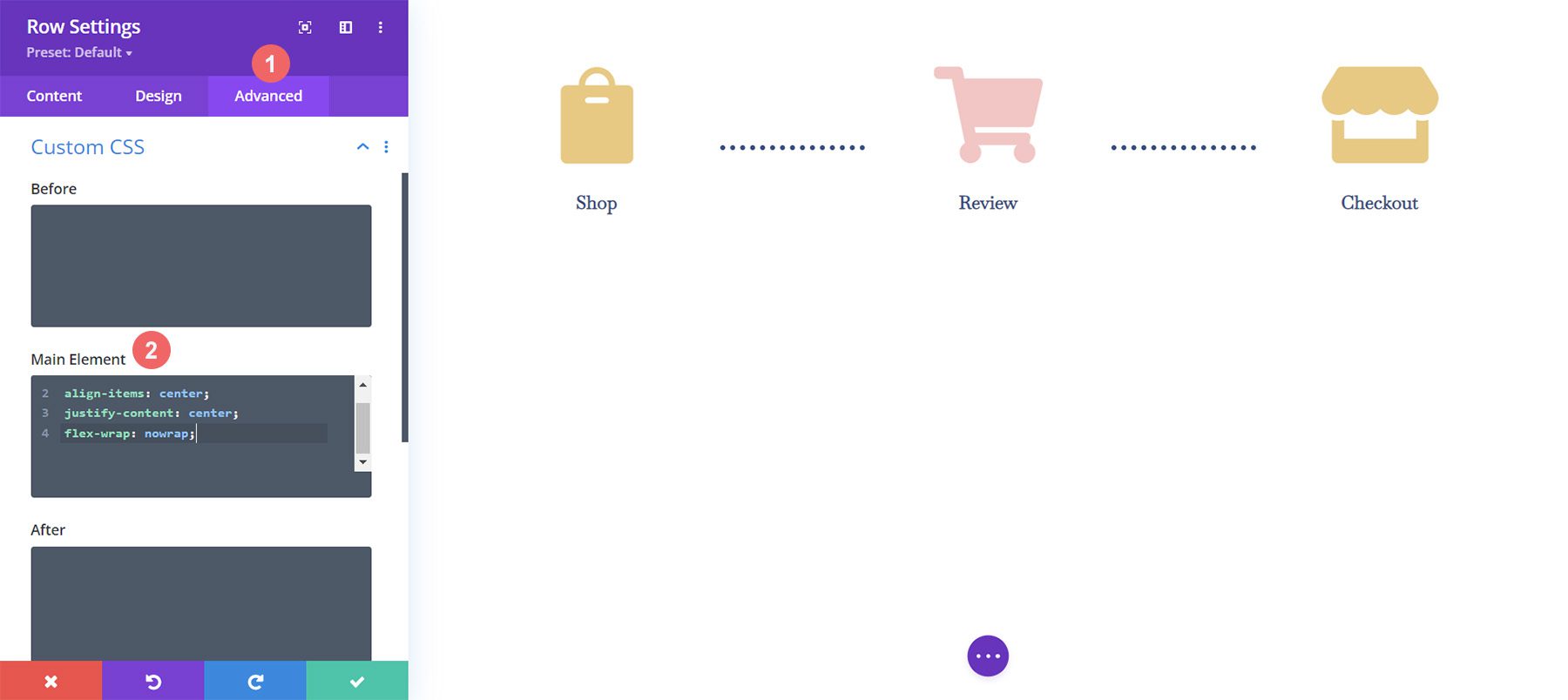
    To ensure that our Divider Modules are aligned correctly and to make our timeline module mobile-responsive, we’re going to add some CSS to our row.

    WooCommerce Cart Timeline row with custom CSS

    To add our Custom CSS, we first need to enter the Row Settings for our WooCommerce Cart Timeline. Next, we select the Advanced Tab. Finally, we will add the following CSS to the Main Element:

    Custom CSS:

    display:flex;
    align-items: center;
    justify-content: center;
    flex-wrap: nowrap;
    

    Once we’ve added this to the Row Settings, we click the green checkmark to save our settings.

    Final Customization for Mobile Responsiveness

    One amazing benefit of Divi is the fact that you can customize various elements quite deeply. We need to make one final edit to the last Blurb Module in the last column in our row. This change will help it look better on mobile and smaller screens. The fact that Divi allows us to get granular with our styling ensures that our work looks good for our clients as well as our own websites.

    Editing padding, margin and CSS for columns

    Notice how the last column, on mobile, is slightly lower than the other Blurb Modules. We’re going to change that! To do this, we’re going to enter the settings for the third and final module. Next, we’re going to go to Spacing > Margin. We’re going to leave the margin for the desktop view. However, we’re going to add a bottom margin of 15px for tablets.

    Add a bottom margin to your Blurb Module

    Finally, we’re going to add a bottom margin of 21px for mobile devices.

    Add a bottom margin to your Blurb Module for mobile devices

    Now, we have a truly mobile responsive Woocommerce cart timeline that we can use to guide users from shop to checkout.

    Setting Up the Checkout Page

    We have set the foundation for our WooCommerce cart flow timeline on our cart page. However, we need to complete our timeline by adding the work that we’ve done to our checkout page template. We’ll be using Divi’s OG feature, the Right-Click Menu to help make our process for the checkout page easier. Let’s get started!

    Copy WooCommerce Cart Flow Timeline from Cart Page

    We’ll be going back to the cart page. However, we won’t be entering into the Divi Builder for the body.

    Prepare the cart body for the checkout page

    Right-click on the Custom Body of the cart template. Next, click on the Copy option from the right-click menu.

    Right click, copy the body template from the cart template, to the checkout template

    Now that we have copied the work that we did within the cart template, we will now paste this into the checkout template. To do this, we right-click on the Add Custom Body button within the checkout page template. Once you have done this, the menu will show the option to Paste. Click on Paste to copy the Custom Body from the cart page template to the checkout page template.

    Right click to paste the body content of the cart template

    Now, you’ll see that both the cart and the checkout page templates have a custom body. This will help us save time on our web design process. Thanks, Divi 🙂 To save our changes within the checkout template, we’ll click the green Save Changes button at the top of the builder.

    Save changes for the body template of the checkout page

    Update Checkout Page Template

    Now that we’ve shaved some time off of our design process, let’s do the final edits to the checkout page to ensure that it works well with the rest of our project. First, click the pencil icon to edit the Custom Body of the checkout page template.

    Edit checkout custom body module

    Style Checkout Icon

    Let’s begin styling our checkout icon. Click on the gear icon which will open the Module Settings of the checkout icon.

    Edit checkout icon

    Move to the Design tab of the Module Settings module. Click on the Image & Icon title. We will be editing the icon color. As such, click on the eyedropper icon and enter the hex code #f6c6c5. This will make the icon the pink color that we are using to denote the current page.

    Update checkout icon color

    Update Cart Icon

    We will need to go back and update the icon color of the cart icon. To do this, we’re going to go back to the module settings of the module. Next, we click the gear icon of the cart icon.

    Update the cart icon color on the checkout page template

    Again, we will move to the Design tab of the module settings. Next, under the Image & Icon title, click on the eyedropper tool. Next, add the hex code #eac989. 

    Updated cart icon color on the checkout page template

    Remember to save your settings and all your hard work once you have exited the Divi Builder.

    Save all changes

    Putting it All Together

    While we have focused this tutorial on building the cart timeline, there are other WooCommerce modules used to complete the template. For this tutorial, we used the FREE Divi Toy Store Layout Pack as the inspiration for the styling. Here are the other WooCommerce modules that you’ll need to add to each template page to complete your store.

    Cart Page Template

    • Woo Cart Products: This will display the WooCommerce cart
    • Woo Cart Totals: Showcase the subtotal, taxes, and more with this module

    Overview of the cart pages with the other Woo modules

    Checkout Page Template

    • Woo Notice Module: We use this module to show any errors, information or notices that relate to checking out
    • Woo Checkout Billing: This module will color the billing details of your customers
    • Woo Checkout Details: Unlike the cart totals, this module will show the actual product names, quantity, and more
    • Woo Checkout Billing: To show available payment methods, we have this module added to the checkout page

    Overview of the checkout pages with the other Woo modules

    In Conclusion

    Having a cart timeline adds a visual representation of the process that your customers take on your store. With Divi, you have the power to customize and create an added piece to your WooCommerce store. Divi gives you the tools to be able to take what you’ve learned here to your own client and personal websites. I’d love to hear from you if you use this tutorial in the wild!

    The post How to Design a WooCommerce Cart Flow Timeline for Your Divi appeared first on Elegant Themes Blog.

  • Get a Free Saas Product Layout Pack for Divi

    Hey Divi Nation! Thanks for joining us for the next installment of our weekly Divi Design Initiative; where each week, we give away a brand new Layout Pack for Divi.

    This time around, the design team has created a beautiful Saas Product Layout Pack that’ll help you get your next Saas Product website up and running in no time!

    This layout pack includes:

    8 Premade page layouts strategically designed for any Saas Product website (including a footer design)
    – Original, royalty-free photos and graphics + customizable source file (see below)
    – Plus, a large collection of pre-designed website elements that are customizable and reusable anywhere.

    This layout pack is available right inside Divi for all Divi customers for FREE as the latest addition to our growing Divi library of hundreds of premade layout packs, thousands of page designs, and countless web design elements and resources.

    divi layout

    Check Out The Divi Saas Product Layout Pack Below

    Get it for free today!

    Saas Product layout pack

    Landing Page Design

    Saas Product Pack for Divi

    View The Live Layout Demo

    Home Page Design

    Saas Product Layout Pack for Divi

    View The Live Layout Demo

    About Page Design

    Saas Product Layout Pack for Divi

    View The Live Layout Demo

    Features Page Design

    Saas Product Layout Pack for Divi

    View The Live Layout Demo

    Pricing Page Design

    Saas Product Layout Pack for Divi

    View The Live Layout Demo

    Documentation Page Design

    Saas Product Layout Pack for Divi

    View The Live Layout Demo

    Blog Page Design

    Saas Product Layout Pack for Divi

    View The Live Layout Demo

    Contact Page Design

    Saas Product Layout Pack for Divi

    View The Live Layout Demo

    Key Features

    If you’re looking for a bold look for your Saas product website, then look no further than the Saas Product Layout Pack for Divi. With striking bright colors, eye-catching photos, and an interesting take on perspective, your potential clients will be captivated the second they land on your website.

    Live Demos

    Click the links below to see a live demo for each of the layouts included in the pack.

    1. Saas Product Landing Page (live demo)
    2. Saas Product Homepage (live demo)
    3. Saas Product About Page (live demo)
    4. Saas Product Features Page (live demo)
    5. Saas Product Pricing Page (live demo)
    6. Saas Product Documentation Page (live demo)
    7. Saas Product Blog Page (live demo)
    8. Saas Product Contact Page (live demo)

    Access This Layout Right Now
    Directly from Your Divi Builder

    Since Version 3.0.99 of Divi, you can find and import any of the layouts included in this pack (along with ALL of Divi’s Premade Layout packs) directly from the Divi Builder. They are already waiting for you.

    To access your new layout, simply activate the Visual Builder when editing a page and look for the “Load From Library” icon in the page settings bar (it looks like a plus symbol). Click this icon to launch the Load From Library popup. Under the Premade Layouts tab, you can easily find the new layout by scrolling through the list of layout packs. Once you find the Saas Product Layout Pack, click on it. You will see all the individual layouts included in the pack. Select the layout you want to use and then click the “Use This Layout” button.

    Saas Product Layout Pack for Divi

    For more, check out this video to learn how you can get this layout pack up and running today.

    Subscribe To Our Youtube Channel

    Authentication Required

    Before you can download Premade Layouts from the Divi Library you must authenticate your Elegant Themes Subscription. You can do this by navigating to Divi > Theme Options > Updates. There you can enter your username and API key and save changes.

    Saas Product Layout Pack for Divi

    You can find your API Key under your members area on the Elegant Themes site. After you enter the Username and API Key, you will gain immediate access to our library of hundreds of free layouts (including this one). If you haven’t done this, when you click to import a layout to your page, you will be prompted to enter your Elegant Themes Membership Username and API Key.

    Use Layout Images for FREE with No Licensing Restrictions

    Divi Saas Product Layout Pack for Divi

    The image assets included with these layouts (icons, illustrations, photos, etc.) have no licensing restrictions. This means you can use them in all of your commercial projects without having to worry about paying licensing fees or attributing the photographer. Use them in your commercial websites, sell them within your Divi child themes, include them in your own Divi layout packs or just use them on your blog. We know how challenging it can be to find good photos and how confusing and scary the licensing that governs those photos can be. We want to fix that problem for our users.

    Download the Full Res Image Assets

    New Layout Pack Every Week!

    We hope you enjoy this layout pack. We look forward to hearing your opinions in the comment section below. Make sure you check out next week’s layout pack as well!

    The post Get a Free Saas Product Layout Pack for Divi appeared first on Elegant Themes Blog.

  • Divi Plugin Highlight: Divi Accordions Plus

    Divi Accordions Plus is a third-party module for the Divi Builder that adds a new accordion builder. Use multiple Divi Accordions Plus Modules together on a single page and they work as a single accordion, so when one opens another one closes. Style the accordions together or individually, display icons and images, and lots more. In this post, we’ll look at Divi Accordions Plus, see what it can do, and see how easy it is to use to help you decide if it’s the right product for your needs. We’ll use the Poke Restaurant About Page Layout as a backdrop for this tutorial. So if you haven’t downloaded it already, you can grab it now with your Divi membership.

    Divi Accordions Plus Module

    Divi Accordions Plus adds a new module to the Divi Builder. Simply add the module anywhere you want within your Divi layouts.

    Adding Accordions Plus to layout

    Accordion Submodules

    The submodules create individual accordions. Add as many as you want by clicking Add New Item. You can also clone them, rearrange them, and delete them. They follow the settings in the main module, but they have specific content and design settings you’ll need to use.

    Add new item

    Content

    Add a title, subtitle (which you can disable if you want), and body content. These are the main elements of the accordions.

    Accordion content

    Item State

    Item State sets the open or closed state of the accordions when the page loads. It’s off by default, so the accordions are closed. I didn’t open the accordion in this example. It opened automatically when I enabled Item State.

    Accordion active state

    Divi Accordions Plus Accordion Submodules Design Settings

    The Design tab for the submodules controls the settings for that one accordion. You can customize them in the main module’s settings if you want them to look the same, but you’ll still need to use these settings to choose the images and icons. Let’s look at the settings that are unique to the submodule.

    Left Icon

    Left Icon controls the graphical element that appears on the left of the accordion. Enable or disable it, have it rotate on open, choose an icon or an image, and style it with the standard Divi tools. An image or icon such as a logo works great on the left. In this example, I selected an image and enabled Rotate Left Icon (Open Toggle), so the image rotated when I opened the accordion.

    Activating the left icon

    For this example, I’ve adjusted the background and icon color.

    Left icon styling

    Right Icon

    Right Icon controls the graphical element that appears on the right of the accordion. Enable or disable it, have it rotate on open, choose an icon or an image, and style it with the standard Divi tools. An icon that indicates the open or closed state of the accordion works great on the right.

    Adding the right icon

    In this example, I’ve selected a different icon, changed the icon color, the background color, and added a styled border.

    Right icon styling

    Divi Accordions Plus Content Settings

    The Content tab includes the basic Divi settings and a couple of settings that are specific to Divi Accordions Plus.

    Speed

    Speed controls how fast the toggles open and close. It’s set in milliseconds.

    Setting the accordion's toggle speed

    Mode

    Mode changes the way the accordions work.

    Accordion Mode

    Accordion Mode lets you choose between multiple active toggles and a single active toggle. Multiple Active Toggles leave all the toggles open until the user closes them. The example below shows Multiple Active Toggles.

    An example of multiple active toggles

    Single Active Toggles only allows for one open toggle at a time. It closes the open toggle when the user selects a new toggle. This example shows Single Active Toggles.

    Single active toggle mode, the standard mode of how accordions function

    Global Accordion Mode

    Global Accordion Mode is a new interesting feature. It allows for a single open toggle regardless of the number of Divi Accordion Plus Modules on the page. Enable Global Accordion Mode within every Divi Accordions Plus module on the page where you want to use the Global Accordion Mode. Any modules that do not have this mode enabled will not be affected by the mode. This is especially great for creating multi-column accordions in the same Row.

    In the example below, I’ve added another Divi Accordions Plus module and enabled Global Accordion Mode for both. When I open an accordion in one of the modules, the open accordion in the other module closes.

    Global toggle

    Divi Accordions Plus Design Settings

    The Design settings control the default styles for all the accordions. These settings are overwritten by the individual submodule settings.

    Header

    Header controls the background color, the open toggle background color, spacing, borders, and box shadow. In this example, I’ve changed the background colors for the open and closed toggle.

    Item header background colors

    Left Icon

    Left Icon controls the icon color, icon open toggle color, background color, open toggle background color, spacing, border, and box shadow for the entire accordion module. If you want to have uniformity in styling, it’s best to set up the colors of the icon here, and then individually select your icon for each toggle in the accordion. In this example, I’ve added and styled a border around the icons to make it more seamless with the background color.

    Styling the left icon

    Right Icon

    Right Icon controls the icon color, icon open toggle color, background color, open toggle background color, spacing, border, and box shadow. In the example, I’ve adjusted the open toggle colors, the border, and changed the icon color on open toggle.

    Styling the right icon

    Title

    Title controls the title background color, open toggle background color, spacing, border, and box shadow.

    Setting the title background color

    Body

    Body controls the item body, spacing, border, and box shadow. I’ve adjusted the border in this example.

    Accordion body styling

    Header Text

    Header Text controls the open toggle text and allows you to control the title and subtitle independently from the same menu. It includes all the standard text controls. I’ve adjusted the colors of the titles and subtitles, changed the title font size, and set it to bold in the example below.

    Header text styling

    Body Headings

    Body Headings includes all the standard text controls for the body headings that you’ve specified in the content area. In the example below, I’ve added both an H2 and H3 heading tag to the body content. I changed the font weights and color for both the headings within the body content.

    Body headings styling

    Body Text

    Body Text includes all the standard text controls for the body text in the content area. In this example, I’ve changed the font, made it italic, changed the color, and changed the font size.

    Body text styling

    Final Demo with Divi Poke Restaurant

    This is what the final accordion looks like within the About Us Page Layout for the Divi Poke Restaurant Layout Pack.

    Final result with header, footer and page layout

    Divi Accordions Plus Demos

    Divi Accordions Plus comes with seven demos to get you started.

    Demo 1

    The first demo includes a multi-column accordion with multi-colored icons. The accordions have a single border, and the content is bordered on all sides.

    Divi Accordions Plus Demos

    Demo 2

    Our second demo presents the accordion in a single column with blue highlights and box shadows. The icons have blue backgrounds.

    Divi Accordions Plus Demos

    Demo 3

    Our third demo uses a two-column layout and utilizes different colors for each of the accordions.

    Divi Accordions Plus Demos

    Demo 4

    The fourth demo uses a single-column accordion with warm colors and light borders.

    Divi Accordions Plus Demos

    Demo 5

    Demo five uses red titles and icons and includes tan backgrounds for the body and green backgrounds for the headers. The accordions are placed in two columns.

    Divi Accordions Plus Demos

    Demo 6

    The sixth demo uses light blue header backgrounds with a darker blue for the title text and icon background for the open accordion.

    Divi Accordions Plus Demos

    Demo 7

    Demo seven displays each of the accordion’s elements independently with box shadows for each element.

    Divi Accordions Plus Demos

    Purchase Divi Accordions Plus

    Divi Accordions Plus is available in the Divi Marketplace for $19. It includes unlimited usage, a 30-day money-back guarantee, and one year of support and updates.

    Ending Thoughts

    That’s our look at Divi Accordions Plus. This is a simple module, but it includes a lot of features for accordions. I especially like that it works with multiple modules on the same page. I found the settings intuitive and every setting I wanted to adjust was there. If you’re interested in a powerful accordion builder that’s easy to use, Divi Accordions Plus is worth a look.

    We want to hear from you. Have you tried Divi Accordions Plus? Let us know what you think about it in the comments.

    The post Divi Plugin Highlight: Divi Accordions Plus appeared first on Elegant Themes Blog.

  • How to Use the WordPress Query Loop Block

    The WordPress editor is growing into a full-fledged site builder. Thanks to the full site editing and the new theme blocks like the Query Loop Block, you can display lists of dynamic content for any post type anywhere in WordPress with ease.

    In this article, we’ll dive deeper into the WordPress Query Loop Block so you can better understand what it is and how to use it.

    What is the WordPress Query Loop Block?

    The Query Loop Block is one of the most advanced WordPress theme blocks available in the new Site Editor. It was added to WordPress Core in version 5.8 and is a a more complex version of the Latest Posts Block. It allows anyone to visually build a block that pulls and displays post content dynamically to a page or template. The Query Loop Block isn’t limited to displaying blog posts either. You can use it to pull content from any custom post type you may have. You can even use it with WooCommerce Blocks to display products.

    What are “Queries” and “Loops”?

    In WordPress terminology, a “Loop” is a way of displaying similar information on repeat. A loop of blog posts, therefore, is a series of blog posts with common attributes such as blog title, featured image, author name, publish date, and a short description. The loop pulls this data from posts (or any post type) and places them in a loop. The loop then displays posts to site visitors.

    The query aspect of a “Query Loop” means that a user can query, or command, certain information to pull into the loop. So a Query Loop Block can pull and display all posts or posts of specific categories—to name just a couple of options. This allows someone to show posts in “Category A” and no posts from Category B or C.

    Query Loop Blocks can display:

    • Blog Posts
    • Website Pages
    • WooCommerce Products
    • Other Custom Post Types

    Any post types are fair game for display in a dynamic loop.

    Query Loop Nested Blocks

    There are two immediate “Nested Blocks” that belong to the Query Loop Block:

    • Post Template Block – Holds further nested blocks that display post metadata (Title, Featured Image, Author, etc.)
    • Pagination Block – Allows posts to overflow into pages for more to be displayed

    We won’t cover these nested blocks in this article but you can click on any of their hyperlinks above to get all the information about how each works within a Query Loop Block.

    How to Add the Query Loop Block to an Index WordPress Template

    In this example, we are using the “Twenty Twenty-two” Default WordPress Theme. This was the first default theme to include editing through the Site Editor (previously called “Full Site Editor”).

    We’ll be walking through how to add a WordPress Query Loop Block to a Template in the Site Editor. To get there, first, hover over “Appearances” and then click “Editor”.

    Edit WordPress Block Theme Template - Step 1

    Then, click on the icon in the top left to pull down the dropdown menu. In that menu, click “Templates”.

    Edit WordPress Block Theme Template - Steps 2-3

    Now, from the list of presented templates, find the template you wish to edit. One of the most natural templates for this block is the “Index” template since it is the template that indexes or displays website posts.

    Edit WordPress Block Theme Template - Step 4

    You are now on Twenty Twenty-two’s Index Template. You’ll notice that it already comes with a Query Loop Block configured. But, if you are using a different Block Theme then it may not come with it.

    To add a new Query Loop Block, click the “(+)” icon. Scroll down to the “Theme” blocks or type “Query Loop” into the search bar. Drag the Query Loop block into the Site Editor.

    Create Query Loop Block - Steps 1-2

    WordPress has predefined “Patterns” that can give you a headstart in designing your Query Loop. You can choose a specific pattern if you know that there’s one that fits your needs, or you can start blank. We’re going to click “Start blank”.

    Create Query Loop Block - Step 3

    There are four default variations to apply to a Query Loop. For this example, click the “Title & Date” variation.

    Create Query Loop Block - Step 4

    This will create the Query Loop with the “Title and Date” variation.

    Create Query Loop Block - Step 5 - Result

    Notice nested blocks appear inside WordPress’ Query Loop Block. This is because those blocks provide necessary features for the Query Loop. Since we chose the “Title & Date” variation, those nested blocks need to be included to show “Title” and “Date” information. A different variation would have loaded a different arrangement of nested blocks.

    Create Query Loop Block - List Review Result

    Now that a Query Loop Block is on a template, we’ll explore the Toolbar and Settings for this advanced Theme Block.

    Query Loop Block Toolbar and Settings

    Each block within the Site Editor and Block Editor has its own Toolbar options and a Sidebar of More Settings.

    Query Loop Block Toolbar

    To find the Toolbar for the Query Loop Block it is easiest to go to the List View and select the block—making sure a nested block is not selected.

    The first unique Toolbar option for the Query Loop Block is the “Display Settings”. Clicking on that will show three options:

    • Items Per Page – Control # of posts displayed at a time in the loop
    • Offset – Skips starting point of posts by a set amount
    • Max Page to Show – Limits # of pages shown, even if the query has more results

    Query Loop Toolbar - Display Settings

    Next on the Toolbar is the “Replace” button. This gives the option to strip the Query Loop Block’s pattern and replace it with a different pattern.

    Query Loop Toolbar - Replace Pattern

    The last unique Toolbar option for the Query Loop Block is the toggle between List View and Grid View. List View displays the post loop “as a list” with posts stacked. Grid View displays the post loop as a grid with more of a table layout for the posts to fill.

    Query Loop Toolbar - List vs. Grid View Toggle

    Query Loop Block Settings Sidebar

    The Query Loop Block has additional configurations in the “More Settings” sidebar. To reveal the sidebar, either click the “Show More Settings” option nested in the Toolbar or by clicking the “Gear” icon in the top right while the Query Loop Block is selected.

    Query Loop Toolbar - More Settings

    The first visible sidebar setting gives site owners the ability to create a New Post for the Query Loop from this editing page. After that, there is the Layout Toggle which affects how Nested Blocks use layout width compared to the Query Loop Block—more on that later. The Settings Toggle allows for selecting a custom or an inherited query for the block—more on that below as well.

    Query Loop Sidebar Settings - New Post, Layout, Query Settings

    Layout Options

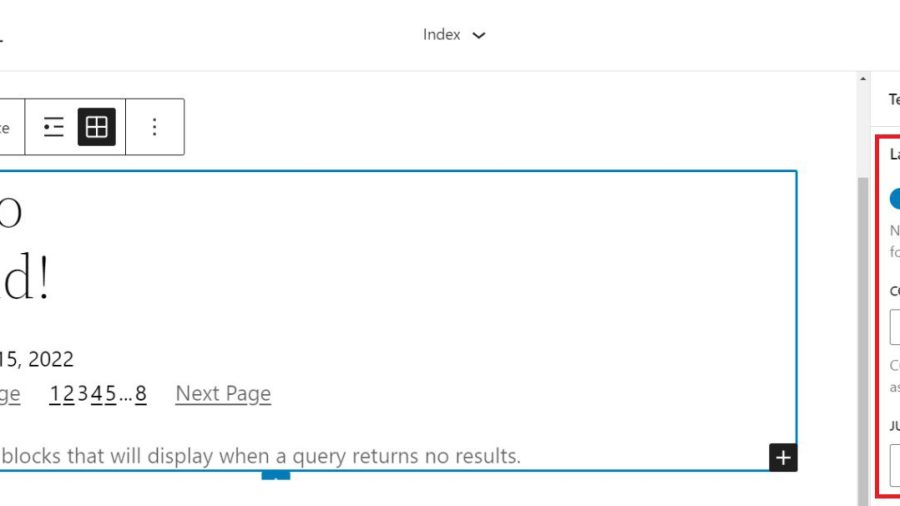
    The “Layout” settings for nested blocks allow a designer to toggle additional settings on (blue). These settings allow one to choose if those blocks use content and width percentages. It also reveals an option for left, center, or right content justification. With it untoggled (grey), nested items are set to full width by default.

    Query Loop Sidebar Settings - Layout Nested Content Width

    Query Settings

    When the query “Settings” is untoggled (grey), then you can select exactly what to query. The first option is “Posts” which can be pages, posts, or custom post types. Next, users can choose between ascending or descending order for either date published or alphabetically. Lastly, there is an option to include or exclude sticky posts in the query.

    Query Loop Sidebar Settings - Setting Untoggled

    Toggling “Settings” (blue) sets the Query Loop Block to inherit the query from the template used template.

    Query Loop Sidebar Settings - Inherit Query Settings

    Query Filters

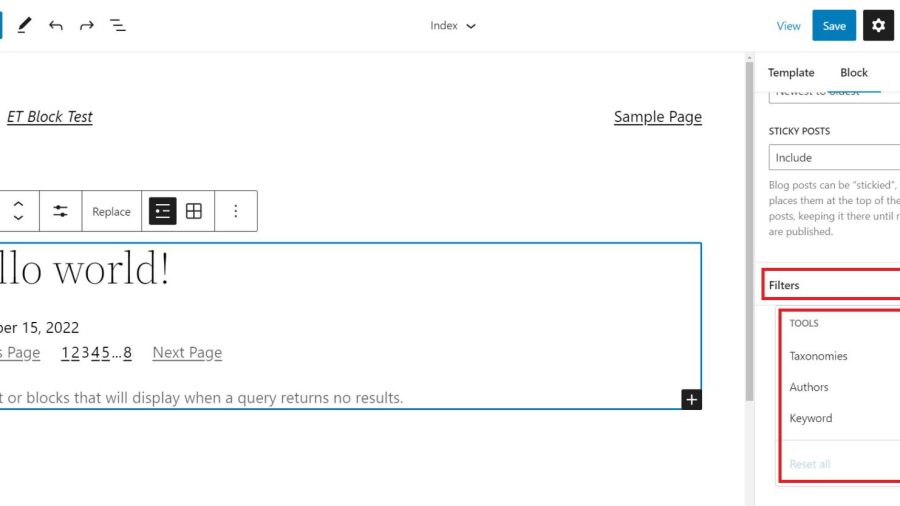
    Next, with query “Filters” gives users the option to further customize the query by filtering posts by:

    • Post Categories – Comma-separated list of categories
    • Post Tag – Comma-separated list of tags
    • Post Author – Dropdown list of authors
    • Post Keyword – Enter a list of keywords to filter by

    Query Loop Sidebar Settings - Query Filters

    Color Options and Advanced Settings

    Lastly, we have Color settings and Advanced settings. The color options allow designers to choose colors for:

    • Text Color
    • Background Color
    • Link Color

    Advanced settings include the ability to add a CSS class to the WordPress Query Loop Block and/or assign an HTML element to the block.

    Query Loop Sidebar Settings - Color and Advanced Settings

    Each nested block within the Query Loop Block has its own Toolbar options and sidebar Settings. Visit the list of nestable blocks above to learn more about each and the settings that they have.

    Tips and Best Practices for Using the Query Loop Block in WordPress

    Query Loops are powerful blocks. Follow these tips and best practices to get the most out of them.

    Set Global Styles for Query Loops and Nested Blocks

    Global Styles can be set on a block-type-by-block-type basis. This lets designers create global default styles that apply to all instances of a block throughout the website. This is a huge time saver.

    Currently, on the 2022 Theme, the Query Loop Block allows you to add Global Styles for text color, background, and link colors. To get to the global styles editor, click on the “Global Styles” icon (half-filled in circle), select “Blocks”, and find the Query Loop Block.

    You can also assign separate global styles to each of the nested theme blocks (like Post Template, Post Title, etc.) within a Query Loop as well.

    Use Multiple Query Loop Blocks on a Single Page to Create a Featured Blog Section

    In creating a Blog Page template, you may want to create a featured post that stands out because it is the most recent post published on your site. Below is a simple version of the concept.

    Featured Post Result

    There will need to be two Query Loop Blocks on our “Index” template. The top Query Loop Block will have a “List View” display and will only show one single post. Make sure that it has no Pagination Block nested in this first Query Loop.

    With the second/bottom Query Loop Block, set it to “Grid View”. It should display multiple posts in columns and set the “Offset” to 1. An offset of 1 will skip the first post of the query. This is desired since the query loop above contains the featured post.

    Use Consistent Design for Query Loops Displaying the Same Post Types

    Query Loops used for “blog articles” should look similar. If you use Query Loop Blocks for other post types, consider a slightly different style for those so your site visitors can differentiate what are “Blog Posts” and what are other types of content. This will make for a clear website UX.

    Using Divi’s Blog Module: A Query Loop Block Alternative with More Design Options

    If you use Divi, the Blog Module functions much like the native WordPress Query Loop Block. And adding Divi’s Blog Module to a page or template is simple, giving you all the options you need to customize the parameters, layout, and design of the dynamic post content.

    divi-blog-module

    The content displayed within the Blog Module is completely flexible as well, allowing you to select a certain post type, post type categories, and the number of posts to include. Individual Module Elements can be added or removed such as featured images, titles, meta-text, body text, read more links, pagination, and so on.

    Each of these Module Elements can be completely styled using Divi’s extensive design options. Learn more about using Divi’s Blog Module on Templates.

    Frequently Asked Query Loop Questions

    Answering some of the most asked questions about WordPress’ Query Loop Block.

    What’s the Difference Between the Query Loop Block and the Latest Posts Block?

    The Query Loop Block is similar to the Latest Posts Block in that it has the capability of displaying a list of the latest posts on your blog dynamically. However, the Query Loop Block is much more advanced, allowing you to build your “list” of posts, pages, or other post types from scratch by integrating other nested blocks. For example, if you have a custom post type for recipes, you can use the Query Loop Block to create an entire page of recipes customized to your liking.

    Does the Query Loop Block Require Coding Knowledge?

    No, the WordPress Query Loop block does not require coding knowledge because the functionality is already built-in. This block enables you to display a loop of posts on your WordPress site using customizable block settings on the front end.

    Where Can I Use the Query Loop Block?

    The WordPress Query Loop Block loops through published posts and pages to display them. It will automatically update as new pages/posts meet the query parameters. This makes this block useful in many places such as post or archive templates, or on static pages where you want to display things like recent posts dynamically.

    Have you used the Query Loop Block on your WordPress site? What discoveries have you made? Let us know in the comments below.

    Featured Image by Dmitry Kostrov / shutterstock.com

    The post How to Use the WordPress Query Loop Block appeared first on Elegant Themes Blog.

  • Divi Plugin Highlight: Divi/Gutenberg/Woo Cross-Domain Copy Paste for Divi and Gutenberg

    The Divi/Gutenberg/Woo Cross-Domain Content Copy Paste System (CCPS) plugin allows you to easily copy and paste Divi, Gutenberg, and WooCommerce layouts across websites on different domains. This could be convenient for building a layout on one site and moving it to a different site without having to export and import the layout with the Divi Library. You could also use this plugin to create your own repository of layouts for design projects. In this plugin highlight, we will take a look at the Divi/Gutenberg/Woo Cross-Domain Content Copy Paste System (CCPS) plugin and help you decide if it’s the right plugin for you.

    Let’s get started!

    Installing Divi/Gutenberg/Woo Cross-Domain Content Copy Paste System (CCPS)

    The plugin comes as a .ZIP plugin file. To install the plugin, open the plugin page in your WordPress dashboard and click Add New. Click Choose File and select the .ZIP plugin file, then click Install Now. Once the plugin is installed, activate the plugin.

    Divi Plugin Highlight Divi/Gutenberg/Woo Cross-Domain Content Copy Paste System (CCPS) Install

    Repeat these steps to install the plugin on any website you want to be able to paste items. This plugin will need to be installed and activated in order for you to be able to copy and paste any layouts.

    Divi/Gutenberg/Woo Cross-Domain Content Copy Paste System (CCPS)

    Now let’s take a look at exactly how this plugin works.

    Settings Page

    Once the plugin is installed you will see a new settings page for the plugin appear in your WordPress dashboard menu. With these settings, you can change where the copy-paste functionality is enabled and change the button location.

    Divi Plugin Highlight Divi/Gutenberg/Woo Cross-Domain Content Copy Paste System (CCPS) Settings

    You can also change the pages that have the bulk copy and paste function enabled and restrict the plugin usage by user roles. By default, all of the settings are enabled and you shouldn’t have to make any changes before using the plugin. The page also lists some tips and instructions for using the plugin.

    Divi Plugin Highlight Divi/Gutenberg/Woo Cross-Domain Content Copy Paste System (CCPS) Settings 2

    Copy Divi Layouts

    Here I have created a layout in Divi’s visual builder that I would like to copy to another website. As you can see, now that the plugin is activated there is a green icon at the bottom left corner of the Visual Builder.

    Divi Plugin Highlight Divi/Gutenberg/Woo Cross-Domain Content Copy Paste System (CCPS) Visual Builder 1

    When you click the green icon, you have two options: whole page or individual sections.

    Divi Plugin Highlight Divi/Gutenberg/Woo Cross-Domain Content Copy Paste System (CCPS) Visual Builder 2

    If you select Whole Page, you get an option to copy the page or paste the page. Since we want to copy this layout and paste it to a different website, we’ll select the copy option.

    Divi Plugin Highlight Divi/Gutenberg/Woo Cross-Domain Content Copy Paste System (CCPS) Visual Builder Copy

    Now on my new site, I have installed and activated the plugin and added a new page. The copy and paste icon is there in the visual builder, so I’ll click the icon, then select the Whole Page option and click Paste Page.

    Divi Plugin Highlight Divi/Gutenberg/Woo Cross-Domain Content Copy Paste System (CCPS) Visual Builder Paste

    Now the layout has been loaded onto the new page! Note that pasting a whole page will replace any content you had on the page.

    Divi Plugin Highlight Divi/Gutenberg/Woo Cross-Domain Content Copy Paste System (CCPS) Visual Builder Paste Success

    Alternatively, you can choose to copy an individual section. To do so, click the copy and paste icon, then select Individual Sections.

    Divi Plugin Highlight Divi/Gutenberg/Woo Cross-Domain Content Copy Paste System (CCPS) Visual Builder Individual Sections

    When you hover over a section, it will have a green overlay with a button to copy the section and a button to paste a section. Click the copy button.

    Divi Plugin Highlight Divi/Gutenberg/Woo Cross-Domain Content Copy Paste System (CCPS) Visual Builder Copy Section

    On the new website, click the copy and paste icon and select Individual Sections. If you highlight an existing section and click paste, that section will be replaced with your copied section. If you don’t want to replace a section on your new page, you can create a new blank section and paste it there.

    Copy Gutenberg Layouts

    This plugin also allows you to copy Gutenberg layouts to a different site. To do so, open or create a layout with the default editor (Gutenberg editor, not the Divi builder). At the top of the page is a button for Layout Copy Paste. Click the button, then select whole page or individual section. I’ll copy the whole page in this example.

    Divi Plugin Highlight Divi/Gutenberg/Woo Cross-Domain Content Copy Paste System (CCPS) Gutenberg Copy Whole Page

    On the new website, open a page with the default editor. Again, you should see the Layout Copy Paste button at the top. Click the button and select whole page, then click paste page.

    Divi Plugin Highlight Divi/Gutenberg/Woo Cross-Domain Content Copy Paste System (CCPS) Gutenberg Paste Page

    Now your layout will be pasted onto the new site.

    Divi Plugin Highlight Divi/Gutenberg/Woo Cross-Domain Content Copy Paste System (CCPS) Gutenberg Paste Success

    Bulk Copy and Download Pages, Posts, WooCommerce Products, and Media Files

    A new feature added in version 2 of this plugin is the ability to bulk copy pages, posts, WooCommerce products, and media files from one site to another. You can also download an exported file of pages, posts, products, or media and upload them to another site through this feature. This is a very useful and time-saving feature to have if you’re moving lots of content from one site to another.

    Here I’m looking at my pages in the WordPress dashboard. You can see the Content Copy Paste button at the very top of the page. Select the pages you would like to copy, then click the copy button.

    On the other website, navigate to Pages, then click the paste button at the top.

    Divi Plugin Highlight Divi/Gutenberg/Woo Cross-Domain Content Copy Paste System (CCPS) Paste Pages

    Your copied pages will be pasted onto the new website.

    Divi Plugin Highlight Divi/Gutenberg/Woo Cross-Domain Content Copy Paste System (CCPS) Paste Pages Success

    If you’d rather generate a .ZIP file with your content, you can use the download button to save your content instead. Here’s what that looks like from the WooCommerce Products page.

    Divi Plugin Highlight Divi/Gutenberg/Woo Cross-Domain Content Copy Paste System (CCPS) Download Products

    Now on my new site, I can click the Content Copy Paste button from the Products page and click Upload to upload the .ZIP file with the product contents.

    Divi Plugin Highlight Divi/Gutenberg/Woo Cross-Domain Content Copy Paste System (CCPS) Upload Products

    After the success message appears, you can see the products have been uploaded to the new site.

    Divi Plugin Highlight Divi/Gutenberg/Woo Cross-Domain Content Copy Paste System (CCPS) Upload Products Success

    Divi/Gutenberg/Woo Cross-Domain Content Copy Paste System (CCPS) Tips and Updates

    There are a few things to know before you use this plugin. First, you must always save the page you are copying from or pasting to before you can copy or paste. Copying and pasting is not possible between different browsers or within incognito windows. Additionally, cross-domain copy-pasting is not supported by the Safari web browser. Finally, this plugin does not work within the Divi theme builder environment. Despite these limitations, this plugin brings some great functionality to Divi and WordPress and could be very useful if you use your own premade layouts and often work between multiple domains.

    Purchase Divi/Gutenberg/Woo Cross-Domain Content Copy Paste System (CCPS)

    Divi/Gutenberg/Woo Cross-Domain Content Copy Paste System (CCPS) is available in the Divi Marketplace. It costs $49 for unlimited website usage and 1 year of support and updates. The price also includes a 30-day money-back guarantee.

    Divi Plugin Highlight Divi/Gutenberg/Woo Cross-Domain Content Copy Paste System (CCPS)

    Final Thoughts

    Divi/Gutenberg/Woo Cross-Domain Content Copy Paste System (CCPS) is an interesting plugin that makes it easy to copy and paste Divi and Gutenberg layouts to sites on different domains. With this plugin, you can easily reuse design layouts for new projects and even create your own repository of layouts that you can effortlessly copy and paste. With new features in version 2 adding the ability to bulk copy and download pages, posts, media files, and even WooCommerce products, this plugin could be a serious time-saver when transferring content to other websites. The installation is simple and straightforward, and the plugin is very easy to use as well. If you are tired of importing and exporting Divi Builder files to new websites and want an alternative to a cloud-based layout repository like Divi Cloud, this could be a great plugin for you.

    We would love to hear from you! Have you tried Divi/Gutenberg/Woo Cross-Domain Content Copy Paste System (CCPS)? Let us know what you think about it in the comments!

    The post Divi Plugin Highlight: Divi/Gutenberg/Woo Cross-Domain Copy Paste for Divi and Gutenberg appeared first on Elegant Themes Blog.

  • How to Use the WordPress Stack Block

    Thanks to the introduction of Gutenberg blocks in version 5.8, WordPress makes it easy to organize your content and create awesome patterns. With the help of the WordPress Stack Block, you can add any type of block you choose, then display it vertically to create beautifully stunning layouts with ease.

    What is the Stack Block in WordPress?

    The WordPress Stack Block is a useful block that allows you to stack multiple blocks in a vertical column. Similar to the row block, it allows you to group multiple blocks together, making it easier to keep your blocks nice and tidy. It’s a versatile block because you can add any block you wish within it such as headings, images, buttons, and more.

    How to Add the Stack Block to your Template

    Adding the Stack Block to your page using the WordPress Editor is a simple process. Start by clicking the block inserter icon near the top left of the site editor screen.

    click block inserter

    Next, you can either search for the Stack Block or type /stack into the page editor directly. Then, simply click the block to add it.

    add Stack Block

    Stack Block Settings and Options

    There are two settings groups within the WordPress Stack Block – toolbar and additional settings. Let’s go over each group to give you a better understanding of how to use it.

    Toolbar Settings

    As with every block in WordPress, there are a few standard toolbar settings for the Stack Block. They can be observed by viewing the screenshot below:

    Stack Block toolbar settings

    1. Transform to
    2. Drag
    3. Move arrows
    4. Justification
    5. Alignment
    6. More options

    The first setting in the Stack Block is Transform To. With this option, you can turn the Stack Block into a quote, unwrap (ungroup) it, convert it to columns, or convert it into a cover block.

    transform settings

    The next two settings – drag and move – allow you to either drag your block into a different position on the page, or use the move arrows to move it up and down.

    The Justification option in the toolbar settings controls the justification of the blocks within the stack. They can either be aligned to the left, center or right.

    justification settings

    Next is the Align option. This option doesn’t necessarily control alignment, but rather the width of the stack. You can set it to None, which will allow the stack and all interior blocks to occupy a maximum of 650px. Wide width will allot 1000px for the stack, and Full width will stretch the Stack Block and all interior blocks across the full width of the page.

    Stack Block alignment settings

    The last toolbar settings group is more options. Within it, you can copy, duplicate, insert, move, lock, group, remove, or create a reusable block.

    Stack Block more settings

    The Stack Block Settings

    There are quite a few additional settings specific to the Stack Block. First, there is the Layout setting. Under the Layout options, you can control the justification and orientation of the stack, as well as control whether the blocks within the stack should be allowed to wrap to multiple lines. Justification options include left center, and right. For orientation, you can choose whether to orient them horizontally or vertically.

    Note that if you choose the horizontal orientation, the Stack Block will automatically be converted to a row block.

    Stack Block layout settings

    Next is the Color settings. When selecting a text color on the stack, it will control the color of the text on every block inserted into it. Alternatively, when choosing a background color, it will only apply a background color to the stack itself, rather than its contents. Finally, link color settings control any links added within the Stack Block.

    color settings

    Within the Typography settings, you can set the font size, appearance, line height, letter spacing, text decoration, and letter case for any block inserted into the Stack, which contains the text.

    typography settings

    Next are the Dimension settings. Here you can control the padding around the Stack. You can either set padding as a whole, or individually for the top, left, bottom, and right. Additionally, you can control the block spacing for all blocks contained within the stack.

    dimension settings

    The Border options allow you to add a border and/or a border radius to the Stack.

    border settings

    Tips and Best Practices for Using the WordPress Stack Block Effectively

    Even though the block is fairly simple to use, there are a few best practices that you should follow.

    When adding blocks to the Stack, a great way to stay organized and view your blocks is to use the WordPress List View. List view enables you to view each block within the stack, and allows you to easily drag them around to move them. To access the list view, simply click the list view icon to reveal all of the blocks in your stack.

    list view

    Also, make sure to keep the orientation option set to vertical. Swapping to a horizontal view in the layout settings will convert your Stack to a row. As previously mentioned, rows display blocks horizontally rather than vertically.

    Lastly, when setting colors for your stack, keep in mind that if you set a text color on the Stack Block itself, it will apply to other child blocks containing text as well. If you don’t want to apply a color to all blocks within the stack, be sure to apply color settings to individual blocks within the stack.

    WordPress Stack Block FAQs

    The WordPress Stack Block is a versatile block that can be utilized in pages, posts, and templates. So you will likely have a few questions. Hopefully, these will help.

    What’s the Difference Between a Row Block and a Stack Block?

    While Row Blocks and Stack Blocks allow you to group a series of blocks together, the difference is in orientation. You should use a row block when you want to display blocks horizontally. A great example of when to use a row block is when building a header. Typically, you want to have your site logo, as well as navigation links displayed horizontally. The Block works in much the same way. It can house a group of blocks. However, a Stack Block displays the block vertically. A great way to use the block is to build a sidebar with your post categories.

    Can I Use the Stack Block in a Template?

    Yes! Stack Blocks are a great way to display a group of blocks vertically, and help to keep blocks organized. This is especially useful when creating a template using full site editing in WordPress. For example, when creating a blog post template, it’s a good idea to use the block to house your post title, post meta, post content, and other post-related blocks.

    Wrapping Things Up

    Building a website in WordPress starts with adding structural elements like rows and columns. The Stack Block is a convenient way to add a row of content that is aligned vertically instead of horizontally. The block can be easily configured to help you design a page in WordPress using the built-in settings in the toolbar and sidebar block settings. Though this block is native to WordPress, page builders like Divi have more robust design options for optimizing the structure of your page using modules.

    For more, check out our other WordPress Block tutorials as well as our complete guide to WooCommerce Blocks.

    Have you experienced using the Stack Block on your website? Let us how in the comments below.

    The post How to Use the WordPress Stack Block appeared first on Elegant Themes Blog.

  • Sendinblue Review: Best Affordable Email Marketing Solution?

    Email is still one of the most effective marketing channels available, with a return on investment of $36 for every $1 spent. Using the right tools can greatly enhance the success of your email marketing campaigns. One such tool is SendinBlue, one of the most cost-effective email marketing platforms with powerful features. In this SendinBlue review, we’ll dive into the features and pricing of SendinBlue to help you make the right decision.

    What is Sendinblue?

    Sendinblue is an all-in-one email marketing and marketing automation platform that helps businesses reach their customers through email, SMS, and chat. It is surprisingly easy to use and has a wide range of features like email templates, automation, list management, analytics, and more. It also offers a pricing model based on the number of emails sent each month, making it an affordable choice for businesses of all sizes.

    Sendinblue Homepage

    Review of Sendinblue Features

    Sendinblue has a lot of features that help businesses and brands manage their email marketing. But sending emails is just the beginning. Additional features include:

    • Drag-and-drop visual email builder
    • SMS messaging
    • CRM
    • Forms and Landing pages
    • Automation
    • Web Chat
    • Transactional emails

    While Sendinblue isn’t the best email marketing provider in each of these individual categories, their feature mix and price point give them a right to be considered in many marketers’ tech stack.

    Sendinblue Email Marketing Campaigns

    The Sendinblue visual email editor makes creating beautiful emails easy. With its drag-and-drop interface, you can add all the email elements you may need to create your email and use the inline text editor for an intuitive visual editing experience. This allows anyone to create stunning emails in minutes.

    Sendinblue Email Template Preview

    In addition to the drag-and-drop editor, you can use a rich text editor or create your campaign using custom HTML (if you need that sort of functionality).

    Sendinblue CRM

    If you’re looking for a Customer CRM to manage contacts and notes, Sendinblue is definitely worth consideration. With Sendinblue, you can easily add and update contact information, as well as add notes, see email activity, and create reminders.

    SIB CRM Company Profile with Tasks

    There is even a deal desk with a Kanban view of active deals and the stages that they are in.

    SIB CRM Pipeline Kanban

    Plus, the CRM fully integrates with your Sendinblue email marketing and automation to make marketing a breeze. This helps you create useful segments for your email marketing campaigns. Find out why email segments are very important.

    Sendinblue Automation

    Sendinblue provides a marketing automation creator that lets you build workflows based on your contacts’ website behavior, purchase/store behaviors, and email opens/clicks. You can use these workflows to send automated emails and SMS messages that are tailored to your contacts’ needs and interests.

    Here are a few automation ideas to consider:

    • Send a welcome series of emails based on the list they sign up for
    • Set priority pages that when visited trigger a targeted email about the page’s subject (since they are interested)
    • Send abandoned cart email or up-sell recommendations based on products they view in your eCommerce store or add to cart
    • Create lead scoring that gives and removes points from contacts based on actions they take within your web and marketing properties

    SIB Lead Scoring Visual

    Sendinblue offers a high level of automation at an affordable price, making it a standout feature among other platforms. There are plenty of other more expensive automation platforms (ActiveCampaign) that have more automation capabilities.

    Automation Pricing Feature Chart

    The fact that Sendinblue includes automation in the free plan is astounding. This makes it a strong contender for businesses and websites that have some marketing chops that can fully utilize medium-tiered automation tools.

    Sendinblue Transactional Email

    Transactional emails are automated email messages that are sent to customers/visitors after they take a specific action. For example, a customer might receive a transactional email after they make a purchase, sign up for an appointment, or change their password on your website. They deliver necessary information to customers based on particular actions taken with your business.

    Creating a transaction email can be done using the drag-and-drop editor using a template or from scratch.

    Sendinblue Transactional Purchase Confirmation Email Example

    Sendinblue has a robust transactional email platform that is outfitted with webhooks and an API that lets you meld your website and operational systems with Sendinblue.

    Sendinblue Review of Webhooks

    Sendinblue is particularly good with transactional emails because you can easily manage transactional and marketing emails all in one place. This could streamline a lot of the email functions for many businesses. Instead of learning two different platforms, site owners can focus on mastering one platform that can do almost it all.

    Sendinblue WordPress Plugin Marketing Automation and SMTP

    Sendinblue also works nicely with WordPress. Their SMPT WordPress plugin lets Sendinblue handle the SMTP marketing, transactional emails, and more for your WordPress websites. This makes your system-generated email deliverability more reliable.

    Check out a step-by-step guide on how to use SMPT to send email with WordPress and Sendinblue.

    Social Sharing and Ads with Sendinblue

    Next, we are taking a look at how Sendinblue handles social posting and advertising.

    Social Media Sharing

    Sendinblue lets you easily connect your social accounts so that you can easily share your email campaigns with your social audiences. It’s a nice way to give audiences on other channels the ability to see what’s going on in your email campaigns. Sendinblue lets you share your campaigns on your Facebook, Twitter, and LinkedIn accounts.

    Email Campaign Share on Social

    Social Chat Integrations

    Sendinblue’s chat features also integrate with a few compelling social channels. Sendinblue offers a standalone chat widget that you can deploy to your website (by adding the chat script or by connecting to Shopify, WooCommerce, and other integrations). The chat functionality can also integrate with your business page’s Facebook Messenger or with your Instagram account’s inbox.

    Sendinblue Review of Chat Integrations

    Social Advertising

    Sendinblue allows customers to create advertising on Facebook. If you’ve ever delved into ads on Meta Ads Manager (formerly Facebook Ads Manager) you’ll know how difficult this can be to do manually.

    Sendinblue simplifies the process by creating an easier ad creation process and by connecting your CRM to your Ads Manager account. This creates undeniable efficiencies. It also limits the workload customers have to put in to be successful with both types of marketing. Lastly, with this all being on one platform, you can better use lead ads with CRM and Automation.

    Social Ads are made easy by Sendinblue’s audience creation.

    Create Audience for FB Ad

    You can set the timing and budget of your ads easily in Sendinblue.

    Set Budget for FB Ad

    Designing an Ad on Facebook or Instagram is very easy and Sendinblue gives you a preview of your work. Certain ad types are not available in Sendinblue.

    Create Facebook Ad Content

    Sendinblue Ease of Use

    One of the first things we noticed when we logged into our test account is how intuitive the dashboard is. There are a limited number of menu items in the top navigation which made it feel much less daunting. In the new account creation, we answered questions that created a custom onboarding experience tailored to our initial stated goals. This made it so that we only saw the features we said we wanted when we first logged in.

    Sendinblue Onboarding

    Jumping into the settings, you’ll see more options under the hood. Each feature is well-organized in a grid format and each feature listed has an on-off toggle. This allows you to control what features are active and visible in the dashboard with a simple click.

    Sendinblue Review of Addons

    For example, if you are just doing marketing emails, you can turn off transactional emails and not see them in your dashboard. This is a brilliant way to improve user experience. Sendinblue gets an “A+” for modular feature toggles.

    Powerful Automation

    Sendinblue sports an attractive and easy-to-use automation workflow builder. The nice thing is that Sendinblue has pre-built recipes or workflow templates for you to choose from.

    These pre-made workflows include:

    • Most Popular Workflows
    • Increase Engagement
    • Increase Traffic
    • Increase Revenue (eCommerce)
    • Build Relationships

    Prebuilt workflows are a great time saver, especially for those new to marketing automation. They can choose a workflow that fits their business needs and create email/SMS campaigns based on where they land in the workflow.

    This mid-level automation could not be easier and gives marketers enough power to push business forward.

    Email Creation

    As an email marketing campaign, how Sendinblue handles creating emails is very important. We’ll start with Sendinblue’s email templates. Their premade email starters are separated into layouts and templates.

    • Layouts – Paired down templates without images and design elements. Just the visual layout
    • Templates – Full-fledged starter emails. Pick a template based on the design elements

    There are 41 templates available but the real value is the ability to create your own templates that you can reuse and stay on brand.

    Sendinblue Email Visual Editor

    Their visual editor is powerful, simple, and attractive.

    Sendinblue Email Visual Editor

    Standout visual editor features include:

    • Drag and drop blocks
    • Simple Block settings (colors, spacing, alignment
    • HTML block
    • Reusable content blocks
    • Block Visibility Toggle – to hide blocks but not delete
    • Duplicate Block
    • Repeat Block for Dynamic Content Varaitations

    Sendinblue’s email editor is, in some ways, more powerful than the likes of Constant Contact and Mailchimp. But, a lot of that comes down to familiarity. Power users will enjoy the HTML block that allows for a visual editor plus some additional HTML.

    Sendinblue Pricing

    Sendinblue’s Pricing is where it really sets itself apart. Their pricing structure is proving to be a uniquely effective marketing strategy, attracting users that want more bang for their buck.

    Sendinblue Pricing Chart Review

    A Generous Free Plan

    They have a generous free plan for email marketing with nearly all necessary features included. The free plan is limited to 300 emails per day ( 9,000 per month) with a cap of 2,000 contacts for email automation. That’s a great deal for small businesses with less than 500 contacts and could reasonably be all they need.

    Scalable Paid Plans

    Sendinblue bases its prices on the number of emails sent instead of the number of contacts you have. That means you can have as many contacts as you want and Sendinblue won’t charge extra. This is a huge value for companies that send fewer emails and have a large audience.

    The Starter plan ($25/m) includes reporting, email support, and no daily email limit. The Business plan ($65/m) offers full automation, A/B testing, advanced reporting, and multiple user access. The Enterprise plan ($1000/m) provides white-glove onboarding, flexible pricing, advanced integrations, and top security.

    SendinBlue vs Mailchimp

    Sendinblue seems to have made significant strides to compete with Mailchimp. They’ve changed their pricing structure and feature mix (especially in the free tier) to truly offer a better product for small businesses. The below figure shows what sending 1 email per contact would cost you as compared to Mailchimp.

    Sendinblue vs Mailchimp Pricing

    Mailchimp’s free plan has some notable limitations compared to Sendinblue including limited number of monthly sends (9,000 vs 2,500) and no live chat, CRM, or transactional email options. Plus, Sendinblue allows unlimited contacts (excluding automation) while Mailchimp does not.

    Sendinblue vs Mailchimp Free Features Comparison

    Digging deeper into Mailchimp vs. Sendinblue feature comparisons, Sendinblue offers a few features that would be add-ons with Mailchimp. The cost savings could be quite large if you need these features.

    Sendinblue vs Mailchimp All Features Comparison

    Notably, the Business Plan with Sendinblue (at $65 per month currently) comes with phone support but phone support is only available with Mailchimp with their $300 per month plan. Mailchimp also charges by the contact so Sendinblue’s unlimited contacts (especially if you are using CRM and Automation) are quite appealing.

    One of the Best Free Email Marketing Platforms with Affordable Upgrades

    Sendinblue is proving to be one of the best affordable email marketing platforms. If you’re looking for a powerful email marketing tool that won’t break the bank, SendinBlue is the perfect solution.

    With a free account, you can send up to 300 emails per day. And if you need more, you can upgrade anytime with scalable plans that charge by the number of emails rather than the number of contacts. Plus, their free plan includes most of the features of their paid plans, so you can give it a try and see how fits with your marketing strategy.

    Have you tried Sendinblue within the last year? How was it? How did it help you with your marketing goals? What else would you add to this Sendinblue Review?

    Featured Image via TMvectorart / shutterstock.com

    The post Sendinblue Review: Best Affordable Email Marketing Solution? appeared first on Elegant Themes Blog.

  • How to Use Invisible Dividers to Create Space Between Divi Modules

    Divi’s Divider Module is unique among the modules available within the Divi Builder. It works to serve multiple purposes. Not only does it provide a styled line to add an interesting division between modules, but it’s also used to add whitespace. Many Divi layouts use invisible Divider Modules to create space within the layout. In this post, we’ll see how to use invisible Dividers to create space between Divi modules.

    Why Create Space with Invisible Dividers?

    Invisible dividers are a great way to add whitespace to your layouts. Without whitespace, a layout can become cluttered and visually unappealing. Elements can be easily ignored if they’re too close to other elements. They won’t stand apart, making CTAs go unnoticed.

    Whitespace can help focus attention on certain areas of the screen. When an element has lots of whitespace around it, it stands out. This is especially important for buttons, descriptions, blurbs, or anything you want your visitors to interact with. Whitespace even improves readability, so content is easier to consume.

    Divider Module Settings

    Divider Modules can create vertical and horizontal space in several ways. The amount of space the module takes can be adjusted with Sizing, Margin, and Padding. The result is essentially the same and each of the methods can be used in combination if you need to fine-tune the spacing.

    Divider Module Show Visibility

    The module can show or not show the divider. This allows us to use the module just of space if we want. The size of the space the module takes is different from the visible and invisible divider.

    To make the divider invisible, go to its Content tab. The first section is Visibility. This is enabled by default. Here’s the setting with Visibility enabled. I’ve given the Row a tan background to help visualize the Divider Module.

    Divider Module Show Visibility

    Simply disable it. The divider won’t show, and you can now use the module to add spacing within the Divi layout. All that shows now is the tan background for the Row.

    Divider Module Show Visibility

    Invisible Divider Combined with Sizing

    Like many Divi modules, the Divider Module includes several adjustments to control the size of the module. The first is the Sizing settings. When the Divi Module is set to not show the divider, the Sizing settings Only show:

    • Width
    • Max Width
    • Min Height
    • Height
    • Max Height

    The example below shows the invisible Divider Module. I’ve added a blue background to the module, so it stands out.

    Invisible Divider Combined with Sizing

    Adjusting Height is a great way to control the spacing for the invisible Divider Module. The example below shows a Divider Module with 220px of Height.

    Invisible Divider Combined with Sizing

    Invisible Divider Module Combined with Spacing

    Margin and Padding can also be used to add spacing for the invisible Divider Module. They work the same as with any Divi module.

    This example shows the invisible Divider module with no Height adjustment. I’ve added 50px Top and Bottom Margin. The module still shows the blue background as its normal size, but there’s more margin around the module, as you can tell by the tan background of the Row.

    Invisible Divider Module Combined with Spacing

    This example adds 50px Top and Bottom Padding. The Row is the same size, but the module now takes up more of the Row. The result is essentially the same, so you can try both and see which works best for each situation.

    Invisible Divider Module Combined with Spacing

    This example shows both with 50px Top and Bottom Margin and Padding. The module now takes more of the area. You can use one or the other, but this does help you fine-tune the spacing if there are any issues.

    Invisible Divider Module Combined with Spacing

    Invisble Dividers Examples

    We’ll create two examples from the same layout pack. our examples will add whitespace to give the content some focus or help with alignment. For the examples, I’ll use the landing page and the home page from the free Flower Farm Layout Pack that’s available within Divi. We’ll use a variety of adjustments to see how they work.

    Invisible Dividers Example One

    For our first example, we’ll add space between two Text Modules and a Button Module just so they take up more space in their area. We’ll use two invisible Divider Modules.

    This example uses the Landing Page from the Flower Farm Layout Pack. I’ll add whitespace to the CTA in the Service Section. For reference, here’s a look at this section before adding the invisible Divider Modules.

    Invisible Divider Example One

    First Divider

    Place a Divider Module under the first Text Module.

    Invisible Divider Example One

    Set the module’s Visibility to not show the divider.

    • Show Divider: No

    Invisible Divider Example One

    Select the Design Tab and change the Height to 120px for desktops. Set the Height for tablets and phones to Auto. Close the module’s settings.

    • Height: 120px (desktop), Auto (tablet and phone)

    Invisible Divider Example One

    Second Divider

    Next, place the second Divider Module above the Button Module.

    Invisible Divider Example One

    Set the module’s Visibility to not show the divider.

    • Show Divider: No

    Invisible Divider Example One

    Select the Design tab and scroll down to Spacing. Enter 10% for the Top and Bottom Margin for desktops. Set tablets and phones to Auto. Close the module and save your settings.

    • Margin: 10% Top and Bottom, Auto tablet and phone

    Invisible Divider Example One

    Invisible Dividers Example Two

    For our second example, we’ll use the Call-to-Action section from the layout. This section has a three-column row with a title and button on the left, an image in the middle, and a description on the right. The content for the left and right columns starts at the top of the Row. We’ll use three Divider Modules to add whitespace and center the content. The difference will be minor, but it will have a visual impact on the layout.

    This one uses the Home Page from the Flower Farm Layout Pack. For reference, here’s a look at this section before adding the invisible Divider Modules.

    Invisible Divider Example Two

    First Divider

    Place a Divider Module above the first Text Module in the left column. You might need to drag the Divider Module above the first Text Module after it’s added.

    Invisible Divider Example Two

    Set the module’s Visibility to not show the divider. Close the module’s settings.

    • Show Divider: No

    Invisible Divider Example Two

    Select the Design tab and change the Height to 102px for desktops. Set the Height for tablets and phones to auto. Close the module’s settings.

    • Height (desktop): 102px
    • Height (tablet, phone): Auto

    Invisible Divider Example Two

    Second Divider

    Place the second Divider Module under the Button Module in the left column. At first, it will seem that this one isn’t needed since won’t affect the desktop version, but it will have an impact on tablets and phones.

    Invisible Divider Example Two

    Set the module’s Visibility to not show the divider.

    • Show Divider: No

    Invisible Divider Example Two

    Select the Design Tab. Scroll down to Spacing and add 5px to the Top and Bottom Padding. Close the module’s settings.

    • Padding: 5px Top, 5px Bottom

    Invisible Divider Example Two

    Third Divider

    Finally, place the third Divider Module over the first Text Module in the right column. You might need to drag it into place.

    Invisible Divider Example Two

    Set the module’s Visibility to not show the divider.

    • Show Divider: No

    Invisible Divider Example Two

    Select the Design Tab and change the Height to 194px. Set the Height for tablets to 50px and phones to 40px. Close the module’s settings.

    • Height: 194px (desktop), 50px (tablet), 40px (phone)

    Invisible Divider Example Two

    Invisible Dividers Results

    Desktop Invisible Dividers Example One

    Desktop Invisible Divider Example One

    Phone Invisible Dividers Example One

    Phone Invisible Divider Example One

    Desktop Invisible Dividers Example Two

    Desktop Invisible Divider Example Two

    Phone Invisible Dividers Example Two

    Phone Invisible Divider Example Two

    Ending Thoughts

    That’s or look at how to use invisible dividers to create space between Divi modules. Whitespace is great for highlighting certain elements and improving the readability of a website. The Divider Module provides several options for adding space including Sizing and Spacing, and you can adjust Margin, Padding, or both. You can use any or all of the settings in any combination you want to get the results you need.

    We want to hear from you. Do you use invisible Divider Modules to add whitespace to your Divi layouts? Let us know about your experience in the comments.

    The post How to Use Invisible Dividers to Create Space Between Divi Modules appeared first on Elegant Themes Blog.

  • Get a Free Vegan Restaurant Layout Pack for Divi

    Hey Divi Nation! Thanks for joining us for the next installment of our weekly Divi Design Initiative; where each week, we give away a brand new Layout Pack for Divi.

    This time around, the design team has created a beautiful Vegan Restaurant Layout Pack that’ll help you get your next Vegan Restaurant website up and running in no time!

    This layout pack includes:

    6 Premade page layouts strategically designed for any Vegan Restaurant website (including a footer design)
    – Original, royalty-free photos and graphics + customizable source file (see below)
    – Plus, a large collection of pre-designed website elements that are customizable and reusable anywhere.

    This layout pack is available right inside Divi for all Divi customers for FREE as the latest addition to our growing Divi library of hundreds of premade layout packs, thousands of page designs, and countless web design elements and resources.

    divi layout

    Check Out The Divi Vegan Restaurant Layout Pack Below

    Get it for free today!

    Vegan Restaurant layout pack

    Landing Page Design

     Vegan Restaurant Pack for Divi

    View The Live Layout Demo

    Home Page Design

    Vegan Restaurant Layout Pack for Divi

    View The Live Layout Demo

    About Page Design

    Vegan Restaurant Layout Pack for Divi

    View The Live Layout Demo

    Menu Page Design

    Vegan Restaurant Layout Pack for Divi

    View The Live Layout Demo

    Blog Page Design

    Vegan Restaurant Layout Pack for Divi

    View The Live Layout Demo

    Contact Page Design

    Vegan Restaurant Layout Pack for Divi

    View The Live Layout Demo

    Key Features

    If you’re looking to launch a new vegan restaurant website for yourself or a client, take a look at the Vegan Restaurant Layout Pack for Divi. It incorporates large color block sections of images and text to entice your site’s visitors. Background patterns draw your eye to important call to action sections, whereas the muted colors allow the colorful imagery to shine.

    Live Demos

    Click the links below to see a live demo for each of the layouts included in the pack.

    1. Vegan Restaurant Landing Page (live demo)
    2. Vegan Restaurant Homepage (live demo)
    3. Vegan Restaurant About Page (live demo)
    4. Vegan Restaurant Menu Page (live demo)
    5. Vegan Restaurant Blog Page (live demo)
    6. Vegan Restaurant Contact Page (live demo)

    Access This Layout Right Now
    Directly from Your Divi Builder

    Since Version 3.0.99 of Divi, you can find and import any of the layouts included in this pack (along with ALL of Divi’s Premade Layout packs) directly from the Divi Builder. They are already waiting for you.

    To access your new layout, simply activate the Visual Builder when editing a page and look for the “Load From Library” icon in the page settings bar (it looks like a plus symbol). Click this icon to launch the Load From Library popup. Under the Premade Layouts tab, you can easily find the new layout by scrolling through the list of layout packs. Once you find the Vegan Restaurant Layout Pack, click on it. You will see all the individual layouts included in the pack. Select the layout you want to use and then click the “Use This Layout” button.

    Vegan Restaurant Layout Pack for Divi

    For more, check out this video to learn how you can get this layout pack up and running today.

    Subscribe To Our Youtube Channel

    Authentication Required

    Before you can download Premade Layouts from the Divi Library you must authenticate your Elegant Themes Subscription. You can do this by navigating to Divi > Theme Options > Updates. There you can enter your username and API key and save changes.

    Vegan Restaurant Layout Pack for Divi

    You can find your API Key under your members area on the Elegant Themes site. After you enter the Username and API Key, you will gain immediate access to our library of hundreds of free layouts (including this one). If you haven’t done this, when you click to import a layout to your page, you will be prompted to enter your Elegant Themes Membership Username and API Key.

    Use Layout Images for FREE with No Licensing Restrictions

    Divi Vegan Restaurant Layout Pack for Divi

    The image assets included with these layouts (icons, illustrations, photos, etc.) have no licensing restrictions. This means you can use them in all of your commercial projects without having to worry about paying licensing fees or attributing the photographer. Use them in your commercial websites, sell them within your Divi child themes, include them in your own Divi layout packs or just use them on your blog. We know how challenging it can be to find good photos and how confusing and scary the licensing that governs those photos can be. We want to fix that problem for our users.

    Download the Full Res Image Assets

    New Layout Pack Every Week!

    We hope you enjoy this layout pack. We look forward to hearing your opinions in the comment section below. Make sure you check out next week’s layout pack as well!

    The post Get a Free Vegan Restaurant Layout Pack for Divi appeared first on Elegant Themes Blog.