EDITS.WS

Category: elegantthemes.com

  • Divi Plugin Highlight: Divi Carousel Module

    Divi Carousel Module is a third-party module for Divi that creates interesting carousels. They’re great for images, products, testimonials, team members, and more. The module includes lots of design elements that make it stand out. Fortunately, it’s not difficult to use. In this post, we’ll look at Divi Carousel Module, see what it can do, and see how easy it is to use to help you decide if this is the right product for your needs. The Divi Architect Layout Pack will be the backdrop of our tutorial.

    New Divi Carousel Module

    Divi Carousel Module adds a new module to the Divi Builder. Add the module to any Divi layout the same way as any Divi Module.

    New Divi Carousel Module

    Divi Carousel Module Slides

    Each slide in the Divi Carousel Module displays slides as submodules that are added within the main module. The slides can be styled independently, or they can use the main module’s styling. To add a new slide, click Add New Item.

    Divi Carousel Module Slides

    Add as many as you want. You can set the number the carousel will display on the screen for each device type in the module’s settings, so the number you add won’t affect the design. The submodules include all the standard Divi settings and a few unique settings. Here’s a look at the unique settings for the submodule.

    Main Content

    When you add a slide, it opens to show the settings. The main content area includes the title, subtitle, and body content. Use any or all of this content you want. You can style these elements individually in the Design tab.

    Divi Carousel Module Slides

    Title & Image Link

    Add the URL and choose if it opens in a new window. This link applies to both the title and image, so it still works even if you only use one of the two elements.

    Divi Carousel Module Slides

    Button Settings

    This adds a button to the slide. Add the text, the URL, and choose how it opens. You can style the button in the Design tab.

    Divi Carousel Module Slides

    Image Settings

    Here, you can choose to use an image or an icon. An image is the default setting. It includes the image picker, alt text, and if it opens in a lightbox. The image is placed above the title by default, but you can easily change this if you want.

    Divi Carousel Module Slides

    Selecting Use Icon provides an icon selector. The icon replaces the image. It can also be styled in the Design settings.

    Divi Carousel Module Slides

    Meta

    This includes two options you can select between. You can only choose one of the two options. The first option is Use Social Media. Enabling this opens the fields to enter your URLs for four social media networks and your email address.

    Carousel Meta: Use Social Media Icons

    The second option is Use Rating. This opens a dropdown box where you can choose a rating from one to five. It displays the rating as stars.

    Carousel Meta: Use Ratings

    Submodule Design Settings

    The submodule’s Design settings include the image styles, image filter, and styles for the title, subtitle, content, button, social media, and rating. If you’ve selected an icon in place of the image, you’ll see icon settings to change its color, add a circle, change its size, and adjust its alignment. In the example below, I moved the image to the center of the slide by selecting Inside Content in the Image Position dropdown box.

    Images Styling with Image Position Settings

    Main Module Settings

    The main module settings include the slider details as well as the standard Divi settings. Let’s look closer at the slider’s settings.

    Main Module Settings

    Slider Settings

    The slider settings include width control, the number of slides to show on each of the device types, multislide, duration, loop, autoplay, arrow and dot navigation, spacing, lazy loading, hash navigation, and lots more. It’s interesting to see the number of items for different devices. One point about the number, you enter into these fields is they don’t have to be whole numbers. You can show a half slide if you want. Just enter the number as a decimal and experiment until the slides display the way you want.

    Slider Settings

    This example shows that I’ve added some arrow navigation. I also changed the way the individual carousel items appear on desktop, tablet, and mobile. In addition to the above, I’ve also added a loop feature to the module.

    An example of slider settings

    Advanced Slider Settings

    The advanced settings let you choose the slider effect. Choose between Default and Coverflow. The default setting displays the slides as normal with each card facing the user.

    Advanced Slider Settings Default

    Coverflow displays the cards tilted in 3D. Choosing Coverflow adds Rotate, which adjusts the amount each card is rotated in 3D, and Shadow, which adds to the 3D effect through shadowing. The cards show an animation as they scroll into place within the carousel.

    Advanced Slider Settings Coverflow Style

    Main Module Design Settings

    The main module’s Design settings include the image overlay, alignment, width, border, and box shadow. It also includes settings for the title text, subtitle text, body text, next and previous buttons, navigation color, z-index for the image, custom spacing for every element, and the standard Divi settings. I’ve adjusted many of the settings in the example below.

    Updated Carousel Design

    The Next and Previous arrows include several position options. You can adjust the color of the icons and backgrounds and choose custom icons for the previous and next links independently. You can also adjust the dot navigation’s colors.

    Styling for next, previous buttons and dot navigation

    The Divi Carousel Module has an impressive amount of custom spacing options. Add margin and padding to every element for both the container and the content independently. I’ve added padding to several of the elements in the example below.

    Deep spacing settings available

    Using Divi Carousel Module

    Divi Carousel Module is great for displaying lots of things including products, team members, custom blog posts and pages, services, images, testimonials, a portfolio, company logos, and lots more. The publisher’s website includes lots of downloadable templates to get you started. They’re available as JSON files. Upload them to your Divi Library and use them on any template, page, or post. Let’s look at a few of them. I’ll describe their main settings as we go.

    Divi Carousel Module Content Carousel 02_05

    Content Carousel 02_05 includes large images and styles the cards independently to create an alternating design with the image on the top or the bottom. It shows three slides at a time on desktops, 2 on tablets, and 1 on phones. It slides them automatically every second and loops.

    Using Divi Carousel Module

    Divi Carousel Module Testimonial Carousel 01_07

    Testimonial Carousel 01_07 displays two slides on desktops and one slide on tablets and phones. It includes centered arrows and dot navigation. The slides place the images to the left and include a gradient behind the text. The quote icons are images added to the background.

    Using Divi Carousel Module

    Divi Carousel Module Team Carousel 01_05

    Team Carousel 01_05 displays three slides on desktops, two on tablets, and one on phones. The slides have a unique design with social icons placed at the bottom. The backgrounds of the main content area alternate between black and white. The arrows and dots are green. Images use rounded corners and include a 4px border to make them circled.

    Using Divi Carousel Module

    Divi Carousel Module Image Carousel 01_02

    Image Carousel 01_02 displays 3.5 items on desktops and centers the slides to create the design that partially shows images on the sides of the screen. Tablets display 3 and phones display 1. It includes arrow navigation, and the slides are set to loop, so the user never has to change directions to see all the slides. The rounded corners give the images an elegant design.

    Using Divi Carousel Module

    Purchase Divi Carousel Module

    Divi Carousel Module is available in the Divi Marketplace for $29. It includes unlimited usage, a 30-day money-back guarantee, and one year of support and updates.

    Purchase Divi Carousel Module

    Ending Thoughts

    That’s our look at Divi Carousel Module. The module has a lot of features. Each element can be styled and adjusted independently, giving you lots of design possibilities. I found all the settings to be intuitive, so it felt at home in the Divi Builder. If you’re interested in a carousel module with lots of features, Divi Carousel Module is worth a look.

    We want to hear from you. Have you tried Divi Carousel Module? Let us know what you think about it in the comments.

    The post Divi Plugin Highlight: Divi Carousel Module appeared first on Elegant Themes Blog.

  • 7 Best Gallery Plugins for WordPress (in 2023)

    Image galleries have solidified their place on the web as a popular way to showcase images, videos, products, portfolios, and more. Whether you are a photographer, blogger, or small business, making your image galleries stand out from the crowd is essential to marketing and user experience. WordPress gallery plugins are a great tool to give your images extra flair and add some variety to your webpage or blog. In this post, we’ve featured some of the best gallery plugins for WordPress today.

    What is a Gallery Plugin for WordPress?

    An image gallery is a series of images that are displayed in different layouts with various styles and functionality to make them more engaging for users. A WordPress gallery plugin makes the process of creating advanced image galleries much easy than other basic or alternative methods. They make it easier to add custom hover effects, responsive layouts, and/or share additional information with images in an interactive way.

    While the WordPress Editor does come with a default gallery block, developers have been hard at work offering hundreds of unique and customizable gallery plugins to take your image galleries to a whole new level. These gallery WordPress plugins give you all the tools you’ll need to create your ideal gallery, but with so many choices for gallery plugins, it can seem difficult to make a perfect choice.

    7 Best Gallery Plugins for WordPress

    To find the best gallery plugins for your WordPress site, you’ll need to consider cost, speed, built-in effects, overall quality, and versatility. Here is a breakdown of our top choices to help decide which gallery plugin is the right one for you.

    1. Modula Gallery

    Modula Logo

    Modula is a gallery plugin for WordPress that prides itself on being incredibly user-friendly, with little to no technical skills required to create stunning and customizable galleries. The free version holds 4.9/5 stars on the WP repository and offers features like hover effects, lightbox popups, custom layouts, social media sharing, and more.

    module WordPress gallery plugin with social links

    Modula also offers a cool drag-and-drop grid builder for customizing each image as a part of a full image grid. This is a unique and easy way to help you make your images stand out.

    However, there are a few features that are accessible only with paid access, like video galleries and the ability to add more than 25 images to a gallery.

    Key Features of Modula:

    • Responsive design
    • Unique image grid builder (See example below).
    • Drag and drop gallery building
    • Easily add links to images.
    • Advanced Divi integration built-in

    Modula + Divi integration

    Above is an example of a grid gallery from Modula. You can change the appearance of your galleries by experimenting with options such as margins, shadows, border radius, and more. Plus, the plugin includes Divi integration for both the free and pro versions and it’s super easy to use, making it easy to create stunning galleries within the Divi builder.

    Modula is for you if…

    • You’re looking for an easy way to make a stunning image gallery.
    • You want a simple plug-in-play solution.
    • You aren’t interested in video galleries or galleries with over 25 images.

    Modula Pricing: Free | Pro version starts at $25. | More Information

    2. FooGallery

    FooGallery logo.

    Another well-liked free gallery plugin is FooGallery, which is rather generous with its free features. You’ll receive seven different gallery layouts, album support, hover effects, and more without having to pay a dime.

    FooGallery excels at assisting users in quickly and beautifully producing image galleries. You can utilize the included template library to lay the groundwork for your galleries, however, some nice features are limited only to premium members. These include support for video galleries, three additional templates, image filters, and more.

    Key Features of FooGallery:

    • Seven free templates.
    • Basic image editing tools
    • Image tagging and filtering
    • Fast load times.

    FooGallery example

    As you can see, the free version of FooGallery can still give you access to stunning-looking galleries. You can experiment with 11 different hover effects and a handful of other free templates.

    foogallery plugin hover effect

    FooGallery is for you if…

    • You want a light and fast solution.
    • You want seven customizable templates to choose from.
    • You want a wide range of hover effects.

    FooGallery Pricing: Free | Pro version from $59. | More Information

    3. Envira Gallery

    Envira Logo.

    Another one of our top choices for gallery plugins on WordPress for both videos and images is Envira Gallery. This freemium solution distinguishes itself from other competitors due to its versatility, customizable features, templates, and user-friendliness.

    Example of grid builder

    Envira Gallery is ideal for both casual users and advanced users that want to explore a little deeper gallery functionality. It does a wonderful job maintaining a user interface that is simple to comprehend for new users while also allowing access to more sophisticated features, such as the ability to sell photographs or Dropbox importer connectivity.

    Key Features of Envira Gallery:

    • Drag & Drop Builder.
    • Mobile Friendly.
    • Social Media Sharing.
    • Ecommerce integration.
    • Add custom CSS or JavaScript

    Uploading images via the dashboard is incredibly simple; creating a new gallery takes just a few clicks.

    Upload gallery

    The adaptive drag-and-drop gallery builder is simple to use and will make your grid or masonry galleries look great on all devices.

    However, the free version only offers a handful of features so you’ll have to go premium to get the most out of the product’s features.

    Envira Gallery is for you if…

    • You want a boatload of features.
    • You are a photographer or artist who wants to show off your work.
    • You want an easy-to-use interface.

    Envira Pricing: Free | Basic starts from $26 per year | More Information

    4. NextGEN Gallery

    NextGen Logo

    NextGEN Gallery has more than a million active users, and that’s for a reason, it’s one of the best gallery plugins on WordPress. Although the free version’s preset galleries, two main gallery styles (slideshows and thumbnail galleries), and two album styles (compact and extended), don’t appear particularly stylish, it offers extensive features and is highly customizable.

    nextgen image gallery plugin example

    Most of the special features are only available in the premium versions; because of this, it is particularly well-liked by photographers and other individuals who make their income via photos.

    Key Features of NextGEN Gallery:

    • Unique alternatives to your regular grid galleries.
    • Built-in eCommerce feature to sell prints.
    • Adobe Lightroom integration.
    • Customizable lightboxes.

    nextgen WordPress gallery plugin dashboard

    You can change and configure the NextGen gallery settings directly from the tab in your WordPress dashboard. The two free gallery types also come with a variety of different options for adjusting the lightbox effects, size, style, timing, transitions, and more.

    NextGEN Gallery is for you if…

    • You are an advanced user.
    • You are a photographer or artist who wants to sell your work.
    • You are interested in highly customizable features.

    NextGEN Pricing: Free | Basic starts at $23/yr | More Information

    5. Responsive Lightbox & Gallery

    Responsive Logo.

    Responsive Lightbox and Gallery has all the answers in their name; it’s a simple and effective lightbox-centric gallery tool. Eight distinct lightbox scripts are provided, along with three different gallery templates (grid, slider, and masonry).

    With its included templates and settings, the free core plugin gives you a lot of flexibility. But once again, you may find that adding paid extensions to your installation is necessary for more advanced features like external image use and more gallery views.

    Key Features of Responsive Lightbox & Gallery:

    • Supports video galleries.
    • Social media integration.
    • Easy lightbox functionality.
    • Image editing and organization tools.

    Responsive Lightbox and Gallery Example

    If you want a fast and easy solution, Responsive Lightbox & Gallery has everything you need; plus, there are a handful of customization choices in the settings section to enhance the overall appearance of your gallery.

    Responsive Lightbox & Gallery is for you if…

    • You are looking for a simple solution.
    • You aren’t looking to shell out too much money.
    • You are looking for a drag-and-drop gallery solution.

    Responsive Lightbox & Gallery Pricing: Free, or $19 per extension and $49 for all extensions | More Information

    6. Photo Gallery by 10Web

    Photo Gallery by 10Web logo

    The Photo Gallery by 10Web plugin allows you to easily create and manage photo galleries on your WordPress website. Even the free version offers a wide range of features and customization options, making it easy to create professional-looking galleries that are tailored to your specific needs.

    Photo Gallery settings page

    The plugin offers integration with popular social media platforms, making it easy to share your galleries with a wider audience. Plus, its user-friendly dashboard allows you to easily create and manage your photo galleries without needing any technical expertise. It also features a speed and image optimization section to help reduce image size by up to 40% without compromising quality. This is a key practice for image SEO. 10Web also has a solid image optimization plugin as well.

    Key Features for Photo Gallery by 10Web:

    • Easily create and manage photo galleries
    • Wide range of customization options
    • Integration with popular social media platforms
    • Multiple gallery and album layouts

     10web WordPress gallery plugin layouts

    The plugin also offers a wide range of premade gallery layouts, including masonry, mosaic, slideshow, carousel, and more. If you are looking for a way to showcase your photos and engage your visitors, The Photo Gallery by 10Web is an excellent choice.

    Photo Gallery by 10Web is for you if…

    • You want to easily create and manage photo galleries on your WordPress website.
    • You want images to load faster for SEO.
    • You want to share your galleries on social media platforms.

    Photo Gallery by 10Web Pricing: Free| Basic starts at $30/yr | Learn More About Photo Gallery by 10Web

    7. Divi Masonry Gallery (Premium Gallery Plugin for Divi)

    Masonry Gallery for Divi logo

    Divi ships with a native Gallery module that is a great way to display image galleries on your site. A Portfolio Filter module is also built-in to display filterable galleries. The Divi Masonry Gallery is a WordPress plugin that takes Divi galleries to a new level. It allows you to easily create masonry-style galleries with unique layouts and styles. Because it integrates seamlessly with Divi, it is easy to create beautiful galleries visually on the front end. It comes with advanced hover effects and category filtering built-in, so it is a solid all-in-one solution.

    Key Features for Divi Masonry Gallery:

    • Easily create masonry-style galleries with 1-10 columns
    • Gallery Category Filter
    • Pagination
    • Wide range of customization options
    • Customizable hover effects
    • Lightbox and fullscreen viewing
    • Integration with the Divi theme builder

    Divi gallery builder

    The integration between the Divi Masonry Gallery plugin and the Divi theme builder offers a seamless and powerful solution for creating beautiful and engaging masonry-style galleries on your WordPress website.

    Divi Masonry Gallery is for you if…

    • You want to create masonry-style galleries on your WordPress website.
    • You want full control over the design of your galleries on the front end.
    • You use the Divi theme builder on your website.

    Divi Masonry Gallery Pricing: $25 | Learn More About Divi Masonry Gallery

    Final Thoughts on Gallery Plugins

    Engagement happens on websites because of good content, and WordPress gallery plugins are a way to make your content stand out. All of these plugins have the same objective in mind, which is to keep visitors on your pages for longer, despite their differences in pricing, features, and user focus.

    Modula has some great core features you can use without having to pay for premium upgrades. And the Photo Gallery by 10Web plugin has some nice SEO support to keep images loading fast. But, if you are looking for more premium features, Envira Gallery seems to be a great choice as well.

    The Divi Builder also comes with an awesome gallery module in both grid and slider format and supports large galleries with pagination. Plus, there is a boatload of customizable features that can help you with your image gallery design needs. For a more robust Divi gallery solution, the Divi Masonry Gallery is hard to beat.

    Are there any gallery plugins that you would recommend? Share your thoughts with us in the comments section below!

    The post 7 Best Gallery Plugins for WordPress (in 2023) appeared first on Elegant Themes Blog.

  • Download a FREE Header & Footer for Divi’s Leather Goods Layout Pack

    Hey Divi Nation! Thanks for joining us for the next installment of our weekly Divi Design Initiative where each week, we give away brand new freebies. We recently shared a brand new Leather Goods Layout Pack. To help you get your website up and running as soon as possible, we’re sharing a global header & footer template that matches this layout pack perfectly as well! Hope you enjoy it.

    divi layout

    Check Out The Leather Goods
    Global Header & Footer Template Below

    Get it for free today!

    Header Design

    Desktop View

    Header design for Divi Leather Goods Layout Pack, desktop view

    Tablet and Mobile View

    Header design for Divi Leather Goods Layout Pack, tablet and mobile view

    Footer Design

    Desktop View

    Footer design for Divi Leather Goods Layout Pack, desktop view

    Tablet and Mobile View

    Footer design for Divi Leather Goods Layout Pack, tablet and mobile view

    Download The Global Header & Footer Template For The Leather Goods Layout Pack

    To lay your hands on the free global header & footer template, you will first need to download it using the button below. To gain access to the download you will need to subscribe to our newsletter by using the form below. As a new subscriber, you will receive even more Divi goodness and a free Divi Layout pack every Monday! If you’re already on the list, simply enter your email address below and click download. You will not be “resubscribed” or receive extra emails.

    How to Upload The Template

    Go to Divi Theme Builder

    To upload the template, navigate to the Divi Theme Builder in the backend of your WordPress website.

    Getting started with the Divi Conference Layout Pack

    Upload Global Default Website Template

    Then, in the top right corner, you’ll see an icon with two arrows. Click on the icon.

    Importing the Header and Footer Layout into the Divi Theme Buidler

    Navigate to the import tab, upload the JSON file which you were able to download in this post, and click on ‘Import Divi Theme Builder Templates’.

    Import settings for the header and footer layout pack

    Save Divi Theme Builder Changes

    Once you’ve uploaded the file, you’ll notice a new global header and footer in your default website template. Save the Divi Theme Builder changes as soon as you want the template to be activated.

    Save global header theme builder

    How to Modify The Template

    Open Header Template

    To modify the global header template’s elements, start by opening the template.

    Editing the global header within the Divi Theme Builder

    Select Menu of Choice

    Select your menu of choice in the Menu Module.

    Choose your main menu module for your Divi Leather Goods layout

    Update Menu Logo

    We use the Logo option in the Menu Module to show our brand logo. Upload your logo to the module. As the background is the dark, we’d recommend using a light colored logo.

    Upload a light colored logo to the menu module

    Update Primary Text CTA

    The main menu has a call-to-action created with a Text Module and the Icon Module. Update each as needed.

    Update primary column call-to-action

    To link out, we would recommend adding a link to the column itself, as opposed to the two modules separately.

    Link column for primary call-to-action

    Update Secondary Text CTA

    This header has a text call-to-action in the secondary menu. Update the text to match your needs. You can also add a link to the Text Module.

    Update Text module with your call to action text

    Update Social Media Module Networks and Links

    Update the Social Media Follow Module with your selected social media networks. Remember to also add your social media links to each icon as well.

    Update Social Media Module Networks and Links

    Open Footer Template

    Continue by opening the global footer inside the default website template.

    Editing the footer template within the Divi Theme Builder

    Update Footer Menu

    As with the primary menu, you want to update the menu in the footer with your footer menu.

    Update Footer Menu

    Update Footer Logo

    Update the Image Module in the footer with your logo.

    Update Footer Menu

    Add Your Social Media Icons and Links

    As with the Social Media Follow Module in the header, we want to ensure that we have our correct social networks with their appropriate links.

    Update footer social media links and networks

    Connect Your Email Marketing

    Our footer also has an Email Optin Module. Connect your email marketing solution of choice to collect emails from visitors to your site.

    Update your email marketing platform

    Update Static Footer Content

    You will need to go through and update the static content of the footer, including adding your own text, updating titles etc. Don’t forget about the copyright text at the bottom of the footer as well.

    Edit static footer content

    New Freebies Every Week!

    We hope you’ve enjoyed the Leather Goods Layout Pack and the Header & Footer freebie that goes along with it. We look forward to hearing your opinions in the comment section below. Make sure you check back next week for more freebies!

    The post Download a FREE Header & Footer for Divi’s Leather Goods Layout Pack appeared first on Elegant Themes Blog.

  • How to Use the WordPress Site Title Block

    Your WordPress website’s title is an incredibly important part of your brand, and knowing how to utilize it properly is important for any WordPress user. In this article, we’ll be delving into the Site Title Block, giving you some tips on how to use it properly to maximize its effectiveness on your WordPress website.

    What is the WordPress Site Title Block?

    The site title block in WordPress is one of many theme blocks available in the WordPress editor. This block gives you the ability to change or add your site’s title to a WordPress page template or main header.

    The Site Title block is also dynamic because it pulls your site title from your website’s data (on the backend) as dynamic content. So changing your site title via the site title block or on the backend will automatically update all iterations of the Site Title Block throughout your site. Furthermore, when using the Site Title Block on a template, you have easier control over the design of the site title globally. This type of functionality is one of many new WordPress features that has come with full site editing.

    Important Note: Updating the Site Title Block name WILL update the official name of your website that appears in Settings > General. Changing this will also change it on your browser title bar and in search engine results.

    How to Add the Site Title Block to your WordPress Header

    For this example, we are going to use the Twenty Twenty-Two theme to add the site title to WordPress header area of the template.  From the WordPress dashboard, go to Appearance  > Editor.

    There should already be a Site Title inside the header area of the page template on the right of the Site Logo Block. You can also open the list view to find it as well.

    To add a Site Title block, start by clicking the Block Inserter (+).

    Then search for “Site Title” in the search bar.

    Either click on it or drag it to your desired location to add the block to your header.

    You can also type /site-title to quickly add your site’s title to any part of your page.

    From here, you can click on the block and update your Site Title for your entire site and subsequently on all Site Title Blocks throughout your site. So don’t change it unless you know the consequences of doing so.

    To change your website’s title away from the WordPress editor, you can navigate to Settings > General

    If you change your title here, your site title blocks will update on all the pages they are on.

    Site Title Block Settings and Options

    The Site Title Block comes with additional settings and options that make it easy to edit or customize the display of your title on your website. Here is a brief overview of the settings available.

    Toolbar Settings

    If you hover over the block, you’ll see a formatting menu that includes the following options:

    1. Transforming the block into another type of element
    2. Changing the heading level
    3. Changing the alignment of the text (left, center, right(
    4. More settings

    Here’s a quick cheat sheet that shows where each of those options is within the formatting toolbar:

    Additional Settings

    If you click on the three vertical dots on the right side of the toolbar and select show more settings or the cog in the upper right corner you can access the sidebar to view the additional block settings available.

    From here you can access additional settings, first you can see Link Settings:

    1. Make the title link to your home page.
    2. Open the home page in a new tab

    Below Link Settings, you can view the Color tab, here you can:

    1. Change the text color.
    2. Change the background color of the text.
    3. Change the link color of the text.


    Under the color section, you can view more settings by clicking the three vertical dots next to Typography.

    You can change the font from the font setting section.

    Adjust the font size under the size setting.

    The font-weight (bold, thin, etc.) can be changed in the appearance section.


    You can also adjust the letter spacing and line height in their respective sections.


    In the letter case setting, you can adjust the capitalization of the site title block.

    And you can underline or strikethrough your site title by selecting those options in the decoration section.

    Below the settings section, you can find the dimensions tab where you can adjust the padding and margin of your site title block.

    Tips and Best Practices for Using the Site Title Block Effectively

    Setting Global Styles for the Site Title Block

    An important distinction to note is that while the text of your site title block will update on all iterations of the block, the style (Background color, text color, etc) will not update unless specified in the site styles sidebar. For example, here we have set our Site Title block in our WordPress Template header to have a blue background color.

    If we open a blog post, we can see that the header changes with the updated style (1), but if we put the site title block elsewhere on the page, the style doesn’t match (2).

    To change the styles of all the site title blocks we can navigate to the styles tab by clicking the half-white, half-black circle in the top right of our template editor and selecting blocks.

    Here we can search and select site title from the search bar.

    From here we can make changes that will change the style for all iterations of the site title block.

    Optimize Your Site Title for SEO

    For algorithms and search engine bots, keywords are crucial. In terms of maximizing your WordPress website’s SEO, it’s excellent practice craft the perfect SEO title for your site and pages. Before choosing your title, do some simple keyword research to find what best describes the information on your website.

    Your Site Title Should be Consistent with Your Branding

    Every component related to the branding of your website should be consistent, you should choose the right webfont and utilize the same style for your title as you do the other elements on each page of your site.

    This consistency will help keep your audience engaged with your site and not confused or disoriented. Another good practice is making sure you are linking your title to your homepage, as this will help your users navigate your website more effectively.

    Frequently Asked Questions About the Site Title Block

    Even if using the site title block is pretty straightforward, you may still have some concerns regarding this specific component. Let’s break down some of the most often-asked questions about the functionality of the title block.

    When Should I Change My Title?

    You shouldn’t change your title too often because you risk losing users that already know your branding as well as confusing search engine bots that know your original title. You should only change your site when your first create your site, are focused on rebranding, have shifted into another field of expertise, or have a better SEO title.

    Where Should I Use the Title Block?

    Displaying your site title isn’t necessary. But there are instances where adding this dynamic content to your site makes sense. For example, putting a title next to your site logo, or header would be the best placement for a site title block.

    Can I Change the Font Settings for the Title Block?

    You can change the font of your site title block through the advanced settings, by clicking the three vertical dots next to Typography (Pictured Above.)  You can also change a variety of style options from here as well.

    Using the Dynamic Site Title in the Divi Page Builder

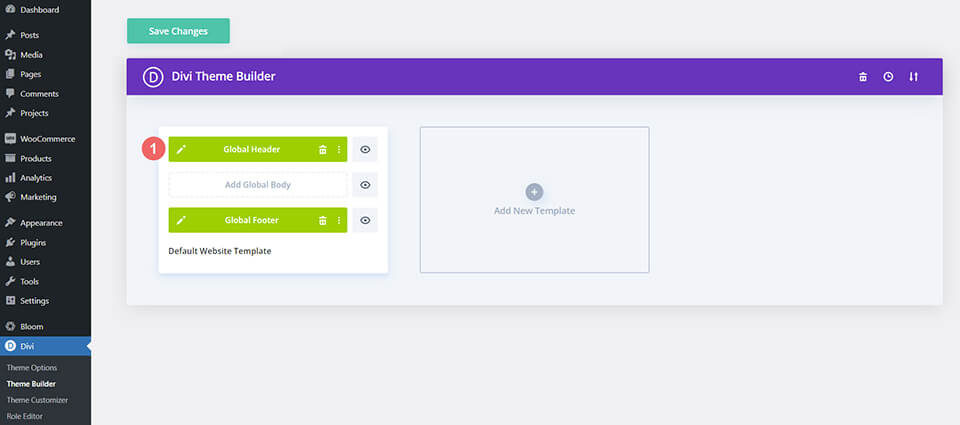
    If you are using Divi, you can use the Divi theme builder to add a site title to your global header (or anywhere on your site) in just a few easy steps. You can start by clicking the edit button next to Global Header in your Divi Theme Builder.

    Next, add a new module (in this case, a Call to Action Module) in your header.

    Under the content settings, hover over the title input box and click the “Use Dynamic Content” icon. Then select “Site Title” from the list.

    It’s just that easy! Dynamic content is now supported by all of Divi’s main content inputs. To view a complete list of all content that is accessible, simply click the dynamic content symbol. Next, choose the item you want, alter its output, and connect it to the module. The module, the page, and the rest of your website will all immediately update if that piece of content is modified.

    Learn more about how to add a dynamic site title in Divi.

    Conclusion

    Simple yet essential, your website’s WordPress site title is an integral aspect of your site. It’s one of the first forms a WordPress site owner fills out, and it’s easy to overlook.

    Using the site title block you can easily incorporate your title into your posts and edit them based on your preferences and style. We hope this article gave you some useful tips on optimizing your title!

    Let us know in the comments if you have any questions regarding the WordPress site title block!

    The post How to Use the WordPress Site Title Block appeared first on Elegant Themes Blog.

  • 6 Best WordPress Backup Plugins (in 2023)

    Backing up your website regularly is one of the best ways to protect it. That’s why a good WordPress Backup plugin is an essential plugin for any website owner. You need to protect your website files and database in case something breaks or you run into an error you can’t fix. A backup plugin can give you peace of mind in case something unexpected does happen.

    In this article, we’ll look at the best Backup Plugins available on WordPress to help you pick the one that’s right for you.

    What is a WordPress Backup Plugin?

    Backing up your website is the process of downloading a copy of all of your site files and/or database for safekeeping. Although it is possible to back up your WordPress site manually, it is a task that is easily forgotten and often time-consuming. A WordPress backup plugin streamlines the process of backing up your site automatically so that you don’t have to. Most backup plugins will give you the option of storing backups in the cloud by integrating with third-party storage platforms like Google Drive or Dropbox. This ensures that your backups are safe in the event your entire website goes down. Without a backup, you might be able to recover your site and fix your issues. But nothing can replace a backup.

    Other WordPress Backup Alternatives

    Of course, there are other ways to back up your WordPress site. Many WordPress users may use their hosting provider’s backup services (like Cloudways) to manage daily backups and restore them in a few clicks. Most managed WordPress hosting providers will also allow you to create a staging site that can be backed up as well. There are even entire WordPress maintenance support services that provide a suite of services to optimize your site, including backups. But if you are on

    No matter how you choose to back up your site, it’s always best practice to maintain a separate backup if there is a problem with your hosting server or you encounter the white screen of death. You’ll want a solution that helps mitigate the damage from attacks or malware, stores your data securely, and has regular updates.

    We took these factors and more into account when making our choices for the best WordPress backup plugins below.

    The 6 Best WordPress Backup Plugins

    1. UpdraftPlus

    UpdraftPlus logo

    UpdraftPlus is one of, if not the most trusted WordPress backup plugins available, garnering over 3 million active installations and a near 5-star review. With this plugin, you can create a full backup of your WordPress site and store it in the cloud or download it so you can have a copy locally. Both scheduled backups and backups on-demand are supported by the plugin. Additionally, you can decide what parts you want to back up, such as your plugins, themes, or data.

    Your backups can be automatically uploaded to a variety of cloud storage services, including Dropbox, Google Drive, S3, Rackspace, FTP, SFTP, email, and more.  These features are all available for free, but the premium version allows for more capabilities like incremental backups stored in multiple locations, creating copies of your site to migrate to a new domain, and advanced security reporting.

    Key Features of UpdraftPlus:

    • Manual and scheduled backups on WordPress or a Cloud Storage provider
    • Easily restore backups within WordPress in one click.
    • More Advanced tools than most backup plugins
    • Backup sites of 100GB; file size only limited by Web host.
    • Incremental backups for backing up on necessary changes (premium)
    • Cloning and Migration capabilities (premium)
    • Backup site files automatically before updates (premium)
    • Database encryption and advanced reporting (premium)

    Configuring a backup with updraftplus

    Configuring your backup is super straightforward, allowing beginners to set settings and choose from a wide range of remote storage options, along with being able to store a backup locally on your computer.


    UpdraftPlus is for you if…

    • You want a free-to-use backup solution that comes with a lot of essential features with the peace of mind of having premium options available if needed.
    • You want a trusted solution that is used and recommended by millions of other users.
    • You only want to connect to a single cloud storage device, which should be suitable for most users.

    UpdraftPlus Pricing: Free, with premium licenses starting at $70 (and then $42 per year) | More Information

    2. Jetpack VaultPress Backups

    Jetpack logo

    Jetpack VaultPress Backups is one of the premium add-ons included in the Jetpack plugin by Automattic. This WordPress backup plugin automates the backup process so you can restore your website seamlessly. The plugin allows you to setup backups to happen in real-time with every change you make to your site. This allows you to have the most recent backup ready to restore if something breaks with editing or updating your site. You can also schedule backups to happen daily with a 30-day backup archive available. This ensures you have the backup you need when you need it.

    Key Features of Jetpack:

    • Automated daily backups
    • Real-time backups for every change you make to your site.
    • Restore site with one-click even on mobile or if your site is offline. restores make it easy to get your site restored, even if site is offline
    • Backup WooCommerce Sites

    Jetpack Backup Plugin Download and Restore

    Jetpack can update your backups daily in real-time and get your website back up in running with just one click with their terrific restore system. Plus, the activity log lets you see all the changes made on your site so you can monitor for suspicious activity.

    Also, it’s worth noting that with Jetpack Backups, you may not be getting a complete backup of all of your site files. To save space, Jetpack Backups will exclude WordPress core files or any subdirectories outside of your main WordPress installation. It may also limit your database backups to WP tables. This is not an issue for most simple sites, but we suggest making sure the plugin will handle all your backup needs before using it.

    You will also need to install Jetpack and have a WordPress.com account/login so you can access the WordPress.com cloud features. So if you don’t have a need for other features in the Jetpack core plugin, you might consider another option.

    Jetpack Backups is for you if…

    • You already use Jetpack on your site and are looking for a premium backup solution.
    • You want real-time backups for every change made on your site for better peace of mind
    • You are using a WooCommerce site, as it lets you restore your site with past orders and products up to date.

    Jetpack Pricing: $4.77 per month if you bill annually  | More Information

    3. BackWPup

    BackWPup logo

    BackWPup is a WordPress backup plugin that is a great free option for creating complete site backups. Plus, you can send your backups by email, upload them to a cloud storage service, or save them on the server hosting your website using BackWPup. To really take advance of the plugin, you will want to upgrade to the pro version which includes a ton of automated backup features including complete automatic site restore, backup encryption, and a standalone app that allows you to backup and restore your site even if you can’t access it on the backend.

    Key Features of BackWPup:

    • Free backup system for site files and database
    • Database optimization tools
    • Store backups locally or on cloud service platforms like Dropbox or S3 (and others with pro version)
    • Multi-site support (pro version)
    • Automated complete backups and scheduling (pro version)
    • Backup Encryption (pro version)

    BackWPup offers an easy-to-use dashboard with simple steps to successfully back up and restore your files. The lack of frills and design may turn some users off, but this solution does give you the basic system you need to back up your WordPress site securely.


    BackWPup is for you if…

    • You want a more basic backup plugin.
    • You know how to manually restore a website from a backup.
    • You don’t mind paying for the pro version to get a complete backup solution with robust features

    BackWPup: Free, with premium licenses starting at $69 per year | More Information

    4. BlogVault

    Blogvault logo

    BlogVault is more than a WordPress backup plugin; it’s an all-inclusive SaaS (software as a service) solution that aids in website security and backups. With Blogvault, you can plan backups to occur daily, weekly, or monthly. Additionally, it provides incremental backups, preventing server overload, and you can identify faults on your site by using the activity logs. They offer a free 7-day trial to test out the plugin/service before upgrading.

    Key Features of BlogVault:

    • Unlimited storage for backups with free offsite storage
    • Built-in Staging Environment that is FREE to use
    • Real-time backups with WooCommerce support
    • Easy-to-use dashboard to view multiple sites and advanced reporting
    • Automated backups and schedules
    • Activity log functionality

    BlogVault dashboard

    A standout feature is the BlogVault dashboard, where you can manage backups for multiple websites, all on a single dashboard. The dashboard makes it easy to set up real-time backups with just a click of a button. It’s got a well-designed UI and takes away any of the technical know-how necessary to restore and manage backups.

    BlogVault is for you if…

    • You want a complete solution that offers a ton of extra security features.
    • You want to be able to restore your website with just one click.
    • You have a large website that you want to back up.

    BlogVault Pricing: $7.40/month | More Information

    5. BackupBuddy

    BackupBuddy logo

    BackupBuddy is premium WordPress backup plugin can handle all of your backup needs and more all in one convenient place. It will backup ALL of your site files and database in one downloadable zip file. The plugin allows the scheduling of daily, weekly, and monthly backups. And, you can choose to email yourself a backup and/or store it in cloud storage providers like Dropbox, Amazon S3, Rackspace Cloud, FTP, and Stash (their cloud service). If you opt to use their service, they support real-time backups.

    One of the distinctive advantages offered by BackupBuddy is the capacity to restore and optimize your database. You will get 1 GB of free Stash Live storage for each plugin you buy (5GB on the Gold plan).  And BackupBuddy can make it simple for you to switch hosts or domains for your WordPress site. The WordPress migration tool makes this plugin a popular alternative for web designers who build client-specific websites on temporary domains before transferring them to live domains.

    Key Features of BackupBuddy:

    • Backup and Restore All site files and Database with ease from the backend
    • Complete control over what you want to backup
    • Backup files to a remote location or locally
    • Supports automatic and scheduled backups
    • Easy to install and setup. No coding or technical knowledge is needed.

    BackupBuddy quick setup

    The quick setup for you’re backup makes this an excellent option, as you can have automatic backups configured with just a few clicks. Plus, the 1GB of free storage should be more than sufficient for small website owners.

    BackupBuddy is for you if…

    • You already use a security plugin (especially iThemes) and want to add backup functionality to your site.
    • You value privacy and want to be in control of your data.
    • You want a reliable backup solution that provides everything you need and more.
    • You want to customize what gets backed up from your website.

    BackupBuddy Pricing: Starts at $80 per year  | More Information

    6. All-In-One WP Migration

    all in one wp migration plugin

    All-In-One WP Migration is without a doubt one of the most popular WordPress migration plugins. What makes this plugin such a great backup option is that it ensures your backups are properly configured for migrating to other sites on different hosting providers. Plus, the plugin has been heavily tested to work with other WordPress plugins and themes. The free version is fairly limited when it comes to backup features. But, it offers premium add-ons to back up your site with all the popular third-party storage platforms like Google Drive, AWS, and more. This allows you to export/import your site to and from the platform of your choice on any number of websites that you own as well as create scheduled backups.

    Key Features of All-In-One WP Migration:

    • Compatibility with WordPress and Multiple Hosting Providers
    • Password-protected backups with encryption
    • Supports all host environments and operating systems
    • Free to use for high-quality site exports, imports, and backups. Premium features offer more robust backup solutions.
    • Can remove WP upload limits for restoring large backups
    • Built-in integration with 14+ storage platforms

    all in one wp migrate WordPress backup option

    One of the most recent features added to the plugin is password-protected backups. The feature comes with the free version of the plugin and ensures your backups are encrypted and well-protected from others.

    password protected backups

    All-In-One WP Migrate is for you if…

    • You are a developer that needs a rock-solid solution for backing up and migrating sites to other hosts.
    • You don’t mind paying for premium backup solutions
    • You want to ensure your backups are going to work when migrating to other hosting environments

    All-In-One WP Migrate Pricing: FREE | Premium Add-ons Available starting at $69 per year  | More Information

    Final Thoughts on WordPress Backup Plugins

    It’s important to always have a backup plan ready in case of a disaster. One of the most crucial steps you can take to secure your website and safeguard its data is to use a high-quality WordPress backup plugin. Make sure the backup plugin offers automatic backups (daily or weekly) so you don’t have to worry about losing the most current version of your site. It’s also convenient to have a plugin that enables migrations, cloning, and the transfer of data between servers. UpdraftPlus seems to have everything you would need to backup your site. However, the All-In-One WP Migration plugin is also a great option for creating high-quality backups you can use to execute clean migrations to other hosts.

    Backups usually come in handy once something goes wrong with your site. So it’s always recommended that you enhance the security of your site now rather than later. To start, you can conduct a security audit of your site and make sure all your plugins are updated.

    Do you have a favorite WordPress backup plugin? Let us know in the comments below!

    Featured Image via Graphic farm / shutterstock.com

    The post 6 Best WordPress Backup Plugins (in 2023) appeared first on Elegant Themes Blog.

  • How to Add Google Maps to Your Divi Website

    Google Maps is a software service that allows users to present maps to their audience. It’s faster than embedded maps and, if you’ve integrated it with Divi, it’s easier to use. The Divi Builder includes two Map Modules that make presenting Google Maps a simple process. In this post, we’ll see how to add Google Maps to your website using the Google Maps API Key and the Divi Map Module.

    Let’s get started!

    Preview

    First, let’s look at what we’ll build in this post. I’ll add a Map Module to a current Divi layout and style it with elements from the layout.

    Google Maps Desktop

    Google Maps Desktop

    Google Maps Phone

    Google Maps Phone

    How Google Maps and APIs Work

    While it’s possible to simply embed a Google Map into a Divi page or template, the Google Maps API gives developers more control. Maps that use the Google Maps API load faster and you can apply custom colors, create custom markers, and more.

    To prevent unauthorized access, the Google Maps Platform utilizes API keys. Obtaining and using a Google Maps API is simple. To create a key, go to the Google Maps Platform Credentials page and select or create a project. This project will be used to contain your Google Maps API, so be sure to give it a name that’s easy to understand.

    How Google Maps and APIs Work

    Next, click Create Credentials at the top of the page and select API Key from the menu. The Credentials link won’t appear until you have a project selected.

    How Google Maps and APIs Work

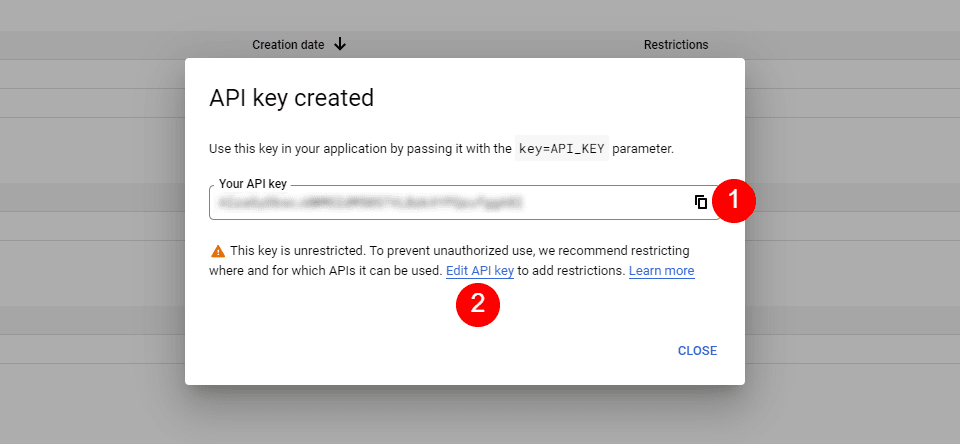
    Next, you’ll see a modal with your API Key. You can copy your API Key and close the modal. You can also restrict the key. This keeps others from using it. I recommend restricting the API Key to prevent unauthorized use. Click Edit API Key.

    How Google Maps and APIs Work

    Under API Restrictions, click Restrict Key, choose which key to restrict, and save it. Copy the key in the upper right corner of the page. You can now paste the API key into Divi.

    How Google Maps and APIs Work

    How to Integrate Google Maps in Divi

    To integrate your Google Maps API Key into Divi, go to Divi > Theme Options in the WordPress dashboard. In the General tab, you’ll see a field labeled Google API Key. Paste the key into the field and save the settings.

    How to Integrate Google Maps in Divi

    Google Maps is now integrated into Divi, and you can add a Google Map to your Divi page or template. Your Map Modules automatically access the key, so you won’t need to add it again. You will be able to replace the key for each module if you want.

    How to Add a Google Map to Your Page or Template

    You can add the Google Map to your Divi pages and templates in several ways. The best option with the most features is to use the Map Modules. Divi has two Map Modules to choose from and the process of adding the map is the same. Both include map pins and styling features.

    Since we’ve added the API to Divi’s Theme Options, the Map Modules already contain your Google Maps API. All we need to do is add an address and the pins we want.

    How to Add a Google Map to Your Page or Template

    The process is simple. Enter the address you want to show in the center of the map and select Find. The map will fill in.

    How to Add a Google Map to Your Page or Template

    Let’s add a map to a page to see how it works.

    Regular Map Module vs the Fullwidth Map Module

    We can use the regular Map Module or the Fullwidth Map Module. The work is the same. Both look amazing and the one you choose just depends on the design you want. The regular Map Module lets you style the background and easily add other modules to the Row.

    The Fullwidth Map Module uses the entire width. It’s shown here with regular sections above and below it.

    How to Add Google Maps to Your Divi Page

    Now, let’s see how to add a Google Map to a page or template. The work is the same for both pages and templates. I’ll create a page using the Contact page from the free Photography Studio Layout Pack that’s available within Divi.

    For reference, here’s the original page. I’ll add a new section for the map between the two sections using design cues from the layout pack.

    How to Add Google Maps to Your Divi Page

    Add a Regular Section and Row

    First, add a Regular Section between the two sections. This is where we’ll add the map.

    Add a Regular Section and Row

    Open the Section’s settings, go to Background, and change the Background Color to #f6f5ee. Close the settings.

    • Background Color: #f6f5ee

    Add a Regular Section and Row

    Next, add a single-column Row to the Section.

    Add a Regular Section and Row

    Add a Text Module

    Next, we’ll add a Text Module to create a title for the map.

    Add a Text Module

    Content

    Change the Content-type to Heading 4 and add the title to the body content area.

    • Content-Type: Heading 4
    • Body: Location

    Add a Text Module

    Heading Text

    Next, click on the Design tab and scroll down to Heading Text. Choose Heading Level 4 and select Inter for the Font. Set the Weight to Bold and the Style to TT.

    • Heading Level: H4
    • Font: Inter
    • Weight: Bold
    • Style: TT

    Add a Text Module

    Change the Font Color to #ff5a17, the Size to 14px, the Letter Spacing to 1px, and the Line Height to 1.4em. This is it for the title. We can now close this module.

    • Color: #ff5a17
    • Size: 14px
    • Letter Spacing: 1px
    • Line Height: 1.4em

    Add a Text Module

    Add a Map Module

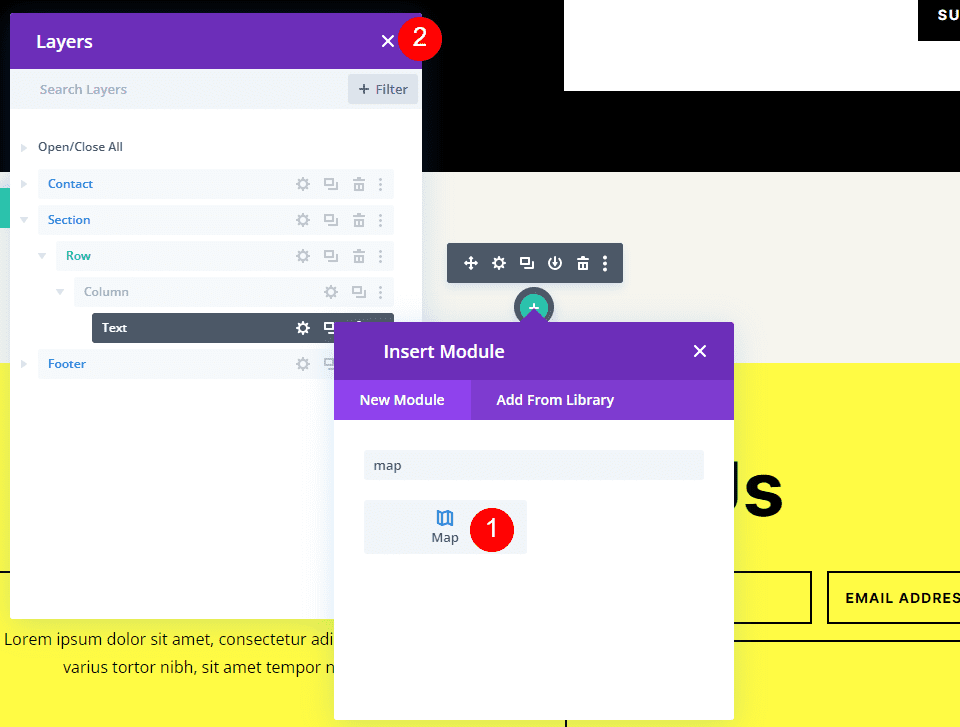
    Now it’s time to add a Map Module to our layout. Add the module in the Row under the Text Module. In my case, the icon to add a module appears under the Row icon. There’s an easy way around this. Simply right-click (for Windows users, control-click for Mac) and select Go To Layer. This opens a Layers View that’s easy to navigate and use.

    Add a Map Module

    Open the Section, Row, and Column to see the Text Module. Click the plus icon next to the Text Module to add a new module.

    Add a Map Module

    This opens the standard module modal where you can select your modules. Add the Map Module as normal and close the Layers view. The Map Module appears under the Text Module just as we wanted.

    Add a Map Module

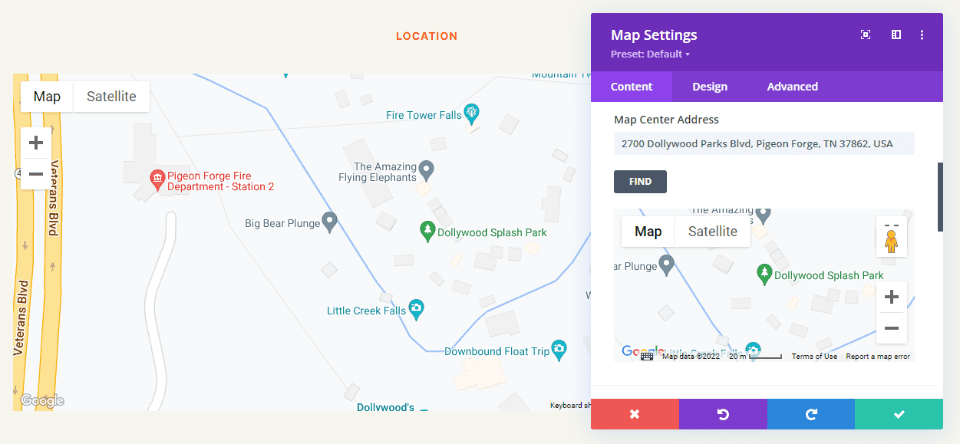
    You’ll see the Google Maps API Key already entered and ready to use. Next, enter the address you want to show in the Map Center Address field. Click the Find button to tell the module to search the map for this address. If you do need to use a different API Key than what you’ve entered as the default key in the Divi Theme Options, select Change API Key.

    • Map Center Address: the address of the location you want to display

    Add a Map Module

    The module will search for the location and display it on the map. If there’s an error, return to the Google Maps Platform to see any issues with your API Key.

    Add a Map Module

    Border

    Next, go to the Design tab and scroll down to Border. Change the Width to 2px and set the Color to black. Close the module and save your settings.

    • Width: 2px
    • Color: #000000

    Add a Map Module

    Results

    This was a simple design, but it works well with the layout.

    Google Maps Desktop

    Google Maps Desktop

    Google Maps Phone

    Google Maps Phone

    Ending Thoughts

    That’s our look at how to add Google Maps to your Divi website. The Google Maps API Key is easy to add to Divi. Once the API Key is added to Divi, every Map Module automatically accesses the key. You can even change the API Key on a per-module basis if you want. All you’ll ever need to do is add the address you want your Map Module to display. It loads faster than embedding, provides lots of styling options, and you can show any number of maps in your Divi pages and templates.

    We want to hear from you. Have you added the Google Maps API to your Divi website? Let us know about your experience in the comments.

    The post How to Add Google Maps to Your Divi Website appeared first on Elegant Themes Blog.

  • Get a Free Civil Engineering Firm Layout Pack for Divi

    Hey Divi Nation! Thanks for joining us for the next installment of our weekly Divi Design Initiative; where each week, we give away a brand new Layout Pack for Divi.

    This time around, the design team has created a beautiful Civil Engineering Firm Layout Pack that’ll help you get your next Civil Engineering Firm website up and running in no time!

    This layout pack includes:

    8 Premade page layouts strategically designed for any Civil Engineering Firm website (including a footer design)
    – Original, royalty-free photos and graphics + customizable source file (see below)
    – Plus, a large collection of pre-designed website elements that are customizable and reusable anywhere.

    This layout pack is available right inside Divi for all Divi customers for FREE as the latest addition to our growing Divi library of hundreds of premade layout packs, thousands of page designs, and countless web design elements and resources.

    divi layout

    Check Out The Divi Civil Engineering Firm Layout Pack Below

    Get it for free today!

    LMS layout pack

    Landing Page Design

     Civil Engineering Firm Pack for Divi

    View The Live Layout Demo

    Home Page Design

    Civil Engineering Firm Layout Pack for Divi

    View The Live Layout Demo

    Services Page Design

    Civil Engineering Firm Layout Pack for Divi

    View The Live Layout Demo

    Portfolio Page Design

    Civil Engineering Firm Layout Pack for Divi

    View The Live Layout Demo

    Project Page Design

    Civil Engineering Firm Layout Pack for Divi

    View The Live Layout Demo

    About Page Design

    Civil Engineering Firm Layout Pack for Divi

    View The Live Layout Demo

    Blog Page Design

    Civil Engineering Firm Layout Pack for Divi

    View The Live Layout Demo

    Contact Page Design

    Civil Engineering Firm Layout Pack for Divi

    View The Live Layout Demo

    Key Features

    If you’re looking to build a new Civil Engineering website for yourself or a client, then look no further than Divi’s Civil Engineering layout pack. It features eight beautiful pages with bold geometric shapes, complimentary colors, and striking imagery to keep your site’s visitors engaged. The Civil Engineering layout pack is designed to impress those looking for a Civi Engineering firm.

    Live Demos

    Click the links below to see a live demo for each of the layouts included in the pack.

    1. Civil Engineering Firm Landing Page (live demo)
    2. Civil Engineering Firm Homepage (live demo)
    3. Civil Engineering Firm Services Page (live demo)
    4. Civil Engineering Firm Portfolio Page (live demo)
    5. Civil Engineering Firm Project Page (live demo)
    6. Civil Engineering Firm About Page (live demo)
    7. Civil Engineering Firm Blog Page (live demo)
    8. Civil Engineering Firm Contact Page (live demo)

    Access This Layout Right Now
    Directly from Your Divi Builder

    Since Version 3.0.99 of Divi, you can find and import any of the layouts included in this pack (along with ALL of Divi’s Premade Layout packs) directly from the Divi Builder. They are already waiting for you.

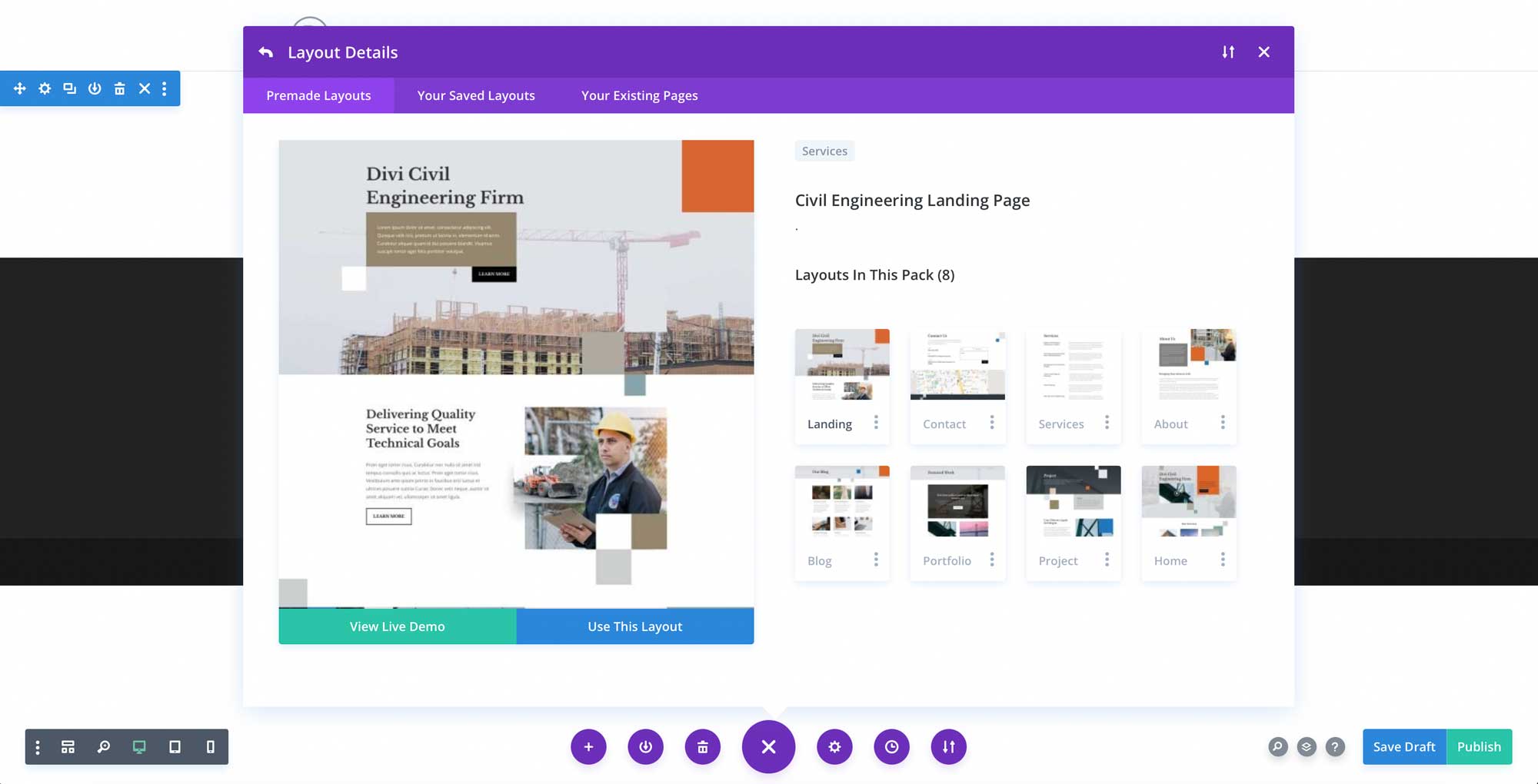
    To access your new layout, simply activate the Visual Builder when editing a page and look for the “Load From Library” icon in the page settings bar (it looks like a plus symbol). Click this icon to launch the Load From Library popup. Under the Premade Layouts tab, you can easily find the new layout by scrolling through the list of layout packs. Once you find the Civil Engineering Firm Layout Pack, click on it. You will see all the individual layouts included in the pack. Select the layout you want to use and then click the “Use This Layout” button.

    Civil Engineering Firm Layout Pack for Divi

    For more, check out this video to learn how you can get this layout pack up and running today.

    Subscribe To Our Youtube Channel

    Authentication Required

    Before you can download Premade Layouts from the Divi Library you must authenticate your Elegant Themes Subscription. You can do this by navigating to Divi > Theme Options > Updates. There you can enter your username and API key and save changes.

    Civil Engineering Firm Layout Pack for Divi

    You can find your API Key under your members area on the Elegant Themes site. After you enter the Username and API Key, you will gain immediate access to our library of hundreds of free layouts (including this one). If you haven’t done this, when you click to import a layout to your page, you will be prompted to enter your Elegant Themes Membership Username and API Key.

    Use Layout Images for FREE with No Licensing Restrictions

    Divi Civil Engineering Firm Layout Pack for Divi

    The image assets included with these layouts (icons, illustrations, photos, etc.) have no licensing restrictions. This means you can use them in all of your commercial projects without having to worry about paying licensing fees or attributing the photographer. Use them in your commercial websites, sell them within your Divi child themes, include them in your own Divi layout packs or just use them on your blog. We know how challenging it can be to find good photos and how confusing and scary the licensing that governs those photos can be. We want to fix that problem for our users.

    Download the Full Res Image Assets

    New Layout Pack Every Week!

    We hope you enjoy this layout pack. We look forward to hearing your opinions in the comment section below. Make sure you check out next week’s layout pack as well!

    The post Get a Free Civil Engineering Firm Layout Pack for Divi appeared first on Elegant Themes Blog.

  • Divi Product Highlight: DiviWP Header Sections Pack

    DiviWP Header Sections is a layout pack of 20 header modules you can use on your Divi website. It is built with the Divi builder and can be completely customized using Divi’s module options. In this product highlight, we’ll take a look at each one of the header designs and help you decide if this product is right for you.

    Let’s get started!

    Installing Divi WP Header Sections

    After purchasing the DiviWP Header Sections Pack on the Divi Marketplace, extract the ZIP file containing the header section JSON files. Then, open the Divi theme builder settings in the WordPress dashboard. Click Add New Template, then Build New Template. In the template settings, select the pages you want the header to appear on. For this tutorial, I am adding the header to a specific page.

    Divi Product Highlight: DiviWP Header Sections Pack Install

    Next, click Add Custom Header and select Build Custom Header. The header layout page will open up in the Divi builder.

    Divi Product Highlight: DiviWP Header Sections Pack Install

    To import a header layout, simply drag and drop the JSON file onto the page or use the portability function to import the layout.

    Divi Product Highlight: DiviWP Header Sections Pack Install

    Select Import Divi Builder Layout to finish importing the layout. Now the header section should appear on the page.

    Divi Product Highlight: DiviWP Header Sections Pack Install

    DiviWP Header Sections Pack

    The DiviWP Header Sections Pack comes with 20 different header layouts. Each of the layouts has a sticky and non-sticky version and is fully responsive. You can easily customize the design of each layout because it is built with the Divi Builder. Let’s take a look at each header layout now.

    Header Layout 1

    The first header layout in the pack is a right-aligned menu module with a logo on the left and shopping and search icons on the very right. It uses fade-in drop-down menu transitions for the desktop and fade-in mobile menu transitions for tablet and mobile.

    Divi Product Highlight DiviWP Header Sections Pack Layout 1 Desktop

    Divi Product Highlight DiviWP Header Sections Pack Layout 1 Tablet

    Divi Product Highlight DiviWP Header Sections Pack Layout 1 Mobile

    Header Layout 2

    Header Layout 2 is very similar to Layout 1, but the menu height is taller.

    Divi Product Highlight DiviWP Header Sections Pack Layout 2 Desktop

    Divi Product Highlight DiviWP Header Sections Pack Layout 2 Tablet

    Divi Product Highlight DiviWP Header Sections Pack Layout 2 Mobile

    Header Layout 3

    The third layout style features a split menu with a button on the very right.

    Divi Product Highlight DiviWP Header Sections Pack Layout 3 Desktop

    Divi Product Highlight DiviWP Header Sections Pack Layout 3 Tablet

    Divi Product Highlight DiviWP Header Sections Pack Layout 3 Mobile

    To achieve this design, you will need to add a custom CSS class to some of the menu items. In the WordPress dashboard, navigate to Appearance > Menus. At the top of the page, open the Screen Options and enable CSS Classes.

    Divi Product Highlight DiviWP Header Sections Pack Layout 3 Enable CSS

    Then, open the menu item you would like to display as a button and add the CSS class diviwp-menu-button.

    Divi Product Highlight DiviWP Header Sections Pack Layout 3 CSS button

    Next, add the CSS class diviwp-menu-right-align to the menu item you would like to align to the right. Anything to the right of this item will be aligned to the right of the header, and everything to the left of this item will be center-aligned.

    Divi Product Highlight DiviWP Header Sections Pack Layout 3 CSS

    Header Layout 4

    Header Layout 4 is similar to Layout 3, except with slide-in mobile menu transitions and fade-in drop-down transitions for tablet and mobile sub-menus. Additionally, the parent menu item for the sub-menu is not linked.

    Divi Product Highlight DiviWP Header Sections Pack Layout 4 Desktop

    Divi Product Highlight DiviWP Header Sections Pack Layout 4 Tablet

    Divi Product Highlight DiviWP Header Sections Pack Layout 4 Mobile

    I used Header Layout 4 to demonstrate a mega menu layout. To achieve this design, first follow the instructions to create a mega menu. Be sure to enter the CSS class mega-menu on the parent item. Each of the header sections in the DiviWP Header Sections Pack supports mega menus.

    Divi Product Highlight DiviWP Header Sections Pack Layout 4 Mega Menu CSS

    Header Layout 5

    Layout 5 is a right-aligned header with a dark background. It features fade-in mobile menu transitions.

    Divi Product Highlight DiviWP Header Sections Pack Layout 5 Desktop

    Divi Product Highlight DiviWP Header Sections Pack Layout 5 Tablet

    Divi Product Highlight DiviWP Header Sections Pack Layout 5 Mobile

    Header Layout 6

    Header Layout 6 also features a dark background section. The sub-menu also has a dark background style.

    Divi Product Highlight DiviWP Header Sections Pack Layout 6 Desktop

    Divi Product Highlight DiviWP Header Sections Pack Layout 6 Tablet

    Divi Product Highlight DiviWP Header Sections Pack Layout 6 Mobile

    Header Layout 7

    Layout 7 has a light background and has a 3/4 – 1/4 row column layout with the button on the right. The button also appears alongside the hamburger menu icon on tablet and mobile.

    Divi Product Highlight DiviWP Header Sections Pack Layout 7 Desktop

    Divi Product Highlight DiviWP Header Sections Pack Layout 7 Tablet

    Header Layout 8

    Layout 8 features social media icons on the right. On mobile and tablet devices, social media icons appear alongside the hamburger menu icon. The header also uses fade-in drop-down transitions for the tablet and mobile sub-menus.

    Divi Product Highlight DiviWP Header Sections Pack Layout 8 Desktop

    Divi Product Highlight DiviWP Header Sections Pack Layout 8 Tablet

    Divi Product Highlight DiviWP Header Sections Pack Layout 8 Mobile

    Header Layout 9

    Header Layout 9 has a dark top row with blurb modules for contact information and social media follow icons. The main menu is the same as Header Layout 1.

    Divi Product Highlight DiviWP Header Sections Pack Layout 9 Desktop

    Divi Product Highlight DiviWP Header Sections Pack Layout 9 Tablet

    Divi Product Highlight DiviWP Header Sections Pack Layout 9 Mobile

    Header Layout 10

    Header Layout 10 has a top row with a menu module and a social media follow module, allowing you to add additional menu items or links to the top menu bar. Again, the main menu is the same as Header Layout 1.

    Divi Product Highlight DiviWP Header Sections Pack Layout 10 Desktop

    Divi Product Highlight DiviWP Header Sections Pack Layout 10 Tablet

    Divi Product Highlight DiviWP Header Sections Pack Layout 10 Mobile

    Header Layout 11

    The top row of Header Layout 11 features a blurb module, social media follow icons, and a button. Again, the main menu is the same as Header Layout 1.

    Divi Product Highlight DiviWP Header Sections Pack Layout 11 Desktop

    Divi Product Highlight DiviWP Header Sections Pack Layout 11 Tablet

    Divi Product Highlight DiviWP Header Sections Pack Layout 11 Mobile

    Header Layout 12

    Header Layout 12 places social media icons on the left side of the top row and two blurb modules on the right. Once again, the layout for the main menu is the same as Header Layout 1.

    Divi Product Highlight DiviWP Header Sections Pack Layout 12 Desktop

    Divi Product Highlight DiviWP Header Sections Pack Layout 12 Tablet

    Divi Product Highlight DiviWP Header Sections Pack Layout 12 Mobile

    Header Layout 13

    Header Layout 13 features a blurb module, a menu, social media icons, and a button on the top menu. It also comes with a 2-column mega menu layout for desktop with an optional button at the bottom. To achieve this design, you will first need to create a menu with a parent menu item, two sub-menu items for the two columns (labeled Col 1 and Col 2 in the screenshot below), and the menu items below.

    Divi Product Highlight DiviWP Header Sections Pack Layout 13 Desktop

    Divi Product Highlight DiviWP Header Sections Pack Layout 13 Tablet

    Divi Product Highlight DiviWP Header Sections Pack Layout 13 Mobile

    First, add the CSS Class mega-menu two-column to the parent item.

    Divi Product Highlight DiviWP Header Sections Pack Layout 13 Mega Menu CSS

    Then add the CSS Class diviwp-menu-col-1 to the first column menu item, and diviwp-menu-col-2 to the second column menu item.

    Divi Product Highlight DiviWP Header Sections Pack Layout 13 Column CSS

    Finally, add the CSS Class fullwidth to the button menu item.

    Divi Product Highlight DiviWP Header Sections Pack Layout 13 Button CSS

    Header Layout 14

    Header Layout 14 is a 3-column mega menu variation of Layout 13. For this layout, follow the steps for Header Layout 13 and add another column.

    Divi Product Highlight DiviWP Header Sections Pack Layout 14 Desktop

    Divi Product Highlight DiviWP Header Sections Pack Layout 14 Tablet

    Divi Product Highlight DiviWP Header Sections Pack Layout 14 Mobile

    To the third column item, add the following CSS Class: diviwp-menu-col-3

    Divi Product Highlight DiviWP Header Sections Pack Layout 14 Column 3 CSS

    Finally, add the CSS class mega-menu three-column to the parent item.

    Divi Product Highlight DiviWP Header Sections Pack Layout 14 Mega Menu 3 Column

    Header Layout 15

    Layout 15 features two blurb icons on the top menu bar. The primary menu has a light background and is the same as Layout 1.

    Divi Product Highlight DiviWP Header Sections Pack Layout 15 Desktop

    Divi Product Highlight DiviWP Header Sections Pack Layout 15 Tablet

    Divi Product Highlight DiviWP Header Sections Pack Layout 15 Mobile

    Header Layout 16

    Header Layout 16 is mostly the same as Header Layout 15, except the blurb icons are on the left side of the top menu bar.

    Divi Product Highlight DiviWP Header Sections Pack Layout 16 Desktop

    Divi Product Highlight DiviWP Header Sections Pack Layout 16 Tablet

    Divi Product Highlight DiviWP Header Sections Pack Layout 16 Mobile

    Header Layout 17

    Layout 17 features two blurbs on the left side of the top menu bar and social media icons with a round white background on the right side of the top menu bar.

    Divi Product Highlight DiviWP Header Sections Pack Layout 17 Desktop

    Divi Product Highlight DiviWP Header Sections Pack Layout 17 Tablet

    Divi Product Highlight DiviWP Header Sections Pack Layout 17 Mobile

    Header Layout 18

    Layout 18 is a slight variation of Layout 17. In this design, the social media icons are on the left and the blurbs are on the right side of the top menu bar.

    Divi Product Highlight DiviWP Header Sections Pack Layout 18 Desktop

    Divi Product Highlight DiviWP Header Sections Pack Layout 18 Tablet

    Divi Product Highlight DiviWP Header Sections Pack Layout 18 Mobile

    Header Layout 19

    Layout 19 features the blurb icons on the left and the social media icons on the right, as well as a button on the very right.

    Divi Product Highlight DiviWP Header Sections Pack Layout 19 Desktop

    Divi Product Highlight DiviWP Header Sections Pack Layout 19 Tablet

    Divi Product Highlight DiviWP Header Sections Pack Layout 19 Mobile

    Header Layout 20

    The final layout, Layout 20, is a variation of Layout 19. In this design, the blurb icons are on the left and the button icon is on the right. The social media icons are on the very right.

    Divi Product Highlight DiviWP Header Sections Pack Layout 20 Desktop

    Divi Product Highlight DiviWP Header Sections Pack Layout 20 Tablet

    Divi Product Highlight DiviWP Header Sections Pack Layout 20 Mobile

    Customizing the DiviWP Header Sections Pack

    The DiviWP Header Sections Pack is completely customizable since it is built with the Divi Builder. You can easily change any of the colors, fonts, text, and icons just like you would customize any other Divi module. There is also extensive support and documentation for the DiviWP Header Sections Pack so that you can further customize the look of your header.

    Purchase the DiviWP Header Sections Pack

    The DiviWP Header Sections Pack is available in the Divi Marketplace. It costs $19 for unlimited website usage and lifetime support and updates. The price also includes a 30-day money-back guarantee.

    Final Thoughts

    The DiviWP Header Sections Pack comes with 20 premade header sections that can be completely customized to fit the design of your website. If you want to view a live demo of the different headers, you can do so here. This pack could be very useful if you don’t want to spend the time to create a custom header for your website but want to have a unique design for your header beyond the default Divi layouts.

    We would love to hear from you! Have you tried DiviWP Header Sections Pack? Let us know what you think about it in the comments!

    The post Divi Product Highlight: DiviWP Header Sections Pack appeared first on Elegant Themes Blog.

  • Constant Contact Email Marketing: A Detailed Review

    When most people think of Constant Contact they think of “Email Marketing”. Over the years, Constant Contact has grown from a reliable email marketing solution to an all-in-one digital marketing platform for small businesses. But is it still a good choice for email marketing today? This article provides the information needed to decide if Constant Contact is the right email marketing system for your business.

    What is Constant Contact?

    Constant Contact Branded Logo White

    Constant Contact is an all-in-one digital marketing platform that has been a consumer favorite for decades as one of the best email marketing services. Although it is known to be incredibly stable for email marketing, in recent years, it has kicked up innovation to create a suite of performance tools for its small business customers.

    Constant Contact Email Marketing Homepage

    Constant Contact surpasses what is typically expected of email marketing with features such as email automation, social media handling, texting, eCommerce, and AI. So, whatever industry you are in, it seems that Constant Contact has the tools any small business would need to implement a successful marketing strategy.

    Pros and Cons of Using Constant Contact

    Any email marketing platform will have to make trade-offs with what it offers its customers. Overall, Constant Contact is a reliable platform that is investing heavily in innovation. Here is a brief look at some of the pros and cons of the platform:

    Pros Cons
    • Free Trial
    • Simplest Interface
    • Scalable Platform
    • Great Customer Service
    • High Deliverability Rate
    • Native SMS Marketing
    • No Free Plan ($9.99)
    • Low number of 3rd Party Integrations
    • Surveys & Event Solutions are pretty dated
    • No In-built CRM (Except in the $449 tier)

    To fully understand what Constant Contact offers, we need to quickly dive into their tiered pricing structure and what features belong to each.

    Constant Contact Pricing

    With Constant Contact, plans start at $9.99. For Digital Marketing, it offers a Core Plan and a Plus plan. But it also offers an all-in-one Marketing Automation+ plan as well (though technically that is a separate product suite).

    • Core: Starting at $9.99/mo
    • Plus: Starting at $45/mo
    • Marketing Automation+: Starting at $449/mo

    Constant Contact Core and Plus Pricing 2022

    Each subsequent plan has more and more features offered to deliver exactly the solutions particular use cases need. The plans and their general use case are:

    • Core – Email Newsletters and Social Media Management
    • Plus – Mid-ranged Email Automations and eCommerce Insights/Segmentation
    • Marketing Automation+ – Advanced Automation, Lead Scoring, Opportunity Management, and CRM
    • *SMS – SMS can be added to Core and Plus plans

    Currently, with the Core plan, you are allowed up to 500 contacts for $9.99/mo. The number of emails you can send per month is limited to 24 times your total contact count. You can upgrade for more contacts and email sends with their tiered pricing.

    constant contact priced tier

    See the Current Constant Contact Pricing.

    It isn’t a hidden secret that Constant Contact’s Marketing Automation+ plan is technically outside of Constant Contact itself. In late 2021, SharpSpring was acquired by the email marketing giant to add a professional suite of tools to the company’s portfolio. Time will tell if the two platforms are merged or continue to operate as two separate tools.

    Sharpspring Marketing Automation+ Homepage

    Regardless of the business details, Constant Contact has developed a strong set of tools for marketers and business owners at every stage of sophistication. Next, we’ll take a deeper dive into the features of each of these plans that can be taken advantage of.

    Constant Contact Email Marketing Features

    Constant Contact is one of the most popular email marketing platforms available. It’s known for its easy-to-use automation features and excellent customer support. We’ll take a deep dive into several feature categories so you can understand what Constant Contact fully has to offer.

    At the end of the day, managing contacts and sending email blasts is the basic job of an email marketing service. Some platforms offer more complex tools and services catered to professional marketers rather than to DIY small business owners who are juggling multiple tasks. Constant Contact allows users to easily create emails and manage their contact lists seamlessly. While it may not be perfect for everyone, the company has made great strides, providing various levels of complexity in its features.

    Email Templates

    To get into it, the cornerstone of the Constant Contact experience is in the email creation flow. For most, they start with one of the hundreds of email templates that are pre-built and ready to be customized.

    Constant Contact Pre-made Email Templates

    Constant Contact has also been slowly developing a brand template creator that works with a simple URL. For businesses just beginning, you can even use your Facebook business page instead of a website.

    Branded Template URL Insertion

    It works by quickly pulling in your website’s logo and brand colors, and gives you a quick choice of layout preference for your template. Many drag-and-drop interfaces are great for building emails but can be difficult to when it comes to styling. The branded template option gives a headstart on those settings so that business owners can get to the meat of their email building.

    Branded Template Editor

    One downside to Constant Contact templates is that they save as “Campaigns”. These campaigns are merely copied for reuse. Mailchimp, for instance, allows you to create a template that is altogether different from campaigns. This helps to differentiate between their use cases. In Constant Contact, you might find yourself editing a template without realizing it.

    Creating Emails

    Constant Contact has a strong drag-and-drop editor. There are several “blocks” that you can drag into the email to visually place them where you want. This is dead simple and lets you get right into creating your content.

    Constant Contact Email Marketing Drag and Drop Editor

    Constant Contact’s emails are reliable in rendering fidelity to a myriad of email clients (new and old). It has solid industry relationships with email service providers (ESPs) that allow them to quickly troubleshoot new issues. In addition, Constant Contact emails are mobile responsive. And, the editor gives you a chance to see both desktop and mobile views of your email while you are creating it.

    Pre-made Email Template Responsive

    Contacts and List Management

    Contacts and Contact Lists are a vital part of sending emails. Usually, it is contact lists that hold most of the strategy behind email marketing.

    Constant Contact lets you create contacts, add them to lists, add tags to individual contacts, and assign notes to each contact. This basic functionality is present in every pricing plan.

    Individual Contact Management

    For the Plus plan, you can unlock more powerful email segmentation functionality. You can create segments using conditional for activity, engagement, dates, and tags. These segments may refresh with the latest data at any point.

    Contact Segmentation

    We won’t cover segmentation for Marketing Automation+ since, as we mentioned above, that plan is actually with Constant Contact’s acquired brand, SharpSpring.

    Constant Contact Email Marketing Reports

    Reporting is essential to any effective email strategy. Being able to see progress over time as your lists grow and mature is the only way to tell if you are doing everything correctly. Your contacts will be the first to tell you if your emails are off-base or uninteresting (unsubscribes).

    Constant Contact gives detailed, real-time reporting on your sent email campaigns. Reported data includes:

    • Successful Sends
    • Bounces (Various Types)
    • Opens
    • Did Not Open
    • Clicks
    • Spam Reports
    • Unsubscribes
    • Comparisons of Vital Metrics to Industry Averages and List Averages

    It also shows trends in audience responses to marketing emails by providing an overview of campaigns in certain timespans.

    Email Campaign Reporting

    For eCommerce stores (such as WooCommerce or Shopify) Constant Contact’s reporting can go a little further for you. Connecting the integration will pull eligible subscribers into your Constant Contact account and will do so automatically every day. One less list upload on your hands.

    More than that, Constant Contact can automatically segment your customer data into powerful yet easy-to-use segments. Want to send an email to your best customers? What about people who haven’t purchased in a while?

    WooCommerce Customer Auto Segmentation

    Constant Contact can analyze store sales data to determine if an email campaign had an impact. Email attribution reports give you a glimpse into what is working and where you can improve.

    Email Marketing Attributed Sales

    List Growth and Lead Generation Tools

    Constant Contact’s email marketing tools are more than sufficient, to be sure. Its lead generation tools are a weakness for them but it does have some working tools to help out its customers.

    Constant Contact Lead Generation Options

    Signup Forms

    Constant Contact signup forms are bare and offer very little nuance. For website owners who want the easiest possible solution and then never think about it again, Constant Contact forms are the right bet.

    It offers these types of forms:

    • Pop-up
    • Flyout
    • Banner
    • Inline
    • Hosted Landing Pages

    Constant Contact’s forms offer very few styling options outside of background, font colors, and button colors. It does the minimum in that regard.

    Build Constant Contact Opt-in Form

    Their landing pages use the same editing interface as the form builders. Yet instead of outputting a Javascript embed code, it gives you a Constant Contact-hosted URL to link to. The URL can be partially branded but not as much as a self-hosted landing page URL.

    If your website is on WordPress, using a dedicated WordPress contact form plugin or a newsletter opt-in form plugin would be a huge asset. Those tools usually have all the missing features of Constant Contact native sign-up forms.

    Facebook Lead Ads Integration

    We know that email marketing has matured into a complex marketing strategy best used when intermixed with other marketing channels. Thus, an omnichannel marketing approach is a tide that elevates all singular marketing strategies with it.

    As far as straight lead generation goes, Constant Contact has a Facebook Lead Ads integration that allows marketers to create Lead Ads on Facebook and Instagram. Those who signup on those lead ads are automatically added to Constant Contact in a dedicated list succinctly named “Facebook Lead Ads”. This makes it a cinch to create an automated series that fires based on a newly added contact.

    Design Facebook Lead Ad

    This feature is a very nice touch that makes the process much easier for first-time advertisers. And the integration means no manual list uploads or time spent with additional Zapier automation to port those contacts over in real time.

    Email Automation

    Constant Contact makes it easy to automate your simple email marketing campaigns.

    Constant Contact Email Marketing Automation Options

    Though, for most of the automation features, you’ll have to be in their Plus plan. The Core package enables sending “Welcome Emails” when a contact first subscribes to a list. This gets the job done for downloadable lead magnets.

    Setup Automated Welcome Email

    With the Plus plan, more automation features are at your fingertips. You can set up automatic email series (multiple emails strung together), birthday messages, yearly anniversary emails, and several eCommerce automation emails based on store interactions.

    “Automated Customer Journeys” is the newest feature on the platform that allows marketers to create advanced automation based on visual decision trees. This is especially helpful for eCommerce stores since common store interactions are common conditional triggers.

    Automated Customer Journey Builder

    All these automated features can save you a lot of time and help ensure that your customers always receive timely and relevant information.

    For more, check out our list of the best marketing automation platforms for your business.

    SMS Marketing

    In 2022, Constant Contact announced support for sending SMS messages as part of its marketing platform. This new feature allows businesses to send multi-channel campaigns and track results with detailed reporting.

    Constant Contact SMS Pricing 2022

    With SMS, businesses can reach customers where they are—on their mobile devices. SMS messages are easy to see and are often read, making them a great way to send customers urgent information or deals.

    Constant Contact SMS Marketing

    Constant Contact’s easy-to-use platform makes it simple to create and send SMS campaigns. And with detailed reporting, businesses can track who opens and clicks on links in their messages, so they can adjust future campaigns accordingly.

    Integrations

    Connected systems are growing more and more important for digital marketers. This is especially so when using tailored technologies and platforms for specialized tasks.

    For most website integrations, all you need is an email opt-in form that easily integrates with Constant Contact. With advanced email opt-in forms like Bloom, you can integrate Constant Contact to your site and start growing your audience with ease.

    However, Constant Contact does offer more integrations with Zapier.

    Zapier Homepage - Automation and Integrations

    Zapier is a data-connecting platform that connects APIs from thousands of serves so that data doesn’t remain siloed. More than that, Zapier can create highly customized automation using conditional logic from each connected platform.

    This means that an end user can get data from one platform and (under certain conditions and rules) send that data to be used on another platform.

    Constant Contact has a searchable list of integrations (3rd party and native) but the list is only found inside an active account.

    Constant Contact Email Marketing Integrations

    Other Third-Party Constant Contact Integrations

    Of the listed integrations for Constant Contact, you can also see a healthy spread of other marketing and business essential services.

    • Canva – Imports Canva designs into the email creation flow
    • Vimeo – Imports Vimeo videos into the email creation flow
    • Shopify – Easily adds products into emails and collects customer interaction data for automations
    • WooCommerce – Easily adds products into emails and collects customer interaction data for automations
    • Stripe – Syncs Stripe contact data and pulls email data into Stripe’s dashboard
    • Facebook & Instagram – Allows for posting to these platforms as well as creating Ads
    • Twitter – Schedule or immediately publish Tweets
    • WordPress – Brings over subscriber data into Constant Contact contact lists
    • Salesforce – Contacts from CRM are automatically brought over so you can have a single source of truth
    • Eventbrite – Easily promote your events by adding event details into the email creation flow
    • Gmail – Sync Gmail contacts with Constant Contact as you transition to professional email marketing

    If you are concerned about particular services that you use, you can see if those individual services have created their own integrations using Constant Contact’s API.

    Constant Contact Ease of Use

    Constant Contact has always been a favorite among small businesses because it is user-friendly. Most small businesses need the most streamlined experience possible. Balancing that with features is a tall order but Constant Contact has done that well.

    For starters, the pricing plans by Constant Contact are strategically selective. The available features for each tier cater to particular use cases. This ensures that beginning email marketers are not getting lost in the Core Constant Contact email marketing plan with unneeded and overly complicated features.

    Its Plus plan adds complicated features that dedicated marketers crave. The addition of Automated Customer Journeys brings a lot more power to the automation suite.

    The email creation flow is also one of the best there is. It sports a nice integration with Canva so that you can bring in your designs without downloading them from Canva and reuploading them in Constant Contact. Your Downloads folder can be happy about that. Plus, AI can create and analyze email subject lines that will perform well, based on the content of the email and data from related campaigns.

    Canva Constant Contact Email Integration

    Its forms are easy-to-use, but that is particularly because the forms lack styling, A/B testing, and conditional logic. The social posting / social ads feature makes creating posts and ads easy. For advanced marketers, these tools may be limiting, but for the average small business owner, the ease of use is liberating.

    Overall, Constant Contact is one of the easiest-to-use email marketing platforms.

    Constant Contact vs Other Email Marketing Services

    Let’s dive into the key difference between Constant Contact and a few rival platforms to see how they stack up.

    Mailchimp vs Constant Contact

    Mailchimp small business email marketing

    It’s no secret that many use Mailchimp for email marketing. Constant Contact and Mailchimp are email marketing platforms that offer similar features. However, there are some key differences between the two.

    Constant Contact offers less customizable signup forms and landing pages. Mailchimp’s brand template creation tool is also more sophisticated. Mailchimp offers a free plan, which is why it has many more third-party integrations to its name.

    Constant Contact, on the other hand, offers a simpler interface that helps new customers get started easier. Its verbiage describing “contact lists” and how they work are easier to grasp than Mailchimp’s use of “audiences”.

    It is worth knowing that all Constant Contact plans (even the free trial) include unlimited access to customer support through phone, live chat, or email interactions. Mailchimp has no support for its free plan and limited support for most of its plans.

    ActiveCampaign vs Constant Contact

    ActiveCampaign Customer Experience Platform

    When looking at Constant Contact’s Automation+ plan, both platforms offer lead scoring, website tracking, and a variety of other features to help businesses manage their customer relationships. However, there are some key differences between the two platforms.

    Most people thinking about Constant Contact won’t go for that suite of tools. They’ll likely stay with Constant Contact’s Core and Plus plans which don’t compete with what ActiveCampaign brings to the table. ActiveCampaign offers a comprehensive CRM solution while Constant Contact mostly handles list management. It includes features such as deal management, website tracking, and pipeline processes that Constant Contact does not offer. ActiveCampaign also has a more robust lead-scoring system, which can be helpful for businesses that generate a lot of leads.

    Constant Contact is less expensive than ActiveCampaign, making it a better option for small businesses or businesses on a tight budget. It focuses mostly on external email and digital marketing activities since it doesn’t focus as much on CRM as ActiveCampaign.

    ActiveCampaign is a more advanced tool than Constant Contact. A better comparison if you are looking for advanced features would be SharpSpring by Constant Contact and ActiveCampaign.

    Conclusion

    In conclusion, Constant Contact is a great platform for any small business or website owner needing email marketing. Its simple UI and reasonable price make it a great choice for anyone looking to get started in email marketing.

    For you WordPress users, here are some of the best marketing plugins you may find helpful.

    Featured Image via Net Vector / shutterstock.com

    The post Constant Contact Email Marketing: A Detailed Review appeared first on Elegant Themes Blog.

  • Download a FREE Header & Footer for Divi’s Interior Designer Layout Pack

    Hey Divi Nation! Thanks for joining us for the next installment of our weekly Divi Design Initiative where each week, we give away brand new freebies. We recently shared a brand new Interior Designer Layout Pack. To help you get your website up and running as soon as possible, we’re sharing a global header & footer template that matches this layout pack perfectly as well! Hope you enjoy it.

    divi layout

    Check Out The Interior Designer
    Global Header & Footer Template Below

    Get it for free today!

    Header Design

    Desktop View

    Desktop version of the Divi Interior Designer header layout

    Tablet and Mobile View

    Tablet and mobile version of the Divi Interior Designer header layout

    Footer Design

    Desktop View

    Desktop version of the Divi Interior Designer footer layout

    Tablet and Mobile View

    Tablet and mobile version of the Divi Interior Designer footer layout

    Download The Global Header & Footer Template For The Interior Designer Layout Pack

    To lay your hands on the free global header & footer template, you will first need to download it using the button below. To gain access to the download you will need to subscribe to our newsletter by using the form below. As a new subscriber, you will receive even more Divi goodness and a free Divi Layout pack every Monday! If you’re already on the list, simply enter your email address below and click download. You will not be “resubscribed” or receive extra emails.

    How to Upload The Divi Interior Designer Template

    Go to Divi Theme Builder

    To upload the template, navigate to the Divi Theme Builder in the backend of your WordPress website.

    Open Divi Theme Builder

    Upload The Divi Interior Designer Template’s Header

    Then, in the top right corner, you’ll see an icon with two arrows. Click on the icon.

    Import the template into the Divi Theme Builder

    Navigate to the import tab, upload the JSON file which you were able to download in this post, and click on ‘Import Divi Theme Builder Templates’.

    Finish importing the template into the Divi Theme Builder

    Save Divi Theme Builder Changes

    Once you’ve uploaded the file, you’ll notice a new global header and footer in your default website template. Next, save the Divi Theme Builder changes as soon as you want the template to be activated.

    Save Divi Theme Builder Changes

    How to Modify The Template

    Open Header Template

    To modify the global header template’s elements, start by opening the template.

    Open Header Template

    Update Your Logo

    Replace the default template’s logo with your logo. If your background will be a light color, ensure that the logo you upload has a transparent background and is dark. If the background of the logo section will be dark, ensure that your logo is a light, transparent background.

    Change your llogo

    Select Menu of Choice

    Select a menu of your choice in the Menu Module.

    Choose your menu

    Add CTA Link URLs

    This header has a button on the right. Open the settings menu to update the link URL to the destination of your choice.

    Add CTA Link URLs

    Add Social Media Accounts and Links

    On the left hand side, we have a Social Media Follow Module. Update the module with your chosen social media networks. Don’t forget to input the correct links for your various accounts!

    Update and Add Social Media Accounts and Links

    Open the Divi Interior Designer Template Footer Template

    Continue by opening the global footer inside the default website template.

    Open Footer Template

    Update Footer Logo

    Update the Image Module with your own logo.

    Update Footer Logo

    Modify the Divi Interior Designer Template’s Static Content

    You will need to go through and update the content of the footer, including adding your own call-to-action text, link URLs, and social media networks. Don’t forget about the copyright text at the bottom of the footer as well.

    Modify the Divi Interior Designer Template's Static Content

    New Freebies Every Week!

    We hope you’ve enjoyed the Interior Designer Layout Pack and the Header & Footer freebie that goes along with it. We look forward to hearing your opinions in the comment section below. Make sure you check back next week for more freebies!

    The post Download a FREE Header & Footer for Divi’s Interior Designer Layout Pack appeared first on Elegant Themes Blog.