EDITS.WS

Category: elegantthemes.com

  • How to Use the WordPress Site Logo Block

    One of the most essential parts of running a WordPress site is branding, and nothing stands out more than a logo. Your logo defines your brand, so you need to use it properly. In this post, we’ll tell you how you can implement a logo into your website using the WordPress site logo block. We’ll also cover the block settings available and give you some helpful tips for using a logo effectively.

    What is the WordPress Site Logo Block?

    The site logo block in WordPress is one of many site blocks available in the WordPress editor with the rise of full site editing. The block gives you the ability to add your site’s logo to a page template or main header in WordPress.

    Wordpress site logo block preview

    The site logo block is also dynamic because it can pull your site logo from your website’s data as dynamic content. So changing your site logo via the site logo block or on the backend will automatically update all iterations of the site logo block throughout your site. Furthermore, when using the site logo block on a template, you have easier control over your global logo design.

    It’s important to note that the Site Icon, the smaller image seen in your dashboard and browser tabs, etc., is distinct from the Site Logo. However, the site logo can also serve as the site icon if you choose by updating the block settings tab which we’ll get into further below.

    How to Add the Site Logo Block to your WordPress Header

    For this example, we will show you how to add or customize the site logo on your WordPress header in a template using the Twenty Twenty-Two theme. Here’s how to do it.

    From the WordPress Dashboard, navigate to Appearance  >  Editor.

    go to WordPress editor

    There should already be a site logo inside the header area of the page template on the left of the Site Title. You can also open the list view to find it as well.

    site logo in list view

    If you want to add the Site Logo block to the template, you can click on the +  block inserter icon.

    click block inserter

    Then search for “Site Logo” and click on it and/or drag it to your desired location to add the block to your page.

    If you haven’t set your logo, you can upload it after clicking the upload sign on the Site Logo Block.

    upload logo

    Once you change your site logo via the site logo block, all other copies of the site logo will display the same image. This is the dynamic functionality of the block in action.

    Site Logo Block Settings and Options

    The Site Logo Block comes with additional settings and options that make it easy to customize for your website. Here is a brief overview of the settings available.

    Toolbar Settings

    If you hover over the block, you’ll see a formatting menu that includes the following options:

    1. Transforming the block into another type of element
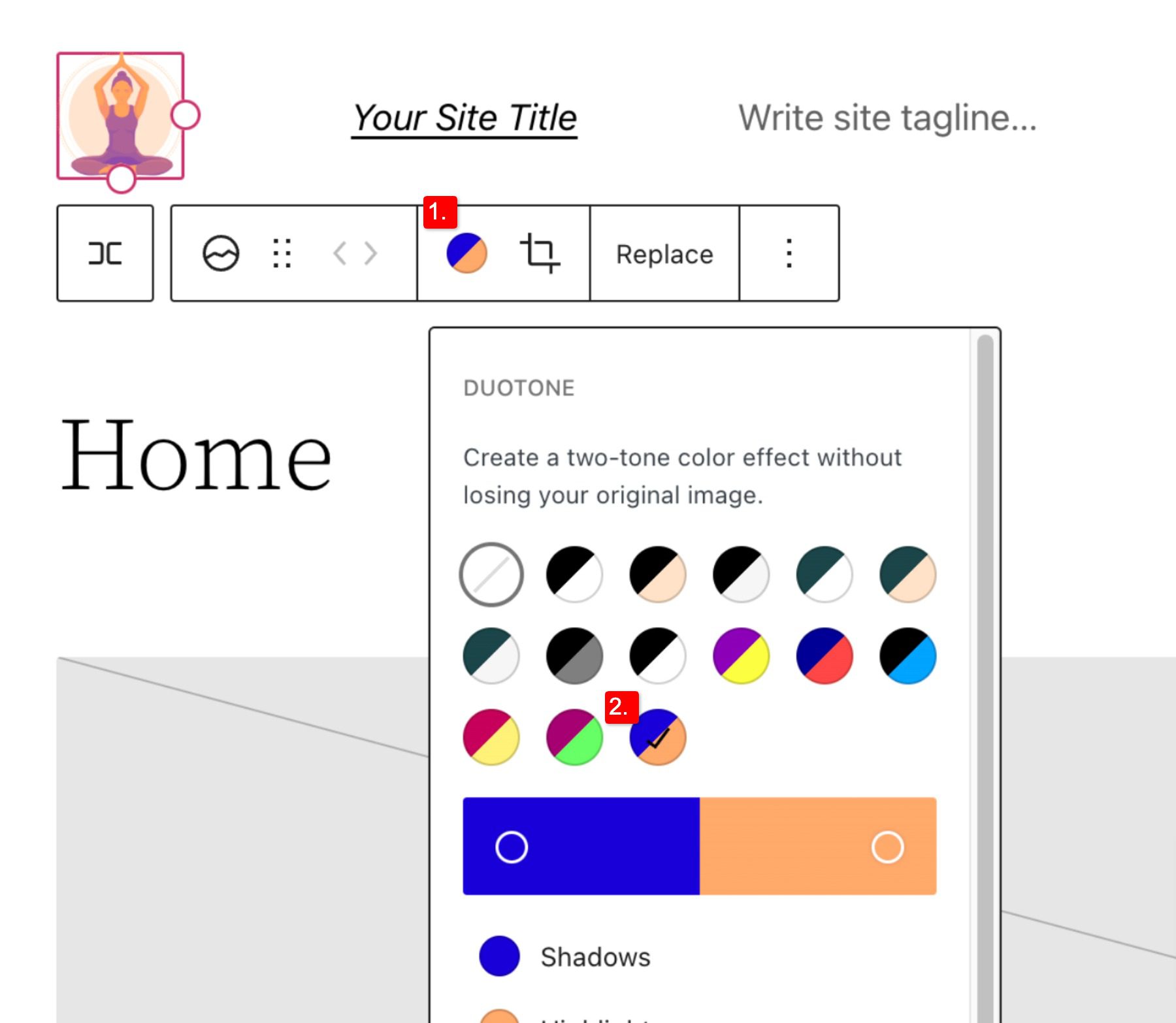
    2. Adjusting the shadow, highlights, or tone of your logo
    3. Changing the zoom, aspect ratio, and rotation of your logo
    4. Replacing your logo and image
    5. Shows more advanced options such as copy, duplicate, move, lock, group, add to reusable blocks, or remove the block.

    Logo setting options

    As you may have noticed these tools can help you adjust the look of your logo so that you can get the placement and design to match your website’s style.

    To change the color of the logo image click the duotone tool and select your desired color scheme.

    To set your colors, select the dots within the color bars:

    Duotone continued

    Site Logo Block Settings

    If you open the additional options or block settings toggle in the sidebar, you can find more block settings you can customize.

    Advanced settings

    From here you can change your logo to:

    1. Appear rounded instead of the default square or rectangle setting
    2. Adjust the image width to create a larger logo (it’s important to choose the best size for your logo)
    3. Link image to home,  if enabled will navigate users back to your home page when your logo is clicked
    4. Open in a new tab, if enabled will open your home page in a new tab
    5. Use as site icon, if enabled will use your logo as the site icon or favicon

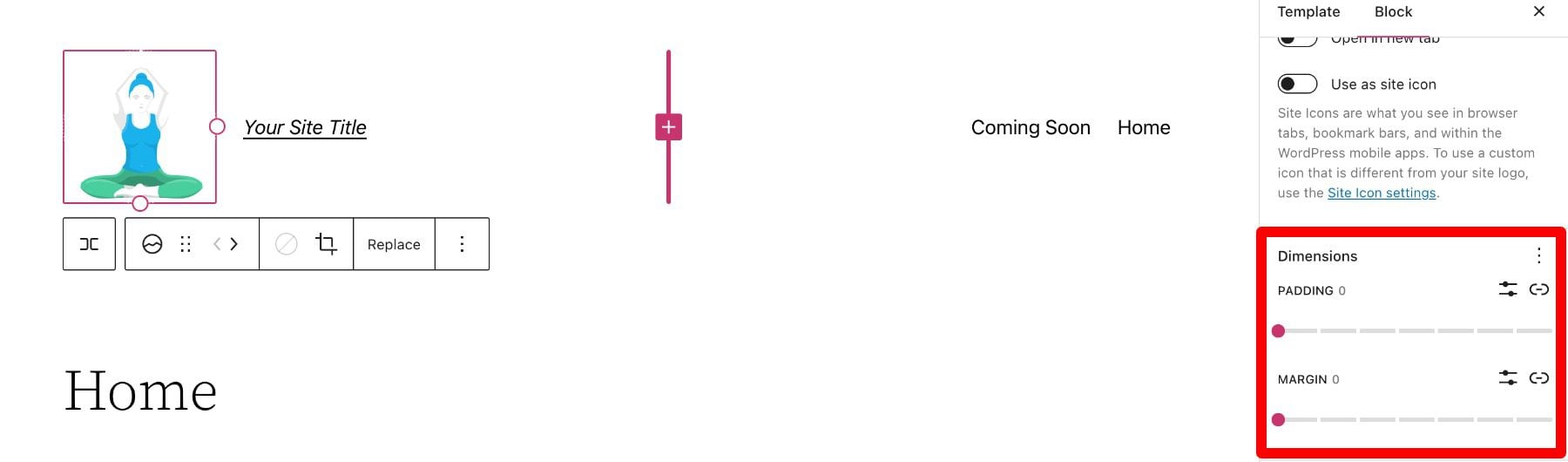
    Below the settings section, you can find the dimensions tab where you can adjust the padding and margin of your logo.

    Dimensions

    That covers everything you need to know about the settings available for your logo block, so you can customize your logo’s style to match perfectly to the rest of your site’s aesthetic. Now, let’s delve into some tips for how to use this block effectively.

    Tips and Best Practices for Using the Site Logo Block Effectively

    Using the site logo block is pretty straightforward to use, but it’s still important to keep some things in mind.

    Optimize the Logo Image Before Uploading

    Just like with any image uploaded via WordPress, it’s important to optimize your logo before you upload it to your site logo block. This will improve your load speeds and be beneficial for image SEO as well. Your logo should be a PNG, and the file shouldn’t be too big, we recommend using a web tool like TinyPNG, to help compress your image without losing quality in the process.

    Match Your Website’s Style

    Assuming your website already has a design and scheme, your logo mustn’t contrast too much with the style already in place on the rest of your site. So take a look at the colors and layout of your website and see if you can work your logo in as seamlessly as possible.

    Prominently Display Your Logo

    Making sure you use your logo properly after creating it is an essential step in effectively branding your website. In most cases, your logo should be displayed on your WordPress header area/template so that it can be seen on all the pages of your site. Also, it’s best practice to make your logo link back to your homepage to help with user flow and to constantly draw the user’s eye to your logo.

    Frequently Asked Questions About the Site Logo Block

    After you complete the difficult task of creating your logo, using the logo block in WordPress is relatively hassle-free. Still, as with anything, some questions need answering. Here are some answers to frequently asked questions about the logo block.

    How Do I Change The Site Logo?

    To replace the site logo, click on the site logo block and then click on Replace in the toolbar settings. There you can add one from your media library, upload a new one, or reset the site logo to the default.

    When Should I Use the Site Logo Block?

    Your logo is the symbol that represents your website and, therefore, should be prominent on nearly every page of your site. This is why we recommend putting your logo in the header area, where it can be used for both navigation (Home button) and branding purposes.

    What’s the Difference Between a Logo and a Site Icon?

    A site icon is used as a browser and app icon for your site; you may see it next to the tab in your browser. The logo for your site isn’t necessarily used as the site icon but can be activated in the logo block’s advanced settings.

    Using Divi to Add a Site Logo to Your Global Header in WordPress

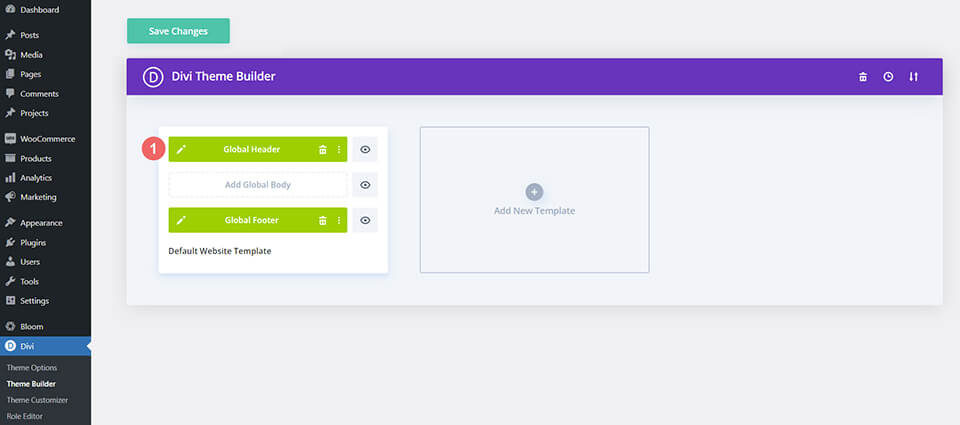
    When using Divi, you can use the Divi theme builder to add a site logo to your global header in just a few easy steps. You can start by clicking the edit button next to Global Header in your default website template.

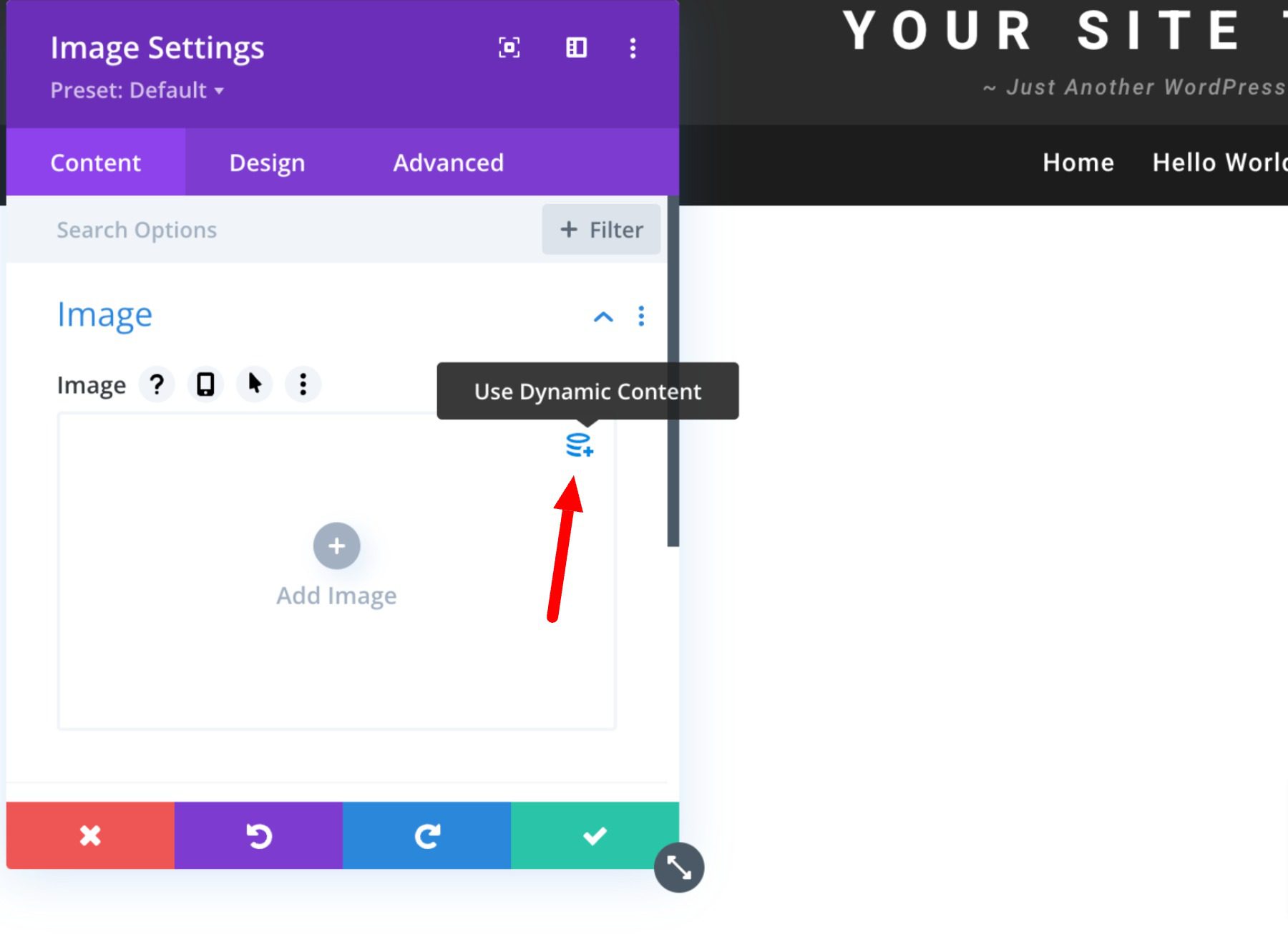
    Now, you simply add an image module to the header and select the Use Dynamic Content option in the top right corner.

    You will then be prompted to select from a list of all dynamic content that is accessible. Select Site Logo to add the dynamic logo to your header.

    Learn more about using dynamic content with Divi here.

    Conclusion

    It is impossible to overstate the significance of your brand’s logo. However, you need a systematic approach to branding your site effectively. This is especially true if you want it to leave a lasting impression on audiences. Hopefully, some of the tips mentioned above can help you create your ideal logo and use the logo block correctly and effectively.

    If you have any other tips on making memorable logos, leave them in the comment section below!

    Featured Image via VectorMine / shutterstock.com

    The post How to Use the WordPress Site Logo Block appeared first on Elegant Themes Blog.

  • How to Customize Your WordPress Header (in 2023)

    Customizing your WordPress website’s header has gotten much easier with the introduction of full site editing. Now, it’s possible to create and customize headers natively in WordPress using the block editor without having to resort to custom code or plugins.

    In this post, we’re going to walk through how to create a custom header in WordPress so that you can easily make the changes needed to your own website header. Let’s get started.

    What is a WordPress Header

    WordPress header

    In WordPress, the header is quite possibly the most important element. It houses a navigation menu, a logo, and other important elements such as social media icons, call-to-action buttons, or even business information. Since the WordPress header is the first thing your site visitors see, it’s important to make a good first impression. It should contain everything a visitor needs to see – pages, contact information, branding elements, or other important information.

    Thankfully, you are no longer married to the WordPress customizer. With the development of full site editing, it is now possible to design and implement your site’s header, or any other element, in any way you wish.

    How to Customize WordPress Header Using Full Site Editing in 2023

    Full site editing in WordPress is a bit different than the WordPress themes of old. While you can still use the WordPress Theme Customizer, it’s no longer necessary like it once was. The creativity-limiting customizer has been replaced with a new experience – the site editor. While still in beta, it is the future of WordPress customization. For instance, when creating a new header in the Twenty Twenty-Three Theme, the site editor is quite useful for a number of customization options including your header’s fonts, colors, button styling, and more.

    Accessing the WordPress Header in the Site Editor

    In order to access the WordPress header, you’ll need to first navigate to Appearance > Site Editor.

    WordPress site editor

    When the editor loads, you’ll be automatically taken to your home settings. To get to the header settings, you can either click the WordPress logo in the upper left corner of the editor, or select the dropdown arrow, then choose Browse all templates.

    browse all templates

    Next, click on template parts in the WordPress menu. Finally, click Header to edit the site’s header.

    edit WordPress header

    Styling the Header

    simple WordPress header

    In the Twenty Twenty-Three theme, the header is very basic. That being said, you have the option to add or delete any WordPress blocks you’d like. For the sake of this tutorial, we’re going to show you how to edit the header template part of the Twenty Twenty-Three theme to create a simple, yet effective custom header for your website.

    To get started, let’s take a look at the header’s structure by clicking the list view icon in the template editor. You’ll see that there is a group block that contains a row with two blocks – the page title and navigation block. The row is already structured the way we want with a centered vertical alignment, and the content is set to full width. So basically all we need to do here is make a couple of changes to this row.

    WordPress list view

    First, we’re going to delete the site title block, then replace it with the social icons block. To do this, simply click on the site title block in the list view, then expand the ellipsis menu.

    expand ellipsis menu

    Finally, click Remove Site Title to delete the block from the header.

    Remove site title block

    Adding The Social Icons Block

    The first block we’re going to add is the social icons block. Click the plus icon next to the Page List block, then start typing social icons. Simply click to add it.

    add social icons

    To add an icon, click the plus icon to reveal the modal box. Type Facebook to bring up the Facebook icon. Simply click to add it. Next add the Instagram, YouTube., and TikTok icons repeating the previously mentioned steps.

    choose social platforms

    Styling the Social Icons Block

    Next, we’ll style our icons. There are a number of options with the social media block including which layout style you’d like – either default, which is a logo enclosed in a circle, logos only, or pill shape. Next is layout justification and orientation, which controls whether your blocks will be displayed horizontally or vertically, and how you’d like them to be justified. Then there are link settings. Here you can choose to open the links in a new tab, and choose whether to show the labels.

    social media styles

    Depending on which layout style you choose, you’ll have different color choices. For example, when selecting logo only, you’ll only be able to add color to the logo itself. If you choose default or pill shape, you can choose both icon color and background color. The available colors are pre-selected in the Twenty Twenty-Three theme. Should you choose to add more, you’ll need to add them to your theme’s theme.json file.

    theme colors

    The final settings group is Dimension, which enables you to control how much spacing to set between each social icon.

    social icon padding

    In this tutorial, we’re going to choose the logo-only style, set the justification to space between items, and choose the horizontal orientation. This will evenly space our icons, display them horizontally, and show only the icon itself without a background. Under link settings, set it to open links in a new tab. For color, choose white. Finally, add 15px block spacing under the dimension settings.

    social icon settings

    Setting A Background Color to the Row

    Next, we’re going to add a background color to the row. In the list view, select the row block. In additional settings, locate background under color. Click inside the base box and add #8D4CE6 as the color.

    background color row

    Adding an Additional Row to the Header

    Our header requires a new row to be added. We’re going to be adding a site logo block, as well as a call to action button, so we need a place for these to live. It’s good to remember that when creating custom headers, adding rows is a good way to keep your blocks organized.

    To add a new row, click on the block inserter icon.

    WordPress block inserter

    Next, type row into the search bar or /row directly into the page editor to insert a new row.

    insert row block

    Moving Blocks Between Rows

    For the next step, we are going to move our navigation block to our newly created row. Ultimately, we’ll have social icons and a call to action button in the top row, then a site logo block and navigation block on our second row. To move the navigation block, click on it in the page editor. Click the drag icon in the toolbar settings for the navigation block and drag it to our newly created row.

    drag blocks

    Add the Button Block

    The next step in creating our header is to add the button block to the first row. Click the block inserter, then search for the button block in the search bar. Drag the button block to the first row. We’re going to style our button as follows. Type in BOOK NOW! for the text, then add #8D4CE6 for the text color, assign #ffffff for the button background color, and give the button a border radius of 100px. Leave the button text size set to small. Your button should now look like the screenshot below.

    button settings

    Add the Site Logo Block

    The last block we’re going to add is the site logo block. Using the block inserter, search for and select the site logo block. Drag it to the second row of the header.

    add site logo block

    To add a new logo, click the upload button within the site logo block. You can either choose an image already in your media library or upload a new one.

    add logo to WordPress header

    For the logo settings, ensure that link image to home is enabled, and choose the width for your logo. Optional settings include whether to open the link in a new tab or use the logo as the site icon. Additionally, you can set the margin and padding for the logo under the dimensions settings.

    site logo settings

    You may also want to consider using the best logo size for your site.

    Final Header Settings

    Before our header can be completed, there are a few settings we need to check. First, ensure that the 2nd row is set to full width to match our first row. Secondly, make sure that the justification is set to space between items. Lastly, set the row alignment to align middle.

    row alignment settings

    That’s it! As you can see, accessing and customizing your website’s header can be accomplished in a few short steps using the WordPress site editor. Adding, editing, moving, and resizing blocks is simple, and allows you to be creative to create a custom header for your site.

    Creating Multiple WordPress Header Template Areas

    Another great feature of the WordPress site editor is the ability to create different headers for different templates. Additionally, WordPress offers some pretty unique pre-made headers in the form of block patterns, that make it quick and easy to change the look of your website’s header. Let’s look at how easy it is to create a different header for your site. We’ll use the single template to illustrate how to create a different header that will be applied to posts on the website.

    First, navigate to Templates in the site editor. Next, select the Single template.

    edit the single template

    When you open the single template, you’ll see that the header we created in the last section is currently applied. It’s important to note that you should not edit the header on this template or any other template because changes you make to the header will be applied across the site. Instead, we’ll delete the header we created from this template, then create a new one that will only apply to the template we’re working with.

    To delete the header, click the list view icon. Next, select the header, then click the ellipsis menu to open the settings. Finally, click remove header.

    remove header template part

    Adding A New Header To A Template

    Next, we’re going to add a new header to the single post template. Click the block inserter to add a new block. Next, search for and select the header block to add it to the template.

    add header

    When creating a new header, there are a couple of options. You can choose from a pre-made pattern, choose a header that you have already created, or create a new one.

    header options

    Using a Premade Pattern Header

    To choose a WordPress block pattern, simply navigate to the patterns tab, then search for headers. All of the available header patterns for the Twenty Twenty-Three theme will be listed there. Alternatively, you can click the explore button to search for and add a header from the WordPress pattern library.

    NOTE: Not all header patterns will include navigation/menu elements. You may need to search for navigation patterns to find what you are looking for.

    explore WordPress header patterns

    Creating a New Header From Scratch

    If you want to create another header from scratch, rather than use a pattern, you can choose to start with a blank header. By choosing start blank, you’ll be prompted to name your template part. Name it “single post header”, then click create.

    name your header

    Once your header is in place, simply click on it in the page editor to start adding blocks. Alternatively, you can click the edit button to be taken to the template editor, where you can add any rows or blocks you’d like to create a completely new header.

    edit new header

    Using Divi to Add and Customize WordPress Headers

    Divi by Elegant Themes

    Divi offers a similar way to add custom headers to your WordPress website, but it kicks things up a notch. Divi is the most advanced full site editing theme in the WordPress universe. With over 200 design elements, a fully responsive framework, and the ability to customize literally every aspect of your site without a single line of code, it is the ultimate web designing experience available.

    Divi uses the Theme Builder to give you the ability to create custom headers, then apply them to different templates on your website. Headers can be created and applied to your pages, posts, archive pages, 404 pages, search results pages, projects, category pages, author pages, and much more.

    Divi template builder

    For more info, check out these 11 header types you can create with Divi.

    FAQs About WordPress Headers

    We’ve done our best to be as thorough as possible to give you the knowledge you need to build a custom WordPress header from scratch. That being said, we have put together some common questions regarding WordPress headers to give you a better understanding of how they work.

    Will Customizing One Header Affect All Headers Throughout My Site?

    Well, it depends. If you create a custom header, then try to change any aspect of it in a different template, then yes, it will be affected wherever that header is in place across your site. That being said, you can create multiple headers on your website and edit them without worry. For example, if you create a header under template parts, that is considered your global header. However, you can create a different header and apply it to certain templates.

    As previously mentioned, you can edit the single post template (or any other template), delete the header currently installed, and create a completely new one that is only applied to that template.

    How do Header Template Parts Work?

    Template parts are sections of your website that are repeated throughout the site. Both headers and footers are considered template parts. Template parts can be global, meaning they apply to a certain section on every page and post on your site, or only apply to sections on certain pages. For example, you can have a header template part that is set globally to apply everywhere, yet another template part that you have assigned only to certain pages, such as the 404 page.

    What Kind of Blocks can I use in a WordPress Header?

    You can use any block in the WordPress library within a WordPress header. Although some blocks make more sense than others. You should definitely incorporate a navigation block, and site logo block, and consider using others such as social media icons, business contact information, and buttons. For more, see our tutorials on WordPress Blocks.

    How do Global Site Styles affect my header style?

    Global site styles will automatically be applied to every block within your header. That being said, you have the ability to override global block styles in your header by assigning different colors, text sizes, dimensions, and more to the blocks in your header.

    Customizing Your Website’s Header Is Easier Than Ever

    Thanks to full site editing, it’s possible to make your website’s header look and function any way you’d like. You’re no longer stuck with a boring header where it’s impossible to make even the smallest of changes without a ton of coding. Using a full site editing theme such as Twenty Twenty-Three, or a more robust theme like Divi, gives you more options to style your header to match your branding, add important elements, and make a good first impression.

    What tools do you use to customize your website’s header? Let us know by sounding off in the comments below.

    The post How to Customize Your WordPress Header (in 2023) appeared first on Elegant Themes Blog.

  • How to Create Matching Portfolio & Projects with Divi

    If you are a creative or run a service-based business, you may want to create a portfolio website to showcase your experience and display your projects. Having an online portfolio can help you be discovered by potential clients and can establish your credibility. You can use project pages to demonstrate your process and the ideas behind your work, helping visitors imagine what it might be like to work with you.

    In this tutorial, we will show you how to create a matching portfolio and project page with Divi. We will use dynamic content for the design of the portfolio page so that you can quickly and easily add new projects to your portfolio without having to design a project page each time. We’ll highlight using the powerful Divi Filterable Portfolio Module as well!

    Let’s get started!

    Sneak Peek

    Here is a preview of what we will design

    Portfolio Page

    Divi Matching Portfolio and Projects Portfolio Page Final Design

    Divi Matching Portfolio and Projects Portfolio Mobile Final Design

    Project Page

    Divi Matching Portfolio and Projects Project Page Final Design

    Divi Matching Portfolio and Projects Project Page Mobile Final Design

    What You Need to Get Started

    Before we begin, install and activate the Divi Theme and make sure you have the latest version of Divi on your website.

    Now, you are ready to start!

    How to Create Matching Portfolio & Projects with Divi

    Set Up Advanced Custom Fields Plugin

    For this design, we are going to be using dynamic content to create a template for our project pages. By using dynamic content in a template, you can create and update fully-designed project pages by filling out the custom fields associated with the project. You can use the built-in custom fields function in WordPress to do this, but it has some limitations. For this design we want multiple photos to dynamically populate, so we are going to use the Advanced Custom Fields Plugin to accomplish this. This plugin is free on the WordPress plugin directory and allows us to add powerful custom fields to the project pages.

    From the WordPress dashboard, navigate to the Plugins settings and click Add New. Then search for the Advanced Custom Fields Plugin, install, and activate.

    Divi Matching Portfolio and Projects Advanced Custom Fields

    Add Custom Fields

    Once the plugin has been installed and activated, open the Advanced Custom Fields settings and add a new Field Group. Add a title, then set the location rules and set the field group as active.

    • Title: Project
    • Location Rules: Show this field group if Post Type is equal to Project
    • Active: Yes

    Divi Matching Portfolio and Projects Edit Field Group

    Next, add the custom fields by clicking the blue Add Field button. For this tutorial, we will only modify the field label and type for each field. The first field will be the client name.

    • Field Label: Client Name
    • Field Type: Text

    Divi Matching Portfolio and Projects Add Field

    Next, add the following fields.

    • Field Label: Project Year
    • Field Type: Number
    • Field Label: Deliverables
    • Field Type: Text
    • Field Label: Project Description
    • Field Type: Text Area
    • Field Label: Image 1
    • Field Type: Image
    • Field Label: Image 2
    • Field Type: Image
    • Field Label: About Text
    • Field Type: Text Area
    • Field Label: Image 3
    • Field Type: Image
    • Field Label: Image 4
    • Field Type: Image
    • Field Label: Testimonial Text
    • Field Type: Text Area
    • Field Label: Testimonial Name
    • Field Type: Text
    • Field Label: Testimonial Job
    • Field Type: Text
    • Field Label: Image 5
    • Field Type: Image

    Divi Matching Portfolio and Projects All Fields

    Once you publish and save the custom fields, add a new project or edit an existing one. You should see the custom fields toward the bottom of the editing page. For this portfolio and project layout, fill out each of the custom fields and upload a featured image to the project. If you want to add a filterable portfolio, make sure the posts are categorized as well.

    Design Portfolio Page

    Now let’s get started with designing our portfolio page. We’ll start with a premade landing page and add a filterable portfolio module to it.

    Start With a Premade Layout

    Let’s start by using a premade layout from the Divi library. For this design, we will use the Print Designer Landing Page from the Print Designer Layout Pack.

    Add a new page to your website and give it a title, then select the option to Use Divi Builder.

    Divi Matching Portfolio and Projects Use Builder

    We will use a premade layout from the Divi library for this example, so select Browse Layouts.

    Divi Matching Portfolio and Projects Premade Layout

    Search for and select the Print Designer Landing Page.

    Divi Matching Portfolio and Projects Search Layout

    Select Use This Layout to add the layout to your page.

    Divi Matching Portfolio and Projects Use Layout

    Now we are ready to build our design.

    Add the Filterable Portfolio Module

    Add a new regular section below the image of the desk, above the orange “My Latest Prints” section.

    Divi Matching Portfolio and Projects New Regular Section

    Add a single row.

    Divi Matching Portfolio and Projects Insert Row

    Then, add the filterable portfolio module to the row.

    Divi Matching Portfolio and Projects Portfolio Module

    Open the section settings and add a background color.

    • Background: #eae8de

    Divi Matching Portfolio and Projects Background Color

    Next, open the filterable portfolio module settings. Under Content, set the post count to 6.

    • Post Count: 6

    Divi Matching Portfolio and Projects Post Count

    Under Elements, disable the title and categories.

    • Show Title: No
    • Show Categories: No
    • Show Pagination: Yes

    Divi Matching Portfolio and Projects Show Pagination

    Then, move to the design tab and open the Layout settings. Select the Grid layout.

    • Layout: Grid

    Divi Matching Portfolio and Projects Grid Layout

    Under Overlay, customize the options as follows:

    • Zoom Icon Color: #FFFFFF
    • Hover Overlay Color: rgba(10,10,10,0.25)
    • Hover Icon: Plus Icon in Circle

    Divi Matching Portfolio and Projects Hover Overlay

    Next, add an image box shadow.

    • Image Box Shadow: Below

    Divi Matching Portfolio and Projects Box Shadow

    Now modify the filter criteria font settings.

    • Filter Criteria Font: Inter
    • Filter Criteria Font Weight: Light
    • Filter Criteria Text Color: #000000

    Divi Matching Portfolio and Projects Filter Criteria Text

    Finally, modify the pagination font settings.

    • Pagination Font: Inter
    • Pagination Font Weight: Light
    • Pagination Text Color: #000000

    Divi Matching Portfolio and Projects Pagination Text

    We want the active portfolio filter and the active page color to be a different color than the rest of the text. Move over to the advanced tab and add the following CSS.

    Under the Active Portfolio Filter CSS section add the following:

    color: #C89A5A !important;

    Divi Matching Portfolio and Projects Custom CSS

    Finally, add the following to the Pagination Active Page CSS:

    color: #C89A5A !important;

    Divi Matching Portfolio and Projects Custom CSS 2

    Portfolio Page Final Design

    Now here is the final design for the portfolio section.

    Divi Matching Portfolio and Projects Portfolio Section Final Design

    Divi Matching Portfolio and Projects Portfolio Section Mobile Final Design

    Design Project Template

    Use the Theme Builder

    Now let’s create the template for our project pages. To do this, we will use Divi’s theme builder. Open the WordPress dashboard and navigate to the Theme Builder. Then select Add a New Template.

    Divi Matching Portfolio and Projects Theme Builder

    Next, set the template to apply to all project pages.

    Divi Matching Portfolio and Projects Template Settings

    Click “Add Custom Body”, then select “Build Custom Body”.

    Divi Matching Portfolio and Projects Custom Body

    Header Design

    First, add a fullwidth section to the page.

    Divi Matching Portfolio and Projects FW Section

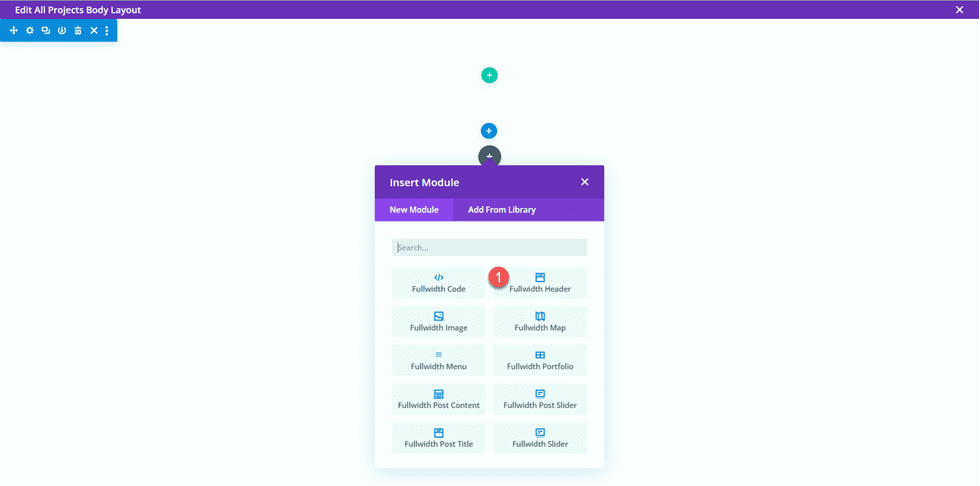
    Then, add a fullwidth header module.

    Divi Matching Portfolio and Projects FW Header Module

    Open the header settings. We want the title of this page to dynamically populate based on the title of the project. Next to Title, click the dynamic content icon.

    Divi Matching Portfolio and Projects Use Dynamic Content

    Then, set the Title to “Posts/Archive Title.” Now the title will dynamically populate.

    Divi Matching Portfolio and Projects Select-Dynamic-Content

    Remove the text from the Button #1 and Body sections and remove the background color.

    Divi Matching Portfolio and Projects Background-Color-1

    Next, we want to add a dynamic background image. Move to the background image tab and click the dynamic content icon. Set the background image to “Featured Image”. This way, the featured image for the project post will appear at the top of our project page.

    Divi Matching Portfolio and Projects Background Image

    Move over to the design tab and open the layout settings. Set the alignment to centered and make the header fullscreen.

    Divi Matching Portfolio and Projects Alignment

    Then, modify the title font settings.

    • Title Font: Inter
    • Title Font Weight: Bold
    • Title Text Color: #FFFFFF

    Divi Matching Portfolio and Projects Title Font

    Use the responsive settings to set different text sizes for different screen sizes. Additionally, set the line height.

    • Title Text Size on Desktop: 90px
    • Title Text Size on Tablet: 60px
    • Title Text Size on Mobile: 40px
    • Title Line Height: 1.1em

    Divi Matching Portfolio and Projects Header Title Text Size

    Under the Overlay settings, add an overlay.

    • Background Overlay Color: rgba(0,0,0,0.33)

    Divi Matching Portfolio and Projects Background Overlay

    Now move the fullwidth section to the top of the page.

    Divi Matching Portfolio and Projects Move Section

    Project Description Design

    Open the section settings for the empty regular section on the page and set a background color.

    • Background: #dfdcd2

    Divi Matching Portfolio and Projects Section Background

    Then add a row with two columns.

    Divi Matching Portfolio and Projects Row Layout

    Add a text module to the column on the left.

    Divi Matching Portfolio and Projects Add Text Module

    Replace the body content with dynamic content. For this module, we will add the Project Year.

    Divi Matching Portfolio and Projects Add Project Year Dynamic

    Move to the design tab and open the Text font settings. Customize the font as follows.

    • Text Font: Inter
    • Text Font Weight: Light
    • Text Text Color: #000000

    Divi Matching Portfolio and Projects Year Text

    Next, set the text size and line height. Use the responsive options to set a smaller text size on tablet and mobile.

    • Text Text Size Desktop: 24px
    • Text Text Size Tablet: 20px
    • Text Text Size Mobile: 18px
    • Text Line Height: 1em

    Divi Matching Portfolio and Projects Year Text Size

    Finally, move to the Spacing section and add a bottom margin.

    • Margin Bottom: 10px

    Divi Matching Portfolio and Projects Margin Bottom

    Now duplicate the Project Year text module.

    Divi Matching Portfolio and Projects Duplicate Module

    Open the duplicated module settings and replace the Project Year dynamic content with the Client Name dynamic content.

    Divi Matching Portfolio and Projects Client Name

    Repeat the same steps and duplicate the Client Name text module. Then, replace the Client Name dynamic content with the Deliverables dynamic content.

    Divi Matching Portfolio and Projects Body Deliverables

    Next, add a new text module below the Deliverables module.

    Divi Matching Portfolio and Projects Insert Text Module

    Replace the content with the Project Description dynamic content.

    Divi Matching Portfolio and Projects Description

    Open the Text options under the Design tab and customize the font:

    • Text Font: Inter
    • Text Font Weight: Light
    • Text Color: #000000

    Divi Matching Portfolio and Projects Text Font

    Then set the text size and line height. Once again, use the responsive options to set different text sizes for different screens.

    • Text Size Desktop: 17px
    • Text Size Tablet: 16px
    • Text Size Mobile: 14px
    • Text Line Height: 1.8em

    Divi Matching Portfolio and Projects Text Size
    Finally, add an image module to the right column.

    Divi Matching Portfolio and Projects Image Module

    The image will also be dynamically populated. Select the dynamic content icon and select Image 1 from our custom fields.

    Divi Matching Portfolio and Projects Image 1

    About Section Design

    Now let’s move on to the About section. Add a new regular section to the page.

    Divi Matching Portfolio and Projects Regular Section

    Open the section settings and add a background color.

    • Background: #eae8de

    Divi Matching Portfolio and Projects Set Background

    Add a row with two columns.

    Divi Matching Portfolio and Projects Insert Row Layout

    Next, add an image to the left column.

    Divi Matching Portfolio and Projects Add Image

    Select the dynamic content icon and select Image 2.

    Divi Matching Portfolio and Projects Dynamic Image 2

    Next, add a text module to the right column.

    Divi Matching Portfolio and Projects Text Module New

    Add the body text.

    • Heading 2: “About”

    Divi Matching Portfolio and Projects About Text

    Under the design tab, modify the heading text styles.

    • Heading 2 Font: Inter
    • Heading 2 Font Weight: Light
    • Heading 2 Text Color: #000000

    Divi Matching Portfolio and Projects Text Settings

    Next, modify the text size using the responsive options, and add the line height.

    • Heading 2 Text Size Desktop: 60px
    • Heading 2 Text Size Tablet: 36px
    • Heading 2 Text Size Mobile: 30px
    • Heading 2 Line Height: 1.2em

    Divi Matching Portfolio and Projects Heading Size

    Finally, open the Sizing settings and remove the bottom margin.

    • Margin-Bottom: 0px

    Divi Matching Portfolio and Projects Margin

    Duplicate the Project Description text module from the section above, then drag it to below the About text module.

    Divi Matching Portfolio and Projects Duplicate and Move

    Open the duplicated module settings and replace the dynamic content with the About Text.

    Divi Matching Portfolio and Projects About Text

    Images 3 and 4

    Add a new row with two columns to the page.

    Divi Matching Portfolio and Projects New Row 2 Columns

    Then, add an image module to the left column.

    Divi Matching Portfolio and Projects Insert Image Module

    Using the dynamic content settings, set this image module to the Image 3 custom field.

    Divi Matching Portfolio and Projects Image 3 Dynamic

    Under the Sizing settings in the Design tab, enable Force Fullwidth.

    • Force Fullwidth: Yes

    Divi Matching Portfolio and Projects Image Fullwidth 3

    Repeat these steps in the right column and add an image module. Use the dynamic content settings to set this image to Image 4.

    Divi Matching Portfolio and Projects Image 4 Dynamic

    Once again, enable Force Fullwidth in the Sizing settings.

    Divi Matching Portfolio and Projects Image Fullwidth 4

    Next, open the row settings and open the Sizing settings under the Design tab. Customize the sizing settings as follows:

    • Use Custom Gutter Width: Yes
    • Gutter Width: 1
    • Width: 100%
    • Max Width: 100vw

    Divi Matching Portfolio and Projects Row Settings

    Testimonial Layout

    Add a new row with a single column to the page.

    Divi Matching Portfolio and Projects New Row

    Then, add the testimonial module.

    Divi Matching Portfolio and Projects Add Testimonial Module

    We will use dynamic content in this module as well. Open the testimonial module setting and add the following dynamic content to the fields.

    • Author: Testimonial Name Dynamic Content
    • Job Title: Testimonial Job Dynamic Content
    • Company: Client Name Dynamic Content
    • Body: Testimonial Text Dynamic Content

    Divi Matching Portfolio and Projects Testimonial Content

    Delete the testimonial image.

    Divi Matching Portfolio and Projects Remove Image

    Move to the design tab and customize the quote icon.

    • Quote Icon Color: #000000
    • Quote Icon Background Color: rgba(255,255,255,0)

    Divi Matching Portfolio and Projects Quote Icon

    Next, modify the body font.

    • Body Font: Inter
    • Body Font Weight: Light
    • Body Text Color: #000000

    Divi Matching Portfolio and Projects Body Font Testimonial

    Customize the body text size using responsive options and adjust the body line height.

    • Body Text Size Desktop: 17px
    • Body Text Size Tablet: 16px
    • Body Text Size Mobile: 14px
    • Body Line Height: 1.8em

    Divi Matching Portfolio and Projects Body Text Size Line Height

    Next, customize the author text settings.

    • Author Font: Inter
    • Author Font Weight: Bold
    • Author Text Size Desktop: 17px
    • Author Text Size Tablet: 16px
    • Author Text Size Mobile: 14px

    Divi Matching Portfolio and Projects Author Font

    Then modify the font settings for the position text.

    • Position Font: Inter
    • Position Font Weight: Light
    • Position Text Size Desktop: 17px
    • Position Text Size Tablet: 16px
    • Position Text Size Mobile: 14px

    Divi Matching Portfolio and Projects Position Font

    Customize the company font settings as well.

    • Company Font: Inter
    • Company Font Weight: Light
    • Company Text Size Desktop: 17px
    • Company Text Size Tablet: 16px
    • Company Text Size Mobile: 14px

    Divi Matching Portfolio and Projects Company Font

    Finally, add a box shadow to the testimonial module.

    • Box Shadow: Below

    Divi Matching Portfolio and Projects Box Shadow

    Fullwidth Image

    Add a fullwidth section to the page.

    Divi Matching Portfolio and Projects Fullwidth Section

    Then, add a fullwidth image module.

    Divi Matching Portfolio and Projects Fullwidth Image Module

    Using the dynamic content settings, set this image module to Image 5.

    Divi Matching Portfolio and Projects Dynamic Image 5

    Call to Action Sections

    Now our dynamic content has been laid out. There are a couple of call-to-action sections that we will copy and modify from the portfolio page. In a different tab, open the portfolio page in the visual builder, then scroll to the bottom of the page.

    Copy the “Custom Designs & Commissions” section.

    Divi Matching Portfolio and Projects Copy Section

    Move back to the project page template and paste the “Custom Designs & Commissions” section below the existing content.

    Divi Matching Portfolio and Projects Paste Section

    Open the section settings and change the background color.

    • Background: #333333

    Divi Matching Portfolio and Projects Background Color

    Open the settings for the “Custom Designs & Commissions” text module and change the Heading 2 text color.

    • Heading 2 Text Color: #FFFFFF

    Divi Matching Portfolio and Projects Change Heading Color

    Then, open the module settings for the body text and change the text color.

    • Text Text Color: #FFFFFF

    Divi Matching Portfolio and Projects Change Text Color

    Next, move back to the portfolio page. Copy the “Free Matting on Orders of 4 or More Prints” section.

    Divi Matching Portfolio and Projects Copy Section 2

    Then, paste the “Free Matting” section to the bottom of the Project template page.

    Divi Matching Portfolio and Projects Paste Section 2

    Open the Call To Action module settings and change the text.

    • Title: Shop My Latest Prints
    • Button: Shop Now

    Divi Matching Portfolio and Projects Modify Section Text

    Open the row settings, then open the Column 2 settings.

    Divi Matching Portfolio and Projects Column 2 Settings

    Change the background color.

    • Background: #ff804f

    Divi Matching Portfolio and Projects Column 2 Background

    Then, add a background image. This image of abstract lines should be in your media library as long as you used the print designer landing page layout pack to design the portfolio page.

    • Background Image: Print-designer-10.png

    Divi Matching Portfolio and Projects Add Background Image

    Footer Section

    We will also copy the footer section from the portfolio page to use on the project template. Move to the tab with the portfolio page and copy the “Subscribe for Drop Updates” footer section.

    Divi Matching Portfolio and Projects Copy Footer

    Then finally, paste the footer section to the bottom of the project template page.

    Divi Matching Portfolio and Projects Paste Footer

    Project Page Final Design

    Here is the completed design for the project page. The template is applied to one of the projects and is populated with dynamic content.

    Divi Matching Portfolio and Projects Project Page Final Design

    Divi Matching Portfolio and Projects Project Page Mobile Final Design

    Final Result

    Now let’s take a look at our matching portfolio and project pages.

    Portfolio Page

    Divi Matching Portfolio and Projects Portfolio Page Final Design

    Divi Matching Portfolio and Projects Portfolio Mobile Final Design

    Project Page

    Divi Matching Portfolio and Projects Project Page Final Design

    Divi Matching Portfolio and Projects Project Page Mobile Final Design

    Final Thoughts

    By using dynamic content in your designs, you can easily create templates that allow you to quickly add new pages and content to your website without having to design the page layout each time. This works great for portfolio and project content, but you can use the same principles to create any kind of page template you would like! For another portfolio tutorial, check out this article to learn how to create a scrollable portfolio navigation list. Do you use dynamic content or templates on your website? We would love to hear from you in the comments!

    The post How to Create Matching Portfolio & Projects with Divi appeared first on Elegant Themes Blog.

  • Get a Free Learning Management System Layout Pack for Divi

    Hey Divi Nation! Thanks for joining us for the next installment of our weekly Divi Design Initiative; where each week, we give away a brand new Layout Pack for Divi.

    This time around, the design team has created a beautiful Learning Management System Layout Pack that’ll help you get your next Learning Management System website up and running in no time!

    This layout pack includes:

    8 Premade page layouts strategically designed for any Learning Management System website (including a footer design)
    – Original, royalty-free photos and graphics + customizable source file (see below)
    – Plus, a large collection of pre-designed website elements that are customizable and reusable anywhere.

    This layout pack is available right inside Divi for all Divi customers for FREE as the latest addition to our growing Divi library of hundreds of premade layout packs, thousands of page designs, and countless web design elements and resources.

    divi layout

    Check Out The Divi Learning Management
    System Layout Pack Below

    Get it for free today!

    LMS layout pack

    Landing Page Design

    Learning Management System Pack for Divi

    View The Live Layout Demo

    Home Page Design

    Learning Management System Layout Pack for Divi

    View The Live Layout Demo

    Courses Page Design

    Learning Management System Layout Pack for Divi

    View The Live Layout Demo

    Course Page Design

    Learning Management System Layout Pack for Divi

    View The Live Layout Demo

    Pricing Page Design

    Learning Management System Layout Pack for Divi

    View The Live Layout Demo

    About Page Design

    Learning Management System Layout Pack for Divi

    View The Live Layout Demo

    Blog Page Design

    Learning Management System Layout Pack for Divi

    View The Live Layout Demo

    Contact Page Design

    Learning Management System Layout Pack for Divi

    View The Live Layout Demo

    Key Features

    If you’re looking to get a new Learning Management System website, you don’t want to miss out on the Learning Management System Layout Pack for Divi! Each page layout is built to impress your visitors with world-class web design. And it has everything you need to promote Learning Management System services, and much more. Use it to get your next Learning Management System website up and running today!

    Live Demos

    Click the links below to see a live demo for each of the layouts included in the pack.

    1. Learning Management System Landing Page (live demo)
    2. Learning Management System Homepage (live demo)
    3. Learning Management System Courses Page (live demo)
    4. Learning Management System Course Page (live demo)
    5. Learning Management System Pricing Page (live demo)
    6. Learning Management System About Page (live demo)
    7. Learning Management System Blog Page (live demo)
    8. Learning Management System Contact Page (live demo)

    Access This Layout Right Now
    Directly from Your Divi Builder

    Since Version 3.0.99 of Divi, you can find and import any of the layouts included in this pack (along with ALL of Divi’s Premade Layout packs) directly from the Divi Builder. They are already waiting for you.

    To access your new layout, simply activate the Visual Builder when editing a page and look for the “Load From Library” icon in the page settings bar (it looks like a plus symbol). Click this icon to launch the Load From Library popup. Under the Premade Layouts tab, you can easily find the new layout by scrolling through the list of layout packs. Once you find the Learning Management System Layout Pack, click on it. You will see all the individual layouts included in the pack. Select the layout you want to use and then click the “Use This Layout” button.

    Learning Management System Layout Pack for Divi

    For more, check out this video to learn how you can get this layout pack up and running today.

    Subscribe To Our Youtube Channel

    Authentication Required

    Before you can download Premade Layouts from the Divi Library you must authenticate your Elegant Themes Subscription. You can do this by navigating to Divi > Theme Options > Updates. There you can enter your username and API key and save changes.

    Learning Management System Layout Pack for Divi

    You can find your API Key under your members area on the Elegant Themes site. After you enter the Username and API Key, you will gain immediate access to our library of hundreds of free layouts (including this one). If you haven’t done this, when you click to import a layout to your page, you will be prompted to enter your Elegant Themes Membership Username and API Key.

    Use Layout Images for FREE with No Licensing Restrictions

    Divi Learning Management System Layout Pack for Divi

    The image assets included with these layouts (icons, illustrations, photos, etc.) have no licensing restrictions. This means you can use them in all of your commercial projects without having to worry about paying licensing fees or attributing the photographer. Use them in your commercial websites, sell them within your Divi child themes, include them in your own Divi layout packs or just use them on your blog. We know how challenging it can be to find good photos and how confusing and scary the licensing that governs those photos can be. We want to fix that problem for our users.

    Download the Full Res Image Assets

    New Layout Pack Every Week!

    We hope you enjoy this layout pack. We look forward to hearing your opinions in the comment section below. Make sure you check out next week’s layout pack as well!

    The post Get a Free Learning Management System Layout Pack for Divi appeared first on Elegant Themes Blog.

  • Divi SEO Agency Theme – Divi Child Theme Overview

    The Divi SEO Agency Theme features 30+ prebuilt pages, ideal for an SEO agency or a web service provider website you want to build using Divi. The site consists of dynamic pages full of eye-catching motion and comes with variations of several pages, giving you some flexibility with your website design. In this post, we’ll take a look at the Divi SEO Agency theme to help you decide if it’s the right Divi child theme for you.

    Let’s get started!

    Installing Divi SEO Agency Theme

    To install the Divi SEO Agency Theme, open your WordPress Dashboard and navigate to the add new themes page. Click Upload Theme, upload the ZIP file containing the child theme, and click import. Once installed, activate the theme.

    Divi SEO Agency Theme Divi Child Theme Overview Install-2

    Once the child theme is installed and activated, you will see a new menu item in your Dashboard called “Imports Demo Data”. Click the Easy Demo Import tab and import the demo content. Once the import is complete, you are all set to begin replacing the demo content with your own.

    Divi SEO Agency Theme Divi Child Theme Overview Install-1

    Divi SEO Agency Theme

    The Divi SEO Agency theme consists of 30+ pages. Let’s take a look at each page, starting with the home page, which has four variations.

    Divi SEO Agency Theme Home V1

    Divi SEO Agency Theme Home V1 Header and Introduction

    The header features a large image that moves up and down on the page. The geometric shapes in the background of this section also move. On the right side are the header text and a call-to-action button. Below there are four blurb sections with an icon, a title, some text, and a link to read more. These modules move up on hover.

    Divi SEO Agency Theme Divi Child Theme Overview Home V1 Header

    Divi SEO Agency Theme Home V1 About

    The next few sections are where you can introduce your services. The first section features a couple of paragraphs of about text and an image that floats up and down. Next are three blurbs with an icon featuring three different services. These sections also move up on hover and the geometric shapes in the background move while you are on the page. The third section features six blurbs with icons where you can introduce your services. The image in the middle moves up and down.

    Divi SEO Agency Theme Divi Child Theme Overview Home V1-7

    Divi SEO Agency Theme Home V1 Lead Magnet

    Next is a lead magnet section where visitors can submit their website and email address to receive an SEO check.

    Divi SEO Agency Theme Divi Child Theme Overview Home-V1-6

    Divi SEO Agency Theme Home V1 Benefits

    This section is where you can outline the benefits for your customer to use your services. It uses a moving image on the left and bar graphs on the right.

    Divi SEO Agency Theme Divi Child Theme Overview Home-V1-5

    Divi SEO Agency Theme Home V1 Social Proof

    This section features company logos for social proof.

    Divi SEO Agency Theme Divi Child Theme Overview Home V1-4

    Divi SEO Agency Theme Home V1 Team

    Divi SEO Agency Theme Divi Child Theme Overview Home V1-3

    In this section, you can feature your team members. On hover, the blue and orange circles around the profile photo rotate. This section features social media icons for each team member.

    Divi SEO Agency Theme Home V1 Testimonials

    Divi SEO Agency Theme Divi Child Theme Overview Home V1-2

    This section features a slider with client testimonials. The blue circle over this section moves as you are on the page.

    Divi SEO Agency Theme Home V1 Latest News

    This is the final section on the home page and it features the latest blog posts. The blog category is listed over the featured image and there is a read more link to bring readers to the full post.

    Divi SEO Agency Theme Divi Child Theme Overview Home V1-1

    Divi SEO Agency Theme Home V2

    The second version of the home page features a large header with some text and buttons with moving geometric shapes. Then there is the list of company logos and a list of three features highlighted below. Following this is a number counter which counts up as the page loads. Next is a section highlighting benefits, with 4 numbered blurbs.

    Divi SEO Agency Theme Divi Child Theme Overview Home V2-1

    These two sections continue to introduce the services. In the first section, you have six blurbs with icons and some description text. On hover, the background turns white. In the second section you have five tabs with a description, a read more link, and an image under each tab. This page also has the same team section and recent news section as was found on Home V1.

    Divi SEO Agency Theme Divi Child Theme Overview Home V2-2

    Divi SEO Agency Theme Home V3

    The third version of the home page has a floating menu bar and a large graphic background with text on the left. The main header image floats up and down and the geometric shapes move while you are on the page. Below are three blurbs highlighting some features.

    Divi SEO Agency Theme Divi Child Theme Overview Home V3-2

    This page also has a pricing table with the cost, features, and a button to choose the plan. In addition to the unique features we covered, this page also has the SEO check lead magnet, company logos, benefits with numbered blurbs, benefits with progress bars, and latest news sections we saw on other pages.

    Divi SEO Agency Theme Divi Child Theme Overview Home V3-1

    Divi SEO Agency Theme Home V4

    The fourth version of the home page is all on a darker background. The header has some text and a button on the left with a moving image on the right. Below is a number counter. The about section features three text sections connected with the dotted heart icon.

    Divi SEO Agency Theme Divi Child Theme Overview Home V4-2

    Another unique section for home version 4 is the “we deliver success” section. There is some introductory text with a dynamic moving image. Below are round number counters representing percentages relevant to the services the company provides. Aside from these unique sections, home version 4 features company logos, blurbs with icons, an SEO check lead magnet, team members, and recent posts.

    Divi SEO Agency Theme Divi Child Theme Overview Home V4-1

    Divi SEO Agency Theme Landing Page

    The landing page features a dynamic header with moving elements, feature blurbs with icons, and placeholders for images that link to inner pages. This page also features several sections with text, images, and call-to-action buttons where you can describe your services and unique features.

    Divi SEO Agency Theme Divi Child Theme Overview Landing-1

    Divi SEO Agency Theme Coming Soon Page

    The coming soon page features a countdown timer and some text. There is also an email sign-up form and social media icons.

    Divi SEO Agency Theme Divi Child Theme Overview Coming Soon

    Divi SEO Agency Theme About Us Page

    The about us page features many of the same sections found on the home pages. It starts with a dynamic header with moving geometric shapes. The following section has some about text and a number counter. The page also features team members, testimonials, and company logos.

    Divi SEO Agency Theme Divi Child Theme Overview About Us

    Divi SEO Agency Theme Our Team Page

    This page starts with a dynamic header and a section with some about text, an image, and number counters. Then follows the company logos and the team members section. Finally, there is a contact form at the bottom and some numbered blurbs featuring company benefits.

    Divi SEO Agency Theme Divi Child Theme Overview Our Team

    Divi SEO Agency Theme Single Team Page

    This page features a single team member. It has a profile card at the top with the name, title, social media icons, photo, and other relevant information. Below is a longer bio section with personal info, press and awards, professional info, and a contact form.

    Divi SEO Agency Theme Divi Child Theme Overview Single Team

    Divi SEO Agency Theme Our Process Page

    The our process page features a timeline with an orange dot that moves as you scroll. As the orange dot moves past each step, the icon gets covered with an orange border. Also on this page is the SEO check lead magnet, some features highlighted in a blurb with an icon and description text, and a section introducing services with three tabs.

    Divi SEO Agency Theme Divi Child Theme Overview Our Process

    Divi SEO Agency Theme Pricing Tables Page

    The pricing tables page features two different pricing tables. The first layout has two pricing cards at an angle. When you hover over the card it comes to the front and straightens out. The second version is what was on the home page version 3.

    Divi SEO Agency Theme Divi Child Theme Overview Pricing

    Divi SEO Agency Theme FAQ Page

    The FAQ page begins with some blurbs with icons, then features a call-to-action section with a button. Then there are the FAQ questions listed under a toggle.

    Divi SEO Agency Theme Divi Child Theme Overview FAQ

    Divi SEO Agency Theme Headers

    The headers page features three header styles that can be used on the website. The first header style features the address, phone, email, and social media information at the top. The menu bar is on a white background and features the logo, menu items, search icon, and another icon that reveals a sidebar with contact information.

    The second header style also features the address, phone and email, and social media information at the top. It also features the logo, menu items, search icon, and sidebar icon with contact information.

    Finally, the third header style has a dark blue background for the top bar. It features social media icons, the phone number, and email address. The main menu bar features the logo and menu items on a red background.

    Divi SEO Agency Theme Divi Child Theme Overview Header 1

    This is the sidebar that appears when you select the icon with the four rounded squares on Header V1 and V2.

    Divi SEO Agency Theme Divi Child Theme Overview Header 2

    Divi SEO Agency Theme Footers Page

    The footers page features the footer variations available for the theme. Footer 1 features the phone and email information as well as a newsletter sign-up form. Below is some about text with social media links, quick links to pages, a useful services section linking to other pages, and a latest news section featuring a couple of recent posts.

    Footer 2 features the logo and about text with social media icons below. Additionally, there are some quick links and a useful services section. The final column features contact information. Below this is a newsletter sign up form and copyright information.

    Footer 3 features a red background with a headline and a call-to-action button. Below this is some about text and social media icons, contact information, useful links, and latest news. At the bottom of the footer you have the terms of use, privacy policy, and copyright information.

    Divi SEO Agency Theme Divi Child Theme Overview Footer

    Divi SEO Agency Theme Services V1

    The services page features blurbs with icons and a short description of the services. The next section features a large image, some text, and two icons highlighting some features. There is also a pricing table and number counters on this page, as well as a bar graph counter.

    Divi SEO Agency Theme Divi Child Theme Overview Services V1

    Divi SEO Agency Theme Services V2

    The second version of the services page starts with some tabs with large icons. Each tab has text and an image explaining the service. Next, there is the SEO check lead magnet and company logos, followed by a section with blurbs. The geometric shapes on these blurbs move as you are on the page. The page ends with a form to sign up for free SEO analysis, some about text with checkmarks, and a number counter.

    Divi SEO Agency Theme Divi Child Theme Overview Services V2

    Divi SEO Agency Theme Services V3

    The third services page layout begins with a some text alongside an image. Below this there are some blurbs with icons on the left and some tabs with service details on the right. Following this are numbered feature highlights with icons. The blue circle around these icons move as you hover. Also on this page is the SEO check lead magnet, a bar graph counter, and company logos.

    Divi SEO Agency Theme Divi Child Theme Overview Services V3

    Divi SEO Agency Theme Services List Page

    This page is where you can list all of your services. It is designed with an image on one side an text on the other describing the service, as well as a button to go to the full dedicated services page. Below this are two SEO check lead magnet forms, company logos, and a number counter.

    Divi SEO Agency Theme Divi Child Theme Overview Services List

    Divi SEO Agency Theme Single Service Page

    The single service page is a dedicated page for each service. It features a large image at the top, description text, a bar graph counter, blurbs with icons, tabs with service descriptions, and a team members section. On the left there is a sidebar with links to other service pages, blurbs highlighting phone and email support, and a form for the SEO check lead magnet.

    Divi SEO Agency Theme Divi Child Theme Overview Single Service

    Divi SEO Agency Theme Portfolio Page

    The portfolio page features two layouts, one with large featured images and a title and category that appear on hover. The second layout is similar to the first but features a category filter at the top.

    Divi SEO Agency Theme Divi Child Theme Overview Portfolio

    There are two variations of this page, one with two columns and one with three columns.

    Divi SEO Agency Theme Divi Child Theme Overview Portfolio 2

    Divi SEO Agency Theme Divi Child Theme Overview Portfolio 3

    Divi SEO Agency Theme Portfolio Category

    The portfolio category features the relevant projects. When you hover over the featured image you can see the title and category.

    Divi SEO Agency Theme Divi Child Theme Overview Portfolio Category

    Divi SEO Agency Theme Portfolio Project Page

    The portfolio project page features a large image, icons to represent some project details, and text and images to review the project. The page ends with related projects and a comment section.

    Divi SEO Agency Theme Divi Child Theme Overview Portfolio Project

    Divi SEO Agency Theme Blog Page

    The blog page features a grid layout with recent posts. There is also a two-column and four-column version of this page.

    Divi SEO Agency Theme Divi Child Theme Overview Blog Grid

    Divi SEO Agency Theme Blog Listing Page

    The blog listing page features recent posts with a preview and featured image. On the right, you have a search bar, recent posts, categories, a calendar, and recent comments.

    Divi SEO Agency Theme Divi Child Theme Overview Blog Listing

    Divi SEO Agency Theme Blog Grid 2 Columns with Sidebar Page

    This layout uses the grid layout for recent posts and features the sidebar that is on the blog listing page as well.

    Divi SEO Agency Theme Divi Child Theme Overview Blog Grid Sidebar

    Divi SEO Agency Theme Single Post Page

    This page features a single post with a sidebar. The page ends with latest posts and a comment section.

    Divi SEO Agency Theme Divi Child Theme Overview Single Post

    Divi SEO Agency Theme Single Category Page

    The single category page features a single blog category. It uses a 3 column grid layout.

    Divi SEO Agency Theme Divi Child Theme Overview Single Category

    Divi SEO Agency Theme Contact Page

    The contact page features the contact information next to an image, a contact form, and a map.

    Divi SEO Agency Theme Divi Child Theme Overview Contact

    Where to Purchase the Divi SEO Agency Theme

    The Divi SEO Agency Theme is available in the Divi Marketplace. It costs $39.99 for unlimited website usage and lifetime support and updates. The price also includes a 30-day money-back guarantee.

    Divi SEO Agency Theme Tutorial

    Final Thoughts

    The Divi SEO Agency Child Theme is modern, clean, and full of dynamic layouts to capture your website visitor’s attention and convert new customers. It is perfect for SEO agencies, software companies, and web service providers, but can be customized to fit many different types of websites. If you are looking for a modern and dynamic website with lots of graphics and movement, this could be a great option for you.

    We would love to hear from you! Have you tried the Divi SEO Agency theme? Let us know what you think about it in the comments!

    The post Divi SEO Agency Theme – Divi Child Theme Overview appeared first on Elegant Themes Blog.

  • How to Add Internal Links in WordPress the Easy Way (Using Link Whisper)

    When it comes to SEO, internal links are critically important to the success of your website. That being said, adding internal links to WordPress can be a daunting task, especially if you have tons of content that needs to be optimized. Thankfully, there is an easy way to set internal links in WordPress automatically with the Link Whisper plugin. In this post, we’ll demonstrate how to use Link Whisper as an essential part of your SEO link strategy. Let’s get started.

    What are Internal Links?

    Internal links are links that guide a user to another post or page on your website. They can be inserted into posts, pages, images, menu items, or projects in WordPress. Without them, your missing opportunities to send your site’s visitors to other areas of your website you wish them to visit.

    Why are Internal Links Important to SEO?

    Internal links help SEO

    Using internal links in WordPress is a huge piece of the SEO puzzle. Internal links help SEO by alerting your site’s visitors to other areas of your site that may be of interest to them. You can use them to highlight products, services, or a post or page that is relevant. You see, when search engines crawl your site, they aren’t only looking for keywords. They also look for both internal and external links. Internal links help Google to understand which posts and pages are most important on your website. Plus, pages with internal links are much more likely to be indexed, increasing the chances of your content ranking higher in SERPs. In short, Google likes them.

    Using internal links is typically a good way to increase traffic to your site, but there are caveats if not done properly. You should ensure that you don’t put too many links in one page. Doing so can frustrate and confuse your site’s visitors. Also, make sure your links are relavant. If not, you could actually hurt your SEO. Knowing the importance of internal linking, you’re probably thinking to yourself, this could take forever with all the content I have on my site. No worries. We’re going to show you how to add internal links to your site automatically, using the Link Whisper plugin.

    What is Link Whisper?

    Link Whisper plugin

    Link Whisper is a WordPress plugin that helps you add internal links to your content. Link Whisper will offer suggestions on where to add links, as well as what anchor text to use. Additionally, it helps to identify orphaned pages in your site, which can limit your chances of ranking high in SERPs. Link Whisper can also suggest links as your write new content, which is a huge time saver. Also, you can run a site scan to help identify which pages actually need them.

    Link Whisper free

    Link Whisper is offered in two variations. First, you can download the free version in the WordPress repository. It comes with some very basic features that provide you with automatic links suggestions as you write, a well as internal link reporting. In the reports, you’ll get insight on pages with orphaned content, as well as outbound internal and external links.

    With the premium version of the plugin, you’ll get a few added bonuses. In addition to the features on the free version, you’ll get more in-depth reporting on links, as well as a robust auto-linking feature that enables you to add links in one click. You just input the keyword of your choice, specific the URL, and Link Whisper does the rest for you.

    For this post, we’re going to show you how to add internal links using both the free and premium versions of the plugin.

    How to Add Internal Links in WordPress Using Link Whisper Free

    In order to use Link Whisper correctly, there are a few steps to take. Let’s walk through them one by one so you can get comfortable using it on your website.

    1. Install the Plugin

    Log in to your WordPress website and navigate to Plugins > Add New. Enter for Link Whisper in the search bar. When the plugin appears, click Install Now to install the plugin.

    Install Link Whisper

    2. Configure Link Whisper Settings

    Next, navigate to Link Whisper > Settings in the WordPress dashboard. There are a number of settings here, some of which you may want to adjust depending on your setup. First, you can choose whether to ignore numbers. By default, this setting is enabled. Next select your language. Then, you can choose from a list of common words you can ignore. Under Post Types to Create Links For, choose any that you wish to omit from Link Whisper. This will vary depending on what taxonomies you have on your site. The next setting lets you choose the term types to create links for.

    The next setting is a pretty important one. Link Whisper allows you to choose how many sentences to skip when it adds links. By default, there is selected. The reason this is important is to not add too many internal links to any one post or page. As previously mentioned, having too many links can confuse your site’s visitors and Google. Too many links can’t keep your site from ranking well. The last option, Delete all Link Whisper data, should only be enabled if you plan to start over on your links, or when planning to delete the plugin.

    When finished with your settings, click the SAVE button.

    Link Whisper internal links WordPress settings

    3.Internal Link Reporting

    Next, navigate to Link Whisper > Report. When the plugin was installed, it automatically ran a report of all posts and pages on your site. On the reporting page, you can see a list of any inbound internal, outbound internal, and outbound external links on your site.

    4.Review Link Suggestions

    In the free version of Link Whisper, you can navigate to any post or page on your site and scroll down to the Link Whisper settings underneath your content. You will find suggestions for internal links to other posts or pages depending on keywords. Link Whisper will highlight the text in your content where it thinks an internal link should be.

    Link Whisper internal link suggestions

    5.Adding an Internal Link

    With the free version of Link Whisper, you take the link suggestions given in the previous step and add the suggested links to your page or post. Although it won’t add it for you, you can easily copy the link in the suggested links area then place the link in the corresponding suggested text on your page.

    Copy link suggestion

    Adding Internal Links with Link Whisper Premium

    The premium version of the plugin makes it simple to add internal links in WordPress, both inbound and outbound. Repeat the steps to run the initial link scan after plugin installation, then navigate to the links report in Link Whisper > Reports.

    internal links

    Next, choose whether you’d like to add inbound internal links or outbound internal links. Then, click Add on the post or page you’d like to add links to. For this example, we will add outbound internal links to a post.

    Add outbound internal links

    Link Whisper will open the post using the page editor. Scroll down to the Link Whisper settings. By default, it will suggest target keywords for your post, and provide link suggestions for it. There are a number of other settings you can configure as well. You can scan your page content for keywords, or add custom ones. Additionally, you can choose to show link suggestions for the same category, or select certain post types. Link Whisper will provide its suggestions for links, and enable you to add them with the click of a button.

    To add all links, simply click Check All. Alternatively, you can select one or more by selecting the checkbox next to the suggested link. Finally, to add the link, click the Insert Links Into Post button.

    Insert links into post

    Adding Internal Links to WordPress Is Easy With Link Whisper

    Internal links are an important component to your site’s success in SERPs. Thankfully, using Link Whisper makes that a much less tedious task. The free version of the plugin has some nice features that will allow you to identify keywords in your posts and pages, then offer link suggestions. The premium version takes those suggestions to a different level with its auto-linking capability. Either way, Link Whisper provides an easy way to add internal links to your website.

    For more, you may like these tips for SEO link building.

    Do you have a tool or method you use to add internal links to your site? Let us know in the comments below.

    The post How to Add Internal Links in WordPress the Easy Way (Using Link Whisper) appeared first on Elegant Themes Blog.

  • Download a FREE Header & Footer for Divi’s Hostel Layout Pack

    Hey Divi Nation! Thanks for joining us for the next installment of our weekly Divi Design Initiative where each week, we give away brand new freebies. We recently shared a Hostel Layout Pack. To help you get your website up and running as soon as possible, we’re sharing a global header & footer template that matches this layout pack perfectly as well! Hope you enjoy it.

    divi layout

    Check Out The Divi Hostel Template’s
    Global Header & Footer Below

    Get it for free today!

    Header Design

    Desktop View

    Divi Hostel Header template preview for desktop

    Tablet and Mobile View

    Divi Hostel Header template preview for tablet and mobile

    Footer Design

    Desktop View

    Divi Hostel Footer Template preview for desktop

    Tablet and Mobile View

    Divi Hostel Footer Template preview for tablet and mobile

    Download The Global Header & Footer Template For The Hostel Layout Pack

    To lay your hands on the free global header & footer template, you will first need to download it using the button below. To gain access to the download you will need to subscribe to our newsletter by using the form below. As a new subscriber, you will receive even more Divi goodness and a free Divi Layout pack every Monday! If you’re already on the list, simply enter your email address below and click download. You will not be “resubscribed” or receive extra emails.

    How to Upload The Divi Hostel Template

    Go to Divi Theme Builder

    To upload the template, navigate to the Divi Theme Builder in the backend of your WordPress website.

    Getting started with the Divi Conference Layout Pack

    Upload Global Default Website Template

    Then, in the top right corner, you’ll see an icon with two arrows. Click on the icon.

    Importing the Header and Footer Layout into the Divi Theme Buidler

    Navigate to the import tab, upload the JSON file which you were able to download in this post, and click on ‘Import Divi Theme Builder Templates’.

    Import settings for the header and footer layout pack

    Save Divi Theme Builder Changes

    Once you’ve uploaded the file, you’ll notice a new global header and footer in your default website template. Save the Divi Theme Builder changes as soon as you want the template to be activated.

    Save global header theme builder

    How to Modify The Divi Hostel Template

    Open Header Template

    To modify the global header template’s elements, start by opening the template.

    Editing the global header within the Divi Theme Builder

    Update Your Logo Image

    We use an Image Module to showcase our website’s logo. Thus, you will need to update the logo file within the Image Module to be your own logo.

    Update and add your logo into the Image Module

    Update Text Module Call-to-Action

    We have a Text Module within the second column which acts as a call-to-action within the Divi Hostel Header Template. You can use this area to share your slogan, a phone number, a testimonial and so much more!

    Update Text Module Call-to-Action within the Divi Hostel Header Template

    Select Menu of Choice for the Header of Your Divi Hostel Template

    Select the menu that you’ll be using as your main menu within the Menu Module.

    Choose your menu for the Divi Hostel template

    Update Social Media Icons and Links

    There is a Social Media Follow Module within this header, under the Menu Module. Ensure that you’ve updated the module with the social media accounts that you use. In addition to that, add the link URLs for each social media network to the module.

    Update social media links and accounts with your accounts

    Open the Footer of the Divi Template

    Continue by opening the global footer inside the default website template.

    Editing the footer template within the Divi Theme Builder

    Connect and Activate Email Optin Module

    The footer of the Divi Hostel Template has an Email Optin Module that needs to be activated. Connect your email marketing solution of choice to the module so that you can gather email addresses for your business. Remember to test your email optin to be certain that you are gathering your user information correctly.

    Select Menu of Choice for the Footer Menu

    The footer of the Divi Hostel Template also has a Menu Module. Please update it with the menu that you would like to use in your footer.

    Update footer Menu Module in the Divi Hostel template

    Update Blurb Modules

    Multiple Blurb Modules are used to showcase contact information. Update the content within each blurb to meet your needs. You can even go a step further and add a module link to the Blurb Modules to make them active.

    Update Footer Blurb Modules

    Update Static Content

    You will need to go through the footer of the Divi Hostel Template and update the static content of the footer, namely the titles of modules and adjusted any dummy text that’s included in the template.

    Update the Divi Hostel template footer static content modules

    New Freebies Every Week!

    We hope you’ve enjoyed the Hostel Layout Pack and the Header & Footer freebie that goes along with it. We look forward to hearing your opinions in the comment section below. Make sure you check back next week for more freebies!

    The post Download a FREE Header & Footer for Divi’s Hostel Layout Pack appeared first on Elegant Themes Blog.

  • 12 Website Marketing Strategies for Growing Your Business in 2023

    Business owners know that having a website is table stakes in today’s economy. But what good is a website if it is never seen by your target audience? That’s why developing strategies for website marketing is so important. From optimizing your website for search engines to using social media to drive traffic, we have a list of the most effective website marketing strategies that can help you reach your goals.

    This article will explore 12 marketing strategies that you can use to give your website a leg up.

    How Important is Website Marketing?

    In the world of online marketing, a website is a digital display room or storefront. It’s the first place potential customers go to learn about your product or service, and it’s where they’ll naturally go to make a purchase. Nobody in your showroom means no sales are happening in that showroom. That’s why an effective website marketing strategy is essential to growing your business.

    There are several ways to increase the effectiveness of your website and convert visitors into customers. But all marketing strategies boil down to increased traffic on your website. And not just more traffic—targeted traffic.

    Investing in website marketing is a key strategy for the growth of your business.

    12 Website Marketing Strategies to Help Grow Your Business

    While your business or website might not be able to use (or need) all of these, this list will give you ideas about website marketing strategies that you should be considering.

    1. Email Marketing

    Our first website marketing strategy is a staple. Email marketing is one of the most effective ways to grow brand loyalty and keep your readership coming back to your website. Email marketing allows you to reach a large audience with simple and low-maintenance technology.

    Many marketers think that email marketing is an effort that happens after someone visits your website. And it is true that email list growth happens after a visitor converts into an email subscriber. But the power of email marketing is the ability to continuously bring that person back to your website. This creates higher value conversions, improves your win rate, and increases the average customer Lifetime Value (LTV).

    To get started with email marketing, find a good email marketing service that is the right fit for you needs. These services make it easy to manage your email lists and build/send emails to your subscribers.

    Once you have an email service, you can start building your list of email addresses on your website through email opt-in form plugins (like Bloom) that integrate with your platform. With your email marketing platform, you can use that email list to create an email blast or create email campaigns to send out targeted marketing emails.

    For the best results, use automation and email list segmentation to target your audience more effectively.

    ActiveCampaign Workflow Automation Builder

    2. Organic Social Media Marketing

    Organic social media is social media marketing that focuses on building community and creating sharable content. It is the non-advertisement side of social media channels. This includes anything that website owners do to create or share content on social media platforms like Facebook, Twitter, TikTok, and LinkedIn.

    Organic social media help website owners connect with potential customers and build community relationships. When website owners create content that is interesting and useful, they are more likely to get followers who are interested in exactly what they do. This helps create a connection between the website owner and potential customers, which leads to increased sales or at the very least better brand reputation and awareness.

    Elegant Themes is a great example of a company that has successfully used social media to build a large community of Divi users.

    Divi Theme Users and Community

    It’s not every day you see a Facebook Group of 73,000+ members! We’ve created a place where our customers love to come for answers and find people who are ahead of them in their journey. This is just one way Divi uses organic social to help market our products and website.

    3. SEM / Search Advertising

    SEM, or Search Engine Marketing, is a digital marketing strategy used to improve a website’s visibility in organic search results on Google and other global search engines. Search engine marketing (SEM) is the other side of organic search engine optimization (SEO).

    Search advertising is the most common form of SEM. It allows website owners to pay for their website to appear as a sponsored result at the top of the search engine results pages (SERPs). This placement is determined by an auction in which advertisers compete against one another to have their website shown when certain keywords are searched.

    SEM Website Marketing Strategy Example

    SEM is an effective way for website owners to share and market their sites as it improves visibility above organic search results. It’s a great tool as you wait to build organic SEO for your website. When done correctly, SEM can help website owners attract more visitors, leads, and customers making it a really effective website marketing strategy.

    4. Paid Social Ads

    Many website owners truly fear running paid social ads. The fact that it is a paid platform and that advertising dashboards are not easy to learn keeps many business owners away from it. But that doesn’t have to be the case.

    Social Ads Website Marketing Strategy Example

    Paid social ads are simply ads that you pay to have placed on social media sites. This can range from promoting existing posts all the way to creating detailed campaigns based on advanced audiences. There are plenty of strategies and platforms to experiment with. Getting started on Facebook paid advertising isn’t that difficult. And that is true for other platforms as well. But, the fact is, using paid social ads is an excellent marketing strategy to drive targeted traffic to your website.

    For more, check out our essential guide to social media advertising

    5. SEO and Content Marketing

    SEO is a process by which website owners can improve the visibility and ranking of their site in the SERPs. They do this by closely following the rules and guidelines for website content that is set out by search engines. Content marketing is a related process where website owners create and share valuable content with the goal of attracting and engaging potential customers.

    When used together, SEO and content marketing can be powerful tools for website owners looking to share and market their websites. By optimizing their site for search engines and creating high-quality SEO content driven by keyword research and search intent, website owners can attract more visitors to their sites and improve their chances of conversion.

    SEO and Content Marketing Strategy Example

    Hubspot is an example of a major company that has gone all in on content marketing and SEO. So much so that most of their new customers are brought in from their well-written and well-optimized content and courses.

    If you are serious about creating SEO content, here is our checklist for on-page SEO and some free tools to get you started.

    6. Guest Posts and Guest Blogging

    Guest posting is a method used by website owners to share and market their websites. By writing articles for other websites, guest posting allows website owners to get their name and website out to new audiences. Not only does guest posting help with brand awareness, but it can also directly lead to increased website traffic.

    When done correctly, guest posting can be a great way to improve your website’s visibility and traffic. However, it’s important to make sure that you only guest post on high-quality websites that are relevant to your business category or niche. Make sure that your articles are well-written and provide value to the readers of the website you’re guest posting on.

    You can guest post on leading industry websites, in the newsletters of related thought leaders, and within think tank communities. You can extend the concept past written content to joining podcasts and interviews for exposure in new media resources as well.

    There is also room to allow others to guest post on your website. This allows you the chance to have more relevant content on your website that can rank. It also opens you up to receive a spike of traffic as that other author promotes their new post. However, it can be tricky figuring out when and how to accept guest posters to your website.

    Guest posting is also one of the best ways to get backlinks for SEO. If other sites with domain authority link to yours, your site will climb in the rankings organically.

    7. Press Releases

    A press release is a formal statement for media outlets to generate publicity for a business or individual. It is usually written by a public relations specialist and can be an extremely effective marketing tool.

    There are many different ways to use a press release, but one of the most common is to share news about your business’s accomplishments and truly exciting news. This could include new products, awards, or funding rounds. By sharing exciting information with the press, you can generate interest and traffic to your site. This is especially true if the release gets picked up by an industry publisher or local news outlets for featured stories.

    PR Marketing Strategy Example

    Press releases can be a great marketing tool, but they need to be used carefully. If you over-hype your story or make false claims, you could damage your reputation. Make sure that you only share accurate information and send out press releases only when your business truly warrants one. Here’s a free template for writing a press release.

    8. Create Affiliate Marketing or Referral Program

    Creating a referral program or an affiliate program for your business could be a huge boon for your growing business. Affiliate programs are usually designed around products with one-time or recurring payments. Referral programs are usually created around services.

    Both affiliate marketing and referral marketing can be beneficial for businesses looking to increase the exposure of their products and services. How these programs work is that a business will open up the ability for other companies and individuals to promote their products. The affiliates or referrers get compensated based on the number of people they bring in and who made a purchase.

    Affiliate Marketing Strategy Example

    When done correctly, affiliate marketing and referral marketing can be effective ways to increase sales and boost revenue. However, it is important to carefully select the websites and people you allow to promote your products and services. You want to ensure that they are reputable and don’t drag your brand’s name through the mud with less than savory practices.

    Here are some helpful WordPress plugins for affiliate marketing you can use for your own website.

    9. Encourage Online Reviews

    As a business owner, it’s important to receive online reviews for your products and services. Not only does this give you valuable feedback to iterate business practices on, but it also helps potential customers find and trust you.

    You can encourage customers to leave reviews using an automated email/messaging system or by simply asking them directly. It’s best to ask your raving fans to leave reviews for you so that you are putting your best foot forward. If possible, when you come off a good conversation or are able to track positive interactions on your website you should be sending your customers messages explaining how to leave reviews. This done over time will be a game changer.

    Online Reviews Marketing Strategy Example

    The importance of online reviews can not be overstated. They provide social proof that others have found your business to be valuable, which can help increase conversion rates. Additionally, positive reviews can help improve your ranking on search engine results pages, making it more likely that potential customers will find you. If you are a local business you can encourage reviews on Google, Facebook, Yelp, and industry-specific directories. If you are an online business, you can ask for reviews on G2, Trustpilot, and review websites pertaining to your niche/industry.

    10. Influencer Marketing

    From the glory days of Instagram up until now, influencer marketing has evolved as a widespread form of business promotion. Influencer marketing involves working with people who have large followings on social channels to help promote your product. This is usually done through sponsoring creators, giving them free gear or perks, or outright paying them to post for you.

    There are many benefits of using influencer marketing to promote your website or product. First, it can help you reach a larger audience than you would be able to reach on your own. Additionally, people who see an influencer promoting your product are more likely to trust the recommendation and be interested in what you have to offer. This is especially true of small to mid-sized nano influencers with really committed fan bases. Finally, working with influencers can help build relationships with other businesses and individuals in your industry. A solid partnership is always something to relish. More on that marketing strategy next.

    11. Brand Partnerships

    In a rapidly developing digital world, website owners are looking for new ways to increase their audience and exposure. One method that is becoming increasingly popular is partnering with other brands, also known as developing strategic partnerships or co-branding.

    Brand partnerships can take many different forms, but the basic idea is that two or more brands come together to promote each other. You could have different options for running partnerships such as joint marketing campaigns, running and online sale, social media collaborations, or even simply cross-promoting each other’s content.

    Elegant Themes does this through co-branded special offerings. You can see this with our Divi Hosting partners.

    Divi Hosting - Brand Partnership Example

    Not only do we partner with these other companies for marketing, but they’ve also created specially crafted hosting environments for Divi Theme users. This is co-branding at its best!

    12. Utilize Omnichannel Marketing

    As the internet continues to grow and evolve, so too does the way businesses market themselves. One of the gold standards in marketing is “omnichannel marketing.” But what is it? And how can website owners use it to increase website visitors and customer lifetime value (LTV)?

    Omnichannel marketing is a multi-channel approach to marketing that seeks to provide a seamless customer experience no matter how or where they interact with your brand. This includes your website, social media, email, brick-and-mortar store, mobile app, etc.

    The goal of omnichannel marketing is to create a cohesive brand experience that will keep customers coming back for more. More than that, you can centralize data from each platform so that all data from all platforms are usable on each individual one.

    For more, take a deeper dive into Omnichannel Marketing and the platforms that make it a reality.

    Website Marketing Tools

    Given the myriad of marketing strategies and approaches that you can employ to promote your website, it shouldn’t be any wonder that there are tons of platforms out there that support them. Here are a few platforms, services, and marketplaces that could be of help to you as your market your website.

    Google Analytics and Search Console

    Google Analytics is a free web analytics service that tracks and creates reports based on website traffic. It helps website owners market their website by providing data on how past users have interacted with the site, such as:

    • what pages users visit
    • how long they stay on each page
    • what actions they take(conversions)
    • and how many people come back

    Demographic data in Google Analytics.

    This information can be interpreted to improve the website’s design and content to better meet the needs of users. Google Analytics is pretty much the staple of website analytics but there are other analytics platforms out there. Learn more about what’s changed in GA4.

    A tandem tool by Google that most website owners use is Google Search Console.

    Google Search Console

    The Search Console is like Google Analytics except that it shows you the data from Google about how your website is performing in Search Results. It will list keywords and SERP avg. position your pages are ranking for. It is a great tool and Search Console is easily set up.

    Semrush

    As a website owner, you always want to be one step ahead of your competition. But how can you do that? How can you find out what keywords they are targeting? What strategies are they using to improve their website ranking? The answer is Semrush.

    Semrush Homepage

    Semrush is a powerful tool that provides in-depth insights into your competitor’s SEO strategy. With Semrush, you can see what keywords they are targeting, what backlinks they are building, and what type of content is working for them. Armed with this knowledge, you can develop your own SEO strategy to help improve your website ranking and get ahead of your competition.

    Moz Local

    If you’re a small business owner, you’ve probably spent quite a bit of time managing your online business listings.

    Moz Local is a listing management tool that helps you manage all those online listings. It helps you stay on top of local SEO best practices by maintaining quality citations.

    Moz Local for Local Listing Management

    Moz Local also allows you to track and manage your listing from one dashboard. This saves you a lot of time and hassle and helps you make sure that all your listings are accurate and up-to-date. Moz Local can delete duplicate listings to remove confusing listings. All this lets your local SEO truly shine and keeps you from worrying about if your Google My Business listing has your new address on it or not.

    Google Ads

    Google Ads is a tool that allows website owners to market their website through ads that appear in search results. By creating an ad, website owners can specify what keywords they want their ad to show up for, and when someone searches for that keyword, their ad can appear in the search results. Google Ads also has a free keyword planner for website owners to use as they figure out their keyword strategy.

    Google ads keyword research

    Display Ads are another ad type on the Google Ads platform. Display ads are graphic ads that appear on websites and in apps. They can be used to promote a brand or product or to drive traffic to a website. Display ads can be effective in reaching potential customers who may not be aware of a company or its products. They can also be used to target specific demographics, such as people who live in a certain area or who have visited a website before.

    Meta Business Manager for Facebook and Instagram Ads

    If you’re looking for a way to get into Facebook and Instagram advertising, then you should definitely consider using Meta Business Manager. With Meta Business Manager, you can manage all of your Facebook pages and Instagram accounts as well as all their ads in one place. It is a robust platform worth learning if you are going to be marketing for a long time to come.

    Meta Business Manager

    Meta Business Manager Ads Manager also makes it easy to track your results and see how your ads are performing. This is valuable information that can help you optimize your ad campaigns for better results. By installing the Meta Pixel on your website you can monitor traffic. The pixel can be set up to track specific conversion events too, giving you crystal-clear conversion data amidst your ad performance metrics.

    Overall, using Meta Business Ads Manager is a great way to improve your Facebook and Instagram advertising efforts. If you’re not currently using this tool, then you should definitely start.

    Mailchimp, Constant Contact, or Active Campaign

    As we’ve learned, email can be an excellent website marketing strategy. There are a number of different email marketing platforms to choose from, including Constant Contact, ActiveCampaign, and Mailchimp. Each platform has its own strengths and weaknesses, so it’s important to select the one that best fits your business’s needs.

    • ActiveCampaign is excellent for businesses that need to build out a lot of automation using advanced triggers from website interactions and lead scoring criteria.
    • Constant Contact is an excellent choice for small businesses who need all the basic features plus world-class customer support.
    • Mailchimp is the go-to for DIY business owners who need a cheap and easy solution that can help them get past the beginning phases

    Fiverr, Upwork and MarketerHire

    Sometimes you need to look beyond yourself to get new jobs and ideas rolling. Small business owners wear many hats but there is a case for hiring other people to take on nuanced marketing work. A single marketing campaign by a professional may take 2-4 hours but could take an untrained DIYer 10-15 hours. Thus, if the economics call for it, you may want to look into hiring freelancers to grease your marketing wheels.

    Fiverr is a great option if you’re on a budget. You can find a variety of productized services to help promote your website, starting at just $5. Fiverr is best for very well-defined jobs. The more defined, usually the cheaper the gig.

    Upwork is another option that can be great for those on a budget. You can find people to help with everything from social media marketing to search engine optimization. Upwork is similar to Fiverr except that you post jobs with your requirements and bids or proposals come to you. From there, you can choose the one you feel understands your needs the best and fire away.

    MarketerHire is a great option if you’re looking for someone with more experience. You can find experts in various fields to help you promote your website and reach your target audience. With MarketerHire, they choose a consultative approach to how they provide services. Once matched with a marketer that fits your needs, they’ll connect with you to determine the best path forward for your budget and goals.

    FAQs

    What is the difference between website marketing strategies and marketing tactics?

    Marketing strategies are the long-term plans that a company uses to achieve its marketing objectives. And marketing tactics are the short-term actions that a company takes to implement its marketing strategy.

    Is there a difference between website marketing strategies and physical location marketing strategies?

    Yes, there is a difference between marketing a website and a physical store. A website can be marketed to a global audience, while a physical store is typically only marketed to those in the local area. Additionally, website marketing usually seeks conversion events that happen on a website. Though you may use your website in marketing a local store, you have additional options at your disposal since you ultimately want to bring in foot traffic to your locations. This means map listings (Google, Yelp, Waze) are helpful even though people may not get to your website from these.

    Conclusion

    In conclusion, these 12 website marketing strategies can help you grow your business. Implement a few of them and see how they work for you. Then, keep refining your strategy as you go. The most important thing is to keep track of your progress and keep moving ahead.

    What have you been working on that is working for your website and business? Let us know in the comments!

    Featured Image via Lauritta / shutterstock.com

    The post 12 Website Marketing Strategies for Growing Your Business in 2023 appeared first on Elegant Themes Blog.

  • 8 Best WordPress Cache Plugins (in 2023)

    A user expects a certain level of performance when visiting your website. That is to say, if your website is lagging and slow, it greatly increases the odds that a user will take their online business elsewhere. A great way to increase your website’s speed is by using a WordPress cache plugin. In this article, we’ll give a brief introduction to caching and take you through the best WordPress caching plugins.

    Let’s get into it!

    Intro to WordPress Cache Plugins

    Each time a user accesses a webpage on your site, a request is made to the server, which then processes it and sends out the finished product to your user’s web browser. It takes some time for the user to receive the entire webpage because the server must process all of the requests for images, blogs, menus, etc., especially for larger websites.

    Caching is a process that helps your website increase its performance by temporarily storing frequently requested data from your website’s files. This allows these data files to be more easily accessible and, therefore, will load faster for your users. A cache is a group of stored data that has been temporarily stored for speedy access when needed.

    A WordPress Cache Plugin is a simple way to implement caching on your WordPress website without having to do it manually. These plugins will generally have the ability to deploy site-wide caching in a few clicks. Overall, a good cache plugin can reduce the load on your hosting server and boost your site speed, which is great for Search Engine Optimization (SEO).

    WordPress Cache Plugins Can Boost Performance and SEO

    Performance and Speed optimization are always important for the success of your site. WordPress has object caching built-in for this reason. It really does make your pages load faster.

    Plus, page speed affects SEO considerably, even if you have high-quality SEO content (in some cases). When a search engine sends a bot to crawl the web, faster websites will have reduced bounce rates and higher conversions and will thus be ranked higher on google. More so, higher speed will increase a user experience, and they’ll be much more likely to return to your website with faster load times.

    8 Best WordPress Cache Plugins

    Now that you understand the importance and benefits of caching, here are some of the best WordPress Cache plugins and solutions out there to get your site loading faster than ever.

    1. W3 Total Cache

    W3 total cache logo

    Over one million WordPress sites use W3 Total Cache, and with good reason. It has a ton of features, which can be overwhelming for beginners. It might be a bit complicated to configure, but it’s free, open-source, and mobile-friendly and will certainly meet your caching needs if you’re willing to do a bit of legwork.

    They even go o far as to guarantee a 10 times improvement in overall site performance  (You can use Google Page Speed to test the hypothesis.)

    Key Features of W3 Total Cache:

    • Object caching support.
    • Free and open source.
    • Compatible with a variety of hosting options.
    • SSL support.
    • Minification and compression capabilities.

    The W3 Total Cache plugin settings.

    While this is a great solution if you are familiar with the concepts behind caching, you may find all the options overwhelming if your new to the subject. However, it’s worth exploring as a free solution.

    W3 Total Cache is for you if…

    • You are familiar with caching.
    • You are looking for a free option.
    • You are using SSL certificates.

    Price: Free, with premium licenses starting at $99 per year | More Information

    2. WP Super Cache

    WP Super Cache logo

    WP Super Cache is another example of a free, highly touted cache plugin. Sporting over 2 million active users, it’s the most used cache plugin available and has a 4.5/5 rating, so you can trust its reliability. In place of the cumbersome WordPress PHP code, it effectively operates by producing static HTML files and providing those files for faster load times.

    Key Features of WP Super Cache:

    • Simple setup.
    • Minification and concatenation tools
    • Object caching
    • Garbage collection to clear out old files
    • Integrates with CDNs
    • Three caching methods

    WP Super Cache setting

    The simplicity of WP Super Cache is a major advantage compared to other solutions. You can simply enable the caching functionality and let the plugin do the rest or you can utilize more advanced features .

    WP Super Cache is for you if…

    • You want access to three caching methods depending on skill level.
    • You want a free solution that’s also open source.
    • You want a product from Automattic (Extremely trusted)

    Price: Free | More Information

    3. WP Rocket

    WP Rocket logo

    WP Rocket is highly regarded as the best caching plugin available, and with cause. It has a user-friendly interface that allows any user, regardless of technical proficiency, the ability to control caching functionality.

    This is where WP Rocket has the advantage over the free plugins.  In fact, as soon as the download is complete, WP Rocket will have your website loading faster.

    Key Features of WP Rocket:

    WP Rocket dashboard

    The ease of use makes this plugin a top choice if you are willing to spend the money, plus it has advanced features such as CDN integration and lazyloads if you want to take a more complex route.

    WP Rocket is for you if…

    • You want the most robust caching plugin available but are willing to spend the money,
    • You want access to high-quality support and an extensive user base.
    • You have a larger website and want a simple solution to speed it up.

    Price:  Premium licenses starting at $49 per year | More Information

    4. WP Fastest Cache

    WP Fastest Cache logo

    WP Fastest Cache is another example of a free plugin that comes with a lot of features that can be enabled simply via the dashboard. It also has over a million active users and has an unwavering 5/5 stars, so you can trust its reliability.

    Site administrators can schedule the deletion of all cached files, as well as minified CSS and JS files, with this plugin. By clicking a box on the settings page, they can additionally enable or disable the caching option for logged-in users and mobile devices, enable GZIP tools, and utilize minification.

    Key Features of WP Fastest Cache:

    • GZIP tools.
    • Minification.
    • Preload caching.
    • Cloudflare, SSL, and CDN support.
    • Image optimization.
    • Free.

    The WP Fastest Cache plugin settings.

    The incredibly simple settings page is available through your WordPress dashboard; you can simply check the setting you are interested in to enable them; however, it’s best to understand what exactly the settings mean before toggling them.

    WP Fastest Cache is for you if…

    • You want a free solution that’s easy to manage.
    • You want a settings page that’s understandable even for beginners.
    • You want to toggle your functions with a simple check box.

    Price: Free, with premium licenses starting at $49.99 | More Information

    5. WP-Optimize

    WPOptimize logo

    WP-Optimize is an all-in-one tool that enables you to cache web pages, minify CSS and Javascript files,  compress photos, and clean up databases. It’s got 5/5 stars in the WordPress directory with over a million active users. This plugin separates itself from the pack by additionally cleaning your database as well as caching your web pages.

    WP-Optimizer also has a premium version that can allow you to use it on multiple websites, implement lazy loading techniques, and other premium features.

    Key Features of WP-Optimize:

    WP-Optimize settings page

    This plugin allows you to easily enable page caching with just a click of a button; you can also generate separate files for mobile devices by clicking a box in the dashboard.

    WP-Optimize is for you if…

    • You’re looking for a free solution.
    • You want to clean your database.
    • You want an all-in-one web optimization solution.

    Price: Free | Premium version starting at $49 More Information

    6. LiteSpeed Cache

    LiteSpeed Cache banner

    LiteSpeed Cache has a ton of optimization features and offers a top-performing caching system that is certainly worth the 3 million+ users and 5-star reviews it has received. Touted as an all-in-one optimization platform, LiteSpeed Cache, takes a lot of premium features and gives them out for free. This includes server-level caching, which is the most optimized method of caching because it requires the least amount of processing power.

    Some other cool features to note are image optimization, lazy loading, and the ability to localize Javascript files. This is one of the best options available and works seamlessly with other commonly used plugins like WooCommerce and Yoast SEO.

    Key Features of LiteSpeed Cache:

    • Server-level caching
    • Image optimization
    • Lazy loading
    • Database optimization
    • DNS prefetch

    LiteSpeed Cache settings in dashboard

    It’s incredibly easy to toggle options for cache settings via the dashboard with LiteSpeed Cache. If you’re looking for a free solution, this might be your best bet.

    LiteSpeed Cache is for you if…

    • You’re looking for a free solution with a lot of features.
    • You want server-side caching capabilities.
    • You want to support a plugin that prides itself on being free and accessible.

    Price: Free | Premium version starting at $39 More Information

    7. Hummingbird

    Hummingbird banner

    Hummingbird is another all-in-one optimization platform that is certain to speed up your site in no time. It has both a free and pro version and a coveted 5-star review on WordPress.org. And it integrates with Divi for significant drops in page load times.

    The UI makes using this plugin super simple and comes with in-app tips that can help get you acclimated to the cache system. The framework will instantly help speed up your site and give you control over feautures like file compression, modification of CSS and JS, lazy loading, and of course, caching.

    Key Features of Hummingbird:

    • Lazy loading of offscreen images
    • Efficient caching
    • GZIP compression
    • Minification
    • Asset optimization

    Hummingbird dashboard

    Hummingbird can be set up in just a few clicks and is super simple to navigate. You can scan your site, and the app will make recommendations for optimization based on the scan results, which you can then implement in a matter of seconds.

    Hummingbird is for you if…

    • You are interested in in-plugin tips to help navigate
    • You want to speed up your site in just one-click
    • You want a performance scan to know exactly how to speed up your website
    • You are looking for a free solution to optimize Divi

    Price: Free | Pro version starting at $7.50/month after free trial More Information

    8. Comet Cache

    The Comet Cache WordPress plugin.

    Comet Cache is a freemium plugin that’s not as well-known as some others on the list but is still a great solution.  It has a welcoming UI and description that clearly explains what settings do what, so you can always be sure you know what you’re doing.

    The dashboard is easy to maneuver and simple to control, plus it has a ton of advanced features like cache directories, automatic cache clearing, and cache expiration time. You’ll need to purchase the pro version for HTML compression and other more advanced features.

    Key Features of Comet Cache:

    • Automatic cache clearing
    • Simple UI.
    • Cache directory
    • User-Agent exclusions
    • 404 requests

    The Comet Cache plugin settings.

    The user-friendly interface and menu system allow you to navigate Comet Cache’s features with ease. Plus, the fast installation and setup combined with advanced features let you go as far into the weeds as you want with this plugin.

    Comet Cache is for you if…

    • You’re looking for a free solution.
    • You want clear settings that are explained.
    • You want to support a less-known cache plugin.

    Price: Free | Premium version starting at $39 More Information

    Built-in Caching From WordPress Optimized Hosting

    In case you didn’t know, some WordPress hosting services are optimized to reduce the workload on their servers by offering their own caching options. So if you host a website with the following organizations, you’re in luck; you may not need an additional WordPress Cache Plugin.

    Cloudways Built-in Cache Plugins

    If you’re hosting with Cloudways, they have built-in caching plugins (Breeze and Object Cache Pro) that they integrate into your platform out of the box. This provides layers of caching for all your website site files and database for a huge boost in performance.

    For more, check out our Cloudways Review.

    Flywheel Built-in FlyCache

    Flywheel provides a great hosting service for WordPress users and are constantly striving to provide the highest quality of performance for your website. Their custom caching technology, “FlyCache,” ensures that your site is always optimized for speed and performance.

    Flywheel cache options

    For more, check out our Flywheel Managed Hosting Review.

    SiteGround Built-in SuperCacher

    SiteGround is another fantastic hosting service that puts website performance at its forefront. Their SuperCacher provides a great caching solution that accelerates website performance multiple times over.

    It’s available to all of their clients and even gives you three different caching options.

    For more, check out our SiteGround WordPress Hosting Review.

    Pressable Built-in Caching

    Pressable wants to make your WordPress website perform as fast and best as possible. As such, all pressable hosted websites hold several different layers of caching capabilities. These include object caching, page caching, and CDN caching.

    All caching options can be accessed from the WordPress dashboard in your Pressable CM section.

    For more, check out our Pressable Managed WordPress Hosting Review.

    Final Thoughts On WordPress Cache Plugins

    Speeding up and improving the performance of your website paramount for optimizing user experience. Caching is an excellent and easy way to do just that; however, selecting the right plugin can be difficult. Fortunately, you now have a wide range of possibilities. And if you are using a WordPress managed hosting provider, chances are you will have some powerful built-in caching solutions already optimized for your site for better performance.

    We sincerely hope that this article was helpful in locating the WordPress caching plugin for your website.

    Are there any WordPress Cache plugins we missed? Let us know in the comments!

    Article thumbnail image by paper cut design / shutterstock.com

    The post 8 Best WordPress Cache Plugins (in 2023) appeared first on Elegant Themes Blog.

  • How to Set Up Your Divi Contact Form

    A contact form is a great feature to add to a website. As a business owner, you could use a contact form to allow potential customers to send a message. As an influencer, setting up a contact form on a website can open doors for brand deals. A contact form has a variety of uses from collecting information from website visitors to allowing viewers to connect. Of course, inside Divi, you can find a customizable Contact Form Module that you can use for the websites you build.

    Let us go through several things to consider as you embark on setting up a contact form in Divi. We will be using the Contact Page Layout from within the Print Designer Layout Pack.

    Adding Your Fields: Let’s Get Organized

    There isn’t a one-size-fits-all solution when it comes to setting up a contact form in Divi. Nevertheless, you do need to have an idea of what the purpose of your form will be. The types of fields that you’ll use within the Divi Contact Form Module will assist you in ensuring that you are collecting the relevant data from your website visitors. The Divi Contact Form Module comes equipped with six (6) field types that you can use within your form.

    The Divi Contact Form Module Fields

    Input Field: The input field is one of the most common form fields that you will use in your form. It allows users to enter short answers to questions. An example of an input field could be “First Name”.

    Email Field: A pretty self-explanatory field, the email field allows you to collect an email address within your form. You may need to add this field to your form if you intend to reach out to the user who submitted the form.

    Text Area: Similar to the input field, the text area field allows users to input in text. However, the text area field allows them to write quite a bit more than within an input field. An example of when you might use a text area field might be if you are looking to collect information about a project that a client may want to send to you.

    Checkboxes: Checkboxes allow users to make multiple selections from a list of options that you provide. You could use a checkbox field if you needed a custom field to select several different flavors for the cake they will be ordering through your contact form.

    Radio Buttons: Like a checkbox, a radio button provides users with a variety of choices to make a selection from. Unlike checkboxes, a radio button allows users to make only one selection out of the options that you have provided for them.

    Select Dropdown: A dropdown field allows website users to make a selection from a select list of options. Though checkboxes, radio buttons, and dropdowns all provide users with the option of selecting from a list of items, their uses will depend on the question that you are asking as well as the answer you are hoping to receive from them.

    Field options for the Divi Contact Form Module

    Planning Your Form Offline

    Now that you know a little bit about the different types of fields that can be used within the Divi contact form module, it’s time to plan out what your form fields will be. You can use something as simple as pen and paper, or even a Google Doc to first determine the purpose of your form. From your purpose, you’ll be able to plan out what the necessary fields would be for you to add to your form. After that, you’ll need to select the appropriate field for that question.

    As an example, you wouldn’t use the text area field to simply collect the name on a form. Similarly, you wouldn’t use the dropdown field to collect someone’s email address. Careful planning with your form will set you up for success when building your website. This will also create a good user experience for potential website viewers.

    Deciding Which Fields We Want To Make Mandatory

    After you’ve decided on the fields that you’d like to add to your form, consider the fields users must fill in to submit your form. Why would you want to make a field mandatory you ask? Let’s go back to our contact form plan that we created with pen and paper. If we are an influencer, we would want to have the name of the person who is reaching out to us. We would want to make the name field mandatory so that we can properly address the person who is sending us a potential brand deal.

    Alternatively, we may want to make the email address field mandatory as well. This will allow you  to reach back out to this person. However, we may want to make the telephone field optional, in case they have an international number or we don’t want to get too personal and intrusive. In this case, you’d make the name fields and the email address fields mandatory in your form to ensure that you can properly communicate with the person once they have filled out and submitted their form.

    Setting up mandatory fields within the Divi Contact Form Module

    Setting up Our Email Address

    We now know what fields we’ll be using within our form and we know which fields we need to make mandatory so that we can collect the relevant information from users. Next up, we need to set up our email address. By default, all form entries from a Divi contact form will be emailed to the email address that you input within the email section under the content tab. It’s important to have an email address that you’ll easily have access to to collect the entries from this form. You would enter in said email address within the content tab of the contact form module. You can add multiple email addresses to the email field by separating them with a comma.

    Setting up the email address to receive submissions from the Divi Contact Form Module

    Creating a Message Pattern

    Next, you want to be able to properly read the content of the form submission that was just sent to you. To do this, you’ll need to keep track of the field ID that you used for each of the form fields that you created. You can easily find the field ID of each form field by editing the form field. The message pattern textbox allows you to control the content of the email that you receive as the website owner. Using the field ID, you can craft a clear and coherent message to yourself.

    Creating a message patten while setting up the Divi Contact Form Module

    Security: How To Prevent Spam

    For as long as can be remembered, spam has been a problem on the internet, and your website may get its fair share. However, there are spam protection services available that can help make your life a bit easier. The Divi Contact Form Module is able to integrate into reCaptcha. reCaptcha is an internet service that protects forms and websites from pesky spammers. You can connect your account to the form module. Usually, a small arrow will appear on the frontend of your site to show that your site is protected.

    Spam protection while setting up the Divi Contact Form Module

    Adding a Success Message

    After the form has been submitted, there are several other factors to bear in mind. Firstly, You can decide to have a success message briefly shown to those who have successfully submitted the form. You can determine this message by filling out the success message field within the text dropdown in the content tab. Alternatively, you can enable the redirect URL switch to have the user sent to an entirely different page all together. The choice is yours. Please bear in mind however the overall purpose and use of your form.

    Setting up a success message and post submit processes for the Divi Contact Form Module

    Making Sure the Design Matches Your Website

    By default, your Divi contact form will come with a white background and will inherit the button style that has been set for it via the Customize tab under Appearance > Customize. However, you shouldn’t let that stop you from having a rad contact form!

    Some of the ways that you can make your contact form stand out include:

    • Adding a border: Adding a colored border to your form fields can add interest.  This can in turn encourage more people to fill out your form. If you’re using your form to collect leads, product orders, etc. This is a great thing!
    • Changing the focus color: You can change the focus color of your form fields. When someone clicks into a field, it will now have a different styling. This is another way to build interest in your form.
    • Playing with the length of the field
    • Adding hover effects to the submit button: It is recommended to style all buttons across your website based on their use and importance. This also applies to your contact forms’ submit button! Don’t neglect to style this field. You can even go a step further and add some hover and animation effects to it!

    At the end of the day, it is ideal that you should customize and style your contact form to match the rest of the branding of your website.

    If you’d like, you can add a title to your form. This will take on the default heading styling of your website. However, you can use the design tab within the contact form module to style this differently. It’s always a good idea to maintain your branding on the various modules throughout your website. You can also consider changing the wording of the submit button to something other than the word submit.

    Ending Thoughts on Setting up Your Divi Contact Form

    Having a contact form on your website can greatly encourage your users to interact with you. From taking orders to collecting feedback, your contact form provides a means for communication between you and your site visitors By styling it, correcting, securing it, and making it simple for you to collect information, using the Divi contact form module on your site today can help you have a better website, blog and online store.

    The post How to Set Up Your Divi Contact Form appeared first on Elegant Themes Blog.