EDITS.WS

Category: elegantthemes.com

  • Our Black Friday Sale Starts Tomorrow!

    The Divi Black Friday Sale starts tomorrow at 7am PT. This is your LAST CHANCE to win our presale iMac giveaway. After today, our raffle is over and you won’t get this chance again for a whole year. Go to elegantthemes.com/blackfriday right now and secure your chance to win. If you want five extra raffle entries, we’ve hidden a single letter of our secret code in each of the five videos we’ve put out leading up to our sale. Including the one below!

    The video above includes the final letter of our secret code, hidden somewhere in the background. If you can find the letter hidden in each of these videos and put them together in our raffle’s secret code space, you’ll earn five extra entries. That’s five more chances to win!

    LAST CHANCE–ENTER TO WIN A FREE IMAC

    What To Expect When Black Friday Kicks Off Tomorrow

    You won’t want to miss out on the amazing deals we have on offer this year. Or the prizes and perks we’ve put together just for you. We’ll have….

    Unprecedented Discounts on ALL Divi Products and Services

    This year, we’re offering huge discounts across the entire Divi ecosystem. Divi Memberships, Divi Teams, Divi Cloud, and Divi Marketplace products will all be marked down once the sale starts tomorrow! And once you lock in a price for Divi, Divi Teams or Divi Cloud, it’ll stay that way for all future renewals!

    • 25% OFF 🏷️ Every Divi Purchase
    • 25% OFF 🏷️ Every Divi Upgrade
    • 44% OFF 🏷️ Every Divi Team Purchase
    • 44% OFF 🏷️ Every Divi Cloud Purchase
    • 60% OFF 🏷️ Every Divi Marketplace Bundle
    • Up to 60% OFF 🏷️ Individual Divi Marketplace Products

    LAST CHANCE–ENTER TO WIN A FREE IMAC

    18,000+ FREE Prizes Worth Over $1.1M

    We’ll be giving away high-quality Divi prizes to anyone who makes a qualifying purchase during our Black Friday Sale. And not just one. For every qualifying purchase, you’ll get a FREE Divi prize. The value of these prizes are crazy! For example, you could purchase a single discounted month of Divi Cloud storage for under $5 and walk away with a prize from the Marketplace worth well over $100! 🤯

    • One Free 🎁 For Every New Divi Membership
    • One Free 🎁 For Every Divi Account Upgrade
    • One Free 🎁 For Every Divi Cloud Purchase
    • One Free 🎁 With First Divi Teams Purchase
    • One Free 🎁 For Every Marketplace Bundle Purchase

    Additional Perks for ALL Black Friday Purchases

    Once the Black Friday sale starts, ALL participants (and lifetime members) will have a new tab inside their member’s account area. This tab will be called “Black Friday Perks.” Inside this tab, you will find even more Divi Marketplace deals for you to shop, with discounts up to 60% OFF! As well as over 50+ free and exclusive Divi layouts and templates!

    Today is Your LAST CHANCE to Win a FREE iMac

    We started our Black Friday countdown with an iMac raffle. Now that the sale is about to begin, we’re closing submissions. This is your last chance to win so don’t wait another second! The more entries you submit the more chances you have to win!

    LAST CHANCE–ENTER TO WIN A FREE IMAC

    And don’t forget, our sale starts tomorrow at 7am PT, you can still mark your calendar here. Which is a good idea because you’ll want to be there from the very beginning of the sale to ensure you get the prize you want while it’s active. Our free Divi prizes go out the door very quickly, the earlier you’re there, the more likely you’ll walk away with your favorite free prizes!

    The post Our Black Friday Sale Starts Tomorrow! appeared first on Elegant Themes Blog.

  • Divi Plugin Highlight: WP and Divi Icons Pro

    WP and Divi Icons Pro is a third-party plugin that adds over 3900 icons with 11 different styles to the Divi Builder. Icons include Font Awesome, Material Design, and custom icons. You can also upload your own and use them with all the others. In this post, we’ll take a close look at WP and Divi Icons Pro to help you decide if it’s the right Divi plugin for your icon needs.

    Let’s get to it!

    About WP and Divi Icons Pro

    WP and Divi Icons Pro include over 3400 single-color icons and 500 multicolor icons. It works with the classic editor, Gutenberg, and it integrates into Divi modules so it’s always available regardless of the editor you’re using. The multicolor icons include an editor so you can specify the colors. This makes them work well with your branding.

    For Divi, it’s available within any Divi Module that includes icons or a content editor such as the Icon Module, Blurb Module, Accordion Module, Button Module, Toggle Module, Text Module, Call to Action Module, etc. We’ll see both options in this post.

    WP and Divi Icons Pro Divi Module Settings

    All the Divi modules that display icons have a new option to choose the icon type, more icons to choose from, and more options in the filter. It also includes a link to the WP and Divi Icons Pro plugin settings page (more on this later). An example of a Divi module that contains an icon is the Blurb Module. As soon as you install and activate the WP and Divi Icons Pro plugin, an entire new range of icons will appear in the icons area.

    WP and Divi Icons Pro Tutorial

    Icon Type

    The Icon Type lets you select between Single Color Icons and Multicolor Icons. With Single Color Icon selected, you’ll see the standard icon picker with search and a filter (as seen in the image above). With Multicolor Icon selected, you’ll see a new selection window called Icon Style. This has 9 options to choose from. These options divide the icons by design style.

    WP and Divi Icons Pro Tutorial

    Selecting a design style shows only that type of icon in the icon selection window. This window still includes the search and filter options. The filter has already been applied, so it only shows the options that pertain to that design style.

    WP and Divi Icons Pro Tutorial

    Colors are adjusted in the Design tab. Settings include the primary, secondary, and tertiary icon colors. The icon I’ve selected shows two colors.

    WP and Divi Icons Pro Tutorial

    If the icon has three colors, you can adjust all three. This example uses three colors. Some icons, like the one in this example, add a fourth color that’s a shade of the third color.

    WP and Divi Icons Pro Tutorial

    Icon Filter

    The icon selector includes search and filter options. The filter includes Outline, Hand Drawn, Sketch, Filled, Multicolor, and more. The filter option allows you to quickly find the icon you want in the style you like.

    WP and Divi Icons Pro Tutorial

    To search, just enter the keyword of the type of icon you’re looking for. For example, enter “tool” to find all the tool icons. You can filter these even further if you want.

    WP and Divi Icons Pro Tutorial

    Style the WP and Divi Icons Pro Icons

    The icons integrate with Divi and work the same as all Divi icons. Styling the WP and Divi Icons Pro icons is the same as styling any icon with Divi modules. In the example below, we’ve added a white background color and a 1 pixel border.

    WP and Divi Icons Pro Tutorial

    WP and Divi Icons Pro Content Editor

    All Divi modules with a content editor, such as the one found in the Text Module, Call to Action Module, Accordion Module, Blurb Module, etc., include an option in the toolbar to add an icon to your content.

    WP and Divi Icons Pro Tutorial

    This opens an icon insertion window that allows you to add an icon in-line with the content where you’ve placed your cursor. Selecting this opens the icon selector modal where you can select single or multicolor icons, choose the icon type, search, choose a color, change the icon size, see the icon title, and add a CSS class. Of course, it also includes a window with the icons you can select. You can add as many icons as you want to your content.

    WP and Divi Icons Pro Tutorial

    Multicolor icons add more color options to the editor. It will add either two or three color pickers depending on the icon you choose.

    WP and Divi Icons Pro Tutorial

    You can double-click the icon in the content to open the window again to choose a different icon or make adjustments.

    WP and Divi Icons Pro Tutorial

    WP and Divi Icons Pro Plugin Settings

    WP and Divi Icons Pro includes a settings screen with several tabs where you can make adjustments, upload icons, choose the icons you want to use, and see instructions on using the plugin.

    Performance Tab

    The Performance tab lets you disable the icons you don’t want to use. Uncheck them and they won’t appear in the icon selectors. This helps improve Divi’s performance because you’re not loading unused icons. In this example, I’ve unchecked the Font Awesome and Material Design icons.

    Multicolor Icons Tab

    Multicolor Icons let you specify color schemes for your icons. The colors you specify here appear at the end of the icon lists. At first, the multicolor icons didn’t appear in the Divi icon selector until I defined a color scheme in the WP and Divi Icons Pro plugin settings. Fortunately, this is easy to do.

    WP and Divi Icons Pro Plugin Settings

    Go to Divi > WP and Divi Icons in the dashboard menu. Select the Multicolor Icons tab. Click Add Color Scheme and select the colors to specify your own or click Save to use the default colors. You can adjust three different colors. You can add multiple color schemes and you can also remove any color scheme you don’t want to keep.

    WP and Divi Icons Pro Plugin Settings

    Custom Icons Tab

    The Custom Icons tab allows you to upload custom SVG icon sets. Once they’re added, they’re available within the Divi modules just like the others. To upload them, click Upload New Icon Set, select Choose File in the modal that opens, and select your icons. The zip file for the custom icon font must be generated with Fontello or Icomoon.

    WP and Divi Icons Pro Plugin Settings

    It does take a couple of steps, but it is simple and easy. Go to Fontello or Icomoon and upload your fonts to their platforms. Then, download the icons as a zipped file in their format. Once you have your zipped file, upload it in the Custom Icons tab. Your icons integrate with all the other icons.

    WP and Divi Icons Pro Plugin Settings

    Where to Purchase WP and Divi Icons Pro

    WP and Divi Icons Pro is available in the Divi Marketplace for $79. It includes unlimited website usage, 1 year of support and updates, and a 30-day money-back guarantee.

    Where to Purchase WP and Divi Icons Pro

    Ending Thoughts

    That’s our look at WP and Divi Icons Pro. It integrates well into the Divi Builder and provides several ways to add icons to your layouts and content. The features and settings are intuitive. I like the option to disable any icons I’m not using to save web resources. I also like the ability to upload my icons. They do have to be in a certain format, but fortunately, it isn’t difficult to create them in that format. If you’re interested in adding lots of new icons to your website, WP and Divi Icons Pro is worth a look.

    We want to hear from you. Have you tried WP and Divi Icons Pro? Let us know what you think about it in the comments.

    The post Divi Plugin Highlight: WP and Divi Icons Pro appeared first on Elegant Themes Blog.

  • Divi Plugin Highlight: Divi Shop Builder

    The Divi Shop Builder adds 14 new modules to the Divi Builder that allow you to customize the design of default WooCommerce pages with Divi. The plugin also comes with some premade shop layouts to give you a jump start on customizing your site. If you run an online store using WooCommerce and want to be able to customize WooCommerce just like you would any other Divi Module, this could be a great plugin for you! In this plugin highlight, we’ll take a close look at the features that come with Divi Shop Builder to give you an idea of what you can accomplish with this plugin.

    Let’s get started!

    Installing Divi Shop Builder

    Divi Shop Builder can be installed just like any other WordPress plugin. Open the plugins page in the WordPress dashboard and click Add New. Click Upload Plugin at the top, then select the .zip plugin file from your computer.

    Divi Plugin Highlight Divi Shop Builder Upload

    Once the plugin is installed, activate the plugin.

    Divi Plugin Highlight Divi Shop Builder Activate

    Divi Shop Builder

    To add the Divi Shop Builder modules to your website open a page with the Divi Builder. Add a new section and row, then click the grey plus button to add a new module. You will see 14 new modules added to the insert module section, which you will use to build the shop. Let’s take a look at each module below.

    Woo Shop + Module

    Start by adding the Woo Shop + module to your shop page.

    Divi Plugin Highlight Divi Shop Builder Woo Shop Module

    Here is how the shop module looks when it is first loaded.

    Divi Plugin Highlight Divi Shop Builder Shop First Load

    Content Tab

    Let’s take a look at the Woo Shop + module settings.

    Products

    The first section under the content tab is where you can choose and reorder the components displayed in the shop module. You can add a component by clicking the Add New Item button below.

    Divi Plugin Highlight Divi Shop Builder Add New

    There are 11 components to select from: Sale Badge, New Badge, Featured Image, Title, Ratings, Price, Add to Cart Quantity, Add to Cart, Categories, Stock, and Description. These options give you total control over what elements to display in the shop module, what order they are placed in, and more. When we get into the design settings, you’ll see how easy it is to completely customize the design of each of these components as well.

    Divi Plugin Highlight Divi Shop Builder Choose Component

    Here I’ve reordered the product components so that the new badge appears below the featured image.

    Divi Plugin Highlight Divi Shop Builder Component Settings

    Next in the next part, you can find the product view type setting. This allows you to change the type and order of products displayed in the module. You can select from Default (Menu ordering + name), Latest Products, Featured Products, Sale Products, Best Selling Products, Top Rated Products, and Product Category.

    Divi Plugin Highlight Divi Shop Builder Product View Type

    Below this, you can modify the number of products displayed in the module and change the order of products.

    Divi Plugin Highlight Divi Shop Builder Order

    Here I modified the product description length to 10. You can also enable or disable Ajax, enable filtering with the Woo Products Filters module, change the layout, and change the number of product columns. This is the list view using the Grid/List View Switch layout, which adds a button to the top where you can switch between grid and list view.

    Divi Plugin Highlight Divi Shop Builder Description Length

    The description content setting allows you to display a short description or a custom description. Following this, you can choose to display the product count results, product sorting, and pagination either above, below, above and below, or hide them entirely. You can also enable or disable sale flashes.

    You can change the position of the new badge with the badge position settings. The default option is don’t overlay on product image, which adds a banner that spans the width of the featured image. Alternatively, you can select an overlay position (top left, top right, bottom left, bottom right) which adds a small badge over the image. You can also change the text for the new badge. Following this are the exact same settings for the sale badge.

    Divi Plugin Highlight Divi Shop Builder Badge Position

    Last in this section are some display options. You can choose to display the add to cart button, the add to cart quantity field, change the default add to cart quantity, the product image, prices, ratings, categories, stock, and new badge.

    Divi Plugin Highlight Divi Shop Builder Display Settings

    No Products Found

    Here you can change the heading and message text for the No Products Found page.

    Default Content Tab Settings

    The Woo Shop + module also features the default content tab settings such as Link, Background, and Admin Label.

    Divi Plugin Highlight Divi Shop Builder Background

    Design Tab

    The design tab is where you can fully customize every aspect of the Woo Shop + module.

    Overlay

    First up, overlay settings. This is where you can customize the overlay that appears over the featured image on hover. In this example, I added a dark overlay and a white icon.

    Divi Plugin Highlight Divi Shop Builder Overlay

    Image

    With the image settings, you can change the padding and margin, add rounded corners, customize the border, and modify the image with any of the filter settings such as hue, saturation, brightness, and more.

    Divi Plugin Highlight Divi Shop Builder Image

    Star Rating

    Here you can customize the design of the star rating. You can change the non-active and active star rating color as well as the alignment, size, and spacing.

    Divi Plugin Highlight Divi Shop Builder Star Rating

    New Badge

    Next is the new badge settings. You can customize the padding and margin, set how many days the new tab stays, and completely customize the design with all of the background, font, and border options.

    Divi Plugin Highlight Divi Shop Builder New Badge

    Button

    The button settings group has all of the default button customization options such as background, font, border, icon, and box shadow settings. Here I customized the text color, background, font, and border radius.

    Divi Plugin Highlight Divi Shop Builder Button

    Quantity Field

    With the quantity field options you can change the background color, text color, focus background color, focus text color, spacing, font, border, and shadow. I modified the spacing options to add space between the quantity field and the button. I also changed the font and border radius.

    Divi Plugin Highlight Divi Shop Builder Quantity

    Product Container

    Here you can change the design of the product container, which surrounds each individual product listed. You can change the padding, margin, background, rounded corners, border, and shadow. I added a gray background to the section and changed the grid columns to 3, then added a white background to the product container. I also added rounded corners and a shadow to achieve this design.

    Divi Plugin Highlight Divi Shop Builder Product Container

    Product Description

    This is where you can customize the product description text. It includes settings for the description padding and margin as well as all of the default font options.

    Divi Plugin Highlight Divi Shop Builder Product Description

    Sorting Dropdown

    Next, in this section you can customize the design of the sorting dropdown for the shop module. You can change the background color, text color, focus background and text color, set the dropdown margin and padding, modify the font options, and customize the border. For this example, I kept it simple by changing the font and adding a gray border.

    Divi Plugin Highlight Divi Shop Builder Sorting Dropdown

    Results Count

    The results count options allow you to customize the font settings for this text. Here I changed the font.

    Divi Plugin Highlight Divi Shop Builder Results Count

    Pagination

    You can customize the design of the pagination here. There are options for the current page text color, current page text background, pagination color background, pagination text color, pagination font, and pagination border. In this example, I modified the current page text color, pagination text color, pagination font, pagination text size, and pagination wrapper rounded corners.

    Divi Plugin Highlight Divi Shop Builder Pagination

    View Cart Button

    The view cart button appears once a user adds a product to their cart. I enabled custom styles for the button and changed the text size, color, button background, border radius, font, icon, margin, and padding.

    Divi Plugin Highlight Divi Shop Builder View Cart

    Grid/List View Button

    The grid/list view button options allow you to change the icons, modify the icon and background colors, adjust the padding and margin, and customize the border and box shadow. I left the options default for this example.

    Divi Plugin Highlight Divi Shop Builder Grid List Button

    No Products Found

    In this settings group you can change the text and heading font, the spacing, the border, and the colors for the no products found message. I modified the text and heading font and added some bottom padding to the section.

    Divi Plugin Highlight Divi Shop Builder No Products Design

    Text

    Here you can change the text alignment and add a text shadow.

    Divi Plugin Highlight Divi Shop Builder Text

    Title Text

    Next is the title text settings, where you can customize the product title font. For this example, I changed the font and the text size.

    Divi Plugin Highlight Divi Shop Builder Title Text

    Price Text

    All of the font options are available for the price text as well. Again, I changed the font and the text size for the price.

    Divi Plugin Highlight Divi Shop Builder Price

    Old Price Text

    The old price text appears with a strikethrough effect whenever a product is on sale. You can customize the font options here. I changed the font and increased the text size to match the regular price font.

    Divi Plugin Highlight Divi Shop Builder Old Price

    Category Text

    For the category text, I used the font options to change the font and text color.

    Divi Plugin Highlight Divi Shop Builder Category

    In Stock Text

    You can customize the in stock text with all of the font options as well. I changed the font and text color.

    Divi Plugin Highlight Divi Shop Builder In Stock

    Out of Stock Text

    Next is the out of stock text. I kept it simple and changed the font for this example.

    Divi Plugin Highlight Divi Shop Builder Out of Stock

    Available On Backorder Text

    Here I changed the available on backorder font and changed the text color to orange.

    Divi Plugin Highlight Divi Shop Builder Backorder

    Sale Badge Text

    Here you can customize the design of the sale badge. I changed the font and the background color.

    Divi Plugin Highlight Divi Shop Builder Sale Badge

    Sale Price Text

    Finally, I adjusted the font for the sale price text with the font options available.

    Divi Plugin Highlight Divi Shop Builder Sale Price

    Default Design Tab Settings

    That’s it for the new settings added to the design tab. The module also comes with several of the default design tab options such as sizing, spacing, border, box shadow, filters, transform, and animation. You can use these design options to further enhance your Woo Shop + module.

    Advanced Tab

    The advanced tab is fairly standard and comes with all of the sections you would expect to find in order to customize your module with CSS and more. Under the Custom CSS section, you can add CSS to individually customize aspects of the shop module, such as product, onsale, new badge, image, and more.

    Divi Plugin Highlight Divi Shop Builder Custom CSS

    Woo Products Filter Module

    Now that we’ve taken a close look at the shop module, let’s take a look at the Woo Products Filter module. This module adds a filter to your page that you can use to modify your shop results. Click the grey plus button to insert a module and select the Woo Products Filters module.

    Divi Plugin Highlight Divi Shop Builder Filters

    Once you add the module, you may see this error message about enabling filtering.

    Divi Plugin Highlight Divi Shop Builder Filter Error

    Open your Woo Shop + module and select the option to enable filtering with the Woo Products Filters module. This will help connect the filter module and the shop module so that the shop items will change depending on the filters you select.

    Divi Plugin Highlight Divi Shop Builder Enable Filtering

    Content Tab

    Under the content tab, you can add a new item to your filter module.

    Divi Plugin Highlight Divi Shop Builder New Item

    Once you add a new item it will open up in an individual settings window where you can select the type of filter and customize many aspects of the filter. There are individual design options for each filter which you can use to individually style the look of the filter. Each of these options are also available in the filter module design tab, where you can customize the overall design of each filter type.

    There are 8 types of filters you can add: Category, Tag, Attribute, Search, Rating, Price, Stock Status, and Sale. Here I added a column to the row so that the filter can be placed to the side of the shop module.

    Divi Plugin Highlight Divi Shop Builder Filters

    Under the filter settings for the individual filter, you can select the filter type, choose to display or hide the filter title, and add custom filter title text.

    Divi Plugin Highlight Divi Shop Builder Filter Settings

    Category Filter

    The advanced filter settings for the individual filter change depending on the type of filter you have selected. For the category filter, you can choose to show parent categories only, parent categories and subcategories non-hierarchical, or parent categories and subcategories hierarchical. You can also change how the filter is displayed: checkboxes list, radio buttons list, dropdown single select, dropdown multi select, or tag cloud. For this example, I selected the dropdown multi select. Also in this section, you can enable or disable display as toggle, choose to show or hide the number of products, and change the “please select” text.

    Divi Plugin Highlight Divi Shop Builder Advanced Filter Settings

    Tag Filter

    For the tag filter, I am enabling the tag cloud display and disabling the toggle display.

    Divi Plugin Highlight Divi Shop Builder Tag Filter

    Search Filter

    Here are the search filter settings. Once again I’ve disabled the toggle view.

    Divi Plugin Highlight Divi Shop Builder Search

    Rating Filter

    The rating filter has several display options: single line stars (selected rating and up), single line stars (only selected rating), radio buttons stars, radio buttons text, checkboxes stars, checkboxes text, dropdown stars, dropdown text. I have selected the single line stars (selected rating and up) option.

    Divi Plugin Highlight Divi Shop Builder Rating

    Price Filter

    Next is the price filter. You can choose between a from-to slider, a from-to number input, or a from-to slider and number input. For this example I selected the from-to slider and adjusted the maximum amount.

    Divi Plugin Highlight Divi Shop Builder Price Filter

    Stock Filter

    You can display the stock filter as a checkbox list, a radio button list, a dropdown single select, a dropdown multi select, or a tag cloud. I selected the radio buttons list for this filter and selected to display the number of products.

    Divi Plugin Highlight Divi Shop Builder Stock

    Sale Filter

    The sale filter options are pretty simple – you can enable or disable the toggle display and change the on sale text.

    Divi Plugin Highlight Divi Shop Builder Sale

    Attribute Filter

    Finally, we have the attribute filter. I’ve chosen to use colors for the attribute example, and I have selected the checkboxes list display option.

    Divi Plugin Highlight Divi Shop Builder Attribute

    Content Tab Filters Settings

    Back in the content tab of the filter module settings, there are some additional options listed under the filters settings group.

    First, you can select to display selected filters at the top or bottom, or hide them entirely. I chose to display them at the top. You can also choose to display or hide the selected filters title and change the title text.

    Divi Plugin Highlight Divi Shop Builder Selected Filters

    Also in this section are options for the apply filters and clear filters buttons. You can choose to display them before or after the filters, or not at all. You can also change the button text. I chose to display both buttons after the filters.

    Divi Plugin Highlight Divi Shop Builder Filter Buttons

    The content tab also has a section for background settings and admin label settings.

    Design Tab

    The design tab for the filter module has an extensive amount of design options for you to completely customize the filter designs. You can customize the font, spacing, border, and background for each of the filter types. You can also customize the buttons, selected filters, sizing, spacing, border, box shadow, filters, transform, and animation options. We won’t go into much detail here, but just know that you can modify just about any aspect of the filter module to your liking.

    For this example, I modified the font, added rounded corners to the selected filters, decreased the bottom margin between filters, added a border to the dropdown filter, changed the color of the active tag, price filter, stock status, and checkmarks to match the color scheme, customized the button design, and added a rounded corner and box shadow to the filter module. Here is the final design with the filter module and shop module.

    Divi Plugin Highlight Divi Shop Builder Shop Page Design

    Cart List Module

    Now let’s move over to the cart page. First, the cart list module. This module will display the contents of your cart.

    Content Tab

    Within the module settings, you can change the content that is displayed. You can choose to show or hide certain columns such as the remove product column, the product column, the thumbnail, the product name, the price, the quantity, the subtotal, and the coupon code.

    Divi Plugin Highlight Divi Shop Builder Cart Contents

    You can also rename any of the columns with custom text.

    Divi Plugin Highlight Divi Shop Builder Cart Labels

    Additionally, you can customize the empty cart text, button text, and button URL.

    Divi Plugin Highlight Divi Shop Builder Empty Cart

    The content tab also features the default background and admin label settings.

    Design Tab

    Here you can completely customize the design of the cart module. Every aspect of the cart module can be changed, including the buttons, the text, the table, and more.

    Divi Plugin Highlight Divi Shop Builder Cart Design

    I’ve customized the design by adding a white background and rounded corners, changing the font, increasing the image thumbnail size, and customizing the buttons.

    Divi Plugin Highlight Divi Shop Builder Cart Final Design

    Cart Totals Module

    The cart totals module should also be added to the cart page. It will display the subtotal and total for the cart items and has a button to proceed to checkout.

    Content Tab

    Within the module settings, you can change the text such as the title, subtotal text, total text, and proceed to checkout button text. You can also add a background and change the admin label.

    Divi Plugin Highlight Divi Shop Builder Cart Total Content

    Design Tab

    With the design settings, you can customize every aspect of the cart totals module. For this example, I added a background, a box shadow, and rounded corners to the module. I changed the font to match the rest of the design, and also customized the proceed to checkout button.

    Divi Plugin Highlight Divi Shop Builder Cart Totals Design

    WooCommerce Notices Module

    The WooCommerce Notices module can also be placed on the cart page. This module will display any error messages or notices that may come up. I’m adding it to the top of the cart page, above the cart list module.

    Content Tab

    Under the content tab you can enable test mode, which will display all of the notices on the front end while you test the design. Here is what the three different notices look like by default.

    Divi Plugin Highlight Divi Shop Builder Woo Commerce Notices

    Design Tab

    Here you can modify the design of the notices. I changed the background colors to correspond with the type of notice, and changed the styling to match the rest of the design.

    Divi Plugin Highlight Divi Shop Builder Notices Designed

    Checkout Billing Module

    Moving on to the checkout page, first up is the billing module. This is where you can collect billing details to complete the transaction.

    Content Tab

    Under the content tab, you can change the billing title text as well as any of the field labels. You can also add a link or background and change the admin label. Here I added a background color to the layout.

    Divi Plugin Highlight Divi Shop Builder Billing Content

    Design Tab

    The design tab has options to customize everything from the heading and labels to the fields and borders. For this example, I kept the design in alignment with the other modules and added a rounded border and a box shadow, changed the spacing, and modified the font.

    Divi Plugin Highlight Divi Shop Builder Billing Design

    Checkout Coupon Module

    Next, we can add the checkout coupon module to the checkout page.

    Content Tab

    In the content tab, you can choose to show the coupon section via toggle or to have it always displayed. I chose to have it displayed. Here you can also change the text for any of the coupon module elements.

    Divi Plugin Highlight Divi Shop Builder Coupon Content

    Design Tab

    Here is the designed coupon module. I added a background, box shadow, and rounded corners. I also changed the font and customized the button.

    Divi Plugin Highlight Divi Shop Builder Coupon Design

    Checkout Order Module

    Now let’s move on to the checkout order module. This is another module for the checkout page and it displays the customer’s order information such as the selected products, the subtotal, shipping, the total cost, payment options, and a privacy policy checkbox.

    Content Tab

    In the content tab you can change the heading text and the place order button text. You can also choose to show or hide the privacy policy and terms and conditions. Of course, you can also add a background and change the admin label here as well.

    Divi Plugin Highlight Divi Shop Builder Checkout Order Content

    Design Tab

    Just like the other modules, the checkout order module can also be completely customized. Here I changed the font, added a background and rounded corners, and customized the button.

    Divi Plugin Highlight Divi Shop Builder Checkout Order Design

    Checkout Shipping Module

    The last module for the checkout page is the checkout shipping module.

    Content Tab

    In the content tab, you can change the title text, choose to have the title toggle, and show or hide order notes. You can also change any of the field labels.

    Divi Plugin Highlight Divi Shop Builder Shipping Content

    Design Tab

    Here is the customized design. Again, I added a background, rounded borders, a box shadow, and changed the font.

    Divi Plugin Highlight Divi Shop Builder Shipping Design

    And here is the full design for the checkout page.

    Divi Plugin Highlight Divi Shop Builder Checkout Page Design

    Account Content Module

    Divi shop builder also comes with some modules to customize the account page. Let’s take a look at the account content module first. There are different elements you can add to the page and you can rearrange them however you would like. These elements include dashboard, orders, subscriptions, downloads, addresses, account details, login, register, and lost password sections. Each element has its own settings page where you can customize the individual element’s design. The account content module also has design options where you can customize the overall design.

    Divi Plugin Highlight Divi Shop Builder Account Content

    Here is the styled default dashboard view, along with the notice messages at the top.

    Divi Plugin Highlight Divi Shop Builder Dashboard

    This is the styled orders page, where customers can see all of their completed and pending orders.

    Divi Plugin Highlight Divi Shop Builder Orders

    This is an example of a downloads page.

    Divi Plugin Highlight Divi Shop Builder Downloads

    As you can see, this plugin gives you total control over the design of the account page as well. Let’s take a look at a couple more modules that work with the account page.

    Account Navigation Module

    This module adds a navigation menu to the page so that users can view the different pages in their account. Just like the account content module, you can add and remove any of the pages from the menu and change their order. Here is the styled navigation module.

    Divi Plugin Highlight Divi Shop Builder Account Navigation

    Account User Image Module

    The account user image module adds the user’s profile image to the page. Here it is in action.

    Divi Plugin Highlight Divi Shop Builder Account User Image

    Account User Name Module

    Similarly, the account user name module adds the user’s username to the page. You can alternatively select to display the first name, last name, full name, or display name.

    Divi Plugin Highlight Divi Shop Builder Account Username

    Here is the full account interface on the front end. This is the account details page.

    Divi Plugin Highlight Divi Shop Builder Account Details

    Thank You Module

    The final module we’ll cover is the thank you module. This will appear after an order has been completed. You can change any of the labels using the content tab settings, and of course the entire module can be customized with its design settings. Here is the styled thank you page.

    Divi Plugin Highlight Divi Shop Builder Thank You

    Divi Shop Builder Layouts

    Divi Shop Builder also comes with several premade shop layouts that you can use to jump-start the design process. Let’s take a look at a couple of the designs.

    Woo Shop + Module Demo 1

    This is one of the shop demo layouts. It has a card-style design and features a green border that appears on hover.

    Divi Plugin Highlight Divi Shop Builder Demo 1

    Coffee Cart and Checkout Layouts

    The coffee layout comes with a cart layout and a checkout layout. Here is the cart layout.

    Divi Plugin Highlight Divi Shop Builder Coffee Cart

    And here is the checkout layout.

    Divi Plugin Highlight Divi Shop Builder Coffee Checkout

    Woo Shop + Food Layout

    This is another shop module layout with a creative “sweet or salty” split layout. This layout features a round product image with a colored border.

    Divi Plugin Highlight Divi Shop Builder Food

    Purchase Divi Shop Builder

    Divi Shop Builder is available in the Divi Marketplace. It costs $109 for unlimited website usage and 1 year of support and updates. The price also includes a 30-day money-back guarantee.

    Divi Shop Builder Tutorial

    Final Thoughts

    That was our look at Divi Shop Builder. As you can see, this plugin is jam-packed with modules and design options that give you complete control over the design of your shop, cart, checkout, account, and thank you pages. As comprehensive as this plugin is, it is also very easy to use and customize. The plugin author also has extensive documentation for the product, which is very helpful. If you are looking for a way to customize your WooCommerce shop with Divi, this is a great option. We would love to hear from you! Have you tried Divi Shop Builder? Let us know what you think about it in the comments!

    The post Divi Plugin Highlight: Divi Shop Builder appeared first on Elegant Themes Blog.

  • Download a FREE Blog Post Template for Divi’s Poke Restaurant Layout Pack

    Hey Divi Creators! Thanks for joining us for the next installment of our weekly Divi Design Initiative where each week, we give away brand new freebies. This time around we’re building upon the Poke Restaurant Layout Pack with a brand new blog post template that matches the rest of the pack perfectly. Hope you enjoy it!

    divi layout

    Check Out The Poke Restaurant
    Blog Post Template Below

    Get it for free today!

    Desktop View

    Divi Poke Restaurant Blog Post Template for Desktop

    Tablet and Mobile View

    Divi Poke Restaurant Blog Post Template for Tablet and Mobile

    Download The Blog Post Template For The Poke Restaurant Layout Pack

    To lay your hands on the free Poke Restaurant Blog Post Template, you will first need to download it using the button below. To gain access to the download you will need to subscribe to our newsletter by using the form below. As a new subscriber, you will receive even more Divi goodness and a free Divi Layout pack every Monday! If you’re already on the list, simply enter your email address below and click download. You will not be “resubscribed” or receive extra emails.

    How to Upload The Divi Poke Restaurant Blog Template

    Go to Divi Theme Builder

    To upload the template, navigate to the Divi Theme Builder in the backend of your WordPress website.

    Getting started with the Divi Conference Layout Pack

    Upload Website Template

    Then, in the top right corner, you’ll see an icon with two arrows. Click on the icon.

    Opening the import export functionality of the Divi Theme Builder

    Navigate to the import tab, upload the JSON file that you could download in this post, and click on ‘Import Divi Theme Builder Templates’.

    Import settings for the header and footer layout pack

    Save Divi Theme Builder Changes

    Once you’ve uploaded the file, you’ll notice a new template with a new body area that has been assigned to All Posts. Save the Divi Theme Builder changes as soon as you want the template to be activated.

    Save the imported blog post layout within the Divi Theme Builder

    How to Modify The Template

    Open the Poke Restaurant Blog Template

    To modify the template’s elements, start by opening the template.

    Begin editing the blog post body template within the Divi Builder

    Inside the Body Layout Editor, you can edit the design on the front end using the Divi Builder just like you would with a normal Divi page.

    Since this is a template that has been assigned to all posts for the site, there is a post content module that is necessary for displaying the post content. You will need to keep that module in place, but you can adjust the post content module’s design elements, which will design the post content that is displayed dynamically.

    Edit post content settings for the Divi Poke Restaurant Blog Post Template if you so choose

    About the Layout

    This blog post template has a lot of dynamic elements that will work with your blog posts immediately. For example, the entire post header is made up of dynamic elements including a featured image, the post title, and the post metadata (date, categories, author, and comment count). This content won’t need updating, but you can tweak the design of each of those elements if needed.

    Other dynamic elements include the following:

    • Post Content Module: Displays the post content added when editing the post on the backend of WordPress.
    • Comments: A functional comment area for the post.
    • Post Navigation: Provides the ability to navigate between previous and next buttons within the post category.
    • Post Slider: Displays the most recent posts that share the same category in a slider format.

    Here is a quick illustration that identifies the elements of the Poke Restaurant blog post template.

    Divi Poke Restaurant Blog Post Layout Breakdown Illustration

    New Freebies Every Week!

    We hope you’ve enjoyed the Poke Restaurant Layout Pack and the blog post template freebie that goes along with it. We look forward to hearing your opinions in the comment section below. Make sure you check back next week for more freebies!

    The post Download a FREE Blog Post Template for Divi’s Poke Restaurant Layout Pack appeared first on Elegant Themes Blog.

  • What is an Email Blast? And How to Send an Email Blast for Best Results

    Email blasts have been a staple of email marketing and general-purpose newsletters since the advent of bulk email. They certainly aren’t going away either. But email recipients are growing more discerning and skeptical, especially with marketing emails, so it is important to know how to send an email blast the right way.

    In this article, we’ll explore what an email blast is, what you should be careful of, and how to send one to get the best results.

    What is an Email Blast?

    An email blast is a single email sent to a large list of contacts, all at once. It is a way to reach a lot of people at once without having to email each individual contact on the list. Email blasts can be called single emails, email campaigns, newsletters, or e-blasts. But no matter what you call them, when done well, they are an effective way to reach out to your audience and keep them in the know.

    Example of a Newsletter Blast

    Curtisoy of Teachable and Really Good Emails

    Email blasts are often used for promotional purposes, such as announcing a sale or new product. Still, they can also be used to send important information, like an announcement or an update.

    Using the term “blast” can easily turn people off from the idea. Nobody wants to be “blasted” with any kind of message. It sounds impersonal, promotional, and untrustworthy. It is important, instead, to make sure to provide value that is welcome by your contacts rather than only trying to exploit your readers to gain value for yourself. Businesses and marketing campaigns flourish when all parties leave with value.

    Email Blasts vs. Segmentation—Which Should You Use?

    If you are getting serious about email marketing, you’re going to need to be more strategic in your approach. That’s why most email marketers use list segmentation instead of relying on a simple email blast.

    Email segmentation is the process of separating your entire list of contacts into smaller groups based on certain criteria. This allows for more targeted (personalized) email campaigns, unlike email blasts which are more generic and impersonal. Segmentation increases revenue from email marketing by 720%. This is because segmented email campaigns tailor messages toward different groups, buyer personas, and needs that exist among your many contacts.

    Email Blasts vs. Segmentation

    Image Assets by Gazlast, iconohek and, magic pictures / shutterstock.com

    That doesn’t mean an email blast doesn’t still serve a purpose. There are times for blasting your entire list (or a large portion of it) and there are times for targeting only a segmented list. Both have a place.

    Here are some things to consider when deciding which one to use.

    When to Use an Email Blast

    Any company, non-profit organization, or person with contacts should utilize email blasts for informational updates that apply to their entire audience. The level of sophistication of your business’ marketing needs will dictate how much you can rely on e-blasts instead of automation, segmentation, and personalization.

    Those with small contact lists will mostly use email blasts. It’s not necessary to use segmentation on a list that will stay below a few hundred contacts indefinitely. They may need to build your list a bit more before looking into more advanced email marketing strategies. Also, businesses with one service or product also might not need segmentation since their customers share enough similarities with one another.

    When to Use Segmentation

    In most cases, it is a good idea to use email list segmentation whenever possible, even for smaller lists. But if you have a large list, you will definitely want to use segmentation. The beauty of segmentation is that it allows you to meet your customers where they are. A music service app might send very different email content based on contact age or music preferences. Segmentation can tailor messages to separate sub-groups that otherwise would go to your general list. And larger businesses with a sales team and/or multiple products/services should use segmentation to send targeted emails based on buyer personas and/or differentiated customer journeys.

    To learn more, view our article on getting started with email segmentation.

    How to Send an Email Blast for Best Results (7 Tips)

    There are common steps for sending out an email blast. Follow these steps and best practices to make sure you stay reputable among your contacts.

    1. Choose a Reputable Service Provider

    First, you need to choose an email marketing service provider. There are plenty of options. If you need the field narrowed down, consider these suggestions:

    • For basic and easy-to-use email marketing software you can rely on Constant Contact and Mailchimp to get the job done.
    • For advanced automation and omnichannel marketing features, consider ActiveCampaign, Hubspot, and Omnisend.
    • For an email marketing solution that is runs atop your WordPress installation, consider Sendinblue and Mailpoet.
    Search for Reputable Email Providers

    Image by eamesBot / shutterstock.com

    The primary features that you are looking for, at minimum, are:

    • High deliverability rates – Do emails reliably reach the inbox?
    • Easy contact management – Is uploading and syncing contacts from other platforms easy?
    • Deatiled reporting features – Will you be able to tell if your emails are a success or not?
    • Easy, visual email editor – Can you make design-forward emails easily?

    For more check out these top email service providers.

    2. Clean Contact Lists

    Once you have a reliable email marketing provider on your side, you need to ensure you have cleaned contact data. At a minimum, you should clean contacts twice a year (or more if you are a heavy sender).

    Cleaning contacts is a best practice for maintaining your lists. Contact cleaning involves looking at contact activity data, trying to re-engage unengaged contacts, and removing those proven to be a lost cause. You’re essentially looking for abandoned email addresses and people who’ve lost interest that they never open your emails.

    Keeping your lists clean boosts your sender reputation, makes your stats easier to interpret, and lowers your payment for total contacts.

    3. Choose the Right Content and Occasion

    Since random messages aren’t the best for your brand or marketing, be selective with what you send to your contacts. If every occasion is an occasion for sending out an email blast, your contacts might experience inbox fatigue and unsubscribe (or worse—mark it as spam).

    Be selective about what you choose to send to your entire list. Make sure it is relevant for a large group of people. Email blasts are excellent at getting out really important information but they lack nuance. This can make an email irrelevant to entire sub-groups on your list. Being selective avoids sending information that is only relevant to a few contacts.

    4. Define a Single Goal for the Email Blast

    Once you’ve determined a viable occasion to send an email blast, you need to craft it in an engaging and effective way.

    Create for a Single Goal

    Image by olesia_g / shutterstock.com

    An email blast should have one goal. That means all the text, images, and call-to-actions move readers toward one desired result. If you have too many CTAs, graphical elements, or even text, all of it will suffer. Narrowing down the major details is paramount.

    The only exception might be for contacts lists that truly expect a newsletter (in the traditional sense) for you. If you provide a newsletter that offers curated content, updates about news/events, and multiple types of content, this would be the exception to the rule. Still, it might make sense to find a way to harmonize your content in a way that makes your main push clear. Having a consistent CTA in each of these emails may prove to be beneficial even in a traditional newsletter. But, don’t assume that a newsletter is the best email marketing strategy that you should be employing.

    5. Personalize Email Blasts

    Personalization is a best practice for email marketing in general and no less with email blasts. As we’ve discovered, e-blasts often lack some of the elements of really effective email marketing—like segmentation and targeting. Leveraging the data you have about contacts is a great way to add elements that make emails effective. This is called “Personalization”.

    Personalize Email Blasts for Better Results

    Personalization can be as simple as adding a first name to a subject line or using tags to create sections of dynamic content. As long as personalization is tactful, it captures the attention of your recipients and benefits the message of your email blasts.

    Different platforms call their personalization tools different things. Mailchimp calls them “Merge Tags” but Constant Contact calls them “Greetings Tags” inside email content or “Personalization” in the subject line editor. These tools let you dynamically add personalized details based on the availability of that information on a contact-by-contact basis. If a particular contact entry does not have “First Name” listed, your personalization tag can still work. By setting up a fall-back entry you can have the contact without a first name read “Friend” or “Valued Customer” instead of the first name. This lets you personalize every email for contacts with a First Name and have a fallback to a more generic option for contacts without.

    The big thing is collecting personalization information and adding it to your email marketing software routinely. An opt-in form like Bloom can collect email addresses and important details that you wish to collect. From there, it can also push those contact details to your platform of choice with its 19+ email provider integrations.

    One other practical way to make your email blasts more personal and effective is to avoid using spam words. For a list of spam words to avoid along with tips for creating emails that stay out of the spam folder, check out our article on spam words to avoid.

    6. Send the Email Blast at the Best Time

    Sending the email blast is the part most people think about. They skip right to the step where they just shoot out a message to their contacts. Hopefully, following the previous steps, you’ve crafted a careful email that is sure to delight your readers.

    At this point, there is a need to consider the best time to send out an email blast. Many platforms will analyze past email data and let you know the average days of the week and times that work best for sending emails. They do this by analyzing when emails were opened by your contacts and tracking those averages over time.

    If you don’t have this ability or there is not yet enough data to determine this, you can find general best practices for your industry by Googling “best email marketing send times for _______ industry”. Just know that this data is getting fuzzier and fuzzier because of the sheer saturation of marketing emails being sent on a daily basis. It’s best to use your provider’s data on your own campaigns when you are able to.

    7. Analyze Email Blast Reporting and Stats

    Now is the time to determine if the email was a success.

    Did contacts open the email? Did contacts submit a large number of unsubscribes or spam reports? How about going to your website and converting in meaningful ways? What links were clicked on and which ones were largely ignored? Any surprises?

    Check Email Reports After Send

    Image by olesia_g / shutterstock.com

    This is the point where you really get to know your list. By looking at the data, you are completing a postmortem on your email blast. Did it serve the business purpose you intended for it and did your contacts receive it well? Over time, you’ll be able to dial in the messaging, graphics, and content that your contacts crave. If you see negative trends, change things and see what corrects course. Seeing strong, growing numbers? Find out what is contributing to that and double down.

    Reports are what will keep you investing in email marketing. Without them, you are flying blind. Here are some key email marketing metrics you should track and the tools to help you.

    Conclusion

    Email blasts are a contentious topic—but they can be done well. Some senders will only utilize email blasts while others will have more sophisticated needs and also sprinkle in segmentation and automation. Those who are serious about email marketing should never settle for generic email blasts that lack personalization or strategy. That is how you lose followers. Instead, it’s best to limit email blasts to those occasions where it makes sense and use a more targeted approach using segmentation for the bulk of your communication.

    Also, if you’re looking to grow your list, here are the best email opt-in plugins for WordPress. And, for Divi users, don’t forget that Bloom easily integrates with email marketing services.

    What’s your experience with email blasts? Have they worked well for you

    Featured Image via Gazlast / shutterstock.com

    The post What is an Email Blast? And How to Send an Email Blast for Best Results appeared first on Elegant Themes Blog.

  • How to Get Up to 60% Off in the Divi Marketplace During Black Friday

    Our Black Friday sale is only 6 days away! This year, we’re starting a full 3 days early on November 22nd at 7am PT. Make sure to mark your calendar so you don’t miss out on all of the amazing discounts, prizes, and exclusive perks coming your way.

    This week we’ll be highlighting the amazing “secret deals” that will only be available to existing Lifetime Divi Members and anyone who participates in this year’s Black Friday Sale.

    The Epic 2022 Divi Black Friday Sale–So Far

    This year’s sale is so big we’re having trouble fitting everything we want folks to know about it into a single post or video. That’s why, for the last three weeks, we’ve been releasing one post and video each Wednesday to focus on a single aspect of the sale we’re particularly excited about. Here’s a quick recap of what we’ve shared so far.

    There’s Going To Be HUGE Discounts On All Divi Products and Services

    First week, the essentials: The sale is starting 3 days early on November 22nd at 7am PT. This year you’ll be able to save 25% on Divi and Divi membership upgrades, 44% on Divi Teams and Divi Cloud, and up to 60% on Divi Marketplace products and product bundles.

    Add Our Black Friday Event to Your Calendar

    Over $1.1M in FREE Prizes

    Second week, prizes: Thanks to some very generous Divi Marketplace Creators we’ve gathered over 18,000 prizes with a total value of over $1.1M to give away during this year’s Black Friday and Cyber Monday Sale. With every qualifying purchase you will get a free prize. If you make multiple qualifying purchases, you’ll get multiple prizes! Some lucky customers might even max out their potential winnings and walk away with $567 worth in FREE prizes from the Divi Marketplace.

    Prizes & Qualifying Purchases:

    • One Free 🎁 For Every New Divi Membership
    • One Free 🎁 For Every Divi Account Upgrade
    • One Free 🎁 For Every Divi Cloud Purchase
    • One Free 🎁 With First Divi Teams Purchase
    • One Free 🎁 For Every Marketplace Bundle Purchase

    Add Our Black Friday Event to Your Calendar

    Exclusive Divi Layout & Template Packs

    Third week, perks pt. 1: Last week we shared a sneak peek at the over 50 Divi Layouts and Templates that will be free to download and access instantly for existing Lifetime Divi Members and anyone who participates in our Black Friday Sale. These free design resources will include everything you need to create full websites in minutes. Including dynamic page templates, headers, footers, landing pages, and WooCommerce product templates!

    Add Our Black Friday Event to Your Calendar

    But Wait, There’s More: Unlock Additional Deals With ANY Purchase

    When the Black Friday Sale begins ALL participants (and existing Lifetime Divi Members) will notice a new tab in their Elegant Themes members area called “Black Friday Perks.” There will be two areas of interest in this tab: 1) the area where you can download the exclusive Divi Layout and Template Packs we gave a sneak peek of last week; and 2) the area showcasing an entire slate of additional deals in the Divi Marketplace!

    As you can see in the image above, you’ll find many of our marketplace’s top sellers represented. Offering staggering deals on their entire product catalogs! There are so many deals represented here you’ll likely need from now until the sale starts just to pick out all of the items you want to get at 25% off, 35% off, or even 60% off!

    We’ve Got Deals 💰 on Deals 💰 on Deals 💰

    ALL Black Friday customers will receive additional deals on select Divi Marketplace partners’ ENTIRE catalog of products. Take a look at just a few examples of how you can save big this year….but only IF you participate in the Black Friday sale.

    50% Off All Divi Extended Products in the Divi Marketplace

    If you are looking for a way to create amazing looking Divi blogs, then look no further than Divi Blog Extras by Divi Extended. This plugin extends the functionality of the Divi blog module by adding 8 unique blog layouts, plus support for custom taxonomies AND custom post types. Normally, you’d pay $49 for this popular plugin. However, you’ll get it for only $24.50 during the sale. This is just one of over 40 products available from Divi Extended that’ll be 50% off during our Black Friday sale.

    50% Off All Divi Life Products in the Divi Marketplace

    One amazing offering by Divi Life is Divi Overlays, which is the #1 popup builder for Divi on the market today. Divi Overlays uses the power of the Visual Builder to help you create stunning popups, overlays, modals, and more. Normally, you’d pay $79. However, you’ll get it for only $39.50 by using these exclusive Black Friday discounts. You’ll also be able to buy any of their other products in the marketplace for 50% off!

    45% Off All WP Zone Products in the Divi Marketplace

    WP Zone creates extensions, layouts, and child themes for Divi. Including the Divi Shop Builder–a plugin that adds styling control for the WooCommerce Shop, Cart, Account and Checkout pages to the Divi Builder. Normally $109. Just $59.95 with this amazing perk. Plus, you’ll be able to get that same 45% discount on ALL 25 of their other products too!

    30% Off All Divi Den Pro in the Divi Marketplace

    Divi Den Pro by Divi Den ships with a gold mine of 2000+ premade Divi design assets for building websites, making it one of the most popular products in our Marketplace. It includes hundreds of pre-made layouts, theme builder templates, WooCommerce templates, unique navigation menus, and much more. The product normally costs $189, but this Black Friday, you can get it for only $132.30. That’s over $50 off!

    Add Our Black Friday Event to Your Calendar

    You Don’t Have to Wait to Get in on the Fun!

    We have ONE MORE THING to remind you of. While we wait for the Divi Black Friday Sale to arrive we’re raffling off a brand new iMac. All you have to do is visit https://elegantthemes.com/blackfriday, and sign up to enter. Plus, we’re giving you multiple ways to enter. Such as sharing the link on social media, signing up for our newsletter, and much more. Entries are being accepted NOW, so don’t delay!

    Add Our Black Friday Event to Your Calendar

    Coming Next Week: iMac Raffle Ends & Black Friday Begins!

    Next week, the raffle for the iMac will be closed to new entries. That’s why it’s super important to enter as many times as you can, while you can. We’ll see you on Monday for the final update before the Divi Black Friday Sale officially begins!

    The post How to Get Up to 60% Off in the Divi Marketplace During Black Friday appeared first on Elegant Themes Blog.

  • How to Change the Column Count in Divi’s Filterable Portfolio Module

    As a designer or creative, it’s always a good idea to have a portfolio to show your work online. In the digital era that we’re living in, building a personal brand is a great way to set yourself apart from the competition. Bearing this in mind, using Divi to create your portfolio website is a great idea. Divi has two native modules that can help you build your portfolio. We have the Portfolio Module, as well as the Filterable Portfolio Module. Both allow you to showcase your portfolio in two ways. While the Portfolio Module is a good way to show your work, the Filterable Portfolio Module allows you to showcase more of your work and comes with a filter that will enable you to better present your work in a more organized way. By default, our portfolio modules showcase your work in either one or four columns, depending on the layout you choose. However, in this tutorial, we’ll be using CSS to change columns in Divi’s portfolio module.

    In this tutorial, we’ll be using Divi’s Filterable Portfolio Module within the FREE Print Designer Layout Pack. Specifically, we’ll be using the Print Designer Gallery Page Template from the layout pack. There are two layout styles within Divi’s portfolio Modules. The Grid Layout comes with four columns. The Full Width Layout comes in one column. We’ll be using the Grid Layout and CSS to change columns in Divi’s portfolio module. With CSS, we’ll change the columns within the module to 2, 3, 5, and 6 columns. The module will also be mobile responsive for both tablet and mobile devices.

    Examples of Different Columns in the Filterable Portfolio Module

    Here’s the end result of the work that we’ll be doing in this tutorial:

    Change Divi’s Filterable Portfolio Module to 2 Columns

    Change columns in Divi's portfolio module to 2 columns

    Modify Divi’s Filterable Portfolio Module to 3 Columns

    Change columns in Divi's portfolio module to 3 columns

    Update Divi’s Filterable Portfolio Module to 5 Columns

    Change columns in Divi's portfolio module to 5 columns

    Edit Divi’s Filterable Portfolio Module to 6 Columns

    Change columns in Divi's portfolio module to 6 columns

    Styling the Filterable Portfolio Module

    Before we apply CSS to change the number of columns within our Filterable Portfolio Module, we must first style it to match our template.

    Changing the Layout

    To start, we must change our module layout. To do this, we click on the gear icon to enter the module settings for our Filterable Portfolio Module.

    Edit the layout of the Filterable Portfolio Module

    Next, we click on the Design tab. When we enter this tab, we will now click on the Layout tab. Then, we will change the layout of the module from Fullwidth to Grid.

    Change the layout of the module from Fullwidth to Grid.

    Here, we can see the default Grid Layout contains four columns.

    The default Grid Layout contains four columns

    Style Portfolio Image Thumbnail

    Now that we have our Grid Layout in place, let’s style the portfolio image.

    Styling the Image Overlay

    First, we begin by styling the Overlay. Scroll down and click on the Overlay tab. Use the following settings to add a white, translucent overlay to the Image:

    Overlay Settings:

    • Zoom Icon Color: #000000
    • Hover Overlay Color: RGB(255,255,255,0.9)
    • Hover Icon Picker: Refer to the screenshot below

    Styling the Image Overlay

    Adding Image Border

    After styling the Overlay, we will add a border. To do this, scroll down to the Image tab. Use the following settings to style the border:

    Image Settings:

    • Image Border Width: 8px
    • Image Border Color: #ffffff
    • Image Border Style: Solid

    Let's style the portfolio image border

    Styling Title Text

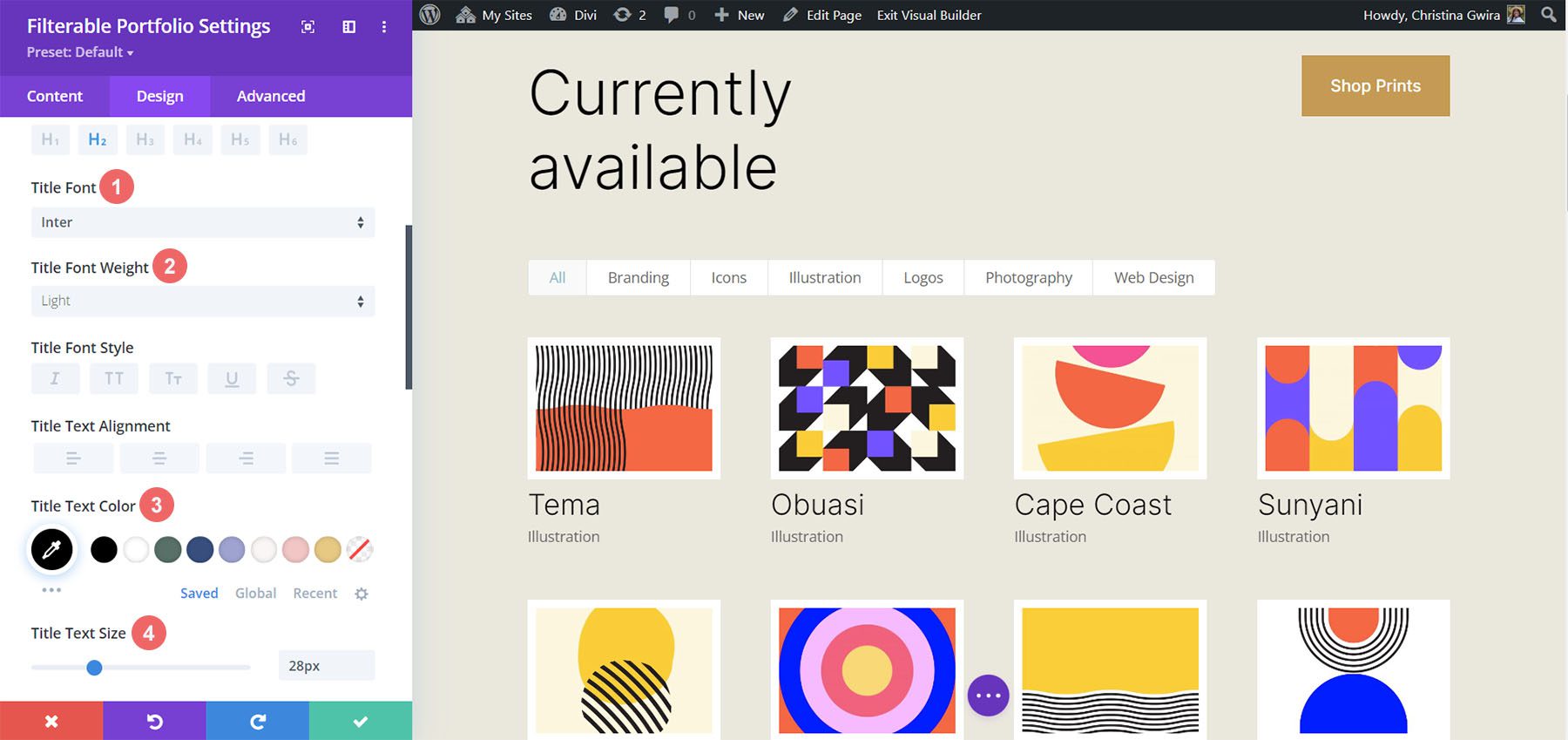
    Next, we will style the Title Text within the module. Let’s scroll down to the Title Text tab. Next, we’ll use the following settings to style the title:

    Title Text Settings:

    • Title Font: Inter
    • Title Font Weight: Light
    • Title Text Color: #000000
    • Title Text Size: 28px

    Styling Title Text

    Notice that we are using the same font that is used through the Print Designer Layout Pack.

    Styling and Adding CSS for the Filter Criteria Text

    For the Filter Criteria Text, we’ll be using a few lines of custom CSS within the Advanced tab of the module settings. Before we add the CSS, let’s style the setting. First, we’ll apply the same font family and color to the Filter Criteria Text.

    Filter Criteria Text Settings:

    • Filter Criteria Font: Inter
    • Filter Criteria Font Weight: Light
    • Filter Criteria Font Size: 14px

    Styling for the Filter Criteria Text

    For now, we’re going to save our changes by clicking on the green checkmark of the Filterable Portfolio Module’s modal box. However, we’re not finished with the Filter Criteria Text just yet. We’re going to navigate to the Page Settings to start building the custom CSS for our project. To do this, we click on the purple circle with the meatball menu in the center of our screen.

    Entering the Page Settings

    Once we have clicked this button, we’ll be able to click on the gear icon. The gear icon will take us into the Page Settings modal box.

    Into the Page Settings modal box

    Once in the Page Settings modal, click on the Advanced tab. Next, paste the following CSS into the Custom CSS box:

    /* Change background color of filters */
    .et_pb_filterable_portfolio .et_pb_portfolio_filters li a {
    background: none;
    border: none
    }
    
    .et_pb_filterable_portfolio .et_pb_portfolio_filters li a:hover {
    background: #ffffff;
    color: #323741 !important;
    }
    

    Notice that we are commenting our CSS! Don’t forget to do so as we’ll be coming back to add to our CSS as we progress through this tutorial. Save your changes by clicking on the green tick button at the bottom of the modal box. Now, let’s move back into editing the Filterable Portfolio Module.

    Styling Meta Text

    We’ll now be styling the meta text that appears below the portfolio item’s title. We want to make it stand out a bit more from the title. To do this, we’ll navigate to the Design tab of the Filterable Portfolio module and scroll down to the Meta Text tab. As with the other text components of our module, we’ll be using the font family Inter. We’ll follow this up with the supporting design selections listed below:

    Meta Text Setting:

    • Meta Font: Inter
    • Meta Font Weight: Regular
    • Meta Font Color: #0102fa

    Style Pagination Text

    Next on the styling block will be the Pagination Text of our module. We’re going to call back our Printer Designer Layout Pack by using the same font. However, we’re going to add a hint of our blue to the hover of this aspect of the module. Also, we’re going to create some interest by making the pagination text significantly larger than its current size.

    To do this, firstly, we’re going to scroll down to the Pagination Text tab and click on it. Next, we’re going to use the following styling settings:

    Pagination Text Settings:

    • Pagination Font: Inter
    • Pagination Font Weight: Light
    • Pagination Text Alignment: Right
    • Pagination Text Color: #000000
    • Pagination Text Color (Hover): #0102fa
    • Pagination Text Size: 28px

    Style Pagination Text

    We’re going to go a step further with our Pagination Text. We want to remove the default border that appears on top of the Pagination Text. To do that, we’re going to click on the Advanced tab within our modal box. Then, we’re going to add the following line of CSS:

    Portfolio Pagiation CSS:

    border: none;
    

    Portfolio Pagiation CSS

    Once you’ve done this, we can now move on to adding some custom CSS to add the finishing touches to our module. Click on the green checkmark button to save your changes. You can go ahead and also save the page as well, just in case you weren’t saving your work along with the tutorial (don’t forget to do so!).

    Customizing the Filterable Portfolio Module with CSS

    Now that we’ve finished designing our Filterable Portfolio Module in Divi, we’ll now be using CSS to change the number of columns that we’ll have in our module. But first, we’re going to make one minor tweak. We’re going to use CSS to remove the initial transition that comes default with the module.

    To do this, we’re going to move into the Page Settings to access the Custom CSS tab.

    Entering the page settings

    Then, we’re going to add the following CSS to our Custom CSS:

    /* Remove transition */
    .et_pb_filterable_portfolio .et_pb_portfolio_item.active {
    transition: none;
    }
    
    .et_pb_portfolio_item {
    animation: none!important;
    transition: none !important;
    }
    

    We add this underneath the previous CSS that we added for the styling of the filters. This is what our Filterable Portfolio now looks like, with all our styling edits.

    Four column filterable portfolio, styled

    Now, let’s change the column number from 4 to 2.

    CSS Design Changes for Our Filterable Portfolio Module

    Firstly, one important fact to remember when using this module, is to take note of the number of posts that you want to showcase on each page. For our CSS to work correctly, remember to showcase a number of posts that is divisible by the number of columns that you have. For example, if you want to show your portfolio in 6 columns, it would be best to show a minimum of 6 posts in your post count. If you would like to show more posts, it would be best to do 12, 18, 24, etc. posts within the module.

    You can find the post count within the Content tab of the Filterable Portfolio and Portfolio Modules.

    Post Count and the portfolio modules

    Before we add our CSS, we need to attach a CSS class to our module. To do this, we’ll re-enter the module settings, click on the Advanced tab and add our CSS class to our module. We’ll use the class column-portfolio. So that we don’t get confused as we move through this tutorial, we’ll prefix this class with the number of columns that we’ll be creating.

    Add our CSS class to our module

    Changing the Filterable Portfolio Module to Two Columns

    To change the number of columns in our module from 4 columns to 2 columns, we’ll once again, go to the Page Settings. Then, we’ll add the following CSS:

    Custom CSS for a Two Column Filterable Portfolio:

    /* 2 Column Portfolio */
    @media (min-width: 981px) {
    .two-column-portfolio .et_pb_grid_item {
    width: 47.25%!important;
    margin-right: 5.5%!important;
    }
    
    .two-column-portfolio .et_pb_grid_item:nth-child(3n) {
    margin-right: 5.5%!important;
    }
    
    .two-column-portfolio .et_pb_grid_item:nth-child(2n) {
    margin-right: 0!important;
    }
    
    .two-column-portfolio .et_pb_grid_item.et_pb_portfolio_item:nth-child(4n+1) {
    clear: none!important;
    }
    
    .two-column-portfolio .et_pb_grid_item.first_in_row {
    clear: unset;
    }
    }
    

    The width of our first selector (.two-column-portfolio .et_pb_grid_item) determines the width of the column. The margin-right property that we use throughout this CSS snippet adds some padding (or gutter) around our portfolio items. Here’s what our new, two-column module looks like.

    Two column filterable portfolio

    Using CSS to Change the Filterable Portfolio Module to Three Columns

    Now, we’re going to change our module from 2 columns to 3 columns. Here’s a new CSS snippet to do this:

    /* 3 Column Portfolio */
    @media (min-width: 981px) {
        .three-column-portfolio .et_pb_grid_item {
            width: 29.66%!important;
            margin-right: 5.5%!important;  
        }
     
        .three-column-portfolio .et_pb_grid_item:nth-child(3n) {
            margin-right: 0!important;
        }
     
        .three-column-portfolio.et_pb_grid_item:nth-child(4n) {
            margin-right: 5.5%!important;
        }
     
        .three-column-portfolio .et_pb_grid_item.et_pb_portfolio_item:nth-child(4n+1) {
            clear: none!important;
        }
        .three-column-portfolio .et_pb_grid_item.first_in_row {
            clear: unset;
        }
    }
    

    Remember, after adding this CSS, we’re going to have to change the post count to a number that is divisible by 3. Let’s go with 9.

    Change the post count for 3 columns

    Change the Number of Columns within the Filterable Portfolio Module to Five Columns

    Here is the snippet for making our module have 5 columns.

    /* 5 Column Portfolio */
    @media (min-width: 981px) {
        .five-column-portfolio .et_pb_grid_item {
            width: 15.6%!important;
            margin-right: 5.5%!important;        
        }
     
        .five-column-portfolio .et_pb_grid_item:nth-child(3n) {
            margin-right: 5.5%!important;
        }
     
        .five-column-portfolio .et_pb_grid_item:nth-child(5n) {
            margin-right: 0!important;
        }
     
        .five-column-portfolio .et_pb_grid_item.et_pb_portfolio_item:nth-child(4n+1) {
            clear: none!important;
        }
     
        .five-column-portfolio .et_pb_grid_item.first_in_row {
            clear: unset;
        }
    }


    Again, remember to change the post count! We’re going to go with a higher number here… we’re going all the way up to 15!

    Change the post count for 5 columns

    Edit the Number of Columns in the Filterable Portfolio Module to Six Columns

    Finally, we’re going to change our portfolio to six columns. However, we need to make a small tweak when using the following CSS snippet. We’re going to go into the module settings one final time and add a line of CSS. This CSS will change the size of the Portfolio Image. The reason we do this is to ensure that we can fit in our padding (gutter) and border within the six column layout.

    To do this, we’re going to navigate to the Advanced tab of our Filterable Portfolio module, and add the following line of CSS to the Portfolio Image option:

    Portfolio Image Custom CSS:

    • Portfolio Image CSS: width: 90%;

    Portfolio Image Custom CSS

    Now that we have this CSS in place, we can go back to the Page Settings and add this CSS snippet to make the module have six columns:

    /* 6 Column Portfolio */
    @media (min-width: 981px) {
        .six-column-portfolio .et_pb_grid_item {
            width:16%!important;
            margin-right: 5px!important;        
        }
     
        .six-column-portfolio .et_pb_grid_item:nth-child(3n) {
            margin-right: 5px!important;
        }
     
        .six-column-portfolio .et_pb_grid_item:nth-child(6n) {
            margin-right: 0!important;
        }
     
        .six-column-portfolio .et_pb_grid_item.et_pb_portfolio_item:nth-child(4n+1) {
            clear: none!important;
        }
     
        .six-column-portfolio .et_pb_grid_item.first_in_row {
            clear: unset;
        }
    }
    

    For this snippet, you’ll notice that we’ve changed the measurement of our right margin. The reason we do this is so that we can still maintain the thick white borders that we implemented in the design phase of this tutorial. So, we reduced our margin to 5px. We also used 18 posts within our post count.

    Post count for 6 columns

    Let’s Wrap it All Up!

    As we have come to the end of your tutorial, I hope that you have been able to see how we can customize the default modules that come with Divi by using CSS. As we are living in an ever-growing digital age, it’s always a good idea to invest time in building an online presence. That could look like adding your work online in the form of a digital portfolio! We hope this tutorial will help you make your portfolio unique.

    The post How to Change the Column Count in Divi’s Filterable Portfolio Module appeared first on Elegant Themes Blog.

  • Get a Free Popup Picnic Layout Pack for Divi

    Hey Divi Nation! Thanks for joining us for the next installment of our weekly Divi Design Initiative; where each week, we give away a brand new Layout Pack for Divi.

    This time around, the design team has created a beautiful Popup Picnic Layout Pack that’ll help you get your next Popup Picnic website up and running in no time!

    This layout pack includes:

    8 Premade page layouts strategically designed for any Popup Picnic website (including a footer design)
    – Original, royalty-free photos and graphics + customizable source file (see below)
    – Plus, a large collection of pre-designed website elements that are customizable and reusable anywhere.

    This layout pack is available right inside Divi for all Divi customers for FREE as the latest addition to our growing Divi library of hundreds of premade layout packs, thousands of page designs, and countless web design elements and resources.

    divi layout

    Check Out The Divi Popup Picnic
    Layout Pack Below

    Get it for free today!

    Popup Picnic layout pack for Divi

    Landing Page Design

    Popup Picnic Pack for Divi

    View The Live Layout Demo

    Home Page Design

    Popup Picnic Layout Pack for Divi

    View The Live Layout Demo

    About Page Design

    Popup Picnic Layout Pack for Divi

    View The Live Layout Demo

    Services Page Design

    Popup Picnic Layout Pack for Divi

    View The Live Layout Demo

    Service Page Design

    Popup Picnic Layout Pack for Divi

    View The Live Layout Demo

    Pricing Page Design

    Popup Picnic Layout Pack for Divi

    View The Live Layout Demo

    Blog Page Design

    Popup Picnic Layout Pack for Divi

    View The Live Layout Demo

    Contact Page Design

    Popup Picnic Layout Pack for Divi

    View The Live Layout Demo

    Key Features

    If you’re looking to get a new Popup Picnic website, you don’t want to miss out on the Popup Picnic Layout Pack for Divi! Each page layout is built to impress your visitors with world-class web design. And it has everything you need to promote Popup Picnic services, and much more. Use it to get your next Popup Picnic website up and running today!

    Live Demos

    Click the links below to see a live demo for each of the layouts included in the pack.

    1. Popup Picnic Landing Page (live demo)
    2. Popup Picnic Homepage (live demo)
    3. Popup Picnic About Page (live demo)
    4. Popup Picnic Services Page (live demo)
    5. Popup Picnic Service Page (live demo)
    6. Popup Picnic Pricing Page (live demo)
    7. Popup Picnic Blog Page (live demo)
    8. Popup Picnic Contact Page (live demo)

    Access This Layout Right Now
    Directly from Your Divi Builder

    Since Version 3.0.99 of Divi, you can find and import any of the layouts included in this pack (along with ALL of Divi’s Premade Layout packs) directly from the Divi Builder. They are already waiting for you.

    To access your new layout, simply activate the Visual Builder when editing a page and look for the “Load From Library” icon in the page settings bar (it looks like a plus symbol). Click this icon to launch the Load From Library popup. Under the Premade Layouts tab, you can easily find the new layout by scrolling through the list of layout packs. Once you find the Popup Picnic Layout Pack, click on it. You will see all the individual layouts included in the pack. Select the layout you want to use and then click the “Use This Layout” button.

    Popup Picnic Layout Pack for Divi

    For more, check out this video to learn how you can get this layout pack up and running today.

    Subscribe To Our Youtube Channel

    Authentication Required

    Before you can download Premade Layouts from the Divi Library you must authenticate your Elegant Themes Subscription. You can do this by navigating to Divi > Theme Options > Updates. There you can enter your username and API key and save changes.

    Popup Picnic Layout Pack for Divi

    You can find your API Key under your members area on the Elegant Themes site. After you enter the Username and API Key, you will gain immediate access to our library of hundreds of free layouts (including this one). If you haven’t done this, when you click to import a layout to your page, you will be prompted to enter your Elegant Themes Membership Username and API Key.

    Use Layout Images for FREE with No Licensing Restrictions

    Divi Popup Picnic Layout Pack for Divi

    The image assets included with these layouts (icons, illustrations, photos, etc.) have no licensing restrictions. This means you can use them in all of your commercial projects without having to worry about paying licensing fees or attributing the photographer. Use them in your commercial websites, sell them within your Divi child themes, include them in your own Divi layout packs or just use them on your blog. We know how challenging it can be to find good photos and how confusing and scary the licensing that governs those photos can be. We want to fix that problem for our users.

    Download the Full Res Image Assets

    New Layout Pack Every Week!

    We hope you enjoy this layout pack. We look forward to hearing your opinions in the comment section below. Make sure you check out next week’s layout pack as well!

    The post Get a Free Popup Picnic Layout Pack for Divi appeared first on Elegant Themes Blog.

  • Stella Coaching & Online Course Child Theme – Divi Child Theme Overview

    The Stella Coaching & Online Course Child Theme is a child theme for Divi specifically designed for coaches and course creators. The theme features pages for a blog, course, quiz, and store, and also has several marketing pages for you to promote your services and lead magnets. Stella is clean, elegant, and thoughtfully designed to help you convert more customers. In this post, we’ll take a look at the Stella Coaching & Online Course Child Theme to help you decide if it’s the right Divi child theme for you.

    Let’s get started!

    Installing Stella Coaching & Online Course Child Theme

    First, open your WordPress dashboard and navigate to the add plugins page. We will install the child theme through the plugin page, not the theme page. Click Upload Plugin, then select the plugin .ZIP file from your computer. Then click Install Now and activate the plugin once it finishes installing.

    Stella Coaching and Online Course Child Theme Divi Child Theme Overview Add Plugin

    Once activated, you will see the Stella Installer in your WordPress menu bar. From this page, you can import all of the child theme content, site structure, settings, plugins, custom CSS, and more, just with one button. Click Begin Site Import to start the import process.

    Stella Coaching and Online Course Child Theme Divi Child Theme Overview Import

    You will see a progress bar as the child theme is installed.

    Stella Coaching and Online Course Child Theme Divi Child Theme Overview Import 2

    Once your import is complete, you can delete the plugin.

    Stella Coaching and Online Course Child Theme Divi Child Theme Overview Import 3

    Stella Coaching & Online Course Child Theme Pages

    Stella comes with 25 pages, including WooCommerce shop pages, course pages, blog pages, and a quiz for capturing leads. Let’s take a look at each of the pages, starting with the home page.

    Stella Coaching & Online Course Child Theme Pages

    Header and Introduction

    The first section on the home page is a large header image and introduction text. The header image is styled with a rounded corner, and the text is styled with different sizes and some icons to create a compelling introduction to the site. This section also includes a call-to-action button.

    Stella Coaching and Online Course Child Theme Divi Child Theme Overview Home 1

    Quiz

    The next section on the home page introduces a quiz built with the free version of Interact. The layout features text with some bullet points, a large image to the right, and another image at the top that moves with the page. Additionally, the round text above the large image rotates while you are on the page.

    Stella Coaching and Online Course Child Theme Divi Child Theme Overview Home 2

    Services

    The services section of the home page is where you can feature two services you offer. You can add an image and a brief description of the service, and there is a button leading customers to the services page.

    Stella Coaching and Online Course Child Theme Divi Child Theme Overview Home 3

    Testimonials

    Next, the testimonials section has space for two quotes with a button leading to the testimonials page. This section uses elegant typography and a large parallax image.

    Stella Coaching and Online Course Child Theme Divi Child Theme Overview Home 4

    Blog

    The latest news section features three recent blog posts with the featured image, a short blurb from the post, and a button to read the full article.

    Stella Coaching and Online Course Child Theme Divi Child Theme Overview Home 5

    Freebie

    This section of the home page features a freebie offer and requires users to enter their name and email address to receive the freebie.

    Stella Coaching and Online Course Child Theme Divi Child Theme Overview Home 6

    Call to Action

    The final section of the home page features some call-to-action text with a button.

    Stella Coaching and Online Course Child Theme Divi Child Theme Overview Home 7

    Stella Coaching & Online Course Child Theme About Page

    The about page begins with a section for your about text. It also features a styled image to the right of the text. Underneath, there are three numbered sections where you can map out a timeline or journey that is relevant to your service or to who you are. This section is styled with three images, as well as a quote block.

    Stella Coaching and Online Course Child Theme Divi Child Theme Overview About

    This page also has a section for recent blog posts, as well as the two lead magnets that were featured on the home page – the quiz and the freebie with the email sign-up. The page ends with a call-to-action section to compel users to view the services page.

    Stella Coaching and Online Course Child Theme Divi Child Theme Overview About 2

    Stella Coaching & Online Course Child Theme Services Page

    The services page starts with a brief introductory text where you can summarize your offerings. Then, there are two dedicated sections where you can go over the details of your services. Each section has areas for text, an image, bullet points, a testimonial quote, and a button to apply for the service.

    Stella Coaching and Online Course Child Theme Divi Child Theme Overview Services 1

    Below, there is a section to invite visitors to join a community Facebook group. This section also features an image, a testimonial quote, and a call-to-action button. Finally, the page features the freebie lead magnet that was on the home page.

    Stella Coaching and Online Course Child Theme Divi Child Theme Overview Services 2

    Stella Coaching & Online Course Child Theme FAQ Page

    The FAQ page is formatted with a brief introduction and a large image at the top. Each of the FAQs is placed in a dropdown accordion. When the question is selected, the question is revealed in the dropdown accordion. Below the FAQ section is a short contact form for visitors to submit any questions you might not have addressed on the FAQ page. The last section on this page is the invitation to join a community Facebook group.

    Stella Coaching and Online Course Child Theme Divi Child Theme Overview FAQ

    Stella Coaching & Online Course Child Theme Raves (Testimonials) Page

    The raves page features customer testimonials in styled block quotes alongside images. Below is a section highlighting customer success stories, with a brief introductory text and a testimonial video for each customer. This is a great way to show social proof in an engaging and compelling way. There is another testimonial quote section after this, on a large parallax image background. Once again, the page ends with an invitation to join a community Facebook group.

    Stella Coaching and Online Course Child Theme Divi Child Theme Overview Testimonials

    Stella Coaching & Online Course Child Theme Sales Page

    The sales page starts with a large header image and some short text where you can introduce your service, with round rotating text over the image. In the next section, you can highlight a problem your customer has that your services solve. This section also has two blurbs where you can highlight some problems your customer might relate to. In the following section, you can discuss how you solve the customer’s problem and how you can help. This section is designed with three blurbs with checkmarks next to them, a large image, and a call-to-action button.

    The next section features a text area for a general overview of the service, a call-to-action button, and an image with the round rotating text over it. There is a testimonial blurb after this for social proof, and another section is where you can highlight additional details or features of your service.

    Stella Coaching and Online Course Child Theme Divi Child Theme Overview Sales 1

    This section has different forms of social proof to go alongside your service. First is an “as seen in” section with logos, then you have another testimonial section over a large image. The next section features customer success stories with some statistics, a large testimonial video, smaller testimonial quotes with customer images, and a call-to-action button.

    Stella Coaching and Online Course Child Theme Divi Child Theme Overview Sales 2

    This section features the service pricing, with three different pricing tiers and an image, details, and a call-to-action button for each tier. There is a FAQ section after this, with a similar design to the FAQ page we covered earlier. Then there is a section featuring a large video and another call-to-action button. There is another pricing section with the same layout as above but with different colors. The page ends with an about section with a large image, a call-to-action button to book a call, and a 30-day satisfaction guarantee.

    Stella Coaching and Online Course Child Theme Divi Child Theme Overview Sales 3

    Stella Coaching & Online Course Child Theme Email Sign-Up Page

    The email sign-up page is where you can go into detail about your freebie and prompt users to sign up with their email. The page starts with a brief introduction of the product, with an image and rotating round text above. Next is the email sign-up form, styled with some text at the top and an image to the right. In the following section, you can give some additional details about what your visitors will receive when they sign up with their email. Then there are some customer testimonials alongside images for social proof. Finally, there is another email sign-up form.

    Stella Coaching and Online Course Child Theme Divi Child Theme Overview Email Sign Up

    Stella Coaching & Online Course Child Theme Email Sign Up Thanks Page

    This is where visitors will be redirected after signing up with their email. The page starts with some text letting them know their freebie is on the way and a video. Below are recent posts from the blog and an invitation to join the community Facebook group.

    Stella Coaching and Online Course Child Theme Divi Child Theme Overview Email Sign Up Thanks

    Stella Coaching & Online Course Child Theme Lead Magnet Delivery Page

    This page is where users receive the freebie they signed up for. The page includes some introductory text and a video, some bullet points encouraging users to get the most out of their freebie, text explaining the next steps, and customer testimonials. This page also ends with an invitation to join the community Facebook group.

    Stella Coaching and Online Course Child Theme Divi Child Theme Overview Lead Magnet Delivery

    Stella Coaching & Online Course Child Theme Quiz Page

    This page features an interactive quiz made with Interact. This is a great idea to engage your website visitors. The page is styled with an image and rotating round text.

    Stella Coaching and Online Course Child Theme Divi Child Theme Overview Quiz

    Stella Coaching & Online Course Child Theme Quiz Results Page

    The quiz results page is specific to the quiz outcome and explains the results in depth. The layout begins with some short introductory text next to an image. Then there is some explanatory text with a video and some action steps for that result. The page ends with a prompt to sign up for the email freebie.

    Stella Coaching and Online Course Child Theme Divi Child Theme Overview Quiz Results

    Stella Coaching & Online Course Child Theme Contact Thanks Page

    The contact thanks page is where users will be redirected after submitting a contact form. This page features a short text section, contact information, a video, recent blog posts, the freebie sign-up form, and an invitation to join the community Facebook group.

    Stella Coaching and Online Course Child Theme Divi Child Theme Overview Contact Thanks

    Stella Coaching & Online Course Child Theme Store Page

    The store in Stella is built with WooCommerce. The store page layout is pretty straightforward, with introductory text and an image at the top, and the products below. The product images are featured as well as the product title and price, and there are category filters at the top. On the right, there is space to promote a blog post.

    Stella Coaching and Online Course Child Theme Divi Child Theme Overview Stores

    Stella Coaching & Online Course Child Theme Product Page

    The product page features breadcrumbs at the top, along with the product title and price. The product image is on the left and you can hover to zoom in. On the right is the description text and the add to cart button. Below you can see the description in one tab and reviews in the other. The page ends with recent posts from the blog.

    Stella Coaching and Online Course Child Theme Divi Child Theme Overview Product

    Stella Coaching & Online Course Child Theme Cart Page

    The cart page is very simple and has a pink header with a cart icon with the cart content below.

    Stella Coaching and Online Course Child Theme Divi Child Theme Overview Cart

    Stella Coaching & Online Course Child Theme My Account Page

    The “my account” page allows users to log in to your website and manage recent orders, shipping and billing addresses, and password and account details. The page also has a contact form and an invitation to join the community Facebook group.

    Stella Coaching and Online Course Child Theme Divi Child Theme Overview Account

    Stella Coaching & Online Course Child Theme Course Layout Page

    Stella uses LifterLMS for the course pages. The course layout page introduces the course and the course instructor. It also lists the course cost, a button to enroll, and the table of contents for the course. On the right sidebar, you can also see a table of contents for the course and navigate to each section.

    Stella Coaching and Online Course Child Theme Divi Child Theme Overview Course Overview

    Stella Coaching & Online Course Child Theme Lesson Layout Page

    The page features a large video with some text underneath and a button to mark the section complete. Below, you have a button to go back to the course or to move to the next lesson. On the right is a short text section introducing the instructor and an overview of the course. You can click on the links in the overview to move to the next section. Finally, there is a progress bar at the bottom.

    Stella Coaching and Online Course Child Theme Divi Child Theme Overview Lesson

    Stella Coaching & Online Course Child Theme Dashboard Page

    The dashboard page allows course members to sign in and view their enrolled courses, grades, certificates, achievements, notifications, and order history. You can also edit account information and redeem a voucher from this page. There is a contact form below this section and an invitation to join the community Facebook group.

    Stella Coaching and Online Course Child Theme Divi Child Theme Overview Dashboard

    Stella Coaching & Online Course Child Theme Blog Landing Page

    The blog landing page includes some welcome text and an image, a search bar, and blog categories. It also features trending posts and then lists recent posts with a large featured image, a couple of lines of text from the post, the category, and a button to read more.

    Stella Coaching and Online Course Child Theme Divi Child Theme Overview Blog Landing

    Stella Coaching & Online Course Child Theme Blog Archive Page

    The blog archive page features an image and a search bar at the top with links to the different blog categories. Below the recent posts are listed, with a large featured image, title and category, a couple of lines of preview text, and a button to read more. The page ends with a freebie sign-up form.

    Stella Coaching and Online Course Child Theme Divi Child Theme Overview Blog Archive

    Stella Coaching & Online Course Child Theme Single Post Page

    The single post page features the title and category at the top and then the large featured image with the blog content below. There are links to navigate to the previous and the next post, and a comment section below. On the right side, there is an image and author introduction as well as social media icons and a grid of four recent images from Instagram. Finally, there is a search bar and links to some recent posts. The page ends with a freebie sign-up form.

    Stella Coaching and Online Course Child Theme Divi Child Theme Overview Blog Post

    Stella Coaching & Online Course Child Theme Contact Page

    The contact page features some introduction text and contact information alongside a large image. Below is a simple contact form. The page ends with an invitation to sign up for a freebie and join the community Facebook group.

    Stella Coaching and Online Course Child Theme Divi Child Theme Overview Contact

    Stella Coaching & Online Course Child Theme Header

    The header is simple but elegant and features a logo on the left and menu items to the right. The secondary menu bar features a call-to-action with a button to sign up for the freebie.

    Stella Coaching and Online Course Child Theme Divi Child Theme Overview Header

    Stella Coaching & Online Course Child Theme Footer

    The footer features the logo and some brief text as well as social media icons. There is a menu with some quick links, and on the right is a grid with recent Instagram images. At the very bottom of the page is a secondary footer bar with a quick links menu.

    Stella Coaching and Online Course Child Theme Divi Child Theme Overview Footer

    Where to Purchase the Stella Coaching & Online Course Child Theme

    Stella Coaching & Online Course Child Theme is available from the Divi Marketplace. It costs $165 for unlimited website usage and one year of support and updates.

    Stella Child Theme Tutorial

    Final Thoughts

    The Stella Coaching & Online Course Child Theme may be an excellent option for your website if you are an online coach or course creator. The child theme is preformatted with every page you would need, and features beautiful typography, colors, and call-to-actions to help you convert your visitors into customers. I like how a lot of the placeholder text throughout the child theme tells you what sort of content to place there, making it easy to replace the content and make the website your own while still keeping your content cohesive with the design of the pages.

    We would love to hear from you! Have you tried Stella Coaching & Online Course Child Theme? Let us know what you think about it in the comments!

    The post Stella Coaching & Online Course Child Theme – Divi Child Theme Overview appeared first on Elegant Themes Blog.

  • 11 Best WordPress Donation Plugins in 2023

    Online giving is growing more popular. So, Whether you’re a charity, a non-profit, or a creator looking for support, a good WordPress donation plugin might be a necessary part of your website. When dealing with money, it’s essential to be certain you have the best tools available; this article will take you through our best WordPress donation plugin choices.

    What is a WordPress Donation Plugin?

    A WordPress donation plugin is a plugin for your WordPress site that lets you take in donations from your users. Instead of using a third-party site, a donation plugin allows you to accept donations right on your WordPress site. This allows you more freedom to design your own non-profit or charity site using any WordPress theme or Divi Layout Pack.

    While it may seem simple, there are key features that every dependable donation plugin should have. For example, you will want a donation plugin that works on desktop and mobile devices and adapts to your website design. When it comes to functionality, it’s important that your donation plugin supports popular payment methods, delivers receipts to donors, and enables recurring payments from donors.

    So, in this list, we’ll let you know our top choices for the best WordPress donation plugins.

    The Best WordPress Donation Plugins

    Locating your ideal solution can be hard, but luckily there are a ton of great options when it comes to donations. So, without further adieu, let’s get into it.

    1. WPForms

    WP Form donation plugin

    Not only does WPForms come with an adorable bear mascot, but it’s actually one of the best drag-and-drop WordPress form plugins for WordPress, especially for those just starting out. This is mainly because it has an integrated form template that you can use to build an online donation form for your website.

    Using its pre-built templates, WPForms enables you to quickly and easily develop customized fundraising forms. Donations are sent directly to your account thanks to the integrations of the payment gateways provided by PayPal, Stripe, and Authorize.net.

    With support for email marketing services such as Mailchimp and AWeber, you can build your email list and extend your campaign’s reach. Also, the form abandonment add-on enables you to convert incomplete entries into possible leads.

    WPForms is free, but you need to pay for the add-on to collect donations. They also offer a discounted pro license for non-profits at only $99 per year, which is 75% off their regular price.

    Key Features of WPForms:

    • Easy-to-use forms.
    • You can use the same plugin for all your forms for donations.
    • Email marketing add-ons with Mailchimp
    • Advanced Divi integration built-in

    donation form example

    With the help of this WordPress plugin, you can build contact, survey, and registration forms to help gain contribution websites. You can also create contact, survey, and registration forms with the help of WPForms to assist your donation pages. Every form has spam protection, which guarantees that only legitimate submissions are accepted.

    WPForms is for you if…

    • You want an easy-to-use drag-and-drop form builder.
    • You want add-ons for email marketing.
    • You’re a non-profit that would benefit from the discount.

    WPForms Pricing: Pro starts at $49.50.

    Get WPForms

    2. GiveWP

    GiveWP donation plugin

    GiveWP is one of the most popular plugins available on WordPress, currently garnering over 100,000 active users, and for a good reason. It allows you to take one-time and repeat donations with various PayPal and Stripe.

    Additionally, you can view insights and track analytics from the donor database. This allows you to know how much you’re making and who your top donors are.

    Donor management and payment history tools are available through GiveWP, along with customizable templates and plugin support with Mailchimp and other email marketing tools. The plugin also makes it easier for donors to register and allows them to keep track of their contributions.

    Key Features of GiveWP:

    • Custom goals and templates.
    • Donation subscription services.
    • Full analytics reporting system.
    • Integrates with Divi

    A example of a form from GiveWP

    GiveWP’s key features are available for free and without any transaction costs. In addition, the forms themselves are nicely made and include lots of customization options. The free donation plugin comes with PayPal and Stripe integration, a donor database, access to reports, form grids, and more. But there are premium features that you’ll need to buy, such as reoccurring donations and PDF receipts.

    GiveWP is for you if…

    • You are looking for a complete donation package.
    • You want to use email marketing or a multi-level donation campaign.
    • You’re interested in Stripe and PayPal integration.
    • You use Divi

    GiveWP Pricing: Free. The Basic Package starts at $149 per year.

    Get GiveWP

    3. Formidable Forms

    Formidable forms logo

    Formidable Forms advertises itself as the best WordPress forms plugin, and for a good reason. With Formidable Forms’ drag-and-drop form builder and visual styler, you can easily make a donation form that matches the design of your website. They provide you with several form templates that can be used to simplify the overall design process, including WooCommerce forms and donations, and transaction forms. Additionally, these forms can also be changed using Bootstrap and custom HTML codes.

    The SMS notification option will let you know when a donation has been made, and it supports a variety of email marketing systems, including Mailchimp and AWeber. In addition, it supports Stripe, PayPal, and Authorize.net payments.

    Key Features of Formidable Forms:

    • Easy-to-use form builder and styler
    • Lots of different form types and templates.
    • Custom fields to WooCommerce product forms to gather data.
    • Stripe, PayPal, and Authorize.net integration.

    Formidable forms creation page

    The wide variety of form templates and settings lets you create the perfect form that looks great on your website. Also, Formidable Forms, like WPForms, can assist in building your email list so you can gain more customers.

    Formidable Forms is for you if…

    • You want to be able to collect from a lot of different currencies.
    • You want Stripe support.
    • You want email marketing integration.

    Formidable Forms Pricing: Starts at $39.50 per year.

    Get Formidable Forms

    4. WP Crowdfunding

    Logo for WP Crowdfunding

    WP Crowdfunding is a WordPress fundraising plugin that enables you to build a crowdfunding supporter website similar to Kickstarter or GoFundMe. You can use your site to back your favorite charities or different kinds of projects.

    Using WP Crowdfunding, you can accept and manage the contributions from various donors using the native wallet system in WP Crowdfunding, which is powered by WooCommerce. In addition, the Stripe Connect payment gateway makes it simple to transfer money to project owners. Along with credit cards, users can donate with payments like PayPal, Skrill, and Stripe.

    Key Features of WP Crowdfunding:

    • Woo-Commerce-backed wallet system.
    • Crowdfunding campaign style and functionality.
    • Advanced project settings for managing campaigns (i.e. setting min/max price, funding goals, reward system, etc.)

    Creating a new campaign with WP Crowdfunding

    This tool lets you track the success of crowdfunding projects and gives you all the tools to compete with big boys like Kickstarter. The free edition of WP Crowdfunding offers the majority of its fundamental features. Paid versions include more advanced features like a central Native Wallet System, Stripe Connect, analytical reports, email alerts, incentives, and more.

    WP Crowdfunding is for you if…

    • You are looking to create an aggregate-style funding site.
    • You want your website to be a hub for donations.
    • You have a project you want to crowd-fund but don’t want to use other websites.

    WP Crowdfunding: Free. Pro starts at $149.00 per year.

    Get WP Crowdfunding

    5. YITH Donations for WooCommerce

    Yith Donations for WooCommerce

    Next on our list, Yith Donations for WooCommerce allows you to create one or more donation campaigns to encourage your customers to contribute to the causes you support. You can set up minimum and maximum donation amounts, then display them on your WooCommerce product pages, or in widgets with a shortcode. Customers select their desired amount or input it manually, then go through the standard checkout process.

    Yith Donations for WooCommerce also allows for donation form field customization and supports several payment gateways including PayPal, Stripe, and offline payments. Plus, you can specify different forms of payment when one or more donations are added to the cart.

    Key Features of YITH Donations for WooCommerce:

    Yith cart donation form

    Lastly, you can incorporate the donation form into the shopping cart, making it easier for customers to add donations before they check out during their current shopping session.

    YITH Donations for WooCommerce is for you if…

    • You want to design your own form fields.
    • Multiple ways to place forms are a must.
    • You have other Yith plugins installed on your website.

    YITH Donations for WooCommerce Pricing: $79.99 per year.

    Get YITH Donations for WooCommerce

    6. Charitable

    Charitable WordPress donation plugin

    Charitable offers many of the same things as GiveWP, including support for geolocation, quick updates, videos, user avatars, anonymous donations, and more. This donation plugin’s free edition includes helpful tools for building effective donation campaigns. You can create countless time-limited campaigns that automatically mesh with the theme of your website. You can link your PayPal account to your website using Charitable. The contribution process is made even easier by the availability of clear instructions for offline payment methods, including bank transfers and checks.

    Charitable’s flexible donation management system is user-friendly and enables you to sort and search for specific donations and export the information into a CSV file. Additionally, Charitable offers unique email tags for individualized emails and an automated donation receipt production service.

    Key Features of Charitable:

    • Process payments using offline and PayPal methods.
    • Customize the behavior and appearance of your donation forms.
    • Create donation forms for various charities.

    Example of a Charitable donation page

    This WordPress plugin gives you all the tools you need to create aesthetically pleasing and functional donation forms, all matching the design of your site. To top it off, there are no platform costs for Charitable.

    Charitable is for you if…

    • You want a quick and free solution.
    • You want a form that easily integrates with your website’s style.
    • You want to create multiple forms for a variety of different causes.

    Charitable: Free. Premium starts at $99 per year.

    Get Charitable

    7. WP Simple Pay (Stripe Payment Forms)

    WP Simple Pay donation plugin logo

    WP Simple Pay is a WordPress plugin made to assist you in obtaining one-time or regular donations through Stripe. The plugin’s payment forms are mobile-optimized and include built-in support for credit card payments, Apple Pay, Google Pay, and ACH debit.

    Advertised primarily for its partnership with Stripe, the WP Simple Pay plugin is a standalone solution that directly connects Stripe with your WordPress site. This means that you can benefit from Stripe’s robust security protocols while collecting donations from your website. While this is a freemium plugin that requires payment for all features, the free version still comes with a handful of useful features. These include the ability to create custom fields, enable user-entered amounts, offer coupon codes, apply tax rates, provide subscription services, accept alternate payment methods, and more. Additionally, the plugin supports ACH and direct debit payments, as well as Buy Now, Pay Later methods.

    Key Features of WP Simple Pay:

    • Developer-friendly for building custom integrations
    • Embeddable payment buttons
    • You can collect from over 100 currencies with Stripe

    Template select donation form from WP Simple Pay

    The GiveWP plugin’s simple form creation and design make it an ideal choice for beginners looking to set up a donation page quickly and efficiently. Moreover, the plugin’s ability to collect donations in multiple currencies makes it an excellent option for those operating in a global marketplace. With this plugin, website owners can customize their donation pages with ease and collect contributions from donors all over the world, regardless of their currency. In essence, this plugin offers a user-friendly solution that caters to the needs of businesses of all sizes and types.

    WP Simple Pay is for you if…

    • You want to be able to collect from a lot of different currencies.
    • You want to sell memberships with recurring payment options
    • You want Stripe support backing your website.
    • You are a non-profit wanting to accept credit card donations
    • You want to build your custom forms using dev tools.

    WP Simple Pay Pricing: Free. Pro starts at $49.50 per year.

    Get WP Simple Pay

    8. Donation for WooCommerce

    Donation Plugin for Woocommerce logo

    Donation for WooCommerce is an extension that allows you to turn your WooCommerce product pages into usable fundraising platforms that will enable donations from your users. So, this solution works effectively for current WooCommerce stores that want to include a charity component and encourage customers to donate to various organizations.

    Key Features of Donation for WooCommerce:

    • Create multiple donation campaigns.
    • Subscription donation functionality.
    • Awesome roundup pricing feature.

    WooCommerce Donation plugin dashboard

    For those who are familiar with WooCommerce, integrating the GiveWP plugin should be a straightforward process. This extension supports recurring donations, allows you to display donation forms anywhere on your site, and even features a roundup function that enables customers to donate their spare change to a designated charity. In other words, this plugin offers a variety of useful features that can help businesses streamline their donation processes and encourage more contributions from their customers.

    Donation for WooCommerce is for you if…

    • You are using WooCommerce already.
    • You want to integrate donations with your store.
    • You want to take advantage of a round-up method for collecting donations.

    Donation for WooCommerce Pricing: $99 per year.

    Get Donation for WooCommerce

    9. Seamless Donations

    Seamless Donations plugin logo

    The Seamless Donations plugin enables you to create a single donation form that visitors can utilize to donate to one of the charities you’re promoting. So, users can choose how much to contribute and where the funds should go at the donation stage.

    The free version of the plugin gives you everything you need to make a basic donation platform out of your website. If you’re looking for a simple solution without anything too advanced, this could be what you’re looking for. But if you’re looking for some extra features, you can buy premium add-ons for $19.95 each per year. These features include custom donation levels, different form styles, and enhanced thank-you auto-responses.

    Key Features of Seamless Donations:

    • Accepts multiple currencies.
    • Doesn’t charge a commission or percentage fee on transactions.
    • Free and easy to use.
    • Accept donations via PayPal and Stripe.
    • Supports donor tracking
    • Connect the donation plugin to third-party tools like GoodBye Captcha and SendGrid.

    Seamless Donations settings page

    The ability to adjust your donation settings from the WordPress dashboard quickly and easily, combined with the added bonus of zero platform fees, makes this plugin an enticing solution for those who want to save on costs. Notably, the Seamless Donation plugin simplifies the process of collecting donations from around the world by integrating with popular payment gateways like Stripe and PayPal. With an easy setup process, this plugin provides a hassle-free solution for website owners looking to accept donations without any unnecessary problems.

    Seamless Donations is for you if…

    • You want a cheap and effective solution to collect and manage donations
    • You use Stripe or Paypal.
    • Like the idea of being able to buy add-ons if needed
    • You want access to integration with Goodbye Captcha and SendGrid.

    Seamless Donations Pricing: Free. Premium features are $19.95 each per year.

    Get Seamless Donations

    10. Donorbox

    Donorbox banner logo

    Donorbox is a free plugin with everything you need to start a cost-effective fundraising campaign. You can completely alter the color scheme, style, and language settings of the Donorbox donation form to match the layout of your website.

    Donorbox offers an easy way to increase visibility by automatically identifying the preferred language of donations. It also allows you to provide donors with the option to choose from several donation amounts, streamlining the payment process. Additionally, regular donors can keep track of their donations through the login credentials that Donorbox provides.

    This free WordPress plugin makes it easy to accept payments in various currencies through popular payment processors like PayPal, Stripe, and Google Pay, as well as bank transfers. It also allows you to accept physical donations in the form of cash and checks, providing a comprehensive solution that accommodates a wide range of payment methods. This makes it easier for donors to give to your cause in the way they prefer.

    Key Features of Donorbox:

    • Auto-detect preferred language.
    • Monthly recurring donations are easy to set up.
    • Stripe & PayPal integration.

    Donorbox banner logo

    This plugin is great for supporting different donation types, including one-time and subscription-based donations. It also allows you to set preset amounts or let users choose their donation amount, giving your donors a personalized experience. You can receive up to $1,000 in donations without any charges, but for amounts beyond that, a 1.5% charge and payment gateway fees like PayPal will apply. Upgrading to the pro license is suggested for those who receive many donations, as it can help avoid more charges and provide a less expensive solution.

    Donorbox is for you if…

      • You are looking for a quick way to embed a form on your website
      • You Earn less than $1000 a month.

    Donorbox Pricing: Free. Pro starts at $139 per month.

    Get Donorbox

    11. Name Your Price

    Name Your Price

    Name Your Price enables personalized recurring donations when used with the WooCommerce Subscriptions plugin, allowing donors to control the amount and even the frequency of their gift. You can give users suggestions for their donation amount or have them gift at the level they want.

    Moreover, the Name Your Price plugin is remarkably versatile and easily integrates with your WooCommerce store. With this plugin, you can recommend a price to your customers or set a minimum price, giving them complete control over their purchase while increasing your sales. In other words, Name Your Price allows your customers to decide what they want to pay, making it an excellent tool for businesses looking to maximize profits while still providing value to their customers.

    Key Features of Name Your Price:

    • Take donations, recurring or single usage.
    • Sell gift vouchers.
    • Gather user data for what they want to pay for your goods.

    Name Your Price example

    Furthermore, this exceptional plugin supports both one-time and recurring donations, making it incredibly versatile for any fundraising campaign. Notably, its functionality extends beyond just standalone donation pages, as it can also integrate seamlessly with your WooCommerce store. With its simple setup process, this plugin can provide valuable insights into your customer base while increasing sales. To help you get started, we have put together a post on how to accept Paypal donations on your WooCommerce site using this plugin.

    Name Your Price is for you if…

    • You have a WooCommerce store active.
    • You want a “name your price” option for your store.

    Name Your Price Pricing: $49 per year.

    Get Name Your Price

    What is The Best Donation WordPress Plugin?

    Notably, there are plenty of reasons to appeal for donations from website visitors. For instance, you can utilize your website as a powerful fundraising tool for worthy causes, organize fundraisers for specific projects, or even seek donations to cover your operating costs. To achieve success in these areas, it is crucial to have a good WordPress plugin that can easily handle donation processing.

    Plugin Price Free Option
    🥇 WPForms Free, $49.50 per year ✔️ Visit
    🥈 GiveWP Free, $149 per year ✔️ Visit
    🥉 Formidable Forms Free, $39.50 per year ✔️ Visit
    4 WP Crowdfunding Free, $149.00 per year ✔️ Visit
    5 YITH Donations for WooCommerce $79.99 per year ❌ Visit
    6 Charitable Free, $99 per year ✔️ Visit
    7 WP Simple Pay (Stripe Payment Forms) Free, $49.50 per year ✔️ Visit
    8 Donation for WooCommerce $99 per year ❌ Visit
    9 Seamless Donations Free, $19.95 per year ✔️ Visit
    10 Donorbox Free, $139 per month ✔️ Visit
    11 Name Your Price $49 per year ❌ Visit

    When it comes to our top pick for a donation processing plugin, WPForms is a stand-out tool that can help you easily manage and process donations. Not only does it enable you to achieve your fundraising goals with ease, but it also boasts a wide range of features that make it an ideal form plugin, perfectly able to enhance customer engagement.

    Did we miss any great donation plugins? Leave a comment telling us below!

    Article featured image illustration by Oleksandra Bezverkha / shutterstock.com

    The post 11 Best WordPress Donation Plugins in 2023 appeared first on Elegant Themes Blog.