EDITS.WS

Category: elegantthemes.com

  • How to Use the WordPress Imgur Embed Block

    If you’re a fan of the online image-sharing community, Imgur, you’re in luck! WordPress has an Imgur Embed Block that makes it easy to embed Imgur content in your posts and pages. This article will show you how to use the WordPress Imgur Embed Block.

    What is the Imgur Embed block?

    Imgur is a popular image-sharing site with a loyal community of users. It allows users to upload, share, and comment on images. The site has a user-friendly interface and is one of the most popular image-sharing websites on the internet.

    Homepage of Imgur - Sept 1st 2022

    Homepage of Imgur / Sept. 1st 2022

    If you’re a meme-loving human who uses Imgur you probably want to cross-pollinate your WordPress website with your Imgur posts. That is where WordPress’ Imgur Embed Block comes in.

    The WordPress Block Editor comes standard with a helpful directory of blocks that allow you to quickly build a page or post. There are other blocks that allow you to embed videos and embed Tumblr posts.

    In this article, we’ll cover the Imgur Embed block. This block allows you to pull images from your Imgur account onto a WordPress page. Here’s how it works!

    How to Add the Imgur Embed Block to your Post or Page

    If you’ve ever wanted to add an Imgur image post to your WordPress site but weren’t sure how this guide is for you. Adding an Imgur image using the embed block in the WordPress block editor is easy.

    First, inside your Imgur account, find the image you want to add and copy its URL.

    Embed Imgur WordPress - How to - Step 1

    Then, in WordPress, click on the “Add Block” button, find Imgur Embed, and select it.

    Embed Imgur WordPress - How to - Steps 2-3

    It will ask for a URL where you can paste the Imgur URL into the box that appears and hit enter.

    Embed Imgur WordPress - How to - Steps 4-5

    The image will automatically be added to your post. Preview the Imgur image post to see how it looks with your theme and other content.

    Embed Imgur WordPress - How to - Result

    That’s all there is to it! Next, we’ll explore the few settings and options of the Imgur embed block in WordPress.

    Imgur Embed Block Settings and Options

    The block toolbar for the Imgur Embed block has four options for alignment on a page. Each of these shifts the Imgur embed on the page in accordance with the chosen alignment. If None is chosen, then default settings take effect.

    • None – No alignment that is determined at the Block level
    • Align left – Make the block left-aligned.
    • Align center – Make the block alignment centered.
    • Align right – Make the block right-aligned.

    Embed Imgur WordPress - Settings - Align

    By clicking on the Tool Bar’s ellipsis icon, you’ll see universal Block commands and options. These are available for most every type of default block and not just for Imgur embeds.

    There are run-of-the-mill shortcuts like Copy and Duplicate on the block level. Additional options are the block editor specific commands to Insert Before, Insert After, Move To, and Edit as HTML.

    Lastly, there are the options to Lock the block in place, Add the Block to Reusable Blocks, and Group which groups multiple blocks together as a sort of unit.

    Embed Imgur WordPress - Settings - Block

    You can change the content’s behavior for viewing on a phone through the Imgur Block Settings on Media Settings. The Toggle switch turns responsive resizing on or off for smaller devices. The default setting is set to on, but if you notice it behaves poorly for you, you can turn the setting off.

    There is also the option to add a CSS Class to the block specifically. If you are editing this block’s styles via CSS, you’d assign the class in the Advanced settings section.

    Embed Imgur WordPress - Settings

    For more styling options, the Imgur Embed block can be converted to a Group.

    Embed Imgur WordPress - Transform Group

    This allows for spacing, typography, and background color settings to be applied to the whole block.

    Additionally, in the Group’s Advanced Settings, there is also the option to add an HTML Anchor ID for creating anchor links.

    Imgur Terms and Conditions

    It is worth mentioning that there are limitations on how you use Imgur on a website. Here is a word from Imgur:

    Please note that Imgur’s Terms of Service prohibit using Imgur as a content delivery network, hotlinking adult or illegal images, torrents, image hosting for commercial purposes, or sites that copy Imgur’s own functionality.

    But for most use cases, using the Imgur embed block is completely safe and a great way to share your images.

    Conclusion

    In conclusion, the WordPress Imgur Embed Block is a great tool to use when you want to embed an Imgur image in your WordPress post or page. All you need is the URL of the Imgur image and the Imgur Embed Block will do the rest. Give it a shot!

    For more, check out all of our WordPress block editor tutorials.

    Do you have any questions about how to use this WordPress block? Let’s talk about them in the comments section below!

    Featured Image via imgur / imgur.com

    The post How to Use the WordPress Imgur Embed Block appeared first on Elegant Themes Blog.

  • Download a FREE Category Page Template for Divi’s Conference Layout Pack

    Hey Divi Creators! Thanks for joining us for the next installment of our weekly Divi Design Initiative where each week, we give away brand new freebies. This time around we’re building upon the Divi Conference Layout Pack with a brand new Category Page Template that matches the rest of the pack perfectly. Hope you enjoy it!

    divi layout

    Check Out The Divi Conference
    Category Page Template Below

    Get it for free today!

    Divi Conference Category Page Layout for Desktop


    Divi Conference Category Page Layout for Tablet and Mobile


    Download The Category Page Template For The Divi Conference Layout Pack

    To lay your hands on the free Divi Conference Category Page Template, you will first need to download it using the button below. To gain access to the download you will need to subscribe to our newsletter by using the form below. As a new subscriber, you will receive even more Divi goodness and a free Divi Layout pack every Monday! If you’re already on the list, simply enter your email address below and click download. You will not be “resubscribed” or receive extra emails.

    How to Upload The Template

    Go to Divi Theme Builder

    To upload the template, navigate to the Divi Theme Builder in the backend of your WordPress website.

    Opening the Divi Theme Builder to Import the Divi Conference Category Layout

    Upload Website Template

    Then, in the top right corner, you’ll see an icon with two arrows. Click on the icon.

    Opening the import export functionality of the Divi Theme Builder

    Navigate to the import tab, upload the JSON file that you could download in this post, and click on ‘Import Divi Theme Builder Templates’.

    Save Divi Theme Builder Changes

    Once you’ve uploaded the file, you’ll notice a new template with a new body area that has been assigned to All Category Pages. Save the Divi Theme Builder changes as soon as you want the template to be activated.

    Save the imported category page layout within the Divi Theme Builder

    How to Modify The Template

    Open Category Page Template Body Layout

    To modify the template’s elements, start by opening the template’s body layout.

    Start the process for editing the Divi Conference Category Page Layout

    Inside the Body Layout Editor, you can edit the design on the front end using the Divi Builder just like you would with a normal Divi page.

    About the Template

    This category page template has a few dynamic elements that will work automatically including:

    • Category Page Post/Archive Title
    • Blog Module 1: Displays the most recent post within the selected category. This module has the admin label of Featured Blog Post
    • Blog Module 2: Displays the next six most recent posts within the select category. Includes a 1 post offset (it doesn’t include the most recent post in this module since it is showcased within the featured blog post module.

    Here is a quick illustration that identifies the dynamic elements of the Divi Conference Category Page Template.

    Showing the modules that automatically populate with content within the Divi Conference Category Layout

    Updating the Template’s Dynamic Elements

    Category Page Title

    The Page title is added using a text module that displays the post/archive title as dynamic content. By default, the category page title is going to be the name of the current category.

    Dynamic category title within the page title section

    Blog Module(s)

    Posts for Current Page

    Since this is a template that has been assigned to all category pages for the site, there are going to be one or more blog modules that are set to display posts for the current page. This is how the template displays the posts dynamically for each category page.

    How the featured post section is updated dynamically with Divi's dynamic fields feature

    You can update the rest of the settings (like post count) to adjust the module elements and design. However, make sure to keep the option Posts for Current Page set to YES.

    Post Offsets

    If more than one blog module is used on the template, the post offset option is used in conjunction with the previous blog module to preserve the order of dynamic posts by picking up where the previous blog module left off. For example, if the previous blog module had a post count of 1, the next blog module will have a post offset of 1 to display posts starting at #2.

    Editing the second blog post module with the category's latest posts

    Keep this in mind when making updates to blog modules’ post count and offsets.

    New Freebies Every Week!

    We hope you’ve enjoyed the Divi Conference Layout Pack and the Category Page Template freebie that goes along with it. We look forward to hearing your opinions in the comment section below. Make sure you check back next week for more freebies!

    The post Download a FREE Category Page Template for Divi’s Conference Layout Pack appeared first on Elegant Themes Blog.

  • WooCommerce SEO: A Complete Guide to Ranking #1

    When running a WooCommerce store, it’s crucial to prioritize Search Engine Optimization (SEO). A solid WooCommerce SEO strategy can boost your search visibility and make it easier for consumers to find and purchase from your store. In many ways, an SEO-optimized online store is your greatest marketing tool.

    In this post, we’ll start by explaining what WooCommerce SEO is and why it’s important. Then we’ll provide you with a list of 11 tips and techniques you can use to optimize your online store. Let’s jump in!

    What is WooCommerce?

    WooCommerce is an open-source eCommerce plugin for WordPress that allows users to create and manage their online store in WordPress. WooCommerce is highly customizable and works well with popular plugins, themes, and page builders (like Divi) to make it easy to build an eCommerce site from the ground up.

    For more info on WooCommerce, check out our helpful guides on how to install and setup WooCommerce and our ultimate guide to using WooCommerce Blocks

    An Overview of WooCommerce SEO

    WooCommerce SEO is the process of optimizing your online WooCommerce store to get a higher ranking in Search Engine Results Pages (SERPs). A higher ranking means more organic traffic and more sales. Overall, WooCommerce SEO aims to improve your site’s visibility in the organic search results through various optimization techniques.

    The easier it is for consumers to find your site, the more opportunities you’ll have to convert them into paying customers. The better you can enhance your SEO, the less you’ll likely have to spend on other marketing strategies such as paid advertising on social media.

    WooCommerce is already a very SEO-friendly plugin. It comes with built-in features and options to optimize your online store for better search engine visibility:

    WooCommerce plugin

    For example, you can easily add title tags and meta descriptions to your products and create sitemaps and robots.txt files. In addition, WooCommerce is compatible with many popular SEO plugins and tools, such as Yoast SEO, that can further simplify optimization:

    The Yoast SEO WordPress plugin.

    Furthermore, if you use our Divi Builder, you’ll get access to 25 additional WooCommerce modules:

    The Divi WooCommerce modules.

    These modules let you power your online store with WooCommerce elements anywhere within your Divi layouts and edit them as necessary to boost SEO. For instance, you might customize your WooCommerce Product Title to include keywords and match your overall branding.

    We recommend running an SEO audit if you’re unsure where your WooCommerce SEO currently stands. The results will give you a solid baseline to start with.

    A Simple Guide to SEO for WooCommerce (11 Practical SEO Tips)

    Now that we understand more about the importance of SEO, let’s discuss how you can use it in your e-commerce shop. Here are ten techniques and tips you can use for WooCommerce SEO!

    1. Optimize Your Product and Category Page Titles

    Product and category titles are essential for WooCommerce SEO because they help shoppers understand your store better. Additionally, optimizing your SEO titles makes it more likely for your products and categories to appear in relevant search results, leading to more traffic and sales.

    Including relevant keywords in your titles will help search engines match your products and categories with the right searches. You’ll also want to keep your titles short and sweet. Otherwise, they may get cut off in search results if they’re too long.

    To optimize your titles for SEO, you can navigate to the product page in WooCommerce. For this step, you can use the standard editor. However, with Divi, you can utilize the WooCommerce Product Title module to insert and customize the title:

    The WooCommerce product title module from Divi.

    Moreover, if you have the Yoast SEO plugin installed, there is a panel below the editor where you can enter a keyword phrase as well as the page title:

    The SEO title section of the Yoast plugin.

    Expanding the SEO analysis section will show red, yellow, and green lights indicating SEO scores for different features. You can look through them for any advice on optimizing your title, then make the suggested changes.

    For example, our Yoast SEO ratings tell us our product title doesn’t contain our keyword, “hat”:

    A Yoast analysis indicating product title missing keyword.

    Once we tweak our product title to incorporate the keyword, the Yoast rating changes to a green light. Now the title is better optimized!

    2. Utilize Meta Descriptions

    Meta descriptions are also crucial for WooCommerce SEO. These brief snippets appear below page titles in the SERPs. The concise descriptions let users understand pages before clicking on them.

    Meta descriptions are essential for SEO because they can influence how many people click on a result. If you have a well-written meta description, it can increase the Click-Through Rate (CTR) on your website, which can improve your rankings in the SERPs.

    In Yoast SEO, beneath the editor, you’ll find a Google preview section. You can enter your text into the Meta description box:

    A meta description in the Yoast panel.

    Ideally, it’s best if your meta description is below 155 characters so that it displays fully. It’s also wise to incorporate your keyword within the snippet.

    3. Optimize Your Product Slugs

    Your product slugs, also known as permalinks, are other places where you can provide search engines with contextual information and boost WooCommerce SEO. The product slugs are the URLs assigned to each item in your store.

    It’s best to incorporate keywords into your slugs whenever possible. These are the terms you want your products to rank for with search engines (or the phrase you believe customers use to look for and find your product).

    You can enter and modify a product slug by navigating to the product page, then selecting Edit under the title:

    The option to edit a product slug in WooCommerce.

    When you’ve made your changes, you can select Ok. You can also view and change the slug in the Yoast panel below the editor.

    4. Use Categories and Tags

    WordPress categories and tags can help organize your store and improve your WooCommerce SEO. Sorting products by categories and tags can prevent your items from competing with each other and enhance your site’s usability.

    For instance, let’s say a customer wants to view your t-shirt offerings. When they search for “t-shirt”, you can configure your site to present a single page with all your shirts.

    Tags serve a similar function. They can be used as cross-references for customers while browsing and searching your inventory. By clicking on a tag, consumers can see similar products with the same tag, such as a color or size.

    You can access, create, and edit your product categories under WooCommerce > Categories:

    The Product categories page in WooCommerce.

    Here you can fill in the relevant information, such as the slug and description. You can also nest subcategories under parent categories to further distinguish your items. Under WooCommerce > Tags, you’ll find the same options.

    5. Create Unique Product Descriptions

    Product descriptions play a crucial role in WooCommerce stores. They provide potential customers with information about the products you offer:

    An example of a WooCommerce product description.

    Optimizing your product descriptions can improve your WooCommerce SEO, making your items more likely to appear in search results and drive traffic to your site. In addition, well-written product descriptions can convert visitors into customers by persuading them to purchase your goods.

    Similar to the product titles and meta descriptions, it’s important that these descriptions are concise, descriptive, and contain relevant keywords. You’ll also want to include any essential information, such as materials, washing instructions, or safety guidelines.

    To add or edit a product description in WooCommerce, just navigate to the product page and enter the description within the editor:

    The product description in WooCommerce.

    Our WooCommerce Product Description module also lets you add the description to any page in Divi:

    The Divi Product Description module.

    The module comes included with Divi for free. You can add it to your page by selecting WooCommerce Product Description from the Divi module list (1). Then you can fully customize it using various design settings (2).

    6. Enable Breadcrumbs for Easy Navigation

    Breadcrumbs are navigational tools that show a user’s path to a particular page. They can be beneficial for WooCommerce SEO because they help users and search engines understand the structure of your website.

    They usually appear at the top of a page, and you can use breadcrumbs to lead customers back to a parent category. For instance, in the following example, the parent category is Clothing, and the subcategory is Accessories:

    Breadcrumbs shown on a WooCommerce product page.

    It’s possible that your theme automatically adds breadcrumbs to your product pages. If not, you’ll have to implement WordPress SEO breadcrumbs before activating this feature with Yoast SEO.

    Alternatively, if you’re a Divi user, you can utilize the WooCommerce Breadcrumbs module:

    The WooCommerce Breadcrumbs module in Divi.

    You can insert the Breadcrumbs module from the Divi list. Then you can customize the links and text, as well as their appearance.

    7. Add Alt Text to Images

    Adding alternative(“alt”) text for images is another great opportunity to boost your online store search rankings. Alt text is important for image SEO because it is displayed on your site when your product images aren’t visible, providing another place to include keywords. For example, if the graphic cannot properly load, the browser will show the text instead as a placeholder.

    Alt text is important because it makes your site more accessible. Screen readers and assistive technology often use it to help vision-impaired users understand your content. Alt text can also help search engines understand and index your images. Therefore, including keywords in alt text can boost your WooCommerce SEO efforts.

    You can add alt text to your images when you upload them to WordPress:

    The place to add alternative text to a WordPress image.

    You can also modify the alt text at any point by navigating to your Media Library. If you have the Yoast plugin installed, under the SEO analysis, it will let you know if your images are missing alt text or whether you should include more or fewer keywords to optimize them.

    Image alt text isn’t the only way to make images SEO-friendly. But for best results, check out these best practices for image SEO.

    8. Add Structured Data for Rich Snippets

    Structured data, also known as schema markup, is code that can help search engines understand your content better. It’s vital for WooCommerce SEO because it can make your store content show up in rich results, attracting more clicks and traffic to your site:

    Google results showing rich snippets.

    Rich snippets are special search results that can include product reviews, pricing, and other information. They can help potential customers make informed decisions about whether or not to buy from your store.

    There are a handful of schema markup tools that you can use to add structured data to your site. For example, the Google Structured Data Markup Helper will generate code in various categories, including products and local businesses:

    The Google Structured Data Markup Helper tool.

    Once you select a data type and generate the code, you can add the schema markup to your pages and posts. For more detailed guidance, you can check out our guide on How to Use Schema Markup to Optimize Your Site’s SEO.

    9. Use a WooCommerce SEO Plugin

    WooCommerce already has so many add-ons and third party extensions, finding the best one for WooCommerce SEO can be overwhelming. Fortunately, the best SEO plugins for WordPress are often the best SEO plugins for WooCommerce as well.

    Here are a few of the best SEO Plugins for WooCommerce we would recommend:

    1. Rank Math SEO

    Rank Math WooCommerce SEO plugin

    Rank Math is a powerful SEO plugin for WordPress that offers amazing real-time insights about your site’s SEO. With Rank Math, you can optimize all of your WooCommerce SEO for product pages, category pages, and on-page SEO on the fly as needed. It works seamlessly with the Divi Builder which makes it a perfect choice for those who want complete control over WooCommerce and SEO using custom modules in a visual builder.

    2. Yoast WooCommerce SEO

    Yoast WooCommerce SEO plugin

    Yoast continues to be one of the most popular SEO plugins for WordPress. In addition to SEO features of the free plugin, their WooCommerce SEO Plugin allows you to unlock a suite of tools and features for your WooCommerce store.

    3. All in One SEO

    All in One WooCommerce SEO plugin

    All in One SEO is a great SEO plugin for WordPress that also includes premium SEO features for WooCommerce, including the ability to optimize product and category pages with ease. You can definitely use this plugin to improve your store’s SEO ranking.

    10. Optimize Your Site’s Speed and Performance

    Page speed can have a significant effect on WooCommerce SEO. Here’s what you need to know about Page Speed SEO. Slow loading times can hurt your store’s User Experience (UX) and lead to higher bounce rates. Google also considers page speed in its ranking factors.

    This is why we recommend testing the performance of your WooCommerce site regularly. There are a handful of tools that you can use for this process, including Google PageSpeed Insights:

    The Google PageSpeed Insights website.

    The tool will assess your site and provide a performance report when you enter your URL. It includes an overall grade as well as key metrics, such as Core Web Vitals and your speed index:

    A Google PageSpeed report.

    You can also find a list of suggestions for improving your online store. The specific recommendations will depend on your site. However, there are a handful of common solutions you can utilize for performance optimization.

    Some WordPress themes like Divi have built-in speed optimization already. But even Divi sites will need good hosting since much of site speed is dependant on your server.

    For more, check out our WooCommerce Performance Optimization Guide for all the tips and best practices you need to speed up your store.

    11. Maximize Your Site’s Security

    SEO spam and hacks can lead to Google flagging your site, hurting your WooCommerce SEO. Therefore, ensuring that you adequately protect your website data is essential.

    There is a plethora of security best practices you can follow to safeguard your online store. Firstly, to determine the current status of your site, we recommend conducting a security audit.

    It’s also essential to use quality, actively maintained WordPress themes and plugins and update them whenever possible. This diligence can prevent bugs and other vulnerabilities within your store.

    We also suggest installing a WordPress security plugin. There are a handful of options available, such as Sucuri:

    The Sucuri Scanner plugin.

    This scanner can monitor your site for malware and other threats. It helps you actively and consistently audit the activity on your website and fix any vulnerabilities.

    Conclusion

    If you want consumers to find your online store, focusing on WooCommerce SEO is vital. While the plugin is already SEO-friendly, optimizing your site correctly requires following various best practices.

    As we discussed in this post, you can use several tactics to optimize your WooCommerce store. Some of the most important include incorporating keywords into your descriptions, titles, and metadata. It’s also essential to leverage categories, tags, and breadcrumbs to create an organized navigational setup. Plus, tools such as Rank Math and our Divi Builder can help you perfect WooCommerce SEO.

    Do you have any questions about WooCommerce SEO? Let us know in the comments section below!

    Featured Image via stokk / shutterstock.com

    The post WooCommerce SEO: A Complete Guide to Ranking #1 appeared first on Elegant Themes Blog.

  • Introducing Divi Teams! Invite Your Team And Give Them Access To Your Divi Services.

    Today we are excited to introduce Divi Teams, a new foundation that we will continue to build upon to improve collaboration and efficiency for Divi agencies and freelancers. Divi Teams allows you to invite people to be a part of your Elegant Themes account, and to control the permissions granted to each. You can give your team members access to your products and services such as Divi and our other themes and plugins (including the ability to generate and manage API Keys), Premium Support, and Divi Cloud so that your entire team can function effectively while building websites for your clients.

    Each of your team members get their own account with their own username and password, along with the ability to manage the parts of their account (or the accounts of their fellow team members) that you give them access to.

    As we continue to release new products and features, Divi Teams will play an ever-increasingly productive role in the way you build and manage Divi websites.

    Collaborate With Your Team

    Your team members inherit the full benefits of your Elegant Themes account, including premium support, Divi Cloud storage, the ability to create and manage API Keys, and access to downloads, all for a fraction of the cost of a normal membership. This allows teams to work together and properly delegate tasks without the account owning serving as a bottleneck. Your designers can access Divi and use Divi Cloud. Your developers can set up new websites and generate API keys. Your accountant can access billing records. Furthermore, everyone can contact our support team and access our support services. Note that support for products in the Divi Marketplace is still limited to the main account owner since support in the marketplace isn’t provided by our team.

    Get Unlimited Divi Cloud Storage For All Team Members At No Additional Cost

    For those who have purchased unlimited Divi Cloud storage, Divi Teams is a great feature and an incredible value. Each of your team members get their own Divi Cloud library authenticated with their own username and password. They also get unlimited cloud storage at no additional cost beyond the small price of their team seat. Instead of paying $185 per year to give someone their own Elegant Themes account and unlimited Divi Cloud storage, you can simply add them as a team member for as little as $1.50 per month. Plus, all your billing is consolidated into one account for easier management.

    Divi Teams Sharing Coming Soon

    Soon, you will be able to share Divi Cloud items amongst your team and control what your team members can do with each or your Divi Cloud libraries. You could even share custom layouts with clients as a way to provide extra value with your website package. So stay tuned for our Divi Cloud sharing update coming very soon!

    Let Us Help Your Clients For You

    Divi Teams can also be used for your clients as a way to grant them access to our support services. If you want to allow your clients to be more self-sufficient, inviting them to your team under the Client role is a great way to give them more freedom as part of your normal maintenance package. You can give your clients a better experience without having to pay full price for an additional membership, and you get to pass those savings on to them.

    You as the account owner, along with anyone on your team with the appropriate permissions, can manage client accounts and their API Keys.

    How To Use The Divi Teams Management System

    Let’s take a closer look at how Divi Teams works. You will notice a new Team tab in your Elegant Themes account. Here you can see how many team seats you have available and a list of your active team members along with their roles and account statuses. Account owners, or team members with the appropriate permission, can use this portal to manage your team.

    Purchasing Team Seats

    Teams seats are very inexpensive. We wanted to make the cost associated with on-boarding new team members as affordable as possible while still subsidizing the cost associated with support, cloud storage and bandwidth. You can add team seats for $2 per month, or as little as $1.50 per month if you switch to a yearly billing cycle. It’s easy to add or remove seats at any time.

    If you purchase team seats today, you can take advantage of our introductory pricing and get an even biggest discount. Get up to 40% off and purchase team seats for as little as $1.08. Purchase seats today and lock in 40% savings for life!

    Inviting Members To Your Team

    You, or anyone on your team with the team management permission, can invite new people to your team. Invitees will receive an email with instructions on how to confirm their account and join your team. Within the team table, you can see a list of all team members along with their account statuses. “Active” members have accepted their invite. “Pending” members are still pending activation. If a member is pending, team managers can choose to re-send their invite email or revoke their invitation.

    Managing Members And Their Roles

    Clicking the settings icon next to any team member will give you an overview of their account. You can view their account information, such as their name, email address and a list of their API Keys. You can also see a clear list of their permissions, along with an option to change their role.

    Understanding Your Team Roles

    Divi Teams comes with five default roles that cover most use cases, including:

    • Administrator – Administrators have all permissions enabled. They can do everything that you can do as the account owner. In addition to being able to manager their own account and access Divi services, they have the ability to view and manage the API Keys of all other team members and the ability add, remove and edit team members and team roles.
    • Manager – Managers have access to all Divi services. In addition, they have permission to manage your team. They can add new members, remove members, manage members and edit roles. They can also view and manage the API keys of all members on the team.
    • Designer – Designers can access all Divi services, giving them the ability to download Divi, create API keys and access support. They can view all team members, but they cannot manage team members or roles. They can manage and view the API keys for the entire team, but they cannot manage the API keys of the account owner.
    • Accountant – Accountants have access to all Divi services. In addition, they can access your billing tab, allowing them to view your invoices and billing details.
    • Client – Clients can access all Divi services. They can download Divi and our other products. They can use Divi Cloud. They can view and manage their API keys and contact our support team. Unlike other team members, they do not have access to the Team tab nor can they view or manage the API keys of other team members.

    Adding New Roles With Custom Permissions

    The default roles are available for your convenience, but you are not limited to these presets. Using the role editor, you can create your own roles with your own sets of permissions. Click the Edit User Roles button and then click Add New Role to create a custom role.

    Divi Cloud Team Overview

    If you open the Divi Cloud tab, you can see a list of your team members and the status of their Divi Cloud accounts, including how many items they have stored and whether or not they have exceeded their free storage limit. In the future, this will also serve as an interface to allow for Divi Cloud sharing between team members!

    Start Building Your Divi Team Today

    You can start building your team today. Head over to the Team Tab in the members area to purchase team seats, invite team members and manage their permissions. If you sign up today, you can take advantage of our introductory pricing and get up to 40% off your Divi Teams subscription! That means you get to add team members for close to $1 per month, and you get to keep that insanely cheap price forever!

    This is just the start for Divi Teams. Now that we have a foundation for team management, custom roles, and permissions, the new features and services we release in the future can be easily integrated into this system so that Divi agencies and freelancers can build websites smarter and faster. tay tuned for more great Divi features coming soon, and don’t forget to follow and subscribe so that you can be the first to know when our next Divi feature is released. I always give a detailed look into each feature and it’s a great way to get up to speed before you update your website. If you are running your websites on Divi, these are posts you really don’t want to miss.

    The post Introducing Divi Teams! Invite Your Team And Give Them Access To Your Divi Services. appeared first on Elegant Themes Blog.

  • How to Include a Scroll Down Button in Your Divi Fullwidth Header Module

    Divi’s Fullwidth Header Module includes a button that indicates to the user they can scroll down. Once they click it, they automatically get redirected to the next section. This is a simple button with several icons to choose from and its color and size are fully customizable. In this post, we’ll look at how to customize it and see four Scroll Down Buttons you can include in your Divi Fullwidth Header Module. We’ll also see how to style it with CSS for even more design options.

    Let’s get started!

    Scroll Down Buttons Preview

    First, let’s look at the designs we’ll create in this post.

    Desktop Scroll Down Buttons Example One

    Desktop Scroll Down Button Example One

    Phone Scroll Down Buttons Example One

    Desktop Scroll Down Button Example One

    Desktop Scroll Down Buttons Example Two

    Phone Scroll Down Buttons Example Two

    Desktop Scroll Down Buttons Example Three

    Phone Scroll Down Buttons Example Three

    Desktop Scroll Down Buttons Example Four

    Phone Scroll Down Buttons Example Four

    Scroll Down Buttons Fullwidth Header Design

    First, we’ll create our Fullwidth Header design. I’m building it from scratch using designs from the free Therapy Layout Pack that’s available within Divi. Create a new page and add a Fullwidth Header Module to a new fullwidth section.

    Fullwidth Header Design

    Fullwidth Section Divider

    We’ll add a Divider for this fullwidth header. Open the settings for the Fullwidth Section.

    Divi Scroll Down Button Fullwidth Header Module

    Next, scroll to Dividers. Click the Bottom tab and choose the 8th Divider Style. Set the Color to #e5e8f0 and enter 10vw for the Height. Close the section’s settings.

    • Dividers: Bottom
    • Divider Style: 8th style
    • Color: #e5e8f0
    • Height: 10vw

    Divi Scroll Down Button Fullwidth Header Module

    Fullwidth Header Text

    Next, open the Fullwidth Header Module and add your Title, Subtitle, and Button Text. Delete the dummy text for the Body Content and leave it empty.

    • Title: Start Your Journey to Feeling Better Today.
    • Subtitle: Name, licensed therapist
    • Button One Text: make an Appointment
    • Body Content: None

    Fullwidth Header Text

    Fullwidth Header Images

    Scroll down to Images and choose a wide Header Image. I’m choosing an image that comes with the Therapy Layout Pack. You can find the image by scrolling down that post and downloading the image assets.

    Fullwidth Header Images

    Fullwidth Header Background

    Scroll down to Background. Delete the Background Color and select the Gradient tab. Change the first Gradient Stop’s Color to #2e5b61 and set the position to 25%. Leave the second Gradient Stop at 100% and change the Color to rgba(46,91,97,0.5).

    • Gradient Stop One: #2e5b61, 25%
    • Gradient Stop Two: rgba(46,91,97,0.5), 100%

    Fullwidth Header Background

    Enable Place Gradient Above Background Image.

    • Place Gradient Above Background Image: Yes

    Fullwidth Header Background

    Fullwidth Header Background Image

    Next, select the Background Image tab and choose a full-screen image. I’m using another image from the Therapy Layout Pack.

    • Position: Top Center

    Fullwidth Header Background Image

    Fullwidth Header Layout

    Next, select the Design tab and enable Make Fullscreen.

    • Make Fullscreen: Yes

    Divi Scroll Down Button Fullwidth Header Module

    Fullwidth Header Scroll Down Icon

    Next, enable Show Scroll Down Button. We’ll style this button in our examples, so we’ll leave it in the default settings for now.

    • Show Scroll Down Button: Yes

    Fullwidth Header Scroll Down Icon

    Fullwidth Header Image

    Next, scroll to Image and change the Top Left Rounded Corners to 200px for desktops. Set the rest of the Rounded Corners to 0px. Change the Rounded Corners to 100px for tablets and phones.

    • Rounded Corners desktops: 200px Top Left, 0px all others
    • Rounded Corners tablets and phones: 200px Top Left, 0px all others

    Fullwidth Header Image

    Fullwidth Header Title Text

    Next, scroll to Title Text. Use H1 for the Heading Level. Choose Cormorant Garamond for the Title Font, set the Weight to Bold, and the Color to #e1ecea.

    • Heading Level: H1
    • Font: Cormorant Garamond
    • Weight: Bold
    • Color: #e1ecea

    Fullwidth Header Title Text

    Next, set the Size for all three screen sizes. Use 90px for desktops, 40px for tablets, and 24px for phones. Change the Line Height to 1.1em.

    • Size: 90px, 40px, 24px
    • Line Height: 1.1em

    Fullwidth Header Title Text

    Fullwidth Header Subtitle Text

    Next, scroll to Subtitle Text. Change the Font to Inter, the Weight to Bold, and the Color to #e1ecea.

    • Font: Inter
    • Weight: Bold
    • Color: #e1ecea

    Fullwidth Header Subtitle Text

    Set the Size to 22px for desktops, 20px for tablets, and 16px for phones. Change the Line Height to 1.6em.

    • Size: 22px, 20px, 16px
    • Line Height: 1.6em

    Fullwidth Header Subtitle Text

    Fullwidth Header Button

    Scroll down to the settings for Button One and enable Use Custom Styles for Button One. Change the Size to 14px, the Text Color to #2e5b61, and the Background Color to #e1ecea.

    • Use Custom Styles for Button One: Yes
    • Text Size: 14px
    • Text Color: #2e5b61
    • Button Background: #e1ecea

    Fullwidth Header Button

    Change the Border Width to 0px and the Border Radius to 50px. Use Inter for the Font and change the Weight to Semi Bold.

    • Border Width: 0px
    • Border Radius: 50px
    • Font: Inter
    • Weight: Semi Bold

    Fullwidth Header Button

    For the Button Padding, use 20px for the Top and Bottom and 40px for the Left and Right.

    • Padding: 20px Top and Bottom, 40px Left and Right

    Fullwidth Header Button

    Fullwidth Header Scroll Down Buttons Examples

    Now that we have our Fullwidth Header, let’s see how to style the Scroll Down Buttons. We’ll look at four examples with various combinations of icons, colors, and sizes.

    The Scroll Down Buttons include three settings. Each setting can be adjusted for each screen size independently. Settings include:

    • Icon selection – choose from 11 icons. They include various arrow designs with or without background including non-circled, circled, and solid.
    • Color – the standard Divi color selector.
    • Size – the standard Divi size adjustment.

    Fullwidth Header Scroll Down Button Examples

    It also includes a CSS field in the Advanced tab. We’ll use all these settings.

    Scroll Down Button Example One

    For our first example, we’ll use a non-circled icon without a background. Select the first icon, change the Color to #e1ecea, and change the Size to 66px for desktops, 60px for tablets, and 50px for phones.

    • Icon: 1st icon
    • Color: #e1ecea
    • Size: 66px for desktops, 60px for tablets, 50px for phones

    This creates a light green down arrow that works well with the rest of the design and stands out enough to inform the user.

    Scroll Down Button Example One

    Scroll Down Button Example Two

    For our second example, we’ll use a circled icon. Select the seventh icon and change the Color to #e8c553. We’ll set the icon larger for this one. Change the Size to 78px for desktops, 70px for tablets, and 60px for phones.

    • Icon: 7th icon
    • Color: #e8c553
    • Size: 78px for desktops, 70px for tablets, 60px for phones

    This color is a variation of the yellow in the layout pack, but it’s lighter which works better over the green background. The icon has sharp corners, but the circle matches the rounded design of the layout.

    Scroll Down Button Example Two

    Scroll Down Button Example Three

    For our third example, we’ll use an icon that’s circled and has a background. This colors the background and creates the icon with an opening that allows the background image of the website to show through. For the best results, we’ll need to pay close attention to the icon’s size and the color of the button’s background.

    Select the eighth icon and change its Color to #0e4951. Set the Size to 60px for desktops, 56pc for tablets, and 50px for phones.

    • Icon: 8th icon
    • Color: #0e4951
    • Size: 60px for desktops, 56px for tablets, 50px for phones

    The green is a darker shade of the green in the background. The darker shade stands out over the green and still matches the rest of the layout.

    Scroll Down Button Example Three

    Scroll Down Button Example Four

    What if you want to combine colors, so you have a background color behind the cutout icon? We can do this with CSS. For this example, we’ll use CSS to create a background shape behind the icon that will show through the cutout icon. The icon itself will use the standard settings.

    Select the eleventh icon and change the Color to #e1ecea. We’ll set the icon smaller for this one and create a large background shape. Change the Size to 50px for desktops, 40px for tablets, and 30px for phones.

    • Icon: 11th
    • Icon Color: #e1ecea
    • Size: 50px for desktops, 40px for tablets, 30px for phones

    Scroll Down Button Example Four

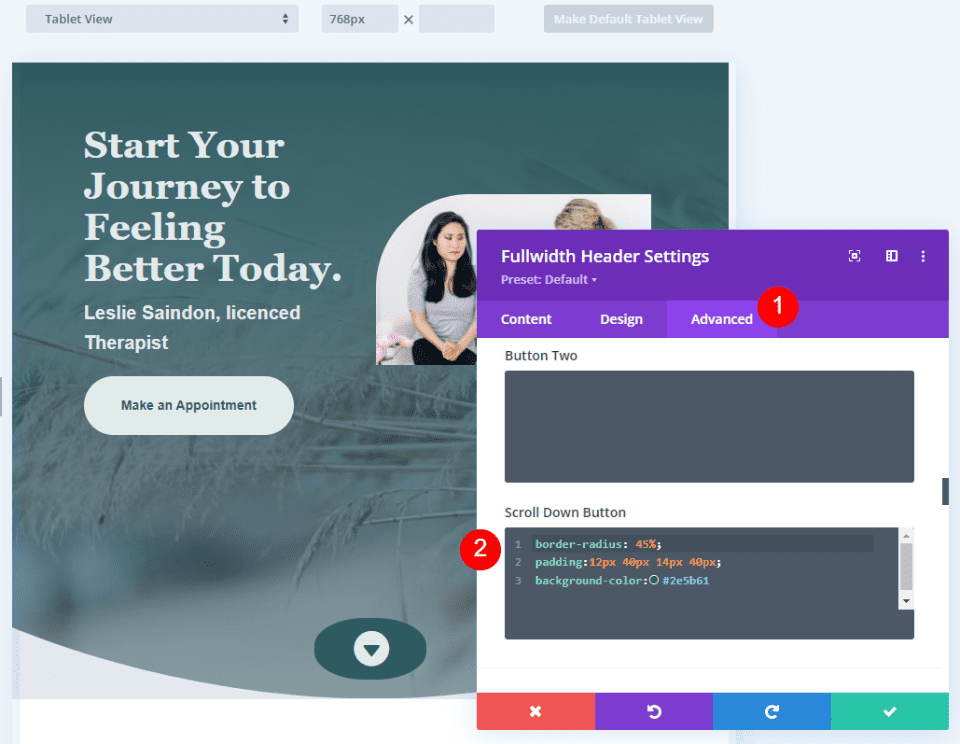
    Next, go to the Advanced tab and scroll down to the Scroll Down Button’s CSS field and enter this CSS:

    border-radius: 45%;
    padding:12px 40px 14px 40px;
    background-color:#2e5b61

    This CSS format adds padding to the Top, Right, Bottom, and Left. I’ve used this padding to create a background oval that goes well with the design of the header using design cues from the layout.

    Scroll Down Button Example Four

    Scroll Down Buttons Results

    Desktop Scroll Down Button Example One

    Desktop Scroll Down Button Example One

    Phone Scroll Down Button Example One

    Phone Scroll Down Button Example One

    Desktop Scroll Down Button Example Two

    Phone Scroll Down Button Example Two

    Desktop Scroll Down Button Example Three

    Phone Scroll Down Button Example Three

    Desktop Scroll Down Button Example Four

    Phone Scroll Down Button Example Four

    Ending Thoughts

    That’s our look at four Scroll Down Buttons you can include in your Divi Fullwidth Header Module. The scroll button includes several icons to choose from and you can style its color and size. Using the CSS field, you can style the button even further. The combinations of the button’s styling options and CSS give you lots of design possibilities with your Scroll Down Buttons.

    We want to hear from you. Do you style the Scroll Down Buttons in your Divi Fullwidth Header Module? Let us know in the comments.

    The post How to Include a Scroll Down Button in Your Divi Fullwidth Header Module appeared first on Elegant Themes Blog.

  • Get a Free Charter Boat Layout Pack for Divi

    Hey Divi Nation! Thanks for joining us for the next installment of our weekly Divi Design Initiative; where each week, we give away a brand new Layout Pack for Divi.

    This time around, the design team has created a beautiful Charter Boat Layout Pack that’ll help you get your next Charter Boat website up and running in no time!

    This layout pack includes:

    7 Premade page layouts strategically designed for any Charter Boat website (including a footer design)
    – Original, royalty-free photos and graphics + customizable source file (see below)
    – Plus, a large collection of pre-designed website elements that are customizable and reusable anywhere.

    This layout pack is available right inside Divi for all Divi customers for FREE as the latest addition to our growing Divi library of hundreds of premade layout packs, thousands of page designs, and countless web design elements and resources.

    divi layout

    Check Out The Divi Charter Boat
    Layout Pack Below

    Get it for free today!

    Charter Boat layout pack for Divi

    Landing Page Design

    Charter Boat Layout Pack for Divi

    View The Live Layout Demo

    Home Page Design

    Charter Boat Layout Pack for Divi

    View The Live Layout Demo

    Services Page Design

    Charter Boat Layout Pack for Divi

    View The Live Layout Demo

    Service Page Design

    Charter Boat Layout Pack for Divi

    View The Live Layout Demo

    About Page Design

    Charter Boat Layout Pack for Divi

    View The Live Layout Demo

    Blog Page Design

    Charter Boat Layout Pack for Divi

    View The Live Layout Demo

    Contact Page Design

    Charter Boat Layout Pack for Divi

    View The Live Layout Demo

    Key Features

    If you’re looking to get a new Charter Boat website, you don’t want to miss out on the Charter Boat Layout Pack for Divi! Each page layout is built to impress your visitors with world-class web design. And it has everything you need to promote Charter Boat services, and much more. Use it to get your next Charter Boat website up and running today!

    Live Demos

    Click the links below to see a live demo for each of the layouts included in the pack.

    1. Charter Boat Landing Page (live demo)
    2. Charter Boat Homepage (live demo)
    3. Charter Boat Services Page (live demo)
    4. Charter Boat Service Page (live demo)
    5. Charter Boat About Page (live demo)
    6. Charter Boat Blog Page (live demo)
    7. Charter Boat Contact Page (live demo)

    Access This Layout Right Now
    Directly from Your Divi Builder

    Since Version 3.0.99 of Divi, you can find and import any of the layouts included in this pack (along with ALL of Divi’s Premade Layout packs) directly from the Divi Builder. They are already waiting for you.

    To access your new layout, simply activate the Visual Builder when editing a page and look for the “Load From Library” icon in the page settings bar (it looks like a plus symbol). Click this icon to launch the Load From Library popup. Under the Premade Layouts tab, you can easily find the new layout by scrolling through the list of layout packs. Once you find the Charter Boat Layout Pack, click on it. You will see all the individual layouts included in the pack. Select the layout you want to use and then click the “Use This Layout” button.

    Charter Boat Layout Pack for Divi

    For more, check out this video to learn how you can get this layout pack up and running today.

    Subscribe To Our Youtube Channel

    Authentication Required

    Before you can download Premade Layouts from the Divi Library you must authenticate your Elegant Themes Subscription. You can do this by navigating to Divi > Theme Options > Updates. There you can enter your username and API key and save changes.

    Charter Boat Layout Pack for Divi

    You can find your API Key under your members area on the Elegant Themes site. After you enter the Username and API Key, you will gain immediate access to our library of hundreds of free layouts (including this one). If you haven’t done this, when you click to import a layout to your page, you will be prompted to enter your Elegant Themes Membership Username and API Key.

    Use Layout Images for FREE with No Licensing Restrictions

    Divi Charter Boat Layout Pack for Divi

    The image assets included with these layouts (icons, illustrations, photos, etc.) have no licensing restrictions. This means you can use them in all of your commercial projects without having to worry about paying licensing fees or attributing the photographer. Use them in your commercial websites, sell them within your Divi child themes, include them in your own Divi layout packs or just use them on your blog. We know how challenging it can be to find good photos and how confusing and scary the licensing that governs those photos can be. We want to fix that problem for our users.

    Download the Full Res Image Assets

    New Layout Pack Every Week!

    We hope you enjoy this layout pack. We look forward to hearing your opinions in the comment section below. Make sure you check out next week’s layout pack as well!

    The post Get a Free Charter Boat Layout Pack for Divi appeared first on Elegant Themes Blog.

  • Divi Product Highlight: Slider Mega Pack

    Slider Mega Pack is a Divi layout pack with 50 slider layouts for your next web design project. The sliders are all built with Divi modules and can be easily customized with your own content and styles. In this product highlight, we’ll take a look at the layouts Slider Mega Pack has to offer and help you decide if it’s the right product for you.

    Let’s get started!

    Installing Slider Mega Pack

    Slider Mega Pack comes as a ZIP file containing Divi Builder .json files. To install the slider layouts, start by unzipping the file. Next, open your desired page in the Divi Builder.

    Divi Product Highlight Slider Mega Pack Install

    Click the portability option at the bottom of the page and select the import tab. Select the .json file for your desired slider layout and then begin importing the layout. Once the layout has been imported, all you need to do is replace the text and images and you’ll have a beautiful slider on your page!

    Divi Product Highlight Slider Mega Pack Install-32

    Slider Mega Pack Fullwidth Slider Layouts

    Slider Mega Pack comes with 32 fullwidth slider layouts. The fullwidth slider layouts are ideal for showcasing large images alongside some text and can be a great way to capture your visitor’s attention. It’s also a great way to share information or showcase some features of your service. All of these sliders have different layouts and designs, so you are sure to find a slider that will work for you! Let’s take a look at each of the 32 fullwidth slider layouts.

    Slider Mega Pack Layouts 1, 2

    The first slider layout is a text slider and features a photo background with a dark overlay over the left side of the photo. The text and the button change on each slide.

    The second slider layout is the same as the first layout, except the dark overlay and the text are on the right side.

    Divi Product Highlight Slider Mega Pack Slider Layout 2

    Slider Mega Pack Layout 3

    The third slider layout has a vignette effect on the image and features changing text and buttons in the middle. There are navigation dots at the bottom as well as previous and next buttons on each side.

    Divi Product Highlight Slider Mega Pack Slider Layout 3

    Slider Mega Pack Layout 4

    This slider features multiple images on a blurred background of the image, with navigation arrows on each side and navigation dots at the bottom.

    Divi Product Highlight Slider Mega Pack Slider Layout 4

    Slider Mega Pack Layout 5

    Slider layout 5 also features multiple images on a blurred background of the same image. It has navigation arrows to the bottom left as well as navigation dots on the right side.

    Divi Product Highlight Slider Mega Pack Slider Layout 5

    Slider Mega Pack Layout 6

    The sixth slider layout features changing text on a blurred transparent square over a parallax photo background. Navigation arrows to each side and navigation dots on the bottom.

    Divi Product Highlight Slider Mega Pack Slider Layout 6

    Slider Mega Pack Layout 7

    Layout 7 is similar to layout 6, with a parallax background and text slides. Navigation arrows are at the bottom left corner and the navigation dots are on the right side.

    Divi Product Highlight Slider Mega Pack Slider Layout 7

    Slider Mega Pack Layouts 8, 9, 10

    Slide layouts 8,9, and 10 feature text over multiple images that have a zoom-in effect. In these layouts, the navigation arrows are on each side and navigation dots are at the bottom of the slider. The text in Layout 8 is centered.

    The text in Layout 9 is left-aligned.

    Divi Product Highlight Slider Mega Pack Slider Layout 9

    And the text in Layout 10 is right-aligned.

    Divi Product Highlight Slider Mega Pack Slider Layout 10

    Slider Mega Pack Layouts 11, 12, 13

    Layouts 11, 12, and 13 feature a large image with text and a button on each slide, with navigation arrows to each side and navigation dots at the bottom. Layout 11 is center-aligned.

    Slider 12 is left-aligned.

    Divi Product Highlight Slider Mega Pack Slider Layout 12

    And slider 13 is right-aligned.

    Divi Product Highlight Slider Mega Pack Slider Layout 13

    Slider Mega Pack Layouts 14, 15, 16

    These layouts 14, 15, and 16 all have a greyscale effect on the photo and a parallax effect as you scroll. There is a bold underline over the header text. The text is center-aligned for layout 14.

    Slider 15 is right-aligned.

    Divi Product Highlight Slider Mega Pack Slider Layout 15

    And slider 16 is left-aligned.

    Divi Product Highlight Slider Mega Pack Slider Layout 16

    Slider Mega Pack Layouts 17, 18

    Layouts 17 and 18 feature a large image with slide text in a dark overlay box. For Layout 17, the text is on the left and the navigation is on the right.

    Divi Product Highlight Slider Mega Pack Slider Layout 17

    For layout 18, the navigation is on the left and the text is on the right.

    Divi Product Highlight Slider Mega Pack Slider Layout 18

    Slider Mega Pack Layouts 19, 20, 21

    Sliders 19, 20, and 21 all feature a greyscale photo overlay and have a zoom-in effect. There are no navigation buttons. Slider 19 is left-aligned.

    Divi Product Highlight Slider Mega Pack Slider Layout 19

    Slider 20 is right-aligned.

    And the text in slider 21 is centered.

    Divi Product Highlight Slider Mega Pack Slider Layout 21

    Slider Mega Pack Layouts 22, 23, 24

    These layouts are the same as the three above, except the photos have a zoom-out effect. Layout 22 has left-aligned text.

    Divi Product Highlight Slider Mega Pack Slider Layout 22

    Layout 23 has right-aligned text.

    Divi Product Highlight Slider Mega Pack Slider Layout 23

    And Layout 24 has centered text.

    Divi Product Highlight Slider Mega Pack Slider Layout 24

    Slider Mega Pack Layouts 25, 26

    Slider layouts 25 and 26 have a large image that zooms in and text over a dark overlay box. Layout 25 has the text aligned to the left and navigation icons on the right.

    Divi Product Highlight Slider Mega Pack Slider Layout 25

    Slider layout 26 has the text aligned to the right and the navigation icons on the left.

    Divi Product Highlight Slider Mega Pack Slider Layout 26

    Slider Mega Pack Layouts 27, 28

    The next two layouts are the same as the two above but the image zooms out instead. Slider layout 27 has text aligned to the right and navigation icons to the right.

    Divi Product Highlight Slider Mega Pack Slider Layout 27

    Layout 28 has navigation icons to the left, text to the right.

    Divi Product Highlight Slider Mega Pack Slider Layout 28

    Slider Mega Pack Layouts 29, 30

    These two sliders feature a large image that zooms in and a different style of navigation icons. Layout 29 features the text on the left and the navigation icons on the right.

    Divi Product Highlight Slider Mega Pack Slider Layout 29

    Layout 30 features the text on the right and the navigation icons on the left.

    Divi Product Highlight Slider Mega Pack Slider Layout 30

    Slider Mega Pack Layouts 31, 32

    These next layouts are the same as layouts 29 and 30 but the image zooms out. Layout 31 has text on the left and navigation on the right.

    Divi Product Highlight Slider Mega Pack Slider Layout 31

    Layout 32 has text on the right, navigation on the left.

    Divi Product Highlight Slider Mega Pack Slider Layout 32

    Slider Mega Pack Fullwidth Post Slider Layouts

    The Slider Mega Pack also comes with 18 post sliders. These sliders showcase posts from your blog and display the post information and a button to read the post. It uses the post’s featured image as the background image for the slide. You can select a category of posts to display, or simply display your most recent posts. Like the regular sliders above, all of the post sliders are completely customizable and come in a variety of layouts, alignments, and styles.

    Slider Mega Pack Layouts 33, 34

    These sliders use a greyscale image effect and a parallax effect. Text is on the left and navigation is on the right with layout 33.

    Navigation is on the left and text is on the right with layout 34.

    Divi Product Highlight Slider Mega Pack Slider Layout 34

    Slider Mega Pack Layouts 35, 36, 37

    Layouts 35, 36, and 37 feature a large featured image with navigation arrows on each side and navigation dots below. The image has a zoom-in effect. The text is centered in Layout 35.

    Divi Product Highlight Slider Mega Pack Slider Layout 35

    In this layout, the text is left-aligned.

    Divi Product Highlight Slider Mega Pack Slider Layout 36

    And in this layout the text is right-aligned.

    Divi Product Highlight Slider Mega Pack Slider Layout 37

    Slider Mega Pack Layouts 38, 39, 40

    These slider layouts are the same as the three layouts above, but the image zooms out instead. Layout 38 is centered.

    Layout 39 is left-aligned.

    Divi Product Highlight Slider Mega Pack Slider Layout 39

    And layout 40 is right-aligned.

    Divi Product Highlight Slider Mega Pack Slider Layout 40

    Slider Mega Pack Layouts 41, 42

    These layouts feature a parallax image with text on one side and navigation arrows on the other. For layout 41 the text is to the left.

    Divi Product Highlight Slider Mega Pack Slider Layout 41

    For layout 42 the text is to the right.

    Divi Product Highlight Slider Mega Pack Slider Layout 42

    Slider Mega Pack Layouts 43, 44

    Layouts 43 and 44 are similar to the layouts above but the image zooms in. In layout 43, the text is left-aligned.

    Divi Product Highlight Slider Mega Pack Slider Layout 43

    The text is right-aligned in layout 44.

    Divi Product Highlight Slider Mega Pack Slider Layout 44

    Slider Mega Pack Layouts 45, 46

    45 and 46 are again a similar design to the layouts above, but the image zooms out instead. 45 has left-aligned text.

    Divi Product Highlight Slider Mega Pack Slider Layout 45

    And layout 46 has right-aligned text.

    Divi Product Highlight Slider Mega Pack Slider Layout 46

    Slider Mega Pack Layout 47, 48

    Layouts 47 and 48 feature a dark overlay square for the post title and navigation arrows. The image zooms in. Layout 47 has the text on the left and arrows on the right.

    Divi Product Highlight Slider Mega Pack Slider Layout 47

    Layout 48 has the text on the right.

    Divi Product Highlight Slider Mega Pack Slider Layout 48

    Slider Mega Pack Layout 49, 50

    Finally, slider layouts 49 and 50 are similar to layouts 47 and 48, but the images zoom out. Layout 49 has the text on the left.

    Divi Product Highlight Slider Mega Pack Slider Layout 49

    And layout 50 has right-aligned text.

    Divi Product Highlight Slider Mega Pack Slider Layout 50

    Purchase Slider Mega Pack

    Slider Mega Pack is available in the Divi Marketplace. It costs $9.99 for unlimited website usage and lifetime updates. The price also includes a 30-day money-back guarantee.

    Final Thoughts

    Slider Mega Pack comes with 50 prebuilt slider layouts with beautiful transitions, effects, and navigation layouts that can be easily customized with the Divi Builder. If you are looking for some unique slider layouts that are customized beyond the standard Divi options, this product might be just right for you. We would love to hear from you! Have you tried Slider Mega Pack? Let us know what you think about it in the comments!

    The post Divi Product Highlight: Slider Mega Pack appeared first on Elegant Themes Blog.

  • What Is Qwant? How to SEO for the Privacy-Minded Search Engine

    Google is the most popular search engine worldwide, but it isn’t the only potential source of traffic. If you want to bring more people to your website, it’s worth focusing on alternative search engines such as Qwant. Just what is Qwant, and how can you create a SEO strategy for it?

    In today’s guide, we’ll explore the characteristics of Qwant. Then we’ll outline some tips to help you optimize your content for this search engine. Let’s get started!

    What Is Qwant?

    Qwant is a French search engine first launched in 2013. It’s now the default search engine for the French government, and it processed roughly 18 billion search requests in 2018:

    The Qwant search engine

    Qwant’s interface looks pretty similar to Google’s. When searching for a term, you can filter according to categories such as News, Images, Videos, and Music. Moreover, you can choose the country and language for your results and select the freshness of the content:

    Qwant search results

    Like DuckDuckGo, Qwant is a privacy-focused search engine. It doesn’t use any cookies to track your actions and searches, either for advertising purposes or to provide curated content. Additionally, it bills itself as an ethical search engine because it doesn’t sell your data to third-party companies.

    Qwant uses unique algorithms and indexing methods that don’t rely on private data. Furthermore, it has a commitment to supplying impartial and balanced information.

    Alongside its search engine, Qwant includes a Maps application similar to Google Maps:

    Qwant Maps

    Additionally, there is a Qwant Junior version available. This is a child-friendly search engine designed for educational and safe search results:

    Qwant Junior

    Additionally, although Qwant is designed primarily for the French market, it offers results tailored for various countries in Europe, Asia, the Americas, and Oceania. These include Great Britain, the United States, Canada, and Australia.

    Who Should Use Qwant?

    Qwant is ideal for users worried about internet privacy and their personal data. These are valid concerns when you consider that many search engines (including Google) sell user data to third-party advertising companies and deliver targeted results.

    Moreover, Qwant doesn’t save your search history. Although this can be frustrating if you need to find something you looked for before, you might prefer to know that the search engine isn’t recording your online activity.

    Additionally, this search engine is perfect for finding French-based content. Whether you’re learning the language, are a native speaker, or looking for businesses in France, Qwant has it covered.

    Qwant is also an excellent search engine for parents with younger children. Similar to Google’s Safe Search, Qwant Junior filters pages to present age-appropriate results. It also has educational resources built-in, such as kid-friendly news, games, and leisure activities.

    5 Tips for Optimizing Your Content for Qwant

    There is very little information available about Qwant’s algorithms and ranking criteria. However, you can follow some general guidelines if you want your content to rank well in this search engine. Let’s take a look at five best practices.

    1. Ask Qwant to List Your Content

    Many search engines enable you to submit XML sitemaps to list your website’s content quickly. Unfortunately, Qwant doesn’t come with a Search Console like Google or similar feature.

    This search engine automatically scans the internet for new content, and typically lists new websites within a few weeks. However, if your site isn’t showing up, you can contact Qwant directly and report the issue:

    How to contact Qwant

    Then it’s just a matter of waiting for a response from the search engine. In the meantime, you might also want to focus your efforts on Yahoo, Yandex, and Ecosia.

    2. Translate Your Content into French

    As we discussed earlier, Qwant is a French search engine. Although it has translations and content in English-speaking, Asian, and European countries, it still focuses on the French market.

    Therefore, it could be worth translating your content into French to attract more visitors to your website. Fortunately, you don’t have to do this manually. Plugins such as WordPress Multilingual (WPML) can help you translate your posts and pages into more than 40 languages, including French:

    WPML

    WPML can translate all of the elements on your website, including posts, pages, taxonomies, and menus. Additionally, it’s compatible with most leading WordPress themes, including Divi.

    3. Optimize Your Content for Bing

    Although Qwant is a relatively new and smaller search engine, it claims to have more than 20 billion web pages indexed on its servers. However, in some cases, it uses Microsoft Bing to retrieve search results when Qwant doesn’t have enough relevance or capacity for heavy images:

    Microsoft Bing

    Therefore, it could be worth optimizing your content for Bing as well. You can do this by submitting your sitemap to Bing Webmaster Tools and using that interface to analyze your rankings.

    It’s also worth registering your brick-and-mortar business on Bing Places, and growing your social media presence. Unlike many other search engines, Bing considers your search engine followers and engagement when ranking your content.

    4. Focus on High-Quality Content

    Most search engines value high-quality content. They use complex algorithms that can identify if posts are informative, well-written, and valuable to readers.

    As such, it’s worth following some best practices when creating new content for your website, such as:

    Remember that content isn’t just about words. Including high-quality images and videos in your posts can engage your readers, convey additional information, and break up walls of text.

    5. Follow SEO Best Practices

    Finally, we recommend following SEO best practices (also known as white hat SEO) to optimize your content for both search engines and readers. Although these tips aren’t Qwant-specific, they are generally applicable to most search engines:

    It might also be worth running an SEO audit on your website. This process can identify areas for improvement and provide actionable advice for enhancing your content.

    Here are some SEO techniques you can start using right now.

    Conclusion

    Qwant is a French search engine that focuses on privacy. It doesn’t collect or store user data, making it a great Google alternative for anyone worried about online privacy.

    To recap, you can optimize your content for Qwant by following these tips:

    1. Ask the search engine to list your content.
    2. Translate your content into French.
    3. Optimize your content for Bing.
    4. Create high-quality content.
    5. Follow SEO best practices.

    Do you have any questions about Qwant? Let us know in the comments section below!

    Featured image via eamesBot / shutterstock.com

    The post What Is Qwant? How to SEO for the Privacy-Minded Search Engine appeared first on Elegant Themes Blog.

  • Download a FREE Header & Footer for Divi’s Conference Layout Pack

    Hey Divi Nation! Thanks for joining us for the next installment of our weekly Divi Design Initiative where each week, we give away brand new freebies. We recently shared a brand new Conference Layout Pack. To help you get your website up and running as soon as possible, we’re sharing a global header & footer template that matches this layout pack perfectly as well! Hope you enjoy it.

    divi layout

    Check Out The Divi Conference Header and Footer Template Below

    Get it for free today!

    Header Design

    Header Layout for Desktop in the Divi Conference Header and Footer Freebie
    Header Layout for Tablet and Mobile in the Divi Conference Header and Footer Freebie

    Footer Design

    Footer Layout for Desktop in the Divi Conference Header and Footer Freebie

    Footer Layout for Tablet and Mobile in the Divi Conference Header and Footer Freebie

    Download The Header & Footer Template For The Conference Layout Pack

    To lay your hands on the free global header & footer template, you will first need to download it using the button below. To gain access to the download you will need to subscribe to our newsletter by using the form below. As a new subscriber, you will receive even more Divi goodness and a free Divi Layout pack every Monday! If you’re already on the list, simply enter your email address below and click download. You will not be “resubscribed” or receive extra emails.

    How to Upload The Template

    Go to Divi Theme Builder

    To upload the template, navigate to the Divi Theme Builder in the backend of your WordPress website.

    Navigating to the Divi Theme Builder

    Upload Default Website Template

    Then, in the top right corner, you’ll see an icon with two arrows. Click on the icon.

    Opening the import export functionality of the Divi Theme Builder

    Navigate to the import tab, upload the JSON file which you were able to download in this post, and click on ‘Import Divi Theme Builder Templates’.

    Import settings for the header and footer layout pack

    Save Divi Theme Builder Changes

    Once you’ve uploaded the file, you’ll notice a new header and footer in your default website template. Save the Divi Theme Builder changes as soon as you want the template to be activated.

    Saving changes with newly imported Header and Footer Layout

    How to Modify The Divi Conference Header and Footer Templates

    Open the Divi Conference Header Template

    To modify the header template’s elements, start by opening the template.

    Editing the Divi Conference Header Layout

    Select Menu of Choice

    Select a menu of your choice in the Menu Module for the desktop and tablet view.

    Selecting menu for the desktop menu

    Choose Menu for Mobile

    Switch to the mobile view

    Switch from desktop to mobile view within the Divi Theme Builder

    Select a menu of your choice in the Menu Module for the mobile view.

    Select a menu for the mobile version of your Header Layout

    Edit Social Media Links

    This header has social media icons on the top left. Open the settings for this module and add/edit the social media accounts as needed.

    Editing social media icon links with the Header Layout

    Adjust the social media icons for mobile

    Switch to the phone view, and also edit the social media icons for the mobile view.

    Editing social media icons for mobile

    Change the Button CTA

    Switch back to desktop view and edit the button module to link to your destination of choice.

    Edit the button CTA in the Header Layout

    Edit the Text CTA

    Edit the text module with content of your choice.

    Edit the text CTA within the top right header

    Modify the Text CTA for Mobile

    Switch to mobile view, and edit the text CTA within.

    Edit the text module for mobile

    Save Header Template Changes

    Once you have made all necessary changes to your satisfaction, exit out of all modules and save your header template. Next, navigate back to the main Divi Theme Builder landing page.

    Save edits to the Divi Conference Header Layout

    Open Footer Template

    Continue by opening the footer of the Divi Conference Layout Pack.

    Editing the Divi Conference Layout Footer

    Update Footer Content

    You will need to go through and update the content of the footer, including adding your own text, link URLs, and connecting your email marketing tool of choice to the email optin module. Don’t forget about the copyright text at the bottom of the footer as well.

    Edit footer content links, logos, and email marketing integrations.

    New Freebies Every Week!

    We hope you’ve enjoyed the Divi Conference Layout Pack and the Header & Footer freebie that goes along with it. We look forward to hearing your opinions in the comment section below. Make sure you check back next week for more freebies!

    The post Download a FREE Header & Footer for Divi’s Conference Layout Pack appeared first on Elegant Themes Blog.

  • How to Use myCred to Add a Rewards System to WordPress

    Points systems can reward loyal customers who frequently interact with your content or purchase items from your online store. They’re great for gamification and loyalty programs. However, WordPress doesn’t support this feature natively. Therefore, you might be wondering if the myCred WordPress plugin is a viable solution for implementing a rewards program.

    In today’s post, we’ll review the myCred plugin and explain how you can use it to create a rewards system in WordPress. Let’s get started!

    An Introduction to myCred Rewards Systems

    myCred is a freemium plugin that enables you to add points and rewards to your WordPress website. With this plugin, you can gamify your content, maximize brand loyalty, and monetize your site:

    myCred plugin.

    For instance, you might offer points to customers whenever they make purchases in your store. Once they reach a particular balance, you can reward them with a discount on their next purchase or even a free item.

    Alternatively, you could add a points program to your online courses. You might design a system in which students can accrue more points when they complete assignments or perform well on quizzes. Then, you can create a leader board and encourage friendly competition among eager learners.

    Apart from points, myCred also enables you to allocate rankings and badges to your users. Plus, you can allow visitors to buy more points and use them to purchase other items in your store or even redeem them for cash.

    An Overview of myCred Premium

    myCred’s free plugin has all the basic features you’ll need to add a rewards system to WordPress. Furthermore, its premium plans include various add-ons, including:

    • Treasure icons (gems, fitness badges, currency, and more) to award to your users
    • Basic add-ons, such as notification email integrations, birthday and anniversary points, coupon customization, and more
    • Gamification and payment gateway integrations

    Premium plans start at $149 per year for two sites. More expensive plans include additional integrations and support for a higher number of websites.

    How to Use myCred to Add a Rewards System to WordPress (In 5 Easy Steps)

    Now that you understand more about myCred and why you might want to use it, let’s look at how you can use the plugin can add a rewards system to your website!

    Step 1: Install and Activate myCred

    Firstly, you’ll need to install and activate the plugin. You can do this in your WordPress dashboard by navigating to Plugins > Add New and searching for “mycred”:

    Searching for the plugin.

    After you locate the plugin, click on Install Now followed by Activate. If you purchased a Premium license, you can now add it under myCred > License:

    Adding a myCred license key.

    Finally, click on Save. The plugin is now ready to go!

    Step 2: Configure myCred Settings

    myCred can feel a little overwhelming when you first install it. You’ll see a long list of plugin settings across multiple menus in your WordPress dashboard, both under myCred and Points:

    plugin settings

    Under General Settings, you can configure display options for your badges and social sharing buttons. You can also configure settings for buying and selling points to your users, email notifications, coupons, and point transfers:

    myCred plugin general settings.

    Since there are so many settings, we recommend clicking on the Documentation button at the top of the page. Then, you can refer to extensive myCred tutorials for setting up your rewards system.

    At this point, you should also consider setting up your payment gateways for buying and cashing in points. You can do this under buyCred Gateways and cashCred Gateways. However, these settings are optional and not essential to your rewards program.

    Now, jump across to Points > Settings. Here you can choose labels, icons, and security settings for your points. You can also configure some caching options and rankings for users on your site:

    Points settings.

    It’s best to take your time configuring your settings to meet the needs of your rewards system. Also, make sure to save your changes as you go.

    Step 3: Enable/Disable Hooks

    Now it’s time to determine which user actions will earn points on your website or online store. You can do this by navigating to Points > Hooks. Here you’ll see a series of hooks on the left-hand side that award or deduct points based on:

    • Registrations
    • Anniversaries
    • Daily visits
    • Viewing content
    • Logins
    • Publishing content
    • Deleting content
    • Clicking on links
    • Viewing videos
    • Referrals
    • Buying points

    To activate a hook, simply click on it and then select Add Hook:

    Activating hooks in a rewards system.

    You’ll then be prompted to allocate a specific number of points to the action and save your settings:

    Hook settings

    You can remove a hook by simply clicking on Delete. Furthermore, when you select Hook Documentation, you can access detailed tutorials for using the hook in question.

    Step 4: Activate Add-Ons

    Now it’s time to configure add-ons for your rewards program. Note that the available extensions will depend on which myCred plan (free or premium) you have installed on your website.

    Head to myCred > Add-ons. Here you’ll see built-in, free, and premium extensions for your WordPress rewards program:

    myCred add-ons

    To start using an add-on, hover your mouse over it and then click on Install. If it’s a premium extension, you’ll be directed to the myCred store to purchase it. For free add-ons, you’ll be sent to the core WordPress plugin to install it on your site.

    Here’s a quick rundown of some of the most useful myCred add-ons:

    • Badges: Display achievement badges for your users.
    • buyCRED: Enable users to buy more points.
    • Coupons: Create coupons that can be redeemed for points.
    • Notifications: Inform users when they win or lose points.
    • Statistics: Create visual charts of user progress and behaviors.
    • WooCommerce Plus: Let users make coupons, complete partial payments, and use loyalty points within your WooCommerce store.
    • Arcade Game: Award users points in exchange for playing games on your site.

    Let’s look at an example. You might install myCred LearnDash to integrate the Learning Management System (LMS) with points and rewards for completing lessons, quizzes, or entire courses:

    myCred LearnDash

    Then, it’s simply a matter of installing and activating the add-on as you would with any other WordPress plugin. However, note that new add-ons will come with more specific configurable settings.

    Step 5: Track Points

    Now that your rewards system is set up on your WordPress site, you can track user points and achievements from Points > Log. This is where you can monitor progress from Today, Yesterday, This Week, and This Month:

    myCred points log

    Note that you can also limit the number of total points by heading to Points > General Deposit. Here, you can choose to allocate points from a central fund with a limited number of rewards:

    limit points and rewards

    Furthermore, under Ranks, you can set rankings for your users. You can specify the number of points needed to progress to a particular rank, add a logo to distinguish it, and name it:

    set user ranks

    Now your rewards system is completely ready to go! You might consider advertising it to customers through promotional banners, email marketing messages, or popup forms.

    myCred Pros vs. Cons

    myCred is an extensive plugin with many customization options. Here are some of the advantages of using the tool:

    • Build a rewards system for free.
    • Add points, badges, and rankings to your rewards system.
    • Increase sales by enabling users to buy points or redeem them for coupons in your online store.
    • Integrate the plugin with page builders, LMS plugins, and payment gateways.
    • Access detailed plugin documentation to learn more about the system.
    • Customize logos and icons to make your rewards system match your branding.

    However, myCred also has some disadvantages. Here’s a quick overview of the plugin’s cons:

    • There are so many settings that it can feel confusing without a setup wizard guiding you through the process.
    • The learning curve for the plugin can be steep at first.
    • The plugin can get expensive if you invest in premium add-ons, which range from $29 to $69.

    Overall, you might consider using the free version of myCred and seeing if it fits your needs. Then, you can purchase add-ons or upgrade your membership if you want to take your rewards system to the next level.

    Conclusion

    A rewards system can incentivize users to interact with your content and earn points. Furthermore, it can recognize customer loyalty and encourage consumers to purchase more frequently from your online store.

    With the myCred WordPress plugin, you can quickly set up a rewards system for your WordPress website. It comes with multiple customizable settings and integrations to reward or penalize different actions. Although the learning curve can be a little steep, the payoffs can be significant.

    For more great tools for your business, check out our best free WordPress plugins for business websites.

    Do you have any questions about creating a rewards system with myCred? Let us know in the comments section below!

    The post How to Use myCred to Add a Rewards System to WordPress appeared first on Elegant Themes Blog.