EDITS.WS

Category: elegantthemes.com

  • How to Generate AI Music in 2023 (Tutorial)

    Have you ever had a dream of becoming a professional musician, but you have zero musical talent? Thanks to artificial intelligence (AI), it’s now possible to create amazing tracks using only a text prompt. AI music generators are the hottest trend in AI right now, and with good reason. Those with little to no music abilities can create stunning soundtracks to use in social media posts, YouTube videos, and more. In this post, we’ll explain how generative AI works and how to generate AI music in a few steps.

    Let’s dive in.

    What is AI Music?

    Since the introduction of generative AI in 2015, different forms of artificial intelligence have emerged, including text-to-speech, natural language processing, and AI art generators. Like these other forms, AI music uses text prompts to generate musical tracks with different instruments, styles, and genres. It can also create compositions, modify existing music, or even generate vocals.

    Here is a short clip we generated using Mubert using a brief text prompt:


    How Does AI Music Work?

    Like other forms of generative AI, the software used to create music is based on deep-learning computer systems trained on massive amounts of musical data, such as songs, artists, and genres. These models can be based on recurrent neural networks (RNNs), generative adversarial networks (GANs), generative pre-trained transformers (GPT), or music information retrieval (MIR). To help you understand the meaning of these terms, let’s break down what each is.

    Recurrent Neural Networks

    Recurrent Neural Networks (RNNs) are specialized neural networks that are great at understanding and processing data that comes in sequences, like sentences or time series. They work in a way that is similar to how our brains process information. In simple terms, RNNs can predict outcomes in sequential data, which other AI algorithms struggle with. RNNs are particularly useful when dealing with data that follows a specific order or pattern, like music.

    Generative Adversarial Networks

    While primarily used for generating images, avatars, and other forms of AI, they are also used to create AI music. Comprised of two parts, a generator and a discriminator, GANS uses these two neural networks to train systems to generate music. The discriminator is used to determine whether the input given is real or fake. The generator’s job is to try and fool the discriminator. Throughout thousands of training sessions, the generator will improve the results to the point where the discriminator can’t tell the difference. In image generation, this is a relatively simple task. However, with music, there are nearly unlimited variables, including the instruments, genre, style, timing, and so much more.

    Generative Pre-Trained Transformers

    Created by the folks behind ChatGPT, generative pre-trained transformers are advanced language models that combine the power of transformers and pre-training. They learn from large amounts of data and can generate human-like text, images, and music. A GPT model based on music works by inputting a seed sequence that allows the model to predict the next note or chords in a song.

    Music Information Retrieval (MIR)

    MIR is a field of study and development of techniques that enable computers to analyze, understand, and extract information from musical data. It works as a bridge between music and machine by using AI algorithms to process and interpret musical content. For example, using MIR, machines can learn to classify music into genres, moods, or other classes based on audio features and metadata. Machines then use this information to generate original music based on the tempo, rhythmic patterns, harmonic structure, or chords, to name a few.

    Benefits of Using AI to Generate Music

    One of AI music generators’ biggest advantages is their ease of use. Take Mubert, for example (we’ll delve more into it later in this post). You write a brief description of the music you want to create, and within minutes, you’ll have a background track ready for use in your creative projects. These programs also offer the added advantage of license-free music production, meaning you can use generated music anywhere without the hassle of contracts or legal agreements.

    Another key factor that makes AI music generators so appealing is the price. Most platforms offer free usage or cost no more than $20-30 a month, ensuring accessibility for even the most frugal customers. Finally, these tools also provide a high level of customization. Many AI programs, such as Landr, provide downloadable apps that allow you to edit your music clips, add vocals, and even blend in other tracks. In the past, these tasks would demand extensive expertise in music editing programs, but thanks to the power of AI, anyone can become a masterful music artist.

    How to Generate AI Music

    You can use several programs to generate AI music, but for this tutorial, we will show you how to do it with Mubert.

    Mubert music AI

    Mubert is an excellent music generator that allows you to create personalized music for background tracks. Music can be made through the web app or API. The main benefit of Mubert is its ease of use. You can generate soundtracks for games, marketing videos, apps, and more using a simple text prompt. Both free and paid plans are available, with the free version allowing you to create up to 25 free tracks. However, if using the free version, you will need to attribute usage by linking to their website.

    Let’s take a look at the steps to create your first masterpiece.

    1. Sign Up For a Free Account

    The first step is to sign up for a free account. Start by navigating to the Mubert website and clicking on the sign up button.

    Mubert sign up

    You can log in with Google or Facebook or create a new account with your email address and a password. Once completed, click the create account button.

    create Mubert account

    Mubert will email you a verification code you’ll need to supply to complete the signup process.

    email verification

    Once you retrieve the code, paste it into the supplied text box and click create account.

    how to generate AI music

    2. Explore the Mubert Interface

    Once your account is created, you’ll get your first look at Mubert’s intuitive interface. You can easily generate a new track (1) or search by a reference URL (2), which we’ll explain in depth later in this post. In the meantime, when using the generate a track feature, you can enter a text prompt (3), set the duration of the track (4), or choose from a genre, mood, or activity to generate music (5). Once all fields are filled out, click the Generate track button (6) to witness the power of Mubert.

    Mubert Interface

    How to Generate AI Music: Genres

    Mubert genres

    Before we go over creating your first piece of AI music from a text prompt, let’s delve into genres in Mubert. These are excellent for making music in a specific style, such as ambient, classical, or rock. Those who need help with what to write in a prompt can use pre-defined styles, such as genres, to compose music. For example, if you choose the EDM genre, you can generate a clip with a strong baseline.

    How to Generate AI Music: Moods

    Mubert moods

    Similarly, you can choose moods such as beautiful, calm, energizing, or others to set the tone for your clip. For example, we created this 15-second track by selecting the moods beautiful and peaceful.

    How to Generative AI Music: Activities

    Mubert activities

    Lastly, you can apply an activity style to your music by choosing one of the activity presets, including chill, focus, game, or sport. For example, you can select the sleep activity, then choose a subcategory like rain to create realistic rain sounds that can be used in other projects.

    We’ll note that selecting multiple categories at once is impossible when using presets. For example, if you choose a mood, you can’t choose a genre or activity simultaneously. You can type in a prompt if you want to combine genres, moods, or activities.

    3. Generate Your First AI Music Track

    We’ll show you how to generate AI music with a text prompt for this step. To keep the size down on our post, we’ll use a 15-second duration, but you can choose any length of time you’d like. Like other generative AI, less text is better. This is especially true with Mubert. Using long, descriptive prompts will likely confuse it, generating undesirable results. Therefore, it’s best to keep prompts brief and concise.

    Start by entering the following prompt into the text field: Progressive, vocal, tribal, house, minimal (1). Next, set the duration to 15 seconds (2), then click generate track (3). Once your track is complete, it will be visible directly beneath the controls. From there, click the play icon (4) to preview your track. You can click the regenerate button if you’d like to regenerate the track based on the same prompt (5). If you are satisfied with the results, click the download icon to save it (6) to your downloads. Remember that free users are allowed a maximum of 25 tracks, so if you don’t like the result, be sure to delete it (7).

    track settings

    You can choose between track, loop, mix, or jingle if you regenerate a track. We’ll select the mix setting and keep the track length at 15 seconds.

    track types

    Here’s the original track before mixing it:

    This is the remixed track:

    Searching by Reference

    In addition to creating AI music with a text prompt or preset, you can use the search by reference feature. This feature allows you to input a YouTube URL to search tracks contained in the video. For example, we’ll use one of our own videos to test it out. Input the YouTube URL (1), then click the search tracks button (2).

    search by reference tool

    In our experience, searching by a reference video takes quite a bit longer than using a text-to-music prompt, and the results were mixed. That’s likely because the tool is still in beta, so there are undoubtedly some kinks to work out.

    4. Download Your Track

    As mentioned, you can download and use your tracks in projects. However, if you’re using a free account, you must attribute the content to Mubert. To download a saved track, navigate to the avatar image at the top right of the screen, then click my downloads.

    Mubert downloads

    From there, you can click on any of your tracks to download it.

    download a track

    When the popup appears, click the copy icon (1) to copy the attribution text, then click agree and download (2).

    how to generate ai music

    If you’d like free reign over how your new AI music is used, you can sign up for a paid subscription. Plans are reasonably priced, with a creator plan starting at just $11.69 monthly. Regardless of the subscription, you can’t upload your creation to Spotify, Apple Music, or the like. However, you can sell your track on the Mubert Studio, which we’ll cover in the next section.

    Mubert pricing

    5. List Your Track on Mubert Studio

    One of the best aspects of Mubert is the ability to generate passive income from the AI music tracks you create. Using Mubert Studio. To start, click the contribute button on the home page under Mubert Studio.

    Mubert studio

    Next, you’ll need to set up your account. Start by entering your email (1), then click the continue button (2).

    Mubert Studio registration

    Create a password (1), then click continue (2) again.

    Mubert Studio login

    Creating Your First Stream

    Once you log in, you’re ready to create your first stream. Start by clicking the create stream button at the top left of the interface.

    Create stream

    When the screen refreshes, you’ll see several blank fields. You’ll fill these out to list your track in Mubert’s Studio. Start by giving your track a name (1), define the key (2), scale (3), beats per minute (BPM) (4), and assign an activity (5). Those are the only required fields, but filling out the remaining fields for mood, weather, genre, and tags will allow other users to find your track when searching.

    stream settings

    To find the key and BPM for your track, navigate to your downloads in Mubert, then click on the track you plan to add to the Studio.

    track info

    Once your parameters are set, click the add/edit sample button to add the track.

    upload track

    Next, click upload to add a downloaded track from your computer. Note: Studio won’t allow you to upload an MP3, so you must convert your downloaded track to a wav file. No need to worry though, you can use an open-source software app like VLC media player to convert your files.

    add track

    Once your track is uploaded, ensure that the BPM and key match, then click the edit stream settings button.

    edit stream settings

    Finally, you can make your stream live by clicking the save stream button.

    save stream

    Click my streams on the main page to view, edit, or listen to your streams.

    my streams

    AI Music Generators with Voice

    Mubert is great for generating background tracks, but what if you want music and vocals? There are two ways you can create voice tracks. If you want to create voiceovers or other natural-sounding speech, you can use AI voice generators. However, those generally don’t include a tool for singing voices. In that case, you’ll need an AI audio tool. One of the tools on this list is featured in another blog post. The other two are downloadable applications that help you create works of art by combining voice and background music.

    Landr

    Landr AI Audio

    Landr is a top-rated AI audio tool that allows you to create, edit, and distribute your music through an intuitive interface. For one low monthly price of $12, you’ll get access to a virtual studio where you can mix and master your creations with ease. Used by recording artists such as Lady Gaga and Post Malone, Landr is the go-to platform for professionals.

    Pricing: $12 per month.

    Get Landr

    Synthesizer V

    Synthesizer V Studio

    Dreamsonics Synthesizer V is another excellent program if you want to create music complete with vocals. You can make tracks with a text prompt, then apply your favorite AI voice. The app is free to download and comes with sample AI voices to play around with. If you decide it’s the platform for you, there are a variety of AI voices you can purchase. With the free version, you can create up to 3 tracks, which gives you plenty of time to decide if it’s right for your needs.

    Pricing: Free, with packages starting at $79.

    Get Synthesizer V

    Revocalize

    Revocalize AI

    The last tool for vocals is Revocalize. It works differently than the other tools on our list. You can record your voice instead of generating voices with a text prompt. Through the magic of AI, Revocalize alters and enhances your voice and allows you to add different tones, effects, and pitches. Even better, they use a proprietary algorithm, a voice identity (UVI) singing model, which protects and secures your voice. Copyright protection gives you the right to use it as you see fit. This is an excellent feature considering all the copyright issues other AI platforms face.

    Note: If you want access to the free version of Revocalize, you must sign up and be on a waitlist.

    Pricing: Free, with monthly plans starting at $9.

    Get Revocalize

    The Future of AI Music

    The future of AI-generated music is bright. Some may view it as threatening to the job market or human creativity, but that’s false. That is, if lawmakers can put some legal protections in place to protect the rights of AI creators and human artists. Currently, the lines between originality and ownership are blurred. There are pending lawsuits involving major players in the AI industry, so it will be interesting to see how it all turns out. In the meantime, it’s important to research a platform’s founding and training algorithms before committing. Through solid partnerships, AI can serve as a tool to streamline the music creation process.

    Final Thoughts on Generating AI Music

    Whether you need a background track for your next YouTube video or a complete track with vocals, AI music is an excellent way to do it. Through the power of artificial intelligence, you can generate AI music from a text prompt, edit it, and easily publish it in minutes. Using tools like Mubert or Landr, you can achieve professional results without any experience.

    Are you looking to learn more about artificial intelligence? Check out some of our other AI posts:

    Featured Image via whiteMocca / Shutterstock.com

    The post How to Generate AI Music in 2023 (Tutorial) appeared first on Elegant Themes Blog.

  • How to Create a Landing Page in 2023 (Detailed Guide)

    Creating landing pages is a superpower. Master it, and your conversion rates will soar as visitors turn into customers right before your eyes. But like any leverageable skill, it requires practice and the right resources to harness its potential. This guide will provide a treasure trove of tools, tips, and strategies to create a landing page. We’ve got you covered, from design principles to copywriting tips and conversion optimization strategies. We’ll show you one of the quickest ways to build a landing page, using Divi, as well!

    What is a Landing Page?

    A landing page is a standalone web page that has everything on it that a visitor would need to take a specific action. It serves as the entry point for potential customers, guiding them towards taking a desired action, such as signing up for a newsletter, subscribing to a service, or purchasing a product.

    The magic of a landing page lies in its ability to focus on a single objective. Unlike regular website pages, which may have multiple links and distractions, a well-crafted landing page keeps the visitor’s attention fixed on the intended goal. Whether a product launch, a special offer, or an upcoming event, a carefully constructed landing page can significantly boost conversion rates.

    Do I Need a Landing Page?

    The answer is a resounding “Yes! You need to use landing pages if you have a clear offer.” Regardless of your business size or industry, a landing page can be a game-changer for your online success. Let’s explore why:

    1. Landing pages allow you to create highly targeted marketing campaigns tailored to specific audiences. By aligning your messaging with the needs and interests of your various target customers, you can increase the chances of converting them into valuable leads or loyal customers.
    2. Sending everyone to your homepage may not provide a clear path to action, leading to missed opportunities. A well-optimized landing page, on the other hand, provides a clear call-to-action (CTA), guiding users toward a specific next step you want them to take.
    3. Landing pages equipped with analytics tools like Google Analytics can provide invaluable data about visitor behavior. You can track conversion rates, understand what drives traffic to your page, and make data-driven decisions to optimize your campaigns further.

    Essential Elements of an Effective Landing Page

    To create a successful landing page that drives conversions, you must focus on specific elements that captivate your audience and guide them toward your desired action.

    Single Goal or Call to Action (CTA)

    The call to action (CTA) is the most essential element on a landing page. It drives all conversions and will be central to designing your whole page.

    When coming up with one, it should be prominent (color and weight) and action-oriented, guiding visitors toward your goal.

    Strong verbs and concise language, such as “Start Your Free Trial” or “Get Exclusive Access Now,” create urgency and encourage an immediate response. The same applies to all your copywriting, but you can go a long way with an undiluted CTA.

    Zapier One CTA Example Landing Page

    Zapier gives visitors multiple ways to do the same thing: create a free account.

    A well-crafted CTA eliminates confusion and makes it easy for visitors to understand what action they should take next, streamlining the conversion process. The above example from Zapier gives visitors who want to move forward one option—create an account and try it out.

    Attention Grabbing Headline and Hero Section

    The hero section and headline serve as your visitors’ first point of contact with your landing page. It will have a compelling yet concise headline that immediately grabs readers and tells them what they are in for. A well-crafted headline ignites curiosity and entices visitors to scroll through your landing page’s content. It should also pair well with your CTA.

    LearnDash Hero Section Landing Page

    Hero Section by LearnDash

    By conveying your unique value proposition clearly and succinctly, you communicate what sets your offering apart from the competition, encouraging visitors to stay and learn more about your product or service.

    You may also include a subheading with the headline, which can add more context and clarity to the headline. The headline and subheading should be paired with your most straightforward CTA.

    LearnDash’s CTA above is “Demo” and gives readers a chance to put the headline to the test. Is it the most powerful LMS? Let’s see the demo.

    Captivating Copywriting

    Copywriting is table stakes for a landing page because it aims to persuade readers.

    By crafting persuasive copy, you highlight your product or service’s key benefits, clarifying to potential customers why they should take action. Using language that instills confidence and urgency in your visitors creates a sense of excitement and motivation, driving them to explore further and ultimately convert.

    Copywriting Headline for Landing Page Example

    Copywriting Example by Brevo (SendinBlue)

    Copywriting Frameworks for Landing Pages

    Here are some copywriting frameworks that you can use on landing pages.

    1. Problem-Agitate-Solve (PAS): This classic copywriting formula identifies a problem, intensifies it, and finally presents a solution. It’s a powerful way to connect with your audience’s pain points and demonstrate how your product or service can help.
      Example: “Struggling to create eye-catching graphics? You’re not alone. Many businesses find it hard to stand out in a saturated marketplace. With our graphic design services, you can create stunning visuals that capture attention, and you don’t have to do anything.”
    2. Before-After-Bridge (BAB): This formula paints a picture of the reader’s world before and after using your product, then provides the ‘bridge’ or steps to get there.
      Example: “Before using our web design services, your website was just another drop in the digital ocean. But now, imagine a website that stands out, engages visitors and drives new revenue. We move you where you need to be with our expert web design services.”
    3. Features-Advantages-Benefits (FAB): This formula highlights your product’s features, advantages, and benefits to the customer.
      Example: “Our eCommerce store specializes in handmade leather boots (feature). Each pair is crafted with attention to detail, ensuring a unique, durable product that stands out (advantage). Step out in style and enjoy the comfort and longevity of our boots, making every purchase a worthwhile investment (benefit).”

    Copywriting goes beyond headlines and CTAs. It should be used with every word on a landing page. Your USPs, image captions, and bullet points also deserve the same level of detail.

    Engaging Visuals

    Visual content can convey mood, quality, experience, and value faster than the best headlines. By selecting visuals that resonate with your target audience and reinforce your brand message, you create an emotional connection and leave a lasting impression, increasing the likelihood of conversion.

    Ritz-Carlton Yacht Collection Engaging Visuals

    Example of Engaging Visuals from Ritz-Carlton Yacht Collection

    If possible, go beyond stock photographs to include people using your products or the general aesthetic of your brand and the benefits you hope to sell customers on. This is why so many commercials have storylines of happy, healthy people—they are trying to sell a brighter future through their offerings versus merely selling gadgets.

    If you are in dire need, try out an AI image generator to create images that will move the needle.

    Social Proof

    Building trust and credibility is crucial in converting potential customers. Showcase real customer testimonials, positive reviews, and success stories that demonstrate the value of your product or service. Include photos or names of satisfied customers to add authenticity and make the testimonials more relatable.

    Copy.ai Testimonials and Social Proof Example LP

    Copy.ai does an excellent job showing (1) social proof, (2)  reputation credentials, and (3) testimonials—all in one section.

    By any means necessary, ensure that what you are selling is up to snuff—and be sure to back up every claim.

    Minimal Lead Generation Form Fields

    Keep lead form fields minimal and easy to fill out. Long or complicated forms can deter potential leads, leading to lower conversion rates.

    CodeAcademy Landing Page Short Simple Lead Form

    Landing Page from CodeAcademy

    By requesting only essential information, you reduce friction and make it easier for visitors to provide the necessary details. Prioritizing simplicity in your form design enhances the user experience, making visitors more likely to complete the form and take the next step in the conversion process.

    This is often a hard choice in landing page design because we all think, “If I can just get a little more info, my future marketing efforts will be so much easier.” But it’s better not to sacrifice present conversion results for future email marketing and CRM ease. Build a strategy to collect new information throughout the funnel instead of all at once at the moment of truth for your visitors.

    We recommend using Divi Forms or one of WordPress’s best lead-generation plugins.

    5 Steps to Building a Landing Page

    Depending on what platforms you use, building a functioning landing page can happen in many different ways. No matter what, if you keep the LP elements mentioned above in mind, you can create a solid landing page.

    Here’s the high-level view of creating a landing page.

    1. Choose a Landing Page Builder

    Choosing the right landing page builder will save you a lot of headaches. Many think building a landing page from scratch requires technical expertise and significant time investment. All that is needed is a platform that can handle the unique needs of a landing page. Tools like the Divi theme for WordPress, WPFunnels, or ClickFunnels all bring to the table essential LP tools.

    The top features to look for in a landing page builder are a drag-and-drop visual builder, customizable templates, A/B testing, integration with email marketing tools, and advanced analytics. The best Landing Page plugins can help with this, though you don’t need to use WordPress to create a landing page.

    Here’s why many think Divi is perfect for any landing page build:

    2. Build a Landing Page Using a Template

    Most reputable landing page builders will offer templates to kickstart your design process. Divi provides a wide range of professionally designed landing page templates to kickstart your creative process. Within the Divi theme, you can access these templates at no additional cost. Templates span industries and page types to create a whole site with pre-made templates, not just one landing page.

    Here’s how to use a layout pack using Divi:

    Once in the Divi Builder, click the purple “+” button to add a new section. In the popup, choose “Choose a Premade Layout.” Here, you’ll find a collection of pre-designed templates available to you. Browse the thousands of pre-built pages to see what sparks something for you.

    Divi Include Multiple Email Addresses In Contact Form Module Find Layout

    You can preview the layout by clicking into the pack, selecting the page, and clicking “View Live Demo.” When you’ve found one you like, click “Use this Template” to load it to your page.

    Divi Include Multiple Email Addresses In Contact Form Module Use Layout

    Our Marketing layout pack is ideal for creative agencies. The landing page layout has everything you need to quickly set up a landing page with all the essential elements (plus, it already comes with superb illustrations for you to use).

    This layout and many others include an easy-to-read hero section with room for all the needed elements. It has CTA buttons throughout the page and placeholder text to make your case with solid copywriting. It has beautiful illustrations or places to place your images and videos. Lastly, the “How We Work” section can be easily adapted to fit case studies or testimonials.

    If you want more than the 2000+ free templates, you can explore the Landing Plus collection (and others) in the Divi marketplace.

    3. Set Up Lead Generation

    The lead generation form is one of the most crucial elements of a successful landing page. This form is the gateway to capturing valuable information from your visitors, turning them into potential leads or customers.

    Divi’s contact form offers a wide range of customization options, allowing you to create forms that match your brand and cater to your needs. It is included with the theme at no extra cost.

    You can also consider using WordPress lead-generation plugins if you want something else. These plugins offer powerful features to boost your lead-capturing efforts and seamlessly integrate with your email marketing and CRM services.

    For instance, you can explore options like OptinMonster or Thrive Leads, as mentioned in the best WordPress lead generation plugins article.

    Note that the goal of your landing pages may vary based on your specific business needs. While some businesses aim to gather contact information for potential follow-ups, others might focus on product sign-ups or demo requests. This is particularly true if they offer software-as-a-service (SaaS) products.

    4. Boost Landing Page SEO

    Landing pages are excellent when traffic is sent directly from email marketing or social/ad campaigns. However, there is a lot of opportunity to create landing pages that perform well in search results pages (SERPs) and potentially convert top-of-funnel traffic (TOFU).

    With WordPress, SEO is easy. All it takes is one of the best SEO plugins (there are many). One of our favorites is Rank Math.

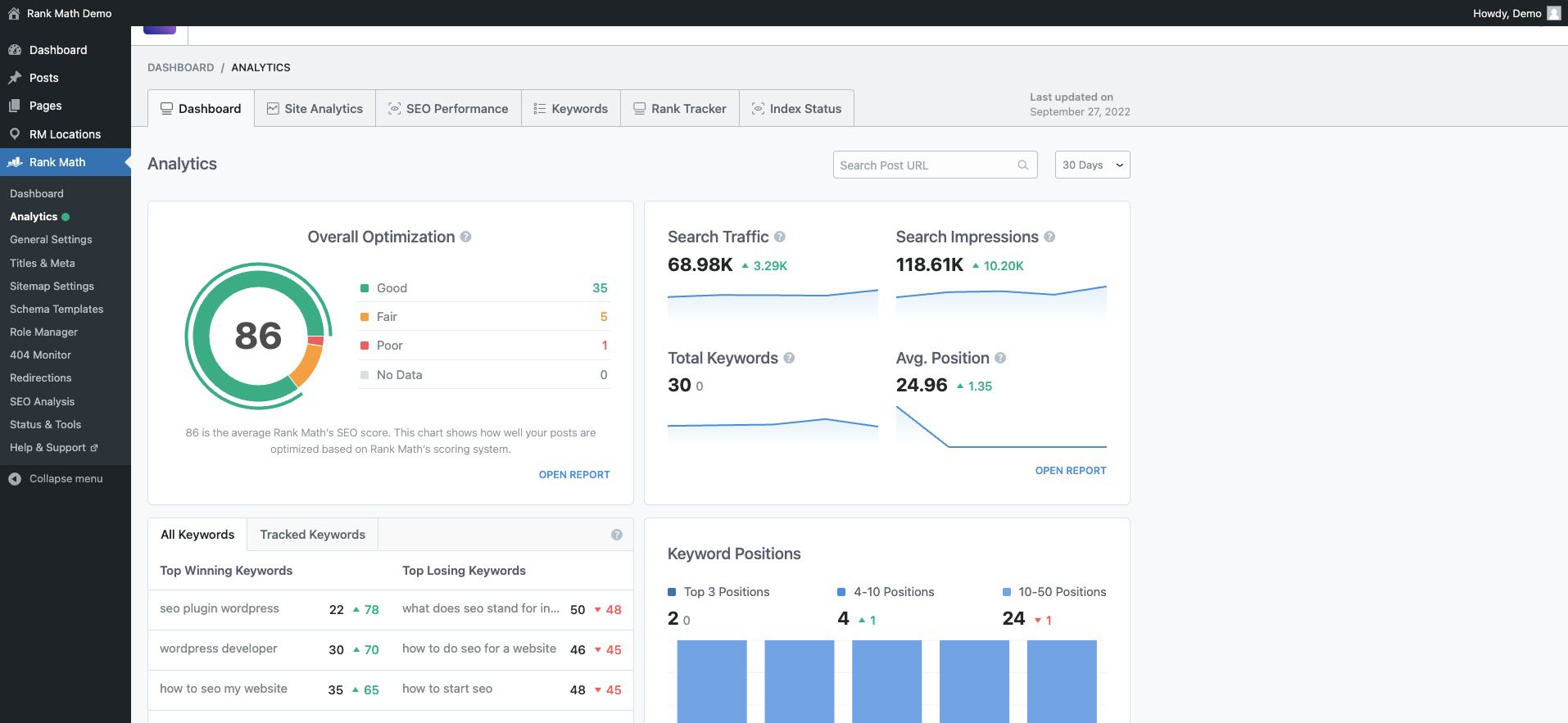
    It makes it easy to see your whole site’s SEO readiness with a great dashboard. Rank Math gives vital insights and allows effortless drill-down when you see something you want more detail on.

    Rank Math SEO Dashboard

    It also makes optimization of every page easy. It scores your page and its content and compares it against the competition. Rank Math then tells you what needs to be changed and tweaked to be in a good position to rank.

    Rank Math integration with Divi

    5. Improve Landing Page Performance

    There is no shortage of tools that can help you analyze the performance of your landing pages. Sometimes, it comes down to choosing a few tools to get a clear picture.

    You can consider some of these tools for analytics and analysis of your landing page performance:

    While you should use an analytics platform and could consider a heatmapping tool, having conversion-focused tools built into your landing page builder is an excellent addition. It means that you save some money and get the tools built in.

    Divi’s marketing tools offer valuable insights and features to enhance your landing page’s performance. You can conduct A/B tests to compare page variations against a set goal. This lets you identify which design elements or content variations you’ve created resonate better with your visitors.


    Additionally, it would be best to leverage conditional display logic to display personalized experiences based on user interactions. (See the explainer video for condition options).

    Divi Conditional Display Example

    These tools empower you to make data-based decisions and continuously improve your landing page’s effectiveness. Best of all, they are included with the Divi theme and are as intuitive to use as the rest of the visual builder.

    Additional Tips for Creating Good Landing Pages

    Optimize Your Page Load Speed

    A fast-loading landing page is crucial for enhancing user experience and improving conversion rates. To achieve this, analyze your page’s speed using tools like Google PageSpeed Insights or GTmetrix. Look for ways to optimize images, enable browser caching, and consider using a Content Delivery Network (CDN) to distribute content closer to your users for faster loading times. Take a look at all our recommended optimization plugins for WordPress. Additionally, ensure your hosting provider offers sufficient resources to handle traffic efficiently.

    Learn Copywriting or Employ AI Writers

    No one wants to be pitched or sold to. But copywriting disarms visitors’ and gets them to see what would be of interest to them. Beyond hooking visitors, copywriting also conveys your value proposition and sparks curiosity about how your product can help them with their problems.

    Copywriting is a deep well and might as well border on being an art. That makes it hard yet worthwhile to learn. Online learning platforms like Udemy have tons of courses on copywriting. If you write a lot, you should brush up on this and SEO copywriting.

    There is also a place for AI writers that specialize in marketing and sales copy. They certainly can create content faster and help you fill a knowledge gap if you have a long way to go in your copywriting.

    F-shaped Content/Page Structure:

    Organizing your content following the F-shaped reading pattern aligns with users’ natural reading behavior, ensuring that essential information, headlines, and critical points are noticed quickly. Placing important details along the top and left side of the page capitalizes on users’ tendency to skim through content, making it more likely they will absorb crucial information without feeling overwhelmed.


    F-Shaped Landing Page Design Structure Example

    Example Landing Page w/ F Pattern by SEOPress

    The F-Pattern for landing pages is backed up by a lot of heatmap data that shows our eyes start at the top left and work their way to the right and down, just like if you were reading a book. The only thing is that as we move down the page, we start to skim more, and thus, we go to the right less and less.

    Create a Sense of Urgency

    Incorporate time-sensitive elements on your landing page to create a sense of urgency and prompt immediate action. Limited-time offers, countdown timers, or flash sales can encourage visitors to act quickly and take advantage of your offer before it expires. This can be done with the conditional display referenced above. Watch how it transforms your conversion experience.

    Mobile-Optimize Your Landing Page

    Ensure your landing page is fully responsive and mobile-friendly to cater to users accessing your page from different devices. Test your page on various mobile devices and screen sizes to verify responsiveness and user-friendliness. Utilize responsive design principles to adapt the layout seamlessly for mobile users.

    Maintain Consistency with Ads and Email Marketing

    Consistency in messaging and design between your ads, email marketing, and landing pages reinforces your brand identity and builds recognition. Ensure the tone, color scheme, and key messages align seamlessly across all touchpoints. This cohesion enhances brand trust and fosters a sense of familiarity with your offerings.

    Conclusion

    Now is the time to unleash your creativity and bring your vision to life. So take the first step and start crafting your compelling landing page. Success is just a few minutes away, and the possibilities are endless with Divi as a trusted partner.

    Whether you opt for pre-made templates to get started quickly or embrace the creative freedom of the visual builder, Divi offers the tools you need to craft captivating and high-converting landing pages.

    Remember, a compelling headline, engaging visuals, a clear Call to Action (CTA), and captivating copywriting are the building blocks of an effective landing page. By incorporating these elements strategically, you’ll capture your audience’s attention and drive them toward your desired action.

    Looking for more resources? Checkout our top-notch guides for building powerful websites:

    1. How to Build an Online Store
    2. How to Build a Membership Site with Divi
    3. Creating a Learning Management (LMS) Website with Divi

    Let us know your progress while building out your landing pages.


    Feature Image by Overearth / shutterstock.com

    The post How to Create a Landing Page in 2023 (Detailed Guide) appeared first on Elegant Themes Blog.

  • How to Add Live Chat to Your WordPress Website in 2023

    Adding live chat functionality to your WordPress website is easy and quite beneficial. Live chat has evolved considerably in recent years by incorporating powerful communication and automation features similar to popular AI chatbots. Whether you’re looking to boost sales conversions or integrate AI into your customer service process, using a live chat plugin or software on your WordPress site can be crucial to success. In this guide, we’ll show you the benefits of live chat, walk through how to add live chat to your website and look at the options available with live chat and WordPress.

    Benefits of Using a WordPress Live Chat Feature on Your Website

    Many rewards come with using live chat functionality on your website. Here are a few examples of what they can allow you to do:

    Interact With Your Customers in Real-time – As the name implies, live chat takes place in real-time. Therefore, you can meet the needs of customers and visitors to your website as they come to your site. Your storefront may have set hours, and your phone line limited hours, but you can serve your customers at any time when they interact with your live chat.

    Provide High-Quality 24/7 Support to Visitors to Your Website – If someone lands on your website after hours, your live chat can still service them. You can give your customers the help they need without getting out of bed through AI and automated responses.

    Increase Conversions and Add Leads to Your Sales Funnel – Many live chat plugins allow you to add forms and collect information about customers who use the chat. To nurture later, you can retarget and add these customers’ information to your CRM, mailing list, or sales funnel.

    Powerful AI Features for Various Automated Solutions – With the advancement of AI, some live chat solutions provide much deeper functionality and can help you create automated human-like conversations for a better customer experience.

    I’m sure you get to experience other benefits of live chat first-hand once you add it to your site. On that note, let’s get to it!

    How to Add Live Chat to Your WordPress Website

    Now that we’ve seen some of the benefits of live chat let’s look at how we can bring this feature to your WordPress website.

    1. Choose a Live Chat Platform

    If you’re unsure which platform to use, check out our list of the best live chat plugins. There, you’ll find several plugins that could meet your specific needs. We’ll use the Tidio platform for this walkthrough, as it has a good mixture of features, support, and positive reviews.

    2. Create a Tidio account

    We must create an account before we add our Tidio live chat to our website. Visit Tidio and create your account by entering your email, website, and password.

    Once you have created and verified your account, you’ll see the Tidio dashboard.

    The Tidio dashboard

    Now, we’ll move to our WordPress site to install and connect our Tidio account to our website.

    3. Install Tidio Plugin

    To install the Tidio plugin, hover over the Plugins menu item. Then, click Add New. Search Tidio in the plugin search field. Click Install Now next to the Tidio card.

    Install the Tidio plugin

    Afterward, click Activate to complete the installation of the plugin.

    Activate the Tidio plugin

    Now that our plugin is installed, we can connect our website to our Tidio account.

    Tidio added to your WordPress website

    Notice we have a new menu item just for accessing our Tidio settings.

    4. Add API to WordPress website.

    From your WordPress menu, click Tidio. Then, click on the Login link under the signup form.

    Login to your Tidio account

    Enter your Tidio account credentials and click Login.

    Login to your Tidio account

    Once logged into your account, you can start your chat widget’s customization process.

    5. Create a New Chat Widget

    To begin, you’ll need to create a new project in Tidio. Click on the Create One text link and give your new project a name.

    Create new Tidio project

    After creating and naming your new project, you’ll have the opportunity to customize your chat widget.

    Customize your chat widget

    You can assign a name to your chat agent and choose a solid or gradient color scheme. Additionally, you can set your chat language and upload a custom avatar to your chat widget.

    My personalized chat widget

    6. Adjust Chat Settings

    Now, click on the blue Continue button. You’ll now be faced with a short questionnaire. This will help Tidio know how to personalize your experience as you maneuver through the platform.

    Personalize your Tidio experience

    Select the focus, add the number of agents, select your industry, and finally, the number of inquiries your site gets. Next, you’ll want to set up your welcome message. You can customize your message to say something that is on brand with your website by clicking the Customize this message text link.

    My customized welcome message with Tidio

    After setting your welcome message, click on the blue Install Widget button.

    Customize your initial message in Tidio

    You’ll be redirected to your WordPress website once you click the Install Widget button.

    Congrats on installing Tidio

    7. Test Live Chat Widget

    As with WordPress, testing the new feature you’ve added to your website is a good practice. To do this, navigate to your homepage and see if the Tidio chat widget appears on your homepage.

    Test your Tidio chat widget

    Try sending yourself a message to see what that process looks like for your guests.

    Testing your chat widget

    Now that we know our chat is installed and working on our WordPress website let’s look at some advanced settings and features we can implement with Tidio.

    Additional Settings and Personalizations

    With your new live chat installed, responding to visitors on your site is very simple. As you log in to your Tidio dashboard, you’ll see the mailbox icon in the top right. This is where you can see visitors on your site in real-time and respond to their messages. You can also see your chats on social networks should you connect them to your Tidio account.

    Accessing the Tidio mailbox

    Personalize Templates from the Tidio Chat Template Library

    Tidio comes packed with templates that you can use to increase sales, generate leads, and solve your customers’ problems via live chat. To access these templates, click on the robot icon from the left-hand menu. Here, you can customize your automated responses for a smoother WordPress live chat experience for your customers.

    Live chat flow templates

    Canned Responses and Notifications

    You can access more complex features and settings of Tidio by clicking the gear icon at the bottom of the left-hand menu. Your frequently asked questions can be answered with custom canned responses. Under the General heading, click on the Canned Responses menu link. This is where you can edit and add new preset answers to your customers frequently asked questions. Here, you can refine your live chat process by having a library of premade responses that can solve your users’ questions on the fly.

    Set custom responses for your agents in Tidio

    Notifications can also be customized when using Tidio. You can choose how you’d like to be notified when a visitor lands on your website (email or web notification), and you can also determine what actions trigger notifications and the web notification sound.

    Enable notifications for various settings across your chat widget

    Build an AI-Powered Chatbot

    AI chatbots can help make customer service a breeze, and Tidio is on the front lines of adding AI to the WordPress live chat sphere. With a Tidio+ plan, you can implement their AI chatbot Lyro, which can help you create innovative chat experiences for visitors to your website.

    Tidio's AI offering Lyro

    Establish Your Visual Branding

    Further customization options for your widget are also available within Tidio’s advanced settings. Change your widget’s screen position, appearance, and more. Additionally, you can add custom branding to your widget, like your brand’s colors and logo, to mesh your chat widget with your WordPress website’s theme.

    Advanced Tidio widget branding

    Set Your Live Chat’s Hours of Operation

    While your live chat allows for 24/7 contact with your customers, you may want to set hours of operation for your chat widget. Tidio enables you to customize your operating hours individually for each day of the week. Additionally, you can customize your away message or attach a lead form that appears when a visitor encounters your site after hours.

    Set operating hours for your live chat

    That’s it. Now, your site is equipped with live chat!

    Other Live Chat Options for Your WordPress Website

    Tidio is a solid WordPress live chat plugin. However, you may need a different set of features that it may not cover. Here are some other WordPress live chat plugins and solutions that may be a better fit for your needs:

    • HubSpot: The ultimate marketing platform, Hubspot has live chat functionality that is heavily integrated with other parts of its feature-rich CRM solution.
    • JivoChat: An all-in-one business messenger plugin that brings together live chat, phone, email, and social media chatting platforms. Additionally, you can make and receive phone calls through its live chat widget.
    • LiveChat: With integrations to eCommerce solutions like Shopify, WooCommerce, and BigCommerce, if you are running an eCommerce storefront, this is your live chat solution. 
    • Live Chat by Formilla: File sharing, real-time monitoring, and multilingual capabilities are just a few features that you can find with this live chat plugin.
    • tawk.to Live Chat: Managing multiple websites, agents, and chats is where this chat plugin shines. Use your computer or mobile devices to stay connected to your website visitors.
    • Chatra: Live chat, chatbots, email & social messaging can all be handled effectively with Chatra, a popular live chat solution that works with WordPress and as a standalone platform. 

    For more, check out the best live chat software options out there.

    Conclusion

    Live chat adds a powerful interactive feature to your WordPress website. Giving your customers a way to connect with you anytime is a great way to nurture client relationships and increase conversions. With the power of AI, the options are endless in the many ways you can customize your WordPress live chat process. Tidio is a great option to power live chat on your WordPress website. From AI to customizable automated messages, easy widget styling, and email marketing tools, Tidio is a solid choice to bring live chat to your WordPress website. Live chat functionality has come a long way. Now, you have a large selection of live chat tools that you can bring to your website. Have you added live chat to your website? What platform did you use? Let us know in the comments section below!

    The post How to Add Live Chat to Your WordPress Website in 2023 appeared first on Elegant Themes Blog.

  • How to Add a Contact Form in WordPress (2023 Tutorial)

    A contact form is an excellent way to gather information from visitors to your WordPress website. Whether you want to capture orders, survey responses, or job applications, adding a WordPress contact form is an effective way for website visitors to contact and interact with you and your brand online.

    Benefits of Using a WordPress Contact Form

    There are many platforms and online tools available that allow you to create forms. Many modern platforms provide an easy-to-use interface, reporting, and analytics, among other features. However, using a WordPress contact form, you can have all these features and more within your WordPress interface. Here are some other benefits you can gain using a WordPress contact form:

    • Lead Generation – When you use a WordPress contact form, you can take advantage of those entries to grow your audience through your website. A good form plugin will have many many built-in features, so you won’t need separate plugins for lead generation, content funnels, email opt-ins, CRM integration, and more. It’s hard to do this if visitors email you directly from your website or their email platform.
    • Better Security and Validation – With a form natively built on your WordPress website, you can ensure the deliverability of your form results and use spam protection services like Recaptcha, Akismet, and more, protecting your email address and your user’s data.
    • Manage Entries and Contacts in One Place – A WordPress contact form can allow you to have one central location for your form entries and be able to use them throughout your site. Many form plugins allow you to sort, organize and export content from forms you can store and easily create exhaustive databases. This isn’t possible when people email you directly.
    • Create Various Form Types with Advanced Functionality – Surveys, polls, application forms, and more can all be created easily with a WordPress contact form. The limit is your imagination, and with form builders that allow for features like advanced calculations, conditional fields, and more, having a contact form on your website helps make your site an interactive experience for your visitors that’ll have them staying – and returning – to your website.

    How to Add a Contact Form to Your WordPress Site (Step-by-Step)

    We’ll use the popular and feature-rich WPForms Contact Form plugin to add a contact form to our WordPress website. We begin by installing the plugin onto our website.

    Install WPForms

    First, log in to your WordPress dashboard, and hover over Plugins. Then, click Add New and in the search box, enter WPForms. Click the Install button to begin the plugin installation process.

    Install WPForms

    Finally, click the blue Activate button to complete the installation of the WPForms plugin.

    Activate WPForms

    Now that the plugin is installed and activated, you can see that a new menu item has been added to your WordPress menu.

    Create your first form

    Creating Your First Form

    WPForms gives you multiple places to add a new form once you navigate to the dashboard. We’ll start by clicking the orange Add New button at the top of the dashboard.

    Creatings a new form from the WPForms Dashboard

    The form-building process in WPForms starts by naming your form and choosing one of the many templates available. To name your form, enter a title within the Title text box. Then select your form template. We’ll build a custom form for our tutorial, so let’s select the Blank Form template.

    Name form and choose your template

    After choosing the blank form template, you are presented with WPForms’ beautiful drag-and-drop builder. From the left-hand side, you’ll find your field types.

    WPForms field types

    Even with the free version, you are given several form field types that can empower you to create stunning forms. We’ll create a simple contact form and use the name, email, dropdown, and paragraph text fields for our form.

    Add form fields

    Now that we have our form fields selected, let’s look at some of the customizations we can make with WPForms.

    Customizing Your Form and Form Fields

    Firstly, let’s click on the Name form field. Next, we’ll select the General tab from the Field Options for this form field. Now, we’ll change the format of this field and select First Middle Last. Finally, we’ll toggle the Required Form field. This means that we’ve made it mandatory to have this form field filled.

    General Name field edits

    Next, let’s click on the Advanced tab. Let’s add placeholders to our name fields by filling in the placeholder field with our chosen text.

    Advanced form field edits

    To adjust our email field first, click on the email field. Then, click on the General tab. For this field, let’s add an email confirmation option (meaning users must confirm their email by entering it twice). We do this by toggling the Email Confirmation Field.

    Edit your email field

    For our dropdown field, let’s click on the field to begin. Then, click on the General tab. Now, we add a label to the form field so that our users know the purpose of this dropdown. Finally, we’ll add our options to this field.

    Add options and edit your dropdown field

    Lastly, we’ll move on to our final form field, the paragraph field. Click on the form field, then click on the General tab. Assign the field a label. Now that we’ve made edits to the form fields within our contact form, let’s adjust the form settings to match our needs.

    Customizing Your Form Settings

    To adjust our form settings, click on the Settings icon from the left side of the form builder. Then, click on the General tab. This tab allows you to edit the form’s general settings, such as its name, description, tags, etc. We will go ahead and change the text on our submit button. Scroll down to the Submit Button Text text box. Then, enter Send Message.

    Additionally, we’re going to change the processing text for our form. Add your chosen text to the text box. In our case, we edited it to Sending Message.

    Form settings general tab

    WPForms has built-in security; however, if you have another provider you’d like to use, you would use the Spam Protection and Security tab to integrate your chosen spam and security provider with your form. We’ll use the native provisions WPForm has in place for our form now.

    Spam and protection options with WPForms

    Now, let’s add some notifications to our form. This means we’ll receive an email when a visitor comes onto our website and sends us a message through our form. To enable this, first, click on the Notifications tab. Then, let’s change the Email Subject line to New Website Form Message. Also, let’s adjust the From Name to a name we’ll recognize in our email inbox. With the pro version of WPForms, multiple notifications can be added in the future.

    Add new form notification

    Finally, let’s send our website visitors a confirmation that we’ve successfully received their form entry. To do this, click on the Confirmation menu option. Then, adjust your confirmation message in the textbox. You can also redirect users to another page on your website or show another page in addition to showing an on-screen message.

    Add confirmation message to your form

    After making all these changes to your form, click the orange Save button at the top right-hand corner of the screen. With our form created, let’s add it to our page!

    Adding Your Contact Form to a WordPress Page

    To add your form to your page, create a new page on your website or edit an existing page. Let’s create a new page for our contact form. First, hover over the Pages menu option, then click Add New.

    Add a new page to your WordPress website

    After we are directed to the default WordPress page editor, give your page a title. Then click the black plus icon to open the library of available blocks. Search WPForms and select the WPForms block.

    Create your new page

    Select your form from the dropdown of forms available.

    Select your form

    With your form selected, we can start styling it from within the Block Editor.

    Styling Your Form

    WPForms makes it very easy to style your contact form. While you can use CSS, you can also use the simple tools within the Block Editor to edit and style your form.

    Styling your form

    Within the editor, you can change the color of form fields, form field size, and much more with just a few simple clicks. This is what our form looked like before adding our styling edits:

    Form before styling

    After styling, this is what our form looks like. Notice the submit button has changed color, and edits have been made to the border of the form fields. Don’t forget we can also assign CSS classes to each aspect of our form and use CSS to customize our form further.

    After form styling

    With our form customized and our fields in place, we’ve successfully created our first WordPress form! Here are some tips and tricks you should remember while building your contact form.

    How to Get the Most Out of Your Contact Form

    Contact forms allow you to add a dynamic connection with visitors to your site. However, there are some tips you should remember as you plan on building your site.

    Think Outside the Box

    Though we made a simple form in this tutorial, WPForms and other contact form plugins have hundreds of templates you can use to create a wide array of forms. Forms aren’t just used to collect contact information but can be vital to successful your business. You can create surveys, take polls, and generate quotes for clients with many WordPress form builders. Using a contact form to collect product personalization requests is even possible. Also, don’t be afraid to get creative in the way that you use forms on your website.

    Keep Your Form Secure

    Spammers will use any means to achieve their tasks; one method is online contact forms. However, a security feature like Akismet or Recaptcha can help keep your form content and email address secure. Don’t forget to keep your form security tight as you add forms to your website.

    The Power of Integrations

    Integrations are where using a native WordPress contact form shine. You can create custom email subscription forms that automatically populate your email marketing solution (like Mailchimp). Your form can be connected to your CRM, allowing you to nurture leads effectively. WordPress contact forms instill trust in your customers as they look and feel like your website. Your form becomes a powerhouse that populates different aspects of your business while keeping your processes seamless and streamlined.

    Customize Your Form Notifications and Emails

    Remember to customize your notifications and emails if you’re sending notifications to yourself or your visitors. Adding your brand colors, changing boilerplate text, and more makes your website visitor feel trusting of your brand. Additionally, if you’re redirecting people to different pages after form submission, ensure these pages give your customers all the information they need to embark on their next steps with your website.

    Think About User Experience

    Building a conversion-optimized form ensures that your visitors successfully fill out and submit your form. Creating straightforward and easy-to-understand forms helps guide visitors to a successful form submission. Consider adding tooltips, descriptions, directions, and placeholders that inform your customers about your form’s different fields and sections, providing them with a seamless and frictionless process to completing your form.

    Consider Accessibility

    While not often discussed, accessibility is approaching the forefront of web design. Consider how other users may interact with your forms through alternative means. Ensuring that labels, ARIA, tab sequences, and more are in place helps those who may use the internet differently also to use your website and ultimately experience the interactive element of your website in a way that works best for their needs.

    More Contact Form Plugins and Platforms

    Here are some alternative contact form plugins and platforms to test out.

    • Formidable Forms: A popular form builder that has a clean drag-and-drop interface, more than 15 premium add-ons, creates advanced calculators, and more
    • Gravity Forms: Another WordPress form plugin that has a library of more than 30 form field types, payment processor integrations, and complex form templates such as quizzes, surveys, and more
    • Ninja Forms: Integrated with platforms like AWeber and CampaignMonitor, this form plugin boasts over 40 premium add-ons, making it a great form builder for those who value integration.
    • Contact Form 7: A powerful, free WordPress form plugin with a plethora of integrations from Mailchimp to Stripe
    • Divi: The most powerful WordPress theme has a great Contact Form module that makes creating branded, mobile-responsive forms on your website a smooth process
    • Google Forms: Another free form builder, Google Forms comes with every Google account and is a powerful builder with excellent analytics, allows for multi-page forms, and more.
    • Typeform: This form builder has become popular over the years due to its beautiful UI design, form animations, and integrations. It offers a unique way for users to engage with the form in a conversational way.
    • Jotform: One of the first online form builders, Jotform has had many changes and remains one of the most popular free online form builder platforms.

    Conclusion

    A contact form is a powerful tool that every website should have. Not only is it a way for your clients to contact you, but it’s a way to add an interactive element to your website. With a plugin like WPForms, which comes with a drag-and-drop builder, crafting highly-functional and beautiful forms is simple. Integrations, notifications, and security are features that make building a native WordPress contact form a mainstay in the website-building process. To further your research, check out our list of the best contact form plugins you can add to your following website. How do you add contact forms to your website? Is there a plugin that you like that you’d want us to learn more about? Let us know in the comments section down below!

    Featured Image via Viktoria Kurpas / shutterstock.com

    The post How to Add a Contact Form in WordPress (2023 Tutorial) appeared first on Elegant Themes Blog.

  • Download a FREE Category Page Template for Divi’s Interior Designer Layout Pack

    Hey Divi Nation! Thanks for joining us for the next installment of our weekly Divi Design Initiative where each week, we give away brand new freebies. This time around we’re building upon the Interior Designer Layout Pack with a brand new Category Page Template that matches the rest of the pack perfectly. Hope you enjoy it!

    divi layout

    Check Out The Interior Designer
    Category Page Template Below

    Get it for free today!

    Desktop View

    Divi Interior Designer Layout Packs' category page layout for desktop

    Tablet and Mobile View

    Divi Interior Designer Layout Packs' category page layout for tablet and mobile

    Download The Category Page Template For The Interior Designer Layout Pack

    To lay your hands on the free Interior Designer Category Page Template, you will first need to download it using the button below. To gain access to the download you will need to subscribe to our newsletter by using the form below. As a new subscriber, you will receive even more Divi goodness and a free Divi Layout pack every Monday! If you’re already on the list, simply enter your email address below and click download. You will not be “resubscribed” or receive extra emails.

    How to Upload The Template

    Go to Divi Theme Builder

    To upload the template, navigate to the Divi Theme Builder in the backend of your WordPress website.

    Open Divi Theme Builder

    Upload Website Template

    Then, in the top right corner, you’ll see an icon with two arrows. Click on the icon.

    Import the template into the Divi Theme Builder

    Navigate to the import tab, upload the JSON file that you could download in this post, and click on ‘Import Divi Theme Builder Templates.

    Finish importing the template into the Divi Theme Builder

    Save Divi Theme Builder Changes

    Once you’ve uploaded the file, you’ll notice a new template with a new body area that has been assigned to All Category Pages. Save the Divi Theme Builder changes as soon as you want the template to be activated.

    Save the imported category pages layout file

    How to Modify The Template

    Open Category Page Template Body Layout

    To modify the template’s elements, start by opening the template’s body layout.

    Edit the category pages template

    Inside the Body Layout Editor, you can edit the design on the front end using the Divi Builder just like you would with a regular Divi page.

    About the Template

    This category page template has a few dynamic elements that will work automatically including:

    • Category Page Post/Archive Title: This will show the name of the category page that you are visiting.
    • Post Slider Module: Displays the first three posts of the current category page.
    • Blog Module: Showcases the 6 next blog posts in the current category. This module has pagination so that you can move through other posts within the category.

    Here is a quick illustration that identifies the dynamic elements of the Interior Designer Category Page Template.

    Divi Interior Designer category page template overview

    Updating the Template’s Dynamic Elements

    Blog Module(s)

    Posts for Current Page

    Since this is a template that has been assigned to all category pages for the site, there are going to be one or more blog modules that are set to display posts for the current page. This is how the template displays the posts dynamically for each category page.

    Post slider posts for current page/category

    You can update the rest of the settings (like post count) to adjust the module elements and design. However, make sure to keep the option Posts for Current Page set to YES.

    Post Offsets

    For this layout, we use two types of blog module: the Post Slider Module and the default Blog Module. The post offset option is used in conjunction with the Post Slider Module to preserve the order of dynamic posts by picking up where the previous blog module left off. For this layout, we use an offset of 3 in the Blog Module because the Post Slider Module shows the first 3 blog posts in the current category.

    Understanding Post Offsets and Blog Modules in Divi

    Let’s keep this in mind when making updates to blog modules’ post count and offsets.

    New Freebies Every Week!

    We hope you’ve enjoyed the Interior Designer Layout Pack and the Category Page Template freebie that goes along with it. We look forward to hearing your opinions in the comment section below. Make sure you check back next week for more freebies!

    The post Download a FREE Category Page Template for Divi’s Interior Designer Layout Pack appeared first on Elegant Themes Blog.

  • Get a Free Home Rental Layout Pack for Divi

    Hey Divi Nation! Thanks for joining us for the next installment of our weekly Divi Design Initiative; where each week, we give away a brand new Layout Pack for Divi.

    This time around, the design team has created a beautiful Home Rental Layout Pack that’ll help you get your next Home Rental website up and running in no time!

    This layout pack includes:

    7 Premade page layouts strategically designed for any Home Rentalwebsite (including a footer design)
    – Original, royalty-free photos and graphics + customizable source file (see below)
    – Plus, a large collection of pre-designed website elements that are customizable and reusable anywhere.

    This layout pack is available right inside Divi for all Divi customers for FREE as the latest addition to our growing Divi library of hundreds of premade layout packs, thousands of page designs, and countless web design elements and resources.

    divi layout

    Check Out The Divi Home Rental
    Layout Pack Below

    Get it for free today!

    Home Rental layout pack

    Landing Page Design

    Home Rental layout pack

    View The Live Layout Demo

    Home Page Design

    Home Rental Layout Pack for Divi

    View The Live Layout Demo

    Features Page Design

    Home Rental Layout Pack for Divi

    View The Live Layout Demo

    Pricing Page Design

    Home Rental Layout Pack for Divi

    View The Live Layout Demo

    About Page Design

    Home Rental Layout Pack for Divi

    View The Live Layout Demo

    Blog Page Design

    Home Rental Layout Pack for Divi

    View The Live Layout Demo

    Contact Page Design

    Home Rental Layout Pack for Divi

    View The Live Layout Demo

    Key Features

    If you’re searching for the perfect layout for your home rental, we have just the design for you. The Home Rental Layout Pack for Divi provides an elegant design to feature your income property. Elements include a services section to feature your home’s amenities, an image gallery, and an impactful call to action to attract new tenants. Whether you have a home, apartment complex, or other rental, the Home Rental Layout Pack provides everything you need to showcase your rental in style.

    Live Demos

    Click the links below to see a live demo for each of the layouts included in the pack.

    1. Home Rental Landing Page (live demo)
    2. Home Rental Home Page (live demo)
    3. Home Rental Features Page (live demo)
    4. Home Rental Pricing Page (live demo)
    5. Home Rental About Page (live demo)
    6. Home Rental Blog Page (live demo)
    7. Home Rental Contact Page (live demo)

    Access This Layout Right Now

    Directly from Your Divi Builder

    Since Version 3.0.99 of Divi, you can find and import any of the layouts included in this pack (along with ALL of Divi’s Premade Layout packs) directly from the Divi Builder. They are already waiting for you.

    To access your new layout, simply activate the Visual Builder when editing a page and look for the “Load From Library” icon in the page settings bar (it looks like a plus symbol). Click this icon to launch the Load From Library popup. Under the Premade Layouts tab, you can easily find the new layout by scrolling through the list of layout packs. Once you find the Home Rental Layout Pack, click on it. You will see all the individual layouts included in the pack. Select the layout you want to use and then click the “Use This Layout” button.

    Home Rental Layout Pack for Divi

    For more, check out this video to learn how you can get this layout pack up and running today.

    Subscribe To Our Youtube Channel

    Authentication Required

    Before you can download Premade Layouts from the Divi Library you must authenticate your Elegant Themes Subscription. You can do this by navigating to Divi > Theme Options > Updates. There you can enter your username and API key and save changes.

    Home Rental Layout Pack for Divi

    You can find your API Key under your members area on the Elegant Themes site. After you enter the Username and API Key, you will gain immediate access to our library of hundreds of free layouts (including this one). If you haven’t done this, when you click to import a layout to your page, you will be prompted to enter your Elegant Themes Membership Username and API Key.

    Use Layout Images for FREE with No Licensing Restrictions

    Home Rental Layout Pack for Divi

    The image assets included with these layouts (icons, illustrations, photos, etc.) have no licensing restrictions. This means you can use them in all of your commercial projects without having to worry about paying licensing fees or attributing the photographer. Use them in your commercial websites, sell them within your Divi child themes, include them in your own Divi layout packs or just use them on your blog. We know how challenging it can be to find good photos and how confusing and scary the licensing that governs those photos can be. We want to fix that problem for our users.

    Download the Full Res Image Assets

    New Layout Pack Every Week!

    We hope you enjoy this layout pack. We look forward to hearing your opinions in the comment section below. Make sure you check out next week’s layout pack as well!

    The post Get a Free Home Rental Layout Pack for Divi appeared first on Elegant Themes Blog.

  • Divi Product Highlight: Hide & Show Pro

    Hide & Show Pro is a third-party plugin for Divi that lets you show or hide content based on criteria that you set. Control who sees every section, row, column, and module based on location, status, purchases, and more. In this post, we’ll look at Hide & Show Pro to see what it can do and how easy it is to hide or show your Divi content based on the conditions you choose.

    How Hide & Show Works

    Hide & Show Pro adds options to the Divi Builder’s Sections, Rows, and Modules to either hide or show the element and choose a preset that determines the actions that will take place. The actions are based on the conditions within the preset that’s selected for that element. The preset can be used to hide and show the elements. This means you can swap the content based on the conditions you choose, such as the user role, date, language, etc.

    Presets are created separately in the Preset settings editor, and can be used in any Divi element. The preset can be selected within any Divi element, so they can be reused as many times as you want and anywhere you want. To create one, simply go to the preset editor and make your selections.

    How Hide & Show Works

    Once you’ve created the preset, you can use it in any Divi element. Go to the Advanced tab, choose Hide & Show, and select Hide or Show. Then, select the preset you want to use. The element will then show or hide based on your selection and act according to the selections in the preset.

    How Hide & Show Works

    This allows you to create a preset and apply it anywhere you want, and when you make changes to the preset, those changes automatically apply everywhere that preset is used. So, you can make a change in the preset editor, and that change is reflected across your website.

    Now that we’ve seen the basics of what Hide and Show Pro does, let’s take a closer look at the presets.

    Hide & Show Pro Presets

    Presets determine the action of the Divi element. It determines who the action is for (who the element is shown to or hidden from), when the action takes place, where the action takes place, etc., all based on conditions that you choose. You can mix and match them to create some interesting and powerful combinations.

    The presets give you a lot of control over who sees which content. You could create content that only logged-in visitors see, or only logged-out visitors see. This is great for creating banners for sales based on the date. You could also create content that shows based on the visitor’s location, site language, what they’ve purchased from your store, their user role, and lots more. To use Hide & Show within your Divi layouts, you’ll need to build presets.

    New Preset

    You can create your presets in the Options screen. To add a new preset, go to Dashboard > Hide & Show > New Preset. Give the preset a title and then make your choices in the panel on the right and adjust them in the main editor.

    We’ll take a closer look at this panel and its settings in the next section. By default, the new preset includes the user status option with logged-in and logged-out preselected. You can disable one by clicking on its checkmark. You can also disable both by clicking on the toggle in the right sidebar. This is a common status, so it makes sense to include it by default.

    New Preset

    All Presets

    The All Presets screen shows a list of every preset you have available. You can edit them, delete them, and enable or disable them from this screen. It has three presets to get you started.

    All Presets

    Hide & Show Pro Preset Options

    The options panel includes 6 sections with options for each section. The sections include User, Schedule, Post, WooCommerce, Geolocation, and Other.

    All include logic conditions, and you can define the logic, add multiple conditions, and enable any options you want for each one. Geolocation is the newest option. We’ll look at that one first and in greater detail.

    You can choose options from one section, each section, or mix and match as many as you want. You can make your presets as simple or complex as you want. Use one, a few, or all of them. The possibilities are astounding.

    Hide & Show Geolocation

    Hide & Show Pro 3.0 added Geolocation. This requires a free or paid service, and you have several to choose from. It adds a geolocation option to the presets with four selections. Select Continent, Country, Region, and City. Enable one, all, or any combination you want. When you enable multiple options, they’re added as an AND statement, but you can click on the statement to change it to an OR statement.

    This gives you a lot of control over the rules and allows you to include or exclude visitors from certain parts of the world. This is especially helpful if you ship to certain continents, have classes for local students, have multiple locations and want to present different content for each location, and lots more.

    Hide & Show Geolocation

    Hide & Show Geolocation by Continent

    Selecting Continent adds the option to select the continent is or is not equal to, a dropdown box for the continent to choose, and a label that shows the continent’s code. Add more continents by clicking the plus icon under the fields. Remove one by clicking the x icon to the right of the field you want to remove.

    I’ve added two continents in the example below. The dropdown box shows the 7 continents you can choose from.

    Hide & Show Geolocation by Continent

    Hide & Show Geolocation by Country

    Selecting Country adds the option to select the country is or is not equal to, a dropdown box for the country to choose, and a label that shows the continent’s code. Add more countries by clicking the plus icon under the fields. Remove one by clicking the x icon to the right of the field you want to remove.

    In the example below, I’ve selected Is in European Union in the section called Other, and selected Bahamas under Countries.

    Hide & Show Geolocation by Country

    Hide & Show Geolocation by Region

    Selecting Region lets you create rules. It adds the option to select that ANY rule can be true, or ALL rules must be true. It adds a dropdown box for the rule to choose from. Select that the region is equal to, is not equal to, does contain, or does not contain. The second field lets you enter the value that your selection will compare. Add more regions by clicking the plus icon under the fields. Remove one by clicking the x icon to the right of the field you want to remove.

    Hide & Show Geolocation by Region

    Hide & Show Geolocation by City

    Selecting City also includes rules. Select that ANY rule can be true, or ALL rules must be true. Choose the rule in the dropdown box. Select that the city is equal to, is not equal to, does contain, or does not contain. The second field lets you enter the value that your selection will compare. Add more cities by clicking the plus icon under the fields. Remove one by clicking the x icon to the right of the field you want to remove.

    Hide & Show Geolocation by City

    Hide & Show Geolocation Example

    This example shows all four options. I’ve selected:

    Continent is Equal To:

    • North America
    • South America
    • Asia
    • Europe

    OR Country is equal to:

    • Australia
    • Bahamas

    AND the Region does not contain:

    • Alaska

    OR the city is equal to Los Angeles.

    Hide & Show Geolocation Example

    Hide & Show User

    Set the logic for the user ID based on what the user ID is or is not equal to. Hide or show the content based on user roles. You can also hide or show the content based on the user group. This one requires a free plugin. You can also hide or show the content based on the user metadata. All these can be used together with AND/OR logic. This is excellent for showing specific content to specific users.

    Hide & Show User

    Hide & Show Schedule

    Set a daily, weekly, monthly, yearly, or custom schedule. They can work together with AND/OR logic. Select or deselect any time, day, month, etc., just by clicking. The custom schedule includes the option to choose a single day or a range of days. This is a great way to automatically show posts based on a schedule.

    Hide & Show Schedule

    Hide & Show Post

    For posts, you can select post ID, type, taxonomy, meta, or author meta. This lets you manually control individual access to posts. Add as many as you want. Specify if the is or is not equal to a certain ID. Choose if the page is or is not equal to a specific page or pages. The rest of the settings let you specify if any rule is true and lets you choose the rules. This is excellent if you want to show specific posts to certain visitors.

    Hide & Show Post

    Hide & Show WooCommerce

    WooCommerce gives you the most settings to choose from. They include the purchased item, count, and value, the cart item, count, and value, the stock status and level, the membership plan and status, and the subscription plan and status. The membership and subscription options require premium plugins from WooCommerce. The settings let you choose if any rule is true and allow you to choose the products or status.

    This is a great way to show the stock status, create a sale based on inventory, create a sale based on purchases, show a monthly or annual sale, and lots more.

    Hide & Show WooCommerce

    Hide & Show Pro Other

    Other settings include the site language, query string, and custom filter. For the site language, choose if the language is or is not equal to the selections you make. For the query string, you build the query by adding the key, choosing the logic from a large list of options, and specifying the value. The custom filter lets you build a filter using code that you’ll add to your theme’s PHP file.

    Hide & Show Pro Other

    Hide & Show Pro Options

    The Hide & Show options let you choose from 7 different geolocation providers. The free service from ipwhois.io is selected by default. Use the free service or enter the key for the premium service. You can customize the geolocation response using the code provided. You can also choose HTTPS encryption, set the number of days to keep the cache and clear the cache. Other settings let you add additional modules, exclude modules, and delete data.

    Hide & Show Pro Options

    Hide & Show Pro Divi Module Settings

    A new option is added to the Advanced tab of Divi Sections, Rows, Columns, and Modules. The option allows you to disable, hide, or show Hide & Show mode. If you choose Hide or Show, you’ll see a dropdown box where you can choose the preset you want to use. Hide & Show mode is off by default. Enabling Hide & Show mode gives you a lot of design control over all the Divi Builder elements.

    In the example below, I’ve selected a blurb from the free Coaching Layout Pack for Divi. This section of the layout shows services. The website owner might choose to offer most of these services online but decided to only have workshops onsite. In this case, they could restrict the blurb about workshops to only show to visitors in a certain geolocation.

    I’ve opened the Blurb Module, selected the Advanced tab, and opened the Hide & Show settings. I selected Show and chose my Geolocation Preset for that module. Now, this module will only display to visitors that match the geolocation I chose in my preset.

    Hide & Show Pro Options

    Hide & Show Pro Example

    As an example, I want to build a section that will show custom pricing for existing customers. I want the pricing to show for the first week of every month, to only show to those that have purchased a specific product, and they must live in the United States.

    The example below builds that query with AND statements. The preset settings include:

    1. The User Status will only show to visitors that are logged in.
    2. Check the User Role to show only to the administrator, customer, and subscribers user roles.
    3. Use Monthly Schedule to display for the first 7 days of every month.
    4. Check Purchase Item Only show to customers that have purchased a certain product.
    5. Use Country to show only to customers that live in the United States.

    All of these criteria must be met before the visitor sees the section with special pricing.

    Hide & Show Pro Example

    Next, I created a new section for the Pricing Page of the free Coaching Layout Pack for Divi. This section will show the special pricing for a custom service that only those that meet the criteria will see. I’ve opened the section’s settings and selected my preset in the Show & Hide settings in the Advanced tab.

    Hide & Show Pro Example

    Now, every visitor that meets the criteria sees this new section above the original section.

    Hide & Show Pro Example

    All other visitors do not see the first section. Instead, they’ll only see the regular pricing section.

    Hide & Show Pro Example

    Where to Purchase

    Hide & Show Pro is available in the Divi Marketplace for $39. It includes unlimited website usage, one year of support and updates, and a 30-day money-back guarantee.

    Where to Purchase

    Ending Thoughts

    That’s our look at Hide & Show Pro for Divi. I found the plugin easy to use. I like that the settings are separate from the Divi Builder. This lets you build a preset and use it anywhere you want. Hide & Show Pro is an excellent choice if you’re interested in gaining control over who can see specific content.

    We want to hear from you. Have you used Hide & Show Pro for Divi? Let us know about your experience in the comments.

    The post Divi Product Highlight: Hide & Show Pro appeared first on Elegant Themes Blog.

  • How to Create a Membership Website in WordPress (2023 Guide)

    WordPress is one of the best platforms you can use to build a membership website. With all the themes and plugins available, you have full control over building various types of membership sites. In this guide, we’ll walk through the benefits of a membership site, some prerequisites to consider before building one, and a simple step-by-step process to building your own.

    What is a Membership Site?

    A membership site is a website that provides exclusive, private content to subscribers. This content could be in the form of videos, blog posts, courses, or other perks. When building your WordPress membership site, there are several features that you should include to provide your community with a positive experience. Firstly, your WordPress membership website should have a page that lists and describes the various membership levels and perks that come with each level.

    Elegant Themes Pricing Page

    This will help your community assess the membership type they would like to join. A signup form allows your members to join your website and can be customized to match your membership offerings or collect certain information that you will need from your member.

    A login form ensures that only your members can access your gated content, making it a staple in every membership website. After logging in, your site can give members a place to manage their membership. They can upgrade their plan, manage their information, and perform other maintenance tasks there.

    Elegant Themes Members Area

    The main attractiveness of building a WordPress membership site is providing private content to your members. You can use a membership site to sell courses, downloadable music, software, and more. This exclusive content is only available to those who have created their account and logged in to your website. Now that we know what some of the features of a WordPress membership site are, let’s look at some of the reasons why you may want to invest the time in building one.

    Benefits of a WordPress Membership Site

    Building a membership site is quite a process, but it has several rewards you may want to consider as you embark on this journey. Some key benefits include:

    • Building Community: Establish stronger connections among those that matter most to your business or brand with a membership site. A private site means that those who
    • Establishing a Reliable Stream of Income: You can charge for access to your quality content, making a membership site a viable income stream. Building a modest passive income from your membership site is possible if you have a large community and solid content.
    • Establishing Your Authority in Your Niche: Educate your community through courses, training, and videos on a paid subscription. Demonstrating your leadership and teaching ability is a great way to build your personal brand and can be done effectively with a WordPress membership website.
    • Grow Your Online Audience: When your members sign up for your membership site, you grow your audience online as a highly targeted community. A membership site increases your online audience, which you can later nurture through email, community, and shared knowledge.
    • Increase Traffic to Your Website: Creating a WordPress membership site with fresh content increases website traffic. This increased traffic can be retargeted to upsell other products or increase engagement to ads on your website.

    Now that you know why you should consider building a WordPress membership site, here are a few things to have on hand as you start your quest.

    Prerequisites for Creating a WordPress Membership Site

    Before building your WordPress membership site, these are the tools and actions you should take to ensure that you have a successful website build:

    1. Domain Name: Securing a unique domain name for your membership site is vital to good branding. Domain names are inexpensive when using a good WordPress hosting company like Namecheap.
    2. Web Hosting: Every site needs a host. And membership websites can require more storage and performance. As such, choosing the best WordPress hosting for you is essential. Our list of the best hosting providers would be an excellent place to start your search.
    3. WordPress Installation: To build a WordPress membership site, you must have WordPress installed. Here’s a great guide to show you some tips and tricks for getting started with WordPress.
    4. Theme or Page Builder: Once WordPress is installed, choose a theme or page builder to make your site look beautiful. Look for a WordPress theme that integrates well with your chosen membership plugin. Our Divi theme is one of the best page builders that integrates with popular membership plugins. But there are many other great choices as well. Our list of the best WordPress themes should help you find the right one for your WordPress membership site.
    5. Membership Plugin: Your membership plugin choice depends on the various features you want for your site. You also should consider the type of content you’re providing to your users and ensure that your membership plugin can support them. Our list of some of the best membership plugins for WordPress is an excellent place to start looking. We recommend Memberpress, Paid Memberships Pro, LearnDash, and LifterLMS.
    6. Sitemap, User Journey Map, and Content: It’s always a good idea to plan your websites before building them. Creating a sitemap, planning your content pieces, and drafting a user journey map can help make creating your WordPress membership site easier once you get all your technical pieces in place.

    How to Build a WordPress Membership Site

    With all the necessary prerequisites for your membership site in place, let’s take the plunge and see step-by-step what we need to do to make this a reality. Since we are going to be concentrating on membership for this guide, you may need to check out our complete guide on how to make a WordPress website beforehand. This tutorial will show the critical steps to building a membership site using the top-rated membership plugin, MemberPress. However, these steps will also apply when using other membership plugins.

    1. Install Your WordPress Membership Plugin

    From your WordPress dashboard, hover over the Plugins menu option. Then, click Add New. Since MemberPress is a premium plugin, you must download it from your member portal before uploading it to your WordPress website. Once you’ve downloaded your ZIP file, click the Upload Plugin button. Then, upload the MemberPress ZIP file. Click the Install Now button.

    Upload MemberPress

    Once the plugin is installed, click the blue Activate Plugin button to complete the installation of MemberPress.

    Activate your membership plugin

    With your plugin installed and activated, we can move to the next step, setting up our packages.

    2. Create Memberships Levels

    Your memberships are the backbone of revenue generation for your membership site. To add a new membership in MemberPress, click on the Memberships text link to create your first membership level. Here, you can give your membership a name and description and set up your term.

    Add a new membership

    Your membership term establishes how much you’ll charge your customers, the frequency they’ll be charged, and how long their access lasts. Give your membership a name, add a description, and set your new membership level’s pricing and billing terms. Additionally, you’ll need to set up the types of members that can subscribe to this level. Scroll down to the Membership Options tab. Click on the Permissions tab. This is where you can assign certain member groups within your WordPress site to this membership level. With this setup, click the blue Publish button to activate this membership level.

    3. Setup Payment Method

    Your payment method will be used to process and bill your clients. Popular payment processors for digital products include Stripe and PayPal. To access and add payment gateways to your MemberPress install, click on Settings. Then, click on Payments.

    Add your payment gateway to your WordPress membership site

    As part of the planning process for your membership site, it’s good to have your payment processing account set up and connected to your bank account. You can add multiple payment methods to your membership site. This helps give your community options when paying you for access to your exclusive content.

    Setup Access Rules to Drip and Protect Your Content

    An essential part of a membership site is setting up your access rules. These rules allow you to determine who can access your content, what conditions they need to meet, and how your content is dripped or dripped to your members. In MemberPress, click on the Rules text link from the MemberPress menu to start creating your content rules.

    Set access rules

    MemberPress has over ten rules that you can use to determine what type of content you’d like to protect. These include but are not limited to all content, post categories, courses, custom URIs, custom post types, and more. Additionally, it has four types of access conditions that you can use to determine who has access to the protected content within each rule.

    Once you’ve created the access rules for your content, you’ll need to decide whether to drip your content or have your content have an expiration date. You can set these factors up in the Drip/Expiration box. The Rules pages are where you create the best access conditions that you’ll need for your WordPress membership site. Once you’ve created your membership rules, publish them by clicking Save Rule to make them active.

    Create Members-Only Content

    With your membership levels created and rules in place, it’s now time to create your gated content! With MemberPress, any content on your website can become members-only. Blog posts or courses, custom post types, and everything in between can be protected by the rules set up in MemberPress. As long as your content matches the rules that you’ve set, it’ll be hidden from the public and only available to those who have an active membership to your website.

    Create Your Membership-Specific Pages

    In addition to your members-only content and essential website pages (homepage, about, contact, etc.), a membership site will require pages specific to the membership process. Your membership plugin may generate some pages, while others must be manually created. Example membership-specific pages include:

    • Login Page
    • Registration Page
    • Pricing Page
    • Thank you page
    • Account Page

    Login Page

    Members use the login page to access their profile and exclusive content on your website.

    The default MemberPress login page

    By default, MemberPress uses the ReadyLaunch login page template. However, you can create a custom page on your website to act as your login page by using blocks or a page builder plugin.

    Registration Page

    The registration page is the first entry point into your membership site. While plugins like MemberPress give you direct links to the registration pages of your different membership levels, you may need other tools to spruce up your pages.

    Pricing Page

    Click on Groups from the MemberPress menu to create your first group of membership levels. This will also create a default pricing page where all the pricing plans within said group are listed for your customers to subscribe to your membership.

    Registration page URL for memberships with MemberPress

    Thank You Page

    After a member has subscribed to your website, they are typically presented with a thank you page. This page may show their transaction details, information about their membership level, and the next steps in the membership process. MemberPress allows you to present your thank you page in two ways: through a global thank you page or custom pages according to each membership level.

    Account Page

    Finally, the account page is where your members can update and change their membership.

    The MemberPress account page

    Members can see their active subscriptions on their account page, edit their profile, change their password, and more. Providing your members with a way to make amendments to their account allows them to control their membership while saving you from manually updating their files.

    Tip: Use a Page Builder!

    Using a page builder is a straightforward way to build stunning and high-converting registration, login, and profile pages for your memberships.

    Page builders and creating registration forms

    Here’s an example of the page builder Divi working with MemberPress to create a custom registration form for a monthly membership. Page builders allow you to bring your branding and unique style to your membership site, increasing brand awareness and instilling confidence in potential community members. Many popular page builders have modules and elements like login boxes, registration forms, and more that you can brand beautifully to match your website while creating a visually appealing WordPress membership site for your community.

    Add Links to Your Menu

    With your plans created, it’s time to add your registration page and a login button to your menu. Using a plugin like Login or Logout Menu Item brings this automated functionality to your WordPress membership site. Also, it makes it easy for your members to access their content without using the default WordPress login screen.

    Login links as well as adding your registration link to your website make the process to join your membership easier for subscribers

    Using a plugin that allows the link in your menu to change whether a member is logged in or out adds an excellent user experience. Additionally, Adding the link to your custom registration page is a great way to increase the number of people who sign up to your WordPress membership site, as it is easy for them to sign up and join your community.

    Test Membership Process

    After all your hard work, testing your WordPress membership site is advisable. Testing your process allows you to see where there might be bottlenecks in your workflow and allows you to fix them before showing your site to the world.

    Testing your membership site

    Setting your payment gateway into test mode is a great way to see how your new WordPress membership site functions. To do this, click on the Settings menu item. Then, click on Payments. Switch your payment gateway to testing. This alone can help you test your email notifications, refine your payment process and check if your rules work correctly. For testing MemberPress, you’ll also need to be logged in as a member, not an administrator. So testing in a private browsing page or as a test account is recommended to get the full experience that one of your subscribers will go through.

    Styling Your WordPress Membership Website

    Last but certainly not least, you should style your new WordPress membership site. MemberPress has a built-in styler called ReadyLaunch, where you can set your logo and brand colors. To access ReadyLauncher, click on the Settings menu link. Then, click on ReadyLaunch.

    Style your WordPress membership website with MemberPress and ReadyLaunch

    Although the built-in design functions of a WordPress membership site plugin are helpful, depending on the theme or page builder you’re using, you can use your imagination and design a highly visual membership site for your customers.

    Divi Online Course Layout Pack

    Page builders like Divi, Elementor, Beaver Builder, and more have deep integrations with some of the top membership plugins. Combining the power of a page builder with your membership plugin can help you beautifully style your WordPress membership site.

    For more, check out how to build a membership site with Divi.

    Other WordPress Membership Plugins to Consider

    While MemberPress is a solid choice when building a WordPress membership site, there are plenty of other choices that you can consider when building your website. Always keep the needs of your subscribers as well as the type of content that you’ll be providing in mind when choosing this critical piece of your new website:

    • Paid Memberships Pro: This WordPress plugin comes with its theme, explicitly crafted for membership sites. Enjoy the ability to restrict content based on post type, robust member subscriptions, user registration, custom profile fields, and more.
    • Wishlist Member: Easy payment setup, exhaustive member management, analytics, and more make up some of the features of this popular WordPress membership plugin.
    • Member Mouse: Touted as an enterprise-level membership plugin for WordPress, quickly sell digital products, protect your content, manage your members, and maximize your revenue with one well-supported plugin.
    • Restrict Content Pro: A lightweight solution to drip and restrict your content to your members efficiently. Quickly set up a paywall, provide discounts and coupons, and set up effective membership and access levels to your website.
    • Ultimate Member: This plugin has countless extensions that add almost any feature to your membership site. User reviews, tags, real-time notifications, and more are all extensions you can add to your membership site to enhance your users’ experience with your site.

    Conclusion

    Building a WordPress membership site can be daunting. However, we hope we’ve broken it into manageable pieces with this guide. At its core, a WordPress membership site will bring your community together and can provide you with a way to make money online. Your website’s foundation (domain and hosting) is critical as you build your site. Additionally, your choice of membership plugin can make or break your WordPress membership site. MemberPress is an established WordPress membership plugin with excellent reviews, an expansive feature set, and solid technical support. Building your WordPress membership website with it is a good choice. You can also lean on many alternatives if you require a different approach for your site. With the right tools and a solid plan, building a great WordPress membership website you and your community will enjoy interacting with is possible.

    The post How to Create a Membership Website in WordPress (2023 Guide) appeared first on Elegant Themes Blog.
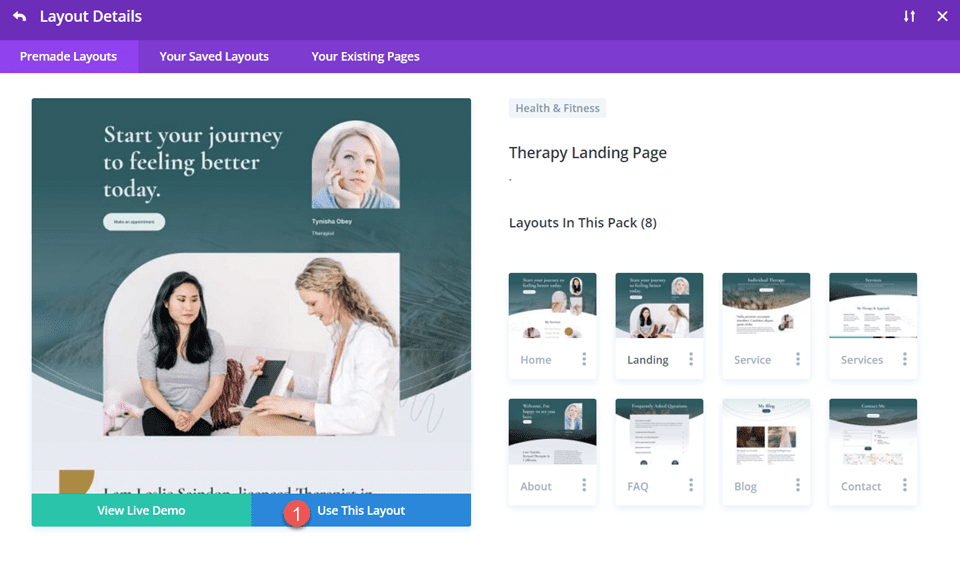
  • Get a Free Ramen Shop Layout Pack for Divi

    Hey Divi Nation! Thanks for joining us for the next installment of our weekly Divi Design Initiative; where each week, we give away a brand new Layout Pack for Divi.

    This time around, the design team has created a beautiful Ramen Shop Layout Pack that’ll help you get your next Ramen Shop website up and running in no time!

    This layout pack includes:

    6 Premade page layouts strategically designed for any Ramen Shop website (including a footer design)
    – Original, royalty-free photos and graphics + customizable source file (see below)
    – Plus, a large collection of pre-designed website elements that are customizable and reusable anywhere.

    This layout pack is available right inside Divi for all Divi customers for FREE as the latest addition to our growing Divi library of hundreds of premade layout packs, thousands of page designs, and countless web design elements and resources.

    divi layout

    Check Out The Divi Ramen Shop
    Layout Pack Below

    Get it for free today!

    Ramen Shop layout pack

    Landing Page Design

    Ramen Shop layout pack

    View The Live Layout Demo

    Home Page Design

    Ramen Shop Layout Pack for Divi

    View The Live Layout Demo

    Menu Page Design

    Ramen Shop Layout Pack for Divi

    View The Live Layout Demo

    About Page Design

    Ramen Shop Layout Pack for Divi

    View The Live Layout Demo

    Blog Page Design

    Ramen Shop Layout Pack for Divi

    View The Live Layout Demo

    Contact Page Design

    Ramen Shop Layout Pack for Divi

    View The Live Layout Demo

    Key Features

    If you’re searching for an eye-catching design for your ramen restaurant, then the Ramen Shop Layout Pack for Divi is the perfect choice. It’s filled with mouth-watering food images, eye-catching line art, and just the right amount of color to feature your delicious menu items with flair. With this layout pack, you’ll encourage your site’s visitors to become long-time patrons of your ramen shop.

    Live Demos

    Click the links below to see a live demo for each of the layouts included in the pack.

    1. Ramen Shop Landing Page (live demo)
    2. Ramen Shop Home Page (live demo)
    3. Ramen Shop Menu Page (live demo)
    4. Ramen Shop About Page (live demo)
    5. Ramen Shop Blog Page (live demo)
    6. Ramen Shop Contact Page (live demo)

    Access This Layout Right Now

    Directly from Your Divi Builder

    Since Version 3.0.99 of Divi, you can find and import any of the layouts included in this pack (along with ALL of Divi’s Premade Layout packs) directly from the Divi Builder. They are already waiting for you.

    To access your new layout, simply activate the Visual Builder when editing a page and look for the “Load From Library” icon in the page settings bar (it looks like a plus symbol). Click this icon to launch the Load From Library popup. Under the Premade Layouts tab, you can easily find the new layout by scrolling through the list of layout packs. Once you find the Ramen Shop Layout Pack, click on it. You will see all the individual layouts included in the pack. Select the layout you want to use and then click the “Use This Layout” button.

    Ramen Shop Layout Pack for Divi

    For more, check out this video to learn how you can get this layout pack up and running today.

    Subscribe To Our Youtube Channel

    Authentication Required

    Before you can download Premade Layouts from the Divi Library you must authenticate your Elegant Themes Subscription. You can do this by navigating to Divi > Theme Options > Updates. There you can enter your username and API key and save changes.

    Ramen Shop Layout Pack for Divi

    You can find your API Key under your members area on the Elegant Themes site. After you enter the Username and API Key, you will gain immediate access to our library of hundreds of free layouts (including this one). If you haven’t done this, when you click to import a layout to your page, you will be prompted to enter your Elegant Themes Membership Username and API Key.

    Use Layout Images for FREE with No Licensing Restrictions

    Ramen Shop Layout Pack for Divi

    The image assets included with these layouts (icons, illustrations, photos, etc.) have no licensing restrictions. This means you can use them in all of your commercial projects without having to worry about paying licensing fees or attributing the photographer. Use them in your commercial websites, sell them within your Divi child themes, include them in your own Divi layout packs or just use them on your blog. We know how challenging it can be to find good photos and how confusing and scary the licensing that governs those photos can be. We want to fix that problem for our users.

    Download the Full Res Image Assets

    New Layout Pack Every Week!

    We hope you enjoy this layout pack. We look forward to hearing your opinions in the comment section below. Make sure you check out next week’s layout pack as well!

    The post Get a Free Ramen Shop Layout Pack for Divi appeared first on Elegant Themes Blog.

  • How to Make Money with AI in 2023 (14 Ways)

    When done right, an AI business can bring in thousands of dollars every month, and you’d be amazed at how little it costs to keep the wheels turning. We’ve put our minds together to bring you some of the best ways of making money with AI. And trust us, these aren’t generic ChatGPT hacks you’ve constantly seen.

    Dig into these AI freelance and money-making ideas—you’ll be 80% of the way to making your first dollar with AI.

    14 Ways to Make Money with AI

    We’ve got 14 ideas that you can run with. Each of them requires access to some sort of AI tool and a bit of strategic thinking. But, each is accessible for those looking to make honest money online using AI. Even if you don’t create a business or side hustle out of these, you can still improve your productivity by learning how to use AI.

    1. Write Blogs or Copywrite with AI Writers

    Content creation is the lifeblood of almost all digital marketing. Traditionally, it’s a process that demands a significant investment of time and creative energy, from brainstorming and researching to drafting, editing, and finally, publishing. Depending on the topic’s complexity and the content’s length, this process can span hours, days, or even weeks.

    Hoppy Copy Email Newsletter Generator

    Using Hoppy Copy to Generate Email Campaigns

    AI content writers can do everything from blog posts and social media updates to long-form articles and reports. This opens up a world of lucrative opportunities for content creators and digital marketers. Businesses are always on the hunt for fresh, engaging content—it’s what helps them climb the search engine ranks, captivate their audience, and cement their authority in their industry.

    Copywriting and content writing can be lucrative careers or side gigs. As long as you continually improve, use AI in smart ways, and are easy to work with, you can make money writing quickly.

    Our favorite tools you should check out are Jasper AI and Writesonic. But there are plenty of others out there as well.

    2. Create and Sell AI-Generated Artwork

    AI art is exploding on the scene, opening up new opportunities and marketplaces in the art industry. Artists traditionally spend hours, days, or even weeks creating a single piece of art. They need to come up with a concept, create the artwork, and then find a way to sell it. Today, there are AI design tools that make it easy for anyone to make AI Art.

    AI art generators can create unique pieces of art in minutes. The best let you iterate on an image until it reaches perfection. It might seem like a hack, but creating graphics people want to buy with AI is no easy task. Prompt engineering is a real challenge in a saturated art market, but if you hone your skill and find a niche, you can sell AI-generated art in no time.

    AI art generators

    Image created with Midjourney and edited in Photoshop AI

    Pro-tip, pair AI art with a print-on-demand service to sell on your own online store website or use an eCommerce platform like Etsy. It’s a better way to go than selling .jpgs and might increase your profit margins. Oh, and don’t infringe on intellectual property—better to think of your own ideas than to try and sell pictures of Micky Mouse.

    3. Indie Product Development

    Developing a product, especially in the tech industry, is complex. It involves conceptualizing an idea, designing the product, writing the code, testing, and finally launching it. This process can take months or even years, depending on the complexity of the product.

    AI code assistants like Copilot can significantly speed up this process. They provide real-time code suggestions, automate repetitive tasks, and even help debug your code. This means you can develop your product faster and with fewer errors.

    Need some inspiration? Indie developer Louis Pereira created AudioPen, which skyrocketed to mobile app success—all from an audio note-taking app!

    Product development is a lucrative opportunity because there’s a growing demand for niche tech products. If you’re a developer (or aspiring), you can leverage AI code assistants to increase productivity and bring your product to market faster. You’d be surprised what you can do with AI and a little tenacity.

    4. Freelance as a Digital Marketer

    Digital marketing involves a wide range of skills. It’s a more complex process to master because it requires a deep understanding of different platforms, channels, and strategies—and how they all fit together.

    AI marketing tools can automate many marketing tasks. Maybe a little more important is that they can help you create marketing campaigns, analyze your results, and optimize/iterate your strategies based on predictive analytics.

    Lately Social Media Management by AI

    This is a profitable opportunity because businesses are looking for ways to reach their target audience and increase their sales. Small business owners often realize their need for help but don’t have the time to learn new skills or technologies.

    If you’re a digital marketer, you can leverage AI tools today to deliver better results for your clients in less time.

    5. Sales Ops Optimization

    Sales operations involve a lot of repetitive tasks, from managing leads and tracking sales to analyzing performance data. It’s a time-consuming process that can take away from the time salespeople could spend on building relationships and closing deals.

    AI sales tools like Gong, Seamless.ai, or Sendspark can automate many sales and management tasks. They can help manage leads, track sales, analyze performance data, and even provide insights on improving sales strategies. The only problem?

    Many businesses don’t know what is available to them, and those that do face a steep learning curve for implementing powerful AI tools into their sales processes.

    This is a lucrative opportunity because businesses always look for ways to increase their sales and improve efficiency. By mastering a few AI sales platforms, you can consult companies on the technology and even offer to implement sales operational tools as a service.

    6. Professionally Edit Photos

    Professional photo editing is a meticulous process that requires a keen eye for detail and a deep understanding of various editing tools and techniques. It involves enhancing colors, adjusting lighting, removing unwanted elements, and more. This process can take hours, depending on the complexity of the image and the level of detail required.

    AI photo enhancers like Topaz Photo AI, Photoshop Generative Fill, or Luminar can significantly speed up this process. They can automatically enhance colors, adjust lighting, and even remove unwanted elements. There are even AI image upscalers to add high resolution to pixelated photos. This means you can edit more photos in less time without compromising quality. Bulk editing is possible, too, so you can apply a particular style, with AI, to hundreds of images.

    Photoshop AI generative fill

    Image created with Leonardo AI and edited with Photoshop AI

    This is a profitable opportunity because there’s a growing demand for professional photo editing services, from businesses needing product photos to individuals wanting to enhance their personal/professional image.

    If you’re a photographer or a graphic designer, you can leverage AI photo enhancers to increase your productivity and take on more clients. If not, it’s not too late to get started.

    7. Configure and Deploy AI Chatbots

    Customer service is a critical aspect of any business. However, managing customer inquiries can be time-consuming and requires significant resources. This is where AI chatbots come in.

    AI website chatbots can handle customer inquiries 24/7, providing instant responses and freeing time for your team to focus on more complex tasks. They can answer common questions, guide users through processes, and even assist with sales and bookings.

    Botsonic AI Chatbot for Websites

    This is a profitable opportunity because businesses always seek ways to improve customer service and increase efficiency. If you’re a new developer or don’t mind learning conversational AI technology, you can offer AI chatbot configuration. You can set up website integration and gather together a knowledge base and any internal documents to train a chatbot for businesses. Then deploy it to the satisfaction of your client.

    We recommend looking into Chatbase and Botsonic for AI chatbot creation.

    8. Social Media Video Editing

    Creating engaging social media videos is a key strategy for many businesses and influencers alike. However, video editing can be a little much to handle for many people. And since it involves both software and skill, things like trimming footage, adding effects and transitions, and syncing audio are too much for many people. Even before AI, video editing was commonly outsourced to professionals with the means to get the job done well.

    FlexClip AI subtitles

    AI video editing tools can automate much of this process. They can analyze your footage, select the best parts, and add effects and transitions. This allows you to create high-quality social media videos in a fraction of the time. It’s a win-win situation for everyone involved.

    We recommend trying out FlexClip and seeing how it leverages AI to make many video editing and creating steps super easy.

    9. Create Music and Background Tracks

    Creating music or background tracks for videos, games, or other media is a creative process for which few have the chops. AI music generators like AIVA or Mubert can assist in this process, creating unique tracks in seconds.

    These AI tools can generate music in various styles and moods, allowing you to create the perfect track for any project. They can also help you experiment with different musical ideas, speeding up the composition process.

    Mubert's simple and effective interface

    AI democratizes music and music production, putting you at the center of it by being able to prompt-engineer your way to a successful service-based business in music. You can leverage freelance marketplaces like Fiverr to sell your services to audiences beyond what you hoped for.

    10. Offer AI + Human Translation Services

    Our world is getting smaller and smaller, and because of that, translation services are in high demand as businesses expand globally. However, human translation can be time-consuming and expensive, especially for large text libraries.

    AI translation tools significantly speed up the translation process. While they may not always be perfect, they can provide a good starting point for human translators, saving them time and effort.

    For those who know multiple languages, you can offer a competitive mix of both instead of just AI or human translation services. Use AI to get the bulk of the work done but use your multi-lingual talent to add a whole other level of accuracy. Many people need translation services but don’t want to pay for 100% manual translations or trust 100% AI translations.

    Use Copy.ai or some other generative AI tool to make money translating with AI.

    11. Deliver Website SEO Services

    Search Engine Optimization (SEO) is a complex task that involves optimizing a website to rank higher on search engines. It requires a deep understanding of search engine algorithms, keyword research, and content optimization. This process can be time-consuming, especially for large websites.

    SurferSEO Grow Flow Content Decay

    AI SEO tools like SEMrush, SurferSEO, or AlliSEO can help this process. They can conduct keyword research, optimize content, and track performance in a fraction of the time it would take a human. They can also help with more complex tasks like link building and technical SEO.

    This is a profitable opportunity because there’s a high demand for SEO services. SEO specialists can use AI tools to increase productivity and attract more clients. They can also offer AI SEO services to clients.

    Also, it goes without saying that SEO for your own website (if you have one) can help generate more traffic and revenue. If you have a WordPress site, these SEO plugins will help.

    12. Become an AI-Powered Affiliate Marketer

    Affiliate marketing, the practice of earning a commission by promoting other people’s (or company’s) products, has been a reliable way to make money online for years. However, the landscape is competitive, and standing out can be challenging. That’s where AI comes into play, transforming the affiliate marketing game.

    They can help you find good products to promote, help with video creation or email marketing, and automate internal linking. Leveraging AI for affiliate marketing requires only an affiliate website and an AI writer. Though many of the AI marketing tools that would help any business would help yours.

    Affiliate marketing has always been a lucrative opportunity. Now, AI is helping thousands of people find more success.

    13. AI Social Media Management

    Social media management is a tedious task for most. Particularly those running a business don’t necessarily want to spend all their time thinking about social media. It requires too much understanding of platforms, content creation, and community management.

    Ocoya Social Media Creation and Scheduling

    AI social media management tools can automate post creation and scheduling. And if they can do that, social media marketing becomes a little more tenable. Many AI social tools also help you with your inboxes and analytics. Literally, every aspect of social media can be made better through AI.

    Social media managers can use AI tools to increase productivity and attract more clients. Try Ocoya for organic social and Adzooma for paid social and see how it makes everything easier to manage.

    14. Use AI for Web Design

    A website has long been known to be required for any self-respecting business. That means businesses need to build and maintain websites if they want to succeed. A well-designed website can attract more visitors, keep them on the site longer, and convert them into customers.

    Even if traditional web design turns you off, there is plenty of room (and growing) to get comfortable with AI web design. AI creates stunning designs, writes landing page copy, and generally takes some of the edge off of building a site from scratch. There are a lot of AI WordPress plugins and AI website builders that make site building and management easy.

    We’d recommend trying out Divi AI, which brings impressive AI capabilities to WordPress’s most powerful visual editor.

    AI: A Tool, Not a Trick

    Let’s get real for a moment here. AI is a powerful tool, a game-changer, and a force multiplier. It can help us do things faster, smarter, and more efficiently. But like any tool, it’s not a magic wand. It’s not a get-rich-quick scheme. It’s not a way to cheat people out of their hard-earned money.

    The truth is AI is at its best when it’s paired with legitimate business ideas and good old-fashioned hard work. It’s about using AI to enhance your skills, offer better services, and create more value. It’s about using AI to do more of what you’re already good at.

    So, if you’re thinking about using AI to make money, don’t think of it as a shortcut. Think of it as a way to level up. Think of it as a way to do better work, serve your customers better, and make a bigger impact.

    And remember, the best way to make money with AI is to use it responsibly. Use it to create real value to make the world a little bit better, one AI-powered project at a time. Because that’s what making money with AI is really all about.

    Conclusion

    From writing to art and coding to marketing, AI is revolutionizing how we work and create value. It’s not about replacing humans but augmenting our abilities and helping us reach new heights.

    But before diving in, ensure you’re equipped with the right tools. Check out our guides on the best tools for digital businesses. Whether you’re looking to write, design, code, or market, we’ve got plenty of content to keep you ahead of the curve.

    What way of using AI to make money has got you thinking? We want to know!


    Featured Image by Sira Anamwong / shutterstock.com

    The post How to Make Money with AI in 2023 (14 Ways) appeared first on Elegant Themes Blog.