EDITS.WS

Category: elegantthemes.com

  • How to Secure Your WordPress Website in 2023 (Detailed Tutorial)

    WordPress has become one of the world’s most popular content management systems (CMS), with over 44% of websites built on it. As with any online platform, security should be at the top of your list of concerns. In this post, we’ll examine WordPress security concerns and provide tips on how to keep your WordPress website safe and secure.

    Let’s dive in.

    Is WordPress Secure?

    WordPress.org

    For the most part, yes. WordPress developers work hard to maintain the security of their platform through patches and updates occurring regularly. However, since WordPress is built on an open-source framework, hackers can analyze how it’s constructed and frequently develop new ways to gain control of WordPress websites. Because of this, WordPress security is crucial. Knowing the risks associated with using WordPress is important to understand better how to secure your website.

    WordPress Security Concerns

    When operating a WordPress website, there are several potential risks to be aware of. One of the biggest concerns is hackers. Because WordPress is so popular, it attracts the attention of nefarious actors who attempt to exploit vulnerabilities like outdated plugins or core files to gain unauthorized access to your site. They can employ methods such as backdoors, launching brute force attacks, pharma attacks, denial of service (DoS) attacks, or cross-site scripting (XSS).

    If left unresolved, there can be serious consequences, such as malware (malicious code designed to steal your site’s visitor information), forwarding your website to a completely different one, adding content you’re unaware of, Google warnings that can hurt your position in the SERPs, or worse, being unable to log in to your website.

    How to Secure Your WordPress Website

    The following section will explore best practices to enhance WordPress security to protect your website against potential threats.

    Subscribe To Our Youtube Channel

    WordPress Security: Choose Good WordPress Hosting

    The first step to take is partnering with a good WordPress hosting company. With so many choices available, it can be difficult to determine how to choose the right host. If you’re a beginner, it’s probably best to opt for a good managed hosting provider, such as SiteGround, that will provide all security updates for WordPress, while also maintaining the server it’s installed on. For those who are more tech-savvy, a cloud hosting provider, such as Cloudways, is an excellent choice.

    SiteGround WordPress hosting

    Either option will give you all the tools you need to ensure your website is safe and secure, including:

    Keep Your WordPress Login Secure

    Another easy thing you can do to boost your WordPress security is to lock down your login credentials. This can be done in several ways, including using a plugin to change the login URL from /wp-admin to something of your choosing. You can also add two-factor authentication (2FA) to your login and limit login attempts, which will help repel bots.

    Google apps login

    Another way to protect your login is by linking it to your Google account using the Google Apps Login for WordPress. Once your login is locked down, you should whitelist your users’ IP addresses. This ensures that only registered users can get in, even if they have managed to figure out your password.

    Use a Suite of WordPress Security Plugins

    Another very useful thing you can do is to install a good security plugin, such as iThemes Security. It will allow you to add 2FA, limit login attempts, schedule backups, and hide your WordPress login.

    ithemes security plugin

    In addition to a WordPress security plugin, consider installing a good backup plugin, like UpdraftPlus, if your host doesn’t offer backups. A backup plugin protects you from losing your site’s files, helping you to avoid rebuilding WordPress from scratch. You can easily restore your site with little effort if something goes wrong. Finally, incorporating an activity log plugin like WP Activity Log will allow you to pinpoint what went wrong and when.

    Keep PHP Updated

    WordPress requires three things to work correctly: PHP, MySQL, and HTTPS support. PHP, or hypertext preprocessor, is a popular open-source scripting language used in web development and is the backbone of WP. Like WordPress, being open source leaves it open for malicious actors looking to take advantage. To avoid these potential issues, it’s best to keep PHP updated. Not only does it help with WordPress security, but it also keeps your site running optimally.

    How PHP works

    Choose Strong Passwords

    One of the most important aspects of WordPress security is choosing strong passwords for login. Weak or easily guessable passwords leave your site vulnerable to unauthorized access and expose your site to botnets. Botnets are a collection of computers that have been infected by malware and come under the control of a hacker. They are the leading cause of DDoS attacks on the internet, but you can prevent your site from falling victim to them by taking the correct precautions.

    Password policy maker plugin

    For example, you can protect your site by ensuring all users adhere to a password policy. One great way to do this is by installing a plugin like Password Policy Maker.

    WordPress Security: Keep Software Updated

    Another simple step in WordPress security is keeping your WordPress core, plugins, and themes updated. Leaving software out of date can have negative consequences on your website, including security breaches, the WordPress white screen of death, or any number of common errors.

    You can either keep up with updates on your own or enable automatic updates. What is right for you depends on several factors, including time, expertise, and the type of software your WordPress install runs. Regardless of whether you handle updates or choose to update automatically, you should always make a backup before performing any updates.

    Install SSL Certificate

    If you partner with a good hosting provider, one of the benefits that come with it is a free SSL certificate. However, there may be situations where you’ll need to install one yourself. Most providers, like SiteGround, offer a free SSL that installs in a few minutes. As you read this, you might ask , “Why do I need an SSL certificate?”. Let’s explain.

    SSL certificate WordPress security

    image courtesy of Valery Brozhinsky | Shutterstock.com

    SSL, or secure socket layer, expands the hypertext transfer protocol (HTTP) to hypertext transfer protocol secure (HTTPS), adding encryption and an extra layer of security. For example, a consumer who makes a purchase over HTTP risks their credit card information being exploited. On the other hand, their information would be protected if they had made the same purchase over HTTPS. Your site and its visitors are exposed and vulnerable without that secure connection. That’s why installing an SSL certificate on any new website is crucial.

    Conduct a Security Audit

    Once you’ve taken steps to secure your site, it’s important to conduct a WordPress security audit occasionally. Just as technology changes daily, so does a hacker’s arsenal of tools. Malware and other tactics are developed regularly, so securing your WordPress website isn’t a one-and-done deal. Schedule regular security checks, and look for signs that your site may be in trouble. If you notice your site loading slowly, your traffic drops, you discover new links you didn’t add, or you experience excessive login attempts, it may be time to run a security scan to ensure your site remains safe and secure.

    Advanced WordPress Security Techniques

    In addition to the steps listed above, there are a few more advanced techniques to incorporate into your site to enhance WordPress security.

    Harden the wp-config.php File

    One common point of entry for hackers is your WordPress website’s wp-config.php file. It houses information about your database, including the name, host, username, and password. Leaving this important file open can prove detrimental, so hiding it is always a good idea.

    Move Your wp-config.php File

    To move wp-config, you can drag it into your site’s root folder (public HTML), and WordPress will look for it whenever the site is pinged. However, if your site’s file structure includes a htaccess file, you can further protect it by adding a directive to deny access to it by using the following code:

    <FilesMatch "wp-config/.php">
    Require all denied
    </FilesMatch">
    

    Note: Before doing this, ensure your hosting provider hasn’t already taken steps to move your wp-config file for you. Some hosts, such as Kinsta, do this automatically to keep your site safe.

    Change WordPress Salt Keys

    WordPress salt keys

    Another way to protect your wp-config file is by altering your site’s salt keys. These keys add an extra layer of protection while saving passwords to your database, signing in to cookies, and other important WordPress security aspects. If hackers can obtain your salt keys, they can access your site’s database and files, including stored credit card information, passwords, and other important information. Therefore, it’s recommended to change them periodically.

    Change File Permissions

    By default, files in your root directory are set to 644, which means they are both readable and writable, leaving them vulnerable to bad actors. According to WordPress, these should not be left at default permissions. Rather, they should be changed to 440 or 400 to prevent others on the same server from reading them. However, it’s important to check with your hosting provider before making any changes to your file permissions. They may have a unique system in place, so changing permissions could cause disruption to your site.

    Disable XML-RPC

    XML-RPC is a WordPress API that allows you to connect your website to third-party apps and tools. In recent years, it has been exploited by brute force attacks, allowing access to WordPress sites. It is primarily used for making Zapier connections or accessing your site remotely through an app. You should disable XML-RPC on your server if you aren’t using any of these connections.

    There are several ways to do this, including disabling it through htaccess, using a code snippet, or with a plugin. The most advanced method, htaccess, can be tricky for beginners, so the most recommended approach is to use a code snippet.

    For the htaccess method, use an FTP client to access your site’s files, then add the following code to your htaccess file:

    # Block WordPress xmlrpc.php requests
    <Files xmlrpc.php>
    order deny, allow
     deny from all
    allow from 123.123.123.123
    </Files>
    

    Note: Be sure to change the IP 123.123.123.123 with your own.

    Alternatively, you can use the AIOSEO plugin’s tools htaccess tab to insert the code:

    AIOSEO

    If you’d rather disable XML-PRC using a code snippet, you can easily accomplish it using the WPCode plugin. It has a built-in snippet that you can use to disable the API.

    disable XML-PRC

    Hide WordPress Version

    This is an often overlooked step when it comes to WordPress security, but an important one. By default, WordPress leaves a footprint in your site’s code that shows which version is installed. This might seem harmless, but by accessing the website’s source code, hackers can determine what version of WordPress you’re running. If it’s outdated, they can use that info to hack into your site by injecting malware or malicious scripts.

    hide WordPress version

    So, as an extra WordPress security measure, hide your site’s WordPress version to make it harder for hackers to take control of your site. There are good ways to do this. You can either implement a code snippet plugin that will remove the line in the source code or create a child theme and place it into your functions.php file.

    function elegantthemes_remove_version() {
    return '';
    }
    add_filter('the_generator', 'elegantthemes_remove_version');
    

    Alternatively, if you’d like to remove the WP version in the meta tag, in database query strings, and in RSS feeds, use this code:

    /* Hide WP version strings from scripts and styles
    * @return {string} $src
    * @filter script_loader_src
    * @filter style_loader_src
    */
    function elegantthemes_remove_wp_version_strings( $src ) {
    global $wp_version;
    parse_str(parse_url($src, PHP_URL_QUERY), $query);
    if ( !empty($query['ver']) && $query['ver'] === $wp_version ) {
    $src = remove_query_arg('ver', $src);
    }
    return $src;
    }
    add_filter( 'script_loader_src', 'elegantthemes_remove_wp_version_strings' );
    add_filter( 'style_loader_src', 'elegantthemes_remove_wp_version_strings' );
     
    /* Hide WP version strings from generator meta tag */
    function wordpress_remove_version() {
    return '';
    }
    add_filter('the_generator', 'elegantthemes_remove_version');
    

    What to Do if Your WordPress Website is Hacked

    Even if you do everything right, you may find yourself in a situation where your website has been hacked. Thankfully, there are steps you can take, including putting your site into recovery mode, restoring from your most recent backup, or resetting your passwords. If all else fails, your hosting provider may be able to help.

    Final Thoughts on WordPress Security

    By taking the necessary steps to boost your WordPress security, you can ensure your site continues to operate normally while being safe for your visitors. While WordPress offers tremendous benefits and ease of use, it’s important to understand its shortcomings. Thankfully, there are a number of WordPress security plugins like iThemes that can help keep things on track.

    Looking for more information on WordPress? Check out some of our in-depth articles that will transform you into a WordPress expert in no time:

    Featured Image via Pikovit / shutterstock.com

    The post How to Secure Your WordPress Website in 2023 (Detailed Tutorial) appeared first on Elegant Themes Blog.

  • How to Back Up Your WordPress Website in 2023

    Keeping your WordPress website safe and secure should be at the top of your mind. After you’ve added your favorite WordPress plugins and chosen your beautiful theme, your next step should be protecting the investment of time, resources, and money you’ve put into your site. This is where maintenance of your WordPress website comes in. There are a few things you should do to keep up with your WordPress website, and one of them is keeping a free online and offline back. In this post, we’ll learn how to back up your WordPress website in three ways, discuss backup storage solutions, best practices, and what to do if you need to use your backup after a website crash.

    How to Backup Your WordPress Website Using a Plugin

    There are many backup plugins that you can use to take a backup of your website. A WordPress backup plugin is a quick and straightforward way to create a website backup. For our guide, we’ll walk through using UpdraftPlus, a popular WordPress backup plugin, to create your website backup.

    Install and Setup Plugin

    From your WordPress dashboard, from the left-hand menu, hover over Plugins. Next, click Add New.

    Installing UpdraftPlus, a WordPress backup plugin

    In the search bar in the top right, type Updraft. Click Install Now; the button will turn blue after installing the plugin. Click the blue button that now says Activate next to the first option.

    Configure Settings

    Once UpdraftPlus is installed, you can access the plugin by hovering over Settings from the left-hand menu. Then, click on the UpdraftPlus Settings menu option. This will show you the plugin’s dashboard, notifications regarding your backups, and your existing and scheduled backups.

    The UpdraftPlus dashbaord

    Create a New Backup

    Click the large, blue backup Now button to create your first backup.

    Starting a manual backup with UpdraftPlus

    Once you’ve done this, a popup will appear. You’ll be presented with four options:

    Manual backup options with UpdraftPlus

    You can include your database or your files in your backup. Both options have an (…) following them, allowing you to get specific about the database tables and folders you’d like to include or exclude from your backup. Once you have set up cloud storage for your plugin, you’ll have the option to. We’ll come back to this later. Lastly, you have the choice of deciding whether this download will be deleted automatically or not. Once you have made your selections, click the Backup Now button.

    A successful backup within UpdraftPlus

    Once your backup has been completed successfully, you’ll notice it is added under the Existing backups table. You can select specific aspects of your backup to download, restore said download, delete it, or view the log processed as it backed up your website.

    Schedule Automatic Backups

    Now, let’s look at setting up scheduled, automatic backups. Click on the Settings tab from the UpdraftPlus dashboard.

    Setting up scheduled backups with UpdraftPlus

    The first two options on your screen allow you to set up automatic schedules for your backup process. You can set up a schedule for the files and database of your website in a frequency from a few hours to monthly. Additionally, you can decide how many backups you’d like to keep on your server.

    From the same settings screen, we can set up the storage solution we’ll be using for our website. UpdraftPlus has many options for storing your backups on the cloud. Some of the options available include:

    • Dropbox
    • Google Drive
    • Email and
    • SFTP

    With the free version of the UpdraftPlus, you can back up to one cloud or online service. However, the plugin’s premium version can back up to multiple places. For our guide, let’s back up to Google Drive. From the list of cloud services, select the Google Drive icon—next, login to your Google Drive account by clicking the Sign in with Google button.

    Backing up your website with Google Drive

    Next, sign into your Google account.

    Login to your Google Drive

    After, grant UpdraftPlus access to your Google Drive account, then click Allow.

    Allow UpdraftPlus access to your Google Account

    Once this is done, you’ll be presented with this final screen. Click on the Complete Setup button. This will take you back to your WordPress installation.

    Complete the UpdraftPlus setup

    Once you have returned to your WordPress install, you’ll see a notification that your Google Drive has been successfully connected.

    Success notification from UpdraftPlus and Google Drive

    Once your account is connected, click on the Settings tab again. Then, scroll down to the cloud account you set up and click the Save Changes button.

    Save changes on the UpDraftPlus settings page

    When you make a backup, you can send the backup to your Google Drive account.

    New option to save on the cloud now available

    Storing Your Backup Offline

    It’s always a good idea to download backups onto your computer, a USB, or any cloud storage platform that will allow you to store your website offline. To do this, click any of the folders you’d like to download to the media of your choice from the backup you’ve just made.

    Download your backup form UpdraftPlus

    For a full offline website backup, download the database, plugins, themes, uploads, and other folders. Now that we know how to make a backup with a plugin online, offline, and to the cloud, let’s see how we can do this with our hosting provider.

    How to Backup Your WordPress Website Using Your Hosting Provider

    Backing up your website with a plugin is a simple and easy way to back up your WordPress website if you can access WordPress’ user interface. However, things can get a bit sticky for you if you don’t have access to the dashboard. This is why knowing how to back up your WordPress using your hosting provider is essential.

    For our use case, we’ll show you how to manually back up your WordPress website using Siteground, one of the best hosting providers for WordPress.

    Login and Access Site Management Tools

    Visit Siteground and click the Login link in the top right-hand corner.

    Login to Siteground

    You’ll then need to enter your username and password.

    Login to your Siteground account

    Once in your account, you’ll be presented with your Siteground home screen, which lists all your products. Click on the Manage button under the Websites title.

    Manage your websites with Siteground

    Once here, you’ll see a table listing all your websites within your Siteground account. Click on the Site Tools button next to the website that you’d like to back up.

    Use Site Tools to manage your website in Siteground

    Create a New Backup

    On your website, you’ll see a variety of tools and options that you can use to manage your site. To start the backup process, click on the Tool Finder, or press CTRL + K. Then, search backup in the search box that appears. Finally, click Backups from the dropdown.

    Once on the Backups page, give your backup a name you’ll remember. Then, click on the blue Create button.

    Name and start your web hosting backup process

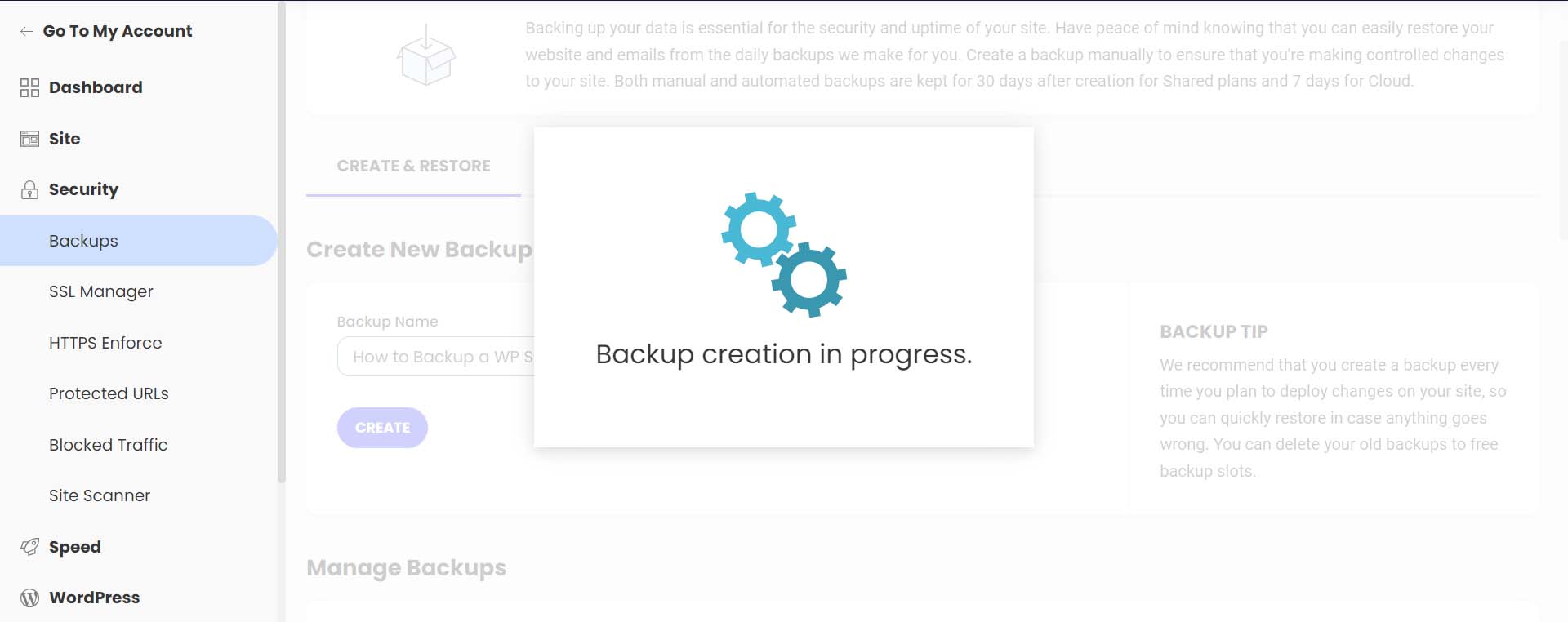
    You’ll be presented with this screen as your backup is being created.

    Backup in progress

    You’ll get a confirmation message once your backup has finished being created.

    Backup successfully created

    Notice your backup now shows up in your list of backups, alongside your regular, automated backups, with your note attached.

    See your new backup within your backup list

    Siteground makes it easy to restore your website in the case of file corruption, hacking, and more. To do this, select the meatball menu next to the backup you’d like to restore. Then, select which type of restoration you’d like to process.

    How to restore your backup

    This easy one-click method of backing up and restoring your WordPress website is an excellent benefit of using Siteground and other managed WordPress web hosts.

    Next, let’s look at how to do a manual backup of your database and WordPress files.

    How to Backup Your WordPress Website Manually

    To manually back up your WordPress website, the easiest method is to download a backup of your site files using your hosting provider. An overwhelming majority of modern web hosts provide you with an online file manager and portal that you can use to manage your website’s files directly. The software that many hosts use is cPanel. With cPanel, you can access your databases, email accounts, and a visual file manager. For more information about cPanel, check out our cPanel guide. However, more commonly, your hosting provider may have its own propitiatory interface they provide to their clients for file management and backups.

    If you don’t have access to your files on your host or through cPanel, you can back up your site via FTP. Filezilla is a popular FTP client to manage your WordPress site via FTP. You can use terminal clients like Putty and WinSCP to connect to your server and back up your site as a last resort.

    This time, however, we’ll be using a file manager within our web host to back up our files and phpMyAdmin to back up our database. We’ll still be using our Siteground account for this tutorial section. However, you can still follow similar steps irrespective of your web host.

    Backing Up Your Site Files

    While still in your Siteground account, from the left-hand menu, click site. Then, click File Manager.

    Navigate to your file manager

    Once in the file manager, you’ll notice a folder called public_html. This is where all your WordPress files live. Right-click on this folder. Then, click on the Archive link.

    Create WP folder archive

    Next, name your archive. Then, click Confirm to start archiving (or zipping) your WordPress files.

    Name your archive

    Once your archive has been created, you’ll be presented with this success message.

    Archive successfully created in Siteground's file manager

    You’ll now notice that your archive is a new file within your file manager. Now, right-click on your archive. Then, click Download to safely save your file backup offline and on your hard drive or media.

    Download archive to your offline media of choice

    Backing Up Your WordPress Database with phpMyAdmin

    Now that we’ve manually backed up our WordPress files, we can move on to backing up our database. Again, your web host should offer a simple way to back up your database within its site tools or using cPanel. However, for direct access and more control, you can use phpMyAdmin for pretty much any WordPress website.

    To access phpMyAdmin in Siteground, go to the Site section within the left menu. Next, we click on the MySQL link. Then, we click on the phpMyAdmin link from the right side of the screen. Finally, we scroll down slightly and click the blue Access phpMyAdmin button. This will open up the free PHP tool in a separate window.

    Start backing up your database

    Once you’re in phpMyAdmin, you’ll see a list of your website’s databases on the left-hand side.

    Click on the database that you’d like to download. It should coincide with the database for the website files that we backed up earlier. If you’re unsure of the database you should select, you can find your database name within the wp-config.php file of your WordPress file structure within the file manager. Then, click the Export button from the top menu.

    Select and export your database

    You have two options when it comes to exporting your database. To keep it simple, select the Quick Export method. Then, select Go. If you’d like to add additional outputs, select specific tables to backup and more, click the Custom button, and make your choice before selecting Go.

    Export Your Database

    Save Your Database File

    Finally, your. SQL file will be generated. Depending on your database size, this could take a few seconds to a few minutes. An alert box will pop up, asking you to save your database file. It is recommended to save it in the same place you saved your WordPress files zipped folder.

    Save your SQL file

    That’s it! Now you have an external backup of all of your site files and your database.

    Where to Store Your WordPress Backups

    As mentioned throughout this tutorial, there are many places where you can store your WordPress backups. The first and easiest place is directly within WordPress. This is typically the place where backup plugins save your backups. However, this can cause performance issues in the future as you make more backups and your website grows larger. We suggest storing backups outside of your WordPress site in multiple places for safekeeping. You can store them on your computer, on an external hard drive, or in the cloud using a third-party host or platform like Google Drive or Dropbox.

    It should be mentioned that having an offline backup of your website is imperative. While your web host and cloud storage are great places to store your backup files, any online platform can go down or corrupt your backup files. Having an external copy of your site is the only way to make sure you have a safe copy.

    How Often Should You Backup Your WordPress Website

    Most web hosts today offer complimentary, daily backups of your website. However, depending on the complexity of your website and the processes occurring on your site, you may need to change this schedule. On average, having some form of automated, daily backup is good practice. This can be done either through your web host or a plugin like UpdraftPlus or BackupBuddy, to name a few.

    However, if you’re in the eCommerce space, you would surely want to consider backing up your website more frequently, depending on your server load, storage limits, and the number of orders on your website. It is not uncommon for an eCommerce website to do hourly or even backups by the minute! In addition to daily backups, consider making monthly offline backups for your website for peace of mind.

    What to Do If Your Site Crashes

    Having your website crash is a devasting feeling. Your first port of call should be your web host. More often than not, they have daily backups of your website from which you can quickly restore it. Secondly, check your online cloud and your backup storage folder on your website to see if there is a backup there that you can restore. You’ll need to copy over your database and file structure if you manually restore your website. In the rare event that you can gain access to your WordPress dashboard during a site crash, you can try restoring one of your backups from your backup plugin if it has that feature.

    Tips and Best Practices for Backing Up Your WordPress Website

    Here are a few things to remember when backing up your WordPress website.

    • Consider Using a Backup Plugin: A backup plugin is the easiest way to manage and create backups in WordPress. Check out these best backup plugins for WordPress.
    • Test Your Backup: It’s important to test your back to ensure that in a time of crisis, you’ll have a backup that actually works. You can do this by restoring a backup on a local install or staging site. Additionally, this tests to see any bugs in your files or steps you may need to include or optimize as you create your backups.
    • Backup Both Your WordPress Files and Database: Some backup plugins allow you to backup only the database instead of the entire site. However, it’s always a good idea to create a full backup of your website regularly, especially after making changes to your site. Sometimes changes in your file system could cause issues with your database backup if your file structure has changed.
    • Keep an External Backup: Cloud backups rely on platforms that can go down or fail. If the worst-case scenario occurs, an offline backup will save you. Taking an external backup of your complete site once a month can be a good practice to adopt.
    • Use Automatic Backups When Possible: Automatic backups free headspace for you to maintain your website. Choose a backup plugin with this, or ensure this feature is included in your hosting plan.
    • Don’t Store Your Online Backups Within WordPress: As a backup is a complete snapshot of your website, storing them within your WordPress website can not only eat up your storage space but cause issues when it comes to performance. Aim to store your online backups outside your WordPress installation and, even better, on the cloud through services like Google Drive or Dropbox.
    • Backup Before and After Major Site Changes: Make a full site backup before adding a new design or functionality to your website. You never know if a new plugin that you add or a tweak to a theme could take your website offline.
    • Keep Your Backups Secure:.Whether storing them online or locally, make sure your backups are secure and safe from hackers. You can store them in password-protected folders and media devices like USBs, encrypt them, and more.
    • Label Your Backups Something You’ll Remember: Most backups have an auto-generated name which can be hard to remember when you check back on it several weeks later. Give your backup a name that’s easy to identify. For example, “Before Menu Edit” lets you know this backup was before you changed your menu.

    Conclusion

    Learning how to make a backup of your WordPress site is an essential step in the website building process. A backup will save your website when it’s been hacked, and it’s good practice to be able to restore your site if anything goes wrong. It’s also good insurance overall. Additionally, backups are an essential website maintenance task that should be carried out on your website frequently. With WordPress, there are a few ways to back up your website. If you’d prefer to use a plugin for your backups, our list of the best WordPress backup plugins is an excellent place to start.

    Alternatively, the restoration process of a website is the other side of maintaining a website. A good migration plugin can make it easy to move your website to a new location. In closing, learning how to make a backup of your WordPress website is a necessary skill to gain as you build your next website project.

    Image by jossnat / shutterstock.com

    The post How to Back Up Your WordPress Website in 2023 appeared first on Elegant Themes Blog.

  • What is AI Art? How Art Generators Work (2023)

    If you’ve been paying attention to tech trends over the last few years, you’ve noticed an increase in artificial intelligence (AI) programs. One of the hottest new forms is AI art. In this post, we’ll break down what AI art is, how it works, and how you can use it to enhance your creativity and speed up your workflow.

    Let’s dive in.

    What is AI?

    what is AI

    image created with Midjourney

    Artificial intelligence, or AI, refers to developing and deploying computer systems and algorithms that can perform tasks that humans would normally do. These computers are trained on large amounts of data that help them learn, reason, solve problems, and make decisions that can surpass human abilities. AI involves various technologies, such as machine learning, natural language processing, image generation, etc. They can adapt, learn, and automate tasks through data analysis, pattern recognition, and repetitive learning processes, allowing humans to pass tasks off to computers. AI will likely lead to advancements in many areas, including health care, finance, transportation, and creative areas such as web and graphic design.

    What is AI Art

    what is AI art

    image created with Midjourney

    AI art, or generative AI, refers to creating art using artificial intelligence to automate image creation, aid with creative writing, create music, build websites, and more. AI art is different from digital art, which people with creative skills create. Instead, AI art allows those with little to no creative ability to create unlimited art forms with a text prompt.

    Subscribe To Our Youtube Channel

    History of AI Art

    history of AI art

    image created with Midjourney

    The history of AI art can be traced back to 1973 when a computer scientist and artist named Harold Cohen created the first known AI art creation program, AARON. 41 years later, in 2014, generative adversarial networks (GANs) were developed. While not developed solely for creating artwork, GANs play a huge role in its creation today.

    In 2015, researchers began training a computer to use a text prompt to generate images. They did this by reversing the process of image to text, which you might be familiar with. Have you ever noticed how your iPhone can identify objects in your pictures, then categorize them? That’s a good example of image-to-text.

    Flash forward to 2021, when the first major text-to-image software, DALL-E, was released. Created by Open AI (makers of ChatGPT) and named after the painter Salvador Dali and Pixar’s WALL-E, it was the first program to be trained on millions of images and concepts. Thanks to the release of DALL-E, the AI text-to-image boom was born.

    In 2022, a community of open-source developers began building AI art generators, grabbing whatever technology they could get their hands on. Some of those developers eventually went on to work on developing Midjourey, which we’ll feature a bit later in this post.

    What is a GAN?

    what is a GAN

    image created with Midjourney

    A GAN consists of two main parts: a generator and a discriminator. The generator’s job is to create new data, such as images, music, or text, while the discriminator’s role is to determine if the generated data is real or fake. The generator creates random data, such as an image. Then it presents the image to the discriminator, which tries to guess whether it’s real or fake. Initially, the generator isn’t very good, so the discriminator can easily spot the fakes. However, both parts learn from their mistakes and get better over time.

    The generator tries different variations of its output, and the discriminator becomes more skilled at discerning real from fake. They continue to play this game of trying to outsmart one another. Eventually, the generator gets so good that it produces data that the discriminator can’t tell apart from the fake.

    How Do AI Art Generators Work?

    For an AI program to understand a wide range of prompts, it needs a large dataset of images (neural network) to work from. We’re talking hundreds of millions of images and their text descriptions. Training models scrape alt tags, captions, titles, and text descriptions from images on the internet. It’s important to note that the generated image doesn’t come from the training data. Rather, it comes from the latent space (more on that later) of the deep learning model. Deep learning models don’t see images the way we do. They see millions of pixel values for red, green, and blue (RGB).

    Once the program determines how to decipher the prompt, you’ll see the result like this:

    AI end result

    Generative AI uses deep machine learning to produce text from images. At first, the computer takes a guess at what your text prompt is looking for, then continues to run it repeatedly until it gets it right. The program is given variables to consider to look for metrics to match the text prompt to generate an image. For example, use the prompt a pink garden gnome. The AI will begin processing the information considering different variables such as examples of gnomes, shapes, pink images, gardens, and other variables. It makes its best guess what it thinks a pink garden gnome is.

    How Output is Generated

    As algorithms go through the training data, they search for variables to improve their results and, during that process, build a multi-dimensional space that houses all of these data points. Let’s take the pink garden gnome prompt and use it as an example. Within that space, the AI will place the gnome in one dimension, the color pink in another, and a dimension for gardens. It will evaluate all the dimensions and save space amongst hundreds of dimensions for the output. This is called latent space. The more descriptive words within the prompt, the more dimensions are required.

    latent space

    Before the output is complete, there is a generation step called diffusion. Using words in the text prompt and the dimensions containing images of pink, garden, and gnome, the AI produces a random image and then makes little improvements. Each adjustment makes the output image more refined and closer to the intended output.

    Generative AI explained

    What is Diffusion?

    Using the garden gnome prompt example, imagine millions of pictures of gnomes, gardens, and images containing the color pink. During the process, all data points are analyzed, then an image of a gnome is produced. Diffusion begins by adding a series of transformations to the image, gradually increasing the noise. This includes transforming the photo into a pink gnome or placing it in a garden. During a series of transformational steps, the image becomes more different from the original, resulting in a unique, generated image of a pink garden gnome.

    pink garden gnome

    Image created by Leonardo

    Types of AI Art Programs

    Generative AI art encompasses more than just images. It includes art forms such as avatars, videos, logos, and photo editing programs. Let’s explore each of these forms of AI art so you’ll better understand what’s possible with generative AI.

    AI Avatars

    AI avatars

    An AI avatar generator creates unique avatars for social media, gaming, live-streaming, and more. Some use text-to-image, while others, like Lensa AI, let you take selfies and turn them into avatars. They can be chatbots or virtual assistants that can understand what we say or type and respond in a helpful way. They can be designed to look and act like real people, with emotions and expressions, like Synthesia. Others create 3D avatars to use as profile pictures or gamer avatars. For example, Picsart allows you to upload 10-30 images of yourself, then create a custom avatar at the click of a button.

    AI Videos

    Picture blog post to video

    Anyone who’s ever created a video for a presentation or website knows what a long process it is. That’s where AI video generators can help. With a company like Pictory, you can create awesome marketing videos in a few minutes rather than days or weeks. If you want to automate the process fully, add a URL to Pictory, and it will turn your post into a functional, engaging video in a matter of minutes.

    AI Art Generators

    As previously mentioned, AI art generators, or text-to-image, allow you to enter a text prompt, sit back, and watch as your image is generated before your eyes. There are dozens of text-to-image generators available, but a few more popular ones stand out. These include DALL-E 2, Midjourney, Leonardo, and Stable Diffusion.

    Each one has its strengths, but some are better than others. We’ll use the same prompt to showcase the difference between platforms: a photograph of a dirt rally race car covered in dirt, moving at a fast speed, dirt flying, mountain scene, award-winning photography, soft shadows, and cinematic lighting.

    Dall-E

    DALL-E example

    Midjourney

    Midjourney example

    Leonardo AI

    Leonardo example

    Stable Diffusion

    Stable Diffusion example

    AI Art Side-by-Side Comparison

    For this example, we entered the same prompt, left all settings at default, and didn’t use any other enhancements. DALL-E 2, Midjourney, and Leonardo AI are the AI art generators used.

    Prompt: high-quality photograph of a dog astronaut, star and planet backdrop, cinematic lighting, helmet with face glass, wide angle.

    AI art comparison

    images created with DALL-E2, Midjourney, and Leonardo

    We’ll let you judge for yourself which one did the best job.

    Other AI Use Cases

    Other AI

    image created with Midjourney

    Aside from videos and images, other AI use cases can help increase your creativity and productivity, allowing you to save that time for doing other things.

    AI Logos

    AI logo generators can do the job if you’re a small business owner or a creative that needs some inspiration. There are many choices, with some standouts being the Wix Logo Generator, which works inside the Wix website builder. It will create an entire logo for you, or you can start the process with AI and finish making revisions yourself. You might be asking why do I need an AI logo maker if I use an AI art generator. The answer is that it sits squarely in the middle of the struggle bus regarding creating text. It just can’t make the type legible. So, if you need a new logo for yourself or a client, check out one of the programs on our list.

    AI Music Generators

    Another big move for AI has come in the form of AI music generators. Content creators looking for an easier and faster way to create soundtracks for their projects will benefit (literally) by incorporating one of these tools. For example, Mubert is a generative AI model that allows you to create music and make money. You can create a track with a text prompt, then list it on the Mubert Studio marketplace.

    AI Photo Editing

    MJ Ansel Adams

    image created with Midjourney | Photoshop AI

    This next AI art use case allows you to enhance, modify, or manipulate images. This can include AI photo enhancers, image upscalers, or generative text-to-image add-ons like generative fill in Photoshop.

    Using Photoshop AI’s text-to-image generative fill, you can add or remove elements from photos, extend the canvas, or generate entire composite images with nothing but text prompts.

    AI Website Builders

    People needing a new website who don’t have the time or expertise to build it themselves can benefit from an AI website builder. Different tools can assist you with a few lines of text or creating images. If you need an entire website created from text prompts, AI models like Framer AI can handle that job.

    Using AI Art Ethically

    When creating art with artificial intelligence, some ethical considerations must be made. Legal questions are being presented regarding copyright infringement. There is no precedent, so there are no clear answers on how to proceed. Some platforms, such as Adobe Firefly, have taken this into consideration. Their models were trained on royalty-free images, which should keep them out of legal hot water. Additionally, any image generated through Firefly is for entertainment purposes only. However, we anticipate that changing soon.

    Before committing to a platform, research how the models were trained and gather as much information as possible. If you plan to use the art you create commercially, make sure your chosen platform supports that. Most platforms allow images to be used commercially as long as you sign up for a paid plan, but it’s always best to double-check.

    Final Thoughts on AI Art

    AI art holds incredible potential. It’s poised to transform the creative industry with innovative new technologies that assist creatives in making inspiring art and pushing the boundaries of human imagination. There are incredible tools like Synthesia for creating custom interactive AI avatars to incredible images through Midjourney to explore and utilize. As long as AI is used ethically and responsibly, it is an excellent creative companion to increase productivity.

    Eager to learn more about AI? Check out our detailed tutorial on how to make AI art.

    Featured Image via Leonardo AI / Leonardo.ai

    The post What is AI Art? How Art Generators Work (2023) appeared first on Elegant Themes Blog.

  • Download a FREE Category Page Template for Divi’s Poke Restaurant Layout Pack

    Hey Divi Nation! Thanks for joining us for the next installment of our weekly Divi Design Initiative where each week, we give away brand new freebies. This time around we’re building upon the Poke Restaurant Layout Pack with a brand new Category Page Template that matches the rest of the pack perfectly. Hope you enjoy it!

    divi layout

    Check Out The Poke Restaurant
    Category Page Template Below

    Get it for free today!

    Desktop View

    Divi Poke Restaurant Category Page Layout Desktop

    Tablet and Mobile View

    Divi Poke Restaurant Category Page Layout Tablet and Mobile View

    Download The Category Page Template For The Poke Restaurant Layout Pack

    To lay your hands on the free Poke Restaurant Category Page Template, you will first need to download it using the button below. To gain access to the download you will need to subscribe to our newsletter by using the form below. As a new subscriber, you will receive even more Divi goodness and a free Divi Layout pack every Monday! If you’re already on the list, simply enter your email address below and click download. You will not be “resubscribed” or receive extra emails.

    How to Upload The Template

    Go to Divi Theme Builder

    To upload the template, navigate to the Divi Theme Builder in the backend of your WordPress website.

    Getting started with the Divi Conference Layout Pack

    Upload Website Template

    Then, in the top right corner, you’ll see an icon with two arrows. Click on the icon.

    Importing the Header and Footer Layout into the Divi Theme Buidler

    Navigate to the import tab, upload the JSON file that you could download in this post, and click on ‘Import Divi Theme Builder Templates’.

    Import settings for the header and footer layout pack

    Save Divi Theme Builder Changes

    Once you’ve uploaded the file, you’ll notice a new template with a new body area that has been assigned to All Category Pages. Save the Divi Theme Builder changes as soon as you want the template to be activated.

    Save the category page layout after importing it into the Divi Theme Builder

    How to Modify The Template

    Open Category Page Template Body Layout

    To modify the template’s elements, start by opening the template’s body layout.

    Begin the process for editing the Category Page Layout

    Inside the Body Layout Editor, you can edit the design on the front end using the Divi Builder just like you would with a normal Divi page.

    About the Divi Poke Restaurant Category Template

    This category page template has a few dynamic elements that will work automatically including:

    • Category Page Post/Archive Title: This will show the name of the category/archive.
    • Post Slider Module: This will cycle through the first three posts within the category/archive every 3.5 seconds.
    • Blog Module: This will display 6 blog posts in 3 columns within the selected category/archive. This module includes an offset of 3 posts to account for the posts within the Post Slider Module in the header.

    Here is a quick illustration that identifies the dynamic elements of the Poke Restaurant Category Page Template.

    Divi Poke Restaurant Category Page Layout Explainer

    Updating the Template’s Dynamic Elements

    Post Slider Module

    Posts for Current Page

    Since this is a template that has been assigned to all category pages for the site, there are going to be one or more blog modules that are set to display posts for the current page. This is how the template displays the posts dynamically for each category page. For this template, that will be the Post Slider Module and the Blog Module.

    Post Count

    When you install the Divi Poke Restaurant Category Layout, the Post Count for the Post Slider Module will be set to the number three. However, you can change this value to suit your needs.

    Editting the Post Slider Module in the Poke Restaurant Category Template

    Automatic Animation

    We also have set the speed of the Post Slider Module to 3,500 ms (milliseconds), which is also 3.5 seconds. However, you can change the speed of the transition within the Design tab of the Post Settings Module.

    Editing the automatic animation settings within the Post Slider Module

    Blog Module

    Post Offsets

    Similar to the Post Slider Module, the Blog Module will show the current posts for the selected category or archive. However, remember that if you have modified the number of posts that show up within your Post Slider Module, you will also need to update the Post Offset setting within this Blog Module so that there isn’t any repeated blog posts.

    Blog Post Count and Post Offset Settings within the Blog Module

    It is also recommended to keep the Post Count within a multiple of 6 (6, 12, 18 etc.).

    Updating the Template’s Static Elements

    Some elements on a category page template will need your immediate attention before using it live on your own website. These elements are called static because they will not update dynamically.

    Email Optin

    To allow the Email Optin Module to show up in your design, you’ll need to link an email account.

    Linking up a email marketing solution

    New Freebies Every Week!

    We hope you’ve enjoyed the Poke Restaurant Layout Pack and the Category Page Template freebie that goes along with it. We look forward to hearing your opinions in the comment section below. Make sure you check back next week for more freebies!

    The post Download a FREE Category Page Template for Divi’s Poke Restaurant Layout Pack appeared first on Elegant Themes Blog.

  • How to Add a Gallery to Your WordPress Website in 2023 (Easy Guide)

    Adding a gallery to your WordPress website allows you to showcase many photos. Whether you’re looking for your standard grid gallery or a unique masonry gallery experience, learning how to add a gallery to your WordPress website is always a good idea. In this tutorial, we’ll work through two ways to add a gallery to your WordPress site: with the Block Editor and one of the best gallery plugins available, the Envira Gallery Plugin.

    How to Add an Image Gallery Using the WordPress Block Editor

    To begin this tutorial, we’ll learn how to add a gallery using the default WordPress block editor. This process will work with most WordPress themes that have compatibility with the Block Editor.

    Setup Your Gallery Page

    Login to your WordPress website. Then, hover over the Pages menu item. Then, click Add New.

    Add a new gallery page to your WordPress website

    After giving your page a title, Click the black plus icon in the content area of the Block Editor. This will open up the available blocks. In the search bar, enter “gallery.” The Gallery Block will present itself. Click on the Gallery block to add the block to your page.

    Add gallery block

    Once your Gallery Block has been added to your page, we can move on to adding photos.

    Customizing and Populating Your Gallery Block

    With your Gallery Block in place, you have two options for populating your gallery. You can upload new photos directly from your hard drive. Or, you can choose photos already available on your website through the Media Library. For our tutorial, we’ll choose photos from our Media Library. To do this, click on the Media Library link in blue.

    Add photos to your photo gallery

    This will open up your Media Library for you to select your photos.

    Select your gallery photos

    Select your chosen photos, then click the blue Create a new gallery button. Now, you can add a caption or edit each photo in your gallery. Finally, click the blue Insert Gallery button to add your gallery to your page.

    Add completed gallery to page

    Now that your Gallery Block is populated, you can use the block settings column to make aesthetic changes to your gallery. You can change the column number, crop images, and link individual images to various places on and off your website.

    Style your Gallery Block

    Once you are happy with your gallery, you can save your page. Feel free to add more galleries or individual images using the image block for more creative layouts. To learn more about how to use the Gallery Block in your next WordPress project, check out our post, How to Use the WordPress Gallery Block.

    While the Gallery Block is a simple and efficient way of adding an image gallery to your WordPress site, it does have some drawbacks. For example, you can’t use it to showcase your product photos, nor can it be customized deeply. This is where reaching out for a plugin may be more helpful. Plugins provide robust features when it comes to expanding the native capabilities of WordPress. This can be seen in how much more functionality you receive when working with a plugin for a gallery.

    How to Add an Image Gallery in WordPress Using a Plugin

    As with most WordPress plugin types, there is a wide selection of gallery plugins that you can choose from for your next project. We’ve even compiled a list of the most popular gallery plugins! While there are many options, we’ll work with the flexible Envira Gallery plugin for our tutorial.

    Envira Gallery is a robust gallery plugin that beautifully manages videos and photos. A key feature of this plugin is its powerful drag-and-drop interface. Additionally, it integrates beautifully with WooCommerce, and social media and has a slew of templates that you can use to style your gallery. Deep linking, watermarks, and right-click protection are features you can experience with Envira Gallery. If you’re looking for a solid plugin to handle your image galleries, Envira Gallery should be your top pick.

    Install & Configure Envira Gallery

    After creating a new page on your WordPress website, hover over Plugins. Then, click Add New. In the search box, type in Envira Gallery. Then, activate the plugin by clicking the blue Activate button.

    Install Envira Gallery plugin

    After having the plugin installed, you’ll now notice that there is a new menu option. This is where all your galleries will be created.

    The new Enivra Gallery menu item

    Let’s look at the Envira Gallery dashboard and create our first gallery!

    Creating Your First WordPress Gallery with Envira

    To create your first gallery, hover over the Envira Gallery menu option. Then, click Add New.

    Add your first Envira Gallery

    Next, give your gallery a title by clicking within the Add Title textbox.

    Give your gallery a title

    Under the native Envira Gallery tab, you can upload new photos from your computer or select files from other sources like the Media Gallery. Click the green Select Files from Your Computer button to upload new photos. Click the grey Select Files from Other Sources button to add files from your Media Library.

    Add photos to your gallery from your hard drive of the Media Gallery

    Under the External Gallery tab, Envira Gallery allows you to use photos from your Instagram feed within your gallery. This is a premium option that you can utilize when you upgrade to the premium version of the Envira Gallery plugin.

    Envira Gallery and Instagram integration

    For this example, we will select photos from within the Media Gallery. To do this, Click the grey Select Files from Other Sources button under the Envira Gallery tab. Then, scroll through your media gallery. To select multiple images, press the CTRL button while selecting the photos you want to add to your gallery.

    Bulk select images for your gallery

    Once you’ve added your photos, you’ll notice that they show in the Gallery tab.

    The Gallery tab within the Envira Gallery plugin

    Once you’ve uploaded photos to your gallery, click on the green Publish button. This will make your gallery live and generate a shortcode you can use throughout your WordPress website to showcase your gallery. You’ll also have a code snippet generated if you want to input your gallery into your template files.

    Saved Envira Gallery

    Next, let’s add our gallery to our page.

    Adding Your Envira WordPress Gallery to Your Page

    Eniva Gallery comes with a block that we can use to add our gallery to our pages and posts. To do this, click the black plus icon. This will bring out the pop-out with your various blocks. In the search bar, enter Envira. This will bring up the Envira Gallery’s block. Click on the block to add it to your page.

    Add your Envira Gallery to your website via Block Editor

    Click the dropdown menu once you’ve added your block to the page. Then, select the gallery that you’d like to add to your page.

    Select your gallery from the Envira Gallery

    With your gallery selected, you can use the native block editor sidebar to edit your gallery’s settings. Or, you can click the edit button icon which will allow you to edit your gallery’s settings within the Envira Gallery dashboard.

    Edit settings via the Block Editor or the Envira Gallery dashboard

    Now that we’ve added our gallery to our page let’s look at some of the customizations we can make.

    Customizing Your WordPress Image Gallery

    These features can be edited within the free version of the Envira Gallery plugin.

    The Config Tab

    The Config tab allows you to control aspects of your gallery, like the number of columns, image dimensions, and lazy loading settings.

    The Config tab of the Enivra Gallery plugin

    The Lightbox Tab

    The Lightbox tab gives you all the settings you need to adjust the lightbox to match your needs and requirements for your gallery.

    Envira Gallery's lightbox settings

    The Misc Tab

    Change your gallery’s title and slug, and add custom CSS classes to have deeper control over your gallery’s appearance.

    Miscellaneous options within the Envira Gallery plugin

    Mobile, video, social, tags, and pagination settings are all a part of the premium feature set that you can expect from Envira Gallery. For a complete list of all the features that the premium Envira Gallery plugin provides, check out this exhaustive list.

    A strong gallery plugin like Envira Gallery makes adding an image gallery to your WordPress website straightforward. Using a plugin to add galleries to your WordPress site is a sound choice and leaves all the heavy lifting of managing your photo and video assets to your plugin. Now, let’s look at some other popular gallery options you can consider for your WordPress website.

    Other Popular WordPress Gallery Options

    There are multiple ways to add a gallery to your WordPress website. From using the Block Editor to a plugin, we’ve highlighted a few other ways that make adding an image gallery to your WordPress website easy for anyone to handle.

    NextGEN Gallery (Imagely)

    Nextgen Imagely gallery plugin

    With more than 32 million downloads, NextGEN Gallery is one of the most downloaded WordPress image gallery plugins for a reason. Available in both a free and premium version, this gallery plugin gives you all the tools you need to make the best gallery for your site. With eCommerce integration allowing you to sell your photography, photo proofing for professional photographers, and a slew of premade templates and styles, NextGEN Gallery does it all. Automatically resize your images, add watermarks, and manage albums and galleries. For another plugin option for your WordPress website, check out NextGEN.

    Get NextGEN Gallery

    10Web Photo Gallery

    10Web Photo Gallery

    10Web Photo Gallery is another WordPress plugin with drag-and-drop functionality, easy gallery management, and rave reviews. A key feature of this plugin is its spotlight on image SEO, which you should look out for if search engine optimization is key to your website’s success. Of course, this plugin comes with multiple styles and layouts, mobile responsiveness, and social sharing capabilities allowing your website visitors to show your beautiful galleries to their networks.

    Get 10Web Photo Gallery

    Modula

    Modula Gallery Plugin

    Modula is a Gutenberg-compatible gallery plugin, meaning that it adds Filters, password protection, sliders, and more are all part and parcel of using this unique plugin for your next image gallery. While other plugins may focus on themes and styling, Module has a proprietary solution that combines image optimization with a blazing-fast CDN. Say hello to better site performance, even with a heavy library of photos!

    Get Modula

    Divi

    Divi Gallery Module

    Divi is a powerful WordPress theme that has a highly-customizable gallery module. Divi’s Gallery Module gives you two orientation options, customizable overlay styles, and much more. Creating a full-width image gallery is a simple process with the Gallery Module, as is crafting unique and eye-catching border decorations that you can use to make your gallery match perfectly with your branding. Furthermore, Divi’s gallery capabilities can be further expanded through finds on the Elegant Themes Marketplace. Plugins like DiviFilter Grid and Divi Masonry Gallery are great additions to your Divi theme to easily create beautiful, eye-catching galleries.

    Conclusion

    Adding an image gallery to your WordPress website has been made simple. Gone are the days of manually preparing photos in image programs before organizing them by hand online. Creating a basic image gallery with the Block Editor is an easy process that takes a few minutes. For deeper functionality, it’s possible to use a plugin like Envira Gallery or Modula to create feature-rich galleries using photos, videos, and even social media posts. If you’re still looking for a list of gallery plugins that you can test out and review, here are our top gallery plugins for you to research and try.

    Image by denayunebgt / shutterstock.com

    The post How to Add a Gallery to Your WordPress Website in 2023 (Easy Guide) appeared first on Elegant Themes Blog.

  • Get a Free Home Decor Layout Pack for Divi

    Hey Divi Nation! Thanks for joining us for the next installment of our weekly Divi Design Initiative; where each week, we give away a brand new Layout Pack for Divi.

    This time around, the design team has created a beautiful Home Decor Layout Pack that’ll help you get your next Home Decor website up and running in no time!

    This layout pack includes:

    7 Premade page layouts strategically designed for any Home Decor website (including a footer design)
    – Original, royalty-free photos and graphics + customizable source file (see below)
    – Plus, a large collection of pre-designed website elements that are customizable and reusable anywhere.

    This layout pack is available right inside Divi for all Divi customers for FREE as the latest addition to our growing Divi library of hundreds of premade layout packs, thousands of page designs, and countless web design elements and resources.

    divi layout

    Check Out The Divi Home Decor
    Layout Pack Below

    Get it for free today!

    Home Decor layout pack

    Landing Page Design

    Home Decor layout pack

    View The Live Layout Demo

    Home Page Design

    Home Decor Layout Pack for Divi

    View The Live Layout Demo

    Shop Page Design

    Home Decor Layout Pack for Divi

    View The Live Layout Demo

    Product Page Design

    Home Decor Layout Pack for Divi

    View The Live Layout Demo

    About Page Design

    Home Decor Layout Pack for Divi

    View The Live Layout Demo

    Blog Page Design

    Home Decor Layout Pack for Divi

    View The Live Layout Demo

    Contact Page Design

    Home Decor Layout Pack for Divi

    View The Live Layout Demo

    Key Features

    Are you looking for a sleek new vibe for your home decor website? The Home Decor Layout Pack for Divi has everything you need to showcase your products and services fabulously. Striking contrast and bold text accentuate product links, imagery, and CTA’s. The landing page features content sections to entice shoppers, including category blurbs, featured products, and a gallery.

    Live Demos

    Click the links below to see a live demo for each of the layouts included in the pack.

    1. Home Decor Landing Page (live demo)
    2. Home Decor Home Page (live demo)
    3. Home Decor Shop Page (live demo)
    4. Home Decor Product Page (live demo)
    5. Home Decor About Page (live demo)
    6. Home Decor Blog Page (live demo)
    7. Home Decor Contact Page (live demo)

    Access This Layout Right Now

    Directly from Your Divi Builder

    Since Version 3.0.99 of Divi, you can find and import any of the layouts included in this pack (along with ALL of Divi’s Premade Layout packs) directly from the Divi Builder. They are already waiting for you.

    To access your new layout, simply activate the Visual Builder when editing a page and look for the “Load From Library” icon in the page settings bar (it looks like a plus symbol). Click this icon to launch the Load From Library popup. Under the Premade Layouts tab, you can easily find the new layout by scrolling through the list of layout packs. Once you find the Home Decor Layout Pack, click on it. You will see all the individual layouts included in the pack. Select the layout you want to use and then click the “Use This Layout” button.

    Home Decor Layout Pack for Divi

    For more, check out this video to learn how you can get this layout pack up and running today.

    Subscribe To Our Youtube Channel

    Authentication Required

    Before you can download Premade Layouts from the Divi Library you must authenticate your Elegant Themes Subscription. You can do this by navigating to Divi > Theme Options > Updates. There you can enter your username and API key and save changes.

    Home Decor Layout Pack for Divi

    You can find your API Key under your members area on the Elegant Themes site. After you enter the Username and API Key, you will gain immediate access to our library of hundreds of free layouts (including this one). If you haven’t done this, when you click to import a layout to your page, you will be prompted to enter your Elegant Themes Membership Username and API Key.

    Use Layout Images for FREE with No Licensing Restrictions

    Home Decor Layout Pack for Divi

    The image assets included with these layouts (icons, illustrations, photos, etc.) have no licensing restrictions. This means you can use them in all of your commercial projects without having to worry about paying licensing fees or attributing the photographer. Use them in your commercial websites, sell them within your Divi child themes, include them in your own Divi layout packs or just use them on your blog. We know how challenging it can be to find good photos and how confusing and scary the licensing that governs those photos can be. We want to fix that problem for our users.

    Download the Full Res Image Assets

    New Layout Pack Every Week!

    We hope you enjoy this layout pack. We look forward to hearing your opinions in the comment section below. Make sure you check out next week’s layout pack as well!

    The post Get a Free Home Decor Layout Pack for Divi appeared first on Elegant Themes Blog.

  • Divi Plugin Highlight: DiviMenus

    DiviMenus is a third-party plugin for Divi. It’s a menu-builder that makes it easy to manually create new menus to use instead of the default WordPress menus. It’s now been updated with a new module to create mega menus, dropdowns using WordPress menus, and all sorts of new creative ways to navigate through your content. In this post, we’ll look at DiviMenus via the Divi Popup Picnic Layout Pack to help you decide if it’s the right product for your needs.

    What You Get with DiviMenus

    Before we dive into the module, let’s take a look at some things you can expect from the DiviMenus plugin.

    Features

    The DiviMenus plugin includes 2 different modules: “DiviMenus” and “DiviMenus Flex”. You can use the one that suits you the best and assign link types to your menu items.

    An example of this is being able to toggle entire Divi Sections as a Tabs module. This allows you to reveal any Layout stored in your Divi Library as a Popup or Mega Menu. You can also reveal a WordPress Menu stored in Appearance > Menus as a Collapsible Dropdown Menu. The features are advanced and completely customizable to your needs!

    DiviMenus tutorial

    Free Layouts

    DiviMenus also comes with a bunch of free layouts that you’re able to use when signing up. Let’s take a look at some examples.

    DiviMenus tutorial

    Example #1

    The first layout example highlights different marker colors on click. You can view the demo here.

    DiviMenus tutorial

    Example #2

    The second example lets you reveal any content by clicking on images displayed in a circular shape. View the live demo here.

    DiviMenus tutorial

    Example #3

    The last example lets you switch between Divi Sections by recreating a versatile Tab module. You can view the live demo here.

    DiviMenus tutorial

    DiviMenus Modules

    DiviMenus adds two modules to the Divi Builder. Firstly, is the original module called DiviMenus. Secondly, is a new module called DiviMenus Flex.

    DiviMenus

    DiviMenus

    DiviMenus includes submodules for each of the menu items. You can also adjust the menu’s shape, choose how it opens, choose the menu button type, adjust the title, choose icons, specify the URL, and more. The default is a hamburger icon within a gray circle. It can create menus that open on click or hover, menus that float in place, mega menus, and lots more.

    DiviMenus

    Submodule

    The submodule adds the items to the menu. I’ve added three menu items in the example below. Give each one a title, choose an icon, adjust how they work, and style them individually from the submodule’s settings. On the front end, these menu items show when the user clicks the hamburger icon. Additionally, you have the option to display the DiviMenu already open when the page loads and even hide the Menu Button.

    DiviMenus

    The Design tab gives you control over the colors, sizes, borders, spacing, etc. If you don’t use custom styles in the Design tab, the menu item will inherit the styles from the main module. In the example below, I’ve changed the background color, icon color, and icon size. I also added a border to the menu items and changed the color of the hamburger menu.

    DiviMenus

    DiviMenus Settings

    DiviMenu Shape sets the menu in a specific layout. Choose from horizontal, vertical layout, or circular. The default is horizontal. This example shows Vertical. You can also adjust its open state, display inline, equal the heights for opened and closed, and bring the menu to the front.

    DiviMenus

    The Circular option opens another menu where you can choose the menu items’ alignment. Choose from a full circle or a semicircle and choose its location. This example shows Semicircle – top. The items create a semicircle at the top of the menu icon.

    Divi Menus

    This example shows Semicircle – left. All the items circle the left half of the menu icon.

    DiviMenus

    Menu Button

    The Menu Button settings let you use an icon, image, or text for the menu button and set its position within the open menu. The default is an icon. You can also hide, disable, or display it on click or hover. This example shows an image. I’ve selected a Divi logo.

    DiviMenus

    This is Text. Enter any text you want into the field.

    DiviMenus

    Menu Button Title

    Menu Button Title adds a title to the menu icon. You can enter the text, choose when it displays, make it clickable, and hide it on phones.

    DiviMenus

    Menu Items

    The menu items can also be icons, images, or text. Icons are the default. This example shows an Image.

    DiviMenus

    Once you select Image, the image settings open in the submodules, allowing you to specify an image for each menu item.

    DiviMenus

    If you choose Text, each menu item displays the title you’ve given it.

    DiviMenus

    Menu Items Title

    You can also show the menu item titles along with the icons and images. Choose to display them on hover or always. You can also make them clickable and hide them on phones. This setting did work for me in the Divi Visual Builder.

    DiviMenus

    DiviMenus Design Settings

    The Design tab includes settings for the main menu and the menu items. Adjust the sizes, icon and text colors, background colors, border shapes, border colors, choose the text alignment, add padding, etc. For the text alignment, set the text at the top, bottom, right, or left of the menu item. I’ve adjusted many of these settings in the example below to match our layout pack better.

    DiviMenus

    You can also adjust the DiviMenu alignment and choose to justify the closed DiviMenu, which will move the hamburger icon when the menu is closed. For this example, I’ve justified the closed DiviMenu. The menu icon moves to the center when the menu is closed. If you choose an alignment option, the menu icon remains in that location when closed.

    DiviMenus

    Building Popups and Mega Menus with DiviMenus

    Each submodule contains a section for links. Here, you can specify the URL, how the URL opens, enable it as active, set it to close on click, and choose the link type.

    DiviMenus

    Link Type

    The link type allows us to create some interesting menus. This includes URL, Popup, and Show. URL opens the page you’ve entered as the URL.

    DiviMenus

    Popup Link Type

    The Popup link type lets you choose a layout from your Divi library to display when the menu item is selected. Have it show on hover, add a close icon, etc. I’ve chosen a layout called Contact Form to display on hover.

    DiviMenus

    When the user hovers over the menu item, the homepage layout displays as a popup. You can style the popup in the Design tab.

    Show Link Type

    Show provides settings to show or hide elements. It includes CSS options to bind the elements and is a little more complicated than the other settings. It’s a good setting to use because you can create submenus. You just have to know the CSS IDs of the elements you want to show. You can also add classes to the elements.

    DiviMenus

    DiviMenus Flex

    DiviMenus Flex is the newest module. It uses CSS flexbox and the new Sub Link Type to create mega menus and dropdown menus. It also works with WooCommerce and Easy Digital Downloads, and displays the number of items in the shopping cart. In this example, I’ve already added four menu items.

    DiviMenus

    Submodules

    The submodules create the menu items. Add a title, choose the content type, disable the click event, show the icon/image, and choose between hover and click options. It also includes link options to specify the URL and how it works, choose the link type to create popups and mega menus, or even show/hide any other element of your page content.

    DiviMenus

    DiviMenus Flex Settings

    The settings include direction and to show opened or closed. For the direction, select between horizontal and vertical. Horizontal is the default setting. I’ve selected Vertical in this example.

    DiviMenus

    The logo settings let you add a logo to the menu. You can make it clickable and add the URL.

    DiviMenus

    The menu button settings let you set the button’s position. Choose from first or last. You can also choose the content type. Select between icon, image, or text. Other options include hiding the button, disabling the button, and applying hover effects. Text provides a field where you can enter the text you want to display. I’ve added text and moved the button to last in this example.

    DiviMenus

    Text also includes an option to add an icon or an image to the button. Choose the icon or image, and the placement, add padding, hide the text on certain devices, hide the icon or image on certain devices, and apply hover options.

    DiviMenus

    Design Settings

    The Design settings include lots of new features. Set the horizontal and vertical alignment, make the menu items fullwidth, make the menu button fullwidth, and adjust the logo. The logo settings let you choose the logo placement, alignment, width, and absolute position. I’ve adjusted the fullwidth menu button and horizontal alignment settings for the example below.

    Adjust the colors, fonts, sizes, padding, position, and lots more. Adjust the menu button and menu items separately. The menu items follow the settings in the Design tab unless you’ve adjusted them in their submodules. For this example, I’ve added icons, and text to the menu items and then adjusted their background and font colors. I’ve adjusted the same settings for the button.

    DiviMenus

    Building Popups and Mega Menus with DiviMenus Flex

    The link options in the menu item submodules let us use DiviMenus Flex to build regular menus, add dropdown menus, create popups, and build mega menus. The Link Type option does this for us. If we choose URL, the default setting, the menu works as normal. Add the link, choose how it opens, choose its active state, and choose how it closes.

    DiviMenus

    Popup Link Type

    The popup link type lets you choose a layout from your Divi Library to use as a popup. If you choose to show the close icon, you’ll see an icon picker.

    DiviMenus

    The Design tab adds options to style the popup, allowing you to apply customizable entrance and exit animations to enhance its visual effects.

    Sub Link Type

    The Sub Link type is interesting. It lets you choose something to use as a dropdown menu. Choose from a WordPress menu or a Divi Library layout.

    DiviMenus

    If you choose a WordPress menu, you can select the menu from those you’ve created. You can enable to preview it in the Builder, use a custom display, choose how the menu behaves, make it collapsible, enable accordion, show a direction arrow, choose the icon, etc. This is great for creating custom menus that also use the standard WordPress menus. You’ll need to create a different menu for each one of the menu items where you want to display a WordPress menu.

    DiviMenus

    If you choose Divi Library, you can select the layout to display. This allows you to use Divi layouts as mega menus. To enhance your editing experience, you have the option to enable the “Preview in the Builder” feature. This allows you to view the selected Divi layout within the Divi Builder itself, providing a glimpse of how it will appear outside of the builder. It’s worth noting that certain styles may appear slightly different due to the specific elements within the layout. However, this preview feature serves as a helpful aid, and the final result will be accurately displayed on the frontend.

    DiviMenus tutorial

    Show Link Type

    DiviMenus Flex also includes the Show link type that will show elements based on the CSS IDs or CSS Class you’ve included. Toggle the visibility, keep it visible, show on hover, hide on button click, hide on page click, and choose the initial state on page load. For example, when clicking on a menu item, you can reveal a specific element with a unique CSS ID, or simultaneously reveal multiple elements on your page with the same CSS Class.

    DiviMenus

    Where to Purchase DiviMenus

    DiviMenus is available in the Divi Marketplace for $49. It includes unlimited usage and one year of support and updates and comes with a 30-day money-back guarantee.

    Ending Thoughts

    That’s our look at DiviMenus. This is a powerful menu builder. I’ve only scratched the surface of what DiviMenus can do. I like that it now includes two modules and adds a logo, the ability to use WordPress menus as submenus, and the ability to easily create mega menus with Divi layouts. I found it intuitive, and it includes all the style options to customize every element of the menu. If you’re interested in a powerful menu builder, DiviMenus is worth a look.

    We want to hear from you. Have you tried DiviMenus? Let us know what you think about it in the comments.

    The post Divi Plugin Highlight: DiviMenus appeared first on Elegant Themes Blog.

  • How Much Does it Cost to Build a Website? (2023 Price Breakdown)

    There is no easy answer to the question, “How much does it cost to build a website.” Building a website in and of itself is a complex process. There are thousands of tools that can bring your website to life at a variety of price points. Before building a website, you should assess what your website needs and the most cost-effective method to build it. In this post, we’ll give you a price breakdown of everything you’ll need to make the right decision for your website investment.

    The Typical Cost of Building a Website (Pricing at a Glance)

    The cost of building a website depends on many factors, which makes it difficult to determine a set price. Not all websites are built the same, and as such, each will have its own needs and reasons that will affect the price of building it. However, there are key factors that affect the cost of any website.

    Key Factors That Affect Website Cost

    Here are some of the essential costs you can expect to pay when building a website.

    Key Factor
    Typical Cost Range
    Domain Name Registration
    $10 – $25 per month
    Hosting
    $5 – $500 per month
    Website Builder/Platform
    $10 – $200 per month
    Content Management System (CMS)
    $0 – $500+ one-time
    eCommerce Platform
    $0 – $200+ per month
    Website Theme/Design
    $0 – $299 per year
    Website Addons/Plugins
    $0 – $299 per year
    Security
    $0 – $249 per year
    SSL Certificate
    $0 – $249 per year
    Ongoing Maintenance
    $99 – $450 per month
    Custom Web Design/Development
    $1000- $10,000+ one-time

    Depending on the type of website you’re building, you may be investing more into some factors than others. For example, when building with WordPress, you may want to invest more in your hosting for better performance. If building with a website builder, you will pay more per month for advanced features like eCommerce.

    Another important factor to consider is the type of website you need. Typically, a website will fall under these main categories:

    • Informational – simple sites or blogs that don’t require a lot of pages or advanced functionality.
    • Small Business – sites that need more advanced tools for SEO and marketing
    • E-commerce – online stores that require complex functionality for selling and managing products.

    So you can expect to pay more to build an online store than you will for a personal site with only one page. However, how much more will largely depend on the method you choose.

    Three Most Common Methods of Building a Website

    There are many ways to build a website. The three most common methods, however, are as follows:

    1. Using WordPress (DIY)

    Typical Cost Range: $0 – $1,000 per year
    Considering most websites are built on WordPress, using it has proven to be one of the best DIY approaches to building a website. With WordPress, it’s possible to have the most flexibility when building your website. As such, you will have more control over how much you want to spend. The software is free, so the real cost will be determined by how much you want to pay for hosting, themes, plugins, and other features.

    WordPress comes with a large selection of plugins that allow you to extend its base install further. Plugins can range in price from free options to paid options. On average, the most popular plugins are between $49 – $99 annually.WordPress has some of the best website themes for making your website beautiful. You can find themes on marketplaces like Template Monster and Creative Market. They can also range in price from $19 – $99 annually.

    2. Using a Website Builder Platform (DIY)

    Typical Cost Range: $10 – $200 per month
    Building a website with a website builder is an excellent way to offset some of the heavy lifting of your website while quickly taking control of the design, layout, and functionality. A website builder is an online platform that gives you everything you need to build a website. Some popular website builders include Squarespace, Wix, and Weebly. All website builders have some form of monthly fee which can be as low as $10 per month. They also have free and paid add-ons you’ll need to keep paying for if you want your website to keep functioning.

    3. Hiring a Professional Web Designer or Agency

    Typical Cost Range: $500 – $50,000+ one time
    If you want a white-glove approach to your web design, consider hiring a professional web designer or web design agency. Building your website with a professional can cost you thousands of dollars. But with this comes peace of mind knowing that experts are on the job. You can also find cost-effective web designers on platforms like Upwork and Fiverr.

    Using WordPress
    Using a Website Builder
    Hiring a Web Designer/Agency
    Pros:
    • Allows more flexibility and control
    • Software is free and open source with huge community support
    • Addons like plugins and themes are available for free or low-cost
    • Pay what you want for hosting and other features as needed
    • All-in-one solution that is easy to use and manage
    • Low monthly recurring payments available
    • No extra payments on web hosting
    • All essential features are built-in (builder, hosting, SEO, security, etc.)
    • Get a professional website built by experts
    • Less hassle. They do most of the work for you.
    • Plenty of affordable designers and agencies available with such a competitive market
    Cons:
    • Cheap hosting and poor plugins can cause security and performance issues
    • Can be overwhelming to beginners
    • Recurring fees for themes and plugins are often necessary
    • Locked into a monthly/yearly recurring payment
    • Addon costs can escalate quickly
    • Finding experts for your builder can be expensive
    • Less hands-on control
    • Most expensive option
    • Finding a reliable web designer/agency can be difficult
    • Adding new features and changes can be more costly and time consuming than DIY methods
    Price Range:
    $0 – $1,000 per year
    $10 – $200 per month
    $500 – $50,000+ one time

    Now, let’s break down the costs in further detail for building a website with WordPress, a website builder, or a web design professional.

    How Much Does it Cost to Build a Website with WordPress?

    Typical Cost Range: $0 – $1,000 per year

    When building a website with WordPress, you can build a website inexpensively or spend lots of money building your site. It all depends on what you need your website to do. Building a website with WordPress can cost as little as zero dollars. The CMS supports many free templates and plugins, and several cheap web hosts are available to help keep your costs as low as possible. With WordPress, you can build any type of website imaginable. WordPress can do everything from a simple informational website to a fully powered online community.

    Here are some cost factors to consider when figuring out how much it costs to build a website with WordPress.

    Domain Name Cost

    Typical Domain Price Range: $10 – $25+ per year

    Namecheap, an affordable domain name provider

    On the internet, your domain name is the address where your customers can find your website. No matter the type of website you’re building, you’ll need to register a domain name. When choosing a domain name, it’s best practice to reflect your business, be unique, and be easy to remember. Most web hosts offer you free domains at the start of your term, but domains are pretty inexpensive as a whole. Namecheap provides .com domains for as little as $6, but on average, expect to pay from $10 per year for your domain. Costs can increase significantly for more niche and SEO-friendly domain names.

    Your hosting provider may also allow you to register a domain directly on their platform for a few bucks more per year, which can make it easier to manage. For example, Siteground offers an easy way to pick a domain and start building your site all in one place.

    For more, check out the pricing on the best domain registrars.

    Hosting Cost

    Typical Hosting Price Range: $2 – $500+ per year

    Web hosting or hosting is the service that holds your website’s files. Different types of hosting can provide an array of features and benefits, depending on the type of website you are looking to build.

    SiteGround WordPress hosting

    Types of Web Hosting

    There are five main types of web hosting available, and each has its strengths and weaknesses that should be considered from both a feature and cost perspective.

    Types of Hosting Best For: Price Range:
    Shared Hosting Those that are price conscious and less focused on performance $1.99 – $25.99+ per month
    Managed WordPress Hosting Non-techies who want better performance on a platform optimized for WordPress $15.99 – $150+ per month
    VPS Hosting Those who want more consistent performance and security than shared hosting $4 – $150+ per month
    Cloud Hosting Those who want to run a lean, custom hosting environment $10 – $500+ per month
    Dedicated Hosting Larger websites that need a dedicated environment for the best in performance $100+ per month

    1. Shared Hosting

    Typical Shared Hosting Price Range: $1.99 – $25.99+ per month

    The cheapest option on our list is shared hosting, the most common form of web hosting. This type of hosting is great for the budget-conscious, but it can incur performance and security issues depending on the provider. Here’s our rundown of the best shared hosting providers that you can use for your next website project.

    2. Managed WordPress Hosting

    Typical Managed Hosting Price Range: $15.99 – $150+ per month

    Not all hosting environments are built for WordPress. Managed WordPress hosting makes sure your website is hosted on a platform optimized for WordPress for better performance and easier management. They’ll take care of the technical side for you, but you’ll still have access to manage hosting settings if needed. It will cost a little more than traditional shared hosting but may be worth the investment in the long run. We recommend you check out the price of the best managed WordPress hosts for more.

    3. VPS Hosting

    Typical VPS Hosting Price Range: $4 – $150+ per month

    VPS hosting is similar to shared hosting in that multiple website instances are hosted on the same server. This is done via powerful virtualization software. VPS hosting is a good balance between shared hosting and dedicated hosting. Dreamhost, Hostinger, and IONOS are among the best VPS hosts.

    4. Cloud Hosting

    Typical Cloud Hosting Pricing: $10 – $500+ per month

    With a focus on resource management and scalability, cloud hosting is the best choice for websites that need speed and agility. This helps create a lean environment for your website to run on. Pressable is one of many popular cloud hosting providers to consider when costing out your next website build.

    5. Dedicated/Semi-Dedicated Server Hosting

    Typical Dedicated Hosting Price Range: $100+ per month

    Dedicated server hosting means you and your website will encompass all the resources within a single physical server. This frees up more resources for your website, granting you better performance and tighter security. Because of this, its price is much higher than shared hosting. Here’s a list of the best dedicated server hosts to get you started on your search.

    Here’s a look at our recommendations for the best WordPress hosting providers:

    Ranking: Hosting Provider: Best Known For: Starting Price:
    1 Siteground Shared & Managed Hosting $14.99/month
    2 Hostinger Shared & Managed Hosting $9.99/month
    3 Cloudways Managed Cloud Hosting $11/month
    4 Pressable Managed VPS Hosting $19/month
    5 A2Hosting Shared Hosting $11.99/month

    Once you’ve chosen the type of hosting that works for your budget and project, it’s time to look at themes and plugins for your WordPress website.

    WordPress Themes

    Typical WordPress Theme Price Range: Free – $299 per year

    Creative Market WordPress Themes

    To make your website beautiful, you’ll need a theme. WordPress lets you download thousands of themes directly from the WordPress Theme Repository. Typically, WordPress themes cost between $19 – $299 per year, depending on how intricate your chosen theme is. As you purchase your themes, you’ll also need to consider the price of customizing them before purchasing them. Some – like Divi – can be edited easily through a visual interface, while others may require you to learn how to code or hire a designer to assist you in making your changes. Here are some of the top WordPress themes that you may want to look into:

    Rating Themes Price
    1 Divi $89/year
    2 Genesis Pro $360/year
    3 OptimizePress $179/year
    4 Responsive Pro $59/year
    5 Avada $138/year

    And if you’d like to see more options, here’s our list of the best overall WordPress themes. You might find one that works for your website!

    WordPress Plugins

    Typical WordPress Price Range: Free – $200+ per year

    WordPress Plugin Repo

    You’ll need additional plugins or addons to take your WordPress website to the next level. While a simple website will do well with a basic setup, an eCommerce website will need more bells and whistles to keep customers and increase sales. Here are some categories of plugins you should consider adding to your website:

    Plugin Type Use
    Price Range
    Backup Plugins Make a copy of your website for safe keeping
    $0 – $100 per year
    Security Plugins Keeps your website secure from threats and attacks
    $0 – $199 per year
    Performance Plugins Enhances your website by making it faster and optimized
    $0 – $252 per year
    SEO Plugins Helps your content get found on search engines
    $0 – $99 per year
    Social Sharing Plugins Assists with connecting to social media networks
    $0 – $149 per year
    Contact Form Plugins Collect data from your website visitors
    $0 – $99 per year

    eCommerce Plugins Allow your website visitors to buy on your website
    $0 – $199 per year

    Plugins for websites can vary vastly in price based on their function. For example, WooCommerce, a popular eCommerce plugin for WordPress, is free. However, additional addons and features for WooCommerce can range from $29 – $299 annually. Here’s a list of the top plugins you should consider using and investing in for your WordPress website:

    Best WordPress Plugin Plugin Type Starting Price
    UpdraftPlus Backups $59 per year
    iThemes Security Security $99 per year
    WP Rocket Performance $59 per year
    Rank Math SEO $59 per year
    Monarch Social Sharing $89 per year
    WP Forms Contact Form $49.50 per year
    WooCommerce eCommerce Free

    To start your plugin search, this list of the best WordPress plugins will help you on your way.

    SSL & Security Costs

    Typical Website Security Price Range: $10 – $249+ per month

    ithemes security plugin

    Security for a website can come in a variety of forms. Who you choose to be your web host is one area often overlooked regarding website security. SSL certificates, firewalls, server hardening, and monitoring services are all things that can be looked into when counting the costs of building a website. However, these things are necessary to protect your website. Free SSL certificates like LetsEncrpyt exist, but you may want to invest in one, which could cost you, on average, $250 annually. While options like Sucuri, a free WordPress plugin, are available, its service starts at $199.99 annually. Most reputable security services incur some form of recurring fees. Our list of the best security plugins could help you find the right service. Having peace of mind is something worth paying for, so including security as a factor in your website cost is money well spent.

    Maintenance Costs

    Typical Maintenance Price Range: Free – $450+ per year

    Last but certainly not least is the maintenance of your website. When building any website, like a car, it needs a tune-up here and there. An excellent place to start is by checking out our list of the best WordPress backup plugins, as backups are a keep maintenance task. Other maintenance tasks include updating plugins, adding new content, and more. You’ll need to keep your plugins and themes up-to-date and secure by renewing your license yearly. Furthermore, some service providers have monitoring and maintenance services ranging from as little as $49 per month to several hundred dollars, depending on your website type.

    How Much Does a Website Builder Cost?

    Typical Cost Range: $0 – $200 per month

    Wix Website Builder

    When building a website with a website builder, you have a good mix of features and cost savings. Many tools and features you’ll need to build your website with a builder are already included. And they make it really easy to get a site up and running quickly. Some, like Wix, allow you to use artificial intelligence (AI) to build your site. These AI builders can design your website in minutes based on simple text prompts.

    Website builders are primarily web-based and use some form of visual builder. This eliminates the need for coding and lowers your worries about security and maintenance, as your recurring payment covers these. On average, website builders have an entry-level option ranging from $7 to $99 monthly. However, they may also have enterprise-level pricing, which can easily jump to $2000+ per month.

    The costs for website builders can escalate when it comes to adding features. While many tools already come with your website builder, for more complex tasks, you will need to invest in add-ons that are on the more expensive side. Shopify is a website builder geared towards eCommerce businesses. Its app store has free and paid apps, like the premium version of their Mailchimp apps, starting at $350 per month. With a website builder, you will incur some form of monthly or annual cost for the entirety of the time that you use said builder.

    The Best Website Builders: Price Breakdown

    Here’s a look at how the top website builders fare when compared based on price.

    Website Builder
    Free Plan/Trial
    Cheapest Plan
    eCommerce Plan
    Most Expensive Plan
    Wix
    ✔️
    $15 per month
    $25 per month
    $149+ per month
    Weebly
    ✔️
    $7 per month
    ✔️
    $30 per month
    Shopify
    ✔️
    $51
    ✔️
    $517+ per month
    Squarespace
    ✔️
    $23 per month
    $33 per month
    $65 per month
    Godaddy
    ✔️
    $11.99 per month
    $26.99 per month
    $26.99 per month

    If you want to learn more about website builders, we did a deep dive into the best website builders you should check out before starting your next project.

    How Much Does it Cost to Hire a Web Designer or Agency to Build Your Website Cost?

    Typical Web Designer Cost Range: $50 – $100 per hour

    Typical Web Agency Cost Range: $500 – $50,000+ one-time

    Fiverr Pro Accounts/Agencies

    Hiring a web designer or web design agency to build your website is an option that will give you the most peace of mind but will require the most investment. Depending on the type of agency or designer that you choose to procure for your website, you may be paying hundreds or thousands of dollars upfront.

    Hiring a Web Designer

    A web designer is an individual who you hire to build your website. This makes it easier for you as you’ll only be responsible for a fraction of what you’d need to consider when building a website yourself. Many factors come into play when hiring someone to build a website. Their experience level, the tools they use, and their locale all factor into the price. On average, a web design professional may charge $61 – $80 per hour. On a project basis, you can find professionals on job boards that charge as little as $100 to build a WordPress website, although it is more common to pay between $1500 – $5000 for a quality website.

    Hiring a Web Design Agency

    Web design agencies typically have several people who will be working on your website as well as additional tasks for your website. A web designer may ask you to provide your content and photos for your website. However, a web design agency may have a copywriter or photographer on their team who’ll carry out these tasks for you. However, these things will bring with them additional costs.

    A smaller agency can charge you $500 to build a simple informational website or landing page. But a larger agency may charge you $50,000+ to build a custom eCommerce website, including product photography and copywriting services.

    You can find agencies and designers in other countries that can build your website for you at a fraction of the cost. Typically, these agencies charge $500 for a website. But there may be cultural and language barriers that may cost more in time than money. And, remember, you always get what you pay for. When working with a web design professional, you sometimes don’t have to worry about hosting, security, design, or content. However, this may become a recurring cost you may be responsible for. Your web design team will carry out all these tasks for you but at a cost. Working with a web designer instead of an agency may bring you more significant cost savings, but both have pros and cons.

    How Much Does it Cost to Build a Website?

    The topic of figuring out how much it costs to build a website is vast. Overall, here are the most important items to consider, depending on the type of website you are looking to build:

    WordPress Price Range Website Builder Price Range Web Design Agency Price Range
    One-time Recurring One-time Recurring One-time Recurring
    Simple Informational Website $0 – $500 $0 – $249 $0 $0 – $250 $500 – $1,000+ $50 – $500
    Small Business Website $0 – $1,500 $0 – $450 $0 $25 – $250 $500 – $1,000+ $249 – $775
    eCommerce Website $0 – $3,500 $0 – $450+ $0 $0 – $2,500 $1,000 – $50,000+ $450 – $1,000+

    When building a website with WordPress, it is possible to keep costs as low as possible. Website builders incur recurring costs that will never go away. However, with that, you don’t have to worry about tasks like security or maintenance, but you may be limited in your website features. Lastly, building a website with a professional grants you the most peace of mind. But this confidence will come at a premium price and may include additional fees after your initial investment. We hope this guide gives you some direction on building your website in a reasonable cost range.

    Featured Image via paper cut design / shutterstock.com

    The post How Much Does it Cost to Build a Website? (2023 Price Breakdown) appeared first on Elegant Themes Blog.

  • How to Make AI Art in 2023 (Detailed Tutorial)

    Artificial intelligence (AI) is blazing hot right now, and there are nearly endless tools available to create content and images. Each tool has its own features and benefits, so deciding which to learn can be confusing. We’ve been trailblazers of late, periodically releasing tutorials on how to use the various AI platforms. In this post, we will teach you how to make AI art on three amazing platforms: Jasper, Midjourney, and the new kid on the block, Leonardo AI.

    Let’s get started.

    What is AI Art?

    Midjourney AI art

    image created with Midjourney

    AI art, or generative art, is specifically created using artificial intelligence. Unlike digital art, created by a human with artistic skills, AI art is generated with a text prompt and a series of highly-trained computers. A finished image results from generative AI algorithms trained on huge datasets of images and large language models (LLMs) that can translate your text into a finished piece of art.

    How Do AI Art Generators Work?

    What is AI

    image created with Midjourney / Photoshop AI

    AI art generators use technologies such as deep learning algorithms and generative adversarial networks (GANs) to produce images from text. A user will input a series of words, usually descriptive, to create the image. The AI then uses the data it was trained on to generate a picture that matches the user’s description.

    During training, neural networks analyze large amounts of photos and learn about their characteristics, including shapes, styles, colors, and other information. As a result of that training, the AI program can copy those colors, textures, subjects, and even famous artist styles. Some AI art generators are better than others primarily because they were trained on a larger data set. Other factors are also considered, such as the type of AI used.

    Currently, two primary open-source AI programs exist: DALL-E by OpenAI (the makers of ChatGPT) and Stable Diffusion. However, other programs, like Midjourney or Adobe’s Firefly, utilize a closed-source system.

    How to Make AI Art

    With the popularity of AI Art generators exploding at the speed of light, there are plenty of ways to create your masterpiece. However, a few offer the best features: Jasper, Midjourney, and Leonardo AI. We’ll walk you through the steps of creating art for each platform, then offer a few best practices that can be applied to any AI program you choose.

    Make AI Art with Jasper

    Jasper AI Art

    Built on the DALL-E 2 OpenAI model, Jasper is a multi-functional AI software. It’s used to create art or text, including blog posts, templates, and images. It excels at creating landscapes, product shots, and food images, so it’s an excellent tool for bloggers. If you need to create images of vehicles, people, or animals, Midjourney is a better option which we’ll touch on later.


    Subscribe To Our Youtube Channel

    Understanding the Jasper Interface

    One of Jasper’s greatest strengths is its intuitive dashboard. You can easily create images or text in a few clicks without difficulty. When you first log in, you’ll be met with a few tools to get started, including tabs for creating campaigns, browsing your recent content, brand voice, chat, or quick search.

    Jasper dashboard

    To create your first masterpiece in Jasper, click the Create New Content button at the top left of your screen.

    create new content

    Click New Art when the popup appears.

    new art

    The Free Form Tool

    You can use the Free Form tool, which allows you to input text, then select from different parameters, including mood, medium, inspiration, style, and keywords. Most people will use these more common settings, but you can be as descriptive as you’d like in the text input field. Let’s break down the options available with the Free Form option in Jasper.

    1. Free Form: Allows you to choose your own settings to create AI art.
    2. Text prompt: Enter your descriptive text here so that Jasper knows the type of image you want to create.
    3. Mood: Choose from different mood settings, including calm, exciting, fun, gloomy, happy, and whimsical. Alternatively, you can leave this set to “none.”
    4. Medium: You can choose different artistic mediums, including acrylic paint, collage, ink, mixed media, oil paint, photography, or watercolor.
    5. Inspiration: If you want to assign a specific artist style, choose this option. Presets include Warhol, Money, Norman Rockwell, Picasso, Dali, and Van Gogh.
    6. Style: Various art styles, including abstract, anime, art deco, digital, pop art, and surrealism.
    7. Keywords: These are used to add descriptive words such as 8K resolution, ambient light, black & white, close-up, flat lighting, full face portrait, global illumination, highly-detailed, masterpiece, photorealistic, and realistic.
    8. Create Art: Once all settings are chosen, click this button to generate your image.

    Jasper free form tools

    Let’s create our first piece using the Free Form tool. For the text, we’ll use the following prompt: superhero on a busy, wet New York street after dark.

    Here are the styling parameters used:

    • Mood: Gloomy
    • Medium: Photography
    • Inspiration: None
    • Style: Surrealism
    • Keywords: Ambient light

    Jasper free form result

    As you can see, Jasper did a pretty good job translating our simple text prompt into an image.

    The Templates Tool

    The other way to create art in Jasper is by using pre-defined templates. These templates have all pre-configured parameters, so you only need to input a text prompt.

    Jasper templates

    Right now, there are 10 template presets:

    • Food Photography
    • Ink Art
    • News Graphic
    • Product Closeups
    • Realistic Animals
    • Realistic Person
    • Stock Photography
    • Storybook Illustration
    • Travel Photography
    • Wallpaper

    As mentioned, Jasper struggles with animals and people, so we’ll stick to something simple, such as product close-ups. Click on it to begin.

    product closeup template

    Next, we’ll need to add a text prompt (1) and click the create art button (2).

    generate templated art

    For the prompt, use heart of the ocean pendant. As you can see, Jasper took our simple text prompt and transformed it into 4 images depicting our prompt.

    Jasper product images

    Saving Jasper Images

    Once your images are created, you can do a few things, including saving your vision to a campaign, sharing it to Twitter, Facebook, or Reddit, renaming it, or downloading it.

    Jasper download options

    If you choose to download your images, you can choose from three different resolutions:

      • 512×512 (1x)
      • 1024×1024 (2x)
      • 2048×2048 (4x)

    Currently, Jasper only provides square images for download, but later in this post, we’ll offer a solution to alter the sizes.

    Make AI Art with Midjourney

    MidJourney AI Art Generator

    Midjourney has grown to be one of the most popular AI art generators available today. We don’t fully understand how Midjoureny works, primarily because it’s a closed-source software. However, we do know that it uses two machine-learning technologies: large language and diffusion models. The LLM gives Midjoureny insight into what you’re trying to create. The diffusion model works by gradually adding noise through its dataset of images. From there, it generates an image by reversing the noise to reveal a brand-new image based on your text prompt.

    The Midjourney Interface

    Unlike other AI art generators with proprietary interfaces, Midjourney uses a Discord server as its home base. While this may sound a bit cumbersome, it’s pretty intuitive when you get the hang of it. This tutorial assumes that you know how to sign up and get started. If not, check out our post on how to create art with Midjourney to get you up to speed.

    However, we’ll give you a brief overview of the interface:

    1. Discord channels: The channels you’ve joined will show up here.
    2. Midjourney Bot: Select the Midjourney icon to enter the channel.
    3. Image feed: Any images you create will appear here.
    4. Text prompt: To create a text prompt, type /imagine. To upload a source image, click the + icon.

    Midjourney interface

    After typing /imagine, click enter on your keyboard. That will bring up the prompt textbox, so you can begin typing in your text.

    Creating Your First AI Art Piece in Midjourney

    Let’s create a new image. Type /imagine, then press enter. The prompt box will look like this:

    make AI art

    Next, we’ll click into the textbox directly after the word prompt. We’ll use the same prompt from our Jasper artwork: superhero on a busy, wet New York street after dark. Now your text box should appear like this:

    Midjourney prompt example

    Click enter on your keyboard to start the image creation process. In under a minute, Midjourney will produce 4 images measuring 1024×1024 each. You’ll notice a series of buttons underneath the images: U1-U4 (1) and V1-V4 (2). These are used to upscale or create variations in the images.

    upscaling and variations

    The ordering for the images is as follows: top left (1), top right (2), bottom left (3), and bottom right (4).

    image orientation

    While these images look incredible initially, let’s tweak them a bit. First, click the U3 button to upscale the 3rd image. MJ will start improving the appearance by adding fine details to it. When the process is finished, click the Zoom Out 2x button. This will zoom the image out two times the original and provide four more variations.

    zoom out

    As you can see, while similar to the original, the new images have more details surrounding the superhero. You can click on the images to bring up a closer look, then click the Open in Browser link to view them at full resolution. You can right-click to download them from there or head back to Midjourney to upscale your favorite.

    make AI art

    Using Advanced Parameters

    Now that you understand the interface and are comfortable making AI art with Midjourney, let’s explore some advanced parameters you can use to enhance your images further. There are a ton of parameters available with Midjourney, so we won’t cover them all here. However, we will show you a few that will definitely up your game.

    Let’s try our original prompt, but add some details: superhero on a busy, wet New York street after dark, DSLR, blue –ar 2:3 –no people, deformities, animals. We’ve added some descriptors separated with commas, changed the aspect ratio, and a negative prompt to omit any people, deformities, or animals in the photo. Additionally, we’ve told MJ to give our images an aspect ratio of 2:3. Without the –ar command, Midjourney will generate images in a 1:1 ratio. With the latest version of MJ, you can use any aspect ratio you want, which is great when creating images for projects where a square won’t cut it. Alternatively, you can use the zoom and pan feature to achieve similar results.

    Here are the images:

    make AI art

    Now let’s try the remix feature. Remix allows you to keep the original prompt but alter it by adding more details. This is a great tool for keeping an image you love but expanding on it with additional information. To activate remix mode, type in / to bring up Midjourney’s settings.

    midjourney settings

    To activate remix, type /prefer remix, then hit enter. Now, when you click one of the variation buttons (V1-4), you can change your original prompt to create four new images.

    remix prompt

    Make AI Art with Leonardo AI

    Leonardo AI art

    Our next AI art generator, Leonardo AI, is a relative newcomer but is making waves in the AI world thanks to its Stable Diffusion bones. It was originally designed as a tool for game developers to generate game development assets, but it has many more uses. It’s trained on an extensive selection of models, but it allows users to prepare their own AI models, making it a favorite amongst creators.

    You’ll need to sign up for access to get started with Leonardo. The process is simple and only takes a few minutes to complete. Start by navigating to the Leonardo website, then click Get Instant Access.

    access Leonardo AI

    If you haven’t yet signed up for Leonardo, you must be whitelisted. If you have, click the Yes, I’m Whitelisted button to log in. Otherwise, enter your name and email address, then click the count me in button.

    Leonardo signup

    Next, click the Launch App button in the top right corner.

    launch app

    Next, you’ll pick a username, choose your interests, toggle the not safe for work (NSFW) on, and click the next button.

    Understanding the Leonardo AI Interface

    Leonardo offers one of the most slick interfaces of any AI art generator. All tools are accessible and easy to understand. Leonardo is free to use, with 150 credits available per day to create images. As a general rule, one credit = 1 image. So, if you generate four images, it will cost four credits. However, the amount of credit needed to create an image also depends on the image’s dimensions and the model used.

    There are several ways to interact with the Leonardo community within the interface, along with three user tools: AI image generation, AI Canvas, and texture generation, with the last two still in testing. However, they are free to try out.

    Leonardo user tools

    In this tutorial, we will concentrate on images, so start by clicking the AI image generation tab.

    Leonardo Tools

    There are plenty of settings to get familiar with within Leonardo:

    1. Credits: Depicts the number of credits remaining for image generation.
    2. Number of images: Select how many images to generate.
    3. Alchemy: This is the newest feature of Leonardo. When enabled, you’ll have the option for high-resolution (1.5 to 2x resolution increase), contrast boost, and resonance, which adds detail but can make images quite busy.
    4. Expanded Domain: When enabled, this tool expands the creative range of the image. When disabled, images are likely to be high quality with reduced prompt adherence.
    5. Prompt Magic: Available in V2 and V3 (beta), this tool adds prompt adherence and output but requires more credits to create images.
    6. High Contrast: Adds more contrast but tends to make for more moody images.
    7. Prompt Magic Strength: Toggle to adjust the strength of Prompt Magic.
    8. Public Images: Choose where to make images visible to the public. Disabling requires a paid plan.
    9. Input Dimensions: Choose from 512×768, 768×512,1024×758, or 768×1024.
    10. Aspect Ratio: 1:1, 2:3, 3:2, 3:4, 4:3, 16:9, and 9:16.
    11. Guidance Scale: How strongly to weigh the prompt.
    12. ControlNet: Influence your art with uploaded images (paid plan only).
    13. Tiling: Create tiled textures or backgrounds.
    14. Image Prompt: Use an image as input.
    15. Advanced Settings: Choose to use a fixed seed
    16. Text prompt: Input text here to generate an image.
    17. Model Switcher: Choose between DreamShaper v7, Absolute Reality v1.6 Leonardo Diffusion, RPG 4.0, or 3D animation style
    18. Dynamic Style Selector: Choose from anime, creative, dynamic, environment, general, illustration, photography, raytraced, 3D render, Sketch B/W, Sketch color, and none.
    19. Negative Prompt: Toggle on or off to omit keywords in image output
    20. Generate: Use to generate artwork after inserting text.
    21. Image Generation: Use to type in a prompt for image output.
    22. Prompt Generation: Reverse prompt for uploading images to turn them into descriptive text.

    Leonardo tool overview

    Creating Your First AI Art Piece in Leonardo

    Let’s use the same superhero prompt we’ve used for the other two AI programs to see what Leonardo is made of. Enter superhero on a busy, wet New York street after dark, keep the settings at default, and click the Generate button.

    enter text prompt

    Depending on the settings, Leonardo can take up to several minutes to generate results. That said, the results are amazing.

    Leonardo results

    You can click on one of the photos to bring up a lightbox to preview the results. Within the lightbox, you’ll notice a few icons underneath the image. These tools allow you to delete (1), download (2), unzoom (3), remove the background (4), smooth upscale (5), or crisp upscale (6) your image.

    Leonardo image tools

    The unzoom tool reduces the subject’s size in your image. Select your favorite from the group to test it out on our superhero image, and click the unzoom button in the toolbar.

    unzoom image

    Once complete, click the dropdown menu labeled original image and choose unzoomed image.

    make AI art

    Try using other tools on the same image to enhance it further. Our image is more digital in this example, so we’ll choose crisp upscaling since it’s suited for digital art, 3D renders, and photos. Here’s the result:

    upscaled image

    Leonardo does a pretty good job with just a few words. It’ll be interesting to see how it evolves during beta testing, but they are off to a great start.

    Best Practices for Making AI Art

    Now that we’ve given you a few ways to make AI art, there are a few best practices to follow. These aren’t program specific, so they can be applied to any AI art generator program you use.

    Craft a Good Prompt

    Writing an AI prompt is very different from writing a book report. In this instance, less is more. Try to be descriptive instead of wordy. AI tends to get overwhelmed when analyzing too many words. Keep your prompts primarily to nouns and adjectives for the best results.

    Take a look at the images below. The image on the left was created with this prompt: Assassin’s Creed character. Alternatively, the image on the right was created with this prompt: Assassin’s Creed character, video game style, sharp and detailed, fine grain, blue and green glow, sharp focus, cinematic lighting, studio photography.

    Midjourney prompt example

    images created with Midjourney

    Combine Platforms

    A unique way to use AI art generators is by combining them to get better results. Most AI programs create images no larger than 1024 pixels and many outputs at a 1:1 ratio (square). That’s great if you post to Instagram, but what if you want to use your creations as a background or supporting images on your blog? A great way to combat that is by combining two platforms. For example, we created this image in Leonardo AI, then imported it into Photoshop. We extended the image on the left using generative fill to make it wider. If you’d like to learn more about using Photoshop AI, check out our detailed tutorial on the blog.

    Photoshop AI generative fill

    image created with Leonardo AI | Photoshop AI

    Experiment with Different Art Styles

    Lastly, experimenting with different artistic styles is an excellent way to create interesting output. Try combining artists with mediums, and add color and texture descriptors. If using Midjourney, remember to use the aspect ratio parameter (–ar) to make your art look like a painting.

    Jasper AI art

    image created with Jasper

    Midjourney AI art

    image created with Midjourney

    Examples of AI Art

    To close things out, we’ve created a few examples of what each platform is capable of, complete with the prompts used to create each image.

    Prompt: sports car, black, 2020’s New York, city photoshoot, wet streets, green and blue glowing lights, extreme photorealistic, 8k, hyper-detailed car, soft lighting, automobile photography, reflection

    Jasper sports car

    Image created with Jasper

    Prompt: raccoon in the Guardians of the Galaxy style, DLSR, neon blue, dusk, studio photography –ar 16:9.
    Upscale settings: Zoom Out 2x, Pan left.

    Midjourney raccoon

    image created with Midjourney

    Prompt: A futuristic sports car, black, in the year 2400, city photoshoot, wet streets, green and blue glowing lights, extreme photorealistic, 8k, hyper-detailed car, soft lighting, automobile photography, reflection.

    Leonardo car

    image created with Leonardo AI

    Prompt: ultra-realistic render, interior design, open floor plan, kitchen and living room, mid-century modern furniture, dark wood floor, high ceiling, large framed windows overlooking the ocean, cinematic lighting.

    Jasper AI art

    images created with Jasper

    Prompt: 3D animated dog wearing an astronaut suit, set on an alien planet, background of stars and moons, hyper-realistic photography, 3D character –ar 16:9.

    Midjourney AI art

    image created with Midjourney

    Prompt: underwater ocean floor, shipwreck, ocean blue lighting, ultra view, 8k high resolution, ocean animals, bright colored coral reef, sunbeams, bright sky, cinematic lighting, wide angle.

    Leonardo AI art

    images created with Leonardo AI

    Final Thoughts on Making AI Art

    Whether you’re using Jasper, Midjourney, or Leonardo, making AI art is a lot of fun. With artificial intelligence evolving and expanding more into our lives daily, it’s good to know how to use it effectively. Incorporating a good AI program into your workflow, whether it’s an AI art generator or something as simple as an AI avatar, is an excellent way to stay on top of the latest trends while expanding on your creativity.

    Looking for more AI tutorials or recommendations? Check out some of our other AI-related posts:

    Featured Image via sizsus art / Shutterstock.com

    The post How to Make AI Art in 2023 (Detailed Tutorial) appeared first on Elegant Themes Blog.

  • WordPress Tutorial for Beginners: Step by Step Guide (2023)

    WordPress is one of the world’s most popular content management systems (CMS). With over 44% of the internet built on it, WordPress allows users of any skill level to create a website quickly. There’s no intensive coding to learn; rather, it works much like old word processors. In this WordPress for beginners guide, we will explore the benefits of using WordPress, provide a step-by-step guide to its dashboard, and walk you through creating pages and taking your site live.

    Let’s dive in.

    What is WordPress?

    WordPress.org

    WordPress got its start way back in the 90s as a blogging platform. Since then, it has evolved into a complex CMS capable of building any website, from a membership site to a forum to an online store. WordPress comes in two iterations: .com and .org. While the core platform is the same, there are quite a few differences. The main difference between the two is how they are hosted. With .org, it’s considered a self-hosted platform, which means you’ll need to purchase a separate hosting plan to use it. Alternatively, the .com version of WordPress is an all-in-one platform with built-in hosting.

    In this guide, we’ll focus on .org rather than .com primarily because of its extra benefits.

    The Benefits of Building a Website with WordPress

    There are plenty of reasons to love WordPress. First and foremost, it’s free. Well, sort of. The platform is entirely free, but hidden costs include hosting, a domain, plugins, and a theme, which can add up quickly. However, cost concerns are overshadowed by how easy it is to learn WordPress. It’s relatively straightforward once you get past the learning curve, and if you get stuck, tons of tutorials and documentation are available from hundreds of sources.

    Another benefit of WordPress is how easy it is to customize. Whether creating a blog, ecommerce site, or a huge online community, a wide range of themes and plugins are available to help you craft a unique browsing experience for your visitors. WordPress is for beginners, so you can easily change the layout, colors, fonts, and other design aspects. If you’re a seasoned developer, you can use custom code snippets and webhooks to make WordPress function any way you want.

    As your website grows, WordPress can handle the additional traffic and additional content like a champ. Plus, it’s SEO-friendly, meaning it’s optimized for search engines, which helps your website rank higher in search results ranking pages (SERPs) and attract more organic traffic.

    Setting Up Your Hosting Plan

    Before we dive into the details of the WordPress dashboard, we’d be remiss if we didn’t explain the importance of picking a good hosting provider. Choosing the right hosting partner is essential to your website’s success. In fact, it can make or break it. You want your web host to be fast, reliable, scalable, and secure. Plus, it needs to fit within your budget. That may seem like a tall order, but plenty of amazing WordPress hosts are out there, and we recommend a perfect choice for anyone: SiteGround.

    SiteGround WordPress hosting

    SiteGround offers three plans which appeal to WordPress beginners and experts. It’ll fit within any budget, with prices ranging from $15 – $40 monthly. SiteGround runs specials often, so there’s an excellent chance of getting a killer deal. It’s more than just affordable, though. You’ll get a lot of bang for your buck with SiteGround. With features like free emails, SSL, CDN, and migration, you’ll have all the tools to keep your website running smoothly.

    They are strict on security, too. They offer one of the best security packages in the business, with a web application firewall (WAF) keeping nasty hackers away. Additionally, you won’t have to worry about malware, DDoS attacks, or other security issues.

    Setting Up WordPress

    In the following steps, we’ll instruct you on how to install WordPress, explore the tools within the dashboard, and walk you through the steps to create content, style your site, and push it live. Once you complete these steps, you’ll see why WordPress is perfect for beginners.

    Step 1: Installing WordPress

    There are a few ways to install WordPress, including using a hosting provider, manually installing it yourself, or locally using Local by Flywheel or MAMP Pro. In this tutorial, we’ll show you how to install WordPress using SiteGround’s Site Tools dashboard. If you’d like to learn other ways to install WordPress, read our definitive guide.

    Install WordPress via SiteGround

    After signing up for a SiteGround account, you can easily install WordPress in just a few clicks. Start by clicking the set up site button at your screen’s top center.

    install WordPress

    Next, choose whether to set up your site on a new, existing, or temporary domain. Select temporary domain, then click continue.

    choose temporary domain

    SiteGround will assign a temporary domain to your WordPress install. To proceed, click continue.

    temporary domain

    Next, click start new website.

    start new website

    Choose WordPress.

    Choose WordPress

    The next step allows you to create your login credentials. This is how you’ll log in to your WordPress dashboard when working on your site. Be sure to write down or save your login information for reference. Click continue to proceed to the next step.

    WordPress for beginners

    Finally, click the finish button to install WordPress.

    finish setup

    You have two choices in accessing the WordPress dashboard. Through SiteGround, you can click on the log in admin button.

    Another way to log in to WordPress is through the CMS by navigating to www.yoursite.com/wp-admin in your browser. Be sure to replace www.yoursite.com with your unique domain.

    Step 2: WordPress for Beginners – the Dashboard

    Upon logging in for the first time, you’ll notice the WordPress toolbar on the left-hand side of the screen. It contains all the tools and settings you’ll need to begin building your site. The main dashboard screen contains quick links for viewing or managing pages, editing the design of your site, useful links, and WordPress-related blog posts.

    WordPress dashboard

    The next tab, Updates, allows you to review any plugins, themes, or core files that need to be updated. You need to keep the software updated for functionality and security. Otherwise, your site could fall victim to hackers, or at the very least, break. When embarking on updating plugins, themes, or WordPress core, be sure to make a backup of your website in case you counter any issues.

    WordPress updates

    Posts

    The next tab is for posts. Here you can create new posts or edit existing ones. You can also set up your blog’s categories and tags, which is great for keeping your content organized, helps with SEO and makes it easy for your users to find what they are looking for.

    WordPress posts

    Media

    WordPress comes with its own media library, where you can add and edit images for your website.

    WordPress media

    Pages

    The next set of tools allows you to add pages to your website. Although pages are created much like posts, there are some differences. These pages will appear in the main navigation, allowing visitors to browse your content easily. Another difference is that posts enable categories and tags, whereas pages do not.

    WordPress pages

    Comments

    The next setting for WordPress is comments. When you publish posts on your website, WordPress automatically provides a comment section to each post. Your site’s visitors can add remarks to your posts, providing interest for other readers and an opportunity for you to boost engagement. However, comments are only beneficial if you take the necessary steps to moderate them effectively.

    WordPress comments

    Appearance

    Some of the most beneficial tools in WordPress are contained within the Appearance tab. Here you can install themes, customize them, add widgets to display important information, create navigation menus, and more. Depending on which theme you choose to use, these tools will vary. If using a full site editing block theme like Twenty Twenty-Three, you are limited to themes and editor. Premium WordPress themes, such as Divi, generally have more options, including the ability to edit your theme’s files.

    WordPress appearance

    Plugins

    WordPress offers extendability of its platform through the use of plugins. They allow you to add functionality, such as chatting with visitors, tracking your site’s performance, or hundreds of other tasks. The plugins tab reveals a list of plugins currently installed (1) on your website. You can view, manage, or delete plugins as needed. The Add New (2) option enables you to search for and install new plugins available in the WordPress repository or install new ones in a few clicks. Depending on the theme you have installed, a plugin editor option allows developers to make coding changes to activated plugins.

    WordPress plugins

    Users

    The all users section of the WordPress dashboard allows you to manage your site’s users. You can add, edit, or delete users and specify their roles and permissions. The profile option lets you edit each user’s gravatar image, bio, and contact information. A quick tip: users can also be extended with membership plugins that enable you to restrict content based on membership level.

    WordPress users

    Tools

    The tools section of the dashboard offer features to manage and maintain your site. You can browse available tools, import or export WP posts, pages, and media through an XML file, monitor your site’s security and performance, and export or erase users’ personal data to maintain GDPR compliance.

    wordpress for beginners

    Settings

    The WordPress settings section allows you to set your site’s title and tagline, set a home page, set default media sizes, set privacy, and more. These settings are too complex to go into here, so we’ve linked some helpful articles below to walk you through the steps.

    WordPress settings

    Step 3: WordPress for Beginners – Themes

    A WordPress theme is your website’s face. When a potential customer (or reader) lands on your site, you want them to find the information they’re looking for and be engaged visually. That’s why finding the best WordPress theme for your overall needs is important. Once you find the perfect companion, there are two ways to install your new theme. You can search for and install a free theme from the WordPress directory or upload a premium theme, such as Divi.

    Start by navigating to Appearance > Themes in the WordPress dashboard. Click on Add New Theme.

    add new theme

    When using SiteGround, you’ll be offered a choice from recommended themes (1), browsing for WP directory themes (2), or uploading a theme (3). Depending on your hosting provider, those options may appear different but function similarly. If you wish to search for a theme by keyword, you can enter search terms into the search bar (4).

    choosing WordPress theme

    Once you select your choice, click the install button.

    install WordPress theme

    When the screen refreshes, click the activate button to make your theme live.

    activate theme

    Step 4: WordPress for Beginners – Plugins

    The next step in the process is installing some plugins. How many you need or what they will do depends on the niche you’re going for. Thousands of plugins are available through the WordPress repository and third-party vendors, such as the Divi Marketplace, so the sky is the limit.

    Every website should have a few crucial plugins in place to ensure the safety and security of its customers. That’s why there is an essential list of plugins that will give you everything you need for your WordPress website on our blog.

    Installing a WordPress Plugin

    Similar to themes, there are two ways to install a plugin: searching within WordPress or uploading a premium theme. First, navigate to Plugins > Add New.

    add new plugin

    The steps to installing a plugin from the WP directory are similar to installing a theme. Search or browse for the plugin of your choice, then click install to download the plugin.

    wordpress for beginners

    Click the upload plugin tab to upload a plugin, then choose file.

    upload plugin

    We’ll choose the Divi Builder plugin from our computer and upload it to WordPress. Once uploaded, click install now.

    install plugin

    To complete the installation, activate the plugin.

    Step 5: WordPress for Beginners – Adding Content

    Now that our theme and plugins are installed, we can add content. We’ll need to concentrate on a few areas: posts, pages, and media.

    Add a Post to WordPress

    When creating posts in WordPress, you can add content using the Gutenberg block editor or use one of many page builder plugins, such as Divi.

    Here’s a quick overview to show you how to create posts in WordPress:

    Click the Add New button to add a new post.

    add new post

    Next, you’ll give your post a title. Click on it and add the text.

    add title

    To add content, click the plus icon at the top left of the screen (1) or in the page editor (2).

    wordpress for beginners

    Once you’ve added content, assign it to a category (1), add any relevant tags (2), then click the publish button to make your post live (3).

    Publish WordPress post

    Add a Page to WordPress

    To add a new page to your site, navigate to Pages > Add New.

    add WordPress page

    As with posts, give your page a title (1) and add content (2).

    wordpress for beginners

    Once all content has been added, click publish to make your page live.

    publish page

    Step 6: WordPress for Beginners – Customization

    Before you take your site live, there are a few last-minute details that you should take care of, including adding any custom CSS, configuring SEO, adding social media, and configuring your theme’s settings. These options will vary depending on the theme installed.

    Adding Custom CSS

    You can add custom CSS to style different elements of your website. Depending on the theme, there are a few places to add your snippets. The first way is through the WordPress customizer. More basic themes will offer this option in Appearance > Customize. For premium themes like Divi, you can add custom CSS in Divi > Theme Options.

    Divi Theme options

    Auto-Update Plugins

    WordPress has built-in functionality that allows you to turn on automatic plugin updates. The downside to this is encountering an issue during a plugin update. You might not know what went wrong if you aren’t handling updates yourself. Using an activity log plugin will give you more clarity into what went wrong so you can troubleshoot the issue easier.

    To enable auto-updates, navigate to the WordPress dashboard’s plugins section. Click enable auto-updates on any plugin you’d like to update.

    wordpress for beginners

    Configure Your SEO

    One of the most important last steps before launching your website is configuring its SEO settings. Using an SEO plugin such as Rank Math is an excellent option. It offers a step-by-step process that guides you in achieving better SEO scores using helpful tips and suggestions.

    Rank Math settings

    Add a Site Title and Tagline

    Your site’s title is used to help visitors identify the website they are browsing. The tagline is a short description of your website. It’s best to use a unique title and tagline rather than repeating the title, as it provides a more accurate depiction of what your website is about. To change these, navigate to Settings > General. From there, input your desired title and tagline, then save your changes.

    WordPress site title

    WordPress Reading Settings

    There are two important things that you should do here, including setting a home page (1) and ensuring the Discourage search engines from indexing this site checkbox is unchecked (2). You can show your latest posts on the home page or choose a static post or page. When the discourage checkbox is ticked, search engines block your site from being indexed, so you’ll want to leave that unchecked before launching. Save your changes when finished (3).

    WordPress reading settings

    Configure Theme Settings

    Before taking your site live, you want to represent your business properly. Add your logo, social media accounts, color, and fonts. Every theme is different; most allow you to complete these tasks in their theme settings. Using Divi, navigate to Divi > Theme Options. Here, you can add all necessary branding elements and make other necessary changes. Check out our documentation for tips on how to use Divi’s theme options.

    Divi options

    Back Up Your Site

    The last and most important step before pushing your site live is to back up your website. By making a backup, you’ll preserve your site’s files in case of a misstep in the launch process. Most managed hosting providers, such as SiteGround and Cloudways, offer backups in their hosting plans. However, depending on the host, you might need to install a good backup plugin.

    Step 7: WordPress for Beginners – Taking Your Website Live

    The last step in the process is to take your website live. Since we built our site on a temporary domain using SiteGround, you’ll need to add a domain first. If you built your site in a development environment, there are different steps to take.

    Regardless of your hosting provider, there are a few items to check once your site is live:

    1. Conduct a speed test for your website, and make any necessary speed enhancements.
    2. Test all forms. If you are having issues, you may need to install an SMTP plugin.
    3. Make a post-launch backup of your site to ensure the most recent iteration is secured.
    4. Secure your website with an SSL certificate. If using SiteGround, follow these steps.
    5. Submit your XML sitemap to Google.
    6. Double-check all SEO metadata.
    7. Set up analytics and integrate it into your website using an analytics plugin.

    Final Thoughts on WordPress for Beginners

    WordPress is a powerful and versatile CMS that can create various websites. Although there is an initial learning curve to overcome, it’s easy for beginners to learn and master. With a vast community of third-party developers, tutorials, and plugins available, you can customize your WordPress website to make it your own. To get the most out of WordPress, opt for a quality WordPress host, such as SiteGround, so you can easily install and manage your WordPress site.

    Need more tutorials? If you’d like a more comprehensive look into WordPress, check out our complete guide on how to make a website from scratch.

    Featured Image via olesia_g / Shutterstock.com

    The post WordPress Tutorial for Beginners: Step by Step Guide (2023) appeared first on Elegant Themes Blog.