EDITS.WS

Category: jetpack.com

  • How to Add CAPTCHA to a WordPress Contact Form

    Most websites — including those using WordPress — deal with spam on a daily basis. Even if you just created your first site a few weeks ago, chances are you’re already facing the reality of spam comments, queries, account sign-ups, and more. 

    CAPTCHAs can effectively mitigate unwanted spam, especially if it’s coming from your contact forms. But while one can help alleviate problems with spam, you’ll likely encounter the unintended consequence of a more difficult experience for your real visitors.  

    That’s why many sites have chosen to use Akismet — a more streamlined anti-spam solution for WordPress — instead. 

    So, which option is right for your site?

    In this article, we’ll start by talking about the downsides and alternatives to using CAPTCHAs, so you get the full picture. Then, we’ll show you how to protect your WordPress contact forms both with and without CAPTCHAs.

    What is a CAPTCHA? 

    CAPTCHA stands for “Completely Automated Public Turing Test to Tell Computers and Humans Apart.” Phew!

    The earliest versions presented users with distorted text they’d have to decipher. Because it was difficult to complete, it could fairly accurately tell humans and computers apart. 

    What are the downsides of using a CAPTCHA?

    To put it simply, people hate CAPTCHAs. That’s not a matter of opinion, either. A Stanford study shows that only 71 percent of users attempt to solve CAPTCHAs when they run into them. The rest of them outright leave the page. 

    Another study from Moz confirms those numbers. It shows that, on average, 30 percent of users leave pages with CAPTCHAs, either while trying to solve them or before trying. The same study states that simply adding a CAPTCHA can lower your site’s conversion rates by 3.2 percent.

    If you’re relatively tech-savvy, you probably don’t struggle at all with solving CAPTCHAs. But, a lot of the users that decide to leave a page when they see one do so because CAPTCHAs are designed to be difficult to solve.

    According to Stanford, solving a video CAPTCHA can take up to ten seconds on average and audio CAPTCHAs have a staggering failure rate of 50 percent. Even regular image CAPTCHAs can be difficult to solve since they intentionally obfuscate letters and symbols. Some pages even ask you to resolve multiple CAPTCHAs before letting you proceed.

    To be fair, CAPTCHAs work. They provide a functional solution to a problem that most websites struggle to deal with. 

    The problem is, using a CAPTCHA shifts the responsibility to users. It’s like asking store customers to prove they’re not thieves before they can make a purchase. Furthermore, it’s not a good option when it comes to accessibility standards. That’s because it might alienate users with vision or hearing impairments. Since there are indeed alternatives to CAPTCHAs, you might want to consider which option to use before implementing them.

    What are the different kinds of CAPTCHAs?

    There are lots of types of CAPTCHAs. Most websites use reCAPTCHA, which is a free solution (for up to 1,000,000 assessments per month) from Google. When you run into a contact form that uses reCAPTCHA, you’ll need to check a box that says, “I am not a robot.”

    example of a CAPTCHA with a checkbox next to "I am not a robot."

    If the service detects any suspicious movement or activity with your connection, you’ll need to solve an image puzzle. In most cases, the puzzle will ask you to identify multiple similar elements from a cluster of images. Depending on the case, you might need to solve multiple image puzzles before submitting a form.

    Aside from reCAPTCHA, you might also run into audio or video CAPTCHAs. These tend to be worse (from a user standpoint) because you’re required to watch and/or listen in full before you can solve the puzzle. In a lot of cases, this might not even be possible if you’re somewhere where you can’t listen to audio, don’t have a pair of headphones on hand, or have an impairment.

    The ideal CAPTCHA is one that requires very little work from users while still providing a solid level of protection from spam. It should also be accessible to as many people as possible. Some CAPTCHA alternatives, like Akismet, can provide this.

    What’s the best CAPTCHA alternative?

    If you want to eliminate spam from your WordPress site, but don’t want to push away visitors with complicated, annoying tests, the best CAPTCHA alternative is Akismet. 

    Meet Akismet: The non-intrusive spam blocker

    Akismet is one of the most popular WordPress tools on the market. It’s designed to help you prevent spam without adding complications for visitors, by identifying spam and malicious comments submitted through your site’s forms. 

    Aksimet homepage with options to sign up for a plan

    It’s ‘non-intrusive’ because Akismet can protect your website from spam without using CAPTCHAs. The service analyzes every comment and form submission on your website to see if it matches known spam or malicious IP addresses, or if it follows patterns that raise red flags (like linking to unrelated third-party sites).

    You can configure Akismet to automatically delete these submissions or let you review them to check if they’re from real visitors. In either case, visitors never see a CAPTCHA when you’re using Akismet. Your site remains protected, and the user experience improves drastically.

    Everything happens in the background. There’s nothing special for visitors to fill out. No puzzle, no audio to listen to, no stop signs to identify. Real visitors can go on their way none-the-wiser. Spam submissions are then identified and deleted or sorted for you to review later. 

    How to add Akismet to a WordPress contact form

    Adding Akismet to WordPress contact forms is easy. You can do it in just a few steps. Still, the process can vary slightly depending on the type of contact form or plugin you’re using, so let’s discuss how it works!

    Step 1: Install and activate Akismet

    Non-commercial sites can use Akismet for free to stop spam comments and nefarious contact form submissions. To get started, you’ll need to install and activate the plugin. 

    Go to the Plugins tab in your WordPress dashboard. Then, click on Add New and use the search tool to look for the Akismet plugin. In a lot of cases, it will be an option among the top ‘featured’ plugins.

    When you find the plugin, click on Install → Activate. Once the plugin is active, go to Settings → Akismet Anti-Spam. Under the Settings section, you’ll see a field where you need to enter an API key.

    To get this key, go to the Akismet website and sign up for an account. After you sign up, you’ll get access to the Akismet dashboard. Go to the My Account tab and select the Add Subscription option.

    Akismet subscriptions panel

    On the next page, you’ll be able to choose which plan you want to use. The Personal plan uses a pay-what-you-want model, so you can sign up for free and use it for a single website. Keep in mind that you can only sign up for this free plan if you don’t run ads, sell products, or promote a business through your website.

    After confirming your subscription, you’ll get access to an API key, which you can see in the My Account tab. Copy the key and return to the Settings → Akismet Anti-Spam screen in the WordPress dashboard. Paste it in the API Key field.

    adding an API key to Akismet settings

    Click on Save Changes and that’s it. By default, Akismet will block comment spam and send it to a queue where you can review submissions in the dashboard. There’s an extra step involved if you want to use Akismet with a contact form.

    Step 2: Integrate Akismet with your contact form

    WordPress doesn’t offer contact form functionality out-of-the-box. That means most users rely on plugins to implement these types of forms on their websites. This step will depend on what contact form plugin you’re using. 

    Akismet works with most popular WordPress contact form plugins. Some plugins, like Formidable Forms and WPForms include built-in support for Akismet. With either plugin, you just need to enable the Akismet spam protection setting for each individual form.

    setting up Akismet form integration

    Other plugins, like Gravity Forms, require you to set up Akismet add-ons to add spam protection to their forms. Finally, there are some tools, like Contact Form 7 and Ninja Forms which require you to add code snippets to your forms to enable support for Akismet. Fortunately, all three of these methods are pretty straightforward.

    For the easiest solution, consider using Jetpack’s WordPress contact form functionality

    Read more: How to use Akismet with WordPress contact forms

    Step 3: Configure Akismet’s anti-spam settings

    Akismet is pretty much a plug-and-play tool, which can be appealing if you’re looking for something quick and easy. In any case, it also gives you control over how you want to handle contact form spam. 

    By default, the plugin sends comments it flags as spam to a special ‘queue’ where you can review them (in the Comments section of the dashboard). Alternatively, you can configure Akismet to discard spam completely, so you don’t have to deal with it. 

    To do this, go to Settings → Akismet Anti-Spam and search for the Settings section. The option you’re looking for appears under Strictness.

    strictness settings in Akismet

    Akismet does a great job of separating spam messages from real ones. That means you can choose to discard contact form spam without worrying too much about it. If you want to preserve every message to play it safe, opt for the Always put spam in the Spam folder for review setting.

    Keep in mind that Akismet only stores spam comments for 15 days. After that, it deletes them automatically. This means you’ll want to review the queue every week or every two weeks at the most.

    How to add CAPTCHA to a WordPress contact form

    The process of adding CAPTCHAs to WordPress contact forms will depend on what service you’re using. Since reCAPTCHA is the most popular CAPTCHA solution on the web, we’ll show you how to integrate it with a WordPress contact form.

    Step 1: Sign up for a reCAPTCHA account

    If you already have a Google account, you can access reCAPTCHA right away. Simply visit Google.com/reCAPTCHA and select the v3 Admin Console option in the primary navigation menu.

    Google reCAPTCHA homepage

    Click on the plus sign icon in the reCAPTCHA dashboard and enter a label for your website. This can be any unique identifier. Then, choose what type of reCAPTCHA you want to use for your site. 

    The most common type of CAPTCHA is reCAPTCHA v2, which forces users to solve a challenge or a puzzle to make a submission.

    settings for reCAPTCHA

    Next up, look for the Domains field. Enter the domain of the website where you want to use reCAPTCHA.

    choosign a domain

    After entering the domain, you’ll need to review reCAPTCHA’s terms of service, agree to them if you do, and submit the form. Then, reCAPTCHA will provide you with a site and a secret key. You’ll need both for the following steps, so keep the tab open or copy and paste them somewhere safe.

    Step 2: Find a plugin that’s compatible with reCAPTCHA

    There are a handful of WordPress contact form plugins that are compatible with reCAPTCHA. But, not all of them support it out-of-the-box. Some plugins will simply need an add-on, but a lot of them require you to add custom code directly to individual contact forms in order to display challenges.

    What’s more, reCAPTCHA doesn’t offer documentation showing which WordPress plugins are compatible with it. However, the most popular contact form plugins will likely have an integration method.

    If you’re not sure whether the plugin you’re using is compatible with reCAPTCHA, you should check its documentation. If you discover that it’s compatible, you should be able to find instructions on how to implement the anti-spam system with your contact forms.

    Frequently asked questions about CAPTCHA and WordPress forms

    If you have any questions left about CAPTCHAs and how they work, this section will answer them. Let’s start by reviewing what CAPTCHAs are.

    What is CAPTCHA?

    A CAPTCHA is a kind of test designed for users to prove that they’re humans and not bots. This is necessary because most websites with comment sections or contact forms have to deal with a lot of bots and spammers.

    These bots tend to leave spam comments pointing toward other websites or try to find vulnerabilities in forms. CAPTCHAs help stop them since they require some level of human ingenuity to solve. Typically, CAPTCHAs involve image puzzles, but they can also use video or audio.

    What is reCAPTCHA?

    reCAPTCHA is a CAPTCHA tool offered by Google. It functions as a ‘freemium’ service that provides up to 1,000,000 assessments per month in as many forms as you need. 

    If you implement reCAPTCHA, visitors need to check a box before submitting a form to confirm they are human. The service may request additional confirmation in the form of visual tests if it detects any anomalies.

    What is contact form spam?

    Spam is everywhere online, from comment sections to contact forms. Every time you create a form, you open another venue for spam. There are a lot of bots and people dedicated to using forms to submit spam, ranging from promoting their own content to sharing links to malicious sites.

    Contact form spam is any submission that’s not designed to fulfill the purpose of the form but to bypass it or to trick you into taking an action with negative consequences. This type of spam is typically easy to spot, but dealing with it can take up a lot of time you could otherwise spend responding to legitimate queries.

    Is CAPTCHA the best solution for contact form spam?

    CAPTCHAs are an effective way to reduce contact form and other types of spam. But, research shows that users react very negatively to CAPTCHAs. On average, 30 percent of users leave a page when they see a CAPTCHA.

    Although CAPTCHAs work, you need to decide whether they’re worth the loss of legitimate visitors and potential conversions. Moreover, there are alternatives to CAPTCHAs that are less intrusive, like Akismet. Alternative anti-spam tools that don’t force visitors to solve puzzles will offer a much better experience than CAPTCHAs.

    Akismet vs CAPTCHA: Which one should I choose?

    The answer to this question depends on what type of website you’re running and the user experience you want to offer. For ecommerce sites, the loss in visitors and conversions that CAPTCHAs often cause can result in a significant loss of revenue.

    For contact forms specifically, using regular CAPTCHAs means you’ll lose out on some potential queries. Solutions like Akismet are less intrusive and just as effective. If you’re using WordPress, implementing Akismet is remarkably simple, which makes it a better solution than CAPTCHAs.

    Will Akismet work with my contact form plugin?

    Akismet works with most WordPress contact form plugins (at least the well-known options). Some plugins offer out-of-the-box compatibility with Akismet whereas others require you to install add-ons. For some plugins, you may need to add custom code to your forms, but the process is usually very simple.

    How many WordPress websites trust Akismet?

    Akismet is one of the most popular WordPress plugins in the world, bar none. There are over five million active installations of Akismet at the moment, and that number keeps rising.

    In fact, many web hosts offer Akismet as one of a handful of plugins that come pre-installed with their WordPress setups. That’s because using Akismet from the get-go can help you reduce the level of spam you deal with and, thus, secure your website.

    If you want to implement an anti-spam solution that doesn’t require you to force visitors to solve puzzles, Akismet is the way to go. Millions of users already trust Akismet to protect their sites, and it’s free for non-commercial sites. That’s why we listed it as one of the must-have plugins for WordPress sites.

    Use Akismet to prevent spam in WordPress

    If you have a website with forms, you probably need to implement some sort of spam protection. For a long time, CAPTCHAs have been the industry go-to. They’re relatively easy to implement, and they get the job done. Still, it’s unwise to ignore the negative effect they have on the user experience. Simply put, people do not like CAPTCHAs.

    For the best spam protection without annoying site visitors, you should consider an alternative like Akismet. It’s cost-effective and simple to get started.

    Want to keep your customers happy while also protecting your WordPress site from spammers and bots? Sign up for Akismet today!


  • A Comprehensive Guide to Social Media Marketing for Businesses

    These days, social media is an essential part of any successful business strategy. It’s not a luxury, but a necessity. With over 3.6 billion people using social media worldwide, it’s a digital playground for businesses to showcase their products and services, build brand awareness, and connect with customers.

    But it’s not just all fun and games. It takes a well-planned strategy to succeed on social media. That’s where this guide comes in. It’s a complete playbook to help you navigate the world of social media marketing and advance your goals.

    1. Identify and understand your audience

    Before you start creating content and posting it on social media, it’s important to understand who your target audience is. This will help you tailor your content so that it’s engaging and effective, and determine the best platforms to invest your time and budget.  

    How do you find your ideal audience? 

    Talk to your current followers and customers or, if you’re just starting, seek out people who respond enthusiastically when you approach them with your idea. 

    You’re looking for shared traits beyond a common interest in the category of products you sell (fitness, pet, culinary, etc.). What kinds of pain points, passions, and core values do you hear over and over again?

    Spend some time digging through your analytics. What do your existing visitors have in common? Where are they from? What content are they reading on your site? Are they primarily in a certain age range?

    You can also send out surveys to your email list or add polls to your social media accounts. But the absolute best option is to talk to people in your audience face-to-face or over the phone. This allows you to ask open-ended questions that get more to the root of their motivations. You may end up finding out things you never even thought to ask about!

    Then, create buyer personas to help you better imagine your audience and how to relate to them. For example, if you sell hiking gear, you might have a persona named Jenny, who’s 35 years old, lives in the Pacific Northwest, has two kids, and is constantly looking for new ways to streamline her hikes. When you’re writing content in the future, you can think about ways that it can specifically help Jenny.

    Learn more about finding your audience. 

    2. Set clear goals and objectives

    Once you have a clear understanding of your audience and competition, it’s time to set your goals and objectives. Your overall marketing goal may be to increase brand awareness or drive more sales, but it’s important to break that down into specific, measurable, attainable, relevant, and time-bound (SMART) objectives.

    For example, your objective may be to increase your social media following by 20% in the next quarter, or to achieve a certain amount of engagement on your posts. With clear goals and objectives in place, you can create a plan to achieve them.

    3. Choose the right social media platform(s)

    There are countless social media platforms available, but not all of them will work for your business. It’s important to identify the most popular and relevant ones for  your audience. Once you know which platforms to focus on, spend time learning the features and capabilities of each one. This will help you determine the kinds of content you’ll need to create.

    For example, if your business specializes in products that are creative, artistic, or otherwise best represented by imagery, platforms like Instagram and Pinterest would be a great fit for you. Think food, home decor, artwork, and fashion! 

    Pinterest feed on a laptop screen

    On the other hand, if you’re a B2B firm, LinkedIn would be a better fit. Understanding the features and capabilities of each platform will also help you make the most of its features.

    Ecommerce store? Learn how to choose the right social media platforms. 

    4. Create and curate engaging content

    The key to a successful social media effort is creating and curating engaging content. Decide on the types of content you want to create, like blog posts, videos, infographics, or memes. A content calendar can help you stay organized and on schedule. 

    But don’t just focus on creating your own content. Curating and sharing relevant posts from other sources can also be a great way to engage with your audience and alleviate the pressure for continuous development of original content.

    It’s not always easy, but don’t get discouraged. It’s like trying to come up with a good joke — it’s hard but when it’s done right, it’s a hit.

    How to determine the kind of social media to create

    Start by researching your competitors. Which ones have the best engagement on their social profiles and what’s unique about their approach? You can pick up cues for the kinds of content to produce, when to post, and how to interact with followers. 

    And you can do the same with competitors who aren’t having as much success — by learning from their mistakes, you can avoid making the same ones.

    Get familiar with the successful influencers in your target genre. What kind of content do they post? On YouTube, for example, you can quickly scan popular creators from a variety of genres and look at the views for each video. What do the most popular ones have in common? In other words, what topics and style of content is really drawing attention? 

    5. Leverage automation to streamline social media posts

    Automation is a must for businesses looking to stay competitive on social media. It’s a powerful way to streamline your social media efforts and ensure that you’re reaching your audience at the right time.

    Jetpack Social is the ideal social media tool for WordPress site owners. Instead of having to log in and out of social media accounts, you can post to multiple platforms at the same time, or automatically push new WordPress posts out as soon as they’re published on your site. 

    Jetpack Social settings in WordPress

    It also allows you to work more efficiently. Schedule posts in advance so you can plan once a week and then spend the rest of your time working on other tasks. And you can rest easy, knowing that they’ll go out at the perfect time to reach your audience when they’re most engaged. 

    Imagine you’re a business owner who just opened a new store, and you’re too busy to post on social media, but you know the importance of it. By using Jetpack Social, you can schedule your posts in advance and not have to worry about missing out on potential customers. It’s like having a personal assistant who knows how to use social media.

    6. Build a community of followers and keep them engaged

    Once you have a strong following on social media, it’s important to keep them engaged. So, be sure to make interacting with followers a regular part of your social media plan. This can include responding to comments, hosting giveaways, and creating polls. Measure and analyze community engagement to see what’s working and what’s not.

    Think of your followers as a group of friends. You don’t want to only talk about yourself, or even the same topic over and over. Instead, switch things up to keep people interested, and take the time to let your followers do the talking.  Hosting giveaways and creating polls can feel like throwing a party — it’s fun and interactive. And just like a party, you want to make sure everyone’s having a good time. So keep tabs on engagement levels and if they start to drop, adjust your approach!

    7. Advertise on social media

    Advertising on social media is a great way to reach a targeted audience and drive more sales. There are a variety of options available, including sponsored posts, carousel ads, stories, messages, videos, and more. It’s important to understand the different types of advertising and how they can benefit your business. Create ad campaigns and target specific audiences, then measure and analyze the performance of your ads to see what’s working and what’s not.

    Advertising on social media is like dating, you want to make sure you’re reaching the right person, and you want to make sure the relationship is worth it. By understanding the different types of advertising and targeting specific audiences, you’ll increase your chances of finding the perfect match. 

    8. Consider influencer marketing

    Influencer marketing has become an increasingly popular strategy for businesses looking to promote their products or services on social media. By collaborating with influencers in your industry, you can reach a wider audience and gain credibility with potential customers.

    Influencer marketing can help you promote your products or services in a more authentic and relatable way. Influencers have built a following based on trust and credibility, and their endorsement can be a powerful tool for promoting your business.

    When it comes to influencer marketing, it’s important to identify and reach out to the right influencers. Look for partners who align with your brand and target audience, and who have a strong engagement with their followers.

    Once you’ve identified the right influencers, it’s important to establish clear and mutually beneficial objectives. This can help ensure that the collaboration is successful and beneficial for both parties.

    The size of each influencer’s audience can vary dramatically, but even those with only a few thousand followers can provide a boost if their audience fits perfectly with your business’s target niche. Some influencers will post in exchange for free products, while others might command a high fee. You can get pretty creative with this kind of marketing, so give it a try. Learn more about influencer marketing for ecommerce

    9. Measure and analyze the results

    Measuring the success of your social media efforts is crucial. Identify key performance indicators (KPIs) to track, such as reach, engagement, and conversions. Analyze and interpret the data to see what’s working and what’s not, and make adjustments as needed.

    Jetpack Stats dashboard

    Jetpack Stats is a great way to dive into the world of analytics. It provides essential information about your website’s performance, and allows you to easily sync your Google Analytics account for even more in-depth information about marketing campaigns and conversions.

    10. Know how to manage and respond to negative feedback

    No matter how well you plan and execute your social media strategy, it’s inevitable that you’ll receive negative feedback at some point. Whether it’s a snarky comment on a post or a bad review, it’s important to know how to handle it.

    First and foremost, stay calm and professional when responding. Don’t take it personally, and avoid getting defensive or argumentative. Instead, take the time to understand the customer’s concern and address it in a thoughtful and respectful manner.

    One effective way to handle negative feedback is to respond with humor or laugh at your own mistakes. If you did something wrong, acknowledge it. If it’s something you personally wrote or created, consider taking yourself out of the situation and having an employee or trusted friend respond. 

    And, remember, not everything requires a response. It’s okay to remain silent sometimes. People have bad days and say mean things. Sometimes, they misspeak or misunderstand. It doesn’t change the value of what you’re building. Focus on the followers who love what you’re doing! 

    Finally, if a legitimate issue is raised, be sure to make note of it and use it as an opportunity for improvement. Show your customers that you value their input.

    Frequently asked questions about social media marketing

    How can Jetpack Social help businesses with their social media efforts?

    Jetpack Social is a powerful social media plugin for WordPress that can help businesses automate their social media, post to multiple profiles at once, and schedule posts in advance. It’s a great way to streamline social media efforts and make the most of your time.

    Why is it important for a business to have a social media presence?

    Having a social media presence allows businesses to reach a new audience, engage with customers, and drive more sales. It’s also a great way to build brand awareness and establish a relationship with customers.

    What are the benefits of social media marketing for businesses?

    The benefits of social media marketing for businesses include increased brand awareness, more sales, improved customer engagement, and more.

    What are some common mistakes businesses make on social media?

    Some common mistakes businesses make on social media include not understanding their audience, not setting clear goals and objectives, not choosing the right platforms, and not measuring and analyzing their results.

    Jetpack Social: Social media automation for businesses using WordPress

    As we’ve mentioned in this guide, automation is a crucial aspect of a successful social media marketing strategy. And for businesses using WordPress, Jetpack Social is the perfect solution.

    This plugin offers a wide range of features to help you streamline your social media efforts, including automating your social media posts and scheduling posts in advance.

    Visit the following page to learn more about Jetpack Social: https://jetpack.com/social/

  • How to Create a Social Media Content Strategy from A to Z

    When it comes to creating a successful social media content strategy, it can feel like there’s an endless amount of options and platforms to choose from. But don’t let that overwhelm you, because with a little bit of planning and a lot of creativity, you can build a strategy that will help boost your brand awareness, increase customer engagement, and drive sales.

    Eight steps to define your social media recipe

    Think of your social media content strategy like a recipe for success. Just like a recipe, if you don’t have all the right ingredients and a clear understanding of what you’re trying to achieve, your dish (or in this case, your content) will fall flat.

    But with the right components in place, you’ll be able to whip up something that’s not only delicious, but will also leave your customers craving more.

    1. Understand your audience’s platform & content preferences

    The first step in this journey is to understand your audience’s platform and content preferences. Think about it: you wouldn’t serve a steak to a vegetarian, so why would you create content that’s not relevant to your audience?

    By identifying your target audience demographics, researching their interests and behaviors, and creating buyer personas, you’ll be able to create content that resonates with your audience.

    So how do you do this? You may already have an idea of who your target audience is. Perhaps it’s busy professionals who are looking for a way to save time. Maybe it’s families within a 50-mile radius of Boston who are looking for outdoor activities. Or it could be coffee lovers who want the highest-quality beans to brew in their French press.

    If you don’t know who makes up your audience, dive into your analytics. See who resonates with your content, products, or services. Or think about who might have the problems that your business solves.

    Then, get to know that audience. Talk to them in person. Send out surveys via email. Conduct social media polls. Find out information about where they spend their time online, what types of content they like to consume on social media — livestreams, image-based posts, audio, links to long-form blog content, etc. — and what piques their interest.

    Finally, turn that information into buyer personas, which are essentially made-up characters who are similar to the average member of your target audience. For example, you could have a persona named Josh, who is a 35-year-old father of two, makes a middle-class income, lives in the Boston area, and goes on hikes every weekend.

    In the future, when you make decisions about social media, you can reference these personas to ensure that every move you make meets their needs.

    Learn more: this article is specifically tailored to ecommerce, but can help any business choose which social media platforms are right for them. 

    2. Define your success metrics and goals

    Once you have a clear understanding of your audience, it’s time to define your success metrics and goals. Just like cooking, having a clear finished product in mind will help you navigate the recipe.

    Identifying overall business goals and setting specific, measurable, achievable, relevant, and time-bound (SMART) steps along the way is crucial for success on social media. Key performance indicators (KPIs) are metrics you can use to objectively measure results. These can help you understand if your efforts are truly working or if you need to make adjustments.

    Common KPIs for social media include: 

    • Impressions
    • Likes
    • Comments
    • Audience growth
    • Engagement rate
    • Conversion rate
    • Click-through-rate 
    • Return on ad spend (ROAS)
    • Add to carts

    3. Develop a content theme that sets you apart

    In today’s crowded social media landscape, it’s essential to have a content theme that sets you apart. Think of it like a fashion statement — to work, it has to be unique and memorable.

    To be successful, your company needs a unique selling proposition like a new material, service style, or ingredient that competitors don’t have. Maybe you have several. You can lean into this key difference to form the basis of the subject matter for your posts. Just like creating buyer personas, you may want to map our personas for competitors that also serve your target audience. Include your own company and see what makes you different. 

    Regular brainstorming sessions — where anything goes — can help get ideas flowing. Then simply pick the best and leave the rest. 

    Finally, don’t forget to listen to your followers. Ask them for their ideas and award prizes for the top ones. Explore trending ideas that other companies are using and see if you can adapt them to your unique selling proposition and target audience.

    4. Establish a publishing frequency and content calendar

    Establishing a publishing frequency and content calendar is crucial for keeping your content strategy on track. 

    Your frequency might be dictated, in large part, by the platforms you choose to use. For example, Twitter lends itself to multiple updates every day. On Facebook, you might not want to post more than once every day or two. 

    This guide breaks down how often to post per platform. 

    You also want to vary the kinds of posts you make (quotes vs stats vs photos, etc.) and you don’t want to just start thinking of ideas 15 minutes before you’re supposed to post. This is where having a three-month content calendar planned in advance can help you stay organized and ahead of the game. Then you can create similar posts in bulk and spread them out on your calendar for efficiency.

    Jetpack Social can help you schedule social media posts from WordPress in advance so that, once you know what you want to post and when, you can automate publishing. This is how professional social media managers consistently release new content — even while they’re on vacation. 

    automated sharing settings for a post in WordPress

    5. Create content that resonates and connects with your audience

    Remember that audience research you did earlier? Here’s where it will really come in handy! Create social media content around the topics that your audience will find helpful and interesting.

    This, of course, will look different for each individual business or blog. But here are just a few ideas to get you started:

    • Answers to questions commonly asked by your customers or followers
    • Behind-the-scenes glimpses into your life, business, or processes
    • Tips and tricks for using your products
    • A live Q&A with your audience members
    • Gift ideas that incorporate your products alongside related items from other companies
    • Giveaways and contests that reward loyal followers
    • Fun ways to celebrate quirky holidays
    • User-generated content that showcases how your audience uses your products and services in their everyday lives
    • Articles from similar websites that relate to your business or industry

    Interesting, eye-catching graphics can go a long way toward improving engagement. You should set aside some of your social media budget with the help of a professional designer. For efficiency, they might be able to create unique templates you can modify yourself. These are great for quotes, stats, and quick text-based statements. Choose your professionally-designed background, add your text, and go! 

    You can also use tools like Canva to help you make your own designs without expensive software. 

    6. Leverage automation to save time and increase efficiency

    Automation is crucial to making the most of your social media content efforts. Think of it as a personal assistant — it can help you save time and increase efficiency, allowing you to focus on the most important tasks.

    Jetpack Social is a convenient and powerful way to automate your social media posting on WordPress, enabling you to automatically post your site’s content on social media and schedule posts in advance, all with just a few clicks.

    With Jetpack Social, you can write once, and post everywhere, making it easier than ever to increase efficiency and save time.

    options to automate social media publishing within Jetpack Social

    7. Promote and distribute your content

    Promoting and distributing content is an essential step in a successful social media strategy. 

    Utilizing paid promotion for maximum reach, partnering with influencers and other brands, using the appropriate hashtags and keywords, reposting and repurposing content on different platforms, and measuring and analyzing the success of your content promotion efforts for adjustments are all key parts of this process.

    8. Measure success and make data-driven decisions

    Measuring success and making data-driven decisions is crucial to any successful social media content strategy. It’s like a report card — it helps you understand what’s working and what’s not, and allows you to make adjustments and improvements accordingly.

    Utilizing analytics tools set up to track your KPIs so you can make data-driven decisions for future content is all part of this process. 

    Before you add your next set of posts to the social media content calendar, analyze your KPIs by type of post and don’t be afraid to mix things up, re-evaluate results, and continue to make changes.

    Common social media content mistakes to avoid

    • Not having a clear content strategy. Establishing a direction for your strategy maximizes the effectiveness of your posts.
    • Not understanding your audience. The more you tailor your social media content to the needs of your audience, the more effective it will be.
    • Not being consistent. Post regularly so your followers know what to expect, and so you stay on top of the social media algorithms.
    • Not using visuals. Images, graphics, and videos help your content stand out in followers’ social media feeds and often help present information better than words alone.
    • Not measuring and analyzing performance. Learn what’s working and what isn’t so you can make the most of your time and money.

    Nine tips to elevate your social media content strategy

    1. Bulk create your content 

    Creating content in batches can save you time and ensure consistency in your messaging and branding. Set aside specific time slots to brainstorm and create content — this way you can focus on the creative process without the pressure of a deadline looming. It also helps you mix up different types of content — images, videos, Q&As, promotions, etc. — to keep things interesting.

    2. Prepare and schedule social media posts in advance

    By scheduling your social media posts in advance, you can ensure that your content is being published at optimal times and avoid the scramble of trying to come up with something at the last minute.

    3. Use automation tools

    Utilize tools like Jetpack Social to automate your social media posting and schedule posts in advance. 

    connecting social media networks to Jetpack Social

    4. Build personas 

    Creating personas allows you to gain a deeper understanding of your audience and create content that resonates with them on a personal level. 

    Instead of seeing your followers as numbers, you can imagine them as friends and community members. This can help you create more empathetic, memorable, and effective posts.

    5. Take note of your best-performing social media posts

    If it ain’t broke, don’t fix it! By identifying your best-performing social media posts, you can replicate the approach and format for future content, leading to increased engagement and performance.

    6. Use A/B testing

    A/B testing allows you to compare different variations of headlines, images, and other aspects of your posts to see which ones resonate best with your audience. By doing so, you can amplify the most effective version for more efficient ad spend. Plus, you’ll have empirical data to inform your future post creation.

    7. Use hashtags strategically

    Hashtags help increase discoverability and reach. Use them strategically to increase the visibility of your content and reach new audiences. For example, Instagram will provide several uses next to hashtag suggestions as you start to type. This gives you an idea of what people are already searching for. Including branded hashtags that your audience never uses might look cute in the post, but it won’t help anyone discover your content.

    Learn more: How to use hashtags on social media

    8. Prioritize engaging content formats

    Polls, quizzes, and live streams are particularly engaging because they require participation and allow people to contribute — often anonymously — in real-time and see results. 

    Videos are still as powerful as ever. Though they’re usually more expensive to produce, they’ve become the go-to for the masses over things like radio and books for a reason. The same goes for social media.  

    9. Be consistent with your brand’s voice and visual identity

    Consistency is like a signature — it increases recognition and trust. You can create a list of phrases and words that your brand should both try to use often or never use at all. You can also create a brand book with example voices or compare your preferred brand voice to well-known characters in pop culture. If there’s more than one person on your team, these things can help your team speak with one consistent tone. 

    By implementing these tips and utilizing the right tools, such as Jetpack Social, you can make the most of your social media content strategy and achieve your business goals. 

    Frequently asked questions

    What are the benefits of having a clear social media strategy?

    A clear social media strategy can help you work with consistency and more effectively boost brand awareness, increase customer engagement, and drive sales.

    How can you determine which social media channels to use?

    Determining which social media channels to use can be done by researching your target audience’s demographics and platform preferences, as well as identifying which channels align best with your overall business goals.

    Learn more: Choosing social media platforms for ecommerce marketing

    What makes good social media content?

    Good social media content is engaging, visually appealing, relatable, and relevant to your target audience. It should also contribute to your overall business goals and align with your brand’s tone of voice.

    Jetpack Social: The #1 social media automation plugin for WordPress

    Jetpack Social is a WordPress social media plugin that makes it easy to plan, schedule, and automatically publish your posts. With Jetpack Social, you can write once and post everywhere, saving you time and increasing efficiency.

    It’s a simple yet powerful tool that can help you automate your social media content strategy and take your content to the next level. With over one million posts shared every day, Jetpack Social is a tried and tested tool that can help you make the most of your social media efforts.

    To learn more about Jetpack Social and start using it today, visit https://jetpack.com/social/

  • How to Edit & Customize Your WooCommerce Product Pages

    The product page is crucial to the sales process. It’s where the shopper decides to proceed and purchase the item or leave with no guarantee of return. Your goal as an online store owner is to get site visitors to your product pages, then have them take the final steps of Add to Cart and Checkout. 

    To that end, it’s essential that your product pages do the best possible job of promoting the item being sold. The WooCommerce default product template is clean and professional, giving you a solid foundation for your page that you can build upon using the methods below.

    How to optimize your WooCommerce product page template

    There are a number of ways you can customize your WooCommerce product pages or template. Some methods are included within WooCommerce. For others, you’ll need an extension. You can also use the Site Editor or make customizations manually. Let’s take a closer look at each option. 

    How to customize your WooCommerce product page using built-in features

    Many product page optimizations can be done without any add-ons or coding. High-quality photos, informative descriptions, and key product info make it easier for the visitor to feel comfortable buying the product. 

    Enable reviews and ratings to build confidence. Set up related products, cross-sells, and upsells to increase average order size and make it easier for customers to discover new items. Include customer testimonials in your product descriptions or tabs for social proof.

    Once you’ve optimized your page content, you can further enhance your product pages by using WooCommerce extensions, editing your product page template with the Site Editor, and manually customizing them with code and hooks.

    How to customize your product page using WooCommerce extensions

    An extension is a WordPress plugin built specifically to provide additional functionality to WooCommerce stores. Below are some WooCommerce extensions that you can use to provide extra product information, upgrade the shopping experience, and extend your page beyond its default features. You can find even more extensions for further customization in the official WooCommerce extension library.

    1. Advanced Product Variation for WooCommerce

    Variable products are items with options like size and color — choices that the shopper makes before checking out. On the front end, WooCommerce displays a dropdown for each attribute (like size or color) with a list of available variations below (like Small, Medium, or Large).

    example of variable product

    For a more visual approach, Advanced Product Variation for WooCommerce lets you showcase product variations with swatches (colors, images, and text), galleries, and tables. You can even include videos in your swatches.  

    adding swatches to product variations

    Variation swatches show on the Product page or the main Shop page, based on the settings you configure. You can create swatches by leveraging existing product images and featured images. 

    example of product page with variation swatches

    You can also customize the product gallery layout, moving it from its default position below the featured image over to the left side.

    options for gallery position

    Learn more about Advanced Product Variation for WooCommerce.

    2. WooCommerce Tab Manager

    WooCommerce product page tabs appear beneath the Add to cart button, and allow you to showcase additional information while keeping key elements like title and price above the fold.

    example of tabs in WooCommerce

    This additional information can include product materials and ingredients, weights and dimensions, size charts, pricing tables, delivery times, shipping fees, how-to videos — anything that will help the customer feel confident making their purchase.

    With WooCommerce Tab Manager, you can rename, reorder and remove the default tabs  — Long Description, Additional Info, and Reviews â€” and customize this section by creating your own global, category-wide, and product-specific tabs. 

    example of custom tabs in WooCommerce

    Use the plugin to set a default tab order that can be overridden at the product level. With a drag-and-drop interface, there’s no need for you to modify theme files or get into the code.

    backend interface for creating new tabs

    If you already have custom tabs through other plugins, WooCommerce Tab Manager detects them, giving you the option to show or hide them. A major benefit of this plugin is that the content in your tabs is included in your site search results.

    Learn more about WooCommerce Tab Manager.

    3. Product FAQs

    Frequently asked questions, or FAQs, are a user-friendly way to organize and present product information to your visitors. With the Product FAQs extension, you can add a dedicated FAQ tab for each product with unlimited questions and answers. 

    The plugin works with all product types, and adds an FAQ section when you’re creating or editing a product page. 

    FAQ box for an individual product

    On the front end, the FAQs are displayed in accordion style with animation. 

    Learn more about Product FAQs.

    4. Composite Products

    With Composite Products, your customers can build kits or configurable products.

    For each composite product, you’ll allow customers to choose between pre-determined selections from existing inventory. You can assign extra fees to specific selections and allow certain categories to be optional. 

    example of configurable product kit

    For example, a necklace might contain options for the chain (silver, gold), the stone (ruby, garnet, emerald), and an optional charm (multiple shape choices).

    For each of the kit’s building blocks — chain, stone, and charm — you can select SKUs the customer may choose from or let them pick any option from an entire product category.

    Conditional logic lets you show or hide options based on previous choices (e.g. the red shirt is not available in specific sizes), and component-level tracking supports advanced inventory management. If you have a massive number of options, you can create views with sorting, filtering, and pagination for easier shopping.

    Learn more about Composite Products.

    5. Product Add-Ons

    The Product Add-Ons extension lets your shoppers customize and upgrade their purchases through free and paid extras. 

    Add-ons could include warranties, higher-quality materials, priority shipping options, or personalizations like custom monogramming and engraving. If people often buy your products as gifts, you could add a wrapping option or gift message field.

    Nonprofits could allow shoppers to include a donation with their purchase and make the donation in honor of someone by adding a name and message.

    If you have WooCommerce Bookings, Product Add-Ons lets you create options for extra services (hair rinse after haircut), or VIP upgrades for special seating and access. It also works with WooCommerce Subscriptions so that you can offer add-ons to your subscription products.

    Your add-ons can include custom fields displayed as text boxes, dropdowns, checkboxes, image-based selections, and custom price inputs for items like tips and donations. These fields can be applied to your entire catalog or assigned to specific products.  

    adding additional fields to a product page

    Once you’ve set up your add-ons, they appear on product pages above the Add to Cart button in the order you choose.

    beanie product page with the option to add gift wrapping

    Learn more about Product Add-ons.

    Customize your product page using the Site Editor

    With block themes, you can customize your product page’s appearance by editing the Single Product page template in the Site Editor. In the WordPress admin, go to Appearance → Editor. 

    Choose “Browse all templates” from the dropdown menu at the top center of the page. Choose the Single Product template from the list that appears. 

    finding the single product template

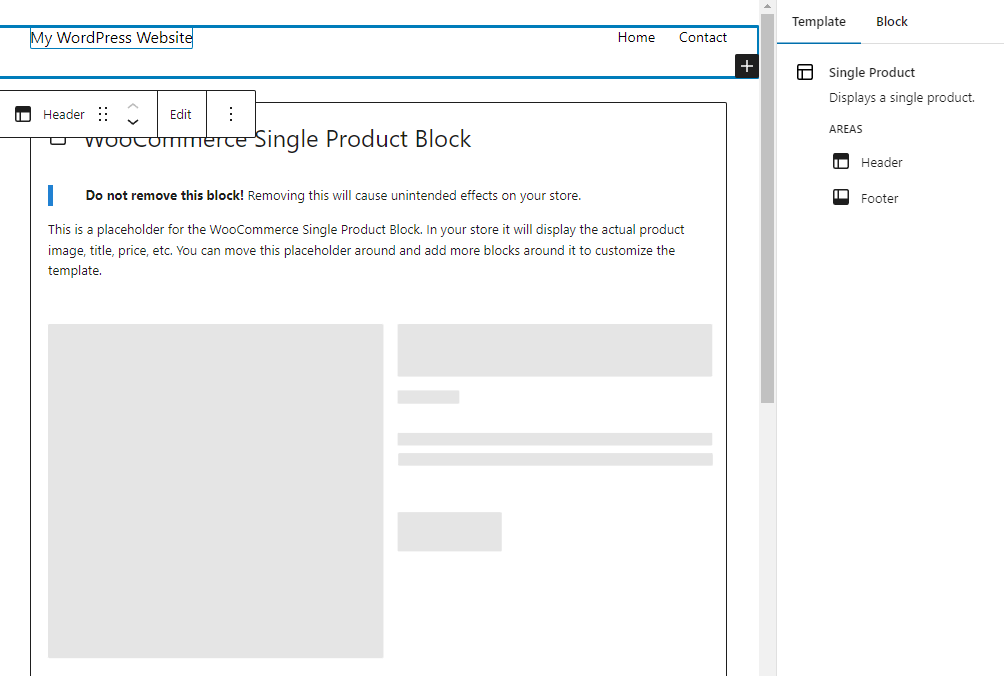
    The default page layout contains the header, footer, and WooCommerce Single Product block, which displays product info, price, and image elements. 

    You should back up your site before making edits to your product page template. Certain changes — for example, accidentally deleting the Single Product block and saving — will make it impossible for your visitors to shop or buy.

    WooCommerce single product template shown with default blocks

    How to edit the Single Product page header and footer templates 

    The Template tab under Settings (the gear icon in the top right) contains links to manage the Header and Footer. Click either option to manage that part of the page template. You can also click into an area of the template directly to start editing. Remember that any changes made here will be applied to all products using the template. 

    In the header, you can edit the Site Title and the links in your main navigation menu, and even add new blocks to customize your product page specifically. Use this space to add images, text, and more to enhance the selling power of your product page. You could add a promotional or policy note or banner to let shoppers know about a current sale or how to get free shipping on orders over a certain amount. 

    You can do something similar with the product page footer. For instance, add a customer testimonial or information about a Satisfaction Guarantee policy.

    How to customize the Single Product body

    The Single Product block displays a bold warning at the top, “Do not remove this block! Removing this block will cause unintended effects on your store.” Take this message seriously!

    WooCommerce Single Product block

    However, you can add new blocks around the Single Product block to completely customize your product page design.

    Use the + icon to add elements above or below the Single Product block, then include whatever blocks you’d like to customize the page. 

    Use a Paragraph block to include current offers (“Spend $100 or more for free shipping”), a satisfaction guarantee, or anything that will help visitors make the decision to purchase. Add a Video block that gives a behind-the-scenes look at your processes. Or include specific recommended products that you’d like to promote. The sky’s the limit here!

    adding extra blocks to the individual product page

    And for each block, you can edit settings like background color, typography, and spacing to make it truly your own.

    Customize your product page manually (using code and hooks)

    For advanced options — without the cost or maintenance of plugins — you can edit and customize your product page manually using code and hooks.

    Before you make any changes to your files, it’s important that you take the time to back up WooCommerce. If you’re using Jetpack VaultPress Backup, this is done for you automatically, in real time. So if any of your changes cause your site to go down, you can restore a backup in just a few clicks, even if you don’t have access to your WordPress dashboard.

    And you’ll also want to use a child theme to make these changes. Otherwise, when you update your theme or WooCommerce down the road, you might lose all of your customizations. Another option is to use a plugin like Code Snippets, which lets you add custom code to your site in snippets that you can turn on and off as needed. 

    Customize WooCommerce product pages using hooks 

    Hooks allow site owners to add code and customize pages without the dangers associated with editing core files. There are two types of hooks: actions and filters. Actions allow you to insert code at specific points, while filters allow you to manipulate and return a variable. 

    For example, you can use actions to add a new checkout field, then use filters to change the labels or placeholders of existing checkout fields. You can find the list of available WooCommerce hooks here.

    Here are a few more examples of changes you can make to your product pages using hooks:

    Customize WooCommerce product pages using CSS

    CSS is a coding language used to control design elements (as opposed to JavaScript, which controls actions). You can use it to modify the design of your product pages. Once you’ve learned the basics of CSS, you can customize everything from colors and fonts to sizes of individual elements. 

    You can easily add CSS code by going to Appearance → Customize → Additional CSS in your WordPress dashboard. For example, if you wanted to change the font color of your product titles, you would use the following code, replacing the color’s hex code with your own:

    .woocommerce div.product .product_title {
    
    color: #222222;
    
    }

    If you wanted to change the color of the Buy Now button, you would use this code, again replacing the hex code with your color of choice:

    .woocommerce div.product .button {
    
       background: #000000;
    
    }

    You can see more examples in this article from WooCommerce.

    How to boost your product page loading speeds

    Fast loading sites are important to both visitors and search engines. People don’t want to wait around and search engines don’t want to send people to underperforming sites.

    Literally every second counts — a one second delay in loading times can reduce conversion rates by 20%! 

    Jetpack Boost is the top website speed and performance optimization solution for WordPress. It has a quick and easy setup process — no developer needed — and boasts results that beat the top five performance plugins in a head-to-head test.

    After you install the free plugin, you can run an audit and get a report on your current site performance scores. These will serve as benchmarks you can use to measure improvements to your Core Web Vitals, metrics that Google uses to gauge your site’s user experience and technical performance.  

    A simple dashboard makes it simple to configure optimization options via one-click activations. This gives you the flexibility to test the performance modules individually and configure Jetpack Boost to fit perfectly into any scenario.

    Jetpack Boost settings

    For more ways to speed up your product pages, check out Nine Ways to Speed Up a WooCommerce Store.

    Frequently asked questions about customizing product pages

    Still have questions? Take a look at the answers to some common ones below.

    What is the best way to customize a WooCommerce product page?

    There is no single best way. The best way for you depends on your comfort level with the various approaches. 

    The Site Editor puts all the power in your hands, letting you drag and drop elements to create your own, personalized product page without having to edit any code at all. This is an excellent solution for beginners and advanced users alike!

    If you’re looking for specific additional functionality, WooCommerce extensions are a great option. They’re vetted and approved by WooCommerce, and give merchants advanced customization options without custom code

    Manual customization and coding offer the greatest flexibility, but also require the most technical knowledge. Compared to using blocks or extensions, this method has the greatest chance of causing an issue or even breaking the site. 

    Should I back up my site before editing the product page template?

    Yes. Unlike pages and posts, site templates don’t have a revision history. Back up your site before making any updates to your product page template, so you can do a quick restore if there’s any issue. 

    Jetpack VaultPress Backup is a real-time WordPress backup plugin, which means that your site isn’t just backed up on a daily schedule or when you make a manual copy. Instead, it’s saved automatically every time you make a change to your site, a customer places an order, or a visitor leaves a comment. Any time something important happens? It’s saved! 

    Ecommerce stores can’t afford to lose data, especially when that data represents real-world customer orders. Don’t settle for solutions that only save your site occasionally or require a lengthy customer service interaction to restore things when there’s an issue.

    With Jetpack VaultPress Backup, you can restore your site with one click and get back online quickly. With the Jetpack mobile app, you can restore any time, anywhere, even if the site is completely down. 

    The best part for store owners? All of your customer data and orders are protected and stay current.

    What are some best practices for customizing a WooCommerce product page?

    Regardless of the method you use to edit and customize your WooCommerce product page, follow these best practices to protect yourself, your site, and your customers.

    Back up your site first, every time. When you add or update site code, a single error can cause issues. You need to be ready to restore the site ASAP, without losing a single order. Jetpack VaultPress Backup is the best real-time, automatic backup solution for WordPress.

    It’s done for you, so you don’t even have to worry about saving your site before experimenting with changes. 

    Make your code changes outside of your parent theme files. When you edit a theme or  plugin file, those changes will be overwritten and undone the next time that the theme or plugin is updated. 

    There are multiple ways to add code to your site without editing the theme or plugin files directly. You can use the Code Snippets plugin to add, edit or remove elements on a page, and style your site via the Additional CSS field in the Theme Customizer. You can also create a child theme. The important thing is to make your changes where they won’t be affected by theme or plugin updates.

    Keep an eye on speed. No matter how you customize your product pages, you want to make sure that your site speed doesn’t suffer. With Jetpack Boost, you can instantly improve key areas that improve both user experience and Google’s perception of your site quality. A faster site means customers will be more likely to stay and Google will be more likely to recommend you in the search results. A quick boost can go a long way. 

  • Choosing the Best WordPress Lazy Load Plugin: Top 7 Plugins Compared

    Adding visual elements to your site is an easy way to make your pages more engaging. You might include marketing banners, product images, galleries, or video tutorials. Unfortunately, including a bunch of files can weigh your site down and result in slower performance.

    Lazy loading is a great way to relieve pressure on your server while increasing the loading speed of your website. It delays images from rendering for visitors until they’ve scrolled down to their place on the screen. Better yet, some lazy load plugins are free, easy to use, and come with extra features for website optimization. 

    In this post, we’ll explore some of the best lazy load plugins for WordPress. Then, we’ll show you how to choose the ideal tool for your needs. 

    The seven best lazy load plugins for WordPress

    Let’s take a look at seven of the best lazy load plugins for your WordPress website!

    1. Jetpack Boost

    Jetpack Boost homepage design

    Jetpack Boost is an all-in-one optimization plugin that increases your overall website loading speed. Not only will you have an efficient lazy loading tool, but you can also enjoy plenty of other features to improve your web performance. 

    What’s more, Jetpack is one of the most beginner-friendly options on this list. With a clean, intuitive dashboard, it couldn’t be easier to navigate your way through. 

    What really sets Jetpack Boost apart is that it’s built specifically to help you improve metrics like First Contentful Paint (FCP) and Largest Contentful Paint (LCP). Therefore, using Jetpack Boost can help you improve your Core Web Vitals, user experience, and search engine rankings.

    Key features of Jetpack Boost

    • Simple reports with an instant performance score across mobile and desktop devices
    • An intuitive, clean dashboard to view your performance and adjust your settings
    • Additional optimization tools that generate critical CSS, among other things

    Pros of Jetpack Boost

    • It provides SEO insights to enhance your search rankings and Core Web Vitals.
    • It optimizes CSS loading and defers non-essential JavaScript.
    • You can automate critical CSS with a premium plan.
    • It’s made by Automattic — the people behind WordPress.com — so you can rest easy knowing it’s reliable and compatible with most popular themes and plugins.

    Cons of Jetpack Boost

    Ease of use

    Jetpack Boost is incredibly easy to set up and maintain. You can install Jetpack Boost just as you would any other WordPress plugin. Then, simply head over to your dashboard and toggle on each of the settings individually.

    Price

    You can access many of its features through the free Jetpack Boost plugin. To use the automated Critical CSS feature, you’ll need to upgrade to a premium plan, starting at $20 per month.

    2. Smush

    Smush homepage design with an illustration of their features at work

    Smush is a popular image optimization plugin, with over one million active installations. Besides lazy loading in WordPress, Smush also offers image optimization, compression, and resizing tools. 

    Like Jetpack, Smush is very easy to use. In fact, once it’s installed, you can get it up and running in just a few seconds. Better yet, Smush is compatible with many themes, plugins, and browsers, so you can go about your business as usual. 

    Key features of Smush

    • Image optimization, compression, and resizing tools
    • Automatic file compression as you upload images to WordPress
    • The ability to view all Smush image data directly in your image blocks

    Pros of Smush

    • You can choose to optimize images individually or in bulk (up to 50 images at a time).
    • You can limit the output locations of media like widgets, content areas, and thumbnails.
    • Smush Pro comes with Smush CDN and WebP conversion, and it stores backups of your original images.

    Cons of Smush

    • Smush skips images over 5MB, which could be problematic for some websites like those with portfolios.
    • The compression options with the free version may be too simplistic for some users.

    Ease of use

    Getting started with Smush is super simple. You can activate the features with just the click of a button. This instantly defers the loading of images below the fold. Simply head to the plugin’s settings, visit the Lazy Loading section, and hit Activate.

    Price

    You can use the free version of the plugin or opt for Smush Pro, starting at $7.50 per month. Additionally, you can test the tool first with a seven-day free trial.

    3. Lazy Loader

    Lazy Loader hero image with three "Zs" on a blue background

    Lazy Loader is a simple, straightforward plugin that does exactly what it says. You won’t get any fuss or frills with this tool. Instead, you can simply enable/disable lazy load on certain elements and add a spinner animation to loading content. 

    Additionally, Lazy Loader can be applied to many types of content, including videos, iframes, audio content, images, and even backgrounds, scripts, and page styles. Therefore, while there are no fancy features to play around with, Lazy Loader is certainly a robust tool.

    Key features of Lazy Loader

    • The ability to lazy load background images and scripts with manual modifications
    • A checkbox to enable/disable lazy loading for specific posts and pages 
    • The ability to use the native lazy loading feature in browsers to modify iframes and images

    Pros of Lazy Loader

    • It defers the loading of all types of content, from page styling to iframes and scripts.
    • You can disable lazy loading for images with specific CSS classes, and add filters for the plugin to process.
    • It utilizes a “noscript” element as a fallback for disabled JavaScript.

    Cons of Lazy Loader

    • You’ll need to modify the markup to use it for background images not inserted with inline styles and scripts.

    Ease of use

    Lazy Loader requires a little more technical expertise if you plan on using it for background images not inserted with inline styles and scripts. But for any other elements, Lazy Loader is pretty easy to set up. Under Settings → Media, configure the exact options that you want, and the plugin gets to work immediately. 

    Price

    Free.

    4. Optimole

    Optimole hero image with a rocket illustration

    Optimole is a full-service cloud-based system that offers lazy loading and resizing. It also enables you to optimize and compress images in WordPress. Plus, you can even take advantage of the Optimole CDN for faster content delivery. 

    A unique feature of Optimole is that it replaces all image URLs with cloud-based URLs and compresses them on the fly. Moreover, you can enjoy extra features like format-based optimization, smart cropping, and watermarks.

    The free version can handle 5K monthly visitors from over 200 locations. But if that’s not enough, you can always upgrade to the Pro version to accommodate 50K visitors per month. 

    Key features of Optimole

    • A global CDN at no extra cost
    • Full support for page builders 
    • Cloud image library support and AVIF support for lower image sizes

    Pros of Optimole

    • It doesn’t affect layouts, so you can improve your User Experience (UX).
    • Optimole supports all image types including WebP and retina.
    • It optimizes in real-time based on each visitor’s device.

    Cons of Optimole

    • Lazy loading isn’t as effective as other tools (sometimes the image is replaced with a blurred image momentarily).
    • The Pro option is pricier than others on this list.

    Ease of use

    Optimole is a fully automated plugin. Therefore, you can “set and forget” the settings, and the tool works in the background of your site, requiring very little ongoing maintenance. Plus, you can uninstall Optimole just as easily, and your site will be left completely intact.

    Price

    There is a free version of the Optimole tool that is very functional. Alternatively, you can upgrade to accommodate more traffic, use the tool on unlimited sites, and access email support. Paid plans start at $19.08 per month.

    5. LazyLoad by WP Rocket

    LazyLoad hero image with an orange background and illustrations of images

    LazyLoad is a powerful yet lightweight plugin with scripts weighing less than 10KB. We say powerful because LazyLoad takes care of all assets on your site, including avatars, thumbnails, iframes, background images, YouTube videos, and more.

    It injects JavaScript into your header and delays images without using any JavaScript library like jQuery. With fewer HTTP requests, LazyLoad provides another way to boost speed and improve your LCP score.

    Key features of LazyLoad

    • The ability to lazy load images in post content or widget text
    • Filters that deactivate lazy loading on some pages
    • Automatic (or manual) lazy loading for background images

    Pros of LazyLoad

    • It targets specific goals such as improving metrics on PageSpeed Insights or boosting First Input Delay scores.
    • It uses a “transparent” placeholder for images (as opposed to blurring images).
    • It replaces YouTube iframes with a preview thumbnail.

    Cons of LazyLoad

    • Reviews claim that LazyLoad can disrupt image placement, layouts, and other design elements on your site.
    • It isn’t the most mobile-friendly plugin.
    • It receives less frequent updates than other lazy load plugins.

    Ease of use

    LazyLoad is easy to install and configure if you stick with the basic options. But, if you want to achieve greater control, like excluding certain pages from lazy loading, you’ll need to manually edit your functions.php file

    Price

    LazyLoad is a free plugin by WP Rocket. Additionally, if you already have the WP Rocket Cache plugin, LazyLoad is included.

    6. Lazy Load for Videos

    Lazy Load for Videos image with logos and a video image

    Lazy Load for Videos is one of the best lazy load plugins for video-heavy websites like portfolios or sites with embedded content from YouTube or Vimeo. It works by substituting any embedded video with a clickable image preview, which defers JavaScript.

    Better yet, YouTube videos are also loaded in a privacy-enhanced mode. Plus, you can enjoy plenty of customization options, like tweaking the Play button or hiding related video suggestions once the video ends. 

    Key features of Lazy Load for Videos

    • No vendor lock-in and no custom shortcodes, so your videos will still work if you decide to stop using the tool 
    • GDPR compliance, enabling you to display a privacy disclaimer above preview images
    • A custom color for your Vimeo player and progress bar

    Pros of Lazy Load for Videos

    • You can set your embeds to autoplay if you prefer.
    • You can hide annotations and YouTube controls to create a clean, neat space.
    • It includes extras like pre-roll/post-roll advertisements that you can apply to all videos.

    Cons of Lazy Load for Videos

    • There are some compatibility issues with the Jetpack “Shortcode Embeds” extension, BuddyPress, and the YouTube Embed WordPress plugin.

    Ease of use

    Like other plugins on this list, Lazy Load for Videos is super simple to install and manage. Plus, it’s easy to turn the plugin on and off at any time.

    Price

    Free.

    7. a3 Lazy Load

    a3 Lazy Load plugin hero image with icons of a clock and car

    Finally, a3 Lazy Load delivers an exclusive lazy loading service. It’s very easy to set up, even for beginners, and it’s mobile-friendly. 

    While the plugin enables your pages to load faster, you can also toggle the setting for videos and iframes, thanks to a3 Lazy Load’s extensive customization options. Better yet, you’re able to include/exclude particular elements and even add some smooth transition effects like fade and spinner.

    Key features of a3 Lazy Load

    • The ability to use the plugin with content-heavy sites (it’s been tested with 1000 images)
    • Lazy loading for thumbnails, avatars, widgets, custom post types, and more
    • Full compatibility with WordPress embeds

    Pros of a3 Lazy Load

    Cons of a3 Lazy Load

    • It only works with media that’s been added using core WordPress functions and won’t work with any custom written functions.

    Ease of use

    a3 Lazy Load is super easy to set up and customize for all user levels.

    Price 

    There’s a free version available, or you can upgrade to premium. Paid plans start at $24.99 per month for use on five sites. What’s more, you can try a3 Lazy Load free for 14 days and easily cancel the subscription if you decide against it.

    The best lazy load plugin: comparison table

    Easy to use Additional image optimization features Fully compatible with popular plugins Free version available 
    Jetpack Boost Yes Yes Yes Yes
    Smush  Yes Yes Yes Yes
    Lazy Loader Yes No Yes Yes
    Optimole Yes Yes Yes Yes
    LazyLoad Yes No Yes Yes
    Lazy Load for Videos Yes No No Yes
    a3 Lazy Load Yes No Yes Yes

    Verdict: what’s the best lazy load plugin for WordPress?

    The best lazy load plugin depends on your website needs. For instance, if you have many high-quality images on your site, you might prefer a plugin that offers image optimization features like compression and resizing. 

    Additionally, if most of your media files are videos or WebP formats, then it’s important to find a plugin with this capability since some tools will only work with JPEG/JPGs and PNGs. 

    With Jetpack Boost, you can tick multiple checkboxes. While you’re able to enjoy extra features like Critical CSS and deferral of non-essential JavaScript, Jetpack Boost isn’t going to weigh your site down with a bunch of tools you don’t need. Instead, these features are used to enhance quick content delivery along with lazy loading.

    Better yet, you couldn’t ask for an easier tool to set up and configure. Once it’s installed on your site, simply head to the dashboard, where you’ll use toggles to enable/disable each of the settings. Then, Jetpack Boost works in the background of your site, requiring little to no ongoing maintenance. 

    How to choose a lazy load plugin

    Now that you know the best lazy load plugins for WordPress, here are some ways to narrow down the right option for your site.

    1. Make sure it matches your skill level

    Some users might want a more hands-on tool with lots of control configurations and customization options. But for a beginner, all these settings can be intimidating. That’s why finding a lazy load plugin that matches your skill level is important.

    If you don’t have a lot of tech experience, you’ll probably prefer a tool that’s easy to install and works automatically. There are plenty of options with “set and forget” options, so there’s no need to tinker around with complicated features and ongoing maintenance. 

    2. Check for additional features

    If you’re looking for a lazy load plugin, you might simply want a method to delay the loading of images below the fold. Some of these plugins, like LazyLoad and Lazy Loader, do just what they say on the box.

    But, for more complex, content-heavy websites, you can benefit from tools that provide additional features to enhance your content delivery. For instance, if you have a portfolio, you might want optimization and compression tools. Meanwhile, photography websites could find a watermarking feature useful. 

    3. Find out which image formats and sizes are supported

    Typically, most plugins will accommodate popular image formats like JPEGs and PNGs. But not all tools offer lazy loading for animated images like GIFs or videos. Plus, some newer image formats like WebP and Retina might be ignored.

    That’s why it’s important to ensure that the lazy load plugin you choose can support all the file types you intend to use on your website. Additionally, keep in mind that the free versions of some plugins are often a lot less powerful. Therefore, while a free lazy load plugin may seem like the best option in the short term, it might not work on large media files.

    4. Make sure it’s compatible with other plugins on your website

    The last thing you want to do is to get started with a lazy load plugin only to find that it isn’t compatible with other plugins essential to the running of your site. For example, if you own an online store, you probably rely on a platform like WooCommerce. Meanwhile, forum sites utilize specialized plugins like bbPress to gain functionality. 

    If the plugin isn’t compatible with other software you’ve installed, you risk breaking your site. Therefore, it’s crucial to pay close attention to the integrations and compatibility of your preferred tool. A good example of this is the Lazy Load for Videos plugin, which doesn’t work with a specific extension of Jetpack.

    In general, Jetpack Boost, because it’s made by the people behind WordPress.com, will work reliably with most themes and plugins.

    Frequently asked questions about WordPress lazy load plugins

    Now that you know how to choose the best lazy load plugin for your site, here are some of the most popular questions about lazy loading.

    What makes a good lazy load plugin?

    A good lazy load plugin can delay loading your images below the fold. Doing so speeds up the delivery of content that’s immediately visible to your users. While this is the default feature, you can also find lazy load plugins that offer additional features like image optimization, compression, and resizing tools.

    On top of that, the best lazy load plugins are automated, easy to use, and compatible with popular plugins like WooCommerce. Plus, it’s vital to find a tool that doesn’t damage your UX or adjust the image quality too visibly since this can be frustrating for your visitors.

    How much does a lazy load plugin cost on WordPress?

    There are plenty of free lazy load WordPress plugins. But many providers also offer a paid option that might include extra features or handle larger file sizes. It’s important to note that some free tools can be very limited.

    That’s why Jetpack Boost is a great option. There’s a completely free version that is super simple to configure. Once you’ve set it up on WordPress, you can lazy load images, defer non-essential JavaScript, and optimize Critical CSS. These settings enable you to speed up content delivery without spending a penny.

    Is it easy to set up a lazy load plugin on WordPress?

    Lazy load plugins vary in their ease of use. You’ll find more complex tools that require a more hands-on approach and configuration. But you can also opt for simple lazy load plugins that are easy to install and use. 

    One of the best features of Jetpack Boost is that you can set it up with just a few clicks. Then, use toggles to enable or disable individual features. Plus, you can deactivate the plugin at any point without damaging your site.

    What other features can I get with a lazy load plugin?

    You can find lazy load plugins that offer a streamlined service. But if you want to access additional features, it’s worth choosing a tool that offers other features to improve the performance of your site.

    Jetpack Boost is a great lazy load plugin because the lazy load service is simple but powerful. Better yet, you’re able to defer non-essential JavaScript, optimize Critical CSS, and with paid plans, you can even automate critical CSS. You can also pair Jetpack Boost with Jetpack’s CDN to further optimize and stabilize your web performance.

    Boost your site’s performance with a lazy load plugin

    While adding images is a great way to spruce up your site, too many photos can disrupt your UX with slow loading times. Fortunately, with the right lazy load plugin, you’re able to deliver content faster and keep your site running smoothly.

    To recap, here are some of the top WordPress lazy load plugins:

    1. Jetpack Boost: An easy-to-use plugin with additional features for speed optimization.
    2. Smush: A popular image optimization plugin with compression and resizing tools.
    3. Lazy Loader: A simple, fuss-free way to lazy load your images.
    4. Optimole: A full-service cloud-based system that includes a CDN.
    5. Lazy Load by WP Rocket: A lightweight but powerful plugin that helps you target specific goals.
    6. Lazy Load for Videos: The best option for video lazy loading, with plenty of customization tools. 
    7. A3 Lazy Load: A user-friendly plugin exclusively dedicated to lazy loading.

    Overall, using Jetpack Boost is the best plugin to implement lazy loading on your site. Plus, with a bunch of extra features, you can optimize your entire web performance. Get started with Jetpack Boost today!

  • Jetpack 11.8 – Under-the-hood improvements for your site

    This month we have worked on several under-the-hood improvements to enhance your Jetpack experience, including further enhancements to the Form block.

    New form element styling options

    • You can now style individual form elements more easily in the Form block’s sidebar settings, including:
      • Adding a corner radius to input fields
      • Updating the border width
      • Editing the line height of an input field
      • Changing the color of the label text, input text, borders, and input fields
    The new individual style settings in the Form block’s sidebar

    This release also includes other minor bug fixes and improvements — check the changelog for more

    A big thank you to everyone who contributed to this release:

    Adnan Haque, Adrian Moldovan, Ajay Kumar Jain, André Kallehauge, Artur Piszek, Biser Perchinkov, Bogdan Ungureanu, Bogomil Stoynov, Brad Jorsch, Brandon Kraft, Candy Tsai, Christian Gastrell, Clemen, Damián Suárez, Daniel Bachhuber, Daniel Post, Dean Sas, Derek Smart, Donncha Ó Caoimh, Douglas Henri, Dylan Munson, Eric Binnion, Foteini Giannaropoulou, Gergely Márk Juhász, Grant Kinney, Ian Ramos, Ivan Ottinger, James Kenneth Guidaven, Jason Johnston, Jason Moon, Jasper Kang, Jeremy Herve, Karen Attfield, Kuba Birecki, Luiz Kowalski, MILLER/F, Maciej Grabowski, Mikael Korpela, Nate Weller, Nauris Pūķis, Osk, Peter Petrov, Piotr Stankowski, Rafael Agostini, Renan Carvalho, Renato Augusto Gama dos Santos, Romario, Samiff, Sergey Mitroshin, Sérgio Gomes, Steve D, Vishnu Gopal, Wilmerson da Silva, Yaroslav Kukharuk, arthur791004, bindlegirl, daledupreez, jcheringer, nunyvega, ouikhuan, simonktnga8c, thingalon

  • How Malware Can Abuse the .htaccess File

    You learned about the importance of the .htaccess file in our blog post How to Access and Edit the Default WordPress .htaccess File. As you can imagine, an important file such as .htaccess can be a target for bad actors. In this article, we’ll point out cases and indicators of compromise that affect this file.

    Malicious redirects

    Attackers can setup redirects on the .htaccess files that will redirect visitors based on specific conditions. The final destination can be a website containing other malicious content, spam, phishing campains, or other types of scam.

    Those redirects will rely on the function RewriteRule and will sometimes be preceeded by the conditions set by RewriteCond, just as a default .htaccess file would do. This can make spotting those bad codes hard for users that aren’t familiar with the website’s configuration.

    Examples of this type of malware are (URLs were invalid):

    <IfModule mod_rewrite.c>
    RewriteEngine On
    RewriteBase /
    RewriteCond %{HTTP_REFERER} ^http://[w.]*([^/]+)
    RewriteCond %{HTTP_HOST}/%1 !^[w.]*([^/]+)/$ [NC]
    RewriteRule ^.*$ hxxp://celeirodoalgarvio[.]com/azzf.html?h=717013 [L,R]
    </IfModule>
    
    <IfModule mod_rewrite.c>
    RewriteEngine On
    RewriteRule ^([A-Za-z0-9-]+).txt$ hxxps://getyourprizenow[.]life/?u=y2ykaew&o=2xup89r&m=1&t=m2rdhta [L]
    RewriteRule ^([A-Za-z0-9-]+).htm$ hxxps://getyourprizenow[.]life/?u=y2ykaew&o=2xup89r&m=1&t=m2rdhta [L]
    </IfModule>
    
    RewriteEngine on
    RewriteCond %{HTTP_USER_AGENT} "iPhone|android"[NC]
    RewriteRule ^(.*)$ hxxp://176[.]102[.]34[.]137/safezone [L,R=302]
    

    SEO spam

    Very similar to the malicious redirects case, this bad code will target search engines instead of the end user, redirecting their crawling attempts to malicious pages written to boost other websites, usually related to scams.

    In the condition you’ll find it looking for the search engines on referrers and user-agents, as in the following example:

    RewriteEngine On
    RewriteCond %{HTTP_USER_AGENT} (bing|google|yahoo|msn|aol) [NC,OR]
    RewriteCond %{HTTP_REFERER} (yahoo|bing|google|msn|aol)
    RewriteRule ^(.*)$ default.php [L,QSA]
    RewriteCond %{HTTP_USER_AGENT} (bing|google|yahoo|msn|aol) [NC,OR]
    RewriteCond %{HTTP_REFERER} (yahoo|bing|google|msn|aol)
    RewriteRule ^(.*)$ inc.php [L,QSA]
    RewriteCond %{HTTP_USER_AGENT} (bing|google|yahoo|msn|aol) [OR,NC]
    RewriteCond %{HTTP_REFERER} (yahoo|bing|google|msn|aol)
    RewriteRule ^(.*)$ inc.php [L,QSA] 
    RewriteCond %{HTTP_USER_AGENT} (bing|google|yahoo|msn|aol) [OR,NC] 
    RewriteCond %{HTTP_REFERER} (bing|google|yahoo|msn|aol)
    RewriteRule ^(.*)$ inc.php [L,QSA]
    

    Allowing bad code

    Sometimes the attacker wants to make sure to protect the malicious file they uploaded to the site from competitors or other people poking around. Or they want to make sure that their malicious file will be opened by overriding the parent directory configuration.

    For those cases a FilesMatch condition will be created and specific files or extensions will be listed, as in the example below:

    <FilesMatch ".(py|exe|php)$">
     Order allow,deny
     Deny from all
    </FilesMatch>
    <FilesMatch "^(about.php|radio.php|index.php|content.php|lock360.php)$">
     Order allow,deny
     Allow from all
    </FilesMatch>
    

    What to do if my site was infected?

    If you find the .htaccess file on your website was compromised the first thing you should do is to restore it to a working version, which will preserve your site’s permalinks and redirects. Please refer again to How to Access and Edit the Default WordPress .htaccess File. And then follow these steps:

    • Change all admin user’s passwords and make sure you’re using multi-factor authentication.
    • Review all WordPress users and remove the ones you don’t recognize (especially the admin ones).
    • Review for unused or unknown themes and plugins and remove anything unnecessary or unknown.
    • Reinstall all your plugins since they may have been compromised.
    • Review your theme for added or changed files that weren’t added or changed with your consent.
    • Reinstall WordPress core files.

    At Jetpack, we work hard to make sure your websites are protected from these types of vulnerabilities. We recommend that you have a security plan for your site that includes malicious file scanning and backups. The Jetpack Security bundle is one great WordPress security option to ensure your site and visitors are safe. This product includes real-time malware scanning, site backups, comment and form spam protection from Akismet, brute force attack protection, and more.

  • 5 Best WordPress Search Plugins for Better & Faster Site Search

    Search functionality is essential for most websites as it helps visitors locate the information, content, or products they need. WordPress comes with a native search system, but this can only perform basic lookups, and it can be slower than users expect, especially if your website contains a lot of content.

    Luckily, there’s a wide range of advanced search plugins for WordPress that enable you to offer a speedy experience. These plugins often come with useful features such as instant search results, ecommerce product support, and spelling correction that help ensure your visitors can quickly find the information they’re looking for.  

    There are a lot of WordPress search plugins out there, so to help you find the perfect one for your site, we’ve put together this handy guide. Read on to explore the features you should be looking for in a WordPress search plugin, and then see our reviews of five of the best options. 

    Features to look for in a WordPress search plugin

    Some of the top features to look out for in site search plugins include:

    Accurate search results

    Of course, the top thing to look for when choosing a WordPress search plugin is the accuracy of its search results. The accuracy of a WordPress search plugin largely depends on a combination of:

    • The plugin’s index – While the default WordPress search function works by querying your database each time a user searches, most search plugins build their own index of your site, which it then searches against. Therefore, the accuracy of this index is essential. You should also ensure your WordPress search plugin automatically updates its index every time you add or change content and that it can index all the types of content you want your visitors to be able to discover.
    • The plugin’s algorithm – The algorithm used by your search plugin influences how it determines which results to return for your visitors’ search queries. You should look for a WordPress search plugin that allows you to customize its algorithm to meet the needs of your site — for example, you may decide that the plugin should give a higher priority to products in your online store than to images in your site’s media library. 

    Over 80% of search queries are made up of more than one word, so you should also make sure your WordPress search plugin can deliver accurate results if a phrase or question is entered. For example, Jetpack Search can instantly respond to complex, multi-faceted searches, which helps your visitors find the information they’re looking for without rephrasing their query. 

    Speed

    It’s vital that a WordPress search plugin quickly responds to queries.

    Some WordPress plugins offer instant search, so your visitors start seeing results as soon as they enter their query, rather than waiting for a search results page to load.  

    It’s also important to consider what resources the search plugin uses to index your site and process your visitors’ queries. Most WordPress search plugins use your website’s server, which can work well for small sites, but as your site grows, this can put a strain on your web server, and you may notice it takes longer to process search requests and index new content. But other plugins, such as Jetpack Search, take the strain away from your host by using powerful cloud servers to deliver lightning-fast results regardless of the size of your site. 

    Powerful filtering

    Filters can help your visitors narrow their search results to find exactly what they are looking for. You should look for a WordPress search plugin that allows your visitors to filter their search results based on tags, categories, or product attributes. It’s also important to consider how quickly the search plugin can apply those filters. Some can instantly filter results without reloading the page, while others need to refresh the page to apply filters. 

    Jetpack’s WordPress search plugin, for example, supports more than 1,000 custom taxonomies.

    Ecommerce support

    Customers are two times more likely to make a purchase online after searching on a retailer’s website, so a great search function is essential for any ecommerce store. If you run an online store, your WordPress search plugin should offer full support for your ecommerce platform and allow your visitors to search and filter by product attributes so that they can find the product they are looking for.  

    Jetpack’s WordPress search plugin, for example, has a special mode for ecommerce sites that can display results in a grid style.  

    A review of the best site search plugins for WordPress

    But how do you find the best search plugin for your WordPress site? To help, we’ve examined some of the top WordPress search plugins and compared them based on their features, pros and cons, ease of use, and pricing.

    Jetpack Search homepage with the text, "Help your visitors find what they need."

    1. Jetpack Search

    Jetpack Search is one of the best WordPress search plugins that offers a wide range of advanced tools to help your visitors instantly find the right content or product.

    The plugin offers instant search and will start displaying results as soon as a visitor begins to type in your search box. This means that they don’t have to wait for search results to load. In addition, Jetpack Search is highly customizable and offers a wide range of features and options, enabling you to create an outstanding search experience that blends seamlessly with your site design. Plus, Jetpack Search offers instant spelling correction, so a typo won’t get in the way of your visitors finding what they’re looking for. 

    Jetpack Search fully integrates with WooCommerce to help your customers find the perfect product for them. The plugin supports complex faceted search requests — for example, “A red and white men’s polo shirt in large for under $25.” In addition, Jetpack Search displays product pictures in search results and allows customers to instantly filter their results by product attributes, so they can quickly find the item they’re looking for.  

    The plugin can deliver its lightning-fast speed without putting extra strain on your server as it uses Automattic’s powerful cloud servers to index your site and conduct searches. Jetpack Search was made by the experts at Automattic — the same people behind WordPress.com and WooCommerce. This means that Jetpack Search should integrate seamlessly with your WordPress website.

    Features of Jetpack Search

    • Instant search and filtering without reloading the page
    • Advanced customization options, which allows you to create a bespoke search experience
    • Advanced ranking algorithms that help you deliver highly-relevant results
    • Integration with Jetpack Stats to help you see what visitors are searching for
    • Prioritized results based on your site’s most popular pages
    • Faceted searches and instant filtering (by tags, categories, dates, custom taxonomies, and post types)
    • Real-time indexing, meaning your search index will update within minutes of changes to your site
    • Support for multiple languages
    • Highlighted search terms in comments and post content
    • Spelling corrections

    Pros of Jetpack Search

    • Jetpack Search helps your visitors quickly find what they want by instantly providing search results as soon as they start typing.
    • The plugin supports complex search queries and allows visitors to instantly filter their search results, including by product attributes.
    • Unlike most of the other plugins in this list, Jetpack Search is a cloud-based service. This means it can deliver highly accurate search results without using your server resources.

    Cons of Jetpack Search

    • Jetpack Search doesn’t index the content of PDFs or documents that you’ve uploaded to your WordPress site. 

    Who is Jetpack Search most suitable for?

    Jetpack Search is a great search solution for any WordPress site. As it uses cloud servers to index and search your website, it can effortlessly deliver results regardless of the size of your site. Its deep integration with WooCommerce also makes it ideal for store owners. 

    Ease of Use

    Jetpack Search is easy to install and will automatically start indexing your site. While the plugin offers powerful customization options, these are easy to understand, and detailed documentation is available. Jetpack’s team of WordPress Happiness Engineers also provides email support to all users. 

    Pricing

    The free version of Jetpack Search allows you to index up to 5,000 records and process 500 search requests per month. The paid plan costs $8.25 per 10,000 records or search requests a month.

    ElasticPress.io homepage design

    2. ElasticPress.io

    ElasticPress.io is a powerful WordPress search service. To enable ElasticPress.io on your site, you must install and configure the ElasticPress WordPress search plugin. Then ElasticPress.io will use its servers to index your site and deliver results. This means your visitors get instant search results that are not limited by the speed or capacity of your website server. 

    ElasticPress.io integrates with WooCommerce to allow your visitors to search for products using product attributes and filter their results so they can find the perfect item. Using ElasticPress.io, you can customize your search algorithms and control the results visitors receive for your most popular search terms. ElasticPress.io also offers auto suggestions based on common search terms, and automatically corrects spellings, so your visitors can easily find the content they’re looking for. 

    Features of ElasticPress.io

    • Hosted search, which takes the load off your servers 
    • Instant search, which shows results as soon as users start typing
    • WooCommerce integration
    • Auto-suggest search terms 
    • Spelling correction
    • Search capabilities within documents and PDFs 
    • Search filters that allow users to narrow down results 
    • A custom results editor to help ensure popular search terms return pre-determined content or products
    • Custom search weighting 

    Pros of ElasticPress.io

    • Like Jetpack Search, ElasticPress is a hosted service that offers a very fast WordPress search experience for your visitors, which doesn’t use your server storage or resources. 
    • ElasticPress.io offers a wide range of advanced features that enable you to fully customize your visitors’ search experience.

    Cons of ElasticPress.io

    • Although there’s a 14-day free trial, there is no free version of ElasticPress.
    • ElasticPress is more expensive than the other hosted, highly-customizable solution on this list: Jetpack Search. 

    Who is ElasticPress.io most suitable for?

    ElasticPress.io is best suited to large WooCommerce sites because it offers fast and accurate product searching, but has a significantly higher cost than the other plugins on this list. 

    Ease of use

    Enabling ElasticPress.io on your WordPress website requires some configuration, and the number of options available may be confusing for some users. However, documentation is provided, along with email support for all subscribers. 

    Pricing

    ElasticPress.io Essential costs $79 per month for up to 20,000 records and 100,000 requests. Additional requests and records are available with the ‘Extended’ plan, which costs $299 per month. 

    Relevanssi listing in the WordPress repository

    3. Relevanssi

    Relevanssi is a popular WordPress search plugin that orders results by relevance. A single WordPress developer, Mikko Saari, is responsible for developing Relevanssi. The plugin replaces WordPress’s built-in search functionality and indexes every part of your site to allow users to search pretty much anything. You can also configure Relevanssi Premium to work with WooCommerce and enable customers to easily search for products on your online store.  

    Relevanssi uses a partial-relevance algorithm to deliver search results to your visitors, which means that if their complete search term doesn’t turn up an exact result, it will display the results that are the closest match. The plugin also offers ‘Did you mean?’ suggestions to your visitors to help them find the content they’re looking for.

    Features of Relevanssi

    • The ability to index any content on your WordPress site, including posts, pages, titles, and products
    • The ability for visitors to search PDFs, documents, and taxonomy terms (premium plan only) 
    • Search results ordered in terms of relevance
    • Highlighted search terms in your posts and pages
    • Customizable weighting for different types of content (premium plan only)
    • Search logs to show the most popular queues and searches that returned no results
    • Google-style “Did you mean?” suggestions based on user searches
    • Spelling corrections (premium plan only) 
    • Keyword stemming (premium plan only)

    Pros of Relevanssi

    • A free version of Relevanssi is available, including many core features, like relevance-based results. 
    • Relvanssi’s premium version supports indexing a wide range of content types, including PDF documents, taxonomy terms, and shortcode-generated content.  

    Cons of Relevanssi

    • Relevanssi uses your own site’s storage and servers, meaning it could impact the speed of your site and take up space on your server. The plugin requires around three times the amount of space as the size of your wp_posts database table. 
    • Taxonomy searching is only possible in the premium version, so if you run an ecommerce store, the free version won’t allow visitors to search by product category or attribute. 
    • Live Ajax searching is only possible with the use of an additional plugin
    • Relevanssi has compatibility issues with popular WordPress plugins, including BuddyPress and NextGen Gallery. 

    Who is Relevanssi most suitable for?

    Relevanssi uses your server space and bandwidth to store its index and perform searches, making it best suited for relatively small websites. The premium version is also suitable for ecommerce site owners. 

    Ease of use

    Relevanssi is easy to use and requires minimal setup. The plugin offers a comprehensive knowledge base, and the developer is active on the plugin’s support forum. In addition, email support is provided to premium subscribers. 

    Pricing

    The plugin is available for free. A premium version that includes additional features, like full WooCommerce support, costs $109 per year. 

    Better Search listing in the WordPress repository

    4. Better Search

    Better Search is a free WordPress search plugin that aims to provide your website visitors with more relevant search results. The plugin allows visitors to search most content on your WordPress site, including posts, pages, and custom post types. It also provides a wide range of options to allow you to customize its search outputs, including adjusting the weighting placed on different content types. Better Search logs the queries made by your visitors to generate a heat map to help you visualize the popular searches on your site. 

    Features of Better Search

    • An index of the titles and content of posts, pages, and custom post types 
    • Relevance-based results 
    • Customizable search outputs 
    • Search term logs

    Pros of Better Search

    • The plugin offers relevance-based searching for WordPress at no cost.

    Cons of Better Search

    • Better Search cannot index taxonomies, meaning your visitors cannot search based on category or product attributes.
    • Visitors can’t instantly see search results, as live searching isn’t supported. 
    • Spelling correction and suggested searches are not offered.

    Who is Better Search most suitable for?

    Better Search is a good choice for site owners on a budget who want to provide more relevant search results but who don’t need the advanced features offered by premium plugins. However, as Better Search does not support taxonomy searching, it provides limited benefit to ecommerce store owners.

    Ease of use

    The plugin is easy to install, and will automatically replace the default WordPress search functionality. However, the advanced options offered by Better Search could be confusing for some users. Limited documentation is provided, but the developers are active on the plugin’s WordPress support forum.

    Pricing

    Better Search is available for free from the WordPress plugin repository. 

    Ivory Search listing in the WordPress repository

    5. Ivory Search

    Ivory Search is a WordPress search plugin that offers free and premium versions. The plugin replaces the default WordPress search functionality and allows visitors to scour most of your WordPress site, including posts, pages, titles, and taxonomies. Ivory Search also offers live search, so visitors can see search results as soon as they start typing their query.

    Ivory Search also supports WooCommerce, so your customers can search and see results from your product names, descriptions, and attributes. The plugin’s Pro Plus plan includes deeper support for WooCommerce, allowing you to exclude out-of-stock products from search results and for customers to search by product SKU. 

    Features of Ivory Search

    • Indexing for posts, pages, titles, taxonomies, and WooCommerce products 
    • Ajax-powered live searching
    • The ability to create multiple search forms and place them anywhere on your site via shortcodes 
    • Keyword stemming (premium only)
    • Control over the order of search results (premium only)
    • The ability to remove password-protected posts from search results (premium only)
    • The ability to search by WooCommerce SKU (premium only)
    • Search analytics via Google Analytics integration 

    Pros of Ivory Search

    • The ‘starter’ version of Ivory Search is free and includes many advanced features, including support for WooCommerce product attributes. 

    Cons of Ivory Search

    • While Ivory Search Pro Plus will allow you to index uploaded file names, it cannot index the content of PDFs or documents. 
    • Some features that help your visitors receive the most accurate search results, such as keyword stemming, are only available in the premium versions of the plugin. 
    • Ivory Search uses your server’s storage and resources to index your site and process requests, so its performance can be limited by the resources available within your hosting package.

    Who is Ivory Search most suitable for?

    Ivory Search’s free ‘starter’ plan would be a good choice for small to medium size WooCommerce store owners who want a free search plugin that improves their customers’ search experience. The plugin’s premium plans are most suited to site owners who want increased control over their visitors’ search experience but don’t want advanced features, such as native search analytics, instant filtering, spelling correction, and indexing of document content.

    Ease of use

    Ivory Search’s many options could confuse some users, and the search form and results pages have to be styled via CSS. However, the developer provides detailed documentation alongside support on the plugin’s support forum. Email support is also offered to users of Ivory Search’s paid plans. 

    Pricing

    The ‘starter’ version of Ivory Search is available for free in the WordPress plugin directory. Ivory Search also offers two paid plans. Its Pro plan offers additional features, including advanced ordering and post exclusion settings, for $19.99 a year. Its Pro Plus plan includes indexing of documents, PDFs, and WooCommerce SKUs for $49.99 a year.  

    Comparison of the top WordPress search plugins

    Jetpack Search ElasticPress Relevanssi Better Search Ivory Search
    Live search Yes Yes No No Yes
    Spelling correction Yes No Yes No No
    Instant filtering Yes Yes No No No
    Support for faceted search queries Yes Yes Limited No No
    Customizable algorithm Yes Yes Premium only Limited Limited
    Hosted service to remove strain from your servers Yes Yes No No No
    Full WooCommerce support Yes Yes Premium Only No Pro Plus Only
    Cost Free for up to 500 records. $8.25 a month per 10,000 records $79 a month per 20,000 records.  Limited free version. $109 a year for the premium version.  Free Starter – FreePro – $19.99/yearPro Plus- $49.99/year

    Factors to consider when choosing the best WordPress search plugin

    Does it offer the features you need?

    WordPress site search plugins offer a wide variety of features, and we’ve outlined some of the key features to consider at the start of this article. When choosing a search plugin, it’s important to ensure it has all the features you need to give your visitors a great experience. 

    Is it easy to use?

    You should consider how easy the WordPress site search plugin is to use and how easy it is to customize the plugin’s settings to meet your site’s needs. Some plugins, such as Jetpack Search, are simple to use with minimal setup but still offer high levels of customization so that you can create a bespoke search experience for your site. 

    Could it slow down your site?

    Most WordPress search plugins use your web server to index your site and carry out visitor search requests. Depending on the size of your site and your web hosting package, this could slow down your site. But, some plugins, such as Jetpack Search, use powerful cloud servers to index and search your site, meaning that you can consistently offer a lightning-fast experience to your visitors. 

    Does it work with WooCommerce? 

    If you run an online store using WooCommerce, you must ensure your WordPress search plugin allows your customers to find the products through search. Some search plugins only allow customers to search by product title. But other advanced search plugins, including Jetpack Search, allow your customers to perform faceted searches and filter by product attribute so they can quickly find the product they’re looking for. 

    Conclusion: What is the best search plugin on WordPress?

    The best WordPress search plugin will depend on several factors, including the size of your site, your experience with WordPress, and if you need the plugin to offer advanced features such as instant search. 

    But it’s clear from the comparison table above that Jetpack Search is the best search plugin for WordPress. Jetpack Search is an affordable hosted search solution that offers a wide range of features, including instant search, powerful filtering, and full support for WooCommerce. It’s simple to set up, and works automatically to keep your site’s search index up to date. Plus, it delivers lightning-fast results to your visitors without using valuable server resources. As it’s made by the people behind WordPress.com and WooCommerce, it integrates seamlessly with your site to help your visitors instantly find content or products. 

    Frequently asked questions about WordPress search plugins

    How much does an advanced site search plugin cost on WordPress?

    WordPress search plugins vary in price. Some plugins are free, but offer fewer features than their premium counterparts. The top plugin in this article, Jetpack Search, provides a powerful free version perfect for smaller sites, and its paid version offers advanced features at a much lower cost than other hosted search solutions in this review. 

    Is it easy to configure a site search plugin on WordPress?

    This varies by plugin and the amount of customizations made by the site owner. However, most can be set up and working in a few clicks and advanced customizations can be made over time. 

    What makes a good WordPress site search plugin?

    WordPress site search plugins should be quick to set up, easy to use, and offer lightning-fast results while minimizing strain on server resources. And that’s why cloud-based solutions like Jetpack Search are often the go-to option for site owners. 

    Search plugins should also offer customization options that guide visitors along paths that help you meet your site goals. Finally, solutions are only helpful if they offer accurate results. Ideal plugins will provide automatic spelling corrections and work to constantly keep the results index up-to-date and relevant. 

  • VaultPress Backup: Your Agency’s Superhero Against Website Crashes

    If you build WordPress sites, you know the importance of keeping them up and running smoothly. But let’s face it, even the best-laid plans can go awry. That’s why having a reliable backup system in place is crucial — and that’s where Jetpack VaultPress Backup comes in. This powerful plugin is the ultimate solution for your client’s websites, providing peace of mind for everyone.

    Picture this: you’ve just finished building a stunning website for your client, and everything is going great. But then, a hacker strikes out of nowhere, and the site goes down. With traditional website backups, it could take all day to restore the site to its previous state. 

    You’ll have to work to find an uncompromised version that you can restore, which sometimes involves digging through files or working with the host’s support chat. Then, you’ll need to use a tool like FTP and phpMyAdmin to restore both the database and files. And if you don’t have an uncompromised backup on hand, then there’s even more work involved to get the site to its most recent version.

    But with VaultPress Backup, you can restore the site in minutes, even if it’s completely down and you’re not near a computer. With real-time backups, everything that happens on the site is saved, and you can reference the activity log to determine the exact point to which you want to restore. This enables you to protect the site’s assets, even if you recently made changes or a client is constantly adding new posts. 

    The benefits of VaultPress Backup don’t stop there. As an agency, you know that time is money. And with traditional website backups, you could be wasting a lot of both. Hosting providers often charge extra for backups, and backing up and then restoring a site can be a time-consuming process.

    With VaultPress Backup, you get top-of-the-line backup services at a fraction of the cost, and one-click restores mean you can get your client’s website back up and running in no time.

    And it’s not just your agency that benefits from Jetpack VaultPress Backup. Your clients will love the peace of mind that comes with knowing their website is protected and that their critical data — like orders from a WooCommerce website — is safe and sound.

    Frequently asked questions

    Now, let’s answer some FAQs about website backups and how Jetpack VaultPress Backup stacks up against traditional hosting provider backups.

    What is a website backup?

    A website backup is a copy of all the files and data on a website, including the database. This can be used to restore the website if something goes wrong, such as a hack or a coding error.

    What does a typical hosting provider back up, and how often?

    Many hosting providers only back up a website once a week or less frequently. Some only back up certain parts of a website, such as the database. This can mean that if something goes wrong, you’re unable to restore the site in full.

    What does VaultPress Backup back up, and how often?

    VaultPress Backup creates full copies of a website, including the database and all files, in real-time, so you always have the most recent version of the site. This means that every new comment, post, order, or other important change is secured safely as soon as it happens. 

    What amount of control do you have over host backups vs. backups from VaultPress Backup?

    With a traditional hosting provider backup, you often have limited control over when and how backups are created and restored. But with Jetpack VaultPress Backup, every change is saved in real-time, and you can choose which elements of the site you want to restore.

    What are the chances of lost or corrupted data for each type of backup?

    The chances of lost or corrupted data can be higher with traditional hosting provider backups, as they may not be created as often and may not include all parts of the website. With VaultPress Backup, real-time backups minimize the risk of lost or corrupted data. VaultPress Backup stores copies of your backups in the cloud, too, which means you’ll never lose any site or store data.

    Jetpack VaultPress Backup is built and maintained by Automattic, the people behind WordPress.com, so it’s designed with WordPress sites as the sole focus. With this level of expertise, you can rest assured that it’s a stable, reliable solution for every site.

    How long does a hosting provider usually keep backups vs. VaultPress Backup?

    It depends on the hosting provider, but many only keep backups for a few weeks or even less. Jetpack VaultPress Backup retains a history only limited by the generous amount of storage included with your plan.

    Become a partner agency today

    Jetpack VaultPress Backup is a must-have for any WordPress developer. The plugin provides top-notch backup services and peace of mind for you and your clients. And most importantly, it saves your agency time and money.

    The real-time backups and one-click restores make it a step above traditional hosting provider backups. And with available security scans, spam filtering, and malware protection provided by Jetpack’s suite of tools, Jetpack can become your all-in-one solution for website management.

    Don’t wait any longer! Install VaultPress Backup on your client’s websites and experience the benefits for yourself. And when your client’s site goes down, you’ll be the hero who saved the day, just like Batman saving Gotham. VaultPress Backup is your trusty sidekick in the fight against website crashes and data loss. Protect your client’s websites, your agency’s reputation, and your peace of mind by using VaultPress Backup.

    To get started today, join our Agency Program and unlock up to 60% off all our products: https://jetpack.com/for/agencies/

  • How to Add Google Analytics to WordPress — 2023 Setup Guide

    Using Google Analytics with WordPress provides some incredible insights. You can learn how people engage with your website, where traffic comes from, how visitors interact with content, and what elements and pages are popular with your audience. You can then use this to improve your site design, determine what types of content or products to create, and better target your advertising.  

    The good news is that the information Google Analytics provides about your WordPress website is free. But adding it to WordPress can require some time and patience. 

    As you’ll learn throughout this guide, manually adding Google Analytics to WordPress is certainly possible, but is often complicated for beginners. It also provides complex analytics and stats that might be way more than you need, especially if you own a small website and just want to discover more information about visitors and traffic sources. 

    The focus of this guide is on how to add Google Analytics to WordPress, but we’ll also tell you a bit more about a tool called Jetpack Stats. This alternative generates simple data, charts, and graphs, can be easier to install, and also integrates with Google Analytics if you need. Automattic, the company behind WordPress.com, is responsible for Jetpack Stats, so it’s a great choice for many WordPress site owners.   

    How can you use Google Analytics?

    Google Analytics is a platform that anonymously tracks visitor behavior and aggregates that information so it’s useful to site owners and marketers. Google Analytics on a WooCommerce store, for example, can track the ultimate sources of sales revenue so marketers know which efforts provided the best return on investment. 

    But Google Analytics can also tell site owners the pages and posts that are the most popular — in terms of number of visits, but also how long people stay on the page. You can figure out which traffic sources lead people to visit five pages instead of two pages on average (a measure of engagement). You can compare information over time to gauge the success of your site. Does your traffic increase? Are visitors coming back more than once? Have you improved your bounce rate by providing a better, more interesting experience for visitors? 

    There are seemingly thousands of ways you can work with the data to get both basic and highly-advanced insights. Here are some of the things Google Analytics tracks: 

    • Visitor demographic information, like location, devices used, and interests
    • Customer behavior analytics
    • Top sources of traffic
    • User engagement trends
    • Goal completions, like adding products to a cart or signing up for an email list
    • The success of various marketing campaigns

    Why connect Google Analytics to WordPress?

    Using Google Analytics on WordPress is a good idea if you want to learn more about your website and how people interact with it.

    Say you use WordPress for your small business site. Integrating Google Analytics with the platform helps you discover how long people stay on your site, where those visitors come from, what actions they take, what content they engage with, and other insightful statistics. 

    WordPress doesn’t have any in-built statistics, so adding Google Analytics to the platform provides a whole new perspective on your website. You can uncover information that will make your site more successful and relevant to your audience.

    The easiest way to add Google Analytics to WordPress is by using Jetpack. 

    Can I see my WordPress analytics without Google?

    WordPress doesn’t have a built-in way to view site analytics from your dashboard. Google Analytics is one of the most popular tools for collecting and viewing site stats, but it’s not necessarily the best choice for every site owner. 

    While Google Analytics is free to use and provides valuable information, it can be complicated for beginners and hobbyists because it generates a massive amount of data. The platform displays statistics and analytics via complex reports, dashboards, charts, and graphs that can be difficult to interpret. 

    Say you have a personal website and just want to analyze visitors, traffic sources, and other simple information. Google Analytics certainly delivers this data, but it can require scrolling through countless charts and graphs to find what you need. If this sounds more like a chore than a benefit, Google Analytics might not be right for you. 

    Luckily, you can view analytical information about your WordPress site without Google. Jetpack Stats is the simplest and quickest way to access site analytics right in your WordPress dashboard. Use it to get a solid, reliable overview of site performance without a steep learning curve.

    But you can also easily and quickly connect Google Analytics to your site with Jetpack. As you’ll see in a moment, this is a much simpler approach than manually adding tracking codes, especially for beginners. Combining these two gives you the absolute best of both worlds!

    Requirements to add Google Analytics to WordPress 

    Are you ready to add Google Analytics to WordPress? Here are a few things you need before you start:

    Signing up for a Google Analytics account is a simple process. You can create a dedicated account just for your site, or if you already have a Google profile for tools like Gmail, you can sign in and visit analytics.Google.com to associate it with that existing account. Read on for more details.

    How to sign up for a Google Analytics account and get your measurement ID

    Registering for Google Analytics is free, and required whether you connect Google Analytics to WordPress with Jetpack or manually. All you need is a Google account. Follow this step-by-step guide to sign up for a Google Analytics account:

    1. Head to Google Analytics on your desktop computer or mobile device.
    2. Log in to an existing Google account or register for a new one.
    3. Create a name for your Google Analytics account. 
    4. Customize your data sharing settings. This gives you control over how much information you want to share with Google.
    5. Click Next.
    create an account name in Google Analytics

    Now, you’ll need to choose a Google Analytics property — the WordPress website that Google will track. Google will end Universal Analytics in July 2023, so you should create a property in Google Analytics 4 (GA4).

    1. Enter a property name, the name of your business or website.
    2. Choose your reporting time zone and local currency.
    3. Click Next.
    adding property details for Google Analytics

    The next screen is all about your business or site:

    1. Select an industry category that best matches your business (or site).
    2. Choose a business size from the available categories. 
    3. Specify how you intend to use Google Analytics. For example, you might want to use the tool to measure customer engagement or increase conversions. You can select as many categories as you like.
    4. Click Create.
    5. Review, and if you agree to the terms, click I Accept in the Google Analytics Terms of Service Agreement popup. 
    6. Choose how you want to receive email notifications from Google in the My Email Communications popup.
    adding business details to Google Analytics

    The following screen is about setting up data streams, which helps Google collect information from your WordPress site for analytics. Click Web under the Choose a Platform section.

    On the next screen, you need to enter your WordPress site URL and stream name — the name of your website. You’ll notice that Google Analytics has Enhanced Measurement on by default. This option automatically measures content and interactions on your site. Toggle this feature off if you just want Google to track page views.

    Click Create Stream.

    Finally, Google Analytics will provide you with a measurement ID (known as a “tracking ID” in Universal Analytics) so you can connect this tool to WordPress.

    setting up web stream details and finding a measurement ID

    Tip: Copy this measurement ID in your internet browser or leave the tab open. You’ll need this information later.

    Now that you have an account and measurement ID, it’s time to add Google Analytics to your WordPress site!

    There are two main ways to do this:

    1. Using a plugin like Jetpack.
    2. Adding Google Analytics to WordPress manually.

    How to set up Google Analytics on WordPress with a plugin

    Here’s a step-by-step guide to using Google Analytics on WordPress with Jetpack, the easiest way to make the most of this powerful tool.

    Tip: If you’ve already installed and set up the Jetpack plugin for WordPress, scroll down to the ‘Find my Google Analytics measurement ID’ section!

    1. Install Jetpack

    You can install Jetpack directly from the WordPress Admin area. 

    1. Click on Plugins → Add New.
    2. Search for Jetpack.
    3. Click Install Now → Activate.
    4. Click Set up Jetpack.

    You’ll now connect your website to WordPress.com, which will enable you to take advantage of Jetpack’s features, like site stats. All you need to do is click Approve, and Jetpack will take care of everything else.

    2. Select a Jetpack plan

    Jetpack Stats is free to use and includes key stats for your WordPress site. However, you’ll need to invest in a paid Jetpack Complete or Security plan to connect Google Analytics to your WordPress site. These plans include additional features like real-time backups, spam prevention, and malware scanning

    1. Head to https://cloud.jetpack.com/pricing in a new browser tab. 
    2. Select a Jetpack plan.
    3. Enter the URL of your WordPress site and click Continue.
    4. Enter the login credentials for the WordPress user account you want to connect. 
    5. Complete the checkout process. At this point, Jetpack will prompt you to enable additional, helpful features. Choose the ones you want or manage them at a later date. Return to your WordPress Admin and click Jetpack → Settings. Then, navigate to the Traffic tab.
    6. Click Activate Site Stats

    At this point, you can already view important information about your site through Jetpack Stats. Learn more about that here. 

    Jetpack site stats example

    But let’s see how to enhance this already powerful tool by connecting Google Analytics.

    3. Connect Google Analytics 

    Unlike adding Google Analytics to WordPress manually, you don’t need to copy and paste complicated code. All you need is the measurement ID. If you saved it when you signed up for Google Analytics earlier in this tutorial, now’s the time to pull it out! 

    If you need to find your Google Analytics measurement ID, here’s how to do so: 

    1. Log in to Google Analytics and click Admin in the bottom left-hand corner of your main dashboard. 
    2. Click Property in the left-hand menu. 
    3. Click Setup Assistant in the right-hand menu.
    4. Go to Tag Installation and click Web.
    5. Click on your Google Analytics property.
    6. Copy the measurement ID. It’s a combination of letters and numbers like G-12345.

    Now, you can add that ID to your site by following these steps: 

    1. Go to your WordPress dashboard.
    2. Go to Jetpack → Settings → Traffic
    3. Scroll to Google Analytics.
    4. Click Configure Your Google Analytics Settings. Clicking this option will redirect you to your WordPress.com dashboard. 
    5. Scroll to the Google Analytics section.
    6. Paste your measurement ID in the Google Analytics Measurement ID section. 
    7. Review and toggle any settings as desired. Learn more about your options here
    8. Click Save Settings.
    entering tracking ID in Jetpack

    And that’s all it takes to gain access to a wealth of information about your site.

    How to view Google Analytics on WordPress

    Now that you’ve completed the setup process, you’re ready to view information from Google Analytics on WordPress. All you have to do is go to Insights → Reports in your WordPress dashboard.

    How to add Google Analytics to WordPress manually

    The manual method is definitely the most complicated one because it requires working with code — a skill you might not have. It can be easy to make a mistake that causes your entire WordPress site to stop working. So, if you want to go down this route, it’s a good idea to back up your website before going any further. Jetpack VaultPress Backup can help you do that.

    By using this tool, you can easily restore a full version of your site to the exact state it was in before it went down, even if you can’t access your WordPress dashboard at all.

    Before you start, you’ll also need the Google Tag provided to you after you created your Google Analytics account. Note that this is longer and more complex than the measurement ID referenced earlier.

    To find this, log in to your Google Analytics account. Click Admin in the bottom left-hand corner of the screen. Click Data Streams → Web in the Property column. Choose the stream for your site. 

    Now, select View tag instructions → Install Manually. Copy the entire selection of code that appears, starting with <!– Google tag (gtag.js) → and ending with </script>.

    Add your Google tag to WordPress

    You’ll need to insert this tag into the <head> of every page on your site, which you can do using the functions.php file. If at all possible, you’ll want to make sure you’re using a child theme, which is essentially a “copy” of your theme that prevents you from losing any customizations when you run a theme update.

    The best and safest way to access your functions.php file is through file transfer protocol (FTP). You can do this by using a FTP software like FileZilla, along with the FTP login credentials for your site. Typically, these are found in your hosting provider’s cpanel or other dashboard.

    In FileZilla, enter the host, username, password, and port you found from your host.

    entering ftp information in FileZilla

    Then, you’ll see a list on the right side. This shows all of the files and folders on your server. 

    example of the public_html folder viewed via FileZilla

    Open public_html → wp-content → themes → yourtheme. Of course, if you’re using a child theme, open the child theme folder. Find the functions.php file and download it to your device.

    Then, open the file in your text editing software of choice, like Notepad++ or TextEdit. At the bottom of the file, paste the following code:

    <pre class="wp-block-syntaxhighlighter-code">
    
    <?php
    
    add_action('wp_head', 'wpb_add_googleanalytics');
    
    function wpb_add_googleanalytics() { ?>
    
    // Paste your Google tag here
    
    <?php } ?>
    
    </pre>

    Remember to paste your Google tag where instructed above! Save the file once you’re done.

    Remove the old functions.php file from your server and replace it with the updated version from your computer by dragging and dropping it to FileZilla. You should now be good to go! Navigate to your website and ensure that everything looks good and that you haven’t made an error when editing the file.

    If, for any reason, there is a problem, you’ll need to restore a backup of your WordPress site.

    But how do you know if the connection is working? It can actually take up to 24 to 48 hours to start showing site data within Google Analytics. But in the meantime, you can take these steps:

    1. Head back to Google Analytics.
    2. Click Reports → Realtime.
    3. Pay a visit to your WordPress site. 

    If your tag is working correctly, you’ll see the Google Analytics page update to reflect your visit.

    viewing active visitors on your site

    Another option is to use Google’s Tag Assistant extension for Google Chrome. Simply install this tool in your browser and navigate to your website. Then, click the extension’s icon in your browser’s top toolbar, followed by the Enable button. Reload the page. 

    Google Tag Assistant extension

    This will show you any and all Google tags you have on your site, including one for Google Analytics, and will alert you to any problems. 

    viewing Google tags

    If you do run into issues, you can use this guide from Google to troubleshoot them.

    Why install Google Analytics on WordPress with a plugin?

    The problem with installing Google Analytics manually — apart from the complexity and risk — is that it only allows you to view WordPress data from within Google Analytics. You can’t see your site information directly inside of WordPress, so you’ll need to constantly switch between Google and WordPress.

    There might also be an issue if you’ve used Google Analytics at some point previously, and now want to do so for your WordPress site. In the past, you probably used Google’s Universal Analytics system, which was the standard prior to 2020. 

    Now, however, the standard is GA4, which uses a completely different interface than the one you might be familiar with. Of course, this can complicate things, especially if you just want to gain access to simple information.

    Using a plugin like Jetpack will allow you to overcome those challenges and view Google Analytics on WordPress — the platform you already know how to use! Plus, it’s simple and easy to use, without requiring you to edit code.

    Frequently asked questions about Google Analytics on WordPress

    Here are answers to some common questions about Jetpack Stats and using Google Analytics with WordPress:

    What is Jetpack Stats?

    Jetpack Stats is a tool developed by the creators of WordPress.com to meet the needs of WordPress websites. It generates simple analytics and information about your website, like visitor data and traffic sources. You can use Jetpack Stats to learn more about the people who engage with your content, where visitors come from in the world, what pages and posts are the most popular with your audience, and other valuable insights. 

    Do I need Google Analytics to use Jetpack Stats?

    No! Jetpack Stats is a standalone tool that generates information about your WordPress site without any need for Google Analytics. View data within WordPress via simple graphs and charts, and learn more about your visitors and traffic sources.

    Can Jetpack Stats and Google Analytics work side by side?

    Yes! You can use data generated by Jetpack alongside Google Analytics information to get a 360-degree view of your WordPress website. 

    Whether you’re a small business owner, developer, or anyone else who manages a WordPress site, Jetpack Stats provides access to helpful statistics and analytical information to advance your goals.

    Is Jetpack Stats free to use?

    Yes, Jetpack Stats is free to use, and gives you great WordPress site data and information. 

    If you want even more advanced information, you can connect your WordPress site to Google Analytics using a paid Jetpack plan like Jetpack Security or Jetpack Complete.

    What other complementary tools does Jetpack offer?

    Depending on your plan, Jetpack also provides tools that help you manage and protect your WordPress site, including:

    Where can I obtain support for Google Analytics?

    Google Analytics is a complicated tool that provides a lot of data that you might not need. If you run into problems, the Google Analytics support forum lets you share information with and get help from other users. 

    Alternatively, you might decide to use Jetpack Stats. This is a simpler tool that is easier to navigate and understand. And it includes top-notch support from WordPress experts!

    What about Do Not Track?

    Do Not Track (DNT) is a feature in web browsers and websites that asks advertisers and other web software providers to not track individuals’ browsing habits. If you’ve enabled Google Analytics using Jetpack, you can force Google Analytics to honor any visitors with DNT enabled and not track their activity (i.e. post and page views) by adding the following code snippet to your site:

    add_filter( 'jetpack_honor_dnt_header_for_wga', '__return_true' );

    Learn more about adding code snippets to your site here.

    What about WooCommerce analytics?

    You can also use Jetpack Stats to view information about your WooCommerce store, including order data and trends. Google Analytics, which you can integrate using Jetpack, has additional ecommerce tracking capabilities

    WooCommerce, however, also has ecommerce analytics that you can access by going to Analytics in your WordPress dashboard. From here, you can get information about revenue, orders, coupons, taxes, and more. 

    Learn about your WordPress site visitors

    Regardless of the kind of site you run, you probably want to learn more about who’s interacting with it and how. Jetpack Stats can provide you with essential information to measure the progress of your efforts and keep tabs on what’s working and what needs improvement. Plus, you can use Jetpack to quickly integrate Google Analytics when you’re ready for more detailed data.

    Get started with Jetpack Stats.