By default, if your video’s width is less than your article area, then WordPress automatically aligns it to the left, leaving extra white space on the right side.
In this article, we will show you how to easily center align a video in WordPress.
Why Center Align Videos in WordPress?
When you embed a video in WordPress, it automatically aligns them to the left by default. This is because videos are external content embedded in the content, so WordPress is unable to guess how you would like to display it.
As a best practice, it automatically aligns it to the left, leaving it up to you to adjust the alignment if needed.
By aligning the video to the center, users will have a better experience viewing your content. This way, you won’t have noticeable blank space on the one side of the page, which could give an unprofessional look.
Besides, if you upload videos directly to WordPress, the same thing will happen to them if their width is less than your content area. WordPress will align them to the left by default.
That being said, let’s see how you can easily center-align a video in a WordPress website. We’ll cover both the block editor and classic editor, so you can click the links below to jump ahead to any section.
How to Center Align Video in WordPress Content Editor
If you want your video to fill the width of your content area, then the best way to do this is by adding a YouTube or Vimeo video URL directly in the WordPress content editor.
First, you’ll need to edit a post or a page or add a new one. Once you are in the content editor, simply paste the link to the video. WordPress will embed the video automatically.
Next, select the video block and then click the Change Alignment option. From the dropdown menu, you can choose the position of the video.
WordPress lets you choose from the following alignments:
wide width
full width
align left
align center
align right.
Go ahead and select the ‘Align center’ option.
After that, you can preview and publish your page or post.
The video will now be center-aligned.
However, sometimes for one reason or another, you may need to use the embed code. In that case, you will need to add some simple HTML around your video’s embed code.
First, you need to click the 3 dotted icons in the video block. After that, you can select the ‘Edit as HTML’ option from the dropdown menu.
Next, you can enter the following piece of HTML code around the embed code of the video:
<div style="text-align:center;">

/// your video embed code goes here

</div>
Here’s what your embed code would look like with the custom HTML.
You can now save your changes and preview the post or page. Your video will be neatly aligned in the center of your content area.
Another approach is to manually increase your video’s width to fit the content area. To achieve this, you need to add or change the ‘width’ parameter in your embed code.
If you liked this article, then please subscribe to our YouTube Channel for WordPress video tutorials. You can also find us on Twitter and Facebook.
Do you want to track key metrics like email signups or sales for your site?
If you want your site to be successful, then you need detailed metrics like which pages are getting you the most signups, which traffic source is producing the best results, and more.
In this article, we’ll show you how to set up Google Analytics goals for your WordPress site.
What Are Goals in Google Analytics?
Goals are user interactions that you can track using Google Analytics.
You can set up goals to measure conversions, track sales, email sign-up forms, and more.
All this can help you make more money online and increase your website conversions.
Note: Google Analytics 4 (GA4) replaces Goals with Events, and on July 1, 2023, GA4 will replace the current Universal Analytics. In this post, we will show you how to set up tracking for both Events and Goals simultaneously using the MonsterInsights Dual Tracking feature, as well as how to use Events in GA4 itself.
Why You Need to Create Good Goals in Google Analytics
With goals, you can find out all sorts of details about your site. For instance:
If you sell digital products, you could use goals to find out which sources are driving the most sales.
If you run an eCommerce store, you could use goals to see where customers will most likely abandon the checkout process.
If you’re a personal trainer with a fitness blog, you could use goals to see which posts encourage prospects to fill out your contact form.
Creating the right goals for your site is important. If you have an online store, there’s not much point in setting a goal to track how many people visit your About page. Instead, your goal should be how many customers buy from you.
Let’s look at how to set up goals in Google Analytics. Here’s what we’re going to cover. Use the quick links to jump straight to that part of the tutorial:
First, you’ll need to install and activate the MonsterInsights plugin. For more details, please check out our guide on how to install a WordPress plugin.
Note: You’ll need the Pro version of the plugin or higher to unlock advanced tracking features and reports like the eCommerce report and the form conversions report. There is also a MonsterInsights Lite version you can use for free to get started.
After activating MonsterInsights, you’ll see the welcome screen in your WordPress dashboard. Simply click the ‘Launch the Wizard’ button and follow the onscreen instructions.
You can also use the Dual Tracking feature to set up Google Analytics 4 (GA4) tracking in WordPress. GA4 is the latest version of Analytics, and it will replace Universal Analytics on July 1, 2023.
After the sunset date, you won’t be able to track data in Universal Analytics and will have to start from scratch. That’s why we recommend swapping to GA4 sooner rather than later. For more details, please see our guide on switching to Google Analytics 4 in WordPress.
Automatically Track Goals by Using MonsterInsights
Now that you’ve connected Google Analytics with your WordPress site, you can use MonsterInsights to set up goals automatically.
This method is recommended for beginners because you don’t have to manually create goals, edit code, and worry about your tracking working properly.
MonsterInsights helps you track conversions like eCommerce sales, form submissions, file downloads, link clicks, video plays, and more.
Let’s take a closer look at each of these in detail.
Tracking eCommerce Conversion in WordPress
Do you want to find out how many visitors are converting into paying customers?
In Google Analytics, you’d have to set up goals to track specific actions customers perform. This can be tricky for beginners, and it might require editing the tracking code.
The best part is that you don’t have to modify the tracking code. MonsterInsights handles everything else for you.
After setting up tracking, you can head to Insights » Reports and click on the ‘eCommerce’ tab to view your report. Once you’ve had some sales, it’ll look something like this:
You won’t have to manually set up goals or events to track eCommerce conversions. The plugin will let you see all sorts of other insights, like your top conversion sources, the total of products added to carts, and the total removed from carts.
You can even see how many days it typically takes people to make a purchase, and how often people visit before making a purchase.
MonsterInsights also shows the percentage of new customers that bought a product for the first time from your store. It even shows a percentage of abandoned checkouts. You can use this data to reduce cart abandonment and convert users into paying customers.
Tracking Form Submissions in Google Analytics
Another great way to use Google Analytics and MonsterInsights is to track form conversions.
You can do this for any type of form. Here are just a few examples:
Non-fiction author: A form where people sign up for your email newsletter to hear about your upcoming books.
Realtor: A contact form where prospective clients fill in their details so you can call them back and arrange viewings.
Personal trainer: A booking form that customers use to book and pay for their personal training session.
To start tracking form conversions in MonsterInsights, go to Insights » Addons and find the Forms addon. Simply click the Install button beneath it to install and activate it.
This addon lets you track form submissions as ‘Events’ in Google Analytics 4. You don’t have to set up anything extra.
Once you’ve installed and activated the addon, you’re done! Just go to Insights » Reports and click on the ‘Forms’ tab to see your report.
After you’ve had some form submissions, it’ll look something like this:
Tracking Link Clicks and File Downloads in Google Analytics
MonsterInsights automatically adds tracking for link and button clicks on your WordPress site. It works out of the box, and you don’t have manually set up goals for tracking different user actions on your site.
You can view the report inside your WordPress dashboard. Simply go to Insights » Reports and click the ‘Publishers’ tab.
For instance, you can see which outbound links users click the most on your website.
Using this information, you can sign up for affiliate programs, get backlinks, submit guest posts, and uncover partnership opportunities.
If you have affiliate links on your site, then MonsterInsights also tracks them in Google Analytics. You can see your top-performing affiliates and promote them throughout your site to get more conversions.
MonsterInsights also automatically tracks file downloads on your site. If you offer downloadable content like ebooks, software, plugins, PDFs, and spreadsheets, then the analytics plugin tracks them in Google Analytics.
Tracking Video Plays in Google Analytics
If you have video content embedded on your site, then MonsterInsights can track them in Google Analytics and show which media content performs the best. It automatically tracks YouTube and Vimeo embeds along with other videos uploaded to your Media Library.
All you need to do is install the MonsterInsights Media addon by going to Insights » Addons from your WordPress dashboard.
Once the addon is active, you can view reports in your WordPress dashboard.
Simply head to Insights » Reports and click the ‘Media’ tab.
Here, you’ll see a graph of how many people played videos on your site in the past 30 days.
If you scroll down, then you can view more details about individual videos. For instance, the report will show video plays, average watch time, average percentage watched, and completion rate for each piece of media content.
If you don’t want to use MonsterInsights, or if you want to track a different type of goal, then you can do this manually in Google Analytics.
Do note that the latest version of Analytics (GA4) doesn’t have goals. You can only set up goals manually in Universal Analytics.
First, log in to your Universal Analytics account and click the ‘Admin’ tab on the bottom left.
Next, you’ll need to head to the View column.
From here, simply click on ‘Goals.’
Next, you can start creating a new goal.
Simply click the ‘+ New Goal’ button.
There are 4 types of goals you can create:
Destination: This tracks whether a visitor went to a specific page, like a thank you page, after filling in a form.
Duration: This tracks how long a visitor spends on your website.
Pages/Screens per session: This tracks how many pages someone looks at on your site.
Event: This can track all sorts of things, like button clicks, video plays, and downloads. It requires a bit more setup than the other options.
In many cases, Destination or Event goals will work best for tracking your key metrics.
We’re going to create a Destination goal for this example. Give your goal a name, click the radio button next to ‘Destination’ to set the type, and then click the ‘Continue’ button.
Next, you will need to enter the destination for your goal. This will normally be a specific page.
Note: Only enter the part of the URL that comes after your website’s domain name.
For instance, if your page is: https://www.example.com/thank-you-for-booking/
Then you should enter: /thank-you-for-booking/
You can add a value for the conversion if you want. This makes sense if people are completing a payment form or if you know how much each lead is worth to you on average.
If you want to track a funnel, such as a customer moving through a checkout process, then you can also do this as part of the destination goal. This can help you pinpoint areas you might want to improve.
You can click the ‘Verify this Goal’ link to see what conversion rate the goal would have based on your data from the previous 7 days.
If you get 0% and know that you’ve had some form submissions, check the destination URL you’ve entered.
Once you’re happy with your goal, click the ‘Save’ button. You should then see your goal listed in a table. You can edit it, switch it off and on, or create more goals here.
You can’t delete goals once you’ve created them, so you will need to simply switch them off if you no longer want to use them.
You can view your goal data in Google Analytics by going to Conversions » Goals, then clicking on Overview.
In the left-hand menu, you can dig further into your goals.
For instance, ‘Reverse Goal Path’ shows you what content visitors viewed before reaching the goal. Goal Flow can be used to examine all sorts of things, like the source that the visitors came from.
How to Replace Goals with Events in Google Analytics 4
As we mentioned before, Google Analytics 4 (GA4) is the new version of Google’s analytics platform. One of the main differences between GA4 and Universal Analytics is that there are no goals in the latest version.
That’s because Google Analytics 4 uses a completely different method of tracking and recording data. Instead of goals, it uses events to track user interactions and activities on your website.
You can create a custom event by logging into your GA4 property and then heading to the Admin settings.
After that, go to the Property column.
Simply click on the ‘Events’ option.
Next, you will need to add a new event in GA4.
Go ahead and click the ‘Create event’ button.
A new window will now slide in from the right, where all your custom events will be listed once they’re created.
You can click the ‘Create’ button to get started.
Next, you will need to enter details for your custom event.
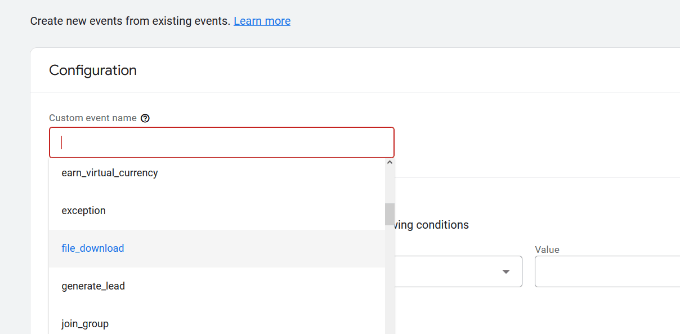
You can start by entering a custom event name. GA4 already has many prebuilt events, so you can select one from the dropdown menu. For example, we will choose the ‘file_download’ event for this tutorial.
When you select an event name, GA4 will automatically enter the specific Parameter and Operator for the event. In this case, the event will be tracking the ‘event_name’ when it ‘equals’ a Value you will enter next.
In the ‘Value’ field, we will enter ‘.pdf’ so it tracks the number of downloads when a user downloads a file with the PDF extension. You might also use .epub for ebooks or even a specific word you use to organize filenames such as ‘v2’ or ‘_2023version.’
Once you’ve entered all the details, don’t forget to click the ‘Create’ button at the top.
You should now see your new event under the Custom events area of your dashboard.
Next, you can view reports to see the performance of your custom events.
Simply head to Reports » Engagement » Event: Event name from the menu on your left.
While setting up Events in GA4 is pretty easy, if you want to track multiple things, it can take a long time.
That’s why we think that if you want a simple way to set up event and goal tracking in Google Analytics, then MonsterInsights is definitely the way to go.
Setting up manual goals in Google Analytics might work for you if you’re confident using the Google Analytics interface, or if you have a lot of extra time on your hands.
What matters is that you create and track meaningful goals for your site. This is where MonsterInsights is beneficial, as you can use the data to boost signups, increase sales, and make more money or impact with super easy setup and reporting.
If you liked this article, then please subscribe to our YouTube Channel for WordPress video tutorials. You can also find us on Twitter and Facebook.
Do you want to add shoppable Instagram images to your WordPress site?
Instagram shoppable images have links that people can easily click on to buy your products. This is a powerful way to showcase your products and drive more sales from Instagram.
In this article, we’ll show you how to easily add Instagram shoppable images in WordPress.
What is Instagram Shopping?
Instagram shopping allows you to tag products in your Instagram photos.
After tagging one or more products, users who are looking at the post will see a ‘View Products’ icon in the bottom-left corner.
They can simply click on that icon to see the product’s name, description, and price.
This makes it easier for shoppers to learn more about the products featured in your social media posts.
Visitors can tap the screen again to go to your Instagram store, where they can buy the product featured in the social media post.
This is great user experience, but it isn’t easy to set up.
You will need to get approval from Instagram to use their shopping features, and some of these requirements are vague. For example, you’ll need to “have demonstrated trustworthiness, including through an authentic, established presence.” You’ll also need to maintain a “sufficient follower base.”
In addition, you’ll have to set up a Facebook catalog, a product catalog, and a Facebook business page.
In other words: it’s a lot.
Because of that, many Instagram users are looking for an easier way to help shoppers buy products. That’s where shoppable Instagram images come in.
Why Add Shoppable Instagram Images in WordPress?
A shoppable Instagram feed is a series of photos that have a link to a product or service on your site. These URLs aren’t clickable when viewed on Instagram, as you can see in the following image.
However, when you embed the shoppable feed on your WordPress website, these links do become clickable. In this way, an Instagram shoppable feed encourages the people who visit your website to look at specific products.
Any likes and comments you get on those posts can also act as social proof, and encourage people to click on the product’s link.
As you post new shoppable images to Instagram, they’ll appear on your site automatically, so visitors will always see the latest posts without you having to add them manually.
If visitors like what they see, they may even decide to follow you on Instagram. This can get you more followers, and gives you another way to promote directly to that person.
Even better, since these shoppable links appear on your website, you have complete control over them. This means you don’t have to follow Instagram’s strict shoppable policies, or set up a Facebook product catalog.
With that being said, let’s see how you can easily add Instagram shoppable images to your WordPress website using Smash Balloon Instagram Pro.
Creating a Shoppable Feed on Instagram
First, you need to upload the images that you want to use on your Instagram account.
Smash Balloon has a shoppable feature that allows you to link each image to a URL inside the plugin settings. With this feature enabled, visitors can click on a shoppable image on your website, and its link will open in a new tab.
These links won’t appear on Instagram.
Another option is adding the link to your Instagram captions. These links will show up on Instagram, but they won’t be clickable.
However, these links will be clickable on your WordPress website. If you want to use this method, then you’ll need to spend some time adding a URL to each shoppable image on your Instagram account.
If you’re planning to use Smash Balloon’s shoppable feature, then you can skip this step as we’ll be adding each link inside the plugin’s settings.
How to Install an Instagram Photos Plugin With Shoppable Support
In this guide, we’ll be using the premium version of Smash Balloon as it has the advanced features you need to add shoppable images in WordPress. However, there’s also a free version that allows you to embed Instagram in WordPress.
Before getting started, you’ll need to connect your Instagram account to a Facebook page. If you have a personal Instagram account, then you may also want to turn it into a business account as this allows Smash Balloon to show your Instagram bio and header automatically.
When you’re ready, go ahead and install and activate the Smash Balloon Instagram Pro plugin. For more details, see our guide on how to install a WordPress plugin.
Upon activation, head over to Instagram Feed » Settings and enter your license key into the ‘License Key’ field.
You’ll find this information under your account on the Smash Balloon website.
After entering the key, click on the ‘Activate’ button.
How to Connect an Instagram Account to WordPress
After activating the plugin, your first task is connecting your Instagram account to WordPress. Simply go to Instagram Feed » Settings and then click on ‘Add New.’
With Instagram Feed pro, you can create feeds from tagged posts and hashtags, or even create a social wall with content from lots of different social media websites.
We want to show shoppable images from our Instagram timeline, so simply select ‘User Timeline’ and then click on ‘Next.’
Now, choose the Instagram account where you’ll get the shoppable images from.
To get started, click on the ‘Add Source’ button.
After that, choose whether you want to show shoppable images from a personal or business Instagram account.
If you check the box next to ‘Personal’ then Smash Balloon won’t include the Instagram avatar and bio in your header by default. However, you can always add the Instagram avatar and bio manually in the plugin’s settings.
After choosing ‘Personal’ or ‘Business,’ click on ‘Login with Facebook.’
You can now select the Instagram account that you want to feature on your WordPress website, and click on ‘Next.’
After that, check the box next to the Facebook page that’s linked to the Instagram account with your shoppable images.
Once you’ve done that, click on the ‘Next’ button.
You’ll now see a popup with all the information Instagram Feed Pro will have access to and the actions it can perform.
To restrict the plugin’s access to your Instagram account, simply click any of the switches to turn it from ‘Yes’ to ‘No.’ Just be aware that this may affect the photos that you can show on your WordPress blog or website.
With that in mind, we recommend leaving all the switches enabled. When you’re happy with the settings, click on ‘Done.’
You’ll now see a popup with the Instagram account you just added to your website.
Simply check the box next to that account and then click on ‘Add.’
Instagram Feed Pro will now take you back to the Instagram Feeds » All Feeds screen.
To create a feed, just check the box next to the Instagram account that you want to use. Then, click on ‘Next.’
The plugin will now create an Instagram photo feed that you can add to any page, post, or widget-ready area.
However, before you can show shoppable images there are a few extra settings to configure.
How to Enable Smash Balloon’s Shoppable Feature (Optional)
As we already mentioned, there are two ways to make your Instagram photo feed shoppable. If you’ve added the URLs to your captions on Instagram, then simply skip to the next step.
Another option is to open shoppable links in a new tab as soon as the visitor clicks on a post. To do this, you’ll need to enable Smash Balloon’s shoppable feature.
To start, select the ‘Settings’ tab and then click on ‘Shoppable Feed.’
On this screen, go ahead and toggle the ‘Enable’ slider so that it turns blue.
Smash Balloon will now show an ‘Add’ button on every photo or video in your Instagram feed.
Simply find the first post that you want to make shoppable, and click on its ‘Add’ button.
You can now type the product or service’s URL into the ‘Product Link’ field and click on ‘Add.’
Now, clicking on this photo will open the linked URL in a new tab.
Simply repeat these steps to make every image shoppable.
If you need to change a post’s URL at any point, then just hover your mouse over it and click on ‘Update.’
Once you’ve added all your links, don’t forget to click on the ‘Save’ button.
How to Filter Your Shoppable Instagram Feed
By default, Smash Balloon shows all the images and videos from your Instagram account. However, since we’re creating a shoppable feed you may want to filter your posts, and only show photos that link to a product or service.
This can help shoppers find products to buy, without getting distracted by other photos and videos in your Instagram feed.
With Smash Balloon, it’s easy to filter Instagram posts based on their captions. You can simply add a keyword or hashtag to your shoppable images on Instagram, and then create a matching filter in Smash Balloon.
For example, in the following image we’re using the #ordernow hashtag for all the images we want to make shoppable.
To create a filter in Smash Balloon, select the ‘Settings’ tab.
Then, go ahead and click on ‘Filters and Moderation.’
In the ‘Only show posts containing’ box, type in the hashtags or keywords that you want to use in the filter.
If you want to use multiple words in the filter, then simply separate each hashtag or keyword with a comma.
When you’re happy with how the filter is set up, click on the ‘Save’ button.
Just be aware that the preview won’t update straight away, so you’ll need to refresh the page to see the filter in action.
How to Customize Your Shoppable Instagram Feed
When you’re happy with the photos and videos that appear in your shoppable feed, you may want to change how the feed looks.
To customize your shoppable Instagram feed, simply click on the ‘Customize’ tab. On the left-hand side are all the settings you can use to change how the shoppable feed looks.
Most of these settings are self-explanatory, but we’ll quickly cover some key areas that can help you get more sales.
Let’s start at the top, by selecting ‘Feed Layout.’ Here, you can choose different layouts for your shoppable feed, such as carousel and highlight.
As you make changes, the preview will update automatically so you can try different settings to see what looks the best.
Depending on the layout, you’ll get some extra settings that you can use to fine-tune your feed. For example if you choose ‘Highlight’ then you can tell Smash Balloon to highlight posts based on a pattern, post ID, or a specific hashtag. This is great for highlighting your most popular products.
By 2025, it’s estimated that US consumers will spend $710 billion every year shopping on their mobile devices. With that in mind, you’ll want to make sure the shoppable Instagram feed looks just as good on smartphones and tablets, as it does on desktops.
By default, Smash Balloon will show the same number of photos on desktop computers and mobile devices.
You can preview how the shoppable feed will look on desktop computers, tablets, and smartphones using the row of buttons in the upper-right corner.
You can show fewer shoppable photos on mobile devices by changing the settings in the ‘Number of Posts’ and ‘Columns’ sections.
After making any changes, click on the ‘Customize’ link. This will take you back to the main Smash Balloon editor, ready for you to explore the next option, which is ‘Color Scheme.’
By default, Smash Balloon uses a color scheme inherited from your WordPress theme, but it also has ‘Light’ and ‘Dark’ themes that you may want to use for the shoppable feed instead.
By default, Smash Balloon adds a header to the shoppable feed, which is your profile picture and the name of your page.
To change how this section looks, click on ‘Header’ in the left-hand menu and then use the settings to change the size of your header, add Instagram bio text, and more.
You can also add a different bio. For example, you might encourage people to buy your products, or offer visitors an exclusive coupon code.
To create a unique Instagram bio, simply type into the ‘Add custom bio’ box.
With that done, click on ‘Customize’ to return to the main Smash Balloon editor.
Then, select ‘Posts.’
This takes you to a screen that has a few different options.
You can look through these settings and make any changes you want, but we’re going to focus on ‘Caption.’
If you added shoppable links to your captions, then it’s important to make the text stand out. For example, you might make the caption bigger.
You might even use a different color for the caption.
With that done, click on ‘Posts’ to go back to the previous screen.
Here, you’ll also see a ‘Hover State’ option, which is the overlay that Smash Balloon adds to a post when you hover over it.
This allows visitors to see any links in your captions without opening that Instagram post first.
On this screen, you can use the settings to create an eye-catching colored overlay.
After selecting ‘Hover State’ you’ll be able to change the background color and text color that appears when you hover over each post.
Under ‘Information to display,’ you’ll see all the different information that Smash Balloon can show as part of the overlay. Simply check the box next to each piece of information that you want to show.
If the caption contains shoppable links, then make sure you leave ‘Caption’ enabled.
When you’re happy with your changes, click on ‘Customize’ to return to the main Smash Balloon editor screen. You can now select the next option, which is ‘Load More Button.’
By default, Smash Balloon adds a ‘Load More’ button to the bottom of your Instagram feed so visitors can scroll through your shoppable posts.
Here, you can change the button’s background color, text color, and hover state.
You can also add your own messaging to the button by typing into the ‘Text’ field.
While we recommend leaving the ‘Load More’ button enabled to get more sales, you can remove it. For example, you might encourage people to visit your Instagram page by limiting the number of photos they can see on your site.
To remove the button, simply click on the ‘Enable’ slider to turn it from blue to grey.
If shoppers like what they see, they may decide to follow you on Instagram using the ‘Follow on Instagram’ button that appears below the shoppable feed.
Since it’s such an important button, you may want to help it stand out by selecting ‘Follow Button’ from the main Smash Balloon editor screen.
Here, you can change the button’s background color, hover state, and text color.
You may also replace the default ‘Follow on Instagram’ text with your own messaging.
As always, when you’re finished with these settings, click on ‘Customize’ to return to the main editor screen.
If you’ve enabled the Smash Balloon shoppable feature, then clicking on any post in the Instagram feed will open a new tab and take them straight to the linked product page.
However, if you haven’t enabled the shoppable feature then you may want to take a look at Smash Balloon’s lightbox feature.
This feature allows visitors to open the image or video in a lightbox popup, without leaving your WordPress website. They can then click on any shoppable links in the captions.
To enable or disable the lightbox, simply select ‘Lightbox’ from the left-hand menu.
Here, you can remove or add this feature using the ‘Enable’ slider.
You can also change how many comments Smash Balloon will show in the lightbox. Lots of positive comments can be a powerful form of social proof, which will often help you sell more products and services.
However, they can also be distracting so you may want to type a maximum number into the ‘No. of comments’ box.
Another option is to hide comments completely, by clicking on the ‘Comments’ toggle.
When you’re happy with how the Instagram feed looks, don’t forget to click on ‘Save’ to store your changes. You’re now ready to add the shoppable Instagram feed to your website.
How to Embed Instagram Feed in WordPress
You can add the shoppable feed to your website using a block, widget, or shortcode.
If you’ve created more than one feed using the Smash Balloon plugin, then you’ll need to know the feed’s code if you’re going to use a widget or block.
To get this code, go to Instagram Feed » All Feeds and then copy the value in the ‘Shortcode’ column.
If you want to embed the Instagram feed in a page or post, then we recommend using the Instagram Feed block.
Just open the page or post where you want to embed your shoppable photo and video feed. Then, click on the ‘+’ icon to add a new block and start typing ‘Instagram Feed.’
When the right block appears, click to add it to the page or post.
The block will show one of your Smash Balloon feeds by default. If you want to show a different Instagram feed instead, then find ‘Shortcode Settings’ in the right-hand menu.
Here, simply add the shortcode and then click on ‘Apply Changes.’
The block will now show all the photos and videos from your Instagram feed. Just publish or update the page to make the feed live on your website.
Another option is to add the feed to any widget-ready area, such as the sidebar or similar section. This allows visitors to shop using your Instagram feed from any page of your site.
Simply go to Appearance » Widgets in the WordPress dashboard and then click on the blue ‘+’ button.
In the search bar, type in ‘Instagram Feed’ and select the right widget when it appears.
Just be aware that WordPress has a built-in Instagram widget, so make sure you choose the one that shows the official Instagram logo.
Next, simply drag the widget onto the area where you want to show the shoppable Instagram feed, such as the sidebar or similar section.
The widget will automatically show one of the feeds you created using Smash Balloon. If this isn’t the shoppable Instagram feed you just created, then type the feed’s code into the ‘Shortcode Settings’ box.
After that, click on ‘Apply Changes.’
You can now make the widget live by clicking on the ‘Update’ button. For more information, please see our step-by-step guide on how to add and use widgets in WordPress.
Another option is embedding the Instagram feed on any page, post, or widget-ready area using a shortcode.
Finally, if you’re using a block-enabled theme, then you can use the full-site editor to add the Instagram Feed block anywhere on your website.
In your dashboard, simply go to Appearance » Editor.
By default, the full-site editor will show the theme’s home template. If you want to add the shoppable feed to a different template, then click on the arrow next to ‘Home.’
You can then choose any design from the dropdown, such as the footer template.
If you don’t see the template in the list, select ‘Browse all templates.’
The full-site editor will now show a list of all the templates you can edit. Simply click on the template where you want to show the shoppable Instagram feed.
After choosing a template, just hover your mouse over the area where you want to add the shoppable Instagram feed.
Then, click on the ‘+’ button.
After that, start typing in ‘Instagram Feed.’
When the right block appears, click to add it to the template.
As always, Smash Balloon will show a feed by default. You can change this feed by adding a shortcode following the same process described above.
If you liked this article, then please subscribe to our YouTube Channel for WordPress video tutorials. You can also find us on Twitter and Facebook.
Do you want to delay posts from appearing in your site’s RSS feed?
Delaying posts from appearing immediately can save you from sending out unfinished work accidentally, give you time to edit typos you might see, and help you beat content scrapers in SEO.
In this article, we will show you how to delay posts from appearing in WordPress RSS feed.
Why Delay Your RSS Feed in WordPress?
Sometimes you may publish a something on your WordPress blog with a typo that you just didn’t see. The mistake is then distributed to your RSS feed and all of your subscribers. If you have email subscriptions on your WordPress blog, then those subscribers will get it as well.
By adding a delay between your RSS feed and your live site, you get a little window of time to catch an error on a live site and fix it.
RSS feeds are also used by content scraping websites. They use it to monitor your content and copy your posts as soon as they appear live. If you have a new website with little authority, then a lot of times these content scrapers may end up beating you in the search results.
By delaying an article in your RSS feed, you can give search engines enough time to crawl and index your content first.
Having said that, let’s see how to easily delay posts from appearing in WordPress website‘s RSS feed.
How to Delay Posts in Your WordPress RSS Feed
To begin, we recommend using WPCode to delay posts from appearing in your site’s feed. WPCode lets you add custom code to WordPress safely and easily without having to worry about your site breaking.
For advanced users, you can copy/paste the following code into your theme’s functions.php file instead. You’ll need to modify the code to change the time interval. Remember that editing your core WordPress files can be dangerous, which is why we recommend WPCode. You’ll also lose any custom code snippets when you update your theme.
Upon activation, you can navigate to Code Snippets »Add Snippet. After that, simply search for ‘rss’ or scroll down to the ‘RSS Feeds’ category.
Then, just hover your mouse over ‘Delay Posts in RSS Feeds’ in the results and simply click on ‘Use snippet.’
Next, you will be taken to the ‘Edit Snippet’ screen, where WPCode has pre-configured the snippet settings for you.
By default, your posts will be delayed from appearing in your RSS feed by 10 minutes from the time it’s published.
If that delay is good for you, then all you have to do is click on the switch to change it to ‘Active’ and press the ‘Update’ button.
If you want to alter the length of the delay, you can do so by changing the number on Line 10 and the unit of time on Line 13.
For example, you can delay the post by one hour if you replace $wait = '10'; and $unit = 'MINUTE' with $wait = '1' and $unit = 'HOUR'.
If you need to adjust the delay again, simply repeat those steps, and if you want the posts to go back to hitting the feed immediately, simply toggle the switch back to ‘Inactive’ and press ‘Update.’
Don’t Forget to Check Out the WPCode Snippet Library
WPCode also comes with a huge collection of other code snippets, too. You can see what’s there at Code Snippets » Library in your admin dashboard.
You may be able to replace some single-use plugins on your site by simply activating snippets you find in the library.
If you liked this article, then please subscribe to our YouTube Channel for WordPress video tutorials. You can also find us on Twitter and Facebook.
Do you want to create GDPR-compliant forms in WordPress?
European Union’s new GDPR law requires explicit user consent to store personal information so that users can have more personal control over their data stored on websites.
In this article, we will show you how to easily create GDPR-compliant forms in WordPress.
What is GDPR?
The General Data Protection Regulation (GDPR) is a European Union (EU) law that became effective on May 25th, 2018. This new law aims to give EU citizens control over their personal data and change how companies and businesses handle data privacy around the world.
A typical WordPress site may collect users’ personal information in a number of ways. One of which is by adding forms to the site. Most forms collect personal information, and you may want to make sure that your WordPress forms comply with GDPR.
What is Required to Make a Form GDPR Compliant
In order to make your WordPress forms GDPR compliant, you will need to add the following features:
Ask users to give explicit consent for storing and using their personal information.
Allow users to request access to their own personal information stored on your website.
Allow users to request the deletion of their data from your website.
Having said that, let’s take a look at how to easily create GDPR-compliant WordPress forms. You can click the links below to jump ahead to any section:
We recommend using WPForms to make GDPR-compliant WordPress forms. It is the best contact form plugin for WordPress and has built-in GDPR enhancement features.
For instance, you get a 1-click GDPR Agreement field for your forms, GDPR-compliant data retention best practices, easy entry management system to quickly find, export, or delete user data upon request.
For this tutorial, we’ll use the WPForms Pro version because it includes the disable user cookies and user details options. However, you can also use the WPForms Lite version to create a GDPR-compliant form.
Upon activation, you need to visit WPForms » Settings page and enter your license key. You can find the license key in the WPForms account area.
Next, you’ll need to scroll down to the GDPR section.
There, you need to check the box next to the GDPR Enhancements option.
Enabling the GDPR Enhancements option will reveal two more GDPR-related settings.
The first option, ‘Disable User Cookies,’ will stop WPForms from storing user sessions. This cookie contains a random unique identifier that helps WPForms add features like related entries, form abandonment, and geolocation. Disabling it will also disable those features.
The second option, ‘Disable User Details,’ will stop WPForms from storing user IP addresses and browser information. Both of these settings are optional, and you can check them if you feel that you don’t need these features.
Don’t forget to click the ‘Save Settings’ button to store your changes.
Select Form Template and Add GDRP Agreement Field
WPForms is now ready to create GDPR-compliant forms in WordPress. You can now go to WPForms » Add New page to create a new form.
You will be asked to enter a title for your form and select a template. These templates are ready-made forms that you can use as a starting point. In this tutorial, we’ll use the ‘Simple Contact Form’ template.
This will launch the WPForms builder interface.
You will see your form preview in the right column, and on the left, you will see all the fields that you can add to your form.
Simply drag the ‘GDPR Agreement’ field and add it to your form.
You will now see it appear at the bottom of your form. If you click on it, more options will appear in the settings panel on the left.
You can change the title of the form field and agreement text, and then use the description box to add details like a link to your privacy policy or terms and conditions pages.
Note: The GDPR Agreement field is always a required field, and it cannot be pre-checked to comply with the GDPR law. You can only add one GDPR agreement field to each form.
Next, you can go to the Settings » Confirmations tab in the form builder. Here, you’ll get different options to select when a user submits a form. For instance, you can show a message, a page, or to redirect users to another URL.
Once you are satisfied with the form, don’t forget to store your changes.
Adding GDPR Compliant Form to WordPress
WPForms allows you to easily add forms anywhere on your website.
You can simply click the ‘Embed’ button at the top of the form builder to get started.
Next, a popup will open, which will ask you to create a new page or select an existing page.
We’ll use the ‘Create New Page’ option for this tutorial.
After that, you’ll need to enter a name for your page.
Once that’s done, simply click the ‘Let’s Go’ button.
Your form will now appear in the WordPress content editor.
Another way to add forms to any page or post is using the WPForms block. Simply add the block to your content and select your form from the dropdown menu.
You can now save or publish your post or page.
Simply visit your website to see your GDPR-ready WordPress form in action.
Managing Data Access and Deletion Requirements with WPForms
One of the requirements for GDPR compliance is to give users access and allow them to request the deletion of their data.
To do that, you can create a ‘Data access/delete form’ and add it to your privacy policy page. Users who wish to access their stored data or want it to be deleted can use that form to send you a request.
WPForms has an excellent entry management system that allows you to quickly find any data submitted via your forms.
You can access all form entries by visiting WPForms » Entries page from your WordPress dashboard and selecting the form you wish to view.
WPForms will show you all entries submitted using that form. You can search for a form entry by entering a name, email address, IP address, or keyword.
From here, you can simply click the ‘Delete All’ option at the top to remove form entries.
You can also delete individual entries or click the view button to see all data stored for that entry.
Disabling User Details for Specific Forms
With WPForms, you get full control over which forms can store user data. You can disable user details to be stored for each individual form.
First, you’ll need to go to WPForms » Settings from your WordPress dashboard and scroll down to the ‘GDPR’ section.
Here, ensure that the ‘Disable User Details’ option is unchecked.
Don’t forget to click the ‘Save Settings’ button when you’re done.
After that, you can change each form’s settings in the form builder.
All you have to do is head to Settings » General in the form builder. Next, click the ‘Advanced’ section to expand it. From here, simply click the toggle for the ‘Disable storing user details (IP address and user agent)’ option.
This will prevent extra user information from being stored for individual forms.
If you liked this article, then please subscribe to our YouTube Channel for WordPress video tutorials. You can also find us on Twitter and Facebook.
Do you want to use cookie retargeting in WordPress?
Cookie retargeting is the secret tool already used by many of the most popular websites. It allows you to show custom on-site messages to your users based on their past behavior which helps you boost sales.
In this article, we’ll show you how to use cookie retargeting in WordPress to show custom on-site messages and boost conversions.
What is Cookie Retargeting?
Cookie retargeting is a marketing technique where websites use cookies to track user behavior and offer a personalized experience.
There are two types of cookie retargeting techniques.
First, there is off-site cookie retargeting. This method is used to track user activities across the web.
Facebook pixel and Google remarketing are two of the most popular advertising programs that allow you to use their massive reach and show targeted ads to people who visit your website.
Secondly, you have on-site cookie retargeting, which allows you to show targeted messages to users based on how they interact with your WordPress website.
What are cookies?
Cookies are small text files containing pieces of data. Websites set cookies in users’ browsers to store temporary information such as login status, user preferences, session details, and more.
How to Use On-Site Cookie Retargeting to Boost Conversions?
There are a number of ways website owners use on-site retargeting messages to boost conversions and increase sales.
For instance, eCommerce stores can show custom offers to users based on how they interact with other offers. This allows you to create a dynamic sales funnel that leads users to make a purchase.
Another use-case scenario would be lead generation. With on-site retargeting, if a user closes one sign-up form, then you can show them a different message with another offer.
On-site retargeting messages are highly effective because:
It shows personalized messages to users at a time when they are already engaged with your website.
Allows you to create customized campaigns that get better with each user interaction until they convert
You save money on paid advertising campaigns by utilizing your existing website traffic to the max
That being said, let’s take a look a how to use cookie retargeting in WordPress.
Creating On-Site Retargeting Campaign in WordPress
The best way to create on-site retargeting messages is by using OptinMonster. It is the best conversion optimization and lead generation software in the world.
You can use it to easily create attention-grabbing signup forms, popups, welcome mats, in-line offers, custom offers, and more.
First, you need to signup for an OptinMonster account by visiting the website and clicking the ‘Get OptinMonster Now’ button. You’ll need at least their Pro plan for cookie retargeting and Growth plan for follow-up campaigns.
This plugin acts as a connector between your WordPress site and the OptinMonster app.
Upon activation, you will see the welcome screen. Simply click the ‘Connect Your Existing Account’ button.
Next, a new window will open, where you’ll need to sign in to your account and connect your website with OptinMonster.
Go ahead and click the ‘Connect to WordPress’ button.
Now, you’re ready to create a new campaign.
First, you’ll need to go to OptinMonster » Campaigns from your WordPress admin panel and then click the ‘Create Your First Campaign’ button.
This will take you to the OptinMonster website, where you’ll be asked to choose a campaign type and a template.
You can choose any campaign type or template, but for this tutorial, we’ll be creating a lightbox popup.
You can select any template that you’d like to use for your campaign.
Next, you’ll be asked to provide a name for your campaign and click the ‘Start Building’ button.
After that, you’ll enter the drag-and-drop campaign builder interface.
It is a powerful design tool where you can simply point and click on any item to edit it. You can also add new items like buttons, images, columns, and more to your popup campaign.
Next, you can switch to the ‘Display Rules’ tab at the top.
Here, OptinMonster will give you different options for displaying your onsite targeting campaigns.
For instance, you can show the popup after users spend a certain time on the page, are from a particular location, or are about to exit your website.
By default, OptinMonster will show your campaign after a visitor spends at least 5 seconds on the site. Plus, it appears on all the pages.
Once you are satisfied, simply switch to the publish tab.
Next, you’ll need to make your campaign live by changing its status from Draft to Publish. Don’t forget to click the ‘Save’ button when you’re done.
Now by default, OptinMonster will show this campaign to all users who visit your website. Users will be able to close the popup or perform their desired action.
Creating a Retargeting Campaign to Show Custom Messages
Now that you have launched your first campaign, let’s add another campaign using the follow-up retargeting feature.
Click on the create new campaign button in the OptinMonster dashboard and select your campaign type and template. Since we have used a lightbox popup, we’ll be using a ‘Floating bar’ as our retargeting campaign.
After selecting a template, you’ll enter your campaign name.
Then simply click the ‘Start Building’ button to continue.
After that, you’ll enter the OptinMonster builder where you can design your campaign using simple drag-and-drop tools.
You can edit the optin text, adjust the countdown timer to generate FOMO, add a coupon, and so much more.
Once you are satisfied with the design, it is time to select which users you want to show this custom message to.
Simply switch to the Display Rules tab at the top of the builder. OptinMonster offers a ton of display rules that you can choose from. You can also add multiple rulesets.
Next, under the If menu, go to the ‘Personalization’ display rules options and select Has Closed.
After that, select ‘Campaign’ and then select your previous campaign.
Next, you need to switch to the ‘Publish’ tab.
Here, simply change your campaign status from Draft to Publish under ‘Publish Status.’ Once that’s done, simply click the ‘Save’ button and exit the campaign builder.
You can now visit your website in the incognito browser tab to see your campaign and the follow-up retargeting message.
Adding Cookie Retargeting with Custom Messages
Cookie retargeting allows you to show custom messages to users based on their previous actions, cart status, shopping history, and more.
This allows you to create promotions and upsells designed for customers at different stages of your sales funnel.
When customizing your campaign, simply switch to the ‘Display Rules’ tab.
Under the If menu, you can go to the ‘Targeting (Who)’ display rules options and select Cookie Targeting.
Next, you’ll need to enter the cookie key and value. The key is the cookie name, and the value parameter is the contents of the cookie.
OptinMonster lets you select different operators to use for the display rule. These include options like match exactly, contain, exist, start with, ends with, and more operators.
For instance, if you are using WooCommerce, then you can use WooCommerce cookies to target users who have added products to their cart. This way, you can cross-sell items in their cart, reduce cart abandonment, and more.
After adding cookie retargeting rules, go to the ‘Publish’ tab.
From here, simply change the Publish Status from Draft to Publish for your campaign.
OptinMonster will now display your custom message based on the cookie-targeting rules you have set.
We hope this article helped you learn how to use cookie retargeting in WordPress to show custom on-site messages. You may also want to see our guide on how to recover abandoned cart sales in WooCommerce as well as our comparison of the best live chat software for websites.
If you liked this article, then please subscribe to our YouTube Channel for WordPress video tutorials. You can also find us on Twitter and Facebook.
Are you looking for a service to transcribe your voicemails?
Voicemail transcription helps convert your voicemails to text, so you can read them later on your phone or computer. It saves time, as you don’t have to listen to recordings and quickly view the message in text form.
In this article, we’ll show you the best business voicemail transcription services.
Why Use a Business Voicemail Transcription Service?
Voicemail transcription means converting your audio messages into text format. However, manually transcribing each voicemail is a time-consuming task. Instead, you can use a business voicemail transcription service.
There are a lot of software available that will automatically convert voicemail speech to text. The transcriptions can be sent to you by email or text.
This is more convenient especially when you can’t listen to voicemails. You can quickly read the message anywhere instead of listening to the voice recording.
It also helps streamline your customer support process. Your support staff can search for voicemails from a user and look at previous messages, so they can provide a better customer experience. You can also keep records of your voicemails and connect them to customer relationship management (CRM) software.
That being said, let’s look at the best business voicemail transcription services.
Nextiva is the best virtual phone service in the market that offers powerful features, including voicemail transcriptions. The cloud phone system is easy to use and set up.
It brings multiple communication channels under one roof. For example, you can make HD video calls, send text messages, live chat, voicemails, phone calls, and more from a single place.
Nextiva offers a voicemail to email and text option, where you can receive voicemails inside your inbox. This allows you to respond to customers quickly, even when calls are missed. Once this feature is active, it will automatically transcribe the voicemail.
Besides that, you also get other features like call recording, unlimited calls and texts in North America, toll-free numbers, team chat, auto attendant, call transfer and forwarding, and more.
They also business phone apps for iOS and Android smartphones, so it lets you stay connected with customers anywhere in the world.
At WPBeginner, we use Nextiva for all our business phone needs. We’re huge fans of their platform and the features it offers.
Pricing: You will need the Nextiva Enterprise plan to use the voicemail transcription features, which will cost you $32.95 per user per month.
RingCentral is another top business voicemail transcription service. Their business VoIP phone service offers lots of powerful features and is a perfect solution for remote teams.
With its Voicemail for Business feature, you get to choose how to receive voicemails. For instance, you can access voice messages from the RingCentral online account, desktop app, mobile device, email, and desk phone.
RingCentral offers an option to send voicemails to your email address. You’ll receive an audio attachment and transcription, so you can quickly scan through the message without listening to the voicemail.
Other than that, RingCentral offers features like video conference calls, unlimited calling in the US and Canada, voice-to-text features, toll-free numbers, and other call-handling features.
Pricing: The voicemail-to-text feature is available in the Essentials plan and will cost you $19.99 per user per month.
Ooma is a popular VoIP phone service for businesses of all sizes. It is loaded with features, including voicemail transcription and voicemail-to-email options.
You can configure your voicemails to be automatically sent to an email address when they’re left in your Ooma Office app. You will get an audio recording as an attachment and transcribed text in the body of the email.
Ooma is also easy to use and works out of the box. You get more features like a virtual receptionist, hold music, extension dialing, video conferencing, 1-800 phone numbers, a call center, and more. There are also desktop and mobile apps, so you can call and receive voicemails from anywhere in the world.
Pricing: Ooma prices start from $19.95 per month per user. However, the voicemail transcription feature is available in the Ooma Office Pro and Pro Plus pricing plans.
FreshDesk Contact Center is the next business voicemail transcription service on our list. It was previously known as Freshcaller and is a user-friendly virtual business phone provider.
FreshDesk Contact Center offers an AI-power voicemail transcription feature. Its artificial intelligence engine, called Freddy AI, automatically transcribes voicemails.
You can easily access the transcriptions from the FreshDesk phone system and view key metrics like queue time and IVR time. It also lets you enable voicemail transcription for selected phone numbers and set up voicemail greetings.
Other features offered by FreshDesk Contact Center include a call waiting option, vanity numbers, mobile apps, shared lines, route calls to voicemail, block spam calls, call recording, and more.
Pricing: You will need the Growth plan or higher to use the voicemail transcription feature in FreshDesk Contact Center. This will cost you $15 per agent per month (billed annually). There is also a free version of the software you use to get started, but it doesn’t include voicemail transcriptions.
Grasshopper is one of the best business phone services, and it is perfect for small businesses and startups. The service offers a voicemail transcription feature and allows you to receive the transcriptions in your email inbox.
It is very easy to set up, and you can add email addresses where you’d like the forwarded messages to go. Then using the Grasshopper desktop app or mobile apps, you can read the voicemail messages.
Aside from voicemail transcription, Grasshopper is filled with robust features. For instance, you get simultaneous call handling, call forwarding, extensions, call transfers, VoIP calling, virtual fax, reporting, and more.
Pricing: Grasshopper pricing plans start from $28 per month (billed annually), and all plans include the voicemail feature. Do note that it is only available in the US and Canada.
Google Voice is another business voicemail transcription service you can use for your WordPress website. It is part of Google Workspace and easily integrates with other tools like Google Meet and Calendar.
The service uses Google’s AI to turn voicemails into text automatically. The AI is powerful and converts complex words into easy-to-read text.
Besides that, it is very easy to use and offers free calling to US and Canada, spam call blocking, unlimited text messaging in the US, call forwarding, mobile apps, and more.
Pricing: Google Voice prices start from $10 per user per month and includes a voicemail transcription feature.
Phone.com is a popular cloud-based virtual phone service offering a voicemail feature. You can listen to audio messages from your online account and set up a voicemail-to-email feature.
Phone.com will automatically transcribe your voicemails and send them to you as email or text messages. This way, you can read the message instead of listening to the voice note or forward the transcription to other team members.
With Phone.com, you also enjoy other powerful features. It is a complete virtual phone solution and offers call forwarding, call transfer, analytics, number porting, audio conferences, fax from phone, text messaging, and more.
Pricing: The voicemail transcription feature is included in the Plus users or higher plan, and its prices start from $15.99 per user per month.
Which is the Best Business Voicemail Transcription Service?
In our expert opinion, the best business voicemail transcription service is Nextiva, and after careful research we chose to use it for our own business.
Nextiva is user-friendly and offers lots of features to help you connect with your customers and team members from anywhere. You can easily receive voicemail transcriptions in your email, handle calls, conduct virtual meetings, create workflows, and more.
Plus, Nextiva has desktop and mobile apps, so you are always connected on the go. It also easily integrates multiple communication channels into a single platform.
If you’re looking for other solutions, then we recommend RingCentral and Ooma as alternatives to Nextiva for voicemail transcriptions.
We hope this article helped you pick the best business voicemail transcription service. You may also want to see our comparison of the best email marketing services and best live chat software for small business.
If you liked this article, then please subscribe to our YouTube Channel for WordPress video tutorials. You can also find us on Twitter and Facebook.
Do you want to embed a Facebook video in WordPress?
The videos that you post to Facebook also make great content for your website. By embedding a Facebook video feed, you can keep your site fresh and interesting while also growing your Facebook following.
In this article, we’ll show you an easy way to embed Facebook videos in WordPress.
Why Add Facebook Videos in WordPress?
Videos are a great way to connect with your audience and keep them engaged. This is true no matter whether you’re running a personal blog or a business website.
Creating engaging and entertaining videos takes time and effort so if you’re posting videos to Facebook, then it makes sense to re-use them on your WordPress website.
By linking your website to your Facebook account, any new videos that you post to Facebook will appear on your website automatically. In this way, you can keep your website fresh with very little day-to-day effort.
Embedded videos can even help grow your Facebook page. If website visitors see lots of interesting videos and playlists then they’ll want to follow you on Facebook. This can get you some extra followers and more engagement.
With that being said, let’s see how you can easily embed a Facebook video in WordPress.
Installing a Facebook Video Plugin in WordPress
The easiest way to embed a Facebook video in WordPress is by using the Custom Facebook Feed Pro plugin.
In this guide, we’ll be using the pro version of Smash Balloon as it allows you to embed videos in WordPress including HD, 360o, and Facebook Live videos.
Smash Balloon Pro also lets you show photos in a custom Facebook feed, and display the total number of likes, shares, comments, and reactions below each post. However, if you’re just starting out and have a limited budget, then there’s also a free version you can use.
Upon activation, head over to Facebook Feed » Settings and enter your license key into the ‘License Key’ field.
You’ll find this information under your account on the Smash Balloon website.
After entering the key, click on the ‘Activate’ button.
Connect Your Facebook Page or Group to WordPress
Smash Balloon Custom Facebook Feed allows you to embed videos from Facebook pages and groups. You can even show the videos in a lightbox popup so people can watch the full video directly on your WordPress website.
The first step is connecting your Facebook page or group to WordPress, so go to Facebook Feed » All Feeds and then click on ‘Add New.’
Smash Balloon lets you show posts from your Facebook timeline, photo albums, Facebook statuses, events, and more.
Since we want to embed Facebook videos in WordPress, you’ll need to select ‘Videos’ and then click on ‘Next.’
Now, you need to select the Facebook page or group where you’ll get the videos from.
To do this, click on ‘Add New.’
Next, choose whether you want to show videos from a Facebook page or group.
Once you’ve done that, click on ‘Connect to Facebook.’
This opens a popup where you can log into your Facebook account and choose the pages or groups that you want to use with Smash Balloon.
After that, click on ‘Next.’
Now, Facebook will show all the information that Smash Balloon will have access to, and the actions it can perform.
To restrict Smash Balloon’s access to your Facebook account, simply click to disable any of the switches.
Just be aware that this may affect the videos that you can embed on your WordPress blog or website so we recommend leaving all the switches enabled.
When you’re happy with how the permissions are set up, click on ‘Done.’
After a few moments, you should see a message confirming that you’ve connected your WordPress website to Facebook.
With that done, you’re ready to click on ‘OK.’
Smash Balloon will now return you to the WordPress dashboard automatically.
How to Embed Facebook Videos in WordPress
At this point, you’ll see a popup with the Facebook group or page that you just linked to your website. Simply select the radio button next to the page or group you want to use and then click on the ‘Add’ button.
If you accidentally closed the popup, don’t worry. You can simply refresh the page to reopen the popup.
Once you’ve done that, WordPress will take you back to the Facebook Feed » All Feeds page automatically. Just like before, click on ‘Add New,’ select ‘Videos’ and then click on the ‘Next’ button.
Now, select your Facebook page or group, and click on ‘Next.’
On this screen, you can choose the template that you want to use for the video feed.
All of these templates are fully customizable so you can fine-tune the design depending on how you want to show the Facebook videos on your website.
We’re using the ‘Default’ template, but you can choose any template you want. After making your selection, click on ‘Next.’
After that, you can choose whether to show all the videos from your Facebook page or group or just the videos from a specific playlist.
If you choose ‘Show from a specific playlist,’ then you’ll need to enter that playlist’s URL.
Once you’ve made a decision, go ahead and click on the ‘Next’ button.
Smash Balloon will now create a feed based on your source and the template you’ve chosen. This is a good start, but you may want to fine-tune how the videos appear on your site.
How to Customize Your Embedded Facebook Videos
The Smash Balloon Custom Facebook Feed plugin gives you lots of ways to customize how the videos appear on your website. That being said, it’s worth taking a look at these settings.
In the WordPress dashboard, go to Facebook Feed » All Feeds. Here, find the video feed you just created and click on the ‘Edit’ button next to it, which looks like a small pencil.
This opens the Smash Balloon feed editor, which shows a preview of your Facebook video feed to the right.
On the left-hand side, you’ll see all the different settings you can use to customize how these videos appear on your WordPress website. Most of these settings are self-explanatory, but we’ll quickly cover the major areas.
If you want to change the template, then click on ‘Template.’
Then, select the ‘Change’ button.
This opens a popup showing all the different templates you can use for your video feed.
Simply select the design you want to use instead, and then click on ‘Update.’
The next setting is ‘Feed Type,’ which allows you to show different content in your feed. For example, you might decide to show photos, albums, or events instead of videos.
Since we want to embed Facebook videos, you’ll typically want to ignore this area.
Next, click on ‘Feed Layout.’
Here, you can choose between different layouts, such as masonry and grid, and change the feed height.
As you make changes, the preview will update automatically so you can try different settings to see what looks the best.
By default, Smash Balloon will show the same number of videos on desktop computers and mobile devices such as smartphones.
You can preview how your videos will look on desktop computers, tablets, and smartphones using the row of buttons in the upper-right corner.
Mobile devices usually have smaller screens and may struggle to process lots of large, high-resolution videos. Visitors may also be using their mobile data rather than free Wi-Fi.
With that being said, you may want to show fewer videos on smartphones and tablets. To do this, simply type a different number into the ‘Mobile’ field under ‘Number of Posts.’
By default, the Facebook feed shows fewer columns on smartphones and tablets, compared to desktop computers. This helps all your videos fit comfortably on smaller screens.
You can change the number of columns that Smash Balloon uses on tablets, mobiles, and desktop computers using the ‘Columns’ settings.
The next settings page is ‘Color Scheme.’
Smash Balloon uses the colors inherited from your WordPress theme by default, but on this screen, you can switch to a ‘Light’ or ‘Dark’ color scheme instead.
Smash Balloon can add a header to your feed, which is your Facebook profile picture and the name of the page or group. This lets visitors know where the embedded videos come from, and where they can find this content on Facebook.
To add this section, click on ‘Header’ in the left-hand menu.
You can then click on the ‘Enable’ toggle.
After adding a header you can change how this area looks, including hiding or adding your Facebook profile picture, changing the size of the bio text, and more.
If you want to remove the header completely, then click to turn off the ‘Enable’ toggle.
By default, Smash Balloon shows the title of each video. If you want to hide the title, then select ‘Posts’ from the main Smash Balloon editor menu.
Then, go ahead and click on ‘Post Style.’
On this screen, you can hide the video titles by clicking on the ‘Show Video Title’ slider.
This can be useful if you haven’t added titles to all your videos, or your titles don’t make sense outside of Facebook.
On this screen, you can also hide or show the video descriptions. For example, you may use these descriptions to provide extra information about the video.
To add the description, simply click to enable the ‘Show Video Description’ switch.
By default, Smash Balloon doesn’t add the Facebook ‘like’ button to your video feed. If visitors like your embedded videos then they may want to follow you on Facebook.
With that being said, you may want to add a ‘like’ button to the feed, by selecting ‘Like Box’ from the editor’s left-hand menu.
After that, simply click on the ‘Enable’ button so that it turns blue.
Smash Balloon adds this button below your video feed, but you can change this by opening the ‘Position’ dropdown and choosing ‘Top.’
On this screen, you can also change how the ‘like’ section looks including changing its width, showing how many people follow you on Facebook, adding a custom call to action, and more.
When you’re happy with how the button looks, you can move on to the next settings page by selecting ‘Load More Button.’
The Load More button encourages visitors to scroll through more of your video feed, so Smash Balloon adds it to your embedded Facebook feed by default.
Since it’s such an important button, you may want to customize this button by changing its background color, hover state, label, and more.
Another option is to remove the button completely, by clicking the ‘Enable’ toggle. For example, you might remove this button and then encourage visitors to check out your Facebook page in order to see more of your videos.
By default, Smash Balloon allows visitors to watch your Facebook videos without leaving your WordPress website.
They can simply click on any video thumbnail to open it in a lightbox, as you can see in the following image
Visitors can scroll through the videos in your feed using the arrows.
If they want to like a photo, leave a comment, or share the video to their page, then they can click on the ‘View on Facebook’ link.
There are a few different ways that you can customize Smash Balloon’s default lightbox.
To see your options, click on ‘Lightbox’ in the left-hand menu.
Here, you can change the color of the lightbox’s text, links, and background colors.
The lightbox feature allows visitors to watch your videos in a popup. If you prefer, then you can disable the lightbox so that all your videos play as small thumbnails, embedded inside the page content.
In this way, you can encourage people to visit your Facebook page, to see the full-size video. To disable the lightbox, simply click on the ‘Enable’ toggle to turn it from blue to grey.
When you’re happy with how the video feed looks, don’t forget to click on ‘Save.’
You’re now ready to embed the Smash Balloon feed in your website.
How to Add Facebook Videos to WordPress
With Smash Balloon, you can add the video feed to your WordPress website using a block, widget, or shortcode.
If you’ve created more than one feed using Smash Balloon, then you’ll need to know the feed’s code if you’re going to use a widget or block.
To get this code, go to Facebook Feed »All Feeds and then look at the feed="" part of the shortcode. You’ll need to add this code to the block or widget, so make a note of it.
In the following image, we’ll need to use feed="6"
If you want to embed your Facebook feed in a page or post, then we recommend using the Custom Facebook Feed block.
Just open the page or post where you want to embed your Facebook videos. Then, click on the ‘+’ icon to add a new block and start typing ‘Custom Facebook Feed.’
When the right block appears, click to add it to the page or post.
The block will show one of your Smash Balloon feeds by default. If you want to use a different video feed instead, then find ‘Shortcode Settings’ in the right-hand menu.
Here, simply add the feed="" code and then click on ‘Apply Changes.’
The block will now show the videos from your Facebook page or group. Just publish or update the page to make the video feed live on your website.
Another option is to add the feed to any widget-ready area, such as the sidebar or similar section. This allows visitors to watch your Facebook videos from any page of your site.
Simply go to Appearance » Widgets and then click on the blue ‘+’ button.
After that, find the ‘Custom Facebook Feed’ widget.
Then, just drag it onto the area where you want to show the video feed.
The widget will show one of your Smash Balloon feeds automatically.
To show a different feed instead, type or paste the feed’s code into the ‘Shortcode Settings’ box and then click ‘Apply Changes.’
You can now make the widget live by clicking on the ‘Update’ button. For more information, please see our step-by-step guide on how to add and use widgets in WordPress.
Finally, you can embed videos on any page, post, or widget-ready area using a shortcode.
Simply go to Facebook Feed »All Feeds and copy the code in the ‘Shortcode’ column. You can now add this code to any Shortcode block.
Sometimes you may want to embed a specific Facebook video in a page or post. For example, you might have a Facebook video that talks about the same topics as your latest blog, or a promotional video showing the product you’ve just launched on your online store.
To embed a specific video, you’ll need to buy and install the Featured Posts extension as it allows you to display a particular post or event using its ID.
To start, go to Facebook Feed » Extensions.
Here, find the ‘Featured Posts’ extension and click on its ‘Add’ button.
This will open the Smash Balloon website in a new tab, with instructions on how to purchase the extension.
Once you have the extension, you can install it in exactly the same way you install a plugin. If you need help, then please see our guide on how to install a WordPress plugin.
After activating the plugin, go to Facebook Feed » All Feeds and click on ‘Add New.’
Under ‘Advanced Feed Types,’ select ‘Single Featured Post’ and then click ‘Next.’
You can now choose the page or group that you want to use as your source by following the same process described above.
On the next page, you’ll need to enter the ID of the video that you want to embed.
To get this ID, visit Facebook in a new tab and then open the video that you want to embed.
You can now go ahead and copy the URL.
After that, just post the URL into your WordPress dashboard and click on ‘Next.’
Once you’ve done that, you can style the video and then add it to your site following the same process described above.
If you liked this article, then please subscribe to our YouTube Channel for WordPress video tutorials. You can also find us on Twitter and Facebook.
What’s the Difference Between Alt Text and Image Title?
‘Alt text’ is short for ‘alternate text’ and is an attribute that is added to an HTML image tag. The text describes the image, so visitors who can’t see the image and search engine bots will understand what the image is about.
If an image on your WordPress website can’t be found or displayed for some reason, then the alt text will be shown instead, as you can see in the following screenshot.
Alt text is different from the image’s title. The title will be displayed in a small popup box when you bring your mouse cursor over the image.
Alt text and image titles are also used to improve the accessibility of your website for those with poor vision and who use screen reader devices to read your site’s content.
When the screen reader comes to an image, it will read the alt text. Depending on the user’s settings, it may also read the title text.
For both accessibility and search engine optimization (SEO), alt text is more important than title text. This is why we strongly recommend including alt text for all your images.
How to Add Alt Text to an Image in WordPress
WordPress allows you to easily add alt text to your images. You can do this from the block editor, the classic editor, or the WordPress Media Library.
Adding Alt Text in the Block Editor
Simply create a new post or page or edit an existing one, and add an Image block.
Now you need to upload your image or drag and drop it into the Image block. You can then set the alt text on the right-hand side of the page.
Adding Alt Text in the Classic Editor
If you’re still using the classic WordPress editor, then you can add image alt text when adding the image.
First, click on ‘Add Media’ above the posting box.
After that, you should either upload the image from your computer or click the ‘Media Library’ tab to view images you’ve already uploaded.
Next, click on the image you want in order to select it, and then type the alt text you want into the ‘Attachment Details’ of your image.
Adding Alt Text in the Media Library
You can also add alt text to an image by going to Media » Library and clicking on the image to edit it.
Remember, this won’t change the alt text for any instances of that image that you’ve already inserted into posts or pages. However, if you add the image to a post or page after adding alt text here, then the alt text will be included with it.
How to Add Image Titles in WordPress
It’s important to understand that there are two types of titles that you can add to your images.
First, there is the default image title WordPress uses internally to identify media files in the Media Library and attachments pages. Second, there is the HTML image title attribute added to images in your posts and pages.
Let’s take a look at how to add both types of titles.
Adding the WordPress Image Title in the Media Library
You can add WordPress media titles to your images using the Media Library. When you edit an image in the Media Library, you will see a ‘Title’ field.
This title is used by WordPress to identify the image. When you click the ‘View attachment page’ link at the bottom of the screen, you’ll see the title is used as the title on that page.
The WordPress media title isn’t necessary for image SEO or for users with screen readers. While it may be helpful in some cases, it’s not as useful as the image’s HTML title attribute. So how do you create that?
Pro Tip: Would you like to automatically use the WordPress media title as the image’s title attribute in your posts and pages? Take a look at the section below where we show you how to do this using All in One SEO Pro.
Adding an HTML Image Title Attribute in the Block Editor
It’s easy to add a title attribute in the block editor. Simply click the image and then click the down arrow next to ‘Advanced’ to show the advanced image options.
Now you can simply type the title in the ‘Title Attribute’ field.
Adding an HTML Image Title Attribute in the Classic Editor
Adding a title attribute using the old classic editor is similar. You can add the title attribute by clicking on an image and then clicking the pencil icon.
You’ll then see the ‘Image Details’ screen. To set the image title attribute, you need to click the little down arrow next to ‘Advanced Options’ at the bottom.
You can then set the image’s title attribute. Make sure you click the ‘Update’ button at the bottom of the screen when you’re done.
How to Automatically Set Alt Text and Image Titles Using AIOSEO
All in One SEO (AIOSEO) is the best WordPress SEO plugin on the market. It will add a proper image sitemap and other SEO features to improve your SEO ranking. It also lets you automatically set your alt text and image titles, and more.
The first thing you need to do is install and activate the All in One SEO plugin. For more details, see our step-by-step guide on how to install a WordPress plugin. To use the Image SEO feature, you will need the Plus plan or above.
Upon activation, the plugin will launch the setup wizard automatically. You can learn how to configure the plugin in our guide on how to set up All in One SEO correctly.
Now you need to navigate to All in One SEO » Search Appearance and then click on the ‘Image SEO’ tab. After that, you’ll have to click the ‘Activate Image SEO’ button to enable the premium image SEO features.
Setting Image Titles Using All in One SEO
Make sure that you are looking at the ‘Title’ tab of the Image SEO page. Here you can choose tags that will set the format used to automatically generate title attributes for your images.
For example, if you include the ‘+ Image Title’ tag, then each image in your posts and pages will automatically use the WordPress media title in the HTML title attribute.
You can also add other tags, such as your website title, to your image title attribute. All in One SEO can even strip punctuation from the title and change its capitalization.
Setting Alt Text Using All in One SEO
Next, you need to click the ‘Alt Tag’ tab on the AIOSEO’s Image SEO page. Here you can automatically format the alt text of your images.
By default, AIOSEO will simply use the image’s alt text. If you like, you can also add your website’s title and other information to the alt text of each image on your website.
Why Use Alt Text and Image Titles in WordPress?
We strongly recommend using alt text for all images. Here on WPBeginner, we also add a title to all images. However, this is less important than the alt text.
Alt text is important because Google focuses on it as a ranking factor for images. It is also used by screen readers to help visitors with impaired vision to fully engage with your content.
You should never just stuff keywords into alt and title tags. It’s important that you make them descriptive and helpful so that they’re useful for visitors who need them. You can use your keywords where relevant, but don’t overdo it.
For example, if you’re writing an article about the best WordPress hosting, then your target keyword could be “best WordPress hosting”.
You might also have a screenshot in your article showing users how to set up an account with a popular web host like Bluehost. Let’s take a look at some good and bad examples of alt text for that image:
“Account setup” is not very descriptive and also doesn’t include anything related to your keyword.
“Best WordPress hosting, WordPress hosting, best web hosting for WordPress” doesn’t describe the image and is stuffed with keywords.
“Setting up a WordPress hosting account” is much better as it’s descriptive and uses part of the keyword in a natural and appropriate way.
If you liked this article, then please subscribe to our YouTube Channel for WordPress video tutorials. You can also find us on Twitter and Facebook.
Do you want to add dark mode to your WordPress site?
By adding a dark mode to WordPress, your website will adapt automatically based on the visitor’s browser preferences. You can also add a dark mode toggle to your site, so visitors can easily switch between dark and light modes.
In this article, we’ll show you how to add dark mode to your WordPress website.
What is Dark Mode and Why Add it to Your Website?
Many modern mobile devices and computers use dark mode to minimize the amount of white light that comes from the screen. This can reduce eye strain, especially in low-light conditions.
Some people even believe that it allows you to use computers and mobile devices late into the night without the white and blue light ruining your sleep.
Some devices come with a built-in night mode that simply uses warmer color tones. However, dark mode actually adds dark colors to the device’s background.
If you have an iPhone or Android smartphone, then you may be able to switch to dark mode using a toggle. Some popular websites like YouTube even offer a built-in dark color scheme.
On desktop computers, you can visit websites in dark mode by using a Chrome extension such as Night Eye.
Here’s how the WPBeginner website looks using that extension:
By adding a dark mode toggle to your website, users will be able to choose the mode they prefer without having to install a special browser extension.
Many plugins also allow you to customize how dark mode looks on your website, so you don’t have to use the browser or device’s default settings.
You can even add dark mode to your WordPress admin area. This can be useful if you work on your site in the evenings or at night, or if you’re suffering from eye strain.
With that in mind, let’s see how you can add dark mode to your website’s public-facing front-end, and the admin area of your WordPress website.
Tip: Want to use a dark color scheme, even when the visitor’s device is in normal or daytime mode? Then check out our list of the best dark themes for WordPress.
How to Add Dark Mode to Your WordPress Website
The easiest way to create a dark mode for your website is by using Droit Dark Mode. This plugin adds a toggle so visitors can enable dark mode on the front end of your site. It can even add a toggle to the admin area, so you can enable dark mode for the WordPress dashboard.
First, you’ll need to install and activate the Droit Dark Mode plugin. For more details, please see our guide on how to install a WordPress plugin.
Upon activation, go to Droit Dark Mode » Preset Colors and choose how your dark mode will look to visitors. The free version of the plugin comes with two preset colors, so select the color that you want to use.
After that, click on ‘Display Settings’ and select a style for your dark mode switch.
Next, open the Body Position dropdown and choose where the slider will appear on your WordPress blog or website. You’ll typically want to add it to the top of your site so visitors can easily switch between the different modes.
With the setup out of the way, it’s time to enable dark mode by selecting ‘General Settings.’
To start, you’ll need to activate ‘Enable Front-end Dark mode,’ which will add the switch to your website’s front-end.
At the moment, WordPress will always load your site in regular, light mode.
If you want to make dark mode the default, then simply click to activate the ‘Enable Default Dark Mode’ switch.
With that done, just click on ‘Save Settings.’ Now if you visit your website, you’ll see the new dark mode switch in action.
To enable and disable dark mode, simply give the switch a click.
Adding Dark Mode to Your WordPress Admin Area
You can change the admin color scheme in WordPress using the built-in settings. However, none of the default color schemes reduce the white light coming from the screen.
If you work late into the evening or suffer from eye strain, then you can try adding a dark mode to the WordPress admin area.
Simply go to Droit Dark Mode » General Settings and click to activate the ‘Enable Backend Dark Mode’ toggle.
After that, you can choose a color scheme for the admin dark mode. Just open the new ‘Select Color Palette’ dropdown and select either Color 1 or Color 2.
With that done, click on ‘Save Changes.’
Droit Dark Mode will now add a dark mode toggle to the admin toolbar. To see admin dark mode in action, just click the toggle.
If you’re not happy with how dark mode looks, then open the ‘Select Color Palette’ dropdown and choose a new style from the list.
After that, click on ‘Save Settings’ and use the toggle to see the new colors in action.
If you liked this article, then please subscribe to our YouTube Channel for WordPress video tutorials. You can also find us on Twitter and Facebook.