EDITS.WS

Category: wpbeginner.com

  • SEO Title vs H1 Post Title in WordPress: What’s the Difference?

    Did you know that every WordPress post or page can have two titles, and they are used for different purposes?

    These different post titles help you attract potential readers by showing them what your content is about in a clear and interesting way. They are also used by search engines when it comes to SEO rankings.

    In this article, we’ll explain the difference between SEO titles and H1 post titles, so you can better optimize your content for higher rankings.

    SEO Title vs H1 Post Title in WordPress: What's the Difference?

    Here’s what we’ll cover in this tutorial:

    What’s the Difference Between SEO Titles and Post Titles?

    Every post and page on your WordPress website will have two titles, one that visitors will see at the top of the post, and one that search engines use when indexing your site. While these are two completely different use-cases, the two titles will most often be the same.

    The title that is displayed at the top of every WordPress post is called the H1 post title, because WordPress will surround it with <h1> HTML tags to show that it is the most important heading in the post.

    This title should let your visitors know what the post is about and attract their attention, so they click on the post and read it.

    Example of a H1 Post Title

    Search engines like Google pay close attention to your <h1> header tags, but they also look for a different title, one enclosed in HTML <title> tags. This is your post’s SEO title and is also known as the meta title.

    The SEO title is used when search engines rank your page and display it in search results.

    Example of an SEO Meta Title on a Search Engine Results Page

    Your visitors won’t see the SEO title anywhere on your website. However, it will be used as the page title in the browser tab, and other websites may use it when linking to your post.

    By default, the SEO title will follow the following template: ‘Post Title — Site Title’. This will work fine for most blog posts. However, if you wish to customize the SEO title of a post or page, then you will need to use a WordPress SEO plugin.

    With that being said, let’s take a look at how to add H1 post titles and SEO titles in WordPress.

    How to Add H1 Post Titles in WordPress

    Adding a title to your post is simple. When you add a new post in WordPress, the block editor will ask you to add a post title, and then allow you to create blocks where you can add the content of the post.

    Empty Post in the WordPress Block Editor

    If you’re new to the block editor, then you can learn how to use it step-by-step in our guide on how to use the WordPress block editor.

    You can add a post title by simply typing it on the first ‘Add title’ line of the post.

    Adding an H1 Post Title in the WordPress Block Editor

    Your website visitors will see this title displayed at the top of the post on your blog, and it will also be used in the post list on your blog’s home page.

    When you view the HTML source of the post, you will notice that WordPress has wrapped the title in <h1> tags to identify it as the post title.

    Viewing HTML H1 Tags for the Post Title

    The <h1> tag is the most important heading tag, and should be used only for the post’s title. If you use subheadings in your post, then you should use less important heading tags, such as <h2>, <h3>, and <h4>.

    How to Add SEO Titles in WordPress

    The easiest way to add and customize SEO titles is with the All in One SEO (AIOSEO) plugin. AIOSEO is the original WordPress SEO plugin that’s used on over 3 million websites including our own.

    In this tutorial, we’ll use the free version of All in One SEO because it allows you to customize the SEO title. However, AIOSEO Pro offers even more features to help you rank better in search engine results pages.

    The first thing you need to do is install the free All in One SEO Lite plugin. For more details, see our step-by-step guide on how to install a WordPress plugin.

    Upon activation, you will need to configure the plugin using the AIOSEO setup wizard. For detailed instructions, see our guide on how to set up All in One SEO for WordPress correctly.

    Now, when you are adding or editing a post or page, there will be an ‘AIOSEO Settings’ section below the post content. Here you will find a section labeled ‘Post Title’ where you can customize the SEO title.

    All in One SEO's Default SEO Title

    Notice that the default SEO title is the H1 post title followed by a separator and the site title.

    You will also see a preview of how the title will look in a Google search and the number of characters you used. This will help you create a title that is not too long. The recommended length of an SEO title is 60 characters so it isn’t cut off on search engine results pages.

    You might like to leave the default SEO title as it is, or you can customize it using smart tags (more on that later) or by simply typing a new SEO title like this:

    Entering a Custom SEO Title Using All in One SEO

    When you view the HTML source of the post, you will notice that WordPress has used <title> tags to identify it as the SEO title.

    Viewing the HTML Source of an SEO Title

    Visitors to your website will see the H1 post title at the top of the post. They will see the SEO title in their browser tab and on search engine results pages.

    Example of an H1 Title in the Post and SEO Title in the Browser Tab

    How to Customize the Default SEO Title in WordPress

    You can customize the default SEO title used for posts and pages using the All in One SEO plugin.

    First, you need to navigate to the All in One SEO » Search Appearance page and then click the ‘Content Types’ tab.

    Near the top of that page, you will see the ‘Posts’ section. Make sure you’re on the ‘Title & Description’ tab and you will see the default SEO title used for posts next to ‘Post Title’.

    You Can Change the Default SEO Title Using All in One SEO

    By default, you will see smart tags for the post title, a separator, and the site title. You can customize the default SEO title by adding or removing smart tags.

    For example, to make the SEO title just the post title without the site name at the end, simply delete the ‘Separator’ and ‘Site Title’ smart tags. You can do this with the backspace key on your keyboard, or by clicking on a smart tag and then clicking the trash icon on the popup.

    Deleting Smart Tags in the Default SEO Title

    You can also easily add smart tags to the default SEO title. You can do this by clicking the buttons for commonly used tags found above the Post Title field, or clicking the ‘View all tags’ link to see a list of all smart tags.

    Adding Smart Tags to the Default SEO Title

    Simply click on a smart tag to add it to the SEO title. When finished, make sure you click the ‘Save Changes’ button at the top of the screen to save the new default post title.

    You can customize the default page title in a similar way by scrolling down to the ‘Pages’ section below.

    Tips for Creating the Best Post Titles in WordPress

    Choosing the right title for your blog post can help it rank higher in search results. It can also motivate users to click on your article when they see it in the search results thus boosting your CTR (aka click through rate).

    Here are some tips on how to write more effective post titles.

    Write Your Posts Titles for Users, Not Search Engines

    When you think of a title to use for your post, keep your users in mind, not just search engines.

    When you write a title for users, you’re likely to come up with something that’s more engaging, and it will lead to more clicks.

    You want to make sure that your title is readable, understandable, memorable, and clearly describes the content of the post.

    Make Sure the Title Is Not Too Long

    The length of an SEO title is important because if it is longer than 600 pixels, then Google will not be able to display the full title in search engine results. Because of this, we recommend keeping your SEO titles shorter than 60 characters.

    You can check the length of the SEO title and see a preview of how it will look in a Google search when you customize it using All in One SEO.

    Entering a Custom SEO Title Using All in One SEO

    Include the Focus Keyword in the Title

    You can make your blog post title more SEO-friendly by using your focus keyword in the title. We also recommend making it catchy and click-worthy. That’s because your organic click-through rate (CTR) plays an important role in SEO.

    The best way to improve your titles is with the AIOSEO headline analyzer tool. This will evaluate your headline, give it a score, and offer tips to make your headline even better.

    AIOSEO headline analyzer

    For more details, see our guide on how to use a headline analyzer in WordPress to improve SEO titles.

    Rank Even Higher by Adding a Meta Description and Keywords

    Now that you’ve taken time to craft an effective title, you should also add keywords and a meta description to help your post rank even higher. You can learn how to do this step-by-step in our guide on how to add keywords and meta descriptions in WordPress.

    AIOSEO meta description

    When Should You Use a Different SEO Title?

    In most cases, your H1 post title and SEO title will be the same. However, there are times when you may want to customize the SEO title so that it is different from the H1 post title.

    A More Engaging SEO Title

    For example, you may want to tweak the SEO version of the title, so it is more engaging to potential visitors and more likely they will click on it in a Google search. You could then display a more detailed and descriptive H1 title on your website.

    A Shorter SEO Title

    Another reason to change the SEO title is if you have created the perfect H1 title for your post, but it is longer than 600 pixels. In that case, Google will not have room to display the full title in the search results, and you should create a shorter SEO title.

    A Longer SEO Title

    On the other hand, if your H1 title is very short, then you can take the opportunity to make your SEO title longer by adding relevant keywords that will improve your page ranking.

    Warning: Google Regularly Changes Your SEO Title

    There’s one last thing about titles we should warn you about. Google is likely to rewrite your SEO title to try to make it more suitable for those performing searches. In fact, a study has found that Google is changing more than 60% of post titles to improve search quality.

    This can be frustrating if you have worked hard on crafting the perfect SEO title.

    What we have found is that your title is more likely to be changed when your SEO title is different from the H1 title. When these two titles match, the study found that Google rewrites the title only 20% of the time. This is a good reason to use the same title in both places if you can.

    We hope this tutorial helped you learn the difference between SEO titles and H1 post titles in WordPress. You may also want to learn about what are push notifications and how you can use it to grow your traffic, or check out our list of must-have WordPress plugins to grow your site.

    If you liked this article, then please subscribe to our YouTube Channel for WordPress video tutorials. You can also find us on Twitter and Facebook.

    The post SEO Title vs H1 Post Title in WordPress: What’s the Difference? first appeared on WPBeginner.

  • Best of Best WordPress Tutorials of 2022 on WPBeginner

    2022 is about to come to an end, and like every year it brings us an opportunity to look back at our accomplishments and goals.

    This year, slow economic activity drove many people to start a new website or online business. A large number of users took advantage of WPBeginner’s free resources to launch their businesses online.

    We are grateful for the continued support of our users, which provides us with inspiration and energy to move forward.

    To keep up with our tradition, in this article we’ll share our staff pick of the best of best WordPress tutorials on WPBeginner.

    We’ll also share an overview of 2022 from our CEO to gain some perspective and reflect upon the progress.

    Yearly roundup of the best WordPress tutorials on WPBeginner

    WPBeginner Recap 2022 by Syed Balkhi

    2022 has been a wonderful year, and it was full of new experiences.

    This year, I definitely pushed myself to new limits when it came to time management, balancing priorities, and business growth.

    I turned 32, visited 8 countries including a trip to the Arctic circle and an African safari where I saw a black Rhino, bought a few companies, launched new products, and overall I’m ending the year stronger than ever.

    None of this would be possible without the support of my wife, Amanda, and my family.

    Balkhi Family 2022 - WPBeginner Recap

    We accomplished a lot in 2022, and like always I learned a ton of lessons.

    Note: I did a personal 2022 year end review on my blog that has more lessons and insights along with my goals for 2023.

    This year WPBeginner turned 13 years old which means we officially have a teenager on our hand.

    We spent a lot of time this year creating new content, but most importantly updating hundreds of previously written tutorials to ensure they’re all up to date.

    I’m really proud of the work our team has done. Aside from the content side, our software products passed the milestone of 20 million active installs. We celebrated it with a NASDAQ billboard in Time Square.

    This was a pretty huge moment for our entire team — going from a blog to being on Time Square in New York City!!!

    Awesome Motive NASDAQ Billboard - WPBeginner

    For me personally, it was a dream come true moment, and this is proof that hard work does pay off.

    Our WPBeginner Engage community on Facebook passed 90,000 members, and it’s the largest WordPress facebook group (it’s free to join).

    WPBeginner YouTube Channel passed 282,000 subscribers, and we passed 43 million video views.

    We launched the WPBeginner podcast this year, and we got over 29,000 views on YouTube as well as over 4000+ downloads. This is a new content experiment for us, and I can see our monthly downloads continue to grow steadily.

    Please let me know your thoughts on the podcast and make sure to subscribe on Apple Podcast, Google Podcasts, Spotify, or YouTube.

    WPBeginner – Fun Fact:

    Our team has now grown to over 230+ people across 45 different countries. We’re hiring for full-time remote positions. If you’re interested, check out our Careers page.

    Our growth is a direct result of the incredible growth of WordPress. It is the world’s most popular website builder used by over 43% of all websites.

    I shared 3 trends that I believe will help WordPress market share grow to 50% and beyond.

    We have a lot free tools in the works for WPBeginner readers, and I can’t wait to share them with you over the next two months.

    One of the questions I often get from new readers is how does WPBeginner make money? Well, it’s through our suite of premium plugins and SaaS application. I did a brief overview of WPBeginner income, but here’s a quick recap of our various products.

    AIOSEO

    All in One SEO (aka AIOSEO) is one of the most popular WordPress SEO plugins that’s now being used by over 3 million websites. This year the team worked really hard to make it by far the best SEO toolkit in the market.

    If you want to improve your SEO rankings, then you should use AIOSEO.

    We added a powerful Link Assistant feature to help automate the internal linking process. It also lets you see which domains you’re linking out to, which posts have no links, and so on. This is great for both SEO pros and business owners.

    I had this feature built to help our businesses improve our content marketing, and also do SEO cleanups when we acquire new businesses.

    Link assistant overview

    We also introduced the Next-Gen Schema generator to help you level up your on-page SEO game. Basically you can generate custom schema templates to improve your SEO rankings without writing any code.

    AIOSEO Custom Schema Generator for WordPress

    Aside from that, we added the headline analyzer to help you write better headlines, we created an automated table of content block that’s actually customizable, and so much more.

    There is a reason why AIOSEO has seen the level of growth that we did this year as more people are switching away from legacy WordPress SEO plugins to AIOSEO. Here are 9 reasons why you should switch to AIOSEO.

    There’s also a free version available too which is plenty powerful.

    WPForms

    WPForms is the fastest growing online form builder for WordPress with over 5 million active installs. It’s now the #7 most popular plugin in the WordPress.org plugin directory. Here’s a link to the WPForms free version.

    This year we added several powerful features to help you improve your workflow and save time. For example, we introduced Form Revisions which adds version control for online forms. We also added form tags, ability to recover deleted forms, form locator, and form search to make managing forms a breeze.

    WordPress Form Version Control by WPForms

    We added a form layout field to allow you to create multi-column form layouts without any code. This was a much requested feature, and I’m glad the team was able to get it out.

    Multi Column WordPress Forms by WPForms

    Aside from that, we added a native integration for Google Sheets (no need for Zapier). We also added integrations for HubSpot and PayPal commerce along with introducing more powerful anti-spam settings.

    WPForms is continuing to raise the bar, and I’m really proud of our team.

    The WPForms team also did their own 2022 Year in Review post which is far more interactive and super cool.

    WPCode

    We launched a new product called WPCode which is a WordPress code manager to future-proof your website customizations using smart code snippets.

    WPCode is like the ultimate Swiss-Army knife tool that will help you replace dozens of existing WordPress plugins while making your website faster. My ultimate goal here was to help website owners save time and hassle while managing website customizations.

    WPCode - Best WordPress Code Snippets Plugin

    The idea came mainly from our users because about a decade ago in 2012, I created a free plugin called Insert Headers and Footers. This plugin made it easy for you to add code in WordPress header or footer area such as Google Analytics script, FB pixel, other tracking codes, and such.

    Over the years, the plugin grew to over 1 million active installs. Every month, I would get requests from users to add more functionality such as the ability to conditionally load scripts on certain pages, ability to add code snippets in other areas of the website, and so on.

    So we rebranded the plugin to WPCode (much better name), and we made it 100x more powerful. Best of all we kept most things free.

    I can say it’s by far the MOST POWERFUL plugin you’ll install on your WordPress site, and I’m not exaggerating. You can read my full announcement here or watch this video on WPBeginner channel to see why I am so excited about this plugin.

    We have big plans for it. Just last month, we launched the Private Cloud Snippets library to improve developer workflow. You can now save all your code snippets to cloud and re-use them across multiple client projects.

    We also added code revisions (aka version control) to WordPress admin area, built deeper integration for WooCommerce & EDD, created device-specific snippet rules, and a whole lot more.

    You can expect a lot of great things coming from WPCode in 2023.

    SendLayer

    SendLayer is another new product that we launched this year. It’s an email delivery platform that helps you get your website emails into your user’s inbox with maximum deliverability, reliability, and scalability.

    SendLayer best SMTP service provider

    You can use SendLayer with WordPress or any other platform that you prefer because it’s a powerful SMTP email service API. It gives you reliable email delivery while protecting your domain reputation from spam filters and giving you detailed email logs along with open & click analytics.

    2023 will be a big year for SendLayer — we’re planning some big announcements in the next couple months.

    I shared more details in our announcement post on why I’m so excited about this.

    WP Simple Pay

    Last year, we acquired WP Simple Pay as part of the Sandhills product acquisition. It’s a simple yet powerful solution that helps you accepting one-time and recurring payments on your WordPress site without setting up a shopping cart.

    WP Simple Pay Plugin

    We redesigned the website to highlight the features it offers, and we also added tons of other powerful features like the ability to add Buy Now Pay Later, Automatic tax calculation based on user location, flexible coupon management, pre-made payment form templates along with deep integration with WordPress page builders, a brand new onboarding wizard, and so much more.

    There’s a free version available as well that you can use to accept payments securely on your website with mobile-optimized forms, card validation, and more.

    I’m really proud of how this product is evolving, and we have some big features coming next year.

    Other Notable Product Highlights

    • OptinMonster which is the #1 popup and conversion optimization plugin that I created for our business added revenue attribution this year, so now you can see exactly how much revenue you generate from each popup campaign. We also added dozens of new templates, smart blocks, field mapping, and deeper integrations.
    • MonsterInsights is the best WordPress analytics plugin in the market used by over 3 million websites. This year we introduced a new WordPress User Journey feature for eCommerce which shows you all the steps the user took before making a purchase.
    • Easy Digital Downloads team launched version 3.0 which was a major re-factor. Now includes support for block editor, multi-currency, improved checkout forms, better reporting, and more. This is the eCommerce plugin that I use to sell our digital products.
    • MemberPress which is the best membership plugin for WordPress added certifications, so now you can offer certificates to students upon completion of the course. MemberPress continues to be the leading solution for creating membership sites & LMS sites.
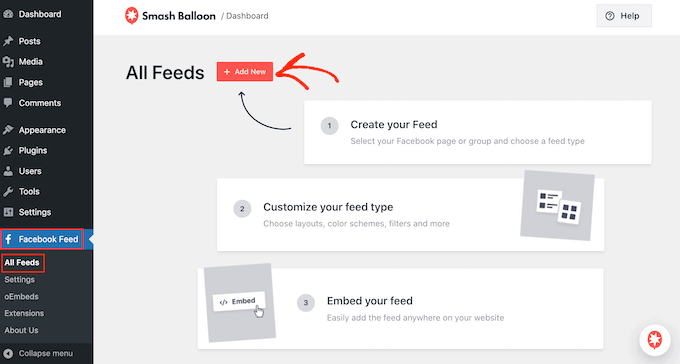
    • Smash Balloon is the most popular social media feeds plugin for WordPress. This year the team completely revamped all the plugins to add a much improved social feed customizer with live preview and more.
    • Uncanny Automator, the leading WordPress workflow automation plugin now has over workflow 100+ integrations to help you automate your WordPress site. This plugin can help you eliminate Zapier so you can save more money and time with website automations.

    Acquisitions and Investments

    This year we did few really great acquisitions & investments. Here are the new products that have joined the WPBeginner family :)

    FunnelKit (formerly WooFunnels) is a leading sales funnel builder and marketing automation platform for WooCommerce. Over 18,000+ smart store owners use FunnelKit to create high-converting checkouts, order bumps, one click upsells & automations that are proven to boost profits.

    They also have a really powerful email automation and CRM product called FunnelKit Automation (formerly Autonami). It’s basically an ActiveCampaign alternative for WordPress which gives you the email marketing & SMS features for a fraction of the cost.

    You can read the full story to see screenshots, animations, and more.

    We also acquired WP Charitable, a popular donation and fundraising plugin. Over 10,000+ non-profit organizations and website owners across the world use Charitable to create fundraising campaigns and raise more money online (see the full story).

    End of November, one of the WPBeginner Growth Fund companies, Strategy11, acquired WP Tasty and Nutrifox.

    Strategy11 is the team behind Formidable Forms, Business Directory Plugin, and Advanced Classified. Steve & Steph Wells joined the WPBeginner Growth Fund in 2018, and we have seen tremendous growth in the business since then.

    When the opportunity presented itself, we decided to acquire the WP Tasty plugin suite which offers a suite of tools for food bloggers including a WordPress recipe plugin, a smart roundup plugin, affiliate management plugin, and a better Pinterest integration.

    Nutrifox is a SaaS nutrition label generator for food bloggers as well food brands who’re looking to show nutrition labels for compliance reasons on their website.

    Aside from these, we have recently acquired few other businesses, but the announcement is not public yet, so I will be sharing those likely in January or February

    Want us to acquire or invest in your business? Learn more about the WPBeginner Growth fund where I invest in WordPress and SaaS companies.

    With that said, let’s take a look at 2022’s best WordPress tutorials on WPBeginner.

    January

    How to Display Your Form in a Single Line in WordPress (Easy Way) – Not all forms need multiple fields and some may even look good in a single line. In this tutorial, we showed how to easily display forms in a single line in WordPress.

    How to Fix ‘Comments Are Closed’ in WordPress (Beginner’s Guide) – A common WordPress issue that is often caused by misconfigured WordPress settings. In this article, we showed how to easily resolve the ‘Comments are closed’ issue in WordPress.

    How to Create a Video Membership Site in WordPress – WordPress makes it easier to sell on-demand and members-only content. In this tutorial, we walked users through the steps to build a video membership website in WordPress.

    What Are Web Push Notifications and How Do They Work? (Explained) – We published an explainer about web push notifications for beginners. The article talks about web push notifications and how beginners can use them to grow their businesses.

    How to Easily Create a Custom WordPress Theme (Without Any Code) – Ever wanted to make a custom WordPress theme exactly to your liking? In this article, we showed how to easily create a custom WordPress theme without writing any code.

    February

    How to Increase Your Landing Page Conversions by 300% – Landing pages are an important marketing tool to boost sales. In this article, we shared proven tips that help users increase their landing page conversions.

    How to Create a Facebook Ads Landing Page in WordPress – If you are running Facebook ads, then you would want to direct users to a properly optimized landing page. In this tutorial, we showed how to easily create a beautiful Facebook ad landing page in WordPress for higher conversions.

    How to Disable Widget Blocks in WordPress (Restore Classic Widgets) – WordPress replaced the widget screen with new widget blocks. However, many users have themes built for legacy widgets. In this article, we showed how to disable widget blocks and use legacy classic widgets.

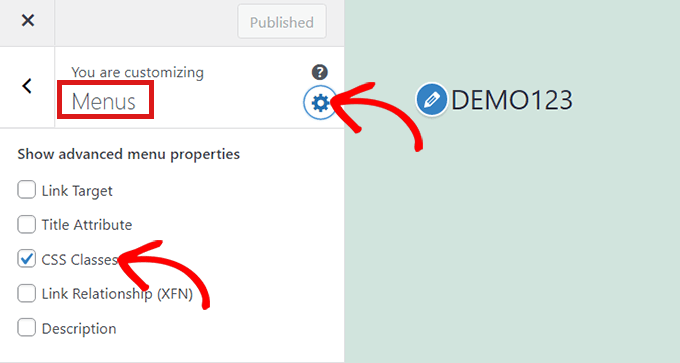
    How to Add Nofollow Links in WordPress Navigation Menus – Adding nofollow attribute to external links is helpful for SEO but how do you add it to a navigation menu link? In this tutorial, we showed +how to easily add nofollow links in navigation menus.

    March

    How to Add IndexNow in WordPress to Speed Up SEO Results – IndexNow is a new SEO feature that allows websites to get their new content indexed by popular search engines. In this tutorial, we explained how to add IndexNow in WordPress to improve SEO.

    How to Properly Use Focus Keyphrase in WordPress – Optimizing your content for a focus keyphrase helps you improve SEO rankings. In this article, we explained how to properly use focus keyphrase in WordPress to improve search rankings.

    18+ Best ClickFunnels Alternatives – ClickFunnels is a website builder tool for marketers to create sales funnels and boost conversions. In this article, we discussed its pros and cons and shared the best ClickFunnels alternative that are actually better and less expensive or free.

    How to Fix ‘The Site Is Experiencing Technical Difficulties’ in WordPress – This is a vague and common WordPress error that may be very frustrating for beginners. In this article, we showed how to easily fix ‘The site is experiencing technical difficulties’ issue in WordPress.

    April

    Best Internal Linking Plugins for WordPress – Internal linking is critical for better SEO rankings and higher pageviews. In this article, we showcased the best internal linking plugins for WordPress that you can use to automatically or manually add internal links.

    How to Accept Apple Pay in WordPress – Apple Pay is a convenient payment solution for customers and small businesses. In this article, we showed how to easily accept Apple Pay in WordPress without hiring developers.

    Elementor vs Divi vs SeedProd (Compared) – Users often ask us about which is the best page builder among the top contenders. In this article, we compared Elementor vs Divi vs SeedProd to figure out which is the best site builder tool for WordPress beginners.

    How to Accept Recurring Payments in WordPress – Many online businesses rely on recurring payments instead of one-time payments. In this beginner’s guide, we shared four methods to easily accept recurring payments in WordPress.

    May

    Beginner’s Guide: How to Use WordPress Block Patterns – Block patterns are a new WordPress feature that allows site owners to quickly insert common layouts into their pages using the Gutenberg content editor. In this article, we explained WordPress block patterns and how to use them.

    How to Easily Add a Download Link in WordPress – Adding a download link in WordPress makes it easier for your customers to download files. In this tutorial, we showed multiple ways to easily add a download link to WordPress.

    How to Add Collaboration in WordPress Block Editor (Google-Doc Style) – For multi-author WordPress websites, collaboration can become quite complicated. In this article, we showed how to easily add Google Docs style collaboration in the WordPress block editor.

    How to Accept Google Pay in WordPress (The Easy Way) – Google Pay is another convinient payment option for mobile customers. In this article, we showed how to easily accept Google Pay on a WordPress website.

    How to Limit the Number of WordPress Form Entries – Do you want to limit the number of entries users can submit using a WordPress form? In this tutorial, we showed how to easily limit the number of WordPress entries.

    June

    How to Add Text on Top of an Image in WordPress – We have been often asked by users about how to add text on top of an image in WordPress. In this article, we showed multiple ways to easily add text on top of an image in WordPress.

    How to Display WordPress Form Entries on Your Site – Some website owners want to collect data via forms and display it on their website. Whether is a survey, feedback, or other user generated content. In this article, we showed how to easily display WordPress form entries on your website.

    Best Call Center Software For 2022 – Many users like to talk to a business on the phone instead of email. Adding a call center software for your support and sales team can help convert those users into paying customers. In this article, our experts picked the best call center software for small businesses.

    How to Create a Reddit-Like Website with WordPress – Reddit is a popular online community with millions of highly engaged users. In this article, we showed how you can easily create a Reddit-like website with WordPress.

    July

    How to Make a Multi Vendor Ecommerce Website with WordPress – Do you wanto create a multi-vendor eCommerce platform? In this article, we showed how to easily make a multi-vendor eCommerce website in WordPress.

    How to Create an Author Website in WordPress (Step by Step) – WordPress is quite popular among best-selling authors. In this article, we showed how to create a professional author website in WordPress.

    How to Connect Multiple WordPress Sites Together – Do you want to connect multiple WordPress websites to automate everyday admin tasks? In this article, we shared 3 easy ways to connect multiple WordPress sites together.

    How to Sell Digital Art and Graphics Online – WordPress makes it super easy to sell anything online. In this article, we talked about how to easily sell digital and graphics online using WordPress.

    August

    How to Easily Integrate Shopify with WordPress (Step by Step) – Do you want to use Shopify and WordPress together? In this article, we showed how to easily integrate Shopify with WordPress and take advantage of both platforms.

    How to Set Up Automated Drip Notifications in WordPress – Drip notifications allow you to send scheduled notifications to subscribers via email or push notifications. In this article, we showed how to set up automated drip notifications in WordPress.

    How to Customize WooCommerce Emails – Default WooCommerce emails are quite plain and boring. In this article, we showed two ways to easily customize WooCommerce emails to make them more useful.

    How to Customize the Search Results Page in WordPress – The default WordPress search is too basic for most websites. In this tutorial, we walk you through the steos you can take to customize WordPress search results page with better results and user experience.

    September

    Best Monthly Web Hosting Plans – Are you looking for a monthly web hosting plan? In this showcase, our experts picked the best monthly web hosting plans (starting at $4.95 per month).

    The Ultimate Guide to GA4 in WordPress for Beginners – With the current version of Google Analytics being sunset on July 1, 2023, we got a ton of questions from users about the new Google Analytics 4 (GA4). In this beginner’s guide, we explained Google Analytics 4 for WordPress users.

    How to Create a Table of Contents in WordPress Posts and Pages – a Table of Contents improves user experience for longer articles and can also help with SEO when used properly. In this tutorial, we showed how to easily create a table of contents in WordPress posts and pages.

    2022 Blogging Statistics, Trends & Data – For this article, our research tream collected the most interesting and significant blogging statistics, trends, and data. This information can help you analyze some of the latest trends in blogging and how it has evolved over time.

    October

    Reasons Why We Switched from Yoast to All in One SEO – On WPBeginner, we switched from Yoast to All in One SEO for WordPress. This article explained top reasons why we switched from Yoast to All in One SEO.

    How to Speed up WooCommerce Performance – Speed is crucial for the success of an online store. In this guide, we shared easy to implement tips to speed up WooCommerce performance.

    How Much Traffic Can WordPress Handle? – One of the common misconceptions about WordPress is that it is harder to scale for large traffic. In this article, we debunked this myth by explaining how much traffic can WordPress handle.

    In October, our research team published three new resources:

    November

    The WordPress SEO Crawl Budget Problem and How to Fix It – Search engine bots set a crawl budget for each website, and your website may end up wasting it on unnecessary pages. In this article, we explained the SEO crawl budget problem and how to easily fix it.

    How to Offer an Ad-Free Version of Your WordPress Site to Subscribers – Want to remove advertisements for paid subscribers of your website? In this tutorial, we showed how to easily offer an ad-free version of your website to subscribers.

    GoDaddy Website Builder vs WordPress – Which One is Better? – GoDaddy offers a basic website builder tool to quickly create simple websites. In this article, we compared GoDaddy website builder vs WordPress to show which one is better.

    How to Easily Add Browser Tab Notification in WordPress – You may have noticed some websites with tabs highlighted with animations, icons, and text. In this tutorial, we showed how to easily add browsser tab notification in WordPress.

    How to Add a Buy Now Button in WordPress – Do you want to add a quick buy now button in WordPress? In this tutorial, we showed 3 ways to easily add a buy now button in WordPress.

    December

    How to Sell Excel or Google Spreadsheets in WordPress – Excel and Google spreadsheet files are popular items sold online. These can be templates, printable workbooks, and more. In this tutorial, we showed how to easily sell Excel or Google spreadsheets in WordPress.

    What is Headless WordPress and Should You Use It? – A headless WordPress website separated WordPress from the front-end. In this guide, we explained headless WordPress with pros and cons.

    A History of Blogging (1993 – Present Day Timeline) – Our team compiled and updated a useful resource about blogging. In this resource, you’ll see a comprehensive history of blogging from 1993 to present time.

    How to Enable Maintenance Mode for WooCommerce – Worried about misplaced orders when you are performing maintenance tasks on your WooCommerce store? In this tutorial, we showed how to enable maintenance mode for WooCommerce to safely execute maintenance tasks.

    How to Add Venmo in WordPress & WooCommerce – Venmo is a popular and convinient payment gateway. In this guide, we showed how to easily add Venmo in WordPress and WooCommerce as a payment method.

    These were some of the best WordPress tutorials on WPBeginner in 2022. We hope that you found them helpful.

    We want to thank all WPBeginner users, who visited our website, offered feedback, left comments, and shared it with others. We truly appreciate you.

    We look forward to adding even more useful WordPress tutorials in 2023. Have a Happy New Year.

    If you liked this article, then please subscribe to our YouTube Channel for WordPress video tutorials. You can also find us on Twitter and Facebook.

    The post Best of Best WordPress Tutorials of 2022 on WPBeginner first appeared on WPBeginner.

  • How to Send Automated Coupons in WordPress to Bring Back Customers

    Do you want to send automated coupons in WordPress to bring back customers?

    By sending the right coupon to the right person at the right time, you can re-engage customers who are losing interest. This can get you more sales, create brand loyalty, and help you keep your best customers.

    In this guide, we’ll show you a few different ways to send automated coupons in WordPress, and bring back customers.

    How to send automated coupons in WordPress to bring back customers

    Why Send Automated Coupons to Bring Back Customers?

    You may have heard the saying that it costs five times more to get a new customer than keep an old one.

    While lead generation will help grow your business, you also need to keep your existing customers happy. Over time, people may lose interest in your website, forget about your products, or start shopping with a competitor.

    That’s where automated coupons come in.

    The best WordPress automation tools and plugins can watch your customers for signs they’re becoming disengaged. For example, a customer may not place an order for 2 months or stop opening your emails.

    One way to bring those customers back is to automatically send them a coupon code via email. By creating this automated workflow in WordPress, you can retain customers without having to do all the hard work yourself.

    Pro Tip: If you send coupons via email, then you’ll need to make sure those messages land in the customer’s inbox and not in the spam folder. Here, a good SMTP service provider is essential for improving your email deliverability. We also recommend using WP Mail SMTP as it allows you to easily send WordPress emails using any SMTP service provider.

    With that being said, let’s see how you can send automated coupons in WordPress and bring back customers. Simply use the quick links below to jump to the method you want to use.

    Method 1. Using FunnelKit (Best for WooCommerce Users)

    One way to send automated coupons in WordPress, is by using FunnelKit Automations.

    FunnelKit is a WordPress sales funnel builder and optimization plugin that allows you to create powerful customer winback campaigns. It also lets you create unique, personalized coupons, which can really catch the shopper’s attention.

    FunnelKit integrates with WooCommerce and has lots of features that are designed to grow your online store. With that in mind, FunnelKit is a great choice if you already use WooCommerce to sell products and services online.

    How to Set up the FunnelKit WordPress Plugin

    First, you’ll need to install and activate the free version of FunnelKit Automations, as it provides the base for the premium plugin’s features. For more details, please see our guide on how to install a WordPress plugin.

    After that, you’ll need to install and activate the FunnelKit Automations Pro plugin.

    After activating both plugins, go to FunnelKit Automation » Settings. You can now go ahead and add the license key to the ‘License’ field.

    Adding a license to the FunnelKit Automations WordPress plugin

    You’ll find this information in your account on the FunnelKit website. After adding this information, click on the ‘Activate’ button.

    How to Create an Automated Coupon Workflow for WordPress

    Now, we’re going to create a workflow that will generate a personalized coupon and send it to the customer via email. This workflow will run once 30 days have passed since the customer’s last order.

    To create the workflow, go to FunnelKit Automations » Automations (Next Gen) in the WordPress dashboard. Then, click on the ‘Add New Automation’ button.

    Creating a new WordPress automation with FunnelKit

    You’ll now see all the different automation templates that you can use.

    Since we want to create our own workflow, select ‘Start from Scratch.’

    Creating a custom automated workflow in WordPress

    In the popup that appears, type in a name for the automation. This is just for your reference, so you can use anything you want.

    With that done, click on ‘Create.’

    Add a name to your FunnelKit automation workflow

    Now, we need to choose the action that will kickstart the workflow, so click on ‘Select Trigger.’

    In the left-hand menu, choose ‘WooCommerce’ and then click to select ‘Customer Win Back.’

    Adding a 'customer winback' trigger to an automation workflow

    With that done, click on ‘Done’ to add the trigger to your automation workflow.

    Back in the main editor, click on the ‘Customer Win Back’ trigger.

    Adding a trigger to the FunnelKit automation editor

    In the ‘Customer Last Ordered Period’ section, you can type in how long FunnelKit will wait before running the workflow.

    For example, in the following image the workflow will run when 30 days have passed since the customer’s last order.

    FunnelKit will repeat this automation once every 24 hours, so it’s important to only run it for a short period of time. For this reason, we’ve set the workflow to stop when 35 days have passed since the customer’s last order.

    Adding an order period to the automation recipe

    In this way, you won’t annoy customers by sending them dozens of emails.

    Next, you can set the time when the automation will run, using the ‘Schedule this….’ fields. FunnelKit will use your store’s timezone, so you may want to change your online store settings if you want to use a different timezone instead.

    Scheduling an automated coupon code

    With that done, click on ‘Save.’

    Back in the main workflow editor, click on ‘+’ and then select ‘Action.’

    Adding actions to an automated workflow in WordPress

    In the popup that appears, select ‘WooCommerce’ and then click on ‘Create Coupon.’

    Simply click on ‘Done’ to add this action to the workflow.

    How to create an automated coupon using FunnelKit

    Back in the main FunnelKit editor, click on the action you just added. This opens a popup where you can customize the ‘Create Coupon’ action.

    To start, type a name for the coupon into the ‘Coupon Title’ field. This is just for your reference so you can use anything you want.

    Creating a winback customer automation workflow in WordPress

    After that, choose the type of coupon that you want to create, using the ‘Discount Type’ dropdown menu.

    FunnelKit supports percentage discount, fixed cart discount, and fixed product discount. Most of the time, you’ll want to select ‘Percentage Discount’ to make sure all customers get a similar benefit, no matter how much they spend or what products they buy.

    After that, type an amount into the ‘Amount’ field. For example, you might offer customers 20% off, or a $5 discount on all purchases.

    How to create an automated percentage discount coupon

    FunnelKit automatically creates a unique coupon code for each contact. However, you can add a prefix to the start of the coupon, which can either be plain text or dynamic tags. FunnelKit will replace these tags with real text every time it creates a code, so this is a great way to create personalized coupons.

    Since we want to bring shoppers back in, you may decide to include the customer’s name in the coupon. This can catch their attention, and also makes your code easier to remember.

    To add plain text as a prefix, simply type into the ‘Coupon Code Prefix’ field.

    Adding a prefix to the automated coupon code

    To add one or more tags, click on the ‘Merge tags’ icon.

    This is the button that has curly braces.

    Adding dynamic text to the automated coupon code

    Now, you’ll see all the tags that you can use in the automated coupon.

    We’re going to use the {{contact_first_name}} tag, but you can use any tags you want.

    How to create a personalized coupon code with merge tags

    Simply copy each tag and then paste it into the ‘Coupon Code Prefix’ field.

    As you can see in the following image, you can use a mix of plain text and tags.

    How to create a personalized and dynamic coupon code

    By default, the coupon will never expire. A sense of urgency and FOMO can push customers to use a coupon, so you may want to select the radio button next to ‘Expire after Specific Days’ or ‘Expire on Specific Date.’

    You can then use the controls to specify when the coupon will expire.

    Adding a coupon expiration date to your WordPress coupon

    Finally, you can choose whether the coupon gives customers a free shipping discount.

    Shoppers love free shipping, so you may want to consider adding this to your coupon by selecting the ‘Yes’ radio button under ‘Allow Free Shipping.’

    How to create a free shipping discount for your online store

    When you’re happy with how the coupon is set up, make sure you copy the small pieces of code under the ‘Coupon Title.’

    You’ll need this coupon code for the email we’ll be creating in the next step, so store it somewhere safe.

    Creating an automated coupon to win back customers

    With that done, click on ‘Save’ to store your changes.

    Now we have a coupon, it’s time to create the email that FunnelKit will send to your customers. To add an email action, click on the ‘+’ button and then select ‘Action.’

    Add an email action to win back customers

    If it isn’t already selected, then click on ‘Messaging’ in the left-hand menu.

    Then, select ‘Send Email’ and click on ‘Done.’

    Choosing an action in the FunnelKit automation plugin

    You can now create an email by typing in a subject and preview, and adding body text.

    Similar to creating a coupon, it’s best to use a mix of plain text and tags. To add dynamic tags, click on the ‘Merge Tags’ icons that appear next to the To, Subject, and Preview Text fields.

    How to create a personalized email to win back customers

    If you want to add tags to the email body, then you can click on the ‘Merge Tags’ button.

    To add your coupon code, simply paste or type in the {{wc_dynamic_coupon id= code we copied in the previous step.

    Create a personalized email to bring back customers

    When you’re happy with how the email looks, click on ‘Save & Close.’

    That’s it. When you’re ready to make the automation live, click on the ‘Inactive’ slider so it turns to ‘Active.’

    Making your workflow automation live

    Now, FunnelKit will automatically send the coupon to any customer who hasn’t purchased from you in the past 30 days.

    Method 2. Using Uncanny Automator (Over 100 Integrations)

    Another way to send automated coupons in WordPress, is by using Uncanny Automator. It is one of the best WordPress automation plugins on the market and lets you create powerful workflows to save time and help you respond to customers more quickly.

    Uncanny Automator works seamlessly with WooCommerce, plus all of the must have WordPress plugins and third-party tools. If you’re already using lots of different software on your online store, then Uncanny Automator may be a good choice for you.

    There is a free Uncanny Automator plugin that lets you automate many common tasks. However, we’ll be using Uncanny Automator pro because it works with WooCommerce.

    To start, you’ll need to install Uncanny Automator pro, plus the free plugin as it provides the base for the premium version. If you need help, then please see our guide on how to install a WordPress plugin.

    Upon activation, go to Automator » Settings and enter your license key into the ‘Uncanny Automator Pro license key’ field.

    Adding an Uncanny Automator license to your WordPress website

    You’ll find this information under your account on the Uncanny Automator website.

    Uncanny Automator is a powerful and flexible plugin, so there’s lots of different ways that you can bring customers back to your site. Let’s take a look at a few options.

    Automatically Send Coupons to Logged-Out Customers

    It’s smart to let customers create an account with your online store, as it encourages brand loyalty and makes it easier for shoppers to buy from you in the future.

    User registration can also help with lead generation. If you get the shopper’s email address, then you can target them with email marketing, personalized ads, an email newsletter, and much more.

    If you’re using WooCommerce, then this plugin automatically creates all the pages customers need to create and manage an account. WooCommerce also adds a new Customer role, which it automatically assigns to any shoppers who register with your store.

    Are you using a different eCommerce solution that doesn’t support customer registration? Then see our guide on how to allow user registration on your WordPress site.

    After that, you can simply create a new role for your customers. For detailed instructions, please see our beginner’s guide to WordPress user roles and permissions.

    If you allow user registration, then you can track when a shopper logs out of their account, as this suggests they’re losing interest in your store. You can then send a coupon to encourage them to log back in.

    To create this recipe, simply go to Automator » Add new in the WordPress dashboard.

    Uncanny Automator will now ask whether you want to create a recipe for logged-in users, or everyone. Go ahead and select ‘Logged-in users,’ then click on the ‘Confirm’ button.

    Creating a logged-in automation recipe with Uncanny Automator

    Next, you can give the recipe a name by typing into the ‘Title’ field. This is just for your reference so you can use anything you want.

    Once you’ve done that, click on ‘WordPress’ in the ‘Select an integration’ area.

    Select WooCommerce as an integration

    You can now choose a trigger, which is anything that kickstarts the recipe.

    In the dropdown menu, start typing the following ‘A user logs out of a site’ and then select the right option when it appears.

    Choosing a trigger for the automated coupon recipe

    We only want to run the workflow when someone with the ‘Customer’ user role logs out of their account.

    With that in mind, click on the ‘Add filter’ button.

    How to create an automation workflow for your WooCommerce customers

    In the popup that appears, click on ‘WordPress.’

    Next, find ‘The user has a specific role’ in the dropdown menu.

    Filtering your users based on WordPress role

    Open the ‘Role’ dropdown and select the role you’re using for your customers.

    After that, go ahead and click on ‘Save filter.’

    Sending an automated coupon to your WooCommerce customers

    Now it’s time to specify the action that Uncanny Automator will perform every time this workflow runs.

    We’re going to send the customer an email containing a coupon, so go ahead and click on ‘Add action.’

    Adding actions to an automated recipe

    Since we want to send an email, select ‘Emails’ as the integration.

    In the dropdown that appears, click on ‘Send an email.’

    Send automated coupons in WordPress to bring back customers

    This adds all the fields that you can use to create the email.

    To start, we need to make sure the message goes to the right user, by clicking on the asterisk next to the ‘To’ field. Then, select ‘Common’ and ‘User email.’

    Getting the customer's email address

    You can now create the email by adding a subject line and body text.

    Here, you can use a mix of plain text and tokens, which are placeholders that Uncanny Automator replaces with real values automatically. For example, if you want to use the customer’s name, then you can click on the asterix and select ‘Common.’

    Simply select the ‘User first name’ token to create the personalized greeting.

    Adding a dynamic user name token to the coupon workflow

    You’ll also need to create a coupon and add it to the email.

    The easiest way is by using the Advanced Coupons plugin, which is the best WordPress coupon code plugin on the market. It lets you create lots of different advanced coupons to get more sales and grow your business.

    For a step-by-step guide, please see our post on how to create smart coupons.

    After creating a coupon, you can simply add it to the email.

    Sending an automated coupon email in WordPress to bring back customers

    When you’re happy with how the email looks, click on ‘Save.’

    After that, it’s time to set a delay. This is how long Uncanny Automator will wait after the customer logs out, before sending them the coupon.

    To add a delay, hover your mouse over the ‘Email’ action. When it appears, click on ‘Delay.’

    How to add a delay to an automation workflow

    You can then add your delay in the popup that appears.

    Once you’ve done that, go ahead and select ‘Set delay.’

    Adding a time delay to the automated coupon recipe

    When you’re happy with how the recipe is set up, it’s time to make it active.

    In the ‘Recipe’ box, click the ‘Draft’ switch so that it shows ‘Live’ instead.

    Publishing the automated coupon recipe

    That’s it. Now, when a customer logs out of their account, Uncanny Automator will wait for the specified amount of time before sending them a coupon code.

    Automatically Send Coupons for a Specific Product

    Sometimes a shopper may look at a product multiple times. This suggests they’re interested in the item, but something is stopping them from making a purchase.

    In this case, you may want to send them a coupon, which will encourage them to splash out on the product.

    To get started, create a new recipe for logged-in users following the same process described above. After that, click on ‘WooCommerce’ in the ‘Select an integration’ area.

    Adding WooCommerce as an integration in Uncanny Automator

    Next, choose a trigger by typing the following ‘A user views a product.’

    When the right trigger appears, give it a click.

    Get more sales with an automated coupon recipe

    By default, this trigger is set to ‘Any product.’

    If you want to link the recipe to a specific product, then open the ‘Product’ dropdown and choose that product from the list.

    Choose a WooCommerce product from the dropdown menu

    Once you’ve done that, click on the ‘Number of times’ button.

    By default, the recipe will run every time a customer looks at a product. You should change this, so the customer has to look at the product multiple times before triggering the recipe. To do this, type a different number into the ‘Number of times’ field.

    Triggering a workflow when the customer views a product multiple times

    When that’s done, click on ‘Save’ to store your settings.

    This recipe should only run when a customer views a product, so click on ‘Add Filter.’ In the popup that appears, click on ‘WordPress’ and then choose ‘The user has a specific role.’

    Adding WooCommerce features to an automation recipe

    After that, open the ‘Role’ dropdown and select the role you’re using for your customers.

    When you’re ready, click on ‘Save filter.’

    Configuring the automated coupon rule

    Now it’s time to add the action. There are a few different ways to send automated coupons from your WordPress website.

    To email a code to your customers using Uncanny Automator and Advanced Coupons, simply follow the same process described above.

    Another option is to generate the code using WooCommerce. To do this, click on ‘Add Action’ and then select ‘WooCommerce’ as the integration.

    Selecting the WooCommerce eCommerce plugin as an integration

    In the search bar, start typing ‘Generate and email a coupon code to the user.’

    When the right option appears, give it a click.

    Generating a WooCommerce coupon

    This will add some new settings where you can create the coupon code.

    To generate a code automatically, simply leave the ‘Coupon code’ field blank.

    How to create a coupon for your WooCommerce online store

    In the ‘Discount type’ field, choose the kind of coupon that you want to create, such as a fixed cart discount or percentage discount.

    For this guide, we’ll select ‘Percentage discount’.

    How to create a percentage discount code

    After that, type the percentage discount into the ‘Coupon amount’ field.

    In the following image, we’re offering customers a 30% discount on their purchase.

    Creating a percentage coupon code

    In the next field, you can set an expiry date for the coupon, either by using the YYY-MM-DD format or typing in the number of days until the coupon expires.

    For example, in the following image the coupon will expire after 7 days.

    Adding an expiration date to an automated coupon code

    You can also set a minimum and maximum spend for the coupon. We’ll leave these fields blank so the customer can use the code with any purchase.

    You may also want to check the ‘For individual use only’ box so customers can’t use this code in combination with other coupons.

    Creating a coupon for individual use

    Next, scroll to the ‘Usage limit per coupon’ section. The shopper should only be able to use the coupon once, so type in ‘1.’

    There are lots of other settings you can change for the coupon. It’s a good idea to look through these settings to see whether you want to make any more changes.

    When you’re happy with how the coupon is set up, scroll to the ‘Email’ section. To start, find the ‘To’ field and then click on the asterisk next to it. Then, click on ‘Common’ and select ‘User email.’

    Creating an automated coupon email to bring back shoppers

    With that done, you can add a subject line and change the text in the email body.

    To create a more personalized email, it’s a good idea to use a mix of plain text and tokens, by following the same process described above.

    Adding a coupon to your WooCommerce email

    When you’re happy with the email, click on the ‘Save’ button to store the recipe.

    After that, you can make the recipe live by clicking the ‘Draft’ switch so that it shows ‘Live.’

    Making an Uncanny Automator recipe live on your WordPress website

    Now, every time someone views a product multiple times, it’ll trigger the recipe workflow.

    We hope this article helped you learn how to send automated coupons in WordPress to bring back customers. You may also want to check out our guide on how to create a WooCommerce popup to increase sales and the best WooCommerce plugins for your store.

    If you liked this article, then please subscribe to our YouTube Channel for WordPress video tutorials. You can also find us on Twitter and Facebook.

    The post How to Send Automated Coupons in WordPress to Bring Back Customers first appeared on WPBeginner.

  • How to Export Email Addresses from WordPress Comments

    Do you want to export email address from your WordPress comments?

    The people who comment on your site are already engaged with your content, and that makes them the perfect audience for email marketing or retargeting ads. As long as you get the right permissions, you can target these users by exporting their contact information.

    In this article, we will show you how you can export email addresses from the WordPress comment section.

    How to export email addresses from WordPress comments

    Why Export Email Addresses From WordPress Comments?

    There are a few different reasons why you may want to export email addresses from WordPress comments but the most common is to build an email list.

    However, according to digital privacy guidelines, you must have permission to contact the people who comment on your website. The default WordPress comment form doesn’t give users a way to opt into your email updates, which means you can’t simply add these people to your mailing list. One easy fix is to add custom fields to the comment form in WordPress so that anyone who leaves a comment can opt into getting emails from you.

    The following screenshot shows an example of how this might look on your website.

    An example of a custom comment form

    When the person posts their comment, their response is added as comment meta data. You can then export the meta data along with the email address, and see whether you have permission to email that person.

    In the following image, you can see an example of a spreadsheet containing one comment author who has opted into getting email updates and one author who doesn’t want to receive any messages from you.

    A list of exported email addresses

    This allows you to build a mailing list without breaking important privacy rules such as GDPR.

    There may also be some sites where you already have permission to email anyone who comments on your content. This often includes private WordPress blogs such as a classroom website or a family blog. In this case, simply exporting the list of email addresses may be easier than asking every single person for their contact information.

    With that in mind, let’s see how you can export email addresses from WordPress comments.

    How to Export Email Addresses from WordPress Comments

    The easiest way to export email addresses from your WordPress comments is by using WordPress Comments Import & Export.

    This plugin lets you export different information from the WordPress comment section including email addresses and any meta data that was added via a custom field.

    To begin, you’ll need to install and activate the plugin. If you need help, then please see our guide on how to install a WordPress plugin.

    Upon activation, go to Comments » Comments Im-Ex.

    The WordPress Comments Import & Export plugin

    By default, the plugin will export data from all the comments that people have posted across your website.

    Depending on your site, this might be a lot of information for you to read through.

    With that being said, you may want to filter the comments that the plugin exports. One option is to only export comments that were posted within a particular timeframe.

    To set a time limit, scroll to the ‘Date’ section. You can then click on each date field and then choose a start and end date from the calendar popup.

    Filtering the WordPress comments export

    You can also export comments from a specific post only. For example, you might be running a giveaway or contest where everyone who comments on a particular post gets entered into a prize draw.

    You can then export the email addresses from this post and pick your winner.

    To limit the export to a specific page, click on the box next to ‘Articles’ and then select any post from the list.

    Filtering the WordPress comment export

    Once you’ve done that, scroll to the ‘Columns’ section which lists all the information you can include in the export.

    By default, the plugin exports all the data from each comment, so you’ll typically want to uncheck the information you don’t need. For example, if you’re not interested in the author’s IP address then you can click to uncheck the comment_author_ip box.

    Building the comment form export

    You can check or uncheck any boxes you want. However, since we want to export a list of email addresses it’s important to check the comment_author_email box.

    Did you add a custom opt in field to the comment form? Then make sure you check the comment_meta box so you can see whether the author opted into receiving email updates.

    Exporting custom meta data from WordPress comments

    When you’re happy with how the export is set up, go ahead and click on the Export Comments button.

    The plugin will now export all the email addresses and you can download that CSV file.

    Next, open the file using any app or program that supports the CSV format, such as Microsoft Excel or Google Sheets, as you can see below.

    How to export email addresses from WordPress comments

    You can now filter the comments based on whether these people opted into receiving emails.

    How to Get the Most Out of Your Exported Email Addresses

    After exporting the email addresses from your WordPress comments, there are a few different ways that you can use them.

    If the comment author opted into getting email updates from you, then you might add them to your email newsletter. You can then send these people news, tips, and updates about your business or website.

    You can also add the users in your CRM to do regular personal reach outs to build your network.

    Another use for your exported email addresses is for Facebook retargeting ads. Facebook lets you upload a list of email address so you can target only those users with your ad campaign.

    We hope this article helped you learn how to export email addresses from WordPress comments. You may also want to check out our guide on how to allow user registration on your WordPress site and the best contact form plugins.

    If you liked this article, then please subscribe to our YouTube Channel for WordPress video tutorials. You can also find us on Twitter and Facebook.

    The post How to Export Email Addresses from WordPress Comments first appeared on WPBeginner.

  • How to Switch from Gumroad to WordPress (Step by Step)

    Do you want to switch from Gumroad to WordPress?

    Gumroad is an online marketplace where users can sell digital goods. From games to music to courses and videos, Gumroad used to be a good eCommerce platform for creators. However, many users are looking to switch from Gumroad to WordPress because they have raised their fees to 10% for each transaction.

    In this article, we’ll show you how to easily switch from Gumroad to WordPress, so you can grow your online business without the Gumroad tax.

    Switching from Gumroad to WordPress

    Why Do You Need to Switch From Gumroad to WordPress?

    Gumroad is a popular eCommerce platform that allows users to sell digital goods online.

    However, they now charge a 10% flat fee on each sale. This 10% does not include credit card processing or PayPal fees.

    Plus, an additional 10% fee is charged if a product is sold through the ‘Gumroad Discover’ feature, or their ‘Global Affiliates’ program. That’s a lot of fees.

    On the other hand, WordPress is free and doesn’t charge you any fee for the items you sell.

    Unlike Gumroad, WordPress gives you the freedom to sell anything online, including physical versions of your digital goods. Plus, you can use any payment gateway you want and promote your website freely.

    To learn more, see our complete WordPress review with pros and cons.

    Important: When we say WordPress, we are talking about WordPress.org aka self-hosted WordPress, and not WordPress.com which is a hosting platform. For more details, please see our article on the difference between WordPress.com vs. WordPress.org.

    That being said, here is a quick overview of the things we’ll cover to switch from Gumroad to WordPress.

    Ready? Let’s get started.

    Step 1. What Do You Need to Switch from Gumroad to WordPress?

    You’ll need the following things to switch from Gumroad to WordPress.

    • A domain name – This will be your website’s address on the internet (e.g. wpbeginner.com)
    • A web hosting account – This is where all your website files will be stored. All websites on the internet need hosting.
    • Free Easy Digital Downloads plugin for WordPress
    • 30 minutes of your time.

    Normally, pricing for a web hosting account starts at $7.99 per month.

    Luckily, the folks at SiteGround have agreed to offer WPBeginner users a generous discount on eCommerce-ready hosting.

    Basically, you can get started for $2.99 per month.

    If for some reason, you don’t want to use SiteGround, then you can also install WordPress on other hosting companies like BluehostHostinger, and WP Engine following a fairly similar process.

    Let’s go ahead and walk through how to purchase your domain, web hosting, and SSL certificate.  

    First, you need to visit the SiteGround website and choose a plan by clicking on the Get Plan button.

    SiteGround Hosting for Easy Digital Downloads and WordPress

    After that, SiteGround will ask you to enter a domain name for your website. 

    You can look up a domain name or if you already have one then you can add that as well.

    Get domain name

    If you don’t already have a name in mind, then you can see our guide on how to choose the best domain name.

    Lastly, you will need to add your account information. You will also be able to purchase some optional extras. 

    You can always add these extras at a later date if you decide that you need them. If you’re unsure then we recommend skipping this step. 

    You can now finish the setup by making the payment.

    After that, you will get an email from SiteGround with a link to log in to your hosting account control panel.

    login to WordPress admin

    From here, switch to the websites tab and click on the WordPress Admin button next to your website.

    This will take you to the WordPress admin area of your website where you’ll notice Easy Digital Downloads pre-installed on your website.

    Your WordPress admin dashboard will look like this

    Step 2. Setting up Your WordPress Website

    By default, WordPress does not come with eCommerce shopping cart functionality.

    If you followed our advice and signed up with SiteGround, then your WordPress site will now have Easy Digital Downloads installed which provides all the Gumroad features you’ll need to sell digital goods.

    On the other hand, if you are using some other WordPress hosting provider, then you’ll need to install Easy Digital Downloads first.

    Simply, install and activate the Easy Digital Downloads plugin. For more details, see our step-by-step guide on how to install a WordPress plugin.

    Note: For the sake of this tutorial, we are using the free version of Easy Digital Downloads. There is also a premium version that comes with additional features and priority support.

    Upon activation, you need to visit Downloads » Settings page in your WordPress admin area to set up your store.

    Base country

    First, you need to provide a business name and type.

    After that, enter your business address and country. This information is used for calculating taxes.

    Finally, click on the ‘Save changes’ button to store your settings.

    Next, you need to switch to the ‘Currency’ tab and select the default currency you want to use on your store.

    Select currency

    Don’t forget to Save your changes to store your settings.

    Step 3. Setting up Payment Gateway

    In order to accept payments online, you’ll need to set up a payment gateway provider.

    Easy Digital Downloads supports PayPal, Stripe, and Amazon payment gateways by default. You can also add support for additional payment gateways using add-ons.

    To set up payments, simply switch to the Payments tab under the plugin settings.

    Select payment gateways

    From here, you need to select the payment services you want to use. You can choose more than one payment service if you want.

    We recommend using Stripe since it lets you accept credit cards from anywhere in the world.

    After that, select a default payment gateway and check the payment method icons you want to display on checkout.

    Payment gateways options

    Finally, click on the Save changes button to store your changes.

    After that, you need to click on the individual payment gateway tabs to configure them.

    PayPal settings

    For instance, clicking on Paypal will show you a button to connect your PayPal account.

    Similarly, you can switch to the Stripe tab and click on the ‘Connect with Stripe’ button to set it up.

    Stripe settings

    Step 4. Importing Gumroad Products in WordPress

    The next step is to import the products from Gumroad to Easy Digital Downloads in WordPress.

    Unfortunately, Gumroad does not provide an easy way to export your product data in a WordPress-compatible format.

    You’ll need to manually move your products from your Gumroad account to Easy Digital Downloads.

    To create your first digital product, go to the Downloads page and click on the ‘Add New’ button at the top.

    Add new download

    You can now type a name for your product into the ‘Enter download name here’ field. Below that you can provide details of your item.

    Feel free to use images, videos, emojis, and text to write a compelling description. You can also just copy and paste the description from your Gumroad product.

    Add download title and description

    Tip: Learn how to use the WordPress block editor to create beautiful content layouts.

    You can also organize your downloads into categories and tags. This helps users browse and discover product downloads that interest them.

    Add categories, tags, and a download image

    You also need to provide a download image, this will be the main featured image for your download and will be displayed in different locations on your website.

    Feel free to use the image you used for your Gumroad product.

    Below the editor, you will find the Download options. First, you can set the download price.

    Download pricing and file upload

    After that, you can choose the download type. EDD supports both single downloads and bundles as download types.

    Below that, you can provide the download file name and then click on the Link button in the File URL field to upload your download file.

    If you need to add more files to a bundled product then click on the ‘Add New File’ button to add them.

    Finally, you can provide any optional download instructions or notes. These will be displayed on the purchase receipt and some plugins and themes may also use these instructions.

    download instructions

    Once you are finished, simply click on the ‘Publish’ button at the top right corner of the screen to publish your download.

    This will make your download publicly available for purchase.

    Publish download

    Once published, you can click on the ‘View Download’ button to see your download product in action.

    Here is how it looks on our test site.

    Product page

    Repeat the process to move all your products from Gumroad to your WordPress website.

    Step 5. Moving Subscription Products From Gumroad to WordPress

    Some users sold subscription-based downloads on Gumroad. Basically, customers purchased a membership plan to access downloads.

    EDD offers recurring digital subscriptions as part of their Pro plugin which you can purchase from their website.

    Alternatively, if you’re selling memberships or online courses, then the easiest way to sell these products is by using MemberPress. It is the best WordPress membership plugin on the market.

    MemberPress

    MemberPress allows you to sell membership subscriptions, file downloads, and even online courses.

    For more details, follow our guide on how to make a membership website with step-by-step instructions.

    Step 6. Choose and Customize Your WordPress Theme

    Themes are the design templates for your WordPress website. They control how your website looks to the users.

    There are thousands of free and paid WordPress themes that you can use on your website. However, this abundance can be a bit overwhelming for beginners.

    WordPress Theme Stats

    To make things easier, you can pick a theme from our expert pick of the most popular WordPress themes.

    Once you’ve chosen a theme, you can see our beginner’s guide on how to install a WordPress theme to get it live on your website.

    Each WordPress theme comes with a bunch of options that allow you to customize it to your own needs. You can change colors and layout, as well as add your own images and logo.

    After your theme is installed, you can use our guide on how to customize your WordPress theme to make it your own.

    You can also use SeedProd to create a custom WordPress theme (without coding).

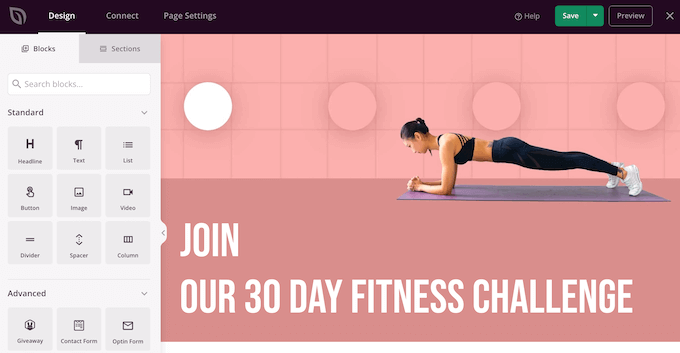
    How to create a landing page in WordPress with SeedProd

    SeedProd is the best WordPress page builder on the market.

    It also allows you to easily create any type of landing page, product page, and custom login page using a drag-and-drop interface.

    Step 7. Customize Easy Digital Download Emails

    Just like Gumroad, Easy Digital Downloads also relies on emails to send users to purchase receipts, account information, and download instructions.

    However, since you are now selling on your own platform, you may want to use your own branding with those emails.

    Simply go to the Downloads » Settings page and switch to the ‘Emails’ tab.

    Customize EDD emails

    From here, you can provide a logo to be used in your emails.

    Below that, you can add a name that will be used as the sender’s name. You can also provide an email address to send the email from.

    We recommend using a business email address because it looks more professional. Your hosting provider can also offer a free business email address that you can use.

    Lastly, you will need WP Mail SMTP plugin to configure your emails. It ensures that all your emails reach users’ inboxes and not end up in spam.

    For more details, see our guide on how to set up WP Mail SMTP to improve email deliverability.

    Once you are finished, don’t forget to click on the ‘Save changes’ button to store your settings.

    Here is how a properly branded Easy Digital Downloads email would look like:

    Add brand logo

    You can also customize the text of the emails by switching the to the ‘Purchase Receipts’ tab.

    From here, you can enter a title, headline, and text for the purchase email receipts.

    Purchase receipts

    Below that you will find a bunch of tags that you can use inside the email template.

    You will be able to display dynamic information such as customer name, their downloads, and receipt by using the tags provided beneath the text field.

    Email tags

    Step 8. Growing Your Business in WordPress

    A big advantage of moving from Gumroad to WordPress is the ability to use a ton of free and paid tools to grow your business.

    Following are some of the must-have WordPress plugins that will help you sell more downloads.

    • WPForms Lite – the best WordPress contact form plugin that helps you easily add any type of form to your website.
    • All in One SEO Lite – The best WordPress SEO toolkit that helps you get more visitors from search engines.
    • OptinMonter – It is the best conversion optimization software that helps you convert website visitors into paying customers.
    • MonsterInsights Lite – Allows you to easily install Google Analytics and see how much traffic your downloads are getting.
    • PushEngage –  is the best push notification software, which allows you to send personalized notifications to users. You can announce new downloads, sale events, or special offers.
    • AffiliateWP – Run your own affiliate program and partner with marketers to help you sell more downloads with affiliate marketing.

    We hope this article helped you learn how to easily switch from Gumroad to WordPress. You may also want to see our article on growing your business on a shoestring budget or take a look at our ultimate WordPress SEO guide.

    If you liked this article, then please subscribe to our YouTube Channel for WordPress video tutorials. You can also find us on Twitter and Facebook.

    The post How to Switch from Gumroad to WordPress (Step by Step) first appeared on WPBeginner.

  • How to Highlight a Menu Item in WordPress

    Do you want to highlight a menu item on your WordPress site?

    Highlighting a menu item can really help you point user’s attention to a specific area on your menu. This can be great if you want to highlight the Pricing or Contact Us page on your website.

    In this article, we will show you how to easily highlight a menu item in WordPress using CSS code.

    How to Highlight a Menu Item in WordPress

    Why Should You Highlight a Menu Item?

    A navigation menu is a list of links pointing to important areas of your website. They are usually presented as a horizontal bar at the top of every page on a WordPress website.

    This navigation menu is created by adding different menu items. For more details, you can see our article on how to add a navigation menu in WordPress.

    A highlighted menu item can be a great way to capture the user’s attention to your most prominent call to action. The eyes of the visitors will be automatically drawn to the menu item when they visit your website.

    WPForms highlighted menu icon

    By adding this feature, you can create a user-friendly website and highlight important menu items that you want your users to check out.

    That being said, let’s see how you can highlight a menu item in WordPress using CSS.

    Method 1. Highlighting a Menu Item Using Full Site Editor

    If you’re using a block-enabled theme then you’ll have the Full Site Editor instead of the older Theme Customizer. You can easily highlight a menu item in it as well.

    First, head over to Appearance » Editor from the WordPress admin dashboard. This will direct you to the full site editor.

    Here simply double-click the menu item you want to highlight, and then click the gear icon at the top. This will immediately open up that specific menu item’s ‘Settings’ block.

    Select the menu item you want to highlight and then click the gear icon at the top

    Simply scroll down in the ‘Settings’ block to the ‘Advanced’ tab and click the arrow icon beside it to expand the tab.

    This will open up an ‘Additional CSS Class’ field where you simply have to write highlighted-menu in the field.

    Write highlighted menu in Additional CSS Class field

    Next, click the ‘Save’ button at the top of the page to store your changes.

    After that, you will need to add a small bit of CSS to your theme for the highlight effect. You can either fix the missing Theme Customizer, or you can use a code snippet plugin to add CSS code.

    How to Add CSS Snippets Using WPCode

    For adding CSS in WordPress, we recommend using WPCode because it’s the easiest way to add any custom code to WordPress.

    First you need to install and activate the free WPCode plugin. For more instructions, check out our guide on how to install a WordPress plugin.

    Upon activation, navigate to Code Snippets » Add Snippet from your WordPress admin panel. Now click on the ‘Add New’ button.

    Go to Code Snippets and click Add New

    This will take you to the ‘Add Snippet’ page.

    Here, hover your mouse over the ‘Add Your Custom Code (New Snippet)’ option and simply click on the ‘Use Snippet’ button below it.

    Click Use Snippet button

    Now that you’re on the ‘Create Custom Snippet’ page, start by choosing a name and a ‘Code Type’ for your CSS snippet.

    You can choose any name you like.

    Select Universal Snippet as Code Type

    Next, simply click the dropdown menu beside the ‘Code Type’ option on the right and then choose the ‘Universal Snippet’ option.

    After that, copy/paste the following CSS code into the ‘Code Preview’.

    <style type="text/css">
    /* Highlighted menu */
    .highlighted-menu
    {
    background: #d3d3d3;
    border-radius: 35px;
    padding: 0px 20px;
    line-height: 50px;
    }
    </style>
    

    Be sure to include the style tags, as you see on Lines 1 and 10 below.

    Paste code

    After pasting the code, go to the ‘Insertion’ section by scrolling down.

    Here simply choose the ‘Auto Insert’ mode so that the code can be automatically executed on your entire website.

    Choose Auto Insert as insert method

    Now, go to the top of the page and toggle the switch from ‘Inactive’ to ‘Active’.

    Then simply click the ‘Save Snippet’ button.

    Save your highlight menu item snippet

    You have now successfully highlighted a menu item in WordPress using a full site editor.

    This is how your menu item will look after you add the CSS code.

    Highlighted menu item

    How to Access the Theme Customizer Using a Block Theme

    If you want to use the Theme Customizer and use an FSE theme, then simply copy and paste the URL below into your browser. Make sure to replace ‘example.com’ with your own site’s domain name.

    https://example.com/wp-admin/customize.php
    

    Here you simply have to click the ‘Additional CSS’ tab.

    Click Additional CSS tab

    Now, expand the ‘Additional CSS’ field, and then just copy/paste the following code snippet.

    /* Highlighted menu */
    .highlighted-menu
    {
    background: #FFB6C1;
    border-radius: 35px;
    padding: 0px 20px;
    line-height: 50px;
    }
    

    After that, simply click the ‘Publish’ button at the top.

    Paste your CSS code

    That’s all it takes to highlight a menu item.

    It should look something like this on your website when finished:

    Highlighted menu item

    Method 2. Highlighting a Menu Item Using Theme Customizer

    If you’re using a non-block-enabled theme, then you’ll probably have a theme customizer enabled by default. Highlighting a menu item in a theme customizer is a fairly simple process.

    First, simply go to Appearance » Customize in your WordPress dashboard to launch the theme customizer. Once the theme customizer opens up, simply click on the ‘ Menus’ tab.

    Go to Menu in Theme Customizer

    Once you’re in the ‘Menus’ section, simply click on the gear icon at the top right to display advanced properties.

    Now, simply check the ‘CSS Classes’ box.

    Check CSS Classes box

    After that, scroll down to the ‘Menus’ section.

    If you have multiple menus on your website, simply click on the menu whose menu items you want to highlight.

    Select a menu

    This will open up a new tab where you can select the menu item that you want to highlight. It could be ‘Get Started’ like in our example, or it might be your contact form page or the link to your online store.

    Simply click on the menu item of your choice which will expand it to display some options. Click into the ‘CSS Classes’ field.

    All you have to do is write 'highlighted-menu' in the field. You can add this CSS Class to multiple menu items, and they will all be highlighted.

    Write highlighted menu as CSS Class

    Next, simply go to the ‘Additional CSS’ tab in the theme customizer.

    Now, simply copy and paste the following CSS code.

    /* Highlighted menu */
    .highlighted-menu
    {
    background: #FFB6C1;
    border-radius: 35px;
    padding: 0px 20px;
    line-height: 50px;
    }
    

    Congratulations! You’ve successfully highlighted a menu item.

    Note: Your theme might not have an ‘Additional CSS’ field in the theme customizer. If not, check theme settings to find out how to add custom CSS. If you can’t find it, you might want to contact the developer or add it using WPCode.

    Paste CSS code in Additional CSS tab

    Customizing Your Menu Item Highlight

    Now that you have highlighted the menu item, you can adjust the CSS code to customize your menu item the way you like it.

    For example, you can change the background color of your menu item.

    Pink highlighted menu item

    Simply look for the following code in the CSS snippet, you just pasted.

    background: #FFB6C1
    

    After locating it, you can simply replace the pink color code number with the hex code of any color of your choice:

    background: #7FFFD4;
    

    Above is the hex code for aquamarine.

    Blue highlighted menu item

    You can check out our guide to easily add custom CSS for other ideas on how to customize the highlighted menu item.

    After you’re satisfied with your choices, simply click on the ‘Publish’ button in the theme customizer or ‘Save Snippet’ in WPCode to save your changes.

    We hope this article helped you learn how to highlight a menu icon in WordPress. You may also want to check out our beginner’s guide on how to style WordPress navigation menus or our expert picks of the must-have WordPress plugins to grow your site.

    If you liked this article, then please subscribe to our YouTube Channel for WordPress video tutorials. You can also find us on Twitter and Facebook.

    The post How to Highlight a Menu Item in WordPress first appeared on WPBeginner.

  • How to Show Personalized Content to Different Users in WordPress

    Do you want to show different content to different users in WordPress?

    Sometimes you may want to show custom content to users from specific locations, on specific dates, or under other conditions. Website personalization is not available in WordPress out of the box. However, there are simple and easy tools you can use to handle this.

    In this article, we’ll show you how to easily show personalized content to different users in WordPress.

    How to show personalized content to different users in WordPress

    Why Show Different Content to Users in WordPress?

    Normally, when you publish content on your WordPress website, it just becomes available to everyone. What if you wanted to show a different version of the content to specific users?

    For instance, you may want to offer free shipping to customers in a specific geographic location or show different content to users coming from a particular landing page.

    One way to deal with this is by making a membership site and restricting access to content based on a user’s profile. However, not everyone wants to require user login to offer personalization.

    That’s where WordPress website personalization solutions can help.

    You can use smart conditions to add content personalization on your blogs, product personalization on your online store, and dynamic text replacement on your landing pages.

    These conditions can include specific user interactions, their geographic location, time of day, specific pages they’re visiting, specific traffic referrer source, past behavior, and more.

    That being said, let’s take a look at how to show different content to different users in WordPress. You can use the links below to go directly to the method you want to use.

    Method 1. Showing Different Content to Users Using OptinMonster (Website Personalization Made Easy)

    OptinMonster is the best lead generation and conversion optimization tool on the market. It comes with powerful targeting rules which allow you to show personalized campaigns to users based on a large set of display rules.

    This method is recommended for all users because it gives you the ability to design your content and comes with more powerful targeting rules. It also works with email marketing tools and third-party apps.

    First, you’ll need to sign up for an OptinMonster account. It is a paid tool, and you’ll need at least a Pro or Growth plan to access all targeting features.

    Simply visit the OptinMonster website and click the ‘Get OptinMonster Now’ button to set up an account.

    OptinMonster

    Next, you need to install the OptinMonster plugin on your WordPress site. For more details, see our step-by-step guide on how to install a WordPress plugin.

    Upon activation, you will see the OptinMonster setup wizard in the WordPress admin panel. Next, you need to click the ‘Connect Your Existing Account’ button to connect your WordPress site to your OptinMonster account.

    Connect your existing account

    After that, a new window will open.

    Simply click the ‘Connect to WordPress’ button to move ahead.

    Connect OptinMonster to WordPress

    Design The Content You Want to Show to the Users

    Once connected, you can head to OptinMonster » Campaign from your WordPress dashboard and click the ‘Create Your First Campaign’ button.

    Create first OptinMonster campaign

    This will take you to the OptinMonster website, where you will be asked to choose a campaign type and template.

    OptinMonster offers different campaign types that you can use to show various types of content or targeted messages to your users. This includes lightbox popups, floating bars, fullscreen, inline widgets, slide-in popups, and gamified campaigns.

    For instance, if you want to show dynamic content inside a WordPress post or page, then you can choose the Inline campaign type.

    Select an inline template

    Each campaign type has dozens of templates to choose from. Simply click to select and use a template.

    After that, you will be asked to enter a name for this campaign and click the ‘Start Building’ button.

    Click start building

    Next, you’ll enter OptinMonster’s campaign builder interface. It is a drag-and-drop tool where you can design your campaign with a live preview.

    Simply drag new elements from the menu on your left and drop them onto the template. Plus, you can click on an element in the preview to edit it.

    Edit your campaign template

    OptinMonster also connects with all top email marketing services so you can show an email sign-up form.

    You can use the campaign builder to create campaigns to add any type of content, such as a coupon code, free shipping offer, smart product recommendations, or anything you want.

    Once you are done with the design of your campaign, you can click on the ‘Save’ button at the top to store your changes.

    Save your popup changes

    You can always edit your design to match your display rules. We will show you a few design examples tailored for different display scenarios in the next step.

    Setting up Display Rules for Campaign

    This is the part where you set up the display rules to decide when to show your campaign.

    Inside the OptinMonster builder interface, switch to the ‘Display Rules’ tab.

    It allows you to create smart rule sets, and choose from a ton of targeting options.

    Select display rules

    First, you need to choose the conditions to match. There are plenty of options here. Let’s take a brief look a each one of them.

    1. Time-based Triggers

    These triggers allow you to set display rules based on time or date. You can show your campaign content at a specific date, time, or day of the week.

    Trigger on specific date and time

    These triggers allow you to show custom messages designed for specific dates and times.

    For instance, you can set OptinMonster to show a flash sale coupon on holidays or display a message on special events.

    Halloween special popup preview

    2. Targetting Users Matching Specific Criteria

    The targeting section lets you set display rules based on smart recognition technology.

    For instance, you can show a campaign to users coming from a specific website, referral, landing page, or geographic location. You can also target based on cookies, ad blockers, and JavaScript variables.

    Select targeting display rule

    As an independent publisher, you may want to ask visitors to support you by disabling the AdBlock software. You can show a message only to the users with AdBlock software installed.

    Another great usage is giving special offers to visitors from a specific URL. For instance, you may want to offer an exclusive discount to users coming from an affiliate partner website.

    Popup for affiliate users

    3. Personalization Targeting

    OptinMonster allows you to set personalized display rules based on user behavior, too.

    You can show custom campaigns to new users, returning visitors, those on specific devices, users who have already converted, not converted, have seen another campaign, visited a page, and more.

    Select personalization display rule

    You can also use OptinMonster’s smart tags feature to display a user’s name, location, and more to show them even more personalized content.

    This allows you to tailor the content to specific users.

    Smart tags smart content example personalization

    4. Ecommerce Display Rules

    These triggers are explicitly made to boost conversions on eCommerce websites.

    You can show content to users based on their shopping behavior. OptinMonster supports WooCommerce, BigCommerce, and Shopify eCommerce platforms.

    Ecommerce display rules

    Ecommerce targeting allows you to show content based on what products users are viewing, the number of products in their cart, the total cart cost, and more.

    Bonus: Need more help to reduce cart abandonment on your online store? See our tips on how to recover abandoned cart sales in WooCommerce for some more ideas.

    Once you select a condition, you will then be asked to select what to look for. For instance, if you choose a geographic location, then you will be asked to select locations that need to be matched.

    Add user location for targeting

    After setting up your condition, you can validate it to ensure it is set up correctly and then click on the ‘Next Step’ button.

    Next, you will be asked to select the campaign view. Depending on your campaign, you can choose from the optin view (the main campaign), success view, or Yes/No view.

    Show the campaign view

    There are also options to add a MonsterEffect and sound effects for your campaign. Once that’s done, click on the ‘Next Step’ button to continue.

    You’ll now see a summary of your display rule set. If you want, you can add more rules or simply click on the ‘Save’ button at the top to store your changes.

    Publish Your Content and Add it to Your Website

    OptinMonster also makes it super easy to display campaigns on your website.

    Simply switch to the Publish tab inside the builder and change the ‘Publish Status’ to Publish.

    Publish your inline campaign

    Don’t forget to click the ‘Save’ button to store your changes.

    You can now go back to your WordPress site and visit OptinMonster » Campaigns page and you’ll see your new campaign listed there.

    Change the status of your campaign

    If the ‘Status’ of the campaign is shown as ‘Pending,’ then click the ‘Change Status’ option under the campaign name. From here, simply select the ‘Publish’ status from the dropdown menu.

    You can now test it by visiting your website while matching the conditions you set in the display rules.

    Note: Clear your WordPress cache and browser cache to make sure you don’t load a cached page. You may also want to use the Incognito mode in your browser to mimic the behavior of a new user.

    OptinMonster’s display rules give you many powerful options to show different content to users in WordPress without modifying your templates and code.

    Essentially, it lets you leverage additional digital real estate on your site to increase your sales and conversions. With their A/B testing technology, you can easily test and improve your campaigns to drive better results.

    Method 2. Showing Different Content to Users using a Plugin

    This method is recommended if you want to change the entire content of a post or page in WordPress or show different variations of the same content to your users.

    First, you need to install and activate the If-So Dynamic Content plugin. For more details, see our step-by-step guide on how to install a WordPress plugin.

    Upon activation, you need to visit If-So » All Triggers page and click on the ‘Add New’ button.

    Add a new trigger

    This will bring you to the page where you can create a trigger and add the content.

    First, you can enter a name for the trigger at the top. Next, you’ll see a ‘Select a Condition’ dropdown menu to the left.

    Add a trigger name and select a condition

    The plugin offers a number of conditions based on time, date, URL, geographic location, IP address, and more.

    After choosing the trigger, you can add the content you want to show users when that condition is matched.

    Below that, you can add another version and use another set of rules to display different content.

    Add another version of trigger

    Lastly, you’ll see the default content area. This is the content you want to show the users who don’t qualify for the conditions you set above.

    Once you are finished, don’t forget to click the ‘Publish’ button for your trigger.

    Publish the trigger

    After publishing the trigger, you’ll see the shortcode meta box appear. Simply copy the shortcode shown on the screen.

    You can now edit any post or page and add the shortcode in your content where you want to display the trigger.

    Adding a shortcode block to WordPress

    You can now save and publish your post or page.

    After that, visit your website to see the trigger in action. If you match the required conditions, then you’ll see the message you set for those conditions.

    Otherwise, you’ll see the default message you added for the trigger.

    View your trigger preview

    Method 3. Showing Personalized Content in WooCommerce using FunnelKit

    While the above solutions help you display personalized content to different users, they will not be able to do deep personalization when it comes to adjusting WooCommerce offers.

    If you run an online store using WooCommerce, then you may want to show dynamic offers such as relevant upsells based on various cart conditions.

    This is where you need FunnelKit, it is one of the most powerful WooCommerce plugins to grow your sales.

    It lets you add custom one-click upsells or order bumps in your store, so you can increase profits without increasing traffic or ad spend.

    WooFunnels Order Bump for WooCommerce

    You can use their Dynamic offers to show custom upsells and make any personalization rules that you want.

    Dynamic Offers and Upsells for WooCommerce

    FunnelKit also comes with built-in A/B testing, so you can show different headlines, checkout designs, buttons, and more in less than 5 minutes.

    WooFunnels A/B Testing for WooCommerce

    Basically if you’re running a WooCommerce store and want to do content personalization than you need FunnelKit. A lot of users use FunnelKit for cart personalization alongside with OptinMonster for overall website personalization.

    We hope this article helped you learn how to easily show different content to different users in WordPress. You may also want to see our guide on how to track conversions on your WordPress site like a pro and our list of the best marketing automation tools for small businesses.

    If you liked this article, then please subscribe to our YouTube Channel for WordPress video tutorials. You can also find us on Twitter and Facebook.

    The post How to Show Personalized Content to Different Users in WordPress first appeared on WPBeginner.

  • 13 Best Gumroad Alternatives (Cheaper + More Powerful)

    Are you looking for a Gumroad alternative to create an online store?

    Gumroad is a popular eCommerce platform that lets you sell digital products, online courses, and membership-only content. However, their service isn’t flexible, and they recently increased their fees by quite a lot.

    In this article, we’ll share the best Gumroad alternatives and competitors that you can use to sell digital products and make money online without the high costs.

    Best Gumroad Alternatives - Cheaper and More Powerful

    Why Do You Need an Alternative to Gumroad?

    Gumroad is a self-hosted eCommerce platform where you can upload your products and start selling. You don’t need a hosting service, a payment service, or an online store to sell digital goods.

    While it is beginner-friendly, there are several drawbacks to using Gumroad.

    For starters, the platform now charges a flat 10% fee for every sale. These charges are in addition to the transaction fee.

    Previously, the percentage would decrease as your revenue grew. However, the new pricing change takes a significant amount of your income.

    For creators, this means aside from your local government taxes, now you’re going to be paying a Gumroad tax which simply isn’t acceptable.

    Gumroad pricing

    Besides that, Gumroad doesn’t offer much flexibility compared to other eCommerce solutions.

    For instance, you don’t get features for cross-sell or upsell products to boost sales. If you’re selling online courses, then Gumroad is at a disadvantage as it doesn’t include a learning management system (LMS).

    Other alternatives to Gumroad provide more features for personalizing your online store and providing a better customer experience.

    That said, let’s look at some of the best Gumroad alternatives.

    1. MemberPress

    MemberPress

    MemberPress is the best WordPress membership plugin that lets you sell subscription-based digital products and online courses.

    It’s a great alternative to Gumroad, as the plugin is user-friendly. You can easily create a membership site, set up multiple subscription levels, and control who can access content and products.

    MemberPress also offers a built-in drag-and-drop course builder functionality to create and sell online courses. Besides that, it includes a virtual classroom feature, which produces an immersive learning experience.

    Another feature offered by MemberPress that you won’t find in Gumroad is automatic drip content. The plugin allows you to release paid content to subscribers over time or once they’ve cleared a particular module.

    MemberPress also integrates with other popular WordPress plugins. For instance, you can track your site’s performance by combining it with MonsterInsights or create your affiliate marketing program by connecting it with AffiliateWP.

    Pricing: MemberPress pricing starts from $179.50 per year with their Basic plan. If you want more features like quizzes and premium integrations, then you can go for the Pro plan.

    2. Easy Digital Downloads

    We recommend using EDD and WordPress

    Easy Digital Downloads (EDD) is another Gumroad alternative you can use for selling digital products like ebooks, plugins, software, PDF files, and more.

    The plugin is best for bloggers, developers, marketers, artists, designers, and other creators to sell products online. It offers powerful features and allows you to create beautiful digital goods stores.

    You can start with EDD for free with SiteGround EDD hosting or just try the free version from their website.

    We use Easy Digital Downloads ourselves to sell our MonsterInsights and WPForms software, which shows just how powerful the plugin is. Plus, there are managed hosting services that come with EDD pre-installed.

    Other than that, Easy Digital Downloads offers multiple extensions. You can easily integrate different payment services, email marketing tools, messaging services, and more.

    The best part about using EDD is that it has a software licensing feature. It allows you to sell SaaS products, apps, and other tools with proper digital rights.

    Pricing: Easy Digital Downloads premium pricing plans start from $99.50 per year. However, you can also use a free version of EDD to get started and start selling online.

    3. WP Simple Pay

    WP Simple Pay

    WP Simple Pay is the best Stripe payment plugin for WordPress, and you can use it to accept online payments without setting up a shopping cart.

    It’s a great alternative to Gumroad, as you can sell digital products by simply adding a payment form using the plugin. The best part, WP Simple Pay offers a free version. You can accept one-time or recurring payments directly from your WordPress site.

    With WP Simple Pay, you get 13 payment methods in 135+ currencies spread across 45+ countries. Some popular methods include credit card payments, ACH debit payments, Google Pay and Apple Pay services, and more.

    You can also offer to buy now, pay later payment plans using WP Simple Pay. The plugin supports Klarna and Afterpay/Clearpay, which allow customers to pay in installments. This is great if you’re selling high-value or luxury products.

    Pricing: WP Simple Pay premium plan starts from $49.50 per year with the Personal plan. If you want to add recurring payments or buy now, pay later options, then you’ll need the Pro license. To get started, you can also use a WP Simple Pay Lite version for free.

    4. WooCommerce

    WooCommerce website

    WooCommerce is the most popular eCommerce plugin for WordPress. It is an open-source platform that you can use to create any kind of digital store.

    For instance, it lets you sell physical products online, set up membership plans, offer digital downloads and affiliate products, create dropshipping stores, and more.

    The best part is that there are many themes designed for WooCommerce. This allows you to fully customize and control the design of your eCommerce store.

    Another advantage of using WooCommerce over Gumroad is that you can use built-in options or third-party plugins to upsell and cross-sell products, recover cart abandonments, offer discount codes, free shipping, and more by using powerful tools like FunnelKit.

    Plus, it easily integrates with different payment services and third-party plugins. WooCommerce also offers premium extensions. You can easily optimize your store for SEO and boost search engine rankings to attract more visitors.

    To create a WooCommerce store, you’ll need WordPress hosting and a domain name. However, many hosting companies like Bluehost come with WooCommerce pre-installed.

    Pricing: WooCommerce is a free eCommerce platform you can use as a Gumroad alternative. While the plugin is free, you’ll still need to pay for website hosting. Please see our guide on how much does an eCommerce store cost for more details.

    5. WPForms

    WPForms

    WPForms is the best drag & drop online form builder, and it can be an excellent alternative to Gumroad if you want a simple way to accept credit card payments.

    It lets you easily build payment forms, so you can accept credit card payments using Stripe, PayPal, Authorize.net, and Square payment gateway.

    Aside from that, WPForms also integrates with hundreds of email marketing services, so you can automatically add your customers to your marketing automation drip campaigns.

    You can use WPForms to accept both one-time as well as recurring payments, and the best part is that it doesn’t charge any additional transactional fees.

    Pricing: While WPForms has a free version, you will need the WPForms Pro plan which costs $199.50 to accept payments.

    6. LearnDash

    The LearnDash LMS WordPress plugin

    LearnDash is one of the best LMS plugin for WordPress and allows you to run online courses. The plugin offers powerful features to manage your courses, add quizzes, run surveys, and easily accept online payments.

    Since Gumroad doesn’t offer a learning management system, LearnDash is an excellent alternative for anyone looking to sell online courses.

    With LearnDash, you get a drag-and-drop course builder and multimedia support to run webinars, videos, and tutorials. The plugin also lets you add badges and rewards using different gamification tools. This helps make your lessons engaging.

    Pricing: LearnDash premium plans start from $199 per year for 1 website.

    7. ConvertKit

    ConvertKit Email Marketing Service

    ConvertKit is a popular email marketing and eCommerce platform built specifically for creators. They allow you to easily sell digital products, run paid newsletters, sell recurring subscriptions, and even set up tip jars.

    The best part is that you get an integrated eCommerce and marketing platform, so when someone becomes a customer, you can send them automated email sequences, targeted marketing, and other subscriber engaging content.

    ConvertKit is a hosted platform so it comes with a landing page builder, custom form templates, and it allows you to get unlimited traffic.

    Pricing: ConvertKit is free to use for up to 300 subscribers, but your pricing will increase based on the number of subscribers you have. To access the CreatorPro tools, you will need to upgrade to the $25 per month plan.

    8. Teachable

    Teachable

    Teachable is another popular course-building platform that lets you create and sell online courses. You can use it as an alternative to Gumroad to market and promote your online courses.

    It is similar to LearnDash and provides a complete solution for creating courses. What makes Teachable different is that it is a hosted platform, so you don’t have to worry about managing any additional software or installing updates.

    Teachable is beginner friendly to use and offers a drag-and-drop course builder. It also takes care of online payments and offers multiple payment options. Other features provided by the service include integration with third-party marketing and analytics tools.

    Pricing: You can get started on Teachable for free, but it will charge a $1 to 10% transaction fee. There are also premium pricing plans starting from $29 per month.

    9. Thinkific

    Thinkific

    Thinkific is similar to Teachable and also a self-hosted platform to sell online courses. It is easy to use and is a fitting Gumroad alternative to creating courses.

    It offers a drag-and-drop course builder that is very easy to use. Plus, you get different themes and templates to get started quickly. Thinkific also allows you to create subscription-based programs, landing pages, and a membership community.

    Besides that, it also easily integrates with 40+ different tools and platforms like MailChimp, Shopify, Google Analytics, and Salesforce.

    Pricing: Thinkific offers a 6-month premium plan for $196.

    10. Payhip

    Payhip

    Payhip is another Gumroad alternative that you can use as an eCommerce platform. It lets you sell digital downloads, online courses, memberships, coaching, and physical products.

    Besides that, it offers a lot of customization, which isn’t available in Gumroad. For instance, you can use the store builder to create a beautiful and professional online business site within minutes.

    If your customers are from Europe or the United Kingdom, then the platform will take full responsibility for complying with the value-added tax (VAT) laws. It will automatically detect their location and apply the correct sales tax or VAT amount to their transaction.

    Other features offered by Payhip include different marketing tools to boost conversion rates. For example, it lets you add coupons, cross-sell or upsell products, order bumps, add referrals and affiliates, and show customer reviews to add social proof.

    Pricing: Payhip offers a free plan that you can use to get started. However, Stripe and PayPal will charge a 5% transaction fee in the free plan. There are also premium plans starting from $29 per month.

    11. Sellfy

    Sellfy

    Sellfy is the next Gumroad alternative on our list, and it helps you create a storefront for selling digital and physical products. It lets you promote your products anywhere online. Simply embed the Sellfy checkout process on your own website and market your digital goods.

    You can also launch a print-on-demand merchandise store using Sellfy. Simply design, create, and sell using different storefront themes. Other than that, you can use it to sell digital downloads and subscriptions.

    What makes Sellfy different from Gumroad is that it includes built-in marketing features like upselling, email marketing, and discount codes. Plus, it offers more customization features compared to Gumroad.

    Pricing: Sellfy offers premium pricing plans starting from $22 per month (billed annually), and you get a 14-day free trial.

    12. BigCommerce

    BigCommerce

    BigCommerce is a popular eCommerce platform, and you can use it as a Gumroad alternative.

    It is a fully hosted eCommerce service that easily integrates with WordPress. You can use it to sell all kinds of digital and physical products.

    The service automatically creates different pages for your store, including a shopping cart, sign-in page, account area, sales page, and more.

    What makes BigCommerce different is that it lets you sell products across various channels like Amazon and social media platforms like Instagram. Plus, the eCommerce solution doesn’t charge any transaction fees and lets you choose from multiple payment gateways.

    Pricing: BigCommerce pricing plans start from $29.99 per month, and you get a 15-day free trial.

    13. Shopify

    Shopify website

    Shopify is the last Gumroad alternative on our list. It is an all-in-one eCommerce solution that you can use to create an online store. It offers more customization options and third-party integrations compared to Gumroad.

    With Shopify, you don’t have to worry about web hosting, security, backups, updates, and caching. It does this for you, so you can focus on uploading products to the site and promoting them.

    Shopify offers pre-built themes that you can use to set up a store. Plus, it makes it easy to manage inventory and accept online payments from a single platform. You can even use Shopify with WordPress to sell products online.

    Pricing: Shopify pricing starts from $1 per month with the Basic plan. However, if you want low transaction costs and advanced features, then there is an Advanced plan costing you $299 per month.

    Which Gumroad Alternative Should You Use?

    After comparing different eCommerce solutions, we believe MemberPress is the best Gumroad alternative. It is a paid WordPress plugin that helps create subscriptions, sell digital products to premium members, and set up online courses without any extra fees.

    If you’re looking for a free alternative to Gumroad, then we highly recommend Easy Digital Downloads. You can use its free version to get started and start selling digital products like ebooks, PDFs, spreadsheets, videos, digital art, apps, plugins, and more.

    If you’re looking for a simple solution that lets you accept online payments without the complexity of creating a shopping cart, then WP Simple Pay is your best option.

    On the other hand, if you’re looking to create an online store from scratch and have full control over it, then WooCommerce is the best option. You get more customization options, online store management features, and integrations compared to Gumroad.

    We hope this article helped you find the best Gumroad alternative. You may also want to read our guide on how much does it cost to build a WordPress website and must have WordPress plugins for business sites.

    If you liked this article, then please subscribe to our YouTube Channel for WordPress video tutorials. You can also find us on Twitter and Facebook.

    The post 13 Best Gumroad Alternatives (Cheaper + More Powerful) first appeared on WPBeginner.

  • How to Add Venmo in WordPress & WooCommerce

    Recently one of our readers asked if it was possible to add Venmo to collect payments in WordPress?

    Venmo makes it super easy to accept payments on your website. It is convenient, user-friendly, and is already used by about 70 million people. Letting people use a familiar payment method can increase conversions in your online store.

    In this article, we will show you how to easily add Venmo in WordPress.

    How to Add Venmo in WordPress

    Why Use Venmo as a Payment Gateway

    Venmo is a popular mobile payment service owned by PayPal which is the most popular and trusted online payment gateway in the world. Currently, Venmo is only available in the U.S.

    If you have a WooCommerce store based in the United States, then adding Venmo as one of the payment gateways is the right option for you because it allows your customers to make a purchase from their mobile phones without any hassle.

    Not only does Venmo easily connect with users’ bank accounts, but the service also does not charge any fees for sending money from your Venmo balance or linked balance. These are big reasons why many U.S. residents opt for this mobile payment app.

    Popular brands like Amazon, Macy’s, Walmart, and Samsung also offer Venmo as a payment gateway to their customers. With that being said, let’s see how you can easily add Venmo to WordPress.

    Method 1. Add Venmo in WordPress Using Payment Plugins Braintree

    You can seamlessly integrate Venmo with your WooCommerce store using the Payment Plugins Braintree For WooCommerce plugin.

    This WooCommerce plugin allows you to easily add Venmo as a payment gateway to your online store.

    First, you need to install and activate the Payment Plugins Braintree plugin. For further instructions, check out our guide on how to install a WordPress plugin.

    Upon activation, head over to Braintree Gateway » Settings from your WordPress admin dashboard.

    This will actually direct you to WooCommerce ‘Payments’ page. You can also reach this page by heading to WooCommerce » Settings. The only difference will be that if you go through the WooCommerce menu item, the page will not have the Braintree logo.

    Here you will see all the Braintree gateways that you can integrate into your site. Simply click the ‘Venmo’ tab.

    Go to Settings and select the Venmo tab

    Now that you’re on the ‘Braintree Venmo Gateway’ tab, you will see an ‘Enabled’ checkbox at the top.

    You need to make sure that it is checked. This will allow your site to accept Venmo payments through this plugin.

    Simply check the Enabled box

    Next, go to ‘General Settings’ and fill in the details to set up your Venmo Gateway. For example, you can change the title that appears to users, the icon, or add a short description of the payment method.

    After that, simply click the ‘Save Changes’ button at the bottom of the page to save your changes.

    Fill in general settings to set up your Venmo account

    Now, Venmo has been added to your WordPress site, and you’re ready to accept payments in WooCommerce.

    Method 2. Add Venmo in WordPress Using the Checkout With Venmo Plugin

    Another way to add Venmo in WordPress is by using the ‘Checkout With Venmo On WooCommerce‘ plugin.

    It is a well-known plugin used for integrating Venmo into WordPress.

    The first thing you need to do is install and activate the ‘Checkout With Venmo On WooCommerce‘ plugin. For help, check out our guide on how to install a WordPress plugin.

    Once the plugin is activated, go to WooCommerce » Venmo from the WordPress admin dashboard.

    This will open up the ‘Venmo’ tab on the WooCommerce ‘Payments’ page.

    Here, you will find the ‘Enable VENMO’ option at the top of the page. Make sure that you check the box.

    If you click the ‘test’ link next to the title, you will be directed to the Venmo account page where you can sign in and create your account. You will be able to ensure all your settings are correct before attempting to take real payments.

    Enable the VENMO test option on the Venmo page

    Next, simply fill out the details in the form below and then click on the ‘Save Changes’ button at the bottom of the page.

    Congratulations! You’ve successfully integrated Venmo into WordPress.

    Fill in your Venmo account details

    That’s it! We hope you learned how to add Venmo to WordPress. You may also want to check out our article on the ultimate WooCommerce SEO guide and our expert picks for the best WooCommerce plugins to help grow your store.

    If you liked this article, then please subscribe to our YouTube Channel for WordPress video tutorials. You can also find us on Twitter and Facebook.

    The post How to Add Venmo in WordPress & WooCommerce first appeared on WPBeginner.