Are you looking to enable the debug mode in your WordPress site?
You might encounter different errors when working with WordPress themes, plugins, or custom codes. Using WordPress debug mode, you can easily fix these issues.
In this article, we’ll show you how to easily enable WordPress debug mode to fix site errors.
Why Enable WordPress Debug Mode?
Sometimes a WordPress plugin, theme, or custom code like PHP or JavaScript can cause conflicts on your website. This can lead to different errors, and you may notice that your site isn’t functioning properly.
Now, you can always deactivate and uninstall multiple plugins to see which one is causing the error. Similarly, you can also switch to a different WordPress theme or remove the custom codes to find the root cause of the error.
However, all of this takes a lot of time. You’ll have to rule out each plugin individually, change multiple themes, and edit custom codes.
An easier way of fixing website errors is by enabling WordPress debug mode. It shows a log of all the errors and warnings on your website. This way, you can pinpoint issues on your WordPress site and fix them quickly. It even uncovers errors that might not be visible otherwise.
That said, let’s look at how to enable the WordPress debug mode. We’ll show you 2 methods. You can use a WordPress plugin or manually view the debug mode.
Method 1: Enable WordPress Debug Mode Using a Plugin
An easy way of enabling debug mode is by using the WP Debugging plugin. This method is recommended for beginners and those who aren’t comfortable working with website files.
WP Debugging is a free WordPress plugin that works out of the box. By using this plugin, you won’t have to edit your website files manually.
First, you’ll need to install and activate the WP Debugging plugin. For more details, please see our guide on how to install a WordPress plugin.
Upon activation, you can go to Tools » WP Debugging from your WordPress dashboard. Next, ensure that the ‘Set WP_DEBUG to true’ option is enabled.
After that, you’ll see a ‘Debug Quick Look’ option added to your admin bar at the top.
Go ahead, hover over it, and then click the ‘View File’ option.
This will open the log file with all the errors on your website. You can then find out what’s causing issues on your site and quickly fix them.
When you’re done debugging your website, don’t forget to disable the plugin.
Method 2: Manually Enable WordPress Debug Mode
The second method you can use to enable WordPress debug mode is editing the wp-config.php files. This method is more advanced and suitable for users who are comfortable editing website files.
We recommend creating a backup of your website before editing files. This way, you can easily restore your website in case anything goes wrong.
For instance, in Bluehost, you can visit the ‘Advanced’ tab and then go to File Manager.
From here, simply access the public_html folder from the panel on your left.
After that, scroll down to the ‘wp-config.php’ file.
Next, you can right-click the file and download it on your computer. It’s smart to make a copy of the file as a backup, just in case anything goes wrong.
After that, open the file using any software or tool like Notepad or Sublime Text.
Once the file is open, scroll down to the ‘That's all, stop editing! Happy publishing‘ line and add the following code before that:
To view the error logs for your website, you’ll need to view your website files and navigate to the public_html/wp-content/debug.log path. Simply download the file and view it in a notepad software to see issues on your site.
Once you’re done debugging your site, you can disable the debug mode.
To do that, repeat these steps and then remove the code you added to the wp-config.php file or edit the following code to have a false value:
If you liked this article, then please subscribe to our YouTube Channel for WordPress video tutorials. You can also find us on Twitter and Facebook.
Do you want to improve your 404 page template in WordPress?
By replacing the default WordPress 404 page with your own design, you can improve the visitor experience and keep people on your site for longer.
In this article, we’ll show you how to customize your 404 page template in WordPress.
Why Improve Your 404 Page Template in WordPress?
Most WordPress themes come with a basic 404 template, including the default WordPress ones. For example, in the following image, you can see Twenty Twenty-Two’s 404 page.
However, most of these default templates are simple and don’t show any content from your site. This means that anyone who lands on your 404 page is more likely to leave your WordPress website, which will increase your bounce rate.
This is bad news for your WordPress SEO, and may affect where your site appears in the search engine rankings.
That being said, it’s a good idea to create a 404 page with your own content and branding.
For example, at WPBeginner we show a custom image and encourage visitors to contact us, so we can fix the 404 error. The sidebar also has links to our social media profiles and even some information about an ebook download.
Note: Even if you design an engaging and helpful page, you’ll still want to fix any 404 errors. Here, it helps to track your 404 pages and redirect them.
With that said, let’s take a look at how you can improve your 404 page template in WordPress.
Video Tutorial
If you’d prefer written instructions, just keep reading. You can also use the quick links below to jump straight to the method you want to use.
With this plugin, you can easily create a custom 404 page using a wide range of professionally-designed templates.
The first thing you need to do is install the SeedProd plugin. For more details, see our step-by-step guide on how to install a WordPress plugin.
Note: There is a free version of SeedProd available, but we’ll be using the Pro version since it lets you replace your theme’s built-in 404 template.
After activating the plugin, SeedProd will ask for your license key.
Once you’ve done that, go to SeedProd » Landing Pages. In the ‘404 Page’ section, click on ‘Set up a 404 Page.’
You can now choose a template for your 404 page.
To preview a design, simply hover your mouse over it and then click on the magnifying glass.
When you find a design that you like, just click on ‘Choose This Template.’
We’re using the ‘Oh No 404 Page’ template, but you can use any design you like.
After selecting a template, you’ll be taken to the drag-and-drop builder, where you can start customizing the 404 page.
On the left side of the screen, you’ll find blocks and sections that you can add to your design. The right side of the page is the live preview.
Most 404 templates already have some blocks, which are a core part of all SeedProd designs.
To customize any of these ready-made blocks, simply click to select the block in your layout. You can then customize the block using the settings in the left-hand menu.
To add a new block to your design, simply find the block in the left-hand menu. Then, drag it onto your layout. You can now customize the block following the process described above.
To start, you’ll typically want to add your own website logo to the 404 page.
To replace the SeedProd logo with your own branding, simply click to select the placeholder logo in your layout. Then, hover over the image in the left-hand menu and click on the ‘Select Image’ button.
This launches the WordPress media library, where you can select any image or upload a new file from your computer.
Many 404 templates also display your site’s main navigation menu by default. If you have multiple menus, then you may prefer to show a different menu instead.
To make this change, simply click on the ‘Nav Menu’ block in your template. You can then open the ‘Menu’ dropdown and choose any menu from the list.
You can create any design simply by adding and customizing blocks. However, when someone arrives at your 404 page, they may be confused about what to do next.
With this in mind, we’ll show you how to promote your most popular posts and create a contact form, so visitors can report any broken links or missing content.
To start, add a ‘Headline’ and a ‘Text’ block to your design. You can then type your message into the text editor in the left-hand menu.
For example, in the following image, we’ve created a headline that explains the page can’t be found and a ‘Text’ block that suggests reading some posts or using the contact form.
Next, we’re going to change the ‘Back To Home’ button so it encourages people to check out a particular post instead of going to the general homepage.
To customize the button, simply click to select it in the page layout. Then, type the post’s URL into the ‘Link’ field.
To change the text that appears on this button, simply type into the ‘Button Text’ box.
Once you’ve done that, click on the ‘Advanced’ tab. Here, you can change the button’s color, size, and more.
Add Your Most Popular Posts to Your WordPress 404 Page
Next, you can add a list of your most popular posts to the 404 page. Since these articles are popular, there’s a good chance visitors will find something they like.
After activating MonsterInsights, you can display your most popular posts by adding shortcode in WordPress. In SeedProd’s left-hand menu, simply find the ‘Shortcode’ block and drop it onto your layout.
Then, click to select the ‘Shortcode’ block. This will open the settings window to the left. Next, copy the following shortcode:
Then, in the box labeled ‘Content,’ paste it into the text area labeled ‘Shortcode.’
By default, SeedProd doesn’t show a preview of your most popular posts inside the page editor, so you’ll need to click on the ‘Preview’ button in the upper-right corner. This opens your design in a new tab.
If you prefer to preview the popular posts list inside the page editor, then simply click on the ‘Show Shortcode Preview’ switch.
In the above shortcode, we’re using theme=“beta†for our list, but MonsterInsights has a few different themes that you can use.
To see the different themes, go to Insights » Popular Posts in the WordPress dashboard and then click on ‘Popular Posts Widget’.
You can now click on the different themes to see a preview.
When you find a design that you want to use, simply update the shortcode in SeedProd. For example, if you want to use the ‘Alpha’ theme then you would need to type in:
You may also want to add a contact form so visitors can reach out if they can’t find what they’re looking for. This form also gives people an easy way to report broken links, so you can fix them and improve the experience for future visitors.
The best way to add a contact form to your site is by using the WPForms plugin. It’s the best contact form plugin for WordPress and comes with a user-friendly drag-and-drop form builder.
Once you’ve created a contact form, it’s easy to add that form to your 404 page. Simply find the ‘Contact Form’ block and drag it onto your design.
Then, open the ‘Select a Form’ dropdown and choose your contact form from the list.
The page editor will now show a preview of the contact form.
You might want to add some text introducing your contact form or encouraging visitors to get in touch.
To do this, simply add a ‘Headline’ or ‘Text’ block above your contact form and then type in the text that you want to use.
When you’re happy with how the 404 page looks, it’s time to publish it.
Simply click the dropdown arrow next to ‘Save’ and then select ‘Save as Template.’
When asked, go ahead and type in a name for the template. This is just for your reference so you can use anything you want.
After that, click on ‘Save Template.’
In the next popup, click on ‘Return to Page Editor.’ You can then click on the ‘X’ button in the upper-right corner to close the SeedProd page editor.
At this point, you may see a popup asking whether you want to publish your new 404 design. If you’re happy to go ahead, then click on ‘Yes, Activate.’
If you don’t want to publish the template right now, then click on ‘No, Close’ instead.
After that, you can publish the design at any point by going to SeedProd » Pages. Here, click on the switch in the ‘404 Page’ section so it shows ‘Active.’
To see your 404 page in action, just add /404 to the end of your domain name.
After publishing your custom 404 page, it’s a good idea to track how people are engaging with that page. This allows you to see what’s working and what isn’t working, so you can fine-tune your 404 design to get more conversions and engagement.
Method 2. Create a Custom 404 Page in WordPress By Adding Code
If you don’t want to use a page builder plugin, then you can create a custom 404 page using code. However, just be aware that any mistakes in your code can cause common WordPress errors, or even break your site.
With that in mind, this method isn’t recommended for beginners. It’s also a good idea to back up your site before using this method, just in case you encounter any problems.
After connecting to the server, go to /wp-content/themes/ and then open the folder for your current WordPress theme.
If this folder already has a 404.php file, then you can go ahead and open that file in any text editor, such as Notepad.
If your theme doesn’t have a 404.php file, then you’ll need to create one. After that, go ahead and open the file in a text editor app.
You’re now ready to create a custom 404 design using code. You can create all sorts of designs, but here’s some simple examples to help you get started.
Display Most Popular Posts on 404 Page
A list of your most popular posts can encourage visitors to check out your site’s best content.
First thing you need to do is install and activate the WordPress Popular Posts plugins. For more details, see our step by step guide on how to install a WordPress plugin.
Upon activation, you can add a list of popular posts to your 404 page using the following template tag:
<?php wpp_get_mostpopular(); ?>
Display Most Commented Posts on 404 Page
This plugin can also display the posts that have the most comments.
In your 404.php file, simply find the area where you want to show your most commented posts, and then add the following template tag:
Another option is to show your site’s most recent posts. This can be particularly effective if you post time-sensitive blogs, for example if you run a news aggregator website.
There are several different ways to display recent posts in WordPress, but the easiest way is adding a template tag to your 404.php file:
If you have lots of content, then it may be impossible to show all those posts on your custom 404 page.
One option is to organize your content into monthly archives. Visitors can then click to explore content from different months and years.
Here at WPBeginner, we display our monthly archives on our 404 page using the Compact Archives plugin. This helps visitors browse all of our content, without overwhelming them with a long list of posts.
If you liked this article, then please subscribe to our YouTube Channel for WordPress video tutorials. You can also find us on Twitter and Facebook.
Are you looking to embed a Discord widget in WordPress?
Discord is a well-known VOIP chat application that allows you to build your own communities and enables your users to communicate with each other through text, voice, and video. As of 2022, Discord has about 150 million active users.
In this article, we will show you how to embed a Discord widget into WordPress.
Why Should You Add a Discord Widget to Your Website
Discord chat allows users to communicate with each other over messages, voice calls, and video calls.
By embedding a Discord widget in your WordPress site, you can provide a way for your users to connect with each other. This widget will display the total members of your Discord server, and it will also provide an invite link for new members to join.
Your WordPress users will be able to join your Discord chat rooms through the link provided by the widget, so you can build a huge community for your website.
That being said, let’s see how you can add a Discord widget in WordPress.
How to Embed a Discord Widget in WordPress
To embed a Discord widget in WordPress, you must visit the official Discord website. You will need to create a Discord user account and create a Discord server for your community.
Step 1. Creating a Discord Username and Server
Once there, simply click the ‘Login’ button present at the top right corner if you already have a Discord account.
If you don’t have an account, click the ‘Open Discord in your browser’ button.
You will be then asked to choose a username for your Discord account.
This will be your handle for others to find you, but you can change your display name on a server-by-server basis.
Next, Discord will take you to the ‘Channels’ page and then ask for your date of birth.
Simply enter your details and click the ‘Next’ button.
Then, you’ll be asked to create your first Discord server. Now, you can either create your own template or choose any of the premade ones.
For this tutorial, we will be using the ‘Gaming’ server template.
After that, you’ll be asked to choose a ‘Server Name’ for your Discord chatroom. You can also upload an image for the server.
After choosing a name of your liking and uploading an image, simply click the ‘Create’ button to create your Discord server.
Lastly, you’ll be asked to provide your email account and choose a password for your Discord account.
Once you provide these details, click the ‘Claim Account’ button.
Now, an email will be sent by Discord to the email account you provided to verify your details.
Once you verify your account, your Discord server will be set up.
Now all you have to do is embed the Discord widget in WordPress.
For that, first, you need to click the arrow icon present beside your server name at the top of the Discord ‘Channels’ page.
This will open up a dropdown menu.
Here, you simply have to click the ‘Server Settings’ option to open up your Discord server settings.
Once you’re on the ‘Server Settings’ page, click the ‘Widget’ option from the sidebar.
This will open up the ‘Server Widget’ section where you simply have to toggle the switch present beside ‘Enable Server Widget’.
After that, simply scroll down to the ‘Premade Widget’ section and click the ‘Copy’ button present below the ‘Premade Widget’ option.
You can now embed the Discord widget anywhere on your website by pasting this code.
Step 2. Embedding the Discord Widget in WordPress
First, go to the WordPress page or post where you want to embed the Discord widget.
Then, simply choose the ‘Custom HTML’ block from the block editor and paste the code.
After that click the ‘Publish’ button at the top to embed the Discord widget.
This is how your Discord widget will look on your WordPress website.
Note that you can embed the Discord widget in any block-enabled area of your themes, such as a sidebar, header, or footer.
If you liked this article, then please subscribe to our YouTube Channel for WordPress video tutorials. You can also find us on Twitter and Facebook.
Do you want to show random quotes in the WordPress sidebar?
Displaying quotes from happy customers can convince more visitors to buy your products. Or you might simply want to brighten your audience’s day by showing them a random inspirational quote.
In this article, we will show you how to easily show random quotes in the WordPress sidebar by using a free plugin.
How to Show Random Quotes in Your WordPress Sidebar
You can show random quotes in the WordPress sidebar using the Quotes and Tips plugin. It lets you add an unlimited number of quotes to your site.
It also lets you display quotes on any page, post, or widget area, including your WordPress sidebar.
First, you’ll need to install and activate the plugin. If you need help, then please see our guide on how to install a WordPress plugin.
After activating the plugin, you can start adding quotes. To add your first quote, go to Quotes » Add New.
First you’ll need to type a title for your quote into the ‘Add Title’ field. In a later step, we’ll show you how to choose whether or not to display the quote’s title to your visitors, or use it for internal reference only.
Next, type your quote into the text editor. In our example, we’re using a quote from a case study.
You may want to organize your quotes into categories. This becomes important when it’s time to display your quotes.
Basically, you have two options.
The Quotes and Tips plugin can select a random quote from all of the quotes you’ve added. Or, it can select a random quote from a specific quote category.
For example, if you have an online store, you might want to display quotes about a specific product on that product page only.
If you already have some categories in mind, then it makes sense to organize your quotes into these categories now. But you can always add, remove, and edit your categories later. We’ll be covering that at the end of the post.
If you do want to create a quote category now, then you can find the Quotes Categories box on the right side of the page.
To add your category, first click on the ‘Add New Quotes Category’ link.
A field will display where you can type your category name. The category won’t appear to your visitors, so it’s just for your reference.
After you type it in, click on the ‘Add New Quotes Category’ button.
This category will now appear in the Quotes Category tab. To add the current quote to this category, simply select the category’s checkbox.
You can keep repeating these steps to create more quote categories.
Next, you’ll typically want to show where a quote comes from. This might be a valued customer, a famous brand, or even a celebrity.
To assign your quote to a person or company, scroll down to the ‘Name and Official Position’ section.
You can now type the person or company’s name into the Name field.
You might also want to add this person’s job title, or some information that explains why they’re qualified to make this statement. You can type this information into the Official Position field.
When you’re happy with your quote, click on the Publish button.
You can now repeat these steps to create all of the quotes that you want to show in your WordPress sidebar.
Configuring Your Quotes and Tips Settings
After creating your quotes, it’s time to take a look at the Quotes and Tips settings. This contains some important settings that control how and when your site displays a random quote.
To take a look at these settings, go to Tips » Settings.
By default, Quotes and Tips will display a new quote every time the page reloads. This means visitors will see a new quote every time they visit a new page or press the Refresh button in their web browser.
If you prefer, you can display a new quote automatically every few seconds or minutes. The visitor doesn’t even have to refresh their web browser.
To do this, select ‘AJAX (no page reload).’ You can then find the Change Frequency field. Here, simply type how frequently WordPress should display a new quote in seconds.
Next, it’s time to choose the title that will appear above your quote.
The default setting is ‘Set Title From Post’. This will display the title you entered when adding the quote to WordPress.
Another option is creating a title that WordPress will use for all of your quotes. This might be something such as ‘Words of Wisdom’ or ‘Don’t take our word for it! Here’s what our customers think’ for testimonials.
To use the same title for all your quotes, click on ‘Set Custom Titles.’ You can now type your title into the Quote Title field.
When you’re finished, don’t forget to click on the Save Changes button.
How to Display a Random Quote
Now it’s time to display your quotes.
Let’s start by showing a random quote from your entire quote collection. If you’ve created multiple categories, then this method will ignore all of these categories.
You can add your quote to any page, post, or widget using the Quotes and Tips shortcode. To get this shortcode, go to Quotes » Settings.
Now, copy the shortcode in the ‘Quotes and Tips’ section.
Another option is to simply copy the following: [quotes_and_tips]
Since we want to show random quotes in the WordPress sidebar, you’ll need to go to Appearance » Widgets. This shows all the areas of your site that support widgets.
This screen may look slightly different depending on your WordPress theme. However, most modern WordPress themes have a sidebar.
Find the Main Sidebar or similar section, and give it a click. This section will now expand.
You need to add a Shortcode block to this widget, so click on the + button. In the search field, type Shortcode.
You can now select the Shortcode block when it appears. Next, either paste or type the shortcode into this block.
Finally, click on the blue Update button at the top of the screen. Now, if you visit your website you should see a random quote in your WordPress sidebar.
How to Display Random Quotes From a Specific Category
Another option is to display a quote from a specific quote category.
To display a random quote from a particular category, you’ll need to use a different shortcode.
To get this code, head over to Quotes » Quote Category.
Here, you’ll find a list of all the categories you’ve created. Each category has its own shortcode.
Simply find the category that you want to use, and copy its shortcode. You can then paste this shortcode into any page, post, or widget, following the same process above.
How to Style and Brand Your Random Quotes
By default, Quotes and Tips adds a blue background to the quote area. It also uses a background image of silhouettes.
You can change this default styling to better match the rest of your website’s design. You can even remove the styling completely.
To change the background color, text color, or background image, go to Quotes » Settings.
In the left menu, click on the Appearance tab.
You can now change the background color and text color, by clicking on the Select Color button.
This adds an area where you can choose your perfect color.
If you change your mind, you can restore the plugin’s default colors at any point. Simply click on the Default button.
You can also change the background image. To remove the default background image, scroll to Background Image, and then click on the None button.
You can also add your own background image.
Using your company or product logo as a background image can be a great way to brand your quotes.
To upload a new background image, click on the Custom button. This adds a Choose File button.
Give this button a click. This will open a window where you can select the file that you want to use as your background image.
After making your choice, you can customize how this image looks on your site.
This includes changing the background image alignment and the opacity, which is how transparent the background image is.
Why not experiment, to see what different effects you can create?
How to Add, Edit and Delete Quote Categories
Sometimes, you may want Quotes and Tips to display a completely random quote.
Other times, you may need more control over the kind of quotes that it displays.
You can do this using quote categories. We’ve already seen how to create a category when adding a new quote. However, Quotes and Tips has an entire menu where you can make changes to these categories, and create new ones.
To see these settings, go to Quotes » Quotes Categories.
Here, you can quickly and easily create quote categories. To add a new category, type a name for your category into the Name field.
By default this plugin creates each quote category as a parent category.
Another option is to create a subcategory. For example, you might have an OptinMonster parent category, and then create subcategories for your different promotions, such as ‘OptinMonster summer sale’ and ‘OptinMonster holiday promotion.’
To create a quote subcategory, you’ll need to select a Parent Category.
When you’re happy with your quote category, click on the blue Add New Quotes Category button.
You can also edit any of the categories you created earlier.
To edit a category, hover over it. Then, click on the Edit link when it appears.
This launches a new page where you can make changes to this category. This includes editing the category’s name, and choosing a new parent.
If you liked this article, then please subscribe to our YouTube Channel for WordPress video tutorials. You can also find us on Twitter and Facebook.
Your small business or online store relies on email. However, keeping up with marketing emails, transactional emails, email notifications, and engaging with users can become overwhelming. Automating these emails can save you time and effort while delivering you better results.
In this article, we’ll show you how to send automated emails in WordPress to streamline your workflow and grow your business.
For example, you can use email to welcome new users and let them know when new content or products are available. Email is also useful for marketing campaigns and updating your customers on the progress of their orders.
You can even use email to notify yourself when there is a new post waiting for you to review, or that a WordPress update needs to be installed.
Since email is used for so many tasks on your WordPress website, it only makes sense to save time and effort by automating as many emails as possible.
With that being said, let’s take a look at how to send automated emails in WordPress. Here are the topics we’ll cover in this tutorial:
Making Sure Your WordPress Email Is Being Sent Reliably
Before you start automating your emails, it’s important to make sure that emails from your website are being delivered reliably.
By default, most WordPress hosting companies do not have the mail function configured properly. To prevent their servers from abuse, many hosting companies even turn it off completely. In these cases, your WordPress emails will fail to reach users.
Luckily, you can fix this easily by using WP Mail SMTP. This plugin lets you send your WordPress email through a reliable SMTP platform which is configured specifically to send emails like SendLayer, Gmail, Outlook, etc.
The free version of WP Mail SMTP should be more than sufficient for most websites. For more details, see our guide on how to fix WordPress not sending email.
Sending Automated Drip Emails Using Constant Contact
A good place to start thinking about email automation is the way you market your store or business. And one of the best ways to automate marketing is with a drip campaign.
What Is an Automated Drip Campaign?
Automated drip campaigns are email messages that automatically guide your users along a specific journey. They’re great for boosting user engagement on your WordPress site.
For example, these messages can welcome new users, promote important content, upsell products, target specific geographic regions, and encourage users to register for events.
To send automated drip notifications by email, we recommend using Constant Contact because it’s the best email marketing service on the market. However, you can use any other major email marketing platform, including Sendinblue, HubSpot, and others.
To start, you can visit the Constant Contact website and create an account. The software gives you a 60-day free trial, so you can try it out before committing to a premium plan.
Once you sign up, you can visit the Constant Contact dashboard to create a contact list.
Constant Contact has already created a default list for you. However, you can create your own list by going to the ‘Contacts’ tab in the top menu, and then clicking the ‘Create List’ button.
A popup window will appear where you can enter a name for your list.
After that, simply click the ‘Save’ button.
You can add contacts to the list by going to the ‘Contacts’ tab and then clicking the ‘Add Contacts’ button.
A popup window will open with multiple options for adding new contacts.
Now you can add your contacts manually, upload them in a spreadsheet or CSV file, or import them from other apps.
Creating an Automated Drip Campaign
Once you’ve added your contacts, you need to create the drip campaign.
To do that, head over to the ‘Campaigns’ tab and then click the ‘Create’ button.
Next, Constant Contact will show you multiple options for creating a campaign.
Go ahead and select the ‘Email Automation’ campaign.
From here, you can select single-step automations or multi-step automation.
Single-step automations send just a single email, such as a welcome email. Multi-step automations let you create a series of emails that are automatically sent to your subscribers so you can let them know about your products and services, send special offers, and more.
In this tutorial, you’ll create a multi-step automation for when new subscribers join your email list. Go ahead and select the ‘A contact joins a list’ option.
Next, you will have to enter a name for your campaign.
Make sure you click the ‘Save’ button.
Constant Contact will then ask you to choose what activity will trigger the email. For example, the drip series is automatically triggered when a user joins your email list, opens an email, clicks a link, or buys a product.
You can use the default ‘Contact joins a list’ option as the trigger type. Then you can choose the email list you created earlier. Go ahead and click the ‘Save’ button when you’re done.
Creating the Emails for Your Drip Campaign
Now you need to create the emails to send in your automated drip campaign. The first one you create will be sent automatically when the user signs up.
To begin, simply click the ‘Create New Email’ option.
Constant Contact will now show different email templates to choose from.
For this tutorial, we’ll use the ‘Agent Welcome’ template.
You can customize the email template using the drag-and-drop email builder.
You can choose multiple elements from the menu on your left and place them on the template.
You also need to add the email’s content by removing the placeholder text and adding your own. Once you’ve done this, simply click the ‘Continue’ button at the top right of the editor and the email will be added to the drip series.
Next, you can add a second email by clicking the ‘+ Add to series’ button and then the ‘Create New Email’ button.
You’ll need to select a template and customize the new email as you did earlier. You can set the delay before the drip campaign sends its next email.
By default, this value is set to 4 days. You can change this by clicking the ‘Edit’ button in front of the section titled ‘Wait 4 days.’
This will open the ‘Time Delay Editor’ where you can choose when the next email in the drip campaign will be delivered. You can click the ‘Confirm’ button when you’re done.
Now, you should see all your emails in the campaign summary area.
Go ahead and click the ‘Activate’ button in the upper-right corner to launch your campaign.
Constant Contact will then show a prompt to verify whether you wish to activate your campaign.
Simply click the ‘Continue’ button, and the tool will check if everything is working properly and activate your campaign.
You’ve now successfully launched your automated drip email campaign.
Sending Automated Transactional Emails With FunnelKit Automations
If you are running a WooCommerce store, then your customers will receive different transactional emails. These help them get order confirmations, track their order status, get invoices, and find more information about your online store.
You can customize and automate these emails using FunnelKit Automations, a popular WooCommerce plugin for marketing automation. It is a sister product to FunnelKit (formerly WooFunnels), a powerful sales funnel builder for WooCommerce.
Creating Email Automation Workflows With FunnelKit Automations
Upon activation, you need to go to Campaigns » Automations (Next-Gen) to add a new automation from your FunnelKit Automations dashboard. Here you will see a library of email types that make it simple to create new automations.
You can import an email automation workflow with a single click, then use the visual email automation builder to make any customizations that you need.
Automating Marketing Emails Using Uncanny Automator
Of course, you’ll also still need to send marketing emails outside of your drip campaign. These are most effective when they are personalized and timely.
For example, you can use automated emails to showcase products similar to what your customer has already bought. Or you can automatically send users an email as soon as you publish a new article on your website.
The free version easily connects with popular email marketing services such as Mailchimp, HubSpot, and others, making it easy to automate your email.
For this tutorial, we’ll use the free version of Mailchimp because it’s popular and they offer a free forever plan where you can send up to 10,000 emails per month to 2000 subscribers.
Upon activation, head over to the Automator » Add New page to create your first recipe. In this tutorial, we’ll send an automated email to subscribers whenever we publish a new post.
You’ll be asked to select which type of recipe you want to create. You should choose ‘Logged-in users’ and then click the ‘Confirm’ button.
Setting Up the Automation Trigger
Next, you need to choose whether the automation will be triggered by Uncanny Automator or WordPress.
Since you will be sending an automated email when a new WordPress post is published, you should click on the ‘WordPress’ option.
Now you can choose from a long list of available WordPress triggers.
You need to select the trigger labeled ‘A user publishes a type of post with a taxonomy term in a taxonomy.’
You can use the search feature to find this trigger more quickly.
If you like, you can get specific about the types of posts that will trigger the email. You can choose a post type and a specific category or tag from the drop-down menus.
For this tutorial, we’ll go with the default settings.
Make sure you click the ‘Save’ button when you have finished setting up the trigger.
Setting Up the Automation Trigger
Next comes the action part, where you choose what action will be triggered. To get started, simply click the ‘Add action’ button.
Now you will be shown a long list of integrations that are available for the action.
You should click the Mailchimp icon to connect it to your website.
This will bring up a popup where you need to follow the on-screen instructions to finish the connection by logging into your Mailchimp account or creating a new one. Once connected, you will be able to choose what action you want to perform on your Mailchimp account.
You should then choose the option ‘Create a send a campaign’.
Now you need to type a name for the campaign. You might like to use tokens so that the Mailchimp campaign name for each new post is different.
For example, you can click the ‘*’ button to the right of the field and select the ‘Post title’ token.
After that, you can use the drop-down menus to choose your audience and segment and fill in the subject and other details of your email.
You can compose your email in the ‘Email contents’ field. Make sure you use tokens so that the content is updated for each email campaign.
For instance, you can include tokens for the post title, post author display name, post excerpt, post URL, and featured image URL.
Once you are finished, you can switch the recipe from ‘Draft’ to ‘Live.’
From now on, when you publish a new article on your website, Mailchimp will automatically send an email to your subscribers.
You might also like to see our guide on how to automatically send a coupon to users who leave reviews in WooCommerce. It’s another good example of how you create automated emails using Uncanny Automator to build customer loyalty.
Bonus: Sending Automated Notification Emails
Now that you have set up automated emails for your users, you can do the same for yourself and your team.
For example, you can create automated email notifications to keep track of issues that require your immediate attention, such as when an author submits a post for you to review.
You can also stop the WordPress notifications you don’t need from filling up your inbox, such as comment notifications.
If you liked this article, then please subscribe to our YouTube Channel for WordPress video tutorials. You can also find us on Twitter and Facebook.
Do you want to connect Salesforce to your WordPress forms?
Salesforce is one of the most popular customer management software on the market. Connecting it to your WordPress forms allows you to automatically add leads, customers, and other contacts to your CRM.
In this article, we’ll show you how to easily connect Salesforce to your WordPress forms.
Why Connect Salesforce to Your WordPress Forms?
Salesforce is one of the best CRM (customer relationship management) software on the market. Many of the world’s largest businesses use it to manage customers, leads, and business contacts from one single dashboard.
Most business websites use contact forms to generate leads and then manually add them to their CRM software. This takes time, and you may still forget to follow up with a potential customer.
Connecting Salesforce to your WordPress contact form allows you to remove this hurdle. As soon as a user submits their information, it will automatically be added to your Salesforce contacts.
From there, you can follow up with customers to boost conversions and sales from your WordPress website.
That being said, let’s take a look at how to easily connect Salesforce to your WordPress forms.
You can use it to easily create any type of form using a simple drag-and-drop form builder.
WPForms is a premium WordPress plugin, and you’ll need their Elite plan to use the Salesforce addon. There is also a WPForms Lite version which is available for free.
Upon activation, you need to visit the WPForms » Settings page to enter your license key. You can find this key under your account on the WPForms website.
Setting Up the Connection Between WPForms and Salesforce
Now, you need to set up a connection between WPForms and Salesforce. WPForms comes with the Salesforce addon which lets you easily connect the two apps together.
Simply go to the WPForms » Addons page and locate the Salesforce addon. You can then click on the ‘Install’ button, and it will be installed and activated automatically.
After that, you can go to the WPForms » Settings » Integrations page from your WordPress dashboard.
Here, you need to click on the Salesforce integration to open it up.
Under Salesforce settings, go ahead and click on the ‘Add New Account’ button.
WPForms will show you Salesforce settings with a Callback URL.
Simply keep the tab open in your browser or copy the Callback URL to a safe place. You’ll need it in a later step.
Now, you need to create an app in your Salesforce account. We’ll walk you through the process step by step.
Important Note: You need to have an Enterprise, Unlimited, Performance, or Developer edition of Salesforce. Otherwise, you will not be able to connect your WordPress forms. However, there is a free trial you can use to get started.
If you don’t already have an account, then you can create one by going to the Salesforce’ website and clicking the ‘Start My Free Trial’ button.
On the next screen, you can enter your details like name, work email, job title, company, phone number, and more to create an account.
After entering the data, go ahead and click the ‘Start My Free Trial’ button.
After completing the signup, you’ll reach your Salesforce account dashboard.
From here, you need to switch to the Salesforce Classic dashboard by clicking on your profile icon on the top, and then clicking the ‘Switch to Salesforce Classic’ option.
Next, you’ll the classic Salesforce dashboard.
After that, you need to click on the Setup link at the top to access the Salesforce dashboard settings.
On the next screen, navigate to the Build » Create menu from the column on the left.
From here, simply click the ‘Apps’ option in the menu.
This will bring you to the Apps section.
From here, click on the New button under the Connected Apps section.
Next, you now need to fill in the details for your app.
For the ‘Connected App Name,’ enter the name you want to use, so other users for your Salesforce account can see it.
The API name will default to the Connected App Name. You don’t need to enter or change it. For the contact email, enter your email address.
You don’t need to enter the logo image, icon, info URL, or description. These fields are for Salesforce users who will be publishing their apps.
Below this, you need to check the ‘Enable OAuth Settings’ box.
Once you check the box, you will see the OAuth settings.
First, you need to enter the Callback URL that you found earlier in your WPForms account.
Simply paste the link in the Callback URL field.
After that, scroll to the ‘Available OAuth Scopes’ section. The selected OAuth Scopes let Salesforce know what permissions your app should have.
Next, you need to enable 2 permissions here. They are ‘Manage user data via APIS (api)’ and ‘Perform requests at any time (refresh_token, offline_access).’
Simply select these and then click the ‘Add’ button to add those permissions.
There’s nothing else you need to change on this page. After adding the permissions, simply click the ‘Save’ button at the bottom of the page.
You should then see a message telling you to allow up to 10 minutes for your changes to take effect.
Then, just click on the ‘Continue’ button. On the next screen, you’ll see your API information.
We recommend that you wait 10 minutes before using your app. That way, you can be sure that your app will be ready. After the 10 minutes is up, you need to copy your ‘Consumer Key’ and ‘Consumer Secret’ to WPForms.
Simply click the ‘Manage Consumer Details’ button to continue.
Next, Salesforce will ask you to enter a verification to move ahead. You’ll receive the code in your email.
After entering the code, go ahead and click the ‘Verify’ button.
Next, you’ll see the ‘Consumer Key’ and ‘Consumer Secret’ codes. Go ahead and copy them.
Now, simply switch back to the tab with your WPForms Salesforce settings.
If you have closed this tab, then it’s easy to find it again in your WordPress admin. Just go to the WPForms » Settings » Integrations page.
Simply paste the Consumer Key and Consumer Secret into the Salesforce settings for WPForms.
Then, go ahead and click the ‘Connect to Salesforce’ button.
You will then be prompted to log in to your Salesforce. Simply log in to your account using your username and password.
Next, you need to click the ‘Allow’ button to give WPForms access to your Salesforce account.
After this, you will see your Integrations page again.
There should be a message at the top of the screen to let you know that the connection was successful.
Now that you have connected WPForms to your Salesforce account. You can start creating forms and send entries directly to your Salesforce account.
Creating a WordPress Form with Salesforce Integration
The next step is to create your form. You can connect any type of form to Salesforce.
Simply go to the WPForms » Add New page. This will launch the WPForms drag-and-drop form builder.
First, you can enter a name for your form at the top and then click on a template. We’ll use the ‘Simply Contact Form’ template for this tutorial.
In the form builder, you can drag and drop different fields from the left menu onto the template. For instance, you could add a phone number field.
Plus, you can rearrange their order and further customize each field in the form.
Once you are satisfied with the form, go to the Marketing » Salesforce tab to connect it with your Salesforce account.
Go ahead and click the ‘Add New Connection’ button.
You will then see a popup where you need to name your connection. Your site’s visitors will not see this. It’s just for your own use.
Just enter the name you want to use. Then, click the ‘OK’ button.
Now, you need to select your Salesforce account and ‘Salesforce Object.’
The object is the type of data you are sending to Salesforce, such as a contact or a lead.
Once you’ve chosen your Salesforce Object, you will see some new dropdowns.
Here, the ‘Custom Field Name’ column is the name of the field in your Salesforce account. The ‘Form Field Value’ is the name of the field on your form.
You need to select a ‘Form Field Value’ for each custom field you want to use. This means your form data will be entered into the correct field in Salesforce.
The only required field is the Full Name field in Salesforce. For this, select ‘Name’ as the Form Field value.
Next, go ahead and select a different field from the dropdown below this. Simply choose which WPForms field you want to map it to. To add more fields, click the blue + button.
We have included the email and phone fields from our form here:
Don’t forget to click the Save button at the top of the screen after adding your Salesforce connection.
Adding Your Form to a WordPress Page or Post
WPForms makes it super easy to add forms anywhere on your WordPress website.
Simply edit the post or page where you want to add the form or create a new one. On the content editor screen, click on the (+) add new block button and then add a WPForms block to your page.
Next, you need to choose your contact form from the dropdown list within the block.
Finally, go ahead and publish your page to see your form live on your site.
If you liked this article, then please subscribe to our YouTube Channel for WordPress video tutorials. You can also find us on Twitter and Facebook.
Are you looking for the best electronic signature software for WordPress?
The right digital signature software can help you save time while streamlining your workflow for creating official documents & contracts for your business.
In this article, we’ve hand picked some of the best digital signature software for WordPress.
Why Use Electronic Signature Software?
There are lots of reasons why you may need to get someone’s signature.
Official documents such as contracts and terms of service agreements often require a signature. If you run an online store, then some products, services or subscriptions may need the customer’s signature.
You might even need to collect lots of different signatures. For example, if you run a nonprofit organization, then you can use signed petitions to draw attention to a good cause.
However, getting people to sign a physical, printed document can take a lot of time and effort. Depending on where the person is located, you may need to travel to them or post the document. This can slow down important tasks, such as onboarding new employees or selling your small business.
Electronic signature software allows people to sign a form or document digitally from anywhere in the world. This usually involves drawing with their mouse or touchscreen, or typing in their name using their keyboard.
By using the best electronic signature software, you can save time and money since you don’t need to print, scan, fax, or post documents. It’s also better for the environment, as you’re not using any paper or ink. You can simply email a digital copy to anyone in the world and then store the signed document on your computer, or in the cloud for extra security.
If you want to collect signatures from the public, then the right software can help you get more signups. For example, you might publish a petition to your WordPress website and then collect signatures from supporters around the world.
With that being said, let’s look at some of the best electronic signature software.
With over 500 ready-made form templates to choose from, this plugin makes it easy to add professionally-designed and user-friendly forms to your website. All of these templates are fully customizable, so you can fine-tune them to better suit your needs.
Even better, the plugin has a Signature addon that lets you collect digital signatures with ease.
Every time someone submits a form, WPForms will save their electronic signature as an image and attach it to their form submission. You can see all of these signatures simply by logging into your WordPress dashboard.
After activating the addon, you’ll get access to some ready-made templates that already come with a built-in digital signature field.
WPForms also has a standalone Signature field that you can add to any template.
Simply open the WPForms editor and then drag the read-made Signature field onto any form, and you’re ready to start collecting e-signatures.
Once you’ve added the Signature field to a form, you can use the WPForms settings to customize that field.
For example, you can mark it as mandatory so that visitors must add their digital signature before they can submit the form.
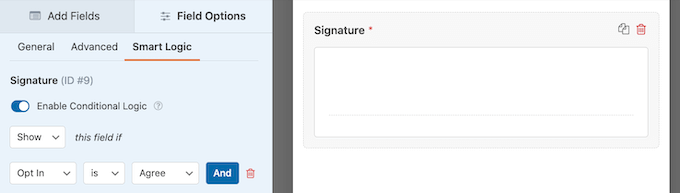
This powerful plugin also has support for conditional logic, so you can hide or show the Signature field based on the information the visitor enters into the form.
For example, you might hide the Signature field unless the visitor opts into a particular service that requires their digital signature. In this way, you can show only relevant fields to visitors, which will reduce form abandonment in WordPress.
Pricing: To use the WPForms plugin and Signature addon, you’ll need to buy WPForms Pro ($199.50 per year) or Elite ($299.50 per year).
If you need to collect legally-binding signatures from multiple people, then signNow is a great option. It even comes with conditional logic, so you can show different fields to different people based on their user roles.
signNow is an online service, so you don’t need to download or set up any software or tools. Simply create an account, and you can start signing documents within minutes using signNow’s user-friendly editor.
signNow allows users to type, draw, or upload their signatures. You can also save your signatures, so it’s easier to authorize future documents.
To save even more time, signNow allows you to save any document as a template. This is perfect for businesses that need to send the same file to multiple people or organizations.
If you’re worried about unauthorized access, then you’ll be happy to learn that signNow has dual-factor authentication options and other advanced security features. This allows you to prove the person’s identity before giving them access to your documents and templates.
This is particularly important if you’re working with sensitive or confidential documents.
If you need to collect data from customers, staff, or other contacts, then you can even build online forms using the same intuitive signNow editor. This makes signNow an all-in-one solution for busy businesses.
Unlike some other esignature solutions on this list, signNow has its own mobile app for Android and iOS. This means you can sign contracts and share documents with other people, directly from your mobile device.
Using the mobile app, you can even work with documents, agreements, and contracts while offline. Then, simply share your work once the internet connection has been restored. This is great for anyone who travels and likes to work on the go.
With its time-saving features, dedicated mobile application, and smart conditional fields, signNow is a great choice for businesses that need to share legally binding documents with lots of different people.
Pricing: You can start using signNow for $8 per month, per user.
Formidable Forms is an all-in-one WordPress form builder with a drag and drop interface that makes it easy to create advanced forms. This includes custom calculators, booking forms, and much more.
This plugin also has a Signature addon that allows you to collect digital signatures.
Visitors can sign your forms using their mouse or touchscreen. However, unlike some of the other software in this list, Formidable Forms also lets visitors type in their signature.
This can make your forms and documents accessible to people who find it difficult to sign using the mouse or trackpad.
Every time someone signs your form, the plugin will save the signature as an image that you can see inside your WordPress dashboard.
After installing the addon, you can simply drop the ready-made Signature field onto any template where you want to collect digital signatures.
Formidable Forms comes with over 170 templates, so you should have no problems finding one that perfectly suits your needs.
Formidable Forms also comes with a ‘Signature’ category where you’ll find a selection of templates that have the e-sign field built-in.
For example, Formidable Forms has an ‘Esthetician Consent’ template where beauticians can collect a client’s information and get their signed consent.
This plugin integrates with WooCommerce, so online store owners can easily collect signatures from their customers. For example, you may want to record the customer’s written consent to collect recurring payments as part of a subscription.
If you have an online store, then Formidable Forms also integrates with all the popular email marketing and payment platforms you may already be using to get sales.
The Formidable Forms builder is targeted more at advanced users and developers, which means it isn’t as user-friendly as WPForms. However, it is a powerful and flexible solution that’s also very customizable.
In fact, after configuring the Signature addon, there are lots more addons that can help you collect and manage digital signatures.
In particular, Formidable Forms has a Visual Views addon that lets you display user-submitted information on your website. For example, if you’ve created a petition, then you can use this addon to show the names of all the people who have already signed. In this way, you can encourage more people to support your petition.
You can simply upload any PDF, DOC, DOCX, RTF, PPT, PPTX, JPG, PNG, or TXT file, and pdfFiller will turn it into an interactive document. Anyone can then view, edit, and sign the document online using their desktop or mobile device.
pdfFiller follows all of the major security laws and guidelines including GDPR, HIPAA, and CCPA. However, some customers or visitors may still be wary about signing a document hosted on an unfamiliar third-party platform. If you do use pdfFiller, then it’s important to talk about the platform in your site’s privacy policy.
Having said that, pdfFiller’s electronic signature software is very powerful and legally binding in all 50 states. It also has some advanced features you won’t find in other electronic signature plugins, such as the option to capture a signature using a webcam.
Pricing: The basic pdfFiller plan starts at $10 per month when purchased annually.
USLegalForms is an online library of over 80,000 national and state-specific legal documents covering a huge range of different industries and use cases.
On their website, you’ll find form templates covering everything from hiring to business agreements, leases, invoices, bills of sale, and much more.
All of these legal documents are organized into categories and you can search by state, so you should have no problems finding what you’re looking for.
With a strong focus on legally-binding documentation, this is a great electronic signature platform for businesses. It would also be useful for anyone who wants to start legal proceedings without having to pay a professional to draw up documents for you.
You don’t need a website to use USLegalForms. If you’re looking for a solution that adds forms or signable documents to your site or blog, then we recommend using a solution such as Formidable Forms or WPForms instead.
Price: You can buy a USLegalForms subscription for $15 per month.
Which is the Best Electronic Signature Software?
After evaluating various eSign software, we believe that WPForms is the best electronic signature software for WordPress. If you’re looking for a eSign software for contracts that need multiple signatures, then we recommend using signNow.
There are dozens of other electronic signature in the market such as DocuSign, HelloSign (aka Dropbox Sign), PandaDoc, and others, but they are all unnecessarily expensive for small businesses that’s why we haven’t included them in our list.
If you liked this article, then please subscribe to our YouTube Channel for WordPress video tutorials. You can also find us on Twitter and Facebook.
Do you want to enable maintenance mode for WooCommerce without affecting other parts of your WordPress website?
Maintenance mode allows you to show a user-friendly notice to shoppers instead of a broken eCommerce site. You can even enable maintenance mode for specific product pages or areas of your WooCommerce store.
In this guide, we’ll show you how to enable maintenance mode for WooCommerce.
Why and When You Need to Enable Maintenance Mode for WooCommerce
At other times you may need to put your WooCommerce store into maintenance mode, while leaving the rest of your site open.
This could be because there’s a problem that’s only affecting your online store, and not the rest of your website. For example, you may be unable to process customer payments. In this case, maintenance mode can stop customers from encountering the error and having a bad shopping experience.
You may also be adding an online store to an existing website and want to keep those pages private while you work on them.
An engaging ‘coming soon’ page can also create a sense of excitement and anticipation while you build your store behind the scenes. You might even encourage shoppers to get ready for the launch by following you on social media, joining your email list, or even entering a WooCommerce contest.
That being said, let’s take a look at how to easily enable WooCommerce maintenance mode without affecting the rest of your website.
Enabling Maintenance Mode for WooCommerce
The easiest way to enable maintenance mode for WooCommerce is by using SeedProd.
There’s a free version of SeedProd that lets you create a maintenance mode page. However, we’ll be using the premium version as it lets you put your WooCommerce store into maintenance mode while keeping the rest of your site available.
The first thing you need to do is install and activate the SeedProd plugin. For more details, see our guide on how to install a plugin in WordPress.
After activating the plugin, SeedProd will ask for your license key.
Once you’ve done that, you’re ready to put your WooCommerce store in maintenance mode.
Creating Your Maintenance Mode or Coming Soon Page
After activating SeedProd, go to SeedProd » Pages. Here, you can choose whether to create a maintenance mode page or a coming soon page.
Although some people use these terms interchangeably, there are some important differences you should know.
If you create a ‘Coming Soon’ page, then search engines will still be able to see and crawl your store pages. This gives your WooCommerce site a chance to get indexed by search engines.
If you’re building a new store, then you’ll typically want to create a coming soon page.
If your store is down for maintenance, then you should create a ‘Maintenance Mode’ page instead. This mode tells search engines that your site is temporarily down, using the special header code 503.
After getting this code, the search bots will recheck your WordPress website later to see whether it’s back online. In this way, you can hide your store from shoppers without affecting your search engine rankings.
Note: We’ll create a maintenance mode page in this guide, but the steps will be the same no matter whether you click on ‘Set up a Maintenance Mode Page’ or ‘Set up a Coming Soon Page.’
The next step is building the page that shoppers will see when you enable maintenance mode for WooCommerce.
You can either choose a ready-made template or start with a blank design. We’re using ‘Celebrate Coming Soon’ in all our images but you can use any template you like.
To select a template, simply hover your mouse over that design’s thumbnail and then click the ‘checkmark’ icon.
After selecting a template, you’ll be taken to the drag-and-drop builder, where you can start customizing the maintenance mode design.
On the left side of the screen, you’ll find blocks and sections that you can add to your design. The right side of the page is the live preview.
Most templates already have some blocks, which are a core part of all SeedProd designs. To start, you’ll typically want to customize these blocks by adding your own text, images, links, and other content.
To change the text in any Headline or Text block, simply click to select that block in your layout. This brings up all the settings for that particular block.
You can now type your text into the small text editor.
You can also use these settings to style the text, including adding bold and italic formatting, changing the text alignment, changing the font size, and more.
You can add more blocks to your maintenance page by dragging them from the left-hand menu and then dropping them onto your design.
For example, if you wanted to add a custom logo then you could simply drag an ‘Image’ block onto your layout.
Then, just click to select that block in your layout and the left-hand menu will show all the settings for that block.
To add a logo, go ahead and click on ‘Use Your Own Image.’
You can then either choose an image from the WordPress media library or upload a new file from your computer.
After adding an image, you can change the size, add image alt text, embed a link, and more using the settings in the left-hand menu.
If you’re using the WPForms plugin then you can quickly and easily add a contact form to the maintenance page. This gives shoppers a way to talk to you even when your WooCommerce site is down for maintenance.
Then, simply click to select the Contact Form block.
In the left-hand menu, open the dropdown menu and choose the form you created earlier.
To remove a block from your design, simply go ahead and click on it.
You can then select the trash can icon.
You can also move blocks around the page using drag and drop.
When you’re happy with how the maintenance page looks, make sure you click ‘Save.’
Turn on Maintenance or Coming Soon Mode for Your WooCommerce Store
Now that you’ve created a custom coming soon or maintenance mode page, let’s go ahead and enable it.
Here, we want to put the store into maintenance mode, and not the entire site. To do this, click on the ‘Page Settings’ tab inside the SeedProd editor.
Then, select the ‘Access Control’ tab.
You can use these settings to specify where the coming soon or maintenance page appears on your site, and who sees it. For example, you might show this page to people who have a particular user role or IP address.
Since we want to put our WooCommerce site into maintenance mode, scroll to the ‘Include/Exclude URLs’ section.
Then, just click on the ‘Include URLs’ button.
Now, you need to enter the URLs for your WooCommerce store. This may vary depending on how your store is set up, and whether you’ve created any custom pages such as a custom WooCommerce cart page or a custom checkout page.
However, it’s smart to start with all the pages that WooCommerce creates automatically:
The asterisk is a wildcard character, which tells SeedProd to include all URLs that match the pattern before it.
This means that shoppers will see the maintenance page when they try to access any product, product category, or product tag.
After adding all these URLs, click on the ‘Save’ button to store your changes.
Putting Your Store In Maintenance Mode
You’re now ready to put your WooCommerce store in maintenance or coming soon mode at any point. In the WordPress dashboard, simply go to SeedProd » Landing Pages.
Then, click on the ‘Inactive’ slider under ‘Coming Soon Mode’ or ‘Maintenance Mode,’ so that it changes to ‘Active.’
Now, simply visit your WooCommerce store in an incognito browser tab and you’ll see your custom design, rather than your online store.
When you’re ready to make your store public, simply go back to SeedProd » Landing Pages.
Then click on the ‘Active’ slider so that it shows ‘Inactive.’ Now, anyone who visits your site will see your WooCommerce store, and can buy products and services as normal.
We hope this article helped you learn how to enable maintenance mode for WooCommerce. You may also want to take a look at our expert pick of the best WooCommerce plugins, and our complete step-by-step guide on how to create an email newsletter.
If you liked this article, then please subscribe to our YouTube Channel for WordPress video tutorials. You can also find us on Twitter and Facebook.
Do you want to add Cloudflare Turnstile CAPTCHA in WordPress?
CAPTCHA and reCAPTCHA can stop spambots, but they’re also unpopular with visitors. By using a non-intrusive technology like Turnstile, you can protect your website from spambots and automated scripts without annoying your visitors.
In this article, we will show you how to add Cloudflare Turnstile to your WordPress website.
Why Add Cloudflare Turnstile CAPTCHA in WordPress?
Spam is a big problem for all websites including WordPress. Spambots can use non-secure forms to send you spammy links, which will make it more difficult for you to do lead generation.
They can also try to break into your site’s login form by using brute force attacks or flooding your site with spam comments that’ll damage the visitor experience and your WordPress SEO.
If you run an online store, then automated scripts may even place fraudulent orders.
Many website owners use CAPTCHA and reCAPTCHA to block scripts and bots. However, a lot of people complain that these technologies deliver a poor user experience, and some even worry about CAPTCHAs stealing their data.
With that being said, Cloudflare has introduced Turnstile CAPTCHA. This alternative technology uses a selection of non-intrusive challenges that often run invisibly in the browser. This allows you to protect your website without asking visitors to complete complex puzzles.
To help keep visitor information private, Cloudflare uses Apple’s Private Access Tokens to test whether the visitor is a real person without collecting extra data.
If you’re using form builders or WooCommerce, then Turnstile also integrates with these third-party plugins. This allows you to add invisible CAPTCHAs across many different areas of your WordPress website.
With that in mind, let’s see how you can add Cloudflare Turnstile CAPTCHA in WordPress. Simply use the quick links below to jump between the different steps.
The easiest way to add Cloudflare’s CAPTCHA to WordPress is by using Simple Cloudflare Turnstile. This free plugin allows you to connect your website to the Turnstile service, and then check that it’s responding to your requests correctly.
First, you’ll need to install and activate the plugin. If you need help, then please see our guide on how to install a WordPress plugin.
Upon activation, go to Settings » Cloudflare Turnstile.
The plugin will now ask you to provide a site key and site secret.
You can get these for free by clicking on the link next to ‘You can get your site key and secret from here.’
Get a Cloudflare Turnstile Site Secret and Site Key
The link will take you to the Cloudflare login page where you can register your domain and create a site key and site secret. This is free, but you will need to create a Cloudflare account using your email address, if you haven’t already.
Once you’re logged into the Cloudflare dashboard, find ‘Turnstile’ in the left-hand menu and give it a click.
This will take you to a screen with some basic information about Cloudflare Turnstile.
If you’re happy to go ahead, then click on the ‘Add site’ button.
On this screen, start by typing in a ‘Site Name.’
This is just for your reference so you can use anything you want.
Next, type your website’s domain name into the ‘Domain’ field.
The next step is choosing which CAPTCHA widget you want to create. The first choice is ‘Managed,’ which is the method recommended by Cloudflare. This is where Cloudflare analyzes the browser’s request and then decides what kind of challenge it should run.
While this is happening, the visitor will see a loading animation.
Wherever possible, Cloudflare will try to run a non-interactive challenge in the background, so the visitor doesn’t have to do anything.
In this case, the user will simply see a ‘Success’ message when their browser passes the test.
Sometimes, Cloudflare may decide that it’s safer to show an interactive challenge instead. However, the visitor will simply need to check a box rather than complete a puzzle, so it’s still easier than the traditional puzzle-based CAPTCHAs.
Unless you have a specific reason not to, it’s smart to use managed CAPTCHAs as this gives you a good level of security with minimum impact on the visitor experience.
Don’t want to use interactive challenges on your WordPress website? Then you can choose ‘Non-interactive’ or ‘Invisible’ instead.
Non-interactive challenges run in the browser so the visitor doesn’t have to take any action. Just like the managed CAPTCHA, visitors will see the loading animation and a ‘Success’ message when the challenge is complete.
If you choose ‘Invisible’ instead, then the visitor won’t see the animation or success message. This setting allows you to completely hide the CAPTCHA from your visitors, which can avoid confusion and won’t add any clutter to your WordPress theme.
After making your decision, click on the ‘Create’ button.
As soon as you’ve done that, Cloudflare will show your site key and secret key.
You can now add this information to the plugin’s settings on your website.
Add Cloudflare Turnstile CAPTCHA to Your WordPress Website
In your WordPress dashboard, head back to Settings » Cloudflare Turnstile. You can now go ahead and add the ‘Site Key’ and ‘Site Secret’ to your WordPress dashboard.
After that, you may want to customize how the CAPTCHA looks on your website, and how it acts. To start, you can open the ‘Theme’ dropdown and choose from light, dark, or auto.
The following image shows an example of how the ‘Dark’ theme looks in the WordPress comment section.
By default, Cloudflare Turnstile shows a ‘Please verify that you are human’ message to visitors. You may want to change this. For example, you might briefly explain why the CAPTCHA is so important, or that it will only take a few seconds to complete.
To add your own wording, simply type into the ‘Custom Error Message’ field.
After that, you can select the forms where you’ll use the Cloudflare Turnstile CAPTCHA.
The options you see may vary depending on the plugins you’ve installed, but by default, you can use Turnstile with all the built-in WordPress forms. This includes the login page, user registration form, and password reset page.
When you’re happy with the information you’ve entered, scroll to the bottom of the screen and click on ‘Save Changes.’
Now, if you visit your website you’ll see the Turnstile CAPTCHA in action.
Bonus: Add Turnstile CAPTCHA to Your WordPress Forms
WordPress comes with different built-in forms, but you’ll often want to create custom forms. For example, you might replace the default forms with professionally-designed alternatives that better suit your website.
Simple Cloudflare Turnstile integrates with the best contact form plugins for WordPress including WPForms and Formidable Forms. This allows you to add the same advanced CAPTCHAs to all your forms, no matter how you created them.
To add a CAPTCHA to any WPForms or Formidable Forms page, simply go to Settings » Cloudflare Turnstile in your WordPress dashboard.
At the bottom of the page, you should see a section for either WPForms or Formidable Forms, depending on which plugin you’re using.
Simply click on either of these sections to expand.
To add the CAPTCHA to all your forms, just check the ‘Enable on all…’ box.
If you’re using a ‘Managed’ or ‘Non-interactive’ CAPTCHA, then you can change whether the loading and success animation appears before or after the form’s ‘Submit’ button.
In the following image, we’re using the ‘After button’ option.
To make this change, simply open the ‘Widget Location’ dropdown.
Then, choose either ‘Before Button’ or ‘After Button.’
Some forms may not need a CAPTCHA. For example, you might disable the CAPTCHA for forms that aren’t getting many conversions, to see whether this improves your conversion rates. For more information, see our guide on WordPress conversion tracking made simple.
To remove the CAPTCHA, you’ll need to type the form’s ID into the ‘Disable Form IDs’ field.
If you’re using WPForms, then you can get this ID by going to WPForms » All Forms.
The ‘Shortcode’ column shows each form’s ID. For example, in the following image the form ID is 62.
If you’re a Formidable Forms user, then head over to Formidable » Forms instead.
On this screen, find the form that you want to exclude and make a note of the number in the ‘ID’ column.
You can now add these IDs to the ‘Disable Form IDs’ field.
To remove the CAPTCHA from multiple forms, simply separate each ID with a comma.
When you’re happy with how you’ve set up the integration, don’t forget to click on ‘Save Changes’ to store your settings.
Now if you visit any form created using Formidable Forms or WPForms, you’ll see the Cloudflare Turnstile CAPTCHA in action.
Bonus: Add Cloudflare Turnstile CAPTCHA to WooCommerce
Scripts and bots aren’t just bad news for WordPress blogs and websites. If you run an online store, then spambots and automated scripts might try to register with your store and place fake orders.
Every transaction comes with processing feeds, so fake orders can cost you a lot of money and make it difficult to grow your business.
The good news is that Cloudflare Turnstile also integrates with WooCommerce. This allows you to protect all your eCommerce pages including the WooCommerce login, signup, and checkout pages.
To add Cloudflare Turnstile to your WooCommerce pages, simply go to Settings » Cloudflare Turnstile.
Then, scroll to the ‘WooCommerce Forms’ section.
If it isn’t already expanded, then click on this section.
You’ll now see all the WooCommerce pages where you can add a Cloudflare CAPTCHA. Simply check the box next to each page that you want to protect.
After that, don’t forget to click on ‘Save Changes’ to store your settings. Now, if you visit any of your WooCommerce pages, you’ll see the Cloudflare Turnstile CAPTCHA.
If you liked this article, then please subscribe to our YouTube Channel for WordPress video tutorials. You can also find us on Twitter and Facebook.
Are you looking to add a countdown timer to their WordPress website?
Countdown timers are a great way to build anticipation, excitement, and create a FOMO effect on your website. There are many different countdown plugins that let you create a countdown timer, so which one should you use?
In this article, we’ll share the best countdown plugins for WordPress and explain the key features of each.
What is a Countdown Timer Plugin & When You Need it?
A countdown timer WordPress plugin allows you to display a timer that counts down to a specific time or date.
Savvy marketers use countdown timers to build excitement and create a sense of urgency among their customers. It helps them take advantage of the FOMO effect to boost conversions.
There are many plugins that allow you to add countdown timers to your website. These countdown timers can be divided into two groups:
Normal Countdown Timers
A normal countdown timer, sometimes called a static or fixed countdown timer, is what most people think of when they imagine a timer. This timer counts down to a certain fixed time. That might be the launch of a WordPress website, the end of a sale, or another event.
The countdown clock’s endpoint is the same for everyone and doesn’t change depending on who’s viewing it.
Evergreen Timer
An evergreen countdown timer, sometimes called a dynamic countdown timer, is specific to each user. It begins counting down when the person arrives on your site. For instance, they might have 4 hours to take advantage of a special offer.
This can be a powerful marketing technique as it lets you create a sense of urgency.
Note that most WordPress plugins are designed to run normal countdown timers, and only some let you run evergreen timers.
Having said that, let’s take a look at some of the best countdown timer plugins for WordPress.
There are lots of ways you can position your countdown timer using OptinMonster. One of the best is to use a floating bar that sticks to the top or bottom of your page. That way, it stays visible at all times.
Here’s a countdown timer we created using the OptinMonster plugin:
You’ll need the OptinMonster’s Pro plan or higher to use countdown timers.
They allow you to add countdown timers on popups, floating bars, full-screen welcome mats, scroll boxes, and inline widgets. On top of that, you can personalize the timers based on the user’s location, which page they’re on, where they’re visiting from, and more.
SeedProd is the best WordPress website builder and landing page plugin. It is a great option if you want to add countdown timer animation to your landing pages.
SeedProd lets you easily set up a special landing page and put your site into coming soon or maintenance mode. Plus, it has a powerful drag-and-drop website builder. You can easily customize your WordPress theme without touching a single line of code.
With this plugin, you can create a normal and evergreen timer for your website. It offers lots of customization options, including pre-built templates for countdown timers.
Here’s a countdown timer we created using SeedProd’s Coming Soon Page Pro plugin:
Countdown Timer Ultimate is another good option to consider if you want to create a normal countdown timer. It’s a simple plugin that allows you to show timers on the entire website or specific to individual site visitors.
You can use Countdown Timer Ultimate to make as many countdown timers as you want, and you can customize how they look to some degree.
Here’s a preview of the countdown timer that you can create using the free version of the Countdown Timer Ultimate plugin:
The pro plugin gives you more advanced options. These include being able to show specific text when the countdown expires and extra design features.
Countdown Builder is a simple countdown timer with multiple different styles built in. These include circle countdowns, flip clock countdowns, and even a coming soon page.
You can place your timer within a post or page in the WordPress block editor by selecting the ‘Countdown’ block or using a shortcode. You can also choose to display it automatically on specific posts or pages.
Here’s a preview of a countdown timer you can create using the plugin:
If you want, you can edit how your clock looks in detail, changing things like the font size, the labels, and the animation style. You don’t need to do this with CSS. There’s a built-in editor in the plugin.
Evergreen Countdown Timer is the next countdown plugin on our list. It lets you create evergreen countdowns, as you might expect from its name. You can also use it to create normal countdowns as well.
You can choose how the plugin detects visitors by a cookie or their IP address.
To add the timers to your page, you’ll need to enter a shortcode. You can simply copy and paste this from the Manager section of your countdown timer settings.
Once your timer hits zero, you can automatically redirect the visitor to a URL of your choice. For instance, you could send them to a registration page if you’re counting down to the launch of your new course.
Here’s a timer we created using the Evergreen Countdown Timer plugin:
There’s a pro version of the plugin, which gives you lots of extra options. It also lets you choose more colors than just black or white for your timer.
With the Pro version, you can provide a countdown for available spots, such as seats or tickets. This could work well if you’re selling places for a paid webinar or another live event.
HurryTimer is a free countdown timer plugin that lets you create both evergreen and regular timers. The evergreen timer uses both cookie and IP detection to display the right timer to each individual user.
You can also set up timers to run a countdown between two fixed dates. This is useful if you want to get ready for an upcoming sale in advance.
The timer works with WooCommerce, though you don’t have to run WooCommerce to use it. You can display your timer several times on the same page if you want to.
Here’s a timer we created using HurryTimer:
If you have the Pro version, you can set up a recurring timer. This is a timer that runs according to the rules that you specify. For instance, you could have a timer that shows shipping cut-off times.
With the pro version, you can also create an announcement bar that sticks to the top or bottom of the screen to keep your timer visible.
7. Sales Countdown Timer
Sales Countdown Timer is designed for WooCommerce stores. It helps show timers for sale events, promotional offers, and the latest campaigns.
You can easily integrate the plugin with your WooCommerce products. Plus, it offers different customization options. You can change the style of the timers, edit the message, change the colors in the timer clock, and more.
Besides that, the plugin also lets you choose the location of the timer, whether you’d like to make it sticky, and also select which type of product pages you’d like to show the countdown timer.
Here is a look at the countdown timer we created using the plugin:
If you liked this article, then please subscribe to our YouTube Channel for WordPress video tutorials. You can also find us on Twitter and Facebook.