EDITS.WS

Category: wpmudev.com

  • 10 Best Point-of-Sale Tools and Plugins for Your WordPress Business

    If your commerce platform is online and in-person, you need flexibility regarding payments. This article covers agile point-of-sale tools and plugins that can power your business on WordPress.

    We will showcase some plugins and other options that allow you to have the flexibility of selling face-to-face with a customer or online, setting up your business for omnichannel success!

    As you’ll see, many options are free and can be upgraded accordingly. They all have a good track record and are established point-of-sale (POS) systems that perform as a modern-day cash register (and are much less clunky, too).

    We’ll take a look at the following:

    Hopefully, after reading this post, you’ll have a good idea of what type of POS tool works best for your business and can set it up accordingly.

    But first…

    Why Should You Use a Good POS system?

    It may seem obvious. It’s because you need to sell in-person and online, right? However, there’s a bit more to it than that. A good POS system goes beyond just ringing up a customer.

    Systems today can integrate with other systems, keep track of sales, manage merchandise – and offer some tech that can enhance your services to the next level.

    Some benefits include:

    — Sales can be streamlined from multiple locations.

    — Your functionality increases.

    — Ability to keep track of real-time data.

    — Having a better grasp on managing employees.

    — Automatically get your taxes managed.

    And more…

    It’s vital to be up-to-date on what you can do when selling in-person and online with your WordPress website.

    So, are you ready to cash in? Let’s go!

    Point of Sale Systems

    Here are a handful of modern, efficient, and well-known POS systems to help your WordPress site. They’re in no particular order. (And please note: We are not affiliated with ANY of these. We just find them to be top-notch choices.)

    FooSales

    FooSales header
    FooSales syncs your WooCommerce inventory with a point of sale.

    If you’re using WooCommerce, the FooSales plugin is a POS system that will make any computer, iPad, or Android tablet into a physical retail space.

    This plugin helps allow you to run your business from anywhere in the world and sell your WooCommerce items quickly and easily. It automatically syncs your WooCommerce product inventory, orders, and customer data.

    The sales screen and search tools can promptly locate products with images and descriptions so that you can focus on the clients when they’re checking out. It adds items, shows the amounts of products, and offers a quick one-click checkout.

    FooSales checkout process.
    All the items are displayed – making it easy to locate and check out customers.

    Payments can be made with Square and Stripe. It leverages the strengths of both platforms and allows you to enter credit card information or purchase add-on terminals for a monthly fee.

    There is also a monthly fee associated with using this plugin. They vary depending on the number of websites and add-ons.

    Hike

    Hike header.
    Hike is another plugin option for WooCommerce POS.

    For another WooCommerce option, Hike offers a POS solution in-store and online. It integrates with WooCommerce, allowing access to your customers, product catalog, inventory, and other necessary information.

    With Hike, you can control and manage your entire business from a retail POS system. It works with iPads, PCs, and Mac products. It’s fully interactive with card payment systems like PayPal Here, Tyro, and iZettle.

    There are many POS options, including offering discounts to sales, parking orders, enabling a custom sale, and adding order notes.

    Plus, you can use your existing card terminal – so you don’t need to purchase one directly from them. That said, they offer hardware bundles for complete POS systems (cash register, receipt printer, etc).

    Prices vary depending on the outlet, registers, and other factors.

    Square

    Square header.
    Square is no stranger to modern POS systems.

    A very popular POS is Square. Millions of brands use their software to accept payments in-store and online.

    You can incorporate Square into your business quickly and easily – whether that be a WordPress developer’s website, restaurant, or street vendor – you name it!

    They have great solutions for getting paid with their flexible omnichannel commerce tools. They offer registers, terminals, stands, readers, and more for in-person sales. For online, there’s an app-like shopping experience, customization, the ability to highlight products, and more.

    Their plans vary – but you can start for free. The free plan does take transaction fees, but otherwise, there are no costs. You can upgrade to include more features.

    wePOS

    wePOS header.
    wePOS is a WooCommerce-focused plugin.

    wePOS is another plugin that offers a fast and responsive WooCommerce POS option. You can easily take orders and track your inventory in your WooCommerce store.

    Plus, you can physically count WooCommerce products by scanning bar codes and adding them directly to a customer’s cart to process the order.

    It features a sleek UI that’s simple to navigate. From this, you can manage your inventory and orders.

    wePOS example.
    You can see the organized items, total costs, tax, and more.

    There is a free version and upgrades available. They also have 24/7 support.

    Oliver

    Oliver header.
    Oliver is here for your WooCommerce store needs.

    With a 5-star rating, the Oliver  plugin for WooCommerce might be a great option for a POS system for your business.

    They state: “It’s simple, smart, and easy to use.” Made specifically for WooCommerce, it allows for a consistent combination of eCommerce and physical brick-and-mortar stores. Everything is in one place, and there’s no need for multiple integrations.

    It’s designed to work with numerous devices, including iPad, Mac, or PC. The system supports using a mouse, touchpad, and keyboard entry.

    They also have POS hardware, like a terminal, printer or all-in-one solutions.

    Oliver is free to use, but upgrades are available. Plus, they include support.

    Toast

    Toast header.
    Toast can be the toast of your POS solution.

    Toast is named this for a reason – it specializes in restaurants. So, if your restaurant runs on WordPress or another platform, you may consider this system.

    You’re able to manage all in-person and online sales in one place. They note that their restaurant-grade hardware is 3x faster than competitors, and you can integrate your FOH (front of house) and BOH (back of house) to reduce ticket times by up to 40%.

    The Toast platform even includes payroll and team management – so it goes beyond just a POS option.

    Their hardware includes handheld devices for ordering, kitchen display systems, self-ordering kiosks, and much more.

    It’s free to use. Like many of our other systems, upgrades are available depending on your needs.

    Shopify

    Shopify header.
    Shop it to me: Shopify might be the POS solution you’re looking for.

    Another well-known platform (millions of merchants and 10% of US eCommerce) is Shopify. Shopify allows customers to order online or in-person. It features one-click checkout that lets shoppers pay how they want – through digital wallets or multi-currency.

    It includes a ton of insights into customer data. Everything from their behavior, total sessions, order numbers, and more.

    Additionally, they incorporate your social media with tools for Facebook, Instagram, TikTok, and other channels.

    There’s a whole range of what Shopify offers, hence why it’s so popular. Be sure to visit their website for more information.

    And when it comes to pricing, there’s a free trial – otherwise, it does cost.

    There are various levels that you can purchase, depending on what your needs are for your store.

    Stripe

    Stripe header.
    Stripe is no secret to POS.

    Stripe is a very well-known POS company that offers solutions to millions of companies worldwide. It works with some of the biggest brands (Amazon, Instacart, Zoom, Lyft, etc).

    For us, Stripe is incorporated into our Client & Billing in The Hub and Forminator plugin for accepting payments.

    They feature everything that brings websites and apps together for payment. With support for 135+ currencies, it’s available for use with credit, and debit cards, virtual wallets, and more. Additionally, they have items, such as terminals, for in-person sales.

    Plus, they are big on security, with a team of world-class security experts at their helm. They’ve also received regulatory licenses around the world.

    Stripe is free to use but takes a percentage of the costs.

    PayPal

    PayPal header.
    PayPal is another POS giant in the industry.

    Like Stripe, PayPal is another payment solution we use for our products. PayPal’s popular with millions of other companies, too.

    It’s known chiefly online; however, they offer POS software so you can run your business online and off.

    Their POS offers streamlined checkout, business metrics, and an app. You can easily manage products with prices, stock levels, and more – all in one place.

    The portable terminal PayPal uses is entirely portable. It accepts most forms of payment (credit, debit, Google Pay, etc), and works with chip and contactless payments.

    There is currently a 2.29% transaction fee and costs for the terminal. However, the PayPal Zettle app is completely free to use.

    Stay On Top of Your Shop

    Out of all of these 10 options we just covered, surely you can stay on top of your WordPress website’s sales – in-person and online. Whether it be a plugin or a separate system, modernizing your selling platform is quick and easy.

    And with all of the latest advancements in selling (real-time analytics, instant checkout, inventory control, etc), there’s no reason to be stuck with anything but the most efficient method for your business.

    For more information on online sales, check out our article on eCommerce gateways.

    Once you have systems implemented, there is no stopping customers from shopping!

  • 10 Best Point-of-Sale Tools and Plugins for Your WordPress Business

    If your commerce platform is online and in-person, you need flexibility regarding payments. This article covers agile point-of-sale tools and plugins that can power your business on WordPress.

    We will showcase some plugins and other options that allow you to have the flexibility of selling face-to-face with a customer or online, setting up your business for omnichannel success!

    As you’ll see, many options are free and can be upgraded accordingly. They all have a good track record and are established point-of-sale (POS) systems that perform as a modern-day cash register (and are much less clunky, too).

    We’ll take a look at the following:

    Hopefully, after reading this post, you’ll have a good idea of what type of POS tool works best for your business and can set it up accordingly.

    But first…

    Why Should You Use a Good POS system?

    It may seem obvious. It’s because you need to sell in-person and online, right? However, there’s a bit more to it than that. A good POS system goes beyond just ringing up a customer.

    Systems today can integrate with other systems, keep track of sales, manage merchandise – and offer some tech that can enhance your services to the next level.

    Some benefits include:

    — Sales can be streamlined from multiple locations.

    — Your functionality increases.

    — Ability to keep track of real-time data.

    — Having a better grasp on managing employees.

    — Automatically get your taxes managed.

    And more…

    It’s vital to be up-to-date on what you can do when selling in-person and online with your WordPress website.

    So, are you ready to cash in? Let’s go!

    Point of Sale Systems

    Here are a handful of modern, efficient, and well-known POS systems to help your WordPress site. They’re in no particular order. (And please note: We are not affiliated with ANY of these. We just find them to be top-notch choices.)

    FooSales

    FooSales header
    FooSales syncs your WooCommerce inventory with a point of sale.

    If you’re using WooCommerce, the FooSales plugin is a POS system that will make any computer, iPad, or Android tablet into a physical retail space.

    This plugin helps allow you to run your business from anywhere in the world and sell your WooCommerce items quickly and easily. It automatically syncs your WooCommerce product inventory, orders, and customer data.

    The sales screen and search tools can promptly locate products with images and descriptions so that you can focus on the clients when they’re checking out. It adds items, shows the amounts of products, and offers a quick one-click checkout.

    FooSales checkout process.
    All the items are displayed – making it easy to locate and check out customers.

    Payments can be made with Square and Stripe. It leverages the strengths of both platforms and allows you to enter credit card information or purchase add-on terminals for a monthly fee.

    There is also a monthly fee associated with using this plugin. They vary depending on the number of websites and add-ons.

    Hike

    Hike header.
    Hike is another plugin option for WooCommerce POS.

    For another WooCommerce option, Hike offers a POS solution in-store and online. It integrates with WooCommerce, allowing access to your customers, product catalog, inventory, and other necessary information.

    With Hike, you can control and manage your entire business from a retail POS system. It works with iPads, PCs, and Mac products. It’s fully interactive with card payment systems like PayPal Here, Tyro, and iZettle.

    There are many POS options, including offering discounts to sales, parking orders, enabling a custom sale, and adding order notes.

    Plus, you can use your existing card terminal – so you don’t need to purchase one directly from them. That said, they offer hardware bundles for complete POS systems (cash register, receipt printer, etc).

    Prices vary depending on the outlet, registers, and other factors.

    Square

    Square header.
    Square is no stranger to modern POS systems.

    A very popular POS is Square. Millions of brands use their software to accept payments in-store and online.

    You can incorporate Square into your business quickly and easily – whether that be a WordPress developer’s website, restaurant, or street vendor – you name it!

    They have great solutions for getting paid with their flexible omnichannel commerce tools. They offer registers, terminals, stands, readers, and more for in-person sales. For online, there’s an app-like shopping experience, customization, the ability to highlight products, and more.

    Their plans vary – but you can start for free. The free plan does take transaction fees, but otherwise, there are no costs. You can upgrade to include more features.

    wePOS

    wePOS header.
    wePOS is a WooCommerce-focused plugin.

    wePOS is another plugin that offers a fast and responsive WooCommerce POS option. You can easily take orders and track your inventory in your WooCommerce store.

    Plus, you can physically count WooCommerce products by scanning bar codes and adding them directly to a customer’s cart to process the order.

    It features a sleek UI that’s simple to navigate. From this, you can manage your inventory and orders.

    wePOS example.
    You can see the organized items, total costs, tax, and more.

    There is a free version and upgrades available. They also have 24/7 support.

    Oliver

    Oliver header.
    Oliver is here for your WooCommerce store needs.

    With a 5-star rating, the Oliver  plugin for WooCommerce might be a great option for a POS system for your business.

    They state: “It’s simple, smart, and easy to use.” Made specifically for WooCommerce, it allows for a consistent combination of eCommerce and physical brick-and-mortar stores. Everything is in one place, and there’s no need for multiple integrations.

    It’s designed to work with numerous devices, including iPad, Mac, or PC. The system supports using a mouse, touchpad, and keyboard entry.

    They also have POS hardware, like a terminal, printer or all-in-one solutions.

    Oliver is free to use, but upgrades are available. Plus, they include support.

    Toast

    Toast header.
    Toast can be the toast of your POS solution.

    Toast is named this for a reason – it specializes in restaurants. So, if your restaurant runs on WordPress or another platform, you may consider this system.

    You’re able to manage all in-person and online sales in one place. They note that their restaurant-grade hardware is 3x faster than competitors, and you can integrate your FOH (front of house) and BOH (back of house) to reduce ticket times by up to 40%.

    The Toast platform even includes payroll and team management – so it goes beyond just a POS option.

    Their hardware includes handheld devices for ordering, kitchen display systems, self-ordering kiosks, and much more.

    It’s free to use. Like many of our other systems, upgrades are available depending on your needs.

    Shopify

    Shopify header.
    Shop it to me: Shopify might be the POS solution you’re looking for.

    Another well-known platform (millions of merchants and 10% of US eCommerce) is Shopify. Shopify allows customers to order online or in-person. It features one-click checkout that lets shoppers pay how they want – through digital wallets or multi-currency.

    It includes a ton of insights into customer data. Everything from their behavior, total sessions, order numbers, and more.

    Additionally, they incorporate your social media with tools for Facebook, Instagram, TikTok, and other channels.

    There’s a whole range of what Shopify offers, hence why it’s so popular. Be sure to visit their website for more information.

    And when it comes to pricing, there’s a free trial – otherwise, it does cost.

    There are various levels that you can purchase, depending on what your needs are for your store.

    Stripe

    Stripe header.
    Stripe is no secret to POS.

    Stripe is a very well-known POS company that offers solutions to millions of companies worldwide. It works with some of the biggest brands (Amazon, Instacart, Zoom, Lyft, etc).

    For us, Stripe is incorporated into our Client & Billing in The Hub and Forminator plugin for accepting payments.

    They feature everything that brings websites and apps together for payment. With support for 135+ currencies, it’s available for use with credit, and debit cards, virtual wallets, and more. Additionally, they have items, such as terminals, for in-person sales.

    Plus, they are big on security, with a team of world-class security experts at their helm. They’ve also received regulatory licenses around the world.

    Stripe is free to use but takes a percentage of the costs.

    PayPal

    PayPal header.
    PayPal is another POS giant in the industry.

    Like Stripe, PayPal is another payment solution we use for our products. PayPal’s popular with millions of other companies, too.

    It’s known chiefly online; however, they offer POS software so you can run your business online and off.

    Their POS offers streamlined checkout, business metrics, and an app. You can easily manage products with prices, stock levels, and more – all in one place.

    The portable terminal PayPal uses is entirely portable. It accepts most forms of payment (credit, debit, Google Pay, etc), and works with chip and contactless payments.

    There is currently a 2.29% transaction fee and costs for the terminal. However, the PayPal Zettle app is completely free to use.

    Stay On Top of Your Shop

    Out of all of these 10 options we just covered, surely you can stay on top of your WordPress website’s sales – in-person and online. Whether it be a plugin or a separate system, modernizing your selling platform is quick and easy.

    And with all of the latest advancements in selling (real-time analytics, instant checkout, inventory control, etc), there’s no reason to be stuck with anything but the most efficient method for your business.

    For more information on online sales, check out our article on eCommerce gateways.

    Once you have systems implemented, there is no stopping customers from shopping!

  • Stacking Up on Security: Defender Pro Now Works with Patchstack

    Defender Pro has just stepped up its security game by teaming with Patchstack – a powerful security tool that automates WordPress security on every one of your sites.

    Defender Pro just started using Patchstack to get information about vulnerabilities in the WP core, plugins, and themes – ensuring solid protection for all your WordPress sites.

    Having Patchstack with Defender Pro is for prevention when a new security threat is present on your WordPress site. Whether it be the WordPress core, plugins, or themes, Patchstack monitors them within Defender’s system!

    Patchstack logo.
    Patchstack and Defender Pro team up together to pack a punch on WordPress security.

    This is a quick overview of what’s involved now that Defender has Patchstack onboard.

    We’ll cover:

    Let’s get started!

    What is Patchstack?

    Patchstack is focused on making open-source software safer, including WordPress. They actively research and report thousands of vulnerabilities discovered in WordPress plugins, core, and themes.

    Their developers are notified when a vulnerability is located and issue a security update – where it’s promptly handled.

    Patchstack statistic.
    3rd party plugins can lead to security issues if not monitored. Source: Patchstack

    Zero-day virtual patches are created and automatically applied to vulnerable websites connected to Patchstack (and Defender Pro).

    For another perspective on how Patchstack works, check out this quick video:

    So – how is Patchstack implemented with Defender Pro?

    Implementing Patchstack

    We’ll make this easy – there’s nothing to do! It’s already implemented and ready to go.

    As a user, you won’t notice any differences, and there’s nothing that you need to set up to implement Patchstack except make sure Defender Pro is up-to-date. It’s all taken care of with Patchstack’s and WPMU DEV’s team of developers.

    How Patchstack Works with Defender Pro

    As mentioned, Defender Pro uses Patchstack to get information about vulnerabilities in WordPress core, plugins, and themes.

    Since Patchstack is built-in to Defender Pro, again you won’t notice anything on your end. Patchstack works by finding known vulnerabilities – which is done with automated or manual scans in Defender.

    Defender's scan in progress.
    Defender running a scan – tracking any vulnerabilities.

    Once a scan is run, any known vulnerabilities will appear on Defender’s dashboard. Or, if you have notifications set up, you’ll receive an email.

    Vulnerabilities in Defender.
    In this example, one vulnerability was found.

    Click on the issue and get it resolved immediately. You’ll see exactly what the threat is and what is needed to fix it.

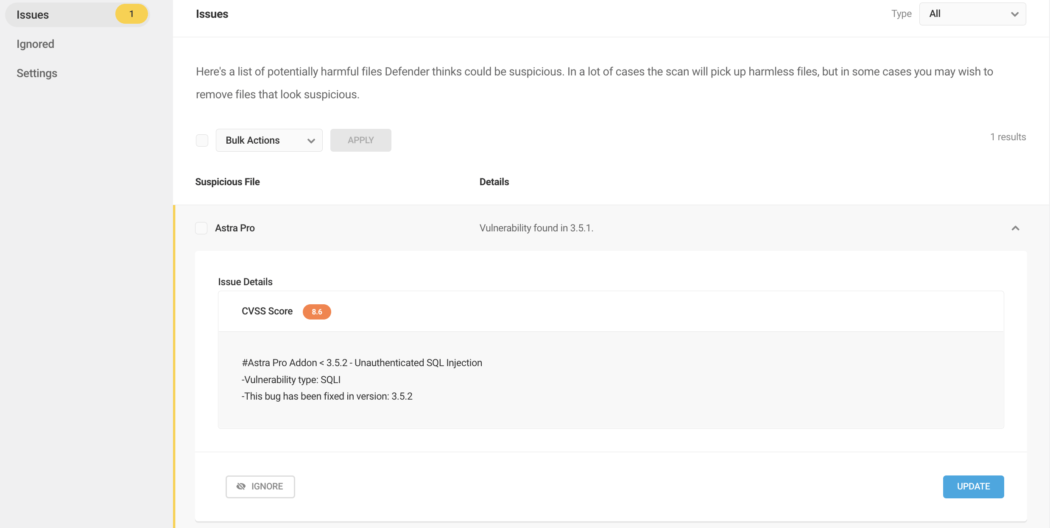
    Issues in Defender.
    In this example, an update is needed for Astra Pro Addon from Astra Pro theme.

    That’s Patchstack in a nutshell: finding vulnerabilities before they become an issue. And as you can see, it’s all tied in with Defender Pro on one platform.

    For further information about running security scans and more, be sure to check out our article on getting the most out of Defender.

    Defender Pro Doesn’t Slack When Combined with Patchstack

    With the exciting new inclusion of Patchstack, there’s no slacking with security! Defender Pro has you covered – everything from monitoring security details from The Hub, blocklist, two-factor authentication, malware detection – and much more.

    If you don’t have Defender Pro, start a free trial today. It easily handles your automated WordPress security, includes 24/7/365 support, and even a full WAF integration.

    Also, if you’re a plugin developer, join PatchStack’s mVDP program that makes it easier to report, manage, and address vulnerabilities in your software. Lastly, if you’re a security researcher, join Patchstack Alliance to report vulnerabilities and earn rewards.

    Patchstack with Defender means nothing can stack up to your WordPress security.

  • Stacking Up on Security: Defender Pro Now Works with Patchstack

    Defender Pro has just stepped up its security game by teaming with Patchstack – a powerful security tool that automates WordPress security on every one of your sites.

    Defender Pro just started using Patchstack to get information about vulnerabilities in the WP core, plugins, and themes – ensuring solid protection for all your WordPress sites.

    Having Patchstack with Defender Pro is for prevention when a new security threat is present on your WordPress site. Whether it be the WordPress core, plugins, or themes, Patchstack monitors them within Defender’s system!

    Patchstack logo.
    Patchstack and Defender Pro team up together to pack a punch on WordPress security.

    This is a quick overview of what’s involved now that Defender has Patchstack onboard.

    We’ll cover:

    Let’s get started!

    What is Patchstack?

    Patchstack is focused on making open-source software safer, including WordPress. They actively research and report thousands of vulnerabilities discovered in WordPress plugins, core, and themes.

    Their developers are notified when a vulnerability is located and issue a security update – where it’s promptly handled.

    Patchstack statistic.
    3rd party plugins can lead to security issues if not monitored. Source: Patchstack

    Zero-day virtual patches are created and automatically applied to vulnerable websites connected to Patchstack (and Defender Pro).

    For another perspective on how Patchstack works, check out this quick video:

    So – how is Patchstack implemented with Defender Pro?

    Implementing Patchstack

    We’ll make this easy – there’s nothing to do! It’s already implemented and ready to go.

    As a user, you won’t notice any differences, and there’s nothing that you need to set up to implement Patchstack except make sure Defender Pro is up-to-date. It’s all taken care of with Patchstack’s and WPMU DEV’s team of developers.

    How Patchstack Works with Defender Pro

    As mentioned, Defender Pro uses Patchstack to get information about vulnerabilities in WordPress core, plugins, and themes.

    Since Patchstack is built-in to Defender Pro, again you won’t notice anything on your end. Patchstack works by finding known vulnerabilities – which is done with automated or manual scans in Defender.

    Defender's scan in progress.
    Defender running a scan – tracking any vulnerabilities.

    Once a scan is run, any known vulnerabilities will appear on Defender’s dashboard. Or, if you have notifications set up, you’ll receive an email.

    Vulnerabilities in Defender.
    In this example, one vulnerability was found.

    Click on the issue and get it resolved immediately. You’ll see exactly what the threat is and what is needed to fix it.

    Issues in Defender.
    In this example, an update is needed for Astra Pro Addon from Astra Pro theme.

    That’s Patchstack in a nutshell: finding vulnerabilities before they become an issue. And as you can see, it’s all tied in with Defender Pro on one platform.

    For further information about running security scans and more, be sure to check out our article on getting the most out of Defender.

    Defender Pro Doesn’t Slack When Combined with Patchstack

    With the exciting new inclusion of Patchstack, there’s no slacking with security! Defender Pro has you covered – everything from monitoring security details from The Hub, blocklist, two-factor authentication, malware detection – and much more.

    If you don’t have Defender Pro, start a free trial today. It easily handles your automated WordPress security, includes 24/7/365 support, and even a full WAF integration.

    Also, if you’re a plugin developer, join PatchStack’s mVDP program that makes it easier to report, manage, and address vulnerabilities in your software. Lastly, if you’re a security researcher, join Patchstack Alliance to report vulnerabilities and earn rewards.

    Patchstack with Defender means nothing can stack up to your WordPress security.

  • Tried and Tested Tips on How to Negotiate a $3K-$5K Client Into a $20K-$30K One

    Want to turn a $3K-$5K client into a $20K-$30K one? Luckily, as a WordPress developer, you can do so relatively easily. It’s about your approach, communication, and what to offer. This article covers some tips on negotiating a higher price for your services.

    We’ll cover how to ensure you get paid what you are worth when negotiating a price or pursuing a potential project.

    And by the end of this article, you’ll be able to see how to negotiate a low-paying project or client into – cha-ching! – $20K-$30K!

    I can’t even imagine quoting $5-8k on a job. Those kinds of numbers really flares up the imposter syndrome in me something fierce.

    Lawrence – WPMU DEV Member

    Hopefully, this quick article will help any WordPress developer realize it IS possible to earn more (and eliminate any imposter syndrome). All the tips are tried and tested – based on common industry practices you can implement.

    We’ll be going over:

    So, let’s begin!

    Demonstrating Your Value From the Start

    When you start working on a project with a new client, one way to eventually get to a much bigger payday is to actually offer a discount from the beginning.

    You can make it clear that the rate you’re charging is discounted or an introductory rate. This ensures that they’ll know what they’re paying from the start is cheaper than usual, and you can raise the fees accordingly.

    Show your value and what a deal they’re getting off the start. Also, make it clear that it WILL go up.

    An example of this might be a simple web design for $3K with maintenance for three months. When they want to improve upon the design and want continued maintenance, charge accordingly (e.g. $10K and up) for design and maintenance.

    Over time, with continued maintenance, this can easily exceed over $30K (and much more) instead of just a one-off simple web design.

    Additionally, when you invoice, be sure to indicate what the normal fee is. That way, when the introductory period is over, there’s no sticker shock.

    This offers the basis for negotiation on new work and flips the dynamic. Plus, since you started working with the client, there’s now a relationship. They’ll be less hesitant to pay more to someone they trust and work they like, and most importantly, understand the higher costs.

    Thinking Long-Term

    As just noted above, in demonstrating your value, you need to think long-term with your clients. Small, simple, and low-cost projects can eventually become major ones. Try not to look at a client as a one-off situation.

    You can offer monthly maintenance packages after creating their WordPress site. Or, make suggestions to their current website that adds value for them (and ultimately for you, too).

    Add-ons and additions to what they initially contacted for you is the point. Luckily, in WordPress, there are tons of opportunities. There aren’t many other jobs out there that have the road map to include more add-ons than web development.

    Be sure to read our article about boosting your web development business with add-on services to get detailed information on including these in your workflow.

    Making Sure They Know Your Worth

    One way to get a client that originally wanted to pay $3K for a web design to pay $30K is to let them know your worth. Premium design deserves premium rates. Show them why you’re entitled to the costs.

    It’s up to you to be clear on how these rates help the client compared to a cheap developer they’ll find on Fiverr for a fraction of the price.

    Maybe it’s your experience – or your amazing web design skills. Whatever the case, demonstrate why your asking price is justified and even if it’s a stretch of the budget, serious clients will pay what you are worth.

    A few ways to demonstrate value are with a good portfolio, reviews, or testimonials. Also, you can mention what the market is like, and the hours it will take to complete. Be sure to make it clear why you’re worth $150 an hour – or whatever premium rate you have set.

    Giving Your Price First

    Research shows that the final price is typically closer to the original price than the second. So, though you might want the project and feel like setting lower costs might get a client to work with you, often it’s not going to benefit you in the long run.

    They can always come back with a counter offer, but ensure you don’t dip too low beyond what is acceptable on your terms.

    All of this can come after an initial lower offer to get started (like we touched on earlier). In general, this puts the ball in your court and lets your client know whether they can work with your budget.

    In a nutshell, it’s your move first to name the price – before the potential client. This leads to your asking price becoming more attainable at the end of the day.

    Why Experience Matters

    When it comes to reviews, testimonials, etc, obviously you’ll need some experience first before those roll in. It may take a while to build some credibility, but it has a snowball effect once you do. You can charge more and more for your services and justify every single penny.

    And as you become more experienced, be sure to promote this. Let the client know of the benefits of your years of experience and how it works in their favor.

    After all, experienced professionals get paid more – whether that be employment or on their own. Experience typically leads to a bigger paycheck.

    Letting a client know about your experience is another way to get them to pay more and gives you leverage on why you charge what you do.

    Defending Your Price with Facts to Back Them Up

    Clients want to know what they’re paying for and why it costs what it does, so back all costs up with facts.

    You can include competitive rates from top-notch agencies, market rates, other negotiations with other clients, ROI based on your web design, testimonials (like we just mentioned) – anything that you can show as proof your services are worth what they are.

    This will help justify paying more for any project and help put any client at ease knowing their money is going to good use.

    Factors to Keep in Mind When Negotiating a Price

    Now that we have some essentials to negotiating a higher rate, here are a few additional pointers to keep in mind.

    • Show them the estimate with an hourly rate when you give them the price.
    • If they push back, say the estimate is right.
    • Explain the reason for your rate (e.g. $150 an hour is the standard rate for a developer with this experience level).
    • Budget check: Do they have $75K-$100K for major web development? Check this earlier than later to ensure they have the budget.
    • Understand what is negotiable and what is not.
    • Remember that it’s not all about negotiation. It’s about finding a win-win for both parties.
    • Be sure to include payment terms. A good example is 40% up front, then 20% as time goes on.

    With ways to make money in the WordPress industry, negotiating a substantial rate is easier than you think when you keep these factors in mind.

    The Easy Way to $30K

    money images.
    It’s not as hard as it seems to get to $30K quickly and easily.

    As you can see, just a few approaches with your messaging, services, and negotiations can turn a $3K client into a $30K one. Even with little experience, you can get there relatively quickly by collecting testimonials, building your portfolio, and showing proof that you’re worth the costs.

    For more, read our How To Offer Website Care & Maintenance Services To Your Web Development Clients article to build your web development business and increase your earnings.

    With all of this in mind, getting paid $30K is just steps away.

  • 10 Types of Terrifying Clients for Your WordPress Development Services

    Most clients are great to work with. However, beware! Lurking in the shadows can sometimes emerge an unsavory client that is difficult, demanding, unreliable – downright scary.

    This article covers 10 different types of clients you may want to avoid.

    Don’t Be Scared…

    As a WordPress developer, new business is typically a good thing. After all, potential clients are what you want if your goal is to grow. But sometimes, the payday for a project from a client might not be worth it if you go through hell to work with them.

    Luckily, there are some warning signs you can look out for regarding these terrifying clients and also ways to manage them. Plus, if you run across one of these monsters, there’s a lot you can learn from the experience.

    This being said, you’re probably familiar with these types of clients. They’re the ones that don’t make life easy for you when all you want to do is your job.

    For example, they’re the “can you get this done tomorrow, and I’m not paying you more for your speedy delivery” type. Or, the “I texted you an hour ago, and you haven’t responded!” client.

    We’ll break down a few indications of “monsters” to be on the lookout for, so you might think twice before losing sleep after agreeing to develop a WordPress site for the boogeyman.

    This article will cover the 10 terrifying clients, including:

    1. Talker of Terror: Talks Negatively About Other WordPress Developers
    2. The Time Sucker: Expects Responses 24/7
    3. The Rabid Revisioner: Wants Unlimited Revisions (for free)
    4. The Treatment Tormentor: Wants Special Treatment
    5. The Grim Signer: Issues Signing a Contract
    6. Silence of the Damned: Awful Communicator
    7. The Lateness Monster: Doesn’t Pay On Time
    8. The Delinquent Demon: Doesn’t Pay What You Want
    9. The Threatener: Threatens Your Reputation
    10. Demanding Dracula: Impossible Demands

    Plus…

    Tips When it Comes to Terrifying Clients

    Frightened yet? Let’s begin!

    10 Types of Terrifying Clients

    1. Talker of Terror: Talks Negatively About Other WordPress Developers

    This monster doesn’t have good things to say.

    If potential clients start talking negatively about other developers or services they have hired, some red flags should go up. It’s an indicator that this client will be hard to please and that they may turn their negativity on to you, too.

    And having a bad-talking client can lead to awful reviews and a bad reputation.

    One thing you can do is ask what happened in the past and determine whether their talking points are valid or not. After all, there can be some bad experiences that have left the client to be upset with past developers. Try to find out why and if they had a right to talk negatively about them after what happened.

    If they’re talking negatively about a previous developer because of costs, quality of work, or something that might just be an opinion of theirs and not based on facts, then beware. Every story has two sides, and they may turn on you quicker than a werewolf during a full moon.

    2. The Time Sucker: Expects Responses 24/7

    Waiting is no friend of this beast.

    While it’s okay for a client to communicate via email 24/7 (after all, in this business, clients are worldwide and in different time zones), it’s not okay for them to expect you to get back to them immediately (unless you are okay with it).

    Responses can take time. Sure, you want to get back to your client promptly, but they can’t expect you to get back instantaneously.

    The worst-case scenario is if they text and expect responses around the clock. Yikes!

    You probably work hours that you set (or your agency implements), so ensure that your client is aware of this. You can mention that emails are responded to within two business days, not on weekends. Also, if they have your direct number, make clear that phone calls and texts are not answered outside 9-5 in your time zone.

    It’s up to you to decide your hours, but feeling like you’re on the clock 24/7 is a nightmare. Make sure you lay out your guidelines before working with a client. After doing this, if a client expects you to be on beck and call – it might be time to cut them loose, and they can call upon someone else.

    If there is a scenario for this, it might be a tight deadline or something urgent. It’s up to you to allow 24/7 calls; if you do, be sure to upcharge accordingly.

    3. The Rabid Revisioner: Wants Unlimited Revisions (for free)

    One revision is never enough.

    “Can you add a bigger logo? Wait… it’s too big. Can you change it back? Now, can you put the logo at the bottom of the page? Actually, move it in the middle.”

    From the depths of hell comes the Rabid Revisioner. A client that wants constant revisions and also doesn’t want to pay you for them.

    Normally, these are the type of clients that feel like they know what’s best for the project, despite your expertise.

    The best way to avoid the catastrophe is to lay the groundwork before getting started. Make sure you and the client are on the same page. Ask many questions and make sure it’s clear for both of you – in writing.

    Also, define how many revisions you’ll do when signing on with a new client. That way, they know that there are no “unlimited” revisions and will be satisfied with the results.

    4. The Treatment Tormentor: Wants Special Treatment

    This is one entitled monster.

    When a new (or existing) client wants special treatment, that’s a situation to avoid. This client wants you to perform tasks outside your norm, wants special discounts, and expects you to accommodate them at every level – which can be tormenting.

    Of course, it’s important to treat clients special – because they are! But this is about the ones that go way beyond that…

    With your WordPress development business, you have criteria and specifications for what you do. Of course, you can say “no” to all these requests (and it’s important to do). Be careful, though: this can lead to bad reviews. Just be courteous and mention that you stick to the book.

    If you have the resources, you can also help them by referring specific tasks to someone else if it’s something out of your wheelhouse.

    As mentioned before, this is why it’s important to state all that you will be doing and can do before starting work. It will help deter this type of behavior.

    5. The Grim Signer: Issues Signing Contract

    It’s not likely you’ll see its signature any time soon.

    As we just touched on with The Treatment Tormenter, it’s important to lay out what you will perform with the client. The best way to do this is in the form of a contract that breaks down each party’s responsibilities.

    For you, it details the project’s scope, timeline, costs, etc. For the client, it lays out the payment plans, how to communicate, etc – all in one spot.

    Getting a client that doesn’t want to sign a contract is a huge warning sign. Basically, they’re not abiding by the agreement, and it can become hearsay on what was supposed to be included in the job.

    It’s okay to negotiate a contract, make tweaks, and more. It’s NOT okay to not want to sign anything once the guidelines have been established.

    A client that doesn’t want to sign a contract is best to avoid. It’s a bad sign of other things to come and can be a mess when completing a WordPress project – which is the stuff of nightmares.

    6. Silence of the Damned: Awful Communicator

    You won’t get much out of this creepy client.

    A good indicator of whether to work with a potential client is their initial communication. Is their email full of typos? Do they not respond to messages? Can they not answer basic questions?

    Good communication is key to completing a project to the best of your ability and a client’s standards. Without it, there can be delays, wrong designs, unclear texts on the homepage – you name it!

    The good news is that you can quickly determine how good a communicator is from their initial contact. Is the message unclear on what they want to be done immediately? That might be a good reason not to take on the project.

    Another good test can be arranging a Zoom meeting and seeing how well they are in person. Some people do communicate better than others face-to-face rather than by email. It might work if it’s okay with you to talk in person rather than by message.

    In general, it’s a team effort regarding WordPress development. Sure, you’re the expert, but it takes good communication to get the job done right.

    7. The Lateness Monster: Doesn’t Pay On Time

    Behind the payment schedule is a terrifying aspect of this one.

    The Lateness Monster can put you in the perils of debt. It can cause you to be late on rent or scrambling to pay that electricity bill.

    This is the client type that doesn’t pay on time. Payments are still delayed even when you give them ample time (60-day invoice, anyone).

    Having delayed payments can put you in a financial crunch, so it’s best to drop a client that is habitually late with their payment. Not only is it hard financially for you, but it’s also inconsiderate.

    A good client knows that you depend on income, and they need to comply and pay on time.

    8. The Delinquent Demon: Doesn’t Pay What You Want

    You’ll go through hell getting paid by this demonic character.

    This client type believes you charge too much, doesn’t think your service is worth it, and wants to negotiate waaaay down below your worth.

    Speaking of worth, this client isn’t worth your time. They’ll continue to lowball you, and if you get them to pay what you want, they’ll probably be disappointed and upset that they paid so much.

    The reality is that your prices may be high to them, and it’s outside their budget. If that’s the case, you’re probably not a good fit as a developer for this specific client – and that’s okay. You can always recommend some budget-friendly resources (Fiverr is a good example), but you can also let them know that you get what you pay for.

    9. The Threatener: Threatens Your Reputation

    Your reputation is on the line when this monster arrives.

    You have probably heard it before, but you can’t please everyone. Not everyone will be satisfied no matter how much you bend backward for someone. Or, maybe you actually did mess something up, and it needs to be fixed.

    Instead of them coming to you for a solution to improve things, sometimes they’ll just trash your reputation on review sites or elsewhere.

    Getting publicly smeared is never pleasant. If this hellish scenario happens, comment on forums and let readers know your perspective.

    Or, if there’s a way to get with the client smearing you and offering to make it right so they can take down the negative review, that’s even better.

    On the opposite side of this, if you have an unpleasant experience with a client, be careful not to shame them publicly. It can hurt your reputation as a developer just as much as a client can.

    10. Demanding Dracula: Impossible Demands

    You’ll be left lifeless afterward.

    There’s nothing like getting the life sucked out of you by a Demanding Dracula. These are the types of clients that are demanding and have unrealistic expectations.

    You may be expected to drop everything else you’re doing to focus solely on them and the project you’re working on.

    To avoid this, on a contract, you give guidelines on your hours, responsibilities, and what the project consists of. If they start acting this way, you can refer them back to the original agreement.

    Now that we’ve covered some spooky individuals, here’s some…

    Tips When it Comes to Terrifying Clients

    As you can see, working with any of these 10 terrifying client types can be a nightmare. There are tips included in each category above on how to avoid each situation, but to help you out further, here’s a few more:

    • Never begin a project without asking for at least 30-50% of the project fee. Having a downpayment puts skin in the game on the client’s part and ensures that you’ve been paid at least partial payment to begin.
    • Always sign a contract, and include a cancellation clause before starting work on any project. Layout the scope of the project, timeline, costs – every vital detail. Make sure you and your client agree and sign on both ends.
    • Try never to take on a project if the client has no vision. It’s best if the client has some groundwork (what needs to be included, some copywriting, etc); otherwise, it might be a lot of back-and-forths determining what exactly it is you’re creating.
    • Set strict deadlines, work incrementally, and deliver everything promptly (by outlines laid out in the contract). Basically, live up to the agreement on your end. This should keep terrifying clients somewhat happy, even if they’re hard to work with, and discourage them from writing bad reviews.
    • Go with your gut! Often your instinct is right whether to work with someone or not. If it feels “off”, it probably is.
    • Breathe. Do yoga. Meditate. Whatever it takes to keep it together when dealing with a bad client. Look at it as a learning opportunity, and know that you can move on.

    These simple tips can help you avoid or handle terrifying well. The last point is especially important: you can move on from a bad client and learn from them. That’s how you avoid working with a particular client type in the future.

    Don’t Be Scared When it Comes to Clients

    Now that we’ve covered these terrifying clients, you can rest easy knowing there’s nothing to be afraid of. Unlike a monster under your bed, scary clients can be real. However, there’s nothing to worry about if you handle them a certain way or avoid them in the first place.

    It’s all part of being a web developer. Not every client and circumstance is the same. But as frightening as that is, you don’t have to spend all your time with a bad client and have them haunt you for the rest of your career.

    Just remember that they are out there in the shadows looking for their next developer, so beware, avoid, or handle them accordingly. And try not to lose any sleep over it.

  • Announcing… the WPMU DEV Agency Partner Directory!

    The ability to access custom services such as development, design, or marketing is a common request we get, both from our members and audience at large – or should we say, it was a common request.

    We’re excited to reveal that not only did we hear you, we did something about it. And today we can announce that solution (of which we’re rather proud).

    Introducing… WPMU DEV’s comprehensive new agency directory that allows members to showcase their services, and helps users find trusted experts to hire for their projects.

    It’s a win-win!

    What’s more, you don’t need to wait for our team to build it. The directory has just launched! And it’s completely free! 😀

    As with any new feature, it’s important to understand the ins and outs, so let’s take a closer look at some of the details – both for those who need help, and those who can give it.

    Keep reading, or jump ahead to any section:

    agency partner search and filters

    How it Works

    For those looking to enlist help for a project, it’s as easy as heading to the WPMU DEV Agency Partners page and searching for what you need, within the parameters you set.

    For Agency Partners, we’ll be sending potential clients in their direction by referring requests we receive that are outside of the scope of WPMU DEV support.

    That means FREE promotion! And potential revenue!!

    Because we’ll also mention this occasionally in our weekly emails and our social media, that’s a whole lot of free marketing that will be going out to our extended audience.

    Plus, by virtue of agencies being added to the directory, they’ll get high authority backlinks to their site, helping to increase their domain authority – which of course leads to higher ranking on search engines for another stellar bonus: SEO gains.

    As for the directory itself, search and filtering capabilities allow users to quickly zero in on agencies that provide website maintenance, ecommerce, video production, and more.

    It’s easy to use, and has loads of potential.

    How to Apply

    Agencies using WPMU DEV tools to build quality sites are eligible for inclusion in our Agency Partners Directory.

    Such agencies that are interested in being listed in our directory can fill out this form. Every submission will be checked and agencies informed whether or not they qualify for inclusion.

    While inclusion in the directory is limited to WPMU DEV members, use of the directory as a resource to access custom services is open to everyone – and it’s 100% free! Simply jump online and start your search.

    Giddy Up, Partner

    The Agency Partners Directory is our solution to providing those in need of custom services with quality, credible options – vetted by us – while bringing potential business to our top member agencies.

    This will help users, WPMU DEV members and non-members alike, find top-ranking and trustworthy agencies.

    This great symbiosis is what WPMU DEV is all about, and this launch will enhance all of our existing products and services, putting the varying specialities of our developer audience in closer reach of each other.

    Give it a look-see, and tell us what you think!

    If you haven’t already, try us out (free, for 7 days!) and see how WPMU DEV’s membership can make a big difference in your professional journey. All of our Memberships, as well as our Hosting, include a fleet of Pro Plugins, 24/7/365 five-star support, and a ton more.

  • SmartCrawl’s Newest Release Adds A Handful of New Features, Plus Greater Flexibility in Options

    SmartCrawl version 3.4 adds multiple keyword analysis, additional SEO recommendations, the ability to disable SEO & Readability Analysis in the post list, and more. For free.

    SmartCrawl has been SEO optimized from the start, but each new version further improves site performance while boosting your PageRank on Google.

    With automated SEO scanning, automatic XML sitemaps, real-time keyword and content analysis, and detailed audits/reports – not to mention one-click recommendations – SmartCrawl lets you create targeted content that ranks at the top of your favorite search engine.

    In this post, we’re going to take a closer look at the latest features added to version 3.4, and why they make SmartCrawl even better.

    Continue reading, or jump ahead with these links:

    Let’s get cracking.

    Multiple Keywords Analysis

    SmartCrawl has had keyword analysis for a while now. It also previously allowed multiple key phrases to be added, but analysis was only done on the first one.

    Now, you can analyze your post content for up to three different focus keywords (or phrases). The first keyword entered will be considered primary, while the second and third keywords will be analyzed as secondary.

    Doing this is easy. First of all, let’s make sure analysis is turned on. Navigate to SmartCrawl > Settings > General Settings > In-Post Analysis > Visibility, and make sure Page Analysis is toggled on (it will turn blue), then click the Save Changes button at the bottom of the page.

    keyword analysis in settings
    Simple, flexible settings to start your SEO analysis journey in SmartCrawl.

    Now, open any Page or Post, and scroll to the SmartCrawl section at the bottom. In the Add Keywords field, enter up to three keywords or phrases, separating each by a comma, then click on the Add Keyword button. (You can enter them individually or all at once.)

    analyze multiple keywords
    Multiple keyword (or phrase) analysis has come to SmartCrawl!

    SmartCrawl will instantly analyze all of your keywords, showing results directly below them.

    keyword analysis results
    SmartCrawl provides a wealth of detail on a multitude of SEO checks.

    Clicking on any of the keywords will put you on its own tab, with details listed beneath.

    For each focus keyword, SmartCrawl will give you a list of recommendations to improve the SEO of your post. Suggestions will be made in yellow and gray, while passed audits will be green.

    Click on the dropdown arrow to the right of any recommendation to see details specific to it.

    If for any reason you decide a certain recommendation isn’t needed, simply click the Ignore button beneath it, and it will stop appearing every time you run the analysis.

    recommendation drop down
    Don’t want to see a certain recommendation post analysis? Just click Ignore.

    As you go through making content adjustments based on SmartCrawl’s recommendations, follow them up with a click of the Refresh button (at the top of SEO section), so you can reanalyze and see what improvements your changes made.

    Taxonomy List Status Column

    You’ll also find a handy SEO Status column on Category & Taxonomy pages, providing the SEO status for all of your taxonomies.

    It’s just a quick way to indicate whether an SEO description has been set, and remind users to craft good SEO descriptions so they do well in search results.

    taxonomy seo status column
    An SEO Status column has been added to category & taxonomy pages.

    Green check marks mean the SEO description is set and contains the recommended 120-160 characters. Red means a description is missing. Yellow means the description provided is too long/short in length.

    You can also hover over any icon in the SEO Status column for a popup with more detailed information.

    A Quad of Additional SEO Recommendations

    SmartCrawl suggests In-Post SEO Recommendations for every focus keyword that your post content has been analyzed for.

    Each of these will click to expand, providing additional information about how to better improve your post SEO.

    The list of important recommendations in SmartCrawl was already significant, but we added four more in this version release.

    1. Check if the URL contains underscores

    Google recommends the use of hyphens over underscores in URLs, stating that hyphens make crawling and interpreting URLs easier for search engines.

    2. Check for recommending a hand-crafted meta description

    Using best practices for meta descriptions increases the likelihood of your content ranking higher in SERPS. That includes handcrafting your meta description using relevant information about the page content, instead of using the auto-generated one.

    3. Primary focus keyword is already used on another post/page

    Optimizing more than one post for the same focus keyword confuses search engines and can affect your SEO ranking. SmartCrawl will check to see if your Primary Focus Keyword is used in other Posts/Pages, and then list the 10 most recent ones.

    primary focus keyword other post-page
    SmartCrawl checks for repeated primary keywords on more than one post/page.

    4. Check if all external links are nofollow links

    Relevant outbound site links help search engines determine the relevance and quality of your content, improving credibility, authority, and value to users. While having some nofollow links is okay, best practice is to have at least one external dofollow link in your site, so SmartCrawl will check for this.

    Disable SEO & Readability Analysis Status

    Posts and Pages in SmartCrawl are analyzed one at a time by default, in order to prevent excessive loads on the server.

    In the newest version, you now have the ability to completely disable these checks if you prefer. To do so, navigate to SmartCrawl > Settings > General Settings > In-Post Analysis, and toggle the Disable Page Analysis Check on Pages/Posts Screen on (it will turn blue).

    If you change this setting, be sure to click the Save Changes button at the bottom of the page.

    disable page analysis check in settings
    SmartCrawl has one-click disabling for page/post analysis.

    The SEO Do-all, Be-all, End-all, SmartCrawl

    SmartCrawl is built with ease-of-use in mind. Set up is a cinch, with one-click recommendations that improve your PageRank in minutes, each full of details so you can better understand and improve on them.

    Now with the newest features, like analyzing multiple keywords at once, even more recommendations that benefit your post SEO, and improved readability analysis, using SmartCrawl on your WordPress site is a win-win-win.

    Sign up for a WPMU DEV free membership to take a test run with us. In addition to SmartCrawl, you’ll get Smush and Hummingbird – our two most highly rated (and awarded) plugins for image and performance optimizations – as well as the rest of our popular free plugins.

    If you want to up the ante even more, we recommend going with one of our Premium Memberships, which include SmartCrawl Pro (plus the rest of our Pro plugins), along with our exclusive, feature-packed Hub client portal, blazing-fast CDN, and our 24/7/365 five-star support. SmartCrawl Pro adds features like scanning, reports, automatic linking for specific keywords, 404s and multiple redirects.

    You can also Host with us, and join the tens of thousands of satisfied WordPressers who see the difference our fully dedicated, fully optimized, and lightning-fast resources make.

    However you go, SmartCrawl your way to the top of the search game.

  • The Year in Review at WPMU DEV: A Look Back and a Peek Ahead

    Is everyone still basking in that holiday glow? Many of us here at WPMU DEV took a wee break over Christmas, but are back in the full swing of things now.

    Topping my to-do list was putting this roundup/roadmap post together, to share what we rolled out in 2022, and what you can look forward to from us in 2023. It’s always a thrill to see it all in one place, and I know a lot of you feel the same.

    I want to thank my teammates who work hard every day to make our products and services the best they can be, and for being gracious with their time and knowledge.

    I also want to thank you – our devoted customers and discerning audience – for sharing your ideas, testing ours, and playing a large role in our current level of success.

    So here we go… a summary of our 2022 accomplishments and a reveal of what’s in the pipeline for 2023, with key points and insights from our brilliant Product Managers and Lead Developers.

    Keep reading, or jump ahead with these links:

    First up, a view from the top from our CEO, James, who continues to keep our ship righted as we steer into both new and familiar territory.

    Executive Summary, from CEO James Farmer

    “2022 was truly an epic year that I hope was reflected in the new and improved tools, services, and software that we provided for our members.

    We hope you found our plugins – the core of who we are – better in every aspect, from their feature sets to their reliability and UX.

    Our hosting has also come along in leaps and bounds, including our first genre-busting product release with Quantum… managed, dedicated, VPS-style hosting from $3.60/m in half a dozen global locations (with your own dedicated IP). I’m still a bit surprised it exists.

    And bringing it all together has been The Hub, which continues to take giant strides forward and for which 2023 is going to be its biggest year yet (automated reseller, white label support, from the greatest support team on the planet… yes please!)

    And that’s where we’re all at now, making sure you have the best possible 2023 using WPMU DEV for your web development, agency, freelancer or personal projects.

    Below, we’ve outlined more specifically what we brought to the table in 2022 and what else is in the works for this coming year, so read on to get up to speed.”

    Want to hear more from James? Check out this Post Status interview from the Product Founder Series: WordPress in the Long View with James Farmer.

    All right, off to explore the individual products and services. Starting with…

    Our Powerhouse Plugins

    Plugins are what put us on the map, and continue to play a central role at WPMU DEV.

    We currently manage 13 pro plugins, along with nine free versions on the WordPress plugin repository.

    Let’s take a look at the journey plugins took last year, and what lies ahead for each in 2023.

    Smush

    The most popular image optimization plugin for WordPress, Smush continues to rule with blazing-fast CDN, super 2x compression, caching, and lazy loading.

    Our Head of Products, Mohammad Sharab, will be providing summaries for Smush, Hummingbird, SmartCrawl, Defender, Forminator, and Snapshot.

    First up, here’s Mo with the lowdown on Smush:

    “In 2022, we focused on improving the user experience of bulk image optimization and giving back to our free users who made Smush the number one image optimization plugin.

    Bulk image optimization processes are much faster with the new Parallel optimization improvement, putting Smush on the top of the list of image optimization speeds. We also removed wait times on image optimization, making workflow more efficient with the introduction of Background Optimization features.

    Additionally, we unlocked two features to our free users: Lossy Compression, and the 50 images limit. Now free users can benefit from any amount of lossy, compressed images.

    In 2023, we have some key items coming up:

    • Improve our Local WebP Compression
    • Revamp Smush UI/UX
    • Introduce CDN Management per site for users who are managing multiple sites (instead of per account)

    As always, we’ll keep you informed when new features hit.”

    Hummingbird

    The ultimate performance suite, Hummingbird monitors, analyzes, and optimizes the performance of all your websites, assuring they run at peak speeds.

    From Mo:

    “The Hummingbird team is working with two goals in mind: to make it safer, and easier to optimize.

    We know that Manual Asset Optimization isn’t easy for all users, and moving the wrong file to the footer or delaying it from loading could affect/break the front page style. That’s why we introduced a new Safe Mode feature for Manual Optimization, so users could optimize their files and test page speed without breaking anything. Then publish those changes to live, once happy with their configuration.

    For 2023, the team is working on two new features that will help users improve site speed score with a click of a button. These are: Delay JS, and Critical CSS features.”

    SmartCrawl

    SEO superstar SmartCrawl provides higher ranking and improved SERPs, with full schema support, crawling and indexing audits, and content analysis.

    Once again we have Mo here to recap last year’s advancements and what’s coming next.

    “SmartCrawl has been steadily growing and improving every year, and this year is no exception. We continue to strive to make SmartCrawl a plugin that will be synonymous with SEO and WordPress. To do that, we’re making it more powerful, flexible, and accessible to all our users and members.

    Our most recent update is an improvement to our in-post Content Analysis. We now support analysis for multiple keywords or key phrases. In the past, we allowed our users to enter multiple key phrases separated by commas but we only did an analysis on the main/first focus keyword.

    Now you can add multiple key phrases and do analysis on subsequent secondary key phrases enabling you to optimize your content even further.

    Some other updates we tackled last year were:

    • Multilingual Support for Readability Analysis – We now support 7 Languages with our readability analysis
    • Automatic Linking Refactoring – We have made Automatic linking more efficient and have added a few new features
    • Regex and Bulk Imports for Redirection – You can now use Regex for Redirection and bulk Import and Export redirects between sites

    On the horizon for 2023 is… Breadcrumbs! You’ll be able to add Breadcrumbs visually, and they will also include schema data. And, there is still so much more we want to do with Content Analysis, so look for those upgrades this year, as well as other great new features and improvements.”

    Defender

    Seamlessly integrated with WPMU DEV’s powerful WAF, our tough-as-nails security plugin Defender has helped more than 300,000 sites stay secure while assisting with the early detection of malware.

    Mo continues with Defender news:

    “In 2022, we made several improvements to Defender, including:

    • Allowlist/Blocklist IPs on multiple sites from The Hub
    • Biometric and YubiKey Authentication for 2 Factor authentication
    • Google reCAPTCHA & 2FA integration with BuddyPress and WooCommerce Checkout
    • Enhancing the Malware scanner’s ability to detect security threats and provide CVSS severity score for vulnerabilities

    In 2023, we’re planning several improvements in Defender to make it even better. Here’s the shortlist:

    • Safe Quarantine – Quarantine malware-affected files
    • Defender Firewall – Protect your site from Bad IPs flagged by other sites
    • Improving the plugin’s user interface to make it even more user-friendly and intuitive
    • Enhanced ability to detect and block security threats, such as malware and malicious code

    With the ever-increasing need for website security, we are committed to improving Defender and making it the best protection possible from security threats on WordPress websites. To that end, upcoming updates will be comprehensive and effective.”

    Forminator

    There’s no limit to what you can do with interactive forms, polls, and quizzes in Forminator. Create campaigns in minutes with the most flexible, easy-to-use, drag-and-drop form builder for WordPress, and see user engagement soar.

    Mo has this to say about Forminator:

    “Our first big feature of 2022 was Global Appearance Presets, released in February. This enabled users to easily create presets of form appearance and reuse them for as many forms as desired.

    Our next most-voted feature was Partial Submissions, which we introduced last June. This enables you to save your progress when filling up a large form by saving your submission as a draft, and continuing where you left off at any point later.

    We implemented Reports in September 2022, in order to better track the performance of your forms, polls, or quizzes. These reports come both in a dashboard form, where you can see stats about a specific form straight in WordPress admin, or you can schedule regular sends of these reports via email.

    Also in September, based on many requests received to support more automation services like Zapier, we adjusted our Webhook integration to support multiple automation tools. In addition to Zapier, Integrately, Tray.io, Make, Workato, and more will now support webhooks through Forminator.

    Two other highly requested features that improve form usability are Field Grouping, and Group Repeater functionality. We rolled these out in October, making users able to group fields into sets – which can be repeated on the frontend as many times as needed or desired. This can be particularly useful, for example, if you want your site visitors to fill out the form with multiple guests attending an event, where the same set of details from each extra guest is needed.”

    Mo continues with a look-see of what’s up and coming in 2023:

    “We’re pumped about what it will bring. For starters, we’re pleased to announce that Forminator version 2.0 will be released in Q1 of 2023, with a highly requested feature: PDF Generation.

    While we already have an integration with E2PDF, building this into the plugin will bring a lot more usability, and will allow the use of invoices, quotes receipts, and more.”

    Snapshot

    A final roundup from Mo, this time for Snapshot, our automatic, efficient, off-site storage backup buddy. Select from reliable third-party storage options, get instant email alerts, and implement one-click restores.

    “Last year we formed an awesome new team for Snapshot with the goal of improving the backup success rate. We took care of lots of underlying issues in the Snapshot Incremental API and in the Snapshot plugin, which boosted the backup success rate in 2022 from 80% to 90%.

    We’ve also fixed issues where backups were running for a long time without any success or timeout error.

    And finally, with November’s 4.13 release, Snapshot now consumes even less memory. That means higher backup success rates on third-party servers with lower specs.

    Here are some other 2022 improvements we made on Snapshot (in chronological order):

    • Redesigned Snapshot Installer with a new engine that takes lower memory
    • Added HTTP Authentication option for password-protected sites
    • Fixed compatibility issue with Siteground’s Ultrafast PHP (We’ve seen a 50% drop in backups failing at random database tables.)
    • Added ‘OneDrive’ destination
    • Database table exclusion UI
    • Snapshot uses MySQLDUMP (if available) to dump the database

    Early in 2023, we have a couple of items lined up:

    • Continue improving backup and restoration success rate
    • Redesign File exclusion UI

    Then later in 2023, we’ll be working on AZURE Destination.”

    Dashboard

    The WPMU DEV Dashboard plugin securely connects your site to your Hub via our API, giving you one-click installation, upgrades, and security updates for all our plugins, directly from your WordPress.com dash.

    Lead Developer Joel James is bringing us the intel on Dashboard.

    “Dashboard had some nice growth this year. For starters, we added the ability to sign-in with Google.

    Next, we added the ability to select the Hub Team after login, as well as Optimizing SQL queries for a noticeable performance improvement.

    And finally, we added WP Consent API integration for WPMU DEV Analytics, and Improved UX on the login screen.

    Looking ahead, we plan on refactoring the UI this year. Also, we’ll be improving support for third-party plugins and themes updates.”

    In Maintenance Mode

    Hustle, Branda, Beehive, Shipper, and Integrated Video Tutorials have been in maintenance mode.

    While they had no major feature upgrades in 2022, we continued to fine tune and squash bugs on these workhorse plugins.

    The Hub & The Hub Client

    The Hub and The Hub Client come together as your client portal extraordinaire, entirely customizable with your own branding, navigation, and domain. White label everything WPMU DEV, resell our services, and handle Client Billing and management needs.

    The Hub Client allows you to control settings and configure navigation and user access from the WordPress dashboard. It syncs seamlessly with The Hub, our WordPress site management tool that is cPanel on steroids – but more beautiful and bountiful.

    Both have exploded this year, with a ton of new features and enhancements.

    Leading us through all things Hub-alicious is our Product Manager, Mukul Chawla.

    “I won’t be burying the lede here. While we accomplished quite a bit with The Hub this year, our two biggest feature adds were Domains and the Free Hub.

    Fulfilling our promise to ‘be your own GoDaddy’, Domain Services were added in Q4 of 2022. Agency members can now buy domains within The Hub from WPMU DEV for themselves, or to resell to their clients (manually for now, automated reselling coming soon). Clients can buy just the domains from their client portal and link them to their existing sites.

    The Free Hub was also released in Q4, allowing users on free plans to sign up and experience The Hub. There are some limits on the free version, such as the quantities permitted and some advanced settings, but most of the features allow you to experience the basic functions that paid members enjoy in full.

    Global IP Banning was added, providing members with a global IP allow/block list that they can easily sync with all their websites from The Hub Sites page.

    Members also got their first look at our Automated Reseller in the form of a video prototype. The response was great, and allowed us to gather valuable feedback.

    Remove Issued Invoices was one of the top requests for Client Billing, and that option is now available. The payment due or failed invoices can be canceled, which will change the invoice status to Void. This applies to both one-time and recurring invoices.

    Live Chat got a couple of highly requested features added as well. Members can now Download Transcripts of their live chats with our support team on The Hub > Support page. Additionally, members can now buy Live Chat Add-on for Team Members, so they too can get access to WPMU DEV support.

    We also rolled out Sidebar Navigation last year. This provides the flexibility to add more site services without worrying about available space. It also improves navigation; with hosting subtasks as a drop down, users can go to any page (under Hosting) from the side navigation directly, eliminating an entire navigation step for users.

    Here are some additional features and improvements that we implemented in 2022:

    • Pre-paid Hosting Credits – members can buy hosting credits in bulk to save on Hosting costs
    • Delete SnapShot backups for disconnected sites
    • Custom Thumbnails for websites – members can upload custom thumbnails instead of keeping defaults, providing a more customized UX for their clients
    • ‘Hub Accounts’ release to Hub 2.0 – we’ll keep running Hub 1 & 2 for now, but plan to completely remove Hub 1 by the end of March

    All in all, 1000+ tasks were completed last year, including the development and improvement of the above mentioned projects, as well as other bug fixes, updates, and new features that were implemented across The Hub.”

    Eager to share what’s up and coming for The Hub & Hub Client, Mukul continued:

    “At the top of our punch list is Domains Transfer. Coming soon, members will be able to move their existing domains to WPMU DEV.

    Also, we’re already hard at work on one of the most highly requested features by members – IMAP emails.

    Here are some other items in the pipeline for 2023:

    • Automated Reselling for Hosting & Domains – members will be able to resell our hosting and domains to their clients in a self-provisioned way
    • Broken Link Checker (BLC) plugin – will integrate with The Hub (with a new API-based broken link checker service)
    • Centralized White Label Settings in The Hub – improved white labeling experience across our products, with configurations moving into a centralized location in The Hub
    • Reports 2.0 – coming this year, based on a lot of feedback, reports will be new and improved

    We’re stoked about what’s coming, and believe you will be too.”

    Premium Hosting

    We’re toasting to hosting! 2022 has been a banner year for our Hosting service. New plans were added, and we’ve continued to boost the core features for every tier while the platform grows exponentially.

    Product Manager Neel Gajjar is on deck to share all the highlights.

    “It’s been almost three years since we launched our Hosting platform, and last year we were thrilled to introduce the addition of Quantum.

    Quantum is a brand new droplet for Agency members, ideal for reseller hosting. It’s an even smaller, lower-priced offering than our prior starter plan, Bronze, but provides the same dedicated and compartmentalized resources. And, we’ve already updated its features. When first released, we had blocked certain items (such as plugins), then lifted those restrictions based on user feedback.

    Also new – the ability to Suspend Hosting Sites. This valuable tool allows members to quickly incentivize slow or non-paying clients by temporarily (or permanently) suspending their site(s) from within The Hub.

    Hourly Backups Add-on was implemented last year as well. Members can optionally enable hourly backups, instead of the default nightly backup on hosted sites.

    Here are some other great new features and enhancements for Hosting in 2022:

    • Disable Staging Pass protection – option added
    • PHP 8.1 Support – added for both production and staging sites
    • ionCube Loader – enable or disable this on sites hosted with us (if any plugins require it)
    • Performance and Security improvements – hundreds of improvements in our hosting performance and security
    • Additional SSH commands allowed

    To wrap up 2022’s accomplishments, I’ll share a cool stat. WPMU DEV Hosting handled 3000+ Manual Migrations last year for members, with the fastest time clocking in under 12 minutes!”

    Ready to dish the dirt on what’s to come for hosting, Neel added:

    “We’ve got some awesome stuff already mapped out for 2023, including:

    • Block XMLRPC by default – only used by outdated Windows/Mac software, XMLRPC is vulnerable and should be blocked by default
    • Custom SSH and SFTP path – members will be able to create SSH | SFTP accounts with custom paths
    • Ubuntu 22.08 – We will be upgrading our server operating system to the latest Ubuntu 22.08
    • PHP 8.2 – adding support for this released version, so members can use the latest PHP version for best site performance
    • Advance Monitoring of server resources such as Server load history, PHP Limits History, Ram Usage history, etc. Currently you can only see live server stats but with this feature you can see history of the data, such as what was the server usage like 24 hours ago

    And of course, we’re constantly at work refining our Hosting platform overall, to offer better security and performance, so expect to continue seeing those upgrades.”

    Hosting is going places, and we’re glad you’re with us for the ride.

    A Good Year For WPMU DEV & Our Customers

    That’s everything, folks. If you’re still reading, thanks for sticking with us.

    It’s your input, usage, and feedback that helps us focus on what our members and the web development community value most. Then we get to work on implementing those features and enhancements in the way that most benefits our products, services, and you.

    To see what’s on deck at any time during the year, check out our company Roadmap.

    If you’re not a part of WPMU DEV, we invite you to try our Free Membership, which includes all of our free Plugins and Features, including the Free Hub (all maintained and updated) – completely free, no credit card required.

    Take it to the next level with one of our Premier Memberships (all Pro plugins, The Hub, CDN, Client Billing, and much more) – along with a 30-day, money-back guarantee.

    Go the distance with our Managed Hosting (Fully Dedicated, Lightning Fast, Rock-solid Security), which comes with a free 7-day trial for a no-risk, hassle-free experience.

    Bonus: all of our Hosting and pro Membership plans come with WPMU DEV’s always on-call Expert Support – who assist with anything WordPress, not just our products.

    Cheers to 2023! We wish you and yours happiness, health, and success throughout the year and beyond.


  • You’re Safe! Hummingbird’s Newest Release Allows for Manual Optimization in Protected Mode

    Fine tuning your website through manual optimization can be tricky, but our new Safe Mode feature in Hummingbird puts that problem in the rearview.

    Now, you can now test optimization in a temporary area that allows for non-permanent changes, so you can work out any kinks, then push them to your live site. For free!

    Introducing Safe Mode for Manual Asset Optimization – allowing you to optimize in a private space while your users still enjoy a fully functioning site.

    In this article, we’re going to look at how Safe Mode in Hummingbird works, while touching on a few related features and settings in the plugin. Plus, we’ll take a look at an additional (surprise!) feature also included in this release.

    Continue reading, or jump ahead using these links:

    Let’s dive in.

    Asset Optimization in Hummingbird

    Hummingbird makes your website faster by optimizing site performance with fine-tuned controls. Setting enhancements make things easy and efficient, giving you new ways to boost PageSpeed Insights.

    First, it identifies files that can be optimized (HTML, Javascript, and CSS), then offers a variety of means (compress, combine, or move) to make that happen.

    The result gives you marked improvement in your website’s performance.

    There are two different modes for asset optimization in Hummingbird:

    1. Automatic – use our preset options to optimize your assets and improve page load times.
    2. Manual – configure each file yourself to achieve the setup best suited to your specific site needs.

    Drilling down even further, there are two options within Automatic Optimization mode:

    1. Speedy – compresses & auto-combines smaller files together, and optimizes your fonts for faster delivery.
    2. Basic – compresses all your files to deliver a faster version of each.

    Automatic mode allows for a quick setup, providing positive gains without the time commitment that manual adjustment requires.

    Both of the Automatic options can be configured for Files (CSS, JavaScript), and/or Fonts.

    manual asset file types
    Hummingbird lets you optimize CSS, JS, and font files.

    Manual mode allows you to tinker with any and every file individually, so you can optimize your site on a very granular level.

    It’s a good idea to test files one at a time to measure results; that way if something doesn’t work it’s easy to identify what caused it and revert back without issue.

    We’ve mapped out specific steps for what to do in each mode, so that you can easily follow along in Hummingbird and produce optimal results.

    You can see these anytime by navigating to Hummingbird > Asset Optimization > Assets, then click on the How Does it Work? text at right.

    There is a page for Automatic and one for Manual; just click on the corresponding header button that you’d like to read about.

    asset optiimz how does it work
    Get one-click access to summarized details on both modes of asset optimization.

    If you’re just starting out with Hummingbird, we recommend selecting Automatic optimization in Speedy mode to start. As you use and test your site and the plugin further, you can switch to auto basic or manual mode to check for possible improvements.

    And of course, you can always view our detailed documentation, or reach out to our customer support gurus, available 24/7/365.

    Testing Changes in Safe Mode

    We’re going to zero in today on optimization done in Manual, as that’s where the new Safe Mode lives.

    Hummingbird’s Safe Mode allows you to test different asset optimization settings in a safe environment, without affecting your website visitors’ experience.

    You’ll be able to preview your site from the frontend and check for any errors in your browser’s console, then publish your changes to go live once you’ve got everything just right.

    To enable this feature, go to Asset Optimization > Manual Asset Optimization, and click on the toggle button next to Safe Mode.

    From here, you can also click on the filter icon, which will open a panel for finding files faster. You can free type or select from the dropdown menu.

    manual safe mode+filter
    You can filter to search for files while in Safe Mode.

    When you’re in Safe Mode, clicking on any icon box will change its state.

    You will see a solid outline around it, indicating it’s been selected, and a circular info icon will also appear on the far left of the row.

    These visuals are to remind you’re in preview mode, and will remain until you click Publish, committing the changes you’ve made.

    preview mode changed state
    Visual cues will alert you to unsaved changes.

    With Safe Mode enabled, you can start tweaking your files for peak optimization.

    Each asset will have a status icon indicating its current state, and these vary based on the asset they’re attached to.

    As an example, the Compress option can have the following states:

    • Gray icon – files that are already compressed
    • White icon – indicates which files can be compressed
    • Blue icon – New assets selected for compression
    • Can’t be compressed – marks files that can’t be compressed

    Hover your mouse over any icon for a popup description of what action this change would make.

    hover popup details
    Need info on a particular icon? Just hover over it for a status popup.

    To see the effect any change makes, click the Preview button.

    preview button in safe mode
    The Preview button shows up once you turn Safe Mode on, taking the place of the Publish Changes button.

    Hitting Preview will load the frontend of your site, where you can check on the asset optimization you configured, making sure it doesn’t generate errors or break anything on your site.

    safe mode page preview
    What our Preview page looks like in Hummingbird’s Safe Mode.

    As you can see, the preview page has three clickable buttons at the top: Go Back, Copy Test Link, and Publish.

    Click on Copy Test Link if you want to gauge asset optimization you’ve made using a third-party performance test. Just paste the copied text into your preferred tool.

    Click on the Publish button if you’re content with the change(s) you made, and are ready to save.

    Click on the Go Back button if you’ve gotten an error message, a site break, or had no observable performance improvements, so you can continue to tweak your assets further.

    Once you’ve completed this exercise, turn Safe Mode OFF, as leaving it on can cause page load delays on your live site.

    And there you go! Maximum optimization achieved, which is completely changeable at any time.

    What’s The Other New Feature in Hummingbird 3.4?

    There’s another new feature in the latest release that I wanted to mention, as it’s sure to make your search experience in Hummingbird better.

    In the past, if you were working with a particular encrypted file from your performance test reports, locating it on the Manual Asset optimization tab by filename was a bit messy.

    That was because Hummingbird generates special filenames for optimized files, and there was no direct way to find them there. Until now!

    optimized filenames search in browser bar
    Copy filenames, then use Ctrl/Cmd+F to quickly find them in the browser search.

    With this release, you can copy filenames from the performance reports, then look them up directly in the browser search in the Manual Asset Optimization tab.

    This makes finding optimized files easier and faster.

    Get Your Site Humming with Optimal Performance

    Hummingbird is the ultimate performance suite for all users – whether you’re looking for simple, one-click solutions, or want to fine-tune your site performance down to the last CSS file.

    You’ll get faster loading pages and higher search rankings and PageSpeed scores with Hummingbird’s speed optimization.

    Now with Safe Mode for asset optimization, you can manually configure and test any files without worrying about a site break or interrupting the visitor experience on your site.

    Hummingbird is only one of our highly rated and multi-functional Pro plugins. You can try them all – along with WPMU DEVs membership or hosting – for free! Everything comes with our money-back guarantee, fully supported by our always on-call, 5-star support.

    We’ll help you keep your sites humming and your clients happy.