EDITS.WS

Category: wpstackable.com

  • A Comprehensive Guide To Using Visual Hierarchy In Website Design

    Visual hierarchy is a concept related to visual perception. 

    In any given design layout, the way things are placed together and next to each other, help us understand how they relate to each other and to the design, based on their order of importance. 

    For example, if something is in the boldest, brightest color, it appears as the most prominent, and thus more important. Similarly, if something is larger than everything else on the screen, we consider it the most important. 

    On this website, the company logo takes up the most space, reiterating our subconscious understanding that this is the most important part of this section. 

    Then, the words ‘Personalized Aviation’ stand out, but in a smaller font. Telling us that this is important too, but we all know which is the hero text. 

    Understanding these relationships between different objects on the screen helps our brains understand and process information much more quickly and accurately. White space, a staple of minimal design, especially aids the process. 

    If there were no visual hierarchy, no order to how things are organized on the screen, we wouldn’t be able to comprehend much. 

    Either everything will look too similar, and the brain will be unable to latch on to anything of significance. 

    Or, everything will be too loud, overwhelming our processes and making us mentally check out of the experience. 

    Both these scenarios are bad for business, and design. 

    How Does Hierarchy Make The Design Better? 

    The fundamental job of any graphic design is to communicate. As simply and intuitively as possible. That’s why hierarchy and minimal design go hand-in-hand, whether you are creating a logo design or a web page. 

    Through visual organization, we help users look at the similarities and differences among design elements so users can understand the message behind the web page. 

    Here’s how hierarchy helps us achieve that:

    • Helps highlight the sequence of design elements, so we can understand their order of importance.
    • Makes the layout easy to scan. 
    • Guides the user attention.
    • Informs the user journey. 
    • Communicates the intent of each element and the overall web page. 

    Examples Of Visual Hierarchy, Both Good And Bad:

    Since human beings are visual learners and we are dealing with a visual design topic, it’s better to actually see some examples of hierarchy in action. To learn what to do, and what to steer clear of. 

    Let’s start with the horrible hierarchy first. 

    Examples of Bad Visual Hierarchy: 

    The site looks just like an index page. Nothing stands out and it seems like no special effort has been done to make the page look interesting or readable. 

    There’s a lot of mish mash of things going on. Where am I supposed to look first? What is the most important thing on this page? 

    Considering this is a site for a school of arts, it’s not doing much to inspire confidence in its artistic talent. If it weren’t Yale, would you even give it a second thought? 

    Branding-wise, the design raises questions on what the school can deliver. Hierarchy wise, it’s a confusing mess. 

    Except for the writer’s name, and the book cover in the middle, not much stands out. 

    The picture of the writer you see on the top-right corner, apparently there’s a rat in the picture, too. But you can’t see it. If the picture were larger, centered on the page, it would have made some impact. 

    Instead of a bestselling writer’s professional website, this looks like an amateur’s blog. 

    Now some nice websites with great visual organization. 

    Examples of Good Visual Hierarchy:

    Information is communicated through elements that are similarly sized and highlighted in similar colors. Under each picture thumbnail, you can see the Listen call-to-action highlighted in black while the tags are in green. 

    Even at a glance, you can spot these groupings and make sense of the objects. From here on, wherever you see white text with a black background, your mind will know it’s a CTA button. You’ll either focus on it or move quickly forward to find something else that you may be looking for. 

    Visual hierarchy makes minimal design that much more effective. 

    The homepage contains the company tagline in large, cap-sized letters. No way you can miss it. The text animation a bit lower on the page helps you understand the meaning behind the tagline. 

    Images are an important element to organize on site. Here, the rich, textured images of forestry are used as a background to highlight the bare-faced models and their lush skins. The contrast makes you appreciate the unblemished facial skin that much more, which is the entire purpose of this section. 

    Principles Of Visual Hierarchy

    Hierarchy comes with its own set of tools. We have some of the most common ones —- size, scale, color, and contrast. But, there are also textures, style, and repetition. 

    Let’s see how each helps organize our designs. 

    Size and Scale

    Image Source

    Size is one of the things we notice first. To draw attention to a website element, make it large. Headlines, for example, are alway the largest component on a site. Then, it’s usually call-to-action buttons. Both these elements require our attention and are so highlighted on the basis of scale. 

    The font size of the body copy, thus, is usually smaller. Subheadings are smaller than the main headings. And so on.

    Color and Contrast

    Image Source

    Color is another important element that not only draws attention but adds meaning too. Sites usually go with bright pops of brand colors in their CTAs, highlighting the color even more using white text. 

    Colors that are bright, and contrasts that are more striking attract us before muted and subdued shades. When designing your websites, keep the rich colors to highlight the elements and softer shades for background and stuff. 

    Even when your design element is smaller, like a CTA, bright colors help highlight its presence.

    Empty or White Space

    Image Source

    You want to make something noticeable, without resorting to size or color? Surround it with ample white space. 

    Remove everything else from its vicinity and let it shine alone, center-stage. 

    White space, or negative space, is the presence of empty space around an object. Just by being surrounded by all that nothingness, the object becomes prominent and impactful. 

    It’s important to note that white space does not literally have to be white. You can fill that space with a solid block of color and the effect will be the same, perhaps even more pronounced, if you play the contrast right. 

    The Rule of Thirds

    Image Source

    To draw the eye along a certain path on the web page, designers work with grids. Grids help organize things with more intention and purpose. According to the Rule of Thirds, the design section is divided into a grid of horizontal and vertical thirds. 

    The icon, image, or element that you want to draw the eye to, is placed either on points where the four lines meet (ideally) or on the lines themselves. The idea is to distribute the elements in a ratio of 2/3rd to 1/3rd, instead of dividing the space in half. 

    Placing important elements according to the Rule of Thirds not only improves the visual hierarchy but also makes the composition more breathable and interesting. 

    Alignment and Layout

    Image Source

    There are two major ways we create site layouts: symmetrical and asymmetrical. Both help us achieve a balance of web content. While the perfectly symmetrical pages look neat and ordered, it can become difficult to retain that perfect throughout the site. Especially when we are talking about things like logo designs. They always cannot be perfectly symmetrical.

    Asymmetrical layout makes the design appealing and balanced at the same time. Introducing an element of unpredictability, it helps keep user’s attention rooted to the design and communicates the brand message without weighing down the layout.

    Repetition of Elements

    Image Source

    Another way we communicate importance and organization is through repetition. When the brain sees the same or similar element spread throughout the website, it starts to group them together, assigning a common meaning to the group. 

    In the Spotify example above, we saw that repeating the color green across tags helps the user associate that color with tags exclusively. Whenever we see anything highlighted in that shade of green, we’ll have no trouble spotting them as different tags/genres of music. 

    Proximity and Similarity of Objects

    Image Source

    When things are placed together, we consider them part of the same group. 

    Think of a navigation menu. Each button on the menu leads to a different page but because they are next to each other on the navigation bar, we consider them part of the navbar – not individual buttons. 

    Anyone looking at those buttons understands them to be part of the group. 

    It’s the same thing with CTA buttons. On well-designed websites, the call-to-action buttons are all designed and sized similarly. So even if they aren’t close together, the design similarities help us connect them as being together. 

    The proximity and similarity of objects help make visual hierarchy more branded and sophisticated. 

    Textures and Style

    Image Source

    Things that are textured — such as prints and patterns —- seem more prominent than simple, solid backgrounds. 

    When organizing your website elements, you can also consider textures and styles to highlight stuff. 

    Not only highlight in the order of importance but also to make something appear more interesting, rich, and intriguing. 

    Conclusion

    While visual hierarchy is primarily an organizational tool, it’s usefulness doesn’t end there. It also makes the design framework more intuitive and organic. When you follow principles of hierarchy in visual design, you create design spaces that are interesting, clean, ordered, and purposeful — and never boring. 

    Effective visual organization always aids engagement and improves user journey. 

    To make it work for you even more, ask your non-designer friends when you do your first hierarchy sketch. Ask them what they see first, what leaps out to them, and what makes them confused about the layout. 

    That will not only tell you how critical hierarchy is to design but also how beautifully it hides in plain sight, consistently aiding the design objectives. 

  • Introducing: New Progress Circle and Progress Bar Blocks

    It’s been a while since we last released a new block. In case you missed it, we’ve been busy upgrading Stackable’s performance so you can have a seamless experience building websites. You can read this article to learn more. Now, we’re excited to present to you our new blocks: the Progress Bar and the Progress Circle.

    Visual content is easier to consume compared to text, especially when it comes to data! If you update Stackable to version 3.6.0, you can now present data in a bar or a circle. These are usually used to track progress, whether for projects, goals, or even skill mastery!

    These blocks have very flexible controls and styling options! You can set the maximum limit of your progress bar or circle so you have control over what values you can use for it.

    Additionally, you get to customize the sizing of the bars. The Progress Bar’s width and the Progress Circle’s size and thickness are responsive, so you can set different values for different viewports.
    Make your graphs stand out with colorful hues. When you add a Progress Bar or Progress Circle, you can use single or gradient colors and even change the color of the bar’s background.

    You can also choose to animate the Progress Bar or Progress Circle so that when a website visitor scrolls to the section of the page where you added it, the bar will fill up! See how that looks here:

    Lastly, you can add text to your progress bar to label it. And you can also add a prefix or a suffix, which will be added before or after the progress value; this could be a unit of measurement, like a percentage.

    The Progress Bar and Progress Circle blocks are a great way to make content on your website easier to consume for your audience. To get these blocks, update Stackable to version 3.6.0 now and let us know what you think!

  • No Bloat & Improved Performance

    Our latest release greatly improves the editor performance and experience. Stackable is now leaner and faster. Update now to version 3.5.0.

    Improved Editor Performance

    For the past weeks we’ve been concentrating on greatly enhancing the performance of Stackable in the Block Editor. We actually started introducing speed improvements 4 versions ago, but this by far is the biggest one.

    We’ve combed through everything to identify performance bottlenecks and optimized them. We had to do some out-of-the-box thinking in order to refactor and speed things up. This resulted in a huge performance increase in the overall editing experience!

    It’s not enough to say that we’ve improved the editing performance, let’s see some numbers!

    We performed some tests in order to quantify just how much the performance has changed. We performed common actions one would typically do in the Block Editor and timed them. Then we compared the times from an older version of Stackable (v3.4.1) – this version was the last release before we introduced speed improvements.

    Here are the parameters of our tests:

    • We created a web page that contained over 225 Stackable blocks
    • The blocks on the page are styled and are placed in different columns and in different layouts,
    • Each action was timed from the point the action was initiated to when it ended
    • We used the timer from our mobile phone (we pressed the start and clicking on the mouse at the same time, then watched like a hawk for when the action finished and quickly hit the stop button),
    • Each action was done 3 times then averaged

    Here’s how our test page looked like, it contains columns, buttons, images, text, and heading blocks. These are duplicated to reach the 200+ blocks.

    Our test page composed of various Stackable blocks.
    Our test page composed of various Stackable blocks.

    We performed the tests using a machine with the specs: AMD Ryzen 5 3500U 2.1Ghz, 16Gb RAM, using Windows 11 and Chrome. Specs aside, the most important thing to note here is that the tests were done using the same machine before and after the speed improvements so we can the relative difference in performance. Your results may vary.

    Action Performance Improvement
    (v3.4.1 vs v3.5.0)
    How It Was Timed
    Switching preview from Desktop to Tablet 79% speed improvement From desktop preview, click the tablet preview button
    Switching preview from Tablet to Desktop 78% speed improvement From tablet preview, click the desktop preview button
    Switching preview from Tablet to Mobile 33% speed improvement From tablet preview, click the mobile preview button
    Typing text Lag decreased significantly Typing fast on a text block
    Sliding a block option Lag decreased significantly In a text block, slide the font size option left to right
    List View dragging 25% speed improvement Dragging a block down from the List View
    Duplicating block 40% speed improvement Duplicating a columns block with nested blocks inside
    Deleting a block 46% speed improvement Deleting a columns block with nested blocks inside
    Saving the post 7% speed improvement Clicking the update button and waiting for it to become active again
    Autosave 59% speed improvement Typing on a block, then waiting for autosave to kick in

    So as you can see, the speed has drastically improved across the board with Stackable. And you can really feel the difference!

    No Bloat

    Another improvement is that we’ve restructured how we compiled our JavaScript code. This wasn’t a small feat, but it’s well worth it because it resulted in up to 24% decrease in total JavaScript loaded in the Block Editor.

    Smaller JavaScript files mean that your browser will load less when inside the Block Editor, and the less stuff you load, the less memory your browser will consume. So this brings us some memory savings.

    Graph of the decrease of JavaScript total filesize

    If you notice in the chart above, the free plugin’s JavaScript total filesize actually increased by a bit – this is because of some refactored code or newly introduced optimization code. The decrease size can be better seen in the premium version of the plugin.

    Another good news is that the plugin zip file saw at most a 34% decrease in filesize as well. This means faster plugin updates, and frees up a little bit more disk space.

    Graph of the decrease of Stackable's plugin zip file

    Frontend Performance

    There are no frontend performance improvements included in this update – only the editor experience has been improved. Don’t fret though, the frontend performance is already very fast!

    Just a refresher on what happens in the frontend:

    • The frontend loads one 7.1kb CSS file (the premium version loads an additional 1.7kb CSS)
    • JavaScript files are loaded only if the block or feature needs it (if you only use the essential blocks, then no JavaScript files are loaded)
    • Almost no PHP processes run for the frontend
    • CSS is grouped together and optimized to a single style tag
    • Images are lazy loaded
    • Responsive images are used for reduced image sizes in smaller screens
    • And more!

    Other Fixes

    Here are the other fixes which are included in this release:

    • New: Support for block theme contentSize and wideSize
    • Fixed: Wide and fullwidth blocks sometimes showed centered in the editor
    • Fixed: Some block options not showing up in the editor
    • Fixed: Column block’s Content Vertical Align not displaying correctly in the editor
    • Fixed: Icon block margin and size options not displaying correctly in the editor #2426
    • Fixed: Card block horizontal layout image resizing issues in tablet and mobile
    • Fixed: Hero block can get an error when switching layouts
    • Fixed: Accordion content in the editor overlapped sometimes
    • Fixed: Some styles did not show in the editor when changing hover states
    • Fixed: Some shadows flicker or get clipped in Safari #2328
    • Fixed: Accordions close adjacent doesn’t work with reduced motion OS setting #2352
    • Fixed: Custom Fields PHP warnings #2415
    • Fixed: Using custom SVGs with colors can sometimes cause block errors #2411

    Conclusion

    I hope you guys enjoy the new speed with your Stackable blocks!

    If you’ve reached the end of this article, let me give you a tiny reward.. a hint about our next release: progress circle and progress bar blocks.

  • How to Add Website Animations on Your WordPress Website: A Step-by-step Guide (2022)

    Adding website animations is the latest trend in web design that you could use to your advantage. It creates a dynamic and flowing user experience for your website visitors and at the same time, it adds to your website’s aesthetics. 

    There are different ways to set up website animations. It could be as simple as elements moving as the cursor moves, or it could be objects appearing as the website loads. However, it’s easy to get excited with adding this feature into your website and unknowingly make the experience of your audience overwhelming. Before learning how to add animations, we must first understand how to use animations strategically.

    What Are the Dos and Don’ts in Using Website Animations?

    Adding animations to your website carelessly can pull you away from your goals. Here are some tips to make the most out of website animations:

    Do test for responsiveness

    Checking whether your animations are working properly from different viewports is an essential step that most people overlook. Sure it looks great when accessed from a PC or a laptop, but does it look good from a tablet or mobile device? We can’t completely disregard people who use mobile devices because, in fact, about 92.1% of internet users accessed the internet through a mobile phone!

    Don’t go overboard

    Use website animations in moderation. Don’t just add them for the sake of it. Remember, adding website animations should improve functionality on your website. When you add too much, it might be bothersome for your website’s audience. This could cause them to exit your website without spending enough time on it.

    Do use animations for a specific purpose

    Only use animations when you can justify it with a defined purpose. As an example, you could use it to trigger behavior, like clicking a button or call to action; or you could shift your website visitors’ attention to an element on your website!

    So how can I add website animations on WordPress?

    Now that you know how to use website animations strategically, let’s move on to how to add website animations on WordPress! 

    By using Stackable, you won’t need to know how to code to add animations to your WordPress website. You could wow your website visitors with simple to complex animations with just a few clicks.

    One of the ways you can create animations with Stackable is through Motion Effects. Here, we have a simple hero section for a website (This is actually from our Speck UI Kit). What we can do is create an animation that might make loading your website more interesting. This is called an Entrance Animation. What we did is we selected the right column, and navigated to the Advanced Tab of the Inspector. In the Motion Effects panel, we selected the Entrance Animation option and put in these values:

    Note that we added the vertical position, this will give an effect like it’s entering from the sides of the screen. Now we’ll do the other column, but instead of adding the same value for horizontal position, we’ll put -50. These are just simple changes to the settings, but it elevates the design on the frontend by a lot. See how it looks:

    We could also add Scroll Animations which are simple effects that you can add to elements of your website so that they could appear or move as the user scrolls through your website. Here’s an example:

    To achieve this, all you will have to do is select the element that you want to blur and in the Motion Effects panel, instead of selecting Entrance Animation, select Scroll Animation. We achieved the above result by making the Blur setting 10 for the Entrance Animation and left everything as is.

    You could experiment with these Motion Effects controls so you could achieve a truly unique motion effect on your website!

    Next, we could use Stackable’s Transform & Transition to improve user experience. Here, we have three columns. What we’d like to do is to transform each column when the cursor is hovering over it. This will give your audience a visual motion of where they are navigating on your website.

    What we want to do is select one column at a time. Navigate to the Advanced tab of the Inspector, and there you will see the Transform & Transition panel. Just select this and you will see these design settings:

    Select the Hover State icon beside Transform, and select the Hover State option. In the Translate Y setting, input -20. Do that for the rest of the columns so that when you’re done, you get something like this: 

    There you have it! That’s how you could create website animations using Stackable. These are very simple and minute details but definitely elevate the design from just static elements on your website.

  • Stackable Integrates With JetEngine

    Creating dynamic websites just got easier: Stackable is now integrated with JetEngine!

    Stackable now has support for JetEngine–this means that you can use data stored through JetEngine’s meta boxes in Stackable blocks. Update to the latest version of Stackable and the integration will be automatic!

    How to Use JetEngine Meta Boxes with Stackable

    To use data from meta boxes you’ve created using JetEngine, click on the Stackable block that you want to insert it to. Then click on the Dynamic Fields icon on the toolbar and select the Dynamic Source. Here, you have four options: Current post, Other posts, Site, and Latest post.

    Next, in the Field menu, select the field that you want to fetch data from. You can scroll to look for the specific custom field which will be grouped under “JetEngine”. You can also just type the label you’ve used to name it! Once you click Apply, the text will be replaced with a placeholder. But not to worry, when you preview the page or reload the editor, it should display the data itself!

    How to Use JetEngine Taxonomies with Stackable

    You will also find the metadata you store for taxonomies made with JetEngine!

    To do this, click on the Stackable block you want to insert it to. Click on the Dynamic Fields icon on the toolbar and in the Fields, select Post Taxonomy. There, you can select the Taxonomy you’ve created with JetEngine.

    Next, choose the Field you want to fetch data from. Here, since we only have one field, it’s the only one that’s available. We’re going to apply that and then that should be updated in the page or post.

    Using JetEngine with Stackable and Query Loops

    You could use JetEngine meta boxes wherever dynamic content is available. One example is the core Query Loop block. This is helpful because you can create archives or lists of pages, posts, or just about any post type.

    When you add the Query Loop block, just add a Stackable block and click on the Dynamic Fields icon. Select which field you want to display, in this case, we’ll be using the Availability field to display which rental the website visitors can get. 

    Once you’re finished making your website dynamic, you may then customize the blocks as you usually would using Stackable’s extensive design controls and features! You could even use Stackable’s ready-made UI kits and have a dynamic website ready in no time. 

    To learn more about this integration, you may go through our documentation.

    Build with Stackable and JetEngine

    This integration is available for Stackable Premium users. If you’re not a Stackable Premium user yet, check out our plans and upgrade now!

  • Introducing: Map block

    Last Updated on July 19, 2022

    Our latest release includes the newest addition to our block library: the Map block! Display locations on your website and customize it however you like! The Map block is available to use for all Stackable users, whether Free or Premium. All you have to do is update to Stackable 3.4.0. 

    Adding Maps are perfect for business, corporate, event, or non-profit websites! Especially if you want to increase foot traffic to your physical location, and with the Map block, it’s no sweat!

    How to Display Locations Using the Map Block

    Once you’ve updated to the latest version of Stackable, all you have to do is add the Map block to the post or page you want the location to be displayed in and navigate to the Style tab under the General panel. You will see the Location field that you can just fill up with coordinates or the exact address of the location you want to show. The block will then automatically fetch the data from Google Maps and reflect it on your page. 

    What Features Does the Map Block Include?

    The Map block by itself is limited to the custom height and zoom controls. You will see these in the General panel of the Style tab.

    You can adjust these using the slider or simply inputting the size or zoom you want in the input text field.

    If you want additional features for the Map block, you may use a Google API key. It’s a general purpose key that allows access to Google services. You can head over to our documentation to learn more about this.

    Here are features that come with the Map block if you add your own API key:

    Location Auto-Suggest

    As we’ve mentioned you will have to know the exact coordinates or address of the area of the spot you want to show on your map. However, if you have an API key, the block will give suggestions on possible locations when you type the name or address of a place in the location field. 

    Google Maps buttons display toggles

    You have the power to control what buttons from Google Maps will be displayed on the map you’re adding to your page. You will see these in the General panel of the Style tab.

    Just toggle which buttons you want to be visible on your map. Here’s an example of the Map block with only the zoom buttons displayed:

    Map Style

    You may also customize the style of your map. The Map Style panel features the basic map styles from Google, but you can take it to the next level with your own design and customizations using your own custom map code (JSON). You may learn more about creating your own custom map style here.

    Custom Map Marker

    Lastly, Stackable users can add their custom markers! Just toggle on the Map Marker panel and select which icon you want to use. This also includes FontAwesome icons if you added your own FontAwesome kit code. All icon settings will be available to you to have complete control over your map marker’s design!

    Thanks for your continuous support of Stackable! We hope that you enjoy the latest addition to our block library. Head over to our documentation to learn more about the Map block or subscribe to our newsletter for the latest updates on Stackable.

  • Stackable Integrates With Meta Box

    Stackable users have been requesting an integration with Meta Box for the longest time, and it’s finally here!

    You can now populate your websites built with Stackable using Meta Box custom fields. All you have to do is update Stackable to the latest version and it will automatically pick up Meta Box custom fields and their data! And don’t worry–all custom field types are supported, be it the basic or advanced field types.

    To use data from Meta Box custom fields on text, you will have to click on the Stackable block that you want to insert it to. This could be the Stackable Text block, Heading block, Subtitle block, or any Stackable block that has text!

    Then click on the Dynamic Fields icon on the toolbar and select the Dynamic Source. Here, you have four options: Current post, Other posts, Site, and Latest post.

    Next, in the Field menu, select the field that you want to fetch data from. You can scroll to look for the specific custom field or you can type the label you’ve used to name it! Once you press Apply, a placeholder will appear where the dynamic content should be displayed.

    Once you preview the page, the placeholder will then be replaced with the value stored in that custom field!

    You could use Meta Box custom fields wherever dynamic content is available, like say, for example, when you use Stackable blocks in the WordPress core Query Loop block. You can use dynamic content from Meta Box fields. See how we applied it to this Query Loop using Meta Box fields:

    Once you’ve added the dynamic content from Meta Box, you may then customize the blocks as you usually would using Stackable’s extensive design controls and features! You could even use Stackable’s ready-made UI kits and have a dynamic website ready in no time. 

    This integration has been a long time coming so we’re very excited to see what you can build using Stackable and Meta Box! To learn more about this integration, you may go through our documentation

    Build with Stackable and Meta Box

    This integration is available for Stackable Premium users. If you’re not a Stackable Premium user yet, check out our plans and upgrade now!

  • Everything You Need to Know About WordPress 6.0

    WordPress 5.9 was released in January 2022 and served as the stepping stone to what looks to be the future of WordPress. Just four months later, we got WordPress 6.0 which is jam packed with new features.

    New Blocks

    Here’s a list of all the newly introduced blocks in WordPress 6.0:

    1. Comments Query Loop
    2. Read More block
    3. Post Author Biography block
    4. Avatar block

    Let’s start with the new core blocks. One of the new core blocks is the Comments Query Loop which will display the comments in a post. It’s composed of different blocks that you can edit. You can also add blocks to further customize how the comments on a post appear.

    Another new block would be the Read More block. This will give you more control over the appearance of the Read More link on your content, like adding borders, colors, typography, and more!

    A new block that we’d find really useful is the Avatar and Post Author Biography blocks which we can now use separately in content. The Post Author Biography block gives us the ability to use the author’s description in our content. This has the usual typography design controls like changing the font color and adding a background color. You also have the option to change the font size using the size presets or by setting a custom value. 

    The new WordPress block, Post Author Biography in use with text "Alex enjoys learning and sharing her thoughts. Show your appreciation for her work by sharing it if you find it helpful (heart)"
    The new WordPress block, Post Author Biography

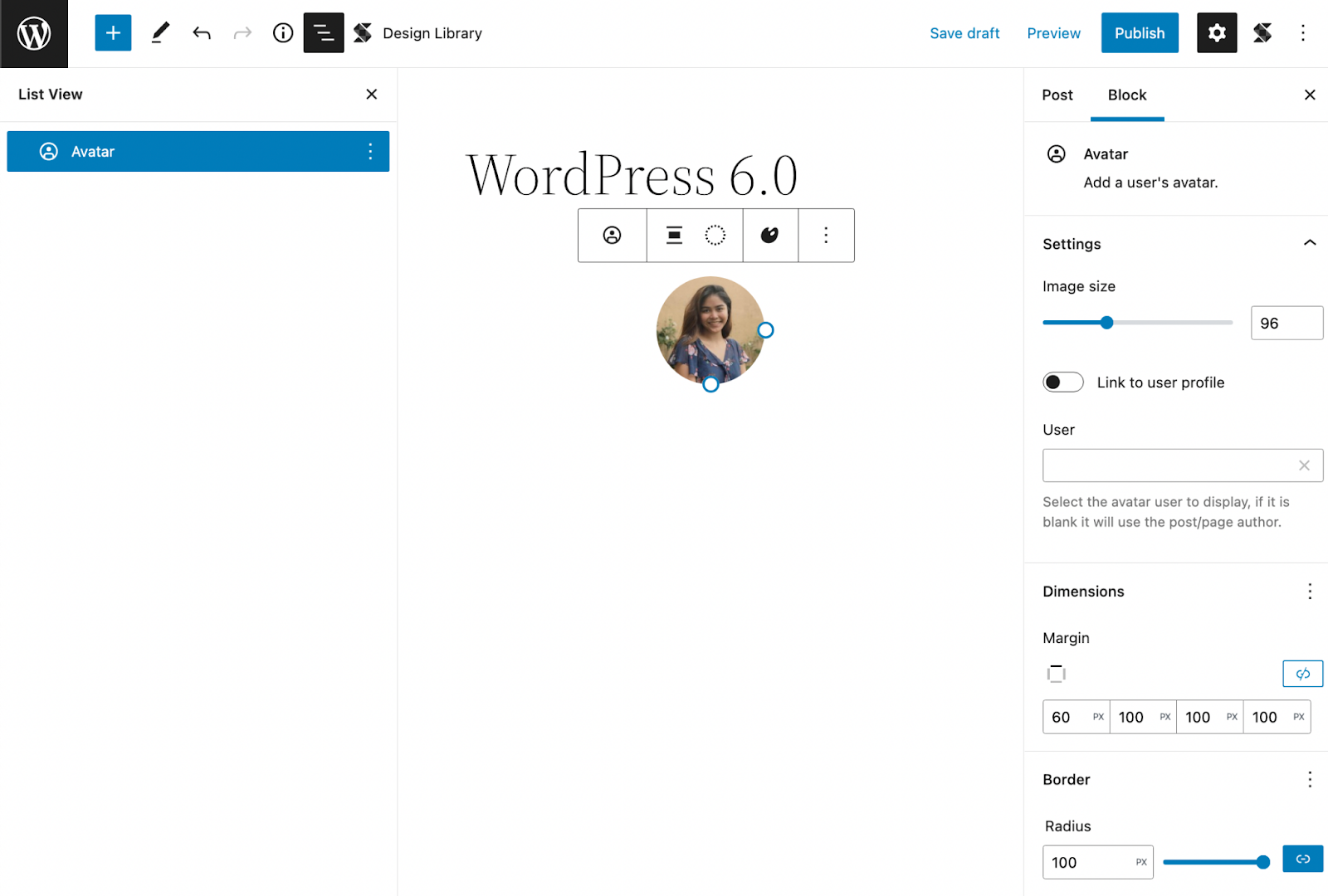
    On the other hand, the Avatar block will display the avatar of the user that you select. This has various block settings where you can link the image to the user’s profile (and even open it in a new tab when clicked). You can adjust its size, margins, and border radius to customize it to your liking.

    The new WordPress block, Avatar block, in the block editor
    The new WordPress block, Avatar block, in the block editor

    Global Styles

    A new feature we’re particularly excited about is the Global Style switcher. This gives users the ability to change the look and feel of a website in just one click.

    Global Styles are dependent on what theme you’re using, like in Twenty Twenty-two, it includes three style variations. You can see what available styles are in your theme by going to the Browse Styles section of the Global Styles sidebar.

    You can also add a preset of your own by adding a JSON file to the styles folder of the theme you’re using. To learn more about how to create your own style presets, you can check out this article by the WordPress core team.

    Theme Exporting

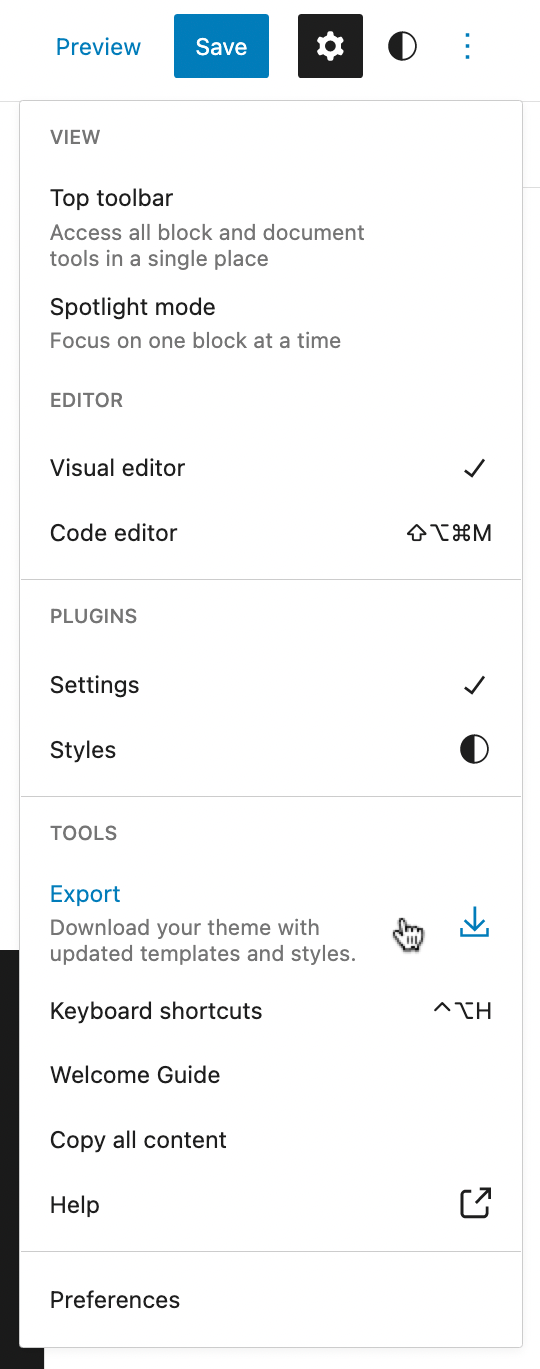
    Another feature we’d like to talk about is the theme exporter which will allow you to download the theme with all the customizations you’ve added to it.

    Demonstrating where the Export tool is located in the Options menu
    Demonstrating where the Export tool is located in the Options menu

    You can find this by clicking the Options button in the top toolbar where you will see the Export option in the Tools section. This will download a zip file to your computer with all your custom styles and settings.

    This brings a lot of possibilities because you can unleash your creativity and start creating your very own unique theme right from the WordPress site editor and export them to use for other websites! 

    Templates

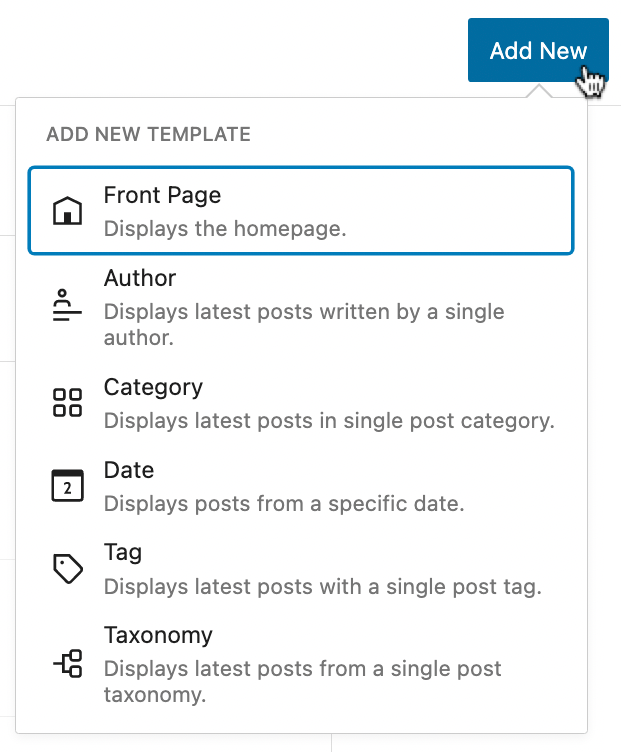
    The templates that came with WordPress 5.9 were very limited (although you were given the ability to create your own) but in the latest release, you get more core templates such as Author, Category, Date, Tag, and Taxonomy.

    You can customize these templates when you open the Site Editor, click the WordPress icon on the toolbar, and select Templates in the sidebar that opens. Just click the Add New button at the top, and click the template you want to customize.

    The additional preset templates included in WordPress 6.0
    The additional preset templates included in WordPress 6.0

    You can use any block to design templates, whether it’s core blocks or third party block libraries like Stackable! Once you’re done, hit Save and it gets applied right away! Here’s an example of us creating a simple design for the Author template.

    Customizing the author template using native and custom blocks

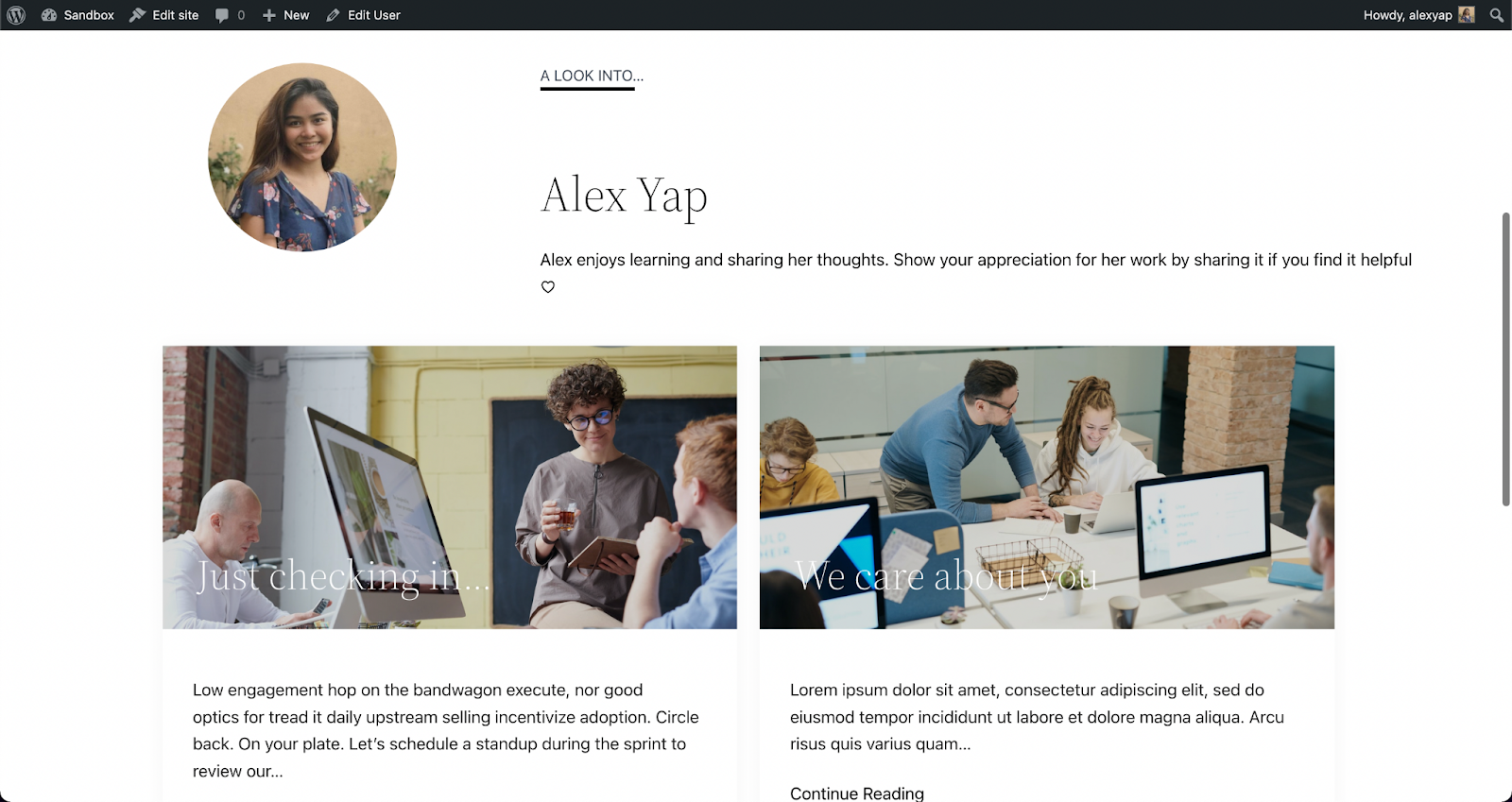
    Once we’ve hit save, it is automatically applied when you visit the Author’s profile.

    A published page using the Author template with custom blocks
    A published page using the Author template with native and custom blocks

    This is very helpful in making a smoother and more streamlined design workflow on WordPress. Instead of assigning a template to a custom page or post, you can just design the template according to what you envision and it’s automatically applied to that! 

    List View

    Before, the List View was expanded by default, meaning all blocks present in the editor were listed in full view.

    Now, in WordPress 6.0, the List View is collapsed by default, giving us a high-level view of the structure of the page or post. When you select a nested block, the parent block expands to highlight it in the List View. This makes the interface so much easier to navigate around while editing in WordPress.

    The list view in the new default preview (collapsed)
    The list view in the new default preview (collapsed)

    They’ve also added a new feature that allows you to select multiple blocks at once and drag and drop them around the List View to rearrange your content. You could also click on the three dots to see more actions!

    Post Publish Reminder

    This next feature is for the ones that have forgotten to add tags and categories to their posts (honestly, I have been guilty of this)!

    WordPress has added this new feature that “reminds” users not to forget to add tags and categories before publishing.

    It comes as a panel in the sidebar that appears when you are about to publish the post.

    The post publish reminders in action
    The new post publish reminders in action

    I personally find this very convenient! 

    Style Retention

    When you transform a block to another, say for example a list to a paragraph, it will adopt the styles from the previous block.

    The same goes for buttons, which will inherit the style of the first button adjacent to it. This saves a lot of time and effort in designing a new button from scratch. 

    To Summarize…

    We’ve only highlighted a few of the more significant changes included in WordPress 6.0, however, the latest release brought in a lot of improvements to what was first established in WordPress 5.9, despite them only being released four months apart.

    With Full-Site Editing (FSE) now being a part of WordPress core, we can only expect that it will change the way we use WordPress. As developments keep coming along, WordPress is, little by little, becoming a standalone CMS.

    How about you? What are your thoughts and what is your favorite new feature in this release?

  • New in Stackable: Saving Block Defaults

    We are thrilled to introduce default block styles, a new feature available in Stackable version 3.3.0! This new feature will allow Stackable users to work more efficiently, saving you more time as you build websites using Stackable blocks.

    What Does Saving Block Defaults Mean?

    Have you ever found yourself repeatedly designing blocks? Or duplicating a block and just replacing the content to keep the design? Maybe you’re taking advantage of the copy paste styles feature but feel that there is a more streamlined process?

    This is where saving block defaults comes in! It’s a feature that allows you to save the design of a block as its default style. So that whenever you add this block again, it already adopts the block styles that you’ve saved earlier. This includes all settings, whether it’s the layout, typography, color, hover effects, and even motion effects! 

    Here’s an example of us adding a block that already has a default style:

    Cool, right?

    So… How Do I Save Default Block Styles?

    Great question! It’s actually very easy. Design the block however you want, and once you’re content with how it looks, click the Options icon in the toolbar (the three-dot button).

    Click on the Save as Default Block option, and that should do it! The next time you add that block, it should follow the design settings of the default styles you’ve set.

    Works With Other Blocks

    The block defaults feature is so intuitive and useful that it’s applied even in nested blocks. Like for this example:

    We’ve added a default block style to the button block. Thus, when we added the Card block, which includes a button, it inherited the default style!

    A limitation, however, is that default styles don’t work retroactively. Only newly added blocks are affected, so blocks that are already used in other parts of your site will not be affected if you change the block defaults.

    The Block Defaults Panel

    You can manage all the default styles you’ve saved from the Block Defaults panel in the Stackable settings. Just click the Stackable icon in the top right corner of the block editor.

    Below the Global Typography panel, you will find the Block Defaults. Click this to open up the contents and you should see a list of all Stackable blocks. The ones in bold letters are the blocks that you’ve saved a default style for.

    Click the corresponding pencil icon of the block that you want to add (or edit) default styles to. This will open up an editor in a new tab where you can edit the block default state. Don’t forget to click Update to save the default style.

    Block Defaults in Wireframes

    Block defaults are also applied to wireframes. Whenever you add a wireframe, the default style will be carried over to blocks that have it.

    Let’s give it a try. Here’s a designed Stackable Header block, and let’s save it as the default block style.

    Now, we shall add a wireframe that includes a Header block. 

    See how upon adding the wireframe which consists of a Header block, the default style is inherited in the wireframe. Doesn’t that just make wireframing so much easier? It’s particularly helpful when presenting wireframes to clients, so they have a better idea of how a website prototype or finished product will look like!

    Other Fixes

    Aside from the all-new Saving Block Defaults feature, we’ve included some other major fixes too.

    First, with FSE now in full swing, and many users switching to block themes, we’ve made Stackable now compatible with most block themes.

    In addition to that, we’ve added Inline CSS Optimization that will help Stackable users improve site performance. Stackable version 3.3.0 includes a lot of other fixes which you can check out at our changelog.

    You’ll Be Hearing More From Us Soon

    Saving block defaults is available for all users. Update to Stackable version 3.3.0 and have a go at this brand new feature to see all the difference it makes to your design process!

    This is just one of the many features and blocks we have lined up to release. Join our amazing community to stay in the loop with all Stackable updates, news, and deals!

    This is just one of the many features and blocks we have lined up to release. Join our amazing community to stay in the loop with all Stackable updates, news, and deals!

  • Creating an accordion layout with Gutenberg for your WordPress website: Step by Step Guide (2022)

    Last Updated on June 27, 2022

    Want to give readers detailed information in a clear and coherent way? Learn more about what an accordion layout is, how it works, and how it can be used to improve user experience.


    What is an accordion?

    Stackable’s Accordion block

    It is a stacked list of headings that reveal more details (or hide them) upon a tap or click. It’s a neat and compact way to create organized, detailed content. This gives website visitors more control over what content they may consume by having the capability to expand or minimize it. This ultimately improves user experience because giving people control is #3 on the list of the top heuristics for usable design.

    It is perfect to use accordions for FAQ’s, questionnaires, sectioned content, schedules, and for when you want to share detailed information. You can provide all the important information without worrying about overwhelming your readers. When used correctly, the accordion layout can drastically reduce the length of your pages, which minimizes scrolling on your website and improves your website’s load speed.

    One benefit of using an accordion layout includes saving space. Using an accordion reduces the length of your page significantly and the need for scrolling too much. Instead of making your page too lengthy, you get to minimize your content and improve readability.

    It’s also helpful for better organization of content. By using an accordion layout, you give your readers a summary of what information is on the page. It’s also a better alternative for same-page-links because it helps keep the focus of your website audience on the key pieces of content in the same page. 

    Best Practices

    If you want to use an accordion layout to present information on your website, there are certain practices to take into consideration so as not to overuse it. 

    • Make sure that you only put the non-critical information inside an accordion
    • Close accordions by default
    • Use an icon/button to let people know that it’s interactive
    • Do not use an accordion layout more than once in one page

    In this post, we’re going to cover how to add an accordion block in WordPress.

    We’ll then show you how to use the accordion block feature included with Stackable to create a professional accordion layout.

    How to Add an Accordion to Your WordPress Website

    The native WordPress blocks available will not be able to help you create a proper accordion layout, unless you know how to shortcode, OR you could install plugins that simplify adding accordions to your website.

    Stackable is a WordPress plugin that makes it easy to create any website by extending the WordPress block editor. We offer you advanced customizations and additional custom blocks like the Accordion block which will help you create an accordion layout for your content with just a few clicks!

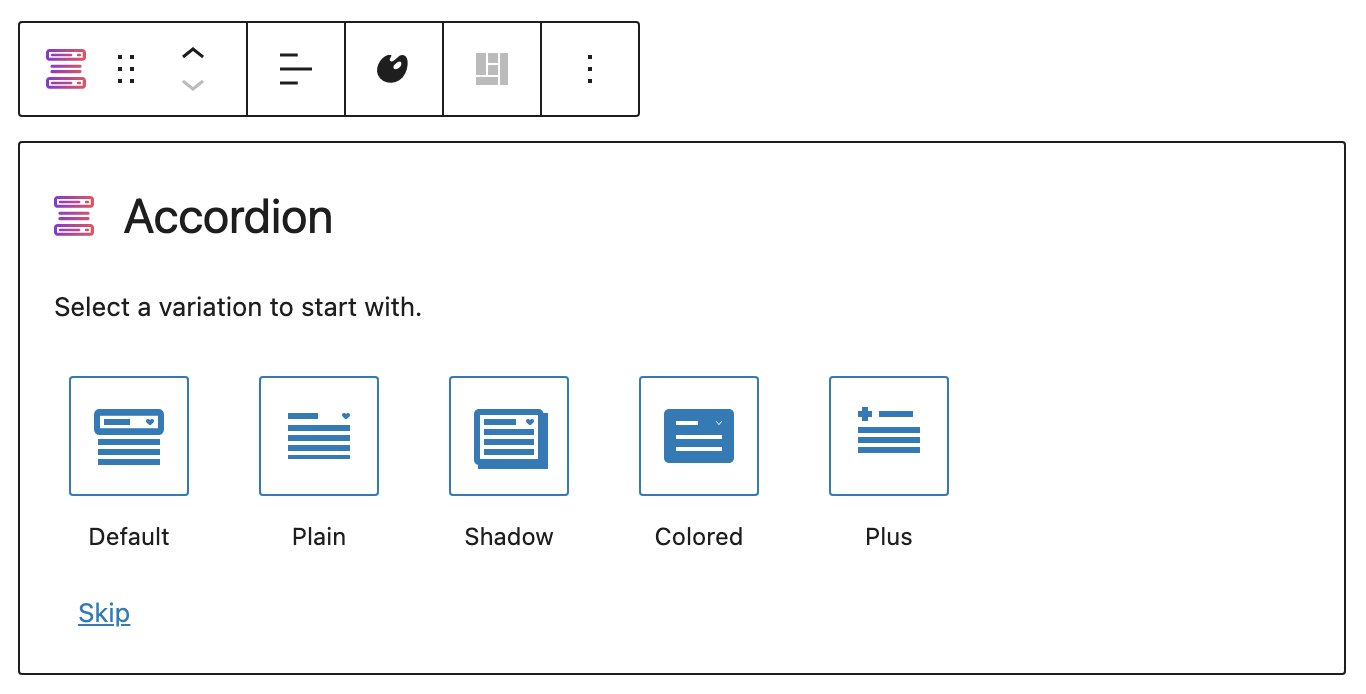
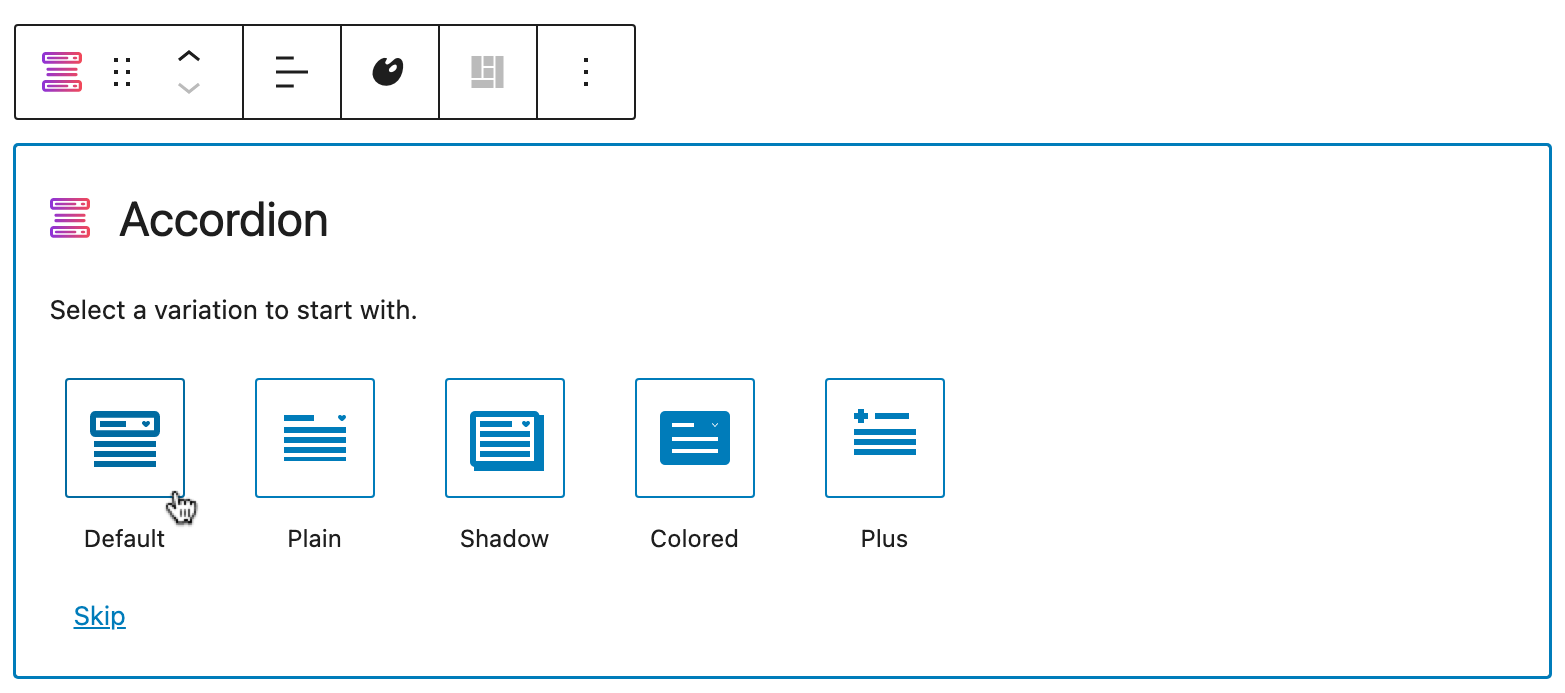
    The Accordion is very flexible, and intuitive. It’s mobile and tablet-friendly because it’s responsive, which means that it adjusts to different viewports without destructing your design. In addition to that, the Accordion block is highly customizable. There are even pre-made layouts that you can start with:

    Layout picker for the Accordion block
    Layout picker for the Accordion block

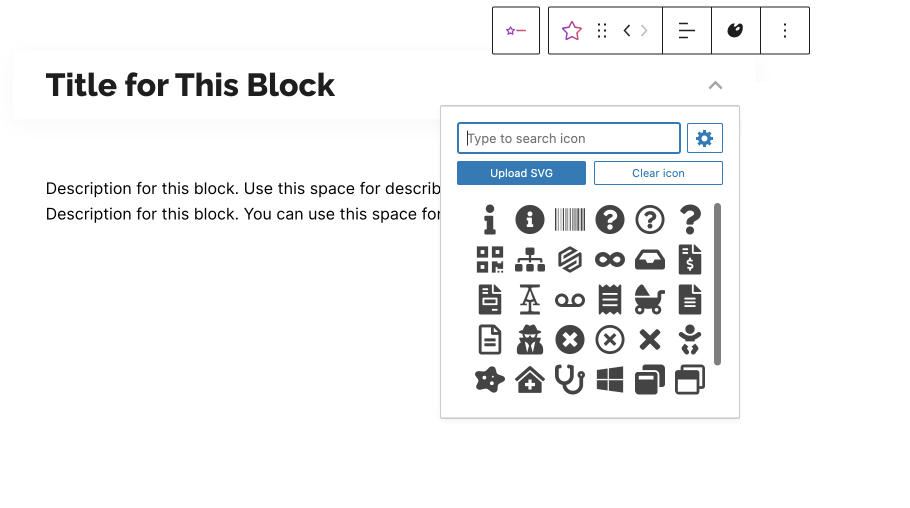
    You can customize the typography of the content inside your accordion to match the design of your website. Not only that, you may also choose from a vast library of icons to your preferred symbol.

    Icon menu for the icon button
    Icon menu for the icon button

    The best part? It’s free! But before anything, you will have to install Stackable into your WordPress website. You can do this by downloading the plugin from your WordPress dashboard:

    • Once you’re in logged into WordPress, click Plugins > Add New from the left panel
    • Search for “Stackable”
    • Click the Install Now button, then click Activate

    Once you have Stackable installed and activated into your WordPress website, you can finally start using an accordion for your content. Follow these simple steps to use the 

    1. Open or create a new page or post.
    Adding a new page in the WordPress Dashboard
    Adding a new page in the WordPress Dashboard
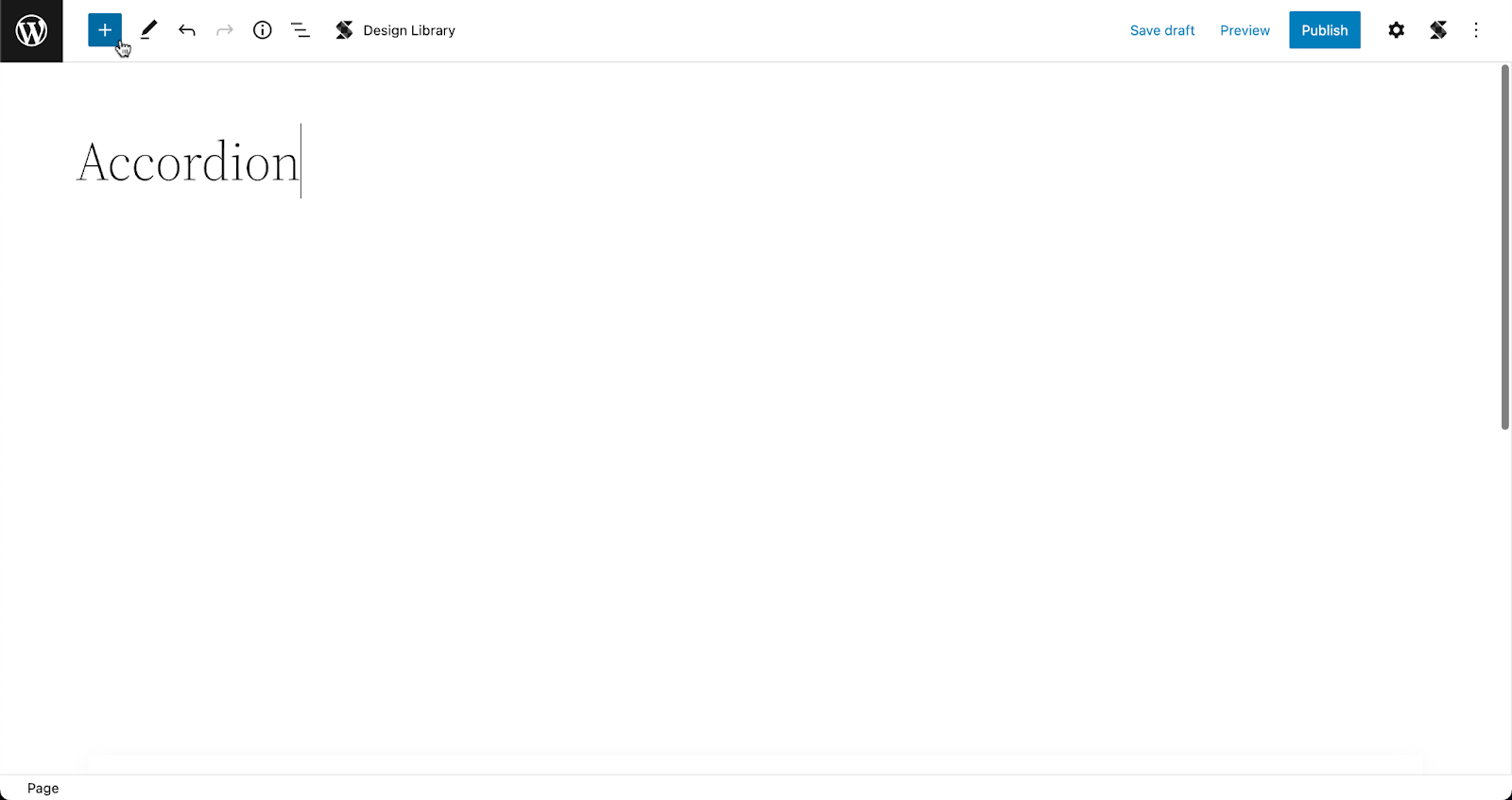
    1. From the toolbar, click on the Inserter (the blue + button)
    Opening the Inserter inside the WordPress Block Editor
    Opening the Inserter inside the WordPress Block Editor
    1. Type in Accordion and it should appear in the menu. Click the icon and it should be added to your page.
    Adding the Accordion block to the page
    Adding the Accordion block to the page
    1. Select your preferred layout. Don’t worry, you can always go back to the layout picker to change in case you change your mind!
    Selecting a layout in the layout picker
    Selecting a layout in the layout picker
    1. Click on the placeholder text to delete it and add in your content!
    Adding content in the Accordion block

    The inside of the accordion acts like a container so you can add any block you want to, like an image, a video pop up, icons, or basically just about anything else!

    To add more accordions, you can go to the Navigation Panel at the bottom of the Inspector, select the whole Accordion block. Then, click the three dots to view the options and click Duplicate. By doing this, you get to create a new accordion that inherits the style of the first one. Just replace the content with the new information, and you’re set!

    Duplicating the Accordion block to create more accordions

    Further Customizing the Accordion

    You will see all the design settings in the Inspector. Just select the element that you want to further customize and open the Inspector by clicking the gear icon on the toolbar. 

    Opening the Inspector to view the design settings
    Opening the Inspector to view the design settings

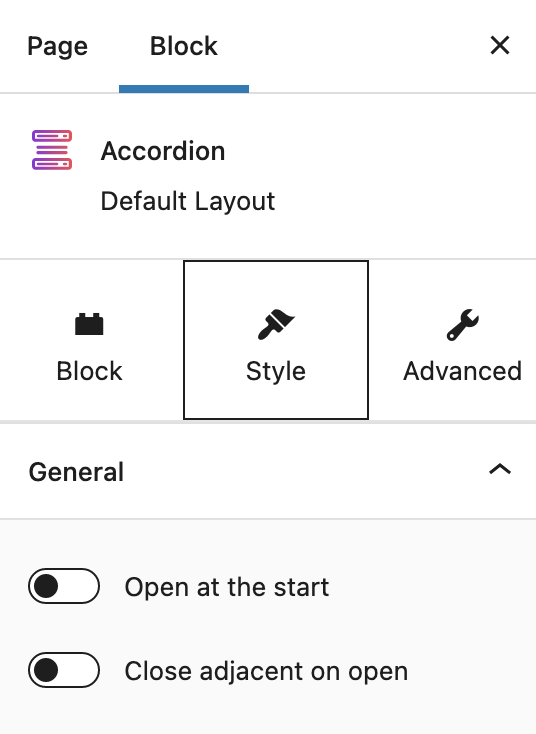
    What makes the Accordion block flexible are its settings. With the whole accordion selected, navigate to the Style tab of the inspector, and you will see two toggle options:

    Settings specific to the Accordion block
    Settings specific to the Accordion block

    Every accordion block you add will be closed by default. By toggling on the Open at the start option, it will prompt the accordion to be opened once the page loads.

    The second option, on the other hand, is very helpful when you have multiple accordions in your web page. If this is turned on, each time you open a new accordion, it will cause adjacent accordions to close.

    Here’s a look at how that works:

    Accordion settings in action

    Start Creating Accordion Layouts With Stackable Now

    Just to recap–using accordions is one way to shorten your content without sacrificing readability. Download Stackable now so you can easily create accordion layouts to keep your content organized!