Good news for Stackable users We’ve released quite a few updates, giving you a new block, a layout switcher, a new navigation panel and more! Here’s a recap:
Table of Contents Block
The Table of Contents block will automatically generate an outline of the headings present in a post–this will include both native and Stackable headings.
You will have the ability to switch your table of contents between bullets and an ordered list. In addition to that, you may exclude and include single headings, or toggle on/off whole heading levels (H1-H6).
Other cool things to note, the Table of Contents block links to anchors of your Heading blocks and you can toggle on smooth scrolling to the heading section once you click it.
The Table of Contents block uses the anchors of your Heading blocks. If you already have Heading blocks in your article and they don’t have anchors yet, the Table of Contents can generate any missing anchors your headings may have.
For longer or articles with a lot more headings, you can show your table of contents in multiple columns to make it more readable.
Layout Switcher
We recognize there are instances where you decide to change your mind when you choose a layout for a block. In the recent updates, we’ve added the layout switcher so you can seamlessly change the layout for a block. Here’s how it works:
You may change the block layout even after inputting content inside your block. Now you don’t have to start from scratch to compare how your content displays in different layouts. Please note that when switching layouts, not all your adjustments may be kept, so use this feature sparingly.
To change the layout of a block, simply click the Layout Switcher icon in the toolbar. Once you click it, the block reverts to the layout picker. Select any layout and it should be reflected in the block you’ve selected!
Navigation Panel
In the WordPress editor, there is already the native navigator on the left side of the editor which you can view by clicking the List View icon on the toolbar.
As helpful as it is, the List View has its drawbacks. When open, the List View squishes your editor area so much and may make it hard to visualize what you’re designing. And if you have a large number of blocks in your page, the List View grows longer and becomes harder to use for navigation.
We’ve added our own navigation panel in the inspector, which makes it easier to edit sections of your blocks. It essentially has the same functionalities as the List View navigator, Except that it’s more compact and it doesn’t obstruct your view of the editor and it only shows you the current section/block you’re editing.
Through the navigation panel, you have a constant view of the outline of your blocks. You are always guided by the sequencing and nesting of your blocks without having to shrink the editor. See how it works here:
And more!
You will be seeing a lot more updates on blocks and new features because we have a lot in store for you.
To stay updated, we invite you to join the Stackable community! You could also send in your feature and block requests there, as well as discuss with other Stackable users.
Full Site Editing has officially been released, ushering in a major upgrade to WordPress. With FSE in full swing, it brings in a lot of new features and functionalities. Get up to speed on what it is and how it changes the way you use WordPress.
What is Full Site Editing (FSE)?
Full Site Editing (FSE) is the ability to edit all elements of a WordPress website using Gutenberg blocks–aside from the usual page or post content, you may now use blocks to customize headers, footers, sidebars, and other elements.
In the old way of doing things, the looks of your website was completely dependent on what settings and styles were made available to you by the WordPress theme you have currently installed. If you wanted to change your website’s top menu area, and there weren’t any settings to change that, you’re out of luck.
Soon, “mega†themes came into the picture and contained tons of functionality and settings for people to fully customize the looks of their website, some even provided their own header builders and footer builders.
With Full Site Editing, you will now be able to edit any header, footer or even archive templates in any WordPress Theme that supports FSE.
What does full site editing bring to the table?
FSE sounds like a huge step since the first release of Gutenberg, which may lead us to wonder what changes come with it. Let us now look further into the features of FSE and how it changes the way we design with the block editor.
Block Themes
Full Site Editing is only available if you are using a Block Theme. A block theme is a WordPress theme with templates made up of blocks.
The new WordPress Theme named Twenty Twenty Two is a Block Theme. You can use that if you want to use FSE.
Before, we would go to different areas of the WordPress dashboard to edit certain parts of a website, like the Theme Customizer to design an activated theme, or the Widgets editor to add blocks to a section (i.e. header, footer, sidebar).
Now, with Block Themes, we could do all of these in one designated area called the Site Editor. The Site Editor is where we can edit themes using new features like the all-new Styles interface, and Template editing, which we will tackle more in a bit.
Although the selection is not yet that extensive as of the time of this writing, you may browse the Theme Directory to find themes that are compatible with full site editing. To look for a block theme, first you would need to log into your website’s dashboard:
Go to the Themes page
Click Add New on the top left area of the page
Click Feature filter
Select Full Site Editing in the Features column and click the Apply Filters button.
All the themes that appear should be compatible with FSE
You will see Twenty Twenty-Two is automatically installed to your website if your WordPress website is up to date. After browsing and finding a theme that you’d like to use, just click Install and Activate to implement it to your website!
The New Site Editor
The Site Editor is where you could modify templates, set global styles, edit navigation menus, and more. You will be able to access this once you’ve activated a block theme.
To open the Site Editor, click on Appearance > Editor (beta). At first glance, the Site Editor appears just like how the block editor interface would. However, there are some key elements that differentiate the two.
First, the WordPress logo opens the Navigation panel on the left, where you will see the three sections of the Site Editor: Site, Template, and Template Parts.
Second, the Styles sidebar, where you can access the sets of controls that change your theme’s colors, typography, and structure.
New Site-wide Blocks
Since the first release of Gutenberg, we’ve known blocks as content that we add to pages or posts. Blocks range from images, text, videos, buttons, and more.
Full Site Editing gives us new blocks that we can use across all areas of a website, such as the header or footer.
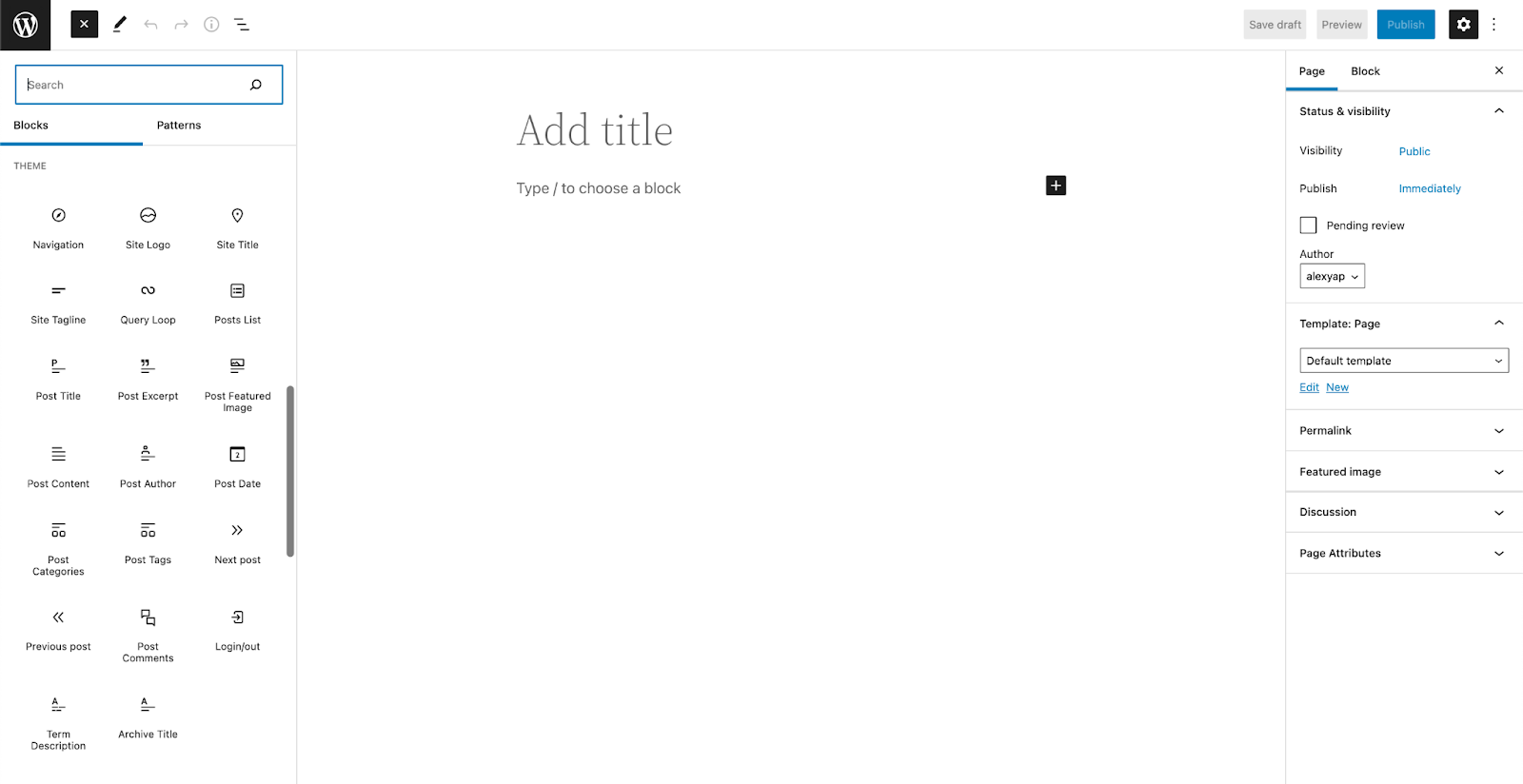
We get twelve new blocks that gives us more possibilities in designing your website:
Navigation
Site Logo
Site Title
Site Tagline
Post Author
Post Categories
Post Tags
Next Post
Previous Post
Post Comments
Term Description
Archive Title
These could be found under the Theme category in the Inserter, the button with the plus icon in the editor:
Page Templates
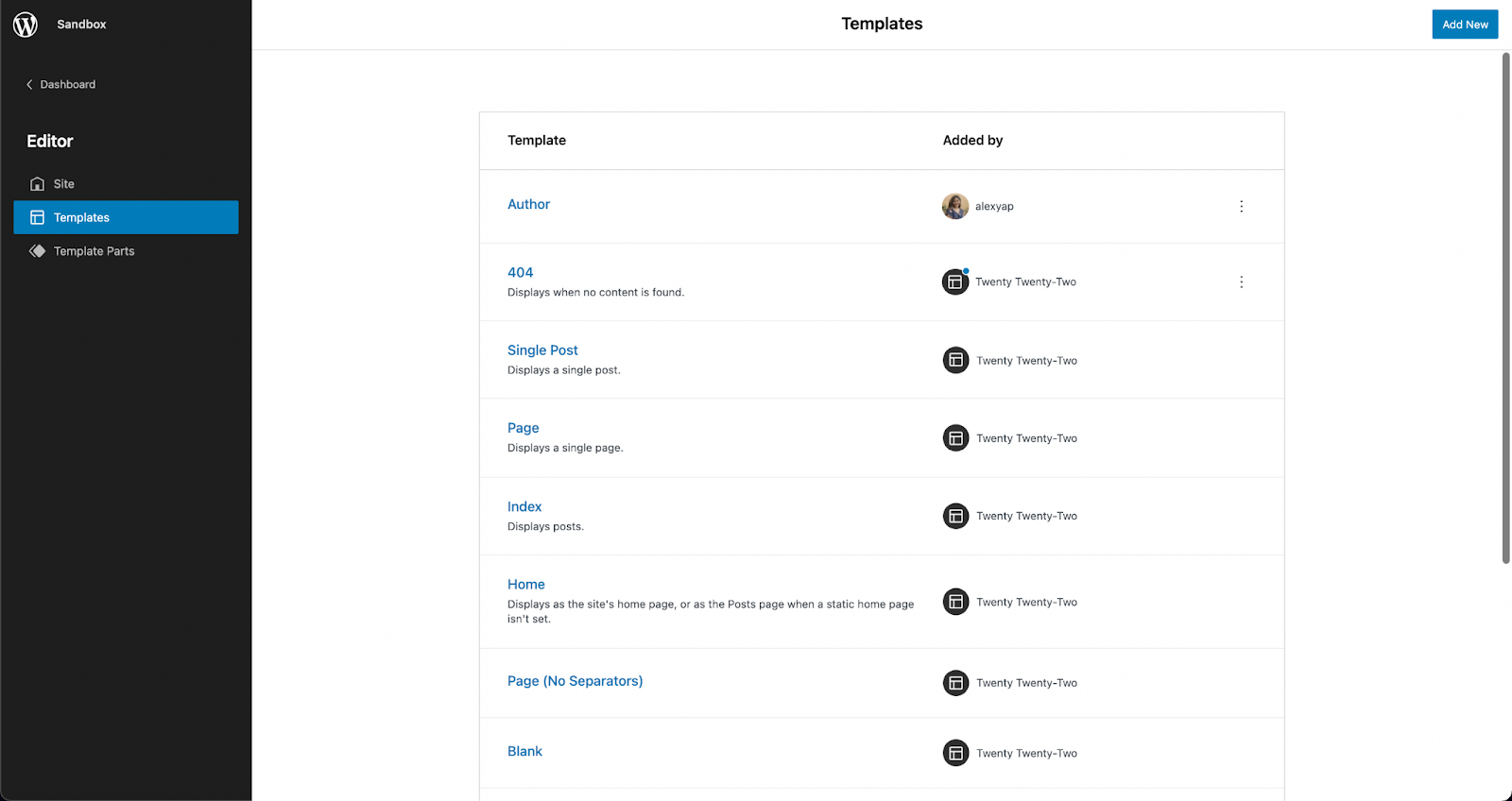
Block templates come with block themes. They are full-page layouts, containing the header, footer, and content section. Templates are dependent on the theme you’re using so we highly encourage testing and experimenting with the themes that are available in the theme directory!
If you would like to edit an existing template, click on the template name to open it in the Site Editor. Design it however you like with blocks and click Save once you’re done.
Custom Page Templates
You could also create your own template by opening a new page or post and in the Post/Page tab of the Settings console, look for the Template: Page or Template: Single Post panel, depending on what post type you have opened. Click New below the dropdown menu, name your custom template, click Create and you will be directed to the Template Editor.
You will be able to add and design blocks the same way you would on a regular page or post in the Template Editor. Templates are saved as custom post types, called “wp_template†and once you’ve published your custom template, you should be able to see it in the Templates section of the site editor.
If you want to use this new template, you could use it by opening a new post or page. In the Page/Post tab of the Settings sidebar on the right, look for the Templates panel, and from the drop down, select your newly created template!
Add your page or post content in the editor, and when you’re finished editing, click Publish. Preview your page and it should inherit the template that you’ve selected.
Global Styles Interface
The Styles interface may be found in the site editor. This will allow you to quickly change all of the elements of your site–including typography, colors, and layout. The new Styles interface allows you to customize your blocks and site sections right within the site editor.
Through the Styles interface, you have the freedom to customize the typography, colors, and layout for entire pages, posts, and even individual native Gutenberg blocks.
This makes it very easy and convenient to personalize websites for all types of users! The Styles interface gives us a more straightforward and flexible way to make design changes across whole websites without having to go through each block, or changing themes.
Stackable and FSE Compatibility
We wanted to get on top of things and make sure that once FSE is released, you could already enjoy using Stackable with it. Along with other new features and bug fixes, our latest release (V3.1.2) includes compatibility with full site editing.
You can enjoy using Stackable blocks to edit your website and even create your own templates. If you’re a premium Stackable user, you may use premium features to elevate your site design such as dynamic content, website animations, and more!
As an example on how to use Stackable’s dynamic content feature in FSE, here’s we used our Card block and dynamic content to create an ‘Our Latest Posts’ section in the Author template.
Recap
Full Site Editing opens up a lot of new possibilities for DIYers and professional web designers alike! Considering all the new features that come with FSE, users now have a greater level of control and flexibility because design is no longer limited by themes.
In addition to that, FSE provides more efficiency–ultimately lessening the time needed to build websites from scratch, thanks to the new block patterns and theme templates.
There is no doubt that this move to full site editing is a big change. It is both a big step forward and a stepping stone to more opportunities. With the direction that WordPress core is going, we feel it is going to completely transform how users will be designing and using WordPress as a CMS.
Have you tried experimenting with full site editing? What are your initial thoughts? Let us know in the comments below
 We’ve released quite a few updates, giving you a new block, a layout switcher, a new navigation panel and more! Here’s a recap: