EDITS.WS

Tag: ai and web design

  • How to Make a WordPress Website With AI

    Artificial intelligence is quickly becoming a tool that many sectors, including web design, are adding to their feature sets. Digital design and marketing are seeing many established tools add AI functionality to their products. The same can be said for WordPress. As one of the most popular website builders available, it’s no surprise that you see more AI plugins for WordPress. This guide will show you how to bring AI into your next WordPress build. First, let’s cover why you may want to use AI to make a WordPress website.

    Why Use AI to Make a WordPress Website

    You would want to make a WordPress website with AI for many reasons. Some of these benefits include:

    • Becoming more efficient: AI can assist you in getting both simple and advanced tasks done quicker. From automation to content generation, you can get more done with AI backing your WordPress website.
    • Stay on top of innovation: Using AI can help your WordPress website experiment with new features and be at the forefront of technological advances in the ecosystem. These new insights and additions can increase traffic, sales, and more.
    • Reduce labor and resource costs: AI can save money when used effectively. Using AI for your copy can save you from hiring copywriters. Having your layouts generated by AI design tools can save you from hiring a UI designer. These cost savings can be reinvested into other parts of your business.
    • Enhance your security: Security plugins rely on AI’s power to better protect WordPress websites. Plugins like Quttera Web Malware Scanner, which has a patented AI scan engine, now use machine learning to look for unknown and hidden WordPress malware in your website.
    • Improve your search presence: Many SEO plugins add AI capabilities to their toolset. As such, you can utilize these improvements in your WordPress sites by having a website that can perform better for search engines. This can lead to better rankings and more views on your website.

    Bearing this in mind, it’s evident that using AI to help build your WordPress website is a wise course of action.

    How AI Can Be Used to Build a WordPress Website

    There are plenty of AI tools that can be used to build and enhance a website. Some AI website-building platforms outside of WordPress, like WixADI or Hostinger AI, can generate your entire site from the start with AI. But, for many, all-in-one website builders lack the control and flexibility of WordPress. There is a reason it is still the best CMS for building websites.

    That said, WordPress users are looking for more streamlined methods of integrating AI into WordPress. Thankfully, AI-powered WordPress plugins, themes, and page builders are growing by the minute. This type of integration bridges the gap between AI and WordPress, making it easier than ever to build a site in WordPress.

    Considering all these AI tools at your disposal, here are a few ways you might use AI to build a WordPress website.

    Using External AI Tools to Build WordPress Websites

    There is a myriad of AI tools outside of WordPress that you can use to build your website. AI writing software and chatbots like ChatGPT can generate pretty much anything text or code you might need for a website, including WordPress. You can use it to create a thorough outline for your website, generate copy for your pages and posts, and write code to create WordPress plugins or other custom functionality you may need. You can even create entire HTML docs for your pages or templates. More robust AI writers like Jasper and Surfer SEO can help with SEO content.

    You can also use many of the same AI writers to improve existing copy for your site. And you can use Grammarly as a browser extension to help proofread and optimize your text inside the WordPress editor.

    On the design side, there are AI art generators that anyone can use (like MidJourney) to generate stunning AI images for your site. And if you are a graphic designer, you can take advantage of AI-powered design tools for photo editing and graphic design needed for your WordPress site.

    Using AI Plugins to Build Your WordPress Website

    Many WordPress plugins are starting to incorporate AI into their software. These allow users to use AI for content generation and other AI-automated tasks right inside WordPress. What makes AI plugins so great is that they work with popular WordPress themes which handle the design of your site, leaving AI to generate your content and enhance your existing design. For example, AI Engine brings the power of OpenAI and ChatGPT to your WordPress dashboard.

    AI Engine, a powerful WordPress AI plugin

    Some AI plugins are more about enhancing your existing site rather than generating new content. For example, SEO plugins like RankMath can streamline the creation of SEO content, and automation plugins like Uncanny Automator can automate and manage many WordPress tasks for you.

    For more, here’s a list of the best WordPress AI plugins to help get you started.

    Using AI Page Builders to Build Your WordPress Website (Recommended)

    WordPress page builders have changed the game for designing websites in WordPress. Even WordPress has a block editor that brings full site editing on the front end. Nothing seems to beat the drag-and-drop visual editing experience offered by Divi, Elementor, and other great page builders.

    The two AI page builders leading the way so far are Divi and Elementor. Elementor was the first to add AI integration to their page builder, allowing users to generate text, images, custom code, and more with an easy-to-use interface.

    Elementor AI

    Divi, our WordPress theme and page builder plugin, recently launched Divi AI. It includes , Acting as a powerful AI assistant inside the builder, Divi AI uses cutting-edge generative AI to generate text and images contextually as it learns about the existing content of your site.

    Best WordPress content writer-Divi AI hero section

    Using an AI page builder is one of the best ways to use AI to build a WordPress website because it is an all-in-one solution for both design and AI content generation.

    Although there are various AI tools, plugins, and page builders you can use in WordPress, there is a benefit to using a combination of external AI tools and native AI WordPress solutions. In this manner, you get the best of both worlds when building your WordPress site.

    How to Make a WordPress Website with AI (Step By Step)

    For this tutorial, we are going to dive right into how to use AI to build a WordPress website. To do it, we’ll be using ChatGPT to help with the planning process. Then, once WordPress is up and running, we are going to use Divi AI to demonstrate just how easy and efficient AI can build a WordPress website.

    Let’s get started.

    1. Map Out Your Website with AI  (ChatGPT)

    We will begin building our website by creating a simple outline in ChatGPT. To do this, navigate to ChatGPT. Next, enter the prompt, “Make a concise list of the pages an email marketing agency’s website should have?”.

    Website outline by ChatGPT

    ChatGPT gives us a list of eight pages we can create for our website in our first prompt. We can even go a step further and ask ChatGPT to outline what each page should contain as well:

    Page layout outlines created by ChatGPT for an email marketing agency

    Notice how in-depth ChatGPT’s AI was able to get when planning out the content and function of each page. We can use these to our advantage when building our pages, choosing modules, and creating the content for each page. We will be creating a five-page website for our fictional email marketing agency with the following pages:

    • Home
    • About Us
    • Services
    • Portfolio and
    • Contact Us

    With our outline, we now move into the website-building phase.

    2. Setup Your WordPress Website

    Some prerequisites must be met before we enter the new and exciting world of AI-powered WordPress web design. First, you’ll need to register a domain name for your site. A good domain name provider is NameCheap, but there are many domain name providers for you to choose from.

    Next, you’ll need to choose a hosting provider. This is important, so choose wisely. We recommend Siteground, Pressable, or Cloudways. However, our list of the best WordPress hosting options is also an excellent place to find the right one for your website.

    The final prerequisite for building a WordPress website is to install WordPress. Our definitive guide on installing WordPress shows you a few ways to set up a successful WordPress install.

    Now that you have your domain name, a secure web host, and WordPress installed, we can start building our website with the help of AI.

    3. Install Your WordPress Theme and AI Page Builder (Divi + Divi AI)

    Now that WordPress is installed, you are ready to install your theme. For this tutorial, we are going to use our Divi Theme, which includes a powerful AI page builder with Divi AI. (Note: The Divi builder and Divi AI are also available as a plugin to be used on any WordPress theme as well.)

    Intro to Divi and Divi AI

    Divi AI


    Divi is one of the most popular WordPress themes available. Its AI feature, Divi AI, works within its visual builder, bringing advanced prompting options, copy editing, and image generation to WordPress websites. One of the critical features of Divi AI is its ability to understand the copy already living on your web pages. This allows your website’s AI content to be created with context in mind. Divi AI is smart enough to understand what’s written within modules, sections, and pages and use that understanding to create new copy that fits into the realm of your webpage.

    The Divi AI roadmap promises to bring code generation, full layout generation, image editing, and more shortly. So stay tuned to see the magic unfold! As such, we’ll show you how to make a WordPress website with AI using Divi and Divi AI.

    Installing Divi + Divi AI

    Before you can use Divi, you’ll need to subscribe for a membership. Then you can download the theme or plugin from the members area.

    Divi AI is already integrated with Divi, so you won’t need to download anything else. You can use Divi AI for free with a limited trial period, but you can easily upgrade when that time comes.

    Once you download Divi, you can install it like you would any other WordPress theme in the WordPress Dashboard. For more details, you can follow this guide. After Divi is installed, we can start creating our website and creating content for our website.

    4. Add Site Title and Tagline for Divi AI

    Setting your site title and tagline in WordPress is an essential first step in training Divi AI. By doing this, you are giving Divi AI more context about your website. This will help better inform Divi AI as you seek to create content, generate images, and more while building your WordPress website.

    To begin, let’s assign a site name and tagline. From your WordPress dashboard, hover over the Settings menu item. Then, click General from the flyout menu.

    Set site title and tagline

    From there, give your site a title and tagline. You can also add your site languages, set your admin email, and more here. Once completed, click the blue Save Changes button at the bottom of the screen.

    Create site title and tagline for your new WordPress website

    With this in place, we can start building our website’s pages.

    5. Create Your First Page with Divi AI

    Equipped with our page names in hand from ChatGPT, we will now start creating the blank pages of our website. Hover over the Pages menu. Then, click on the Add New text link.

    Add new page to AI powered WordPress website

    Next, enter the name for your page, in this case, Home. Finally, click the blue Publish button at the top right-hand side of the screen.

    Name and publish your page

    Repeat this process for the other pages within your website’s sitemap.

    Install Layout from Layout Library

    Now that all our pages are created, we are ready to add our first premade Divi layout to the home page. Navigate to the home page we created again, hovering over the Pages menu item. Then, click on the All Pages link. You’ll be presented with our list of new pages for our website. A text link menu appears when you hover over the Home page’s row. Click on the Edit with Divi text link to activate the Divi Builder.

    Edit homepage with Divi

    We are now presented with three options. We will select the second option, Choose a Premade Layout, by clicking the purple button that says Browse Layouts.

    Browse the layout library

    In addition to being a powerful AI tool for WordPress, Divi comes with an ever-growing collection of premade templates and layouts that you can use for various sectors. In the search box, enter the search term email marketing. Then, select and install the Email Marketing Home Page Layout.

    Search for the Email Marketing Layout Pack

    Finally, select the blue Use this Layout button to begin the installation process. Deselect the Import Presets modal box that pops up.

    Select the home page page layout of the Email Marketing Layout Pack

    To complete our layout installation process, save the page by clicking the green Save button in the bottom right-hand corner.

    Save your homepage layout

    You can repeat this process for the other pages of your website, using the pre-created layouts – provided for free by Divi – to create a sleek and professional website for your agency.

    6. Start Creating Website Copy with Divi AI

    Though the layouts come with design, the copy included is boilerplate and repetitive. However, it gives us a good starting point to use AI to create better content. We’ll start by creating new titles for the various sections of our homepage. First, let’s start with the hero section:

    The homepage hero section on our Email Marketing layout

    With Divi AI, let’s create a different headline with a casual, down-to-earth tone. First, click the gear icon on the Text Module containing our hero section’s title.

    Edit the Text Module of the hero section

    Next, click the new blue Auto Generate Text with AI button, activating Divi AI within the Visual Builder.

    Auto generate hero section title with Divi AI

    Immediately, Divi AI can provide us with another option for our hero section’s title.

    Auto generated content with Divi AI, right within the visual builder!

    While this is a good option, let’s see if we can enhance it with Divi AI. Click Improve with AI from the Divi AI modal box to do this. We’re presented with many options regarding what we can do with our new hero headline. Let’s click Change Tone and select the Casual tone from the list of options provided.

    Choose a casual tone of voice with Divi AI

    Our new hero headline now reads as follows:

    Auto generated content with Divi AI, right within the visual builder!

    When we compare both the titles, we see that this new version has a different, more welcoming feel than the first one, which felt stale and cookie-cutter. Now, let’s do this same process with the other titles on our page. To save our new copy, click the blue Use This Text button. Next, click the green checkmark Save button.

    Set the new title in place

    We’ll use the same casual tone for the rest of the titles on our page. For our next section, titled Our Services, we used Divi AI to add more context and vibrancy:

    Using AI to change the Our Services section title

    This section’s title is now “Get Ready to Explore Our Awesome Services!”

    The new section title of the Our Services section

    After updating all our titles, let’s move on to the page content.

    Create Body Content

    To create content with Divi AI, we will edit the text within the various Text Modules of our page. We will also use Divi AI’s powerful context feature to ensure our text can build upon other modules as we use AI to generate it. We’ll start with the sentences under our new page title. Click on the gear icon of the Text Module within the hero section that is under the title.

    Edit content text module

    Next, remove the current text that is within the Text Module. Finally, click the Divi AI icon to provide the Write with AI option.

    Erase previous content and click Write with AI

    Now, we’re presented with several options that we can use to have AI create the content for our lead text:

    1. Content Type: We’re letting Divi AI know that we’re creating a paragraph of text
    2. What are you writing about?: We added our prompt, “Create a few sentences introducing an email marketing agency.”
    3. Added Context: This page content will be used to advise Divi’s AI as to how to generate this paragraph text.
    4. Tone of Voice: We want this lead text to be funny to match the casual tone that we have for our section titles
    5. Must Use Keywords: SEO is an essential step of copywriting, so we added a long tail keyword that will help us with ranking in our city

    Add your settings to Divi AI to generate content

    After entering these in, click Generate text. Now, we’ll see the paragraph that Divi AI created for our home page:

    The paragraph generated by Divi AI for our intro paragraph

    While this is a great first draft, it’s a bit long. So, we’ll use Divi AI to improve this paragraph. First, we click Improve with AI. Then, we click Shorten.

    Shorten the paragraph with Divi AI

    Notice how Divi AI cut our paragraph down and made it more concise.

    Use a prompt to rewrite the paragraph to be shorter still

    With our new intro paragraph in place, we save our work by clicking the blue Use This Text Button and then the green check mark button to save our Text Module.

    Save our new intro paragraph

    Use a similar process to update the various Text Modules throughout your pages. Divi AI has many quick actions that you can take to optimize your copy further.

    7. Generate Images with Divi AI

    Divi AI doesn’t just work with copy. It can also manipulate images! We’re going to update the icons that are used within the services section of our homepage. To begin, click on the gear icon of the first Image Module.

    Edit the Image Module

    Next, click on the Divi AI icon. Next, click Generate with AI. This is where the fun begins!

    Generate new image with Divi AI

    We can now feed Divi AI with various prompts to create a stunning new image for our web page. We set the image style to photo. Divi AI has more than ten different image styles you can use. Next, we add an image description. You can also add a reference photo and set your image’s aspect ratio or specific pixel size. We left all of these as the default. Finally, we click Generate.

    Ge

    Divi AI will generate four options for us. Click the option that most resonates with you. If you’re unhappy with the choices, click the Generate More Like button. Once you’re satisfied, then, click the blue Use This Image. Finally, click the green checkmark button to input your new, AI-generated image.

    Use Divi AI generated image

    Do this with the other image modules on your page and have fun with the various styles, sizes, and prompts that you can put together to create unique art pieces for your website.

    8. Revising, Proofreading, and Improving Copy with Divi AI

    At this time, we’ve covered how to plan your website from pages to content with AI through ChatGPT. We’ve also reviewed how to create our copy with Divi AI and create new digital artwork for our web pages. Continue this process for the other pages of your website, mixing and matching different prompts, quick actions, and more! Once your website is complete, you can use Divi AI to proofread and check the spelling and grammar of your page content.

    Fix spelling and grammar with Divi AI

    Additionally, fact-checking and proofreading with a human reader is essential when creating long-form content like articles and blog posts.

    Improving Your Website with AI

    Now that you’ve finished creating the pages of your WordPress websites, there are still some things to do and consider after using AI in your website-building process: :

    • Add Additional Features with Plugins: The power of WordPress is in its exhaustive library of plugins. From booking plugins to security plugins, WordPress has it all—research which ones you’ll need to use to bring additional functionality to your website. Also, consider adding AI-powered WordPress plugins that bring artificial intelligence into the day-to-day running of your website.
    • Optimize Your Website for Search Engines: Doing onsite SEO tasks like optimizing your content, creating meta descriptions, and more is good. This helps your web pages be found on Google, Bing, and other search engines. There are plenty of AI SEO tools that you can use to help you with this, as well as WordPress plugins that can facilitate this process.
    • Check the Quality of Images Generated: AI hands may be a funny meme but could tarnish your brand. After having AI-generated images, double-check their quality and ensure that they align with your brand’s values.
    • Proofread and Fact Check AI-Generated Copy: Even big players like ChatGPT have had their fair share of controversy surrounding the accuracy and validity of the information it provides. Carefully read through your website before making it live, and also check for spelling and grammatical errors that may have been missed.
    • Remember to Combine Premade and Original Assets and Content with AI: AI is a tool that can help you create content, make art, and build websites. The best way to use AI is to combine it with human-made and original content created by people.

    With these things in mind, you’re on your way to building a beautiful, AI-informed WordPress website!

    Conclusion

    Building a WordPress website with AI will soon become commonplace. While, at the moment, there isn’t one tool that can build a WordPress website entirely from scratch, you can create your own AI tech stack to do just that. Planning, copy, imagery, and more are all aspects of website building that now have powerful AI tools to help their process. As such, looking at how these tools can better help you build your next WordPress website isn’t a bad idea. How would you use AI to build a WordPress website? Were there any steps that you think we missed? Let us know in the comments section down below!

    To learn more about Divi and Divi AI, check out our Divi AI page and our getting started tutorial.

    The post How to Make a WordPress Website With AI appeared first on Elegant Themes Blog.

  • How to Use AI to Create Amazing Web Design with Divi (Using ChatGPT & MidJourney)

    It’s no secret that artificial intelligence (AI) is becoming a significant part of our day-to-day lives, from Netflix recommendations to chatbots, and facial detection to text editors. Today, the impact of AI is not only seen on screens but is felt. An arena that is now seeing an influx of AI’s presence is digital design and art. Conversations are sprouting up about the power and people – or lack thereof – participating in this medium. Is it possible to use AI to create amazing artwork while still supporting artists? Can AI be used as a tool to help facilitate better digital creations? We’d like to think so, so we’ll explore using ChatGPT and MidJourney with Divi.

    In this tutorial, we’ll use two AI tools — MidJourney and ChatGPT — to help influence a homepage design in Divi. We will use the MidJourney bot to create the visual aspect of our design. Then we will use ChatGPT to create the copy that we’ll use in our test. Finally, we will recreate the design, using the design from MidJourney and the copy from ChatGPT in Divi.

    Let’s get into it!

    Using MidJourney to Inspire Amazing Web Design

    MidJourney, according to their website, “is an independent research lab exploring new mediums of thought and expanding the imaginative powers of the human species.”. The MidJourney Discord bot allows you to use your Discord account to create four, custom AI-generated images from simple text prompts. You can then use other commands to modify and interact with the images created.

    Create a MidJourney Account

    Before we start using the AI, you will need to create an account on the MidJourney Discord server.

    Sign up or join the MidJourney Discord server

    If you already have a Discord account, you can log in to your existing account and begin using MidJourney right away.

    Sign into the MidJourney Discord server with your current Discord account

    Enter the MidJourney Discord

    Once on the MidJourney Discord, take a quick read through the quick start guide. This will help you familiarize yourself with the server’s guidelines. You will also gain insights into how the bot works and the other cool things you can do once you are comfortable using the bot.

    Read the MidJourney quick start guide

    Remember that the free version of MidJourney allows you to do 25 queries. Once you enter the MidJourney Discord server, you want to look to join a newbies channel. You can see the available channels on the server by looking in the menu on the left-hand side.

    Joining a newbies channel within the MidJourney Discord

    Click on any newbies channel to start generating images.

    Begin Creating with MidJourney

    Now that you’re in your newbies channel on MidJourney, the real fun begins… creating some images!

    Issue Initial Command

    We want to generate some inspiration to create a clean homepage design. To issue your first command, click in the textbox at the bottom right of your screen. You can be as descriptive or concise as you’d like. In our case, we entered, “create a clean, modern and material design homepage template. Included the CN tower. Use the colors white, grey, gray, and gold.”

    Issuing your first command to MidJourney

    This is what was generated from that command.

    Begin your search in MidJourney

    Here’s what it looks like outside of Discord.

    MidJourney generated homepage layout

    Refine Initial Command

    While these layouts are a good jumping-off point, let’s see what happens when we try to refine our AI-generated web design layouts. To do this, we’re going to refine the fourth option from our list.

    Upscale variation 4 of our AI generated image

    Rework AI-Generated Design

    Once you’ve created your first design, MidJourney allows you to upscale (make larger) or create variations from one of your four options. We decided that we wanted to see some variations of the fourth option and to make it bigger.

    Upscale option 4 and create a variation of this selection in MidJourney

    These are the results of MidJourney making variations of our fourth design.

    Second iteration of MidJourney

    Let’s take a closer look.

    MidJourney generated homepage layout versions

    Notice the addition of elements such as menus, icons, titles, and social media icons. From this layout, we’re going to use the fourth option. This is the design that we are going to emulate in Divi.

    Using ChatGPT to Create AI-Generated Web Design Copy

    Now that our design has been created, we’re going to use AI to create the copy to go into our design. We will use ChatGPT to create a headline, a short paragraph, and a call-to-action to use on our button.

    Create a ChatGPT Account

    To begin, we create an account with ChatGPT. If you already have an account, you can log in.

    Login or signup for a ChatGPT account

    To save time, you can also use your Gmail or Outlook account.

    Create your ChatGPT account

    Issue Initial Command

    Once you are logged in, you’ll be presented with this screen. This is the dark mode version, but there is also a light mode version.

    Using ChatGPT and MidJourney with Divi

    Let’s start by creating our first request. In the text box, we’re going to ask ChatGPT to “create a short slogan for a Toronto-based web design firm.”

    Asking ChatGPT to create a short slogan for our website

    This is the result of that request.

    Results of our first ask

    Refine Copy with ChatGPT

    The beauty of ChatGPT is that we can ask many questions and get some great options to use in our copy. Let’s ask for 5 other variations, but let’s ask that each variation is, at most, 5 words. In the textbox, enter, “Make the slogan only 5 words. Create 10 different variations.”

    Refine slogan for ChatGPT

    These are the variations that ChatGPT came up with for our slogan.

    Different slogan options in ChatGPT

    Let’s use option 5 for our slogan. We’re going to repeat the process for our paragraph of text. Let’s enter into ChatGPT, “Craft a 5-sentence paragraph promoting web design services to Toronto business owners.”

    Creating copy for intro paragraph

    This is the result that was created. It’s pretty good!

    ChatGPT generated welcome paragraph

    Instead of asking for more versions of this paragraph, let’s ask ChatGPT to change the tone of the welcome paragraph. Let’s ask ChatGPT to “Make this paragraph more casual, leaning toward light and fluffy.”

    Change the tone of the welcome paragraph

    Notice that the tone of the paragraph has become more casual and is still on track with what one would need to introduce their web design company.

    Casual copy for welcome paragraph with ChatGPT

    To complete our copy, let’s create 10 different versions of call-to-action text that we can use on our button. Our next command for ChatGTP is, “Come up with 5 versions of call to action text that I can use on a button.”

    Creating a variety of call-to-action text for a button

    While these options are great, they’re a little long for a button.

    Button CTA options

    As our final request to ChatGPT, let’s ask it to make our text shorter by saying, “make them shorter.”

    Our final CTA text options

    We will use the last option Launch Now as the CTA for our button.

    Using ChatGPT and MidJourney with Divi

    Now, we have both our design inspiration and the content to use within this design. We can bring these findings to Divi and start building a real-life working homepage layout. Let us proceed to begin using ChatGPT and MidJourney with Divi.

    Create a New Page in WordPress

    Let’s start by creating a new page in WordPress. From the WordPress Dashboard, we hover over Pages from the left-hand menu. Then, we click Add New. This will create a brand new page.

    Add new page

    When your new page has been created, add a title. Then, publish the page by clicking on the blue Publish button. Lastly, activate the Divi Builder by clicking on the purple Use Divi Builder button.

    Title and publish new page before activating Divi Builder

    With the Divi Builder activated, click the blue button that says Start Building. We’ll build our page from scratch but use assets from the layout generated by MidJourney.

    Build page from scratch

    Creating Sections and Rows

    Once the visual builder has loaded, we are now presented with several column structures that we can add to our default row and section. We will delete this section and use a Special section layout instead. Firstly, we click the X button to exit the row selection menu.

    Exit out of the regular section menu

    Then, we click on the blue button at the bottom of the section. This will allow us to add a new section. We want to click the Speciality section icon. This will allow us to add a section that is similar to the layout that MidJourney generated.

    Add new specialty section

    From the options of Specialty sections, we click the second option.

    Select second specialty section option

    With our section selected, we now have the option to start adding rows to our section. When we refer back to the layout generated by MidJoureny, we see a row containing the headline, paragraph, and call-to-action button. Then, we notice that there is a decorative set of columns. So, let’s add a one-column layout that will hold our copy.

    Add row to column layout, first

    Next, we’re going to add another row beneath this by clicking on the green plus icon. We’ll add a two-column row underneath the initial one-column row. This will function as our decorative columns.

    Add second row to specialty section

    With our Specialty section layout now complete, we can now delete the default section from our page. Click on the trash can icon from the section’s menu to delete it.

    Delete regular section

    Adding Divi Modules

    This is what our base layout looks like in Divi.

    Section and row layout in Divi

    We’re now going to add Divi’s native modules to the layout to create our homepage. This will act as a low-fi wireframe.

    Adding the Image Module

    To begin, let’s add an Image Module to the first column of our section. Click on the gray plus icon within the column. Then, select the Image Module icon.

    Add Image Module to column

    Click the green checkmark to save the Image Module in place.

    Exit out of Image Module

    Inserting the Text Modules

    Next, we’re going to move over to the second column of our section. In the first row, we’re going to add two Text Modules. The first one will hold the headline, and the second will hold our paragraph copy. Both of which were generated in ChatGPT. Click on the gray plus icon within the first row. Then, select the Text Module. This is going to be our Text Module holding our headline.

    Add first text module

    We’re now going to add our heading content. However, we’re going to format it to look like our MidJourney design. To do this, break up the text and use the h3 tag to highlight a keyword within our headline. This is an important step, as we’ll be applying separate styling to that part of the text. Click on the green check mark to save our content.

    Add headline text from ChatGPT to first text module

    Now, we’re going to add a second Text Module for our paragraph content. Click on the gray plus icon again, and select the Text Module icon.

    Add second text module

    This time, however, add the paragraph copy from ChatGPT and click the green check mark to save our content. To complete this row, we can add our last module, which is a Button Module.

    Add paragraph from ChatGPT to second text module

    Add Button Module

    We’re going to add a Button Module to this row. To do that, we click on the gray plus icon and select the Button Module.

    Add Button Module

    Add the text from ChatGPT to the button’s text and click the green check mark to save our content.

    Add CTA text from ChatGPT to our button

    Inserting the Social Media Follow Module

    If you look closely at our AI-generated design, you’ll see some icons underneath the image. We’re going to use the Social Media Follow Module to add a few social media icons under our image module.

    Add Social Media Follow Module

    With our Social Media Follow Module added, let’s add a few social media networks to this module. I’ve added 5 to emulate our AI-generated image.

    Add social media networks to the social media follow module

    Click the green check mark to save your social networks. Now, with all our modules in place, we can begin styling our homepage layout!

    Implementing Visual Branding and Design Elements

    For this next section of our tutorial, we will need some external tools to help us utilize the assets generated by MidJourney. While we are using ChatGPT and MidJourney with Divi, these aren’t the only software we’ll use. You will need a tool that will allow you to select the hex codes from the AI-generated image. You will also need an image editor to crop the photo from the image to use in our design. We will also use Google Fonts to replicate the fonts created by MidJjourney.

    The tools that I used to do this were:

    • ColorZilla: An eyedropper Chrome extension that allows you to select and save hex codes from web pages.
    • Photoshop: To crop and make photo edits. You can also use Photoshop to select the hex codes from your MidJourney image.

    Ultimately, use whatever tools are available to you.

    Uploading Your Image

    Open your image editor of choice, and crop the focal image from the original MidJourney image.

    Crop image from MidJourney photo

    Save this image to your hard drive. Then in Divi, edit the Image Module.

    Edit image module

    Click on the gear icon to open the Media Library. This is where you’ll upload your image.

    Edit image module

    Upload your image from your hard drive and insert it into the module.

    Upload image module

    With our image uploaded, we can now move to the Design tab of the Image Module. In the Design tab, click on the Sizing tab. From there, select Yes next to the Force Full Width toggle.

    Set Image Module to full width

    Next, on the docket, let’s style our social media icons.

    Styling the Social Media Module

    To begin, we click on the gear icon of our Social Media Icon Module.

    Edit social media follow button

    Once we have all our social media links presented to us, we will go into each one and remove the background. To do that, click on the gear icon next to each network.

    Edit individual social media networks

    Then, click on the Background tab and delete the background color present. Click the green check mark, then repeat this for all the social media networks you have added to this module.
    Remove social media network background

    After removing the backgrounds for each social media network, click on the Design tab. Set the alignment of the icons to the right-hand side, exactly as it is in the MidJourney image.

    Change social media icon alignment

    Now, let’s add some color to our icons. Click on the Icon tab, and set the icon color to #000000.

    Set social media icon colors

    Finally, we click on the Spacing tab to add some padding to the right of our module. Add a right padding value of 25px. Then, click on the green check mark to save our edits.

    Add right spacing to module

    Styling Our Text

    At this time, we have styled our modules on the left-hand side. We will now move onto the right-hand side, beginning with our headliner Text Module. Click on the gear icon so that we may enter the Text Module settings.

    Edit first text module

    We navigate straight to the Design tab. Next, click on the Text tab. We can slightly make out that the headline text is in all caps. So, let’s set the text font style to All Caps.

    Set text to all caps

    Then, we set the alignment to center and the text color to Dark.

    Set text alignment and color

    We used the H3 tag to draw attention to the middle word in our headline. So, we now click on the Heading Text tab. Then, we click on the H3 heading to begin to style it. Let’s set the font for the heading to Cantarell.

    Begin heading text styling

    Next, let’s increase the font size to 63px. Finally, we’ll set the letter spacing to -5px. Then, we can click the green checkmark to save our text changes.

    Set font size and letter spacing

    For the paragraph, the default Divi settings a similar to that which MidJourney created. As such, we will simply change the alignment of the text. Enter the text settings by clicking on the gear icon.

    Edit second text module

    Then, select the Design tab. Finally, from the Text tab, set the alignment to the center. Save your changes by clicking the green checkmark.

    Set second text module text alignment

    Customizing the Button

    For our Button Module, we’ll use our color picker tool to find the button color from MidJourney. I used the picker in Photoshop and discovered that the background color’s hex code is #c1aa85.

    Select button hex code color from image

    With this information, we can move into Divi and begin designing our button. As always, click on the gear icon to enter the module’s settings.

    Edit button module

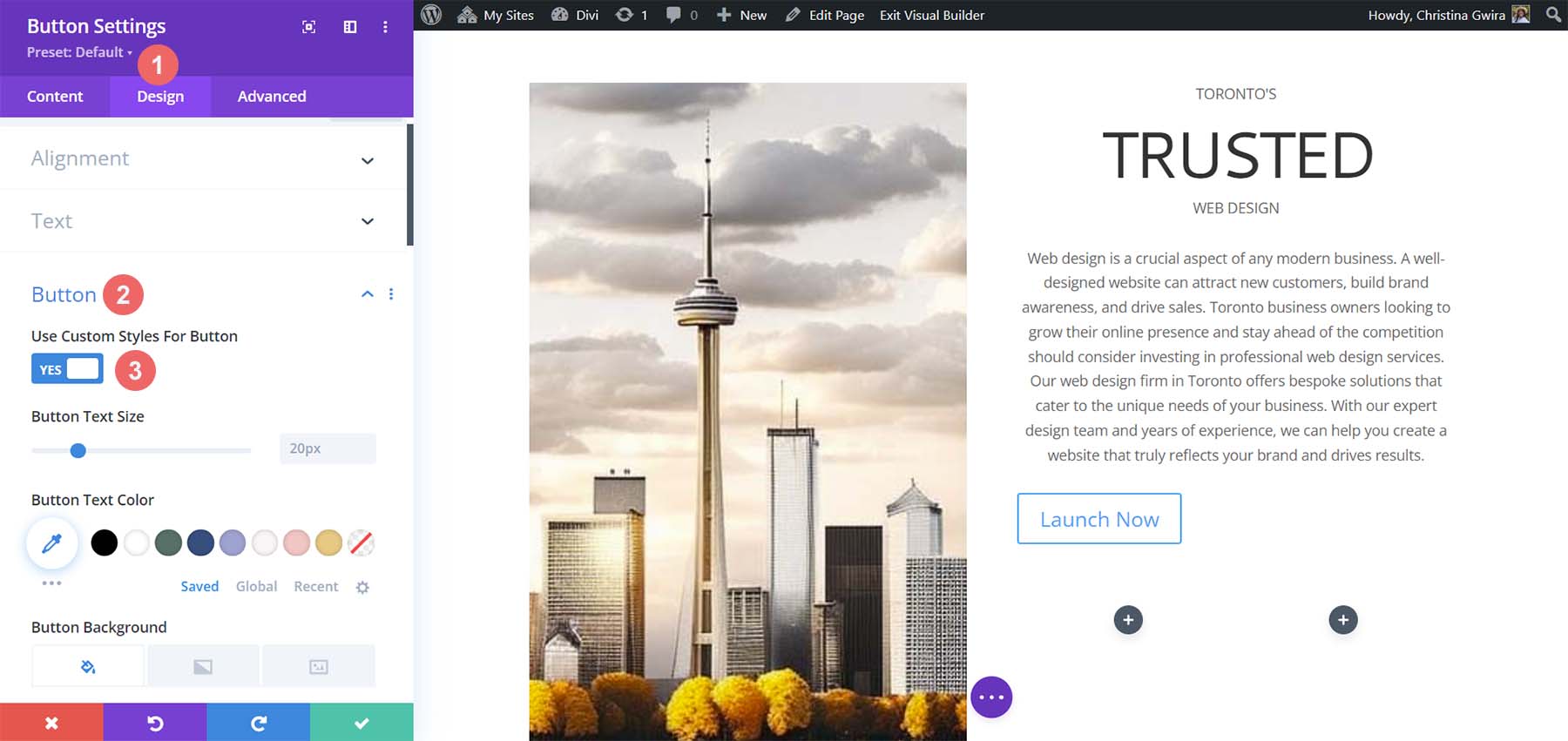
    Then, click on the Design tab and then click the Button tab. For the Use Custom Styles for Button Option, select yes.

    Begin to set custom styles for button

    These are the settings that we’ll be using to style our button.

    Button Design Settings:

    • Button Text Size: 14px
    • Button Text Color: #ffffff
    • Button Background Color: #c1aa85
    • Button Border Width: 0px
    • Button Border Radius: 15px
    • Button Font Style: All Caps
    • Spacing:
      • Top and Bottom Padding: 10px
      • Left and Right Padding: 35px

    This is what our Button Module now looks like after using MidJourney to inspire our design using Divi’s tools.

    Button and Text final preview

    Creating Decorative Columns

    The final design piece of our layout is the decorative columns underneath our copy. To create these, we will need a Divider Module in each column. To begin, click on the gray plus icon and select the Divider Icon.

    Add divider module to column

    While in the Content tab of our Divider Module, de-select the Show Divider option under Visibility.

    Remove divider visibility

    Next, move to the Design tab. From there, click on the Spacing tab. Set the left and right padding to 100%. While it looks like there isn’t much happening with this module, all will be revealed when we add our colors and padding to our sections, rows, and columns. Click on the green check mark to save your changes.

    Add spacing to Divider Module

    Duplicate the Divider Module and move it into the column next to it.

    Duplicate Divider Module

    Adding Backgrounds, Spacing, and Padding

    Now that all our modules are styled and designed, we can add the finishing touches to our homepage layout. For reference, this is where we stand.

    Using ChatGPT and MidJourney with Divi, halway point

    A far cry from the design that MidJourney created for us. However, with a bit of color and spacing, we will be successful at using ChatGPT and MidJourney with Divi.

    To start, let’s click the gear icon of our Specialty section.

    Edit section background color

    Next, click the Background tab. Using our color picker, we deduced that the background color for our section will be #e7e6e4. So, set the background color for our section to #e7e6e4.

    Set section background color

    Now, let’s move to the Design tab. From here, click on the Sizing tab. Here are the settings that you’ll need in the Sizing tab.

    Sizing Design Settings:

    • Equalize Column Heights: Yes
    • Use Custom Gutter Width: Yes
    • Gutter Width: 1
    • Width: 100%
    • Inner Width: 100%
    • Inner Width Max: 100%

    Set section sizing settings

    Now, we move to the Spacing tab. We want all the padding and module within the section to be set to zero. Here are the settings that we’ll be using there.

    Spacing Design Settings:

    • Margin:
      • Top and Bottom: 0px
      • Left and Right: 0px
    • Padding:
      • Top and Bottom: 0px
      • Left and Right: 0px
    • Column 1 Padding:
      • Top and Bottom: 0px
      • Left and Right: 0px
    • Column 2 Padding:
      • Top and Bottom: 0px
      • Left and Right: 0px

    Set all spacing within the section to zero

    Once these settings are in place, remember to save them by clicking the green check mark. With these settings, we can already see that our design in Divi is spacing up to look very similar to that which MidJourney generated.

    Spacing, Backgrounds, and Padding for the Second Column

    We now move on to the second column of our section. We begin editing the first row within this column by clicking on the gear icon for the row.

    Edit the first row within the second column of our section

    While in this row, click on the Design tab. Next, we move to the Spacing tab. Set the padding for the top, bottom, left, and right to 50px. We finish off this section by saving our work.

    Add padding to row

    We move onto our final row, again, clicking on the gear icon to enter the row settings.

    Edit second row or second column

    For the two columns that are a part of this row, we will use the background colors #b0b2b1 and #bfb192 for the first and second columns respectively. Click on the gear icon next to each column.

    Edit columns in the row

    Then, set the background color to each column’s respective color.

    Set background color of each column

    With both columns styled, notice that we are getting closer to our end product. To tie it all together, we need to add some final spacing edits to the row where these decorative columns reside. To start, click on the Design tab of the row. Then, set the Custom Gutter Width to Yes. Set the width of the gutter to 1. Also, activate the Equalize Column Height option.

    Row sizing design settings

    Next, move to the Spacing tab and set the margin and padding to 0.

    Add margin and padding of 0 to row

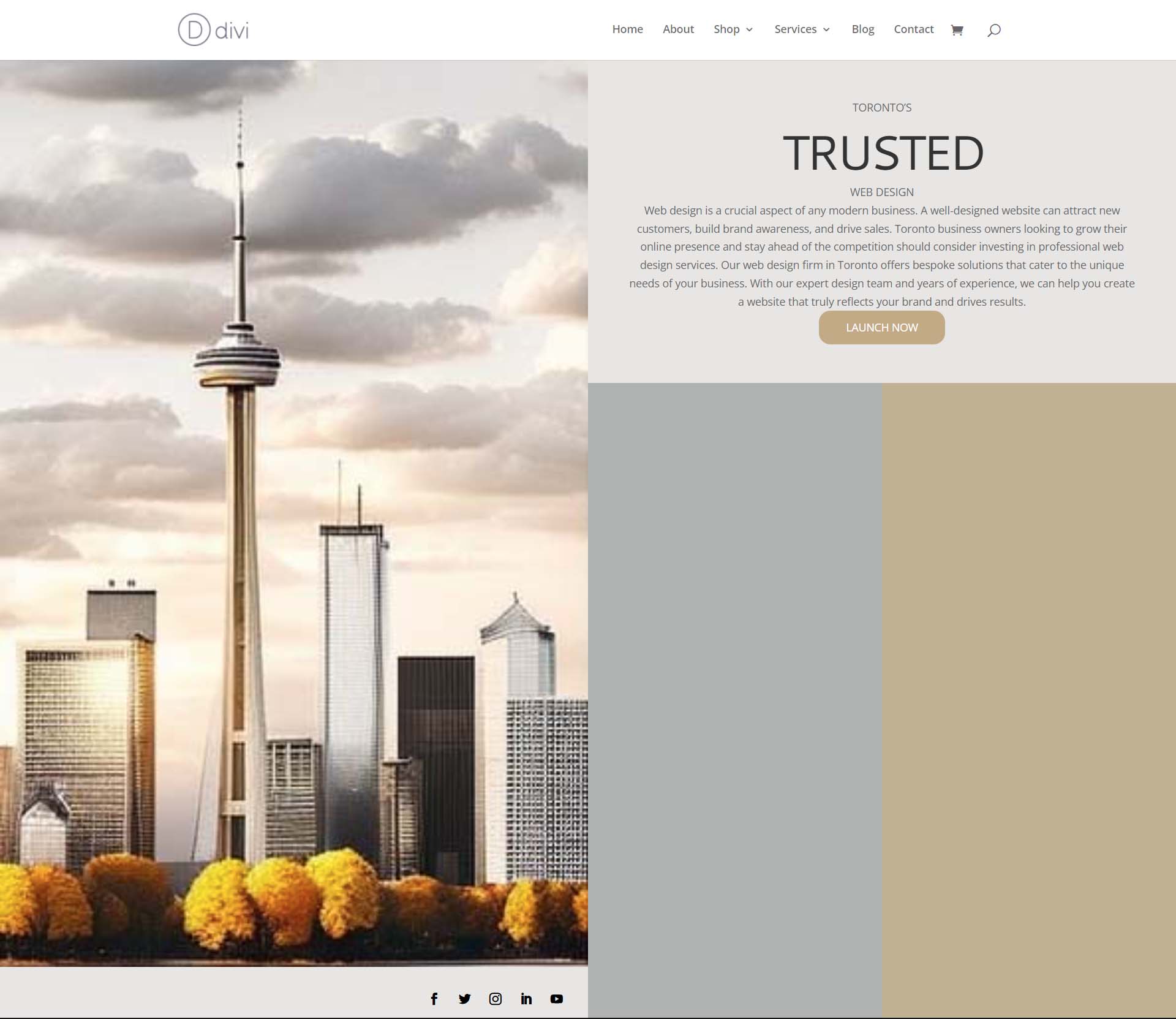
    And with that, we’ve successfully used ChatGPT and MidJourney to create a homepage layout in Divi. Here’s our finished product!

    The results of using ChatGPT and MidJourney with Divi

    Closing Thoughts on Using ChatGPT and MidJourney with Divi

    Using ChatGPT and MidJourney with Divi can help you to brainstorm ideas for your web design faster. Using AI in web design does not necessarily mean the end of digital design as we know it. It is possible to allow AI into your workflow to help speed up processes. AI can also help to bring things to the forefront in terms or concepts that may not have been highlighted. With Divi, it is easy to re-create AI-generated layouts and designs. If you aren’t a natural writer, creating copy for your business or your client’s websites could be difficult. Tools like ChatGPT can help you cover a blind spot you may not have realized you had. Consider using ChatGPT and MidJourney with Divi for your next project.

    Have you started to use AI in your web design business? Would you consider using tools like ChatGPT or MidJourney in your design process? Let us know your thoughts in the comment section below. Let’s get a discussion going!

    The post How to Use AI to Create Amazing Web Design with Divi (Using ChatGPT & MidJourney) appeared first on Elegant Themes Blog.