EDITS.WS

Tag: aioseo

  • How to Use Google Trends to Improve SEO and Grow Your Business

    Are you wondering how to use Google Trends to improve your WordPress website?

    Google Trends is a tool that enables you to find popular keywords, identify trending topics, and research your competitors, which can help improve your website’s rankings.

    In this article, we will show you how to easily use Google Trends for search engine optimization (SEO) and growing your business.

    How to use Google Trends to improve website SEO

    Google Trends is a tool that helps you analyze the popularity of a search term on the Google search engine. It gets data from Google Search, Google News, Google Images, Google Shopping, and YouTube.

    Created by Google, this tool helps you find searches or keywords that are currently trending. Then, you can compare how the search volume for different keywords changes across locations.

    Use Google Trends to improve website SEO

    Using Google Trends can improve the SEO on your WordPress site by helping you find target keywords, research your competition, identify trending topics, and more.

    It’s a completely free Google tool that can also help you find related content ideas for your WordPress blog.

    Plus, if you have an online store, then you can also use Google Trends to help you plan when to display Google Shopping Ads for your products or choose new products for your store.

    That being said, let’s see how to use Google Trends to improve your website SEO and grow your business.

    How to Use Google Trends to Improve Website SEO

    There are many ways to use Google Trends to improve WordPress SEO, improve your website rankings, and get more customers to your website.

    The tool provides you with a bird’s eye view of what’s trending in the world of search, helping you browse through the latest data and find keywords that are related to your niche.

    You can use the quick links below to jump to different parts of our beginner-friendly guide on how to use Google Trends:

    1. Find Search Volume Trends

    Google Trends makes it super easy to find search volume trends for keywords.

    This lets you see how many people are searching for a particular keyword over time. In turn, this can help you decide if you want to use that keyword in your blog content.

    By tracking the search volume for different keywords, you will get a sense of what people are interested in at any given time and identify topics that are currently gaining popularity.

    You can also use Google Trends to research your niche and see what is popular within your industry. For example, if you are thinking of starting a WooCommerce store that sells standing desks, then you can use Google Trends to find out if people are actually interested in that product.

    This way, you can avoid making decisions that won’t make you money and instead focus on niches that have more chance of success.

    To find search volume trends, head over to the Google Trends website and type a keyword of your choice into the search field.

    After that, just click the ‘Explore’ button to continue.

    Find Search volume trends

    Google Trends will now display the search volume of the keyword that you typed as an ‘Interest Over Time’ graph.

    From here, you can even select a region, category, or period of time for the search volume.

    For example, if you want to find the search volume of the keyword ‘Paris’ in 2021 in the USA, then you can use the dropdown menus to configure the settings.

    Once you do that, the search volume trends graph will adjust itself according to the settings.

    Adjust search volume trends

    You can then use this information for different keywords and target audiences from specific regions, languages, and more. This will help you decide if it’s a niche that you want to write about or not.

    If the search term has a downward trend, then the niche may be irrelevant now, and it will be more difficult to sell products and services or reach users with blog posts that target that keyword.

    Similarly, if the search term only peaks during specific seasons, then this means that it’s a seasonal keyword that will only make sales during a certain time of year.

    2. Find Relevant Keywords

    Another amazing feature of Google Trends is that it lets you find keywords that are related to the keyword that you initially searched for.

    For example, if you used Google Trends to search for the Keyword ‘Beach Reads’, then the tool will also show you other relevant terms that you can use in your blog post.

    This can be helpful for targeting a wider audience and improving your website’s SEO.

    To find relevant keywords in Google Trends, you will first need to type a keyword into the search field and click the ‘Explore’ button.

    Find relevant keywords with Google Trends

    Once the search volume for the keyword is shown on your screen, you need to scroll down to the ‘Related Queries’ section.

    Here, you will see the rising related keywords to the one that you searched for.

    Find related queries

    Alternatively, if you want to see the related keywords that are currently trending for this topic, then you can select the ‘Top’ option from the dropdown menu at the top. Google Trends will then display these keywords, along with their search volume.

    This can help you choose related keywords with the highest search volume and add them to your blog posts or design new content around them.

    Find the top relevant keywords

    Expert Tip: Are you looking for a quick and easy way to generate new keywords and content ideas for your blog? You can use our free WPBeginner Keyword Generator Tool and Blog Post Idea Generator to create hundreds of content ideas in just seconds.

    3. Compare Different Keywords

    With Google Trends, you can also compare different keywords to find the one that has more search volume and is more popular with your target audience.

    This can help you discover how each keyword is performing and identify the perfect one that will grab your users’ attention.

    First, you will have to visit the Google Trends website and search for a keyword of your choice. Once the trends for that search term have loaded on your page, just type another related search term into the ‘+ Compare’ field.

    Compare different keywords with Google Trends

    Next, the ‘Interest over time’ graph on the page will show the search volume of the two different keywords.

    You can then make a decision on which keyword to target based on the graph.

    Compare the graph for different keywords

    However, if you are still not sure which keyword to choose, then you can scroll down to the ‘Compared breakdown by subregion’ section, where you will see the search volume of both keywords in different subregions of the country that you chose.

    You can now make a more informed decision by choosing the keyword that is more popular in the region where most of your audience lives. This can be very helpful for local SEO.

    Compare keywords by subregion

    4. Find Trending Topics for Blog Content

    With Google Trends, you can also find new ideas for your WordPress blog content by looking at trending topics.

    By writing about topics that a lot of people are currently interested in, you may be able to increase the traffic to your WordPress website and reach new readers. This is particularly helpful if you run a news website or simply want to jump onto the latest trend.

    To do this, head over to the Google Trends website and switch to the ‘Trending’ tab.

    Take a look at trending topics for blog post ideas

    Here, the tool will display all the topics that are currently trending across the internet.

    You can also choose a country from the dropdown menu to take a look at the topics that are trending in areas where most of your audience is.

    5. Analyze Competitors

    You can also use different features in Google Trends to analyze the growth of your competitors.

    For example, you can compare your competitors with your business by typing in both business names. Google Trends will then show you a graph detailing the growth of each term over time.

    You can then further analyze the countries where your competitors are more popular by using the dropdown menu at the top.

    Analyze competitors with Google Trends

    You can also see the regions where your competitors are more popular by scrolling down to the ‘Compared breakdown by subregion’ section.

    You can even download this comparison as a comma-separated values file by clicking on the ‘CSV’ button.

    Compare competitors by subregion

    To further analyze your competitors, just type their company or blog name into the keyword field.

    Once you do that, you can scroll down to the ‘Related Queries’ and ‘Related Topics’ sections to see the topics and keywords that your competitors are associated with.

    You can then start planning to create your own content that targets these keywords and topics.

    Keyword search for competitors

    6. Use Google Shopping Data to Advertise Your Products

    If you run a WooCommerce store, then you may wish to submit your products to Google Shopping. This means that your items will be displayed in the Google Shopping tab and may even appear at the top of the search results for some keywords.

    Google Trends can help you design your ad campaigns on Google Shopping and decide the best time to advertise particular products on that platform. The data can also tell you the best time to design your own marketing campaigns.

    For example, you can get more sales by displaying a Google Shopping ad for your coats during the winter. Using a popup marketing tool like OptinMonster, you can also showcase your winter products to visitors on your website at the same time.

    To see Google Shopping data, you will need to type the search term for a product into the Google Trends website. Once the search volume for the term loads on your screen, simply select the ‘Google Shopping’ option from the dropdown menu on the right.

    Plan Google Shopping ads with Google Trends

    After that, Google Trends will show the popularity of the product in Google Shopping using the ‘Interest Over Time’ graph.

    You can also select different regions and time periods to collect further information about the product.

    Google Shopping ads trends

    If there is a high interest in a particular kind of product during particular months, then this is a sign that you should advertise your product at that time.

    7. Generate Ideas for YouTube Videos

    If you have a YouTube channel for your WordPress website, then you can also use Google Trends to generate ideas for your videos. This will help you make YouTube videos for topics and keywords that are currently trending on the platform.

    To do this, simply type a search term of your choice into the Google Trends website and wait for the search volume to load on the screen.

    After that, simply select the ‘YouTube Search’ option from the dropdown menu on the right. Google Trends will now display the search volume of the keyword on YouTube.

    Generate ideas for YouTube videos

    This will help you figure out if the keyword you searched for is a topic that users are interested in or if the trend has died down.

    You can also get new ideas for YouTube videos by scrolling down to the ‘Related Queries’ and ‘Related Topics’ sections. Here, you will find more relevant keywords and ideas that you can use to create a YouTube video.

    Bonus: Use AIOSEO to Optimize Your Website for Search Engines

    In this post, we showed you how you can use Google Trends to find target keywords, research your competition, and find the search volume of different topics and keywords.

    However, Google Trends itself can’t actually optimize the content on your WordPress website.

    This is where All in One SEO for WordPress comes in.

    It is the best WordPress SEO plugin on the market that makes it super easy to optimize your content to improve search engine rankings.

    The All in One SEO (AIOSEO) search engine optimization plugin

    The plugin comes with a suite of incredible features, including SEO analysis, a headline analyzer, schema markup, XML sitemaps, redirects, and more.

    AIOSEO even offers a Chrome extension, meaning that you can check your website’s SEO without even logging in to your WordPress dashboard.

    Some of its other features that help optimize your content include:

    • On-page analysis that provides recommendations on how to improve your content for specific keywords and general SEO.
    • Social media integrations to attract more visitors to your website.
    • The image SEO feature makes it easier for search engines to index your images.
    • The search statistics feature allows you to track your keyword rankings and monitor SEO metrics to improve your content over time.
    • You can also detect critical errors on your WordPress site and get insights to boost SEO using the SEO audit checklist feature.

    For details, you may want to see our list of unique things you didn’t know about All in One SEO.

    We hope this article helped you learn how to use Google Trends to improve website SEO and grow your business. You may also want to see our ultimate SEO guide and our expert picks for the best analytics solutions for WordPress.

    If you liked this article, then please subscribe to our YouTube Channel for WordPress video tutorials. You can also find us on Twitter and Facebook.

    The post How to Use Google Trends to Improve SEO and Grow Your Business first appeared on WPBeginner.

  • 13 WordPress Site Settings That are Critical for SEO Success

    Do you want to learn about WordPress site settings that are most critical for SEO success?

    Many different plugins can improve your search engine rankings and drive more people to your website. However, it is vital that you get your site’s foundations right by fine-tuning the WordPress site settings.

    In this article, we will look at all the WordPress site settings that are critical for SEO success.

    WordPress site settings that are critical for SEO success

    Why Are WordPress Site Settings Critical for SEO Success?

    Search engines are a major source of traffic for most websites, so it’s important to optimize your site for SEO.

    There are countless tips, tricks, plugins, and best practices that can boost your search engine rankings. However, the wrong site settings can completely undermine all your SEO efforts, and may even stop your WordPress blog from showing up in search results.

    If you ignore some basic WordPress site settings, then you’re almost certainly missing out on easy ways to fine-tune your SEO and get more visitors to your WordPress website. Plus, these settings are built-in so you don’t need to worry about installing any extra plugins, making them an easy win even if you’re just getting started with SEO.

    With that being said, let’s look at all the WordPress site settings that are critical for SEO success. Simply use the quick links to jump straight to the setting you want to learn about.

    1. Be Sure Your Site Is Visible to Search Engines

    Before you start changing any WordPress site settings, it’s important to check that search engines can see your content. This is particularly important if you’ve just created a website, or previously made your WordPress blog private.

    To do this, go to Settings » Reading in the WordPress dashboard. Then, find the following checkbox: ‘Discourage search engines from indexing this site.’

    WordPress site settings that are essential for SEO

    If the box is checked, then uncheck it. Then, click on ‘Save Changes’ to store your settings.

    Now, search engines such as Google should have no problems finding your website, and showing it to people who are searching for content just like yours.

    2. Set WordPress Plugins and Themes to Auto-Update

    WordPress themes and plugins are a big reason why WordPress is so popular and has such a huge CMS market share. However, if you don’t keep this software up to date, then it can damage your website’s search engine rankings.

    When a security vulnerability is discovered in a theme or plugin, the developer will usually release an update that fixes the issue and keeps users safe.

    With that in mind, outdated themes and plugins can put your site at risk. In fact, hackers often target websites that are running older versions of themes and WordPress plugins.

    If your website gets hacked, then it can have a big impact on your rankings and traffic. Search engines such as Google may even remove a hacked website from its index, so your content stops appearing in relevant search results.

    Google Chrome and other browsers will even block visitors from accessing your site if they believe it has been compromised, even if it hasn’t been hit with an SEO penalty yet.

    Outdated software also has a higher chance of causing crashes, conflicts, and many other common WordPress errors. It may even affect your website’s speed and performance. All of this can hurt your site’s SEO.

    The good news is that you can set both themes and plugins to update automatically using the built-in WordPress site settings. For step-by-step instructions, please see our guide on how to enable automatic updates for WordPress plugins and themes.

    3. Organize Your Content With Categories and Tags

    Categories and tags help organize your posts and make it easier for visitors to find what they’re looking for. You can even add categories to a custom post type in WordPress.

    Adding categories and tags to a WordPress post

    For step-by-step instructions, please see our beginner’s guide on how to add categories and tags for WordPress pages.

    Categories and tags don’t directly affect your site’s SEO, but they can boost your rankings by improving the user experience and giving you internal linking possibilities. By helping visitors find relevant and interesting content, you can often increase pageviews and reduce bounce rate in WordPress.

    This is a strong sign that visitors are enjoying your content. When ranking pages and posts, search engines such as Google try to show the best content first. In this way, anything that improves the user experience and keeps people on your site can indirectly boost your SEO.

    Once you’ve added relevant and helpful tags to your WordPress posts, you may want to fine-tune how this information appears in the search results.

    The easiest way to do this is by using AIOSEO. It is the best WordPress SEO plugin on the market and gives you complete control over your WordPress tags and categories.

    AIOSEO's categories and tags settings

    AIOSEO stop can also search engines from indexing your WordPress website’s category and tag archive listings.

    In this way, you can avoid duplicate content, which confuses search engines and forces them to choose which duplicate page should rank higher than the other. This is a waste of crawl budget, since the search engines will spend time analyzing and indexing identical content while ignoring your site’s unique content.

    Excluding categories and tags using the All in One SEO WordPress plugin

    For a complete guide on how to create SEO-friendly categories and tags, please see our SEO best practices for sorting your content.

    4. Add Descriptions to Your Category Pages

    Whenever you create a category, you have the option to add a description. This will appear on the category archive page, and can introduce the content to visitors.

    An example of an SEO-optimized category description

    It can also help the search engines understand the category’s content, and show it to people who are looking for content just like yours.

    To add a category description in WordPress, simply go to Posts » Categories.

    Adding a category description in WordPress

    You can now type in the category name, create a slug, and add an optional parent category.

    To add a description, simply type into the ‘Description’ field.

    How to add a category description to an archive page

    When you’re happy with the information you’ve entered, click on ‘Add New Category.’

    Do you want to add a description to a category that already exists? Then simply click on the ‘Edit’ link next to that category.

    Editing a WordPress category description

    You can then go ahead and type in a description.

    Finally, click on ‘Update’ to save your changes.

    When analyzing your pages, search engines don’t just look at the page content. Instead, they use many different factors to rank and display your content including permalink structure.

    By optimizing your URLs, you can help search engines understand what the page is about, so they can show it to the right people at the right time.

    Note: If your site is over 6 months old, then changing the permalink structure will most likely damage your SEO. If you do decide to change the permalinks on an established website, then it’s important to setup proper redirects.

    By default, WordPress uses the post name in its URL. For example, a post with the title ‘How to Install WordPress’ will usually have a URL like this:

    www.wpbeginner.com/how-to-install-wordpress
    

    This is a great start, but it’s still worth reviewing your website’s permalink structure to make sure it’s working well for your content. To do this, head over to Settings » Permalinks in the WordPress dashboard.

    Optimizing your WordPress permalinks using the WordPress site settings

    Here, you’ll see all the different permalink structures that you can use:

    • Plain (https://www.wpbeginner.com/?p=123). Sometimes also called the Ugly Permalink, this uses the post’s unique ID in the WordPress database. This ID doesn’t give search engines any information about the post’s content, so we don’t recommend using this permalink structure.
    • Day and name (https://www.wpbeginner.com/2016/01/22/sample-post/). This adds the month and year to the URL. This may be a good option if you post time-sensitive content, such as articles on a news website. However, this structure can create very long URLs and your content will start to look outdated very quickly. With that in mind, we don’t recommend using the day and time structure, especially if you’re trying to create evergreen content.
    • Numeric (https://www.wpbeginner.com/archives/123). This option uses the post ID from the row in your database’s wp_posts table. Similar to the Plain structure, this information doesn’t mean anything to the search engines, so this isn’t an SEO-friendly permalink structure.
    • Post name (https://www.wpbeginner.com/sample-post/). This uses the title of the page or post. Post name is a good choice for most websites, especially if you’re using a headline analyzer to improve your titles.
    • Custom (https://www.wpbeginner.com/%category%/%author%/%postname%/). The final option is a custom structure that uses various different tags. This is a particularly good option if you have lots of different content organized into categories. By adding the category name to the permalink structure, you can help search engines understand your content and organize it correctly in the search engine index. Adding the author to the permalink structure can help boost your site’s expertise and authority score with Google, too.

    For more detailed instructions, please see our guide on how to create custom permalinks.

    6. Install an SSL Certificate on Your WordPress Website

    SSL stands for Secure Sockets Layer. It’s an internet protocol that helps you securely transfer data between a user’s browser and your website.

    An SSL certificate is essential if you collect sensitive visitor data, for example if you accept credit card payments in WordPress. However, it can also improve your SEO.

    With an SSL certificate in place, visitors will see a padlock next to your website’s address in their web browser. They can click on the padlock to see information about your SSL certificate, plus a confirmation that the connection is secure.

    An example of a secure website with an SSL certificate

    By making them feel safe, an SSL certificate can keep visitors on your site for longer, which sends positive signals to the search engines. There is also evidence that search engines such as Google use SSL certificates as a ranking factor.

    If you’re just getting started and have a limited budget, then you can get a free SSL certificate for your WordPress website.

    However, many of the top WordPress hosting providers offer an SSL certificate as part of their packages. For example, SiteGround, Hostinger, and Bluehost all offer free SSL certificates to their customers.

    Once you have an SSL certificate, you’ll need to add it to WordPress. For step-by-step instructions, please see our guide on how to properly move WordPress from HTTP to HTTPS.

    7. Add Alt Text to Your Images

    When uploading an image, it’s a good idea to add alt text. Also known as alternative text, this is an HTML attribute that WordPress adds to the image’s ‘img’ tag.

    Accessibility tools such as screen readers use alt text to help visually-impaired users understand a site’s images.

    Even though it’s an important accessibility feature, search engines also use alt text to understand an image’s contents. With that being said, it’s smart to use descriptive alt text and include relevant keywords wherever possible.

    Google also includes the alt text in its image search, so helpful and interesting alternative text may increase your blog traffic.

    An example of a Google image search

    Usually, alt text won’t be visible on your WordPress website, but it may appear if the image is broken or can’t be found.

    In this way, alt text can help visitors understand the image’s contents, even when they can’t see the image due to an error or a poor internet connection.

    An example of a WordPress image error message

    When uploading an image to the WordPress media library, simply type your alternative text into the ‘Alt text’ field.

    WordPress will now use this alternative text every single time you add that image to a WordPress page or post.

    Adding image alt text using the WordPress site settings

    If you’ve already added an image to the WordPress content editor, then simply click to select the Image block.

    Then, type into the ‘Alt Text’ field in the right-hand menu. Just note that adding alt text to an image through the block editor will not add it to the media library.

    Adding alt text to a WordPress image

    For more detailed information on alt text, please see our beginner’s guide to image SEO.

    8. Create a User-Friendly Navigation Menu

    The longer people stay on your website, the more likely you are to rank highly in search engine results. With that in mind, it’s important to create helpful, eye-catching, and logical navigation menus.

    These menus will help visitors find interesting content, which will keep them on your WordPress website for longer. It can also improve important metrics, such as the average number of pages visited.

    The exact location of your menu will vary depending on your WordPress theme, but most themes have several options. This means you can create different menus and then show them in different places.

    For example, most WordPress themes come with a primary menu that appears on the top of the screen. Some themes may include a secondary menu, a footer menu, or a mobile navigation menu as well.

    To create a navigation menu, simply go to the Appearance » Menus page in your WordPress admin dashboard.

    Creating a WordPress navigation menu

    Here, you can create multiple menus, and add pages, posts, and even custom links to those navigation menus.

    For step-by-step instructions, please see our guide on how to add a navigation menu.

    If you have lots of content, then the default navigation menu can quickly become confusing and overwhelming for visitors. If your menu is starting to look cluttered, then you can easily turn the default menu into a dropdown menu.

    An example of a dropdown navigation menu

    9. Protect Against Comment Spam

    A lively comment section can keep people on your website for longer, and encourage them to pay repeat visits, which can indirectly improve your SEO. Even better, if commenters use relevant keywords then their conversations can directly boost your SEO, too.

    This is all good news for your search engine rankings, but there’s still a big problem every website owner should know about: comment spam.

    Spammers and spambots may try to post off-topic, low-quality comments and malicious links on your website. If you publish these comments, then it can hurt your search engine rankings. In the worst-case scenario, your site may even get blacklisted by Google.

    With that being said, it’s important to moderate your comments using the WordPress site settings. To get started, go to Settings » Discussion.

    Changing the WordPress comment settings

    Here, you’ll find lots of WordPress settings that give you more control over comments. For example, you can help combat spam by making it mandatory for comment authors to provide a name and email address.

    For a detailed look at these settings, please see our beginner’s guide on how to moderate comments in WordPress.

    Another option is to disable comments completely. This will make it more difficult for visitors to engage with your content, but it’s also a guaranteed way to block all spam comments.

    If you do decide to disable comments, then uncheck the option that says ‘Allow people to submit comments on new articles.’

    Disabling the comments on a WordPress blog or website

    For a more in-depth look at this topic, please see our guide on how to completely disable comments in WordPress.

    If you do make any changes in the WordPress site settings, then make sure you click on ‘Save Changes’ to store your settings.

    10. Review the WordPress User Permissions

    Some website owners share the WordPress dashboard with multiple people. For example, you might run a multi-author WordPress blog or allow users to submit posts.

    In this case, it’s important to control the actions that users can take on your site, and the information they can access.

    If people have unlimited access to your WordPress dashboard, then they might make changes that affect your SEO. For example, they may change the settings in an important SEO plugin, publish a blog that’s not properly optimized for SEO, or approve spammy comments.

    Thankfully, WordPress comes with built-in site settings that allow you to control what a user can and can’t do. By default, there are 5 roles to choose from: admin, editor, author, contributor, and subscriber.

    To learn more about these default roles, please see our beginner’s guide to WordPress user roles and permissions.

    To change a user’s role, simply go to Users » All Users. Here, hover over the account that you want to change, and click on the ‘Edit’ link when it appears.

    Changing the user permissions on a WordPress website

    With that done, scroll to the ‘Role’ section and open the dropdown menu.

    You can now choose a new user role from the list.

    Boost your SEO using the WordPress site settings

    When you’re happy with these changes you’ve made, click on the ‘Save Changes’ button.

    Pro Tip: Want to change these default user roles? Then see our guide on how to add or remove capabilities to user roles in WordPress.

    11. Check Your WordPress Sitemap

    A sitemap is a file that lists all your site’s content in a machine-readable format. This acts as a roadmap that helps search engines discover all your pages, and index them properly.

    A sitemap also tells search engines which links are more important, and how frequently they get updated. In this way, you can encourage search engines to prioritize indexing your site’s best or highest-value content, so it appears in search results more quickly.

    The good news is that WordPress creates a sitemap automatically. To see your sitemap in action, simply type in your domain name and then add /sitemap.xml to the end. For example, www.example.com/sitemap.xml.

    The default WordPress sitemap

    The default sitemap may be a good fit for some small business websites, or sites that only have a small amount of content. However, there’s no way to customize the default sitemap, which can be a problem for many website owners.

    The best way to create a powerful, fully customizable sitemap is by using AIOSEO. You can use this plugin to add or remove post types, categories and tags from your sitemap. You can also enable XML sitemaps for date-based archives and author archives.

    Creating a powerful and customizable sitemap using AIOSEO

    AIOSEO even allows you to add external pages to the WordPress sitemap.

    This is perfect if you have stand-alone pages like a contact form, a landing page, or Shopify store pages. With a custom sitemap, you can tell search engines to crawl this content, even if they’re not part of your WordPress website.

    Adding external pages to a WordPress sitemap

    For step-by-step instructions, please see our guide on how to create a sitemap in WordPress.

    12. Test the Mobile Version of Your WordPress Website

    More than 50% of visitors will access your site using a smartphone or tablet, so your WordPress website must be mobile-friendly. In fact, Google will most likely index your site’s mobile version rather than its desktop version.

    Even if you’re using a responsive WordPress theme, it’s still important to check how your site looks on mobile.

    You can preview the mobile version of your WordPress site using the WordPress theme customizer. In the dashboard, head over to Appearance » Customize.

    Opening the WordPress customizer

    At the bottom of the screen, simply click the mobile icon.

    WordPress will now show a preview of how your site looks on mobile devices. You can use this view to locate any mobile-site issues that might cause Google or other search engines to penalize your website.

    For example, if your content is unreadable or doesn’t display at all, Google will note that and potentially deem your site’s UX to be bad for visitors and move you down in search results.

    Testing the mobile version of your website using the built-in WordPress site settings

    For more detailed instructions, please see our guide on how to view the mobile version of WordPress sites from desktop.

    13. Install an SEO WordPress Plugin (BONUS)

    In this guide, we showed you how to improve your SEO using the built-in WordPress site settings. This is a great start, but there are lots more ways to fine-tune your content for the search engines, improve your rankings, and get more visitors to your WordPress website.

    If you want to take your SEO to the next level, then we recommend installing AIOSEO. AIOSEO adds a new area to the WordPress content editor where you can type in the exact post title and meta description that should appear in the search engine results.

    Adding a meta description to a WordPress page or post

    You can also type in the focus keyphrase that you want to rank for.

    AIOSEO will then scan your content and show a list of actions you can take to improve your ranking for that focus keyword.

    Adding a focus keyphrase or word to WordPress

    The key to SEO success is to monitor your site’s performance, and then constantly make changes to improve that performance.

    AIOSEO can analyze your site and show an overall SEO score. In this way, you can quickly and easily check if your website is SEO optimized.

    The All in One SEO's site score feature

    It’ll also create an SEO checklist of any critical issues you need to address, and improvements you can make to boost your overall score.

    For help getting started, please see our ultimate guide on how to set up All in One SEO for WordPress correctly.

    We hope this article helped you learn the top WordPress site settings that are critical for SEO success. You may also want to see our guide on how to install Google Analytics WordPress, or see our expert picks for the best web push notification software.

    If you liked this article, then please subscribe to our YouTube Channel for WordPress video tutorials. You can also find us on Twitter and Facebook.

    The post 13 WordPress Site Settings That are Critical for SEO Success first appeared on WPBeginner.

  • Should You Keep or Delete Old Content in WordPress? (Expert Opinion)

    Are you wondering about the best way to handle old posts in WordPress?

    Over time, some of your content may become outdated, irrelevant, or inaccurate. This can lead to a bad user experience and a drop in your site’s SEO rankings.

    In this article, we will discuss whether it’s better to keep or delete old posts in WordPress.

    Should You Keep or Delete Old Content in WordPress? (Expert Opinion)

    What Is the Problem With Old Content in WordPress?

    As you grow your website, you might focus on creating new content. However, old content can quickly become a problem on growing WordPress blogs. It can affect your business, sales, and profits if left unchecked.

    Depending on your niche, your content may become irrelevant, incorrect, or inappropriate over a period of time. This may cause a bad user experience, a higher bounce rate, and lower search rankings. It can also hurt your credibility.

    In our guide on content decay, we explain why some of your older articles decline in rankings. We also show you how to find decayed content using an SEO plugin like All in One SEO.

    Content rankings in AIOSEO

    You may also have old articles that are still ranking but now contain outdated information. There is no easy way to find this content except to systematically review all of your articles. Then, you can decide if you should keep or delete the old content.

    Should You Keep or Delete Old Content in WordPress? (7 Scenarios)

    Luckily, there are a number of ways you can handle old posts so that your website doesn’t suffer. The best approach will vary depending on each post, and it normally won’t be a choice between simply keeping or deleting the content.

    For example, you may want to keep evergreen content that is decaying in rankings. However, you will also need to update that content so it’s up-to-date and accurate to boost rankings.

    On the other hand, deleting old posts that are no longer relevant can improve user experience and your site’s SEO. But you will also need to redirect the posts to avoid 404 errors.

    For most blogs, a combination of strategies will be the right answer.

    With that being said, let’s take a look at some different ways you can deal with old content on your WordPress website:

    1. Schedule Regular Content Updates

    Whether your old posts contain outdated information or not, it’s important to update or rewrite them from time to time to keep them fresh.

    That’s because Google takes into account the freshness of an article when ranking your content. In general, it will prioritize newer posts over older posts.

    At WPBeginner, we update our old content at least every 6 months. In fact, as soon as a post is published, we schedule an update.

    We recommend that you schedule regular content updates on your own website.

    Start a new revision to schedule for a content update

    You will need to update any details of the post that are now out-of-date and add any new information that wasn’t available when the post was first written.

    You can also add internal links to relevant posts that you have recently published, and you may need to update the keywords used in the article to match current search trends.

    Don’t forget to also update the images in the post, and you can improve engagement by embedding video content.

    We recommend that you work through our checklist on how to optimize your blog posts for SEO when updating or rewriting content. This post even has a section on how to optimize older blog posts.

    2. Promote Your Old Evergreen Posts

    If an old post contains evergreen information that is still accurate, then it may be overlooked as it gets buried deeper on your website.

    Promoting older relevant articles allow you to maximize your traffic potential. It gives your visitors the chance to read old and evergreen content.

    Plus, you can attract new visitors to your site by sharing old valuable blog posts. This way, your best content always stays visible to users on your WordPress site, and they help generate more traffic.

    You can make regular time in your schedule to share your old posts on social media, link to them in your new articles and roundup posts, or use an automated plugin like Revive Old Posts.

    The Revive Old Posts Plugin

    You will find the details for these and other proven methods in our guide on how to promote old posts in WordPress.

    We also have a post on some ways you can automatically share your old WordPress posts.

    3. Add Old Post Notifications

    Once you start scheduling post updates, you won’t be able to update them all at once. So, what should you do with the old posts until you find the time?

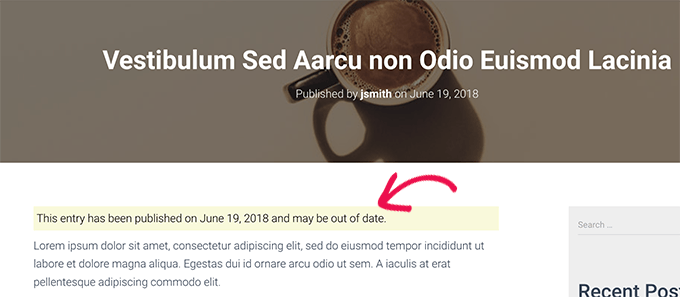
    For posts that are not as fresh as you would like but are still accurate, you can add an old post notification at the top of the post. This will make your readers aware that they are not reading the latest information on the topic.

    Old post notification displayed on an article

    Another solution that many blogs use is simply adding the ‘Last updated date’ instead of the publishing date. That way, readers can quickly see the last time that you changed the content.

    For further information, you can see our guide on how to add an old post notification on your WordPress blog.

    4. Unpublish Posts While Waiting to Rewrite Them

    If an old post now contains inaccurate information that you don’t want visitors to see, then you can unpublish it until you find time to update it with accurate information.

    The post will no longer be visible to your website visitors but will remain in your dashboard as a draft. Once you update the post, you can publish it again.

    To unpublish a post, you need to start by editing it. After that, you should click the ‘Switch to draft’ button at the top of the page. This will bring up a popup confirming that you want to unpublish the post.

    Click switch to draft

    Alternatively, instead of unpublishing an article, some website owners prefer to password-protect the content or make it visible to members only. We have detailed instructions on all of these methods in our guide on how to unpublish a WordPress page.

    Keep in mind that removing a live post from your site can cause broken links and may affect your WordPress SEO, so you will want to think about this carefully.

    You can temporarily redirect the URL to another relevant page so you don’t lose SEO rankings. We show you how to do this in the ‘Redirect Deleted, Archived, and Unpublished Posts’ section later in this article.

    5. Delete or Archive Old Posts You Want to Remove From Your Site

    What if you have content that you no longer wish to show on your WordPress website? Maybe the post is no longer relevant, or you have decided to take your website in a new direction.

    In that case, you can delete the post or archive it like you archive your emails.

    To delete a post, you just need to edit it and then click the ‘Move to trash’ button in the right-hand menu. WordPress will send that page to the trash.

    Move page to trash

    By default, WordPress automatically deletes anything in the trash after 30 days, so you still have time to change you have time to change your mind.

    We show you how to recover deleted posts from the trash later in this article.

    To archive a post, you need to install and activate the LH Archived Post Status plugin. Upon activation, the plugin adds a custom post status called ‘Archived’ to your posts, pages, and custom post types.

    You can archive a single post or page by editing it. When you click on the ‘Status’ dropdown menu, you will see the new ‘Archived’ post status.

    Archiving a Single Post

    Simply select the ‘Archive’ status, and then click the ‘Update’ button at the top of the screen.

    Your post will be marked as archived, and it will stop appearing on the front end of your site. Your website visitors will no longer be able to see it.

    If you want to use the content again in the future, then you can edit it if necessary and then publish it by changing the post status back to ‘Published’.

    You can learn more in our guide on how to archive posts without deleting them in WordPress.

    Whether you delete or archive the post, you should redirect the URL to a relevant post that’s still visible on your website. Otherwise, your users will see a 404′ page not found’ error message when they try to visit the page

    See the next section for details.

    6. Redirect Deleted, Archived, and Unpublished Posts

    Once you have deleted, archived, or unpublished a post, your visitors will see a 404 ‘page not found’ error if they try to visit the page by clicking on a link or bookmark they have saved.

    This provides a bad user experience and can impact your WordPress SEO, so we recommend you send the user to a different but related page on your website using a 301 redirect.

    The simplest way to manage and create redirects is with the All in One SEO (AIOSEO) WordPress plugin. It’s the best SEO plugin for WordPress and is used by over 3 million professionals to improve their site’s SEO.

    On the All in One SEO » Redirects page, you can enter the ‘Source URL’ of the page you deleted and the ‘Target URL’ of the post you want to send your visitors to.

    Enter Source URL and Target URL

    Now make sure that the Redirect Type is ‘301 Moved Permanently,’ and then click the ‘Add Redirect’ button.

    There are several other ways you can create redirects, and you can learn about them in our beginner’s guide to creating 301 redirects in WordPress

    Bonus: Recover Deleted Posts

    If you unpublished a post and changed your mind, then you can simply publish it again.

    But you might be wondering what to do if you change your mind about a post you deleted. Luckily, you may be able to recover it from the trash.

    Just like your computer, WordPress moves deleted items into a trash folder. This removes those items from your website and admin screens, but they are not deleted permanently right away.

    After 30 days, WordPress will permanently delete the item from the trash and database. If the page you deleted is still in the trash, then you can go ahead and restore it.

    You will need to go to Posts » All Posts (or Pages » All Pages if you wish to restore a page) inside your WordPress admin area.

    From here, you must switch to the ‘Trash’ tab to view all the posts that have been deleted during the last 30 days.

    Restoring a Post From the Trash

    If the post you want to recover is listed there, then simply take your mouse over the page title, and you will see the option to ‘Restore’ it.

    If it is not still in the trash, then you may be able to restore it from a backup. For this and many other reasons, we recommend setting up regular WordPress backups.

    You will find detailed instructions on all of these methods in our guide on how to recover and restore deleted pages in WordPress.

    We hope this tutorial helped you learn whether to keep or delete old content in WordPress. You may also want to see our guide on how to write a great blog post or our expert pick of the best content marketing tools and plugins for WordPress.

    If you liked this article, then please subscribe to our YouTube Channel for WordPress video tutorials. You can also find us on Twitter and Facebook.

    The post Should You Keep or Delete Old Content in WordPress? (Expert Opinion) first appeared on WPBeginner.

  • How to Redirect Your 404 Page to the Home Page in WordPress

    Do you want to redirect your 404 page to your home page in WordPress?

    Redirecting the 404 ‘Not Found’ page to your website’s home page can help reduce your bounce rate and allow your users to discover other useful content on your website.

    In this article, we will show you how to redirect your 404 page to your home page in WordPress.

    How to Redirect Your 404 Page to the Home Page in WordPress

    Why Redirect Your 404 Page to Your WordPress Home Page?

    When a user tries to visit a page that doesn’t exist on your WordPress website, WordPress will show them a 404 error page instead.

    The wording and appearance of this page can vary depending on the theme you are using.

    Default WordPress 404 page

    Most users who land on the default 404 page will leave your site quickly. This can increase your overall bounce rate and negatively impact your search engine rankings.

    That’s why you should take the time to create a custom 404 page. However, until you do that, you can take the shortcut in this tutorial and redirect users to the homepage.

    In a perfect world, you would also redirect specific 404 error requests to the most relevant pages.

    That being said, let’s look at how to redirect all 404 errors to your home page. We will cover two methods and also show you how to create custom redirects for individual pages:

    Method 1: Redirect All 404 Errors to the Home Page in WordPress

    For this method, we will be using All in One SEO for WordPress (AIOSEO). It is the best WordPress SEO plugin that allows you to set up redirects, optimize your content for search engines, and more.

    The first thing you need to do is install and activate All in One SEO (AIOSEO). For more details, see our step-by-step guide on how to install a WordPress plugin.

    Note: There is a free version of All in One SEO, but we will be using the Pro version since Redirect is a Pro addon.

    Once the plugin is activated, you need to go to All in One SEO » Redirects.

    If you haven’t set up redirects yet, then you must click the ‘Activate Redirects’ button.

    Activating Redirects in All in One SEO

    This will install All in One SEO’s Redirects module.

    Next, you will need to click on the ‘Settings’ tab at the top of the page. This page allows you to configure redirects in AIOSEO.

    The AIOSEO Redirects Settings Page

    You need to scroll down the page until you find the ‘Advanced 404 Settings’ section. Enable this section by simply clicking the toggle button so that it turns blue.

    Now you will be able to see some more settings. You should toggle the ‘Enable default 404 redirect’ button to the on position. After that, make sure that the ‘Home Page’ option is selected.

    Enabling Default 404 Redirect in AIOSEO

    Notice that there’s also a ‘Custom URL’ option. This allows you to redirect 404 errors to any post or page. Don’t forget to click the ‘Save Changes’ button at the top or bottom of the page to store your settings.

    Now when your visitors try to visit a URL on your website that doesn’t exist, they will be taken to the home page instead of seeing the default 404 page.

    Method 2: Redirect All 404 Errors to the Home Page Using Code

    If you prefer not to use a plugin, then you can use a simple code snippet to redirect all 404 pages to the homepage.

    In this method, you need to add code to your WordPress files. If you haven’t done this before, then see our beginner’s guide on pasting snippets from the web into WordPress. You may also like to see our guide to the WordPress theme template hierarchy.

    First, you will need to create a new file in your WordPress theme folder and name it 404.php. If your theme already has a 404.php file, then you must edit that file instead.

    To edit this file, you need to connect to your WordPress hosting account with an FTP client or their file manager tool.

    FTP 404 php file

    Once you are connected to your website, you will be able to see the 404.php file in your WordPress themes folder.

    You need to add the following code as the first line in your 404.php file:

    <?php
    header("HTTP/1.1 301 Moved Permanently");
    header("Location: ".get_bloginfo('url'));
    exit();
    ?>
    

    Next, save the 404.php file and reupload it to your theme directory using FTP or your hosting control panel.

    Now, when a page is not found, instead of seeing a 404 page, visitors will be redirected to your WordPress home page.

    Bonus: Set Up Custom 404 Page Redirects With AIOSEO

    The best and most SEO-friendly way of handling 404 errors is to redirect visitors to the most relevant page, not just your homepage.

    The All in One SEO plugin’s Redirects feature can also track all 404-page errors and let you set up smart 404-page redirects in WordPress.

    If you installed and activated AIOSEO when you followed Method 1, then all you need to do is navigate back to the All in One SEO » Redirects page and click on the ‘Settings’ tab.

    Next, scroll down until you see the ‘Logs’ section. Your 404 logs are a record of URLs that your visitors have tried to use to visit pages that no longer exist on your site.

    Make sure the ‘404 Logs’ is toggled on so that it looks blue. You can also choose how long you want the plugin to record your logs by selecting the time period from the dropdown menu.

    Enable 404 logs

    Don’t forget to click ‘Save Changes’ before moving on.

    After that, you can click the ‘404 Logs’ menu option to see the last accessed 404 page.

    Remember, since you just enabled logging, it may not display anything right away. You might need to wait up to 24 hours before you see any useful insights there.

    Click 404 logs menu option

    The ‘URL’ column will show you the pages users tried to visit but don’t exist.

    You can redirect any of these URLs to an existing page by clicking the ‘Add Redirect’ link in the ‘Redirect’ column. This will open a dropdown where you can enter your redirect information.

    For best results, you need to enter the most relevant page for the original query in the ‘Target URL’ box and then click ‘Add Redirect’.

    Add home page redirect

    For example, if you deleted a tutorial on how to start a WordPress blog and then wrote a new one, then it’s best to redirect that old URL to the new blog post rather than your homepage.

    To add multiple 404-page redirects, simply follow the same steps as above.

    Remember, generally, you don’t want to redirect your 404 page to your home page forever. It’s a great temporary solution until you create a custom 404 page design that will convert better or set up individual redirects that take users to a relevant page that does exist.

    We hope this article helped you learn how to redirect your 404 page in WordPress. You may also want to see our ultimate WordPress SEO guide and the best drag-and-drop WordPress page builders to create custom 404 pages.

    If you liked this article, then please subscribe to our YouTube Channel for WordPress video tutorials. You can also find us on Twitter and Facebook.

    The post How to Redirect Your 404 Page to the Home Page in WordPress first appeared on WPBeginner.

  • How to Track Third-Party Domain Requests in WordPress

    Do you want to learn how to track third-party domain requests in WordPress?

    If your website is slow, then visitors may leave before it even has a chance to load. However, even if you’ve optimized every part of your website, third-party domain requests can still have a big impact on your page loading times.

    In this article, we will show you how to track third-party domain requests in WordPress.

    How to track third-party domain requests in WordPress

    Why Track Third-Party Domain Requests in WordPress?

    By reducing your page load times, you can improve the user experience, get more visitors, and boost your WordPress SEO. There are lots of ways to speed up your website, including optimizing your images and choosing the best WordPress hosting.

    However, third-party domain requests can also affect your site’s performance even with the best hosting and optimization.

    A third-party domain request loads content or resources from a location outside of your domain. Some common examples include content from social media sites like Twitter and Facebook, advertising networks including Google AdSense, and even some WordPress comment plugins.

    A large number of third-party domain requests can slow down your website. However, sometimes even a single third-party request can block the rest of the page from loading. When this happens, WordPress will connect to the third-party URL and download all the required content, before loading the rest of your page.

    With that being said, let’s see how you can speed up your website by tracking and optimizing third-party domain requests in WordPress.

    How to Identify Third-Party Domain Requests in WordPress

    The first step is identifying all the third-party domain requests your site is making, using Pingdom. Pingdom is a popular performance monitoring tool that allows you to monitor your WordPress server uptime. It can also show all your site’s third-party domain requests.

    First, you need to visit the Pingdom website and paste your domain name into the ‘URL’ field. Then, click on ‘Start Test.’

    Tracking third-party domain requests using Pingdom

    After a few moments, Pingdom will show a breakdown of your site’s performance. To see all the third-party domain requests, scroll to the ‘File Requests’ section.

    Here, you’ll see the content type, URL, and size of each request.

    Tracking third-party URL requests in WordPress using Pingdom

    To find the third-party requests, simply look for any items that don’t begin with your site’s domain name.

    If you want to learn more about a request, then simply hover your mouse over its bar in the waterfall chart.

    Analyzing domain requests using a waterfall chart and free online tool

    Here, you’ll see all the steps that WordPress takes to get content from this third-party domain including making a DNS lookup, SSL handshake, and downloading data from that domain.

    Pingdom also shows how long each step takes, so you can identify the domain requests that make the biggest impact on your site’s performance.

    If you don’t recognize a third-party service, then just paste its URL into a search engine such as Google. Often, this will bring up links to documentation, pages, and forums where you can learn more about the domain.

    Identifying and research external domain requests

    How to Optimize Third-Party Domain Requests

    Once you’ve identified the third-party domain requests that are hurting your website’s performance, there are a few different ways to optimize those requests and boost your WordPress speed.

    The method that works best for you may vary depending on how your WordPress website is set up, the requests it makes, and other factors. With that in mind, simply use the quick links below to jump straight to the method you want to learn more about.

    Method 1. Remove the Third-Party Domain Request

    This isn’t a good option for all WordPress blogs, but removing one or more third-party requests can have a huge impact on your page loading times.

    You may have added a domain request by accident, or you might have changed direction so a particular third-party request no longer works well for your business.

    For example, you may have originally added Google AdSense but now make more money selling WooCommerce products on your online store. By removing Google AdSense, you might improve your store’s performance to a point where you get lots more sales, and make far more money compared to showing online ads.

    Here, there’s no easy solution that will work for all websites. With that in mind, you may want to try removing different services and content from your site, and then tracking the impact this has on important metrics such as your conversion rates.

    If you do decide to remove feature and plugins that make third-party domain requests, then it’s smart to back up your WordPress website. This allows you to quickly restore your website if you encounter any errors, or simply realize you made a mistake.

    You may also want to put your site into maintenance mode while making this change, just in case it breaks your website.

    The steps for removing third-party domain requests will vary depending on the request.

    However, you can often find detailed step-by-step guides in the documentation for the related service, plugin, or software, or by typing your search query into Google. For more on this topic, please see our guide on how to properly ask for WordPress support and get it.

    Method 2. Remove Unnecessary WordPress Plugins

    Plugins are a huge reason why WordPress is so popular. With the right plugins, you can add missing features, extend the built-in functionality, and turn your WordPress blog into any kind of website.

    However, some WordPress plugins make a lot of third-party requests and may even slow down your website. You might be completely unaware that these requests are even happening.

    With that in mind, it’s a good idea to go to Plugins » Installed Plugins in the WordPress dashboard, and remove any plugins that you no longer need.

    A list of installed WordPress plugins, in the WordPress dashboard

    You can even try replacing multiple smaller plugins with a single WordPress plugin. For example, there are countless SEO plugins and tools on the market, but AIOSEO is a complete SEO toolkit that performs a long list of important SEO tasks.

    Method 3. Preconnect to Important Third-Party Domains

    Another option is to connect to the external domain right at the beginning of the page loading process. When a browser preconnects to an external domain first, it can often download the third-party content much faster.

    Just be aware that preconnecting to an external URL takes resources away from loading the rest of your page. If the external resource isn’t crucial, then prioritizing it in this way may hurt the user experience by delaying the rest of your content.

    To use the preconnect method, you’ll need a list of all your third-party domain requests. If you haven’t already, then you can get this information using Pingdom, and by following the process described above.

    After that, you’ll need to add custom code in WordPress. Some guides will tell you to edit your theme files directly, but this can cause many common WordPress errors. You also won’t be able to update your WordPress theme without losing customization.

    That’s why recommend WPCode.

    WPCode is the best code snippets plugin that allows you to add custom CSS, PHP, HTML, and more without putting your site at risk. You can also enable and disable your code snippets with the click of a button.

    First, you will need to install and activate the free WPCode plugin. For more information, see our step-by-step guide on how to install a WordPress plugin.

    Once the plugin is activated, go to Code Snippets » Add Snippet.

    How to add a custom snippet to WordPress using WPCode

    Here, you will see all the ready-made WPCode snippets you can add to your site. These include a snippet that allows you to completely disable comments, upload file types that WordPress doesn’t usually support, disable attachment pages, and much more.

    Simply hover your mouse over the ‘Add Your Custom Code (New Snippet)’ option and click the ‘Use snippet’ button when it appears.

    Adding custom JavaScript code to your website or blog

    On the next screen, you need to type in a title for the code snippet. This is just for your reference, so you can use anything you want.

    Then, open the ‘Code Type’ dropdown and choose ‘JavaScript Snippet.’

    Adding custom JavaScript to a WordPress website

    With that done, you’re ready to add each domain that WordPress should preconnect to.

    For example, in the following code snippet we’re preconnecting to Google Fonts.

    <link rel="preconnect" href="https://fonts.googleapis.com" crossorigin />
    

    In the code editor, simply add each external URL that you want to use.

    Preconnecting to a third-party domain

    With that done, go ahead and scroll to the ‘Insertion’ settings. Here, select ‘Auto Insert’ if it isn’t already selected.

    You can then open the ‘Location’ dropdown and choose ‘Site Wide Header.’

    Adding code to a WordPress header

    When you’re ready to make the code snippet live, scroll to the top of the page and click on the ‘Inactive’ toggle so it changes to ‘Active.

    Then, click on the ‘Save Snippet’ button.

    Optimizing third-party domain requests in WordPress

    Method 4. Implement DNS Prefetching

    DNS prefetching allows you to perform a DNS lookup in the background before the visitor needs the linked content or resource. This is particularly useful for third-party resources that are used across your website, such as Google Analytics, Google Fonts, or your WordPress Content Delivery Network (CDN) service.

    To use DNS prefetching, simply create a new JavaScript snippet using WPCode, and by following the same process described above.

    Adding DNS prefetching in WordPress

    With that done, add each domain name that you want to prefetch using the following format:

     <link rel="dns-prefetch" href="//fonts.googleapis.com">
    

    After entering this information, add the code to your site-wide header by following the steps described in Method 3, and then publish the code snippet.

    Method 5. Host Resources Locally

    When used correctly, preconnecting and prefetching allow you to make third-party domain requests without impacting the visitor experience. However, where ever possible you should try to host resources and content locally.

    Retrieving content from a local server is typically much faster, and it’s easier to improve that content’s performance. For example, you might use a caching plugin, or set up a CDN.

    There are lots of different WordPress plugins and services that can help you host content locally. For example, if you want to use custom typography then you can host local fonts in WordPress rather than loading them from a third-party such as Google Fonts.

    Similarly, you can easily add unique icon fonts to your WordPress theme using a plugin such as SeedProd.

    If you’re using Google Ads, Google Analytics, Campaign Manager, or other popular free Google products, then you can host the gtag.js script locally on your own server using MonsterInsights with the Performance Addon.

    By replacing external domain requests with local resources, you can often improve your website’s performance without compromising on its features and content.

    Method 6. Use Lazy Loading

    Instead of loading all your content at once, lazy loading downloads only the content visible on the user’s screen. It will then load more content as the user scrolls down the screen. This can make it seem like the page is loading faster.

    WordPress will lazy load images by default, but depending on their location it may help to lazy load externally hosted content too. For example, if you want to embed YouTube videos in WordPress blog posts, then you can choose a plugin that has lazy loading built-in.

    Other plugins such as Smash Balloon YouTube Feed come with built-in caching and delayed loading for the video player. This can improve the perceived page load times, even when you’re showing content from third-party websites.

    We hope this article helped you learn how to track third-party domain requests in WordPress. You may also want to check out our guide on how to create a custom Instagram photo feed, or see our expert pick of the best YouTube video gallery plugins for WordPress.

    If you liked this article, then please subscribe to our YouTube Channel for WordPress video tutorials. You can also find us on Twitter and Facebook.

    The post How to Track Third-Party Domain Requests in WordPress first appeared on WPBeginner.

  • How to Properly Add Images in WordPress (Step by Step)

    Are you looking for the right way to add images to your WordPress website or blog?

    By adding images in WordPress correctly, you can improve the visual appeal, accessibility, and SEO of your website. You can even allow users to upload their own images and use them on your site or in your competitions.

    In this article, we will show you how to properly add images in WordPress.

    Add images in WordPress properly

    The Importance of Correctly Uploading Images in WordPress

    Sometimes, users directly copy an image from the source and paste it into their website content. Unfortunately, this can cause problems like slow pages, poor user experience, and poor SEO.

    When you add images to your WordPress website, it’s important to do it properly. This means using the right file format, file name, and alt text.

    We recommend naming your images with descriptive words separated by dashes. For example, you might use the file name ‘bali-vacation-photo.jpg’ for an image on your travel blog.

    Properly adding images also means resizing your images so that they load quickly and look good on all devices. For example, some image formats like JPEG, are more compressed than others, which means that these images will take up less space on your server and will take less time to load.

    By using these formats, along with an image compression plugin for the images on your WordPress blog, you can improve the user experience of your website.

    Similarly, by using the Image block in WordPress and properly optimizing your images for SEO and alt text, you can make it easier for search engines to index your images.

    This can increase your website’s rankings and improve the accessibility of your website for people with disabilities.

    That being said, let’s see how to properly add images in WordPress. We will cover several methods, and you can use the quick links below to jump to the different sections of our tutorial:

    How to Add Images in the Block Editor (Gutenberg)

    You can easily add images in the WordPress block editor by using the Image block.

    First, you need to open the existing or new page/post where you want to add an image.

    Once you are there, click the ‘+’ button in the top left corner of the screen to open the block menu. From here, you must find and add the Image block to the post or page.

    Add image block to the post

    Once you have done that, click the ‘Media Library’ button to launch the ‘Select or Upload Media’ prompt on the screen.

    From here, you can switch to the ‘Upload Files’ tab if you want to upload an image from your computer.

    However, if you want to add an image from the media library, then you can also do that by switching to the ‘Media Library’ tab.

    Select image from the media library

    Upon adding an image, you will need to add alt text for it in the left column. This alt text is crucial for image SEO as it helps search engines understand the context of the image. It also allows people with screen readers to see this information about your images.

    You can also add a title and caption describing the image in the right column. Captions are the visible text descriptions of your images, while the title will appear when a user hovers their mouse over the image.

    For details, you may want to see our beginner’s guide on how to add captions to images in WordPress.

    Next, just click the ‘Select’ button to add the image to your page or post.

    Fill in image details

    Now that you have uploaded an image, you can further customize its size, dimensions, border, and style from the block panel on the right.

    For details, check out our tutorial on how to add and align images in WordPress.

    Images settings in the block panel

    Finally, click the ‘Update’ or ‘Publish’ button to store your settings.

    You have now properly added an image in the Gutenberg editor.

    How to Add Images in the Classic Editor

    If you are still using the old classic editor in WordPress, then you can use this method.

    First, you need to visit the page or post where you want to add the image from the WordPress dashboard. Once you are there, just click the ‘Add Media’ button to launch the media library.

    Click the add media button

    After that, you can switch to the ‘Upload Files’ tab to upload an image from your computer.

    Alternatively, for adding an image from the media library, just switch to the ‘Media Library’ tab.

    Upload image file in the classic editor

    Upon adding an image, you will need to add alt text and a title for it. You can also add a description and caption if you wish.

    You can simply describe the image for all these options. This will help search engine index your image and increase your website’s visibility.

    Next, go ahead and click the ‘Insert into Post’ button.

    Configure attachment details in classic editor

    Now, the image will be added to your WordPress post or page.

    From here, you can change its alignment by using the alignment icons above the image. You can also further edit an image by clicking on the pencil icon.

    Click the Pencil icon to edit an image

    This will open the ‘Image details’ prompt on your screen, where you can change the size and add image title attributes, CSS classes, alignment, and more.

    Once you are done, just click the ‘Update’ button to save the changes you made.

    Edit image in the classic editor

    After that, simply click the ‘Publish’ or Update’ button to save your post.

    How to Add Images in the Media Library

    If you want, you can also directly add an image to the media library. Keep in mind that after adding an image to the media library, you will still need to open a post or page and insert the Image block.

    To add an image from the media library, you must visit the Media » Add New page from the WordPress admin area.

    Once you are there, click the ‘Select Files’ button to upload an image from your computer. Then, click the ‘Edit’ link next to the image.

    Add Image in the media library and click the Edit link

    This will take you to the ‘Edit Media’ page, where you can start by changing the title for the image. After that, you can add alt text, a caption, and a description by scrolling down.

    Once you have done that, you can also click on the ‘Edit Image’ button.

    Click the Edit Image button

    This will direct you to another page, where you can crop, scale, rotate, or flip the image according to your liking. For detailed instructions, please see our beginner’s guide on how to do basic image editing in WordPress.

    Once you are satisfied, just click the ‘Update’ button to save your changes.

    basic editing features in WordPress

    This will take you back to the ‘Edit Media’ page, where you have to click on the ‘Update’ button again to store your settings.

    You have now successfully added an image to the media library.

    Next, visit the post where you want to add this image from the WordPress admin sidebar. Once you are there, click the ‘+’ button to add an Image block to the post.

    Next, you need to select the ‘Media Library’ button.

    Image block

    This will launch the ‘Select or Upload Media’ prompt on your screen, where you will notice the image that you uploaded in the media library at the top.

    On selecting the image, you will see that its title, alt text, caption, and description have already been added to it from the media library page.

    Now, simply click the ‘Select’ button to upload the image to the block editor.

    Add image from the media library

    Finally, click the ‘Publish’ or ‘Update’ button to store your settings.

    How to Optimize an Image for WordPress SEO

    Once you have added an image to a post/page, it is also crucial to optimize it for search engines. Unfortunately, WordPress does not offer any built-in advanced SEO features for images.

    This is where All in One SEO for WordPress (AIOSEO) comes in.

    It is the best WordPress SEO plugin on the market that makes it super easy to optimize your content, including images, for search engines.

    First, you need to install and activate the AIOSEO plugin. For more instructions, see our step-by-step guide on how to install a WordPress plugin.

    Note: AIOSEO also has a free version. However, you will need the pro version of the plugin to unlock the Image SEO feature.

    Upon activation, you will have to configure the setup wizard.

    For more details, see our guide on how to set up All in One SEO for WordPress correctly.

    AIOSEO setup wizard

    Next, head over to the All in One SEO » Search Appearance page from the WordPress admin sidebar and switch to the ‘Image SEO’ tab.

    After that, scroll down and click the ‘Activate Image SEO’ button to unlock the feature.

    Activating the Image SEO Module in AIOSEO

    You will now be able to see the Image SEO settings. Here, you will notice different tabs for the title, alt text, caption, description, and filename.

    Configure Automatic Image Titles

    Once you switch to the ‘Title’ tab on the Image SEO page, you can start by creating a title format for your images using smart tags.

    These smart tags will then automatically generate title attributes for your images. This is what a visitor will see when they hover their mouse over your images.

    For example, if you want each image title attribute to use the image title and the site title, then you can add these smart tags in the ‘Title Format’ field.

    Add smart tags to configure title SEO

    After that, you can also enable the Strip Punctuation option if you want AIOSEO to automatically remove some characters when creating an image title from the filename.

    For example, if you use dashes when saving an image file like ‘an-example-image’, then you can choose the ‘Dashes (-)’ option in the ‘Characters to Convert to Spaces’ section.

    Once you do that, AIOSEO will automatically remove these dashes and turn them into spaces, making the image title ‘an example image’.

    Configure strip punctuation and casing options

    After that, scroll down to the ‘Casing’ section.

    From here, you can choose a casing option for your title. We recommend picking sentence case or title case to make your titles more readable.

    Configure Automatic Alt Tags

    After configuring title settings, switch to the ‘Alt Tag’ tab from the top.

    From here, you can use the smart tags next to the ‘Alt Tag Format’ option to automatically generate alt text for all your images.

    After that, you can also enable the Strip Punctuation setting if you want characters like dashes (-) or underscores (_) to be converted into spaces.

    SEO settings for alt tags

    Similarly, if there are characters like numbers or plus signs (+) that you don’t want AIOSEO to strip when creating the alt text, then you can check the boxes for these options in the ‘Characters to Exclude from Being Stripped’ section.

    You can also select a casing for your alt text.

    Configure Automatic Captions and Descriptions

    To generate automatic captions for your images, switch to the ‘Captions’ tab.

    From here, make sure that the ‘Autogenerate Caption on Upload’ option is enabled. You can then select the smart tags that will be used to generate captions for your images.

    Enable Captions toggle and configure its smart tags

    Next, you can also use the Strip Punctuation feature to exclude or include characters in the captions and choose a casing for them.

    Once you are done, you need to switch to the ‘Description’ tab from the top.

    From here, make sure that the ‘Autogenerate Description on Upload’ option is enabled. You must also select the smart tags you want to use for generating automatic image descriptions.

    Enable the Description toggle and configure its smart tags

    Next, you can also use the Strip Punctuation feature to include/exclude characters like underscores, apostrophes, or numbers in the description.

    After that, simply select a casing for your image descriptions.

    Strip punctuation and casing settings

    Configure Automatic Filenames

    As we mentioned earlier, we recommend giving your image files SEO-friendly file names. You can do this before uploading your images, or AIOSEO can do it for you automatically.

    Once you switch to the ‘Filename’ tab from the top, you will notice that AIOSEO has already configured the Strip Punctuation setting for you.

    However, if there are any more characters that you want AIOSEO to delete from your image filenames when creating titles or alt text, then you can type those characters into the ‘Words to Strip’ box.

    AIOSEO settings for Filename

    After that, you can also select a casing for your filenames.

    Once you are done, don’t forget to click the ‘Save Changes’ button to store your settings.

    You have now successfully optimized your images for SEO, and AIOSEO will automatically generate titles, alt text, captions, and descriptions for all your images.

    For more detailed instructions, please see our beginner’s guide on how to optimize images for search engines.

    Bonus: Allow Users to Upload Images in WordPress

    You may also want to allow your users to upload their own images to your WordPress website. This can come in handy if you are hosting a contest or running a photography website that accepts user-generated images.

    For this, you can use WPForms, which is the best contact form plugin on the market. It comes with a drag-and-drop builder that makes it super easy to create any kind of form you want, including an image submission form.

    First, you will need to install and activate the WPForms plugin. For details, see our instructions on how to install a WordPress plugin.

    Upon activation, head over to the WPForms » Add New screen from the WordPress dashboard to launch the form builder.

    From here, you need to type a name for your form and then click the ‘Use Snippet’ button under the ‘Simple Contact Form’ template.

    Select contact form template

    This will load the form template in the form builder, where you will notice its preview on the right and the available fields in the left column.

    From here, go ahead and drag and drop the File Upload field onto the form and click on it to further customize its settings.

    Add file upload field

    From here, you can change the label and description of the field and even specify the extensions that are allowed.

    For example, if you want to allow JPEG and PNG files only, then you must type these options into the ‘Allowed File Extensions’ field. Keep in mind to separate each extension with a comma.

    After that, you can also configure the maximum image file size and number of uploads in the left column.

    Configure field settings

    For more detailed instructions, you may want to see our tutorial on how to allow users to upload images in WordPress.

    Once you are done, just click the ‘Save’ button to store your settings.

    Next, open the page/post where you want to add the image upload form. Once there, click the ‘+’ button in the top left corner of the screen to open the block menu

    From here, you need to add the WPForms block to the page/post.

    Locate and add the WPForms block

    Just choose the image file upload form that you created from the dropdown menu.

    Finally, click the ‘Update’ or ‘Publish’ button to store your settings. Now, you can visit your WordPress site to view the form in action, and visitors will be able to submit their images using the form.

    We hope this article helped you learn how to properly add images in WordPress. You may also want to see our beginner’s guide on how to change the block height and width in WordPress, and our expert picks for the best WordPress themes for graphic designers.

    If you liked this article, then please subscribe to our YouTube Channel for WordPress video tutorials. You can also find us on Twitter and Facebook.

    The post How to Properly Add Images in WordPress (Step by Step) first appeared on WPBeginner.

  • How to Convert WordPress Categories to Custom Taxonomies

    Do you want to convert your WordPress categories into custom taxonomies?

    Categories are one of the two default taxonomies that help you sort your content. WordPress also allows you to create and use custom taxonomies.

    In this article, we will show you how to easily convert WordPress categories to custom taxonomies.

    Converting WordPress categories to custom taxonomies

    Why and When Do You Need to Convert Categories into Custom Taxonomies?

    A taxonomy allows you to organize groups of posts and custom post types on your WordPress website. By default, WordPress comes with two pre-made taxonomies: categories and tags.

    However, you can also create custom taxonomies with WordPress, which can be used with existing or custom post types.

    As your WordPress blog grows, you might need to convert your categories into a custom taxonomy because it can be overwhelming to file and keep track of each post in a category with different subcategories.

    Using custom taxonomies for tagging allows for more accurate and detailed classifications and better content organization.

    For example, if you have a recipe website, then creating categories for cuisine type, dietary restrictions, and meal type can be a bit confusing.

    Preview of categories and subcategories

    However, by creating a custom taxonomy for each of these topics, you can make content organization easier.

    Custom taxonomies can also help improve your SEO rankings by giving you the flexibility to use more specific and targeted taxonomy terms.

    Having said that, let’s take a look at how you can easily convert categories into custom taxonomies.

    How to Convert WordPress Categories to Custom Taxonomies

    First, you will need to install and activate the Taxonomy Switcher plugin. For more detailed instructions, you may want to see our step-by-step guide on how to install a WordPress plugin.

    Upon activation, head over to the Tools » Taxonomy Switcher page from the WordPress admin sidebar to convert categories to custom taxonomies.

    Once you are there, you need to select the ‘Categories’ option from the ‘Taxonomy to switch from’ dropdown menu.

    This means that we will be converting a category into a custom taxonomy.

    Choose categories option from the Taxonomy to switch from dropdown menu

    Next, select the custom taxonomy that you want the categories to turn into from the ‘Taxonomy to switch to’ dropdown menu.

    For example, if you have a category for dietary restrictions and you want to switch to a taxonomy of the same name, then you can select the ‘Dietary Restrictions’ option from the dropdown menu.

    If you don’t know how to create a custom taxonomy, then you may want to see our tutorial on how to create a custom taxonomy in WordPress.

    Choose your custom taxonomy from the dropdown menu

    If you want to convert all the categories on your WordPress site into this specific custom taxonomy, then simply click the ‘Switch Taxonomies’ button.

    However, if you just want to convert singular or multiple categories into this taxonomy, then you will need to add the IDs of those categories into the ‘Comma separated list of term ids to switch’ field.

    Add category ID

    To find a category id, you will need to visit the Posts » Categories page from the WordPress dashboard and hover your mouse over the category of your choice.

    The category edit URL will now appear in a popup box at the bottom left corner of your screen.

    From here, you can easily find your category ID, as it is the number that comes after ‘category&tag_ID=’ and before ‘&post_type’ in the URL.

    For more instructions, see our tutorial on how to find category IDs in WordPress.

    Attain category ID

    Once you have found the IDs for categories, head back to the ‘Taxonomy Switcher’ page.

    Next, simply add the IDs for all the categories that you want to convert into a specific taxonomy. Keep in mind that if you add more than one category ID, then you will have to separate them using commas.

    Type category IDs in the field

    Some of the categories in WordPress also have subcategories (child categories).

    However, if you want to skip the child categories, then you can type the parent category next to the ‘Limit taxonomy switch for child terms of a specific parent’ option. This way, only the parent category will be switched to a taxonomy.

    Finally, click the ‘Switch Taxonomy’ button to convert your WordPress category to a custom taxonomy.

    Type parent category

    You will now see the taxonomy that you have created along with the default taxonomies in the Posts menu tab in the WordPress sidebar.

    Upon clicking on the custom taxonomy, you will be taken to a new page, where you can easily add terms for the taxonomy by typing in a name and slug.

    Add a term to the dietary restrictions taxonomy

    Once you have done that, just click the ‘Add New’ button at the bottom to create a new taxonomy term.

    Now visit your WordPress block editor by opening up a new or existing post/page.

    Here, you will notice that the category you switched to taxonomy is now displayed in the block panel on the right corner of the screen. From here, you can now easily add new terms or use existing ones for your WordPress blog post.

    Custom taxonomy preview

    How to Set Up Redirects From Category to Custom Taxonomy

    After you turn one of your categories into a custom taxonomy, the category archive page will now show a 404 error. This is nothing to be worried about if your website is not live yet.

    However, if your website is live, then search engines may have already crawled your category pages and indexed them. This means that those pages can appear in search results, and users coming from search engines will see a 404 error page.

    To fix this, you need to redirect users to the new taxonomy page for each category.

    To do this, you will need to install and activate the All in One SEO for WordPress plugin. For more details, see our beginner’s guide on how to install a WordPress plugin.

    All in One SEO

    AIOSEO is the best WordPress SEO plugin on the market. It comes with a powerful redirection manager addon that makes it very easy to find broken links and fix them using 301 redirections.

    Note: AIOSEO also has a free version. However, you will need the pro version for this tutorial to unlock the 301 redirection feature.

    Upon activation, you will need to configure AIOSEO for your website. For more detailed instructions, please refer to our guide on how to set up All in One SEO correctly.

    Once you have done that, head over to the All in One SEO » Redirects page from the WordPress admin sidebar.

    Here, you will see a prompt asking you to activate the redirection manager. Go ahead and click the ‘Activate Redirects’ button.

    Activate AIOSEO Redirects

    The Redirects page will now be displayed on your screen.

    From here, simply add /category/.* into the ‘Source URL’ field.

    Once you do that, click the gear icon in the field to open some additional settings for the source URL. From here, check the ‘Regex’ option.

    After that, enter your custom taxonomy slug, e.g. /dietary_restrictions/1 into the ‘Target URL’ field.

    Add the source and target URL

    Next, make sure that ‘301 Moved Permanently’ is chosen as the redirect option from the dropdown menu.

    Finally, click the ‘Add Redirect’ button in the right corner.

    Choose 301 as the redirect type

    Upon creation, the redirect you created will be displayed at the bottom of the page.

    From here, you can always toggle the switch to ‘Inactive’ if you want to disable it.

    Disable the redirect by toggling the switch

    This redirect will now send all your category archive traffic to your custom taxonomy.

    However, we recommend using this method only if you don’t want to use categories at all.

    If you want to redirect individual categories to a custom taxonomy page, then you may want to see our beginner’s guide on setting up redirects in WordPress.

    We hope this article helped you learn how to convert WordPress categories to custom taxonomies. You may also want to see our guide on how to style individual categories differently in WordPress and our expert picks for the best conditional logic plugins for WordPress.

    If you liked this article, then please subscribe to our YouTube Channel for WordPress video tutorials. You can also find us on Twitter and Facebook.

    The post How to Convert WordPress Categories to Custom Taxonomies first appeared on WPBeginner.

  • Introducing a New Chrome Extension by All in One SEO: Analyze Your SEO in a Click

    Do you think SEO is hard and tedious?

    Ever wished there was an easy way to point out nitty-gritty details of your SEO, so you don’t have to worry about it?

    Every minor detail can fluctuate search rankings, but ensuring they’re in place is not easy.

    Today, I’m excited to share the launch of my brand new Google Chrome extension, All in One SEO Analyzer, which shows you all your SEO details in a click.

    We built this tool to help you save time with fast SEO checks, so you can focus on creating great content while our tool handles the SEO details.

    new chrome extension by aioseo

    What is All in One SEO Analyzer Chrome Extension?

    The free All in One SEO Analyzer Chrome extension is the easiest way to run an SEO audit of any website instantly with a click.

    Once you install the extension on your Chrome browser, all you have to do is to visit the page where you want to perform an SEO analysis. Then click on the extension, and you’ll get a detailed SEO report of that page, which includes…

    • Analysis of basic SEO elements, like meta descriptions, titles, keywords, and content structure
    • SEO score analysis of your meta data, which shows you whether they need further improvement
    • Quick links to your robots.txt file and your website’s sitemap
    • Detailed reports of your heading tags, image’s SEO, internal, and external links, schema markups, social media tags, and more.
    demo aioseo extension chrome

    In a nutshell, the All in One SEO Analyzer Chrome extension shows you all your SEO details instantly.

    Why Use the All in One SEO Analyzer Chrome Extension?

    For most website owners, SEO is complex because there is no clear-cut way to analyze your website’s SEO unless you hire an SEO consultant or buy premium software that costs a fortune.

    Unfortunately, not everyone has the budget or resources to do so, which limits their ability to grow their website and rank better on search engines.

    We want to fix it once and for all. This is why we decided to build a free Chrome extension for SEO analysis and make it free for everyone.

    Our SEO extension makes it easy to do quick SEO checks and make necessary changes to your site in no time.

    Easily Generate an SEO Audit Report

    Ever wondered if there’s any room for optimizing your content to boost your SEO?

    No matter how well-structured your content is, there will still be room for improving it. With AIOSEO’s Chrome extension, you can scan your entire page with a click and generate an SEO audit report to see if there is any room for improvement to boost search rankings and organic traffic.

    Here are a few elements that our Chrome extension helps you analyze and improve.

    • SEO title and meta description: Optimize how your search results are being shown on search engine result pages for higher click-through rates.
    • Keywords used and heading tags: The extension shows you how many heading tags are used and what keywords you were using on the site.
    • Image SEO: It shows you how many images you’re using, whether they’re optimized with alt tags and titles.
    • Internal and external link count: Have a quick understanding of the total number of links you use on your site, whether they’re internally linked or externally.
    • Schema.org data: Schema is a type of microdata that provides additional information about the content of a web page to search engines. You can quickly figure out whether you’re using the right Schema markup.
    • And more…

    Perform SEO Analysis of Any Websites

    The best thing about our Chrome extension is that it lets you analyze any website you want, whether yours or your competitors.

    It also helps you learn from the SEO strategies of your top competitors and peers in your industry so you can discover how they structure their content and replicate the process on your site.

    headings chrome extension aioseo

    For example, you can visit any blog post you admire, click the extension, and then navigate to the Heading section. Then click the Export button.

    All headings used in that article will be downloaded in a CSV file.

    Find SEO Errors Right Within WordPress

    Do you want to perform a detailed SEO audit and find critical errors right inside your WordPress dashboard? Then, we recommend installing the All in One SEO (AIOSEO) WordPress plugin.

    SEO audit

    Aside from showing you a detailed report, its free plugin offers suggestions to improve it.

    AIOSEO also offers a premium version that provides you with advanced features like a redirection manager, powerful sitemap tools, schema markups and more.

    What’s Coming Next?

    All in One SEO Analyzer is a great Chrome extension to help you step up your website’s SEO strategy.

    SEO takes time, but with the right tools at your disposal, like our Chrome extension, you can save your efforts with fast SEO checks.

    The All in One SEO Analyzer Chrome extension provides you with an SEO report, but if you want to get actionable insights into how to make improvements to grow your traffic, then install the free All in One SEO plugin.

    Aside from SEO suggestions, it comes with several essential tools, like breadcrumbs, sitemaps, and more, to optimize your site.

    We’re truly building something special here. If you have ideas on how we can make the plugin more helpful to you, please send us your suggestions.

    As always, I want to thank you for your continued support of WPBeginner, and we look forward to continue serving you for years to come.

    Yours Truly,

    Syed Balkhi
    Founder of WPBeginner

    The post Introducing a New Chrome Extension by All in One SEO: Analyze Your SEO in a Click first appeared on WPBeginner.

  • 9 Best FAQ WordPress Plugins (Expert Pick)

    Are you looking for WordPress FAQ plugins to use on your website?

    Using FAQ plugins can improve the customer experience by making it easier for users to find answers to their questions without leaving your website. It can also boost your search engine rankings and help more people find your content.

    In this article, we will share some of the best WordPress FAQ plugins that can help add an attractive FAQ section to your website.

    Best FAQ WordPress plugins

    Why Use a WordPress FAQ Plugin?

    FAQ plugins create a Frequently Asked Questions (FAQ) section on your WordPress website with a list of some commonly asked questions and their answers.

    FAQs

    This helps build trust and credibility with your customers by letting them know that you understand their questions and worries. FAQs can even increase conversion rates.

    FAQs also allow users to find an answer to their questions without needing to contact customer service. This saves time and enables your customer support team to focus on other issues.

    Additionally, using these plugins can also improve your search engine rankings because most FAQs often contain long-tail keywords that users commonly search for using search engines.

    That being said, let’s look at some of the best WordPress FAQ plugins that can help improve user experience on your website.

    1. All in One SEO for WordPress

    All in One SEO plugin

    All in One SEO is the best WordPress SEO plugin on the market. It allows you to easily optimize your website to improve search engine rankings.

    The plugin comes with an FAQ block that helps you create an attractive FAQ section in the block editor. Within the block, you can enter questions and answers for your FAQ section.

    You can also customize your FAQ section from the block panel, including its text color, background color, typography, and title wrapper.

    Add the AIOSEO FAQs block in your block editor

    Moreover, All in One SEO even allows you to add FAQ schema to your WordPress website. This schema markup can increase your visibility on Google and bring more traffic to your website.

    Note: The AIOSEO free version comes with an FAQ block. However, you will need to buy the Pro version of the plugin to unlock the FAQ schema feature.

    To activate the FAQ schema, you need to scroll down to the AIOSEO section in the block editor and switch to the ‘Schema’ tab.

    After that, click the ‘Generate Schema’ button to open up a prompt.

    Switch to the Schema tab and click the Generate Schema button

    Once the Schema Generator opens up, click on the ‘FAQ’ option to add the schema.

    Next, you can add questions and answers to the schema template. For more detailed instructions, please see our tutorial on how to add FAQ schema in WordPress.

    Choose the FAQs schema

    Apart from FAQs, AIOSEO has custom sitemaps, advanced redirects, SEO titles and descriptions, multiple keyphrases, and more. These features make it the ultimate toolkit for improving SEO on your website.

    2. Heroic FAQs

    Heroic FAQs for WordPress

    Heroic FAQs is a premium WordPress plugin that comes with a drag-and-drop interface to organize, reorder, or group related questions together.

    It offers 5 pre-designed FAQ templates and a visual editor that lets you insert images, blockquotes, lists, videos, and more into your FAQ content.

    Heroic FAQs dashboard

    You can display the FAQs in accordion or toggle format. You are also able to choose from 15 different FAQ icon styles to match your website’s design.

    Using the Heroic FAQs plugin can also improve your website visibility and search engine rankings because it has a built-in FAQ schema.

    Some of its other features include fast loading, FAQ search, analytics reports, mobile responsiveness, and page builder integrations. It is the perfect solution if you are looking for an all-in-one FAQs management kit.

    3. SeedProd

    The SeedProd page builder plugin for WordPress

    SeedProd is the best WordPress landing page builder on the market. It makes it super easy to create landing pages and custom themes in WordPress without using any code.

    It also comes with an Accordion block that lets you create FAQs by adding text sections that expand and collapse to any part of your page.

    First, you will need to choose a template and start building your page with SeedProd. For detailed instructions, you may want to see our guide on how to create a landing page in WordPress.

    Then, you can drag and drop the ‘Accordion’ block onto the landing page from the block panel on the left side of the screen.

    Add Accordion block in SeedProd

    You can now add a question and an answer in the text box to start creating an FAQ section.

    After that, you can also customize the font size, icon image, typography, text color, and background color for your FAQs.

    Configure Accordion Block settings

    You can even add custom CSS and animation effects to your FAQs.

    SeedProd also comes with built-in SEO features that will allow you to optimize your landing pages for search engines and increase visibility.

    4. Thrive Architect

    Thrive Architect page builder

    Thrive Architect is another powerful drag-and-drop page builder that helps you easily create custom landing pages, layouts, and content for your WordPress site.

    It comes with a Toggle element that lets you add an FAQ section in an accordion style to your landing pages. Once you drag and drop the Toggle onto your page, its settings will open up in the settings menu on the left.

    Add toggle element

    You can now add content to the toggle headlines. To expand the toggle and add an answer to the question, click the ‘Expand’ button in the block toolbar above each toggle.

    You are able to customize the FAQ section by adjusting the columns, width, vertical space, and dropdown animations.

    With Thrive Architect, you can also further customize the FAQs section by changing the icons, typography, layout, background color, borders, adding HMTL attributes, and more.

    Save FAQs

    For more details on how to use Thrive Architect, you can see our guide on how to create a custom page in WordPress.

    5. YITH WooCommerce Questions And Answers

    YITH WooCommerce Questions and Answers

    YITH WooCommerce Questions And Answers is not your typical FAQs plugin because it is specifically designed for WooCommerce.

    It allows you to create an FAQ section for your product pages and also enables customers to submit their own questions that can be answered by the support team.

    This can help increase user engagement in your WooCommerce store and provide a better customer experience.

    Add your answer

    It is a highly customizable plugin with a category filter and search feature to make it easier for users to find the answers to their questions.

    With YITH WooCommerce Questions and Answers, you can even implement a voting system, activate the email notification process, hide inappropriate questions, and encourage users to post their own answers in the FAQs section.

    6. Ultimate FAQ

    Ultimate FAQs

    Ultimate FAQ is a popular WordPress plugin that provides shortcodes and blocks in the Gutenberg editor to add an FAQ section to your website.

    It comes with unlimited support for categories and tags and even lets you add an unlimited number of FAQs to a single section.

    By default, the plugin comes with accordion and toggle styles. However, you can also use custom CSS to style your FAQs according to your liking.

    Other than that, it lets you import FAQs in bulk by using Google Sheets and even offers a search and filtering feature that customers can use to find the answers to their questions.

    Ultimate FAQs dashboard

    The plugin is super easy to use and helps create SEO-friendly FAQs to improve your search engine rankings.

    Moreover, Ultimate FAQ also integrates with WooCommerce, so you can easily add an FAQ section for your online store.

    Some of its other features include email support, social sharing, custom fields, multiple FAQ layouts, video/image support, and more.

    7. Easy Accordion

    Easy Accordion

    Easy Accordion is a powerful FAQ builder plugin that provides a drag-and-drop interface to create an accordion-style FAQ section.

    It’s lightweight, fast, and SEO-friendly, helping you quickly optimize your website content for search engines.

    The plugin offers more than 16 pre-designed templates and other customization options, including typography, icon sets, font colors, themes, animation effects, padding, color schemes, and more.

    Easy Accordion customization settings

    This makes it the perfect choice if you want to create a highly customizable FAQ section.

    Besides that, Easy Accordion has a responsive layout that works on various devices, including mobile phones, iPads, desktops, and tablets.

    8. Helpie FAQ

    Helpie FAQ

    Helpie FAQ comes with a user-friendly interface that allows you to easily create and manage FAQ pages.

    It also offers a built-in FAQ schema that increases your search visibility and can improve your website rankings.

    The plugin provides you with complete flexibility to add an FAQ section to your pages, posts, or WordPress sidebar.

    Helpie FAQ dashboard

    Some of the other features of Helpie FAQ include an AJAX search feature, basic sorting, color themes, import/export, user submissions, and more.

    You can also integrate this plugin with WooCommerce to create an FAQ section for your online store.

    9. WP Responsive FAQ With Category

    WP Responsive FAQ with Category

    WP Responsive FAQ with Category is a simple WordPress plugin that uses shortcodes to add FAQ sections to your pages or posts.

    If you are looking for a beginner-friendly and easy-to-use solution to create FAQs, then this plugin is for you.

    It comes with a drag-and-drop interface and 15+ pre-designed templates that will help you create an aesthetically-pleasing FAQ section for your website.

    WP Responsive FAQ with Category dashboard

    Other than that, WP Responsive FAQ also offers WooCommerce support and makes it super easy for you to display an FAQ section in your online store.

    Some of its other features include image/video support, customization settings, accordion animation adjustments, and more.

    Which Is the Best WordPress FAQ Plugin?

    In our expert opinion, All in One SEO is the best WordPress FAQ plugin because it allows you to easily add FAQ sections and schema to your pages and posts.

    However, if you want to create an FAQ section on a landing page, then you can also use SeedProd or Thrive Architect. They are the best WordPress page builders on the market that come with built-in features to help create an attractive FAQ section.

    You can also use the Heroic FAQs plugin if you are looking for an all-in-one solution. Its user-friendly, drag-and-drop interface allows you to easily build FAQs and FAQ schema.

    If you have an online store, then we recommend using YITH WooCommerce Questions and Answers or the Ultimate FAQ plugin because they are designed to integrate with WooCommerce.

    We hope this article helped you find the best WordPress FAQ plugins for your website. You may also want to see our beginner’s guide on how to choose the best domain registrar in WordPress and our top picks for the best accordion plugins.

    If you liked this article, then please subscribe to our YouTube Channel for WordPress video tutorials. You can also find us on Twitter and Facebook.

    The post 9 Best FAQ WordPress Plugins (Expert Pick) first appeared on WPBeginner.

  • How to Do a UX Audit of Your WordPress Site

    Do you want to perform a User Experience (UX) audit of your WordPress website?

    User experience is an important factor in the success of a website. A good user experience can lead to more conversions and sales, while a poor UX can cost you money.

    In this article, we will show you how to easily do a UX audit of your WordPress website step-by-step.

    Performing a UX audit on a WordPress website

    Here is a quick overview of all the steps we will cover to perform a UX audit on your WordPress website:

    What Is UX, and Why Is It Important?

    User experience or UX describes the feelings and opinions that users have while using your website.

    A pleasant user experience means users find your website easy to use and helpful.

    By contrast, a poor user experience means users find your website difficult to use and can’t do what they want to do.

    Creating a good user experience allows you to help users make the most out of your website. This eventually leads to conversions, sales, and business growth.

    On the other hand, a negative user experience can cause visitors to leave your website without signing up or buying something in your online store. This causes you to lose potential sales and customers.

    How to Perform a UX Audit of Your Website

    As a business owner, you need to regularly check your website to make sure that it offers a good user experience.

    This practice is called a UX audit. You can perform a UX audit by yourself using a combination of tools (you may already be using some of them).

    During this process, you will look for issues that may negatively affect user experience on your website. When you find a problem, you can document it and then start fixing it.

    Ready? Let’s get started.

    Step 1: Define User Goals and Objectives

    First, you need to put yourself into users’ shoes to understand what they are looking for when they reach your website.

    For instance, if your website is an online store selling pet toys, your audience’s goal is likely to look at pet toys, read customer reviews for those products, and make a purchase.

    Similarly, if you run a how-to blog, then your audience’s goal would be to read a tutorial and learn how to do something.

    Understanding what your users want to achieve will allow you to help them better.

    The easiest way to do this is by creating user personas for your target audience.

    Creating user personas for UX audit

    This exercise allows you to better understand users and their expectations of your website. Most importantly, it helps you figure out the goals and objectives of your target audience.

    You can then analyze your website using these personas to see how quickly your content, products, and services can help those users.

    Step 2: Test Your Website for Usability Issues

    Testing your website for usability helps you quickly find problems that could destroy the user experience.

    However, many issues often go unnoticed by website administrators until a user reports them. Users are more likely to switch to your competitor’s website than tell you about issues on your site.

    Luckily, there are plenty of excellent tools that you can use to quickly detect potentially harmful usability issues on your website.

    PageSpeed Insights (Free)

    Google’s PageSpeed Insights tool lets you quickly examine a URL for performance and usability issues.

    It runs tests on your website and then presents the results for both mobile and desktop devices by assigning each one a score.

    This score is given in four categories:

    1. Performance
    2. Accessibility
    3. Best Practices
    4. SEO

    It also tests for Core Web Vitals, which are a set of website performance metrics that Google considers essential to a website’s overall user experience. 

    PageSpeed Insights preview

    When you run the test, the language may initially sound too technical. However, you will also find links to resources explaining these concepts in beginner-friendly terms with tips on resolving each issue.

    You can also read our guide on how to optimize your website for Google’s Core Web Vitals.

    Google Search Console

    PageSpeed Insights is a handy tool to quickly look up URLs.

    However, you will have to manually run the tests, and you can’t find which pages on your website are having issues until you specifically test them.

    What if you could automate this process, quickly find the pages with usability issues, and get alerts when a new problem is detected?

    This is where Google Search Console comes in.

    It is a free tool provided by Google for website administrators who want to see how their websites are performing in search.

    User experience is an essential metric for search rankings. This is why Google wants to alert website owners when a usability issue is detected.

    First, you will need to visit Google Search Console and add your website as a property. For instructions, you can follow our tutorial on how to add your website to Google Search Console.

    Once you have added your website, it may take a while for Google to collect some data and start showing reports.

    After that, you will see your site’s performance and usability reports in the ‘Experience’ section.

    User experience section under Google Search Console

    You can click on each report and drill down to find the pages where usability issues are detected.

    For example, on this demo website, we found four pages in the ‘Mobile Usability’ section that were having issues.

    Pages with usability issues

    You can click on each row to find the exact pages where the issues were detected.

    Google Search Console will also alert you by email when a new crawling or usability issue is detected.

    Besides usability and crawling issues, Google Search Console is a treasure trove of valuable data. To learn more, you can see our expert tips on using Google Search Console to get more traffic.

    Step 3: Find the Pages Performing Poorly

    Automated tools can help you catch many problems. However, they are not perfect and may not be able to identify many common UX problems.

    If you have a small website, you can go to each page to manually review it yourself. However, it is impossible for most medium to large websites to do this manually.

    So, how do you find pages with poor UX?

    One easy way to find these pages is by using MonsterInsights. It is the best Google Analytics plugin on the market that allows you to see where your users are coming from and how they interact with your website.

    The MonsterInsights Google Analytics plugin

    First, you need to install and activate the MonsterInsights plugin. For more details, see our tutorial on how to install a WordPress plugin.

    Note: There is also a free version of MonsterInsights that you can try. However, we recommend upgrading to the paid version and unlocking the full potential of the plugin.

    Upon activation, the plugin will run the setup wizard and help you connect WordPress with your Google Analytics account.

    For more details, you can see our tutorial on how to install Google Analytics in WordPress.

    Once you are connected, MonsterInsights will start tracking your website visitors.

    Next, you need to set up the plugin to easily track conversions.

    Enable eCommerce Conversion Tracking

    If you use an eCommerce platform on your WordPress website, MonsterInsights can help you easily track conversions.

    Google Analytics comes with enhanced eCommerce tracking, which works for most eCommerce websites, including WooCommerceEasy Digital DownloadsMemberPress, and more.

    However, you will need to enable it for your website manually.

    Start by visiting the Insights » Addons page in your WordPress admin dashboard to install and activate the eCommerce addon.

    Enable eCommerce tracking

    Next, you need to enable enhanced eCommerce tracking in your Google Analytics account. Go to your Google Analytics dashboard and select your website.

    From here, click on the ‘Admin’ button in the bottom left corner.

    Switch to admin view in Google Analytics

    On the next screen, you will see different Google Analytics settings.

    Under the ‘View’ column, just click the ‘Ecommerce Settings’ link.

    Ecommerce settings in Google Analytics

    On the next screen, simply turn on the toggles next to the ‘Enable Ecommerce’ and ‘Enable Enhanced Ecommerce Reporting’ options.

    Don’t forget to click the ‘Save’ button when you are done.

    Enable eCommerce reporting in Google Analytics

    Check Low Conversion Pages for UX Issues

    Poor user experience is one of the main reasons for low conversions, abandoned carts, and high bounce rates.

    You can view your conversion tracking reports in MonsterInsights to find pages with low conversions and higher bounce rates.

    Simply go to the Insights » Reports page inside the WordPress admin area and then switch to the ‘eCommerce’ tab.

    Viewing eCommerce reports

    From here, you can see an overview of your top-performing products and conversion sources.

    For advanced reports, you need to switch to your Google Analytics account and go to the Engagement » Pages and screens tab.

    From here, you can sort the pages by conversion rate to see the pages with the least conversions.

    Low conversion pages

    Using Google Analytics, you can also track pages with the highest bounce rates, the least amount of time spent on them, and more.

    For more conversion tracking options, you can see our complete guide on WordPress conversion tracking. It will also show you how to track form conversions, affiliate link conversions, and more.

    Step 4: Ask For User Feedback

    As you can see, many UX audit activities involve automated tools, analytics reports, and manual testing.

    The entire point of the UX audit exercise is to improve user experience. So, why not just ask your users what they think?

    Asking for user feedback can get you accurate input from real visitors about your website. It can help you find specific problems and fix them more easily.

    This is where UserFeedback comes in.

    UserFeedback

    Note: There is also a free plugin called UserFeedback Lite that you can try. We recommend upgrading to the Pro version to unlock the full potential of the plugin.

    UserFeedback allows you to quickly run surveys and collect user feedback on your website. It also lets you show the surveys to the right users at the right time.

    For example, you can show surveys to users on the pages with fewer conversions or display a feedback form to users on mobile devices.

    UserFeedback form

    For more information, you can see our UserFeedback announcement post.

    Step 5: Optimize Your Website Speed & Performance

    Website speed is a major contributor to user experience. Slow sites cause poor UX and prevent users from moving forward and accessing your content.

    The tools we mentioned earlier, like PageSpeed Insights and Core Web Vitals, can help you evaluate the performance of your website.

    However, if you are using MonsterInsights, then you can also run a website speed test inside your WordPress admin area.

    Simply switch to the Insights » Reports page and then open the ‘Site Speed’ tab.

    Site Speed in MonsterInsights

    The report will run the same tests as PageSpeed Insights and show you a report. It will also give you practical tips to improve website performance.

    Fixing Performance and Speed Issues

    The easiest way to fix most performance issues is by simply installing a WordPress caching plugin.

    We recommend using WP Rocket, which is the best WordPress caching plugin on the market. It lets you easily optimize your WordPress website without learning the technical stuff.

    WPRocket

    First, you need to install and activate the WP Rocket plugin. For details, see our tutorial on how to install a WordPress plugin.

    Upon activation, WP Rocket will start caching your website’s content.

    Unlike other caching plugins that generate a cache when a user visits your website, WP Rocket automatically starts creating a cache in the background.

    This means each new user on your website will see a cached version that loads much quicker and improves user experience.

    You can learn more by reading our tutorial on setting up WP Rocket with more detailed instructions.

    If caching doesn’t immediately fix your website speed, we recommend following our complete WordPress speed and performance guide. It includes step-by-step instructions on how to optimize your website speed.

    Step 6: Evaluate Website Navigation

    Users expect your site to have a navigation menu with the links they need to find the information they want.

    Sometimes, a website may not have a navigation menu that helps users reach the page they want. This leads to a poor user experience, and visitors may leave and try some other website.

    You need to make sure that your website has a straightforward navigation menu that takes users to the critical areas of your website.

    Navigation menu example

    Adding a search bar to your website’s header or navigation menu can also improve user experience. If users can’t find a link quickly, then they can try searching on your website.

    However, the default WordPress search is not very good.

    Instead, we recommend using SearchWP. It is the best WordPress search plugin on the market and quickly improves the search experience on your website.

    SearchWP website

    SearchWP allows you to make everything on your website searchable, including custom fields, eCommerce attributes, custom tables, categories, tags, and more.

    First, you need to install and activate the SearchWP plugin. For more details, see our tutorial on how to install a WordPress plugin.

    Upon activation, you need to visit the SearchWP » Algorithm page and switch to the ‘Engines’ tab.

    From here, you can adjust the search engine settings for the different content types by scrolling to the Posts, Pages, and Media sections.

    SearchWP engines

    Here, you can choose which attributes are searchable on your website. You can also choose their relevance.

    Don’t forget to click on the ‘Save’ button to store your settings.

    SearchWP will now replace your default WordPress search feature with its own custom search engine.

    For more details, you can see our tutorial on how to improve WordPress search with SearchWP.

    Step 7: Test Conversion Elements

    A lot of the time, poor user experience is caused at the end of a conversion path.

    For instance, you might have users trying to submit your lead capture form, but something is stopping them from doing so.

    Luckily, you can run split tests and manually test elements on your website to identify and fix problems.

    Run A/B Split Tests to Figure Out UX Issues

    An easy way to test your conversion elements is by running A/B split tests.

    An A/B split test allows you to create two or more versions of a page with slight differences. It then shows users a different version randomly.

    You can then compare the results to find out which variation of the page performed the best among your users.

    The easiest way to run these tests on your WordPress website is by using Thrive Optimize. It lets you quickly create and run A/B tests on your WordPress website.

    First, you will need to install and activate Thrive Optimize plugin. You can purchase the plugin with Thrive Architect or get it with Thrive Suite bundle.

    Next, install and activate the Thrive Product Manager plugin on your website. You can download it from your Account Dashboard on the Thrive Themes website.

    Install Thrive Product Manager

    Upon activating the plugin, you need to go to the Product Manager page in the WordPress admin area.

    Next, you need to check the ‘Install Product’ box under the Thrive Optimize and Thrive Architect products.

    Thrive Optimize installation

    After that, click on the ‘Install Selected Products’ button to continue.

    After installing the plugins, you will need to create or edit a post/ page and then click on the ‘Launch Thrive Architect’ button at the top.

    Editing a page with Thrive Architect

    This will show a popup where you can choose how to edit the page.

    You can edit the page as a regular page using your theme template or as a landing page with a custom template.

    Normal vs Landing page

    If you choose a pre-built landing page, then you will be asked to choose a template.

    Thrive Architect comes with dozens of beautiful templates for various niches to choose from.

    choose a template

    After that, you will be able to edit your page in Thrive Architect’s page builder.

    It is an intuitive design tool where you can point and click on any element to edit it or click on the ‘+’ button to insert new elements.

    Editing page in Thrive Architect

    Once you have finished editing your page, don’t forget to click the ‘Save Work’ button to store your changes.

    After that, click on the ‘A/B’ button in the right column to create a new A/B test.

    Create a new A/B test

    To run your A/B test, you need to have at least two versions of a page.

    On the next screen, click on the Add New Variation button to create a new version of your landing page.

    Add variation

    It will now create a new variation, and you can start editing it using the Thrive Architect.

    Make the changes to the page you think will work better than the previous version.

    After that, simply click on the ‘Save Work’ button to store your changes, and then click on the ‘A/B’ button again.

    Run the test

    You can choose how much traffic you want to send to each page variation and then click on the ‘Set Up & Start A/B Test’ button at the top.

    This will bring up a popup where you can configure the A/B test settings.

    A/B test settings

    You need to give your test a title and description. Afterward, you can turn on Automatic Winner settings and set minimum requirements for a variation to win.

    Click on the ‘Next’ button to continue.

    Finally, you will be asked to choose a goal for the test. For example, if it is a product page, then you may want to choose ‘Revenue’.

    Set test goal

    Finally, click on the ‘Start A/B Test’ button to finish the setup.

    Thrive Optimize will now start showing the two variations of the page to your users and keep track of user interactions on the page.

    You can view the test results anytime by visiting the Thrive Dashboard » Thrive Optimize page.

    Thrive Optimize dashboard

    Once the test has run its duration, you can see which page has performed better for conversions or the goals you set during the test. You will then be able to make changes to improve the UX on your website.

    For more details, you can see our guide on how to run A/B tests on your WordPress website.

    Manually Test Conversion Elements

    A lot of time, you may not be able to run A/B split tests for all your pages. Luckily, there are other ways to test whether conversion elements on your pages are working.

    Website owners are often just looking at the static representation of their website and not interacting with it like a real user would. That’s why many interactive failures go unnoticed for a long time.

    This is when you will need to do some manual work. You can try to imitate a user journey as best as possible to complete a conversion.

    For instance, if you run an eCommerce store, you can start from the page where your users usually land. Afterward, look at product pages, add items to the cart, and complete the checkout.

    Within your UX audit, you must test all your forms, cart functionality, and checkout experience by interacting with those elements like a customer.

    Plus, don’t forget to test these elements on both mobile and desktop environments.

    Step 8: Test User Flows to Find Bottlenecks

    A user flow is a customer’s journey across your website. A user will usually take a predictable path to different areas of your website until they buy something or submit a form.

    The best way to track user flows is by using MonsterInsights. It comes with a User Journey addon that allows you to see every step of a customer’s journey throughout your site, including the pages and products they looked at and how long they were there.

    Simply install and activate the MonsterInsights plugin.

    Note: You will need at least the Pro plan of the plugin to use the User Journey addon.

    After setting up MonsterInsights, you need to go to the Insights » Addons page. From here, locate the User Journey addon and then install and activate it.

    User Journey addon MonsterInsights

    Next, you need to install and activate the eCommerce addon. This will help you track customer journeys on popular eCommerce platforms for WordPress like WooCommerce, Easy Digital Downloads, MemberPress, and more.

    Now, MonsterInsights will show the user’s journey on individual orders. For example, in WooCommmerce, you can go to WooCommerce » Orders page and click on an individual order.

    Click on an individual order

    On the order details page, scroll down to the MonsterInsights User Journey section.

    This will show you all the user interactions on your site with their times and durations.

    User journey preview

    For more details, you can see our guide on how to enable customer tracking in WooCommerce.

    If you are not using an eCommerce platform, then you can still track the user journey for your WordPress forms.

    If you are using WPForms to capture leads, then it comes with user journey tracking that helps you track which path a user took to submit the form.

    User Journey tracking

    Like conversion elements, other areas of your website could disrupt user flow and block the path that leads them to become a customer.

    You will need to manually evaluate user paths in Google Analytics to see where their journey abruptly ends. You can also simulate the user paths to see if you can come across a usability issue preventing the user from going forward.

    Step 9: Evaluate Website Content Quality

    Visual elements are not the only things that create a good or bad user experience.

    Your website content plays a significant role in convincing users to stay on your WordPress blog or website and look around. It also helps search engines find your content more easily and send more visitors to your site.

    We recommend performing a complete SEO audit of your website and optimizing your content for SEO.

    To do that, you will need All in One SEO for WordPress. It is the best WordPress SEO plugin on the market that allows you to easily improve your content for search rankings and user experience.

    All in One SEO plugin

    All in One SEO comes with built-in SEO analysis, a headline analyzer, and site-wide SEO audit tools. All these features help you improve the quality and discoverability of your content.

    You will also need to evaluate your content. For example, if a particular page is not ranking or converting well, then consider making it more comprehensive by adding more helpful content.

    For more details, you can see our guide on how to fix content decay in WordPress.

    Don’t forget to check your content for spelling and grammar mistakes. They could make your website seem unprofessional and create a bad user experience.

    We recommend using Grammarly. It is the best AI-powered writing tool that helps you automatically correct spelling and grammar mistakes.

    Grammarly

    Grammarly also has a free forever plan with spelling and grammar checks. However, we recommend buying a paid plan to unlock more powerful features.

    We hope this article helped you learn how to do a UX audit of your WordPress website. You may also want to see our guide on how to do an SEO audit of your site or our expert picks for the best email marketing services to grow your website.

    If you liked this article, then please subscribe to our YouTube Channel for WordPress video tutorials. You can also find us on Twitter and Facebook.

    The post How to Do a UX Audit of Your WordPress Site first appeared on WPBeginner.