EDITS.WS

Tag: backup

  • How to Back Up Your WordPress Website in 2023

    Keeping your WordPress website safe and secure should be at the top of your mind. After you’ve added your favorite WordPress plugins and chosen your beautiful theme, your next step should be protecting the investment of time, resources, and money you’ve put into your site. This is where maintenance of your WordPress website comes in. There are a few things you should do to keep up with your WordPress website, and one of them is keeping a free online and offline back. In this post, we’ll learn how to back up your WordPress website in three ways, discuss backup storage solutions, best practices, and what to do if you need to use your backup after a website crash.

    How to Backup Your WordPress Website Using a Plugin

    There are many backup plugins that you can use to take a backup of your website. A WordPress backup plugin is a quick and straightforward way to create a website backup. For our guide, we’ll walk through using UpdraftPlus, a popular WordPress backup plugin, to create your website backup.

    Install and Setup Plugin

    From your WordPress dashboard, from the left-hand menu, hover over Plugins. Next, click Add New.

    Installing UpdraftPlus, a WordPress backup plugin

    In the search bar in the top right, type Updraft. Click Install Now; the button will turn blue after installing the plugin. Click the blue button that now says Activate next to the first option.

    Configure Settings

    Once UpdraftPlus is installed, you can access the plugin by hovering over Settings from the left-hand menu. Then, click on the UpdraftPlus Settings menu option. This will show you the plugin’s dashboard, notifications regarding your backups, and your existing and scheduled backups.

    The UpdraftPlus dashbaord

    Create a New Backup

    Click the large, blue backup Now button to create your first backup.

    Starting a manual backup with UpdraftPlus

    Once you’ve done this, a popup will appear. You’ll be presented with four options:

    Manual backup options with UpdraftPlus

    You can include your database or your files in your backup. Both options have an (…) following them, allowing you to get specific about the database tables and folders you’d like to include or exclude from your backup. Once you have set up cloud storage for your plugin, you’ll have the option to. We’ll come back to this later. Lastly, you have the choice of deciding whether this download will be deleted automatically or not. Once you have made your selections, click the Backup Now button.

    A successful backup within UpdraftPlus

    Once your backup has been completed successfully, you’ll notice it is added under the Existing backups table. You can select specific aspects of your backup to download, restore said download, delete it, or view the log processed as it backed up your website.

    Schedule Automatic Backups

    Now, let’s look at setting up scheduled, automatic backups. Click on the Settings tab from the UpdraftPlus dashboard.

    Setting up scheduled backups with UpdraftPlus

    The first two options on your screen allow you to set up automatic schedules for your backup process. You can set up a schedule for the files and database of your website in a frequency from a few hours to monthly. Additionally, you can decide how many backups you’d like to keep on your server.

    From the same settings screen, we can set up the storage solution we’ll be using for our website. UpdraftPlus has many options for storing your backups on the cloud. Some of the options available include:

    • Dropbox
    • Google Drive
    • Email and
    • SFTP

    With the free version of the UpdraftPlus, you can back up to one cloud or online service. However, the plugin’s premium version can back up to multiple places. For our guide, let’s back up to Google Drive. From the list of cloud services, select the Google Drive icon—next, login to your Google Drive account by clicking the Sign in with Google button.

    Backing up your website with Google Drive

    Next, sign into your Google account.

    Login to your Google Drive

    After, grant UpdraftPlus access to your Google Drive account, then click Allow.

    Allow UpdraftPlus access to your Google Account

    Once this is done, you’ll be presented with this final screen. Click on the Complete Setup button. This will take you back to your WordPress installation.

    Complete the UpdraftPlus setup

    Once you have returned to your WordPress install, you’ll see a notification that your Google Drive has been successfully connected.

    Success notification from UpdraftPlus and Google Drive

    Once your account is connected, click on the Settings tab again. Then, scroll down to the cloud account you set up and click the Save Changes button.

    Save changes on the UpDraftPlus settings page

    When you make a backup, you can send the backup to your Google Drive account.

    New option to save on the cloud now available

    Storing Your Backup Offline

    It’s always a good idea to download backups onto your computer, a USB, or any cloud storage platform that will allow you to store your website offline. To do this, click any of the folders you’d like to download to the media of your choice from the backup you’ve just made.

    Download your backup form UpdraftPlus

    For a full offline website backup, download the database, plugins, themes, uploads, and other folders. Now that we know how to make a backup with a plugin online, offline, and to the cloud, let’s see how we can do this with our hosting provider.

    How to Backup Your WordPress Website Using Your Hosting Provider

    Backing up your website with a plugin is a simple and easy way to back up your WordPress website if you can access WordPress’ user interface. However, things can get a bit sticky for you if you don’t have access to the dashboard. This is why knowing how to back up your WordPress using your hosting provider is essential.

    For our use case, we’ll show you how to manually back up your WordPress website using Siteground, one of the best hosting providers for WordPress.

    Login and Access Site Management Tools

    Visit Siteground and click the Login link in the top right-hand corner.

    Login to Siteground

    You’ll then need to enter your username and password.

    Login to your Siteground account

    Once in your account, you’ll be presented with your Siteground home screen, which lists all your products. Click on the Manage button under the Websites title.

    Manage your websites with Siteground

    Once here, you’ll see a table listing all your websites within your Siteground account. Click on the Site Tools button next to the website that you’d like to back up.

    Use Site Tools to manage your website in Siteground

    Create a New Backup

    On your website, you’ll see a variety of tools and options that you can use to manage your site. To start the backup process, click on the Tool Finder, or press CTRL + K. Then, search backup in the search box that appears. Finally, click Backups from the dropdown.

    Once on the Backups page, give your backup a name you’ll remember. Then, click on the blue Create button.

    Name and start your web hosting backup process

    You’ll be presented with this screen as your backup is being created.
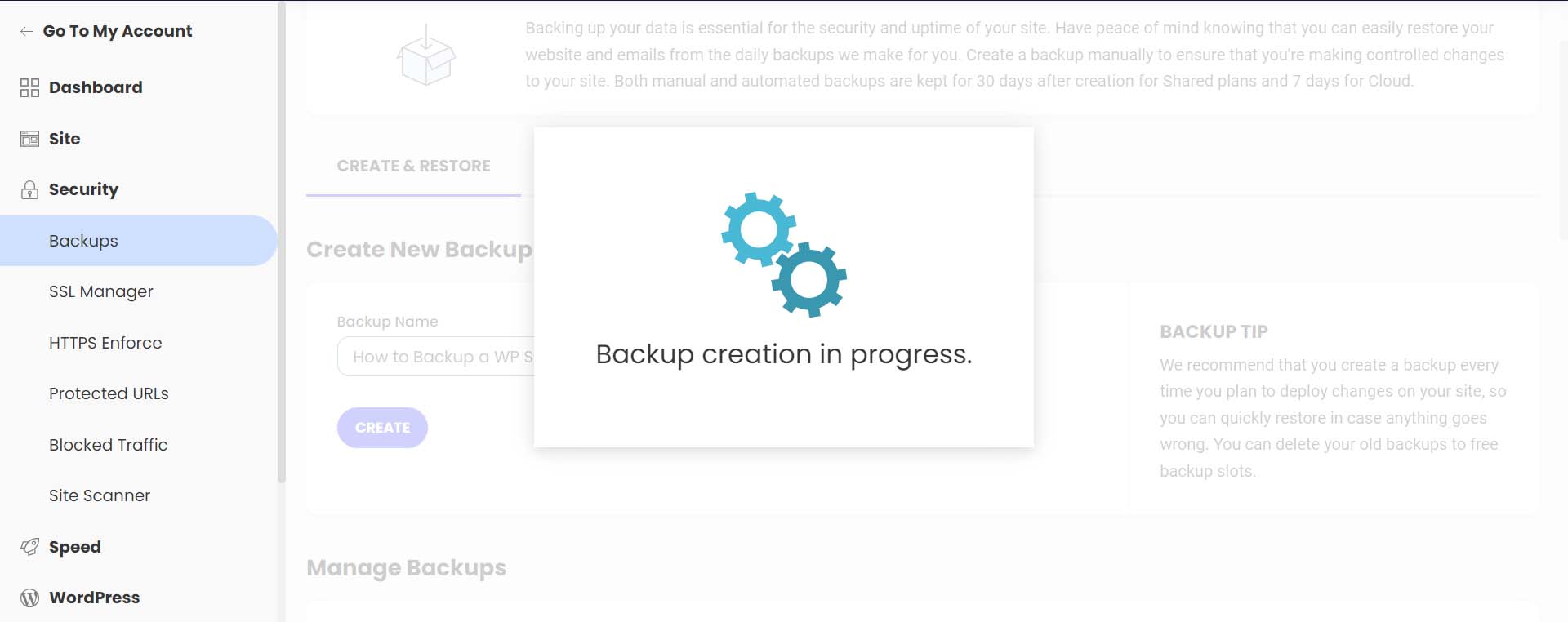
    Backup in progress

    You’ll get a confirmation message once your backup has finished being created.

    Backup successfully created

    Notice your backup now shows up in your list of backups, alongside your regular, automated backups, with your note attached.

    See your new backup within your backup list

    Siteground makes it easy to restore your website in the case of file corruption, hacking, and more. To do this, select the meatball menu next to the backup you’d like to restore. Then, select which type of restoration you’d like to process.

    How to restore your backup

    This easy one-click method of backing up and restoring your WordPress website is an excellent benefit of using Siteground and other managed WordPress web hosts.

    Next, let’s look at how to do a manual backup of your database and WordPress files.

    How to Backup Your WordPress Website Manually

    To manually back up your WordPress website, the easiest method is to download a backup of your site files using your hosting provider. An overwhelming majority of modern web hosts provide you with an online file manager and portal that you can use to manage your website’s files directly. The software that many hosts use is cPanel. With cPanel, you can access your databases, email accounts, and a visual file manager. For more information about cPanel, check out our cPanel guide. However, more commonly, your hosting provider may have its own propitiatory interface they provide to their clients for file management and backups.

    If you don’t have access to your files on your host or through cPanel, you can back up your site via FTP. Filezilla is a popular FTP client to manage your WordPress site via FTP. You can use terminal clients like Putty and WinSCP to connect to your server and back up your site as a last resort.

    This time, however, we’ll be using a file manager within our web host to back up our files and phpMyAdmin to back up our database. We’ll still be using our Siteground account for this tutorial section. However, you can still follow similar steps irrespective of your web host.

    Backing Up Your Site Files

    While still in your Siteground account, from the left-hand menu, click site. Then, click File Manager.

    Navigate to your file manager

    Once in the file manager, you’ll notice a folder called public_html. This is where all your WordPress files live. Right-click on this folder. Then, click on the Archive link.

    Create WP folder archive

    Next, name your archive. Then, click Confirm to start archiving (or zipping) your WordPress files.

    Name your archive

    Once your archive has been created, you’ll be presented with this success message.

    Archive successfully created in Siteground's file manager

    You’ll now notice that your archive is a new file within your file manager. Now, right-click on your archive. Then, click Download to safely save your file backup offline and on your hard drive or media.

    Download archive to your offline media of choice

    Backing Up Your WordPress Database with phpMyAdmin

    Now that we’ve manually backed up our WordPress files, we can move on to backing up our database. Again, your web host should offer a simple way to back up your database within its site tools or using cPanel. However, for direct access and more control, you can use phpMyAdmin for pretty much any WordPress website.

    To access phpMyAdmin in Siteground, go to the Site section within the left menu. Next, we click on the MySQL link. Then, we click on the phpMyAdmin link from the right side of the screen. Finally, we scroll down slightly and click the blue Access phpMyAdmin button. This will open up the free PHP tool in a separate window.

    Start backing up your database

    Once you’re in phpMyAdmin, you’ll see a list of your website’s databases on the left-hand side.

    Click on the database that you’d like to download. It should coincide with the database for the website files that we backed up earlier. If you’re unsure of the database you should select, you can find your database name within the wp-config.php file of your WordPress file structure within the file manager. Then, click the Export button from the top menu.

    Select and export your database

    You have two options when it comes to exporting your database. To keep it simple, select the Quick Export method. Then, select Go. If you’d like to add additional outputs, select specific tables to backup and more, click the Custom button, and make your choice before selecting Go.

    Export Your Database

    Save Your Database File

    Finally, your. SQL file will be generated. Depending on your database size, this could take a few seconds to a few minutes. An alert box will pop up, asking you to save your database file. It is recommended to save it in the same place you saved your WordPress files zipped folder.

    Save your SQL file

    That’s it! Now you have an external backup of all of your site files and your database.

    Where to Store Your WordPress Backups

    As mentioned throughout this tutorial, there are many places where you can store your WordPress backups. The first and easiest place is directly within WordPress. This is typically the place where backup plugins save your backups. However, this can cause performance issues in the future as you make more backups and your website grows larger. We suggest storing backups outside of your WordPress site in multiple places for safekeeping. You can store them on your computer, on an external hard drive, or in the cloud using a third-party host or platform like Google Drive or Dropbox.

    It should be mentioned that having an offline backup of your website is imperative. While your web host and cloud storage are great places to store your backup files, any online platform can go down or corrupt your backup files. Having an external copy of your site is the only way to make sure you have a safe copy.

    How Often Should You Backup Your WordPress Website

    Most web hosts today offer complimentary, daily backups of your website. However, depending on the complexity of your website and the processes occurring on your site, you may need to change this schedule. On average, having some form of automated, daily backup is good practice. This can be done either through your web host or a plugin like UpdraftPlus or BackupBuddy, to name a few.

    However, if you’re in the eCommerce space, you would surely want to consider backing up your website more frequently, depending on your server load, storage limits, and the number of orders on your website. It is not uncommon for an eCommerce website to do hourly or even backups by the minute! In addition to daily backups, consider making monthly offline backups for your website for peace of mind.

    What to Do If Your Site Crashes

    Having your website crash is a devasting feeling. Your first port of call should be your web host. More often than not, they have daily backups of your website from which you can quickly restore it. Secondly, check your online cloud and your backup storage folder on your website to see if there is a backup there that you can restore. You’ll need to copy over your database and file structure if you manually restore your website. In the rare event that you can gain access to your WordPress dashboard during a site crash, you can try restoring one of your backups from your backup plugin if it has that feature.

    Tips and Best Practices for Backing Up Your WordPress Website

    Here are a few things to remember when backing up your WordPress website.

    • Consider Using a Backup Plugin: A backup plugin is the easiest way to manage and create backups in WordPress. Check out these best backup plugins for WordPress.
    • Test Your Backup: It’s important to test your back to ensure that in a time of crisis, you’ll have a backup that actually works. You can do this by restoring a backup on a local install or staging site. Additionally, this tests to see any bugs in your files or steps you may need to include or optimize as you create your backups.
    • Backup Both Your WordPress Files and Database: Some backup plugins allow you to backup only the database instead of the entire site. However, it’s always a good idea to create a full backup of your website regularly, especially after making changes to your site. Sometimes changes in your file system could cause issues with your database backup if your file structure has changed.
    • Keep an External Backup: Cloud backups rely on platforms that can go down or fail. If the worst-case scenario occurs, an offline backup will save you. Taking an external backup of your complete site once a month can be a good practice to adopt.
    • Use Automatic Backups When Possible: Automatic backups free headspace for you to maintain your website. Choose a backup plugin with this, or ensure this feature is included in your hosting plan.
    • Don’t Store Your Online Backups Within WordPress: As a backup is a complete snapshot of your website, storing them within your WordPress website can not only eat up your storage space but cause issues when it comes to performance. Aim to store your online backups outside your WordPress installation and, even better, on the cloud through services like Google Drive or Dropbox.
    • Backup Before and After Major Site Changes: Make a full site backup before adding a new design or functionality to your website. You never know if a new plugin that you add or a tweak to a theme could take your website offline.
    • Keep Your Backups Secure:.Whether storing them online or locally, make sure your backups are secure and safe from hackers. You can store them in password-protected folders and media devices like USBs, encrypt them, and more.
    • Label Your Backups Something You’ll Remember: Most backups have an auto-generated name which can be hard to remember when you check back on it several weeks later. Give your backup a name that’s easy to identify. For example, “Before Menu Edit” lets you know this backup was before you changed your menu.

    Conclusion

    Learning how to make a backup of your WordPress site is an essential step in the website building process. A backup will save your website when it’s been hacked, and it’s good practice to be able to restore your site if anything goes wrong. It’s also good insurance overall. Additionally, backups are an essential website maintenance task that should be carried out on your website frequently. With WordPress, there are a few ways to back up your website. If you’d prefer to use a plugin for your backups, our list of the best WordPress backup plugins is an excellent place to start.

    Alternatively, the restoration process of a website is the other side of maintaining a website. A good migration plugin can make it easy to move your website to a new location. In closing, learning how to make a backup of your WordPress website is a necessary skill to gain as you build your next website project.

    Image by jossnat / shutterstock.com

    The post How to Back Up Your WordPress Website in 2023 appeared first on Elegant Themes Blog.

  • How to Back up a WordPress Site to Dropbox (Step by Step)

    Are you looking for a way to back up your WordPress site to Dropbox?

    It is a best security practice to regularly back up your site and store it in a separate location, like Dropbox. This way, you can easily restore your content, plugins, databases, and important settings if there is a security breach or something goes wrong.

    In this article, we will show you how to back up a WordPress site to Dropbox.

    How to backup a WordPress site to Dropbox

    Why Back Up a WordPress Site to Dropbox?

    Whether you are running a small WordPress website, an eCommerce store, or any other type of website, then creating regular backups is essential.

    A backup is a copy of your website that includes important files, folders, databases, site content, themes, plugins, and other information.

    With backups, you will have a copy of your website or ready in case of a fatal error or security vulnerability. Then, you can restore your website to its previous state in just a few clicks.

    Storing your WordPress backups on your computer’s hard disk or website server can be risky. If your hard disk fails or the website server gets compromised, you will lose all your backups.

    That’s why storing backups in multiple locations is a good practice, including cloud storage services like Dropbox.

    Dropbox is a popular file-hosting service that lets you store and back up files to the cloud. The best part is that you can access, save, and share these files from anywhere.

    That being said, let’s see how to back up WordPress to Dropbox.

    Connecting Your WordPress Site to Dropbox

    The easiest way to create WordPress backups and save them in Dropbox is by using the Duplicator plugin. It is the best WordPress backup plugin that is beginner-friendly and helps you to back up, migrate, and clone your website.

    Plus, the Duplicator plugin easily integrates with different cloud services like Dropbox, Google Drive, Amazon S3, OneDrive, FTP, and SFTP – SSH.

    Duplicator

    Note: We will use the Duplicator Pro plugin for this tutorial because it includes cloud storage integrations. There is also a free version of Duplicator you can use to create site backups, but it doesn’t allow you to automatically store those backups in Dropbox.

    First, you will need to install and activate the Duplicator Pro plugin. If you need help, then please see our guide on how to install a WordPress plugin.

    Upon activation, you need to head to Duplicator Pro » Settings from the WordPress admin panel and click the ‘Licensing’ tab.

    Next, you will need to enter your license key and click the ‘Activate’ button. You can easily find the license key in your Duplicator account area.

    Enter your Duplicator license

    Next, you will need to connect your Dropbox account with Duplicator.

    Simply go to Duplicator Pro » Storage from your WordPress dashboard. Here, you will see your local storage option, where the backups will be stored by default.

    Go ahead and click the ‘Add New’ button to add Dropbox.

    Add new storage option

    After that, you can enter a name for your new storage option so it is easily recognizable. For example, we will name it ‘Dropbox’.

    Next, you must click the ‘Type’ dropdown menu and select the ‘Dropbox’ option.

    Select Dropbox as type

    From here, you will see new settings for your storage option.

    Go ahead and click the ‘Connect to Dropbox’ button.

    Click connect to dropbox

    After clicking the button, more settings will appear in the Authorization section.

    First, you will need to click the ‘Authorize Dropbox’ button.

    Authorize Dropbox to connect to duplicator

    Next, a new window or tab will open. Simply log in to your Dropbox account.

    You can use your Google or Apple account to sign in or enter the email and password you used when signing up for Dropbox.

    Login to your Dropbox account

    Once you are logged in, you will need to allow access to your Dropbox account.

    Go ahead and click the ‘Allow’ button.

    Allow access to Dropbox account

    Next, Dropbox will show you an authorization code.

    Simply copy this code.

    Copy the Dropbox auth code

    You can now return to the browser tab or window where you are configuring the Duplicator Pro storage settings.

    Go ahead and enter the code into the ‘Step 2: Paste code from Dropbox authorization page’ field.

    Enter code and finalize setup

    Once that’s done, simply click the ‘Finalize Setup’ button.

    You have now successfully added Dropbox as a cloud storage option to save your WordPress backups.

    Creating a Dropbox Backup of Your WordPress Website

    The next step is to create a backup of your WordPress blog or website and save it to Dropbox.

    To start, go to Duplicator Pro » Packages from the WordPress admin panel and click the ‘Create New’ button.

    Create a new package in Duplicator

    Next, you will need to enter a name for your package.

    Duplicator will also give you the option to select a template. We recommend keeping it as ‘Unassigned’ because it will keep the settings from the last scan/build.

    Enter name for backup package

    After that, you can expand the ‘Storage’ section.

    Here, you will need to select ‘Dropbox’ as the storage option to store your WordPress backup.

    Select Dropbox as storage option

    You can also change the ‘Archive’ settings before backing up your site. By default, the plugin will package your site’s content, plugins, themes, databases, and all other files.

    However, you can customize your backup by selecting which part of your site to back up. For instance, you might archive only the WordPress database.

    Archive settings for backup

    When you are done, simply click the ‘Next’ button at the bottom.

    On the next screen, Duplicator will scan your website and check if everything is fine before creating a backup. You will see a notice or a warning for any issues that need to be resolved before backing up your site.

    Once everything checks out, simply click the ‘Build’ button.

    View scan of your package

    The plugin will take a few seconds or minutes to create a backup package. The time will depend on the size of the files and folders.

    Once the package is ready, it will be saved in Dropbox. You can view the Dropbox location by clicking the ‘Storage’ icon.

    View storage location

    A new window will now open with the location.

    You can simply click on the link to view your WordPress backup in the Dropbox dashboard.

    View Dropbox storage location

    Scheduling WordPress Backups to Dropbox (Pro Plugin Only)

    With Duplicator Pro, you can schedule regular website backups and store them in Dropbox.

    First, you will need to go to Duplicator Pro » Schedules from the WordPress dashboard and click the ‘Add New’ button.

    Create a backup schedule

    On the next screen, you can enter a name for your backup schedule and select a template. We recommend using the default template so that all your website files, folders, and databases are backed up.

    After that, select ‘Dropbox’ as the storage location for your backups.

    Enter name and select storage location

    Next, you will need to scroll down and choose when the plugin should automatically create a backup.

    You can select whether you’d like to build a package hourly, daily, weekly, or monthly. For instance, if you select the weekly option, then you can choose which day to schedule the backup.

    There is also an option to choose the start time for your schedule. Lastly, make sure that the ‘Enable This Schedule’ option is checked so that your schedule is active.

    Select time to run backups

    Once you are done, simply click the ‘Save Schedule’ button.

    Restoring a WordPress Backup From Dropbox

    Now that you have scheduled regular backups, you will always have a copy of your site in Dropbox. This way, you can easily restore the backup if there is a fatal error, data loss, or security breach.

    To restore your site, you will first need to open your Dropbox account and head to the Duplicator Pro folder.

    Go to Duplicator folder in Drobox

    Next, select the website backup you would like to download.

    Simply click the 3 dotted icons and then select the ‘Download’ option.

    Download website backup from dropbox

    From here, you can save the zip file on your computer.

    After that, you must go to your WordPress dashboard and head to Duplicator Pro » Import. Go ahead and click the ‘Select File’ button.

    Import backup package

    Next, you can select the zip file from your computer to restore the website backup.

    Once the file is uploaded, you can scroll down to see the package details. Simply click the ‘Continue’ button.

    View package details

    On the next screen, you will see an overview of your package. For instance, it will show the number of posts, pages, media files, plugins, and more that are in the backup.

    Go ahead and click the ‘Launch Installer’ button.

    View overview of current site

    Once you click the button, the Duplicator installer wizard will launch.

    First, you will need to choose an Install Type for your package. Go ahead and select the ‘Restore single site’ option.

    Select restore single site

    Next, you can scroll down to view the Validation checkpoints and make sure the system is ready to install the backup. If there are any warnings or notices, then you must resolve them before restoring the backup.

    Once that’s done, click the checkbox for ‘I have read and accepted all terms & notices’ and click the ‘Next’ button.

    Check validation settings and accept terms

    A popup will now open with install confirmation details.

    You can click the ‘OK’ button to move forward.

    Install confirmation in duplicator

    The plugin will now extract archive files from the package.

    Once the extraction is finished, you will see the install results. To complete the backup, you must click the ‘Admin Login’ button and log back in to your site to finalize the installation.

    Log back in to admin panel

    You have now successfully restored your website backup from Dropbox.

    We hope this article helped you learn how to back up a WordPress site to Dropbox. You may also want to see our guide to WordPress security and our expert picks for the best live chat software for small businesses.

    If you liked this article, then please subscribe to our YouTube Channel for WordPress video tutorials. You can also find us on Twitter and Facebook.

    The post How to Back up a WordPress Site to Dropbox (Step by Step) first appeared on WPBeginner.

  • How to Backup Your WordPress Site (4 Easy Ways)

    Are you looking for ways to backup your WordPress site?

    Creating a backup is a great way to safeguard your website data from security threats and human errors. You can easily restore a saved version of your site in case anything goes wrong.

    In this article, we’ll show you how to backup your WordPress site.

    How to backup your WordPress site

    Why Backup Your WordPress Website?

    As a WordPress website owner, you need to protect your data from unexpected events. Creating a website backup is one of the ways to protect your crucial data.

    There are many security threats that can compromise your site and lead to data loss. For example, hackers, malware, and phishing attacks can leave your site’s data vulnerable.

    Similarly, human errors, conflicts between WordPress plugins, themes, or server failures can break your site. If you’re unable to troubleshoot the issue, then it can be very difficult to recover your website.

    A WordPress backup saves a copy of your site’s important files, folders, and databases. This includes your content, plugins, themes, images, videos, settings, and other information. You can easily use the backup to restore your website in case you get locked out of your website due to an error or cyberattack.

    Do note that WordPress doesn’t offer a built-in option to automatically back up your WordPress site on a regular basis. You’d have to manually back up your site using the hosting service’s cPanel or an FTP client.

    An easier way is to use a plugin, as you’ll have more control over which content to save. Plus, it is a beginner-friendly method, as accessing the cPanel or FTP client can be overwhelming for new users.

    That said, let’s see how you can create a WordPress backup using different methods. You can click the links to jump ahead to your preferred method:

    Method 1: Backup a WordPress Site Using a Plugin (Recommended)

    The easiest way to create backups is by using a plugin like Duplicator. It is the best WordPress backup plugin that’s used by over 1,500,000 professionals. Duplicator is beginner friendly plugin that makes it very easy to back up, migrate, and clone your website.

    For this tutorial, we’ll be using the Duplicator Pro plugin because it includes more features like scheduled backups, recovery points, cloud storage integration, migration tool, and more. There is also a free version of Duplicator you can use to get started.

    First, you’ll need to install and activate the Duplicator Pro plugin. If you need help, then please see our guide on how to install a WordPress plugin.

    Upon activation, you can go to Duplicator Pro » Settings from your WordPress admin panel and switch to the ‘Licensing’ tab. Go ahead and enter the license key, which you can find in the account area.

    Enter your Duplicator license

    Next, you’ll need to head to the Duplicator Pro » Packages page from the WordPress dashboard.

    From here, simply click the ‘Create New’ button in the top corner.

    Create a new package in Duplicator

    On the next screen, you will need to enter a name for your backup.

    This will help you find the package when you’d need to restore a website.

    Enter name for backup package

    Under the Storage section, you can add another storage location for your package. The plugin will use the default location to save your backup files.

    For this tutorial, we will use the default location. However, you can click the ‘Add Storage’ link and add a new location like Dropbox or Google Drive.

    You can now scroll down to the Archive section to customize your backup. For instance, the plugin lets you only backup the database, filter files, folders and extensions, and more.

    Archive settings for backup

    If you want a complete backup of your site, then we recommend keeping the default settings and don’t select anything under the Archive section.

    Next, you can scroll down to the Installer section. These are optional settings that are filled in at the time of installing the backup.

    You can simply click the ‘Next’ button and leave this section as it is.

    Installer settings

    The plugin will now perform a scan and make sure everything is in order to create a backup of your site.

    It will show a ‘Good’ evaluation if everything checks out or show a warning so you can quickly fix the issue before backing up the website.

    Next, you can click the ‘Build’ button at the bottom.

    View scan of your package

    Duplicator will now start building a package.

    Once it’s done, you can go to Duplicator Pro » Packages from your dashboard to view the backup.

    Download your package file

    Go ahead and click the ‘Download’ option and then select the ‘Both Files’ option.

    This will download the zip file and the installer file onto your computer. You can then use these files as backup and easily restore your site in case of a cyberattack or a critical error.

    Create a Recovery Point to Restore Your Website

    Another advantage of using Duplicator is that it lets you set up a recovery point for your website. Recovery points help restore your backup if there is a massive website failure. This way, you can easily return to the last functioning version of your website.

    To start, you can go to Duplicator Pro » Packages from your WordPress admin panel and click the arrow in the corner to expand the package details.

    Create a recovery point

    After that, simply click the ‘Recovery Point’ option.

    A new window will now open. Go ahead and click the ‘Set Recovery Point’ option.

    Click set to recovery point option

    Next, you will need to click the recovery arrow icon to copy the recovery URL.

    You can save this URL in a secure location and use it to easily restore your site in case of a failure or security vulnerability.

    Copy the recovery URL

    All you have to do is enter the recovery URL in the browser. This will automatically launch the recovery wizard. You can then follow the steps to restore your site from the backup.

    Automatically Scheduling WordPress Website Backups

    With Duplicator Pro, you can also automatically schedule backups for your website. This way, you will always have the latest website backup to work with. Plus, it helps save time as you don’t have to manually create a backup.

    To start, you’ll need to go to Duplicator Pro » Schedules from the WordPress dashboard and click the ‘Add New’ button.

    Create a backup schedule

    After that, you can enter a name for your backup schedule.

    The plugin will also let you select a package template, where you get to customize your backup and choose which files to back up. If you want a full backup, then we recommend leaving the package template setting to default.

    Add a name for schedule and template

    Next, you can scroll down and select the storage location for your scheduled backups. The plugin will use the default location, but you can add another location, like Dropbox, OneDrive, or Google Drive.

    There is also an option to select the frequency of backups. For instance, you can set up automatic backups on an hourly, daily, weekly, or monthly basis. We’ve set the backup repeats to weekly for this tutorial.

    Choose storage location and backup time

    After that, you can select a start time for your backup.

    You’ll also need to ensure that the ‘Enable This Schedule’ checkbox is selected.

    Select a time and enable the schedule backup
    Once that’s done, simply click the ‘Save Schedule’ button.

    Duplicator will now automatically back up your WordPress site on the set day and time. This way, you’ll have a fresh backup to restore if anything goes wrong.

    Method 2: Manually Backup a WordPress Site Using cPanel

    You can also manually back up your WordPress website by using the cPanel of your WordPress hosting service.

    For this tutorial, we will be using Bluehost. Do note that the settings may vary depending on the hosting service you’re using.

    First, you’ll need to log in to the cPanel of your hosting provider. From here, go the the ‘Advanced’ tab from the menu on your left and then click the File Manager option under the Files section.

    Open file manager in Bluehost

    In a new tab or window, the file manager will now open.

    Next, you need to select the public_html folder from the menu on the left and click the ‘+’ button to expand it.

    Go to public_html folder

    From here, simply select the folder with your website name and click the ‘Compress’ option at the top.

    A new window will now pop up. Go ahead and select the ‘ Zip Archive’ option and click the ‘Compress Files’ button.

    Select zip archive and compress

    Your website files now start to compress into a zip file.

    The hosting service will also show a compression result. You can simply click the ‘Close’ button.

    Close the compression results

    Next, you’ll need to select the zip file that you just created. It will be located in the public_html folder.

    After selecting the file, simply click the ‘Download’ option at the top.

    Download the compression file

    Next, you can save the compression file in a secure location.

    Now whenever your site goes down due to an error or security issues, you can use the compressed file as a backup and easily restore your content.

    Method 3: Manually Backup WordPress Databases

    Using your WordPress hosting services’ cPanel, you can also back up different WordPress databases. However, this is a time-consuming process because you’ll need to import multiple tables manually.

    First, you will need to log in to the cPanel of your hosting service. We will be using Bluehost for this tutorial.

    Next, head to the ‘Advanced’ tab from the menu on your left and scroll down to the Databases section. From here, simply click the ‘phpMyAdmin’ option.

    Launch phpMyAdmin From Your Control Panel

    Once the phpMyAdmin opens, you can select a database from the menu on your left.

    After that, simply select the tables you’d like to backup and click the Export button at the top.

    Export database tables

    On the next screen, you can keep the ‘Export method’ as Quick. For the ‘Format’, you’d want to select SQL.

    Once that’s done, go ahead and click the ‘Go’ button.

    Export database as SQL

    You can now save the SQL file on your computer in a secure location as a backup.

    To restore a database, you’ll just need to import the SQL file into the phpMyAdmin panel.

    Method 4: Manually Backup a WordPress Site Using FTP

    If you don’t want to use a backup plugin or access the cPanel, then you can back up a WordPress site using an FTP client.

    There are many FTP clients you can use for Mac and Windows. For this tutorial, we will use FileZilla.

    First, you’ll need to connect to your site using the FTP software. You can see our guide on what is FTP and how to use it for more details.

    Once you’re connected, simply head to the root directory of your website from the panel on your right. This is where you’ll find folders like wp-content, wp-admin, and other important files like wp-config and .htaccess.

    View the root directory in FTP

    Next, you can right-click any folder or file you want to backup

    After that, simply click the ‘Download’ option.

    Downloading the WordPress .htaccess file

    You can save the files and folders from a live website to your local host or computer as backups.

    This way, you can easily recover your website by uploading the saved files using the FTP client.

    Restoring a WordPress Site from Backup

    Now that you’ve created a WordPress site backup, the next step is to restore it in case you encounter a critical error, or your site is compromised.

    First, you’ll need to clean your site and delete all the WordPress files. You can do that by connecting an FTP client and removing all the folders and files. After that, you will need to install WordPress again and log in to your site.

    Next, you’re now ready to restore your WordPress backups.

    If you’re using the Duplicator Pro plugin, then it is very easy to upload the backup package. Simply head to Duplicator Pro » Import from your WordPress dashboard and drag and drop the package file.

    Import backup package

    From here, simply follow the steps in the import wizard to recover your website. You can see our step-by-step guide on how to restore WordPress from a backup to learn more.

    We hope this article helped you learn how to back up your WordPress site. You may also want to see our guide on WordPress security and the most common WordPress errors and how to fix them.

    If you liked this article, then please subscribe to our YouTube Channel for WordPress video tutorials. You can also find us on Twitter and Facebook.

    The post How to Backup Your WordPress Site (4 Easy Ways) first appeared on WPBeginner.

  • Secure Your Site: Happy Ways to Backup

    As a website owner, one of the most important things you can do is to make sure you have a backup of your site. Not only does having a backup give you peace of mind, it can also help you in the event of a disaster or unexpected issue. In this article, we’ll explore some happy ways to backup your site and keep your data safe.

    Be Prepared: Backup Your Site Regularly

    Backing up your site on a regular basis is crucial for ensuring that you always have a recent copy of your data. There are several ways to do this, including using a plugin or a backup service. Some hosting providers also offer backup services, so be sure to check with your provider to see what options are available.

    One happy way to backup your site is to use a plugin like UpdraftPlus, which allows you to schedule backups and store them off-site, such as in the cloud. This means that even if your server crashes or your site is hacked, you’ll still have a recent backup that you can use to restore your site.

    Another option is to use a backup service like CodeGuard, which automatically backs up your site on a daily basis and stores the backups in the cloud. CodeGuard also offers a one-click restore feature, which makes it easy to restore your site to a previous state if something goes wrong.

    Safeguard Your Data: Happy Backup Solutions

    In addition to backing up your site, it’s also important to make sure that your backups are secure. This means storing your backups in a safe location and using encryption to protect your data. One happy way to do this is to use a backup service that offers encryption and secure storage, such as VaultPress.

    VaultPress is a backup service that’s built by the same team behind WordPress itself. It provides automatic daily backups, as well as malware scanning and repairs. All backups are encrypted and stored in a secure off-site location, so you can be sure that your data is safe.

    Another happy way to safeguard your data is to use a backup service like Backblaze. Backblaze provides unlimited backup storage for a low monthly fee, and offers encryption and 24/7 customer support. With Backblaze, you can rest easy knowing that your data is secure and protected.

    In conclusion, backing up your site on a regular basis is one of the most important things you can do to protect your data and ensure that your site is always up and running. By using happy backup solutions like plugins, backup services, and secure storage options, you can rest easy knowing that your data is safe and protected.

  • VaultPress Backup: Your Agency’s Superhero Against Website Crashes

    If you build WordPress sites, you know the importance of keeping them up and running smoothly. But let’s face it, even the best-laid plans can go awry. That’s why having a reliable backup system in place is crucial — and that’s where Jetpack VaultPress Backup comes in. This powerful plugin is the ultimate solution for your client’s websites, providing peace of mind for everyone.

    Picture this: you’ve just finished building a stunning website for your client, and everything is going great. But then, a hacker strikes out of nowhere, and the site goes down. With traditional website backups, it could take all day to restore the site to its previous state. 

    You’ll have to work to find an uncompromised version that you can restore, which sometimes involves digging through files or working with the host’s support chat. Then, you’ll need to use a tool like FTP and phpMyAdmin to restore both the database and files. And if you don’t have an uncompromised backup on hand, then there’s even more work involved to get the site to its most recent version.

    But with VaultPress Backup, you can restore the site in minutes, even if it’s completely down and you’re not near a computer. With real-time backups, everything that happens on the site is saved, and you can reference the activity log to determine the exact point to which you want to restore. This enables you to protect the site’s assets, even if you recently made changes or a client is constantly adding new posts. 

    The benefits of VaultPress Backup don’t stop there. As an agency, you know that time is money. And with traditional website backups, you could be wasting a lot of both. Hosting providers often charge extra for backups, and backing up and then restoring a site can be a time-consuming process.

    With VaultPress Backup, you get top-of-the-line backup services at a fraction of the cost, and one-click restores mean you can get your client’s website back up and running in no time.

    And it’s not just your agency that benefits from Jetpack VaultPress Backup. Your clients will love the peace of mind that comes with knowing their website is protected and that their critical data — like orders from a WooCommerce website — is safe and sound.

    Frequently asked questions

    Now, let’s answer some FAQs about website backups and how Jetpack VaultPress Backup stacks up against traditional hosting provider backups.

    What is a website backup?

    A website backup is a copy of all the files and data on a website, including the database. This can be used to restore the website if something goes wrong, such as a hack or a coding error.

    What does a typical hosting provider back up, and how often?

    Many hosting providers only back up a website once a week or less frequently. Some only back up certain parts of a website, such as the database. This can mean that if something goes wrong, you’re unable to restore the site in full.

    What does VaultPress Backup back up, and how often?

    VaultPress Backup creates full copies of a website, including the database and all files, in real-time, so you always have the most recent version of the site. This means that every new comment, post, order, or other important change is secured safely as soon as it happens. 

    What amount of control do you have over host backups vs. backups from VaultPress Backup?

    With a traditional hosting provider backup, you often have limited control over when and how backups are created and restored. But with Jetpack VaultPress Backup, every change is saved in real-time, and you can choose which elements of the site you want to restore.

    What are the chances of lost or corrupted data for each type of backup?

    The chances of lost or corrupted data can be higher with traditional hosting provider backups, as they may not be created as often and may not include all parts of the website. With VaultPress Backup, real-time backups minimize the risk of lost or corrupted data. VaultPress Backup stores copies of your backups in the cloud, too, which means you’ll never lose any site or store data.

    Jetpack VaultPress Backup is built and maintained by Automattic, the people behind WordPress.com, so it’s designed with WordPress sites as the sole focus. With this level of expertise, you can rest assured that it’s a stable, reliable solution for every site.

    How long does a hosting provider usually keep backups vs. VaultPress Backup?

    It depends on the hosting provider, but many only keep backups for a few weeks or even less. Jetpack VaultPress Backup retains a history only limited by the generous amount of storage included with your plan.

    Become a partner agency today

    Jetpack VaultPress Backup is a must-have for any WordPress developer. The plugin provides top-notch backup services and peace of mind for you and your clients. And most importantly, it saves your agency time and money.

    The real-time backups and one-click restores make it a step above traditional hosting provider backups. And with available security scans, spam filtering, and malware protection provided by Jetpack’s suite of tools, Jetpack can become your all-in-one solution for website management.

    Don’t wait any longer! Install VaultPress Backup on your client’s websites and experience the benefits for yourself. And when your client’s site goes down, you’ll be the hero who saved the day, just like Batman saving Gotham. VaultPress Backup is your trusty sidekick in the fight against website crashes and data loss. Protect your client’s websites, your agency’s reputation, and your peace of mind by using VaultPress Backup.

    To get started today, join our Agency Program and unlock up to 60% off all our products: https://jetpack.com/for/agencies/

  • How to Backup Your WooCommerce Store

    Backing up your WooCommerce store is important because it allows you to recover your store in the event of data loss or corruption. Here are the steps you can follow to backup your WooCommerce store:

    1. Backup your WordPress database:

    Your WordPress database contains all of your store’s data, including product information, customer information, and order history. You can use a plugin like WP-DB-Backup to create a database backup.

    2. Backup your WordPress files:

    Your WordPress files include your theme, plugins, and media files. You can use a plugin like UpdraftPlus to backup your files.

    3. Store your backups in a safe location:

    It’s important to store your backups in a safe location, such as on a separate hard drive or in the cloud. This way, you’ll be able to access your backups in the event that your server fails.

    4. Schedule regular backups:

    It’s a good idea to set up a schedule for creating backups. This way, you can ensure that your store’s data is regularly backed up and protected.

    I hope this helps!