EDITS.WS

Tag: Beginners Guide

  • How to Do a UX Audit of Your WordPress Site

    Do you want to perform a User Experience (UX) audit of your WordPress website?

    User experience is an important factor in the success of a website. A good user experience can lead to more conversions and sales, while a poor UX can cost you money.

    In this article, we will show you how to easily do a UX audit of your WordPress website step-by-step.

    Performing a UX audit on a WordPress website

    Here is a quick overview of all the steps we will cover to perform a UX audit on your WordPress website:

    What Is UX, and Why Is It Important?

    User experience or UX describes the feelings and opinions that users have while using your website.

    A pleasant user experience means users find your website easy to use and helpful.

    By contrast, a poor user experience means users find your website difficult to use and can’t do what they want to do.

    Creating a good user experience allows you to help users make the most out of your website. This eventually leads to conversions, sales, and business growth.

    On the other hand, a negative user experience can cause visitors to leave your website without signing up or buying something in your online store. This causes you to lose potential sales and customers.

    How to Perform a UX Audit of Your Website

    As a business owner, you need to regularly check your website to make sure that it offers a good user experience.

    This practice is called a UX audit. You can perform a UX audit by yourself using a combination of tools (you may already be using some of them).

    During this process, you will look for issues that may negatively affect user experience on your website. When you find a problem, you can document it and then start fixing it.

    Ready? Let’s get started.

    Step 1: Define User Goals and Objectives

    First, you need to put yourself into users’ shoes to understand what they are looking for when they reach your website.

    For instance, if your website is an online store selling pet toys, your audience’s goal is likely to look at pet toys, read customer reviews for those products, and make a purchase.

    Similarly, if you run a how-to blog, then your audience’s goal would be to read a tutorial and learn how to do something.

    Understanding what your users want to achieve will allow you to help them better.

    The easiest way to do this is by creating user personas for your target audience.

    Creating user personas for UX audit

    This exercise allows you to better understand users and their expectations of your website. Most importantly, it helps you figure out the goals and objectives of your target audience.

    You can then analyze your website using these personas to see how quickly your content, products, and services can help those users.

    Step 2: Test Your Website for Usability Issues

    Testing your website for usability helps you quickly find problems that could destroy the user experience.

    However, many issues often go unnoticed by website administrators until a user reports them. Users are more likely to switch to your competitor’s website than tell you about issues on your site.

    Luckily, there are plenty of excellent tools that you can use to quickly detect potentially harmful usability issues on your website.

    PageSpeed Insights (Free)

    Google’s PageSpeed Insights tool lets you quickly examine a URL for performance and usability issues.

    It runs tests on your website and then presents the results for both mobile and desktop devices by assigning each one a score.

    This score is given in four categories:

    1. Performance
    2. Accessibility
    3. Best Practices
    4. SEO

    It also tests for Core Web Vitals, which are a set of website performance metrics that Google considers essential to a website’s overall user experience. 

    PageSpeed Insights preview

    When you run the test, the language may initially sound too technical. However, you will also find links to resources explaining these concepts in beginner-friendly terms with tips on resolving each issue.

    You can also read our guide on how to optimize your website for Google’s Core Web Vitals.

    Google Search Console

    PageSpeed Insights is a handy tool to quickly look up URLs.

    However, you will have to manually run the tests, and you can’t find which pages on your website are having issues until you specifically test them.

    What if you could automate this process, quickly find the pages with usability issues, and get alerts when a new problem is detected?

    This is where Google Search Console comes in.

    It is a free tool provided by Google for website administrators who want to see how their websites are performing in search.

    User experience is an essential metric for search rankings. This is why Google wants to alert website owners when a usability issue is detected.

    First, you will need to visit Google Search Console and add your website as a property. For instructions, you can follow our tutorial on how to add your website to Google Search Console.

    Once you have added your website, it may take a while for Google to collect some data and start showing reports.

    After that, you will see your site’s performance and usability reports in the ‘Experience’ section.

    User experience section under Google Search Console

    You can click on each report and drill down to find the pages where usability issues are detected.

    For example, on this demo website, we found four pages in the ‘Mobile Usability’ section that were having issues.

    Pages with usability issues

    You can click on each row to find the exact pages where the issues were detected.

    Google Search Console will also alert you by email when a new crawling or usability issue is detected.

    Besides usability and crawling issues, Google Search Console is a treasure trove of valuable data. To learn more, you can see our expert tips on using Google Search Console to get more traffic.

    Step 3: Find the Pages Performing Poorly

    Automated tools can help you catch many problems. However, they are not perfect and may not be able to identify many common UX problems.

    If you have a small website, you can go to each page to manually review it yourself. However, it is impossible for most medium to large websites to do this manually.

    So, how do you find pages with poor UX?

    One easy way to find these pages is by using MonsterInsights. It is the best Google Analytics plugin on the market that allows you to see where your users are coming from and how they interact with your website.

    The MonsterInsights Google Analytics plugin

    First, you need to install and activate the MonsterInsights plugin. For more details, see our tutorial on how to install a WordPress plugin.

    Note: There is also a free version of MonsterInsights that you can try. However, we recommend upgrading to the paid version and unlocking the full potential of the plugin.

    Upon activation, the plugin will run the setup wizard and help you connect WordPress with your Google Analytics account.

    For more details, you can see our tutorial on how to install Google Analytics in WordPress.

    Once you are connected, MonsterInsights will start tracking your website visitors.

    Next, you need to set up the plugin to easily track conversions.

    Enable eCommerce Conversion Tracking

    If you use an eCommerce platform on your WordPress website, MonsterInsights can help you easily track conversions.

    Google Analytics comes with enhanced eCommerce tracking, which works for most eCommerce websites, including WooCommerceEasy Digital DownloadsMemberPress, and more.

    However, you will need to enable it for your website manually.

    Start by visiting the Insights » Addons page in your WordPress admin dashboard to install and activate the eCommerce addon.

    Enable eCommerce tracking

    Next, you need to enable enhanced eCommerce tracking in your Google Analytics account. Go to your Google Analytics dashboard and select your website.

    From here, click on the ‘Admin’ button in the bottom left corner.

    Switch to admin view in Google Analytics

    On the next screen, you will see different Google Analytics settings.

    Under the ‘View’ column, just click the ‘Ecommerce Settings’ link.

    Ecommerce settings in Google Analytics

    On the next screen, simply turn on the toggles next to the ‘Enable Ecommerce’ and ‘Enable Enhanced Ecommerce Reporting’ options.

    Don’t forget to click the ‘Save’ button when you are done.

    Enable eCommerce reporting in Google Analytics

    Check Low Conversion Pages for UX Issues

    Poor user experience is one of the main reasons for low conversions, abandoned carts, and high bounce rates.

    You can view your conversion tracking reports in MonsterInsights to find pages with low conversions and higher bounce rates.

    Simply go to the Insights » Reports page inside the WordPress admin area and then switch to the ‘eCommerce’ tab.

    Viewing eCommerce reports

    From here, you can see an overview of your top-performing products and conversion sources.

    For advanced reports, you need to switch to your Google Analytics account and go to the Engagement » Pages and screens tab.

    From here, you can sort the pages by conversion rate to see the pages with the least conversions.

    Low conversion pages

    Using Google Analytics, you can also track pages with the highest bounce rates, the least amount of time spent on them, and more.

    For more conversion tracking options, you can see our complete guide on WordPress conversion tracking. It will also show you how to track form conversions, affiliate link conversions, and more.

    Step 4: Ask For User Feedback

    As you can see, many UX audit activities involve automated tools, analytics reports, and manual testing.

    The entire point of the UX audit exercise is to improve user experience. So, why not just ask your users what they think?

    Asking for user feedback can get you accurate input from real visitors about your website. It can help you find specific problems and fix them more easily.

    This is where UserFeedback comes in.

    UserFeedback

    Note: There is also a free plugin called UserFeedback Lite that you can try. We recommend upgrading to the Pro version to unlock the full potential of the plugin.

    UserFeedback allows you to quickly run surveys and collect user feedback on your website. It also lets you show the surveys to the right users at the right time.

    For example, you can show surveys to users on the pages with fewer conversions or display a feedback form to users on mobile devices.

    UserFeedback form

    For more information, you can see our UserFeedback announcement post.

    Step 5: Optimize Your Website Speed & Performance

    Website speed is a major contributor to user experience. Slow sites cause poor UX and prevent users from moving forward and accessing your content.

    The tools we mentioned earlier, like PageSpeed Insights and Core Web Vitals, can help you evaluate the performance of your website.

    However, if you are using MonsterInsights, then you can also run a website speed test inside your WordPress admin area.

    Simply switch to the Insights » Reports page and then open the ‘Site Speed’ tab.

    Site Speed in MonsterInsights

    The report will run the same tests as PageSpeed Insights and show you a report. It will also give you practical tips to improve website performance.

    Fixing Performance and Speed Issues

    The easiest way to fix most performance issues is by simply installing a WordPress caching plugin.

    We recommend using WP Rocket, which is the best WordPress caching plugin on the market. It lets you easily optimize your WordPress website without learning the technical stuff.

    WPRocket

    First, you need to install and activate the WP Rocket plugin. For details, see our tutorial on how to install a WordPress plugin.

    Upon activation, WP Rocket will start caching your website’s content.

    Unlike other caching plugins that generate a cache when a user visits your website, WP Rocket automatically starts creating a cache in the background.

    This means each new user on your website will see a cached version that loads much quicker and improves user experience.

    You can learn more by reading our tutorial on setting up WP Rocket with more detailed instructions.

    If caching doesn’t immediately fix your website speed, we recommend following our complete WordPress speed and performance guide. It includes step-by-step instructions on how to optimize your website speed.

    Step 6: Evaluate Website Navigation

    Users expect your site to have a navigation menu with the links they need to find the information they want.

    Sometimes, a website may not have a navigation menu that helps users reach the page they want. This leads to a poor user experience, and visitors may leave and try some other website.

    You need to make sure that your website has a straightforward navigation menu that takes users to the critical areas of your website.

    Navigation menu example

    Adding a search bar to your website’s header or navigation menu can also improve user experience. If users can’t find a link quickly, then they can try searching on your website.

    However, the default WordPress search is not very good.

    Instead, we recommend using SearchWP. It is the best WordPress search plugin on the market and quickly improves the search experience on your website.

    SearchWP website

    SearchWP allows you to make everything on your website searchable, including custom fields, eCommerce attributes, custom tables, categories, tags, and more.

    First, you need to install and activate the SearchWP plugin. For more details, see our tutorial on how to install a WordPress plugin.

    Upon activation, you need to visit the SearchWP » Algorithm page and switch to the ‘Engines’ tab.

    From here, you can adjust the search engine settings for the different content types by scrolling to the Posts, Pages, and Media sections.

    SearchWP engines

    Here, you can choose which attributes are searchable on your website. You can also choose their relevance.

    Don’t forget to click on the ‘Save’ button to store your settings.

    SearchWP will now replace your default WordPress search feature with its own custom search engine.

    For more details, you can see our tutorial on how to improve WordPress search with SearchWP.

    Step 7: Test Conversion Elements

    A lot of the time, poor user experience is caused at the end of a conversion path.

    For instance, you might have users trying to submit your lead capture form, but something is stopping them from doing so.

    Luckily, you can run split tests and manually test elements on your website to identify and fix problems.

    Run A/B Split Tests to Figure Out UX Issues

    An easy way to test your conversion elements is by running A/B split tests.

    An A/B split test allows you to create two or more versions of a page with slight differences. It then shows users a different version randomly.

    You can then compare the results to find out which variation of the page performed the best among your users.

    The easiest way to run these tests on your WordPress website is by using Thrive Optimize. It lets you quickly create and run A/B tests on your WordPress website.

    First, you will need to install and activate Thrive Optimize plugin. You can purchase the plugin with Thrive Architect or get it with Thrive Suite bundle.

    Next, install and activate the Thrive Product Manager plugin on your website. You can download it from your Account Dashboard on the Thrive Themes website.

    Install Thrive Product Manager

    Upon activating the plugin, you need to go to the Product Manager page in the WordPress admin area.

    Next, you need to check the ‘Install Product’ box under the Thrive Optimize and Thrive Architect products.

    Thrive Optimize installation

    After that, click on the ‘Install Selected Products’ button to continue.

    After installing the plugins, you will need to create or edit a post/ page and then click on the ‘Launch Thrive Architect’ button at the top.

    Editing a page with Thrive Architect

    This will show a popup where you can choose how to edit the page.

    You can edit the page as a regular page using your theme template or as a landing page with a custom template.

    Normal vs Landing page

    If you choose a pre-built landing page, then you will be asked to choose a template.

    Thrive Architect comes with dozens of beautiful templates for various niches to choose from.

    choose a template

    After that, you will be able to edit your page in Thrive Architect’s page builder.

    It is an intuitive design tool where you can point and click on any element to edit it or click on the ‘+’ button to insert new elements.

    Editing page in Thrive Architect

    Once you have finished editing your page, don’t forget to click the ‘Save Work’ button to store your changes.

    After that, click on the ‘A/B’ button in the right column to create a new A/B test.

    Create a new A/B test

    To run your A/B test, you need to have at least two versions of a page.

    On the next screen, click on the Add New Variation button to create a new version of your landing page.

    Add variation

    It will now create a new variation, and you can start editing it using the Thrive Architect.

    Make the changes to the page you think will work better than the previous version.

    After that, simply click on the ‘Save Work’ button to store your changes, and then click on the ‘A/B’ button again.

    Run the test

    You can choose how much traffic you want to send to each page variation and then click on the ‘Set Up & Start A/B Test’ button at the top.

    This will bring up a popup where you can configure the A/B test settings.

    A/B test settings

    You need to give your test a title and description. Afterward, you can turn on Automatic Winner settings and set minimum requirements for a variation to win.

    Click on the ‘Next’ button to continue.

    Finally, you will be asked to choose a goal for the test. For example, if it is a product page, then you may want to choose ‘Revenue’.

    Set test goal

    Finally, click on the ‘Start A/B Test’ button to finish the setup.

    Thrive Optimize will now start showing the two variations of the page to your users and keep track of user interactions on the page.

    You can view the test results anytime by visiting the Thrive Dashboard » Thrive Optimize page.

    Thrive Optimize dashboard

    Once the test has run its duration, you can see which page has performed better for conversions or the goals you set during the test. You will then be able to make changes to improve the UX on your website.

    For more details, you can see our guide on how to run A/B tests on your WordPress website.

    Manually Test Conversion Elements

    A lot of time, you may not be able to run A/B split tests for all your pages. Luckily, there are other ways to test whether conversion elements on your pages are working.

    Website owners are often just looking at the static representation of their website and not interacting with it like a real user would. That’s why many interactive failures go unnoticed for a long time.

    This is when you will need to do some manual work. You can try to imitate a user journey as best as possible to complete a conversion.

    For instance, if you run an eCommerce store, you can start from the page where your users usually land. Afterward, look at product pages, add items to the cart, and complete the checkout.

    Within your UX audit, you must test all your forms, cart functionality, and checkout experience by interacting with those elements like a customer.

    Plus, don’t forget to test these elements on both mobile and desktop environments.

    Step 8: Test User Flows to Find Bottlenecks

    A user flow is a customer’s journey across your website. A user will usually take a predictable path to different areas of your website until they buy something or submit a form.

    The best way to track user flows is by using MonsterInsights. It comes with a User Journey addon that allows you to see every step of a customer’s journey throughout your site, including the pages and products they looked at and how long they were there.

    Simply install and activate the MonsterInsights plugin.

    Note: You will need at least the Pro plan of the plugin to use the User Journey addon.

    After setting up MonsterInsights, you need to go to the Insights » Addons page. From here, locate the User Journey addon and then install and activate it.

    User Journey addon MonsterInsights

    Next, you need to install and activate the eCommerce addon. This will help you track customer journeys on popular eCommerce platforms for WordPress like WooCommerce, Easy Digital Downloads, MemberPress, and more.

    Now, MonsterInsights will show the user’s journey on individual orders. For example, in WooCommmerce, you can go to WooCommerce » Orders page and click on an individual order.

    Click on an individual order

    On the order details page, scroll down to the MonsterInsights User Journey section.

    This will show you all the user interactions on your site with their times and durations.

    User journey preview

    For more details, you can see our guide on how to enable customer tracking in WooCommerce.

    If you are not using an eCommerce platform, then you can still track the user journey for your WordPress forms.

    If you are using WPForms to capture leads, then it comes with user journey tracking that helps you track which path a user took to submit the form.

    User Journey tracking

    Like conversion elements, other areas of your website could disrupt user flow and block the path that leads them to become a customer.

    You will need to manually evaluate user paths in Google Analytics to see where their journey abruptly ends. You can also simulate the user paths to see if you can come across a usability issue preventing the user from going forward.

    Step 9: Evaluate Website Content Quality

    Visual elements are not the only things that create a good or bad user experience.

    Your website content plays a significant role in convincing users to stay on your WordPress blog or website and look around. It also helps search engines find your content more easily and send more visitors to your site.

    We recommend performing a complete SEO audit of your website and optimizing your content for SEO.

    To do that, you will need All in One SEO for WordPress. It is the best WordPress SEO plugin on the market that allows you to easily improve your content for search rankings and user experience.

    All in One SEO plugin

    All in One SEO comes with built-in SEO analysis, a headline analyzer, and site-wide SEO audit tools. All these features help you improve the quality and discoverability of your content.

    You will also need to evaluate your content. For example, if a particular page is not ranking or converting well, then consider making it more comprehensive by adding more helpful content.

    For more details, you can see our guide on how to fix content decay in WordPress.

    Don’t forget to check your content for spelling and grammar mistakes. They could make your website seem unprofessional and create a bad user experience.

    We recommend using Grammarly. It is the best AI-powered writing tool that helps you automatically correct spelling and grammar mistakes.

    Grammarly

    Grammarly also has a free forever plan with spelling and grammar checks. However, we recommend buying a paid plan to unlock more powerful features.

    We hope this article helped you learn how to do a UX audit of your WordPress website. You may also want to see our guide on how to do an SEO audit of your site or our expert picks for the best email marketing services to grow your website.

    If you liked this article, then please subscribe to our YouTube Channel for WordPress video tutorials. You can also find us on Twitter and Facebook.

    The post How to Do a UX Audit of Your WordPress Site first appeared on WPBeginner.

  • What is Content Decay? (And How to Fix It)

    Are you worried about the declining performance of some of your website’s content? This could be a sign of content decay.

    Content decay is the decline in organic traffic and search rankings over time. Unless you update the content, you will continue to lose rankings and traffic.

    In this article, we will explain content decay and how to find and fix it.

    Content decay explainer for beginners

    Here is a quick overview of the topics we will cover in this guide:

    What Is Content Decay?

    ‘Content decay’ describes the decline in organic traffic and search rankings for a particular piece of content over time.

    Every time you publish new content on your WordPress website, search engines crawl it. Then, after some time, this content may start ranking for specific search terms and bring new traffic to your website.

    However, sometimes this traffic may start declining, and certain content may drop in search rankings. This can happen even if you don’t change the content itself.

    It is important to understand that content decay doesn’t necessarily mean old articles on your website. An old article may consistently rank and continuously bring traffic to your website.

    At the same time, some newer content may start decaying. This decayed content can start affecting your business, sales, and profits if left unchecked.

    What Causes Content Decay on Your Website?

    Several factors can cause content decay on a website. Here are some of the top reasons for content decay:

    • Better content from competitors – Your competitors may be targeting the same keywords with more detailed and helpful content.
    • Declined interest – The keyword is no longer searched as often as it used to be. There may be a decline in search volume for several reasons.
    • Keyword cannibalism – Your WordPress blog may have similar content targeting the same keyword, which splits your search traffic. Google might be unable to guess the search intent and match it to the right content.
    • Change in search intent – The reason why people are searching for the keyword may have changed. For instance, you might have an article about different types of solar panels, but the user intent has now changed to buying a solar panel.
    • Search features – Google is continuously changing search results to match user intent. For instance, shopping results, featured snippets, places, and other search features can divert search traffic to those snippets.

    However, before you can find out what has caused your content to decline, you will need to see which pieces of content on your website have decayed.

    How to Find Decayed Content in WordPress

    Content decay happens gradually and over time, which is why many site owners don’t notice it right away.

    However, if it is left unchecked, other articles can start decaying. Soon, you will end up with a large number of posts and pages that are all decayed, and it will take you a long time to fix them.

    With that being said, we will now show you two ways to find decayed content on your website.

    Method 1: Find Decayed Content Using All in One SEO (Recommended)

    The easiest way to find decayed content in WordPress is by using All in One SEO for WordPress. It is the best WordPress SEO plugin on the market and allows you to easily optimize your website for search engines.

    All in One SEO plugin

    All in One SEO has a Search Statistics tool that helps you connect your website to Google Search Console. It then fetches data from Google Search Console and presents it in an easily-readable format. This includes data showing how much your content has declined in search over a period of time.

    First, you need to install and activate All in One SEO for WordPress. For more details, you can see our tutorial on how to install a WordPress plugin.

    Note: You will need at least the Elite plan of the plugin to unlock the Search Statistics feature.

    Upon activation, the plugin will launch the setup wizard. Simply follow the on-screen instructions to set up the plugin with optimal settings.

    All in One SEO wizard

    Next, you will need to connect your WordPress website to your Google Search Console account. For more details, you can follow our tutorial on how to add your WordPress site to Google Search Console.

    Once you have added your website to your Search Console account, the next step is to connect All in One SEO to Google Search Console.

    You need to go to the All in One SEO » Search Statistics page and click the ‘Connect to Google Search Console’ button.

    Connecy Google Search Console

    This will take you to your Google Account, and you will be asked to give the plugin permission to access your Search Console data.

    Simply click on the ‘Allow’ button to continue.

    Allow permission

    If you have multiple websites on your Google Search Console account, then you will be asked to select a site.

    After that, just click on the ‘Complete Connection’ button to continue.

    Complete connection

    Once connected, you can view the Google Search Console data by visiting the All in One SEO » Search Statistics page in your WordPress admin dashboard.

    You will see a quick overview of your site’s performance in Google Search.

    Search Statistics overview

    Next, you need to switch to the ‘Content Rankings’ tab.

    From here, you will see a list of your content in Google Search with the loss or gain points, drop percentage, and last updated information.

    Content rankings in AIOSEO

    To find out which pieces of content have dropped the most points, you can sort the list by ‘Loss’ and ‘Drop’ values.

    The Loss value shows your content rankings in points, while Drop shows the advantages and gains as a percentage.

    Sort content by loss points or drop percentage

    You can see the content that has dropped the most in rankings during the last 12 months. Content with the most drop or loss in points is the content that has decayed the most.

    You can also see quick stats about a post or page, including internal links, outgoing links, and affiliate links. Hovering your mouse over will also show you links to edit or view a post.

    Edit post

    This allows you to view a post to see why it may have declined and edit it if needed.

    Method 2: Find Decayed Content Using Google Search Console

    This method is not as easy to use as All in One SEO. However, it will help you find content decay, and you can then manually start fixing it.

    If you haven’t already done so, then you will need to add your WordPress website to Google Search Console and give it some time to collect data. For more details, you can see our guide on how to connect your website to Google Search Console.

    After that, you need to log in to your Google Search Console dashboard and switch to the ‘Performance’ tab.

    From here, you need to click on the ‘Date Range’ label.

    This will bring up a popup. Just switch to the ‘Compare’ tab and then select a custom date range for your comparison.

    Open date range in Google Search Console performance

    For this example, we are comparing the last 6 months to the previous 6 months. You can also choose custom ranges by selecting dates.

    Simply click on the ‘Apply’ button to continue.

    Compare performance in Google Search Console

    Search Console will now show you a comparison of your site’s performance in the search results for the selected period.

    Make sure to check all the boxes at the top of the Performance overview columns so that you can see positions, impressions, clicks, and the click-through rate (CTR).

    Check all fields

    After that, scroll down to the data table section and switch to the ‘Pages’ view. This will allow you to see exactly what content has decayed.

    In the results, you can sort the ‘Position Difference’ column to find the content that has dropped the most in search rankings.

    Position difference

    Tip: If you can’t see the Position Difference column, use your keyboard’s right arrow key to scroll through the columns horizontally.

    Similarly, you can also sort content by Impressions Difference or CTR Difference. This may help you find content that appears less in search or has dropped in click-through rate.

    You can also switch to the ‘Queries’ tab to see which keywords your site rankings are decaying for.

    Find decayed keywords in Queries

    You can also click on the ‘Export’ button at the top to download this data in CSV format, which you can then open in your preferred spreadsheet software.

    How to Fix Content Decay on Your Website

    Now that you know which content has decayed on your WordPress website, it is time to fix it.

    Before you do that, you need to figure out what has caused a piece of content to fall in rankings or lose its organic click-through rate.

    You can try searching for the keywords where that content used to rank and analyze the results.

    The most common cause of content decay is newer, more detailed content outranking yours. To fix this, you need to update your content to make it better.

    Here are some quick tips to make your content more comprehensive:

    • Optimize your post for SEO – While optimizing your post for SEO, you can also update your post to add new, more helpful content that you may have missed before.
    • Embed a video – Adding images and videos is great for building user engagement.
    • Add a table of contents – This helps users easily navigate longer content. Plus, the table of contents can also be picked up by Google in the featured snippet.
    • Add FAQ schema markup – Answering general user questions in an FAQ section can help your readers and make your content show up in Google FAQ search results.

    Sometimes, the reason for content decay can be a lack of user interest or the search intent not matching your content.

    In that case, you may consider changing your content to address the new audience intent. Alternatively, you can rewrite and optimize it for a similar topic that still has search volume.

    For more on this topic, you can see our tutorial on how to do keyword research for your WordPress blog.

    We hope this article helped you learn about content decay and how to fix it on your WordPress site. You may also want to see our complete WordPress SEO guide or our expert picks for the best WordPress plugins to grow your website.

    If you liked this article, then please subscribe to our YouTube Channel for WordPress video tutorials. You can also find us on Twitter and Facebook.

    The post What is Content Decay? (And How to Fix It) first appeared on WPBeginner.

  • How to Free Disk Space and Reduce Inode Usage in WordPress

    Are you running out of disk space and inodes for your WordPress website?

    If you run out of disk space and inodes, then you might see different errors. For example, you won’t be able to upload images, send or receive emails, update blog posts, and more. Your users will also have a hard time accessing your website.

    In this article, we will show you how to reduce disk space and inodes on WordPress.

    How to reduce disk space and inodes on WordPress

    Why Free Up Disk Space and Reduce Inode Usage?

    When you purchase WordPress hosting for your website, each service will provide a certain disk space and inode limit.

    Inode is where the metadata for files is stored, like the file size and its physical location. Inode usage equals the number of files and folders on your hosting account.

    Initially, you don’t have to worry about these limits, as you’ll be just starting out. However, as your WordPress site grows, more files and folders will take up disk space and utilize inodes. Once you reach your WordPress hosting company’s allotted limit, you’ll notice several issues on your site.

    For instance, you won’t be able to send or receive emails from your website, have difficulty uploading images and other content to the media library, and update content on pages and posts.

    If the disk space is full, then your visitors might also face problems while accessing your website. Besides that, migrating your site to another host might also not work if you don’t have enough disk space.

    Reducing disk space and inodes will help resolve these issues. Plus, you will see better website performance and a smooth user experience.

    With that, let’s see how you can check disk space usage on your WordPress site.

    How to Check Disk Space in WordPress

    There are multiple ways you can check the disk space in WordPress. The easiest way is by accessing the cPanel of your hosting service.

    All web hosting providers offer statistics on disk usage, file usage, number of email accounts, and more.

    For example, if you’re using Bluehost, then you can simply log in to your account. After that, head to the ‘Advanced’ tab from the menu on your left. The column on the right side will show statistics about disk and file usage.

    View disk usage in Bluehost

    That said, let’s look at ways to increase disk space and free up inodes in WordPress. You can click the links below to jump ahead to your preferred section.

    1. Use Image Optimization Tools to Reduce Their Size

    A simple way to save disk space is by optimizing your images. You can use different tools to reduce the image size without lowering its quality. Besides that, you can change the file format (PNG, JPEG, GIF) and dimensions to reduce the image size by 80%.

    It not only helps save inode usage but also makes your website load faster. You also get faster website backups and improved SEO rankings.

    Image optimization tools use compression technology to lower the file size of the picture. You can use photo editing software like Adobe Photoshop, Affinity, or web tools such as TinyPNG or JPEGmini.

    Optimized vs Unoptimized Images in WordPress

    There are also different WordPress plugins that automatically compress images when you upload them.

    For more details, please see our guide on how to optimize images for web performance without losing quality.

    2. Prevent WordPress from Generating Image Sizes

    Did you know WordPress creates multiple copies of an image when you upload it to your website?

    WordPress automatically generates different image sizes, which include thumbnail, medium, and large sizes in addition to the original picture.

    WordPress Automatically Creates Copies of Your Images in Different Sizes

    These image sizes will take up disk space and inodes on your website. Besides, the backup size of your site will also become large due to different versions of a single image.

    A simple way to prevent WordPress from generating multiple image sizes is using the Stop Generating Unnecessary Thumbnails plugin. It is a free plugin that lets you disable image sizes.

    You can learn more by following our guide on how to prevent WordPress from generating image sizes.

    3. Don’t Upload Videos to WordPress

    Another way you can reduce disk space, and inodes is by ensuring that you don’t upload videos to WordPress.

    Directly uploading videos to your site means using more bandwidth and disk space. If you have high-quality videos, then it will utilize even more resources. You will also need different plugins to manage and display videos, which means using more disk space.

    A better alternative is to upload videos to sites like YouTube or Vimeo and then embed them on your site. This way, you’ll free up disk space and bandwidth. Your videos will also get more exposure since YouTube is the second most popular search engine and the most visited site.

    You can follow our guide on how to easily embed videos in WordPress blog posts for more details.

    4. Clean Your WordPress Media Library

    Cleaning your WordPress media library is a great way of incresting disk space and reducing inodes in WordPress.

    If you have media files that are not in use, have multiple copies of the same image, or have pictures in the incorrect size, then you can remove them to free up space.

    Usually, you can head to Media » Library from the WordPress dashboard and select an image you want to remove. Once the image attachment details open, simply click the ‘Delete permanently’ option.

    Delete images from library

    However, the manual process is time-consuming, and it can be hard to find media files that are not in use.

    A more efficient way is to use WordPress plugins that help clean the WordPress media library. For example, Media Cleaner is a free plugin that scans your site for unused media files in the library and posts/pages. You can then decide which files to keep and which to remove.

    For more details, please see our guide on how to clean up your WordPress media library.

    5. Remove Inactive WordPress Plugins and Themes

    Do you have WordPress plugins and themes that are inactive and currently not in use?

    Having inactive WordPress themes and plugins means they are using inodes and taking up disk space. You should remove these plugins and themes to increase disk space and reduce inode usage.

    To remove plugins, simply head to Plugins » Installed Plugins from your WordPress admin panel. Next, click the ‘Delete’ button for any plugin that is not being used.

    Delete inactive plugins

    Similarly, you can also delete inactive WordPress themes.

    First, you will need to go to Appearance » Themes from your WordPress dashboard.

    Delete inactive themes

    From here, click on the theme you want to remove.

    A new popup window will open with the details of your WordPress theme. Go ahead and click the ‘Delete’ button at the bottom right corner.

    Delete a theme

    6. Delete Draft Blog Posts and Pages

    Just like inactive themes and plugins, removing draft blog posts and pages can also free up disk space and reduce inodes in WordPress.

    They would take up unnecessary space, and you can improve website performance by deleting them.

    Simply go to Posts » All Posts from your WordPress admin area. Next, click the ‘Trash’ button under any draft blog post.

    Trash draft blog post

    You can do the same for draft pages on your website.

    WordPress also allows you to bulk delete posts and pages. For more details, please see our guide on how to bulk delete WordPress posts.

    7. Empty Your Mailbox and Delete Unused Email Accounts

    If you’re using email accounts on your hosting service, then they also take up space and utilize inodes on your site.

    To reduce inode usage and save disk space, you can check your emails and delete any unwanted emails. These can be spam emails or old emails that are not required anymore.

    Similarly, if you have multiple email accounts set up on your WordPress hosting service, then you can delete accounts for inactive users. You can access your mailbox and different email accounts using the cPanel of your hosting provider.

    8. Clear Cache and Old Backup Files in WordPress

    Cache plugins are super useful in speeding up your WordPress website and providing a better user experience.

    However, these plugins can generate a high amount of cache files if left unchecked. As a result, they will utilize inodes on WordPress. That’s why it is a best practice to clear the WordPress cache at regular intervals and reduce inode usage.

    Different WordPress hosting services and caching plugins come with a built-in option to clear the cache.

    For example, Bluehost allows clearing your cache from the WordPress admin area. Simply select the ‘Caching’ option in the toolbar at the top and click the ‘Purge All’ option to remove the cache.

    Clear Bluehost cache

    Similarly, if you’re using WordPress security and backup plugins, then clearing old security reports and backups will also significantly improve your inode usage and disk space issues.

    For instance, if you’re using Duplicator for backups, then you can view existing backups and delete the old ones from your WordPress dashboard.

    Simply go to the Duplicator Pro » Packages page and select your old backup. After that, click the Bulk Action dropdown menu and select Delete.

    Delete existing backups in WordPress

    You can get started with the free version of Duplicator, and we highly recommend checking out the Pro features, too.

    We hope this article helped you learn how to free up disk space and reduce inode usage on WordPress. You may also want to see our guide on WordPress security and tips to speed up WordPress performance.

    If you liked this article, then please subscribe to our YouTube Channel for WordPress video tutorials. You can also find us on Twitter and Facebook.

    The post How to Free Disk Space and Reduce Inode Usage in WordPress first appeared on WPBeginner.

  • How to Easily Change the “Just Another WordPress Site” Text

    Does your site have the text “Just another WordPress site” in the header or title bar?

    Beginners often don’t know how to change this tagline, but leaving it in place doesn’t look good. Luckily, it’s easy to change this to something else or even remove it altogether.

    In this tutorial, we’ll show you how to change the “Just another WordPress site” text, step by step.

    Changing just another WordPress site tagline

    What is a WordPress Site’s Tagline?

    A tagline is a WordPress site’s slogan or description. Many websites use a catchy phrase as their tagline to describe their website and brand.

    Until version 6.1, WordPress used “Just another WordPress site” by default for your website’s tagline when you first created a website.

    After the update, WordPress leaves the tagline field empty for new installations.

    However, users who created their websites before that or by using an earlier version may still have “Just another WordPress site” saved in WordPress settings as their site’s tagline.

    Not all WordPress themes display this tagline, but many do.

    Even if your theme doesn’t display the site tagline to users, you should definitely change this text from the default. Doing so is on our list of the key things you should do after installing WordPress.

    Just another WordPress site example

    Here on WPBeginner, we use “Beginner’s Guide for WordPress” as our tagline. You can see it just below our navigation menu.

    It’s also in our site’s title tag in your browser.

    WPBeginner tagline

    It is not necessary to have a tagline for your website. If you cannot think of something appropriate right now, you can skip the tagline.

    For instance, your site’s main topic or mission might be clear from its domain name or website title.

    However, if your domain name isn’t clearly linked to your blogging niche, adding a catchy tagline can help you explain what your website is about.

    Video Tutorial

    If you’d prefer written instructions, just keep reading.

    Method #1: Changing Your Tagline in WordPress’s Settings

    The simplest way to change the “Just another WordPress site” tagline is in your WordPress site’s settings.

    First, you’ll need to go to your WordPress dashboard. You can normally do this by adding /wp-admin to the end of your website’s domain name.

    For instance, if your site is called example.com, then your WordPress dashboard is at example.com/wp-admin.

    WordPress will prompt you to log in if you’re not already logged in.

    Once logged in, you need to go to Settings » General in your dashboard, and you’ll see the Tagline field there.

    Change tagline in General settings

    You can change the tagline or remove it by clearing the box.

    Leaving the tagline field empty will remove the tagline text from your website.

    Delete tagline text

    Note: After you have deleted the text, WordPress may still show ‘Just another WordPress site’ as placeholder text. This text is merely a hint and will not be saved when you click on the Save Changes button.

    If you want to use your own tagline, then here are a few tips to come up with something catchy and helpful.

    • Use your website’s main topic in the tagline.
    • Keep it short and simple.
    • Don’t stuff too many keywords or special characters. Search engines may consider it a bad practice and could penalize your website.

    Let’s say, you run a travel blog, then a tagline like ‘Travel Tips and Hacks for Solo Travelers’ would work great.

    Once you’ve changed that, scroll down to the bottom of the page and click the ‘Save Changes’ button.

    Now, you can visit your site and see your new tagline in place:

    New tagline preview

    Method #2: Changing WordPress Tagline in Site Editor

    If you are using a newer block theme, then you can change the tagline in Site Editor as well.

    Go to the Appearance » Editor page to launch the Site Editor.

    Editing header in Site Editor

    If you can immediately see the tagline, then you can go ahead and click on it.

    Otherwise, you can browse the templates and template parts to locate the Site Tagline block.

    Simply click on the tagline to edit the text inside it.

    Edit tagline text

    If you don’t want to display the tagline at all, then you can just delete the block.

    Simply click on the three-dot menu in the Site Tagline block settings and select ‘Remove Site Tagline’ from the menu.

    Remove site tagline block

    Once you are finished editing, don’t forget to click on the Save button to store your changes.

    Method #3: Changing Your Tagline in WordPress’s Theme Customizer

    You can also change your tagline in the WordPress Theme Customizer.

    To do so, go to Appearance » Customize in your WordPress dashboard.

    Launch theme customizer

    The main part of your screen shows a preview of your website.

    Down the left-hand side, you have a series of tabs that let you customize different aspects of your website.

    First, you’ll need to look for a tab labeled ‘Site Identity.’ This will generally be at or near the top.

    Locate site identity tab

    You can also click on the Pencil icon next to the tagline to quickly locate the Site Identity panel.

    Note: If you can’t see the Site Identity tab, expand other tabs to see if it’s nested under them. For instance, Site Identity is within the Header tab in the Astra theme.

    Click on the Site Identity tab to expand it, and you’ll see a box where you can change your tagline.

    We are using the Button theme in this example, and you can see in the image below that we also have the option to turn off the display of the site’s title and tagline in this section.

    Edit site identity tagline

    The theme customizer options are determined by the WordPress theme you’re using, so you may see different options here.

    Once you’ve changed the tagline to whatever you want to use, click the ‘Publish’ button at the top of the screen.

    Publish your changes

    Troubleshooting Your Tagline

    Usually, changing your tagline goes smoothly. But what if you changed your tagline and the “Just another WordPress site” text is still showing up?

    Wrong Tagline on Your Site

    First, check that you saved your changes. Go back to Settings » General and see if your tagline is correct. If necessary, change it again and click ‘Save Changes’ at the bottom of the page.

    If the “Just another WordPress site” text still appears on your site itself, try clearing your cache.

    You could also try looking at your site on a different device or in a different browser to see if it’s a browser cache issue.

    If the problem persists, then you need to reach out to your WordPress hosting support for help.

    Wrong Tagline on Google

    What if the “Just another WordPress site” text is no longer on your website, but it still shows up in a Google search?

    The best way to fix this is to with a Google Search Console account.

    Simply type your homepage URL into the search bar at the top. Click the magnifying glass or press Enter on your keyboard to run the search.

    You’ll now see details about the URL. Click the ‘Request Indexing’ link.

    Request reindexing

    Google will then recrawl your page within the next few days, and then it should show the correct tagline, not the “Just Another WordPress Site” text.

    Wrong Tagline on Facebook

    If the “Just another WordPress site” text is still showing up on your Facebook posts, you may need to clear your Facebook cache. You can do this by going to the Sharing Debugger tool.

    Simply enter the URL of your site and click the ‘Debug’ button.

    Sharing debugger

    You should see a section with the heading ‘When and how we last scraped the URL.’ Click the ‘Scrape Again’ button at the top of this section. This should refresh the information that Facebook stores about your site.

    Your website’s tagline should now display correctly when you share posts on Facebook.

    We hope this article helped you learn how to change the “Just another WordPress site” text. If you’re just getting started with blogging, we recommend reading our beginner’s guide to the most common WordPress mistakes to avoid, and our expert pick of the must-have WordPress plugins for all websites.

    If you liked this article, then please subscribe to our YouTube Channel for WordPress video tutorials. You can also find us on Twitter and Facebook.

    The post How to Easily Change the “Just Another WordPress Site” Text first appeared on WPBeginner.

  • How to Backup Your WordPress Site (4 Easy Ways)

    Are you looking for ways to backup your WordPress site?

    Creating a backup is a great way to safeguard your website data from security threats and human errors. You can easily restore a saved version of your site in case anything goes wrong.

    In this article, we’ll show you how to backup your WordPress site.

    How to backup your WordPress site

    Why Backup Your WordPress Website?

    As a WordPress website owner, you need to protect your data from unexpected events. Creating a website backup is one of the ways to protect your crucial data.

    There are many security threats that can compromise your site and lead to data loss. For example, hackers, malware, and phishing attacks can leave your site’s data vulnerable.

    Similarly, human errors, conflicts between WordPress plugins, themes, or server failures can break your site. If you’re unable to troubleshoot the issue, then it can be very difficult to recover your website.

    A WordPress backup saves a copy of your site’s important files, folders, and databases. This includes your content, plugins, themes, images, videos, settings, and other information. You can easily use the backup to restore your website in case you get locked out of your website due to an error or cyberattack.

    Do note that WordPress doesn’t offer a built-in option to automatically back up your WordPress site on a regular basis. You’d have to manually back up your site using the hosting service’s cPanel or an FTP client.

    An easier way is to use a plugin, as you’ll have more control over which content to save. Plus, it is a beginner-friendly method, as accessing the cPanel or FTP client can be overwhelming for new users.

    That said, let’s see how you can create a WordPress backup using different methods. You can click the links to jump ahead to your preferred method:

    Method 1: Backup a WordPress Site Using a Plugin (Recommended)

    The easiest way to create backups is by using a plugin like Duplicator. It is the best WordPress backup plugin that’s used by over 1,500,000 professionals. Duplicator is beginner friendly plugin that makes it very easy to back up, migrate, and clone your website.

    For this tutorial, we’ll be using the Duplicator Pro plugin because it includes more features like scheduled backups, recovery points, cloud storage integration, migration tool, and more. There is also a free version of Duplicator you can use to get started.

    First, you’ll need to install and activate the Duplicator Pro plugin. If you need help, then please see our guide on how to install a WordPress plugin.

    Upon activation, you can go to Duplicator Pro » Settings from your WordPress admin panel and switch to the ‘Licensing’ tab. Go ahead and enter the license key, which you can find in the account area.

    Enter your Duplicator license

    Next, you’ll need to head to the Duplicator Pro » Packages page from the WordPress dashboard.

    From here, simply click the ‘Create New’ button in the top corner.

    Create a new package in Duplicator

    On the next screen, you will need to enter a name for your backup.

    This will help you find the package when you’d need to restore a website.

    Enter name for backup package

    Under the Storage section, you can add another storage location for your package. The plugin will use the default location to save your backup files.

    For this tutorial, we will use the default location. However, you can click the ‘Add Storage’ link and add a new location like Dropbox or Google Drive.

    You can now scroll down to the Archive section to customize your backup. For instance, the plugin lets you only backup the database, filter files, folders and extensions, and more.

    Archive settings for backup

    If you want a complete backup of your site, then we recommend keeping the default settings and don’t select anything under the Archive section.

    Next, you can scroll down to the Installer section. These are optional settings that are filled in at the time of installing the backup.

    You can simply click the ‘Next’ button and leave this section as it is.

    Installer settings

    The plugin will now perform a scan and make sure everything is in order to create a backup of your site.

    It will show a ‘Good’ evaluation if everything checks out or show a warning so you can quickly fix the issue before backing up the website.

    Next, you can click the ‘Build’ button at the bottom.

    View scan of your package

    Duplicator will now start building a package.

    Once it’s done, you can go to Duplicator Pro » Packages from your dashboard to view the backup.

    Download your package file

    Go ahead and click the ‘Download’ option and then select the ‘Both Files’ option.

    This will download the zip file and the installer file onto your computer. You can then use these files as backup and easily restore your site in case of a cyberattack or a critical error.

    Create a Recovery Point to Restore Your Website

    Another advantage of using Duplicator is that it lets you set up a recovery point for your website. Recovery points help restore your backup if there is a massive website failure. This way, you can easily return to the last functioning version of your website.

    To start, you can go to Duplicator Pro » Packages from your WordPress admin panel and click the arrow in the corner to expand the package details.

    Create a recovery point

    After that, simply click the ‘Recovery Point’ option.

    A new window will now open. Go ahead and click the ‘Set Recovery Point’ option.

    Click set to recovery point option

    Next, you will need to click the recovery arrow icon to copy the recovery URL.

    You can save this URL in a secure location and use it to easily restore your site in case of a failure or security vulnerability.

    Copy the recovery URL

    All you have to do is enter the recovery URL in the browser. This will automatically launch the recovery wizard. You can then follow the steps to restore your site from the backup.

    Automatically Scheduling WordPress Website Backups

    With Duplicator Pro, you can also automatically schedule backups for your website. This way, you will always have the latest website backup to work with. Plus, it helps save time as you don’t have to manually create a backup.

    To start, you’ll need to go to Duplicator Pro » Schedules from the WordPress dashboard and click the ‘Add New’ button.

    Create a backup schedule

    After that, you can enter a name for your backup schedule.

    The plugin will also let you select a package template, where you get to customize your backup and choose which files to back up. If you want a full backup, then we recommend leaving the package template setting to default.

    Add a name for schedule and template

    Next, you can scroll down and select the storage location for your scheduled backups. The plugin will use the default location, but you can add another location, like Dropbox, OneDrive, or Google Drive.

    There is also an option to select the frequency of backups. For instance, you can set up automatic backups on an hourly, daily, weekly, or monthly basis. We’ve set the backup repeats to weekly for this tutorial.

    Choose storage location and backup time

    After that, you can select a start time for your backup.

    You’ll also need to ensure that the ‘Enable This Schedule’ checkbox is selected.

    Select a time and enable the schedule backup
    Once that’s done, simply click the ‘Save Schedule’ button.

    Duplicator will now automatically back up your WordPress site on the set day and time. This way, you’ll have a fresh backup to restore if anything goes wrong.

    Method 2: Manually Backup a WordPress Site Using cPanel

    You can also manually back up your WordPress website by using the cPanel of your WordPress hosting service.

    For this tutorial, we will be using Bluehost. Do note that the settings may vary depending on the hosting service you’re using.

    First, you’ll need to log in to the cPanel of your hosting provider. From here, go the the ‘Advanced’ tab from the menu on your left and then click the File Manager option under the Files section.

    Open file manager in Bluehost

    In a new tab or window, the file manager will now open.

    Next, you need to select the public_html folder from the menu on the left and click the ‘+’ button to expand it.

    Go to public_html folder

    From here, simply select the folder with your website name and click the ‘Compress’ option at the top.

    A new window will now pop up. Go ahead and select the ‘ Zip Archive’ option and click the ‘Compress Files’ button.

    Select zip archive and compress

    Your website files now start to compress into a zip file.

    The hosting service will also show a compression result. You can simply click the ‘Close’ button.

    Close the compression results

    Next, you’ll need to select the zip file that you just created. It will be located in the public_html folder.

    After selecting the file, simply click the ‘Download’ option at the top.

    Download the compression file

    Next, you can save the compression file in a secure location.

    Now whenever your site goes down due to an error or security issues, you can use the compressed file as a backup and easily restore your content.

    Method 3: Manually Backup WordPress Databases

    Using your WordPress hosting services’ cPanel, you can also back up different WordPress databases. However, this is a time-consuming process because you’ll need to import multiple tables manually.

    First, you will need to log in to the cPanel of your hosting service. We will be using Bluehost for this tutorial.

    Next, head to the ‘Advanced’ tab from the menu on your left and scroll down to the Databases section. From here, simply click the ‘phpMyAdmin’ option.

    Launch phpMyAdmin From Your Control Panel

    Once the phpMyAdmin opens, you can select a database from the menu on your left.

    After that, simply select the tables you’d like to backup and click the Export button at the top.

    Export database tables

    On the next screen, you can keep the ‘Export method’ as Quick. For the ‘Format’, you’d want to select SQL.

    Once that’s done, go ahead and click the ‘Go’ button.

    Export database as SQL

    You can now save the SQL file on your computer in a secure location as a backup.

    To restore a database, you’ll just need to import the SQL file into the phpMyAdmin panel.

    Method 4: Manually Backup a WordPress Site Using FTP

    If you don’t want to use a backup plugin or access the cPanel, then you can back up a WordPress site using an FTP client.

    There are many FTP clients you can use for Mac and Windows. For this tutorial, we will use FileZilla.

    First, you’ll need to connect to your site using the FTP software. You can see our guide on what is FTP and how to use it for more details.

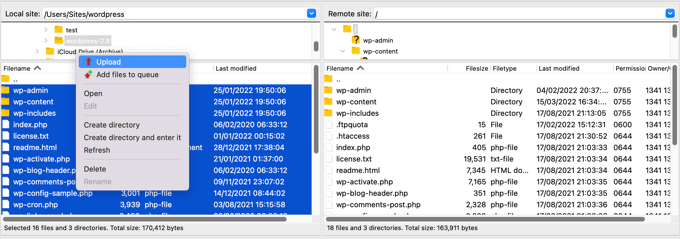
    Once you’re connected, simply head to the root directory of your website from the panel on your right. This is where you’ll find folders like wp-content, wp-admin, and other important files like wp-config and .htaccess.

    View the root directory in FTP

    Next, you can right-click any folder or file you want to backup

    After that, simply click the ‘Download’ option.

    Downloading the WordPress .htaccess file

    You can save the files and folders from a live website to your local host or computer as backups.

    This way, you can easily recover your website by uploading the saved files using the FTP client.

    Restoring a WordPress Site from Backup

    Now that you’ve created a WordPress site backup, the next step is to restore it in case you encounter a critical error, or your site is compromised.

    First, you’ll need to clean your site and delete all the WordPress files. You can do that by connecting an FTP client and removing all the folders and files. After that, you will need to install WordPress again and log in to your site.

    Next, you’re now ready to restore your WordPress backups.

    If you’re using the Duplicator Pro plugin, then it is very easy to upload the backup package. Simply head to Duplicator Pro » Import from your WordPress dashboard and drag and drop the package file.

    Import backup package

    From here, simply follow the steps in the import wizard to recover your website. You can see our step-by-step guide on how to restore WordPress from a backup to learn more.

    We hope this article helped you learn how to back up your WordPress site. You may also want to see our guide on WordPress security and the most common WordPress errors and how to fix them.

    If you liked this article, then please subscribe to our YouTube Channel for WordPress video tutorials. You can also find us on Twitter and Facebook.

    The post How to Backup Your WordPress Site (4 Easy Ways) first appeared on WPBeginner.

  • How to Add Dynamic Content in WordPress (Beginner’s Guide)

    Are you looking to add dynamic content to your WordPress website?

    Adding dynamic content to your website enables you to provide visitors with personalized experiences, recommendations, and other interactive elements. That way dynamic content can help increase user engagement and conversions.

    In this article, we will show you how to easily add dynamic content in WordPress.

    Adding dynamic content in WordPress

    Why Add Dynamic Content in WordPress?

    Dynamic text refers to content that changes on a website depending on different factors, including user behavior, time, location, name, and more.

    Setting up dynamic text enables users on your WordPress website to see different messages according to different factors.

    For example, you can use dynamic text to display the name of the user who is currently logged in to your website. 

    Dynamic content on a website

    Showing personalized content can keep visitors engaged on your site for longer periods, which can reduce the bounce rate and improve your site’s SEO rankings.

    It can even help convert users into customers or subscribers by showing that your website cares about its visitors, which creates a positive impression and builds trust.

    Plus, dynamic content can increase sales and signups on your website. For example, you can show the current date dynamically for a countdown sale or discount offer, and it will automatically update each day. This can create a sense of urgency and lead to more conversions.

    That being said, let’s take a look at how to add dynamic content in WordPress. You can use the quick links below to jump to the method you wish to use:

    Method 1: Create a Dynamic Landing Page Using SeedProd

    If you want to create a landing page with dynamic content, then this method is for you.

    SeedProd is the best WordPress page builder on the market that helps you create attractive landing pages and themes without using any code.

    It also comes with a dynamic text feature that allows you to add dynamic content to your headings and text.

    The SeedProd page builder plugin

    First, you will need to install and activate the SeedProd plugin. For more details, you may want to see our beginner’s guide on how to install a WordPress plugin.

    Note: SeedProd also has a free version, but it doesn’t have the dynamic text feature. So, for this tutorial, we are using the SeedProd Pro plugin.

    Upon activation, head over to the SeedProd » Settings page to enter the plugin license key.

    You can find this information under your account on the SeedProd website.

    Paste license key in the field

    Next, you need to visit SeedProd » Landing Pages from the WordPress admin sidebar.

    Once you are there, click on the ‘Add New Landing Page’ button.

    Click the Add New Landing Page button

    This will direct you to the ‘Choose a New Page Template’ screen, where you can select any of the pre-made templates for your landing page.

    Upon template selection, you will be asked to enter a page name and choose a URL.

    After entering this information, just click on the ‘Save and Start Editing the Page’ button to continue.

    Enter your page details

    This will launch SeedProd’s drag-and-drop page builder, where you can now start editing your page. For more detailed instructions, you may want to see our guide on how to create a landing page in WordPress.

    Next, simply drag and drop the Heading or Text block from the left sidebar onto the landing page. Then, click on the block to open up its settings in the left sidebar.

    Once you have done that, you need to click the ‘Insert Dynamic Text’ button.

    Click the Insert Dynamic Text button

    This will open up a ‘Dynamic Text Replacement’ prompt on the screen.

    From here, you should select the ‘DateTime’ option if you want to set up a time or date dynamically. This can be helpful if you want to display the time limit for a sale or discount offer on your website.

    After that, simply select a date format from the dropdown menu and click the ‘Insert’ button.

    If you don’t see your preferred format in the dropdown menu, then you can click on the ‘Learn More’ link at the top to see other formats.

    Select dynamic date

    If you want to add a location, name, country, multiple language support, page title, email address, postal code, or other dynamic content, then you need to select the ‘Query Parameter’ option.

    After that, add the dynamic text factor under the ‘Parameter Name’ option.

    For instance, if you add dynamic text for names in the ‘Parameter Name’ option, then everyone who is logged into your site will be shown their name like ‘Hey John’ instead of ‘Hey There’ on the page.

    Or if you add dynamic text for an email address, then users will be shown their email address on your landing page every time they log in.

    Similarly, if you want to display the location of every user dynamically, then you can enter ‘location’ as the parameter name.

    Select dynamic parameter query

    Next, add the default value that the dynamic text will revert to if the location is not available in the URL parameter.

    For example, if a visitor opens up your site and their location is not available in the URL, then the dynamic text might say ‘Stores Near You’ instead of ‘Stores Near Florida’.

    After that, simply click the ‘Insert’ button to add the dynamic text.

    Once you have done that, click the ‘Save’ button at the top to store your settings. Finally, click the ‘Publish’ button to make your landing page live.

    Save dynamic content in WordPress

    Now visit your website to check out the dynamic content in action.

    This is what it looked like on our demo website.

    Dynamic content preview in SeedProd

    Method 2: Add Dynamic Content Using OptinMonster

    If you want to add dynamic content to your advertising campaigns, including popups or floating bars, then this method is for you.

    OptinMonster is the best lead generation and conversion optimization tool on the market. It allows you to show personalized campaigns to users without using any code.

    It also comes with a dynamic text replacement feature that enables you to add dynamic content to your campaigns using smart tags.

    First, you will need to sign up for an OptinMonster account because the paid tool allows you to add dynamic content.

    Simply visit the OptinMonster website and click the ‘Get OptinMonster Now’ button to set up an account.

    The OptinMonster lead generation tool

    Next, you have to install and activate the free OptinMonster plugin on your WordPress website. For more detailed instructions, please see our tutorial on how to install a WordPress plugin.

    Upon activation, you will see the OptinMonster setup wizard in the WordPress admin panel.

    From here, click the ‘Connect Your Existing Account’ button to connect your WordPress site to your OptinMonster account.

    Connect your existing account

    After that, a new window will open up on the screen.

    Simply click the ‘Connect to WordPress’ button to move ahead.

    Connect OptinMonster to WordPress

    Once you have connected your OptinMonster account with WordPress, head over to the OptinMonster » Campaigns page from the WordPress admin sidebar.

    Next, you need to click on the ‘Create Your First Campaign’ button to start a campaign.

    Create first OptinMonster campaign

    This will take you to the ‘Templates’ page, where OptinMonster offers different campaign types that you can use to show various types of content or targeted messages to your users.

    These include popups, floating bars, gamified campaigns, inline campaigns, slide-in popups, and more.

    For instance, if you want to show dynamic content inside a WordPress post or page, then you can choose the Inline campaign type.

    OptinMonster campaigns

    After selecting a campaign type, you can choose any of the pre-made templates for that specific campaign.

    You will then be asked to enter a name for it and click the ‘Start Building’ button.

    Click start building

    This will take you to OptinMonster’s campaign builder interface. It is a drag-and-drop tool where you can design your campaign with a live preview.

    From here, drag and drop the Text or Heading block from the sidebar on the left into the campaign. After that, just select some text in the block to open up the text editor at the top of it.

    Next, you must click the ‘Smart Tags’ icon at the right corner of the text editor to open up a dropdown menu with a list of smart tags

    Select a smart tag

    From here, you can select any of the smart tags to add dynamic content to your campaign.

    For instance, you can use the {{form_first_name}} smart tag to add the name of the user at the top to make the campaign feel more personalized.

    Now, all the logged-in users on your site will see their names in the campaign.

    Save popup in OptinMonster

    There are other smart tags that show the campaign name, email address, postal code, country, province, year, month, date, coupon code, page URL, and more.

    For example, using the smart tag for countries will display the country name of each user who has logged in and is currently viewing your campaign.

    Similarly, using a date smart tag will help you display the time limit for a sale without manually updating it every time.

    Once you have chosen your smart tag(s), just click the ‘Save’ button at the top to store your settings.

    Finally, switch to the ‘Publish’ tab from the top and click on the ‘Publish’ button to make your campaign live.

    Publish campaign

    Now, you can visit your website to check out the campaign with dynamic content.

    This is what it looked like on our demo website.

    Dynamic Content Preview in OptinMonster

    We hope this article helped you learn how to add dynamic content in WordPress. You may also want to see our tutorial on how to use dynamic field populations in WordPress to auto-fill forms and our top picks for the best email marketing services for small businesses.

    If you liked this article, then please subscribe to our YouTube Channel for WordPress video tutorials. You can also find us on Twitter and Facebook.

    The post How to Add Dynamic Content in WordPress (Beginner’s Guide) first appeared on WPBeginner.

  • Beginner’s Guide: How to Safely Update WordPress (Infographic)

    Do you want to update WordPress but don’t know where to start? Often beginners are afraid that an update may break their website.

    This fear is understandable. However, it’s important to use the latest version of WordPress for the best website security and performance.

    In this beginner’s guide, we will show you how to safely update WordPress like a pro without breaking your website.

    Beginner's Guide: How to Safely Update WordPress (Infographic)

    Upgrading your WordPress website is a regular maintenance task. We have created an easy-to-follow infographic that you can use as a reference guide.

    Just click on the image below to view the full infographic, or continue reading the text instructions.

    Ultimate Guide to Upgrade WordPress - Infographic

    Why Should You Always Update WordPress?

    Leading WordPress security research shows that the majority of WordPress websites that get hacked have outdated WordPress core, plugins, or themes.

    WordPress is actively maintained by developers from all over the world. These developers find and fix bugs, add new features, and hunt down security vulnerabilities on a regular basis. These changes are then released in a new WordPress version.

    If it is not a big release, then WordPress can automatically update itself to the newer version. For major releases, unless you are on managed WordPress hosting, you will have to manually initiate the update yourself.

    You need to update to make sure that your website has the latest security patches, the newest features, and the best speed and performance.

    You can learn more on this important topic in our guide on why you should always use the latest version of WordPress.

    That being said, let’s take a look at how to safely update WordPress to the latest version.

    Things to Do Before Updating WordPress

    The most important thing you need to do before upgrading WordPress is to create a complete WordPress backup.

    Even if you have an automated WordPress backup plugin set up like Duplicator, you still need to create a new backup and store it safely in a remote location, such as your computer or cloud storage like Google Drive.

    A complete WordPress backup includes everything:

    • Your WordPress database
    • All your images and media uploads
    • Your WordPress plugins and themes
    • Your WordPress configuration files
    • Core WordPress files

    This step is crucial as it will allow you to restore WordPress from the backup in case something goes wrong.

    Once you have created a complete backup and stored it remotely, then you can move on to the next step.

    Updating WordPress to the Latest Version

    There are two easy ways to upgrade your WordPress site to the latest version. One is automatic, and the other one is manual. We will show you both of them.

    Method 1: Updating WordPress Using the Built-in System (1-Click)

    This method is easier and is recommended for all users.

    First, log in to the admin area of your WordPress website and go to the Dashboard » Updates page.

    You will see the notice that a new version of WordPress is available. Now you just need to click on the ‘Update to version X.X.X’ button to initiate the upgrade.

    Updating WordPress Core From the Dashboard

    WordPress will now fetch the latest version of the software and install it for you.

    You will see the update progress on your screen. During the upgrade, WordPress will put your site into maintenance mode.

    WordPress update progress

    Your site will still be visible to users, but you can’t install plugins or themes while the update is underway.

    Once the update is over, you will be redirected to the WordPress welcome screen. Depending on each release, you may see a page explaining what’s new in WordPress and the features you should try.

    That’s all; you have successfully upgraded WordPress to the latest version.

    Method 2: Manually Update WordPress Using FTP

    This method requires you to use FTP to manually upload WordPress files. You can use this if the first method doesn’t work.

    First, you will need to download the latest version of WordPress. Head over to the WordPress download page and click on the ‘Download’ button.

    Download WordPress

    Your browser will now download WordPress in a zip file. Once downloaded, you need to extract the zip file.

    Inside you will see a wordpress folder. This folder contains all the WordPress files you need for the update.

    Next, you need to open your FTP client and connect to your website. Once connected, go to the wordpress folder you just extracted from the zip file in the local files column.

    In the remote files column, go to your website’s root folder. This folder could be public_html or named after your website’s domain name. Inside this folder, you will see your WordPress files and folders.

    Using FTP to Upload a Fresh Version of WordPress

    You should select all files inside the wordpress folder on your computer and then right-click to select ‘Upload’.

    Your FTP client will now start uploading WordPress files from your computer to your website.

    However, your website already has older versions of the files with the same name. You will be asked what you want to do with those files. You need to select ‘Overwrite’ and check the box next to ‘Always use this action’.

    Overwriting Your Current WordPress Files Using FTP

    This will ensure that all WordPress files on your website are replaced by the newer versions.

    Once the upload is finished, you need to go to the admin area of your WordPress site. This step is necessary because sometimes, a newer version of WordPress may also need to update your WordPress database.

    Database update required

    In that case, you may see a page mentioning that a database update is required. Simply click the ‘Update WordPress Database’ button to continue.

    That’s all; you have successfully updated your WordPress website.

    Things to Do After Updating WordPress

    Once you have upgraded WordPress on your website, you need to make sure that everything is working as expected. Simply visit your website in a new browser window and review the settings in the WordPress admin area.

    If you come across any issues, then take a look at our list of common WordPress errors and how to fix them. If the issue you are facing is not listed there, then follow the steps in our WordPress troubleshooting guide to figure out the problem and apply a solution.

    We hope this article helped you update WordPress to the latest version. You may also want to see our step-by-step WordPress SEO guide for beginners or our expert picks for the best analytics solutions for WordPress users.

    If you liked this article, then please subscribe to our YouTube Channel for WordPress video tutorials. You can also find us on Twitter and Facebook.

    The post Beginner’s Guide: How to Safely Update WordPress (Infographic) first appeared on WPBeginner.

  • How to Add HTTP Security Headers in WordPress (Beginner’s Guide)

    Do you want to add HTTP security headers in WordPress?

    HTTP security headers allow you to add an extra layer of security to your WordPress website. They can help block common malicious activity from affecting your site’s performance.

    In this beginner’s guide, we will show you how to add HTTP security headers in WordPress.

    How to Add HTTP Security Headers in WordPress (Beginner's Guide)

    What Are HTTP Security Headers?

    HTTP security headers are a security measure that allows your website’s server to prevent some common security threats before they can affect your website.

    When a user visits your WordPress website, your web server sends an HTTP header response to their browser. This response tells browsers about error codes, cache control, and other statuses.

    The normal header response issues a status called HTTP 200. After this, your website loads in the user’s browser. However, if your website is having difficulty, then your web server may send a different HTTP header.

    For example, it may send a 500 internal server error or a not found 404 error code.

    HTTP security headers are a subset of these headers. They are used to protect websites from common threats like click-jacking, cross-site scripting, brute force attacks, and more.

    Let’s have a quick look at some HTTP security headers and how they protect your website:

    • HTTP Strict Transport Security (HSTS) tells web browsers that your website uses HTTPS and should not be loaded using an insecure protocol like HTTP.
    • X-XSS Protection allows you to block cross-site scripting from loading.
    • X-Frame-Options prevents cross-domain iframes or click-jacking.
    • X-Content-Type-Options X-Content-Type-Options blocks content mime-type sniffing.

    HTTP security headers work best when they are set at the web server level, which means your WordPress hosting account. This allows them to be triggered early on during a typical HTTP request and provide maximum benefit.

    They work even better if you are using a DNS-level website application firewall like Sucuri or Cloudflare.

    That being said, let’s take a look at how to easily add HTTP security headers in WordPress. Here are quick links to different methods so that you can jump to the one that suits you:

    1. Adding HTTP Security Headers in WordPress Using Sucuri

    Sucuri is one of the best WordPress security plugins on the market. If you are using their website firewall service, then you can set HTTP security headers without writing any code.

    First, you will need to sign up for a Sucuri account. It is a paid service that comes with a server-level website firewall, security plugin, CDN, and malware removal guarantee.

    During sign-up, you will need to answer simple questions, and Sucuri documentation will help you set up the website application firewall on your website.

    After signing up, you must install and activate the free Sucuri plugin. For more details, see our step-by-step guide on how to install a WordPress plugin.

    Upon activation, you need to go to Sucuri Security » Firewall (WAF) and enter your Firewall API key. You can find this information under your account on the Sucuri website.

    Sucuri WAF API key

    After that, you will need to click the green ‘Save’ button to store your changes.

    Next, you must switch to your Sucuri account dashboard. From here, click on the ‘Settings’ menu on top and then switch to the ‘Security’ tab.

    Setting HTTP security headers in Sucuri

    From here, you can choose three sets of rules. The default protection will work well for most websites.

    If you have a Professional or Business plan, then you also have options for HSTS and HSTS Full. You can see which HTTP security headers will be applied for each set of rules.

    You need to click the ‘Save Changes in the Additional Headers’ button to apply your changes.

    Sucuri will now add your selected HTTP security headers in WordPress. Since it is a DNS-level WAF, your website traffic is protected from hackers even before they reach your website.

    2. Adding HTTP Security Headers in WordPress Using Cloudflare

    Cloudflare offers a basic free website firewall and CDN service. It lacks advanced security features in its free plan, so you will need to upgrade to its Pro plan, which is more expensive.

    You can learn how to add Cloudflare to your website by following our tutorial on how to set up the Cloudflare free CDN in WordPress.

    Once Cloudflare is active on your website, you must go to the SSL/TLS page in your Cloudflare account dashboard and then switch to the ‘Edge Certificates’ tab.

    Setting up HTTPS security headers in Cloudflare

    Now, scroll down to the ‘HTTP Strict Transport Security (HSTS)’ section.

    Once you find it, you need to click on the ‘Enable HSTS’ button.

    Click the Enable HSTS Button

    This will bring up a popup with instructions telling you that you must have HTTPS enabled on your website before using this feature.

    If your WordPress blog already has a secure HTTPS connection, then you can click on the ‘Next’ button to continue. You will see the options to add HTTP security headers.

    Enable HTTPS security headers in Cloudflare

    From here, you can enable HSTS, apply HSTS to subdomains (if the subdomains are using HTTPS), preload HSTS, and enable no-sniff header.

    This method provides basic protection using HTTP security headers. However, it does not let you add X-Frame-Options, and Cloudflare doesn’t have a user interface to do that.

    You can still do that by creating a script using the Cloudflare Workers feature. However, we don’t recommend this because creating an HTTPS security header script may cause unexpected issues for beginners.

    3. Adding HTTP Security Headers in WordPress Using .htaccess

    This method allows you to set the HTTP security headers in WordPress at the server level.

    It requires editing the .htaccess file on your website. This server configuration file is used by the most commonly used Apache webserver software.

    Note: Before making any changes to files on your website, we recommend making a backup.

    Next, simply connect to your website using an FTP client or the file manager in your hosting control panel. In the root folder of your website, you need to find the .htaccess file and edit it.

    View of Edit the .htaccess File Using an FTP Client

    This will open the file in a plain text editor. At the bottom of the file, you can add some code to add HTTPS security headers to your WordPress website.

    You can use the following sample code as a starting point. It sets the most commonly used HTTP security headers with optimal settings:

    <ifModule mod_headers.c>
    Header set Strict-Transport-Security "max-age=31536000" env=HTTPS
    Header set X-XSS-Protection "1; mode=block"
    Header set X-Content-Type-Options nosniff
    Header set X-Frame-Options DENY
    Header set Referrer-Policy: no-referrer-when-downgrade
    </ifModule>
    

    Don’t forget to save your changes and visit your website to make sure that everything is working as expected.

    Note: Take care when editing code on your website. Incorrect headers or conflicts in the .htaccess file may trigger the 500 Internal Server Error.

    4. Adding HTTP Security Headers in WordPress Using AIOSEO

    All in One SEO (AIOSEO) is the best SEO tool for WordPress and is trusted by over 3 million businesses. The premium plugin lets you easily add HTTP security headers to your website.

    The first thing you will need to do is install and activate the AIOSEO plugin on your website. You can learn more in our step-by-step guide on how to set up All in One SEO for WordPress.

    You then need to head over to the All in One SEO » Redirects page to add the HTTP security headers. First, you will need to click the ‘Activate Redirects’ button to enable the feature.

    Activating Redirects in All in One SEO

    Once redirects are enabled, you need to click on the ‘Full Site Redirect’ tab and then scroll down to the ‘Canonical Settings’ section.

    Simply enable the ‘Canonical Settings’ toggle and then click the ‘Add Security Presets’ button.

    Add Security Presets in AIOSEO

    You will see a preset list of HTTP security headers appear in the table.

    These headers are optimized for security. You can review and change them if needed.

    Security Headers are Added in AIOSEO

    Make sure to click the ‘Save Changes’ button at the top or bottom of the screen to store the security headers.

    You can now visit your website to make sure that everything is working fine.

    How to Check HTTP Security Headers for a Website

    Now that you have added HTTP Security headers to your website, you can test your configuration using the free Security Headers tool.

    Simply enter your website URL and click on the ‘Scan’ button.

    Checking a Website's HTTP Security Headers

    It will then check HTTP security headers for your website and show you a report. The tool will also generate a so-called grade label, which you can ignore as most websites will get a B or C score without affecting user experience.

    It will show you which HTTP security headers are sent by your website and which ones are not included. If the security headers that you wanted to set up are listed there, then you are done.

    We hope this article helped you learn how to add HTTP security headers in WordPress. You may also want to see our complete WordPress security guide and our expert picks for the best WordPress plugins for business websites.

    If you liked this article, then please subscribe to our YouTube Channel for WordPress video tutorials. You can also find us on Twitter and Facebook.

    The post How to Add HTTP Security Headers in WordPress (Beginner’s Guide) first appeared on WPBeginner.

  • How to Setup a Professional Email Address With Gmail and Workspace

    After creating a website, the first thing every business owner needs is a professional email address with their business name in it.

    A professional email address will help you win trust when dealing with other businesses and customers. Google Workspace (previously known as G Suite) is a productivity suite that allows you to use Gmail with your own professional email address.

    In this article, we will show you how to set up a professional, custom-branded email address with Gmail and Workspace.

    How to setup a professional email address with Gmail and Workspace

    What Is a Professional Email Address?

    A professional email address is one that has your business name in it. For example, john@myphotostudio.com is a professional email address.

    Email accounts on free email services like john.photographer@gmail.com are not as good for business because they do not look professional. Your customers and other businesses will find a professional email address more trustworthy.

    For a professional email address, you will need a domain name and a website. We have step-by-step guides on how to choose a domain name and how to quickly make a website.

    If you already have a domain name and a website, then you are ready to set up your own professional email address.

    Why Use Google Workspace for Professional Branded Email Address?

    You might be thinking, why use Google Workspace when most WordPress hosting companies offer unlimited email accounts with your own domain name?

    Email is one of the most important communication tools for business owners. If you miss an important email, then it can hurt your business.

    Many web hosting email servers are unreliable, restrictive, isolated, and less secure. You won’t even know if the email you sent was actually delivered.

    This is where Google Workspace and Gmail come in.

    Gmail is the industry leader in email, with over 1.8 billion active users. Google Workspace is Google’s productivity app suite for business owners, which includes Gmail and is used by over 6 million businesses.

    Google Workspace works with your own domain name, which allows you to use Gmail to create your professional branded email address.

    Here are some of the benefits of using Workspace and Gmail for a professional email address:

    • Professional business email address on your own domain
    • Gmail’s rock-solid security and spam filters
    • 30GB to unlimited storage
    • Manage email even when offline using Gmail app on mobile devices
    • Works anywhere: web, mobile, tablet, you name it
    • Works great with Outlook and can even sync old Outlook accounts
    • Each user can have up to 30 email aliases
    • Use Google Calendar and Google Meet for chat, video, and voice calls using your own business email address
    • No advertisements and 24/7 professional support whenever you need help
    • Works seamlessly with your WordPress site
    • Most important of all: high deliverability, no delays, and no ending up in the spam folder

    Now that you know why using Google Workspace for professional emails is important, let’s take a look at how to set up a branded professional email address.

    Editor’s Note: We use Google Workspace for all of our professional email addresses and can honestly say it’s the best.

    Setting up a Professional Email Address with Gmail (Workspace)

    First, you will need to sign up for a Google Workspace account.

    It starts at $6/month for each user, billed annually. Google also offers a free 14-day trial, which allows you to test drive everything before you make up your mind.

    Basically, you get all the powerful features you are used to with Gmail, Drive, Calendar, and more, but now they are for your business.

    Simply visit the Google Workspace website and click on the Get Started button for the plan you want to use.

    Select a workspace plan

    Next, you need to enter your business name, select the number of employees, and the country where you are located.

    You can choose the ‘Just you’ option for yourself for 1 user account or select the number of employees.

    Enter a name for your business in workspace

    Once you are done, click on the ‘Next’ button to continue.

    In the next step, you will be asked to enter your personal contact information, including your name and email address.

    Enter your contact info

    After that, you will be asked to choose a domain name. If you already have a domain name, then click on the ‘Yes, I have one I can use’ option.

    Otherwise, you must click on ‘No, I need one’ to register a domain name.

    Do you have a business domain

    For this tutorial, we will use the ‘Yes, I have one I can use’ option.

    It’s important to note that if you need to register a new domain name, then you will be charged separately for registering a new domain name.

    Pro tip: Here is how to register a domain name for free.

    Next, you will need to enter your business domain name and click the ‘Next’ button.

    Enter your business domain name

    After that, Google will confirm your domain name.

    Go ahead and click the ‘Next’ button.

    Confirm your domain

    On the next screen, Google will ask you if you’d like to stay up to date with helpful tips, special offers, and more.

    You can click the ‘Ok’or ‘No thanks’ button to move ahead.

    Stay up to date with updates

    After that, you can also choose to send users information about Google Workspace and its features.

    If you’d like to opt for this option, then click the ‘Ok’ button.

    Educate your users

    In the next step, you will be asked to create your Google Workspace user account by entering a username and password.

    This username will also be your first professional email address. So, you need to choose a suitable and professional username.

    Create first user in workspace

    After entering the details, you must check the reCAPTCHA box and click the ‘Agree and continue’ button.

    You have now successfully created your Workspace account. You can now click on the ‘Continue to setup’ button.

    Setup your account

    On the next screen, you will be asked to sign in to your newly created account.

    After signing in, you will need to agree to Google services. Simply click the ‘I understand’ button to continue.

    Agree to google services

    You can now follow the onscreen instructions to complete the setup.

    Once that’s done, you will see the Admin console.

    View the admin console

    The next step is to verify your domain.

    Verifying Your Domain in Google Workspace

    If you registered your domain name elsewhere, then you will now be asked to verify your ownership of it.

    From the Admin dashboard in Google Workspace, simply click the ‘Verify domain’ option.

    Verify your domain name

    Alternatively, you can also go to Account » Domains » Manage domains from the menu on your left.

    From here, simply click the ‘Verify domain’ option.

    Verify domain from manage domains settings

    On the next screen, you will be asked to find the DNS records or settings of your domain host.

    For this tutorial, we will be using Bluehost. However, Google will automatically detect your domain host.

    You can click the link to open the hosting settings and then click the ‘Next: Go to Step 2’ option at the bottom.

    Open DNS settings in Bluehost

    Next, you will need to log in to your hosting provider.

    In Bluehost, you can head to Domains » My Domains from the left panel.

    Manage your domain in Bluehost

    After that, simply click the ‘Manage’ button for your domain.

    Next, you will need to switch to the ‘DNS’ tab.

    Switch to the DNS tab

    From here, you can scroll down to the TXT section.

    Go ahead and click the ‘Add Record’ button.

    Add a txt record

    After that, you will need to enter the TXT details.

    Here are the details you need to enter:

    • Host Record: @
    • TXT Value: Google site verification code
    • TTL: 4 Hours (min)
    Enter txt details

    You can find the TXT record details in the Google Workspace settings.

    Simply switch to the window or tab where you have the settings open, and under the ‘Add verification record’ step, you will see all the details.

    Copy the txt details

    Don’t forget to click the ‘Save’ button when you are done.

    After you have saved the TXT record in Bluehost, just click the ‘Protect Domain’ option.

    It will a take few seconds to verify the details. Once that’s done, you will see a message that your domain is protected.

    See domain verification message

    Go ahead and click the ‘Continue’ button.

    You’ll be taken to the ‘Manage domains’ settings in the Admin console in Google Workspace. You should see the status for your domain change to ‘Verified’.

    See domain is verified

    Using Your Professional Email With Workspace and Gmail

    Your email account works like any other Gmail account. You can access it by visiting Gmail and signing in with your email address, like john@yourdomain.com.

    You can also manage your Google Workspace account by visiting the Admin console.

    View the admin console

    In the ‘Users’ section, simply click on ‘Manage’. This is where you can add/remove new users to your domain name.

    Each of your users will have at least 30GB storage or the storage defined in your pricing plan, along with all the same features. However, they will not have access to the Admin console. You can also remove those users at any time.

    Troubleshooting Google Workspace Domain Setup

    Your web host may not be using a dashboard like the one we have shown in the screenshots above.

    Google Workspace has detailed documentation for many of the popular web hosting and domain registration service providers. Simply visit the activate Gmail for Google Workspace page, and then locate your domain registrar or web host from the list.

    If you do not find your service provider in the list, then you can ask them directly to help you set up Google Workspace for your domain name.

    We hope this article helped you set up a professional email address with Workspace and Gmail. You may also want to see our list of the must-have WordPress plugins for business websites and how to create an email newsletter the right way.

    If you liked this article, then please subscribe to our YouTube Channel for WordPress video tutorials. You can also find us on Twitter and Facebook.

    The post How to Setup a Professional Email Address With Gmail and Workspace first appeared on WPBeginner.

  • How to View the Mobile Version of WordPress Sites From Desktop

    Do you want to preview the mobile version of your WordPress site?

    Previewing the mobile layout helps you see how your website looks on mobile devices. When your site is under development or even when it’s live, it’s often easier to view the mobile version on a desktop computer. Then, you can quickly make changes and see their effect.

    In this article, we will show you how to view a mobile version of the WordPress site from a desktop.

    How to view the mobile version of WordPress sites from desktop

    Why You Should Preview Your Mobile Layout

    More than 50% of your website visitors will be using their mobile phones to access your site. Around 3% will be using a tablet.

    This means that having a site that looks great on mobile is very important.

    In fact, mobile is so important that Google is now using a mobile-first index for its website ranking algorithm. This means that Google will use your site’s mobile version for indexing. You can learn more by reading our ultimate guide to WordPress SEO.

    Even if you are using a responsive WordPress theme, you still need to check how your site looks on mobile. You might want to create different versions of key landing pages that are optimized for mobile users’ needs.

    It’s important to keep in mind that most mobile previews will not be completely perfect because there are so many different mobile screen sizes and browsers. Your final test should always be to look at your site on an actual mobile device.

    That said, let’s look at how you can view the mobile version of your WordPress website on a desktop.

    We are going to cover two different methods for testing how your site looks on mobile using desktop browsers. You can click the links below to jump to any section:

    Video Tutorial

    If you’d prefer written instructions, then continue reading.

    Method 1: Using WordPress’s Theme Customizer

    You can use the WordPress theme customizer to preview the mobile version of your WordPress site.

    Simply log in to your WordPress dashboard and go to the Appearance » Customize screen.

    Go to theme customizer from WordPress dashboard

    This will open up the WordPress theme customizer. For this tutorial, we will be using the Astra theme.

    Depending on what theme you are using, you may see slightly different options in the left-hand menu.

    View options in theme customizer

    At the bottom of the screen, simply click the mobile icon.

    You will then see a preview of how your site looks on mobile devices.

    View mobile screen preview

    This method for previewing the mobile version is particularly useful when you haven’t yet finished creating your blog or when it’s in maintenance mode.

    You can now make changes to your website and check how they look before you push them live.

    Method 2: Using Google Chrome’s DevTools Device Mode

    The Google Chrome browser has a set of developer tools that let you run various checks on any website, including seeing a preview of how it looks on mobile devices.

    Simply open the Google Chrome browser on your desktop and visit the page you want to check. This could be the preview of a page on your site, or it could even be your competitor’s website.

    Next, you need to right-click on the page and select the ‘Inspect’ option.

    Right click to open the inspect option

    A new panel will open up on the right-hand side or at the bottom of the screen.

    It will look something like this:

    View the inspect tool

    In the developer view, you will be able to see your site’s HTML source code, CSS, and other details.

    Next, you need to click the ‘Toggle Device Toolbar’ button to change to the mobile view.

    Click the toggle device toolbar

    You will see the preview of your website shrink to the mobile screen size.

    Your website’s general appearance will also change in the mobile view. For instance, the menus will collapse, and additional icons will move to the left instead of the right of the menu.

    View the mobile version in inspect tool window

    When you hover your mouse cursor over the mobile view of your site, it will become a circle. This circle can be moved with your mouse to mimic the touchscreen on a mobile device.

    You can also hold down the ‘Shift’ key, then click and move your mouse to simulate pinching the mobile screen to zoom in or out.

    Above the mobile view of your site, you will see some additional options.

    Change the dimensions for responsiveness

    These settings let you do several extra things. You can check how your site would look on different types of smartphones.

    For example, you can select a mobile device like an iPhone and see how your site will appear on the device.

    You can also simulate your site’s performance on fast or slow 3G connections. You can even rotate the mobile screen using the rotate icon.

    Bonus: How to Create Mobile-Specific Content in WordPress

    It’s important that your website has a responsive design so that mobile visitors can easily navigate your website.

    However, simply having a responsive site may not go far enough. Users on mobile devices are often looking for different things than desktop users.

    Many premium themes and plugins let you create elements that display differently on desktop versus mobile. You can also use a page builder plugin like SeedProd to edit your landing pages in mobile view.

    Previewing a custom page on mobile

    You should consider creating mobile-specific content for your lead generation forms. On mobile devices, these forms should ask for minimal information, ideally just an email address. They should also look good and be easy to close.

    For more details, you can see our guide on how to create a landing page in WordPress.

    Another great way to create mobile-specific popups and lead-generation forms is with OptinMonster. It is the most powerful WordPress popup plugin and lead-generation tool on the market.

    Edit campaign design on mobile

    OptinMonster has specific device-targeting display rules that let you show different campaigns to mobile users vs desktop users. You can even combine this with OptinMonster’s geo-targeting feature and other advanced personalization features to get the best conversions.

    You can see our guide on how to create mobile popups that convert for more information.

    We hope this article helped you learn how to preview the mobile layout of your site. You may also want to see our expert picks for the best plugins to convert a WordPress site into a mobile app and learn how to increase blog traffic.

    If you liked this article, then please subscribe to our YouTube Channel for WordPress video tutorials. You can also find us on Twitter and Facebook.

    The post How to View the Mobile Version of WordPress Sites From Desktop first appeared on WPBeginner.