EDITS.WS

Tag: Beginners Guide

  • Ultimate WordPress Migration Guide for Beginners (Step by Step)

    Are you looking to move your website to WordPress, or thinking about migrating an existing WordPress site to a new domain or host?

    WordPress is the most popular website builder powering over 43% of all websites on the internet. That’s because it’s easy to use and gives you control over every aspect of your website.

    In this article, we’ll show you how to migrate your blog or website to WordPress with little downtime and without losing SEO. We’ll also show you how to move your WordPress site to a new server or domain.

    Ultimate WordPress Migration Guide for Beginners (Step by Step)

    Why Migrate Your Website to WordPress?

    Small businesses and individuals are starting websites all the time. They realize that having an online blog or website have significant benefits that help them grow their brand and keep in touch with clients.

    However, many beginners choose a blogging platform other than WordPress. These platforms help them get started quickly, but as their websites grow, they begin to run into limitations.

    For example, they may not be able to install plugins that add the features they need, there may be limited options in customizing the appearance of their site, or the platform may become too expensive as their requirements grow.

    We believe that self-hosted WordPress outperforms all other blogging and website platforms. It is powerful, easy to use, affordable, and the most flexible of all available blogging platforms. Here are all the reasons why you should use WordPress.

    Note: When we speak of self-hosted WordPress, we mean WordPress.org. This is different from WordPress.com, which is a hosting service. We show you how to migrate from WordPress.com to self-hosted WordPress at the end of this article.

    The good news is, that you can migrate your blog to WordPress and begin to take advantage of its power and flexibility.

    How to Migrate Your Blog to WordPress Yourself

    Migrating a blog isn’t as simple as just moving information from one platform to another. However, that’s definitely something you need to get right, otherwise, you may lose content.

    It’s also essential to choose a reputable WordPress hosting company that’s fast and reliable. Luckily, most hosting services will install WordPress for you automatically and free of charge.

    You also need to make sure you don’t lose SEO so that your posts rank lower on Google. You should also set up an SEO-friendly URL structure for your future posts.

    Now you don’t want your visitors or search engines to lose track of your posts because the old URLs stop working. You need to take care of this by creating redirects.

    Besides these, there may be some additional steps you need to take to migrate everything over and improve your blog.

    That’s a lot to keep track of, so we created specific step-by-step guides on how to migrate from your specific blogging platform to WordPress:

    1. Migrating Self-Hosted WordPress to a New Server or Domain

    You may already be using a self-hosted WordPress website and decide to migrate it to a new hosting service or domain. For example, you may decide to upgrade to a more reliable web hosting company.

    You will need to move your WordPress files and databases from the old provider to the new one. If you’re not careful, then you may lose data, or take your website down and lose sales.

    That’s why we created a step-by-step tutorial that shows you how to safely migrate WordPress to a new host or server without any downtime.

    However, if you are moving your website to a new domain name, then you have a little more work to do. This would be if you are changing the URL of your website from, say, johnsmith.com to smithconsultingservices.com.

    In that case, you simply need to follow our detailed guide on how to easily move WordPress to a new domain.

    Tip: Some hosting providers, such as SiteGroundHostingerWP Engine, and GreenGeeks offer a free migration service for WPBeginner users. It might not be listed on their website, so all you have to do is ask.

    2. Migrating From Blogger to WordPress

    Blogger is a free blogging service by Google. It offers a quick and easy way to create a blog for non-tech-savvy users. All you need is a Google account to start a free blog on Blogger.

    However, as your website grows, you will be limited to basic blogging tools and won’t be able to add new features. There are also not many ways to customize the appearance of your blog.

    WordPress, on the other hand, gives you complete ownership of your website and allows you to add the necessary features to grow and monetize your blog. We have created a detailed side-by-side comparison of WordPress vs Blogger.

    The good news is that WordPress is set up to natively import your Blogger posts. However, you will need to follow our instructions carefully, or your new blog’s URLs might not match.

    If you have a free Blogger account, then you will have a website address that looks like myblog.blogspot.com. In that case, you should follow our guide on how to switch from Blogger to WordPress without losing Google rankings.

    However, Blogger also allows users to connect custom domain names to their blogs such as myblog.com. If you have a custom domain Blogger blog, then you will need to follow our guide on how to move a custom domain Blogger blog to WordPress.

    3. Migrating From Ghost to WordPress

    Ghost is a minimalist blogging platform with features entirely focused on writing blog posts. It is available as a hosted platform, and also as software that you can install, though many users find installing it difficult.

    While a simplified user interface can be a good thing, it also means your options for customizing Ghost’s features and appearance are very limited. This can become frustrating.

    On the other hand, WordPress allows you to customize your site by installing plugins and themes. It is also much easier to install yourself. You can learn more about the differences between these platforms in our side-by-side comparison of Ghost vs. WordPress.

    Unfortunately, migrating from Ghost is difficult because the default Ghost export file does not use a format supported by WordPress. So we decided to fix this issue and created the Ghost to WordPress Importer tool.

    We show you how to use this free tool to migrate your blog in our guide on how to properly move from Ghost to WordPress.

    4. Migrating From GoDaddy Website Builder to WordPress

    GoDaddy is one of the biggest hosting and domain name companies in the world. To help their many users get started with building their website, they offer a basic website builder tool called GoDaddy Website Builder.

    Many users choose this tool because it’s a convenient way to get started. However, it is missing many of the key features of more powerful blogging platforms, as you can see in our detailed comparison between GoDaddy Website Builder vs WordPress.

    This means that users will quickly realize its many limitations and want to move their website to a more flexible and powerful platform like WordPress.

    Unfortunately, there is no export tool to move your site from GoDaddy Website Builder to WordPress. That means that the process will be time-consuming and have a lot of manual steps, making it easy to make a mistake.

    You’ll find every step clearly explained in our guide on how to move a GoDaddy Website Builder site to WordPress.

    5. Migrating From Gumroad to WordPress

    Gumroad

    Gumroad is a popular eCommerce platform that allows users to sell digital goods online, such as games, music, courses, and videos. However, many users are looking to switch away from the platform because they have raised their fees to 10% for each transaction.

    This fee does not include credit card processing or PayPal fees. Plus, an additional 10% fee is charged if a product is sold through the ‘Gumroad Discover’ feature or their ‘Global Affiliates’ program. That’s a lot of fees.

    On the other hand, WordPress is free and doesn’t charge you any fee for the items you sell. Unlike Gumroad, it also lets you sell physical goods and you can use any payment gateway you want and promote your website freely.

    You can easily install a plugin like Easy Digital Downloads to make WordPress the perfect platform for selling digital goods. We have even partnered with SiteGround, and they are offering special EDD hosting for our readers.

    You can learn how to do this in around 30 minutes by following our guide on how to switch from Gumroad to WordPress.

    6. Migrating From Joomla to WordPress

    Joomla

    Joomla is a good content management system that has a lot in common with WordPress. For example, they are both open-source software written in the PHP programming language and use a MySQL database.

    They also have similar requirements, which means you won’t need to change hosting companies.

    However, Joomla is more complicated to use. It is also not as powerful or flexible as WordPress because there are fewer extensions and designs available for you.

    On the other hand, WordPress is easier to use and offers tons of extensions and design choices. See our comparison of Joomla vs WordPress for more details.

    Luckily, there is a plugin you can use to easily import your Joomla content into WordPress. We carefully take you through every step you need in our guide on how to easily move your site from Joomla to WordPress.

    7. Migrating From Medium to WordPress

    Medium is a good blogging platform for new writers. It allows you to publish your posts with very little setup. But because you don’t own the platform, content from other authors often gets displayed below your own story.

    The platform is quite limited compared to WordPress. When you switch from Medium to WordPress, you will own your own blog and can add all the features you need using plugins.

    Simply follow our complete step-by-step guide to help you properly move all your content from Medium to WordPress.

    You can retain the look of your old blog by installing a Medium-style theme or go for a new blog design using one of the best and most popular WordPress themes.

    Tip: If you’re not ready to completely migrate away from Medium, then you can learn how to embed Medium blog posts in WordPress.

    8. Migrating From Shopify to WordPress

    Shopify is an all-in-one eCommerce solution that makes it easy for you to create an online store, accept payments, and manage your inventory, all from a single platform.

    You don’t need to worry about the technical aspects of managing an eCommerce site, but it comes with slightly higher costs and limited control of your website.

    On the other hand, you can turn WordPress into a full-featured online store by installing the WooCommerce plugin and customize every aspect of your store. You can compare the differences between the platforms in our comparison of Shopify vs WooCommerce.

    Unfortunately, migrating away from Shopify is difficult because it doesn’t provide an easy way to export data to a WordPress-supported format. So we built an easy importer tool to help you do the Shopify to WooCommerce migration for free.

    We take you through the entire migration process step-by-step in our guide on how to properly move from Shopify to WooCommerce.

    Note: If you’re not ready to completely migrate away from Shopify, then you can learn how to easily integrate Shopify with WordPress.

    9. Migrating From Squarespace to WordPress

    Squarespace is a website-building service that focuses on small business owners. It allows you to create beautiful websites using easy drag-and-drop tools.

    However, compared to WordPress, it costs more and offers less scope for design and flexibility. And while it does offer a limited set of extensions and integrations, they don’t compare with the power and breadth of the WordPress plugin ecosystem.

    Unfortunately, it is difficult to migrate away from Squarespace because it offers limited export functionality. Depending on what content you have on your site, you may need to manually copy and paste some content from your Squarespace website.

    In our guide on how to properly move from Squarespace to WordPress, we clearly list the content that can be automatically exported, and the content you will have to move manually to successfully migrate your site.

    10. Migrating From Tumblr to WordPress

    Tumblr is a little different than other blogging platforms. It is a microblogging platform with social networking features like following other blogs, reblogging, and built-in sharing tools.

    The platform is easy to use and comes with its own audience. As a microblogging tool, Tumblr makes it easy to quickly blog videos, GIFs, images, and audio formats.

    However, unlike WordPress, Tumblr’s features are limited and cannot be extended. To learn more about WordPress and what you can do with it, please see our complete WordPress review with pros and cons.

    If you’re thinking about migrating from Tumblr to WordPress, then you will be glad to know that WordPress can natively import your Tumblr posts.

    However, there is a lot involved in a website migration, and you’ll find all the steps in our comprehensive guide on how to properly move your blog from Tumblr to WordPress.

    11. Migrating From Weebly to WordPress

    Weebly is a well-known website builder platform owned by Square’s payment platform. It offers easy-to-use website-building tools for business websites and eCommerce stores along with free blog templates that you can add to your website.

    However, that free plan has limited features and bandwidth, and upgrading to a paid subscription is expensive compared to top blogging websites. Besides that, Weebly’s blogging and SEO features are just not as powerful as other blogging platforms.

    By contrast, WordPress can be hosted on any server and has all the features you can dream of like online stores, contact forms, galleries, portfolios, SEO, and more. When you compare Weebly vs WordPress you might start to think about switching.

    The migration will take about an hour, and it’s worth it. Don’t worry, we’ve helped hundreds of people switch with the step-by-step directions in our guide on how to properly move from Weebly to WordPress.

    12. Migrating From Wix to WordPress

    Wix is a popular hosted platform that lets you quickly create simple websites using a drag-and-drop website builder. You can add a blog using the Wix Blog app.

    However, when you compare Wix vs WordPress you see that Wix has incredibly limited options and adding extra features can become quite expensive.

    For all but the simplest websites, WordPress is by far the better choice because it has a much larger range of themes and layouts, as well as a huge selection of plugins that add new features to your website.

    Unfortunately, Wix makes it quite difficult to move your content away, but after reviewing various different ways to move from Wix to WordPress, we believe the easiest method is by importing your blog posts via RSS.

    We show you how to do this step-by-step in our guide on how to properly switch from Wix to WordPress. On an average Wix blog, the migration takes around an hour.

    13. Migrating From WordPress.com to Self-Hosted WordPress

    WordPress.com is a blog hosting service offered by Automattic, a company created by WordPress.org co-founder Matt Mullenweg. Basic blog hosting is free and you can purchase additional options like a custom domain name, additional storage, and premium services.

    This appeals to new users because no setup is required. However, compared with a self-hosted WordPress website, there are limited options to extend your blog. For example, you can’t use custom themes and plugins for customizing your blog.

    You can learn more by viewing our comparison chart on WordPress.com vs WordPress.org.

    If you’re ready to move from WordPress.com to a self-hosted WordPress blog, then see our guide on how to properly move your blog from WordPress.com to WordPress.org. Make sure you follow our steps carefully so you don’t lose data, visitors, or SEO.

    After you migrate to a self-hosted WordPress blog, you may find you are missing some features you enjoyed on WordPress.com. Don’t worry, you can easily add those features by following our guide on how to get WordPress.com features on self-hosted WordPress blogs.

    Special Offer: Our Team of Experts Can Move Your Blog for Free

    Here’s a special offer. If you wish to migrate from Blogger, Medium, Weebly, or WordPress.com to a self-hosted WordPress website, then we can do it for you for free.

    One of our expert team members will do the entire migration for you (100% free). Yes, you can literally switch from any of those specific platforms to WordPress without any risk.

    There are just two conditions:

    • First, you need to sign up for your new web hosting service using our link. This will make sure you get the best price on hosting.
    • Second, your blog can’t have more than 1,000 posts. We can offer a migration service for larger blogs, but that will be a paid service.

    Sound good? You can learn more on our Free WordPress Blog Setup page. We’ve already helped over 100,000 people, so get started now.

    Free Blog Setup

    We hope this tutorial helped you learn how to migrate your website to self-hosted WordPress. You may also want to see our guide on how to create an email newsletter the right way, or our expert pick on must have WordPress plugins to grow your site.

    If you liked this article, then please subscribe to our YouTube Channel for WordPress video tutorials. You can also find us on Twitter and Facebook.

    The post Ultimate WordPress Migration Guide for Beginners (Step by Step) first appeared on WPBeginner.

  • WordPress Widgets vs Blocks – What’s the Difference? (Explained)

    Are you trying to understand the difference between WordPress widgets vs blocks?

    WordPress widgets and blocks are both used to add dynamic content elements to posts, pages, sidebars, and templates. Widgets have been a core part of WordPress for 16 years, while blocks have only been a part of the platform since 2018. They serve similar functions, but they aren’t the same.

    In this article, we’ll explain the difference between WordPress widgets and blocks, so you can learn how to use them properly.

    Understanding the difference between WordPress widgets and blocks

    Here is a quick overview of the topics we’ll cover in this article.

    What are WordPress Widgets?

    WordPress widgets are dynamic-content elements that you can add to widget-ready areas like sidebars.

    Widgets were introduced in WordPress 2.2 (May 2007). The purpose was to provide users with an easy way to add customizable elements to their website without having to repeatedly insert the same element at the end of blog posts, for instance, or edit their WordPress theme files to create a sidebar and manually code in something like Google AdSense tracking codes.

    Users could simply insert content or features using widgets that didn’t have to be part of their overall theme files or blog posts.

    Widgets made it much easier for users to create their ideal WordPress blog, letting them easily add banner ads or email sign-up forms.

    Gradually, almost all WordPress themes adapted widgets by adding widget-ready areas in their design and layouts. These were most often sidebars and footers.

    The WordPress widget editor looked like this until WordPress 5.8 was released in 2021.

    Old widgets screen

    What are Blocks in WordPress?

    Blocks are the elements that users can add to an area using the WordPress content editor. WordPress switched to this block-based content editor in WordPress 5.0.

    You may also see it referred to as the Gutenberg editor, which was its development codename.

    Blocks are very similar to widgets because each one handles a single element of the page or post. Unlike widgets, however, blocks were introduced only as part of the post and page editor, which means they could not be easily added to areas like the site footer or sidebar.

    A block can be inserted into a post or page for any element, including a paragraph, an image, a gallery, a plugin-specific feature like email signups, or a video embed.

    Block editor in WordPress

    There are also blocks to add design layout elements like covers, patterns, tables, columns, groups, and more.

    To learn more, see our complete WordPress block editor tutorial which shows how to use the default editor to create beautiful content layouts.

    The Difference Between Widgets vs Blocks in WordPress

    Until WordPress 5.8, the difference between widgets and blocks was quite obvious.

    Users added widgets to their theme’s widget-ready areas. They were primarily used to display elements that were not post/page content. For instance, recent posts lists, important links, banner ads, forms, and more.

    However, the difference between widgets and blocks has become quite blurry now.

    Widgets are self-contained elements that can be used in widget-ready areas like sidebars on a WordPress website.

    Blocks are also self-contained elements that you can access through the block editor. They can be used in posts and pages, as well as widget-ready areas. You can also use them in templates if your theme has enabled the full site editor.

    Widgets were the first to allow developers to output other elements like contact forms, testimonials, social media feeds, and more.

    However, the same can be achieved using blocks. Many of the top WordPress plugins now come with blocks that you can add anywhere.

    Plugin blocks

    For instance, WPForms comes with a contact form block that you can add anywhere to display a form.

    Similarly, All in One SEO comes with blocks for the table of contents, HTML sitemap, breadcrumb navigation, and more.

    The Block-Based Widget Editor

    WordPress planned to adapt the block editor for editing all areas of your website including the widget-ready areas.

    To make this happen, the new block-based widget editor was introduced in WordPress 5.8.

    Users were now able to use blocks in widget-ready areas of their themes.

    Block widget editor

    Widgets are still located under the Appearance » Widgets menu.

    However, if you are using a block-based theme that doesn’t have any defined widget-ready areas, then you may not see it under there. You will see Appearance » Editor instead.

    Site editor with no widgets screen

    Many of the legacy WordPress widgets already have blocks that can do the same thing.

    Click on the add new block button (+) and you will find a bunch of blocks categorized as Widgets.

    Widget blocks

    These are still blocks, but they are just categorized as widgets so that users can understand that these blocks behave like legacy widgets.

    However, if a user still needed to use a legacy widget that doesn’t have an alternative block, then they can do so by using the Legacy Widgets block.

    Legacy widget block

    If a WordPress plugin has a block that you can add to the posts and pages, you can now also use the same block in widget-ready areas.

    Theme developers can also create custom blocks that users can add to different areas of their websites.

    The Future of WordPress Widgets

    WordPress is moving forward towards using a more intuitive and unified way to edit the content on a WordPress website.

    This means that older widgets will no longer be available going forward. WordPress themes and plugin developers are already adapting and adding support for the block editor in their products.

    However, many WordPress themes still use older widgets. Similarly, many WordPress plugins still use shortcodes and legacy widgets.

    If you still need to use the old widgets, then you can disable block widgets in WordPress.

    The simple way would be to do it by using the free WPCode plugin which allows you to customize WordPress without adding dozens of plugins.

    It has a pre-made snippets that you can use to disable block widgets.

    Select the Disable Widget Blocks snippet from the WPCode library

    Alternatively, you can also use Classic Widgets plugin. For more details, see our step-by-step guide on how to install a WordPress plugin.

    Upon activation, the plugin will simply replace the block-based widget editor with the older widget page.

    Note: Classic Widgets plugin will only be supported until 2024. After then, the plugin will not be updated or maintained this is why we recommend using WPCode to future-proof your customization.

    Blocks vs Widgets – Which One is Better?

    We recommend users start using the new block-based widgets editor as soon as possible because that’s the direction WordPress development is heading.

    It is easy to use, modern, and more flexible than the previous Widgets screen.

    If a WordPress plugin or theme on your website doesn’t support block-based widgets, then you can reach out to the developer and ask them to convert their widgets into blocks.

    If they don’t have plans to release an update, then you can easily find alternative plugins or themes to replace them.

    We hope this article helped you understand the difference between WordPress widgets vs blocks. You may also want to see our pick of the best block plugins for WordPress or see our guide on the difference between the block editor vs page builders.

    If you liked this article, then please subscribe to our YouTube Channel for WordPress video tutorials. You can also find us on Twitter and Facebook.

    The post WordPress Widgets vs Blocks – What’s the Difference? (Explained) first appeared on WPBeginner.

  • How to Download WordPress for Free (Step by Step)

    Are you looking to download WordPress to create your website?

    WordPress is an open-source project, and you can download it for free. Although many web hosting providers now install WordPress for you automatically, you can always download and install it manually on your own server or computer.

    In this article, we’ll show you how to download WordPress for free, as well as what you need to do next to get it installed.

    How to Download WordPress for Free (Step by Step)

    Why Is WordPress Freely Downloadable?

    WordPress is free for anyone to download and use to build any kind of website without any restrictions. That’s because WordPress is an open-source community project that tens of thousands of talented people contribute to.

    According to our WordPress market share report, over 43% of websites on the internet use WordPress.

    There is a core team of developers that lead the project development, but anyone can contribute patches, fix bugs, make features, suggest features, and more.

    Note: When we speak of the WordPress open-source project, we’re talking about self-hosted WordPress.org. This is different from the WordPress.com hosting service. For more details, see our comparison between WordPress.com vs WordPress.org.

    While the core software is free, there are still costs involved in making a WordPress website. The cost of a website depends on your budget and goals, but it can be quite affordable.

    The main costs will be a domain name, which will be your website’s address on the internet, and website hosting, which is where you will store your website files and database.

    The good news is that most website hosting providers will automatically install WordPress for you, and you will probably never need to manually download or install it yourself.

    However, if you are an intermediate or advanced user, then you always have the option of installing WordPress manually. That’s handy if you wish to do a custom WordPress install, or have WordPress running on your own server or computer.

    With that being said, let’s take a look at how to download WordPress for free, along with what you need to do next. Here are the topics we’ll cover in this tutorial:

    How to Download WordPress for Free

    First, you need to visit the WordPress.org download page. This page offers two options:

    • You can download WordPress and install it yourself as we’ll cover in this article, or
    • You can set up WordPress automatically with a hosting provider.
    Click the 'Download WordPress' Button

    We recommend most users take the second option. Reputable hosting providers such as Hostinger, Bluehost, Dreamhost, or SiteGround will install WordPress for you automatically in just 5 minutes. To learn how that works, see our complete guide on how to install WordPress.

    But if you’re an advanced or intermediate user and want to install WordPress manually, then go ahead and click the ‘Download WordPress’ button.

    This button will also indicate which version of WordPress you are downloading. In this case, it is WordPress 6.1.1.

    After downloading the file from WordPress.org, you just need to unzip it. This will create a ‘wordpress’ folder on your computer that contains all the files you need to create a WordPress website.

    The Downloaded Unzipped WordPress Folder

    Now that you have downloaded WordPress for free, you can use it to install or reinstall WordPress on your server or create a local WordPress installation on your computer.

    How to Install or Reinstall WordPress Manually on a Web Server

    Installing WordPress manually requires a few added steps, but may be easier than you expect. You will need the files you downloaded and an FTP client or a web-based file manager.

    You can also use this manual method when updating WordPress or uninstalling and reinstalling WordPress.

    Uploading the WordPress Files to Your Web Server

    Your first job will be to use FTP to upload the WordPress files you have downloaded to your web server. You can think of FTP as file management for the internet.

    Most web hosting providers offer an FTP server and send your FTP username, password, and other details via email when you sign up for your WordPress hosting account. You can also find your ‘FTP Accounts’ information in your hosting account’s cPanel or Site Tools dashboard.

    Most Hosting Providers Offer Both FTP and a Browser-Based File Manager

    As an alternative to FTP, most hosting providers also provide a browser-based file manager application. This can be accessed from your web hosting control panel as pictured above.

    We’ll use the FileZilla FTP client because it’s free and works on Windows and Mac.

    First, you need to open FileZilla and select File » Site Manager from the menu. Next, you should click the ‘New site’ button and provide a title for your website. Once you’ve done that, you should enter the login details in the ‘User’ and ‘Password’ fields.

    FTP Requires a Username and Password

    From the Protocol dropdown, you should select ‘SFTP’ if your hosting provider supports it, otherwise leave it as ‘FTP.’

    Next, you just type your domain name such as ‘example.com’ in the Host field and select ‘Normal’ for the Logon Type.

    Once you’ve entered those details, you can click on the Connect button to continue. FileZilla will now attempt to log in to your website using the credentials you entered.

    Once connected, you will see two columns of files and folders. The left column lists the Local files on your computer. The right column lists the Remote files on your website. This layout lets you easily transfer files to and from your website.

    Connecting to Your Website With an FTP Client

    In the left column, you need to locate the ‘wordpress’ folder that you downloaded and unzipped earlier. In the right column, you need to locate the folder on your website where you need to upload these files:

    • If you want to install WordPress on your root domain name (like example.com), then you need to upload WordPress files to your website’s root directory. Usually, this directory is called /public_html/.
    • On the other hand, If you want to install WordPress in a subdirectory (like example.com/blog), then upload it to a folder /public_html/blog/.

    Now you simply select all the files on the left. After that, you need to right-click the files and select Upload from the menu, or simply drag the files to the right column.

    Uploading the Downloaded WordPress Files to Your Website

    Your FTP client will now upload the WordPress files to your website.

    Creating Your WordPress Database

    Once the WordPress files are uploaded, you need to go to your hosting control panel to create a database. We’ll show you how to do that using cPanel, but if your hosting provider has a different control panel, then just look for the ‘phpMyAdmin’ option.

    Launch phpMyAdmin From Your Control Panel

    Clicking the ‘phpMyAdmin’ icon will open the phpMyAdmin application in a new tab. In the phpMyAdmin dashboard, click on the Databases tab.

    You can now type a name for your database into the ‘Database name’ field. You can name your database anything you want. Make a note of the name because you’ll need it later.

    For this tutorial, we will call our database test_db.

    Creating a WordPress dashboard

    After typing your database name, you should click the ‘Create’ button.

    PhpMyAdmin will now go ahead and create your database.

    Creating a WordPress database for your local website

    Now that you’ve uploaded the WordPress files to your website and created a database, everything is ready to install WordPress.

    Installing WordPress

    To start installing WordPress, simply go to your website’s URL, such as example.com or www.example.com. This will open the WordPress installation wizard.

    You will see the language selection page. You can choose a language here so that the rest of the installation is displayed in your own language. You can also use English for now and then later change the language or add multiple languages.

    The WordPress setup wizard

    Next, you can click the ‘Continue’ button to proceed.

    You will now see some instructions about the installation process. You will see a list of information you need, including the database name, username, password, and host.

    Installing WordPress Summary Page

    After reading the screen, you should click the ‘Let’s go!’ button to continue. The setup wizard will now show you a form where you can enter the database information you created earlier.

    Once you’ve done that, make sure you leave the Database Host field as the default ‘localhost.’ This just means that the database and website are hosted on the same server. Unless you changed the database prefix, the Table Prefix field should say wp_.

    The MySQL database information

    After filling in this information, you need to click the ‘Submit’ button. WordPress will connect to your database and show you a success message.

    To move on to the next step, simply click on the ‘Run the installation’ button. WordPress will now create tables in your database and then send you to the next step of the installation.

    Running the WordPress installation

    The next screen will ask for some additional information.

    You will need to enter the Site Title that you wish to display at the top of your website, such as your business name. You can change the title in your WordPress dashboard at any point.

    You’ll also need to create a username and password. This is the login information you’ll use to access your WordPress dashboard.

    Site information

    You can also type your email address into the Your Email field. This is the address where WordPress will send all of its admin emails.

    If you don’t want your website to be visible to search engines at this point, then you can check the box next to search engine visibility.

    Later when you are ready you can change this from WordPress settings. If you are unsure about what to do, then simply leave it unchecked.

    Install WordPress

    After completing this form, click the ‘Install WordPress’ button. WordPress will now run the installation and after a few moments, you should see a ‘Success!’ message.

    Now you can sign in to your WordPress dashboard by clicking on the ‘Log In’ button.

    Log in to your admin panel

    Congratulations, you have successfully installed WordPress by downloading the core software for free and then installing it manually.

    How to Install WordPress Locally on Your Computer

    You can also use the WordPress core files you downloaded to install WordPress on your own computer. This gives you the chance to try out WordPress before starting your blog or website. It’s also a great way to experiment with themes and plugins risk-free.

    Note: If you install WordPress locally on your computer, then you will be the only person who can see it.

    For WordPress to successfully run on your computer, you first need to install the software that WordPress relies on. This includes the PHP server-side programming language, the Apache web server, and the MySQL database management system.

    Now, installing all these software independently and making them work with each other sounds like a daunting task.

    Luckily, there are free development tools that make it super easy to install them as one package even for non-techy users. Once you install one of these applications, then you will be able to install WordPress using a method similar to the above.

    We recommend using Local WP to install WordPress on your computer. Here are detailed tutorial on how to install WordPress on Windows, and how to install WordPress on Mac.

    Local by Flywheel

    Note: When you’re using Local WP, you don’t need to manually download and install WordPress on your computer. It can help you do that with just a few clicks.

    We hope this tutorial helped you learn how to download and manually install WordPress for free. You may also want to learn how to keep your WordPress site secure, or check out our list of must-have plugins to grow your site.

    If you liked this article, then please subscribe to our YouTube Channel for WordPress video tutorials. You can also find us on Twitter and Facebook.

    The post How to Download WordPress for Free (Step by Step) first appeared on WPBeginner.

  • WordPress Conversion Tracking Made Simple: A Step-by-Step Guide

    Do you want to add conversion tracking features to your WordPress website?

    Conversion tracking helps you measure the impact of your marketing efforts and makes it easier to understand how users interact with your website.

    In this guide, we will show you how to add conversion tracking in WordPress and track your conversions like a total pro.

    Ultimate Guide to conversion tracking in WordPress

    This is a comprehensive WordPress conversion tracking guide, so we have divided it up into different sections. Here is what we’ll cover in this guide:

    What is Conversion Tracking?

    Conversion tracking is the ability to track and measure the success of your various marketing efforts.

    Depending on your business, the conversion is the desired action you want users to perform on your website.

    • For an online store or eCommerce website, a conversion could be a successful purchase.
    • For a news/blog site, the conversion could be a successful subscription to the email newsletter.
    • For a professional services website, a conversion could be a user filling up a contact form.

    Simply put, conversion tracking shows you how many of your website visitors successfully perform the desired action.

    Why is Conversion Tracking Important?

    Conversion tracking is important because it helps you make data-driven decisions to grow your business.

    For instance, it shows that users from a specific traffic source are more likely to convert. You can then focus your attention on getting more traffic from that particular source.

    Conversion tracking also helps you uncover the users who are not converting so well.

    For instance, you may learn that users open the contact page, but many abandon it before submitting the form. You can then make your form easier by removing unnecessary fields, making it conversational, changing colors, setting up partial form submission, etc.

    Basically, you need conversion tracking to measure your success and failures and then improve upon them to grow your online business.

    That being said, let’s take a look at what tools we’ll need to set up conversion tracking in WordPress.

    Tools You Need to Setup Conversion Tracking in WordPress

    Most conversion optimization experts rely heavily on Google Analytics. It is a free tool provided by Google that helps you track your website traffic.

    It shows where your users are coming from, and what they do while on your website.

    If you are running Google AdWords, Facebook Ads, and Twitter Ads to promote your business, then you’ll need to set up those for conversion tracking.

    This may sound complicated, but you’ll only have to set it up once, and we’ll walk you through every step of the way.

    Ready? Let’s get started.

    Setting Up Conversion Tracking in Google Analytics

    First, you need to install Google Analytics on your website.

    The easiest way to do this is by using MonsterInsights. It is the best Google Analytics plugin on the market that comes with enhanced eCommerce tracking, form tracking, and other conversion tracking tools built-in.

    You’ll need the PRO version of the plugin to access eCommerce and other conversion tracking features. For basic tracking, the free version works as well.

    Simply install and activate the MonsterInsights plugin. For more details, see our step-by-step guide on how to install a WordPress plugin.

    Upon activation, you’ll see the setup wizard. Go ahead and click the ‘Launch the Wizard’ button.

    Launch setup wizard

    Next, you can follow the on-screen instructions to connect your WordPress site to Google Analytics using MonsterInsights. For more details, see our guide on how to install Google Analytics in WordPress.

    With MonsterInsights, you can also easily create a Google Analytics 4 (GA4) property. GA4 is the latest version of the famous analytics platform, and it will replace the old version on July 1, 2023.

    To learn more, please see our guide on how to switch to Google Analytics 4 in WordPress.

    Now that you have installed Google Analytics, let’s set up conversion tracking on your website.

    Turning on Enhanced Ecommerce Conversion Tracking

    Ecommerce tracking helps you see which products are doing well on your site, which products are being looked at but not purchased, and what’s bringing you the most revenue.

    Google Analytics comes with enhanced eCommerce tracking, which works for most eCommerce websites, including WooCommerce, Easy Digital Downloads, MemberPress, and more. However, you’ll need to enable it for your website manually.

    Step 1. Turn on eCommerce Tracking in MonsterInsights

    MonsterInsights comes with an eCommerce addon that lets you properly set up eCommerce conversion tracking in Google Analytics.

    It works with all top eCommerce platforms for WordPress, including WooCommerce, MemberPress, LifterLMS, Easy Digital Downloads, and more.

    First, you need to visit the Insights » Addons page to install and activate the eCommerce addon.

    Install the eCommerce addon

    Step 2. Turn on Enhanced Ecommerce in Google Analytics

    Next, you need to enable enhanced eCommerce tracking in your Google Analytics account. Go to your Google Analytics dashboard and select your website.

    From here, you need to click on the Admin button located at the bottom left corner of the screen.

    Go to admin settings

    On the next screen, you’ll see different Google Analytics settings.

    Under the ‘View’ column, click the ‘Ecommerce Settings’ link.

    Ecommerce settings

    After that, you need to turn on the ‘Enable Ecommerce’ and ‘Enable Enhanced Ecommerce Reporting’ options.

    Don’t forget to click the ‘Save’ button when you’re done.

    Enable ecommerce and enhanced ecommerce reporting

    Google Analytics will now turn on the eCommerce reporting feature for your account.

    Afterward, you can return to your WordPress dashboard and visit the Insights » Settings page. From here, switch to the eCommerce tab.

    Use enhanced ecommerce option

    MonsterInsights will automatically detect your eCommerce software and enable advanced eCommerce tracking for your store.

    Note: the manual process for adding eCommerce conversion tracking has a lot of room for errors, so we strongly recommend using a plugin like MonsterInsights.

    Viewing eCommerce Conversion Tracking Reports

    Now that you have enabled eCommerce conversion tracking on your website. Let’s see how to view these reports and use them to make informed decisions about your business.

    Ecommerce Conversion Reports in MonsterInsights

    Simply go to the Insights » Reports page inside the WordPress admin area and then switch to the eCommerce tab.

    Ecommerce report in MonsterInsights

    At the top, you’ll see your most important metrics, like the conversion rate, transactions, revenue, and average order value.

    Below that, you will see a list of your top products with quantity, sale percentage, and total revenue. This shows you which products are doing well in your store.

    Next, you’ll see your top conversion sources with the number of visits, conversion share, and revenue. You can see which sources are bringing you more revenue and which traffic sources are not very effective.

    Top conversion sources

    MonsterInsights will also show you shopper behavior reports with the number of times products were added to and removed from the cart.

    That’s not all the data. You can drill down these reports even further inside Google Analytics.

    Ecommerce Conversion Reports in Google Analytics

    In Google Analytics 4, you can head to Reports » Monetization » Overview to view the report.

    View ecommerce report in GA4

    Here, you can see the total revenue your online store is making. Besides that, there are more metrics you can track, like items purchased, first-time purchasers, and total purchases.

    On the other hand, you can visit your Universal Analytics dashboard and click on the Conversions » Ecommerce from the left column.

    Ecommerce report in analytics

    The overview section offers the most important stats, such as revenue, conversion rate, transactions, and average order value.

    You can further drill down to view different reports. For example, you can switch to shopping and checkout behavior reports to see how users reach the conversion page. You can also figure out what stopped them at the last minute from completing the transaction.

    You may also want to see our guide on how to set up WooCommerce conversion tracking.

    Turning on Form Conversion Tracking in Google Analytics

    Not all websites use an eCommerce platform to conduct business. For instance, a restaurant website may use an order delivery form, or a salon may use a booking form.

    Many businesses use contact forms to capture leads from their website. A lot of news and blogs use an email newsletter to convert website visitors into subscribers.

    To track them, you need to enable form conversion tracking in Google Analytics.

    MonsterInsights comes with a Forms addon that lets you easily track form conversions on your WordPress site. It works with all popular WordPress form plugins, including WPForms, Formidable Forms, Gravity Forms, Contact Form 7, and more.

    Simply go to the Insights » Addons page. Scroll down to the ‘Forms’ addon, and then click on the Install button.

    Install forms addon

    Upon activation, you need to visit the Insights » Settings page and switch to the ‘Conversions’ tab.

    MonsterInsights will automatically detect your WordPress form plugin and will also start tracking miscellaneous WordPress forms on your site.

    MonsterInsights settings - conversions tab

    Viewing Your Form Conversion Reports

    You can now view your form conversion reports inside your WordPress admin area.

    Head over to the Insights » Reports page and switch to the ‘Forms’ tab.

    Forms report

    You’ll see a list of forms on your website with their impressions, conversion, and conversion rates.

    This helps in tracking how each WordPress form is performing. You can optimize low-converting forms while increasing the visibility of high-converting forms.

    For more details, please see our guide on how to set up form tracking in Google Analytics.

    Setting Up Goals for Conversion Tracking in Universal Analytics

    So far, we have covered how to track eCommerce and form conversions.

    What if you wanted to manually set up conversion goals and track them in Google Analytics?

    For instance, you may want to consider users visiting a specific page as a conversion. Since it is not a form submission or an eCommerce transaction, it will not appear as a conversion in your reports.

    Universal Analytics allows you to create your own goals and track their conversion.

    However, an important thing to note is that Google Analytics 4 doesn’t have goals anymore. It is one of the major differences you’ll see between the new and old versions.

    That said, let’s see how to set them up in Universal Analytics and track them on your website.

    Go to the Google Analytics dashboard and click the ‘Admin’ tab on the bottom left. Then, in the View column, click on Goals.

    Click on goals

    Now, you will need to create a new goal.

    Simply click the ‘+ New Goal’ button to set up a new goal.

    Add a new goal

    Next, you will need to select the goal type. Universal Analytics offers 4 types:

    • Destination: This tracks whether a visitor went to a specific page. This could be a thank you page or any conversion page on your site.
    • Duration: This tracks how long a visitor spends on your website. More time spent on a website means more engagement.
    • Pages/Screens per session: This tracks how many pages an average visitor looks at on your site.
    • Event: This can track all sorts of things, like button clicks, video plays, and downloads. It requires a bit more setup than the other options.

    Destination and Event types are the most commonly used goal types for most businesses.

    For this tutorial, we will create a ‘Destination’ goal to track visitors who view our thank you page after completing a form.

    First, provide a name for your Goal. It needs to be something meaningful so that you can easily identify it in your Google Analytics reports.

    After that, choose ‘Destination’ as your goal type and click the Continue button.

    Enter goal description

    Now you can simply provide the last part of the URL you want to track as the destination.

    For instance, if your page is:
    https://www.example.com/thank-you-for-booking/

    Then you should enter the following:
    /thank-you-for-booking/

    Add goal details

    Below that, you can optionally add value for the conversion. This makes sense if people are completing a payment form or if you know how much each lead is worth to you on average.

    If you want to track a funnel, such as a customer moving through a checkout process, then you can also do this as part of the destination goal. This can help you pinpoint areas you might want to improve.

    Once you’re happy with your goal, click the Save button. You should then see your goal listed in a table. You can edit it, switch it off and on, or create more goals here.

    View new goal

    Viewing Your Goal Conversions in Universal Analytics

    Now that you have created your goal, allow Google Analytics to collect some data. After that, you can view your Goal Conversion report under the Google Analytics dashboard.

    Simply, go to the Conversions » Goals and then click on Overview.

    View goal conversions in analytics

    Like all Google Analytics reports, you can drill down to view visitor journeys and get deeper insights.

    For more details, see our complete guide on setting up goals in Google Analytics.

    Setting Up Events in Google Analytics 4

    Google Analytics 4 replaces goals with events. You can manually configure events to track different user interactions in GA4.

    First, you’ll need to go to the ‘Admin’ settings from your GA4 property.

    Go to admin settings

    Next, you will need to navigate to the Property column.

    After that, simply click the ‘Event’s option.

    Go to events settings

    You are now ready to create a new event in GA4.

    Simply click the ‘Create event’ button to get started.

    Create a new event

    You should now see a new window slide in from the right. This is where all your custom events will be listed.

    Go ahead and click the ‘Create’ button.

    Create a custom event

    On the next screen, you can enter details of your new event.

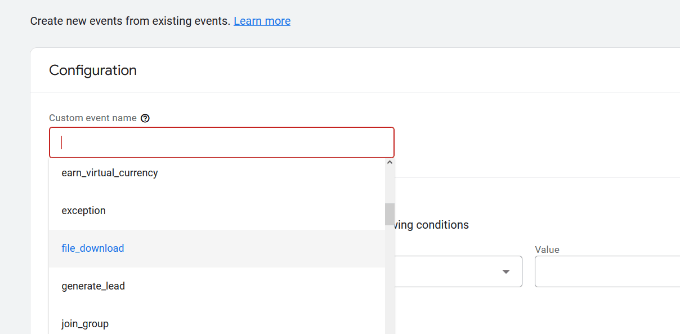
    Google Analytics 4 already has pre-built events. Simply click the Custom event name dropdown menu and choose an event. For example, we’ll select the ‘file_download’ event for this tutorial.

    Select an event name

    GA4 will automatically enter the specific Parameter and Operator for your custom event.

    Next, you can enter a value for your event. For instance, we will enter ‘.pdf’ since we want to track PDF file downloads. However, you can enter any specific word you use to organize filenames on your site.

    Enter event parameter operator and value

    After entering these details, click the ‘Create’ button at the top.

    You will now see your new custom event listed under the Custom events area in GA4.

    View custom event

    Viewing Your Event Conversions in Google Analytics 4

    Now that you’ve created a custom event in GA4, the next step is to view the conversions.

    To do that, simply head to Reports » Engagement » Event: Event name from the menu on your left and view the report.

    View custom events data

    You can now repeat this step to track other custom events.

    That said, an easier way of tracking user behavior is by using MonsterInsights. The plugin automatically sets up different events in Google Analytics.

    This way, you don’t have to manually configure events or worry about messing up your tracking.

    Google Ads Conversion Tracking in WordPress

    If you run Google Ads (formerly Google AdWords) to bring targeted traffic to your website, then you may want to track those conversions.

    Setting up is a bit complicated because it requires adding code to your website. However, with MonsterInsights, you can easily set up Google Ads conversion tracking without editing code or hiring a developer.

    First, you can go to Insights » Addons from your WordPress dashboard and install the Ads addon.

    Install the ads addon

    Once you install the addon, it should automatically activate.

    From here, you can go to Insights » Settings and head to the Publisher tab.

    Publisher settings in MonsterInsights

    Next, you can scroll down to the ‘Ads Tracking’ section.

    Here, you will need to enter the Conversion ID, which will be in this format: AW-123456789.

    Enter conversion ID and label

    If you’re tracking Google Ads on an eCommerce store, then you can also enter the Conversion Label.

    To find the Conversion ID and Conversion Label, you’ll need to go to your Google Ads dashboard and create a conversion action.

    For more details, please follow our step-by-step guide on how to set up Google Ads conversion tracking in WordPress.

    Viewing Google Ads Conversion Reports in Google Analytics 4

    Your Google Ads conversion tracking will now appear in your Google Analytics reports.

    In Google Analytics 4, you can head to Acquisition » Acquisition overview and then navigate to the ‘Session Google Ads’ report.

    After that, click the ‘View Google Ads campaigns’ option at the bottom of the report.

    View session google ads campaign report

    This will expand the report and show more details about your ad campaigns.

    You can see the total number of users, sessions, Google Ads clicks, and more.

    View detailed stats for each campaign

    Viewing Google Ads Conversion Reports in Universal Analytics

    For Universal Analytics, you can open your website property.

    After that, view the Google Ads report by going to the Acquisition » Google Ads » Campaigns section. Here, you can see conversions for all your paid campaigns.

    View Google ads report in UA

    Use UTM Parameters for Conversion Tracking in Google Analytics

    UTM parameters are special tags you can add to URLs to pass important information to Google Analytics.

    For instance, if you want to track users coming from a particular ad, then you can add UTM parameters to your ad URL like this:

    https://yourwebsite.com/special-offer/?utm_source=ads&utm_medium=cpc&utm_content=bfad
    

    You can also use UTM parameters anywhere you want to share your URLs.

    For instance, your email newsletter, Tweets, SMS campaigns, and more.

    https://yourwebsite.com/special-offer/?utm_source=newsletter&utm_medium=email&utm_campaign=jan_sale
    

    MonsterInsights makes it super easy to build URLs with UTM parameters. Simply head over to the Insights » Tools page and select the ‘URL Builder’ tab.

    Go to tools in MonsterInsights

    Simply enter the UTM parameters you want to use, and it will automatically generate the URL, which you can then use in your campaigns.

    For instance, you can enter a campaign source, like a newsletter or Google, which tells you where the users are coming from. After that, you can define a campaign medium, such as emails or banner ads, and enter a campaign name.

    Enter campaign source and medium

    MonsterInsights will also give you additional options to add campaign terms and content.

    This is useful if you’re split-testing different emails or paid campaigns.

    For creating a custom URL, you can leave these options blank.

    Additional options in URL builder

    Next, you can scroll down to the bottom to see your custom URL.

    Go ahead and use the link for campaigns and track conversions on your website.

    The URL created by the MonsterInsights URL builder tool, with UTM parameters in place

    Viewing UTM Parameter Reports in Google Analytics 4

    Now that you’ve added UTM parameters to a URL, you can track its performance in Google Analytics.

    First, log in to your GA4 account. After that, head to Reports » Acquisition » Traffic Acquisition from the menu on your left.

    View traffic acquisition report

    You should now see traffic from different sources on your website, such as organic search, email, display, and more.

    You can use the search bar to filter the traffic source for your custom campaign. For example, if you’re tracking conversions from a newsletter, then you can look up ‘Email’ in the report.

    View different traffic sources

    After that, you further drill down and filter your traffic.

    Simply click the ‘+’ button under the search bar.

    Click the plus button

    GA4 will then show different options to filter your traffic.

    You can select Traffic source » Session source from the dropdown list.

    Select session source

    Next, Google Analytics will list your email campaigns.

    You can now see which campaign performs best and gets the most conversions.

    View newsletter URL report in ga4

    Viewing UTM Parameter Reports in Universal Analytics

    In Universal Analytics, you can track the conversions of your campaigns under your Google Analytics dashboard.

    Simply switch to the Acquisition » Campaigns » All Campaigns report.

    Go to all campaigns

    Your campaigns will appear here.

    You can click on any of them to drill down further.

    View newsletter tracking report

    Setting Up Facebook Conversion Tracking in WordPress

    Facebook is the largest social media website on the planet, with billions of active users. This is why Facebook ads are sometimes the easiest way to reach a niche audience.

    Now, if you are running Facebook ads, then you may want to see how well your ads are doing by implementing conversion tracking for your Facebook ads.

    Usually, you’d need to add a code snippet to your WordPress website to track Facebook conversions. However, WPCode makes it very simple, and you can simply enter the Facebook Pixel ID to set up tracking.

    First, you’ll need to log in to Facebook and visit the Meta Business Suite. Then, click on All Tools » Events Manager.

    Go to event manager

    Next, you need to add a data source to the Event Manager.

    Simply click the ‘+ Connect to Data Sources’ button in the left-hand menu.

    Connect data source

    You should now see different options to connect your new data source.

    Go ahead and select the ‘Web’ option and click the ‘Connect’ button to continue.

    Connect new data source

    After that, enter a name for your pixel.

    Once that’s done, you can click the ‘Create Pixel’ button.

    Create a Facebook pixel

    Next, you need to choose how to connect your website and send activity to Facebook.

    At the bottom, you will see the Facebook Pixel. Go ahead and copy the pixel ID.

    Choose how to connect to your site

    Next, you can return to your WordPress website dashboard and install and activate the WPCode Free Plugin plugin. For more details, see our step-by-step guide on how to install a WordPress plugin.

    Note that you’ll need at least the WPCode Plus plan because it includes the Conversion Pixel Addon. However, there is also a free version of WPCode you can use to get started.

    Upon activation, you need to visit the Code Snippets » Conversion Pixel page and go to the Facebook tab. From here, you need to paste the Facebook Pixel ID in the respective field.

    Add Facebook pixel ID

    WPCode will now automatically add the code to your site that’s needed to track Facebook ad conversions.

    Setting Up Twitter Conversion Tracking in WordPress

    If you run Twitter Ads to promote your business, then you’ll need to set up Twitter conversion tracking to measure the success of your ads.

    Simply log in to your Twitter Ads account and click on the Tools » Event manager from the menu at the top.

    Twitter event manager

    You should now see a pixel created by Twitter.

    Go ahead and click the ‘View Twitter Pixel’ option.

    View the Twitter pixel

    On the next screen, you will see different options to add the Twitter pixel to your site.

    You can use the ‘Pixel Code’ method and simply copy the code.

    Copy the pixel code

    You will need to add this code to the header of your WordPress site.

    First, you need to switch back to your WordPress website’s admin area.

    If you haven’t already done so, then go ahead and install and activate the WPCode plugin. For more details, please see our guide on how to install a WordPress plugin.

    Upon activation, you need to visit the Code Snippets » Header & Footer page. Now you can paste the Twitter pixel code into the Header section.

    Enter the Twitter pixel

    Don’t forget to click the ‘Save Changes’ button to store your settings.

    After you have successfully installed the pixel code, you can track conversions on your Twitter Ads account.

    Optimizing Conversion Rates to Boost Sales

    Once you start tracking conversions on your website, the next step is to improve those conversion rates.

    You’d be surprised how little things can make a huge impact on your business.

    The best way to improve your conversions is by using OptinMonster. It is the best conversion optimization software on the market and helps you convert more visitors into customers.

    OptinMonster comes with tools like lightbox popups, fullscreen welcome mats, countdown timers, slide-in boxes, and more.

    Choose a campaign type and template

    It integrates with any email marketing service and works with all popular eCommerce platforms.

    OptinMonster’s display rules allow you to show targeted messages to your customers at the precise time and nudge them into making a buying decision.

    Upsell popup preview

    For instance, if you notice that customers are leaving a product page without taking any action, then you can offer them a discount when they are about to exit.

    Similarly, you can run time-sensitive campaigns to trigger the FOMO effect and give customers a nudge in the right direction.

    For more practical tips, see our guide on how ways to recover WooCommerce abandoned cart sales.

    We hope this guide helped you set up conversion tracking in WordPress. You may also want to see our comparison of the best email marketing services and the ultimate guide to WordPress speed and performance.

    If you liked this article, then please subscribe to our YouTube Channel for WordPress video tutorials. You can also find us on Twitter and Facebook.

    The post WordPress Conversion Tracking Made Simple: A Step-by-Step Guide first appeared on WPBeginner.

  • Beginner’s Guide to Preventing Blog Content Scraping in WordPress

    Are you looking for a way to keep spammers and scammers from stealing your WordPress blog posts using content scrapers?

    It is very frustrating as a website owner to see that someone is stealing your content without permission, monetizing it, outranking you in Google, and stealing your audience.

    In this article, we’ll cover what blog content scraping is, how you can reduce and prevent content scraping, and even how to take advantage of content scrapers for your own benefit.

    Beginner's Guide to Preventing Blog Content Scraping in WordPress

    What Is Blog Content Scraping in WordPress?

    Blog content scraping is when content is taken from numerous sources and republished on another site. Usually, this is done automatically via your blog’s RSS feed.

    Unfortunately, it is very easy and very common to have your WordPress blog content stolen in this way. If it’s happened to you, then you understand how stressful and frustrating it can be.

    Sometimes your content will be simply copied and pasted directly to another website, including your formatting, images, videos, and more.

    Other times, your content will be reposted with attribution and a link back to your website, but without your permission. Although this can help your SEO, you may want to keep your original content hosted on your site only.

    Why Do Content Scrapers Steal Content?

    Some of our users have asked us why scrapers are stealing content. Usually, the main motivation for content theft is to profit from your hard work:

    • Affiliate commission: Dishonest affiliate marketers may use your content to bring traffic to their site through search engines in order to promote their niche products.
    • Lead Generation: Lawyers and realtors may pay someone to add content and gain authority in their community, and not realize it is being scraped from other sources.
    • Advertising Revenue: Blog owners may scrape content to create a hub of knowledge in a certain niche ‘for the good of the community’ and then plaster the site with ads.

    Is It Possible to Completely Prevent Content Scraping?

    In this article, we’ll show you some steps you can take to reduce and prevent content scraping. But unfortunately, there is no way to completely stop a determined thief.

    That’s why we finish this article with a section on how you can take advantage of content scrapers. While you can’t always stop a thief, you may be able to gain some traffic and revenue through the content they have stolen from you.

    What Should You Do When You Discover Someone Has Scraped Your Content?

    Since it’s not possible to completely stop scrapers, you may one day discover that someone is using content they stole from your blog. You may wonder what to do when that happens.

    Here are a few approaches that people take when dealing with content scrapers:

    • Do Nothing: You can spend a lot of time fighting scrapers, so some popular bloggers decide to do nothing. Google already sees well-known sites as authorities, but that’s not true of smaller sites. So this approach is not always the best in our opinion.
    • Take Down: Here you contact the scraper and ask them to take the content down. If they refuse, then you submit a takedown notice. You can learn how in our guide on how to easily find and remove stolen content in WordPress.
    • Take Advantage: While we actively work at having content scraped from WPBeginner taken down, we also use a few techniques to get traffic and make money from scrapers. You can learn how in the ‘Take Advantage of Content Scrapers’ section below.

    With that being said, let’s take a look at how to prevent blog scraping in WordPress. Since this is a comprehensive guide, we have included a table of contents for easier navigation.

    Trademark and copyright laws protect your intellectual property rights, brand, and business against many legal challenges. This includes illegal use of your copyrighted material or your brand’s name and logo.

    You should clearly display a copyright notice on your website. While your content is automatically covered by copyright laws, displaying a notice will let you know that your content is copyrighted and that they cannot use your protected properties for business.

    Display a Copyright Notice on Your Website

    For example, you can add a copyright notice with a dynamic date to your WordPress footer. This will keep your copyright notice up to date.

    This may discourage some users from stealing it. It will also help in the case that you do need to send a cease and desist letter or file a DCMA complaint to take down your stolen content.

    You can also apply for copyright registration online. This process can be complicated, but luckily there are low-cost legal services that can help small businesses and individuals.

    Learn how in our guide on how to trademark and copyright your blog’s name and logo.

    2. Make Your RSS Feed More Difficult to Scrape

    Since blog content scraping is usually done automatically via your blog’s RSS feed, let’s look at a few helpful changes you can make to your feed.

    Don’t Include the Full Post Content in Your WordPress RSS Feed

    You can include just a summary of each post in your RSS feed instead of the full content. This includes an excerpt as well as post metadata such as the date, author, and category.

    There is certainly debate in the blogging community about whether to have full RSS feeds or summary feeds. We won’t get into that now except to say that one of the pros of having a summary only is that it helps prevent content scraping.

    You can change the settings by going to Settings » Reading in your WordPress admin panel. You need to select the ‘Excerpt’ option, and then click the ‘Save Changes’ button.

    RSS Feeds Can Contain Full Text or an Excerpt of Each Post

    Now the RSS feed will only show an excerpt of your article. If someone is stealing your content through your RSS feed, then they will only get the summary, not the full post.

    If you would like to tweak the summary, then you can see our guide on how to customize WordPress excerpts.

    Optimize Your RSS Feed to Prevent Scraping

    There are other ways you can optimize your WordPress RSS feed to protect your content, get more backlinks, increase your web traffic, and more. One of the best ways is to delay posts from appearing in the RSS feed.

    The benefit is that when you delay posts from appearing in your RSS feed, you give the search engines time to crawl and index your content before it appears elsewhere, such as on scraper’s websites. The search engines will then see your site as the authority.

    The safest and easiest way to do this is using WPCode because it has a recipe that automatically adds the correct custom code to WordPress.

    Add a snippet using WPCode

    For detailed instructions, see our guide on how to delay posts from appearing in your WordPress RSS feed.

    3. Disable Trackbacks and Pingbacks

    In the early days of blogging, trackbacks and pingbacks were introduced as a way for blogs to notify each other about links. When someone links to a post on your blog, their website will automatically send a ping to yours.

    This pingback will then appear in your blog’s comment moderation queue with a link to their website. If you approve it, then they get a backlink and mention from your site.

    This gives the spammer an incentive to scrape your site and send trackbacks. Luckily, you can disable trackbacks and pingbacks to give scrapers one less reason to steal your content.

    Disabling Trackbacks and Pingbacks in WordPress

    For more information, check out our guide on disabling trackbacks on all future posts.

    You might also like to learn how to disable trackbacks and pings on existing WordPress posts.

    4. Block the Scraper’s Access to Your WordPress Website

    One way to stop scrapers from stealing your content is to take away their access to your website. You can do this manually by blocking their IP address, but most users will find it easier to use a security plugin such as a web application firewall.

    Block the Scraper Using a Security Plugin (Recommended)

    Blocking scrapers manually is tricky and a lot of work. Especially since many hacking attempts and attacks are made using a wide range of random IP addresses from all over the world. It’s almost impossible to keep up with all those random IP addresses.

    That’s why you need a Web Application Firewall (WAF) such as WordFence or Securi. These act as a shield between your website and all incoming traffic by monitoring your website traffic and blocking common security threats before they reach your WordPress site.

    For the WPBeginner website, we use Sucuri. It is a website security service that protects your website against such attacks using a website application firewall.

    Basically, all your website traffic goes through the security service’s servers where it is examined for suspicious activity. They automatically block suspicious IP addresses from reaching your website altogether. See how Sucuri helped us block 450,000 WordPress attacks in 3 months.

    Manually Block or Redirect the Scraper’s IP Address

    Advanced users may also wish to manually block a scraper’s IP address. This is more work, but you can specifically target the scraper’s address once you learn it. Web developer Jeff Star suggests this approach when he wrote about how he handles content scrapers.

    Note: Adding code to website files can be dangerous. Even a small mistake can cause major errors on your site. That’s why we only recommend this method for advanced users.

    You can find the scraper’s IP address by visiting ‘Raw Access Logs’ in the cPanel dashboard of your WordPress hosting account. You need to look for IP addresses with an unusually high number of requests and keep a record of them, say by copying them into a separate text file.

    Blocking the Scraper's IP Address

    Tip: You need to make sure that you don’t end up blocking yourself, legit users, or search engines from accessing your website. Copy a suspicious-looking IP address and use online IP lookup tools to find out more about it.

    Once you are confident that the IP address belongs to a scraper, you can block it using the cPanel ‘IP Blocker’ tool, or by adding code like this in your root .htaccess file:

    Deny from 123.456.789
    

    Make sure you replace the IP address in the code with the one you want to block. You can block multiple IP addresses by entering them on the same line separated by spaces.

    For detailed instructions, see our guide on how to block IP addresses in WordPress.

    Instead of simply blocking the scrapers, Jeff suggests you could send them dummy RSS feeds instead. You could create feeds full of Lorem Ipsum and annoying images, or even send them right back to their own website, causing an infinite loop and crashing their server.

    To redirect them to a dummy feed, you will need to add code like this to your .htaccess file:

    RewriteCond %{REMOTE_ADDR} 123\.456\.789\.
    RewriteRule .* http://dummyfeed.com/feed [R,L]
    

    5. Prevent Image Theft in WordPress

    It’s not just your written content that you need to protect. You should also prevent image theft in WordPress.

    Like text, there is no way to completely stop people from stealing your images, but there are plenty of ways to discourage image theft on a WordPress website.

    For example, you can disable hotlinking of your WordPress images. This will mean that if someone scrapes your content, their images will not load on their site.

    It will also reduce your server load and bandwidth usage, boosting your WordPress speed and performance.

    Alternatively, you can add a watermark to your images that gives you credit. This will make it clear that the scraper has stolen your content.

    You can learn these two techniques as well as other ways to protect your images in our guide on 4 ways to prevent image theft in WordPress.

    6. Discourage Manual Copying of Your Content

    While most scrapers use automatic tools, some content thieves may try to manually copy all or part of your content.

    One way to make this more difficult is to prevent them from copying and pasting your text. You can do this by making it harder for them to select the text on your website.

    To learn how to stop manual copying of your content, then see our step-by-step guide on how to prevent text selection and copy/paste in WordPress.

    However, this will not completely protect your content. Remember, tech-savvy users can still view the source code or use the Inspect tool to copy anything they want. Also, this method will not work with all web browsers.

    Also, keep in mind that not everyone copying your text will be a content thief. For instance, some people may want to copy the title to share your post on social media.

    That’s why we recommend you only use this method if you feel it’s truly needed for your site.

    7. Take Advantage of Content Scrapers

    As your blog gets larger, it is almost impossible to stop or keep track of all content scrapers. We still send out DMCA complaints. However, we know that there are tons of other sites that are stealing our content that we just cannot keep up with.

    Instead, our approach is to try to take advantage of content scapers. It’s not so bad when you see that you’re making money from your stolen content, or receiving a lot of traffic from a scraper’s website.

    Make Internal Linking a Habit to Gain Traffic and Backlinks from Scrapers

    In our ultimate guide on SEO, we recommend that you make internal linking a habit. By placing links to your other content in your blog posts, you can increase pageviews and reduce the bounce rate on your own site.

    But there is a second benefit when it comes to scraping. Internal links will get you valuable backlinks from the people who are stealing your content. Search engines like Google use backlinks as a ranking signal, so the additional backlinks are good for your SEO.

    Lastly, these internal links allow you to steal the scraper’s audience. Talented bloggers place links on interesting keywords, making it tempting for users to click. Visitors to the scraper’s website will also click the links, which will lead them straight back to your own website.

    Auto Link Keywords With Affiliate Links to Make Money from Scrapers

    If you make money on your website from affiliate marketing, then we recommend enabling auto-linking in your RSS feeds. This will help you maximize your earnings from readers who only read your website via RSS readers.

    Even better, it will help you make money from the sites that are stealing your content.

    Simply use a plugin like ThirstyAffiliates that will automatically replace assigned keywords with affiliate links. We show you how in our guide on how to automatically link keywords with affiliate links in WordPress.

    Promote Your Website in Your RSS Footer

    You can use the All in One SEO plugin to add custom items to your RSS footer. For example, you can add a banner that promotes your own products, services, or content.

    AIOSEO RSS feed footer save

    The best part is that those banners will appear on the scraper’s website as well.

    In our case, we always add a little disclaimer at the bottom of posts in our RSS feeds. By doing this, we get a backlink to the original article from the scraper’s site.

    This lets Google and other search engines know we are the authority. It also lets their users know that the site is stealing our content.

    For more tips, check out our guide on how to control your RSS feed footer in WordPress.

    We hope this tutorial helped you learn how to prevent blog content scraping in WordPress. You may also want to see our ultimate WordPress security guide, or check out our list of the best analytics solutions for WordPress.

    If you liked this article, then please subscribe to our YouTube Channel for WordPress video tutorials. You can also find us on Twitter and Facebook.

    The post Beginner’s Guide to Preventing Blog Content Scraping in WordPress first appeared on WPBeginner.

  • Should You Start a Blog or a YouTube Channel? (Beginner’s Guide)

    Are you wondering whether you should start a blog or YouTube channel?

    Blogging and vlogging are good ways to engage with your audience and grow your brand’s credibility. We are often asked by readers which they should start first blog vs YouTube?

    In this article, we’ll explain our pick on blog vs YouTube and which you should start first with detailed explanation of our take.

    Should You Start a Blog or a YouTube Channel?

    TLDR: we recommend you start with a blog and add a YouTube channel later if needed

    This is a comprehensive guide, so we’ve included a table of contents for easier navigation:

    What Is a Blog?

    A blog is a type of website where articles, called ‘blog posts’, are presented in reverse chronological order with newer content appearing first. Blog posts are a great way to share your expert knowledge with your audience, build credibility, and attract visitors to your site.

    If you want to start an online business, or communicate better with your existing customers or audience, then you should think about starting a blog.

    Blogs typically present information in a conversational style and are run by individuals or a small group of people. However, there are now tons of corporate blogs that produce a great deal of useful informational and thought-leadership content.

    Typical blog posts also have a comments section where users can respond to the article by making comments or asking questions.

    Blogging has been around since 1993 and has become an essential marketing tool for many businesses. But is it still relevant in the age of YouTube and social media?

    Why Starting a Blog Is so Important Today

    There are currently 1.9 billion websites in the world, and over 600 million are blogs. That means that blogs make up a third of the web.

    Blogging has become an important marketing strategy for businesses due to its benefits. You or your business can use a blog to promote ideas, brands, stories, products, and more.

    Here are some of the more important benefits of blogging and why you should consider starting a blog.

    1. A Blog Will Bring More Traffic to Your Website

    A typical business website consists of a few important pages. For example, you may have a homepage, landing pages for your products and services, and a contact page.

    Unfortunately, search engines may often decide that your website is less important than thousands of other websites in the same industry, especially if they have been around longer.

    Adding a blog allows you to publish additional content which over time will help you bring more traffic to your website.

    That’s a major reason to start with a blog rather than a YouTube channel because YouTube videos will attract traffic to the YouTube platform instead of your own website. You own and control your blog, while the YouTube platform is owned by Google and will benefit them.

    2. A Blog Will Help Strengthen Brand Recognition and Build Authority

    A blog helps you strengthen your brand identity. It gives you more opportunities to use your custom logo across your website, your social profiles, search results, and more.

    This brand recognition when combined with customer trust and authority adds enormous value to your digital assets.

    Adding a blog allows you to establish authority by regularly publishing content on topics related to your industry.

    If you are consistently publishing new content, you’ll become the go-to place for your users and other businesses interested in those topics.

    3. A Blog Will Help You Generate More Leads and Conversions

    More than 70% of people visiting your website today, will never find it again. That’s because there is so much content and information on the internet.

    Starting a blog will help you convert website traffic into potential leads, subscribers, and social media followers.

    For example, you can use tools like OptinMonster to build an email list and grow a social media following. And with push notifications, you can send targeted messages to your blog visitors and bring them back to your website.

    4. A Blog Will Help You Build an Engaging Audience

    A static website doesn’t leave much room for a conversation. Why not add a blog to your site where users can engage by leaving a comment and sharing your posts on social media?

    This helps you build a community around your business which is extremely useful.

    It will help your visitors develop an affinity with your brand which pays off when they are looking to make a purchase or recommend your products and services to friends and family.

    5. A Blog Will Let You Educate Customers and Share News

    Blog posts allow you to educate customers about different ways they can use your products. This will allow you to compare your product with competitors, showcase product features, inform users about benefits, and more.

    They’re also the best place to share your business news, announcements, and sales events.

    For instance, if you are launching a Black Friday sale, you can promote it with a blog post. And then promote that blog post across your website with a floating header or footer banner.

    6. A Blog Will Let You Build Additional Revenue Streams for Your Business

    Blogs provide many opportunities to generate additional revenue and make money online. For instance, you can display ads in your blog posts using Google AdSense.

    You can also promote affiliate products and make money with affiliate marketing or use your blog to sell premium content using MemberPress or Easy Digital Downloads.

    7. A Blog Helps You Repurpose Content for Other Marketing Channels

    Adding a blog to your website allows you to actively use blog content across your other marketing channels, such as making YouTube videos based on blog post content.

    For example, we use our written WPBeginner tutorials as a helpful starting point for creating YouTube videos. This makes our video producers’ jobs easier and saves time. Then we embed the YouTube videos into the tutorial so our visitors can choose to read or watch the content.

    Still not convinced? You can learn even more reasons to start a blog by taking a look at our article on the benefits of blogging.

    Starting a Blog vs Starting a YouTube Channel

    Now that you know about some of the benefits of blogging, you can see why we recommend that you start a blog first, and then add a YouTube channel in the future if you need.

    Let’s summarize the most important points. When you build a blog, you are creating a platform that you own and control. The content you create will attract visitors to your website where they can learn more about your products and services.

    On the other hand, the YouTube platform will always be owned by Google. The search traffic generated by your content will take people to the YouTube website, not your own.

    Creating blog posts first also makes it easier to create other types of content, such as YouTube videos. Usually, the first step in creating a video is to write a script. Because you have already created written content on your blog, a lot of the work is already done.

    Besides that, creating YouTube videos requires expensive equipment such as a camera and lighting, and you’ll also need to purchase video editing software and learn how to use it.

    Finally, your blog is the perfect place for your visitors to watch your YouTube videos. You can easily embed YouTube videos in a blog post, giving your visitors the choice of watching or reading your content. That’s a great user experience.

    What You Need to Start a Blog

    We know that starting a blog can be a terrifying thought specially when you are not geeky. Guess what – you are not alone.

    If you want to start a blog, then WordPress is the most popular blogging platform recommended by experts.

    Although WordPress is free, there are some costs involved in creating a self-hosted blog. You will need to choose and register a domain name and decide on a web hosting provider.

    You may also want to pay someone to design your website and purchase premium plugins to add features. The total cost will depend on your needs and goals.

    The good news is that you can build a fully functional WordPress website for yourself and keep your costs under $100. Bluehost, an official WordPress-recommended hosting provider, has agreed to offer our users a free domain name and over 60% off on web hosting.

    You can learn the details and options in our guide on how much it really costs to build a WordPress website.

    Even better, when you signup with Bluehost using our link, they will automatically install WordPress for you, so you can start building your blog right away.

    All you need to do is log in to your Bluehost account, and then click the ’Log in to WordPress’ button to get started.

    Bluehost Dashboard - log in to WordPress

    After that, you will need to set up your WordPress install, choose a theme and some plugins, then get started on your first blog post.

    We take you through the entire process step by step in our beginner’s guide on how to start a WordPress blog. We’ll summarize the main steps below.

    The end result will be an attractive and functional blog that you own.

    Selecting a Theme to Customize Your Blog’s Appearance

    Customizing the look and feel of your blog is by far one of the most exciting and rewarding parts of the journey of creating your WordPress blog.

    WordPress comes with a powerful templating engine that allows you to change the appearance of your website by installing themes.

    There are thousands of free and paid WordPress themes available. You can choose one that looks closer to what you have in mind for your website.

    WordPress Theme Stats

    You can look for themes under the Appearance » Themes page. It will show you a bunch of default themes that come with your WordPress install.

    For more themes, click on the ‘Add New’ button at the top to find more free themes.

    Add new theme

    For premium or paid WordPress themes, you can try trusted WordPress theme shops like SeedProdThrive ThemesAstraElegant Themes, and more.

    However, there is such an abundance of WordPress themes that it may become difficult for beginners to decide which theme they want to use.

    We recommend choosing a minimalist design with plenty of white space. This provides you plenty of room to customize the theme and make it your own.

    For more details, see our guide on how to choose the perfect theme for your website as well as our list of the best free WordPress blog themes.

    Creating Your First Blog Post

    Once you have selected your WordPress theme, you are now ready to create your first blog post. You just need to click on the Posts » Add New menu in your WordPress dashboard.

    You will see an editor area where you can write your first blog post.

    Writing Your First Blog Post

    WordPress uses a block-based editor that allows you to create beautiful content layouts for your blog posts.

    To familiarize yourself with the editor, see our WordPress block editor tutorial.

    Once you’re done writing, go ahead and click on the Publish button on the top-right corner of the screen to make your blog post publicly available.

    Publishing Your First Blog Post

    On the posts screen, you will notice several other sections such as Categories and Tags. You can use these to organize your blog posts into sections. We have a great write-up on the difference between categories vs tags, which we highly recommend that you read.

    To utilize all the features on the posts screen, you should read our article on how to add a new post in WordPress (video included).

    We also offer some helpful resources to help you brainstorm new post ideas to write about:

    A lot of pro bloggers choose their specific topics strategically by doing keyword research. This helps their content rank higher in Google searches and get more traffic.

    We have a step-by-step guide on how to do keyword research for beginners using the exact same method that we use on WPBeginner.

    Extending and Growing Your Blog With Plugins

    Once you publish your first blog post, you’ll probably want to get started with adding other usual elements on your website such as a contact page, galleries, sliders, and an email list. To add all these additional features, you need to use plugins.

    Plugins are like apps for your WordPress website. They allow you to add new features and extend the functionality of WordPress without writing any code.

    There are more than 60,000 free plugins available in the WordPress.org plugin directory alone. Plus, there are premium WordPress plugins sold by third-party developers with priority support and guaranteed updates.

    WordPress plugins

    However, you also need to consider which plugins you need to use to keep your WordPress website secure, private, and anonymous.

    Here are our top picks of the best plugins to grow your blog.

    • All in One SEO is the best WordPress SEO plugin on the market and helps your anonymous website get more traffic from search engines.
    • SeedProd is a powerful WordPress page builder that allows you to use a drag-and-drop interface to create any type of page for your website.
    • MonsterInsights is the best WordPress Google Analytics plugin which helps you see where your visitors and coming from and what they see on your website.
    • OptinMonster is a conversion optimization software, which helps you convert website visitors into email subscribers and customers.
    • WPForms is the best WordPress contact form plugin and allows you to easily create forms for your website.

    That’s just a start. You can learn how to add plenty of other features to your blog by checking out our list of useful tools to manage and grow your WordPress blog.

    Monetizing Your WordPress Blog

    WordPress is the largest publishing platform on the planet, and it powers over 43% of all websites. Many bloggers have successfully monetized their blogs, and you can too.

    That’s why we put together a detailed list of proven ways you can make money online blogging with WordPress.

    Unlike other articles on how to make money online, this is a comprehensive guide on how to make money at home legitimately, using blogging and WordPress.

    Many of these methods require some investment of time and money to get started. As long as you’re willing to put in the effort, you’ll reap the reward.

    Here are some of the main strategies we cover:

    We hope this tutorial helped you learn why you should start with a blog instead of a YouTube channel. You may also want to learn how to create an email newsletter the right way, or check out our list of the best YouTube video gallery plugins for WordPress.

    If you liked this article, then please subscribe to our YouTube Channel for WordPress video tutorials. You can also find us on Twitter and Facebook.

    The post Should You Start a Blog or a YouTube Channel? (Beginner’s Guide) first appeared on WPBeginner.

  • How to Install and Setup Google Tag Manager in WordPress

    Are you looking to install Google Tag Manager in WordPress?

    Google Tag Manager lets you add tracking code snippets to your WordPress website. It is a free tool and allows you to track different user interactions.

    In this article, we will show you how to properly install and set up Google Tag Manager in WordPress and explain the benefits.

    how to install and setup Google Tag Manager in WordPress

    What is Google Tag Manager?

    Google Tag Manager (GTM) is a free tool by Google that lets you add, update, and manage code snippets called tags on your WordPress site.

    Often website owners need to add multiple code snippets to track their conversions, form submissions, link clicks, and gather other analytical data on their website. With Google Tag Manager, you can easily add and manage all of these scripts from a single dashboard.

    There are built-in tag templates for Google Analytics, Google Ads, Google Optimize, DoubleClick, and Google AdSense. The Tag Manager also works with several third-party analytics and tracking platforms.

    This saves you the time of adding and removing tags from your code rather than managing it from an easy dashboard. Not to mention, all of these separate snippets get loaded in one script.

    That said, let’s see how to add Google Tag Manager to WordPress. We will also show you an alternative method for tracking different user interactions on your site. The best part, you don’t have to edit code or set up tags.

    Simply click the links below to jump ahead to your preferred section:

    Adding Google Tag Manager in WordPress

    First, you’ll need to visit the Google Tag Manager website and click the ‘Start for free’ button to sign up.

    Google Tag Manager website

    After login, you will come to the add new account page.

    Go ahead and click the ‘Create Account’ button.

    Create account in tag manager

    Next, you can enter a name for your account and select a Country from the dropdown menu.

    Tag Manager will also give you the option to share data anonymously with Google. You can simply click the checkbox and scroll down.

    Enter account name and country

    Now you need to add a container to your account. A container could be a website, iOS or Android apps, or a server. In this case, we will use the ‘Web’ option.

    You can use your site’s domain for the container name. Once you’re done, click on the ‘Create’ button to continue.

    Enter container name and select platform

    You will now see a new window slide in from the right with the Google Tag Manager terms of service agreement.

    You can click the checkbox at the bottom to accept the data processing terms and then click the ‘Yes’ button at the top.

    Accept tag manager terms of agreement

    Google Tag Manager will now create your account.

    Next, it will now show you tracking codes that you need to add to your site.

    Copy tag manager code

    Simply copy these 2 codes, as you will need to add them to the header and body section on your WordPress website.

    Adding Google Tag Manager Code to WordPress

    The easiest way of adding code snippets in WordPress is using the WPCode plugin. It is the best WordPress code snippet plugin and lets you add and manage different custom codes on your website.

    The best part, you can get started for free with the WPCode. However, there is also a premium version that offers more features like a code snippet library, conditional logic, auto-insert snippets, and more.

    First, you’ll need to install and activate the free WPCode plugin. If you need help, then please see our guide on how to install a WordPress plugin.

    Upon activation, you need to visit the Code Snippets » Headers & Footers page from the WordPress admin panel. Now enter the codes you copied earlier.

    Ensure that you paste the <head> code in the Header field and the <body> code in the Body field, as you can see below.

    Add header and body tag manager codes

    Once you’re done, don’t forget to click the ‘Save Changes’ button.

    Google Tag Manager is now ready to use on your WordPress website.

    Creating a New Tag in Google Tag Manager

    Next, you can create a new tag in Google Tag Manager and set up tracking on your WordPress website.

    Let’s say you want to add Google Analytics 4 (GA4) to your WordPress website using Tag Manager.

    First, you’ll need to click on the ‘Add a new tag’ option from your Tag Manager dashboard.

    Create a new tag

    After that, you can enter a name for your tag at the top.

    From here, simply click on the ‘Tag configuration’ option.

    Enter a title and click tag configuration

    Next, Tag Manager will show you different tag types to choose from.

    For instance, this will include tags for Google Analytics, Google Ads, Floodlight, and more. We’ll select ‘Google Analytics: GA4 Configuration’ for this tutorial.

    Select a tag type

    Next, you will need to enter the details of your tag.

    First, you can add the Measurement ID.

    Enter measurement ID

    You can find the Measurement ID by logging into your Google Analytics account.

    Simply head to the Admin » Data Streams option under the Property column. Go ahead and click on your Data Streams to view the measurement ID.

    Select your data stream

    When a new window opens, you should see the Measurement ID in the top right corner.

    You can simply copy the ID.

    Copy your Measurement ID

    Now head back to the Google Tag Manager window or tab, and enter the measurement ID.

    After that, you can scroll down and click on the ‘Triggering’ option.

    Add a trigger

    Google Tag Manager will now show built-in triggers to choose from.

    Go ahead and select the ‘Initialization – All Pages’ option.

    Select initialization all page trigger

    After selecting the trigger, you will need to store your settings.

    Simply click the ‘Save’ button in the top right corner.

    Save your GA4 tag

    You should now see your newly created tag.

    Go ahead and click the ‘Submit’ button to run the tag.

    Preview and submit your tag

    Set Up Advanced Tracking Using MonsterInsights (Easy Way)

    Now that you know how to install and use Google Tag Manager, you can use an easier way of setting up advanced tracking on your WordPress site.

    With MonsterInsights, you don’t have to perform complicated setups in GTM. It is the best Google Analytics plugin for WordPress and automatically configures advanced tracking for you. You also don’t have to worry about making a mistake that could mess up your tracking data.

    The best part, MonsterInsights shows reports inside your WordPress dashboard. You won’t have to leave your site to see its performance. It presents data that matters for your business and helps uncover insights.

    For this tutorial, we will use the MonsterInsights Pro version because it includes advanced tracking features and premium addons. There is also a MonsterInsights Lite version you can use to get started for free.

    First, you’ll need to install and activate the MonsterInsights plugin. If you need help, then please see our guide on how to install a WordPress plugin.

    Upon activation, you will see the MonsterInsights welcome screen. You can click the ‘Launch the Wizard’ button and follow the onscreen steps to configure Google Analytics.

    Launch setup wizard

    For more details, please see our guide on how to install Google Analytics in WordPress.

    MonsterInsights will work out of the box and automatically add tracking in Google Analytics.

    Here are some of the tracking features the plugin offers:

    1. Track Link and Button Clicks

    MonsterInsights sets up link click and button click tracking out of the box on your website. Google Analytics doesn’t track link clicks by default, and you’d have to use GTM to add tracking.

    For instance, you can track affiliate performance and see which links users click the most. This way, you can grow your revenue by promoting affiliates that are getting a lot of clicks.

    Outbound and affiliate links report

    Similarly, the plugin also tracks outbound link clicks. These are links to other websites on your site. You can use this data to see create new partnerships, signup for an affiliate program, and create new content on your own site.

    Besides that, MonsterInsights also helps track telephone links, file downloads, call-to-action (CTA) button clicks, and more.

    2. Set Up eCommerce Tracking in WordPress

    If you have an online store, then MonsterInsights helps you track its performance without editing the tracking script or using Google Tag Manager.

    It offers an eCommerce addon that lets you enable eCommerce tracking in WordPress in just a few clicks. You can see your site’s overall conversion rate, transactions, revenue, average order value, top-selling products, and much more.

    Ecommerce report in MonsterInsights

    For more details, please see our guide on how to properly set up eCommerce tracking in WordPress.

    3. Configure Form Conversions Tracking

    With MonsterInsights, you can also set up form conversion tracking in Google Analytics. The plugin offers a Forms addon that automatically tracks WordPress forms on your site.

    If you use Google Tag Manager, then you’d have to create separate tags for all your forms and track them in Google Analytics.

    However, MonsterInsights makes this process super simple. Plus, you can view the data inside the WordPress dashboard.

    Forms report

    4. Automatically Enable Scroll Depth Tracking

    Ever wonder how far people scroll your web page before leaving your site? Scroll depth tracking shows exactly that and helps you place your banner ads and CTAs in the right place to boost conversions.

    MonsterInsights automatically enables scroll tracking on your website. There is no need for additional setup using Google Tag Manager or modifying the tracking code at all.

    Scroll tracking

    You can read our guide on how to add scroll depth tracking in WordPress with Google Analytics.

    We hope this article helped you learn how to install and setup Google Tag Manager in WordPress. You may also want to see our guide on the ultimate guide to WordPress SEO and the best live chat software for small businesses.

    If you liked this article, then please subscribe to our YouTube Channel for WordPress video tutorials. You can also find us on Twitter and Facebook.

    The post How to Install and Setup Google Tag Manager in WordPress first appeared on WPBeginner.

  • 15 Most Popular Digital Products You Can Sell Online in 2023

    Are you looking for popular digital product ideas to sell online?

    In today’s creator economy, there are many opportunities to make money online. You can sell items like music files, videos, blog posts, eBooks, software, apps, podcasts, premium content, and more.

    In this article, we will share the most popular digital products that you can sell online.

    Most popular digital products you can sell online

    What are Digital Products?

    A digital product is essentially anything that you can buy, download, and use on a device such as a computer or mobile phone. For example, ebooks, software, videos, music, online courses, and more can be digital products that you can purchase at an online store.

    They are delivered to you electronically, usually through a direct download in your user dashboard or in an email with a download link inside. In general, you can easily access them anytime or anywhere.

    Why Sell Digital Products Online?

    Digital products have a lot of advantages compared to selling physical products.

    First, you don’t have to worry about keeping inventory and meeting supply or demand requirements. Once you create a digital product, you can sell it again and again.

    This also relieves you of any storage issues. Some physical products need to be kept at a warehouse and may require special storage conditions like refrigeration, which can be costly. On the other hand, you don’t have to worry about storing your digital products.

    Besides that, you get to generate a passive income stream with digital goods and easily grow your sales. They also help reach a wider audience across the globe, as people from around the world can buy your digital products.

    That said, let’s look at some of the most popular digital products you can sell online today.

    1. eBooks

    Sell ebooks online

    eBooks are a great digital product to have, and you can write about any topic you like. The best part, once you’ve created an ebook, you can simply market it and earn passive income.

    Now, if you have a WordPress blog or write articles regularly on any other platform, then you can repurpose the content for your ebook.

    For instance, your most popular guides would already have enough content to be converted into an ebook. Or you can combine several blog posts into an ebook about a particular topic.

    Once you’re done with the writing part, you can then add the ebook to your WordPress site so people can download it.

    You can follow our guide on how to create and sell ebooks in WordPress from start to finish.

    2. Online Courses

    Online course digital product

    The next most popular digital product you can sell is online courses. People are always looking to improve their skillset and learn new things.

    You can use this opportunity to share your expertise and teach other people through a virtual classroom. For example, if you’re a fitness instructor, then you can create an online course and teach people different exercises.

    The best part, you need very little investment and no technical knowledge to create online courses.

    There are many tools in the market that can help you get started in no time. All you need is a domain name for your site, WordPress website hosting, and a learning management system (LMS) plugin.

    LMS software like MemberPress or Thrive Apprentice makes it super easy to create interactive courses without editing code. Plus, you can manage students and course material, offer quizzes, and more.

    You can learn more by following our guide on how to create and sell online courses in WordPress.

    3. Premium Memberships

    Create a membership site

    Just like ebooks and online courses, a membership website is another simple way of making money online. You can sell premium memberships with access to exclusive content and community features.

    For example, you can lock specific guides, cheat sheets, interviews, videos, podcasts, newsletters, and other content behind premium memberships.

    On the other hand, you can offer exclusive entry to different communities, like a forum, Slack channel, or Facebook group, through a membership site.

    What’s great about memberships is that you don’t have to rely on advertising revenue. You can allow your website visitors to support your site and generate continuous income.

    There are many membership plugins and tools you can use to get started. For instance, MemberPress lets you restrict access to content, integrate different payment services, create unlimited membership levels, allow drip content, and more.

    To start selling memberships, you can see our step-by-step guide on creating a WordPress membership site.

    4. Tutorials and Guides

    Tutorial and guides

    You can also sell individual guides and tutorials as digital products. This is a great way to earn more money if you have long articles or multiple blog posts on a particular topic.

    Simply turn your guides into a downloadable file like a PDF document. You can then charge a fee to visitors who are willing to purchase your content.

    For example, let’s say you have a detailed guide on email marketing. You can turn that guide into a PDF file and sell it as a digital product.

    There are many WordPress eCommerce platforms you can use to sell digital products. We recommend using Easy Digital Downloads because it is beginner friendly, offers a shopping cart, easily integrates with payment gateways, and more.

    You can learn more by going through our guide on how to sell digital downloads on WordPress.

    5. Spreadsheets

    Spreadsheets and cheatsheet

    Spreadsheets are another type of digital product you can sell on your website and generate revenue. You can create all types of useful spreadsheets for your audience.

    For example, let’s say you have expertise in search engine optimization (SEO). You can create a technical SEO checklist for beginners and offer that as a paid spreadsheet. Similarly, you can create checklists, templates, calculators, lists, and other types of spreadsheets.

    The best part is that you don’t need any investment to create a spreadsheet. Plus, it helps offer evergreen content that can you use to generate leads and a passive income stream.

    You can check out our guide on how to sell spreadsheets online for more details.

    6. WordPress Plugins

    Create WordPress plugins

    You can also create WordPress plugins and sell them as digital products.

    WordPress is open-source software, and it powers over 43% of the website on the internet. There are over 60,000 WordPress plugins that include free and paid options. This shows that there is a huge potential to create a plugin that generates revenue.

    Usually, you need basic coding knowledge like PHP, CSS, HTML, and JavaScript to write a plugin. For more details, you can see our step-by-step guide on how to create a WordPress plugin.

    You can also hire a developer to help you create a plugin. There are many WordPress developer job websites where you can post an opening and hire the right talent for a specific project.

    If you’re willing to take on a DIY project, then you can also use a plugin called Pluginception. It lets you create a WordPress plugin from the WordPress dashboard. To learn more, please follow our guide on how to create a WordPress plugin using a plugin.

    7. Software and Mobile Apps

    Build an app and software

    Just like WordPress plugins, you can also create software and mobile apps. There are many SaaS (software as a service) products that you can create for any niche. It can be productivity software, workout apps, games, and more.

    Usually, SaaS products have a recurring subscription. This means that you’ll need to generate income on a monthly or annual basis.

    Since creating such software and apps requires specific skills, you might need to hire developers. This process can be expensive because you’ll need investment for creating software or purchasing an existing one ($15,000 and upwards).

    As an alternative, you can convert your WordPress websites into mobile apps and monetize them. There are tools and plugins that can turn your site into an app. For example, let’s say you have a membership site. Converting it into an app will help you attract mobile users and sell it as a digital product.

    On the other hand, you can also join affiliate programs and earn a commission on each sale. You can create a WordPress blog to review different software and apps and promote them as affiliates. Or you could create an online store using affiliates.

    For more information, check out our ultimate guide to affiliate marketing for beginners.

    8. Website Themes

    Website themes

    Similarly, you can make WordPress themes and sell them online. Themes are necessary for every WordPress user, and often users look for themes that offer specific features and customization options.

    There are many platforms where you can sell website themes. Some of these include Enavto, Themeforest, CodeCanyon, and Creative Market.

    You can also list a free version of your theme on the WordPress.org theme directory. From here, you can encourage users to upgrade to a premium version to unlock more features.

    We recommend selling the digital products on your own websites instead of a marketplace like Envato because they charge a large commission on every sale without much benefit.

    You can use an eCommerce solution like Easy Digital Downloads to create your own digital store.

    9. Digital Art and Graphics

    Digital art

    If you’re a graphic designer or an artist, then you can create a variety of digital products and sell them online.

    For example, you can create logos, design templates, original digital artwork, clip art, patterns, brushes, backgrounds, icons, fonts, shapes, and more.

    Besides that, creating assets for different photo editing software like Adobe PhotoShop, Canva, Affinity Designer, and Affinity Photo can also help you make money online.

    To get started, please follow our guide on how to sell digital art and graphics online.

    10. Photographs

    Photography

    Another great digital product you can sell online is photography. Many people look for images that they can use for their WordPress websites and blogs.

    There are different types of photos you can sell. Some of these include stock photos, event pictures, portraits, drone images, backgrounds, and more.

    Now, you can sell your images to different stock photo sites, like Shutterstock, 500px, iStock Photo, Adobe Stock, and more. Each of these websites has a payment structure where they’ll share a percentage of direct sales or give you a royalty fee.

    On the other hand, you can create your own photography website and sell your images there. This way, you don’t have to share the profits with another third party and have more control over your images.

    To help you get started, check out some useful WordPress plugins for photographs.

    11. Videos

    Create videos

    Videos are the next digital products on our list that you can sell online.

    For example, videos like drone footage, stock videos, online training, product reviews, video game reviews, and gameplay footage are some of the ideas you can use to create a video-based digital product.

    One of the easiest ways of monetizing your videos is by creating a video membership site. This way, you don’t have to rely on ad revenue from other platforms and get recurring payments from users who pay to access your content.

    12. Recipes

    Create recipes and cookbook

    Are you a chef, a home cook, or a food blogger? If you do, then you can sell recipes as digital products.

    The food industry is worth trillions of dollars and is very competitive. However, you can find a niche that your audience likes and share recipes to earn money.

    For instance, you can start a food blog and offer premium recipes for subscribers. Or you could combine multiple recipes into an ebook and sell that as a digital product.

    Plus, you can offer cooking courses and other premium content by creating a membership site. We recommend MemberPress for this sort of site, as it’s the best plugin for that on the market.

    13. Podcasts

    Podcast

    Podcasts are audio shows that users can subscribe to. They are generally made up of audio files that listeners can download or stream to listen to.

    There are many topics you can create a podcast on. For example, if your topic is music, then you can narrow it down to a specific genre. Similarly, if you’re into sports, then you can create a podcast on football.

    Another great way of selling podcasts is by inviting industry experts and serving it as a masterclass. You can charge a premium or only offer these podcasts to members to generate income.

    Many podcasters rely on their communities supporting them, whether that’s through a service like Patreon or creating their own membership site.

    For more details, you can follow our guide on how to start a podcast and make it successful.

    14. Professional Services and Coaching

    Professional services

    You can also sell your expertise as a digital product and help other businesses.

    For example, if you’re a copywriter, graphic designer, social media expert, developer, fitness coach, legal professional, translator, SEO expert, offer technical support through live chat, or any type of consultant, then you can offer your services to others for a fee.

    Now, you can sign up for different freelancing websites like Upwork, or create your own site. From here, simply market your expertise on social media platforms and build a following to get more projects and clients.

    15. Research and Data

    Research data

    Do you conduct industry-wide surveys, polls, and research? If yes, then you can create digital products and sell the research data.

    Many businesses are looking for insights into their industry. They want to better understand their audience and find out what they like or don’t like.

    You can carry out research on popular topics, collaborate with companies, or simply run a survey to gather data. After that, you can create a report, add it to your website, and sell it to consumers.

    If you have a membership website, then you can also offer research and data to subscribers.

    For examples, see some of our research articles we offer for free here at WPBeginner:

    Bonus: Plugins and Tools to Market Your Digital Products

    Now that you know some of the most popular digital products to sell online, you’ll also need to market them to your customers.

    Here’s a list of WordPress plugins and tools that you can use to promote your product and boost conversions:

    • OptinMonster – It is the best lead generation and popup plugin for WordPress. You can create different campaigns and use smart targeting rules to promote digital products and increase conversions.
    • WPForms – This is the best WordPress form plugin. You can use it to create an order form, payment form, and more.
    • All in One SEO (AIOSEO) – The plugin helps you optimize your website for search engines. This way, you get to improve search engine rankings, attract more organic visitors to your site, and boost sales of your digital products.
    • MonsterInsights – It is the best Google Analytics plugin for WordPress. Using the plugin, you can track your digital products performance, which files get the most downloads, uncover the most popular products, and track eCommerce revenue without editing code.
    • PushEngage – This is a push notification software for WordPress and allows you to send personalized web notifications to customers about new products, promotions, sales, etc.
    • WP Simple Pay – You can collect online payments on your website using this plugin. The best part, you don’t have to set up a shopping cart to sell digital products while using WP Simple Pay.

    We hope this article helped you find the most popular digital products to sell online. You may also want to see our guide on low-cost and easy online business ideas that make money and the best email marketing tools to promote your digital products.

    If you liked this article, then please subscribe to our YouTube Channel for WordPress video tutorials. You can also find us on Twitter and Facebook.

    The post 15 Most Popular Digital Products You Can Sell Online in 2023 first appeared on WPBeginner.

  • 13 Common WordPress Block Editor Problems and How to Fix Them

    Are you running into errors when using the WordPress block editor?

    WordPress replaced the old classic editor in 2019 with a brand new content editor called Gutenberg. This new editor uses blocks to create content in WordPress. However, sometimes you may come across annoying issues when using it.

    In this article, we’ll share how to fix the most common WordPress block editor problems, so you can improve your workflow.

    Common block editor issues and how to fix it

    What is WordPress Block Editor?

    WordPress block editor, or Gutenberg, is a new content editor introduced in the WordPress 5.0 release. Since then, WordPress has improved the editor and added new features and functionalities.

    It provides more customization features compared to the Classic Editor. You get different blocks to add different elements to your content and don’t have to edit code to change the appearance and style.

    It tries to show how your blogs and pages will look in real time by mimicking the same font and colors of your WordPress theme.

    For example, you can use an image block to add pictures to your blog posts. Plus, you get options like image style, size, alignment, and more using the block.

    Add an Image Block

    Besides that, many WordPress plugins add their blocks to the content editor. This makes it super easy to embed things like forms, social media feeds, and tables of content in just a few clicks.

    That said, the block editor isn’t perfect. Like any other WordPress plugin, you may come across different errors or bugs. Here are a few common issues in the content editor. You can click the links below to see your preferred section.

    1. Fix WordPress Block Editor Not Working Error

    One of the most common issues users face is the ‘WordPress block editor not working.’

    There are multiple reasons why this error occurs. For instance, it could be because of an old outdated theme, a faulty plugin, or other technical errors.

    The WordPress block editor may also not work if you have a misconfigured setting on your site, like disabling the visual editor when creating a user profile.

    You can check this by going to Users » Profile from your WordPress dashboard. From here, just ensure that the ‘Disable the visual editor when writing’ option is not selected.

    Disable the visual editor when writing

    If the problem still persists, then you can try deactivating all the plugins on your site. This should help rule out any conflicts a plugin might be causing and stop the block editor from working.

    Another way to fix this is by updating your WordPress theme. An outdated theme can cause the block editor not working error. You can see our guide on how to update WordPress theme without losing data and customization.

    2. WordPress Block Editor Keeps Crashing

    Another common issue that some users face is the WordPress block editor would crash unexpectedly.

    When it crashes, you would see a ‘The editor has encountered an unexpected error’ error message. WordPress would then show 3 options, including attempt recovery, copy post text, and copy error.

    Block editor crashed

    There could be multiple reasons for this issue. For instance, a plugin could break the block editor and show this error, or your WordPress version isn’t up to date.

    You can fix this by deactivating all the plugins and reactivating them one by one. Another fix is to change your WordPress to a default theme, like Twenty Twenty-Two, and see if the problem persists.

    If you’re still facing this issue after checking the WordPress plugins and theme, then try updating the WordPress version and clearing the WordPress cache.

    3. Remove The Invalid JSON Error in the Content Editor

    When you’re editing a blog post or page, a ‘The response is not a valid JSON response’ error may occur when you click the Update button in the block editor.

    View JSON error in block editor

    WordPress is in continuous communication with the website server in the background when you’re editing a post on your WordPress blog. This error is caused when WordPress fails to receive a response from the server or the response is not in the JSON format.

    Here are a few reasons why you would get an invalid JSON error and how to fix them:

    • Check WordPress URLs in Settings – You will need to ensure that the WordPress Address and Site Address in your site’s settings are correct. Simply go to the Settings » General page and check if the URLs are the same. The JSON error could be triggered if the Site Address is different.
    Ensure WordPress and site address are same
    • Fix Permalink Settings in WordPress – In WordPress, you can set up SEO-friendly URLs for your pages and posts. However, incorrect settings can make it hard for the block editor to get a valid JSON response. Just make sure to select the right permalink format.
    • Check WordPress .htaccess File Settings – The .htaccess file is used as a configuration file in WordPress to manage SEO-friendly URLs (permalinks). Usually, WordPress will automatically regenerate and update it. However, incorrect settings or out-of-date .htaccess files can cause JSON errors.
    • See REST API Debug Logs – The REST API is a set of techniques WordPress uses to communicate with your site’s server. A JSON error can also mean that REST API encountered an error. You can check this by viewing the REST API logs on the Site Health page in WordPress.
    • Try Deactivating All The Plugins – A conflict between different WordPress plugins can also result in an invalid JSON error. Try deactivating all the plugins on your website and see if the error reoccurs.
    • Switch to the Classic Editor – If you’re still unable to resolve the JSON error, then you can switch back to the Classic Editor in WordPress. The old content editor doesn’t rely on REST API to get a JSON response from the website server.

    To learn more about each of these tips in detail, please see our guide on how to fix the invalid JSON error in WordPress.

    4. Resolve Updating Failed / Publishing Failed Error

    Another error you might see when updating or publishing a blog post or page in the WordPress block editor is: ‘Updating failed. You are probably offline.’

    This issue occurs when WordPress REST API cannot communicate with the WordPress database.

    Updating failed error

    If the block editor fails to send and receive requests from the WordPress hosting database, then different parts of your site won’t function. This includes the block editor.

    The REST API may stop working if you’re not connected to the internet or have lost connectivity. To fix this issue, please make sure that your internet connection is working properly, and then try to update or publish your page.

    Aside from that, you can go to Tools » Site Health from your WordPress dashboard and view the REST API logs. If there is an issue with REST API, then you will see it under the ‘recommended improvements’ section.

    View site health

    The error log will show what happened to the REST API and may give you clues about what might have caused the issue.

    For information on fixing this issue, you can take a look at our guide on how to fix WordPress updating failed errors.

    5. Add or Remove Blank Spaces between WordPress Blocks

    When creating custom pages and posts using the WordPress block editor, you may notice too much or too little space between blocks.

    Usually the spacing is controlled by your WordPress theme. However, there are options in the block editor that also let you control the layout of your page and offer a better user experience.

    For instance, you can add a Spacer block to add blank spaces. Simply click the ‘+’ button and add the Spacer block anywhere in the content.

    Add spacer block to page

    This way, you can add additional space between blocks.

    WordPress also lets you adjust the size of the spacer block. You can make it bigger or smaller by dragging the block up or down.

    Resize spacer block

    If you want to remove extra blank space between blocks, then you will need to enter custom CSS into your WordPress theme or use a CSS plugin like CSS Hero.

    The plugin lets you edit your website’s CSS without editing the code. It offers different spacing options that you can use to adjust the blank space between blocks.

    CSS Hero change bottom margin

    You can also use SeedProd to create a custom page in WordPress and have full control over the design.

    To learn more, please see our guide on how to add or remove blank space between WordPress blocks.

    6. Copy and Paste Content without Formatting Issues

    Have you ever noticed that when you copy and paste content from a desktop app or a web page into the block editor, you end up pasting unwanted formatting as well?

    You’ll see that the font and colors of the pasted content don’t match your WordPress theme. This is very common if you’re using Microsoft Word or Google Docs to write the content and then enter it in the block editor.

    Some simple tips for keeping the original formatting include using Word and Google Docs heading styles. This way, WordPress automatically picks the headline level when you paste the content into the block editor.

    Besides that, you should check the HTML code of your page or post after pasting the content. In the WordPress content editor, you can select a block and then click the 3 vertical dots option. From the dropdown menu, simply select the ‘Edit as HTML’ option.

    Switching to the HTML View of a Block in the WordPress Block Editor

    This way, you should be able to find any formatting errors, like incorrect bolds and italics, unwanted text, and more.

    For more details, you can see our guide on how to copy and paste in WordPress without formatting issues.

    7. Fix the Image Upload Issue in WordPress

    Next, you might see an error when uploading images in the WordPress block editor. It is one of the most common image issues in WordPress.

    The main reason for this error is due to incorrect file permissions. All your website files are stored on your web hosting service and require specific file and directory permissions to work.

    If these permissions are incorrect, it can prevent WordPress from reading and uploading files onto the hosting server. As a result, you will notice that images will disappear from the media library when uploaded, or you may see an error that says:

    ‘Unable to create directory wp-content/uploads/2019/04. Is its parent directory writable by the server?’

    To fix this issue, you’ll need to edit the file permissions. You can use an FTP client and access the /wp-content/ folder. From here, you can right-click the folder and change the file permissions.

    Check the File Permissions of the WP-Content Folder

    Follow our step-by-step guide on how to fix image upload issue in WordPress for more information on this fix.

    8. Fixing the HTTP Image Upload Error

    Another issue you may encounter when uploading images in the WordPress block editor is the HTTP error.

    WordPress will show a generic ‘HTTP’ error’ when you upload images in the Media Library and you won’t be able to see a preview of the picture.

    HTTP image upload error

    There are several things that could cause this issue. The frustrating part is that the error message doesn’t give many clues to the actual cause.

    To fix this, you can try a bunch of things. First, you can simply wait a few minutes and try reuploading the image. At times, your website server could encounter a problem like unusual traffic and low server resources.

    Besides that, you can increase WordPress memory limit and prevent lack of memory from causing the HTTP error. Other things you can try include changing the image editor library used by WordPress and editing the .htaccess file.

    Also, your login might have expired, and this error will sometimes go away by going to your login screen and entering your username and password again.

    You can read about each of these tips in detail in our guide on how to fix the HTTP image upload error in WordPress.

    9. Remove Missed Schedule Post Errors in WordPress

    Did you know that WordPress offers a built-in option to schedule blog posts?

    In the WordPress content editor, you can change the date and time for publishing your blog posts. However, sometimes your scheduled content may not get published at the set time.

    Posts Can Be Published Immediately or Scheduled to Go Live in the Future

    The main reason for this error is due to the WordPress hosting environment or plugin conflicts. WordPress uses a technology called ‘cron’ to automatically publish your post at a later time.

    If a plugin or the website hosting server is affecting the cron jobs, then it will lead to missed schedule post error in WordPress.

    You can fix this issue by checking the timezone of your WordPress site. It is possible that your site’s timezone doesn’t match the timezone you’d like to use for scheduling your blogs.

    Simply head to Settings » General from the WordPress admin panel and scroll down to the Timezone section.

    Edit the timezone settings

    You can also try to fix this issue by clearing the WordPress cache and increasing the WordPress memory limit.

    Please see our guide on how to fix the missed scheduled post error in WordPress.

    10. Fixing Alignment Issues in WordPress Block Editor

    Another common WordPress block editor you might face is that your content and images may not be properly aligned.

    For example, let’s say you added a bullet list to a blog post and center-aligned it. However, the list appears left-aligned in the block editor when editing the post. Similarly, a center-aligned image block may appear aligned to the left or right.

    If you have the Gutenberg plugin installed and active on your WordPress site, then it can cause block alignment issues. We recommend that you deactivate the Gutenberg plugin and see if it resolves the problem.

    Another solution is to add the following custom CSS code for the text you’d like to center-align:

    .has-text-align-center {
    text-align: center;
    }
    

    You can also see our guide on how to add and align images in the WordPress block editor.

    11. Resolve Facebook Incorrect Thumbnail Issue

    Have you ever noticed that when you share an article on Facebook, the post thumbnails are incorrect?

    The problem can be caused by conflicting plugins, content delivery network (CDN) issues, or missing open graph meta tags for Facebook.

    Now, this isn’t an issue that you will see in the WordPress block editor. However, you can specify an open graph image for Facebook using the content editor.

    You can use the All in One SEO (AIOSEO) plugin to quickly fix the issue. It is the best SEO plugin for WordPress and helps you optimize your site for search engines and social media.

    Upon activation, you will see an AIOSEO Settings meta box in the WordPress content editor. Simply head to the ‘Social’ tab.

    head to the social tab

    Next, you can scroll down to the ‘Image Source’ section.

    From the dropdown, you can select which image to show on Facebook and other social media sites when the article is shared.

    Select image source

    You can follow our guide on how to fix Facebook incorrect thumbnail issue in WordPress and learn about other ways of resolving this issue.

    12. Fixing Facebook and Instagram oEmbed Issues

    Another social media-related block editor issue you will face is adding Facebook and Instagram content to WordPress.

    In the past, you could easily embed posts from Instagram or Facebook in WordPress. However, Facebook has changed the way oEmbed works now.

    You can no longer embed videos, images, updates, and other content in WordPress. It will instead show a plain URL of the content.

    An example of an oEmbed error in WordPress

    You can easily fix this issue using a social media WordPress plugin like Smash Balloon. It helps you embed content from Facebook and Instagram easily using oEmbed, and you can also show social media feeds on your website.

    For more details, please see our guide on how to fix the Facebook and Instagram oEmbed issues in WordPress.

    13. Unable to See Embedded Content Preview in Block Editor

    This is an issue that was raised in WordPress 5.7 version. Whenever you embedded a video from YouTube and Vimeo or added audio from Spotify and SoundCloud, the preview wouldn’t appear in the block editor.

    Instead, you would simply see ‘Preview is not available’ written in the blocks. The main cause of this problem was the default lazy loading feature.

    In WordPress 5.5, iFrames were lazy-loaded by default, which meant embedded content like pictures would not load until a visitor scrolled down to the location of the content.

    A simple fix to this issue is updating your WordPress version. This bug has since then been resolved. If you’re using version 5.7 or lower, then we highly recommend updating your WordPress to the latest version.

    We hope this article helped you learn about the common block editor issues and how to fix them. You may also want to see our guide on common WordPress errors and how to fix them, and the ultimate guide to WordPress SEO for beginners.

    If you liked this article, then please subscribe to our YouTube Channel for WordPress video tutorials. You can also find us on Twitter and Facebook.

    The post 13 Common WordPress Block Editor Problems and How to Fix Them first appeared on WPBeginner.

  • 14-Step Technical WordPress SEO Framework (Proven Checklist)

    Do you need a technical search engine optimization (SEO) checklist?

    Optimizing your site for search engines can be a challenge if you’re not sure what to look for. Many website owners will ensure basic SEO practices but overlook technical elements.

    In this article, we will show a WordPress technical SEO framework and share a checklist you can use for your business.

    WordPress technical SEO framework checklist

    Why Do You Need a WordPress Technical SEO Framework?

    Technical SEO is a key component of your WordPress SEO strategy. You could be creating the world’s best content, but if search engines can’t find and understand your content, then all your efforts are wasted.

    That’s why it is important to have a WordPress technical SEO framework.

    Our WordPress SEO framework checklist will ensure that search engines can easily crawl and index your content. Plus, you can also evaluate other technical aspects of your WordPress website that might be preventing you from achieving higher rankings.

    For example, your website might be taking a long time to load. This would result in poor rankings since the page load time is a ranking factor.

    Similarly, you might have mistakenly added nofollow tags and prevented search engines from crawling and indexing your content.

    How to Evaluate Technical SEO in WordPress

    There are many SEO tools that let you conduct SEO audits and find out if your site is technically optimized. However, not all tools will show details inside your WordPress dashboard.

    The easiest way to evaluate technical SEO for your WordPress site is by using All in One SEO (AIOSEO). It is the best WordPress SEO plugin that helps you optimize your website for search engines.

    It offers a free SEO Analysis tool that you can use to conduct a technical SEO audit. The tool is available in the AIOSEO Lite version, which you can use for free. There are also premium AIOSEO plans that offer more features like schema markups, sitemaps, redirection manager, and more.

    First, you’ll need to install and activate the AIOSEO plugin. For more details, please see our guide on how to install a WordPress plugin.

    Upon activation, you can go to All in One SEO » SEO Analysis from your WordPress admin panel. Under the ‘SEO Audit Checklist’, you’ll see an overall score for your website.

    SEO analysis

    Next, you can scroll down to the Advanced SEO and Performance sections.

    Here, the plugin will evaluate the technical SEO aspects of your website based on different parameters and ranking signals. It will then highlight missing elements and critical issues that could stop your site from ranking higher.

    View advanced SEO and performance

    You can use AIOSEO to continuously monitor your site’s technical SEO and fix issues. Similarly, you can also perform a competitor analysis and see what they’re doing differently for their technical SEO optimization.

    That said, let’s look at our WordPress SEO framework checklist that you can use to ensure higher rankings and organic traffic. You can click the links below to jump ahead to any section:

    1. Ensure Your Website is Visible to Search Engines

    The first thing you need to check is whether search engines are able to find your WordPress site.

    You can simply enter site:example.com in the search engine and see if your website appears in the search results. Just replace ‘example.com’ with your own domain.

    Perform site search

    If your site isn’t showing up, then you can check the visibility settings in WordPress.

    Go ahead and visit the Settings » Reading page from your WordPress admin panel. Next, scroll down to the Search engine visibility setting and be sure the ‘Discourage search engines from indexing this site’ option is unchecked.

    Search Engine Visibility Setting in WordPress

    This option is usually enabled if your website is under construction or is put in maintenance mode.

    2. Uncover Crawling and Indexing Issues

    If your website is visible to search engines, then it is important to check that your content is crawled and indexed.

    Crawling is the process where Google, Bing, and other search engines discover and understand your website. Indexing is the process where search engines collect and store information about your website.

    A simple way of checking crawling and indexing issues is using webmaster tools. For example, Google Search Console is a free tool by Google that shows your site’s performance on search results, helps uncover bugs, and allows you to submit your site to Google.

    If you haven’t connected to the webmaster tool, then see our guide on how to add a WordPress site to Google Search Console.

    In Google Search Console, you can head to the ‘Pages’ report. Here, you’ll see pages that are indexed and not indexed.

    Page indexing in search console

    Next, you can scroll down to the ‘Why pages aren’t indexed’ report.

    Google Search Console will show you crawling and indexing errors on your website and which pages are affected by them. You can then resolve these issues, so your web pages can appear in Google search results.

    Why pages are not indexed

    Besides that, you can also check indexing and crawling issues for individual URLs.

    Simply enter the page link in the URL inspection tool at the top. Google Search Console will then show you a report on whether the URL is indexed and on Google.

    URL inspection tool

    If it is not, then you’ll see a ‘URL is not on Google’ message. To fix this, you can click the ‘Request Indexing’ button so Google can crawl and index your page.

    3. Make Sure Your Website is Secure with HTTPS

    Another important thing to check from a technical SEO framework standpoint is whether your website is secure or not.

    Google and other search engines will give preference to sites that use HTTPS over those that use HTTP. To secure your site, you will need an SSL certificate to encrypt the connection between your website server and the user’s browser.

    You can check this by looking for the padlock sign in your browser’s search bar at the top.

    Look for padlock sign

    Most WordPress hosting companies now offer free SSL with all their plans. You can ask your host to see if they offer that.

    For more details, please see our guide on how to move your WordPress site from HTTP to HTTPS.

    Broken links are bad for your website’s SEO framework, and it negatively impacts your user experience. These are links that no longer exist and will return a 404 error.

    Since search engine crawlers find different pages on your website by following internal links. A broken link can stop them from discovering new content. As a result, your page might not get indexed in the search results.

    Similarly, if a visitor clicks on a link and is unable to find a page they’re looking for, then they might exit your website.

    The MonsterInsights custom 404 error design

    With All in One SEO (AIOSEO), you can easily find and fix broken links on your WordPress website.

    It offers a powerful redirection manager that helps track 404 errors on your website and lets you set up permanent 301 redirects to fix broken links.

    404 error logs in AIOSEO

    To learn more, you can follow our detailed guide on how to find and fix broken links in WordPress.

    5. Look for Duplicate Versions of Your Site

    It is important that Google and other search engines only index one version of your website.

    Your website can have different versions, but they should all point to one version. For example, you can have a site that has www and non-www version or HTTP and HTTPS version:

    https://www.example.com
    https://example.com
    http://www.example.com
    http://example.com
    

    Whether you choose a www or non-www version, all the URLs should redirect to the primary WordPress URL. Otherwise, Google will consider each version as a different website.

    This can negatively impact your overall SEO rankings. Search engines won’t know which version to index, and it could cause duplicate content issues.

    You can check the primary URL for your site by going to Settings » General from the WordPress dashboard. Next, look at the web address in the ‘WordPress Address (URL)’ and ‘Site Address (URL)’ fields.

    Look for primary URL

    With AIOSEO, you can automatically set the proper canonical URL in your site header, so search engines will know your preference.

    6. Use SEO-Friendly URL Structures

    After setting a primary URL for search engines to index, you can now check the URL structure of your website.

    URL structure plays an important role in your SEO. Having an SEO-friendly URL structure will help Google, Bing, and other search engines easily crawl your pages and understand your content.

    Here’s an example of a bad URL structure:

    https://www.example.com/category.php?id=42012
    

    Instead, you should be using URLs that describe the content, like:

    https://www.example.com/blog/how-to-start-a-wordpress-website
    

    You can create SEO-friendly URLs by making sure that they are short and descriptive. Besides that, don’t forget to include a keyword in the permalinks, use hyphens to separate words, keep all the words in lowercase, and don’t use stop words.

    Pro Tip: Don’t include numbers in your URL slugs, either. That way, you can update your content in the future

    7. Ensure Your Site is Mobile Friendly

    The next item in the technical SEO framework checklist is to ensure your WordPress site is mobile responsive.

    With Google now going mobile-first, it will now index your site’s mobile version instead of the desktop version.

    You can check your site’s mobile responsiveness by using the free Google Mobile-Friendly Test tool.

    Mobile friendly test

    Simply enter your website URL and click the ‘Test URL’ button.

    The tool will then show results for your website. You can see if it is mobile-ready or not.

    See mobile friendly test tool results

    If your site is not mobile-friendly, then you can start by changing to a responsive WordPress theme.

    You can also follow our guide on how to change your WordPress theme without losing any data or traffic.

    8. Check Your Website Speed and Improve Performance

    Your website speed is also a critical part of your WordPress technical SEO framework. Google uses page load speed as a ranking factor and will rank fast-loading sites higher compared to slow-performing websites.

    You can check website load time by running a site speed test. For instance, you can use MonsterInsights, which is the best Google Analytics plugin that shows a site speed report inside your WordPress dashboard.

    You’ll first need to install Google Analytics to your WordPress site using MonsterInsights.

    After that, you can head to the Insights » Reports page from your WordPress admin panel. Next, you can go to the ‘Site Speed’ tab. Here, you’ll see an overall score for your website speed for desktop and mobile.

    Site speed report

    The report will also show other metrics that are important for measuring your website speed.

    If you scroll down, then MonsterInsights offers recommendations and benchmark goals for each metric you should target.

    Recommendations for improving speed

    To improve website load time, you can see our ultimate guide to boost WordPress speed and performance.

    A quick tip that you can use to improve your website speed is minifying your CSS and JavaScript files.

    The term minified means reducing the size of website files by removing white spaces, lines, and unnecessary characters. When a user visits your website, different files are sent to the user’s browser, which includes CSS, HTML, and JavaScript files.

    By reducing the file size, you can significantly improve website speed and performance. There are many WordPress plugins and hosting services that allow you to minify CSS and JavaScript files, like WP Rocket and SiteGround.

    For more details, you can check out our guide on how to minify CSS and JavaScript files in WordPress.

    9. Improve Your Internal Linking Structure and Remove Orphaned Pages

    Internal links play an important role in your website’s technical SEO framework. Search engines reward websites that have a proper internal linking structure without too many orphaned pages.

    AIOSEO has a powerful SEO Link Assistant feature that makes it easy for you to discover link opportunities and even automate the process for you.

    It is the best internal linking plugin for WordPress that crawls the links on your WordPress website and provides a detailed report. You can see the number of internal links, outbound links, and affiliate links for each post and page.

    AIOSEO Link assistant dashboard

    You can see all the link suggestions in one place, and it can even automatically go back and add internal links in your older posts with a single click.

    Find internal link opportunities and orphaned pages

    10. Generate XML Sitemaps and Submit Them to Search Engines

    Another important part of technical SEO framework is making it easier for search engines to find your content. One of the ways you can do that is by creating an XML sitemap.

    It tells search engines about the important pages on your website. This way, search engine bots can crawl your site faster and index your content. While a sitemap won’t boost your rankings, it will improve the overall crawling and indexing process.

    You can create and customize the sitemap using AIOSEO. The plugin will automatically generate a sitemap upon activation. Besides, it also lets you create a video sitemap, a news sitemap, an HTML sitemap, and an RSS sitemap.

    AIOSEO sitemap options

    Once you’ve created a sitemap, you can then submit it to different search engines using their webmaster tools.

    For instance, Google Search Console gives the option to enter the sitemap URL and submit it to the search engine. To learn more, you can see our guide on how to submit your site to search engines.

    Submit sitemap to Google

    Similarly, you can also add your site to Bing Webmaster Tool and then submit an XML sitemap to improve crawling and indexing.

    11. Use Schema Markup for Rich Snippets

    The next technical SEO framework item you should check is schema markup. It helps search engines understand your content better and how it will appear on the search results.

    You can use schema markup for recipes, reviews, events, organizations, FAQs, blog posts, product pages, multiple locations for local businesses, and more.

    Search engines can use this information and display rich results. It also helps capture Google featured snippets, which can increase organic clicks and traffic.

    For example, here’s how Google shows recipes, ingredients, ratings, cooking time, and other information for blog posts that use a recipe schema markup.

    Recipe schema markup

    You can easily add a schema markup in WordPress and WooCommerce using AIOSEO.

    The plugin lets you choose the schema type depending on your content, and it takes care of the rest.

    Schema markup settings in AIOSEO

    With AIOSEO, you can also add completely custom schema markups based on your needs using the WordPress custom schema generator feature. This can help you get star ratings, and other rich snippets in Google.

    AIOSEO Custom Schema Generator for WordPress

    12. Optimize Your Robots.txt File for SEO

    Robots.txt is a text file that specifies instructions for search engine bots on how to crawl your website. You can tell which pages to crawl and which pages to skip while crawling.

    Here’s what a robots.txt file would look like for a WordPress site:

    User-Agent: *
    Allow: /wp-content/uploads/
    Disallow: /wp-admin/
    Disallow: /readme.html
    Disallow: /refer/
     
    Sitemap: http://www.example.com/post-sitemap.xml
    Sitemap: http://www.example.com/page-sitemap.xml
    

    Adding a robots.txt file helps save the crawl quota. A search engine crawler will crawl a certain number of pages during a session. If they don’t finish crawling all the pages on your site, they will resume crawling in the next session.

    This can slow down the indexing of your content, and it will appear in search results after some delay. That’s why optimizing the robots.txt file is an important component of the technical SEO framework.

    You can disallow pages unnecessary pages like the WordPress admin area, theme folder, plugin files, and more. This way, you get to save the crawl quota and allow search engine bots to crawl even more pages.

    On the other hand, you can add sitemaps and other important pages to robots.txt. This way, search engines will crawl and index them as quickly as possible.

    A simple way of optimizing the robots.txt file is by using AIOSEO. You can enable custom robots.txt using the plugin and add rules to allow or disallow search engines to crawl.

    Optimize robots txt file

    To learn more, please see our guide on how to optimize your WordPress robots.txt for SEO.

    13. Make Sure Google Doesn’t Flag Your Site for Malware

    Another important technical SEO checklist item is to ensure your site isn’t flagged by Google for malware or unwanted software.

    If your website is a security risk for users, then Google will show the following warning message:

    Google safe browsing malware warning

    This can be really bad for your WordPress SEO. It will keep people away from visiting your website, and impact your rankings, and overall website traffic.

    To scan for malicious files on your website, you can use a WordPress security scanner. At WPBeginner, we use Sucuri as it is the best WordPress firewall and security plugin. It checks for vulnerabilities like malware, spam injection, malicious code, and helps clean up the website.

    You can also take a look at our guide on how to fix ‘this site ahead contains harmful programs’ error in WordPress, if Google flags your site for malware.

    14. Use Server Side Rendering vs Client Side Rendering

    Another technical SEO best practice is ensuring that your site’s JavaScript renders on the server side and not on the client side.

    Server-side rendering is when the JavaScript files render on the website server. While client-side rendering is when the JavaScript files render in the user’s browser.

    Client-side rendering is bad for your site’s user experience and SEO. All the burden of loading your site quickly falls on the visitor. Plus, search engine bots use JavaScript resources for crawling and indexing your content. This could result in JavaScript content being missed by crawlers and not included in the search engine index.

    With server-side rendering, your website server ensures everything loads quickly. This way, you get a better user experience, faster page load speed, and reduce any risk of content being missed from indexing.

    One way of ensuring that JavaScript is rendering on your site’s server is by running a site speed test. If your website speed is low, then it could be because of this issue. You can also look at crawled pages in Google Search Console and see if Google missed any content while crawling. If it did, then it could be because of JaveScript-related SEO issues.

    That’s it. You’ve made it to the end of the list. You don’t need to go through each and every point in the technical SEO framework at once. Simply go one step at a time and work your way through the list.

    We hope this article helped you learn about WordPress technical SEO framework. You may also want to see our comparison of the best keyword research tools, and our proven tips on how to increase your blog traffic.

    If you liked this article, then please subscribe to our YouTube Channel for WordPress video tutorials. You can also find us on Twitter and Facebook.

    The post 14-Step Technical WordPress SEO Framework (Proven Checklist) first appeared on WPBeginner.