EDITS.WS

Tag: Blog Post Template

  • Download a FREE Blog Post Template for Divi’s Web Developer Layout Pack

    Hey Divi Creators! Thanks for joining us for the next installment of our weekly Divi Design Initiative where each week, we give away brand-new freebies. This time around we’re building upon the Web Developer Layout Pack with a brand new blog post template that matches the rest of the pack perfectly. Hope you enjoy it!

    divi layout

    Check Out The Divi Web Developer
    Blog Template Below

    Desktop View

    Desktop View of the Divi Web Developer Blog Template

    Tablet and Mobile View

    Tablet and Mobile Blog Post Template of the Divi's Web Developer Layout Pack

    Download The Divi Web Developer Blog Template

    To lay your hands on the free Web Developer Blog Post Template, you will first need to download it using the button below. To gain access to the download you will need to subscribe to our Divi Daily email list by using the form below. As a new subscriber, you will receive even more Divi goodness and a free Divi Layout pack every Monday! If you’re already on the list, simply enter your email address below and click download. You will not be “resubscribed” or receive extra emails.

    How to Upload The Template

    Go to Divi Theme Builder

    To upload the template, navigate to the Divi Theme Builder in the backend of your WordPress website.

    Open Divi Theme Builder

    Upload the Divi Web Developer Blog Template

    Then, in the top right corner, you’ll see an icon with two arrows. Click on the icon.

    Import the template into the Divi Theme Builder

    Navigate to the import tab, upload the JSON file that you could download in this post, and click on ‘Import Divi Theme Builder Templates’.

    Finish importing the template into the Divi Theme Builder

    Save Divi Theme Builder Changes

    Once the file is live, you’ll notice a new template with a new body area that has been assigned to All Posts. Save the Divi Theme Builder changes as soon as you want the template to be active.

    Save Your Blog Post Template

    How to Modify The Template

    Open Post Template

    To modify the template’s elements, start by opening the template.

    Edit Blog Post Template Body

    Inside the Body Layout Editor, you can edit the design on the front end using the Divi Builder just like you would with a normal Divi page.

    Since this is a template that has been assigned to all posts for the site, there is a post content module that is necessary for displaying the post content. You will need to keep that module in place, but you can adjust the post content module’s design elements, which will design the post content that is displayed dynamically.

    Update the Post Content to match your branding for the Divi Web Developer Blog Template

    About the Divi Web Developer Blog Template

    This blog post template has a lot of dynamic elements that will work with your blog posts immediately. For example, the entire post header has dynamic elements including a featured image as the background, the post title, and the post meta data (date, categories, author, and comment count). This content won’t need updating, but you can tweak the design of each of those elements if needed.

    Other dynamic elements include the following:

    • Post Title: Using the Text Module and Dynamic Content we showcase the title of the current blog post
    • Post Category, Post Author and Comment Count: Blurb Modules are used here. We use Dynamic Content in the Blurb Title to populate the module with the category, author, and comment count of the blog post.
    • Featured Image: The background of the section for the blog post title uses the featured image. We also have an Image Module that also is populated automatically.
    • Blog: A Blog module is used to create a sidebar. We also use another blog module under the Comments Module that showcases more blog posts from the current blog category.

    Here is a quick illustration that identifies the elements of the Web Developer blog post template.

    Divi Web Developer Blog Post Template Module Overview

    While this layout uses many modules that use Dynamic Content, don’t forget to update static modules like titles throughout the template to match your brand voice.

    New Freebies Every Week!

    We hope you’ve enjoyed the Web Developer Layout Pack and the blog post template freebie that goes along with it. We look forward to hearing your opinions in the comment section below. Make sure you check back next week for more freebies!

    The post Download a FREE Blog Post Template for Divi’s Web Developer Layout Pack appeared first on Elegant Themes Blog.

  • Download a FREE Blog Post Template for Divi’s Toy Store Layout Pack

    Hey Divi Creators! Thanks for joining us for the next installment of our weekly Divi Design Initiative where each week, we give away brand new freebies. This time around we’re building upon the Toy Store Layout Pack with a brand new blog post template that matches the rest of the pack perfectly. Hope you enjoy it!

    divi layout

    Check Out The Toy Store
    Blog Layout Template Below

    Get it for free today!

    Desktop View

    Divi Toy Store Blog Layout desktop view

    Tablet and Mobile ViewDivi Toy Store Blog Layout tablet and mobile view

    Download The Blog Post Template For The Toy Store Layout Pack

    To lay your hands on the free Toy Store Blog Post Template, you will first need to download it using the button below. To gain access to the download you will need to subscribe to our newsletter by using the form below. As a new subscriber, you will receive even more Divi goodness and a free Divi Layout pack every Monday! If you’re already on the list, simply enter your email address below and click download. You will not be “resubscribed” or receive extra emails.

    How to Upload The Template

    Go to Divi Theme Builder

    To upload the template, navigate to the Divi Theme Builder in the backend of your WordPress website.

    Open Divi Theme Builder

    Upload Website Template

    Then, in the top right corner, you’ll see an icon with two arrows. Click on the icon.

    Import the template into the Divi Theme Builder

    Navigate to the import tab, upload the JSON file that you could download in this post, and click on ‘Import Divi Theme Builder Templates.

    Finish importing the template into the Divi Theme Builder

    Save Divi Theme Builder Changes

    Once you’ve uploaded the file, you’ll notice a new template with a new body area that has been assigned to All Posts. Save the Divi Theme Builder changes as soon as you want the template to be activated.

    Save Your Blog Post Template

    How to Modify The Template

    Open Toy Store Blog Layout Template

    To modify the template’s elements, start by opening the template.

    Inside the Body Layout Editor, you can edit the design on the front end using the Divi Builder just like you would with an average Divi page.

    Since this is a template that has been assigned to all posts for the site, there is a post content module that is necessary for displaying the post content. You will need to keep that module in place, but you can adjust the post content module’s design elements, which will design the post content that is displayed dynamically.

    Edit the Post Content Module to match your blog and overall website theme

    About the Toy Store Blog Layout

    This blog post template has a lot of dynamic elements that will work with your blog posts immediately. For example, the entire post header comprises dynamic elements including a featured image as the background, the post title, and the post metadata (date, categories and author). This content won’t need updating, but you can tweak the design of each of those elements if needed.

    Other dynamic elements include the following:

    • Post Title: A Text Module is used to show the title of the blog post.
    • Post Excerpt: We use another Text Module is show the first few sentences of the post.
    • Post Author Name: Displays the name of the blog post author. We use a Blurb Module with an image for this.
    • Post Published Date: Displays the date the blog post was published.
    • Post Category: Displays the category or categories that the blog post lives within.
    • Post Content Module: Displays the post content added when editing the post on the backend of WordPress.
    • Post Navigation: Provides previous and next buttons to read other posts within the category of the post.
    • Comments Module: A functional comment area for the post.
    • Post Slider Module: Displays the most recent posts that share the same category in the Blog Slider Module.
    • Blog Post Module: Displays the most recent posts that share the same category using the Blog Module.

    Here is a quick illustration that identifies the elements of the Toy Store blog layout template.

    Toy Store Blog Post Layout Overview

    New Freebies Every Week!

    We hope you’ve enjoyed the Toy Store Layout Pack and the blog post template freebie that goes along with it. We look forward to hearing your opinions in the comment section below. Make sure you check back next week for more freebies!

    The post Download a FREE Blog Post Template for Divi’s Toy Store Layout Pack appeared first on Elegant Themes Blog.

  • Download a FREE Blog Post Template for Divi’s Interior Designer Layout Pack

    Hey Divi Creators! Thanks for joining us for the next installment of our weekly Divi Design Initiative where each week, we give away brand new freebies. This time around we’re building upon the Interior Designer Layout Pack with a brand new blog post template that matches the rest of the pack perfectly. Hope you enjoy it!

    divi layout

    Check Out The Interior Designer
    Blog Post Template Below

    Get it for free today!

    Desktop View

    Desktop view of the Divi Interior Designer Blog Post Template

    Tablet and Mobile

    Download The Blog Post Template For The Interior Designer Layout Pack

    To lay your hands on the free Interior Designer Blog Post Template, you will first need to download it using the button below. To gain access to the download you will need to subscribe to our newsletter by using the form below. As a new subscriber, you will receive even more Divi goodness and a free Divi Layout pack every Monday! If you’re already on the list, simply enter your email address below and click download. You will not be “resubscribed” or receive extra emails.

    How to Upload The Interior Designer Blog Post Template

    Go to Divi Theme Builder

    To upload the template, navigate to the Divi Theme Builder in the backend of your WordPress website.

    Open Divi Theme Builder

    Upload Website Template

    Then, in the top right corner, you’ll see an icon with two arrows. Click on the icon.

    Import the template into the Divi Theme Builder

    Navigate to the import tab, upload the JSON file that you could download in this post, and click on ‘Import Divi Theme Builder Templates’.

    Finish importing the template into the Divi Theme Builder

    Save Divi Theme Builder Changes

    Once you’ve uploaded the file, you’ll notice a new template with a new body area that has been assigned to All Posts. Save the Divi Theme Builder changes as soon as you want the template to be activated.

    Save Your Blog Post Template

    How to Modify The Template

    Open Interior Designer Blog Post Template

    To modify the template’s elements, start by opening the template.

    Edit blog post template

    Inside the Body Layout Editor, you can edit the design on the front end using the Divi Builder just like you would with a normal Divi page.

    Since this is a template that has been assigned to all posts for the site, there is a post content module that is necessary for displaying the post content. You will need to keep that module in place, but you can adjust the post content module’s design elements, which will design the post content that is displayed dynamically.

    Update Post Content Module

    About the Divi Interior Designer Blog Post Template

    This blog post template has a lot of dynamic elements that will work with your blog posts immediately, in addition to the Post Content Module. This content won’t need updating, but you can tweak the design of each of those elements if needed.

    Other dynamic elements include the following:

    • Featured Image: We use two Image Modules to show the featured image of the post.
    • Post Category: Displays the category/ies that the blog post is found within. This is a Blurb Module.
    • Post Title: A Text Module is used to show the title of the blog post.
    • Post Author Name: Displays the name of the blog post author. We use a Blurb Module with an image for this.
    • Post Content Module: Displays the post content added when editing the post on the backend of WordPress.
    • Post Navigation: Provides previous and next buttons to read other posts within the category of the post.
    • Blog Post Module: Displays the most recent posts that share the same category using the Blog Module.
    • Comments Module: A functional comment area for the post.

    Here is a quick illustration that identifies the elements of the Interior Designer Blog Post Template.

    Interior Designer Blog Post Template

    New Freebies Every Week!

    We hope you’ve enjoyed the Interior Designer Layout Pack and the blog post template freebie that goes along with it. We look forward to hearing your opinions in the comment section below. Make sure you check back next week for more freebies!

    The post Download a FREE Blog Post Template for Divi’s Interior Designer Layout Pack appeared first on Elegant Themes Blog.

  • How to Boost Your Blog Post Header with a Background Mask & Pattern Design in Divi

    The new background pattern masks and patterns available in Divi allow you to add interest to your backgrounds, without using images. With a variety of options to choose from, there are tons of opportunities available to your to style your backgrounds within Divi. Today, we’ll be looking at combining both background pattern masks and patterns to upgrade your blog post header design in three unique ways.

    Let’s get to it!

    The Important of Blog Post Header Design

    Before a reader goes through your post, they will first be met by the content above the fold. The fold is the first part of the screen that is seen before scrolling begins. It’s really important for us to ensure that the section above the fold in our design is eye-catching and encourages people to keep on scrolling to read the rest of the page. In our case, we want people to keep on reading our blog posts after interacting with our blog post header. With the new Divi background features, we don’t have to spend hours in Canva and Photoshop to create awesome designs. We have all the tools that we need right within the Divi builder!

    Divi Blog Post Header Design with Background Masks and Patterns

    You can make some really cool designs out of the box with either background masks or background patterns. However, we want to take it a step further and combine the two of these new features together! Let’s see what we’ll be working towards in this tutorial.

    Background Mask and Pattern Example One

    The Divi Corporate Blog Post Template using the Divi Builder's new Background Mask and Patterns

    The header section of our Divi Print Shop Blog Page Template re-imagined Background Masks and Patterns.

    Background Mask and Pattern Example Two

    The Divi Corporate Blog Post Template using the Divi Builder's new Background Mask and Patterns

    The header section of our Divi Fashion Designer Blog Page Template updated using Background Masks and Patterns.

    Background Mask and Pattern Example Three

    The Divi Corporate Blog Post Template using the Divi Builder's new Background Mask and Patterns

    The header section of our Divi Corporate Blog Page Template redesigned with Background Masks and Patterns.

    For this tutorial, we’ll be working with three different FREE Divi Blog Post Templates that can we found on our blog. Now, let’s get into the tutorial!

    Example One: Divi Print Shop

    For this example, we’ll be attempting to keep the background close to the original. We want to imitate the look of the template, but we’ll be using the Divi Background Masks and Patterns feature to re-invent the header section a little bit. To begin this tutorial, download the Blog Page Template from the Divi Print Shop Layout Pack. This is what we’re starting with:

    The initial header layout of the Divi Print Shop Blog Post Template

    Install the Divi Print Shop Blog Post Template

    To upload the template, navigate to the Divi Theme Builder in the backend of your WordPress website.

    Getting started with the Divi Conference Layout Pack

    Upload Website Template

    Then, in the top right corner, you’ll see an icon with two arrows. Click on the icon.

    Opening the import export functionality of the Divi Theme Builder

    Navigate to the import tab, upload the JSON file that you could download in this post, and click on ‘Import Divi Theme Builder Templates’.

    Import settings for the header and footer layout pack

    Save Divi Theme Builder Changes

    Once you’ve uploaded the file, you’ll notice a new template with a new body area that has been assigned to All Posts. Save the Divi Theme Builder changes as soon as you want the template to be activated.

    Save the imported blog post layout within the Divi Theme Builder

    How to Modify The Header Design in the Template

    Open the Divi Print Shop Template

    To modify the template’s header section, start by opening the template.

    Begin editing the blog post body template within the Divi Builder

    Enter the Section Settings

    We’re going to use a combination of Background Masks and Patterns to match the Image and Gradient settings that are currently being used to create the original background for the header section. First, we’ll need to open the settings modal box to start our work. To access the settings for the section, you will click on the gear icon, which is the second icon that appears when you hover over the blue section border.

    Edit the section settings for the Blog Post Template

    Navigate to Background Settings

    We will now scroll within the Section settings modal box till we reach the Background tab. From here, we’ll be modifying the current settings and implementing our new style using Background Masks and Patterns.

    Scroll through the modal till you reach the Background section

    Remove the Background Gradient and Image

    To get started, we’ll need to remove the current background settings to make way for the new changes we’ll be making to the blog post header design. You’ll want to first hover over the Background subtitle. An icon menu will pop out. Within this new menu, click on the Reset icon to give your section’s background a new lease on life.

    Reset section background styles

    Add the Background Mask

    Now that we’re where we want to be, we’ll go in and add the Background Mask to the section. First, we’ll click on the Background Mask icon, then we’ll click Add Background Mask.

    Beginning adding the background mask to the section

    We’ve made the first step in editing our blog post header design.

    Style Your Background Mask

    After resetting the background styles, you’ll notice that your mask is white. Don’t be alarmed! We’re now going to start adding some color and styling into the blog post header design.

    Don't be alarmed by the blank Background Mask! We're going to fill it in right now.

    Select Your Mask Style

    Let’s get started on styling our Background Mask! First, we’ll click on the first dropdown. This will show us all the Background Masks available to us. We’ll be working with the Diagonal Mask.

    Select your background mask

    Assign Your Mask Color and Transformation Settings

    Next, we’ll assign it a Mask Color. Our Mask Color will match the dark blue that was a part of the original blog post design. Finally, we’re going to flip the mask horizontally, rotate it, then invert it. We’ll leave the aspect ratio as it is. Here are the settings that you’ll need to use for this:

    • Mask: Diagonal
    • Mask Color: #000645
    • Mask Transform: Horizontal, Rotate, Invert
    • Aspect Ratio: Wide

    Select your background mask settings

    Add Your Background Pattern

    With the newly added Background Mask, this is what our Blog Post Template is looking like:

    The Divi Blog Post Header Design with the Background Mask

    But we want to jazz it up even further and will add a Background Pattern to this. With the Background Mask, we are able to mimic the navy bar that was originally a part of the Divi Print Shop Layout Pack. By using the Background Mask, we’ve added some texture and interest to the header section. We’ll now be using the Background Pattern feature to hail to the dotted background image that we had within the original design.

    Choosing Your Background Pattern

    While inside the Background tab of the section modal box, we’re going to now click on the Background Pattern icon. Once we’ve clicked that, we will now click Add Background Pattern to see our options.

    Activate the Background Pattern settings within the Background tab

    Styling the Background Pattern

    For this example, we want the Background Pattern to look similar to the image that was used within the original design. We’ll be using the Tufted Background Pattern for this example. As with the Background Mask, click the dropdown to see the available Background Patterns and select Tufted.

    Selecting our option for the Background Pattern

    With our Background Pattern selected, let’s now go in and make some stylistic adjustments. We won’t be making any transformations to the Background Pattern, however we will be using the Pattern Color setting to tie the newly added pattern into the rest of our design. To do this, click on the Eyedropper Tool under Pattern Color and we’ll be using the same navy blue from the Background Mask, but with a slight transparency to it.

    • Pattern Color: rgba(0,6,69,0.3)

    Once you’ve added the Pattern Color, save your section settings by clicking the green checkmark at the bottom of the settings modal box. Finally, save your updated Blog Post Template.

    Example Two: Divi Fashion Designer

    For this example, we’ll be creating a minimalistic blog header design that references the clean lines and sharp edges used through the layout. You’ll need to download the Divi Fashion Designer Blog Post Template for the Divi Fashion Designer Layout Pack to follow along with this example.

    The process for installing and downloading the template is the same as with the Divi Print Shop example from above. You can follow those steps by going back to the start of this tutorial. Before we start on our background transformation journey, let’s take a look at what the blog header design looks like straight out of the box.

    The Divi Fashion Designer Blog Post Header Design

    Add a Background Color

    Unlike our previous example, this blog header design will be utilizing a Background Color. Open the Section Settings, and scroll down to the Background tab. Then, enter in the color details below.

    • Background Color: #fff9f2

    Assigning a background color to the section

    Adding the Background Mask

    With the Background Color we have a good base for our Background Mask. Giving a nod to the angular forms within this layout pack, we’ll be using the Chevron Background Mask for this blog header design. To select Chevron, navigate to the Background Mask icon, and then click Add Background Mask.

    Getting the Background Mask set up

    Once that’s done, click on the dropdown menu that appears and navigate to the Chevron Background Mask.

    Selecting the Background Mask

    Styling the Background Mask

    As our Background Mask has been put in place, we’ll now begin to style it. We’ll keep it the default color of white, but we’ll invert it using the Mask Transform settings.

    • Mask Color: #ffffff
    • Mask Transform: Invert

    Styling the Background Mask's color and transform settings

    Inserting the Background Pattern

    With our soft and minimal blog header design so far, we’ll be adding a Background Pattern to the Background Mask itself. Before we’re able to do this, we’ll click on the Background Pattern icon, and then Add Background Pattern to make our choice of patterns to overlay onto the Background Mask.
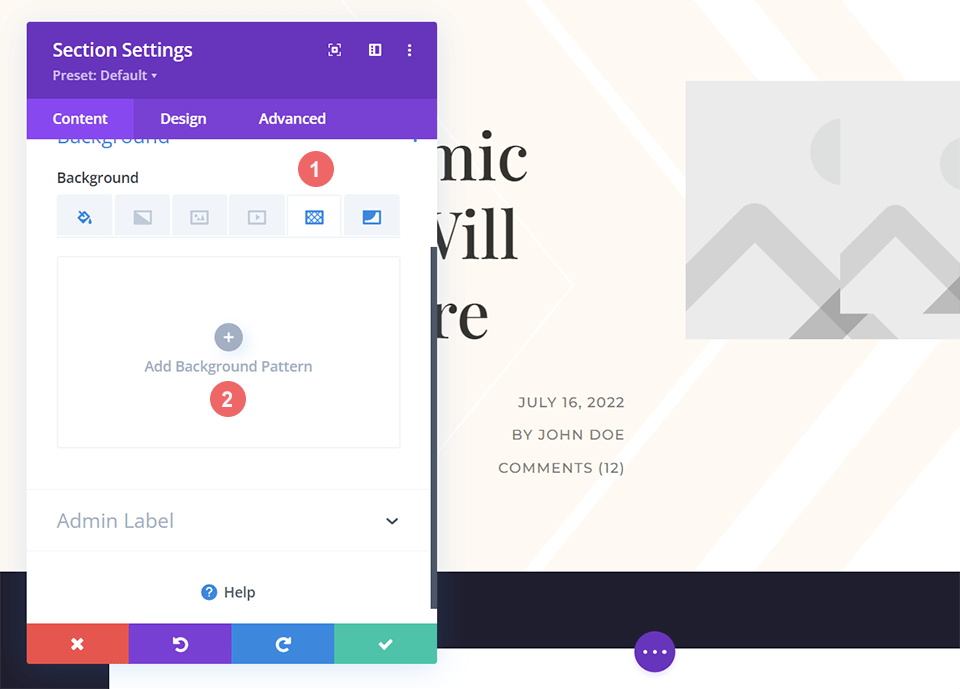
    Inserting the Background Pattern to overlay onto the Background Mask

     Click on the dropdown that appears after clicking Add Background Pattern. We’ll be using the Honeycomb Background Pattern to overlay onto our Chevron Background Mask.

    Selecting the background pattern of choice for our blog post header design

    Add Color to Background Pattern

    To keep in line with the design of the Divi Blog Post Layout, we’ll be changing the color of the Background Pattern to white.

    • Pattern Color: #ffffff

    Choosing the Background Pattern coor

    Remember to save your hard work by clicking the green checkmark to lock in your section settings. Also, save your blog post template by clicking on the green Save button.

    Example Three: Divi Corporate

    In the Divi Corporate blog header design, we’ll be using Background Masks and Patterns to add texture. We’ll be also using transparency to create depth within the various elements of this header design. This is what we’re starting out with after you have imported the Divi Corporate Blog Post Template which is part of the Divi Corporate Layout Pack.

    The Divi Corporate Blog Post Header Design

    Change Background Color

    For this blog header design, we want to change the default background color of the section to make the Background Pattern and Background Mask more subtle. To do this, we’ll enter into the Section Settings and scroll down to the Background tab. Once there, we’ll click on the Background Color icon, and enter in the hex code for black to replace the default dark gray share of the layout pack.

    • Background Color: #000000

    Change background color of the blog header design

    Insert Background Pattern

    With our new background color, we’ll be adding a Background Pattern to add some excitement to the plain, dark background of the default blog header design. To do this, we’ll enter into the Section Settings and scroll down to the Background tab. Next, we’ll click the Background Pattern icon and then click Add Background Pattern to pull up our list of choices.

    Selecting Background Pattern choices for a corporate blog header design

    Style Background Pattern

    We’ll be using a Background Pattern that’s similar to scanlines for this blog header design. To do this, we’ll select the Diagonal Stripes 2 from the Background Pattern dropdown menu. Then, we’ll assign a transparent white color to the pattern. Lastly, we’ll transform this pattern on the horizontal axis.

    Styling a blog header design with a scanlines inspired background pattern

    Here are the settings that you’ll need to use for the Background Pattern:

    • Pattern Style: Horizontal Stripes 2
    • Pattern Color: rgba(255,255,255,0.12)
    • Pattern Transform: Horizontal

    Add the Background Mask

    As with our other blog header design examples, we’ll be adding a Background Mask to the Background Pattern. To do this, we’ll select the Background Mask icon and click Add Background Mask. This will reveal the Background Mask dropdown where we can choose our Background Mask style.

    Adding background mask to the blog header design with a background pattern

    For this blog header design, we’ll be using the Diagonal Lines Background Mask.

    Choosing the Diagonal Lines Background Mask for the Divi Corporate blog header design

    Stylize the Background Mask

    We don’t want to leave the Background Mask as it is, so we’re now going to style it. We’ll be using a transparent version of the green that is used within the layout pack. We will also be inverting the Background Mask. To apply these styles, first, click on the Eyedropper Icon under the Mask Color title and enter in the setting below. Next, select the Invert icon under the Mask Transform setting.

    • Mask Color: rgba(76,89,76,0.54)
    • Mask Transform: Invert

    Using transparency within the background mask styling of the Divi Corporate blog header design

    In Conclusion

    We have many options when it comes to styling backgrounds for our blog posts. Playing with key design concepts like color, transparency and texture allow us to make use of the native background design tools that come with Divi. You can spend a little less time in image editing software by playing around and using our new Background Patterns and Masks on your site today!

    The post How to Boost Your Blog Post Header with a Background Mask & Pattern Design in Divi appeared first on Elegant Themes Blog.

  • Download 4 FREE Blog Post Template Sets for Divi

    Over the years we’ve provided a ton of freebies for your next Divi website. With the release of the Divi Theme Builder Library and Divi Cloud, we’re rounding up some of our freebies into template sets that you can add to your next project. For today’s post, we’ll be focusing on our Blog Post Template freebies. Not sure what a Blog Post Template is? Let’s take a look and find out!

    What is a Blog Post Template?

    Blog posts are the foundation of WordPress. Before WordPress became the main website builder of the internet, it was a humble blogging platform. With the advent of pages in WordPress 1.5, WordPress began making waves as a content management system. However it has never forgotten its blogging roots. With the Divi Theme Builder, we can create templates for our blog posts. We can even assign different templates to all blog posts in a tag or category. If we wanted to, we could even assign a different template to every single blog post on our website (I wouldn’t recommend it, but you could do it!).  Markedly in Divi, we use Blog Post Templates to set a consistent style for our blog posts, whether it be a single post or all the posts on our website.

    What is a Template Set?

    In the new Divi Theme Builder Library, we can group a number of templates together. This is called a Template Set. As an example, in your current Divi Theme Builder, you may have created a template for your homepage, your blog posts and your product pages. You can add all of these templates to a template set. Then, you can add this Template Set to your Divi Cloud account so that you can access it on another site at a different time.

    Four FREE Blog Post Template Sets

    In this freebie, we’ll be providing you with four FREE Blog Post Template Sets. We’ve organized each set according to their industry. Let’s take a look at the templates included in each set.

    Art & Design Template Set

    The Art & Design Blog Post Template Set is geared toward those in creative fields like artists and creators.

    Architecture Firm Blog Post Template

    Architecture Firm Blog Post Template

    Craft School Blog Post Template

    Craft School Blog Post Template

    Creative CV Blog Post Template

    Creative CV Blog Post Template

    Film Lab Blog Post Template

    Film Lab Blog Post Template

    Freelance Writer Blog Post Template

    Freelance Writer Blog Post Template

    Home Staging Blog Post Template

    Home Staging Blog Post Template

    Interior Design Blog Post Template

    Interior Design Blog Post Template

    Renovation Blog Post Template

    Renovation Blog Post Template

    Painter Blog Post Template

    Painter Blog Post Template

    Community & Non-Profit Template Set

    Our Community & Non-Profit Template Set speaks to those who have social good as their main purpose.

    Charity Blog Post Template

    Charity Blog Post Template

    Chess Club Blog Post

    Chess Club Blog Post

    NGO Blog Post Template

    Food & Drink  Template Set

    Restaurants and food vendors this set is for you.

    Bistro Blog Post Template

    Bistro Blog Post Template

    Cooking School Blog Post Template

    Cooking School Blog Post Template

    Home Baker Blog Post Template

    Home Baker Blog Post Template

    Italian Restaurant Blog Post Template

    Italian Restaurant Blog Post Template

    Meal Kit Blog Post Template

    Meal Kit Blog Post Template

    Nutritionist Blog Post Template

    Nutritionist Blog Post Template

    Pizzeria Blog Post Template

    Pizzeria Blog Post Template

    Produce Box Blog Post Template

    Produce Box Blog Post Template

    Sushi Restaurant Blog Post Template

    Sushi Restaurant Blog Post Template

    Winery Blog Post Template

    Winery Blog Post Template

    Health & Fitness Template Set

    Finally, if you’re in the fitness industry, this set will have your blog posts looking sharp.

    Acupuncture Blog Post Template

    Acupuncture Blog Post Template

    Family Doctor Blog Post Template

    Family Doctor Blog Post Template

    Fitness Coach Blog Post Template

    Fitness Coach Blog Post Template

    Golf Lesson Blog Post Template

    Golf Lesson Blog Post Template

    Meditation Center Blog Post Template

    Meditation Center Blog Post Template

    Psychologist Blog Post Template

    Psychologist Blog Post Template

    Telehealth Blog Post Template

    Telehealth Blog Post Template

    Tennis Club Blog Post Template

    Tennis Club Blog Post Template

    Therapy Blog Post Template

    Therapy Blog Post Template

    Virtual Fitness Blog Post Template

    Virtual Fitness Blog Post Template

    Women’s Health Center Blog Post Template

    Women's Health Center Blog Post Template

    Download All 4 FREE Blog Post Template Sets for Divi

    To lay your hands on all 4 of the free Blog Post Template Sets for your Divi Layout Library, you will first need to download it using the button below. To gain access to the download you will need to subscribe to our newsletter by using the form below. As a new subscriber, you will receive even more Divi goodness and a free Divi Layout pack every Monday! If you’re already on the list, simply enter your email address below and click download. You will not be “resubscribed” or receive extra emails.

    How to Upload The Blog Post Template Sets

    Go to Divi Theme Builder

    To upload the template, navigate to the Divi Theme Builder in the backend of your WordPress website.

    Getting started with the Divi Conference Layout Pack

    Upload Template Set

    Then, in the top right corner, you’ll see a plus sign icon. Click on the icon. This will open the Template Sets Library.

    Open the Sets Library within the Divi Theme Builder

    Once you are in the Template Sets Library, click on the two arrows icon.

    Upload template set

    Locate your .JSON file from the ZIP folder. Upload it to the library by clicking No File Selected.

    Upload template set .JSON file from computer

    Once you have selected your file, it’ll display the name of the file. Next, click the blue Import Theme Builder Library Templates button.

    After successfully uploading template set .JSON file from computer

    As your Template Set is uploading, you’ll notice a modal pop-up with a progress bar letting you know how your import is doing.

    Import progress

    Please Note: Due to the number of post templates and assets within each set, it can take some time for the set to install. Please be patient.

    Using Your Template Set

    After the Template Set has been added to your library, click on the kebab menu on the library item.

    Using your new template set

    In the menu that pops up, select Use This Set. This will begin the process to add the templates within your new Template Set to your Divi Theme Builder.

    Click use this set to add the templates within the template set to your Divi Theme Builder

    An Import Templates modal box will appear. Because this template set has multiple Blog Post Templates within, we’ll uncheck the Override Existing Assignments checkbox. Remember as  you’re working on your site, to set the templates to your chosen page, post, product, etc. assignment in the Divi Theme Builder. Next, click on the Import Divi Builder Templates button in blue.

    Import template modal box

    Please Note: Due to the number of post templates and assets within each set, it can take some time for the set to install. Please be patient. Also, template thumbnails do take some time to generate.

    Save Changes

    Once your Template Set has been installed, you’ll notice that all the Blog Post Template titles are in red. This is because as they stand, they have not been assigned to a page, post, product, etc. Don’t forget to assign them once you have carried out your changes. Press the green Save Changes button to save your new template set in the Divi Theme Builder.

    Save Template Set into the Divi Theme Builder

    New Freebies Every Week!

    We hope you’ve enjoyed our very first Blog Post Template Set freebie! We look forward to hearing your opinions in the comment section below. Make sure you check back next week for more freebies.

    The post Download 4 FREE Blog Post Template Sets for Divi appeared first on Elegant Themes Blog.

  • Download a FREE Blog Post Template for Divi’s Home Baker Layout Pack

    Hey Divi Creators! Thanks for joining us for the next installment of our weekly Divi Design Initiative where each week, we give away brand new freebies. This time around we’re building upon the Home Baker Layout Pack with a brand new blog post template that matches the rest of the pack perfectly. Hope you enjoy it!

    divi layout

    Check Out The Home Baker
    Blog Post Template Below

    Get it for free today!

    Desktop View

    Blog Post Template for the Divi Home Baker Layout Pack

    Tablet and Mobile View

    Tablet and Mobile View for the Blog Post Template of the Divi Home Baker Layout Pack

    Download The Blog Post Template For The Home Baker Layout Pack

    To lay your hands on the free Home Baker Blog Post Template, you will first need to download it using the button below. To gain access to the download you will need to subscribe to our Divi Daily email list by using the form below. As a new subscriber, you will receive even more Divi goodness and a free Divi Layout pack every Monday! If you’re already on the list, simply enter your email address below and click download. You will not be “resubscribed” or receive extra emails.

    How to Upload The Home Baker Blog Post Template

    Go to Divi Theme Builder

    To upload the template, navigate to the Divi Theme Builder in the backend of your WordPress website.

    Getting started with the Divi Conference Layout Pack

    Upload Website Template

    Then, in the top right corner, you’ll see an icon with two arrows. Click on the icon.

    Importing the Header and Footer Layout into the Divi Theme Buidler

    Navigate to the import tab, upload the JSON file that you could download in this post, and click on ‘Import Divi Theme Builder Templates’.

    Import settings for the header and footer layout pack

    Save Divi Theme Builder Changes

    Once you’ve uploaded the file, you’ll notice a new template with a new body area that has been assigned to All Posts. Save the Divi Theme Builder changes as soon as you want the template to be activated.

    Begin editing the blog post body template within the Divi Builder

    How to Modify The Template

    Open Post Template

    To modify the template’s elements, start by opening the template.

    Begin editing the blog post body template within the Divi Builder

    Inside the Body Layout Editor, you can edit the design on the front end using the Divi Builder just like you would with a normal Divi page.

    Since this is a template that has been assigned to all posts for the site, there is a post content module that is necessary for displaying the post content. You will need to keep that module in place, but you can adjust the post content module’s design elements, which will design the post content that is displayed dynamically.

    Various post content settings available to you to edit your post content with the Divi Theme Builder

    About the Layout

    This blog post template has a lot of dynamic elements that will work with your blog posts immediately. For example, the entire post header is made up of dynamic elements including a featured image, the post title, and related posts within the category. This content won’t need updating, but you can tweak the design of each of those elements if needed.

    Other dynamic elements include the following:

    • Related Posts Module: Displays the most recent posts that share the same category.
    • Post Author Name, Bio and Photo: Displays the profile info, name and bio of the user/author of the post.
    • Post Content Module: Displays the post content added when editing the post on the backend of WordPress.
    • Comments: A  functional comment area for the post.

    Here is a quick illustration that identifies the elements of the Home Baker blog post template.

    Divi Home Baker Blog Post Layout Module Breakdown

    New Freebies Every Week!

    We hope you’ve enjoyed the Home Baker Layout Pack and the blog post template freebie that goes along with it. We look forward to hearing your opinions in the comment section below. Make sure you check back next week for more freebies!

    The post Download a FREE Blog Post Template for Divi’s Home Baker Layout Pack appeared first on Elegant Themes Blog.