EDITS.WS

Tag: business

  • Picsart (AI): Review (Details, Pricing & Features)

    In the past, if creatives wanted to edit photos or videos, they would need to purchase a high-end program like Adobe Photoshop or Premiere Pro to do it. With the introduction of artificial intelligence (AI), people don’t have to spend time learning complicated software or pay hundreds of dollars a year to use one. In this post, we’ll dive into the world of Picsart AI, where even beginners can create stunning photos, videos, and other creative assets for their projects.

    Let’s get started.

    What is Picsart AI?

    Picsart AI

    Picsart is a creative platform that allows you to edit photos and videos and make various enhancements. Touted as a tech unicorn by Forbes, Picsart is one of the most popular photo editing programs on the market. In 2022, Picsart joined the AI revolution by offering nearly a dozen generative AI tools that allow you to create and edit images and videos, write copy, make logos, and more. Picsart has its own research and development team whose sole purpose is to develop highly effective AI-powered programs to turn even the most novice user into a creative professional.

    Features of Picsart AI

    Picsart offers one of the most impressive AI suites on the market today. With tools to edit photos, create GIFs, create and edit videos, and more, its market share is one of the largest in the world. In addition to web-based AI tools, they also offer apps for both iPhone and Android devices, so you can take your creative programs with you on the go. Let’s take a look at the various features you’ll gain by adding Picsart to your creative portfolio.

    AI Photo Editing

    Picsart AI’s bread and butter is its image editing features. With options like AI enhance, replace, and the background generator, busy creatives can edit photos in a flash with AI.

    AI Enhance

    enhanced image

    The AI Enhance features allow users to sharpen photos, reduce noise, and increase image pixels by up to two times their original size. If you’ve ever spent hours enhancing images in other programs, you know how tedious this task can be. With Picsart AI, you can turn those grainy, low-quality images into upscaled masterpieces in seconds.

    AI Replace

    Picsart AI Replace tool

    Picsart’s AI Replace tool allows you to select a section of an uploaded photo and replace it with something else entirely. For example, in the image above, we removed the pajamas in the photo with a fluffy place for the kitty to rest her head. While this is just a basic example, you can generate and replace any aspect of your photos with a simple text prompt.

    AI Background Generator

    Picsart AI background generator

    A cool feature of Picsart AI is the AI background generator tool. With it, you can create unique photo backgrounds with a text prompt. This is a great feature for making custom backdrops for product images, eye-catching scenes for social media campaigns, and more.

    AI Style Transfer

    AI Style Transfer

    Image style transfer uses artificial intelligence to copy a photo’s style. It analyzes an uploaded image and then transfers styling to another image. This is very useful for creators who are batch-editing pictures for a project. For example, you could bulk-edit product images and apply the same style. With Picsart, that can be achieved in a few minutes.

    AI Avatar Generator

    AI Avatar Generator

    Picsart offers an app for those looking to create custom AI avatars. Available for iPhone and Android, creatives can easily create a new avatar for online forums or social media in minutes. It works by uploading 10-30 quality images of yourself (or a pet) and then choosing up to 10 styles for your avatar.

    AI Image Generator

    Picsart AI image generation

    Another helpful feature of Picsart AI is the image generation feature. Like other AI art generators, you have to describe the image you want, then sit back and watch as the AI does its magic. While you can generate decent imagery with Picsart, it could be better at hyperrealistic renders. However, it does a good job of generating animals and landscapes in various styles.

    AI Writing Assistant

    writing assistant

    If you need help crafting headlines for your social media posts, Picsart has you covered. Using their AI content generator, you can describe what you want your post to say in a few words, then watch as AI works its magic.

    AI Video Generator

    AI Video Generator

    If you want to create a quick video for use on social media, Picsart’s video creation feature comes in handy. Now, it’s not on the same level as AI video generators like Pictory, but it will work well for certain applications. For example, if you want to create quick clips for Instagram or Facebook, Picsart’s AI video generator is a good choice.

    AI video filters

    AI video filters

    After generating videos, you can use the AI video filters to add a bit of flair. They provide filter presets like Van Gogh or allow you to describe the effect you’d like to use.

    AI Gif Generator

    AI GIF Generator

    Are you looking to create the perfect meme? Picsart AI has an amazing GIF generator that allows you to develop cool animated visuals for your projects. Just describe the GIF you want with a brief text description, then incorporate other tools to add text, stickers, or other design elements to make your meme stand out.

    Sketch AI

    SketchAI

    Sketch AI is another app available through Picsart. It’s great for sketching ideas and turning them into digital art. It comes with a wide range of drawing tools to allow you to start a drawing from scratch. Alternatively, you can upload an image and have AI improve it based on your text prompt. Sketch AI is available on iPhone or Android devices.

    AI Logo Generator

    AI Logo Generator

    If you’re starting a new company or freelance venture, Picsart can help you create the logo you need to properly represent your brand. Like the other AI tools they offer, a text prompt starts the entire process. From there, you can use different effects and filters to refine your logo to suit your needs.

    Picsart Pricing Plans

    Picsart pricing

    Picsart offers standard photo and video editing tools and nearly a dozen AI tools to aid your creativity. There are three plans available: Free, Plus, and Pro. The free plan allows unlimited use of standard photo and video editing tools, free images, videos, and templates. You can even try some of the AI tools in a limited capacity.

    However, if you want to get more out of Picsart, you can sign up for Plus. It offers more image and video assets, mobile and web-based tools, and full access to hundreds of premium templates for $5 per month. Unfortunately, you won’t have access to AI tools with Plus. For that, you’ll need to sign up for Picsart Pro, which grants you access to everything on the other plans and unlimited access to their full suite of AI tools for $7 per month.

    How to Use Picsart AI

    We won’t go over every aspect of what Picsart AI can do, but we will give you a glimpse into the interface. That way, you can decide if Picsart is something you’d like to incorporate into your creative workflow. The first step is to get a feel for Picsart and the tools they offer. As previously mentioned, Picsart’s standard editing tools are free to use.

    free editing tools

    You can also try out their AI tools, such as the AI GIF, background, and image generators.

    Picsart AI tools

    However, if you want to save and export your work you must sign up for their 7-day free trial.

    Picsart free trial

    The Picsart AI Web Interface

    After choosing a tool or subscribing to a plan, you’ll get your first look at the Picsart dashboard. There are tools (1) to select your layout, edit photos, and add stickers, amongst others. Upon clicking More Tools (2), you can access the AI programs (3) mentioned in the section above. You can use any combination you wish, then add them to the pasteboard (4).

    Picsart AI dashboard

    To use a tool, click on it to reveal its interface. For example, let’s click on AI logo creator.

    select a tool

    When the screen refreshes, you’ll see a set of tools to aid you in creating your logo. You’ll enter your brand name, color scheme, and business industry to give the AI enough information to generate a logo.

    logo generator

    You can edit your chosen logo’s colors, add animations, or apply various effects to make it more impactful.

    edit logo

    Getting inspiration for branding is a good use of Picsart AI. You likely won’t get the perfect result the first time. You may not ever get the ideal result. However, it does inspire creativity and a different way of thinking. With each button click, you’ll be provided with four logo options. If you want to see more, click the generate button again. With unlimited generations with paid plans, you can tinker with it as much as you like without worrying about replenishing credits.

    Picsart App Interface

    Where Picsart shines is its mobile app. It’s a great tool for creatives who want to sketch a quick idea, generate a GIF on the fly, or create AI avatars. When you first log in to the app, you’re met with plenty of inspiration. You can check out other user’s work, follow artists, and try some example prompts to get a feel for the app.

    One of the best features of the mobile app is the AI Avatar Generator. All you have to do is upload some images of yourself, your pet, or a couple, and Picsart will generate up to 100 avatars based on the styles you choose. To create your own avatars, start by clicking the + icon (1) at the bottom center of your screen. Next, choose the avatar type (2). On the next screen, you’ll upload between 10-30 quality photos of yourself (3) in varying angles to help the AI learn your face. Next, choose up to 10 styles (4) for your avatar. Finally, generate your avatars by clicking the continue button (5).

    generate avatars

    The downside to creating your avatars is that it costs an additional $5.99 on top of the monthly Picsart subscription price. That’s per avatar set. On top of that, you’ll need to be okay with taking a break from your work while they are created. In our experience, creating an avatar set took close to 45 minutes. The upside is that it produces amazing results.

    Picsart AI avatars

    Pros and Cons of Picsart

    There is a lot to unpack with Picsart. Aside from the awesome standard photo and video editing tools, there are many AI tools to experiment with and learn. So, to help you decide whether Picsart is right for you, we added a short pros and cons list to help guide you.

    Pros of Picsart

    • It is an all-in-one creative image and video editing platform.
    • The mobile apps are amazing.
    • Free tools for the casual creator.
    • Excellent for generating GIFS, quick videos, and AI avatars.

    Cons of Picsart

    • Their writing and image tools aren’t on the same level as Jasper or Midjourney .
    • The apps (SketchAI and AI Avatar) must be purchased separately from a Picsart subscription.
    • AI Avatars can take up to 30 minutes (or more) to generate.
    • It’s not the easiest interface to master (web app).

    Final Thoughts on Picsart

    Artificial intelligence is transforming the way creatives work. With platforms like Picsart AI, creating captivating visuals no longer requires extensive knowledge of difficult programs or even a keen eye for design. Picsart AI is a great choice for aspiring creatives to learn the concepts of design while creating assets for social media and the web.

    One of the most compelling arguments for purchasing a subscription is the mobile apps and the sheer volume of tools it comes with. Some standouts include the AI Enhance, GIF generator, background generator, AI Replace, and AI Avatar generator. However, some features require additional purchases besides the monthly subscription, and some AI tools have room for improvement. Despite those minor setbacks, Picsart AI is a versatile platform that caters to casual and professional creators alike.

    The post Picsart (AI): Review (Details, Pricing & Features) appeared first on Elegant Themes Blog.

  • Murf AI: Review, Details & Pricing (2023)

    Digital creators often know the struggle of creating voiceovers for videos and other projects. The process can be time-consuming and expensive. Thanks to the latest advancements in artificial intelligence (AI), it’s now possible to create lifelike voiceovers in a fraction of the time. In this post, we’ll introduce you to Murf AI, one of the popular AI voice generators on the market.

    Let’s get started.

    What is Murf AI?

    Murf AI

    Murf AI is a powerful AI voice generator that enables you to create realistic-sounding voiceovers for your projects. It uses machine learning through generative AI to work its magic. Unlike most AI voice software, Murf’s voices sound human. They offer more than 120 of them, each with different characteristics and styles, so finding one that meets your needs is a breeze.

    That said, it’s more than just a voice generator. It can help you create videos, too. It’s not a traditional AI video generator where you generate a video from a text prompt. Instead, it provides millions of stock music, image, and video assets that you can use to create videos for the web, social media, marketing or training videos, and more.

    Benefits of Using Murf AI

    Murf AI is a powerful software that has many benefits. Whether you’re a business professional looking to save time and money or a novice marketer looking for tools to help you expand your reach, Murf AI is a solid tool for generating voiceovers for your projects.

    Some benefits include:

    • Saving time and money: You can create natural-sounding voiceovers in a few clicks, negating the need to hire professionals or spend hours editing them.
    • Choices: Murf AI provides over 120 voices available in 20 languages, so you’ll never run out of options.
    • Media assets: Murf AI offers millions of media assets you can use to create quick videos inside the editor. You can also upload your videos and other media assets for on-brand results.
    • Customization: The voice editor allows you to change the pitch, tone, and speaking style to create the perfect voice for your projects.
    • Ease of use: One of the strongest arguments for using Murf is its intuitive dashboard. There are only a few tools to learn, and the interface is simple.

    Murf AI Features

    The folks at Murf offer many features to create voiceovers for your projects. Let’s review them to better understand what you have at your disposal should you sign up for it.

    Text-To-Speech

    text-to-speech

    Murf AI’s text-to-speech feature is, in our opinion, its best feature. As previously mentioned, they offer 120 AI voices and 20 languages, so you can be certain you’ll find the perfect fit for your projects. With simple tools, you can edit your voice’s style, tone, speed, and other characteristics. It also allows you to add pauses in the right places, making voices sound incredibly human.

    Canva Add-On

    Murf AI Canva add on

    If you’re a Canva user looking to incorporate voiceovers into your projects, you’re in luck. Murf has full integration with Canva, allowing you to easily import voiceovers. They can be used in Facebook or Instagram videos, AI presentations, and more.

    AI Voice Cloning

    Voice cloning

    Another great feature of Murf AI is its voice cloning feature. However, it’s only available as a separate purchase. It works by recording your voice and then uploading the voice samples to Murf’s team so they can build a custom AI voice for you. You’ll need professional equipment for the best results, but in the end, you’ll have an exact clone of your voice to use in all your projects. This tool is great for medium to large businesses who want to streamline the process of voiceovers while saving time and money.

    Voice Over Video

    voice over video

    Suppose you have a video but need a quick and easy way to add narration. In that case, Murf AI’s voiceover video feature is the perfect solution. Whether you’re creating a catchy commercial, an engaging video tutorial, or even a comprehensive learning management system (LMS), this tool has you covered. The best part? You can unleash your creativity by accessing millions of images, music, and video assets to create video from scratch. Their AI voices range from young and old to different ethnicities, genders, and characteristics, giving you plenty of choices for your project. With that said, we found the video preview feature a bit buggy in our testing, so keep that in mind.

    Google Slides Add-On

    Google Slides add-on

    You’re in luck if you want to add voiceovers to your presentations and use Google Slides. Murf AI offers a handy add-on, allowing you to easily add spoken words to your slides. It integrates directly with GS, so you can write and edit your voiceover script as your work. The best part? You’ll have access to all of the voices in your plan – directly within the GS interface. Additionally, the AI will choose the best voice for your project based on the content within your presentation.

    Murf API

    Murf API

    Do you need AI voice integration on your application or website? With Murf API, you can do it. As with the voice cloning feature, you’ll need to request Murf to develop a custom solution. The API comes with more than 40 available voices you can use. However, you must purchase this feature separately, as it’s not part of their subscription plans. The cost of API integration is steep for smaller businesses, costing roughly $ 3,000 per year. That said, if you are part of a large business or corporation, this is a steal compared to the cost of hiring voice actors.

    Murf AI Pricing

    Murf AI pricing

    If you’re considering signing up for Murf AI, you’ll be pleased to know that the pricing is very affordable. They offer a free tier and three paid plans, so there’s something for everyone. The free plan comes with 32 AI voices, 10 minutes of voice generation, 10 minutes of transcription, and up to three users. The downside to the free plan is that you can’t download anything you generate. However, it is a great way for users to test Murf and decide if it’s the right choice.

    The Basic Plan includes unlimited downloads, 60 basic voices, access to 10 languages, 24 hours of voice generation per user per year, and over 8000 licensed soundtracks. Basic starts at $19 per user per month, billed annually. The Pro plan offers the benefits of Basic but adds access to all 120+ AI voices, 20+ languages, the AI voice changer, commercial usage rights, and high-priority support for $26 per month.

    Finally, the Enterprise plan will cost you $75 per month for 5 users. It offers all of the benefits of Pro but sweetens the deal with unlimited voice generation, transcription, and storage. You’ll also receive a dedicated account manager, advanced collaboration tools, and a security assessment. This is especially important because of the voice cloning feature. With deep fakes becoming a real concern, there is the potential for nefarious actors to gain access to your content to impersonate others.

    How to Use Murf AI

    Murf AI offers many compelling features but shines with text-to-speech. To put it plainly, they absolutely nail it. Most of its voices are really good. In most instances, it’s hard to tell the difference between human vs AI. It offers a simple interface, so you won’t get bogged down trying to learn complicated software. You can write directly in the editor or paste it from various sources, including AI writing software.

    To demonstrate how simple it is to create a voiceover, we’ll walk you through the interface and the steps needed to make your first voiceover.

    Start by navigating to the Studio Home Screen, then click the Create Project button.

    create project

    Next, give your project a name (1), select the video tab (2), choose social media as the format (3), and click the Create Project button (4).

    create new video

    Choosing a Murf AI Voice for Your Project

    On the next screen, you’ll complete a series of steps to create your video. First, you’ll need to select an AI voice for your video. For this tutorial, we’re using the free version of Murf AI, which gives us over 30 voices to choose from. Go ahead and click on Explore AI Voices (1), or click the dropdown (2) at the top of the text field.

    choose AI voice

    If you’re following along with the free version, toggle Hide Pro Voices to view the available voices.

    Hide pro voices

    When browsing, you can drill down more using the provided filters. They include US, UK, and Australian voices, sorted by gender, age group, or use case.

    Murf AI voice filters

    We’ll use Ava for our video because she has the most natural-sounding voice for our project. However, feel free to preview each one to determine which one works best for your situation. Once decided, click the select button.

    select AI voice

    Adding a Video Script

    The next step requires you to write a script for your video or use another program such as Jasper, ChatGPT, or an alternative to write it for you. We’ll ask Jasper to write a short script about 5 web design trends in 2024. Next, we’ll select the YouTube script outline tool, add our title, and set a witty tone of voice for our video.

    Jasper video script

    We’ll copy the first section of the script and paste it into Murf AI. Click the play icon on the right to generate the audio clip. Once complete, you can preview your clip using the same button.

    Generate voice-over

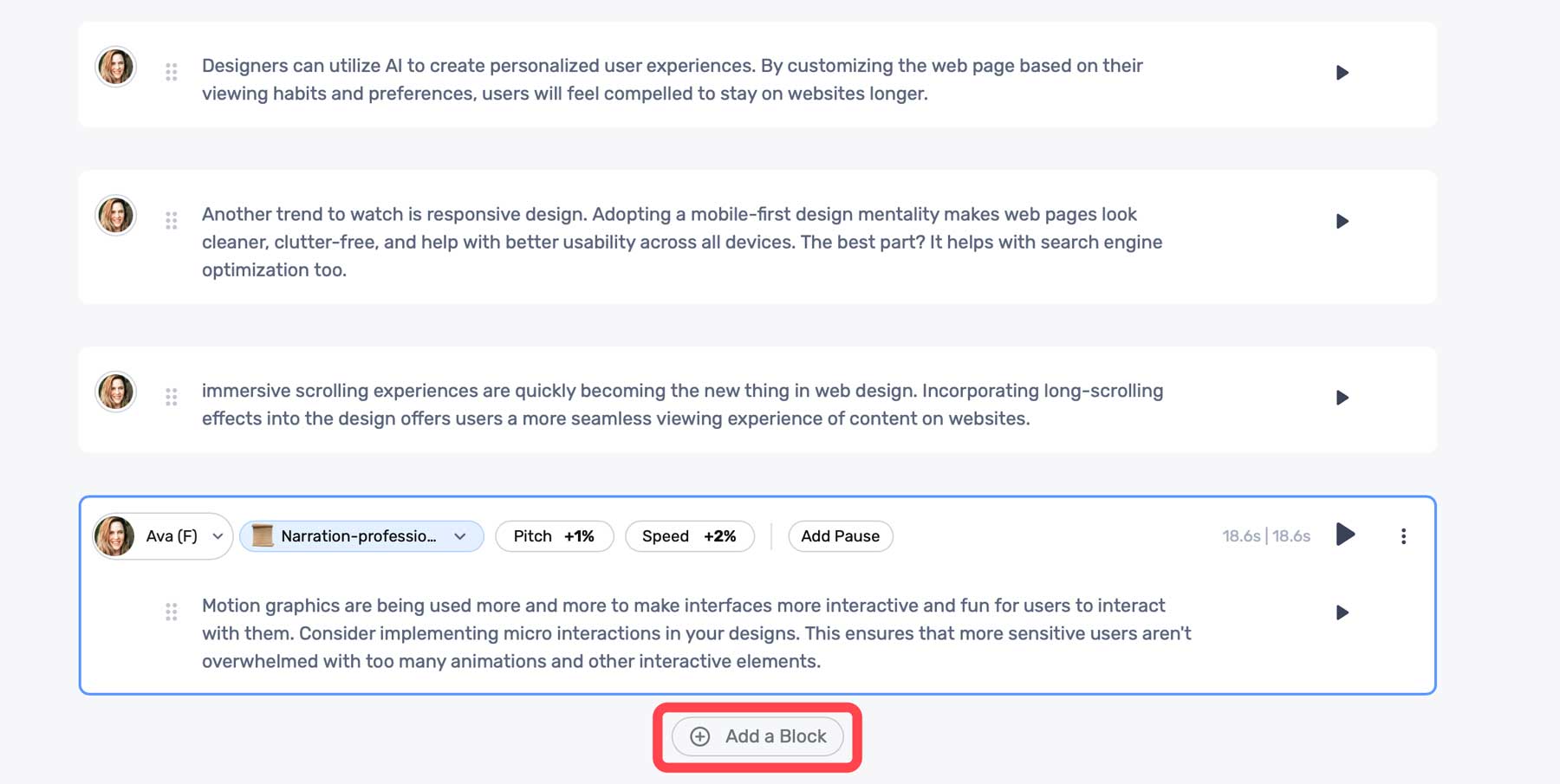
    Once your audio is generated, you can preview the audio using the same play button. Murf AI comes with a few settings to help you adjust the output. These include tone (1), pitch (2), speed (3), and the ability to add a pause (4). These come in handy if the generated voice is too computer-like, has awkward run-on sentences, or needs to be adjusted to a lower or higher sound (pitch).

    audio settings

    Click the + Add a Block button to add more text.

    Murf AI content blocks

    Adding Media To Murf AI Project

    In addition to text-to-speech, Murf AI offers its users stock media assets you can use in your projects. These include stock music, images, and videos. To add media, click the Add Media tab in the dashboard.

    Add media

    You can search the media library for assets to build your video from there.

    Murf AI stock media

    Click on any media to preview it. You can easily add it to your project by clicking the Add to Timeline button.

    Add to timeline

    Using the Voice Changer Feature

    If you prefer, you can add an audio sample and allow Murf AI to transcribe it. It’ll use its proprietary algorithms to analyze your sample and convert it to written text. Once completed, it will automatically be added to the timeline, where you can edit it. At that point, you can make audio edits as necessary for tone or pitch, choose an AI voice, and generate a voiceover in seconds.

    Murf AI voice changer

    Creating an AI voiceover with Murf AI is easy, and the voices are quite good. As an added bonus, Murf AI does an excellent job of allowing its users to customize AI models to get the most realistic sound possible. However, it’s important to mention that when using the free version, you won’t be able to export your projects. However, they are saved in your user account, should you decide to upgrade.

    Here’s a short audio clip of the AI voice model, Ava, reading a portion of our script:


    Pros and Cons of Murf AI

    To be transparent for our readers, weighing the pros and cons of subscribing to Murf AI is important. While there are a lot of pros, including the wide range of AI voices available, there are some cons that you should be aware of.

    Pros of Using Murf AI

    • Over 120+ realistic AI voices with support for 20+ languages
    • Saves time and money over hiring professional voice actors
    • Simple interface
    • Many ethnicities, tones, and styles to choose from

    Cons of Using Murf AI

    • The free plan doesn’t allow downloads
    • Customization of pitch and tone could be better
    • Potential security concerns with voice cloning
    • In our experience, the voice-over-video tool is a bit buggy at times

    Final Thoughts on Murf AI

    Murf AI is a versatile and valuable tool for creating voiceovers for presentations, videos, and more. With more than 120 natural-sounding voices and support for more than 20 languages, it saves time and resources and simplifies creating compelling voiceovers.

    However, it’s important to note that Murf AI isn’t without its flaws. There are occasional bugs with the voice-over-video tool and a need for better customization options for pitch and tone. Despite that, Murf AI stands out above its competition due to how realistic its voices are. If you need a quick way to generate natural-sounding voiceovers, you’ll be hard-pressed to find a better solution than Murf AI.

    The post Murf AI: Review, Details & Pricing (2023) appeared first on Elegant Themes Blog.

  • 15 Best Video Editing Software in 2023 (Compared)

    If you’re a vlogger, TikTok creator, or marketer, choosing the right video editing software is crucial for boosting your brand’s success. As more consumers crave online video content from brands, it becomes vital to your marketing strategy. However, with so many options available, finding the right video editing software can be challenging, especially for beginners. Don’t worry, though. We’ve compiled a list of the best video editing software to help you find the perfect fit for your needs.

    What is Video Editing Software?

    Video editing software is a computer program that empowers you to edit videos effortlessly. It provides tools and features necessary for trimming, cutting, adding transitions and effects, inserting text and graphics, color grading (adjusting the video’s look, lighting, and feel), correcting footage, and exporting videos in various formats.

    To start video editing, you’ll need to gather your footage. This can include videos captured on your phone or camera and downloaded footage from the internet. Once you’ve collected all your footage, it’s time to import it into the video editing software and let your creativity flow!

    The Significance of Video Editing Software

    Video editing software holds immense importance for content creators. It grants users full control over their videos and enables the creation of professional-grade content. With this software, you can incorporate graphics, text, audio, animations, and seamless transitions while effortlessly trimming and cutting footage.

    Beyond its technical capabilities, video editing software plays a pivotal role in weaving compelling narratives through visual storytelling techniques. These techniques encompass skillful shot sequencing, harmonizing music and voiceovers, and leveraging creative elements. By doing so, you can emotionally captivate your audience, effectively conveying your message.

    The Best Video Editing Software

    Now that we know a bit more about video editing software, let’s take a look at the best video editing software on the market!

    1. Adobe Premiere Pro

    Screenshot of Adobe Premiere Pro's Homepage

    Adobe Premiere Pro stands as the top editing software for creating everything from YouTube vlogs to blockbuster movies. The software is packed with features, enabling users to cut, trim, and combine clips seamlessly in any sequence. With its non-linear editing approach, you can easily arrange and manipulate your clips.

    A Screenshot of Adobe Premiere Pro's User Interface

    Image by Adobe.com

    Adobe Premiere Pro provides an array of tools and features for seamless editing, including multi-camera editing, intricate effects, and robust color grading with Lookup Tables (LUTs). LUTs enhance cinematic quality and can be purchased or obtained online for free. Additionally, the software offers audio enhancement options, and automatic speech recognition generates captions from dialogues.

    Moreover, Adobe Premiere Pro stands out for its seamless integration with other Adobe software like Adobe Photoshop, Illustrator, and After Effects. This creates an impeccable workflow, especially for teams. With this industry-leading software, you can craft visually stunning masterpieces that captivate audiences at film festivals and online streaming platforms.

    Key Features:

    • Enhanced Non-Linear and Timeline editing capabilities
    • Advanced color grading options with Look Up Tables (LUTs)
    • Seamless integration with other industry-standard Adobe software
    • Robust audio editing capabilities
    • Excellent organizational workflow and scalability
    • Advanced VR video support
    • Native multi-format support

    Best For: Adobe Premiere Pro is ideal for professionals and teams with a substantial budget. It provides advanced tools and high-quality output. However, beginners might encounter a steep learning curve. Fortunately, numerous tutorials are available to help enhance your skills.

    Pricing: For individuals, standalone software starts at $20.99 per month. A Creative Cloud subscription that includes bundled programs like Adobe Photoshop and Adobe After Effects starts at $54.99 per month.

    Get Adobe Premiere Pro

    2. Wondershare Filmora

    Wondershare Filmora\'s Homepage

    Wondershare Filmora is a user-friendly video editing software with powerful features for creating impressive videos. It offers various tools and effects to improve visuals effortlessly. Additionally, it excels in audio editing, allowing for the removal of background noise and the enhancement of voice clarity. It truly lives up to its name! Text animations and overlays can be added for quick visual appeal. Moreover, Filmora simplifies complex timelines for novice editors, allowing them to jump straight into edit mode without feeling overwhelmed.

    A Screenshot of Wondershare Filmora's User Interface

    Image by Wondershare.com

    Wondershare Filmora excels in both audio and visual editing. With this software, you can remove background noise and enhance voice clarity. It also offers text animations, overlays for added flair, and pre-made split-screen templates for seamless multi-angle views. Additionally, Filmora simplifies complex timelines to make editing easier for novice editors.

    Filmora offers game-changing features like AI Smart Cutout, which automatically removes the background and allows you to replace it. Auto Reframe resizes footage based on the scene, making it perfect for converting YouTube videos to vertical formats. Additionally, Filmora uses AI to generate text, images, and portraits in your videos – saving time and hassle. It’s an affordable video editor packed with essential tools.

    Key Features:

    • Intuitive and easy-to-use interface
    • Wide range of video effects and transitions
    • Handy Mobile App for editing on-the-go
    • Advanced audio editing tools
    • Several AI tools
    • Screen recording capabilities
    • Export to various file formats and social media platforms

    Best For: Wondershare Filmora is perfect for video editing enthusiasts who want professional-looking videos on a budget. Its intuitive interface and AI-powered tools make it an excellent choice for all users.

    Pricing: Wondershare Filmora offers a free version with all features but includes a noticeable watermark when exporting files. To remove the watermark, upgrade your software for as low as $4/month (annually $49.99).

    Get Wondershare Filmora

    3. TechSmith Camtasia

    TechSmith Camtasia\'s Homepage

    TechSmith Camtasia is a powerful software for screen recording and video editing. Whether you’re creating tutorials, presentations, or gaming content, this software has you covered with its intuitive interface and fantastic tools that capture your computer screen with clarity and precision. It simplifies video editing by enabling professional-like trimming of clips and adds engaging transitions and animations to text/images effortlessly.

    A screenshot of Camtasia's User Interface

    Image by TechSmith.com

    Additionally, it provides an extensive library of pre-built media assets, such as audio tracks and effects, for easy integration into projects. Users can also add voice narration using their computer’s built-in microphone without needing separate recording equipment.

    TechSmith offers Audiate along with Camtasia in a bundle to streamline audio editing, similar to the simplicity of Google Docs. So, don’t miss out on TechSmith Camtasia if you’d like to enhance your screen recording with professional-quality effects.

    Key Features:

    • Screen recording and video editing capabilities
    • Ability to add captions, annotations, quizzes, and effects to videos
    • Integration with PowerPoint for quickly creating video lectures
    • Animation and cursor effects to draw attention to specific areas of the screen
    • Audio recording and editing capabilities
    • Multitrack editing for combining multiple video and audio sources
    • Easy sharing options for uploading videos to YouTube, Vimeo, and other platforms

    Best For: TechSmith Camtasia is ideal for creating high-quality screen recordings, tutorials, and presentations. It caters to educators, trainers, marketers, and content creators aiming to create captivating, interactive content.

    Pricing: Camtasia offers a free version with watermarked videos and a maximum quality of 720p. The Individual subscription plan costs $14.99/Month (annually $179.88), while the Camtasia + Audiate bundle is available for $33/month (yearly $379.87). You can also purchase a lifetime license for $299.99.

    Get TechSmith Camtasia

    4. Cyberlink PowerDirector

    PowerDirector's Homepage

    Cyberlink PowerDirector is an intuitive video editing software that allows you to easily import, edit, and combine various media files. It offers a range of effects options, including transitions, title templates, color correction filters, image stabilization capabilities, chroma keying (green screen), slow-motion effects, and more.

    A screenshot of Cyberlink PowerDirector's User Interface

    Image by Cyberlink.com

    With multitrack editing capability and the power of AI features like Body Effects, Object Detection, Sky Replacement, and Motion Tracking, it enables users to achieve professional-grade results effortlessly.

    Overall, Cyberlink PowerDirector has become popular among both beginners & professionals alike due to its user-friendly nature yet providing advanced pro tools, resulting in polished videos offering many possibilities when bringing ideas into reality.

    Key Features:

    • Intuitive interface with a timeline-based editor
    • Support for importing, editing, and combining various media files (video clips, photos, audio tracks)
    • Numerous effects options, such as transitions, title templates, and animated objects.
    • Color correction filters and image stabilization capabilities
    • Multitrack editing capability to work on multiple layers of content simultaneously
    • Overlay text onto video clips or add background music while controlling timing and placement.
    • Editing on the go with Mobile Apps

    Best For: Cyberlink PowerDirector is ideal for individuals seeking video editing software with advanced features and capabilities. It has significant popularity among YouTubers and mobile content creators.

    Pricing: PowerDirector’s free version has limited features, while the ‘PowerDirector 365’ plan starts at $4.33/month for access to most functionalities. A lifetime option is also available for $139.99 but doesn’t include monthly updates.

    Get Cyberlink PowerDirector

    5. Pinnacle Studio

    Pinnacle Studio's Homepage

    Pinnacle Studio is a popular video editing software program exclusively for Windows. Developed by Pinnacle Systems and now part of Corel Corporation, it offers powerful tools and features to create professional-quality videos within a user-friendly environment. It caters to a wide range of needs and skill levels, with versions tailored for beginners to experienced editors.

    Furthermore, this software provides advanced color correction capabilities for adjusting colors and enhancing video quality with visual effects like animation overlays. It also offers audio manipulation options, allowing users to work on soundtracks alongside video editing.

    Moreover, Pinnacle Studio offers many built-in effects such as transitions, color correction filters, film look presets, and picture-in-picture capability. It is perfect for beginners looking for basic enhancements and professionals needing top-tier features.

    A screenshot of Pinnacle Studio's User Interface

    Key Features:

    • Advanced video editing capabilities
    • User-friendly interface
    • Diverse video and audio effects
    • Support for multiple file formats
    • Multi-camera editing ability
    • Titling and captioning options
    • Export to popular file formats and social media platforms

    Best For: Pinnacle Studio is most suitable for amateur video editors using Windows who want to produce high-quality videos without learning complex editing tools.

    Pricing: You can enjoy a free 15-day trial of Pinnacle Studio. After that, you can purchase the full version for a one-time fee of $59.99, which grants you a lifetime license.

    Get Pinnacle Studio

    6. Movavi Video Suite

    Movavi Video Suite's Homepage

    Movavi Video Suite is a comprehensive software package that provides powerful video editing tools, conversion capabilities, and content creation features. It allows you to effortlessly enhance and edit your videos by trimming and merging clips, adding special effects or transitions, adjusting colors and audio settings, and applying filters for professional-looking results.

    Movavi Video Suite stands out with its intuitive interface, making it accessible even for beginners in video editing. With simple drag-and-drop functionality, you can effortlessly import media files from various formats.

    Movavi Video Suite goes beyond editing existing footage; content creators can create captivating videos from scratch using its built-in screen recording feature. Users can capture gameplay sessions, provide vocal explanations in tutorials, and record online meetings alongside webcam feeds with just a click, providing you with everything you need to unleash your creative potential!

    A screenshot of Movavi Video Suit's User Interface

    Image by Movavi.com

    Key Features:

    • Screen recording and editing
    • Audio editing
    • Effects and filters
    • Video conversion
    • DVD burning

    Best For: Movavi Video Suite is ideal for creative video creators and DIY enthusiasts.

    Pricing: Movavi Video Suite has a free 7-day trial that gives you access to all features. After the trial, upgrading starts from $7.91 per Month ($94.95 annually).

    Get Movavi Video Suite

    7. VideoStudio Pro by Corel

    VideoStudio Pro's Homepage

    VideoStudio Pro, developed by Corel, is video editing software that caters to beginners and professionals. Its primary goal is to enable users to create high-quality videos effortlessly. Packed with an extensive array of features, including multi-camera editing, 360-degree video editing, 4K support, and various special effects and filters, VideoStudio Pro offers immense flexibility for creativity.

    One noteworthy aspect of VideoStudio Pro is its user-friendly and intuitive interface, allowing efficient videomaking without hassle. Additionally, the software boasts diverse export options such as DVD production capability and Blu-ray compatibility – ensuring one’s videos can be viewed via multiple platforms like YouTube or Vimeo.

    A screenshot of VideoStudio Pro's User Interface

    Image by VideoStudioPro.com

    This potent video editor aligns seamlessly with Windows operating systems, making it easily accessible to many users seeking professional-grade results from their projects.

    Key Features:

    • Intuitive interface designed especially for beginners
    • Wide range of tools and effects
    • Multi-camera video editing
    • Audio tools to enhance sound quality
    • 360-degree video editing

    Best For: VideoStudio Pro by Corel is best for beginners, content creators, and gamers looking for versatile, user-friendly video editing software.

    Pricing: The full version costs $79.99 for a lifetime after a free 30-day trial.

    Get VideoStudio Pro

    8. CapCut

    CapCut's Homepage

    CapCut, a popular and free video editing app from the makers of TikTok, offers powerful tools for creating professional-looking videos. Its user-friendly interface allows creators to precisely edit footage using essential trimming functions and advanced effects like transitions and filters. CapCut makes it easy to unleash your inner creativity with just a swipe and tap on your smartphone screen.

    CapCut’s remarkable features include synchronized video edits with background music, innovative AI-driven algorithms for automated background removal, video upscaling, text-to-speech, and speech-to-text capabilities.

    A screenshot of CapCut's User Interface

    Image by CapCut.com

    Whether creating content for personal purposes or crafting engaging clips for social media platforms like Instagram or TikTok, the possibilities are endless when utilizing this state-of-the-art app, specifically designed for modern needs. So, if you’re looking to up your short-form content game, choose none other than CapCut—an undeniable game-changer!

    Key Features:

    • Wide range of powerful tools and features for video editing
    • User-friendly interface with seamless navigation
    • Essential trimming functions to advanced effects like transitions and filters
    • Ability to synchronize video edits with background music flawlessly
    • Incorporates innovative AI-driven algorithms for automated object tracking and motion graphics generation
    • An intuitive platform that can be easily used on a smartphone screen, on Windows as well as on a browser
    • Capability to create content for personal purposes or engaging clips for social media platforms

    Best For: CapCut is perfect for short-content creators who need fast and efficient video editing, whether for TikTok, Instagram Reels, or YouTube shorts. While it can be used for longer-form content, it doesn’t have specific features tailored to long-form videos.

    Pricing: CapCut is free but includes a watermark on exported files. Upgrading to CapCut Pro is necessary for just $7.99 monthly and has 100 GB of online storage for your projects to remove the watermark.

    Get CapCut

    9. Magix Movie Studio

    Magix Movie Studio's Homepage

    Magix Movie Studio is a comprehensive video-editing software with powerful tools and features for creating professional-grade movies. It caters to beginners and advanced users interested in creating professional-looking videos for any multimedia project.

    Import video clips from various sources, trim them down, or split them into smaller segments for precise editing control using drag-and-drop functionality.

    With its user-friendly interface, you can navigate different editing options easily without feeling overwhelmed by complexities, making it ideal for individuals who want to create professional-looking videos without acquiring extensive knowledge of complex advanced software. Other impressive features include deep color correction, LUT support, chroma key, music editor, picture-in-picture, and keyframe animations.

    A screenshot of Magix Movie Studio's User Interface

    Image by Magix.com

    Key Features:

    • Easy-to-use video editing tools for creating professional-looking videos.
    • Advanced audio editing and mixing options to enhance the overall sound quality.
    • Wide range of video effects and filters to add creativity to your videos.
    • Support for 4K, HD, and 3D video formats.
    • Built-in templates to help you create videos quickly and easily.
    • Easy sharing options to publish your videos on popular video-sharing platforms.
    • Support for plug-ins and third-party tools to extend its functionality.

    Best For: Magix Movie Studio would be most suitable for anyone who enjoys video editing as a hobby or profession, particularly those looking for user-friendly software that offers a wide range of editing tools and features.

    Pricing: Free for 30 days, then subscriptions start from $7.99/Month.

    Get Magix Movie Studio

    10. VEGAS Pro

    VEGAS Pro's Homepage

    VEGAS Pro, formerly known as Sony Vegas Pro, is a professional video editing software developed by Magix. It offers advanced features tailored for experienced film and television industry users who need precise control over their editing process. With extensive capabilities, VEGAS Pro allows you to create high-quality videos with impressive visual effects and audio enhancements in various media formats, including HD and 4K resolutions.

    A screenshot of VEGAS Pro's user interface

    Image by VegasCreativeSoftware.com

    Its intuitive user interface promotes efficient workflow management, while the timeline-based editor enables seamless integration between sequences or clips on multiple tracks. This makes organizing complex projects with visuals, sound effects, music tracks, and more easier, giving them complete creative freedom.

    VEGAS Pro also includes powerful video compositing options like green screen/chroma key compositing and picture-in-picture effects for integrating multiple elements seamlessly into edits, along with tools for color grading, customizable titles/subtitles, transitions, and 3D support. This flexibility and power make it ideal for skilled professionals seeking exceptional cinematic experiences.

    Key Features:

    • Non-Linear Editing
    • Advanced video and audio editing tools
    • Supports a wide range of file formats
    • Includes special effects, compositing, and color correction tools
    • Multi-camera editing capability
    • 4K and HDR support
    • Collaboration and workflow management tools

    Best For: VEGAS Pro is best for skilled professionals in the film and television industry who require precise control over their editing process and want to create exceptional cinematic experiences.

    Pricing: VEGAS Pro comes with a free trial, and upgrading starts from $11.99/Month.

    Get VEGAS Pro

    11. Final Cut Pro

    Final Cut Pro's Homepage

    Final Cut Pro is a professional video editing software developed by Apple Inc. It offers advanced features for importing, organizing, editing, and enhancing footage from various sources. With an intuitive interface and multi-camera editing support, users can easily arrange clips on a timeline for precise trimming and syncing of multiple camera angles.

    Furthermore, Final Cut Pro features built-in color grading tools for precisely controlling saturation levels and contrast ratios. It also offers powerful effects like keying and motion graphics template customization options through integration with the Motion app.

    Professionals choose Final Cut Pro for its robust features, user-friendly layout, and seamless integration within the Apple ecosystem.

    A screenshot of Final Cut Pro's User Interface

    Image by Apple.com

    Key Features:

    • Advanced video editing tools
    • Professional-grade video and audio effects
    • Multi-camera editing capabilities
    • Support for multiple video formats and resolutions
    • Intuitive user interface
    • Well-optimized for Apple devices
    • High-quality rendering and exporting options

    Best For: Final Cut Pro is professional video editing software designed for professionals in the film and TV industry or those seeking to create high-quality video content. It may be unsuitable for casual users due to its complexity and technical requirements.

    Pricing: A 90-day free trial is available, and then the premium version costs $299.99 for a lifetime.

    Get Final Cut Pro

    12. Shotcut

    Shotcut's Homepage

    Shotcut is user-friendly, cross-platform video editing software that is free and open-source. It allows users to easily edit their videos, even without previous experience with video editing software. It also supports a broad selection of video and audio formats, along with an extensive range of filters and effects that can be applied to enhance your footage. Additionally, it allows users to export videos in various formats, including popular ones like MP4 and MOV.

    A screenshot of Shotcut's User Interface

    Image by Shotcut.org

    Shotcut stands out with its exceptional capability to handle multiple audio and video tracks, allowing users to create intricate video projects effortlessly. Furthermore, it offers advanced functionalities such as color grading and keyframe animations that enable the creation of cinematic effects in videos, making it a video editing software that offers immense power and versatility. It caters to beginners and professionals with its ever-improving features and open-source nature.

    Key Features:

    • Cross-platform editing
    • Support for multiple formats
    • Customizable interface
    • Audio and video effects
    • Open-source and free

    Best For: Shotcut is best suited for content creators, YouTubers, and filmmakers who need a free video editing tool with the flexibility of cross-platform support.

    Pricing: 100% free

    Get Shotcut

    13. iMovie

    iMovie's Homepage

    iMovie is a widely used video editing software developed by Apple Inc. It offers advanced features for creating, editing, and enhancing videos. With its user-friendly interface and comprehensive tools for basic tasks like seamlessly trimming clips and merging videos, beginners can quickly learn to use it.

    Another notable feature of iMovie is the ability to adjust color balance or saturation levels in your footage, giving you complete control over the visual aesthetics of your videos.

    iMovie offers various effects, including titles and transitions, that can enhance the content. Soundtracks and audio enhancement options are crucial in creating captivating cinematic experiences. Pre-installed stock music tracks are available for use. iMovie also conveniently exports finished film project files in high-definition formats suitable for sharing on social media platforms and websites, making it perfect for your first video editing project.

    A screenshot of iMovie's pre-made themes

    Image by Apple.com

    Key Features:

    • Native app for iOS devices.
    • Offers a simple and intuitive interface.
    • Users can add audio tracks, sound effects, and voiceovers to their videos.
    • It supports 4K resolution video editing and includes a range of video filters and effects and pre-made templates.
    • Easy share options for finished videos on social media platforms

    Best For: It’s perfect for anyone who wants to make home movies, travel videos, or even short films and owns an Apple device.

    Pricing: 100% Free

    Get iMovie

    14. Lightworks

    LightWorks' Homepage

    Lightworks, a renowned professional video editing software, has garnered recognition for its extensive use in popular films like The King’s Speech, Pulp Fiction, and The Wolf of Wall Street. Boasting an intuitive interface that accommodates users at every level of expertise – Lightworks offers a vast repertoire of cutting-edge editing tools, particularly impeccable color correction capabilities, including real-time effects implementation options and audio mixing functionalities.

    A screenshot of Lightworks' User Interface

    Image by LWKS.com

    As an exceptional feature of this software, Lightwork’s seamless handling enables effortless manipulation even when confronted with high-resolution footage. To ensure streamlined workflow throughout the entire process – Lightworks provides editors the convenience of working on a flexible timeline, making it more efficient.

    Available across Windows, Linux, and Mac operating systems- consumers can avail of either primary tool offerings through their free version or opt for advanced features such as support for numerous video formats by opting for version. Moreover, their strong community pillars encompassing large-scale forum engagement make it seemingly favored by professionals and beginners venturing into film-making.

    Key Features:

    • Intuitive interface
    • Wide format support
    • Advanced timeline editing (NLE)
    • Video effects and transitions
    • Real-time audio and video effects
    • Advanced Color Grading options
    • Multi-Platform

    Best For: Lightworks is best for professional video editors and filmmakers who require advanced editing features.

    Pricing: Lightworks has a free version that offers the basic features of the software. However, you must upgrade to one of its premium plans to access more advanced features such as 4K video export, Social Media Templates, and more, which start from $9.99/Month.

    Get Lightworks

    15. DaVinci Resolve

    DaVinci Resolve's Homepage

    DaVinci Resolve, developed by Blackmagic Design, is professional-grade software for video editing and color correction and the most advanced software in this list. It offers extensive features, including advanced trimming, color grading capabilities, audio post-production tools, and visual effects options.

    A screenshot of DaVinci Resolve's User Interface

    Image by Blackmagicdesign.com

    Widely recognized in the film and television industry for its cutting-edge functionalities alongside its user-friendly interface, DaVinci Resolve proves to be ideal even for novices. Furthermore, Multiple versions are available – The free edition meets most basic video editing requirements.

    In contrast, DaVinci Resolve Studio (paid version) further expands possibilities with exclusive motion graphics abilities, 3D compositing support, and multi-user collaboration. Given its impressive offerings – this robust software effortlessly handles intricate projects without compromising quality or efficiency.

    Key Features:

    • Advanced color grading capabilities
    • Professional audio editing tools
    • Powerful video editing features
    • Support for a wide range of file formats and resolutions
    • Collaboration tools for team projects

    Best For: DaVinci Resolve is best for professional video editors and colorists who need advanced color grading and editing features.

    Pricing: DaVinci Resolve has a generous free version offering all primary features, such as exporting basic video editing tools, 4K@60 Frames Per Second (FPS), and color grading capabilities. The premium version, DaVinci Studio, costs $295 for a lifetime for all advanced, cinema-level features.

    Get DaVinci Resolve

    Best Video Editing Tools Price Comparison

    Each video editing software on our list brings unique strengths to the table, but it’s essential for you to understand their pricing structures as well. For your convenience, we’ve compiled a comparison table below.

    Plugin Price Free Option
    🥇 Adobe Premiere Pro $20.99/month ❌ Visit
    🥈 Wondershare Filmora $4/month ✔️ Visit
    🥉 TechSmith Camtasia $14.99/month ✔️ Visit
    4 Cyberlink PowerDirector $4.33/month ✔️ Visit
    5 Pinnacle Studio $59.99/lifetime ✔️(Free Trial) Visit
    6 Movavi Video Suite $7.91/month ✔️(Free Trial) Visit
    7 VideoStudio Pro $79.99/lifetime ✔️(Free Trial) Visit
    8 CapCut $7.99/month ✔️ Visit
    9 Magix Movie Studio $7.99/month ✔️(Free Trial) Visit
    10 VEGAS Pro $11.99/month ✔️(Free Trial) Visit
    11 Final Cut Pro $299.99/lifetime ✔️(Free Trial) Visit
    12 Shotcut Free ✔️ Visit
    13 iMovie Free ✔️ Visit
    14 Lightworks $9.99/month ✔️ Visit
    15 DaVinci Resolve $295/lifetime ✔️ Visit

    What Is the Best Video Editing Software?

    If you’re looking for an exceptional video editing experience backed by industry-leading technology and continuous innovation in this field, Adobe Premiere Pro is our top choice for outstanding video editing. With comprehensive tools and advanced capabilities, it effortlessly creates professional-grade content. Its seamless integration with other Adobe software has made it popular among filmmakers and content creators.

    Meanwhile, Wondershare Filmora is the perfect choice for beginners or those not interested in advanced video editing techniques. Its user-friendly interface makes creating stunning videos easy, offering a wide range of effects, filters, and transitions, along with impressive AI features.

    TechSmith Camtasia is an excellent choice for educators and product gurus looking to create top-notch tutorials and demonstrations. With features like magnification, annotation, audio mixing, and other editing tools at your fingertips, it’s no wonder Camtasia boasts itself as the world’s best screen recorder.

    Featured image illustration by Lina Chekhovich / shutterstock.com

    The post 15 Best Video Editing Software in 2023 (Compared) appeared first on Elegant Themes Blog.

  • 11 Best AI Web Design Tools in 2023 (Compared)

    At times, the role of a web designer can be challenging. Occasionally, you may need assistance locating suitable fonts, drafting content, or finding apt images for your project. Thankfully, with the aid of artificial intelligence (AI), you can gain assistance with these difficult tasks. In this post, we’re going to share with you our top choices for the best AI web design tools intended to ignite your creativity.

    Ready to dive in? Let’s get started.

    What is an AI Web Design Tool?

    AI web design tool

    Image created with Midjourney

    AI web design tools aid creators during the web design process. You can use them to generate text, images, and code or even help you find the perfect font combination or color scheme. There are dozens of them available due to the explosion of generative AI. Some are better than others, so it’s important to find the right ones to benefit you the most.

    What You Should Look for in an AI Web Design Tool

    There are a few things to consider when looking for the perfect AI web design tools to get the most out of AI. Consider things like ease of use, the cost to implement, and how it can be used to streamline your workflow.

    Ease Of Use

    The most important factor to consider is ease of use. After all, people use tools to assist in the creative process, not to add to their workload. Choosing a tool that doesn’t take much time to master is one of the best ways to incorporate AI into your design process.

    Keep it on Budget

    Take time to research the cost of each platform so you can decide which tools are right for your situation. There are plenty of tools to choose from, all coming in at different price points. Determine what you need vs. what it will cost so you can weigh the benefits compared to the cost.

    Streamline Your Workflow

    When researching tools, look for those that will make your life easier. Use AI web design tools to provide creative inspiration, help you match fonts, or automate other mundane tasks that would typically take hours.

    Add Functionality

    A great use of AI web design tools is adding functionality to your site without needing a plugin. For example, you can use an AI coding assistant to extend the functionality of WooCommerce, debug errors in your site’s code, or help you become a more efficient coder.

    Enhance Image Assets

    Finding the right image is one of the most frustrating aspects of web design. Sometimes, as creators, we are limited to our client’s pictures. Often, these images are too small or don’t accurately depict what the site is about. In that case, you can use an image upscaling tool or AI art generator to create your own images.

    11 Best AI Web Design Tools in 2023

    There are dozens of AI tools on the market, with more popping up daily. That said, there are only a handful that we can wholeheartedly recommend. These tools are great for generating text and/or images, building complete layouts, creating wireframes, or adding functionality through custom code, to name a few. We conducted extensive testing on over a dozen tools, balancing features and cost, to bring you our picks for the best AI web design tools you can get for your websites. So, without further ado, let’s get to it.

    1. Divi AI

    Divi AI

    Up first on our list is Divi AI. Built using ChatGPT and Stable Diffusion, Divi AI integrates directly into Divi’s no-code Visual Builder. It can generate text and images, improve upon existing images, rewrite existing copy, and even make suggestions based on surrounding content. Divi AI can generate content with one click, including text, images, or modules containing both. It uses powerful features to learn from your site. Simply provide it with a bit of context and watch the magic unfold.

    Key Features of Divi AI:

    • Generate text and images
    • Improve upon existing text and images
    • Learns from your site to provide relevant, on-brand content

    Divi AI image generation

    Divi AI can even generate images automatically. You can use the generate automatically feature to create an image based on your site’s niche in the right size. For example, if you want to replace an image in one of Divi’s layout packs, you can use this tool to generate an image based on the page’s content in the correct size.

    Best For:

    Divi AI is the best AI web design assistant you can get. With the ability to generate text and images based on your site’s unique content, you can build the perfect website in a fraction of the time. If you’re a Divi user, Divi AI is a no-brainer. If not, check out all that Divi has to offer.

    Pricing: Free to try with unlimited generations for $24 per month, with 25% savings if you purchase an annual plan for $216.

    Get Divi AI

    2. Hostinger AI

    Hostinger's AI Website Builder

    Hostinger AI Website Builder is a revolutionary tool that combines the power of AI with an easy-to-use site builder to help you launch a brand-new website with amazing speed and design. Getting started takes about 1 minute. Users can enter a few details about their website and, with a single click, watch as the builder crafts a website tailored to their needs.

    To do this, the builder uses a variety of premade layouts to fit various types of websites. It uses generative AI technology like ChatGPT to fill your page layouts with unique content, images, fonts, and colors for your website design automatically.

    If you need to make customizations to polish your design, the builder has advanced design tools and AI-powered features such as an AI writing assistant, image generator, and even an AI Logo Maker, making it a comprehensive solution for both beginners and seasoned website creators.

    Key Features of Hostinger AI Website Builder:

    • Quick and easy website creation using AI
    • Responsive and customizable design with drag-and-drop functionality
    • Variety of premade templates for different categories
    • Built-in AI writer tool for content generation
    • AI Logo Maker for instant custom logo creation
    • Integrated AI Heatmap tool for user behavior analysis
    • SEO optimization tools and Google Analytics integration
    • eCommerce tools and features for online store creation

    Best For: 
    Hostinger AI Website Builder is ideally suited for individuals or small business owners seeking a quick and efficient way to establish a professional online presence. It is a user-friendly and affordable option for creating a professional website with AI and one of only a few builders that can generate an entire site based on a simple prompt. It offers AI-powered tools and customizable templates suitable for both beginners and experienced users. As an all-in-one site builder on one of the most reliable hosting platforms, it is a popular choice for many.

    Pricing: Limited free trial; Plans start at $2.99 per month

    Try Hostinger AI Website Builder

    3. Framer

    Framer AI

    Our next AI web design tool is Framer. It works much like Webflow, where you can create a design in Figma, and then import it directly into the platform. However, the difference is that Framer takes a fraction of the time, thanks to AI. Built on the React framework, Framer gives even the most novice designer the chops to create a website complete with animations, menus, and other graphic elements on a responsive framework. This means that your site will look awesome on any device.

    Key Features of Framer:

    • Built on the React framework
    • Design a fully responsive website in minutes
    • Integrates with Figma
    • Easily convert HTML-based websites

    Framer Chrome extension

    Another cool feature of Framer is its ability to transfer HTML-based websites into Framer in minutes. It uses a Chrome extension to grab the code, then import it directly into Framer, converting it to a pixel-perfect responsive design.

    Best For:

    If you’re looking for an AI tool to create a small informational website, Framer may be the right choice. Thanks to AI, it allows you to create a fully functional website in a matter of minutes. However, if you want a more robust site, you’ll likely need coding knowledge to get a finished product. For those who want more options, we suggest using Divi AI, which gives you more control over the design and integrations.

    Pricing: Free, with plans starting at $5 per month.

    Get Framer

    4. WixADI

    WixADI

    WixADI is an AI website builder that generates complete websites in a few steps, thanks to an advanced AI assistant. It works by answering a few questions about your business and your design preferences and then produces a fully functional website complete with pages, integrations, and branded results in minutes. It’s a powerful tool for those with limited time or design ability to create a website that’s attractive, functional, and capable of powering an online store.

    Key Features of Wix ADI:

    • Create websites without design experience
    • Highly customizable
    • 100% mobile-friendly
    • Built-in SEO features
    • AI text creator

    One of the best features of WixADI is that every site generated with it is fully responsive. Your website will look great on every device, regardless of screen size. Anyone who’s ever attempted web design on their own knows what a huge plus this is. Responsive websites provide mobile users a seamless experience and rank better in search engine ranking pages (SERPs), primarily because Google takes a mobile-first approach when displaying search results.

    Best For:

    WixADI is an excellent choice for beginners or small business owners who want to showcase their business online but lack the time or expertise to do it themselves. With prices starting at a mere $16 per month, people with even the smallest budget can harness the power of AI. The downside of WixADI is that it only includes some of the tools available in the standard Wix editor. If extensive customization is important, we suggest opting for Divi AI.

    Pricing: Free, with plans starting at $16 per month.

    Get Wix ADI

    5. Photoshop

    Photoshop AI beta

    Next on our list is Photoshop, the grandfather of image editing software. Adobe has worked hard in the past year, incorporating AI features into its flagship product. Among its best features is generative fill, which allows you to add visual elements to your photos with a text prompt.

    Key Features of Photoshop:

    • Generative fill – add elements with a text prompt
    • Extend the pixels of photos
    • Generate full composite images

    Photoshop AI generative fill

    Aside from generative fill, there are a couple of other things that make Photoshop AI stand out. One of which is image extension, which allows you to extend the image area of a photo with the crop tool. From there, you can draw a selection around the blank area of the canvas, click the generative fill button, and watch the magic happen. Photoshop can evaluate the existing pixels of a photo and extend it as if those pixels were already there. In addition to that, you can start with a blank canvas and generate composite images, all with a simple prompt.

    Best For:

    Photoshop is the gold standard for image editing software. With the incorporation of AI features, it’s better than ever. However, there is a steep learning curve to Photoshop, so if you’re looking for an easy way to edit images, we suggest checking out Canva.

    Pricing: Plans start at $20.99 per month.

    Try Photoshop

    6. Uizard

    Uizard AI design tool

    As a web design professional, creating the mockup is one of the process’s most time-consuming yet crucial parts. It allows you to show clients your vision for their site without spending countless hours designing a site they disapprove of. That’s where Uizard comes in. It allows you to create mockups, wireframes, and prototypes to generate UI designs with a text prompt. You can upload sketches, screenshots, or a URL to transform them into editable designs in minutes.

    Key Features of Uizard:

    • Create mockups with a text prompt
    • Generate a functional wireframe from a screenshot
    • Hundreds of pre-designed templates

    Uizard Autodesigner

    One of the best features of Uizard (currently in beta) is the Autodesigner tool. It allows you to create a design based on a series of text inputs describing the project along with design style or keywords, then pick relevant ones, such as light or dark theme, modern, corporate, etc.. Using a text prompt to generate a mockup is a great way to spark creativity and give you a head start on the design process.

    Best For:

    Uizard is an excellent tool for creating mockups from sketches, screenshots, or something simple as a cocktail napkin. It allows you to streamline the beginning of the web design process, saving hours. It’s free to use and offers tons of benefits for creatives. That said, if you want to use the Autodesigner feature, you’ll need to pay for a Pro license, which starts at a very reasonable $12 per month.

    Pricing: Free, with pro plans starting at $12 per month.

    Get Uizard

    7. CodeWP

    CodeWP

    If you’re a WordPress user, CodeWP can help you add custom functionality to your website without needing a plugin. You can add tax rates to WooCommerce, set up a custom shopping cart, or troubleshoot errors such as the WordPress white screen of death. It works by inputting a text prompt describing what you want to create, then watching as CodeWP makes custom code snippets you can use in your WordPress website.

    Key Features of CodeWP:

    • Troubleshoot WordPress coding errors
    • Integrates with page builders such as Elementor and Oxygen
    • Generate custom WP code with a text prompt

    CodeWP integrations

    One of the upcoming features of CodeWP is seamless integration with page builders, such as Elementor and Oxygen. Soon, you can insert snippets directly into the page builder for easy integration.

    Best For:

    Currently, CodeWP is great for creating PHP snippets for your WordPress website. If you’re a WooCommerce user looking to save some cash, CodeWP can create custom snippets for tax calculation, shipment tracking, detecting duplicate product attributes, and more.

    Pricing: Free, with pro plans starting at $12 per month.

    Try CodeWP

    8. Canva

    Canva home page

    Canva has been a part of many web designer’s workflow for years. It offers countless templates to easily create social media, web, and other types of graphics. Recently, Canva incorporated several AI features to make them even more popular with creators, such as magic design, magic erase, magic replace, and magic edit. With these tools, you can easily replace backgrounds, add additional design elements, and more.

    Key Features of Canva:

    • Magic design, erase, replace, and edit tools
    • Thousands of pre-made templates
    • Auto-adjust image correction

    Canva Magic Design AI

    One of the most robust features is Canva’s magic design tool, which allows you to create custom on-brand templates from an uploaded image. There’s also an AI-powered copywriting assistant that generates written content from a text prompt. This is useful for creating presentations, adding website copy, or simply creating a headline for a social media graphic.

    Best For:

    Canva is a great tool for those with limited design knowledge. You can easily create templates for any media using a simple text prompt. If you need to create infographics or other graphic elements for your website, try Canva. They have a free plan to let you try out their AI tools. However, to get the most out of Canva, you’ll need to sign up for a pro license, which will cost you around $15 per month per person.

    Pricing: Free, with plans starting at $14.99 per month per person.

    Try Canva

    9. Font Joy

    Font Joy

    This next AI web design tool, Font Joy, is a stellar choice for pairing Google fonts. As a web designer, looking for the best font pairings for your new web project is time-consuming. Thankfully, Font Joy makes that process a lot less painless. There are only a few bells and whistles with Font Joy, so what you see is what you get. However, it’s still a powerful tool for developing a good user experience with fonts.

    Key Features of Font Joy:

    • Font visualizer
    • Picks supporting fonts based on a chosen font
    • Generates font pairings automatically

    AI web design tool Font Joy

    One of the best features of Font Joy is the font visualizer tool. It allows you to choose a font and then suggests pairings based on their similarities and proximity on a 3-dimensional map. It uses a variety of factors, including font-weight, obliqueness, and X and Y axis, to determine the best font pairing for your chosen font. The best part? You can watch the magic happen in real time and then easily select a pairing that suits you.

    Best For:

    If you waste too much time figuring out what fonts to use in your web design projects, you should try Font Joy. It’s free and offers data-driven font pairings in a matter of seconds.

    Pricing: Free

    Try Font Joy

    10. Midjourney

    MidJourney AI design tool

    Midjourney is one of the most popular AI image-generating products on the market today. It’s known for its ability to create realistic images, 3D characters, and more from a text prompt. It’s also an excellent tool for generating webpage layouts, logo concepts, characters, and icon sets as well.

    Key Features of Midjourney:

    • Generate images, web page mockups, icon sets, and more from a text prompt
    • Ability to change the aspect ratio of images
    • Comes with a list of commands and parameters to improve generated results

    best AI web design tools

    One of the best features of Midjourney is how versatile it is. Using a variety of parameters, you can choose different styles, aspect ratios, and even upload a resource image for stellar results. For example, you can upload a webpage layout as a basis for your generated content and assign the –iw (image weight) parameter to tell Midjourney how heavily your image output should relate to your uploaded image. This is handy if you have a layout in mind but want to improve it.

    Best For:

    Midjourney is a great tool for inspiration for your next web design project. You can create image assets, icon sets, or use a webpage layout as a source image to improve upon. The only downside to Midjourney is the free tier, which dumps your prompt in with thousands of other users. That said, you can sign up for a pro license to create our own chat room to dialog with the bot.

    Pricing: Free, with pro plans starting at $10 per month.

    Try Midjourney

    11. AB Testing AI

    Best AI web design tool AB testing

    One of the most important aspects of a good web design is ensuring that it is optimized for conversions. Most successful web developers and designers know that gathering feedback on designs and how they perform is A/B testing. This is where AB Testing AI comes in. It allows you to input a URL and watch as AI breaks down every aspect of your landing page, offering variations to improve it.

    Key Features of AB Testing AI:

    • Works as a Javascript snippet or as a plugin for WordPress, or Wix
    • Analyzes your site with AI
    • Offers multiple variations to improve conversion rates

    AB Testing AI integrations

    One thing that makes AB Testing AI stand out is that you can run multiple A/B tests simultaneously. This reduces workload and provides actionable insights faster than other A/B testing solutions. Not only that, but it works with various platforms including WordPress, Wix, Squarespace, Shopify, and Workflow.

    Best For:

    If you’re looking for a way to test what will work best on your landing pages, AB Testing AI may be a good choice. With a button click, you can gain valuable insights into your website’s designs through integration with WordPress, Wix, and static HTML sites.

    Pricing: Free, with pro plans starting at $19 per month.

    Try AB Testing AI

    Best AI Web Design Tools Price Comparison

    While most of the entries on our list have different strengths and applications, it’s important to showcase the pricing for each of our featured AI web design tools so you can budget for the ones you are most interested in. So, look at the comparison table below to plan which ones to incorporate into your web design process.

    AI Web Design Tool Price Free Option
    🥇 Divi AI $24/month ✔️ Visit
    🥈 Hostinger AI Website Builder $2.99/month ❌ Visit
    🥉 Framer $5/month ✔️ Visit
    4 Wix ADI $16/month ✔️ Visit
    5 Uizard $12/month ✔️ Visit
    6 CodeWP $12/month ✔️ Visit
    7 Photoshop $20.99/month ❌ Visit
    8 Canva $14.99/month ✔️ Visit
    9 Font Joy Free ✔️ Visit
    10 Midjourney $10/month ✔️ Visit
    11 AB Testing AI $19/month ✔️ Visit

    What are the Best AI Web Design Tools?

    When considering which of our recommended AI web design tools are the best, we must consider their roles in the process. If you are a Divi user or pondering becoming one, we highly suggest Divi AI. With its text and image generation and ability to generate content based on your website’s niche, you won’t find a better AI page builder.

    If you are looking for an all-in-one AI web design and hosting solution, the Hostinger AI Website Builder can get your entire site up and running from start to finish with the power of AI. It has all the additional AI tools needed for optimizing your design, content, and SEO as well.

    On the other hand, if you’re looking for a way to incorporate your Figma designs, Framer is an excellent option. Either way, incorporating any AI web design tools on our list will save valuable time and inspire creativity for your next web design project.

    Need more AI tools? Check out all our articles featuring the best AI tools for your business.

    Featured Image via ProStockStudio / shutterstock.com

    The post 11 Best AI Web Design Tools in 2023 (Compared) appeared first on Elegant Themes Blog.

  • How to Make Your Own AI: A Beginner’s Guide (2023)

    There are many reasons why you may want to make your own AI assistant or Chatbot. Perhaps you wish to create a virtual “second brain” to quickly access stored information. Alternatively, you could aim to assist website visitors or customers in finding the information they seek. You might even desire a personal AI to help organize your life. Regardless of your motivation, constructing an AI is likely easier than you initially thought.

    In this article, we show you how you can use readily available technology to create your own AI personal assistant or chatbot. You can even do it for free if your project is small enough.

    What is a Personal AI Assistant?

    Often, we think of AI in high-tech environments—self-driving cars, medical advancements, or algorithmic trading. However, AI is not only useful to massive corporations with their high-dollar R&D budgets. It can be a deeply helpful tool serving individualized needs. And that’s where making your own personal AI assistant comes in.

    A personal AI can be as complicated or straightforward to implement as you are willing to tolerate. At the least, you can dial in a solution that performs just like you want. This can mean that an AI responds to you in a certain way or has specialized knowledge that isn’t available to larger LLMs and AI chatbots.

    The Basics of AI

    At its core, Artificial Intelligence (AI) mimics human cognition to perform tasks ranging from basic problem-solving and planning to speech recognition and natural language processing. These aren’t just programmed actions but learned behaviors through machine learning. To simplify things, AI has two essential components:

    1. Data (in the form of words, images, etc.)
    2. Algorithms

    AI algorithms are advanced functions designed to award specific computational tasks when completed well. This is done through machine learning, where a system can recognize outcomes and apply a pass or fail to those computations (otherwise, humans would have to monitor and respond to billions of rout tasks to train an AI).

    AI requires clean data that is consistent enough to draw patterns from. The data must also be as complete, relevant, and unbiased as possible to create an advanced AI worth using.

    How to Build Your Own AI in 5 Steps

    AI is becoming increasingly accessible to individuals. With the right tools and some know-how, you can create a personal AI assistant specialized for your needs. Here are five steps that will help you build your own personal AI.

    1. Identify a Problem Your AI Should Solve

    Our first step for creating your own AI is to identify what you want your AI assistant to achieve. Problem identification will guide every subsequent step, from data collection to deployment. An excellent way to figure out what problems to solve with AI is by looking at typical use cases where different AI systems are used.

    Use Cases for AI Chatbots

    • Customer Service: Trained on your company’s specific knowledge base, a personalized AI chatbot can efficiently handle customer queries, troubleshoot problems, and even upsell products, making it an invaluable asset for any customer-facing business.
    • Data Analysis: Whether you’re a marketer drowning in analytics or a researcher sifting through data sets, a specialized AI can digest vast amounts of information. It can then distill this into actionable insights, enabling you to make data-driven decisions.
    • Personal Assistance: Managing a busy life is no small feat. An AI trained on your personal data can take over tasks like calendar management, appointment setting, and to-do list prioritization. It could even alert you to personal commitments you might overlook, effectively becoming an extension of your cognitive apparatus.

    Knowing what you want your AI to solve will help you use the right AI platform. The biggest hurdle the right platform or service will overcome for you is with its APIs to gather data and perform specific actions.

    In our case, we’ll make a customized AI chatbot for a website that can help customers. If you want a simple-to-use AI for data analysis, try ChatGPT’s Advanced Data Analysis (previously called Code Interepter). For something that can help you manage your time, tasks, and relations, try out an AI tool like Otter AI or Clay.

    2. Choose Your AI Platform or Tech Stack

    Once you have identified the main goal for building your AI, you’ll need to choose the platform or tech stack that aligns with your goal. Your choice of platform is essential because it dictates what your AI can do, how easily it can be trained, and how seamlessly it can be integrated into your existing systems.

    Here are two notable options:

    Chatbase

    Chatbase Trainable GPT Bot for WordPress

    Chatbase is a trainable AI chatbot builder known for its simplicity. It allows users to easily connect data sources and create a ChatGPT-like chatbot tailored to specific needs. What sets Chatbase apart is its intuitive training process. You create a chatbot capable of answering any question based on that content by merely uploading a document or adding a website link. This user-friendly feature enriches your customer’s experience and offers a unique engagement strategy.

    Pricing: Free plans are available, with paid options starting at $19/month.

    Get Chatbase

    DocsBotAI

    Docsbot - Homepage August 2023

    DocsBotAI transforms your traditional documentation into intelligent chatbots. It excels in customer support but pushes the boundaries by creatively leveraging specialized knowledge in another way. What makes DocsBotAI unique is that it can also be used to generate AI-written content while maintaining your brand voice. Since it can be trained on your internal knowledge and external web pages, it can be trusted to do both things—handle customer chats and write new content with its AI content writing feature.

    Pricing: Free plans are available, with paid options starting at $19/month.

    Get DocsBot AI

    For this post, we’ll use Chatbase as our primary platform for building your own AI chatbot.

    3. Gather Data that AI Will Use

    The third step in your AI odyssey is data collection. The type and amount of data you collect will shape your AI’s capabilities, conversational fluency, and overall utility. Data can be in text documents, URLs, sitemaps, or Q&A formatted content. The idea is to feed your AI with specialized information that it wouldn’t have access to otherwise.

    How Chatbase Handles Data

    Once uploaded to Chatbase, your data undergoes vectorization or tokenization. This process converts the raw data into a format that the Large Language Model (LLM) can digest more efficiently. Once all your data is loaded into Chatbase, you have to “train” the chatbot, which does this tokenization process for your uploaded documents. Each time a new document is added (or an old one edited), the chatbot needs to be retrained. This isn’t a huge deal, but part of how the system works.

    Uploading Documents and Data to Chatbase

    Chatbase makes it easy to upload supported documents. Click “My Chatbots” and “New Chatbot” to start.

    Make Your Own AI Chatbot - Steps 1-2

    You’ll see the data source types that are supported in the sub-header. Click “Files.” Find your .docx, .doc, .pdf (with OCR text), and .txt files to add them to the chatbot. For example, these event files represent different information from various sources. They’ll be used to train the chatbot.

    Make Your Own AI Chatbot - Steps 3-5

    Here’s how these files look in Chatbase when they are uploaded. Depending on how big and how many files you added to your chatbot, they may take a few seconds to upload.

    Make Your Own AI Chatbot - Steps 6

    We can also add Q&A/FAQ-styled text data to our chatbot. This is good when you are pretty sure that specific questions will be asked of your chatbot. The Q&A features allow you to answer exactly what you want your chatbot to answer when users submit similar questions. Click the “Q&A” sub-header and then add your questions and answers.

    Make Your Own AI Chatbot - Steps 7-9

    Lastly, you can select data that is already published on your website. There are two options for this under the “Website” subheading. Choose a web crawler by giving it a starting URL or submit a whole sitemap with specified pages.

    Make Your Own AI Chatbot - Steps 10-12

    At the bottom of any data source pages, when you are ready, you can “Create Chatbot” to push all this information to a chatbot.

    Make Your Own AI Chatbot - Steps 13

    How to Structure Data in Files

    LLMs like those used with OpenAI’s API are great at understanding text data. However, to ensure you get the most from your chatbot, you will want to ensure your text is as simple to understand as possible. Here are some tips to make that work:

    1. Use clearly named files that describe the information within
    2. In your files, make sure everything has appropriate context so the LLM knows not just what your data is but what it is about
    3. Label text and data in your files so that it can be easily called upon via your chatbot
    4. Consider turning native Word tables into plain text tables (using markdown, JSON, or XML formatted tables)
    5. Limit duplicate information inside single files that show up across multiple files (in case you update files, you don’t want to have to remember to update a whole bunch)

    4. Finetune AI with Prompt Engineering

    Once your data is loaded into your chatbot, the final thing to get right is your chatbot’s base prompt. A base prompt is a prompt that the user never sees but is included at the beginning of every message they send to your chatbot. Chatbase connects to OpenAI’s 3.5 Turbo or GPT 4 APIs to process queries and return responses. This means the base prompt is sent along with the user query to OpenAI.

    This gives you complete control over how the chatbot responds to a user. Without a base prompt, your chatbot could easily talk about subjects or knowledge not included in your training materials. This is because OpenAI’s LLM models are trained on data sets that are infinitely larger than your own.

    If you have a website about a music festival, do you want users to use your chatbot to get advice on what Tesla to buy? No. You want it to stay on task and only answer questions about your training data. That’s why we have a base prompt.

    In Chatbase’s Settings tab under “Model,” we can set a base prompt to steer the ship of our AI’s conversations.

    Fine Tune Base Prompt for Chatbase

    Base Prompt Examples

    Your base prompt serves as a limiting factor of what your own AI can talk about. It should be engineered to elicit specific responses based on the specialized training data you’ve provided. You don’t want it to get off-topic.

    Chatbase’s default base prompt is:

    I want you to act as a document that I am having a conversation with. Your name is “AI Assistant”. You will provide me with answers from the given info. If the answer is not included, say exactly “Hmm, I am not sure.” and stop after that. Refuse to answer any question, not about the info. Never break character.

    Right off the bat, you should feel comfortable to tailor it to your topic or industry. For our music event example, we can start with this:

    You are the leading authority on the Mile High Melody 2024 event. When you are asked any question about the event, you are able to answer based on the documents you have and from nowhere else. Your name is “Melodie”. If the answer to this message is not included in the documents about Mile High Melody or its pertinent details, say, “I don’t know, but can I help you with something about the Mile High Melody musical event?” and stop after that. Refuse to answer any question not about the event’s information or details. Never break character, starting now.

    As you can see, we got pretty specific about what our chatbot, Melodie, could and could not talk about. Let’s see how it faired.

    Fine Tune Base Prompt for Chatbase - Example

    Melodie successfully steered the conversation back on track

    And when we ask it a question that is almost related, it responds helpfully. With one more follow-up question, our personal AI chatbot responds with specific information from our source files.

    Fine Tune Base Prompt for Chatbase - Valid Question

    And now, we have a fully functioning guide that can hold a conversation without saying something we might regret. It is both helpful and saves us from having to staff human agents to monitor a live chat. Win-win!

    Testing and Refinement

    There are numerous things to finetune and test, and you prompt engineer your base prompt:

    • You want your chatbot to be on brand when it speaks to your visitors. To do this, often, it is easiest to assign the chatbot a personality. Things like Event manager or event host are great personalities to assign (even better if you use specific adjectives)
    • The chatbot should use vocabulary suited to your audience and your industry. Include a level of writing (8th grade) with specific industry jargon that is okay.
    • Tell it how to handle certain information. Add context to your base prompt if the chatbot gets something wrong with your data. If you added a calendar of events in JSON format to your source files, you could tell your chatbot to interpret that data in plain English so it is understandable to your visitors.
    • Let it know what languages it can speak. Usually, it will switch to whatever the visitor is using, but in some cases, you might want to limit supported languages.

    5. Deploy and Monitor Your AI

    Now, all that’s left is deploying your AI to your website. Chatbase gives two options. You can embed the chatbot on a webpage with an iFrame or add the code to your site’s header body and display it as a chat bubble. Most will want to opt for the chat bubble, which is easy to use from any page of your site.

    Click “Embed on Site,” and a modal will pop up with your chatbot’s code. Click “Copy Script” (the 2nd option).

    Add Chatbase to Website - Step 1

    For those using a page builder like Divi on a WordPress website, it is easy to install across your whole site. Click on “Theme Options,” then “Integrations,” and paste the code into the “<body>” field. Other website platforms will have different ways of doing this, but it is relatively standard.

    Add Chatbase to Website - Divi Theme 3 Steps

    The chat bubble will now be active on your website, and visitors will have the chance to use it.

    Monitoring and Tweaks

    Constant monitoring is crucial. Keep an eye on how your AI performs based on the stored conversations in Chatbase’s “Dashboard > Conversations” tab.

    Adjust the base prompt and data source files as you experience issues. It is easiest to download conversations as a JSON file and review your bot’s conversations. Specifically, look for instances where your users have expressed frustration. You can modify those situations with more/better data or a better base prompt.

    If you have more conversation data than you can read yourself, it is easy to copy and paste interactions into ChatGPT to have it analyze where trouble springs up. This lets you focus on improvements instead of reading hundreds of conversation threads.

    Conclusion and What to Do Next

    Building your own AI is an exciting project you can make as big and helpful as possible. And while you may think that making your own AI is a difficult task, there are tools like Chatbase that can make it a little easier.

    A personal AI chatbot can be a lot of help and be a very efficient way of storing and retrieving information. Find out other top AI platforms for building or using AI chatbots. You can also look at the best AI sales tools and best AI SEO tools to see how AI is changing business.

    Featured Image by CkyBe / shutterstock.com

    The post How to Make Your Own AI: A Beginner’s Guide (2023) appeared first on Elegant Themes Blog.

  • 6 Best AI Presentation Tools in 2023 (Compared)

    If you’ve ever been tasked with creating a presentation for your business or a client, you know how time-consuming it can be. Sitting in front of a blank page, combing through endless templates, or spending hours on a presentation probably isn’t high on your list of priorities. Thanks to artificial intelligence (AI), there’s a better way to create presentations. In this post, we’ll delve into the best AI presentation tools so you can spend more time on other tasks.

    Let’s dive in.

    What is an AI Presentation Tool?

    what is an AI presentation tool

    image created with Divi AI

    An AI presentation tool is a system that uses machine learning generative AI that allows you to create presentations in minutes rather than hours. These revolutionary tools will enable you to craft your presentation from script to finished product, all with a descriptive text prompt.

    What to Look for in an AI Presentation Maker

    As we explore the top AI presentation makers available, it’s best to look for features that will make your life easier, not harder. Here are a few things that your chosen tool should offer:

    • Ease-of-use: If you’re looking to incorporate an AI presentation tool into your workflow, you’ll want to find something easy to use. After all, you seek a less time-consuming way to create presentations. You shouldn’t have to spend hours learning a new interface.
    • Integration with popular software: Those in the business world know that there are three primary presentation tools that almost everyone uses: Microsoft PowerPoint, Adobe Keynote, and Google Slides. When shopping for AI presentation tools, look for products that can easily export your creations for those popular programs.
    • Customization options: Another important factor to consider is how easily you can customize your presentation. Look for programs that won’t force you to stick with cookie-cutter AI-generated templates. Make sure you can make design and text edits as you need them.
    • Tutorials: Learning new software can be intimidating, so make sure to choose a platform that offers plenty of tutorials and support should you encounter any problems.

    6 Best AI Presentation Tools in 2023

    We evaluated over a dozen AI presentation tools. While some decent ones didn’t make our list, we wanted to focus on tools that are easy to use, work with popular programs like PowerPoint or Google Slides, and offer the most features. Without further ado, here are our top picks for the best AI presentation tools money can buy. Most offer free versions or a free trial, so feel free to try all of them out to find the best fit for your situation.

    1. Simplified

    Simplified

    Simplified is one of the most robust AI tools on the market today. Through generative artificial intelligence, it can create presentations, images, memes, thumbnails, social media quotes, and more. What makes it unique is its wealth of AI features that appeal to creatives and content creators across different mediums, including digital art, writing, videos, and online advertising through social media.

    Key Features of Simplified:

    • Generate presentations and other forms of media
    • Edit images and text with AI
    • Create logos and design elements with AI
    • One-click editing tools for image editing

    Simplified image editing

    Another cool feature of Simplified is the image editing feature. You can remove or replace the background, erase elements, magically remove artifacts or other imperfections, autofocus, or use generative fill to add additional details to your photos. The generative fill feature works much like Photoshop AI, where you can select an area of a photograph and fill it with a new element you describe with a text prompt.

    Best For:

    Simplified may be for you if you’re in the market for an all-in-one design tool. With AI tools for generating presentations and all their elements, you can design like the pros for a very affordable price.

    Pricing: Free, with design pro plants starting at $9 per month.

    Try Simplified

    2. Slides AI

    AI presentation tools Slides AI

    Slides AI is an extension for Chrome designed to work inside Google Slides. Provide it with a topic, including any requested elements, and Slides AI will create up to a 10-page presentation in minutes. There are limited features, but it adds slides, generates text, and sets formatting based on your prompt. In addition to generating slides, Slides AI has a Magic Write feature, which allows you to paraphrase sentences, suggests images for your presentations, and helps you search for citations for your work.

    Key Features of Slides AI:

    • Magic write
    • Generate slides based on original content
    • Create slides from a topic

    Slides AI text prompt

    Slides AI has a simple interface, allowing you to focus more on creating content than learning new software. Since it works as an extension within Google Slides, you simply have to click a button, type in some text, and Slides AI will do the rest.

    Best For:

    If you are a regular Google Slides user, Slides AI is a no-brainer. You can save time creating your slides and give them a fresh look in seconds. The downside to Slides AI is that there is no text generator. That said, plenty of AI writers, such as Rytr or Jasper can help.

    Pricing: Free, with pro plans starting at $10 per month.

    Try Slides AI

    3. Gamma

    Gamma AI presentation tool

    Gamma is one of the most intuitive platforms on our list. It uses generative AI to build your presentation from a text prompt, complete with visual aids, such as charts, graphs, images, and other visual elements – automatically. One of our favorite features is the interface. Once Gamma creates your presentation, you can easily add more elements. It functions much like a page builder or Gutenberg for WordPress, where you can drag and drop visual elements into your pages and then tweak them accordingly.

    Key Features of Gamma:

    • Analytics tracking
    • Share over the web and solicit feedback through comments
    • Drag-and-drop visual editor
    • Export to PowerPoint or PDF

    Gamma presentation wizard

    Gamma creates presentations on the fly simply by typing in a text prompt. One of our favorite features is watching in real-time as Gamma makes your presentation. Once completed, you can use generative AI to edit, improve, or change any presentation aspect to match your branding and style. Another unique feature is Gamma’s analytics feature, which allows you to see who’s viewed your presentation and track engagement down to the element level.

    Best For:

    Gamma’s intuitive interface and quick start wizard make getting started a breeze. Plus, with their AI-powered text editing feature, you can tweak the content as much as you’d like. They offer access to millions of royalty-free stock images and an AI-powered image generator that suggests a relevant prompt based on your content.

    Pricing: Free, with pro plans starting at $15 per month.

    Try Gamma

    4. Beautiful AI

    Beautiful AI

    Another popular choice is Beautiful AI, a feature-packed AI presentation tool that allows you to create stunning presentations with one click. They offer several AI-powered design elements you can edit to match your branding. Plus, it’ll even line these up automatically, so you don’t have to spend time on tedious tasks. If you’d rather start from a previously created presentation, you can easily import a PowerPoint file and then use AI to improve it.

    Key Features of Beautiful AI:

    • Create AI-generated presentations with one click
    • AI-powered design elements
    • Rewrite and improve text with AI
    • 110+ pre-designed templates
    • Integrates with PowerPoint (import/export)

    Beautiful AI stock photography

    One of the best features of Beautiful AI is the millions of royalty-free stock images at your disposal. Sure, you can create your own AI images, but if you’re familiar with AI Art generators, you know that sometimes the photos they produce don’t look very natural. It’s nice they thought to include this feature because it saves you the time and cost of signing up for a stock photography service.

    Best For:

    If you’re tasked with creating presentations for your company or corporate freelance clients and must use PowerPoint, Beautiful AI is an excellent choice. While they don’t have a free plan, they offer a 14-day free trial, so you’ll have plenty of time to play with it and decide if it’s right for you.

    Pricing: Starting at $12 monthly (billed annually).

    Get Beautiful AI

    5. Tome

    Tome AI presentation tool

    Tome is one of the most popular AI presentation tools on the market. Since its release in late 2022, it has raced to become one of the fastest-growing platforms in record time, with over 1 million users. It allows you to create live, interactive presentations, mood boards, design portfolios, pitch decks, webpages, and more. Tome offers over 25 templates to give you a good starting point, which is a great time-saving feature. Its intuitive generative AI allows you to create scripts, text, images, charts, and more.

    If you already have an outline in mind, you can easily paste it into Tome, allowing it to convert your thoughts into structured presentations in a single click. Does your business require a multi-lingual solution? Tome has you covered with support languages other than English, so you can translate your text to share your presentations with anyone, anywhere.

    Key Features of Tome:

    • Creates live, interactive presentations
    • Responsive layouts for any screen size
    • Generates text, images, graphs, 3D models, and more
    • Multi-language support

    Tome interface

    Tome is web-based and provides a sharable link for your creations. Not only that, it integrates with popular platforms, such as Figma, Spline, YouTube, Twitter, Google Sheets, and other popular AI website builders like Framer. With these integrations, you can import videos, layouts, text, and even full web pages.

    Best For:

    Tome is an excellent platform for creating web-based presentations, landing pages, interactive pitch decks, and more. It does a pretty good job of text and image generation, but its integrations are the best features. Try Tome if you want an easy way to incorporate Figma layouts or YouTube videos into your presentations.

    Pricing: Free, with pro plans starting at $8 for unlimited credits.

    Try Tome

    6. PowerPoint

    AI presentation tools Microsoft 365

    Microsoft is the founding father of business software, including the widely popular PowerPoint. Sure, there are other products out there that are geared toward businesses, but PowerPoint is the gold standard for making presentations. Did you know that it comes with AI features built right in?
    Companies that already use Microsoft products will be pleased to know that you can generate incredible designs for all of your presentations through artificial intelligence.

    Key Features of Microsoft 365:

    • AI Designer for generating slides
    • Uses AI to add additional slides based on the original design
    • Generate rehearsal reports to get feedback on presentation delivery

    Microsoft reheasal report

    One of the best features of PowerPoint is the Rehearse with Coach AI tool. It records your voice and image on video to evaluate your performance. It allows you to read through your presentation and then get a professional critique of how you did. You’ll get a rehearsal report that analyzes your body language, notes how many filler words you used, and analyzes your pace and pitch.

    Best For:

    If you make presentations for a living or your company requires PowerPoint, you should check out their AI tools. The Rehearsal Report feature is well worth the cost, especially if you are the one who has to give the presentation you create. Microsoft will even give you a 30-day risk-free trial so you can try it out. The downside is that it doesn’t come with a text generator, but you can get around that by adding an AI chatbot like ChatGPT to your arsenal of tools.

    Pricing: Plans start at $6.99 per month.

    Try Microsoft 365

    Comparing the Best AI Presentation Tools

    Before deciding on which AI presentation tool to choose, take the time to compare prices and the features of every tool on our list. As previously mentioned, all of our featured tools either include a free trial or a free version to assist you in making gorgeous presentations.

    Best AI Presentation Tool Price Comparison

    We’ve created this hand comparison table to help you decipher pricing for each of our recommended AI presentation tools.

    Plugin Price Free Option
    🥇 Simplified AI $9/month ✔️ Visit
    🥈 Slides AI $10/month ✔️ Visit
    🥉 Gamma AI $15/month ✔️ Visit
    3 Beautiful AI $12/month ❌ Visit
    4 Tome $8/month ✔️ Visit
    6 PowerPoint $69/year ❌ Visit

    Best AI Presentation Tool Feature Comparison

    For you to make the most informed decision, it’s important to not only know the pricing but compare the features as well. Here’s a feature comparison table for all of the AI presentation tools on our list so you can decide which is the best fit.

    🥇 Simplified 🥈 Slides AI 🥉 Gamma
    Price $9/month $10/month $15/month
    AI Image Generation ✔️ ✔️ ✔️
    AI Image Editing ✔️ ✔️ ✔️
    AI Text Generation ✔️ ✔️ ✔️
    AI Text Editing ✔️ ✔️ ✔️
    One-Click Presentation ✔️ ✔️ ✔️
    Try Simplified Try Slides AI Get Gamma

    What is the Best AI Presentation Tool?

    After thoroughly testing over a dozen AI presentation tools, we feel that Simplified and Slides AI offer the best set of features. Simplified stands out for its intuitive interface, logo, and other design element generation. It also gets the nod for its one-click editing tools. On the other hand, Slides AI is a close second due to its wealth of AI tools. You can create presentations, generate written content, and create on-topic slides effortlessly. Either way, if you’re in the market for a good AI assistive tool to speed up the process of creating presentations, you can’t go wrong with either.

    Need more AI tools? Check out these articles featuring the best AI tools to use for your business:

    Featured Image via Nattasid Thapsang / shutterstock.com

    The post 6 Best AI Presentation Tools in 2023 (Compared) appeared first on Elegant Themes Blog.

  • How to Use Google Bard AI in 2023 (Tutorial)

    Artificial intelligence (AI) is changing how we work now. You have probably tried using ChatGPT already, but there are other similar AI chatbots like Google Bard AI that you can use in your daily life and at work.

    In this post, we’ll explore Google Bard AI’s capabilities and limitations, we’ll also provide a step-by-step guide on using this chatbot. We will also discuss the future of Bard AI and how to use it responsibly.

    What Is Google Bard AI?

    Google Bard AI is a conversational AI chatbot by Google that can help us generate different kinds of text. Bard AI is still experimental but trained on a massive dataset of text and code to generate text, translate languages, write different kinds of creative content, and answer your questions in an informative way.

    Bard AI can help enhance efficiency, speed up creative thinking, and overall help you get things done quicker. You can ask Bard AI for advice on how to achieve your goal of reading more books this year, simplifying the concept of quantum physics, writing or debugging code, or even stimulating your imagination by planning out a blog post.

    Google Bard Ai-Language Model

    Google Bard AI is powered by a large language model (LLM), a version of LaMDA when it was first launched. With its latest update, Google Bard AI now uses the Pathways Language Model (PaLM 2), which allows it to be more efficient and perform better.

    When it started in May, it could answer in English, Korean, and Japanese. However, Google Bard AI can now talk in over 40 additional languages, like Arabic, simple and traditional Chinese, German, Hindi, Spanish, and others.

    Google Bard AI expanded to 27 European Union (EU) countries and Brazil. Right now, Bard is not part of Google Search, but Google plans to put them together soon. This might change the way people use Google to look for things.

    Google Bard AI’s Interface

    Google Bard AI is known to have a user-friendly interface.

    bard overall interface

    Its formatted text makes it easier to read and scan results. You can also see a list of recent chats, making it accessible to go back to old conversations if you need that information. Google Bard AI can also give the latest and most recent news and information.

    Another feature that makes it user-friendly is the “Google It” button, which suggests topics based on your questions, making learning more about your topic easier. You’ll be redirected to a traditional Google search once you click Bard’s suggested topics or questions.

    How To Use Google Bard AI?

    Google Bard AI is a powerful tool that can assist us in various tasks, from generating text to answering our questions. This guide will walk you through the steps to maximize Bard’s features and get the desired results.

    1. Accessing Google Bard AI

    Go to bard.google.com and Sign in using your Google account to start navigating the Google Bard AI interface.

    Step-1-Bard-AI

    2. Starting Your First Chat With Google Bard AI

    At the bottom of the screen, click “Enter a prompt here” and type your questions to start your first conversation with Google Bard AI. Bard will offer suggestions to help you figure out what to ask.

    Bard AI Step 2 Entering Prompt

    If you don’t want to type your question, you can click the microphone button to ask your questions, and Bard will listen and type what you speak.

    bard microphone

    Click the pencil picture in the top-right corner to edit and change your question. Once changed, Bard will give us a new answer based on what you edit.

    Bard AI Edit Questions

    Click the plus button in the left part of the prompt box to upload a photo and ask your queries about the picture you uploaded.

    bard ai photo question

    Google Bard AI also comes with three drafts or formats. You can select which one aligns with your desired results.

    Bard AI Drafts Feature

    3. Using Follow-up Questions

    After Google Bard AI generates results for your first prompt, you can always ask follow-up questions until you get the best answer to your question.

    bard follow-up question

    Click thumbs up if Bard’s response is good and thumbs down if bad. By doing this, we are helping Bard to improve since it is still experimental.

    Bard AI thumbs up and down

    You can click the Google It button for more insight regarding your queries. When you click the related search suggested by Google Bard AI, it will redirect you to the Google web page. This feature is only available with this language model because it is from Google.

    bard google it button

    4. Sharing and Exporting Your Results

    With the latest update of Google Bard, we can now publicly share a link to the prompt and response or even the entire chat to a third-party service.

    Click the Share button and choose whether to share a specific prompt & response or the entire chat.

    Bard AI Share Button

    Next, click Create Public link. 

    Bard Create Public Link

    Then, choose from Linkedin, Facebook, Twitter, and Reddit to share the created public link.

    Bard AI third party system to share link

    Click Export to Sheets if you want Google Bard AI to directly export the table to Google Sheets.

    Bard Export to Sheets

    Aside from exporting the table to Google Sheets, Google Bard AI can also export the results to documents, basically a Google doc.

    Click Export to Docs to directly export information to Docs.

    Bard AI Export Information to Docs

    Aside from exporting to Sheets and Docs, Google Bard AI now lets you export Python code to Replit and Google Colab. Once you click Export to Colab or Export to Replit, it will redirect you to their webpage.

    bard code export to colab and replit

    5. Drafting Email in Gmail

    Google Bard AI also lets you edit emails inside Gmail. Click Draft in Gmail, and Bard AI will ask you to open it in Gmail.

    Bard Draft in Gmail

    Click Open Gmail to redirect to Gmail.

    Bard Open Gmail Command

    Then, you can edit the information inside your Gmail and send it to any recipient.

    Bard AI Gmail Draft

    6. Using Pinned and Recent Threads

    Use Recent Threads to check your old Bard conversations.

    Bard AI Recent Thread

    You can also pin, rename, or delete your previous conversations with Google Bard AI.

    Bard AI pin, rename, and delete recent threads

    What Can Google Bard AI Do?

    Google Bard AI offers assistance across a variety of tasks. Whether you’re an experienced creative writer, a digital marketer, or a web developer, integrating Bard AI into your workflow can simplify tasks.

    Here are 8 ways in which Bard AI can enhance your creativity and optimize the time you spend on your tasks.

    1. Answer Questions

    We often ask questions, and it takes us time to research and find answers because we need to check each piece of information Google presents on the search engine. Google Bard AI differs from the usual Google search because it is more conversational when answering our questions. Instead of presenting us with links, it’ll present us with a direct response.

    Bard Ai answering questions

    2. Follow-up Questions

    When we are having a conversation with someone, we often ask follow-up questions for clarification. Even in Google Bard AI, we usually have that follow-up question in mind after it generates an initial result.

    We can always follow-up questions in Bard AI to make the results more transparent and comprehensive. Bard can remember the previous queries and correlate follow-up questions to them.

    Bard AI following up questions

    3. Summarize Articles

    Reading long articles or content can sometimes be tedious, especially if we only want the summary of the content we are reading.

    Google Bard AI helps us summarize articles by taking the main ideas from any article and showing the results through easy-to-understand concepts.

    You can also use AI Rewriter Tools to rewrite those summaries written by Bard and make them more readable and polished. Some of the tools you can use are Frase.io, AI SEO, and Pre Post SEO.

    Bard AI Summarizing Article

    As you can see above, we inserted the link to the article and asked Bard to summarize it. Then, Bard AI gave us a short article version we can read, copy, or take elsewhere.

    This is something helpful for a researcher, student, or worker who needs to understand an extensive article quickly.

    4. Create Creative Content

    We can use Google Bard AI to help us write essays, poems, songs, movie stories, blogs, video scripts, and more. Bard can generate video scripts, but it can not create a video. You can try to use other AI video generators like Flexclip, Designs.ai, Synthesia, and Pictory, when you want to create one.

    We can also put in something we have already written and ask Bard AI to improve, change the words, or finish it.

    Bard Creative Content Creation

    5. Show Differences Between Research and Data Using a Chart

    Another remarkable feature of Google Bard AI is its ability to compare online content. For instance, we will use it to compare news articles about the same subject.

    Bard AI creates a chart that displays the similarities and differences between the two articles, showing what each piece focuses on and its perspective.

    Bard AI Comparison of Data in Chart

    6. Generate Ads Copy Ideas

    If you’re a copywriter, it is sometimes hard to get an idea for your next ad campaign.

    Google Bard AI, like any other AI writing software, can help generate advertising copy ideas, product descriptions, and sales copy. Then, it will tailor them based on the target audience.

    Bard AI Generating Ad Copy Ideas

    7. Travel and Vacation Recommendations

    Suppose you love going on vacations but dislike all the planning involved. In that case, Google Bard AI helps plan vacations by giving personalized ideas and creating itineraries that match preferences.

    Bard AI suggests hotels and activities for the trip and even gives advice on what to wear on vacation. Bard AI can also show photos of the best spots in the location you are visiting.

    Bard AI Planning Travel Itineraries

    8. Write Code in Programming Languages

    If you’re a beginner in web development, Google Bard AI is an excellent tool to help you write code in different programming languages. Bard can explain each language for you to understand it better.

    Bard AI assists in coding with over 20 programming languages, including Python, Javascript, Java, C++, and others. When Bard generates Python code, we can export and test it directly in Google Colab.

    If you need to generate, export, debug, and explain how code works, Google Bard AI can help. However, just like any other AI tool, it is essential to be cautious and thoroughly test and review all code for errors, bugs, and vulnerabilities before relying on it.

    Bard AI Generating Python Code

    Tips for Using Google Bard AI

    To ensure you achieve optimal outcomes while using Google Bard AI, it’s essential to use a few strategies that enhance its effectiveness.

    Here are five tips to improve your proficiency with Bard AI and obtain more precise results.

    1. Use Simple and Concise Prompts

    Google Bard AI responds based on prompts, so we must shape our requests. Keeping requests clear and short is essential so Bard will understand and meet our needs.

    For example, instead of saying, “Write me a short story,” you can say, “Write me a short family story,” Bard will focus on that theme to create a short story for you.

    Tip no. 1 in Using Bard

    2. Give Enough Details and Facts

    Bard AI gives responses based on specific details you include in your prompts. If we give it more details, Bard AI will give a more suitable and accurate answer.

    For instance, if you need help writing a follow-up email, give clear instructions about how you want Bard to structure the email and its tone.

    Tip no 2 in Using Bard

    3. Include Personality in Your Prompts

    To make Google Bard AI respond better, we can add personality to our requests. For instance, if you have an ecommerce website and want to write a blog post about creating an online store, you can use words like funny, professional, or idiomatic to give it a specific tone.

    Depending on our preferred writing style, Bard AI will create the content accordingly. It makes the responses more interesting to read compared to the usual standard ones it would generate.

    Tip no. 3 in Using Bard

    4. Prompt Bard AI To Present Data in a Table

    Ask Google Bard AI to show information in a tabular form if we need many details. The table format will also help us understand the generated results better.

    Tip no. 4 in Using Bard

    5. Verify Bard’s Generated Results

    We all know that artificial intelligence has its limitations. That’s why it is crucial always to verify, fix, and edit any response from Bard or chatbots that use language models.

    Google Bard AI is still experimental, so it may not always be accurate or up-to-date. That is why it is essential that we carefully review, test, and assess online content for its accuracy.

    What Are The Limitations of Google Bard AI?

    Although Google Bard AI offers various functions, it still faces some challenges and limitations. Here are three areas where Bard AI could improve with Google’s future improvements.

    • Tendency to Hallucinate. Bard AI has the tendency to hallucinate because there are instances that it falsely states that something is factual, even when facts do not ground it. That is why we need to note that information verification is essential when using Bard and other AI language models.
    • Reliance on Initial Input. Bard’s responses mostly rely on our initial input, which means we need to prompt complete and accurate questions to get the response we need.
    • Bard Doesn’t Mention Information Sources. It has the tendency not to mention sources for the information it generates, which is why it is difficult for us to verify if it is credible or factual.

    Google Bard AI Vs. ChatGPT

    Both chatbots utilize natural language processing, allowing users to input prompts or queries, and in turn, the chatbots produce responses that resemble a human-like conversation. However, there are still differences between the two.

    Bard AI uses Google’s latest way of understanding prompts called Pathways Language Model (PaLM 2). ChatGPT uses Generative Pre-training Transformer 3 (GPT-3) or Generative Pre-training Transformer 4 (GPT-4) for the paid version.

    Another significant difference between ChatGPT and Bard is their information recency. Bard can get the latest information from the internet, while ChatGPT’s information stopped in 2021, so it might not know about new and updated information.

    In terms of information, Bard gives information in pieces, while ChatGPT gives all the content in one go. Bard can also summarize web pages, while ChatGPT needs to copy and paste the article for a summary.

    While ChatGPT stands out for producing responses in conversations that closely resemble human language, Google Bard focuses on artistic writing and creating logical content across different styles. Each of these models has distinct advantages and contributes to the advancement of AI capabilities in their respective ways.

    Lastly, regarding their pricing, Google Bard AI and ChatGPT offer free plans to all users. However, ChatGPT provides ChatGPT Plus, a paid version with faster response time, access to new features, and GPT-4, which costs $20 monthly.

    Ultimately, the choice between the two will depend on the user’s specific needs and the content they aim to produce.

    The Future of Google Bard AI

    Google Bard AI can really work wonders in our daily lives and work. Now, we can also expect its potential in many ways in the future. As AI technology continues to evolve, we are also looking forward to results that are more interactive and tailored to each person.

    With the help of AI technologies like Bard, Google will better understand what users want, give more accurate answers, and offer more engaging experiences.

    Final Thoughts on Google Bard

    Google Bard AI shows a remarkable leap in artificial intelligence, considering it is also one of the best ChatGPT alternatives out there. It is versatile, from assisting with coding in various programming languages to providing personalized vacation planning and generating online content.

    It is still important to remember that Bard and other AI chatbots like ChatGPT, Writesonic, and Chat by Copy.ai have their limitations. We have to use them as a guide and try not to depend entirely on them.

    With Bard’s capabilities to continue growing and evolving in the future, it is inspiring to see more of what technological innovations it will bring!

    The post How to Use Google Bard AI in 2023 (Tutorial) appeared first on Elegant Themes Blog.

  • How To Use Bing AI Chat in 2023 (Beginner’s Guide)

    Many chatbots use AI technology available for use, including Microsoft’s Bing AI Chat. Integrated inside the new Bing search engine, Bing Chat offers numerous advantages for everyday tasks, such as creating poems, songs, stories, blog posts, and reports. It also has an image creation feature, allowing users to generate logos, drawings, artwork, or other visuals based on text input.

    In this post, we’ll explore how to use Bing AI Chat, its limitations, a step-by-step guide on accessing and navigating it, and tips to get the most out of it!

    What is Bing AI Chat?

    Bing Chat is a feature of the Bing search engine that allows users to converse with an AI chatbot instead of typing in search queries. Bing Chat provides intelligent search results, interactive searching, visual exploration, and personalized suggestions.

    In February 2023, Microsoft launched Bing Chat to improve search results and make it easier to answer queries using natural language. Bing Chat distinguishes itself from competitors by generating written and visual content within the Chat. Additionally, Bing Chat expanded its Image Creator to all languages.

    Compared to its initial launch, Bing Chat now provides more visually engaging responses by incorporating charts, graphs, and updated answer layouts. This improvement aims to simplify the process of finding desired information. Bing Chat has evolved from a text-based approach to search and chat to a more visually comprehensive experience that includes image and video responses.

    Bing Chat has transitioned from individual text-based search and chat interactions to multi-session productivity scenarios. This shift includes chat history and the ability to maintain ongoing conversations within the Edge browser.

    Subscribe To Our Youtube Channel

    Bing AI Chat Language Model

    Bing AI Chat utilizes an advanced OpenAI language model, superior to ChatGPT and explicitly tailored for search purposes. Microsoft claims that Bing Chat is running on a new, next-generation OpenAI language model that is more powerful than ChatGPT and customized specifically for search. Currently, it is the only cost-free method to access GPT-4. It is a more refined, intelligent, and adept model than its predecessor, GPT-3.5.

    Bing AI Chat Interface

    Bing AI Chat is easily accessible within Microsoft Edge for personalized information research. You will notice a Bing Chat icon at the top right of the browser sidebar.

    Bing Chat integrated to Edge

    When you navigate Bing Chat through the sidebar, you can easily browse the web without losing your Chat. When you click the citations from the sidebar, Bing AI Chat will automatically open in a new tab in Edge while keeping your conversation at the side of the screen.

    bing sidebar and opening citations

    Additionally, Bing Chat recommends what to search next and gives its sources based on your recent prompts so you can easily verify the origins of the results.

    Bing User interface (recommendation and sources)

    Switching between a chat page and a traditional search page is more accessible since you only need to scroll up and down through its interface.

    Bing integrated to Edge

    Together, these features speed up the process of getting information and cater to the preferences of each individual.

    How To Use Bing AI Chat

    Getting started with Bing AI is easy and intuitive, but it helps to understand how it works before you explore everything it can do. In the steps below, we’ll show you how to use Bing AI Chat and explore some of its key features so that you can start using it today.

    1. Accessing Bing AI Chat

    Once you’ve got Microsoft Edge open, go to Bing.com, and you’ll have a couple of options to access Bing Chat. You can click Chat at the top left of the screen, click the Bing logo on the right sidebar, or even click Try It or Learn More below the search bar.

    Bing AI User Interface

    If you’re not logged in, click Sign In and use your Microsoft account. If you do not have a Microsoft account, you can use any email address as the user name, including Outlook.com, Yahoo, or Gmail addresses.

    Bing Chat Sign In

    Bing and Bing AI Chat are also accessible using other browsers like Chrome, but you are only limited to five messages per conversation or 2,000 characters per user.

    bing.com in google chrome

    2. Starting Your First Conversation with Bing AI Chat

    At the top left of the screen, you can choose between traditional search or the Bing AI Chat.

    Bing AI Search or Chat

    You can select your conversation style inside the Bing AI Chat interface. Bing AI Chat has three conversation styles:

    • “more creative” for imaginative and unique responses,
    • “more balanced” for informative and conversational answers, and
    • “more precise” for clear and fact-based answers.

    Bing AI - Choose-Conversation Style

    After choosing your preferred conversational style, you can start prompting your questions.

    Bing AI Chat has three options for asking questions: typing directly from the prompt box, using the microphone, and using an image. The most common method for prompting questions is through the prompt box. Click the prompt box and type your questions so it can generate answers based on your prompt and the details given.

    Bing question thru prompt box

    If you don’t want to type your questions, you can click the microphone button and start speaking with it. Bing AI Chat will generate answers based on what you say.

    Bing AI Microphone Button

    Bing AI Chat will not only respond through generating text-based answers, but it can also speak the responses it generates.

    Bing answer using voice chat

    Another cool thing Bing AI Chat can do is to generate results based on the images you upload as a guide to prompt questions. Click the lens button to decide whether to upload or take a photo.

    Bing AI Search using image

    After that, you still need to correspond the image with text-based questions; either type it or say it through the microphone to send your queries.

    Bing answering question through image

    You can also go back to your previous activity and conversations with Bing AI Chat’s Recent Activity feature on the right side of the page to verify and check old chats.

    Bing AI Recet Activity

    3. Using Follow-up Questions

    Once Bing AI Chat answers your first question, you can use its suggested follow-up questions to ask further about your topic queries. Continue until you get the answer you are looking for.

    Bing Suggested Follow-up Questions

    If you like the answer, you can give feedback to help improve Bing AI Chat. You can click the thumbs-up button if you want its response and the thumbs-down button if you dislike the answer.

    Bing AI Feedback button

    When you use your Microsoft account when accessing Bing chat, you can have 30 chats. You will count at the bottom right corner of the results how many conversations you prompted.

    Bing Prompt Counter

    4. Sharing and Exporting Your Results

    Export Bing AI Chat’s results to Word, Word online, PDF, or Text. You can choose your preferred format, which will automatically download your results.

    Bing Export Result to Word, PDF, or Text

    Click the Share button to share results to Facebook, Twitter, Email, or Pinterest.

    Bing AI Share Link

    5. Creating New Topics

    Click the “New Topic” button, and Bing AI Chat will remove the old Chat and start a new conversation. Bing AI Chat tends to relate its answers to your previous prompts, so if you ask about a different topic, it’s better to use and click New topic for better results.

    Bing Chat New Topic

    What You Can Do With Bing AI Chat (Example Use Cases)

    Bing AI Chat can help you with lots of things. Whether you’re a seasoned or beginner creative professional, writer, or web developer, AI chatbots can make your work easier.

    Let’s look at these nine ways Bing AI Chat can boost your creativity and save time on your projects.

    Generate Creative Contents

    If you’re a writer, you may have experienced writer’s block. If that’s the situation, Bing Chat can help you have an idea for your next creative content to write, like poems, songs, stories, and more.

    Enter the prompt and choose Bing Chat’s “Creative” conversation style. For instance, you could say, “Write a poem about the advancement of artificial intelligence like Shakespeare.”

    Bing Chat will then give you a poem based on your prompt; you can start working on your next creative idea.

    Bing Creating Creative Content

    Create Travel Itineraries For Vacation

    Whether you’re a frequent traveler or a first-timer, you must always have your itineraries in hand. If you’re going to a new place, Bing AI Chat can help you plan your trip. You can tell things like you want the place to be affordable, easy to walk around, and have good public transportation. Then, you can also ask for a day-by-day plan, which will show you all the details with directions and help you make a fast and customized travel plan if you are exploring new places.

    Creating Travel Itinerary

    Chart Format Answers

    Let’s say you want to compare AI writing software like Writesonic, Copy.ai, Sudowrite, Rytr, and WordHero. Bing AI Chat can generate information and present it as a chart.

    Generated Answer using chart

    List sources and links

    Bing AI Chat works like a talking search engine with AI. It doesn’t give answers in a list like a regular search engine but gets its information online. After answering your question, it will show where it got the information with links below the answer.

    Coding

    Bing AI Chat can also make code for different computer languages that many of us use, like Python, Java, C++, C#, and JavaScript.

    Bing Generating Python Code

    Create AI-generated images

    Microsoft also added a feature to Bing Chat where it can make images using AI through DALL-E 2. Just start a new conversation and select the more creative conversational style. Ask a question where the answer should be an image.

    For example, asking, “What would dogs playing football look like?” will show you an image.

    Bing AI generating image

    However, Bing AI Chat has limitations in generating complex images compared to other AI art generators like Midjourney and Stable Diffusion.

    Solve Math problems

    If you’re a student looking for help with your Math problems, Bing AI Chat can assist you. You need to type your question and press Enter, and then it will provide the answer along with the steps to solve it.

    However, it might give incorrect answers sometimes, so it’s essential not to trust it completely. For math questions, you can choose the “Precise” response style. Also, you need to explain in natural language the special characters because it does not understand them.

    Solving Math Problems

    Helps Improve Grammar

    When writing blog posts, readability also comes with grammatically correct content, and Bing AI Chat can help improve your content’s grammar. Enter “Improve the grammar” and add your text. Now, it will review the text, check for grammar errors, and fix them.

    You can also ask Bing Chat to rephrase the text and make it formal, professional, casual, funny, etc. Overall, Microsoft’s AI chatbot can generate and enhance the text.

    Bing AI improving the text grammar

    If you want a more accurate result for checking the grammar of your text, Grammarly is one of the best tools to check your grammar.

    Create Custom Food Recipe

    If you enjoy cooking and trying out new recipes, using Bing AI Chat can be helpful. You can input random ingredients like mushrooms, cream, chicken, and egg and receive detailed instructions on how to cook a delicious meal. It’s a great way to explore new recipes and expand your cooking skills.

    Generating custom recipe

    Tips for Using Bing AI Chat

    To get the best results from Bing AI Chat, there are a few tips on maximizing its usage. Here are four tips to help you improve at using Bing Chat to find accurate and concise results.

    Assign a Role to Bing Chat

    Another cool thing you can do with Bing Chat is to act like it’s an expert in something and ask questions related to that expertise, which can give you more helpful answers.

    For example, you could pretend Bing Chat is a newbie web developer; you can ask Bing to explain coding boot camps can help you develop skills as a web developer. You can try this for various topics with Bing Chat as well.

    Ask Bing like an Expert

    Explain Concepts Like You’re a Kid

    Bing AI Chat can also make complex things easy to understand. If you’re new to something, you can ask the AI chatbot to explain it, like if you were an 8-year-old.

    For example, you could ask Bing Chat to explain “how to make a WordPress website like I’m 8,” which will give you a simple answer. You can try this for different subjects, and Bing Chat will help you understand better.

    Explaining concept like you're 8

    Provide Specific and Detailed Prompts

    When you talk to Bing AI Chat, you ask questions differently from simple keyword searches. Asking in a natural, conversational way requires a different approach to prompting.

    For example, if you use keywords to find the best AI voice generator, you might type the keyword and look through the results to find the answer. But if you use natural language, like talking to a friend, you’ll get better and faster results if you ask for specific details. For instance, asking, “Which is the best AI voice generator among Lovo, Listnr, and Murf in terms of interface and overall performance?” gives you a quicker and more accurate answer.

    Specific and detailed question

    Verify the Sources of Bing AI Chat Answers

    Whenever you get answers from Bing AI Chat, you should always check where those answers come from. Remember, the internet can have biased or inaccurate information.

    What are the Limitations of Using Bing AI Chat?

    Although Bing AI Chat has many capabilities, there are still some challenges and limitations that Microsoft can improve in the future. Here are three of them:

    • Daily Chat Limits: Due to Bing Chat’s user influx, Microsoft has set a limit of 30 chats per session or 300 conversations daily.
    • Shallow Answers: Bing Chat typically provides short and superficial answers to questions.
    • Ad Supported: You cannot pay Bing Chat for more chat limits or better answers, as ads support it. According to Microsoft, you may encounter advertisements within chat responses. For example, if you ask for clothing recommendations, Bing Chat may display ideas from nearby stores.

    Bing Chat Vs. ChatGPT

    Bing Chat and ChatGPT are both AI chatbots that use OpenAI’s GPT-4 language model. However, there are some key differences between the two chatbots.

    • Access to the Internet: Bing Chat has access to the Internet, while ChatGPT does not. This means that Bing Chat can provide more comprehensive and accurate results to users’ queries by searching the web for additional information.
    • Image generation: Bing Chat has an image generation feature that DALL-E powers, while ChatGPT can only generate text-based responses.
    • Limitations: Bing Chat has limits of 30 chats per session or 300 daily. ChatGPT restricts users in the free plan to 30 messages hourly and 50 messages every three hours for ChatGPT Plus users.
    • Accessibility: Bing Chat is accessible to anyone with a Microsoft Windows 10 and 11 account. ChatGPT also offers a free version, but if you want to access the GPT-4, you must purchase the ChatGPT Plus, which costs $20/monthly.

    The Future of Bing AI Chat

    Using Bing AI Chat in various industries and sectors can lead to significant advancements. Its capabilities have the potential to revolutionize healthcare, education, transportation, and farming industries as it continues to evolve. Microsoft is already exploring this potential through the AI for Earth program, which utilizes AI to address environmental challenges and promote sustainability.

    By leveraging the power of Bing Chat, Microsoft can generate groundbreaking ideas that benefit both society and their company while staying at the forefront of AI technology. Microsoft’s longstanding leadership in AI can be sustained by ensuring that AI is utilized in ethical and equitable ways. Through diligent research, collaboration, and unbiased decision-making, Microsoft can ensure that AI helps everyone and does not exacerbate existing issues.

    Final Thoughts on Bing AI Chat

    Bing AI Chat indeed offers a dynamic and versatile tool. Its user-friendly interface, extensive functionalities, and potential for diverse applications make it a valuable addition to the AI landscape, enhancing various aspects of our lives.

    With advancements in technology, Bard AI has a bright future, and we are looking forward to innovations and what it can contribute more.

    If you like Bing AI Chat, there are more AI chatbots you can try. And if you are looking for more AI tools, check our list of the best AI Tools to boost productivity.

    The post How To Use Bing AI Chat in 2023 (Beginner’s Guide) appeared first on Elegant Themes Blog.

  • Partnership > First Win >Talk About It

    A large part of what we do over on Do the Woo is help builders with product growth. Now I am no expert in the field, but by osmosis, through our partners, our podcast guests, and yes, our show’s co-hosts, there is a wealth of knowledge that I facilitate and bring to the table.

    Partnerships are a big thing

    Since I have been in business, even before WordPress, I valued every partnership I grew. And when it comes to partnerships and product growth, a lot of us hear tips and insights that are helpful, but seldom do they take a twist on things. That is what I am always looking for.

    My friend and colleague, Jonathan Wold, is instrumental in helping me get Do the Woo where it is at today. I could go on and on about Jonathan, but another trait I really value from him is his unique and powerful insights that he brings to the Woo and WordPress ecosystem. And recently I was revisiting a post from last year about the challenges founders face with product businesses being undervalued in the WordPress ecosystem, my ears perked up. It’s titled, Using the Loop To Grow a WordPress Product Company.

    The post resonated with me initially as it applies to my own partnerships and how I can help my partners get the most out of it.

    I really felt Jonathan hit the nail on the head. With as many of these product companies who are struggling with growth, they can take his thoughts and actually step back with an approach that is more refined and strategic.

    Now I don’t want to give away the whole post, but I wanted to tease you with these three elements of what he calls the “loop”.


    From Jonathan’s blog

    Here is a small part of the post:

    Partnerships

    Our ecosystem is warming up to the idea of growing through strategic partnerships. I spoke about it at WordCamp Europe and published a framework for strategic partnerships that’s served as a starting point for founders.

    Within the context of our growth strategy, the idea is that you start with a partnership. Identify another business within the WordPress ecosystem aligned with the audience you’re serving and the problem you’re focused on solving and form a partnership.

    Early on, you can’t know whether a partnership will work out or to what extent. Accordingly, it’s critical to focus on your..

    First Win

    Work with your new partner to identify a first win. Given our emphasis on customer centricity, the ideal first win is going to be helping a mutual customer succeed.

    This is where I often see partnerships go wrong. They “partner up”, and wait around for wins to happen. Stay focused on the partnership until you have a win that has all involved succeeding.

    A first win is also a great way to gauge the quality of the partnership and decide how much further each of you are willing to invest.

    Talk About It

    Take the win and keep the customer in focus; it’s about them, not you. With the customer’s blessing, tell the story. Work with your partner to share the mutual win within your spheres of influence.

    Talking about the win and keeping the customer in focus gives you an opportunity to both anchor and continuously refine your positioning.


    The Loop

    Of course the loop is the part that is as simple as this, rinse and repeat.

    Now, as I said before, this was just a teaser as there is a lot more to the post that will be helpful to any product company looking to grow, whether it’s a product for WooCommerce or the bigger WordPress ecosystem. He goes more into his thoughts around this strategy including some solid guidance. Check out Jonathan’s post here

    The post Partnership > First Win >Talk About It appeared first on BobWP.

  • Finding Team Members to Fit Your Company’s Culture

    In a podcast with Marius Vetrici from WPRider, we dove into his agencies culture. Host Ronald Gijsel asked him, “How do you find out if somebody is the right fit into your culture? Is that something that you are very conscious on when you’re recruiting somebody?”

    Recruitment into a culture of values

    Between 2003 and 2013, I had another software company, and there we failed with five different products and made all the mistakes that you can do. That was a product company. So that’s why this time when we are approaching the new product, we did some research, we looked at positioning and the market and the needs that customers value.

    Now coming back to the recruitment, we start by trying to attract the right people. WPRiders was just starting up when it was founded as a company. I wrote down the values that I would ideally have that would run our company. These were not only just some words but an explanation of values, what was my understanding of those values at that time, and how does somebody objectively know if a person lives up to the values or not?

    When we started hiring people, I would just add those values into the job ad because that would communicate to certain people that, hey, these guys are like this, this is their values. And throughout the years we had people telling us that they had created the resume just to apply to your job. I have never had to apply to a job, but something clicked and I wanted to just meet you guys. So this is the effect that you are getting when you are consciously sending those messages, almost like a subliminal message on a certain wavelength. And then during the interview there are questions designed to discuss examples of this or that value, for example, integrity, honesty. And every six months we do evaluate ourselves with a performance appraisal and look at the values again to make sure we allocate some resources and budget in order to support and to foster those values.

    How reviews are done for team members

    Throughout the years we’ve designed a process for this. Actually, that’s one way that helped me convert myself from a freelancer, one-man show, into a team. Every time I would do a repetitive task, I would just write down a checklist, like a guideline, a procedure. And then I would run it based on that checklist just to make sure I’m not missing anything. Later on when new colleagues came in, they would just pick up on those checklists and would develop them further.

    So yeah, we are doing these reviews internally based on these processes that we’ve developed. And we have our director of operations who’s evaluating most of the people because they are in the operational department and I am still doing the performance appraisals for the other areas like sales and recruitment.

    The post Finding Team Members to Fit Your Company’s Culture appeared first on BobWP.