EDITS.WS

Tag: call to action plugin

  • How to Style the Divi Call to Action Module (3 Examples!)

    A call to action is an important part of digital marketing. Whether you are creating a landing page, blog post or mobile app, you can find calls to action everywhere online. As a native Divi module, the Call to Action Module makes it easy to add this important element to your work. Featuring a title, body text, and button, the module gives you ample styling options to make design choices that match your brand. We’ll provide you with Divi call to action style examples that are based on three of our free layout packs. Each layout pack comes with your Divi membership and we release new ones weekly! Let’s take a look at what we’ll recreate in this post:

    Divi Call to Action Style Example: Inspired by Divi Whiskey

    Divi Whiskey Inspired Call to Action Design

    Call to Action Style Example #2: Inspired by Divi Bagel Shop

    Divi Bagel Shop Inspired Call to Action Design

    Style Example #3: Inspired by Divi Leather Goods

    Divi Leader Goods Inspired Call to Action Design

    Setting Up Your Call to Action Section

    To begin, let’s create the foundation for our style examples.

    Add Section

    Add a new Regular Section to your page by clicking on the blue plus icon.

    Add new section for your call to action

    Select One Column Row

    Once your section is added, select the one-column icon to add a row with one column to your section.

    Add New Row and Column

    Select Call to Action Module

    Click on the Call to Action icon to add the module to your row.

    Select the Call to Action Module

    Now, we are ready to style our module!

    The default Call to Action Module

    Styling the Divi Call to Action Module: Divi Whiskey Inspired

    Our first Divi call to action style example is inspired by our Divi Whiskey Layout Pack.

    Add Background to Section

    For our background, we will upload an image found within the layout pack as the base of our background design. Click on the Background Image icon. Then, click on the Add Background Image icon.

    Add background photo

    Upload the image to your site. We’ll use the default background image settings for the photo we updated.

    Upload the background image to the section

    Add Background Gradient

    Next, we’ll add a background gradient on top of our background image. We’ll use the following settings:

    Background Gradient Settings:

    • Gradient Stop 1: rgba(0,0,0,0) (at 12%)
    • Gradient Stop 2: #000000 (at 100%)
    • Gradient Type: Linear
    • Gradient Direction: 180deg
    • Place Gradient Above Background Image: Yes

    Adding a background gradient on top of the background

    Add Padding

    Following setting up the background, click on the Design tab. Firstly, we will scroll down to the Spacing tab. Secondly, we’ll use 150px to add some generous padding to the section.

    Spacing Settings:

    • Top Padding: 150px
    • Bottom Padding: 150px

    Adding spacing to section

    Click on the green check icon at the bottom of the Section Settings to save your settings for the section.

    Styling the Call to Action Module

    For the Call to Action Module, click on the gear icon to enter the module settings.

    Edit setting for call to module

    Add Content

    To begin, enter the content that you’d like to show in the module. Click on the Content Tab, and add your title, button text, and body text for your Call to Action Module.

    Add content to module

    Input Link

    For you to see your button in your module, you need to add a link to the Call to Action Module. Add your link URL.

    Add button link URL

    Style Call to Action Background

    After we’ve added our content, we are now going to style the background of the module itself.

    Add Background Color

    To start, we scroll down to the Background tab. Next, we add our background color. Secondly, we will keep the Use Background Color option selected at Yes.

    Background Settings:

    • Background Color: #e7e2bc
    • Use Background Color: Yes

    Call to action background color

    After, we are going to add a background pattern on top of the background color selected

    Add Background Pattern

    For our background pattern, we click on the Background Pattern icon. Then, we click on the Add Background Pattern icon.

    Add background pattern

    Next, we select the Scallops pattern from the background pattern options. We will keep the pattern color as the default.

    Select Scallops Background Pattern

    Afterward, we need to set our settings for our background pattern. We’ll use the following settings to make the background pattern aesthetically pleasing:

    Background Pattern Settings:

    • Pattern Size: Custom
    • Pattern Width: 25px
    • Pattern Repeat Origin: Top Left
    • Pattern Repeat: Repeat

    Background pattern advanced settings

    Title and Body Text Styling

    With the background set, we now move on to the styling of the title text, body text, and button. To begin, we click on the Design tab. Then we will start with styling the Title Text with the following settings:

    Title Text Settings:

    • Title Font: Italiana
    • Title Text Color: #a45137
    • Title Text Font Size:
      • Desktop: 72px
      • Tablet: 54px
      • Mobile: 48px

    Styling the Title Text

    Styling Body Text

    For the body text, we’ll use the following settings to style the body text:

    Body Text Settings:

    • Body Font: Marcellus
    • Body Text Color: #000000
    • Body Text Size:
      • Desktop: 21px
      • Tablet: 18px
      • Mobile: 18px
    • Body Line Height: 1.8em

    Styling body text

    Styling the Button

    We’ll use Custom Styles for the button. For the button’s background, we’ll use the following settings:

    Button Settings:

    • Button Text Size: 18px
    • Button Text Color: #ffffff
    • Button Background Color: #a45137

    Button settings for the Call to Action Module

    For the button font, we use the following settings:

    Button Text Settings:

    • Button Letting Spacing: 1px
    • Button Font: Playfair Display
    • Button Font Weight: Bold
    • Button Font Style: Italic
    • Button Padding:
      • Top and Bottom Padding: 15px
      • Left and Right Padding: 25px

    Changing Module Width

    For this Divi call to action style example, we don’t want the module to be fullwidth. As such, we will change the max width of the module. To do this, scroll down to the Sizing tab in the Design tab of the module. Next, set the Max Width to 75%.

    Max width setting

    Notice that the module has skewed to the left. To fix this, we change the Module Alignment to center by clicking on the center icon.

    Call to action module alignment

    Adding Custom CSS

    To wrap up this design, we’re going to add a few lines of custom CSS. Click on the Advanced tab. We’ll add CSS to the Promo Description and the Promo Title:

    Promo Description Custom CSS:

    padding-left: 55px;
    padding-right: 55px;
    

    Custom CSS for promo description

    We will change the padding for tablet and mobile.

    Promo Description Custom CSS (Tablet and Mobile):  

    padding-left: 0px;
    padding-right: 0px;
    

    Promo description mobile custom CSS and save changes

    To save your changes, click on the green checkmark. Here’s our final work!

    Divi Whiskey Inspired Call to Action Design


    Divi Call to Action Style Example ft. Divi Bagel Shop

    For this design, we’ll take inspiration from our Divi Bagel Shop Layout Pack.

    Add Two Column Row

    In this call to action, we’ll add a two-column row, as opposed to one column. As before, we click on the green plus icon button to add a new row to our newly created section. Next, we will select the following two column (1/3 + 2/3) layout for our design.

    Add 1/3 + 2/3 two column layout

    Add Background Gradient to Section

    After adding our row, we will add a gradient to the newly created section. First, we will click on the blue gear icon to enter the settings for the section.

    Enter section settings

    Next, scroll down to the Background tab and click on the Gradient icon to begin to start entering in the settings for our gradient:

    Background Gradient Settings:

    • Gradient Stop 1: rgba(218,170,32,0.2) (at 0%)
    • Gradient Stop 2: (rgba(0,0,0,0) (at 40%)
    • Gradient Type: Circular
    • Gradient Position: Top Left

    Setting gradient styling for section

    Once you’ve entered your gradient settings, save your work by clicking on the green checkmark.

    Add Image

    Before we move on to styling the call-to-action module, we’re going to add some decoration to the row. To do this, we’re going to click on the gray plus icon to add the Image Module.

    Add image to first column

    Next, we click on the Image Module to add it to the first column of the row.

    Add image module

    As this design is inspired by the Divi Bagel Shop Layout Pack, we’ll use an edited image from the pack in the first column. We will upload the image into our Image Module.

    Upload image to Image Module

    Add Call to Action Module

    Now, let’s add our Call to Action Module. Click on the gray plus icon and select the Call to Action icon to add the module to the second column within the row.
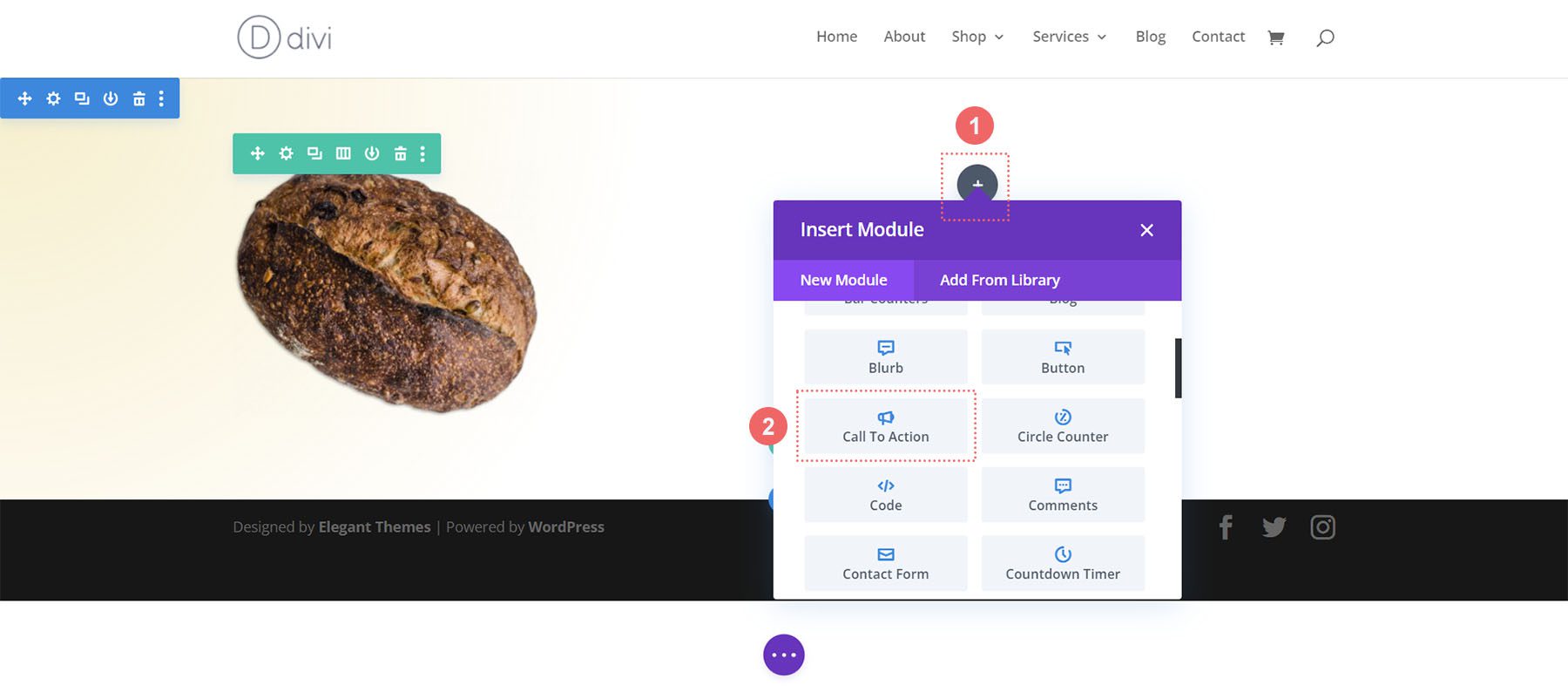
    Add Call to Action Module to the second column

    Add Content

    To begin, let’s add some content to the title, button, and body text.

    Add content to Call to Action Module

    Add Link to Button Link URL

    To show the button within the module, we need to add a URL to the Button Link URL. Scroll down to the Link tab and add your link.

    Add link to button

    Disable Background Color

    For this design, we’ll disable the background for the module. We want to see the gradient that’s within the section. To do this, we scroll down to the Background tab. Then, we uncheck the Use Background Color tab.

    Disable background color for the module

    Style the Call to Action Module

    To begin styling our module, we move to the Design tab. Next, we scroll down to the Title Text tab and use the following settings to begin to style our title text:

    Title Text Settings:

    • Title Font: Montaga
    • Title Text Alignment: Left
    • Title Text Color: #000000
    • Title Text Size:
      • Desktop: 72px
      • Tablet: 63px
      • Mobile: 48px

    For the Body Text, scroll down a little further till you reach the Body Text tab. We’ll use most of the default font settings for the Body Text, however, we’ll darken the text by making it black using and left aligning it to match the Title Text:

    Body Text Settings:

    • Body Font: Open Sans
    • Body Text Alignment: Left
    • Body Text Color: #000000

    Body text styling settings

    Styling the Call to Action Button

    Following the design styling of our Divi Bagel Shop layout, we’re going to create a flat shadow effect with our button. To achieve this, we will have quite a few settings to set up for different aspects of the button.

    Firstly, after scrolling to the Button tab, we check Custom Button Styles. We start styling our button by setting a background color and text color for our button.

    Button Text & Background Settings:

    • Button Text Size: 14px
    • Button Text Color: #000000
    • Button Background Color: #c59246

    Styling the Call to Action Module's button

    After this, we start styling the border of our button and some of the text styling options.

    Button Border and Text Settings:

    • Button Border Width: 2px
    • Button Border Color: #000000
    • Button Border Radius: 0px
    • Button Letter Spacing: 0.2em
    • Button Font: Open Sans
    • Button Font Weight: Bold
    • Button Font Style: All Caps
    • Button Alignment: Left

    Styling the border and text of the module

    For the button’s shadow, we will use the following settings.

    Button Shadow Settings:

    • Button Padding:
      • Top and Bottom Padding: 15px
      • Left and Right Padding: 45px
    • Button Box Shadow: See screenshot
    • Box Shadow Horizontal Position: 3px
    • Box Shadow Vertical Position: 3px
    • Box Shadow Blur Strength: 0px
    • Shadow Color: rgba(0,0,0,0.3)
    • Box Shadow Position: Outer Shadow

    Button padding, box and shadow styling

    Adding Spacing to the Module

    To finish off our second Divi call-to-action style example, we’re going to add some padding to the right of the module. For this, we first scroll down to the Spacing tab and activate the responsive mode for the padding. We want our padding to change based on the device a user will use to view our webpage.

    Activate mobile responsive padding

    For the padding, we’ll start with a large right padding on desktop, and shift to no padding on the right for mobile.

    Padding Settings:

    • Padding (Right):
      • Desktop: 145px
      • Tablet: 75px
      • Mobile: 0px

    Add right padding to module

    With our padding in place, don’t forget to save your changes, by clicking on the green checkmark. Here’s our final Divi Bagel Shop-inspired call to action!

    Divi Bagel Shop Inspired Call to Action Design

    Divi Leather Goods Inspired Call to Action Module Style Example

    Our third and final design is inspired by our Divi Leather Goods Layout Pack.

    Styling the Section

    Before we add our module, let’s style our section. We’ll use a background image and gradient for this section. First, we click on the background image icon and upload our Divi Leather Goods background image from our assets folder.

    Setting up background image

    With our image uploaded, we are now going to apply a gradient over it to give a slightly faded effect to the section. For this, we click on the background gradient icon, and use the following settings:

    Background Gradient Settings:

    • Gradient Stop 1: rgba(28,13,1,0.48) (at 0%)
    • Gradient Stop 2: rgba(28,13,1,0.48)
    • Gradient Type: Linear
    • Gradient Direction: 110deg
    • Gradient Unit: Percent
    • Place Gradient Above Background Image: Yes

    Background gradient settings

    With our background now setup, we’ll add some padding to our section. To do this, we move to the Design tab of the section. Next, we scroll down to the Spacing tab. Then, we will enter a top and bottom padding of 10vw.

    Adding padding to section

    Once we have added our padding, we click the green checkmark to save our changes to our section.

    Add Call to Action Module

    After saving our section and its styling, we now move on to adding our Call to Action Module to our row. To do this, we click on the gray plus icon, and then we click the Call to Action Module icon. This will add the module to our one-column row.

    Add Call to Action module to the column

    Add Link to Button

    For our button to show up, we need to add a link to the Button Link URL option of our module within the Link tab.

    Add link to button

    Style the Call to Action Module

    Before we begin styling our module, we need to add our content.

    Add Content

    We add content to the Title, Button, and Body section of the Text tab.

    Adding content to call to action module

    Change Background

    For this design, we want to use the background of the section that the module is within. So, we uncheck the Use Background Color option to make the background of the module itself transparent.

    Uncheck Use Background Color

    Set Text Color and Alignment

    For this design, we will want our text to be Light and the text to be center aligned. After clicking on the Design tab, we now click on the Text tab to set our Text Color to Light and our Text Alignment to Center.

    Set Text Color and Alignment

    Style Title Text

    After setting our text color and alignment, we scroll to the Title Text tab for us to begin styling the heading text of our call to action.

    Title Text Settings:

    • Title Font: Alike
    • Title Text Size:
      • Desktop: 72px
      • Tablet: 63px
      • Mobile: 54px
    • Title Line Height: 1.2em

    Title Font Settings and Stylings

    Styling the Body Text

    For the Body Text, we will keep the default settings the same. We’ll use Open Sans, the default font of Divi.

    Body text font family selection

    Setting Up Button Styling

    For the button, we’ll use the following styles:

    Button Styling:

    • Use Custom Styles for Button: Yes
    • Button Text Size: 14px
    • Button Text Color: #000000
    • Button Background: #d9b882

    Begin styling button

    We continue to style our button with the following settings:

    Button Border and Font Settings:

    • Button Border Width: 0px
    • Button Border Radius: 0px
    • Button Font: Inter
    • Button Font Weight: Bold
    • Button Font Style: All Caps

    Button font and border styling

    Adding Sizing

    To make our module more visually appealing, we’re going to add a bit of padding to the left and right of our module. For this, we scroll down to the Spacing tab and set a Max Width of 60% (for desktop), with a Module Alignment of Center.

    Sizing Settings:

    • Max Width:
      • Desktop: 60%
      • Tablet: 75%
      • Mobile: 100%
    • Module Alignment: Center

    Call to action sizing

    With our changes complete, we now click on the green check mark to save our beautiful work!

    Divi Leader Goods Inspired Call to Action Design

    In Conclusion

    By using our layout packs as a design reference, we can see that there are endless ways to style the Call to Action Module available natively in Divi. Use these examples as brain food to inspire you in your next marketing design project that needs a strong call to action!

    The post How to Style the Divi Call to Action Module (3 Examples!) appeared first on Elegant Themes Blog.

  • 10 Best Call-to-Action Plugins for WordPress

    The right call to action (CTA) plugin can be one of the best marketing tools for your WordPress site. These days, it takes a lot to engage users to take action on a website. Simply throwing a button on a page probably won’t get the results you are looking for. With a WordPress call-to-action plugin, you can power your website with CTAs that actually work. In this post, we’ll discuss our picks for the best call-to-action plugins for WordPress. Let’s get started.

    What is a Call to Action?

    At its core, a call to action is a request designed to encourage a user to complete an action on a website. There are many ways to incorporate a call to action in WordPress. It can be as simple as a “buy now” button, a social sharing icon, or an email opt-in form optimized for lead generation. CTAs can also notify visitors of upcoming sales and/or provide discount codes incentivizing them to make a purchase. Through all the ways to incorporate a CTA, it’s important to keep a few things in mind. CTA’s should stand out (or popup if necessary) and they should be easily accessible and relevant to what your site’s visitors are seeking.

    Why Use a WordPress Call to Action Plugin?

    A call to action plugin can supercharge your CTAs in powerful ways. They are designed to be marketing tools with advanced functionality that make your CTAs more engaging. The best CTA WordPress plugins have features that allow you to automate CTAs and deploy them site-wide based on conditions you control. For example, you may want a CTA to pop up when a user attempts to exit a page or you may want to show the same CTA at the end of all your posts. Trying to create CTAs like this without a plugin would be difficult to say the least.

    The 10 Best Call to Action Plugins for WordPress

    There are dozens of great call to action plugins for WordPress on the market. For this post, we’ve taken the time to research them and provide you with our top ten picks. Some of the plugins listed here are free, while others require a fee for a monthly or yearly license. Each has its merits and uses based on the type of call to action you wish to incorporate into your website. Let’s get to it.

    1. Bloom (Email Opt-in)

    Bloom call to action plugin

    Bloom is a full-featured email opt-in plugin that gives you the ability to create beautiful opt-ins for your website in just a few clicks. You can choose from more than 100 design options and configurations for your opt-in, as well as custom styles for its elements. You can add images, custom text, style the button, and more. Additionally, there are six display types including pop-up, fly-in, in-line, below content, widget area, and gated content, which allow you to choose how and where you want your opt-in to display.

    Bloom email opt-in types

    As an added bonus, you can set automatic triggers for your opt-in forms. Having this option is useful for displaying content at certain times, locations, or after purchases on your posts or pages. Bloom integrates with 19 email marketing providers such as Mailchimp, Hubspot, Constant Contact, Active Campaign, and more. Plus, you can manage all of your email opt-in CTAs in one place with a powerful dashboard with built-in A/B testing and analytics.

    Key Features for Bloom

    • Highly customizable opt-in forms in a few clicks
    • Multiple placement options
    • Integration with most major email providers
    • Automatic triggers including timed delay, after scrolling, after commenting, after inactivity, bottom of post, and after purchases
    • Fully responsive
    • A/B testing to increase conversions
    • 24/7 Support
    • Unlimited website usage

    Bloom is for you if…

    …you want to create email opt-in forms with ease, have seamless integration with your email provider, and be able to target specific posts or pages.

    Price: Free with an Elegant Themes subscription.

    2. Monarch (Social Sharing)

    Monarch social sharing

    Monarch is a social sharing plugin that gives you the ability to add social sharing buttons on your website. Buttons can be placed in a floating sidebar, above or below content, on images & video, on automatic fly-ins, or on a pop-up.

    Monarch locations

    In addition to the ability to choose a location for your social sharing buttons, you have a choice of 6 automatic pop-up and fly-in triggers. You can place icons at the bottom of a post, on a timed delay, after commenting, on scroll, after a purchase, or after inactivity. There are over 35 social networks to choose from including Twitter, Pinterest, Reddit, YouTube, LinkedIn, and Instagram, amongst others.

    monarch dashboard

    Setting your networks up is an easy process. You just need to provide the URL of your chosen network, and Monarch will display the network icons for you, then pull your follow counts in dynamically. Integrating Monarch into your site can be accomplished with a shortcode, or by placing them into a widget.

    Key Features for Monarch

    • Setup is a breeze
    • Highly customizable display settings
    • Check statistics in a easy-to-navigate dashboard
    • Import and export data
    • Over 35 social networks supported
    • 5 location choices
    • Multiple display options
    • 24/7 Support
    • Unlimited website usage

    Monarch is for you if…

    …you want a highly customizable option for displaying your social media networks. Monarch is easy to set up, and provides a great way to get your message out to the masses. With so many customization options, you can integrate social media networks to match your branding, and drop them just about anywhere you wish.

    Price: Free with an Elegant Themes subscription.

    3. Convert Pro

    Convert pro call to action plugin WordPress

    Convert Pro is a call to action plugin for WordPress that uses a drag and drop interface. You have the option of creating several types of CTA’s including pop-ups, email forms, inline, slide-ins, info bars, full screen pop-ups and more. Convert Pro is cloud-based, so it won’t slow your site down. Additionally, you can create a CTA on the fly with a pre-made template.

    Convert Pro CTA types

    Both standard and growth bundle options offer nearly 40 integrations with some of the leading email providers such as AWeber, SendinBlue, MailerLite, and HubSpot. Convert Pro also offers a responsive CTA creator, as well as triggers for exit intent, timing, user inactivity, and more.

    Key Features for Convert Pro

    • Drag and drop editor
    • Google Analytics integration
    • Several pop-up styles
    • Full screen CTA’s
    • Page level targeting
    • A/B Testing
    • Unlimited Website usage
    • Risk-free guarantee
    • Premium support

    You should use Convert Pro if…

    …you like using a drag and drop editor, want the ability to have multi-step pop-ups, and don’t mind renewing your license annually.

    Price: $87 per year for standard license | $187 per year for the growth bundle | Learn more about Convert Pro

    4. WP Notification Bar Pro

    WP Notification Bar Pro

    WP Notification Bar Pro is a WordPress plugin designed to add custom notifcation bars to your WordPress site. There are a number of options available to embed forms, social media feeds, social icons, videos, searches, and more.

    Customizating WP Notification Bar Pro is simple and allow for unlimited color choices. You can also choose the width of your bar, fonts, font sizes, line height, and more. Feed options are pretty nice, too. You can feature multiple notifications on one bar. When displaying posts, you can create a post feed complete with thumbnails.

    You can set several different conditions for your notifications, too. You can specify which page to display your notifications, as well as logged in status. There are also responsive visibility options, which is good for mobile users.

    WP Notification Bar Pro

    Key Features for WP Notification Bar Pro

    • Unlimited site usage
    • 24/7 support
    • Video tutorials
    • 30 day money back guarantee
    • Unlimited color choices
    • 100% responsive
    • Import/export capability
    • Demo content
    • A/B testing
    • Track clicks and views

    You should use WP Notification Bar Pro if…

    …you don’t need to create elaborate pop-ups and want to save valuable page real estate. It’s also useful for creating post notifications in a feed type interface.

    Price: $19 per year | Learn more about WP Notification Bar Pro

    5. Simple Side Tab

    simple side tab

    The Simple Side Tab call to action plugin is one of the most basic plugins on our list. Settings are minimal, but still allow for text, URL, hover, and color options to be configured. Users have a choice between left and right side placement for their CTA.

    simple side tab WordPress plugin settings

    A great feature of Simple Side Tab is it’s ability to serve as a global call to action. The tab is sticky, too, so it will always be visible to your site’s visitors no matter where they are on the site.

    Key Features for Simple Side Tab

    • Customizable with CSS
    • Light plugin, won’t bloat your website
    • Unlimited color options
    • Left or right side placement
    • 7 font choices
    • Sticky for constant visibility

    You should use Simple Side Tab if…

    …you want an easy way to create a global call to action that won’t load your site down.

    Price: Free | Learn more about Simple Side Tab

    6. Ultimate Blocks

    Ultimate blocks plugin

    The Ultimate Blocks plugin for Gutenberg has over 20 modules to create engaging CTA’s for your website. While not a typical call to action plugin, Ultimate Blocks has several modules that you can use to create them. There’s a call to action module, along with click to Tweet, social share, and a button module that can all serve as great ways to engage your user base.

    All of the modules in Ultimate Blocks have styling options including color, text, spacing, and border options.

    Ultimate blocks CTA modules

    Key Features for Ultimate Blocks

    • 20 Content modules
    • Highly customizable
    • Multiple call to action modules

    You should use Ultimate Blocks if…

    …you want options to build great call to action content without breaking the bank.

    Price: Free | Learn more about Ultimate Blocks

    7. Mail Optin

    Mail Optin call to action plugin WordPress

    The Mail Optin plugin is a lead generation, email automation, and newsletter plugin for WordPress. Mail Optin provides multiple display options including a lightbox pop-up, slide-in, notification bar, sidebar widget, or inline. Additionally, you can configure your call to action to appear before, in the middle, or after your content.

    As far as customization options go, Mail Optin uses a familiar interface – the WordPress Customizer panel. This makes customizing forms a breeze. There are multiple visual and sound effects, along with triggers to engage your audience.

    Mail optin customizer settings

    Mail Optin’s integrations are plentiful, allowing for seamless linking to email providers, CRM’s, and a number of analytics software providers such as HubSpot, Mailchimp, SendinBlue, Gravity Forms, and much more.

    Key Features for Mail Optin

    • Multiple display types
    • Several location options
    • Familiar interface
    • Exit-intent technology
    • Custom user registration forms
    • A/B testing
    • Gated content options
    • Google Analytics integration
    • Lead generation reports
    • Sound & display effects
    • Multiple trigger options
    • Targeting options

    You should use Mail Optin if…

    …you want unlimited capabilities, integrations and features in one software. Plus, if you’re accustomed to the WordPress customizer, you’ll be right at home here.

    Price: Starts at $79 per year | Learn more about Mail Optin

    8. Hello Bar

    Hello Bar

    The Hello Bar plugin is a call to action plugin for WordPress that allows you to add a hello bar to your site with advanced targeting and customization capabilities. CTA’s are built using Hello Bar’s web interface that you connect to your WordPress website with a snippet. There are multiple display types included with Hello Bar including modals, full screen pop-ups, bars, and alert sliders. Also, there are hundreds of pre-made themes to help you build your CTA’s. You can style your own, plus Hello Bar detects your site’s design to match your site styles.

    Hello Bar customizations

    The targeting features included with Hello Bar give you the ability to target site visitors by location, campaign, source, and more. Additionally, you can schedule messaging and offers by time, date, and omit those who have already visited your site.

    Key Features for Hello Bar

    • 100’s of pre-made templates
    • Match your site’s design, colors, and fonts automatically
    • Highly customizable visual editor
    • Multiple targeting options
    • Custom reports and analytics
    • A/B testing

    You should use Hello Bar if…

    …you want lots of design choices, easy setup, and advanced targeting capabilities.

    Price: Free to $99 per month | Learn more about Hello Bar

    9. OptinMonster

    Optin Monster WordPress plugin

    The Optin Monster call to action plugin is a lightweight, yet robust WordPress plugin that delivers on several fronts. With over 1 million downloads, Optin Monster is one of the more popular entries on our list. Display types include lighbox pop-ups, floating notification bars, inline forms, scroll boxes, and fullscreen overlays. You can design your forms with their drag and drop interface with lots of customization options, or choose one of 300 templates available.

    Optin Monster templates

    Optin Monster boasts basic integration with providers such as Mailchimp, Constant Contact, and SendinBlue to name a few. Additionally, you have several targeting options such as page level targeting, time on site, and scroll tracking. You can have unlimited subscribers, but page views are limited to 2,500 with the lowest pricing tier.

    Key Features for OptinMonster

    • Multiple display types
    • Page level targeting
    • Exit intent detection
    • Drag and drop builder
    • Display conditions
    • A/B testing
    • Analytics
    • List segmentation
    • Subscriber recognition & management
    • Conditional redirects
    • OnSite Retargeting and Personalization

    You should use Optin Monster if…

    …you require a full-featured solution that will allow you to segment your subscriber lists, have advanced targeting, advanced analytics, and lots of helpful tutorials to assist you along the way.

    Price: $9 to $49 per month | Learn more about Optin Monster

    10. Thrive Leads

    Thrive Leads

    The Thrive Leads stand-alone WordPress plugin is an email and lead generation tool by the makers of the Thrive theme. Thrive leads comes with more than 100 templates in which to build your call to action form. You can also use Thrive’s drag and drop builder to create a custom form of your choosing. There are lots of display types including pop-up lightbox, sticky notification bar, 2-step opt-in forms, slide-ins, and more. You can also create yes/no and multiple choice forms, which is something that is unique on our list.

    Thrive Leads form builder

    Thrive Leads offers advanced targeting which helps you deliver highly targeted offers based on categories, posts, tags, and more. You’ll also be able to conduct A/B testing, and gain actionable insights on your forms through detailed reports. Lastly, you can hide forms or show different ones to your existing subscribers with the help of Thrive’s SmartLinks & SmartExit technology.

    Key Features for Thrive Leads

    • Unlimited leads
    • Focus on lead optimization
    • A/B Testing
    • Drag and drop edtior
    • Advanced targeting capabilities
    • Actionable reporting & insights
    • Hide or Reveal offers based on subscriber status

    You should use Thrive Leads if…

    …you want stand-alone WordPress solution with advanced targeting capabilities, multiple options for displaying your opt-ins, and excellent reporting tools.

    Price: $97 per year | Learn more about Thrive Leads

    Final Thoughts on Call to Action Plugins for WordPress

    Several of our entries share similar features, but each plugin truly is unique. The one you choose depends on your situation and what you are comfortable with paying. While we do mention some free options on our list, the more feature rich options do require a subscription.

    Which call to action plugin do you use for WordPress? Sound off in the comments below.

    The post 10 Best Call-to-Action Plugins for WordPress appeared first on Elegant Themes Blog.