What if I told you that you could create fast and efficient WordPress websites that score over 90% on PageSpeed Insights? Better yet, what if I told you that you could get those impressive scores for mobile devices and pass Core Web Vitals for every project?
We do this consistently for client projects using fast themes, good hosting, and most importantly, WP Rocket. Using WP Rocket is our WordPress agency’s secret weapon!
But what if you inherit a project from another developer or agency and need to improve performance? In this article, we review some common performance bottlenecks and suggest improvements you can make with WP Rocket to get awesome results.
Our Background and WordPress Experience
Our agency, Clio Websites, has been helping clients launch beautiful new websites since 2007.
We have been working with WordPress since 2013 and have seen and resolved pretty much everything that can hurt website performance. From inefficient themes to large image files and multiple builders on the same website.
One of our core offerings is helping clients improve their website performance, and WP Rocket plays a key role in that. We have used WP Rocket for projects that use custom themes, block editor (Gutenberg), and popular page builders like Elementor and WP Bakery and got excellent results. This is why we refer to WP Rocket as our WordPress agency’s secret weapon.
Caching, Minification, and Asset Delays – The Key to Achieving Great Website Performance
Due to its out-of-the-box architecture, WordPress requires a little bit of extra love when it comes to performance. Vanilla WordPress implementations frequently access the SQL database to look up information which causes frequent roundtrips to the server when users are interacting with the website.
The dynamic nature of this setup, which is the biggest advantage of WordPress as a content management system (CMS), is also it’s the biggest drawback.
How Caching Works
Caching plugins like WP Rocket create a static version of your website and display it to visitors instead of making round trips to the database and backend servers.
When you make changes to your website or add new content, WP Rocket caches that version and shows the most up-to-date files to your users. To find out more about how this magical plugin works, check out the WP Rocket features.
How Minification Can Improve Performance
Minification is another important feature that makes websites perform better. This process removes all unnecessary characters and spaces from website files, making them readable to humans and creating more efficient versions of those files.
Since computers don’t need space to open and display files, it’s much faster to read and render them. Minifying files can help improve website speed but also has to be tested thoroughly because it can sometimes cause issues (which we will cover in future sections of the article).
What Are Asset Delaying and Deferring?
Delaying website assets from loading until needed is exactly what it sounds like. Using WP Rocket, you can delay or defer loading a file or image until a user scrolls to that section or starts interacting with a website feature. This can significantly improve website performance because you can force the website to only load the initial portion that a visitor needs to see when they land on your website.
Now that you know a bit more about caching and minification let’s jump into common issues we see when working with clients and show you how to fix them using WP Rocket.
4 Common Website Performance Issues
We have a lot of experience building and helping clients improve the performance of websites.
The most common issues we see when working with websites that we inherited from other developers are the following:
- Large and uncompressed images
- Misconfigured caching plugins, or no caching plugins
- Uncompressed assets (CSS and JavaScript files) with no delay or defer features
- Inefficient themes and plugins
How to Identify Performance Issues
There are a number of free tools that you can use to diagnose and resolve website performance issues. Our favorite tools are PageSpeed Insights, GTmetrix, and WebPageTest.
Don’t be afraid to use all three because they offer unique insights and suggestions on resolving issues. PageSpeed Insights is the most important and reliable tool, in our opinion. This is the Google recommended tools for troubleshooting and fixing performance issues identified in the Google Search Console.
In the next few sections, we will dig into the most common performance issues and how to fix them.
1. Uncompressed Images
Using large and uncompressed images is the most common issue that negatively impacts website load speeds. The average website size in 2022 is around 2.3MB for desktop and around 2MB for mobile versions.

If your website uses several high-quality images, you can quickly exceed the average website size and slow it down. This would cause the website to load slower and the pictures to load after the text, which gives websites that mid-1990s vibe.
Compressing images prior to uploading them to your site is key. You can automate this process by using tools like Imagify. Check out this article for other suggestions on how to compress and serve images on websites.Â
2. Misconfigured or Missing Caching Plugins
Since WordPress uses a client-server architecture, enabling and configuring caching is a must. Using a caching plugin can resolve many performance issues that WordPress website owners experience.
We encounter a lot of sites that completely miss this step. This can cause websites to take forever to load, especially on mobile devices, which are even less forgiving than desktop devices when it comes to website performance.
Caching plugins tend to be complicated and easy to misconfigure. This is another reason why we prefer WP Rocket. It’s really easy to configure, and it is set up in order to get great results in no time.
3. Uncompressed Assets with no Delay Features
Compressing other website assets like CSS and JavaScript (JS) files is easy with the right tools and can generate great results. In the next section, we will show you how you can do that to improve your website performance.
These same assets can also be combined, delayed, and deferred in order to improve performance further. These issues can be a bit harder to troubleshoot, but this is where tools like GTmetrix come in handy.

GTmetrix has a waterfall chart that can show you all assets that are being loaded by your website. Without compression and delay, you will see more and bigger CSS and JS files being loaded.
A word of caution: enabling compression and delay settings can sometimes break certain sections and features of your website. Make sure that you are testing them thoroughly each step of the way.
4. Inefficient Themes and Plugins
Inefficient WordPress themes can include a lot of scripts, bloated assets, and bad programming practices, which can significantly impact web performance. We recommend working with themes that are primarily fast and efficient (like Hello Elementor, GeneratePress, and Astra).
While tools like WP Rocket can help alleviate issues caused by bad themes, it’s easier to avoid these entirely by using fast themes when building new projects.
Avoiding unnecessary plugins is another great idea when focusing on performance and troubleshooting slow sites. Installing a lot of plugins can slow down a website significantly.
While there is no hard and fast rule when it comes to the number of plugins you should use, we recommend not using any more than you have to. Not all plugins are created equally, and some are definitely better than others. When we work with clients looking to improve their website performance, we try to eliminate as many unnecessary plugins as possible.
How We Use WP Rocket to Achieve >90% Scores
Nobody enjoys using a slow website. Especially not on their mobile devices.
After you identify performance issues experienced by your clients’ websites, you can resolve them using WP Rocket and score over 90% on mobile.
What This Means for Your Clients and for Your Agency
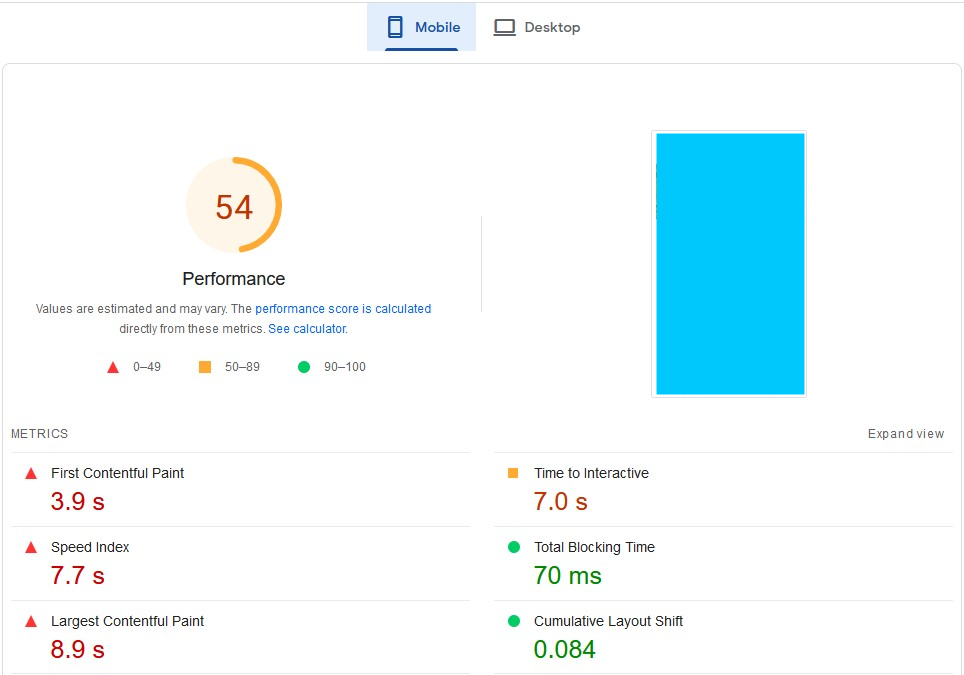
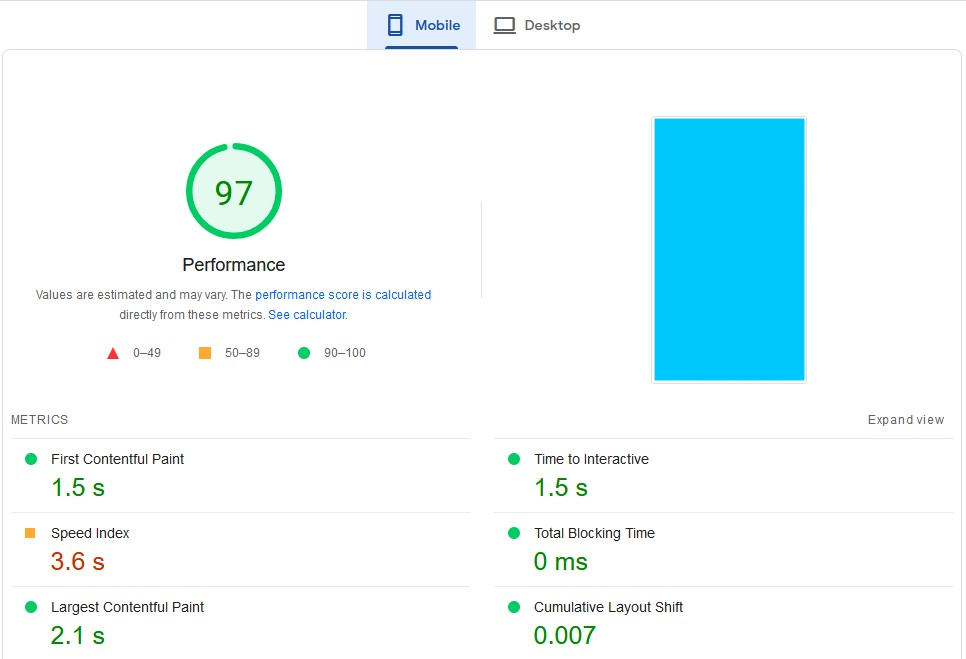
We recently helped a client improve performance from 54% to 97% on mobile just by installing and configuring WP Rocket:
 |
 |
We have seen performance improve conversions, SEO, and visitor satisfaction for our client websites. In fact, according to research, over half of the visitors will abandon a website that takes longer than 3s to load.
Google has also indicated that fast load speed is a ranking factor, meaning that if your website is faster than the competition, it will rank higher on the Google search.
In another example, we used WP Rocket to improve mobile performance from 24% to over 90% and help them pass Core Web Vitals (see screenshot below). Shortly after performance issues were resolved and Google Search Console slowness errors cleared, we saw their SEO traffic jump by 55%.

As an agency, we use the WP Rocket Infinite plan and install WP Rocket on all of our client websites in order to improve performance. We use this as a benefit of using our agency over others which may force you to purchase your own premium plugins.Â
Our clients enjoy the benefits of having access to some of the best plugins in the market (such as Imagify and WP Rocket). WP Rocket also makes it super easy to manage sites in their platform and remove them if necessary. All the websites using your license will show up in your account, and you can easily remove or even ban sites where you no longer want to use your license.
In the next section, we go through the common WP Rocket features we use on WordPress websites to improve performance and score over 90% on mobile.
1. Cache Settings
We always turn on “Enable caching for mobile devices†in the WP Rocket Cache section. Since Google judges the speed performance based on how your website performs on mobile devices, this setting is a must.
We prioritize performance improvements for mobile devices because they are harder to achieve. If you achieve great results on mobile devices, you will also experience great performance on desktop devices since they are a bit more forgiving (due to faster home internet and desktop speeds).

The “Cache Lifespan†setting is also something that we typically increase in order to improve performance. The default is 10 hours, meaning that every 10 hours, the website cache will be completely deleted.
This is unnecessary, and we usually increase this setting since the updated pages will automatically be regenerated and preloaded by WP Rocket.
2. File Optimization Settings
The File Optimization section is one of the most important and impressive sections of WP Rocket. But with great power comes great responsibility.
We recommend that you enable these settings one by one and test thoroughly in Chrome Incognito with browser caching turned off to make sure that your website doesn’t break. If it does break, you can revert or troubleshoot the particular setting.
CSS Optimization
The section on the top handles modifications and improvements for CSS files, and the section on the bottom handles JavaScript file improvements.

Turning on the “Minify CSS files†feature will remove all spaces and unnecessary characters from your website’s CSS files and make those assets quicker to load. We usually turn on this setting.
We usually leave combining CSS and JS files off because most of our sites are hosted on servers that support HTTP2, and it can be more efficient to load the files separately instead of combined.
Optimizing CSS delivery is also a great feature that you can try if you see warnings in PageSpeed Insights. As you can see in our example above, we don’t have this setting turned on and are still getting 97% on mobile for this particular client site.Â
Turning on this setting can be beneficial if you are looking for further improvements. This setting will remove all of the unused CSS from your website and make it more efficient because your website won’t need to load and execute as much code.Â

As you can see in the above example, testing this feature thoroughly is recommended, but it can yield some impressive results.
JavaScript Optimization
The JavaScript optimization section has similar options and features.
We recommend turning on JavaScript minification but leaving “combine†off if you are running servers that utilize HTTP2.

Delaying and deferring JavaScript execution will also significantly improve website performance. In fact, most websites will experience the biggest impact by loading a lot of JavaScript files that are not deferred and delayed.

The defer and delay sections can cause certain features to break and stop working, so turn these on one by one and test your website. If you do experience issues, there are ways to troubleshoot.Â
Some popular themes and plugins tend to break when this setting is turned on. One of the most common examples is Elementor Pro. WP Rocket has you covered if you experience an issue similar to this. Check out their JavaScript exclusions troubleshooting guide for more details and add their recommended scripts to this section.
For example, for Elementor Pro websites, you can find the scripts that should be excluded and add them to this section and still benefit from this feature for the rest of the websites’ JavaScript files.

3. Media Options and Tuning
Another common issue that we see is uncompressed images and a lack of lazy loading.
Uploading untuned images can impact performance significantly, so tune and compress your images before uploading them to your website. You can also use a plugin like Imagify in order to compress them automatically after the fact. We utilize this method for our client sites because we want to automate this part and sustain good performance for our clients. Imagify integrates well with WP Rocket as it is developed by the same team. WP Rocket will recognize and utilize Imagify if installed on the same website.
We recommend turning on all of the features under the Media tab in order to enable LazyLoad for images and videos. This will ensure that images are only loaded once a visitor scrolls to that section.
You can exclude images like your logo or your main hero section image by adding them to the “excluded images or iframes†section.

Adding missing image dimensions is also recommended as good web development and accessibility practice. Since some themes and developers miss this step, WP Rocket can help you by automating this for images that don’t have dimensions. We always use this setting when working on client websites.
4. Preloading
Preloading in WP Rocket is turned on by default, and we recommend leaving it on. It simulates a website visitor accessing your site and generates a cached version of your website so that the cache is already present when an actual visitor arrives.

Preload links are also a cool feature that starts loading a site when a user hovers over a hyperlink. Once the user clicks on the link, the page will be almost instantly loaded.
5. Other WP Rocket Settings
Another very useful but optional feature is “Database cleanupâ€. We run this feature on sites that have had a lot of post revisions and spam comments to speed things up. There is also an option to automate this cleanup and run it every once in a while. We typically recommend doing this step manually after taking a backup of the database, just in case something goes wrong.
We also recommend leaving the default “Control Heartbeat†option turned on under the Heartbeat section. The heartbeat is a default WordPress scheduled task that helps by autosaving a post revision while a user is writing it. It’s a very useful feature but can cause unnecessary use of server resources.

WP Rocket will automatically reduce this activity from 1-minute to 2-minute intervals in order to preserve server resources and help with performance.
Other Add-On settings include turning on Varnish caching (automatically detected by WP Rocket), and WebP compatibility.
You can further help improve website performance on the server side by using Varnish. If your hosting provider uses Varnish, turn this setting on if it’s not automatically recognized.
WebP is a relatively new image compression standard and file extension that all modern browser support. For better performance, an image compression plugin like Imagify can automatically convert your png and jpg images to WebP. WP Rocket can automatically serve these images from the cache for you.
As an agency, one of our favorite features is exporting and importing settings from one site to another. Since most of the settings and tools we use are similar across projects, exporting and importing settings into another site saves us a lot of time!
Wrapping Things Up
By turning on these settings and testing your website thoroughly, you can get impressive results for your client websites. WP Rocket makes enabling and testing these features super easy and offers awesome troubleshooting tips if you run into issues.
Sustaining Performance Results After Tuning
Once you launch a fast and efficient website, your work doesn’t end there. It’s easy to add the bloat back into the website but introducing unnecessary plugins, uploading large images or videos, not keeping your database clean, and not keeping your website up to date (plugins, core, and PHP versions).
We always test website performance once a month using PageSpeed Insights and GTmetrix to ensure that the website continues to load quickly. It’s also recommended to keep an eye out for new WP Rocket features and updates that can help improve things further. WP Rocket is always improving and adding new functionality that can help users increase their website performance.
Adding WP Rocket to your agency arsenal can help you create super fast websites and help you improve website speeds for existing clients. We hope this article has helped encourage you to add WP Rocket as your WordPress agency’s secret weapon.
The post Using WP Rocket as a Secret Weapon for Our WordPress Agency appeared first on WP Rocket.


 Load JS deferred and Delay JS execution are key features to optimize JavaScript files and address crucial PageSpeed Insights recommendations, such as
  If you want to tackle CSS optimization and its render-blocking resources,