EDITS.WS

Tag: content management systems

  • 11 Best Content Management Systems in 2023

    Choosing a Content Management System (CMS) for a content operation is a “make or break” decision. It’s not easy to commit to one and then switch to another. The best content management systems will give you room to scale your operation and be simple enough for your writers to utilize it fully.

    CMS solutions go beyond static website builders—they are adaptable enough to manage all the complexities of pushing content at scale. This article explores the best CMS platforms that small and large businesses use to see digital success.

    The Best Content Management Systems and Software

    A CMS ought to perform all the expected content and media management tasks. Still, it should also have extendibility, give complete control over SEO, and provide incredible site speed— all at reasonable costs.

    We’ve gone through all the top picks and have come up with this list of CMS software you can use to create your next content website. We haven’t listed every possible option out there. Instead, we have selected a few leading CMSs that fit specific use cases to help you make an informed decision. This way, you can better understand how to choose a CMS yourself.

    We’ll start with the all-time leader of CMSs — WordPress.

    1. WordPress

    WordPress Homepage April 2023
    WordPress is by far the most popular Content Management System (CMS) for building websites of all types, used by over 43% of all websites. The core technology (WordPress.org) is free and open source which has helped it grow rapidly over the last twenty or so years. It also has a huge following and support from users, developers, and companies that build WordPress products to fit every need imaginable.

    Although WordPress Core is free, it does require other things to make it competitive. It’ll require hosting, speed and security plugins, and a flexible theme (more details at the end of this post on how to get started with WordPress). The customization capabilities in WordPress go far beyond just the visual design of the website. Users can add functionality to their site with plugins for tasks like contact forms, social media sharing, eCommerce, and integrations with thousands of SaaS, marketing, and productivity platforms. The flexibility of WordPress allows users to build precisely the websites they have in mind and not be held back by a set-in-stone CMS.

    Key Features of WordPress:

    • Vast customization capabilities with thousands of themes and tens of thousands of plugins to do just about any task (many are free)
    • Easy to manage content for any website you want to build, including online stores, blogs, and membership sites
    • SEO-friendly CMS that gives you more options for complex SEO tasks and technical setups
    • Massive, supportive community with plenty of groups to join and get help from (like our Divi Users group)
    • Content portability that can easily be transferred to a different WordPress site or as data files to take elsewhere—control over your data is in your hands

    WordPress 60000+ Plugins

    Best For:

    WordPress is a great CMS for businesses with unique website needs because it allows complete freedom to build any website with thousands of themes and plugins for added features. Additionally, it is designed for SEO and has a supportive community. However, it does require web hosting, and users are responsible for managing security and backups. With the proper plugins, those are all manageable items to get done.

    WordPress is also a great option for first-time website creators since it is built to make website building easy.

    Pricing: WordPress is free to use, but users will need to pay for hosting and any premium themes or plugins they choose to use.

    Get WordPress

    2. Hubspot

    HubSpot CMS is geared toward marketers and sales organizations who use paid or organic content as a significant inbound channel. It allows businesses to integrate marketing and CRM infrastructure inside a CMS fully. It helps you get customer information with inbuilt reporting, set up marketing automation, and tap right into HubSpot CRM without having to set up any 3rd party integrations.

    HubSpot CMS Page Builder

    HubSpot has built-in SEO tools and marketing attribution, which help businesses optimize their web content and properly collect customer data for later marketing. HubSpot empowers businesses to make data-driven decisions and improve their online presence, ultimately converting more customers. Check out our detailed HubSpot overview for more.

    Key Features of Hubspot:

    • HubSpot CMS Hub offers built-in SEO and marketing attribution tools to optimize web content easily
    • CMS Hub has built-in security features, including a global CDN and Web Application Firewall, to protect your site from attacks
    • The platform seamlessly integrates with HubSpot’s marketing, sales, service, and CRM tools to streamline workflows
    • HubSpot Asset Marketplace offers over 3,500 free and paid templates to change the appearance of your site

    HubSpot CMS Analytics

    Best For:

    HubSpot CMS is a comprehensive content management system that allows marketers and business owners to link their marketing and sales activities easily. It is recommended for businesses of all sizes seeking a unified CMS and CRM solution. Small companies, as well as larger ones, rely on Hubspot. They have excellent help resources and videos to get you on your way.

    To see how Hubspot compares to WordPress, see our breakdown of WordPress vs. Hubspot.

    Pricing: Hubspot’s CMS starts for as little as $25/mo with scaling prices well over $300/mo

    Get Hubspot

    3. Shopify


    Shopify is a popular eCommerce CMS that includes basic content management for posts. It is one of the go-to eCommerce website platforms along with WooCommerce. Its sole purpose is to make selling online easy.

    Shopify is powerful as an eCommerce CMS but relatively weak regarding pages and blog posts. Most people starting with the platform are delighted with the selling features but are left wanting better CMS features for traditional content (outside of product information).

    Shopify Product Management

    Key Features of Shopify:

    • Built-in payment processing and shopping cart system
    • Easy-to-use interface with 24/7 support
    • Ability to manage product display, stock, coupons, and orders
    • App marketplace with over 5,700 free and paid apps to extend the functionality
    • Ideal for first-time shop owners and small businesses looking to sell online

    Shopify’s built-in payment processing and shopping cart system makes it incredibly easy for businesses to set up an online store and accept payments quickly. This, combined with its user-friendly interface and tech support, makes it an excellent option for first-time shop owners and small businesses looking to start selling online without the technical know-how or resources required to build a custom e-commerce solution from scratch.

    Shopify’s themes are made using their programming language, Liquid, similar to PHP. This can be a drawback because custom coding requires learning Liquid and limits the number of web developers who can work on your theme changes. However, Liquid is widely used and adopted.

    Best For:

    Shopify is an ideal CMS for e-commerce sites, especially for first-time shop owners or small businesses looking to sell online. It offers a user-friendly interface with payment processing, apps with more features, and customer support. However, customization options are limited, and bigger plans can be expensive.

    To see how Shopify compares to WooCommerce, see our breakdown of WordPress vs. Shopify.

    Pricing: Shopify’s pricing ranges from $39/month with transaction fees per eCommerce transaction

    Get Shopify

    4. Webflow


    Webflow is an all-in-one software-as-a-service (SaaS) platform for building and hosting your website. All of the features are built-in, so you don’t have to worry about finding a host or installing extra plugins for things like SEO, security, eCommerce, etc.

    The best feature of Webflow CMS is its visual editor. This editor allows you to create and edit content without any coding knowledge. You can drag and drop elements to make your pages and use the built-in tools to style your content. The visual editor is intuitive and easy to use though a design background is helpful.

    Webflow Content Management System

    Key Features of Webflow:

    • Complete control over site design
    • Offers built-in security features like SSL certification and 2FA
    • Hosting comes with the platform (just like Wix or Squarespace)
    • Ideal for experienced designers who want to create custom sites rapidly

    Best For:

    Webflow is an ideal content management system for experienced designers as the whole design system is built to bring CSS to a no-code environment. It has well over a hundred starting templates for agencies designing quickly for customer sites and has all the web design features to iterate new concepts quickly. It reminds us a bit of Divi for WordPress.

    To see how Webflow compares to WordPress, see our breakdown of WordPress vs. Webflow.

    Pricing: Webflow’s pricing ranges from $12/mo but starts at $29/mo for CMS features

    Get Webflow

    5. Contentful

    Contentful is a headless CMS that allows you to manage your content in a central location and deliver it to any device or channel. It offers a range of features and integrations to help developers create and manage their digital content strategy.

    Contentful’s “content model editor” works like custom post types in WordPress, where you can create content types and fields. For example, you could create content models for an editorial story-telling or for product reviews based on the type of content and structure you want to have for either.

    Contentful Content Model Home

    Key Features of Contentful:

    • Enterprise-level headless CMS with tools to create, edit, and manage content
    • Allows for the creation of a unique content model tailored to the specific project’s design and function needs
    • API-first platform that enables integration with any tech stack and can deliver content to any digital channel
    • Security features provided by Amazon Web Services and built into Contentful
    • Adaptable to all digital platforms, from web browsers to mobile apps

    Best For:

    Contentful is a cloud-based CMS for bigger businesses with technical resources. It’s perfect for developers who want to use an API-first CMS to push content to different channels, but it may not be easy for most businesses.

    Pricing: Contentful’s pricing ranges from $300/mo for its basic CMS plan

    Get Contentful

    6. Adobe Experience Manager Sites


    Adobe Experience Manager Sites is a cloud-based CMS that offers a wide range of features, including content management, collaboration, and analytics. It is a good choice for businesses that need a feature-rich CMS to power digital content on apps and websites. It integrates seamlessly with the rest of the Adobe Experience Cloud ecosystem.

    The best feature of AEM Sites is its ability to create personalized user experiences. AEM Sites use various technologies, including artificial intelligence, to understand user behavior and preferences. This information is then used to deliver more relevant content to each user.

    AEM Sites CMS

    Key Features of Adobe Experience Manager Sites:

    • Flexible CMS that adapts to different channels like mobile Apps (Apple, Android, etc.) and websites
    • Scalability with machine learning and AI-powered Digital Asset Management (DAM) tool
    • Advanced user access controls, helpful video analytics, and intelligent searching

    Best For:

    AEM Sites is a great CMS for big organizations that want to deliver personalized content experiences across multiple channels. AI powers it and has an efficient data collection system, but licensing and setting up are expensive.

    WordPress tools like AppPresser can help you turn your website into an App for multi-channel content distribution.

    Pricing: Adobe Experience Manager Sites’ pricing is not public, and you will need a quote from Adobe

    Get Adobe Experience Manager Sites

    7. Magnolia CMS

    Magnolia is a headless CMS that offers a wide range of features, including content management, collaboration, and analytics. It is a good choice for businesses that need a powerful and feature-rich CMS.

    Magnolia’s modular architecture and open APIs make adding new features and functionality easy. Its flexible content model allows you to create and manage content in a way that makes sense for your business.

    Key Features of Magnolia:

    • Flexible and customizable with modular architecture and Java customization options
    • Built for managing multi-site, multi-language, and multi-channel digital experiences
    • Includes AI-powered content search and smart tagging for centralized taxonomy
    • Offers out-of-the-box functionality with options to customize and tailor workflows, create server filters, and more
    • Supports traditional web pages, interactive apps, digital signage, and any digital channel for content management

    Publishing Pages Magnolia CMS

    Best For:

    Magnolia is a great CMS for businesses that manage multiple sites, channels, and endpoints. It offers good default features, but you can customize it as you need. Magnolia’s modules can be interchanged, and you can customize Java for workflows, server filters, and the interface. It’s ideal for omnichannel experiences and is favored by many marketers. It also uses AI features to help create content, making it easier for users to find (and add personalization).

    Pricing: Magnolia’s pricing is not public, and you will need a quote from Magnolia

    Get Magnolia

    8. Joomla


    Joomla is a free-to-install, open-source CMS that’s similar to WordPress. Many would consider it behind WordPress’s usability, but many people love it. Joomla is tailored more toward developers rather than the average user. It can be challenging to use, and it isn’t easy to learn the UI and settings.

    Post and page editing uses a standard WYSIWYG editor that virtually all CMS platforms are getting away from. Upgradable Joomla page editors can be added for a more modern editing experience.

    Key Features of Joomla:

    • Offers a middle ground between the ease of use and price of WordPress and the versatility of Drupal
    • It has more out-of-the-box features than most open-source CMS systems, allowing users to build complex sites
    • It provides excellent tools for managing users, making it a popular choice for membership-type sites

    Joomla Add Article to CMS

    Best For:

    Joomla is suitable for larger companies and technical individuals who need a more advanced CMS with features and flexibility for building complex sites, like eCommerce stores or membership-type sites. Still, it requires a steeper learning curve than WordPress and provides user management tools.

    To see how Joomla compares to WordPress, see our breakdown of WordPress vs. Joomla.

    Price: Free CMS platform that requires hosting

    Get Joomla

    9. Ghost


    Ghost is a publishing platform focused mainly on publishing, specifically for digital content creators who’d tend to otherwise monetize their content through Medium, Substack, or Patreon. Instead of taking the approaches of any of those platforms, Ghost is a CMS that lets you control every aspect of your business website with the added benefit of great monetization tools that come standard.

    Creators can charge for their content through a customizable membership or offer it free. The CMS distributes content via web and email using the inbuilt newsletter feature. Ghost is a CMS with a single purpose, so learning tends to be easier. All the tools are there to help you post and make money.

    Ghost Content Management System Posts

    Key Features of Ghost:

    • Ghost is designed for creators and offers a content editor using cards (like WordPress blocks)
    • The CMS platform has excellent support for SEO
    • Ghost is an excellent choice for running a paid online journal or content hub, as it allows creators to charge for their content
    • Easily share content through a variety of channels, including your website and email newsletters

    Best For:

    Ghost is an ideal CMS platform for bloggers, podcasters, and journalists, focusing on easily managing members and content. Users who need more customization may find it lacking compared to CMS platforms like WordPress though many will find the simplicity freeing. It’s also not easy to self-host (at least not now), so site owners would use their optional hosting.

    To see how Ghost compares to WordPress, see our breakdown of WordPress vs. Ghost.

    Price: Starting at $11/mo (based on audience size)

    Get Ghost

    10. TYPO3


    TYPO3 is a free and open-source CMS known for its flexibility and scalability. It is a good choice for businesses seeking a customizable and open-source CMS platform. It’s more of a developer-focused platform with steep entry points. It boasts a relatively extensive extension library, with many extensions costing extra. Unfortunately, that pales in comparison to WordPress’ plugin selection.

    TYPO3 CMS Multi-lingual Pages

    Key Features of TYPO3:

    • The CMS is highly customizable, with over 6,000 extensions and the ability to hire developers to extend it further
    • It is easy to modify user permissions and customize security features, which provides greater control and tighter security
    • TYPO3 is best suited for enterprise-level websites but requires advanced technical skills to set up and maintain

    Best For:

    TYPO3 is an open-source CMS designed to build enterprise-level sites and is best suited for enterprises that want a fully customizable site. It’s also useful for intranet sites (internal company sites) and websites.

    Pricing: TYPO3 is free to use, but users will need to pay for hosting and any premium templates or plugins they choose to use.

    Get TYPO3

    11. Drupal

    Drupal - Homepage April 2023
    Drupal is a complete CMS that targets the same demographic as WordPress does. Like WordPress, it is free, open-source, and easily installed through most web hosting providers. It tends to be more technical than WordPress but easier than Joomla (two of the most prominent open-course CMSs).

    It is highly configurable and can create many websites, from simple blogs to complex eCommerce stores. It’s often touted as one of the safer security choices among open-source CMSs.

    Drupal CMS management

    Key Features of Drupal:

    • Configurable using modules (45,000+) and thousands of themes
    • Considered one of the most secure open-source CMS software
    • This platform is an excellent choice for developing intricate websites with personalized features, particularly if you have a technical background

    Best For:

    Drupal is ideal for developers and businesses with significant technical resources to build a highly customized site that can handle large volumes of data and heavy traffic. It offers a wide range of highly configurable modules and themes, with the highest reputation for security among open-source platforms. However, its steep learning curve and high cost of building and customizing sites make it less user-friendly for beginners than other CMS platforms.

    To see how Drupal compares to WordPress, see our breakdown of WordPress vs. Drupal.

    Price: Free CMS that many hosting companies provide an easy install option for

    Get Drupal

    CMS Frequently Asked Questions

    What is the most widely used content management system?

    WordPress is the most popular Content Management System (CMS) that is used by an astonishing 40% of the websites on the internet today. It’s a highly versatile platform that provides users with an easy-to-use interface and a great range of features and customization options, making it the go-to choice for many website developers.

    What are the different types of CMS?

    Some content management systems are open-source (which you self-host) and others are cloud-based (hosted by another company). CMSs may also have different specialties for different types of content or different types of technology that they connect with.

    What do you use a content management system for?

    A content management system (CMS) is a software application that helps you create, manage, and publish content on a website or app. CMSs are designed to make it easy for people with little or no technical experience to create and update content without relying on a web developer. Though developers often help set up the whole system.

    What is the best content management system for websites?

    WordPress is the best content management system for the average website. It is simple enough for most people to learn to use and is able to be customized by using plugins and themes.

    What is the Best Content Management System?

    The three best CMS platforms are WordPress, HubSpot, and Shopify.

    WordPress and its vast customization abilities and massive community (and market share) make it an excellent choice for almost any website and business.

    With its connected marketing and sales platforms, HubSpot creates a compelling case if you are okay with opting for a closed system with limited outside customization.

    Finally, Shopify is ideal for first-time shop owners and small businesses looking to sell online. The platform makes it easy to set up a shop and connect all the relevant marketing tools using simple wizards. However, we prefer WordPress + WooCommerce.

    CMS Logo CMS Software Starting Price Free Plan
    1 WordPress Logo WordPress Free* ✔️ Yes Start
    2 Hubspot Logo Hubspot $25/mo ✔️ Yes Visit
    3 Shopify Logo Shopify $39/mo + Trans. Fees ❌ Trial Visit
    4 Webflow Logo Webflow CMS $29/mo ❌ Trial Visit
    4 Contentful Logo Contentful $300/mo ✔️ Yes Visit
    6 Adobe Experience Manager Sites Logo Adobe Experience Manager Custom Pricing Only ❌ Trial Visit
    7 Magnolia Logo Magnolia Custom Pricing Only ❌ Trial Visit
    8 Joomla Logo Joomla Free* ✔️ Yes Start
    9 Ghost Logo Ghost $11/mo ❌ Trial Visit
    10 TYPO3 Logo TYPO3 Free* ✔️ Yes Visit
    11 Drupal Logo Drupal Free* ✔️ Yes Start
    All CMS platforms require a domain. See Namecheap for a good domain registrar.

    *Free CMS but requires separate hosting.

    But are there other choices to consider? When building a website, there are tons of options. You might not need an entire CMS, either. We’ve compared WordPress with other top website-building platforms to help you choose between them.

    How to Get Started With WordPress

    Are you thinking about using WordPress? We believe that’s a great choice! WordPress gives you the freedom to create just about anything. But where do you even start? Here’s a quick guide:

    1. Hosting: You’ll want a great host. That’s key. We recommend SiteGround and Pressable. Both offer competitive plans for any situation.
    2. Theme: We recommend our very own Divi Theme. It’s the most popular theme in the world and will help you create custom content pages and archives for all that content of yours.
    3. Security: Keep your website secure with iThemes Security.
    4. SEO: Make sure your website is optimized for search engines using Rank Math on our top SEO tools list.
    5. Backups: In the case that disaster strikes, you’ll want to use BackupBuddy to keep regular backups of your data.
    6. Performance: Nothing is worse than a slow website. Keep your website running fast with WP Rocket.


    Featured Image by Ashan Randika / shutterstock.com

    The post 11 Best Content Management Systems in 2023 appeared first on Elegant Themes Blog.

  • WordPress vs Weebly (2023) — Which Is Better?

    Website builders are everywhere these days. WordPress is the dominant platform with well over 1/3 of the internet having been built with it. A slew of other site builders has popped up to demand their fair share of the market though. One of the big players is Weebly, a free service that made a name for itself by being fast, reliable, and easy to use. Square is one of the top e-commerce payment gateways. They bought Weebly to use as an e-commerce platform. They can give WordPress a run for its money. But what features make each platform uniquely appealing? To assist you in determining which is more suitable for your business, we will compare WordPress vs Weebly.

    WordPress vs Weebly: Who Are They For?

    To be a little hyperbolic, WordPress is for everyone. What we mean is that no matter what kind of site you want to run, WordPress can create it. From portfolios to e-commerce shops to prolific magazines, WordPress has the capability and features to make it happen. The catch is that because it can do nearly anything, the setup can be a little more difficult. You, as a site owner, need to either hire a developer or find the plugins, themes, and features you need for your site, yourself. But if you can dream it, WordPress can do it. There is room for beginners and coders in the WP space.

    Weebly, on the other hand, started as a quick-and-easy builder that gave users fast access to static/informational sites, and it has since been acquired by Square and become an incredibly robust e-commerce platform. While the platform can still function as a quick-and-easy free website for you, the focus has shifted to being an e-commerce platform that has a full range of features built right in. If your main goal is to get an e-commerce site up and running as quickly as possible, Weebly may be what you’re looking for.

    Weebly Makes Building a Website Easy

    A major factor for anyone looking to build a website is how easy the platform is to learn and use daily. WordPress does not have the best new-user experience. But that has somewhat improved over the years. Weebly has always attracted users who wanted a nicely designed website. One that wasn’t hard to maintain, and Square’s acquisition hasn’t changed that at all. Both platforms are relatively easy to use, and each has quirks that make the learning curve about even between them.

    WordPress

    The hardest part about learning WordPress is figuring out where all of the options are located and what they do. To new users, learning what’s in Settings vs Tools vs Customize can be frustrating. Why are Menu options under Appearance? What’s the difference between the Theme Editor vs the Theme Customizer?

    These are very easy-to-solve frustrations, but the messaging for new users isn’t always clear. In terms of actual utility, using WordPress has never been easier. You create Posts and Pages using the new Gutenberg block editor. The new editor gives you drag-and-drop functionality for each element on the page. From images to paragraphs to lists and even rating stars, you have full control over each thing separate from everything else.

    WordPress vs Weebly page builder

    Editing the site and posts are incredibly easy, and as of WordPress 5.8, these blocks can also be used in nearly every editable space on your site. The ease with which you can customize WordPress has never been greater. Or easier.

    As we said, the dashboard can be a little confusing at times to navigate. However, you can overcome that with just a little use and practice. Additionally, themes such as Divi and plugins by companies such as 10Web can make the experience of using WordPress much easier to learn. It does, however, take external research or recommendations to find out which ones those are.

    Weebly

    Weebly is a fairly easy platform to use. Setting up your website and then running it on a day-to-day basis is pretty simple. Though there are some quirks with the software that put it on about equal footing to WordPress in terms of the learning curve.

    Weebly page editor

    The editor screen works almost exactly like the Gutenberg editor. You have different blocks available for elements such as text, images, lists, videos, and so on. (Some of these are available to premium users.) Editing each of these is a matter of clicking and selecting options from a pop-out.

    The quirkiness can come in with adding new top-level pages and product categories, blog posts, and individual products. The menus aren’t intuitive to use, but they’re not difficult to learn. To create a blog post, you will need to navigate to the blog feed page itself, edit it, and then press the New Post button.

    weebly blog post vs wordpress

    This isn’t hard or complicated, but when compared to WordPress and other blogging platforms, it’s pretty obtuse. On the other hand, consider that Weebly is not a blogging platform. In that context, the entire experience is easy to learn and use and is perfectly passable.

    WordPress Weebly
    Ease of Use Figuring out where the options are and what they do can take time. Learning what’s in Settings vs Tools vs Customizer can be difficult. 🥇 Winner

    Set up is easy, but adding top-level pages has a bit of a learning curve. That being said, it is a bit more user-friendly for beginners.

    Choose WordPress Choose Weebly

    When it Comes to eCommerce, Weebly Has the Edge

    WordPress has WooCommerce, a free e-commerce plugin that is used by hundreds of thousands of websites. Over time, an ecosystem of extensions and add-ons has sprung up around it, giving users access to any feature they could ever need. For example, companies such as Yith have a great list of plugins to expand WooCommerce capabilities. Weebly doesn’t need that level of ecosystem and plugin extensibility. It integrates fully with the Square e-commerce system. For quick setup and a few hassles, Weebly stores are great options. WordPress and WooCommerce are the better options for those who want the most customization and control over store options.

    WordPress

    Creating stores and adding products to WordPress using WooCommerce is a straightforward process. Installing the plugin adds new menu items to your WP admin dashboard. Creating a product and categorizing it is as easy as creating or editing a Post or creating a new Page. WooCommerce builds products on WordPress custom post types, which can be extended with plugins like Toolset. This can both help and hinder WP users because the process is known to them. The extra e-commerce meta boxes for product information does make things a bit more complex than before.

    WordPress vs Weebly eCommerce

    WooCommerce comes with various payment gateways by default, including EFT, PayPal, Stripe, Amazon Pay, and the proprietary WooCommerce Payments. You can also purchase extensions that allow even more payment gateways to be used, including the Weebly-owner Square.

    WooCommerce payment gateways

    Some of these options are free, and some are premium. Using any and/or all of the options is up to the website owner. Which is going into one of WordPress’s most noteworthy features: freedom of customization.

    That customization and many options are also available to your product lineup. You can sell digital goods and physical merchandise from the beginning. If you want advanced analytics and in-depth management utilities, additional plugins or extensions may be necessary.

    Weebly

    Weebly, in stark contrast to WordPress, comes with all e-commerce tools built in because of its association with Square. We should note, however, that each of these options is not available to all users. Weebly restricts some behind different tiers of paid membership.

    Also, we want to note that while WooCommerce can be free, most users will be spending money on extensions and other costs. We have a complete rundown on what you can expect, and it is comparable to a paid membership with Weebly.

    WordPress vs Weebly products

    The strongest feature Weebly offers is that you can sell anything to anyone from the beginning. Even as a free user, you can populate your store with inventory. While some of the actual sales (such as for digital goods) are limited to paid users, you can get started with your site and store immediately. With WooCommerce and WordPress, you have to use different extensions to offer memberships, donations, and events.

    This inclusion, even for premium members only, makes using Weebly just a bit more accessible than WooCommerce. Users in WordPress would need to individually seek out methods to sell any additional product types.

    Weebly also has a much smoother interface for entering product information (as you can see above) than WordPress. This is because Square is actively developing Weebly as an e-commerce platform. WordPress is a CMS that can function as an e-commerce platform. In Weebly, products are their own thing, separate from blog posts and all other features. Learning how to use them may take more time for Weebly users. But in the end, they’re more intuitive than customizing WooCommerce products.

    Perhaps WooCommerce can be extended and eventually provide a more powerful and custom e-commerce experience. For those who want a no-hassle platform that’s relatively easy to learn, Weebly’s Square integration provides that.

    WordPress Weebly
    eCommerce WordPress is a CMS first, and an eCommerce platform only through extensions and plugins. 🥇 Winner

    You’re given everything you need to set up an eCommerce platform thanks to integration with Square.

    Choose WordPress Choose Weebly

    WordPress is King in Customization

    Both WordPress and Weebly use themes and layouts that change the design and apparent utility of the site. With WordPress that can go deep into the site’s code. With Weebly, though, it’s skin-deep and is based on how the information is presented. WordPress offers much more customization than is possible with Weebly in almost every way, but you do get a decent amount of choice with Weebly, similar to Squarespace in that it’s curated customization.

    WordPress

    Themes are the fundamental draw to WordPress. They give users the most control over their sites, offering both functionality and design. Some themes, such as Divi, come with page builders included so that editing your WordPress site can be as simple as using the block editor (or the Weebly builder itself, which is built around blocks and curated designs).

    You can find any number of free themes on the WordPress.org theme repository, as well as additional plugins on that repository, too. Both of these offer major customization. Some through design and layout, others through utility and additional features and function. Very few website platforms can compete with the total control (and ease of control) that WordPress gives its users.

    Weebly

    In terms of customization, Weebly users do have options. Just not as many as WordPress. There is a well-stocked theme repository of curated designs they can choose from. Many of them are optimized for e-commerce (again, a good thing because of Square’s integration).

    Weebly theme gallery

    They’re cleanly designed and put together. You should have no trouble customizing them. The options you get for each block and element are comparable to any basic page builder you could find in WordPress.

    wordpress vs weebly builder

    The downside is that some customization and elements are locked behind paid subscriptions. However, this is offset by taking into consideration that the most advanced page builders in WordPress are also premium subscriptions or licenses. If you’re a free user expecting full customization, however, that won’t be possible.

    Very little can compare to WordPress’s innate customization. However, Weebly competes well enough with WP that using its builder and having access to its options won’t feel cumbersome or a burden like some other builders.

    WordPress Weebly
    Customization 🥇 Winner

    WordPress shines with its unlimited customization options to make sites stand out from the crowd.

    There are a few themes to choose from, but Weebly is limited to those choices.
    Choose WordPress Choose Weebly

    WordPress vs Weebly Wrap Up

    In the end, Weebly is a very solid e-commerce platform but doesn’t have a lot of draw for people who want a blog or publishing website. If you need a fast, free, decently designed static website, sure. However, Weebly has very clearly moved toward targeting those who plan on selling things being the primary function of their website.

    WordPress comes in solid in this regard, too, simply because it was built as a blogging platform first and has since evolved into a CMS capable of most kinds of sites. With the sheer amount of customization options with plugins by third-party vendors such as Yith, Toolset, and 10Web, you simply can’t beat what WordPress can offer.

    But the WooCommerce and other e-commerce solutions can be a bit more cumbersome than using something like Weebly that is built for that specifically.

    WordPress Wix
    Ease of Use Figuring out where the options are and what they do can take time. Learning what’s in Settings vs Tools vs Customizer can be difficult. 🥇 Winner

    Set up is easy, but adding top-level pages has a bit of a learning curve. That being said, it is a bit more user-friendly for beginners.

    eCommerce WordPress is a CMS first, and an eCommerce platform only through extensions and plugins. 🥇 Winner

    You’re given everything you need to set up an eCommerce platform thanks to integration with Square.

    Customization 🥇 Winner

    WordPress shines with its unlimited customization options to make sites stand out from the crowd.

    There are a few themes to choose from, but Weebly is limited to those choices.
    Choose WordPress Choose Weebly

    One more thing. Before you make your final decision on your website platform…are you curious to see how WordPress stacks up against its other biggest competitors? We did the hard work and compared WordPress vs everything else so that you don’t have to!

    What have your experiences been with WordPress vs Weebly?

    The post WordPress vs Weebly (2023) — Which Is Better? appeared first on Elegant Themes Blog.

  • WordPress vs Joomla (2023) — Which is Better?

    WordPress isn’t the only modular content management system (CMS) that has an established base and active community. Joomla is also a free-to-install, open-source platform that thrives on its third-party support. Many developers work to extend their capabilities beyond what comes built into the base software. When taking a look at WordPress vs. Joomla, you will see several functionality differences, as well as user experience and technical requirement differences.

    In this post, we’ll compare WordPress to Joomla, so you can decide which one will work best for you!

    WordPress vs. Joomla: Who Are They For?

    WordPress does its very best to be the jack-of-all-trades CMS. What we mean is that anyone who needs a website can build it with WordPress. And generally, with minimal experience. It might not be the most advanced website out there, but the tools are easily accessible and understandable by anyone through various third-party plugins and themes.

    Users will find a mild learning curve with WordPress, but it doesn’t take long to get beyond that. You will quickly find yourself using posts, pages, themes, plugins, and widgets like a pro. Users who have never had a website before can feel relatively confident in having a nice-enough WordPress site built without too much trouble.

    Joomla, too, is a be-everything-to-everyone CMS. Its development history is much different than that of WordPress, especially in that it was created to be a full-site CMS from the beginning. WordPress began as blogging software, so features and updates are still built on that foundation. Both are built on PHP, but Joomla users (especially developers) have a much more traditional foundation in that Joomla can be used out of the box with straight HTML, CSS, JavaScript, and PHP without having to learn the “WordPress way” of doing things.

    That said, Joomla does feel like a CMS that beginners would have a good time using. The backend interface is clunky, and the terminology and messaging for new users (inside Joomla itself) are barebones. Installing modules and getting things in working order is far more technical than WordPress. For those with tech and website experience, though, there’s a lot of freedom to be had in Joomla.

    WordPress vs. Joomla: Ease-of-Use

    While WordPress has a moderate learning curve for new users, the core of the experience is based on blogging. This means that nearly every feature can be boiled down to creating a post or page in some manner. Themes and plugins simply expand on that functionality. Joomla has always been a CMS meant for site developers, meaning that new (non-technical) users would have a greater learning curve. For those with a background in traditional computer science and web development, Joomla may even have a smoother learning curve than WordPress.

    WordPress

    WordPress is easy to use. The admin dashboard is straightforward in most ways, highlighting the main areas of focus (Pages, Posts, Media, and so on) in the left-hand sidebar.

    wordpress vs joomla

    You do have to learn where certain elements are, such as various settings, tools, and menu editing. But in general, once you learn where those are and how to access them, the interface is relatively intuitive.

    One of the more difficult aspects of using WordPress is making sure that you have the right suite of plugins to complement your theme. There are thousands of free themes and plugins in the WordPress.org repositories and even more premium options, such as Divi, available from third-party developers.

    Making the right choices—and even knowing which choices are necessary—can take a little figuring out. If you’re just getting a feel for WordPress, you might not know what features your site needs and which plugins and themes can provide those. All of that becomes much clearer and simpler once you’ve spent just a little time using the platform and doing some outside research.

    For typical users, most WordPress features can be carried out with just a few clicks. Since the base of the platform is based around posts and pages, the basic workflow becomes familiar very quickly, with only a few variations depending on the task.

    Joomla

    We’d like to say that Joomla has the kind of quick-to-learn workflow that WordPress offers. But that’s just not the case. At least for many users. If you’re an average web user who is looking to set up a new website, Joomla might not make a whole lot of sense at first. (And for a good while after that.) If you’ve built and/or coded websites before, Joomla shouldn’t be that hard to pick up.

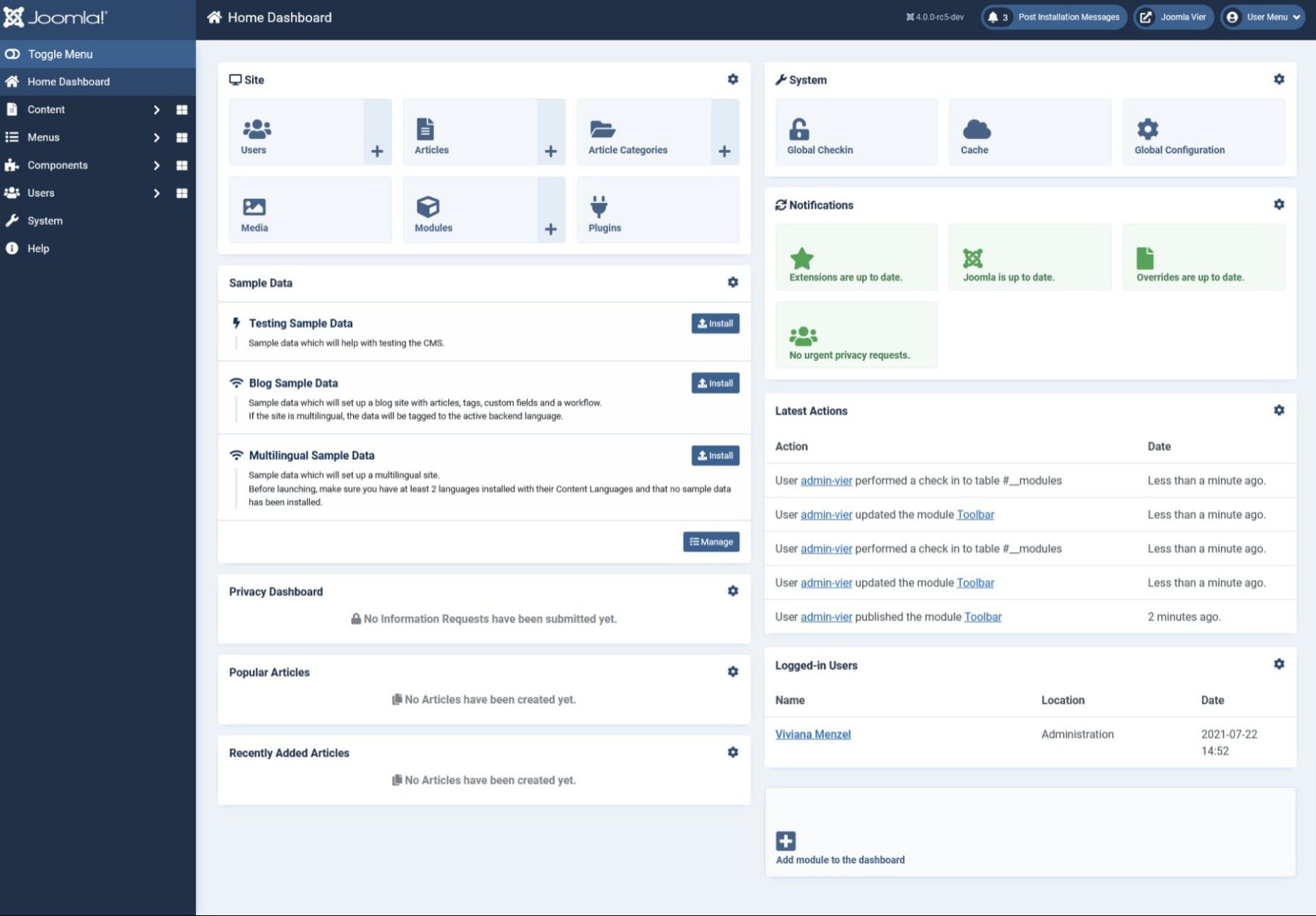
    The backend, though, is not intuitively put together. Joomla’s admin panel does have a quick-menu sidebar to the left, like WordPress. But most of the features and utilities live on the top menu, and you access those via dropdown.

    joomla admin

    Additionally, on installation, you will be asked if you would like to import blog sample data. We recommend that you do. That’s where you will find most of the new-user orientation material set up as content on your new site.

    joomla content

    Having any new-user content being an optional import as sample data is just weird. It is not an intuitive way to introduce someone to the Joomla platform. At all. However, the Joomla community has some fantastic training content with which you can learn Joomla.

    With the time we’ve spent learning and exploring Joomla, it never really became smooth and second nature to perform any tasks. The menus in Joomla do make sense (unlike WordPress), but navigating through them is frustrating. You can’t click a new menu item until you’ve closed the current one.

    All-in-all, Joomla’s not that easy to use. It is developer-friendly, for sure, but not end-user friendly at all.

    Ease-of-Use Comparison

    WordPress
    Ease-of-Use 🏳 Draw

    WordPress is relatively easy to use and most users will be acclimated within just a few minutes. However, the advanced features will take much longer to master.

    🏳 Draw

    Joomla’s primary focus is on more advanced technical user, so it has a larger learning curve.

    Choose WordPress Choose Joomla

    WordPress vs. Joomla: Customization

    WordPress thrives on customization. Extensibility via plugins and themes allows for unlimited choices in terms of design and feature sets. Even a user with no technical experience can start a WordPress website and have it look more or less professional without a lot of hassle. Joomla, too, is built around customization. But not for the end-user. If you’re a content creator or site owner without a great deal of technical expertise or design experience, Joomla’s customization options may be both confusing and near-impossible to decode.

    WordPress

    Through plugins and themes, WordPress can be whatever you need it to be. You can add e-commerce features with a few clicks. You can install a new page-builder tool for more advanced options over the Gutenberg editor. And each theme you install comes with its own unique set of customization options. Most of the time, these are consolidated into the built-in Theme Customizer.

    wordpress customize

    Users with more advanced skills can add CSS through this page, or they can delve into the core WordPress files and edit the PHP directly. The file structure is designed so that any customizations are held separately in a child theme so that the base you’re customizing is always there to go back to.

    In that way (and many others), WordPress encourages poking and prodding and seeing what is the best fit for your site. Try on different themes, widgets, and plugins to add features and design to see what works and what doesn’t. Resetting things back to as they were only taking a few clicks, regardless.

    Joomla

    Joomla is also an incredibly customizable platform. It, too, has hundreds of templates and themes, and extensions to install to customize your site. You can download them from the official Joomla repo that is directly accessible from the dashboard. Both design and functionality add-ons can be found in the same place, separated by category.

    joomla customization

    Installing them doesn’t take more than a few clicks. You can then navigate back to the admin dashboard to enable and adjust their settings.

    And while you do have every bit as much freedom as you do in WordPress, the Joomla options and customizations are generally less user-friendly and more complicated to get right. Placing them on the site often has you choosing a “position” number that has no human-readable name. With that and because of how the content on the site is displayed, it takes some real time to get things displayed where you want. Not to mention actually testing and implementing features and utilities.

    Joomla has a ton of power under the hood, and you can customize it however you want. But you will definitely work for it using Joomla vs. WordPress.

    Customization Comparison

    WordPress
    Customization 🥇 Winner
    You can’t really compare to WordPress when it comes to customization. It’s what they’ve built their platform on and it requires little technical knowledge to integrate.
    Joomla has a lot going for it in terms of customizability. But, it takes more technical experience to fully take advantage of the options available.
    Choose WordPress Choose Joomla

    WordPress vs. Joomla: Publishing

    The internet is about content. And your website is about displaying your content. So we have to touch on what your experience will be in terms of content creation and publishing using WordPress vs. Joomla.

    WordPress is a blogging platform at heart. It’s built to win this head-to-head from the beginning. It’s simple and intuitive. Anyone can publish to their site’s feed without hassle or add a static page just as easily. Joomla, on the other hand, isn’t made solely for publishing regular content. And it shows. Every page, post, and note on your Joomla site is contained under the header of Articles. This kind of obfuscates the publishing process enough that it’s just not a pleasant experience.

    WordPress

    WordPress 5.0 introduced the block editor. Replacing the classic WYSIWYG editor, content creators can now control options and settings for every paragraph (even sentence if they so choose), image, gallery, or embed on the site. While the block editor is not everyone in the WordPress community’s favorite new feature, the interface is slick, simple, and new and old users tend to like using it to create content. Both in terms of blog posts and static pages.

    wordpress editor

    With various post types delineated in function and separated within the interface, it’s easy to understand what you’re creating and how to use it. Posts are for regular content. Pages are for static content that won’t enter the feed. You can use Custom Post Types to add features like Products to plugins like WooCommerce.

    The entire process is simple and understandable within WordPress itself. The Add New button under Posts brings you to the editor, in which the placeholder text explains what to do, and a big, blue Publish button sits up top. In that same window, you have the option to adjust that content’s permalink and meta information.

    Joomla

    In Joomla, creating content is technically as easy as it is in WordPress. The publishing editor Joomla uses is TinyMCE, which is the same editor that WordPress used until version 5.0. So anyone with familiarity there (or with other WYSIWYG editors) will feel right at home.

    Joomla editor

    Like WordPress, you can edit your permalink here (called an Alias in Joomla), tags for your article, whether the article shows up as featured on your site, and various other permissions and options such as access levels and meta-data display.

    One of the more confusing and confounding parts of the Joomla publishing process is that you press the same button (Add New Article) in the header menu to be taken to this same editor to create both regularly updated blog content (such as Posts in WordPress) and static pages (Pages in WP). The Category feature in Joomla is what keeps these separate.

    Depending on the modules and extensions your site has installed (which we mentioned in the Customization section above), the category you choose dictates where this content appears.  And they’re all created and managed from this single tool. This is incredibly powerful. And it’s actually pretty simple. But it’s a headache to use in practice, as setting up a site with the right categories to match all the content to match all the modules is not as simple as, for instance, WordPress taxonomies.

    For sites that aren’t publishing regular content (or using a different platform for that), Joomla’s publishing tools may be just what you need to keep things organized.

    Publishing Comparison

    WordPress
    Publishing 🥇 Winner
    WordPress is built for bloggers and content creators to publish their work quickly. Their interface is tried and true.
    Joomla’s main goal isn’t centered around writing, so it’s no wonder that their publishing work flow isn’t as well-rounded as WordPress. Still, once you get used to it, it’s not a bad solution.
    Choose WordPress Choose Joomla

    The Verdict

    In the end, we feel that WordPress vs. Joomla comes down to the tech experience of the end user and what kind of site they need. For new site owners with no website experience, WordPress is by far the winner of this head-to-head. It does everything, and the learning curve is much lower. Plus, the ecosystem and third-party support are phenomenal. Everyone, from new users to veteran developers, can dig into WordPress and find their niche.

    Final Comparison

    WordPress
    Ease-of-Use 🏳 Draw

    WordPress is relatively easy to use and most users will be acclimated within just a few minutes. However, the advanced features will take much longer to master.

    🏳 Draw

    Joomla’s primary focus is on more advanced technical user, so it has a larger learning curve.

    Customization 🥇 Winner
    You can’t really compare to WordPress when it comes to customization. It’s what they’ve built their platform on and it requires little technical knowledge to integrate.
    Joomla has a lot going for it in terms of customizability. But, it takes more technical experience to fully take advantage of the options available.
    Publishing 🥇 Winner
    WordPress is built for bloggers and content creators to publish their work quickly. Their interface is tried and true.
    Joomla’s main goal isn’t centered around writing, so it’s no wonder that their publishing work flow isn’t as well-rounded as WordPress. Still, once you get used to it, it’s not a bad solution.
    Choose WordPress Choose Joomla

    Joomla, on the other hand, caters very heavily to the experienced developer. Nowhere near as user-friendly as WordPress, Joomla gives you complete control over the entirety of your site. And it does so in the standard way, not the “WordPress Way.” For someone coming out of a boot camp or computer science program, Joomla may be where you feel more comfortable because it is definitely a more utilitarian platform. For content creators who will be using it daily to push out news or blogs, Joomla isn’t the best. But for sites not using it to create new content and run by developers, Joomla has a lot to offer. If you can find out how to do it.

    WordPress Deep Dive

    One more thing. Before you make your final decision on your website platform…are you curious to see how WordPress stacks up against its other biggest competitors? We did the hard work and compared WordPress vs. everything else so that you don’t have to! One of the comparisons we’ve done is WordPress vs. Drupal, and I think you will be interested to see the results.

    If you’re looking for specific plugins to help WordPress become even more powerful, we recommend the following:

    What have been your experiences with WordPress vs. Joomla?

    The post WordPress vs Joomla (2023) — Which is Better? appeared first on Elegant Themes Blog.