EDITS.WS

Tag: design

  • Twenty Twenty-Three Theme Review: Flexible and Community Driven

    Every year, WordPress releases a new theme to serve as its default theme — the one that comes with every fresh WordPress installation. As we head into 2023, WordPress has released their latest theme offering into the world, Twenty Twenty-Three, which we will review here.

    WordPress co-founder Matt Mullenweg introduced Twenty Twenty Three in his State of the Word address. This theme aims to be fast, lightweight, and accessible, with a focus on simplicity and easy customization. In other words, it’s the perfect blank canvas for your next WordPress project. But what sets it apart from previous years? An intense focus on community involvement.

    For that and other reasons, let’s take a closer look at some of the key features of this theme in our Twenty Twenty-Three review.

    twenty twenty three theme review

    A Focus on Community

    From the very beginning, the strong community has always been a huge asset for the WordPress project. That’s one of the things that makes it so special. And with Twenty Twenty-Three, they’re doubling down on that commitment.

    twenty twenty three theme community discussion

    This theme is the result of months of feedback and collaboration from the WordPress community. In fact, they even held a series of workshops to gather input on what people wanted to see in the new default theme.

    The end result is something that feels like it was made by the community, for the community. It’s a beautiful example of what can be accomplished when we all work together.

    Simplicity Dominates the Design

    When it comes to the design of Twenty Twenty-Three, simplicity is the name of the game.

    The team behind it focused on two things: speed and accessibility. As a result, they’ve created a clean and minimalist design that does away with anything superfluous. And since it’s essentially a simplified version of the Twenty Twenty-Two theme, it’s already familiar and easy to use.

    This focus on simplicity extends to both the front-end and back-end design. The goal was to make it as easy as possible for anyone to get started with WordPress, whether they’re building their first site or hundredth.

    In that regard, we think they’ve succeeded. Twenty Twenty-Three is beautiful and uncluttered, easy to use, and easy on the eyes. But we’re getting ahead of ourselves. Let’s take a closer look at simplicity in action.

    Barebones Layouts Aimed at Flexibility

    One of the things you’ll notice right away when you review Twenty Twenty-Three is that there aren’t a lot of pre-built layouts to choose from. In fact, there’s pretty much only one. Open any of the templates, you see a blank canvas and a handful of blocks to work with. From there, it’s up to you to build the layout that you want.

    twenty twenty three layout example

    The focus on simplicity means that each layout is easy to understand and customize. And since they’re all based on a grid system, they’re also simple to change on the fly.

    If you want to add a new column or move an element around, all you have to do is drag and drop it into place. No need to worry about messy code or breaking things — everything is flexible and straightforward to change.

    This might sound like a recipe for disaster, especially if you’re used to more complex designs, but it’s actually quite liberating. It gives you the freedom to create any kind of layout you can imagine, without being constrained by pre-existing choices.

    Layout Options

    While there is only one default layout, Twenty Twenty-Three does include the usual options to adjust it. Access these by clicking on Layouts in the Styles menu on the right-hand side of the screen.

    twenty twenty three global styles menu

    From there, you can select different widths for the main content area and create different spacing, padding, and block spacing choices.

    twenty twenty three theme: review of the layout options

    Color Settings

    In addition to the layout options, Twenty Twenty-Three also includes functionality to adjust the theme’s colors. You also find them in the Styles menu under Colors.

    Here, you can select different hues for the background, text, links, headings, and buttons to change up the look and feel of your site. The theme’s default color styles include shades of white, green, and black. But you can definitely customize this to your liking with the usual settings.

    twenty twenty three color options

    Typography

    Next up, let’s review the typography choices that the Twenty Twenty-Three theme includes out of the box. Naturally, you find these by clicking on Typography on the right-hand side of the screen.

    twenty twenty three theme typography option review

    Twenty Twenty-Three comes with a handful of font families, as well as a few different font weights and styles. The supported typefaces include:

    • DM Sans — A straightforward sans-serif font that would work great for body text.
    • Inter — Another sans-serif font with softer curves. Also a suitable option for body text.
    • IBM Plex Mono — A sans-serif font with mono-spacing featuring a typewriter style. Could go well for either titles or body text.
    • Source Serif Pro — A delicate serif font that would look fantastic as quotations or titles.
    • System Font — The fallback option should your browser not support one of the above font choices.

    Typography in the Twenty Twenty-Three theme focuses heavily on the concept of fluid typography. That’s a fancy way of saying that the font size will adjust automatically to best fit the device it’s being viewed on.

    fluid typography specs

    This is a great feature, as it ensures that your content is always easy to read, no matter what device someone is using. And you can use it to establish a minimum and maximum font size value for your site if you wish to give it some parameters.

    In addition to fluid typography, Twenty Twenty-Three also includes support for fluid spacing. This means that the distance between lines of text will also adjust automatically to best fit the user device.

    Features like these are essential in a time when mobile viewing is at an all-time high. It’s simply inexcusable for a site to not look good on a mobile device in this day and age.

    Style Variations

    In addition to the individual typography and styling options, Twenty Twenty-Three also includes a few style variations. The are the real highlight of the theme and were created with the contribution of community members.

    community contributed style variations for twenty twenty three theme

    You find them in the Global Styles menu under Browse styles. Let’s go over them real quick.

    Pitch

    review of pitch, a twenty twenty three theme style variation

    This is essentially a dark version of the default theme.

    Canary

    canary twenty twenty three theme style variation

    This style variation sports a yellow color scheme by default and utilizes a single type size and narrow columns.

    Electric

    review of electric, a twenty twenty three theme style variation

    Here’s another interesting option that features a gray background with a bold-colored text.

    Pilgrimage

    pilgrimage twenty twenty three theme style variation

    Another dark spin on the base theme.

    Marigold

    marigold twenty twenty three theme style variation

    Marigold offers a softer color palette and straightforward layout.

    Block Out

    review of block out, a twenty twenty three theme style variation

    Living up to its name, this theme applies a duotone effect to your images by blocking out a portion of them.

    Whisper

    whisper twenty twenty three theme style variation

    This style variation includes a border around the page and some unique styles for buttons and links.

    Sherbet

    review of sherbet, a twenty twenty three theme style variation

    Sherbet is bright and colorful — and it relies on a gradient background, meaning it’s right on trend.

    Aubergine

    aubergine twenty twenty three theme style variation

    If you’re looking for something darker, Aubergine might be a good fit. Its split-color background is definitely eye-catching.

    Grapes

    grapes twenty twenty three theme style variation

    And lastly, there’s Grapes, which is a subdued option that would serve a text-heavy site well. You can see all of the style variations in action for yourself on Figma – as well as snag a copy of the base theme.

    How to Create Your Own Style Variation

    You can also use the Create Block Theme plugin to create your own style variations. After downloading the plugin, use the WordPress Site Editor to create a custom layout, change colors, typefaces, and make any other changes you’d like.

    Then when you’re done, all you need to do is create a style variation out of your settings selections. To do this, go to Appearance > Create Block Theme then on the next screen select the bubble next to Create a style variation.

    create style variation with the create block theme plugin

    Give it a name then click Create Theme to automatically generate a new .json file on your site.

    Available Templates

    While Twenty Twenty-Three doesn’t include a lot of pre-built layouts, it does come with a handful of templates to help you hit the ground running. You find them in the Templates menu, which you can access by clicking on the logo in the upper left corner of the Site Editor.

    access templates menu in site editor

    From there, you can select from one of the following:

    • 404
    • Archive
    • Blank
    • Blog (Alternative)
    • Home
    • Index
    • Page
    • Search
    • Single

    Many of these are default WordPress templates anyway. Those that are unique to Twenty Twenty-Three include Blank, Blog (Alternative), and the one for the 404 error page. You can access the files for these templates in the templates folder as well.

    Template Parts

    twenty twenty three theme template parts review

    There are four template parts available:

    • Comments
    • Footer
    • Header
    • Post Meta

    These are pretty self-explanatory and accessible via the Template Parts menu or in the parts folder for the Twenty Twenty-Three theme.

    Potential Uses for the Twenty Twenty-Three Theme

    Sometimes it’s helpful to put a WordPress theme into a usage context to get a sense of whether or not it’s a suitable choice for your needs. So, what kind of sites would benefit from using the Twenty Twenty-Three theme?

    It’s a pretty versatile theme, so it’s suitable for a variety of different types of sites. Here are a few examples:

    1. A portfolio site for a photographer or other type of visual artist. The theme’s focus on images and its various style options make it a great choice for this type of site.
    2. A personal blog. The simple layouts and easy-to-read typography make Twenty Twenty-Three ideal for content-heavy sites.
    3. A corporate website. The clean, professional look of the theme would work well for a company site, too.
    4. An online store. The WooCommerce integration means that this theme can also power a beautiful online shop.
    5. A news site. The various layout options and styles make this theme a good choice for a site that relies heavily on text.

    As you can see, the Twenty Twenty-Three theme is a versatile and flexible option for a variety of different types of sites. So, if you’re looking for a theme that to create a beautiful and modern website, this one is definitely worth considering.

    Final Review of the Twenty Twenty-Three Theme: Is It Worth a Look? 

    So, does the Twenty Twenty-Three theme measure up?

    If you’re in the market for a new WordPress theme, then the answer is definitely yes. The theme is packed with features and options, and it’s every bit as flexible and customizable as you need it to be. Plus, with its focus on images and various style options, it’s a great choice for a wide range of different types of sites.

    In addition, the fact that this theme was derived from community involvement gives you all the more reason to give it a try. After all, ideas from devs actively working in WordPress served as the foundation of this slimmed-down theme. 

    So, if you’re looking for a new WordPress theme, be sure to check out Twenty Twenty-Three. It just might be exactly what you need as we move into 2023 and beyond.

    What’s your personal review of the Twenty Twenty-Three WordPress theme? How do you feel about style variations? We’d love to hear your feedback below!  

    The post Twenty Twenty-Three Theme Review: Flexible and Community Driven appeared first on Torque.

  • How to Add a Table of Contents in WordPress (3 Ways)

    If you publish long-form articles on your blog, you’ll want to provide a quick way for readers to navigate to different sections of the post. Creating a table of contents can help you achieve this, but you might not know how to get started. 

    Fortunately, WordPress makes it easy to add tables of contents to your posts. For instance, you can use a dedicated plugin or create your tables manually in the Block Editor – no coding knowledge required!

    In this post, we’ll take a closer look at tables of contents and discuss the benefits of using them in your posts. Then, we’ll show you three different ways to create them in WordPress. Let’s get started!

    An Introduction to Tables of Contents in WordPress

    A table of contents is a list of your post’s headings and subheadings. Each heading contains an anchor link that takes the reader to that section in the post.

    For example, if a user wants to read about a particular topic in your article, they can simply click on the relevant heading in the table of contents:

    An example of a table of contents in a blog post

    This way, readers can jump to the sections they’re most interested in and skip the rest. They don’t need to scroll down the page and skim through the post to find what they’re looking for.

    Plus, a table of contents gives users a quick overview of the article so they know what to expect. For example, if you’ve written a post about visiting London, readers can quickly see what’s included in the guide (e.g. where to stay, best restaurants, things to do, etc).

    Therefore, a table of contents can help improve the User Experience (UX) and make your posts more readable. This may in turn help you rank higher for relevant search terms. 

    How to Add a Table of Contents in WordPress (3 Ways)

    As we have seen, using tables of contents in your posts can help improve your site’s performance. Fortunately, creating them is easier than you might think. Now let’s look at three simple ways to add a table of contents in WordPress!

    1. Install a Table of Contents Plugin

    Adding a table of contents plugin to your WordPress site can be a quick and easy way to make your content more navigable. While there are many options to choose from, we recommend Easy Table of Contents:

    Easy Table of Contents plugin banner in WordPress

    This plugin enables you to insert a table of contents into your posts, pages, and custom post types. Plus, it can automatically generate the tables for you!

    Once you install the plugin on your site, navigate to Settings > Table of Contents in your WordPress dashboard. Under the General tab, you can select the type of content you want to create tables for:

    The plugin settings for Easy Table of Contents

    You also have the option to automatically insert them into your posts and pages:

    The auto insert option in Easy Table of Contents settings

    If you’d rather add them manually, you can copy the shortcode and embed it into your posts:

    The shortcode for your table of contents

    For example, you might only want to add a table of contents to specific posts. In this case, you’ll need to uncheck the boxes in the Auto Insert section and use the shortcode to add the table to your preferred content. 

    In the Appearance section, you’ll find several customization options for your table of contents. You can change the font, select the link colors, and more:

    The Appearance settings in Easy Table of Contents.

    Now, let’s see what the table of contents will look like to your readers. If you’ve selected the auto insert option for your posts, you can open a random article on the front end:

    Front-end preview of the table of contents

    By default, the table of contents will appear below your title and introductory paragraph, and before the first H2 heading. However, you can change this in the plugin settings. 

    This plugin is an ideal option if you want to automatically add a table of contents to all of your posts. However, if you only want to use the table on some of them, you may want to consider an alternative. 

    2. Use Custom WordPress Blocks

    You can also add a table of contents as a block. This way, you can insert it directly into your posts and customize it within the WordPress Block Editor.

    At the time of writing, the Block Editor does not offer a table of contents block. However, you can use a plugin like Spectra to add this feature to your site: 

    The Spectra banner in WordPress

    Spectra adds a selection of practical blocks to your site, including a table of contents option. Once you install the plugin, navigate to Settings > Spectra to view a complete list of added blocks. 

    Make sure that the Table of Contents block is activated:

    The list of blocks added by Spectra

    Then, you can open a post in the Block Editor and add the block anywhere you want on the page:

    The Table of Contents block

    As with any block, you’ll get access to some customization settings. For example, you can choose the heading tags that you want to include in your table of contents:

    Customizing the Table of Contents block in WordPress

    To customize the appearance of your table, click on the Style tab. Here, you can change the typography and colors for the title, headings, and more:

    Customizing the style of your table of contents

    Using a Table of Contents block can be a more efficient option if you want to apply the table to certain posts, rather than all of them. Additionally, you can save it as a reusable block, so you won’t have to re-apply the same customization settings every time you use the table in a post. 

    However, you may choose to create custom tables for each post. For example, you might want to include all heading tags in some posts, but only display H2 and H3 headings in others. 

    With the Easy Table of Contents plugin, you’ll have to use the same table for your posts. Therefore, you might prefer Spectra if you want more freedom over the design of your tables. 

    3. Create Your Table Manually in the Block Editor

    You may also choose to create your table of contents manually. Perhaps you want to avoid installing another plugin on your site as you only need to create a table for one or two posts.

    While adding your table of contents manually can be a little tedious, the process is quite simple. First, you’ll want to add a List block to your post. Then, type in your headings and use the Indent option as needed:

    Creating a list in the Block Editor

    Next, you’ll need to create anchor links. This way, when a user clicks on a heading in the table of contents, they’ll be taken to the relevant section.

    To do this, select the Heading block. Then, navigate to the settings panel and click on the Advanced tab. In the HTML anchor field, enter a unique name for this heading, such as “heading1”:

    Adding an HTML anchor in WordPress

    Now, go back to the list, select the corresponding item, and click on the Link icon in the toolbar:

    Adding a link to a list item in the Block Editor

    Next, you’ll need to type in the name that you entered in the HTML anchor field, adding a hashtag at the front. In our example, this will be “#heading1”:

    Entering an anchor link in WordPress

    Once you enter the anchor link, you’ll be able to click on that item to navigate to the corresponding section. You can repeat the same process for the other items in your list.

    When you’re ready, you’ll want to test the anchor links on the front end to make sure they work: 

    Testing the table of contents on the front end

    Remember to add a “Table of Contents” heading above the list. Additionally, you may want to group the heading and list blocks and customize them from the settings panel:

    Grouping the heading and list blocks and customizing them in the Block Editor

    As you can see, you don’t need to install a plugin to create a table of contents. However, if you want to add tables to multiple posts, it may be more efficient than creating them manually.

    Conclusion

    Adding tables of contents to your posts can make it easier for readers to find what they’re looking for. This can help improve the user experience and reduce your bounce rate, which may in turn lead to better rankings in search results.

    In this post, we looked at three ways to add a table of contents in WordPress:

    1. Install a plugin like Easy Table of Contents.
    2. Use a tool like Spectra to add a Table of Contents block to your site.
    3. Create your table manually with the List block. 

    Do you have any questions about adding a table of contents to WordPress? Let us know in the comments section below!

    The post How to Add a Table of Contents in WordPress (3 Ways) appeared first on Torque.

  • Web Design Trends 2023: A Preview of the Future of Web Design

    As we move into 2023, it’s important to stay up-to-date on the latest web design trends. Why? Well, for one, it’ll help your website stay relevant and engaging for users. Plus, keeping on top of trends shows that you’re invested in your website and are willing to put in the work to keep it looking its best.

    Besides, allowing your site to fall behind the times can make it look dated and out-of-touch. That’s not exactly the impression you want to give to potential customers or clients.

    What follows is our in-depth examination of some of the most popular web design trends for 2023. They will give you a clear idea of what’s coming as well as how to prepare yourself for them.

    1. Illustrations

    illustrations are part of web design trends 2023
    Image source: Bear CSS

    One of the biggest trends we’re seeing for 2023 is a move away from traditional photography and towards illustrations and graphics. This is likely due to a few factors. Chief among them is the need to stand out in an increasingly crowded online landscape.

    With more businesses than ever before launching websites, it’s becoming more difficult to assert your own space. That’s where illustrations come in. Adding a unique and visually-appealing element to your site can help it sit head and shoulders above the rest.

    What’s more, illustrations can inject personality into your site, something that is often lacking in today’s online world. This is no more apparent than in the resurgence of the use of cartoon characters on websites. It’s a trend that is sure to continue into 2023.

    2. Dark Mode

    Dark mode is an increasingly popular way to view content online, and one likely to continue its rise in popularity in 2023. For those unfamiliar with the term, dark mode refers to a color scheme that uses light-colored text on a dark background.

    dark mode example

    There are a few reasons why dark mode has become so popular. For one, it’s easier on the eyes, especially when viewing content in low-light conditions. Additionally, it can help conserve battery life on devices with OLED or AMOLED screens.

    What’s more, dark mode can also make a website look more modern and sleek and less energy hungry. As such, we expect to see more and more sites adopt this trend in the coming year.

    3. Minimalism 

    If you’ve been involved in web design at all over the past several years, you’re familiar with minimalism already. This trend is all about stripping away unnecessary elements and focusing on the essentials.

    minimalism web design trends 2023
    Image source: WE AIN’T PLASTIC

    The goal of minimalism is to create a clean, clutter-free look that’s easy on the eyes and easy to navigate. This happens by using simple, clean designs and layouts with plenty of white space.

    minimalism second example

    Minimalism is especially popular with businesses that want to convey a sense of sophistication and professionalism. However, you can use it on just about any type of website to great effect.

    4. Neo-brutalism

    Neo-brutalism is a style characterized by its use of stark, geometric shapes and bold, primary colors. It takes its cues from the architectural movement of the same name.

    neo brutalism example
    Image source: Nelson Heinemann

    While neo-brutalism has been around for a few years, it only recently started to gain traction in web design. This is likely due to the fact that it offers a refreshing alternative in terms of appearance.

    If you’re looking to make a statement with your website, then neo-brutalism is definitely worth considering. Just be aware that this style is not for everyone. It’s best suited for sites that are willing to embrace a more avant-garde look.

    5. Skeuomorphic Design

    Skeuomorphic web design was a strong trend nearly a decade ago but looks set for a full-blown resurgence in 2023. The name refers to the use of real-world objects and textures in digital designs.

    skeuomorphic design example
    Image source: Ahoi Bar

    This trend gained traction in the early days of mobile app design, when designers sought to make digital interfaces more intuitive and user-friendly. However, it has since been adopted by web designers as well.

    One of the benefits of skeuomorphic design is that it can make a website feel more immersive and realistic. Additionally, it can help users better understand how to use a site or interface, making it ideal for first-time visitors. Plus, it essentially bridges the gap between digital and physical spaces.

    6. Monochrome Color Palettes

    The monochrome color palette trend involves using a single color for the entirety of a website’s design.

    monochrome color palettes web design trends 2023
    Image source: Heresto Vodka

    While this may sound like a recipe for disaster, monochrome designs can actually be quite striking. When done correctly, they can create a look that is both modern and sophisticated.

    What’s more, monochrome designs are also incredibly versatile. They suitable for just about any type of website, from personal blogs to corporate sites. Plus, using one color means the rest of your design elements get a chance to shine.

    7. Gradients

    If you’re looking to give your website a fresh, modern look, consider adding gradients.

    gradients example
    Image source: Jam3

    Gradients consist of two or more colors that gradually blend into each other. They’ve been gaining popularity in web design over the past few years.

    This trend was popular in the early days of HTML and CSS. Designers used gradients to add color and visual interest to their designs. However, it fell out of favor recently as flat design became more popular.

    Yet, gradients are making a comeback now because they offer a way to add depth and dimension to a design without sacrificing simplicity. Additionally, they can create a sense of visual movement. This can be particularly effective on landing pages with parallax scrolling.

    8. 3D Characters 

    3D-rendered characters are appearing more frequently as a popular design choice and look to be among the web trends of 2023. This involves using three-dimensional images of people or creatures instead of traditional digital illustrations on websites.

    3d characters web design trends 2023
    Image source: ChainZoku

    3D characters can fulfill a variety of purposes. From adding a sense of fun and personality to a site, to helping users navigate their way around a complex interface.

    They offer versatility as well and can skew toward a fun and cutesy style or a more realistic and lifelike look, depending on the needs of the project.

    9. All Things Neon

    The use of neon colors in web design is also something you see more of recently. This involves using bright colors as part of a website’s aesthetic. It’s often accompanied by either the look of neon signs or by other retro-inspired designs.

    neon colors in web design example
    Image source: Bento Box Communications

    Neon colors add a sense of fun and personality to a site. They can also help users navigate their way around a complex interface and divert attention to key content areas.

    Neon colors are also great for invoking retro styles. So, if you’re looking for a way to add a bit of 80s or 90s nostalgia to your website design, this trend is definitely worth exploring.

    10. Interactivity

    Another web design trend that looks set to continue heavy use in 2023 years is interactivity. This trend involves making a website’s design more interactive and engaging for users, giving them a more immersive experience.

    You can add interactivity to a website in several ways. From incorporating games and quizzes to adding chatbots and other forms of artificial intelligence.

    What’s more, interactivity also has the ability to create a more personalized experience for users. For example, you could use data from a user’s previous interactions with your site to customize the content and design of your pages.

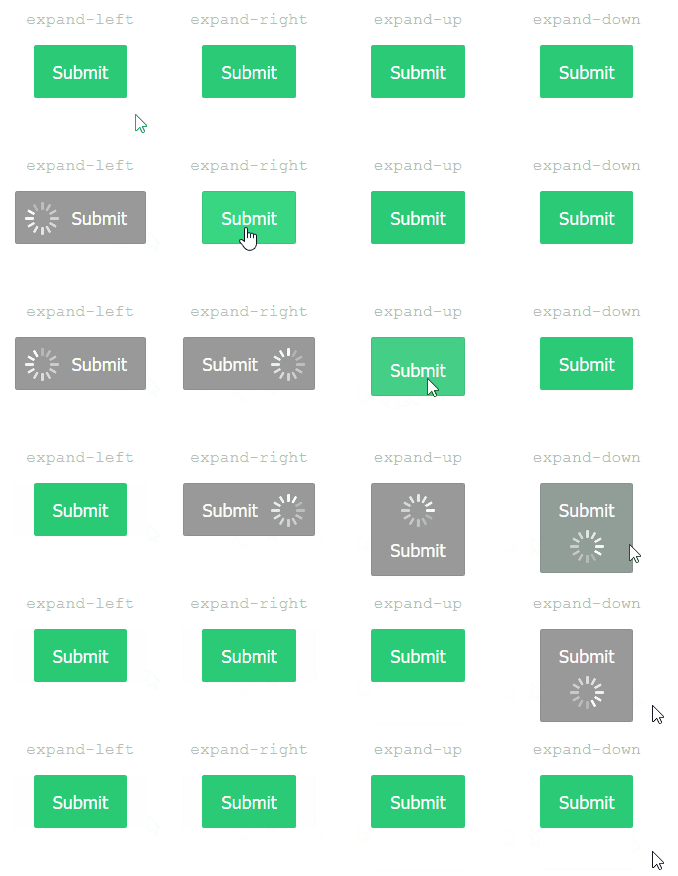
    Micro-interactions are on the rise as well. This involves adding small, interactive elements to a website’s design, such as hover effects and animated buttons.

    ladda buttons example microinteractions javascript
    Made with Ladda Buttons

    Adding interactive elements to your website can liven up the user experience and provide a more pleasant way for users to engage with your content.

    For instance, when you add an item to your shopping cart on the Threadless website, you’re greeted by a micro-interaction that confirms the action was a success.

    micro interactions example

    11. Video Backgrounds

    If you’re looking to stay ahead of the curve, consider using video backgrounds for your website design in 2023. This growing trend uses video footage as the background instead of a static image.

    video backgrounds web design trends 2023
    Image source: Oasen.nl

    Use video backgrounds to add excitement and motion to a website or help users understand complex ideas.

    In addition, video backgrounds are perfect for creating a realistic experience. If used correctly, they can make a user feel as if they are in the middle of whatever is happening on-screen.

    12. Integrated Storytelling

    Tell your story through web design with integrated storytelling, a trend set to dominate in 2023 and beyond.

    integrated storytelling example
    Image source: BorgoVeneto

    There are several methods of adding integrated storytelling to a website, such as videos, animations, and interactive elements. Basically, anything that takes the site visitor along for a journey, step-by-step (or click-by-click) through a narrative of some sort.

    13. Animation

    Animations appear more frequently in web design — so much so this is becoming a trend to keep an eye on in the coming year. As you might’ve guessed, this trend involves incorporating animated elements into a website’s design.

    animations web design trends 2023
    Image source: Pete Nottage

    Animations are not only for entertainment purposes; they’re helpful in explaining difficult topics or challenging concepts as well. If used well, users feel like they are in the heart of the action, creating a sense of immersion.

    14. Smart Content Loading 

    If you want your website to be trendy and efficient, consider smart content loading. This design technique only loads the information a reader needs, making it both faster and more user-friendly.

    There are a number of benefits to using smart content loading, from reducing page load times, to saving data usage. Or, you can ise it for personalizing each visitor’s experience.

    For instance, if you were to take the hair quiz on the Aveda website, the content you see on your next visit will adapt based on your previous input.

    personalized smart content loading example

    15. Horizontal Scrolling

    Horizontal scrolling isn’t new but it has seen a resurgence. This trend can create a more immersive experience for users as they scroll through a website’s content.

    vertical scrolling web design trends 2023
    Image source: Prevint

    From adding a sense of movement to a site to helping users navigate through a large amount of content, horizontal scrolling is effective because it catches most site visitors off-guard and holds their attention.

    16. Artificial Intelligence 

    Artificial intelligence in web design is nothing new. However, it’s a trend that looks like it’ll only become more and more popular as time goes on. Using AI to create custom experiences may involve the use of chatbots or taking past user interactions into account.

    Not only can artificial intelligence improve efficiencies on your website, but it can also automate tasks like customer support or lead generation. This makes it a great tool for businesses of all sizes.

    Take the chatbot, Tidio, as an example. It relies on AI to generate life-like conversations for customer service situations.

    artificial intelligence in web design example

    Set Yourself Up for Success by Following These 2023 Web Design Trends

    As you can see, there are a number of exciting web design trends set to take off in 2023. You certainly don’t need to implement all of them on your site. However, by keeping up with the latest trends, you can ensure that your website is always fresh and up-to-date.

    So, if you want to stay ahead of the curve, make sure to keep these trends in mind for your next website design project.

    Are you keeping up with the latest web design trends? Will you be adding any to your site in the coming year? Please let us know below! 

    The post Web Design Trends 2023: A Preview of the Future of Web Design appeared first on Torque.

  • 12 Best Google Fonts for Websites (and Best Practices)

    When creating a website, font choice is an important aspect of the overall look and feel of your site. Fonts need to be easy to read, but also aesthetically pleasing. If you choose the wrong font, it can disrupt the user’s experience, and actually make your content hard to read. Thanks to Google, there are plenty of font choices available to you. Since its launch in 2010, Google fonts have come a long way from their 19 font offerings. There are now over 1450 choices currently available, so picking the right fonts can be daunting. In this post, we’ll make your life a little easier by providing our list of the best Google fonts to use on your website.

    What Are Google Fonts?

    Google fonts

    Google Fonts are a collection of high quality web fonts for use on web projects. Additionally, all fonts can be downloaded for installation on local systems. Fonts are pulled into your website through Google’s content delivery network (CDN), and will load automatically once installed.

    Why Should You Use Google Fonts?

    All of the fonts are free for commercial use, so they can be used in both web and print projects. Additionally, all of the fonts are updated automatically, so there’s no need to worry about keeping things updated manually. Once installed on your site, there’s nothing more to do. As previously mentioned, there are tons of options with over 1450 font families. Lastly, Google fonts offers multi-language support, so if your site has more than one language installed, you’re good to go.

    12 Best Google Fonts Available (And They’re Free!)

    With so many options available, it can be a bit overwhelming to know which fonts to choose for your website. Thankfully, we’re going to help you determine the most popular and trending font families for you to use on your website. Let’s get started.

    1. Roboto

    Roboto font

    Roboto is considered a dual purpose font, and is the most popular Google font available. Geometric in shape, it also has nice curves and is generally considered very easy to read. It has actually been used as the typeface for Google’s Android operating system since 2014.

    Get the Font

    2. Open Sans

    Open Sans font

    Open Sans boasts a user-friendly, ultra-readable appearance. It’s great for both headline and body texts. Because of its ease of readability, it is used as the default font in the Divi theme.

    Get the Font

    3. Montserrat

    Montserrat Google font

    With over 30 styles, Monsterrat is quite versatile. It was inspired by artwork seen in the historic Montserrat neighborhood of Buenos Aires during the first half of the 20th century.

    Get the Font

    4. Lato

    Lato Google font

    Google describes Lato as a “serious but friendly” font. Polish for summer, Lato is a multi-purpose font that is generally easy to read and invokes feelings of summertime playfulness.

    Oh and by the way, we use it on our blog.

    Get the Font

    5. Poppins

    Poppins Google font

    Poppins is a rounded, widely popular font that is suitable for both heading and body text. Developed in 2014 as an open source font, Poppins is based on the Devanagari and Latin writing systems.

    Get the Font

    6. Source Sans Pro

    Source Sans Pro

    Released as Adobe’s first open source font, Source Sans Pro is suitable for all user interface designs. It is quite versatile and pairs well with other fonts on our list such as Montserrat, Open Sans, and Work Sans.

    Get the Font

    7. Raleway

    Raleway

    Thin and elegant, Raleway is a display font typeface well-suited for headings and subheadings. Initially developed in 2012 as a single thin font, it has expanded to include 9 variances.

    Get the Font

    8. Noto Sans

    Noto Sans

    Noto Sans is quite robust with its 18 font variances. In addition, there are more than 3,700 glyphs available with this incredible typeface. With over 18 variances including multiple weights, widths, and italics, Noto Sans is suitable for just about any design.

    Get the Font

    9. Inter

    Inter Google font

    Designed specifically for computer screens, Inter is the newest font on our list. Initially released under the name Interface, Inter hit the scene in 2017. It is frequently referred to as a cross between Helvetica and San Fransisco Pro.

    Get the Font

    10. Roboto Slab

    Roboto Slab

    Based on the widely popular Roboto, the Slab variation is available in four weights – thin, light, regular, and bold.

    Get the Font

    11. Merriweather

    Merriweather

    As one of the only serif typefaces on our list, Merriweather is playful, yet serious. It features talls letters that are condensed, yet easy to read on all size screens. There is also a Merriweather Sans font available that pairs well with its serif cousin.

    Get the Font

    12. Playfair Display

    Playfair Display

    Playfair Display exudes old-world style, yet exhibits a modern flair. It’s best suited for headings due to its commanding appearance. When using Playfair Display, consider pairing it with an easily readable sans serif font such as Roboto, Open Sans, Work Sans, or Lato.

    Get the Font

    Best Practices For Using Google Fonts in WordPress

    Using Google fonts is fast and easy, but there are some things that should be considered to keep your site running smooth and fast. In order to make the most of using these fonts, site optimization is key.

    Only Use the Fonts You Need

    When considering site speed, you should generally only use two or three font families on your site. Font families consist of all iterations of a font. For example, if you install the Montserrat family on your site, you’re actually installing 8 fonts. Font families contain all instances of a font type, which may include different weights (regular, medium, semi-bold, bold) and transformations including italics.

    Use a Typography Plugin

    It’s a good idea to use a typography plugin to manage the fonts installed on your website. Some themes such as Divi have typography management built into its framework. Typography plugins can help you manage not only your fonts, but typefaces, icons, drop caps, and more.

    Choose Good Font Pairings

    Google font pairings

    When choosing fonts, try to choose fonts that work well together. Additionally, you should pair serif headings with sans serif body text. This is because using two serif fonts together makes your text hard to read. Alternatively, it’s totally acceptable to use two san serif fonts together, or even different weights in the same family. If you’re not sure what font pairings to use, you can use a handy browser extension like Fontpair to make it easier to find what fonts a website is using.

    Use Self-Hosted Google Fonts

    If you choose not to use a typography plugin on your WordPress site, you can host the fonts on your own server. The process is fairly simple to achieve in a few steps.

    The first step is to download the font. Choose the font you’d like to download, then click the Download Family button in the top right hand corner of your screen. Keep in mind that when you download the font from Google, you are automatically agreeing to their terms of service.

    Once the fonts are downloaded, you’ll need to move them to your project. For this example, we’ll use Mamp to upload them to the Twenty Twenty theme.

    When placing the font files into your project, be sure to take note of the file location. You’ll need to add it via CSS in the next few steps. To access the fonts for your theme, navigate to /wp-content/themes/twentytwenty/assets/fonts/. If you are using a different theme, replace twentytwenty with your theme’s name. Drag your downloaded font files (including the folder) into the fonts folder on your WordPress sites.

    twenty twenty font folder

    Next, located the downloaded font and drag it into the assets/font folder of your theme.

    drag font into folder

    Adding the CSS

    Next, we’ll need to add a bit of CSS to the theme’s customizer in order for our font to be recognized. Navigate to Appearance > Customize.

    theme customize

    Click Additional CSS in the customizer to open the css input area.

    additional CSS

    Next, add the following code into the Additional CSS area:

    @font-face {
        font-family: Roboto;
        src: url(/wp-content/themes/twentytwenty/assets/fonts/Roboto-Regular.ttf);
        font-weight: normal;
    }
    

    To use your new font, simply reference the font using CSS. You can use the browser inspector tool to apply the font to whichever css class you like. In this example, we want the site title, as well as the page content to use our new font. For this example, input the following CSS:

    .entry-title a {
    font-family: "Roboto", Arial, sans-serif;
    }
    
    .entry-content {
    font-family: "Roboto", Arial, sans-serif;
    }
    

    Click Publish to save your changes.

    publish css to site

    Limit Font Weights

    Similarly to keeping your font families down to a minimum, you should limit the number of font weights you use on your website. If you only plan on using regular, medium, and bold, there’s no good reason to include 18 variations of a font. Calling on Google to deliver extra font weights that aren’t being utilized will only increase the time it takes to load the fonts from Google’s servers.

    Using Google Fonts in Divi

    Divi by Elegant Themes

    Divi makes Google fonts available by default. Fonts are available in any module that has text. You have the ability to choose from hundreds of web fonts from the Google font library.

    In the Divi theme options, you can choose to enable Google Fonts, along with font subsets.

    Divi theme options

    Thanks to Divi’s font search feature, it’s easy to search for and find any Google font that you wish. Another great feature of Divi is the ability to view recently used fonts at the top for easy access.

    Divi recent fonts

    You can also enter the Google API key so that Divi stays up to date with the latest versions of fonts, as well as any new ones that are added in the Google font repository.

    Final Thoughts

    Picking the right font for your website can be an overwhelming process due to the many hundreds of options available to you. Just remember to pick a font that is easy to read, and looks good with the mood of your design. Pair fonts that compliment each other, and try not to use too many fonts.

    What are some of your favorite Google fonts? Let us know in the comments section below.

    The post 12 Best Google Fonts for Websites (and Best Practices) appeared first on Elegant Themes Blog.

  • Blending Modes: A Complete Guide for Graphic and Web Design

    Blending modes are a great way to digitally enhance your images and designs. There are several ways to use blend modes as a graphic designer (using design software) or as a web designer (using CSS or Divi). In this post, we’re going to cover everything you need to know about blend modes including a detailed breakdown of each, as well as how to use them in Photoshop and on your website.

    We’ll cover:

    How Blending Modes Work
    Blending Mode Descriptions
    How to Use Photoshop Blend Modes
    CSS Blend Modes for Web Design
    Blend Modes Using Divi

    And there’s more. Let’s jump in!

    What is a Blending Mode?

    A blending mode is a mathematical equation that defines how pixels will blend together when two or more layers of pixels are combined. Although the algorithms behind blend modes are complex, they are quite easy to work with using design tools or photo editing software like Photoshop. With this kind of software, designers are able to blend layers (photos, colors, text) together in creative ways for unique designs in a few clicks. You can blend together any number of layer combinations. But, at minimum, to accomplish a blend mode effect, you will need at least two layers: a base layer and a blend layer.

    How do Blending Modes Work?

    Blending modes combine a base layer with a blend layer to achieve different effects. Each effect (or mode) uses a mathematical equation that combines red, green, and blue (RGB) or cyan, magenta, yellow, and black (CMYK) color codes with levels of dark and light to create multi-layered effects. For most blend modes, opacity is needed to bring out the blending effect. You can use blending modes to apply color overlays to images, blend images together, manipulate color levels on photos, and much more.

    Blend layers explained

    As an example, let’s take a look at combining two layers and applying Multiply. Using a photo layer as the base layer, and a gradient with colors #ff0f0f and #4a00e8 as the blend layer, the resulting image appears darkened and takes on the appearance of the gradient colors.

    Gradient top layer with multiply

    For them to work, there have to be at least two layers. Each option produces different results depending on the mode chosen. It breaks down like this. First, the base layer is the original color or image. Next, the blend layer applies directly to the base layer using a specific mode. The result is a blend of the two layers, which alters the colors to reveal an image with a completely altered appearance.

    Introduction to Photoshop Blending Modes

    There are 27+ blend modes in Photoshop. Some are used to adjust opacity, while others darken the appearance of photos and designs. There are also blending modes that will lighten images, while others work simply to adjust contrast.

    Opacity vs. Fill with Blend Modes

    It’s important to note that while blending modes work mostly with adjusting opacity levels, there are 8 special blending modes that work best when adjusting the fill value (or percentage). For example, when combining a base photo layer with a solid color blend layer using Hard Mix, you can see that adjusting the fill value of the blend layer to 50% has a more pleasing effect than adjusting the opacity to 50%.

    hard mix examples

    In addition to hard mix, the remaining special eight blending modes are color burn, linear burn, color dodge, linear dodge (add), vivid light, linear light, and difference.

    Blending Mode Descriptions

    In Photoshop, each blending mode is categorized by type (normal, subtractive, additive, contrast, comparative and composite). Here is a list explaining each blending mode and how they can be used.

    Normal

    This category contains normal and dissolve blend modes. In this category, blend layer opacities will need to be adjusted for any effects to be noticeable.

    Normal

    Normal

    This is the default mode in Photoshop. It requires adjustments to opacity for any noticeable difference in your images. When 100% opacity is applied, the blend layer completely blocks the base layer. In our example, you can see that there is no visible image beneath our image, color, or gradient.

    Dissolve

    Dissolve blending mode

    Dissolve takes pixel colors from the base layer and paints over pixel colors in the blend layer (seemingly at random) to produce a uniquely pixelated blending result. As with the normal mode, adjusting opacity is the only way to achieve a visual difference in images and designs. In our example, we show the dissolve mode with 75% opacity applied to our blend layers to create a dither pattern.

    Additive

    As the name suggests, these blending modes will add dark tones to your images and designs. The additive category contains darken, multiply, color burn, and darker color.

    Darken

    Darken

    Darken compares the pixels of the base layer with the blend layer, then selects the darkest pixels to give the layer a darkened appearance. In our example, you can see the image darkens with a photo, color, or gradient overlay using this mode.

    Multiply

    Multiply blending mode

    This is one of the most commonly used blending modes in Photoshop. It works by multiplying the colors in the base layer with the blend layer. This results in an image with a darkened appearance. Any whites in the layers are untouched, while darker tones appear much darker than the original photo or design.

    Color Burn

    color burn

    Similar to multiply, Color Burn increases contrast to darken the base layer colors before blending it with blend layer colors. Blending with white colors doesn’t change the appearance of images at all. While color burn is similar to the multiply blending mode, it makes images much darker.

    Linear Burn

    linear burn blending mode

    Similar to Color Burn, this “burn” effect is created by lowering brightness of the base layer colors before blending with the blend layer colors. The results make the base layer much darker without affecting the white pixels in the layer.

    Darker Color

    darker color blending mode

    Darker Color compares the image layer’s pixels with the pixels of the blend layer, then it shows the lower value color. Unlike Darken, Darker Color doesn’t create a third color because it actually chooses the lowest color values from both base and blend layers. In our example, you can see that the browns from our image layer are the darkest, so it stands out much more than the blue color from our blend layer.

    Subtractive (Lighter Blend Modes):

    Subtractive blending modes will give your images and designs a lighter appearance because they subtract light (or light color tones) when blending the layers. The Subtractive category contains light, screen, color dodge, linear dodge (add), and lighter color.

    Lighten

    lighten

    This will select the lightest color of the two layers to replace pixels that are darker than the blend layer without changing pixels that are lighter than the blend layer.

    Screen

    This mode selects the inverse of the blend and base layers, then multiplies it to create a lighter appearance. Black and white colors stay the same.

    Color Dodge

    color dodge

    This mode brightens the base layer while decreasing contrast between both the base and blend layers. Black color stays the same.

    Linear Dodge (Add)

    linear dodge blending mode

    This will brighten the base layer to reflect the blend layer while increasing brightness. Black stays the same.

    Lighter Color

    Similar to lighten, lighter compares the base and blend layers, then keeps the lighter of the two. The difference between lighten and lighter color is the fact that lighter color looks at RGB channels as a whole, while lighten looks at the individual channels to complete the blend.

    Contrast

    These blending modes create different effects using contrast and are based on whether the base or blend layer has a color lighter than 50% gray. This category contains overlay, soft light, hard light, vivid light, linear light, pin light, and hard mix.

    Overlay

    overlay

    One of the most commonly used modes, overlay basically uses the screen mode at 50% strengh on colors brighter than gray. Basically, dark tones shift mid-tones to become darker, and light tones shift the mid-tones to create lighter colors.

    Soft Light

    soft light

    Similar to overlay, soft light applies either a darker or lighter effect depending on the light values in an image or color, but in a more subtle appearance.

    Hard Light

    hard light blending mode

    By combining multiply and screen, hard light uses brightness in the blend layer to calculate its result. Usually, it’s best to reduce the opacity of the blend layer when using hard light to get good results.

    Vivid Light

    vivid light blending mode

    50% gray gets darkened, yet anything lighter than 50% is lightened. Vivid light is one of the special 8, which makes it blend differently based on whether you adjust the fill or opacity.

    Linear Light

    linear light

    Another member of the special 8, linear light combines the effects of linear dodge (add) on lighter pixels, and linear burn on darker ones.

    Pin Light

    pin light

    This mode combines a dark and light blend at the same time. It will remove all mid-tones in your image. Adjusting the opacity can produce wildly different results.

    Hard Mix

    hard mix blending mode

    Hard mix works by adding the value of each RGB channel from the blend layer to the matching RGB layers of the base layer. The appearance of hard light results in loss of color with the exception of black, white, gray, or RGB and CMYK.

    Comparative

    These create variations in color based on the values of the blend layer and the base layer. Difference, exclusion, subtract, and divide are included.

    Difference

    difference

    The difference mode takes the information in each color channel and either subtracts the blend layer from the base layer or the base layer from the blend layer. The outcome depends on which of the two layers is brighter. Black colors produce no changes.

    Exclusion

    exclusion

    Exclusion is similar to the difference blending mode, but lowers contrast. If you blend with white, the base layer becomes inverted. However, black colors do not change.

    Subtract

    subtract

    This mode will look at all color channels, then remove the blend layer’s colors from the base layer.

    Divide

    divide blending mode

    This takes a look at all of the color channels, then divides the blend layer from the base layer.

    Composite Blend Modes:

    This category works to alter color quality. It uses a combination of white, along with primary colors such as red, green, blue (RGB), and cyan, magenta, yellow, and black (CMYK) to create the blending mode.

    Hue

    hue blending mode

    Hue works by forcing colors in the base layer to be recolored with the hue of the blend layer. Basically, it keeps all dark colors dark, and all light colors light, but only replaces the hue of the blend layer. In our example, you can see that the lightest colors in the image of trees (minus the whites) is turned into the hue of the blue in our blend color layer.

    Saturation

    saturation

    For saturation, the results are similar to hue except the saturation in images is affected. The lightest color and hue in the base layer stays the same, while the saturation is replaced with the blend color.

    Color

    color blending mode

    Color works much like hue except that it keeps only the lightest of the base layers colors. It then adds the hue and saturation of the blend layer. In our example, you can see that the solid colors lighter tones are replaced with the blue. Similarly, the lighter colors in our 3rd example are replaced with the red and blue gradient colors of the blend layer.

    Luminosity

    luminosity

    Luminosity is the opposite of color. It manages to maintain both the hue and saturation in the base photo layer of our example, while replacing it’s lightest colors (luminosity) with the blend layer’s colors.

    Other Blend Modes

    In addition to the 27 layer blend modes listed, there are a few additional ones available in certain situations, or with certain tools. For example, Behind can be used to edit or paint withing the transparent part of a layer. It will only work in layers where lock transparency isn’t selected. Clear is only available when using the shape, paint bucket, brush, pencil tools, as well as the fill and stroke commands. It’s used to edit or paint each pixel to make it transparent.

    How to Use Photoshop Blending Modes

    When working in Photoshop, blending modes can be located in two areas. The first is within the layers panel. To access blending modes, click the drop down menu under Layers.

    Photoshop layers panel

    From there you have layer 27 blending mode options to choose from.

    Photoshop layer blending modes

    The special 8 blending modes have an additional way to be accessed. In layer styles, you can uncheck the transparency shape layer checkbox. This gives you an additional level of blending capabilities. To access this, click the fx option at the bottom of the layers panel.

    Photoshop FX layers panel

    Next, choose blending options from the dropdown menu.

    blending options

    Finally, uncheck the transparency shapes layer.

    transparency shapes layer

    Creating a Simple Blend

    In order to demonstrate how to use them, we’ll provide a basic example using Photoshop so that you can understand how each one works.

    Step 1: Choose an Image

    The first step is to open a photograph as your base layer. We’ll use the photograph we’ve used in our other examples. Make sure this layer is set to normal.

    Photoshop base layer

    Step 2: Create a New Color Layer

    Navigate to Layer > New Fill Layer > Solid Color to create a new layer.

    create new fill layer

    Name the layer Blend Layer, assign blue as the mode, and click ok.

    name new layer

    Next, fill it with #8f42ec, then click ok to create the layer.

    apply color

    Step 3: Apply a Blend Mode

    Next, apply the pin light blending mode to the blend layer you just created.

    Apply pin-light blending mode

    Step 4: Adjust the Opacity

    Finally, adjust the opacity on your blend layer to 50%. The results should now show the purple color to be more muted and have a less strong appearance.

    adjust opacity of blend layer

    If you want a more detailed tutorial, check out our tutorial on how to use blend modes to combine images in Photoshop.

    CSS Blend Modes for Web Design

    CSS blend modes

    Blending modes work generally the same in web design (with CSS) as they do with video and graphic editors. That being said, you’ll need to use some CSS rules and code in order to use them on your website. There are 2 main CSS properties that allow you to add blend modes in web design:

    • background-blend-mode
    • mix-blend-mode
    • Let’s discuss what each does, and provide examples so you can better understand what they do.

      Background-Blend-Mode CSS Property

      Background-blend-mode is a CSS property used to add blend modes to multiple backgrounds of a single HTML element. In CSS, you can add a background to an element using the background, background-image, or background-color properties. If an element contains two or more background images, linear gradients, or colors, you can use the background-blend-mode property to assign a blending mode to those backgrounds.

      For example, here is a div element with three CSS classes (“element”, “backgrounds”, and “with-blend-mode”).

      <div class="element backgrounds with-blend-mode"></div>
      

      As the names of the CSS classes suggest, this is an element that will have backgrounds with a blend mode. Using CSS, we can add our backgrounds and background blend mode by targeting these classes.

      In the example CSS below, you can see the “backgrounds” class adds three backgrounds to the element (a background image, a background gradient, and a background color. The “with-blend-mode” class applies the Screen blend mode to the three backgrounds of the element.

      .with-blend-mode {
        background-blend-mode: screen;
      }
      
      .backgrounds {
        background-image: url("/image.jpg"),
          linear-gradient(90deg, #ff0f0f 0%, #4a00e8 100%);
        background-color: darkblue;
      }
      
      .element {
        height: 400px;
        width: auto;
        max-width: 600px;
      }
      

      This allows the element to display not just one background, but a blend of all three! Here is a before and after of the image with and without the background-blend-mode:

      background blend mode

      View the CodePen

      Mix-Blend-Mode CSS Property

      Mix-blend-mode is a CSS property used to add blend mode styling to multiple elements, not just to the backgrounds of a single element like background-blend-mode. It can blend an element with its parent element or with other overlapping sibling elements.

      For example, below we have a div element inside a parent div element.

      <div class="parent">
        <div class="element with-mix-blend"></div>
      </div>
      

      Using CSS, we can add a background gradient to the parent element and a background image to the child element. Then we target the child element using the “with-mix-blend” class to add the Screen mix-blend-mode.

      .with-mix-blend {
        mix-blend-mode: screen;
      }
      
      .parent {
        background-image: linear-gradient(90deg, #ff0f0f 0%, #4a00e8 100%);
      }
      
      .element {
        background-image: url("/image.jpg");
      }


      The result is a blending of the backgrounds of both elements for a unique effect!

      Mix blend mode example

      View the CodePen

      CSS Blend Modes Using Divi (An Easy No-Code Solution)

      If you don’t want to take the time to code CSS for your WordPress site but still want to use blending modes, then Divi is the best option for you. Divi is the most powerful design tool you’ll ever need in a theme or page builder. In many ways, Divi is a website builder and a photo editor all wrapped up into one. Using the example above, we can apply the same blending mode effects without the need for any coding.

      Divi has 16 built-in blending modes that allow you to blend layers of web elements (colors, background images, shapes, and multiple images) to achieve stunning designs. You can blend text into images, background images within rows and sections, and much more. Take a look at some of the tutorials offered on our blog in order to get a better idea of how you can incorporate blending modes into your designs.

      Design Tools that Use Blending Modes

      There are variety of powerful design tools out there that allow you to use blending modes. The most popular are those from Adobe, but there are others that you might find useful (including some for video and web design). Here’s a list of some helpful blending mode design tools at your disposal.

      1. Photoshop: As a long standing photo editing giant, Photoshop basically put blending modes on the map. As already mentioned, there are 27 blending modes in Photoshop that allow for a variety of effects when editing photos.
      2. Illustrator: Illustrator is one of the most popular solutions for graphic design. There are 15 blending modes available in Illustrator for applying effects to vector files other design elements.
      3. Premiere ProPremiere Pro is one the go-to video editing software on the market. Blending modes are available in the timeline to blend clips together to create different effects. Similar to Photoshop, Premiere Pro offers 27 blending modes.
      4. After Effects: The options in After Effects are identical to those used in Photoshop and Premiere Pro with one exception, which is dancing dissolve. Modes are used to blend layers containing animations. Also, these After Effects plugins can take your videos to a whole new level of creativity.
      5. Corel: Corel offers several programs that use blending modes including Paintshop Pro, Pinnacle Studio, and Corel Draw. There are 18 blending modes available.
      6. Figma There 16 options in Figma for blending layers to achieve varying effects. Figma is a web-based program used for web and user interface design.
      7. Divi: As a full site editing WordPress theme, Divi has 16 blend modes included in the Divi Builder and additional filter effects that can be used in any element with color and background options.

      Blending Mode Tips & Best Practices

      Using blending modes is a great way to add interest to your photos and designs. That being said, there are some things you should consider when using them.

      Adjust Fill and/or Opacity

      Most of the blending modes work best when adjusting the opacity of the blending layer. However, there are a few that require adjusting the fill instead. As previously mentioned, there is a group of modes called the special 8. They are color burn, linear burn, color dodge, linear dodge (add), vivid light, linear light, hard mix, and difference. While you can adjust the opacity for the special 8, you’ll notice a radical difference when adjusting the fill.

      Understand the Blend Mode Types

      When using blending modes, get to know the categories. For example, if you are editing a photo that is too light, you will want to use a mode from the darken category. Using multiply to darken your photo will be better suited for that use, rather than the darken. On the other hand, if you have an image that is too dark, use a mode from the lighten category. Modes such as overlay may add too many light tones, so you might want to use pin light instead because it is more subtle. The point is that you should take the time to experiment with each mode to gain better knowledge of what each one does.

      Use Filters with Blend Modes for Better Results

      Use a High Pass Filter to Sharpen Images

      high pass filter

      While high pass is not a blending mode, you can combine it with the overlay mode to sharpen images. Start off with your chosen image as the background layer. Next, duplicate the layer. From there, select filter > other > high pass. Adjust the slider to choose your desired sharpness. Finally, set the top layer with the high pass filter applied to overlay. This is a quick and easy way to add sharpness to photos that may be a bit blurry.

      Use the Lens Flare filter as a Focal Point

      lens flare filter

      Another great filter to use is lens flare. When combined with divide at a reduced opacity, it can provide a focal point on your image. Add a layer over the top of your photo layer. Fill it with black. Next navigate to filter > render > lens flare. Adjust the location of your lens flare then click apply. Next, set the blending mode of the lens flare layer to divide, then adjust the opacity to 50%.

      When to Use CSS Blend Modes instead of Photoshop Images in Web Design

      Blending modes are most commonly used in Photoshop to design images that are later uploaded to a web page. CSS blend modes work using CSS code that your browser uses to display the styles using the pixels on your monitor. This allows you to apply these designs to any element on the page in ways that you can’t do with images pre-designed in Photoshop. Here are few ways to consider.

      For Text Design

      Important website content (especially text) should always be readable by search engines (for SEO). CSS blend modes allow you to add blending styles to text elements (like headings) to create beautiful text designs with much better quality.

      For Hover Effects

      CSS blend modes are also great for adding interactive hover effects using blend modes. For example, you can add a blend style to images on hover to boost the design of your photo gallery with a few lines of CSS.

      For Effeciency and Performance

      CSS blend modes make it easier change the design of elements dynamically with a small adjustment to the code. This allows you to change the design of your website without having to go through the trouble of creating new images in Photoshop. Plus, in many cases, designs generated via CSS will load faster than large images.

      Conclusion

      Blending modes are great for adding special effects to images and designs in graphic and video editors, as well as web applications. Knowing how each one works is helpful for exploring new and exciting design possibilities. Plus, Photoshop isn’t the only design tool that uses them. When it comes the web, CSS blend modes allow you to skip Photoshop altogether to apply blend modes directly to your website. And, with Divi, you don’t even need to know CSS to create stunning designs using blend modes. Hopefully, this guide will help you along your design journey, wherever that may be.

      Which tool do you use to apply blending effects to your designs? Let us know in the comments section below.

      h2 {scroll-margin-top: 80px;}

      The post Blending Modes: A Complete Guide for Graphic and Web Design appeared first on Elegant Themes Blog.