EDITS.WS

Tag: Divi Contact Form Module

  • How to Add Labels Above the Fields in Divi’s Contact Form Module

    The Divi Contact Form Module makes it easy for website visitors to get in touch with you and for you to collect information from your visitors.

    By default, the Divi Contact Form Module field labels are displayed inside the input fields. However, sometimes, you might want to display the labels above the contact form fields. In this tutorial, we’ll show you how to accomplish that with a little bit of CSS.

    What We’ll Accomplish

    Our goal today is to go from this:

    To this:

    Let’s get to work!

    How to Add Labels Above the Fields in Divi’s Contact Form Module

    For this demonstration, we will use the Contact page design from the Free Whiskey Distillery Layout Pack. If you’re unfamiliar with how to load premade layout packs, check out this blog post: How to Use a Premade Layout Pack on Your Divi Website.

    There are two ways we can input custom CSS on your Divi website: via the Theme Customizer, which will affect all contact forms across your website, or per page in the page’s settings which will affect individual contact forms. First, we’ll try the per-page method, and then I’ll show you how to add the CSS globally.

    Navigate to Your Page

    First, navigate to your contact form page and enable the Visual Builder.

    Expand the Divi toolbar at the bottom of the page and click the gear icon to bring up the page’s settings. Then navigate to Advanced > Custom CSS and copy and paste the CSS code.

    This is the CSS code you’ll have to copy and paste into the Custom CSS box:

    /* Displays titles above the fields */
    .et_pb_contact_form_label {
        display: block;
    }
    
    /* Hides placeholder text */
    .et_pb_contact_form_container .input::placeholder {
        color: transparent;
    }
    
    /* Hides duplicate titles on checkboxes and radios */
    .et_pb_contact_field_options_title {
        display: none;
    }

    Here’s what we got so far. You’ll notice that our font styling doesn’t carry over, and there is now a duplicate title above the dropdown field.

    So to fix that, we’ll add some font styling CSS to the code and a few more lines of code to remove the duplicate title above the dropdown field.

    Here’s the updated final code:

    /* Displays titles above the fields */
    .et_pb_contact_form_label {
        display: block;
        font-family: 'Playfair Display';
        color: #E7E2BC;
        font-size: 15pt;
        font-style: italic;
        margin-bottom: 15px;
    }
    
    /* Hides placeholder text */
    .et_pb_contact_form_container .input::placeholder {
        color: transparent;
    }
    
    /* Hides duplicate titles on checkboxes and radios */
    .et_pb_contact_field_options_title {
        display: none;
    }
    
    
    /* Remove title above dropdown */
    .et_pb_contact_field[data-type=select] .et_pb_contact_form_label {
        display: none;
    }

    And here is the final result!

    Doing This Globally

    Adding the code globally will affect all contact forms on your website. If you want the changes to apply to a specific contact form only, you’ll need to add a CSS ID to the module in the advanced tab. After doing so, place the “#” + your CSS ID in front of every CSS class you’re targeting in the code.

    There are three places you can add the CSS code to take effect globally. To your child theme’s style.css stylesheet:

    Or the Custom CSS block in Divi > Theme Options:

    Or to the Theme Customizer:

    And that’s it!

    More Resources

    There are so many ways you can style the contact form module to make it all your own. Check out these other tutorials on the contact form to get started!

    The post How to Add Labels Above the Fields in Divi’s Contact Form Module appeared first on Elegant Themes Blog.

  • How to Create a Message Pattern in Your Divi Contact Form Module

    Email Message Patterns are an excellent way to view messages sent through your Divi Contact Forms. You have full control over the layout design and content, so you get the exact information you want in the way you want it. In this post, we’ll see how to create a Message Pattern in your Divi Contact Form Module and explain how to use it.

    What is a Message Pattern?

    The Message Pattern is a template for the email message. It specifies how the message looks and what information it includes when you receive it in email. It can include text that you specify and the content of any of the fields in the form. The Message Pattern is not required, but it is helpful. Simply leave it blank for the default pattern.

    Why Use a Message Pattern?

    Utilizing a message pattern is a great way to streamline your workflow. You’ll have the exact information you want in the layout you want.

    Where to Find the Email Message Pattern

    To find the email Message Pattern field, open the Contact form Module by clicking the dark gray gear icon that appears on hover. For this example, I’m using the Contact page from the free Home Baker Layout Pack that’s available within Divi.

    Where to Find the Email Message Pattern

    Next, scroll down to the section labeled Email. Here, you’ll find two fields. The first is Email Address. This is the address of the message that will be sent. The second field is called Message Pattern. Enter your pattern into this field.

    Where to Find the Email Message Pattern

    When a message is sent to the email address that you’ve imputed into the Email Address field, it normally includes only the content in the Message field. For example, I’ll send this message:

    Where to Find the Email Message Pattern

    The result is an email with who it’s from, as normal, but the body of the content only shows the message itself.

    Where to Find the Email Message Pattern

    How to Create a Message Pattern

    We can adjust the content of the email by creating a Message Pattern. You can add text and specify the fields you want to include. To include a field, add two percent symbols to both sides of the field’s ID. For example, to include the field with the ID-name, use %%name%%. We’ll see how to find the Field ID in the next section.

    You can create a template with text, spaces, and the form content. Add your text around the field names and include spaces for the fields. For example, I am %%name%% and my message is %%message%%.

    When I add this Message Pattern to the example from above, we get a different email. This pattern includes text, field IDs, and extra spaces.

    Here is the message from %%name%%, email %%email%%.

    Message: %%message%%

    How to Create a Message Pattern

    The result is an email with more information and a layout that makes more sense. It’s the same information that was submitted in the form in the section above, but now it shows more of the information and places it in a layout that’s easy to read, which is the layout I created with the Message Pattern.

    How to Create a Message Pattern

    How to Add New Fields

    Each field in the Contact Form Module is a submodule with its own settings. To create a new field, go to the Contact Form Module’s content tab and click Add New Field under all the form’s submodules.

    How to Add New Fields

    Text

    Under Text, enter the Field ID and the Title. The Field ID is the label you’ll use to create the Message Pattern. This is a unique ID and should only use English characters with no special characters or spaces. The Title field can be used to define the content. It doesn’t have to be a unique title or match the Field ID, but it is best if it’s unique to make it easier to understand.

    How to Add New Fields

    Next, scroll down to options and select the Field Type. Choose any settings you want for the field. Click the green check at the bottom or return arrow at the top to return to the regular Contact Form Module settings.

    How to Add New Fields

    Finally, add the new field to the Message Pattern with any text you want to include. Close the module and save your settings.

    How to Add New Fields

    How to Test the Message Pattern

    Finally, test your Message Pattern to ensure it works how you want. Simply fill out the form yourself and go to the email address you used for the email field to view the Message Pattern.

    How to Test the Message Pattern

    You’ll receive the message in your email inbox so you can know if you like the design or not.

    How to Test the Message Pattern

    Creating a Well-Designed Message Pattern

    The Message Pattern should be constructed in a way that you get the most out of it. This is for your use, so design it the way you need to see it.

    Be sure to use whitespace to make the email easier to read and use. The Message Pattern includes all spaces that you add to the pattern. You can use spaces to create the exact layout you want.

    Restaurant Reservation Message Pattern Example

    Let’s see an example of a Message Pattern for a restaurant reservation. For this example, I’m using the landing page from the free Poke Restaurant Layout Pack that’s available within Divi. I’ll replace the reservation button with a new Contact Form Module. We’ll keep the form simple for this example.

    Here’s how the layout looks before adding the Contact Form Module.

    Restaurant Reservation Message Pattern Example

    Change the Title Text

    First, edit the Title Text to show “Make a Reservation.” Highlight the portion of text you don’t want and click the Delete key.

    Restaurant Reservation Message Pattern Example

    Delete Row

    Next, delete the Row with the buttons. We’ll use the style of the left button, but we don’t need these buttons.

    Restaurant Reservation Message Pattern Example

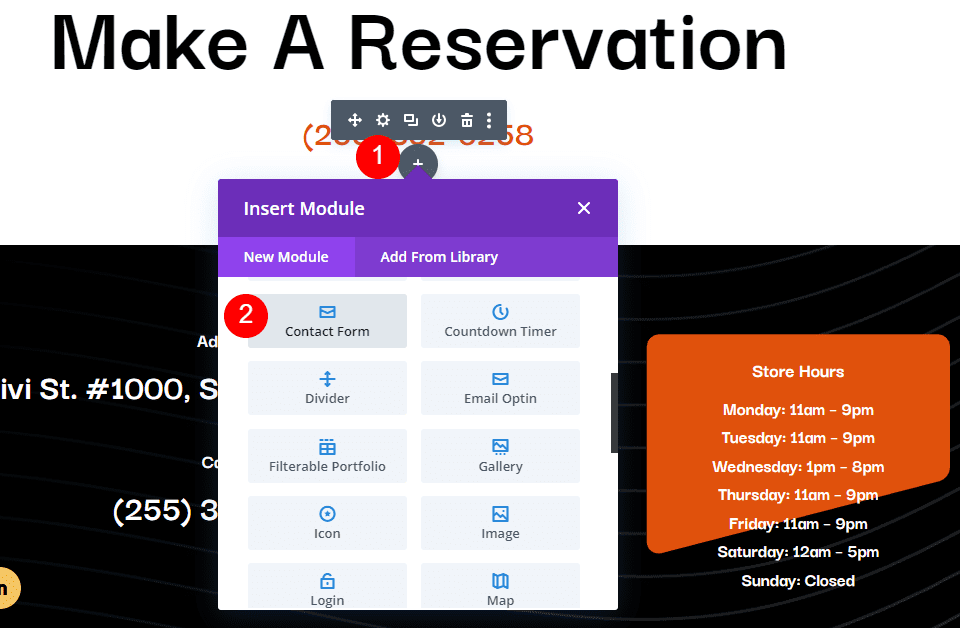
    Add a Contact Form Module

    Next, add a Contact Form Module under the phone number Text Module.

    Restaurant Reservation Message Pattern Example

    Add New Fields

    Now, remove the Message Field and add a new Field by clicking Add New Field.

    Restaurant Reservation Message Pattern Example

    Change the Field ID to Phone, the Title to Phone Number, and use Input Field as the Type. For Allowed Symbols, select Numbers Only. Close the submodule.

    • Field ID: Phone
    • Title: Phone Number
    • Type: Input Field
    • Allowed Symbols: Numbers Only

    Restaurant Reservation Message Pattern Example

    Add another Field, change the Field ID to Guests, the Title to Number of Guests, and use Input Field as the Type. For Allowed Symbols, select Numbers Only. Close the submodule.

    • Field ID: Guests
    • Title: Number of Guests
    • Type: Input Field
    • Allowed Symbols: Numbers Only

    Restaurant Reservation Message Pattern Example

    Add another Field and change the Field ID to Day, the Title to Day of Visit, and use Select Dropdown as the Type. Enter the name of each day for the options. Close the submodule.

    • Field ID: Day
    • Title: Day of Visit
    • Type: Select Dropdown
    • Options: add days

    Restaurant Reservation Message Pattern Example

    Add another Field and change the Field ID to Time and the Title to Time of Visit. Select Radio Buttons for the Type. For the Options, add the possible times. Close the submodule.

    • Field ID: Time
    • Title: Time of Visit
    • Type: Radio Buttons
    • Options: possible times

    Restaurant Reservation Message Pattern Example

    Text

    Now, we’ll adjust the form. Under Text in the Content tab, change the Submit Button text to Book a Table.

    • Submit Button: Book a Table

    Restaurant Reservation Message Pattern Example

    Email

    Next, scroll down to Email and enter the address where you want to receive the email in the Email Address field. Also, create the Message Pattern. I’ll create a pattern that provides the name first, skip a line, and then show the day, time, and number of guests. After this, it will skip a line, show a heading for the contact information and then list the information.

    The Message Pattern looks like this (complete with spaces):

    Reservation for %%name%%


    Day: %%day%%

    Time: %%time%%

    Number of Guests: %%guests%%


    Contact Information

    %%email%%

    %%phone%%

    Restaurant Reservation Message Pattern Example

    Spam Protection

    Scroll down to Spam Protection and disable it.

    • Use Basic Captcha: No

    Restaurant Reservation Message Pattern Example

    Fields

    Now, let’s style the module. First, go to Fields in the Design tab. Change the Background color to rgba(255,255,255,0) and the Text Color to black.

    • Background Color: rgba(255,255,255,0)
    • Text Color: #000000

    Restaurant Reservation Message Pattern Example

    For the Fields Padding, add 13px for the Top and Bottom and 30px to the Left and Right. Change the Font to Darker Grotesque and set the Weight to Medium.

    • Fields Padding: 13px Top and Bottom, 30px Left and Right
    • Font: Darker Grotesque
    • Weight: Medium

    Restaurant Reservation Message Pattern Example

    Change the Size to 24px for desktops, 18px for tablets, and 14px for phones. Set the Line Height to 1.4em.

    • Size: 24px desktop, 18px tablet, 14px phone
    • Line Height: 1.4em

    Restaurant Reservation Message Pattern Example

    Button

    Next, scroll down to Button and select Enable Custom Styles for Button. Change the Text Size to 17px, the Text Color to black, and the Background to #f6c85d.

    • Enable Custom Styles for Button
    • Text Size: 17px
    • Text Color: #000000
    • Background: #f6c85d

    Restaurant Reservation Message Pattern Example

    Set the Border Color to #f6c85d and the Button Letter Spacing to 0.16em. Change the Font to Darker Grotesque, the Weight to Ultra Bold, and the Style to TT.

    • Border Color: #f6c85d
    • Button Letter Spacing: 0.16em
    • Font: Darker Grotesque
    • Weight: Ultra Bold
    • Style: TT

    Restaurant Reservation Message Pattern Example

    Change the Button Padding to 12px for the Top and Bottom and 20px for the Left and Right.

    • Button Padding: 12px Top and Bottom, 20px Left and Right

    Restaurant Reservation Message Pattern Example

    Sizing

    Next, scroll down to Sizing, change the Width to 60%, and set the Module Alignment to Center.

    • Width: 60%
    • Module Alignment: Center

    Restaurant Reservation Message Pattern Example

    Border

    Finally, scroll down to Border. Add 5px to the Rounded Corners, 2px to the Border Width, and make the Border black. Close the module, save your settings, and test your form.

    • Inputs Rounded Corners: 5px
    • Border Width: 2px
    • Color: #000000

    Restaurant Reservation Message Pattern Example

    Message Pattern Results

    Here’s how our message looks in the form and in the email that I received.

    Message in the Form

    Message in the Form

    Message in the Email

    Message in the Email

    Ending Thoughts

    That’s our look at how to create a message pattern in your Divi Contact Form Module. Creating Message Patterns is easy to do with Divi’s Contact Form Module, and they’re great for organizing the information within the emails themselves. Following a few simple steps is all you need to create your own email Message Patterns.

    We want to hear from you. Have you created a message pattern in your Divi Contact Form Module? Let us know about your experience in the comments.

    The post How to Create a Message Pattern in Your Divi Contact Form Module appeared first on Elegant Themes Blog.

  • How to Include a Contact Form in Your Divi Footer

    Divi’s footer is a great place to add a contact form. Fortunately, this is easy to do with the Divi Theme Builder. Of course, we don’t want to just add it anywhere as there are a few things to keep in mind for usability. In this post, we’ll see how to include a contact form in your Divi footer. We’ll go through a couple of examples to help you get started.

    Let’s get started!

    Preview

    Desktop Divi Footer Contact Form Example One

    Desktop Divi Footer Contact Form Example One

    Phone Divi Footer Contact Form Example One

    Phone Divi Footer Contact Form Example One

    Desktop Divi Footer Contact Form Example Two

    Desktop Divi Footer Contact Form Example Two

    Phone Divi Footer Contact Form Example Two

    Phone Divi Footer Contact Form Example Two

    About the Contact Form in Your Divi Footer

    Why Include a Contact Form in Your Divi Footer?

    The footer is a location where visitors will look for specific information. This includes ways to contact you. Adding a contact form to the footer not only makes that contact information visual but also simplifies the process.

    Where to Add the Contact Form

    When choosing a location for the contact form, look at the other footer elements to see what would clash for attention.

    It’s best to place the contact form near other contact information, but you don’t want it fighting the email form. Placing two forms next to each other can confuse your visitors. Place the contact form in a different Row or Section from the email form. Add enough whitespace around the contact form so that it stands apart from the rest of the content.

    The example below is from the free Header and Footer Template for Divi’s Stone Factory Layout Pack. This is a great example of how to use a contact form in the footer. This layout includes a contact form and an email form. The contact form is placed with the contact information in a different Row from the links and email form. It’s also a different color than the email form and it’s labeled well, so visitors will know at a glance which form is which.

    Where to Add the Contact Form

    How to Include a Contact Form in Your Divi Footer

    The best way to add a contact form to your Divi footer is by building the footer in the Divi Theme Builder. A contact form can also be added to any existing footer. The process of adding the form is the same.

    Import Your Divi Footer Layout

    In the WordPress dashboard, go to Divi > Theme Builder. Select Add Global Footer if you don’t have a global footer, select Add New Template, or choose the footer template you want to add the contact form to. We’ll import a new footer. For this example, we’ll add a contact form to the Header & Footer for Divi’s Financial Services Layout Pack.

    Select the Portability icon in the upper right corner of the Theme Builder. Navigate to your header and footer template on your computer, select it, and click Import Divi Theme Builder Templates. Save your changes.

    Import Your Divi Footer Layout

    Next, select the Edit icon for the footer template. This will open the footer template in the builder where we’ll make our changes.

    Import Your Divi Footer Layout

    How to Add the Divi Footer Contact Form

    Next, we’ll add the contact form to the footer layout. First, we’ll need to make some adjustments to the layout’s design. We see the layout has two Sections. The top Section has a title to identify that it’s the contact information. This Section includes three types of contact information lined up horizontally.

    We’ll stack the contact information on the right, above the email subscription form. Then, we’ll place a Divi Contact Form Module on the left. This increases the size of this Section and balances the footer with a form on each side.

    How to Add the Divi Footer Contact Form

    Move the Contact Information

    First, drag and drop the Text Modules to the right column. Stack them to show Email on top, Office in the middle, and Phone on the bottom.

    Move the Contact Information

    Adjust the Row

    Next, adjust the Row to show two columns instead of three.

    Adjust the Row

    Add the Contact Form

    Finally, add a Contact Form Module to the left Column.

    Add the Contact Form

    We now have a contact form added to our Divi layout. The contact form balances well with the email form on the other side of the layout. Of course, it works but it won’t fit well with the layout’s design until we style it.

    Add the Contact Form

    How to Style the Divi Footer Contact Form

    Now, let’s see how to style the Divi Contact Form Module to match the layout. We’ll look at two examples, including the one we’ve already started. We’ll use design cues from the layout itself.

    Divi Footer Contact Form Example One

    For this one, we’ll style the form we added in the previous section.

    Text

    Open the Contact Form Module’s settings. Enter the text for the Title and Submit Button.

    • Title: Contact Us Today
    • Submit Button: Get in touch

    Divi Footer Contact Form Example One

    Fields

    Next, go to the Design tab. Change the Fields Background Color to #ffba52 and change the Fields Text Color to #0f1154. Leave the focus colors at their default settings. This allows them to use the same colors as the regular fields.

    • Background Color: #ffba52
    • Text Color: #0f1154

    Divi Footer Contact Form Example One

    Next, change the Fields Font to Montserrat. Set the Weight to Bold and the Size to 16px.

    • Font: Montserrat
    • Weight: Bold
    • Size: 16px

    Divi Footer Contact Form Example One

    Title Text

    Next, scroll down to Title Text. Choose H3 for the Heading Level. The title of this section uses H2, so selecting H3 will build the proper page structure. Select Montserrat for the Font. Select Bold for the Weight and change the Color to #1d4eff.

    • Heading Level: H3
    • Font: Montserrat
    • Weight: Bold
    • Color: #1d4eff

    Divi Footer Contact Form Example One

    Captcha Text

    Next, scroll down to Captcha Text. We’ll make changes to the Captcha Text in this setting, but we’ll also add some CSS to change the field color. Change the Font to Roboto, the Weight to Medium, and the Color to #1d4eff. We’ll add the CSS at the end.

    • Font: Roboto
    • Weight: Medium
    • Color: #1d4eff

    Divi Footer Contact Form Example One

    Button

    Next, scroll down to Button and enable Use Custom Styles for Button. Change the Font Size to 16px, the Font Color to white, and the Background Color to #1d4eff.

    • Use Custom Styles for Button: Yes
    • Size: 16px
    • Text Color: #ffffff
    • Background Color: #1d4eff

    Divi Footer Contact Form Example One

    Set the Border Width and Border Radius to 0px for both. Change the Font to Roboto and the Weight to Medium.

    • Border Radius: 0px
    • Border Width: 0px
    • Font: Roboto
    • Weight: Medium

    Divi Footer Contact Form Example One

    Next, scroll down to Button Padding. Enter 14px for the Top and Bottom Padding and 24px for the Left and Right Padding.

    • Padding: 14px Top and Bottom, 24px Left and Right

    Divi Footer Contact Form Example One

    Captcha Background

    Finally, go to the Advanced tab and scroll down to the Captcha Field. Enter the CSS below into the field. This gives the background a different color from the rest of the form, so users will know it’s different. Now, close the module and save your settings.

    • Captcha Field CSS:
      background-color:rgba(255,186,82,0.2)

    Divi Footer Contact Form Example One

    Divi Footer Contact Form Example Two

    Let’s look at another example. For this one, I’m using the global footer from the free Header & Footer for Divi’s Podcaster Layout Pack. We’ll replace the contact email with a contact form.

    Divi Footer Contact Form Example Two

    Delete Email Text Module

    First, delete the Contact Us and email Text Modules. We’ll replace the title with the one from the Contact Form Module.

    Divi Footer Contact Form Example Two

    Change Row Column Width

    Next, change the column layout to display two equal columns. This gives us more room for the contact form.

    Divi Footer Contact Form Example Two

    Adjust Column

    Next, we’ll change the Background of the column for the contact form. This gives us more control over the form’s design. Open the settings for the right column.

    Divi Footer Contact Form Example Two

    Scroll down to Background and select the Background Gradient tab. Set the first Gradient Stop’s Color to #f52791 and leave it at its position of 0%. Set the second Gradient Stop’s Color to #3742fb and leave its position at 100%. Change the Direction to 120deg.

    • First Gradient Stop: #f52791, 0%
    • Second Gradient Stop: #3742fb, 100%
    • Direction: 120deg

    Divi Footer Contact Form Example Two

    Next, go to the Design tab. Change the Top and Bottom Padding to 40px and the Left and Right Padding to 30px.

    • Padding: 40px Top and Bottom, 30px Left and Right.

    Divi Footer Contact Form Example Two

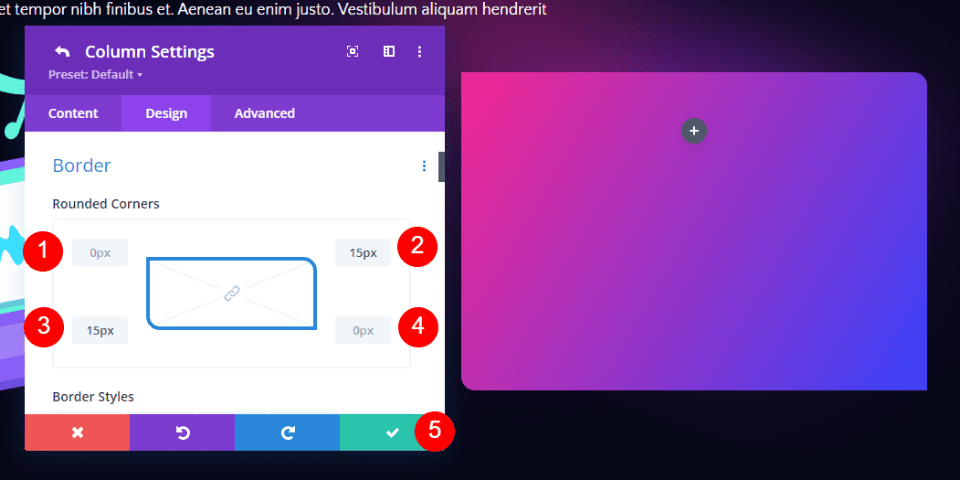
    Next, scroll down to Border and adjust the Rounded Corners. Set the Top Left to 0px, the top Right to 15px, the bottom Left to 15px, and the bottom right to 0px. Close the Column and Row settings.

    Rounded Corners:

    • Top Left: 0px
    • Top Right: 15px
    • Bottom Left: 15px
    • Bottom Right: 0px

    Divi Footer Contact Form Example Two

    Add a Contact Form Module

    Next, add a Contact Form Module in place of the Text Modules.

    Divi Footer Contact Form Example Two

    Contact form Content

    Add the Title content.

    • Title: Contact Us

    Divi Footer Contact Form Example Two

    Spam Protection

    Scroll down to Spam Protection and disable it.

    • Use Basic Captcha: No

    Divi Footer Contact Form Example Two

    Fields

    Go to the Design tab. Change the Fields Background Color to rgba(255,255,255,0.12) and change the Text Color to white.

    • Fields Background Color: rgba(255,255,255,0.12)
    • Fields Text Color: #ffffff

    Divi Footer Contact Form Example Two

    Change the Fields Font to Sarabun. Set the Weight to Bold, the Style to TT, and the Letter Spacing to 2px.

    • Fields Font: Sarabun
    • Weight: Bold
    • Style: TT
    • Letter Spacing: 2px

    Divi Footer Contact Form Example Two

    Title Text

    Next, scroll down to Title Text. Change the Title Font to Sarabun, the Weight to Bold, the Style to TT, and the Color to white.

    • Heading Level: H3
    • Fields Font: Sarabun
    • Weight: Bold
    • Style: TT
    • Color: #ffffff

    Divi Footer Contact Form Example Two

    Button

    Next, scroll down to Button and enable Use Custom Styles for Button. Change the Font Size to 14px, the Font Color to white, and the Background Color to black.

    • Use Custom Styles for Button: Yes
    • Size: 14px
    • Text Color: #ffffff
    • Background Color: #000000

    Divi Footer Contact Form Example Two

    Change the Border Width to 0px and Border Radius to 50px. Set the Letter Spacing to 2px, the Font to Sarabun, the Weight to Bold, and the Style to TT.

    • Border Width: 0px
    • Border Radius: 50px
    • Letter Spacing: 2px
    • Font: Sarabun
    • Weight: Bold
    • Style: TT

    Divi Footer Contact Form Example Two

    Next, scroll down to Button Padding. Enter 15px for the Top and Bottom Padding and 45px for the Left and Right Padding. Close the module and save your settings.

    • Padding: 15px Top and Bottom, 45px Left and Right

    Divi Footer Contact Form Example Two

    Results

    Desktop Divi Footer Contact Form Example One

    Desktop Divi Footer Contact Form Example One

    Phone Divi Footer Contact Form Example One

    Phone Divi Footer Contact Form Example One

    Desktop Divi Footer Contact Form Example Two

    Desktop Divi Footer Contact Form Example Two

    Phone Divi Footer Contact Form Example Two

    Phone Divi Footer Contact Form Example Two

    Ending Thoughts

    That’s our look at how to include a contact form in your Divi footer. The Divi Contact Form Module is simple to add to any Divi footer layout and it’s easy to style to match any Divi layout. Following a few design principles will ensure you get the most out of the footer’s space.

    We want to hear from you. Do you include a contact form in your Divi footer? Let us know in the comments.

    The post How to Include a Contact Form in Your Divi Footer appeared first on Elegant Themes Blog.

  • How to Set Up Your Divi Contact Form

    A contact form is a great feature to add to a website. As a business owner, you could use a contact form to allow potential customers to send a message. As an influencer, setting up a contact form on a website can open doors for brand deals. A contact form has a variety of uses from collecting information from website visitors to allowing viewers to connect. Of course, inside Divi, you can find a customizable Contact Form Module that you can use for the websites you build.

    Let us go through several things to consider as you embark on setting up a contact form in Divi. We will be using the Contact Page Layout from within the Print Designer Layout Pack.

    Adding Your Fields: Let’s Get Organized

    There isn’t a one-size-fits-all solution when it comes to setting up a contact form in Divi. Nevertheless, you do need to have an idea of what the purpose of your form will be. The types of fields that you’ll use within the Divi Contact Form Module will assist you in ensuring that you are collecting the relevant data from your website visitors. The Divi Contact Form Module comes equipped with six (6) field types that you can use within your form.

    The Divi Contact Form Module Fields

    Input Field: The input field is one of the most common form fields that you will use in your form. It allows users to enter short answers to questions. An example of an input field could be “First Name”.

    Email Field: A pretty self-explanatory field, the email field allows you to collect an email address within your form. You may need to add this field to your form if you intend to reach out to the user who submitted the form.

    Text Area: Similar to the input field, the text area field allows users to input in text. However, the text area field allows them to write quite a bit more than within an input field. An example of when you might use a text area field might be if you are looking to collect information about a project that a client may want to send to you.

    Checkboxes: Checkboxes allow users to make multiple selections from a list of options that you provide. You could use a checkbox field if you needed a custom field to select several different flavors for the cake they will be ordering through your contact form.

    Radio Buttons: Like a checkbox, a radio button provides users with a variety of choices to make a selection from. Unlike checkboxes, a radio button allows users to make only one selection out of the options that you have provided for them.

    Select Dropdown: A dropdown field allows website users to make a selection from a select list of options. Though checkboxes, radio buttons, and dropdowns all provide users with the option of selecting from a list of items, their uses will depend on the question that you are asking as well as the answer you are hoping to receive from them.

    Field options for the Divi Contact Form Module

    Planning Your Form Offline

    Now that you know a little bit about the different types of fields that can be used within the Divi contact form module, it’s time to plan out what your form fields will be. You can use something as simple as pen and paper, or even a Google Doc to first determine the purpose of your form. From your purpose, you’ll be able to plan out what the necessary fields would be for you to add to your form. After that, you’ll need to select the appropriate field for that question.

    As an example, you wouldn’t use the text area field to simply collect the name on a form. Similarly, you wouldn’t use the dropdown field to collect someone’s email address. Careful planning with your form will set you up for success when building your website. This will also create a good user experience for potential website viewers.

    Deciding Which Fields We Want To Make Mandatory

    After you’ve decided on the fields that you’d like to add to your form, consider the fields users must fill in to submit your form. Why would you want to make a field mandatory you ask? Let’s go back to our contact form plan that we created with pen and paper. If we are an influencer, we would want to have the name of the person who is reaching out to us. We would want to make the name field mandatory so that we can properly address the person who is sending us a potential brand deal.

    Alternatively, we may want to make the email address field mandatory as well. This will allow you  to reach back out to this person. However, we may want to make the telephone field optional, in case they have an international number or we don’t want to get too personal and intrusive. In this case, you’d make the name fields and the email address fields mandatory in your form to ensure that you can properly communicate with the person once they have filled out and submitted their form.

    Setting up mandatory fields within the Divi Contact Form Module

    Setting up Our Email Address

    We now know what fields we’ll be using within our form and we know which fields we need to make mandatory so that we can collect the relevant information from users. Next up, we need to set up our email address. By default, all form entries from a Divi contact form will be emailed to the email address that you input within the email section under the content tab. It’s important to have an email address that you’ll easily have access to to collect the entries from this form. You would enter in said email address within the content tab of the contact form module. You can add multiple email addresses to the email field by separating them with a comma.

    Setting up the email address to receive submissions from the Divi Contact Form Module

    Creating a Message Pattern

    Next, you want to be able to properly read the content of the form submission that was just sent to you. To do this, you’ll need to keep track of the field ID that you used for each of the form fields that you created. You can easily find the field ID of each form field by editing the form field. The message pattern textbox allows you to control the content of the email that you receive as the website owner. Using the field ID, you can craft a clear and coherent message to yourself.

    Creating a message patten while setting up the Divi Contact Form Module

    Security: How To Prevent Spam

    For as long as can be remembered, spam has been a problem on the internet, and your website may get its fair share. However, there are spam protection services available that can help make your life a bit easier. The Divi Contact Form Module is able to integrate into reCaptcha. reCaptcha is an internet service that protects forms and websites from pesky spammers. You can connect your account to the form module. Usually, a small arrow will appear on the frontend of your site to show that your site is protected.

    Spam protection while setting up the Divi Contact Form Module

    Adding a Success Message

    After the form has been submitted, there are several other factors to bear in mind. Firstly, You can decide to have a success message briefly shown to those who have successfully submitted the form. You can determine this message by filling out the success message field within the text dropdown in the content tab. Alternatively, you can enable the redirect URL switch to have the user sent to an entirely different page all together. The choice is yours. Please bear in mind however the overall purpose and use of your form.

    Setting up a success message and post submit processes for the Divi Contact Form Module

    Making Sure the Design Matches Your Website

    By default, your Divi contact form will come with a white background and will inherit the button style that has been set for it via the Customize tab under Appearance > Customize. However, you shouldn’t let that stop you from having a rad contact form!

    Some of the ways that you can make your contact form stand out include:

    • Adding a border: Adding a colored border to your form fields can add interest.  This can in turn encourage more people to fill out your form. If you’re using your form to collect leads, product orders, etc. This is a great thing!
    • Changing the focus color: You can change the focus color of your form fields. When someone clicks into a field, it will now have a different styling. This is another way to build interest in your form.
    • Playing with the length of the field
    • Adding hover effects to the submit button: It is recommended to style all buttons across your website based on their use and importance. This also applies to your contact forms’ submit button! Don’t neglect to style this field. You can even go a step further and add some hover and animation effects to it!

    At the end of the day, it is ideal that you should customize and style your contact form to match the rest of the branding of your website.

    If you’d like, you can add a title to your form. This will take on the default heading styling of your website. However, you can use the design tab within the contact form module to style this differently. It’s always a good idea to maintain your branding on the various modules throughout your website. You can also consider changing the wording of the submit button to something other than the word submit.

    Ending Thoughts on Setting up Your Divi Contact Form

    Having a contact form on your website can greatly encourage your users to interact with you. From taking orders to collecting feedback, your contact form provides a means for communication between you and your site visitors By styling it, correcting, securing it, and making it simple for you to collect information, using the Divi contact form module on your site today can help you have a better website, blog and online store.

    The post How to Set Up Your Divi Contact Form appeared first on Elegant Themes Blog.

  • Using Basic Captcha vs ReCaptcha in Divi’s Contact Form Module

    Do you have a contact form on your website? If so, you may have noticed spam messages being submitted through your form. Captcha is a great solution to prevent unwanted spam messages from being submitted. The purpose of Captcha is to ensure that the visitor filling out your contact form is actually human and not a computer program. There are many different types of Captcha tests. Some of the most common methods of Captcha tests require users to type in the letters and numbers they see in a distorted image. They also let you calculate a simple math equation, or select images containing a certain object, like a bicycle or stop sign. More recent and advanced methods of Captcha protection work behind the scenes to verify the user is not a bot, giving legitimate users a seamless experience while blocking the bots.

    Divi’s Contact Form Module comes with two different types of Captcha protection for your website: Basic Captcha and ReCaptcha. In this post, we will discuss the differences between Divi’s Basic Captcha and ReCaptcha and go over some pros and cons so that you can better understand when to use these options on your website.

    Let’s get started!

    Using Basic Captcha vs ReCaptcha in Divi’s Contact Form Module

    What is Captcha, And Does my Contact Form Need it?

    First, let’s get a better understanding of what Captcha is and why you should include it in your contact form. Captcha stands for “Completely Automated Turing Test to Tell Computers and Humans Apart.” As the name describes, it is a challenge-response test that can be implemented on your contact form to test whether you are a computer or a human. If you pass the Captcha test, it assumes you are human and allows you to submit the form. If you do not pass the test, Captcha assumes you are a computer and does not allow you to submit the form in order to prevent spam messages from being sent.

    It is a good idea to enable captcha spam protection on your contact form module, as it greatly reduces the number of spam messages you will receive, and helps keep your website safe and secure. Not to mention, if you have lots of spam messages in your inbox, it can be easy to miss legitimate inquiries sent from your website visitors! Divi offers two built-in options to add Captcha to your contact form, Basic Captcha and ReCaptcha. Let’s take a closer look at these two methods and some of their key differences.

    Using Basic Captcha in Divi’s Contact Form Module

    Divi’s basic Captcha is a simple math equation that users are required to solve before they can submit the form. It is very easy to add the basic Captcha requirement to your contact form module and it does not require any additional setup.

    Add the Basic Captcha Requirement

    First, open the contact form module settings. Under the Content tab, navigate to the Spam Protection section. Set Use Basic Captcha to “Yes”.

    • Use Basic Captcha: Yes

    Divi Basic Captcha Contact Form Use Basic Captcha

    Now basic Captcha is enabled for your contact form and users will be required to solve the math equation before submitting the form.

    Divi Basic Captcha Contact Form

    If the user submits an incorrect answer, they will see an error message at the top of the form.

    Divi Basic Captcha Contact Form Error

    Use Cases for Basic Captcha

    Using Divi’s built-in Basic Captcha is a great way to reduce the number of spam submissions you get through your contact form. The setup is as easy as clicking a button, and it does not require you to sign up for an external service. However, Basic Captcha can cause issues with accessibility since it relies on the user having to calculate a math problem, and there is a risk that bots will get past this form since it is simpler and uses less robust methods to detect if the user is a human or a bot.

    While Basic Captcha is a great option for a quick and easy solution to the spam messages you might get through the contact form, there are some drawbacks, especially when compared to the more advanced Captcha options available. If you are interested in a more robust option to prevent spam messages, read on to learn about ReCaptcha!

    Using ReCaptcha for Divi’s Contact Form Module

    Google ReCaptcha is the other spam protection option built into Divi. Unlike other Captcha options you may have seen, ReCaptcha runs completely in the background while the user is on your page. Based on the user’s activity, ReCaptcha generates a score between 0-1, with 0 being very likely a bot and 1 being very likely a human. When you set up ReCaptcha you set a minimum score threshold that determines whether a user will be allowed to submit the contact form or not. The default threshold score is 0.5, so any user below a score of 0.5 (likely a bot) will be blocked. The great thing about ReCaptcha is that your legitimate website visitors will not have to go through a test to decipher letters and numbers or calculate equations in order to submit the form. All they need to do is fill out the contact form and click submit!

    Generating the ReCaptcha Site Key and Secret Key

    In order to add the ReCaptcha requirement to your contact form, we will first need to generate a ReCaptcha v3 Site Key and Secret Key. This requires a Google account.

    First, sign in to the ReCaptcha Admin Console with your Google account and click the plus button to add a new site.

    Divi Basic Captcha vs ReCaptcha Contact Form Add ReCaptcha Site

    Add a label, select the option for ReCaptcha v3, then add your website domain.

    Divi ReCaptcha Contact Form Register

    If needed, add email addresses to the owner section and accept the terms of service. If you would like to receive alert emails, check the “Send alerts to owners” checkbox. Then click submit.

    Divi ReCaptcha Contact Form Register

    On the next page, you will be able to copy the site key and secret key. We will use this when adding ReCaptcha to the contact form.

    Divi ReCaptcha Contact Form Site Key Secret Key

    Add the ReCaptcha Requirement

    Once your site has been registered with ReCaptcha and the site key and secret key have been generated, we can add the ReCaptcha requirement to the contact form.

    Under the Content tab, in the contact form module settings, navigate to the Spam Protection section. Set Use A Spam Protection Service to “Yes”. Then click “Add”.

    Divi ReCaptcha Contact Form Setup

    Enter a name for your account (or leave it at Default), then enter your site key and secret key and click submit.

    Divi ReCaptcha Contact Form Settings

    Finally, you can adjust your minimum score threshold if you want. We will leave ours at 0.5, which is the default. You can always come back and adjust this threshold based on your analytics.

    Divi ReCaptcha Contact Form Minimum Score

    Now your form is protected with ReCaptcha! Legitimate users will not be required to go through any sort of test, and they will just see a small and unobtrusive ReCaptcha banner at the bottom right corner of the screen.

    Use Cases for ReCaptcha

    Of the two built-in Captcha options that comes with Divi’s contact form module, the ReCaptcha option is the most robust and advanced. It is also the most user-friendly option, allowing your site visitors to fill out the contact form without having to do math or decipher letters, which can be confusing and cause frustration. Even though it involves a few more steps than the Basic Captcha option, it may be worth setting up in order to have seamless protection for your contact form and improve your user experience.

    Final Thoughts

    Adding a Captcha requirement to your form is a good practice to follow on your website in order to prevent bots from sending in submissions. Divi’s contact form module comes with two built-in options that make it easy to implement these security measures. Basic Captcha is an easy way to add Captcha protection to your Divi contact form and blocks users who cannot solve the math requirement. ReCaptcha provides a better user experience by running seamlessly in the background. This makes the form easier to fill out and reduces errors, meaning fewer frustrated users abandoning their attempts at contact. Both options are effective in reducing the spam that comes through your contact form, and Divi makes it easy to use whichever option fits your needs best.

    Do you use Basic Captcha or ReCaptcha in your contact form? We would love to hear about your experience. Let us know in the comments!

    The post Using Basic Captcha vs ReCaptcha in Divi’s Contact Form Module appeared first on Elegant Themes Blog.

  • How to Combine Inline & Fullwidth Fields in Divi’s Contact Form Module

    The contact form is an important element to include on your website if you want to capture emails and convert your visitors into customers. The Divi Contact Form Module can be easily customized to create attractive and captivating contact forms for all types of websites. The module comes with two width options that can be applied to each field in the form: inline or full-width. In this tutorial, we will present four unique layout possibilities for your Divi contact form using inline and full-width fields.

    Let’s get started!

    Sneak Peek

    Here is a preview of what we will design.

    First Layout

    Divi Contact Form Layouts With Inline and Fullwidth Fields Layout 1 Final Design

    Divi Contact Form Layouts With Inline and Fullwidth Fields Layout 1 Final Design Mobile

    Second Layout

    Divi Contact Form Layouts With Inline and Fullwidth Fields Layout 2 Final Design

    Divi Contact Form Layouts With Inline and Fullwidth Fields Layout 2 Final Design Mobile

    Third Layout

    Divi Contact Form Layouts With Inline and Fullwidth Fields Layout 3 Final Design

    Divi Contact Form Layouts With Inline and Fullwidth Fields Layout 3 Final Design Mobile

    Fourth Layout

    Divi Contact Form Layouts With Inline and Fullwidth Fields Layout 4 Final Design

    Divi Contact Form Layouts With Inline and Fullwidth Fields Layout 4 Final Design Mobile

    What You Need to Get Started

    Before we begin, install and activate the Divi Theme and make sure you have the latest version of Divi on your website.

    Now, you are ready to start!

    4 Layout Possibilities for Your Divi Contact Form Using Inline & Fullwidth Fields

    Select the Premade Layout

    Each of the 4 designs are modified from the Shoe Repair Contact Page layout from the Shoe Repair Layout Pack, which you can find in the Divi library.

    Add a new page to your website and give it a title, then select the option to Use Divi Builder.

    Divi Contact Form Layouts With Inline and Fullwidth Fields Layout Use Builder

    We will use a premade layout from the Divi library for this example, so select Browse Layouts.

    Divi Contact Form Layouts With Inline and Fullwidth Fields Layout Browse Layout

    Search for and select the Shoe Repair Contact Page layout.

    Divi Contact Form Layouts With Inline and Fullwidth Fields Layout Find Layout

    Select Use This Layout to add the layout to your page.

    Divi Contact Form Layouts With Inline and Fullwidth Fields Layout Use Layout

    Now we are ready to build our designs.

    First Layout

    First, move the row containing the contact form module to the section above, right below the row with the blurb modules. Then you can delete the remaining empty section.

    Divi Contact Form Layouts With Inline and Fullwidth Fields Layout 1 Move Row

    Open the row settings and add padding to the left and right,

    • Padding-left: 15%
    • Padding-right: 15%

    Divi Contact Form Layouts With Inline and Fullwidth Fields Layout 1 Padding

    Select the responsive options and set the mobile padding.

    • Padding-left: 5%
    • Padding-right: 5%

    Divi Contact Form Layouts With Inline and Fullwidth Fields Layout 1 Responsive Spacing

    Modifying the Contact Form Layout with Inline and Fullwidth Fields

    For this layout, we will create two separate fields for first name and last name. Open the contact form module settings and change the field ID and Title for the Name field to First Name.

    Divi Contact Form Layouts With Inline and Fullwidth Fields Layout 1 Rename Field

    Add a new field below the First Name field. Set the field ID and Title to Last Name.

    Divi Contact Form Layouts With Inline and Fullwidth Fields Layout 1 Add Field

    In the last name field settings, open the Layout settings and set Make Fullwidth to No.

    • Fullwidth: No

    Divi Contact Form Layouts With Inline and Fullwidth Fields Layout 1 Make Inline

    Next, under the contact form settings switch the order of Subject and Phone so that Phone is listed before Subject.

    Divi Contact Form Layouts With Inline and Fullwidth Fields Layout 1 Field Order

    Open the subject field layout settings and make the field fullwidth.

    • Make Fullwidth: Yes

    Divi Contact Form Layouts With Inline and Fullwidth Fields Layout 1 Make Fullwidth

    Customizing the Contact Form Design

    Now let’s modify a few settings to complete the design. Navigate to the design tab of the contact form settings.

    First, change the button background color.

    • Button Background: #DBC2B3

    Divi Contact Form Layouts With Inline and Fullwidth Fields Layout 1 Button Background

    Add a top margin to the button.

    • Button margin- top: 10px

    Divi Contact Form Layouts With Inline and Fullwidth Fields Layout 1 Button Margin

    Finally, navigate to the Border settings and add rounded corners to the inputs.

    • Inputs rounded corners: 30px

    Divi Contact Form Layouts With Inline and Fullwidth Fields Layout 1 Rounded Corners

    Final Design

    Here is the final design on desktop and mobile.

    Divi Contact Form Layouts With Inline and Fullwidth Fields Layout 1 Final Design

    Divi Contact Form Layouts With Inline and Fullwidth Fields Layout 1 Final Design Mobile

    Second Layout

    For our second design, we will move the blurb modules to the left side of the page and have the contact form on the right side of the page. Move the blurb modules to one column.

    Divi Contact Form Layouts With Inline and Fullwidth Fields Layout 2

    Change the row layout.

    Divi Contact Form Layouts With Inline and Fullwidth Fields Layout 2 Row Layout

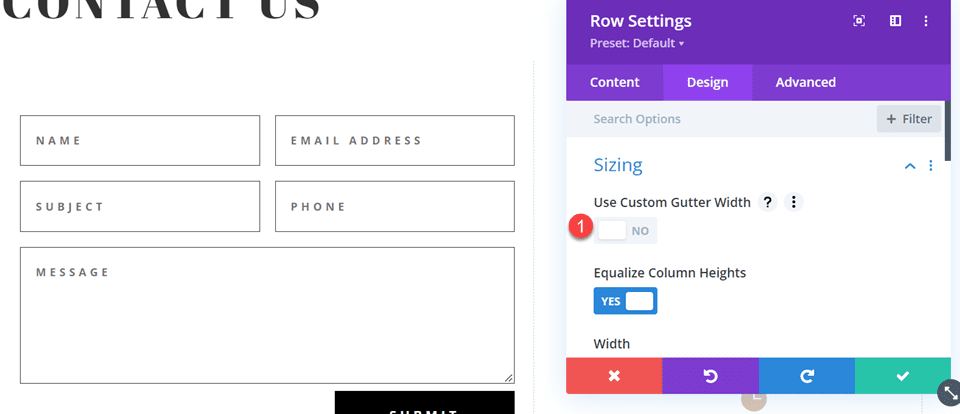
    Open the row design settings and turn off Use Custom Gutter Width.

    • Use Custom Gutter Width: No

    Divi Contact Form Layouts With Inline and Fullwidth Fields Layout 2 Custom Gutter Width

    Add some code to the Main Element Custom CSS in order to vertically align the blurb modules and the contact form.

    align-items:center;

    Divi Contact Form Layouts With Inline and Fullwidth Fields Layout 2 Main Element CSS

    Now we need to remove the thin border between the columns. Open the row settings, then open the settings for column 1. Under the Design tab, navigate to the border settings and remove the border.

    • Right border width: 0px

    Divi Contact Form Layouts With Inline and Fullwidth Fields Layout 2 Right Border

    Next, open the settings for column 2 and repeat the steps to remove the border.

    • Right border width: 0px

    Divi Contact Form Layouts With Inline and Fullwidth Fields Layout 2 Right Border Width

    Set the “Contact Us” text to be centered.

    Divi Contact Form Layouts With Inline and Fullwidth Fields Layout 2 Text Alignment

    Move the contact form to the right column. Delete the empty remaining section.

    Divi Contact Form Layouts With Inline and Fullwidth Fields Layout 2 Move Contact Form

    Modifying the Contact Form Layout with Inline and Fullwidth Fields

    This layout will also have two separate fields for first name and last name. Open the contact form module settings and change the field ID and Title for the Name field to First Name.

    Divi Contact Form Layouts With Inline and Fullwidth Fields Layout 2 Field ID and Title

    Add a new field below the First Name field. Set the field ID and Title to Last Name.

    Divi Contact Form Layouts With Inline and Fullwidth Fields Layout 2 Field ID

    In the last name field settings, open the Layout settings and set Make Fullwidth to No.

    • Fullwidth: No

    Divi Contact Form Layouts With Inline and Fullwidth Fields Layout 2 No Fullwidth

    Change the order of the phone and subject fields so that phone comes before subject.

    Divi Contact Form Layouts With Inline and Fullwidth Fields Layout 2 Reorder Fields

    Open the field settings for Email, Phone, and Subject, and set the layout to fullwidth.

    • Make Fullwidth: Yes

    Divi Contact Form Layouts With Inline and Fullwidth Fields Layout 2 Make Fullwidth

    Customizing the Contact Form Design

    Open the row settings, then open the column 2 settings. Set the background color.

    • Background: #DBC2B3

    Divi Contact Form Layouts With Inline and Fullwidth Fields Layout 2 Add Background

    Within the column 2 settings, navigate to the design tab and add some padding.

    • Padding-top: 50px
    • Padding-bottom: 50px
    • Padding-left: 50px
    • Padding-right: 50px

    Divi Contact Form Layouts With Inline and Fullwidth Fields Layout 2 Add Padding

    Select the mobile icon to modify the responsive settings. Set the padding for mobile.

    • Padding-top: 30px
    • Padding-bottom: 30px
    • Padding-left: 30px
    • Padding-right: 30px

    Divi Contact Form Layouts With Inline and Fullwidth Fields Layout 2 Add Responsive Padding

    Then add a box shadow to the column.

    Divi Contact Form Layouts With Inline and Fullwidth Fields Layout 2 Box Shadow

    Finally, open the contact form settings and change the field text color.

    • Fields text color: #000000

    Divi Contact Form Layouts With Inline and Fullwidth Fields Layout 2 Field Text Color

    Final Design

    Here is the final design for the second layout.

    Divi Contact Form Layouts With Inline and Fullwidth Fields Layout 2 Final Design

    Divi Contact Form Layouts With Inline and Fullwidth Fields Layout 2 Final Design Mobile

    Third Layout

    For the third layout, we will have the contact form on the left and the blurb modules on the right. Let’s get started by changing the column structure of the row containing the blurb modules.

    Divi Contact Form Layouts With Inline and Fullwidth Fields Layout 3 Choose Layout

    Move the address module to the right column.

    Divi Contact Form Layouts With Inline and Fullwidth Fields Layout 3 Move Address

    Next, move the Contact Us text module to the left column, then delete the remaining empty row.

    Divi Contact Form Layouts With Inline and Fullwidth Fields Layout 3 Move Text

    Move the contact form to the left column, below the Contact Us text module. Delete the remaining empty section.

    Divi Contact Form Layouts With Inline and Fullwidth Fields Layout 3 Move Module

    Open the row design settings and turn off Use Custom Gutter Width.

    • Use Custom Gutter Width: No

    Divi Contact Form Layouts With Inline and Fullwidth Fields Layout 3 No Custom Gutter Width

    Add some code to the Main Element Custom CSS in order to vertically align the blurb modules and the contact form.

    align-items:center;

    Divi Contact Form Layouts With Inline and Fullwidth Fields Layout 3 Custom CSS

    Open the row settings, then open the settings for column 1. Under the Design tab, navigate to the border settings and remove the border. Repeat the steps to remove the border from column 2.

    • Right border width: 0px

    Divi Contact Form Layouts With Inline and Fullwidth Fields Layout 3 Border Width

    Modifying the Contact Form Layout

    We will leave the field widths as-is for the third design, however, open the contact form settings and switch the order of the phone number and subject field so that the phone comes first.

    Divi Contact Form Layouts With Inline and Fullwidth Fields Layout 3 Reorder Fields

    Final Design

    Here is the final design for the third layout.

    Divi Contact Form Layouts With Inline and Fullwidth Fields Layout 3 Final Design

    Divi Contact Form Layouts With Inline and Fullwidth Fields Layout 3 Final Design Mobile

    Fourth Layout

    For the fourth and final layout, the contact form will be on the left and the blurb modules on the right. Once again, we will start by changing the column structure of the row containing the blurb modules.

    Divi Contact Form Layouts With Inline and Fullwidth Fields Layout 4 Choose Layout

    Move the address module to the right column.

    Divi Contact Form Layouts With Inline and Fullwidth Fields Layout 4 Move Module

    Move the contact form to the left column. Delete the remaining empty section.

    Divi Contact Form Layouts With Inline and Fullwidth Fields Layout 4 Move Form

    Open the row design settings and turn off Use Custom Gutter Width.

    • Use Custom Gutter Width: No

    Divi Contact Form Layouts With Inline and Fullwidth Fields Layout 4 Custom Gutter

    Add some code to the Main Element Custom CSS in order to vertically align the blurb modules and the contact form.

    align-items:center;

    Open the row settings, then open the settings for column 1. Under the Design tab, navigate to the border settings and remove the border.

    • Right border width: 0px

    Divi Contact Form Layouts With Inline and Fullwidth Fields Layout 4 Border Width

    Next, open the settings for column 2 and repeat the steps to remove the border.

    • Right border width: 0px

    Divi Contact Form Layouts With Inline and Fullwidth Fields Layout 4 Border Width 2

    Open the text module settings for the Contact Us text and center the text.

    • Text Alignment: Center

    Divi Contact Form Layouts With Inline and Fullwidth Fields Layout 4 Text Alignment

    Modifying the Contact Form Layout with Inline and Fullwidth Fields

    For this design, all of our fields will be fullwidth. Open the contact form settings, then open the settings for each field. Under the design tab, select Layout and set Make Fullwidth to Yes.

    Divi Contact Form Layouts With Inline and Fullwidth Fields Layout 4 Make Fullwidth

    Once you make each field fullwidth, the form should look something like this.

    Divi Contact Form Layouts With Inline and Fullwidth Fields Layout 4 Fullwidth

    Now, change the field ID and Title for the Name field to First Name.

    Divi Contact Form Layouts With Inline and Fullwidth Fields Layout 4 Field ID

    Add a new field below the First Name field. Set the field ID and Title to Last Name.

    Divi Contact Form Layouts With Inline and Fullwidth Fields Layout 4 Last Name Field

    Change the order of the phone and subject fields so that phone comes before the subject.

    Divi Contact Form Layouts With Inline and Fullwidth Fields Layout 4 Field Order

    Customizing the Contact Form Design

    In the contact form design settings, set the Fields Text Color to black.

    • Fields Text Color: #000000

    Divi Contact Form Layouts With Inline and Fullwidth Fields Layout 4 Text Color

    Open the section settings and add a background color.

    • Background: #DBC2B3

    Divi Contact Form Layouts With Inline and Fullwidth Fields Layout 4 Add Background

    Finally, add a background mask.

    • Background Mask: Arch
    • Mask Transform: Horizontal

    Divi Contact Form Layouts With Inline and Fullwidth Fields Layout 4 Add Background Mask

    To make the background mask work better on mobile, let’s use the responsive settings.

    Divi Contact Form Layouts With Inline and Fullwidth Fields Layout 4 Responsive Background Mask

    • Mask Transform on Mobile: Horizontal and Rotate
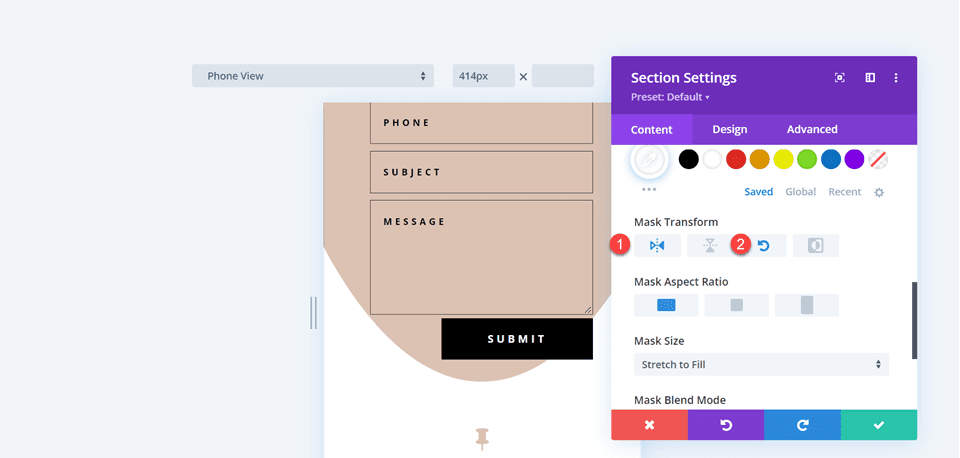
    Divi Contact Form Layouts With Inline and Fullwidth Fields Layout 4 Responsive Mask Transform

    Final Design

    Here is the final design for the fourth layout.

    Divi Contact Form Layouts With Inline and Fullwidth Fields Layout 4 Final Design

    Divi Contact Form Layouts With Inline and Fullwidth Fields Layout 4 Final Design Mobile

    Final Result

    Let’s take a look at all of our final designs once again.

    First Layout

    Divi Contact Form Layouts With Inline and Fullwidth Fields Layout 1 Final Design

    Divi Contact Form Layouts With Inline and Fullwidth Fields Layout 1 Final Design Mobile

    Second Layout

    Divi Contact Form Layouts With Inline and Fullwidth Fields Layout 2 Final Design

    Divi Contact Form Layouts With Inline and Fullwidth Fields Layout 2 Final Design Mobile

    Third Layout

    Divi Contact Form Layouts With Inline and Fullwidth Fields Layout 3 Final Design

    Divi Contact Form Layouts With Inline and Fullwidth Fields Layout 3 Final Design Mobile

    Fourth Layout

    Divi Contact Form Layouts With Inline and Fullwidth Fields Layout 4 Final Design

    Divi Contact Form Layouts With Inline and Fullwidth Fields Layout 4 Final Design Mobile

    Final Thoughts

    Having a great-looking contact form can increase your conversions and allows your visitors to connect directly with you. As we have demonstrated through this article, you can use the inline and fullwidth field options to create different looks and layouts for your form, and Divi’s built-in design options allow you to create unique and attractive designs to help the form stand out. To learn more about the different ways you can style the contact form module, check out this tutorial for creating a full-screen responsive form with zoom-in scroll animation, and this tutorial for 5 more unique styling options. How have you styled your contact form module? We would love to hear from you in the comments!

    The post How to Combine Inline & Fullwidth Fields in Divi’s Contact Form Module appeared first on Elegant Themes Blog.