EDITS.WS

Tag: Divi Divider Module

  • How to Create Gradient Dividers with Divi’s Divider Module

    Divi’s Divider Module provides several methods to create interesting dividers. One of the most interesting and unique is the ability to create gradient dividers. In this post, we’ll discuss how to create gradient dividers with the Divi Divider Module. We’ll look at how the gradient dividers work and see three examples to help you create your own.

    Let’s get started!

    Preview

    Desktop Gradient Divider Example One

    Desktop Gradient Divider Example One

    Phone Gradient Divider Example One

    Phone Gradient Divider Example One

    Desktop Gradient Divider Example Two

    Desktop Gradient Divider Example Two

    Phone Gradient Divider Example Two

    Phone Gradient Divider Example Two

    Desktop Gradient Divider Example Three

    Desktop Gradient Divider Example Three

    Phone Gradient Divider Example Three

    Phone Gradient Divider Example Three

    How to Create Gradient Dividers with Divi’s Divider Module

    There are several ways to create a divider with Divi’s Divider Module. By default, the module displays a divider line. We can disable this and use the module’s Background settings to create a divider that we can style with the module’s Background options. This includes colors, gradients, images, etc. Rather than showing the divider, we’ll style the divider’s container and create a styled divider.

    Hide Divider

    The process is simple. First, add a Divider Module to your layout and then hide the divider in the content tab.

    How to Create Gradient Dividers with Divi’s Divider Module

    Divider Background

    Next, select the type of background you’d like to display in the Background settings in the Content tab. For this post, we’ll focus on the Background Gradient settings.

    How to Create Gradient Dividers with Divi’s Divider Module

    Add Sizing and Spacing

    Use the Sizing and Spacing options in the Design tab to control the height and width of the divider’s container to create a styled divider in just about any size or shape. Utilize width and height, max width and max height, module alignment, and top and bottom padding to create the size you want.

    How to Create Gradient Dividers with Divi’s Divider Module

    Add Border Radius

    Add Border options, such as Border Radius, to further style the shape. You can adjust the corners together or independently to create interesting shapes. You can also add Border Width, Styles, etc., to create a unique design.

    How to Create Gradient Dividers with Divi’s Divider Module

    Gradient Divider Examples

    Now, let’s create three gradient dividers using the concepts we just discussed.

    Gradient Divider Example One

    For our first gradient divider, we’ll use the landing page from the free Home Baker Layout Pack that’s available within Divi. The artwork in this layout pack has strong dark outlines with sharp gradients, all in shades of brown. We’ll mimic this with our gradient using colors from the layout pack.

    For our first example, we’ll use the Divider Module that is already in place in the hero section. This one is simple, but it adds a lot visually.

    For reference, here’s the layout before we add the Divider Module.

    Gradient Divider Example One

    Visibility

    In the Divider Module’s Visibility settings, select No for Show Divider.

    • Show Divider: No

    Gradient Divider Example One

    Gradient

    Scroll down to Background and select the Background Gradient tab. For this one, we’ll add five Gradient Stops. We’ll leave the rest of the gradient settings at their defaults. Here are the settings for each Gradient Stop.

    Set the first Gradient Stop to 0px and its Color to #dcc087.

    • First Gradient Stop: 0px, #dcc087

    Gradient Divider Example One

    Place the second Gradient Stop at 16px and its Color to #e6b060.

    • Second Gradient Stop: 16px, #e6b060

    Gradient Divider Example One

    Place the third Gradient Stop at 22px and its Color to #f19d33.

    • Third Gradient Stop: 22px, #f19d33

    Gradient Divider Example One

    The fourth Gradient Stop almost sits on top of the third Gradient Stop. Place it at 31px and set its Color to #f49826.

    • Fourth Gradient Stop: 31px, #f49826

    Gradient Divider Example One

    Set the last Gradient Stop at 48px and its Color to #3b261e.

    • Fifth Gradient Stop: 48px, #3b261e

    Gradient Divider Example One

    Change the Gradient Unit to Pixels. We now have the colors we’re looking for. Now, we just need to optimize the size.

    • Gradient Unit: Pixels

    Gradient Divider Example One

    Sizing

    Next, go to the Design tab. Under Sizing, set the Width to 100%. Set the Height to 40px for all three device sizes. Close the module and save your settings.

    • Width: 100%
    • Height: 40px

    Gradient Divider Example One

    Gradient Divider Example Two

    For our second gradient divider, we’ll use the landing page from the free Online Course Layout Pack that’s available within Divi. This one includes lots of rounded edges and even has a circle with a gradient that overlaps an image.

    We’ll use this as our starting point for the design and create a new gradient divider. We’ll add a new Divider Module to the Chapter 1 section just to add a graphic.

    For reference, here’s the layout before we add the Divider Module.

    Gradient Divider Example Two

    Right Column Spacing

    First, open the Column settings that contain a description of the first chapter. This is the Right Column in the Row. Go to the Design settings and scroll down to Spacing. Change the Top Padding from 100px to 50px.

    • Top Padding: 50px

    Gradient Divider Example Two

    Add a Divider Module

    Next, add a new Divider Module under the Button Module for the chapter description.

    Gradient Divider Example Two

    Visibility

    Open the Divider Module’s Visibility settings and select No for Show Divider.

    • Show Divider: No

    Gradient Divider Example Two

    Gradient

    Next, scroll down to Background and select the Background Gradient tab. This one has two Gradient Stops. Change the Gradient Direction to 145deg.

    • First Gradient Stop: 0px, #26ff5c
    • Second Gradient Stop: 100px, #2981b6
    • Gradient Direction: 145deg

    Gradient Divider Example Two

    Sizing

    Next, select the Design tab. Under Sizing, change the Width for desktops to 45%. Change tablets to 24vw and phones to 40vw. Change Module Alignment to Center. Set Height to 200px for all devices.

    • Width: 45% desktop, 24vw tablet, 40vw phone
    • Module Alignment: Center
    • Height: 200px

    Gradient Divider Example Two

    Border

    Next, scroll down to Border. We’ll create an arched shape that mimics the images in the layout. Change the Rounded Corners to 400px for the Left and Right Top and 0px for the Left and Right Bottom. Close the module and save your settings.

    • Rounded Corners top left, top right: 400px
    • Rounded Corners bottom left, bottom right: 0px

    Gradient Divider Example Two

    Gradient Divider Example Three

    For our third gradient divider, we’ll use the landing page from the free Podcaster Layout Pack that’s available within Divi. This one has lots of gradient shapes throughout the layout that are made with images and dividers.

    We’ll create a gradient divider with the design cues from those images and other elements. It will combine multiple gradients into one. Our divider will separate the featured episodes from the recent episodes.

    For reference, here’s the layout before we add the Divider Module.

    Gradient Divider Example Three

    New Row

    First, add a new Row above the title. This is where we’ll add the Divider Module.

    Gradient Divider Example Three

    Add Divider Module

    Next, add a Divider Module to the Row.

    Gradient Divider Example Three

    Visibility

    In the Visibility settings, select No for Show Divider.

    • Show Divider: No

    Gradient Divider Example Three

    Gradient

    Scroll down to Background and select the Background Gradient tab. For this one, we’ll use four Gradient Stops. Set the Direction to 90deg.

    • First Gradient Stop: 0px, #f52791
    • Second Gradient Stop: 38px, #3742fb
    • Third Gradient Stop: 70px, f7d043
    • Fourth Gradient Stop: 100px, #fe386f
    • Direction: 90deg

    Gradient Divider Example Three

    Sizing

    Next, go to the Design tab. Under Sizing, set the Height to 60px for desktops, 50px for tablets, and 40px for phones.

    • Height: 60px desktop, 50px tablet, 40px phone

    Gradient Divider Example Three

    Border

    Next, scroll down to Border. Set the Rounded Corners to 0px Top Left, 30px Top Right, 30px Bottom Left, and 0px Top Right. This creates a style that matches the email optin section. Close the module and save your settings.

    • Top Left: 0px
    • Top Right: 40px
    • Bottom Left: 40px
    • Bottom Right: 0px

    Gradient Divider Example Three

    Results

    Desktop Gradient Divider Example One

    Desktop Gradient Divider Example One

    Phone Gradient Divider Example One

    Phone Gradient Divider Example One

    Desktop Gradient Divider Example Two

    Desktop Gradient Divider Example Two

    Phone Gradient Divider Example Two

    Phone Gradient Divider Example Two

    Desktop Gradient Divider Example Three

    Desktop Gradient Divider Example Three

    Phone Gradient Divider Example Three

    Phone Gradient Divider Example Three

    Ending Thoughts

    That’s our look at how to create gradient dividers with Divi’s Divider Module. The gradient option in the Divider Module works great for creating unique gradient dividers. Utilizing the sizing, spacing, and border corner options provides us with the tools to create gradient dividers in many sizes and shapes. With just a few simple settings, we can create unique gradient dividers that are sure to stand out from the crowd.

    We want to hear from you. Do you create gradient dividers with Divi’s Divider Module? Let us know about your experience in the comments.

    The post How to Create Gradient Dividers with Divi’s Divider Module appeared first on Elegant Themes Blog.

  • An Overview of Line Styles in Divi’s Divider Module & How to Style Them

    The divider line in Divi’s Divider Module is a great way to separate elements or add some visual flair to your Divi layouts. The module is easy to use and surprisingly versatile. In this post, we’ll see an overview of the line styles in Divi’s Divider Module and see how to style them. We’ll create six examples to help spark your imagination to style your Divi Divider Module.

    Let’s get started.

    Preview

    Desktop Divider Module Line Style Example One

    Desktop Divider Module Line Style Example One

    Phone Divider Module Line Style Example One

    Phone Divider Module Line Style Example One

    Desktop Divider Module Line Example Two

    Desktop Divider Module Line Example Two

    Phone Divider Module Line Example Two

    Phone Divider Module Line Example Two

    Desktop Divider Module Line Example Three

    Desktop Divider Module Line Example Three

    Phone Divider Module Line Example Three

    Phone Divider Module Line Example Three

    Desktop Divider Module Line Example Four

    Desktop Divider Module Line Example Four

    Phone Divider Module Line Example Four

    Phone Divider Module Line Example Four

    Desktop Divider Module Line Example Five

    Desktop Divider Module Line Example Five

    Phone Divider Module Line Example Five

    Phone Divider Module Line Example Five

    Desktop Divider Module Line Example Six

    Desktop Divider Module Line Example Six

    Phone Divider Module Line Example Six

    Phone Divider Module Line Example Six

    Divider Module Features

    To give the screenshots some color and reference, I’ve added the Text Modules and a colored background from the Portfolio page of the free Photography Studio Layout Pack that’s available within Divi.

    Divi Module Content Tab

    The Divider Module’s Content tab includes the option to display the divider line or not and to give the divider a background color.

    Divi Module Content Tab

    The Background options are the standard options for other Divi modules. It includes a background color, gradient, image, video, pattern, or mask. For this example, I’ve added a pink background color to make it easy to see the space the divider uses. The divider is placed at the top of this space by default.

    Divi Module Content Tab

    Divider Module Design Tab

    The Divider Module Design tab options include Line Color which also includes the Line Style options. Other options include Sizing, Spacing, Border, Box Shadow, Filters, Transform, and Animation.

    Divider Module Design Tab

    Line Color

    The Line Color setting includes the standard color picker, allowing Divi users to fully customize the color of the divider line.

    Divider Module Design Tab

    Line Style

    The Line Style setting determines the shape of the line. It has 9 options.

    Divider Module Design Tab

    Line Position

    Line Position places the line at the top, middle, or bottom of the divider’s space.

    Divider Module Design Tab

    Divider Module Line Style Options

    The Line Style options work with Sizing (Weight, Width, etc.) to create some interesting dividers. Here’s a look at each Style with a Weight of 20px so they stand out in my images.  After this, we’ll style the divider with various Color, Style, and Size combinations.

    Solid

    Solid displays the divider as a solid line.

    Divider Module Line Style Options

    Dashed

    Dashed cuts the divider line into small dashes.

    Divider Module Line Style Options

    Dotted

    Dotted displays the divider line as dots.

    Divider Module Line Style Options

    Double

    Double displays two divider lines in parallel.

    Divider Module Line Style Options

    Groove

    Groove cuts into the top of the line and makes the top a darker shade of the color we selected.

    Divider Module Line Style Options

    Ridge

    Ridge cuts into the bottom of the line and makes the bottom a darker shade of the color we selected.

    Divider Module Line Style Options

    Inset

    Inset cuts into the top and bottom of the line, making the entire line a darker shade of the color we selected.

    Divider Module Line Style Options

    Outset

    Outset doesn’t cut into the line, essentially giving the same look as Solid.

    Divider Module Line Style Options

    None

    None makes the divider line invisible, showing only its background color.

    Divider Module Line Style Options

    Divider Module Line Sizing Settings

    The Sizing options determine the divider’s weight, height, width, and alignment. Here’s a look at the main settings.

    Divider Weight

    Divider Weight specifies the thickness of the divider line.

    Divider Module Line Sizing Settings

    Width

    Width specifies the width of the divider line. It can be used in combination with Module Alignment to place the line on the left, center, or right of its area.

    Divider Module Line Sizing Settings

    Module Alignment

    Module Alignment places the line on the left, in the center, or on the right of the module’s area.

    Divider Module Line Sizing Settings

    Height

    Height determines the height of the module’s area. The line remains the same size, but the background fills in to take up the space.

    Divider Module Line Sizing Settings

    Divider Module Line Style Examples

    Now, let’s see some examples of these settings working together. For our examples, I’ve added the Divider Module to various locations within the Portfolio page and the Landing page of the free Photography Studio Layout Pack. I’ll use the colors from the layout pack and style the module to fit the area.

    Divider Module Line Style Example One

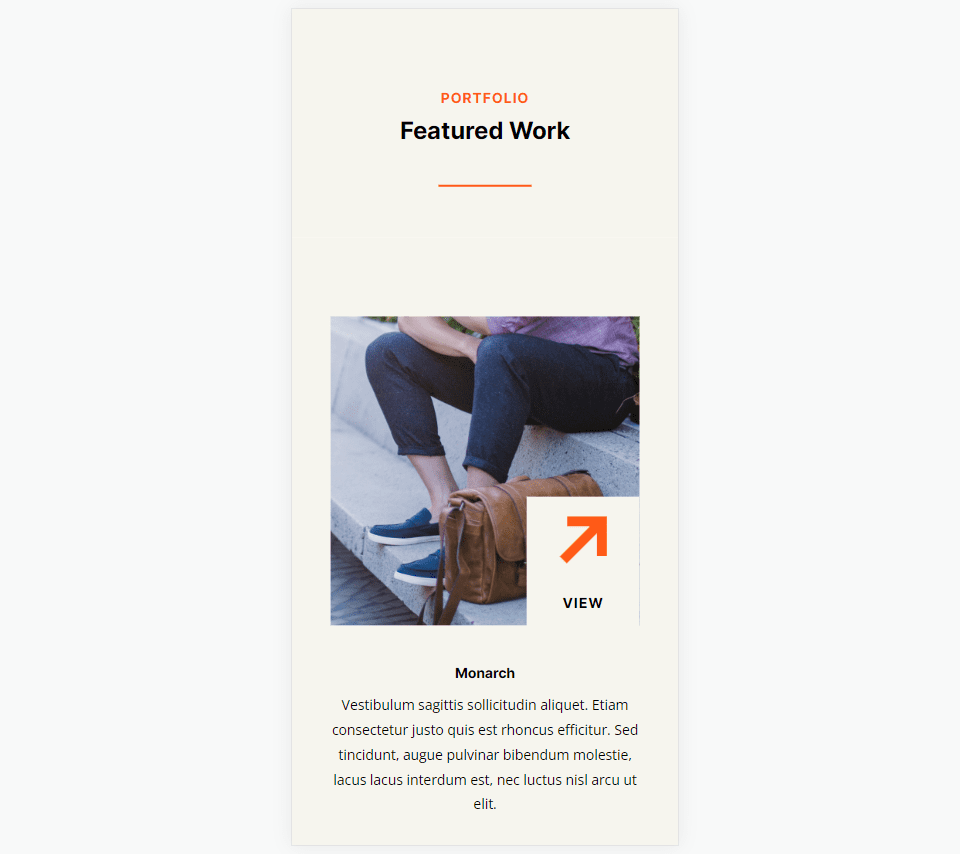
    For our first example, we’ll place a solid divider line under the page title of the portfolio page. Add the Divider Module under the Text Module.

    Change the Line Color to #ff5a17 and leave the Line Style at the default setting (Solid). Set the Divider Weight to 4px for desktops and tablets and change it to 2px for phones. Set the Width to 30% and the Module Alignment to Center.

    • Line Color: #ff5a17
    • Line Style: Solid
    • Divider Weight: 4px desktop, 2px phone
    • Width: 30%
    • Module Alignment: Center

    Divider Module Line Style Example One

    Divider Module Line Style Example Two

    We’ll place the second divider between portfolio projects under Featured Work. This requires adding a new Row for the Divider Module. The divider will be offset, just to make it look different.

    Change the Line Color to #ff5a17 and the Line Style to Ridge. Set the Divider Weight to 24px for desktops and tablets and to 20px for phones. Change the Width to 76%.

    • Line Color: #ff5a17
    • Line Style: Ridge
    • Divider Weight: 24px desktop and tablet, 20px phone
    • Width: 76%

    Divider Module Line Style Example Two

    Set the Height to 40px to add more space between the next Row.

    • Height: 40px

    Divider Module Line Style Example Two

    Divider Module Line Style Example Three

    We’ll place the third divider line next to the Call-to-Action button for a section labeled Let’s Work Together. This one changes the Row to three columns with a ½ column on the left and two ¼ columns on the right. The Divider Module is placed between the Text Modules and the Button Module. The divider line connects to the button, following design cues from other sections of this layout.

    This one uses the Solid Line Style. Change the Line Color to black and set the Divider Weight to 2px. Set the Width to 128% for desktops, 112% for tablets, and Auto for phones.

    • Line Color: #000000
    • Line Style: Solid
    • Divider Weight: 2px
    • Width: 128% desktop, 112% tablet, Auto phone

    Divider Module Line Style Example Three

    Divider Module Line Style Example Four

    The next three examples use the Photography Studio Landing Page. Our fourth example places a Divider Module under the Button Module in a CTA called Turning Moments Into Art. This one will use the module’s settings to add dots to the area to draw attention.

    Change the Line Color to #ff5a17 and choose Dotted for the Line Style. Set the Divider Weight to 30px. Change the Width to 45% for desktops, 30% for tablets, and 28% for phones.

    • Line Color: #ff5a17
    • Line Style: Dotted
    • Divider Weight: 30px
    • Width: 45% desktop, 30% tablet, 28% phone

    Divider Module Line Style Example Four

    Scroll down to Spacing and add 42px of Left Padding for phones. Leave the Padding for desktops and tablets at the default.

    • Left Padding: 42px phone

    Divider Module Line Style Example Four

    Divider Module Line Style Example Five

    Our fifth example will add a dashed line to a section called Recent Work. Add the Divider Module to the empty column in the top Row.

    Change the Line Color to black and the Line Style to Dashed. Set the Divider Weight to 24px.

    • Line Color: #000000
    • Line Style: Dashed
    • Divider Weight: 24px

    Divider Module Line Style Example Five

    Change the Height to 45px for tablets and phones. Alternatively, you can set the Height to 45px for all devices. Desktops will look the same either way.

    • Height: 45px

    Divider Module Line Style Example Five

    Divider Module Line Style Example Six

    For our last example, we’ll add a Divider Module with a double line under the description in a section called Case Study.

    Change the Line Color to white and the Line Style to Double.

    • Line Color: #ffffff
    • Line Style: Double

    Divider Module Line Style Example Six

    Set the Divider Weight to 6px. Change the Width to 48% for desktops, 22% for tablets, and 36% for phones. Change the Module Alignment to Center.

    • Divider Weight: 6px
    • Width: 48% desktop, 22% tablet, 36% phone
    • Module Alignment: Center

    Divider Module Line Style Example Six

    Results

    Desktop Divider Module Line Style Example One

    Desktop Divider Module Line Style Example One

    Phone Divider Module Line Style Example One

    Phone Divider Module Line Style Example One

    Desktop Divider Module Line Example Two

    Desktop Divider Module Line Example Two

    Phone Divider Module Line Example Two

    Phone Divider Module Line Example Two

    Desktop Divider Module Line Example Three

    Desktop Divider Module Line Example Three

    Phone Divider Module Line Example Three

    Phone Divider Module Line Example Three

    Desktop Divider Module Line Example Four

    Desktop Divider Module Line Example Four

    Phone Divider Module Line Example Four

    Phone Divider Module Line Example Four

    Desktop Divider Module Line Example Five

    Desktop Divider Module Line Example Five

    Phone Divider Module Line Example Five

    Phone Divider Module Line Example Five

    Desktop Divider Module Line Example Six

    Desktop Divider Module Line Example Six

    Phone Divider Module Line Example Six

    Phone Divider Module Line Example Six

    Ending Thoughts

    That’s our overview of line styles in Divi’s Divider Module and how to style them. The various line styles and options provide lots of design possibilities. With just a few settings, Divi users can create small or large dividing lines, add shapes, and lots more. Divi’s Divider Module is a great way to add some visual flair to any Divi website.

    We want to hear from you. Do you style the divider line in your Divi Divider Module? Let us know in the comments.

    The post An Overview of Line Styles in Divi’s Divider Module & How to Style Them appeared first on Elegant Themes Blog.

  • How to Use Invisible Dividers to Create Space Between Divi Modules

    Divi’s Divider Module is unique among the modules available within the Divi Builder. It works to serve multiple purposes. Not only does it provide a styled line to add an interesting division between modules, but it’s also used to add whitespace. Many Divi layouts use invisible Divider Modules to create space within the layout. In this post, we’ll see how to use invisible Dividers to create space between Divi modules.

    Why Create Space with Invisible Dividers?

    Invisible dividers are a great way to add whitespace to your layouts. Without whitespace, a layout can become cluttered and visually unappealing. Elements can be easily ignored if they’re too close to other elements. They won’t stand apart, making CTAs go unnoticed.

    Whitespace can help focus attention on certain areas of the screen. When an element has lots of whitespace around it, it stands out. This is especially important for buttons, descriptions, blurbs, or anything you want your visitors to interact with. Whitespace even improves readability, so content is easier to consume.

    Divider Module Settings

    Divider Modules can create vertical and horizontal space in several ways. The amount of space the module takes can be adjusted with Sizing, Margin, and Padding. The result is essentially the same and each of the methods can be used in combination if you need to fine-tune the spacing.

    Divider Module Show Visibility

    The module can show or not show the divider. This allows us to use the module just of space if we want. The size of the space the module takes is different from the visible and invisible divider.

    To make the divider invisible, go to its Content tab. The first section is Visibility. This is enabled by default. Here’s the setting with Visibility enabled. I’ve given the Row a tan background to help visualize the Divider Module.

    Divider Module Show Visibility

    Simply disable it. The divider won’t show, and you can now use the module to add spacing within the Divi layout. All that shows now is the tan background for the Row.

    Divider Module Show Visibility

    Invisible Divider Combined with Sizing

    Like many Divi modules, the Divider Module includes several adjustments to control the size of the module. The first is the Sizing settings. When the Divi Module is set to not show the divider, the Sizing settings Only show:

    • Width
    • Max Width
    • Min Height
    • Height
    • Max Height

    The example below shows the invisible Divider Module. I’ve added a blue background to the module, so it stands out.

    Invisible Divider Combined with Sizing

    Adjusting Height is a great way to control the spacing for the invisible Divider Module. The example below shows a Divider Module with 220px of Height.

    Invisible Divider Combined with Sizing

    Invisible Divider Module Combined with Spacing

    Margin and Padding can also be used to add spacing for the invisible Divider Module. They work the same as with any Divi module.

    This example shows the invisible Divider module with no Height adjustment. I’ve added 50px Top and Bottom Margin. The module still shows the blue background as its normal size, but there’s more margin around the module, as you can tell by the tan background of the Row.

    Invisible Divider Module Combined with Spacing

    This example adds 50px Top and Bottom Padding. The Row is the same size, but the module now takes up more of the Row. The result is essentially the same, so you can try both and see which works best for each situation.

    Invisible Divider Module Combined with Spacing

    This example shows both with 50px Top and Bottom Margin and Padding. The module now takes more of the area. You can use one or the other, but this does help you fine-tune the spacing if there are any issues.

    Invisible Divider Module Combined with Spacing

    Invisble Dividers Examples

    We’ll create two examples from the same layout pack. our examples will add whitespace to give the content some focus or help with alignment. For the examples, I’ll use the landing page and the home page from the free Flower Farm Layout Pack that’s available within Divi. We’ll use a variety of adjustments to see how they work.

    Invisible Dividers Example One

    For our first example, we’ll add space between two Text Modules and a Button Module just so they take up more space in their area. We’ll use two invisible Divider Modules.

    This example uses the Landing Page from the Flower Farm Layout Pack. I’ll add whitespace to the CTA in the Service Section. For reference, here’s a look at this section before adding the invisible Divider Modules.

    Invisible Divider Example One

    First Divider

    Place a Divider Module under the first Text Module.

    Invisible Divider Example One

    Set the module’s Visibility to not show the divider.

    • Show Divider: No

    Invisible Divider Example One

    Select the Design Tab and change the Height to 120px for desktops. Set the Height for tablets and phones to Auto. Close the module’s settings.

    • Height: 120px (desktop), Auto (tablet and phone)

    Invisible Divider Example One

    Second Divider

    Next, place the second Divider Module above the Button Module.

    Invisible Divider Example One

    Set the module’s Visibility to not show the divider.

    • Show Divider: No

    Invisible Divider Example One

    Select the Design tab and scroll down to Spacing. Enter 10% for the Top and Bottom Margin for desktops. Set tablets and phones to Auto. Close the module and save your settings.

    • Margin: 10% Top and Bottom, Auto tablet and phone

    Invisible Divider Example One

    Invisible Dividers Example Two

    For our second example, we’ll use the Call-to-Action section from the layout. This section has a three-column row with a title and button on the left, an image in the middle, and a description on the right. The content for the left and right columns starts at the top of the Row. We’ll use three Divider Modules to add whitespace and center the content. The difference will be minor, but it will have a visual impact on the layout.

    This one uses the Home Page from the Flower Farm Layout Pack. For reference, here’s a look at this section before adding the invisible Divider Modules.

    Invisible Divider Example Two

    First Divider

    Place a Divider Module above the first Text Module in the left column. You might need to drag the Divider Module above the first Text Module after it’s added.

    Invisible Divider Example Two

    Set the module’s Visibility to not show the divider. Close the module’s settings.

    • Show Divider: No

    Invisible Divider Example Two

    Select the Design tab and change the Height to 102px for desktops. Set the Height for tablets and phones to auto. Close the module’s settings.

    • Height (desktop): 102px
    • Height (tablet, phone): Auto

    Invisible Divider Example Two

    Second Divider

    Place the second Divider Module under the Button Module in the left column. At first, it will seem that this one isn’t needed since won’t affect the desktop version, but it will have an impact on tablets and phones.

    Invisible Divider Example Two

    Set the module’s Visibility to not show the divider.

    • Show Divider: No

    Invisible Divider Example Two

    Select the Design Tab. Scroll down to Spacing and add 5px to the Top and Bottom Padding. Close the module’s settings.

    • Padding: 5px Top, 5px Bottom

    Invisible Divider Example Two

    Third Divider

    Finally, place the third Divider Module over the first Text Module in the right column. You might need to drag it into place.

    Invisible Divider Example Two

    Set the module’s Visibility to not show the divider.

    • Show Divider: No

    Invisible Divider Example Two

    Select the Design Tab and change the Height to 194px. Set the Height for tablets to 50px and phones to 40px. Close the module’s settings.

    • Height: 194px (desktop), 50px (tablet), 40px (phone)

    Invisible Divider Example Two

    Invisible Dividers Results

    Desktop Invisible Dividers Example One

    Desktop Invisible Divider Example One

    Phone Invisible Dividers Example One

    Phone Invisible Divider Example One

    Desktop Invisible Dividers Example Two

    Desktop Invisible Divider Example Two

    Phone Invisible Dividers Example Two

    Phone Invisible Divider Example Two

    Ending Thoughts

    That’s or look at how to use invisible dividers to create space between Divi modules. Whitespace is great for highlighting certain elements and improving the readability of a website. The Divider Module provides several options for adding space including Sizing and Spacing, and you can adjust Margin, Padding, or both. You can use any or all of the settings in any combination you want to get the results you need.

    We want to hear from you. Do you use invisible Divider Modules to add whitespace to your Divi layouts? Let us know about your experience in the comments.

    The post How to Use Invisible Dividers to Create Space Between Divi Modules appeared first on Elegant Themes Blog.