EDITS.WS

Tag: Divi freebie

  • Download a FREE Header & Footer for Divi’s Toy Store Layout Pack

    Hey Divi Nation! Thanks for joining us for the next installment of our weekly Divi Design Initiative where each week, we give away brand new freebies. We recently shared a brand new Toy Store Layout Pack. To help you get your website up and running as soon as possible, we’re sharing a global header & footer template that matches this layout pack perfectly as well! Hope you enjoy it.

    divi layout

    Check Out The Toy Store
    Global Header & Footer Template Below

    Get it for free today!

    Toy Store Template Header Design

    Desktop Design

    Divi Toy Store desktop header design

    Tablet and Mobile Design

    Divi Toy Store tablet and mobile header design

    Toy Store Template Footer Design

    Desktop Design

    Divi Toy Store desktop footer design

    Tablet and Mobile

    Divi Toy Store tablet and mobile footer design

    Download The Global Header & Footer Template For The Toy Store Layout Pack

    To lay your hands on the free global header & footer template, you will first need to download it using the button below. To gain access to the download you will need to subscribe to our newsletter by using the form below. As a new subscriber, you will receive even more Divi goodness and a free Divi Layout pack every Monday! If you’re already on the list, simply enter your email address below and click download. You will not be “resubscribed” or receive extra emails.

    How to Upload The Toy Store Template

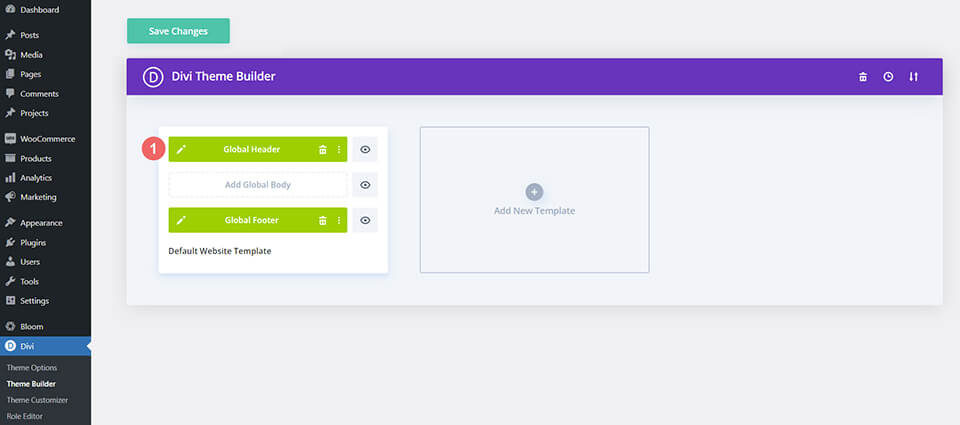
    Go to Divi Theme Builder

    To upload the template, navigate to the Divi Theme Builder in the backend of your WordPress website.

    Open Divi Theme Builder

    Upload Global Default Website Template

    Then, in the top right corner, you’ll see an icon with two arrows. Click on the icon.

    Import the template into the Divi Theme Builder

    Navigate to the import tab, upload the JSON file which you were able to download in this post, and click on ‘Import Divi Theme Builder Templates.

    Finish importing the template into the Divi Theme Builder

    Save Divi Theme Builder Changes

    Once you’ve uploaded the file, you’ll notice a new global header and footer in your default website template. Save the Divi Theme Builder changes as soon as you want the template to be activated.

    Save Divi Theme Builder Changes

    How to Modify The Toy Store Template

    Open Header Template

    To modify the global header template’s elements, start by opening the template.

    Open Header Template

    Upload Your Logo

    Replace the default template logo with your own logo within the Menu Module.

    Update the default logo in the Toy Store Template

    Select Menu of Choice

    Select a menu of your choice in the Menu Module.

    Choose and change your menu in the Menu Module of your Toy Store Template

    Add Links to Social Media Icons

    We use three of Divi’s new Icon Module to create a social media bar at the top of our header. Add your social media links to each module so that your clients are directed to the correct social media account for your business or brand.

    Add link URLs to social media icons

    Add Button URL

    Update the Button Module with a link or change the call-to-action written on the button.

    Add link CTA to header button

    Update Static Text Banners

    We have a banner of Text Modules that we are using to showcase the slogan of Divi Toy Store. You can go in and edit these modules and add in any text that you see fit for your brand.

    Update Text Modules with your own personalized call-to-actions

    Open Footer Template

    Continue by opening the global footer inside the default website template.

    Open Footer Template

    Connect Your Email Marketing Platform

    Our footer has an Email Optin Module. Connect your email marketing solution of choice to this module to be able to collect email addresses from website visitors.

    Connect your email marketing solution of choice

    Update Static Footer Content

    You will need to go through and update the content of the footer, including adding your own text, link URLs, and social media networks. Don’t forget about the copyright text at the bottom of the footer as well.

    Update static modules within the footer

    New Freebies Every Week!

    We hope you’ve enjoyed the Toy Store Layout Pack and the Header & Footer freebie that goes along with it. We look forward to hearing your opinions in the comment section below. Make sure you check back next week for more freebies!

    The post Download a FREE Header & Footer for Divi’s Toy Store Layout Pack appeared first on Elegant Themes Blog.

  • Download a FREE Blog Post Template for Divi’s Home Remodeling Layout Pack

    Hey Divi Creators! Thanks for joining us for the next installment of our weekly Divi Design Initiative where each week, we give away brand new freebies. This time around we’re building upon the Home Remodeling Layout Pack with a brand new blog post template that matches the rest of the pack perfectly. Hope you enjoy it!

    divi layout

    Check Out The Home Remodeling
    Blog Template Below

    Get it for free today!

    Desktop View

    Divi Home Remodeling Blog Template for desktop

    Tablet/Mobile View

    Divi Home Remodeling Blog Template for tablet or mobile

    Download The Blog Post Template For The Home Remodeling Layout Pack

    To lay your hands on the free Home Remodeling Blog Post Template, you will first need to download it using the button below. To gain access to the download you will need to subscribe to our newsletter by using the form below. As a new subscriber, you will receive even more Divi goodness and a free Divi Layout pack every Monday! If you’re already on the list, simply enter your email address below and click download. You will not be “resubscribed” or receive extra emails.

    How to Upload The Home Remodeling Blog Template

    Go to Divi Theme Builder

    To upload the template, navigate to the Divi Theme Builder in the backend of your WordPress website.

    Getting started with the Divi Conference Layout Pack

    Upload Website Template

    Then, in the top right corner, you’ll see an icon with two arrows. Click on the icon.

    Importing the Header and Footer Layout into the Divi Theme Buidler

    Navigate to the import tab, upload the JSON file that you could download in this post, and click on ‘Import Divi Theme Builder Templates’.

    Import settings for the header and footer layout pack

    Save Divi Theme Builder Changes

    Once you’ve uploaded the file, you’ll notice a new template with a new body area that has been assigned to All Posts. Save the Divi Theme Builder changes as soon as you want the template to be activated.

    Save the imported blog post layout within the Divi Theme Builder

    How to Modify The Home Remodeling Blog Template

    Open Post Template

    To modify the template’s elements, start by opening the template.

    Begin editing the blog post body template within the Divi Builder

    Inside the Body Layout Editor, you can edit the design on the front end using the Divi Builder just like you would with a normal Divi page.

    Since this is a template that has been assigned to all posts for the site, there is a post content module that is necessary for displaying the post content. You will need to keep that module in place, but you can adjust the post content module’s design elements, which will design the post content that is displayed dynamically.

    Update the Post Content Module with styling from your brand or business

    About the Home Remodeling Blog Template

    This blog post template possesses many dynamic elements that will work with your blog posts immediately. For example, the entire post header is made up of dynamic elements and modules that will update automatically so you don’t have to do so for every blog post that you write. You can tweak the design of each of those elements if needed.

    The modules that are used to make up your home remodeling blog template include

    • Post Title Module: Used to show the post title and featured image
    • Blurb Module: Used to show multiple post meta elements such as the comment count, post author, post date and post categories
    • Post Content Module: We use this to show the content within the actual blog post itself
    • Post Navigation Module: Move from one blog post to another within the same category
    • Comment Module: Allow your users to interact with your blog posts
    • Blog Module: We use the Blog Module to show other posts within the same blog categories

    Here is a quick illustration that identifies the elements of the Home Remodeling blog post template.

    Divi Home Remodeling Blog Template overview

    New Freebies Every Week!

    We hope you’ve enjoyed the Home Remodeling Layout Pack and the blog post template freebie that goes along with it. We look forward to hearing your opinions in the comment section below. Make sure you check back next week for more freebies!

    The post Download a FREE Blog Post Template for Divi’s Home Remodeling Layout Pack appeared first on Elegant Themes Blog.

  • Download a FREE Blog Post Template for Divi’s Jewelry Designer Layout Pack

    Hey Divi Creators! Thanks for joining us for the next installment of our weekly Divi Design Initiative where each week, we give away brand new freebies. This time around we’re building upon the Jewelry Designer Layout Pack with a brand new blog post template that matches the rest of the pack perfectly. Hope you enjoy it!

    divi layout

    Check Out The Jewelry Designer
    Blog Post Template Below

    Get it for free today!

    Desktop View

    Jewelry Designer Blog Post Template

    Tablet/Mobile View

    Jewelry Designer Blog Post Template

    Download The Blog Post Template For The Jewelry Designer Layout Pack

    To lay your hands on the free Jewelry Designer Blog Post Template, you will first need to download it using the button below. To gain access to the download you will need to subscribe to our newsletter by using the form below. As a new subscriber, you will receive even more Divi goodness and a free Divi Layout pack every Monday! If you’re already on the list, simply enter your email address below and click download. You will not be “resubscribed” or receive extra emails.

    How to Upload The Template

    Go to Divi Theme Builder

    To upload the template, navigate to the Divi Theme Builder in the backend of your WordPress website.

    Getting started with the Divi Conference Layout Pack

    Upload Jewelry Designer Blog Layout Template

    Then, in the top right corner, you’ll see an icon with two arrows. Click on the icon.

    Importing the Header and Footer Layout into the Divi Theme Buidler

    Navigate to the import tab, upload the JSON file that you could download in this post, and click on ‘Import Divi Theme Builder Templates’.

    Import settings for the header and footer layout pack

    Save Divi Theme Builder Changes

    Once you’ve uploaded the file, you’ll notice a new template with a new body area that has been assigned to All Posts. Save the Divi Theme Builder changes as soon as you want the template to be activated.

    Save the imported blog post layout within the Divi Theme Builder

    How to Modify The Jewelry Designer Blog Layout

    Open Post Template

    To modify the template’s elements, start by opening the template.

    Begin editing the blog post body template within the Divi Builder

    Inside the Body Layout Editor, you can edit the design on the front end using the Divi Builder just like you would with a normal Divi page.

    We have assigned this template to all posts for the site, there is a post content module that is necessary for displaying the post content. You will need to keep that module in place, but you can adjust the post content module’s design elements, which will design the post content that is displayed dynamically.

    Edit or update the Post Content to suit your needs and branding

    About the Divi Jewelry Designer Blog Layout

    This blog post template has a number of dynamic elements that will work with your blog posts immediately. For example, the entire post header is made up of dynamic elements including a featured image, the post title, and some of the post metadata (date and author). This content won’t need updating, but you can tweak the design of each of those elements if needed. Here’s a quick illustration of the different modules and dynamic elements used within the Divi Jewelry Designer Blog Layout:

    An overview of the dynamic elements within the Divi Jewelry Design blog post template

    Dynamic Elements in the Divi Jewelry Designer Blog Layout

    1. Featured Image [Image Module]
    2. Post Publish Date [Text Module]
    3. Post Title [Text Module]
    4. Post Author [Text Module]
    5. Post Content [Post Content Module]
    6. Post Navigation [Post Navigation Module]
    7. Post Categories, Post Comment Count, Post Author and Post Publish Date [Multiple Blurb Modules]
    8. Comments [Comments Module]
    9. Related Posts [Blog Module]

    All of the modules listed above have and use Divi’s Dynamic Content feature. This means that they’ll automatically populate with the content referred within it.

    New Freebies Every Week!

    We hope you’ve enjoyed the Jewelry Designer Layout Pack and the blog post template freebie that goes along with it. We look forward to hearing your opinions in the comment section below. Make sure you check back next week for more freebies!

    The post Download a FREE Blog Post Template for Divi’s Jewelry Designer Layout Pack appeared first on Elegant Themes Blog.

  • Get a Free Alteration Shop Layout Pack for Divi

    Hey Divi Nation! Thanks for joining us for the next installment of our weekly Divi Design Initiative; where each week, we give away a brand new Layout Pack for Divi.

    This time around, the design team has created a beautiful alteration shop Layout Pack that’ll help you get your next Alteration Shop website up and running in no time!

    This layout pack includes:

    8 Premade page layouts strategically designed for any Alteration Shop website (including a footer design)
    – Original, royalty-free photos and graphics + customizable source file (see below)
    – Plus, a large collection of pre-designed website elements that are customizable and reusable anywhere.

    This layout pack is available right inside Divi for all Divi customers for FREE as the latest addition to our growing Divi library of hundreds of premade layout packs, thousands of page designs, and countless web design elements and resources.

    divi layout

    Check Out The Divi Alteration Shop Layout Pack Below

    Get it for free today!

    Alteration Shop layout pack

    Landing Page Design

    Alteration Shop Pack for Divi

    View The Live Layout Demo

    Home Page Design

    Alteration Shop Layout Pack for Divi

    View The Live Layout Demo

    Services Page Design

    Alteration Shop Layout Pack for Divi

    View The Live Layout Demo

    Service Page Design

    Alteration Shop Layout Pack for Divi

    View The Live Layout Demo

    About Page Design

    Alteration Shop Layout Pack for Divi

    View The Live Layout Demo

    Pricing Page Design

    Alteration Shop Layout Pack for Divi

    View The Live Layout Demo

    Blog Page Design

    Alteration Shop Layout Pack for Divi

    View The Live Layout Demo

    Contact Page Design

    Alteration Shop Layout Pack for Divi

    View The Live Layout Demo

    Key Features

    The Alteration Shop Layout Pack for Divi offers a high contrast design complete with dark backgrounds and bold white text to showcase your alteration business. The warm dark gold accents allow for your site’s visitors to easily identify call to actions, as well as other points of interest. This classic design gives you everything you need to show off your alteration business with class.

    Live Demos

    Click the links below to see a live demo for each of the layouts included in the pack.

    1. Alteration Shop Landing Page (live demo)
    2. Alteration Shop Homepage (live demo)
    3. Alteration Shop Services Page (live demo)
    4. Alteration Shop Service Page (live demo)
    5. Alteration Shop About Page (live demo)
    6. Alteration Shop Pricing Page (live demo)
    7. Alteration Shop Blog Page (live demo)
    8. Alteration Shop Contact Page (live demo)

    Access This Layout Right Now
    Directly from Your Divi Builder

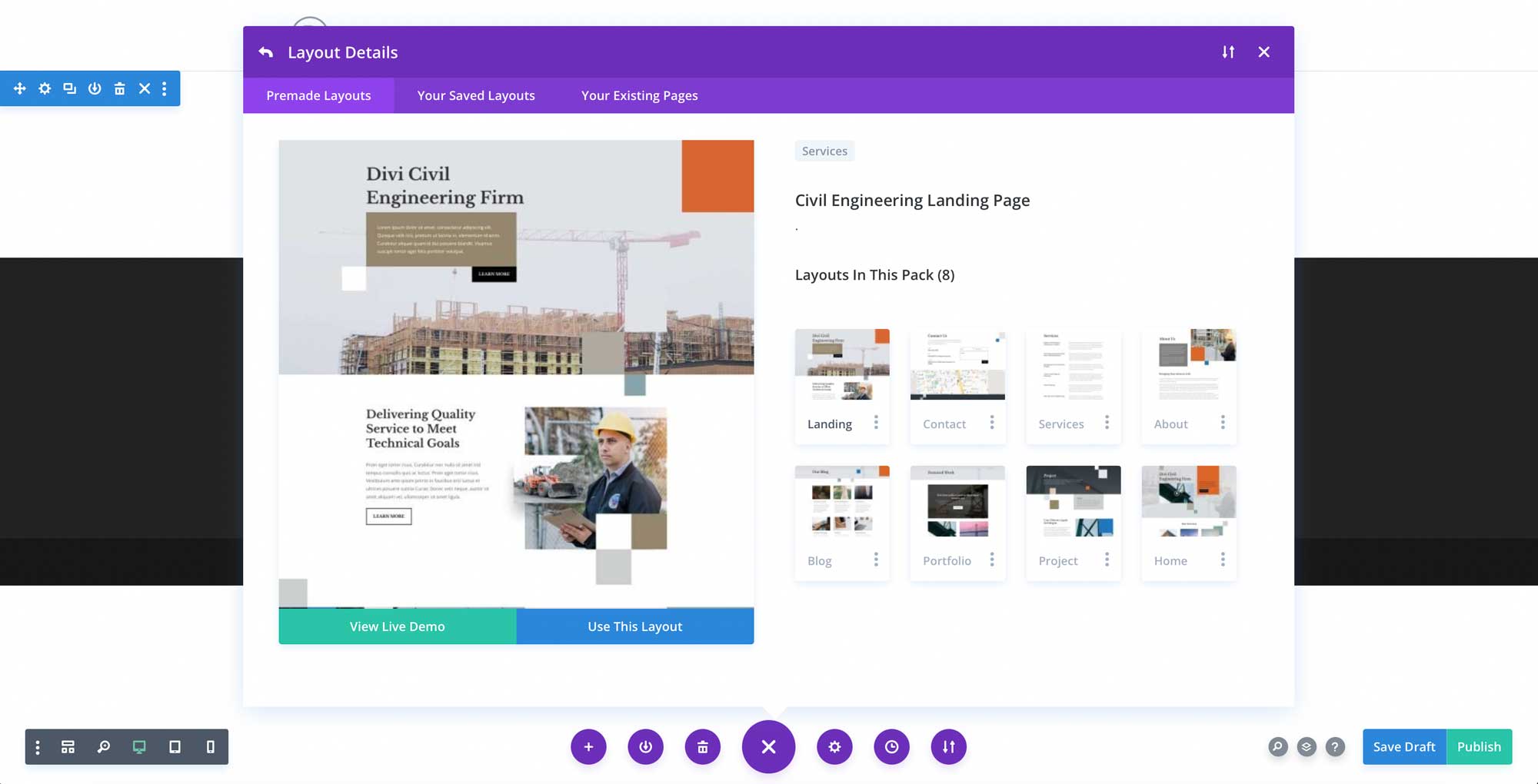
    Since Version 3.0.99 of Divi, you can find and import any of the layouts included in this pack (along with ALL of Divi’s Premade Layout packs) directly from the Divi Builder. They are already waiting for you.

    To access your new layout, simply activate the Visual Builder when editing a page and look for the “Load From Library” icon in the page settings bar (it looks like a plus symbol). Click this icon to launch the Load From Library popup. Under the Premade Layouts tab, you can easily find the new layout by scrolling through the list of layout packs. Once you find the Alteration Shop Layout Pack, click on it. You will see all the individual layouts included in the pack. Select the layout you want to use and then click the “Use This Layout” button.

    Alteration Shop Layout Pack for Divi

    For more, check out this video to learn how you can get this layout pack up and running today.

    Subscribe To Our Youtube Channel

    Authentication Required

    Before you can download Premade Layouts from the Divi Library you must authenticate your Elegant Themes Subscription. You can do this by navigating to Divi > Theme Options > Updates. There you can enter your username and API key and save changes.

    Alteration Shop Layout Pack for Divi

    You can find your API Key under your members area on the Elegant Themes site. After you enter the Username and API Key, you will gain immediate access to our library of hundreds of free layouts (including this one). If you haven’t done this, when you click to import a layout to your page, you will be prompted to enter your Elegant Themes Membership Username and API Key.

    Use Layout Images for FREE with No Licensing Restrictions

    Divi Alteration Shop Layout Pack for Divi

    The image assets included with these layouts (icons, illustrations, photos, etc.) have no licensing restrictions. This means you can use them in all of your commercial projects without having to worry about paying licensing fees or attributing the photographer. Use them in your commercial websites, sell them within your Divi child themes, include them in your own Divi layout packs or just use them on your blog. We know how challenging it can be to find good photos and how confusing and scary the licensing that governs those photos can be. We want to fix that problem for our users.

    Download the Full Res Image Assets

    New Layout Pack Every Week!

    We hope you enjoy this layout pack. We look forward to hearing your opinions in the comment section below. Make sure you check out next week’s layout pack as well!

    The post Get a Free Alteration Shop Layout Pack for Divi appeared first on Elegant Themes Blog.

  • Download a FREE Header & Footer for Divi’s Streamer Layout Pack

    Hey Divi Nation! Thanks for joining us for the next installment of our weekly Divi Design Initiative where each week, we give away brand new freebies. We recently shared a brand new Streamer Layout Pack. To help you get your website up and running as soon as possible, we’re sharing a global header & footer template that matches this layout pack perfectly as well! Hope you enjoy it.

    divi layout

    Check Out The Streamer
    Global Header & Footer Template Below

    Get it for free today!

    Header Design

    Desktop View

    Header design for the Divi Streamer Layout Pack for desktop

    Tablet & Mobile View

    Header design for the Divi Streamer Layout Pack for tablet and mobile

    Footer Design

    Desktop View

    Footer design for the Divi Streamer Layout Pack for desktop

    Tablet and Mobile View

    Footer design for the Divi Streamer Layout Pack for desktop

    Download The Global Header & Footer Template For The Streamer Layout Pack

    To lay your hands on the free global header & footer template, you will first need to download it using the button below. To gain access to the download you will need to subscribe to our newsletter by using the form below. As a new subscriber, you will receive even more Divi goodness and a free Divi Layout pack every Monday! If you’re already on the list, simply enter your email address below and click download. You will not be “resubscribed” or receive extra emails.

    How to Upload The Divi Streamer Template

    Go to Divi Theme Builder

    To upload the Divi Streamer template, navigate to the Divi Theme Builder in the backend of your WordPress website.

    Getting started with the Divi Conference Layout Pack

    Upload Global Default Website Template

    Then, in the top right corner, you’ll see an icon with two arrows. Click on the icon.

    Importing the Header and Footer Layout into the Divi Theme Buidler

    Navigate to the import tab, upload the JSON file which you were able to download in this post, and click on ‘Import Divi Theme Builder Templates’.

    Import settings for the header and footer layout pack

    Save Divi Theme Builder Changes

    Once you’ve uploaded the file, you’ll notice a new global header and footer in your default website template. Save the Divi Theme Builder changes as soon as you want the template to be activated.

    Save global header theme builder

    How to Modify The Divi Streamer Template

    Open Header Template

    To modify the global header template’s elements, start by opening the template.

    Editing the global header within the Divi Theme Builder

    Select Your Menu of Choice

    Select a menu of your choice in the Menu Module.

    Update menu within the Divi Streamer header

    Upload Your Logo

    Within the same Menu Module, upload your logo.

    Update logo within the Menu Module

    Add CTA Link URLs

    The header of the Divi Streamer template has a button on the top right. Open the settings of each to update the link URL to the destination of your choice.

    Update button URL for the main header section

    Update Announcement Bar

    This header template also comes with a secondary menu. Edit the text and add a URL – if you’d like – for this announcement bar.

    Update Text Module within the secondary menu/announcement bar

    Open Divi Streamer Template Footer

    Continue by opening the global footer inside the default website template.

    Editing the footer template within the Divi Theme Builder

    Update Footer Content

    You will need to go through the footer of the Divi Streamer template and make some updates. If need be, you can modify the content that comes with the template. You may also want to update the Social Media Follow Module with your social networks as well as their corresponding links. Don’t forget about the copyright text at the bottom of the footer as well.

    Update footer static content and social media networks

    Update Footer Menu

    Similarly to the header, we will need to connect our footer menu to the Menu Module.

    Update your footer menu in your Divi Streamer Layout Pack

    Connect Email Marketing Platform

    Our footer design has an Email Optin Module. As such, remember to connect your email marketing service provider to the module to begin to collect email addresses from your users.

    Connect your email marketing platform of choice

    New Freebies Every Week!

    We hope you’ve enjoyed the Streamer Layout Pack and the Header & Footer freebie that goes along with it. We look forward to hearing your opinions in the comment section below. Make sure you check back next week for more freebies!

    The post Download a FREE Header & Footer for Divi’s Streamer Layout Pack appeared first on Elegant Themes Blog.

  • How to Design a WooCommerce Cart Flow Timeline for Your Divi

    WooCommerce is one of WordPress’ most beloved eCommerce plugins. To support this, Divi came out with several new Woo-centric modules that allow you greater control over designing your default WooCommerce pages. In today’s post, we will work through developing a WooCommerce cart timeline for Divi. For this timeline, we’ll be creating a visual representation of the user journey. We want to visually show the user how they move from shop to checkout.

    Cart Page Template

    Desktop View

    Divi Toy Store Cart with Cart Flow Timeline - Cart Template

    Tablet and Mobile View

    WooCommerce Cart Page Timeline Tablet and Mobile View

    Checkout Page Template

    Divi Toy Store Checkout Page with Cart Flow Timeline - Checkout Template

    Tablet and Mobile View

    Divi Toy Store Checkout Page in tablet and mobile

    Download The Cart & Checkout Template for FREE

    To lay your hands on the free cart & checkout template, you will first need to download them using the button below. To gain access to the download you will need to subscribe to our newsletter by using the form below. As a new subscriber, you will receive even more Divi goodness and a free Divi Layout pack every Monday! If you’re already on the list, simply enter your email address below and click download. You will not be “resubscribed” or receive extra emails.

    How to Download & Install the Cart & Checkout Templates

    Go to Divi Theme Builder

    To upload the template, navigate to the Divi Theme Builder in the backend of your WordPress website.

    Open Divi Theme Builder

    Upload Global Default Website Template

    Then, in the top right corner, you’ll see an icon with two arrows. Click on the icon.

    Import the template into the Divi Theme Builder

    Navigate to the import tab, upload the JSON file which you were able to download in this post, and click on ‘Import Divi Theme Builder Templates.

    Finish importing the template into the Divi Theme Builder

    Save Divi Theme Builder Changes

    Once you’ve uploaded the file, you’ll notice a new cart, checkout, and shop template. Save the Divi Theme Builder changes as soon as you want the templates to be activated.

    Save Theme Builder Changes for WooCommerce Templates

    How to Create the WooCommerce Cart Timeline from Scratch

    If you want a bit more of a challenge, the next part of our blog post will show you how to recreate the WooCommerce cart timeline for Divi. You can use the steps in this tutorial to customize your own cart timeline. Use it as inspiration for your next WooCommerce and Divi project! The WooCommerce cart timeline that we’ll be creating looks like this:

    Cart Page

    WooCommerce cart timeline on the cart page

    Checkout Page

    WooCommerce cart timeline on the checkout page

    This Woocommerce cart timeline for Divi is also mobile responsive. It stays as a horizontal timeline on mobile devices:

    WooCommerce timeline on mobile

    Now that we have a visual guide as to what we’ll be building, let’s get started!

    Setup the Divi Theme Builder

    We will be creating these templates to affect the cart and checkout pages of WooCommerce. As such, we begin our task in the Divi Theme Builder.

    Open Divi Theme Builder

    Create Cart Template

    Click on the plus icon within the Add New Template card.

    Create Cart Template

    Next, select Build New Template.

    Select Build New Template

    After, you’ll be presented with a modal box of all the various assignments that you can attach to the new template that you’re creating. In our case, we’ll be creating a template for the cart page of our WooCommerce store. So, scroll down the modal box, and select Cart under the WooCommerce heading. Once, selected, click Create Template. When we do this, we are assigning the newly created template to the cart page.

    Finish Create Cart Template

    Create Checkout Template

    We will be going through the same steps to create the checkout template. Click on the plus icon within the Add New Template card.

    Create Cart Template

    Again, select Build New Template.

    Select Build New Template

    For the checkout page, we’ll need to scroll down the modal box, and select Checkout under the WooCommerce heading. Once, selected, click Create Template.

    Save Templates and Assignments

    Now that our cart and checkout templates have been created, we can save them. Click on the green Save Changes button at the top of the Divi Theme Builder.

    Save Templates and Assignments

    Let’s Start Building the WooCommerce Cart Flow Timeline

    Setting Up the Cart Page Template

    Now the fun begins! We’re going to start creating our cart flow timeline for the cart page. To do this, we click on the Add Custom Body button within the Cart template that we just created.

    Add Body to Cart Page Template

    Similar to when we create these templates and their assignments, we’re going to click on the Build Custom Body button that appears in the modal box.

    Add Body to Cart Page Template

    Add a New Section and Row

    Now that we’re in the Divi Builder, we’re going to add a new row. This row will have five columns.

    Add a new row with five columns

    Add Blurb Modules

    Add three Blurb Modules to columns 1, 3, and 5 of your new row.

    Add Blurb Modules to columns

    Here is the content for each Blurb Module that we will be using:

    First Blurb (Column 1)

    • Title: Shop
    • Body: Leave empty
    • Use Icon: Yes
    • Icon: See screenshot below
    • Module Link URL: /shop (Or your custom link to your shop page)

    Second Blurb (Column 3)

    • Title: Review
    • Body: Leave empty
    • Use Icon: Yes
    • Icon: See screenshot below
    • Module Link URL: /cart (Or your custom link to your cart page)

    Third Blurb (Column 5)

    • Title: Checkout
    • Body: Leave empty
    • Use Icon: Yes
    • Icon: See screenshot below
    • Module Link URL: /checkout (Or your custom link to your checkout page)

    Now, our WooCommerce timeline will look like this at this point:

    The WooCommerce cart timeline without styling

    Adding Links to Blurbs

    As we are creating templates for the cart and checkout page, we need our Blurb Modules to be easy to access no matter which pages customer land on. A core feature of the WooCommerce timeline is that the end user – your customer – will be able to easily navigate between the various stages of the checkout process. To add the link to the default shop, cart, and checkout pages of our site, we will first enter the module settings of the first blurb, shop.

    Adding Links to Shop Blurb

    Once the module’s settings box appears, we’re going to scroll down to the Link heading. We’ll be adding the link to the Module Link URL box because this will ensure that irrespective of where your custom clicks – whether it’s the Blurb Title or the icon itself – they will be directed to the page that they need to navigate to.

    Add links to the Blurb Modules in the checkout timeline process

    We’ll be adding the links to the standard WooCommerce pages to each Blurb Module. If you have created custom links for these pages on your WooCommerce install, adjust the links accordingly. First, we begin with the Shop Blurb Module. For the Module Link URL, we enter /shop. This is the default URL for the shop page in WooCommerce. Remember, if you have changed this URL, enter your custom URL here instead.

    Add /shop link to link to the default WooCommerce Shop page link

    Click the green checkmark button to save your changes. Next, we move to the Review Blurb Module. This module serves as the link to the cart page. Again, we navigate to the Link tab, and then we add the Module Link URL /cart, to the Module URL.

    Add link to Cart Blurb Module

    For the last Blurb Module, the Checkout Blurb Module, we will be linking to the default WooCommerce checkout page link which is /checkout.

    Add link to the WooCommerce standard Checkout Page link

    Style Blurb Modules

    Next, we will begin to style our added Blurb Modules. We will be using hover styles on the modules. This helps with the user experience (UX) of the WooCommerce cart timeline. We want the Blurb Module that represents the page that we are currently on to be a different color. And, we also want the icon to enlarge when we hover over it and change color.

    Blurb Module Styling

    • Icon Color: #eac989
    • Hover Icon Color: #9fa2ce
    • Text Alignment: Center

    Blurb Icon Color

    • Title Text:
      • Title Heading Text: H4
      • Title Font: Baskerville
      • Title Font Weight: Bold
      • Title Text Color: #354e7c

    Blurb title text styling

    Transform:

    • Transform Scale (Desktop): 100%
    • Transform Scale (Hover): 115%

    Blurb Transform Settings

    After we’ve set the design settings for the first Blurb Module, we’re going to extend them to the other Blurb Modules in our row.

    Extending Blurb Module styling to all the blurbs in our section

    We want to extend our styles only to Blurb Modules within our section. This is important to note especially if you are working on a page that already has content within.

    Extending Blurb Module styling to all the blurbs in our section

    Styling the Cart Blurb Module

    To denote the different stages of the checkout process, we’re going to give a different icon color to the current stage that our user is on. For example, if they are on the cart page, we’ll change the color of the Blurb Module referencing the cart stage of the process.

    Updating current page Blurb Module color

    Cart Page Blurb Module:

    • Icon Color (Desktop): #f6c6c5
    • Icon Color (Hover): #9fa2ce

    Add Timeline Dividers

    Once we have created and styled our Blurb Module, we will begin adding and styling our Divider Modules. We use the Divider Module in columns two and four of our row.

    Add dividers to WooCommerce cart timeline

    Style Timeline Dividers

    Next, we will add our styling to our Divider Modules.

    Divider Settings

    Visibility:

    • Show Divider: Yes

    Line:

    • Line Color: #354e7c
    • Line Style: Dotted
    • Line Position: Vertically Centered

    Sizing

    • Divider Weight: 5px

    Settings for the Divider Modules

    Let’s use another really cool Divi feature to copy and paste the styles of this Divider Module to the other module within our row. First, we’re going to right-click on our completed Divider Module. Secondly, we’re going to click Copy Module Settings. Next, we right-click on the Divider Module that is currently unstyled. Finally, we click Paste Module Settings. Time saved is time earned!

    Copy and paste module styles for the Divider Modules

    Adding Custom CSS

    This is what our WooCommerce cart timeline looks like presently:

    WooCommerce Cart Checkout Timeline

    To ensure that our Divider Modules are aligned correctly and to make our timeline module mobile-responsive, we’re going to add some CSS to our row.
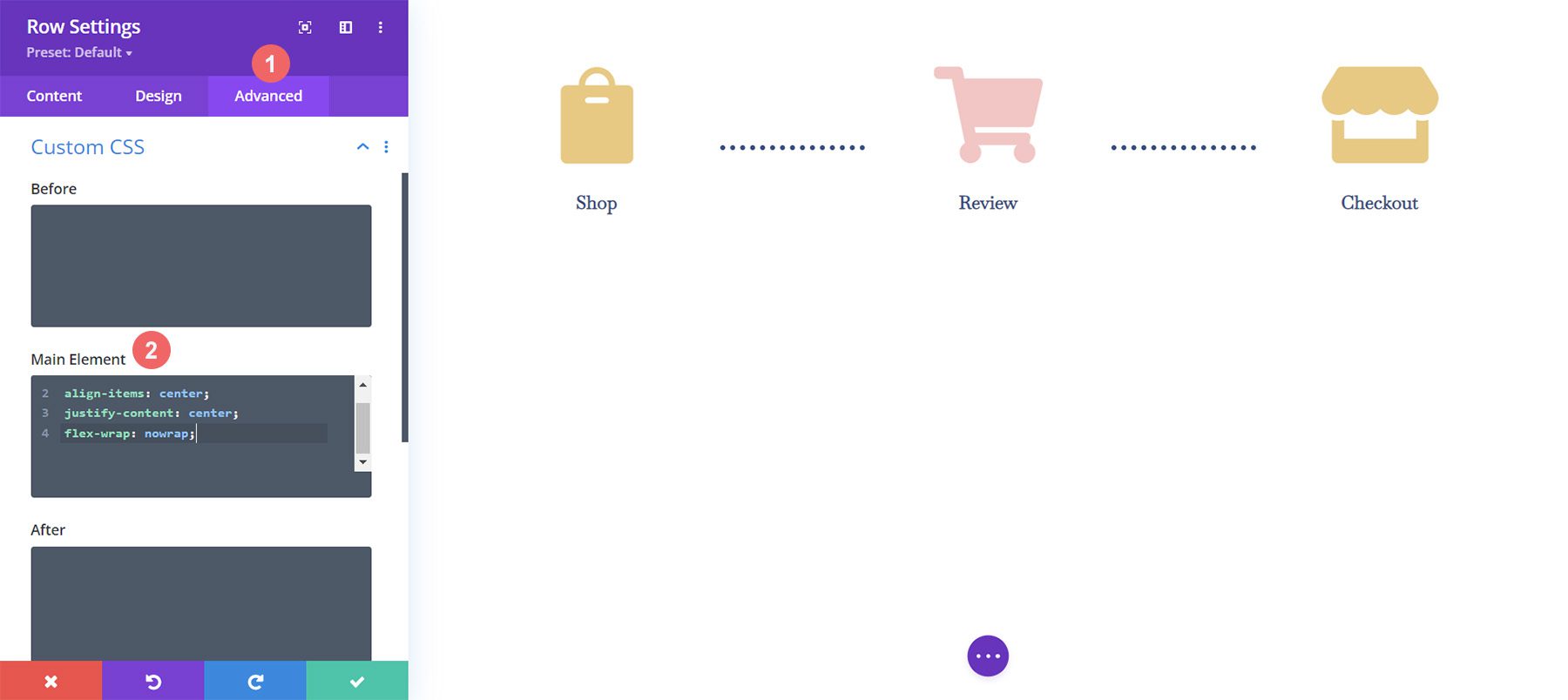
    WooCommerce Cart Timeline row with custom CSS

    To add our Custom CSS, we first need to enter the Row Settings for our WooCommerce Cart Timeline. Next, we select the Advanced Tab. Finally, we will add the following CSS to the Main Element:

    Custom CSS:

    display:flex;
    align-items: center;
    justify-content: center;
    flex-wrap: nowrap;
    

    Once we’ve added this to the Row Settings, we click the green checkmark to save our settings.

    Final Customization for Mobile Responsiveness

    One amazing benefit of Divi is the fact that you can customize various elements quite deeply. We need to make one final edit to the last Blurb Module in the last column in our row. This change will help it look better on mobile and smaller screens. The fact that Divi allows us to get granular with our styling ensures that our work looks good for our clients as well as our own websites.

    Editing padding, margin and CSS for columns

    Notice how the last column, on mobile, is slightly lower than the other Blurb Modules. We’re going to change that! To do this, we’re going to enter the settings for the third and final module. Next, we’re going to go to Spacing > Margin. We’re going to leave the margin for the desktop view. However, we’re going to add a bottom margin of 15px for tablets.

    Add a bottom margin to your Blurb Module

    Finally, we’re going to add a bottom margin of 21px for mobile devices.

    Add a bottom margin to your Blurb Module for mobile devices

    Now, we have a truly mobile responsive Woocommerce cart timeline that we can use to guide users from shop to checkout.

    Setting Up the Checkout Page

    We have set the foundation for our WooCommerce cart flow timeline on our cart page. However, we need to complete our timeline by adding the work that we’ve done to our checkout page template. We’ll be using Divi’s OG feature, the Right-Click Menu to help make our process for the checkout page easier. Let’s get started!

    Copy WooCommerce Cart Flow Timeline from Cart Page

    We’ll be going back to the cart page. However, we won’t be entering into the Divi Builder for the body.

    Prepare the cart body for the checkout page

    Right-click on the Custom Body of the cart template. Next, click on the Copy option from the right-click menu.

    Right click, copy the body template from the cart template, to the checkout template

    Now that we have copied the work that we did within the cart template, we will now paste this into the checkout template. To do this, we right-click on the Add Custom Body button within the checkout page template. Once you have done this, the menu will show the option to Paste. Click on Paste to copy the Custom Body from the cart page template to the checkout page template.

    Right click to paste the body content of the cart template

    Now, you’ll see that both the cart and the checkout page templates have a custom body. This will help us save time on our web design process. Thanks, Divi 🙂 To save our changes within the checkout template, we’ll click the green Save Changes button at the top of the builder.

    Save changes for the body template of the checkout page

    Update Checkout Page Template

    Now that we’ve shaved some time off of our design process, let’s do the final edits to the checkout page to ensure that it works well with the rest of our project. First, click the pencil icon to edit the Custom Body of the checkout page template.

    Edit checkout custom body module

    Style Checkout Icon

    Let’s begin styling our checkout icon. Click on the gear icon which will open the Module Settings of the checkout icon.

    Edit checkout icon

    Move to the Design tab of the Module Settings module. Click on the Image & Icon title. We will be editing the icon color. As such, click on the eyedropper icon and enter the hex code #f6c6c5. This will make the icon the pink color that we are using to denote the current page.

    Update checkout icon color

    Update Cart Icon

    We will need to go back and update the icon color of the cart icon. To do this, we’re going to go back to the module settings of the module. Next, we click the gear icon of the cart icon.

    Update the cart icon color on the checkout page template

    Again, we will move to the Design tab of the module settings. Next, under the Image & Icon title, click on the eyedropper tool. Next, add the hex code #eac989. 

    Updated cart icon color on the checkout page template

    Remember to save your settings and all your hard work once you have exited the Divi Builder.

    Save all changes

    Putting it All Together

    While we have focused this tutorial on building the cart timeline, there are other WooCommerce modules used to complete the template. For this tutorial, we used the FREE Divi Toy Store Layout Pack as the inspiration for the styling. Here are the other WooCommerce modules that you’ll need to add to each template page to complete your store.

    Cart Page Template

    • Woo Cart Products: This will display the WooCommerce cart
    • Woo Cart Totals: Showcase the subtotal, taxes, and more with this module

    Overview of the cart pages with the other Woo modules

    Checkout Page Template

    • Woo Notice Module: We use this module to show any errors, information or notices that relate to checking out
    • Woo Checkout Billing: This module will color the billing details of your customers
    • Woo Checkout Details: Unlike the cart totals, this module will show the actual product names, quantity, and more
    • Woo Checkout Billing: To show available payment methods, we have this module added to the checkout page

    Overview of the checkout pages with the other Woo modules

    In Conclusion

    Having a cart timeline adds a visual representation of the process that your customers take on your store. With Divi, you have the power to customize and create an added piece to your WooCommerce store. Divi gives you the tools to be able to take what you’ve learned here to your own client and personal websites. I’d love to hear from you if you use this tutorial in the wild!

    The post How to Design a WooCommerce Cart Flow Timeline for Your Divi appeared first on Elegant Themes Blog.

  • Get a Free Saas Product Layout Pack for Divi

    Hey Divi Nation! Thanks for joining us for the next installment of our weekly Divi Design Initiative; where each week, we give away a brand new Layout Pack for Divi.

    This time around, the design team has created a beautiful Saas Product Layout Pack that’ll help you get your next Saas Product website up and running in no time!

    This layout pack includes:

    8 Premade page layouts strategically designed for any Saas Product website (including a footer design)
    – Original, royalty-free photos and graphics + customizable source file (see below)
    – Plus, a large collection of pre-designed website elements that are customizable and reusable anywhere.

    This layout pack is available right inside Divi for all Divi customers for FREE as the latest addition to our growing Divi library of hundreds of premade layout packs, thousands of page designs, and countless web design elements and resources.

    divi layout

    Check Out The Divi Saas Product Layout Pack Below

    Get it for free today!

    Saas Product layout pack

    Landing Page Design

    Saas Product Pack for Divi

    View The Live Layout Demo

    Home Page Design

    Saas Product Layout Pack for Divi

    View The Live Layout Demo

    About Page Design

    Saas Product Layout Pack for Divi

    View The Live Layout Demo

    Features Page Design

    Saas Product Layout Pack for Divi

    View The Live Layout Demo

    Pricing Page Design

    Saas Product Layout Pack for Divi

    View The Live Layout Demo

    Documentation Page Design

    Saas Product Layout Pack for Divi

    View The Live Layout Demo

    Blog Page Design

    Saas Product Layout Pack for Divi

    View The Live Layout Demo

    Contact Page Design

    Saas Product Layout Pack for Divi

    View The Live Layout Demo

    Key Features

    If you’re looking for a bold look for your Saas product website, then look no further than the Saas Product Layout Pack for Divi. With striking bright colors, eye-catching photos, and an interesting take on perspective, your potential clients will be captivated the second they land on your website.

    Live Demos

    Click the links below to see a live demo for each of the layouts included in the pack.

    1. Saas Product Landing Page (live demo)
    2. Saas Product Homepage (live demo)
    3. Saas Product About Page (live demo)
    4. Saas Product Features Page (live demo)
    5. Saas Product Pricing Page (live demo)
    6. Saas Product Documentation Page (live demo)
    7. Saas Product Blog Page (live demo)
    8. Saas Product Contact Page (live demo)

    Access This Layout Right Now
    Directly from Your Divi Builder

    Since Version 3.0.99 of Divi, you can find and import any of the layouts included in this pack (along with ALL of Divi’s Premade Layout packs) directly from the Divi Builder. They are already waiting for you.

    To access your new layout, simply activate the Visual Builder when editing a page and look for the “Load From Library” icon in the page settings bar (it looks like a plus symbol). Click this icon to launch the Load From Library popup. Under the Premade Layouts tab, you can easily find the new layout by scrolling through the list of layout packs. Once you find the Saas Product Layout Pack, click on it. You will see all the individual layouts included in the pack. Select the layout you want to use and then click the “Use This Layout” button.

    Saas Product Layout Pack for Divi

    For more, check out this video to learn how you can get this layout pack up and running today.

    Subscribe To Our Youtube Channel

    Authentication Required

    Before you can download Premade Layouts from the Divi Library you must authenticate your Elegant Themes Subscription. You can do this by navigating to Divi > Theme Options > Updates. There you can enter your username and API key and save changes.

    Saas Product Layout Pack for Divi

    You can find your API Key under your members area on the Elegant Themes site. After you enter the Username and API Key, you will gain immediate access to our library of hundreds of free layouts (including this one). If you haven’t done this, when you click to import a layout to your page, you will be prompted to enter your Elegant Themes Membership Username and API Key.

    Use Layout Images for FREE with No Licensing Restrictions

    Divi Saas Product Layout Pack for Divi

    The image assets included with these layouts (icons, illustrations, photos, etc.) have no licensing restrictions. This means you can use them in all of your commercial projects without having to worry about paying licensing fees or attributing the photographer. Use them in your commercial websites, sell them within your Divi child themes, include them in your own Divi layout packs or just use them on your blog. We know how challenging it can be to find good photos and how confusing and scary the licensing that governs those photos can be. We want to fix that problem for our users.

    Download the Full Res Image Assets

    New Layout Pack Every Week!

    We hope you enjoy this layout pack. We look forward to hearing your opinions in the comment section below. Make sure you check out next week’s layout pack as well!

    The post Get a Free Saas Product Layout Pack for Divi appeared first on Elegant Themes Blog.

  • Get a Free Vegan Restaurant Layout Pack for Divi

    Hey Divi Nation! Thanks for joining us for the next installment of our weekly Divi Design Initiative; where each week, we give away a brand new Layout Pack for Divi.

    This time around, the design team has created a beautiful Vegan Restaurant Layout Pack that’ll help you get your next Vegan Restaurant website up and running in no time!

    This layout pack includes:

    6 Premade page layouts strategically designed for any Vegan Restaurant website (including a footer design)
    – Original, royalty-free photos and graphics + customizable source file (see below)
    – Plus, a large collection of pre-designed website elements that are customizable and reusable anywhere.

    This layout pack is available right inside Divi for all Divi customers for FREE as the latest addition to our growing Divi library of hundreds of premade layout packs, thousands of page designs, and countless web design elements and resources.

    divi layout

    Check Out The Divi Vegan Restaurant Layout Pack Below

    Get it for free today!

    Vegan Restaurant layout pack

    Landing Page Design

     Vegan Restaurant Pack for Divi

    View The Live Layout Demo

    Home Page Design

    Vegan Restaurant Layout Pack for Divi

    View The Live Layout Demo

    About Page Design

    Vegan Restaurant Layout Pack for Divi

    View The Live Layout Demo

    Menu Page Design

    Vegan Restaurant Layout Pack for Divi

    View The Live Layout Demo

    Blog Page Design

    Vegan Restaurant Layout Pack for Divi

    View The Live Layout Demo

    Contact Page Design

    Vegan Restaurant Layout Pack for Divi

    View The Live Layout Demo

    Key Features

    If you’re looking to launch a new vegan restaurant website for yourself or a client, take a look at the Vegan Restaurant Layout Pack for Divi. It incorporates large color block sections of images and text to entice your site’s visitors. Background patterns draw your eye to important call to action sections, whereas the muted colors allow the colorful imagery to shine.

    Live Demos

    Click the links below to see a live demo for each of the layouts included in the pack.

    1. Vegan Restaurant Landing Page (live demo)
    2. Vegan Restaurant Homepage (live demo)
    3. Vegan Restaurant About Page (live demo)
    4. Vegan Restaurant Menu Page (live demo)
    5. Vegan Restaurant Blog Page (live demo)
    6. Vegan Restaurant Contact Page (live demo)

    Access This Layout Right Now
    Directly from Your Divi Builder

    Since Version 3.0.99 of Divi, you can find and import any of the layouts included in this pack (along with ALL of Divi’s Premade Layout packs) directly from the Divi Builder. They are already waiting for you.

    To access your new layout, simply activate the Visual Builder when editing a page and look for the “Load From Library” icon in the page settings bar (it looks like a plus symbol). Click this icon to launch the Load From Library popup. Under the Premade Layouts tab, you can easily find the new layout by scrolling through the list of layout packs. Once you find the Vegan Restaurant Layout Pack, click on it. You will see all the individual layouts included in the pack. Select the layout you want to use and then click the “Use This Layout” button.

    Vegan Restaurant Layout Pack for Divi

    For more, check out this video to learn how you can get this layout pack up and running today.

    Subscribe To Our Youtube Channel

    Authentication Required

    Before you can download Premade Layouts from the Divi Library you must authenticate your Elegant Themes Subscription. You can do this by navigating to Divi > Theme Options > Updates. There you can enter your username and API key and save changes.

    Vegan Restaurant Layout Pack for Divi

    You can find your API Key under your members area on the Elegant Themes site. After you enter the Username and API Key, you will gain immediate access to our library of hundreds of free layouts (including this one). If you haven’t done this, when you click to import a layout to your page, you will be prompted to enter your Elegant Themes Membership Username and API Key.

    Use Layout Images for FREE with No Licensing Restrictions

    Divi Vegan Restaurant Layout Pack for Divi

    The image assets included with these layouts (icons, illustrations, photos, etc.) have no licensing restrictions. This means you can use them in all of your commercial projects without having to worry about paying licensing fees or attributing the photographer. Use them in your commercial websites, sell them within your Divi child themes, include them in your own Divi layout packs or just use them on your blog. We know how challenging it can be to find good photos and how confusing and scary the licensing that governs those photos can be. We want to fix that problem for our users.

    Download the Full Res Image Assets

    New Layout Pack Every Week!

    We hope you enjoy this layout pack. We look forward to hearing your opinions in the comment section below. Make sure you check out next week’s layout pack as well!

    The post Get a Free Vegan Restaurant Layout Pack for Divi appeared first on Elegant Themes Blog.

  • Download a FREE Header & Footer for Divi’s Leather Goods Layout Pack

    Hey Divi Nation! Thanks for joining us for the next installment of our weekly Divi Design Initiative where each week, we give away brand new freebies. We recently shared a brand new Leather Goods Layout Pack. To help you get your website up and running as soon as possible, we’re sharing a global header & footer template that matches this layout pack perfectly as well! Hope you enjoy it.

    divi layout

    Check Out The Leather Goods
    Global Header & Footer Template Below

    Get it for free today!

    Header Design

    Desktop View

    Header design for Divi Leather Goods Layout Pack, desktop view

    Tablet and Mobile View

    Header design for Divi Leather Goods Layout Pack, tablet and mobile view

    Footer Design

    Desktop View

    Footer design for Divi Leather Goods Layout Pack, desktop view

    Tablet and Mobile View

    Footer design for Divi Leather Goods Layout Pack, tablet and mobile view

    Download The Global Header & Footer Template For The Leather Goods Layout Pack

    To lay your hands on the free global header & footer template, you will first need to download it using the button below. To gain access to the download you will need to subscribe to our newsletter by using the form below. As a new subscriber, you will receive even more Divi goodness and a free Divi Layout pack every Monday! If you’re already on the list, simply enter your email address below and click download. You will not be “resubscribed” or receive extra emails.

    How to Upload The Template

    Go to Divi Theme Builder

    To upload the template, navigate to the Divi Theme Builder in the backend of your WordPress website.

    Getting started with the Divi Conference Layout Pack

    Upload Global Default Website Template

    Then, in the top right corner, you’ll see an icon with two arrows. Click on the icon.

    Importing the Header and Footer Layout into the Divi Theme Buidler

    Navigate to the import tab, upload the JSON file which you were able to download in this post, and click on ‘Import Divi Theme Builder Templates’.

    Import settings for the header and footer layout pack

    Save Divi Theme Builder Changes

    Once you’ve uploaded the file, you’ll notice a new global header and footer in your default website template. Save the Divi Theme Builder changes as soon as you want the template to be activated.

    Save global header theme builder

    How to Modify The Template

    Open Header Template

    To modify the global header template’s elements, start by opening the template.

    Editing the global header within the Divi Theme Builder

    Select Menu of Choice

    Select your menu of choice in the Menu Module.

    Choose your main menu module for your Divi Leather Goods layout

    Update Menu Logo

    We use the Logo option in the Menu Module to show our brand logo. Upload your logo to the module. As the background is the dark, we’d recommend using a light colored logo.

    Upload a light colored logo to the menu module

    Update Primary Text CTA

    The main menu has a call-to-action created with a Text Module and the Icon Module. Update each as needed.

    Update primary column call-to-action

    To link out, we would recommend adding a link to the column itself, as opposed to the two modules separately.

    Link column for primary call-to-action

    Update Secondary Text CTA

    This header has a text call-to-action in the secondary menu. Update the text to match your needs. You can also add a link to the Text Module.

    Update Text module with your call to action text

    Update Social Media Module Networks and Links

    Update the Social Media Follow Module with your selected social media networks. Remember to also add your social media links to each icon as well.

    Update Social Media Module Networks and Links

    Open Footer Template

    Continue by opening the global footer inside the default website template.

    Editing the footer template within the Divi Theme Builder

    Update Footer Menu

    As with the primary menu, you want to update the menu in the footer with your footer menu.

    Update Footer Menu

    Update Footer Logo

    Update the Image Module in the footer with your logo.

    Update Footer Menu

    Add Your Social Media Icons and Links

    As with the Social Media Follow Module in the header, we want to ensure that we have our correct social networks with their appropriate links.

    Update footer social media links and networks

    Connect Your Email Marketing

    Our footer also has an Email Optin Module. Connect your email marketing solution of choice to collect emails from visitors to your site.

    Update your email marketing platform

    Update Static Footer Content

    You will need to go through and update the static content of the footer, including adding your own text, updating titles etc. Don’t forget about the copyright text at the bottom of the footer as well.

    Edit static footer content

    New Freebies Every Week!

    We hope you’ve enjoyed the Leather Goods Layout Pack and the Header & Footer freebie that goes along with it. We look forward to hearing your opinions in the comment section below. Make sure you check back next week for more freebies!

    The post Download a FREE Header & Footer for Divi’s Leather Goods Layout Pack appeared first on Elegant Themes Blog.

  • Get a Free Civil Engineering Firm Layout Pack for Divi

    Hey Divi Nation! Thanks for joining us for the next installment of our weekly Divi Design Initiative; where each week, we give away a brand new Layout Pack for Divi.

    This time around, the design team has created a beautiful Civil Engineering Firm Layout Pack that’ll help you get your next Civil Engineering Firm website up and running in no time!

    This layout pack includes:

    8 Premade page layouts strategically designed for any Civil Engineering Firm website (including a footer design)
    – Original, royalty-free photos and graphics + customizable source file (see below)
    – Plus, a large collection of pre-designed website elements that are customizable and reusable anywhere.

    This layout pack is available right inside Divi for all Divi customers for FREE as the latest addition to our growing Divi library of hundreds of premade layout packs, thousands of page designs, and countless web design elements and resources.

    divi layout

    Check Out The Divi Civil Engineering Firm Layout Pack Below

    Get it for free today!

    LMS layout pack

    Landing Page Design

     Civil Engineering Firm Pack for Divi

    View The Live Layout Demo

    Home Page Design

    Civil Engineering Firm Layout Pack for Divi

    View The Live Layout Demo

    Services Page Design

    Civil Engineering Firm Layout Pack for Divi

    View The Live Layout Demo

    Portfolio Page Design

    Civil Engineering Firm Layout Pack for Divi

    View The Live Layout Demo

    Project Page Design

    Civil Engineering Firm Layout Pack for Divi

    View The Live Layout Demo

    About Page Design

    Civil Engineering Firm Layout Pack for Divi

    View The Live Layout Demo

    Blog Page Design

    Civil Engineering Firm Layout Pack for Divi

    View The Live Layout Demo

    Contact Page Design

    Civil Engineering Firm Layout Pack for Divi

    View The Live Layout Demo

    Key Features

    If you’re looking to build a new Civil Engineering website for yourself or a client, then look no further than Divi’s Civil Engineering layout pack. It features eight beautiful pages with bold geometric shapes, complimentary colors, and striking imagery to keep your site’s visitors engaged. The Civil Engineering layout pack is designed to impress those looking for a Civi Engineering firm.

    Live Demos

    Click the links below to see a live demo for each of the layouts included in the pack.

    1. Civil Engineering Firm Landing Page (live demo)
    2. Civil Engineering Firm Homepage (live demo)
    3. Civil Engineering Firm Services Page (live demo)
    4. Civil Engineering Firm Portfolio Page (live demo)
    5. Civil Engineering Firm Project Page (live demo)
    6. Civil Engineering Firm About Page (live demo)
    7. Civil Engineering Firm Blog Page (live demo)
    8. Civil Engineering Firm Contact Page (live demo)

    Access This Layout Right Now
    Directly from Your Divi Builder

    Since Version 3.0.99 of Divi, you can find and import any of the layouts included in this pack (along with ALL of Divi’s Premade Layout packs) directly from the Divi Builder. They are already waiting for you.

    To access your new layout, simply activate the Visual Builder when editing a page and look for the “Load From Library” icon in the page settings bar (it looks like a plus symbol). Click this icon to launch the Load From Library popup. Under the Premade Layouts tab, you can easily find the new layout by scrolling through the list of layout packs. Once you find the Civil Engineering Firm Layout Pack, click on it. You will see all the individual layouts included in the pack. Select the layout you want to use and then click the “Use This Layout” button.

    Civil Engineering Firm Layout Pack for Divi

    For more, check out this video to learn how you can get this layout pack up and running today.

    Subscribe To Our Youtube Channel

    Authentication Required

    Before you can download Premade Layouts from the Divi Library you must authenticate your Elegant Themes Subscription. You can do this by navigating to Divi > Theme Options > Updates. There you can enter your username and API key and save changes.

    Civil Engineering Firm Layout Pack for Divi

    You can find your API Key under your members area on the Elegant Themes site. After you enter the Username and API Key, you will gain immediate access to our library of hundreds of free layouts (including this one). If you haven’t done this, when you click to import a layout to your page, you will be prompted to enter your Elegant Themes Membership Username and API Key.

    Use Layout Images for FREE with No Licensing Restrictions

    Divi Civil Engineering Firm Layout Pack for Divi

    The image assets included with these layouts (icons, illustrations, photos, etc.) have no licensing restrictions. This means you can use them in all of your commercial projects without having to worry about paying licensing fees or attributing the photographer. Use them in your commercial websites, sell them within your Divi child themes, include them in your own Divi layout packs or just use them on your blog. We know how challenging it can be to find good photos and how confusing and scary the licensing that governs those photos can be. We want to fix that problem for our users.

    Download the Full Res Image Assets

    New Layout Pack Every Week!

    We hope you enjoy this layout pack. We look forward to hearing your opinions in the comment section below. Make sure you check out next week’s layout pack as well!

    The post Get a Free Civil Engineering Firm Layout Pack for Divi appeared first on Elegant Themes Blog.