EDITS.WS

Tag: divi freebies

  • Download a FREE Category Page Template for Divi’s Poke Restaurant Layout Pack

    Hey Divi Nation! Thanks for joining us for the next installment of our weekly Divi Design Initiative where each week, we give away brand new freebies. This time around we’re building upon the Poke Restaurant Layout Pack with a brand new Category Page Template that matches the rest of the pack perfectly. Hope you enjoy it!

    divi layout

    Check Out The Poke Restaurant
    Category Page Template Below

    Get it for free today!

    Desktop View

    Divi Poke Restaurant Category Page Layout Desktop

    Tablet and Mobile View

    Divi Poke Restaurant Category Page Layout Tablet and Mobile View

    Download The Category Page Template For The Poke Restaurant Layout Pack

    To lay your hands on the free Poke Restaurant Category Page Template, you will first need to download it using the button below. To gain access to the download you will need to subscribe to our newsletter by using the form below. As a new subscriber, you will receive even more Divi goodness and a free Divi Layout pack every Monday! If you’re already on the list, simply enter your email address below and click download. You will not be “resubscribed” or receive extra emails.

    How to Upload The Template

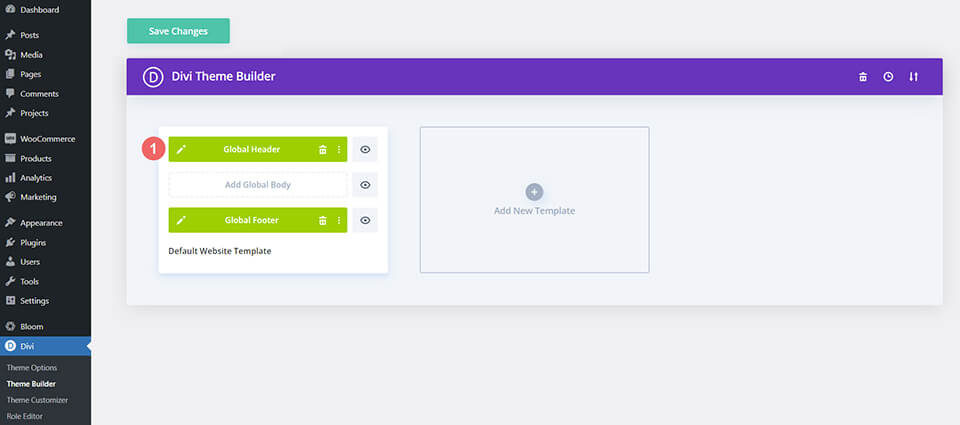
    Go to Divi Theme Builder

    To upload the template, navigate to the Divi Theme Builder in the backend of your WordPress website.

    Getting started with the Divi Conference Layout Pack

    Upload Website Template

    Then, in the top right corner, you’ll see an icon with two arrows. Click on the icon.

    Importing the Header and Footer Layout into the Divi Theme Buidler

    Navigate to the import tab, upload the JSON file that you could download in this post, and click on ‘Import Divi Theme Builder Templates’.

    Import settings for the header and footer layout pack

    Save Divi Theme Builder Changes

    Once you’ve uploaded the file, you’ll notice a new template with a new body area that has been assigned to All Category Pages. Save the Divi Theme Builder changes as soon as you want the template to be activated.

    Save the category page layout after importing it into the Divi Theme Builder

    How to Modify The Template

    Open Category Page Template Body Layout

    To modify the template’s elements, start by opening the template’s body layout.

    Begin the process for editing the Category Page Layout

    Inside the Body Layout Editor, you can edit the design on the front end using the Divi Builder just like you would with a normal Divi page.

    About the Divi Poke Restaurant Category Template

    This category page template has a few dynamic elements that will work automatically including:

    • Category Page Post/Archive Title: This will show the name of the category/archive.
    • Post Slider Module: This will cycle through the first three posts within the category/archive every 3.5 seconds.
    • Blog Module: This will display 6 blog posts in 3 columns within the selected category/archive. This module includes an offset of 3 posts to account for the posts within the Post Slider Module in the header.

    Here is a quick illustration that identifies the dynamic elements of the Poke Restaurant Category Page Template.

    Divi Poke Restaurant Category Page Layout Explainer

    Updating the Template’s Dynamic Elements

    Post Slider Module

    Posts for Current Page

    Since this is a template that has been assigned to all category pages for the site, there are going to be one or more blog modules that are set to display posts for the current page. This is how the template displays the posts dynamically for each category page. For this template, that will be the Post Slider Module and the Blog Module.

    Post Count

    When you install the Divi Poke Restaurant Category Layout, the Post Count for the Post Slider Module will be set to the number three. However, you can change this value to suit your needs.

    Editting the Post Slider Module in the Poke Restaurant Category Template

    Automatic Animation

    We also have set the speed of the Post Slider Module to 3,500 ms (milliseconds), which is also 3.5 seconds. However, you can change the speed of the transition within the Design tab of the Post Settings Module.

    Editing the automatic animation settings within the Post Slider Module

    Blog Module

    Post Offsets

    Similar to the Post Slider Module, the Blog Module will show the current posts for the selected category or archive. However, remember that if you have modified the number of posts that show up within your Post Slider Module, you will also need to update the Post Offset setting within this Blog Module so that there isn’t any repeated blog posts.

    Blog Post Count and Post Offset Settings within the Blog Module

    It is also recommended to keep the Post Count within a multiple of 6 (6, 12, 18 etc.).

    Updating the Template’s Static Elements

    Some elements on a category page template will need your immediate attention before using it live on your own website. These elements are called static because they will not update dynamically.

    Email Optin

    To allow the Email Optin Module to show up in your design, you’ll need to link an email account.

    Linking up a email marketing solution

    New Freebies Every Week!

    We hope you’ve enjoyed the Poke Restaurant Layout Pack and the Category Page Template freebie that goes along with it. We look forward to hearing your opinions in the comment section below. Make sure you check back next week for more freebies!

    The post Download a FREE Category Page Template for Divi’s Poke Restaurant Layout Pack appeared first on Elegant Themes Blog.

  • Download a FREE Header & Footer for Divi’s Seafood Restaurant Layout Pack

    Hey Divi Nation! Thanks for joining us for the next installment of our weekly Divi Design Initiative where each week, we give away brand new freebies. We recently shared a brand new Seafood Restaurant Layout Pack. To help you get your website up and running as soon as possible, we’re sharing a global header & footer freebie that matches this Seafood Restaurant Layout Pack perfectly as well! Hope you enjoy it.

    divi layout

    Check Out The Seafood Restaurant
    Global Header & Footer Template Below

    Get it for free today!

    Header Design

    Desktop View

    Divi Seafood Restaurant Header design desktop view

    Tablet and Mobile View

    Divi Seafood Restaurant Header design tablet and mobile view

    Footer Design

    Desktop View

    Divi Seafood Restaurant Header design footer view

    Tablet and Mobile View

    Divi Seafood Restaurant Header design tablet and mobile view

    Download The Global Header & Footer Template For The Seafood Restaurant Layout Pack

    To lay your hands on the free global header & footer template, you will first need to download it using the button below. To gain access to the download you will need to subscribe to our Divi Daily email list by using the form below. As a new subscriber, you will receive even more Divi goodness and a free Divi Layout pack every Monday! If you’re already on the list, simply enter your email address below and click download. You will not be “resubscribed” or receive extra emails.

    How to Upload The Seafood Restaurant Template

    Go to Divi Theme Builder

    To upload the template, navigate to the Divi Theme Builder in the backend of your WordPress website.

    Open Divi Theme Builder

    Upload Global Default Website Template

    Then, in the top right corner, you’ll see an icon with two arrows. Click on the icon.

    Import the template into the Divi Theme Builder

    Navigate to the import tab, upload the JSON file which you were able to download in this post, and click on ‘Import Divi Theme Builder Templates.

    Finish importing the template into the Divi Theme Builder

    Save Divi Theme Builder Changes

    Once you’ve uploaded the file, you’ll notice a new global header and footer in your default website template. Save the Divi Theme Builder changes as soon as you want the template to be activated.

    Save Divi Theme Builder Changes

    How to Modify The Template

    Open the Header of the Seafood Restaurant Template

    To modify the global header template’s elements, start by opening the template.

    Open Header Template

    Upload Your Logo

    Change the default logo to your own logo.

    Upload your logo for the tablet and mobile version of this header

    Update Your Logo for Tablet and Mobile

    For this header, we use a separate section with another menu module for tablet and mobile devices. Remember to also update your logo for tablet and mobile view. Select your logo for this module as well by switching to tablet view, then uploading your logo.

    Select Menu of Choice

    Choose your menu for the desktop Menu Module.

    Select a menu for the menu module

    Select a Menu of Choice for Tablet and Mobile

    Select your menu for this menu module as well by switching to tablet view, then selecting your menu.

    Select a menu for tablet and mobile

    Add CTA Link URLs and Update Text

    This header has a text call-to-action on the top left. It also has a button on the top right. Open the settings of each module and update as necessary. Add your own text for the call-to-action.

    Update the header text module

    Remember to also update the text on your button. Also, update the link URL to the destination of your choice for the button.

    Update button URL destination and text

    Open Footer Template

    Continue by opening the global footer inside the default website template.

    Open Footer Template

    Connect Email Marketing Account

    We have an Email Optin Module in the footer of this template. Connect your email marketing service provider. This ensures that when people use your email optin, they are added to your email newsletter.

    Connect email marketing account

    Update Copyright Information

    The text that comes in the copyright Text Module of the footer should be updated.

    Update copyright information text

    Add Social Media Networks

    We have a Social Follow Module that you can update. Add your own active social media networks with links to gain additional followers.

    Update Social Follow Module

    Update Static Footer Content within the Seafood Restaurant Template

    You will need to go through and update the remaining static content of the footer. This includes adding in your own text, updating links, titles etc.

    Edit static content within other footer modules

    New Freebies Every Week!

    We hope you’ve enjoyed the Seafood Restaurant Layout Pack and the Header & Footer freebie that goes along with it. We look forward to hearing your opinions in the comment section below. Make sure you check back next week for more freebies!

    The post Download a FREE Header & Footer for Divi’s Seafood Restaurant Layout Pack appeared first on Elegant Themes Blog.

  • Download a FREE Blog Post Template for Divi’s Interior Designer Layout Pack

    Hey Divi Creators! Thanks for joining us for the next installment of our weekly Divi Design Initiative where each week, we give away brand new freebies. This time around we’re building upon the Interior Designer Layout Pack with a brand new blog post template that matches the rest of the pack perfectly. Hope you enjoy it!

    divi layout

    Check Out The Interior Designer
    Blog Post Template Below

    Get it for free today!

    Desktop View

    Desktop view of the Divi Interior Designer Blog Post Template

    Tablet and Mobile

    Download The Blog Post Template For The Interior Designer Layout Pack

    To lay your hands on the free Interior Designer Blog Post Template, you will first need to download it using the button below. To gain access to the download you will need to subscribe to our newsletter by using the form below. As a new subscriber, you will receive even more Divi goodness and a free Divi Layout pack every Monday! If you’re already on the list, simply enter your email address below and click download. You will not be “resubscribed” or receive extra emails.

    How to Upload The Interior Designer Blog Post Template

    Go to Divi Theme Builder

    To upload the template, navigate to the Divi Theme Builder in the backend of your WordPress website.

    Open Divi Theme Builder

    Upload Website Template

    Then, in the top right corner, you’ll see an icon with two arrows. Click on the icon.

    Import the template into the Divi Theme Builder

    Navigate to the import tab, upload the JSON file that you could download in this post, and click on ‘Import Divi Theme Builder Templates’.

    Finish importing the template into the Divi Theme Builder

    Save Divi Theme Builder Changes

    Once you’ve uploaded the file, you’ll notice a new template with a new body area that has been assigned to All Posts. Save the Divi Theme Builder changes as soon as you want the template to be activated.

    Save Your Blog Post Template

    How to Modify The Template

    Open Interior Designer Blog Post Template

    To modify the template’s elements, start by opening the template.

    Edit blog post template

    Inside the Body Layout Editor, you can edit the design on the front end using the Divi Builder just like you would with a normal Divi page.

    Since this is a template that has been assigned to all posts for the site, there is a post content module that is necessary for displaying the post content. You will need to keep that module in place, but you can adjust the post content module’s design elements, which will design the post content that is displayed dynamically.

    Update Post Content Module

    About the Divi Interior Designer Blog Post Template

    This blog post template has a lot of dynamic elements that will work with your blog posts immediately, in addition to the Post Content Module. This content won’t need updating, but you can tweak the design of each of those elements if needed.

    Other dynamic elements include the following:

    • Featured Image: We use two Image Modules to show the featured image of the post.
    • Post Category: Displays the category/ies that the blog post is found within. This is a Blurb Module.
    • Post Title: A Text Module is used to show the title of the blog post.
    • Post Author Name: Displays the name of the blog post author. We use a Blurb Module with an image for this.
    • Post Content Module: Displays the post content added when editing the post on the backend of WordPress.
    • Post Navigation: Provides previous and next buttons to read other posts within the category of the post.
    • Blog Post Module: Displays the most recent posts that share the same category using the Blog Module.
    • Comments Module: A functional comment area for the post.

    Here is a quick illustration that identifies the elements of the Interior Designer Blog Post Template.

    Interior Designer Blog Post Template

    New Freebies Every Week!

    We hope you’ve enjoyed the Interior Designer Layout Pack and the blog post template freebie that goes along with it. We look forward to hearing your opinions in the comment section below. Make sure you check back next week for more freebies!

    The post Download a FREE Blog Post Template for Divi’s Interior Designer Layout Pack appeared first on Elegant Themes Blog.

  • Download a FREE Header & Footer for Divi’s Poke Restaurant Layout Pack

    Hey Divi Nation! Thanks for joining us for the next installment of our weekly Divi Design Initiative where each week, we give away brand new freebies. We recently shared a brand new Poke Restaurant Layout Pack. To help you get your website up and running as soon as possible, we’re sharing a global header & footer template that matches this layout pack perfectly as well! Hope you enjoy it.

    divi layout

    Check Out The Poke Restaurant
    Global Header & Footer Template Below

    Get it for free today!

    Header Design

    Desktop View

    Divi Poke Restaurant Header Template Desktop View

    Tablet and Mobile View

    Divi Poke Restaurant Header Template Tablet and Mobile View

    Footer Design

    Desktop View

    Divi Poke Restaurant Footer Template Footer View

    Tablet and Mobile View

    Divi Poke Restaurant Footer Layout Tablet and Mobile View

    Download The Global Header & Footer Template For The Poke Restaurant Layout Pack

    To lay your hands on the free global header & footer template, you will first need to download it using the button below. To gain access to the download you will need to subscribe to our newsletter by using the form below. As a new subscriber, you will receive even more Divi goodness and a free Divi Layout pack every Monday! If you’re already on the list, simply enter your email address below and click download. You will not be “resubscribed” or receive extra emails.

    How to Upload The Template

    Go to Divi Theme Builder

    To upload the template, navigate to the Divi Theme Builder in the backend of your WordPress website.

    Navigating to the Divi Theme Builder

    Upload Global Default Website Template

    Then, in the top right corner, you’ll see an icon with two arrows. Click on the icon.

    Importing the Header and Footer Layout into the Divi Theme Buidler

    Navigate to the import tab, upload the JSON file which you were able to download in this post, and click on ‘Import Divi Theme Builder Templates’.

    Import settings for the header and footer layout pack

    Save Divi Theme Builder Changes

    Once you’ve uploaded the file, you’ll notice a new global header and footer in your default website template. Save the Divi Theme Builder changes as soon as you want the template to be activated.

    Save global header theme builder

    How to Modify The Template

    Open Header Template

    To modify the global header template’s elements, start by opening the template.

    Editing the global header within the Divi Theme Builder

    Select Menu of Choice

    Select a menu of your choice in the Menu Module.

    Choose a menu to use within your header

    Add Button Link URL

    This header has a button on the top right. Open it’s settings update the link URL to the destination of your choice.

    Select header button URL destination

    Update Social Media Icons and Destinations

    With our Social Media Follow Module, you have a wide variety of social media icons which you can use to send people to read various reviews about your business. Select your social media accounts and remember to link them to their respective destinations.

    Adding social media accounts and links to header

    Open Footer Template

    Continue by opening the global footer inside the default website template.

    Editing the footer template within the Divi Theme Builder

    Link Social Media Accounts

    The footer for the Divi Poke Restaurant Layout Pack has two places for social media links. The first Social Media Follow Module is for social media networks that have reviews. So if you’re using a particular website to collect reviews – think Google, Yelp or Foursquare — this will be the place to put them. The second Social Media Follow Module is for your social media pages. This would like to websites like Facebook, Twitter… even TikTok. This module is used to drive traffic to these external social media sites

    Link to different social networks for different purposes to boost sales and drive traffic

    Choose Footer Menu

    We also have a menu in the footer which you’ll need to update to meet your needs.

    Footer menu selection

    Adjust Static Divi Modules

    In addition to two Social Media Follow Modules, our footer template makes use of some static elements that will need to be updated before making your website live.

    • Blurb Module: Used as a call-to-action for reviews. Social proof as an online business is essential.
    • Text Modules: We use text modules for the address, phone number and store hours.

    Footer static elements should be modified to match your needs

    New Freebies Every Week!

    We hope you’ve enjoyed the Poke Restaurant Layout Pack and the Header & Footer freebie that goes along with it. We look forward to hearing your opinions in the comment section below. Make sure you check back next week for more freebies!

    The post Download a FREE Header & Footer for Divi’s Poke Restaurant Layout Pack appeared first on Elegant Themes Blog.

  • Download a FREE Header & Footer for Divi’s Chocolatier Layout Pack

    Hey Divi Nation! Thanks for joining us for the next installment of our weekly Divi Design Initiative where each week, we give away brand new freebies. We recently shared a brand new Chocolatier Layout Pack. To help you get your website up and running as soon as possible, we’re sharing a global header & footer template that matches this layout pack perfectly as well! Hope you enjoy it.

    divi layout

    Check Out The Chocolatier
    Global Header & Footer Template Below

    Get it for free today!

    Header Design

    Desktop View

    Divi Chocolatier Header Layout in desktop view

    Tablet and Mobile View

    Divi Chocolatier Header Layout Pack in tablet and mobile view

    Footer Design

    Desktop View

    Divi Chocolatier Footer Layout in desktop view

    Tablet and Mobile View

    Divi Chocolatier Footer Layout in tablet and mobile view

    Download The Global Header & Footer Template For The Chocolatier Layout Pack

    To lay your hands on the free global header & footer template, you will first need to download it using the button below. To gain access to the download you will need to subscribe to our newsletter by using the form below. As a new subscriber, you will receive even more Divi goodness and a free Divi Layout pack every Monday! If you’re already on the list, simply enter your email address below and click download. You will not be “resubscribed” or receive extra emails.

    How to Upload The Template

    Go to Divi Theme Builder

    To upload the template, navigate to the Divi Theme Builder in the backend of your WordPress website.

    Getting started with the Divi Conference Layout Pack

    Upload Divi Chocolatier Layout’s Global Default Website Template

    Then, in the top right corner, you’ll see an icon with two arrows. Click on the icon.

    Importing the Header and Footer Layout into the Divi Theme Buidler

    Navigate to the import tab, upload the JSON file which you were able to download in this post, and click on ‘Import Divi Theme Builder Templates’.

    Import settings for the header and footer layout pack

    Save Divi Theme Builder Changes

    Once you’ve uploaded the file, you’ll notice a new global header and footer in your default website template. Save the Divi Theme Builder changes as soon as you want the template to be activated.

    Save global header theme builder

    How to Modify The Template

    Open Divi Chocolatier Layout Header Template

    To modify the global header template’s elements, start by opening the template.

    Editing the global header within the Divi Theme Builder

    Select Menu of Choice

    Select a menu of your choice in the Menu Module.

    Select the menu you'll be using as your main menu within the Divi Chocolatier Header Layout

    Add CTA Link URLs

    This header has a button on the top right. Open the settings of the button and update the link URL to the destination of your choice.

    Update the header CTA to a URL of your choice

    Update Social Media Accounts and URLs

    The desktop view of the Divi Chocolatier Header Layout uses a number of blurbs to showcase social media icons and names. Click within each Blurb Module to update the Title field with the name of the social media network. Next, choose the icon that represents that social media network from within the Image and Icon tab.

    Update Social Media Accounts and URLs for Tablet/Mobile

    For this header template, we use different modules to showcase the social media icons. We do this so that we have accurate mobile responsiveness as we switch from mobile to desktop and tablet. As such, we’ll need to switch to the tablet view within the Divi Theme Builder, to update the social media accounts for tablet and mobile.

    Press the letter ‘t’ on the keyboard to toggle the mobile responsive menu on the bottom left hand side.

    Keyboard shortcuts within Divi allow you to switch views from desktop, tablet and mobile

    After that, you’ll want to edit the Social Media Follow Module within the tablet view with the correct social media networks. Don’t forget to link to your correct accounts, check those URLs!

    Modifying the Social Media Follow Module for the Divi Chocolatier Layout Header template

    Once you have made all your changes to the Header freebie of the Divi Chocolatier Layout, we’ll now move onto editing the footer template.

    Open Divi Chocolatier Layout Footer Template

    Continue by opening the global footer inside the default website template.

    Editing the footer template within the Divi Theme Builder

    Connect Email Marketing Solution

    The footer template of the Divi Chocolatier Layout has a full width section with an Email Optin Module. We need to connect this module to our chosen email marketing solution.

    Connect your email marketing solution of choice to the Email Optin Module

    Also ensure that you edit the Title, Body and Button text of the module. No dummy text allowed 🙂

    Edit the Email Optin Module with your own text

    Update Static Footer Content

    You will need to go through and update the static content of the footer, including adding your logo, contact information, social media networks and their respective link URLs. Don’t forget about the copyright text at the bottom of the footer as well. Here’s a quick diagram of the modules within the second part of the footer that you’ll need to modify.

    Edit static content within the second part of the footer

    New Freebies Every Week!

    We hope you’ve enjoyed the Chocolatier Layout Pack and the Header & Footer freebie that goes along with it. We look forward to hearing your opinions in the comment section below. Make sure you check back next week for more freebies!

    The post Download a FREE Header & Footer for Divi’s Chocolatier Layout Pack appeared first on Elegant Themes Blog.