EDITS.WS

Tag: Divi Fullwidth Header Module

  • How to Reveal a Hover Background Image in Your Divi Fullwidth Header Module

    Divi’s Fullwidth Header Module has lots of features that add interesting design elements to any Divi website. One example is the ability to reveal a background image when the user hovers over the module. This adds an extra level of detail that most users would not expect. This is easy to do with Divi.

    In this post, we’ll see how to reveal a hover background image in your Divi Fullwidth Header Module. We’ll also create a fullwidth header from scratch based on one of Divi’s free Layout Packs.

    Let’s get started.

    Preview

    First, let’s see a preview of what we’ll build in this post. Since hovering with a mouse isn’t an option for phones, I’ve included the design for phones when the user touches the background.

    Desktop Without Hover

    Desktop Without Hover

    Desktop With Hover

    Desktop With Hover

    Phone Without Hover

    Phone Without Hover

    Phone With Screen Tap

    Phone With Screen Tap

    Build the Hover Background Image Fullwidth Header

    First, let’s build the fullwidth header that we’ll use in the example. Open the Divi Theme Builder and click Add Global Header to build a new template. Choose Build a Global Header to build it from scratch.

    Build the Hover Background Image Fullwidth Header

    Next, add a Fullwidth Section and delete the Regular Section.

    Build the Hover Background Image Fullwidth Header

    Finally, add a Fullwidth Header Module to your new section.

    Build the Hover Background Image Fullwidth Header

    Now, we can create our hover revealed background and style the module. For this example, I’m using design cues from the hero section from the free Financial Services Landing Page that’s available within Divi.

    Create the Hover Background Image

    Before we style the module, let’s start with creating the hover reveal feature for the Fullwidth Header Module. Once we see how to create it and how it works, we’ll style the rest of the module to match our preview example.

    Hover Reveal Background Image

    The hover revealed background has two elements. The first is the background color that shows as normal. We could also use a gradient or image if we wanted. The second is the element that shows when the user hovers over the Fullwidth Header Module. In our case, this is an image, but we could just as easily use a background color or gradient.

    First, scroll down to Background. On the Background Color tab, change the Color to #f0f3fb.

    • Background Color: #f0f3fb

    Hover Reveal Background Imag

    Next, select the Hover State icon. This is a mouse cursor icon. Clicking it opens a set of tabs that allow us to choose between the regular and hover state settings. Select the Hover State tab to change to the hover options. Next, choose the Background Image tab and choose your background image. I’m using the background image from the Financial Services Layout Pack called financial-services-9.

    • Hover State Background Image: financial-services-9

    Hover Reveal Background Imag

    We now have an image that will reveal when the user hovers over the Fullwidth Header Module. All hover state options work in this way.

    Style the Hover Background Image Fullwidth Header Module

    Now that we have our hover background image in place, let’s style the rest of the module.

    Hover Background Image Content

    Let’s start with the content for the fields, body, and buttons. Add your Title, Subtitle, Button One, Button Two, and Body content.

    • Title: Plan Your Financial Future
    • Subtitle: Welcome to Divi
    • Button One: Get Started
    • Button Two: Get a Free Quote
    • Body Content: your content

    Hover Background Image Content

    Hover Background Image Layout

    Next, select the Design tab. Change Logo & Text Alignment to Centered.

    • Logo & Text Alignment: Centered

    Hover Background Image Layout

    Hover Background Image Scroll Down Icon

    Select Show Scroll Down Button. Select the third icon and change the Color to #1d4eff. Leave the Size at its default setting.

    • Show Scroll Down Button: Yes
    • Icon: 3rd
    • Color: #1d4eff

    Hover Background Image Scroll Down Icon

    Hover Background Image Title Text

    Next, scroll down to Title Text. Select H1 for the Heading Level. Choose Montserrat for the Font, set the Weight to bold, and change the Color to #0f1154.

    • Heading Level: H1
    • Font: Montserrat
    • Weight: Bold
    • Color: #0f1154

    Hover Background Image Title Text

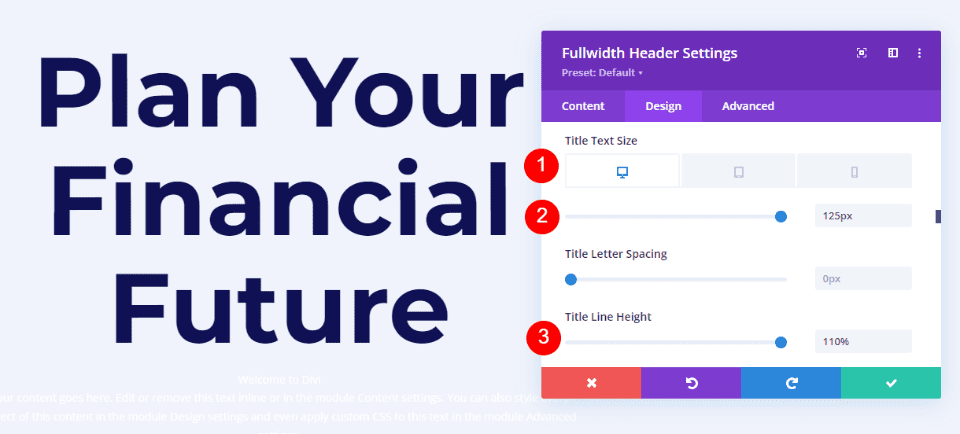
    Change the Font Size to 125px for desktops, 40px for tablets, and 24px for phones. Set the Line Height to 110%. This gives us an oversized title that looks great on any screen size.

    • Size: 125px desktop, 40px tablet, 24px phone
    • Line Height: 110%

    Hover Background Image Title Text

    Hover Background Image Body Text

    Next, scroll to Body Text. Change the Font to Roboto, set the Weight to medium, and change the Color to #0f1154.

    • Font: Roboto
    • Weight: Medium
    • Color: #0f1154

    Hover Background Image Body Text

    Change the Font Size to 18px for desktops and tablets, and 14px for phones. Set the Line Height to 180%. This gives the body text plenty of breathing room.

    • Size: 18px desktop and tablet, 14px phone
    • Line Height: 180%

    Hover Background Image Body Text

    Hover Background Image Subtitle Text

    Next, scroll to Subtitle Text. Change the Font to Montserrat. Set the Weight to bold, change the Style to TT, and change the Color to #1d4eff.

    • Font: Montserrat
    • Weight: Bold
    • Style: TT
    • Color: #1d4eff

    Hover Background Image Subtitle Text

    Change the Font Size to 16px for desktops, 14px for tablets, and 12px for phones. Change the Line Spacing to 0.3em and the Line Height to 1.6em. This sets the subtitle apart from both the title and content without taking up much room.

    • Size: 16px desktop, 14px tablet, 12px phone
    • Letter Spacing: 0.3em
    • Line Height: 1.6em

    Hover Background Image Subtitle Text

    Hover Background Image Button One

    Next, scroll down to Button One and enable Use Custom Styles for Button One. Change the Text Size to 18px. Change the Text Color to white and the Background Color to #1d4eff.

    • Use Custom Styles for Button One: Yes
    • Text Size: 18px
    • Text Color: #ffffff
    • Background Color: #1d4eff

    Hover Background Image Button One

    Next, change the Border Width and Radius to 0px. Choose Roboto for the Font and set the Weight to Medium.

    • Width: 0px
    • Radius: 0px
    • Font: Roboto
    • Weight: Medium

    Hover Background Image Button One

    Scroll down to Button One Padding. Add 14px for the Top and Bottom Padding, and 24px for the Right and Left Padding.

    • Padding: 14px Top and Bottom, 24px Left and Right

    Hover Background Image Button One

    Hover Background Image Button Two

    Next, scroll down to Button Two and enable Use Custom Styles for Button Two. Most of these settings are the same as Button One. Change the Text Size to 18px, the Text Color to white, and the Background Color to #00c9c9.

    • Use Custom Styles for Button Two: Yes
    • Text Size: 18px
    • Text Color: #ffffff
    • Background Color: #00c9c9

    Hover Background Image Button Two

    Next, change the Border Width and Radius to 0px. Choose Roboto for the Font and set the Weight to Medium.

    • Width: 0px
    • Radius: 0px
    • Font: Roboto
    • Weight: Medium

    Hover Background Image Button Two

    Scroll down to Button Two Padding. Add 14px for the Top and Bottom Padding, and 24px for the Right and Left Padding.

    • Padding: 14px Top and Bottom, 24px Left and Right

    Hover Background Image Button Two

    Hover Background Image Spacing

    Next, scroll down to Spacing and add 100px Padding to the Top and Bottom. This increases the size of the fullwidth header without using the Fullscreen option in the Layout settings. In my examples, the fullwidth header leaves a little bit of space at the bottom of the screen where the next section shows. Of course, you could use the full-screen setting in place of the padding if you wanted.

    • Padding: 100px Top and Bottom

    Hover Background Image Spacing

    Hover Background Image Box Shadow

    Lastly, scroll down to Box Shadow and choose the 6th Box Shadow option. This gives the header a more unique look. Close the Fullwidth Header Module and save your settings.

    • Box Shadow: 6th

    Hover Background Image Box Shadow

    Results

    Desktop Without Hover

    Desktop Without Hover

    Desktop With Hover

    Desktop With Hover

    Phone Without Hover

    Phone Without Hover

    Phone With Screen Tap

    Phone With Screen Tap

    Ending Thoughts

    That’s our look at how to reveal a hover background image in your Divi Fullwidth Header Module. The hover state for background images is a simple setting, but it can have a huge impact on the site’s design. It’s a great way to get attention. You can take the design even further if you wanted to add Gradient Stops, overlays, change images, and more. I recommend playing around with the Divi Fullwidth Header Module’s hover background settings to see what you can create.

    We want to hear from you. Do you use a hover background image in your Divi Fullwidth Header Module? Let us know about it in the comments.

    The post How to Reveal a Hover Background Image in Your Divi Fullwidth Header Module appeared first on Elegant Themes Blog.

  • 3 Eye-Catching Gradients You Can Apply to Your Fullwidth Header Module with Divi’s Gradient Builder

    Divi’s Fullwidth Header Module makes it easy to build dynamic header sections for your website without having to add multiple modules for each component. With the Fullwidth Header Module, you can add and customize the look of your text, images, background, spacing, and more — all from one module. When used in combination with Divi’s built-in background gradient settings, you can create eye-catching designs to promote your business or service.

    In this tutorial, we will show you how to create three unique fullwidth header layouts with gradient backgrounds.

    Let’s get started!

    Sneak Peek

    Here is a preview of what we will design.

    Gradient 1

    Divi Fullwidth Header Gradient Background Layout 1 Final Design

    Divi Fullwidth Header Gradient Background Layout 1 Final Design Mobile

    Gradient 2

    Divi Fullwidth Header Gradient Background Layout 2 Final Design

    Divi Fullwidth Header Gradient Background Layout 2 Final Design Mobile

    Gradient 3

    Divi Fullwidth Header Gradient Background Layout 3 Final Design

    Divi Fullwidth Header Gradient Background Layout 3 Final Design Mobile

    What You Need to Get Started

    Before we begin, install and activate the Divi Theme and make sure you have the latest version of Divi on your website.

    Now, you are ready to start!

    Let’s Get Started!

    Gradient 1

    Create a New Page with a Premade Layout

    Let’s start by using a premade layout from the Divi library. For this design, we will use the Food Recipes Home Page from the Food Recipes Layout Pack.

    Add a new page to your website and give it a title, then select the option to Use Divi Builder.

    Divi Fullwidth Header Gradient Background Layout 1 Use Builder

    We will use a premade layout from the Divi library for this example, so select Browse Layouts.

    Divi Fullwidth Header Gradient Background Layout 1 Browse Layouts

    Search for and select the Food Recipes Home Page layout.

    Divi Fullwidth Header Gradient Background Layout 1 Search Layout

    Select Use This Layout to add the layout to your page.

    Divi Fullwidth Header Gradient Background Layout 1 Use Layout

    Now we are ready to build our design.

    Recreate the Hero Section Using the Fullwidth Header Module

    First, we are going to start by recreating the hero section at the top of this layout using a Fullwidth Header Module. Add a new fullwidth section to the page, right below the current hero section.
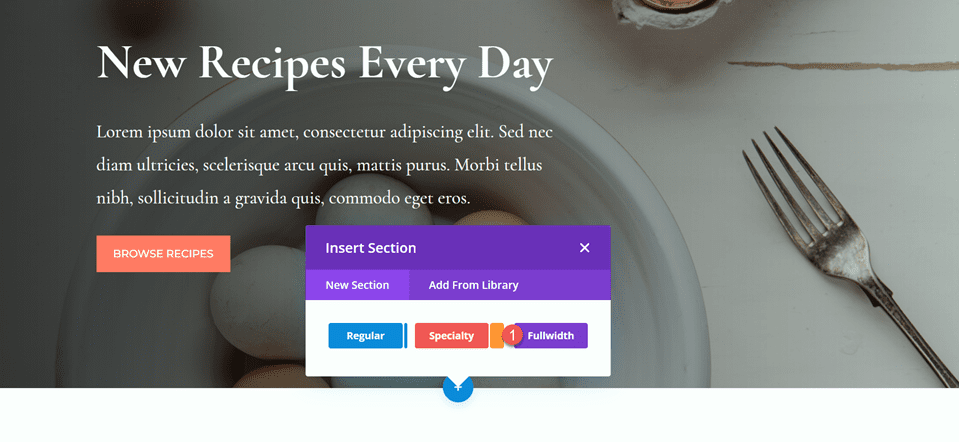
    Divi Fullwidth Header Gradient Background Layout 1 Add Fullwidth Section

    Next, add a Fullwidth Header Module to the fullwidth section.

    Divi Fullwidth Header Gradient Background Layout 1 Fullwidth Header Module

    Now that our header module is in place, let’s update the header content in the Text section of the Content tab.

    • Title: New Recipes Every Day
    • Button #1: Browse Recipes
    • Button #2: Download the Cookbook

    Divi Fullwidth Header Gradient Background Layout 1 Content

    • Text: Lorem ipsum dolor sit amet, consectetur adipiscing elit. Sed nec diam ultricies, scelerisque arcu quis, mattis purus. Morbi tellus nibh, sollicitudin a gravida quis, commodo eget eros.

    Divi Fullwidth Header Gradient Background Layout 1 Body

    Under Background, remove the default background color and add the background image.

    Divi Fullwidth Header Gradient Background Layout 1 Background Image

    Move to the design tab and open the title text settings. Customize the settings as follows:

    • Title Font: Cormorant Garamond
    • Title Weight: Bold

    Divi Fullwidth Header Gradient Background Layout 1 Title Font

    Next, set the title text size and line height.

    • Title Text Size: 64px
    • Title Line Height on Desktop: 1.5em

    Divi Fullwidth Header Gradient Background Layout 1 Title Size

    To optimize the design for mobile devices, we need to decrease the size of the title line height on mobile. Select the responsive settings, then set the mobile line height.

    • Title Line Height on Mobile: 1em

    Divi Fullwidth Header Gradient Background Layout 1 Mobile Line Height

    Now let’s customize the body font options. Here are the settings:

    • Body Font: Cormorant Garamond
    • Body Font Weight: Medium

    Divi Fullwidth Header Gradient Background Layout 1 Body Font

    • Body Text Size: 24px
    • Body Line Height: 1.8em

    Divi Fullwidth Header Gradient Background Layout 1 Line Height

    Customize Button Styles

    Next, open the button one settings. Enable custom styles, then set the text size.

    • Use Custom Styles for Button One: Yes
    • Button One Text Size: 14px

    Divi Fullwidth Header Gradient Background Layout 1 Button Styles

    Add a background color to the button.

    • Button One Background: #FF7864

    Divi Fullwidth Header Gradient Background Layout 1 Button Background

    Customize the button border settings:

    • Button One Border Width: 8px
    • Button One Border Color: #FF7864
    • Button One Border Radius: 0px

    Divi Fullwidth Header Gradient Background Layout 1 Button Border

    Next, customize the font and disable the button icon.

    • Button One Font: Montserrat
    • Button One Font Weight: Medium
    • Button One Font Style: TT (Capitalized)
    • Show Button One Icon: No

    Divi Fullwidth Header Gradient Background Layout 1 Button Font

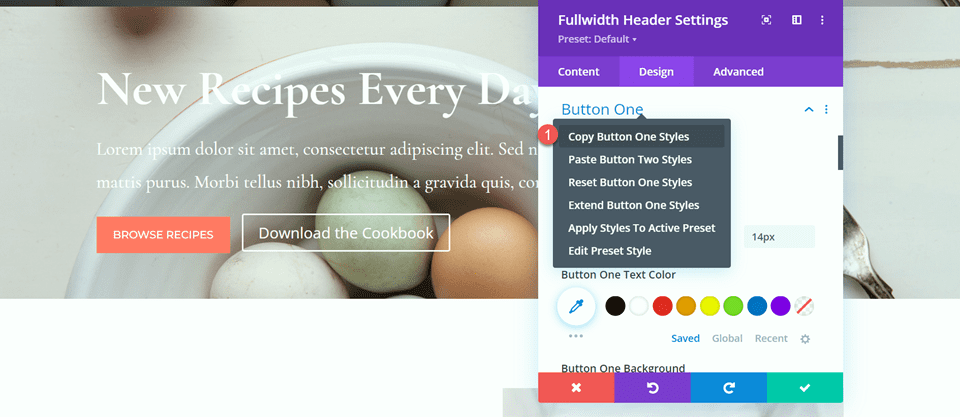
    Next, we will customize button two. The design is mostly the same as button one but with different colors. To skip some repetitive steps, let’s copy the button one styles to button two, then customize the design from there.

    First, right-click on the button one settings and copy the button one styles.
    Divi Fullwidth Header Gradient Background Layout 1 Button Styles

    Next, right-click on the button two settings and paste the button one styles.

    Divi Fullwidth Header Gradient Background Layout 1 Paste Styles

    Change the text color and background color for button two.

    • Button Two Text Color: #726D64
    • Button Two Background: #CBDBD2

    Divi Fullwidth Header Gradient Background Layout 1 Button 2 Background

    Change the button two border color as well.

    • Button Two Border Color: #CBDBD2

    Divi Fullwidth Header Gradient Background Layout 1 Button 2 Border Color

    Now that our buttons are complete, open the spacing settings and set the top and bottom padding.

    • Padding-Top: 10%
    • Padding-Bottom: 10%

    Divi Fullwidth Header Gradient Background Layout 1 Padding

    Finally, open the Custom CSS settings under the advanced tab. Select the responsive settings because we will only add the custom CSS for the desktop design. Add custom CSS to the Body CSS section.

    padding-right: 40%;

    Divi Fullwidth Header Gradient Background Layout 1 Body CSS

    Add the Gradient to the Fullwidth Header Module

    Now our fullwidth header design is complete and we can add the gradient. Navigate back to the content tab and open the background settings. Select the gradient tab and add the gradient as follows:

    • 0%: rgba(116,170,159,0.42)
    • 1%: rgba(79,127,108,0.35)

    Divi Fullwidth Header Gradient Background Layout 1 Background Gradient

    Next, customize the gradient settings:

    • Gradient Type: Elliptical
    • Gradient Position: Bottom Right
    • Repeat Gradient: Yes
    • Place Gradient Above Background Image: Yes

    Divi Fullwidth Header Gradient Background Layout 1 Gradient Settings

    Finally, delete the old header section from the original layout.

    Divi Fullwidth Header Gradient Background Layout 1 Delete Section

    Final Design

    Here is the final design for our first gradient header. As you can see, the repeated gradient with the subtle transparent colors creates an interesting background for this header section without overpowering the background image.

    Divi Fullwidth Header Gradient Background Layout 1 Full Design

    Divi Fullwidth Header Gradient Background Layout 1 Final Design Mobile

    Gradient 2

    Create a New Page with a Premade Layout

    For our next design, we will use the Nutritionist Landing Page from the Nutritionist Layout Pack.

    Add a new page to your website and give it a title, then select the option to Use Divi Builder.

    Divi Fullwidth Header Gradient Background Layout 2 Use Builder

    Since we are using a premade layout from the Divi Library, select Browse Layouts.

    Divi Fullwidth Header Gradient Background Layout 2 Browse Layouts

    Search for and select the Nutritionist Landing Page layout.

    Divi Fullwidth Header Gradient Background Layout 2 Find Layout

    Select Use This Layout to add the layout to your page.

    Divi Fullwidth Header Gradient Background Layout 2 Use Layout

    Now we are ready to build our design.

    Recreate the Hero Section Using the Fullwidth Header Module

    We are going to be recreating the existing hero section using the Fullwidth Header Module. Start by adding a fullwidth section to the page, below the existing hero section.

    Divi Fullwidth Header Gradient Background Layout 2 Fullwidth

    Next, add the Fullwidth Header Module to the section.

    Divi Fullwidth Header Gradient Background Layout 2 Add Module

    Under the content tab, add the text for the module as follows:

    • Title: Nutritionist
    • Subtitle: Specialized Food Coaching
    • Button #1: Get Started For Free
    • Button #2: Contact Me

    You can also remove the body text at this step, although we remove it later on in the tutorial.

    Divi Fullwidth Header Gradient Background Layout 2 Content

    Open the image settings. Set the logo image to the “Established 1990” image and set the header image to the graphic of the leaves.

    Divi Fullwidth Header Gradient Background Layout 2 Header Images

    Next, move to the Design tab. Set the text and logo alignment to center.

    • Text & Logo Alignment: Center

    Divi Fullwidth Header Gradient Background Layout 2 Alignment

    Customize the Title font as follows:

    • Title Font: Merriweather
    • Title Font Style: TT (Capitalized)

    Divi Fullwidth Header Gradient Background Layout 2 Title Font

    To optimize the design for tablet and mobile, we will use the responsive settings to add different title text sizes.

    • Title Text Size – Desktop: 70px
    • Title Text Size – Tablet: 50px
    • Title Text Size – Mobile: 30px

    Divi Fullwidth Header Gradient Background Layout 2 Title Text Size

    Next, set the title letter spacing and line height.

    • Title Letter Spacing: 5px
    • Title Line Height: 1.4em

    Divi Fullwidth Header Gradient Background Layout 2 Spacing Line Height

    Open the subtitle settings and customize the font.

    • Subtitle Font: Montserrat
    • Subtitle Font Weight: Medium
    • Subtitle Font Style: TT (Capitalized)

    Divi Fullwidth Header Gradient Background Layout 2 Subtitle Settings

    We will also set responsive text sizes for the subtitle. The sizes are as follows:

    • Subtitle Text Size – Desktop and Tablet: 18px
    • Subtitle Text Size – Mobile: 12px

    Additionally, set the subtitle letter spacing and line height.

    • Subtitle Letter Spacing; 5px
    • Subtitle Line Height: 1.5em

    Divi Fullwidth Header Gradient Background Layout 2 Subtitle Sizing

    Customize Button Styles

    Move on to the Button One settings. Enable custom styles and set the text size.

    • Use Custom Styles for Button One: Yes
    • Button One Text Size: 13px

    Divi Fullwidth Header Gradient Background Layout 2 Button One

    Add a background color.

    • Color 1 Background: #15C39A

    Divi Fullwidth Header Gradient Background Layout 2 Button Background

    Next, set the border width and radius, and the letter spacing.

    • Button One Border Width: 0px
    • Button One Border Radius: 100px
    • Button One Letter Spacing: 2px

    Divi Fullwidth Header Gradient Background Layout 2 Button Border

    Modify the font settings as follows:

    • Button One Font: Montserrat
    • Button One Font Weight: Medium
    • Button One Font Style: TT (Capitalized)
    • Show Button One Icon: No

    Divi Fullwidth Header Gradient Background Layout 2 Button Font

    Finally, add padding to the button.

    • Button One Padding–Top: 16px
    • Button One Padding–Bottom: 16px
    • Button One Padding–Left: 30px
    • Button One Padding–Right: 30px

    Divi Fullwidth Header Gradient Background Layout 2 Button Padding

    The styles for Button Two are largely the same as Button One, so we will copy the Button One Styles to Button Two and then make a small change to the colors.

    First, right-click on the Button One settings and copy the styles.

    Divi Fullwidth Header Gradient Background Layout 2 Copy Styles

    Then, right-click on the Button Two settings and paste the Button One styles.

    Divi Fullwidth Header Gradient Background Layout 2 Paste Styles

    Change the Button Two background.

    • Button Two Background: #BAB66F

    Divi Fullwidth Header Gradient Background Layout 2 Button 2 Background

    Next, navigate to the Spacing settings and set the padding as follows:

    • Padding-Top: 10%
    • Padding-Bottom: 0px

    Divi Fullwidth Header Gradient Background Layout 2 Spacing

    open the Animation section under the Design tab and set the module to fade.

    • Animation Style: Fade

    Divi Fullwidth Header Gradient Background Layout 2 Animation

    Add the Gradient to the Fullwidth Header Module

    Move to the content tab and open the background settings. First, remove the existing background color.

    Divi Fullwidth Header Gradient Background Layout 2 Remove Background Color

    Next, add the background image.

    Divi Fullwidth Header Gradient Background Layout 2 Background Image

    Move to the gradient tab and add the background gradient.

    • 35%: #FFC77F
    • 56%: #F2D57D
    • 90%: rgba(247,242,145,0.88)

    Divi Fullwidth Header Gradient Background Layout 2 Gradient

    Set the Gradient Type and Gradient Position.

    • Gradient Type: Circular
    • Gradient Position: Top

    Divi Fullwidth Header Gradient Background Layout 2 Gradient Type Position

    Remove the body text if you haven’t already.

    Divi Fullwidth Header Gradient Background Layout 2 Remove Body

    Finally, delete the original hero section above.

    Divi Fullwidth Header Gradient Background Layout 2 Delete Layout

    Custom CSS

    Now all of our basic settings are in place, but we need to go in with some custom CSS to complete the design and modify some of the header images. Move over to the Advanced tab and open the Custom CSS section.

    First, let’s customize the header image CSS. We will use responsive options to set different CSS for different device sizes. These settings will move the center leaf image up and behind the header text and also adjusts the size and margins. Add the following custom CSS to the desktop settings.

    transform: translateY(-22em);
    width: 25%;
    z-index: -1;
    position: relative;
    margin-bottom: -8em;
    

    Divi Fullwidth Header Gradient Background Layout 2 Header Image CSS

    Next, add the following custom CSS to the tablet settings of the header image section.

    transform: translateY(-22em);
    width: 40%;
    z-index: -1;
    position: relative;
    margin-bottom: -8em;
    

    Divi Fullwidth Header Gradient Background Layout 2 Custom CSS Tablet

    Finally, add the following custom CSS to the mobile settings of the header image section.

    transform: translateY(-24em);
    width: 75%;
    z-index: -1;
    position: relative;
    margin-bottom: -8em;
    

    Divi Fullwidth Header Gradient Background Layout 2 Header Image Mobile CSS

    We will also add custom CSS to the logo section. These settings will be responsive as well.

    First, add the following custom CSS to the desktop settings of the logo section.

    width: 40%;

    Divi Fullwidth Header Gradient Background Layout 2 Logo CSS

    Next, add the following custom CSS to the tablet settings of the logo section.

    width: 60%;

    Divi Fullwidth Header Gradient Background Layout 2 Logo Tablet CSS

    Then add the following custom CSS to the mobile settings of the logo section.

    width: 60%;

    Divi Fullwidth Header Gradient Background Layout 2 Logo Mobile CSS

    Finally, add the following custom CSS to the subtitle section.

    padding-bottom: 30px;

    Divi Fullwidth Header Gradient Background Layout 2 Subtitle CSS

    For the last step in this design, we need to add the rounded bottom divider. Open the fullwidth section settings and navigate to the design tab. Open the Dividers settings and add a bottom divider.

    • Dividers: Bottom
    • Divider Style: Curved
    • Divider Color: #FFFFFF

    Divi Fullwidth Header Gradient Background Layout 2 Divider Style

    Final Design

    And here is the final design for this header section.

    Divi Fullwidth Header Gradient Background Layout 2 Full Design

    Divi Fullwidth Header Gradient Background Layout 2 Final Design Mobile

    Gradient 3

    Create a New Page with a Premade Layout

    For our final gradient header design, we will use the SaaS Landing Page layout from the SaaS Layout Pack.

    Add a new page to your website and give it a title, then select the option to Use Divi Builder.

    Divi Fullwidth Header Gradient Background Layout 3 Use Builder

    We are using a premade layout from the Divi library, so select Browse Layouts.

    Divi Fullwidth Header Gradient Background Layout 3 Browse Layouts

    Search for and select the SaaS Landing Page layout.

    Divi Fullwidth Header Gradient Background Layout 3 Find Layout

    Select Use This Layout to add the layout to your page.

    Divi Fullwidth Header Gradient Background Layout 3 Use layout

    Now we are ready to build our design.

    Recreate the Hero Section Using the Fullwidth Header Module

    First, add a fullwidth section below the existing header section.

    Divi Fullwidth Header Gradient Background Layout 3 Fullwidth Section

    Select and add the Fullwidth Header Module to the section.

    Divi Fullwidth Header Gradient Background Layout 3 Add Module

    Open the module settings and add the following text:

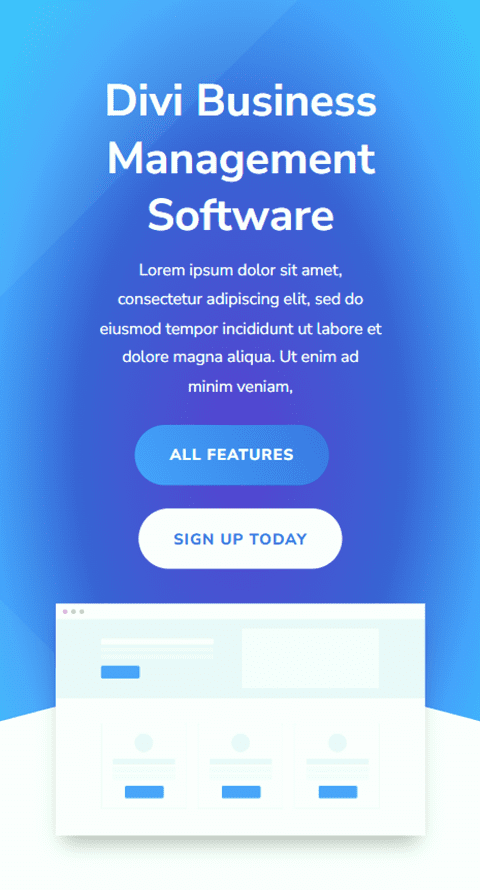
    • Title: Divi Business Management Software
    • Button #1: All Features
    • Button #2: Sign Up Today
    • Body: Lorem ipsum dolor sit amet, consectetur adipiscing elit, sed do eiusmod tempor incididunt ut labore et dolore magna aliqua. Ut enim ad minim veniam,

    Divi Fullwidth Header Gradient Background Layout 3 Content Settings

    Under the images section, add the header image.

    Divi Fullwidth Header Gradient Background Layout 3 Header Image

    We will come back to the content tab to add our background later. For now, delete the original header section above.

    Divi Fullwidth Header Gradient Background Layout 3 Delete Section

    Open the fullwidth header settings and navigate to the design tab. First, center the text and logo alignment.

    • Text & Logo Alignment: Center

    Divi Fullwidth Header Gradient Background Layout 3 Text Logo Alignment

    Open the image settings and add a box shadow to the header image.

    • Image Box Shadow: Bottom

    Divi Fullwidth Header Gradient Background Layout 3 Box Shadow

    Next, open the title text settings and customize the font.

    • Title Font: Nunito Sans
    • Title Font Weight: Bold
    • Title Text Alignment: Center

    Divi Fullwidth Header Gradient Background Layout 3 Title Font

    Change the color, size, and line height as well.

    • Title Text Color: #FFFFFF
    • Title Text Size: 45px
    • Title Line Height: 1.3em

    Divi Fullwidth Header Gradient Background Layout 3 Title Text Settings

    We want a smaller font size on mobile devices, so select the responsive settings for the Title Text Size option and add a different font size.

    • Title Text Size – Mobile: 38px

    Divi Fullwidth Header Gradient Background Layout 3 Mobile Text Size

    Move on to the Body Text section and customize the font as follows:

    • Body Font: Nunito Sans
    • Body Text Color: #FFFFFF

    Divi Fullwidth Header Gradient Background Layout 3 Body Font Color

    Set the Body Line Height.

    • Body Line Height: 1.8em

    Divi Fullwidth Header Gradient Background Layout 3 Line Height

    Customize Button Styles

    Next, let’s customize Button One. Enable custom styles then change the text size and color.

    • Use Custom Styles for Button One: Yes
    • Button One Text Size: 13px
    • Button One Text Color: #FFFFFF

    Divi Fullwidth Header Gradient Background Layout 3 Button Styles

    This button will have a gradient background. Add the gradient as follows:

    • 0%: #3d72e7
    • 100%: #53a0fe
    • Gradient Direction: 243deg

    Divi Fullwidth Header Gradient Background Layout 3 Button Gradient

    Next, change the button border settings.

    • Button One Border Width: 0px
    • Button One Border Radius: 26px
    • Button One Letter Spacing: 1px

    Divi Fullwidth Header Gradient Background Layout 3 Button Border

    Change the button font settings.

    • Button One Font: Nunito Sans
    • Button One Font Weight: Ultra Bold
    • Button One Font Style: TT (Capitalized)
    • Show Button Icon: No

    Divi Fullwidth Header Gradient Background Layout 3 Button Font

    Finally, add button padding.

    • Button One Padding-Top: 15px
    • Button One Padding-Bottom: 15px
    • Button One Padding-Left: 30px
    • Button One Padding-Right: 30px

    Divi Fullwidth Header Gradient Background Layout 3 Button Padding

    Once again, the Button Two design is very similar to the Button One design, just with different colors. We’ll skip the repetitive design steps by copying the Button One styles. To do so, simply right-click on the Button One setting and copy the Button One styles.

    Divi Fullwidth Header Gradient Background Layout 3 Copy Button

    Then, right-click on the Button Two settings and paste the Button One styles.

    Divi Fullwidth Header Gradient Background Layout 3 Paste Button Styles

    Now change the Button Two Text Color and background color.

    • Button Two Text Color: #4078ea
    • Background Color: #FFFFFF

    Divi Fullwidth Header Gradient Background Layout 3 Button Color Background

    Move to the Spacing section and add some top padding.

    • Padding-Top: 8%

    Divi Fullwidth Header Gradient Background Layout 3 Padding Top

    Next, navigate to the Animation settings and set the animation style as follows:

    • Animation Style: Zoom
    • Animation Direction: Up

    Divi Fullwidth Header Gradient Background Layout 3 Animation

    Finally, change the animation intensity and starting opacity.

    • Animation Intensity: 8%
    • Animation Starting Opacity: 100%

    Divi Fullwidth Header Gradient Background Layout 3 Animation Settings

    Add the Gradient to the Fullwidth Header Module

    Now that the basic design is complete, we can add our background gradient. Move over to the Content tab and open the Background settings. Our background will consist of a combination of a gradient, an image, and a mask. First, add the background gradient.

    • 22%: #5b40d1
    • 50%: #4161d4
    • 73%: #53a0fd
    • 100%: #4bc4fc
    • Gradient Type: Elliptical
    • Gradient Position: Center

    Divi Fullwidth Header Gradient Background Layout 3 Gradient Settings

    Next, add the background image. We will use the same background image that was used for the original header design. You should see this in your media library with the title geometric-bg-overlay-01.jpg. Use the overlay setting to blend the image with the gradient background.

    • Background Image Blend: Overlay

    Divi Fullwidth Header Gradient Background Layout 3 Background Image

    Now add the background mask.

    • Mask: Caret
    • Mask Color: #FFFFFF
    • Mask Transform: Horizontal
    • Mask Transform: Rotate
    • Mask Transform: Invert
    • Mask Aspect Ratio: Landscape
    • Mask Size: Stretch to Fill

    Divi Fullwidth Header Gradient Background Layout 3 Background Mask

    Next, use the responsive settings to customize the background mask for tablet and mobile devices. Let’s start with the tablet design.

    • Mask Aspect Ratio: Portrait
    • Mask Size: Custom Size
    • Mask Width: 100%
    • Mask Height: 60%
    • Mask Position: Bottom Center
    • Mask Vertical Offset: 140%

    Divi Fullwidth Header Gradient Background Layout 3 Tablet Mask

    Finally, modify the mobile design.

    • Mask Aspect Ratio: Portrait
    • Mask Size: Custom Size
    • Mask Width: 100%
    • Mask Height: 60%
    • Mask Position: Bottom Center
    • Mask Vertical Offset: 110%

    Divi Fullwidth Header Gradient Background Layout 3 Tablet Mobile

    Final Design

    Here is the final design for this section.

    Divi Fullwidth Header Gradient Background Layout 3 Final Design Full

    Divi Fullwidth Header Gradient Background Layout 3 Final Design Mobile

    Final Result

    Now let’s take a look at all three of our gradient header modules.

    Gradient 1

    Divi Fullwidth Header Gradient Background Layout 1 Final Design

    Divi Fullwidth Header Gradient Background Layout 1 Final Design Mobile

    Gradient 2

    Divi Fullwidth Header Gradient Background Layout 2 Final Design

    Divi Fullwidth Header Gradient Background Layout 2 Final Design Mobile

    Gradient 3

    Divi Fullwidth Header Gradient Background Layout 3 Final Design

    Divi Fullwidth Header Gradient Background Layout 3 Final Design Mobile

    Final Thoughts

    The Fullwidth Header Module is easy to customize and offers a lot of flexibility when it comes to the look and layout of your header design. When combined with unique design elements like gradients, you can create a truly stand-out design to bring your website visitors’ attention to the services that you offer. For 5 more creative Fullwidth Header tutorials, check out this article. Do you utilize the Fullwidth Header Module on your Divi website? Let us know in the comments!

    The post 3 Eye-Catching Gradients You Can Apply to Your Fullwidth Header Module with Divi’s Gradient Builder appeared first on Elegant Themes Blog.

  • How to Balance the Primary & Secondary Buttons in Your Divi Fullwidth Header Module

    The Divi Fullwidth Header module makes it easy to add beautiful hero sections to your website. The module comes with two buttons, a title text, subtitle text, body text, a logo, and an image, making the customization options endless.

    In today’s post, we’re going to demonstrate how to re-create hero sections using the Divi Fullwidth Header. We’ll start our design by using 3 premade layout packs and design our sections with a focus on balancing the primary and secondary buttons. We want the primary button to stand out, as it’s our main call to action while keeping the secondary button visible and accessible without overtaking the primary button.

    Design Principles of Primary and Secondary Buttons

    Primary buttons and secondary buttons help guide your website visitors towards certain actions. Primary buttons are typically the most common or desired action and secondary buttons are a less common action. This helps guide visitors to where they want to go.

    To accomplish this, primary buttons should stand out visually and secondary buttons should not stand out as much. That means primary buttons should be more distinctive and have more visual weight so that it attracts more attention.

    Now that we have an understanding of how primary and secondary buttons work, let’s get to the tutorial!

    Design Preview

    Here’s a look at the three fullwidth headers we will be designing today.

    UX Fullwidth Header

    Divi Retirement Center Fullwidth Header

    Financial Planning Fullwidth Header

    Download the Layouts for FREE

    To lay your hands on the designs from this tutorial, you will first need to download it using the button below. To gain access to the download you will need to subscribe to our newsletter by using the form below. As a new subscriber, you will receive even more Divi goodness and a free Divi Layout pack every Monday! If you’re already on the list, simply enter your email address below and click download. You will not be “resubscribed” or receive extra emails.

    To import the header template to your Divi Library, do the following:

    1. Navigate to the Divi Theme Builder.
    2. Click the Import button at the top right of the page.
    3. In the portability popup, select the import tab
    4. Choose the download file from your computer (make sure to unzip the file first and use the JSON file).
    5. Then click the import button.

    Once done, the section layout will be available in the Divi Builder.

    Let’s get to the tutorial, shall we?

    What You Need to Get Started

    To get started, you will need to do the following:

    1. Install Divi on your WordPress website.
    2. Add a Page and give it a title.
    3. Enable the Visual Builder

    Ux Fullwidth Header Design Steps

    Now that we have our page set up, let’s start with the fullwidth header for a UX landing page.

    Setting Up Our Page

    Before we can begin styling, we’ll need to load the free UX premade layout pack from the Divi Library. When you enable the Visual Builder you’ll see three options pop-up, select Choose A Premade Layout.

    Load Layout Pack

    To do load the UX layout pack onto your page:

    1. In the “Premade Layouts” tab use the search function to find the UX layout pack.
    2. Once you’ve found it click on it. This will bring up the layout details and pages available.
    3. Click on the landing page design, then click “Use This Layout”.

    We’ll be recreating the top section of the layout as a fullwidth header module.

    Delete First Section

    Since we are going to recreate the first section using the Fullwidth Header module instead, we’ll need to delete this section. Hover over the section and click the trash icon.

    Add Fullwidth Section

    Before we can add the fullwidth header, we need to add a fullwidth section.

    Click the “+” arrow to bring up the Divi sections and then click “fullwidth”. This will automatically bring up the Divi Fullwidth Module library.

    Add Fullwidth Header

    Inside the Divi Fullwidth Module Library, click “Fullwidth Header”.

    Adding  Content

    Before we begin styling the module, let’s add the content needed for this module.

    Add Text Content

    Underneath the Text tab, add the following content:

    1. Title: Improve Your UX Design Knowledge
    2. Subtitle: UX Design Course
    3. Button #1: Course Overview
    4. Button #2: Learn More
    5. Body: Placeholder text

    Add Images

    Now that we have our text content in place, we need to add two images to our design.

    1. In the Images tab, add the logo image (the stars) and the header image (the photo of the person holding a phone).

    Change Background Color

    In the Background tab, configure this setting:

    1. Background Color: #131517

    Styling The Fullwidth Header

    Now that we have our content set up, let’s add some styling to it via the Design tab.

    Scroll Down Icon

    Let’s add the scroll down icon, the downward arrow.

    1. This design uses a scroll down icon, so toggle this option to yes.
    2. Select the downward arrow icon and then set the icon color to white.

    Image

    Let’s add curves to our images by rounding the corners.

    In the image tab, configure the following settings:

    1. Image Rounded Corners: Click the chainlink button to unlink the corners, then type 1000px in the bottom left and bottom right input boxes. This will round the bottom left and bottom right corners of our images.

    Title Text

    Here let’s style the title text for this module. In the Title Text tab, configure these settings:

    1. Title font: PT Sans
    2. Title Font Weight: Bold
    3. Title Text Size: 5rem
    4. Title Line Height: 1.2em

    Body Text

    This is where we style the body text of this module. In the Body Text tab, configure these settings:

    1. Body Font: Mukta
    2. Body Text Size: 18px

    Subtitle Text

    This is where we style the subtitle text for this module. In the Subtitle Text tab, configure these settings:

    1. Subtitle Font: Mukta
    2. Subtitle Font Weight: Bold
    3. Subtitle Font Style: Uppercase
    4. Subtitle Text Color: #13d678
    5. Subtitle Letter Spacing: 3px

    Button One

    This is where we can set custom styles for button one, the primary button. In the Button One tab, configure these settings:

    1. Use Custom Styles For Button One: Yes
    2. Button One Color: #ffffff
    3. Button One Background: #13d678
    4. Button One Border Width: 0px
    5. Button One Border Radius: 100px
    6. Button One Font: Mukta
    7. Button One Font Weight: Bold
    8. Show Button One Icon: Yes
    9. Button One Icon: Right Arrow
    10. Only Show Icon On Hover For Button One: No

    Button Two

    Now let’s style the secondary button, the second button. In the Button Two tab, configure these settings:

    1. Use Custom Styles For Button One: Yes
    2. Button One Color: #ffffff
    3. Button One Background: #303030
    4. Button One Border Width: 0px
    5. Button One Border Radius: 100px
    6. Button One Font: Mukta
    7. Button One Font Weight: Bold
    8. Show Button One Icon: Yes
    9. Button One Icon: Right Arrow
    10. Only Show Icon On Hover For Button One: Yes

    Add Button Links

    Don’t forget to add links to your buttons! In the Link tab, configure the following settings:

    1. Button #1 Link URL: Paste the URL for button one here.
    2. Button #2 Link URL: Paste the URL for button two here.

    Save Your Design

    Now that we have our fully designed Fullwidth Header, make sure to save your design!

    1. Click the green arrow at the bottom right of the module window.
    2. Then click the save icon on the Divi toolbar to save your page design.
    3. Exit the Visual Builder.

    Have Fun Experimenting

    The ways to style the Divi Fullwidth Header module are endless. Taking advantage of the primary button and secondary button can help direct your visitors to the page you want them to view or take the action (like submit an inquiry) you want them to take.

    Let’s take a look at two other Fullwidth Header examples that have a primary button that stands out.

    Divi Retirement Center Fullwidth Header

    Button Styles

    Let’s look at the unique styles for the primary and secondary buttons.

    Button One

    In the Button One Tab, configure the following settings:

    1. Use Custom Styles For Button One: Yes
    2. Button One Text Size: 14px
    3. Button One Color: #ffffff
    4. Button One Background: #0a0a0a
    5. Button One Border Width: 0px
    6. Button One Border Radius: 10px
    7. Button One Font Weight: Bold

    Button Two

    In the Button Two Tab, configure the following settings:

    1. Use Custom Styles For Button One: Yes
    2. Button One Text Size: 14px
    3. Button One Color: #ffffff
    4. Button One Background: #0a0a0a
    5. Button One Border Width: 0px
    6. Button One Border Radius: 10px
    7. Button One Font Weight: Bold

    And there you have it! Two unique buttons, one that stands out, and one that takes the second seat.

    Financial Planning Fullwidth Header

    Button Styles

    Let’s look at the unique styles for the primary and secondary buttons.

    Button One

    In the Button One Tab, configure the following settings:

    1. Use Custom Styles For Button One: Yes
    2. Button One Text Size: 18px
    3. Button One Text Color: #ffffff
    4. Button One Background Color: #1b4ffe
    5. Button One Padding: 15px Top and Bottom; 25px Left and Right

    Button Two

    In the Button Two Tab, configure the following settings:

    1. Use Custom Styles For Button Two: Yes
    2. Button Two Text Color: #1b4ffe
    3. Button Two Background Color: Transparent
    4. Button Two Icon Color: #1b4ffe

    Final Thoughts

    The Divi Fullwidth Header makes it easy to create stunning hero sections on your website. Making strategic use of the primary and secondary buttons will improve your user experience and help website visitors take the actions they want to take. The customization options are endless with the Fullwidth Header so have fun experimenting!

    The post How to Balance the Primary & Secondary Buttons in Your Divi Fullwidth Header Module appeared first on Elegant Themes Blog.

  • How to Include a Scroll Down Button in Your Divi Fullwidth Header Module

    Divi’s Fullwidth Header Module includes a button that indicates to the user they can scroll down. Once they click it, they automatically get redirected to the next section. This is a simple button with several icons to choose from and its color and size are fully customizable. In this post, we’ll look at how to customize it and see four Scroll Down Buttons you can include in your Divi Fullwidth Header Module. We’ll also see how to style it with CSS for even more design options.

    Let’s get started!

    Scroll Down Buttons Preview

    First, let’s look at the designs we’ll create in this post.

    Desktop Scroll Down Buttons Example One

    Desktop Scroll Down Button Example One

    Phone Scroll Down Buttons Example One

    Desktop Scroll Down Button Example One

    Desktop Scroll Down Buttons Example Two

    Phone Scroll Down Buttons Example Two

    Desktop Scroll Down Buttons Example Three

    Phone Scroll Down Buttons Example Three

    Desktop Scroll Down Buttons Example Four

    Phone Scroll Down Buttons Example Four

    Scroll Down Buttons Fullwidth Header Design

    First, we’ll create our Fullwidth Header design. I’m building it from scratch using designs from the free Therapy Layout Pack that’s available within Divi. Create a new page and add a Fullwidth Header Module to a new fullwidth section.

    Fullwidth Header Design

    Fullwidth Section Divider

    We’ll add a Divider for this fullwidth header. Open the settings for the Fullwidth Section.

    Divi Scroll Down Button Fullwidth Header Module

    Next, scroll to Dividers. Click the Bottom tab and choose the 8th Divider Style. Set the Color to #e5e8f0 and enter 10vw for the Height. Close the section’s settings.

    • Dividers: Bottom
    • Divider Style: 8th style
    • Color: #e5e8f0
    • Height: 10vw

    Divi Scroll Down Button Fullwidth Header Module

    Fullwidth Header Text

    Next, open the Fullwidth Header Module and add your Title, Subtitle, and Button Text. Delete the dummy text for the Body Content and leave it empty.

    • Title: Start Your Journey to Feeling Better Today.
    • Subtitle: Name, licensed therapist
    • Button One Text: make an Appointment
    • Body Content: None

    Fullwidth Header Text

    Fullwidth Header Images

    Scroll down to Images and choose a wide Header Image. I’m choosing an image that comes with the Therapy Layout Pack. You can find the image by scrolling down that post and downloading the image assets.

    Fullwidth Header Images

    Fullwidth Header Background

    Scroll down to Background. Delete the Background Color and select the Gradient tab. Change the first Gradient Stop’s Color to #2e5b61 and set the position to 25%. Leave the second Gradient Stop at 100% and change the Color to rgba(46,91,97,0.5).

    • Gradient Stop One: #2e5b61, 25%
    • Gradient Stop Two: rgba(46,91,97,0.5), 100%

    Fullwidth Header Background

    Enable Place Gradient Above Background Image.

    • Place Gradient Above Background Image: Yes

    Fullwidth Header Background

    Fullwidth Header Background Image

    Next, select the Background Image tab and choose a full-screen image. I’m using another image from the Therapy Layout Pack.

    • Position: Top Center

    Fullwidth Header Background Image

    Fullwidth Header Layout

    Next, select the Design tab and enable Make Fullscreen.

    • Make Fullscreen: Yes

    Divi Scroll Down Button Fullwidth Header Module

    Fullwidth Header Scroll Down Icon

    Next, enable Show Scroll Down Button. We’ll style this button in our examples, so we’ll leave it in the default settings for now.

    • Show Scroll Down Button: Yes

    Fullwidth Header Scroll Down Icon

    Fullwidth Header Image

    Next, scroll to Image and change the Top Left Rounded Corners to 200px for desktops. Set the rest of the Rounded Corners to 0px. Change the Rounded Corners to 100px for tablets and phones.

    • Rounded Corners desktops: 200px Top Left, 0px all others
    • Rounded Corners tablets and phones: 200px Top Left, 0px all others

    Fullwidth Header Image

    Fullwidth Header Title Text

    Next, scroll to Title Text. Use H1 for the Heading Level. Choose Cormorant Garamond for the Title Font, set the Weight to Bold, and the Color to #e1ecea.

    • Heading Level: H1
    • Font: Cormorant Garamond
    • Weight: Bold
    • Color: #e1ecea

    Fullwidth Header Title Text

    Next, set the Size for all three screen sizes. Use 90px for desktops, 40px for tablets, and 24px for phones. Change the Line Height to 1.1em.

    • Size: 90px, 40px, 24px
    • Line Height: 1.1em

    Fullwidth Header Title Text

    Fullwidth Header Subtitle Text

    Next, scroll to Subtitle Text. Change the Font to Inter, the Weight to Bold, and the Color to #e1ecea.

    • Font: Inter
    • Weight: Bold
    • Color: #e1ecea

    Fullwidth Header Subtitle Text

    Set the Size to 22px for desktops, 20px for tablets, and 16px for phones. Change the Line Height to 1.6em.

    • Size: 22px, 20px, 16px
    • Line Height: 1.6em

    Fullwidth Header Subtitle Text

    Fullwidth Header Button

    Scroll down to the settings for Button One and enable Use Custom Styles for Button One. Change the Size to 14px, the Text Color to #2e5b61, and the Background Color to #e1ecea.

    • Use Custom Styles for Button One: Yes
    • Text Size: 14px
    • Text Color: #2e5b61
    • Button Background: #e1ecea

    Fullwidth Header Button

    Change the Border Width to 0px and the Border Radius to 50px. Use Inter for the Font and change the Weight to Semi Bold.

    • Border Width: 0px
    • Border Radius: 50px
    • Font: Inter
    • Weight: Semi Bold

    Fullwidth Header Button

    For the Button Padding, use 20px for the Top and Bottom and 40px for the Left and Right.

    • Padding: 20px Top and Bottom, 40px Left and Right

    Fullwidth Header Button

    Fullwidth Header Scroll Down Buttons Examples

    Now that we have our Fullwidth Header, let’s see how to style the Scroll Down Buttons. We’ll look at four examples with various combinations of icons, colors, and sizes.

    The Scroll Down Buttons include three settings. Each setting can be adjusted for each screen size independently. Settings include:

    • Icon selection – choose from 11 icons. They include various arrow designs with or without background including non-circled, circled, and solid.
    • Color – the standard Divi color selector.
    • Size – the standard Divi size adjustment.

    Fullwidth Header Scroll Down Button Examples

    It also includes a CSS field in the Advanced tab. We’ll use all these settings.

    Scroll Down Button Example One

    For our first example, we’ll use a non-circled icon without a background. Select the first icon, change the Color to #e1ecea, and change the Size to 66px for desktops, 60px for tablets, and 50px for phones.

    • Icon: 1st icon
    • Color: #e1ecea
    • Size: 66px for desktops, 60px for tablets, 50px for phones

    This creates a light green down arrow that works well with the rest of the design and stands out enough to inform the user.

    Scroll Down Button Example One

    Scroll Down Button Example Two

    For our second example, we’ll use a circled icon. Select the seventh icon and change the Color to #e8c553. We’ll set the icon larger for this one. Change the Size to 78px for desktops, 70px for tablets, and 60px for phones.

    • Icon: 7th icon
    • Color: #e8c553
    • Size: 78px for desktops, 70px for tablets, 60px for phones

    This color is a variation of the yellow in the layout pack, but it’s lighter which works better over the green background. The icon has sharp corners, but the circle matches the rounded design of the layout.

    Scroll Down Button Example Two

    Scroll Down Button Example Three

    For our third example, we’ll use an icon that’s circled and has a background. This colors the background and creates the icon with an opening that allows the background image of the website to show through. For the best results, we’ll need to pay close attention to the icon’s size and the color of the button’s background.

    Select the eighth icon and change its Color to #0e4951. Set the Size to 60px for desktops, 56pc for tablets, and 50px for phones.

    • Icon: 8th icon
    • Color: #0e4951
    • Size: 60px for desktops, 56px for tablets, 50px for phones

    The green is a darker shade of the green in the background. The darker shade stands out over the green and still matches the rest of the layout.

    Scroll Down Button Example Three

    Scroll Down Button Example Four

    What if you want to combine colors, so you have a background color behind the cutout icon? We can do this with CSS. For this example, we’ll use CSS to create a background shape behind the icon that will show through the cutout icon. The icon itself will use the standard settings.

    Select the eleventh icon and change the Color to #e1ecea. We’ll set the icon smaller for this one and create a large background shape. Change the Size to 50px for desktops, 40px for tablets, and 30px for phones.

    • Icon: 11th
    • Icon Color: #e1ecea
    • Size: 50px for desktops, 40px for tablets, 30px for phones

    Scroll Down Button Example Four

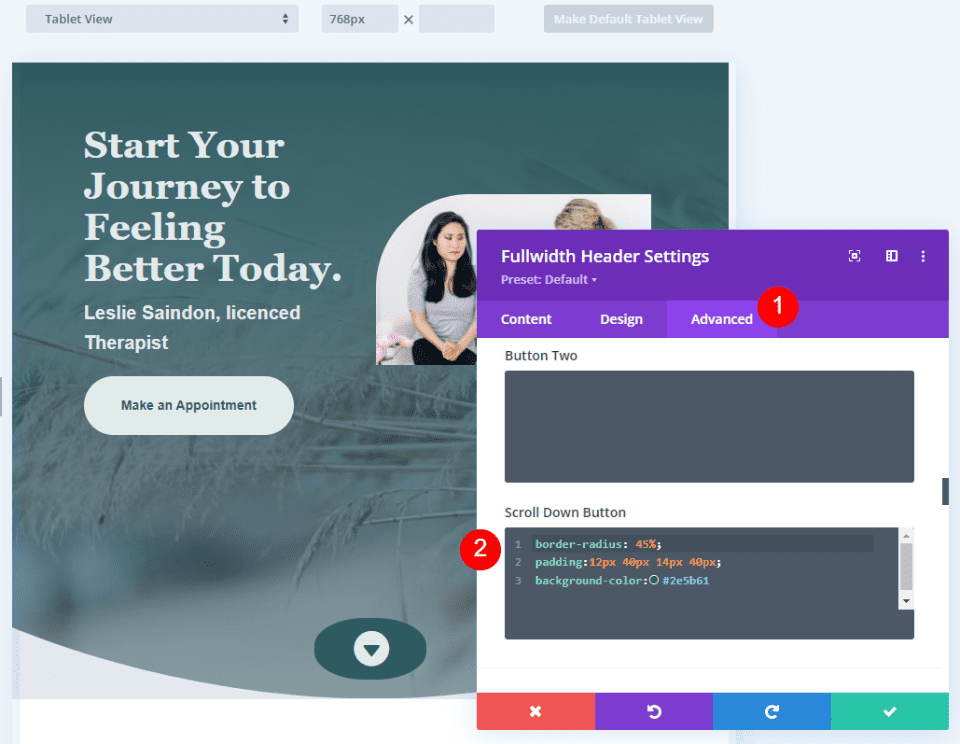
    Next, go to the Advanced tab and scroll down to the Scroll Down Button’s CSS field and enter this CSS:

    border-radius: 45%;
    padding:12px 40px 14px 40px;
    background-color:#2e5b61

    This CSS format adds padding to the Top, Right, Bottom, and Left. I’ve used this padding to create a background oval that goes well with the design of the header using design cues from the layout.

    Scroll Down Button Example Four

    Scroll Down Buttons Results

    Desktop Scroll Down Button Example One

    Desktop Scroll Down Button Example One

    Phone Scroll Down Button Example One

    Phone Scroll Down Button Example One

    Desktop Scroll Down Button Example Two

    Phone Scroll Down Button Example Two

    Desktop Scroll Down Button Example Three

    Phone Scroll Down Button Example Three

    Desktop Scroll Down Button Example Four

    Phone Scroll Down Button Example Four

    Ending Thoughts

    That’s our look at four Scroll Down Buttons you can include in your Divi Fullwidth Header Module. The scroll button includes several icons to choose from and you can style its color and size. Using the CSS field, you can style the button even further. The combinations of the button’s styling options and CSS give you lots of design possibilities with your Scroll Down Buttons.

    We want to hear from you. Do you style the Scroll Down Buttons in your Divi Fullwidth Header Module? Let us know in the comments.

    The post How to Include a Scroll Down Button in Your Divi Fullwidth Header Module appeared first on Elegant Themes Blog.

  • How to Style Your Fullwidth Header Module’s Background

    Divi’s Fullwidth Header module makes it easy to design a stunning hero section for your website in just minutes. A hero section is the very first section of your website that your visitors will see, so you’ll want it to be branded, informative, and compelling. Thankfully, the Divi Fullwidth Header comes packed with content options: header text, subtitle text, body text, two images, and two buttons. We’ll be utilizing all of these elements in our fullwidth headers today.

    In this post, we’re going to demonstrate 3 ways to design your fullwidth header’s background with eye-catching designs. Ready to get started? Let’s dive in!

    Design Preview

    Let’s take a look at the 3 fullwidth headers we’ll be designing today.

    Divi Bushcraft Community

    The first design uses Divi’s background image options to create a textured background that is unique and on-brand for the Bushcraft Community.

    Mrs. Nicole’s 2nd Grade

    This second design uses a background image and background gradient to create a clean, modern, and fresh welcome header for Mrs. Nicole’s 2nd-grade class.

    Realtor Header

    The third design utilizes a background image, background gradient, and background pattern, all combined to create an elevated yet subtle design for a realtor’s home page.

    Download the Layouts for FREE

    To lay your hands on the designs from this tutorial, you will first need to download it using the button below. To gain access to the download you will need to subscribe to our newsletter by using the form below. As a new subscriber, you will receive even more Divi goodness and a free Divi Layout pack every Monday! If you’re already on the list, simply enter your email address below and click download. You will not be “resubscribed” or receive extra emails.

    To import the header template to your Divi Library, do the following:

    1. Navigate to the Divi Theme Builder.
    2. Click the Import button at the top right of the page.
    3. In the portability popup, select the import tab
    4. Choose the download file from your computer (make sure to unzip the file first and use the JSON file).
    5. Then click the import button.

    Once done, the section layout will be available in the Divi Builder.

    Let’s get to the tutorial, shall we?

    What You Need to Get Started

    To get started, you will need to do the following:

    1. Install Divi on your WordPress website.
    2. Add a Page, give it a title, and publish it.
    3. Enable the Visual Builder.

    Setting Up Our Page

    Once you click the “Use Divi Builder” button the page will reload using Divi’s drag and drop builder interface. Three options will pop up and for today’s purposes select “Build From Scratch” so that we have a blank slate where we can build our fullwidth headers.

    How to Design the Divi Bushcraft Community Fullwidth Header

    Add a Fulldwith Section and Fullwidth Header

    First, we’ll need to add a fullwidth section to our page. Click on the “+” icon to bring up the section options and then click “Fullwidth”. This will load the fullwidth module library where you can select “Fullwidth Header” from the options. This will load the fullwidth header module to your page.

    Add The Content

    Now we’re going to add our module content in the Text tab. Configure the following settings:

    1. Header Text: Divi Bushcraft Community
    2. Subtitle Text: Divi Bushcraft
    3. Button #1: Join Today
    4. Button #2: Learn More
    5. Body Text: At vero eos et accusamus et iusto odio dignissimos ducimus qui blanditiis praesentium voluptatum deleniti atque corrupti quos dolores et quas molestias excepturi sint occaecati cupiditate non provident.

    Style the Background

    This design utilizes a background image from the free Divi Bushcraft pre-made layout pack. You can get all of the images from that layout pack in this post. Simply scroll all the way to the bottom of the post and click to download the high-res images.

    Add Background Image

    Once you have the photos, add a background image.

    1. Click the third icon, the image icon.
    2. Click “Add Background Image”. This will bring up the media library where you can upload a new photo or select a photo from your media library.
    3. The set the Background Image Blend Mode to Overlay.
    4. Click the first icon, the paint bucket icon, and set a background color of: rgba(10,10,10,0.3)

    Choose the Layout

    Underneath the Design settings, in the Layout tab, select center alignment. Toggle the “Make Fullscreen” option to “yes”.

    Style Title Text

    Style the Title Text by configuring these settings:

    1. Title Heading Level: H1
    2. Title Font: Josefin Sans
    3. Title Font Weight: Bold
    4. Title Font Style: Uppercase
    5. Title Text Size: 7rem

    Style Body Text

    Style the body text by configuring these settings:

    1. Body Font: Josefin Sans
    2. Body Text Size: 20px

    Style Subtitle Text

    Style the subtitle text by configuring these settings:

    1. Subtitle Font: Josefin Sans
    2. Subtitle Font Weight: Semi Bold
    3. Subtitle Font Style: Uppercase
    4. Subtitle Letter Spacing: 3px
    5. Subtitle Line Height: 5em

    Style Button #1

    Now let’s style the buttons! For button one, configure these settings:

    1. Use Custom Styles For Button One: Yes
    2. Button One Text Size: 14px
    3. Button One Text Color: #666b4a
    4. Button One Background: #ead5a4
    5. Button One Border Width: 0px
    6. Button One Border Radius: 0px
    7. Button One Letter Spacing: 3px
    8. Button One Font Style: Uppercase
    9. Button One Padding: 15px top and bottom; 25px left and right.

    Style Button #2

    To style button #2, configure the following settings:

    1. Use Custom Styles For Button One: Yes
    2. Button One Text Size: 14px
    3. Button One Text Color: #ead5a4
    4. Button One Background: #666b4a
    5. Button One Border Width: 0px
    6. Button One Border Radius: 0px
    7. Button One Letter Spacing: 3px
    8. Button One Font Style: Uppercase
    9. Button One Padding: 15px top and bottom; 25px left and right.

    And, voila!  You have a beautifully styled fullwidth header with a textured background image with an overlay for the Divi Bushcraft Community.

    How to Design Mrs. Nicole’s Fullwidth Header

    Now let’s design a fullwidth header for Mrs. Nicole’s 2nd-grade class! This header uses a background image and gradient to create a fun and fresh design. Let’s get started!

    Add a new page, then add a Fullwidth Section and Fullwidth Header

    First, we’ll need to add a fullwidth section to our page. Click on the “+” icon to bring up the section options and then click “Fullwidth”. This will load the fullwidth module library where you can select “Fullwidth Header” from the options. This will load the fullwidth header module to your page.

    Add The Content

    Now we’re going to add our module content in the Text tab. Configure the following settings:

    1. Header Text: Welcome To Mrs. Nicole’s 2nd Grade Class
    2. Subtitle Text: Welcome
    3. Button #1: View Assignments
    4. Button #2: Contact Mrs. Nicole
    5. Body Text: Donec sollicitudin molestie malesuada. Nulla quis lorem ut libero malesuada feugiat.

    Style the Background

    This design uses images from the free Classroom pre-made layout pack. You can download the full-res images by scrolling to the bottom of this post.

    Style the background by configuring these settings:

    1. Click the second tab, the gradient icon.
    2. Set the gradient stops to: #ffffff at 40%, and transparent at 18%.
    3. Set the gradient direction to 219 degrees.
    4. Toggle “yes” for the Place Gradient Above Background Image.
    5. Click on the third icon, the image icon, and click “Add Background Image”.

    Choose the Layout

    Here is where we’re going to align the module content to the center and make it fullscreen.

    1. Text & Logo Alignment: Center
    2. Make Fullscreen: Yes

    Style the Title Text

    Style the title text by configuring these settings:

    1. Title Font: Candal
    2. Title Text Size: 4rem

    Style the Body Text

    Style the body text by configuring these settings:

    1. Body Font: Montserrat
    2. Body Text Color: #6d6d6d
    3. Body Text Size: 20px

    Style the Subtitle Text

    Style the subtitle text by configuring these settings:

    1. Subtitle Font Weight: Ultra Bold
    2. Subtitle font Style: Uppercase
    3. Subtitle Text Color: rgba(28,10,10,0.6)
    4. Subtitle Letter Spacing: 3px
    5. Subtitle Line Height: 3em

    Style Button #1

    Style button #1 by configuring these settings:

    1. Use Custom Styles For Button One: Yes
    2. Button One Text Size: 15px
    3. Button One Text Color: #ffffff
    4. Button One Background: #000000
    5. Button One Border Width: 0px
    6. Button One Border Radius: 0px
    7. Button One Letter Spacing: 3px
    8. Button One Font Weight: Ultra Bold
    9. Button One Font Style: Uppercase
    10. Button One Padding: 15px top and bottom; 25px left and right.

    Style Button #2

    Style button #2 by configuring these settings:

    1. Use Custom Styles For Button Two: Yes
    2. Button Two Text Size: 15px
    3. Button Two Text Color: #ffd078
    4. Button Two Background: transparent
    5. Button Two Border Width: 0px
    6. Button Two Border Radius: 0px
    7. Button Two Letter Spacing: 3px
    8. Button Two Font Weight: Ultra Bold
    9. Button Two Font Style: Uppercase
    10. Button Two Icon Color: #ffd078
    11. Only Show Icon On Hover For Button Two: No
    12. Button Two Padding: 15px top and bottom; 25px left and right.

    Sizing

    Set the content width to 70%.

    Voila! You now have a fully designed fullwidth header for Mrs. Nicole’s 2nd grade class.

    How to Design a Realtor’s Fullwidth Header

    Let’s design this elegant and modern fullwidth header for a realtor’s website. This section utilizes a background image, background gradient, AND a background pattern. Let’s get to work!

    Add a new page, then add a Fullwidth Section and Fullwidth Header

    First, we’ll need to add a fullwidth section to our page. Click on the “+” icon to bring up the section options and then click “Fullwidth”. This will load the fullwidth module library where you can select “Fullwidth Header” from the options. This will load the fullwidth header module to your page.

    Add Content

    First, let’s add the content needed for this module in the Text tab:

    1. Title: Let’s Find Your Dream Home
    2. Subtitle: Dave Merrit – Realtor
    3. Button #1 – Book A Free Consult
    4. Button #2 – Email Me
    5. Body Text: Sed ut perspiciatis unde omnis iste natus error sit voluptatem accusantium doloremque laudantium, totam rem aperiam, eaque ipsa quae ab illo inventore veritatis et quasi architecto.

    Style the Background

    Add a Gradient

    In the background tab, click the second icon, the gradient icon, and configure these settings:

    1. Gradient Stops: rgba(56,65,58,0.74) at 100% and #38413a at 70%
    2. Gradient Direction: 88deg
    3. Place Gradient Above Background Image: Yes

    Add Image

    Click the third icon, the image icon, and then click “Add Background Image” to upload your image. This demonstration uses images from the free Realtor pre-made layout pack. You can download the full-resolution images by scrolling to the bottom of this post.

    Add a Background Pattern

    Add a background pattern by configuring these settings:

    1. Select Tufted from the dropdown.
    2. Pattern Color: rgba(0,0,0,0.2)

    Choose the Layout

    Here is where we’re going to align the module content to the center and make it fullscreen.

    1. Text & Logo Alignment: Center
    2. Make Fullscreen: Yes

    Style the Title Text

    Style the title text by configuring these settings:

    1. Title Font: Merriweather
    2. title Text Size: 5rem

    Style the Body Text

    Style the body text by configuring these settings:

    1. Body Font: Open Sans
    2. Body Text Size: 16px
    3. Body Line Height: 2em

    Style the Subtitle Text

    Style the subtitle text by configuring these settings:

    1. Subtitle Font: Open Sans
    2. Subtitle Font Weight: Bold
    3. Subtitle Font Style: Uppercase
    4. Subtitle Text Color: #b4926b
    5. Subtitle Letter Spacing: 3px

    Style Button #1

    Style button #1 by configuring these settings:

    1. Use Custom Styles For Button One: Yes
    2. Button One Text Size: 18px
    3. Button One Background: #b4926b
    4. Button One Border Width: 0px
    5. Button One Border Radius: 0px
    6. Button One Padding: 10px top and bottom; 25px left and right.

    Style Button #2

    Style button #2 by configuring these settings:

    1. Use Custom Styles For Button Two: Yes
    2. Button Two Text Size: 18px
    3. Button Two Border Width: 1px
    4. Button Two Border Color: rgba(255,255,255,0.19)
    5. Button Two Border Radius: 0x
    6. Button Two Padding: 10px top and bottom; 25px left and right

    Voila! Now you have a beautiful fullwidth header for a realtor website.

    Final Thoughts

    The Divi Fullwidth Header is a fast and easy way to build a stunning website hero section for your website. Since website hero sections are so essential in making a great first impression, it’s important that your design is branded, eye-catching, and informative. With the Fullwidth Header, it’s easy to build a header that hits all of those goals within one module. Now that you’ve seen what’s possible with the Fullwidth Header, how will you design yours?

    The post How to Style Your Fullwidth Header Module’s Background appeared first on Elegant Themes Blog.