EDITS.WS

Tag: divi map module

  • How to Add a Sticky Map Module to Your Divi Page

    Divi’s built-in sticky settings allow you to keep an element “sticky” or fixed on the screen while you scroll down the page. When combined with other non-sticky elements, you can achieve an eye-catching and engaging layout to bring your website design to the next level. In this tutorial, we will show you how to add a sticky map module to your Divi page. We’ll keep the map module sticky and add relevant information to scroll alongside the map.

    Without further ado, let’s get started!

    Sneak Peek

    Here is a preview of what we will design

    Divi Add Sticky Map Module Final Result Mobile

    What You Need to Get Started

    Before we begin, install and activate the Divi Theme and make sure you have the latest version of Divi on your website.

    Now, you are ready to start!

    How to Add a Sticky Map Module to Your Divi Page

    Create a New Page with a Premade Layout

    Let’s start by using a premade layout from the Divi library. For this design, we will use the Craft School Landing Page from the Craft School Layout Pack.

    Add a new page to your website and give it a title, then select the option to Use Divi Builder.

    Divi Add Sticky Map Module Use Builder

    We will use a premade layout from the Divi library for this example, so select Browse Layouts.

    Divi Add Sticky Map Module Browse Layouts

    Search for and select the Craft School Landing Page.
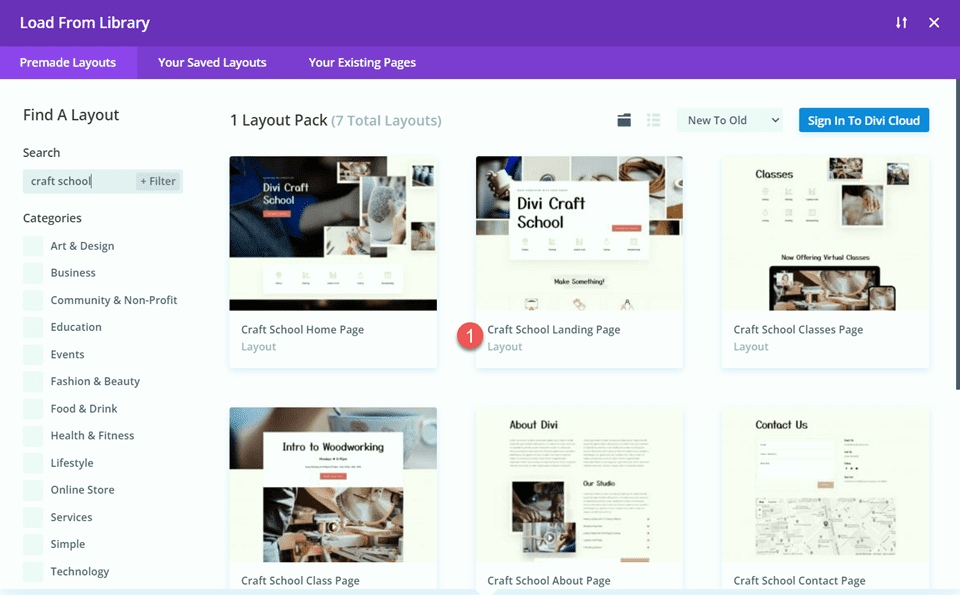
    Divi Add Sticky Map Module Find Layout

    Select Use This Layout to add the layout to your page.
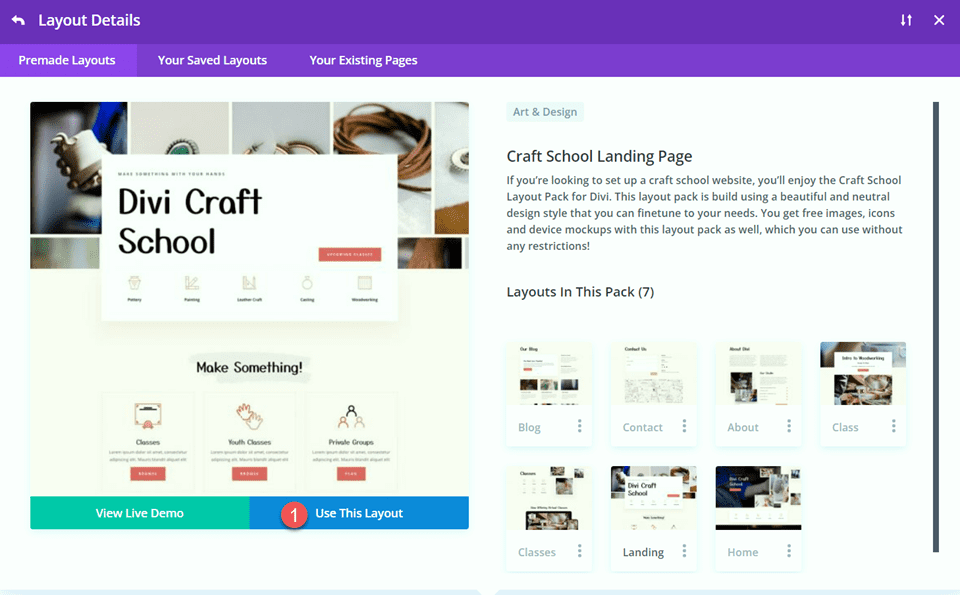
    Divi Add Sticky Map Module Use Layout

    Now we are ready to build our design.

    Modifying the Layout for the Sticky Map Module

    Sign Up CTA

    Scroll to the “Studio Memberships” section of the page. Then, add a new section below.
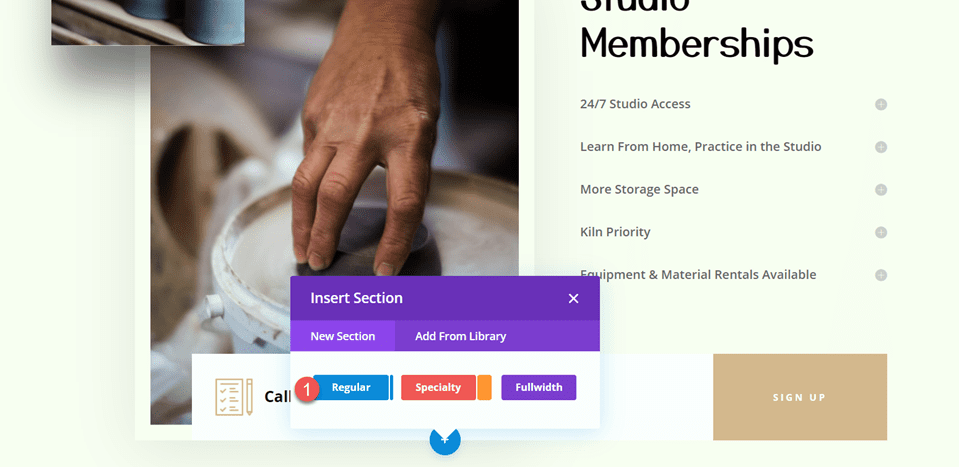
    Divi Add Sticky Map Module Insert Section

    Open the section settings and add a background color.

    • Background: #fcf8f3

    Divi Add Sticky Map Module Background

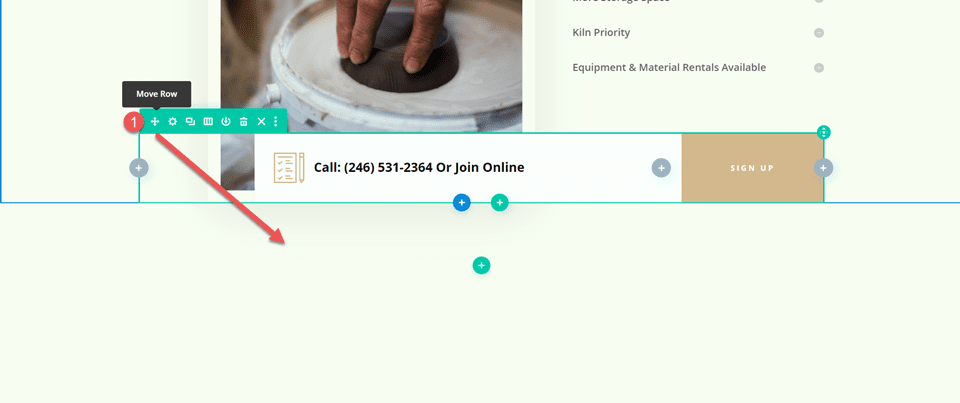
    Next, move the “Call or Join Online” row to this new section.

    Divi Add Sticky Map Module Move Row

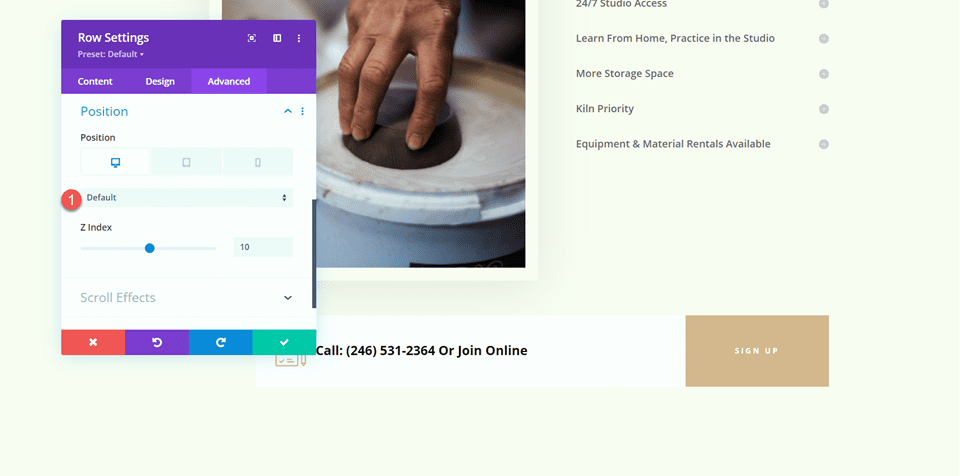
    Open the row settings and navigate to the Advanced tab. Under the Position settings, change the position from Absolute to Default.

    • Position: Default

    Divi Add Sticky Map Module Position

    “Come Visit the Studio” Section

    Add a new row with two columns below the Studio Memberships section.
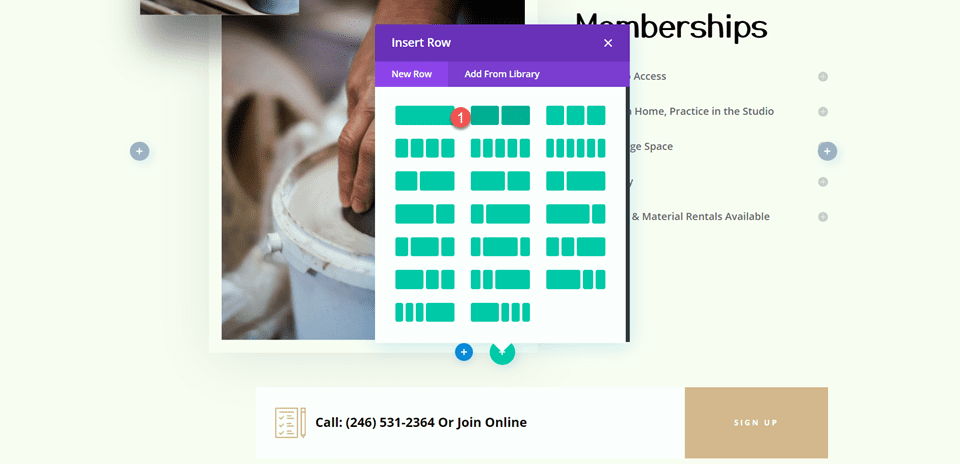
    Divi Add Sticky Map Module Insert Row

    Then, move that row above the Studio Memberships section.

    Divi Add Sticky Map Module Move Row

    Heading Settings

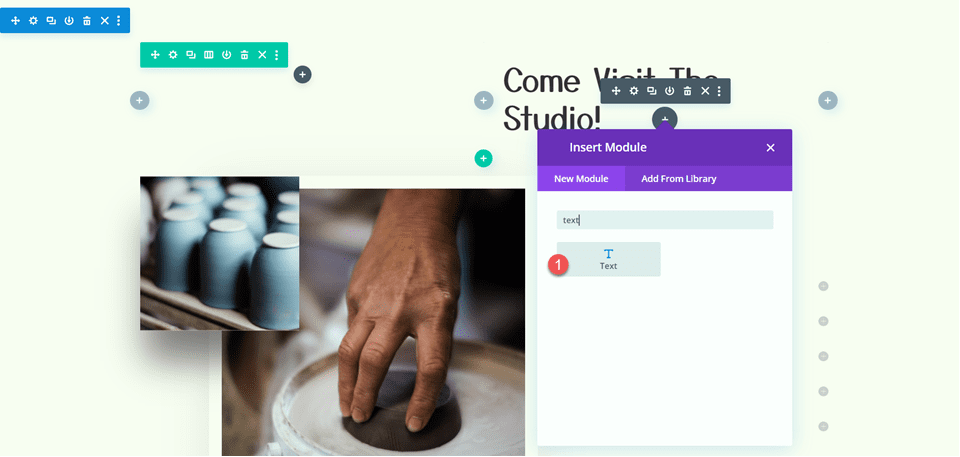
    Add a text module to the right column.
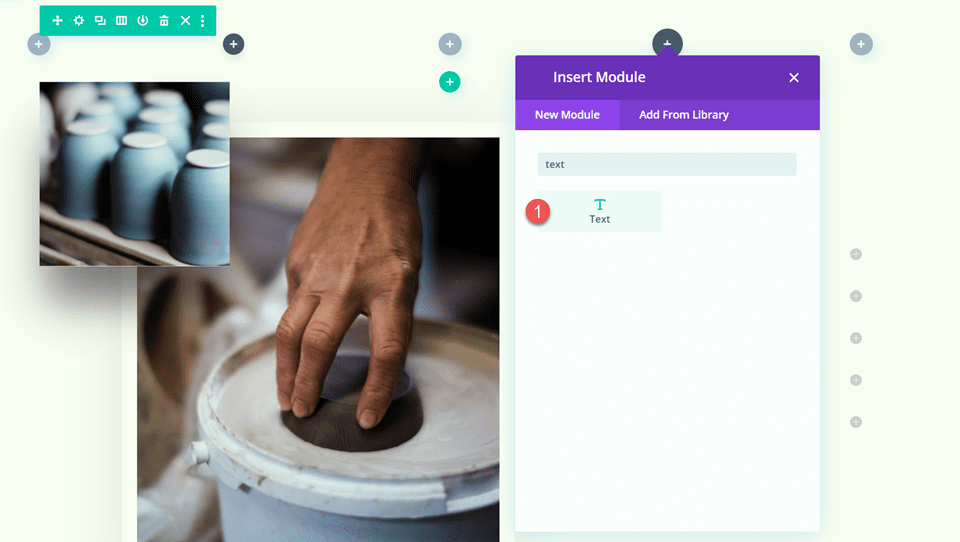
    Divi Add Sticky Map Module Insert Text

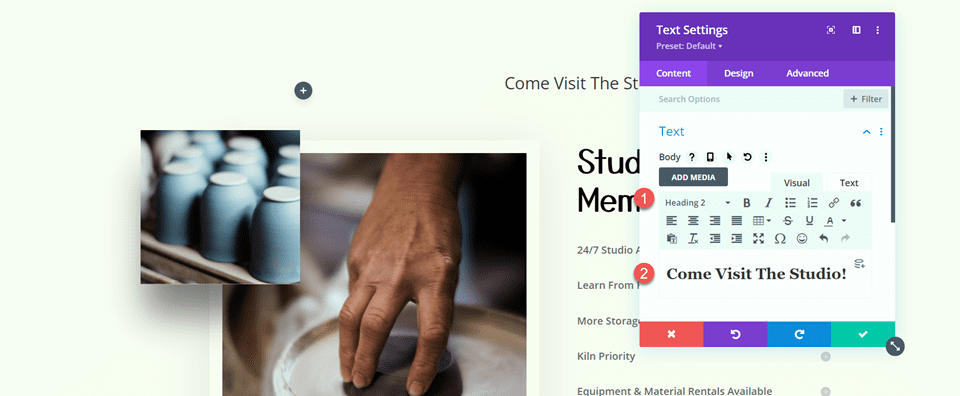
    Add the text.

    • H2: Come Visit The Studio!

    Divi Add Sticky Map Module Add Text

    Next, navigate to the Design tab and open the heading text settings. Customize the font as follows:

    • Heading 2 Font: Yusei Magic

    Divi Add Sticky Map Module Font

    Then, customize the font size and line height. Use the built-in responsive options to add different text sizes for tablet and mobile devices.

    • Heading 2 Text Size Desktop: 50px
    • Heading 2 Text Size Tablet: 30px
    • Heading 2 Text Size Mobile: 24px
    • Heading 2 Line Height: 1.2 em

    Divi Add Sticky Map Module Heading Size

    Text Settings

    Add another text module below the “Come Visit The Studio” text.

    Divi Add Sticky Map Module Add Text

    Insert the following text.

    • H3: Address
    • Paragraph: 1234 Divi St. #1000 San Francisco, CA 33945
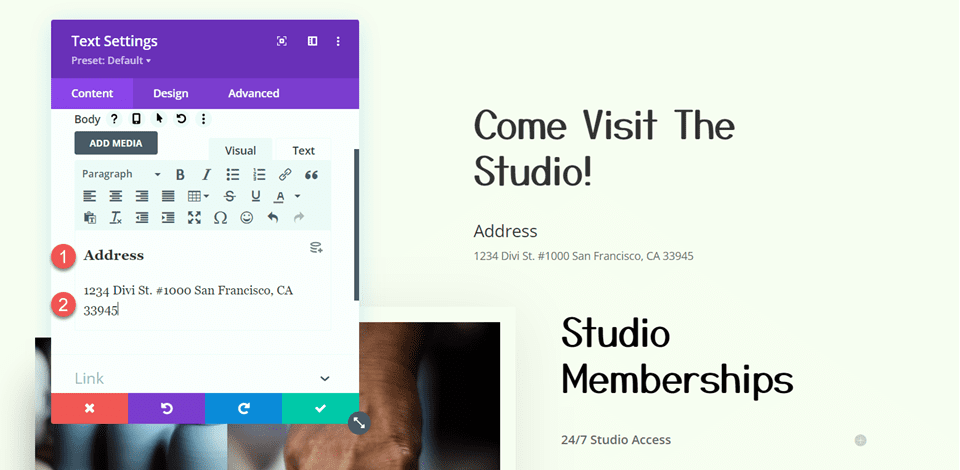
    Divi Add Sticky Map Module Address Text

    Under the Design tab, modify the text styles.

    • Text Font: Open Sans
    • Text Size Desktop: 16px
    • Text Size Tablet: 15px
    • Text Size Mobile: 13px

    Divi Add Sticky Map Module Text Font

    Then, modify the heading styles.

    • Heading 3 Font: Open Sans
    • Heading 3 Font Weight: Bold
    • Heading 3 Font Style: Capitalized (TT)

    Divi Add Sticky Map Module H3 Font

    Next, modify the text size and letter spacing. Once again, use the responsive settings to set different text sizes for different screen sizes.

    • Heading 3 Text Size Desktop: 14px
    • Heading 3 Text Size Tablet: 13px
    • Heading 3 Text Size Mobile: 12px
    • Heading 3 Letter Spacing: 3px

    Divi Add Sticky Map Module H3 Size

    Add another text module below the address module.

    Then, add the following content to the body:

    • Body: Lorem ipsum dolor sit amet, consectetur adipiscing elit. Mauris blandit aliquet elit, eget tincidunt nibh pulvinar a. Curabitur arcu erat, accumsan id imperdiet et, porttitor at sem. Vestibulum ac diam sit amet quam vehicula elementum sed sit amet dui. Praesent sapien massa, convallis a pellentesque nec, egestas non nisi. Curabitur non nulla sit amet nisl tempus convallis quis ac lectus. Donec rutrum congue leo eget malesuada. Donec rutrum congue leo eget malesuada. Donec sollicitudin molestie malesuada. Curabitur aliquet quam id dui posuere blandit.

    Divi Add Sticky Map Module Add Text

    Move over to the design tab and customize the font.

    • Text Font: Open Sans

    Divi Add Sticky Map Module Font Settings

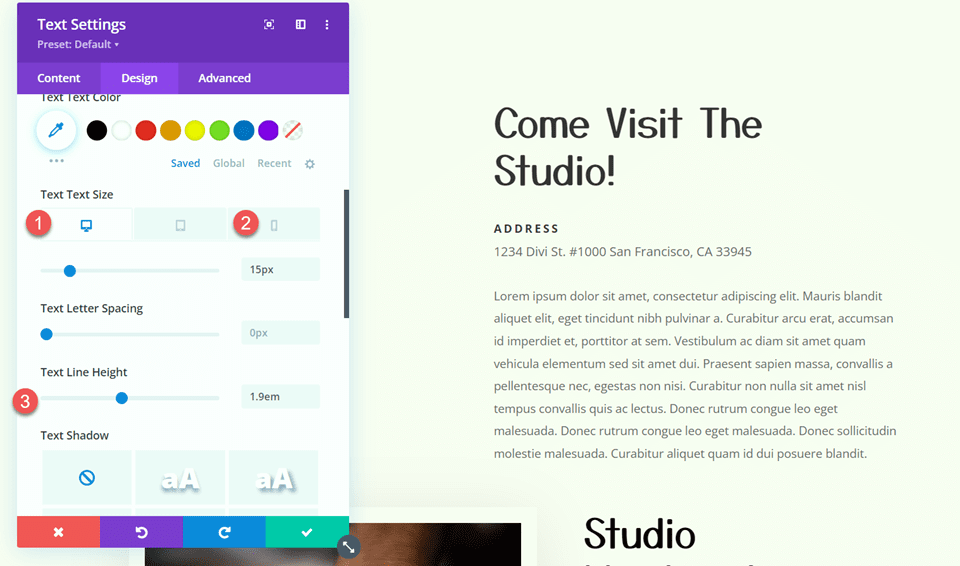
    Then, customize the text size and line height.

    • Text Size Desktop: 15px
    • Text Size Mobile: 13px
    • Text Line Height: 1.9em

    Divi Add Sticky Map Module Text Size

    Button Settings

    Add a button module to the section, below the text we added.
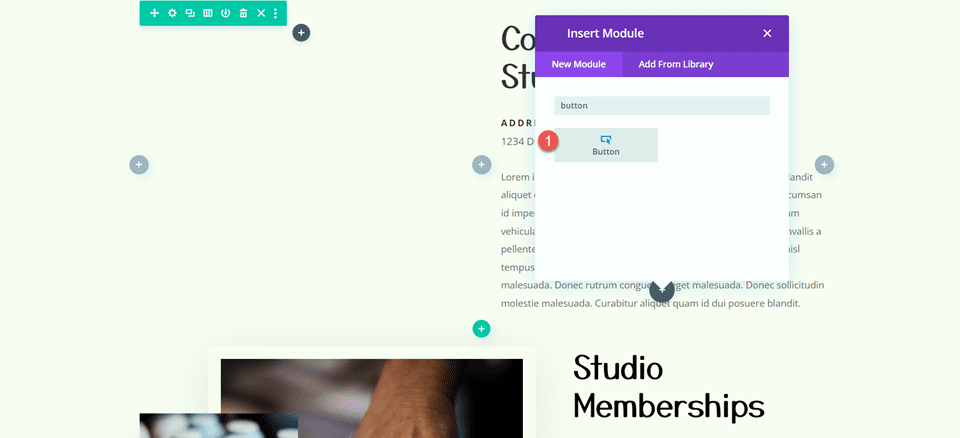
    Divi Add Sticky Map Module Add Button

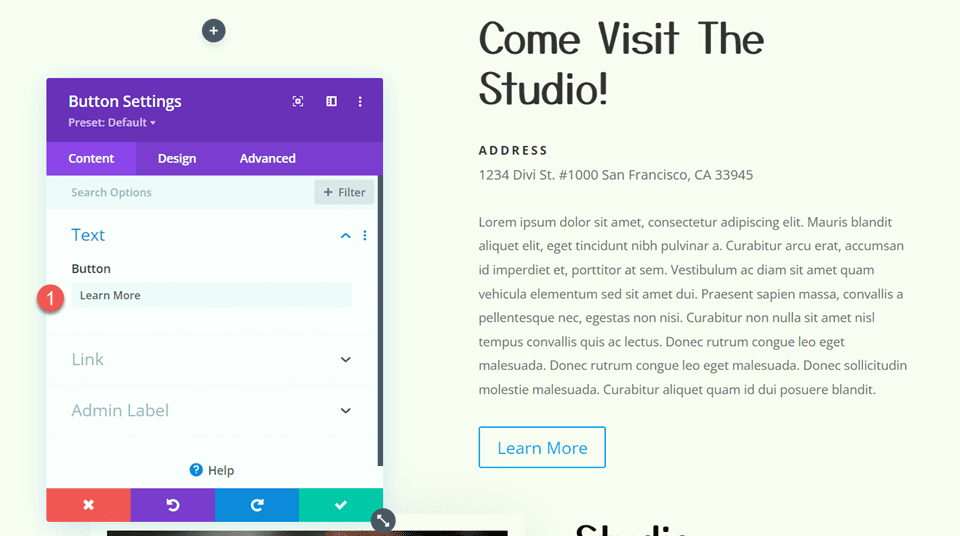
    Set the button text to “learn more”.

    • Button: Learn More

    Divi Add Sticky Map Module Buttons Text

    Next, move to the design tab and open the button settings. Enable custom styles.

    • Use Custom Styles For Button: Yes
    • Button Text Size: 12px
    • Button Text Color: #FFFFFF

    Divi Add Sticky Map Module Custom Styles

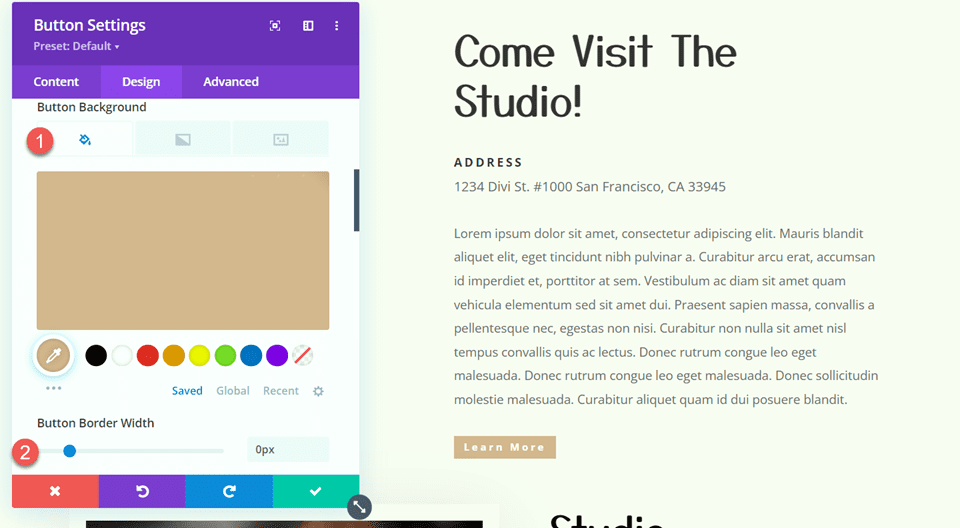
    Customize the button background and border width.

    • Button Background: #d5b38e
    • Button Border Width: 0px

    Divi Add Sticky Map Module Button Background

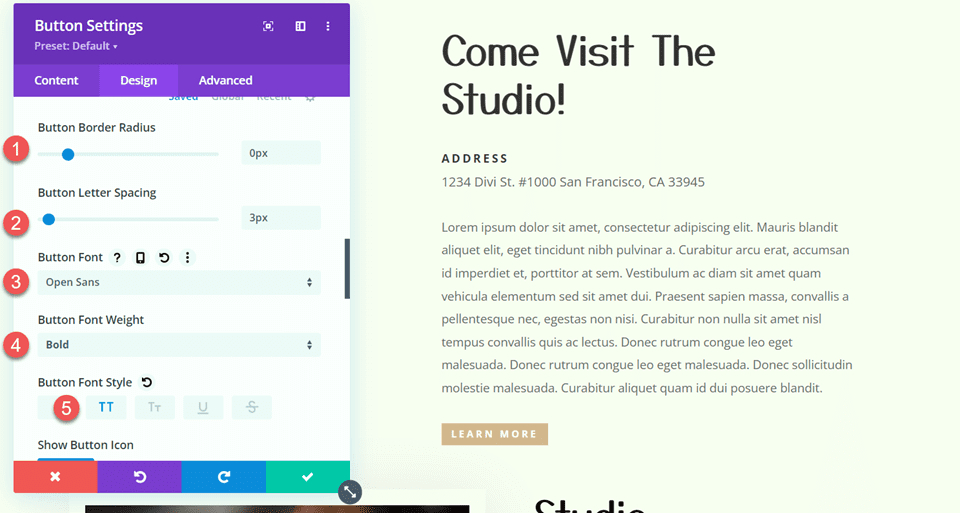
    Modify the button border radius, letter spacing, and font.

    • Button Border Radius: 0px
    • Button Letter Spacing: 3px
    • Button Font: Open Sans
    • Button Font Weight: Bold
    • Button Font Style: Capitalized (TT)

    Divi Add Sticky Map Module Button Font

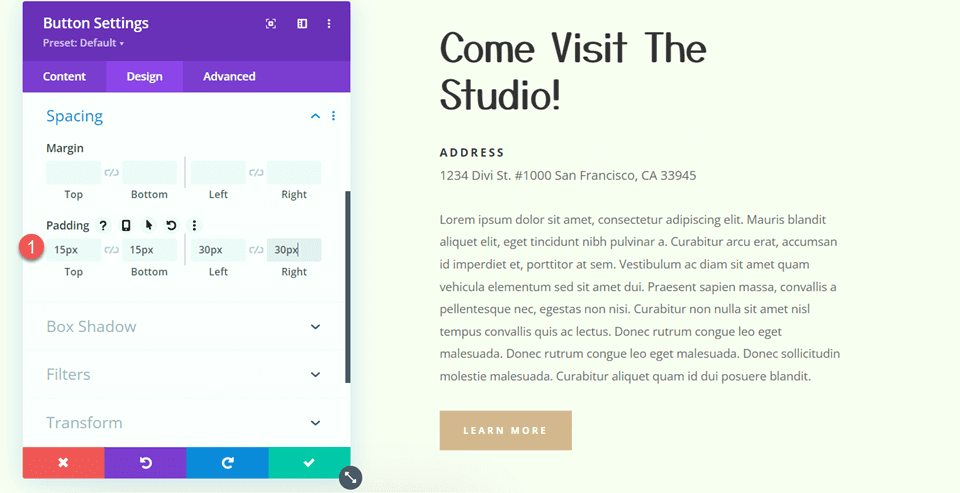
    Finally, add padding to the button.

    • Padding-Top: 15px
    • Padding-Bottom: 15px
    • Padding-Left: 30px
    • Padding-Right: 30px

    Divi Add Sticky Map Module Button Padding

    Studio Memberships Section

    Now we are going to modify the Studio Memberships section. First, change the row layout to two equal columns.
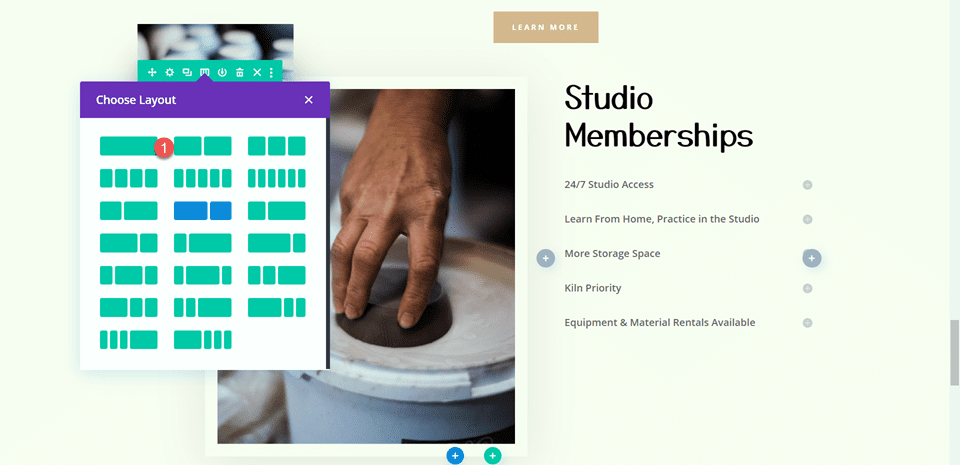
    Divi Add Sticky Map Module Row Layout

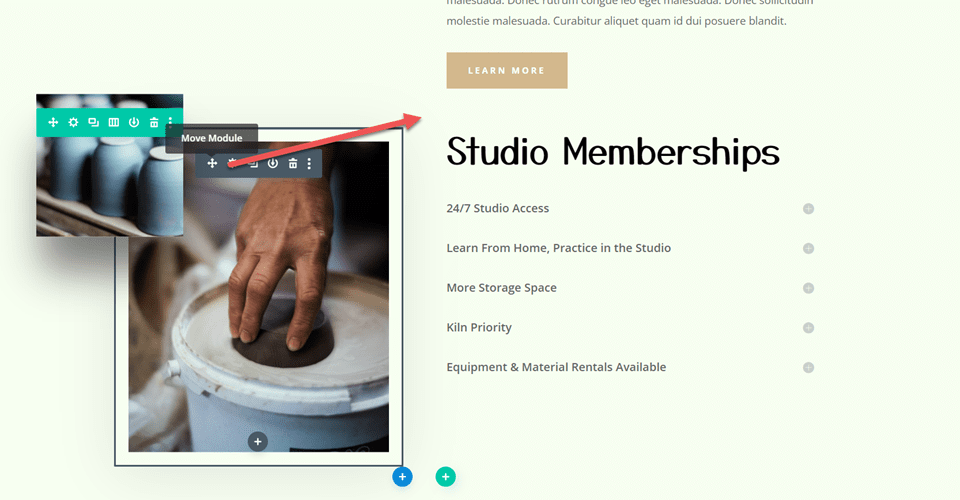
    Then, move the large image to the right column, above the “Studio Memberships” text module.

    Divi Add Sticky Map Module Move Image

    Scrolling Image Settings

    Move the small scrolling image of the pottery to the right column, above the large image we moved.

    Divi Add Sticky Map Module Move Image

    Open the module settings for the small image. Under the Sizing settings, use the responsive settings to set a different width for mobile devices.

    • Width-Mobile: 35%

    Under the Advanced tab, open the Position settings and add some horizontal offset. This allows the small image to hang over the side of the larger image, adding dimension and creating a more unique layout.

    • Horizontal Offset: -30px

    Divi Add Sticky Map Module Horizontal Offset

    Finally, open the scroll effects and adjust the ending offset for the vertical motion.

    • Ending Offset: -1

    Divi Add Sticky Map Module Ending Offset

    Studio Memberships Text

    Open the Studio Memberships text module settings. Remove the background from the module.
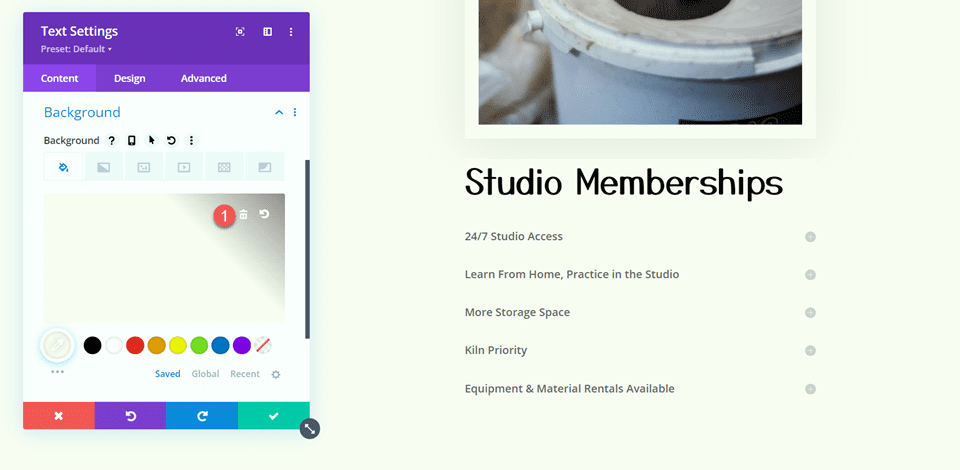
    Divi Add Sticky Map Module Remove Background

    Then, open the row settings and open the column 2 settings.

    Divi Add Sticky Map Module Column 2 Settings

    Under the Spacing settings in the Design tab, remove the existing bottom padding.
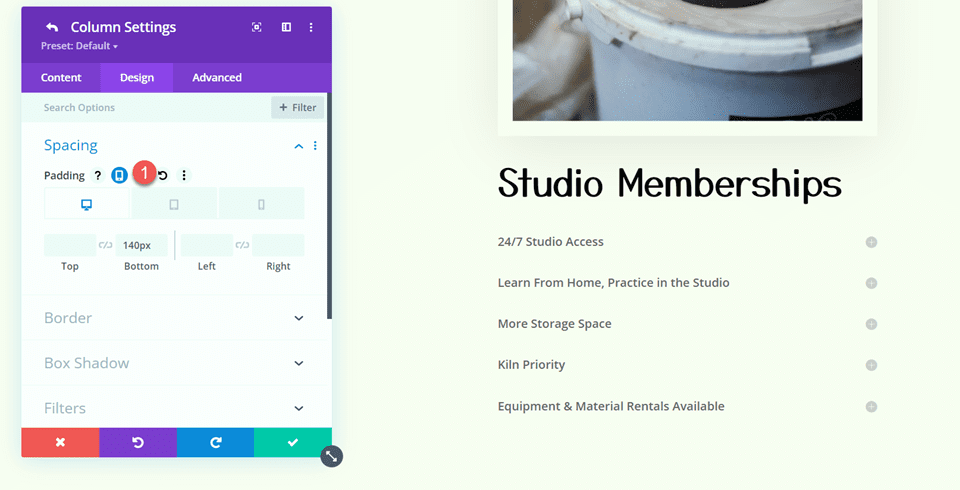
    Divi Add Sticky Map Module Remove Padding

    Section Background

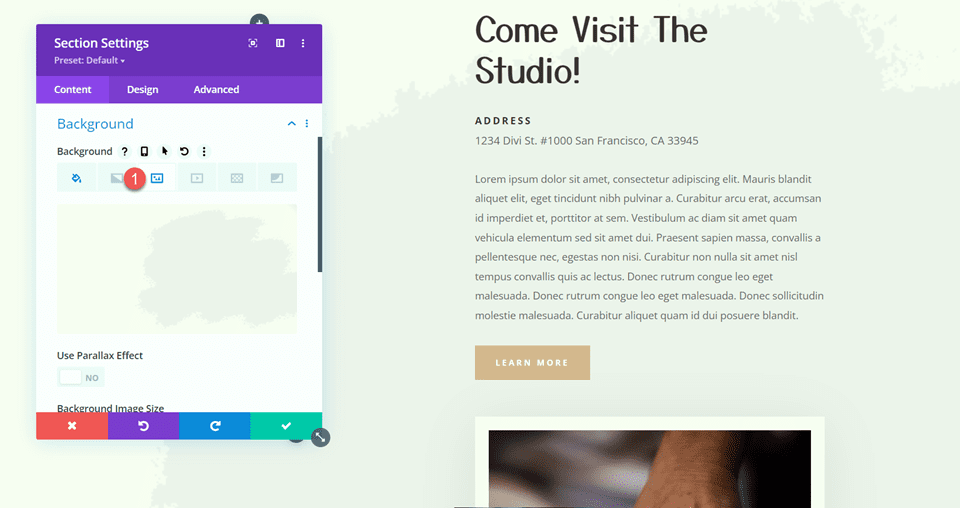
    Open the section settings. Under the background settings, add a background image. Select craft-school-24.png from your media library.
    Divi Add Sticky Map Module Add Background Image

    Add the Sticky Map Module

    Now that our layout has been modified, we can add the sticky map module. The map module will be in the left column and stay in place as you scroll through the content on the right. Let’s get started.

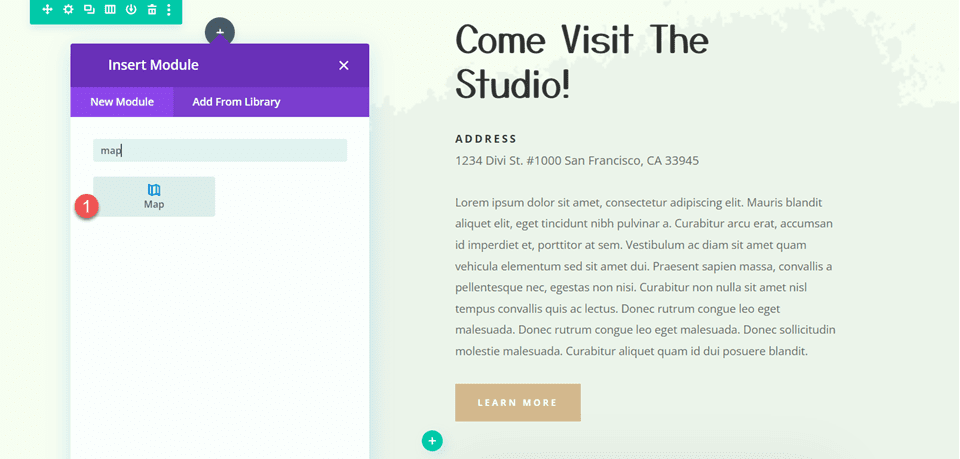
    First, add a map module to the left column of the “Come Visit The Studio” row.

    Divi Add Sticky Map Module Add Map Module

    Open the map settings and add a map center address. For this tutorial, we will center the map on San Fransisco, CA.

    Divi Add Sticky Map Module Map Center Address

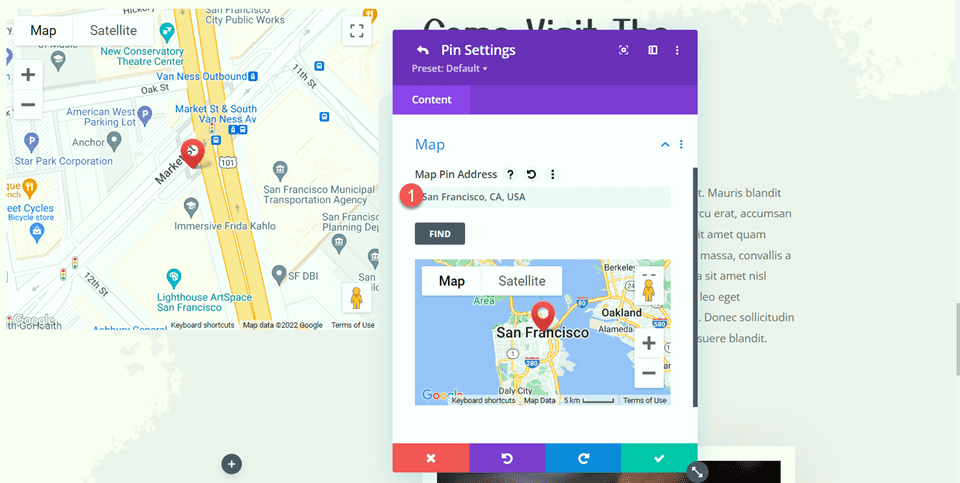
    Then, add a pin to the map. We will also set this to San Fransisco, CA.
    Divi Add Sticky Map Module Map Pin

    Map Design

    Under the design tab, open the map settings. You can use these settings to completely customize the way your map appears. For this tutorial, we want the map to match the muted colors of this page, so we will modify the map saturation.

    • Map Saturation: 56%

    Divi Add Sticky Map Module Map Saturation

    Next, open the border settings and customize the border as follows:

    • Border Width: 20px
    • Border Color: #fcf8f3

    Divi Add Sticky Map Module Border Settings


    Open the Box Shadow settings and add a shadow to the map module.

    • Box Shadow: Below

    Divi Add Sticky Map Module Box Shadow

    Sticky Settings

    Now let’s add the sticky settings so the map sticks in place while you scroll. Move over to the Advanced tab and open the Scroll Effects Settings. Use responsive options to modify the sticky position settings, as the map will not be sticky on mobile devices.

    • Sticky Position Desktop: Stick to Top
    • Sticky Position Tablet and Mobile: Do Not Stick
    • Sticky Top Offset: 20px
    • Bottom Sticky Limit: Section

    Divi Add Sticky Map Module Scroll Effects

    Now go back to the Design tab and open the sizing settings. We want the map height to increase when it is in the sticky state. Use the sticky settings to set a different height.

    • Height when Sticky: 600px

    Divi Add Sticky Map Module Height

    Finally, use the responsive settings to change the map size on tablet and mobile.

    • Height Tablet and Mobile: 350px

    Divi Add Sticky Map Module Mobile Height

    Final Result

    Now let’s take a look at our sticky map module in action.

    Divi Add Sticky Map Module Final Result Mobile

    Final Thoughts

    Divi’s sticky settings allow you to create dynamic website layouts that draw your eye with the movement. With all of the customization options available, you can make any element on your website sticky and modify the design exactly to your liking. By making the map module sticky in this design, we highlight the location information for the website and add a unique design element to the page. For more tutorials on Divi’s sticky settings, check out this article on adding a sticky contact form to your page. Do you use sticky elements on your website? We would love to hear from you in the comments!

    The post How to Add a Sticky Map Module to Your Divi Page appeared first on Elegant Themes Blog.

  • How to Expand Your Map Module on Scroll with Divi’s Scroll Effects

    Adding a map to your website is a great way to show your visitors where you or your business is located. With Divi‘s built-in settings, you have full creative control over the design of your map module and any surrounding design elements. Take your designs to another level by applying scroll effects to your module. With several different types of effects to choose from and settings to fine-tune the effect until you achieve exactly what you want, using scroll effects can help you add eye-catching movement to your website modules. In this post, we will show you how to enlarge your map module on scroll with Divi’s scroll effects.

    Let’s get started!

    Sneak Peek

    Here is a preview of what we will design.

    Layout 1

    Divi Enlarge Map On Scroll With Scroll Effects Layout 1 Final Design Mobile

    Layout 2

    Divi Enlarge Map On Scroll With Scroll Effects Layout 2 Final Design Mobile

    What You Need to Get Started

    Before we begin, install and activate the Divi Theme and make sure you have the latest version of Divi on your website.

    Now, you are ready to start!

    How to Enlarge Your Map Module on Scroll with Divi’s Scroll Effects

    Layout 1

    Create a New Page with a Premade Layout

    Let’s start by using a premade layout from the Divi library. For this design, we will use the Acai Bowl Landing Page from the Acai Bowl Layout Pack.

    Add a new page to your website and give it a title, then select the option to Use Divi Builder.

    Divi Enlarge Map On Scroll With Scroll Effects Use Builder

    We will use a premade layout from the Divi library for this example, so select Browse Layouts.

    Divi Enlarge Map On Scroll With Scroll Effects Find Layout

    Search for and select the Acai Bowl Landing Page.

    Divi Enlarge Map On Scroll With Scroll Effects Select Layout

    Select Use This Layout to add the layout to your page.

    Divi Enlarge Map On Scroll With Scroll Effects Use Layout

    Now we are ready to build our design.

    Add the Map Module

    We are going to add the map module to the “Come Visit Us” section on the landing page. Start by adding a new row with a single column.

    Divi Enlarge Map On Scroll With Scroll Effects Row

    Add the map module to the new row.

    Divi Enlarge Map On Scroll With Scroll Effects Add Map

    Add your Google API Key to enable the map if you haven’t already. Then, add a center address to the map. For this tutorial, the address will be San Fransisco, California.

    Divi Enlarge Map On Scroll With Scroll Effects Map API Address

    Next, add a new pin.

    Divi Enlarge Map On Scroll With Scroll Effects Add Pin

    Set the map pin address. Once again, we will set this to San Fransisco, California for this tutorial.

    Divi Enlarge Map On Scroll With Scroll Effects Address

    Design Settings

    Move to the Design tab and open the sizing settings. Set the Height.

    • Height: 300px

    Divi Enlarge Map On Scroll With Scroll Effects Height

    Next, open the border settings and add rounded corners to the map.

    • Rounded Corners: 22px

    Divi Enlarge Map On Scroll With Scroll Effects Rounded Corners

    Add the Scroll Effects

    Now the design of our map module is complete so that we can add the scroll effects. Move to the Advanced tab, then navigate to the Scroll Effects. Under Scroll Transform Effects, select the scaling up and down tab.

    Divi Enlarge Map On Scroll With Scroll Effects Scroll Effects

    Enable Scaling Up and Down. This will allow our map module to increase in size as you scroll down the page.

    Divi Enlarge Map On Scroll With Scroll Effects Enable Scaling

    Let’s fine-tune the scaling settings. Adjust the starting, mid, and ending scale. You can achieve a more subtle scale effect by keeping the numbers relatively close together. If there is a big difference between the numbers, you will achieve a more drastic scale effect.

    • Starting Scale: 80%
    • Mid Scale: 90%
    • Ending Scale: 100%

    Divi Enlarge Map On Scroll With Scroll Effects Scaling

    Finally, set the motion effect to trigger in the middle of the element.

    • Motion Effect Trigger: Middle of Element

    Divi Enlarge Map On Scroll With Scroll Effects Effect Trigger

    Final Design

    Here is the final design for our first layout.

    Divi Enlarge Map On Scroll With Scroll Effects Layout 1 Final Design Mobile

    Layout 2

    Create a New Page with a Premade Layout

    For the second layout, we will use the contact page layout from the same Acai Bowl Layout Pack. Let’s get started.

    Add a new page to your website and give it a title, then select the option to Use Divi Builder.

    Divi Enlarge Map On Scroll With Scroll Effects Layout 2 Use Builder

    We will use a premade layout from the Divi library for this example, so select Browse Layouts.

    Divi Enlarge Map On Scroll With Scroll Effects Layout 2 Use Builder

    Search for and select the Acai Bowl Contact Page.

    Divi Enlarge Map On Scroll With Scroll Effects Layout 2 Find Layout

    Select Use This Layout to add the layout to your page.

    Divi Enlarge Map On Scroll With Scroll Effects Layout 2 Use Layout

    Now we are ready to build our design.

    Modify Row Settings

    First, move the row containing the map module to the section above, below the addresses.

    Divi Enlarge Map On Scroll With Scroll Effects Layout 2 Move Map

    Then, modify the row layout to two columns.

    Divi Enlarge Map On Scroll With Scroll Effects Layout 2 Row

    Open the row settings, then open the column 1 settings.

    Divi Enlarge Map On Scroll With Scroll Effects Layout 2 Column Settings

    Add a background color.

    • Background: #442854

    Divi Enlarge Map On Scroll With Scroll Effects Layout 2 Background

    Finally, navigate to the design tab and open the border settings. Add rounded corners to the bottom left and right corners.

    • Rounded Corners – bottom left: 300px
    • Rounded Corners – bottom right: 300px

    Divi Enlarge Map On Scroll With Scroll Effects Layout 2 Rounded Corners

    Modify Section Settings

    Open the section settings for the section containing the map module. Navigate to the background settings, then add a background mask.

    • Background Mask: Corner Blob
    • Mask Color: #FFFFFF
    • Mask Transform: Vertical and Invert

    Divi Enlarge Map On Scroll With Scroll Effects Layout 2 Background Mask

    Add Image

    First, add an image module to the column next to the map module.
    Divi Enlarge Map On Scroll With Scroll Effects Layout 2 Image

    Then, add the transparent image of the acai bowl to the module. You should have this in your media library labeled as acai-bowl-34.png if you used the Acai Bowl landing page layout for Layout 1.

    Divi Enlarge Map On Scroll With Scroll Effects Layout 2 Add Image

    We want the image of the acai bowl to rotate as you scroll down the page. Move over to the Advanced tab, then open the Scroll Effects section. Select the Rotating tab and enable rotating.

    Divi Enlarge Map On Scroll With Scroll Effects Layout 2 Rotating

    Next, set the rotation.

    • Starting Rotation: 180
    • Mid Rotation: 90
    • Ending Rotation: 0

    Divi Enlarge Map On Scroll With Scroll Effects Layout 2 Set Rotating

    Map Design

    Now move over to the map module settings. Under the design tab, open the map settings. Enable the grayscale filter.

    • Use Greyscale Filter: Yes
    • Greyscale Filter Amount (%): 100

    Divi Enlarge Map On Scroll With Scroll Effects Layout 2 Greyscale

    Next, modify the height under the Sizing tab.

    • Height: 600px

    Divi Enlarge Map On Scroll With Scroll Effects Layout 2 Height

    Under the Spacing settings, add some margins.

    • Margin-Top: 5px
    • Margin-Bottom: 5px
    • Margin–Left: 5px
    • Margin-Right: 5px

    Divi Enlarge Map On Scroll With Scroll Effects Layout 2 Margin

    Then add rounded corners to the bottom left and right corners.

    • Rounded Corners – Bottom Left: 300px
    • Rounded Corners – Bottom Right: 300px

    Divi Enlarge Map On Scroll With Scroll Effects Layout 2 Border Rounded Corners
    Add Scroll Effects

    Now we can finally add the scroll effects to the map so that it enlarges on scroll. Open the Scroll Effects section under the Advanced tab. Then, select the scaling up and down tab and enable scaling up and down.

    Divi Enlarge Map On Scroll With Scroll Effects Layout 2 Scroll Effects

    Finally, customize the scales.

    • Starting Scale: 90%
    • Mid Scale: 95%
    • Ending Scale: 100%

    Divi Enlarge Map On Scroll With Scroll Effects Layout 2 Scaling

    Final Design

    Here is the final design for layout 2.

    Divi Enlarge Map On Scroll With Scroll Effects Layout 2 Final Design Mobile

    Final Result

    Now let’s take a look at both of our layouts in action.

    Layout 1

    Divi Enlarge Map On Scroll With Scroll Effects Layout 1 Final Design Mobile

    Layout 2

    Divi Enlarge Map On Scroll With Scroll Effects Layout 2 Final Design Mobile

    Final Thoughts

    By applying Divi’s scroll effects to the map module, you can achieve a unique effect as you scroll down the page and help your map stand out to website visitors. These effects can be applied to any other module on your website as well, so there is no limit to what you can achieve with some creativity! If you are interested in more tutorials related to the map module, check out this article for how to add a fixed map toggle to your Divi page template. And if you want some more design ideas using scroll effects, check out this tutorial for how to add scroll-animated icons to your section backgrounds. How have you applied Divi’s scroll effects to your website? Let us know in the comments!

    The post How to Expand Your Map Module on Scroll with Divi’s Scroll Effects appeared first on Elegant Themes Blog.

  • Using the Divi Fullwidth Map vs Map Module

    Adding a map to your website can make it easy for your website visitors to see where your business is located or to see where an event might be taking place. Divi comes with two built-in options to embed Google Maps to your page design: the fullwidth map module and the regular map module. With the fullwidth map module, you can add a big, eye-catching map that spans the width of your page. You can customize the look of the fullwidth map module using the fullwidth module settings, and it can be a great design element to add to your layout. You can add Divi’s regular map module to any regular section. The design options are endless as you can combine module, row, and section options to create unique layouts for your website.

    In this tutorial, we will show you how to create two different layouts using the fullwidth map module and the regular map module.

    Let’s get started!

    Sneak Peek

    Here is a preview of what we will design.

    Layout 1 – Fullwidth Map Module

    Divi Fullwidth Map VS Map Module Fullwidth Final Design


    Divi Fullwidth Map VS Map Module Fullwidth Final Design Mobile

    Layout 2 – Regular Map Module

    Divi Fullwidth Map VS Map Module Regular Final Design

    Divi Fullwidth Map VS Map Module Regular Final Design Mobile


    What You Need to Get Started

    Before we begin, install and activate the Divi Theme and make sure you have the latest version of Divi on your website.

    Now, you are ready to start!

    Using the Divi Fullwidth Map vs Map Module

    Create a New Page with a Premade Layout

    Let’s start by using a premade layout from the Divi library. For this design, we will use the Conference About Page from the Conference layout pack.

    Add a new page to your website and give it a title, then select the option to Use Divi Builder.

    Divi Fullwidth Map VS Map Module Use Builder

    We will use a premade layout from the Divi library for this example, so select Browse Layouts.

    Divi Fullwidth Map VS Map Module Browse Layouts

    Search for and select the Conference About Page layout.

    Divi Fullwidth Map VS Map Module Search

    Select Use This Layout to add the layout to your page.

    Divi Fullwidth Map VS Map Module Use Layout

    Now we are ready to build our design.

    Layout 1 – Fullwidth Map Module

    For our first layout, we will add the fullwidth map module to the footer, right above the black footer section with all of the links. Instead of adding this element to the page, we will use the theme builder in Divi’s settings to create a footer section for this page, then add the map. Let’s get started.

    First, right-click on the footer section or click the three dots in the section toolbar, then copy the section.

    Divi Fullwidth Map VS Map Module Copy Footer Section

    Then, delete the section from this page.

    Design the Footer Layout with the Theme Builder

    From the WordPress dashboard, navigate to the theme builder section within Divi’s settings. Click Add a New Template.

    Divi Fullwidth Map VS Map Module Add New Template

    For this design, I am only enabling the template for the page with our Conference About Page template.

    Divi Fullwidth Map VS Map Module Template Settings

    Next, click Add Custom Footer and select Build Custom Footer.

    Divi Fullwidth Map VS Map Module Build Custom Footer

    Now that your custom footer settings are open in the theme builder, paste the footer section you copied from the original layout.

    Divi Fullwidth Map VS Map Module Paste Section

    Add a new fullwidth section above the footer layout you pasted.

    Divi Fullwidth Map VS Map Module Insert Fullwidth

    Then, add the fullwidth map module.

    Divi Fullwidth Map VS Map Module Fullwidth Menu Module

    Fullwidth Map Module Settings

    Open the map module settings. If you haven’t already, add your Google API Key so that the map can be displayed. (Learn more about the Google Maps API Key requirement here.)

    Divi Fullwidth Map VS Map Module Google API Key

    We need to add a Map Center Address under the Map settings on the Content tab so that our map is positioned to display a specific location. We will center our map on San Fransisco, California for this layout.

    Divi Fullwidth Map VS Map Module Map Center Address

    We also want to add a pin to the map. Under the Content tab, click Add New Pin.

    Divi Fullwidth Map VS Map Module Add New Pin

    Enter the pin address.

    Divi Fullwidth Map VS Map Module Map Pin Address

    Finally, delete the empty section from the footer layout.

    Divi Fullwidth Map VS Map Module Delete Section

    Fullwidth Map Module Final Design

    Here is the final design with the fullwidth map module.

    Divi Fullwidth Map VS Map Module Fullwidth Final Design

    Divi Fullwidth Map VS Map Module Fullwidth Final Design Mobile


    Layout 2 – Regular Map Module

    For our second layout, we will be using the regular map module. Similar to the last design, we will incorporate it into the footer design using the theme builder settings. For this design, we will add a map to the “Where to Stay” section.

    Design the Footer Layout with the Theme Builder

    We’ll follow the same steps as the fullwidth map module layout to create a custom footer design in the theme builder. In a new tab, open the WordPress Dashboard and navigate to the theme builder section within Divi’s settings. You should have the original layout design open in another tab.

    Click Add a New Template.

    Divi Fullwidth Map VS Map Module Add New Template

    Once again, I am only enabling the template for the page with our Conference About Page template.

    Divi Fullwidth Map VS Map Module Template Settings

    Next, click Add Custom Footer and select Build Custom Footer.

    Divi Fullwidth Map VS Map Module Build Custom Footer

    Now that your custom footer settings are open in the theme builder, go back to the tab with the original layout and copy the “Where to Stay” section.

    Divi Fullwidth Map VS Map Module Copy Section

    Paste the “Where to Stay” section in the custom footer layout.

    Divi Fullwidth Map VS Map Module Paste Section

    Go back to the original layout and copy the footer section.

    Divi Fullwidth Map VS Map Module Copy Footer

    Then, paste the footer section below the “Where to Stay” section in the custom footer layout.

    Divi Fullwidth Map VS Map Module Regular Paste Footer

    Delete the “Where to Stay” section and the footer section from the original layout.

    Finally, delete the empty section from the custom footer layout.

    Divi Fullwidth Map VS Map Module Regular Delete Section

    Fullwidth Map Module Settings

    Add a map module below the “Where to Stay” body text.

    Divi Fullwidth Map VS Map Module Regular Map Module

    Then, open the map module settings. Once again, ensure you have added your Google API Key to the Map settings so the map can be displayed.

    Add a Map Center Address so that the map is positioned to a location. For this example, we will set it to San Fransisco, California.

    Divi Fullwidth Map VS Map Module Regular API Map Address

    Next, add a pin to the map.

    Divi Fullwidth Map VS Map Module Regular Add Pin

    Enter the pin address.

    Divi Fullwidth Map VS Map Module Regular Map Pin Address

    Regular Map Module Final Design

    Here is the final design with the regular map module.

    Divi Fullwidth Map VS Map Module Regular Final Design

    Divi Fullwidth Map VS Map Module Regular Final Design Mobile

    Final Result

    Now let’s take another look at our final designs together.

    Layout 1 – Fullwidth Map Module

    Divi Fullwidth Map VS Map Module Fullwidth Final Design


    Divi Fullwidth Map VS Map Module Fullwidth Final Design Mobile

    Layout 2 – Regular Map Module

    Divi Fullwidth Map VS Map Module Regular Final Design


    Divi Fullwidth Map VS Map Module Regular Final Design Mobile

    Final Thoughts

    The fullwidth map module and the regular map module are an easy way to add an eye-catching design element to your page, not to mention it provides valuable information to your website visitors. You can easily customize these sections using the various module, row, and section settings, and they can be combined with other design elements on the page to create dynamic layouts for your website. If you want to learn more about what the map modules can do, check out this tutorial to add a fixed map toggle to a page template.

    Do you use a fullwidth menu module or a regular menu module on your website? Or both? We’d love to hear from you in the comments!

    The post Using the Divi Fullwidth Map vs Map Module appeared first on Elegant Themes Blog.

  • How to Add Multiple Pins to Your Divi Map

    The Divi Map Module makes it easy to embed a Google Map to your Divi website. This is a great way to share your business location on a contact page, in a footer, or on an about page.

    In this post, we’re going to demonstrate how to add multiple location pins to your Divi map. This is a great feature if your business has multiple locations or you’re putting together a local guide to show off your favorite coffee shops, etc.

    Let’s dive in!

    What You Need to Get Started

    To get started, you will need to do the following:

    1. Install Divi on your WordPress website.
    2. Add a Page, give it a title, and publish it.
    3. Enable the Visual Builder.
    4. Create your Google API Key.

    Select Build From Scratch

    Once you click the “Use Divi Builder” button the page will reload using Divi’s drag and drop builder interface. Three options will pop up – Build From Scratch, Choose A Premade Layout, and Clone Existing Page. For today’s purposes, select “Build From Scratch”. This will give us a blank slate where we can build our designs.

    How to Add Multiple Pins to Your Divi Map

    Let’s get into the tutorial! Here’s how to add multiple location pins to your Divi Map.

    Add Your Google API Key

    Before we’ll be able to fully use the map module and its functionalities, you’ll need to add your Google API Key to your Theme Options.

    1. From your WordPress dashboard, go to Divi > Theme Options and paste your Google API Key.
    2. Click “Save Changes”.

    Add a Section and Row and the Map Module

    Navigate back to the page you just created and add a section and a one-column row to your page. Then load the module library and click Map. Once added, the module window will pop up with all the settings and functionalities available within the map module.

    Add a New Pin

    To add a new location pin, click “Add A New Pin”. This will bring up the settings for that new pin. In the Text tab, type in the title and a description text you want to be displayed here. In the Map tab, paste the address for the pin in the Map Pin Address input field and then click find.

    Choosing a Map Center Address

    Choosing a map center address determines how your map is oriented. This is helpful when you want to show multiple pins at once. Below, we have the map center address as San Diego, CA 92104, USA so that it shows all of our pins within that area.

    Divi multiple Google map pins

    Final Thoughts

    And there you have it! You can add as many pins to your map as you’d like. Adding pins to the map module is simple and easy and results in an interactive Google Map that is easy to use for your website visitors.

    The post How to Add Multiple Pins to Your Divi Map appeared first on Elegant Themes Blog.

  • How to Add Google Maps to Your Divi Website

    Google Maps is a software service that allows users to present maps to their audience. It’s faster than embedded maps and, if you’ve integrated it with Divi, it’s easier to use. The Divi Builder includes two Map Modules that make presenting Google Maps a simple process. In this post, we’ll see how to add Google Maps to your website using the Google Maps API Key and the Divi Map Module.

    Let’s get started!

    Preview

    First, let’s look at what we’ll build in this post. I’ll add a Map Module to a current Divi layout and style it with elements from the layout.

    Google Maps Desktop

    Google Maps Desktop

    Google Maps Phone

    Google Maps Phone

    How Google Maps and APIs Work

    While it’s possible to simply embed a Google Map into a Divi page or template, the Google Maps API gives developers more control. Maps that use the Google Maps API load faster and you can apply custom colors, create custom markers, and more.

    To prevent unauthorized access, the Google Maps Platform utilizes API keys. Obtaining and using a Google Maps API is simple. To create a key, go to the Google Maps Platform Credentials page and select or create a project. This project will be used to contain your Google Maps API, so be sure to give it a name that’s easy to understand.

    How Google Maps and APIs Work

    Next, click Create Credentials at the top of the page and select API Key from the menu. The Credentials link won’t appear until you have a project selected.

    How Google Maps and APIs Work

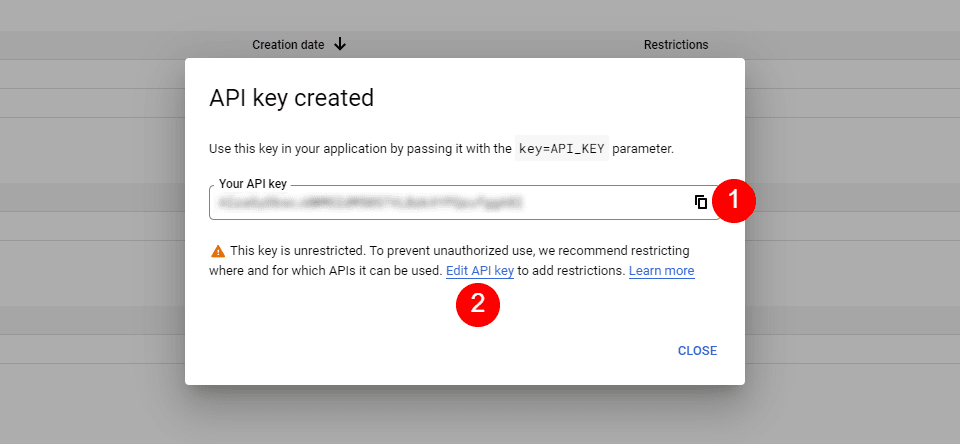
    Next, you’ll see a modal with your API Key. You can copy your API Key and close the modal. You can also restrict the key. This keeps others from using it. I recommend restricting the API Key to prevent unauthorized use. Click Edit API Key.

    How Google Maps and APIs Work

    Under API Restrictions, click Restrict Key, choose which key to restrict, and save it. Copy the key in the upper right corner of the page. You can now paste the API key into Divi.

    How Google Maps and APIs Work

    How to Integrate Google Maps in Divi

    To integrate your Google Maps API Key into Divi, go to Divi > Theme Options in the WordPress dashboard. In the General tab, you’ll see a field labeled Google API Key. Paste the key into the field and save the settings.

    How to Integrate Google Maps in Divi

    Google Maps is now integrated into Divi, and you can add a Google Map to your Divi page or template. Your Map Modules automatically access the key, so you won’t need to add it again. You will be able to replace the key for each module if you want.

    How to Add a Google Map to Your Page or Template

    You can add the Google Map to your Divi pages and templates in several ways. The best option with the most features is to use the Map Modules. Divi has two Map Modules to choose from and the process of adding the map is the same. Both include map pins and styling features.

    Since we’ve added the API to Divi’s Theme Options, the Map Modules already contain your Google Maps API. All we need to do is add an address and the pins we want.

    How to Add a Google Map to Your Page or Template

    The process is simple. Enter the address you want to show in the center of the map and select Find. The map will fill in.

    How to Add a Google Map to Your Page or Template

    Let’s add a map to a page to see how it works.

    Regular Map Module vs the Fullwidth Map Module

    We can use the regular Map Module or the Fullwidth Map Module. The work is the same. Both look amazing and the one you choose just depends on the design you want. The regular Map Module lets you style the background and easily add other modules to the Row.

    The Fullwidth Map Module uses the entire width. It’s shown here with regular sections above and below it.

    How to Add Google Maps to Your Divi Page

    Now, let’s see how to add a Google Map to a page or template. The work is the same for both pages and templates. I’ll create a page using the Contact page from the free Photography Studio Layout Pack that’s available within Divi.

    For reference, here’s the original page. I’ll add a new section for the map between the two sections using design cues from the layout pack.

    How to Add Google Maps to Your Divi Page

    Add a Regular Section and Row

    First, add a Regular Section between the two sections. This is where we’ll add the map.

    Add a Regular Section and Row

    Open the Section’s settings, go to Background, and change the Background Color to #f6f5ee. Close the settings.

    • Background Color: #f6f5ee

    Add a Regular Section and Row

    Next, add a single-column Row to the Section.

    Add a Regular Section and Row

    Add a Text Module

    Next, we’ll add a Text Module to create a title for the map.

    Add a Text Module

    Content

    Change the Content-type to Heading 4 and add the title to the body content area.

    • Content-Type: Heading 4
    • Body: Location

    Add a Text Module

    Heading Text

    Next, click on the Design tab and scroll down to Heading Text. Choose Heading Level 4 and select Inter for the Font. Set the Weight to Bold and the Style to TT.

    • Heading Level: H4
    • Font: Inter
    • Weight: Bold
    • Style: TT

    Add a Text Module

    Change the Font Color to #ff5a17, the Size to 14px, the Letter Spacing to 1px, and the Line Height to 1.4em. This is it for the title. We can now close this module.

    • Color: #ff5a17
    • Size: 14px
    • Letter Spacing: 1px
    • Line Height: 1.4em

    Add a Text Module

    Add a Map Module

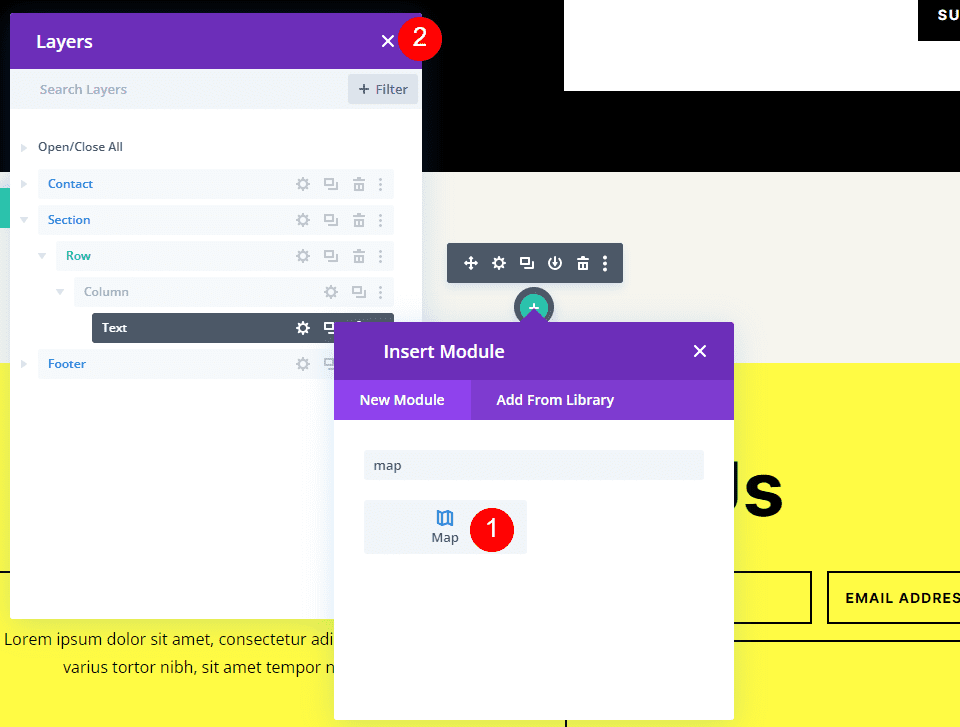
    Now it’s time to add a Map Module to our layout. Add the module in the Row under the Text Module. In my case, the icon to add a module appears under the Row icon. There’s an easy way around this. Simply right-click (for Windows users, control-click for Mac) and select Go To Layer. This opens a Layers View that’s easy to navigate and use.

    Add a Map Module

    Open the Section, Row, and Column to see the Text Module. Click the plus icon next to the Text Module to add a new module.

    Add a Map Module

    This opens the standard module modal where you can select your modules. Add the Map Module as normal and close the Layers view. The Map Module appears under the Text Module just as we wanted.

    Add a Map Module

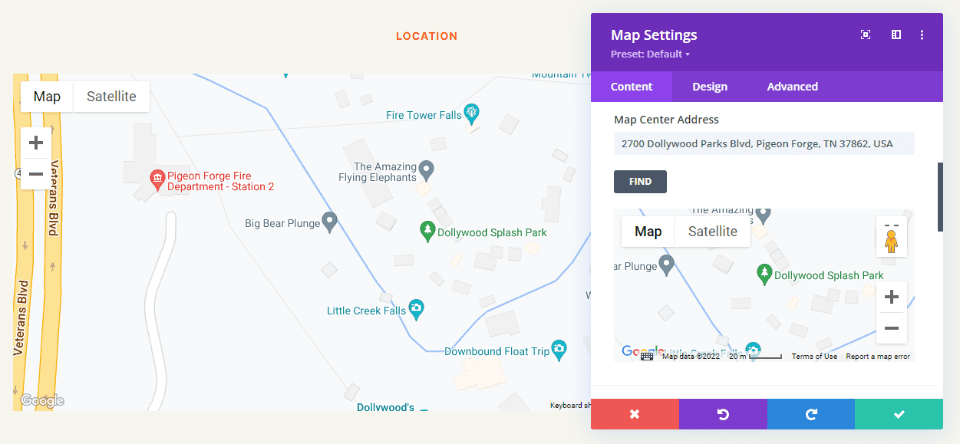
    You’ll see the Google Maps API Key already entered and ready to use. Next, enter the address you want to show in the Map Center Address field. Click the Find button to tell the module to search the map for this address. If you do need to use a different API Key than what you’ve entered as the default key in the Divi Theme Options, select Change API Key.

    • Map Center Address: the address of the location you want to display

    Add a Map Module

    The module will search for the location and display it on the map. If there’s an error, return to the Google Maps Platform to see any issues with your API Key.

    Add a Map Module

    Border

    Next, go to the Design tab and scroll down to Border. Change the Width to 2px and set the Color to black. Close the module and save your settings.

    • Width: 2px
    • Color: #000000

    Add a Map Module

    Results

    This was a simple design, but it works well with the layout.

    Google Maps Desktop

    Google Maps Desktop

    Google Maps Phone

    Google Maps Phone

    Ending Thoughts

    That’s our look at how to add Google Maps to your Divi website. The Google Maps API Key is easy to add to Divi. Once the API Key is added to Divi, every Map Module automatically accesses the key. You can even change the API Key on a per-module basis if you want. All you’ll ever need to do is add the address you want your Map Module to display. It loads faster than embedding, provides lots of styling options, and you can show any number of maps in your Divi pages and templates.

    We want to hear from you. Have you added the Google Maps API to your Divi website? Let us know about your experience in the comments.

    The post How to Add Google Maps to Your Divi Website appeared first on Elegant Themes Blog.

  • How to Add a Button to Your Divi Map Location’s Info Box

    The Divi Map module integrates with Google Maps seamlessly and is an easy way to add an interactive map to your Divi website. This is great for showing your business’s location or creating a local guide of your favorite boutiques and businesses.

    In this post, we’re going to show you how to add a button to the location info box for one of your pinned addresses.

    Design Preview

    First, let’s take a look at what we’re trying to accomplish. With some simple HTML, we’ll be able to accomplish adding a button inside the location info box for a pinned address.

    Let’s dive in!

    What You Need to Get Started

    To get started, you will need to do the following:

    1. Install Divi on your WordPress website.
    2. Add a Page, give it a title, and publish it.
    3. Enable the Visual Builder.
    4. Create your Google API Key.

    Select Build From Scratch

    Once you click the “Use Divi Builder” button the page will reload using Divi’s drag and drop builder interface. Three options will pop up – Build From Scratch, Choose A Premade Layout, and Clone Existing Page. For today’s purposes, select “Build From Scratch”. This will give us a blank slate where we can build our designs.

    Add Your Google API Key

    Before we’ll be able to fully use the map module and its functionalities, you’ll need to add your Google API Key to your Theme Options.

    1. From your WordPress dashboard, go to Divi > Theme Options and paste your Google API Key.
    2. Click “Save Changes”.

    Method 1: How to Add a Button to Your Divi Map Location’s Info Box

    Let’s get into the tutorial! Here’s how to add a button to the location info box.

    Add a Section and Row and the Map Module

    Navigate back to the page you just created and add a section and a one-column row to your page. Then load the module library and click Map. Once added, the module window will pop up with all the settings and functionalities available within the map module.

    Add  a Pin

    Click “Add New Pin” to add a pin to your map. This will bring up that pin’s settings where you can type in a title and add a description text. To add a button in the text area, add the following HTML:

    <a class="et_pb_button" href="#">Get Directions</a>

    The key here is to add the class of et_pb_button that turns a regular text link into a button. Don’t forget to replace the # sign with the URL you want this button to link to.

    Then add your pin’s location in the Map tab in the Map Pin Address field and click find.

    And there you have it! A button appears in the pin’s location info box.

    Method 2: Styling the Button with a Unique CSS Class

    There’s also another way to achieve this and it’s to add a unique CSS class to the HTML to style the button. Here is the HTML you’ll need:

    <a class="get-directions-btn" href="#">Get Directions</a>

    The unique CSS class we added was get-directions-btn. We can use this CSS class to apply unique styles to the button. You can do this by pasting on-page CSS or by using your child theme’s style sheet. In today’s example, we’re going the paste the CSS in our Page Settings.

    To achieve the button style below, copy and paste this CSS in to your Page Settings:

    .get-directions-btn {
      background-color: #1d1d1d!important;
      color: #f9f9f9;
      border-radius: 100px!important; 
      padding: 5px;}

    Final Thoughts

    Adding a button to your pin’s location box offers a clean direction button link that makes it easy for your visitors to get directions fast. You can also style the button using CSS added to your page! With that, the styling options are endless. Have fun customizing!

    The post How to Add a Button to Your Divi Map Location’s Info Box appeared first on Elegant Themes Blog.