EDITS.WS

Tag: Divi Product Highlight

  • Divi Plugin Highlight: Divi MadMenu

    Divi MadMenu is a header and menu creation plugin that expands the possibilities of your Divi headers and menus. Divi MadMenu comes with a horizontal menu module and a vertical menu module. You can fully customize every aspect of your menu with extensive design options, allowing you to create unique menu layouts. Divi MadMenu also adds some great functionality to the menu such as the ability to create custom popups, add buttons that change depending on the user authentication state, add WooCommerce-connected cart icons, and more.

    In this plugin highlight we’ll take a close look at all the features you get with Divi MadMenu and help you decide if it’s the right plugin for you.

    Let’s get started!

    Installing Divi MadMenu

    Divi MadMenu comes as a .ZIP plugin file. To install the plugin, open the plugin page in your WordPress dashboard and click Add New. Click Choose File and select the plugin file from your computer, then click Install Now. Once the plugin is installed, activate the plugin.

    Divi MadMenu Install

    The plugin adds two new modules to the Divi Builder: MadMenu and MadMenu Vertical Menu. You can add these modules to your page or to your site header through the Divi Theme Builder.

    Divi MadMenu Module

    The MadMenu module adds a horizontal menu module to your page. For this example, I’m using Demo Layout 1 which comes with the plugin. Let’s take a closer look at the MadMenu module settings.

    Divi MadMenu Module Content Settings

    The content tab of the MadMenu settings is where you can control the general menu elements and functions.

    Elements

    Here you can choose to enable or disable the desktop and mobile menus, and you can enable menu elements such as the logo, search, cart, button one, and button two. Each of these elements can be customized with specific settings below in the content tab and in the design tab.

    Divi MadMenu Elements Settings

    Desktop Menu

    Here you can choose the menu to display on desktop devices, set the breakpoint where the desktop menu will start showing, choose the submenu animation style, and set the animation duration. The desktop menu can be changed with responsive options, so you can set different menus to appear on different screen sizes.

    Divi MadMenu Desktop Menu Settings

    Mobile Menu

    The mobile menu settings allow you to select the displayed menu, set the mobile menu breakpoint, and choose between collapsed or expanded submenus. Just like the desktop menu option, you can use responsive styles to display different menus on different screen sizes.

    Divi MadMenu Mobile Menu Settings

    Mobile Submenu Styles

    If you select collapsed submenus, you can select from 3 different reveal styles – expand, slide right, and slide left. You can also choose if parent item links are clickable. The expand style reveals submenu items vertically. You can choose to enable accordion mode, which only allows one open submenu at a time and will collapse all other opened submenus of the same level.

    Divi MadMenu Mobile Menu Settings

    The slide right or slide left reveal style keeps your menu compact as the submenu items slide in from left or right, and replace the main menu. At the top of the menu, you can find a button to go back one level and a button to go back to the main menu. You can choose between displaying the parent item text, custom text, or no text in the submenu header.

    Divi MadMenu Mobile Menu Settings

    Mobile Menu Options

    Continuing with the mobile menu options, you can enable close on outside click, which closes the menu when the user clicks outside of the menu section as opposed to having to click the menu button at the top to close. The default dropdown menu placement option makes the dropdown menu and the mobile menu toggle independent from each other. The dropdown menu will be aligned with the main module container. The Attached to Menu Toggle option “attaches” the dropdown menu to the menu toggle. If the menu toggle order is changed, the dropdown menu placement will also change, aligned with the toggle.

    Divi MadMenu Mobile Menu Settings

    Mobile Menu Animations

    If you’re looking for a plethora of menu animation options, MadMenu has you covered. There are 20 different opening animation options to choose from and you can change the animation duration.

    Divi MadMenu Mobile Menu Settings

    There are 20 closing animation options that correspond with the opening animations and you can change the duration of the animation.

    Divi MadMenu Mobile Menu Settings

    Mobile Menu Toggle

    Here you can change the appearance of the menu toggle that appears in the mobile header. You can select between the icon and label format, just the icon, or just the label. You can also change the toggle label that appears in the closed and open states, as you can see pictured here. The toggle label can also be customized in the hover state, leading to many interesting design possibilities. The toggle label position setting allows you to put the label above, below, on the right, or on the left side of the icon.

    Divi MadMenu Mobile Menu Toggle Settings

    Logo

    Here you can upload your logo to add to the menu. The logo can be customized with hover effects and can be changed for tablet and mobile views. You can also add a logo link URL and change the logo link target.

    Divi MadMenu Logo Settings

    Search

    In the search settings, you can choose between the search icon or your own image. Here I’ve customized the search element in the design tab to match the demo 1 header layout I’m using here.

    Divi MadMenu Search Settings

    You can also change the placeholder text that appears when you click on the search icon.

    Divi MadMenu Search Bar

    Cart

    The cart element is compatible with WooCommerce. You can choose between displaying the cart icon, the cart contents, or the icon and contents.

    Divi MadMenu Cart Settings

    When the cart content option is selected, you can change what cart contents are shown. Here I’ve selected the Count + Text + Price option. You can also change the cart content layout and show or hide empty cart contents.

    Divi MadMenu Cart Settings

    With the icon displayed, you can also switch between an icon and an image, change the icon placement, and enable or disable the icon.

    Divi MadMenu Cart Settings

    Button One and Button Two

    Divi MadMenu comes with two buttons that add powerful functionality to your menu. From the content tab, you can change the button text, enable the button icon, and change the type between URL and popup.

    Divi MadMenu Button Settings

    Authenticated User Content Button

    Under the Auth tab, you can enable authenticated user content. This allows you to display different content in the header button depending on whether the user is logged in or out of your site. Enabling authenticated user content also allows you to change and set up a functional Login/Logout button.

    Divi MadMenu Button Authenticated Content Settings

    Popup Button

    The popup button type allows you to create slide-in menus, full-screen menus, fly-in contact forms, and all sorts of unique popups that display when the button is clicked. This opens up all sorts of possibilities for your menu design. Here is an example of a slide-in popup with some service items displayed in blurbs. Because the popups are created with regular Divi sections, you can add any module you want and have complete control over the design of your popup. Within the buttons settings, you can change the button pop ID, change the toggle type between primary and secondary, change the popup location, and adjust the opening and closing animations for the popup. You can also add a popup close button, add a popup overlay, enable the close on outside click function, and adjust the popup Z index.

    Divi MadMenu Button Popup Settings

    Builder Settings

    The MadMenu module also comes with some settings to change how the Builder functions. You can show outlines and change the outline color, allowing you to see and adjust the layout. The outlines are only shown in the Visual Builder. You can also enable logged-in mode, which will show authenticated button content in the Visual Builder.

    Divi MadMenu Builder Settings

    Divi MadMenu Module Design Settings

    The design tab is full of customization possibilities for every aspect of your MadMenu.

    Layout: General

    Here you can change the basic layout of the menu. You can change the element’s alignment, the dropdown direction, and reorder the menu items.

    Divi MadMenu Layout General Settings

    Layout: Elements

    The layout: elements section is where you can change the layout of the individual elements in the menu. You can change the vertical and horizontal alignment, the column width, and the column max width for the desktop menu, mobile menu, logo, search, cart, and button elements.

    Divi MadMenu Layout Elements Settings

    Style Options

    The rest of the design tab is full of options to customize every single element on your menu. You can set up a different design for the normal and fixed menu, and of course, many of the design settings are further customizable with hover and responsive design settings.

    Divi MadMenu Design Options

    With this level of customizability available for the menu section, you can easily create just about any type of menu you would like to, all without having to touch any custom code.

    Divi MadMenu Design Options

    Divi MadMenu Module Advanced Settings

    The Advanced tab features many of the typical advanced options, but there are a couple of new settings for the MadMenu module.

    Visibility

    In the visibility settings, you can control what elements are visible or hidden when the search is opened. Additionally, you can choose to hide the different menu elements here.

    Divi MadMenu Visibility Settings

    Position

    Here you can enable the fixed header and change the fixed header position. When the fixed header is enabled, you can use the fixed tab in all of the design settings to create a unique design for when the header is fixed.

    Divi MadMenu Position Settings

    Divi MadMenu Vertical Menu Module

    The vertical menu module allows you to add vertical navigation to your page, header, or footer. For this example, I’m adding the MadMenu vertical menu module to the popup I created earlier that is enabled by clicking Button 1 in the header. The vertical menu module does not include logo, cart, search, or button elements, however, you can use the menu module along with other Divi modules to create a layout with many different elements.

    Divi MadMenu Vertical Menu Module Content Settings

    In the menu section, you can select the menu that is shown and choose to collapse or expand submenus. When collapse submenus is selected, you can choose a submenu style and choose if parent links are clickable, just like the regular MadMenu module. With the Expanded style selected, you can enable accordion mode, change the parent item icon, and animate the parent item icon.

    Divi MadMenu Vertical Menu Settings

    With either of the slide styles selected you can change the submenu header text, the parent item icon, the submenu header “home” icon, and the submenu header “back” icon.

    Divi MadMenu Vertical Menu Settings

    Divi MadMenu Vertical Menu Module Design Settings

    Of course, the vertical MadMenu is just as customizable as the horizontal menu. You have full control over the look of the menu with lots of options to change each element. Many of the settings have hover and mobile styles enabled, giving you even more flexibility with your design.

    Divi MadMenu Design Options

    Divi MadMenu Vertical Menu Module Advanced Settings

    The advanced section has most of the standard advanced options you would expect in a Divi module. MadMenu makes it easy to add Custom CSS by adding sections that target specific menu elements, making it that much easier to customize your menu styles.

    Divi MadMenu Custom CSS

    Divi MadMenu Layout Example

    Now that we’ve taken a look at the MadMenu modules and customization options, let’s build our own menu section. Here is a preview of what we’ll design. It’s a minimal-style header with a logo and hamburger menu button.

    Divi MadMenu Tutorial Desktop

    When the menu icon is clicked, a fullwidth menu section is revealed.

    Divi MadMenu Tutorial Desktop Popup

    Divi MadMenu Setup

    To get started, open the Divi Theme Builder and add a new header.

    Divi Theme Builder

    Add a row with a single column to the header section and add the MadMenu module.

    Divi MadMenu Tutorial Add MadMenu

    Because we want the menu to take up the full width of the page, we’ll need to adjust the section and row spacing settings.

    First, set the section top and bottom padding to 0.

    Divi MadMenu Tutorial Section Padding

    Next, set the row width and max width to 100%.

    Divi MadMenu Tutorial Row Width

    Finally, set the row top and bottom padding to 0.

    Divi MadMenu Tutorial Row Padding

    Divi MadMenu Content Settings

    Now that our row and section settings are set, we can move on to the MadMenu module settings. Under elements, enable the logo and button one.

    Divi MadMenu Tutorial Elements

    Button one is going to be our menu toggle. In the button settings, change the icon to the three-line menu icon.

    Divi MadMenu Tutorial Button

    Change the following button options to enable the popup functionality.

    • Button one type: Popup
    • Popup ID: popup1 (you can set this to whatever you want, it just needs to be the same as the ID you set later in the popup section.
    • Popup Location: Center
    • Popup Opening Animation: Slide In Top
    • Popup Closing Animation: Slide Out Top

    Divi MadMenu Tutorial Button 2

    Finally, change the background color to #E47138.

    Divi MadMenu Tutorial Background

    Divi MadMenu Design Settings

    Now let’s move over to the design tab. In the general layout settings, set the element’s alignment.

    • Elements Alignment: Space-Between

    Divi MadMenu Tutorial Layout

    Next, open up the button one settings and customize the styles.

    • Button One Padding: 5px, 5px, 5px, 5px
    • Button One Icon Size: 40px
    • Button One Icon Color: #000000
    • Button One Border Width: 0px

    Divi MadMenu Tutorial Button Design

    DiviMadMenu Popup

    To create the fullscreen popup section, first, add a regular section to the header.

    Divi MadMenu Tutorial Add Section

    Add a row with two columns.

    Divi MadMenu Tutorial Add Row

    Set the section background color to #E47138

    Divi MadMenu Tutorial Section Background Color

    In the section sizing settings, set the width to 100% and the height to 100vh to make the section fullscreen.

    Divi MadMenu Tutorial Popup Sizing

    Vertical MadMenu Module

    In the left column, add the Vertical MadMenu module.

    Divi MadMenu Tutorial Add Vertical Menu

    In the menu settings, select your menu, enable collapsed submenus, and set the submenu style to slide right.

    Divi MadMenu Tutorial Menu

    Next, change the menu background to transparent.

    Divi MadMenu Tutorial Transparent Background

    Move over to the design tab and modify the text item styles as follows:

    • Menu Items Text Color: #000000
    • Menu Items Text Font: Ariel
    • Menu Items Font Weight: Bold
    • Menu Items Font Style: TT (Capitalized)

    Divi MadMenu Tutorial Menu Items Styles

    • Menu Items Font Size Desktop: 30px
    • Menu Items Font Size Mobile: 25px
    • Menu Items Letter Spacing: -0.02em
    • Menu Items Line Height: 1.4em

    Divi MadMenu Tutorial Menu Items Styles

    In the spacing settings, set the mobile top, bottom, and left padding to 0.

    Divi MadMenu Tutorial Mobile Padding

    Next, set the border width to 0 to remove the border around the menu.

    Divi MadMenu Tutorial Border Width

    Column 2 Contents

    Add an image to the right column. Set the mobile height to 180px.

    Divi MadMenu Tutorial Mobile Image Height

    Next, add two buttons below the image. Set the button alignment for desktop and mobile.

    • Button alignment desktop: right
    • Button alignment mobile: left

    Divi MadMenu Tutorial Button Alignment

    Next, customize button styles:

    • Button Text Size: 25px
    • Button Text Color: #000000

    Divi MadMenu Tutorial Button Styles

    • Button Border Width: 0px
    • Button Text Font: Archivo
    • Button Font Weight: Ultra Bold

    Divi MadMenu Tutorial Button Styles

    • Button Icon: Arrow
    • Disable only show button on hover

    Divi MadMenu Tutorial Button Icon

    Finally, set the button spacing:

    • Button Margin Bottom: 0px
    • Button Padding Top Bottom, and Left: 0px
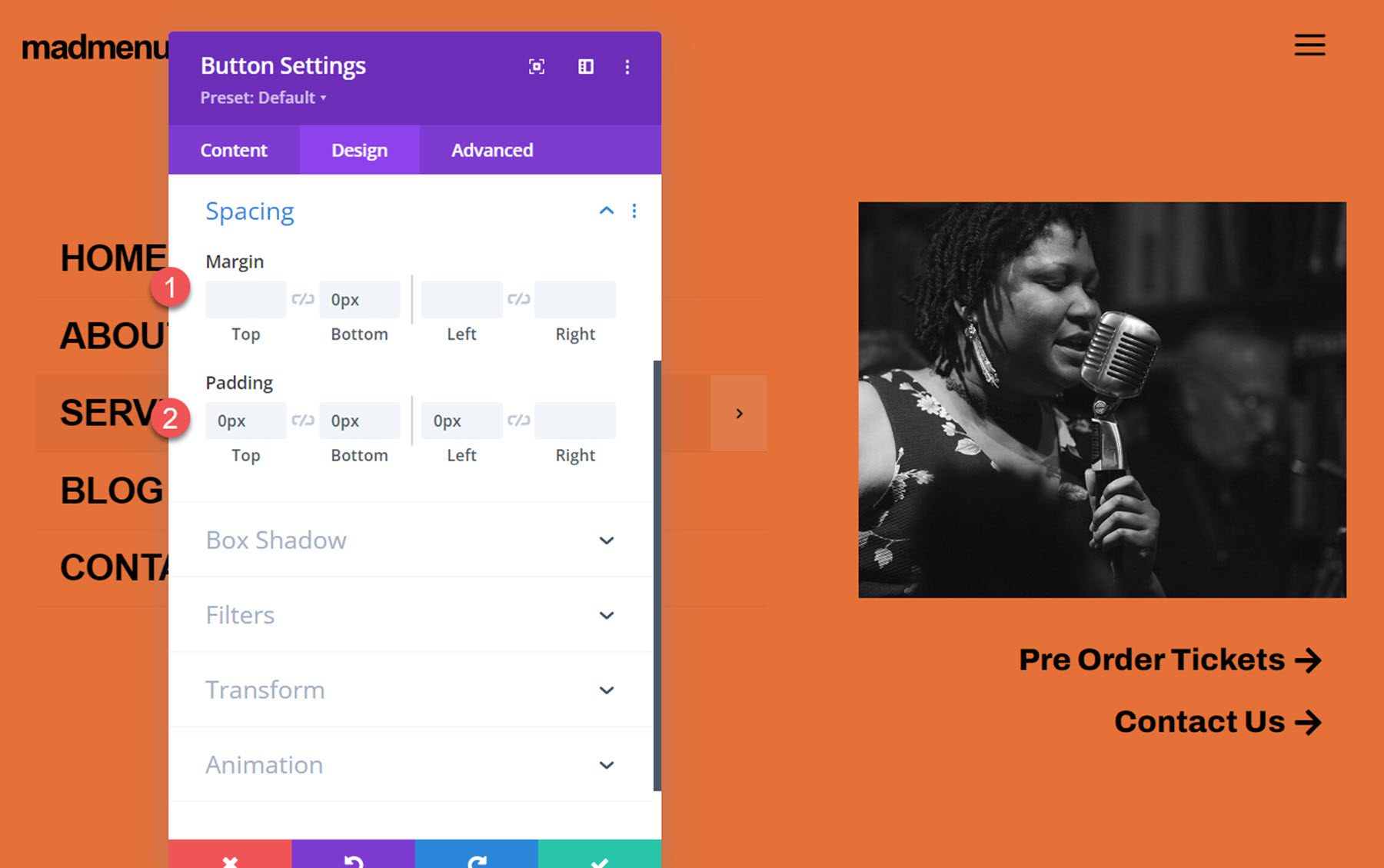
    Divi MadMenu Tutorial Button Spacing

    Close Popup Button

    The final element we need to add to our popup is a close button. You can enable the default close button in the MadMenu settings, or you can add another MadMenu module with a button that functions as a close button so that you can fully customize the styling. That’s what we’ll do for this tutorial. Start by adding a new row with one column to the popup and move it above the existing row. Then add a MadMenu module.

    Divi MadMenu Tutorial Add MadMenu Module

    Disable all of the MadMenu elements except for button one, which will function as our close button.

    Divi MadMenu Tutorial Enable Button

    In the button one settings, set the text to “close”. Enable the button one icon, then select the close icon.

    Divi MadMenu Tutorial Button Settings

    Set the button one type to popup, then enter the popup ID you used for the popup section – in my case, it’s ‘popup1’. Set the popup toggle type to secondary, which enables the closing function.

    Divi MadMenu Tutorial Button Type

    Next, set the menu background to transparent.

    Divi MadMenu Tutorial Menu Background

    Now move over to the design tab. In the general layout settings, set the element’s alignment to right.

    Divi MadMenu Tutorial Elements Alignment

    In the button one text settings, customize the button styling:

    • Button One Font: Arial
    • Button One Font Weight: Bold
    • Button One Font Style: TT (Capitalized)
    • Button One Text Color: #000000
    • Button One Letter Spacing: -0.02em

    Divi MadMenu Tutorial Button Text

    In the button one settings, customize the spacing and icon styling.

    • Button One Text Margin: 5px
    • Button One Icon Size: 35px
    • Button One Icon Color: #000000
    • Button One Border Width: 0px

    Divi MadMenu Tutorial Button Icon Size

    Finally, set the menu top and bottom padding to 10px.

    Divi MadMenu Tutorial Menu Padding

    Enable Popup Function

    The last thing we need to do is to enable the popup functionality. Open the popup section settings and navigate to the advanced tab, then add the CSS ID popup1. This will activate the popup functionality and you can reveal the popup section by clicking the hamburger menu icon in the header. Now the design is complete!

    Divi MadMenu Tutorial CSS ID

    Final Result

    Here is the final design displayed with Divi’s Music Venue landing page layout.

    Divi MadMenu Tutorial Desktop

    The fullscreen popup menu section is revealed when the menu icon is clicked.

    Divi MadMenu Tutorial Desktop Popup

    Here is the mobile version of the layout.

    Divi MadMenu Tutorial Mobile

    And this is what the fullscreen popup section looks like on mobile.

    Divi MadMenu Tutorial Mobile Popup

    Divi MadMenu Demo Layouts

    Divi MadMenu also comes with 19 demo layouts that you can use to jumpstart your design. Let’s take a look at some.

    Demo Layout 4

    Demo layout 4 features a left-aligned logo and menu section. On the right side, you have a search icon, a sign in/out button, and a profile button.

    Divi MadMenu Demo 4 Desktop

    The search bar replaces the menu when selected.

    Divi MadMenu Demo 4 Search

    Here is how layout 4 looks on mobile. The menu slides in when selected.

    Divi MadMenu Demo 4 Mobile

    Demo Layout 11

    Demo layout 11 is a simple layout with the logo on the left and a menu icon on the right. When the menu icon is clicked, the menu section is revealed on a red background.

    Divi MadMenu Demo 11 Desktop

    On mobile, layout 11 has a similar layout with the logo and menu icon. When the menu is opened it reveals below.

    Divi MadMenu Demo 11 Mobile

    Demo Layout 13

    Demo layout 13 is an interesting menu with lots of interactive elements. The menu icon to the right of the logo opens up a menu bar right below the primary menu bar.

    Divi MadMenu Demo 13 Desktop

    The account button in the menu also opens up a slide-in menu with a login/out button and several other navigation items.

    Divi MadMenu Demo 13 Account

    The social menu button on the left opens on the side to reveal social media icons.

    Divi MadMenu Demo 13 Social Icon Bar

    And the search icon opens a search bar that appears below the menu.

    Divi MadMenu Demo 13 Search

    Finally, here is how the menu looks on mobile with the menu selected.

    Divi MadMenu Demo 13 Mobile

    Purchase Divi MadMenu

    Divi MadMenu is available to purchase in the Divi Marketplace. It costs $39 for unlimited website usage and lifetime support and updates. The price also includes a 30-day money-back guarantee.

    Final Thoughts

    Divi MadMenu adds some great customization options and flexibility to the headers and menus you can create with Divi. I particularly love the ability to create your own popup sections using Divi sections, allowing you to add any modules you would like. If you’re looking for a plugin to expand the possibilities of the header and menu sections you can build, Divi MadMenu is a great option.

    We would love to hear from you! Have you tried Divi MadMenu? Let us know what you think about it in the comments!

    The post Divi Plugin Highlight: Divi MadMenu appeared first on Elegant Themes Blog.

  • Divi Plugin Highlight: Table Maker

    Table Maker is a third-party module for the Divi Builder that does exactly what the title describes- it makes tables. This is a powerful module that simplifies making tables of any size. Add any type of content and style the table with the standard Divi settings as well as settings for each element. The latest version adds even more options. In this post, we’ll take a close look at Table Maker – alongside our Divi Home Remodeling Layout Pack – to help you decide if it’s the right product for your needs.

    Table Maker Module Settings

    A new Module is added to the Divi Builder called Table Maker. Add this module to your Divi layouts as you would any Divi Module. We are using the module to add a pricing table to the Service Page Layout of the Divi Home Renovation Layout Pack.

    Table Maker Module Settings

    The General tab includes submodules for each column. Add as many as you want by clicking Add New Column. It also includes settings for the title, description, columns, rows, making it responsive, adjusting how it scrolls, and adjusting the icons, buttons, and images. The submodules also include settings that override the module settings.

    Table Maker Column Submodule

    Clicking Add New Column creates a column submodule and opens its settings. Add as many columns as you want.

    Adding Content to Table Maker Cells

    Before we see the Table Maker’s settings, let’s see how to add cells and content. We can add lots of different types of content to the cells.

    Adding Content to Table Maker Cells

    Table Maker Column Content

    Within the column submodule, you’ll find the Rows field. This is an HTML editor. You can create the Rows just by entering the content for each row. Each row is numbered. The numbers correspond to a cell, so every numbered line is a new cell. To add content to a certain cell, just add that content to the line that’s numbered for that cell. This includes text, code, links, videos, or anything you want.

    Table Maker Column Content

    Style the Content with Markup

    If you’ve added text to the cells, you can markup the text with HTML. This means you can easily add bold, italics, paragraphs, breaks, headings, links, images, or even an entire layout. Just make sure all the HTML is on a single line.

    For example, I’ve added tags for H2 and bold to a few of the cells in this image.

    Adding HTML Markup

    Adding Escape Characters

    Since the Row editor is an HTML field, there are certain characters that we can’t usually use, such as the ampersand, quote, apostrophe, and great than and less than symbols. Fortunately, these characters can still be used within Table Maker’s fields. Table Maker uses special characters, called escape characters, to tell the cells to display those characters. To use them, add double curly brackets and the abbreviation for the character.

    For example, to show an ampersand, you’d enter {{amp}}, as I’ve done in row 4 in the example below.

    Adding Buttons

    Add a button by entering the button tag to the cell you want to display a button. Once you enter the tag for the button, you’ll see the default button. Add the text you want to display within the tags.

    Add Button to Divi Table Maker

    Customize the Button

    The button can be customized in the Content tab of the Table Maker module’s settings and the individual submodule’s settings. Add the button text, URL, link target, set the button width based on the text or the cell, and use custom styles.

    Customize table button

    Add an Icon to the Table

    Include an icon by entering the icon tag. You can include the icon’s name to display it or select an icon in the Content tab. You can also add as many icons as you want by adding more tags and the icon name within the tag. For example, to add a cross icon, add this code: <icon>cross_alt</icon>. I’ve also added this code to add a different icon: <icon>check_alt</icon>. You can find a full list of available icons on the Divi Table Maker website.

    Add icons to the column

    You can also choose to select a uniform icon choice. To do this, scroll down to Table Icons in the Content tab. Use the Content tab of the module to choose an icon that can be placed in all the cells. There is also the option to choose an icon specifically for that cell. You can also adjust the icon’s size and color, as I’ve done in the example below.

    Customize icons in Divi Table Maker

    Add an Image to the Table

    To add the images to the table, scroll down to Table Images in the Content tab. Add the images as a gallery from the media library. You can also select the image quality, proportion, scale, vertical alignment, and horizontal alignment. You can also access these settings for each cell in the submodules, so you can override the standard module settings.

    Adding table images with Divi Table Maker

    Display the Images

    Display the images by adding the image tag and the image number in the cell. For example, if you want the second cell of your column to display an image, enter the HTML image tag into that cell. Change the number to show a specific image based on the order that it appears in the gallery.

    Ordering table images in Divi Table Maker

    Shortcodes and iFrames

    You can also add shortcodes and iFrames to the cells. Simply paste them on the line for the cell you want. You won’t see a preview of the shortcode in the Divi Builder, but they do run on the website. Paste iFrames the same way as shortcodes. They do show a preview in the Divi Builder, but it might not show the same way that it will on the front end. They do show correctly on the front end.

    Using shortcodes and embed codes within the Divi Table Maker module

    Style the Content with CSS

    You can also style the content with inline CSS. This can be used to control the colors of the text, the size of the text, underline, etc. Simply add the inline CSS as you would in any WordPress content editor. For example, to make the first column heading text white, you can add this CSS:

    &lt;h2 style=&quot;color: white;&quot;&gt;&lt;/h2&gt;

    Adding inline CSS

    Customizing the Table Maker Cell Itself

    You can customize the cell itself using the cell tag and inline CSS. For example, this inline CSS would change the cell’s background:

    &lt;cell style=&quot;background: #0d232d;&quot;&gt;&lt;/cell&gt;

    For our example, we place the heading of the cell – which we had previously styled with inline CSS – within the cell tag.

    Inline CSS for the table cell

    Column Width

    Adjust the Max Width and Min Width of each column independently.

    Adjusting column minimum and maximum widths

    Table Title

    Table Title is a new feature. It’s disabled by default. Enable it and add a title in the field. You can also choose its position. Options include above the table, below the table, and hidden.

    Table Title Feature

    Table Description

    Table Description is another new feature. It’s also disabled by default. Enable it and add the description into the field. You can also choose its position from above, below, or hidden.

    Table description for Divi Table Maker

    Table Columns

    Adjust the Header Count, Footer Count, Max Width, and Min Width. The Header Count and Footer Count lets you choose the number of cells to use for each.

    Table Columsn within Divi Table Maker

    Table Rows

    Table Rows also has adjustments for the Header Count, Footer Count, Max Width, and Min Width. The Header Count and Footer Count lets you choose the number of cells to use for each.

    Table rows in Divi Table Maker

    Table Corners

    Table Corners is another new feature. It’s disabled by default. This lets you style the corner as part of the Row Header or Column Header. Table Corners works with Column Footer and Row Footer. If it’s enabled, you’ll have new settings in Table Corners to style them.

    Adding Content to Table Maker Cells

    Table Responsive

    The responsive features are interesting. You can set the breakpoint based on the device type and have it break by columns or rows. You can also display the cells as blocks or as an accordion. The latest update adds the breakpoints to desktops so you can create accordions on desktops if you want. Your visitors won’t see the full table layout if you use either blocks or accordion for the desktop. This example shows blocks.

    Divi Table Maker Responsive Settings

    This example shows the Accordion. I’ve opened the second accordion to show how the table looks.

    Mobile responsiveness and Divi Table Maker

    Table Scrolling

    Scrolling lets you display a larger table in the same space. You can also make the column and row headers sticky.

    Table Scrolling in Divi Table Maker

    Styling the Tabel Maker Table

    Table Maker has extensive styling options in the Design tab of the submodules and the main module. Adjust the colors, stripes, cells, text, header text, column headers, row headers, column footers, row footers, footer text, and all the standard Divi options. Style all the cells together or each cell independently. Let’s look at a few examples. I’ll describe the settings as we go.

    Table Maker Table Title

    If you have Table Title enabled, you’ll see design settings for the title. The settings include most of the standard text options for fonts, colors, alignment, etc. It adds spacing between the table and the title text. In the example below, I’ve changed the font to match the body font used within our layout pack, Raleway.

    Styling the Table Title

    Table Description

    If you have Table description enabled, you’ll see the design settings for the description text. Settings include most of the text options including size, fonts, wights, etc. It also adds spacing between the table and the description text. In this example, I’ve adjusted font and color to better match our layout pack.

    Table description styling

    Table Accordion

    If you have the Accordion option selected under Table Responsive, you’ll have design settings for the accordion. All accordions are closed by default. You can set a specific toggle to be open if you want. The Toggle Opened option lets you select which toggle to open by default. Set the icon alignment, change the size, choose an open icon, and choose a close icon.

    Styling the mobile responsive accordion

    Table Frame

    The Table Frame options let you add gaps or lines to the cells, choose a border type, change the border color, and change the line width. In this example, I’ve selected the lines style, and changed the color.

    Table frame styling

    Table Stripes

    Table Stripes places stripes behind the odd or even fields and can be horizontal or vertical. You can choose the field types that include the stripes and choose between odd and even rows. Stripes can now be a tint, a blended color (which includes the tint), or regular color options. The responsive size can go in a different direction, or you can disable them. Apply the stripes to the table body, column header, column footer, row header, and row footer individually.

    Table stripes styling

    Table Hover

    Table Hover is a new setting that highlights a row or column as you hover, so they can be horizontal or vertical. The responsive size can have a different direction or none. You can also adjust the color. Choose from tint, blended color, or solid color. In the example below, I’ve selected horizontal and color. I’m hovering over the second row.

    Table Hover styling settings

    Table Text

    Table Text includes all the standard text options and adds a wrap feature, giving you control over how the text behaves. In this example, I’ve set it to wrap, and changed the font family, text color, and font size.

    Styling the table text

    Table Cells

    The settings for Table Cells let you change the background color of the cells, set the text alignment for vertical and horizontal alignment, add padding, customize the border, and add a box shadow.

    Table cells styling

    Table Maker Column Header Text

    Originally, the row and column header text were wrapped in header and bold tags. This did cause problems with accessibility readers. Now, the setting is off by default. You can turn it back on if you have issues with older tables, but it’s better to leave it off and style the text with the settings provided by Divi Table Maker. For this example, I’ve made capitalized the titles, increased the line height, increased the font size and ensured that the inline styling has been removed.

    Column Header Cells

    Column Header Cells adjusts the background color of the heading cells. It includes the standard cell settings. I’ve adjusted the background color in this example.

    Column header cells styling

    Column Footer Text

    The Column Footer Text adjusts the text in the footer. It includes all the standard settings.

    Column footer text styling

    Column Footer Cells

    Column Footer Cells adjusts the cells for the footer. It includes all the standard settings. I’ve adjusted the background color, border color and border style, and border width in this example.

    Column footer cells styling

    Row Header Text

    Like the Column Header Text, Row Header Text also has the heading level disabled by default to improve accessibility. The row header is on the left. It also includes the standard font settings. In this example, I’ve added text wrap, changed the font family, updated the font style, and adjusted the text color and line height.

    Row header text styling

    Row Header Cells

    Row Header Cells controls the background of the cells used for the row’s header. In this example, I’ve adjusted the background color, plus both horizontal and vertical alignment.

    Row header cells

    Row Footer Text

    The Row Footer Text settings adjust the text for the row footer, which is on the right. In our example, the row footer holds the Book Now buttons. So the example of the row footer text would be in the very last cell of this table.

    Row footer text styling

    Row Footer Cells

    The Row Footer Cells settings control the cell used for the footer row. I’ve adjusted the background color, horizontal and vertical alignment.

    Row footer cells styling

    The Updated Layou with Finished Table

    This is the updated Service Page Layout with the fully styled Table Maker module, coupled with the FREE Header and Footer Template for the Home Remodeling Layout Pack.

    Purchase Table Maker

    Table Maker is available in the Divi Marketplace for $39. It includes a 30-day money-back guarantee and one year of support and updates.

    Purchase Table Maker

    Ending Thoughts

    That’s our look at Table Maker for Divi. This is a powerful table-making module. The latest update adds lots of new features. The new accessibility updates allow tables made with Table Maker to pass Google’s Lighthouse accessibility audit. You can make any size table and add just about anything to a cell with tags. Add HTML, CSS, shortcodes, iFrames, and more. Style the cells for the entire table at once or style them individually. The responsive tools make the tables look great on any device. If you’re interested in a powerful tool to create tables in Divi, Table Maker is a great choice.

    We want to hear from you. Have you tried Table Maker for your Divi website? Let us know what you think about it in the comments.

    The post Divi Plugin Highlight: Table Maker appeared first on Elegant Themes Blog.

  • Molti – Divi Child Theme Overview

    Molti is a multi-purpose Divi child theme with over 15 pages, 6 headers, 6 footers, and over 50 element designs to create any type of website you need. It’s designed with service-based businesses in mind and includes multiple versions of the design elements to help you create your Divi website. In this post, we’ll take a look at Molti to help you decide if it’s the right Divi child theme for your needs.

    Installing Molti Divi Child Theme

    Molti installs differently than most Divi child themes I’ve used. It’s installed as a plugin. It installs fast and easily. First, upload and activate the plugin.

    Installing Molti Divi Child Theme

    Next, go to Molti Demo Importer in the WordPress dashboard. Select everything you want to import. I recommend leaving everything at their default. Lastly, click Begin site import.

    Installing Molti Divi Child Theme

    Wait for the import to complete. Once it’s finished, you can uninstall the plugin. That’s it.

    Installing Molti Divi Child Theme

    Molti child theme is now the active theme in your WordPress Themes directory. All the pages, templates, menus, and styling are now in place and ready for your content.

    Installing Molti Divi Child Theme

    Here’s the default homepage with menus and a mega menu. This is a demo page with screenshots of the other pages and information about the features. You’ll need to set the actual home page by going to Settings > Reading in the WordPress dashboard.

    Installing Molti Divi Child Theme

    Molti Divi Child Theme Pages

    The 15 pages include a home page, pricing, portfolio, services, about, blog, careers, contact, and more. Some of the pages are built with Divi Theme Builder templates, while most are available as a page. Let’s look closer at a few of the pages and elements.

    Molti Home Page

    The homepage includes 10 sections. They include the hero section, services, about, features, number counters, pricing, testimonials, and a blog. It has a light orange color scheme and dummy images. Each of the elements includes custom styling and animations. They look great. I especially like the blurbs and the blog section. This page is ideal for any type of business and is especially well-suited for a service business.

    Molti Divi Child Theme Pages

    Molti Contact Us Page

    The Contact Us page includes 4 sections with a hero section, contact information, a contact form, and an FAQ. It has lots of whitespace and many of the elements take the full width of the screen.

    Molti Divi Child Theme Pages

    Molti About Us Page

    The About Us page includes 8 sections. It includes a hero section with a CTA, a company history with a CTA, clients with logos, a team section that reveals information on hover, features with blurbs, testimonials, and a hiring section with a CTA.

    Molti Divi Child Theme Pages

    Molti Careers Page

    The careers page includes 4 sections. It includes the standard hero section with a CTA, a benefits section with blurbs, a location section with images, and job openings with blurbs that include a hover animation that covers the blurb with the button’s color.

    Molti Divi Child Theme Pages

    Molti Single Job Page

    The single job page includes 4 sections with the last section only revealed with the application button selected. The hero section shows the job title. The second section uses Text Modules to create buttons to switch between the job information and form. The largest section displays the job overview with Text Modules.

    Molti Divi Child Theme Pages

    Molti Services Page

    The services page contains 8 sections. They include the standard hero section, information with an alternating layout, popular features with blurbs, services with animated blurbs, company logos, testimonials with an interesting image mosaic layout, and benefits of choosing the company with tilted images.

    Molti Divi Child Theme Pages

    Molti Blog Page

    The blog page includes two sections. The first is a unique hero section with a blog search. Second is a blog section with a styled Blog Module that matches the blog on the home page. Blog posts are displayed as cards in three columns.

    Molti Divi Child Theme Pages

    Molti Portfolio Page

    The portfolio page includes 3 sections. The first is the hero section with a CTA to view all the projects. Next is the portfolio with a styled filter. Following this is a CTA.

    Molti Divi Child Theme Pages

    Molti Pricing Page

    The pricing page includes three sections. First is the pricing tables. This section uses CTA Modules, Text Modules, and Blurb Modules to create a unique price table design. A button changes the prices and blurbs to create a table with check marks. Next is the FAQ section. Lastly is a CTA banner.

    Molti Divi Child Theme Pages

    Molti Divi Child Theme Divi Theme Builder Templates

    Molti uses the Divi Theme Builder to create and assign 7 templates. Here’s a quick look at a few of them.

    Molti Divi Child Theme Divi Theme Builder Templates

    Molti Header

    The header includes a standard design for the menu, but then adds a hamburger menu to open a section of Blurb Modules.

    Molti Divi Child Theme Divi Theme Builder Templates

    In the Divi Theme Builder, the header displays two rows with the contact information in the top bar and the logo, menu, CTA, and custom hamburger icon in the second row. It includes a shadow effect to stand apart from the page.

    Molti Divi Child Theme Divi Theme Builder Templates

    The CTA opens to show the blurbs. They include hover effects and a button to see all the services. This is the desktop version.

    Molti Divi Child Theme Divi Theme Builder Templates

    Here’s the phone version. It only displays the regular menu with a hamburger menu icon. The menu shows a custom icon with collapsed submenus.

    Molti Divi Child Theme Divi Theme Builder Templates

    Molti Footer

    The footer includes two sections and four rows. The first section doesn’t contain rows. It’s used to create the divider. The second section contains four rows with lots of Text and Blurb Modules, an Image Module, and a Social Media Follow Module to create all the footer elements.

    Molti Divi Child Theme Divi Theme Builder Templates

    Here’s the desktop version of the footer. The modules create five columns with the email form taking a larger portion of the screen’s width.

    Molti Divi Child Theme Divi Theme Builder Templates

    The phone version places the email form in a single column and sets the links in two columns. All the elements in the bottom row stack in a single column.

    Molti Divi Child Theme Divi Theme Builder Templates

    Molti 404 Page

    The Molti 404 page is simple. It includes a single section with two columns. The first column displays an image, while the second column displays text and a button.

    Molti Divi Child Theme Divi Theme Builder Templates

    It still shows the header and footer on the front end, but you can disable them in the Divi Theme Builder if you want. Here’s the desktop version.

    Molti Divi Child Theme Divi Theme Builder Templates

    Here’s the phone version of the Molti 404 page.

    Molti Divi Child Theme Divi Theme Builder Templates

    Molti Posts

    The blog post layout is extensive. It includes four sections and includes an interesting title, content layout, tags, navigation, comments, newsletter form, and similar blog posts. Here’s the wireframe view.

    Molti Divi Child Theme Divi Theme Builder Templates

    Here’s how the post layout looks on a desktop. This is a clean design.

    Molti Divi Child Theme Divi Theme Builder Templates

    Here’s a portion of the layout for the phone view.

    Molti Divi Child Theme Divi Theme Builder Templates

    Molti Divi Child Theme Elements

    The Molti Divi child theme also includes lots of custom elements. They include a Blog Module, card designs, a content switch, team cards, and more. These elements are used within the pages and they’re available separately as Divi pages so you can easily use them in other pages, posts, and templates. Here’s a look at a few of them.

    Card Designs

    The page for card designs includes six types of cards. They include images, buttons, hover animations, and more. They’re designed to show team members, services, contact information, and CTA’s.

    Molti Divi Child Theme Divi Theme Builder Templates

    Content Switch

    Content switch elements change the content that’s displayed when they’re selected. They include two designs. The first changes the prices in the pricing table from monthly to yearly. The second switches blog posts from featured posts to recent posts.

    Molti Divi Child Theme Divi Theme Builder Templates

    Blog Module Designs

    Blog elements include three Blog Module designs. The first design places the posts in three columns and includes a styled meta and places the date over the image. The second design displays two posts with large images and the title and meta over the image. This one also includes overlays. The third design is similar to a magazine layout with multiple posts on a card and images on the left and the title on the right.

    Molti Divi Child Theme Divi Theme Builder Templates

    Where to Purchase Molti Divi Child Theme

    Molti Divi child theme is available in the Divi Marketplace for $25. It includes unlimited website usage, a 30-day money-back guarantee, and one year of support and updates.

    Where to Purchase Molti Divi Child Theme

    Ending Thoughts

    That’s our overview of the Molti Divi child theme. Molti is easy to use. Installation is the simplest I’ve seen. I was surprised at the design quality. It includes a lot more pages and elements than I expected for its price. The page designs are especially good for businesses with services. If you’re looking for high quality and low-cost business child theme for Divi with a clean and modern design, Molti is a great choice.

    We want to hear from you. Have you tried the Molti Divi child theme? Let us know what you think about it in the comments.

    The post Molti – Divi Child Theme Overview appeared first on Elegant Themes Blog.

  • Divi Product Highlight: Header Layout Pack

    The header is one of the first elements to load for any Divi website you create. This means the header often makes the first impression anyone sees for a website, making header design a crucial part of every website. Fortunately, you don’t have to create your header from scratch. There are lots of header layouts in the Divi Marketplace to give you a head start. Header Layout Pack is one example. This is a set of over 80 custom headers that work for just about any type of website. In this post, we’ll look at Header Layout Pack to help you decide if it’s the right product for your needs.

    Upload Header Layout Pack

    Header Layout Pack includes two zipped files. The first is a single file that contains all 81 layouts. These layouts are uploaded together. The second is a supplementary file and includes six files. These are the categories of the header layouts. This allows you to upload just the layouts in a particular category, such as WooCommerce. This is also helpful if you have a file-size upload limit and can’t upload all the files at the same time.

    The process to upload the layouts is the same for all the files:

    1. Go to Divi
    2. Select Divi Library
    3. Click Import & Export
    4. Select the Import tab
    5. Click Choose File and navigate to the unzipped JSON files on your computer
    6. Click Import Divi Builder Layouts

    Upload Header Layout Pack

    Once the import completes, you’ll have 81 new items in your Divi Library (if you chose the main JSON file). They’re labeled and named according to their categories, so they’re easy to identify. These layouts are standard Divi Library layouts, so they can be used with any Divi layout for a page, post, or any layout in the Divi Theme Builder, and stored in Divi Cloud for use on any Divi website. We recommend using them in the Divi Theme Builder and assigning them to global or individual categories.

    Upload Header Layout Pack

    Header Layout Pack Examples

    Let’s look at a few header layouts from each of the six categories. In my examples, I’ll load each layout into the Divi Theme Builder. New layouts are often added to the Header Layout Pack. I’m selecting them at random, but I’ll focus on a mix of older and newer layouts. When viewing them in the Your Saved Layouts tab, you can select the categories or view all the layouts.

    Header Layout Pack Examples

    For my screenshots, I’m using the home page from the free Home Remodeling Layout Pack that’s available within Divi. We’ll look at the wireframe, desktop, and phone versions of the headers.

    Advanced Headers

    Firstly, here’s a look at Advanced Headers, which contains 30 layouts.

    Advanced Header V1

    The first Advanced Header includes a Menu Module, Button Module, and two Text Modules. It also includes a Code Module with CSS.

    Advanced Headers

    The header includes styled dropdown submenus. A quote CTA button stretches on hover.

    Advanced Headers

    While the menus in the desktop version open on hover, the CSS creates a custom mobile menu toggle with buttons that include arrows showing if the menu can be opened or collapsed.

    Advanced Header v1 - Mobile View

    Advanced Header V20

    The Advanced Header version 20 includes four Image Modules, three Blurb Modules, a Menu Module, and a Code Module.

    Advanced Headers

    The Image Modules can be used for logos. All Blurb Modules are clickable buttons for contact information, services, and a CTA to get a quote.

    Advanced Headers

    Mobile menu toggles are added to the phone version with CSS.

    Advanced Header v20 - Mobile View

    Advanced Header V30

    Advanced Header V30 includes three Text Modules, and Menu Module, and a Code Module.

    Advanced Headers

    The Desktop version displays a red top menu bar with a short message and a phone number in large text. A logo and menu are placed under this and include a dropdown submenu styled to match the top menu bar.

    Advanced Headers

    While the desktop version includes red highlights, the Phone Version removes the red background of the submenus and includes the CSS toggles.

    Advanced Header v30 - Mobile

    Fullscreen Overlay Headers

    Secondly, we’ll see Header Layout Pack’s Fullscreen Overlay Headers, which includes 3 layouts.

    Fullscreen Overlay Header V2

    Fullscreen Overlay V2 comes with lots of elements including text, images, buttons, blurbs, code, social media, a menu, etc.

    Fullscreen Overlay Headers

    It includes a hamburger menu icon with a hover animation. The CTA button widens on hover.

    Fullscreen Overlay Header v2 - Desktop

    The menu opens full screen when clicked and includes clickable submenus.

    Fullscreen Overlay Header v2 - Desktop, Open

    Here’s the phone version, which follows the same design.

    Fullscreen Overlay Header v2 - Mobile

    Fullscreen Overlay Header V3

    Fullscreen Overlay Header V3 utilizes similar modules as the previous layout but creates a different design for the full-screen overlay.

    Fullscreen Overlay Headers

    The desktop header includes the CTA and hamburger icon with hover animation.

    Fullscreen Overlay Header v3

    Its menu covers half the screen while an image takes the other half of the screen.

    Fullscreen Overlay Header v3 - Open

    The phone version follows the same design for the menu, but doesn’t include the image.

    Fullscreen Overlay Header v3 - Mobile

    Header with Slide-ins

    Thirdly, we’ll look at Header Layout Pack’s Header with Slide-ins, which includes three layouts.

    Header with Slide-ins V2

    Version 2 creates the slide-in with a Blurb Module, several Text Modules, a Menu Module, a Button Module, and code.

    Header with Slide-ins

    The slide-in menu displays the submenus under a message. At the bottom of the menu, you can find a CTA and an image.

    Slide In v2

    The phone version removes the image while keeping the menu design.

    Slide In v2 - Mobile

    Header with Slide-ins V3

    Version 3 includes Blurb Modules to create the slide-ins.

    Header with Slide-ins

    The desktop slide-in includes hover animation and displays text and icons. Each of the elements is clickable.

    Slide In v3 - Desktop

    The clickable elements for the phone slide-in menu are much larger than the desktop version, making them easy to use on mobile.

    Header with Slide-ins

    Simple Headers

    Fourthly, Simple Headers includes 30 layouts.

    Simple Headers V15

    Simple Headers version 15 has two Rows and includes a Social Media Module and several Blurb Modules.

    Simple Headers

    The desktop version includes a top bar with contact information. A logo is centered, and the menu includes submenus.

    Simple Headers

    The phone version adds the toggle buttons for the submenus.

    Simple Menu 15 - Mobile

    Simple Headers V22

    This one includes two Rows to create the header.

    Simple Headers

    The top bar displays a CTA with a hover animation, the logo in the center, and a phone number. Its menu includes styled submenus.

    Simple Headers

    The phone version displays the submenus with toggles created in the Code Module.

    Simple Menu 22 - Mobile

    Square Logos Headers

    Fifthly, the Square Logos Headers includes five layouts. They’re ideal if you have a logo that’s taller than most logos.

    Square Logos Headers V3

    This one was built with a Specialty Section to include a multi-column layout. The square logo is created with an Image Module in its own column.

    Square Logos Headers

    The desktop version includes a top bar with a search box and contact information. All menus are styled to match the top bar’s background.

    Square Logos Headers

    The phone version includes the submenu toggles created with CSS.

    Square Logo Menu v3 - Mobile

    Square Logos Headers V4

    Version 4 includes three columns to create the logo, menu, and CTAs.

    Square Logos Headers

    The desktop version displays the logo and phone number in the two outer columns. A center column includes two Rows. The top Row shows contact information and a CTA, while the bottom Row displays the menu with a background styled to match the icons and the button of the top Row.

    Square Logos Headers

    The phone version includes a large logo area. The submenus include the toggles created with CSS.

    Square Logo Menu v4 - Mobile

    Woo Headers

    Lastly, we’ll look at Header Layout Pack, which includes 10 WooCommerce headers.

    Woo Headers V3

    Our first Woo Header includes two Rows. The top Row includes a Text Module, while the second Row displays a Menu Module and several Icon Modules.

    Woo Headers

    The Text Module for the top Row creates a sales banner. Graphics include Person, Heart, and Cart icons that can link to the person’s account login, their favorites list, and their shopping cart.

    Woo Headers

    The phone version moves the icons above the hamburger menu. Like the others we’ve seen, this submenu includes toggles created with CSS.

    Woo Header v3 - Mobile

    Woo Headers V7

    Woo header version 7 was built with three Rows that include Blurb Modules to create interesting WooCommerce links.

    Woo Headers

    The desktop version shows a message and the Woo links in the top bar. A middle bar displays a logo and a WooCommerce product search. The menu bar includes social media buttons.

    Woo Headers

    This is the phone version, which places the social media icons under the hamburger menu icon. Everything is spaced well on the phone screen, and it even includes the WooCommerce links and the product search box.

    Woo Header v7 - Mobile

    Woo Headers V10

    Woo Header version 10 also includes three Rows. It includes a product search and uses a Text Module to create a banner.

    Woo Headers

    The desktop version displays a green sales banner at the top. The icons, button, and highlights match the green bar. The middle bar includes the WooCommerce icons, while the menu and search at placed at the bottom.

    Woo Headers

    Here’s the phone version, which places the search box under the hamburger menu. This one also includes the submenu toggles created with CSS.

    Woo Headers v10 - Mobile

    Purchase the Header Layout Pack

    Header Layout Pack is available in the Divi Marketplace for $15. It includes lifetime updates, unlimited website usage, and a 30-day money-back guarantee.

    Purchase Header Layout Pack

    Ending Thoughts

    That’s our look at Header Layout Pack. There are a lot of layouts in this header pack. They look elegant, have lots of design options, and they’re easy to use. Since the layouts were created by the same person, they share a commonality that I find makes them easier to use. The methods are standardized, so if you know how to customize one of the layouts you can customize the rest. If you’re interested in an extensive set of headers, Header Layout Pack is work considering.

    We want to hear from you. Have you tried Header Layout Pack for your Divi website? Let us know about your experience in the comments.

    The post Divi Product Highlight: Header Layout Pack appeared first on Elegant Themes Blog.

  • Divi Plugin Highlight: Divi Accordions Plus

    Divi Accordions Plus is a third-party module for the Divi Builder that adds a new accordion builder. Use multiple Divi Accordions Plus Modules together on a single page and they work as a single accordion, so when one opens another one closes. Style the accordions together or individually, display icons and images, and lots more. In this post, we’ll look at Divi Accordions Plus, see what it can do, and see how easy it is to use to help you decide if it’s the right product for your needs. We’ll use the Poke Restaurant About Page Layout as a backdrop for this tutorial. So if you haven’t downloaded it already, you can grab it now with your Divi membership.

    Divi Accordions Plus Module

    Divi Accordions Plus adds a new module to the Divi Builder. Simply add the module anywhere you want within your Divi layouts.

    Adding Accordions Plus to layout

    Accordion Submodules

    The submodules create individual accordions. Add as many as you want by clicking Add New Item. You can also clone them, rearrange them, and delete them. They follow the settings in the main module, but they have specific content and design settings you’ll need to use.

    Add new item

    Content

    Add a title, subtitle (which you can disable if you want), and body content. These are the main elements of the accordions.

    Accordion content

    Item State

    Item State sets the open or closed state of the accordions when the page loads. It’s off by default, so the accordions are closed. I didn’t open the accordion in this example. It opened automatically when I enabled Item State.

    Accordion active state

    Divi Accordions Plus Accordion Submodules Design Settings

    The Design tab for the submodules controls the settings for that one accordion. You can customize them in the main module’s settings if you want them to look the same, but you’ll still need to use these settings to choose the images and icons. Let’s look at the settings that are unique to the submodule.

    Left Icon

    Left Icon controls the graphical element that appears on the left of the accordion. Enable or disable it, have it rotate on open, choose an icon or an image, and style it with the standard Divi tools. An image or icon such as a logo works great on the left. In this example, I selected an image and enabled Rotate Left Icon (Open Toggle), so the image rotated when I opened the accordion.

    Activating the left icon

    For this example, I’ve adjusted the background and icon color.

    Left icon styling

    Right Icon

    Right Icon controls the graphical element that appears on the right of the accordion. Enable or disable it, have it rotate on open, choose an icon or an image, and style it with the standard Divi tools. An icon that indicates the open or closed state of the accordion works great on the right.

    Adding the right icon

    In this example, I’ve selected a different icon, changed the icon color, the background color, and added a styled border.

    Right icon styling

    Divi Accordions Plus Content Settings

    The Content tab includes the basic Divi settings and a couple of settings that are specific to Divi Accordions Plus.

    Speed

    Speed controls how fast the toggles open and close. It’s set in milliseconds.

    Setting the accordion's toggle speed

    Mode

    Mode changes the way the accordions work.

    Accordion Mode

    Accordion Mode lets you choose between multiple active toggles and a single active toggle. Multiple Active Toggles leave all the toggles open until the user closes them. The example below shows Multiple Active Toggles.

    An example of multiple active toggles

    Single Active Toggles only allows for one open toggle at a time. It closes the open toggle when the user selects a new toggle. This example shows Single Active Toggles.

    Single active toggle mode, the standard mode of how accordions function

    Global Accordion Mode

    Global Accordion Mode is a new interesting feature. It allows for a single open toggle regardless of the number of Divi Accordion Plus Modules on the page. Enable Global Accordion Mode within every Divi Accordions Plus module on the page where you want to use the Global Accordion Mode. Any modules that do not have this mode enabled will not be affected by the mode. This is especially great for creating multi-column accordions in the same Row.

    In the example below, I’ve added another Divi Accordions Plus module and enabled Global Accordion Mode for both. When I open an accordion in one of the modules, the open accordion in the other module closes.

    Global toggle

    Divi Accordions Plus Design Settings

    The Design settings control the default styles for all the accordions. These settings are overwritten by the individual submodule settings.

    Header

    Header controls the background color, the open toggle background color, spacing, borders, and box shadow. In this example, I’ve changed the background colors for the open and closed toggle.

    Item header background colors

    Left Icon

    Left Icon controls the icon color, icon open toggle color, background color, open toggle background color, spacing, border, and box shadow for the entire accordion module. If you want to have uniformity in styling, it’s best to set up the colors of the icon here, and then individually select your icon for each toggle in the accordion. In this example, I’ve added and styled a border around the icons to make it more seamless with the background color.

    Styling the left icon

    Right Icon

    Right Icon controls the icon color, icon open toggle color, background color, open toggle background color, spacing, border, and box shadow. In the example, I’ve adjusted the open toggle colors, the border, and changed the icon color on open toggle.

    Styling the right icon

    Title

    Title controls the title background color, open toggle background color, spacing, border, and box shadow.

    Setting the title background color

    Body

    Body controls the item body, spacing, border, and box shadow. I’ve adjusted the border in this example.

    Accordion body styling

    Header Text

    Header Text controls the open toggle text and allows you to control the title and subtitle independently from the same menu. It includes all the standard text controls. I’ve adjusted the colors of the titles and subtitles, changed the title font size, and set it to bold in the example below.

    Header text styling

    Body Headings

    Body Headings includes all the standard text controls for the body headings that you’ve specified in the content area. In the example below, I’ve added both an H2 and H3 heading tag to the body content. I changed the font weights and color for both the headings within the body content.

    Body headings styling

    Body Text

    Body Text includes all the standard text controls for the body text in the content area. In this example, I’ve changed the font, made it italic, changed the color, and changed the font size.

    Body text styling

    Final Demo with Divi Poke Restaurant

    This is what the final accordion looks like within the About Us Page Layout for the Divi Poke Restaurant Layout Pack.

    Final result with header, footer and page layout

    Divi Accordions Plus Demos

    Divi Accordions Plus comes with seven demos to get you started.

    Demo 1

    The first demo includes a multi-column accordion with multi-colored icons. The accordions have a single border, and the content is bordered on all sides.

    Divi Accordions Plus Demos

    Demo 2

    Our second demo presents the accordion in a single column with blue highlights and box shadows. The icons have blue backgrounds.

    Divi Accordions Plus Demos

    Demo 3

    Our third demo uses a two-column layout and utilizes different colors for each of the accordions.

    Divi Accordions Plus Demos

    Demo 4

    The fourth demo uses a single-column accordion with warm colors and light borders.

    Divi Accordions Plus Demos

    Demo 5

    Demo five uses red titles and icons and includes tan backgrounds for the body and green backgrounds for the headers. The accordions are placed in two columns.

    Divi Accordions Plus Demos

    Demo 6

    The sixth demo uses light blue header backgrounds with a darker blue for the title text and icon background for the open accordion.

    Divi Accordions Plus Demos

    Demo 7

    Demo seven displays each of the accordion’s elements independently with box shadows for each element.

    Divi Accordions Plus Demos

    Purchase Divi Accordions Plus

    Divi Accordions Plus is available in the Divi Marketplace for $19. It includes unlimited usage, a 30-day money-back guarantee, and one year of support and updates.

    Ending Thoughts

    That’s our look at Divi Accordions Plus. This is a simple module, but it includes a lot of features for accordions. I especially like that it works with multiple modules on the same page. I found the settings intuitive and every setting I wanted to adjust was there. If you’re interested in a powerful accordion builder that’s easy to use, Divi Accordions Plus is worth a look.

    We want to hear from you. Have you tried Divi Accordions Plus? Let us know what you think about it in the comments.

    The post Divi Plugin Highlight: Divi Accordions Plus appeared first on Elegant Themes Blog.

  • Divi Plugin Highlight: Divi/Gutenberg/Woo Cross-Domain Copy Paste for Divi and Gutenberg

    The Divi/Gutenberg/Woo Cross-Domain Content Copy Paste System (CCPS) plugin allows you to easily copy and paste Divi, Gutenberg, and WooCommerce layouts across websites on different domains. This could be convenient for building a layout on one site and moving it to a different site without having to export and import the layout with the Divi Library. You could also use this plugin to create your own repository of layouts for design projects. In this plugin highlight, we will take a look at the Divi/Gutenberg/Woo Cross-Domain Content Copy Paste System (CCPS) plugin and help you decide if it’s the right plugin for you.

    Let’s get started!

    Installing Divi/Gutenberg/Woo Cross-Domain Content Copy Paste System (CCPS)

    The plugin comes as a .ZIP plugin file. To install the plugin, open the plugin page in your WordPress dashboard and click Add New. Click Choose File and select the .ZIP plugin file, then click Install Now. Once the plugin is installed, activate the plugin.

    Divi Plugin Highlight Divi/Gutenberg/Woo Cross-Domain Content Copy Paste System (CCPS) Install

    Repeat these steps to install the plugin on any website you want to be able to paste items. This plugin will need to be installed and activated in order for you to be able to copy and paste any layouts.

    Divi/Gutenberg/Woo Cross-Domain Content Copy Paste System (CCPS)

    Now let’s take a look at exactly how this plugin works.

    Settings Page

    Once the plugin is installed you will see a new settings page for the plugin appear in your WordPress dashboard menu. With these settings, you can change where the copy-paste functionality is enabled and change the button location.

    Divi Plugin Highlight Divi/Gutenberg/Woo Cross-Domain Content Copy Paste System (CCPS) Settings

    You can also change the pages that have the bulk copy and paste function enabled and restrict the plugin usage by user roles. By default, all of the settings are enabled and you shouldn’t have to make any changes before using the plugin. The page also lists some tips and instructions for using the plugin.

    Divi Plugin Highlight Divi/Gutenberg/Woo Cross-Domain Content Copy Paste System (CCPS) Settings 2

    Copy Divi Layouts

    Here I have created a layout in Divi’s visual builder that I would like to copy to another website. As you can see, now that the plugin is activated there is a green icon at the bottom left corner of the Visual Builder.

    Divi Plugin Highlight Divi/Gutenberg/Woo Cross-Domain Content Copy Paste System (CCPS) Visual Builder 1

    When you click the green icon, you have two options: whole page or individual sections.

    Divi Plugin Highlight Divi/Gutenberg/Woo Cross-Domain Content Copy Paste System (CCPS) Visual Builder 2

    If you select Whole Page, you get an option to copy the page or paste the page. Since we want to copy this layout and paste it to a different website, we’ll select the copy option.

    Divi Plugin Highlight Divi/Gutenberg/Woo Cross-Domain Content Copy Paste System (CCPS) Visual Builder Copy

    Now on my new site, I have installed and activated the plugin and added a new page. The copy and paste icon is there in the visual builder, so I’ll click the icon, then select the Whole Page option and click Paste Page.

    Divi Plugin Highlight Divi/Gutenberg/Woo Cross-Domain Content Copy Paste System (CCPS) Visual Builder Paste

    Now the layout has been loaded onto the new page! Note that pasting a whole page will replace any content you had on the page.

    Divi Plugin Highlight Divi/Gutenberg/Woo Cross-Domain Content Copy Paste System (CCPS) Visual Builder Paste Success

    Alternatively, you can choose to copy an individual section. To do so, click the copy and paste icon, then select Individual Sections.

    Divi Plugin Highlight Divi/Gutenberg/Woo Cross-Domain Content Copy Paste System (CCPS) Visual Builder Individual Sections

    When you hover over a section, it will have a green overlay with a button to copy the section and a button to paste a section. Click the copy button.

    Divi Plugin Highlight Divi/Gutenberg/Woo Cross-Domain Content Copy Paste System (CCPS) Visual Builder Copy Section

    On the new website, click the copy and paste icon and select Individual Sections. If you highlight an existing section and click paste, that section will be replaced with your copied section. If you don’t want to replace a section on your new page, you can create a new blank section and paste it there.

    Copy Gutenberg Layouts

    This plugin also allows you to copy Gutenberg layouts to a different site. To do so, open or create a layout with the default editor (Gutenberg editor, not the Divi builder). At the top of the page is a button for Layout Copy Paste. Click the button, then select whole page or individual section. I’ll copy the whole page in this example.

    Divi Plugin Highlight Divi/Gutenberg/Woo Cross-Domain Content Copy Paste System (CCPS) Gutenberg Copy Whole Page

    On the new website, open a page with the default editor. Again, you should see the Layout Copy Paste button at the top. Click the button and select whole page, then click paste page.

    Divi Plugin Highlight Divi/Gutenberg/Woo Cross-Domain Content Copy Paste System (CCPS) Gutenberg Paste Page

    Now your layout will be pasted onto the new site.

    Divi Plugin Highlight Divi/Gutenberg/Woo Cross-Domain Content Copy Paste System (CCPS) Gutenberg Paste Success

    Bulk Copy and Download Pages, Posts, WooCommerce Products, and Media Files

    A new feature added in version 2 of this plugin is the ability to bulk copy pages, posts, WooCommerce products, and media files from one site to another. You can also download an exported file of pages, posts, products, or media and upload them to another site through this feature. This is a very useful and time-saving feature to have if you’re moving lots of content from one site to another.

    Here I’m looking at my pages in the WordPress dashboard. You can see the Content Copy Paste button at the very top of the page. Select the pages you would like to copy, then click the copy button.

    On the other website, navigate to Pages, then click the paste button at the top.

    Divi Plugin Highlight Divi/Gutenberg/Woo Cross-Domain Content Copy Paste System (CCPS) Paste Pages

    Your copied pages will be pasted onto the new website.

    Divi Plugin Highlight Divi/Gutenberg/Woo Cross-Domain Content Copy Paste System (CCPS) Paste Pages Success

    If you’d rather generate a .ZIP file with your content, you can use the download button to save your content instead. Here’s what that looks like from the WooCommerce Products page.

    Divi Plugin Highlight Divi/Gutenberg/Woo Cross-Domain Content Copy Paste System (CCPS) Download Products

    Now on my new site, I can click the Content Copy Paste button from the Products page and click Upload to upload the .ZIP file with the product contents.

    Divi Plugin Highlight Divi/Gutenberg/Woo Cross-Domain Content Copy Paste System (CCPS) Upload Products

    After the success message appears, you can see the products have been uploaded to the new site.

    Divi Plugin Highlight Divi/Gutenberg/Woo Cross-Domain Content Copy Paste System (CCPS) Upload Products Success

    Divi/Gutenberg/Woo Cross-Domain Content Copy Paste System (CCPS) Tips and Updates

    There are a few things to know before you use this plugin. First, you must always save the page you are copying from or pasting to before you can copy or paste. Copying and pasting is not possible between different browsers or within incognito windows. Additionally, cross-domain copy-pasting is not supported by the Safari web browser. Finally, this plugin does not work within the Divi theme builder environment. Despite these limitations, this plugin brings some great functionality to Divi and WordPress and could be very useful if you use your own premade layouts and often work between multiple domains.

    Purchase Divi/Gutenberg/Woo Cross-Domain Content Copy Paste System (CCPS)

    Divi/Gutenberg/Woo Cross-Domain Content Copy Paste System (CCPS) is available in the Divi Marketplace. It costs $49 for unlimited website usage and 1 year of support and updates. The price also includes a 30-day money-back guarantee.

    Divi Plugin Highlight Divi/Gutenberg/Woo Cross-Domain Content Copy Paste System (CCPS)

    Final Thoughts

    Divi/Gutenberg/Woo Cross-Domain Content Copy Paste System (CCPS) is an interesting plugin that makes it easy to copy and paste Divi and Gutenberg layouts to sites on different domains. With this plugin, you can easily reuse design layouts for new projects and even create your own repository of layouts that you can effortlessly copy and paste. With new features in version 2 adding the ability to bulk copy and download pages, posts, media files, and even WooCommerce products, this plugin could be a serious time-saver when transferring content to other websites. The installation is simple and straightforward, and the plugin is very easy to use as well. If you are tired of importing and exporting Divi Builder files to new websites and want an alternative to a cloud-based layout repository like Divi Cloud, this could be a great plugin for you.

    We would love to hear from you! Have you tried Divi/Gutenberg/Woo Cross-Domain Content Copy Paste System (CCPS)? Let us know what you think about it in the comments!

    The post Divi Plugin Highlight: Divi/Gutenberg/Woo Cross-Domain Copy Paste for Divi and Gutenberg appeared first on Elegant Themes Blog.

  • Divi Plugin Highlight: Divi Carousel Module

    Divi Carousel Module is a third-party module for Divi that creates interesting carousels. They’re great for images, products, testimonials, team members, and more. The module includes lots of design elements that make it stand out. Fortunately, it’s not difficult to use. In this post, we’ll look at Divi Carousel Module, see what it can do, and see how easy it is to use to help you decide if this is the right product for your needs. The Divi Architect Layout Pack will be the backdrop of our tutorial.

    New Divi Carousel Module

    Divi Carousel Module adds a new module to the Divi Builder. Add the module to any Divi layout the same way as any Divi Module.

    New Divi Carousel Module

    Divi Carousel Module Slides

    Each slide in the Divi Carousel Module displays slides as submodules that are added within the main module. The slides can be styled independently, or they can use the main module’s styling. To add a new slide, click Add New Item.

    Divi Carousel Module Slides

    Add as many as you want. You can set the number the carousel will display on the screen for each device type in the module’s settings, so the number you add won’t affect the design. The submodules include all the standard Divi settings and a few unique settings. Here’s a look at the unique settings for the submodule.

    Main Content

    When you add a slide, it opens to show the settings. The main content area includes the title, subtitle, and body content. Use any or all of this content you want. You can style these elements individually in the Design tab.

    Divi Carousel Module Slides

    Title & Image Link

    Add the URL and choose if it opens in a new window. This link applies to both the title and image, so it still works even if you only use one of the two elements.

    Divi Carousel Module Slides

    Button Settings

    This adds a button to the slide. Add the text, the URL, and choose how it opens. You can style the button in the Design tab.

    Divi Carousel Module Slides

    Image Settings

    Here, you can choose to use an image or an icon. An image is the default setting. It includes the image picker, alt text, and if it opens in a lightbox. The image is placed above the title by default, but you can easily change this if you want.

    Divi Carousel Module Slides

    Selecting Use Icon provides an icon selector. The icon replaces the image. It can also be styled in the Design settings.

    Divi Carousel Module Slides

    Meta

    This includes two options you can select between. You can only choose one of the two options. The first option is Use Social Media. Enabling this opens the fields to enter your URLs for four social media networks and your email address.

    Carousel Meta: Use Social Media Icons

    The second option is Use Rating. This opens a dropdown box where you can choose a rating from one to five. It displays the rating as stars.

    Carousel Meta: Use Ratings

    Submodule Design Settings

    The submodule’s Design settings include the image styles, image filter, and styles for the title, subtitle, content, button, social media, and rating. If you’ve selected an icon in place of the image, you’ll see icon settings to change its color, add a circle, change its size, and adjust its alignment. In the example below, I moved the image to the center of the slide by selecting Inside Content in the Image Position dropdown box.

    Images Styling with Image Position Settings

    Main Module Settings

    The main module settings include the slider details as well as the standard Divi settings. Let’s look closer at the slider’s settings.

    Main Module Settings

    Slider Settings

    The slider settings include width control, the number of slides to show on each of the device types, multislide, duration, loop, autoplay, arrow and dot navigation, spacing, lazy loading, hash navigation, and lots more. It’s interesting to see the number of items for different devices. One point about the number, you enter into these fields is they don’t have to be whole numbers. You can show a half slide if you want. Just enter the number as a decimal and experiment until the slides display the way you want.

    Slider Settings

    This example shows that I’ve added some arrow navigation. I also changed the way the individual carousel items appear on desktop, tablet, and mobile. In addition to the above, I’ve also added a loop feature to the module.

    An example of slider settings

    Advanced Slider Settings

    The advanced settings let you choose the slider effect. Choose between Default and Coverflow. The default setting displays the slides as normal with each card facing the user.

    Advanced Slider Settings Default

    Coverflow displays the cards tilted in 3D. Choosing Coverflow adds Rotate, which adjusts the amount each card is rotated in 3D, and Shadow, which adds to the 3D effect through shadowing. The cards show an animation as they scroll into place within the carousel.

    Advanced Slider Settings Coverflow Style

    Main Module Design Settings

    The main module’s Design settings include the image overlay, alignment, width, border, and box shadow. It also includes settings for the title text, subtitle text, body text, next and previous buttons, navigation color, z-index for the image, custom spacing for every element, and the standard Divi settings. I’ve adjusted many of the settings in the example below.

    Updated Carousel Design

    The Next and Previous arrows include several position options. You can adjust the color of the icons and backgrounds and choose custom icons for the previous and next links independently. You can also adjust the dot navigation’s colors.

    Styling for next, previous buttons and dot navigation

    The Divi Carousel Module has an impressive amount of custom spacing options. Add margin and padding to every element for both the container and the content independently. I’ve added padding to several of the elements in the example below.

    Deep spacing settings available

    Using Divi Carousel Module

    Divi Carousel Module is great for displaying lots of things including products, team members, custom blog posts and pages, services, images, testimonials, a portfolio, company logos, and lots more. The publisher’s website includes lots of downloadable templates to get you started. They’re available as JSON files. Upload them to your Divi Library and use them on any template, page, or post. Let’s look at a few of them. I’ll describe their main settings as we go.

    Divi Carousel Module Content Carousel 02_05

    Content Carousel 02_05 includes large images and styles the cards independently to create an alternating design with the image on the top or the bottom. It shows three slides at a time on desktops, 2 on tablets, and 1 on phones. It slides them automatically every second and loops.

    Using Divi Carousel Module

    Divi Carousel Module Testimonial Carousel 01_07

    Testimonial Carousel 01_07 displays two slides on desktops and one slide on tablets and phones. It includes centered arrows and dot navigation. The slides place the images to the left and include a gradient behind the text. The quote icons are images added to the background.

    Using Divi Carousel Module

    Divi Carousel Module Team Carousel 01_05

    Team Carousel 01_05 displays three slides on desktops, two on tablets, and one on phones. The slides have a unique design with social icons placed at the bottom. The backgrounds of the main content area alternate between black and white. The arrows and dots are green. Images use rounded corners and include a 4px border to make them circled.

    Using Divi Carousel Module

    Divi Carousel Module Image Carousel 01_02

    Image Carousel 01_02 displays 3.5 items on desktops and centers the slides to create the design that partially shows images on the sides of the screen. Tablets display 3 and phones display 1. It includes arrow navigation, and the slides are set to loop, so the user never has to change directions to see all the slides. The rounded corners give the images an elegant design.

    Using Divi Carousel Module

    Purchase Divi Carousel Module

    Divi Carousel Module is available in the Divi Marketplace for $29. It includes unlimited usage, a 30-day money-back guarantee, and one year of support and updates.

    Purchase Divi Carousel Module

    Ending Thoughts

    That’s our look at Divi Carousel Module. The module has a lot of features. Each element can be styled and adjusted independently, giving you lots of design possibilities. I found all the settings to be intuitive, so it felt at home in the Divi Builder. If you’re interested in a carousel module with lots of features, Divi Carousel Module is worth a look.

    We want to hear from you. Have you tried Divi Carousel Module? Let us know what you think about it in the comments.

    The post Divi Plugin Highlight: Divi Carousel Module appeared first on Elegant Themes Blog.

  • Divi Product Highlight: DiviWP Header Sections Pack

    DiviWP Header Sections is a layout pack of 20 header modules you can use on your Divi website. It is built with the Divi builder and can be completely customized using Divi’s module options. In this product highlight, we’ll take a look at each one of the header designs and help you decide if this product is right for you.

    Let’s get started!

    Installing Divi WP Header Sections

    After purchasing the DiviWP Header Sections Pack on the Divi Marketplace, extract the ZIP file containing the header section JSON files. Then, open the Divi theme builder settings in the WordPress dashboard. Click Add New Template, then Build New Template. In the template settings, select the pages you want the header to appear on. For this tutorial, I am adding the header to a specific page.

    Divi Product Highlight: DiviWP Header Sections Pack Install

    Next, click Add Custom Header and select Build Custom Header. The header layout page will open up in the Divi builder.

    Divi Product Highlight: DiviWP Header Sections Pack Install

    To import a header layout, simply drag and drop the JSON file onto the page or use the portability function to import the layout.

    Divi Product Highlight: DiviWP Header Sections Pack Install

    Select Import Divi Builder Layout to finish importing the layout. Now the header section should appear on the page.

    Divi Product Highlight: DiviWP Header Sections Pack Install

    DiviWP Header Sections Pack

    The DiviWP Header Sections Pack comes with 20 different header layouts. Each of the layouts has a sticky and non-sticky version and is fully responsive. You can easily customize the design of each layout because it is built with the Divi Builder. Let’s take a look at each header layout now.

    Header Layout 1

    The first header layout in the pack is a right-aligned menu module with a logo on the left and shopping and search icons on the very right. It uses fade-in drop-down menu transitions for the desktop and fade-in mobile menu transitions for tablet and mobile.

    Divi Product Highlight DiviWP Header Sections Pack Layout 1 Desktop

    Divi Product Highlight DiviWP Header Sections Pack Layout 1 Tablet

    Divi Product Highlight DiviWP Header Sections Pack Layout 1 Mobile

    Header Layout 2

    Header Layout 2 is very similar to Layout 1, but the menu height is taller.

    Divi Product Highlight DiviWP Header Sections Pack Layout 2 Desktop

    Divi Product Highlight DiviWP Header Sections Pack Layout 2 Tablet

    Divi Product Highlight DiviWP Header Sections Pack Layout 2 Mobile

    Header Layout 3

    The third layout style features a split menu with a button on the very right.

    Divi Product Highlight DiviWP Header Sections Pack Layout 3 Desktop

    Divi Product Highlight DiviWP Header Sections Pack Layout 3 Tablet

    Divi Product Highlight DiviWP Header Sections Pack Layout 3 Mobile

    To achieve this design, you will need to add a custom CSS class to some of the menu items. In the WordPress dashboard, navigate to Appearance > Menus. At the top of the page, open the Screen Options and enable CSS Classes.

    Divi Product Highlight DiviWP Header Sections Pack Layout 3 Enable CSS

    Then, open the menu item you would like to display as a button and add the CSS class diviwp-menu-button.

    Divi Product Highlight DiviWP Header Sections Pack Layout 3 CSS button

    Next, add the CSS class diviwp-menu-right-align to the menu item you would like to align to the right. Anything to the right of this item will be aligned to the right of the header, and everything to the left of this item will be center-aligned.

    Divi Product Highlight DiviWP Header Sections Pack Layout 3 CSS

    Header Layout 4

    Header Layout 4 is similar to Layout 3, except with slide-in mobile menu transitions and fade-in drop-down transitions for tablet and mobile sub-menus. Additionally, the parent menu item for the sub-menu is not linked.

    Divi Product Highlight DiviWP Header Sections Pack Layout 4 Desktop

    Divi Product Highlight DiviWP Header Sections Pack Layout 4 Tablet

    Divi Product Highlight DiviWP Header Sections Pack Layout 4 Mobile

    I used Header Layout 4 to demonstrate a mega menu layout. To achieve this design, first follow the instructions to create a mega menu. Be sure to enter the CSS class mega-menu on the parent item. Each of the header sections in the DiviWP Header Sections Pack supports mega menus.

    Divi Product Highlight DiviWP Header Sections Pack Layout 4 Mega Menu CSS

    Header Layout 5

    Layout 5 is a right-aligned header with a dark background. It features fade-in mobile menu transitions.

    Divi Product Highlight DiviWP Header Sections Pack Layout 5 Desktop

    Divi Product Highlight DiviWP Header Sections Pack Layout 5 Tablet

    Divi Product Highlight DiviWP Header Sections Pack Layout 5 Mobile

    Header Layout 6

    Header Layout 6 also features a dark background section. The sub-menu also has a dark background style.

    Divi Product Highlight DiviWP Header Sections Pack Layout 6 Desktop

    Divi Product Highlight DiviWP Header Sections Pack Layout 6 Tablet

    Divi Product Highlight DiviWP Header Sections Pack Layout 6 Mobile

    Header Layout 7

    Layout 7 has a light background and has a 3/4 – 1/4 row column layout with the button on the right. The button also appears alongside the hamburger menu icon on tablet and mobile.

    Divi Product Highlight DiviWP Header Sections Pack Layout 7 Desktop

    Divi Product Highlight DiviWP Header Sections Pack Layout 7 Tablet

    Header Layout 8

    Layout 8 features social media icons on the right. On mobile and tablet devices, social media icons appear alongside the hamburger menu icon. The header also uses fade-in drop-down transitions for the tablet and mobile sub-menus.

    Divi Product Highlight DiviWP Header Sections Pack Layout 8 Desktop

    Divi Product Highlight DiviWP Header Sections Pack Layout 8 Tablet

    Divi Product Highlight DiviWP Header Sections Pack Layout 8 Mobile

    Header Layout 9

    Header Layout 9 has a dark top row with blurb modules for contact information and social media follow icons. The main menu is the same as Header Layout 1.

    Divi Product Highlight DiviWP Header Sections Pack Layout 9 Desktop

    Divi Product Highlight DiviWP Header Sections Pack Layout 9 Tablet

    Divi Product Highlight DiviWP Header Sections Pack Layout 9 Mobile

    Header Layout 10

    Header Layout 10 has a top row with a menu module and a social media follow module, allowing you to add additional menu items or links to the top menu bar. Again, the main menu is the same as Header Layout 1.

    Divi Product Highlight DiviWP Header Sections Pack Layout 10 Desktop

    Divi Product Highlight DiviWP Header Sections Pack Layout 10 Tablet

    Divi Product Highlight DiviWP Header Sections Pack Layout 10 Mobile

    Header Layout 11

    The top row of Header Layout 11 features a blurb module, social media follow icons, and a button. Again, the main menu is the same as Header Layout 1.

    Divi Product Highlight DiviWP Header Sections Pack Layout 11 Desktop

    Divi Product Highlight DiviWP Header Sections Pack Layout 11 Tablet

    Divi Product Highlight DiviWP Header Sections Pack Layout 11 Mobile

    Header Layout 12

    Header Layout 12 places social media icons on the left side of the top row and two blurb modules on the right. Once again, the layout for the main menu is the same as Header Layout 1.

    Divi Product Highlight DiviWP Header Sections Pack Layout 12 Desktop

    Divi Product Highlight DiviWP Header Sections Pack Layout 12 Tablet

    Divi Product Highlight DiviWP Header Sections Pack Layout 12 Mobile

    Header Layout 13

    Header Layout 13 features a blurb module, a menu, social media icons, and a button on the top menu. It also comes with a 2-column mega menu layout for desktop with an optional button at the bottom. To achieve this design, you will first need to create a menu with a parent menu item, two sub-menu items for the two columns (labeled Col 1 and Col 2 in the screenshot below), and the menu items below.

    Divi Product Highlight DiviWP Header Sections Pack Layout 13 Desktop

    Divi Product Highlight DiviWP Header Sections Pack Layout 13 Tablet

    Divi Product Highlight DiviWP Header Sections Pack Layout 13 Mobile

    First, add the CSS Class mega-menu two-column to the parent item.

    Divi Product Highlight DiviWP Header Sections Pack Layout 13 Mega Menu CSS

    Then add the CSS Class diviwp-menu-col-1 to the first column menu item, and diviwp-menu-col-2 to the second column menu item.

    Divi Product Highlight DiviWP Header Sections Pack Layout 13 Column CSS

    Finally, add the CSS Class fullwidth to the button menu item.

    Divi Product Highlight DiviWP Header Sections Pack Layout 13 Button CSS

    Header Layout 14

    Header Layout 14 is a 3-column mega menu variation of Layout 13. For this layout, follow the steps for Header Layout 13 and add another column.

    Divi Product Highlight DiviWP Header Sections Pack Layout 14 Desktop

    Divi Product Highlight DiviWP Header Sections Pack Layout 14 Tablet

    Divi Product Highlight DiviWP Header Sections Pack Layout 14 Mobile

    To the third column item, add the following CSS Class: diviwp-menu-col-3

    Divi Product Highlight DiviWP Header Sections Pack Layout 14 Column 3 CSS

    Finally, add the CSS class mega-menu three-column to the parent item.

    Divi Product Highlight DiviWP Header Sections Pack Layout 14 Mega Menu 3 Column

    Header Layout 15

    Layout 15 features two blurb icons on the top menu bar. The primary menu has a light background and is the same as Layout 1.

    Divi Product Highlight DiviWP Header Sections Pack Layout 15 Desktop

    Divi Product Highlight DiviWP Header Sections Pack Layout 15 Tablet

    Divi Product Highlight DiviWP Header Sections Pack Layout 15 Mobile

    Header Layout 16

    Header Layout 16 is mostly the same as Header Layout 15, except the blurb icons are on the left side of the top menu bar.

    Divi Product Highlight DiviWP Header Sections Pack Layout 16 Desktop

    Divi Product Highlight DiviWP Header Sections Pack Layout 16 Tablet

    Divi Product Highlight DiviWP Header Sections Pack Layout 16 Mobile

    Header Layout 17

    Layout 17 features two blurbs on the left side of the top menu bar and social media icons with a round white background on the right side of the top menu bar.

    Divi Product Highlight DiviWP Header Sections Pack Layout 17 Desktop

    Divi Product Highlight DiviWP Header Sections Pack Layout 17 Tablet

    Divi Product Highlight DiviWP Header Sections Pack Layout 17 Mobile

    Header Layout 18

    Layout 18 is a slight variation of Layout 17. In this design, the social media icons are on the left and the blurbs are on the right side of the top menu bar.

    Divi Product Highlight DiviWP Header Sections Pack Layout 18 Desktop

    Divi Product Highlight DiviWP Header Sections Pack Layout 18 Tablet

    Divi Product Highlight DiviWP Header Sections Pack Layout 18 Mobile

    Header Layout 19

    Layout 19 features the blurb icons on the left and the social media icons on the right, as well as a button on the very right.

    Divi Product Highlight DiviWP Header Sections Pack Layout 19 Desktop

    Divi Product Highlight DiviWP Header Sections Pack Layout 19 Tablet

    Divi Product Highlight DiviWP Header Sections Pack Layout 19 Mobile

    Header Layout 20

    The final layout, Layout 20, is a variation of Layout 19. In this design, the blurb icons are on the left and the button icon is on the right. The social media icons are on the very right.

    Divi Product Highlight DiviWP Header Sections Pack Layout 20 Desktop

    Divi Product Highlight DiviWP Header Sections Pack Layout 20 Tablet

    Divi Product Highlight DiviWP Header Sections Pack Layout 20 Mobile

    Customizing the DiviWP Header Sections Pack

    The DiviWP Header Sections Pack is completely customizable since it is built with the Divi Builder. You can easily change any of the colors, fonts, text, and icons just like you would customize any other Divi module. There is also extensive support and documentation for the DiviWP Header Sections Pack so that you can further customize the look of your header.

    Purchase the DiviWP Header Sections Pack

    The DiviWP Header Sections Pack is available in the Divi Marketplace. It costs $19 for unlimited website usage and lifetime support and updates. The price also includes a 30-day money-back guarantee.

    Final Thoughts

    The DiviWP Header Sections Pack comes with 20 premade header sections that can be completely customized to fit the design of your website. If you want to view a live demo of the different headers, you can do so here. This pack could be very useful if you don’t want to spend the time to create a custom header for your website but want to have a unique design for your header beyond the default Divi layouts.

    We would love to hear from you! Have you tried DiviWP Header Sections Pack? Let us know what you think about it in the comments!

    The post Divi Product Highlight: DiviWP Header Sections Pack appeared first on Elegant Themes Blog.

  • Divi SEO Agency Theme – Divi Child Theme Overview

    The Divi SEO Agency Theme features 30+ prebuilt pages, ideal for an SEO agency or a web service provider website you want to build using Divi. The site consists of dynamic pages full of eye-catching motion and comes with variations of several pages, giving you some flexibility with your website design. In this post, we’ll take a look at the Divi SEO Agency theme to help you decide if it’s the right Divi child theme for you.

    Let’s get started!

    Installing Divi SEO Agency Theme

    To install the Divi SEO Agency Theme, open your WordPress Dashboard and navigate to the add new themes page. Click Upload Theme, upload the ZIP file containing the child theme, and click import. Once installed, activate the theme.

    Divi SEO Agency Theme Divi Child Theme Overview Install-2

    Once the child theme is installed and activated, you will see a new menu item in your Dashboard called “Imports Demo Data”. Click the Easy Demo Import tab and import the demo content. Once the import is complete, you are all set to begin replacing the demo content with your own.

    Divi SEO Agency Theme Divi Child Theme Overview Install-1

    Divi SEO Agency Theme

    The Divi SEO Agency theme consists of 30+ pages. Let’s take a look at each page, starting with the home page, which has four variations.

    Divi SEO Agency Theme Home V1

    Divi SEO Agency Theme Home V1 Header and Introduction

    The header features a large image that moves up and down on the page. The geometric shapes in the background of this section also move. On the right side are the header text and a call-to-action button. Below there are four blurb sections with an icon, a title, some text, and a link to read more. These modules move up on hover.

    Divi SEO Agency Theme Divi Child Theme Overview Home V1 Header

    Divi SEO Agency Theme Home V1 About

    The next few sections are where you can introduce your services. The first section features a couple of paragraphs of about text and an image that floats up and down. Next are three blurbs with an icon featuring three different services. These sections also move up on hover and the geometric shapes in the background move while you are on the page. The third section features six blurbs with icons where you can introduce your services. The image in the middle moves up and down.

    Divi SEO Agency Theme Divi Child Theme Overview Home V1-7

    Divi SEO Agency Theme Home V1 Lead Magnet

    Next is a lead magnet section where visitors can submit their website and email address to receive an SEO check.

    Divi SEO Agency Theme Divi Child Theme Overview Home-V1-6

    Divi SEO Agency Theme Home V1 Benefits

    This section is where you can outline the benefits for your customer to use your services. It uses a moving image on the left and bar graphs on the right.

    Divi SEO Agency Theme Divi Child Theme Overview Home-V1-5

    Divi SEO Agency Theme Home V1 Social Proof

    This section features company logos for social proof.

    Divi SEO Agency Theme Divi Child Theme Overview Home V1-4

    Divi SEO Agency Theme Home V1 Team

    Divi SEO Agency Theme Divi Child Theme Overview Home V1-3

    In this section, you can feature your team members. On hover, the blue and orange circles around the profile photo rotate. This section features social media icons for each team member.

    Divi SEO Agency Theme Home V1 Testimonials

    Divi SEO Agency Theme Divi Child Theme Overview Home V1-2

    This section features a slider with client testimonials. The blue circle over this section moves as you are on the page.

    Divi SEO Agency Theme Home V1 Latest News

    This is the final section on the home page and it features the latest blog posts. The blog category is listed over the featured image and there is a read more link to bring readers to the full post.

    Divi SEO Agency Theme Divi Child Theme Overview Home V1-1

    Divi SEO Agency Theme Home V2

    The second version of the home page features a large header with some text and buttons with moving geometric shapes. Then there is the list of company logos and a list of three features highlighted below. Following this is a number counter which counts up as the page loads. Next is a section highlighting benefits, with 4 numbered blurbs.

    Divi SEO Agency Theme Divi Child Theme Overview Home V2-1

    These two sections continue to introduce the services. In the first section, you have six blurbs with icons and some description text. On hover, the background turns white. In the second section you have five tabs with a description, a read more link, and an image under each tab. This page also has the same team section and recent news section as was found on Home V1.

    Divi SEO Agency Theme Divi Child Theme Overview Home V2-2

    Divi SEO Agency Theme Home V3

    The third version of the home page has a floating menu bar and a large graphic background with text on the left. The main header image floats up and down and the geometric shapes move while you are on the page. Below are three blurbs highlighting some features.

    Divi SEO Agency Theme Divi Child Theme Overview Home V3-2

    This page also has a pricing table with the cost, features, and a button to choose the plan. In addition to the unique features we covered, this page also has the SEO check lead magnet, company logos, benefits with numbered blurbs, benefits with progress bars, and latest news sections we saw on other pages.

    Divi SEO Agency Theme Divi Child Theme Overview Home V3-1

    Divi SEO Agency Theme Home V4

    The fourth version of the home page is all on a darker background. The header has some text and a button on the left with a moving image on the right. Below is a number counter. The about section features three text sections connected with the dotted heart icon.

    Divi SEO Agency Theme Divi Child Theme Overview Home V4-2

    Another unique section for home version 4 is the “we deliver success” section. There is some introductory text with a dynamic moving image. Below are round number counters representing percentages relevant to the services the company provides. Aside from these unique sections, home version 4 features company logos, blurbs with icons, an SEO check lead magnet, team members, and recent posts.

    Divi SEO Agency Theme Divi Child Theme Overview Home V4-1

    Divi SEO Agency Theme Landing Page

    The landing page features a dynamic header with moving elements, feature blurbs with icons, and placeholders for images that link to inner pages. This page also features several sections with text, images, and call-to-action buttons where you can describe your services and unique features.

    Divi SEO Agency Theme Divi Child Theme Overview Landing-1

    Divi SEO Agency Theme Coming Soon Page

    The coming soon page features a countdown timer and some text. There is also an email sign-up form and social media icons.

    Divi SEO Agency Theme Divi Child Theme Overview Coming Soon

    Divi SEO Agency Theme About Us Page

    The about us page features many of the same sections found on the home pages. It starts with a dynamic header with moving geometric shapes. The following section has some about text and a number counter. The page also features team members, testimonials, and company logos.

    Divi SEO Agency Theme Divi Child Theme Overview About Us

    Divi SEO Agency Theme Our Team Page

    This page starts with a dynamic header and a section with some about text, an image, and number counters. Then follows the company logos and the team members section. Finally, there is a contact form at the bottom and some numbered blurbs featuring company benefits.

    Divi SEO Agency Theme Divi Child Theme Overview Our Team

    Divi SEO Agency Theme Single Team Page

    This page features a single team member. It has a profile card at the top with the name, title, social media icons, photo, and other relevant information. Below is a longer bio section with personal info, press and awards, professional info, and a contact form.

    Divi SEO Agency Theme Divi Child Theme Overview Single Team

    Divi SEO Agency Theme Our Process Page

    The our process page features a timeline with an orange dot that moves as you scroll. As the orange dot moves past each step, the icon gets covered with an orange border. Also on this page is the SEO check lead magnet, some features highlighted in a blurb with an icon and description text, and a section introducing services with three tabs.

    Divi SEO Agency Theme Divi Child Theme Overview Our Process

    Divi SEO Agency Theme Pricing Tables Page

    The pricing tables page features two different pricing tables. The first layout has two pricing cards at an angle. When you hover over the card it comes to the front and straightens out. The second version is what was on the home page version 3.

    Divi SEO Agency Theme Divi Child Theme Overview Pricing

    Divi SEO Agency Theme FAQ Page

    The FAQ page begins with some blurbs with icons, then features a call-to-action section with a button. Then there are the FAQ questions listed under a toggle.

    Divi SEO Agency Theme Divi Child Theme Overview FAQ

    Divi SEO Agency Theme Headers

    The headers page features three header styles that can be used on the website. The first header style features the address, phone, email, and social media information at the top. The menu bar is on a white background and features the logo, menu items, search icon, and another icon that reveals a sidebar with contact information.

    The second header style also features the address, phone and email, and social media information at the top. It also features the logo, menu items, search icon, and sidebar icon with contact information.

    Finally, the third header style has a dark blue background for the top bar. It features social media icons, the phone number, and email address. The main menu bar features the logo and menu items on a red background.

    Divi SEO Agency Theme Divi Child Theme Overview Header 1

    This is the sidebar that appears when you select the icon with the four rounded squares on Header V1 and V2.

    Divi SEO Agency Theme Divi Child Theme Overview Header 2

    Divi SEO Agency Theme Footers Page

    The footers page features the footer variations available for the theme. Footer 1 features the phone and email information as well as a newsletter sign-up form. Below is some about text with social media links, quick links to pages, a useful services section linking to other pages, and a latest news section featuring a couple of recent posts.

    Footer 2 features the logo and about text with social media icons below. Additionally, there are some quick links and a useful services section. The final column features contact information. Below this is a newsletter sign up form and copyright information.

    Footer 3 features a red background with a headline and a call-to-action button. Below this is some about text and social media icons, contact information, useful links, and latest news. At the bottom of the footer you have the terms of use, privacy policy, and copyright information.

    Divi SEO Agency Theme Divi Child Theme Overview Footer

    Divi SEO Agency Theme Services V1

    The services page features blurbs with icons and a short description of the services. The next section features a large image, some text, and two icons highlighting some features. There is also a pricing table and number counters on this page, as well as a bar graph counter.

    Divi SEO Agency Theme Divi Child Theme Overview Services V1

    Divi SEO Agency Theme Services V2

    The second version of the services page starts with some tabs with large icons. Each tab has text and an image explaining the service. Next, there is the SEO check lead magnet and company logos, followed by a section with blurbs. The geometric shapes on these blurbs move as you are on the page. The page ends with a form to sign up for free SEO analysis, some about text with checkmarks, and a number counter.

    Divi SEO Agency Theme Divi Child Theme Overview Services V2

    Divi SEO Agency Theme Services V3

    The third services page layout begins with a some text alongside an image. Below this there are some blurbs with icons on the left and some tabs with service details on the right. Following this are numbered feature highlights with icons. The blue circle around these icons move as you hover. Also on this page is the SEO check lead magnet, a bar graph counter, and company logos.

    Divi SEO Agency Theme Divi Child Theme Overview Services V3

    Divi SEO Agency Theme Services List Page

    This page is where you can list all of your services. It is designed with an image on one side an text on the other describing the service, as well as a button to go to the full dedicated services page. Below this are two SEO check lead magnet forms, company logos, and a number counter.

    Divi SEO Agency Theme Divi Child Theme Overview Services List

    Divi SEO Agency Theme Single Service Page

    The single service page is a dedicated page for each service. It features a large image at the top, description text, a bar graph counter, blurbs with icons, tabs with service descriptions, and a team members section. On the left there is a sidebar with links to other service pages, blurbs highlighting phone and email support, and a form for the SEO check lead magnet.

    Divi SEO Agency Theme Divi Child Theme Overview Single Service

    Divi SEO Agency Theme Portfolio Page

    The portfolio page features two layouts, one with large featured images and a title and category that appear on hover. The second layout is similar to the first but features a category filter at the top.

    Divi SEO Agency Theme Divi Child Theme Overview Portfolio

    There are two variations of this page, one with two columns and one with three columns.

    Divi SEO Agency Theme Divi Child Theme Overview Portfolio 2

    Divi SEO Agency Theme Divi Child Theme Overview Portfolio 3

    Divi SEO Agency Theme Portfolio Category

    The portfolio category features the relevant projects. When you hover over the featured image you can see the title and category.

    Divi SEO Agency Theme Divi Child Theme Overview Portfolio Category

    Divi SEO Agency Theme Portfolio Project Page

    The portfolio project page features a large image, icons to represent some project details, and text and images to review the project. The page ends with related projects and a comment section.

    Divi SEO Agency Theme Divi Child Theme Overview Portfolio Project

    Divi SEO Agency Theme Blog Page

    The blog page features a grid layout with recent posts. There is also a two-column and four-column version of this page.

    Divi SEO Agency Theme Divi Child Theme Overview Blog Grid

    Divi SEO Agency Theme Blog Listing Page

    The blog listing page features recent posts with a preview and featured image. On the right, you have a search bar, recent posts, categories, a calendar, and recent comments.

    Divi SEO Agency Theme Divi Child Theme Overview Blog Listing

    Divi SEO Agency Theme Blog Grid 2 Columns with Sidebar Page

    This layout uses the grid layout for recent posts and features the sidebar that is on the blog listing page as well.

    Divi SEO Agency Theme Divi Child Theme Overview Blog Grid Sidebar

    Divi SEO Agency Theme Single Post Page

    This page features a single post with a sidebar. The page ends with latest posts and a comment section.

    Divi SEO Agency Theme Divi Child Theme Overview Single Post

    Divi SEO Agency Theme Single Category Page

    The single category page features a single blog category. It uses a 3 column grid layout.

    Divi SEO Agency Theme Divi Child Theme Overview Single Category

    Divi SEO Agency Theme Contact Page

    The contact page features the contact information next to an image, a contact form, and a map.

    Divi SEO Agency Theme Divi Child Theme Overview Contact

    Where to Purchase the Divi SEO Agency Theme

    The Divi SEO Agency Theme is available in the Divi Marketplace. It costs $39.99 for unlimited website usage and lifetime support and updates. The price also includes a 30-day money-back guarantee.

    Divi SEO Agency Theme Tutorial

    Final Thoughts

    The Divi SEO Agency Child Theme is modern, clean, and full of dynamic layouts to capture your website visitor’s attention and convert new customers. It is perfect for SEO agencies, software companies, and web service providers, but can be customized to fit many different types of websites. If you are looking for a modern and dynamic website with lots of graphics and movement, this could be a great option for you.

    We would love to hear from you! Have you tried the Divi SEO Agency theme? Let us know what you think about it in the comments!

    The post Divi SEO Agency Theme – Divi Child Theme Overview appeared first on Elegant Themes Blog.

  • Divi Plugin Highlight: Divi SuperTabs

    Divi SuperTabs is a third-party plugin for Divi that adds a tab module to the Divi Builder. Although the Divi Builder already has a tab module, this plugin offers some unique design options and features that allow you to create more complex tabs for your Divi website. In this plugin highlight, we’ll see what Divi SuperTabs can do and help you decide if this is the right plugin for your website.

    Let’s get to it!

    Installing Divi SuperTabs

    Installing Divi SuperTabs is simple and straightforward. Navigate to the plugin page on your WordPress dashboard, then click upload plugin. Upload the ZIP file for the plugin, then activate the plugin once it is installed.

    Divi Plugin Highlight Divi SuperTabs Install

    Divi SuperTabs Module

    A new module is added to the Divi Builder called SuperTabs. This module allows you to add complex and customizable tabs to your Divi layout. Let’s look at the main features.

    Divi Plugin Highlight Divi SuperTabs Add Module

    Divi SuperTabs Tab Settings

    Under the content tab for the SuperTabs settings, you can add your tabs. Each tab also has its own settings menu, allowing you to customize the design of each individual tab.

    Divi Plugin Highlight Divi SuperTabs New Tab

    Tab Settings – Content

    Within each tab’s settings, you can add the tab content such as the title, subtitle, and tab content.

    Divi Plugin Highlight Divi SuperTabs Tab Content

    In the Layout section, you can select from a variety of layouts for the content in your tab. In the example above, I used the Image Left, Text, Button layout.

    Divi Plugin Highlight Divi SuperTabs Tab Layout

    Alternatively, you can select the library option to use any Divi Library layout in a tab, allowing you to create more complex designs using other Divi modules.

    Divi Plugin Highlight Divi SuperTabs Library Layout 2

    To use a library item with Divi SuperTab, save your desired layout to the Divi Library and make sure to add it to the “Tabs Content” category.

    Divi Plugin Highlight Divi SuperTabs Add To Library

    Then, select Library under the tab layout settings and add your Divi Library layout.

    Divi Plugin Highlight Divi SuperTabs Library Layout

    Also under the content tab of the tab settings, you can add an icon to your tab. SuperTab allows you to use Divi’s default icons, FontAwesome’s icons, and even upload your own custom icons.

    Divi Plugin Highlight Divi SuperTabs Tab Icon

    You can also set a tab to link to a URL so that the link opens when the tab is selected. This is a handy way to link to external websites alongside your tab content. You can also set a link for the entire module as well under the Link settings.

    Divi Plugin Highlight Divi SuperTabs Tab Link

    Finally, you can set a unique background for your tab. The background settings include all of Divi’s default background options (color, gradient, image, video, pattern, and mask). In this example, I added a simple color background to this tab.

    Divi Plugin Highlight Divi SuperTabs Tab Background

    Tab Settings – Design

    Under the design tab of the tab settings, you can find many options to completely customize the look of your tab. When you customize the design this way, your changes are only applied to the individual tab you are editing, not the rest of the tabs. The design options within the individual tab settings are the same as the design options within the SuperTabs settings, so the main difference is whether you want your design to apply to every tab or only apply to a single tab.

    With the design settings, you can edit the look of the navigation, tab, content, layout, text, sizing, spacing, etc. We’ll go over all of the design options in detail later on in this article.

    Divi Plugin Highlight Divi SuperTabs Tab Design Settings

    Tab Settings – Advanced

    Under the Advanced tab, you have all of the default Advanced Divi options including Custom CSS, Conditions, Visibility, Transitions, Position, and Scroll Effects.

    Divi Plugin Highlight Divi SuperTabs Tab Advanced Settings

    Divi SuperTabs Content Tab

    Now that we have covered the settings for the individual tabs within the Divi SuperTabs module, let’s explore the general settings for the SuperTabs module, starting with the content tab. As we already covered, here is where you add each of your tabs.

    Arrow

    With this option, you can add an arrow to your tabs that will display on the active tab. You can see an example of this above. The arrow color can be customized in the design tab.

    Divi Plugin Highlight Divi SuperTabs Arrow

    Link

    This option is a default Divi module option allowing you to link the module to a URL.

    Background

    You can add a background to the module with the Background option. When you add a background this way, the color spans the tab navigation and the content area. In this example, I added a yellow background to the module. There are other background options in the Design tab, which allow you to add different colors for the tabs and content area. We’ll go over those design options in the next section.

    Divi Plugin Highlight Divi SuperTabs Background

    Divi SuperTabs Design Tab

    The design tab is where this plugin really shines. There are many options for you to customize every aspect of the SuperTabs module. Let’s take a look.

    Nav Settings

    Under the Nav settings, you can change the navigation placement, alignment, and subtitle placement. In the example above, the navigation placement is set to Left. You can also make the tabs sticky so that they stick to the top of the page as you scroll through the tab content.

    Divi Plugin Highlight Divi SuperTabs Nav Settings

    Also under the nav settings, you can completely customize the nav spacing by changing the nav width, margin, padding, and gutter. In this example, I removed the left padding and changed the nav width to 20%. Finally, you can customize the colors and overall design of the navigation bar by changing the background color, adding rounded corners, or adding a border. I changed the navigation bar background to green.

    Divi Plugin Highlight Divi SuperTabs Nav Settings 2

    Tab Settings

    In the tab settings, you can customize the tab padding, the active tab background color, and the inactive tab background color. You can also change the icon placement, alignment, margin, and size. Finally, you can choose to hide the icon or title, add rounded corners, or add a border.

    In the example below I changed the active tab background color to a lighter green and changed the icon placement to left and added an icon margin.

    Divi Plugin Highlight Divi SuperTabs Active Tab Background

    Arrow Settings

    In the arrow settings, you can change the arrow color. I changed it to a lighter green to match the active tab background color.

    Divi Plugin Highlight Divi SuperTabs Arrow Settings

    Content Settings

    Here you can customize the overall design for the content in your tabs. You can add padding, rounded corners, and a border. I added some padding to the content section to bring a better balance to the overall design.

    Divi Plugin Highlight Divi SuperTabs Content Settings

    Layout

    In the layout settings, you can set the nav bar to be inset, displaying within the frame of the tab.

    Divi Plugin Highlight Divi SuperTabs Inset

    Nav Item Text

    Here you can customize the nav item font, font weight, style, color, size, spacing, line height, and shadow. Here I changed the nav item font color to white, This also changes the icon color.

    Divi Plugin Highlight Divi SuperTabs Nav Font

    Active Nav Item Text

    The Active Nav Item Text settings have the same settings as the nav item text settings, but these options apply only to the nav item when it is active (selected). Here I changed the active nav item text color to orange.

    Divi Plugin Highlight Divi SuperTabs Active Nav Text Color

    Sub Title Text

    Here you can customize the subtitle text design. The options are the same as the nav text options.

    Divi Plugin Highlight Divi SuperTabs Subtitle Text

    Active Tab Sub Title Text

    And in this section you can customize the active subtitle text design. Again, we have the same customization options as the last three sections, but these settings only apply to the subtitle when it is active.

    Other Design Settings

    In addition to the unique settings we covered, there are also other default options such as sizing, spacing border, box shadow, filters, transform, and animation.

    Divi Plugin Highlight Divi SuperTabs Design Settings

    Divi SuperTabs Advanced Tab

    The Advanced tab for Divi SuperTabs is pretty standard. You can add custom CSS to customize the module even more, and you can use the other settings such as conditions, visibility, transitions, position, and scroll effects to bring your SuperTabs design to the next level.

    Divi Plugin Highlight Divi SuperTabs Advanced

    Divi SuperTabs Examples

    Here are a few examples of how you can use Divi SuperTabs.

    Pricing Table

    The first example is a pricing table. The content is from the Device Repair layout pack. I saved each of the pricing tables to the Divi Library and used the Library layout feature to add the content to each tab. This makes it easy to add more complex content layouts in the tabs.

    Divi Plugin Highlight Divi SuperTabs Example 1

    How It Works

    The second example uses the tabs to organize different steps of a process. This layout was made using the Estate Planning layout pack. I used the individual tab settings to set a different tab color and background for each of the tabs.

    Divi Plugin Highlight Divi SuperTabs Example 2

    Features

    The final example uses the Divi Home Staging Layout Pack. I used SuperTabs to organize some of the features being highlighted on the page. Additionally, I used custom icons to add some visual interest to the tabs.

    Divi Plugin Highlight Divi SuperTabs Example 3

    Purchase Divi SuperTabs

    Divi SuperTabs is available in the Divi Marketplace. Marketplace. It costs $29 for unlimited website usage and 1 year of support and updates. The price also includes a 30-day money-back guarantee.

    Final Thoughts

    Divi SuperTabs is a feature-packed plugin for the Divi Builder that allows you to create complex tabs for your Divi website. This plugin’s strong suit is definitely the ability to import layouts from your Divi library as a tab, allowing you to add complex tab content containing other Divi modules. Additionally, the customizability of the plugin is great. With all of the settings available you can customize and fine-tune the tabs to achieve the exact look you want.

    Overall Divi SuperTabs is very easy to set up and use, and you can create great-looking tabs to organize the information on your website. If you feel limited by Divi’s native tabs module or want to use Divi Library content within your tabs, this plugin might be a great option for you.

    We would love to hear from you! Have you tried Divi SuperTabs? Let us know what you think about it in the comments!

    The post Divi Plugin Highlight: Divi SuperTabs appeared first on Elegant Themes Blog.