EDITS.WS

Tag: Divi Product Highlight

  • Divi Plugin Highlight: Divi Mega Pro

    Divi Mega Pro is a third-party plugin for Divi that adds the ability to create mega menus and tooltips with the Divi Builder. Since the mega menus and tooltips are created with the Divi Builder, you can use any modules you want, including third-party modules, shortcodes, and code, and style them with Divi’s tools. In this post, we’ll take a look at Divi Mega Pro to help you decide if Divi Mega Pro is the right product for your needs.

    Divi Mega Pro Builder

    Rather than adding modules to the Divi Builder, Divi Mega Pro adds a new post type created with Divi layouts that WordPress menus and Divi Modules can display. Create and add as many as you want to any page and menu. A new menu item is added to the WordPress dashboard called Divi Mega Pro. This includes the Divi Mega Pro list, editor, and settings. Here, you can create and manage your mega menus and tooltips. We’ll look at each menu item in reverse order.

    Divi Mega Pro Settings

    The settings allow you to add a slide transition to the header, content, and footer. You can enable them independently. They’re disabled by default. The transition will change the content within the menu or tooltip while keeping its container visible. This forces the mega menu and tooltips into hover mode. I recommend enabling them unless you need to use the click mode.

    Divi Mega Pro Builder

    Add New

    To create a mega menu item or a tooltip, click Add New. This opens an editor where you can create the menu or tooltip. It includes the TinyMCE editor, and you can enable the Divi Builder to create it with Divi Modules. You’ll need to create a new item for every mega menu element you want to display. For example, if you want four different links in your header to show a different mega menu layout, you’ll need to create four different items.

    The editor includes lots of tools in the right sidebar and at the bottom including the standard publishing tools and custom fields options. Let’s take a close look at each of the custom tools.

    Divi Mega Pro Builder

    Display Locations

    Choose where the mega menu can display. Select between all posts and pages, all posts, all pages, or specific pages. You can add exceptions for all posts or pages to the field. If you choose specific locations, then you can enter them into the field. You can also select to show the menu on author pages and archive pages, and force render.

    Divi Mega Pro Builder

    Mega Pro Animation

    Choose the animation the menu or tooltip will use when it’s opened. Choose Shift Away, Shift Toward, Perspective, Fade, or Scale. These give the mega menus an elegant look and feel when they’re opening and closing.

    Divi Mega Pro Builder

    Mega Pro Triggers

    Enter the CSS selector trigger into the field. It also shows the Mega Pro Unique Class that you’d enter into the CSS Class fields to display the layouts.

    Divi Mega Pro Builder

    Mega Pro Display Settings

    The settings include a lot of options. Choose the display direction, add top and bottom margin, choose the width, enter the maximum height, choose the CSS position from absolute or fixed, and enable an arrow.

    Divi Mega Pro Builder

    If you enable the arrow, you’ll see some styling tools to choose the type, color, width, and height. It shows a preview, so you’ll know how it looks on the front end.

    Divi Mega Pro Builder

    Custom Close Button Customizations

    The close button customizations allow you to enable the close button on desktops and phones independently.

    Divi Mega Pro Builder

    If you choose to customize the close button, you’ll see another set of options to adjust the colors, font size, border radius, and padding. It also includes a preview so you can see how it will look on the front end.

    Divi Mega Pro Builder

    Mega Pro Additional Settings

    The additional settings allow you to disable the menu on phones, tablets, and desktops individually. Chose the trigger type between hover and click, the exit type between hover and click, and enter the exit delay in the field.

    Divi Mega Pro Builder

    Mega Pro Background

    This one is placed under the editor. It has a color picker where you can specify the background color of the menu.

    Divi Mega Pro Builder

    Divi Mega Pro List

    This shows the list of Divi Mega Pro items that you’ve created. Each one includes the Unique Mega Pro Class. This is what you’ll copy to paste where you want the mega menu or tooltip to display. You’ll need to create and copy each menu item individually to build your mega menu.

    Divi Mega Pro Builder

    Adding the Mega Menu

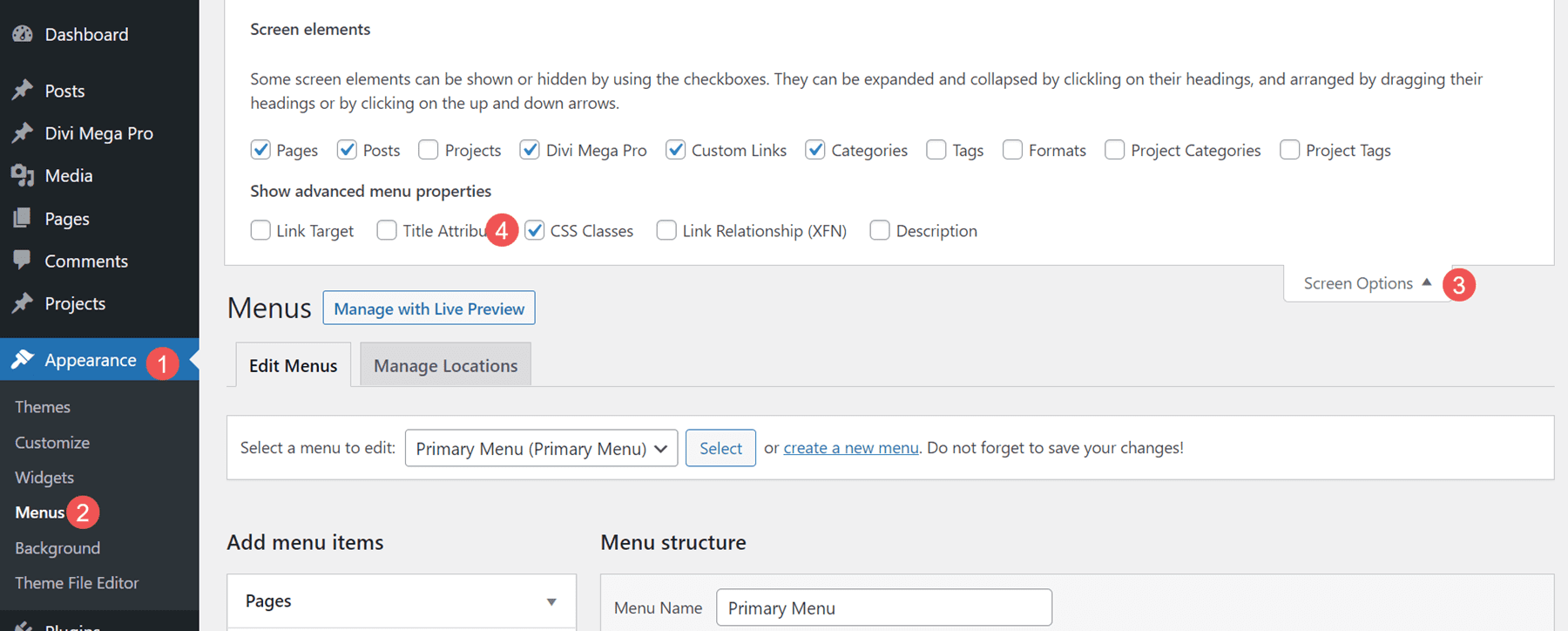
    To add the mega menu to your WordPress header and footer menus, you’ll need to have CSS Classes enabled. First, go to Appearance > Menus in the WordPress dashboard. Select Screen Options in the upper right corner of the screen and make sure CSS Classes is checked.

    Adding the Mega Menu

    Next, open the menu item that you want to display the mega menu item. Paste the Unique Mega Pro Class for the mega menu into the CSS Classes field.

    Adding the Mega Menu

    Repeat this process for every mega menu item you want to display.

    Adding the Mega Menu

    Here’s a look at this mega menu on the front end. I’ve used one of the demos that’s included, as we’ll see later.

    Adding the Mega Menu

    Adding Tooltips

    You can also use Divi Mega Pro to create mega tooltips. Simply add the CSS class to the element you want to show the tooltip. You can set the tooltip to open on hover or click. Any Divi Module can show a tooltip. Style the module as normal with the Divi tools.

    To add the tooltip, open the Divi Module you want to show the tooltip. Go to the Advanced tab and paste the Unique Mega Pro Class into the CSS Class field. Save your settings and you’re ready to display tooltips.

    Adding Tooltips

    Now when someone hovers over the element you’ve added the class to, the tooltip appears.

    Adding Tooltips

    The tooltips also work to create mega menus for headers in the Divi Theme Builder. Create the menu items with Divi Modules such as Text Modules, Button Modules, Image Modules, etc. I only recommend using Menu Modules to display standard menus as each link will either open a submenu or the page the menu points to.

    Add the Unique Mega Pro Class to the CSS Class field in each element you want to have a mega menu item. You can use this method to create custom headers and footers. In the example below, I’ve created a menu using standard Text Modules as the menu links. I’ll add a mega menu layout to each one.

    Adding Tooltips

    The menu items will work as a normal menu and display the mega menu items on hover or click, depending on your settings. In the example below, I’ve hovered over the first menu link and the mega menu for that Text Module has opened.

    Adding Tooltips

    Divi Mega Pro Templates

    Divi Mega Pro includes 15 templates to get you started. They’re provided as JSON files. Upload them to your Divi Mega Pro editor and use them to create your Divi Mega Pro layouts. They include eCommerce banners, tabs, CTA’s, contact information, a login form, blog posts, and lots more. The layouts are well-designed and work great with any style of the website.

    Divi Mega Pro Templates

    The templates are fully customizable, so you can adjust them to include your branded fonts and colors. This is template number 9, which creates eCommerce menus for featured brands. This shows the wireframe view within the back-end editor. You can also view the layouts on the front end. Mine displayed the layout with the sidebar by default, although I’m sure that can easily be disabled to show the layout in full width.

    Divi Mega Pro Templates

    Here’s how it would look on the front end. This is the back-end editor showing the desktop view.

    Divi Mega Pro Templates

    Where to Purchase Divi Mega Pro

    Divi Mega Pro is available in the Divi Marketplace for $79. It includes unlimited website usage, one year of support and updates, and a 30-day money-back guarantee.

    Where to Purchase Divi Mega Pro

    Ending Thoughts

    That’s our look at Divi Mega Pro. I found creating and using the mega menus to be intuitive. Since it uses any Divi Builder module, creating the menus and tooltips works the same as building any Divi layout. The extra features, such as animations, buttons, etc., provide even more control over the design and specify how the menus and tooltips work. It works well with pages, posts, WooCommerce products, and more. The added templates are a great way to get started. If you’re interested in creating mega menus and tooltips for your Divi websites, Divi Mega Pro is worth a look.

    We want to hear from you. Have you tried Divi Mega Pro? Let us know what you think about it in the comments.

    The post Divi Plugin Highlight: Divi Mega Pro appeared first on Elegant Themes Blog.

  • Divi Plugin Highlight: Divi Shop Builder

    The Divi Shop Builder adds 14 new modules to the Divi Builder that allow you to customize the design of default WooCommerce pages with Divi. The plugin also comes with some premade shop layouts to give you a jump start on customizing your site. If you run an online store using WooCommerce and want to be able to customize WooCommerce just like you would any other Divi Module, this could be a great plugin for you! In this plugin highlight, we’ll take a close look at the features that come with Divi Shop Builder to give you an idea of what you can accomplish with this plugin.

    Let’s get started!

    Installing Divi Shop Builder

    Divi Shop Builder can be installed just like any other WordPress plugin. Open the plugins page in the WordPress dashboard and click Add New. Click Upload Plugin at the top, then select the .zip plugin file from your computer.

    Divi Plugin Highlight Divi Shop Builder Upload

    Once the plugin is installed, activate the plugin.

    Divi Plugin Highlight Divi Shop Builder Activate

    Divi Shop Builder

    To add the Divi Shop Builder modules to your website open a page with the Divi Builder. Add a new section and row, then click the grey plus button to add a new module. You will see 14 new modules added to the insert module section, which you will use to build the shop. Let’s take a look at each module below.

    Woo Shop + Module

    Start by adding the Woo Shop + module to your shop page.

    Divi Plugin Highlight Divi Shop Builder Woo Shop Module

    Here is how the shop module looks when it is first loaded.

    Divi Plugin Highlight Divi Shop Builder Shop First Load

    Content Tab

    Let’s take a look at the Woo Shop + module settings.

    Products

    The first section under the content tab is where you can choose and reorder the components displayed in the shop module. You can add a component by clicking the Add New Item button below.

    Divi Plugin Highlight Divi Shop Builder Add New

    There are 11 components to select from: Sale Badge, New Badge, Featured Image, Title, Ratings, Price, Add to Cart Quantity, Add to Cart, Categories, Stock, and Description. These options give you total control over what elements to display in the shop module, what order they are placed in, and more. When we get into the design settings, you’ll see how easy it is to completely customize the design of each of these components as well.

    Divi Plugin Highlight Divi Shop Builder Choose Component

    Here I’ve reordered the product components so that the new badge appears below the featured image.

    Divi Plugin Highlight Divi Shop Builder Component Settings

    Next in the next part, you can find the product view type setting. This allows you to change the type and order of products displayed in the module. You can select from Default (Menu ordering + name), Latest Products, Featured Products, Sale Products, Best Selling Products, Top Rated Products, and Product Category.

    Divi Plugin Highlight Divi Shop Builder Product View Type

    Below this, you can modify the number of products displayed in the module and change the order of products.

    Divi Plugin Highlight Divi Shop Builder Order

    Here I modified the product description length to 10. You can also enable or disable Ajax, enable filtering with the Woo Products Filters module, change the layout, and change the number of product columns. This is the list view using the Grid/List View Switch layout, which adds a button to the top where you can switch between grid and list view.

    Divi Plugin Highlight Divi Shop Builder Description Length

    The description content setting allows you to display a short description or a custom description. Following this, you can choose to display the product count results, product sorting, and pagination either above, below, above and below, or hide them entirely. You can also enable or disable sale flashes.

    You can change the position of the new badge with the badge position settings. The default option is don’t overlay on product image, which adds a banner that spans the width of the featured image. Alternatively, you can select an overlay position (top left, top right, bottom left, bottom right) which adds a small badge over the image. You can also change the text for the new badge. Following this are the exact same settings for the sale badge.

    Divi Plugin Highlight Divi Shop Builder Badge Position

    Last in this section are some display options. You can choose to display the add to cart button, the add to cart quantity field, change the default add to cart quantity, the product image, prices, ratings, categories, stock, and new badge.

    Divi Plugin Highlight Divi Shop Builder Display Settings

    No Products Found

    Here you can change the heading and message text for the No Products Found page.

    Default Content Tab Settings

    The Woo Shop + module also features the default content tab settings such as Link, Background, and Admin Label.

    Divi Plugin Highlight Divi Shop Builder Background

    Design Tab

    The design tab is where you can fully customize every aspect of the Woo Shop + module.

    Overlay

    First up, overlay settings. This is where you can customize the overlay that appears over the featured image on hover. In this example, I added a dark overlay and a white icon.

    Divi Plugin Highlight Divi Shop Builder Overlay

    Image

    With the image settings, you can change the padding and margin, add rounded corners, customize the border, and modify the image with any of the filter settings such as hue, saturation, brightness, and more.

    Divi Plugin Highlight Divi Shop Builder Image

    Star Rating

    Here you can customize the design of the star rating. You can change the non-active and active star rating color as well as the alignment, size, and spacing.

    Divi Plugin Highlight Divi Shop Builder Star Rating

    New Badge

    Next is the new badge settings. You can customize the padding and margin, set how many days the new tab stays, and completely customize the design with all of the background, font, and border options.

    Divi Plugin Highlight Divi Shop Builder New Badge

    Button

    The button settings group has all of the default button customization options such as background, font, border, icon, and box shadow settings. Here I customized the text color, background, font, and border radius.

    Divi Plugin Highlight Divi Shop Builder Button

    Quantity Field

    With the quantity field options you can change the background color, text color, focus background color, focus text color, spacing, font, border, and shadow. I modified the spacing options to add space between the quantity field and the button. I also changed the font and border radius.

    Divi Plugin Highlight Divi Shop Builder Quantity

    Product Container

    Here you can change the design of the product container, which surrounds each individual product listed. You can change the padding, margin, background, rounded corners, border, and shadow. I added a gray background to the section and changed the grid columns to 3, then added a white background to the product container. I also added rounded corners and a shadow to achieve this design.

    Divi Plugin Highlight Divi Shop Builder Product Container

    Product Description

    This is where you can customize the product description text. It includes settings for the description padding and margin as well as all of the default font options.

    Divi Plugin Highlight Divi Shop Builder Product Description

    Sorting Dropdown

    Next, in this section you can customize the design of the sorting dropdown for the shop module. You can change the background color, text color, focus background and text color, set the dropdown margin and padding, modify the font options, and customize the border. For this example, I kept it simple by changing the font and adding a gray border.

    Divi Plugin Highlight Divi Shop Builder Sorting Dropdown

    Results Count

    The results count options allow you to customize the font settings for this text. Here I changed the font.

    Divi Plugin Highlight Divi Shop Builder Results Count

    Pagination

    You can customize the design of the pagination here. There are options for the current page text color, current page text background, pagination color background, pagination text color, pagination font, and pagination border. In this example, I modified the current page text color, pagination text color, pagination font, pagination text size, and pagination wrapper rounded corners.

    Divi Plugin Highlight Divi Shop Builder Pagination

    View Cart Button

    The view cart button appears once a user adds a product to their cart. I enabled custom styles for the button and changed the text size, color, button background, border radius, font, icon, margin, and padding.

    Divi Plugin Highlight Divi Shop Builder View Cart

    Grid/List View Button

    The grid/list view button options allow you to change the icons, modify the icon and background colors, adjust the padding and margin, and customize the border and box shadow. I left the options default for this example.

    Divi Plugin Highlight Divi Shop Builder Grid List Button

    No Products Found

    In this settings group you can change the text and heading font, the spacing, the border, and the colors for the no products found message. I modified the text and heading font and added some bottom padding to the section.

    Divi Plugin Highlight Divi Shop Builder No Products Design

    Text

    Here you can change the text alignment and add a text shadow.

    Divi Plugin Highlight Divi Shop Builder Text

    Title Text

    Next is the title text settings, where you can customize the product title font. For this example, I changed the font and the text size.

    Divi Plugin Highlight Divi Shop Builder Title Text

    Price Text

    All of the font options are available for the price text as well. Again, I changed the font and the text size for the price.

    Divi Plugin Highlight Divi Shop Builder Price

    Old Price Text

    The old price text appears with a strikethrough effect whenever a product is on sale. You can customize the font options here. I changed the font and increased the text size to match the regular price font.

    Divi Plugin Highlight Divi Shop Builder Old Price

    Category Text

    For the category text, I used the font options to change the font and text color.

    Divi Plugin Highlight Divi Shop Builder Category

    In Stock Text

    You can customize the in stock text with all of the font options as well. I changed the font and text color.

    Divi Plugin Highlight Divi Shop Builder In Stock

    Out of Stock Text

    Next is the out of stock text. I kept it simple and changed the font for this example.

    Divi Plugin Highlight Divi Shop Builder Out of Stock

    Available On Backorder Text

    Here I changed the available on backorder font and changed the text color to orange.

    Divi Plugin Highlight Divi Shop Builder Backorder

    Sale Badge Text

    Here you can customize the design of the sale badge. I changed the font and the background color.

    Divi Plugin Highlight Divi Shop Builder Sale Badge

    Sale Price Text

    Finally, I adjusted the font for the sale price text with the font options available.

    Divi Plugin Highlight Divi Shop Builder Sale Price

    Default Design Tab Settings

    That’s it for the new settings added to the design tab. The module also comes with several of the default design tab options such as sizing, spacing, border, box shadow, filters, transform, and animation. You can use these design options to further enhance your Woo Shop + module.

    Advanced Tab

    The advanced tab is fairly standard and comes with all of the sections you would expect to find in order to customize your module with CSS and more. Under the Custom CSS section, you can add CSS to individually customize aspects of the shop module, such as product, onsale, new badge, image, and more.

    Divi Plugin Highlight Divi Shop Builder Custom CSS

    Woo Products Filter Module

    Now that we’ve taken a close look at the shop module, let’s take a look at the Woo Products Filter module. This module adds a filter to your page that you can use to modify your shop results. Click the grey plus button to insert a module and select the Woo Products Filters module.

    Divi Plugin Highlight Divi Shop Builder Filters

    Once you add the module, you may see this error message about enabling filtering.

    Divi Plugin Highlight Divi Shop Builder Filter Error

    Open your Woo Shop + module and select the option to enable filtering with the Woo Products Filters module. This will help connect the filter module and the shop module so that the shop items will change depending on the filters you select.

    Divi Plugin Highlight Divi Shop Builder Enable Filtering

    Content Tab

    Under the content tab, you can add a new item to your filter module.

    Divi Plugin Highlight Divi Shop Builder New Item

    Once you add a new item it will open up in an individual settings window where you can select the type of filter and customize many aspects of the filter. There are individual design options for each filter which you can use to individually style the look of the filter. Each of these options are also available in the filter module design tab, where you can customize the overall design of each filter type.

    There are 8 types of filters you can add: Category, Tag, Attribute, Search, Rating, Price, Stock Status, and Sale. Here I added a column to the row so that the filter can be placed to the side of the shop module.

    Divi Plugin Highlight Divi Shop Builder Filters

    Under the filter settings for the individual filter, you can select the filter type, choose to display or hide the filter title, and add custom filter title text.

    Divi Plugin Highlight Divi Shop Builder Filter Settings

    Category Filter

    The advanced filter settings for the individual filter change depending on the type of filter you have selected. For the category filter, you can choose to show parent categories only, parent categories and subcategories non-hierarchical, or parent categories and subcategories hierarchical. You can also change how the filter is displayed: checkboxes list, radio buttons list, dropdown single select, dropdown multi select, or tag cloud. For this example, I selected the dropdown multi select. Also in this section, you can enable or disable display as toggle, choose to show or hide the number of products, and change the “please select” text.

    Divi Plugin Highlight Divi Shop Builder Advanced Filter Settings

    Tag Filter

    For the tag filter, I am enabling the tag cloud display and disabling the toggle display.

    Divi Plugin Highlight Divi Shop Builder Tag Filter

    Search Filter

    Here are the search filter settings. Once again I’ve disabled the toggle view.

    Divi Plugin Highlight Divi Shop Builder Search

    Rating Filter

    The rating filter has several display options: single line stars (selected rating and up), single line stars (only selected rating), radio buttons stars, radio buttons text, checkboxes stars, checkboxes text, dropdown stars, dropdown text. I have selected the single line stars (selected rating and up) option.

    Divi Plugin Highlight Divi Shop Builder Rating

    Price Filter

    Next is the price filter. You can choose between a from-to slider, a from-to number input, or a from-to slider and number input. For this example I selected the from-to slider and adjusted the maximum amount.

    Divi Plugin Highlight Divi Shop Builder Price Filter

    Stock Filter

    You can display the stock filter as a checkbox list, a radio button list, a dropdown single select, a dropdown multi select, or a tag cloud. I selected the radio buttons list for this filter and selected to display the number of products.

    Divi Plugin Highlight Divi Shop Builder Stock

    Sale Filter

    The sale filter options are pretty simple – you can enable or disable the toggle display and change the on sale text.

    Divi Plugin Highlight Divi Shop Builder Sale

    Attribute Filter

    Finally, we have the attribute filter. I’ve chosen to use colors for the attribute example, and I have selected the checkboxes list display option.

    Divi Plugin Highlight Divi Shop Builder Attribute

    Content Tab Filters Settings

    Back in the content tab of the filter module settings, there are some additional options listed under the filters settings group.

    First, you can select to display selected filters at the top or bottom, or hide them entirely. I chose to display them at the top. You can also choose to display or hide the selected filters title and change the title text.

    Divi Plugin Highlight Divi Shop Builder Selected Filters

    Also in this section are options for the apply filters and clear filters buttons. You can choose to display them before or after the filters, or not at all. You can also change the button text. I chose to display both buttons after the filters.

    Divi Plugin Highlight Divi Shop Builder Filter Buttons

    The content tab also has a section for background settings and admin label settings.

    Design Tab

    The design tab for the filter module has an extensive amount of design options for you to completely customize the filter designs. You can customize the font, spacing, border, and background for each of the filter types. You can also customize the buttons, selected filters, sizing, spacing, border, box shadow, filters, transform, and animation options. We won’t go into much detail here, but just know that you can modify just about any aspect of the filter module to your liking.

    For this example, I modified the font, added rounded corners to the selected filters, decreased the bottom margin between filters, added a border to the dropdown filter, changed the color of the active tag, price filter, stock status, and checkmarks to match the color scheme, customized the button design, and added a rounded corner and box shadow to the filter module. Here is the final design with the filter module and shop module.

    Divi Plugin Highlight Divi Shop Builder Shop Page Design

    Cart List Module

    Now let’s move over to the cart page. First, the cart list module. This module will display the contents of your cart.

    Content Tab

    Within the module settings, you can change the content that is displayed. You can choose to show or hide certain columns such as the remove product column, the product column, the thumbnail, the product name, the price, the quantity, the subtotal, and the coupon code.

    Divi Plugin Highlight Divi Shop Builder Cart Contents

    You can also rename any of the columns with custom text.

    Divi Plugin Highlight Divi Shop Builder Cart Labels

    Additionally, you can customize the empty cart text, button text, and button URL.

    Divi Plugin Highlight Divi Shop Builder Empty Cart

    The content tab also features the default background and admin label settings.

    Design Tab

    Here you can completely customize the design of the cart module. Every aspect of the cart module can be changed, including the buttons, the text, the table, and more.

    Divi Plugin Highlight Divi Shop Builder Cart Design

    I’ve customized the design by adding a white background and rounded corners, changing the font, increasing the image thumbnail size, and customizing the buttons.

    Divi Plugin Highlight Divi Shop Builder Cart Final Design

    Cart Totals Module

    The cart totals module should also be added to the cart page. It will display the subtotal and total for the cart items and has a button to proceed to checkout.

    Content Tab

    Within the module settings, you can change the text such as the title, subtotal text, total text, and proceed to checkout button text. You can also add a background and change the admin label.

    Divi Plugin Highlight Divi Shop Builder Cart Total Content

    Design Tab

    With the design settings, you can customize every aspect of the cart totals module. For this example, I added a background, a box shadow, and rounded corners to the module. I changed the font to match the rest of the design, and also customized the proceed to checkout button.

    Divi Plugin Highlight Divi Shop Builder Cart Totals Design

    WooCommerce Notices Module

    The WooCommerce Notices module can also be placed on the cart page. This module will display any error messages or notices that may come up. I’m adding it to the top of the cart page, above the cart list module.

    Content Tab

    Under the content tab you can enable test mode, which will display all of the notices on the front end while you test the design. Here is what the three different notices look like by default.

    Divi Plugin Highlight Divi Shop Builder Woo Commerce Notices

    Design Tab

    Here you can modify the design of the notices. I changed the background colors to correspond with the type of notice, and changed the styling to match the rest of the design.

    Divi Plugin Highlight Divi Shop Builder Notices Designed

    Checkout Billing Module

    Moving on to the checkout page, first up is the billing module. This is where you can collect billing details to complete the transaction.

    Content Tab

    Under the content tab, you can change the billing title text as well as any of the field labels. You can also add a link or background and change the admin label. Here I added a background color to the layout.

    Divi Plugin Highlight Divi Shop Builder Billing Content

    Design Tab

    The design tab has options to customize everything from the heading and labels to the fields and borders. For this example, I kept the design in alignment with the other modules and added a rounded border and a box shadow, changed the spacing, and modified the font.

    Divi Plugin Highlight Divi Shop Builder Billing Design

    Checkout Coupon Module

    Next, we can add the checkout coupon module to the checkout page.

    Content Tab

    In the content tab, you can choose to show the coupon section via toggle or to have it always displayed. I chose to have it displayed. Here you can also change the text for any of the coupon module elements.

    Divi Plugin Highlight Divi Shop Builder Coupon Content

    Design Tab

    Here is the designed coupon module. I added a background, box shadow, and rounded corners. I also changed the font and customized the button.

    Divi Plugin Highlight Divi Shop Builder Coupon Design

    Checkout Order Module

    Now let’s move on to the checkout order module. This is another module for the checkout page and it displays the customer’s order information such as the selected products, the subtotal, shipping, the total cost, payment options, and a privacy policy checkbox.

    Content Tab

    In the content tab you can change the heading text and the place order button text. You can also choose to show or hide the privacy policy and terms and conditions. Of course, you can also add a background and change the admin label here as well.

    Divi Plugin Highlight Divi Shop Builder Checkout Order Content

    Design Tab

    Just like the other modules, the checkout order module can also be completely customized. Here I changed the font, added a background and rounded corners, and customized the button.

    Divi Plugin Highlight Divi Shop Builder Checkout Order Design

    Checkout Shipping Module

    The last module for the checkout page is the checkout shipping module.

    Content Tab

    In the content tab, you can change the title text, choose to have the title toggle, and show or hide order notes. You can also change any of the field labels.

    Divi Plugin Highlight Divi Shop Builder Shipping Content

    Design Tab

    Here is the customized design. Again, I added a background, rounded borders, a box shadow, and changed the font.

    Divi Plugin Highlight Divi Shop Builder Shipping Design

    And here is the full design for the checkout page.

    Divi Plugin Highlight Divi Shop Builder Checkout Page Design

    Account Content Module

    Divi shop builder also comes with some modules to customize the account page. Let’s take a look at the account content module first. There are different elements you can add to the page and you can rearrange them however you would like. These elements include dashboard, orders, subscriptions, downloads, addresses, account details, login, register, and lost password sections. Each element has its own settings page where you can customize the individual element’s design. The account content module also has design options where you can customize the overall design.

    Divi Plugin Highlight Divi Shop Builder Account Content

    Here is the styled default dashboard view, along with the notice messages at the top.

    Divi Plugin Highlight Divi Shop Builder Dashboard

    This is the styled orders page, where customers can see all of their completed and pending orders.

    Divi Plugin Highlight Divi Shop Builder Orders

    This is an example of a downloads page.

    Divi Plugin Highlight Divi Shop Builder Downloads

    As you can see, this plugin gives you total control over the design of the account page as well. Let’s take a look at a couple more modules that work with the account page.

    Account Navigation Module

    This module adds a navigation menu to the page so that users can view the different pages in their account. Just like the account content module, you can add and remove any of the pages from the menu and change their order. Here is the styled navigation module.

    Divi Plugin Highlight Divi Shop Builder Account Navigation

    Account User Image Module

    The account user image module adds the user’s profile image to the page. Here it is in action.

    Divi Plugin Highlight Divi Shop Builder Account User Image

    Account User Name Module

    Similarly, the account user name module adds the user’s username to the page. You can alternatively select to display the first name, last name, full name, or display name.

    Divi Plugin Highlight Divi Shop Builder Account Username

    Here is the full account interface on the front end. This is the account details page.

    Divi Plugin Highlight Divi Shop Builder Account Details

    Thank You Module

    The final module we’ll cover is the thank you module. This will appear after an order has been completed. You can change any of the labels using the content tab settings, and of course the entire module can be customized with its design settings. Here is the styled thank you page.

    Divi Plugin Highlight Divi Shop Builder Thank You

    Divi Shop Builder Layouts

    Divi Shop Builder also comes with several premade shop layouts that you can use to jump-start the design process. Let’s take a look at a couple of the designs.

    Woo Shop + Module Demo 1

    This is one of the shop demo layouts. It has a card-style design and features a green border that appears on hover.

    Divi Plugin Highlight Divi Shop Builder Demo 1

    Coffee Cart and Checkout Layouts

    The coffee layout comes with a cart layout and a checkout layout. Here is the cart layout.

    Divi Plugin Highlight Divi Shop Builder Coffee Cart

    And here is the checkout layout.

    Divi Plugin Highlight Divi Shop Builder Coffee Checkout

    Woo Shop + Food Layout

    This is another shop module layout with a creative “sweet or salty” split layout. This layout features a round product image with a colored border.

    Divi Plugin Highlight Divi Shop Builder Food

    Purchase Divi Shop Builder

    Divi Shop Builder is available in the Divi Marketplace. It costs $109 for unlimited website usage and 1 year of support and updates. The price also includes a 30-day money-back guarantee.

    Divi Shop Builder Tutorial

    Final Thoughts

    That was our look at Divi Shop Builder. As you can see, this plugin is jam-packed with modules and design options that give you complete control over the design of your shop, cart, checkout, account, and thank you pages. As comprehensive as this plugin is, it is also very easy to use and customize. The plugin author also has extensive documentation for the product, which is very helpful. If you are looking for a way to customize your WooCommerce shop with Divi, this is a great option. We would love to hear from you! Have you tried Divi Shop Builder? Let us know what you think about it in the comments!

    The post Divi Plugin Highlight: Divi Shop Builder appeared first on Elegant Themes Blog.

  • Stella Coaching & Online Course Child Theme – Divi Child Theme Overview

    The Stella Coaching & Online Course Child Theme is a child theme for Divi specifically designed for coaches and course creators. The theme features pages for a blog, course, quiz, and store, and also has several marketing pages for you to promote your services and lead magnets. Stella is clean, elegant, and thoughtfully designed to help you convert more customers. In this post, we’ll take a look at the Stella Coaching & Online Course Child Theme to help you decide if it’s the right Divi child theme for you.

    Let’s get started!

    Installing Stella Coaching & Online Course Child Theme

    First, open your WordPress dashboard and navigate to the add plugins page. We will install the child theme through the plugin page, not the theme page. Click Upload Plugin, then select the plugin .ZIP file from your computer. Then click Install Now and activate the plugin once it finishes installing.

    Stella Coaching and Online Course Child Theme Divi Child Theme Overview Add Plugin

    Once activated, you will see the Stella Installer in your WordPress menu bar. From this page, you can import all of the child theme content, site structure, settings, plugins, custom CSS, and more, just with one button. Click Begin Site Import to start the import process.

    Stella Coaching and Online Course Child Theme Divi Child Theme Overview Import

    You will see a progress bar as the child theme is installed.

    Stella Coaching and Online Course Child Theme Divi Child Theme Overview Import 2

    Once your import is complete, you can delete the plugin.

    Stella Coaching and Online Course Child Theme Divi Child Theme Overview Import 3

    Stella Coaching & Online Course Child Theme Pages

    Stella comes with 25 pages, including WooCommerce shop pages, course pages, blog pages, and a quiz for capturing leads. Let’s take a look at each of the pages, starting with the home page.

    Stella Coaching & Online Course Child Theme Pages

    Header and Introduction

    The first section on the home page is a large header image and introduction text. The header image is styled with a rounded corner, and the text is styled with different sizes and some icons to create a compelling introduction to the site. This section also includes a call-to-action button.

    Stella Coaching and Online Course Child Theme Divi Child Theme Overview Home 1

    Quiz

    The next section on the home page introduces a quiz built with the free version of Interact. The layout features text with some bullet points, a large image to the right, and another image at the top that moves with the page. Additionally, the round text above the large image rotates while you are on the page.

    Stella Coaching and Online Course Child Theme Divi Child Theme Overview Home 2

    Services

    The services section of the home page is where you can feature two services you offer. You can add an image and a brief description of the service, and there is a button leading customers to the services page.

    Stella Coaching and Online Course Child Theme Divi Child Theme Overview Home 3

    Testimonials

    Next, the testimonials section has space for two quotes with a button leading to the testimonials page. This section uses elegant typography and a large parallax image.

    Stella Coaching and Online Course Child Theme Divi Child Theme Overview Home 4

    Blog

    The latest news section features three recent blog posts with the featured image, a short blurb from the post, and a button to read the full article.

    Stella Coaching and Online Course Child Theme Divi Child Theme Overview Home 5

    Freebie

    This section of the home page features a freebie offer and requires users to enter their name and email address to receive the freebie.

    Stella Coaching and Online Course Child Theme Divi Child Theme Overview Home 6

    Call to Action

    The final section of the home page features some call-to-action text with a button.

    Stella Coaching and Online Course Child Theme Divi Child Theme Overview Home 7

    Stella Coaching & Online Course Child Theme About Page

    The about page begins with a section for your about text. It also features a styled image to the right of the text. Underneath, there are three numbered sections where you can map out a timeline or journey that is relevant to your service or to who you are. This section is styled with three images, as well as a quote block.

    Stella Coaching and Online Course Child Theme Divi Child Theme Overview About

    This page also has a section for recent blog posts, as well as the two lead magnets that were featured on the home page – the quiz and the freebie with the email sign-up. The page ends with a call-to-action section to compel users to view the services page.

    Stella Coaching and Online Course Child Theme Divi Child Theme Overview About 2

    Stella Coaching & Online Course Child Theme Services Page

    The services page starts with a brief introductory text where you can summarize your offerings. Then, there are two dedicated sections where you can go over the details of your services. Each section has areas for text, an image, bullet points, a testimonial quote, and a button to apply for the service.

    Stella Coaching and Online Course Child Theme Divi Child Theme Overview Services 1

    Below, there is a section to invite visitors to join a community Facebook group. This section also features an image, a testimonial quote, and a call-to-action button. Finally, the page features the freebie lead magnet that was on the home page.

    Stella Coaching and Online Course Child Theme Divi Child Theme Overview Services 2

    Stella Coaching & Online Course Child Theme FAQ Page

    The FAQ page is formatted with a brief introduction and a large image at the top. Each of the FAQs is placed in a dropdown accordion. When the question is selected, the question is revealed in the dropdown accordion. Below the FAQ section is a short contact form for visitors to submit any questions you might not have addressed on the FAQ page. The last section on this page is the invitation to join a community Facebook group.

    Stella Coaching and Online Course Child Theme Divi Child Theme Overview FAQ

    Stella Coaching & Online Course Child Theme Raves (Testimonials) Page

    The raves page features customer testimonials in styled block quotes alongside images. Below is a section highlighting customer success stories, with a brief introductory text and a testimonial video for each customer. This is a great way to show social proof in an engaging and compelling way. There is another testimonial quote section after this, on a large parallax image background. Once again, the page ends with an invitation to join a community Facebook group.

    Stella Coaching and Online Course Child Theme Divi Child Theme Overview Testimonials

    Stella Coaching & Online Course Child Theme Sales Page

    The sales page starts with a large header image and some short text where you can introduce your service, with round rotating text over the image. In the next section, you can highlight a problem your customer has that your services solve. This section also has two blurbs where you can highlight some problems your customer might relate to. In the following section, you can discuss how you solve the customer’s problem and how you can help. This section is designed with three blurbs with checkmarks next to them, a large image, and a call-to-action button.

    The next section features a text area for a general overview of the service, a call-to-action button, and an image with the round rotating text over it. There is a testimonial blurb after this for social proof, and another section is where you can highlight additional details or features of your service.

    Stella Coaching and Online Course Child Theme Divi Child Theme Overview Sales 1

    This section has different forms of social proof to go alongside your service. First is an “as seen in” section with logos, then you have another testimonial section over a large image. The next section features customer success stories with some statistics, a large testimonial video, smaller testimonial quotes with customer images, and a call-to-action button.

    Stella Coaching and Online Course Child Theme Divi Child Theme Overview Sales 2

    This section features the service pricing, with three different pricing tiers and an image, details, and a call-to-action button for each tier. There is a FAQ section after this, with a similar design to the FAQ page we covered earlier. Then there is a section featuring a large video and another call-to-action button. There is another pricing section with the same layout as above but with different colors. The page ends with an about section with a large image, a call-to-action button to book a call, and a 30-day satisfaction guarantee.

    Stella Coaching and Online Course Child Theme Divi Child Theme Overview Sales 3

    Stella Coaching & Online Course Child Theme Email Sign-Up Page

    The email sign-up page is where you can go into detail about your freebie and prompt users to sign up with their email. The page starts with a brief introduction of the product, with an image and rotating round text above. Next is the email sign-up form, styled with some text at the top and an image to the right. In the following section, you can give some additional details about what your visitors will receive when they sign up with their email. Then there are some customer testimonials alongside images for social proof. Finally, there is another email sign-up form.

    Stella Coaching and Online Course Child Theme Divi Child Theme Overview Email Sign Up

    Stella Coaching & Online Course Child Theme Email Sign Up Thanks Page

    This is where visitors will be redirected after signing up with their email. The page starts with some text letting them know their freebie is on the way and a video. Below are recent posts from the blog and an invitation to join the community Facebook group.

    Stella Coaching and Online Course Child Theme Divi Child Theme Overview Email Sign Up Thanks

    Stella Coaching & Online Course Child Theme Lead Magnet Delivery Page

    This page is where users receive the freebie they signed up for. The page includes some introductory text and a video, some bullet points encouraging users to get the most out of their freebie, text explaining the next steps, and customer testimonials. This page also ends with an invitation to join the community Facebook group.

    Stella Coaching and Online Course Child Theme Divi Child Theme Overview Lead Magnet Delivery

    Stella Coaching & Online Course Child Theme Quiz Page

    This page features an interactive quiz made with Interact. This is a great idea to engage your website visitors. The page is styled with an image and rotating round text.

    Stella Coaching and Online Course Child Theme Divi Child Theme Overview Quiz

    Stella Coaching & Online Course Child Theme Quiz Results Page

    The quiz results page is specific to the quiz outcome and explains the results in depth. The layout begins with some short introductory text next to an image. Then there is some explanatory text with a video and some action steps for that result. The page ends with a prompt to sign up for the email freebie.

    Stella Coaching and Online Course Child Theme Divi Child Theme Overview Quiz Results

    Stella Coaching & Online Course Child Theme Contact Thanks Page

    The contact thanks page is where users will be redirected after submitting a contact form. This page features a short text section, contact information, a video, recent blog posts, the freebie sign-up form, and an invitation to join the community Facebook group.

    Stella Coaching and Online Course Child Theme Divi Child Theme Overview Contact Thanks

    Stella Coaching & Online Course Child Theme Store Page

    The store in Stella is built with WooCommerce. The store page layout is pretty straightforward, with introductory text and an image at the top, and the products below. The product images are featured as well as the product title and price, and there are category filters at the top. On the right, there is space to promote a blog post.

    Stella Coaching and Online Course Child Theme Divi Child Theme Overview Stores

    Stella Coaching & Online Course Child Theme Product Page

    The product page features breadcrumbs at the top, along with the product title and price. The product image is on the left and you can hover to zoom in. On the right is the description text and the add to cart button. Below you can see the description in one tab and reviews in the other. The page ends with recent posts from the blog.

    Stella Coaching and Online Course Child Theme Divi Child Theme Overview Product

    Stella Coaching & Online Course Child Theme Cart Page

    The cart page is very simple and has a pink header with a cart icon with the cart content below.

    Stella Coaching and Online Course Child Theme Divi Child Theme Overview Cart

    Stella Coaching & Online Course Child Theme My Account Page

    The “my account” page allows users to log in to your website and manage recent orders, shipping and billing addresses, and password and account details. The page also has a contact form and an invitation to join the community Facebook group.

    Stella Coaching and Online Course Child Theme Divi Child Theme Overview Account

    Stella Coaching & Online Course Child Theme Course Layout Page

    Stella uses LifterLMS for the course pages. The course layout page introduces the course and the course instructor. It also lists the course cost, a button to enroll, and the table of contents for the course. On the right sidebar, you can also see a table of contents for the course and navigate to each section.

    Stella Coaching and Online Course Child Theme Divi Child Theme Overview Course Overview

    Stella Coaching & Online Course Child Theme Lesson Layout Page

    The page features a large video with some text underneath and a button to mark the section complete. Below, you have a button to go back to the course or to move to the next lesson. On the right is a short text section introducing the instructor and an overview of the course. You can click on the links in the overview to move to the next section. Finally, there is a progress bar at the bottom.

    Stella Coaching and Online Course Child Theme Divi Child Theme Overview Lesson

    Stella Coaching & Online Course Child Theme Dashboard Page

    The dashboard page allows course members to sign in and view their enrolled courses, grades, certificates, achievements, notifications, and order history. You can also edit account information and redeem a voucher from this page. There is a contact form below this section and an invitation to join the community Facebook group.

    Stella Coaching and Online Course Child Theme Divi Child Theme Overview Dashboard

    Stella Coaching & Online Course Child Theme Blog Landing Page

    The blog landing page includes some welcome text and an image, a search bar, and blog categories. It also features trending posts and then lists recent posts with a large featured image, a couple of lines of text from the post, the category, and a button to read more.

    Stella Coaching and Online Course Child Theme Divi Child Theme Overview Blog Landing

    Stella Coaching & Online Course Child Theme Blog Archive Page

    The blog archive page features an image and a search bar at the top with links to the different blog categories. Below the recent posts are listed, with a large featured image, title and category, a couple of lines of preview text, and a button to read more. The page ends with a freebie sign-up form.

    Stella Coaching and Online Course Child Theme Divi Child Theme Overview Blog Archive

    Stella Coaching & Online Course Child Theme Single Post Page

    The single post page features the title and category at the top and then the large featured image with the blog content below. There are links to navigate to the previous and the next post, and a comment section below. On the right side, there is an image and author introduction as well as social media icons and a grid of four recent images from Instagram. Finally, there is a search bar and links to some recent posts. The page ends with a freebie sign-up form.

    Stella Coaching and Online Course Child Theme Divi Child Theme Overview Blog Post

    Stella Coaching & Online Course Child Theme Contact Page

    The contact page features some introduction text and contact information alongside a large image. Below is a simple contact form. The page ends with an invitation to sign up for a freebie and join the community Facebook group.

    Stella Coaching and Online Course Child Theme Divi Child Theme Overview Contact

    Stella Coaching & Online Course Child Theme Header

    The header is simple but elegant and features a logo on the left and menu items to the right. The secondary menu bar features a call-to-action with a button to sign up for the freebie.

    Stella Coaching and Online Course Child Theme Divi Child Theme Overview Header

    Stella Coaching & Online Course Child Theme Footer

    The footer features the logo and some brief text as well as social media icons. There is a menu with some quick links, and on the right is a grid with recent Instagram images. At the very bottom of the page is a secondary footer bar with a quick links menu.

    Stella Coaching and Online Course Child Theme Divi Child Theme Overview Footer

    Where to Purchase the Stella Coaching & Online Course Child Theme

    Stella Coaching & Online Course Child Theme is available from the Divi Marketplace. It costs $165 for unlimited website usage and one year of support and updates.

    Stella Child Theme Tutorial

    Final Thoughts

    The Stella Coaching & Online Course Child Theme may be an excellent option for your website if you are an online coach or course creator. The child theme is preformatted with every page you would need, and features beautiful typography, colors, and call-to-actions to help you convert your visitors into customers. I like how a lot of the placeholder text throughout the child theme tells you what sort of content to place there, making it easy to replace the content and make the website your own while still keeping your content cohesive with the design of the pages.

    We would love to hear from you! Have you tried Stella Coaching & Online Course Child Theme? Let us know what you think about it in the comments!

    The post Stella Coaching & Online Course Child Theme – Divi Child Theme Overview appeared first on Elegant Themes Blog.

  • Divi Photography Portfolio – Divi Child Theme Overview

    Divi Photography Portfolio is a third-party Divi child theme designed with photographers and videographers. It comes with lots of pages in both a light and dark design and throws in extra features with premium plugins. In this post, we’ll look at the Divi Photography Portfolio child theme to help you decide if it’s the right child theme for your needs.

    Installing Divi Photography Portfolio

    The Divi Photography Portfolio child theme is easy to install. With Divi activated, go to Appearance > Themes > Add New.

    Installing Divi Photography Portfolio

    Click Upload Theme, Choose File, and navigate to your zipped file. Click Install Now.

    Installing Divi Photography Portfolio

    Activate the child theme.

    Installing Divi Photography Portfolio

    Next, you’ll need to import the demo content. Select Import Demo Content > Easy Demo Import. Chose all the files you want to import. I recommend leaving this in the default settings. Click Import Demo Content.

    Installing Divi Photography Portfolio

    Once the import completes, click Remove Demo Content & Import Functions to remove the files you no longer need. Your website will now look like the demo.

    Installing Divi Photography Portfolio

    Divi Photography Portfolio Features

    Divi Photography Portfolio has both a light and a dark version with 9 home pages, 3 portfolio layouts, 8 project layouts, 2 video galleries, 2 About Me pages, 2 Contact pages, and 2 blog designs. Overall, it adds 36 layouts to the Divi Library, 7 templates to the Divi Theme Builder, and 26 pages. I’m using the light version in my examples.

    It also includes the plugins Divi Masonry Gallery, Divi Video Gallery, Destaca Fullpage Slider, Recent Posts Widget Extended, Simple Share Buttons Adder, and Smash Balloon Instagram Feed. Many of the elements include animations or scroll effects.

    Divi Photography Portfolio — Home Pages

    Let’s take a look at the home pages and see how they’re different.

    Home 6 — the Default Home Page

    Here’s the main home page in light. This is Home Page 6. It includes a fullscreen slider, a welcome message with the number of years of experience, images that link to types of photography, blurbs that link to services, a mosaic portfolio, number counters, a testimonial slider, client logos, email form, and contact information.

    Divi Photography Portfolio- Home Pages

    Home 1

    Homepage 1 is short. It has a top section with a welcome message on one side that includes a link to the portfolio and social follow buttons. The other side contains an image slider.

    Divi Photography Portfolio- Home Pages

    Home 2

    The second home page is especially interesting. It includes a slider that moves from side to side with your mouse’s scroll wheel. Hovering over an image shows the title and category. It also includes the Instagram feed. It displays the categories at the bottom of the screen until you scroll to that point.

    Divi Photography Portfolio- Home Pages

    Home 3

    The third home page displays a full-screen slider with the title in the lower left corner of the image and a button that links to the portfolio page in the bottom right corner.

    Divi Photography Portfolio- Home Pages

    Home 4

    The fourth home page displays images in a mosaic. The title appears on hover.

    Divi Photography Portfolio- Home Pages

    Home 5

    The fifth home page is a unique full-screen slider. The displays a slider with navigation to slide down or to the side. When you scroll, it changes to the next slide, which is sticky. You can click the arrows to the sides, and it slides to the side where you’ll see the next two slides. Dots indicate which slide you’re viewing. This is one of the most interesting home pages I’ve seen for photography websites.

    Divi Photography Portfolio- Home Pages

    Home 7

    The seventh home page is another large home page. It includes a large slider in the hero section, a unique section of images that scroll at different rates that link to services, a blog, and a mosaic portfolio.

    Divi Photography Portfolio- Home Pages

    Home 8

    The eigth home page 8 includes several video backgrounds. The hero section displays a full-width background video. Several images link to other pages. Another video draws attention to your services.

    Divi Photography Portfolio- Home Pages

    Home 9

    Home 9 also includes videos, and it uses a stacked About section. The Services section displays a few images of different sizes along with the blurbs that link to the services.

    Divi Photography Portfolio- Home Pages

    Divi Photography Portfolio — About Me Pages

    Divi Photography Portfolio includes two About Me pages. The first About Me page shows text on one side and overlapping images on the other side for the hero section, followed by text.

    Divi Photography Portfolio- About Me Pages

    The second About Me page places text on the left and a larger image on the right for the hero section. It removes the text section.

    Divi Photography Portfolio- About Me Pages

    Divi Photography Portfolio — Contact Pages

    The first Contact page displays a large contact form in the hero section.

    Divi Photography Portfolio- Contact Pages

    The second adds a full-width map to the top of the page.

    Divi Photography Portfolio- Contact Pages

    Divi Photography Portfolio — Portfolio Pages

    It includes three portfolio pages.

    Portfolio Grid

    The first portfolio page displays projects in a grid. The categories appear at the bottom of the page until you scroll to that point.

    Divi Photography Portfolio- Portfolio Pages

    Portfolio Horizontal

    The horizontal portfolio includes a slider that slides horizontally as you scroll. Categories are placed under the slider.

    Divi Photography Portfolio- Portfolio Pages

    Portfolio Vertical

    The vertical portfolio presents the projects in a two-column mosaic. The categories remain at the bottom of the screen until you scroll past the portfolio.

    Divi Photography Portfolio- Portfolio Pages

    Divi Photography Portfolio — Video Gallery Pages

    It includes two video gallery pages. These use the Video Gallery module included with the child theme.

    Video Gallery Landscape

    Video Gallery Landscape provides a large video hero section that displays a title in the bottom left corner and the categories in the bottom right corner.

    Divi Photography Portfolio Video Gallery Pages

    This is followed by the video gallery. It displays the video’s featured images in a grid with the category. Hovering removes the category and shows the play button. I’m hovering over the second video in this example.

    Divi Photography Portfolio Video Gallery Pages

    Video Gallery Square

    The square version places the video in the left half of the hero section. The right half shows the title, description, and categories.

    Divi Photography Portfolio Video Gallery Pages

    This page also includes the video grid. This grid shows the play icon and replaces it with the word View on hover. I’m hovering over the first video in this example.

    Divi Photography Portfolio Video Gallery Pages

    Divi Photography Portfolio — Blog Pages

    It includes two blog page designs that look very different from each other.

    Blog

    The first blog layout places blog posts in a two-column grid. It shows the featured image with the title, author, date, and overlay over the image. On hover, the image zooms and removes the overlay and text. It also includes pagination.

    Divi Photography Portfolio Blog Pages

    Blog 2

    The second blog layout displays blog posts in a single column in an alternating layout. It shows the featured image and the title, meta, and excerpt in a box overlapping the image. The text box slides, and the image displays an arrow icon on hover. It also includes pagination.

    Divi Photography Portfolio — Blog Posts

    Two blog post layouts are included. The first includes a sidebar while the second does not. Both show the featured image with a floating title and meta, share buttons, navigation, more posts in the same category, and a subscription form.

    Divi Photography Portfolio Blog Posts

    Divi Photography Portfolio — Contact Pages

    It includes two contact pages. Both include a contact form and a clean design.

    Contact

    The standard contact page includes contact information on one side and the contact form on the other. The fields are gray, but they darken when you hover over them.

    Divi Photography Portfolio Contact Pages

    Contact Map

    The contact map page displays the same form as the standard contact page but adds a full-width map to the top of the page. It’s monochrome and doesn’t zoom on scroll.

    Divi Photography Portfolio Contact Pages

    Divi Photography Portfolio — Header

    The global header includes two Image Modules and two Code Modules. The first Image Module displays an email icon while the other displays the logo. The first Code Module includes the code for the hamburger icon and the second includes the shortcode for the menu.

    Divi Photography Portfolio Header

    The menu opens full-screen and displays the menu items with arrows. Clicking a menu item shows its submenu. Clicking a different menu item closes the first one. The hamburger icon changes to an X. Click the X icon to close the menu.

    Divi Photography Portfolio Header

    Divi Photography Portfolio — Footer

    The global footer contains 6 Divi Modules for the Instagram feed, legal notices, and social media follow buttons.

    Divi Photography Portfolio Footer

    Here’s how it looks on the front end (the photos are mine, from East Tennessee).

    Divi Photography Portfolio Footer

    Where to Purchase Divi Photography Portfolio

    Divi Photography Portfolio is available in the Divi Marketplace for $65. It includes unlimited website usage, 1 year of updates and support, and a 30-day money-back guarantee.

    Where to Purchase Divi Photography Portfolio

    Ending Thoughts

    That’s our look at the Divi Photography Portfolio child theme. This is an interesting child theme with lots of page options. Extra features are added with free and premium plugins. It also includes a dark version of all the pages so you can easily get started with either design. Divi Photography Portfolio is an excellent Divi child theme for any photographer or videographer.

    We want to hear from you. Have you tried the Divi Photography Portfolio child theme? Let us know what you think about it in the comments.

    The post Divi Photography Portfolio – Divi Child Theme Overview appeared first on Elegant Themes Blog.

  • Divi Plugin Highlight: Divi Elastic Gallery

    Divi Elastic Gallery is a third-party plugin for Divi that adds a new gallery module to the Divi Builder. Display images with several layout options, choose how the images react when clicked, adjust the captions, titles, filter, pagination, and more. In this post, we’ll take a close look at Divi Elastic Gallery to help you decide if it’s the right Divi Module for your needs.

    Divi Elastic Gallery Module

    Divi Elastic Gallery adds a new module to the Divi Builder called Elastic Gallery.

    Divi Elastic Gallery Module

    The module’s Content tab includes Gallery Settings, Background, and Admin Label. Gallery Settings includes the image selector and lots of image adjustments. To add images to the gallery, select Add Gallery Images. The Media Library will open, and you can choose the images you want to display.

    Gallery Settings

    Adding images automatically display them in the gallery. You can add as many as you want and it doesn’t matter what size they are.

    Divi Elastic Gallery Module

    I’ve selected images of various sizes for the example below. The images have automatically adjusted in size to fit the space. This created a mosaic with various columns. We can adjust the number of images per row, the height of the images, the space between them, the image size, etc. We’ll look at a few of the settings.

    Divi Elastic Gallery Module

    Row Height and Space Between the Images

    A couple of these settings took me a minute to understand. Here’s my explanation of each setting based on the documentation and my tests.

    The Minimum Row Height adds images to each row until the size is higher than the minimum. Using a lower number displays more images in the gallery. In the example below, I’ve set the Minimum Row Height to 145.

    Minimum Row Images determines the number of images that will appear in as many rows as possible, starting with the bottom row. In the example below, I’ve set the Minimum Row Images to 6. The bottom row displays 6 images, and the top row displays 3. If I set it to 4, the top row displays one image and the second and third rows display 4 images.

    Space Between Images determines the number of pixels between each image on the top, bottom, and sides. I’ve set the example below to 21 pixels and there are 21 pixels on all sides between every image.

    Divi Elastic Gallery Module

    Image Onclick Action

    The Image Onclick Action determines what happens when the user clicks an image in the gallery. It can open the image in a lightbox, link to other pages, or do nothing. If you have it open in a lightbox, you’ll see options for the lightbox. If you have it to link to other pages, you’ll see a field where you can enter each URL with instructions on how to add the links.

    Here’s a look at the lightbox options. You can adjust the lightbox color and choose between five options for the image title and caption in the popup. Show nothing, the title outside the image, the title and caption outside the image, the title inside the image, or the title and caption inside the image. Showing the title adds an option for the legend color.

    Here’s the default lightbox. It has a dark background, arrow navigation, a close icon, and a title under the image.

    For this example, I’ve added the title inside the image and changed the background color.

    Categories Filter

    The Categories Filter lets you choose the categories to display and change the text for the All Categories button.

    Divi Elastic Gallery Module

    Pagination

    The Pagination option adds pagination under the gallery. You can also choose the page size, which determines the number of images that displays on each page. in this example, I’ve selected a Page Size of 4. This shows 4 images per page and creates 3 pages to show my images.

    Divi Elastic Gallery Module

    Divi Elastic Gallery Design Options

    The Elastic Gallery Module includes all the standard Divi settings, allowing you full control over the styling of each element. Here’s a look at the main settings.

    Overlay

    The Overlay settings let you choose between showing an icon, the image title to display in the overlay, or only showing the overlay. Change the colors and fonts with the standard Divi settings. in the example below, I’ve selected to show the title and changed the overlay color, font color, font size, style, and added a shadow to the font.

    Divi Elastic Gallery Module

    Hover Animations

    The hover animations determine how the overlay appears when the user hovers over the image. Choose from 7 animations or disable animations.

    Divi Elastic Gallery Module

    You can also choose an animation for the image that takes place at the same time as the overlay animation. Choose from 5 animations or disable the image animation. I’ve selected Grayscale to Color in the example below. This changes the images to grayscale and shows the image in color when you hover over it.

    Divi Elastic Gallery Module

    Images

    The Image settings control the rounded corners and border. Adjust the border’s styles, width, and color. In the example below, I’ve made the rounded corners 30px, added a 1-pixel border, and changed the color to purple.

    Divi Elastic Gallery Module

    Gallery Filter

    The Gallery Filter has an amazing number of options. Adjust the alignment, color, fonts, borders, etc., for the category buttons, and then adjust the current category independently. The currently active category will use the regular filter settings if you don’t adjust it separately.

    In the example below, I’ve set the filter to display on the right. I’ve also increased the size of the fonts, font style, and weight, added line length, changed the background color, added a border, rounded two of the corners, and added right and left padding. I customized the active category independently.

    Divi Elastic Gallery Module

    Gallery Pagination

    The Gallery Pagination also has an amazing number of options. Adjust the alignment, colors, fonts, borders, spacing, shadows, and more. In this example, I’ve adjusted the size of the fonts, changed their weight, rounded the corners, changed the colors of the fonts and backgrounds, and given them a box shadow. I’ve also added a border to the active page, squared the corners, reversed the colors, and increased the size of its font.

    Divi Elastic Gallery Module

    Divi Elastic Gallery Example

    Here’s how Divi Elastic Gallery looks within a layout. I’m using the free Leather Goods Layout Pack that’s available within Divi. I’ve made the gallery full width changed the colors to match the layout and changed the images to grayscale and have them change to color on hover. The space between the images is zero. The font is Inter, with bold for the weight, and TT for the style. I’ve added 20px Padding to the top and bottom and 30px Padding to the left and right.

    Divi Elastic Gallery Example

    This example shows the Elastic Gallery with one of the images showing the hover effect. It was easy to make the gallery match the layout.

    Divi Elastic Gallery Example

    Purchase Divi Elastic Gallery

    Divi Elastic Gallery is available in the Divi Marketplace for $25. It includes unlimited website usage, a 30-day money-back guarantee, and one year of support and updates.

    Purchase Divi Elastic Gallery

    Ending Thoughts

    That’s our look at Divi Elastic Gallery. This is a simple module, but it has a lot of display and styling options to create just about any type of gallery you need. A couple of the Min settings take some tweaking to get the design you want, but I was impressed with the layouts I was able to get from it. If you’re interested in a feature-rich gallery module for Divi, Elastic Gallery is worth a look.

    We want to hear from you. Have you tried Elastic Gallery for Divi? Let us know what you think about it in the comments.

    The post Divi Plugin Highlight: Divi Elastic Gallery appeared first on Elegant Themes Blog.

  • EMPIRE – Divi Child Theme Overview

    The Empire Child Theme is a Woocommerce-based eCommerce website theme for online stores. It uses Divi as its main theme. The design is clean and modern with beautiful typography and impactful images. The child theme comes with 10+ pages and 3 dark mode pages. In this post, we’ll take a look at the Empire Divi child theme to help you decide if it’s the right Divi child theme for you.

    Let’s get started!

    Installing Empire Divi Child Theme

    Installing the Empire Divi Child Theme is simple and straightforward. First, upload the theme to your WordPress website, then activate the theme.

    Empire Divi Child Theme Add Theme

    Once the theme is activated, you will see a new tab in your WordPress dashboard called “Empire Demo Content Importer”. Select the Easy Demo Import tab and start the import. This will automatically import the layouts to your website and install the recommended plugins.

    Empire Divi Child Theme Import Options

    Empire Divi Child Theme Pages

    Empire comes with 10+ layouts and 3 dark mode layouts. We’ll go through each page and discuss the designs.

    Empire Divi Child Theme Homepage

    Let’s take a look at the Empire Divi child theme homepage layout. The homepage includes a header, CTA sections, videos, images, number counters, and much more. Throughout the page, there are loading animations, hover effects, and parallax image effects to achieve an eye-catching, engaging website design. Let’s take a look at each section on the home page.

    Empire Divi Child Theme Home Layout

    Hero

    The hero section is the first component on the home page. It features some text and a button. The logo and menu are at the top of this section, and the menu is sticky at the top as you scroll down the page.

    Empire Divi Child Theme Home Hero

    CTA Section

    This call to action section has a title and some text content below. It also has a button to prompt users to action.

    Empire Divi Child Theme Home

    Services

    This section features text on the left side and an image on the right. The text on the left is formatted to fit the theme so all you need to do is replace it with your own content. There is a quote section to highlight some text as well. This section also has two buttons.

    Empire Divi Child Theme Home

    Video

    The video section has a purple overlay when you hover over it, highlighting the video in a unique way. There is an image background to this section as well.

    Empire Divi Child Theme Home

    CTA Section

    Another call to action here, with some stylized text on an image background and a button below.

    Features

    The features section has two versions: a light and a dark version. These sections can be used to show off your services or offerings, and highlight what makes your business unique. Below this section, there are four number counter modules that count as you scroll to the section.

    Empire Divi Child Theme Home

    CTA with Video Background

    This section is a call to action with a video background and a dark overlay. It is an eye-catching design to draw your website visitor’s attention.

    Empire Divi Child Theme Home

    Image Layout

    The next section is a simple grid image layout with some text and a button in the top left corner.

    Empire Divi Child Theme Home

    Text and Video

    In this section, there is some featured text with a repeating background video below.

    Empire Divi Child Theme Home

    Image Hover Reveal

    This is one of the more unique sections in the Empire Divi child theme. There are many images in a grid layout. When you hover over any of the images, text appears with an animation delay with an overlay background.

    Empire Divi Child Theme Home

    Video Layouts

    Here are three more video section layouts. The first section has a full-width video preview. When you hover over the video, there is a purple overlay.

    Empire Divi Child Theme Home

    The second video section includes some text on the left side as well as a button. When you hover over the video, there is a purple overlay.

    Empire Divi Child Theme Home

    The third video section is on an image background with a dark overlay and has space for some text below. Like the others, this one also has a purple overlay on hover.

    Empire Divi Child Theme Home

    Testimonials

    There are two designs for a testimonial section, one light and one dark. Both are testimonial sliders so that you can showcase multiple testimonials.

    Empire Divi Child Theme Home

    This is another simple text and image section with a fullwidth parallax image above. There is also a button below the text in this section.

    Empire Divi Child Theme Home

    CTA Section

    Here is another CTA section. It features two images, one of them with a purple overlay and some text, and a button.

    Empire Divi Child Theme Home

    Blurbs

    This section features a large image and six blurbs with an icon and some text. You can use this section to highlight some of your features or offerings.

    Empire Divi Child Theme Home

    CTA Section

    Another CTA section, featuring a heading and a button. The background image has a parallax effect.

    Empire Divi Child Theme Home

    Video and Text

    Here you have a background video that plays automatically as well as some text.

    Empire Divi Child Theme Home

    Image and Text

    Here are some more layouts with text, images, and buttons. The section below has an image background with an overlay.

    Empire Divi Child Theme Home

    Empire Divi Child Theme Home

    Store

    The store layout section includes a section for some featured products with a button to go to the store. There are images that link to product categories, as well as some more featured products below. Finally, there is a section to display customer reviews.

    Empire Divi Child Theme Home Store

    Blog

    The blog section has some recent posts displayed with a link to view the full blog. Each post also has a featured image.

    Empire Divi Child Theme Home Page Variations

    Empire comes with a couple of homepage variations. There is a dark mode, which has darker backgrounds for most of the sections.

    Empire Divi Child Theme Home Dark

    There is also a homepage variation with a video header. The rest of the content on this page is variations of the layouts we covered above.

    Empire Divi Child Theme Home Video Header

    The other homepage variation features a split header with a transparent overlay on the right side with the header text and a button. Like the other variation, the rest of the layouts on this page are variations of the layouts already covered.

    Empire Divi Child Theme Split Header

    Empire Divi Child Theme Interior Page

    The interior page is one of the premade layouts that comes with the Empire Divi child theme. It features a header with an image background, a section for text with some buttons, a couple of CTA sections, a testimonial section, and some images which are used as buttons to guide the user to another page.

    Empire Divi Child Theme Interior

    Empire Divi Child Theme Services Page

    The services page is set up so that you can highlight your service offerings with little blurbs.

    Empire Divi Child Theme Services

    The page includes some text, a services display with icons, CTAs, and a pricing table.

    The services page also has a dark mode variation, pictured above.

    Empire Divi Child Theme Services Dark

    Empire Divi Child Theme Team Page

    The team page features large images for all of your team members. For each team member, their name and title are listed and there is space for a short bio. Below, their email address and social media links are listed.

    Empire Divi Child Theme Team

    Also on this page is a section to highlight any open roles you might have.

    Empire Divi Child Theme Job Board

    Empire Divi Child Theme Contact Page

    The contact page is fairly simple, with a short blurb of text and a contact form, as well as information for help and support and the address.

    Empire Divi Child Theme Contact

    There is a dark mode version of the contact page as well.

    Empire Divi Child Theme Contact Dark

    Empire Divi Child Theme Blog Page

    The blog page for this theme is very simple, with a large image showcasing the featured image, and the post title, date, and excerpt below.

    Empire Divi Child Theme Blog

    Empire Divi Child Theme Blog Post

    The blog post page is also a simple design, with the featured image set at the very top with the menu bar as well as the title, author, and date listed over the image.

    Empire Divi Child Theme Blog Post

    Empire Divi Child Theme Shop

    Empire is an eCommerce-focused theme that uses WooCommerce. The shop page features an image header, some featured products, a link to open a shop category, and reviews.

    Empire Divi Child Theme Shop

    Empire Divi Child Theme Product Page

    The product page has an image header with the product title and subtitle. Then you have your product, with photos on the left-hand side. On hover, you can zoom in to see the product photos up close. On the right side is the product information including the product name, price, description, size, color, and a button to add to the cart.

    Empire Divi Child Theme Product

    Below this section, there are some modules where you can display additional photos, descriptions, information about the measurements and materials, features, and reviews. At the bottom of the page, you can find related products.

    Empire Divi Child Theme Product Features

    When you add a product to your cart, the shopping cart sidebar appears where you can see the products in your cart, see your total cost, and choose to open the cart, go to checkout, or continue shopping. While this window is open, the rest of the website is faded with a black overlay.

    Empire Divi Child Theme Pop Out Cart

    Empire Divi Child Theme Cart Page

    The cart page is fairly standard and lists the content of the cart, a place to enter a coupon code, the cart total, and a button to proceed to checkout. Contact information is listed on the right side.

    Empire Divi Child Theme Cart

    Empire Divi Child Theme Header

    The header for the Empire Divi child theme is built with the WordPress menu customizer. The menu consists of a logo on the left, menu items with some drop-down options, and a call to action button on the right.

    Empire Divi Child Theme Header

    Empire Divi Child Theme Footer

    The footer for the Empire Divi child theme is built with the Divi Theme Builder.

    Empire Divi Child Theme Footer Layout

    The footer consists of a logo and a text area for a short description. It also includes a section for social media icons, copyright information, and links to legal pages. In the middle, there is a menu section, and on the right, there is the contact information and a call-to-action button.

    Empire Divi Child Theme Footer

    Empire Divi Child Theme Video Tutorials

    The Empire Divi child theme also comes with a page of 13 video tutorials. This is a very helpful resource so that you can learn how to further customize the child theme.

    Empire Divi Child Theme Video Tutorials

    Where to Purchase the Empire Divi Child Theme

    The Empire Divi child theme is available in the Divi Marketplace for $59. It includes unlimited website usage and one year of support and updates.

    Empire Divi Child Theme Purchase

    Final Thoughts

    The Empire Divi Child Theme is a great child theme to use if you need an eCommerce website with lots of content layout options for you to use. It has a simple but elegant design and uses different motion effects throughout the site to draw your attention and highlight content on the page. The installation is quick and easy, so the only setup required is to replace the content with your own and set up your WooCommerce shop. Overall, I would recommend this theme for anyone who wants to set up an eCommerce website with Divi without having to design the website from scratch.

    We would love to hear from you! Have you tried the Empire Divi Child Theme? Let us know what you think about it in the comments!

    The post EMPIRE – Divi Child Theme Overview appeared first on Elegant Themes Blog.

  • Divi Plugin Highlight: Homepage 25 Divi Layout Pack

    Homepage 25 Divi Layout Pack is a layout pack with 25 different homepage layouts that work with the Divi builder. The layout packs are built with different types of businesses in mind, but all layout packs can be completely customized and are flexible enough to fit whatever type of site you need to design. In this post, we’ll take a look at all of the layouts that come with this layout pack to help you decide if this is the right product for you.

    Let’s get started!

    Installing Homepage 25 Divi Layout Pack

    Homepage 25 Divi Layout Pack comes as a ZIP file containing Divi Builder .json files. To install the slider layouts, start by unzipping the file. Then, open your page in the Divi Builder.

    Click the portability option at the bottom of the page and select the import tab. Select the .json file for your desired homepage layout and begin importing the layout. Once the layout has been imported, all you need to do is replace the content with your own and you’re done!

    Homepage 25 Divi Layout Pack

    Let’s take a look at each of the 25 layouts you get with the Homepage 25 Divi Layout Pack.

    Architect Layout

    The architect layout starts with a large header image with text, followed by an about us section with links to read more and an informational video. Next is a list of services and a list of projects, which both feature some hover effects. There is a why choose us section with skill bars, and then a list of logos. The footer for the page is kept simple, with address, phone, email, and social media information listed. The page also uses lots of slide-in effects for the content on the page.

    Divi Product Highlight Homepage 25 Divi Layout Pack Architect

    Auto Repair Layout

    The auto repair layout has a large header image with a white border and text alongside a CTA button. The about us section features some round images and some text next to checkmarks that have a subtle hover effect. Next is the services section. Each service has an image and title, and there is a hover effect for each card in this section. Next under the “our works section” is a gallery with images you can click on to view full-screen. Finally is the contact section with address, phone, and email information as well as a footer bar with some links and copyright information.

    Divi Product Highlight Homepage 25 Divi Layout Pack Auto Repair

    Beauty Salon Layout

    The beauty salon layout features an elegant layout with lots of loading animations. The page begins with a large header with a CTA with the address, email, and phone information listed conveniently below. Following this is the services section, with some introductory text and a list of services over images that have a hover darken effect. There is a button to view pricing information and a 25% off offer with a button to view. Below this, there are two customer reviews and a list of logos. Finally, there is a reservation form and the footer features social media links.

    Divi Product Highlight Homepage 25 Divi Layout Pack Beauty Salon

    Business Layout 1

    Business Layout 1 begins with a header section with some text, a phone number, and a contact form overlaying a large photo background. There is an about us section with text, a photo and icon, and a CTA button. Next, the services section features three services with a description, a photo, and a CTA. There is a pricing table and a why choose us section with icons and CTA buttons. The layout also features a gallery section and a FAQ section. The footer features contact information and opening hours over a large image.

    Divi Product Highlight Homepage 25 Divi Layout Pack Business 1

    Business Layout 2

    Business Layout 2 has a header image with social media icons, text, a CTA button, and three blurb modules that concisely convey company information above the fold. The services section features three services with a photo, some text, and a CTA button. The about section has text and a CTA button on the left, with two photos on the right along with a number representing the years in business. There is a large gallery strip following this, as well as an FAQ section. The last section on the page is a contact form alongside contact information. This layout also features lots of loading animation throughout the design.

    Divi Product Highlight Homepage 25 Divi Layout Pack Business 2

    Business Layout 3

    The third business layout has a large header image with some text, a CTA button, and some blurb icons on the right. The about us section below features some text, a customer testimonial, and a photo. The services section has a similar design to Business Layout 2. There is a gallery section following this, as well as customer reviews and FAQs. The footer features contact information and opening hours as well as a contact form.

    Divi Product Highlight Homepage 25 Divi Layout Pack Business 3

    Business Layout 4

    Business Layout 4 has a simpler header with text and a blue banner below with text and a CTA button. The about section features text, an image, a CTA button, and a phone number. The services section displays each service with an image and a line of text. There is a why choose us section in this layout with blurb modules and a nice hover effect. Next is a pricing table and a gallery section, then some customer reviews. Finally, the last section features a contact form and social media icons.

    Divi Product Highlight Homepage 25 Divi Layout Pack Business 4

    Business Layout 5

    The fifth business layout has a simple header image with some text and a CTA button. The about section has an image on the left with a button over it, and about text on the right. The services section features three services with an image, a button, and some text. There is a pricing table, a why choose us section with blurb modules, a gallery, and a FAQ section. Finally, the page ends with some contact information. The page features several hover effects and animations throughout.

    Divi Product Highlight Homepage 25 Divi Layout Pack Business 5

    Business Layout 6

    Business Layout 6 begins with a large image header with text and a CTA button within a white border. The about section features some text, a CTA button, and two circular images. There are six cards listed in the services section, each with an image and some text. Following this is the gallery section, then customer reviews and FAQs. Finally, the contact information is listed at the bottom of the page.

    Divi Product Highlight Homepage 25 Divi Layout Pack Business 6

    Business Layout 7

    The seventh business layout has a large header with a CTA button and three blurb modules with an icon and contact information as well as open hours. The about section has text, a customer review, and a circular image. The services section spans the width of the screen, with each box containing text and a CTA button for more information about each service. The why choose us section features some text and arrows with hover effects, a round image, a CTA button, and a phone number. Then there is a pricing table, a gallery section, and FAQs. Finally, the page ends with a contact form alongside some contact information.

    Divi Product Highlight Homepage 25 Divi Layout Pack Business 7

    Business Layout 8

    This layout features a box over the large header image that contains some text and a CTA button. The about us section is simple as well, with a button over the large image and some text on the right. The services section features an icon over each image and has space for some text and a CTA button for each service. The pricing table features space for 4 different pricing plans and includes an icon for each plan as well as text and a CTA button. The why choose us section displays some blurb modules with large icons overlaying a background image. Finally, the page has a gallery section, a review section, an FAQ section, and ends with a contact form and social media links.

    Divi Product Highlight Homepage 25 Divi Layout Pack Business 8

    Business Layout 9

    Business Layout 9 features a simple header with text and a CTA button. The about us page features some text, a button, and an image on the right side. Next, the services section lists some text, a CTA button, and an image with an overlaid icon. There is also a pricing table and a why choose us section with blurb modules in this layout, followed by a gallery section, customer reviews, and FAQs. Lastly, the page ends with contact information and opening hours.

    Divi Product Highlight Homepage 25 Divi Layout Pack Business 9

    Business Layout 10

    Finally, the last business layout features a header image with the header text on a colored background. The about section has some text, a CTA button, and an image. The services section features three cards, one for each service, with text and a CTA button. The pricing table is the 4-tier pricing table we saw in Layout 8, followed by the why choose us section with blurb modules with icons. The layout also has a gallery section, customer reviews, and FAQs. And finally, the layout ends with some social media links and a contact form.

    Divi Product Highlight Homepage 25 Divi Layout Pack Business 10

    Dance Studio Layout

    The dance studio layout features a pink and grey color palette and uses engaging photography throughout the layout. The header features an icon and heading text on a pink background over a darkened image. The about section features text, a CTA button, and an image. There are three boxes below with an icon that list three dance styles. The dance course section is a collage-style section with images and cards with course information and a CTA button on them. The dance classes section features two cards with two sets of class information listed. Finally, there is a client review slider and the page ends with a contact form and contact information.

    Divi Product Highlight Homepage 25 Divi Layout Pack Dance Studio

    Fashion Store Layout

    The fashion store layout features a split-style header with text and a CTA button on the left side and an image on the right. Following this is a list of logos and large images that link to different shop pages. There are some logos and text below that represent different store services such as free shipping and customer support. Next is a recent products section that uses the Woo Products module that works with WooCommerce. There is another split image/text section promoting daily discounts with a CTA button, followed by testimonials and an email sign-up form to receive a discount.

    Divi Product Highlight Homepage 25 Divi Layout Pack Fashion Store

    Fitness Layout

    This layout uses a black, white, and green color scheme with dark images. The header features a large background image, some text, a CTA button, and social media links. The about section features text, a CTA button, and two images with some hover effects. The services section highlights three services with images, a CTA link, and some text. There is a section with information about the trainers, with some text and a CTA alongside a large image, followed by some number counters representing information about the gym. Next is a section featuring membership benefits, with some text and a CTA button. There is a fitness services section utilizing blurb modules with a large icon and description text. Then is a section for membership plans, with another large image alongside text and a CTA. Finally, there are three testimonials and the page finishes with a newsletter subscription form and contact information.

    Divi Product Highlight Homepage 25 Divi Layout Pack Fitness

    Furniture Shop Layout

    The furniture shop layout begins with a large image with header text and an arrow with a button to explore popular categories. Below is the categories section with large image cards linking to each category. There are some icons below this with shop feature such as free shipping and customer support. Following this is an introduction to a collection, with a large image and some description text. Next is the new products section, which uses the Woo Products module. Next is an image with some text advertising a discount, and then the discover more section with linked images to discounts and top-rated products. There is an email subscription form, and the page ends with blurb modules featuring contact information.

    Divi Product Highlight Homepage 25 Divi Layout Pack Furniture Shop

    Gardener Layout

    The gardener layout begins with a large image of flowers with social media icons, header text, and a CTA button. Overlaid are three blurb modules featuring three services. The about section features text and a CTA button on the left, with an icon and image on the right. Next is the why choose us section with arrows and text with a hover effect. The our works section features a gallery, and the page ends with a contact form and contact information listed.

    Divi Product Highlight Homepage 25 Divi Layout Pack Gardener

    Green Energy Layout

    The green energy layout begins with a large header image with header text, three checkmarks next to some company qualities, and a CTA button. The about us section has some text and a CTA button next to an image with a hover effect. Next, there are three cards representing three types of green energy. The services section features three services, each with an image, an icon, description text, and a button. There is a why to go green section that has a large image and a box with some text and a button. Following this is a how we work section with some icons on the right and description text on the left. There are some number counters below this representing relevant data. After this is a testimonial section on a large image background, then a why choose us section with a skill graph. Finally, the footer has social media icons, links to some internal pages, and copyright text.

    Divi Product Highlight Homepage 25 Divi Layout Pack Green Energy

    Gym Layout

    The gym layout uses a black, blue, and white color scheme with lots of loading animations. The header is a large image with header text and a button, and there are two additional buttons at the bottom of the header. Next is the services section, with description text, a CTA button, and an image for each service. The our trainers section features an image with text on the right, along with a CTA button. Below is information about the gym, classes, and online workouts. Then there is a section with a large image that features the fitness services, followed by another section with text to describe membership plans. The why choose us section has a skill bar graph, customer testimonials, and four number counter modules. This is followed by an FAQ section and a contact section with a contact form and contact information.

    Divi Product Highlight Homepage 25 Divi Layout Pack Gym

    Handyman Layout

    This layout features a header with heading text, a CTA button, and blurb modules with contact information. The about us section features text, a round image, and a customer testimonial. The services are presented on colored backgrounds with text and a CTA button. Next is the why choose us section, with arrows and text, a CTA button, a phone number, and a round image. The our works section is a gallery section, followed by a contact form, contact information, and a footer bar.

    Divi Product Highlight Homepage 25 Divi Layout Pack Handyman

    Interior Designer Dark Layout

    This is the dark version of the interior designer layout. The header features a large image with heading text and a CTA button. The about us section features an icon, text, and an image with a label over it. The our services section is laid over an image and also features an icon. The why choose us section displays some customer reviews, a CTA button, and an image. Following this is the our works section, which is a gallery module. The how we work section features three steps, each with a photo, description, and CTA button. Finally, there is contact information, a contact form, and a footer bar.

    Divi Product Highlight Homepage 25 Divi Layout Pack Interior Dark

    Interior Designer Light Layout

    And this is the light version of the interior designer layout. The layout is the exact same as the dark version, but the primary background color is light.

    Divi Product Highlight Homepage 25 Divi Layout Pack Interior Light

    Photography Layout

    The photography layout uses a black and white color scheme and black and white filters on the photos. There is a large header image with text and social media icons, followed by some about text. There are four photos that represent and link to four different styles of photography and some additional text below this. The how we work section also has a large photo, text, and a CTA button. There is a featured works section with a CTA button and a gallery, and then the page ends with a contact form and contact information.

    Divi Product Highlight Homepage 25 Divi Layout Pack Photography

    Travel Agency Layout

    Our final layout is the travel agency layout. This layout features a large header image with headwear text and a CTA button. Overlaying the header is a newsletter subscription sign-up form. Following this is a list of icons, then some introduction text and three different cards with an image, text, and a button. Then there are three linked images that feature activities you could book, with some description text. The why choose us section has some text and then an image with a link and some more text. Next are some testimonial blurbs. Finally, the page ends with a button to a contact form and an image.

    Divi Product Highlight Homepage 25 Divi Layout Pack Travel Agency

    Purchase Homepage 25 Divi Layout Pack

    Homepage 25 Divi Layout Pack is available in the Divi Marketplace. It costs $19.99 for unlimited website usage and lifetime updates. The price also includes a 30-day money-back guarantee.

    Final Thoughts

    Homepage 25 provides several beautiful home page layouts for your next design project. Each layout is unique and is styled for a specific industry, but every design can be totally customized to fit whatever you need. Keep in mind that these home page layouts only contain the one page and all contain CTA links to various sub-pages, which you will have to design yourself. Nonetheless, if you are looking to get a head start on your next design project with a home page template, this product will surely help you out.

    We would love to hear from you! Have you tried Homepage 25 Divi Layout Pack? Let us know what you think about it in the comments!

    The post Divi Plugin Highlight: Homepage 25 Divi Layout Pack appeared first on Elegant Themes Blog.

  • Divi Product Highlight: Slider Mega Pack

    Slider Mega Pack is a Divi layout pack with 50 slider layouts for your next web design project. The sliders are all built with Divi modules and can be easily customized with your own content and styles. In this product highlight, we’ll take a look at the layouts Slider Mega Pack has to offer and help you decide if it’s the right product for you.

    Let’s get started!

    Installing Slider Mega Pack

    Slider Mega Pack comes as a ZIP file containing Divi Builder .json files. To install the slider layouts, start by unzipping the file. Next, open your desired page in the Divi Builder.

    Divi Product Highlight Slider Mega Pack Install

    Click the portability option at the bottom of the page and select the import tab. Select the .json file for your desired slider layout and then begin importing the layout. Once the layout has been imported, all you need to do is replace the text and images and you’ll have a beautiful slider on your page!

    Divi Product Highlight Slider Mega Pack Install-32

    Slider Mega Pack Fullwidth Slider Layouts

    Slider Mega Pack comes with 32 fullwidth slider layouts. The fullwidth slider layouts are ideal for showcasing large images alongside some text and can be a great way to capture your visitor’s attention. It’s also a great way to share information or showcase some features of your service. All of these sliders have different layouts and designs, so you are sure to find a slider that will work for you! Let’s take a look at each of the 32 fullwidth slider layouts.

    Slider Mega Pack Layouts 1, 2

    The first slider layout is a text slider and features a photo background with a dark overlay over the left side of the photo. The text and the button change on each slide.

    The second slider layout is the same as the first layout, except the dark overlay and the text are on the right side.

    Divi Product Highlight Slider Mega Pack Slider Layout 2

    Slider Mega Pack Layout 3

    The third slider layout has a vignette effect on the image and features changing text and buttons in the middle. There are navigation dots at the bottom as well as previous and next buttons on each side.

    Divi Product Highlight Slider Mega Pack Slider Layout 3

    Slider Mega Pack Layout 4

    This slider features multiple images on a blurred background of the image, with navigation arrows on each side and navigation dots at the bottom.

    Divi Product Highlight Slider Mega Pack Slider Layout 4

    Slider Mega Pack Layout 5

    Slider layout 5 also features multiple images on a blurred background of the same image. It has navigation arrows to the bottom left as well as navigation dots on the right side.

    Divi Product Highlight Slider Mega Pack Slider Layout 5

    Slider Mega Pack Layout 6

    The sixth slider layout features changing text on a blurred transparent square over a parallax photo background. Navigation arrows to each side and navigation dots on the bottom.

    Divi Product Highlight Slider Mega Pack Slider Layout 6

    Slider Mega Pack Layout 7

    Layout 7 is similar to layout 6, with a parallax background and text slides. Navigation arrows are at the bottom left corner and the navigation dots are on the right side.

    Divi Product Highlight Slider Mega Pack Slider Layout 7

    Slider Mega Pack Layouts 8, 9, 10

    Slide layouts 8,9, and 10 feature text over multiple images that have a zoom-in effect. In these layouts, the navigation arrows are on each side and navigation dots are at the bottom of the slider. The text in Layout 8 is centered.

    The text in Layout 9 is left-aligned.

    Divi Product Highlight Slider Mega Pack Slider Layout 9

    And the text in Layout 10 is right-aligned.

    Divi Product Highlight Slider Mega Pack Slider Layout 10

    Slider Mega Pack Layouts 11, 12, 13

    Layouts 11, 12, and 13 feature a large image with text and a button on each slide, with navigation arrows to each side and navigation dots at the bottom. Layout 11 is center-aligned.

    Slider 12 is left-aligned.

    Divi Product Highlight Slider Mega Pack Slider Layout 12

    And slider 13 is right-aligned.

    Divi Product Highlight Slider Mega Pack Slider Layout 13

    Slider Mega Pack Layouts 14, 15, 16

    These layouts 14, 15, and 16 all have a greyscale effect on the photo and a parallax effect as you scroll. There is a bold underline over the header text. The text is center-aligned for layout 14.

    Slider 15 is right-aligned.

    Divi Product Highlight Slider Mega Pack Slider Layout 15

    And slider 16 is left-aligned.

    Divi Product Highlight Slider Mega Pack Slider Layout 16

    Slider Mega Pack Layouts 17, 18

    Layouts 17 and 18 feature a large image with slide text in a dark overlay box. For Layout 17, the text is on the left and the navigation is on the right.

    Divi Product Highlight Slider Mega Pack Slider Layout 17

    For layout 18, the navigation is on the left and the text is on the right.

    Divi Product Highlight Slider Mega Pack Slider Layout 18

    Slider Mega Pack Layouts 19, 20, 21

    Sliders 19, 20, and 21 all feature a greyscale photo overlay and have a zoom-in effect. There are no navigation buttons. Slider 19 is left-aligned.

    Divi Product Highlight Slider Mega Pack Slider Layout 19

    Slider 20 is right-aligned.

    And the text in slider 21 is centered.

    Divi Product Highlight Slider Mega Pack Slider Layout 21

    Slider Mega Pack Layouts 22, 23, 24

    These layouts are the same as the three above, except the photos have a zoom-out effect. Layout 22 has left-aligned text.

    Divi Product Highlight Slider Mega Pack Slider Layout 22

    Layout 23 has right-aligned text.

    Divi Product Highlight Slider Mega Pack Slider Layout 23

    And Layout 24 has centered text.

    Divi Product Highlight Slider Mega Pack Slider Layout 24

    Slider Mega Pack Layouts 25, 26

    Slider layouts 25 and 26 have a large image that zooms in and text over a dark overlay box. Layout 25 has the text aligned to the left and navigation icons on the right.

    Divi Product Highlight Slider Mega Pack Slider Layout 25

    Slider layout 26 has the text aligned to the right and the navigation icons on the left.

    Divi Product Highlight Slider Mega Pack Slider Layout 26

    Slider Mega Pack Layouts 27, 28

    The next two layouts are the same as the two above but the image zooms out instead. Slider layout 27 has text aligned to the right and navigation icons to the right.

    Divi Product Highlight Slider Mega Pack Slider Layout 27

    Layout 28 has navigation icons to the left, text to the right.

    Divi Product Highlight Slider Mega Pack Slider Layout 28

    Slider Mega Pack Layouts 29, 30

    These two sliders feature a large image that zooms in and a different style of navigation icons. Layout 29 features the text on the left and the navigation icons on the right.

    Divi Product Highlight Slider Mega Pack Slider Layout 29

    Layout 30 features the text on the right and the navigation icons on the left.

    Divi Product Highlight Slider Mega Pack Slider Layout 30

    Slider Mega Pack Layouts 31, 32

    These next layouts are the same as layouts 29 and 30 but the image zooms out. Layout 31 has text on the left and navigation on the right.

    Divi Product Highlight Slider Mega Pack Slider Layout 31

    Layout 32 has text on the right, navigation on the left.

    Divi Product Highlight Slider Mega Pack Slider Layout 32

    Slider Mega Pack Fullwidth Post Slider Layouts

    The Slider Mega Pack also comes with 18 post sliders. These sliders showcase posts from your blog and display the post information and a button to read the post. It uses the post’s featured image as the background image for the slide. You can select a category of posts to display, or simply display your most recent posts. Like the regular sliders above, all of the post sliders are completely customizable and come in a variety of layouts, alignments, and styles.

    Slider Mega Pack Layouts 33, 34

    These sliders use a greyscale image effect and a parallax effect. Text is on the left and navigation is on the right with layout 33.

    Navigation is on the left and text is on the right with layout 34.

    Divi Product Highlight Slider Mega Pack Slider Layout 34

    Slider Mega Pack Layouts 35, 36, 37

    Layouts 35, 36, and 37 feature a large featured image with navigation arrows on each side and navigation dots below. The image has a zoom-in effect. The text is centered in Layout 35.

    Divi Product Highlight Slider Mega Pack Slider Layout 35

    In this layout, the text is left-aligned.

    Divi Product Highlight Slider Mega Pack Slider Layout 36

    And in this layout the text is right-aligned.

    Divi Product Highlight Slider Mega Pack Slider Layout 37

    Slider Mega Pack Layouts 38, 39, 40

    These slider layouts are the same as the three layouts above, but the image zooms out instead. Layout 38 is centered.

    Layout 39 is left-aligned.

    Divi Product Highlight Slider Mega Pack Slider Layout 39

    And layout 40 is right-aligned.

    Divi Product Highlight Slider Mega Pack Slider Layout 40

    Slider Mega Pack Layouts 41, 42

    These layouts feature a parallax image with text on one side and navigation arrows on the other. For layout 41 the text is to the left.

    Divi Product Highlight Slider Mega Pack Slider Layout 41

    For layout 42 the text is to the right.

    Divi Product Highlight Slider Mega Pack Slider Layout 42

    Slider Mega Pack Layouts 43, 44

    Layouts 43 and 44 are similar to the layouts above but the image zooms in. In layout 43, the text is left-aligned.

    Divi Product Highlight Slider Mega Pack Slider Layout 43

    The text is right-aligned in layout 44.

    Divi Product Highlight Slider Mega Pack Slider Layout 44

    Slider Mega Pack Layouts 45, 46

    45 and 46 are again a similar design to the layouts above, but the image zooms out instead. 45 has left-aligned text.

    Divi Product Highlight Slider Mega Pack Slider Layout 45

    And layout 46 has right-aligned text.

    Divi Product Highlight Slider Mega Pack Slider Layout 46

    Slider Mega Pack Layout 47, 48

    Layouts 47 and 48 feature a dark overlay square for the post title and navigation arrows. The image zooms in. Layout 47 has the text on the left and arrows on the right.

    Divi Product Highlight Slider Mega Pack Slider Layout 47

    Layout 48 has the text on the right.

    Divi Product Highlight Slider Mega Pack Slider Layout 48

    Slider Mega Pack Layout 49, 50

    Finally, slider layouts 49 and 50 are similar to layouts 47 and 48, but the images zoom out. Layout 49 has the text on the left.

    Divi Product Highlight Slider Mega Pack Slider Layout 49

    And layout 50 has right-aligned text.

    Divi Product Highlight Slider Mega Pack Slider Layout 50

    Purchase Slider Mega Pack

    Slider Mega Pack is available in the Divi Marketplace. It costs $9.99 for unlimited website usage and lifetime updates. The price also includes a 30-day money-back guarantee.

    Final Thoughts

    Slider Mega Pack comes with 50 prebuilt slider layouts with beautiful transitions, effects, and navigation layouts that can be easily customized with the Divi Builder. If you are looking for some unique slider layouts that are customized beyond the standard Divi options, this product might be just right for you. We would love to hear from you! Have you tried Slider Mega Pack? Let us know what you think about it in the comments!

    The post Divi Product Highlight: Slider Mega Pack appeared first on Elegant Themes Blog.

  • Divi Plugin Highlight: Divi ConKit Pro

    Divi ConKit Pro is a plugin that brings 36 new modules to the Divi Builder and 4 other extensions that add new functionality and customizability to your website. If you’re looking for a feature-packed plugin that completely integrates with Divi and brings you modules such as Instagram feed, timeline, animated text, and flipbox, and gives you design control over popups, your login page, and much more, this might be the plugin for you. In this plugin highlight, we’ll take a look at all of the features that come with Divi ConKit Pro and help you decide if this plugin is right for you.

    Let’s get started!

    Installing Divi ConKit Pro

    Install Divi ConKit Pro just like you would any other plugin. Go to the plugins page and click Add Plugins, then select Upload Plugin and choose the plugin file. Click Install Now to install the plugin, then Activate the plugin once it has loaded.

    Divi Plugin Highlight Divi ConKit Pro Install

    Once the plugin is activated you will see a DiviConKit tab in your WordPress dashboard menu, where you can control what features are enabled for your site.

    Divi Plugin Highlight Divi ConKit Pro Settings

    Divi ConKit Pro

    Divi ConKit Pro Modules

    First, let’s take a look at each of the modules that come with Divi ConKit Pro. These modules all integrate with the Divi Builder and you add them to your website just like you would any other Divi module.

    DP Advanced Heading

    This module allows you to add a heading to your page and offers some advanced options beyond what Divi’s default module has. You can add prefix text, center text, suffix text, and background text, and the design of each text type can be completely customized as well. With this module, you can create more complex headers with different styles of text.

    Divi Plugin Highlight Divi ConKit Pro Header

    DP Animated Text

    This module allows you to add animated text to your page. You can add multiple sections of animated text to each module, and you can also add prefix and suffix text that doesn’t move. There are three animation modes, text typing, text tilt, and animated slide. The animation can be customized with various animation settings such as speed and timing, and the animated text can be customized with the default design options.

    Divi Plugin Highlight Divi ConKit Pro Animated Text

    DP Blog Plus

    The blog plus module displays recent posts from your blog. It has four different skin styles, I am using the Creative style in this example. Like the other modules in this kit, you can use the design options to completely customize the styling of the module to fit your website design.

    Divi Plugin Highlight Divi ConKit Pro Blog Plus

    DP Business Hour

    The business hour module allows you to easily add your business hours to the website. Just input each date and the business hours for that day, and you can customize the design options to change any of the fonts or colors to go with your design.

    Divi Plugin Highlight Divi ConKit Pro Business Hours

    DP Card

    This module is a card module, which creates a simple card containing an image or icon and some text. You can choose to add a badge or a button to the card, and again the design of the card is completely customizable.

    Divi Plugin Highlight Divi ConKit Pro Card

    DP CF7 Styler

    This next module is a styler module for Contact Form 7. You can use this module to edit your contact form styling within the visual builder.

    Divi Plugin Highlight Divi ConKit Pro CF7 Styler

    DP Content Toggle

    The content toggle module adds a toggle icon that allows you to switch between two sets of body content. The body content can be custom content that is set up within the content editor in the module, or you can import a layout from your library.

    Divi Plugin Highlight Divi ConKit Pro Content Toggle

    DP Divider

    The divider module allows you to add an icon, image, or text in between the divider line and also comes with some bottom divider shape layouts (Shape 3 is selected in this example) to divide the text on your page.

    Divi Plugin Highlight Divi ConKit Pro Divider

    DP Dual Button

    The dual button option adds two buttons as a single module. You can even add a connector (text or icon) between the two buttons, as I did in the example above. By using the various design options available in this module, you can create unique two-button layouts for your site.

    Divi Plugin Highlight Divi ConKit Pro Dual Button

    DP Flip Box

    This module creates a box with content on the front and on the back. When you hover over the box, the back content is revealed with flip animation. This could be useful to demonstrate before and after effects or to reveal content in an engaging way.

    Divi Plugin Highlight Divi ConKit Pro Flip Box

    DP Floating Image

    The floating image module allows you to add an image that floats up and down on the page. It adds some subtle movement to the design of the page to elevate the design.

    Divi Plugin Highlight Divi ConKit Pro Floating Image

    DP Horizontal Timeline

    With the horizontal timeline module, you can create a timeline containing text, images, and an icon for each step. It also has looping and automatic scroll options so that you can have the timeline scrolling through the page automatically. Again the design options can be used to totally customize the appearance.

    Divi Plugin Highlight Divi ConKit Pro Horizontal Timeline

    DP Hotspots

    With this module, you can add tooltips to any image that contain text, images, or icons. You can specify exactly where you want the tooltips to appear over the image, and of course, can customize the design of all of the elements with the design settings.

    Divi Plugin Highlight Divi ConKit Pro Hotspots

    DP Hover Box

    The hover box allows you to reveal text and other elements like a border as you hover over the image. As you can see in the example above, the box on the left is being hovered over and you can see that the subtitle and description have been revealed, as well as the border. On the right is the box that is not being hovered on, and it only displays the title. There are many different hover settings for this module as well.

    Divi Plugin Highlight Divi ConKit Pro Hover Box

    DP Icon Box

    This module is a simple module that allows you to display an icon and optional text in a box.

    Divi Plugin Highlight Divi ConKit Pro Icon Box

    DP Image Accordion

    The image accordion module displays multiple images next to each other. When you hover over one of the images it enlarges and minimizes the others so that you can see the whole photo. In the example above, I am hovering over the photo on the right.

    Divi Plugin Highlight Divi ConKit Pro Image Accordion

    DP Image Compare

    With the image compare module, you can compare two images with a slider you can drag to see each side. You can also add a label to each side, such as “before” and “after”.

    Divi Plugin Highlight Divi ConKit Pro Image Compare

    DP Image Magnifier

    The image magnifier module asks you to upload a large and small version of an image. When you hover over the image a magnifier appears and you can see a larger version of the hovered area.

    Divi Plugin Highlight Divi ConKit Pro Image Magnifier

    DP Image Masking

    In this module, you can add an image with a mask shape. There are many different shapes for you to choose from within the module, and you can further customize the design by adding colors to the mask or the image.

    Divi Plugin Highlight Divi ConKit Pro Image Masking

    DP Info Box

    This module simply allows you to add a box with text content and an optional image or icon.

    Divi Plugin Highlight Divi ConKit Pro Info Box

    DP Inline SVG

    This module allows you to directly upload SVG files and view them within the Divi Builder.

    Divi Plugin Highlight Divi ConKit Pro Inline SVG

    DP Instagram Feed

    With the Instagram feed module, you can display your recent Instagram posts elegantly on your website. There are 3 layouts to choose from: grid, highlight (used in the example above), and masonry. You can use the design options to customize the spacing, the overlay, the caption, and much more.

    Divi Plugin Highlight Divi ConKit Pro Instagram

    DP List

    This module can be used to organize information in a list with an icon or image.

    Divi Plugin Highlight Divi ConKit Pro List Group

    DP Logo Grid

    The logo grid module could be useful for displaying client logos or “featured in…” logos. You can also add hover effects to the logo. In this example, I am using a zoom-out hover effect, which you can see applied on the second logo in the screenshot.

    Divi Plugin Highlight Divi ConKit Pro Logo

    DP Lottie

    With this module, you can add a Lottie animation directly to your page in the Divi Builder. You can add the Lottie Animation by uploading the Lottie JSON file or by URL.

    Divi Plugin Highlight Divi ConKit Pro Lottie

    DP Number

    The number module simply displays a number. You can enable the counter option and the number will count up as it is revealed. Again, you can use the design settings to fully customize the appearance.

    Divi Plugin Highlight Divi ConKit Pro Number

    DP Price Menu

    With the price menu module, you can easily create a menu on your website with prices, a title and description, and many options to customize the appearance.

    Divi Plugin Highlight Divi ConKit Pro Price Menu

    DP Review

    This module allows you to add reviews to your site with star ratings, an image, and of course the review text content.

    Divi Plugin Highlight Divi ConKit Pro Review

    DP Scroll Image

    With the scroll image module, your image is only partially displayed at a set height. When you hover over the image (or scroll, depending on the option you pick), the image scrolls so you can see the rest of the image.

    Divi Plugin Highlight Divi ConKit Pro Scroll Image

    DP Skill Bars

    This module can be used to demonstrate skill levels or anything else that can be represented by progress bars. You can choose what labels are displayed, and of course, all of the design elements can be customized.

    Divi Plugin Highlight Divi ConKit Pro Skill Bars

    DP Social Share

    This module has many social media platforms to choose from and you can easily change the button text, styles, layout, placement, and many other settings.

    Divi Plugin Highlight Divi ConKit Pro Social Share

    DP Team

    The team module makes it easy to display your team members on your website. You can add a photo, the name, job title, and bio, and even links to a personal website, email address, and social media sites. There are a couple of different options where the content is displayed over the image on hover as well.

    Divi Plugin Highlight Divi ConKit Pro Team

    DP Testimonial

    The testimonial module allows you to add customer testimonials to your site. It gives you the option to include a star rating, and you can choose to use a quote icon or upload your own. There are several positioning and layout options to choose from as well, allowing you to create a fully custom design.

    Divi Plugin Highlight Divi ConKit Pro Testimonial

    DP Twitter Feed

    This module allows you to display a Twitter feed on your website. This module has many options for you to choose exactly what is displayed, and of course, the design is completely customizable with Divi’s many design options.

    Divi Plugin Highlight Divi ConKit Pro Twitter Feed

    DP Vertical Timeline

    The vertical timeline module allows you to create a timeline with text and image content. There are several layout options available, and you can choose to add a scrolling line that adds some dynamic movement to the timeline. Additionally, you can fully customize the styling of the timeline and even add different colors for the active and inactive states.

    Divi Plugin Highlight Divi ConKit Pro Vertical Timeline

    DP Video Popup

    With this module, you can add a video that pops up in the same page on a dark overlay background. You can upload a cover image and customize the overall design, overlay icon, and other design elements. You can link a video from YouTube or Vimeo, or upload your own.

    Divi Plugin Highlight Divi ConKit Pro Video

    Divi ConKit Pro Extensions

    In addition to the modules that come with DiviConKit, there are a few extensions that come with the plugin that adds additional functionality to your website. Let’s take a look at each one.

    Blog Designer

    The blog designer gives you additional options to customize the way your blog and post pages are designed. You can find the blog designer settings within the Customize menu under Appearance, or by clicking the link in the Divi ConKit settings.

    Divi Plugin Highlight Divi ConKit Pro Blog Designer SEttings

    Within the blog/archive settings you can change the layout, the background, the post items that are displayed, the featured image sizing, and other sizing and spacing options.

    Divi Plugin Highlight Divi ConKit Pro Blog Archive Settings

    Next, in the single post settings, you can customize the sizing and spacing of the content, change the background, choose what elements are displayed, add a post author box, post navigation, related posts, and more.

    Divi Plugin Highlight Divi ConKit Pro Blog Post Settings

    Popup Maker

    The popup maker allows you to design a custom popup using the Divi visual builder. You can find the popups setting under the DiviConKit settings section in the WordPress dashboard. You can designate specific pages where you want each popup to appear.

    Divi Plugin Highlight Divi ConKit Pro Popup Builder

    Within the settings for the popup, you can designate the open event and animation style, change the background and overlay, adjust the positioning and sizing, and more.

    Divi Plugin Highlight Divi ConKit Pro Popup Settings

    And here is the popup in action.

    Divi Plugin Highlight Divi ConKit Pro Popup

    Login Designer

    The login designer allows you to customize the WordPress login page for your website. You can find the login designer settings within the Customize menu under Appearance, or by clicking the link in the Divi ConKit settings. You can customize the background, the logo, the login form and the fields, all of the text and labels, and the button.

    Divi Plugin Highlight Divi ConKit Pro Login Designer Settings

    Unfortunately, you can’t see the login page as you make these changes because you need to be signed out to see the login page. To get around this, I opened the login page using an incognito window in my browser so I could see both at the same time and see the changes I was making.

    Divi Plugin Highlight Divi ConKit Pro Login Designer

    Here is a customized version of the login page, with a new background, logo, field background, and text color.

    Divi Plugin Highlight Divi ConKit Pro Login Page

    Divi Library Shortcodes

    DiviConKit Pro also enables you to use shortcodes to display any Divi library template inside a Divi module or inside a .php file. When you access the Divi Library you will see the shortcode for each library item listed. Simply copy the shortcode and use it in the code module within the Divi builder or add it to a .php file, then the Divi Library item will appear. In this example, I added a pricing table from my Divi Library to my page using the shortcode.

    Divi Plugin Highlight Divi ConKit Pro Shortcode

    Purchase Divi ConKit Pro

    Divi ConKit Pro is available in the Divi Marketplace. It costs $59 for unlimited website usage and 1 year of support and updates. The price also includes a 30-day money-back guarantee.

    Final Thoughts

    Divi ConKit Pro is a feature-packed plugin that adds a lot of great modules to extend the functionality of the Divi Builder. Every module is packed with options and fully customizable, making it easy to create beautiful modules for your website. Finally, we would love to hear from you! Have you tried Divi ConKit Pro? Let us know what you think about it in the comments!

    The post Divi Plugin Highlight: Divi ConKit Pro appeared first on Elegant Themes Blog.