EDITS.WS

Tag: Divi Resources

  • Divi Plugin Highlight: Divi MadMenu

    Divi MadMenu is a header and menu creation plugin that expands the possibilities of your Divi headers and menus. Divi MadMenu comes with a horizontal menu module and a vertical menu module. You can fully customize every aspect of your menu with extensive design options, allowing you to create unique menu layouts. Divi MadMenu also adds some great functionality to the menu such as the ability to create custom popups, add buttons that change depending on the user authentication state, add WooCommerce-connected cart icons, and more.

    In this plugin highlight we’ll take a close look at all the features you get with Divi MadMenu and help you decide if it’s the right plugin for you.

    Let’s get started!

    Installing Divi MadMenu

    Divi MadMenu comes as a .ZIP plugin file. To install the plugin, open the plugin page in your WordPress dashboard and click Add New. Click Choose File and select the plugin file from your computer, then click Install Now. Once the plugin is installed, activate the plugin.

    Divi MadMenu Install

    The plugin adds two new modules to the Divi Builder: MadMenu and MadMenu Vertical Menu. You can add these modules to your page or to your site header through the Divi Theme Builder.

    Divi MadMenu Module

    The MadMenu module adds a horizontal menu module to your page. For this example, I’m using Demo Layout 1 which comes with the plugin. Let’s take a closer look at the MadMenu module settings.

    Divi MadMenu Module Content Settings

    The content tab of the MadMenu settings is where you can control the general menu elements and functions.

    Elements

    Here you can choose to enable or disable the desktop and mobile menus, and you can enable menu elements such as the logo, search, cart, button one, and button two. Each of these elements can be customized with specific settings below in the content tab and in the design tab.

    Divi MadMenu Elements Settings

    Desktop Menu

    Here you can choose the menu to display on desktop devices, set the breakpoint where the desktop menu will start showing, choose the submenu animation style, and set the animation duration. The desktop menu can be changed with responsive options, so you can set different menus to appear on different screen sizes.

    Divi MadMenu Desktop Menu Settings

    Mobile Menu

    The mobile menu settings allow you to select the displayed menu, set the mobile menu breakpoint, and choose between collapsed or expanded submenus. Just like the desktop menu option, you can use responsive styles to display different menus on different screen sizes.

    Divi MadMenu Mobile Menu Settings

    Mobile Submenu Styles

    If you select collapsed submenus, you can select from 3 different reveal styles – expand, slide right, and slide left. You can also choose if parent item links are clickable. The expand style reveals submenu items vertically. You can choose to enable accordion mode, which only allows one open submenu at a time and will collapse all other opened submenus of the same level.

    Divi MadMenu Mobile Menu Settings

    The slide right or slide left reveal style keeps your menu compact as the submenu items slide in from left or right, and replace the main menu. At the top of the menu, you can find a button to go back one level and a button to go back to the main menu. You can choose between displaying the parent item text, custom text, or no text in the submenu header.

    Divi MadMenu Mobile Menu Settings

    Mobile Menu Options

    Continuing with the mobile menu options, you can enable close on outside click, which closes the menu when the user clicks outside of the menu section as opposed to having to click the menu button at the top to close. The default dropdown menu placement option makes the dropdown menu and the mobile menu toggle independent from each other. The dropdown menu will be aligned with the main module container. The Attached to Menu Toggle option “attaches” the dropdown menu to the menu toggle. If the menu toggle order is changed, the dropdown menu placement will also change, aligned with the toggle.

    Divi MadMenu Mobile Menu Settings

    Mobile Menu Animations

    If you’re looking for a plethora of menu animation options, MadMenu has you covered. There are 20 different opening animation options to choose from and you can change the animation duration.

    Divi MadMenu Mobile Menu Settings

    There are 20 closing animation options that correspond with the opening animations and you can change the duration of the animation.

    Divi MadMenu Mobile Menu Settings

    Mobile Menu Toggle

    Here you can change the appearance of the menu toggle that appears in the mobile header. You can select between the icon and label format, just the icon, or just the label. You can also change the toggle label that appears in the closed and open states, as you can see pictured here. The toggle label can also be customized in the hover state, leading to many interesting design possibilities. The toggle label position setting allows you to put the label above, below, on the right, or on the left side of the icon.

    Divi MadMenu Mobile Menu Toggle Settings

    Logo

    Here you can upload your logo to add to the menu. The logo can be customized with hover effects and can be changed for tablet and mobile views. You can also add a logo link URL and change the logo link target.

    Divi MadMenu Logo Settings

    Search

    In the search settings, you can choose between the search icon or your own image. Here I’ve customized the search element in the design tab to match the demo 1 header layout I’m using here.

    Divi MadMenu Search Settings

    You can also change the placeholder text that appears when you click on the search icon.

    Divi MadMenu Search Bar

    Cart

    The cart element is compatible with WooCommerce. You can choose between displaying the cart icon, the cart contents, or the icon and contents.

    Divi MadMenu Cart Settings

    When the cart content option is selected, you can change what cart contents are shown. Here I’ve selected the Count + Text + Price option. You can also change the cart content layout and show or hide empty cart contents.

    Divi MadMenu Cart Settings

    With the icon displayed, you can also switch between an icon and an image, change the icon placement, and enable or disable the icon.

    Divi MadMenu Cart Settings

    Button One and Button Two

    Divi MadMenu comes with two buttons that add powerful functionality to your menu. From the content tab, you can change the button text, enable the button icon, and change the type between URL and popup.

    Divi MadMenu Button Settings

    Authenticated User Content Button

    Under the Auth tab, you can enable authenticated user content. This allows you to display different content in the header button depending on whether the user is logged in or out of your site. Enabling authenticated user content also allows you to change and set up a functional Login/Logout button.

    Divi MadMenu Button Authenticated Content Settings

    Popup Button

    The popup button type allows you to create slide-in menus, full-screen menus, fly-in contact forms, and all sorts of unique popups that display when the button is clicked. This opens up all sorts of possibilities for your menu design. Here is an example of a slide-in popup with some service items displayed in blurbs. Because the popups are created with regular Divi sections, you can add any module you want and have complete control over the design of your popup. Within the buttons settings, you can change the button pop ID, change the toggle type between primary and secondary, change the popup location, and adjust the opening and closing animations for the popup. You can also add a popup close button, add a popup overlay, enable the close on outside click function, and adjust the popup Z index.

    Divi MadMenu Button Popup Settings

    Builder Settings

    The MadMenu module also comes with some settings to change how the Builder functions. You can show outlines and change the outline color, allowing you to see and adjust the layout. The outlines are only shown in the Visual Builder. You can also enable logged-in mode, which will show authenticated button content in the Visual Builder.

    Divi MadMenu Builder Settings

    Divi MadMenu Module Design Settings

    The design tab is full of customization possibilities for every aspect of your MadMenu.

    Layout: General

    Here you can change the basic layout of the menu. You can change the element’s alignment, the dropdown direction, and reorder the menu items.

    Divi MadMenu Layout General Settings

    Layout: Elements

    The layout: elements section is where you can change the layout of the individual elements in the menu. You can change the vertical and horizontal alignment, the column width, and the column max width for the desktop menu, mobile menu, logo, search, cart, and button elements.

    Divi MadMenu Layout Elements Settings

    Style Options

    The rest of the design tab is full of options to customize every single element on your menu. You can set up a different design for the normal and fixed menu, and of course, many of the design settings are further customizable with hover and responsive design settings.

    Divi MadMenu Design Options

    With this level of customizability available for the menu section, you can easily create just about any type of menu you would like to, all without having to touch any custom code.

    Divi MadMenu Design Options

    Divi MadMenu Module Advanced Settings

    The Advanced tab features many of the typical advanced options, but there are a couple of new settings for the MadMenu module.

    Visibility

    In the visibility settings, you can control what elements are visible or hidden when the search is opened. Additionally, you can choose to hide the different menu elements here.

    Divi MadMenu Visibility Settings

    Position

    Here you can enable the fixed header and change the fixed header position. When the fixed header is enabled, you can use the fixed tab in all of the design settings to create a unique design for when the header is fixed.

    Divi MadMenu Position Settings

    Divi MadMenu Vertical Menu Module

    The vertical menu module allows you to add vertical navigation to your page, header, or footer. For this example, I’m adding the MadMenu vertical menu module to the popup I created earlier that is enabled by clicking Button 1 in the header. The vertical menu module does not include logo, cart, search, or button elements, however, you can use the menu module along with other Divi modules to create a layout with many different elements.

    Divi MadMenu Vertical Menu Module Content Settings

    In the menu section, you can select the menu that is shown and choose to collapse or expand submenus. When collapse submenus is selected, you can choose a submenu style and choose if parent links are clickable, just like the regular MadMenu module. With the Expanded style selected, you can enable accordion mode, change the parent item icon, and animate the parent item icon.

    Divi MadMenu Vertical Menu Settings

    With either of the slide styles selected you can change the submenu header text, the parent item icon, the submenu header “home” icon, and the submenu header “back” icon.

    Divi MadMenu Vertical Menu Settings

    Divi MadMenu Vertical Menu Module Design Settings

    Of course, the vertical MadMenu is just as customizable as the horizontal menu. You have full control over the look of the menu with lots of options to change each element. Many of the settings have hover and mobile styles enabled, giving you even more flexibility with your design.

    Divi MadMenu Design Options

    Divi MadMenu Vertical Menu Module Advanced Settings

    The advanced section has most of the standard advanced options you would expect in a Divi module. MadMenu makes it easy to add Custom CSS by adding sections that target specific menu elements, making it that much easier to customize your menu styles.

    Divi MadMenu Custom CSS

    Divi MadMenu Layout Example

    Now that we’ve taken a look at the MadMenu modules and customization options, let’s build our own menu section. Here is a preview of what we’ll design. It’s a minimal-style header with a logo and hamburger menu button.

    Divi MadMenu Tutorial Desktop

    When the menu icon is clicked, a fullwidth menu section is revealed.

    Divi MadMenu Tutorial Desktop Popup

    Divi MadMenu Setup

    To get started, open the Divi Theme Builder and add a new header.

    Divi Theme Builder

    Add a row with a single column to the header section and add the MadMenu module.

    Divi MadMenu Tutorial Add MadMenu

    Because we want the menu to take up the full width of the page, we’ll need to adjust the section and row spacing settings.

    First, set the section top and bottom padding to 0.

    Divi MadMenu Tutorial Section Padding

    Next, set the row width and max width to 100%.

    Divi MadMenu Tutorial Row Width

    Finally, set the row top and bottom padding to 0.

    Divi MadMenu Tutorial Row Padding

    Divi MadMenu Content Settings

    Now that our row and section settings are set, we can move on to the MadMenu module settings. Under elements, enable the logo and button one.

    Divi MadMenu Tutorial Elements

    Button one is going to be our menu toggle. In the button settings, change the icon to the three-line menu icon.

    Divi MadMenu Tutorial Button

    Change the following button options to enable the popup functionality.

    • Button one type: Popup
    • Popup ID: popup1 (you can set this to whatever you want, it just needs to be the same as the ID you set later in the popup section.
    • Popup Location: Center
    • Popup Opening Animation: Slide In Top
    • Popup Closing Animation: Slide Out Top

    Divi MadMenu Tutorial Button 2

    Finally, change the background color to #E47138.

    Divi MadMenu Tutorial Background

    Divi MadMenu Design Settings

    Now let’s move over to the design tab. In the general layout settings, set the element’s alignment.

    • Elements Alignment: Space-Between

    Divi MadMenu Tutorial Layout

    Next, open up the button one settings and customize the styles.

    • Button One Padding: 5px, 5px, 5px, 5px
    • Button One Icon Size: 40px
    • Button One Icon Color: #000000
    • Button One Border Width: 0px

    Divi MadMenu Tutorial Button Design

    DiviMadMenu Popup

    To create the fullscreen popup section, first, add a regular section to the header.

    Divi MadMenu Tutorial Add Section

    Add a row with two columns.

    Divi MadMenu Tutorial Add Row

    Set the section background color to #E47138

    Divi MadMenu Tutorial Section Background Color

    In the section sizing settings, set the width to 100% and the height to 100vh to make the section fullscreen.

    Divi MadMenu Tutorial Popup Sizing

    Vertical MadMenu Module

    In the left column, add the Vertical MadMenu module.

    Divi MadMenu Tutorial Add Vertical Menu

    In the menu settings, select your menu, enable collapsed submenus, and set the submenu style to slide right.

    Divi MadMenu Tutorial Menu

    Next, change the menu background to transparent.

    Divi MadMenu Tutorial Transparent Background

    Move over to the design tab and modify the text item styles as follows:

    • Menu Items Text Color: #000000
    • Menu Items Text Font: Ariel
    • Menu Items Font Weight: Bold
    • Menu Items Font Style: TT (Capitalized)

    Divi MadMenu Tutorial Menu Items Styles

    • Menu Items Font Size Desktop: 30px
    • Menu Items Font Size Mobile: 25px
    • Menu Items Letter Spacing: -0.02em
    • Menu Items Line Height: 1.4em

    Divi MadMenu Tutorial Menu Items Styles

    In the spacing settings, set the mobile top, bottom, and left padding to 0.

    Divi MadMenu Tutorial Mobile Padding

    Next, set the border width to 0 to remove the border around the menu.

    Divi MadMenu Tutorial Border Width

    Column 2 Contents

    Add an image to the right column. Set the mobile height to 180px.

    Divi MadMenu Tutorial Mobile Image Height

    Next, add two buttons below the image. Set the button alignment for desktop and mobile.

    • Button alignment desktop: right
    • Button alignment mobile: left

    Divi MadMenu Tutorial Button Alignment

    Next, customize button styles:

    • Button Text Size: 25px
    • Button Text Color: #000000

    Divi MadMenu Tutorial Button Styles

    • Button Border Width: 0px
    • Button Text Font: Archivo
    • Button Font Weight: Ultra Bold

    Divi MadMenu Tutorial Button Styles

    • Button Icon: Arrow
    • Disable only show button on hover

    Divi MadMenu Tutorial Button Icon

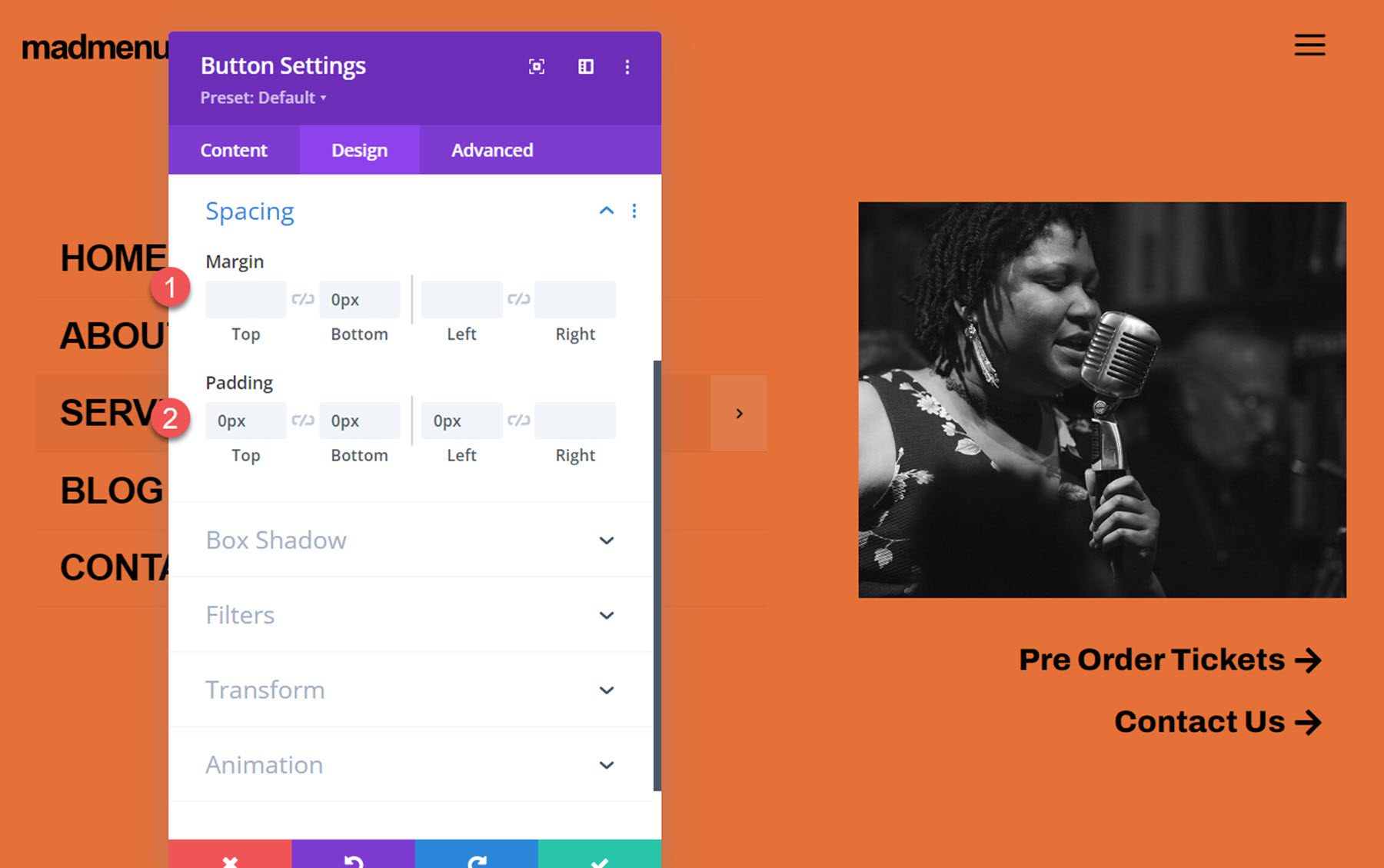
    Finally, set the button spacing:

    • Button Margin Bottom: 0px
    • Button Padding Top Bottom, and Left: 0px
    Divi MadMenu Tutorial Button Spacing

    Close Popup Button

    The final element we need to add to our popup is a close button. You can enable the default close button in the MadMenu settings, or you can add another MadMenu module with a button that functions as a close button so that you can fully customize the styling. That’s what we’ll do for this tutorial. Start by adding a new row with one column to the popup and move it above the existing row. Then add a MadMenu module.

    Divi MadMenu Tutorial Add MadMenu Module

    Disable all of the MadMenu elements except for button one, which will function as our close button.

    Divi MadMenu Tutorial Enable Button

    In the button one settings, set the text to “close”. Enable the button one icon, then select the close icon.

    Divi MadMenu Tutorial Button Settings

    Set the button one type to popup, then enter the popup ID you used for the popup section – in my case, it’s ‘popup1’. Set the popup toggle type to secondary, which enables the closing function.

    Divi MadMenu Tutorial Button Type

    Next, set the menu background to transparent.

    Divi MadMenu Tutorial Menu Background

    Now move over to the design tab. In the general layout settings, set the element’s alignment to right.

    Divi MadMenu Tutorial Elements Alignment

    In the button one text settings, customize the button styling:

    • Button One Font: Arial
    • Button One Font Weight: Bold
    • Button One Font Style: TT (Capitalized)
    • Button One Text Color: #000000
    • Button One Letter Spacing: -0.02em

    Divi MadMenu Tutorial Button Text

    In the button one settings, customize the spacing and icon styling.

    • Button One Text Margin: 5px
    • Button One Icon Size: 35px
    • Button One Icon Color: #000000
    • Button One Border Width: 0px

    Divi MadMenu Tutorial Button Icon Size

    Finally, set the menu top and bottom padding to 10px.

    Divi MadMenu Tutorial Menu Padding

    Enable Popup Function

    The last thing we need to do is to enable the popup functionality. Open the popup section settings and navigate to the advanced tab, then add the CSS ID popup1. This will activate the popup functionality and you can reveal the popup section by clicking the hamburger menu icon in the header. Now the design is complete!

    Divi MadMenu Tutorial CSS ID

    Final Result

    Here is the final design displayed with Divi’s Music Venue landing page layout.

    Divi MadMenu Tutorial Desktop

    The fullscreen popup menu section is revealed when the menu icon is clicked.

    Divi MadMenu Tutorial Desktop Popup

    Here is the mobile version of the layout.

    Divi MadMenu Tutorial Mobile

    And this is what the fullscreen popup section looks like on mobile.

    Divi MadMenu Tutorial Mobile Popup

    Divi MadMenu Demo Layouts

    Divi MadMenu also comes with 19 demo layouts that you can use to jumpstart your design. Let’s take a look at some.

    Demo Layout 4

    Demo layout 4 features a left-aligned logo and menu section. On the right side, you have a search icon, a sign in/out button, and a profile button.

    Divi MadMenu Demo 4 Desktop

    The search bar replaces the menu when selected.

    Divi MadMenu Demo 4 Search

    Here is how layout 4 looks on mobile. The menu slides in when selected.

    Divi MadMenu Demo 4 Mobile

    Demo Layout 11

    Demo layout 11 is a simple layout with the logo on the left and a menu icon on the right. When the menu icon is clicked, the menu section is revealed on a red background.

    Divi MadMenu Demo 11 Desktop

    On mobile, layout 11 has a similar layout with the logo and menu icon. When the menu is opened it reveals below.

    Divi MadMenu Demo 11 Mobile

    Demo Layout 13

    Demo layout 13 is an interesting menu with lots of interactive elements. The menu icon to the right of the logo opens up a menu bar right below the primary menu bar.

    Divi MadMenu Demo 13 Desktop

    The account button in the menu also opens up a slide-in menu with a login/out button and several other navigation items.

    Divi MadMenu Demo 13 Account

    The social menu button on the left opens on the side to reveal social media icons.

    Divi MadMenu Demo 13 Social Icon Bar

    And the search icon opens a search bar that appears below the menu.

    Divi MadMenu Demo 13 Search

    Finally, here is how the menu looks on mobile with the menu selected.

    Divi MadMenu Demo 13 Mobile

    Purchase Divi MadMenu

    Divi MadMenu is available to purchase in the Divi Marketplace. It costs $39 for unlimited website usage and lifetime support and updates. The price also includes a 30-day money-back guarantee.

    Final Thoughts

    Divi MadMenu adds some great customization options and flexibility to the headers and menus you can create with Divi. I particularly love the ability to create your own popup sections using Divi sections, allowing you to add any modules you would like. If you’re looking for a plugin to expand the possibilities of the header and menu sections you can build, Divi MadMenu is a great option.

    We would love to hear from you! Have you tried Divi MadMenu? Let us know what you think about it in the comments!

    The post Divi Plugin Highlight: Divi MadMenu appeared first on Elegant Themes Blog.

  • Get a Free Pie Shop Layout Pack for Divi

    Hey Divi Nation! Thanks for joining us for the next installment of our weekly Divi Design Initiative; where each week, we give away a brand new Layout Pack for Divi.

    This time around, the design team has created a beautiful Pie Shop Layout Pack that’ll help you get your next Pie Shop website up and running in no time!

    This layout pack includes:

    6 Premade page layouts strategically designed for any Pie Shop website (including a footer design)
    – Original, royalty-free photos and graphics + customizable source file (see below)
    – Plus, a large collection of pre-designed website elements that are customizable and reusable anywhere.

    This layout pack is available right inside Divi for all Divi customers for FREE as the latest addition to our growing Divi library of hundreds of premade layout packs, thousands of page designs, and countless web design elements and resources.

    divi layout

    Check Out The Divi Pie Shop Layout Pack Below

    Get it for free today!

    Pie Shop layout pack

    Landing Page Design

    Pie Shop layout pack

    View The Live Layout Demo

    Home Page Design

    Pie Shop Layout Pack for Divi

    View The Live Layout Demo

    Shop Page Design

    Pie Shop Layout Pack for Divi

    View The Live Layout Demo

    About Page Design

    Pie Shop Layout Pack for Divi

    View The Live Layout Demo

    Blog Page Design

    Pie Shop Layout Pack for Divi

    View The Live Layout Demo

    Contact Page Design

    Pie Shop Layout Pack for Divi

    View The Live Layout Demo

    Key Features

    Are you looking to create a website for a new pie shop business, either for yourself or a client? Look no further than the Pie Shop Layout Pack for Divi! This pack features a perfect blend of bold text, subtle colors, and mouth-watering images that will help you showcase your pies and attract customers.

    Live Demos

    Click the links below to see a live demo for each of the layouts included in the pack.

    1. Pie Shop Landing Page (live demo)
    2. Pie Shop Homepage (live demo)
    3. Pie Shop Shop Page (live demo)
    4. Pie Shop About Page (live demo)
    5. Pie Shop Blog Page (live demo)
    6. Pie Shop Contact Page (live demo)

    Access This Layout Right Now

    Directly from Your Divi Builder

    Since Version 3.0.99 of Divi, you can find and import any of the layouts included in this pack (along with ALL of Divi’s Premade Layout packs) directly from the Divi Builder. They are already waiting for you.

    To access your new layout, simply activate the Visual Builder when editing a page and look for the “Load From Library” icon in the page settings bar (it looks like a plus symbol). Click this icon to launch the Load From Library popup. Under the Premade Layouts tab, you can easily find the new layout by scrolling through the list of layout packs. Once you find the Pie Shop Layout Pack, click on it. You will see all the individual layouts included in the pack. Select the layout you want to use and then click the “Use This Layout” button.

    Pie Shop Layout Pack for Divi

    For more, check out this video to learn how you can get this layout pack up and running today.

    Subscribe To Our Youtube Channel

    Authentication Required

    Before you can download Premade Layouts from the Divi Library you must authenticate your Elegant Themes Subscription. You can do this by navigating to Divi > Theme Options > Updates. There you can enter your username and API key and save changes.

    Pie Shop Layout Pack for Divi

    You can find your API Key under your members area on the Elegant Themes site. After you enter the Username and API Key, you will gain immediate access to our library of hundreds of free layouts (including this one). If you haven’t done this, when you click to import a layout to your page, you will be prompted to enter your Elegant Themes Membership Username and API Key.

    Use Layout Images for FREE with No Licensing Restrictions

    Divi Pie Shop Layout Pack for Divi

    The image assets included with these layouts (icons, illustrations, photos, etc.) have no licensing restrictions. This means you can use them in all of your commercial projects without having to worry about paying licensing fees or attributing the photographer. Use them in your commercial websites, sell them within your Divi child themes, include them in your own Divi layout packs or just use them on your blog. We know how challenging it can be to find good photos and how confusing and scary the licensing that governs those photos can be. We want to fix that problem for our users.

    Download the Full Res Image Assets

    New Layout Pack Every Week!

    We hope you enjoy this layout pack. We look forward to hearing your opinions in the comment section below. Make sure you check out next week’s layout pack as well!

    The post Get a Free Pie Shop Layout Pack for Divi appeared first on Elegant Themes Blog.

  • Divi Product Highlight: Divi Designer Pack

    Divi Designer Pack is a layout pack with over 720 design elements you can use with the Divi Builder to effortlessly create your next website. It comes with both light and dark layouts and a variety of designs for each section of your page. In this post, we’ll take a look at some of the layouts that come with the Divi Designer Pack to see if this is the right product for you.

    Let’s get started!

    Installing Divi Designer Pack

    Divi Designer Pack comes as a .ZIP file containing Divi Library .json files. The layouts are packaged so that you can install all layouts, all layouts of a certain category, or all light or dark layouts of a certain category depending on your needs.

    To install the layouts, start by unzipping the .ZIP file in your file manager. Then, open your WordPress dashboard and navigate to the Divi Library page. Click Import & Export at the top, then select the import tab. Choose a .json layout pack file to import, then select Import Divi Builder Layouts.

    Divi Product Highlight Divi Designer Pack Import

    Once the layout has been imported, open your page in the Divi Builder. Click the blue plus icon to add a new section, then select Add From Library.Divi Product Highlight Divi Designer Pack Add Layout from Library

    Locate the layout you want to use in the Divi Library.

    Divi Product Highlight Divi Designer Pack Select Library

    Then, click the Use This Section button to load the layout on your page.

    Divi Product Highlight Divi Designer Pack Use Section

    Divi Designer Pack

    Divi Designer Pack comes with 720+ layouts for various website sections with both light and dark designs. Each of the layouts can be customized to your liking and the content can all be replaced with your own. Because there are so many different layouts that come with this pack, we can’t cover them all in this post. We’ll take a look at a few layouts from each category to give you an idea of what designs you can get with the Divi Designer Pack. You can also view all of the layouts on the live demo website.

    Divi Designer Design Sections

    Divi Designer About Sections

    There are 25 about section layouts in total. Layout 2 has an image and an overlapping text box with a number. There is text on the right side, along with some blurb modules.

    Divi Product Highlight Divi Designer Pack About 2

    Here is the dark version of layout 2.

    Divi Product Highlight Divi Designer Pack About Dark 2

    Layout 11 features a two-tone design with some text on the left and an image on the right, a CTA button, and some blurb modules featuring social media icons.

    Divi Product Highlight Divi Designer Pack About 11

    About layout 17 uses gradient shapes around an image. There is some text and a CTA button on the left, along with some blurb modules with arrow icons.

    Divi Product Highlight Divi Designer Pack About 17

    Divi Designer Blog Sections

    There are 7 blog sections in total, with dark and light variations. These sections display a selection of posts on your blog. Layout 1 has a simple and minimalistic design, with a zoom-in hover effect on the images and an underline hover effect on the post title.

    Divi Product Highlight Divi Designer Pack Blog 1

    The third blog layout features a CTA button at the top right and cards with a slight shadow hover effect.

    Divi Product Highlight Divi Designer Pack Blog 3

    Here is the dark variation of blog layout 5. It features a hover effect that adds an underline to the post title and moves the card up slightly.

    Divi Product Highlight Divi Designer Pack Blog Dark 5

    Blog layout 7 features a card with the post information at the top, the image in the middle, and a read more button at the bottom.

    Divi Product Highlight Divi Designer Pack Blog 7

    Divi Designer Carousel Sections

    There are 16 different carousel designs, with several different types of carousels. The first example is carousel 4, a team member carousel. Each team member card features an image, name, job title, description, and social media icons.

    Divi Product Highlight Divi Designer Pack Carousel 4

    Layout 7 is a testimonial carousel. This is the dark layout. Each carousel item features a profile photo, testimonial text, name, and job title.

    Divi Product Highlight Divi Designer Pack Carousel Dark 7

    Carousel 13 is a blog post carousel. It is a simple card layout with the blog category on the top right corner of the image and the post title below.

    Divi Product Highlight Divi Designer Pack Carousel 13

    Divi Designer Contact Sections

    Divi Designer comes with 20 contact section layouts. This is layout 4, which features some text and contact information on the left and a contact form on the right.

    Divi Product Highlight Divi Designer Pack Contact 4

    Contact layout 6 is a simple section with a phone number, some text, and a CTA button on the left, with an image on the right.

    Divi Product Highlight Divi Designer Pack Contact 6

    Layout 15 features the contact form on the left with contact information on the right over a gradient background.

    Divi Product Highlight Divi Designer Pack Contact 15

    This is the dark variation of layout 15.

    Divi Product Highlight Divi Designer Pack Contact Dark 15

    Divi Designer Counter Sections

    There are 16 counter layouts in total. The first layout is to get a free quote and has some text and a CTA button on the left and an image and some number counters below.

    Divi Product Highlight Divi Designer Pack Count 4

    Layout 9 features some text at the top and number counters with icons below.

    Divi Product Highlight Divi Designer Pack Count 9

    Counter layout 11 has a counter bar that fills as the page loads. This is the dark layout.

    Divi Product Highlight Divi Designer Pack Counter Dark 11

    Counter layout 15 features text on the left and a CTA button, with some more text on the right followed by number counters.

    Divi Product Highlight Divi Designer Pack Count 15

    Divi Designer CTA Sections

    There are 15 CTA layouts in the Divi Designer Pack. This first example is layout 5. It is a CTA section highlighting a mobile app and it features images that can link to the Google Play store and the App Store.

    Divi Product Highlight Divi Designer Pack CTA 5

    This is CTA layout 7 in the dark variation. It has a dark overlayed image with an icon, text, and two CTA buttons.

    Divi Product Highlight Divi Designer Pack CTA Dark 7

    Layout 9 features a blurb module with some text and a CTA button overlaying an image with rounded corners.

    Divi Product Highlight Divi Designer Pack CTA 9

    Layout 10 features some text and social media icons.

    Divi Product Highlight Divi Designer Pack CTA 10

    Divi Designer FAQ Sections

    There are 15 FAQ section layouts. This is FAQ section one. It features a large image on one side and toggle-style FAQ questions on the right.

    Divi Product Highlight Divi Designer Pack FAQ 1

    And this is the dark version of FAQ section one.

    Divi Product Highlight Divi Designer Pack FAQ Dark 1

    FAQ layout 4 has a full-width toggle layout.

    Divi Product Highlight Divi Designer Pack FAQ 4

    Finally, FAQ layout 7 features toggle FAQ questions on the left and an image, some text, and a CTA button on the right.

    Divi Product Highlight Divi Designer Pack FAQ 7

    Divi Designer Hero Sections

    There are 30 hero section layouts in total. The first one, layout 8, features some text on the left-hand side with a transparent image of a person on the right.

    Divi Product Highlight Divi Designer Pack Hero 8

    Hero layout 9 features a darkened background image with large hero text and a search bar. Below the search bar are three image cards with description text and a read more button.

    Divi Product Highlight Divi Designer Pack Hero 9

    Layout 19 uses a large darkened background image and features some text and two buttons.

    Divi Product Highlight Divi Designer Pack Hero 19

    Divi Designer Pricing Sections

    There are also 20 pricing layouts. This is pricing layout 7. It features a pink background and two pricing cards with some text to the right. Each pricing card has a heading and subheading, a price, details, and a buy now button.

    Divi Product Highlight Divi Designer Pack Pricing 7

    Pricing layout 8 features three pricing tiers. The title and price, along with the subtitle are on the left. The features are on the right, presented with check marks, and the buy now button is on the right. The middle option is highlighted in green.

    Divi Product Highlight Divi Designer Pack Pricing 8

    Layout 12 features three cards with an icon, title and subtitle, and price at the top of each card. There is a green banner that separates the top from the features, and then a list of features followed by a button. Each card has a hover effect that moves the card up on hover.

    Divi Product Highlight Divi Designer Pack Pricing 12

    Here is the dark version of pricing layout 19. It has some blurb icons at the top to highlight features, and three pricing plan blocks.

    Divi Product Highlight Divi Designer Pack Pricing Dark 12

    Divi Designer Services Sections

    Divi Designer Pack comes with 25 services layouts. Layout 3 features a heading, three blurb modules on a dark background with description text, and a button.

    Divi Product Highlight Divi Designer Pack Services 3

    Services layout 14 has three cards with an icon at the top, some description text, a numbered text list, and a link to view details.

    Divi Product Highlight Divi Designer Pack Services 14

    Layout 19 features some heading text and description text, along with six blurb modules with icons representing each service.

    Divi Product Highlight Divi Designer Pack Services 19

    This is the dark version of services layout 25. It features four services sections with a hover effect that turns the card dark.

    Divi Product Highlight Divi Designer Pack Services Dark 25

    Divi Designer Slider Sections

    There are a total of 15 slider layouts. Slider layout 1 features a small text slider with a number, text, and a button on each slide. There is a title section with green background above the slider, and an image on the right side.

    Divi Product Highlight Divi Designer Pack Slider 1

    Slider layout 8 is a large image slider with a dark overlay. There is text on the left and a button below.

    Divi Product Highlight Divi Designer Pack Slider 8

    Slider layout 12 has a large background image and text slides on a white background that changes with each slide. There is also a button on each slide.

    Divi Product Highlight Divi Designer Pack Slider 12

    Divi Designer Team Sections

    There are 25 team section layouts in total. Layout 8 features a heading and three team member images with a hover effect. When you hover over the image, there is a dark overlay and the team member’s name, job title, and social media icons are shown.

    Divi Product Highlight Divi Designer Pack Team 8

    Here is the dark version of layout 8.

    Divi Product Highlight Divi Designer Pack Team Dark 8

    Layout 13 has a heading and text on the left-hand side, along with a CTA button. On the right are three circular team member images. Similar to the last design, when you hover over the image the team member’s name, job title, and social media icons are revealed.

    Divi Product Highlight Divi Designer Pack Team 13

    This design is layout 18 and features cards with team member photos, job titles, and social media links. On the right is a heading and description, followed by a CTA button.

    Divi Product Highlight Divi Designer Pack Team 18

    Divi Designer Testimonial Sections

    There are 25 different testimonial sections. This is layout 1 and features heading and body text at the top, followed by three testimonial sections. Each testimonial has an icon, an image, body text, a name, job title, and company.

    Divi Product Highlight Divi Designer Pack Testimonial 1

    This section is layout 2. It features two testimonial cards with a quote icon, text, an image, name, job title, and company title on an image background with a dark overlay. On the left you can find some header text, body text, and a CTA button.

    Divi Product Highlight Divi Designer Pack Testimonial 2

    This is the dark version of layout 5, featuring colorful sections containing client testimonials.

    Divi Product Highlight Divi Designer Pack Testimonial Dark 5

    Layout 7 features a testimonial slider on the left with an image, testimonial text, and a name at the bottom. On the right is heading text, body text, and a CTA button.

    Divi Product Highlight Divi Designer Pack Testimonial 7

    Divi Designer Theme Builder Templates

    Next are the theme builder templates. These are header, footer, and body templates that can be uploaded from the theme builder in the Divi settings in your WordPress dashboard.

    Divi Designer Footer Templates

    There are a total of 20 footer templates. First is footer layout 4. This design features a logo, social media icons, and a copyright notice on the left. On the right are two columns of menu items.

    Divi Product Highlight Divi Designer Pack Footer 4

    Footer layout 13 has a contact form on the left and contact information and social media icons on the right. There is a sub footer bar with copyright information as well.

    Divi Product Highlight Divi Designer Pack Footer 13

    Footer layout 19 features a logo, address, and open hours on the left side. In the center is a menu bar, and on the right is a newsletter sign-up form and social media links. At the very bottom is a copyright notice.

    Divi Product Highlight Divi Designer Pack Footer 19

    Divi Designer Header Templates

    There are 20 header templates in the Divi Designer Pack as well. This is header 7. It features a secondary menu bar in green with contact information and a CTA button. The primary menu bar features a logo on the left and menu items aligned to the right.

    Divi Product Highlight Divi Designer Pack Header 7

    Header layout 8 features contact information with an inline logo at the top. Below are the menu items.

    Divi Product Highlight Divi Designer Pack Header 8

    Header layout 13 features some social media icons on the left, a logo in the center, and a CTA button to the right. Below are the menu items, aligned to the left, and a search bar which is aligned to the right.

    Divi Product Highlight Divi Designer Pack Header 13

    Divi Designer 404 Templates

    There are 25 different 404 page templates. The first design, layout 6, features the letters “OOPS” behind the 404 error text. This layout also has an orange button to go to the home page.

    This is layout 9. It features some large shadowed text and the 404 error, along with a button to go back to the home page followed by some social media icons.

    Divi Product Highlight Divi Designer Pack

    Layout 12 features the 404 numbers in a large font and has a button to go back to the home page.

    Divi Product Highlight Divi Designer Pack 404 12

    Divi Designer Blog Templates

    Divi Designer Blog Page Templates

    There are 20 blog templates that come with the Divi Designer Pack. Blog layout 1 features an image header with a title and a button. The posts are listed on the left with the featured image, post information, and read more button. There is a sidebar on the right with a search bar, recent posts, and recent comments. At the bottom is another image with text overlaid.

    Divi Product Highlight Divi Designer Pack Blog 1

    Here is the dark version of blog layout 1.

    Divi Product Highlight Divi Designer Pack Blog Dark 1

    Blog layout 8 features some curved section dividers and a header section with text and a button at the top. Blog posts have a card-style layout with an image, post details, and a read more button. At the bottom of the page is another text section.

    Divi Product Highlight Divi Designer Pack Blog 8

    Blog layout 18 features a heading section with text and a button, followed by two blog columns. The left column displays posts with a large featured image. The right column just features the post’s details and a read more button. Finally, there is some additional text in the footer.

    Divi Product Highlight Divi Designer Pack Blog 18

    Divi Designer Post Templates

    There are 20 different post templates that come with the pack. Post layout 4 has the featured image at the very top of the page, with the post title, post information, and a button overlaid. Following this is the post content and comments. There is a sidebar on the right that features a search bar, recent posts, and recent comments. At the bottom of the page is some additional text.

    Divi Product Highlight Divi Designer Pack Post 4

    Here is the dark version of post layout 5. The featured image is at the top with a curved divider. The post content and comments are on a dark background, followed by a section with an image and overlayed text promoting an offer.

    Divi Product Highlight Divi Designer Pack Post Dark 5

    Layout 11 begins with the post title at the top, then the large featured image. Then, you can find the post content and the comments. On the right there is a card containing the post information.

    Divi Product Highlight Divi Designer Pack Post 11

    Post layout 13 also features the title at the top, followed by the featured image. The post information is listed below the image. Next is the post content and comments, and finally there is a related posts section displaying cards with other posts from the blog.

    Divi Product Highlight Divi Designer Pack Post 13

    Divi Designer Woo Templates

    The Woo Templates are layouts that work with the Woo Commerce plugin.

    Divi Designer Cart Templates

    There are 13 cart templates that come with the pack. Cart layout 1 features a blue color theme. There is a heading at the top, followed by the cart where you can see the cart contents, apply a coupon, and update the cart. There is a return to shop button below this. On the right is the cart total, followed by the proceed to checkout button.

    Divi Product Highlight Divi Designer Pack Cart 1

    Cart layout 2 has a heading with a cart icon. Then there is the cart where you can see the products. Following this on the left is some coupon information, and on the right is the cart total and the proceed to checkout button.

    Divi Product Highlight Divi Designer Pack Cart 8

    Cart layout 8 begins with a heading, followed by the cart content. Below these are some blurb icons and a return to shop button. Following this is the cart total and a proceed to checkout button. On the right of this is an accordion module with some FAQs.

    Divi Product Highlight Divi Designer Pack Cart 2

    And here is the dark version of cart layout 8.

    Divi Product Highlight Divi Designer Pack Cart Dark 8

    Divi Designer Checkout Templates

    There are 13 checkout templates in total. Checkout layout 3 features links to the shop and cart pages at the top, followed by a coupon entry section. Below on the left are billing details and additional information, and on the right are the order total and payment. This is the dark version.

    Divi Product Highlight Divi Designer Pack Checkout Dark 3

    This is the 4th template. It features several icons at the top that are linked to the cart and shop, followed by a coupon code entry. On the left are billing details and additional information, and on the right are the order total and payment method.

    Divi Product Highlight Divi Designer Pack Checkout 4

    Here is the dark version of checkout layout 4.

    Divi Product Highlight Divi Designer Pack Checkout Dark 4

    Checkout layout 10 features a title and coupon entry at the top, followed by the billing details and additional information. On the right are the order total, payment, and some blurb modules.

    Divi Product Highlight Divi Designer Pack Checkout 3


    Divi Designer Product Templates

    There are 13 product templates as well. This is layout 2, which features a large image of the product at the top. Following this is the product name, cost, description, and add to cart button. Below are related products and reviews.

    Divi Product Highlight Divi Designer Pack Product 2

    Product layout 6 has a darker background and features the product photo on the left and the product information on the right, with the add to cart button. Below are the description, reviews, and related products.

    Divi Product Highlight Divi Designer Pack Product 6

    Product layout 10 has a card layout with the product information and add to cart button on the left. On the right is the product image. Below are reviews and related products.

    Divi Product Highlight Divi Designer Pack Product 10

    Here is the dark version of product layout 10.

    Divi Product Highlight Divi Designer Pack Product Dark 10

    Divi Designer Shop Templates

    Finally, there are also 10 shop templates that come with the Divi Designer Pack. This is layout 4, which features a header with an image, followed by a sidebar and the products. At the bottom are some blurb modules with large icons.

    Divi Product Highlight Divi Designer Pack Shop 4

    Shop layout 8 features a heading with text and an image, products below with a border, followed by some blurb modules.

    Divi Product Highlight Divi Designer Pack Shop 8This is the dark version of shop layout 8.

    Divi Product Highlight Divi Designer Pack Shop Dark 8

    Finally, shop layout 9 features a heading with an image, followed by products on the left and a sidebar on the right, then some blurb modules at the bottom.

    Divi Product Highlight Divi Designer Pack Shop 9

    Purchase Divi Designer Pack

    Divi Designer Pack is available in the Divi Marketplace. It costs $19 for unlimited website usage and lifetime updates. The price also includes a 30-day money-back guarantee.

    Final Thoughts

    We just hit the tip of the iceberg in this article, there are so many more layouts to discover in the Divi Designer Pack, all with different styles and uses. Of course, every layout can be completely customized with your own content and changed to match your specific use case, and you can combine many different section layouts to easily create full-page layouts. To preview all of the different layouts you get with the Divi Designer Pack, take a look at the live demo.

    We would love to hear from you! Have you tried Divi Designer Pack? Let us know what you think about it in the comments!

    The post Divi Product Highlight: Divi Designer Pack appeared first on Elegant Themes Blog.

  • Download a FREE Blog Post Template for Divi’s Seafood Restaurant Layout Pack

    Hey Divi Creators! Thanks for joining us for the next installment of our weekly Divi Design Initiative where each week, we give away brand-new freebies. This time around we’re building upon the Seafood Restaurant Layout Pack with a brand new blog post template that matches the rest of the pack perfectly. Hope you enjoy it!

    divi layout

    Check Out The Seafood Restaurant
    Blog Template Below

    Get it for free today!

    Desktop View

    Divi Seafood Restaurant Blog Post Template for Desktop

    Tablet and Mobile View

    Divi Seafood Restaurant Blog Post Template for Tablet and Mobile

    Download The Seafood Restaurant Blog Template

    To lay your hands on the free Seafood Restaurant Blog Post Template, you will first need to download it using the button below. To gain access to the download you will need to subscribe to our Divi Daily email list by using the form below. As a new subscriber, you will receive even more Divi goodness and a free Divi Layout pack every Monday! If you’re already on the list, simply enter your email address below and click download. You will not be “resubscribed” or receive extra emails.

    How to Upload The Template

    Go to Divi Theme Builder

    To upload the template, navigate to the Divi Theme Builder in the backend of your WordPress website.

    Open Divi Theme Builder

    Upload the Seafood Restaurant Blog Template

    Then, in the top right corner, you’ll see an icon with two arrows. Click on the icon.

    Import the template into the Divi Theme Builder

    Navigate to the import tab, upload the JSON file that you could download in this post, and click on ‘Import Divi Theme Builder Templates’.

    Finish importing the template into the Divi Theme Builder

    Save Divi Theme Builder Changes

    Once you’ve uploaded the file, you’ll notice a new template with a new body area that has been assigned to All Posts. Save the Divi Theme Builder changes as soon as you want the template to be activated.

    Save Your Blog Post Template

    How to Modify The Template

    Open Post Template

    To modify the template’s elements, start by opening the template.

    Inside the Body Layout Editor, you can edit the design on the front end using the Divi Builder just like you would with a normal Divi page.

    Since this is a template that has been assigned to all posts for the site, there is a post content module that is necessary for displaying the post content. You will need to keep that module in place, but you can adjust the post content module’s design elements, which will design the post content that is displayed dynamically.

    Customizing the Post Content Module within your Blog Post Template

    About the Layout

    This blog post template has many dynamic elements that will work with your blog posts immediately. For example, we use the Fullwidth Post Title Module for the post header. This module allows us to showcase the metadata (date, categories, author, and comment count) of the post easily. This content won’t need updating, but you can tweak the design of each of those elements if needed.

    Other dynamic elements include the following:

    • Post Navigation: We use this module to navigate between the other posts in the category.
    • Comments: There is a Comments Module in this blog template. Post, reply and read comments made by other website visitors.
    • Post Slider: Other posts within the post category are showcased using the Post Slider Module.

    Here is a quick illustration that identifies the elements of the Seafood Restaurant blog post template.

    The Divi Seafood Restaurant Blog Post Template Post Module Overview

    Update Static Content

    Before you take your blog post template live on your site, ensure that you update the static modules. There is a call-to-action section at the end of the blog post template. Ensure that you update the content with your own information. Also, there is a Button Module that you can use to link to another page within your website.

    Updating the static content within the Blog Post Template

    New Freebies Every Week!

    We hope you’ve enjoyed the Seafood Restaurant Layout Pack and the blog post template freebie that goes along with it. We look forward to hearing your opinions in the comment section below. Make sure you check back next week for more freebies!

    The post Download a FREE Blog Post Template for Divi’s Seafood Restaurant Layout Pack appeared first on Elegant Themes Blog.

  • 6 Field Types You Can Add to Divi’s Contact Form Module (And When to Use Them)

    Contact forms are an essential part of any website — whether you want to capture more leads, keep track of inquiries, build your email marketing list, or simply be able to communicate on-demand with your users. Divi’s contact form module makes it easy to communicate with and gather important data from your website’s visitors.

    Let’s explore what fields are available in Divi’s contact form module and when to use them. We’ll be using the contact form from the Wedding Photographer Layout Pack available with your Elegant Themes subscription.

    Divi’s Contact Form Module Options

    Divi’s robust contact form module consists of the following fields: input, email, textarea, checkboxes, radio buttons, and the select dropdown field. These fields can be used in a number of ways to build your business. Before we address each field and its uses, let’s go over how to select the type of field you want to use in the contact form module.

    1. The first step is to give your field a field ID. This helps you understand which field corresponds with the information filled out in the form.
    2. Give your field a title.
    3. Choose the field to be displayed. Your choices are input, email, textarea, checkboxes, radio buttons, or select dropdown.
      Input Field

    Next, let’s go over each field option in the Divi contact form module. Lately, we’ll discuss how each can be configured to suit your specific needs.

    1. The Input Field

    The input field is one of the most powerful fields you can use in your contact form. You can capture just about any type of text information. Acquiring a potential customer’s name, business name, physical address, phone number, or various other informational text are options. The possibilities are endless.

    Divi Input Field

    When crafting your contact form, remember to ask for the most relevant information you are trying to gather. In the past, people thought a shorter form was a better form. In recent years, the thought processes behind form creation have changed. We are now living in the “information age,” so people have become more accustomed to filling out longer forms than ever before and are willing to do so.

    While keeping in mind what goals you’d like to achieve through your form, It’s important to remember to ask the most important questions relevant to your business. The user’s name or business name should be at the top of the list of questions to ask. Names and/or business names are crucial information to acquire, especially in the process of following up with your users. Following the name and business name (if applicable), should be other important contact information such as phone numbers and/or addresses. A few examples of the effective use of the input field are as follows:

    • First Name, Last Name, or Full Name
    • Address
    • City
    • State
    • Zip Code
    • Phone Number
    • Business Name
    • Subject
    • Questions with short answers

    How to Configure the Divi Contact Form Module Input Field

    Let’s take a look at how you can modify the input field.

    1. Select Input as the field type.
    2. Decide whether to choose a minimum and maximum length of characters to be allowed.
    3. Next, decide whether to allow all symbols, letters only, numbers only, or alphanumeric characters. For example, if your text input field is being used as a phone number field, assign this option to “Numbers only.” This will disallow any letters from being entered as a phone number, cutting down on user errors.
    4. Designate whether this field is optional or required.Divi input field options
    5. Enable or disable conditional logic. Conditional logic is useful in a form if you’d like to assign a follow-up question or information to display based on the answer to a certain field. To learn more about conditional logic, read How to Create a Versatile Divi Contact Form with Conditional Logic.
    6. Choose whether to assign a link to your field.
    7. Choose whether to assign a background color, gradient, or image to your field.Divi Contact Form Conditional Logic

    2. The Email Field

    In addition to the text field mentioned above, the email field is a crucial piece of information to assist your communication with users. The email field makes it easier to capture leads for your website, add users to a mailing list, and, most importantly, provide an easy way to communicate with your website’s users.

    Divi Email Field

    In recent years, everyone agrees that social media has become a valuable tool in business communication, but email is still an extremely relevant and essential tool to grow your business. After all, in order to even have a social media account, one must have an established email address. Keeping that in mind, the email field is critical in successfully communicating with your users. Without the email field enabled on your form, you won’t be able to add that user to a mailing list or reply directly to the form confirmation email received on your website.

    Enabling The Email Field

    Let’s see how you can enable the email field in Divi’s Contact Form Module.

    1. Name your field and give it a field ID.
    2. Select “Email Field” as your field type.
    3. Choose whether to enable or disable “Required Field”. Note: it is essential to require this as no email information will be captured in your field if your user forgets to fill in their email address.
    4. Choose whether or not to enable conditional logic.
    5. If desired, choose a link for your field.
    6. If desired, choose a background color, gradient, or image for your email field.Divi Email Field Options

    3. The Textarea Field

    When creating your form with the Divi contact form module, the textarea field is a great tool to use to gather information from your users – whether it be through asking questions, soliciting input or comments, or accepting larger amounts of relevant information.

    Divi Textarea Field

    An example of this is demonstrated in the Wedding Photographer layout pack. Here, the company asks a few specific questions related to their business. “Do you have a photography budget?”, “Describe your vision of your big day”, and “Anything else I should know?” As in this example, the textarea field is a great way to get to know your users and what services they require from you.

    Another example of great use of the textarea field would be utilizing it in an employment application form. You can ask any number of questions with the textarea field such as background information regarding relevant work experience, any personality traits you’d like to be aware of, goals and aspirations of the potential candidate, and much more.

    Textarea fields are also useful tools in e-commerce situations. For example, if you have an online shop, you’re probably interested in knowing how your customers feel about their recent purchases. Perhaps you’d like to be able to accept suggestions for future products. With the use of the textarea field, you can easily retrieve that information and use it to your advantage.

    Enabling The Text Area Field

    Let’s see how you can enable the text area field in Divi’s Contact Form Module.

    1. Name your field and give it a field ID.
    2. Select “Textarea” as your field type.
    3. Choose whether to enable or disable “Required Field.”
    4. Choose whether or not to enable conditional logic.
    5. If desired, choose a link for your field.
    6. If desired, choose a background color, gradient, or image for your email field.
      Divi Textarea Options

    4. The Checkboxes Field

    Checkboxes are a great way to showcase options in your form. For example, let’s say you are building a website for your business where you plan to offer several different services to your customers. You can utilize a checkboxes field to ask your customers which of your service offerings they are interested in. Additionally, the checkboxes field is beneficial when you want to ask a follow-up question that will only be displayed when a user selects a specific option in your checkbox field (conditional logic). If you’d like to learn more about conditional logic and how it works, view our post on How to Create a Versatile Divi Contact Form with Conditional Logic.

    Divi Contact Form Checkbox Field

    Checkboxes can be used in forms on your site when you want to gather input from your customers on a specific product or service that you may have in development. You could also use checkboxes in quality assurance survey forms. For example, you could ask your users to let you know how satisfied they are with a product or service that they purchased from you.

    Finally, another example of good use of checkboxes in your Divi contact form is to use them to gather information in a questionnaire. Let’s say that you have a website that features recipes. If you want to know more about a person’s likes and dislikes in relation to food, checkboxes would be a great way to ask those questions.

    How to Configure the Checkboxes Field

    Let’s configure the checkboxes field in Divi’s Contact Form Module.

    1. In the field options box, choose “checkboxes.”
    2. Under options, type in your first option. To add more options, click the “+” sign underneath your first option.
    3. Choose whether or not to have this field be required.
    4. Add any conditional logic to your field. Click “enable,” then toggle “relation” to assign this checkbox option to a related field. This is useful if you’d like to display a follow-up question or field that is ONLY related to this option in your checkbox field.Conditional Logic Examples
    5. Add a link to your checkbox field (optional).
    6. Add a background color, gradient, or image to your checkbox field (optional).Checkbox Options

    5. The Radio Buttons Field

    The radio buttons field in the Divi contact form module is most widely used to give users a choice between options in your form. Since only one button can be selected, it’s a great option when asking yes or no questions. For example, you can use radio buttons to ask your user if they like a specific thing. In this example, the question “Do you like cheese” is posed. Your user clicks the yes or no radio button to record their answer.

    Radio Buttons Field

    Radio buttons are quite beneficial in form building because the user is able to view all answers to the question without having to click a dropdown menu. Radio buttons require fewer clicks to complete, making the radio button field an excellent choice for quick and simple form submissions. You should also consider using radio buttons if you want your field’s answers to be emphasized.

    Radio options are best used if there are fewer than 5 answers in your field. Using radio buttons for more than five answers should more than likely utilize a select dropdown field, which we will cover in the next section.

    Let’s say you have a membership site with three-tier levels and you want your users to easily distinguish between the three. You’d use radio buttons to differentiate between the plans, showing all options to the user so that they can make a decision based on all options available to them at first glance.

    How to Configure the Radio Button Field

    Let’s configure the radio button field in Divi’s Contact Form Module.

    1. Select the Radio Buttons field.
    2. Under options, add as many radio button field options as desired.
    3. Choose whether or not to require the field.
    4. Add any conditional logic to the field.
    5. Choose an optional link for your field.
    6. Add a background color, gradient, or background image to your field.Radio Button Options


    6. The Select Dropdown Field

    This brings us to our last field to discuss – the select dropdown field. The select dropdown field is a good option when you have an assortment of options (more than 5) to choose from. For example, if you have an online company that operates in all fifty states, but you want to break down users by state, setting options for all 50 states in an effective way to achieve your desired result.

    Divi Contact Form Select Dropdown

    That being said, overuse of dropdown fields can cause validation errors and stress if you give your users TOO many choices. As a rule of thumb, a select dropdown field should be avoided if there are more than 10 options in a dropdown list. For example, if you do business in multiple countries but not ALL of them, a good practice is to only list the countries you do business in.

    Another example of when to use a select dropdown field is where multiple fields will be presented. Let’s say you own a bakery distribution company. You have multiple products and options within a category – cakes, pies, donuts, and tarts. You want the user to tell you which of these products they are interested in carrying in their stores. You’d set up a select dropdown field for each category. Next, you’d add options to each field. Radio buttons or checkboxes would be cumbersome and take up a ton of space. Select dropdowns are a much better choice to present that information to the user in an organized way.

    How to Configure the Select Dropdown Field

    Let’s configure the select dropdown field in Divi’s Contact Form Module.

    1. Select the Select Dropdown field.
    2. Under options, add as many dropdown field options as desired.
    3. Choose whether or not to require the field.
    4. Add any conditional logic to the field.
    5. Choose an optional link for your field.
    6. Add a background color, gradient, or background image to your field.Select Dropdown Options

    Wrapping Things Up

    Divi’s contact form module is chock full of excellent choices when building a form for your online store, blog, or business. It enables you to choose from many different fields (input, email, textarea, checkboxes, radio buttons, or select dropdown fields) that will help you assess who your customer is, what they want, and how you can help them.

    Share your thoughts with us on how you’ve used a contact form on your website by adding your comment below.

    The post 6 Field Types You Can Add to Divi’s Contact Form Module (And When to Use Them) appeared first on Elegant Themes Blog.

  • Divi Plugin Highlight: Table Maker

    Table Maker is a third-party module for the Divi Builder that does exactly what the title describes- it makes tables. This is a powerful module that simplifies making tables of any size. Add any type of content and style the table with the standard Divi settings as well as settings for each element. The latest version adds even more options. In this post, we’ll take a close look at Table Maker – alongside our Divi Home Remodeling Layout Pack – to help you decide if it’s the right product for your needs.

    Table Maker Module Settings

    A new Module is added to the Divi Builder called Table Maker. Add this module to your Divi layouts as you would any Divi Module. We are using the module to add a pricing table to the Service Page Layout of the Divi Home Renovation Layout Pack.

    Table Maker Module Settings

    The General tab includes submodules for each column. Add as many as you want by clicking Add New Column. It also includes settings for the title, description, columns, rows, making it responsive, adjusting how it scrolls, and adjusting the icons, buttons, and images. The submodules also include settings that override the module settings.

    Table Maker Column Submodule

    Clicking Add New Column creates a column submodule and opens its settings. Add as many columns as you want.

    Adding Content to Table Maker Cells

    Before we see the Table Maker’s settings, let’s see how to add cells and content. We can add lots of different types of content to the cells.

    Adding Content to Table Maker Cells

    Table Maker Column Content

    Within the column submodule, you’ll find the Rows field. This is an HTML editor. You can create the Rows just by entering the content for each row. Each row is numbered. The numbers correspond to a cell, so every numbered line is a new cell. To add content to a certain cell, just add that content to the line that’s numbered for that cell. This includes text, code, links, videos, or anything you want.

    Table Maker Column Content

    Style the Content with Markup

    If you’ve added text to the cells, you can markup the text with HTML. This means you can easily add bold, italics, paragraphs, breaks, headings, links, images, or even an entire layout. Just make sure all the HTML is on a single line.

    For example, I’ve added tags for H2 and bold to a few of the cells in this image.

    Adding HTML Markup

    Adding Escape Characters

    Since the Row editor is an HTML field, there are certain characters that we can’t usually use, such as the ampersand, quote, apostrophe, and great than and less than symbols. Fortunately, these characters can still be used within Table Maker’s fields. Table Maker uses special characters, called escape characters, to tell the cells to display those characters. To use them, add double curly brackets and the abbreviation for the character.

    For example, to show an ampersand, you’d enter {{amp}}, as I’ve done in row 4 in the example below.

    Adding Buttons

    Add a button by entering the button tag to the cell you want to display a button. Once you enter the tag for the button, you’ll see the default button. Add the text you want to display within the tags.

    Add Button to Divi Table Maker

    Customize the Button

    The button can be customized in the Content tab of the Table Maker module’s settings and the individual submodule’s settings. Add the button text, URL, link target, set the button width based on the text or the cell, and use custom styles.

    Customize table button

    Add an Icon to the Table

    Include an icon by entering the icon tag. You can include the icon’s name to display it or select an icon in the Content tab. You can also add as many icons as you want by adding more tags and the icon name within the tag. For example, to add a cross icon, add this code: <icon>cross_alt</icon>. I’ve also added this code to add a different icon: <icon>check_alt</icon>. You can find a full list of available icons on the Divi Table Maker website.

    Add icons to the column

    You can also choose to select a uniform icon choice. To do this, scroll down to Table Icons in the Content tab. Use the Content tab of the module to choose an icon that can be placed in all the cells. There is also the option to choose an icon specifically for that cell. You can also adjust the icon’s size and color, as I’ve done in the example below.

    Customize icons in Divi Table Maker

    Add an Image to the Table

    To add the images to the table, scroll down to Table Images in the Content tab. Add the images as a gallery from the media library. You can also select the image quality, proportion, scale, vertical alignment, and horizontal alignment. You can also access these settings for each cell in the submodules, so you can override the standard module settings.

    Adding table images with Divi Table Maker

    Display the Images

    Display the images by adding the image tag and the image number in the cell. For example, if you want the second cell of your column to display an image, enter the HTML image tag into that cell. Change the number to show a specific image based on the order that it appears in the gallery.

    Ordering table images in Divi Table Maker

    Shortcodes and iFrames

    You can also add shortcodes and iFrames to the cells. Simply paste them on the line for the cell you want. You won’t see a preview of the shortcode in the Divi Builder, but they do run on the website. Paste iFrames the same way as shortcodes. They do show a preview in the Divi Builder, but it might not show the same way that it will on the front end. They do show correctly on the front end.

    Using shortcodes and embed codes within the Divi Table Maker module

    Style the Content with CSS

    You can also style the content with inline CSS. This can be used to control the colors of the text, the size of the text, underline, etc. Simply add the inline CSS as you would in any WordPress content editor. For example, to make the first column heading text white, you can add this CSS:

    &lt;h2 style=&quot;color: white;&quot;&gt;&lt;/h2&gt;

    Adding inline CSS

    Customizing the Table Maker Cell Itself

    You can customize the cell itself using the cell tag and inline CSS. For example, this inline CSS would change the cell’s background:

    &lt;cell style=&quot;background: #0d232d;&quot;&gt;&lt;/cell&gt;

    For our example, we place the heading of the cell – which we had previously styled with inline CSS – within the cell tag.

    Inline CSS for the table cell

    Column Width

    Adjust the Max Width and Min Width of each column independently.

    Adjusting column minimum and maximum widths

    Table Title

    Table Title is a new feature. It’s disabled by default. Enable it and add a title in the field. You can also choose its position. Options include above the table, below the table, and hidden.

    Table Title Feature

    Table Description

    Table Description is another new feature. It’s also disabled by default. Enable it and add the description into the field. You can also choose its position from above, below, or hidden.

    Table description for Divi Table Maker

    Table Columns

    Adjust the Header Count, Footer Count, Max Width, and Min Width. The Header Count and Footer Count lets you choose the number of cells to use for each.

    Table Columsn within Divi Table Maker

    Table Rows

    Table Rows also has adjustments for the Header Count, Footer Count, Max Width, and Min Width. The Header Count and Footer Count lets you choose the number of cells to use for each.

    Table rows in Divi Table Maker

    Table Corners

    Table Corners is another new feature. It’s disabled by default. This lets you style the corner as part of the Row Header or Column Header. Table Corners works with Column Footer and Row Footer. If it’s enabled, you’ll have new settings in Table Corners to style them.

    Adding Content to Table Maker Cells

    Table Responsive

    The responsive features are interesting. You can set the breakpoint based on the device type and have it break by columns or rows. You can also display the cells as blocks or as an accordion. The latest update adds the breakpoints to desktops so you can create accordions on desktops if you want. Your visitors won’t see the full table layout if you use either blocks or accordion for the desktop. This example shows blocks.

    Divi Table Maker Responsive Settings

    This example shows the Accordion. I’ve opened the second accordion to show how the table looks.

    Mobile responsiveness and Divi Table Maker

    Table Scrolling

    Scrolling lets you display a larger table in the same space. You can also make the column and row headers sticky.

    Table Scrolling in Divi Table Maker

    Styling the Tabel Maker Table

    Table Maker has extensive styling options in the Design tab of the submodules and the main module. Adjust the colors, stripes, cells, text, header text, column headers, row headers, column footers, row footers, footer text, and all the standard Divi options. Style all the cells together or each cell independently. Let’s look at a few examples. I’ll describe the settings as we go.

    Table Maker Table Title

    If you have Table Title enabled, you’ll see design settings for the title. The settings include most of the standard text options for fonts, colors, alignment, etc. It adds spacing between the table and the title text. In the example below, I’ve changed the font to match the body font used within our layout pack, Raleway.

    Styling the Table Title

    Table Description

    If you have Table description enabled, you’ll see the design settings for the description text. Settings include most of the text options including size, fonts, wights, etc. It also adds spacing between the table and the description text. In this example, I’ve adjusted font and color to better match our layout pack.

    Table description styling

    Table Accordion

    If you have the Accordion option selected under Table Responsive, you’ll have design settings for the accordion. All accordions are closed by default. You can set a specific toggle to be open if you want. The Toggle Opened option lets you select which toggle to open by default. Set the icon alignment, change the size, choose an open icon, and choose a close icon.

    Styling the mobile responsive accordion

    Table Frame

    The Table Frame options let you add gaps or lines to the cells, choose a border type, change the border color, and change the line width. In this example, I’ve selected the lines style, and changed the color.

    Table frame styling

    Table Stripes

    Table Stripes places stripes behind the odd or even fields and can be horizontal or vertical. You can choose the field types that include the stripes and choose between odd and even rows. Stripes can now be a tint, a blended color (which includes the tint), or regular color options. The responsive size can go in a different direction, or you can disable them. Apply the stripes to the table body, column header, column footer, row header, and row footer individually.

    Table stripes styling

    Table Hover

    Table Hover is a new setting that highlights a row or column as you hover, so they can be horizontal or vertical. The responsive size can have a different direction or none. You can also adjust the color. Choose from tint, blended color, or solid color. In the example below, I’ve selected horizontal and color. I’m hovering over the second row.

    Table Hover styling settings

    Table Text

    Table Text includes all the standard text options and adds a wrap feature, giving you control over how the text behaves. In this example, I’ve set it to wrap, and changed the font family, text color, and font size.

    Styling the table text

    Table Cells

    The settings for Table Cells let you change the background color of the cells, set the text alignment for vertical and horizontal alignment, add padding, customize the border, and add a box shadow.

    Table cells styling

    Table Maker Column Header Text

    Originally, the row and column header text were wrapped in header and bold tags. This did cause problems with accessibility readers. Now, the setting is off by default. You can turn it back on if you have issues with older tables, but it’s better to leave it off and style the text with the settings provided by Divi Table Maker. For this example, I’ve made capitalized the titles, increased the line height, increased the font size and ensured that the inline styling has been removed.

    Column Header Cells

    Column Header Cells adjusts the background color of the heading cells. It includes the standard cell settings. I’ve adjusted the background color in this example.

    Column header cells styling

    Column Footer Text

    The Column Footer Text adjusts the text in the footer. It includes all the standard settings.

    Column footer text styling

    Column Footer Cells

    Column Footer Cells adjusts the cells for the footer. It includes all the standard settings. I’ve adjusted the background color, border color and border style, and border width in this example.

    Column footer cells styling

    Row Header Text

    Like the Column Header Text, Row Header Text also has the heading level disabled by default to improve accessibility. The row header is on the left. It also includes the standard font settings. In this example, I’ve added text wrap, changed the font family, updated the font style, and adjusted the text color and line height.

    Row header text styling

    Row Header Cells

    Row Header Cells controls the background of the cells used for the row’s header. In this example, I’ve adjusted the background color, plus both horizontal and vertical alignment.

    Row header cells

    Row Footer Text

    The Row Footer Text settings adjust the text for the row footer, which is on the right. In our example, the row footer holds the Book Now buttons. So the example of the row footer text would be in the very last cell of this table.

    Row footer text styling

    Row Footer Cells

    The Row Footer Cells settings control the cell used for the footer row. I’ve adjusted the background color, horizontal and vertical alignment.

    Row footer cells styling

    The Updated Layou with Finished Table

    This is the updated Service Page Layout with the fully styled Table Maker module, coupled with the FREE Header and Footer Template for the Home Remodeling Layout Pack.

    Purchase Table Maker

    Table Maker is available in the Divi Marketplace for $39. It includes a 30-day money-back guarantee and one year of support and updates.

    Purchase Table Maker

    Ending Thoughts

    That’s our look at Table Maker for Divi. This is a powerful table-making module. The latest update adds lots of new features. The new accessibility updates allow tables made with Table Maker to pass Google’s Lighthouse accessibility audit. You can make any size table and add just about anything to a cell with tags. Add HTML, CSS, shortcodes, iFrames, and more. Style the cells for the entire table at once or style them individually. The responsive tools make the tables look great on any device. If you’re interested in a powerful tool to create tables in Divi, Table Maker is a great choice.

    We want to hear from you. Have you tried Table Maker for your Divi website? Let us know what you think about it in the comments.

    The post Divi Plugin Highlight: Table Maker appeared first on Elegant Themes Blog.

  • Download a FREE Header & Footer for Divi’s Toy Store Layout Pack

    Hey Divi Nation! Thanks for joining us for the next installment of our weekly Divi Design Initiative where each week, we give away brand new freebies. We recently shared a brand new Toy Store Layout Pack. To help you get your website up and running as soon as possible, we’re sharing a global header & footer template that matches this layout pack perfectly as well! Hope you enjoy it.

    divi layout

    Check Out The Toy Store
    Global Header & Footer Template Below

    Get it for free today!

    Toy Store Template Header Design

    Desktop Design

    Divi Toy Store desktop header design

    Tablet and Mobile Design

    Divi Toy Store tablet and mobile header design

    Toy Store Template Footer Design

    Desktop Design

    Divi Toy Store desktop footer design

    Tablet and Mobile

    Divi Toy Store tablet and mobile footer design

    Download The Global Header & Footer Template For The Toy Store Layout Pack

    To lay your hands on the free global header & footer template, you will first need to download it using the button below. To gain access to the download you will need to subscribe to our newsletter by using the form below. As a new subscriber, you will receive even more Divi goodness and a free Divi Layout pack every Monday! If you’re already on the list, simply enter your email address below and click download. You will not be “resubscribed” or receive extra emails.

    How to Upload The Toy Store Template

    Go to Divi Theme Builder

    To upload the template, navigate to the Divi Theme Builder in the backend of your WordPress website.

    Open Divi Theme Builder

    Upload Global Default Website Template

    Then, in the top right corner, you’ll see an icon with two arrows. Click on the icon.

    Import the template into the Divi Theme Builder

    Navigate to the import tab, upload the JSON file which you were able to download in this post, and click on ‘Import Divi Theme Builder Templates.

    Finish importing the template into the Divi Theme Builder

    Save Divi Theme Builder Changes

    Once you’ve uploaded the file, you’ll notice a new global header and footer in your default website template. Save the Divi Theme Builder changes as soon as you want the template to be activated.

    Save Divi Theme Builder Changes

    How to Modify The Toy Store Template

    Open Header Template

    To modify the global header template’s elements, start by opening the template.

    Open Header Template

    Upload Your Logo

    Replace the default template logo with your own logo within the Menu Module.

    Update the default logo in the Toy Store Template

    Select Menu of Choice

    Select a menu of your choice in the Menu Module.

    Choose and change your menu in the Menu Module of your Toy Store Template

    Add Links to Social Media Icons

    We use three of Divi’s new Icon Module to create a social media bar at the top of our header. Add your social media links to each module so that your clients are directed to the correct social media account for your business or brand.

    Add link URLs to social media icons

    Add Button URL

    Update the Button Module with a link or change the call-to-action written on the button.

    Add link CTA to header button

    Update Static Text Banners

    We have a banner of Text Modules that we are using to showcase the slogan of Divi Toy Store. You can go in and edit these modules and add in any text that you see fit for your brand.

    Update Text Modules with your own personalized call-to-actions

    Open Footer Template

    Continue by opening the global footer inside the default website template.

    Open Footer Template

    Connect Your Email Marketing Platform

    Our footer has an Email Optin Module. Connect your email marketing solution of choice to this module to be able to collect email addresses from website visitors.

    Connect your email marketing solution of choice

    Update Static Footer Content

    You will need to go through and update the content of the footer, including adding your own text, link URLs, and social media networks. Don’t forget about the copyright text at the bottom of the footer as well.

    Update static modules within the footer

    New Freebies Every Week!

    We hope you’ve enjoyed the Toy Store Layout Pack and the Header & Footer freebie that goes along with it. We look forward to hearing your opinions in the comment section below. Make sure you check back next week for more freebies!

    The post Download a FREE Header & Footer for Divi’s Toy Store Layout Pack appeared first on Elegant Themes Blog.

  • How to Add Multiple Pins to Your Divi Map

    The Divi Map Module makes it easy to embed a Google Map to your Divi website. This is a great way to share your business location on a contact page, in a footer, or on an about page.

    In this post, we’re going to demonstrate how to add multiple location pins to your Divi map. This is a great feature if your business has multiple locations or you’re putting together a local guide to show off your favorite coffee shops, etc.

    Let’s dive in!

    What You Need to Get Started

    To get started, you will need to do the following:

    1. Install Divi on your WordPress website.
    2. Add a Page, give it a title, and publish it.
    3. Enable the Visual Builder.
    4. Create your Google API Key.

    Select Build From Scratch

    Once you click the “Use Divi Builder” button the page will reload using Divi’s drag and drop builder interface. Three options will pop up – Build From Scratch, Choose A Premade Layout, and Clone Existing Page. For today’s purposes, select “Build From Scratch”. This will give us a blank slate where we can build our designs.

    How to Add Multiple Pins to Your Divi Map

    Let’s get into the tutorial! Here’s how to add multiple location pins to your Divi Map.

    Add Your Google API Key

    Before we’ll be able to fully use the map module and its functionalities, you’ll need to add your Google API Key to your Theme Options.

    1. From your WordPress dashboard, go to Divi > Theme Options and paste your Google API Key.
    2. Click “Save Changes”.

    Add a Section and Row and the Map Module

    Navigate back to the page you just created and add a section and a one-column row to your page. Then load the module library and click Map. Once added, the module window will pop up with all the settings and functionalities available within the map module.

    Add a New Pin

    To add a new location pin, click “Add A New Pin”. This will bring up the settings for that new pin. In the Text tab, type in the title and a description text you want to be displayed here. In the Map tab, paste the address for the pin in the Map Pin Address input field and then click find.

    Choosing a Map Center Address

    Choosing a map center address determines how your map is oriented. This is helpful when you want to show multiple pins at once. Below, we have the map center address as San Diego, CA 92104, USA so that it shows all of our pins within that area.

    Divi multiple Google map pins

    Final Thoughts

    And there you have it! You can add as many pins to your map as you’d like. Adding pins to the map module is simple and easy and results in an interactive Google Map that is easy to use for your website visitors.

    The post How to Add Multiple Pins to Your Divi Map appeared first on Elegant Themes Blog.

  • Get a Free Health Center Layout Pack for Divi

    Hey Divi Nation! Thanks for joining us for the next installment of our weekly Divi Design Initiative; where each week, we give away a brand new Layout Pack for Divi.

    This time around, the design team has created a beautiful Health Center Layout Pack that’ll help you get your next Health Center website up and running in no time!

    This layout pack includes:

    7 Premade page layouts strategically designed for any Health Center website (including a footer design)
    – Original, royalty-free photos and graphics + customizable source file (see below)
    – Plus, a large collection of pre-designed website elements that are customizable and reusable anywhere.

    This layout pack is available right inside Divi for all Divi customers for FREE as the latest addition to our growing Divi library of hundreds of premade layout packs, thousands of page designs, and countless web design elements and resources.

    divi layout

    Check Out The Divi Health Center Layout Pack Below

    Get it for free today!

    Health Center layout pack

    Landing Page Design

    Health Center Pack for Divi

    View The Live Layout Demo

    Home Page Design

    Health Center Layout Pack for Divi

    View The Live Layout Demo

    Service Page Design

    Health Center Layout Pack for Divi

    View The Live Layout Demo

    Services Page Design

    Health Center Layout Pack for Divi

    View The Live Layout Demo

    About Page Design

    Health Center Layout Pack for Divi

    View The Live Layout Demo

    Blog Page Design

    Health Center Layout Pack for Divi

    View The Live Layout Demo

    Contact Page Design

    Health Center Layout Pack for Divi

    View The Live Layout Demo

    Key Features

    If you require a health center website for yourself or a client, then take a look at the Health Center Layout Pack for Divi. Using high contrast, pattern overlays, and a combination of striking imagery, this design offers an attractive design to showcase your health center business. Subtle line art compliments other design elements to bring a unique flare to the design.

    Live Demos

    Click the links below to see a live demo for each of the layouts included in the pack.

    1. Health Center Landing Page (live demo)
    2. Health Center Homepage (live demo)
    3. Health Center Service Page (live demo)
    4. Health Center Services Page (live demo)
    5. Health Center About Page (live demo)
    6. Health Center Blog Page (live demo)
    7. Health Center Contact Page (live demo)

    Access This Layout Right Now
    Directly from Your Divi Builder

    Since Version 3.0.99 of Divi, you can find and import any of the layouts included in this pack (along with ALL of Divi’s Premade Layout packs) directly from the Divi Builder. They are already waiting for you.

    To access your new layout, simply activate the Visual Builder when editing a page and look for the “Load From Library” icon in the page settings bar (it looks like a plus symbol). Click this icon to launch the Load From Library popup. Under the Premade Layouts tab, you can easily find the new layout by scrolling through the list of layout packs. Once you find the Health Center Layout Pack, click on it. You will see all the individual layouts included in the pack. Select the layout you want to use and then click the “Use This Layout” button.

    Health Center Layout Pack for Divi

    For more, check out this video to learn how you can get this layout pack up and running today.

    Subscribe To Our Youtube Channel

    Authentication Required

    Before you can download Premade Layouts from the Divi Library you must authenticate your Elegant Themes Subscription. You can do this by navigating to Divi > Theme Options > Updates. There you can enter your username and API key and save changes.

    Health Center Layout Pack for Divi

    You can find your API Key under your members area on the Elegant Themes site. After you enter the Username and API Key, you will gain immediate access to our library of hundreds of free layouts (including this one). If you haven’t done this, when you click to import a layout to your page, you will be prompted to enter your Elegant Themes Membership Username and API Key.

    Use Layout Images for FREE with No Licensing Restrictions

    Divi Health Center Layout Pack for Divi

    The image assets included with these layouts (icons, illustrations, photos, etc.) have no licensing restrictions. This means you can use them in all of your commercial projects without having to worry about paying licensing fees or attributing the photographer. Use them in your commercial websites, sell them within your Divi child themes, include them in your own Divi layout packs or just use them on your blog. We know how challenging it can be to find good photos and how confusing and scary the licensing that governs those photos can be. We want to fix that problem for our users.

    Download the Full Res Image Assets

    New Layout Pack Every Week!

    We hope you enjoy this layout pack. We look forward to hearing your opinions in the comment section below. Make sure you check out next week’s layout pack as well!

    The post Get a Free Health Center Layout Pack for Divi appeared first on Elegant Themes Blog.

  • Divi Plugin Highlight: Woo Essential

    Woo Essential is a third-party plugin that adds 8 new Woo Commerce Modules to the Divi Builder. It also adds several features to streamline the shopping process, allowing you to display products and categories in multiple layouts and lots of feature options. In this post, we’ll look at the modules and features of Woo Essential to help you decide if it’s the right product for your needs.

    Woo Essential Divi Modules

    Woo Essential adds 8 modules to the Divi Builder. Some of the features require YITH WooCommerce Compare and YITH WooCommerce Wishlist plugins. The free versions are fine for this. You’ll see a notification if you don’t have these installed. Simply click the notification to install and activate them after activating the Woo Essential plugin.

    You won’t see all the modules in the Divi Builder at first. Instead, you’ll see one module called Woo Essential. Click this module.

    WooEssential

    All the Woo Essential Modules will then display in the modal. You can now add the modules to any Divi layout to display WooCommerce products.

    WooEssential Modules

    Let’s take a closer look at each of the Woo Essential Modules. I’ll show the default settings and then show an example of some of the design features.

    Woo Category Accordion

    The Woo Category Accordion Module displays the images for the product categories. The images expand on hover to show a description of the category and the number of items in that category. It will show the category image if you have one set up.

    WooEssential Modules: Category Accordion

    You have full control over the design for every element. In this example, I’ve added a box shadow, rounded the corners, and changed the font colors and sizes for the category name, count, and description. I’ve also added padding and line height to the description.

    Woo Category Carousel

    The Woo Category Carousel creates a slider complete with navigation and automatic sliding. It has lots of settings to adjust the carousel.

    WooEssential Modules: Category Carousel

    Woo Category Grid

    The Woo Category Grid displays the categories as cards in a grid. The grid is adjustable, so you can change the number of columns.

    WooEssential Modules: Category Grid

    For this one, I’ve added a border, rounded the corners, adjusted the fonts, and changed the grid count and gap settings.

    WooEssential Modules: Category Grid

    Woo Category Masonry

    The Woo Category Masonry Module places the categories within a masonry grid.

    WooEssential Modules: Category Masonry Grid

    In this example, I’ve adjusted the grid number and gap, and changed the fonts.

    WooEssential Modules: Category Masonry Grid

    Woo Product Accordion

    The Woo Product Accordion works like the Woo Category Accordion except it shows the products themselves. It expands on hover to show the product information. Choose which elements to display from the Add to Cart button, price, star rating, description, Featured Product Badge, Sale Badge type, and Sale Badge text. You can also control how the accordion works. All the product modules show the featured image by default.

    WooEssential Modules: Product Accordion

    In this example, I’ve adjusted the content background, changed the font colors, changed the badge color, increased the product name font size, and changed the add to cart button color.

    WooEssential Modules: Product Accordion

    Woo Product Carousel

    The Woo Product Carousel displays the products in one of six layout options. Each includes a different hover effect for the buttons. You can also choose which elements to display, adjust the carousel settings, etc.

    WooEssential Modules: Product Carousel

    You can adjust every element independently. I’ve adjusted lots of the colors, borders, and fonts in this example. I’ve also added arrow navigation. This is Layout 3, which places the cart and other links at the bottom of the image on hover.

    WooEssential Modules: Product Carousel

    Woo Product Filter

    The Woo Product Filter adds a WooCommerce product grid with a customizable filter. You can choose which of the elements to display.

    WooEssential Modules: Product Filter

    You have full control over every element including the filter, grid, fonts, colors, etc. I’ve changed several of the colors, the font sizes, and adjusted the grid count in this example. I’ve also added a box shadow to both the filter and the product grid.

    WooEssential Modules: Product Filter

    Woo Product Grid

    The Woo Product Grid Module displays the products in a grid with a banner that shows the product counts. It has 8 layout options for the grid that changes the size of the image and places the buttons in different locations on hover. You can select the elements that display. This shows layout 8, which places the icons on the right of the image and the Add to Cart button at the bottom of the image on hover.

    WooEssential Modules: Product Grid

    You can add pagination with buttons to each page or a Load More button. I’ve added the Load More button in this example and styled it. This is layout 3, which places the title and price under the image and adds the icons close to the bottom of the image on hover.

    WooEssential Modules: Product Grid

    More Woo Essential Features

    There are lots of features, most included within the modules, that add functionality to the WooCommerce listings. Here’s a quick look at several of those features.

    Woo Essential Woo Mini Cart

    The Mini Cart feature adds a popup menu to the shopping cart. It’s automatically added to the default WordPress header. It only works with the default header, so you won’t be able to add it to headers created with the Divi Builder. This means it’s not as versatile as the other features of this plugin. You can customize all three of its elements independently with the Theme Customizer.

    WooEssential Modules: Mini Cart

    It includes four sections of settings for the main cart settings, cart design, view cart button, and checkout button.

    WooEssential Modules: Divi Mini Cart

    Control how it works and change the size, shape, colors, fonts, icons, etc. Have it open on hover, on click, or slide from the right or left.

    WooEssential Modules: Divi Mini Cart

    The Mini Cart opens a small modal showing the contents of your cart. It can also open a window to the right or left, depending on your settings. This example shows the modal opening on hover. The Fly-In option, which slides from the right or left, gives the modal the full height of the screen.

    WooEssential Modules: Divi Mini Cart

    Woo Essential Quickview Popup

    You can view the item details without leaving the current page. The quick view icon is added to several of the modules. Clicking this icon opens the details in a modal. The popup is fast and makes it easy to see the details of the product without loading another page.

    WooEssential Modules: Quick View

    The details include all the product information such as the description, gallery, Add to Cart button, category, etc.

    WooEssential Modules: Quick View Popup

    Woo Essential Compare Products

    You can compare multiple products by selecting the comparison icon. This process can be a little tricky at first, so many users might not be aware they can compare products.

    WooEssential Modules: Compare Products

    To do the comparison, view the products individually that you want to compare. Then, click the compare icon on one of the products. The comparison modal with open with the products compared in a table. This does work, but it isn’t as intuitive as I like. It did take a little work to figure out. The information I needed was in the documentation. You can scroll through the comparison and close the modal when you’re ready.

    More Woo Essential FeaturesMore Woo Essential Features

    Woo Essential Settings

    Woo Essential adds a link to the WordPress dashboard. Select this link to open the settings. The first page, Home, includes links to the Knowledge Base, Support and Feedback, Feature Request, and the DiviNext YouTube Chanel.

    Woo Essential Settings

    Select Modules to see the second page. Here, you can disable or enable any of the Woo Essential Modules. This is good if you want to restrict the design to just a few modules. All are enabled by default.

    Woo Essential Settings

    Woo Essential Templates

    The publisher’s website contains 8 free starter layouts to help you get started with your designs. They also require another Divi plugin to work, so their usability is limited to those with both plugins. They look great and provide lots of sections to use.

    Woo Essential Templates

    Purchase Woo Essential

    Wii Essential is available in the Divi Marketplace for $79. It includes unlimited usage, a 30-day money-back guarantee, and one year of support and updates.

    Purchase Woo Essential

    Ending Thoughts

    That’s our look at Woo Essentials for Divi. These 8 Divi Modules provide lots of options for product grids and accordions. Display individual products and categories with ease and style them with the Divi Builder. Easily see the content in the cart, the product details, and compare products. I would like to see the Mini Cart as a Divi Module so it can be added to headers created with the Divi Builder. It does work well, though, if you’re using the default WordPress header. If you’re interested in expanding your WooCommerce product pages with lots of interesting grids, Woo Essentials is worth a look.

    We want to hear from you. Have you tried Divi Essentials? Let us know what you think about it in the comments.

    The post Divi Plugin Highlight: Woo Essential appeared first on Elegant Themes Blog.